PSR-E403 - Keyboard YAMAHA - Free user manual and instructions
Find the device manual for free PSR-E403 YAMAHA in PDF.


User questions about PSR-E403 YAMAHA
0 question about this device. Answer the ones you know or ask your own.
Ask a new question about this device
Download the instructions for your Keyboard in PDF format for free! Find your manual PSR-E403 - YAMAHA and take your electronic device back in hand. On this page are published all the documents necessary for the use of your device. PSR-E403 by YAMAHA.
USER MANUAL PSR-E403 YAMAHA
This product utilizes batteries or an external power supply (adapter). DO NOT connect this product to any power supply or adapter other than one described in the manual, on the name plate, or specifically recommended by Yamaha.
This product should be used only with the components supplied or; a cart, rack, or stand that is recommended by Yamaha. If a cart, etc., is used, please observe all safety markings and instructions that accompany the accessory product.
SPECIFICATIONS SUBJECT TO CHANGE:
The information contained in this manual is believed to be correct at the time of printing. However, Yamaha reserves the right to change or modify any of the specifications without notice or obligation to update existing units.
This product, either alone or in combination with an amplifier and headphones or speaker/s, may be capable of producing sound levels that could cause permanent hearing loss. DO NOT operate for long periods of time at a high volume level or at a level that is uncomfortable. If you experience any hearing loss or ringing in the ears, you should consult an audiologist.
IMPORTANT: The louder the sound, the shorter the time period before damage occurs.
NOTICE:
Service charges incurred due to a lack of knowledge relating to how a function or effect works (when the unit is operating as designed) are not covered by the manufacturer's warranty, and are therefore the owners responsibility. Please study this manual carefully and consult your dealer before requesting service.
ENVIRONMENTAL ISSUES:
Yamaha strives to produce products that are both user safe and environmentally friendly. We sincerely believe that our products and the production methods used to produce them, meet these goals. In keeping with both the letter and the spirit of the law, we want you to be aware of the following:
Battery Notice:
This product MAY contain a small non-rechargeable battery which (if applicable) is soldered in place. The average life span of this type of battery is approximately five years. When replacement becomes necessary, contact a qualified service representative to perform the replacement.
This product may also use “household” type batteries. Some of these may be rechargeable. Make sure that the battery being charged is a rechargeable type and that the charger is intended for the battery being charged.
When installing batteries, do not mix batteries with new, or with batteries of a different type. Batteries MUST be installed correctly. Mismatches or incorrect installation may result in overheating and battery case rupture.
Warning:
Do not attempt to disassemble, or incinerate any battery. Keep all batteries away from children. Dispose of used batteries promptly and as regulated by the laws in your area. Note: Check with any retailer of household type batteries in your area for battery disposal information.
Disposal Notice:
Should this product become damaged beyond repair, or for some reason its useful life is considered to be at an end, please observe all local, state, and federal regulations that relate to the disposal of products that contain lead, batteries, plastics, etc. If your dealer is unable to assist you, please contact Yamaha directly.
NAME PLATE LOCATION:
The name plate is located on the bottom of the product. The model number, serial number, power requirements, etc., are located on this plate. You should record the model number, serial number, and the date of purchase in the spaces provided below and retain this manual as a permanent record of your purchase.
Model
Serial No.
Purchase Date
PLEASE KEEP THIS MANUAL
92-BP (bottom)
FCC INFORMATION (U.S.A.)
1. IMPORTANT NOTICE: DO NOT MODIFY THIS UNIT!
This product, when installed as indicated in the instructions contained in this manual, meets FCC requirements. Modifications not expressly approved by Yamaha may void your authority, granted by the FCC, to use the product.
- IMPORTANT: When connecting this product to accessories and/or another product use only high quality shielded cables. Cable/s supplied with this product MUST be used. Follow all installation instructions. Failure to follow instructions could void your FCC authorization to use this product in the USA.
- NOTE: This product has been tested and found to comply with the requirements listed in FCC Regulations, Part 15 for Class "B" digital devices. Compliance with these requirements provides a reasonable level of assurance that your use of this product in a residential environment will not result in harmful interference with other electronic devices. This equipment generates/uses radio frequencies and, if not installed and used according to the instructions found in the users manual, may cause interference harmful to the operation of other electronic devices. Compliance with FCC regulations does
not guarantee that interference will not occur in all installations. If this product is found to be the source of interference, which can be determined by turning the unit "OFF" and "ON", please try to eliminate the problem by using one of the following measures:
Relocate either this product or the device that is being affected by the interference.
Utilize power outlets that are on different branch (circuit breaker or fuse) circuits or install AC line filter/s.
In the case of radio or TV interference, relocate/reorient the antenna. If the antenna lead-in is 300 ohm ribbon lead, change the lead-in to co-axial type cable.
If these corrective measures do not produce satisfactory results, please contact the local retailer authorized to distribute this type of product. If you can not locate the appropriate retailer, please contact Yamaha Corporation of America, Electronic Service Division, 6600 Orangethorpe Ave, Buena Park, CA90620
The above statements apply ONLY to those products distributed by Yamaha Corporation of America or its subsidiaries.
* This applies only to products distributed by YAMAHA CORPORATION OF AMERICA.
(class B)
OBSERVERA!
COMPLIANCE INFORMATION STATEMENT (DECLARATION OF CONFORMITY PROCEDURE)
Responsible Party : Yamaha Corporation of America
Address : 6600 Orangethorpe Ave., Buena Park, Calif. 90620
Telephone : 714-522-9011
Type of Equipment : Electronic Keyboard
Model Name : PSR-E403/YPT-400
This device complies with Part 15 of the FCC Rules.
Operation is subject to the following conditions:
1) this device may not cause harmful interference, and
2) this device must accept any interference received including interference that may cause undesired operation.
See user manual instructions if interference to radio reception is suspected.
* This applies only to products distributed by
YAMAHA CORPORATION OF AMERICA.
(FCC DoC)
PRECAUTIONS
PLEASE READ CAREFULLY BEFORE PROCEEDING
* Please keep this manual in a safe place for future reference.

WARNING
Always follow the basic precautions listed below to avoid the possibility of serious injury or even death from electrical shock, short-circuiting, damages, fire or other hazards. These precautions include, but are not limited to, the following:
Power supply/AC power adaptor
- Only use the voltage specified as correct for the instrument. The required voltage is printed on the name plate of the instrument.
- Use the specified adaptor (PA-3C or an equivalent recommended by Yamaha) only. Using the wrong adaptor can result in damage to the instrument or overheating.
- Check the electric plug periodically and remove any dirt or dust which may have accumulated on it.
- Do not place the AC adaptor cord near heat sources such as heaters or radiators, and do not excessively bend or otherwise damage the cord, place heavy objects on it, or place it in a position where anyone could walk on, trip over, or roll anything over it.
Do not open
- Do not open the instrument or attempt to disassemble the internal parts or modify them in any way. The instrument contains no user-serviceable parts. If it should appear to be malfunctioning, discontinue use immediately and have it inspected by qualified Yamaha service personnel.
Water warning
- Do not expose the instrument to rain, use it near water or in damp or wet conditions, or place containers on it containing liquids which might spill into any openings.
- Never insert or remove an electric plug with wet hands.
Fire warning
- Do not put burning items, such as candles, on the unit. A burning item may fall over and cause a fire.
If you notice any abnormality
- If the AC adaptor cord or plug becomes frayed or damaged, or if there is a sudden loss of sound during use of the instrument, or if any unusual smells or smoke should appear to be caused by it, immediately turn off the power switch, disconnect the adaptor plug from the outlet, and have the instrument inspected by qualified Yamaha service personnel.

CAUTION
Always follow the basic precautions listed below to avoid the possibility of physical injury to you or others, or damage to the instrument or other property. These precautions include, but are not limited to, the following:
Power supply/AC power adaptor
- When removing the electric plug from the instrument or an outlet, always hold the plug itself and not the cord.
- Unplug the AC power adaptor when not using the instrument, or during electrical storms.
- Do not connect the instrument to an electrical outlet using a multiple-connector. Doing so can result in lower sound quality, or possibly cause overheating in the outlet.
Battery
- Always make sure all batteries are inserted in conformity with the +/- polarity markings. Failure to do so might result in overheating, fire, or battery fluid leakage.
- Always replace all batteries at the same time. Do not use new batteries together with old ones. Also, do not mix battery types, such as alkaline batteries with manganese batteries, or batteries from different makers, or different types of batteries from the same maker, since this can cause overheating, fire, or battery fluid leakage.
-
Do not dispose of batteries in fire.
-
Do not attempt to recharge batteries that are not intended to be charged.
- When the batteries run out, or if the instrument is not to be used for a long time, remove the batteries from the instrument to prevent possible leakage of the battery fluid.
- Keep batteries away from children.
- If the batteries do leak, avoid contact with the leaked fluid. If the battery fluid should come in contact with your eyes, mouth, or skin, wash immediately with water and consult a doctor. Battery fluid is corrosive and may possibly cause loss of sight or chemical burns.
Location
- Do not expose the instrument to excessive dust or vibrations, or extreme cold or heat (such as in direct sunlight, near a heater, or in a car during the day) to prevent the possibility of panel disfiguration or damage to the internal components.
- Do not use the instrument in the vicinity of a TV, radio, stereo equipment, mobile phone, or other electric devices. Otherwise, the instrument, TV, or radio may generate noise.
-
Do not place the instrument in an unstable position where it might accidentally fall over.
-
Before moving the instrument, remove all connected adaptor and other cables.
- When setting up the instrument, make sure that the AC outlet you are using is easily accessible. If some trouble or malfunction occurs, immediately turn off the power switch and disconnect the plug from the outlet.
- Use only the stand specified for the instrument. When attaching the stand or rack, use the provided screws only. Failure to do so could cause damage to the internal components or result in the instrument falling over.
Connections
- Before connecting the instrument to other electronic components, turn off the power for all components. Before turning the power on or off for all components, set all volume levels to minimum. Also, be sure to set the volumes of all components at their minimum levels and gradually raise the volume controls while playing the instrument to set the desired listening level.
Maintenance
- When cleaning the instrument, use a soft, dry cloth. Do not use paint thinners, solvents, cleaning fluids, or chemical-impregnated wiping cloths.
Handling caution
- Do not insert a finger or hand in any gaps on the instrument.
- Never insert or drop paper, metallic, or other objects into the gaps on the panel or keyboard. If this happens, turn off the power immediately and unplug the power cord from the AC outlet. Then have the instrument inspected by qualified Yamaha service personnel.
- Do not place vinyl, plastic or rubber objects on the instrument, since this might discolor the panel or keyboard.
- Do not rest your weight on, or place heavy objects on the instrument, and do not use excessive force on the buttons, switches or connectors.
- Do not operate the instrument for a long period of time at a high or uncomfortable volume level, since this can cause permanent hearing loss. If you experience any hearing loss or ringing in the ears, consult a physician.
Saving data
Saving and backing up your data
The panel settings and some other types of data is lost when you turn off the power to the instrument. Save the data to the Registration Memory (page 80.) Saved data may be lost due to malfunction or incorrect operation. Save important data to an external device such as a computer.
Backing up the external media
- To protect against data loss through media damage, we recommend that you save your important data onto two external media.
Yamaha cannot be held responsible for damage caused by improper use or modifications to the instrument, or data that is lost or destroyed.
Always turn the power off when the instrument is not in use.
When using a power adaptor, even when the power switch is in the "STANDBY" position, electricity is still flowing to the instrument at the minimum level. When you are not using the instrument for a long time, make sure you unplug the AC power adaptor from the wall AC outlet.
Make sure to discard used batteries according to local regulations.
The illustrations and LCD screens as shown in this owner's manual are for instructional purposes only, and may be different from the ones on your instrument.
Trademarks
- Windows is the registered trademark of Microsoft® Corporation.
- The company names and product names in this Owner's Manual are the trademarks or registered trademarks of their respective companies.
Copyright Notice
The following is the title, credits and copyright notices for the song pre-installed in this electronic keyboard:
Composition Title : Against All Odds
Composer's Name : Collins 0007403
Copyright Owner's Name : EMI MUSIC PUBLISHING LTD / HIT & RUN MUSIC LTD
All Rights Reserved, Unauthorized copying, public performance and broadcasting are strictly prohibited.
This product incorporates and bundles computer programs and contents in which Yamaha owns copyrights or with respect to which it has license to use others' copyrights. Such copyrighted materials include, without limitation, all computer software, style files, MIDI files, WAVE data, musical scores and sound recordings. Any unauthorized use of such programs and contents outside of personal use is not permitted under relevant laws. Any violation of copyright has legal consequences. DON'T MAKE, DISTRIBUTE OR USE ILLEGAL COPIES.
This device is capable of using various types/formats of music data by optimizing them to the proper format music data for use with the device in advance. As a result, this device may not play them back precisely as their producers or composers originally intended.
Copying of the commercially available musical data including but not limited to MIDI data and/or audio data is strictly prohibited except for your personal use.
Panel Logos

GM System Level 1
“GM System Level 1” is an addition to the MIDI standard which ensures that any GM-compatible music data can be accurately played by any GM-compatible tone generator, regardless of manufacturer. The GM mark is affixed to all software and hardware products that support GM System Level.

XGlite
As its name implies, “XGlite” is a simplified version of Yamaha’s high-quality XG tone generation format. Naturally, you can play back any XG song data using an XGlite tone generator. However, keep in mind that some songs may play back differently compared to the original data, due to the reduced set of control parameters and effects.

USB
USB is an abbreviation for Universal Serial Bus. It is a serial interface for connecting a computer with peripheral Devices. It allows “hot swapping” (connecting peripheral devices while the power to the computer is on).

Stereo Sampled Piano
The instrument has a special Portable Grand Piano Voice—created by state-of-the-art stereo sampling technology and using Yamaha's sophisticated AWM (Advanced Wave memory) tone generation system.

Touch Response
The exceptionally natural Touch Response feature, with a convenient front panel on/off switch, gives you maximum expressive level control over the voices. It also works in conjunction with the Dynamic Filter, which dynamically adjusts the timbre or tone of a voice according to your playing strength—just a like a real musical instrument!

STYLE FILE
The Style File Format is Yamaha's original style file format which uses a unique conversion system to provide high-quality automatic accompaniment based on a wide range of chord types.
Congratulations and thank you for purchasing the Yamaha PSR-E403/YPT-400 PortaTone!
Please read this owner's manual carefully before using the instrument in order to take full advantage of its various features.
Make sure to keep this manual in a safe and handy place even after you finish reading, and refer to it often when you need to better understand an operation or function.
Accessories
The PSR-E403/YPT-400 package includes the following items. Please check that you have them all.
- Owner's Manual
- Music rest
- Accessory CD-ROM
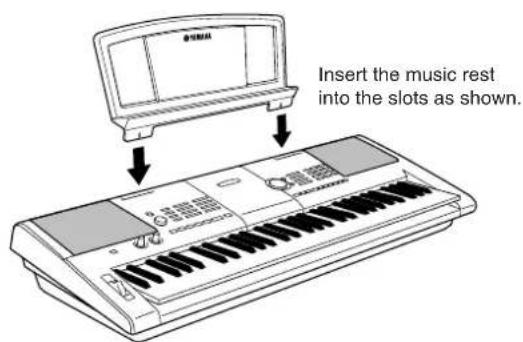
● Music Rest
text_image
Insert the music rest into the slots as shown.Special Features of the PSR-E403/YPT-400
■Creating New Sounds Page 18
By adjusting just two knobs you can add varying degrees of distortion, "sweetness," or other characteristics to a sound to change it subtly or drastically. Parameters that can be assigned to the knobs include effect, filter, envelope generator and more. You can create new sounds in real time!

■Arpeggio Function Page 14
Similar to the arpeggio functions provided on some synthesizers, this function automatically produces arpeggios (broken chords) when you simply play the appropriate notes on the keyboard. A variety of arpeggios can be produced by changing your fingering or the arpeggio type.
■Performance assistant technology Page 23
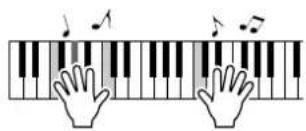
Play along with a song on the instrument's keyboard and produce a perfect performance every time ... even if you play wrong notes! All you have to do is play on the keyboard—alternately on the left- and right-hand ranges of the keyboard, for example—and you'll sound like a pro as long as you play in time with the music.
text_image
Illustration of two hands typing on a piano keyboard with musical notes above them■Play a Variety of Instrument Voices ▶Page 28
The instrument voice that sounds when you play the keyboard can be changed to violin, flute, harp, or any of an extensive range of voices. You can change the mood of a song written for piano, for example, by using violin to play it instead. Experience a whole new world of musical variety.

■Play Along with Styles Page 33
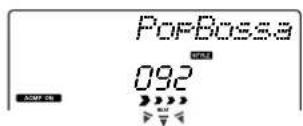
Want to play with full accompaniment? Try the auto-accompaniment Styles. The accompaniment styles provide the equivalent of a full backing band covering a wide variety of styles from waltzes to 8-beat to euro-trance ... and much more. Select a style that matches the music you want to play, or experiment with new styles to expand your musical horizons.
Contents
Copyright Notice 6
Panel Logos 6
Accessories....7
Special Features of the PSR-E403/YPT-400....8
Setting Up 10
Power Requirements 10
Connecting Headphones (PHONES/OUTPUT Jack)...... 11
Connecting a Footswitch (SUSTAIN Jack) 11
Connecting to a Computer (USB Terminal) 11
Turning the Power On.... 11
Panel Controls and Terminals 12
Front Panel 12
Rear Panel 13
Quick Guide
Creating Arpeggios 14
Create Original Sounds 18
Assigning Effects to the Knobs 18
Using the Knobs....21
The Easy Way to Play Piano 23
Play with Both Hands.... 23
Change the Song Tempo....27
Try Playing a Variety of Instrument Voices 28
Select and Play a Voice—MAIN 28
Play Two Voices Simultaneously—DUAL.... 29
Play Different Voices with the Left and Right Hands —SPLIT 30
Play the Grand Piano Voice.... 31
Fun Sounds 32
Drum Kits 32
Sound Effects.... 32
Playing Styles 33
Select a Style Rhythm.... 33
Play Along with a Style 34
Playing Auto-accompaniment Chords.... 38
Using Songs 39
Select and Listen to a Song 39
Song Fast Forward, Fast Reverse, and Pause...... 40
Types of Songs 42
Select a Song For a Lesson 43
Lesson 1—Waiting....43
Lesson 2—Your Tempo 46
Lesson 3—Minus One 47
Practice Makes Perfect—Repeat and Learn.... 48
Play Using the Music Database 49
Change a Song's Style 50
Listen to the DEMO Song for Easy Song Arranger.... 50
Using the Easy Song Arranger 50
Record Your Own Performance
Track Configuration.... 52
Recording Procedure 52
Song Clear—Deleting User Songs 55
Track Clear—Deleting a Specified Track from a User Song....55
Backup and Initialization 56
Backup 56
Initialization 56
Basic Operation and Displays 57
Basic Operation 57
Display Items 59
Reference
Adding Effects 60
Harmony....60
Adding Reverb 61
Adding Chorus 62
Handy Performance Features 63
The Metronome....63
Setting the Number of Beats per Measure, and the Length of Each Beat 64
Adjusting the Metronome Volume....64
Tap Start 65
Touch Response Sensitivity....65
Pitch Bend....66
Pitch Controls....66
Controlling Arpeggio Volume with Keyboard Dynamics.....67
One Touch Setting 68
Adjusting the Harmony Volume....69
Select an EQ Setting for the Best Sound....69
Style (Auto-accompaniment) Functions 70
Pattern Variation (Sections) 70
Adjusting the Style Volume 72
Setting the Split Point....72
Play a Style with Chords but No Rhythm
(Stop Accompaniment) 73
Loading Style Files....74
Chord Basics....75
Looking Up Chords Using the Chord Dictionary .....77
Song Settings 78
Song Volume....78
A-B Repeat....78
Muting Independent Song Parts....79
Change the Melody Voice....79
Memorize Your Favorite Panel Settings 80
Saving to the Registration Memory....80
Recalling a Registration Memory 81
The Functions 82
Selecting and Setting Functions....82
Connecting to a Computer 85
What Is MIDI? 85
Connecting a Personal Computer....86
Transferring Performance Data to and from a Computer.....87
Remote Control of MIDI Devices....88
Initial Send 89
Transferring Data between the Computer and Instrument...89
Accessory CD-ROM Installation Guide 92
Important Notices about the CD-ROM 92
CD-ROM Contents....93
System Requirements....94
Software Installation....94
Appendix
Troubleshooting....99
Scores 100
Voice List 106
Drum Kit List 110
Style List 112
Arpeggio List 113
Music Database List 114
Songs Provided On the Supplied CD-ROM 116
Effect Type List 117
MIDI Implementation Chart 118
MIDI Data Format 120
Specifications.... 121
Index....122
Be sure to do the following operations BEFORE turning on the power.
Power Requirements
Although the instrument will run either from an optional AC adaptor or batteries, Yamaha recommends use of an AC adaptor whenever possible. An AC adaptor is more environmentally friendly than batteries and does not deplete resources.
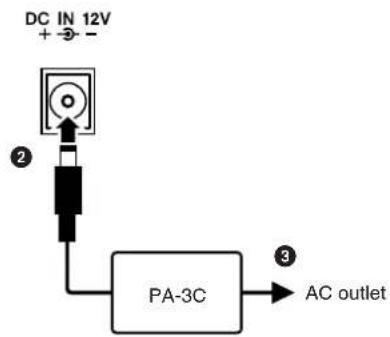
■ Using an AC Power Adaptor.
① Make sure that the [STANDBY/ON] switch of the instrument is set to STANDBY.
WARNING
- Use ONLY a Yamaha PA-3C AC Power Adaptor (or other adaptor specifically recommended by Yamaha) to power your instrument from the AC mains. The use of other adaptors may result in irreparable damage to both the adaptor and the instrument.
2 Connect the AC adaptor (PA-3C or other adaptor specifically recommended by Yamaha) to the power supply jack.
③ Plug the AC adaptor into an AC outlet.
CAUTION
- Unplug the AC Power Adaptor when not using the instrument, or during electrical storms.
text_image
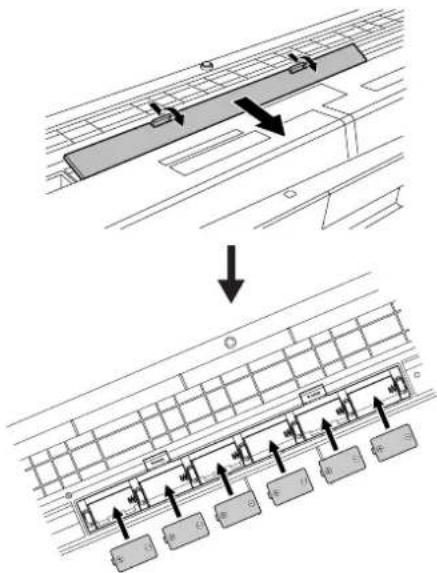
DC IN 12V + -■ Using Batteries
① Open the battery compartment cover located on the instrument's bottom panel.
② Insert the six new batteries, being careful to follow the polarity markings on the inside of the compartment.
③ Replace the compartment cover, making sure that it locks firmly in place.
NOTE
- Connecting the AC power adaptor automatically supplies power from the adaptor and overrides battery power, even when batteries are installed.
flowchart
graph TD
    A["Horizontal beam"] --> B["Grid Layout"]
    style A fill:#f9f,stroke:#333
    style B fill:#bbf,stroke:#333
For battery operation the instrument requires six 1.5V "D" size, R20P (LR20) or equivalent batteries. (Alkaline batteries are recommended.) When battery power becomes too low for proper operation, make sure to replace all batteries, following the precautions listed below.
If necessary, also make sure to save all important User data (see page 56), since custom panel settings are lost when the batteries are removed.
CAUTION
- Use only manganese or alkaline batteries for this instrument. Other types of batteries (including rechargeable batteries) may exhibit a sudden drop in power when the batteries are low, possibly resulting in a loss of flash memory data.
- Be sure to install the batteries in the same direction, maintaining the correct polarity (as shown). Incorrect battery installation may result in heat, fire and/or leaking of corrosive chemicals.
- When the batteries run down, replace them with a complete set of six new batteries. NEVER mix old and new batteries. Do not use different kinds of batteries (e.g. alkaline and manganese) at the same time.
- If the instrument will not be used for an extended period of time, remove the batteries to prevent possible fluid leakage.
- Please use the power adaptor when transferring data to flash memory. Batteries (including rechargeable types) can be drained rapidly by this type of operation. If the batteries do become drained during a data transfer, both the data being transferred and the data currently in the transfer destination will be lost.
Make all necessary connections below BEFORE turning the power on.
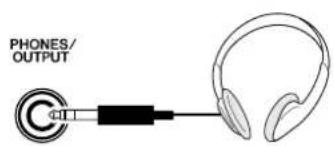
Connecting Headphones (PHONES/OUTPUT Jack)
text_image
PHONES/ OUTPUTThe PSR-E403/YPT-400 speakers are automatically shut off when a plug is inserted into this jack.
The PHONES/OUTPUT jack also functions as an external output. You can connect the PHONES/OUTPUT jack to a keyboard amplifier, stereo system, mixer, tape recorder, or other line-level audio device to send the instrument's output signal to that device.

WARNING
- Avoid listening with the headphones at high volume for long periods of time; doing so may not only result in ear fatigue, it may be damaging to your hearing.

CAUTION
• To prevent damage to the speakers, set the volume of the external devices at the minimum setting before connecting them. Failure to observe these cautions may result in electric shock or equipment damage. Also, be sure to set the volumes of all devices at their minimum levels and gradually raise the volume controls while playing the instrument to set the desired listening level.
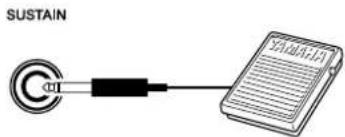
Connecting a Footswitch (SUSTAIN Jack)
text_image
SUSTAINThe sustain function lets you produce a natural sustain as you play by pressing a footswitch. Plug the Yamaha FC4 or FC5 footswitch into this jack and use it to switch sustain on and off.
NOTE
- Make sure that the footswitch plug is properly connected to the SUS-TAIN jack before turning on the power.
- Do not press the footswitch while turning the power on. Doing this changes the recognized polarity of the footswitch, resulting in reversed footswitch operation.
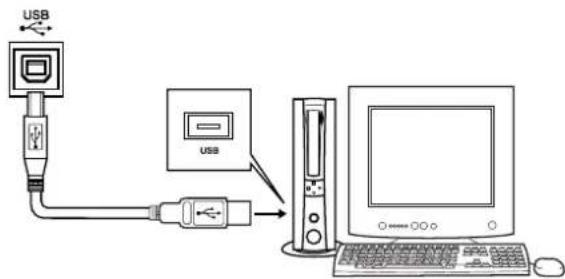
Connecting to a Computer (USB Terminal)
text_image
USB USBConnect the instrument's USB terminal to the USB terminal of a computer, and you can transfer performance data and song files between the two (page 86). To use the USB data-transfer features you'll need to do the following:
- First, make sure the POWER switch on the instrument is set to OFF, then use a USB cable to connect the instrument to the computer. After making the connections, turn on the power of the instrument.
• Install the USB MIDI driver on your computer.
Installation of the USB MIDI driver is described on page 94.
NOTE
- Make sure to purchase a quality USB cable at a musical instrument store, computer store or electrical appliance store.
Turning the Power On
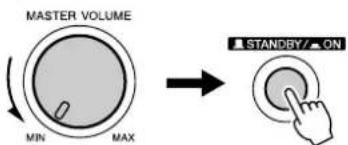
Turn down the volume by turning the [MASTER VOLUME] control to the left and press the [STANDBY/ON] switch to turn on the power. Press the [STANDBY/ON] switch again to turn the power OFF.
text_image
MASTER VOLUME MIN MAX STANDBY/ONBackup data in the flash memory is loaded to the instrument when the power is turned on. If no backup data exists on flash memory, all instrument settings are restored to the initial factory defaults when the power is turned on.

CAUTION
- Even when the switch is in the "STANDBY" position, electricity is still flowing to the instrument at the minimum level. When you are not using the instrument for a long time, make sure you unplug the AC power adaptor from the wall AC outlet, and/or remove the batteries from the instrument.

CAUTION
- Never attempt to turn the power off when a "WRITING!" message is shown in the display. Doing so can damage the flash memory and result in data loss.
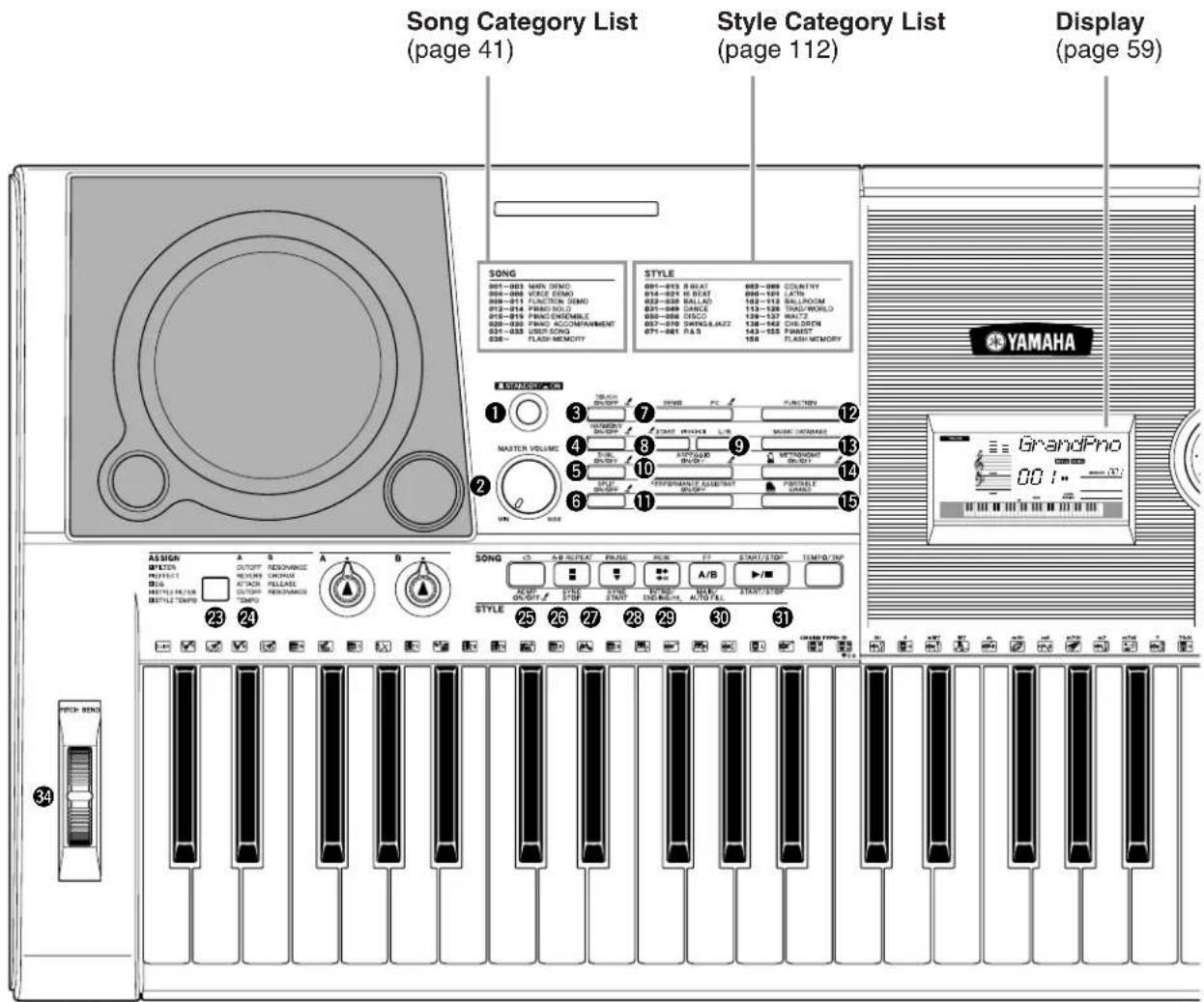
Front Panel
text_image
Song Category List (page 41) Style Category List (page 112) Display (page 59) SONG 061-083 MAIN DEMO 064-086 VOICE DEMO 068-071 FLCTION DEMO 072-014 FRANCYOLD 076-019 FRANC ENSEMBLE 082-038 FRANC ACCOMPONENT 084-035 USER SONG 088-FLASH MEMORY STYLE 081-013 B HEAT 016-021 B BEAT 022-029 BALLAO 031-049 DANCE 050-068 DRIGO 057-079 SWINGS/LAKZZ 071-081 P.A.S FLASH MEMORY MATERIAL VOLUME DUAL WHIP MINIMUM MINIMUM MINIMUM MINIMUM MINIMUM MINIMUM MINIMUM MINIMUM MINIMUM MINIMUM MINIMUM MINIMUM MINIMUM MINIMUM MINIMUM MINIMUM MINIMUM MINIMUM MINIMUM MINIMUM MINIMUM MINIMUM MINIMUM MINIMUM MINIMUM MINIMUM MINIMUM MINIMUM MINIMUM MINIMUM MINIMUM MINIMUM MINIMUM MINIMUMFront Panel
① [STANDBY/ON] switch ...... page 11
② [MASTER VOLUME] control.... pages 11, 24
③ [TOUCH ON/OFF] button ...... page 65
④ [HARMONY ON/OFF] button ...... page 60
⑤ [DUAL ON/OFF] button ...... page 29
⑥ [SPLIT ON/OFF] button...... page 30
⑦ [DEMO] button...... page 40
⑧ LESSON [START] button ...... page 44
⑨ LESSON [L/R] button ...... page 44
⑩ [ARPEGGIO ON/OFF] button...... page 14
⑪ [PERFORMANCE ASSISTANT ON/OFF] button ...... page 23
⑫ [FUNCTION] button ...... page 82
⑬ [MUSIC DATABASE] button ...... page 49
14 [METRONOME ON/OFF] button ..... page 63
⑮ [PORTABLE GRAND] button...... page 31
16 Dial ......pages 58, 82
⑰ CATEGORY [▲] and [▼]
buttons......pages 58, 82
⑱ [SONG] button...... page 39
19 [EASY SONG ARRANGER]
button...... page 50
⑳ [STYLE] button...... page 33
②1 [VOICE] button ...... page 28
22 Number buttons [0]–[9], [+] and [-] buttons ......pages 58, 82
②3 [ASSIGN] button...... page 18
24 [A] and [B] knobs ...... page 21
25 [d(REPEAT & LEARN)/
[ACMP ON/OFF] button ......pages 48, 34
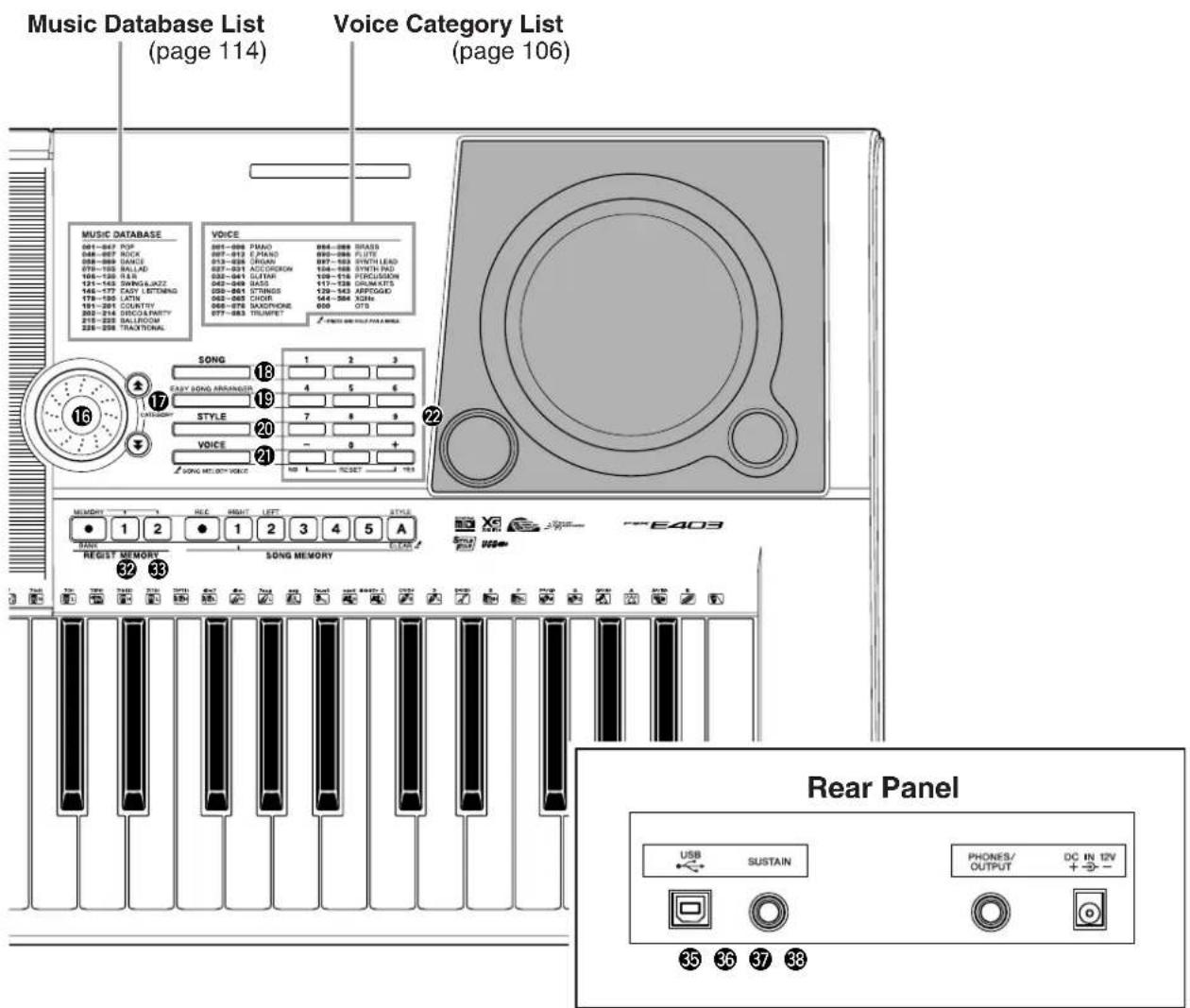
text_image
Music Database List (page 114) Voice Category List (page 106) MUSIC DATABASE 081-087 POP 048-057 ROCK 058-089 SANCE 078-105 BALLAD 108-135 LLS 121-165 SWING & JAZZ 146-177 FASY LETTING 179-190 LATIN 191-201 COUNTY 202-214 DISCO/FAIRY 218-235 BALLROOM 228-258 TRACTURAL VOICE 091-098 PUMO 097-013 E PAND 013-038 CRUAN 037-031 ACCORDOM 032-045 SLATAR 042-049 BASS 059-061 CTHINGS 063-065 CHOR 066-076 SAXYPHONE 077-083 TRUMFET SONG FAST SONG ARRANGER STYLE VOICE SONG MEMORY VOICE 1 2 3 4 5 6 7 8 9 - 0 + 10 RESET TES 22 MEMORY 1 2 REC HUIT LEFT STYLE REGIST MEMORY 32 33 SONG MEMORY E403 USB SUSTAIN PHONES/ OUTPUT DC IN 12V 35 36 37 38 Rear Panel26 [A-B REPEAT]/
[SYNC STOP] button ...... pages 78, 71
27 [PAUSE]/
[SYNC START] button ...... pages 40, 70
28 [REW]/
[INTRO/ENDING/rit.] button .... pages 40, 71
29 [FF]/
[MAIN/AUTO FILL] button ...... pages 40, 71
30 [START/STOP] button ..... pages 33, 40, 58
③1 [TEMPO/TAP] button ...... page 27
32 REGIST MEMORY
[●] (MEMORY/BANK),
[1], [2] buttons ...... page 80
33 SONG MEMORY
[REC], [1]–[5], [A] buttons...... page 52
34 PITCH BEND wheel ...... page 66
Rear Panel
35 USB terminal ......pages 11, 86
③6 SUSTAIN jack...... page 11
③7 PHONES/OUTPUT jack ...... page 11
38 DC IN 12V jack...... page 10
The arpeggio function lets you create arpeggios (broken chords) by simply playing the required notes on the keyboard. For example, you could play the notes of a triad—the root, third, and fifth—and the arpeggio function will automatically create a variety of interesting arpeggio-type phrases. By changing the arpeggio type and the notes you play it is possible to create a wide range of patterns and phrases that can be used for music production as well as performance.
1 Press the [ARPEGGIO ON/OFF] button to turn the arpeggio function on.
![YAMAHA PSR-E403 - Press the [ARPEGGIO ON/OFF] button to turn the arpeggio function on. - 1](/content/2026/06/1244052/images/27d4c82f505e75574cc7fd83ae2fffe2d6e4e9dd5b28cfdc39a308aaa8472c11.jpg)
text_image
DEMO PC START LESSON L/R ARPEGGIO ON/OFF PERFORMANCE ASSIS ON/OFF![YAMAHA PSR-E403 - Press the [ARPEGGIO ON/OFF] button to turn the arpeggio function on. - 2](/content/2026/06/1244052/images/8c2f42cc1622ca04fc24d2cb4e4029914baff1f59470ab8563a25365cda7e031.jpg)
text_image
TOUCH ARPECGIO GrandPro STYLE VOICE 00 1 MEASURE 00 1 BEAT KHOSE ASSIGNARPEGGIO
The ARPEGGIO icon appears when the arpeggio function is on.
● Voices and the Arpeggio Function
This instrument lets you select a variety of “voices” that you can play via the keyboard. When you select a voice number between 129 and 143 the arpeggio function will automatically be engaged so you can start playing arpeggios immediately. The arpeggio function will automatically be turned off when you select any other voice.
If you want to use voices 129–143 for normal performance without the arpeggio function, press the [ARPEGGIO ON/OFF] button to turn the arpeggio function off after selecting the voice.
NOTE
• See "Try Playing a Variety of Instrument Voices" on page 28.
●Voices for which the arpeggio function is automatically turned on.
| Voice No. | Voice Name | Voice No. | Voice Name | ||
| 129 | Synth | Sequence 137 | Piano Arpeggio | ||
| 130 | Sawtooth | Lead | Arpeggio 138 | Ballad E | Electric Piano |
| 131 | Analog | Sequence 139 | Guitar Chord | ||
| 132 | Chord | Sequence 140 | Guitar Arpeggio | ||
| 133 | Sawtooth | 141 | Acid Synth | ||
| 134 | Square | Pulse 142 | Arabic Loop | ||
| 135 | Trance | 143 | Massive Percussion | ||
| 136 | Synth | Echo | |||
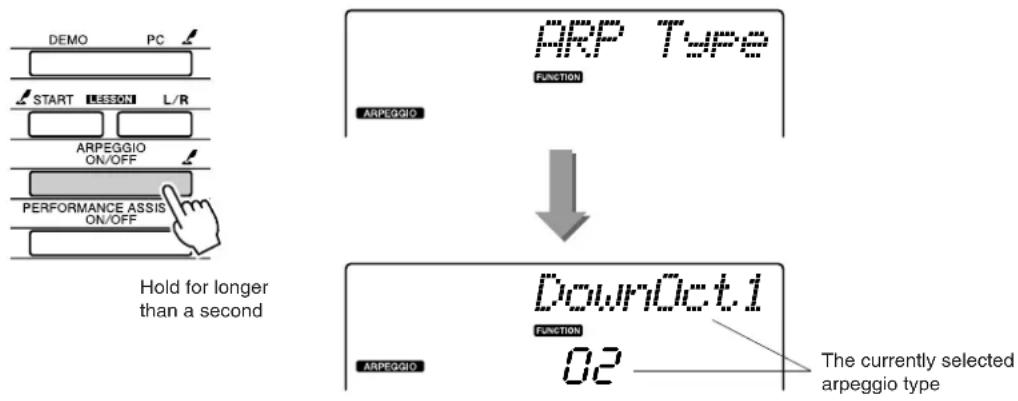
2 Select an arpeggio type.
The most suitable arpeggio type is automatically selected when you select a voice, but you can easily select any other arpeggio type.
text_image
DEMO PC START LESSON L/R ARPEGGIO ON/OFF PERFORMANCE ASSIS ON/OFF Hold for longer than a second ARPP Type FUNCTION ARPEGGIO DownOct.1 FUNCTION 02 The currently selected arpeggio typeHold the [ARPEGGIO ON/OFF] button for longer than a second and the name of the current arpeggio type will appear in the display. Rotate the dial to select the desired arpeggio type. A list of the available arpeggio types is provided on page 113.
3 Play the keyboard.
natural_image
Illustration of a hand pressing down on a piano keyboard (no text or symbols)The sound of the arpeggio produced will change according to the number of notes you play and the area of the keyboard you play in. You can save the instrument's settings at this point and then recall them at any time you want to repeat your performance (page 80). You can also record your performance (page 52).
The arpeggio function applies only to the main and dual voices, and does not affect split voices. The arpeggio function cannot be used at the same time as the harmony function.
NOTE
• Make sure that you are not pressing any of the keyboard's keys while turning the arpeggio function on or off.
4 When you have finished playing with the arpeggio function, press the [ARPEGGIO ON/OFF] button to turn it off.
Create a Pop Tune
You can play a style and specify the style chords with your left hand while playing arpeggios with your right hand to create interesting sonic textures and backgrounds.
1 Select the keyboard voice (page 28).
For this example we'll use a grand piano voice, so press the [PORTABLE GRAND] button. This convenient voice selection method lets you instantly select a voice with a single button press.

text_image
FUNCTION MUSIC DATABASE METRONOME ON/OFF PORTABLE GRAND2 After turning the arpeggio function on, select an arpeggio type (steps 1 and 2 on the preceding page).
For this example select "02 DownOct1".
That completes preparation to use the arpeggio function.
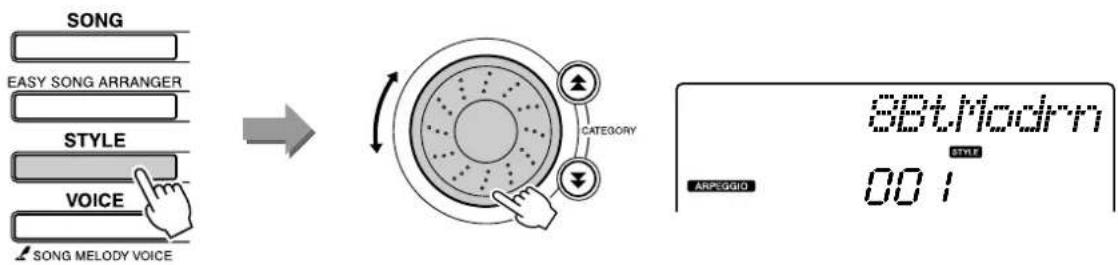
3 Select the style you want to play along with the arpeggio function.
A "style" is an automatic accompaniment pattern.
Press the [STYLE] button and the name of the currently selected style will appear in the display. Rotate the dial to select the desired style. For this example we'll use the "001 8BtModrn" (8 Beat Modern) style.
flowchart
graph LR
    A["SONG"] --> B["EASY SONG ARRANGER"]
    B --> C["STYLE"]
    C --> D["VOICE"]
    D --> E["SONG MELODY VOICE"]
    E --> F["Category"]
    F --> G["8BtModrm"]
    G --> H["001 ARPEGGIO"]
NOTE
• Refer to "Playing Styles" on page 33.
4 Press the [ACMP ON/OFF] button to turn auto accompaniment on.
![YAMAHA PSR-E403 - Press the [ACMP ON/OFF] button to turn auto accompaniment on. - 1](/content/2026/06/1244052/images/74c9b30c57d2338feaff1a516f665cb90cde2c7142475183c5c218c2221112a3.jpg)
text_image
ACMP ON/OFF VC OP STYLE ARPEGIO ACMP ON ACMP ON The ACMP ON icon will appear. SBtModm STYLE 001When auto accompaniment is turned on, the left-hand section of the keyboard is used only for specifying accompaniment chords.
NOTE • Refer to
5 Press the [START/STOP] button.
The rhythm accompaniment will start.
6 Begin playing.
text_image
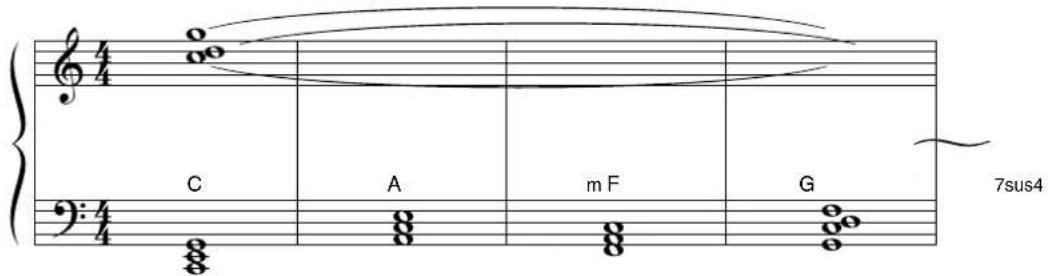
C A m F G 7sus4Listen carefully to the rhythm of the style, then play the notes shown in the score at the beginning of a measure. The style and arpeggio will begin playing together. The accompaniment will change accordingly each time you play a new left-hand chord. Of course you can also change your right-hand fingering to produce interesting changes. If you're not comfortable with right-hand playing yet, you could use the performance assistant technology feature described on page 23. When the performance assistant feature is on, playing any right-hand key will always produce musically appropriate notes!
text_image
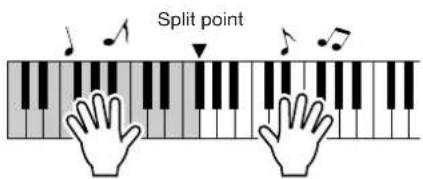
Split pointWhenever you're playing a style as well as a right-hand part, be sure that your left hand plays only to the left of the split point and your right hand plays only to the right of the split point. (page 30)
Create Original Sounds
The two knobs located in the lower left area of the panel can be used to add variations to the sound being played, transforming the sound in a variety of musical ways. Filter, envelope generator, and other effects can be assigned to the two knobs as required. In this section we'll explain how effects can be assigned to the knobs, and provide a few tips for their use.
Assigning Effects to the Knobs
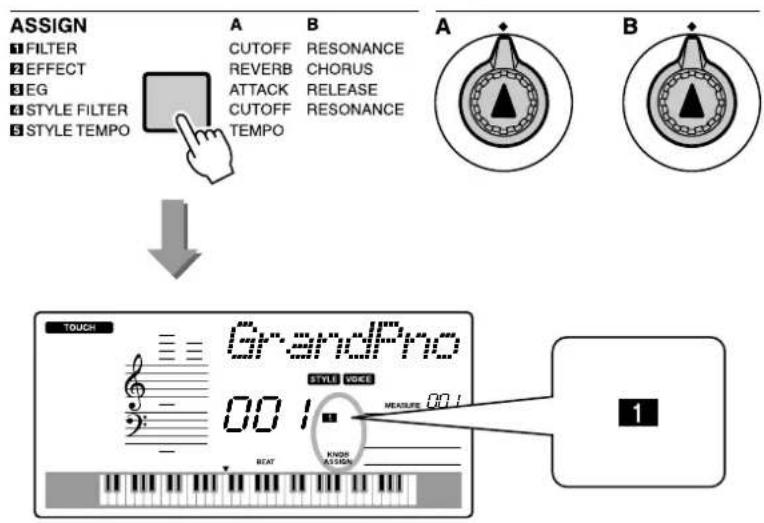
Repeatedly press the [ASSIGN] button to sequentially select the five effect combinations provided: 1 → 2 → 3 → 4 → 5 → 1 → ... etc. The currently selected combination is shown in the display.
text_image
ASSIGN FILTER EFFECT EG STYLE FILTER STYLE TEMPO A CUTOFF RESONANCE REVERB CHORUS ATTACK RELEASE CUTOFF RESONANCE TEMPO A B TOUCH GrandPro STYLE VOICE MEASURE 00.1 BEAT KNOOR ASSIGN 1| Number/Effect Knob | A Knob B | |
| 1 Filter Filter Cutoff Filter Resonance | ||
| 2 Effect Reverb Send Level | Chorus Send Level | |
| 3 EG Attack Time Release Time | ||
| 4 Style Filter Filter Cutoff Filter Resonance | ||
| 5 Style Tempo | Tempo | -No Effect- |
The assignable knob effects are pre-programmed in the pairs listed above. It is not possible to assign different effect combinations.
1—3 affect the main and dual voices only. Split voices will not be affected. Styles and songs will also not be affected.
4-5 affect styles only.
1 Filter
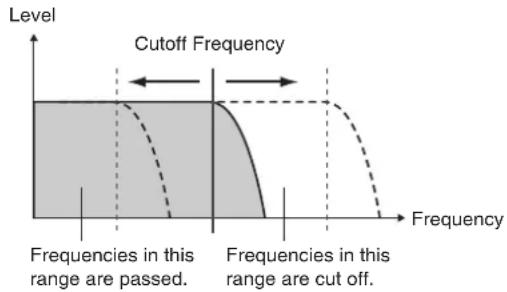
Filter effects shape sound by allowing only a specified range of frequencies to pass and/or by producing a resonance peak at the filter's “cutoff” frequency. Filter effects can be used to create a range of synthesizer-like sounds.
* Filter effects can sometimes cause distortion in the bass frequencies.
Some hints for using the filter effects are provided on page 22.
Filter ResonanceFilter Cutoff
natural_image
Two identical diagrams labeled A and B showing a central triangle within concentric circles, no text or symbols present.Knob A adjusts the filter's cutoff frequency, and therefore the brightness of the sound.
area
| Frequency Range | Cutoff Frequency | | --------------- | ---------------- | | Passes | Low | | Cut Off | High |Knob B adjusts the amount of resonance applied at the filter's cutoff frequency. Increasing the resonance emphasizes the frequencies at the cutoff frequency, and thus “strengthens” the perceived effect of the filter.
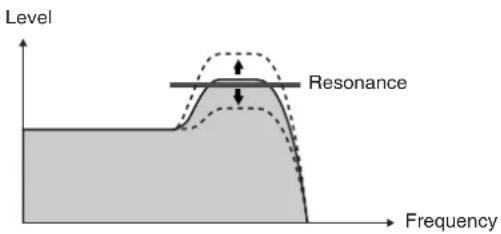
text_image
Level Resonance Frequency2 Effect
Reverb reproduces the acoustic ambience of a concert hall or club, while chorus produces a layered “multi-instrument” effect.
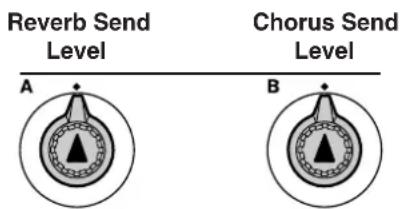
text_image
Reverb Send Level A Chorus Send Level BKnob A adjusts the depth of the reverb effect, and Knob B adjusts the depth of the chorus effect.
3 EG (Envelope Generator)
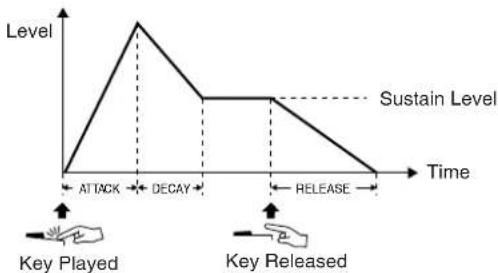
Envelope Generator effects determine how the level of the sound varies over time. You can make the attack faster for a more percussive sound or slower for a violin-like sound, for example. Or you can lengthen or shorten the sustain to most ideally match the music.
Release TimeAttack Time
natural_image
Two identical diagrams labeled A and B showing a central triangular structure surrounded by concentric circles, with no text or symbols.Knob A adjusts attack time (the amount of time it takes the sound to reach maximum level when a key is played).
Knob B adjusts release time (the amount of time it takes for the sound to decay to silence after a key is released).
flowchart
graph TD
    A["Level"] --> B["ATTACK"]
    B --> C["DECAY"]
    C --> D["Sustain Level"]
    D --> E["RELEASE"]
    E --> F["Key Released"]
    style A fill:#f9f,stroke:#333
    style B fill:#ccf,stroke:#333
    style C fill:#cfc,stroke:#333
    style D fill:#fcc,stroke:#333
    style E fill:#cff,stroke:#333
    style F fill:#ffc,stroke:#333
4 Style Filter
Filter ResonanceFilter Cutoff
natural_image
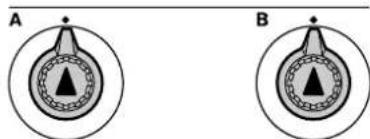
Two circular diagrams labeled A and B showing internal structures with triangular elements, no text or symbols present.In this case the knobs apply the filter effect to the style being played. Knob A and Knob B have the same functions as for “1 Filter” described on the preceding page.
5 Style Tempo
-No Effect-Tempo
natural_image
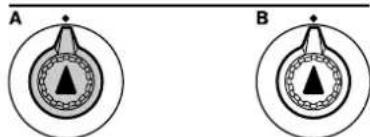
Two circular diagrams labeled A and B showing internal structures with triangular elements, no text or symbols present.Knob A adjusts the tempo of the style and arpeggios. Rotating the knob clockwise increases the tempo while rotating it counterclockwise decreases the tempo. The knob's center position produces the initial default tempo.
Using the Knobs
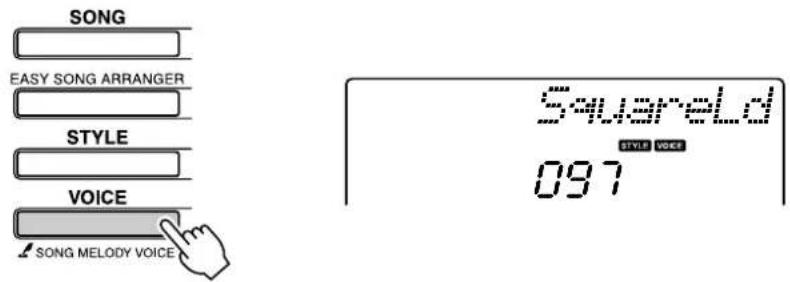
1 Select the voice you want to play on the keyboard.
text_image
SONG EASY SONG ARRANGER STYLE VOICE SONG MELODY VOICE SquareLd STYLE VOCE 097The name of the currently selected voice will appear in the display when you press the [VOICE] button. Use the dial to select the desired voice. For this example we want to use a synth-lead type voice, so select "97 SquareLd" (Square-wave Lead).
2 Press the [ASSIGN] button as many times as necessary to select "1 FILTER" ("1" will appear in the display).
![YAMAHA PSR-E403 - Press the [ASSIGN] button as many times as necessary to select "1 FILTER" ("1" will appear in the display). - 1](/content/2026/06/1244052/images/34c797d27cc10475132f7ac7bf6ae7945232c429291ec4efd3cd7efc97925813.jpg)
text_image
ASSIGN FILTER EFFECT EG STYLE FILTER STYLE TEMPO A B CUTOFF RESONANCE REVERB CHORUS ATTACK RELEASE CUTOFF RESONANCE TEMPO SquareOLD STYLE VOICE 097 "1" appears here. ASSIGNKnob A can now be used to adjust the filter cutoff frequency, and Knob B can be used to adjust the resonance.
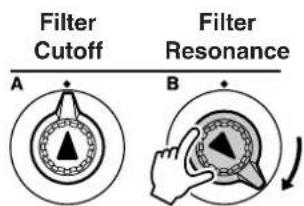
3 Rotate Knob B to its maximum setting (all the way to the right).
text_image
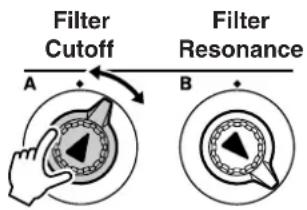
Filter Cutoff Filter Resonance A BRotating the knob to the right while the volume is set to a high level can result in distortion. If this occurs, reduce the volume level.
4 Play with the right hand while operating Knob A with the left hand.
text_image
Filter Cutoff Filter Resonance A B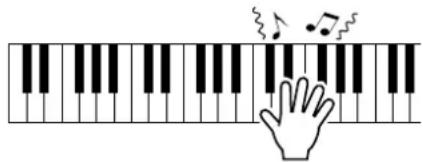
text_image
Illustration of a hand pressing down on a piano keyboard with musical notes above itIf you select a different keyboard voice the knobs will be reset and the ideal settings for the selected voice will be automatically recalled. In the same way, if the “4 STYLE FILTER” effect is selected, the knobs will be reset if a different style is selected. If you create an original setting you like, it might be a good idea to save it in the instrument’s Registration Memory (page 80) so you can recall the same settings again at any time. You can also record performances using original sounds you’ve created (page 52).
The chart below lists some interesting ways to use the various effects that can be assigned to the knobs.
Changing the knob settings does not immediately change the sound. Newly assigned effects will only change the sound when the knobs are first operated after the new effect has been selected.
●Some Ideas for Using the Knobs
| Number/Effect Try This | |
| 1 FILTER | Select a synth-type lead or pad voice (page 106). Turn Knob B all the way up and operate Knob A while playing for some spacey, floating 1980's effects. |
| 2 EFFECT | Select a voice that sounds as though it already has reverb and chorus effects applied, and turn Knob A and Knob B all the way down to hear the “direct” sound of the voice. You can then turn the Knob A and Knob B settings up to add extra impact and richness to the voice. |
| 3 EG | Select a piano voice, and turn Knob B all the way up and Knob A to about the 3 o'clock position. This should give you a majestic, organ-like sound. The attack time is quite long so play the keys and hold them to let the sound come in fully. Ideal for slow pieces. |
| 4 STYLE FILTER | Select style 31, Euro Trance. Turn accompaniment on and start style playback (page 34). Set Knob B to about 3 o'clock, and Knob A to about 8 o'clock. The overall sound of the style should be a bit muffled, with the drums emphasized for solid rhythmic impact. |
| 5 STYLE TEMPO Play a style and/or | arpeggio (page 14) and use Knob A to adjust the tempo. |
The Easy Way to Play Piano
This instrument includes a performance assistant technology feature that lets you play along with a song and sound like a great pianist (even though you might be making lots of mistakes)! In fact, you can play any notes and still sound good!
So even if you can't play piano and can't read a note of music, you can have some musical fun. It's never too late to start learning!
Refer to page 25 for more information on using performance assistant technology to help you play.
Play with Both Hands
1 Press the [PERFORMANCE ASSISTANT ON/OFF] button.
This turns on the performance assistant technology feature.
The P.A.T. icon will appear after "PERFORMANCE ASSISTANT".
![YAMAHA PSR-E403 - Press the [PERFORMANCE ASSISTANT ON/OFF] button. - 1](/content/2026/06/1244052/images/8f20f3ed8dc7f887d832e2c79f95f7f4db81948da8918be4e604cb0cee4b7ff3.jpg)
flowchart
graph TD
    A["Start"] --> B["PROCK"]
    B --> C["START"]
    C --> D["LESION"]
    D --> E["L/R"]
    E --> F["ARPEGGIO ON/OFF"]
    F --> G["PERFORMANCE ASSISTANT ON/OFF"]
    G --> H["HOCTURE"]
    H --> I["011"]
    I --> J["P.A.T."]
    J --> K["Icon will appear when performance assistant technology is on."]
Press the [PERFORMANCE ASSISTANT ON/OFF] button to turn the function on or off.
2 Select a song. Press the [SONG]
Press the [SONG] button, and the song number and name will be displayed. You can use the dial or other selection controls to select a different song.
For this example try selecting the "010 AveMaria".
![YAMAHA PSR-E403 - Select a song. Press the [SONG] - 1](/content/2026/06/1244052/images/ed1913ee378263d1c11223b485ebb2ac3f6a0f60842970c2c2d20f8c18f494f0.jpg)
text_image
SONG EASY SONG ARRANG STYLE VOICE SONG MELODY VOICE CATEGORY Song name AveMaria SONS 0.10 Song number The song displayed here will be played.●What is a “Song”?
Of course you know the normal meaning of the word, but for this instrument the term “song” also refers to the data that makes up a piece of music. You can listen to the songs, use them for lessons, and use them with a range of other functions (page 39).
3 Press the [START/STOP] button.
![YAMAHA PSR-E403 - Press the [START/STOP] button. - 1](/content/2026/06/1244052/images/10d639478ce1959e50f0eed0a1930741dfacd229d279538edaf1a881d1d055c7.jpg)
text_image
SONG A-B REPEAT PAUSE REW FF START/STOP![YAMAHA PSR-E403 - Press the [START/STOP] button. - 2](/content/2026/06/1244052/images/39604a2dcd9aa7bbfde3d2d5084630fac95a39eec10a23b1b3f38012bb199865.jpg)
text_image
MASTER VOLUME MIN MAX Adjusts volume.Song playback will begin.
The basic pattern will repeat. Listen to four measures while memorizing the basic pattern. It's your turn to play the part from the fifth measure.
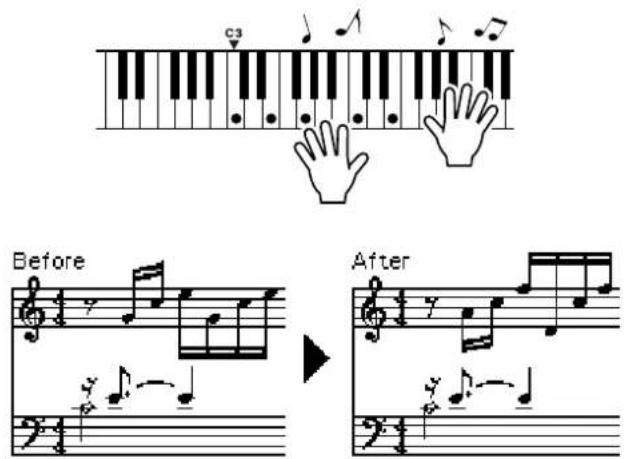
4 Play on the keyboard.
text_image
C3 Before AfterPlay the score on the left along with the accompaniment using both hands. You can even play the same keys over and over: C, E, G, C, E, G, C, E. Performance assistant technology will make sure that the notes will come out as if they were played according to the score on the right. Keep playing, and performance assistant technology will continue to “correct” the notes that you play.
You can stop song playback at any time by pressing the [START/STOP] button.
5 Press the [PERFORMANCE ASSISTANT ON/OFF] button to turn the performance assistant technology feature off.
The complete score for Ave Maria is provided on page 102.
Use the Performance Assistant to Play Like a Pro!
To begin, try to feel the rhythm of the song. Then, with your hands spread as shown in the illustration, simply play the keyboard alternately with your left and right hands (any notes will do).

text_image
Sounds like you're playing the right notes! G ↓ E b You will get even better results if you match your left-hand rhythm to the rhythm of the chord indicat- tor in the display.How does it sound? You'll get acceptable results no matter where you play thanks to performance assistant technology!
Next try the three playing methods illustrated below. Different ways of playing produce different results.
●Play with the left and right hands at the same timing—type 1.
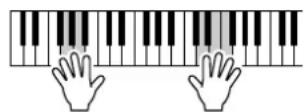
Play 3 notes at once with your right hand.
●Play with the left and right hands at the same timing—type 2.
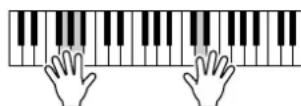
Play 1 note at a time with your right hand (for example: index finger → middle finger → ring finger).
●Play alternately with the left and right hands—type 3.
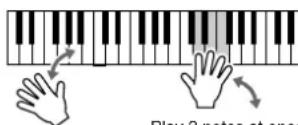
Play 3 notes at once with your right hand.
Once you get a feel for it, try playing chords with your left hand and a melody with your right ... or any other combination.
To use the performance assistant technology feature it is necessary to play a song that includes chord data, or a style with auto accompaniment on.
If a song includes the required data, the chords are shown on the right side of the display (page 59).
Next try playing the Chopin Nocturne.
1 The procedure is that same as that described for playing Ave Maria on pages 23–25. Select "011 Nocturne".
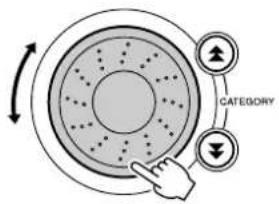
text_image
CATEGORY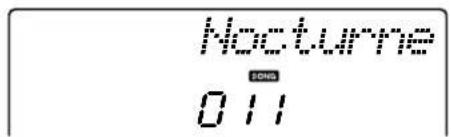
text_image
Nocturne 0112 Listen to eight measures, then begin playing from the ninth measure.
Play the keys shown in the illustration. Keep playing F, A and C with your left hand and the correct notes will sound as the song proceeds. When you get used to playing the left hand part, refer to “The Easy Way to Play Piano” on page 23 and try adding the right-hand part.
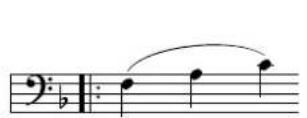
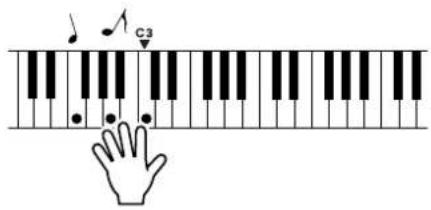
text_image
C233 Press the [PERFORMANCE ASSISTANT ON/OFF] button to turn the performance assistant technology feature off.
The complete score for Nocturne is provided on page 104.
Change the Song Tempo
When using the performance assistant technology or in other situations in which the tempo of the song is too fast or too slow for you, you can change the tempo as required. Press the [TEMPO/TAP] button. The tempo display will appear and you can use the dial, the [+] and [-] buttons, or the [0] to [9] number buttons to set to tempo to anywhere from 011 and 280 quarter-note beats per minute.

flowchart
graph LR
    A["START/STOP"] --> B["TEMPO/TAP"]
    B --> C["Current tempo value"]
    C --> D["Tempo"]
    D --> E["090"]
    E --> F["Category"]
You can return to the original tempo by simultaneously pressing the [+] and [-] buttons.
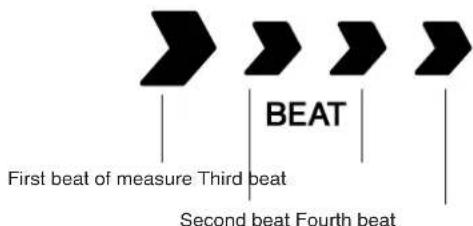
●About the Beat Display
The arrow marks in the beat display flash in time with the rhythm of the song or style.
text_image
First beat of measure Third beat Second beat Fourth beat BEATTry Playing a Variety of Instrument Voices
In addition to piano, organ, and other “standard” keyboard instruments, this instrument has a large range of voices that includes guitar, bass, strings, sax, trumpet, drums and percussion, sound effects ... a wide variety of musical sounds.
Select and Play a Voice—MAIN
This procedure selects the main voice you will play on the keyboard.
1 Press the [VOICE] button.
The voice number and name will be displayed.
![YAMAHA PSR-E403 - Press the [VOICE] button. - 1](/content/2026/06/1244052/images/e4760c75311d3ca8089be9d1521eb4d0635aa646d154ecaa765fe2af899bef88.jpg)
text_image
SONG EASY SONG ARRANGER STYLE VOICE SONG MELODY VOICE Voice name GrandPro STYLE VOCE 001 Voice number Appears when the Voice mode is engaged.2 Select the voice you want to play. While watching the displayed voice name
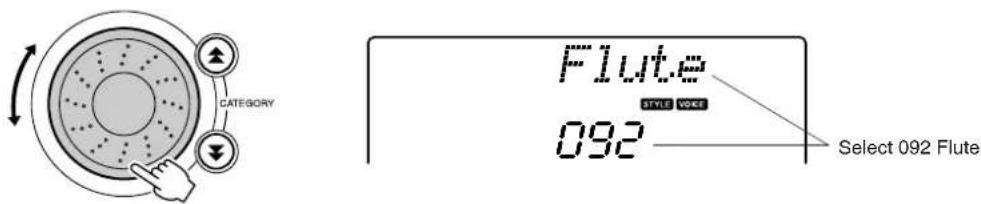
While watching the displayed voice name rotate the dial. The available voices will be selected and displayed in sequence. The voice selected here becomes the main voice.
For this example select the "092 Flute" voice.
NOTE
- You can also select the voice using the CATEGORY [▲and [▼buttons after pressing the [VOICE] button. (page 58)
text_image
CATEGORY Flute STYLE VOCE 092 Select 092 Flute3 Play the keyboard.
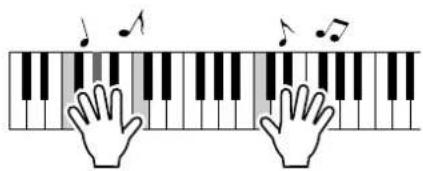
text_image
Illustration showing two hands typing on a piano keyboard with musical notes above themTry selecting and playing a variety of voices.
Play Two Voices Simultaneously—DUAL
You can select a second voice which will play in addition to the main voice when you play the keyboard. The second voice is known as the “dual” voice.
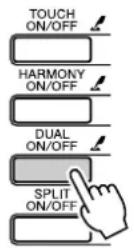
1 Press the [DUAL ON/OFF] button. The [DUAL ON/OFF] button turns the du
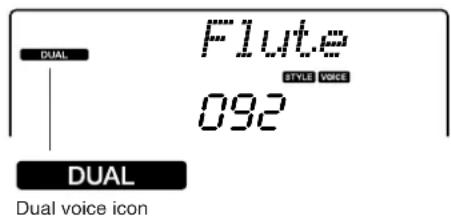
The [DUAL ON/OFF] button turns the dual voice on or off. When turned on the dual voice icon will appear in the display. The currently selected dual voice will sound in addition to the main voice when you play the keyboard.
NOTE
• The dual voice feature cannot be used during a song lesson (page 43).
text_image
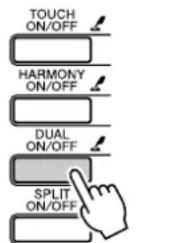
DUAL Flute8 STYLE VOICE 092 DUAL Dual voice icon2 Press and hold the [DUAL ON/OFF] button for longer than a second.
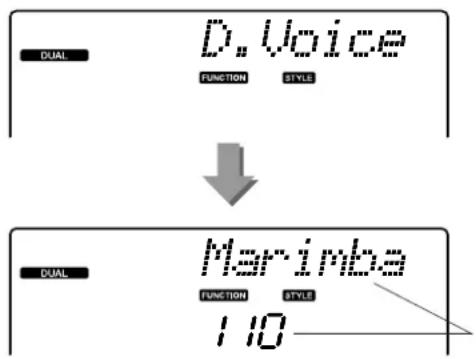
“D.VOICE” appears in the display for a few seconds, then the currently selected dual voice will be displayed.
NOTE
- You can also select the Dual Voice display by pressing the [FUNCTION] button and then using the CATEGORY [▲and ▼buttons to select the "D.Voice" item.
text_image
TOUCH ON/OFF HARMONY ON/OFF DUAL ON/OFF SPLIT ON/OFFHold for longer than a second
text_image
D. Voice FUNCTION STYLE ↓ DUAL Marinas FUNCTION STYLE 110The currently selected dual voice
3 Select the desired dual voice. Watch the displayed dual voice and
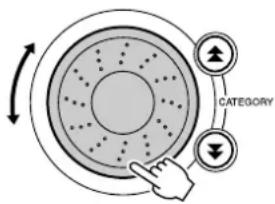
Watch the displayed dual voice and rotate the dial until the voice you want to use is selected. The voice selected here becomes the dual voice. For this example try selecting the “109 Vibraphone” voice.
text_image
CATEGORY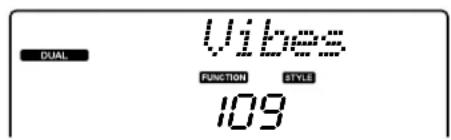
text_image
DUAL Vibes FUNCTION STYLE 1094 Play the keyboard.
text_image
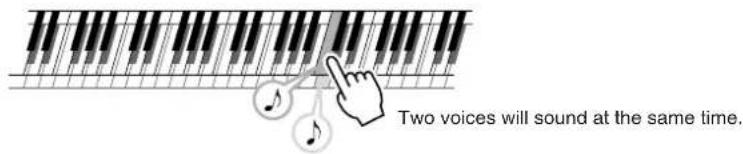
Two voices will sound at the same time.Try selecting and playing a range of dual voices.
Play Different Voices with the Left and Right Hands—SPLIT
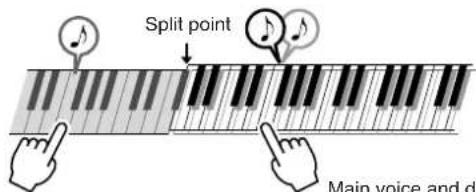
In the split mode you can play different voices to the left and right of the keyboard “split point”. The main and dual voices can be played to the right of the split point, while the voice played to the left of the split point is known as the “split voice”. The split point setting can be changed as required (page 72).
text_image
Split point Main voice and dMain voice and dual voiceSplit voice
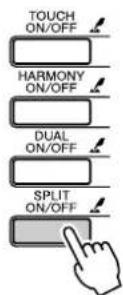
1 Press the [SPLIT ON/OFF] button. The [SPLIT ON/OFF] button turns the spl
The [SPLIT ON/OFF] button turns the split voice on or off.
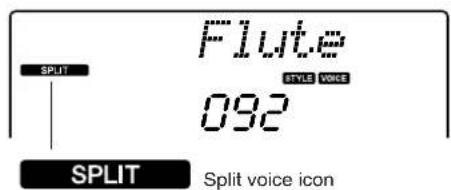
When turned on the split voice icon will appear in the display. The currently selected split voice will sound to the left of the keyboard split point.
NOTE
• The split voice feature cannot be used during a song lesson (page 43).
text_image
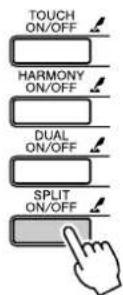
SPLIT Flute STYLE VOICE 092 SPLIT Split voice icon2 Press and hold the [SPLIT ON/OFF] button for longer than a second.
“S.VOICE” appears in the display for a few seconds, then the currently selected split voice will be displayed.
NOTE
- You can also select the Split Voice display by pressing the [FUNCTION] button and then using the CATEGORY [▲and ▼buttons to select the "S.Voice" item.
Hold for longer than a second
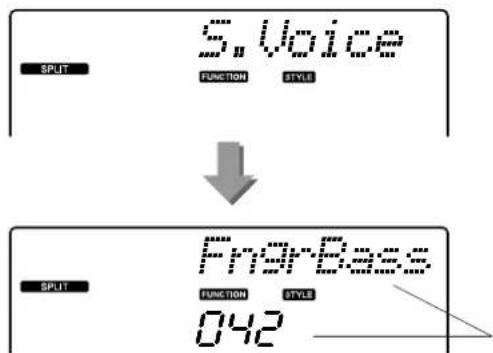
text_image
S, Voice FUNCTION STYLE SPLIT FerPass FUNCTION STYLE 042The currently selected SPLIT voice
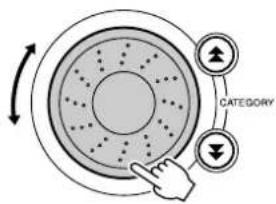
2 Select the desired split voice.
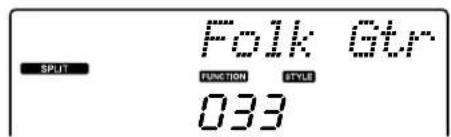
Watch the displayed split voice and rotate the dial until the voice you want to use is selected. The voice selected here becomes the split voice which will play to the left of the keyboard split point. For this example try selecting the “033 Folk Guitar” voice.
flowchart
graph TD
    A["Input"] --> B{Decision}
    B -->|Yes| C["Category 1"]
    B -->|No| D["Category 2"]
text_image
SPLIT Folk Gtr FUNCTION STYLE 0334 Play the keyboard.
text_image
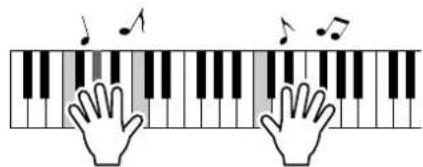
Illustration of two hands typing on a piano keyboard with musical notes above themTry selecting and playing a range of split voices.
Play the Grand Piano Voice
When you just want to play piano, all you have to do is press one convenient button.
Press the [PORTABLE GRAND] button.
The "001 Grand Piano" voice will be selected.
![YAMAHA PSR-E403 - Press the [PORTABLE GRAND] button. - 1](/content/2026/06/1244052/images/1757edf29a90699b13d22dda86be823be5640cfc58847a66512c1d6136832f18.jpg)
flowchart
graph TD
    A["FUNCTION"] --> B["MUSIC DATABASE"]
    B --> C["METRONOME ON/OFF"]
    C --> D["PORTABLE GRAND"]
    D --> E["Hand cursor pointing to the bottom section"]
NOTE
- When you press the [PORTABLE GRAND] button all settings other than touch sensitivity are turned off. The dual and split voices will also be turned off, so only the Grand Piano voice will play over the entire keyboard.
Fun Sounds
This instrument includes a range of drum kits and unique sound effects you can use for entertainment. Laughter, babbling brooks, jet fly-bys, eerie effects, and much more. These sounds can be a great way to enhance the mood at parties.
Drum Kits
Drum kits are collections of drum and percussion instruments. When you select a violin or other normal instrument main voice, for example, all keys produce the sound of the same violin, only at different pitches. If you select a drum kit as the main voice, however, each key produces the sound of a different drum or percussion instrument.
◆ Drum Kit Selection Procedure → (refer to steps 1 and 2 on page 28)
1 Press the [VOICE] button.
2 Use the dial to select "117 Std.Kit1".
3 Try out each key and enjoy the drum and percussion sounds!
Try out each key and enjoy the drum and percussion sounds! Don't forget the black keys! You'll hear a triangle, maracas, bongos, drums ... a comprehensive variety of drum and percussion sounds. For details on the instruments included in the drum kit voices (voice numbers 117 to 128), see the "Drum Kit List" on page 110.
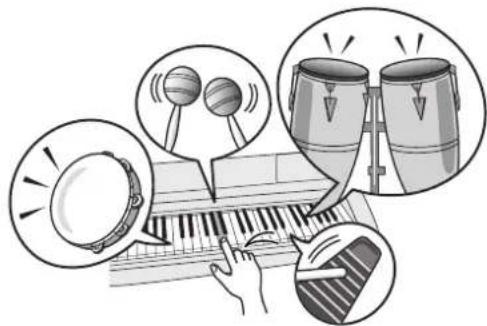
natural_image
Illustration of a piano keyboard with decorative icons showing playing instruments (no text or symbols)Sound Effects
The sound effects are included in the drum kit voice group (voice numbers 127 and 128). When either of these voices are selected you will be able to play a range of sound effects on the keyboard.
◆ Sound Effect Selection Procedure → (refer to steps 1 and 2 on page 28)
1 Press the [VOICE] button.
2 Use the dial to select "128 SFX Kit2".
3 Try out each key and enjoy the sound effects!
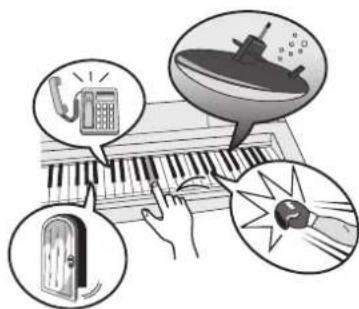
natural_image
Illustration of a piano with hands, phone call, radio, and screen icons (no text or symbols)As you try out the various keys you'll hear the sound of a submarine, a telephone bell, a creaking door, laughter, and many other useful effects. "127 SFX Kit1" includes lightning, running water, dogs barking, and others. Some keys do not have assigned sound effects, and will therefore produce no sound. For details on the instruments included in the SFX kit voices, see "SFX Kit 1" and "SFX Kit 2" in the "Drum Kit List" on page 110.
Playing Styles
This instrument has an auto accompaniment feature that produces accompaniment (rhythm + bass + chords) in the style you choose to match chords you play with your left hand. You can select from 155 different styles covering a range of musical genres and time signatures (see page 112 for a complete list of the available styles). In this section we’ll learn how to use the auto accompaniment features.
Select a Style Rhythm
Most styles includes a rhythm part. You can select from a wide variety of rhythmic types—rock, blues, Euro trance, and many, many more. Let's begin by listening to just the basic rhythm. The rhythm part is played using percussion instruments only.
1 Press the [STYLE] button. The style number and name will
![YAMAHA PSR-E403 - Press the [STYLE] button. The style number and name will - 1](/content/2026/06/1244052/images/e836faf819baf4856b4c6645e2adedec641a2f6a75e8caeb5c80f141b39b803e.jpg)
text_image
SONG EASY SONG ARRANGER STYLE VOICE SONG MELODY VOICE Style Name 3BtModrn 001 Style Number This icon appears when a style number and name is displayed.2 Select a style. Use the dial to se
A list of all the available styles is provided on page 112.
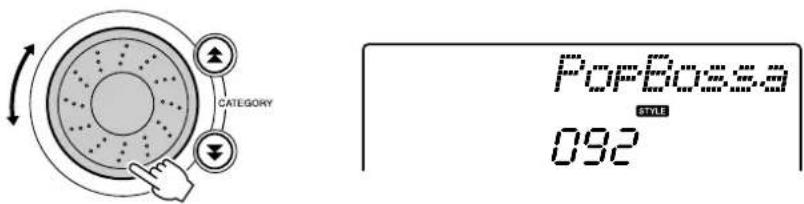
text_image
CATEGORY PoF Bossa STYLE 0923 Press the [START/STOP] button. The style rhythm will start playing.
Press the [START/STOP] button a second time when you want to stop playback.
![YAMAHA PSR-E403 - Press the [START/STOP] button. The style rhythm will start playing. - 1](/content/2026/06/1244052/images/0a41ada4f6a6620e18f1d404fb57fd705284bae9d6426576dbc2bd651af787ca.jpg)
text_image
ACMP ON/OFF ✓ SYNC STOP SYNC START INTRO/ ENDING/rit. MAIN/ AUTO FILL A/B ✓/■ START/STOP STYLENOTE
- Style numbers 131, 143–155 have no rhythm part and therefore no rhythm will play if you use them for the above example. For these styles first turn auto accompaniment on as described on page 34, press the [START/STOP] button, and the accompaniment bass and chord parts will begin playing when you play a key to the left of the keyboard split point.
Play Along with a Style
You learned how to select a style rhythm on the preceding page.
Here we'll see how to add bass and chord accompaniment to the basic rhythm to produce a full, rich accompaniment that you can play along with.
1 Press the [STYLE] button and select the desired style.
2 Turn automatic accompaniment on.
Press the [ACMP ON/OFF] button.
Pressing this button a second time will turn automatic accompaniment off.

text_image
ACMP ON/OFF SYNC STOP SYNC START INTRO/ ENDING/rit. MAIN/ AUTO FILL A/B START/STOP STYLE ForBoss.9 STYLE 092 ACMP ON This icon appears when automatic accompaniment is on.- When automatic accompaniment is on ...
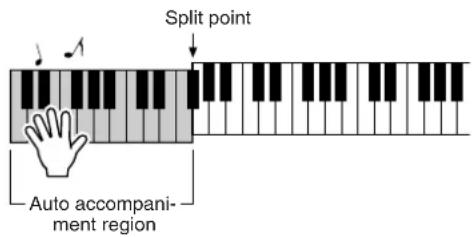
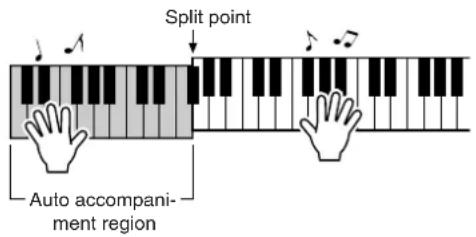
The area of the keyboard to the left of the split point (54 : F#2) becomes the “auto accompaniment region” and is used only for specifying the accompaniment chords.
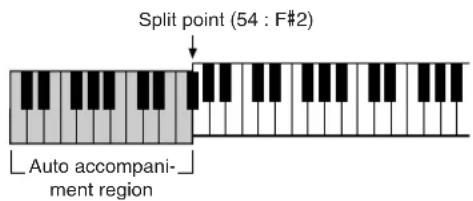
text_image
Split point (54 : F#2) Auto accompani- ment regionNOTE
- The keyboard split point can be changed as required: refer to page 72.
3 Turn sync start on. Press the ISYNC STAR

text_image
ACMP ON/OFF ↻ SYNC STOP SYNC START TRO/ ING/rit. MAIN/ AUTO FILL START/STOP STYLE PopBoss STYLE 092 ACMP ON ▼▼▼▼▼▼▼▼▼▼▼▼▼▼▼▼▼▼▼▼▼▼▼▼▼▼▼▼▼▼▼▼▼▼▼▼▼▼▼▼▼▼▼▼▼▼▼▼▼▼▼▼▼▼▼▼▼▼▼▼▼▼▼▼▼▼▼▼▼▼▼▼▼▼▼▼▼▼▼▼▼▼▼▼▼▼▼▼▼▼▼▼▼▼▼▼▼▼▼▼▲/■Flashes when sync start is on.
When sync start is on, the bass and chord accompaniment included in a style will start playing as soon as you play a note to left of the keyboard split point. Press the button a second time to turn the sync start function off.
4 Play a left-hand chord to start the style.
You can still “play” chords even if you don’t actually know any chords. This instrument will recognize even a single note as a chord. Try playing from one to three notes at the same time to the left of the split point. The accompaniment will change according to the left-hand notes you play.
Try this!
Scores for some chord progressions are provided on page 36. These examples should help you get a feel for what types of chord progressions sound good with the styles.
text_image
Split point Auto accompani- ment region5 Play a variety of left-hand chords while playing a melody with your right hand.
text_image
Split point Auto accompani- ment region6 Press the [START/STOP] button to stop style playback when you're done.
![YAMAHA PSR-E403 - Press the [START/STOP] button to stop style playback when you're done. - 1](/content/2026/06/1244052/images/ae8b82c6d65c13d5038a482b1b7331a5a102be855178ba63f6d00de4c89bca9f.jpg)
text_image
ACMP ON/OFF SYNC STOP SYNC START INTRO/ ENDING/rit. MAIN/ AUTO FILL A/B START/STOP STYLEYou can switch style “sections” to add variety to the accompaniment. Refer to “Pattern Variation (Sections)” on page 70.
Styles Are More Fun When You Understand Chords
Chords, created by playing multiple notes at the same time, are the basis for harmonic accompaniment. In this section we'll take a look at sequences of different chords played one after another, or "chord sequences." Since each chord has it's own unique "color"—even if it's different fingerings of the same chord—the chords you choose to use in your chord progressions have a huge influence on the overall feel of the music you play.
On page 34 you learned how to play colorful accompaniments using styles. Chord progressions are vital to creating interesting accompaniments, and with a little chord know-how you should be able to take your accompaniments to a new level.
On these pages we'll introduce three easy-to-use chord progressions. Be sure to try them out with the instrument's accompaniment styles. The style will respond to the chord progression you play, effectively creating a complete song.
■Playing the Chord Progressions ....
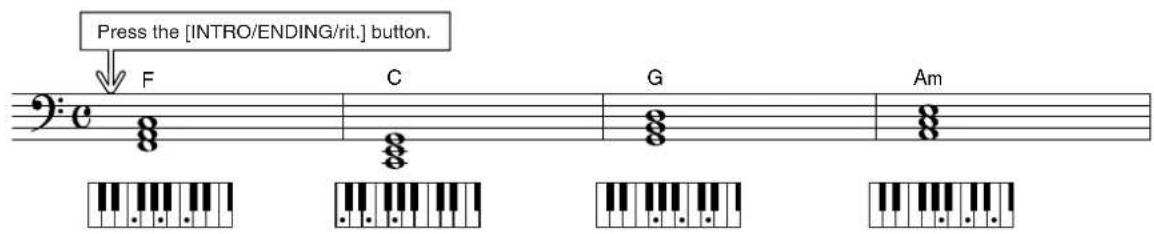
Play the scores with the left hand.
Before playing the scores follow steps 1 through 3 of "Play Along with a Style" on page 34.
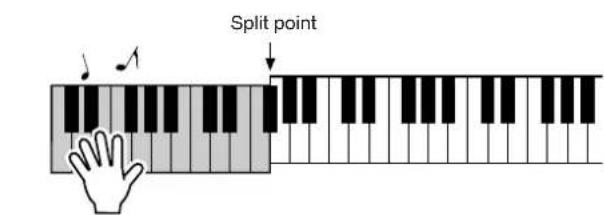
* The scores provided here are not standard song scores, but rather simplified scores that indicate which notes to play to produce the chord progressions.
text_image
Split pointPlay to the left of the split point.
Recommended Style 031 Euro Trance
—Dance music with simple chords—
text_image
Press the [INTRO/ENDING/rit.] button. F C G Am 9: c 8 8 8 8 8 8 8 8This is a simple-but-effective chord progression. When you play through to the end of the score, start again from the beginning. When you're ready to stop playing press the [INTRO/ENDING/rit.] button and the auto accompaniment function will create a perfect ending.
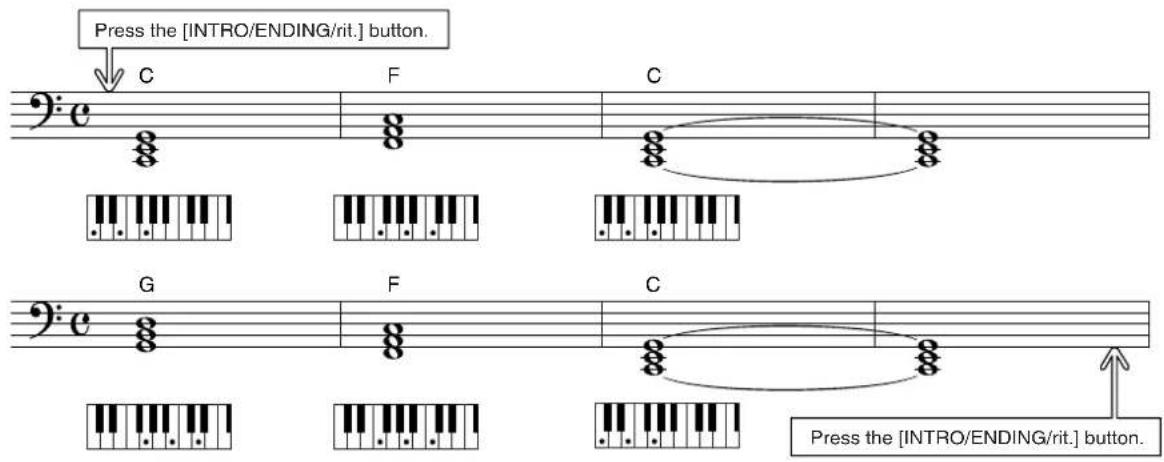
Recommended Style
148 Piano Boogie
—3-chord boogie-woogie—
text_image
Press the [INTRO/ENDING/rit.] button. C F C G F C Press the [INTRO/ENDING/rit.] button.This progression provides varied harmonic backing with just three chords. When you get a feel for the progression in the score, try changing the order of the chords!
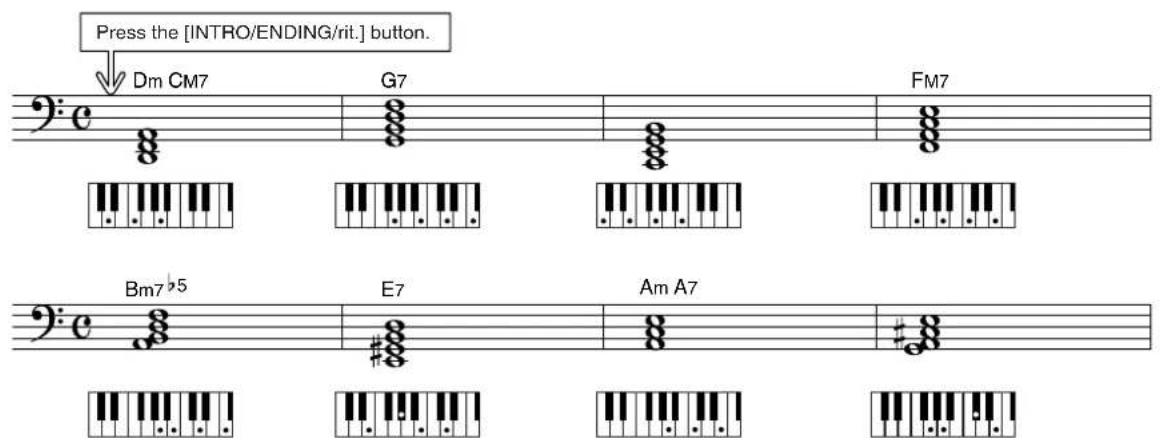
Recommended Style
091 Bossa Nova
—Bossa nova with jazz-style chords—
text_image
Press the [INTRO/ENDING/rit.] button. Dm CM7 G7 FM7 Bm7#5 E7 Am A7This progression includes jazzy “two-five” (II-V) changes. Try playing it through several times. When you’re ready to stop playing press the [INTRO/ENDING/rit.] button.
Playing Auto-accompaniment Chords
There are two ways of playing auto-accompaniment chords:
● Easy Chords
● Standard Chords
The instrument will automatically recognize the different chord types. This function is called Multi Fingering.
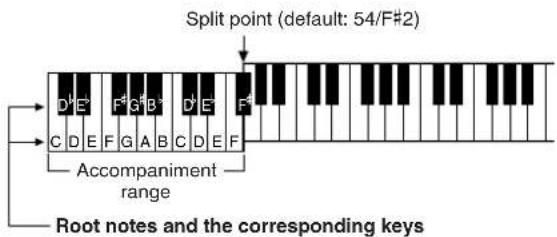
Press the [ACMP ON/OFF] button to turn auto-accompaniment on (page 34). The keyboard to the left of the split point (default: 54/F#2) becomes the “accompaniment range”. Play the accompaniment chords in this area of the keyboard.
text_image
Split point (default: 54/F#2) Accompaniment range Root notes and the corresponding keys■Easy Chords
This method lets you easily play chords in the accompaniment range of the keyboard using only one, two, or three fingers.
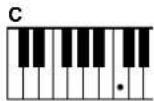
• To play a major chord
Press the root note of the chord.
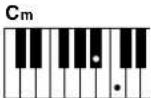
• To play a minor chord
Press the root note together with the nearest black key to the left of it.
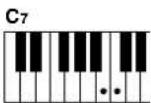
• To play a seventh chord
Press the root note together with the nearest white key to the left of it.
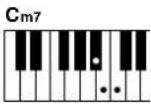
• To play a minor seventh chord
Press the root note together with the nearest white and black keys to the left of it (three keys altogether).
Standard Chords
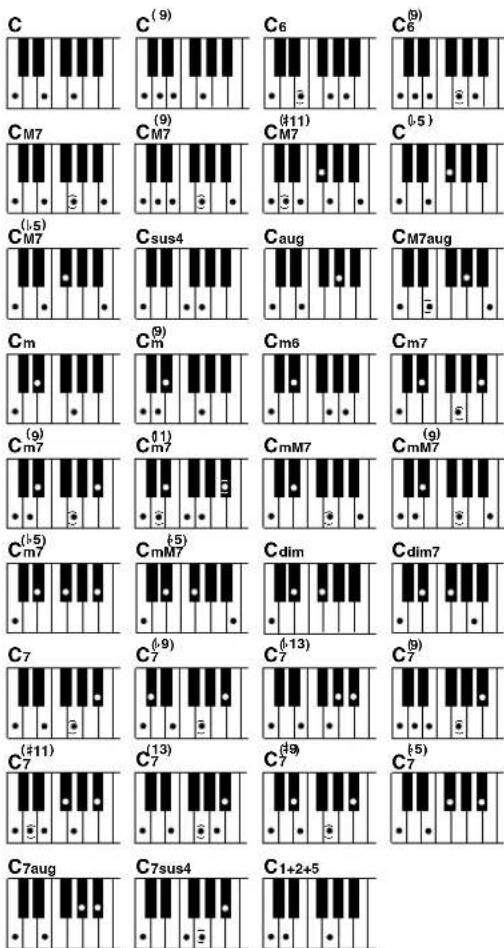
This method lets you produce accompaniment by playing chords using normal fingerings in the accompaniment range of the keyboard.
● How to play Standard Chords [Example for "C" chords]
text_image
C C(9) C6 C6(9) CM7 C(9) CM7 C(11) C(5) C(15) Cm7 Csus4 Caug CM7aug Cm C(9) Cm Cm6 Cm7 Cm7 C(9) Cm7 C(11) CmM7 C(9) CmM7 C(15) CmM7 Cdim Cdim7 C7 C(9) C7 C(13) C7 C(9) C7 C(15) C7aug C7sus4 C1+2+5* Notes enclosed in parentheses (◆ are optional; the chords will be recognized without them.
Using Songs
With this instrument the term “song” refers the data that makes up a piece of music. You can simply enjoy listening to the 30 internal songs, or use them with just about any of the many functions provided—the performance assistant technology feature, lessons, and more. The songs are organized by category.
In this section we'll learn how to select and play songs, and briefly describe the 30 songs provided.
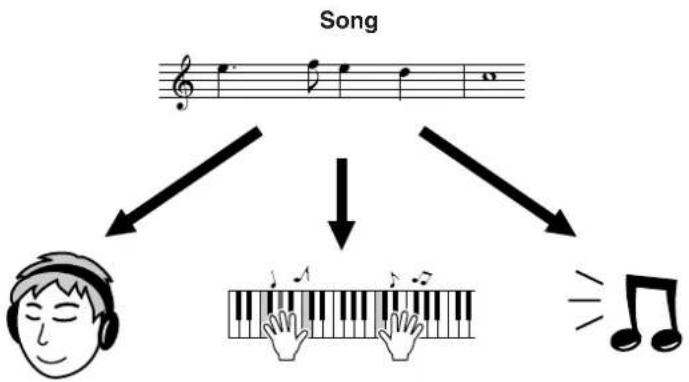
flowchart
graph TD
    A["Song"] --> B["Downlinking"]
    B --> C["Playdown"]
    C --> D["Music Note Icon"]
Listen Lesson Record
Select and Listen to a Song
1 Press the [SONG] button. The song number and name will
The song number and name will be displayed. You can use the dial to select a different song.
![YAMAHA PSR-E403 - Press the [SONG] button. The song number and name will - 1](/content/2026/06/1244052/images/4c323e122af2f86816992850afa4bece51f837e4f9ba192c7f73d33f9ff52c49.jpg)
text_image
SONG EASY SONG ARRANG STYLE VOICE SONG MELODY VOICE![YAMAHA PSR-E403 - Press the [SONG] button. The song number and name will - 2](/content/2026/06/1244052/images/6c4ed8a7e15226c35679195149efd8307d7963bdbe4a6536457b111b350a9a5f.jpg)
text_image
Nocturne 011 The currently selected song and number are displayed2 Select a song. Select a song after
Select a song after referring to the preset song category list on page 41. Use the dial to select the song you want to listen to.
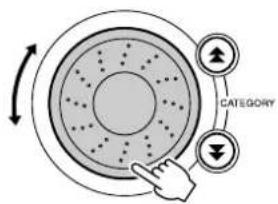
text_image
CATEGORY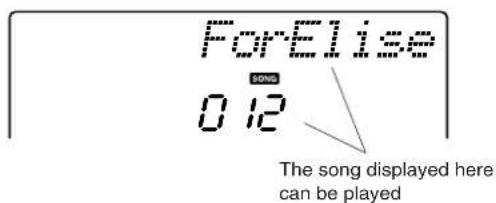
text_image
ForE1ise SONG 0 12 The song displayed here can be playedNOTE
- You can also play songs you have recorded yourself (User Songs) or songs that have been transferred to the instrument from a computer in the same way that you play the internal songs.
| 001–030 Built in Songs (see next page) | |
| 031–035 User Songs (Songs you record yourself). | |
| 036–Songs transferred from a computer (pages 89–91) |
3 Listen to the song. Press the [START/STO
Press the [START/STOP] button to begin playback of the selected song. You can stop playback at any time by pressing the [START/STOP] button again.

Song start!
●Using the [DEMO] button
Press the [DEMO] button to play Songs 001–008 in sequence. Playback will continue repeatedly starting again from the first Song (001).
You can select a song by using the [-] and [+] buttons after pressing the [DEMO] button.
You can stop playback at any time by pressing the [DEMO] button.
![YAMAHA PSR-E403 - ●Using the [DEMO] button - 1](/content/2026/06/1244052/images/20a787b2c1d0870e024726b2edfe77bfbc14ef92db9dc62df487916ce5d5a2f5.jpg)
Song Fast Forward, Fast Reverse, and Pause
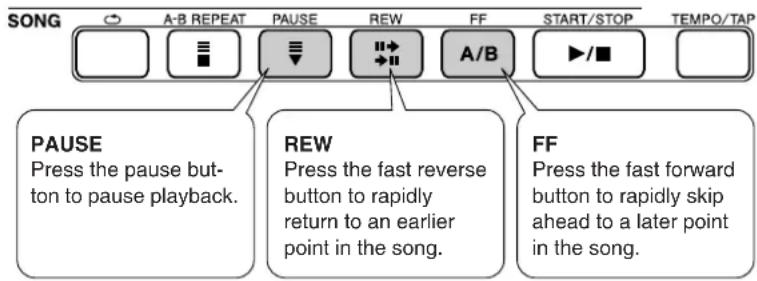
These are just like the transport controls on a cassette deck or CD player, letting you fast forward [FF], rewind [REW] and pause [PAUSE] playback of the song.
text_image
SONG A-B REPEAT PAUSE REW FF START/STOP TEMPO/TAP PAUSE Press the pause button to pause playback. REW Press the fast reverse button to rapidly return to an earlier point in the song. FF Press the fast forward button to rapidly skip ahead to a later point in the song.NOTE
- When an A-B repeat range is specified the fast reverse and forward function will only work within that range.
●Song List
These 30 songs include songs that effectively demonstrate the instrument's easy song arranger feature, songs that are ideally suited for use with the performance assistant technology feature, and more. The “Suggested Uses” column provides some ideas as to how the songs can most effectively used.
| Category No. Name Suggested Uses | |||
| Main Demo | 1 CHORD! The songs in this category have been created | to give you an idea of the advanced capabilities of this instrument. They're great for listening, or for use with the performance assistant technology feature. | |
| 2 CHORD Zone | |||
| 3 CHORD | |||
| Voice Demo | 4 CHORD Piano Demo | These songs features some of the instrument's many useful voices. They make maximum use of the characteristics of each voice, and might serve as inspiration for your own compositions. | |
| 5 CHORD TenorSax Demo | |||
| 6 CHORD RotorOrgan Demo | |||
| 7 CHORD Galaxy Electric Piano Demo | |||
| 8 CHORDrnHarp & Sweet Soprano Demo | |||
| Function Demo | 9 CHORD ujah Chorus | Use these songs to experience some of the instrument's advanced features: song number 9 for the easy song arranger, and songs 10 and 11 for the performance assistant technology feature. | |
| 10 CHORD laria | |||
| 11 CHORDrne op.9-2 | |||
| Piano Solo | 12 For Elise | These piano solo pieces are ideally suited for use as lesson songs. | |
| 13 Maple Leaf Rag | |||
| 14 The Last Rose of Summer | |||
| Piano Ensemble | 15 CHORDing Grace | A selection of piano ensemble songs that are also well suited for use as lesson songs. | |
| 16 CHORDbrelei | |||
| 17 Piano Concerto No.21 2nd mov. | |||
| 18 CHORDorough Fair | |||
| 19 CHORDolks at Home | |||
| Piano Accompaniment | 20 CHORD | Ac Ballad(Against All Odds: Collins 0007403) | When you need to practice backing (accompaniment) patterns, these are the songs to do it with. This is ability you'll need if you're invited to play with a band. These songs allow you to practice backing parts one hand at a time, which can be the easiest way to master this important skill. |
| 21 CHORDllad | |||
| 22 CHORDe Woogie | |||
| 23 CHORD Piano | |||
| 24 CHORD | |||
| 25 CHORDry Piano | |||
| 26 CHORDal R&B | |||
| 27 CHORDm Swing | |||
| 28 CHORDWaltz | |||
| 29 CHORDm Bossa | |||
| 30 CHORDRock | |||
CHORD : Includes chord data.
The scores for the internal songs—except for songs 1–11, and song 20 which is copyrighted, are provided in the Song Book on the CD-ROM. The scores for songs 9–11 are provided in this manual.
Some of the classic and/or traditional songs have been edited for length or for ease in learning, and may not be exactly the same as the original.
Types of Songs
The following three types of songs can be used by the PSR-E403/YPT-400.
- Preset Songs (the 30 songs built into the instrument)......Song numbers 001–030.
- User Songs (recordings of your own performances) ....Song numbers 031–035.
- External song files (song data transferred from a computer*) ...Song numbers 036-.
* The Accessory CD-ROM includes a selection of 70 MIDI songs. See page 90 for instructions on how to transfer the songs to the instrument.
The chart below shows the basic PSR-E403/YPT-400 processes flow for using the preset songs, user songs, and external song files—from storage to playback.
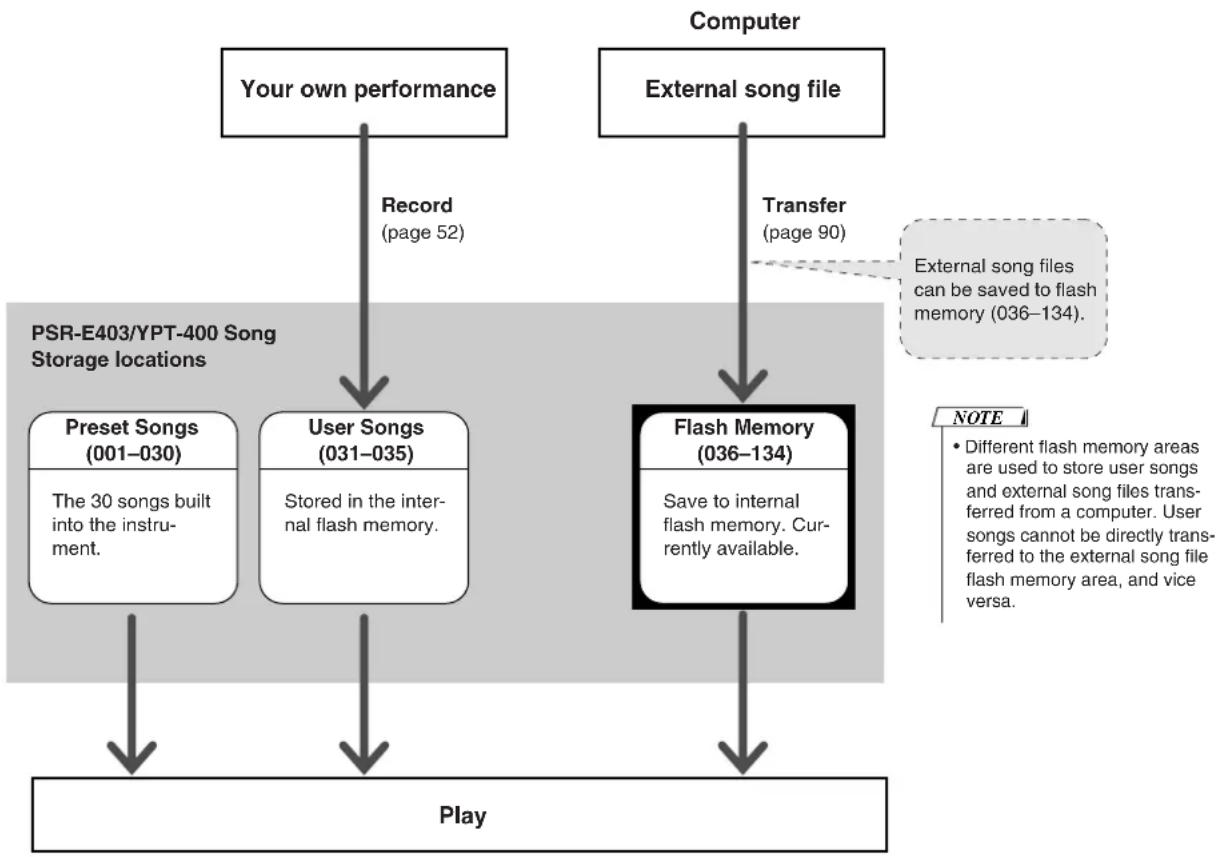
flowchart
graph TD
    A["Your own performance"] -->|Record (page 52)| B["PSR-E403/YPT-400 Song Storage locations"]
    C["External song file"] -->|Transfer (page 90)| D["Flash Memory (036–134)"]
    B --> E["Preset Songs (001–030)"]
    B --> F["User Songs (031–035)"]
    B --> G["The 30 songs built into the instrument."]
    D --> H["Save to internal flash memory. Currently available."]
    E --> I["Play"]
    F --> I
    G --> I
    H --> I
    style A fill:#f9f,stroke:#333
    style C fill:#f9f,stroke:#333
    style B fill:#ccf,stroke:#333
    style D fill:#ccf,stroke:#333
    style E fill:#cfc,stroke:#333
    style F fill:#cfc,stroke:#333
    style G fill:#cfc,stroke:#333
    style H fill:#cfc,stroke:#333
    style I fill:#fcc,stroke:#333
Select a Song For a Lesson
Yamaha Education Suite
You can select song you like and use it for a left-hand, right-hand, or both-hands lesson. You can also use songs (only SMF format 0) downloaded from the Internet and saved to flash memory. (pages 89–91) During the lesson you can play as slowly as you like, and you can even play wrong notes. Song playback will slow down to a speed you can handle. It's never too late to start learning!
Lesson Flow:
Select a song from the Piano Solo, Piano Ensemble category!

flowchart
graph LR
    A["Select the song you want to learn."] --> B["Select the part you want to work on (right hand, left hand, both hands)."]
    B --> C["Select lesson 1, 2, or 3."]
    C --> D["Lesson start!"]
The practice methods:
●Lesson 1 ......Learn to play the correct notes.
- Lesson 2 ....Learn to play the correct notes with the correct timing.
- Lesson 3 ....Learn to play the correct notes at the correct timing along with the song.
Lesson 1—Waiting
In this lesson, try playing the correct notes. Play the note shown in the display. The song will wait until you play the right note.
1 Select a song for your lesson.
Press the [SONG] button, and rotate the dial to select the song you want to use for your lesson. As listed on page 42 there are a variety of song types. For this example try selecting the “012 ForElise”.
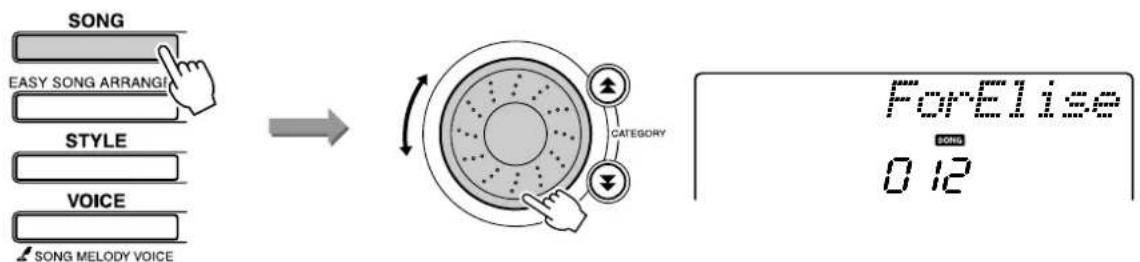
flowchart
graph LR
    A["SONG"] --> B["EASY SONG ARRANGI"]
    B --> C["STYLE"]
    C --> D["VOICE"]
    D --> E["SONG MELODY VOICE"]
    E --> F["ForEise"]
    F --> G["0 12"]
2 Select the part you want to practice.
Each time you press the LESSON [L/R] button the parts are selected in sequence: right hand → left hand → both hands → right hand .... The currently selected part is shown in the display.
text_image
DEMO PC START RESELL L/R ARPEGGIO ON/OFF PERFORMANCE ASSISTANT ON/OFF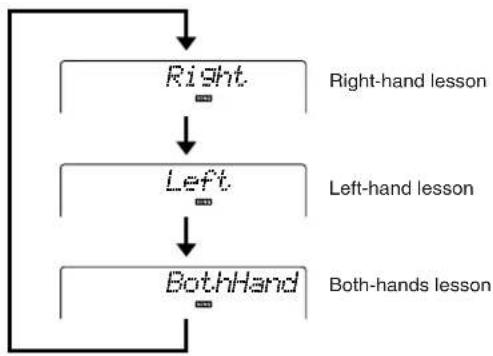
flowchart
graph TD
    A["Right"] --> B["Left"]
    B --> C["BothHand"]
    style A fill:#f9f,stroke:#333
    style B fill:#f9f,stroke:#333
    style C fill:#f9f,stroke:#333
3 Start Lesson 1. Press the LESSON
Press the LESSON [START] button to select Lesson 1. Each time the LESSON [START] button is pressed the lesson modes are selected in sequence: Lesson 1 → Lesson 2 → Lesson 3 → Off → Lesson 1 .... The currently selected mode is shown in the display.
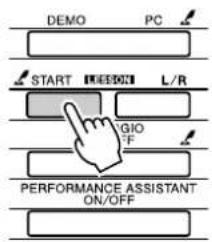
text_image
DEMO PC START NEEDON L/R GIO PERFORMANCE ASSISTANT ON/OFF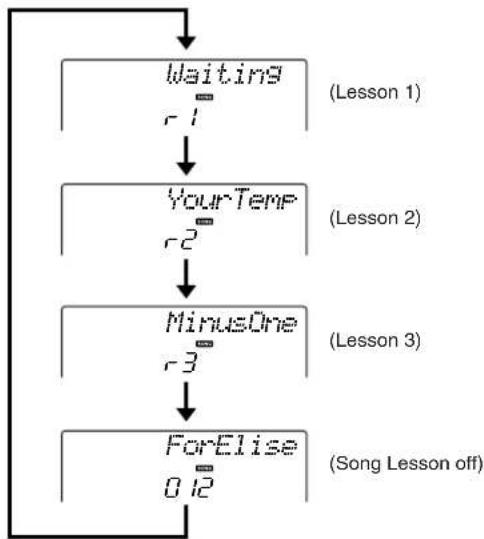
flowchart
graph TD
    A["Waiting\nr1"] --> B["YourTemp\nr2"]
    B --> C["MirusOne\nr3"]
    C --> D["ForElise\n0.12"]
    style A fill:#f9f,stroke:#333
    style B fill:#f9f,stroke:#333
    style C fill:#f9f,stroke:#333
    style D fill:#f9f,stroke:#333
Song playback will begin automatically when you select Lesson 1.

Start the lesson!
Play the note shown in the display. When you play the correct note, the next note you need play is shown. The song will wait until you play the correct note.
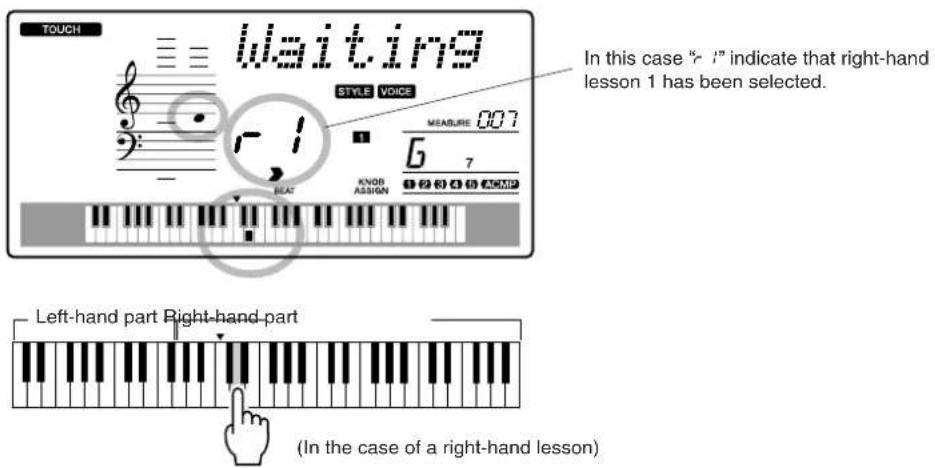
text_image
WAITING STYLE VOICE r/1 MEASURE 007 6 7 BEAT KNOR ASSIGN A KMP In this case "r" indicate that right-hand lesson 1 has been selected. Left-hand part Right-hand-part (In the case of a right-hand lesson)4 Stop the Lesson mode. You can stop the Lesson mode.
You can stop the Lesson mode at any time by pressing the [START/STOP] button.
Once you've mastered Lesson 1, move on to Lesson 2.
■See How You've Done ....
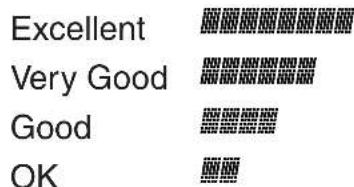
text_image
Excellent Very Good Good OKWhen the lesson song has played all the way through your performance will be evaluated in 4 levels: OK, Good, Very Good, or Excellent. "Excellent!" is the highest evaluation.
After the evaluation display has appeared, the lesson will start again from the beginning.
NOTE
- The evaluation feature can be turned off via the FUNCTION Grade item (page 84).
Lesson 2—Your Tempo
Learn to play the correct notes with the correct timing. Song playback tempo will vary to match the speed you are playing at. The song will slow down when you play wrong notes, so you can learn at your own pace.
1 Select the song and part you want to practice (steps 1 and 2 on pages 43, 44).
2 Start Lesson 2. Each time the I ES
Each time the LESSON [START] button is pressed the lesson modes are selected in sequence: Lesson 1 → Lesson 2 → Lesson 3 → Off → Lesson 1 ...
text_image
DEMO PC START LESSN L/R GIO F PERFORMANCE ASSISTANT ON/OFF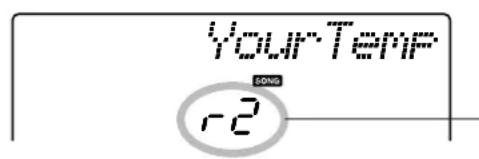
text_image
Your Temp 500 -r2In this case “-2” indicate that right-hand lesson 2 has been selected.
Song playback will begin automatically when Lesson 2 is selected.

Start the lesson!
Play the note shown in the display. Try to play the notes at the correct timing. As you learn to play the right notes at the right timing the tempo will increase until eventually you'll be playing at the song's original tempo.
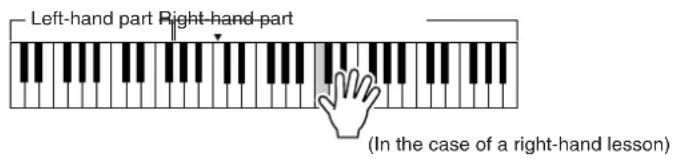
text_image
Left-hand part Right-hand-part (In the case of a right-hand lesson)3 Stop the Lesson mode. You can stop the Lesson mode
You can stop the Lesson mode at any time by pressing the [START/STOP] button.
Once you've mastered Lesson 2, move on to Lesson 3.
Lesson 3—Minus One
Here's where you can perfect your technique.
The song will play at the normal tempo, minus the part you have chosen to play. Play along while listening to the song.
1 Select the song and part you want to practice (steps 1 and 2 on pages 43, 44).
2 Start Lesson 3. Each time the I ES
Each time the LESSON [START] button is pressed the lesson modes are selected in sequence: Lesson 1 → Lesson 2 → Lesson 3 → Off → Lesson 1 ...
text_image
DEMO PC START LESSON L/R GIO PERFORMANCE ASSISTANT ON/OFF
text_image
MinusOne SONG r-3In this case “- 3” indicate that right-hand lesson 3 has been selected.
Song playback will begin automatically when Lesson 3 is selected.

Start the lesson!
Play the note shown in the display.
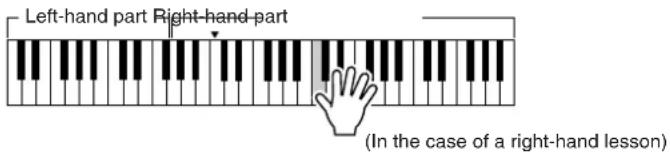
text_image
Left-hand part Right-hand-part (In the case of a right-hand lesson)3 Stop the Lesson mode. You can stop the Lesson mo
You can stop the Lesson mode at any time by pressing the [START/STOP] button.
Practice Makes Perfect—Repeat and Learn
Use this feature when you want to start again just ahead of a section on which you made a mistake, or to repeatedly practice a section you find difficult.
Press the [REPEAT & LEARN) button during a lesson.
The song location will move back four measures from the point at which you pressed the button, and playback will begin after a one-measure count-in. Playback will continue up to the point at which you pressed the [REPEAT & LEARN) button, and then jump back four measures and begin again after a count-in. This process will repeat, so all you have to do is press the [REPEAT & LEARN) button when you make a mistake in order to repeat practice of that section until you get it right.
NOTE
- You can change the number of measures the Repeat and learn function jumps back by pressing a number button [1]–[9] during repeat playback.

text_image
SONG A-B REPEAT PAUSE REW FF START/STOP A/B ▶/■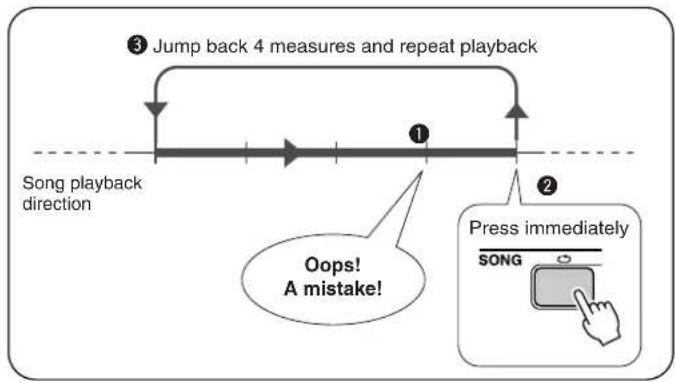
flowchart
graph TD
    A["① Jump back 4 measures and repeat playback"] --> B["② Press immediately"]
    B --> C["③ Jump back 4 measures and repeat playback"]
    C --> D["④ Song playback direction"]
    D --> E["② Oops! A mistake!"]
    E --> F["③ Press immediately"]
Play Using the Music Database
You want to play music in your favorite style, but you're not sure how to select the best voice and style for the type of music you want to play ... simply select the appropriate style from the Music Database. The panel settings will automatically be adjusted for the ideal combination of sounds and style!
1 Press the [MUSIC DATABASE] button.
![YAMAHA PSR-E403 - Press the [MUSIC DATABASE] button. - 1](/content/2026/06/1244052/images/26d7b27334ba9ce794d5124f2759ef748503d96677c220ad74aa59d5fd228568.jpg)
text_image
FUNCTION MUSIC DATABASE METRONOME ON/OFF PORTABLE GRAND![YAMAHA PSR-E403 - Press the [MUSIC DATABASE] button. - 2](/content/2026/06/1244052/images/23c14e3f1b3704a26d27f3635466d63fd328cb7265eda30db630dbb1f5e4db3c.jpg)
text_image
AlvFever STYLE MUSIC DATABASE 001A Music Database name will appear in the display.
2 Select a Music Database.
Referring to the list on the panel or Music Database List on page 114 of the manual, use the dial to select a music database. Select one that matches the image of the song you intend to play. For this example select the “124 DayOfW&R”.
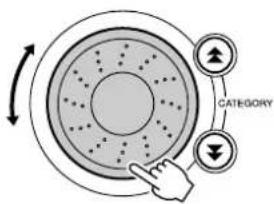
text_image
CATEGORY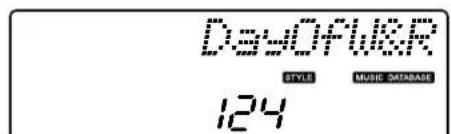
text_image
Day00FWR STYLE MUSIC DATABASE 1243 Play the chords with your left hand and melody with your right.
The jazz style will start playing when you play a left-hand chord to the left of the split point (page 30). Refer to page 38 for information about playing chords.
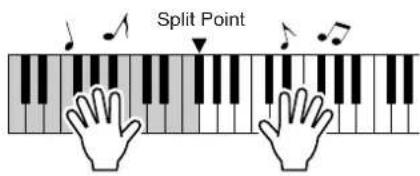
text_image
Split PointPress the [START/STOP] button to stop playback.
Change a Song's Style
In addition to each song's default style, you can select any other style to play the song with the Easy Song Arranger feature. This means that you can play a song that is normally a ballad, for example, as a bossa nova, as a hip-hop tune, etc. You can create totally different arrangements by changing the style with which a song is played.
You can also change the song's melody voice and the keyboard voice for a complete change of image.
Listen to the DEMO Song for Easy Song Arranger
The “Hallelujah Chorus” in the preset songs lets you experience the Easy Song Arranger. Playing it.
Press the [SONG] button, then select a "009 Hallelujah Chorus" by using the dial. Press the [START/STOP] button to play it.
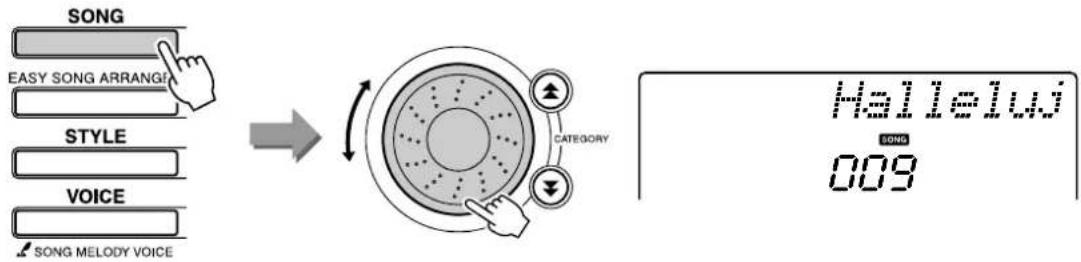
flowchart
graph LR
    A["SONG"] --> B["EASY SONG ARRANGE"]
    B --> C["STYLE"]
    C --> D["VOICE"]
    D --> E["SONG MELODY VOICE"]
    E --> F["Category"]
    F --> G["Haileuw"]
    G --> H["SONG 0.09"]
As the song progresses, you will see only the style changes while the song remains the same.
Keep in mind that you can enjoy using Easy Song Arranger with other songs as well—any songs that include chord data.
Using the Easy Song Arranger
1 Press the [EASY SONG ARRANGER] button. The song number and name will be displayed. You can
The song number and name will be displayed. You can use the dial to select a different song.
![YAMAHA PSR-E403 - Press the [EASY SONG ARRANGER] button. The song number and name will be displayed. You can - 1](/content/2026/06/1244052/images/ea4d8492773da3c288bd34fd332af4b45c95f3adb1c62d794fe2055134427871.jpg)
text_image
SONG EASY SONG ARRANGER STYLE VOICE SONG MELODY VOICE Hello1wi SONG 009 The currently selected song number and name are displayed here.2 Select a Song. Use the dial to sel
Use the dial to select the song you want to arrange.
2 Listen to the song.
Press the [START/STOP] button to begin playback of the song. Move on to the next step while the song is playing.

Song start!
NOTE
- When playing song numbers 010, 011 and 020 to 030 while using the Easy Song Arranger, melody tracks will be automatically muted and no melody will sound. In order to hear the melody tracks you will need to press the SONG MEMORY buttons [3] to [5].
4 Press the [EASY SONG ARRANGER] button.
The style number and name will be displayed. You can use the dial to select a different style.
![YAMAHA PSR-E403 - Press the [EASY SONG ARRANGER] button. - 1](/content/2026/06/1244052/images/dec1cc6fd563118f2cacc9281ff7bac5183c9e21868c2e698ae82438a1bbdf78.jpg)
text_image
SONG EASY SONG ARRANGER STYLE![YAMAHA PSR-E403 - Press the [EASY SONG ARRANGER] button. - 2](/content/2026/06/1244052/images/4660c6162426058c3344a00287afa205c07d537f28e5e8c54f9adc75176b9d02.jpg)
text_image
POP-SHF 1 SONG 0.15The currently selected style number and name are displayed here.
5 Select a style. Rotate the dial an
Rotate the dial and listen to how the song sounds with different styles. As you select different styles the song will remain the same while only the styles change. When you have selected a suitable style move on to the next step while the song is still playing (if you have stopped the song, start it again by pressing the [START/STOP] button).
6 Select a voice you want to play as a song melody.
Press the [VOICE] button. The currently selected voice number and name will be displayed. Use the dial to select a different voice.
NOTE
- Because the Easy Song Arranger uses song data you can't specify chords by playing in the accompaniment range of the keyboard. The [ACMP ON/OFF] button will not function. - If the time signature of the song and style are different, the time signature of the song will be used.
text_image
SONG EASY SONG ARRANGER STYLE VOICE SONG MELODY VOICE
text_image
GrandPro STYLE VOKE 001The currently selected voice number and name are displayed here.
7 Change the song's melody voice.
Press and hold the [VOICE] button for longer than a second. After SONG MELODY VOICE appears on the display the voice you selected in step 6 becomes the song's melody voice.
text_image
SONG EASY SONG ARRANGER STYLE VOICE SONG MELODY VOICE
text_image
SONG MELHold for longer than a second
You can record up to 5 of your own performances and save them as user songs 031 through 035. The recorded song can be played back on the instrument.
■ Recordable Data
You can record to a total of 6 tracks: 5 melody tracks and 1 style (chord) track. Each track can be recorded individually.
● Melody Track [1]–[5]..... Record the melody parts.
● Style Track [A]...... Records the chord part.
NOTE
- Up to approximately 10,000 notes can be recorded if you record only to the melody tracks. Up to approximately 5,500 chord changes can be recorded if you record only to the style track.
Track Configuration
To record your own performance, first use the SONG MEMORY [1]–[5] and [A] buttons to specify the track(s) you want to record on. The track you record on determines the part that plays back later.
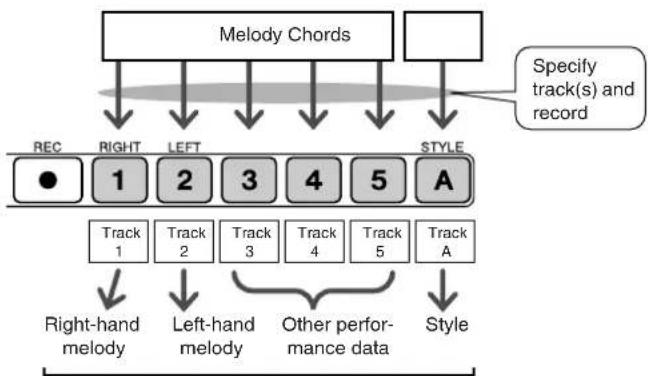
flowchart
graph TD
    A["Melody Chords"] --> B["RECACT"]
    A --> C["RIGHT"]
    A --> D["LEFT"]
    A --> E["STYLE"]
    F["Track 1"] --> G["Right-hand melody"]
    H["Track 2"] --> I["Left-hand melody"]
    J["Track 3"] --> K["Other performance data"]
    L["Track 4"] --> M["Style"]
    N["Track 5"] --> O["Style"]
    P["Scale"] --> Q["Specify track(s) and record"]
The parts played by each track when a user song is played back.
- Track [1]—Will play back as the right-hand melody part (MELODY R)
- Track [2]—Will play back as the left-hand melody part (MELODY L)
- Tracks [3]–[5]—Will play back as “other” performance data.
- Track [A]—Will play back as the Style (auto-accompaniment) part.
NOTE
- The Difference Between MELODY R and MELODY L ... Songs are a combination of a melody and an auto-accompaniment style. Normally "melody" refers to the right-hand part, but in this instrument "melody" parts are provided for both the right and left hands. MELODY R is the melody part played by the right hand, and MELODY L is the melody part played by the left hand.
Recording Procedure
1 Press the [SONG] button, then use the dial to select the user song number (031–035) you want to record to.
text_image
SONG EASY SONG ARRANGI STYLE VOICE SONG MELODY VOICE
text_image
User 1 SONS 031Rotate the dial to select a song number between 031 and 035.
2 Select the track(s) you want to record to and confirm your selection on the display.
◆Record a Melody Track and the Accompaniment Track Together
Press the melody track button [1]–[5] you want to record to while holding the [REC] button.
Next, press the [A] button while holding the [REC] button.
The selected tracks will flash in the display.
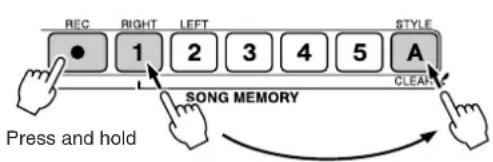
text_image
REC RIGHT LEFT STYLE 1 2 3 4 5 A SONG MEMORY PRESS and hold CLEAR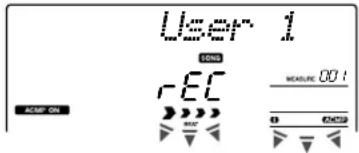
text_image
User 1 SINCH rEC WEASURE 00:1 ACMP ON 0 ACMP◆Record a Melody track
Press the melody track button [1]–[5] you want to record to while holding the [REC] button.
The selected track will flash in the display.
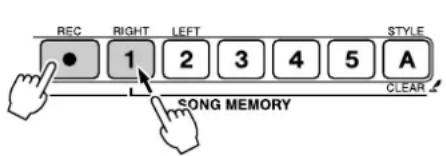
text_image
REC RIGHT LEFT STYLE 1 2 3 4 5 A SONG MEMORY CLEAR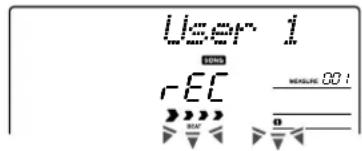
text_image
User 1 rEC MEASURE 00:1 >>> 0To cancel recording to a selected track, press that track button a second time. Style accompaniment cannot be turned on or off while recording is in progress.
3 Recording will start when you play on the keyboard. You can also start recording by pressing the [START/STOP] but
The current measure will be shown on the display during recording.
![YAMAHA PSR-E403 - Recording will start when you play on the keyboard. You can also start recording by pressing the [START/STOP] but - 1](/content/2026/06/1244052/images/ee0ef83ce69987d4921dc54119c00185cc55fe9c8d454ec605230118193ce31f.jpg)
text_image
Recording starts User 1 rEC 003Current measure
CAUTION
- If you record to a track that contains previously-recorded data the previous data will be overwritten and lost.
NOTE
- Style accompaniment is automatically turned on when you select the style track [A] for recording.
- Style accompaniment cannot turned on or off while recording is in progress.
- If you use a split voice for recording, notes played to the left of the split point will not be recorded.
NOTE
- If style accompaniment is on and track [A] has not yet been recorded, the style track [A] will automatically be selected for recording when a melody track is selected. If you only want to record a melody track, be sure to turn the style track [A] off.
NOTE
- If the memory becomes full during recording a warning message will appear and recording will stop automatically. Use the song clear or track clear (page 55) function to delete unwanted data and make more room available for recording, then do the recording again.
4 Stop recording by pressing the [START/STOP] or [REC] button.
![YAMAHA PSR-E403 - Stop recording by pressing the [START/STOP] or [REC] button. - 1](/content/2026/06/1244052/images/6ac32592451b4382e8be87ec992ef874cd5717965a49aa527b0c66ed60bd774c.jpg)
or
![YAMAHA PSR-E403 - Stop recording by pressing the [START/STOP] or [REC] button. - 2](/content/2026/06/1244052/images/48f6890d2a4d692d1a0292de6b92759128fa65fa889c4c86501edac0dfe33143.jpg)
If you press the [INTRO/ENDING/rit.] button while recording the style track an appropriate ending pattern will play and then recording will stop. When recording stops the current measure number will return to 001 and the recorded track numbers in the display will light.
●To Record Other Tracks
Repeat steps 2 through 4 to record any of the remaining tracks. By selecting an unrecorded track—SONG MEMORY buttons [1]–[5], [A]—you can record the new track while listening to previously recorded tracks (the playback tracks will appear in the display). You can also mute previously recorded tracks (the muted tracks will not appear in the display) while recording new tracks.
●To Re-record a Track
Simple select the track you want to re-record for recording in the normal way. The new material will overwrite the previous data.
5 When the recording is done ...
◆To Play Back a User Song
User songs are played back in the same way as regular songs (page 39).
1 Press the [SONG] button.
2 The current song number/name will be displayed—use the dial to select the user song (031–035) you want to play.
3 Press the [START/STOP] button to start playback.
●Data Recording Limitations
• The split voice cannot be recorded.
- The following data are recorded at the beginning of the track. Changes made during the song will not be recorded.
- reverb type, chorus type, time signature, style number, style volume, tempo
Song Clear—Deleting User Songs
This function clears an entire user song (all tracks).
1 Press the [SONG] button, then select the user song (031-035) you want to clear.
2 Press and hold the SONG MEMORY [1] button for longer than a second while holding the SONG MEMORY [A] button.
A confirmation message will appear on the display.
NOTE
- If you only want to clear a specific track from a user song use the Track Clear function.

text_image
REC RIGHT LEFT STYLE 1 2 3 4 5 A SONG MEMORY CLEAR Hold for longer than a second Press and hold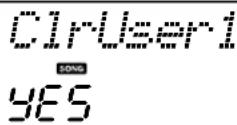
2 Press the [+] button.
A confirmation message will appear on the display. You can cancel the clear operation by pressing the [-] button.
4 Press the [+] button to clear the song.
The clear-in-progress message will appear briefly on the display while the song is being cleared.
NOTE
- To execute the Song Clear function press the [+] button. Press [-] to cancel the Song Clear operation.
Track Clear—Deleting a Specified Track from a User Song
This function lets you delete a specified track from a user song.
1 Press the [SONG] button, then select the user song (031-035) you want to clear.
2 Press and hold the SONG MEMORY track button ([1]–[5], [A]) corresponding to the track you want to clear for longer than a second.
A confirmation message will appear on the display.
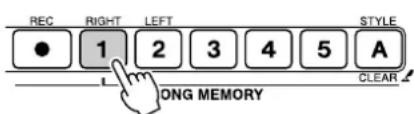
text_image
REC RIGHT LEFT STYLE ● 1 2 3 4 5 A LONG MEMORY CLEARHold for longer than a second
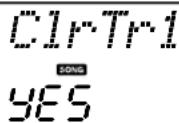
2 Press the [+] button.
A confirmation message will appear on the display. You can cancel the clear operation by pressing the [-] button.
1 Press the [+] button to clear the track.
The clear-in-progress message will appear briefly on the display while the track is being cleared.
NOTE
- To execute the Track Clear function press the [+] button. Press [-] to cancel the Track Clear operation.
Backup
The following settings are always backed up, and are maintained even when the power is turned off. If you want to initialize the settings, use the Initialize operation as explained below.
● The Backup Parameters
- User Songs
- Style Files
- Touch Response on/off
- Registration Memory
- FUNCTION Settings: Tuning, Split Point, Touch Sensitivity, Style Volume, Song Volume, Metronome Volume, Grade, Demo Cancel, Master EQ type, Arpeggio type
Initialization
This function erases all backup data in the instrument's flash memory and restores the initial default settings. The following initialization procedures are provided.
■Backup Clear....
To clear data backed up to the internal flash memory—panel user setting, registration memory, user songs, style file 156—turn the power on by pressing the [STANDBY/ON] switch while holding the highest white key on the keyboard. The backed up data will be erased and the default values restored.
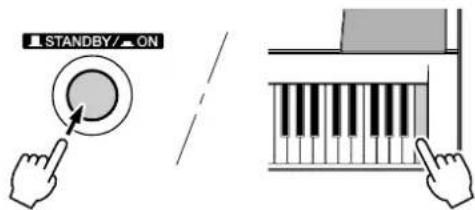
text_image
STANDBY/ON■Flash Clear ....
To clear song data and style files that have been transferred to the internal flash memory from a computer, turn the power on by pressing the [STANDBY/ON] switch while simultaneously holding the highest white key on the keyboard and the three highest black keys.
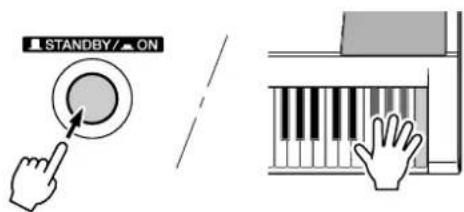
text_image
STANDBY/ONCAUTION
- When you execute the Flash Clear operation, song data you have purchased will also be cleared. Be sure to save data you want to keep to a computer.
Basic Operation
Overall PSR-E403/YPT-400 control is based on the following simple operations.
1 Press a button to select a basic function.
2 Use the dial to select an item or value.
3 Start a function.
3 Start a function.
2 Select an item or value.
1 Select a basic function.
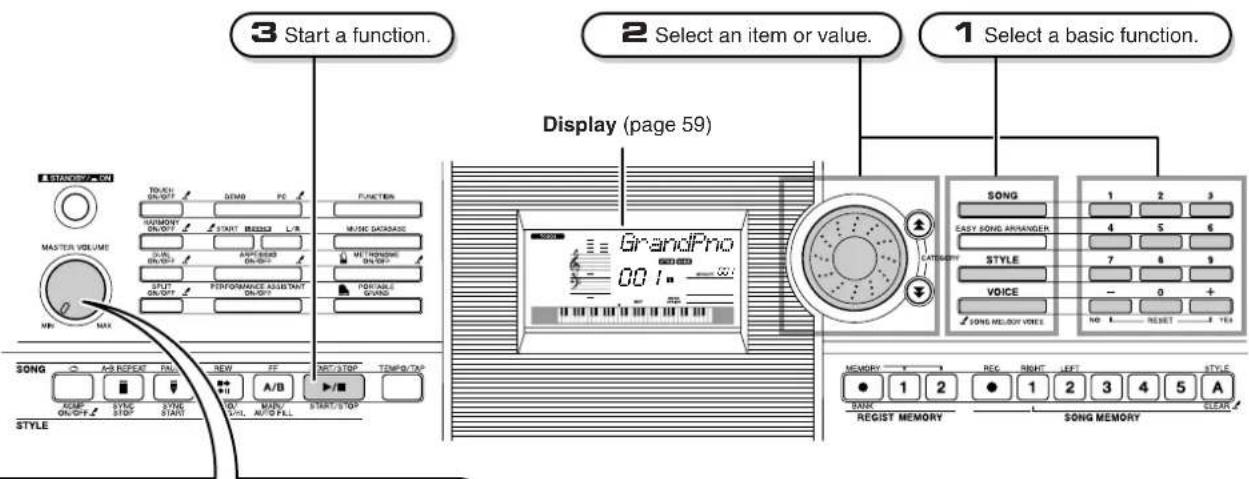
text_image
3 Start a function. 2 Select an item or value. 1 Select a basic function. Display (page 59) 3 2 1 2 3 SONG EASY SONG ARMANGER STYLE VOICE SONG MELLOFF VINEES NO RESET 1 YES 3 2 1 2 3 4 5 6 7 8 9 - 0 + MEMORY REC RIGHT LEFT STYLE BANK REGIST MEMORY SONG MEMORY CLEAR STOCK ON/OFF DEND PC FUNCTIONS MACHINE ON/OFF START BLOOD L/R MUSIC DATABASE ON/OFF A/B GND ON/OFF METHENSIC ON/OFF SPLIT ON/OFF PERFORMANCE ASSISTANT ON/OFF PORTABLE GROUND MAX MAX SONG A/B REPORT FILL NEW FF SPT/STOP TIME/STOP AUSB SYTIC START A/B AUTO FILL STYLE●Volume Adjustment
Adjusts the volume of the sound heard via the instrument's speakers or a pair of headphones plugged into the PHONES jack.
Rotate counterclockwise to lower the volume.
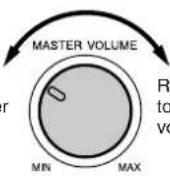
The "Press & Hold" Symbol
The “” symbol that appears next to some buttons indicates that the button can be pressed and held for longer than a second to call up a related function. This provides convenient direct access to a range of functions.
1 Press a button to select a basic function.
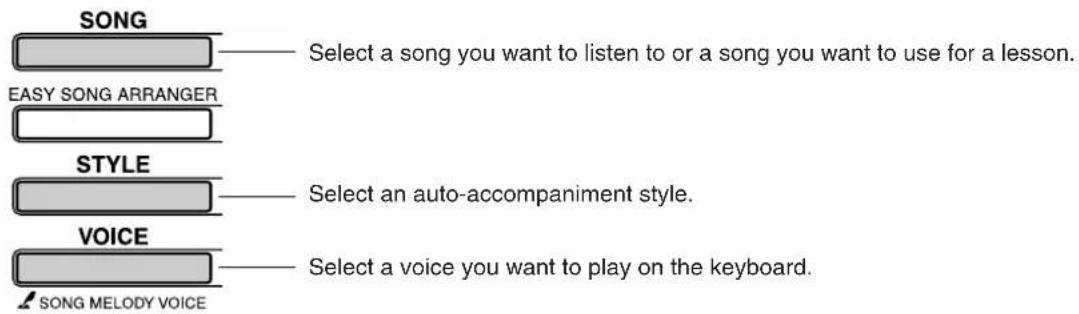
text_image
SONG EASY SONG ARRANGER STYLE VOICE SONG MELODY VOICE Select a song you want to listen to or a song you want to use for a lesson. Select an auto-accompaniment style. Select a voice you want to play on the keyboard.
Use the dial to select an item or value.
When you select a basic function, the item corresponding to that function will be displayed. You can then use the dial or the number buttons [0]–[9] to select the desired item.
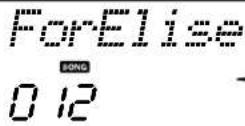
This portion of the display indicates the name and number of the currently selected song, voice and style. It also displays the name and current setting/value of other functions.

Changing Values.
● Dial
Rotate the dial clockwise to increase the value of the selected item, or counterclockwise to decrease it's value. Rotate the dial continuously to continuously increase or decrease the value.
● [+] and [-] Buttons
Press the [+] button briefly to increment the value by 1, or press the [-] button briefly to decrement the value by 1. Press and hold either button to continuously increment or decrement the value in the corresponding direction.
![YAMAHA PSR-E403 - ● [+] and [-] Buttons - 1](/content/2026/06/1244052/images/bfa534eac3a031db6ee36316775fdb2b5414a5be1a321dd8dc09d3faaadba48e.jpg)
text_image
Decrease Increase CATEC![YAMAHA PSR-E403 - ● [+] and [-] Buttons - 2](/content/2026/06/1244052/images/9f4868743a234e67306383cedbd253898e72858b89eff7d2dbdddf6e5e01e99e.jpg)
text_image
7 8 9 - 0 + NO RESET YES Press briefly to decrement. Press briefly to increment.● Number Buttons [0]–[9]
The number buttons can be used to directly enter a song number or parameter value.
Hundreds or tens digits that are "0" can be omitted (see below).
Example: Song number "003" can be entered in three ways.
• [0] → [0] → [3]
• [0] → [3]
("003" will appear on the display after a brief delay)
• [3]
("003" will appear on the display after a brief delay)
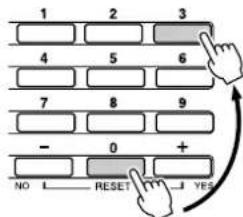
text_image
1 2 3 4 5 6 7 8 9 - 0 + NO RESET YESPress number buttons [0], [0], [3].
● CATEGORY [ ▲ and [ ] buttons
When selecting a song, style, or voice, you can use these buttons to jump to the first item in the next or previous category.
The CATEGORY [▲] and [▼] buttons are useful for selecting categorized items, as in the example below.
![YAMAHA PSR-E403 - ● CATEGORY [ ▲ and [ ] buttons - 1](/content/2026/06/1244052/images/9cc8041bc1283219168836dfaf1528044a70ae735d37e359b03b67a2a57557d1.jpg)
Jump to the first item in the next or previous category.
Example: VOICE SELECT
![YAMAHA PSR-E403 - ● CATEGORY [ ▲ and [ ] buttons - 2](/content/2026/06/1244052/images/65ade6991354ab7f20e63edf0f5a533039e55f882fb33a3b01e1ced7db298746.jpg)
The first voice in the selected category is selected.
In a display in which a category appears, selection is easy if you first use the CATEGORY [▲] and [▼] buttons to select the category containing the desired item, then use the dial or [+] and [-] buttons to select the item. This can be particularly handy when you have to select from a large number of voices.
In most procedures described throughout this owner's manual the dial is recommended for selection simply because it is the easiest and most intuitive selection method. Please note however, that most items or values that can be selected using the dial can also be selected using the [+] and [-] buttons.
![YAMAHA PSR-E403 - ● CATEGORY [ ▲ and [ ] buttons - 3](/content/2026/06/1244052/images/247a6ddf0f499c74d3d296673a15ba241cef24114e76699fe4c4d2c51a471650.jpg)
Start a function.
This is the [START/STOP] button.
Press the [START/STOP] button after pressing the [SONG] or [STYLE] button to start playback of the selected song or style (rhythm).
Display Items
The display shows all of the current basic settings: song, style, voice.
It also includes a range of indicators that show the on/off status of a range of functions.
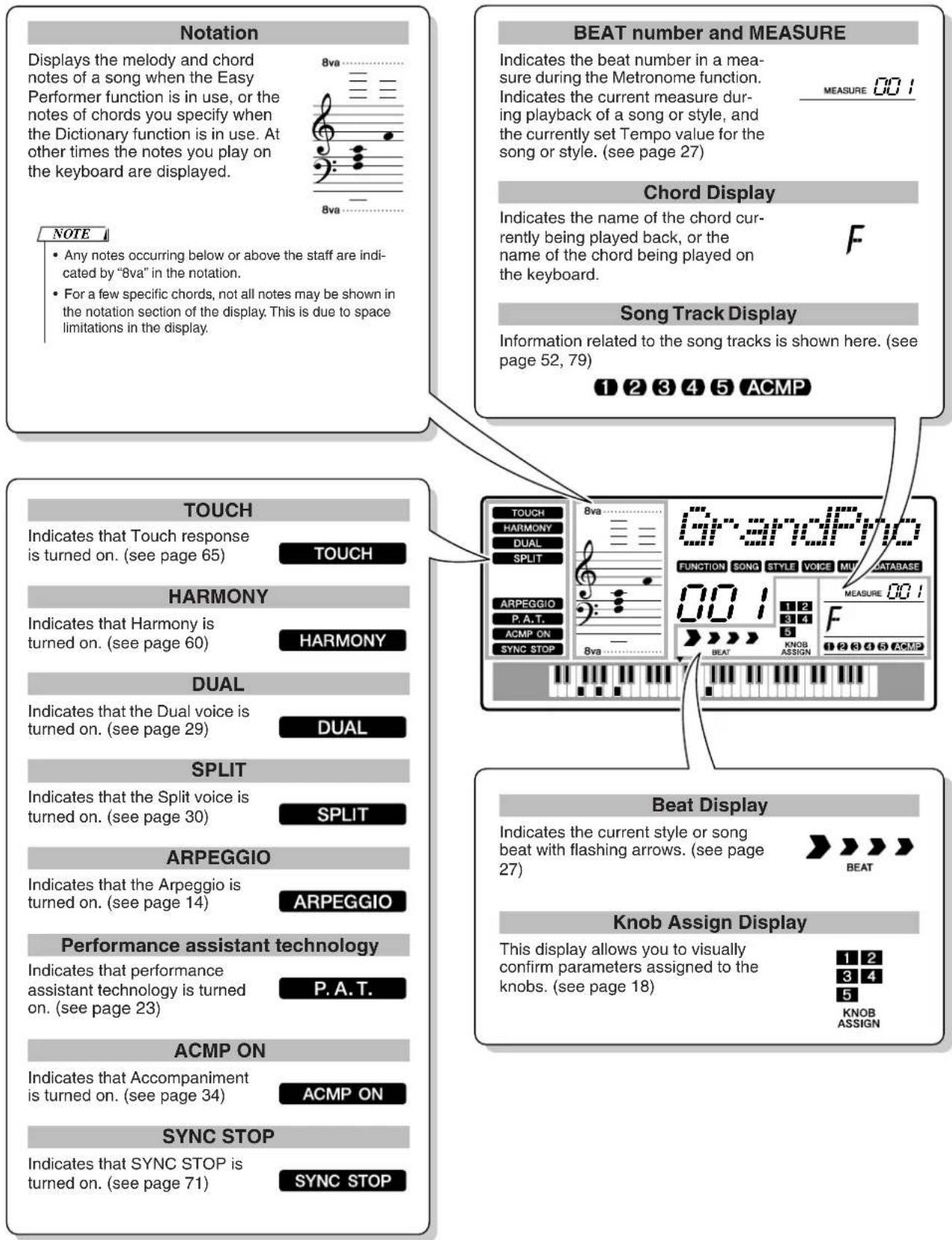
flowchart
graph TD
    A["Notation"] --> B["BEAT number and MEASURE"]
    B --> C["Chord Display"]
    C --> D["Song Track Display"]
    D --> E["TOUCH"]
    E --> F["HARMONY"]
    F --> G["DUAL"]
    G --> H["SPLIT"]
    H --> I["ARPEGGIO"]
    I --> J["Performance assistant technology"]
    J --> K["ACMP ON"]
    K --> L["SYNC STOP"]

    A --> M["NOTED"]
    M --> N["Any notes occurring below or above the staff are indicated by "8va" in the notation."]
    M --> O["For a few specific chords, not all notes may be shown in the notation section of the display. This is due to space limitations in the display."]

    B --> P["MEASURE 001"]

    C --> Q["F"]

    D --> R["Information related to the song tracks is shown here. (see page 52, 79)"]

    E --> S["TOUCH"]
    E --> T["TAUCH"]
    F --> U["HARMONY"]
    F --> V["HARMONY"]
    G --> W["DUAL"]
    G --> X["DUAL"]

    H --> Y["SPLIT"]
    H --> Z["SPLIT"]

    I --> AA["ARPEGGIO"]
    I --> AB["ARPEGGIO"]

    J --> AC["P.A.T."]

    K --> AD["ACMP ON"]
    K --> AE["ACMP ON"]

    L --> AF["SYNCTOP"]
    L --> AG["SYNCTOP"]

    M --> AH["ANDERSON ELECTRIC Display"]
    AH --> AI["Beat Display"]
    AI --> AJ["Knob Assign Display"]

    subgraph Legend
        AK["8va"]
        AL["8va"]
        AM["8va"]
        AN["8va"]
        AO["8va"]
        AP["8va"]
        AQ["8va"]
        AR["8va"]
        AS["8va"]
        AT["8va"]
        AU["8va"]
        AV["8va"]
        AW["8va"]
        AX["8va"]
        AY["8va"]
        AZ["8va"]
        BA["8va"]
        BB["8va"]
        BC["8va"]
        BD["8va"]
        BE["8va"]
        BF["8va"]
        BG["8va"]
        BH["8va"]
        BI["8va"]
        BJ["8va"]
        BK["8va"]
        BL["8va"]
        BM["8va"]
        BN["8va"]
        BO["8va"]
        BP["8va"]
        BQ["8va"]
        BR["8va"]
        BS["8va"]
        BT["8va"]
        BU["8va"]
        BV["8va"]
        BW["8va"]
        BX["8va"]
        BY["8va"]
        BZ["8va"]
        CA["8va"]
        CB["8va"]
        CC["8va"]
        CD["8va"]
        CE["8va"]
        CF["8va"]
        GF["8va"]
        GH["8va"]
        BIJ["8va"]
        BJJ["8va"]
        BKJ["8va"]
        BLJ["8va"]
        BMJ["8va"]
        BNJ["8va"]
        BOJ["8va"]
        BXJ["8va"]
        BYJ["8va"]
        BZJ["8va"]
        CAJ["8va"]
        BJJ["8va"]
        BKJ["8va"]
        BLJ["8va"]
        BQJ["8va"]
        BZJ["8va"]
        BZJ
    end
Harmony
This feature adds harmony notes to the main voice.
1 Press the [HARMONY ON/OFF] button to turn Harmony feature on.
To turn Harmony off, press the [HARMONY ON/OFF] button again.
![YAMAHA PSR-E403 - Press the [HARMONY ON/OFF] button to turn Harmony feature on. - 1](/content/2026/06/1244052/images/f28013692c8b86d84d5b52a5cc288bbe659cc9d0be38c52beeea46aa8c51b8e4.jpg)
text_image
TOUCH ON/OFF HARMONY ON/OFF DUAL ON/OFF SPLIT ON/OFF HARMONY HARMONY When harmony is on the harmony icon will appear in the display.When you press the [HARMONY ON/OFF] button to turn this feature on, the appropriate harmony type for the currently selected main voice is automatically selected.
2 Press and hold the [HARMONY ON/OFF] button for longer than a second so that the Harmony Type item appears.
"HarmType" appears in the display for a few seconds, and the currently selected harmony type will be displayed. Use the dial to select a different harmony type.
![YAMAHA PSR-E403 - Press and hold the [HARMONY ON/OFF] button for longer than a second so that the Harmony Type item appears. - 1](/content/2026/06/1244052/images/18e829a2722b4500238422bb3e31fc656c6b4c5a5fbb353061f48c4b30920542.jpg)
text_image
TOUCH ON/OFF HARMONY ON/OFF Hold for longer than a second. HARMONY HarmType FUNCTION Trio FUNCTION 02The currently selected harmony type
3 Use the dial to select a harmony type.
Refer to the Effect Type List on page 117 for information about the available harmony types. Try playing the keyboard with the harmony function. The effect and operation of each Harmony Type is different-refer to the below section “How to sound each Harmony Type” as well as the Effect Type List for details.
text_image
CATEGORYNOTE
- The harmony notes can be added only to the Main Voice, not to Dual or Split Voices.
- The keys left of the Split Point of the keyboard produce no harmony notes when the auto accompaniment is on (ACMP ON is lit).
●How to sound each Harmony Type
• Harmony type 01 to 05
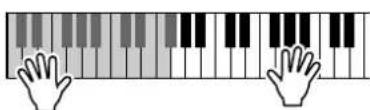
natural_image
Illustration of two hands typing on a piano keyboard (no text or symbols)Press the right-hand keys while playing chords in the auto accompaniment range of the keyboard when the Auto Accompaniment is on (page 34).
• Harmony type 06 to 12 (Trill)
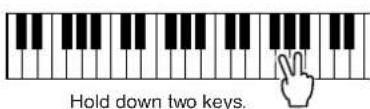
text_image
Hold down two keys.• Harmony type 13 to 19 (Tremolo)
text_image
Keep holding down the keys.• Harmony type 20 to 26 (Echo)
text_image
Keep holding down the keys.You can adjust the Harmony Volume in the Function Settings (page 69).
Adding Reverb
Reverb lets you play with a rich concert hall type ambience. When you select a style or song the optimum reverb type for the voice used is automatically selected. If you want to select a different reverb type, use the procedure described below.
1 Press the [FUNCTION] button.
![YAMAHA PSR-E403 - Press the [FUNCTION] button. - 1](/content/2026/06/1244052/images/e477ed55df26e79102017ce49f53d930d46b25a2173ad4a4d1b755bd24e209a5.jpg)
text_image
FUNCTION StyleVol 1002 Use the CATEGORY [4] and [ ] buttons to select the Reverb Type item.
"Reverb" appears in the display for a few seconds, and the currently selected reverb type will be displayed.
![YAMAHA PSR-E403 - Use the CATEGORY [4] and [ ] buttons to select the Reverb Type item. - 1](/content/2026/06/1244052/images/f9e2de27df0ac7a23b05f2f3bff733c7a0a103822fa859883e662944e01751c8.jpg)
text_image
CATEGORY Reverb FUNCTION ↓ Hs112 FUNCTION 02 The currently selected reverb type3 Use the dial to select a reverb type.
You can check how the selected reverb type sounds by playing on the keyboard.
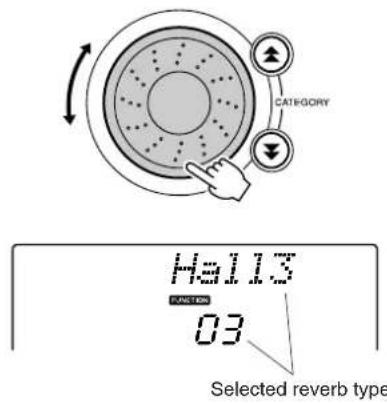
text_image
CATEGORY Hall3 FUNCTION 03 Selected reverb typeRefer to the Effect Type List on page 117 for information about the available reverb types.
●Adjusting the Reverb Send Level
You can individually adjust the amount of reverb that is applied to the main, dual, and split voices. See page 83).
Adding Chorus
The chorus effect creates a thick sound that is similar to many of the same voices being played in unison. When you select a style or song the optimum chorus type for the voice used is automatically selected. If you want to select a different chorus type, use the procedure described below.
1 Press the [FUNCTION] button.
![YAMAHA PSR-E403 - Press the [FUNCTION] button. - 1](/content/2026/06/1244052/images/eda66b6a36bfdb7707613e4e05fe0c560a83ec3d029c4490fd1c23ae904121f2.jpg)
2 Use the CATEGORY [4] and [ ] buttons to select the Chorus Type item.
“Chorus” appears in the display for a few seconds, and the currently selected chorus type will be displayed.
![YAMAHA PSR-E403 - Use the CATEGORY [4] and [ ] buttons to select the Chorus Type item. - 1](/content/2026/06/1244052/images/081d72a74d29dc459605761a44d118b982a786a5851fa73e42b620f0cfd91efc.jpg)
![YAMAHA PSR-E403 - Use the CATEGORY [4] and [ ] buttons to select the Chorus Type item. - 2](/content/2026/06/1244052/images/ff7359e0bd30b38c5ff1bf9cb38161f09de223be1836ecff36a9d6f2dc4e1f19.jpg)
flowchart
graph TD
    A["Chorus\nFUNCTION"] --> B["Chorus1\nFUNCTION"]
    B --> C["The currently selected chorus type"]
3 Use the dial to select a chorus type.
You can check how the selected chorus type sounds by playing on the keyboard.
flowchart
graph TD
    A["Input"] --> B{Category}
    B --> C["Output"]
    style A fill:#f9f,stroke:#333
    style B fill:#ccf,stroke:#333
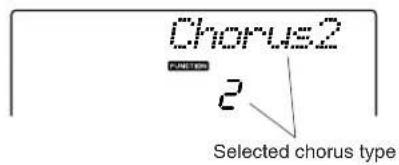
text_image
Chorus2 FUNCTION 2 Selected chorus typeRefer to the Effect Type List on page 117 for information about the available chorus types.
●Adjusting the Chorus Send Level
You can individually adjust the amount of chorus that is applied to the main, dual, and split voices. See page 83).
The Metronome
The instrument includes a metronome with adjustable tempo and time signature.
Use it to set the tempo that is most comfortable for you.
■Start the metronome......
Turn the metronome on and start it by pressing the [METRONOME ON/OFF] button.
To stop the metronome, press the [METRO-NOME ON/OFF] button again.
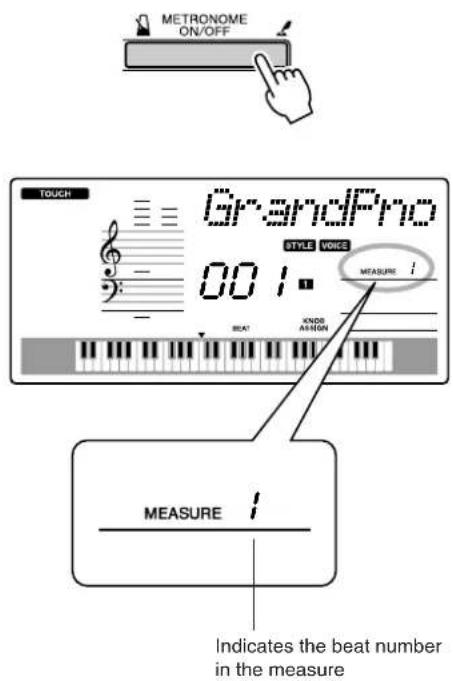
text_image
METRONOME ON/OFF TOUCH GrandPro STYLE VOICE 001 MEASURE 1 BEAT KENDS ANGON MEASURE 1 Indicates the beat number in the measure■Adjusting the Metronome Tempo ....
1 Press the [TEMPO/TAP] button to call up the tempo setting.
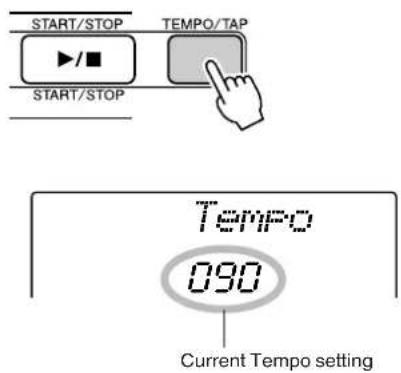
text_image
START/STOP TEMPO/TAP START/STOP Tempo 090 Current Tempo setting2 Use the dial to select a tempo from 11 to 280.
text_image
CATEGORYSetting the Number of Beats per Measure, and the Length of Each Beat
In this example we'll set up a 5/8 time signature.
1 Press and hold the [METRONOME ON/OFF] button for longer than a second to select the number of beats per measure function "TimesigN".
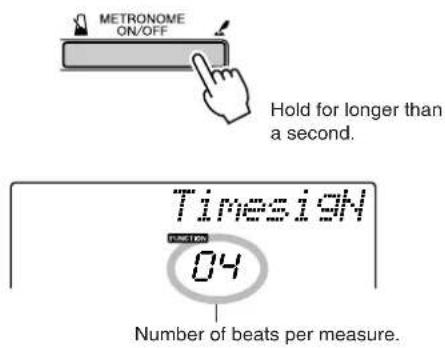
text_image
METRONOME ON/OFF Hold for longer than a second. Timesign TIME SIGN 04 Number of beats per measure.2 Use the dial to select the number of beats per measure.
A chime will sound on the first beat of each measure while the other beats will click. All beats will simply click with no chime at the beginning of each measure if you set this parameter to "00".
The available range is from 0 through 60.
Select 5 for this example.
NOTE
- The metronome time signature will synchronize to a style or song that is playing, so these parameters cannot be changed while a style or song is playing.
3 Press the CATEGORY [▲ and [ ] buttons as many times as necessary to select the beat length function "TimesigD".
The currently selected beat length will be displayed.
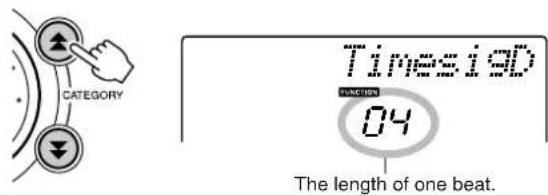
text_image
CATEGORY TimesigD FUNCTION 04 The length of one beat.4 Use the dial to select the beat length.
Select the required length for each beat: 2, 4, 8, or 16 (half note, quarter note, eighth note, or 16th note). Select 8 for this example.
Adjusting the Metronome Volume
1 Press the [FUNCTION] button.
2 Use the CATEGORY [A and [ ] buttons to select the Metronome Volume item.
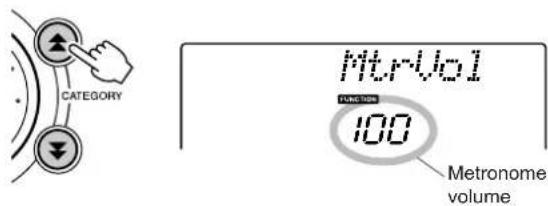
text_image
CATEGORY MTRVOL FUNCTIONS 100 Metronome volume3 Use the dial to set the metronome volume as required.
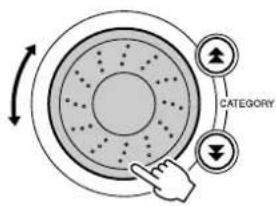
text_image
CATEGORYTap Start
You can supply a count-in at any tempo you like to start playback. Simply tap the [TEMPO/TAP] button at any tempo—4 times for time signatures in 4, and 3 times for time signatures in 3—and the selected style/song will begin playing at the tapped tempo.
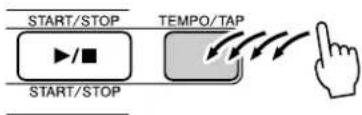
flowchart
graph LR
    A["START/STOP"] --> B["▶/■"]
    B --> C["TEMPO/TAP"]
    C --> D["→"]
    D --> E["Hand Icon"]
Touch Response Sensitivity
When touch response is on you can adjust the keyboard's sensitivity to dynamics in three steps.
1 Press the [TOUCH ON/OFF] button to turn touch response on.
The touch response icon will appear in the display when touch response is on (page 59).
![YAMAHA PSR-E403 - Press the [TOUCH ON/OFF] button to turn touch response on. - 1](/content/2026/06/1244052/images/a89537def77d2cfdb5789d937bc48a0e014afce1f8f96fb2177d097e3da041cb.jpg)
![YAMAHA PSR-E403 - Press the [TOUCH ON/OFF] button to turn touch response on. - 2](/content/2026/06/1244052/images/1fae07557240e6420cedf1985086a5a7e8e26dce9cf4b5e2cbd814d555128d45.jpg)
text_image
TOUCH GrandPro 001 TOUCH Touch response icon2 Press and hold the [TOUCH ON/OFF] button for longer than a second so that the Touch Sensitivity item appears.
"TouchSns" appears in the display for a few seconds, and the currently selected touch sensitivity will be displayed.
![YAMAHA PSR-E403 - Press and hold the [TOUCH ON/OFF] button for longer than a second so that the Touch Sensitivity item appears. - 1](/content/2026/06/1244052/images/908fd92f14b84c66aed2c5c4aa25272d9d7ff2ff7011403a9ca087e4ab844b0b.jpg)
Hold for longer than a second.
![YAMAHA PSR-E403 - Press and hold the [TOUCH ON/OFF] button for longer than a second so that the Touch Sensitivity item appears. - 2](/content/2026/06/1244052/images/1ca930f0358b35d54ac3c20c59d37e26d30bb086d1b3d16fca3a1f63a65766eb.jpg)
text_image
TOUCH TouchShrs FUNCTION![YAMAHA PSR-E403 - Press and hold the [TOUCH ON/OFF] button for longer than a second so that the Touch Sensitivity item appears. - 3](/content/2026/06/1244052/images/bf219bd11555147b2b3cbae55416717984aeaa6d7b5b5602b0b3c89e07a9e5ad.jpg)
text_image
TOUCH Medium FUNCTION 2 Touch Sensitivity3 Use the dial in response to keyboard dynamics to select a touch sensitivity setting between 1 and 3. Higher values produce greater (easier) volume variation in response to keyboard dynamics—i.e. greater sensitivity.
NOTE • The initial default touch sensitivity setting is "2".
Pitch Bend
The pitch bend wheel can be used to add smooth pitch variations to notes you play on the keyboard. Roll the wheel upward to raise the pitch, or downward to lower the pitch. If you use this feature with a voice such as the “040 Overdriven” guitar voice, you can produce remarkably realistic string-bending effects.
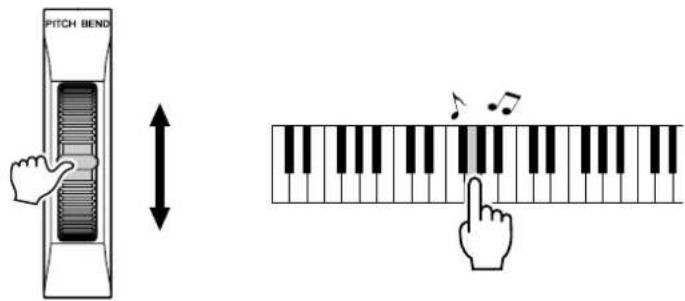
text_image
PITCH BEND ↑↓Pitch Controls
◆Large Pitch Changes (Transpose)
The overall pitch of the instrument can by shifted up or down by a maximum of 1 octave in semitone increments.
1 Press the [FUNCTION] button.
2 Use the CATEGORY [▲ and [ ] buttons to select the Transpose item.
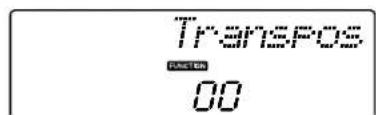
text_image
TransPOS Position 003 Use the dial to set the transpose value between -12 and +12 as required.
NOTE
• The pitch of Drum Kits voices cannot be changed.
◆Small Pitch Changes (Tuning)
The overall tuning of the instrument can by shifted up or down by a maximum of 100 cents in 1-cent increments (100 cents = 1 semitone).
1 Press the [FUNCTION] button.
2 Use the CATEGORY [1 and [ ] buttons to select the Tuning item.
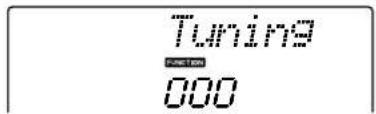
text_image
Tuning FUNCTION 0003 Use the dial to set the tuning value between -100 and +100 as required.
NOTE • The pitch of Drum Kits voices cannot be changed.
Controlling Arpeggio Volume with Keyboard Dynamics
1 Press the [FUNCTION] button.
![YAMAHA PSR-E403 - Press the [FUNCTION] button. - 1](/content/2026/06/1244052/images/4f55e22073cbc1bb318baba2b6008b10bd3e664457d1435dfe963364eaeda484.jpg)
2 Press the CATEGORY [▲ and [ ] buttons as many times as necessary to select the arpeggio velocity function "ARP Velo".
“ARP Velo” will be shown in the display for a few seconds, then the currently selected arpeggio velocity setting will appear.
![YAMAHA PSR-E403 - Press the CATEGORY [▲ and [ ] buttons as many times as necessary to select the arpeggio velocity function "ARP Velo". - 1](/content/2026/06/1244052/images/5f451a7ad1c0e08536134c6870d259a286548b1d305bdd5d954796ab58483ca5.jpg)
text_image
CATEGORY ARP Velo FUNCTION ↓ Original FUNCTION The currently selected arpeggio velocity.3 Use the dial to select "2 Thru".
When "1 Original" is selected the arpeggio volume is the same regardless of changes in keyboard velocity.
text_image
CATEGORYOne Touch Setting
Sometimes selecting the ideal voice to play with a song or style can be confusing. The One Touch Setting feature automatically selects a well-balanced voice for you when you select a style or song. Simply select voice number “000” to activate this feature.
1 Select voice number "000" (steps 1 to 2 on page 28).

text_image
VOICE SONG MELODY VOICE SweetSpr 000 Use the dial to select voice number 000.2 Select and play back any song (steps 1 to 3 on page 39).
3 Play the keyboard and remember the sound of the voice.
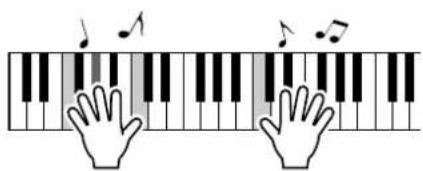
text_image
Illustration of two hands typing on a piano keyboard with musical notes above themIf you have stopped playback at some point during this procedure press the [START/STOP] button to start playback again.
4 Use the dial to change songs, then play the keyboard and listen to the voice.
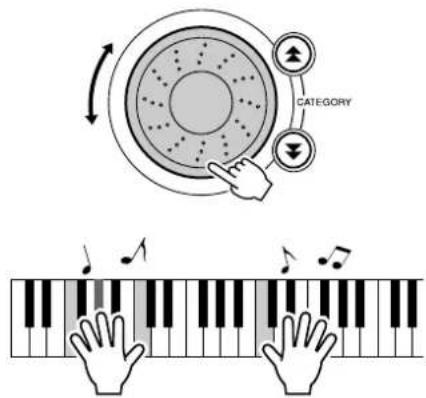
text_image
CATEGORYYou should hear a different keyboard voice than you played in step 3. Press the [VOICE] button after changing songs to see the name of the voice being used.
Adjusting the Harmony Volume
1 Press the [FUNCTION] button.
![YAMAHA PSR-E403 - Press the [FUNCTION] button. - 1](/content/2026/06/1244052/images/e58f0cc1980591f8daf82e3d7f13d418281c62bd3ab68ba3470ed4f643f759e4.jpg)
2 Use the CATEGORY [A and [ ] buttons to select the Harmony Volume item.
![YAMAHA PSR-E403 - Use the CATEGORY [A and [ ] buttons to select the Harmony Volume item. - 1](/content/2026/06/1244052/images/b33a63764e553e99922a08abb8eb518a1a29e40c96d2f4a45c14f7bf148c8345.jpg)
HarmVol FUNCTION 080
3 Use the dial to set the harmony volume between 000 and 127.
Select an EQ Setting for the Best Sound
Five different master equalizer (EQ) settings are provided to give you the best possible sound when listening through different reproduction systems—the instrument's internal speakers, headphones, or an external speaker system.
1 Press the [FUNCTION] button.
The currently selected function will appear in the display.
![YAMAHA PSR-E403 - Press the [FUNCTION] button. - 1](/content/2026/06/1244052/images/87eeb9cd0ed35ad1687de207c44eed597e128f2c8a3b0f1fe709438dbbd20672.jpg)
2 Press the CATEGORY [1] and [ ] buttons as many times as necessary to select the master EQ type function "MasterEQ".
“MasterEQ” will be shown in the display for a few seconds, then the currently selected EQ type will appear.
![YAMAHA PSR-E403 - Press the CATEGORY [1] and [ ] buttons as many times as necessary to select the master EQ type function "MasterEQ". - 1](/content/2026/06/1244052/images/f161ad4a36dcab934216fe933b8d4f08a98a141512613f3220a31c28c9106889.jpg)
![YAMAHA PSR-E403 - Press the CATEGORY [1] and [ ] buttons as many times as necessary to select the master EQ type function "MasterEQ". - 2](/content/2026/06/1244052/images/1c4799ad2f546f8aa648b57f8faa79814a1ed5c39edfbafc848667c1c1f94530.jpg)
text_image
MasterEQ ↓ Speaker1 The currently selected master EQ type.3 Use the dial to select the desired Master EQ setting.
Five settings are available: 1–5. Settings 1 and 2 are best for listening via the instrument's built-in speakers, setting 3 is for headphones, and settings 4 and 5 are ideal for listening via external speakers.
Basic operation of the Style (auto-accompaniment) feature is described on page 33 of the Quick Guide.
Here are some other ways you can play the styles, the style volume adjustment procedure, how you can play chords using the styles, and more.
Pattern Variation (Sections)
The PSR-E403/YPT-400 features a wide variety of style “sections” that allow you to vary the arrangement of the accompaniment to match the song you are playing.
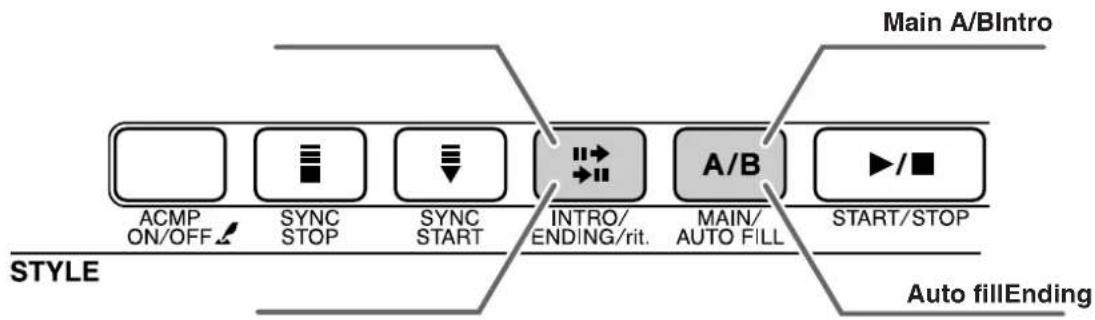
flowchart
graph LR
    A["ACMP ON/OFF"] --> B["SYNC STOP"]
    B --> C["SYNC START"]
    C --> D["INTRO/ ENDING/rit."]
    D --> E["A/B"]
    E --> F["MAIN/ AUTO FILL"]
    F --> G["START/STOP"]
    H["Main A/BIntro"] --> I["Main A/BIntro"]
    J["Auto fillEnding"] --> K["Auto fillEnding"]
- INTRO section
This is used for the beginning of the Song. When the intro finishes playing, accompaniment shifts to the main section. The length of the intro (in measures) differs depending on the selected Style.
● MAIN section
This is used for playing the main part of the Song. It plays a main accompaniment pattern, and repeats indefinitely until another section's button is pressed. There are two variations on the basic pattern (A and B), and the Style playback sound changes harmonically based on the chords you play with your left hand.
- Fill-in section
This is automatically added before changing to section A or B.
● ENDING section
This is used for the ending of the Song. When the ending is finished, the auto accompaniment stops automatically. The length of the ending (in measures) differs depending on the selected Style.
1 Press the [STYLE] button and then select a style.
2 Press the [ACMP ON/OFF] button to turn auto accompaniment on.
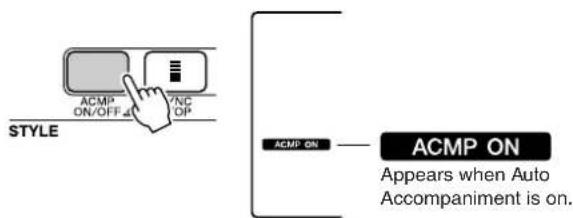
text_image
STYLE ACMP ON/OFF NC OP ACMP ON ACMP ON Appears when Auto Accompaniment is on.3 Press the [SYNC START] button to turn synchro start on.

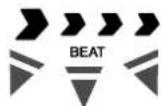
Beat arrows will flash when the synchro start standby mode is engaged
● Synchro Start
When the synchro start standby mode is engaged, style playback will begin as soon as you play a chord in the accompaniment range of the keyboard. You can disengage the synchro-start standby mode by pressing the [SYNC START] button again.
4 Press the [MAIN/AUTO FILL] button.
![YAMAHA PSR-E403 - Press the [MAIN/AUTO FILL] button. - 1](/content/2026/06/1244052/images/73f83382299c4b242008c1fa9d5822c7a02e21dff857a263d582d8e61d117f68.jpg)
text_image
ACMP ON/OFF SYNC STOP SYNC START INTRO/ ENDING/rit. MAIN/ AUTO FILL A/B PART/STOP STYLE MAIN A TYPE The name of the selected section— MAIN A or MAIN B—will be displayed.5 Press the [INTRO/ENDING/rit.] button.
![YAMAHA PSR-E403 - Press the [INTRO/ENDING/rit.] button. - 1](/content/2026/06/1244052/images/016f2bf9dbde142ea8e6c08b7ef1b873e572005a46ab96995227ae6788ec45fa.jpg)
text_image
ACMP ON/OFF SYNC STOP SYNC START INTRO/ ENDING/INT A/B MIN/ C FILL START/STOP STYLE INTP0:4 TYPEYou're now ready to play the intro.
6 As soon as you play a chord with your left hand, the Intro of the selected Style starts.
For this example, play a C major chord (as shown below). For information on how to enter chords, see “Playing Auto-accompaniment Chords” on page 38.
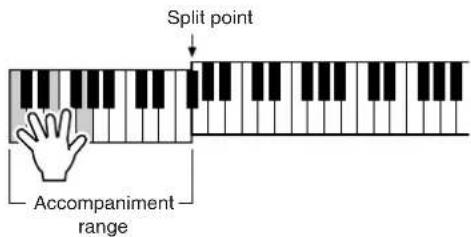
text_image
Split point Accompaniment range7 Press the [MAIN/AUTO FILL] button.
![YAMAHA PSR-E403 - Press the [MAIN/AUTO FILL] button. - 1](/content/2026/06/1244052/images/882ec935bef9908cf9232a011bf4f6589da0031743b9a242fbda17a1ebbae696.jpg)
text_image
ACMP ON/OFF SYNC STOP SYNC START INTRO/ ENDING/rit. MAIN/ AUTO FILL A/B PART/STOP STYLE FILL A+BWhen the fill-in is finished, it leads smoothly into the selected main section A/B.
8 Press the [INTRO/ENDING/rit.] button.
![YAMAHA PSR-E403 - Press the [INTRO/ENDING/rit.] button. - 1](/content/2026/06/1244052/images/e5df9ac6c520033ad4aa7e4bc8c439913e7674ba683fa5d172170581f3b70ad2.jpg)
text_image
ACMP ON/OFF./ SYNC STOP SYNC START INTRO/ ENDING/HT A/B MIN/ C FILL START/STOP STYLE ENDINGThis switches to the ending section. When the ending is finished, the auto accompaniment stops automatically. You can have the ending gradually slow down (ritardando) by pressing the [INTRO/ENDING/rit.] button again while the ending is playing back.
●Synchro Stop
When this function is selected the accompaniment style will only play while you are playing chords in the accompaniment range of the keyboard. Style playback will stop when you release the keys. To turn the function on, press the [SYNC STOP] button.
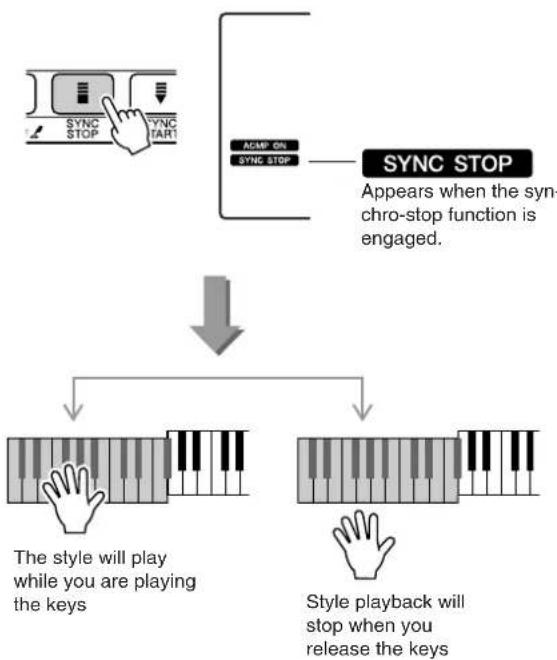
flowchart
graph TD
    A["Hand with scroll icon"] --> B{Switch Stop}
    B -->|ACMP ON| C["SYNCTOP"]
    B -->|SYNC STOP| D["SYNCTOP"]
    D --> E["Down arrow"]
    E --> F["The keyboard will play while you are playing the keys"]
    E --> G["Style playback will stop when you release the keys"]
Adjusting the Style Volume
Press the [STYLE] button to engage the style function.
1 Press the [FUNCTION] button.
2 Use the CATEGORY [4 and [ ] buttons to select the Style Volume item.
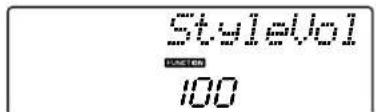
text_image
StyleVol FUNCTION 1003 Use the dial to set the style volume between 000 and 127.
Setting the Split Point
The initial default split point is key number 54 (the F#2 key), but you can change it to another key using the procedure described below.
1 Press the [STYLE] button.
2 Press and hold the [ACMP ON/OFF] for longer than a second so that the Split point item appears.

text_image
ACMP ON/OFF /NC OP SYNC START INTRO/ ENDING/HT. MAIN/ AUTO FILL. A/B /■ START/STOP STYLEHold for longer than a second
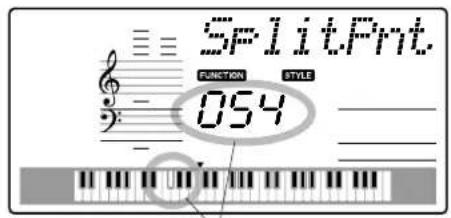
text_image
SplitPnt. FUNCTION STYLE 054Split point
3 Use the dial to set the split point to any key from 000 through 127.
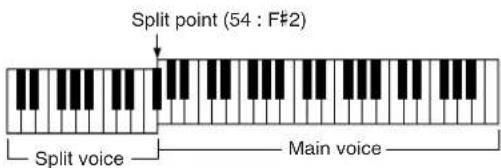
text_image
Split point (54 : F#2) Split voice Main voiceNOTE
- When you change the split point the auto-accompaniment split point also changes.
• The split point cannot be changed during a song lesson. - When you change the split point the auto-accompaniment split point also changes.
- The split point cannot be changed during a song lesson.
- When you change the split point the auto-accompaniment split point also changes.
- The split point cannot be changed during a song lesson.
- When you change the split point the auto-accompaniment split point also changes.
- The split point cannot be changed during a song lesson.
- When you change the split point the auto-accompaniment split point also changes.
- The split point cannot be changed during a song lesson.
NOTE
- You can also access the Split Point item by pressing the [FUNCTION] button and using the CATEGORY [▲] and [▼] buttons to locate the item (page 82).
Play a Style with Chords but No Rhythm (Stop Accompaniment)
When auto accompaniment is on (the ACMP ON icon is showing) and Synchro Start is off, you can play chords in the left-hand accompaniment range of the keyboard while the style is stopped and still hear the accompaniment chords. This is “Stop Accompaniment”, and any of the chord fingerings recognized by the instrument can be used (page 38).
Press the [STYLE] button to engage the style function, then press the [ACMP ON/OFF] button to turn the auto accompaniment on.
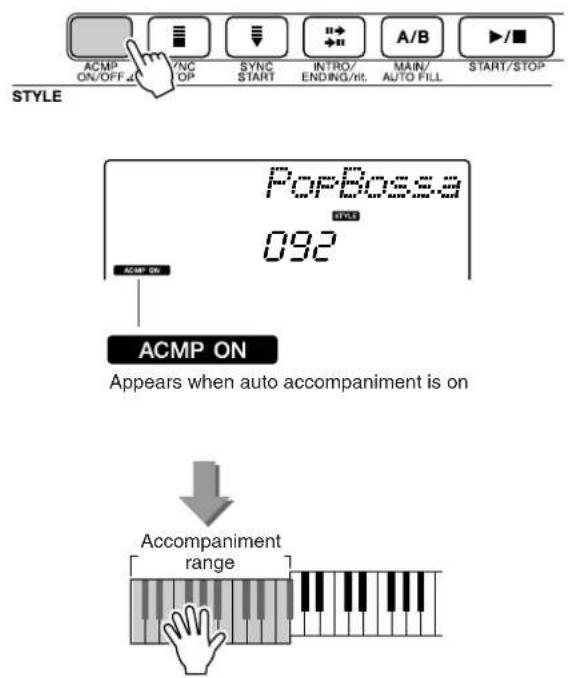
text_image
ACMP ON/OFF SYNC OP SYNC START INTRO/ ENDING/RT. MAIN/ AUTO FILL START/STOP STYLE PofBossa 092 ACMP ON ACMP ON Appears when auto accompaniment is on Accompaniment rangeLoading Style Files
This instrument features 155 internal styles, but other styles, such as those provided on the CD-ROM and others that can be obtained from the internet (only styles with the “.sty” suffix), can be loaded into style number 156 and used in the same way as the internal styles.
In order to use the style file load function, the file must already have been transferred from the computer to the instrument. The procedure for transferring files from a computer to the instrument is described on page 89 (“Transferring Data between the Computer and Instrument”).
The procedure described below loads a style file that has already been transferred from a computer to the instrument into style number 156.
1 Press the [FUNCTION] button.
The currently selected function will appear in the display.
![YAMAHA PSR-E403 - Press the [FUNCTION] button. - 1](/content/2026/06/1244052/images/6c1918559e5078c2090fac5a9a22847dd8558c49c9f0b8fe3ec46ca14b8e436c.jpg)
2 Press the CATEGORY [▲ and [ ] buttons as many times as necessary to select the style file load function "Sff Load".
![YAMAHA PSR-E403 - Press the CATEGORY [▲ and [ ] buttons as many times as necessary to select the style file load function "Sff Load". - 1](/content/2026/06/1244052/images/3f5bc4cf0698d847fd7ef6a25f715beb83ebf8c49d739309fd78951f6234e3ae.jpg)
![YAMAHA PSR-E403 - Press the CATEGORY [▲ and [ ] buttons as many times as necessary to select the style file load function "Sff Load". - 2](/content/2026/06/1244052/images/256d24b875ec8636cf0a01993be2cf6ecc0f78945f80bcd91be0c92e249aec64.jpg)
text_image
STT LOAD FUNCTIONAfter about 2 seconds the name of a loadable style file will appear in the display.
If multiple loadable style files have been transferred to the instrument, you can use the dial or the [+] and [-] buttons to select the other files in sequence.
3 Execute the load operation.
With the name of the style file you want to load shown in the display, press the number [0] button.
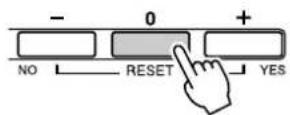
4 A confirmation message for the load operation will appear. Press the [+/YES] button to actually load the file.
![YAMAHA PSR-E403 - A confirmation message for the load operation will appear. Press the [+/YES] button to actually load the file. - 1](/content/2026/06/1244052/images/2c61af8b513990e20a8b65dcbdb47490ae658b69765a9f65f8b2db51b2a918c6.jpg)
Chord Basics
Two or more notes played together constitute a “chord”.
The most basic chord type is the “triad” consisting of three notes: the root, third, and fifth degrees of the corresponding scale. A C major triad, for example, is made up of the notes C (the root), E (the third note of the C major scale), and G (the fifth note of the C major scale).

In the C major triad shown above, the lowest note is the “root” of the chord (this is the chord’s “root position” ... using other chord notes for the lowest note results in “inversions”). The root is the central sound of the chord, which supports and anchors the other chord notes.
The distance (interval) between adjacent notes of a triad in root position is either a major or minor third.
Major third-four half steps (semitones)
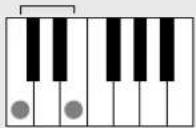
Minor third-three half steps (semitones)
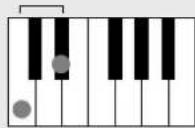
The lowest interval in our root-position triad (between the root and the third) determines whether the triad is a major or minor chord, and we can shift the highest note up or down by a semitone to produce two additional chords, as shown below.
Major chord
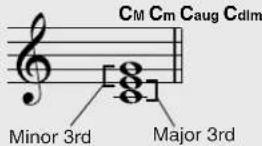
Minor chord Augmented chord Diminished chord
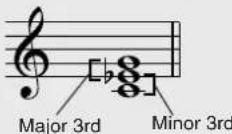
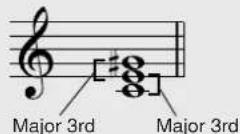
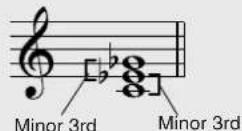
The basic characteristics of the chord sound remain intact even if we change the order of the notes to create different inversions. Successive chords in a chord progression can be smoothly connected, for example, by choosing the appropriate inversions (or chord “voicings”).
● Reading Chord Names
Chord names tell you just about everything you need to know about a chord (other than the inversion/voicing). The chord name tells you what the root of the chord is, whether it is a major, minor, or diminished chord, whether it requires a major or flatted seventh, what alterations or tensions it uses ... all at a glance.

Root note Chord type
● Some Chord Types (These are just some of the "Standard" chord types recognized by the PSR-E403/YPT-400.)
Suspended 4th
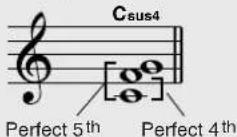
7th
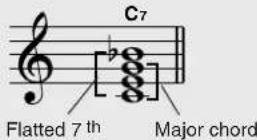
Minor 7 th
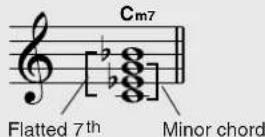
Major 7 th
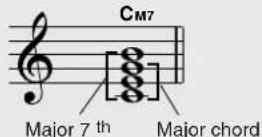
Minor/major 7 th
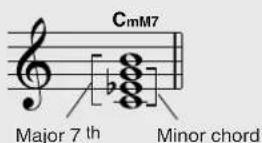
7 th,flatted 5 th
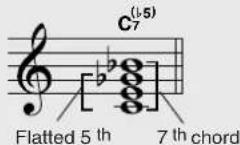
Minor 7 th,flatted 5 th
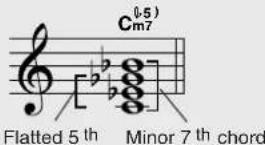
7 th, suspended 4 th
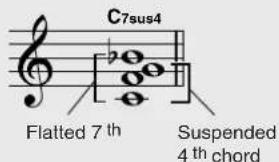
text_image
C7sus4 Flatted 7 th Suspended 4 th chord■Recognized Standard Chords....
All chords in the chart are "C-root" chords.
| Chord Name/[Abbreviation] Normal | Voicing Chord (C) Display | ||
| Major [M] 1 - 3 - 5 C | C | ||
| Add ninth [(9)] 1 - 2 - 3 - 5 C | C^(g) | (9) | |
| Sixth [6] 1 - (3) - 5 - 6 C6 | C_6 | ||
| Sixth ninth [6(9)] 1 - 2 - 3 - (5) - 6 C6 | C_6^(g) | (9)* | |
| Major seventh [M7] | 1 - 3 - (5) - 7 or1 - (3) - 5 - 7 | CM_7 | CM7 |
| Major seventh ninth [M7(9)] 1 - 2 - 3 - (5) - 7 CM7 | CM_7^(g) | (9)* | |
| Major seventh add sharp eleventh [M7(#11)] | 1 - (2) - 3 - #4 - 5 - 7 or1 - 2 - 3 - #4 - (5) - 7 | CM_7^(\#11) | CM7(#11)* |
| Flatted fifth [(b-5)] | 1 - 3 - b5 | C^(b-5) | C_b5^* |
| Major seventh flatted fifth [M7b-5] | 1 - 3 - b5 - 7 | CM_7^(b-5) | CM7b-5* |
| Suspended fourth [sus4] | 1 - 4 - 5 Csus4 | C_sus4 | |
| Augmented [aug] | 1 - 3 - #5 | Caug | Caug |
| Major seventh augmented [M7aug] | 1 - (3) - #5 - 7 | CM7aug | CM7aug* |
| Minor [m] 1 - b3 - 5 | Cm | Cm | |
| Minor add ninth [m(9)] | 1 - 2 - b3 - 5 | C_m^(g) | Cm (9) |
| Minor sixth [m6] | 1 - b3 - 5 - 6 | C_m6 | Cm6 |
| Minor seventh [m7] | 1 - b3 - (5) - b7 | C_m7 | Cm7 |
| Minor seventh ninth [m7(9)] | 1 - 2 - b3 - (5) - b7 | C_m7^(g) | Cm7(9) |
| Minor seventh add eleventh [m7(11)] | 1 - (2) - b3 - 4 - 5 - (b7) | C_m7^(11) | Cm7(11)* |
| Minor major seventh [mM7] | 1 - b3 - (5) - 7 | C_mM7 | CmM7 |
| Minor major seventh ninth [mM7(9)] | 1 - 2 - b3 - (5) - 7 | C_mM7^(g) | CmM7 (9)* |
| Minor seventh flatted fifth [m7b-5] | 1 - b3 - b5 - b7 | C_m7^(b-5) | Cm7b-5 |
| Minor major seventh flatted fifth [mM7>5] | 1 - b3 - b5 - 7 | C_mM7^(b-5) | CmM7 b-5* |
| Diminished [dim] 1 - b3 - b5 | Cdim | C_dim | |
| Diminished seventh [dim7] | 1 - b3 - b5 - 6 | C_dim7 | Cdim7 |
| Seventh [7] | 1 - 3 - (5) - b7 or1 - (3) - 5 - b7 | C_7 | C7 |
| Seventh flatted ninth [7(b-9)] | 1 - b2 - 3 - (5) - b7 | C_7^(b-9) | C7(b-9) |
| Seventh add flatted thirteenth [7(b-13)] | 1 - 3 - 5 - b6 - b7 | C_7^(b-13) | C7(b-13) |
| Seventh ninth [7(9)] | 1 - 2 - 3 - (5) - b7 | C_7^(g) | C7(9) |
| Seventh add sharp eleventh [7(#11)] | 1 - (2) - 3 - #4 - 5 - b7 or1 - 2 - 3 - #4 - (5) - b7 | C_7^(g-11) | C7(#11) |
| Seventh add thirteenth [7(13)] | 1 - 3 - (5) - 6 - b7 | C_7^(13) | C7(13) |
| Seventh sharp ninth [7(#9)] | 1 - #2 - 3 - (5) - b7 | C_7^(g-9) | C7(#9) |
| Seventh flatted fifth [7b-5] | 1 - 3 - b5 - b7 | C_7^b-5 | C7b-5* |
| Seventh augmented [7aug] | 1 - 3 - #5 - b7 | C_7aug | C7aug |
| Seventh suspended fourth [7sus4] | 1 - 4 - (5) - b7 | C_7sus4 | C7sus4 |
| One plus two plus five [1+2+5] | 1 - 2 - 5 C* | C_1+2+5 | |
* These chords are not shown in the Dictionary function.
NOTE
• Notes in parentheses can be omitted.
- Playing two same root keys in the adjacent octaves produces accompaniment based only on the root.
- A perfect fifth (1+5) produces accompaniment based only on the root and fifth which can be used with both major and minor chords.
- The chord fingerings listed are all in "root" position, but other inversions can be used—with the following exceptions: m7, m7;5, 6, m6, sus4, aug, dim7, 7;5, 6(9), 1+2+5.
NOTE
- Inversion of the 7sus4 and m7(11) chords are not recognized if the notes shown in parentheses are omitted.
- The auto accompaniment will sometimes not change when related chords are played in sequence (e.g. some minor chords followed by the minor seventh).
- Two-note fingerings will produce a chord based on the previously played chord.
Looking Up Chords Using the Chord Dictionary
The Dictionary function is essentially a built-in “chord book” that shows you the individual notes of chords. It is ideal when you know the name of a certain chord and want to quickly learn how to play it.
1 Press and hold the LESSON [START] button for longer than a second.
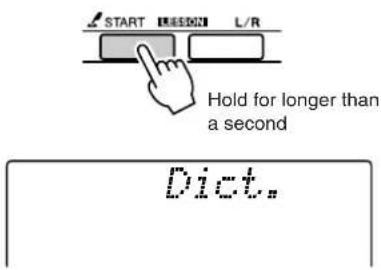
text_image
START L/R Hold for longer than a second Dict.2 As an example, we'll learn how to play a GM7 (G major seventh) chord. Press the "G" key in the section of the keyboard labeled "ROOT". (The note doesn't sound.) The root note you set is shown in the display.
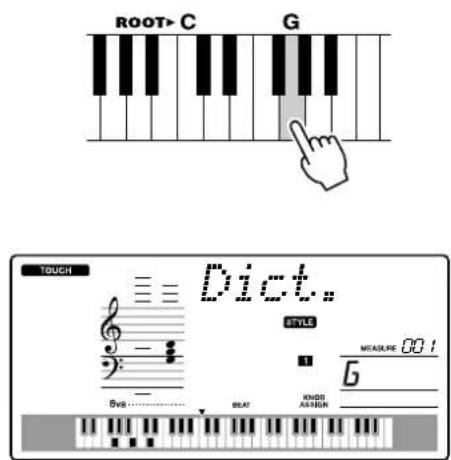
text_image
ROOT>C G TOUCH BEV BEV BLAT KINDO ANION BEV Style MEASURE 001 63 Press the "M7" (major seventh) key in the section of the keyboard labeled "CHORD TYPE". (The note doesn't sound.) The notes you should play for the specified chord (root note and chord type) are shown in the display, both as notation and in the keyboard diagram.
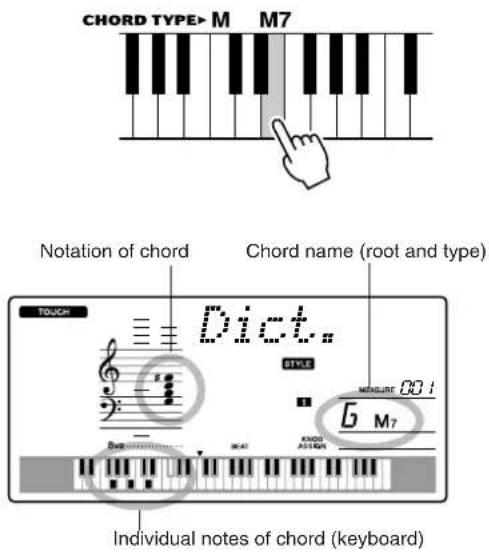
text_image
CHORD TYPE M M7 Notation of chord Chord name (root and type) TOUCH Dict. STYLE 6 M7 Individual notes of chord (keyboard)To call up possible inversions of the chord, press the [+]/[-] buttons.
NOTE - About major chords: Simple major chords are usually indicated only by the root note. For example, "C" refers to C major. However, when specifying major chords here, make sure to select "M" (major) after pressing the root note.
4 Try playing a chord in the auto accom- paniment section of the keyboard, checking the indications in the display. When you've played the chord properly, a bell sound signals your success and the chord name in the display flash.
Song Volume
1 Press the [FUNCTION] button.
2 Use the CATEGORY [▲] and [▼] buttons to select the Song Volume item.
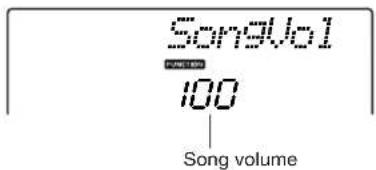
text_image
SongsVol FUNCTION 100 Song volume3 Use the dial to set the song volume between 000 and 127.
NOTE • Song volume can be adjusted while a song is selected.
A-B Repeat
You can specify a section of a song—“A” is the start point and “B” is the end point—for repeat playback.
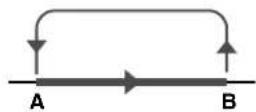
1 Play the song (page 39) and press the [A-B REPEAT] button at the beginning of the section you want to repeat (the "A" point).
text_image
SONG A-B REPEAT PAUSE2 Press the [A-B REPEAT] button a second time at the end of the section you want to repeat (the "B" point).
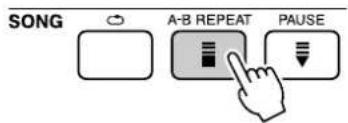
text_image
SONG A-B REPEAT PAUSE3 The specified A-B section of the song will now play repeatedly.
You can stop repeat playback at any time by pressing the [A-B REPEAT] button.
NOTE
- The repeat start and end points can be specified in one-measure increments.
- The current measure number is shown in the display during play-back.
- If you want to set the start point "A" at the very beginning of the song press the [A-B REPEAT] button before starting playback of the song.
Muting Independent Song Parts
Each “track” of a song plays a different part of the song—melody, percussion, accompaniment, etc. You can mute individual tracks and play the muted part on the keyboard yourself, or simply mute tracks other than the ones you want to listen to. Use the SONG MEMORY [1]–[5] and [A] buttons to mute or un-mute the corresponding tracks. The track number in the display disappears when that track is muted. Refer to page 52 for information about the song track configuration.
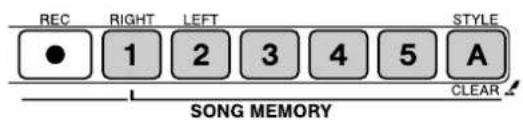
text_image
REC RIGHT LEFT STYLE ● 1 2 3 4 5 A SONG MEMORY CLEAR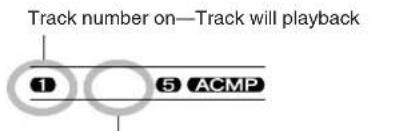
text_image
Track number on—Track will playback 1 5 ACMPTrack number off—Track is muted or contains no data
Change the Melody Voice
You can change a song's melody voice to any other voice you prefer.
NOTE
- You cannot change the melody voice of a user song.
1 Select the song and play it.
2 Rotate the dial to select the voice you want to listen to after pressing the [VOICE] button.
text_image
Strings NONE VOICE 0503 Press the [VOICE] button for longer than a second.
"SONG MELODY VOICE" appears in the display for a few seconds, indicating that the voice selected in step #2 has replaced the song's original melody voice.
Hold for longer than a second
SONG MEL
This instrument has a Registration Memory feature that lets you save your favorite settings for easy recall whenever they're needed. Up to 16 complete setups can be saved (8 banks of two setups each).
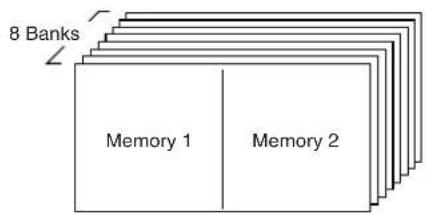
text_image
8 Banks Memory 1 Memory 2Up to 16 presets (eight banks of two each) can be memorized.
Saving to the Registration Memory
1 Set the panel controls as required—select a voice, accompaniment style, etc.
2 Press the [●] (MEMORY/BANK) button. A bank number will appear in the display when you release the button.
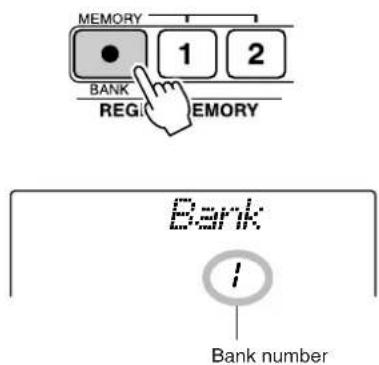
text_image
MEMORY 1 2 BANK REGI MEMORY Bank / Bank number3 Use the dial or the [1]–[8] number buttons to select a bank number from 1 to 8.
text_image
CATEGORY 1 2 3 4 5 6 7 8 9 - 0 + NO RESET YESNOTE • Data cannot be saved to the registration memory during song play-back.
4 Press the REGIST MEMORY [1] or [2] button while holding the [●] (MEMORY/BANK) button to store the current panel settings to the specified registration memory.
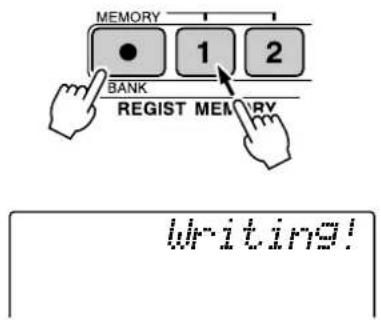
text_image
MEMORY 1 2 BANK REGIST MEMORY Writing!NOTE • If you select a Registration Memory number that already contains data, the previous data is deleted and overwritten by the new data.
CAUTION - Do not turn off the power while saving settings to the registration memory, otherwise the data may be damaged or lost.
Recalling a Registration Memory
1 Press the [●] (MEMORY/BANK) button. A bank number will appear in the display when you release the button.
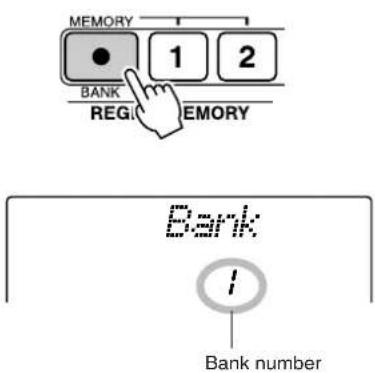
text_image
MEMORY 1 2 BANK REG MEMORY Bank / Bank number2 Use the dial or the [1]–[8] number buttons to select bank you want to recall.
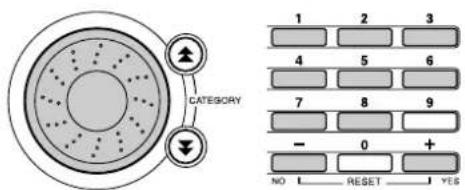
text_image
CATEGORY 1 2 3 4 5 6 7 8 9 - 0 + NO RESET YES3 Press the REGIST MEMORY button, [1] or [2], containing the settings you want to recall. The recalled REGIST MEMORY number appears in the display for a few seconds. The panel controls will be instantly set accordingly.

text_image
MEMORY 1 2 BANK REGIST ME REGIST 1 /●Settings That Can be Saved to the Registration Memory
- Style settings*
Style number, Auto Accompaniment ON/OFF, Split Point, Style settings (Main A/B), Style Volume, Tempo
- Voice settings
Main Voice setting (Voice number, Volume, Octave, Pan, Reverb Send Level, Attack Time, Release Time, Filter Cutoff, Filter Resonance, Chorus Send Level), Dual Voice settings (Dual ON/OFF, Voice number, Volume, Octave, Pan, Reverb Send Level, Chorus Send Level, Attack Time, Release Time, Filter Cutoff, Filter Resonance), Split Voice settings (Split ON/OFF, Voice number, Volume, Octave, Pan, Reverb Send Level, Chorus Send Level)
- Effect settings
Reverb Type, Chorus Type
- Arpeggio settings
Arpeggio Type, Arpeggio ON/OFF
- Harmony settings
Harmony ON/OFF, Harmony Type, Harmony Volume
- Other settings
Transpose, Pitch Bend Range, Knob Assign
* Style settings are not available for Registration Memory when using the Song features.
The “Functions” provide access to a range of detailed instrument parameters for tuning, setting the split point, and adjusting the voices and effects. Take a look at the function list starting on the opposite page. There are 54 function parameters in all. When you locate a function you want to set up, simply select the function’s display name (shown to the right of the function name in the list) and adjust as required.
Selecting and Setting Functions
1 Find the function you want to set in the list that begins on page 83.
2 Press the [FUNCTION] button.
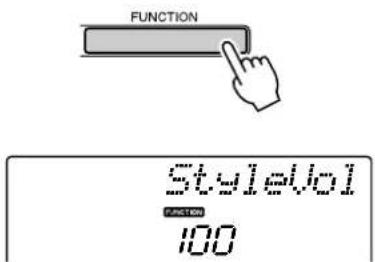
text_image
FUNCTION STYLEVol FUNCTION 1003 Select a function.
Press the CATEGORY [▲] and [▼] buttons as many times as necessary until the function's display name appears in the display.
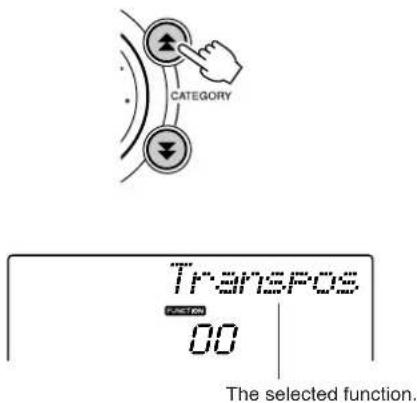
text_image
CATEGORY Transpos FUNCTION 00 The selected function.4 Use the dial, the [+] and [-] buttons, or the [0] – [9] number buttons to set the selected function as required.
The [+] and [-] buttons are used to make ON/OFF type settings: [+]=ON, [-]=OFF . In some cases the [+] button will initiate execution of the selected function, and the [-] will cancel the selection.
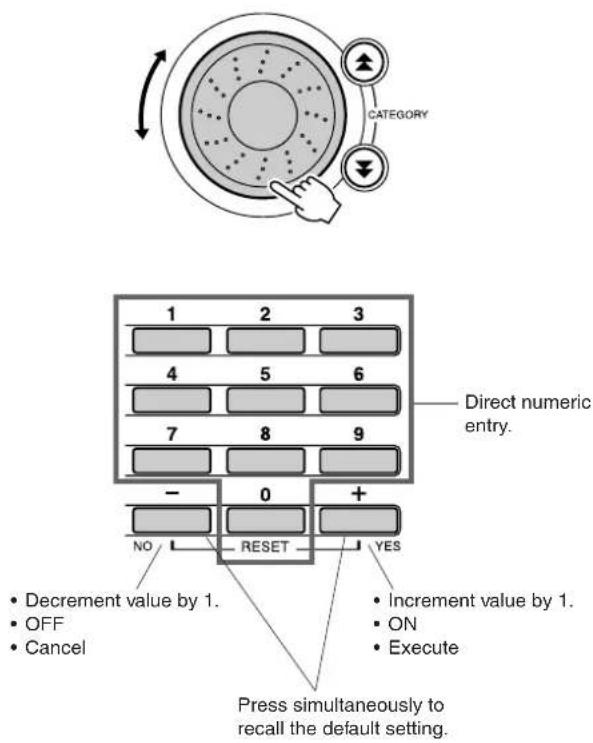
text_image
CATEGORY 1 2 3 4 5 6 7 8 9 - 0 + NO RESET YES Direct numeric entry. • Decrement value by 1. • OFF • Cancel • Increment value by 1. • ON • Execute Press simultaneously to recall the default setting.Function settings are stored in memory as soon as they are changed. To restore all initial factor default settings perform the “Backup Clear” procedure described in the “Initialization” section on page 56.
●Function Setting List
| Setting Item title | Range/Settings | Description | |
| Style Volume | StyleVol | 000-127 | Determines the volume of the Style. |
| Song Volume | SongVol | 000-127 | Determines the volume of the Song. |
| Transpose | Transpos | -12-12 | Determines the pitch of the instrument by semitone increments. |
| Tuning | Tuning | -100-100 | Sets the pitch of the instrument's sound in 1-cent increments. |
| Pitch Bend Range | PBRange | 01-12 | Sets the pitch bend range in semitone increments. |
| Split Point | SplitPnt | 000-127(C-2-G8) | Determines the highest key for the Split voice and sets the Split "point"-in other words, the key that separates the Split (lower) and Main (upper) voices. The Split Point setting and Accompaniment Split Point setting are automatically set to the same value. |
| Touch Sensitivity | TouchSns | 1(Soft),2(Medium),3(Hard) | When Touch Response is on, this determines the sensitivity of the feature. |
| Main Voice Volume | M.Volume | 000-127 | Determines the volume of the Main voice. |
| Main Voice Octave | M.Octave | -2-+2 | Determines the octave range for the Main voice. |
| Main Voice Pan | M.Pan | 000 (left)-64 (center)-127 (right) | Determines the pan position of the Main voice in the stereo image. The value "0" results in the sound being panned full left; the value "127" results in the sound being panned full right. |
| Main Voice Reverb Level | M.Reverb | 000-127 | Determines how much of the Main voice's signal is sent to the Reverb effect. |
| Main Voice Chorus Level | M.Chorus | 000-127 | Determines how much of the Main voice's signal is sent to the Chorus effect. |
| Main Voice Attack Time | M.Attack | 000-127 | Sets the Main voice attack time. |
| Main Voice Release Time | M.Releas | 000-127 | Sets the Main voice release time. |
| Main Voice Filter Cutoff | M.Cutoff | 000-127 | Sets the Main voice filter cutoff frequency. |
| Main Voice Filter Resonance | M.Reso. | 000-127 | Sets the Main voice filter resonance. |
| Dual Voice | D.Voice | 001-504 | Selects the Dual voice. |
| Dual Voice Volume | D.Volume | 000-127 | Determines the volume of the Dual voice. |
| Dual Voice Octave | D.Octave | -2-+2 | Determines the octave range for the Dual voice. |
| Dual Voice Pan | D.Pan | 000 (left)-64 (center)-127 (right) | Determines the pan position of the Dual voice in the stereo image. The value "0" results in the sound being panned full left; the value "127" results in the sound being panned full right. |
| Dual Voice Reverb Level | D.Reverb | 000-127 | Determines how much of the Dual voice's signal is sent to the Reverb effect. |
| Dual Voice Chorus Level | D.Chorus | 000-127 | Determines how much of the Dual voice's signal is sent to the Chorus effect. |
| Dual Voice Attack Time | D.Attack | 000-127 | Sets the Dual voice attack time. |
| Dual Voice Release Time | D.Releas | 000-127 | Sets the Dual voice release time. |
| Dual Voice Filter Cutoff | D.Cutoff | 000-127 | Sets the Dual voice filter cutoff frequency. |
| Dual Voice Filter Resonance | D.Reso. | 000-127 | Sets the Dual voice filter resonance. |
| Split Voice | S.Voice | 001-504 | Selects the Split voice. |
| Split Voice Volume | S.Volume | 000-127 | Determines the volume of the Split voice. |
| Split Voice Octave | S.Octave | -2-+2 | Determines the octave range for the Split voice. |
| Split Voice Pan | S.Pan | 000 (left)-64 (center)-127 (right) | Determines the pan position of the Split voice in the stereo image. The value "0" results in the sound being panned full left; the value "127" results in the sound being panned full right. |
| Split Voice Reverb Level | S.Reverb | 000-127 | Determines how much of the Split voice's signal is sent to the Reverb effect. |
| Split Voice Chorus Level | S.Chorus | 000-127 | Determines how much of the Split voice's signal is sent to the Chorus effect. |
| Setting | Item title | Range/Settings | Description |
| Reverb Type | Reverb | 01-10 | Determines the Reverb type, including off (10). (See the list on page 117) |
| Chorus Type | Chorus | 01-05 | Determines the Chorus type, including off (05). (See the list on page 117) |
| Master EQ Type Master | EQ | Speaker1,Speaker2,Headphone,Line Out1,Line Out2 | Sets the equalizer applied to the speaker output for optimum sound in different listening situations. |
| Harmony Type | HarmType | 01-26 | Determines the Harmony type. (See the list on page 117) |
| Harmony Volume | HarmVol | 000-127 | Determines the volume of the Harmony effect. |
| Arpeggio Type | ARP Type | 01-50 | Determines the Arpeggio type. (See the list on page 14) |
| Arpeggio Velocity | ARP Velo | 1 (Original),2 (Thru) | Sets the velocity mode for arpeggio playback. |
| Style File Load | SFF Load | 001-nnn | Loads a Style file. |
| PC mode | PC mode | PC1/PC2/OFF | Optimizes the MIDI settings when you connect to a computer (page 88). |
| Local On/Off Local | ON/OFF | Determines whether the instrument's keyboard controls the internal tone generator (ON) or not (OFF). (page 87) | |
| External Clock | ExtClock ON/OFF | Determines whether the instrument synchronizes to the internal clock (OFF) or an external clock (ON). (page 87) | |
| Keyboard Out | KbdOut ON/OFF | Determines whether keyboard performance data of the instrument is transmitted (ON) or not (OFF). | |
| Style Out | StyleOut ON/OFF | Determines whether Style data is transmitted (ON) via USB or not (OFF) during Style playback. | |
| Song Out | SongOut ON/OFF | Determines whether Song data is transmitted (ON) via USB or not (OFF) during Song playback. | |
| Initial Send | InitSend YES/NO | Lets you send the data of the panel settings to a computer. Press [+] to send, or press [-] to cancel. | |
| Time Signature Numerator | Timesign 00-60 Determines the time signature of the Metronome. | ||
| Time Signature Denominator | TimesigD | Half note,Quarter note,Eighth note,Sixteenth note | Sets the length of each metronome beat. |
| Metronome Volume | MtrVol | 000-127 | Determines the volume of the Metronome. |
| Lesson Track (R) | R-Part | GuideTrack 1-16 | Determines the guide track number for your right hand lesson. The setting is only effective for songs in SMF format 0 transferred from a computer. |
| Lesson Track (L) | L-Part | GuideTrack 1-16 | Determines the guide track number for your left hand lesson. The setting is only effective for songs in SMF format 0 transferred from a computer. |
| Grade | Grade | ON/OFF | Determines whether the Grade function is on or off. |
| Demo Cancel | D-Cancel ON/OFF | Determines whether Demo cancel is enabled or not. When this is set to ON, the Demo Song will not play, even if the [DEMO] button is pressed. | |
* All these settings can be conveniently reset to their initial default values by pressing the [+] and [-] buttons simultaneously. (The exception to this is Initial Send, which is an operation, not a setting.)
Nearly all of the electronic musical instruments made today—particularly synthesizers, sequencers and computer music related devices—use MIDI. MIDI is a worldwide standard that allows these devices to send and receive performance and setting data. Naturally, this instrument lets you save or send your keyboard performance as MIDI data, as well as the songs, styles and panel settings.
The potential MIDI holds for your live performances and music creation/production is enormous—simply by connecting this instrument to a computer and transmitting MIDI data. In this section, you’ll learn the basics of MIDI and the specific MIDI functions provided by this instrument.
What Is MIDI?
No doubt you have heard the terms “acoustic instrument” and “digital instrument”. In the world today, these are the two main categories of instruments. Let’s consider a grand piano and a classical guitar as representative acoustic instruments. They are easy to understand. With the piano, you strike a key, and a hammer inside hits some strings and plays a note. With the guitar, you directly pluck a string and the note sounds. But how does a digital instrument go about playing a note?
●Acoustic guitar note production
text_image
Pluck a resonaPluck a string and the body resonates the sound.
●Digital instrument note production
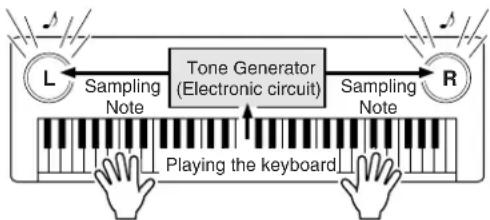
flowchart
graph LR
    L[" L "] -->|Sampling Note| ToneGenerator[" Tone Generator ( Electronic circuit) "]
    ToneGenerator -->|Sampling Note| R[" R "]
    ToneGenerator -->|Playing the keyboard| Keyboard[" Keyboard "]
    note1[" "] --> note2[" "]
    note3[" "] --> note4[" "]
Based on playing information from the keyboard, a sampling note stored in the tone generator is played through the speakers.
As shown in the illustration above, in an electronic instrument the sampling note (previously recorded note) stored in the tone generator section (electronic circuit) is played based on information received from the keyboard. So then what is the information from the keyboard that becomes the basis for note production?
For example, let's say you play a “C” quarter note using the grand piano sound on the instrument. Unlike an acoustic instrument that puts out a resonated note, the electronic instrument puts out information from the keyboard such as “with what voice”, “with which key”, “about how strong”, “when was it pressed”, and “when was it released”. Then each piece of information is changed into a number value and sent to the tone generator. Using these numbers as a basis, the tone generator plays the stored sampling note.
Example of Keyboard Information
| Voice number (with what voice) 1 (grand piano) | |
| Note number (with which key) 60 (C3) | |
| Note on (when was it pressed) and note off (when was it released) | Timing expressed numerically (quarter note) |
| Velocity (about how strong) 120 (strong) | |
Your keyboard performance and all panel operations of this instrument are processed as MIDI data. The songs, auto accompaniment (styles), and User songs are also made up of MIDI data.
MIDI is an acronym that stands for Musical Instrument Digital Interface and it allows different musical instruments and devices to instantly communicate with each other, via digital data. The MIDI standard is used all over the world and was designed to transmit performance data between electronic musical instruments (or computers). Thanks to MIDI, you can control one instrument from another and transmit performance data between the devices-taking your creative and performance potential to even higher levels.
MIDI messages can be divided into two groups: Channel messages and System messages.
●Channel Messages
This instrument is capable of handling 16 MIDI channels simultaneously—meaning it can play up to sixteen different instruments at the same time. Channel messages transmit information such as Note ON/OFF, Program Change, for each of the 16 channels.
| Message Name | Instrument Operation/Panel Setting |
| Note ON/OFF | Performance data of the keyboard (contains note number and velocity data) |
| Program Change | Instrument selection (including bank select MSB/LSB, if necessary) |
| Control Change | Instrument settings (volume, pan, etc.) |
●System Messages
This is data that is used in common by the entire MIDI system. System messages include messages like Exclusive Messages that transmit data unique to each instrument manufacturer and Realtime Messages that control the MIDI device.
| Message Name Instrument Operation/Panel Setting | |
| Exclusive Message R | Reverb/chorus settings, etc. |
| Realtime Messages Start/stop operation | |
Connecting a Personal Computer
The following functions become available when this instrument is connected to a computer.
●Performance data can be transferred between the instrument and the computer (page 87).
●Files can be transferred between the instrument and the computer (page 89).
The connection procedure is as follows:
1 Install the USB-MIDI driver on your computer.
The USB–MIDI driver is included on the CD-ROM. Installation of the USB MIDI driver is described on page 92.
2 Connect the USB terminal of the computer to the USB terminal on the instrument using a standard USB cable (USB cable sold separately).
The supplied CD-ROM also includes a Musicsoft Downloader application that allows you to transfer song files from your computer to the instrument's flash memory. For instructions about how to install Musicsoft Downloader and how to transfer song files, see page 90.
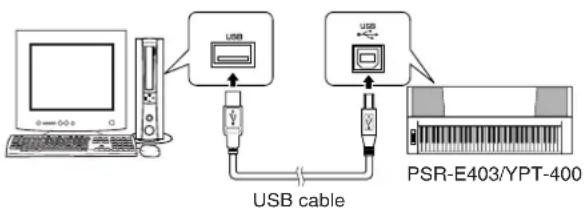
flowchart
graph TD
    A["Computer"] --> B["USB"]
    B --> C["USB cable"]
    C --> D["PSR-E403/YPT-400"]
USB Precautions
Please observe the following precautions when connecting the instrument to a computer via a USB cable.
Failure to do so can cause the instrument and/or the computer to hang up (freeze), possibly causing corruption or loss of data.
If the instrument or computer does hang up, turn the power to both devices off and then on again, and restart the computer.
CAUTION
- Wake the computer from a sleep/suspended/standby mode before connecting the USB cable.
- Connect the USB cable to the instrument and computer before turning power to the instrument on.
- Check the following points before turning the instrument's power on or off, and before plugging or unplugging the USB cable.
- Quit all applications.
- Make sure that no data transfer is in progress (data is transferred whenever you play on the keyboard or play a song).
- Allow at least 6 seconds between turning the instrument's power on and off, and between plugging and unplugging the USB cable.
- Directly connect the instrument to the computer using a single USB cable. Do not use a USB hub.
NOTE
- The Musicsoft Downloader application may not be able to access the instrument in the following cases:
- During style playback.
• During song playback.
- During style playback. - During song playback.
Transferring Performance Data to and from a Computer
By connecting the instrument to a computer, the instrument's performance data can be used on the computer, and performance data from the computer can be played on the instrument.
- When the instrument is connected with computer, it transmits/receives performance data.
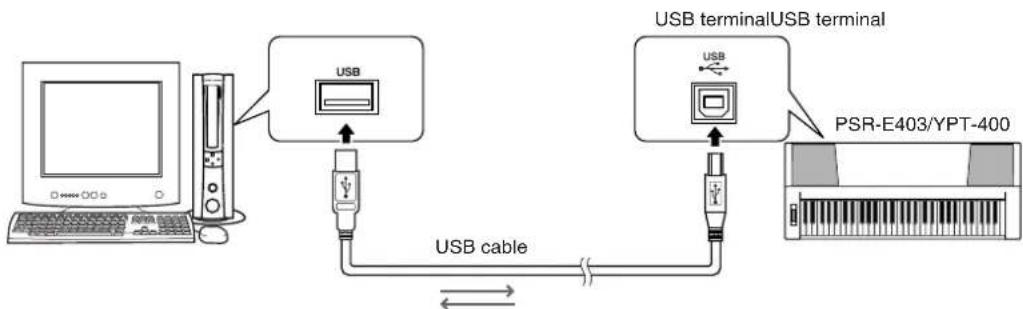
flowchart
graph TD
    A["Computer"] --> B["CPU"]
    B --> C["USB"]
    C --> D["USB terminal/USB terminal"]
    D --> E["PSR-E403/YPT-400"]
    C <--> F["USB cable"]
    D <--> F
■MIDI settings
These settings pertain to performance data transmission and reception.
| Item Range/Settings Description | ||
| Local ON/OFF | Local control determines whether or not notes played on the instrument are sounded by its internal tone generator system: the internal tone generator is active when local control is on, and inactive when local control is off. | |
| External Clock ON/OFF | These settings determine whether the instrument is synchronized to its own internal clock (OFF), or to a clock signal from an external device (ON). | |
| Keyboard Out ON/OFF | These settings determine whether keyboard performance data of the instrument is transmitted (ON) or not (OFF). | |
| Style Out ON/OFF These settings | determine whether Style data is transmitted (ON) or not (OFF) during Style playback. | |
| Song Out ON/OFF These settings | determine whether Song data is transmitted (ON) or not (OFF) during Song playback. | |

CAUTION
- If you can't get any sound out of the instrument, this may be the most likely cause.

CAUTION
- If External Clock is ON and no clock signal is being received from an external device, the song, style, and metronome functions will not start.
1 Press the [FUNCTION] button.
2 Use the CATEGORY [4] and [ ] buttons to select the item you want to change its value.
3 Use the dial to select ON or OFF.
■PC Mode ....
A number of MIDI settings need to be made when you want to transfer performance data between the computer and the instrument. The PC Mode item can conveniently make multiple settings for you in one operation. Three settings are available: PC1, PC2, and OFF.
This setting is not necessary when transferring song or backup files between the computer and the instrument.
* Set the PC mode to PC2 when using Digital Music Notebook.
| PC1 PC2* OFF | |||
| Local OFF OFF ON | |||
| External Clock ON OFF OFF | |||
| Song Out OFF OFF OFF | |||
| Style Out OFF OFF OFF | |||
| Keyboard Out OFF ON ON | |||
1 Press and hold the [DEMO] button for longer than a second so that the PC Mode item appears.
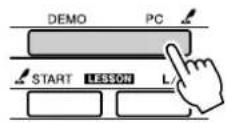
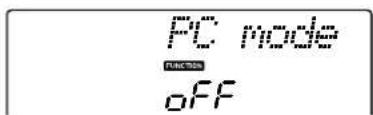
text_image
PC mode FUNCTION OFF2 Use the dial to select PC1, PC2, or OFF.
NOTE
- When the PC2 setting is selected the instrument's style, song, demo, song recording, and lesson features cannot be used.
NOTE
- You can also access the PC Mode item by first pressing the [FUNCTION] button and then using the CATEGORY [▲] and [▼] buttons to locate it (page 82).
Remote Control of MIDI Devices
You can also use this instrument as a remote control device for the Digital Music Notebook application on your computer (via the USB connection)—controlling playback, stop and transport functions from the panel.
■Remote control keys......
To use the remote control functions, simultaneously hold down the lowest two keys on the keyboard (C1 and C#1) and press the appropriate key (shown below).
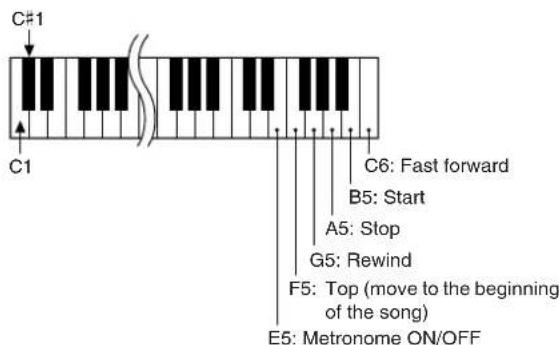
text_image
C#1 C1 C6: Fast forward B5: Start A5: Stop G5: Rewind F5: Top (move to the beginning of the song) E5: Metronome ON/OFFNOTE
- Remote control of MIDI devices will function independently of the PC2 mode.
Initial Send
This function lets you send the panel setup data to a computer. Before you record performance data to a sequencer application running on your computer, it is a good idea to first send and record the panel setup data before the actual performance data.
1 Press the [FUNCTION] button.
2 Use the CATEGORY [▲and [ ]▼ buttons to select the Initial Send item.
3 Press [+/YES] to send, or press [-/NO] to cancel.
Transferring Data between the Computer and Instrument
MIDI songs residing on a computer, as well as the 70 MIDI songs and 5 Style files provided on the CD-ROM, can be transferred to the instrument. Backup files can also be transferred from the instrument to the computer and back. Songs and styles transferred to the instrument can be used with the instrument's lesson and other functions. In order to transfer songs between your computer and the instrument you will need to install the Musicsoft Downloader application and the USB-MIDI Driver included on the Accessory CD-ROM on your computer. Refer to the Accessory CD-ROM Installation Guide on page 92 for installation details.
● Data that can be transferred from a computer to this instrument.
- Song Capacity (max.): Flash memory 99 songs (Song 036-)
• Data Capacity: Flash memory 373 kb
- Data Format: SMF format 0, style file (extension: .sty), Backup File (06PK61.BUP)
● What is SMF (Standard MIDI File)?
The SMF (Standard MIDI File) format is one of the most common and widely compatible sequence formats used for storing sequence data. There are two variations: Format 0 and Format 1. A large number of MIDI devices are compatible with SMF Format 0, and most commercially available MIDI sequence data is provided in SMF Format 0.
■With the Musicsoft Downloader You Can. ....
- Transfer MIDI songs you have downloaded from the Internet or created on your computer from the computer to the instrument's flash memory.
refer to the procedure described on page 90.
The procedure for transferring songs included on the Accessory CD-ROM from your computer to the instrument is given as an example.
● Backup files can be transferred from the instrument to a computer and back.
refer to the procedure described on page 91.
Use the Musicsoft Downloader application with Internet Explorer 5.5 or higher.
■Use Musicsoft Downloader To Transfer Songs From the Accessory CD-ROM To the Instrument's flash memory.....
NOTE
- If a song or style is being played, stop playback before proceeding.
1 Install the Musicsoft Downloader and USB MIDI driver to your computer, then connect the computer and the instrument (page 94).
2 Insert the included CD-ROM into the CD-ROM drive.
A start window will appear automatically.
3 Double-click the Musicsoft Downloader shortcut icon that is created on the desktop.
This will launch the Musicsoft Downloader application and the main window will appear.
NOTE
- The instrument cannot be operated while the Musicsoft Downloader is running.
4 Click the "Add File" button and the Add File window will appear.
5 Click the button to the right of "Look in" and select the CD-ROM drive from the dropdown menu that appears. Double-click the "SongData" Folder on the window. Select the file you want to transfer to the instrument, and click "Open".
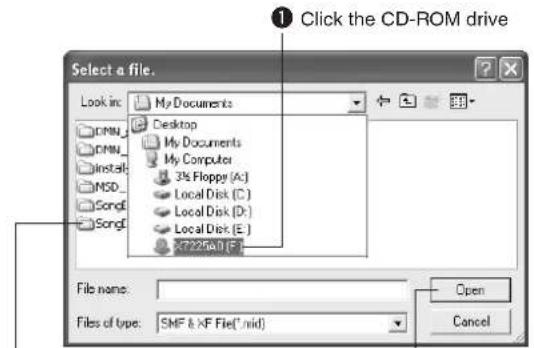
text_image
1 Click the CD-ROM drive Select a file. Look in: My Documents Desktop My Documents My Computer 3½ Floppy (A:) Local Disk (C:) Local Disk (D:) Local Disk (E:) X7225a0 [F] File name: Files of type: SMF & XF File(*.mid) Open CancelDouble-click "SongData" Folder and click a song file.
③ Click "Open"
6 A copy of the selected MIDI song file will appear in the "List of files stored temporarily" at the top of the window.
The memory medium will also be displayed at the bottom of the window to specify the destination for the transfer. Click the “Electronic Musical Instruments”, and then “Flash memory.”
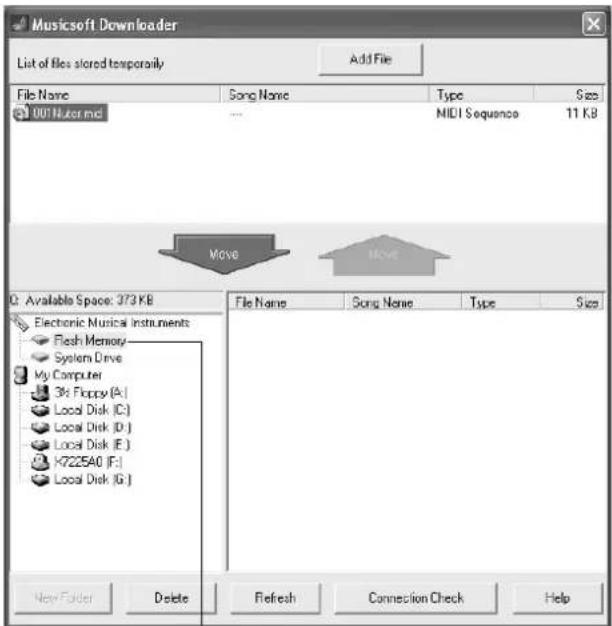
text_image
Musicsoft Downloader List of files stored temporarily Add File File Name Song Name Type Size 001Nustmd ... NIDI Sequence 11 KB Move MOVE Q: Available Space: 373 KB Electronic Musical Instruments ● Flash Memory ○ System Drive My Computer ● 3k Floppy (A:) Local Disk (C:) Local Disk (D:) Local Disk (E:) K7225A0 (F:) Local Disk (G:) File Name Song Name Type Size New Folder Delete Refresh Connection Check Help① Click the "Electronic Musical Instruments", and then "Flash Memory"
7 After selecting the file in the "List of files stored temporarily", click the downward [Move] button and a confirmation message will appear. Click [OK] and the song will be transferred from the "List of files stored temporarily" to the instrument's memory.
8 Close the window to end the Musicsoft Downloader.
NOTE
- End the Musicsoft Downloader to playback the song transferred from your computer.
9 To playback a song stored in flash memory, press the [SONG] button. Use the dial to select the song you want to play, then press the [START/STOP] button to start playback.
Style files (files with the “.STY” extension) can be transferred to Flash memory using the same procedure as described above. Style files transferred to the Flash Memory can be loaded into style number 156 and then played (page 74).
![YAMAHA PSR-E403 - To playback a song stored in flash memory, press the [SONG] button. Use the dial to select the song you want to play, then press the [START/STOP] button to start playback. - 1](/content/2026/06/1244052/images/4318267afbf1d81bdc0dfa73506e16d21e165b859f28e2c073ac15cdc7aef128.jpg)
CAUTION
- Do not unplug the USB cable during a data transfer. Not only will the data not be transferred and saved, but operation of the memory media may become unstable and its contents may disappear completely when the power is turned on or off.

CAUTION
- Store data can be lost due to equipment malfunction or improper operation. For safety we recommend that you keep a copy of all important data stored on your computer. - We recommend that you use a power adaptor rather than batteries when transferring data. The data can be corrupted if the batteries fall during the transfer.
● To Use transferred Songs For Lessons...
In order to use songs (only SMF format 0) transferred from a computer for lessons it is necessary to specify which channels are to be played back as the right-hand and left-hand parts.
1 Press the [SONG] button and select the song (036-) residing in flash memory for which you want to set the guide track.
2 Press the [FUNCTION] button.
3 Use the CATEGORY ▶ and [▼buttons to select the R-Part or L-Part item.
4 Use the dial to select the channel you want to play back as the specified right- or left-hand part.
We recommend that you select channel 1 for the right-hand part and channel 2 for the left-hand part.
■Transfer a backup file from the instrument to a computer...
You can use the Musicsoft Downloader to transfer “Backup Files” containing backup data (page 56), including the five User Songs stored on the instrument, to a computer. If you click “Electronic Musical Instruments” in the Musicsoft Downloader display, and then “System Drive”, a file named “06PK61.BUP” will appear in the lower right corner of the Musicsoft Downloader display. This is the backup file. For details about how to transmit backup file using the Musicsoft Downloader application, refer to the Online help in the application.
NOTE
- Preset Song data cannot be transmitted from the instrument.

CAUTION
- The backup data, including the five User Songs is transmitted/received as a single file. As a result, all backup data will be overwritten every time you transmit or receive. Keep this in mind when transferring data.

CAUTION
- Do not rename the backup file on the computer. If you do so, it will not be recognized when transferred to the instrument.
SPECIAL NOTICES
This CD-ROM is copy-protected. Yamaha makes no representations or warranties with regard to any problems while attempting to copy the CD-ROM or software and cannot be held responsible for the results of attempts to copy the data.
- The software and this owner's manual are the exclusive copyrights of Yamaha Corporation.
- Use of the software and this manual is governed by the license agreement which the purchaser fully agrees to upon breaking the seal of the software packaging. (Please read carefully the Software Licensing Agreement at the end of this manual before installing the application.)
- Copying of the software or reproduction of this manual in whole or in part by any means is expressly forbidden without the written consent of the manufacturer.
- Yamaha makes no representations or warranties with regard to the use of the software and documentation and cannot be held responsible for the results of the use of this manual and the software.
- This disk is a CD-ROM. Do not attempt to play the disk on an audio CD player. Doing so may result in irreparable damage to your audio CD player.
- Future upgrades of application and system software and any changes in specifications and functions will be announced separately.
- The screen displays as illustrated in this owner's manual are for instructional purposes, and may appear somewhat different from the screens which appear on your computer.
Important Notices about the CD-ROM
● Data Types
This CD-ROM includes application software. Please refer to page 94 for software installation instructions.

CAUTION
- Do not attempt to play this CD-ROM on an audio CD player. The result high-volume noise can potentially cause hearing damage or damage your CD player and speakers.
● Operating System (OS)
The applications in this CD-ROM are provided in versions for Windows operating systems.
CD-ROM Contents
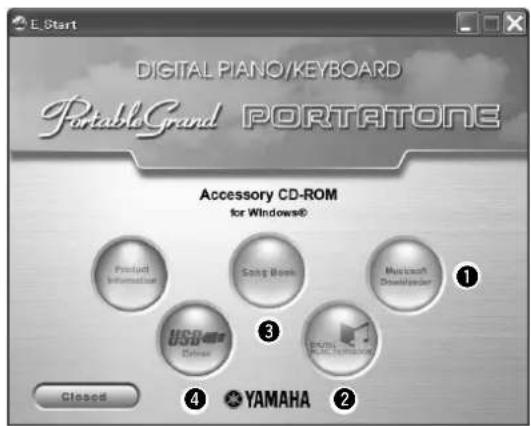
text_image
E. Start DIGITAL PIANO/KEYBOARD Portable Grand PORTATONE Accessory CD-ROM for Windows®. Product Information Song Book Musician Downloader ① ③ ④ YAMAHA ② Closed| Folder Name Application / Data Name Contents | |||
| 1 | MSD_Musicsoft Downloader | This application can be used to download MIDI song data from the Internet and transfer it from the computer to the instrument's memory. | |
| 2 | DMN_FlashDemo Flash Demo | Digital Music Notebook is an educational content that lets you enjoy music while learning.Full motion demo software which introduces all features of the Digital Music Notebook. | |
| DMN_DemoSong Demo Song | You can experience Digital Music Notebook functions with the demo song. You need to download and install Digital Music Notebook on your computer prior to using the demo song. | ||
| 3 | SongBook Song Book | Includes score data for the 30 internal songs provided on the instrument as well as 70 MIDI songs provided on the CD-ROM. The exceptions are songs 1–11, and song 20 which is copyrighted. The scores for songs 9–11 are provided in this manual beginning on page 100. | |
| 4 | USB-MIDI Driver (Windows 98/Me) | This driver software is necessary to connect MIDI devices to your computer via USB. | |
| USBdrv2k | USB-MIDI Driver (Windows 2000/XP) | ||
| SongData MIDI 70 songs | These songs can be transferred to the instrument and played or used with the instrument's functions. | ||
| StyleData 5 style files | These styles can be transferred to the instrument and played or used with the instrument's functions. | ||
In order to view PDF scores, you will need to install Adobe Reader in your computer. You can download the Adobe Reader. Please check the following URL: http://www.adobe.com/
■Using the CD-ROM ....
Please read the Software License Agreement on page 98 before opening the CD-ROM package.
1 Check the system requirements to make sure that the software will run on your computer.
2 Insert the included CD-ROM into the CD-ROM drive.
The start window should appear automatically.
3 Install the USB MIDI driver to the computer.
Refer to "Installing the USB-MIDI Driver" on page 94 for installation and setup instructions.
4 Connect the instrument to the computer.
The connection procedure is described on page 86.
5 Install the software.
Musicsoft Downloader: See page 96.
6 Launch the software.
For further software operation refer to the online help supplied with the software.
Refer to the "Troubleshooting" on page 97 when you have trouble with installing the driver.
System Requirements
| Application/Data OS | CPU Memory Hard Disk Display | ||||
| Musicsoft Downloader | Windows 98SE/Me/2000/XP Home Edition/XP Professional | 233 MHz or higher; Intel® Pentium®/Celeron® processor family | 64 MB or more (256 MB or more is recommended) | at least 128 MB of free space (at least 512 MB of free space is recommended) | 800 x 600 HighColor (16-bit) |
| USB Driver for Windows 98/Me | Windows 98/Me | 166 MHz or higher; Intel® Pentium®/Celeron® processor family | 32 MB or more (64 MB or more is recommended) | at least 2 MB of free space | — |
| USB Driver for Windows 2000/XP | Windows 2000/XP Home Edition/XP Professional | ||||
| Digital Music Notebook | Windows® XP Professional Edition, SP1a more Windows® XP Home Edition, SP1a more Windows 2000 Professional, SP4 more | 400MHz or higher; Intel® Pentium®/Celeron® Processor family (1GHz or more is recommended) | 128 MB or more (256 MB or more is recommended) | at least 50 MB of free space | 1024 x 768 HighColor (16-bit) |
| Digital Music Notebook (Requirements for playing content with video included.) | 1GHz or higher; Intel® Pentium®/Celeron® Processor family (1.4GHz or more is recommended) | 256 MB or more | |||
Software Installation
● Uninstall (Removing the Software)
Installed software can be removed from your computer as follows:
From the Windows Start menu select Start → Settings → Control panel → Add or Remove Applications → Install and Uninstall. Select the item you want to remove and click [Add or Remove]. Follow the on-screen instructions to remove the selected software.
NOTE
- The actual names of the menu items and buttons will depend on the OS version you are using.
■Installing the USB-MIDI Driver...
In order to be able to communicate with and use MIDI devices connected to your computer, the appropriate driver software must be properly installed on your computer.
The USB-MIDI driver allows sequence software and similar applications on your computer to transmit and receive MIDI data to and from MIDI devices via a USB cable.
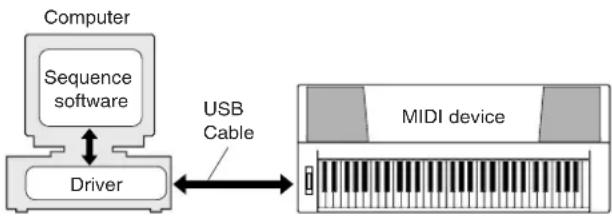
flowchart
graph LR
    A["Computer"] --> B["Sequence software"]
    B <--> C["Driver"]
    C <--> D["USB Cable"]
    D <--> E["MIDI device"]
- Windows 98/Me installation → page 95.
- Windows 2000 installation page 95.
- Windows XP installation page 96.
Check the drive name of the CD-ROM drive you will be using (D:, E:, Q: etc.) The drive name is displayed beside the CD-ROM icon in your "My Computer" folder. The root directory of the CD-ROM drive will be D:\, E:\, or Q:\, respectively.
Installing the driver on Windows 98/Me
1 Start the computer.
2 Insert the supplied CD-ROM into the CD-ROM drive. A start window will appear automatically.
3 First, make sure the POWER switch on the instrument is set to OFF, then use a USB cable to connect the USB terminal of the computer to the USB connector of the instrument. When the instrument is turned on, the computer automatically displays the "Add New Hardware Wizard. Otherwise, refer to "Troubleshooting" in the "Accessory CD-ROM Installation Guide" section of the Owner's Manual.
For Windows Me users, check the radio button to the left of “Automatic search for a better driver (Recommended)” and click [Next]. The system automatically starts searching and installing the driver. Proceed to Step 8. If the system does not detect the driver, select “Specify the location of the driver (Advanced)” and specify the CD-ROM drive’s root directory to install the driver and click [Next]. Execute the installation by following the onscreen instructions and proceed to Step 8.
NOTE
- If you are using Windows Me, skip Step 4–7.
4 Click [Next].
The window enables you to select the search method.
5 Check the radio button to the left of "Search for the best driver for your device. (Recommended)". Click [Next].
The window enables you to select a location in which to install the driver.
6 Check the "Specify a location" box, click "Browse...", then specify the root directory of the CD-ROM drive and continue the installation. (The CD-ROM drive letter may vary depending on your computer's configuration.
7 When the system detects the driver on the CD-ROM and is ready for installation, a message is shown on the screen. Make sure that the "YAMAHA USB MIDI Driver" is listed, and click [Next]. The system starts the installation.
8 When installation is complete, a message indicating so appears. Click [Finish]. The driver has been installed.
NOTE
- Some computers may take about ten seconds to show this screen after the installation is complete.
Installing the driver on Windows 2000
1 Start the computer and use the "Administrator" account to log into Windows.
2 Select [My Computer] → [Control Panel] → [System] → [Hardware] → [Driver Signing] → [File Signature Verification], and check the radio button to the left of "Ignore—Install all files, regardless of file signature" and click [OK].
3 Insert the supplied CD-ROM into the CD-ROM drive. A start window will appear automatically.
4 First, make sure the POWER switch on the MIDI device is set to OFF, then use a USB cable to connect the MIDI device to the computer. After making the connections, turn on the power of the MIDI device. The system automatically launches the Found New Hardware Wizard.
Otherwise, refer to "Troubleshooting" in the "Accessory CD-ROM Installation Guide" section of the Owner's Manual. Click [Next]. (Some computers may take a while to display the Wizard window.)
5 Select the radio button for "Search for a suitable driver for my device [recommended]", then click [Next].
NOTE
- If the Wizard panel informs you that "The software you are about to install does not contain a Microsoft digital signature", click [Yes].
6 Check the "CD-ROM drives" check box, deselect all other check boxes, then click [Next].
NOTE
- If the system prompts you to insert the Windows CD-ROM during detection of the drivers, point to the "USBdrv2k_" folder (e.g., D:\USBdrv2k_) and continue the installation.
7 Deselect the "Install one of the other drivers", then click [Next].
8 When the installation is complete, the Wizard displays "Completing the Found New Hardware Wizard".
Click [Finish]. (Some computers may take a while to display the Wizard window.)
9 Restart the computer.
The USB-MIDI driver installation is complete.
Installing the driver on Windows XP
1 Start the computer and use the "Administrator" account to log into Windows.
2 Select [Start] → [Control Panel]. If the control panel appears as “Pick a category”, click “Switch to Classic View” in the upper left of the window. All control panels and icons will be displayed.
3 Go to [System] → [Hardware] → [Driver Signing Options] and check the radio button to the left of "Ignore" and click [OK].
4 Click the [OK] button to close System Properties, and then click "X" in the upper right of the window to close the Control Panel.
5 Insert the supplied CD-ROM into the CD-ROM drive. A start window will appear automatically.
6 First, make sure the POWER switch on the MIDI device is set to OFF, then use a USB cable to connect the MIDI device to the computer. After making the connections, turn on the power of the MIDI device. The system launches the Found New Hardware Wizard automatically. Otherwise, refer to “Troubleshooting” in the “Accessory CD-ROM Installation Guide” section of the Owner’s Manual. If the system displays “Found New Hardware” in the lower right corner, wait until Wizard window is displayed. (Some computers may take a while to display the window.)
If the Wizard window prompts you to specify whether or not to connect to Windows Update, select the radio button for “No, not this time”, then click [Next].
7 Select the radio button for "Install the software automatically (recommended)", then click [Next].
NOTE
- If during the installation the system displays “...has not passed Windows Logo testing to verify its compatibility with Windows XP”, click [Continue Anyway].
8 When the installation is complete, the Wizard displays "Completing the Found New Hardware Wizard".
Click [Finish]. (Some computers may take a while to display the Wizard window.)
9 Restart the computer.
If the system displays “Found New Hardware” in the lower right corner, wait until the Wizard window is displayed. (Some computers may take a while to display the Wizard window.)
The USB-MIDI driver installation is complete.
■Installing the Musicsoft Downloader and Digital Music Notebook Applications...
IMPORTANT
- You will need to log in with administrator (root) privileges in order to install Musicsoft Downloader on a computer running Windows 2000 or XP.
- You will need to log in with administrator (root) privileges in order to install Digital Music Notebook on a computer running Windows 2000 or XP.
IMPORTANT
- When installing the Digital Music Notebook, make sure that Internet Explorer 6.0 (with SP1) or higher is installed to your computer.
IMPORTANT
- Credit card settlement is required to purchase Digital Music Notebook content. Credit card processing may not be possible for some areas, so please check with your local authorities to make sure that your credit card can be used.
NOTE
- Use of the DMN (Digital Music Notebook) is governed by the SIBELIUS SCORCH LICENSE AGREEMENT, which the purchaser fully agrees to when using the application. Please read carefully the AGREEMENT at the end of this manual before using the application.
1 Insert the Accessory CD-ROM into your computer's CD-ROM drive. The start window will appear automatically showing software applications.
NOTE
- If the start window does not appear automatically, double click your "My Computer" folder to open it. Right-click the CD-ROM icon and select "Open" from the pop-up menu. Double click "Start.exe" and proceed to step 2, below.
2 Click [Musicsoft Downloader] or [Digital Music Notebook].
3 Click the [install] button for Musicsoft downloader, or [Digital Music Notebook Download] button for Digital Music Notebook, and follow the on-screen instructions to install the software.
For Digital Music Notebook operating instructions see the help menu: launch the Digital Music Notebook application and click “Help”.
For Musicsoft Downloader operating instructions see the Help menu: launch the Musicsoft Downloader application and click "Help".
* You can obtain the latest version of the Musicsoft Downloader at the following Internet URL.
http://music.yamaha.com/download/
IMPORTANT
- Only Musicsoft Downloader can be used to transfer files between this instrument and a computer. No other file transfer application can be used.
Troubleshooting
The driver cannot be installed. When controlling the instrument from
- Is the USB cable connected correctly?
Check the USB cable connection. Disconnect the USB cable, then connect it again.
- Is the USB function enabled on your computer?
When you connect the instrument to the computer for the first time, if the “Add New Hardware Wizard” does not appear, the USB function on the computer may be disabled. Perform the following steps.
1 Select [Control Panel] → [System] → [Device Manager] (for Windows 98/Me), or select [Control Panel]* → [System] → [Hardware] → [Device Manager] (for Windows 2000/XP).
* Classic View only in Windows XP.
2 Make sure that no “!” or “x” marks appear at “Universal serial bus controller” or “USB Root Hub”. If you see an “!” or “x” mark, the USB controller is disabled.
- Is any unknown device registered?
If driver installation fails, the instrument will be marked as an “Unknown device”, and you will not be able to install the driver. Delete the “Unknown device” by following the steps below.
1 Select [Control Panel] → [System] → [Device Manager] (for Windows 98/Me), or select [Control Panel]* → [System] → [Hardware] → [Device Manager] (for Windows 2000/XP).
* Classic View only in Windows XP.
2 Look for "Other devices" in the menu "View devices by type".
3 If you find "Other devices", double-click it to extend the tree to look for "Unknown device". If one appears, select it and click the [Remove] button.
4 Remove the USB cable from the instrument, and make the connection again.
5 Install the driver again.
- Windows 98/Me users..... see page 95
- Windows 2000 users...... see page 95
- Windows XP users...... see page 96
your computer via USB, the instrument does not operate correctly or no sound is heard.
• Did you install the driver? (page 94)
- Is the USB cable connected correctly?
- Are the volume settings of the instrument, playback device, and application program set to the appropriate levels?
- Have you selected an appropriate port in the sequence software?
- Are you using the latest USB MIDI driver? The latest driver can be downloaded from the following web site.
http://music.yamaha.com/download/
Playback response is delayed.
- Does your computer satisfy the system requirements?
- Is any other application or device driver running?
Cannot suspend or resume the computer correctly.
- Do not suspend the computer while the MIDI application is running.
If you are using Windows 2000, you may not be able to suspend/resume normally, depending on the particular environment (USB Host Controller, etc.). Even so, simply disconnecting and connecting the USB cable will allow you to use the instrument functions again.
How can I delete or re-install the driver?
[Windows Me/98]
1 When the instrument is recognized correctly, double-click "System" in the Control Panel to open the System window.
2 Double-click the "Device Manager" tab, select "YAMAHA USB MIDI Driver" and delete it.
3 Use the MS-DOS prompt or Explorer to delete the following three files.
NOTE
- To delete these files using Explorer, select "Folder Options" from the Tool (View) menu, and select "Show all files" (and folders).
- \WINDOWS\INF\OTHER\1037.INF
- \WINDOWS\SYSTEM\Xgusb.drv
- \WINDOWS\SYSTEM\Ymidusb.sys
4 Disconnect the USB cable.
5 Restart the computer.
6 Re-install the driver.
ATTENTION
SOFTWARE LICENSE AGREEMENT
PLEASE READ THIS SOFTWARE LICENSE AGREEMENT (“AGREEMENT”) CAREFULLY BEFORE USING THIS SOFTWARE. YOU ARE ONLY PERMITTED TO USE THIS SOFTWARE PURSUANT TO THE TERMS AND CONDITIONS OF THIS AGREEMENT. THIS AGREEMENT IS BETWEEN YOU (AS AN INDIVIDUAL OR LEGAL ENTITY) AND YAMAHA CORPORATION (“YAMAHA”).
BY BREAKING THE SEAL OF THIS PACKAGE YOU ARE AGREEING TO BE BOUND BY THE TERMS OF THIS LICENSE. IF YOU DO NOT AGREE WITH THE TERMS, DO NOT INSTALL, COPY, OR OTHERWISE USE THIS SOFTWARE.
1. GRANT OF LICENSE AND COPYRIGHT
Yamaha hereby grants you the right to use one copy of the software program(s) and data ("SOFTWARE") accompanying this Agreement. The term SOFTWARE shall encompass any updates to the accompanying software and data. The SOFTWARE is owned by Yamaha and/or Yamaha's licensor(s), and is protected by relevant copyright laws and all applicable treaty provisions. While you are entitled to claim ownership of the data created with the use of SOFTWARE, the SOFTWARE will continue to be protected under relevant copyrights.
- You may use the SOFTWARE on a single computer.
- You may make one copy of the SOFTWARE in machine-readable form for backup purposes only, if the SOFTWARE is on media where such backup copy is permitted. On the backup copy, you must reproduce Yamaha's copyright notice and any other proprietary legends that were on the original copy of the SOFTWARE.
- You may permanently transfer to a third party all your rights in the SOFTWARE, provided that you do not retain any copies and the recipient reads and agrees to the terms of this Agreement.
2. RESTRICTIONS
- You may not engage in reverse engineering, disassembly, decompilation or otherwise deriving a source code form of the SOFTWARE by any method whatsoever.
- You may not reproduce, modify, change, rent, lease, or distribute the SOFTWARE in whole or in part, or create derivative works of the SOFTWARE.
- You may not electronically transmit the SOFTWARE from one computer to another or share the SOFTWARE in a network with other computers.
- You may not use the SOFTWARE to distribute illegal data or data that violates public policy.
- You may not initiate services based on the use of the SOFTWARE without permission by Yamaha Corporation
Copyrighted data, including but not limited to MIDI data for songs, obtained by means of the SOFTWARE, are subject to the following restrictions which you must observe.
- Data received by means of the SOFTWARE may not be used for any commercial purposes without permission of the copyright owner.
- Data received by means of the SOFTWARE may not be duplicated, transferred, or distributed, or played back or performed for listeners in public without permission of the copyright owner.
- The encryption of data received by means of the SOFTWARE may not be removed nor may the electronic watermark be modified without permission of the copyright owner.
3. TERMINATION
This Agreement becomes effective on the day that you receive the SOFTWARE and remains effective until terminated. If any copyright law or provisions of this Agreement is violated, the Agreement shall terminate automatically and immediately without notice from Yamaha. Upon such termination, you must immediately destroy the licensed SOFTWARE, any accompanying written documents and all copies thereof.
4. LIMITED WARRANTY ON MEDIA
As to SOFTWARE sold on tangible media, Yamaha warrants that the tangible media on which the SOFTWARE is recorded will be free from defects in materials and workmanship under normal use for a period of fourteen (14) days from the date of receipt, as evidenced by a copy of the receipt. Yamaha's entire liability and your exclusive remedy will be replacement of the defective media if it is returned to Yamaha or an authorized Yamaha dealer within fourteen days with a copy of the receipt. Yamaha is not responsible for replacing media damaged by accident, abuse or misapplication. TO THE FULLEST EXTENT PERMITTED BY LAW, YAMAHA EXPRESSLY DISCLAIMS ANY IMPLIED WARRANTIES ON THE TANGIBLE MEDIA, INCLUDING THE IMPLIED WARRANTIES OF MERCHANTABILITY AND FITNESS FOR A PARTICULAR PURPOSE.
5. DISCLAIMER OF WARRANTY ON SOFTWARE
You expressly acknowledge and agree that use of the SOFTWARE is at your sole risk. The SOFTWARE and related documentation are provided "AS IS" and without warranty of any kind. NOTWITHSTANDING ANY OTHER PROVISION OF THIS AGREEMENT, YAMAHA EXPRESSLY DISCLAIMS ALL WARRANTIES AS TO THE SOFTWARE, EXPRESS, AND IMPLIED, INCLUDING BUT NOT LIMITED TO THE IMPLIED WARRANTIES OF MERCHANTABILITY, FITNESS FOR A PARTICULAR PURPOSE AND NON-INFRINGEMENT OF THIRD PARTY RIGHTS. SPECIFICALLY, BUT WITHOUT LIMITING THE FOREGOING, YAMAHA DOES NOT WARRANT THAT THE SOFTWARE WILL MEET YOUR REQUIREMENTS, THAT THE OPERATION OF THE SOFTWARE WILL BE UNINTERRUPTED OR ERROR-FREE, OR THAT DEFECTS IN THE SOFTWARE WILL BE CORRECTED.
6. LIMITATION OF LIABILITY
YAMAHA'S ENTIRE OBLIGATION HEREUNDER SHALL BE TO PERMIT USE OF THE SOFTWARE UNDER THE TERMS HEREOF. IN NO EVENT SHALL YAMAHA BE LIABLE TO YOU OR ANY OTHER PERSON FOR ANY DAMAGES, INCLUDING, WITHOUT LIMITATION, ANY DIRECT, INDIRECT, INCIDENTAL OR CONSEQUENTIAL DAMAGES, EXPENSES, LOST PROFITS, LOST DATA OR OTHER DAMAGES ARISING OUT OF THE USE, MISUSE OR INABILITY TO USE THE SOFTWARE, EVEN IF YAMAHA OR AN AUTHORIZED DEALER HAS BEEN ADVISED OF THE POSSIBILITY OF SUCH DAMAGES. In no event shall Yamaha's total liability to you for all damages, losses and causes of action (whether in contract, tort or otherwise) exceed the amount paid for the SOFTWARE.
7. THIRD PARTY SOFTWARE
Third party software and data (“THIRD PARTY SOFTWARE”) may be attached to the SOFTWARE. If, in the written materials or the electronic data accompanying the Software, Yamaha identifies any software and data as THIRD PARTY SOFTWARE, you acknowledge and agree that you must abide by the provisions of any Agreement provided with the THIRD PARTY SOFTWARE and that the party providing the THIRD PARTY SOFTWARE is responsible for any warranty or liability related to or arising from the THIRD PARTY SOFTWARE. Yamaha is not responsible in any way for the THIRD PARTY SOFTWARE or your use thereof.
- Yamaha provides no express warranties as to the THIRD PARTY SOFTWARE. IN ADDITION, YAMAHA EXPRESSLY DISCLAIMS ALL IMPLIED WARRANTIES, INCLUDING BUT NOT LIMITED TO THE IMPLIED WARRANTIES OF MERCHANTABILITY AND FITNESS FOR A PARTICULAR PURPOSE, as to the THIRD PARTY SOFTWARE.
- Yamaha shall not provide you with any service or maintenance as to the THIRD PARTY SOFTWARE.
- Yamaha is not liable to you or any other person for any damages, including, without limitation, any direct, indirect, incidental or consequential damages, expenses, lost profits, lost data or other damages arising out of the use, misuse or inability to use the THIRD PARTY SOFTWARE.
8. GENERAL
This Agreement shall be interpreted according to and governed by Japanese law without reference to principles of conflict of laws. Any dispute or procedure shall be heard before the Tokyo District Court in Japan. If for any reason a court of competent jurisdiction finds any portion of this Agreement to be unenforceable, the remainder of this Agreement shall continue in full force and effect.
9. COMPLETE AGREEMENT
This Agreement constitutes the entire agreement between the parties with respect to use of the SOFTWARE and any accompanying written materials and supersedes all prior or contemporaneous understandings or agreements, written or oral, regarding the subject matter of this Agreement. No amendment or revision of this Agreement will be binding unless in writing and signed by a fully authorized representative of Yamaha.
| Problem Possible Cause and Solution | |
| When the instrument is turned on or off, a popping sound is temporarily produced. | This is normal and indicates that the instrument is receiving electrical power. |
| When using a mobile phone, noise is produced. | Using a mobile phone in close proximity to the instrument may produce interference. To prevent this, turn off the mobile phone or use it further away from the instrument. |
| There is no sound even when the keyboard is played or when a song or style is being played back. | Check that nothing is connected to the PHONES/OUTPUT jack on the rear panel. When a set of headphones is plugged into this jack, no sound is output. |
| Check the Local Control on/off. (See page 87.) | |
| Playing keys in the right hand area of the keyboard does not produce any sound. | When using the Dictionary function (page 77), the keys in the right hand area are used only for entering the chord root and type. |
| The volume is too soft.The sound quality is poor.The rhythm stops unexpectedly or will not play.The recorded data of the song, etc. does not play correctly.The LCD display suddenly goes dark, and all panel settings are reset. | The batteries are low or dead. Replace all six batteries with completely new ones, or use the optional AC adaptor. |
| The style or song does not play back when the [START/STOP] button is pressed. | Is External Clock set to ON? Make sure External Clock is set to OFF; refer to “External Clock” on page 87. |
| The style does not sound properly. | Make sure that the Style Volume (page 83) is set to an appropriate level. |
| Is the split point set at an appropriate key for the cords you are playing? Set the split point at an appropriate key (page 72).Is the “ACMP ON” indicator showing in the display? If it is not showing press the [ACMP ON/OFF] button so that it does show. | |
| No rhythm accompaniment plays when the [START/ STOP] button is pressed after selecting style number 131 or a style between 143 and 155 (Pianist). | This is not a malfunction. Style number 131 and style numbers 143-155 (Pianist) have no rhythm parts, so no rhythm will play. The other parts will begin playing when you play a chord in the accompaniment range of the keyboard if style playback is turned on. |
| Not all of the voices seem to sound, or the sound seems to be cut off. | The instrument is polyphonic up to a maximum of 32 notes. If the Dual voice or Split voice is being used and a style or song is playing back at the same time, some notes/sounds may be omitted (or “stolen”) from the accompaniment or song. |
| Some notes don’t sound when playing multiple notes simultaneously on the keyboard, or some notes don’t sound when playing arpeggios. | You have exceeded 32 simultaneous notes, which is the maximum polyphony (the maximum number of notes that can be played simultaneously) of the instrument. The instrument will play normally as long as no more than 32 notes are being played at once, both on the keyboard and by any automatic playback functions. |
| The footswitch (for sustain) seems to produce the opposite effect. For example, pressing the footswitch cuts off the sound and releasing it sustains the sounds. | The polarity of the footswitch is reversed. Make sure that the footswitch plug is properly connected to the SUSTAIN jack before turning on the power. |
| The sound of the voice changes from note to note. | This is normal. The AWM tone generation method uses multiple recordings (samples) of an instrument across the range of the keyboard; thus, the actual sound of the voice may be slightly different from note to note. |
| The wrong notes sound when the keyboard is played. | Perhaps the performance assistant technology is turned on.Press the [PERFORMANCE ASSISTANT] button to turn it off. |
| The ACMP ON indicator does not appear when the [ACMP ON/OFF] button is pressed. | Is the [STYLE] button lit? Always press the [STYLE] button first when you are going to use any style-related function. |
| There is no harmony sound. | The harmony effects (01-26) behave differently according to their type. Types 01-05 function when style playback is on, chords are played in the accompaniment range of the keyboard, and a melody is played in the right-hand range. Types 06-26 will function whether style playback is on or off. For types 06 = 12 you need to play two notes at the same time. |
This demo is an example of how the Easy Song Arranger can be used to change styles throughout a piece.
Song No. 3 ♪ =123
(Function Demo for Easy Song Arranger)
Hallelujah Chorus
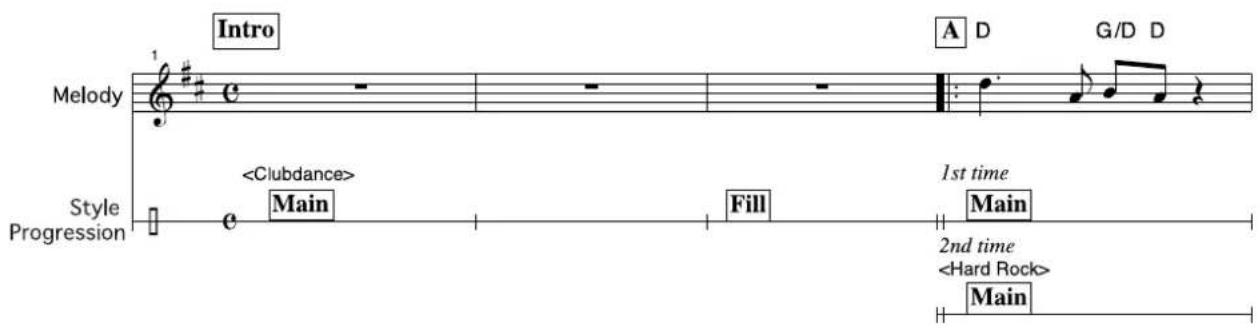
text_image
Intro Melody 1 e - - - - A D G/D D Style Progression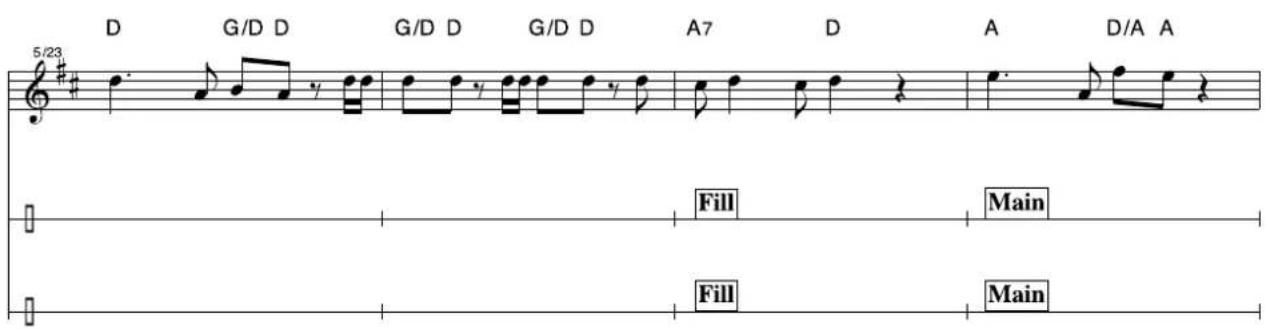
text_image
5/23 D G/D D G/D D G/D D A7 D A D/A A Fill Main Fill Main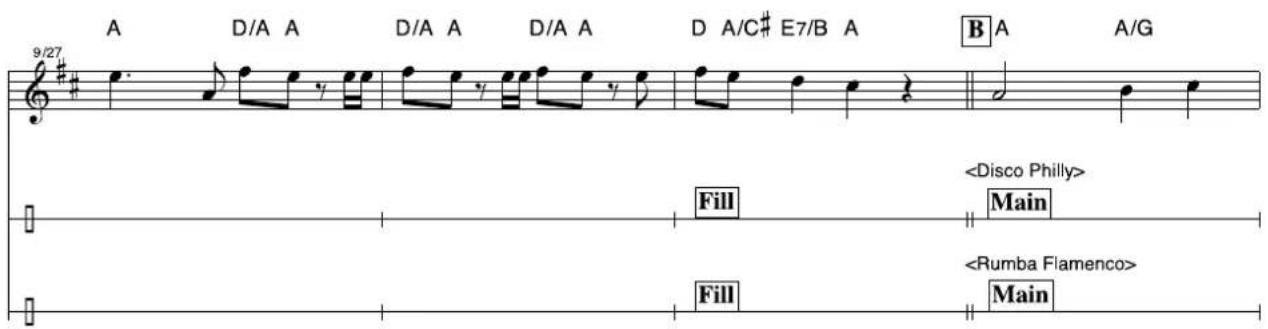
text_image
A D/A A D/A A D/A A D A/C# E7/B A B A A/G 9/27 Fill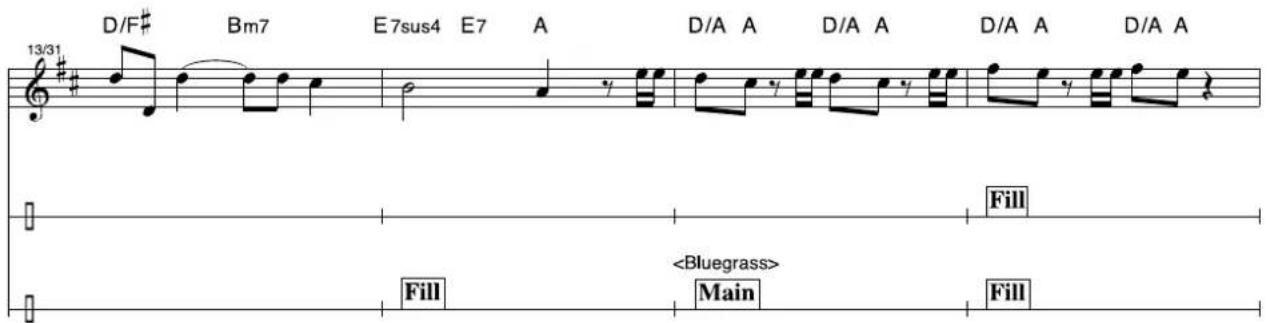
text_image
D/F# Bm7 E7sus4 E7 A D/A A D/A A D/A A D/A A 13/31 Fill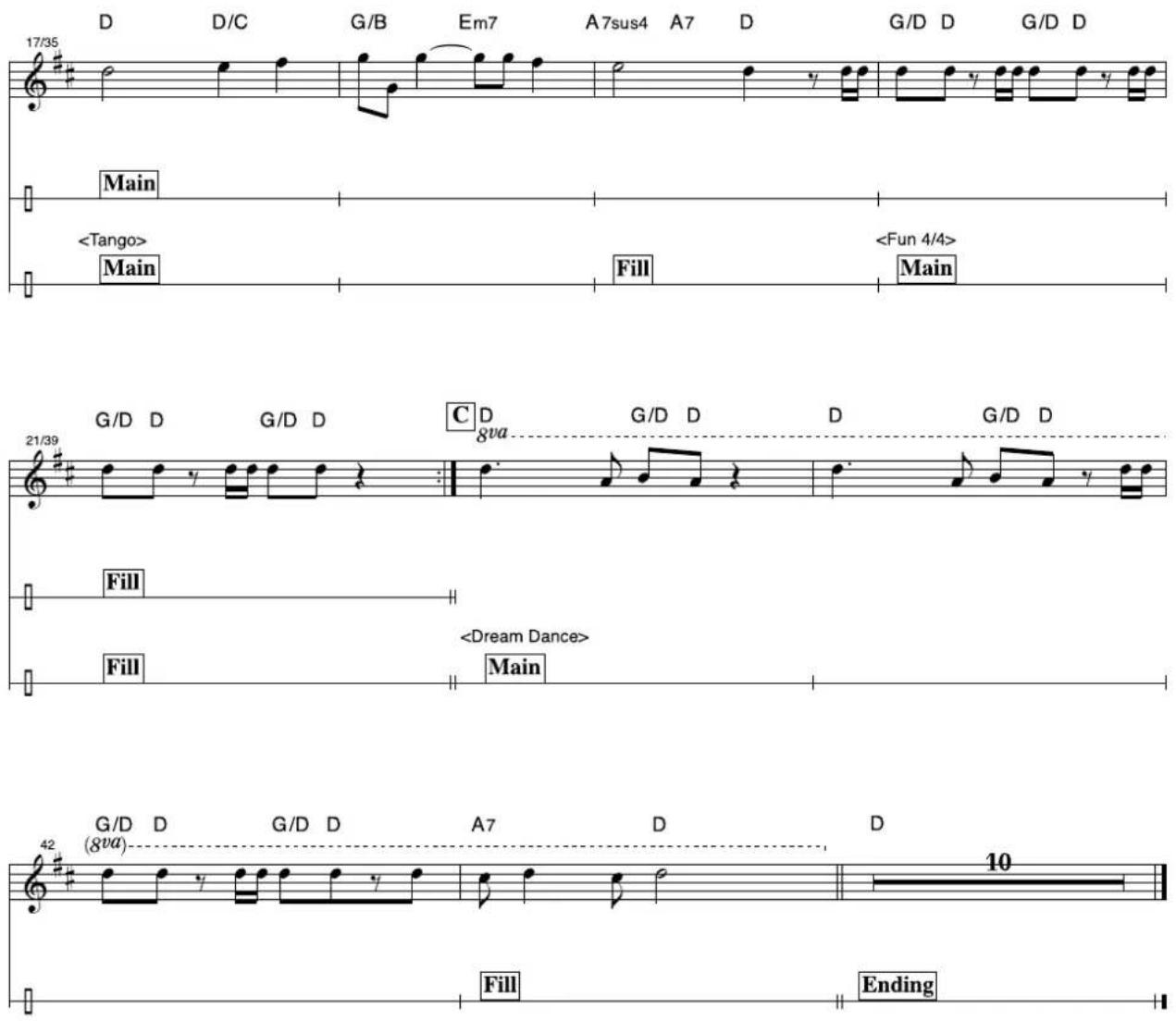
text_image
17/35 D D/C G/B Em7 A7sus4 A7 D G/D D G/D D MainThis score is provided with the intent that the pitch will be corrected by the performance assistant technology feature. If you play the “Play These Notes” part using the performance assistant technology feature, the part will be corrected and played so that it matches the backing part.

♩=61
(Function Demo for performance assistant technology)
Ave Maria
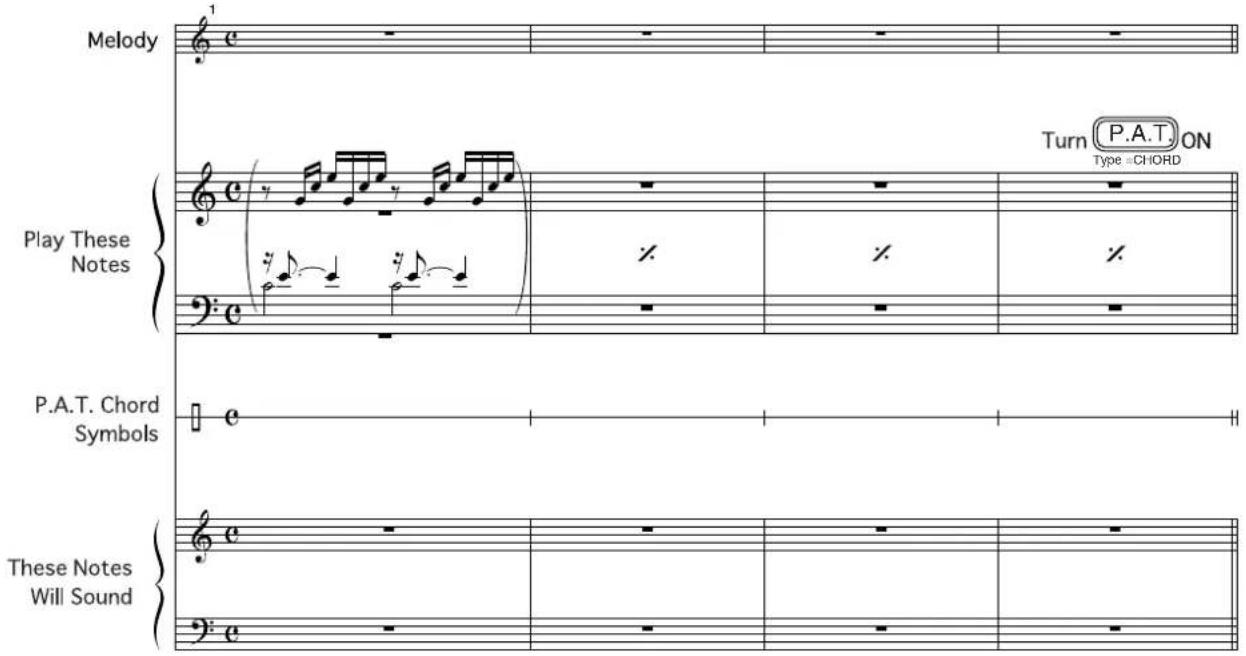
text_image
Melody Play These Notes P.A.T. Chord Symbols These Notes Will Sound Turn P.A.T. Type = CHORD ON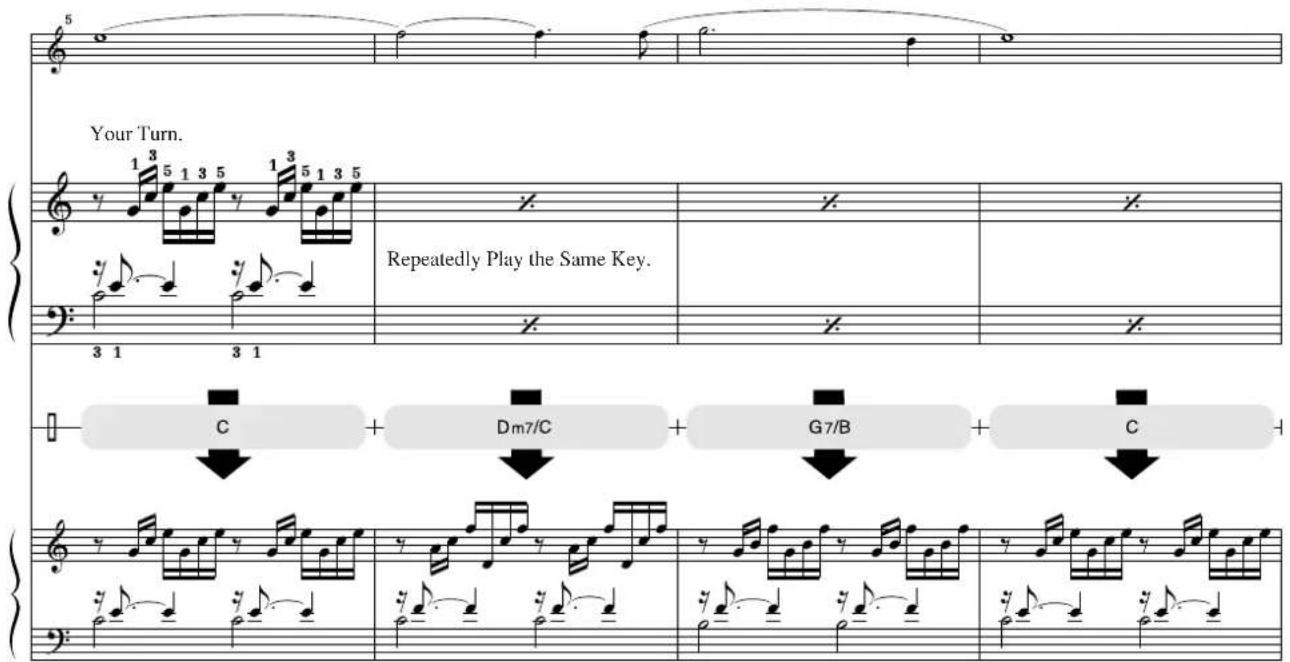
text_image
Your Turn. Repeatedly Play the Same Key. C Dm7/C G7/B C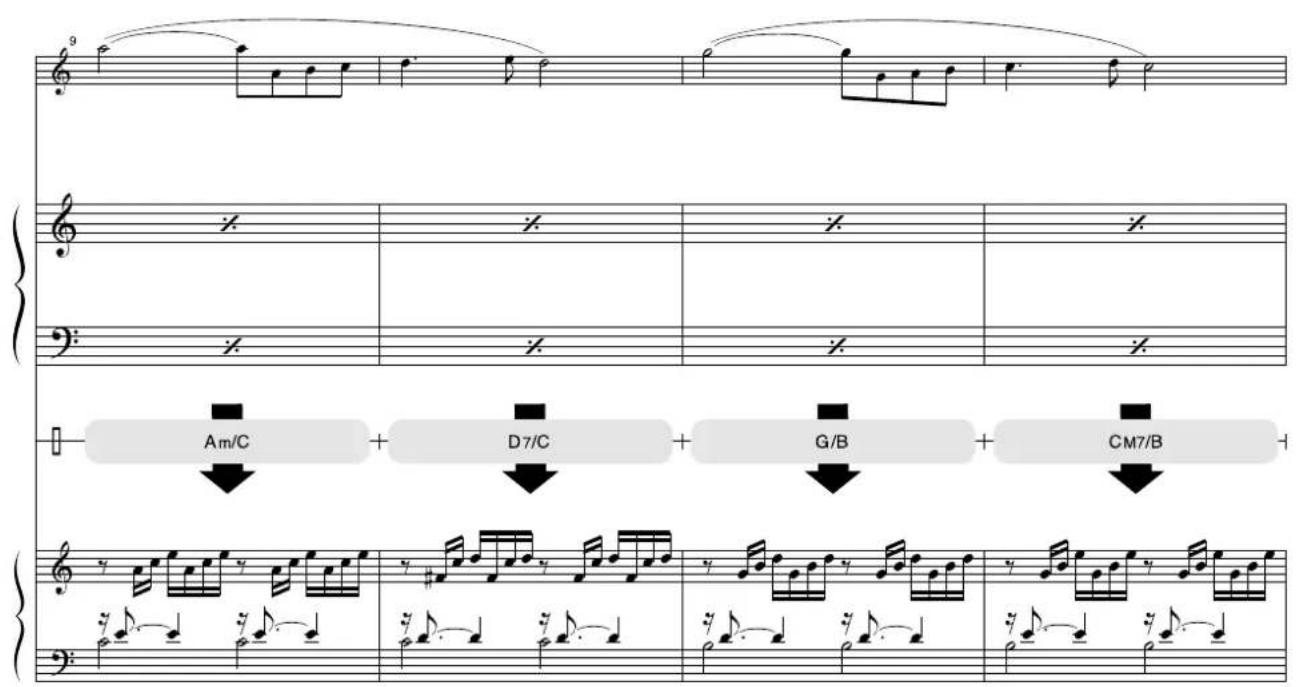
text_image
Sheet music excerpt with musical notation and waveform annotations, showing piano parts and key signature symbols like Am/C, D7/C, G/B, CM7/B.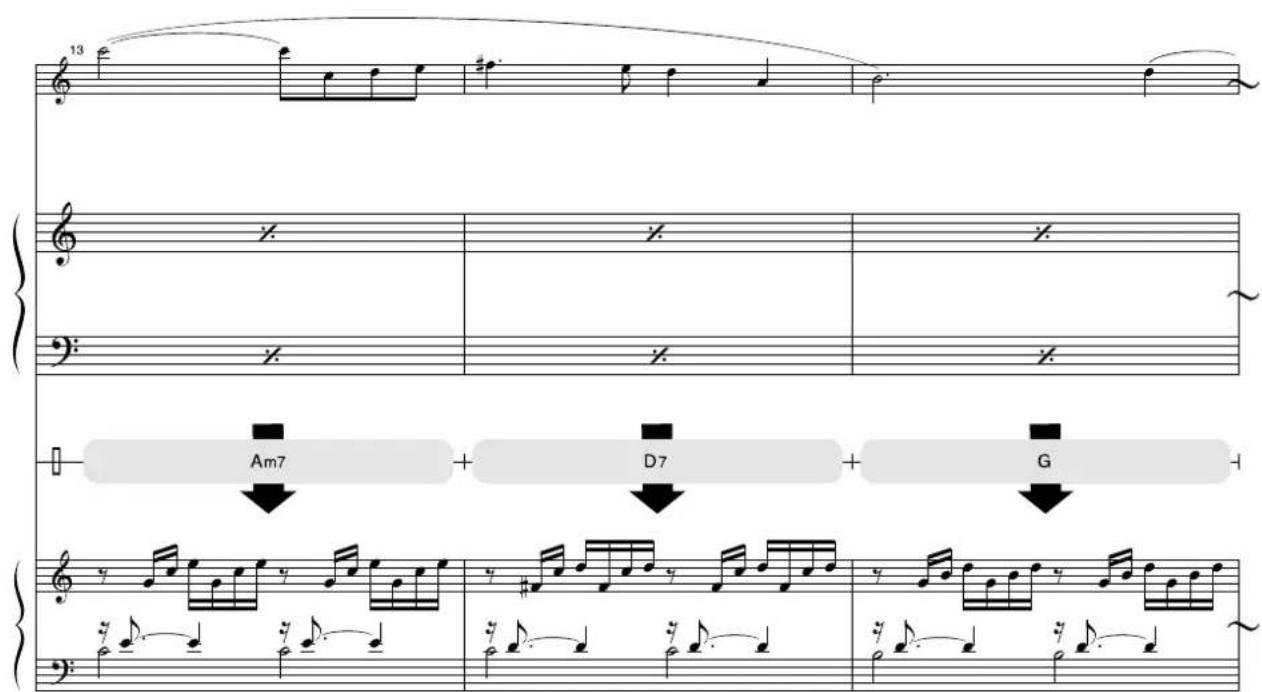
text_image
13 Am7 D7 GThis score is provided with the intent that the pitch will be corrected by the performance assistant technology feature. If you play the “Play These Notes” part using the performance assistant technology feature, the part will be corrected and played so that it matches the backing part.
Song No. 1 ♩♩ =108
(Function Demo for performance assistant technology)
Nocturne op.9-2
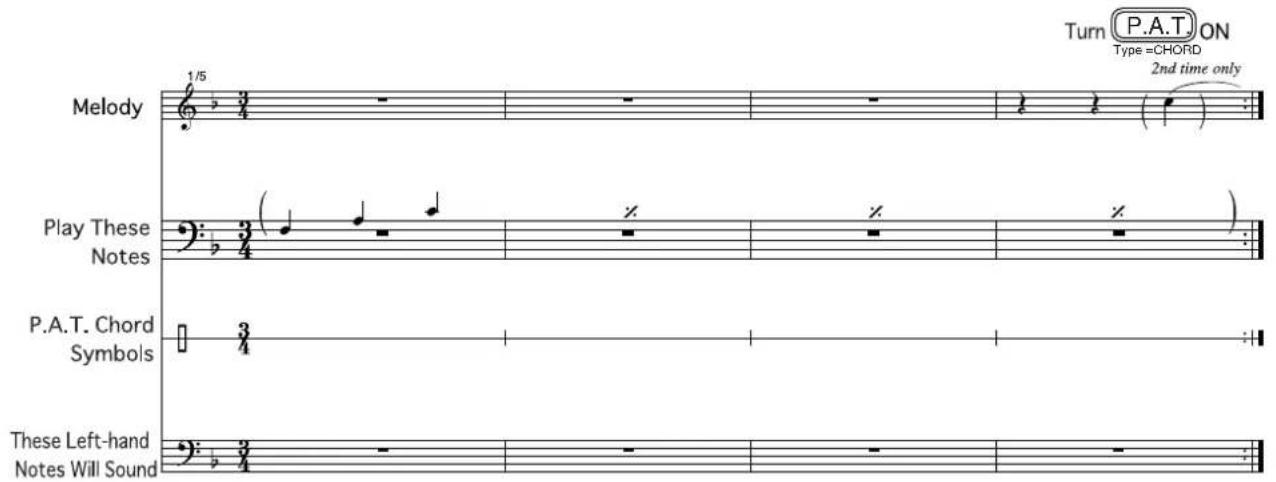
text_image
Turn P.A.T ON Type =CHORD 2nd time only Melody 1/5 Play These Notes P.A.T. Chord Symbols These Left-hand Notes Will Sound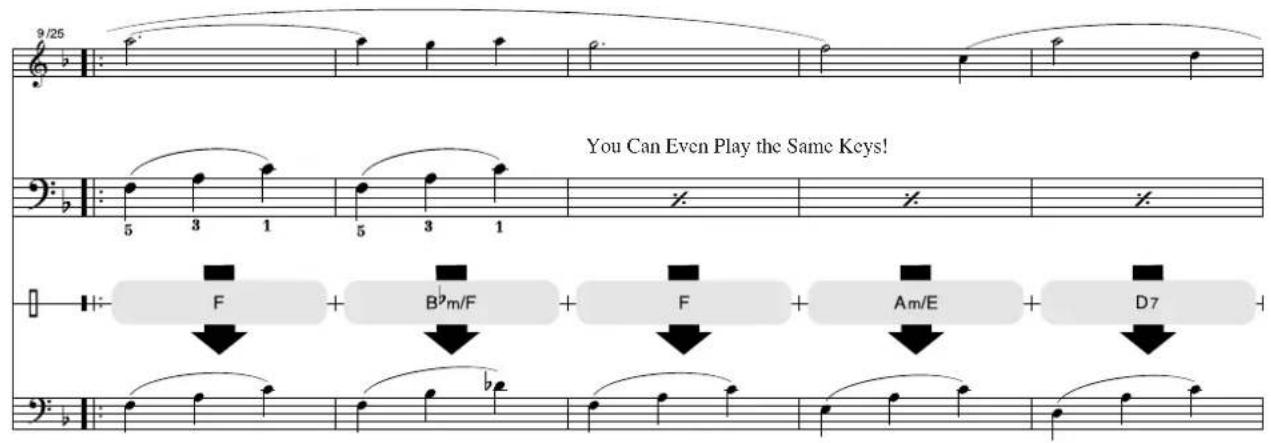
text_image
9/26 You Can Even Play the Same Keys! F + B²m/F + F + Am/E + D7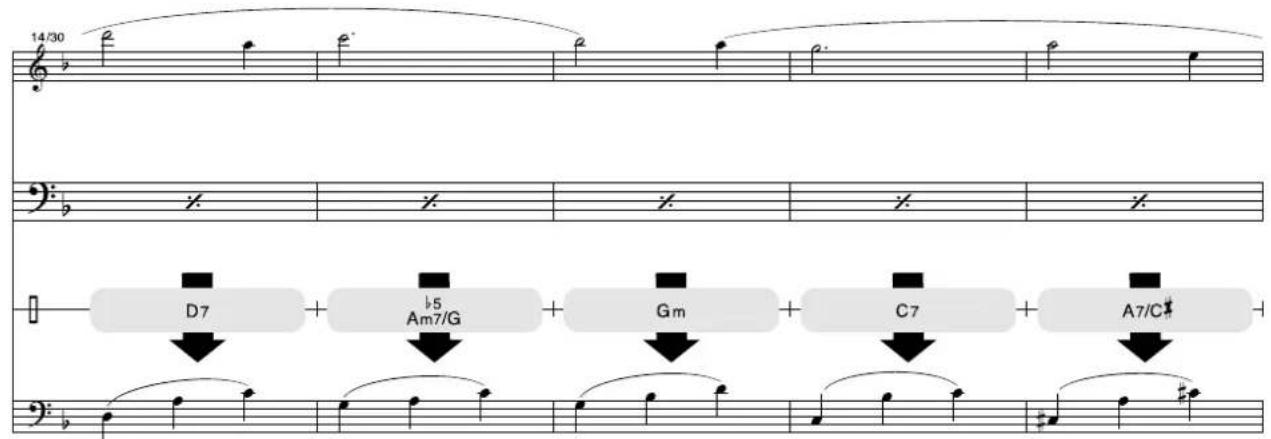
text_image
14/30 D7 + Am7/G + Gm + C7 + A7/C#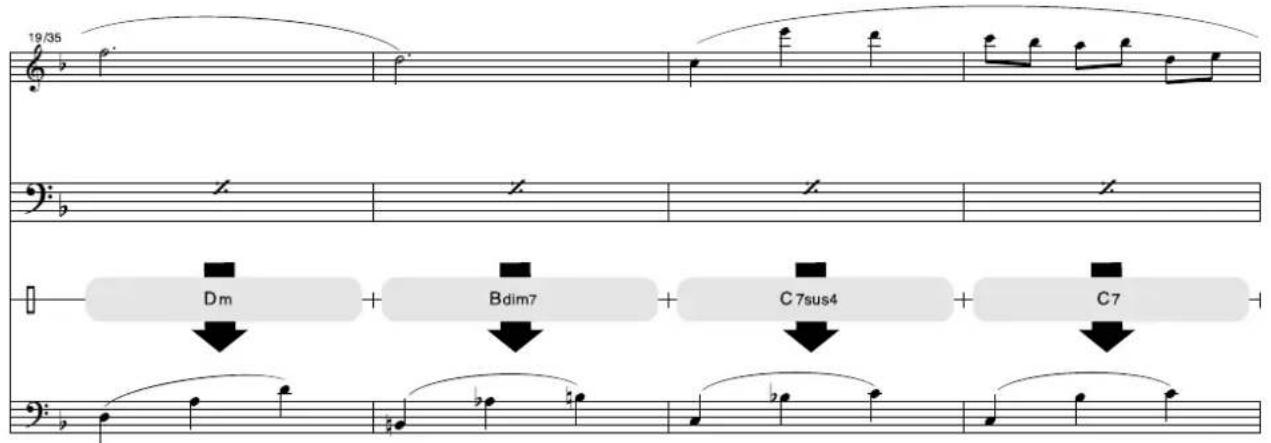
text_image
19/35 Dm + Bdim7 + C7sus4 + C7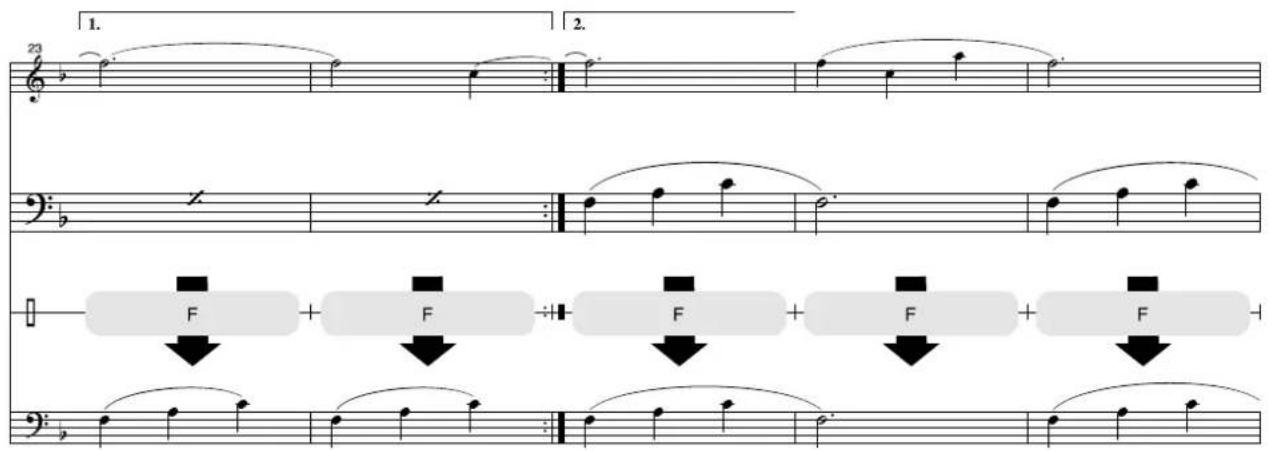
text_image
1. 2. F + F + F + F + F
text_image
42 rit. F + F + F + F + F +■ Maximum Polyphony······
The instrument has 32-note maximum polyphony. This means that it can play a maximum of up to 32 notes at once, regardless of what functions are used. Auto accompaniment uses a number of the available notes, so when auto accompaniment is used the total number of available notes for playing on the keyboard is correspondingly reduced. The same applies to the Split Voice and Song functions. If the maximum polyphony is exceeded, earlier played notes will be cut off and the most recent notes have priority (last note priority).
NOTE
- The Voice List includes MIDI program change numbers for each voice. Use these program change numbers when playing the instrument via MIDI from an external device.
- Program Numbers 001 to 128 directly relate to MIDI Program Change Numbers 000 to 127. That is, Program Numbers and Program Change Numbers differ by a value of 1. Remember to take this into consideration.
- Some voices may sound continuously or have a long decay after the notes have been released while the sustain pedal (footswitch) is held.
● Panel Voice List
| Voice No. | Bank Select | MIDI Program Change# (1-128) | Voice Name | |
| MSB (0-127) | LSB (0-127) | |||
| PIANO | ||||
| 001 000 112 001 Grand Piano | ||||
| 002 000 112 002 Bright Piano | ||||
| 003 000 112 007 Harpsichord | ||||
| 004 000 112 004 Honky-tonk Piano | ||||
| 005 000 112 003 MID Grand Piano | ||||
| 006 000 113 003 CP 80 | ||||
| E.PIANO | ||||
| 007 000 114 005 Cool! Galaxy Electric Piano | ||||
| 008 000 113 006 Hyper Tines | ||||
| 009 000 112 005 Funky Electric Piano | ||||
| 010 000 112 006 DX Modern Electric Piano | ||||
| 011 000 114 006 Venus Electric Piano | ||||
| 012 000 112 008 Clavi | ||||
| ORGAN | ||||
| 013 000 118 019 Cool! Organ | ||||
| 014 000 117 019 Cool! Rotor Organ | ||||
| 015 000 112 017 Jazz Organ 1 | ||||
| 016 000 113 017 Jazz Organ 2 | ||||
| 017 000 112 019 Rock Organ | ||||
| 018 000 114 019 Purple Organ | ||||
| 019 000 112 018 Click Organ | ||||
| 020 000 116 017 Bright Organ | ||||
| 021 000 127 019 Theater Organ | ||||
| 022 000 121 020 16'+2' Organ | ||||
| 023 000 120 020 16'+4' Organ | ||||
| 024 000 113 020 Chapel Organ | ||||
| 025 000 112 020 Church Organ | ||||
| 026 000 112 021 Reed Organ | ||||
| ACCORDION | ||||
| 027 000 112 022 Musette Accordion | ||||
| 028 000 113 022 Traditional Accordion | ||||
| 029 000 113 024 Bandoneon | ||||
| 030 000 113 023 Modern Harp | ||||
| 031 000 112 023 Harmonica | ||||
| GUITAR | ||||
| 032 000 112 025 Classical Guitar | ||||
| 033 000 112 026 Folk Guitar | ||||
| 034 000 112 027 Jazz Guitar | ||||
| 035 000 117 028 60's Clean Guitar | ||||
| 036 000 113 026 12Strings Guitar | ||||
| 037 000 112 028 Clean Guitar | ||||
| 038 000 113 027 Octave Guitar | ||||
| 039 000 112 029 Muted Guitar | ||||
| 040 000 112 030 Overdriven Guitar | ||||
| 041 000 112 031 Distortion Guitar | ||||
| BASS | ||||
| 042 000 112 034 Finger Bass | ||||
| 043 000 112 033 Acoustic Bass | ||||
| 044 000 112 035 Pick Bass | ||||
| 045 000 112 036 Fretless Bass | ||||
| 046 000 112 037 Slap Bass | ||||
| 047 000 112 039 Synth Bass | ||||
| 048 000 113 039 Hi-Q Bass | ||||
| 049 000 113 040 Dance Bass | ||||
| Voice No. | Bank Select | MIDI Program Change# (1-128) | Voice Name | |
| MSB (0-127) | LSB (0-127) | |||
| STRINGS | ||||
| 050 000 112 049 String Ensemble | ||||
| 051 000 112 050 Chamber Strings | ||||
| 052 000 113 050 Slow Strings | ||||
| 053 000 112 045 Tremolo Strings | ||||
| 054 000 112 051 Synth Strings | ||||
| 055 000 112 046 Pizzicato Strings | ||||
| 056 000 112 041 Violin | ||||
| 057 000 112 043 Cello | ||||
| 058 000 112 044 Contrabass | ||||
| 059 000 112 047 Harp | ||||
| 060 000 112 106 Banjo | ||||
| 061 000 112 056 Orchestra Hit | ||||
| CHOIR | ||||
| 062 000 112 053 Choir | ||||
| 063 000 113 053 Vocal Ensemble | ||||
| 064 000 112 055 Air Choir | ||||
| 065 000 112 054 Vox Humana | ||||
| SAXOPHONE | ||||
| 066 000 117 067 Sweet! Tenor $ax | ||||
| 067 000 113 065 Sweet! Soprano Sax | ||||
| 068 000 112 067 Tenor Sax | ||||
| 069 000 112 066 Alto Sax | ||||
| 070 000 112 065 Soprano Sax | ||||
| 071 000 112 068 Baritone Sax | ||||
| 072 000 114 067 Breathy Tenor Sax | ||||
| 073 000 112 072 Clar net | ||||
| 074 000 112 069 Oboe | ||||
| 075 000 112 070 English Horn | ||||
| 076 000 112 071 Bassoon | ||||
| TRUMPET | ||||
| 077 000 115 057 Sweet! Trumpet | ||||
| 078 000 112 057 Trumpet | ||||
| 079 000 112 058 Trombone | ||||
| 080 000 113 058 Trombone Section | ||||
| 081 000 112 060 Muted Trumpet | ||||
| 082 000 112 061 French Horn | ||||
| 083 000 112 059 Tuba | ||||
| BRASS | ||||
| 084 000 112 062 Brass Section | ||||
| 085 000 113 062 Big Band Brass | ||||
| 086 000 113 063 80's Brass | ||||
| 087 000 119 062 Mellow Horns | ||||
| 088 000 114 063 Techno Brass | ||||
| 089 000 112 063 Synth Brass | ||||
| FLUTE | ||||
| 090 000 114 074 Sweet! Flute | ||||
| 091 000 113 076 Sweet! Pan Flute | ||||
| 092 000 112 074 Flute | ||||
| 093 000 112 073 Piccolo | ||||
| 094 000 112 076 Pan Flute | ||||
| 095 000 112 075 Recorder | ||||
| 096 000 112 080 Ocarina | ||||
| SYNTH LEAD | ||||
| 097 000 112 081 Square Lead | ||||
| 098 0 | 00 112 | 082 Sawtooth Lead | ||
| 099 0 | 00 115 | 082 Analogon | ||
| 100 0 | 00 119 | 082 Fargo | ||
| 101 0 | 00 112 | 099 Star Dust | ||
| 102 0 | 00 112 | 086 Voice Lead | ||
| 103 0 | 00 112 | 101 Brightness | ||
| SYNTH PAD | ||||
| 104 0 | 00 112 | 092 Xenon Pad | ||
| 105 0 | 00 112 | 095 Equinox | ||
| 106 0 | 00 112 | 089 Fantasia | ||
| 107 0 | 00 113 | 090 Dark Moon | ||
| 108 0 | 00 113 | 101 Bell Pad | ||
| PERCUSSION | ||||
| 109 0 | 00 112 | 012 Vibraphone | ||
| 110 0 | 00 112 | 013 Marimba | ||
| 111 0 | 00 112 | 014 Xylophone | ||
| 112 0 | 00 112 | 115 Steel Drums | ||
| 113 0 | 00 112 | 009 Celesta | ||
| 114 0 | 00 112 | 011 Music Box | ||
| 115 0 | 00 112 | 015 Tubular Bells | ||
| 116 0 | 00 112 | 048 Timpani | ||
| DRUM KITS | ||||
| 117 1 | 27 000 | 001 Standard Kit 1 | ||
| 118 1 | 27 000 | 002 Standard Kit 2 | ||
| 119 1 | 27 000 | 009 Room Kit | ||
| 120 1 | 27 000 | 017 Rock Kit | ||
| 121 1 | 27 000 | 025 Electronic Kit | ||
| 122 1 | 27 000 | 026 Analog Kit | ||
| 123 1 | 27 000 | 113 Dance Kit | ||
| 124 1 | 27 000 | 033 Jazz Kit | ||
| 125 1 | 27 000 | 041 Brush Kit | ||
| 126 1 | 27 000 | 049 Symphony Kit | ||
| 127 1 | 26 000 | 001 SFX Kit 1 | ||
| 128 1 | 26 000 | 002 SFX Kit 2 | ||
| ARPEGGIO | ||||
| 129 0 | 00 112 | 081 Synth Sequence | ||
| 130 0 | 00 112 | 082 Sawtooth Lead Arpeggio | ||
| 131 0 | 00 115 | 082 Analog Sequence | ||
| 132 0 | 00 096 | 082 Chord Sequence | ||
| 133 0 | 00 006 | 082 Sawtooth | ||
| 134 0 | 00 000 | 081 Square Pulse | ||
| 135 0 | 00 113 | 063 Trance | ||
| 136 0 | 00 114 | 063 Synth Echo | ||
| 137 0 | 00 112 | 001 Piano Arpeggio | ||
| 138 0 | 00 114 | 005 Ballad Electric Piano | ||
| 139 0 | 00 117 | 028 Guitar Chord | ||
| 140 0 | 00 112 | 025 Guitar Arpeggio | ||
| 141 0 | 00 113 | 039 Acid Synth | ||
| 142 1 | 27 000 | 001 Arabic Loop | ||
| 143 1 | 27 000 | 002 Massive Percussion | ||
●XGlite Voice/XGlite Optional Voice* List
| Voice No. | Bank Select | MIDI Program Change# (1-128) | Voice Name | |
| MSB (0-127) | LSB (0-127) | |||
| PIANO | ||||
| 144 0 | 00 000 | 001 Grand Piano | ||
| 145 0 | 00 001 | 001 Grand Piano | KSP | |
| 146 0 | 00 040 | 001 Piano Strings | ||
| 147 0 | 00 041 | 001 Dream | ||
| 148 0 | 00 000 | 002 Bright Piano | ||
| 149 0 | 00 001 | 002 Bright Piano | KSP | |
| 150 0 | 00 000 | 003 Electric Grand Piano | ||
| 151 0 | 00 001 | 003 Electric Grand Piano KSP | ||
| 152 0 | 00 032 | 003 Detuned CP80 | ||
| 153 0 | 00 000 | 004 Honky-tonk Piano | ||
| 154 0 | 00 001 | 004 Honky-tonk Piano KSP | ||
| 155 0 | 00 000 | 005 Electric Piano | 1 | |
| 156 0 | 00 001 | 005 Electric Piano | 1 KSP | |
| 157 0 | 00 032 | 005 Chorus Electr | c Piano 1 | |
| 158 0 | 00 000 | 006 Electric Piano | 2 | |
| Voice No. | Bank Select | MIDI Program Change# (1-128) | Voice Name | |
| MSB (0-127) | LSB (0-127) | |||
| 159 000 001 006 Electric Piano | 2 KSP | |||
| *160 000 032 006 Chorus Electric Piano 2 | ||||
| 161 000 041 006 DX - Analog Electric Piano | ||||
| 162 000 000 007 Harpsichord | ||||
| 163 000 001 007 Harpsichord KSP | ||||
| 164 000 035 007 Harpsichord 2 | ||||
| 165 000 000 008 Clavi | ||||
| 166 000 001 008 Clavi KSP | ||||
| CHROMATIC | ||||
| 167 000 000 009 Celesta | ||||
| 168 000 000 010 Glockenspiel | ||||
| 169 000 000 011 Music Box | ||||
| 170 000 064 011 Orgel | ||||
| 171 000 000 012 Vibraphone | ||||
| 172 000 001 012 Vibraphone KSP | ||||
| 173 000 000 013 Marimba | ||||
| 174 000 001 013 Marimba KSP | ||||
| 175 000 064 013 Sine Marimba | ||||
| 176 000 097 013 Balimba | ||||
| 177 000 098 013 Log Drums | ||||
| 178 000 000 014 Xylophone | ||||
| 179 000 000 015 Tubular Bells | ||||
| 180 000 096 015 Church Bells | ||||
| 181 000 097 015 Carillon | ||||
| 182 000 000 016 Dulcimer | ||||
| 183 000 035 016 Dulcimer 2 | ||||
| 184 000 096 016 Cimbalom | ||||
| 185 000 097 016 Santur | ||||
| ORGAN | ||||
| 186 000 000 017 Drawbar Organ | ||||
| 187 000 032 017 Detuned Drawbar Organ | ||||
| 188 000 033 017 60's Drawbar Organ 1 | ||||
| 189 000 034 017 60's Drawbar Organ 2 | ||||
| 190 000 035 017 70's Drawbar Organ 1 | ||||
| 191 000 037 017 60's Drawbar Organ 3 | ||||
| 192 000 040 017 16+2'2/3 | ||||
| 193 000 064 017 Organ Bass | ||||
| 194 000 065 017 70's Drawbar Organ 2 | ||||
| 195 000 066 017 Cheezy Organ | ||||
| 196 000 067 017 Drawbar Organ 2 | ||||
| 197 000 000 018 Percussive Organ | ||||
| 198 000 024 018 70's Percussive Organ | ||||
| 199 000 032 018 Detuned Percussive Organ | ||||
| 200 000 033 018 Light Organ | ||||
| 201 000 037 018 Percussive Organ 2 | ||||
| 202 000 000 019 Rock Organ | ||||
| 203 000 064 019 Rotary Organ | ||||
| 204 000 065 019 Slow Rotary | ||||
| 205 000 066 019 Fast Rotary | ||||
| 206 000 000 020 Church Organ | ||||
| 207 000 032 020 Church Organ 3 | ||||
| 208 000 035 020 Church Organ 2 | ||||
| 209 000 040 020 Notre Dame | ||||
| 210 000 064 020 Organ Flute | ||||
| 211 000 065 020 Tremolo Organ Flute | ||||
| 212 000 000 021 Reed Organ | ||||
| 213 000 040 021 Puff Organ | ||||
| 214 000 000 022 Accordion | ||||
| 215 000 000 023 Harmonica | ||||
| 216 000 032 023 Harmonica 2 | ||||
| 217 000 000 024 Tango Accordion | ||||
| 218 000 064 024 Tango Accordion 2 | ||||
| GUITAR | ||||
| 219 000 000 025 Nylon Guitar | ||||
| 220 000 043 025 Velocity Guitar Harmonics | ||||
| 221 000 096 025 Ukulele | ||||
| 222 000 000 026 Steel Guitar | ||||
| 223 000 035 026 12-string Guitar | ||||
| 224 000 040 026 Nylon & Steel Guitar | ||||
| 225 000 041 026 Steel Guitar with Body Sound | ||||
| 226 000 096 026 Mandolin | ||||
| 227 000 000 027 Jazz Guitar | ||||
| 228 000 032 027 Jazz Amp | ||||
| 229 0 | 00 000 | 028 Clean Guitar | ||
| 230 0 | 00 032 | 028 Chorus Guitar | ||
| 231 0 | 00 000 | 029 Muted Guitar | ||
| 232 0 | 00 040 | 029 Funk Guitar | ||
| 233 0 | 00 041 | 029 Muted Steel Guitar | ||
| 234 0 | 00 045 | 029 Jazz Man | ||
| 235 0 | 00 000 | 030 Overdriven Guitar | ||
| 236 0 | 00 043 | 030 Guitar Pinch | ||
| 237 0 | 00 000 | 031 Distortion Guitar | ||
| 238 0 | 00 040 | 031 Feedback Guitar | ||
| 239 0 | 00 041 | 031 Feedback Guitar 2 | ||
| 240 0 | 00 000 | 032 Guitar Harmonics | ||
| 241 0 | 00 065 | 032 Guitar Feedback | ||
| 242 0 | 00 066 | 032 Guitar Harmonics 2 | ||
| BASS | ||||
| 243 0 | 00 000 | 033 Acoustic Bass | ||
| 244 0 | 00 040 | 033 Jazz Rhythm | ||
| 245 0 | 00 045 | 033 Velocity Crossfade Upright Bass | ||
| 246 0 | 00 000 | 034 Finger Bass | ||
| 247 0 | 00 018 | 034 Finger Dark | ||
| 248 0 | 00 040 | 034 Bass & Distorted Electric Guitar | ||
| 249 0 | 00 043 | 034 Finger Slap Bass | ||
| 250 0 | 00 045 | 034 Finger Bass 2 | ||
| 251 0 | 00 065 | 034 Modulated Bass | ||
| 252 0 | 00 000 | 035 Pick Bass | ||
| 253 0 | 00 028 | 035 Muted Pick Bass | ||
| 254 0 | 00 000 | 036 Fretless Bass | ||
| 255 0 | 00 032 | 036 Fretless Bass | 2 | |
| 256 0 | 00 033 | 036 Fretless Bass | 3 | |
| 257 0 | 00 034 | 036 Fretless Bass | 4 | |
| 258 0 | 00 000 | 037 Slap Bass 1 | ||
| 259 0 | 00 032 | 037 Punch Thumb Bass | ||
| 260 0 | 00 000 | 038 Slap Bass 2 | ||
| 261 0 | 00 043 | 038 Velocity Switch Slap | ||
| 262 0 | 00 000 | 039 Synth Bass 1 | ||
| 263 0 | 00 040 | 039 Techno Synth Bass | ||
| 264 0 | 00 000 | 040 Synth Bass 2 | ||
| 265 0 | 00 006 | 040 Mellow Synth Bass | ||
| 266 0 | 00 012 | 040 Sequenced Bass | ||
| 267 0 | 00 018 | 040 Click Synth Bass | ||
| 268 0 | 00 019 | 040 Synth Bass 2 Dark | ||
| *269 0 | 00 040 | 040 Modular Synth Bass | ||
| 270 0 | 00 041 | 040 DX Bass | ||
| STRINGS | ||||
| 271 0 | 00 000 | 041 Violin | ||
| 272 0 | 00 008 | 041 Slow Violin | ||
| 273 0 | 00 000 | 042 Viola | ||
| 274 0 | 00 000 | 043 Cello | ||
| 275 0 | 00 000 | 044 Contrabass | ||
| 276 0 | 00 000 | 045 Tremolo Strings | ||
| 277 0 | 00 008 | 045 Slow Tremolo Strings | ||
| 278 0 | 00 040 | 045 Suspense Strings | ||
| 279 0 | 00 000 | 046 Pizzicato Strings | ||
| 280 0 | 00 000 | 047 Orchestral Harp | ||
| 281 0 | 00 040 | 047 Yang Chin | ||
| 282 0 | 00 000 | 048 Timpani | ||
| ENSEMBLE | ||||
| 283 0 | 00 000 | 049 Strings 1 | ||
| 284 0 | 00 003 | 049 Stereo Strings | ||
| 285 0 | 00 008 | 049 Slow Strings | ||
| 286 0 | 00 035 | 049 60's Strings | ||
| 287 0 | 00 040 | 049 Orchestra | ||
| 288 0 | 00 041 | 049 Orchestra 2 | ||
| 289 0 | 00 042 | 049 Tremolo Orchestra | ||
| 290 0 | 00 045 | 049 Velocity Strings | ||
| 291 0 | 00 000 | 050 Strings 2 | ||
| 292 0 | 00 003 | 050 Stereo Slow Strings | ||
| 293 0 | 00 008 | 050 Legato Strings | ||
| 294 0 | 00 040 | 050 Warm Strings | ||
| 295 0 | 00 041 | 050 Kingdom | ||
| 296 0 | 00 000 | 051 Synth Strings | 1 | |
| 297 0 | 00 000 | 052 Synth Strings | 2 | |
| 298 0 | 00 000 | 053 Choir Aahs | ||
| Voice No. | Bank Select | MIDI Program Change# (1-128) | Voice Name | |
| MSB (0-127) | LSB (0-127) | |||
| 299 0 | 00 003 | 053 Stereo Choir | ||
| 300 0 | 00 032 | 053 Mellow Choir | ||
| 301 0 | 00 040 | 053 Chor Strings | ||
| 302 0 | 00 000 | 054 Voice Oohs | ||
| 303 0 | 00 000 | 055 Synth Voice | ||
| 304 0 | 00 040 | 055 Synth Voice 2 | ||
| 305 0 | 00 041 | 055 Choral | ||
| 306 0 | 00 064 | 055 Analog Voice | ||
| 307 0 | 00 000 | 056 Orchestra Hit | ||
| 308 0 | 00 035 | 056 Orchestra Hit 2 | ||
| 309 0 | 00 064 | 056 Impact | ||
| BRASS | ||||
| 310 0 | 00 000 | 057 Trumpet | ||
| 311 0 | 00 032 | 057 Warm Trumpet | ||
| 312 0 | 00 000 | 058 Trombone | ||
| 313 0 | 00 018 | 058 Trombone 2 | ||
| 314 0 | 00 000 | 059 Tuba | ||
| 315 0 | 00 000 | 060 Muted Trumpet | ||
| 316 0 | 00 000 | 061 French Horn | ||
| 317 0 | 00 006 | 061 French Horn Solo | ||
| 318 0 | 00 032 | 061 French Horn 2 | ||
| 319 0 | 00 037 | 061 Horn Orchestra | ||
| 320 0 | 00 000 | 062 Brass Section | ||
| 321 0 | 00 035 | 062 Trumpet & Trombone Section | ||
| 322 0 | 00 000 | 063 Synth Brass 1 | ||
| 323 0 | 00 020 | 063 Resonant Synth Brass | ||
| 324 0 | 00 000 | 064 Synth Brass 2 | ||
| 325 0 | 00 018 | 064 Soft Brass | ||
| 326 0 | 00 041 | 064 Chor Brass | ||
| REED | ||||
| 327 0 | 00 000 | 065 Soprano Sax | ||
| 328 0 | 00 000 | 066 Alto Sax | ||
| 329 0 | 00 040 | 066 Sax Section | ||
| 330 0 | 00 000 | 067 Tenor Sax | ||
| 331 0 | 00 040 | 067 Breathy Tenor Sax | ||
| 332 0 | 00 000 | 068 Baritone Sax | ||
| 333 0 | 00 000 | 069 Oboe | ||
| 334 0 | 00 000 | 070 English Horn | ||
| 335 0 | 00 000 | 071 Bassoon | ||
| 336 0 | 00 000 | 072 Clarinet | ||
| PIPE | ||||
| 337 0 | 00 000 | 073 Piccolo | ||
| 338 0 | 00 000 | 074 Flute | ||
| 339 0 | 00 000 | 075 Recorder | ||
| 340 0 | 00 000 | 076 Pan Flute | ||
| 341 0 | 00 000 | 077 Blown Bottle | ||
| 342 0 | 00 000 | 078 Shakuhachi | ||
| 343 0 | 00 000 | 079 Whistle | ||
| 344 0 | 00 000 | 080 Ocarina | ||
| SYNTH LEAD | ||||
| 345 0 | 00 000 | 081 Square Lead | ||
| 346 0 | 00 006 | 081 Square Lead 2 | ||
| 347 0 | 00 008 | 081 LM Square | ||
| 348 0 | 00 018 | 081 Hollow | ||
| 349 0 | 00 019 | 081 Shroud | ||
| 350 0 | 00 064 | 081 Mellow | ||
| 351 0 | 00 065 | 081 Solo Sine | ||
| 352 0 | 00 066 | 081 Sine Lead | ||
| 353 0 | 00 000 | 082 Sawtooth Lead | ||
| 354 0 | 00 006 | 082 Sawtooth Lead 2 | ||
| 355 0 | 00 008 | 082 Thick Sawtooth | ||
| 356 0 | 00 018 | 082 Dynamic Sawtooth | ||
| 357 0 | 00 019 | 082 Digital Sawtooth | ||
| 358 0 | 00 020 | 082 Big Lead | ||
| 359 0 | 00 096 | 082 Sequenced Analog | ||
| 360 0 | 00 000 | 083 Calliope Lead | ||
| 361 0 | 00 065 | 083 Pure Lead | ||
| 362 0 | 00 000 | 084 Chiff Lead | ||
| 363 0 | 00 000 | 085 Charang Lead | ||
| 364 0 | 00 064 | 085 Distorted Lead | ||
| 365 0 | 00 000 | 086 Voice Lead | ||
| 366 0 | 00 000 | 087 Fifths Lead | ||
| 367 0 | 00 035 | 087 Big Five | ||
| 368 0 | 00 000 | 088 Bass & Lead | ||
| 369 0 | 00 016 | 088 Big & Low | ||
| 370 0 | 00 064 | 088 Fat & Perky | ||
| 371 0 | 00 065 | 088 Soft Whirl | ||
| SYNTH PAD | ||||
| 372 0 | 00 000 | 089 New Age Pad | ||
| 373 0 | 00 064 | 089 Fantasy | ||
| 374 0 | 00 000 | 090 Warm Pad | ||
| 375 0 | 00 000 | 091 Poly Synth Pad | ||
| 376 0 | 00 000 | 092 Choir Pad | ||
| 377 0 | 00 066 | 092 Itopia | ||
| 378 0 | 00 000 | 093 Bowed Pad | ||
| 379 0 | 00 000 | 094 Metallic Pad | ||
| 380 0 | 00 000 | 095 Halo Pad | ||
| 381 0 | 00 000 | 096 Sweep Pad | ||
| SYNTH EFFECTS | ||||
| 382 0 | 00 000 | 097 Rain | ||
| 383 0 | 00 065 | 097 African Wind | ||
| 384 0 | 00 066 | 097 Carib | ||
| 385 0 | 00 000 | 098 Sound Track | ||
| 386 0 | 00 027 | 098 Prologue | ||
| 387 0 | 00 000 | 099 Crystal | ||
| 388 0 | 00 012 | 099 Synth Drum Comp | ||
| 389 0 | 00 014 | 099 Popcorn | ||
| 390 0 | 00 018 | 099 Tiny Bells | ||
| 391 0 | 00 035 | 099 Round Glockenspiel | ||
| 392 0 | 00 040 | 099 Glockenspiel Chimes | ||
| 393 0 | 00 041 | 099 Clear Bells | ||
| 394 0 | 00 042 | 099 Chorus Bells | ||
| 395 0 | 00 065 | 099 Soft Crystal | ||
| 396 0 | 00 070 | 099 Air Bells | ||
| 397 0 | 00 071 | 099 Bell Harp | ||
| 398 0 | 00 072 | 099 Gamelimba | ||
| 399 0 | 00 000 | 100 Atmosphere | ||
| 400 0 | 00 018 | 100 Warm Atmosphere | ||
| 401 0 | 00 019 | 100 Hollow Release | ||
| 402 0 | 00 040 | 100 Nylon Electric Piano | ||
| 403 0 | 00 064 | 100 Nylon Harp | ||
| 404 0 | 00 065 | 100 Harp Vox | ||
| 405 0 | 00 066 | 100 Atmosphere Pad | ||
| 406 0 | 00 000 | 101 Brightness | ||
| 407 0 | 00 000 | 102 Goblins | ||
| 408 0 | 00 064 | 102 Goblins Synth | ||
| 409 0 | 00 065 | 102 Creeper | ||
| 410 0 | 00 067 | 102 Ritual | ||
| 411 0 | 00 068 | 102 To Heaven | ||
| 412 0 | 00 070 | 102 Night | ||
| 413 0 | 00 071 | 102 Glisten | ||
| 414 0 | 00 096 | 102 Bell Choir | ||
| 415 0 | 00 000 | 103 Echoes | ||
| 416 0 | 00 000 | 104 Sci-Fi | ||
| WORLD | ||||
| 417 0 | 00 000 | 105 Sitar | ||
| 418 0 | 00 032 | 105 Detuned Sitar | ||
| 419 0 | 00 035 | 105 Sitar 2 | ||
| 420 0 | 00 097 | 105 Tamboura | ||
| 421 0 | 00 000 | 106 Banjo | ||
| 422 0 | 00 028 | 106 Muted Banjo | ||
| 423 0 | 00 096 | 106 Rabab | ||
| 424 0 | 00 097 | 106 Gopichant | ||
| 425 0 | 00 098 | 106 Oud | ||
| 426 0 | 00 000 | 107 Shamisen | ||
| 427 0 | 00 000 | 108 Koto | ||
| 428 0 | 00 096 | 108 Taisho-kin | ||
| 429 0 | 00 097 | 108 Kanoon | ||
| 430 0 | 00 000 | 109 Kalimba | ||
| 431 0 | 00 000 | 110 Bagpipe | ||
| 432 0 | 00 000 | 111 Fiddle | ||
| 433 0 | 00 000 | 112 Shanai | ||
| PERCUSSIVE | ||||
| 434 0 | 00 000 | 113 Tinkle Bell | ||
| 435 0 | 00 096 | 113 Bonang | ||
| 436 0 | 00 097 | 113 Altair | ||
| Voice No. | Bank Select | MIDI Program Change# (1-128) | Voice Name | |
| MSB (0-127) | LSB (0-127) | |||
| 437 000 098 | 13 Gamelan Gongs | |||
| 438 000 099 | 13 Stereo Gamelan Gongs | |||
| 439 000 100 | 13 Rama Cymbal | |||
| 440 000 000 | 14 Agogo | |||
| 441 000 000 | 15 Steel Drums | |||
| 442 000 097 | 15 Glass Percussion | |||
| 443 000 098 | 15 Thai Bells | |||
| 444 000 000 | 16 Woodblock | |||
| 445 000 096 | 16 Castanets | |||
| 446 000 000 | 17 Taiko Drum | |||
| 447 000 096 | 17 Gran Cassa | |||
| 448 000 000 | 18 Melodic Tom | |||
| 449 000 064 | 18 Melodic Tom 2 | |||
| 450 000 065 | 18 Real Tom | |||
| 451 000 066 | 18 Rock Tom | |||
| 452 000 000 | 19 Synth Drum | |||
| 453 000 064 | 19 Analog Tom | |||
| 454 000 065 | 19 Electronic Percussion | |||
| 455 000 000 | 20 Reverse Cymbal | |||
| SOUND EFFECTS | ||||
| 456 000 000 | 21 Fret Noise | |||
| 457 000 000 | 22 Breath Noise | |||
| 458 000 000 | 23 Seashore | |||
| 459 000 000 | 24 Bird Tweet | |||
| 460 000 000 | 25 Telephone Ring | |||
| 461 000 000 | 26 Helicopter | |||
| 462 000 000 | 27 Applause | |||
| 463 000 000 | 28 Gunshot | |||
| 464 064 000 | 001 Cutting Noise | |||
| 465 064 000 | 002 Cutting Noise 2 | |||
| 466 064 000 | 004 String Slap | |||
| 467 064 000 | 017 Flute Key Click | |||
| 468 064 000 | 033 Shower | |||
| 469 064 000 | 034 Thunder | |||
| 470 064 000 | 035 Wind | |||
| 471 064 000 | 036 Stream | |||
| 472 064 000 | 037 Bubble | |||
| 473 064 000 | 038 Feed | |||
| 474 064 000 | 049 Dog | |||
| 475 064 000 | 050 Horse | |||
| 476 064 000 | 051 Bird Tweet 2 | |||
| 477 064 000 | 056 Maou | |||
| 478 064 000 | 065 Phone Call | |||
| 479 064 000 | 066 Door Squeak | |||
| 480 064 000 | 067 Door Slam | |||
| 481 064 000 | 068 Scratch Cut | |||
| 482 064 000 | 069 Scratch Split | |||
| 483 064 000 | 070 Wind Chime | |||
| 484 064 000 | 071 Telephone Ring 2 | |||
| 485 064 000 | 081 Car Engine Ignition | |||
| 486 064 000 | 082 Car Tires Squeal | |||
| 487 064 000 | 083 Car Passing | |||
| 488 064 000 | 084 Car Crash | |||
| 489 064 000 | 085 Siren | |||
| 490 064 000 | 086 Train | |||
| 491 064 000 | 087 Jet Plane | |||
| 492 064 000 | 088 Starship | |||
| 493 064 000 | 089 Burst | |||
| 494 064 000 | 090 Roller Coaster | |||
| 495 064 000 | 091 Submarine | |||
| 496 064 000 | 097 Laugh | |||
| 497 064 000 | 098 Scream | |||
| 498 064 000 | 099 Punch | |||
| 499 064 000 | 100 Heartbeat | |||
| 500 064 000 | 101 Footsteps | |||
| 501 064 000 | 113 Machine Gun | |||
| 502 064 000 | 114 Laser Gun | |||
| 503 064 000 | 115 Explosion | |||
| 504 064 000 | 116 Firework | |||
The voice number with an asterisk (*) is XGlite optional voice.
• "____" indicates that the drum sound is the same as "Standard Kit 1".
• Each percussion voice uses one note.
- The MIDI Note # and Note are actually one octave lower than keyboard Note # and Note. For example, in "117: Standard Kit 1", the "Seq Click H" (Note# 36/Note C1) corresponds to (Note# 24/Note C0).
• Key Off: Keys marked "O" stop sounding the instant they are released.
- Voices with the same Alternate Note Number (*1 ... 4) cannot be played simultaneously. (They are designed to be played alternately with each other.)
| C1 | C#1 |
| D1 | D#1 |
| E1 | |
| F1 | F#1 |
| G1 | G#1 |
| A1 | A#1 |
| B1 | |
| C2 | C#2 |
| D2 | D#2 |
| E2 | |
| F2 | F#2 |
| G2 | G#2 |
| A2 | A#2 |
| B2 | |
| C3 | C#3 |
| D3 | D#3 |
| E3 | |
| F3 | F#3 |
| G3 | G#3 |
| A3 | A#3 |
| B3 | |
| C4 | C#4 |
| D4 | D#4 |
| E4 | |
| F4 | F#4 |
| G4 | G#4 |
| A4 | A#4 |
| B4 | |
| C5 | C#5 |
| D5 | D#5 |
| E5 | |
| F5 | F#5 |
| G5 | G#5 |
| A5 | A#5 |
| B5 | |
| C6 |
| Voice No. 117 118 119 120 121 122 | |||||||||||
| MSB (0-127) / LSB (0-127) / PC (1-128) | 127/000/001 | 127/000/002 | 127/000/009 | 127/000/017 | 127/000/025 | 127/000/026 | |||||
| Keyboard M/DI | Key Off | Alternate assign | Standard Kit 1 Standard Kit 2 Room Kit | Rock Kit Electronic | Kit Analog Kit | ||||||
| Note# | Note | Note# | Note | ||||||||
| 25 | C# 0 | 13 | C# -1 | 3 | Surdo Mute | ||||||
| 26 | D 0 | 14 | D -1 | 3 | Surdo Open | ||||||
| 27 | D# 0 | 15 | D# -1 | Hi Q | |||||||
| 28 | E 0 | 16 | E -1 | Whip Slap | |||||||
| 29 | F 0 | 17 | F -1 | 4 | Scratch H | ||||||
| 30 | F# 0 | 18 | F# -1 | 4 | Scratch L | ||||||
| 31 | G 0 | 19 | G -1 | Finger Snap | |||||||
| 32 | G# 0 | 20 | G# -1 | Click Noise | |||||||
| 33 | A 0 | 21 | A -1 | Metronome Click | |||||||
| 34 | A# 0 | 22 | A# -1 | Metronome Bell | |||||||
| 35 | B 0 | 23 | B -1 | Seq Click L | |||||||
| 36 | C 1 | 24 | C 0 | Seq Click H | |||||||
| 37 | C# 1 | 25 | C# 0 | Brush Tap | |||||||
| 38 | D 1 | 26 | D 0 | O | Brush Swirl | ||||||
| 39 | D# 1 | 27 | D# 0 | Brush Slap | |||||||
| 40 | E 1 | 28 | E 0 | O | Brush Tap Swirl | Reverse Cymbal | Reverse Cymbal | ||||
| 41 | F 1 | 29 | F 0 | O | Snare Roll | Snare Roll 2 | |||||
| 42 | F# 1 | 30 | F# 0 | Castanet | Hi Q 2 | Hi Q 2 | |||||
| 43 | G 1 | 31 | G 0 | Snare Soft | Snare Soft 2 | Snare Nolsy | Snare Snappy Electro | Snare Noisy 4 | |||
| 44 | G# 1 | 32 | G# 0 | Sticks | |||||||
| 45 | A 1 | 33 | A 0 | Kick Soft | Kick Tight 2 | Kick 3 | Kick Tight 2 | ||||
| 46 | A# 1 | 34 | A# 0 | Open Rim Shot | Open Rim Shot H Short | ||||||
| 47 | B 1 | 35 | B 0 | Kick Tight | Kick Tight Short | Kick 2 | Kick Gate | Kick Analog Short | |||
| 48 | C 2 | 36 | C 1 | Kick | Kick Short | Kick Gate | Kick Gate Heavy | Kick Analog | |||
| 49 | C# 2 | 37 | C# 1 | Side Stick | Side Stick Analog | ||||||
| 50 | D 2 | 38 | D 1 | Snare | Snare Short | Snare Snappy | Snare Rock | Snare Noisy 2 | Snare Analog | ||
| 51 | D# 2 | 39 | D# 1 | Hand Clap | |||||||
| 52 | E 2 | 40 | E 1 | Snare Tight | Snare Tight H | Snare Tight Snappy | Snare Rock Rim | Snare Noisy 3 | Snare Analog 2 | ||
| 53 | F 2 | 41 | F 1 | Floor Tom L | Tom Room 1 | Tom Rock 1 | Tom Electro 1 | Tom Analog 1 | |||
| 54 | F# 2 | 42 | F# 1 | 1 | Hi-Hat Closed | Hi-Hat Closed Analog | |||||
| 55 | G 2 | 43 | G 1 | Floor Tom H | Tom Room 2 | Tom Rock 2 | Tom Electro 2 | Tom Analog 2 | |||
| 56 | G# 2 | 44 | G# 1 | 1 | Hi-Hat Pedal | Hi-Hat Closed Analog 2 | |||||
| 57 | A 2 | 45 | A 1 | Low Tom | Tom Room 3 | Tom Rock 3 | Tom Electro 3 | Tom Analog 3 | |||
| 58 | A# 2 | 46 | A# 1 | 1 | Hi-Hat Open | Hi-Hat Open Analog | |||||
| 59 | B 2 | 47 | B 1 | Mid Tom L | Tom Room 4 | Tom Rock 4 | Tom Electro 4 | Tom Analog 4 | |||
| 60 | C 3 | 48 | C 2 | Mid Tom H | Tom Room 5 | Tom Rock 5 | Tom Electro 5 | Tom Analog 5 | |||
| 61 | C# 3 | 49 | C# 2 | Crash Cymbal 1 | Crash Analog | ||||||
| 62 | D 3 | 50 | D 2 | High Tom | Tom Room 6 | Tom Rock 6 | Tom Electro 6 | Tom Analog 6 | |||
| 63 | D# 3 | 51 | D# 2 | Ride Cymbal 1 | |||||||
| 64 | E 3 | 52 | E 2 | Chinese Cymbal | |||||||
| 65 | F 3 | 53 | F 2 | Ride Cymbal Cup | |||||||
| 66 | F# 3 | 54 | F# 2 | Tambourine | |||||||
| 67 | G 3 | 55 | G 2 | Splash Cymbal | |||||||
| 68 | G# 3 | 56 | G# 2 | Cowbell | Cowbell Analog | ||||||
| 69 | A 3 | 57 | A 2 | Crash Cymbal 2 | |||||||
| 70 | A# 3 | 58 | A# 2 | Vibraslap | |||||||
| 71 | B 3 | 59 | B 2 | Rido Cymbal 2 | |||||||
| 72 | C 4 | 60 | C 3 | Bongo H | |||||||
| 73 | C# 4 | 61 | C# 3 | Bongo L | |||||||
| 74 | D 4 | 62 | D 3 | Conga H Mute | Conga Analog H | ||||||
| 75 | D# 4 | 63 | D# 3 | Conga H Open | Conga Analog M | ||||||
| 76 | E 4 | 64 | E 3 | Conga L | Conga Analog L | ||||||
| 77 | F 4 | 65 | F 3 | Timbale H | |||||||
| 78 | F# 4 | 66 | F# 3 | Timbale L | |||||||
| 79 | G 4 | 67 | G 3 | Agogo H | |||||||
| 80 | G# 4 | 68 | G# 3 | Agogo L | |||||||
| 81 | A 4 | 69 | A 3 | Cabasa | |||||||
| 82 | A# 4 | 70 | A# 3 | Maracas | Maracas 2 | ||||||
| 83 | B 4 | 71 | B 3 | O | Samba Whistle H | ||||||
| 84 | C 5 | 72 | C 4 | O | Samba Whistle L | ||||||
| 85 | C# 5 | 73 | C# 4 | Guiro Short | |||||||
| 86 | D 5 | 74 | D 4 | O | Guiro Long | ||||||
| 87 | D# 5 | 75 | D# 4 | Claves | Claves 2 | ||||||
| 88 | E 5 | 76 | E 4 | Wood Block H | |||||||
| 89 | F 5 | 77 | F 4 | Wood Block L | |||||||
| 90 | F# 5 | 78 | F# 4 | Culca Mute | Scratch H 2 | Scratch H 2 | |||||
| 91 | G 5 | 79 | G 4 | Cuica Open | Scratch L 2 | Scratch L 3 | |||||
| 92 | G# 5 | 80 | G# 4 | 2 | Triangle Mute | ||||||
| 93 | A 5 | 81 | A 4 | 2 | Triangle Open | ||||||
| 94 | A# 5 | 82 | A# 4 | Shaker | |||||||
| 95 | B 5 | 83 | B 4 | Jingle Bells | |||||||
| 96 | C 6 | 84 | C 5 | Bell Tree | |||||||
| 97 | C# 6 | 85 | C# 5 | ||||||||
| 98 | D 6 | 86 | D 5 | ||||||||
| 99 | D# 6 | 87 | D# 5 | ||||||||
| 100 | E 6 | 88 | E 5 | ||||||||
| 101 | F 6 | 89 | F 5 | ||||||||
| 102 | F# 6 | 90 | F# 5 | ||||||||
| 103 | G 6 | 91 | G 5 | ||||||||
| C1 | C#1 |
| A1 | G#1 |
| F1 | D#1 |
| E1 | D#1 |
| C2 | C#2 |
| B1 | A#1 |
| D2 | D#2 |
| E2 | D#2 |
| F2 | F#2 |
| C3 | C#3 |
| B2 | A#2 |
| C4 | C#4 |
| B3 | A#3 |
| G3 | G#3 |
| E3 | D#3 |
| F3 | F#3 |
| E4 | D#4 |
| F4 | F#4 |
| B4 | A#4 |
| G4 | G#4 |
| A4 | A#4 |
| E5 | D#5 |
| C5 | C#5 |
| B5 | A#5 |
| C6 | F#5 |
| A5 | G#5 |
| E5 | D#5 |
| Voice No. 117 123 124 125 126 127 128 | |||||||||||||
| MSB (0-127) / LSB (0-127) / PC (1-128) | 127/000/001 | 127/000/113 | 127/000/033 | 127/000/041 | 127/000/049 | 126/000/001 | 126/000/002 | ||||||
| Keyboard MIDI | Key Off | Alternate assign | Standard Kit 1 | Dance Kit | Jazz Kit | Brush Kit | Symphony Kit | SFX Kit 1 | SFX Kit 2 | ||||
| Note# | Note | Note# | Note | ||||||||||
| 25 | C# | 0 | 13 | C# -1 | 3 | Surdo Mute | |||||||
| 26 | D | 0 | 14 | D -1 | 3 | Surdo Open | |||||||
| 27 | D# | 0 | 15 | D# -1 | Hi Q | ||||||||
| 28 | E | 0 | 16 | E -1 | Whip Slap | ||||||||
| 29 | F | 0 | 17 | F -1 | 4 | Scratch H | |||||||
| 30 | F# | 0 | 18 | F# -1 | 4 | Scratch L | |||||||
| 31 | G | 0 | 19 | G -1 | Finger Snap | ||||||||
| 32 | G# | 0 | 20 | G# -1 | Click Noise | ||||||||
| 33 | A | 0 | 21 | A -1 | Metronome Click | ||||||||
| 34 | A# | 0 | 22 | A# -1 | Metronome Bell | ||||||||
| 35 | B | 0 | 23 | B -1 | Seq Click L | ||||||||
| 36 | C | 1 | 24 | C 0 | Seq Click H | ||||||||
| 37 | C# | 1 | 25 | C# 0 | Brush Tap | ||||||||
| 38 | D | 1 | 26 | D 0 | O | Brush Swirl | |||||||
| 39 | D# | 1 | 27 | D# 0 | Brush Slap | ||||||||
| 40 | E | 1 | 28 | E 0 | O | Brush Tap Swirl | Reverse Cymbal | ||||||
| 41 | F | 1 | 29 | F 0 | O | Snare Roll | |||||||
| 42 | F# | 1 | 30 | F# 0 | Castanet | Hi Q 2 | |||||||
| 43 | G | 1 | 31 | G 0 | Snare Soft | Snare Techno | Snare Jazz H | Brush Slap 2 | |||||
| 44 | G# | 1 | 32 | G# 0 | Sticks | ||||||||
| 45 | A | 1 | 33 | A 0 | Kick Soft | Kick Techno Q | Kick Soft 2 | ||||||
| 46 | A# | 1 | 34 | A# 0 | Open Rim Shot | Rim Gate | |||||||
| 47 | B | 1 | 35 | B 0 | Kick Tight | Kick Techno L | Gran Cassa | ||||||
| 48 | C | 2 | 36 | C 1 | Kick | Kick Techno | Kick Jazz | Kick Small | Gran Cassa Mute | Cutting Noise | Phone Call | ||
| 49 | C# | 2 | 37 | C# 1 | Side Stick | Side Stick Analog | Cutting Noise 2 | Door Squeak | |||||
| 50 | D | 2 | 38 | D 1 | Snare | Snare Clap | Snare Jazz L | Brush Slap 3 | Band Snare | Door Slam | |||
| 51 | D# | 2 | 39 | D# 1 | Hand Clap | String Slap | Scratch Cut | ||||||
| 52 | E | 2 | 40 | E 1 | Snare Tight | Snare Dry | Snare Jazz M | Brush Tap 2 | Band Snare 2 | Scratch H 3 | |||
| 53 | F | 2 | 41 | F 1 | Floor Tom L | Tom Analog 1 | Tom Jazz 1 | Tom Brush 1 | Tom Jazz 1 | Wind Chime | |||
| 54 | F# | 2 | 42 | F# 1 | 1 | Hi-Hat Closed | Hi-Hat Closed Analog3 | Telephone Ring 2 | |||||
| 55 | G | 2 | 43 | G 1 | Floor Tom H | Tom Analog 2 | Tom Jazz 2 | Tom Brush 2 | Tom Jazz 2 | ||||
| 56 | G# | 2 | 44 | G# 1 | 1 | Hi-Hat Pedal | Hi-Hat Closed Analog 4 | ||||||
| 57 | A | 2 | 45 | A 1 | Low Tom | Tom Analog 3 | Tom Jazz 3 | Tom Brush 3 | Tom Jazz 3 | ||||
| 58 | A# | 2 | 46 | A# 1 | 1 | Hi-Hat Open | Hi-Hat Open Analog 2 | ||||||
| 59 | B | 2 | 47 | B 1 | Mid Tom L | Tom Analog 4 | Tom Jazz 4 | Tom Brush 4 | Tom Jazz 4 | ||||
| 60 | C | 3 | 48 | C 2 | Mid Tom H | Tom Analog 5 | Tom Jazz 5 | Tom Brush 5 | Tom Jazz 5 | ||||
| 61 | C# | 3 | 49 | C# 2 | Crash Cymbal 1 | Crash Analog | Hand Cymbal | ||||||
| 62 | D | 3 | 50 | D 2 | High Tom | Tom Analog 6 | Tom Jazz 6 | Tom Brush 6 | Tom Jazz 6 | ||||
| 63 | D# | 3 | 51 | D# 2 | Ride Cymbal 1 | Hand Cymbal Short | |||||||
| 64 | E | 3 | 52 | E 2 | Chinese Cymbal | Flute Key Click | Car Engine Ignition | ||||||
| 65 | F | 3 | 53 | F 2 | Ride Cymbal Cup | Car Tires Squeal | |||||||
| 66 | F# | 3 | 54 | F# 2 | Tambourine | Car Passing | |||||||
| 67 | G | 3 | 55 | G 2 | Splash Cymbal | Car Crash | |||||||
| 68 | G# | 3 | 56 | G# 2 | Cowbell | Cowbell Analog | Siren | ||||||
| 69 | A | 3 | 57 | A 2 | Crash Cymbal 2 | Hand Cymbal 2 | Train | ||||||
| 70 | A# | 3 | 58 | A# 2 | Vibraslap | Jet Plane | |||||||
| 71 | B | 3 | 59 | B 2 | Rida Cymbal 2 | Hand Cymbal 2 Short | Starship | ||||||
| 72 | C | 4 | 60 | C 3 | Bongo H | Burst | |||||||
| 73 | C# | 4 | 61 | C# 3 | Bongo L | Roller Coaster | |||||||
| 74 | D | 4 | 62 | D 3 | Conga H Mute | Conga Analog H | Submarine | ||||||
| 75 | D# | 4 | 63 | D# 3 | Conga H Open | Conga Analog M | |||||||
| 76 | E | 4 | 64 | E 3 | Conga L | Conga Analog L | |||||||
| 77 | F | 4 | 65 | F 3 | Timbale H | ||||||||
| 78 | F# | 4 | 66 | F# 3 | Timbale L | ||||||||
| 79 | G | 4 | 67 | G 3 | Agogo H | ||||||||
| 80 | G# | 4 | 68 | G# 3 | Agogo L | Shower | Laugh | ||||||
| 81 | A | 4 | 69 | A 3 | Cabasa | Thunder | Scream | ||||||
| 82 | A# | 4 | 70 | A# 3 | Maracas | Maracas 2 | Wind | Punch | |||||
| 83 | B | 4 | 71 | B 3 | O | Samba Whistle H | Stream | Heartbeat | |||||
| 84 | C | 5 | 72 | C 4 | O | Samba Whistle L | Bubble | Footsteps | |||||
| 85 | C# | 5 | 73 | C# 4 | Guiro Short | Feed | |||||||
| 86 | D | 5 | 74 | D 4 | O | Guiro Long | |||||||
| 87 | D# | 5 | 75 | D# 4 | Claves | Claves 2 | |||||||
| 88 | E | 5 | 76 | E 4 | Wood Block H | ||||||||
| 89 | F | 5 | 77 | F 4 | Wood Block L | ||||||||
| 90 | F# | 5 | 78 | F# 4 | Culca Mute | Scratch H 2 | |||||||
| 91 | G | 5 | 79 | G 4 | Culca Open | Scratch L 3 | |||||||
| 92 | G# | 5 | 80 | G# 4 | 2 | Triangle Mute | |||||||
| 93 | A | 5 | 81 | A 4 | 2 | Triangle Open | |||||||
| 94 | A# | 5 | 82 | A# 4 | Shaker | ||||||||
| 95 | B | 5 | 83 | B 4 | Jingle Bells | ||||||||
| 96 | C | 6 | 84 | C 5 | Bell Tree | Dog | Machine Gun | ||||||
| 97 | C# | 6 | 85 | C# 5 | Horse | Laser Gun | |||||||
| 98 | D | 6 | 86 | D 5 | Bird Tweet 2 | Explosion | |||||||
| 99 | D# | 6 | 87 | D# 5 | Firework | ||||||||
| 100 | E | 6 | 88 | E 5 | |||||||||
| 101 | F | 6 | 89 | F 5 | |||||||||
| 102 | F# | 6 | 90 | F# 5 | |||||||||
| 103 | G | 6 | 91 | G 5 | Maou | ||||||||
| Style No. Style Name |
| 8BEAT |
| 001 8BeatModern |
| 002 Cool8Beat |
| 003 60'sGuitarPop |
| 004 8BeatAdria |
| 005 60's8Beat |
| 006 BubplegumPop |
| 007 BritPopSwing |
| 008 8Beat |
| 009 OffBeat |
| 010 60'sRock |
| 011 HardRock |
| 012 RockShuffle |
| 013 8BeatRock |
| 16BEAT |
| 014 16Beat |
| 015 PopShuffle1 |
| 016 PopShuffle2 |
| 017 GuitarPop |
| 018 16BeatUptempo |
| 019 Koo Shuffle |
| 020 JazzRock |
| 021 HipHopLight |
| BALLAD |
| 022 PianoBallad |
| 023 LoveSong |
| 024 6/8ModernEP |
| 025 6/8SlowRock |
| 026 6/8OrchBallad |
| 027 OrganBallad |
| 028 PopBallad |
| 029 16BeatBallad1 |
| 030 16BeatBallad2 |
| DANCE |
| 031 EuroTrance |
| 032 Ibiza |
| 033 DreamDance |
| 034 NewHipHop |
| 035 PopR&B |
| 036 TrancePop |
| 037 ChartPop |
| 038 HouseMusik |
| 039 SwingHouse |
| 040 TechnoPolis |
| 041 Clubdance |
| 042 ClubLatin |
| 043 Garage1 |
| 044 Garage2 |
| 045 TechnoParty |
| 046 UKPop |
| 047 HipHopGroove |
| 048 HipShuffle |
| 049 HipHopPop |
| DISCO |
| 050 70'sDisco1 |
| 051 70'sDisco2 |
| 052 LatinDisco |
| 053 DiscoPhilly |
| 054 SaturdayNight |
| 055 DiscoChocolate |
| 056 DiscoHands |
| Style No. | Style Name |
| SWING&JAZZ | |
| 057 BigBandFast | |
| 058 BigBandMedium | |
| 059 BigBandBallad | |
| 060 BigBandShuffle | |
| 061 JazzClub | |
| 062 Swing1 | |
| 063 Swing2 | |
| 064 OrchestraSwing | |
| 065 Five/Four | |
| 066 JazzBallad | |
| 067 Dixieland | |
| 068 Ragtime | |
| 069 AfroCuban | |
| 070 Charleston | |
| R&B | |
| 071 Sou | |
| 072 DetroitPop1 | |
| 073 60'sRock&Roll | |
| 074 6/8Soul | |
| 075 ModernR&B | |
| 076 CrocoTwist | |
| 077 Rock&Roll | |
| 078 DetroitPop2 | |
| 079 BoogieWoogie | |
| 080 ComboBoogie | |
| 081 6/8Blues | |
| COUNTRY | |
| 082 Country8Beat | |
| 083 CountryPop | |
| 084 CountrySwing | |
| 085 CountryBallad | |
| 086 Country2/4 | |
| 087 CowboyBoogie | |
| 088 CountryShuffle | |
| 089 Bluegrass | |
| LATIN | |
| 090 BrazilianSamba | |
| 091 BossaNova | |
| 092 PopBossa | |
| 093 Tijuana | |
| 094 DiscoLatin | |
| 095 Mambo | |
| 096 Salsa | |
| 097 Beguine | |
| 098 GuitarRumba | |
| 099 RumbaFlamenco | |
| 100 Rumbalsland | |
| 101 Reggae | |
| BALLROOM | |
| 102 VierneseWaltz | |
| 103 EnglishWaltz | |
| 104 Slowfox | |
| 105 Foxtrot | |
| 106 Quickstep | |
| 107 Tango | |
| 108 Pasodoble | |
| 109 Samba | |
| 110 ChaChaCha | |
| 111 Rumba | |
| 112 Jive | |
| Style No. Style Name |
| TRAD/WORLD |
| 113 USMarch |
| 114 6/8March |
| 115 GermanMarch |
| 116 PolkaPop |
| 117 OberPolka |
| 118 Tarantella |
| 119 Showtune |
| 120 ChristmasSwing |
| 121 ChristmasWaltz |
| 122 ScottishReel |
| 123 Hawaiian |
| 124 Indi Pop |
| 125 Bhangra |
| 126 Garba |
| 127 Goa Pop |
| 128 Bhajan |
| WALTZ |
| 129 ItalianWaltz |
| 130 MariachiWaltz |
| 131 GuitarSerenade |
| 132 SwingWaltz |
| 133 JazzWaltz1 |
| 134 JazzWaltz2 |
| 135 CountryWaltz |
| 136 OberWaltzer |
| 137 Musette |
| CHILDREN |
| 138 Learning2/4 |
| 139 Learning4/4 |
| 140 Learning6/8 |
| 141 Fun 3/4 |
| 142 Fun 4/4 |
| PIANIST |
| 143 Stride |
| 144 PianoBlues1 |
| 145 PianoBlues2 |
| 146 PianoRag |
| 147 PianoRock&Roll |
| 148 PianoBoogie |
| 149 PianoJazzWaltz |
| 150 PianoJazzBld |
| 151 Arpeggio |
| 152 Musical |
| 153 SlowRock |
| 154 8BtPianoBallad |
| 155 PianoSwing |
| Arpeggio No. | Arpeggio Name |
| 01 UpOct1 | |
| 02 DownOct1 | |
| 03 UpDnOct2 | |
| 04 SynArp1 | |
| 05 SynArp2 | |
| 06 SyncEcho | |
| 07 PulsLine | |
| 08 Random | |
| 09 Down&Up | |
| 10 SuperArp | |
| 11 AcidLine | |
| 12 TekEcho | |
| 13 VelGruv | |
| 14 Trance1 | |
| 15 Trance2 | |
| 16 SynChord | |
| 17 PfArp | |
| 18 PfBallac | |
| 19 PfChd8th | |
| 20 PfShfl | |
| 21 PfRock | |
| 22 Clavi | |
| 23 ChordUp | |
| 24 ChdDance | |
| 25 Salsa1 | |
| 26 Salsa2 | |
| 27 Reggae | |
| 28 Strum | |
| 29 GuitChd1 | |
| 30 GuitChd2 | |
| 31 GuitChd3 | |
| 32 GuitArp | |
| 33 FngrPck1 | |
| 34 FngrPck2 | |
| 35 Samba | |
| 36 SlapBs | |
| 37 AcidBs | |
| 38 TranceBs | |
| 39 LatinBs | |
| 40 FunkyBs | |
| 41 PercArp | |
| 42 Perc1 | |
| 43 Perc2 | |
| 44 African | |
| 45 Tamb | |
| 46 R&B | |
| 47 Funk | |
| 48 HipHop | |
| 49 Latin | |
| 50 Arabic |
| MDB No. Song Name |
| POP |
| 001 AlvFever |
| 002 BoySumer |
| 003 CoinLane |
| 004 Croco Rk |
| 005 DayPdise |
| 006 DwnTown |
| 007 EasySday |
| 008 GoMyWay |
| 009 HighTide |
| 010 HoldDown |
| 011 HowDeep! |
| 012 HurryLuv |
| 013 I breath |
| 014 I'm Torn |
| 015 Imagine |
| 016 Infatuat |
| 017 ISurvive |
| 018 JustCall |
| 019 JustWay |
| 020 LeadPack |
| 021 LoveFeel |
| 022 LoveMeT |
| 023 LveMeDo |
| 024 Mi Shell |
| 025 My Baby |
| 026 NikitTrp |
| 027 NoMatter |
| 028 ProudGtr |
| 029 RainOnMe |
| 030 SailingSx |
| 031 SeeAgain |
| 032 Sept.Pop |
| 033 SultanSw |
| 034 Sure |
| 035 SweetLrd |
| 036 ThnkMsic |
| 037 TitanicH |
| 038 UNeedLv |
| 039 UptnGirl |
| 040 WantToBe |
| 041 WatchGrl |
| 042 WhatALoo |
| 043 WhitePle |
| 044 WhileAgn |
| 045 Woman |
| 046 YelowSub |
| 047 YesterPf |
| ROCK |
| 048 DavAgain |
| 049 JumpRock |
| 050 OyComCha |
| 051 PickUpPc |
| 052 RdRiverR |
| 053 SatsfyGt |
| 054 Sheriff |
| 055 SmokeWtr |
| 056 TwistAgn |
| 057 VenusPop |
| DANCE |
| 058 2 of Us |
| 059 B Leave |
| 060 Back St |
| 061 Crockett |
| 062 DialEmma |
| 063 DsnRose |
| MDB No. Song Name |
| 064 FunkyTwn |
| 065 Kids |
| 066 KillSoft |
| 067 Nine PM |
| 068 SingBack |
| 069 StrandD |
| BALLAD |
| 070 AdelineB |
| 071 ArgenCry |
| 072 BeautBdy |
| 073 BI Bayou |
| 074 CatMemry |
| 075 CavaSolo |
| 076 E Weiss |
| 077 ElizSere |
| 078 ElvGhett |
| 079 Feeling |
| 080 Fly Away |
| 081 Fnl Date |
| 082 GreenSlv |
| 083 GtCncert |
| 084 HrdToSay |
| 085 IBThere |
| 086 LonlyPan |
| 087 MBoxDnce |
| 088 Mn Rivr |
| 089 My Song |
| 090 NorwWood |
| 091 OnMyMnd |
| 092 OverRbow |
| 093 Red Lady |
| 094 RelesseMe |
| 095 SavingLv |
| 096 Shore Cl |
| 097 SierraMd |
| 098 SilverMn |
| 099 SmokyEye |
| 100 SndOfSil |
| 101 SumerPlc |
| 102 TblWater |
| 103 WhereLov |
| 104 WhisprSx |
| 105 WomanLov |
| R & B |
| 106 AmazingG |
| 107 BoogiePf |
| 108 Clock Rk |
| 109 CU later |
| 110 GreenDor |
| 111 HappyDay |
| 112 JohnnyB |
| 113 MercySax |
| 114 OldHouse |
| 115 RisingSn |
| 116 S Preems |
| 117 ShookUp |
| 118 SuperStv |
| 119 TeddyBer |
| 120 Yeh Orgn |
| SWING & JAZZ |
| 121 Alex Rag |
| 122 Blue Set |
| 123 ChooChoo |
| 124 DayOfW&R |
| 125 HighMoon |
| 126 InMood |
| MDB No. $ong Name |
| 127 MistySax |
| 128 MoonLit |
| 129 New York |
| 130 PanthrSw |
| 131 PetiteCI |
| 132 RedRoses |
| 133 SaintMch |
| 134 SatinDII |
| 135 SF Heart |
| 136 ShearJz |
| 137 SplinkyBr |
| 138 SunnySde |
| 139 TstHoney |
| 140 Tunisia |
| 141 TwoFoot5 |
| 142 USPatrol |
| 143 WhatsNew |
| 144 Wild Cat |
| 145 WondrLnd |
| EASY LISTENING |
| 146 Arriva |
| 147 BlackFst |
| 148 ByeBlues |
| 149 CalBlue |
| 150 CiaoCpri |
| 151 Close2U |
| 152 DAmorStr |
| 153 DolanesM |
| 154 ElCondor |
| 155 Enttain |
| 156 Frippers |
| 157 LoveLove |
| 158 LuckySax |
| 159 LuvStory |
| 160 MyPrince |
| 161 OSoleMio |
| 162 PupetStr |
| 163 Raindrop |
| 164 RedMouln |
| 165 R'ticGtr |
| 166 Schiwago |
| 167 ShadowGt |
| 168 SingRain |
| 169 SmallWld |
| 170 SpkSoft |
| 171 SprishEy |
| 172 StrangeN |
| 173 TieRibbn |
| 174 TimeGoes |
| 175 WhiteXmas |
| 176 WishStar |
| 177 WondrWld |
| LATIN |
| 178 BambaLa |
| 179 Behappy! |
| 180 CopaLola |
| 181 DayNight |
| 182 Ipanema |
| 183 JamboMbo |
| 184 MarinaAc |
| 185 MuchoTrp |
| 186 SmoothLt |
| 187 SunOfLif |
| 188 Sunshine |
| 189 Tico Org |
| 190 TrbWave |
| MDB No. | Song Name |
| COUNTRY | |
| 191 | ABitMore |
| 192 | BlownWnd |
| 193 | Bonanza |
| 194 | BoxerFlt |
| 195 | CntryRds |
| 196 | GreenGrs |
| 197 | Jambala |
| 198 | LondonSt |
| 199 | LooseEL |
| 200 | TopWorld |
| 201 | YlwRose |
| DISCO & PARTY | |
| 202 | Alhhwaii |
| 203 | Babylon |
| 204 | Barbados |
| 205 | DnceBird |
| 206 | FestaMex |
| 207 | HandsPty |
| 208 | LuvTheme |
| 209 | ModmTlk |
| 210 | NxtAlice |
| 211 | PalomaFl |
| 212 | PubPiano |
| 213 | Tijuana |
| 214 | Why MCA? |
| BALLROOM | |
| 215 | BrazilBr |
| 216 | CherryTp |
| 217 | DanubeWv |
| 218 | MantoStr |
| 219 | SandmnFx |
| 220 | SpainTwn |
| 221 | SundyNvr |
| 222 | TangoAc |
| 223 | Tea4Two |
| 224 | TulipWtz |
| 225 | YesSirQk |
| TRADITIONAL | |
| 226 | AlpenTri |
| 227 | AnchorAw |
| 228 | Balalaik |
| 229 | Blk$heep |
| 230 | CampRace |
| 231 | Ceilidh |
| 232 | Cielito |
| 233 | CielPari |
| 234 | CI Polka |
| 235 | Comrades |
| 236 | DAmorCI |
| 237 | FrogSong |
| 238 | Funiculi |
| 239 | GrndClok |
| 240 | HappyPlk |
| 241 | Herzlin |
| 242 | HornPipe |
| 243 | JacknJil |
| 244 | JinglBel |
| 245 | Kufstein |
| 246 | MexiHat |
| 247 | MickMrch |
| 248 | RkABaby |
| 249 | RIBarrel |
| 250 | Showbiz |
| 251 | SnowWtz |
| 252 | StarMrch |
| MDB No. Song Name |
| 253 WashPost |
| 254 WdCuttrs |
| 255 XmasWalz |
| 256 YankDood |
| File Name Song Name Composer | ||
| 001Nutcr.mid | Danse des Mirlitons from “The Nutcracker” | P.I. Tchaikovsky |
| 002Orphe.mid | “Orphée aux Enfers” Ouverture | J. Offenbach |
| 003Slavo.mid Slavonic Dances op.72-2 A. Dvorák | ||
| 004Prima.mid La Primavera (from Le Quattro Stagioni) A. Vivaldi | ||
| 005Medit.mid Méditation (Thaïs) J. Massenet | ||
| 006Guill.mid Guillaume Tell G. Rossini | ||
| 007Fruhl.mid | Frühlingslied | F. Mendelssohn |
| 008Ungar.mid Ungarische | Tänze Nr.5 J. Brahms | |
| 009Fruhl.mid | Fruhlingsstimmen | J. Strauss II |
| 010Dolly.mid | Dolly’s Dreaming and Awakening | T.Oesten |
| 011Cande.mid | La Candeur | J.F.Burgmüller |
| 012Arabe.mid | Arabesque | J.F.Burgmüller |
| 013Pasto.mid | Pastorale | J.F.Burgmüller |
| 014Petit.mid Petite Réunion | J.F.Burgmüller | |
| 015Innoc.mid Innocence | J.F.Burgmüller | |
| 016Progr.mid Progrès | J.F.Burgmüller | |
| 017Taren.mid Tarentelle | J.F.Burgmüller | |
| 018Cheva.mid | La Chevaleresque | J.F.Burgmüller |
| 019Etude.mid | Etude op.10-3 “Chanson de l’adieu” | F.Chopin |
| 020Marci.mid Marcia alla Turca | L.v. Beethoven | |
| 021Turki.mid | Turkish March | W.A. Mozart |
| 022Valse.mid | Valse op.64-1 “Petit Chien” | F.Chopin |
| 023Menue.mid | Menuett | L. Boccherini |
| 024Momen.mid | Moments Musicaux op.94-3 | F. Schubert |
| 025Enter.mid The Entertainer | S. Joplin | |
| 026Prelu.mid | Prelude (Wohltemperierte Klavier 1-1) | J.S. Bach |
| 027Violl.mid | La Viollette | L.Streabbog |
| 028Angel.mid | Angels Serenade | Traditional |
| 029Saraf.mid Krasnyj Sarafan | Traditional | |
| 030Ameri.mid America the Beautiful S.A. Ward | ||
| 031Brown.mid | Little Brown Jug | Traditional |
| 032Lomon.mid | Loch Lomond | Traditional |
| 033Bonni.mid | My Bonnie | Traditional |
| 034Londo.mid Londonderry Air | Traditional | |
| 035Banjo.mid | Ring de Banjo | S.C. Foster |
| 036Vogle.mid | Wenn ich ein Vöglein wär ? | Traditional |
| 037Lorel.mid | Die Lorelei | F. Silcher |
| 038Funic.mid Funiculi Funcula | L. Denza | |
| 039Turke.mid | Turkey in the Straw | Traditional |
| 040Campt.mid | Camptown Races | S.C. Foster |
| 041Jingl.mid | Jingle Bells | J.S. Pierpont |
| 042Muss.mid Muss i denn | F. Silcher | |
| 043Liebe.mid Liebesträume Nr.3 | F. Liszt | |
| 044Jesu.mid | Jesu, Joy Of Man’s Desiring | J.S. Bach |
| 045Joy.mid | Ode to Joy | L.v. Beethoven |
| 046Pearl.mid | Pearl Fisher | G. Bizet |
| 047Gavot.mid | Gavotte | F.J. Gossec |
| 048Seren.mid | Serenade/Haydn | F.J. Haydn |
| 049Menue.mid | Menuett BWV. Anh.114 | J.S. Bach |
| 050Canon.mid | Canon in D | J. Pachelbel |
| 051Vogel.mid | Der Vogelfanger Bin Ich Ja “Die Xauberflote” | W.A Mozart |
| 052Piano.mid | Piano Sonate No.14 op.27-2 “Mondschein” | L.v. Beethoven |
| 053Surpr.mid | The “Surprise” Symphony No.94 | F.J. Haydn |
| 054WildR.mid | To a Wild Rose | E.A. MacDowell |
| 055Chans.mid | Chanson du Toreador | G. Bizet |
| 056Babbi.mid | O Mio Babbino Caro | G. Puccini |
| 057RowRo.mid | Row Row Row Your Boat (DUET) | Traditional |
| 058Smoky.mid | On Top of Old Smoky (DUET) | Traditional |
| 059WeWis.mid | We Wish You A Merry Christmas (DUET) | Traditional |
| 060lm Mai.mid Im Mai (DUET) | Traditional | |
| 061Chris.mid | O Christmas Tree (DUET) | Traditional |
| 062MaryH.mid | Mary Had a Little Lamb (DUET) | Traditional |
| 063TenLi.mid Ten Little Indians (DUET) Septimus Winner | ||
| 064PopGo.mid | Pop Goes The Weasel (DUET) | Traditional |
| 065Twink.mid Twinkle Twinkle Little Star (DUET) | Traditional | |
| 066Close.mid | Close Your Hands, Open Your Hands (DUET) | J.J. Rousseau |
| 067Cucko.mid | The Cuckoo (DUET) | Traditional |
| 068August.mid | O du lieber Augustin (DUET) | Traditional |
| 069Londo.mid London Bridge (DUET) | Traditional | |
| 070Three.mid Three Blind Mice (DUET) | Traditional | |
The easy song arranger can only be used with songs that include chord data.
● Harmony Types
| No. | Harmony Type Description | ||
| 01 | Duet | Harmony types 01-05 are pitch-based and add one-, two- or three-note harmonies to the single-note melody played in the right hand. These types sound when chords are played in the auto accompaniment range of the keyboard. These Harmony types will also work when playing songs that contain chord data. | |
| 02 | Trio | ||
| 03 | Block | ||
| 04 | Country | ||
| 05 | Octave | ||
| 06 | Trill 1/4 note | Types 6-26 are rhythm-based effects and add embellishments or delayed repeats in time with the auto accompaniment. These types sound whether the auto accompaniment is on or not; however, the actual speed of the effect depends on the Tempo setting (page 27). The individual note values in each type let you synchronize the effect precisely to the rhythm. Triplet settings are also available: 1/6 = quarter-note triplets, 1/12 = eighth-note triplets, 1/24 = sixteenth-note triplets.The Trill effect Types (06-12) create two-note trills (alternating notes) when two notes are held.The Tremolo effect Types (13-19) repeat all held notes (up to four).The Echo effect Types (20-26) create delayed repeats of each note played. | |
| 07 | Trill 1/6 note | ||
| 08 | Trill 1/8 note | ||
| 09 | Trill 1/12 note | ||
| 10 | Trill 1/16 note | ||
| 11 | Trill 1/24 note | ||
| 12 | Trill 1/32 note | ||
| 13 | Tremolo 1/4 note | ||
| 14 | Tremolo 1/6 note | ||
| 15 | Tremolo 1/8 note | ||
| 16 | Tremolo 1/12 note | ||
| 17 | Tremolo 1/16 note | ||
| 18 | Tremolo 1/24 note | ||
| 19 | Tremolo 1/32 note | ||
| 20 | Echo 1/4 note | ||
| 21 | Echo 1/6 note | ||
| 22 | Echo 1/8 note | ||
| 23 | Echo 1/12 note | ||
| 24 | Echo 1/16 note | ||
| 25 | Echo 1/24 note | ||
| 26 | Echo 1/32 note | ||
● Reverb Types
| No. | Reverb Type Description | |
| 01–03 Hall 1–3 Concert hall reverb. | ||
| 04–05 Room 1–2 Small room reverb. | ||
| 06–07 Stage 1–2 Reverb for solo instruments. | ||
| 08–09 | Plate 1–2 | Simulated steel plate reverb. |
| 10 | Off | No effect. |
● Chorus Types
| No. | Chorus Type | Description |
| 01–02 | Chorus 1–2 | Conventional chorus program with rich, warm chorusing. |
| 03–04 | Flanger 1–2 | Pronounced three-phase modulation with a slight metallic sound. |
| 05 | Off | No effect. |
YAMAHA [ PortaTone ] Date:17-NOV-2005 Model PSR-E403/YPT-400 MIDI Implementation Chart Version : 1.0
| Function... | Transmitted Recognized Remarks | ||
| Basic Default 1 - 16 Channel Changed x x | 1 - 16 | ||
| Default 3 3 Mode Messages x x Altered *** | ********** x | ||
| Note 0 - 127 0 - 127 Number : True voice | ********** 0 - 127 | ||
| Velocity Note ON o 9nH, v=1-127 o 9nH, v=1-127 Note OFF x | 9nH, v=0 x | ||
| After Key's x x Touch Ch's x x | |||
| Pitch Bend | o 0-24 semi | o 0-24 semi | |
| Control Change | 0,32 1,11,84 6,38 7,10 64 71-74 91,93 96-97 100-101 | Bank Select *1 *1 *1 *1 *1 *1 *1 *1 *1 *1 *1 *1 *1 *1 *1 *1 *1 *1 *1 *1 *1 *1 *1 *1 *1 *1 *1 *1 *1 *1 *1 *1 *1 *1 *1 *1 *1 *1 *1 *1 *1 *1 *1 *1 *1 *1 *1 *1 *1 *1 * 100-101 | Data Entry Sustain Effect Depth RPN Inc, Dec |
| Prog o 0 - 127 o 0 - Change : True # **** | 127********** | ||
| System Exclusive o o | |||
| : Song Pos. xCommon : Song Sel. x: Tune x x | xx | ||
| System : Clock o oReal Time: Commands o | o | ||
| Aux :All Sound OFF x:Reset All Cntrls:Local ON/OFF:All Notes OFF xMes- :Active Sensesages:Reset | o(120,126,127)xx o(122)o(123-125)oox x | o(121) |
*1 Refer to #2 on page 120. Mode 1 : OMNI ON, POLY Mode 2 : OMNI ON, MONO o : Yes Mode 3 : OMNI OFF, POLY Mode 4 : OMNI OFF, MONO x : No
NOTE:
1 By default (factory settings) the instrument ordinarily functions as a 16-channel multi-timbral tone generator, and incoming data does not affect the panel voices or panel settings. However, the MIDI messages listed below do affect the panel voices, auto accompaniment, and songs.
• MIDI Master Tuning
- System exclusive messages for changing the Reverb Type and Chorus Type.
2 Messages for these control change numbers cannot be transmitted from the instrument itself. However, they may be transmitted when playing the accompaniment, song or using the Harmony effect.
3 Exclusive
- This message automatically restores all default settings for the instrument, with the exception of MIDI Master Tuning.
- This message allows the volume of all channels to be changed simultaneously (Universal System Exclusive).
- The values of "mm" is used for MIDI Master Volume. (Values for "ll" are ignored.)
- This message simultaneously changes the tuning value of all channels.
- The values of "mm" and "ll" are used for MIDI Master Tuning.
- The default value of "mm" and "ll" are 08H and 00H, respectively. Any values can be used for "n" and "cc".
Refer to the Effect Map (page 120) for details.
Refer to the Effect Map (page 120) for details.
4 When the accompaniment is started, an FAH message is transmitted. When accompaniment is stopped, an FCH message is transmitted. When the clock is set to External, both FAH (accompaniment start) and FCH (accompaniment stop) are recognized.
5 Local ON/OFF
Value for "n" is ignored.
■Effect map
* When a Type LSB value is received that corresponds to no effect type, a value corresponding to the effect type (coming the closest to the specified value) is automatically set.
* The numbers in parentheses in front of the Effect Type names correspond to the number indicated in the display.
● REVERB
| TYPEMSB | TYPE LSB | ||||||||
| 00 01 02 | 08 16 17 18 | 19 20 | |||||||
| 000 No Effect | |||||||||
| 001 (01) Hall1 (02) Hall2 (03) Hall3 | |||||||||
| 002 Room | (04) Room1 | (05) Room2 | |||||||
| 003 Stage | (06) Stage1 (07) Stage2 | ||||||||
| 004 Plate | (08) Plate1 (09) Plate2 | ||||||||
| 005...127 | No Effect | ||||||||
● CHORUS
| TYPEMSB | TYPE LSB | ||||||||
| 00 01 02 | 08 16 17 18 | 19 20 | |||||||
| 000...063 | No Effect | ||||||||
| 064 Thru | |||||||||
| 065 Chorus | (02)Chorus2 | ||||||||
| 066 Celeste | (01)Chorus1 | ||||||||
| 067 Flanger | (03)Flanger1 | (04)Flanger2 | |||||||
| 068...127 | No Effect | ||||||||
Keyboards
- 61 standard-size keys (C1–C6), with Touch Response.
Display
- LCD display (backlit)
Setup
• STANDBY/ON
• MASTER VOLUME: MIN-MAX
Panel Controls
- SONG, VOICE, STYLE, EASY SONG ARRANGER, PERFORMANCE ASSISTANT ON/OFF, ARPEGGIO ON/OFF, LESSON L/R, LESSON START, METRONOME ON/OFF, PORTABLE GRAND, DEMO, FUNCTION, MUSIC DATABASE, TOUCH ON/OFF, HARMONY ON/OFF, DUAL ON/OFF, SPLIT ON/OFF, TEMPO/TAP, [0]–[9], [+], [-], CATEGORY, Dial, ASSIGN, (ACMP ON/OFF), A-B REPEAT (SYNC STOP), PAUSE (SYNC START), START/STOP, REW (INTRO/ENDING/rit.), FF (MAIN/AUTO FILL), REGIST MEMORY ([●] (MEMORY/BANK), [1], [2]), SONG MEMORY (REC, [1]–[5], [A])
Realtime Control
- Pitch Bend Wheel
• Nobs A, B
A: Cutoff, Reverb, Attack, Style Cutoff, Style Tempo
B: Resonance, Chorus, Release, Style Resonance
Voice
• 116 panel voices + 12 drum/SFX kits + 361 XGlite voices
+ 15 arpeggio voices
- Polyphony: 32
• DUAL
• SPLIT
Style
• 155 Preset Styles + 1 User Style File
- Style Control: ACMP ON/OFF, SYNC STOP, SYNC START, START/STOP, INTRO/ENDING/rit., MAIN/AUTO FILL
• Fingering: Multi Finger
- Style Volume
Music Database
• 256
Education Feature
- Dictionary
- Lesson 1–3, Repeat & Learn
Registration Memory
- 8 banks x 2 types
Function
• VOLUME: Style Volume, Song Volume
• OVERALL: Tuning, Transpose, Split Point, Touch Sensitivity, Pitch Bend Range
- MAIN VOICE: Volume, Octave, Pan, Reverb Level, Chorus Level, Attack Time, Release Time, Filter Cutoff, Filter Resonance
- DUAL VOICE: Voice, Volume, Octave, Pan, Reverb Level, Chorus Level, Attack Time, Release Time, Filter Cutoff, Filter Resonance
- SPLIT VOICE: Voice, Volume, Octave, Pan, Reverb Level, Chorus Level, Attack Time, Release Time, Filter Cutoff, Filter Resonance
• EFFECT: Reverb Type, Chorus Type, Master EQ Type
• HARMONY: Harmony Type, Harmony Volume
• ARPEGGIO: Arpeggio Type, Arpeggio Velocity
- SFF Load: Style File Load
• PC: PC Mode
- MIDI: Local On/Off, External Clock, Initial Send, Keyboard Out, Style Out, Song Out
• METRONOME: Time Signature Numerator, Time Signature Denominator, Metronome Volume
- LESSON: Lesson Track (R), Lesson Track (L)
• UTILITY: Grade, Demo Cancel
Effects
- Reverb: 9 types
- Chorus: 4 types
• Harmony: 26 types
• Arpeggio: 50 types
Song
- 30 Preset Songs + 5 User Songs + Accessory CD-ROM Songs (70)
- Song Clear, Track Clear
- Song Volume
- Song Control: A-B REPEAT, PAUSE, REW, FF, START/STOP
Performance assistant technology
Recording
- Song
User Song: 5 Songs
Recording Tracks: 1, 2, 3, 4, 5, STYLE
MIDI
- Local On/Off - Initial Send - External Clock
- Keyboard Out - Style Out - Song Out
Auxiliary jacks
• PHONES/OUTPUT, DC IN 12V, USB, SUSTAIN
Amplifier
- 2.5W + 2.5W
Speakers
- 12cm× 2 + 3cm× 2
Power Consumption
• 10W
Power Supply
- Adaptor: Yamaha PA-3C AC power adaptor
- Batteries: Six "D" size, R20P (LR20) or equivalent batteries
Dimensions (W x D x H)
- 952 x 388 x 146 mm (37-1/2" x 15-1/4" x 5-3/4")
Weight
- 7.0kg (15 lbs. 7 oz.) (not including batteries)
Supplied Accessories
- Music Rest
- Accessory CD-ROM
- Owner's Manual
Optional Accessories
• AC Power Adaptor: PA-3C
- Footswitch: FC4/FC5
• Keyboard Stand: L-2C/L-2L
• Headphones: HPE-150
* Specifications and descriptions in this owner's manual are for information purposes only. Yamaha Corp. reserves the right to change or modify products or specifications at any time without prior notice. Since specifications, equipment or options may not be the same in every locale, please check with your Yamaha dealer.
Panel controls and terminals
+, - 12,58
57
0-9 12,58
A-B REPEAT 13,78
ACMP ON/OFF 12,34
ARPEGGIO ON/OFF 12,14
ASSIGN 12, 18
CATEGORY [▲and [ ] ▼..... 12, 58
DC IN 12V 10,13
DEMO 12,40
Dial 12,58
DUAL ON/OFF 12,29
EASY SONG ARRANGER ..... 12, 50
FF 13,40
FUNCTION 12,82
HARMONY ON/OFF 12,60
INTRO/ENDING/rit. 13,71
KNOB A, B 12, 18
LESSON L/R 12,44
LESSON START 12,44
MAIN/AUTO FILL 13,71
MASTER VOLUME 12,24
MEMORY/BANK, 1, 2 ...... 13, 80
METRONOME ON/OFF 12,63
MUSIC DATABASE 12,49
PAUSE 13,40
PERFORMANCE ASSISTANT
ON/OFF 12, 23
PHONES/OUTPUT 11, 13
PITCH BEND wheel 13,66
PORTABLE GRAND 12,31
REC, 1–5, A 13, 52
REGIST MEMORY 13,80
12, 48
REW 13,40
SONG 12,39
SONG MEMORY 13,52
SPLIT ON/OFF 12,30
STANDBY/ON 11-12
START/STOP 13,58
STYLE 12,33
SUSTAIN 11, 13
SYNC START 13,70
SYNC STOP 13,71
TEMPO/TAP 13,27
TOUCH ON/OFF 12,65
USB 13,86
VOICE 12,28
habetical order
A
A-B Repeat 78
Accessories 7
ACMP 34
Arpeggio 14
Arpeggio List ....113
Arpeggio Type 15
Arpeggio Velocity 67
Attack 20
Auto Accompaniment Range ....34
Auto-Accompaniment 34
AWM 6
B
Backup 56
C
CD-ROM 92
Channel Message 86
Chord 36, 38, 75-76
Chord Dictionary 77
CHORD ROOT 77
CHORD TYPE 77
Chorus 19,62
Chorus Type 62,117
Computer 86
Cutoff 19
D
Default Setting 82
Delete (Song Track) 55
Delete (User Song) 55
Demo 40
Demo Cancel 84
Display 59
Drum Kit 32
Drum Kit List ....110
Dual Voice 29
Dual Voice Chorus Level 83
Dual Voice Octave 83
Dual Voice Pan 83
Dual Voice Reverb Level 83
Dual Voice Volume 83
E
Easy Chords ....38
Easy Song Arranger ....50
Effect Map 120
Effect Type List ....117
External Song 42
F
Filter 19
Filter (Style) ......20
Flash Memory 42
Foot Switch 11
Function 82-83
G
Grade 45
H
Harmony 60
Harmony Type 60
Harmony Volume 69
Headphones 11
|
Initial Send 84,89
Initialization 56
K
Keyboard Out 87
L
Lesson 43
Load SFF 74
Local 87
L-Part 91
M
Main Voice 28
Main Voice Chorus Level 83
Main Voice Octave 83
Main Voice Pan 83
Main Voice Reverb Level 83
Main Voice Volume 83
Master EQ Type 69
Measure 59
Melody Voice 51,79
Metronome 63
MIDI 85
MIDI Data Format 120
MIDI Implementation Chart ...... 118
Music Database 49
Music Database List 114
Music Rest 7
Mute 79
N
Notation 59
0
One Touch Setting 68
P
PC Mode 88
Performance assistant technology ..... 23
Pitch Bend Range 83
Power Adaptor 10
Preset Song 39, 41-42
R
Recording 52
Registration Memory 80
Release 20
Remote control 88
Repeat 48
Resonance 19
Reverb 19,61
Reverb Type 117
R-Part 91
S
Save (Panel Setting) 80
Save (User File) 91
Score 100-105
SMF (Standard MIDI File) 89
Software Licensing Agreement ..... 98
Song 39
Song Clear 55
Song List 41,116
Song Memory 52
Song Out 87
Song Volume 78
Specifications 121
Split Point 30,72
Split Voice 30
Split Voice Chorus Level 83
Split Voice Octave 83
Split Voice Pan 83
Split Voice Reverb Level 83
Split Voice Volume 83
Standard Chords 38
Style 33-37, 70
Style File 74
Style List 112
Style Out 87
Style Tempo 20
Style Volume 72
Sustain (Footswitch) 11
Synchro Start 34, 36, 70
Synchro Stop 71
System Message 86
T
Tempo 27
Time Denominator 64
Time Numerator 64
Time Signature 63
Touch Response 65
Touch Sensitivity 65
Track 52-55
Track Clear 55
Transfer 89-91
Transpose 66
Troubleshooting (Installation) .....97
Troubleshooting (Instrument) .....99
Tuning 66
U
USB 86
USB MIDI Driver 95-96
User file 91
User Song 52
V
Voice 28
Voice List 106
X
XGlite 6
Limited Warranty
90 DAYS LABOR 1 YEAR PARTS
Yamaha Corporation of America, hereafter referred to as Yamaha, warrants to the original consumer of a product included in the categories listed below, that the product will be free of defects in materials and/or workmanship for the periods indicated. This warranty is applicable to all models included in the following series of products:
PSR, YPT SERIES OF PORTATONE ELECTRONIC KEYBOARDS
If during the first 90 days that immediately follows the purchase date, your new Yamaha product covered by this warranty is found to have a defect in material and/or workmanship, Yamaha and/or its authorized representative will repair such defect without charge for parts or labor.
If parts should be required after this 90 day period but within the one year period that immediately follows the purchase date, Yamaha will, subject to the terms of this warranty, supply these parts without charge. However, charges for labor, and/or any miscellaneous expenses incurred are the consumers responsibility. Yamaha reserves the right to utilize reconditioned parts in repairing these products and/or to use reconditioned units as warranty replacements.
THIS WARRANTY IS THE ONLY EXPRESS WARRANTY WHICH YAMAHA MAKES IN CONNECTION WITH THESE PRODUCTS. ANY IMPLIED WARRANTY APPLICABLE TO THE PRODUCT, INCLUDING THE WARRANTY OF MERCHANT ABILITY IS LIMITED TO THE DURATION OF THE EXPRESS WARRANTY. YAMAHA EXCLUDES AND SHALL NOT BE LIABLE IN ANY EVENT FOR INCIDENTAL OR CONSEQUENTIAL DAMAGES.
Some states do not allow limitations that relate to implied warranties and/or the exclusion of incidental or consequential damages. Therefore, these limitations and exclusions may not apply to you.
This warranty gives you specific legal rights. You may also have other rights which vary from state to state.
CONSUMERS RESPONSIBILITIES
If warranty service should be required, it is necessary that the consumer assume certain responsibilities:
- Contact the Customer Service Department of the retailer selling the product, or any retail outlet authorized by Yamaha to sell the product for assistance. You may also contact Yamaha directly at the address provided below.
- Deliver the unit to be serviced under warranty to: the retailer selling the product, an authorized service center, or to Yamaha with an explanation of the problem. Please be prepared to provide proof purchase date (sales receipt, credit card copy, etc.) when requesting service and/or parts under warranty.
- Shipping and/or insurance costs are the consumers responsibility.* Units shipped for service should be packed securely.
*Repaired units will be returned PREPAID if warranty service is required within the first 90 days.
IMPORTANT: Do NOT ship anything to ANY location without prior authorization. A Return Authorization (RA) will be issued that has a tracking number assigned that will expedite the servicing of your unit and provide a tracking system if needed.
- Your owners manual contains important safety and operating instructions. It is your responsibility to be aware of the contents of this manual and to follow all safety precautions.
EXCLUSIONS
This warranty does not apply to units whose trade name, trademark, and/or ID numbers have been altered, defaced, exchanged removed, or to failures and/or damages that may occur as a result of:
- Neglect, abuse, abnormal strain, modification or exposure to extremes in temperature or humidity.
- Improper repair or maintenance by any person who is not a service representative of a retail outlet authorized by Yamaha to sell the product, an authorized service center, or an authorized service representative of Yamaha.
- This warranty is applicable only to units sold by retailers authorized by Yamaha to sell these products in the U.S.A., the District of Columbia, and Puerto Rico. This warranty is not applicable in other possessions or territories of the U.S.A. or in any other country.
Please record the model and serial number of the product you have purchased in the spaces provided below.
Model ____ Serial # ____ Sales Slip # ____
Purchased from Date
(Retailer)
YAMAHA CORPORATION OF AMERICA
Electronic Service Division
6600 Orangethorpe Avenue
Buena Park, CA 90620
KEEP THIS DOCUMENT FOR YOUR RECORDS. DO NOT MAIL!
For details of products, please contact your nearest Yamaha representative or the authorized distributor listed below.
Yamaha Canada Music Ltd.
135 Milner Avenue, Scarborough, Ontario,
M1S 3R1, Canada
Tel: 416-298-1311
U.S.A.
Yamaha Corporation of America
6600 Orangethorpe Ave., Buena Park, Calif. 90620,
U.S.A.
Tel: 714-522-9011
CENTRAL & SOUTH AMERICA
MEXICO
PANAMA AND OTHER LATIN
AMERICAN COUNTRIES/
CARIBBEAN COUNTRIES
Yamaha Music Latin America, S.A.
Sherbourne Drive, Tilbrook, Milton Keynes,
MK7 8BL, England
Tel: 01908-366700
IRELAND
Danfay Ltd.
61D, Sallynoggin Road, Dun Laoghaire, Co. Dublin
Tel: 01-2859177
GERMANY
Yamaha Music Central Europe GmbH
Siemensstraße 22-34, 25462 Rellingen, Germany
Tel: 04101-3030
Branch Austria, CEE Department
Schleiergasse 20, A-1100 Wien, Austria
Tel: 01-602039025
POLAND
Yamaha Music Central Europe GmbH
147 Skiathou Street, 112-55 Athens, Greece
Tel: 01-228 2160
SWEDEN
Yamaha Scandinavia AB
J. A. Wettergrens Gata 1
Box 30053
S-400 43 Göteborg, Sweden
Tel: 031 89 34 00
DENMARK
YS Copenhagen Liaison Office
Generatorvej 6A
DK-2730 Herlev, Denmark
Tel: 44 92 49 00
FINLAND
F-Musiikki Oy
Kluuvikatu 6, P.O. Box 260,
SF-00101 Helsinki, Finland
Tel: 09 618511
NORWAY
OTHER EUROPEAN COUNTRIES
Yamaha Music Central Europe GmbH
Siemensstraße 22-34, 25462 Rellingen, Germany
Tel: +49-4101-3030
AFRICA
Yamaha Corporation,
Asia-Pacific Music Marketing Group
Nakazawa-cho 10-1, Hamamatsu, Japan 430-8650
Tel: +81-53-460-2312
MIDDLE EAST
TURKEY/CYPRUS
Yamaha Music Central Europe GmbH
Siemensstraße 22-34, 25462 Rellingen, Germany
Tel: 04101-3030
OTHER COUNTRIES
Yamaha Music Gulf FZE
LB21-128 Jebel Ali Freezone
P.O.Box 17328, Dubai, U.A.E.
Tel: +971-4-881-5868
ASIA
THE PEOPLE'S REPUBLIC OF CHINA
Yamaha Music & Electronics (China) Co., Ltd.
25/F., United Plaza, 1468 Nanjing Road (West),
Jingan, Shanghai, China
Tel: 021-6247-2211
HONG KONG
Tom Lee Music Co., Ltd.
11/F., Silvercord Tower 1, 30 Canton Road,
Tsimshatsui, Kowloon, Hong Kong
Tel: 2737-7688
INDONESIA
PT. Yamaha Music Indonesia (Distributor)
PT. Nusantik
Gedung Yamaha Music Center, Jalan Jend. Gatot
Subroto Kav. 4, Jakarta 12930, Indonesia
Tel: 21-520-2577
KOREA
Yamaha Music Korea Ltd.
Tong-Yang Securities Bldg. 16F 23-8 Yoido-dong,
Youngdungpo-ku, Seoul, Korea
Tel: 02-3770-0660
MALAYSIA
Yamaha Music Malaysia, Sdn., Bhd.
Lot 8, Jalan Perbandaran, 47301 Kelana Jaya,
Petaling Jaya, Selangor, Malaysia
Tel: 3-78030900
PHILIPPINES
Yupangco Music Corporation
339 Gil J. Puyat Avenue, P.O. Box 885 MCPO,
Makati, Metro Manila, Philippines
Tel: 819-7551
SINGAPORE
Yamaha Music Asia Pte., Ltd.
03-11 A-Z Building
140 Paya Lebor Road, Singapore 409015
Tel: 747-4374
TAIWAN
Yamaha KHS Music Co., Ltd.
3F, #6, Sec.2, Nan Jing E. Rd. Taipei.
Taiwan 104, R.O.C.
Tel: 02-2511-8688
THAILAND
Siam Music Yamaha Co., Ltd.
891/1 Siam Motors Building, 15-16 floor
Rama 1 road, Wangmai, Pathumwan
Bangkok 10330, Thailand
Tel: 02-215-2626
OTHER ASIAN COUNTRIES
Yamaha Corporation,
Asia-Pacific Music Marketing Group
Nakazawa-cho 10-1, Hamamatsu, Japan 430-8650
Tel: +81-53-460-2317
OCEANIA
AUSTRALIA
Yamaha Music Australia Pty. Ltd.
Level 1, 99 Queensbridge Street, Southbank,
Victoria 3006, Australia
Tel: 3-9693-5111
NEW ZEALAND
Music Houses of N.Z. Ltd.
146/148 Captain Springs Road, Te Papapa,
Auckland, New Zealand
Tel: 9-634-0099
COUNTRIES AND TRUST
TERRITORIES IN PACIFIC OCEAN
Yamaha Corporation,
Asia-Pacific Music Marketing Group
Nakazawa-cho 10-1, Hamamatsu, Japan 430-8650
Tel: +81-53-460-2312

YAMAHA
Yamaha Home Keyboards Home Page (English Only) http://music.yamaha.com/homekeyboard
Yamaha Manual Library http://www.yamaha.co.jp/manual/
U.R.G., Pro Audio & Digital Musical Instrument Division, Yamaha Corporation
© 2006 Yamaha Corporation