DEH-P4850MP - Receiver PIONEER - Free user manual and instructions
Find the device manual for free DEH-P4850MP PIONEER in PDF.


User questions about DEH-P4850MP PIONEER
0 question about this device. Answer the ones you know or ask your own.
Ask a new question about this device
Download the instructions for your Receiver in PDF format for free! Find your manual DEH-P4850MP - PIONEER and take your electronic device back in hand. On this page are published all the documents necessary for the use of your device. DEH-P4850MP by PIONEER.
USER MANUAL DEH-P4850MP PIONEER
Multi-CD control High power CD/MP3/WMA player with FM/AM tuner
DEH-P4850MP
ThankyouforbuyingthisPioneerproduct.
Please read through these operating instructions so you will know how to open your model properly. After you have finished reading the instructions, keep this manual in a safe place for future reference.
01 Before You Start
About this unit 4
About this manual 4
Features 4
About WMA 4
Use and care of the remote control 5
- Installing the battery 5
- Using the remote control 5
Protecting your unit from theft 5
- Removing the front panel 6
- Attaching the front panel 6
02 What's What
Head unit 7
Remote control 7
03 Power ON/OFF
Turning the unit on 9
Selecting a source 9
Turning the unit off 9
04 Tuner
Listening to the radio 10
Introduction of advanced tuner operation 11
Storing and recalling broadcast frequencies 11
Tuning in strong signals 11
Storing the strongest broadcast frequencies 12
05 Built-in CD Player
Playing a CD 13
Introduction of advanced built-in CD player operation 14
Repeating play 14
Playing tracks in random order 14
Scanning tracks of a CD 14
Pausing CD playback 15
Using compression and BMX 15
Selecting the search method 15
Searching every 10 tracks in the current disc 16
Using disc title functions 16
- Entering disc titles 16
- Displaying disc titles 17
Using CD TEXT functions 17
- Displaying text information on CD TEXT discs 17
- Scrolling text information in the display 17
06 MP3/WMA/WAV Player
Playing MP3/WMA/WAV 18
Introduction of advanced built-in CD player (MP3/WMA/WAV) operation 20
Repeating play 20
Playing tracks in random order 20
Scanning folders and tracks 21
Pausing MP3/WMA/WAV playback 21
Using compression and BMX 21
Selecting the search method 22
Searching every 10 tracks in the current folder 22
Displaying text information on MP3/WMA/WAV disc 22
- When playing back an MP3/WMA disc 22
- When playing back a WAV disc 23
Scrolling text information in the display 23
07 Multi-CD Player
Playing a CD 24
50-disc multi-CD player 24
Introduction of advanced multi-CD player operation 25
Repeating play 25
Playing tracks in random order 25
Scanning CDs and tracks 26
Pausing CD playback 26
Using ITS playlists 26
- Creating a playlist with ITS programming 26
- Playback from your ITS playlist 27
- Erasing a track from your ITS playlist 27
- Erasing a CD from your ITS playlist 27
Using disc title functions 28
- Entering disc titles 28
- Displaying disc titles 28
Using CD TEXT functions 29
- Displaying text information on CD TEXT discs 29
- Scrolling text information in the display 29
Using compression and bass emphasis 29
08 Audio Adjustments
Introduction of audio adjustments 30
Using balance adjustment 30
Using the equalizer 31
- Recalling equalizer curves 31
- Adjusting equalizer curves 31
- Fine-adjusting equalizer curve 31
Adjusting loudness 32
Using subwoofer output 32
- Adjusting subwoofer settings 32
Using the high pass filter 33
Boosting the bass 33
Front image enhancer (F.I.E.) 33
Adjusting source levels 34
09 Initial Settings
Adjusting initial settings 35
Setting the clock 35
Setting the FM tuning step 35
Setting the AM tuning step 36
Switching the warning tone 36
Switching the auxiliary setting 36
Setting the rear output and subwoofer controller 36
10 Other Functions
Turning the clock display on or off 38
Using the AUX source 38
- Selecting AUX as the source 38
- Setting the AUX title 38
● Additional Information
Understanding built-in CD player error messages 39
CD player and care 39
CD-R/CD-RW discs 40
MP3, WMA and WAV files 40
- MP3 additional information 41
- WMA additional information 41
- WAV additional information 41
About folders and MP3/WMA/WAV files 42
Terms 43
Specifications 45
About this unit

CAUTION
- Do not allow this unit to come into contact with liquids. Electrical shock could result. Also, this unit damage, smoke, and overheat could result from contact with liquids.
- Keep this manual handy as a reference for operating procedures and precautions.
•Always keep the volume low enough so that you can hear sounds from outside the vehicle. - Protect this unit from moisture.
- If the battery is disconnected or discharged, the preset memory will be erased and must reprogrammed.
- If this unit does not operate properly, contact your dealer or nearest authorized Pioneer Service Station
MP3 file playback
You can play back MP3 files recorded on CD-ROM/CD-R/CD-RW (ISO9660 Level 1/Level 2 standard recordings).
•Supply of this product only conveys a license for private, non-commercial use and does not convey a license nor imply any right to use this product in any commercial (i.e. revenue-generating) real time broadcasting (terrestrial, satellite, cable and/or any other media), broadcasting/streaming via internet, intranets and/or other networks or in other electronic content distribution systems, such as pay-audio or audio-on-demand applications. An independent license for such use is required. For details, please visit http://www.mp3licensing.com.
About this manual
WMA file playback
You can play back WMA files recorded on CD-ROM/CD-R/CD-RW (ISO9660 Level 1/Level 2 standard recordings).
This unit features a number of sophisticated functions ensuring superior reception and operation. All the functions have been designed You can play back WAV files recorded on CD-for the easiest possible use, but many are ROM/CD-R/CD-RW (ISO9660 Level 1/Level 2 self-explanatory. This operation manual will standard recordings). help you benefit fully from this unit's potential and to maximize your listening enjoyment. We recommend that you familiarize yourself with the functions and their operation by reading through the manual before you begin using this unit. It is especially important that you read and observe WARNINGS and CAUTIONS in this manual.
.WAV file playback
About WMA
You can play back WAV files recorded on CD-ROM/CD-R/CD-RW (ISO9660 Level 1/Level 2 standard recordings).

Features
CD playback
Music CD/CD-R/CD-RW playback is possible.
The Windows Media™ logo printed on the box indicates that this unit can play back WMA data.
WMA is short for Windows Media™Audio and refers to an audio compression technology that is developed by Microsoft Corporation. WMA data can be encoded by using Windows Media Player version 7 or later.
Windows Media and the Windows logo are demarks or registered trademarks of Microsoft
Corporation in the United States and/or other countries.

Notes
- This unit may not operate correctly depending on the application used to encode WMA files
- Depending on the version of Windows Media Player used to encode WMA files, album names and other text information may not be correctly displayed.
- There may be a slight delay when starting playback of WMA files encoded with image data.

CAUTION
- Use only one CR2025 (3 V) lithium battery.
- Remove the battery if the remote control is not used for a month or longer. Do not recharge, disassemble, heat or dispose of the battery in fire.
- Do not handle the battery with metallic tools.
- Do not store the battery with metallic materials.
- In the event of battery leakage, wipe the remote control completely clean and install a new battery.
When disposing of used batteries, please comply with governmental regulations or environmental public institutions' rules that be apply in your country/area.
Using the remote control
Point the remote control in the direction of the front panel to operate.
Use and care of the control


Important
Installing the battery
Slide the tray out on the back of the remote control and insert the battery with the plus and minus (-) poles pointing in the proper rection.

natural_image
Diagram of a laboratory procedure showing a pipette and test tube on a test tube with a magnified view (no text or symbols)
WARNING
Keep the battery out of the reach of children. Should the battery be swallowed, immediately consult a doctor.
- Do not store the remote control in high temperatures or direct sunlight.
•The remote control may not function properly
te in direct sunlight.
Do not let the remote control fall onto the di-floor, where it may become jammed under the brake or accelerator pedal.
Protecting your unit from theft
The front panel can be detached from the head unit and stored in the provided protective case to prevent theft.
- If the front panel is not detached from the head unit within five seconds of turning off the ignition, a warning tone will sound.
- You can turn off the warning tone. See Switching the warning tone on page 36.

Important
- Never use force or grip the display and the buttons too tightly when removing or attaching.
- Avoid subjecting the front panel to excessive shocks.
- Keep the front panel out of direct sunlight and high temperatures.
Attaching the front panel
-Replace the front panel by holding it upright to the unit and clipping it securely into the mounting hooks.
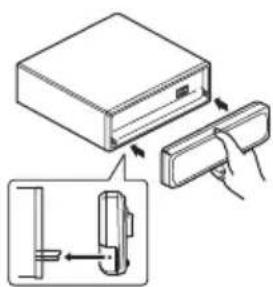
text_image
Diagram showing a device with a switch and its internal mechanism, including a close-up view of the switch.
Removing the front panel
1 Press OPEN to open the front panel.
2 Grip the left side of the front panel and pull it gently outward.
Take care not to grip it too tightly or to drop the front panel and protect it from contact with water or other fluids to prevent permanent damage.
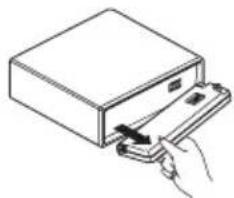
natural_image
Illustration of a hand inserting a card into a rectangular device (no text or symbols visible)3 Put the front panel into provided protective case for safe keeping.
text_image
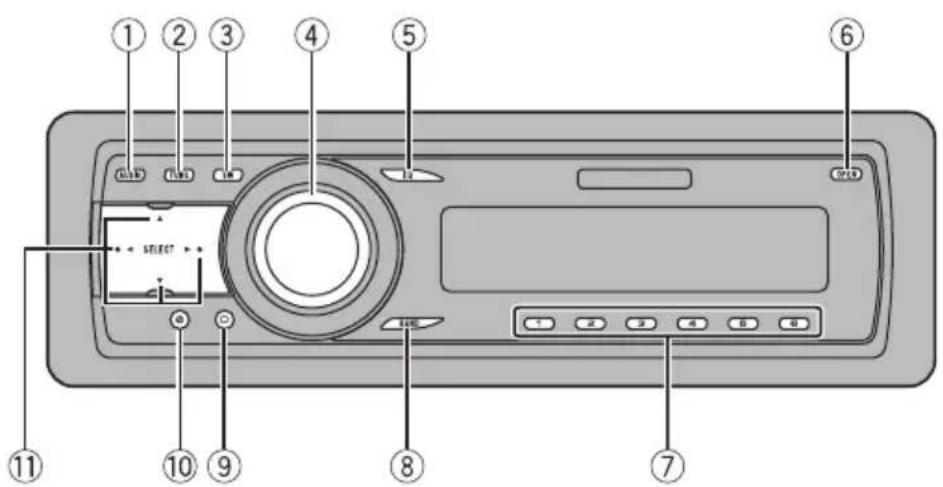
Diagram of a device rear panel with numbered labels pointing to key components like buttons, dials, and control buttons.Head unit
①AUDIO button
Press to select various sound quality controls.
②FUNCTION button
Press to select functions.
③SW button
Press to select the subwoofer setting menu. Press and hold to select the bass boost setting menu.
④SOURCE button, VOLUME
This unit is turned on by selecting a source.
Press to cycle through all the available sources.
Rotate it to increase or decrease the volume.
⑤EQ button
Press to select various equalizer curves.
⑥OPEN button
Press to open the front panel.
⑦1-6 buttons
Press for preset tuning and disc number search when using a multi-CD player.
⑧BAND button
Press to select among three FM bands and one AM band and to cancel the control mode of functions.
⑨DISPLAY button
Press to select different displays.
⑩CLOCK button
Press to change to the clock display.
set- ▲/▼/◄/► buttons
Press to perform manual seek tuning, fast forward, reverse and track search controls. Also used for controlling functions.
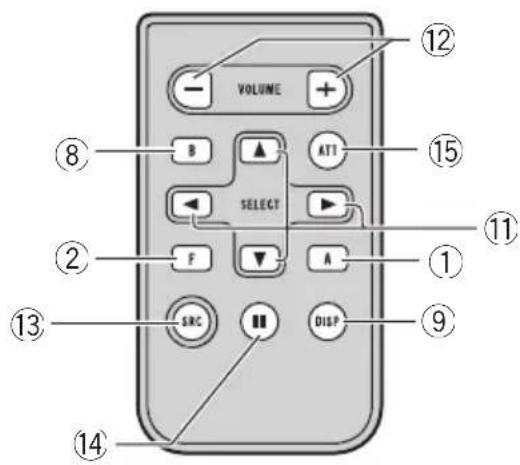
Remote control
Operation is the same as when using the buttons on the head unit. See the explanation of the head unit about the operation of each button with the exception of ATT and PAUSE, which is explained below.
⑫VOLUME button
Press to increase or decrease the volume.
text_image
VOLUME B ATT SELECT F A SRC DISP ⑧ ⑫ ① ⑪ ⑨ ⑭ ⑬ ⑭ ⑭⑬SOURCE button
This unit is turned on by selecting a source. Press to cycle through all the available sources.
⑭ PAUSE button
Press to turn pause on or off.
⑮ATT button
Press to quickly lower the volume level, by about 90%. Press once more to return to the original volume level.
Turning the unit on
Turning the unit off
- Press SOURCE to turn the unit on.
●Press SOURCE and hold until the unit
When you select a source, the unit is turned turns off. on.
Selecting a source
You can select a source you want to listen to. To switch to the built-in CD player, load a disc in the unit (refer to page 13).
- Press SOURCE to select a source.
Press SOURCE repeatedly to switch between the following sources:
Tuner—Television—Built-in CD player—Multi-CD player—External unit 1—External unit 2—AUX

Notes
- In the following cases, the sound source will not change:
—When there is no unit corresponding to the selected source connected to this unit.
—When there is no disc in the unit.
—When there is no magazine in the multi-CD player.
—When the AUX (auxiliary input) is set to off (refer to page 36).
- External unit refers to a Pioneer product (such as one available in the future) that, although incompatible as a source, enables control of basic functions by this unit. Two external units can be controlled by this unit. When two external units are connected, the allocation of them to external unit 1 or external unit 2 is automatically set by this unit.
- When this unit's blue/white lead is connected to the vehicle's auto-antenna relay control terminal, the vehicle's antenna extends when this unit's source is turned on. To retract the antenna, turn the source off.
Listening to the radio
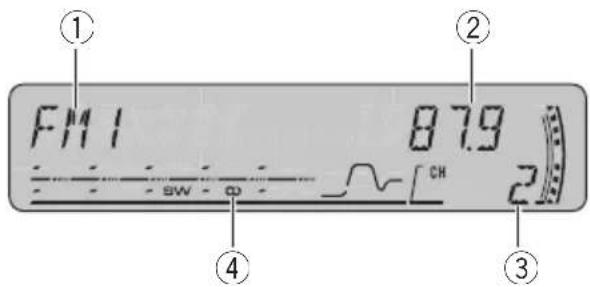
text_image
① F M I 87.9 ② SW ④ CH 2 ③These are the basic steps necessary to operate the radio. More advanced tuner operation is explained starting on the next page.
①Band indicator
Shows which band the radio is tuned to, or FM.
②Frequency indicator
Shows the frequency to which the tuner is tuned.
③Preset number indicator
Shows which preset has been selected.
④Stereo (○) indicator
Shows when the selected frequency is being broadcast in stereo.
1 Press SOURCE to select the tuner.
Press SOURCE until you see TUNER displayed.
2 Use VOLUME to adjust the sound level.
Rotate it to increase or decrease the volume.
3 Press BAND to select a band.
Press BAND until the desired band (FM1,
FM2, FM3 for FM or AM) is displayed.
4 To perform manual tuning, briefly press ◀or ▶.
The frequencies move up or down step by step.
5 To perform seek tuning, press and hold ◀or ▶for about one second and release.
The tuner will scan the frequencies until a broadcast strong enough for good reception is found.
- You can cancel seek tuning by briefly pressing a or ▶.
■ If you press and hold ◀ or ▶ you can skip stations. Seek tuning starts as soon as you release the button.

Note
When the frequency selected is being broadcast in stereo the stereo (○) indicator will light.
Tuner
Introduction of advanced tuner operation
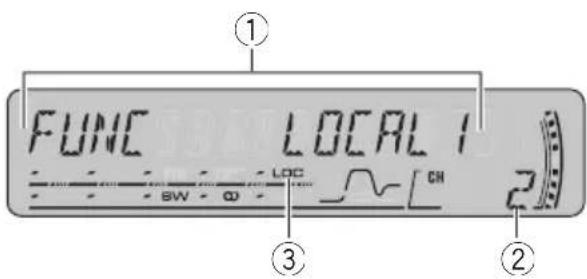
Shows which preset has been selected.
③LOC indicator
Shows when local seek tuning is on.
- Press FUNCTION to display the function names.
Press FUNCTION repeatedly to switch between the following functions:
BSM (best stations memory)—LOCAL (local seek tuning)
■To return to the frequency display, press BAND.

Note
If you do not operate the function within about 30 seconds, the display is automatically returned to the frequency display.
- When you find a frequency that you want to store in memory, press one of preset tuning buttons 1–6 and hold until the preset number stops flashing.
The number you have pressed will flash in the preset number indicator and then remain lit. The selected radio station frequency has been stored in memory.
The next time you press the same preset tuning button the radio station frequency is recalled from memory.

Notes
- Up to 18 FM stations, six for each of the three FM bands, and six AM stations can be stored in memory.
- You can also use ▲ and ▼ to recall radio station frequencies assigned to preset tuning buttons 1–6.
Tuning in strong signals
Local seek tuning lets you tune in only those radio stations with sufficiently strong signals for good reception.
1 Press FUNCTION to select LOCAL.
Press FUNCTION until LOCAL appears in the display.
2 Press ▲ to turn local seek tuning on.
^9 Local seek sensitivity (e.g., LOCAL 2) appears in the display.
3 Press ◀or ▶to set the sensitivity.
There are four levels of sensitivity for FM and two levels for AM:
Storing and recalling broadcast frequencies
If you press any of the preset tuning buttons AM: LOCAL 1—LOCAL 2
1-6 you can easily store up to six broadcast frequencies for later recall with the touch of a button.
The LOCAL 4 setting allows reception of only the strongest stations, while lower settings let you receive progressively weaker stations.
4 When you want to return to normal seek tuning, press ▼to turn local seek tuning off.
LOCAL:OFF appears in the display.
Storing the strongest broadcast frequencies
BSM (best stations memory) lets you automatically store the six strongest broadcast frequencies under preset tuning buttons 1–6. Once stored you can tune in to those frequencies with the touch of button.
1 Press FUNCTION to select BSM.
Press FUNCTION until BSM appears in the display.
2 Press ▲to turn BSM on.
BSM begins to flash. While BSM is flashing the six strongest broadcast frequencies will be stored under preset tuning buttons 1–6 in the order of their signal strength. When finished, BSM stops flashing.
■ To cancel the storage process, press ▼.

Note
Storing broadcast frequencies with BSM may replace broadcast frequencies you have saved using buttons 1-6.
Playing a CD
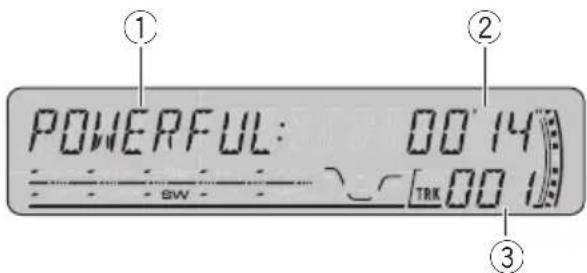
text_image
POWERFUL: 00'14 SW TRK 00 1 ① ② ③These are the basic steps necessary to play ■a If you select ROUGH, pressing and holding ◀ CD with your built-in CD player. More ad- or ▶ enables you to search every 10 tracks in the advanced CD operation is explained starting oncurrent disc. (Refer to Selecting the search method on page 15.)
①EQ indicator
Shows which equalizer curve is selected.
②Play time indicator
Shows the elapsed playing time of the rent track.
③Track number indicator
Shows the track currently playing.
1 Press OPEN to open the front panel.
CD loading slot appears.
■After a CD has been inserted, press SOURCE to select the built-in CD player.
2 Insert a CD into the CD loading slot.
Playback will automatically start.
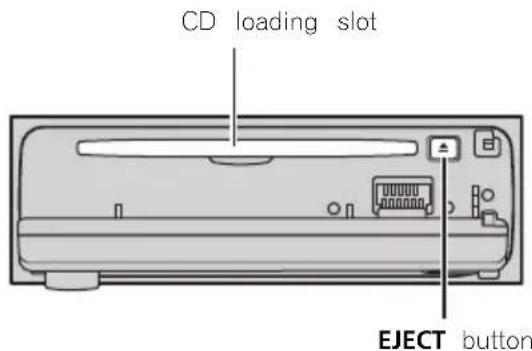
text_image
CD loading slot EJECT button■You can eject a CD by pressing EJECT.
■To avoid a malfunction, make sure that no metal object comes into contact with the terminals when the front panel is open.
3 Close the front panel.
4 Use VOLUME to adjust the sound level.
Rotate it to increase or decrease the volume.
5 To perform fast forward or reverse, press and hold ◀or ▶.
■a If you select ROUGH, pressing and holding ◀ or ▶ enables you to search every 10 tracks in the current disc. (Refer to Selecting the search method on page 15.)
6 To skip back or forward to another track, press ◀or ▶.
Pressing ▶ skips to the start of the next track. Pressing ◀ once skips to the start of the current track. Pressing again will skip to the previous track.

Notes
•The built-in CD player plays one standard, 12-cm or 8-cm CD at a time. Do not use an adapter when playing 8-cm CDs.
- Do not insert anything other than a CD into the CD loading slot.
- If you cannot insert a disc completely or if after you insert a disc the disc does not play, check that the label side of the disc is up. Press EJECT to eject the disc, and check the disc for damage before inserting it again.
- If an error message such as ERROR-11 is displayed, refer to Understanding built-in CD player error messages on page 39.
- When a CD TEXT disc is inserted, the disc and track titles begin to scroll to the left automatically.
Introduction of advanced built-in CD player operation
text_image
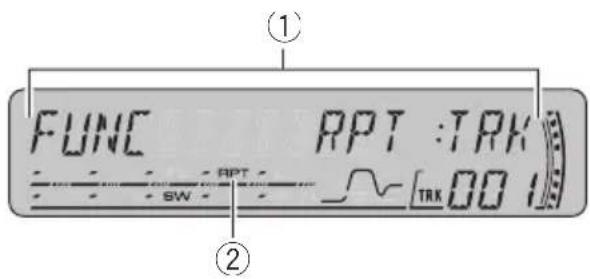
① FUNC RPT :TRK SW RPT ② TRK 00 1①Function display
Shows the function status.
②RPT indicator
Shows when repeat range is selected to rent track.
- Press FUNCTION to display the function names.
Press FUNCTION repeatedly to switch between the following functions:
RPT (repeat play)—RDM (random play)—SCAN (scan play)—PAUSE (pause)—COMP (compression and BMX)—FF/REV (search method)
■ To return to the playback display, press BAND.
2 Press ◀or ▶to select the repeat range.
This switches you to the selected setting.
•DSC –Repeat the current disc
- TRK -Repeat just the current track

Note
If you perform track search or fast forward/reverse during TRK, the repeat play range changes to DSC.
Playing tracks in random order
Random play lets you play back tracks on the CD in a random order.
cur-
1 Press FUNCTION to select RDM.
Press FUNCTION until RDM appears in the display.
2 Press ▲ to turn random play on.
RDM :ON appears in the display. Tracks will play in a random order.
3 Press ▼to turn random play off.
RDM :OFF appears in the display. Tracks will continue to play in order.

Note
If you do not operate the function within about 30
seconds, the display is automatically returned to
the playback display.
Scanning tracks of a CD
Scan play lets you hear the first 10 seconds each track on the CD.
Repeating play
Repeat play lets you hear the same track or disc over again.
1 Press FUNCTION to select RPT.
Press FUNCTION until RPT appears in the display.
1 Press FUNCTION to select SCAN.
Press FUNCTION until SCAN appears in the display.
2 Press ▲to turn scan play on.
SCAN :ON appears in the display. The first 10 seconds of each track is played.
3 When you find the desired track press ▼to turn scan play off.
SCAN :OFF appears in the display. The track will continue to play.
■If the display has automatically returned to the playback display, select SCAN again by ing FUNCTION.
enhances the playback of the track or CD that you are listening to.
1 Press FUNCTION to select COMP.
Press FUNCTION until COMP appears in the

Note
After scanning of a CD is finished, normal back of the tracks will begin again.
2 Press ▲or ▼to select your favorite setting.
Press ▲ or ▼ repeatedly to switch between the following settings:
COMP OFF—COMP 1—COMP 2— COMP OFF—BMX 1—BMX
Pausing CD playback
Pause lets you temporarily stop playback of the CD.
1 Press FUNCTION to select PAUSE.
Press FUNCTION until PAUSE appears in the display.
2 Press ▲ to turn pause on.
PAUSE:ON appears in the display. Play of current track pauses.
3 Press ▼to turn pause off.
PAUSE:OFF appears in the display. Play will sume at the same point that you turned p on.
Selecting the search method
You can switch the search method between fast forward/reverse and searching every 10 tracks.
1 Press FUNCTION to select FF/REV.
Press FUNCTION until FF/REV appears in the display.
If the search method ROUGH has been previously selected, ROUGH will be displayed.
2 Press ◀or ▶to select the search method.
apse Press ◀or ▶until the desired search method appears in the display.
- FF/REV -Fast forward and reverse
- ROUGH -Searching every 10 tracks
Using compression and BMX
Using the COMP (compression) and BMX functions let you adjust the sound playback quality of this player. Each of the functions has a two-step adjustment. The COMP function balances the output of louder and softer sounds at higher volumes. BMX controls sound reverberations to give playback a fuller sound. Listen to each of the effects as you select through them and use the one that best
Searching every 10 tracks the current disc
If a disc contains over 10 tracks, you can search every 10 tracks. When a disc contain many tracks, you can roughly search for the track you want to play.
1 Select the search method ROUGH.
Refer to Selecting the search method on the previous page.
2 Press and hold ◀or ▶to search every 10 tracks on a disc.
If a disc contains less than 10 tracks, pressing and holding ▶recalls the last track of the disc. Also, if the remaining number of tracks after searching every 10 tracks is less than 10, pressing and holding ▶recalls the last track of the 4 disc.
If a disc contains less than 10 tracks, pressing and holding ◀recalls the first track of the disc. Also, if the remaining number of tracks after searching every 10 tracks is less than 10, pressing and holding ◀recalls the first track of the disc.
Using disc title functions
You can input CD titles and display the title. The next time you insert a CD for which you have entered a title, the title of that CD will be displayed.
Entering disc titles
Use the disc title input feature to store up 48 CD titles in the unit. Each title can be 8 characters long.
1 Play the CD that you want to enter a title for.
in? Press FUNCTION and hold until TITLE IN appears in the display.
- When playing a CD TEXT disc, you cannot switch to TITLE IN. The disc title will have already been recorded on a CD TEXT disc.
3 Press ▲or ▼to select a letter of the alphabet.
Each press of ▲will display a letter of the alphabet in A B C ... X Y Z, numbers and symbols in 1 2 3 ... > [] order. Each press of ▼ will display a letter in the reverse order, such as Z Y X ... C B A order.
text_image
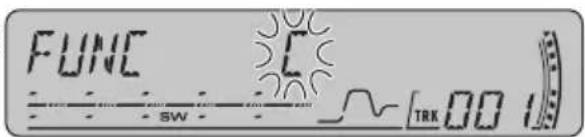
FUNC SW C TRK 00 14 Press ▶to move the cursor to the next character position.
When the letter you want is displayed, press ▶ to move the cursor to the next position and then select the next letter. Press ◀to move backwards in the display.
5 Move the cursor to the last position by pressing ▶ after entering the title.
When you press ▶one more time, the entered title is stored in memory.
6 Press BAND to return to the playback display.

Notes
- Titles remain in memory, even after the disc has been removed from the unit, and are recalled when the disc is reinserted.
After data for 48 discs has been stored in upmemory, data for a new disc will overwrite the oldest one. - If you connect a multi-CD player, you can input disc titles for up to 100 discs.
Displaying disc titles
You can display the text information of any disc that has had a disc title entered.
●Press DISPLAY.
Press DISPLAY repeatedly to switch between the following settings:
Play time—DISC TITLE (disc title)
When you select DISC TITLE, the title of the currently playing disc is shown in the display
■If no title has been entered for the currently playing disc, NO DISC TITLE is displayed.
Scrolling text information in the display
This unit can display the first 16 letters only of DISC TITLE, DISC ARTIST, TRACK TITLE and TRACK ARTIST. When the recorded information is longer than 16 letters, you can scroll the text to the left so that the rest of the title can be seen.
a) Press DISPLAY and hold until the title begins to scroll to the left.
The rest of the title will appear in the display.
Using CD TEXT functions
Some discs have certain information encoded on the disc during manufacture. These discs may contain such information as the CD title, track title, artist's name and playback time and are called CD TEXT discs. Only these specially encoded CD TEXT discs support the functions listed below.
Displaying text information on CD TEXT discs
●Press DISPLAY.
Press DISPLAY repeatedly to switch between the following settings:
Play time—DISC TITLE (disc title)
—DISC ARTIST (disc artist name)
—TRACK TITLE (track title)—TRACK ARTIST
(track artist name)
■If specific information has not been recorded on a CD TEXT disc, NO XXXX will be displayed (e.g., NO TRACK TITLE).
Playing MP3/WMA/WAV
text_image
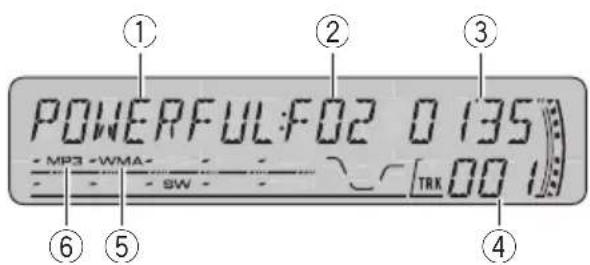
POWERFUL: F02 0 135 MP3 WMA SW TRK 00 1 ① ② ③ ④ ⑤ ⑥These are the basic steps necessary to play MP3/WMA/WAV with your built-in CD player. More advanced MP3/WMA/WAV operation is explained starting on page 20.

text_image
CD loading slot EJECT button- You can eject a CD-ROM by pressing EJECT. - avoid a malfunction, make sure that no metal object comes into contact with the terminals when the front panel is open.
3 Close the front panel.
4 Use VOLUME to adjust the sound level. Rotate it to increase or decrease the volume.
①EQ indicator
Shows which equalizer curve is selected.
②Folder number indicator
Shows the number of folder currently playing.
③Play time indicator
Shows the elapsed playing time of the rent track (file).
④Track number indicator
Shows the track (file) currently playing.
⑤WMA indicator
Shows when a WMA file is playing.
⑥MP3 indicator
Shows when an MP3 file is playing.
1 Press OPEN to open the front panel. CD loading slot appears.
■After a CD-ROM has been inserted, press SOURCE to select the built-in CD player.
2 Insert a CD-ROM into the CD loading slot.
Playback will automatically start.
5 Press ▲or ▼to select a folder.
- You cannot select a folder that does not have an MP3/WMA/WAV file recorded in it. - To return to folder 01 (ROOT), press and hold BAND. However, if folder 01 (ROOT) contains no files, playback commences with folder 02.
6 To perform fast forward or reverse, press and hold ◀or ▶.
- This is fast forward and reverse operation only for the file being played. - If you select ROUGH, pressing and holding ▶ or ▶ enables you to search every 10 tracks in the current folder. (Refer to Selecting the search method on page 22.)
7 To skip back or forward to another track, press ◀or ▶.
Pressing ▶ skips to the start of the next track. Pressing ◀ once skips to the start of the current track. Pressing again will skip to the previous track.

Notes
- When playing discs with MP3/WMA/WAV files and audio data (CD-DA) such as CD-EXTRA and MIXED-MODE CDs, both types can be played only by switching mode between MP3/WMA/WAV and CD-DA with BAND.
- If you have switched between playback of MP3/WMA/WAV files and audio data (CD-DA), playback starts at the first track on the disc.
- The built-in CD player can play back an MP3/WMA/WAV file recorded on CD-ROM. (Refer to page 40 for files that can be played back.)
- Do not insert anything other than a CD into the CD loading slot.
- There is sometimes a delay between starting up CD playback and the sound being issued. When being read, FORMAT READ is displayed.
- If you cannot insert a disc completely or if after you insert a disc the disc does not play, check that the label side of the disc is up. Press EJECT to eject the disc, and check the disc for damage before inserting it again.
- Playback is carried out in order of file number. Folders are skipped if they contain no files. (If folder 01 (ROOT) contains no files, playback commences with folder 02.)
- When playing back files recorded as VBR (variable bit rate) files, the play time will not be correctly displayed if fast forward or reverse operations are used.
- If the inserted disc contains no files that can be played back, NO AUDIO is displayed.
- If the inserted disc contains WMA files that are protected by digital rights management (DRM), SKIPPED is displayed while the protected file is skipped.
- If all the files on the inserted disc are secured by DRM, PROTECT is displayed.
- There is no sound on fast forward or reverse.
- If an error message such as ERROR-11 is displayed, refer to Understanding built-in CD player error messages on page 39.
- When an MP3/WMA/WAV disc is inserted, folder name and file name begin to scroll to the left automatically.
Introduction of advanced built-in CD player (MP3/WMA/WAV) operation
text_image
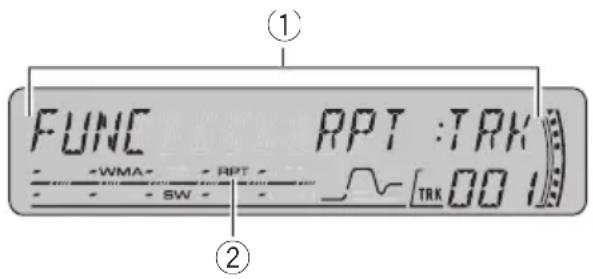
① FUNC RPT :TRK WMA RPT SW TRK 00 12 ②①Function display
Shows the function status.
②RPT indicator
Shows when repeat range is selected to rent track (file).
- Press FUNCTION to display the function names.
Press FUNCTION repeatedly to switch between the following functions:
RPT (repeat play)—RDM (random play)—SCAN (scan play)—PAUSE (pause)—COMP (compression and BMX)—FF/REV (search method)
■ To return to the playback display, press BAND.

Note
If you do not operate the function within about Refer to Repeating play on this page. seconds, the display is automatically returned to the playback display. 2 Press FUNCTION to select RDM.
Repeating play
For MP3/WMA/WAV playback, there are three repeat play ranges: FLD (folder repeat), TRK (one-track repeat) and DSC (repeat all tracks)
1 Press FUNCTION to select RPT.
Press FUNCTION until RPT appears in the display.
2 Press ◀or ▶to select the repeat range.
Press ◀or ▶until the desired repeat range appears in the display.
- FLD -Repeat the current folder
- TRK -Repeat just the current track
•DSC –Repeat all tracks

Notes
- If you select another folder during repeat play, the repeat play range changes to DSC.
- If you perform track search or fast forward/reverse during TRK, the repeat play range changes to FLD.
When FLD is selected, it is not possible to play back a subfolder of that folder. - When you select FLD for the repeating range and return to the playback display, FRPT is displayed.
Playing tracks in random order
Random play lets you play back tracks in a random order within the repeat range, FLD and DSC.
1 Select the repeat range.
Refer to Repeating play on this page.
2 Press FUNCTION to select RDM.
Press FUNCTION until RDM appears in the display.
3 Press ▲ to turn random play on.
RDM :ON appears in the display. Tracks will play in a random order within the previously selected FLD or DSC ranges.
4 Press ▼to turn random play off.
RDM :OFF appears in the display. Tracks will continue to play in order.
- If you turn scan play on during FLD and the I return to the playback display, FSCN appears in the display.

Note
If you turn random play on during FLD and the return to the playback display, FRDM appears in the display.
Pausing MP3/WMA/WAV playback
Pause lets you temporarily stop playback of the MP3/WMA/WAV.
Scanning folders and tracks
While you are using FLD, the beginning of each track in the selected folder plays for about 10 seconds. When you are using DSC, the beginning of the first track of each fold is played for about 10 seconds.
1 Press FUNCTION to select PAUSE.
Press FUNCTION until PAUSE appears in the display.
DSC
2 Press ▲to turn pause on.
PAUSE:ON appears in the display. Play of the current track pauses.
1 Select the repeat range.
Refer to Repeating play on page 25.
2 Press FUNCTION to select SCAN.
Press FUNCTION until SCAN appears in the display.
3 Press ▼to turn pause off.
PAUSE:OFF appears in the display. Play will resume at the same point that you turned pause on.
3 Press ▲to turn scan play on.
SCAN :ON appears in the display. The first seconds of each track of the current folder the first track of each folder) is played.
4 When you find the desired track (or folder) press ▼to turn scan play off.
SCAN :OFF appears in the display. The track (or disc) will continue to play.
■If the display has automatically returned to the playback display, select SCAN again by pressing FUNCTION.
Using compression and BMX
Using the COMP (compression) and BMX functions let you adjust the sound playback quality of this player. Each of the functions has a two-step adjustment. The COMP function balances the output of louder and softer sounds at higher volumes. BMX controls sound reverberations to give playback a fuller sound. Listen to each of the effects as you see through them and use the one that best enhances the playback of the track or CD that you are listening to.

Notes
1 Press FUNCTION to select COMP.
- After track or folder scanning is finished, nor-Press FUNCTION until COMP appears in the mal playback of the tracks will begin again. display.
2 Press ▲or ▼to select your favorite setting.
Press ▲or ▼repeatedly to switch between following settings:
COMP OFF—COMP 1—COMP 2—
COMP OFF—BMX 1—BMX
Selecting the search method
You can switch the search method between fast forward/reverse and searching every 10 tracks.
2 Press and hold ◀or ▶to search every 10 tracks in the current folder.
If the current folder contains less than 10 tracks, pressing and holding ▶recalls the last track of the folder. Also, if the remaining number of tracks after searching every 10 tracks is less than 10, pressing and holding ▶recalls the last track of the folder.
■If the current folder contains less than 10 tracks, pressing and holding ◀recalls the first track of the folder. Also, if the remaining number of tracks after searching every 10 tracks is less than 10, pressing and holding ◀recalls the first track of the folder.
1 Press FUNCTION to select FF/REV.
Press FUNCTION until FF/REV appears in the display.
■If the search method ROUGH has been previously selected, ROUGH will be displayed.
2 Press ◀or ▶to select the search method.
Press ◀or ▶until the desired search method appears in the display.
- FF/REV –Fast forward and reverse
- ROUGH -Searching every 10 track
Displaying text information on MP3/WMA/WAV disc
Text information recorded on an MP3/WMA/WAV disc can be displayed.
When playing back an MP3/WMA disc
●Press DISPLAY.
Press DISPLAY repeatedly to switch between the following settings:
Play time—FOLDER (folder name)—FILE (file
name)—TRACK TITLE (track title)—ARTIST
(artist name)—ALBUM (album title)
Searching every 10 tracks the current folder
inPlay time—FOLDER (folder name)—FILE (file
—COMMENT (comment)—Bit rate
If the current folder contains over 10 tracks, you can search every 10 tracks. When one folder contains a lot of tracks, you can rough search for the track you want to play.
1 Select the search method ROUGH.
Refer to Selecting the search method on this page.
- When playing back MP3 files recorded as VBR (variable bit rate) files, the bit rate value is not c played even after switching to bit rate.
- When playing back WMA files recorded as VBR (variable bit rate) files, the average bit rate value is displayed.
■If specific information has not been recorded on an MP3/WMA disc, NO XXXX will be displayed (e.g., NO NAME).
- Depending on the version of iTunesed to write MP3 files onto a disc, comment information may not be correctly displayed.
■iTunes ^® is a trademark of Apple Computer, Inc., registered in the U.S. and other countries.
■Depending on the version of Windows Media Player used to encode WMA files, album names and other text information may not be correctly displayed.

Note
Unlike MP3 and WMA file format, WAV files display only FOLDER and FILE.
When playing back a WAV disc
●Press DISPLAY.
Press DISPLAY repeatedly to switch between the following settings:
Play time—FOLDER (folder name)—FILE (file name)—Sampling frequency
■If specific information has not been recorded on a WAV disc, NO XXXX will be displayed (e.g.,
NO NAME).
■You can only play back WAV files in the frequencies 16, 22.05, 24, 32, 44.1 and 48 kHz (LPCM), or 22.05 and 44.1 kHz (MS ADPCM). The sampling frequency shown in the display may be rounded.
Scrolling text information in the display
This unit can display the first 16 letters only of FOLDER, FILE, TRACK TITLE, ARTIST, ALBUM
and COMMENT. When the recorded information is longer than 16 letters, you can scroll the text to the left so that the rest of the text information can be seen.
- Press DISPLAY and hold until the text information begins to scroll to the left.
The rest of the text information will appear in the display.
Playing a CD
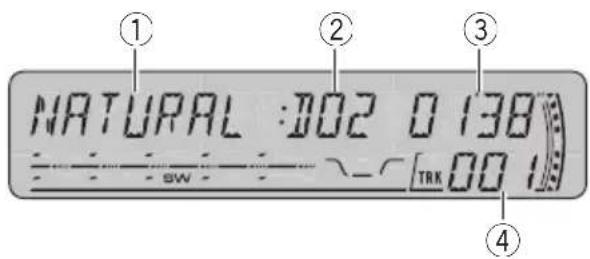
text_image
NATURAL :002 0 138 SW TRK 00 1You can use this unit to control a multi-CD player, which is sold separately.
These are the basic steps necessary to play CD with your multi-CD player. More advance CD operation is explained starting on the next page.
①EQ indicator
Shows which equalizer curve is selected.
②Disc number indicator
Shows the disc currently playing.
③Play time indicator
Shows the elapsed playing time of the current track.
④Track number indicator
Shows the track currently playing.
1 Press SOURCE to select the multi-CD player.
Press SOURCE until you see MULTI CD displayed.
2 Use VOLUME to adjust the sound level.
Rotate it to increase or decrease the volume.
3 Select a disc you want to listen to with the 1-6 buttons.
For discs 1 to 6, press the corresponding button number.
For discs 7 to 12, press and hold the corresponding numbers, such as 1 for disc 7, until the disc number appears in the display.
■You can also sequentially select a disc by pressing ▲/▼.
4 To perform fast forward or reverse, press and hold ◀or ▶.
5 To skip back or forward to another track, press ◀or ▶.
Pressing ▶ skips to the start of the next track. Pressing ◀ once skips to the start of the current track. Pressing again will skip to the previous track.

Notes
- When the multi-CD player performs the preparatory operations, READY is displayed.
- If an error message such as ERROR-11 is displayed, refer to the multi-CD player owner's manual.
- If there are no discs in the multi-CD player magazine, NO DISC is displayed.
When you select a CD TEXT disc on a CD TEXT compatible multi-CD player, the disc and track titles begin to scroll to the left automatically.
50-disc multi-CD player
Only those functions described in this manual are supported by 50-disc multi-CD players.


Introduction of advanced multi-CD player operation
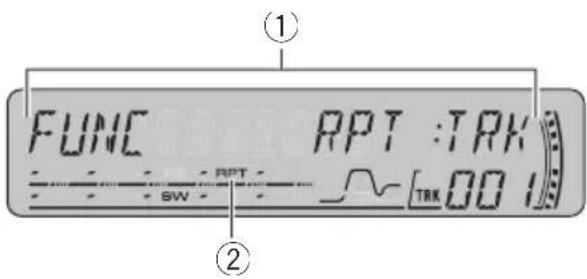
text_image
① FUNC RPT :TRK SW - RPT - [TRK 00 1] ②①Function display
Shows the function status.
②RPT indicator
Shows when repeat range is selected to rent track.
- Press FUNCTION to display the function names.
Press FUNCTION repeatedly to switch between the following functions:
RPT (repeat play)—RDM (random play)—SCAN (scan play)—ITS-P (ITS play)—PAUSE (pause)—COMP (compression and DBE)
■ To return to the playback display, press BAND.

Note
If you do not operate the function within about 30 seconds, the display is automatically returned to display. the playback display.
Repeating play
There are three repeat play ranges for the multi-CD player: MCD (multi-CD player repeat), TRK (one-track repeat) and DSC (disc peat).
1 Press FUNCTION to select RPT.
Press FUNCTION until RPT appears in the display.
2 Press ◀or ▶to select the repeat range.
Press ◀or ▶until the desired repeat range appears in the display.
- MCD – Repeat all discs in the multi-CD player magazine
- TRK -Repeat just the current track
•DSC –Repeat the current disc

Notes
- If you select other discs during repeat play, the repeat play range changes to MCD.
- If you perform track search or fast forward/reverse during TRK, the repeat play range changes to DSC.
- When you select DSC for the repeating range and return to the playback display, DRPT is displayed.
Playing tracks in random order
Random play lets you play back tracks in random order within the repeat range, MCD and DSC.
1 Select the repeat range.
Refer to Repeating play on this page.
2 Press FUNCTION to select RDM.
Press FUNCTION until RDM appears in the display.
3 Press ▲to turn random play on.
RDM :ON appears in the display. Tracks will play in a random order within the previously selected MCD or DSC ranges.
4 Press ▼to turn random play off.
RDM :OFF appears in the display. Tracks will re-continue to play in order.

Note
If you turn random play on during DSC and return to the playback display, DRDM appears the display.
Pausing CD playback
Pause lets you temporarily stop playback of the CD. 1 Press FUNCTION to select PAUSE.
Press FUNCTION until PAUSE appears in the display.
Scanning CDs and tracks
While you are using DSC, the beginning of each track on the selected disc plays for a 10 seconds. When you are using MCD, the beginning of the first track of each disc is p for about 10 seconds.
2 Press ▲ to turn pause on.
PAUSE:ON appears in the display. Play of the current track pauses.
3 Press ▼to turn pause off.
PAUSE:OFF appears in the display. Play will resume at the same point that you turned pause on.
1 Select the repeat range.
Refer to Repeating play on the previous page.
2 Press FUNCTION to select SCAN.
Press FUNCTION until SCAN appears in the display.
3 Press ▲to turn scan play on.
SCAN :ON appears in the display. The first seconds of each track of the current disc the first track of each disc) is played.
4 When you find the desired track (or disc) press ▼to turn scan play off.
SCAN :OFF appears in the display. The track (or disc) will continue to play.
■If the display has automatically returned to the playback display, select SCAN again by ing FUNCTION.

Notes
• After track or disc scanning is finished, normal playback of the tracks will begin again.
- If you turn scan play on during DSC and then return to the playback display, DSCN appears in the display.
Using ITS playlists
ITS (instant track selection) lets you make a playlist of favorite tracks from those in the multi-CD player magazine. After you have added your favorite tracks to the playlist you can turn on ITS play and play just those selections.
Creating a playlist with ITS programming
You can use ITS to enter and play back up to 500 tracks per disc from up to 100 discs (with the disc titles). (With multi-CD players sold before the CDX-P1250 and CDX-P650, up to 24 tracks can be stored in the playlist.)
1 Play a CD that you want to program. Press ▲or ▼to select the CD.
^S2 Press FUNCTION and hold until TITLE IN appears in the display, then press FUNCTION to select ITS.
After TITLE IN is displayed, press FUNCTION repeatedly, the following functions appear in the display:
TITLE IN (disc title input)—ITS (ITS programming)
3 Select the desired track by pressing ◀ or ▶.
4 Press ▲ to store the currently playing track in the playlist.
ITS IN is displayed briefly and the currently playing selection is added to your playlist. display then shows ITS again.
5 Press BAND to return to the playback display.

Note
After data for 100 discs has been stored in more. After ory, data for a new disc will overwrite the oldest until one.
Erasing a track from your ITS playlist
You can delete a track from your ITS playlist if ITS play is on.
If ITS play is already on, skip to step 2. If ITS play is not already on, press FUNCTION.
1 Play the CD with the track you want to delete from your ITS playlist, and turn ITS play on.
Refer to Playback from your ITS playlist on this page.
2 Press FUNCTION and hold until TITLE IN appears in the display, then press FUNCTION to select ITS.
After TITLE IN is displayed, press FUNCTION until ITS appears in the display.
3 Select the desired track by pressing ◀ or ▶.
Playback from your ITS playlist
ITS play lets you listen to the tracks that y have entered into your ITS playlist. When yo
turn on ITS play, tracks from your ITS play in the multi-CD player will begin to play.
1 Select the repeat range.
Refer to Repeating play on page 25.
2 Press FUNCTION to select ITS-P.
Press FUNCTION until ITS-P appears in the display.
- Press ▼to erase the track from your ITS playlist.
The currently playing selection is erased from your ITS playlist and playback of the next track from your ITS playlist begins.
■If there are no tracks from your playlist in the current range, EMPTY is displayed and normal play resumes.
5 Press BAND to return to the playback display.
3 Press ▲to turn ITS play on.
ITS-P:ON appears in the display. Playback be Erasing a CD from your ITS playlist gins of those tracks from your playlist within You can delete all tracks of a CD from your ITS the previously selected MCD or DSC ranges. playlist if ITS play is off.
■If no tracks in the current range are programmed for ITS play, then EMPTY is displayed1 Play the CD that you want to delete.
Press ▲or ▼to select the CD.
4 Press ▼to turn ITS play off.
ITS-P:OFF appears in the display. Playback will continue in normal order from the currently playing track and CD.
2 Press FUNCTION and hold until TITLE IN appears in the display, then press FUNCTION to select ITS.
After TITLE IN is displayed, press FUNCTION until ITS appears in the display.
3 Press ▼to erase all tracks on the currently playing CD from your ITS playlist.
All tracks on the currently playing CD are erased from your playlist and ITS CLR is displayed.
4 Press BAND to return to the playback display.
Using disc title functions
You can input CD titles and display the titles.
Then you can easily search for and play a sired disc.
Entering disc titles
Use the disc title input feature to store up
100 CD titles (with ITS playlist) into the mu
CD player. Each title can be up to 8 characters
long.
1 Play the CD that you want to enter a title for.
Press ▲or ▼to select the CD.
2 Press FUNCTION and hold until TITLE IN appears in the display.
After TITLE IN is displayed, press FUNCTION repeatedly, the following functions appear in the display:
TITLE IN (disc title input)—ITS (ITS programming)
■When playing a CD TEXT disc on a CD TEXT
compatible multi-CD player, you cannot switch t
TITLE IN. The disc title has already been recorded on a CD TEXT disc.
3 Press ▲or ▼to select a letter of the alphabet.
Each press of ▲will display a letter of the alphabet in A B C ... X Y Z, numbers and symbols in 1 2 3 ... > [ ] order. Each press of ▼ will display a letter in the reverse order, such as Z Y X ... C B A order.
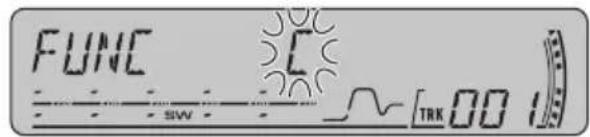
text_image
FUNC SW C TRK 004 Press ▶to move the cursor to the next character position.
When the letter you want is displayed, press ▶ to move the cursor to the next position and then select the next letter. Press ◀to move backwards in the display.
^5 Move the cursor to the last position by pressing ▶ after entering the title.
When you press ▶one more time, the entered title is stored in memory.
6°Press BAND to return to the playback display.

Notes
- Titles remain in memory, even after the disc has been removed from the magazine, and are recalled when the disc is reinserted.
• After data for 100 discs has been stored in memory, data for a new disc will overwrite the oldest one.
Displaying disc titles
You can display the text information of any disc that has had a disc title entered.
t●Press DISPLAY.
Press DISPLAY repeatedly to switch between the following settings:
Play time—DISC TITLE (disc title)
When you select DISC TITLE, the title of the currently playing disc is shown in the display. Press DISPLAY and hold until the title begins to scroll to the left.
■If no title has been entered for the currently The rest of the title will appear in the displaying disc, NO DISC TITLE is displayed. play.
Using CD TEXT functions
You can use these functions only with a CD TEXT compatible multi-CD player.
Some discs have certain information encoded on the disc during manufacture. These discs may contain such information as the CD title track title, artist's name and playback time and are called CD TEXT discs. Only these socially encoded CD TEXT discs support the functions listed below.
Displaying text information on CD TEXT discs
●Press DISPLAY.
Press DISPLAY repeatedly to switch between the following settings:
Play time—DISC TITLE (disc title)
—DISC ARTIST (disc artist name)
—TRACK TITLE (track title)—TRACK ARTIST (track artist name)
■If specific information has not been recorded on a CD TEXT disc, NO XXXX will be displayed (e.g., NO TRACK TITLE).
Scrolling text information in the display
This unit can display the first 16 letters only of DISC TITLE, DISC ARTIST, TRACK TITLE and
TRACK ARTIST. When the recorded informa-
tion is longer than 16 letters, you can scroll
the text to the left so that the rest of the title can be seen.
Using compression and bass emphasis
You can use these functions only with a multi-CD player that supports them.
Using COMP (compression) and DBE (dy- hamic bass emphasis) functions lets you adjust the sound playback quality of the multi- CD player. Each of the functions has a two- step adjustment. The COMP function balances the output of louder and softer sounds at higher volumes. DBE boosts bass levels to give playback a fuller sound. Listen to each of the effects as you select them and use the one that best enhances the playback of the track or CD that you are listening to.
1 Press FUNCTION to select COMP.
Press FUNCTION until COMP appears in the display.
■If the multi-CD player does not support COMP/DBE, NO COMP is displayed when you attempt to select it.
2 Press ▲or ▼to select your favorite setting.
Press ▲ or ▼ repeatedly to switch between the following settings:
Introduction of audio adjustments

text_image
AUDIO FAD : F 1 ① ⑤ ④ ③ ② SW CSTM TRK 002①Audio display
Shows the audio adjustment status.
②CUSTOM indicator
Shows when custom equalizer curve is currently selected.
③FIE indicator
Shows when the front image enhancer is turned on.
④SW indicator
Shows when the subwoofer output is turned on.
⑤Loudness indicator
Appears in the display when loudness is turned on.
- Press AUDIO to display the audio function names.
Press AUDIO repeatedly to switch between the following audio functions:
FAD (balance adjustment)—EQ (equalizer curve adjustment)—LOUD (loudness)
—SUB W (subwoofer on/off setting)—80: 0
(subwoofer setting)—HPF (high pass filter)
—BASS (bass boost)—FIE (front image enhancer)—SLA (source level adjustment)
■When the subwoofer controller setting is
P/O :FUL, you cannot switch to SUB W. (Refer page 36.)
■You can select the 80: 0 only when subwoofer output is turned on in SUB W.
■When selecting the FM tuner as the source, you cannot switch to SLA.
■To return to the display of each source, press BAND.

Note
If you do not operate the audio function within about 30 seconds, the display is automatically returned to the source display.
Using balance adjustment
You can select a fader/balance setting that provides an ideal listening environment in all occupied seats.
1 Press AUDIO to select FAD.
Press AUDIO until FAD appears in the display.
■If the balance setting has been previously adjusted, BAL will be displayed.
2 Press ▲or ▼to adjust front/rear speaker balance.
Each press of ▲or ▼moves the front/rear speaker balance towards the front or the rear. FAD :F15 -FAD :R15 is displayed as the front/ rear speaker balance moves from front to rear.
■FAD : 0 is the proper setting when only two speakers are used.
- When the rear output setting is R-SP:S/W, you cannot adjust front/rear speaker balance. Refer to Setting the rear output and subwoofer controller on page 36.
3 Press ◀or ▶to adjust left/right speaker balance.
When you press ◀ or ▶, BAL:0 is displayed.
Each press of ◀or ▶moves the left/right speaker balance towards the left or the right.
BAL : L15 -BAL : R15 is displayed as the left/right speaker balance moves from left to right.
Using the equalizer
The equalizer lets you adjust the equalization to match car interior acoustic characteristics as desired.
Recalling equalizer curves
There are six stored equalizer curves which you can easily recall at any time. Here is of the equalizer curves:
Display Equalizer curve
| SUPER BASS Super bass |
| POWERFUL Powerful |
| NATURAL Natural |
| VOCAL Vocal |
| CUSTOM Custom |
| EQ FLAT Flat |
- CUSTOM is an adjusted equalizer curve that you create. If you make adjustments an equalizer curve, the equalizer curve setting will be memorized in CUSTOM.
- When EQ FLAT is selected no supplement or correction is made to the sound. This useful to check the effect of the equalizer curves by switching alternatively between EQ FLAT and a set equalizer curve.
- Press EQ to select the equalizer.
Press EQ repeatedly to switch between the following equalizers:
SUPER BASS—POWERFUL—NATURAL—VOCAL—CUSTOM—EQ FLAT
Adjusting equalizer curves
You can adjust the currently selected equalizer curve setting as desired. Adjusted equalizer curve settings are memorized in CUSTOM.
2 Press ◀ or ▶ to select the equalizer band to adjust.
^1 Each press of ◀or ▶ selects equalizer bands in the following order:
EQ-L (low)—EQ-M (mid)—EQ-H (high)
3 Press ▲ or ▼ to adjust the level of the equalizer band.
Each press of ▲or ▼increases or decreases the list level of the equalization band.
+6 - -6 is displayed as the level is increased or decreased.
- You can then select another band and adjust the level.

Note
If you make adjustments, CUSTOM curve is updated.
Fine-adjusting equalizer curve
You can adjust the center frequency and the Q factor (curve characteristics) of each currently selected curve band (EQ-L/EQ-M/EQ-H).

line
| Frequency (Hz) | Q=2N Current (dB) | Q=2W Current (dB) | | -------------- | ----------------- | ----------------- | | 0 | 0 | 0 | | Peak | ~1.5 | ~1.8 | | Q=2N | ~1.5 | ~1.8 | | Q=2W | ~1.5 | ~1.8 |1 Press AUDIO and hold until frequency and the Q factor (e.g., F-80:Q1W) appears in the display.
2 Press AUDIO to select the band for adjustment from among low, mid and high.
Press AUDIO repeatedly to switch between the following functions: Low—Mid—High
1 Press AUDIO to select EQ.
Press AUDIO until EQ appears in the display.
3 Press ◀or ▶to select the desired frequency.
Press ◀or ▶until the desired frequency appears in the display.
4 Press ▲or ▼to select the desired Q factor.
Press ▲or ▼until the desired Q factor appears in the display.
2N—1N—1W—2W

Note
If you make adjustments, CUSTOM curve is updated.
1 Press SW to select SUB W.
SUB W appears in the display.
■You can also select the subwoofer setting menu by pressing AUDIO on the unit.
■When the subwoofer controller setting is
P/O :FUL, you cannot select SUB W.
2 Press ▲to turn subwoofer output on.
SUB W:NOR appears in the display. Subwoofer output is now on.
■If the subwoofer output phase has been set to the reverse, SUB W:REV will be displayed.
■ To turn subwoofer output off, press ▼.
3 Press ◀or ▶to select the phase of subwoofer output.
*Press ◀to select reverse phase and REV ap- pears in the display. Press ▶to select normal phase and NOR appears in the display.
Adjusting loudness
Loudness compensates for deficiencies in the low- and high-sound ranges at low volume.
1 Press AUDIO to select LOUD.
Press AUDIO until LOUD appears in the display.
2 Press ▲ to turn loudness on.
Loudness level (e.g., LOUD :MID) appears in the display.
3 Press ◀or ▶to select a desired level.
Each press of ◀or ▶selects level in the lowing order:
LOW (low)—MID (mid)—HI (high)
4 Press ▼to turn loudness off.
LOUD :OFF appears in the display.
Using subwoofer output
This unit is equipped with a subwoofer output which can be turned on or off.
Adjusting subwoofer settings
^a When the subwoofer output is on, you can adjust the cut-off frequency and the output level of the subwoofer.
1 Press SW to select 80: 0.
Press SW until 80: 0 appears in the display.
■You can also select the subwoofer setting menu by pressing AUDIO on the unit.
■When the subwoofer output is on, you can select 80: 0.
■If the subwoofer setting has been previously adjusted, the frequency of that previously selected will be displayed instead of 80.
2 Press ◀or ▶to select cut-off frequency.
Each press of ◀or ▶selects cut-off frequencies in the following order:
Only frequencies lower than those in the selected range are outputted from the subwoofer.
3 Press ▲or ▼to adjust the output level of the subwoofer.
Each press of ▲or ▼increases or decreases the level of the subwoofer. +6 - -24 is displayed as the level is increased or decreased.
subwoofer, the sound under the cut-off frequency is boosted.
Using the high pass filter
When you do not want low sounds from the subwoofer output frequency range to play from the front or rear speakers, turn on the HPF (high pass filter). Only frequencies higher than those in the selected range are output from the front or rear speakers.
1 Press AUDIO to select BASS.
Press AUDIO until BASS appears in the display.
■You can also select the bass boost setting by pressing and holding SW.
2 Press ▲or ▼to select a desired level.
0 -6 is displayed as the level is increased or decreased.
1 Press AUDIO to select HPF.
Press AUDIO until HPF appears in the displ
Front image enhancer (F.I.E.)
The F.I.E. (Front Image Enhancer) function is a simple method of enhancing front imaging by cutting mid- and high-range frequency output from the rear speakers, limiting their output to low-range frequencies. You can select the fre-
2 Press ▲to turn high pass filter on.
HPF : 80 appears in the display. High passer is now on.
dulency you want to cut.
■If the high pass filter has been previously adjusted, the frequency of that previously selected will be displayed instead of HPF : 80.
■ To turn high pass filter off, press ▼.

Precaution
When the F.I.E. function is deactivated, the rear speakers output sound of all frequencies, not just bass sounds. Reduce the volume before disengaging F.I.E. to prevent a sudden increase in volume.
3 Press ◀or ▶to select cut-off frequency.
Each press of ◀or ▶selects cut-off frequencies in the following order:
Only frequencies higher than those in the selected range are outputted from the front or rear speakers.
1 Press AUDIO to select FIE.
Press AUDIO until FIE appears in the display.
- When the rear output setting is R-SP:S/W, you cannot select F.I.E. function.
2 Press ▲to turn F.I.E. on.
■To turn F.I.E. off, press ▼.
Boosting the bass
Bass boost function boosts the bass level of sound lower than 100 Hz. The more the bass level is increased, the more the bass sound, emphasized and the entire sound becomes powerful. When using this function with the
3 Press ◀or ▶to select a desired frequency.
Each press of ◀or ▶selects frequency in the following order:
100—160—250 (Hz)

Notes
- After turning the F.I.E. function on, use the balance adjustment (refer to page 30) and adjust front and rear speaker volume levels until they are balanced.
- Turn the F.I.E. function off when using a 2-speaker system
Adjusting source levels
SLA (source level adjustment) lets you adjust the volume level of each source to prevent radical changes in volume when switching between sources.
- Settings are based on the FM tuner volume level, which remains unchanged.
1 Compare the FM tuner volume level with the level of the source you wish to adjust.
2 Press AUDIO to select SLA.
Press AUDIO until SLA appears in the display.
3 Press ▲or ▼to adjust the source volume.
Each press of ▲or ▼increases or decreases the source volume.
SLA: +4 – SLA: -4 is displayed as the source volume is increased or decreased.

Notes
- Since the FM tuner volume is the control, it is not possible to apply source level adjustments to the FM tuner.
- The AM tuner volume level can also be adjusted with source level adjustments.
- The built-in CD player and the multi-CD player are set to the same source level adjustment volume automatically.
- External unit 1 and external unit 2 are set to the same source level adjustment volume automatically.
Initial Settings
Adjusting initial settings

text_image
INITIAL 12:00Using the initial settings, you can customize various system settings to achieve optimal performance from this unit.
①Function display
Shows the function status.
1 Press SOURCE and hold until the unit turns off.
2 Press SOURCE and hold again until the clock appears in the display.
3 Press FUNCTION to select one of the initial settings.
Press FUNCTION repeatedly to switch between the following settings:
Clock—FM (FM tuning step)—AM (AM tuning step)—WARN (warning tone)—AUX (auxiliary
input)—R-SP (rear output and subwoofer controller)
Use the following instructions to operate each particular setting.
■To cancel initial settings, press BAND.
■You can also cancel initial settings by holding down SOURCE until the unit turns off.
Setting the clock
Use these instructions to set the clock.
1 Press FUNCTION to select clock.
Press FUNCTION repeatedly until clock appears in the display.
2 Press ◀or ▶to select the segment of the clock display you wish to set.
Pressing ◀or ▶will select one segment of the clock display:
Hour—Minute
As you select segments of the clock display the segment selected will blink.

text_image
INITIAL 12:003 Press ▲or ▼to set the clock.
Pressing ▲will increase the selected hour or minute. Pressing ▼will decrease the selected hour or minute.
Setting the FM tuning step
The FM tuning step employed by seek tuning can be switched between 100 kHz, the preset step, and 50 kHz.
1 Press FUNCTION to select FM.
Press FUNCTION repeatedly until FM appears in the display.
2 Press ◀or ▶to select the FM tuning step.
Pressing ◀or ▶will switch the FM tuning step between 100 kHz and 50 kHz. The selected FM tuning step will appear in the display.

Note
If seek tuning is performed in 50 kHz steps, stations may be tuned in imprecisely. Tune in the stations with manual tuning or use seek tuning again.
Setting the AM tuning step
The AM tuning step can be switched between 9 kHz, the preset step, and 10 kHz. When using the tuner in North, Central or South America, reset the tuning step from 9 kHz (−1 602 kHz allowable) to 10 kHz (530 −1640 kHz allowable).
1 Press FUNCTION to select AUX.
Press FUNCTION repeatedly until AUX appears in the display.
2. Press ▲or ▼to turn AUX on or off.
Pressing ▲ or ▼ will turn AUX on or off and that status will be displayed (e.g.,
AUX :ON)
1 Press FUNCTION to select AM.
Press FUNCTION repeatedly until AM appears in the display.
2 Press ◀or ▶to select the AM tuning step.
Pressing ◀or ▶will switch the AM tuning step between 9 kHz and 10 kHz. The selected AM tuning step will appear in the display.
Switching the warning tone
If the front panel is not detached from the head unit within five seconds of turning off ignition, a warning tone will sound. You can turn off the warning tone.
1 Press FUNCTION to select WARN.
Press FUNCTION repeatedly until WARN appears in the display.
2 Press ▲or ▼to turn WARN on or off.
Pressing ▲ or ▼ will turn WARN on or off and that status will be displayed (e.g., WARN :ON)
Switching the auxiliary setting
It is possible to use auxiliary equipment with this unit. Activate the auxiliary setting when using auxiliary equipment connected to this unit.
Setting the rear output and subwoofer controller
This unit's rear output (rear speaker leads output and RCA rear output) can be used for full range speaker (R-SP :FUL) or subwoofer
(R-SP :S/W) connection. If you switch the rear output setting to R-SP :S/W, you can connect a rear speaker lead directly to a subwoofer without using an auxiliary amp.
Initially, the unit is set for rear full-range speaker connection (R-SP :FUL). When rear output is connected to full range speakers (when
R-SP :FUL is selected), you can connect other full range speakers (P/O :FUL) or a subwoofer (P/O :S/W) to the RCA rear output.
1 Press FUNCTION to select R-SP.
Press FUNCTION repeatedly until R-SP appears in the display.
2 Press ▲or ▼to switch the rear output setting.
Pressing ▲or ▼will switch between
R-SP :FUL (full-range speaker) and R-SP :S/W (subwoofer) and that status will be displayed.
■When no subwoofer is connected to the rear output, select R-SP :FUL.
■When a subwoofer is connected to the rear output, set for subwoofer R-SP :S/W.
- When the rear output setting is R-SP:S/W, you cannot operate the following procedure.
Initial Settings
3 Press ◀or ▶to switch the subwoofer output or rear output.
Pressing ◀ or ▶ will switch between P/O :S/W
and P/O :FUL and that status will be displayed.

Notes
- Even if you change this setting, there is no output unless you turn the subwoofer output on (refer to Using subwoofer output on page 32).
- If you change this setting, subwoofer output in the audio menu return to the factory settings.
Turning the clock display on or off
You can turn the clock display on or off.
- Press CLOCK to turn the clock display on or off.
Each press of CLOCK turns the clock display on or off.
■The clock display disappears temporarily
when you perform other operations, but the clock X ... C B A order.
display appears again after 25 seconds.
1 After you have selected AUX as the source, press FUNCTION and hold until TITLE IN appears in the display.
2 Press ▲or ▼to select a letter of the alphabet.
Each press of ▲will display a letter of the alphabet in A B C ... X Y Z, numbers and symbols in 1 2 3 ... > [] order. Each press of ▼ will
display a letter in the reverse order, such as Z pvk X ... C B A order.

Note
Even when the sources are off, the clock display appears on the display. Pressing CLOCK turns the clock display on of off.
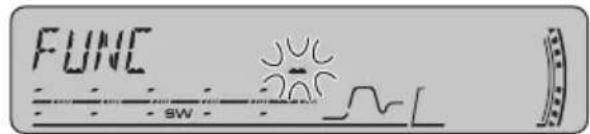
text_image
FUNC SW 205Using the AUX source
An IP-BUS-RCA Interconnector such as the CD-RB20/CD-RB10 (sold separately) lets you connect this unit to auxiliary equipment featuring RCA output. For more details, refer to the IP-BUS-RCA Interconnector owner's manual.
3 Press ▶to move the cursor to the next character position.
When the letter you want is displayed, press ▶ to move the cursor to the next position and then select the next letter. Press ◀to move backwards in the display.
4 Move the cursor to the last position by pressing ▶ after entering the title.
When you press ▶one more time, the entered title is stored in memory.
5 Press BAND to return to the playback display.
Selecting AUX as the source
- Press SOURCE to select AUX as the source.
Press SOURCE until AUX appears in the display.
■If the auxiliary setting is not turned on, AUX cannot be selected. For more details, see Switching the auxiliary setting on page 36.
Setting the AUX title
The title displayed for the AUX source can be changed.
Understanding built-in CD player error messages
When you contact your dealer or your nearest Pioneer Service Center, be sure to record the error message.
Message Cause Action
| ERROR-11, 12, Dirty disc Clean disc.17, 30 | |
| ERROR-11, 12, Scratched disc Replace disc.17, 30 | |
| ERROR-15 The inserted disc Replace disc.does not containany data | |
| ERROR-10, 11, Electrical or me-Turn the ignition12, 15, 17, 30,chanical ON and OFF, or switch to a different source, then back to the CD player. | |
| ERROR-22, 23 The CD format Replace disc.cannot be played back | |
| NO AUDIO The inserted disc Replace disc.does not containany files that canbe played back | |
| SKIPPED The inserted discReplace disc.contains WMAfiles that are protected by DRM | |
| PROTECT All the files on Replace disc.the inserted discare secured byDRM |

CD player and care
- Use only CDs that have either of the two Compact Disc Digital Audio marks as shown below.


- Use only normal, round CDs. If you insert irregular, non-round, shaped CDs they may jam in the CD player or not play properly.

natural_image
Two 3D heart-shaped objects with circular cutouts, each marked with a prohibition symbol (no text or labels)- Check all CDs for cracks, scratches or warping before playing. CDs that have cracks, scratches or are warped may not play properly. Do not use such discs.
- Avoid touching the recorded (non-printed) surface when handling the disc.
- Store discs in their cases when not in use.
- Keep discs out of direct sunlight and do not expose the discs to high temperatures.
- Do not attach labels, write on or apply chemicals to the surface of the discs.
- To clean a CD, wipe the disc with a soft cloth outward from the center.

natural_image
Illustration of a hand pressing down on a circular disc with a ruler, no text or symbols presentAdditional Information
- If the heater is used in cold weather, moisture may form on components inside the CD player. Condensation may cause the CD player to malfunction. If you think that condensation is a problem turn off the CD player for an hour or so to allow it to dry out and wipe any damp discs with a soft cloth to remove the moisture.
- Road shocks may interrupt CD playback.
CD-R/CD-RW discs
- When CD-R/CD-RW discs are used, play-back is possible only for discs which have been finalized.
- It may not be possible to play back CD-R/CD-RW discs recorded on a music CD recorder or a personal computer because of disc characteristics, scratches or dirt on the disc, or dirt, condensation, etc., on the lens of this unit.
- Playback of discs recorded on a personal computer may not be possible, depending • on the application settings and the environment. Please record with the correct format. (For details, contact the manufacturer of the application.)
- Playback of CD-R/CD-RW discs may become impossible in case of direct exposure to sunlight, high temperatures, or the storage conditions in the vehicle.
- Titles and other text information recorded on a CD-R/CD-RW disc may not be displayed by this unit (in the case of audio data (CD-DA)).
- If you insert a CD-RW disc into this unit, time to playback will be longer than when you insert a conventional CD or CD-R disc.
- Read the precautions with CD-R/CD-RW discs before using them.
MP3, WMA and WAV files
MP3 is short for MPEG Audio Layer 3 and refers to an audio compression technology standard.
WMA is short for Windows Media™ Audio and refers to an audio compression technology that is developed by Microsoft Corporation. WMA data can be encoded by using Windows Media Player version 7 or later.
- WAV is short for waveform. It is a standard audio file format for Windows®
- This unit may not operate correctly depending on the application used to encode WMA files.
- Depending on the version of Windows Media Player used to encode WMA files, if album names and other text information may not be correctly displayed.
There may be a slight delay when starting playback of WMA files encoded with image data.
- This unit allows playback of MP3/WMA/n-WAV files on CD-ROM, CD-R and CD-RW discs. Disc recordings compatible with level 1 and level 2 of ISO9660 and with the Romeo and Joliet file system can be played back.
relt is possible to play back multi-session compatible recorded discs.
- MP3/WMA/WAV files are not compatible with packet write data transfer.
- The maximum number of characters which can be displayed for a file name, including the extension (.mp3, .wma or .wav), is 64, from the first character.
The maximum number of characters which sc. can be displayed for a folder name is 64.
- In case of files recorded according to the Romeo file system, only the first 64 characters can be displayed.
- When playing discs with MP3/WMA/WAV files and audio data (CD-DA) such as CD-EXTRA and MIXED-MODE CDs, both types can be played only by switching mode between MP3/WMA/WAV and CD-DA.
- The folder selection sequence for playback •T and other operations becomes the writing sequence used by the writing software. For this reason, the expected sequence at the time of playback may not coincide with the actual playback sequence. However, there also is some writing software which permits setting of the playback order.
44.1, 48 kHz sampling frequencies can played back.)
•There is no m3u playlist compatibility.
There is no compatibility with the MP3i (MP3 interactive) or mp3 PRO formats. - The sound quality of MP3 files generally becomes better with an increased bit rate. For This unit can play recordings with bit rates from 8 kbps to 320 kbps, but in order to be able to enjoy sound of a certain quality, we recommend using only discs recorded with a bit rate of at least 128 kbps.
- Some audio CDs contain tracks that merge into one another without a pause. When these discs are converted to MP3/WMA/WAV files and burned to a CD-R/CD-RW/CD-ROM, the files will be played back on this player with a short pause between each one, regardless of the length of the pause between tracks on the original audit CD.

Important
- When naming an MP3/WMA/WAV file, add the corresponding filename extension (.mp3, .wma or.wav).
- This unit plays back files with the filename extension (.mp3, .wma or.wav) as an MP3/WMA/WAV file. To prevent noise and malfunctions, do not use these extensions for files other than MP3/WMA/WAV files.
WMA additional information
- This unit plays back WMA files encoded by Windows Media Player version 7, 7.1, 8, 9 and 10.
- You can only play back WMA files in the frequencies 32, 44.1 and 48kHz .
The sound quality of WMA files generally becomes better with an increased bit rate. This unit can play recordings with bit rates from 48 kbps to 320 kbps (CBR) or from 48 kbps to 384 kbps (VBR), but in order to be able to enjoy sound of a certain quality, we recommend using discs recorded with a higher bit rate.
This unit doesn't support the following formats.
—Windows Media Audio 9 Professional (5.1ch)
—Windows Media Audio 9 Lossless
—Windows Media Audio 9 Voice
MP3 additional information
- Files are compatible with the ID3 Tag Ver. W, 1.0, 1.1, 2.2, 2.3 and 2.4 formats for display of album (disc title), track (track title), artist (track artist) and comments. Ver. 2.x of ID3 Tag is given priority when both Ver. 1.x and Ver. 2.x exist.
•The emphasis function is valid only when MP3 files of 32, 44.1 and 48 kHz frequencies are played back. (16, 22.05, 24, 32,
WAV additional information
This unit plays back WAV files encoded in Linear PCM (LPCM) format or MS ADPCM D3 format.
and You can only play back WAV files in the frequencies 16, 22.05, 24, 32, 44.1 and 48 kHz (LPCM), or 22.05 and 44.1 kHz (MS ADPCM). The sampling frequency shown in the display may be rounded.
Additional Information
•The sound quality of WAV files generally be ^3 Third level
comes better with a larger number of quantization bits. This unit can play recordings
with 8 and 16 (LPCM) or 4 (MS ADPCM). quantization bits, but in order to be able to enjoy sound of a certain quality, we recommend using discs recorded with the larger number of quantization bits.

Notes
About folders and MP3/WMA/WAV files
- An outline of a CD-ROM with MP3/WMA/WAV files on it is shown below. Subfolders are shown as folders in the folder currently selected.
- This unit assigns folder numbers. The user to cannot assign folder numbers. - It is not possible to check folders that do not include MP3/WMA/WAV files. (These folders will be skipped without displaying the folder number.)
- MP3/WMA/WAV files in up to 8 tiers of folders can be played back. However, there is a delay in the start of playback on discs with numerous tiers. For this reason we recommend creating discs with no more than 2 tiers. - It is possible to play back up to 99 folders on one disc

flowchart
graph TD
    A["01 (ROOT)"] --> B["02"]
    B --> C["001.mp3 (001.wma, 001.wav)"]
    B --> D["010.mp3 (010.wma, 010.wav)"]
    B --> E["03"]
    E --> F["011.mp3 (011.wma, 011.wav)"]
    E --> G["020.mp3 (020.wma, 020.wav)"]
    E --> H["021.mp3 (021.wma, 021.wav)"]
    E --> I["030.mp3 (030.wma, 030.wav)"]
    A --> J["04"]
    J --> K["05"]
    style A fill:#f9f,stroke:#333
    style J fill:#ccf,stroke:#333
①First level
②Second level
Terms
Bit rate
This expresses data volume per second, or (bits per second) units. The higher the rate, the more information is available to reproduce the sound. Using the same encoding method (such as MP3), the higher the rate, the better the sound.
Linear PCM (LPCM)/Pulse code modulation
This stands for linear pulse code modulation, which is the signal recording system used for music CDs and DVDs.
m3u
- Playlists created using the “WINAMP”software have a playlist file extension (.m3u).
ID3 tag
This is a method of embedding track-related information in an MP3 file. This embedded formation can include the track title, the artist's name, the album title, the music genre, the year of production, comments and other data. The contents can be freely edited using software with ID3 Tag editing functions.
Although the tags are restricted as to the ber of characters, the information can be viewed when the track is played back.
ISO9660 format
This is the international standard for the format logic of CD-ROM folders and files. For ISO9660 format, there are regulations for the following two levels.
Level 1:
The file name is in 8.3 format (the name consists of up to 8 characters, half-byte English capital letters and half-byte numerals and the “_”sign, with a file-extension of three characters).
Level 2:
The file name can have up to 31 character, cluding the separation mark "." and a file extension). Each folder contains less than 8 hierarchies.
Extended formats
Joliet:
File names can have up to 64 characters.
Romeo:
File names can have up to 128 characters.
MP3
MP3 is short for MPEG Audio Layer 3. It is an audio compression standard set by a working group (MPEG) of the ISO (International Standards Organization). MP3 is able to compress audio data to about 1/10th the level of a conventional disc.
nMS- ADPCM
This stands for Microsoft adaptive differential pulse code modulation, which is the signal recording system used for the multimedia software of Microsoft Corporation.
the Multi-session
^a Multi-session is a recording method that allows additional data to be recorded later. When recording data on a CD-ROM, CD-R or CD-RW, etc., all data from beginning to end is treated as a single unit or session. Multi-sessions is a method of recording more than 2 sessions on one disc.
Number of quantization bits
The number of quantization bits is one factor in the overall sound quality; the higher the "bit-depth", the better the sound quality. However, increasing the bit-depth also increases the amount of data and therefore storage space required.
Additional Information
Packet write
This is a general term for a method of writing on CD-R, etc., at the time required for a file, just as is done with files on floppy or hard discs.
VBR
VBR is short for variable bit rate. Generally speaking CBR (constant bit rate) is more widely used. But by flexibly adjusting the bit rate according to the needs of audio compression, it is possible to achieve compression-priority sound quality.
WAV
WAV is short for waveform. It is a standard audio file format for Windows®
WMA
WMA is short for Windows Media™Audio and refers to an audio compression technology that is developed by Microsoft Corporation. WMA data can be encoded by using Windows Media Player version 7 or later. Windows Media and the Windows logo are trademarks or registered trademarks of Microsoft Corporation in the United States and/or other countries.
Specifications
General
Rated power source .... 14.4 V DC (allowable voltage range: 12.0 -14.4 V DC)
Grounding system ...... Negative type
Max. current consumption 10.0 A
Dimensions (W × H × D): DIN
Chassis 178 × 50 × 157 mm
Nose 188 × 58 × 20 mm
D
Chassis 178 × 50 × 162 mm
Nose 170 × 46 × 15 mm
Weight 1.3 kg
Audio
Continuous power output is 22 W per channel minim into 4 ohms, both channels driven 50 to 15 000 Hz no more than 5% THD.
Maximum power output ..... 50 W × 4 50 W × 2/4 Ω + 70 W × 1/2 Ω(for subwoofer)
Load impedance .... 4 - 8 Ω × 4 4 - 8 Ω × 2 + 2 Ω × 1
Preout max output level/output impedance 2.2 V/1 kΩ
Equalizer (3-Band Parametric Equalizer): Low
Frequency 40/80/100/160 Hz
Q Factor 0.35/0.59/0.95/1.15 (+6 dB when boosted)
Gain ±12dB
Mid
Frequency 200/500/1k/2kHz
Q Factor 0.35/0.59/0.95/1.15 (+6 dB when boosted)
Gain ±12dB
High
Frequency 3.15k/8k/10k/12.5kHz
Q Factor 0.35/0.59/0.95/1.15 (+6 dB when boosted)
Gain ±12dB
Loudness contour: Low ....+3.5 dB (100 Hz), +3 dB kHz)
Mid ....+10 dB (100 Hz), +6.5 dB (10 kHz)
High ....+11 dB (100 Hz), +11 dB (10 kHz)
(volume: -30 dB)
HPF: Frequency 50/63/80/100/125 Hz
Slope -12 dB/oct
Subwoofer: Frequency ..... 50/63/80/100/125 Hz Slope ..... -18 dB/oct Gain ..... +6 --24 dB Phase ..... Normal/Reverse
Bass boost: Gain +12 -0dB
CD player
System .... Compact disc audio system
Usable discs .... Compact disc
Signal format: Sampling frequency .... 44.1 kHz Number of quantization bits .... 16; linear
Frequency characteristics ... 5 -20 000 Hz (±1 dB)
Signal-to-noise ratio 94 dB (1 kHz) (IEC-A network)
Dynamic range 92 dB (1 kHz) Number of channels 2 (stereo)
MP3 decoding format ...... MPEG-1 & 2 Audio Layer 3
WMA decoding format ...... Ver. 7, 7.1, 8, 9, 10 (2ch audio) (Windows Media Player)
WAV signal format .... Linear PCM & MS ADPCM
FM tuner
Frequency range 87.5 -108.0 MHz
Usable sensitivity ....8 dBf (0.7 V/75 , mono, S/N: 30 dB)
50 dB quieting sensitivity ..... 10 dBf (0.9 μV/75 Ω, mono)
Signal-to-noise ratio 75 dB (IEC-A network)
Distortion .... 0.3 % (at 65 dBf, 1 kHz, stereo) 0.1 % (at 65 dBf, 1 kHz mono)
Frequency response 30 -15 000 Hz (±3 dB)
Stereo separation 45 dB (at 65 dBf, 1 kHz)
AM tuner
Frequency range .... 531 -1 602 kHz (9 kHz) 530 -1 640 kHz (10 kHz)
Usable sensitivity 18 μV (S/N: 20 dB)
Signal-to-noise ratio 65 dB (IEC-A network)
Infrared remote control
Wavelength 940 nm ±50 nm
Output ...... typ; 12 mw/sr per Infrared LED

Note
Specifications and the design are subject to possible modifications without notice due to improvements.
natural_image
Diagram of a mechanical or laboratory procedure showing a tool interacting with a sample holder (no text or symbols visible)
ADVERTENCIA
natural_image
Line drawing of a hand inserting a card into a rectangular device (no text or symbols)text_image
Diagram showing a device with a box and a hand inserting a clip into a door panel, illustrating the process of inserting or removing a clip.
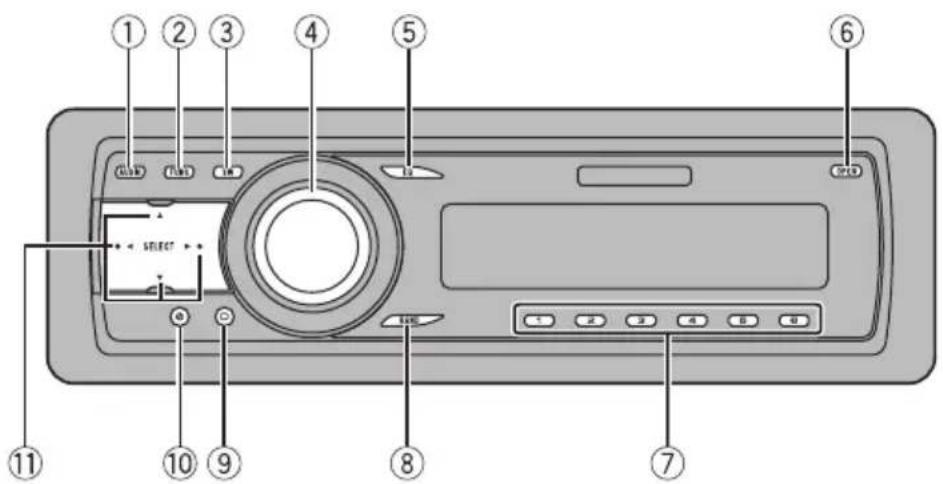
text_image
Diagram of a device rear panel with numbered labels pointing to ports and control buttonsUnidad principal
①Botón AUDIO
text_image
VOLUME B ATT SELECT F A SRC DISP ⑧ ⑫ ① ⑪ ⑨ ⑭ ⑬ ⑭ ⑭Mando a distancia
text_image
① F M I 87.9 ② SW ④ CH 2 ③text_image
POWERFUL: 00'14 SW TRK 00 1 ① ② ③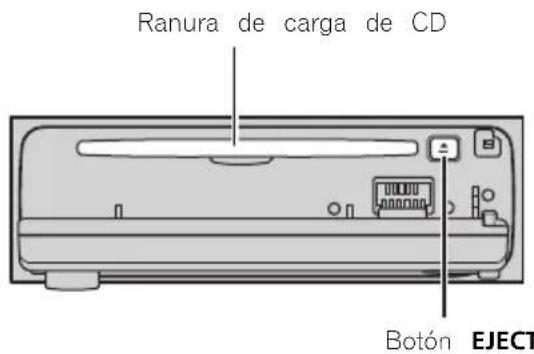
text_image
Ranura de carga de CD Botón EJECTtext_image
e- ① FUNC RPT :TRK SW TRK 00 1 ②text_image
FUNC SW C TRK 00text_image
① F U N C R P T : T R K W M A R P T SW TRK D O 1 ②text_image
NATURAL :002 0138 SW TRK 00 1 ① ② ③ ④text_image
FUNC RPT :TRK SW TRK 00 1 ① ②text_image
FUNC SW C TRK 001text_image
AUDIO FAD :F 1 FE SW CSTM TRK 002 ① ⑤ ④ ③ ②natural_image
Illustration of a hand using a pen to mark the center of a circular object (no text or symbols present)(Windows Media Player)
05 CD player incorporado
06 MP3/WMA/WAV player
Multi-CD player para 50 discos 119
natural_image
Diagram of a mechanical or laboratory procedure showing a tool interacting with a sample holder (no text or symbols visible)ão ADVERTÊNCIA
natural_image
Line drawing of a hand inserting a card into a rectangular box (no text or symbols)text_image
Diagram showing a device with a box and a close-up of its internal components, likely illustrating a mechanical or electrical assembly.

text_image
Diagram of a device control panel with numbered labels pointing to ports and buttonsUnidade principal
①Botão AUDIO
text_image
VOLUME B ATT SELECT F A SRC DISP ⑧ ⑫ ① ⑪ ⑨ ⑭ ⑬ ⑭ ⑭Controle remoto
text_image
① F M I 87.9 ② SW 2 ③ ④text_image
POWERFUL: 00'14 SW TRK 00 1 ① ② ③
text_image
① FUNC RPT :TRK SW RPT TRK00 ②①Display de função
text_image
FUNC SW [TRK 00 1]
Notas
natural_image
Diagram of a computer monitor rear panel with ports and indicator lights (no text or labels)Botão EJECT
text_image
① FUNC RPT :TRK WMA SW TRK 00 1 ②①Display de função
text_image
NATURAL :002 0 138 SW TRK 00 1Multi-CD player para 50 discos
text_image
① FUNC RPT :TRK SW RPT ② TRK 00 1①Display de função
text_image
FUNC SW C TRK 00 1text_image
AUDIO FAD : F 1 ① ⑤ ④ ③ ② SW CSTM TRK 002natural_image
Illustration of a hand holding a circular object with a pointer, no text or symbols presentFator Q 0.35/0.59/0.95/1.15 (+6 dB
Fator Q 0.35/0.59/0.95/1.15 (+6 dB
Fator Q 0.35/0.59/0.95/1.15 (+6 dB
(Windows Media Player)
Formato de sinal WAV ...... PCM linear & MS ADPCM
Sintonizador de FM
530 -1 640 kHz (10 kHz)
PIONEER ELECTRONICS (USA) INC.
P.O. Box 1540, Long Beach, California 90801-1540, U.S.A.
TEL: (800) 421-1404
PIONEER EUROPE NV
Haven 1087, Keetberglaan 1, B-9120 Melsele, Belgium
TEL: (0) 3/570.05.11
PIONEER ELECTRONICS ASIACENTRE PTE. LTD.
253 Alexandra Road, #04-01, Singapore 159936
TEL: 65-6472-7555
PIONEER ELECTRONICS AUSTRALIA PTY. LTD.
178-184 Boundary Road, Braeside, Victoria 3195, Australia
TEL: (03) 9586-6300
PIONEER ELECTRONICS OF CANADA, INC.
300 Allstate Parkway, Markham, Ontario L3R OP2, Canada
TEL: 1-877-283-5901
PIONEER ELECTRONICS DE MEXICO, S.A. de C.V.
Blvd.Manuel Avila Camacho 138 10 piso
Col.Lomas de Chapultepec, Mexico, D.F. 11000
TEL: 55-9178-4270
先鋒股份有限公司
總公司:台北市中山北路二段44號13樓
電話:(02)2521-3588
先鋒電子(香港)有限公司
香港九龍尖沙咀海港城世界商業中心
9樓901-6室
電話:(0852)2848-6488
Published by Pioneer Corporation.
Copyright © 2005 by Pioneer Corporation.
All rights reserved.