
IFI-710 - Loudspeaker DENVER - Free user manual and instructions
Find the device manual for free IFI-710 DENVER in PDF.


| Product Type | Speaker System for iPod/iPhone |
| Model | IFI-710 |
| Brand | Denver |
| Power Supply | AC 100-240V ~ 50/60Hz |
| Output Power | 2 x 15 Watts |
| Power Consumption | 35W |
| Dimensions (approx.) | 450 x 191 x 180 mm (L x W x H) |
| Remote Control Battery | CR2025 3V lithium (1x, included) |
| Compatible iPod/iPhone Models | iPod Mini, iPod photo, iPod video, iPod nano 1st-5th Gen, iPod classic, iPod touch 1st/2nd, iPhone (30-pin connector) |
| Docking Station | Universal dock with interchangeable cradles (cradle not included) |
| Auxiliary Input | 3.5mm AUX input (rear panel) |
| Video Output | Composite video (RCA) for iPod video |
| Audio Controls | Volume +/-, Bass +/-, Treble +/-, Mute |
| Functions | iPod playback control, AUX mode, video out, bass/treble adjustment |
| Standby Mode | Yes (press STANDBY on remote) |
| Safety Features | Built-in protection against electrostatic discharge and power surge (auto shutdown) |
| Cleaning | Use dry cloth; disconnect power before cleaning |
| Operating Temperature | +5°C to +35°C |
| Usage | Indoor use only |
Frequently Asked Questions - IFI-710 DENVER
User questions about IFI-710 DENVER
0 question about this device. Answer the ones you know or ask your own.
Ask a new question about this device
Download the instructions for your Loudspeaker in PDF format for free! Find your manual IFI-710 - DENVER and take your electronic device back in hand. On this page are published all the documents necessary for the use of your device. IFI-710 by DENVER.
USER MANUAL IFI-710 DENVER
TO PURCHASING DATE : 2010/09/13
RECEIVED BY :
DENVER®
Speaker System for iPod / iPhone
Model No.: IFI-710
INSTRUCTION MANUAL

natural_image
Black rectangular electronic device with a smartphone on top, no visible text or symbolsCAUTION
Symbol Work Definitions
DANGER – Indicates an imminently hazardous situation, which, if not avoided, will result in death or serious injury. This symbol appears only in the most extreme situations.
WARNING - Indicates a potentially hazardous situation which could result in death or serious injury.
CAUTION - Indicates a potentially hazardous situation, which, if not avoided, may result in minor/ moderate injury or product/ property damage. It also warns against unsafe practices.

The lightning flash with arrowhead symbol, within an equilateral triangle is intended to alert the user to the presence of insulated 'dangerous voltage' within the product's enclosure that may be of sufficient magnitude to constitute a risk of electric shock to persons.
CAUTION
RISK OF ELECTRIC SHOCK DO NOT OPEN
WARNING: TO REDUCE THE RISK OF ELECTRIC SHOCK DO NOT REMOVE COVER (OR BACK), NO USER SERVICEABLE PARTS INSIDE REFER SERVICING TO QUALIFIED SERVICE PERSONNEL.

The exclamation point within an equilateral triangle is intended to alert the user to the presence of important operating and maintenance (servicing) instructions in the literature accompanying the appliance.
READ ALL INSTRUCTIONS BEFORE USE

Always follow basic safety precautions when using electrical products, especially when children are present.
SAFETY INSTRUCTIONS
1) Read this Instruction Manual before you attempt to connect or operate the appliance.
2) Keep these instructions in good condition. Heed all warnings. Follow all instructions.
3) Save this Instruction Manual for future reference.
4) The apparatus shall not be exposed to dripping or splashing and no objects filled with liquids, such as vases, shall be placed on the product. Dry location use only.
5) No naked flame source, such as candles, should be placed on the product.
6) Children should be supervised to ensure that they do not play with the appliance.
7) Ventilation should not be impeded by covering the ventilation openings.
8) Ensure that the unit is plugged into an AC 230V 50 Hz power outlet. Using higher voltage may cause the unit to malfunction or even fire catching. Turn off the unit before unplugging it from power source to completely switch it off.
9) Do not plug/ unplug the power plug into/ from an electrical outlet with wet hands.
10) If the power plug does not fit into your outlet, do not force the plug into an electrical socket if it does not fit.
11) Only use attachments/ accessories, which are specified by the manufacturer.
12) Use replacement parts, which are specified by the manufacturer.
13) Install the unit in accordance with the manufacturer's instructions.
14) Place the unit where there is good ventilation. Place the system on a flat, hard and stable surface. Do not expose to temperatures above 35^ C. Allow at least 10 cm clearance from the rear and the top of the unit and 5 cm from each side.
15) Press the player's buttons gently. Pressing them too hard can damage the player.
16) Dispose of used batteries in an environmental-responsible manner.
17) Always ensure that the product is unplugged from the electrical outlet before moving or cleaning. Clean it with dry cloth only.
18) Unplug the product during lightning, storms or when it will not be used for long periods of time.
19) This product has no user-serviceable parts. Do not attempt to repair this product yourself. Only qualified service personnel should perform servicing. Take the product to the electronics repair shop of your choice for inspection and repair.
20) NEVER let anyone, especially children, push anything into holes, slots or any other openings in the unit's casing as this could result in a fatal electric shock.
21) Don't mount this product on a wall or ceiling.
22) Do not place the unit near TVs, speakers and other objects that generate strong magnetic fields.
23) This unit is for indoor use only.
24) Do not leave the unit unattended when it is in use.
25) Battery shall not be exposed to excessive heat such as the sunshine, fire or the like.
26) The mains plug is used as disconnect device, the disconnect device shall remain readily operable
NOTE: when the system is switched to standby mode, it is still consuming some power. To disconnect the system completely, remove the AC power plug from the wall outlet.
PREPARATION FOR USE
1. STANDARD ACCESSORIES
Carefully remove all the accessories from the display carton. Please verify that you have all the following accessories before you dispose of the carton. Do not remove any labels or stickers on the back panels of the main unit. Place your unit on a level surface such as a table, desk or shelf.
• Instruction manual x 1
• Remote control x 1
- AUX in cable x 1
2. CONNECTING POWER SOURCE
This unit was designed to operate with an AC 230V \~ 50Hz power supply.
Connecting this system to any other power source may cause damage to the system. Unwind the AC power cord to its full length. Connects the plug to the AC mains inlet of the unit, and then the mains plug into a standard AC socket outlet. Make sure the AC plug is fully inserted into the socket outlet. The set is now connected and ready to use.

natural_image
Line drawing of a plug with two pins, connected to a wall socket (no text or symbols)To switch the unit off completely, withdraw the power cord from the wall outlet.
- Unwind the AC power cord on the rear of the unit. Do not plug or unplug the power cable in wet hands.
- Once connected to the power supply, the unit will enter standby mode. Press the STANDBY button on the remote control to power the unit on.
- Please disconnect the mains plug from the AC outlet if the appliance is not going to be used for a long period of time.
3. Installing and replacing the batteries on the remote control
The remote control requires one "CR2025 type" 3-Volt lithium battery (included). To extend the life of the original battery we have inserted a small clear plastic spacer tab between the lithium battery and the battery terminal. You must remove this battery spacer tab before you use the remote control. To remove the tab, pull it in the direction of the arrow in the illustration, as shown:

If the operation of the remote control becomes unsatisfactory, replace the original battery with a new 3-volt lithium battery.
- Slide out the battery holder from the remote control case. (Push tab "A" towards the middle first, see diagram).
- Place one 3V CR2025 battery into the battery holder, observing the polarity marking. If the battery is placed incorrectly, the remote control will not work. Dispose of the old battery properly. Do not leave it lying around where a young child or pet could play with or swallow it.
- Battery may explode or leak if mistreated. Do not attempt to recharge it or disassemble it. Do not dispose of the old battery in a fire.
CAUTION: Danger of explosion exists if the battery is replaced incorrectly. Replace only with the same or equivalent type of battery.
- Insert the battery holder into the battery compartment.
Note: Please remove all of the batteries to prevent damage or injury from possible battery leakage if the unit will not be used for a long period of time. Use only the specified size and type of battery.
LOCATION OF CONTROLS AND INDICATORS
1. FRONT PANEL OF THE UNIT
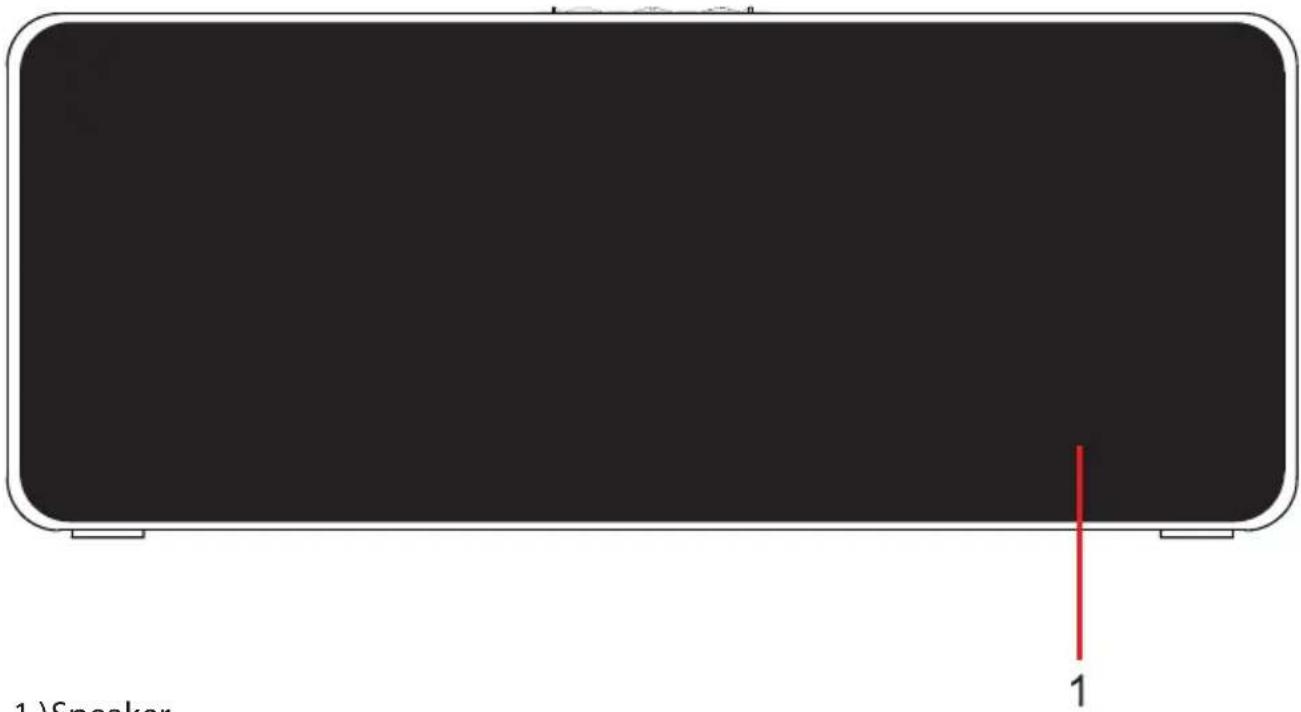
1.)Speaker
2. TOP PANEL OF THE UNIT

2.)VOLUME - Button
3.) VOLUME + Button
4.) PLAY/PAUSE Button
5.) iPod Connector
LOCATION OF CONTROLS AND INDICATORS
3. REAR PANEL OF THE UNIT

natural_image
Simple diagram with four circular icons and a rectangular box, no text or symbols present6.) Video output
7.) AUX Input
8.) AC mains inlet
9.) Mains Power Switch
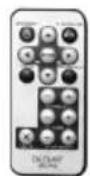
4. PANEL OF THE REMOTE CONTROL
1.) STANDBY Button
2.) iPod UP Button
3.) PLAY / PAUSE Button
4.) TUNE/SKIP Button
5.) ENTER Button
6.) TUNE/SKIP Button
7.) MENU Button
8.) iPod/AUX Button
9.) iPod DOWN Button
10.) TREBLE - Button
11.) TREBLE + Button
12.) BASS - Button
13.) BASS + Button
14.) MUTE Button
15.) VOLUME + Button
16.) VOLUME – Button
Remote Control

OPERATING INSTRUCTIONS
1. BASIC OPERATION
1). Turning on/off the unit
Slide the mains power switch to ON position, press the STANDBY button on the remote control to turn on the unit (press it again to switch the unit to standby mode).
Note: Make sure the power plug is properly connected to a 230V \~ 50Hz household AC power outlet.
2). Operating mode selection (FUNCTION)
Press the AUX/iPod button on remote control or press and hold the PLAY/PAUSE button on the unit to select iPod Mode, AUX Mode.
3). VOLUME - / VOLUME + Button
Press the VOLUME- / VOLUME+ button on the remote to adjust the sound level to the desired level.
4). Operating mute function
When listening to iPod, or AUX in, press the mute button on the remote to activate the mute function (the LED indicator on the top panel will begin flashing on the display). Press it again to cancel the mute function or press the VOLUME+/- button to resume the normal mode.
5). Adjust the BASS level
Press BASS + / BASS – on the remote control to adjust the BASS level, it will enhance/reduce the BASS effect.
6). Adjust the TREBLE level
Press TREBLE + / TREBLE – on the remote control to adjust the BASS level, it will enhance/reduce the TREBLE effect.
2. LISTENING TO YOUR iPod (iPod is not included)
This unit can support various models of iPod players with 30-pin dock connectors, such as iPod Mini, iPod photo, iPod video, iPod nano 1st/2nd/3rd/4th/5th Generation and 3rd/4th (video) generation, iPod 5th generation (video), iPod touch 1st/2nd, iPod classic and iPhone. Grip the iPod and pull it upwards and out carefully.
It can also act as a battery charger for your iPod when the iPod is connected via the dock connector. Universal docking station for all iPod own inserts.
Select the iPod universal cradle (not included, check your iPod packing if it came with this cradle) that fits with your iPod model. Install the cradle with 2 tabs facing the front by pushing it down in the universal dock on top of the unit. To remove the cradle, press its inside rear surface and pull it upward.
1). Operating iPod with the main unit
(1) Switch the mains power to on position, press the STANDBY button on the remote control, or press the PLAY/PAUSE button on the top panel to power on the unit. Press iPod/AUX button on the remote control or press and hold the PLAY/PAUSE button on the unit to select iPod function.
OPERATING INSTRUCTIONS
(2) If the iPod player is connected, the unit will start playback. The iPod battery will be charged automatically until it is fully charged.
Select your desired music, photo, or videos, etc., and play the connected iPod as usual.
(3) Press PLAY/PAUSE button on top panel or remote control to control play and pause functions. Press it again to resume the playback.
(4) Press Previous/Next button on the remote control to select the previous or next song.
(5) Press the VOLUME + / VOLUME – button on the top panel or remote control to adjust the volume as desired.
(6) Press the BASS+/- or the TREBLE +/- button on the remote control to adjust the sound effect as desired.
2). Control iPod menu by Remote Control only
Press the "iPod Menu" button on the remote control. The iPod will go to the previous menu. Press the iPod MENU UP/DOWN button on the remote control to select iPod menu; then press the iPod ENTER button to enter the selected menu.
Note: The unit cannot show any music information of your iPod. Please view the music information through you iPod display.
If the iPod is docked to the unit, it will charge automatically in STANDBY mode, iPod Mode, and AUX Mode.

3. AUX IN FUNCTION
Connect the Audio Output jacks of your auxiliary sound source (TV, VCR, DVD Player, MP3 player, Cassette Deck, Mini Disc player, etc.,) to the AUX in socket on the back panel of the unit. The auxiliary function will only be supported when the AUX in jack has a suitable sound source connected via an AUX in cable. (The audio cable is not included.) The auxiliary function will only activate when the aux in cable is connected.
- Press the STANDBY button on the remote control to power on the unit.
- Once the AUX in cable is connected with your audio device and your speaker system, turn your auxiliary source 'On' and operate it as usual.
- Press the AUX/iPod button on the remote or press and hold the PLAY/PAUSE button on the unit to select AUX function. The sound from the auxiliary source will be heard through the speakers of this system.
- Press the VOLUME+/-, BASS +/- or the TREBLE -/+ to adjust the sound effect level as desired.
4. Video out function
When an iPod Video is plugged into this unit, videos can be viewed on another display screen by connecting the VIDEO OUT jack of the main unit to the desired video display (video connection cable is not included).
Note: Please make sure the TV Out function is set to ON in the iPod Video Setting menu. Otherwise, the video signal will not be able to show on the display.(For details, please check the iPod Video Instruction Manual.)
For iPod touch users: Simply choose the video file you would like to play and the iPod touch will display "Display on TV? Yes/No." Choose "YES" if you want to output the file to the desired video display.
CARE AND MAINTENANCE
CARE OF THE APPLIANCE
Disconnect the appliance from the power source when cleaning.
If the unit becomes dusty, wipe it with a soft and dry duster. Use a soft cloth to clean this appliance. Do not use any wax, polish sprays, or abrasive cleaners on the unit.
CAUTION
Never allow any water or other liquids to get inside the unit while cleaning. Dispose of used batteries in an environmental-responsible manner. This product is not intended for commercial use. Household use only.
Before taking the unit to be repaired, please check the following table when a problem occurs. Consult your dealer or service center if the problem cannot be solved with the following information.
TROUBLE SHOOTING
| Problem Remedy | |
| PowerSystem does not turn on or does not respond to the remote control. | - Make sure AC power plug is connected to the wall socket outlet properly and it has power.- If this does not help, leave the unit unplugged before seeking advice. |
| iPodThe unit doesn’t play iPod files or doesn’t function as expected. | - Make sure the function is set to iPod mode.- Make sure iPod is connected properly.- Make sure the proper cradle for your iPod is fitted to the unit.- Pause mode may be activated; press the Play/Pause button again.- Make sure the iPod is switched on.- Vibrations may have caused the iPod to come loose from the docking station. |
| Remote controlNo functions or short range. | - Insert new batteries.- Aim remote directly towards the remote sensor. |
RESETTING THE UNIT
If the system does not respond, the unit may have experienced an electrostatic discharge or a power surge that triggered the internal computer to automatically shut down. If this occurs, disconnect the unit from the AC power outlet and reconnect it again after a few seconds.
TECHNICAL INFORMATION
| AC Power: AC 100-240V ~ 50/60Hz | |
| Remote Handset: DV 3V size:CR2025 X 1 | |
| Unit Output Power: 2 X 15 Watts | |
| Power Consumption: 35W | |
| Unit Dimensions: Approx,450(L) X 191(W) X 180(H) mm | |
| Operation temperature: +5°C +35°C | |
NOTE: As a result of continual improvements, the design and specifications of the product within may differ slightly to the unit illustrated on the packaging.

natural_image
Symbol of a trash bin crossed with no text or numbers, representing waste sorting or restriction (no text present)Electric and electronic equipment and included batteries contains materials, components and substances that can be hazardous to your health and the environment, if the waste material (discarded electric and electronic equipment and batteries) is not handled correctly.
Electric and electronic equipment and batteries is marked with the crossed out trash can symbol, seen below. This symbol signifies that electric and electronic equipment and batteries should not be disposed of with other household waste, but should be disposed of separately.
As the end user it is important that you submit your used batteries to the appropriate and designated facility. In this manner you make sure that the batteries are recycled in accordance with legislature and will not harm the environment.
All cities have established collection points, where electric and electronic equipment and batteries can either be submitted free of charge at recycling stations and other collection sites, or be collected from the households. Additional information is available at the technical department of your city.
All rights reserved Copyright Denver Electronics

www.denver-electronics.com
Made for

iPod

iPhone
"Made for iPod," and "Made for iPhone" mean that an electronic accessory has been designed to connect specifically to iPod, or iPhone, respectively, and has been
certified by the developer to meet Apple performance standards. Apple is not responsible for the operation of this device or its compliance with safety and regulatory standards. Please note that the use of this accessory with iPod, or iPhone, may affect wireless performance.
iPhone, iPod, iPod classic, iPod nano, iPod shuffle, and iPod touch are trademarks of Apple Inc., registered in the U.S. and other countries.
DENVER®
natural_image
Black rectangular electronic device with a smartphone on top, next to a remote control (no visible text or symbols)FÖRSIKTIGHET
SYMBOLER FÖR ARBETSDEFINITIONER
natural_image
Line drawing of a plug with two pins, no text or symbols presentnatural_image
Symbol of a trash bin crossed with no text or numbers, representing environmental protection (no text present)natural_image
Black rectangular electronic device with a smartphone on top, next to a remote control (no visible text or symbols)PRECAUCIÓN
natural_image
Line drawing of a plug with two pins, next to a separate electrical outlet (no text or symbols)natural_image
Blank black rectangular board with a red vertical line and number 1 at the bottom (no text or symbols on the board itself)1.) Altavoz
natural_image
Black rectangular electronic device with a smartphone on top, next to a remote control (no visible text or symbols)VORSICHT
natural_image
Line drawing of a plug socket with two terminals and three circular holes (no text or symbols)natural_image
Simple black rectangular shape with rounded corners and a red vertical line at the bottom (no text or symbols)1.) Lautsprecher
natural_image
Black rectangular electronic device with a smartphone on top, next to a remote control unit (no visible text or symbols)FORSIGTIG
natural_image
Line drawing of a plug with two pins, connected to a wall (no text or symbols)natural_image
Symbol of a trash bin crossed with no text or numbers, representing waste sorting or restriction (no text present)MANUAL DE INSTRUÇÕES

natural_image
Black rectangular electronic device with a smartphone on top, next to a remote control (no visible text or symbols)CUIDADO
natural_image
Line drawing of a plug with two terminals and two circular holes, no text or symbols presentnatural_image
Blank black rectangular board with a red vertical line at the bottom (no text or symbols)1.) Altifalante
2. PAINEL SUPERIOR DA UNIDADE

2.) Tecla VOLUME -
3.) Tecla VOLUME +
4.)TeclaPLAY/PAUSE
5.) Conector do iPod
natural_image
Black rectangular electronic device with a smartphone on top, next to a remote control unit (no visible text or symbols)HUOMAUTUS
Merkkien selitykset
natural_image
Line drawing of a hand holding an electrical plug with two dots, next to a wall (no text or symbols)natural_image
Symbol of a trash bin crossed with no text or numbers, representing waste sorting or restriction (no text present)natural_image
Black rectangular electronic device with a smartphone on top, next to a remote control (no visible text or symbols)OPGELET
ZELF KUNT REPAREREN.
LAAT REPARATIES OVER
AAN GEKWALIFICEERD
ONDERHOUDSPERSONEEL.

natural_image
Line drawing of a hand holding an electrical plug with two dots on the wall (no text or symbols)1.) Luidspreker
2. BOVENPANEEL VAN HET APPARAAT

LOCATIE VAN BEDIENINGEN EN INDICATORS
2.) VOLUME - Toets
3.) VOLUME + Toets
4.) START/PAUZETOets
5.) iPod Aansluiting
3. ACHTERPANEEL VAN HET APPARAAT

6.) Video-uitgang
7.) AUX Ingang
8.) AC voedingsingang
9.)Aan/Uitschakelaar
4. PANEEL VAN DE AFSTANDSBEDIENING
natural_image
Symbol of a trash bin crossed with a diagonal line, no text or numbers present
- DENVER®
- Speaker System for iPod / iPhone
- CAUTION
- READ ALL INSTRUCTIONS BEFORE USE
- SAFETY INSTRUCTIONS
- PREPARATION FOR USE
- STANDARD ACCESSORIES
- CONNECTING POWER SOURCE
- Installing and replacing the batteries on the remote control
- LOCATION OF CONTROLS AND INDICATORS
- FRONT PANEL OF THE UNIT
- TOP PANEL OF THE UNIT
- REAR PANEL OF THE UNIT
- PANEL OF THE REMOTE CONTROL
- OPERATING INSTRUCTIONS
- BASIC OPERATION
- 1). Turning on/off the unit
- 2). Operating mode selection (FUNCTION)
- 3). VOLUME - / VOLUME + Button
- 4). Operating mute function
- 5). Adjust the BASS level
- 6). Adjust the TREBLE level
- LISTENING TO YOUR iPod (iPod is not included)
- 1). Operating iPod with the main unit
- 2). Control iPod menu by Remote Control only
- AUX IN FUNCTION
- Video out function
- CARE AND MAINTENANCE
- CARE OF THE APPLIANCE
- RESETTING THE UNIT
- TECHNICAL INFORMATION
- FÖRSIKTIGHET
- SYMBOLER FÖR ARBETSDEFINITIONER
- PRECAUCIÓN
- VORSICHT
- FORSIGTIG
- CUIDADO
- PAINEL SUPERIOR DA UNIDADE
- HUOMAUTUS
- OPGELET
- BOVENPANEEL VAN HET APPARAAT
- LOCATIE VAN BEDIENINGEN EN INDICATORS
- ACHTERPANEEL VAN HET APPARAAT
- PANEEL VAN DE AFSTANDSBEDIENING
Brand : DENVER
Model : IFI-710
Category : Loudspeaker