DV9600 - DVD player MARANTZ - Free user manual and instructions
Find the device manual for free DV9600 MARANTZ in PDF.


User questions about DV9600 MARANTZ
0 question about this device. Answer the ones you know or ask your own.
Ask a new question about this device
Download the instructions for your DVD player in PDF format for free! Find your manual DV9600 - MARANTZ and take your electronic device back in hand. On this page are published all the documents necessary for the use of your device. DV9600 by MARANTZ.
USER MANUAL DV9600 MARANTZ
Super Audio CD/DVD Player
CLASS 1 LASER PRODUCT
LUOKAN 1 LASERLAITE
KLASS 1 LASERAPPARAT
DVD
AUDIO

SUPER AUDIO CD
DVD
VIDEO

DIGITAL AUDIO


DIGITAL VIDEO

SUPER VIDEO
ENGLISH
WARRANTY
For warranty information, contact your local Marantz distributor.
RETAIN YOUR PURCHASE RECEIPT
Your purchase receipt is your permanent record of a valuable purchase. It should be kept in a safe place to be referred to as necessary for insurance purposes of when corresponding with Marantz.
IMPORTANT
When seeking warranty service, it is the responsibility of the consumer to establish proof and date of purchase. Your purchase receipt or invoice is adequate for such proof.
FOR U.K. ONLY
This undertaking is in addition to a consumer's statutory rights and does not affect those rights in any way.
A NOTE ABOUT RECYCLING

This product's packaging materials are recyclable and can be reused. This product and the accessories packed together are the applicable product to the WEEE directive except batteries.
Please dispose of any materials in accordance with your local recycling regulations.
When discarding the unit, comply with your local rules or regulations.
Batteries should never be thrown away or incinerated but disposed of in accordance with your local regulations concerning chemical wastes.
LASER SAFETY
This unit employs a laser. Only a qualified service person should remove the cover or attempt to service this device, due to possible eye injury.
USE OF CONTROLS OR ADJUSTMENTS OR PERFORMANCE OF PROCEDURES OTHER THAN THOSE SPECIFIED HEREIN MAY RESULT IN HAZARDOUS RADIATION EXPOSURE.
CAUTION VISIBLE AND INVISIBLE LASER RADIATION WHEN OPEN AVOID EXPOSURE TO BEAM (WARNING LOCATION: INSIDE ON LASER COVERSHEILD)
FOREWORD
This section must be read carefully before any connection is made to the mains supply.
WARNINGS
- Do not expose the equipment to rain or moisture.
- Do not remove the cover from the equipment.
- Do not insert anything into the equipment through the ventilation holes.
- Do not handle the mains lead with wet hands.
- Do not cover the ventilation with any items such as tablecloths, newspapers, curtains, etc.
- No naked flame sources, such as lighted candles, should be placed on the equipment.
- When disposing of used batteries, please comply with governmental regulations or environmental public instruction's rules that apply in your country or area.
- Do not place anything about 0.1 meter above the top panel.
- Make a space of about 0.1 meter around the unit.
- No objects filled with liquids, such as vases, shall be placed on the apparatus.
- When the switch is in the OFF position, the equipment is not completely switched off from MAINS.
- The Soket-Outlet shall be installed near the equipment and shall be easily accessible.
CE marking

This product is in conformity with the EMC directive and low-voltage directive.
EQUIPMENT MAINS WORKING SETTING
Your Marantz product complies with the household power and safety requirements in your area.
PRECAUTIONS
The following precautions should be taken when operating the equipment.
GENERAL PRECAUTIONS
When installing the equipment ensure that:
– the ventilation holes are not covered.
– air is allowed to circulate freely around the equipment.
- it is placed on a vibration-free surface.
- it will not be exposed to excessive heat, cold, moisture or dust.
- it will not be exposed to direct sunlight.
- it will not be exposed to electrostatic discharges.
In addition, never place heavy objects on the equipment.
If a foreign object or water does enter the equipment, contact your nearest dealer or service center.
Do not pull out the plug by pulling on the mains lead; grasp the plug.
It is advisable when leaving the house, or during a thunderstorm, to disconnect the equipment from the mains supply.
This product incorporates copyright protection technology that is protected by method claims of certain U. S. patents and other intellectual property rights owned by Macrovision Corporation and other rights owners. Use of this copyright protection technology must be Authorized by Macrovision Corporation, and is intended for home and other limited viewing uses only unless otherwise authorized by Macrovision corporation. Reverse engineering or disassembly is prohibited.
CONGRATULATIONS ON YOUR PURCHASE OF THIS FINE MARANTZ PRODUCT.
MARANTZ is on the leading edge of Super Audio CD, DVD research for consumer products and this unit incorporates the latest technological developments.
We are sure you will be fully satisfied with the DVD player.
Thank you for your support.
Please read through these operating instructions so you will know how to operate your model properly. After you have finished reading the instructions, put them away in a safe place for future reference.
• This player is not suitable for commercial use.
Table Of Contents
1 Before You Start
Features 6
What's in the box 7
Putting the batteries in the remote control 7
Using the remote control 7
Discs compatible with this player 8
DVD-Video regions....9
MP3 compatibility information 9
JPEG compatibility information 9
2 C onnecting Up
Easy setup 10
Home theater video connections ....11
Home theater audio connections 12
3 C controls & Displays
Front panel 13
Display.... 14
Remote control 15
4 G etting Started
Playing discs 16
Basic playback controls 16
Navigating DVD disc menus 17
5 Playing Discs
Introduction 18
Using the Function Menu 18
Using the INFO menu 19
Finding what you want on a disc 19
Still Frame/Slow Play/Frame Advance Playback....20
Using the Page 21
Memorizing disc settings (CONDITION MEMORY)... 21
Using the Random Play 22
Using the Repeat Play 23
Bookmarking a place in a disc 24
Making a program list 25
Switching Camera Angles 26
Switching Subtitle Language 26
Switching Audio Language 27
Using the Zoom Function.... 27
MP3/JPEG Play 28
Video Adjust 30
6 D VD Setup Menu
Using the FL menu.... 32
Using the Setup Menu 33
Setting up the Language Setup 35
Setting up the Audio Setup 1 37
Setting up the Audio Setup 2 42
Setting up the Video Setup 45
Setting up the Parental Setup 49
Setting up the Others Setup 50
Resetting the Player 59
7 A additional Information
Handling discs 60
Storing discs 60
Discs to avoid 60
Cleaning the pickup lens 60
Problems with condensation 60
Hints on installation 61
Moving the player 61
Power cord caution 61
Troubleshooting 62
Specifications 66
Before You Start1
Features
Equipped with an i.LINK port for digital transfers of high-quality media By simply connecting a single i.LINK cable between components with i.LINK ports, you can get direct digital transfers of not only DVD-Video audio but also multi-channel audio such as Super Audio CD or DVD-Audio, which previously could only be connected in analog with five audio cords, as well as 2-channel audio like conventional CDs (see page 55).
When transferring DVD-Audio or Super Audio CD audio digitally by i.LINK, this unit employs the Jitter Free Transfer System (JFTS), a technology that removes jitter from transfers. By combining this unit with JFTS-compatible components, you can play jitter-free audio.
An HDCP-compatible HDMI\*1 terminal is provided to ensure the very highest picture and digital sound quality by fully digital transmission.
This unit comes with a High-Definition Multimedia Interface (HDMI) jack, an extended DVI interface for next-generation televisions. This interface allows transfers of uncompressed digital video and digital audio (audio streams like Dolby Digital and DTS as well as linear PCM) with a single connector. HDMI standard Ver. 1.1 compatibility means the unit can also transfer DVD-Audio multi-channel audio over HDMI.
End-to-end full-digital transfers with all-digital processing make it possible to enjoy realistic video without any of the image degradation from AD/DA conversions. And with the inclusion of our newly developed, high-precision 10-bit scaler IC, the unit can up-convert 480p video signals to 720p, 1080i, and 1080p video output signals by way of the scaling function and the HDMI jack (see page 52).
High quality 14-bit/216MHz Video D/A converter\*2
The unit uses a Video D/A converter that performs D/A conversion of all video signals in 14-bits and can perform 8X over-sampling to let you enjoy beautiful video possible with DVD. Furthermore, NSV technology suppresses noise during DA conversion.
Support for 10-bit advanced progressive NTSC/PAL with newly developed chroma-error compensation.
Our newly developed chroma-error compensation completely eliminates the chroma error that occurs near perpendicular edges in color-difference signals.
dts 96kHz/24 bit compatibility
It is equipped with a dts 96/24 decoder that lets you enjoy dts audio with sound quality as high as 96kHz/24bit. This product does not support dts 88.2kHz/24bit.
Dolby Headphone compatibility
The Head Phone can reproduce the world of Dolby Surround with realistic ambience like that you would experience using a 5.1 ch system (Excluding Super Audio CD) (see page 13).
Lip Sync capability
When it is connected to a plasma display or projector, it corrects the time lag between the video and audio created by the video circuit processing time in units of 10msec up to a maximum of 200msec. It precisely synchronizes the actors' voices and the movements of their mouths (see page 31).
Equipped with a Super Audio CD Distance compensation function
It can perform Distance adjustment of Super Audio CD that was formerly impossible by converting it to PCM (see page 44).
Superlative audio performance with Super Audio CD, DVD-Audio, Dolby ^*3 Digital and DTS ^4 software

The DV9600 delivers breathtaking sound quality with Super Audio CD, DVD-Audio, Dolby Digital and DTS discs.
Capture
You can store a photograph of your children as background (see page 29).
SRS TruSurround ^5
Logo: SRS(●) TruSurround
When used with stereo sources, SRS TruSurround creates a realistic surround-sound effect using just two speakers (see page 44).
MP3 compatibility
This player is compatible with CD-R, CD-RW and CD-ROM discs that contain MP3 audio tracks (see pages 9, 28).
JPEG compatibility
This player is compatible with CD-R, CD-RW and CD-ROM discs that contain JPEG data (see pages 9, 29).
*1 HDMI, the HDMI logo and High-Definition Multimedia Interface are trademarks or registered trademarks of HDMI Licensing LLC.
*2 "NSV" is a registered trademark of Analog Device Co. Ltd.
*3 Manufactured under license from Dolby Laboratories. "Dolby" and the double-D symbol are trademarks of Dolby Laboratories. Confidential unpublished works. © 1992-1997 Dolby Laboratories. All rights reserved.
*4 "DTS" and "DTS 96/24" are trademarks of Digital Theater Systems, Inc.
*5 TruSurround, SRS and the(●)® symbol are trademarks of SRS Labs, Inc. TruSurround technology is incorporated under license from SRS Labs, Inc.
What's in the box
Thank you for buying this MARANTZ product. Please confirm that the following accessories are in the box when you open it.
- R emote control
• AA/R6P dry cell batteries x2
• Audio/Video cable (yellow/red/white) - System control cable
- Power cable
- User Guide (this manual)
- Warranty card
Putting the batteries in the remote control
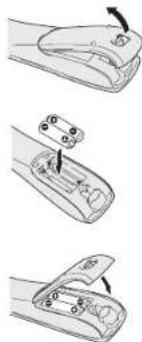
1 O pen the battery compartment cover on the back of the remote control.
2 Insert two AA/R6P batteries into the battery compartment following the indications (⊕, ⊖) inside the compartment.
3 C lose the cover.
Note
Incorrect use of batteries can result in hazards such as leakage and bursting. Please observe the following:
- Don't mix new and old batteries together.
- Don't use different kinds of battery together—although they may look similar, different batteries may have different voltages.
- Make sure that the plus and minus ends of each battery match the indications in the battery compartment.
- Remove batteries from equipment that isn't going to be used for a month or more.
When disposing of used batteries, please comply with governmental regulations or environmental bylaws that apply in your country or area.
Using the remote control
Keep in mind the following when using the remote control:
- Make sure that there are no obstacles between the remote control and the remote sensor on the unit.
- Use within the operating range and angle, as shown.
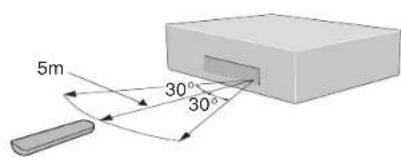
text_image
5m 30° 30°- Remote operation may become unreliable if strong sunlight or fluorescent light is shining on the unit's remote sensor.
Before You Start1
- Remote controllers for different devices can interfere with each other. Avoid using remotes for other equipment located close to this unit.
- Replace the batteries when you notice a fall off in the operating range of the remote control.
Note
When using this player independently, set a REMOTE CONTROL switch on the rear panel to INT. (INTERNAL) (see page 10).
Discs compatible with this player
Any disc that displays one of the following logos should play in this player. Other formats, including DVD-RAM, DVD-ROM, DVD+RW, DVD+R, CD-ROM (except those that contain MP3/JPEG files) and Photo CD will not play.
DVD-Video compatibility:
- Logos:
- Single sided or double sided discs
- Single layer or dual layer discs
• Dolby Digital, DTS, MPEG or Linear PCM digital audio - MPEG-2 digital video

Discs are generally divided into one or more titles. Titles may be further subdivided into chapters.
DVD-Audio compatibility:
• Logos: DVD DVD AUDIO
- Single sided discs
- Single layer or dual layer discs
• Linear or packed PCM digital audio
- Some discs may contain MPEG-2 video, and Dolby Digital, DTS or MPEG digital audio
Discs are generally divided into one or more groups. Groups may be further subdivided into tracks.
DVD-R compatibility:
This unit can play DVD-R discs. Please note the following points when using these discs:
- Logo: DVD
- This unit can play DVD-R discs recorded as DVD-Video format.
- D VD-R discs that were recorded with copy-once only permission cannot be played.
DVD-RW compatibility:
This unit can play DVD-RW discs. Please note the following points when using these discs:
- Logo: DVD RW
- This unit can play DVD-RW discs recorded as DVD-Video format.
- D VD-RW discs that were recorded with copy-once only permission cannot be played.
Audio CD compatibility:
• Logos: DISC DISC DISC DISC DISC DISC DISC DISC DISC DISC DISC DISC DISC DISC DISC DISC DISC DISC DISC DISC DISC DISC DISC DISC DISC DISC DISC DISC DISC DISC DISC DISC DISC DISC DISC DISC DISC DISC DISC DISC DISC DISC DISC DISC DISC DISC
• 1 2cm (5in.) or 8cm (3in.) discs
• Linear PCM digital audio
• Audio CD, CD-R* and CD-RW* formats
CDs are divided into tracks.
*This unit can play CD-R and CD-RW discs recorded in Audio CD or Video CD format, or with MP3 audio files.
*Some copy-controlled CDs may not conform to official CD standards. They are special discs and may not play on the DV9600.
*The audio side of dual discs does not conform to CD standards and may not play on the DV9600.
Video CD compatibility:
- Logo: DISC CUSTAL VIDEO
• 1 2cm (5in.) or 8cm (3in.) discs
- MPEG-1 digital audio
- MPEG-1 digital video
Video CDs are divided into tracks.
Super VCD compatibility:
• Logo: COMPACT disc SUPERVIDEO
• 1 2cm (5in.) or 8cm (3in.) discs
- MPEG-1 digital audio
- MPEG-2 digital video
Super VCDs are divided into tracks.
Super Audio CD compatibility:
- Logo: SUPER AUDIO CD
- Single layer, dual layer or Hybrid layer
• 1 2cm (5in.) or 8cm (3in.) discs - Digital audio (DSD)
Super Audio CDs are divided into tracks.
DVD-Video regions

text_image
World map with numbered regions and a highlighted area labeled '3°' in the southern East Asia region.All DVD-Video discs carry a region mark on the case somewhere that indicates which region(s) of the world the disc is compatible with. Your DVD player also has a region mark, which you can find on the rear panel. Discs from incompatible regions will not play in this player. Discs marked ALL will play in any player.
MP3 compatibility information
- The CD-ROM must be ISO 9660 compatible.
- F iles should be MPEG1 Audio Layer 3 format, 44.1kHz or 48kHz. Incompatible files will not play.
- This player is not compatible with MP3 PRO, ID3-Tag and packet write.
- When using a variable bit rate, files may be played back at speeds between 32Kbps and 320Kbps.
- This player cannot play DVD-R/RW discs with recorded MP3 music data.
• VBR files may not show play times correctly.
- This player only plays tracks that are named with the file extension ".mp3" or ".MP3".
- This player is not compatible with multi-session discs. If you try and play a multi-session disc, only the first session will be played.
- Use CD-R or CD-RW media for recording your MP3 files. The disc must be finalized in order to play.
- Audio encoded at 128Kbps should sound close to regular audio CD quality. Although this player will play lower bit-rate MP3 tracks, the sound quality becomes noticeably worse at lower bit-rates.
- Only the first 8 characters of folder and track names (excluding the ".mp3" extension) are displayed.
- This player can recognize about total 600 files/folder.
JPEG compatibility information
- While this player is designed to be able to handle image data recorded in JPEG format, no assurances are given that the player will be able to display image data recorded in all JPEG formats.
- Display is limited to the display of files up to 30MB in size.
- This player cannot display progressive JPEG images.
- When writing JPEG files to CD-R/RW discs, always be sure to set the writing format to ISO 9660 Level 1.
- Always be sure to specify a file extension of “.JPG” or “.JPE” for JPEG files. The file will not be able to be displayed if a file extension other than “.JPG” or “.JPE” is specified or if no file extension is assigned to the file. (Note that this means that JPEG files created on a Macintosh will not be able to be displayed as is.)
Caution!
- D VD-R/RW and CD-R/RW discs recorded using a personal computer or a DVD or CD recorder may not play if the disc is damaged or dirty, or if there is dirt or condensation on the player's lens.
- If you record a disc using a personal computer, even if it is recorded in a compatible format, there are cases in which it may not play because of the settings of the application software used to create the disc. (Check with the software publisher for more detailed information.)
- Unfinalized DVD-R/RW discs cannot be played.
- Unfinalized CD-R/RW discs cannot be played.
- F or more information on using DVD-R/RW and CD-R/RW discs, see "Handling discs" on page 60.
- N ever try to replay anything other than a music CD (CDA format) or a CD-R/RW on which MP3 and/or JPEG files have been stored. Depending on the type of file, there may be times when doing so will result in problems or erroneous operation.
- There may be times when it is impossible to replay a CD-R/RW disc because of the characteristics of the disc being used or because of dirt or scratches on the disc.
Connecting Up2
Easy setup
This easy setup is the minimum set of connections you need to start watching DVD-Video discs. Both sound and picture are fed directly to your TV using the supplied Audio/Video cables. For other possible connections, see pages 11-12.
Important
Before making or changing any rear panel connections, make sure that all components are switched off and unplugged from the wall outlet.

text_image
Flasher Input Connect to a pair of stereo audio inputs on your TV using the supplied Audio/Video cable. Connect to a composite video input on your TV using the supplied Audio/Video cable. RS-232C terminal Control terminal for use by custom installers. EXT. INT. See Note : Remote switch Plug into a standard AC wall outlet.Connecting audio/video cables
Be sure to insert each plug fully for the best connection. The plugs and jacks are color-coded to make connection easier.
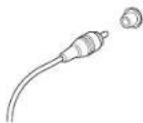
Connecting system control cables
By connecting this DVD player to another Marantz audio component using a supplied System control cable, you can remotely operate the components as a single system.
- When connecting to component with a remote sensor, be sure to connect the REMOTE CONTROL IN jack of this DVD player to the REMOTE CONTROL OUT jack of the component with the remote sensor.
- When connecting to component which is not equipped with a remote sensor, be sure to connect the component to the REMOTE CONTROL OUT jack of this DVD player.
Note
- When connecting to a standard TV, select 4:3 L - Box or 4:3 Pan Scan in the TV Aspect setting (see page 45).
- Connect the video output of the player directly to your TV. Because the player is designed to support an Analog Protection System copy card, there are cases when proper playback will be not be possible if the player is connected to the TV through a VCR and images are recorded and played on the VCR.
- The player's video output and S2 output will not be progressive.
When using this DVD player independently, set this switch to INT. (INTERNAL). When using this DVD player in a system with a Marantz receiver equipped with a remote sensor, set the switch to EXT. (EXTERNAL).
- Remote switch
Flasher Input
- This is used when controlling components from different rooms with a keypad or other input device. Set the remote switch to EXT. (EXTERNAL) when using a flasher input.
Home theater video connections
This player outputs video in a number of different ways. Choose the one most suitable for your system using the guide below.
Important
Before making or changing any rear panel connections, make sure that all components are switched off and unplugged from the wall outlet.
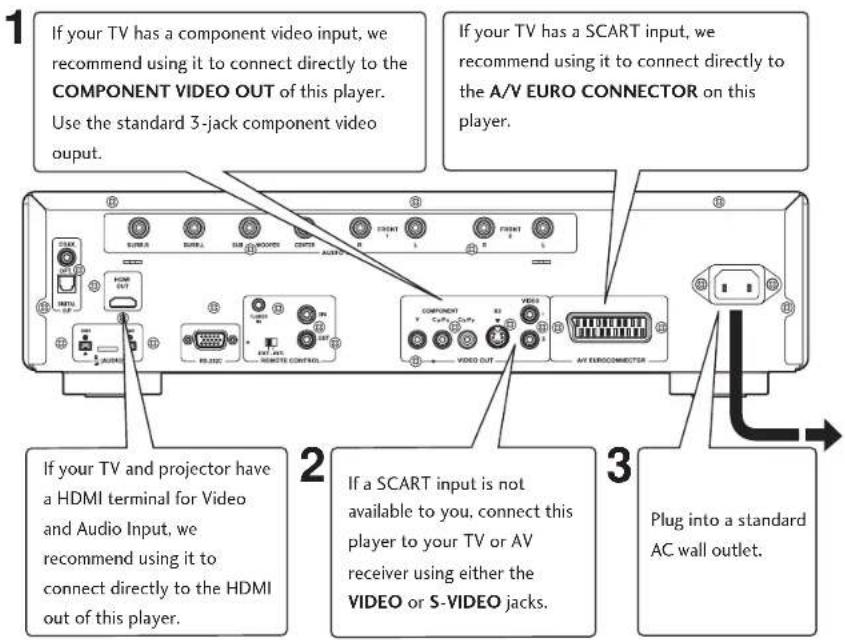
text_image
If your TV has a component video input, we recommend using it to connect directly to the COMPONENT VIDEO OUT of this player. Use the standard 3-jack component video output. If your TV has a SCART input, we recommend using it to connect directly to the A/V EURO CONNECTOR on this player. If your TV and projector have a HDMI terminal for Video and Audio Input, we recommend using it to connect directly to the HDMI out of this player. If a SCART input is not available to you, connect this player to your TV or AV receiver using either the VIDEO or S-VIDEO jacks. Plug into a standard AC wall outlet.Connecting SCART and S-Video cables
SCART and S-Video cables will only plug in one way, so make sure the plug is correctly lined up with the jack before inserting. Be sure to fully insert for a good connection.
Note
The A/V EURO CONNECTOR connector can output composite, S-Video or RGB component video. If you connect just one TV, use the A/V EURO CONNECTOR connector. You can select the type of video output by changing the Video Out setting in the Setup Menu (page 48).
S-Video or composite video?
S-Video should give a better picture, so if you have an S-Video input, use it. S-Video cables are available from any good audio/visual dealer.
Connecting HDMI cables
With an HDMI cable, both uncompressed video data and digital audio data (e.g., LPCM or bit stream data such as Dolby Digital, DTS, MPEG data or DVD Audio Multi
channel) can be transmitted with just a single connector.
By transmitting DVD image data directly as digital data without it being first converted into analog format, it becomes possible to provide the very finest in image quality (see page 52).
Note
- The HDMI output of this unit can be connected to a DVI jack on a TV or other device using a conversion adapter. In this case, it is necessary
conversion adapter. In this case, it is necessary to use a TV or display with an HDCP-compatible DVI input. (see page 52) - There may be no image output if connected to a TV or display that is not compatible with the above format.
- Refer to the instruction manual of the TV or display to be connected to this unit for detailed information regarding the HDMI terminal.
- When connecting a progressive input TV with the component output of the player, select
Progressive in the Components Out setting (see page 47).
Connecting Up2
Home theater audio connections
This player outputs multi-channel audio in both analog and digital form. Check the manual for your amplifier/receiver to see what equipment it is compatible with (especially which digital formats—Dolby Digital, DTS, etc.—it can decode).
Important
Before making or changing any rear panel connections, make sure that all components are switched off and unplugged from the wall outlet.
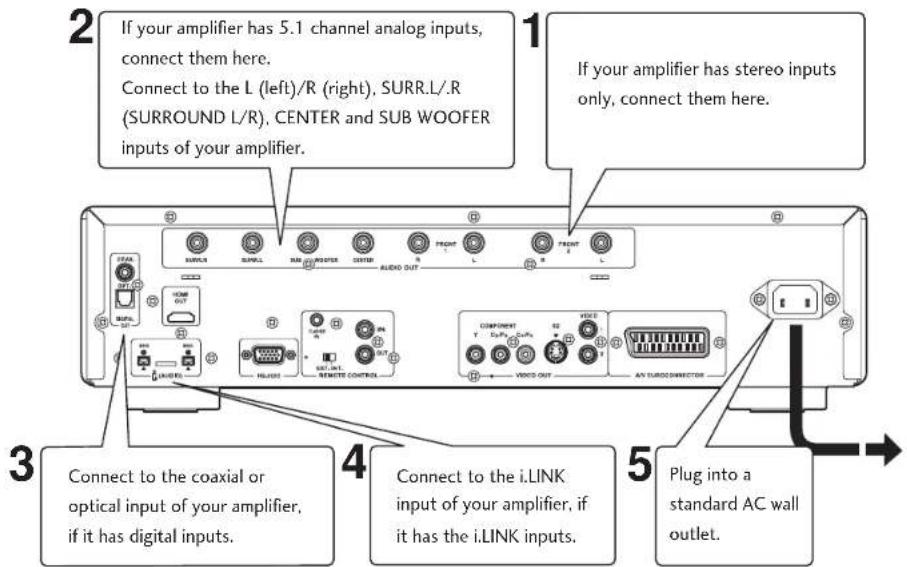
text_image
2 If your amplifier has 5.1 channel analog inputs, connect them here. Connect to the L (left)/R (right), SURR.L./R (SURROUND L/R), CENTER and SUB WOOFER inputs of your amplifier. 3 Connect to the coaxial or optical input of your amplifier, if it has digital inputs. 4 Connect to the i.LINK input of your amplifier, if it has the i.LINK inputs. 5 Plug into a standard AC wall outlet.Connecting analog audio cables
Be sure to fully insert each plug for the best connection. The plugs and jacks are color-coded to make connection easier.
Connecting optical cables
Optical interconnects only plug in one way, so make sure the plug is correctly lined up with the jack before inserting. When inserting the plug, the
protective shutter will open and you should hear it click into position when fully inserted. Be careful that you do not force the plug, because this could result in damage to the protective shutter, the cable, or the unit itself.

Connecting coaxial cables
Use an interconnect with a pin-type (also called RCA or phono) plug on each end to connect up digital coaxial-type jacks. Make sure that the plug is pushed fully home.
Connecting i.LINK cables
4-pin, S400 i.LINK connectors for connections to i.LINK-equipped receivers and other components.
Each i.LINK connector acts simultaneously as both input and output. (page 55)
Note
If you listen to multichannel DVD-Audio through one of the digital outputs, it will be downmixed to stereo. Also, high sampling rate DVD-Audio (192kHz or 176.4kHz) will be downsampled to 96kHz, 88.2kHz, 48kHz or 44.1kHz, depending on the disc (see page 38). Multi channel and high sampling rate DVD-Audio is only available through the analog outputs and i.LINK outputs.
All DVD-Audio and all Super Audio CD audio is output only through the analog outputs and i.LINK outputs (see pages 39, 55).
Controls & Displays
Front panel

text_image
MARANTZ SUPER AUDIO CPU PLATE POWER ① ② ③ ④ ⑤ ⑥ ⑦ ⑧ ⑨ ⑩ ⑪ ⑫ ⑬ ⑭ ⑮1 S TANDBY indicator
• Lights when the unit is in standby.
2 D isc tray
- Place the disc here.
3 ▶ (PLAY)
- Begin the disc play.
4 ■ (STOP)
- S t ops the disc play.
5 II (PAUSE)
• P ausing the disc play.
6 P O W ER ON/OFF
- Press to turn the power on, and press it again to turn the power off.
7 HDMI/DVI RESOLUTION
- The HDMI on/off state toggles when pressed for three seconds or more. When on, the display indicates HDMI ON; when off, it indicates HDMI OFF.
- Pressing this button while HDMI is enabled displays the current resolution. Pressing this button again while the resolution is displayed allows you to select the resolution in the sequence below:
$$ \begin{array}{l} 4 8 0 \mathrm{i} / 5 7 6 \mathrm{i} \rightarrow 4 8 0 \mathrm{p} / 5 7 6 \mathrm{p} \rightarrow 7 2 0 \mathrm{p} \rightarrow 1 0 8 0 \mathrm{i} \ \rightarrow 1 0 8 0 \mathrm{p} \rightarrow 4 8 0 \mathrm{i} / 5 7 6 \mathrm{i} \ \end{array} $$
An asterisk (*) precedes resolutions supported by the connected TV. For example: *720p See page 52 for more details.
Note
- HDMI ON is set when the unit is shipped from the factory.
- Set HDMI under the Setup menu to use HDMI functions (see page 52).
8 D isplay - page 14
• Operation indications are displayed here.
9 D olby Head Phone Mode
• Each time it is pushed, the operation changes as shown below.
DH 1: Reproduces a room that is small with little reverberation.
Bypass: It outputs normal Audio Sound without Dolby effect.
10▲ (OPEN/CLOSE)
- Press to open and close the disc tray.
11 Head Phone Jack
- Connect the head phone.
Note
• Audio is not output from the analog audio jacks or the HDMI jack when headphones are being used.
- Audio is not output from the headphone jack when i.LINK is in use.
12 |◀◀/◀◀
- Press to skip reverse title/group, chapter, or track. You can also press and hold this button to scan the above.
13Head Phone Level
• A adjust the output of the head phone.
- When using the Head Phone, Analog audio output and HDMI audio output cannot be output.
14▶▶/▶▶
- Press to skip forward title/group, chapter, or track. You can also press and hold this button to scan the above.
Controls & Displays3
Display
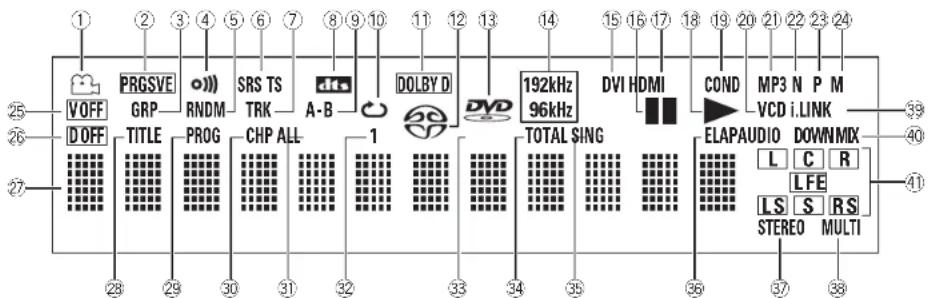
text_image
1 2 3 4 5 6 7 8 9 10 11 12 13 14 15 16 17 18 19 20 21 22 23 24 25 VOFF PRGSVE GRP RNDM SRS TS TRK A-B DOLBY D DVD 192kHz 96kHz DVI HDMI COND MP3 N P M VCD i.LINK 39 26 DOFF TITLE PROG CHP ALL 1 TOTAL SING ELAPAUDIO DOWNMX L C R LFE LS S RS STEREO MULTI 27- 28 29 30 31 32 33 34 35 36 37 381 - Lights during a camera-angle section of a DVD-Video disc
2 PRGSVE – Lights when unit is outputting progressive scan (non-interlaced) video
3 GRP – Indicates that the number below in the character display is a DVD-Audio group number
4 o))) - Lights when Remote Control Signal is received
5 RNDM – Lights during random playback
6 SRS TS – Lights when playing a disc with TruSurround switched on
7 TRK – Indicates that the number below in the character display is a DVD-Audio, CD, Video CD or MP3 track number
8 dts – Lights when a disc with DTS audio is playing
9 A-B - Lights when A-B repeat has been selected
10 - Lights during repeat play
11DOLBY D – Lights when a disc with Dolby Digital audio is playing
12 - Lights when a Super Audio CD is loaded
13 DVD – Lights when a DVD is loaded
14 192kHz/96kHz – Indicates a DVD disc containing high-sampling rate (192kHz/96kHz) audio is playing
15 DVI – Lights when the connected component is DVI compatible
16 - Lights when a disc is paused
17 HDMI -Lights when the connected component is HDMI compatible
18 ▶ - Lights when a disc is playing
19 COND – Lights when the disc has had preferences set (see page 21)
20 VCD – Lights when a Video CD is loaded
CD – Lights when a Audio CD is loaded
21 MP3 – Lights when replaying MP3 audio
22 N – Lights when NTSC has been selected as the TV system
23 P – Lights when PAL has been selected as the TV system
24 M – Lights when 'Multi' has been selected as the TV system
25 V OFF - Indicates that video output is turned off
26 D OFF – Lights when the unit is set to Digital Out off
27 Character display
28 TITLE – Indicates that the number below in the character display is a DVD-Video title number
29 PROG – Lights when replaying a program
30 CHP – Indicates that the number below in the character display is a DVD-Video chapter number
31 ALL – Lights when 'Repeat all' has been selected for VCD, CD or Super Audio CD
32 1 - Lights when track repeat has been selected for VCD, CD, Super Audio CD, or DVD-Audio
33 AUDIO – Lights when a DVD-Audio disc is playing
34 TOTAL – Indicates that the time shown in the character display is the total playing time of the disc
35 SING – Lights when playing VCD, CD, Super Audio CD, DVD-Audio or MP3 and the playback time is being displayed
36 ELAP – Lights when the elapsed time is being displayed for a title, chapter, or track
37 STEREO – Lights when a Super Audio CD is playing stereo sounds
38 MULTI – Lights when a Super Audio CD is playing multi-channel sounds
39 i.LINK -Lights when the unit recognizes a connected i.LINK component
40 DOWN MIX – Lights when multi-channel DVD-Audio, Dolby Digital, DTS or MPEG audio is downmixed, such as to two-channel stereo
41 L, C, R, LFE, LS, S, RS – show which channels are recorded on the disc playing
Controls & Displays
Remote control
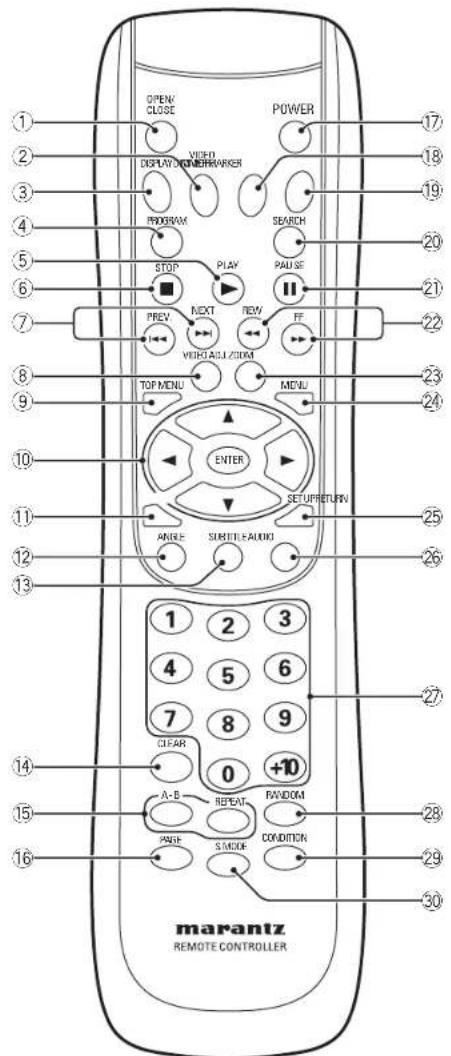
text_image
OPEN/ CLOSE VIDEO DISPLAY/ONERAMRER PROGRAM STOP PLAY PREY NEXT NEW OFF VIEW/AGU ZOOM TOP MENU MENU ENTER SETUPRETURN ANGLE SHORTLE AUDIO 1 2 3 4 5 6 7 8 9 CLEAR 0 +10 A-B REPEAT RANDOM PAGE S/ADE CONDITION marantz REMOTE CONTROLLERNote
Audio is not output from HDMI output when Video out is set to Off with VIDEO ON/OFF button on the remote control.
1 O PEN/CLOSE - Disc tray open/close - page 16
2 VIDEO ON/OFF – press to turn video output off and on
3 D ISPLAY - page 19
4 P R OGRAM - page 25
5 ▶ (PLAY) - page 16
6 ■ (STOP) - page 16
7 |◀◀ (PREV.)/▶▶| (NEXT) - Skip - page 16
- Allows you to search forward/backward through a disc. Use to skip the title, chapter or track.
8 VIDEO ADJ. – Video adjust (pages 30–31)
9 TOP MENU - page 17
10 Cursor (◄/►/▲/▼) / ENTER button - pages 17, 33
11 RETURN - page 33
12 ANGLE - page 26
13 SUBTITLE - page 26
14 CLEAR - pages 24-25, 29, 52
- Press this button for three seconds or more to return the unit to its previous state when the video does not appear correctly on the TV or projector after making HDMI settings.
$$ A - B - p a g e 2 3 $$
15 REPEAT - page 23
16 PAGE - page 21
17 POWER – switches the player on or into standby
18 DIMMER – Press to change the display brightness
19 MARKER - page 24
20 SEARCH - page 19
21 II (PAUSE) - page 16
22 ◀◀ (REW)/▶▶ (FF) - Scan - page 16
23 ZOOM - page 27
24 MENU - page 17
25 SET UP - pages 17, 33
26 AUDIO - page 27
27 Number buttons - page 17
28 RANDOM - pages 22, 28
29 CONDITION – page 21
30 S.MODE - page 42
- This remote control supports two remote control codes: DVD1 and DVD2.
- When the unit is shipped from the factory, the remote control is set to DVD1.
- To set the remote control to DVD2, hold down both ■ (STOP) button and 2 number button on the remote control for at least five seconds. (If the batteries in the remote control are replaced while the remote control is set to DVD2, the setting will revert to DVD1.)
- To set the remote control back to DVD1, hold down both ■ (STOP) button and the 1 number button on the remote control for at least five seconds.
- To check which remote control code is set at any time, hold down both the Stop and Pause buttons; the current setting (either "DVD1" or "DVD2") will be displayed in the display window on the main unit.
- Also set the REMOT CODE on the FL menu to the same setting as the remote control. (This setting is set to DVD1 when the unit is shipped from the factory.) (see page 32)
Getting Started4

text_image
OPEN CLOSE POWER STOP PLAY PAUSE PRV NEXT NEW FF marantz REMOTE CONTROLLERPlaying discs
The basic playback controls for playing discs are covered here. Further functions are detailed in the next chapter.

Note
Throughout this manual, the term 'DVD' means DVD-Video, DVD-Audio and DVD-R/RW. If a function is specific to a particular kind of DVD disc, it is specified.
1 Switch the player on.
If you're playing a DVD or Video CD, also turn on your TV and make sure that it is set to the correct video input.
2 P press OPEN/CLOSE to open the disc tray.
3 Load a disc.
Load a disc with the label side facing up, using the disc tray guide to align the disc (if you're loading a double-sided DVD disc, load it with the side you want to play face down).
4 Playing a DVD automatically.
If you're playing a DVD or Video CD, a menu may appear (see page 17).

Note
For one-sided, two-layer discs containing movies, etc., there may be a short image stoppage at the point where the layers change. This is not a malfunction.
Basic playback controls
Button What it does
| Starts playback.DVD and Video CD: if the display shows RESUME, playback starts from the resume point. | |
| II | Pauses a disc that's playing. |
| ■ Stops playback.DVD and Video CD: Display shows RESUME. Press ■ (STOP) again to cancel the resume function. | |
| ◀◀ 1. Press for fast reverse scanning during play.2. Press again to increase the scan speed. (Super Audio CD and CD have 4 scan speeds; DVD and Video CD have 7.) Press ▶ (PLAY) to resume normal playback. | |
| ▶▶ 1. Press for fast forward scanning during play.2. Press again to increase the scan speed. (Super Audio CD and CD have 4 scan speeds; DVD and Video CD have 7.) Press ▶ (PLAY) to resume normal playback. | |
| I◀◀ Skips to the start of the current track or chapter, then to previous tracks/chapters. | |
▶▶1 Skips to the next track or chapter.

Important
While using the DVD playback controls, you may see the Ⓧ mark displayed on-screen. The Ⓧ mark means that the operation is not allowed by the player and disc.
text_image
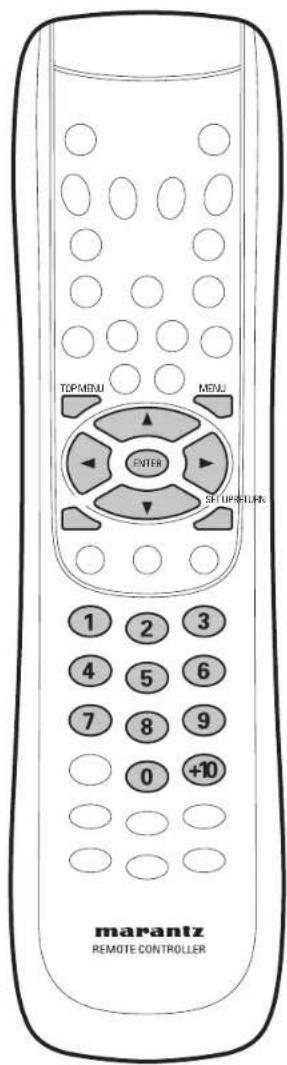
TOPMENU MENU ENTER SET UPERTILE 1 2 3 4 5 6 7 8 9 0 +10 marantz REMOTE CONTROLLERButton What it does
| TOP MENU | Displays the 'top menu' of a DVD disc—this varies with the disc. |
| MENU | Displays a DVD disc menu—this varies with the disc and may be the same as the 'top menu'. |
| RETURN | Returns to the previously displayed menu screen. |
| Cursor(◄/►/▲/▼) | Moves the cursor around the screen. |
| ENTER | Selects the current menu option. |
| Numbers | Selects a numbered menu option (some discs only). |
Navigating DVD disc menus
Many DVD discs contain menus. Sometimes these are displayed automatically when you start playback; others only appear when you select Disc Menu or Title Menu.
Note
Some DVD-Audio discs feature a 'Bonus Group'. To access this group you have to input a password, which you can find on the disc's packaging.
Using the Disc Menu
1 D uring the playback of a DVD disc, press the SET UP button on the remote control.
2 Select Disc MenuDialogMenu cursor buttons (▲/▼), then press the cursor button (▶) or ENTER button. And also select Disc MenuDialogMenu MENU button on the remote control.
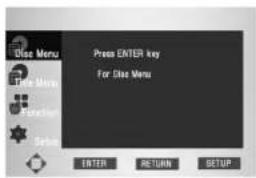
text_image
Press ENTER key For Use Menu ENTER RETURN SETUP
Disc Menu
- Audio
- Subtitle
- Language
Using the Title Menu
1 D uring the playback of a DVD disc, press the SET UP button on the remote control.
2 Select Title MenuTitleMenuursor buttons (▲/▼), then press the cursor button (▶) or ENTER button. And also select Title MenuTitleMenuTOP MENU button on the remote control.
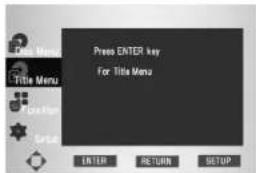
text_image
Press ENTER key For Title Menu ENTER RETURN SETUP
Title Menu
- Title 1
- Title 2
- Title 3
Note
- Depending on the disc, the Title and Disc Menus may not work.
- Title Menu will only be displayed if there are at least two titles in the disc.
- In VCD2.0 and SVCD the MENU button works as a conversion switch between PBC ON and PBC OFF mode in the Stop mode.
Playing Discs5
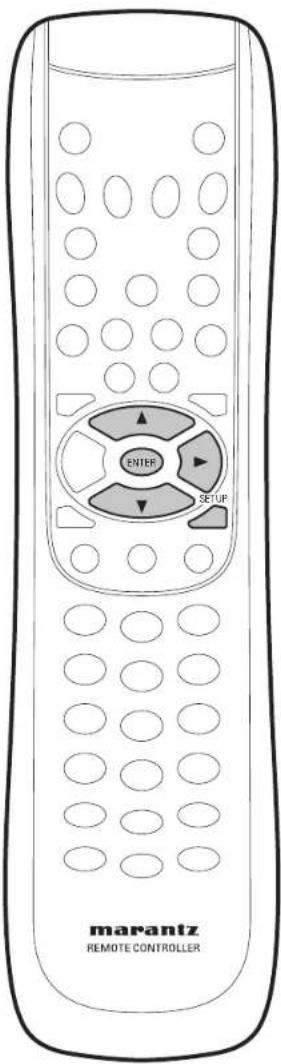
text_image
ENTER SETUP marantz REMOTE CONTROLLERIntroduction
- M any of the functions covered in this chapter apply to DVD discs, Video CDs, Super Audio CDs and CDs, although the exact operation of some varies slightly with the kind of disc loaded.
- When playing DVD discs, if the icon appears on-screen when you try to use a particular function, either the player or the disc doesn't allow the use of that function.
Using the Function Menu
1 P press the SET UP button during playback.
2 Use the cursor buttons (▲/▼) to highlight FunctionFunction press the cursor button (▶) or ENTER button.
3 The Function selection screen appears, showing Informationmation ZoomZBookmarkBookRepeatRepeat
• Information (see page 19)
- Zoom (see page 27)
- Bookmark (see page 24)
- Repeat (see page 23)
4 Use the cursor buttons (▲/▼) to highlight one of the 4 functions. Then press the cursor button (▶) or ENTER button to access the function.
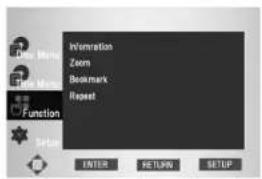
text_image
Information Zoom Bookmark Repeat Enter RETURN SETUP
Note
You can also directly select these functions using their respective buttons on the remote control.
Using the INFO menu
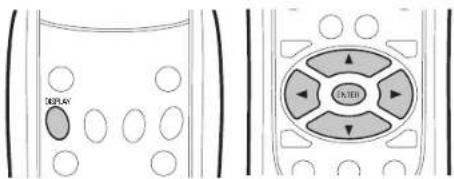
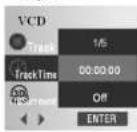
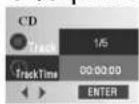
1 D uring play, press the DISPLAY button on the remote control.
2 Use the cursor buttons (▲/▼) to select the desired item.
3 Use the cursor buttons (◄/►) to make the desired setup, then press ENTER.
- You may use the number buttons of the remote control to directly access a title, chapter or to start the playback from the desired time.
- Pressing the DISPLAY button again will change the displayed disc time information.
• D VD-Video: Title time → Chapter time
• D VD-Audio, Super Audio CD, CD, VCD (PBC OFF): Track time → Group time/Total time
- The time information of the display changes in the same way.
5 T o make the screen disappear, press the DISPLAY button again.
text_image
DELAY CONTROLDVD
VCD

CD/Super Audio CD

To access the desired title when there is more than one in the disc. For example, if there is more than one movie on a DVD, each movie will be identified.

Most DVD discs are recorded in chapters so that you can quickly find a specific passage.

Allows playback of the disc from a desired time. You must enter the starting time as a reference.

Refers to the language of the disc soundtrack. In the example, the soundtrack is played in English 5.1CH. A DVD disc can have up to eight different soundtracks.

Refers to the subtitle languages available in the disc. You will be able to choose the subtitles language or, if you prefer, turn them off from the screen. A DVD disc can have up to 32 different subtitles.

A surround sound effect is generated using only two front speakers.

Note
When in VCD 2.0 mode (PBC ON mode) and MP3, this function does not work.

Note
What is a Chapter?
Each title on a DVD is usually divided into chapters (similar to tracks on an audio CD).
What is a Title?
A DVD may contain several different titles. For example, if a disc contains four different movies, each might be considered a title.
Finding what you want on a disc
DVD Video CD Super Audio CD CD
You can directly access any point on a disc using one of the search modes. Use these search modes while a disc is playing. Playback jumps to the point specified.
1 P ress SEARCH repeatedly to choose between:
- DVD-Video
Chapter search
Title search
Time search
• DVD-Audio
Track search
Group search
Time search
- Video CD/CD
Track search
Time search
• Super Audio CD
Track search

text_image
SEARCH ENTER 1 2 3 4 5 6 7 8 9 0 +102 Enter the title/chapter/group/track number or time (minutes & seconds).
For example, for title 4, press 4.
For chapter/track 12, press 1, 2.
For 45 minutes into the disc, press 4, 5, 0, 0.
3 P ress ENTER to start/restart playback.

Note
Some discs don't allow the Search mode.
Playing Discs5
text_image
PLAY PAUSE REW FF marantz REMOTE CONTROLLERStill Frame/Slow Play/Frame Advance Playback
DVD-Video Video CD
The video images on DVD and Video CD can be viewed as a still frame, played back at slow speeds and even advanced frame by frame (Forward only).
Viewing a Pausing Picture
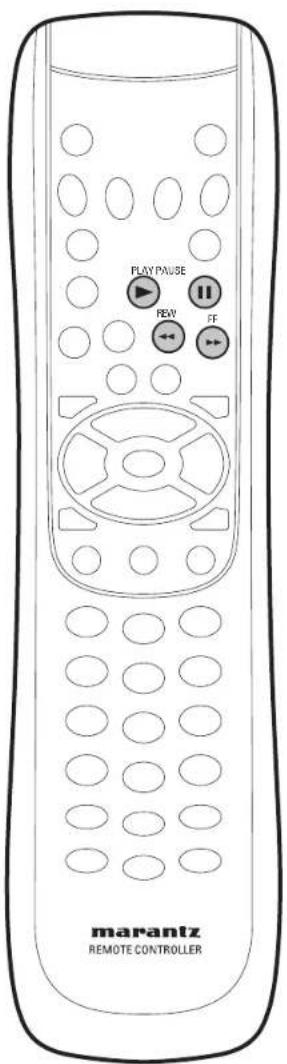
Press II (PAUSE).
When viewing a DVD, if the paused picture shakes, select the [Field] setting in the Setup screen Video Setup menu [Pause Mode] setting as described on page 47.
To return to normal playback
When the picture playback is paused, pressing ▶ (PLAY) restores normal playback operation.
Viewing slow playback
With this function, DVDs can be viewed in both forward and reverse direction. Video CDs can only be moved in the forward direction.
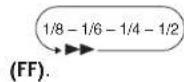
Press ▶▶ (FF) durring pause.
- Slow playback is engaged.
- During slow playback, the speed of playback can be adjusted from 1/8 normal playback speed to 1/2 normal playback speed in 4 steps using ▶▶
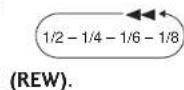
Press ◀◀ (REW) during Pause.
- Slow playback in the reverse direction is engaged.
- During slow playback, the speed of playback can be adjusted from 1/8 normal playback speed to 1/2 normal playback speed in 4 steps using
To return to normal playback
When the picture is paused or during slow playback, pressing ▶ (PLAY) restores normal playback operation.
Step Motion playback: Viewing one frame at a time
With this function, DVDs and Video CDs can only be moved in the forward direction.
Press II (PAUSE).
Each time the button is pressed, a new frame will appear.
To return to normal playback
When viewing Step Motion playback, pressing ▶ (PLAY) restores normal playback operation.

Note
- There is no sound picture playback is paused or during slow playback, or when advancing one frame at a time.
- P ausing picture, slow play, or Step Motion playback may not be possible with certain titles. In this case, the mark is displayed.
- If a Browsable picture is recorded on a DVD-Audio disc, Step Motion playback is possible.
- Depending on the disc, it may automatically return to normal replay at the transition between chapters. And when this happens, it may not fast forward or rewind even if you push the scan (◀◀/▶▶) button. In this case, push ▶ (PLAY) button once more, then push the scan button (◀◀/▶▶) again.
text_image
CLEAR PAGE CONDITION marantz REMOTE CONTROLLERUsing the Page
DVD-Audio
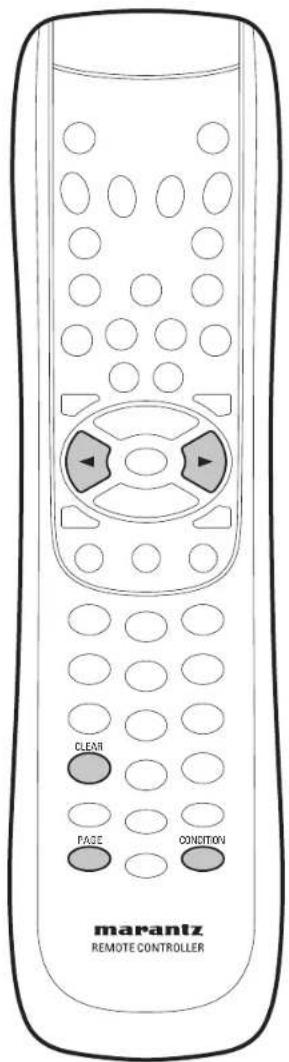
Press the PAGE button on the remote control during playback. You may select the image you want by moving the cursor button (◀/▶).

Note
Some discs don't allow the Page function.
Memorizing disc settings (CONDITION MEMORY)
DVD-Video
If you have a particular set of preferences for a disc, you can memorize them using the Condition Memory function. Once memorized, your settings will be recalled automatically whenever you load that disc. The player can store settings for 20 discs; after this, memorizing another replaces the oldest one stored. Condition Memory does not work with DVD-Audio and DVD-RW discs.
The settings memorized are:
• Audio Language (page 27)
- Subtitle Language (page 26)
- Camera Angle (page 26)
• On Screen Display (page 50)
- T o memorize settings for the current disc, press CONDITION during playback.
• T o recall memorized settings, just load the disc.
The COND icons will be displayed and 'CONDITION' appears on-screen. - T o clear memorized settings, load the disc and press CLEAR while 'CONDITION' is displayed on-screen.

Note
Some discs don't allow the Condition Memory function.
Playing Discs5
text_image
MARantz REMOTE CONTROLLERUsing the Random Play
DVD-Audio Video CD CD Super Audio CD MP3
Use the random play function to play tracks in a random order. You can't use random play with DVD-RW discs, DVD-Video or Video CD playing in PBC mode.
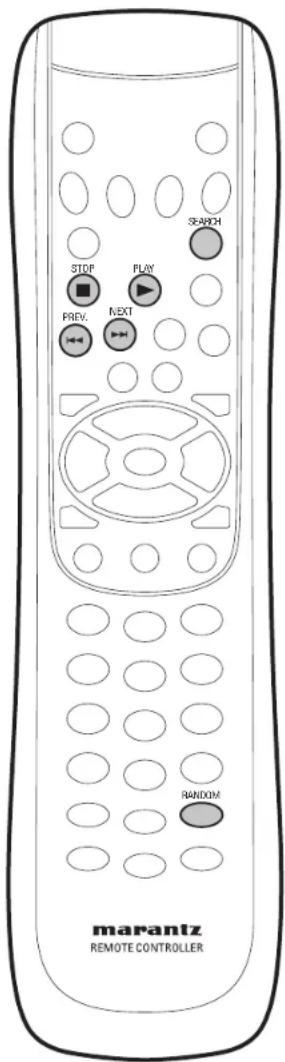
1 Press RANDOM during the Stop mode.
2 P r ▶ (BLAY) to start random play.
• R e turn to normal playback
Press ■ (STOP) button to stop random playback and then press the RANDOM button.
- When using a DVD-Audio disc, press the SEARCH button on the remote control and enter the group number of the track you wish to play using the Number buttons. Pressing the ▶ (PLAY) button will start random play within the designated group.

Tip
- During random play, the ◀◀ (PREV.) and ▶▶ (NEXT) buttons function a little differently to normal: ◀◀ (PREV.) returns to the beginning of the current track/chapter. You can't go back further than this. ▶▶ (NEXT) selects another track/chapter at random from those remaining.
- You can't use random play together with program or repeat play.

Note
- R andom play will not operate in the Resume Stop mode. Put the player in the Stop mode by repressing ■ (STOP) button, and press the RANDOM button after.
- There are DVD discs that can not be played using the Random Play.
text_image
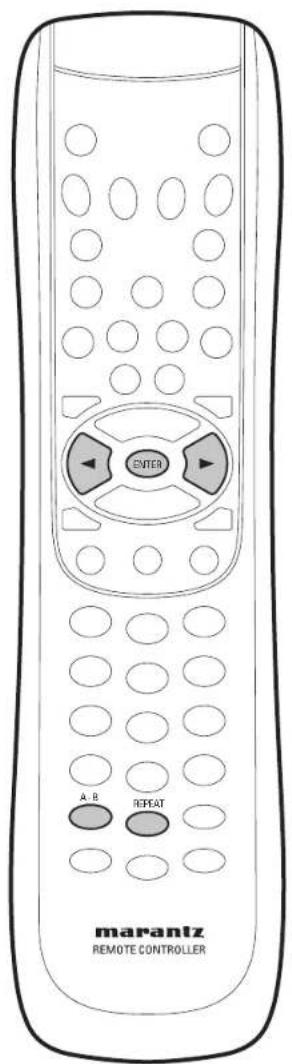
ENTER A, B REPEAT marantz REMOTE CONTROLLERUsing the Repeat Play
DVD-Audio DVD-Video Video CD CD Super Audio CD
You can set the player to repeat individual tracks on CDs or Video CDs, Super Audio CDs, chapters/tracks or titles/group on DVD discs, or the whole disc. It's also possible to loop a section of a disc.
You can't use any repeat mode or looped play with a Video CD playing in PBC mode.

Note
- Y ou can't use repeat and random play at the same time.
- If you switch camera angle during repeat play, repeat play is cancelled.
- Some discs don't allow the Repeat function.
1 Press REPEAT during playback.
The Repeat Screen appears:
DVD-Audio

DVD-Video

Video CD, CD, Super Audio CD

2 Select TrackT&roupC#D#ChapterCHA#BAFBackTAB#A-B using the cursor buttons (◄/►).
3 P ress ENTER.
4 To return to normal play, press REPEAT again, then press the cursor buttons (◄/►) to select Off and press ENTER.
Looping a section of a disc
DVD Video CD CD Super Audio CD
1 Press A-B once at the start of the section you want to repeat, then again at the end.
Playback immediately jumps back to the start point and plays the loop round and round.
- On a DVD disc, the start and end points of the loop must be in the same title/group.
2 To resume normal playback, press A-B again.
Playing Discs5

text_image
MARIVER PLAY ENTER CLEAR marantz REMOTE CONTROLLERBookmarking a place in a disc
DVD-Video
This feature lets you bookmark sections of a DVD so you can quickly find them at a later time.
Using the Bookmark Function

1 D uring play, press the MARKER button on the remote control. The Bookmark icons will be displayed.
2 Use the cursor buttons (◄/►) to move to the desired bookmark icon.
3 When you reach the scene you want to mark, press the ENTER button. The icon will change to a number (1, 2, or 3).
4 P press the MARKER button to turn off the display.
Recalling a Marked Scene

1 D uring play, press the MARKER button on the remote control.
2 Use the cursor buttons (◄/►) to select a marked scene.
3 P r e ss ▶ (PLAY) buttons to skip to the marked scene.
Clearing a Bookmark
1 D uring play, press the MARKER button on the remote control.
2 Use the cursor buttons (◄/►) to select the bookmark number you want to delete.
3 Press the CLEAR button to delete a bookmark number. Press the MARKER button to turn off the display.
Note
- Up to three scenes may be marked at a time.
- Depending on the disc, the Bookmark function may not work.

text_image
PROGRAM STOP PLAY ENTER CLEAR marantz REMOTE CONTROLLERMaking a program list
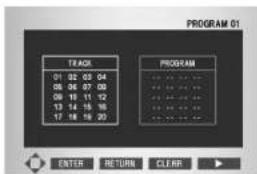
This feature lets you program the play order of groups/chapters/tracks on a disc. You make a program list via an on-screen display, using the cursor buttons to navigate to enter groups/chapters/tracks.
Note that programmed playback is not available for DVD-Video.
DVD-Audio Video CD CD Super Audio CD
1 P ress PROGRAM during the Stop mode.
text_image
PROGRAM 01 TRACK 01 02 03 04 05 06 07 08 09 10 11 12 13 14 15 16 17 18 19 20 PROGRAM ENTER RETURN CLEAR
Note
If "RESUME" is displayed in the FL display, press ■ (STOP) to the Stop mode.
2 Use the cursor buttons (◄/►/▲/▼) to select the first track to add to the program, then press the ENTER button. The selection numbers appear in the program Order Box.
- F or DVD-Audio, tracks may be added to be program by specifying group numbers as well. Note, however, that bonus tracks may not be specified in programmed playback.
• A program list can contain up to 20 steps.

text_image
PROGRAM 01 GROUP 21:02:03:04 PROGRAM ENTER RETURN CLEAR
text_image
GROUP 01 PROGRAM 01 TRACK 01 02 03 04 05 06 07 08 09 10 PROGRAM ENTER RETURN CLEAR3 P r e ss ▶ (PLAY) button.
The disc will be played in programmed order.
1) Delete all selections from program list
Turn off the power to the player or remove the disc from the player. Press the CLEAR button during program playback.
2) Delete programs from list one at a time
Press ■ (STOP) button to stop program playback and then press the PROGRAM button to display the program settings screen. When the program settings screen has been displayed, pressing the CLEAR button will cause the last program in the program list to be deleted each time the CLEAR button is pressed.
3) View program list
Press the PROGRAM button at any time when playback is not in progress.
Playing Discs5

text_image
ENTER ANGLE SUTTERLE marantz REMOTE CONTROLLERSwitching Camera Angles
DVD-Video
Some DVD-Video discs feature scenes shot from two or more angles—check the disc box for details: it should be marked with a ☐ on if it contains camera-angle scenes.
• T o display the camera angle, press ANGLE.
- To select the camera angle, use the cursor buttons (◄/►).
- To hide the TV angle indicator, choose Angle Mark > Off from the Others menu (see page 50).

Note
Depending on the disc, this feature may not work.
Switching Subtitle Language
DVD-Video
Many DVD-Video discs have subtitles in one or more languages—the disc box will usually tell you which subtitle languages are available. You can switch subtitle language anytime during playback.
• T o display the subtitle language, press SUBTITLE.
- To select the subtitle language, use the cursor buttons (◄/►).
• The current subtitle language is shown on-screen.
• T o set subtitle preferences, see page 36.
text_image
ZOOM ENTER ALDO marantz REMOTE CONTROLLERSwitching Audio Language
DVD-Video
When playing a DVD-Video disc recorded with dialog in two or more languages, you can switch audio language anytime during playback.
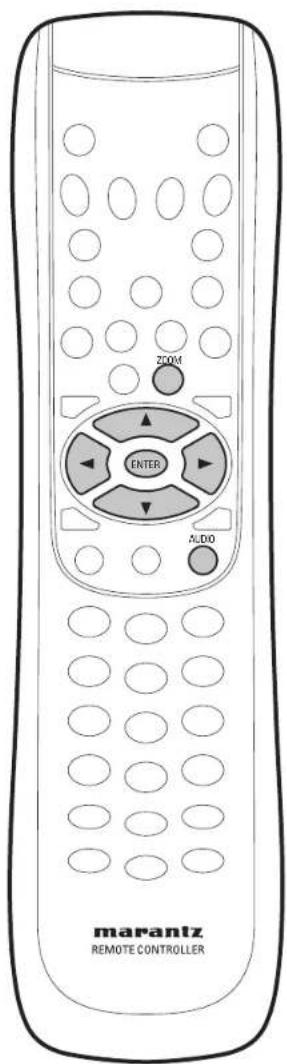
- T o display the audio language, press AUDIO. The current audio language is shown on-screen. To select the audio language, use the cursor buttons (◄/►).
• T o set audio language preferences, see page 35.
Note
- Depending on the disc, there are cases in which audio language cannot be switched during play. In this case, make changes using the DVD menu.
• Super Audio CD, CD and MP3 cannot be switched. - When dts is selected, switching may take a long time.
Switching audio channel (DVD-Audio)
DVD-Audio
Depending on the disc, you may be able to switch channels when playing DVD-Audio discs—see the disc box for details.
• To switch the audio channel, use the cursor buttons (◄/►).
Switching audio channel (Video CD)
Video CD
On Video CDs you can switch between stereo, just the left channel or just the right channel.
• To switch the audio channel, use the cursor buttons (◄/►).
Using the Zoom Function
DVD-Video Video CD
1 D uring play or pause mode, press the ZOOM button on the remote control.
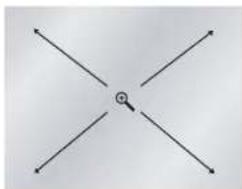
A zoom mark will be displayed on screen.
2 Use the cursor buttons (▲/▼/◄/►) to select the part of the screen you want to zoom in on.
3 P press the ENTER button.
- During DVD play, press ENTER to zoom in X2/X4/X2/Normal in order.
natural_image
Pure geometric diagram with intersecting lines and a central symbol (no text or labels)Note
- Zoom play cannot be used on some discs.
- Zoom will not operate properly for some scenes.
- Zooming may cause image deterioration or shaking.
Playing Discs5
MP3/JPEG Play
- If MP3 and JPEG files are present, select the media of your choice with the cursor buttons (▲/▼) and then press ENTER.
- If no button on the remote control is pressed for 30 seconds, the menu will disappear and the selected item will be played.
- T o change the currently playing media, press ■ (STOP) button twice and then press the MENU button.

text_image
Select a Media Type 4.000 2.JPGS ENTERNote
Please refer to "Caution!" on page 9.
Playing MP3s
This player can play MP3 files on a CD-ROM disc. MP3 is a popular audio format on computers and the Internet because file sizes are small (compared to uncompressed CD audio), while the sound quality remains surprisingly good.
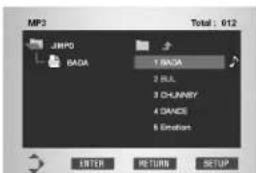
1 When the first song file is playing, the song file menu will appear on the right side of the screen.
Up to 6 song files can be displayed at a time. If you have more than 6 files on a disc, press the cursor buttons (◄/►) to bring them up on the screen.
text_image
MP3 JIMPO BAGA 1 BAGA 2 BUL 2 CHURRY 4 DANCE 5 Emotion Total : 612 ENTER RETURN SETUP2 Use the cursor buttons (▲/▼) to select the desired song file, then press ENTER to begin playback of the song file.

text_image
MP3 Total : 012 JIMPO BAGA 7.1/8.1 3 CHAINST 4 GANCE 5 Emotion ENTER RETURN SETUP3 Press the RETURN button, and the music folder menu will appear on the right side of the screen.
Use the cursor buttons (▲/▼) to select the desired music folder, then press ENTER.
Use the cursor buttons (▲/▼) again to select a song file. Press ENTER to begin playback of the song file.

text_image
MP3 JIMPO BADA ROOT JIMPO BAD BOYS GALSS BO Hans Ben HOLD.COM ENTER SETUPUsing Random Play
Press the RANDOM button during the Stop mode and then press ▶ (PLAY).
To cancel the Random Play, press ■ (STOP) and then press the RANDOM (see page 22).
Using Repeat Play
Press the REPEAT button during playback. To cancel Repeat Play, press REPEAT again.
Note
Depending on the disc, the Random, Repeat and Repeat A-B functions may not work.
Playing JPEG
1 When the JPEG file is loading, the JPEG file menu will appear on the right side of the screen. (Some discs may start play automatically.) Up to 6 JPEG files can be displayed at a time. If you have more than 6 files on a disc, press the cursor buttons (◀/▶) to bring them up on the screen.

text_image
JPEG Total : 012 ROOT ROOT 1.JPEG1 2.JPEG2 3.JPEG3 4.JPEG4 6.JPEG6 ENTER SETUP2 Use the cursor buttons (▲/▼) to select the desired JPEG file, then press ENTER to begin playback of the JPEG file.

text_image
JPEG Total : 012 ROOT ROOT 1.JPEG1 2.JPEG2 3.JPEG3 4.JPEG4 6.JPEG5 ENTER SETUP3 Press the RETURN button, and the JPEG folder menu will appear on the right side of the screen. Use the cursor buttons (▲/▼) to select the desired JPEG folder, then press ENTER. Use the cursor buttons (▲/▼) again to select a JPEG file. Press ENTER to begin playback of the JPEG file.

text_image
JPEG ROOT FOLDER1 FOLDER2 FOLDER3 FOLDER4 FOLDER5 FOLDER6 ENTER RETURN SETUP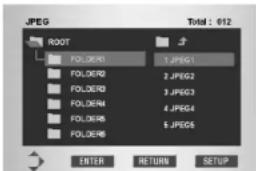
text_image
JPEG Total : 012 ROOT FOLDER1 1.JPG1 FOLDER2 2.JPG2 FOLDER3 3.JPG3 FOLDER4 4.JPG4 FOLDER5 5.JPG5 FOLDER6 ENTER RETURN SETUP1) How to pause the display Press II (PAUSE) button. To start playback, press ▶ (PLAY) button.
2) How to cue a still image to be displayed
Press the SKIP (◀◀ (PREV.)) button to proceed to the next still image and press the SKIP (▶▶I (NEXT)) button to return to the previous still image.
3) Changing the orientation of a still image
Press the cursor button (▶) to rotate the image clockwise 90 degrees.
Press the cursor button (◀) to rotate the image counter-clockwise 90 degrees.
Press the cursor buttons (▲/▼) to flip the image from top to bottom by 180 degrees.
4) Zoom playback
To zoom, press the ZOOM button during playback.
Pressing the ZOOM button again causes the display to toggle between X2 zoom, X4 zoom and OFF.
Use the cursor buttons (▲/▼/◄/►) to move the zoom display.
Note
Depending on the JPEG image size, there may be times when the Zoom will not operate correctly.
Capture
You can store a photograph of your children or other image you like as background and use it as your start-up logo.
1) Push the SET UP button on your remote control during JPEG play.
2) The instruction, "When you wish to import an image, press ENTER on the remote control." is displayed on the screen, so push the ENTER button.
3) The image begins to enter.
4) Push the CLEAR button on your remote control to stop entry.
Note
• The user can only store 1 screen.
- When a new image has been entered, the old screen is erased.
- If entry fails, the data that was already recorded may also be lost.
- When the entered image is displayed as the start-up logo, select Capture on the Back Ground. (page 48)
Playing Discs5
Video Adjust
You can set the picture settings you desire and store them in the player's memory.
Selecting a preset
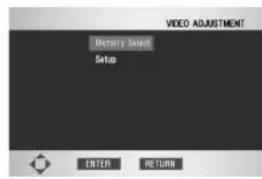
1 Press the VIDEO ADJ. button on the remote control.
2 Select Memory SelectMemory Select
3 Select a preset.
text_image
VIDEO ADJUSTMENT Memory Select Setup ENTER RETURNPress ENTER

text_image
Memory Select Standard Memo1 Memo2 Memo3 ENTER RETURN SETUP- Standard – optimized settings for a standard television set
- Memo 1, 2, 3 – User presets (see below for more on these)
You can highlight a preset while a disc is playing (before you press ENTER to select it) to see the effect on the picture immediately.
Note
Depending on the disc and your TV/monitor, the effect of these settings may not be clear.
Creating your own setting
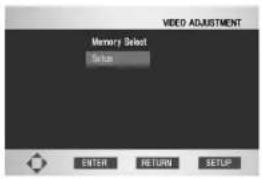
1 Press the VIDEO ADJ. button on the remote control.
2 Select SetupSetup
text_image
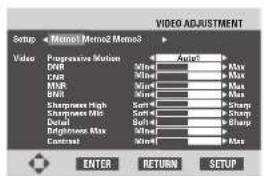
VIDEO ADJUSTMENT Memory Select Setup ENTER RETURN SETUP3 U se the cursor button(▶/▶) to select a Memory (Memo1, 2, 3) to change/store a picture quality parameter.
4 U se the cursor button(▲/▼) to select a picture quality parameter, then use the cursor buttons (◄/►) to adjust that parameter.
text_image
VIDEO ADJUSTMENT Setup - Movie3 Memo3 Video Progressive Motion CVR CPS MMR BNT Snapframes High Snapframes Max Dialal Brightness Max Control Audio Max Max Max Max Sharp Sharp Sharp Sharp Sharp Sharp Sharp Sharp Sharp Sharp Sharp Sharp Sharp Sharp Sharp Sharp Sharp Sharp Sharp Sharp Sharp Sharp Sharp Sharp Sharp Sharp Sharp Sharp Sharp Sharp Sharp Sharp Sharp Sharp Sharp Sharp Sharp Sharp Sharp Sharp Sharp Sharp Sharp Sharp Sharp Sharp Sharp Sharp Sharp Sharp Ships Ships Ships Ships Ships Ships Ships Ships Ships Ships Ships Ships Ships Ships Ships Ships Ships Ships Ships Ships Ships Ships Ships Ships Ships Ships Ships Ships Ships Ships Ships Ships Ships Ships
text_image
VIDEO ADJUSTMENT Setup + Memo1 Memo2 Memo3 + Video - Contrast Min - Max Chrome Level Min - Max Hue Green Red Chrome Delay - Red Gamma - - Black Setup - + Lip Style - White Background - On ENTER RETURN SETUP- Progressive Motion – When using progressive scan, this adjusts the motion and still picture quality. There are three modes: Auto, Video, and Film. In Auto mode, the player automatically distinguishes film-source material and video-source material. Set to the Video mode when you know the program you are watching is from video-source material (such as animations).
Set to the Film mode when you know the program, you are watching is from film source material.
Auto 1: Standard setting
Auto 2: Setting for moving images
Auto 3: Setting for still images
Video 1: Standard setting
Video 2: Setting for moving images
Video 3: Setting for still images
Film 1: Standard setting
Film 2: Setting for moving images Film 3: Setting for still images
- DNR – Adjusts the amount of noise reduction (NR) applied to the Y (brightness) component
- CNR – Adjusts the amount of noise reduction (NR) applied to the C (color) component
- MNR – Adjusts mosquito noise occurring around edges in MPEG-compressed video
- BNR – Adjusts block noise occurring in MPEG-compressed video
- Sharpness High – Adjusts the sharpness of the high-frequency (finely detailed) elements in the picture
- Sharpness Mid – Adjusts the sharpness of the mid-frequency (less detailed) elements in the picture
- Detail – Adjusts how sharp edges appear in the picture
- Brightness – Adjusts the image brightness
- Contrast – Adjusts the image contrast
- Chroma Level – Adjusts how saturated colors appear
- Hue – Adjusts the overall color balance between red and green
- Chroma Delay – Compensates for misalignment of the Y (brightness) and the C (color) components
- Gamma – Adjusts the brightness of the darker images in the picture
- Black Setup – Corrects floating black color
- Lip Sync – Adjusts the time lag between the audio signal and the video signal from 0 to 200 msec in 10 msec steps
- Initialize – Returns to the default values
5 P ress ENTER to save your changes.
Note
Pressing DISPLAY while the VIDEO ADJUSTMENT screen is displayed shows one adjustment item, as given below, so that you can adjust the item while confirming its effect. Pressing DISPLAY again returns to the former setting.
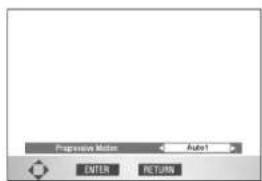
text_image
Progressive Motion Auto1 ENTER RETURN- The Lip Sync only works for analog sound. It does not work for digital output/HDMI/i.LINK output.
- Chroma Delay will not operate in Composite Video out, S2 Video out and COMPONENT Video out when Interlace is selected.
DVD Setup Menu6
Using the FL menu
The FL menu has been designed to set "HP PROLOGIC" and "REMOT CODE".
It is recommended to set the FL menu before loading a DVD.
If a DVD has been loaded, be sure to press ■ (STOP) twice before proceeding.
(If "RESUME" is displayed in the FL display, press ■ (STOP).)
Selecting the FL menu
Press SET UP for longer than 2 sec.
The FL OFF indicator on the player turns on and off.
FL menu is displayed in the FL display.

text_image
FL OFF FL menuUse the cursor buttons (▲/▼) to select the FL menu you want as follows.
(Example)

text_image
HP PROLOGIC REMOT CODE STOP MENU SETUPTo exit the FL menu
When you have completed setting up the FL menu or if you want to exit the FL menu, press SET UP to close the FL menu.
HP PROLOGIC setting
Select HP PROLOGIC, then press ENTER.
Use the cursor buttons (▲/▼) to select ON or OFF as follows.
(Example)

Press ENTER you want to set.
The menu selection is set.
Note
• This function only affects the headphone output.
- When set to PL2 ON, 2-channel source material is converted to the 5.1 channel format allowing you to enjoy a more expansive head-phone listening experience. (page 13)
REMOT CODE setting
Select REMOT CODE, then press ENTER.
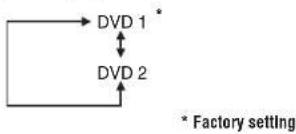
Use the cursor buttons (▲/▼) down to select the type of REMOT CODE you want to set as follows.
(Example)
flowchart
graph TD
    A[" "] --> B["DVD 1 *"]
    A --> C["DVD 2 ↑"]
    style A fill:#f9f,stroke:#333
    style B fill:#ccf,stroke:#333
    style C fill:#cfc,stroke:#333
    note right of B
        * Factory setting
Press ENTER you want to set.
The menu select is set.
- The DVD player support two remote control codes: DVD 1 and DVD 2.
- Set the remote control code of the Remote Control to the same setting.
• See page 15 for more information.
text_image
MENU ENTER SET/UP/RETURN marantz REMOTE CONTROLLERUsing the Setup Menu
Before using the player, you should specify the settings to be used in accordance with the conditions under which the player is to be used.
Note that once changed, the settings will be saved and remain the same even after the power has been turned off until the settings are changed again.
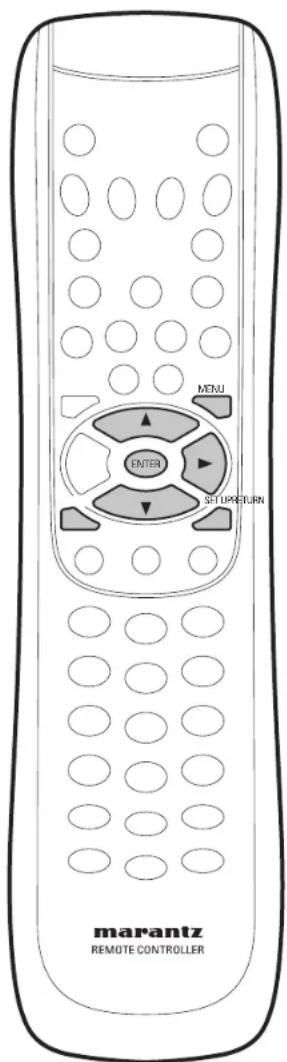
The Setup menu gives you access to all the player's settings. Press SET UP to display/leave the menu and the cursor and ENTER buttons on the remote control to navigate and select options. In some screens you can press RETURN to leave the screen without making any changes. The controls for each menu are shown at the bottom of the screen.
Note
The language options shown in the on-screen display illustrations on the following pages may not correspond to those available in your country or region.
1 Press the SET UP button on the remote control. SeleSetupSetup using the cursor buttons (▲/▼), then press the cursor (▶) or ENTER button.

text_image
Language Setup Audio Setup 1 Audio Setup 2 Video Setup Parental Setup Others ENTER RETURN SETUP① Language Setup: Setup of the Language (page 35)
② Audio Setup 1 and 2: Setup of the Audio Options (pages 37, 42)
③ Video Setup: Setup of the Display Options (page 45)
Use to select which type of screen you want to watch and several display options.
④ Parental Setup: Setup of the Parental Level (page 49)
Allows users to set the level necessary to prevent children from viewing unsuitable movies such as those with violence, adult subject matter, etc.
⑤ Others Setup: Setup of the Other Options (page 50)
Use to select which type of HDMI you connect and several other options.
2 Use the cursor buttons (▲/▼) on the remote control to access the different features.
3 Press the ENTER button to access the sub features.
To make the setup screen disappear after setting up, press the SET UP button again.
Note
Depending on the disc, some Setup Menu selections may not work.
DVD Setup Menu6
Black dot (●) indicates the default setting
* It can be set only during STOP.
Language Setup (page 35)
OSD Language (page 35)
- English
Francais
Deutsch
Espanol
Italiano
DVD Menu Language (page 35) *
- English
Francais
Deutsch
Espanol
Italiano
Others
Audio Language (page 35) *
- English
Francais
Deutsch
Espanol
Italiano
Original
Others
Subtitle Language (page 36) *
Auto
English
Francais
Deutsch
Espanol
Italiano
Others
Off

Audio Setup 1 (page 37)
Digital Out (page 37)
On
Off
Dolby Digital Out (page 37)
- Bit Stream
PCM
DTS Out (page 37)
- Bit Stream
PCM
MPEG Out (page 37)
Bit Stream
- PCM
PCM Down Sample (page 38)
On
Off
Audio Out (page 39)
•
5.1 Channel
Speaker Size (page 40)
(Large) L/R
(Large) C
(Large) LS/RS
(On) LFE
Distance (page 40)
(Meter) Unit
(3m) L
(3m) C
(3m) R
(3m) RS
(3m) LFE
(3m) LS
Level (page 41)
Fix
Variable
(Auto) Test Tone
(0db) L
(0db) C
(0db) R
(0db) RS
(0db) LFE
(0db) LS

Audio Setup 2 (page 42)
Super Audio CD Mode (page 42)
- Stereo
Multi-ch
CD
Player Mode (page 42)
DVD Audio
DVD Video
CD Play Back (page 43)
CD
DTS CD
DTS Down Mix (page 43)
- Stereo
Lt/Rt
Audio DRC (page 44)
On
- Off
TruSurround (page 44)
On
Off
Super Audio CD Play (page 44)
• DSD
PCM
Video Setup (page 45)
TV Aspect (page 45)
4:3 L - Box
4:3 Pan Scan
16:9 Wide
16:9 Squeeze
Components Out (page 47)
Progressive
- Interlace
Pause Mode (page 47)
Field
Frame
Auto
Back Ground (page 48) *
- Logo
Blue
Black
Capture

Parental Setup (page 49) \*
Use Password (page 49)
No
Yes
Rating Level (page 49)
● Level 8 (Adult)
Level 7
Level 6
Level 5
Level 4
Level 3
Level 2
Level 1 (Kids Safe)
Change Password (page 49)

Others (page 50)
On Screen Display (page 50)
On
Off
Angle Mark (page 50)
On
Off
Bonus Group (page 50)
Password
Pure Mode (page 51)
- Off
Mode 1
Mode 2
Auto Power Off (page 51)
- On 30 Min
Off
Economy Mode (page 51)
On
Off
HDMI (pages 52–54)
Resolution
Format
TV Aspect
Audio
DVI Output
i.LINK (pages 55-58)
Audio Out
Connections Select
Output Format
Auto Play
Setting up the Language Setup
If you set the OSD Language, DVD Menu Language, Audio Language and Subtitle Language in advance, they will come up automatically every time you watch a movie.

Note
DVD Menu Language, Audio Language and Subtitle Language are only selected in the Stop mode.
Using the OSD Language
- Default setting: English
1 P press the SET UP button.
2 Select SetupSitting the cursor buttons (▲/▼), then press the cursor (▶) or ENTER button.
3 Select Language Setupusing age Setup buttons (▲/▼), then press the cursor (▶) or ENTER button.

text_image
Language Setup Audio Setup 1 Audio Setup 2 Video Setup Parental Setup Others ENTER RETURN SETUP4 Select OSDOSDruage Lusing the cursor buttons (▲/▼), then press the cursor (▶) or ENTER button.
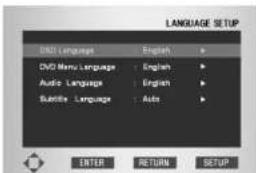
text_image
LANGUAGE SETUP DVD Language English DVD Menu Language : English Audio Language : English Cartibe Language : Auto ENTER RETURN SETUP5 Use the cursor buttons (▲/▼) to select EnglishEnglish

text_image
OSD LANGUAGE CISD Language English Francais Deutsch Spanish Italian ENTER RETURN SETUP6 P press the ENTER button.
- English is selected and the screen returns to the Language Setup menu.
- T o make the SETUP menu disappear, press the SET UP button.
Using the DVD Menu Language
- Default setting: English
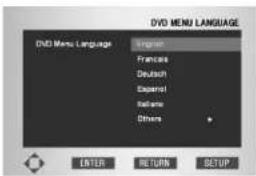
text_image
DVD MENU LANGUAGE DVD MENU LANGUAGE English Francaise Deutsch Experat Bellebre Others ENTER RETURN SETUP1 P press the SET UP button.
2 Select SetupSitting the cursor buttons (▲/▼), then press the cursor (▶) or ENTER button.
3 Select Language Setup language Setup buttons (▲/▼), then press the cursor (▶) or ENTER button.
4 Select DVDMeBu Language using the cursor buttons (▲/▼), then press the cursor (▶) or ENTER button.
5 Use the cursor buttons (▲/▼) to select EnglishEnglish
- Select Others if the language you want is not listed.
6 P press the ENTER button.
- English is selected and the screen returns to the Language Setup menu.

Note
This Setting can be set only during STOP.
Using the Audio Language
- Default setting: English

text_image
AUDIO LANGUAGE Audio Language English French Deutsch Spanish Italiano Original Others ENTER RETURN SETUP1 P press the SET UP button.
2 Select SetupSitting the cursor buttons (▲/▼), then press the cursor (▶) or ENTER button.
3 Select Language Setup language Setup buttons (▲/▼), then press the cursor (▶) or ENTER button.
4 Select Audio Language using the cursor buttons (▲/▼), then press the cursor (▶) or ENTER button.
DVD Setup Menu6
5 Press the cursor buttons (▲/▼) to select EnglishEnglish
- Select Original if you want the default soundtrack language to be the original language the disc is recorded in.
- Select Others if the language you want is not listed.
6 P press the ENTER button.
- English is selected and the screen returns to the Language Setup menu.

This Setting can be set only during STOP.
Using the Subtitle Language
- Default setting: Auto

text_image
SUBTITLE LANGUAGE Subtitle Language Auto English Francisie Deutsch Expand Salobo Others Off ENTER RETURN SETUP1 P press the SET UP button.
2 Select Setup Siting the cursor buttons (▲/▼), then press the cursor (▶) or ENTER button.
3 Select Language Setup Language Setup buttons (▲/▼), then press the cursor (▶) or ENTER button.
4 Select SubtitleSubtitleage Usingtlage cursor buttons (▲/▼), then press the cursor (▶) or ENTER button.
5 Use the cursor buttons (▲/▼) to select EnglishEnglish
- Select Auto if you want the subtitle language to be the same as the language selected as the audio preference.
- Select Others if the language you want is not listed.
Some discs may not contain the language you select as your initial language; in that case the disc will use its original language setting.
6 P press the ENTER button.
- English is selected and the screen returns to the Language Setup menu.
Note
- If the selected language is not recorded on the disc, the original pre-recorded language is selected.
• This Setting can be set only during STOP.
Setting up the Audio Setup 1
1 Press the SET UP button.
2 Select SetupSitting the cursor buttons (▲/▼), then press the cursor (▶) or ENTER button.
3 Select Audio Setup 1 Audio Setup(s)br buttons (▲/▼), then press the cursor (▶) or ENTER button.
4 Use the cursor buttons (▲/▼) to select the desired item, then press the cursor (▶) or ENTER button.

text_image
Language Setup Audio Setup 1 Audio Setup 2 Video Setup Parental Setup Others ENTER RETURN SETUP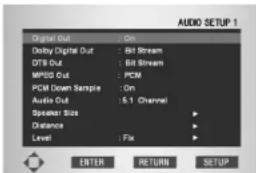
text_image
AUDIO SETUP 1 Digital Out On Dotby Digital Out Bit Stream DTS Out Bit Stream MPSS Out PCM PCM Down Sample On Audio Out 5.1 Channel Speaker Size Distance Level Fix ENTER RETURN SETUPNote
To make the SETUP menu disappear or return to the menu screen during setup, press the RETURN or cursor button (◀).
* You only need to make this setting if you connected this system to another component (AV amplifier, etc.) using one of the digital outputs.
Digital Out
- Default setting: On
If at any time you need to switch off the digital audio output, set this to Off, otherwise leave it On. Note that you can't switch on/off the optical and coaxial outputs individually.
Note
- Super Audio CD will not output digital sound.
- Audio is not output from the Digital Out plugs when i.LINK is connected. (page 55)
Dolby Digital Out\*
- Default setting: Bit Stream
If your AV amplifier (or other connected component) is Dolby Digital compatible, set to Bit Stream, otherwise set to PCM.
DTS Out\*
- Default setting: Bit Stream
If your AV amplifier (or other connected component) has a built-in DTS decoder, set this to Bit Stream, otherwise set to PCM. Check the manual that came with the other component if you're unsure whether it is DTS compatible.
Important
- If you set to Bit Stream with a non-DTS compatible amplifier, noise will be output when you play a DTS disc.
- This setting cannot be chosen when playing a dts-CD while HDMI is connected. The setting is dependent on the connected component.
MPEG Out\*
- Default setting: PCM
If your AV amplifier (or other connected component) is compatible with MPEG audio, set this to Bit Stream, otherwise set it to PCM (MPEG audio is converted to more compatible PCM audio). Check the manual that came with the other component if you're unsure whether it is MPEG audio compatible.
DVD Setup Menu6
PCM Down Sample\*
- Default setting: On
If the digital input of your AV amplifier (or other connected component) is compatible with high sampling rates (96kHz), set this to Off, otherwise set it to On (96kHz audio is converted to a more compatible 48kHz). Check the manual that came with the other component if you're unsure whether it is 96kHz compatible.
Note
- Even when set to Off, some discs will only output down sampled audio through the digital outputs.
High sampling rate DVD-Audio discs (192kHz or 176.4kHz) always output audio down sampled to 96kHz or 88.2kHz through the digital outputs.
• This is set to Off when HDMI is connected.
PCM Down Sample
| Audio recording format | PCM Down Sample OFF | ON | |||
| Copyright protected Not copyright protected | |||||
| DVD-Video | PCM | 48kHz/16–24-bit | 48kHz/16-bit PCM 48kHz/16–24-bit PCM | 48kHz/16-bit PCM | |
| 96kHz/16–24-bit | 48kHz/16-bit PCM 96kHz/16–24-bit PCM | 48kHz/16-bit PCM | |||
| DVD-Audio | PCM | 44.1kHz/16–24-bit | 44.1kHz/16-bit PCM 44.1kHz/16–24-bit PCM | 44.1kHz/16-bit PCM | |
| 48kHz/16–24-bit | 48kHz/16-bit PCM 48kHz/16–24-bit PCM | 48kHz/16-bit PCM | |||
| 88.2kHz/16–24-bit | 44.1kHz/16-bit PCM 88.2kHz/16–24-bit PCM | 44.1kHz/16-bit PCM | |||
| 96kHz/16–24-bit | 48kHz/16-bit PCM 96kHz/16–24-bit PCM | 48kHz/16-bit PCM | |||
| 176.4kHz/16–24-bit | 44.1kHz/16-bit PCM 88.2kHz/16–24-bit PCM | 44.1kHz/16-bit PCM | |||
| 192kHz/16–24-bit | 48kHz/16-bit PCM 96kHz/16–24-bit PCM | 48kHz/16-bit PCM | |||
| Video CD | MPEG1 | 44.1kHz/16-bit PCM | 44.1kHz/16-bit PCM | ||
| Audio CD | 44.1kHz/16-bit linear PCM | 44.1kHz/16-bit PCM | 44.1kHz/16-bit PCM | ||
| MP3 CD | MP3 (MPEG-1 Audio Layer 3) | 44.1, 48kHz/16-bit PCM | 44.1, 48kHz/16-bit PCM | ||
| Super Audio CD | DSD (Direct Stream Digital) | No output produced*† | No output produced*† | ||
^*1 : Output will consist of 44.1kHz/16-bit linear PCM output when replaying CD layer.
- When digital output is turned off, no digital audio data will be output from the digital audio output terminal (see page 37).
Audio Out
- Default setting: 2 Channel
If you connected this player to your amplifier using the 5.1 channel analog outputs (front, surround, center and subwoofer outs), set this to 5.1 Channel; if you connected only the stereo outputs, set to 2 Channel.
Set this to 5.1 Channel when outputting multi-channel audio from the i.LINK port; when outputting 2-channel audio, set to 2 Channel.
Note
- Even if you set Audio Out to 5.1 Channel, you'll only get sound from all speakers when playing a multi-channel DVD-Audio disc, multi-channel Super Audio CD disc, Dolby Digital or DTS encoded DVD disc.
- If you set to 2 Channel, Dolby Digital and DTS are mixed down to two channels so you still hear all the audio recorded on the disc.
- Some DVD-Audio discs don't allow down-mixing of audio. These discs always output multi-channel audio regardless of the setting made here.
• Sound recorded on MPEG is outputted on 2 channel even if Audio Out is set to 5.1 CH. - This setting cannot be chosen when HDMI is connected while either Auto or Multi PCM selected for the HDMI audio setting. (page 54)
• Audio is not output from the audio output jacks when i.LINK is connected. (page 55)
About source audio output
When the source output mode has been switched between the 5.1 Channel and 2 Channel mode settings using the Audio Out setting in the Setup screen Audio Setup 1 menu, audio output for each source will be as shown in the following table.
| AUDIO CONTENTS | OUTPUT MODE | AUDIO OUT (2 CH) | AUDIO OUT (5.1 CH) | DIGITAL OUTPUT (5/PDIF) | ||||
| L, R (Front L,R) | Center | Surround L,R | Sub Woofer | PCM Bit Stream | ||||
| DVD | Dolby Digital | 5.1 CH | Front Lch, Rch | Center | Surround LS, RS | LFE | 2 ch DOWNMIX Lch, Rch | Dolby Digital |
| 2 CH | 2 ch DOWNMIX Lch, Rch | MUTE | ||||||
| Dolby Digital Karaoke | 5.1 CH | Lch, Rch | MUTE | Lch, Rch | Dolby Digital | |||
| 2 CH | ||||||||
| LPCM | 5.1 CH/ 2 CH | Lch, Rch | MUTE | Lch, Rch | ||||
| DTS | 5.1 CH | Front Lch, Rch | Center | Surround LS, RS | LFE | 2 ch DOWNMIX Lch, Rch | DTS | |
| 2 CH | 2 ch DOWNMIX Lch, Rch | MUTE | ||||||
| MPEG | 5.1 CH/ 2 CH | 2 ch DOWNMIX Lch, Rch MPEG | MUTE | 2 ch DOWNMIX Lch, Rch | ||||
| DVD -Audio | 5.1 CH | Front Lch, Rch | Center | Surround LS, RS | LFE | 2 ch DOWNMIX Lch, Rch *2 | ||
| 2 CH | 2 ch DOWNMIX Lch, Rch *1 | MUTE | ||||||
| CD | 5.1 CH/ 2 CH | Lch, Rch | MUTE | Lch, Rch | ||||
| Super Audio CD | 5.1 CH | Front Lch, Rch | Center | Surround LS, RS | LFE | MUTE3 | ||
| 2 CH | 2 ch DOWNMIX Lch, Rch | MUTE | ||||||
| Video CD | 5.1 CH/ 2 CH | Lch, Rch | MUTE | Lch, Rch | ||||
^1 : Discs that prohibit downmixing will be output front L channel and front R channel.
^2 : Discs that prohibit downmixing also mute the digital output.
^*3 : The left/right audio tracks are output when playing a CD layer.
DVD Setup Menu6
Speaker Size
- Default setting: Front L/R: Large | Center: Large | LFE: On | Surround L/R: Large
You only need to make this setting if you connected this player to your amplifier using the 5.1 channel analog outputs. This setting does not affect digital audio output.
Follow the on-screen displays to describe which speakers are in your system and their sizes and positions.
Set the size of your speakers in the Speaker Size screen. The front left/right (L/R), center (C) and surround left/right (LS/RS) speakers can each be set to Large, Small or Off. Set a speaker to Large if the main speaker cone is 12cm or more; set to Small if it's less than 12cm.
The subwoofer (LFE) can only be set to On or Off.
The graphic of the screen represents your speaker setup, with the currently selected speaker's name highlighted in yellow.
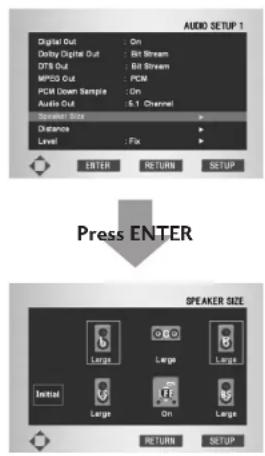
text_image
AUDIO SETUP 1 Digital Out : On Daddy Digital Out : Bit Stream DTS Out : Bit Stream MPSS Out : PCM PCM Down Sample : On Audio Out : Is.1 Channel Signal Size Distance Level : Fix ENTER RETURN SETUP Press ENTER SPEAKER SIZE Large Large Large Initial Large On Large RETURN SETUPCursor buttons (◀/▶): Speaker Change Cursor buttons (▲/▼): Size Change
Note
- Selecting Initial from on-screen will cause all settings to return to their default settings.
- For DVD-Audio and DTS-CD, if the C, LS or RS speakers is set to Off, the audio is automatically down mixed to stereo.
- This setting cannot be chosen when i.LINK is connected or when HDMI is connected while either Auto or Multi PCM selected for the HDMI audio setting. (pages 54, 55)
Distance
- Default setting: Unit: Meter | Distance: 3m Set the distance from your main listening position to each speaker in the Distance screen. The distance setting for any speaker that was set to Off in the Speaker Size screen will be disappeared. For the other speakers, enter the distance to the nearest 0.3m (1 feet). You can set the distance for the L/R speakers between 0.3m (1.0 feet) and 12m (40 feet). Note that you must set the C and SW speakers within 4.5m (15 feet) of the L/R setting. The LS and RS speakers must be set within -4.5m (-15 feet) and +4.5m (+15 feet) of the L/R setting.
The graphic of the screen represents your speaker setup, with the currently selected speaker's name highlighted in yellow.

text_image
AUDIO SETUP 1 Digital Out: On Daddy Digital Out: Bit Stream DTB Out: Bit Stream MPSS Out: PCM PCM Down Sample: On Audio Out: 6.1 Channel Speaker Size Level Fix ENTER RETURN SETUP Press ENTER DISTANCE Unit Meter 3m 3m 3m Internal 3m 3m 3m RETURN SETUPCursor buttons (◀/▶): Speaker Change Cursor buttons (▲/▼): Distance Change
Note
- If your subwoofer is placed beyond the adjustment range (L/R+4.5m (+15 feet)), set to the nearest setting possible. Surround sound cohesion should not be affected very much.
- Selecting Initial from on-screen will cause all settings to return to their default settings.
- It is possible to also set Distance for Super Audio CD by setting Super Audio CD Play to PCM (page 44).
- This setting cannot be chosen when i.LINK is connected or when HDMI is connected while either Auto or Multi PCM selected for the HDMI audio setting. (pages 54, 55)
Level
- Default setting: Fix
You may want to make this setting if you connected this player to your amplifier using the 5.1 channel analog outputs.
Under the default setting, all channels are output at the relative volumes they were recorded at. Change the setting to Variable, if you want to adjust the relative volume levels of any of the speakers. Adjustment is in the range of -6dB to +6dB, in steps of 0.5dB.
- When you set it to Variable, the overall output level may sound quieter than when set to Fix. This is not a malfunction.

flowchart
graph TD
    A["Press ENTER"] --> B["Level"]
    B --> C["Test Tree"]
    C --> D["Test Tree with 0dB, 0dB, 0dB, 0dB, 0dB, 0dB, 0dB, 0dB, 0dB, 0dB, 0dB, 0dB, 0dB, 0dB, 0dB, 0dB, 0dB, 0dB, 0dB, 0dB"] --> E["Digital Out: On, Double Digital Out: Bit Stream, DTS Out: Bit Stream, MPSS Out: PCM, PCM Down Sample: On, Audio Out: 1.1 Channel, Speaker Size: 1.1 Channel, Dimensions: 1.1 Channel"]
Cursor buttons (◄/►): Speaker Change (at manual test tone)
Cursor buttons (▲/▼): Output Level Change
To help you gauge the correct gain levels, set the Test Tone to Manual (test tone from just that speaker) or Auto (test tone from each speaker in turn), then adjust the gain so that all speakers appear to be the same volume from your listening position.
Follow the on-screen displays to select speakers and set the Output Levels.
- Many AV amplifiers allow you to make similar settings at the amplifier stage. In this case, set the output levels at the player or the amplifier, not both.
- A s the test tone plays through a speaker, its name is highlighted in yellow on-screen.

Remember
- You can't use the test tone function when the Audio Out setting is 2 Channel (see page 39). The test tone will not work with the disc tray open, or while a disc is playing.
- This setting cannot be chosen when i.LINK is connected or when HDMI is connected while either Auto or Multi PCM selected for the HDMI audio setting. (pages 54, 55)
DVD Setup Menu6
Setting up the Audio Setup 2
1 P press the SET UP button.
2 Select Setup Using the cursor buttons (▲/▼), then press the cursor (▶) or ENTER button.
3 Select Audio Setup 2 Audio Setupor buttons (▲/▼), then press the cursor (▶) or ENTER button.
4 Use the cursor buttons (▲/▼) to select the desired item, then press the cursor (▶) or ENTER button.

text_image
Language Setup Audio Setup 1 Audio Setup 2 Video Setup Parental Setup Others ENTER RETURN SETUPNote
To make the SETUP menu disappear or return to the menu screen during setup, press the RETURN or cursor button (◀).
Super Audio CD Mode
- Default setting: Stereo
Super Audio CD discs can be divided up into several different areas – stereo audio, Multi channel audio and, for hybrid Super Audio CDs, standard CD audio. The Super Audio CD Play setting enables you to select which area of the disc you want to play with the cursor buttons (◄/►).

text_image
AUDIO SETUP 2 Super Audio CD Mix Player Mode DVD Audio CD Play Back CD DTD Down Mix Stored Audio DRC Off Truebound Off Super Audio CD Play OSD ENTER RETURN SETUPNote
- If you select an area that isn't on the disc loaded, a different area of the disc will play. For example, if you choose standard CD audio but the disc loaded is not a hybrid Super Audio CD, the stereo Super Audio CD audio will play.
- You can also select it using the S.MODE button on the remote control.
Player Mode
- Default setting: DVD Audio
Replay DVD Audio as DVD Video? (DVD replay method)
Use the cursor buttons (◄/►) to select either DVD Audio or DVD Video.
• D VD Audio
Should be selected when the player is to be used as a DVD audio player.
• D VD Video
Should be selected when the player is to be used as a DVD video player.
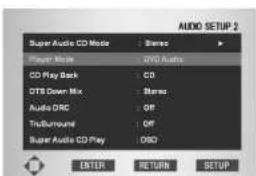
text_image
AUDIO SETUP 2 Super Audio CD Mode : Stereo Player Mode : DVD Audio CD Play Back : CD OTS Open Mix : Stereo Audio DRC : Off Trubaround : Off Super Audio CD Play : OSD ENTER 返回 套位Note
Even when DVD Video has been selected, the selected setting will return to DVD Audio (i.e., to the default setting) when the disc table is opened or when the power is turned off.
CD Play Back
- Default setting: CD
Replay DTS CD? (CD replay settings)
Use the cursor buttons (◄/►) to select either CD or DTS CD.
• CD
Should be selected whenever listening to a regular music CD.
• D TS CD
Should be selected when listening to a DTS CD.

text_image
AUDIO SETUP 2 Super Audio CD Mode : Stereo Player Mode : DVD Audio CD Play Back : CD DTS Down Mix : Stereo Audio DRC : Off TruDurround : Off Super Audio CD Play : DSO ENTER RETURN SETUP
Note
When DTS CD has been selected and you try to listen to a regular music CD, no sound will be output from the audio output terminal and digital output.
When CD has been selected and you replay a DTS CD, there may be times when noise is the only sound produced at first.
DTS Down Mix
- Default setting: Stereo
Specify DTS downmix settings?
Use the cursor buttons (◄/►) to select either Stereo or Lt/Rt.
- Stereo
Used to specify stereo downmixing as the type of DTS downmixing to be performed. This makes it possible to enjoy ordinary stereo sound.
• Lt/Rt
Used to specify that DTS multi-channel input is to be downmixed into a format compatible with the Dolby Surround matrix format. This option may be selected to enjoy surround sound when the player is connected to Dolby Surround-compatible AV amplifier.
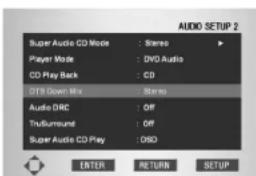
text_image
AUDIO SETUP 2 Super Audio CD Mode : Stereo Player Mode : DVD Audio CD Play Back : CD DTB Green Mix : Stereo Audio DRC : Off TruRurround : Off Super Audio CD Play : DSO ENTER RETURN SETUP
Note
- When DTS Digital Out has been set to PCM, all digital output will be automatically set to stereo output no matter what DTS Down Mix setting has been specified.
- When 2 Channel is selected by Audio Out, the DTS multi-channel's down mix method can be selected.
DVD Setup Menu6
Audio DRC
- Default setting: Off
When watching Dolby Digital DVDs at low volume, it's easy to lose the low level sounds completely, including some of the dialog. Switching on Audio DRC (Dynamic Range Compression) can help things by bringing up the low level sounds, while keeping the lid on high level peaks.
The Off setting leaves the original dynamics intact; On 'squashes' the dynamics; but exactly how much difference you can hear between the settings will depend on the material you're watching.
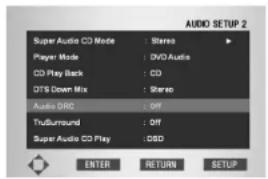
text_image
AUDIO SETUP 2 Super Audio CD Mode : Stereo Player Mode : DVD Audio CD Play Back : CD DTS Down Mix : Stereo Audio DRC : Off Trudurround : Off Super Audio CD Play : DSD ENTER RETURN SETUPRemember
- Audio DRC is only effective with Dolby Digital audio sources.
- The effect of Audio DRC depends on your speakers and AV amplifier settings.
- This setting cannot be chosen when i.LINK is connected or when HDMI is connected while either Auto or Multi PCM selected for the HDMI audio setting. (pages 54, 55)
TruSurround
- Default setting: Off
If you connected your DVD player using only the stereo analog outputs and set Audio Out to 2 Channel (page 39), you can simulate surround sound by setting TruSurround to On.
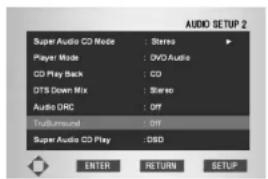
text_image
AUDIO SETUP 2 Super Audio CD Mode : Stereo Player Mode : DVD Audio CD Play Back : CD DTS Down Mix : Stereo Audio DRC : Off Trichumround : Off Super Audio CD Play : OSD ENTER RETURN SETUPNote
• Works with DVD-Video and VCD only.
- The digital audio output is processed by TruSurround when playing 2 channel Dolby Digital DVDs or Video CDs with TruSurround On. It is recommended that TruSurround be turned Off when connecting the player to your amp using a coaxial or optical connection.
- How good the surround effect is varies with the disc.
- When TruSurround is On, the audio can be output only for the L/R jacks on the Front.
- This setting cannot be chosen when i.LINK is connected or when HDMI is connected while either Auto or Multi PCM selected for the HDMI audio setting. (pages 54, 55)
SRS TruSurround
SRS TruSurround uses technology that simulates multichannel surround sound using only two speakers.
text_image
SRS TruSurroundSuper Audio CD Play
- Default setting: DSD
Either DSD or PCM is selected using the cursor button (◄/►).
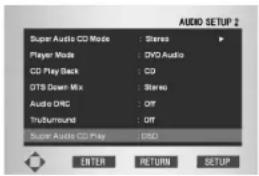
text_image
AUDIO SETUP 2 Super Audio CD Mode : Stereo Player Mode : CVO Audio CD Play Back : CD DTS Down Mix : Stereo Audio DRC : Off Truthbound : Off Super Audio CD Play : DVD ENTER RETURN SETUP• DSD
DSD that is the original format of Super Audio CD plays. It is not possible to set the Distance in the speaker settings.
• PCM
DSD signals are played converted to PCM. It is possible to set the Distance in the speaker settings.
Note
This setting is set to DSD when i.LINK is connected. (pages 55)
Setting up the Video Setup
1 Press the SET UP button.
2 Select SetupSitting the cursor buttons (▲/▼), then press the cursor (▶) or ENTER button.
3 Select Video Setup Using the cursor buttons (▲/▼), then press the cursor (▶) or ENTER button.
4 Use the cursor buttons (▲/▼) to select the desired item, then press the cursor (▶) or ENTER button.

text_image
Language Setup Audio Setup 1 Audio Setup 2 Video Setup Parental Setup Others ENTER RETURN SETUP
Note
To make the SETUP menu disappear or return to the menu screen during setup, press the RETURN or cursor button (◀).
TV Aspect
- Default setting: 16:9 Wide
If you have a widescreen TV, select the 16:9 Wide setting—widescreen DVD software is then shown using the full screen area. When playing software recorded in conventional (4:3) format, the settings on your TV will determine how the material is presented—see the manual that came with your TV for details on what options are available. If your TV does not have settings for how 4:3 sources look, choose the 16:9 Squeeze setting. The picture you see on your TV will be determined by the disc. See page 46 for more information.
If you have a conventional TV, choose either 4:3 L-Box or 4:3 Pan Scan. In Letter Box mode, widescreen software is shown with black bars at the top and bottom of the screen. Pan & Scan chops the sides off widescreen material to make it fit the 4:3 screen (so even though the picture looks larger on the screen, you're actually seeing less of the movie).
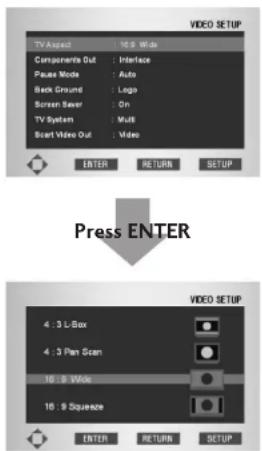
text_image
VIDEO SETUP TV Audio: 15.5 Wide Components Out: Interface Pause Mode: Auto Back Ground: Logo Screen Save: On TV System: Wall Start Video Out: Video ENTER RETURN SETUP Press ENTER VIDEO SETUP 4 : 3 L-Box 4 : 3 Part Scan 16 : 8 Wide 16 : 9 Squeeze ENTER RETURN SETUP
Note
Some discs will not allow you to change the aspect ratio.
DVD Setup Menu6
| When viewing on a standard TV or monitor | ||||
| Screen format of disc | Setting Appearance | |||
16:9 | 4:3 L - Box |  | The picture is shown in widescreen with black bars at the top and bottom of the screen. | |
| 4:3 Pan Scan |  | The sides of the picture are cropped so that the picture fills the whole screen. | ||
| 16:9 Wide |  | The picture is squashed. Set to either Pan & Scan or Letter Box. | ||
4:3 | 16:9 Wide4:3 L - Box4:3 Pan Scan |  | The picture is presented correctly on any setting. | |
When viewing on a widescreen TV or monitor
| Screen format of disc | Player Setting | TV Setting | Appearance | ||
16:9 | 16:9 Wide | Normal |  | The picture is squashed. Set your TV to 'Full'. | |
| Full |  | The picture is presented in widescreen. | |||
4:3 | 16:9 Wide | Normal |  | The picture is presented with black bars either side. | |
| Full |  | The picture is stretched. Set your TV to 'Normal'. | |||
Choose this setting if you have a progressive scan-compatible TV and the aspect ratio cannot be changed.
4:3

16:9 Squeeze
| (This setting only has any effect with progressive output.) |
[Non-Text]
Full
| The picture is presented with black bars either side. |
Components Out
- Default setting: Interlace
Compared to a standard interlaced TV picture, a progressive scan TV is capable of stable, flicker-free images.
Set only if you connected the COMPONENT VIDEO OUT to a progressive scan-compatible TV or monitor.
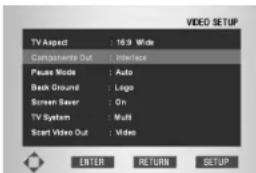
text_image
VIDEO SETUP TV Aspect : 16.3 Wide Components Out : Interface Pease Mode : Auto Back Ground : Logo Screen Saver : On TV System : Multi Start Video Out : Video ENTER RETURN SETUP- Progressive – Use this setting with TVs and monitors that have progressive scan component video inputs. Check the TV's instruction manual if you are not sure about this.
- Interlace – Use this setting with regular TVs that are not compatible with progressive scan. Check the TV's instruction manual if you are not sure about this.

Tip
If this player is set to output progressive-scan video, it's possible that the picture will appear stretched when playing discs recorded in 4:3 format. This happens when the TV's aspect ratio is set to 'Full'. To see the picture in its correct aspect ratio, change the TV setting to 'Normal'.
If your TV doesn't have settings to change the aspect ratio of the picture, set this player to 16:9 Squeeze.

Note
- If you connect a TV that is not compatible with a progressive scan signal and choose one of the progressive scan settings, you will not be able to see any picture at all. With your TV connected using either the composite or S-Video terminals, choose the Interlace setting in the Component Video menu.
- Compatibility of this unit with progressive-scan TVs:
Note that not all high definition television sets are fully compatible with this unit and may cause artifacts to be displayed in the picture. In case of progressive scan picture problems, try switching the connection to the "STANDARD DEFINITION" output.
Pause Mode
- Default setting: Auto
The player uses one of two processes when displaying a still frame from a DVD disc. The default Auto setting automatically chooses the best setting each time.
- Field – produces a stable, generally shake-free image.
- Frame – produces a sharper image, but more prone to shake than field stills.
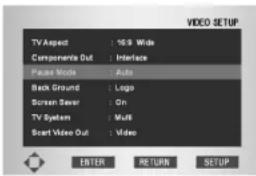
text_image
VIDEO SETUP TV Aspect : 16.9 Wides Components Out : Interface Pause Mode : Auto Back Ground : Logo Screen Screen : On TV System : Multi Scart Video Out : Video ENTER RETURN SETUPDVD Setup Menu6
Back Ground
- Default setting: Logo
This specifies what the screen shows when the player is stopped.

Note
If Capture is selected, a picture taken in by Capture is displayed. (page 29)

text_image
VIDEO SETUP TV Aspect : 16.9 Wide Components Out : Interface Pause Mode : Auto Back Ground : Logo Screen Cover : On TV System : Multi Scart Video Out : Video ENTER RETURN SETUPScreen Saver
- Default setting: On
If a constant image is displayed on a conventional CRT-type TV, it can "burn in" leaving a ghost image on the screen. Switch to On to make sure that a constant image is not displayed for a dangerously long time.

text_image
VIDEO SETUP TV Aspect : 16.9 Wides Components Out : Interface Pause Mode : Auto Back Ground : Logo Screen Screen On TV System : Multi Scart Video Out : Video ENTER RETURN SETUPTV System
- Default setting: PAL
The default setting of this player is PAL, and unless you notice that the picture is distorted when playing some discs, you should leave it set to PAL.
If you experience picture distortion with some discs, set the TV system to match your country or region's system. Doing this, however, may restrict the kinds of disc you can watch. The table below shows what kinds of disc are compatible with each setting (Multi, PAL and NTSC).
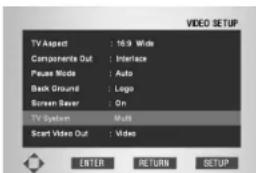
text_image
VIDEO SETUP TV Aspect : 16.9 Wide Components Out : Interface Pause Mode : Auto Back Ground : Logo Screen Break : On TV System : Multi Start Video Out : Video ENTER 返回 SETUP| Disc Output format | ||||
| Type Format Position of TV SYSTEM | ||||
| NTSC PAL | Multi | |||
| DVD | NTSC | NTSC | MOD. PAL NTSC | |
| PAL | NTSC PAL | PAL | ||
| Video CD/ Super VCD | NTSC | NTSC | MOD. PAL NTSC | |
| PAL | NTSC PAL | PAL | ||
| Super Audio CD | NTSC PAL | PAL | ||
| CD, No disc | NTSC PAL | PAL | ||
MOD. (Modulation) PAL
- Shrink
Most models of the newly developed count-down PAL TV system detect 50 Hz (PAL)/60 Hz (NTSC) and automatically switch vertical amplitude, resulting in a display without vertical shrinkage.
- If your PAL TV does not have a V-Hold control, you may not be able to view NTSC discs, because the picture may roll. If the TV has a V-Hold control, adjust it until the picture stops rolling. On some TVs, the picture may shrink vertically, leaving black bands at the top and bottom of the screen. This is not a malfunction; it is caused by the NTSC to PAL conversion.

Note
- When the selected format is changed to a different format from the TV format in which a program was recorded, the picture may become jerky and the upper and lower parts of the screen may disappear. The above setting should be specified to match the format of your own TV.
- Changes can be made only in the Stop mode. When RESUME is indicated on the display, put the player in the Stop mode by repressing ■ (STOP) button.
SCART Video Out
- Default setting: Video
These settings are only applicable if you're using the A/V EURO CONNECTOR SCART-type connector.

Important
If you make a setting here that is incompatible with your TV, the TV may not display any picture at all. If this happens either switch everything off and reconnect to the TV using either the supplied composite video cable, or an S-Video cable (see pages 10-11 for more on this), or reset the unit (see page 54 for how to do this).
- Video – Compatible with all TVs, but lowest quality of the three AV settings.
- S-Video – Almost the same quality as RGB, but can give better results if you are using a long SCART cable.
- RGB – If your TV is compatible, this setting gives the best picture quality.

text_image
VIDEO SETUP TV Aspect 16.5 Wide Components Out Interface Pease Mode Auto Back Ground Logo Screen Cover On TV System Multi Smart Video Out Video ENTER RETURN SETUPSetting up the Parental Setup
The Parental Control function works in conjunction with DVDs that have been assigned a rating - which helps you control the types of DVDs that your family watches. There are up to 8 rating levels on a disc.
Use Password
1 Press the SET UP button.
2 Select SetupSitting the cursor buttons (▲/▼), then press the cursor (▶) or ENTER button.
3 Select Parental SetupParentalSetupor buttons (▲/▼), then press the cursor (▶) or ENTER button.
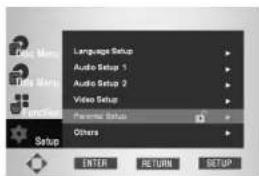
text_image
Language Setup Audio Setup 1 Audio Setup 2 Video Setup Preview Setup Others ENTER RETURN SETUP4 U se the cursor button (▶) or ENTER to select Yes Yeyou want to use a password. The Enter Password screen appears.
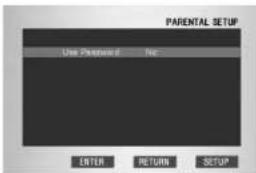
text_image
PARENTAL SETUP Use Password No ENTER RETURN SETUP
text_image
CREATE PASSWORD Enter Password RETURN5 Enter your password. The Re-enter Password screen appears to confirm the password.
Enter your password again. The Parental Control screen appears.
Rating Level
The Rating Level will work only when Use Password is set to Yes. Use the cursor button (▶) or ENTER to select Rating Level.
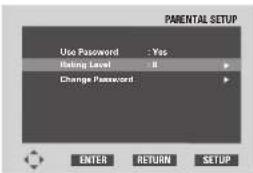
text_image
PARENTAL SETUP Use Password : Yes Rating Level: 8 Change Password: ENTER RETURN SETUP- Use the cursor buttons (▲/▼) to select a level (e.g. Level 6) and press ENTER. Discs that contain Level 7 will now not play.
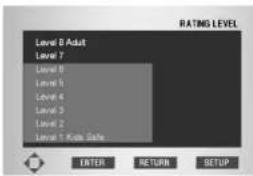
text_image
RATING LEVEL Level 8 Adult Level 7 Level 8 Level 6 Level 5 Level 4 Level 3 Level 2 Level 1: Kua Safe ENTER 返回 始用 委用- To cancel the rating level, use the cursor button (▶) or ENTER to set Use Password to No.
Change Password
- Use the cursor buttons (▲/▼) to select Change Password.
Press ENTER. The Change Password screen appears. - Enter your new password. Re-enter the new password again.
Note
- T o make the SETUP menu disappear or return to the menu screen during setup, press the RETURN or cursor button (◀).
- If you have forgotten your password, see Resetting the Player on page 59.
• This Setting can be set only during STOP.
DVD Setup Menu6
Setting up the Others Setup
1 P press the SET UP button.
2 Select Setup Using the cursor buttons (▲/▼), then press the cursor (▶) or ENTER button.
3 Select OtherOShap Setup the cursor buttons (▲/▼), then press the cursor (▶) or ENTER button.
4 Use the cursor buttons (▲/▼) to select the desired item, then press the cursor (▶) or ENTER button.
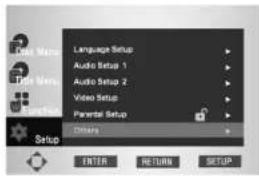
text_image
Language Setup Audio Setup 1 Audio Setup 2 Video Setup Parental Setup Drama ENTER RETURN SETUPNote
To make the SETUP menu disappear or return to the menu screen during setup, press the RETURN or cursor button (◀).
On Screen Display
- Default setting: On
If you prefer not to have the operation displays shown on-screen, change the setting to Off.
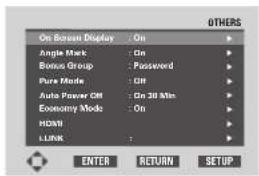
text_image
On Screen Display : On Angle Mark : On Bonus Group : Password Pure Mode : Off Auto Power ON : On 30 Min Economy Mode : On HDMI : LINK : OTHERS ENTER 返回 SETUPAngle Mark
- Default setting: On
If you prefer not to see the camera icon on-screen during camera-angle scenes on DVD discs, change this setting to Off.

text_image
On Screen Display Apple Mask Bonus Group Pure Mode Auto Power Oil Economy Mode HDMI LINK Others ENTER RETURN SETUPBonus Group
Some DVD-Audio discs have an extra 'bonus' group that requires a 4-digit key number to access. See the disc packaging for details and the key number. When you try and play the bonus group, the key number input screen will automatically appear. Input the number.
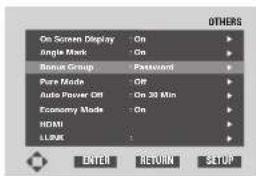
text_image
On Screen Display Single Mark Bonus Group Pure Mode Auto Power Off Economy Mode HDACI LLRUE ON ON ON 30 Min ON OTHERS ENTER RETURN SETUP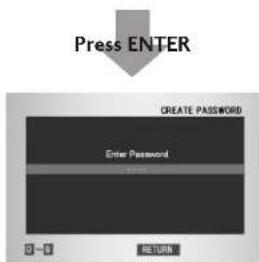
text_image
Press ENTER CREATE PASSWORD Enter Password 0-8 RETURNNote
If you eject the disc, switch the power off, or unplug the player, you will need to re-enter the key number.
Pure Mode
- Default setting: Off
If you play a CD or Super Audio CD while Pure Mode, Mode1 or Mode2 is selected, then Display, Video Out and Digital Out shut off automatically. And if you push the FL OFF button on the front panel or DIMMER button on the remote control during the Pure Mode ON, for three seconds, only Display is displayed. Display and Video Out are on, and Digital Out is off during Stop.
Depending on the disc, it may not operate normally. If this happens, use it after turning off Pure Mode.
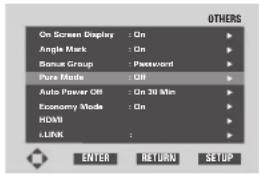
text_image
On Screen Display : On Angle Mark : On Bonus Group : Password Pure Mode : Off Auto Power Off : On 30 Min Economy Mode : On HDMI LINK : OTHERS ENTER RETURN SETUPPress ENTER
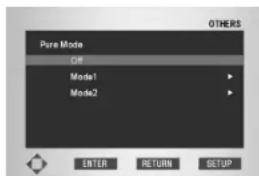
text_image
Pore Mode Off Mode1 Mode2 OTHERS EIBTUR RETURN SETUPSelect Mode1 or Mode2 using the cursor buttons (▲/▼), then press the cursor button (▶) or ENTER.

text_image
Pore Mode: Model! Display : Off Video Out : Off Digital Out : Off OTHERS ENTER RETURN SETUPSelect the item you want to set to Off when you want to play back a CD or Super Audio CD.
- M ode1 default settings Display, Video Out and Digital Out are all Off.
- M ode2 default settings Video Out and Digital Out are Off.
Note
- When the video output has been set to Off in Pure Mode and CD or Super Audio CD have been played, audio cannot be output from HDMI.
- During Pure Mode operation, part of the functions cannot operate.
- The Digital Out is Off when i.LINK is connected. (page 55)
Auto Power Off
- Default setting: On 30 Min

text_image
OTHERS On Screen Display : On Angle Mark : On Bonus Group : Passvaend Pure Mode : Off Auto Power Off : On 30 Min Economy Mode : On HDMI LINK : ENTER RETURN SETUPIf On 30 MinOn 10 Min the standby mode is automatically selected to save power if the player is left in the Stop mode for about 30 minutes.
Economy Mode
- Default setting: On
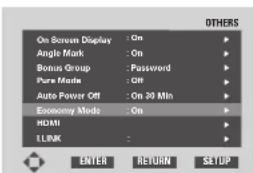
text_image
OTHERS On Screen Display : On Angle Mark : On Bonus Group : Password Pure Mode : Off Auto Power Off : On 20 Min Economy Mode : On HDMI LINK : ENTER RETURN SETUPThis setting is for customized installation. Please do not touch this setting.
DVD Setup Menu6
HDMI
This setting is used when the unit is connected by HDMI or DVI with a TV or projector.
This setting can be toggled On and Off by pressing the HDMI/DVI RESOLUTION button on the front panel for three seconds or more. HDMI is On when the unit is shipped from the factory.

text_image
Others On Screen Display : On Angle Mark : On Bonus Group : Password Pure Mode : Off Auto Power Off : On 30 Min Economy Mode : On HDAN LINK ENTER RETURN SETUP Press ENTER HDAN Resolution : 486(2.76)(25% (87%)) Format : RGB Normal TV Asport : 4.3 L Box Audio : Auto DVI Output : Mode B OTHERS OUT ENTER RETURN SETUP
Note
• This unit supports HDMI Ver. 1.1.
- This unit does not support HDMI control functions (CEC).
1 Select ResolutionResolution

text_image
HD&T Resolution - 480p(376p/522p/527p) - 480p(376p/522p/527p) - 720p(750p) - 1080p(1125p) - 1080p(1125p) ENTER RETURN SETUP OTHERS• 4 8 0i/576i (525i/625i)
• 4 8 0p/576p (525p/625p)
• 7 2 0p (750p)
• 1 0 8 0i (1125i)
• 1 0 8 0p (1125p)
Select one of the above with the cursor buttons
(▲/▼) and then press the ENTER button.

Note
- The resolutions available for HDMI outputs depend on the connected TV or projector. Resolutions supported by the connected component are indicated on the display with an asterisk (*).
- I f, after changing the resolution, images are not displayed properly on the TV or projector, press and hold the CLEAR button on the Remote Control for three seconds. Then return to Setup menu. (page 15)
- When the resolution changes, the image may be corrupted or the output may take longer than normal.
- When 480i/576i has been selected, multi-channel PCM at sampling frequency of 96kHz cannot be output. The multi-channel PCM is converted to 48kHz/2ch before being output.
- When 480p/576p has been selected, multi-channel PCM at sampling frequency of 96kHz cannot be output if the connected TV, projector, etc. is not compatible with WCLOCK. The multi-channel PCM is converted to 48kHz/2ch before being output.
- In general, the larger the number, the higher the resolution.
- The resolution is set to 480p/576p (525p/625p) when the unit is shipped from the factory.
- The resolution can also be set with the HDMI/DVI RESOLUTION button on the front panel. (page 13)
2 Select FormatFormat
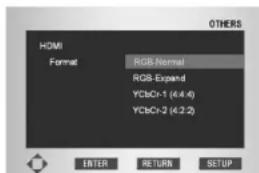
text_image
HDMI Format RGB-Normal RGB-Expand YCbCr-1 (4.4.4) YCbCr-2 (4.2.2) EITER RETURN SETUP OTHERS• R GB-Normal
- R GB-Expand
• Y CbCr-1 (4:4:4)
• Y CbCr-2 (4:2:2)
Select one of the above with the cursor buttons
(▲/▼) and then press the ENTER button.
Note
- Image data values in RGB-Normal format range between 16 (black) and 235 (white).
- Image data values in RGB-Expand format range between 0 (black) and 246 (white).
- The formats available for HDMI outputs depend on the connected TV or projector. For details, see the user's manual of your TV or projector.
-
Only RGB-Normal and RGB-Expand can be selected for DVI outputs.
-
When black rise to the surface depending on the display, black Setup in the Video Adjustment set to OIRE.
- Eight-bit data is sent when YCbCr-1 (4:4:4) is selected. Ten-bit data is sent when YCbCr-2 (4:2:2) is selected.
You can enjoy full 10-bit advanced picture quality if the connected TV or projector supports YCbCr-2 (4:2:2).
3 Select TV AspectTV Aspect
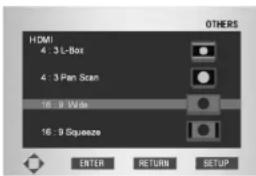
text_image
HDMI 4 : 3 L-Box 4 : 3 Pan Scan 16 : 9 Wide 16 : 9 Squeeze ENTER RETURN SETUP OTHERS• 4:3 L - Box
• 4:3 Pan Scan
• 1 6:9 Wide
• 1 6:9 Squeeze
Select one of the above with the cursor buttons
(▲/▼) and then press the ENTER button.
Note
- The TV aspect ratios available for HDMI outputs depend on the connected TV or projector. For details, see the user's manual of your TV or projector.
- Only 16:9 Wide and 16:9 Squeeze can be selected when the HDMI/DVI resolution is set to 720p, 1080i or 1080p.
- When this TV Aspect is in effect, it also determines the aspect output of Composite Video, S-Video, and Component Video.
Setup Examples
| Resolution (HDMI Setting) | Playback Disc | |||
| Disc Recorded in Squeeze Ratio Disc Recorded in 4:3 Ratio | ||||
| Aspect (HDMI Setting) | Monitor Settings | Aspect (HDMI Setting) | Monitor Settings | |
| 480i/576i(525i/625i)480p/576p(525p/625p) | 16:9 Wide | Full/Squeeze | 4:316:9 Wide | StandardNormal4:3Through |
| 720p/1080i(750p/1125i)1080p (1125p) | Normal/Through | 16:9 Squeeze | ||
Some monitors may use setting names that are different than those shown here.
DVD Setup Menu6
4 Select AudioAudio
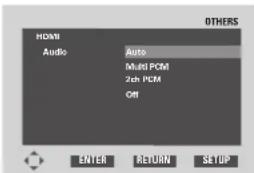
text_image
OTHERS HDMI Audio Auto Multi PCM 2nd PCM Off ENTER RETURN SETUP- Auto (default setting)
In this mode, when discs recorded in Dolby Digital, DTS, or MPEG are played, the respective bit stream signal is output. When DVD-Video/DVD-Audio discs with multi-channel audio are played, the multi-channel signal is output. When discs recorded in 2-channel PCM or other 2-channel format are played, the audio is output as 2-channel PCM. The output formats are limited by the capabilities of the connected component. For example, if the disc is recorded in Dolby Digital but the connected component does not support Dolby Digital, the audio is output as multi-channel PCM. If the connected component does not support multi-channel PCM either, the audio is output as 2-channel PCM.
- Multi PCM
In this mode, when discs recorded in Dolby Digital, DTS, MPEG, or DVD-Video/DVD-Audio are played, a multi-channel signal is output. When discs recorded in 2-channel PCM or other 2-channel format are played, the audio is output as 2-channel PCM. The output formats are limited by the capabilities of the connected component. For example, if the disc is recorded in Dolby Digital but the connected component does not support Dolby Digital, the audio is output as 2-channel PCM.
• 2ch PCM
In this mode, audio is output as 2-channel PCM for all discs. Select this mode when the unit is connected to a TV or projector.
- Off
Audio signals are not output from the HDMI jack.
Select one of the options with the cursor buttons (▲/▼) and press the ENTER button.
HDMI Audio Output
| Audio Formats | HDMI Setting (Audio) | ||||
| Auto ^41 | Multi PCM ^*2 | 2 ch PCM | Off | ||
| DVD | Dolby Digital | Dolby Digital | Multi channel PCM | 2 Channel DOWNMIX | Not Output |
| Linear PCM | Multi channel PCM | Multi channel PCM | 2 Channel DOWNMIX | Not Output | |
| DTS | DTS | Multi channel PCM | 2 Channel DOWNMIX | Not Output | |
| MPEG | MPEG | 2 Channel DOWNMIX | 2 Channel DOWNMIX | Not Output | |
| DVD-Audio | Multi channel PCM | Multi channel PCM | 2 Channel DOWNMIX ^*3 | Not Output | |
| CD/MP3/Super Audio CD ^*4 | Left/Right | Not Output | |||
| DTS CD | DTS | Multi channel PCM | 2 Channel DOWNMIX | Not Output | |
| Video CD | Left/Right | Not Output | |||
^1 : The order of priority in Auto mode is: Bit Stream, Multi PCM, 2ch PCM.
The output format is limited by the capabilities of the connected component.
^2 : The order of priority in Multi PCM mode is: Multi PCM, 2ch PCM.
The output format is limited by the capabilities of the connected component.
^3 : Audio is not output from discs that prohibit downmixing.
*4: Audio is not output from Super Audio CDs. Audio is only output when a CD layer is played.
Note
- Audio signals are not output from DVD-Audio discs with CPPM copyright protection when using components that do not support HDMI standard Ver. 1.1.
- M ulti-channel and stereo audio is not output from Super Audio CDs. Use the analog audio outputs or i.LINK.
- Audio is not output when the player is connected to a device with an HDCP-compatible DVI jack.
- Turn the power on the front panel OFF during play or pause. Noise from a television etc. may come out.
- When the video output has been turned off using the VIDEO ON/OFF button on the Remote control, audio cannot be output (see page 15).
- When the video output has been set to Off in Pure Mode and CD have been played, audio cannot be output (see page 51).
- No audio is output from the HDMI jack when i.LINK is connected because i.LINK has priority over HDMI.
- Use of some Audio Setup 1 and Audio Setup 2 options is restricted when Auto, Multi PCM, or 2ch PCM is selected.
- Some connected components may limit the audio signals (sampling rate, frequencies, bit lengths, etc.) from the HDMI jack.
5 Select DVI OutputDVI Output
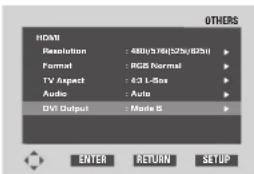
text_image
HDMI Resolution : 480(176)(525)(1035) Format : RGB Normal TV Aspect : 4:3 L-Box Audio : Auto DVI Output : Mode 5 ENTER RETURN SETUP OTHERSIf images are shifted to the left side, select Mode A with the cursor buttons (▶).
i.LINK
This setting is used when the unit is connected by i.LINK to an i.LINK-compatible component. Audio cannot be output simultaneously from the i.LINK port and the analog, digital, HDMI, or headphone audio jacks.

text_image
Others On Screen Display : On Angle Mark : On Bonus Group : Password Pure Mode : Off Auto Power Off : On 30 Min Economy Mode : On HDAC : On LINK : On ENTER RETURN SETUP Press ENTER LINK Audio Out : Off Connections Select : Output Format : Auto Play : Off OTHERS ENTER RETURN SETUP1 Select Audio OutAudio Out
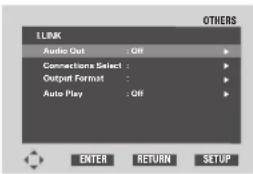
text_image
LINK Audio Out : ON Connections Select : Output Format : Auto Play : ON OTHERS ENTER RETURN SETUP- On (default setting)
Audio is output from the i.LINK port when i.LINK is connected.
- Off
Audio is output from the analog/digital/HDMI/headphone audio jacks even when i.LINK is connected.
Select one of the options with the cursor buttons (▶).
Note
Use of some Audio Setup 1 and Audio Setup 2 options is restricted when Audio Out is enabled.
DVD Setup Menu6
2 Select Connections SelectConnections Select Auto PlayAuto Play
text_image
OTHERS MODEL BRAND BR900 Marant2 AAA XXX BBB YYY ENTER RETURN SETUP- The model names and brand names of all components connected through i.LINK are listed on the display. NO NAME is displayed when the model and brand cannot be retrieved.
- Auto Play can be enabled for the component selected here.
Select one of the options with the cursor buttons (▲/▼) and press the ENTER button.

text_image
LINK Audio Out : On Connections Select : Output Format : Auto Play : Off ENTER RETURN SETUP OTHERS- You can link the play control of this unit with the input selector on the component selected under the Connections Select option.
- Some components do not support Auto Play. Select one of the options with the cursor buttons (▶).
3 Select Output FormatOutput Format

text_image
SR600 Marantz Dolby Digital Out : Bit Stream DTS Out : Bit Stream MPEG Out : Bit Stream ENTER RETURN SETUP OTHERS- This option allows you to select Bit Stream or PCM Outputs for audio (Dolby Digital/DTS/MPEG).
- The selected audio format is output to all components connected through i.LINK.
Select one of the options with the cursor buttons

Note
- Select either multi-channel output or 2-channel downmixed output for DVD-Audio discs from Audio Out under Audio Setup 1. (page 39)
- Some DVD-Audio discs prohibit downmixing.
About i.LINK
By simply connecting a single i.LINK cable between components with i.LINK ports, you can get direct digital transfers of not only DVD-Video audio but also multi-channel audio such as Super Audio CD or DVD-Audio, which previously could only be connected in analog with five audio cords, as well as 2-channel audio like conventional CDs.
When transferring DVD-Audio or Super Audio CD audio digitally by i.LINK, this unit employs the Jitter Free Transfer System (JFTS), a technology that removes jitter from transfers. By combining this unit with JFTS-compatible components, you can play jitter-free audio.
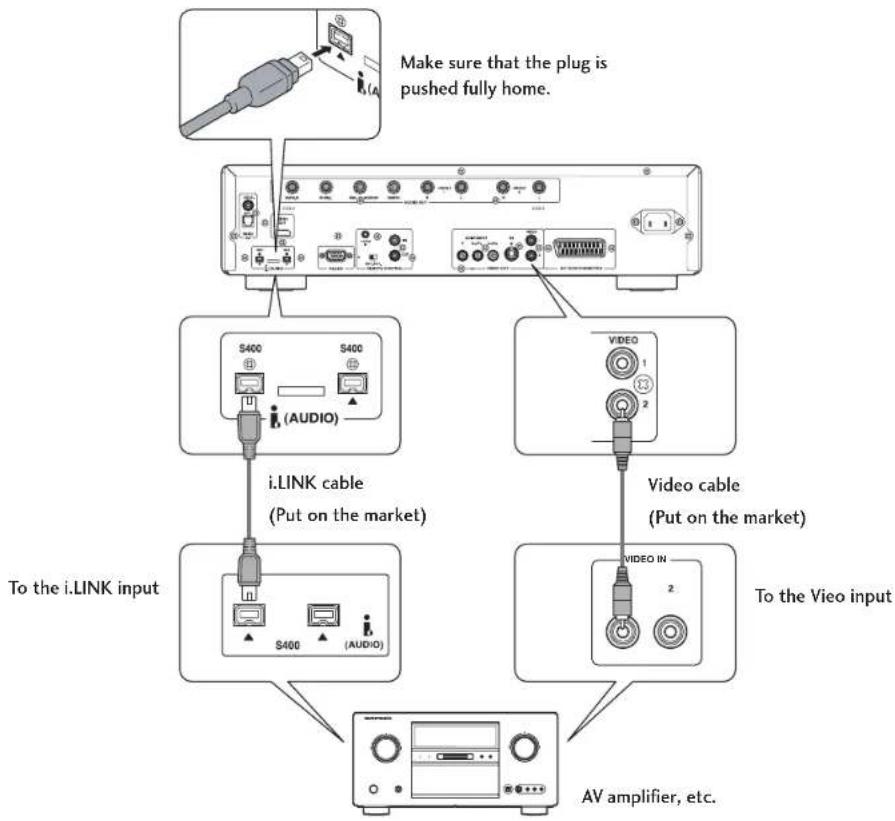
flowchart
graph TD
    A["Make sure that the plug is pushed fully home."] --> B["i-LINK cable (Put on the market)"]
    B --> C["S400 (AUDIO)"]
    B --> D["S400"]
    B --> E["AV amplifier, etc."]
    F["Video cable (Put on the market)"] --> G["VIDEO IN 2"]
    F --> H["VIDEO 1 2"]
Note
- The i.LINK audio interface does not transport video signals. A separate connection is necessary for video signals.
- i.LINK cable specifications: S400 or better; 3.5 meters or shorter; 4-pin connectors
- 96 kHz audio from copyright-protected DVD-Video discs is converted to 48 kHz before being output from the i.LINK port.
- Set Audio Output under Audio Setup 1 to 5.1 Channel when outputting multi-channel audio from DVD-Audio discs (see page 39).
- The play control of this unit and the input selector of an i.LINK-connected AV amplifier can be linked together (Auto Play) (see page 56).
- When the i.LINK indicator (i.LINK) on the unit's display is lit, audio is not output from the digital audio output plugs, the analog audio output jacks, the HDMI jack, or the headphone jack. If you wish to output audio from the digital audio output plugs, the analog audio output jacks, the HDMI jack, or the headphone jack, set Audio Out from i.LINK Setup to Off (see page 55).
- The i.LINK indicator (i.LINK) on the unit's display only lights when the connected amplifier is powered and its input selector is set to i.LINK.
DVD Setup Menu6
- i.LINK can transport three formats: "i.LINK AUDIO (A&M protocol)" used by this unit, "MPEG-2 TS" for BS digital, and "DV" used by DVD recorders and digital video players. Data cannot be forwarded correctly when this unit is connected to components or computer peripherals that do not support the i.LINK AUDIO format. Furthermore, such connections may cause the unit to operate incorrectly.
- During playback at an i.LINK component, do not unplug other i.LINK components, plug in new i.LINK components, or turn components on or off. Doing so many interrupt the audio playback.
- Some i.LINK components cannot relay data when power is off or in standby mode. Please refer to the owner's manual of your connected i.LINK component. This unit cannot relay i.LINK data in standby power mode.
- i.LINK components indicate the maximum data transfer rate they support near the i.LINK port. The maximum i.LINK data transfer rates are defined as 100/200/400 Mbps (all rates are approximate). S200 indicates a maximum transfer rate of 200 Mbps; S400 indicates 400 Mbps. This unit has a maximum i.LINK data transfer rate of 400 Mbps. The actual transfer rate, however, may be slower than 400 Mbps due to a component's specification or when connected to an S100 or S200 device. Whenever possible, connect components with the same maximum data transfer rate in parallel.
(Mbps is an abbreviation for megabits per second and indicates the amount of data that can be communicated in one second. At 400 Mbps, 400 megabits of data are transferred in one second.)
- i.LINK functions are not guaranteed to connect and operate among all i.LINK components. The functions of each respective component determine whether data or control signals can be exchanged among i.LINK components.
- This unit's i.LINK module was designed based on IEEE Std. 1394a-2000, Standard for High Performance Serial Bus.
- i.LINK and the i.LINK logo are trademarks of the Sony Corporation.
- IEEE 1394 is an international standard formulated by the Institute of Electrical and Electronics Engineers U.S. (IEEE).
i.LINK Network
i.LINK components can be connected in the following configurations when exchanging i.LINK AUDIO signals (A&M Protocol).
1. Daisy-chain connection
Each pair of components is connected with a single i.LINK cable in series. Up to 17 components can be connected in this configuration.
2. Tree (tower) connection
Each pair of components is connected with a single i.LINK cable in series and in parallel. Up to 63 components can be connected in this configuration.
Note
Always make i.LINK connections between any pair of components with one cable. Do not under any circumstance connect two components with two cables (forming a loop) because a component will receive the signals it outputs causing it to operate incorrectly.
Copyright Protection System
Both the player and the amplifier must support Digital Transmission Content Protection (DTCP), a copyright protection system, in order to play Super Audio CD or DVD-Audio (excluding free-to-copy discs) audio over an i.LINK connection. DTCP is a copy-protection technology that includes data encryption and component authentication. This unit supports DTCP. Please refer to the owner's manual of your amplifier to determine if it supports DTCP.
Resetting the Player
Resetting the player returns all menu, picture and password settings to their factory defaults.
To reset the player, press and hold
■ (STOP) on the front panel when pressing Power switch to turn the power on.
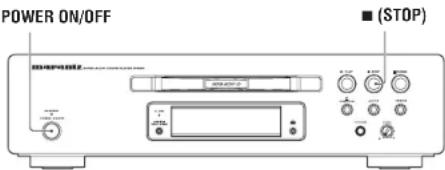
text_image
POWER ON/OFF ■ (STOP)Note
- S tatic electricity or other external influences may cause malfunctioning of this unit. In this case, unplug the power cord and then plug back in. This will usually reset the unit for proper operation. If this does not correct the problem, please consult your nearest MARANTZ service center.
- If this operation is performed, all memories in which the Program Memory (page 25), Condition Memory (page 21), Bookmark (page 24), Capture (page 29) and Video Adjust's Memory (page 30) have been entered are simultaneously erased. Be extremely careful before doing this operation.
Additional Information7
Handling discs
When holding discs of any type, take care not to leave fingerprints, dirt or scratches on the disc surface. Hold the disc by its edge or by the center hole and edge.

Damaged or dirty discs can affect playback performance. Take care also not to scratch the label side of the disc. Although not as fragile as the recorded side, scratches can still result in a disc becoming unusable.
Should a disc become marked with fingerprints, dust, etc., clean using a soft, dry cloth, wiping the disc lightly from the center to the outside edge as shown in the diagram below.
Wipe lightly from the center of the disc using straight strokes.
Don't wipe the disc surface using circular strokes.
If necessary, use a cloth soaked in alcohol, or a commercially available CD/DVD cleaning kit to clean a disc more thoroughly. Never use benzine, thinner or other cleaning agents, including products designed for cleaning vinyl records.
Storing discs
Although CDs and DVD discs are more durable than vinyl records, you should still take care to handle and store discs correctly. When you're not using a disc, return it to its case and store upright. Avoid leaving discs in excessively cold, humid, or hot environments (including under direct sunlight).
Don't glue paper or put stickers onto the disc, or use a pencil, ball-point pen or other sharp-tipped writing instrument. These could all damage the disc.

For more detailed care information see the instructions that come with discs.
Do not load more than one disc into the player.
Discs to avoid
Discs spin at high speed inside the player. If you can see that a disc is cracked, chipped, warped, or otherwise damaged, don't risk using it in your player—you could end up damaging the unit.

This unit is designed for use with conventional, fully circular discs only. Use of shaped discs is not recommended for this product.

Cleaning the pickup lens
The DVD player's lens should not become dirty in normal use, but if for some reason it should malfunction due to dust or dirt, consult your nearest MARANTZ-authorized service center. Although lens cleaners for CD players are commercially available, we do not recommend using them since some may damage the lens.
Problems with condensation
Condensation may form inside the player if it is brought into a warm room from outside, or if the temperature of the room rises quickly. Although the condensation won't damage the player, it may temporarily impair its performance. For this reason you should leave it to adjust to the warmer temperature for about an hour before switching on and using.
Hints on installation
We want you to enjoy using this unit for years to come, so please bear in mind the following points when choosing a suitable location for it:
Do...
√ Use in a well-ventilated room.
√ Place on a solid, flat, level surface, such as a table, shelf or stereo rack.
Don't...
✗ Use in a place exposed to high temperatures or humidity, including near radiators and other heat-generating appliances.
✗ Place on a window sill or other place where the player will be exposed to direct sunlight.
✗ Use in an excessively dusty or damp environment.
✗ Place directly on top of an amplifier, or other component in your stereo system that becomes hot in use.
✗ Use near a television or monitor as you may experience interference—especially if the television uses an indoor antenna.
✗ Use in a kitchen or other room where the player may be exposed to smoke or steam.
✗ Use on a thick rug or carpet, or cover with cloth—this may prevent proper cooling of the unit.
X Place on an unstable surface, or one that is not large enough to support all four of the unit's feet.
Moving the player
If you need to move the player, first press POWER ON/OFF button on the front panel to turn the player off, then unplug the power cord. Never lift or move the unit during playback—discs rotate at a high speed and may be damaged.
Power cord caution
Handle the power cord by the plug part. Do not pull out the plug by tugging the cord, and never touch the power cord when your hands are wet, as this could cause a short circuit or electric shock. Do not place the unit, a piece of furniture, or other object on the power cord or pinch the cord in any other way. Never make a knot in the cord or tie it with other cords. The power cords should be routed so that they are not likely to be stepped on. A damaged power cord can cause a fire or give you an electric shock. Check the power cord once in a while. If you find it damaged, ask your nearest MARANTZ authorized service center or your dealer for a replacement.
Additional Information7
Troubleshooting
Incorrect operation is often mistaken for trouble or malfunction. If you think that there is something wrong with this unit, check the points below. Sometimes the trouble may lie in another component. Inspect the other components and electrical appliances being used. If the trouble cannot be rectified after checking the items below, ask your nearest MARANTZ authorized service center or your dealer to carry out repair work.
The disc is ejected automatically after loading.
- Dirty or damaged disc.
See page 60 for disc care information. - Disc not seated properly in the disc guide. Align the disc properly.
- Incompatible region number. If the region number on a DVD-Video disc does not match the number on the player, the disc cannot be used (page 9).
- Condensation inside the player. Allow time for condensation to evaporate. Avoid using the player near an air-conditioning unit.
Playback is not possible.
• Disc is loaded upside down.
Reload the disc with the label side face-up.
Cannot play DVD-RW disc.
• D VD-RW disc with DVD-Video format only can be played.
DVD-Audio playback stops.
• The disc may have been illegally copied.
∅ mark appears on screen.
- The operation is prohibited by the player.
- The selected function does not operate for that disc.
Picture playback stops and the operation buttons cannot be used.
- Press ■ (STOP), then start playback again ▶ (PLAY).
- Switch the power off once using the front panel POWER ON/OFF and then switch on again using the front panel POWER ON/OFF.
New settings made in the Setup screen menus while a disc is playing are ineffective.
- Some settings can be changed while a disc is playing, but are not effective until the disc is stopped then restarted. This is not a malfunction.
Make the same setting when the player is stopped. Press ■ (STOP), then restart playback ▶ (PLAY). Note that making settings in the Setup screen menus may cancel the RESUME function.
Settings are canceled.
- When the power is cut due to power failure or by unplugging the power cord, settings will be canceled. Before unplugging the power cord, press the POWER button on the remote control and check that STANDBY indicator on the front panel is lit, then press POWER ON/OFF on the front panel to turn the player off.
No picture/No color.
- Incorrect video connections. Check that connections are correct and that plugs are inserted fully.
- TV/monitor or AV amplifier settings are incorrect. Check the instruction manual of the connected equipment.
- The Components Out menu is set to Progressive but your TV/monitor is not compatible with progressive scan. Reconnect the player to your TV using a composite or S-Video cord and set the TV to the appropriate input. Now choose the Interlace setting in the Components Out menu, then switch the TV input back to the component input. (page 47)
- Check the VIDEO ON/OFF button on the remote control (page 15).
Screen is stretched or aspect does not change.
- The TV Screen setting in the Setup menu is incorrect. Set the TV Screen option to match the TV/monitor you're using (page 45).
Picture disturbance during playback or dark.
- This player is compatible with Macro-Vision System copy guard. Some discs include a copy prevention signal, and when this type of disc is played back, stripes etc., may appear on some sections of the picture depending on the TV. This is not a malfunction.
- Discs respond differently to particular player functions. This may result in the screen becoming black for a brief instant or shaking slightly when the function is executed. These problems are largely due to differences between discs and disc content and are not malfunctions of this player.
- When using progressive-scan If your TV is connected using the COMPONENT VIDEO OUT jacks, set the Components Out menu to Interlace (page 47).
When recorded on a VCR or passed through an AV selector, there is disturbance in the playback picture.
- Due to the player's copy protection circuits, connection of this device through a VCR or an AV selector may prevent recording or cause picture problems. This is not a malfunction.
The remote control doesn't seem to work.
- The remote control is too far from the player, or the angle with the remote sensor is too wide. Use the remote control within its operating range (page 7).
- The batteries are exhausted. Put in new batteries (page 7).
Cannot listen to high-sampling rate audio through the digital output.
- Linear PCM Out is set to PCM Down Sample On. Set to Off.
- A s a copy-protection measure, some DVDs do not output 96kHz audio. In this case, even if Off is selected, the player automatically outputs the audio at 48kHz. This is not a malfunction.
No audio, or audio is distorted.
- Some DVD discs do not output digital audio. Switch your amplifier to the player's analog outputs.
- Dirt, dust, etc. on the disc. Clean the disc (page 60).
- Interconnects are not fully inserted into the terminals (or are not connected). Check that all interconnects are firmly inserted.
- Dirty or oxidized plugs/terminals. Clean the plugs/terminals.
- Incorrect audio cable connection. Check the audio connections (pages 10–12).
- Player's output is connected to the amplifier's phono (turntable) inputs. Connect to any set of inputs except phono.
- The disc is paused. Press ▶ (PLAY) to exit the pause mode.
- Incorrect amplifier settings. Check that the volume is turned up, that the speakers are on, the input function set correctly, etc.
- The Audio Out setting is incorrect. If there is no dialog from the front L/R speakers, set Audio Out to 2 Channel. If there is no output from the rear, center and subwoofer speakers, set Audio Out to 5.1 Channel (page 39).
- The player is set to 5.1ch playback, but sound is only 2ch. Check that 2ch playback is not selected in the disc's menu.
The analog audio is OK, but there appears to be no digital audio signal.
- Incorrect Audio Setup 1 menu settings. Make sure that the Digital Out setting is set to On (page 37). Check that the Dolby Digital and DTS settings are suitable for your amplifier—check the amp's instruction manual.
Noticeable difference in DVD and CD volume.
- D VDs and CDs use different recording methods. This is not a malfunction.
Cannot play multi-channel audio.
- Make sure that 5.1 Channel is selected in the Audio Out menu (page 39).
- Check that the settings in the Speaker Setting screen are correct (page 40).
- Check the audio options available from the disc's menu.
No digital audio output
- Check that Digital Out setting is set to On (page 37).
- Some DVD-Audio discs prohibit digital audio output.
- No digital audio is output when playing Super Audio CDs.
- Connect to the i.LINK port or the analog audio output jacks. (page 55)
Cannot output 192kHz or 176.4kHz digital audio.
The player does not output digital audio at these sampling rates.
Cannot output 96kHz or 88.2kHz digital audio.
- Check that the PCM Down Sample setting is not set to On (page 38).
- Some discs are digital copy protected and do not output high sampling rate digital audio.
No DTS audio output.
- If this unit is connected to a non-DTS compatible amplifier or decoder using a digital audio cable, set DTS Digital Out to PCM in the Setup menu. If you do not do this, noise will be output if you try and play a DTS disc.
- If this unit is connected to a DTS-compatible amplifier or decoder using a digital audio cable, check the amplifier settings, and that the cable is properly connected.
Audio mix does not sound right or sounds incomplete (for example, inaudible dialog).
- Incorrect Setup menu settings. Make sure that 2 Channel output is selected for the Audio Out menu option if you've connected to the stereo inputs on your amplifier or TV (page 39).
- If the power is switched off before exiting the Setup menu, the settings are not stored. Make sure that you exit the Setup menu after changing any settings before switching off.
Additional Information7
The disc containing the MP3 tracks won't play.
- If the disc is a recordable CD, make sure that the disc is finalized.
Check that the track(s) are in the MPEG1 Audio Layer 3 format.
Check that the sampling rate of the track(s) are 44.1 or 48kHz.
Some MP3 tracks appear to be missing from a disc.
- If a track name does not end in ".mp3" or ".MP3", this player will not recognize it as an MP3 track.
- This player only recognizes about 600 files on a disc. If there are more titles than this, you will not be able to play them.
- This player is not compatible with multi-session discs. If the disc is multi-session, you will only be able to play tracks recorded onto the first session.
The unit is connected to an HDMI/DVI component but the HDMI/DVI indicator on the display does not light.
- S et the input selector on the connected TV or HDMI/DVI component to this unit.
- This unit cannot be connected to TVs or HDMI/DVI components that do not support HDCP.
- R eset this unit and the TV or HDMI/DVI component by turning them off and on. (page 15)
No video appears on the connected HDMI/DVI component.
- Is the indicator V OFF shown on the display?
The unit will not output a video signal if the video output has been disabled. Enable the video output with the VIDEO ON/OFF button on the remote control. - The unit will not output a video signal if the video output has been disabled in Pure mode.
- Can the connected TV or HDMI/DVI component use the selected resolution and format?
Set the Resolution and Format under HDMI Setup. (page 52) - S et the input selector on the connected TV or HDMI/DVI component to this unit.
- Press the CLEAR button on the remote control for three seconds or more. This reverts the unit to its default settings. (page 15)
• TVs or HDMI/DVI components that do not support HDCP cannot output video from this unit.
No audio is coming from the connected HDMI component.
- Is the indicator V OFF shown on the display?
The unit will not output an audio signal if the video output has been disabled. Enable the video output with the VIDEO ON/OFF button on the remote control. -
The unit will not output an audio signal if a CD is played while the video output has been disabled in Pure mode. (page 51)
-
The unit will not output an audio signal if Audio has been turned off under HDMI Setup. (page 54)
- Can the connected TV or HDMI component use the selected audio settings?
Set the Audio settings under HDMI Setup. (page 54) - Some HDMI-compatible monitors do not support audio output.
- The unit will not output an audio signal if a DVI component has been connected.
- The unit will not output multi-channel or stereo audio signals from Super Audio CDs.
- The unit will not output audio from DVD-Audio discs with CPPM copyright protection if the HDMI-connected component does not support HDMI standard Ver. 1.1.
- The unit will not output audio from DVD-Audio discs that prohibit downmixing if 2ch PCM is selected.
- Audio is not output when i.LINK is connected because i.LINK has priority over HDMI. (page 55)
The unit does not output audio or video correctly when connected to a DVI component.
- Select HDMI OFF by pressing the HDMI/DVI RESOLUTION button on the unit for three seconds or more. (page 13)
The unit is connected to an i.LINK component but the i.LINK indicator on the display does not light.
- Set the input selector on the connected AV amplifier to this unit.
- R eset this unit and the AV amplifier by turning them off and on.
The i.LINK indicator is lit but no audio is coming from the connected i.LINK component.
- Check that the audio setting for i.LINK is On. (page 55)
- Can the connected AV amplifier use the selected audio output format? Set the Output Format under i.LINK Setup. (page 56)
- S et the input selector on the connected AV amplifier to the i.LINK input.
- Audio will not be output if the i.LINK-connected AV amplifier does not support the i.LINK AUDIO format.
- Audio will not be output if the i.LINK-connected AV amplifier does not support copyright protection (DT)
- A re all components between the AV amplifier and this unit turned on?
Signals cannot be transmitted if a component is turned off.
Auto Play does not work.
Select the AV amplifier you wish to link under the Auto Play setting. (page 56)
Multi-channel audio from a Super Audio CD or DVD-Audio disc is not output from the connected i.LINK component.
Select 5.1 channel from Audio Out under Audio Setup 1. (page 39)
7Additiona
| i.LINK related display messages | Meaning | Correction |
| NODE OVER | The number of connected components, including this unit, is more than 63. | Reduce the number of connected components to 63 or less. |
| LOOP CONNECTOR | An i.LINK connection has formed a loop. | Disconnect the cable forming the loop. |
| HOP OVER | More than 17 i.LINK components have been connected in a daisy-chain configuration. | Reduce the number of daisy-chained components to 17 or less. |
| BUS FULL | The maximum transmission capacity of i.LINK has been reached. | |
| LINK CHECK | The i.LINK connection configuration is being confirmed. Audio may be interrupted if this message occurs during playback. | |
| CANNOT LINK | The i.LINK connection could not be established correctly. | Does the connected component support the i.LINK AUDIO format? |
Additional Information7
Specifications
General
System
DVD-Video, DVD-Audio, DVD-R/RW, Video CD, Super Audio CD, CD, MP3 files and JPEG files
Power requirements AC230 V, 50Hz
Power consumption 35W
Power consumption in standby mode 0.6W
Weight 8.6 kg
Dimensions 440 (W) x 115 (H) x 384 (D) mm
Operating temperature .... +5°C to +35°C (+41°F to +96°F)
Operating humidity ....5% to 85% (no condensation)
S-Video output
Y (luminance) - Output level 1 Vp-p (75 Ω)
C (color) - Output level 286 mVp-p (75 Ω)
Jacks S-VIDEO jack
Video output (2 individual outputs)
Output level 1 Vp-p (75 Ω)
Jacks RCA jack
Component video output (Y, C_B/P_B , C_R/P_R )
Output level Y: 1.0 Vp-p (75 Ω)
Ce/P_B,Cr/P_R;0.7Vp-p(75)
Jacks RCA jacks
HDMI output
Output Terminal 19-pin
21-pin connector assignment
AV connector output 21-pin connector
This connector provides the video and audio signals for
connection to a compatible color TV or monitor.
20 18 16 14 12 10 8 6 4 2
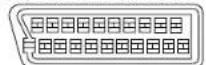
21 19 17 15 13 11 9 7 5 3 1
PIN no.
1 Audio 2/R out 11 G out
3 Audio 1/L out 15 R or C out
4 GND 17 GND
7 B out 19 Video out or Y out
8 Status 21 GND
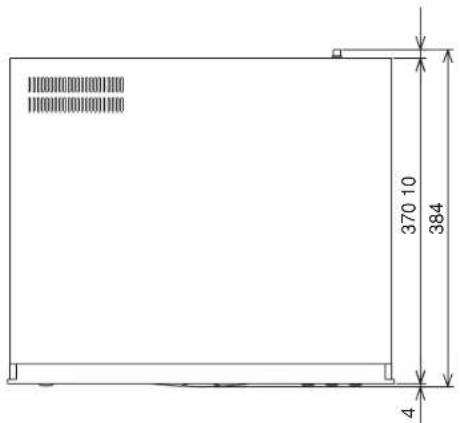
text_image
370 10 384 4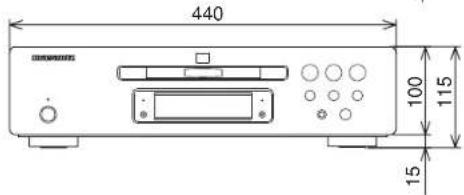
text_image
440 100 115 15Audio output
Output level
During audio output 2 Vrms (1kHz, 0 dB)
Number of channels 2
Jacks RCA jack
Audio output (multi-channel / L, R, C, SW, LS, RS)
Output level
During audio output 2 Vrms (1kHz, 0 dB)
Number of channels 6
Jacks RCA jack
Audio characteristics
Frequency response ...... 4Hz to 44kHz (DVD fs: 96kHz)
4Hz to 88kHz (DVD-Audio fs: 192kHz)
S/N ratio 130 dB
Dynamic range 110 dB
Total harmonic distortion....0.0008%
Wow and flutter: Limit of measurement (±0.001% W. PEAK) or
lower
Digital output
Optical digital output ...... Optical digital jack
Coaxial digital output ...... RCA jack
i.LINK in/output
Output Terminal 4-pin (S400)
Other terminals
Control in/out RCA jack
Flasher input ...... Mini jack (3.5ø)
RS232C 1
Accessories
Remote control .... 1
AA/R6P dry cell batteries 2
Audio/Video cable (yellow/red/white) 1
System control cable 1
Power cable 1
User Guide (this manual)
Warranty card
Note: The specifications and design of this product are subject to change without notice, due to improvement.
7Additiona
English
www.marantz.com
You can find your nearest authorized distributor or dealer on our website.
U.S.A. Marantz America, Inc. 1100 Maplewood Drive, Itasca, IL 60143, U.S.A.
EUROPE Marantz Europe B.V. P.O. Box 8744, 5605 LS Eindhoven, The Netherlands