DV7001 - DVD player MARANTZ - Free user manual and instructions
Find the device manual for free DV7001 MARANTZ in PDF.


User questions about DV7001 MARANTZ
0 question about this device. Answer the ones you know or ask your own.
Ask a new question about this device
Download the instructions for your DVD player in PDF format for free! Find your manual DV7001 - MARANTZ and take your electronic device back in hand. On this page are published all the documents necessary for the use of your device. DV7001 by MARANTZ.
USER MANUAL DV7001 MARANTZ
Super Audio CD/DVD Player









CLASS 1 LASER PRODUCT LUOKAN 1 LASERLAITE KLASS 1 LASERAPPARAT
CONGRATULATIONSON YOUR PURCHASE OF THIS FINE MARANTZ PRODUCT.
MARANTZ is on the leading edge of DVD research for consumer products and this unit incorporates the latest technological developments.
We are sure you will be fully satisfied with the DVD player.
Thank you for your support.
Please read through these operating instructions so you will know how to operate your model properly. After you have fi nished reading the instructions, put them away in a safe place for future reference.
Copy protection
Many DVD discs are encoded with copy pro tec tion. Because of this, you should only connect your DVD player directly to your TV, not to a VCR. Connecting to a VCR results in a distorted picture from copy-protected DVD discs.
This product incorporates copyright protection technology that is protected by methods claims of certain U.S. patents and other intellectual property rights owned by Macrovision Corporation and other rights owners.
Use of this copyright protection technology must be authorized by Macrovision Corporation, and is intended for home and other limited viewing uses only unless otherwise authorized by Macrovision Corporation.
Reverse en gi neer ing or disassembly is pro hib it ed.
Operating Environment
Operating environment temperature and humidity:
+5°C to +35°C (+41°F to +95°F); less than 85%RH (cooling vents not blocked)
Do not install in the following locations
- Location exposed to direct sunlight or strong artificial light
- Location exposed to high humidity, or poorly ven ti lat ed lo ca tion
This product is for general household purposes. Any failure due to use for other than household purposes (such as long-term use for business purposes in a restaurant or use in a car or ship) and which requires repair will be charged for even during the warranty period.
NOTE:
Changes or modifications not expressly approved by the party responsible for compliance could void the user's authority to operate the equipment.
WARNING
TO REDUCE THE RISK OF FIRE OR ELECTRIC SHOCK, DO NOT EXPOSE THIS APPLIANCE TO RAIN OR MOISTURE.
text_image
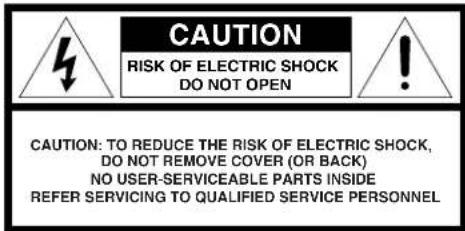
CAUTION RISK OF ELECTRIC SHOCK DO NOT OPEN CAUTION: TO REDUCE THE RISK OF ELECTRIC SHOCK, DO NOT REMOVE COVER (OR BACK) NO USER-SERVICEABLE PARTS INSIDE REFER SERVICING TO QUALIFIED SERVICE PERSONNEL
The lightning flash with arrowhead symbol within an equilateral triangle is intended to alert the user to the presence of uninsulated "dangerous voltage" within the product's enclosure that may be of sufficient magnitude to constitute a risk of electric shock to persons.

The exclamation point within an equilateral triangle is intended to alert the user to the presence of important operating and maintenance (servicing) instructions in the literature accompanying the product.
CAUTION:
TO PREVENT ELECTRIC SHOCK, MATCH WIDE BLADE OF PLUG TO WIDE SLOT, FULLY INSERT.
ATTENTION:
POUR ÉVITER LES CHOCS ÉLECTRIQUES, INTRODUIRE LA LAME LA PLUS LARGE DE LA FICHE DANS LA BORNE CORRESPON-DANTE DE LA PRISE ET POUSSER JUSQU'AU FOND.
LASER SAFETY
This unit employs a laser. Only a qualified service person should remove the cover or attempt to service this device, due to possible eye injury.
CAUTION :
USE OF CONTROLS OR ADJUSTMENTS OR PERFORMANCE OF PROCEDURE OTHER THAN THOSE SPECIFIED HEREIN MAY RESULT IN HAZARDOUS RADIATION EXPOSURE.
CAUTION
VISIBLE AND INVISIBLE LASER RADIATION WHEN OPEN AVOID EXPOSURE TO BEAM (WARNING LOCATION: INSIDE ON LASER COVERSHEILD)
Important Safety Instructions
1) Read these instructions.
2) Keep these instructions.
3) Heed all warnings.
4) Follow all instructions.
5) Do not use this apparatus near water.
6) Clean only with dry cloth.
7) Do not block any ventilation openings, Install in accordance with the manufacturer's instructions.
8) Do not install near any heat sources such as radiators, heat registers, stoves or other apparatus (including amplifiers) that produce heat.
9) Do not defeat the safety purpose of the polarized or grounding-type plug. A polarized plug has two blades with one wider than the other. A grounding type plug has two blades and a third grounding prong. The wide blade or the third prong are provided for your safety. If the provided plug does not fit into your outlet, consult an electrician for replacement of the obsolete outlet.
10) Protect the power cord from being walked on or pinched
particularly at plugs, convenience receptacles, and the point where they exit from the apparatus.
11) Only use attachments/accessories specified by the manufacturer.
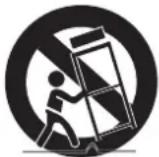
12) Use only with the cart, stand, tripod, bracket, or table specified by the manufacturer, or sold with the appar is used, use caution when moving the combination to avoid injury from tip-
13) Unplug this apparatus during lightning storms or when unused for long periods of time.
14) Refer all servicing to qualified service personnel. Servicing is required when the apparatus has been damaged in any way, such as power-supply cord or plug is damaged, liquid has been spilled or objects have fallen into the apparatus, the apparatus has been exposed to rain or moisture, does not operate normally, or has been dropped.
Additional Safety Information!
- This product should not be placed in a built-in installation such as a bookcase or rack unless proper ventilation is provided or the manufacturer's instructions have been adhered to.
- Apparatus shall not be exposed to dripping or splashing and that no objects fi lled with liquids, such as vases, shall be placed on the apparatus.
- When the switch is in the OFF position, the apparatus isn't completely switched-off from the MAINS.
FCC NOTE (for U. S. A only):
This equipment has been tested and found to comply with the limits for a Class B digital device, pursuant to Part 15 of the FCC rules. These limits are designed to provide reasonable protection against harmful interference in a residential installation. This equipment generates, uses and can radiate radio fre quen cy energy and, if not installed and used in accordance with the in struc tions, may cause harmful interference to radio communications. However, there is no guarantee that interference will not occur in a particular installation. If this equipment does cause harmful interference to radio or television reception, which can be de ter mined by turning the equipment off and on, the user is encouraged to try to correct the interference by one or more of the following measures.
• Reorient or relocate the receiving antenna.
- Increase the separation between the equipment and receiver.
- Connect this equipment into an outlet on a circuit different from that to which the receiver is connected.
- Consult the dealer or an experienced radio/TV technician for help.
NOTE: Changes or modifications may cause this unit to fail to comply with Part 15 of the FCC Rules and may void the user's authority to operate the equipment.
This Class B digital apparatus complies with Canadian ICES-003.
This product satisfies FCC regulations when shielded cables and connectors are used to connect the unit to other equipment. To prevent electromagnetic interference with electric appli ances, such as radios and televisions, use shielded cables and connectors for connections.
CE marking (for Europe only)
C€
This product is in conformity with the EMC directive and low-voltage directive.
WARNINGS
- D o not expose the equipment to rain or moisture.
- D o not remove the cover from the equipment.
- Do not insert anything into the equipment through the ventilation holes.
- D o not handle the mains cord with wet hands.
- Do not cover the ventilation with any items such as table cloths, news papers, curtains, etc.
- N o naked flame sources, such as lighted candles, should be placed on the equipment.
-
When disposing of used batteries, please comply with governmental regulations or environmental public instruction's rules that apply in your country or area.
-
M ake a space of about 0.1 meter around the unit.
- No objects filled with liquids, such as vases, shall be placed on the equipment.
- When the switch is in the OFF position, the equipment is not completely switched off from MAINS.
- The equipment shall be installed near the power supply so that the power supply is easily accessible.
WARRANTY
For warranty information, contact your local Marantz distrib u tor.
RETAIN YOUR PURCHASE RECEIPT
Your purchase receipt is your permanent record of a valuable purchase. It should be kept in a safe place to be referred to as necessary for insurance purposes of when corresponding with Marantz.
IMPORTANT
When seeking warranty service, it is the responsibility of the consumer to es tab lish proof and date of purchase. Your purchase receipt or invoice is adequate for such proof.
FOR U.K. ONLY
This undertaking is in addition to a con sum er's statutory rights and does not affect those rights in any way.
Disc Storage
Be careful not to harm the disc because the data on these discs is highly vulnerable to the environment.
• Do not keep under direct sunlight.
- Keep in a cool ventilated area.
- Store vertically.
- Keep in a clean protection jacket.
Maintenance of Cabinet
For safety reasons, be sure to disconnect the AC power cord from the AC outlet.
- Do not use benzene, thinner, or other solvents for cleaning.
• Wipe the cabinet with a soft cloth.
A NOTE ABOUT RECYCLING

This product's packaging materials are re cy cla ble and can be reused. This product and the ac ces so ries packed together are the applicable product to the WEEE directive except batteries.
Please dispose of any materials in ac cor dance with your local recycling reg u la tions.
When discarding the unit, comply with your lo cal rules or reg u la tions.
Batteries should never be thrown away or incinerated but disposed of in accordance with your local regulations concerning chemical wastes.
Table Of Contents
1 Before You Start
Features......6
What's in the box....7
Putting the batteries in the remote control....7
Using the remote control ....7
Discs compatible with this player....8
DVD-Video regions....9
General information....9
MP3 compatibility information 9
WMA compatibility information....9
JPEG compatibility information 9
DivX compatibility information 9
2 Connecting Up
Easy setup....10
Home theater video connections 11
Home theater audio connections....12
3 Controls & Displays
Front panel....13
Remote control 14
4 Getting Started
Playing discs 16
Basic playback controls....16
Resuming playback from the last stopped point....16
Navigating DVD disc menus 17
Navigating Video CD PBC menus 17
5 Playing Discs
Introduction....18
Preview function....18
Fast Forward/Fast Reversed.... 20
Still Frame/Slow Play/Frame Advance Playback....21
Using the page.... 22
Using the Repeat Play 22
Looping a section of a disc 23
Using the Random (SHUFFLE) Play.... 23
Switching Camera Angles.... 24
Switching the Subtitle Language 24
Switching the Audio Language 25
Switching the audio channel.... 25
Switching Super Audio CD Playback layer.... 25
Switching Super Audio CD Playback area.... 25
Using the Zoom Function.... 25
Play back Information.... 26
Playing an MP3/DivX/JPEG/Windows Media™
Audio disc 29
Playing a JPEG image file (slide show) 30
Playing MP3/WMA music and JPEG pictures
simultaneously....31
Playing a DivX disc.... 32
Using the Setup Menu 33
6 DVD Setup Menu
Using the FL menu.... 34
Setting up the GENERAL SETUP page.... 36
Setting up the AUDIO SETUP page 39
Setting up the VIDEO SETUP page.... 44
Setting up the PREFERENCE page.... 50
7 Additional Information
Language Codes 54
Handling discs.... 55
Storing discs....55
Discs to avoid.... 55
Cleaning the pickup lens.... 55
Problems with condensation.... 55
Hints on installation.... 56
Moving the player.... 56
Precautions on using the power cord.... 56
Troubleshooting....57
Specifications 60
Before You Start1
Features
An HDCP-compatible HDMI*1 terminal is provided for fully digital transmission that ensures the very highest picture and digital sound quality.
This unit comes with a High-Defi nition Multimedia Interface (HDMI) jack; an extended DVI interface for next-generation televisions. This interface allows transfers of uncompressed digital video and digital audio (audio streams such as Dolby Digital and DTS as well as linear PCM) with a single connector. HDMI standard Ver. 1.1 compatibility means the unit can also transfer DVD-Audio multi-channel audio over HDMI.
End-to-end full-digital transfers with all digital processing allow the enjoyment of realistic video without any image degradation caused by AD/DA conversions. And the unit can up-convert 480p video signals to 720p, 1080i, and 1080p video output signals using the scaling function and the HDMI jack (see pages 11, 47).
High quality 12-bit/216 MHz Video D/A converter ^4
The unit uses a Video D/A converter that per forms D/A conversion of all video signals in 12-bits and can perform 8x oversampling to let you enjoy beautiful video possible with DVD. Furthermore, NSV technology sup press es noise during DA conversion.
DCDi DCDi by FAROUDJA 3
DCDi (Directional Correction Deinterlacing) computes and tracks the angle of the screen edge to fi ll in the missing pixels on the TV screen. DCDi significantly optimizes the image quality, especially during slow motion playback. This function is available only for progressive scan output.
High quality 24-bit/192 kHz DAC
The high specification 24-bit/192 kHz DAC delivers dynamic, smooth and expansive analog sound from CDs and DVDs.
Superlative audio performance with Super Audio CD, DVD-Audio, Dolby ^4 Digital and DTS ^5 software
Logos: DOLEY DIGITAL PROLOGIC II dts Digital Surround DVD AUDIO AUDIO
The DV7001 delivers breathtaking sound quality with Super Audio CD, DVD-Audio, Dolby Digital and DTS discs.
DivX DivX ^6
You can enjoy DivX ^® files which are recorded on DVD±R/RW or CD-R/RW.
Plays DivX5.2, DivX4, DivX3 and DivX VOD Video content (see pages 29, 32).
• This player supports Quarter Pixel.
• This player supports GMC.
MP3 and WMA ^7 compatibility
This player is compatible with CD-R, CD-RW and CD-ROM discs that contain MP3 and WMA audio tracks (see pages 29, 31).
JPEG compatibility
This player is compatible with CD-R, CD-RW and CD-ROM discs that contain JPEG data (see pages 29, 30, 31).
*1 HDMI, the HDMI logo and High-Definition Multimedia Interface are trademarks or registered trademarks of HDMI Licensing LLC.
^*2 “NSV” is a registered trademark of Analog Device Co. Ltd.
*3 "DCDi" is a registered trademark of Faroudja, a division of Genesis Microchip, Inc.
*1 Manufactured under license from Dolby Laboratories. "Dolby" "Pro Logic" and the double-D symbol are trademarks of Dolby Lab o ra to ries.
*5 "DTS" and "DTS Digital Surround" are registered trade marks of DTS, Inc.
*6 "DivX", and "DivX Ultra" Certified, and associated logos are trademarks of DivX, Inc. and are used under license.
*7 Windows Media and the Windows logo are trademarks, or registered trademarks of Microsoft Corporation in the United States and/or other countries.
1 Before
What's in the box
Thank you for buying this MARANTZ product. Please confirm that the following accessories are in the box when you open it.
- Remote control
• AAA/R03 dry cell batteries x2
• Audio/Video cable (yellow/red/white) - System control cable
- Power cable
• User Guide (this manual) - Warranty card
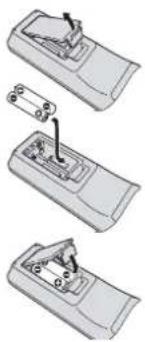
Putting the batteries in the remote control
1 Open the battery compartment cover on the back of the re mote control.
2 Insert two AAA/R03 bat ter ies into the battery compartment following the indications (⊕, ⊖) inside the compartment.
3 Close the cover.
natural_image
Three-step diagram showing a remote control panel with a handle and scroll, no text or symbols present.
Note
Incorrect use of batteries can result in hazards such as leakage and bursting. Please ob serve the following:
- Don't mix new and old batteries together.
- Don't use different kinds of battery together. Although they may look similar, different batteries may have different voltages.
- Make sure that the plus and minus ends of each battery match the indications in the battery compartment.
- Remove batteries from equipment that isn't going to be used for a month or more.
When disposing of used batteries, please comply with governmental regulations or environmental bylaws that apply in your country or area.
Using the remote control
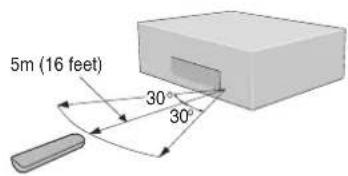
Keep in mind the following when using the remote control:
• Make sure that there are no obstacles between the remote control and the remote sensor on the unit.
- Use within the operating range and angle, as shown.
text_image
5m (16 feet) 30° 30°- Remote operation may become unreliable if strong sunlight or fluorescent light is shining on the unit's remote sensor.
- Remote controllers for different devices can interfere with each other. Avoid using remotes for other equipment located close to this unit.
- Re place the batteries when you no tice a fall off in the operating range of the remote control.

- When using this player independently, set the REMOTE CONTROL switch on the rear panel to INT. (INTERNAL) (see page 10).
Before You Start1
Discs compatible with this player
Any disc that displays one of the following logos should play in this player. Other formats, including DVD-RAM, DVD-ROM, CD-ROM (except those that contain MP3/DivX/WMA/JPEG files) and Photo CD will not play.
DVD-Video compatibility:
• Logos: DVD DVD VIDEO
• Single-sided or double-sided discs
• Single layer or dual layer discs
• Dolby Digital, DTS, MPEG or Linear PCM digital audio
- MPEG-2 digital video
Discs are generally divided into one or more titles. Titles may be further subdivided into chapters.
DVD-Audio compatibility:
• Logos: DVD AUDIO
- Single sided discs
- Single layer or dual layer discs
• Linear or packed PCM digital audio
• Some discs may contain MPEG-2 video, and Dolby Digital, DTS or MPEG digital audio
Discs are generally divided into one or more groups. Groups may be further subdivided into tracks.
DVD-R compatibility:
This unit can play DVD-R discs. Please note the following points when using these discs:
- Logo: DVD
- This unit can play DVD-R discs recorded as DVD-Video format.
DVD-RW compatibility:
This unit can play DVD-RW discs. Please note the following points when using these discs:
- Logo: DVD RW
- This unit can play DVD-RW discs recorded as DVD-Video format, and DVD-VR format.
- DVD-RW discs that were recorded with copy-once only permission can be played.
DVD+R/+RW compatibility:
- Logo: RW DVD+R RW DVD+ReWritable
- This unit can play DVD+R/+RW discs. Please note the followings points when using these discs.
Super Audio CD compatibility:
- Logo: 29
- Single layer, dual layer or Hybrid layer
• 12cm (5in.) or 8cm (3in.) discs
• Digital audio (DSD)
Super Audio CDs are divided into tracks.
Audio CD compatibility:
• Logos: COMPACT
disc disc disc
OPRAL AUDIO
OBRIDGE
COMPACT
COMPACT
OPRAL AUDIO
OBRIDGE
COMPACT
OPRAL AUDIO
OBRIDGE
COMPACT
• 12cm (5in.) or 8cm (3in.) discs
• Linear PCM digital audio
• Audio CD, CD-R* and CD-RW* formats
CDs are divided into tracks.
*This unit can play CD-R and CD-RW discs recorded in Audio CD or Video CD format, or with MP3 audio fi les or Windows Media audio fi les or picture fi les or DivX fi les.
*Some copy-controlled CDs may not conform to offi cial CD standards. They are special discs and may not play on the DV7001.
*The DV7001 does not support the non-DVD side of a Dual Disc.
Video CD compatibility:
• Logo: disc DRITAL VIDEO
• 12cm (5in.) or 8cm (3in.) discs
- MPEG-1 digital audio
- MPEG-1 digital video
Video CDs are divided into tracks.
Super VCD compatibility:
• Logo: COMPACT DISC
• 12cm (5in.) or 8cm (3in.) discs
- MPEG-1 digital audio
- MPEG-2 digital video
Super VCDs are divided into tracks.
1 Before
DVD-Video regions
text_image
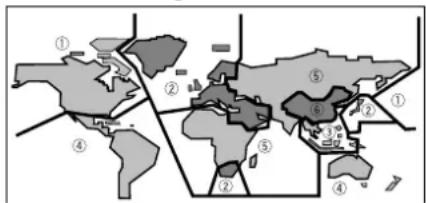
World map with numbered regions and labeled locations, likely illustrating a geographic or regional map structure.All DVD-Video discs carry a region mark on the case somewhere that indicates which region(s) of the world the disc is com pat i ble with. Your DVD player also has a region mark, which you can find on the rear panel. Discs from incompatible regions will not play in this player. Discs marked ALL will play in any player.
General information
- This player can recognize in total about 650 files per folders and 300 folder per disc for MP3/DivX/WMA.
- When writing MP3/WMA/JPEG/DivX files to CD-R/RW discs, always be sure to set the writing format to ISO 9660 Level 1.
- For MP3 and WMA fi les recorded in Variable Bit Rate (VBR), the unit may not display the actual elapsed time.
MP3 compatibility information
- Files should be MPEG1 Audio Layer 3 format. The sampling rate is 8kHz to 48kHz , but it is depends on the bit rate. Incompatible files will not play.
- Audio encoded at 128 kbps should sound close to regular audio CD quality. Although this player will play 32 kbps to 320 kbps, but it is depends on the sampling rate.
- This player is compatible with ID3 ver.1.1 Tag. But the information display on the display on the Front panel and TV screen is only ID3 ver. 1.0 Tag.
• Maximum 30 characters can be displayed on the display on the Front panel and TV screen. - This player cannot play DVD-R/RW discs with recorded MP3 music data.
- This player only plays tracks that are named containing the file extension ".mp3" or ".MP3".
- This player is not compatible with multi-session discs. If you try and play a multi-session disc, only the first session will be played.
WMA compatibility information
- The sampling rate is 44.1 kHz (bit rate: 64 kbps-192 kbps) and 48 kHz (bit rate: 128 kbps-192 kbps).
- This player only plays tracks that are named with the fi le extension ".wma" or ".WMA".
- This player can not play the disc contents protected by Windows Media Digital Right Management (DRM).
JPEG compatibility information
- While this player is designed to be able to handle image data recorded in JPEG format, no assurances are given that the player will be able to display image data recorded in all JPEG formats.
- This player can not display progressive JPEG images.
• This player can not display HD JPEG images. - Always be sure to specify a fi le extension of "JPG" or "JPEG" for JPEG fi les. The fi le will not be able to be displayed if a fi le extension other than "JPG" or "JPEG" is specified or if no fi le extension is assigned to the fi le. (Note that this means that JPEG fi les created on a Macintosh will not be able to be displayed as is.)
- Depending on the file size and compression ratio, some JPEG pictures cannot be displayed correctly.
DivX compatibility information
- A file with an extension of ".avi" or ".divx" is called a DivX file.
• Maximum 30 characters can be displayed on the display on the Front panel and TV screen.
• Maximum 4 Gbyte of file size can be displayed. - File should be MPEG1 Audio Layer 3 format and MPEG2 format.
Caution!
- DVD±R/RW and CD-R/RW discs recorded using a per son al computer or a DVD or CD recorder may not play if the disc is damaged or dirty, or if there is dirt or condensation on the player's lens.
- If you record a disc using a personal computer, even if it is recorded in a compatible format, there are cases in which it may not play because of the settings of the application software used to create the disc. (Check with the software publisher for more detailed in for ma tion.)
- There may be times when it is impossible to replay a CD-R/RW disc because of the characteristics of the disc being used or because of dirt or scratches on the disc.
• Unfi nalized DVD-R/RW discs cannot be played.
• Unfi nalized CD-R/RW discs cannot be played. - For more information on using DVD-R/RW and CD-R/RW discs, see "Handling discs" on page 55.
- Never try to replay anything other than a music CD (CDA format) or a CD-R/RW on which MP3 and/or JPEG fi les have been stored. Depending on the type of fi le, there may be times when doing so will result in problems or erroneous operation.
Connecting Up2
Easy setup
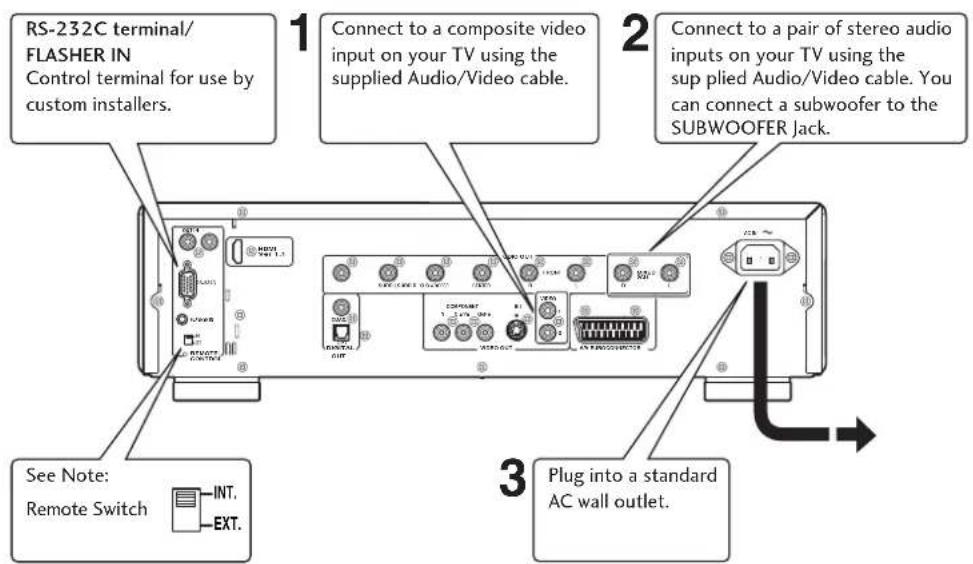
This easy setup is the minimum set of connections you need to start watching DVD-Video discs. Both sound and picture are fed directly to your TV using the sup plied audio/video cables. For other possible connections, see pages 11 and 12.

Important
- Before making or changing any rear panel connections, make sure that all components are switched off and unplugged from the wall outlet.
- While a connected component is turned on, do not unplug the power cord of this DVD player from the wall outlet. The speaker may be damaged.
text_image
RS-232C terminal/ FLASHER IN Control terminal for use by custom installers. 1 Connect to a composite video input on your TV using the supplied Audio/Video cable. 2 Connect to a pair of stereo audio inputs on your TV using the sup plied Audio/Video cable. You can connect a subwoofer to the SUBWOOFER Jack. 3 Plug into a standard AC wall outlet. See Note: Remote Switch INT. EXT.Connecting audio/video cables
Be sure to insert each plug fully for the best con nec tion. The plugs and jacks are color-cod ed to make con nec tion easier.
Connecting system control cables
By connecting this DVD player to another Marantz audio component using a supplied system control cable, you can remotely operate the components as a single system.
- When connecting to a component with a remote sensor, be sure to connect the REMOTE CON TROL IN jack of this DVD player to the REMOTE CONTROL OUT jack of the component with the remote sensor.
- When connecting to component which is not equipped with a remote sensor, be sure to connect the component to the REMOTE CONTROL OUT jack of this DVD player.

ote
- Remote switch
- When connecting to a standard TV, select 4:3 LETTER BOX or 4:3 PAN SCAN in the TV Aspect setting (see page 45).
- Connect the video output of the player directly to your TV. Because the player is de signed to support an Analog Protection System copy protection there are cases when proper playback will not be possible if the player is connected to the TV through a VCR and images are recorded and played on the VCR.
- The player's video output and S1 output are not be progressive.
When using this DVD player independently, set this switch to INT. (INTERNAL). When using this DVD player in a system with a Marantz receiver equipped with a remote sensor, set the switch to EXT. (EXTERNAL). Change the switch setting using a pen with a sharp tip etc.
- Flasher Input
This is used when controlling components from different rooms with a keypad or other input device. Set the remote switch to EXT. (EX TER NAL) when using a fl asher input.
2Conne
This player outputs video in a number of different ways. Choose the one most suit able for your system using the guide below.

portant
- Before making or changing any rear panel connections, make sure that all components are switched off and unplugged from the wall outlet.
- While a connected component is turned on, do not unplug the power cord of this DVD player from the wall outlet. The speaker may be damaged.
1
If your TV has a component video input, we rec om mend using it to connect directly to the COM PO NENT VIDEO OUT of this player. Use the standard 3-jack component video output.
If your TV has a SCART input, we recommend using it to connect directly to the A/V EURO CONNECTOR on this player. (for Europe only)

text_image
Diagram of a computer rear panel with labeled ports and connectors, showing connections to the front panel and right panel.3
If your TV and projector have a HDMI terminal for Video and Audio Input, we recommend using it to connect directly to the HDMI out of this player.
2
If a component input is not available to you, connect this player to your TV or AV receiver using either the VIDEO or S1 jacks.
4
Plug into a standard AC wall outlet.
Connecting SCART (for Europe only) and S-Video cables
SCART and S-Video cables will only plug in one way, so make sure the plug is correctly lined up with the jack before inserting. Be sure to fully insert for a good con nec tion.

Note
- The A/V EURO CONNECTOR can output com pos ite or RGB component video. If you connect just one TV, use the A/V EURO CONNECTOR. You can select the type of video output by changing the COMPONENT setting in the DVD Setup Menu (page 49).
S-Video or composite video?
S-Video should give a better picture, so if you have an S-Video input, use it. S-Video cables are available from any good audio/visual dealer.
Connecting HDMI cables
With an HDMI cable, both uncompressed video data and digital audio data (e.g., LPCM or bit stream data such as Dolby Digital, DTS, MPEG data or DVD Audio Multi channel) can be trans mit ted with just a single connector.
By transmitting DVD image data directly as digital data without it being fi rst converted into analog format, it becomes possible to provide the very fi nest in image quality (see pages 6, 41, 42, 47).

Note
- The HDMI output of this unit can be connected to a DVI jack on a TV or other device using a conversion adapter. In this case, it is necessary to use a TV or display with an HDCP-compatible DVI input.
- There may be no image output if connected to a TV or display that is not compatible with the above format.
• Refer to the instruction manual of the TV or display to be connected to this unit for detailed information regarding the HDMI terminal. - When connecting a progressive input TV with the component output of the player, select ON in the Progressive setting (see page 45).
Connecting Up2
Home theater audio connections
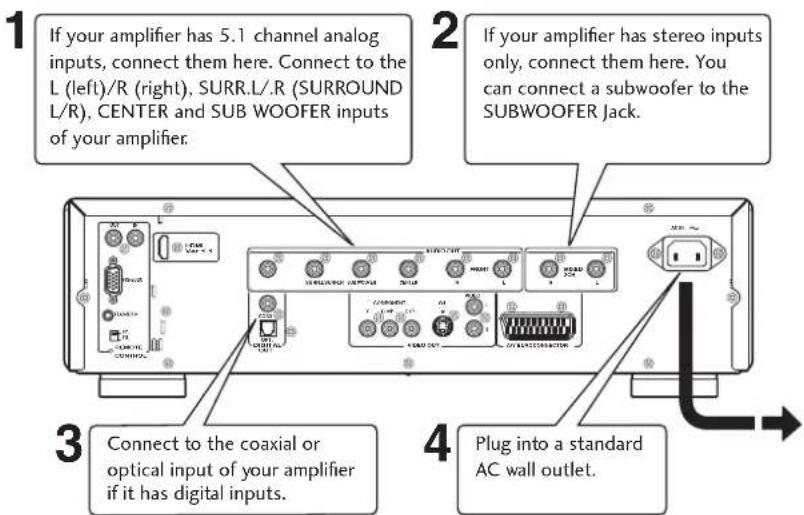
This player outputs multi-channel audio in digital form. Check the manual for your amplifi er/receiver to see what equipment it is com pat i ble with (especially which digital formats such as Dolby Digital, DTS, etc. It can decode).

Important
- Before making or changing any rear panel connections, make sure that all components are switched off and unplugged from the wall outlet.
- While a connected component is turned on, do not unplug the power cord of this DVD player from the wall outlet. The speaker may be damaged.
text_image
1 If your amplifier has 5.1 channel analog inputs, connect them here. Connect to the L (left)/R (right), SURR.L/R (SURROUND L/R), CENTER and SUB WOOFER inputs of your amplifier. 2 If your amplifier has stereo inputs only, connect them here. You can connect a subwoofer to the SUBWOOFER Jack. 3 Connect to the coaxial or optical input of your amplifier if it has digital inputs. 4 Plug into a standard AC wall outlet.Connecting analog audio cables
Be sure to fully insert each plug for the best con nec tion. The plugs and jacks are color-coded to make con nec tion easier.
Connecting coaxial cables
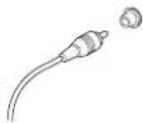
Use an interconnector with a pin-type (also called RCA
or phono) plug on each end to connect up digital coaxial-type jacks. Make sure that the plug is pushed fully home.

natural_image
Line drawing of a cable with a connector and a labeled component (CDAX), no text or symbols present.Connecting optical cables
Optical interconnects only plug in one way, so make sure the plug is correctly lined up with the jack before in sert ion. When in sert ing the plug,

natural_image
Line drawing of a cable with a labeled switch (no text or symbols on the cable itself)the pro tec tive shutter will open and you should hear it click into po si tion when fully in sert ed. Be careful that you do not force the plug, because this could result in damage to the protective shutter, the cable, or the unit itself.

Note
- If you listen to multichannel DVD-Audio through one of the digital outputs, it will be downmixed to stereo. Also, high sampling rate DVD-Audio (192 kHz or 176.4 kHz) will be downsampled to 96 kHz, 88.2 kHz, 48 kHz or 44.1 kHz, depending on the disc. Multi channel and high sampling rate DVD-Audio are only available through the analog outputs.
- All DVD-Audio and all Super Audio CD audio are output only through the analog outputs. (see page 40)
Front panel

text_image
Diagram of a device rear panel with numbered labels pointing to ports, buttons, and control panels.1 STANDBY indicator
• Lights when the unit is in standby.
2 Disc tray
- Place the disc here.
3 ▶ (PLAY)
• Begins playing the disc play.
4 ■ (STOP)
• Stops playing the disc play.
5 II (PAUSE)
• Pauses playing the disc play.
6 POWER ON/OFF
- Press to turn the power on, and press it again to turn the power off.
7 AUDIO EX indicator
- Lights when the AUDIO EX is activated using the AUDIO EX button on the remote control.
- The sound quality of analog audio output is improved by turning off analog video signal output and the front panel display.
- It is applied to CDDA, Super Audio CD, DVD Audio and DTS CD in Play mode.
8 Display
• Operation indications are displayed here.
9 HDMI indicator
- When the connected device is HDMI/DVI compatible, the light fl ashes red.
10 AUDIO EX
- Press to turn AUDIO EX off and on.
• HDMI video output cannot be switched off.
11 HDMI - page 47
- The HDMI on/off state toggles when pressed for three seconds or more. When on, the HDMI indicator is lit.
- Pressing this button while HDMI is enabled displays the current resolution. Pressing this button again while the resolution is displayed allows you to select the resolution in the sequence below:
$$ \begin{array}{l}4 8 0 \mathrm{p} \rightarrow 5 7 6 \mathrm{p} \rightarrow 7 2 0 \mathrm{p} \rightarrow 1 0 8 0 \mathrm{i} \rightarrow 1 0 8 0 \mathrm{p} \rightarrow\4 8 0 \mathrm{p}\end{array} $$
12 ▲ (OPEN/CLOSE)
- Press to open and close the disc tray.
13
- Press to skip reverse title/group, chapter, or track. You can also press and hold this button for Fast Reversed.
14 ▶▶/▶▶
- Press to skip forward title/group, chapter, or track. You can also press and hold this button for Fast Forward.
Controls & Displays3
Remote control
text_image
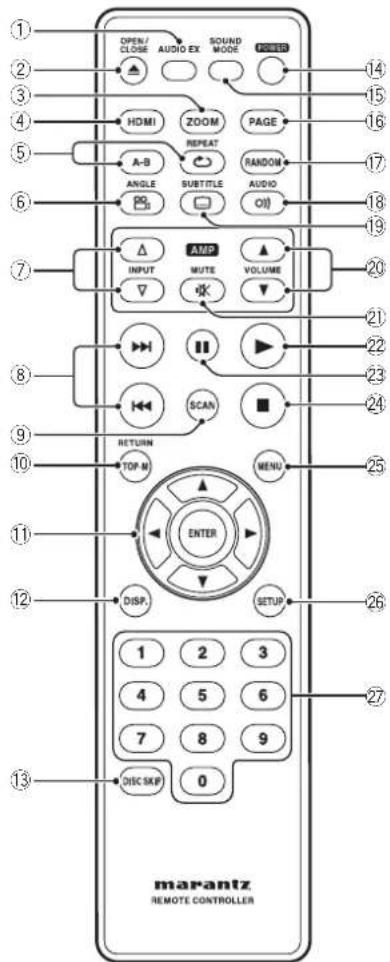
① ② ③ ④ ⑤ ⑥ ⑦ ⑧ ⑨ ⑩ ⑪ ⑫ ⑬ ⑭ ⑮ ⑯ ⑰ ⑱ ⑲ ⑳ ⑰ ⑱ ⑲ ⑳ ⑰ ⑱ ⑲ ⑳ ⑸ ⑹ ⑺ OPEN/ CLOSE AUDIO EX SOUND MODE PRESS HDMI ZOOM PAGE REPEAT RANDOM A-B SUBTITLE AUDIO ANGLE OI AMP VOLUME INPUT MUTE SCAN MENU RETURN TOP M ENTER MENU DISP. SETUP 1 2 3 4 5 6 7 8 9 0 DISC SKIP marantz REMOTE CONTROLLER1 AUDIO EX – Press to turn AUDIO EX off and on
- The sound quality of analog audio output is improved by turning off analog video signal output and the front panel display.
• HDMI video output cannot be switched off.
2 OPEN/CLOSE – Disc tray open/close – page 16
3 ZOOM - pages 25, 30
4 HDMI - page 47
- The HDMI on/off state toggles when pressed for three seconds or more. When on, the HDMI indicator is lit.
- Pressing this button while HDMI is enabled displays the current resolution. Pressing this button again while the resolution is displayed allows you to select the resolution in the sequence below:
$$ \begin{array}{l}4 8 0 \mathrm{p} \rightarrow 5 7 6 \mathrm{p} \rightarrow 7 2 0 \mathrm{p} \rightarrow 1 0 8 0 \mathrm{i} \rightarrow 1 0 8 0 \mathrm{p} \rightarrow\4 8 0 \mathrm{p}\end{array} $$
5 REPEAT - pages 22, 29 A-B - page 23
6 ANGLE - pages 24, 30
7 INPUT (△/▽) button – These buttons can switch between devices compatible with MARANTZ receivers. Refer to the receiver instruction manual for further details.
- Applicable models: PM-11S1, PM-15S1, PM6001, PM7001, PM8001, SR9600. (These models may not be handled depending on the area.) Non-applicable models: MARANTZ Amplifiers and receivers which had released before 2006, including PM-14, PM-17 and PM4001 except above models.
8 |◀◀ (PREV.)/▶▶| (NEXT) - Skip - pages 16, 17, 19, 20, 29, 30, 52
- Allows you to search forward/backward through a disc. Use to skip the title, chapter or track.
- Press and hold (◄◄) for Fast Reversed.
- Press and hold (▶▶) for Fast Forward.
9 SCAN - pages 18, 19
10 TOP MENU (TOP-M)/RETURN - page 17
11 Cursor (◄/► / ▲/▼) / ENTER button
12 DISPLAY (DISP.) - page 26
13 DISC SKIP - It is not used on this set.
14 POWER – Switches the player on or into standby – page 16
15 SOUND MODE- Selects Audio out mode and change the Super Audio CD Play back area - pages 25, 39
16 PAGE – Turns the pages of DVD-Audio still pictures – page 22
17 RANDOM - page 23
18 AUDIO – Changes the Hybrid Super Audio CD Play back layer – page 25
19 SUBTITLE – pages 24, 32
20 VOLUME (▲/▼) button – These buttons can adjust the volume of devices compatible with MARANTZ receivers. Refer to the receiver instruction manual for further details.
21 MUTE button - This button can activate the mute function of devices compatible with MARANTZ receivers. Refer to the receiver instructions for further details.
22 ▶ (PLAY) - pages 16, 20, 21, 29, 31, 32
23 II (PAUSE) - pages 16, 21
24 ■ (STOP) - pages 16, 30, 31, 33, 50
25 MENU - pages 17, 19, 24
26 SETUP - pages 33, 36, 39, 44, 50
27 Number buttons
3Contro
Note
- HDMI ON is set when the unit is shipped from the factory.
- Set HDMI under the DVD Setup Menu to use HDMI functions (see pages 41, 42, 47).
- This remote control supports two remote control codes: DVD1 and DVD2.
- When the unit is shipped from the factory, the remote control is set to DVD1.
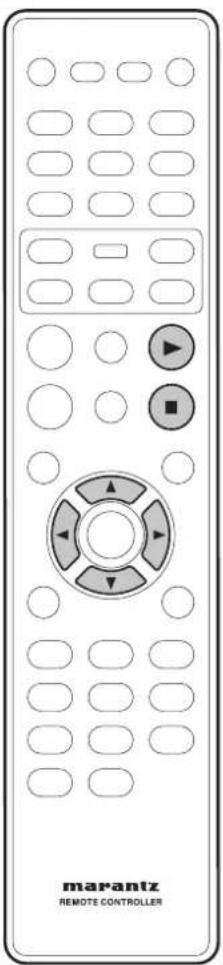
- To set the remote control to DVD2, hold down both ■ (STOP) button and 2 number button on the remote control for at least five seconds. (If the batteries in the remote control are replaced while the remote control is set to DVD2, the setting will revert to DVD1.)
- To set the remote control back to DVD1, hold down both ■ (STOP) button and the 1 number button on the remote control for at least five seconds.
- Also set the REMOT CODE on the FL menu to the same setting as the remote control. (This setting is set to DVD1 when the unit is shipped from the factory.) (see page 34)
Getting Started4

text_image
OPEN / CLOSE 1 2 3 4 5 6 7 8 9 0 ENTER marantz REMOTE CONTROLLERPlaying discs
The basic playback controls for playing discs are covered here. Further functions are detailed in the next chapter.

Note
- Throughout this manual, the term "DVD" means DVD-Video, and DVD±R/RW. If a function is specific to a particular kind of DVD disc, it is specified.
1 Switch the player on.
If you are playing a DVD or Video CD, also turn on your TV and make sure that it is set to the correct video input.
2 Press OPEN/CLOSE to open the disc tray.
3 Load a disc.
Load a disc with the label side facing up, using the disc tray guide to align the disc (if you're loading a double-sided DVD disc, load it with the side you want to play face down).
4 Press▶ (PLAY) to start playback.
If you are playing a DVD or Video CD, a menu may appear (see page 17).

ote
- For one-sided, two-layer discs containing movies, etc., there may be a short image stoppage at the point where the layers change. This is not a malfunction.
- Depending on the DVD or VIDEO CD, some operations may be different or restricted.
Basic playback controls
| Button | What it does |
| ▶ | Starts playback.In title menu, it functions as the Enter key. |
| II | Pauses a disc that's playing.Each time the button is pressed, a new frame will appear. |
| ■ | Stops playback. |
| |◀◀ | • Skips to the start of the current track or chapter, then to previous tracks/chapters• Press and hold for Fast Reversed. |
| ▶▶I | • Skips to the next track or chapter.• Press and hold for Fast Forward. |
| Numbers | Playback starts from the selected track/chapter number. |
| ENTER | Select the current menu option. |
Resuming playback from the last stopped point
This DVD system is able to resume disc playback from its last stopped point (only possible for the last 10 discs that were recorded without a menu).
1 Load one of the last 10 discs played.
2 While "LOADING" appears on the display panel, press PLAY▶ to start playback from the last stop point.
To cancel the resume mode
- Press ■ twice.

portant
While using the DVD playback controls, you may see the Ⓧ mark displayed on-screen. The Ⓧ mark means that the operation is not allowed by the player and disc.
Getting Started
text_image
MARantz REMOTE CONTROLLER4
English
Navigating DVD disc menus
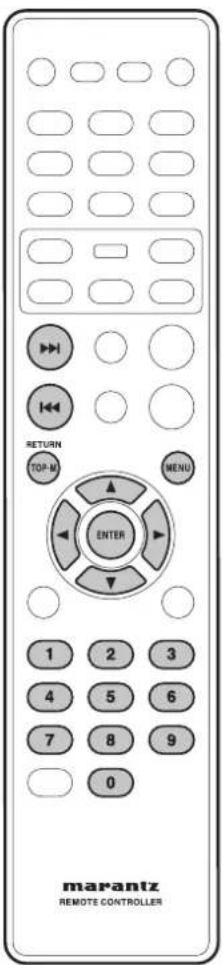
Many DVD discs contain menus. Sometimes these are displayed automatically when you start playback; others only appear when you press MENU or TOP-M.

Note
- Some DVD-Audio discs feature a "Bonus Group". To access this group you have to input a password that you can find on the disc's packaging (see page 36).
| Button | What it does |
| TOP-M | Displays the "top menu" of a DVD disc. This varies with the disc. |
| MENU | Displays a DVD disc menu—this varies with the disc and may be the same as the "top menu". |
| RETURN | Returns to the previously displayed menu screen. |
Cursor Moves the cursor around the screen.
(◀/▶/▲/▼)
| ENTER | Selects the current menu option. |
| Numbers | Selects a numbered menu option (some discs only). |
Navigating Video CD PBC menus
Some Video CDs have menus from which you can choose what you want to watch. These are called PBC (Playback control) menus.
Press the MENU to turn the PBC function on or off.

ote
• Some discs don't allow PBC menus.
| Button | What it does |
| RETURN | Displays the PBC menu. |
| Numbers | Selects a numbered menu option. |
| ENTER | Selects the current menu option. |
| Displays the previous menu page (if there is one). | |
| Displays the next menu page (if there is one). |
Playing Discs5

text_image
SCAN MENU ENTER marantz REMOTE CONTROLLERIntroduction
- Many of the functions covered in this chapter apply to DVD discs, Video CDs and CDs, although the exact operation of some varies slightly with the kind of disc loaded.
- When playing DVD discs, if the icon appears on-screen when you try to use a particular function, either the player or the disc doesn't allow the use of that function.
- When playing Video CDs, some of the functions are not available in PBC mode. If you want to use them, press the MENU to turn the PBC function off (see page 17).
Preview function
DVD
Video-CD
SVCD
CD
1 Press SCAN.
SVCD VCD

text_image
SELECT DIGEST TYPE TRACK DIGEST DISC INTERVAL TRACK INTERVALDVD-Video

text_image
SELECT DIGEST TYPE TITLE DIGEST CHAPTER DIGEST TITLE INTERVAL CHAPTER INTERVALDVD-Audio
| SELECT DIGEST TYPE |
| GROUP DIGEST |
| TRACK DIGEST |
| GROUP INTERVAL |
| TRACK INTERVAL |
2 Use the ▲/▼ keys to select one of the following options and press ENTER.
This option is only available during playback mode.
- TRACK/TITLE/CHAPTER/GROUP DIGEST
- View six different TRACK/TITLE/CHAPTER/GROUP on one screen each time. This allows you to have a quick glance at all the TRACK/TITLE/CHAPTER/GROUP on the disc.
- DISC/TITLE/GROUP INTERVAL – View the whole disc in six thumbnail pictures. It divides a disc into six portions at regular intervals and displays them on one screen.
- TRACK/CHAPTER INTERVAL – View the content of a single TRACK/CHAPTER in six thumbnail pictures. It divides a single TRACK/CHAPTER into six portions at regular intervals and displays them on one screen.


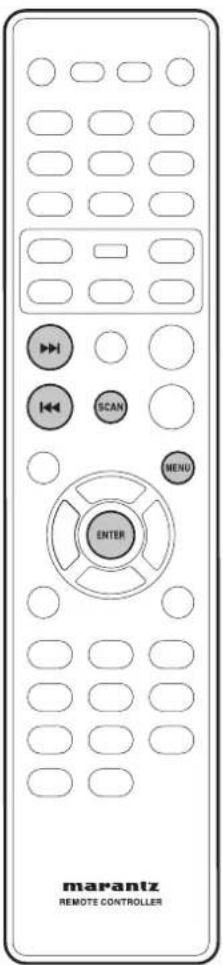
- Use (◀/▶/▲/▼) to select a track or use the numeric buttons to enter the selected track number.
Playing Discs
text_image
marantz REMOTE CONTROLLER- To go to the previous or next page, press |◀◀/▶▶|.
- Press ENTER on the selected thumbnail picture to start playback from there.
- To return to the main menu, select MENU on the screen and press ENTER.
3 To exit the preview menu, select EXIT on the screen and press ENTER.
For CD
- At stop mode, press SCAN on the remote control. Each track will be played for a few seconds.

Note
- You can select "Track Interval" only during playback with PBC off.
• Some discs don't allow the Scan mode.
Playing Discs5
text_image
marantz REMOTE CONTROLLERFast Forward/Fast Reverse

The video images on DVD and VCD can be viewed as a Fast Forward and Fast Reverse with no sound.
In case of CD, the sound can be listened as a Fast Forward and Fast Reverse with sound.
Viewing in Fast Forward/Fast Reversed
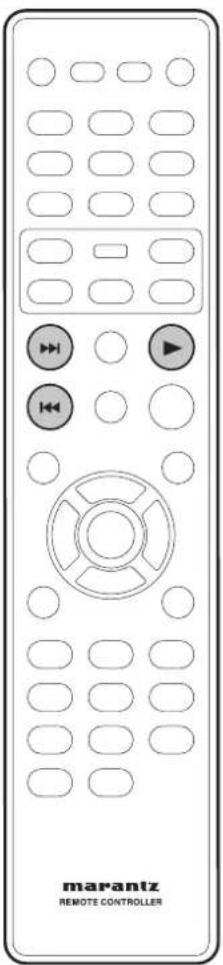
Press and hold ▶▶▶ (NEXT) during play.
• Fast Forward is engaged.
- During Fast Forward, the speed of play back can be adjusted from x2 speed to x32 speed in 5 steps using ▶▶| (NEXT).
Press and hold ◀◀◀ (PREV) during play.
- Fast Reverse is engaged.
- During Fast Reverse, the speed of play back can be adjusted from x2 speed to x32 speed in 5 steps using ◀◀◀ (PREV).
To return to normal play back press▶ (PLAY) to normal play back.
Note
- The sound is muted during fast forward/reverse scanning of DVD/VCD/Super Audio CD.
Playing Discs

text_image
marantz REMOTE CONTROLLERStill Frame/Slow Play/Frame Advance Playback
DVD-Video Video-CD
The video images on DVD and Video CD can be viewed as a still frame, played back at slow speeds and even advanced frame by frame (Forward only).
Viewing a Paused Picture
Press II (PAUSE).
Viewing slow playback
With this function, DVDs can be viewed in both forward and reverse direction. Video CD can only be moved in the forward direction.
Press ▼ (down) during play.
- Slow playback is engaged.
- During slow playback, the speed of playback can be adjusted from 1/2 normal playback speed to 1/16
normal playback speed in 4 steps using ▼ (down).

Press ▲ (up) during play.
• Slow playback in the reverse direction is engaged.
- During slow playback, the speed of playback can be adjusted from 1/2 normal playback speed to 1/16
normal playback speed in 4 steps using ▲ (up).

To return to normal playback
When the picture is paused or during slow playback, pressing ▶ (PLAY) restores normal playback operation.
Step Motion playback: Viewing one frame at a time
With this function, DVDs and Video CDs can only be moved in the forward direction.
Press II (PAUSE).
Each time the button is pressed, a new frame will appear.
To return to normal playback
When viewing Step Motion playback, pressing▶ (PLAY) restores normal playback operation.
Note
- There is no sound picture playback is paused or during slow playback, or when advancing one frame at a time.
- Pausing picture, slow play, or Step Motion playback may not be possible with certain titles. In this case, the Ⓧ mark is displayed.
- A short sound may be noticeable when switching to slow playback.
- When you press theII (PAUSE) button during slow playback, it may advance a few frames past the frame where you want it to stop.
Playing Discs5
text_image
PAGE REPEAT marantz REMOTE CONTROLLERUsing the page
DVD-Audio
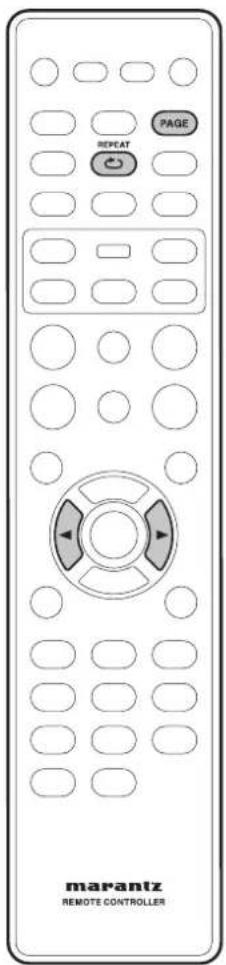
Some DVD-Audio discs contain information pages for photo galleries, artist biographies, lyrics, etc.
Press the PAGE button on the remote control during Playback. You may select the image you want by moving the cursor button (◄/►).
Using the Repeat Play
| DVD-Video | DVD-Audio | Super Audio CD | Video-CD |
| CD | MP3 | JPEG | DivX |
You can set the player to repeat individual tracks on CDs or Video CDs, chapters or titles on DVD discs, or the whole disc. It's also possible to loop a section of a disc.
You can't use any repeat mode or looped play with a Video CD playing in PBC mode.
Press REPEAT during playback to select a repeat mode.
Each press switches the repeat mode:
DVD-Video
• CHAPTER REPEAT
- TITLE REPEAT
• DISC REPEAT
• OFF
DVD-Audio
- TRACK REPEAT
- GROUP REPEAT
• DISC REPEAT
• OFF
| Video-CD | CD | MP3 | WMA | Super Audio CD |
JPEG DivX
- TRACK REPEAT
• DISC REPEAT
• OFF
Note
• Some discs don't allow the Repeat function.
- Any existing RANDOM or Repeat A-B mode will be cancelled and Repeat mode will be activated.
Playing Discs

text_image
A-B RANDOM marantz REMOTE CONTROLLERLooping a section of a disc

1 Press A-B once at the start of the section you want to repeat, then again at the end.
Playback immediately jumps back to the start point and plays the loop round and round.
- On a DVD disc, the start and end points of the loop must be in the same title/chapter.
- On a Video CD/CD disc, the start and end points of the loop must be in the same track.
2 To resume normal playback, press A-B again.

Note
- There may be a slightly difference between point A and the location where playback actually resumes depending on the disc.
• After Repeat A-B is exited, any existing Repeat or RANDOM modes will be restored.
Using the Random (SHUFFLE) Play

Use the random play function to play tracks in a random order.
You can't use random play with DVD-VR mode or Video CD playing in PBC mode.
Press the RANDOM button during playback to select a RANDOM (SHUFFLE) mode.
- SHUFFLE
- SHUFFLE REPEAT
- SHUFFLE OFF
To cancel Random mode, press RANDOM.

Note
- Any existing Repeat or Repeat A-B modes will be cancelled and RANDOM mode will be activated.
- If the disc currently playing is a CD layer of Super Audio CD, CD layer of Super Audio CD will be played.
- For Hybrid Super Audio CDs, tracks on the Super Audio CD layer are played by default.
Playing Discs5
text_image
ANGLE SUBTITLE MENU marantz REMOTE CONTROLLERSwitching Camera Angles
DVD-Video
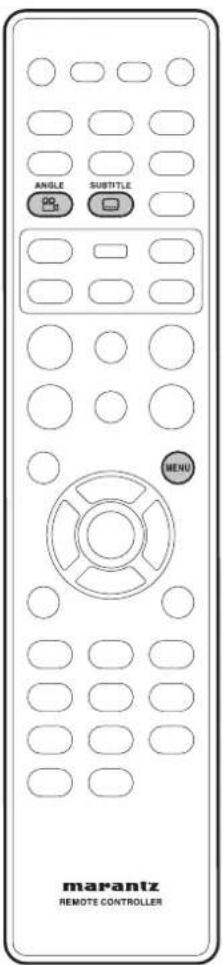
Some DVD-Video discs feature scenes shot from two or more angles. Check the disc box for details: it should be marked with a 🎨 icon if it contains camera-angle scenes.
• To switch the camera angle, press ANGLE.

Note
• Depending on the disc, this feature may not work.
Switching the Subtitle Language
DVD-Video DivX
Many DVD-Video discs or DivX discs have subtitles in one or more languages. The disc box will usually tell you which subtitle languages are available. You can switch the subtitle language at anytime during playback.
• To display/switch the subtitle language, press SUBTITLE repeatedly.
The current subtitle language is shown on-screen.
• To set subtitle preferences, see page 50.

Note
- In some cases, a subtitle can not be turned off even if you select "OFF".
- Some discs allow you to change subtitles only via the disc menu. In that case, press the MENU button and change the settings.
Playing Discs

text_image
SOUND MODE ZOOM AUDIO OJ) marantz REMOTE CONTROLLERSwitching the Audio Language
DVD-Video DVD-Audio
When playing a DVD-Video disc recorded with dialog in two or more languages, you can switch the audio language at anytime during playback.
• To display/switch the audio language, press AUDIO repeatedly.
The current audio language is shown on-screen.
• To set audio language preferences, see page 50.

Note
- Depending on the disc, there are cases in which the audio language cannot be switched during play. In this case, make changes using the DVD menu.
- It may take a few seconds till a selected Audio Language is audible.
Switching the audio channel
Depending on the disc, this feature may not work.
Video-CD
On Video CDs you can switch between stereo, just the left channel, just the right channel or Mixed Mono.
• To switch the audio channel, press AUDIO repeatedly.
The current playback channel(s) are indicated on-screen.
Switching Super Audio CD Playback layer
Super Audio CD
- On a hybrid disc (with Super Audio CD and CD layers), the player will always start playing the Super Audio CD layer.
- To switch between the Super Audio CD layer and the CD player, press AUDIO while playback is stopped.
Switching Super Audio CD Playback area
Super Audio CD
- To Switch between the Super Audio CD multi-channel and Super Audio CD stereo areas by pressing SOUND MODE.
Using the Zoom Function
DVD-Video DVD-Audio Video-CD JPEG
1 During play or pause mode, press the ZOOM button on the remote control to zoom in x2, x3, x4, x1/2, x1/3, x1/4, Normal in order for DVD-Video or VCD and 100%, 125%, 150%, 200%, Normal in order for JPEG.
2 Use the cursor buttons (▲/▼/◄/►) to select the part of the screen you want to zoom in on.

Note
• Zoom play cannot be used on some discs.
- Zoom will not operate properly for some scenes.
- Zooming may cause image deterioration or shaking.
Playing Discs5
text_image
MARantz REMOTE CONTROLLERPlay back Information
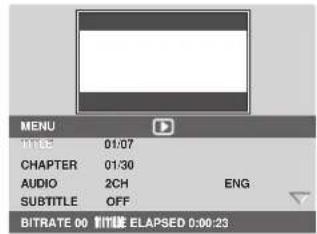
This DVD system can display the disc playback information (for example, title or chapter number, elapsed playing time, audio/subtitle language) and a number of operations can be done without interrupting disc playback.
DVD-Video Video-CD
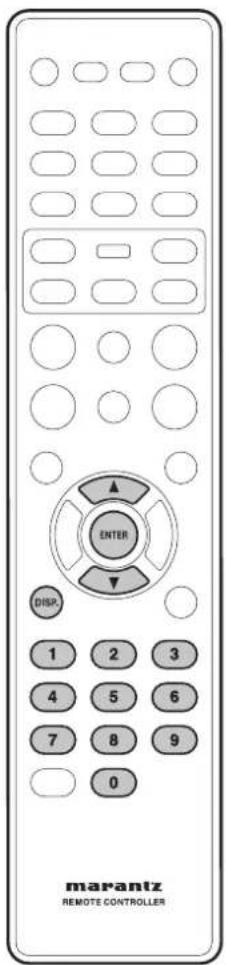
1 During playback, press DISP.
• A list of available disc information appears on the TV.
DVD
text_image
MENU 01:07 CHAPTER 01:30 AUDIO 2CH ENG SUBTITLE OFF BITRATE 00 WHITE ELAPSED 0:00:23Video-CD SVCD

text_image
MENU TO:58 01:01 DISC TIME 1:01:14 TRACK TIME 1:01:14 REPEAT OFF BITRATE 75 HTML ELAPSED 0:00:20Title/Chapter/Track selection
DVD-Video Video-CD
1 Press ▲/▼ to highlight "Title" / "Chapter" or "Track", then press ENTER to access.
2 Use the numeric keypad (0-9) to enter a valid number (e.g. 04/05).
Audio/Subtitle
DVD-Video
1 Press ▲/▼ to highlight "Audio" or "Subtitle", then press ENTER to access.
The Audio or Subtitle menu appears on the TV.
2 Press ▲/▼ to select one language, then press ENTER to confirm.
The current audio or subtitle language will be changed to the selected language.
Playing Discs
Angle
DVD-Video
1 Press ▲/▼ to highlight "Angle", then press ENTER to access.
2 Use the numeric keypad (0-9) to enter in a valid number.
3 Press ENTER to confirm.
Playback will go to the selected angle.
Time Display
DVD-Video Video-CD
1 Press ▲/▼ to highlight "Time Disp.", then press ENTER to access.
The following display types appear on the TV, depending on the disc in the player.
For DVD discs:
TITLE Elapsed - elapsed playing time of current Title; TITLE Remain - remaining playing time of current Title; CHAPTER Elapsed - elapsed playing time of current Chapter; CHAPTER Remain - remaining playing time of current Chapter;
For VCD/SVCD discs:
Total Elapsed - elapsed playing time of current Disc;
Total Remain - remaining playing time of current Disc;
Single Elapsed - elapsed playing time of current Track;
Single Remain - remaining playing time of current Track;
2 Press ▲/▼ to select the desired time display mode, then press ENTER to display the selected item.
Time Search
DVD-Video Video-CD
1 Press ▲/▼ to highlight "TT Time"/"CH Time"/"Disc Time" or "Track Time", then press ENTER to access.
2 Use the numeric keypad (0-9) to enter a valid time (e.g. 0:34:27).
The playback skips to the chosen time.

ote
• Some disc don't allow the Time Search mode.
- You can't use Time Search mode with a Video CD playing in PBC mode.
Repeat
DVD-Video Video-CD
1 Press ▲/▼ to highlight "REPEAT", then press ENTER to access.
2 Press ▲/▼ to select the desired repeat mode, then, press ENTER to access.
Playing Discs5
Group/Track Selection and time search DVD-Audio
Each time you press DISPLAY, the TV display changes as follows.

flowchart
graph TD
    A["GROUP 01/05 TRACK 01/15 0:10:00"] --> B["GROUP 01/05 TRACK --/15"]
    B --> C[GROUP 01/05 TIME --/--/--
    --> D[TRACK 01/15 TIME --/--/--
Time
CD
Press DISPLAY (DISP.) repeatedly during playback to change the displayed disc time information.

flowchart
graph LR
    A["TOTAL ELAPSED"] --> B["TOTAL REMAIN"]
    B --> C["SINGLE ELAPSEDSINGLE REMAIN"]
    C --> A
1 Press ▲/▼ to select the Track, Group Time or Track time.
2 Use the numeric keypad (0-9) to enter a valid number.
EX: Enter hours, minutes and seconds from left to right.
3 Press ENTER to confirm.

Note
- When searching for a time in a group/ track, if you enter a time outside the total time for the group/track currently being played back, Ⓧ INPUT INVALID is displayed.
Playing Discs
text_image
REPEAT ENTER marantz REMOTE CONTROLLERPlaying an MP3/DivX/JPEG/Windows Media™ Audio disc
This DVD system can playback most of the MP3, JPEG and Windows Media™ Audio fi les recorded on a CD-R/RW disc or commercial CD.
5
1 Insert a disc.
- The disc reading time may exceed 30 seconds due to the complexity of the directory fi le confi guration.
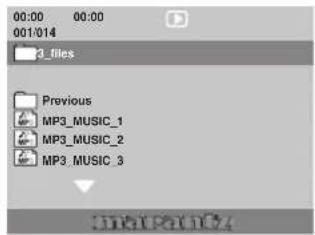
• The disc menu appears on the TV. - Playback will start automatically. If not, press ▶ (PLAY).
text_image
00:00 00:00 001/014 3_files Previous MP3_MUSIC_1 MP3_MUSIC_2 MP3_MUSIC_32 If the disc main menu contains various folders, use the ▲/▼ keys to select a desired folder and press ENTER to open the folder.
3 Use the ▲/▼ keys to select a track/fi le and press ENTER to start playback.
- Playback will start from the selected file and continue through to the end of the folder.
During playback, you can;
- Press |◀◀/▶▶| to playback another track/fi le in the current folder.
- To select another folder from the current disc, press ▲ to return to the root menu. Use the ▲/▼ keys to make your selection and press ENTER to confirm.
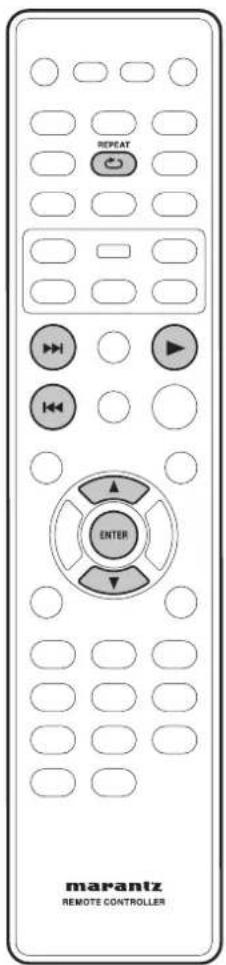
- Press REPEAT repeatedly to access various play modes.
• OFF
- TRACK REPEAT: One file will be played repeatedly.
• DISC REPEAT: All files in one folder will be played repeatedly.

- To skip the folders menu when you load a MP3/JPEG disc, set the MP3/JPEG NAV setting in the Preference Setup Page to WITHOUT MENU.

- Some discs cannot be played on this player due to the configuration and characteristics of the disc, or due to the condition of recording and authoring software that was used.
Playing Discs5
text_image
ZOOM ANGLE MENU ENTER marantz REMOTE CONTROLLERPlaying a JPEG image file (slide show)
- Insert a Picture disc (Kodak Picture CD, JPEG).
For a Kodak disc, the slide show will begin automatically.
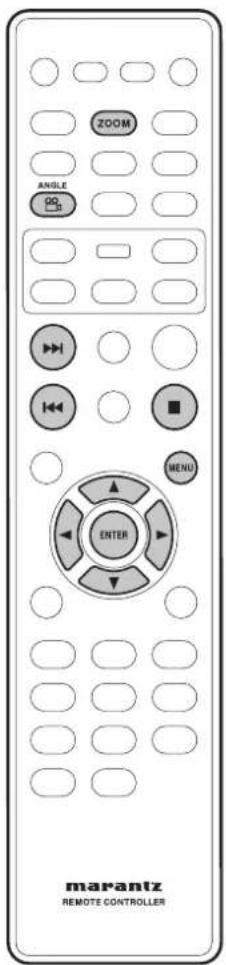
For a JPEG disc, the picture menu will appear on the TV. Press PLAY▶ to start the slide-show playback.

Some discs don't allow the Picture menu.
Preview function
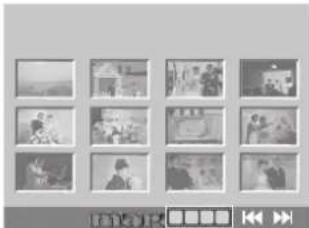
1 During playback, press ■.
- 12 thumbnail pictures will be displayed on the TV.
natural_image
Grid of 12 grayscale photo frames showing various scenes including houses, people, and a play button (no text or symbols)2 Press ◀◀/▶▶ to display the other pictures on the previous/next page.
3 Use the ◀/▶/▲/▼ keys to highlight one of the pictures and press ENTER to start playback.
4 Press the MENU to return to Picture CD menu.
Zoom picture
1 During playback, press ZOOM repeatedly to select a different zoom factor.
2 Use the ◀/▶/▲/▼ keys to pan through the zoomed image.

Tip
• This feature is not applicable for DivX discs.
• Zoom play cannot be used on some discs.
Rotating/fl ipping the picture
- During playback, use the ◀/▶/▲/▼ keys to rotate/fl ip the picture on the TV.
▲: Flip the picture vertically
▼: Flip the picture horizontally
◀: Rotate the picture counter-clockwise
▶: Rotate the picture clockwise

ote
- Rotate and Flip operations are not supported on DVD-Audio disc.
Scan Effect
- Press ANGLE repeatedly to choose a scan effect.
- Various scan effects appear in the top left corner of the TV screen.

ote
Supported file format:
- The file extension has to be “*.JPG” and not “*.JPEG”.
- It can only display DCF-standard still pictures or JPEG pictures e.g. TIFF. It cannot play back moving pictures, Motion JPEG and other formats, or pictures in formats other than JPEG, or pictures associated with sound.
- It may require longer time for the DVD system to display the disc content on the TV due to the large number of songs/pictures compiled into one disc.
Playing Discs
text_image
marantz REMOTE CONTROLLER5
English
Playing MP3/WMA music and JPEG pictures simultaneously
You can create a musical slide show if the disc contains both the MP3/WMA music and JPEG picture fi les.
1 Insert an MP3/WMA disc that contains music and pictures.
2 Select an MP3/WMA track in the menu and press PLAY▶ to start playback.
3 During MP3/WMA music playback, use the ◀/▶/▲/▼ keys to select a picture folder from the disc menu and press PLAY▶.
- The picture fi les will be played back through to the end of the folder.
4 To stop simultaneous playback, press STOP ■.

Tip
- It is normal to experience an occasional "skip" while listening to your MP3 disc.
- It is normal to experience an occasional pixelation during MP3/DivX playback due to poor clarity of digital contents during internet downloading.
- Only the first session of a multi-session CD will be played back.
Playing Discs5
text_image
SUBTITLE marantz REMOTE CONTROLLERPlaying a DivX disc
This DVD system supports the playback of DivX movies which you can copy from your computer onto a CD-R/RW, DVD±R/±RW disc (see page 9 for more information).
1 Insert a DivX disc.
2 Press PLAY▶ to start playback.
During playback, you can;
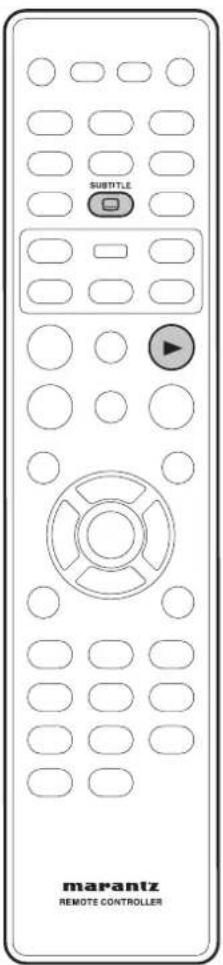
- If multilingual subtitles are embedded on the DivX disc, you can press SUBTITLE to change the subtitle language while playing.

Tip
- Subtitle files with the following file name extensions (.srt, .smi, .sub, .ssa, .ass) are supported but do not appear on the file navigation menu.
- The subtitle file name has to be the same as the file name of the movie.
- The subtitle can only be displayed up to an average of 42 characters.
- The time search feature is not available during DivX movie playback.
DviX compatibility information
• Support for DivX 3.11, 4.x, 5.x.
• Q-pel accurate motion compensation.
• Global Motion Compensation (GMC) Playback.
Playing Discs
text_image
marantz REMOTE CONTROLLER5
English
Using the Setup Menu
Before using the player, you should specify the settings to be used in accordance with the conditions under which the player is to be used.
Note that once changed, the settings will be saved and remain the same even after the power has been turned off until the settings are changed again.
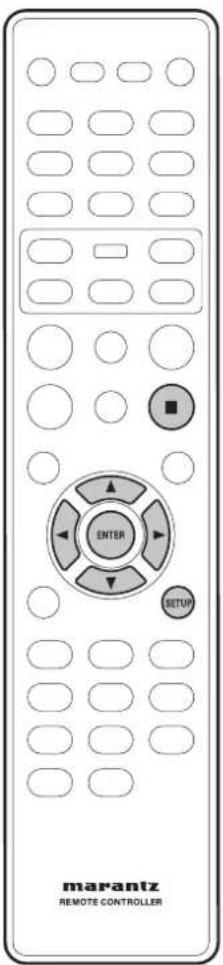
The Setup menu gives you access to all the player's settings. Press SETUP to display/leave the menu and the cursor and ENTER buttons on the remote control to navigate and select options.

Note
- The language options shown in the on-screen display illustrations on the following pages may not correspond to those available in your country or region.
1 Press the SETUP button on the remote control. Select a tab using the cursor buttons (◄/►).
GENERAL SETUP: Setup of the GENERAL options
② AUDIO SETUP: Setup of the audio options
③ VIDEO SETUP: Setup of the display and HDMI
Video options
4 PREFERENCE: Setup of the language, parental, and several other options.
2 Use the cursor buttons (▲/▼) on the remote control to access the different features.
3 Press the ENTER button as many times as necessary to select the desired option.
To make the setup screen disappear after setting up, press the SETUP button again.

Note
- Depending on the disc, some Setup Menu selections may not work.
- Some settings can not be selected during playback and RESUME mode of DVD-Video. In that case, press the ■ (STOP) button once or twice to stop playback completely.
DVD Setup Menu6

text_image
marantz REMOTE CONTROLLERUsing the FL menu
The FL menu has been designed to set "REMOTE CODE".
It can be set during stand by mode.
If a Disc had been loaded, press Power button on the Remote Control to stand by mode.
Selecting the FL menu
1 Press SET UP for longer than 2 sec.
2 Stand by LED is disappeared and "REMOTE CODE" is displayed in the FL display.
REMOTE\_CODE
• If press ENTER, current status is displayed.
DVD\_1
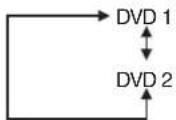
3 Use the cursor buttons (▲/▼) to select the type of REMOTE CODE you want to set as follows.
4 Press ENTER you want to set.
- Press SET UP for longer than 2 sec to close the FL menu and then go back to standby mode.

- The DVD player support two remote control codes: DVD 1 and DVD 2.
- Set the remote control code of the Remote Control to the same setting. (page 15)
DVD Setup Menu
A black dot (●) in di cates the default setting
* It can be set only during STOP.
6
| Page | |||
| OSD LANGUAGE | ● ENGLISH ESPANOL FRANCAIS | 36 | |
| PLAYER MODE | ● DVD AUDIO DVD VIDEO | 36 | |
| DIVX(R) VOD CODE | 37 | ||
| DISC LOCK * | LOCK ● UNLOCK | 37 | |
| DISPLAY DIM | ● 100% 70% 40% | 37 | |
| PROGRAM * | INPUT MENU | 37 | |
| SCREEN SAVER | ● ON OFF | 38 | |
| SLEEP | 15 MINS 30 MINS 45 MINS 60 MINS ● OFF | 38 | |
| AUTO STANDBY | ● ON OFF | 38 | |
| AUDIO OUT | 2 CHANNEL VIRTUAL SURROUND ● 5.1 CHANNEL | 39 | |
| DIGITAL AUDIO | DIGITAL OUTOFF ● ALL PCM | 41 | |
| LPCM OUT● 48KHZ 96KHZ | 41 | ||
| HDMI AUDIO OUT | ● AUTO MULTI PCM 2CH PCM OFF | 41 | |
| SPEAKER SETUP | SPEAKER SETUP PAGEFRONT L/R ● LARGE SMALLCENTER OFF ● LARGE SMALLREAR LS/RS OFF ● LARGE SMALLLFE(SUBWOOFER) ● ON OFF | 42 | |
| SPEAKER LEVELFRONT LEFT FRONT RIGHT CENTER LFE REAR LEFTREAR RIGHT | 43 | ||
| SPEAKER DISTANCEFRONT LEFT FRONT RIGHT CENTER LFE REAR LEFTREAR RIGHT | |||
| CD UPSAMPLING | ● OFF 88.2KHZ(X2) 176.4KHZ(X4) | 43 | |
| AUDIO DRC | ON ● OFF | 43 | |
| TV SYSTEM | PAL NTSC MULTI | 44 | |
| TV ASPECT | 4:3 PAN SCAN 4:3 LETTER BOX ● 16:9 WIDE | 45 | |
| PROGRESSIVE | ● OFF ON | 45 | |
| PICTURE SETTING | ● STANDARD BRIGHT SOFT | 46 | |
| PERSONAL COLOR BRIGHTNESS SHARPNESS CONTRAST TINT | 46 | ||
| ADV PICTURE | DCDI OFF ● ONGAMMACHRMA DELAYPSCAN FORMAT SUPPER WIDE 16:9 SQUEEZE ● OFFHDMI VIDEO 480PDYNAMIC PICTUREDVI OUTPUT RANGE ENHANCED ● STANDARD | 46474849 | |
| COMPONENT | YCbCr ● RGB | 49 | |
| BLACK LEVEL | 7.5 IRE 0 IRE | 49 | |
| CLOSED CAPTION | ON ● OFF | 49 | |
DVD Setup Menu6
text_image
MARantz REMOTE CONTROLLER3 Use the cursor buttons (▲/▼) to select the desired item, then press the cursor (▶) or ENTER button.

text_image
GENERAL SETUP PAGE OSD LANGUAGE PLAYER MODE DIVX(R) VOD CODE DISC LOCK DISPLAY DIM PROGRAM SCREEN SAVER SLEEP AUTO STANDBY
- Press ◀ to go back to the previous menu item. Press SETUP to exit the menu.
OSD LANGUAGE
The language options are different depending on your country or region, and may not match the illustrations shown in the user manual.
- Default setting: ENGLISH
The OSD (On-Screen Display) language for this DVD system will remain as you have set it, regardless of the changes made to the DVD disc language.
Selects the preferred language for the DVD system on-screen display menu.
PLAYER MODE
• Default setting: DVD AUDIO
• DVD Audio
Should be selected when the player is to be used as a DVD audio player.
• DVD Video
Should be selected when the player is to be used as a DVD video player.

- Some DVD-Audio discs contain bonus groups that are accessible by a four-digit password. In this case, consult the disc jacket and other packaging for information.
① During play, press DISPLAY twice.
- The group and track list is displayed on the TV screen.
② Press ◀/▶ to select a bonus group, then press ENTER.
③ Enter a four-digit password using the numeric keypad (0-9), then press ENTER.
④ Set will start to playback the bonus group.
Setting up the GENERAL SETUP page
1 Press the SETUP button.
2 Select GENERAL SETUP PAGE using the cursor buttons (◄/►), then press the ENTER button.
DVD Setup Menu
DivX(R) VOD CODE
MARANTZ provides you with the DivX® VOD (Video On Demand) registration code that allows you to rent and purchase videos using the DivX® VOD service. Press ▶ to see the registration code and press ENTER to exit.
Use the registration code to purchase or rent the videos from the DivX® VOD service at www.divx.com/vod. Follow the instructions and copy the video from your computer onto a CD-R/RW disc for playback on this DVD system.

Note
- Any video the downloaded from DivX® VOD can only be played back on this DVD system. For more information, visit us at www.divx.com/vod.
- The time search function is not available during DivX movie playback.
DISC LOCK
- Default setting: UNLOCK
Not all discs are rated or coded by the disc maker. You can prevent a specific disc from playing by locking the disc. Up to 40 discs can be locked.
- LOCK – Selects this to block the playback of the current disc. Subsequent access to a locked disc requires a six-digit password. The default password is "111111".
- UNLOCK – All discs can be played.
DISPLAY DIM
- Default setting: 100%
Selects the brightness of the DVD system display panel.
- 100% – Full brightness.
- 70% - Medium brightness.
- 40% – Dimmest display.
PROGRAM
DVD-Video DVD-Audio Video-CD CD
You can play the contents of the disc in the order you want by programming the playing order of the tracks. You can store up to 20 tracks.

text_image
PROGRAM TT(07)\CH(-) 1 TT: CH: 2 TT: CH: 3 TT: CH: 4 TT: CH: 5 TT: CH: 6 TT: CH: 7 TT: CH: 8 TT: CH: 9 TT: CH: 10 TT: CH: NEXT >>>1 Use the numeric keypad (0-9) to enter a valid track/chapter number.
2 Use the ◀/▶/▲/▼ keys to move the cursor to the next position.
- If there are more than ten total programme tracks, select NEXT on the screen (or press ▶▶▶ on the remote control) and press ENTER to access the next programming page.
3 To remove the track/chapter from the programming menu, select the track/chapter and press ENTER.
4 Once complete, select START on the screen and press ENTER to start playback.
- Playback will start from the selected track under the programmed sequence.
5 To exit the programme menu, select EXIT in the menu and press ENTER.

Note
- On Super Audio CD discs, you can program tracks on the CD layer.
- When playing back to program, previous RANDOM and repeat modes are all cancelled.
- When in VCD 2.0 mode (PBC ON mode), this function does not work.
• DVD-VR can not be programmed.
• DVD-Audio Bonus Group/Tracks can not be programmed.
DVD Setup Menu6
SCREEN SAVER
- Default setting: ON
The screen saver prevents damage to the TV screen by avoiding exposure to a static image for too long.
- ON – Switches to TV screen saver mode when playback has been stopped or paused for more than 15 minutes.
- OFF – Turns off the screen saver function.
SLEEP
- Default setting: OFF
This feature automatically sets the DVD player in standby mode after the period you set has elapsed.
You can select from 15, 30, 45, and 60 minutes. Select OFF to cancel the sleep timer function.
Press ENTER to confirm your selection.
AUTO STANDBY
- Default setting: ON
If ON is selected, the standby mode is automatically selected to save power if the player is left in the Stop mode for about 30 minutes.
DVD Setup Menu

text_image
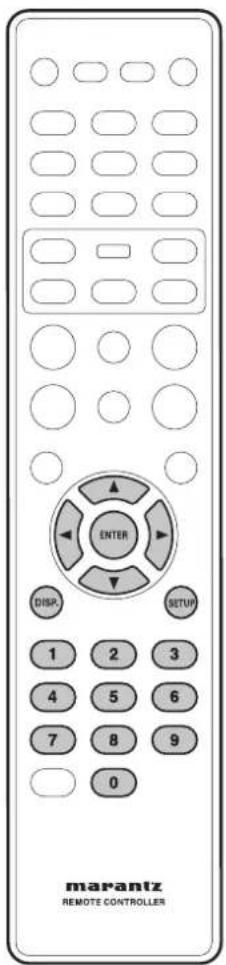
SOUND MODE ENTER SETUP marantz REMOTE CONTROLLER3 Use the cursor buttons (▲/▼) to select the desired item, then press the cursor (▶) or ENTER button.

text_image
AUDIO SETUP PAGE AUDIO OUT DIGITAL AUDIO HDMI AUDIO OUT CD UPSAMPLING AUDIO DRCNote
- Press ◀ to go back to the previous menu item. Press SETUP to exit the menu.
AUDIO OUT
If you connected this player to your amplifier using the 5.1 channel analog outputs (front, surround, center and subwoofer outs), set this to 5.1 Channel; if you connected only the stereo outputs, set to 2 Channel.
- Default setting: 5.1 CHANNEL
- 2 CHANNEL – Select this to change the channel output to stereo, which only delivers sound from the two front speakers and a subwoofer.
- VIRTUAL SURR – Select this to virtually reproduce the surround channels.
- 5.1 CHANNEL – Select this setting when using a multichannel audio/(video) receiver with 6 channel inputs. In this mode, the player performs DTS decoding or Dolby Digital 5.1-channel decoding when applicable, and Dolby Pro Logic decoding on DVD-Video, Video-CD and Audio CD discs with 2-channel sound tracks. No Dolby Pro Logic decoding is done with Super Audio CD discs.

Note
- You can also select it using the SOUND MODE buttons on the remote control.
- Some DVD-Audio discs don't allow downmixing of audio.
Setting up the AUDIO SETUP page
1 Press the SETUP button.
2 Select AUDIO SETUP PAGE using the cursor buttons (◄/►), then press the ENTER button.
DVD Setup Menu6
About source audio output
When the source output mode has been switched among 2CH, Virtual Surround and 5.1 CH mode setting using the Audio Out setting, audio output for each source will be as shown in the following table.
| Audio Contents Audio Out Setting Mixed 2ch output 5.1CH output Digital output | |||||
| DVD | Dolby Digital (2CH) | 2 CH 2ch L/R | 2ch L/R | PCM (Digital out is PCM)Bitstream (Digital out is All) | |
| Virtual Surround 2ch L/R 2ch+Vsurround | |||||
| 5.1 CH 2ch L/R Dolby Pro Logic II | |||||
| Dolby Digital (Multi CH) | 2 CH Mixed 2ch (L0/R0) Mixed 2ch (L0/R0) | PCM Mixed 2CH(Digital out is set to PCM)Bitstream (Digital out is set to All) | |||
| Virtual Surround | Mixed 2ch (Lt/Rt) | Mixed 2ch+Vsurround | |||
| 5.1 CH | Mixed 2ch (Lt/Rt) | Multi CH | |||
| LPCM (2CH) | 2 CH 2ch L/R | 2ch L/R | PCM 2ch 44.1/48KHz(88.2/96KHz if LPCM OUT is set to 96KHz.) | ||
| Virtual Surround 2ch L/R 2ch+Vsurround | |||||
| 5.1 CH 2ch L/R Dolby Pro Logic II | |||||
| DTS, DVD-Video/Audio (2CH), CD | 2 CH 2ch L/R | 2ch L/R | PCM (Digital out is PCM)Bitstream (Digital out is All) | ||
| Virtual Surround 2ch L/R 2ch+Vsurround | |||||
| 5.1 CH 2ch L/R 2ch L/R | |||||
| DTS, DVD-Audio (Multi) | 2 CH Mixed 2ch (L0/R0) Mixed 2ch (L0/R0) | PCM Mixed 2CH(Digital out is set to PCM)Bitstream (Digital out is set to All) | |||
| Virtual Surround | Mixed 2ch (Lt/Rt) | Mixed 2ch+Vsurround | |||
| 5.1 CH | Mixed 2ch (Lt/Rt) | Multi CH | |||
| MPEG (MULTI) | 2 CH Mixed 2ch (L0/R0) Mixed 2ch (L0/R0) | PCM (Digital out is PCM)Bitstream (Digital out is All) | |||
| Virtual Surround | Mixed 2ch (Lt/Rt) | Mixed 2ch+Vsurround | |||
| 5.1 CH | Mixed 2ch (Lt/Rt) | Multi CH | |||
| DVD-Audio (2CH) | 2 CH 2ch L/R | 2ch L/R | PCM 2CH(see page 42) | ||
| Virtual Surround 2ch L/R 2ch L/R | |||||
| 5.1 CH 2ch L/R 2ch L/R | |||||
| DVD-Audio (Multi) | 2 CH | 2ch (Lf/Rf) | 2ch (Lf/Rf) | PCM 2ch (Lf/Rf)(see page 42) | |
| Virtual Surround | 2ch (Lf/Rf) | 2ch (Lf/Rf)+Vsurround | |||
| 5.1 CH | 2ch (Lf/Rf) | Multi CH | |||
| CD | 2 CH 2ch L/R | 2ch L/R | PCM 2ch 44.1KHz | ||
| Virtual Surround 2ch L/R 2ch+Vsurround | |||||
| 5.1 CH 2ch L/R Dolby Pro Logic II | |||||
| Super Audio CD | 2ch | 2 CH 2ch L/R | 2ch L/R | OFF | |
| Virtual Surround | --- | --- | OFF | ||
| 5.1 CH | --- | --- | OFF | ||
| Multi | 2 CH | --- | --- | OFF | |
| Virtual Surround | --- | --- | OFF | ||
| 5.1 CH | Mixed 2ch (Lt/Rt) | Multi CH | OFF | ||
| Video CDS-Video CD 2ch | 2 CH 2ch L/R | 2ch L/R | PCM 2ch 44.1KHz | ||
| Virtual Surround | 2ch+Vsurround | 2ch+Vsurround | PCM 2ch 44.1KHz + Vsurround | ||
| 5.1 CH | Mixed 2ch | Dolby Pro Logic II | PCM 2ch 44.1KHz | ||
| MP3/DivX,WMA | 2 CH 2ch L/R | 2ch L/R | PCM 2CH | ||
| Virtual Surround 2ch L/R 2ch+Vsurround | |||||
| 5.1 CH 2ch L/R Dolby Pro Logic II | |||||

Note
• No Dolby Pro Logic II is allowed on DTS, DVD-Audio and Super Audio CD audio track.
• LFE (Subwoofer) will always carry the LFE channel.
DVD Setup Menu
DIGITAL OUT
- Default setting: ALL
Set the Digital output according to your optional audio equipment connection.
- OFF – Turn off the digital output.
- ALL – If you have connected your DIGITAL AUDIO OUT to a multi-channel decoder/receiver.
- PCM ONLY – Only if your receiver is not capable of decoding multi-channel audio.

Note
- If HDMI is activated, DIGITAL OUT is muted. HDMI audio out is related to the "DIGITAL OUT" setting. If set the "ALL" is set, HDMI Audio out is follows the EDID. If set the "PCM" is set, HDMI Audio out is always PCM.
- If you set to "ALL" with a non-DTS compatible amplifier, noise will be output when you play a DTS disc.
- Some DVD-Audio discs prohibit digital audio out due to copy protection.
- No digital audio is output when playing Super Audio CD.
LPCM OUT
- Default setting: 48kHz
If you connect the DVD Player to a PCM compatible receiver via digital terminals, coaxial or optical, you may need to adjust "LPCM Output". Discs are recorded at a certain sampling rate. The higher the sampling rate, the better the sound quality.
- 48kHz – Playback a disc recorded at the sampling rate of 48 kHz. A 96 kHz (if available on disc) PCM data stream will be converted to 48 kHz.
- 96kHz – Playback a disc recorded at the sampling rate of 96 kHz. If the 96 kHz disc is copy-protected, the digital output will automatically be converted to a sampling rate of 48 kHz.

Note
- High sampling rate DVD-Audio discs (192 kHz or 176.4 kHz) always output audio that has been down sampled to 96 kHz or 88.2 kHz through the digital outputs, when LPCM OUT is set to 96 kHz.
HDMI AUDIO OUT
- Default setting: AUTO
- AUTO – In this mode, when discs recorded in Dolby Digital, DTS, or MPEG are played, the respective bit stream signal is output. When DVD-Video/DVD-Audio discs with multi-channel audio are played, the multi-channel signal is output. When discs recorded in 2-channel PCM or other 2-channel format are played, the audio is output as 2-channel PCM. The output formats are limited by the capabilities of the connected component. For example, if the disc is recorded in Dolby Digital but the connected component does not support Dolby Digital, the audio is output as multi-channel PCM. If the connected component does not support multi-channel PCM either, the audio is output as 2-channel PCM.
- Multi PCM – In this mode, when discs recorded in Dolby Digital, DTS, MPEG, or DVD-Video/DVD-Audio are played, a multi-channel signal is output. When discs recorded in 2-channel PCM or other 2-channel format are played, the audio is output as 2-channel PCM. The output formats are limited by the ca pa bil i ties of the connected component. For example, if the disc is recorded in Dolby Digital but the connected component does not support Dolby Digital, the audio is output as 2-channel PCM.
- 2ch PCM – In this mode, audio is output as 2-channel PCM for all discs. Select this mode when the unit is connected to a TV or projector.
- Off – Audio signals are not output from the HDMI jack.

Note
- When audio signals are being output by HDMI-compatible components, digital output signals are muted.
- If HDMI is activated, DIGITAL OUT is muted. HDMI audio out is related to the "DIGITAL OUT" setting. If set to "ALL", HDMI Audio out is follows the EDID. If set to "PCM", HDMI Audio out is always PCM.
- Audio is not output when the player is connected to a device with an HDCP-compatible DVI jack.
- Audio signals are not output from DVD-Audio discs with CPPM copyright protection when using components that do not support HDMI standard Ver.1.1.
- Multi-channel and stereo audio is not output from Super Audio CDs.
DVD Setup Menu6
HDMI Audio Output
| Auto formats | HDMI Setting (Audio) | ||||
| Auto^*1 | Multi PCM^*2 | 2 ch PCM Off | |||
| DVD | Dolby Digital Dolby Digital Multi channel PCM | 2 Channel DOWNMIX Not Output | |||
| Linear PCM Multi channel PCM Multi channel PCM 2 Channel DOWNMIX Not Output | |||||
| DTS | D | TS Multi channel PCM 2 | Channel DOWNMIX Not Output | ||
| DVD-Audio Multi channel PCM Multi channel PCM 2 Channel DOWNMIX* | 3 | Not Output | |||
| CD/MP3/Super Audio CD^*4 | Left/Right | Not Output | |||
| DTS CD | DTS Multi channel PCM 2 Channel DOWNMIX | Not Output | |||
| Video CD | Left/Right | Not Output | |||
*1: The order of priority in Auto mode is: Bit Stream, Multi PCM, 2ch PCM.
The output format is limited by the capabilities of the connected component.
^*2 : The order of priority in Multi PCM mode is: Multi PCM, 2ch PCM.
The output format is limited by the capabilities of the connected component.
*3: Audio is not output from discs that prohibit downmixing.
*4: Audio is not output from Super Audio CDs. Audio is only output when a CD layer is played.
SPEAKER SET UP
You can adjust the delay times (for center and surround speakers only) and the volume level for individual speakers. These adjustments let you optimize the sound of your system to best suit your surroundings and setup.

IMPORTANT
- Speaker settings are only available for multi-channel audio output.
FRONT SPEAKER, CENTER SPEAKER, REAR SP
- OFF (only for CENTER and REAR speakers) – Select when no speakers are connected.
- LARGE – Select if the main speaker cone is 12 cm or more.
- SMALL – Select if the main speaker cone is less than 12 cm.
LFE (SUBWOOFER)
- ON – Select when a subwoofer is connected.
- OFF – Select when no subwoofer is connected.
SPEAKER LEVEL
Volume level setting for individual speakers (-6 dB to +6 dB).

text_image
SPEAKERS LEVEL SETUP FRONT LEFT 0dB FRONT RIGHT 0dB CENTER 0dB LFE 0dB REAR LEFT 0dB REAR RIGHT 0dB
Note
- When set to 0 dB, the Audio Out level is 2 Vrms.
- When set to higher than 0 dB, the Audio Out level of other channels falls.
- When set to lower than 0 dB, the Audio Out level of the relevant channel falls.
EX:
| FRONT | 0 dB | +6 dB -6 dB | |
| LEFT | 2 Vrms | 2 Vrms | 1 Vrms |
| Other | 2 Vrms | 1 Vrms | 2 Vrms |
DVD Setup Menu
SPEAKER DISTANCE
Delay time settings in relation to the listening position/distance for individual speakers (1.0 MS to 9.0 MS).
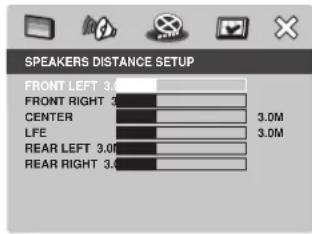
text_image
SPEAKERS DISTANCE SETUP FRONT LEFT 3.0 FRONT RIGHT 3 CENTER 3.0M LFE 3.0M REAR LEFT 3.0M REAR RIGHT 3.0MNote
- Use a longer delay time setting when the surround speakers are closer to the listener than the front speakers.
- A test tone will be automatically generated to help you judge the sound level of each speaker.
CD UPSAMPLING
- Default setting: OFF
This feature allows you to convert your music CD to a higher sampling rate using sophisticated digital signal processing for better sound quality. If you have activated the upsampling function, the player will automatically switch to stereo mode.
- OFF – Select this to disable CD upsampling.
- 88.2kHz (X2) – Select this to convert the sampling rate of CDs to twice that of the original.
- 176.4kHz (X4) – Select this to convert the sampling rate of CDs to four times that of the original.
Note
- This setting is only valid for signals output from the analog jacks.
- CD upsampling is switched to OFF, if AUDIO OUT is set to Vsurround and 5.1CH.
• AUDIO OUT is switched to 2CH, if CD upsampling is set to 88.2 kHz or 176.4 kHz.
AUDIO DRC
- Default setting: OFF
This mode optimizes playback of sound at low volume. High volume outputs will be softened and low volume outputs will be enhanced to an audible level. This feature is only applicable for DVD video discs with Dolby Digital mode.
- ON – Turns on AUDIO DRC mode.
- OFF – Turns off AUDIO DRC mode. Select this to enjoy the sound with its full dynamic range.
Note
• Audio DRC is only effective with Dolby Digital Audio sources.
DVD Setup Menu6
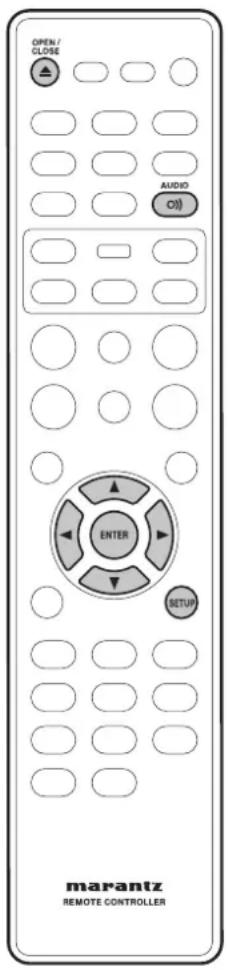
text_image
OPEN/ CLOSE AUDIO O) ENTER SETUP marantz REMOTE CONTROLLERSetting up the VIDEO SETUP page
1 Press the SETUP button.
2 Select VIDEO SETUP PAGE using the cursor buttons (◄/►), then press the ENTER button.
3 Use the cursor buttons (▲/▼) to select the desired item, then press the cursor (▶) or ENTER button.

text_image
VIDEO SETUP PAGE TV SYSTEM TV ASPECT PROGRESSIVE PICTURE SETTING HDMI SETUP COMPONENT BLACK LEVEL CLOSED CAPTION
ote
- Press ◀ to go back to the previous menu item. Press SETUP to exit the menu.
TV SYSTEM
- Default setting: NTSC (USA model) PAL (Europe model)
The colour system of the DVD system, DVD and TV should match: only then will it be possible to play a DVD on this system. Before changing the TV system, determine the colour system of your TV.
- PAL – Select this if the connected TV has the PAL colour system. It will change the video signal of an NTSC disc and output it to PAL format.
- NTSC – Select this if the connected TV has the NTSC colour system. It will change the video signal of a PAL disc and output it to NTSC format.
- MULTI – Select this if the connected TV is compatible with both NTSC and PAL (multi-system). The output format will be in accordance with the video signal of the disc.
Select one of the options and press ENTER to confirm.
- Follow the instructions shown on the TV to confirm the selection (if any).
- If a blank/distorted TV screen appears, wait for 15 seconds for the auto recovery.
DVD Setup Menu

text_image
CHANGING PAL TO NTSC 1.ENSURE THAT YOUR TV SYSTEM SUPPORTS NTSC STANDARD. 2. IF THERE IS A DISTORTED PICTURE DISPLAYED ON THE TV.WAIT IS SECONDS FOR AUTO RECOVER OK CANCELVideo output format when progressive is "ON".
| Disc Format | TV system | Output Format | |
| YCbCr Video/ | S-Video | ||
| NTSC PAL | PAL PAL Progressive NTSC | ||
| NTSC NTSC Progressive NTSC | |||
| MULTI NTSC Progressive NTSC | |||
| PAL PAL | PAL Progressive PAL | ||
| NTSC NTSC Progressive PAL | |||
| MULTI PAL Progressive | PAL | ||
If progressive is "OFF", Video Output Format follow the TV SYSTEM with Interlace.
To change the TV system manually:
① Press OPEN CLOSE ▲ to open the disc tray without HDMI connected.
② Press▶ (RIGHT) on the remote control.
③ Press AUDIO on the remote control to change the TV system setting.
PAL → NTSC
NTSC → PAL
TV ASPECT
- Default setting: 16:9 WIDE
Set the aspect ratio of the DVD system according to the TV type you have connected. The format you select must be available on the disc. If it is not, the setting for TV display will not affect the picture during playback.
• 4:3 PAN SCAN – Select this if you have
a conventional TV and want both sides of the picture to be trimmed or formatted to fit you TV.
• 4:3 LETTER BOX – Select this if you have
a conventional TV. In this case, a wide picture with black bands on the upper and lower portions of the TV will be displayed.

• 16:9 WIDE – Select this if you have a wide-screen TV.

Select one of the options and press ENTER to confirm.

Note
- Some discs will not allow you to change the aspect ratio.
PROGRESSIVE
- Default setting: OFF
Progressive scanning displays twice the number of frames per second as interlaced scanning (ordinary normal TV system).
With nearly double the number of lines, progressive scanning offers higher picture resolution and quality.
Before you start...
Ensure that you have connected this DVD system to a progressive scan TV using the YCbCr connection (see page 11 "Home theater video connections").
- ON – Turns on progressive scan mode.
The instruction menu appears on the TV.

text_image
ACTIVATING PROGRESSIVE SCAN: 1. ENSURE YOUR TV HAS PROGRESSIVE SCAN. 2. CONNECT USING YPBPR (GBR) VIDEO CABLE. 3. IF THERE IS A DISTORTED PICTURE, WAIT 15 SECONDS FOR AUTO RECOVERY. OK CANCEL① Press ▶ to highlight "OK" in the menu and press ENTER to confirm. The picture on your TV will remain distorted in this state until you turn on the progressive scan mode on your TV.
② Turn on your TV's progressive scan mode (refer to the user manual for your TV.) The following menu appears on the TV.

text_image
CONFIRM AGAIN TO USE PROGRESSIVE SCAN. IF PICTURE IS GOOD, PRESS OK BUTTON ON REMOTE.DVD Setup Menu6
3 Press ◀ to highlight OK in the menu and press ENTER to confirm.
The set-up is complete now and you can start to enjoy the high quality picture.
- OFF – Disables the progressive scan mode.
To deactivate Progressive manually:
① Press OPEN CLOSE ▲ to open the disc tray without HDMI connected.
② Press◀ (LEFT) on the remote control. Press AUDIO on the remote control.
The DVD background screen appears on the TV.

- There are some progressive scan TVs and high-definition TVs that are not fully compatible with this unit, resulting in an unnatural picture when playing back a DVD Video disc in the progressive scan mode. In this case, turn off the progressive scan feature on both the DVD system and your TV.
PICTURE SETTING
- Default setting: STANDARD
This DVD system provides three predefined sets of picture colour settings and one personal setting which you can define yourself.
• STANDARD – Original colour setting.
• BRIGHT – Vibrant colour setting.
- SOFT – Warm colour setting.
- PERSONAL – Selects this to personalize the picture colour setting. Use the ◀/▶ keys to select to the setting that best suits your personal preference and press ENTER to confirm. For an average setting, select 0.
- BRIGHTNESS – Increase the value to brighten the picture or vice versa.
- SHARPNESS – Increase the value to sharpen the picture or vice versa.
- CONTRAST – Increase the value to sharpen the picture or vice versa.
- TINT – Increase the value to darken the picture or vice versa.
- COLOR – Increase the value to enhance the color in your picture or vice versa.
ADV PICTURE
This player allows you to fine-tune the following video parameters.
We recommend setting the aspect ratio on your TV if the function is available.
DCDi
- Default setting: ON
DCDi (Directional Correction Deinterlacing) computes and tracks the angle of the screen edge to fi II in missing pixels on the TV screen. DCDi will optimize the image quality significantly, especially during slow motion playback. This function is available only for progressive scan output.
- OFF – Select to deactivate this function.
- ON – Select to activate this function.
GAMMA
Enables you to non-linearly adjust the intensity of the picture. A positive value enables you to bring out low level detail in dark scenes, while a negative value emphasizes contrast. This function is not available when using an HDMI compatible component.
-7 to +7
CHROMA DELAY
The chroma (color) and luminance (brightness) signals are not synchronized. The Chroma Delay setting allows you to adjust the advance delay of the chroma signal to yield a perfectly clear picture. This function is not available when using an HDMI-compatible component.
-3 to +3
PSCAN FORMAT
- Default setting: OFF
Set the aspect ratio of the projected images on the screen. This function is only available for progressive scan and HDMI video output.
- SUPER WIDE – Select this to display a 4:3 picture disc on a wide-screen TV with non-linear stretching (the centre position of the screen is stretched less than the side).
- 16:9 SQUEEZE – Select this to display a 4:3 picture disc on a widescreen TV without stretching. Black bars will be shown on the both sides of the TV screen.
- OFF – No aspect ratio adjustment is made when this option is selected.
DVD Setup Menu
6
HDMI VIDEO
- Default setting: AUTO
Selects a suitable video resolution depending on the capability of the connected TV/device to enhance the HDMI video output.
• 480P – Progressive output in 480 lines for NTSC TV
- 576P – Progressive output in 576 lines for PAL TV
- 720P – Progressive output upscaled to 720 lines
• 1080i – Interlaced output upscaled to 1080 lines
• 1080P – Progressive output upscaled to 1080 lines
- AUTO – The video output will automatically follow the display's supported resolution

Note
- If no display appears on the TV due to an unsupported resolution, use the composite video cable to connect the DVD system and your TV. Turn on your TV to the correct input channel for the composite video and adjust the resolution setting to 480P/576P.
- The resolution can also be set with the HDMI button on the front panel.
- Pressing the HDMI button for three seconds or more toggle the HDMI on/off state (see pages 13, 14).
• In general, the larger the number, the higher the resolution. - When the resolution is changed, the image may be corrupted or the output may take longer than normal.
• 720P/1080i/1080P only supports 60 Hz Video signal. - When 480P/576P has been selected, multi-channel PCM at sampling frequency of 96 kHz cannot be output if the connected TV, projector, etc. is not compatible with WCLOCK. The multi-channel PCM is converted to 48 kHz/2ch before being output.
DVD Setup Menu6
Setup Examples
| Disc Format | TV Aspect | Video S-Video YCbCr (Progressive:OFF) | PSCAN FORMAT | YCbCr (Progressive:ON) | HDMI output | |
| Sink EDID | ||||||
| 4:3 16:9 | ||||||
| 16:9 | 16:9 Wide |  | OFF |  | 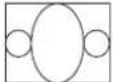 |  |
| 16:9 SQUEEZE | 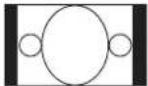 | 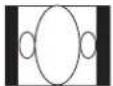 | 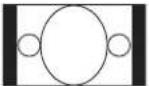 | |||
| SUPERWIDE |  |  |  | |||
| 4:3 LB Dont' |  |  |  |  | ||
| 4:3 PS*1 |  | Dont' care |  |  | 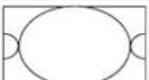 | |
| 4:3 PS*2 |  | Dont' care |  | 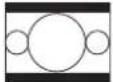 | 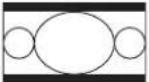 | |
| 4:3 | 16:9 Wide | 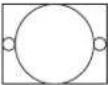 | OFF |  | 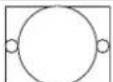 | 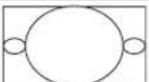 |
| 16:9 SQUEEZE | 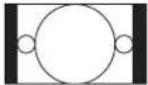 | 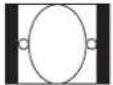 |  | |||
| SUPERWIDE |  |  |  | |||
| 4:3 LB Dont' |  |  |  |  | ||
| 4:3 PS Dont' |  |  |  |  | ||
*1: When actual video output is Pan-scan. ("TV Aspect" is 4:3panscan and disc permits Pan-scan.)
*2: When actual video output is Letterbox. ("TV Aspect" is 4:3panscan but disc does NOT permit Pan-scan.)
Video Out format when HDMI is activated
| HDMI Video Output | YCbCr Output | Video/S-Video output | |
| Progressive ON Progressive OFF | |||
| 480P 480P (NTSC progressive) | Follow the Disc Source with Interlace.(ex: NTSC disc play: NTSC interlace) | ||
| 576P 576P (PAL progressive) | |||
| 720P1080i1080P | No Video | ||
DVD Setup Menu
DYNAMIC PICTURE
Produces more dynamic picture by increasing the picture contrast and the color intensity. This function is available only for progressive scan output.
0 to 5
DVI OUTPUT RANGE
- Default setting: STANDARD
When connecting the DVI unit, black may rise to the surface depending on the display.
- ENHANCED – Image data values between 0 (black) and 255 (white)
- STANDARD – Image data values between 16 (black) and 235 (white)
COMPONENT
(Euro model only)
- Default setting: RGB
This setting allows you to toggle the output of the video signal between RGB (on the A/V EURO CONNECTOR) and YCbCr (on the component).
- YCbCr – Select this for YCbCr Pr connection on component Video out.
- RGB – Select this for the A/V EURO CONNECTOR.
To change the COMPONENT out manually:
① Press OPEN CLOSE ▲ to open the disc tray without HDMI connection.
② Press▶ (RIGHT) on the remote control.
③ Press ANGLE on the remote control to change the COMPONENT out.
Note
- When the player is set to YCbCr, some TV may not properly synchronize with the player on the A/V EURO connector.
BLACK LEVEL
- Default setting: 7.5 IRE (USA model) 0 IRE (European model)
If you set the TV type to NTSC, set the Black level shift to 7.5 IRE. This will improve the color contrast during playback. The black level setting has no effect if the TV type is set to PAL.
- 7.5 IRE – Select this to enhance the black level.
- 0 IRE – Select this for the standard black level setting.
CLOSED CAPTION (USA Model only)
- Default setting: OFF
Closed captions are data hidden in the video signals of specific discs, and are invisible without the use of a special decoder. The difference between subtitles and captions is that subtitles are intended for hearing persons and captions are for the hearing impaired. Subtitles rarely show all of the audio. For example, captions show sound effects (e.g., “phone ringing” and “footsteps”), while subtitles do not. Before you select this function, please ensure that the disc contains closed caption information and your TV set also supports this function.
- ON – Select this to enable the closed caption function.
- OFF – Select this to disable the closed caption function.
DVD Setup Menu6
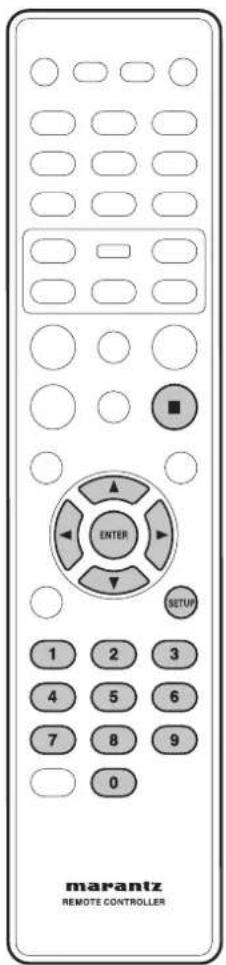
text_image
marantz REMOTE CONTROLLERSetting up the PREFERENCE page
1 Press ■ (STOP) twice to stop playback (if any), then press SETUP.
2 Select PREFERENCE PAGE using the cursor buttons (◄/►), then press the ENTER button.
3 Use the cursor buttons (▲/▼) to select the desired item, then press the cursor (▶) or ENTER button.
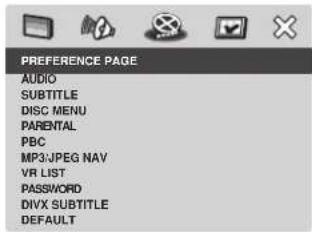
text_image
PREFERENCE PAGE AUDIO SUBTITLE DISC MENU PARENTAL PBC MP3:JPEG NAV VR LIST PASSWORD DIVX SUBTITLE DEFAULT
ote
- Press ◀ to go back to the previous menu item. Press SETUP to exit the menu.
Using the AUDIO, SUBTITLE and DISC MENU language
You can select your preferred language settings for DVD playback. If the selected language is recorded on the DVD disc, the DVD system will automatically play the disc in that language. Otherwise, the disc's default language will be used instead.
AUDIO
Selects the preferred audio language for DVD playback.
- Default setting: ENGLISH
If the language you want is not in the list, select OTHERS, then use the numeric keypad (0-9) on the remote to enter the 4-digit language code "XXXX" (see page 54 "Language Codes") and press ENTER.
SUBTITLE
Selects the preferred subtitle language for DVD playback.
- Default setting: OFF
DVD Setup Menu
DISC MENU
Selects the preferred disc menu language for DVD playback.
- Default setting: ENGLISH
Use the ▲/▼ keys to select a language and press ENTER to confirm.

Note
- For some discs, selection can be made using the DVD menu. In this case, press MENU to display the DVD menu screen and then make your selection.
PARENTAL
- Default setting: 8 ADULT
Some DVDs may have a parental level assigned to the complete disc or to certain scenes on the disc. This feature lets you set a playback limitation level.
The rating levels are from 1 to 8 and are country dependent. You can prohibit the playing of certain discs that are not suitable for your children or play certain discs with alternative scenes for certain discs.
| PREFERENCE PAGE | |
| AUDIO | 1 KID SAFE |
| SUBTITLE | 2 G |
| DISC MENU | 3 PG |
| PASSED INS. | |
| PBC | 4 PG 13 |
| MP3/MP6G NAV | 5 PGR |
| VR LIST | 6 R |
| PASSWORD | 7 NC 17 |
| DIVX SUBTITLE | |
| DEFAULT | 8 NC 11 |
1 Press ▲/▼ to highlight a rating level for the disc inserted and press ENTER.
- To disable parental controls and have all discs play, select 8 ADULT.
2 Use the numeric keypad (0-9) to enter the six-digit password (see page 52).
- DVDs that are rated above the level you selected will not play unless you enter the six-digit password.

Note
- VCD, SVCD, and CD have no level indication, so the parental control function has no effect with these types of discs. This also applies to most illegal DVD discs.
- Some DVDs are not encoded with a rating even though the movie rating may be printed on the disc cover. The rating level feature does not work for such discs.
PBC
- Default setting: ON
The Play Back Control feature is applicable for VCD/SVCD only. It allows you to play Video CDs (2.0) interactively, following the menu on the display.
- ON – The index menu (if available) will appear on the TV when you load a VCD/SVCD.
- OFF – The VCD/SVCD will skip the index menu and playback directly from the beginning.
MP3/JPEG NAV
- Default setting: WITHOUT MENU
MP3/JPEG Navigator can only be set if the disc is recorded with a menu. It allows you to select different display menus for easy navigation.
- WITHOUT MENU – Displays all the files contained in the MP3/Picture disc.
- WITH MENU – Displays the folder menu of the MP3/Picture disc.

Note
- This DVD system can only display 650 files/folder in the directory.
VR LIST
- Default setting: ORIGINAL LIST
There are two ways to play back a disc in VR (Video Recording) format: ORIGINAL LIST and PLAY LIST. This feature is not available with non-VR format discs.
- ORIGINAL LIST – Select this to play the originally recorded titles on the disc.
- PLAY LIST – Select this to play the edited version of the disc. This feature is only available when a play list has been created.
DVD Setup Menu6
Previewing VR format
1 During playback, press SCAN.
2 Press ▲/▼ to highlight either TITLE DIGEST or TITLE INTERVAL.
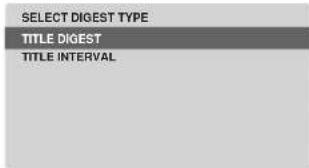
text_image
SELECT DIGEST TYPE TITLE DIGEST TITLE INTERVAL3 Press ENTER to select the function.
- TITLE DIGEST – This function will display thumbnail pictures of titles on the screen. Up to six thumbnail pictures per page will be displayed.
• In ORIGINAL LIST mode, the originally recorded titles on the disc will be displayed.
- In PLAY LIST mode, every title in the play list will be displayed.
- TITLE INTERVAL – This function will divide and display the contents of each title being played back in regular intervals, making it easy to preview the recording. Up to six thumbnail pictures per page will be displayed.
- If the title being played back is short, the TITLE DIGEST function will be performed instead.
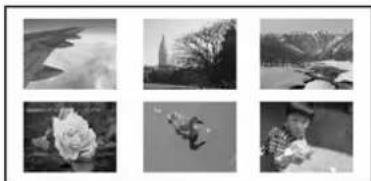
natural_image
Six black-and-white photos showing natural landscapes: mountains, a forest, a flower, and a person in a floral setting (no text or symbols)(example for 6 thumbnail pictures display)
4 Use ◀/▶/▲/▼ to select a title, or use the numeric buttons to enter the title number next to SELECT.
- Press |◀◀/▶▶| to access the previous/ next page.
5 Press ENTER to confirm the selection.
To quit the preview function
- Use ◀/▶ /▲/▼ to highlight EXIT and press ENTER to confirm.
To return to the preview menu
- Use ◀/▶/▲/▼ to highlight MENU and press ENTER to confirm.
PASSWORD
The password is used for both Parental Control and Disc Lock. Enter your six-digit password to play a locked disc or when prompted for a password. The default password is "111111". To change the password:
1 Press ENTER to access the change password menu.
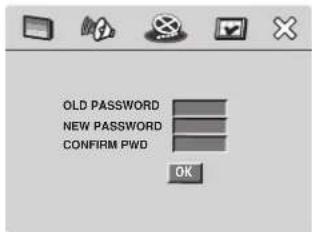
text_image
OLD PASSWORD NEW PASSWORD CONFIRM PWD OK2 Use the numeric keypad 0-9 on the remote control to enter your existing six-digit password at OLD PASSWORD.

Note
- When doing this for the first time or if you forget your existing password, key in "111111".
3 Enter the new six-digit password at NEW PASSWORD.
4 Enter the new six-digit password again at CONFIRM PWD.
5 Press ENTER to confirm and exit the menu.
DIVX SUBTITLE
You can set the font type that supports the recorded DivX subtitle.
- Default setting: STANDARD
STANDARD
Albanian, Danish, Dutch, English, Finnish, French, Gaelic, German, Italian, Kurdish (Latin), Norwegian, Portuguese, Spanish and Swedish.
CYRILLIC
Bulgarian, Belorussian, Macedonian, Moldavian, Russian, Serbian and Ukrainian.

ote
- Supported subtitle extensions for DivX are ".srt", ".smi", ".sub", ".ssa", ".ass".
DVD Setup Menu
DEFAULT
This feature enables you to reset all the setup menu options and your personal settings to the factory defaults, except your password for Parental Control and Disc Lock. Press ENTER to confirm the default reset.
6
English
Additional Information7
Language Codes
This page is used to select other languages. This does not affect the options in AUDIO, SUBTITLE or DISC MENU.
| Abkhazian 6566 | |
| Afar 6565 | |
| Afrikaans 6570 | |
| Albanian 8381 | |
| Amharic 6577 | |
| Arabic 6582 | |
| Armenian 7289 | |
| Assamese 6583 | |
| Avestan 6569 | |
| Aymara 6589 | |
| Azerbaijani 6590 | |
| Bashkir 6665 | |
| Basque 6985 | |
| Belarusian 6669 | |
| Bengali 6678 | |
| Bihari 6672 | |
| Bislma 6673 | |
| Bokmål, Norwegian | 7866 |
| Bosnian | 6683 |
| Breton | 6682 |
| Bulgarian | 6671 |
| Burmese 7789 | |
| Castilian, Spanish | 6983 |
| Catalan 6765 | |
| Chamorro 6772 | |
| Chechen 6769 | |
| Chewa; Chichewa; Nyanja | 7889 |
| Chichewa; Chewa; Nyanja | 7889 |
| Chinese | 9072 |
| Chuang; Zhuang | 9065 |
| Church Slavic; Slavonic; | 6785 |
| Church Slavonic; Church | 6785 |
| Chuvash 6786 | |
| Cornish | 7587 |
| Corsican 6779 | |
| Croatian | 7282 |
| Czech | 6783 |
| Danish | 6865 |
| Dutch | 7876 |
| Dzongkha | 6890 |
| English | 6978 |
| Esperanto | 6979 |
| Estonian 6984 | |
| Faroese 7079 | |
| Fijian | 7074 |
| Finnish | 7073 |
| French | 7082 |
| Frisian 7089 | |
| Gaelic; Scotish Gaelic | 7168 |
| Gallegan 7176 | |
| Georgian 7565 | |
| German | 6869 |
| Gikuyu: kikuyu | 7573 |
| Greek, | 6976 |
| Guarani | 7178 |
| Gujarati | 7185 |
| Hausa | 7265 |
| Hebrew | 7269 |
| Herero | 7290 |
| Hindi | 7273 |
| Hiri Motu 7279 | |
| Hungarian 7285 | |
| Icelandic 7383 |
| Ido | 7379 |
| Indonesian | 7368 |
| Interlingua (International) | 7365 |
| Interlingue | 7369 |
| Inuktitut | 7385 |
| Inupiaq 7375 | |
| Irish | 7165 |
| Italian | 7384 |
| Japanese | 7465 |
| Javanese 7486 | |
| Kalaallisut | 7576 |
| Kannada | 7578 |
| Kashmiri | 7583 |
| Kazakh | 7575 |
| Khmer | 7577 |
| Kikuyu; Gikuyu | 7573 |
| Kinyarwanda | 8287 |
| Kirghiz | 7589 |
| Komi | 7586 |
| Korean | 7579 |
| Kuanyama; Kwanyama | 7574 |
| Kurdish | 7585 |
| Kwanyama; Kuanyama | 7574 |
| Lao | 7679 |
| Latin | 7665 |
| Latvian | 7686 |
| Letzeburgesch; | 7666 |
| Limburgan; Limburger; | 7673 |
| Limburger; Kimburgan; | 7673 |
| Limburgish; Limburger; | 7673 |
| Lingala | 7678 |
| Lithuanian | 7684 |
| Luxembourgish; | 7666 |
| Macedonian | 7775 |
| Malagasy | 7771 |
| Malay | 7783 |
| Malayalam | 7776 |
| Maltese | 7784 |
| Manx | 7186 |
| Maori | 7773 |
| Marathi | 7782 |
| Marshallese | 7772 |
| Moldavian 7779 | |
| Mongolian 7778 | |
| Nauru | 7865 |
| Navaho; Navajo | 7886 |
| Navajo; Navaho | 7886 |
| Ndebele; North | 7868 |
| Ndebele; South | 7882 |
| Ndonga | 7871 |
| Nepali | 7869 |
| Northern Sami | 8369 |
| North Ndebele | 7868 |
| Norwegian 7879 | |
| Norwegian Bokmål; Bokmål | 7866 |
| Norwegian Nynork | 7878 |
| Nyanja; Chichewa; Chewa | 7889 |
| Nynorsk; Norwegian; | 7878 |
| Occitan (post 1500); Proven | 7967 |
| Old Bulgarian; Old Slavonic; | 6785 |
| Old Church Slavonic; Old | 6785 |
| Old Slavonic; Church | 6785 |
| Oriya | 7982 |
| Oromo | 7977 |
| Ossetian; Ossetic | 7983 |
| Ossetic; Ossetian | 7983 |
| Pali | 8073 |
| Panjabi | 8065 |
| Persian | 7065 |
| Polish | 8076 |
| Portuguese 8084 | |
| Provençal; Occitan (post) | 7967 |
| Pushto | 8083 |
| Quechua | 8185 |
| Raeto-Romance | 8277 |
| Romanian 8279 | |
| Rundi | 8278 |
| Russian | 8285 |
| Samoan | 8377 |
| Sango | 8371 |
| Sanskrit | 8365 |
| Sardinian | 8367 |
| Scottish Gaelic; Gaelic | 7168 |
| Serbian | 8382 |
| Shona | 8378 |
| Sindhi | 8368 |
| Sinhalese | 8373 |
| Slovak | 8375 |
| Slovenian | 8376 |
| Somali | 8379 |
| Sotho, Southern | 8384 |
| South Ndebele | 7882 |
| Spanish: Castilian | 6983 |
| Sundanese 8385 | |
| Swahili | 8387 |
| Swati | 8383 |
| Swedish | 8386 |
| Tagalog | 8476 |
| Tahitian | 8489 |
| Tajik | 8471 |
| Tamil | 8465 |
| Tatar | 8484 |
| Telugu | 8469 |
| Thai | 8472 |
| Tibetan | 6679 |
| Tigrinya | 8473 |
| Tonga (Tonga Islands) | 8479 |
| Tsonga | 8483 |
| Tswana | 8478 |
| Turkish | 8482 |
| Turkirnen | 8475 |
| Twi | 8487 |
| Uighur | 8571 |
| Ukrainian | 8575 |
| Urdu | 8582 |
| Uzbek | 8590 |
| Vietnamese | 8673 |
| Volapük | 8679 |
| Walloon | 8765 |
| Welsh | 6789 |
| Wolof | 8779 |
| Xhosa | 8872 |
| Yiddish | 8973 |
| Yoruba | 8979 |
| Zhuang; Chuang | 9065 |
| Zulu | 9085 |
7Additio
Handling discs
When holding discs of any type, take care not to leave fingerprints, dirt or scratches on the disc surface. Hold the disc by its edge or by the center hole and edge.
Damaged or dirty discs can affect playback per for mance. Take care also not to scratch the label side of the disc. Although not as fragile as the recorded side, scratches can still result in a disc becoming unusable.
Should a disc become marked with fingerprints, dust, etc., clean using a soft, dry cloth, wiping the disc lightly from the center to the outside edge as shown in the diagram below.
Wipe lightly from the center of the disc using straight strokes.

Don't wipe the disc surface using circular strokes.
If necessary, use a cloth moistened in alcohol, or a commercially available CD/DVD cleaning kit to clean a disc more thor ough ly. Never use benzene, thinner or other cleaning agents, including products designed for cleaning vinyl records.
Storing discs
Although CDs and DVD discs are more durable than vinyl records, you should still take care to handle and store discs correctly. When you're not using a disc, return it to its case and store upright. Avoid leaving discs in excessively cold, humid, or hot environments (including under direct sun light).
Don't glue paper or put stickers onto the disc, or use a pencil, ball-point pen or other sharp-tipped writing in stru ment. These could all damage the disc.

For more detailed care information, see the in struc tions that come with discs.
Do not load more than one disc into the player.
Discs to avoid
Discs spin at high speed inside the player. If you can see that a disc is cracked, chipped, warped, or otherwise damaged, don't risk using it in your play er. You could end up dam aging the unit.
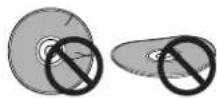
This unit is designed for use with conventional, fully circular discs only. Use of shaped discs is not recommended for this product.

Cleaning the pickup lens
The DVD player's lens should not become dirty in normal use, but if for some reason it should mal func tion due to dust or dirt, consult your nearest MARANTZ-authorized service center. Al though lens cleaners for CD players are commercially available, we do not recommend using them since some may damage the lens.
Problems with condensation
Condensation may form inside the player if it is brought into a warm room from outside, or if the temperature of the room rises quickly. Although the condensation won't damage the player, it may temporarily impair its performance. For this reason you should leave it to adjust to the warmer temperature for about an hour before switching on and using it.
Additional Information7
Hints on installation
We want you to enjoy using this unit for years to come, so please bear in mind the following points when choosing a suitable location for it:
Do...
√ Use in a well-ventilated room.
√ Place on a solid, flat, level surface, such as a table, shelf or stereo rack.
Don't...
✗ Use in a place exposed to high temperatures or humidity, including near radiators and other heat-gener at ing appliances.
✗ Place on a window sill or other place where the player will be exposed to direct sunlight.
✗ Use in an excessively dusty or damp environment.
✗ Place directly on top of an amplifier, or other component in your stereo system that be comes hot during use.
✗ Use near a television or monitor as you may experience interference, especially if the television uses an indoor antenna.
✗ Use in a kitchen or other room where the player may be exposed to smoke or steam.
✗ Use on a thick rug or carpet, or cover with cloth: this may prevent proper cooling of the unit.
✗ Place on an unstable surface, or one that is not large enough to support all four of the unit's feet.
Moving the player
If you need to move the player, first press the POWER ON/OFF button on the front panel to turn the player off, then unplug the power cord. Never lift or move the unit during play back: discs rotate at high speed and may be damaged.
Precautions on using the power cord
Handle the power cord by the plug part. Do not pull out the plug by tugging the cord, and never touch the power cord when your hands are wet, as this could cause a short circuit or electric shock. Do not place the unit, a piece of furniture, or other object on the power cord or pinch the cord in any other way. Never make a knot in the cord or tie it with other cords. The power cords should be routed so that they are not likely to be stepped on. A damaged power cord can cause a fire or give you an electric shock. Check the power cord once in a while. If you find it damaged, ask your nearest MARANTZ authorized service center or your dealer for a re placement.
Troubleshooting
Incorrect operation is often mistaken for trouble or malfunction. If you think that there is some thing wrong with this unit, check the points below. Sometimes the trouble may lie in another com po nent. Inspect the other com po nents and electrical appliances being used. If the trouble cannot be rectifi ed after checking the items below, ask your nearest MARANTZ authorized service center or your dealer to carry out repair work.
The disc is ejected automatically after loading.
- Dirty or damaged disc.
See page 55 for disc care information.
• Disc not seated properly in the disc guide.
Align the disc properly.
• Incompatible region number.
If the region number on a DVD-Video disc does not match the number on the player, the disc cannot be used (page 9).
• Condensation inside the player.
Allow time for condensation to evaporate. Avoid using the player near an air-conditioning unit.
Playback is not possible.
• Disc is loaded upside down.
Reload the disc with the label side face-up.
Cannot play DVD-R/RW disc.
- Only a DVD-R/RW disc that has been finalized only can be played.
∅ mark appears on the screen.
• The operation is prohibited by the player.
• The selected function does not operate for that disc.
Picture playback stops and the operation buttons can not be used.
- Press ■ (STOP), then start playback again ▶ (PLAY).
- Switch the power off once using the front panel POWER ON/OFF and then switch on again using the front panel POWER ON/OFF.
New settings made in the Setup screen menus while a disc is playing are ineffective.
- Some settings can be changed while a disc is playing, but do not take effect until the disc is stopped then restarted. This is not a malfunction.
Make the same setting when the player is stopped.
Press ■ (STOP), then restart playback▶ (PLAY).
Note that making settings in the Setup screen menus may cancel the RESUME function.
Settings are canceled.
- When the power is cut due to a power failure or by un plug ging the power cord, settings will be canceled.
Before unplugging the power cord, press the POWER button on the Remote Control and check that STANDBY indicator on the front panel is lit, then press POWER ON/OFF on the front panel to turn the player off.
No picture/No color.
• Incorrect video connections.
Check that connections are correct and that plugs are inserted fully.
- TV/monitor or AV amplifier settings are incorrect. Check the instruction manual of the connected equipment.
- The PROGRESSIVE menu is set to ON but your TV/monitor is not compatible with progressive scan.
Reconnect the player to your TV using a composite or S-Video cord and set the TV to the appropriate input. Now choose the Interlace setting in the PROGRESSIVE menu, then switch the TV input back to the component input. (page 45)
Screen is stretched or aspect does not change.
- The TV ASPECT setting in the Setup menu is incorrect. Set the TV ASPECT option to match the TV/monitor you're using (page 45).
Picture disturbance during playback or dark.
- This player is compatible with Macro-Vision System copy guard. Some discs include a copy prevention signal, and when this type of disc is played back, stripes etc., may appear on some sections of the picture depending on the TV. This is not a malfunction.
- Discs respond differently to particular player functions. This may result in the screen becoming black for a brief instant or shaking slightly when the function is executed.
These problems are largely due to differences between discs and disc content and are not malfunctions of this player.
- When using progressive-scan If your TV is connected using the COM PO NENT VIDEO OUT jacks, set the PROGRESSIVE menu to OFF (page 45).
When recorded on a VCR or passed through an AV selector, there is disturbance in the playback picture.
- Due to the player's copy protection circuits, con nec tion of this device through a VCR or an AV selector may prevent recording or cause picture problems. This is not a malfunction.
Additional Information7
The remote control doesn't seem to work.
- The remote control is too far from the player, or the angle with the remote sensor is too wide.
Use the remote control within its operating range (page 7).
• The batteries are exhausted.
Put in new batteries (page 7).
Cannot listen to high-sampling rate audio through the digital output.
• LPCM Out is set to 48 kHz.
Set it to 96 kHz.
- As a copy-protection measure, some DVDs do not output 96 kHz audio.
In this case, even if 96 kHz is selected, the player automatically outputs the audio at 48 kHz. This is not a malfunction.
No audio, or audio is distorted.
• Some DVD discs do not output digital audio.
Switch your amplifier to the player's analog outputs.
- Dirt, dust, etc. on the disc.
Clean the disc (page 55).
- Interconnectors are not fully inserted into the terminals (or are not connected).
Check that all interconnectors are firmly inserted.
• Dirty or oxidized plugs/terminals.
Clean the plugs/terminals.
• Incorrect audio cable connection.
Check the audio connections (pages 10 to 12).
- Player's output is connected to the amplifier's phono (turn table) inputs.
Connect to any set of inputs except phono.
• The disc is paused.
Press▶ (PLAY) to exit the pause mode.
• Incorrect amplifier settings.
Check that the volume is turned up, that the speakers are on, the input function set correctly, etc.
The analog audio is OK, but there appears to be no digital audio signal.
• Incorrect AUDIO SETUP menu settings.
Make sure that the DIGITAL OUT setting is set to ALL or PCM (page 41).
Check the amp's in struc tion manual.
Noticeable difference in DVD and CD volume.
- DVDs and CDs use different recording methods. This is not a malfunction.
Cannot output 192 kHz or 176.4 kHz digital audio.
The player does not output digital audio at these sampling rates.
Cannot output 96 kHz or 88.2 kHz digital audio.
- Check that the LPCM OUT setting is not set to 48 kHz (page 41).
- Some discs are digital copy-protected and do not output high sampling rate digital audio.
No DTS audio output.
- If this unit is connected to a non-DTS compatible amplifier or decoder using a digital audio cable, set DIGITAL OUT to PCM in the Setup menu. If you do not do this, noise will be output if you try and play a DTS disc.
- If this unit is connected to a DTS-compatible amplifier or decoder using a digital audio cable, check the amplifier settings, and that the cable is properly connected.
A disc containing the MP3 tracks won't play.
- If the disc is a recordable CD, make sure that the disc had been finalized.
Check that the track(s) are in the MPEG1 Audio Layer 3 format.
Some MP3 tracks appear to be missing from a disc.
- If a track name does not end in ".mp3" or ".MP3", this player will not recognize it as an MP3 track.
- This player only recognizes about 650 files per folder and 300 folders per disc. If there are more titles than this, you will not be able to play them.
- This player is not compatible with multi-session discs. If the disc is multi-session, you will only be able to play tracks recorded onto the first session.
The unit is connected to an HDMI/DVI component but the HDMI/DVI indicator on the display does not light.
- Set the input selector on the connected TV or HDMI/DVI component to this unit.
- This unit cannot be connected to TVs or HDMI/DVI components that do not support HDCP.
- Reset this unit and the TV or HDMI/DVI component by turning them off and on.
No video appears on the connected HDMI/DVI component.
- Can the connected TV or HDMI/DVI component use the selected resolution?
Set the HDMI VIDEO under HDMI Setup. (page 47) - Set the input selector on the connected TV or HDMI/DVI component to this unit.
- TVs or HDMI/DVI components that do not support HDCP cannot output video from this unit.
No audio is coming from the connected HDMI component.
- The unit will not output an audio signal if Audio has been turned off under HDMI AUDIO OUT Setup. (page 41)
- Some HDMI-compatible monitors do not support audio output.
- The unit will not output an audio signal if a DVI component has been connected.
Unable to play DivX movies.
- Check that the DivX files are encoded with "Home Theater's mode with DivX" certified encoder.
No sound during DivX movies playback.
• The audio codes may not be supported by the DVD player.
A DivX movie does not repeat.
- Check that fi le size of the movies does not exceed the fi le size of the CD disc during burning.
Additional Information7
Specifications
General
System
DVD-Video, DVD-Audio, DVD±R/RW, Super Audio
CD, Video CD, CD, MP3 files, JPEG files, DviX and
WMA
Power requirements (U.S.A.).... 120 V, 60Hz
Power requirements (Europe).....230 V, 50/60Hz
Power consumption.... 27 W
Power consumption in standby mode....0.8 W
Weight....7.3 kg (16 lb 15 oz)
Dimensions .....440 (W) x 128 (H) x 332 (D) mm
Operating temperature
......+5 °C to +35 °C (+41 °F to +96 °F)
Operating humidity
5% to 85% (no condensation)
S-Video output
Y (luminance) - Output level .....1 Vp-p (75Ω)
C (color) - Output level.....286 mVp-p (75Ω)
Jacks....S-VIDEO jack
Video output
Output level 1 Vp-p (75 Ω)
Jacks RCA jack
Component video output (Y, CB, CR)
Output level.....Y: 1.0 Vp-p (75 Ω)
C_B/P_B, C_R/P_R: 0.7 V_p-p (75 )
Jacks RCA jacks
HDMI output
Output terminal 19-pin

text_image
6 322 332 4 (mm) 440 110 128 1821-pin connector assignment
(Europe model only)
AV connector output 21-pin connector
This connector provides the video and audio signals
During audio output..... 2 Vrms (1kHz, 0 dB)
Number of channels 2/6
Jacks RCA jack
Audio characteristics
Frequency response ..... 4 Hz to 44 kHz (DVD fs: 96 kHz)
S/N ratio 120 dB
Dynamic range 110 dB
Total harmonic distortion.... 0.0008 %
Wow and flutter: Limit of measurement ±0.001 % W.
PEAK) or lower
Digital output
Coaxial digital output....RCA jack
Optical digital output.... Optical digital jack
Other terminals
Control in/out....RCA jack
Flasher input...... Mini jack (3.5∅)
RS232C 1
Accessories
Remote control ....1
AAA/R03 dry cell batteries....2
Audio/Video cable (yellow/red/white) ....1
System control cable 1
Power cable....1
User Guide (this manual)
Warranty card
Note: The specifications and design of this product are subject to change without notice, due to improvement.
7Additio
English
www.marantz.com
You can find your nearest authorized distributor or dealer on our website.
marantz®
is a registered trademark.

2007/01 PMC 00M30AK851250Printed in China