
TL-MR3220 - Router TP-LINK - Free user manual and instructions
Find the device manual for free TL-MR3220 TP-LINK in PDF.


| Product Type | 3G/4G Router |
| Brand | TP-Link |
| Model | TL-MR3220 |
| Dimensions (W x D x H) | 174 x 120 x 28 mm |
| Weight | 290 g |
| Power Supply | 9 V DC, 0.85 A power adapter |
| Network Interfaces | 1 WAN port 10/100 Mbps, 4 LAN ports 10/100 Mbps |
| USB Port | 1 USB 2.0 port for 3G/4G modem |
| Wi-Fi Standards | IEEE 802.11 b/g/n, 2.4 GHz, up to 150 Mbps |
| Antennas | 1 fixed omnidirectional antenna |
| Wireless Security | WEP 64/128-bit, WPA/WPA2-PSK, WPA/WPA2-Enterprise |
| Management | Web interface http://tplinkwifi.net |
| Main Functions | Internet sharing via USB 3G/4G modem or DSL/Cable/Satellite, NAT firewall, parental control, QoS |
| Configuration | Quick Setup Wizard |
| Reset Button | Reset button on the back |
| Operating Temperature | 0 °C to 40 °C |
| Operating Humidity | 10% to 90% RH, non-condensing |
| Maintenance and Cleaning | Unplug the device before cleaning; use a dry, soft cloth |
| Spare Parts and Repairability | No user-serviceable parts; contact TP-Link support for repair |
| Warranty | 3 years, limited TP-Link |
Frequently Asked Questions - TL-MR3220 TP-LINK
User questions about TL-MR3220 TP-LINK
0 question about this device. Answer the ones you know or ask your own.
Ask a new question about this device
Download the instructions for your Router in PDF format for free! Find your manual TL-MR3220 - TP-LINK and take your electronic device back in hand. On this page are published all the documents necessary for the use of your device. TL-MR3220 by TP-LINK.
USER MANUAL TL-MR3220 TP-LINK
TP-Unit Technologies Co., Ltd. South Building (floors 1, 3, 4, 5) and 28 (floors 1-4). Central Science & Technology Park, Sherman Rd, Nanshan, Shenzhen, China
TP-Link UK Limited Unit 2 & 3 Review (142-144), Cardiff Road, Reading, RC1 8EW
TP-Link Iberia S.L. C/ Cualstancydes 15, Bajo A, 28050 Madrid, Spain
TP-Link Netherlands B.V. Antire selection 18, 3490 VE Mie vanin
TP-Link Nordic AB Äntaborsorge 21 C. 11743, Stockholm, Sweden
Heine Hollard, Jr. Marinsacroma, 27, Maurit 28124, Genoa
NWS.TP-Link Portugal, Unipessoal, Lda. Avenida da Liberdade, n°129, 7°B, 1250-140. Lisboa, Portugal
TP-Link Technologies Co., Ltd.
Specifications are subject to change without notice. © is a registered trademark of TP-Link Technologies Co., Ltd. Other brands and product names are trademarks or registered trademarks of their respective holders.
No part of the specifications may be reproduced in any form or by any means or used to make any derivative such as translation, transformation, or adaptation without permission from TP-Link Technologies Co., Ltd. Copyright © 2017 TP-Link Technologies Co., Ltd. All rights reserved.
www.tp-link.com
Quick Installation Guide
3G/4G Wireless N Router
CONTENTS
01 / Deutsch 05 / English 09 / Español 13 / Ελληνικά 17 / Français 21 / Italiano 25 / Português 29 / Suomi 33 / Nederlands 37 / Svenska 41 / Norsk 45 / Dansk
Getting Started
• Refer to Plug and Play via 3G/4G USB Modem to share the Internet through a 3G/4G USB modem. - Refer to Connect to DSL/Cable/Satellite Modem to share the Internet through a DSL/Cable/Satellite modem or an Ethernet cable connection.
Plug and Play via 3G/4G USB Modem

English
Connect to DSL/Cable/Satellite Modem
1. Connect the hardware
Note: If your Internet connection is through an Ethernet cable from the wall instead of through a DSL/Cable/Satellite modem, connect the Ethernet cable directly to the router's WAN port.
![graph TD A["Internet"] --> B["Router"] B --> C["Power off the modem and remove the backup battery if it has one."] B --> D["Turn on the modem and then wait about 2 minutes for it to completely boot up."] B --> E["Connect an Ethernet cable from the modem to the router's WAN port."] B --> F["Press to…](/content/2026/06/1242619/images/125ba47772828551a9034b1e0d0ff2cc2724b09fd63ce019f25ba129b25dd93d.jpg)
2. Configure via a web browser
a. Connect your device to the router (wired or wireless). The default SSID and password are printed on the bottom of the router.
b. Enter http://tplinkwifi.net in the address bar of a web browser. Use admin for both username and password to log in. c. Go to Quick Setup page, and follow the step-by-step instructions to complete the initial configuration.

Enjoy your Internet!
Note: If you change the default SSID (wireless network name) and password during the configuration process, connect all your wireless devices with the new SSID and password.
FAQ (Frequently Asked Questions)
Q1. What should I do if I cannot get Internet access from the 3G/4G USB modem?
- Go to our website at www.tp-link.com, click Support > Compatibility List and make sure that your 3G/4G USB modem is on the compatibility list. • Make sure that you have a valid SIM/UIM card inserted into the 3G/4G USB modem.
- Plug the 3G/4G USB modem directly into your computer and disable the PIN verification via the modem utility to check if you have the Internet connection on your computer.
- Obtain the latest dial number and APN from your ISP, and update these information through the router's web interface.
Q2. How to reset the router to its factory default settings?
- While the router is powered on, press and hold the RESET button on the rear panel until all the LEDs are on and then release the button. The router will automatically reboot itself.
- Log into the router's web interface to restore the router to factory settings.
Q3. What should I do if the login window does not appear?
- If the computer is set to a static or fixed IP address, change the setting to obtain an IP address automatically.
- Verify that http://tplinkwifi.net is correctly entered in the web browser. Alternatively, check spacing and enter http://192.168.0.1 or http://192.168.1.1 in the web browser.
- Use another web browser and try again.
- Please reset your router to its factory default settings (FAQ > Q2) and try again.
- Disable then enable the network adapter in use.
Q4. What should I do if I forget my web management password?
- Reset the router to its factory default settings (FAQ > Q2) and then use the default admin for both username and password to log in.
Q5. What should I do if I forget my wireless network password?
- Log into the router's web interface to retrieve or reset your wireless password.
Note: For more troubleshooting help, please refer to FAQ on our website: http://www.tp-link.com/en/support/faq.
Getting Started
Navigate in Internet!
Plug and Play via Modem 3G/4G USB
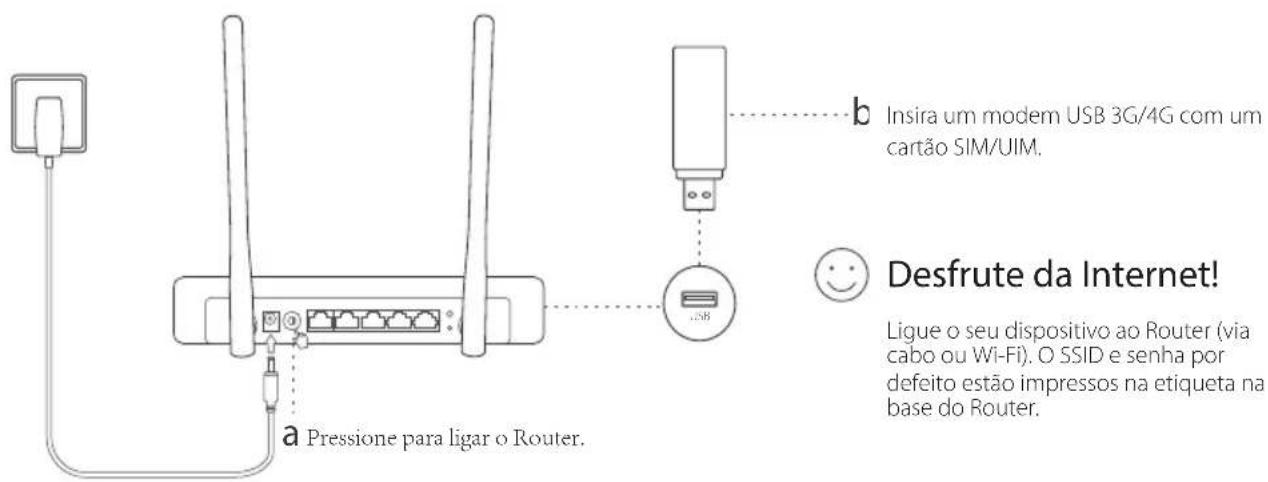
Plug and Play via 3G/4G USB modem

When a product has a power on/off button, the power on/off button is one way to turn off the product. For products without the on/off button, the only way to completely turn off the product is to disconnect the prod-
uct or the power adapter from the power source. The disconnected device shall remain readily operable.
Do not open this product or attempt to service it; it may expose you to dangerous high voltage or other risks. Opening a sealed component or sealed product/s will void the warranty. For product servicing, please contact us.
Do not operate this product near water.
TP-Link Three Years Limited Product Warranty
For TP-Link Branded Products Only.
THIS WARRANTY GIVES YOU SPECIFIC LEGAL RIGHTS, AND YOU MAY HAVE OTHER RIGHTS THAT VARY FROM STATE TO STATE (OR BY COUNTRY OR PROVINCE).
TO THE EXTENT ALLOWED BY LOCAL LAW, THIS WARRANTY AND THE REMEDIES SET FORTH ARE EXCLUSIVE AND IN LIEU OF ALL OTHER WARRANTIES, REMEDIES AND CONDITIONS.
TP-Link warrants the TP-Link branded hardware product contained in the original packaging against defects in materials and workmanship when used normally in accordance with TP-Link's guidelines for a period of THREE YEARS from the date of original retail purchase by the end-user purchaser.
Spanish
- TP-LINK TECHNOLOGIES CO., LTD
- QUICK INSTALLATION GUIDE
- CONTENTS
- GETTING STARTED
- PLUG AND PLAY VIA 3G/4G USB MODEM
- CONNECT TO DSL/CABLE/SATELLITE MODEM
- CONNECT THE HARDWARE
- CONFIGURE VIA A WEB BROWSER
- ENJOY YOUR INTERNET
- FAQ (FREQUENTLY ASKED QUESTIONS)
- Q2. HOW TO RESET THE ROUTER TO ITS FACTORY DEFAULT SETTINGS
- Q3. WHAT SHOULD I DO IF THE LOGIN WINDOW DOES NOT APPEAR
- Q4. WHAT SHOULD I DO IF I FORGET MY WEB MANAGEMENT PASSWORD
- Q5. WHAT SHOULD I DO IF I FORGET MY WIRELESS NETWORK PASSWORD
- NAVIGATE IN INTERNET
- PLUG AND PLAY VIA MODEM 3G/4G USB
- TP-LINK THREE YEARS LIMITED PRODUCT WARRANTY
- SPANISH
Brand : TP-LINK
Model : TL-MR3220
Category : Router