
DR-M70 - DVD player JVC - Free user manual and instructions
Find the device manual for free DR-M70 JVC in PDF.


| Product Type | DVD Video Recorder |
| Brand | JVC |
| Model | DR-M70 |
| Dimensions (W x H x D) | 435 mm x 66 mm x 244 mm |
| Weight | 2.4 kg |
| Power Supply | 220–240 V AC, 50 Hz |
| Power Consumption | 25 W (standby: 5.0 W) |
| TV Format | PAL B/G |
| Recordable Discs | DVD-RW (VR/Video mode), DVD-R (Video mode) |
| Playable Discs | DVD-Video, DVD-RW/R, DVD+RW/R, Audio CD, Video CD, CD-RW/R (MP3/JPEG) |
| Recording Speeds | XP, SP, LP, EP, SLP, SEP (up to 600 min on 4.7 GB) |
| Max Timer Programmes | 8 programmes up to 1 month in advance |
| One-Touch Timer Recording | Yes, 30 min increments up to 4 hours |
| SHOWVIEW System | Yes, for easy timer programming |
| Auto Chapter Markers | Yes, adjustable interval |
| Auto Finalise | Yes (Video mode only) |
| Editing Functions | Playlist creation, chapter markers, title divide/combine, delete parts (VR mode) |
| Disc Protect | Yes (VR mode) |
| Connections | SCART (TV, decoder), S-Video in/out, composite video in/out, analogue audio in/out, coaxial digital audio out, antenna in/out |
| Audio Output | Dolby Digital, DTS, PCM |
| Parental Control | Yes, password protected, levels 1-8, unlock code 4737 |
| Laser Safety | Class 1 laser product |
| Operating Temperature | 5°C to 40°C |
| Operating Humidity | Less than 80% (no condensation) |
Frequently Asked Questions - DR-M70 JVC
User questions about DR-M70 JVC
0 question about this device. Answer the ones you know or ask your own.
Ask a new question about this device
Download the instructions for your DVD player in PDF format for free! Find your manual DR-M70 - JVC and take your electronic device back in hand. On this page are published all the documents necessary for the use of your device. DR-M70 by JVC.
USER MANUAL DR-M70 JVC
natural_image
Front view of a JWB audio output box with control knobs and a blank screen (no visible text or symbols)SHOWVIEW®
SHOWVIEW is a registered trademark of
Gemstar Development Corporation.
The SHOWVIEW system is
manufactured under licence from
Gemstar Development Corporation.
INSTRUCTIONS
Before you start
Accessories Supplied
- Remote control with two R6 (AA) batteries • RF cable • Scart cable
- Instruction Manual
Precautions
WARNING: TO REDUCE THE RISK OF FIRE OR ELECTRIC SHOCK, DO NOT EXPOSE THIS APPLIANCE TO RAIN OR MOISTURE.

CAUTION
RISK OF ELECTRIC SHOCK DO NOT OPEN

CAUTION:
TO REDUCE THE RISK OF ELECTRIC SHOCK, DO NOT REMOVE COVER (OR BACK). NO USER SERVICEABLE PARTS INSIDE. REFER SERVICING TO QUALIFIED SERVICE PERSONNEL.
The rating plate and the safety caution are on the rear and the bottom of the unit.

The lightning flash with arrowhead symbol, within an equilateral triangle, is intended to alert the user to the presence of uninsulated “dangerous voltage” within the product’s enclosure that may be of sufficient magnitude to constitute a risk of electric shock to persons.

The exclamation point within an equilateral triangle is intended to alert the user to the presence of important operating and maintenance (servicing) instructions in the literature accompanying the appliance.
Laser Safety
This unit employs a laser. Only a qualified service personnel should remove the cover or attempt to service this unit, due to the possibility of eye injury.
CAUTION: USE OF CONTROLS OR ADJUSTMENTS OR PERFORMANCE OF PROCEDURES OTHER THAN THOSE SPECIFIED HEREIN MAY RESULT IN HAZARDOUS RADIATION EXPOSURE.
CAUTION: VISIBLE AND INVISIBLE LASER RADIATION WHEN OPEN AND INTERLOCK DEFEATED. DO NOT STARE INTO BEAM.
LOCATION: INSIDE, NEAR THE DECK MECHANISM.
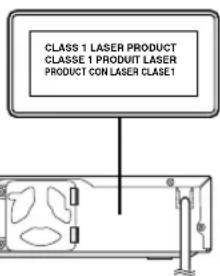
- This unit is classified as a CLASS 1 LASER product. - The CLASS 1 LASER PRODUCT marking is embossed on the rear cover.

Power Supply
The power supply is connected and the unit is live when the mains cable is plugged into a 220–240 V, 50 Hz AC outlet. To operate the unit, press [STANDBY/ON ⏻/I].
WARNING: LIVE PARTS INSIDE. DO NOT REMOVE ANY SCREWS.
Caution
- Do not attempt to open the cabinet. There are no parts inside you can service. Refer all servicing to qualified service personnel.
- Slots and openings in the cabinet at the sides and underneath are provided for ventilation. To ensure reliable operation and to protect the unit from overheating, these openings must not be blocked or covered. Avoid installation in enclosed spaces such as bookcases unless suitable ventilation is provided.
- Keep the unit away from radiators and other heat sources.
- Avoid use near strong magnetic fields.
- Do not push objects of any kind into the unit through the cabinet slots or openings as they could touch electrically live parts or short circuit parts resulting in a fire or electric shock.
-
Do not spill liquid on the unit. If liquid is spilled and enters the unit, consult qualified service personnel.
-
Do not stand the unit vertically. Use the unit in a horizontal (flat) position only.
- Before attempting to operate the unit, make sure that the timer recording mode is off.
- This product is in Stand-by mode when turned off while the mains cable is connected.
- Do not place any combustible objects on the device. (Candles, etc.)
- Before moving the unit, be sure to remove any discs and unplug the mains cable from the AC outlet.

Information for Users on Disposal of Old Equipment

[European Union]
This symbol indicates that the electrical and electronic equipment should not be disposed as general household waste at its end-of-life. Instead, the product should be handed over to the applicable collection point for the recycling of electrical and electronic equipment for proper treatment, recovery and recycling in accordance with your national legislation.
Attention:
This symbol is only valid in the European Union.
By disposing of this product correctly, you will help to conserve natural resources and will help prevent potential negative effects on the environment and human health which could otherwise be caused by inappropriate waste handling of this product. For more information about collection point and recycling of this product, please contact your local municipal office, your household waste disposal service or the shop where you purchased the product.
Penalties may be applicable for incorrect disposal of this waste, in accordance with national legislation.
(Business users)
If you wish to dispose of this product, please visit our web page www.jvc-europe.com to obtain information about the take-back of the product.
[Other Countries outside the European Union]
If you wish to dispose of this product, please do so in accordance with applicable national legislation or other rules in your country for the treatment of old electrical and electronic equipment.
Make your contribution to the environment!!!
- Exhausted batteries do not belong in the dustbin.
- You can dispose of them at a collection point for exhausted batteries or special waste.
- Contact your council for details.
For Customer Use:
Carefully read the Model No. and Serial No. located at the back of the unit and enter the information below. Retain this information for future reference.
Model No.
Serial No.

Installation Location
For safety and optimum performance of this unit:
- Install the unit in a horizontal and stable position.
- Do not place anything directly on top of the unit.
- Do not place the unit directly on top of the TV.
- Shield the unit from direct sunlight and keep away from sources of intense heat. Avoid dusty or humid locations. Avoid locations with insufficient ventilation for suitable heat dissipation. Do not block the ventilation holes on the sides of the unit. Avoid locations subject to strong vibration or strong magnetic fields.
Avoid the Hazards of Electrical Shock and Fire
- Do not handle the mains cable with wet hands.
- Do not pull on the mains cable to disconnect it from AC outlet. Grasp it by the plug.
- If, by accident, water is spilled on the unit, unplug the mains cable immediately and take the unit to an authorized service centre for servicing.
Moisture Condensation Warning
Moisture condensation may occur inside the unit when it is moved from a cold place to a warm place, after heating a cold room, or under conditions of high humidity. Do not use the unit for at least 2 hours to allow the inside to dry.
About Copyright
Unauthorized copying, broadcasting, public performance and lending of discs are prohibited. This product incorporates copyright protection technology that is protected by U.S. patents and other intellectual property rights. Use of this copyright protection technology must be authorized by Macrovision, and is intended for home and other limited viewing uses only unless otherwise authorized by Macrovision. Reverse engineering or disassembly is prohibited.
Manufactured under licence from Dolby Laboratories. "Dolby" and the double-D symbol are trademarks of Dolby Laboratories.
Dolby Digital Recording
"Dolby® Digital Recording enables consumers to record high-quality video with stereo sound on recordable DVD discs. The technology, when utilized instead of PCM recording, also saves recordable disc space, allowing for higher video resolution or extended recording time on each DVD. DVDs created using Dolby Digital Recording will play back on all DVD-Video players."
Note: This is true when the players are compatible with actual recordable DVD discs.
"DTS" and "DTS Digital Out" are trademarks of Digital Theater Systems, Inc.
Maintenance
CLEANING THE UNIT
Use a soft cloth slightly moistened with a mild detergent solution. Do not use solutions containing alcohol, spirits, ammonia or abrasive.
CLEANING DISCS
If a disc becomes dirty, clean it with a cleaning cloth. Wipe the disc from the centre out. Do not wipe in a circular motion.
Do not use solvents such as benzine, thinner, commercially available cleaners, detergent, abrasive cleaning agents or antistatic spray intended for analogue records.
DISC HANDLING
Handle the discs so that fingerprints and dust do not adhere to the disc surfaces.
Always store the disc in its protective case when it is not in use.
SERVICING
If the unit becomes inoperative, do not try to correct the problem by yourself. There are no user serviceable parts inside. Turn the unit off, unplug the mains cable, and consult your dealer or an authorized service centre.
CLEANING THE DISC LENS
If the unit does not perform correctly even though you have referred to "Troubleshooting" and the relevant sections in the Instruction Manual, the laser optical pickup unit may be dirty. Consult your dealer or an authorized service centre for inspection and cleaning of the laser optical pickup unit.
Table of contents
Before you start.... 2
Precautions 2
Features 6
Guide to the Instruction Manual 7
Functional overview 8
Installing batteries in the remote control ..... 11
Guide to On Screen Displays.... 12
Front Panel Display Guide 14
Getting Started 15
Connections 15
Selecting the on-screen display (OSD) language 17
Channel setting 17
Setting the clock 19
Selecting the TV aspect ratio 20
Recording 21
Information on DVD recording 21
Formatting a disc 23
Selecting the Sound mode 24
Basic recording 25
One-touch timer recording (OTR) 26
Timer recording 27
Timer recording using the SHOWVIEW ^® system 29
Settings for external equipment 31
Setting a disc to protect 32
Finalising discs 32
Playing back discs 34
Information on playing back DVDs 34
Basic playback 35
PBC function for Video CDs.... 37
Special playback 38
Search.... 41
Repeat / Random / Program playback / Slide Show 42
Selecting the format of audio and video ...... 44
Editing 46
Disc editing 46
Editing discs in Video mode 46
Editing discs in VR mode 49
Editing Original titles in VR mode 49
Editing the Playlist in VR mode 51
Changing the Setting menu......55
Tour of the Setting menu 55
Language setting 56
Display setting 57
Audio setting 57
DVD-Videos Parental lock level 59
Changing Video Out system 60
Others 61
Troubleshooting 61
Language code 64
Glossary 65
Specifications 66
Declaration of Conformity 66
Features
Along with playing back CDs and recording, editing, and playing back DVDs, this unit offers you the following features.
Recording
The unit is compatible with DVD-RW discs, which are recordable repeatedly, and DVD-R discs, which are recordable only once.
Recording up to 8 programmes :
You can programme the unit to record up to 8 programmes, up to a month in advance. Daily or weekly programme recordings are also possible.
One-touch timer recording:
You can set your required recording time easily. Every time [REC ●] is pressed during recording, the recording time will be increased by 30 minutes up to 4 hours. The recording automatically stops when the recording time you set is finished.
REC MONITOR:
You can confirm the picture and sound recording quality for the recording speed you have currently set.
Automatic Chapter marker setting:
Chapter markers will be added to recordings as you set them in the Setting menu before starting to record.
Automatic Title menu making (Video mode):
The unit creates title menus automatically when finalising discs.
Automatic Playlist making (VR mode):
The unit creates a Playlist automatically after recording.
Automatic finalising (Video mode):
You can finalise discs automatically at the end of the disc space if you set this in the Setting menu.
Left channel stereo recording:
The unit can record monaural sound from the Left channel as pseudo stereo sound (same Left and Right channels) automatically. (This function is not available for input source of AV3 jacks on the rear panel.)
Playback
Theatre surround sound:
When the unit is connected to an amplifier or a decoder compatible with Dolby Digital or DTS, you can enjoy theatre-quality surround sound from discs recorded with the surround sound system.
Quick search:
You can easily find the part you want to watch using the search function. Search for a desired point on a disc by title, chapter or time.
Playback from Original or a Playlist (VR mode):
You can play back titles using either the Original list or a Playlist.
Editing
Set / clear chapter markers (VR mode):
You can easily add chapter markers anywhere in your recordings for easy editing. (Playlist only)
Making your own Playlist (VR mode):
While the Original list remains unchanged, you can edit titles as you prefer and create your own Playlist. Edit title names
Set thumbnail pictures
Set / clear chapter markers
Divide / combine titles
Delete parts of titles
Protecting titles (VR mode):
To avoid accidental editing or erasing of titles, the protect function is useful when set to "ON" in the Original list.
Compatibility
Playing back discs recorded in Video mode on any regular DVD player:
Discs recorded in Video mode can be played back on regular DVD players, including computer DVD drives compatible with DVD-Video playback. You will need to finalise the discs recorded in Video mode to play back in other DVD players.
* DVD-Video Format (Video mode) is a new format for recording on DVD-RW / R discs that was approved by the DVD Forum in 2000. Adoption of this format is optional for manufactures of DVD playback devices and there are DVD-Video players, DVD-ROM drives and other DVD playback devices available that cannot play back DVD-RW / R discs recorded in the DVD-Video Format.
SHOWVIEW® system:
You can set timer recording using the SHOWVIEW system by just entering the SHOWVIEW programming number from a TV guide magazine.
Guide to the Instruction Manual
Symbols used in the Instruction Manual
To show what recording mode or disc type applies to each function, the following symbols appear at the beginning of each operating item.
Symbol Description

Available for DVD-Videos

Available for DVD-RW discs in VRW mode

Available for DVD-RW discs in VR mode
Available for DVD-R discs in Video mode

Available for DVD+RW discs*

Available for DVD+R discs*

Available for Audio CDs

Available for Video CDs

Available for CD-RW / R discs with MP3 files

Available for CD-RW / R discs with JPEG files
* There may be a disc which cannot be used or played back.
Button names described in the Instruction Manual
The instructions in this manual are described mainly with the operations using the remote control. Some operations can be carried out using the buttons on the front panel.
Functional overview
Front panel

*You can also turn on the unit by pressing these buttons.
1 Disc tray
- Place a disc here when open.
2 Display
- Refer to "Front Panel Display Guide" on page 14.
3 OPEN/CLOSE ▲ button\*
- Press to open or close the disc tray.
4 PR(OGRAMME) +/- buttons
- Press up or down to change the channel.
5 REV ◀ button
- During playback, press to skip to the previous chapter or track.
- During playback, press and hold for 1.5 seconds to fast reverse.
- When playback is paused, press repeatedly to slow reverse.
6 F W D ▶▶ button
- During playback, press to skip to the next chapter or track.
- During playback, press and hold for 1.5 seconds to fast forward.
- When playback is paused, press repeatedly to slow forward.
7 S T O P ■ button\*
- Press to stop playback or recording.
- Press to stop a timer recording of DVD.
8 P L A Y ▶ button\*
- Press to start or resume playback.
9 STANDBY/ON ⏻/I button
- Press to turn on or off the unit.
- If timer programming is set, press to switch the unit to timer-standby mode.
10 AUDIO input jacks (AV4)
- Use to connect external equipment with standard Audio cables.
11 VIDEO input jack (AV4)
- Use to connect external equipment with a standard Video cable.
12 S-VIDEO input jack (AV4)
- Use to connect the S-Video output of external equipment with an S-Video cable.
13 REC ● button
- Press once to start recording.
- Press repeatedly to start a one-touch timer recording.
14 REC SPEED button
- Press to switch the recording speed.
15 Remote control sensor
- Receives signals from your remote control so you can control the unit from a distance.
Button names described in the Instruction Manual
The instructions in this manual are described mainly with the operations using the remote control.
Some operations can be carried out using the buttons on the front panel.
Rear panel

1 ANTENNA IN
- Connect to an antenna or a cable.
2 ANTENNA OUT
- Connect to the Aerial jack on your TV, cable box or direct broadcast system. Use the supplied RF cable.
3 AV2 (DECODER)
- Connect to VCR, camcorder, or other Audio-Video equipment. Use a commercially available Scart cable.
4 AV1 (TV)
- Connect to the Scart jack on your TV. Use the supplied Scart cable.
5 S-VIDEO OUT jack
- Connect to the S-Video input jack on your TV. Use a commercially available S-Video cable.
6 S-VIDEO IN (AV3) jack
- Connect to the S-Video output jack on your VCR, camcorder or other equipment. Use a commercially available S-Video cable.
7 AUDIO IN (AV3) jacks
- Connect to the audio output jacks on your VCR, camcorder or other Audio-Video equipment. Use commercially available Audio cables.
8 ANALOG AUDIO OUT jacks
- Connect to the audio input jacks on your TV. Use commercially available Audio cables.
9 DIGITAL AUDIO OUTPUT PCM/BITSTREAM (COAXIAL) jack
- Connect to an amplifier with digital input jacks such as a Dolby Digital decoder or DTS decoder. Use a commercially available Coaxial cable.
10 Mains cable
- Connect to a standard AC outlet.
Note
- Do not touch the inner pins of the jacks on the rear panel. Electrostatic discharge may cause permanent damage to the unit.
• This unit does not have an RF modulator.
Remote control

*You can also turn on the unit by pressing these buttons.
1 OPEN/CLOSE ▲ button\*
- Press to open or close the disc tray.
2 ON SCREEN button
- Press to display the on-screen display.
3 Number buttons
- Press to select channel numbers.
- Press to select a title / chapter / track on the display.
- Press to enter values for settings in the setting menu.
- Press to enter the characters in edit function.
4 CLEAR button
- Press to clear the password once entered.
- Press to cancel the programming for a disc.
- Press to clear the selecting marker number in the marker setup mode.
- Press to clear the program once entered in the timer recording setting mode.
5 PROG/SHOWVIEW button
- Press once to display the SHOWVIEW setting window.
- Press twice to display the Timer Programming list.
6 TOP MENU button
- Press to display the top menu.
7 ENTER button
- Press to confirm or select menu items.
8 Cursor ▲ / ▼ / ◀ / ▶ buttons
- Press to select items or settings.
9 (CM SKIP) button
- During playback, press to skip 30 seconds. (See page 39.)
10 REC ● button
- Press once to start a recording.
- Press repeatedly to start a one-touch timer recording.
11 REC SPEED button
- Press to switch the recording speed.
12 REC MONITOR button
- Press to check the video and audio quality before attempting to record and during recording.
13 STANDBY/ON ⏻/I button
- Press to turn on or off the unit.
- If timer programming is set, press to switch the unit to the timer-standby mode.
14 SET UP button
- Press to display the setting menu in stop mode.
15 REPEAT button
- Press to select the repeat mode.
16 ZOOM button
- During playback, press to enlarge the picture on the screen.
17 PR(OGRAMME) +/- buttons
- Press up and down to change the channel.
18 AUDIO button
- If you receive bilingual broadcast, or set "External input Audio" to "Bilingual," press to change the AUDIO OUT setting to "Main," "Sub" and "Main / Sub."
- Press to display the audio menu during playback.
- Press to select the sound mode.
19 MENU/LIST button
- Press to display the Disc menu during playback.
- Press to change the Original and Playlist on the TV screen. (VR mode only)
20 RETURN button
- Press to return to the previously displayed menu screen.
21 ◀◀ (SKIP) button
- During playback, press to skip to the previous chapter or track.
- When playback is paused, press to play reverse step by step.
▶▶ (SKIP) button
- During playback, press to skip to the next chapter or track.
- When playback is paused, press to advance step by step.
22 PLAY ▶ button\*
- Press to start or resume playback.
23 SLOV
/REV ◀ button
• During playback, press to reverse fast.
- When playback is paused, press to reverse slowly.
SLOW
/FWD ▶▶ button
• During playback, press to forward fast.
- When playback is paused, press to forward slowly.
24 PAUSE II button
- Press to pause playback or recording.
25 STOP ■ button\*
- Press to stop playing back or recording.
Button names described in the Instruction Manual
The instructions in this manual are described mainly with the operations using the remote control. Some operations can be carried out using the buttons on the front panel.
Installing batteries in the remote control
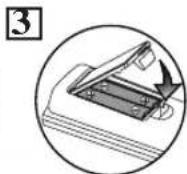
Install two R6 (AA) batteries (supplied) into the remote control, carefully match with the polarity indicated inside the battery compartment.


Caution
- Incorrect use of batteries can result in hazards such as leakage and bursting.
- Do not mix new and old batteries together.
- Do not use different kinds of batteries together.
- Make sure that the plus and minus ends of each battery match the indications inside the battery compartment.
- Remove batteries if the equipment will not be used for a month or more.
- When disposing used batteries, please comply with governmental regulations or the public instructions for environmental protection that apply in your country or area.
- Do not recharge, short-circuit, heat, burn or disassemble batteries.
About the remote control
- Make sure there is no obstacle between the remote control and the remote control sensor on the unit.
- Use within the operating range and angle as shown.

Remote control
Code: JVC C
- Remote control operation may become unreliable if the remote control sensor of the unit is being exposed by the strong sunlight or fluorescent light.
- Remote controls for different devices can interfere with each other. Be careful when using remote controls for other equipment located close to the unit.
- Replace the batteries when the operating range of the remote control reduces.
Guide to On Screen Displays
DISPLAY menu
With a disc inserted into the unit, press
[ON SCREEN] to display the on screen display. The menu shows information about what is recorded on the disc.

This is an example screen for explanation. Displayed items vary depending on the actual mode.
1 Disc type and format mode.
In some descriptions in this manual, only one type of disc is indicated as an example.
2 Position number and audio status of the programme.
3 Title number, chapter number and the time lapse of disc playback.
4 Each icon means:
5 Recording mode and remaining time.
6 Status of the current disc.
Setting menus
Press [SET UP] in stop mode to display "Easy Setting Menu" or "Advanced Setting Menu". Choose either "Easy Setting Menu" or "Advanced Setting Menu" using [Cursor ▲ / ▼], then press [ENTER] to change between the menus.
"Easy Setting Menu" and "Advanced Setting Menu" are available from the Setting Menu. The "Easy Setting Menu" consists of the settings frequently needed, while the "Advanced Setting Menu" consists of all the settings available. You can set the items marked with in the "Easy Setting Menu."
The unit remembers which setting menu you used last time and recalls it when you press [SET UP] in stop mode next time, even if power is switched off. (i.e., if you use the "Easy Setting Menu" and then turn the unit off, the "Easy Setting Menu" will appear next time you turn on the unit and press [SET UP] in stop mode.)
Easy Setting Menu:
You can make the settings of the basic items as follows.
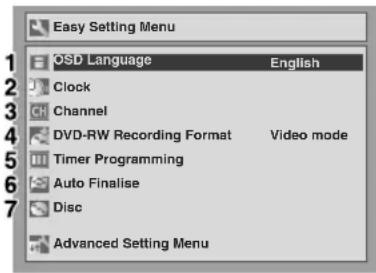
1 OSD Language:
Select the OSD language.
2 Clock:
Set the unit clock.
3 Channel:
Set up auto tuning or manual tuning.
4 DVD-RW Recording Format:
Select the DVD-RW recording format between Video mode and VR mode.
5 Timer Programming:
Programme a timer recording.
6 Auto Finalise:
Set Auto Finalise to "ON" or "OFF".
7 Disc / CD Playback Mode:
"Disc" is available only when a DVD-RW / R disc is inserted into the unit. If a DVD-Video (commercially available), a new DVD-R disc or a finalised DVD-R disc is inserted into the unit, you cannot select "Disc." "CD Playback Mode" is available only when an Audio CD, Video CD or a CD-RW / R disc containing MP3 / JPEG files is inserted into the unit.
Advanced Setting Menu:
You can make all the settings available as follows.

1 Playback:
Set up the unit to play back a disc.
2 Recording:
Set up the unit to record to a disc.
3 Display:
Set up the OSD format and the front panel display of the unit.
4 Select Video:
Choose an external input to record from other video equipment to DVDs.
5 C l o c k :
Set the unit clock.
6 Channel :
Set up and adjust channels.
7 Disc / CD Playback Mode:
"Disc" is available only when a DVD-RW / R disc is inserted into the unit. If a DVD-Video (commercially available), a new DVD-R disc or the finalised DVD-R disc is inserted into the unit, you cannot select "Disc." "CD Playback Mode" is available only when an Audio CD, Video CD or a CD-RW / R disc containing MP3 / JPEG files is inserted into the unit.
DVD-R & DVD-RW (Video mode)
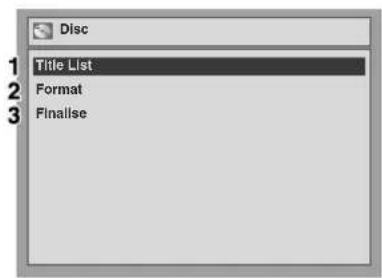
DVD-RW (VR mode)

CD, MP3, JPEG & Video CD

This is an example screen for explanation. Some items will be displayed in grey depending on the inserted disc.
1 Title List / Playlist / Original:
Display the titles recorded on the disc.
2 Format (DVD-RW only):
Erase all of the recorded content on the disc.
- It is not possible to recover erased content. Make sure before you format a disc.
- It is not possible to use a disc formatted in Video mode with this unit on other DVD recorders. If you use the disc on other DVD recorders, reformat the disc using that DVD recorder.
3 Finalise:
Finalise a disc containing recorded titles.
4 Disc Protect (VR mode only):
Protect a disc from accidental over-recording, editing or erasing.
5 Random Play:
Activate the random playback feature.
6 Program Play (except MP3 / JPEG files):
Activate the programmed playback feature.
7 PBC (Video CD only):
Turn the PBC function "ON" or "OFF".
8 Slide Show (JPEG files only):
Select the display time.
Front Panel Display Guide
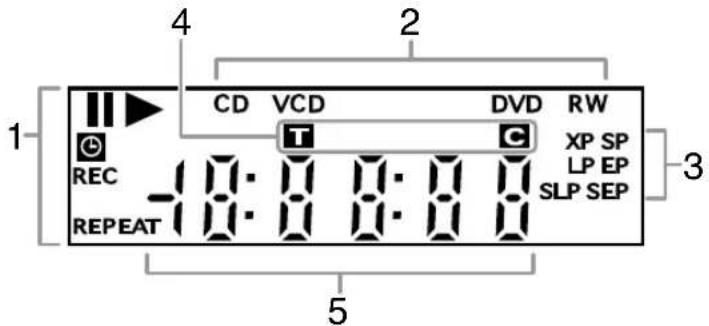
1 Current status of the unit
II: Appears when disc playback is paused. Appears also during step by step playback.
▶ : Appears when playing back a disc.
▶: Appears during slow forward or slow reverse playback.
: Appears when the timer programming or one-touch timer recording (OTR) is set and is operating. Flashes when all the timer programmes are finished. Flashes when there is an error in programming.
REC: Appears when recording. Flashes when recording being paused.
REPEAT: Appears during repeat playback.
2 Disc type and Current status of the unit
CD: Appears when an Audio CD or a disc containing MP3 / JPEG files is inserted into the unit.
VCD: Appears when a Video CD is inserted into the unit.
DVD: Appears when a DVD is inserted into the unit, or during the recording.
DVD R: Appears when a DVD-R disc is inserted into the unit.
DVD RW: Appears when a DVD-RW disc is inserted into the unit.
3 Recording speed
- Selected recording speed appears.
4 Title / Track and Chapter mark
T : Title / track number C : Chapter number
5 Displays the following
- Playing back time / remaining time
- Current title / chapter / track number
- Recording time
- Clock
- Channel number
• One-touch timer recording (OTR) remaining time
Display messages
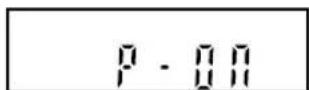
The unit is turned on.

The unit is turned off.

The disc tray is open.

The PBC function of the Video CD is activated.
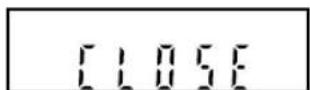
The disc tray is closing.

A disc is inserted into the unit.

Data is being recorded on a disc.
Getting Started

flowchart
graph TD
    A["Cable Signal"] -->|1| B["RF cable (not supplied)"]
    A -->|2| C["RF cable (supplied)"]
    A -->|Antenna| D["To Aerial jack"]
    D --> E["Scart cable (supplied)"]
    E --> F["SCart cable (not supplied)"]
    F --> G["Audio/Video cable (not supplied)"]
    G --> H["Scart/RCA cable (not supplied)"]
    H --> I["Scart adaptor (not supplied)"]
    I --> J["AVIC/AVIO/AVIO/AVIO/AVIO/AVIO/AVIO/AVIO/AVIO/AVIO/AVIO/AVIO/AVIO/AVIO/AVIO/AVIO/AVIO/AVIO/AVIO/AVIO/AVIO/AVIO/AVIO/AVIO/AVIO/AVIO/AVIO/AVIO/AVIO/AVIO/AVIO/AVIO/AVIO/AVIO/AVIO"]
    style A fill:#f9f,stroke:#333
    style B fill:#ccf,stroke:#333
    style C fill:#cfc,stroke:#333
    style D fill:#fcc,stroke:#333
    style E fill:#cff,stroke:#333
    style F fill:#ffc,stroke:#333
    style G fill:#fcc,stroke:#333
    style H fill:#fcc,stroke:#333
    style I fill:#fcc,stroke:#333
    style J fill:#fcc,stroke:#333
    style K fill:#fcc,stroke:#333
    style L fill:#fcc,stroke:#333
    style M fill:#fcc,stroke:#333
    style N fill:#fcc,stroke:#333
    style O fill:#fcc,stroke:#333
    style P fill:#fcc,stroke:#333
    style Q fill:#fcc,stroke:#333
    style R fill:#fcc,stroke:#333
    style S fill:#fcc,stroke:#333
    style T fill:#fcc,stroke:#333
    style U fill:#fcc,stroke:#333
    style V fill:#fcc,stroke:#333
    style W fill:#fcc,stroke:#333
    style X fill:#fcc,stroke:#333
    style Y fill:#fcc,stroke:#333
    style Z fill:#fcc,stroke:#333
    style AA fill:#fcc,stroke:#333
    style AB fill:#fcc,stroke:#333
    style AC fill:#fcc,stroke:#333
    style AD fill:#fcc,stroke:#333
    style AE fill:#fcc,stroke:#333
    style AF fill:#fcc,stroke:#333
    style AG fill:#fcc,stroke:#333
    style AH fill:#fcc,stroke:#333
    style AI fill:#fcc,stroke:#333
Connections
Connecting to a TV
Connect the unit to a TV after considering the capabilities of your existing equipment.
Before installation, plug off your TV and this unit.
Using the Scart jack
1 Connect the antenna or cable to the ANTENNA IN jack of this unit.
2Connect the ANTENNA OUT jack of this unit to the Aerial jack of your TV. Use the supplied RF cable.
3Connect AV1 (TV) Scart jack of this unit to the Scart jack of your TV. Use the supplied Scart cable, or a commercially available Scart / RCA cable.
Note
- If your TV does not have a Scart jack, use commercially available Scart adaptor or Scart / RCA cable to connect.
Using the S-VIDEO OUT jack and the ANALOG AUDIO OUT jack
If your TV has an S-Video input jack, use S-Video and Audio cables to connect.
1 Follow steps 1 and 2 above.
2Connect S-VIDEO OUT jack of this unit to the S-Video input jack of your TV. Use a commercially available S-Video cable.
3Connect the ANALOG AUDIO OUT jacks of this unit to the analogue Audio input jacks of your TV. Use a commercially available Audio cable.

Note for a TV with no S-Video input jacks or Scart jack:
- This unit has no RF modulator, so this type of TV cannot be used.
Connecting to external equipment
This unit has four input terminals, AV1, AV2 or AV3 on the rear panel and AV4 on the front panel. Be sure that all the units are off before making connections.
Recording from a DVD player, VCR or other Audio-Video equipment with a Scart output jack (AV2)
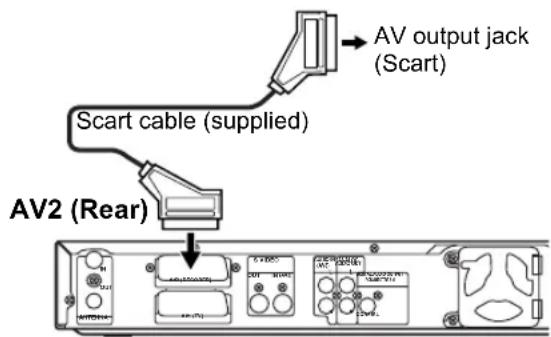
Recording from a camcorder or other Audio-Video equipment with no Scart output jack (AV3 or AV4)
If no S-Video input jack is available, connect to VIDEO input jack on the front panel using an RCA Video cable.
Change the setup when using S-VIDEO input jack. (See page 31.)
AV3 (Rear) AV4 (Front)

Digital audio for better sound quality
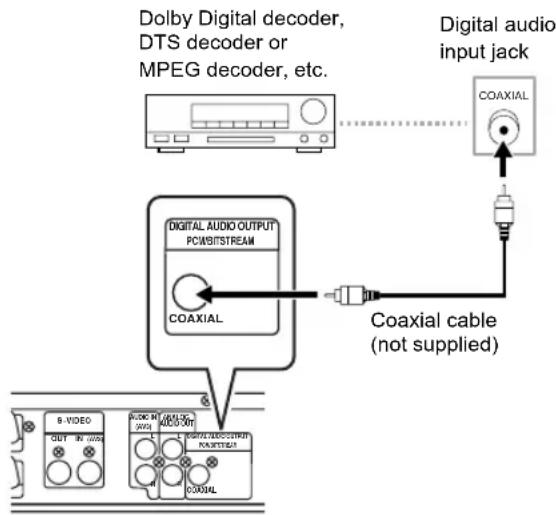
flowchart
graph TD
    A["Digital audio input jack"] --> B["Coaxial cable (not supplied)"]
    B --> C["Digital Audio OUTPUT PC/USB/TSTREAM"]
    C --> D["Dolby Digital decoder, DTS decoder or MPEG decoder, etc."]
    D --> E["Coaxial cable"]
    E --> F["B-VIDEO OUT"]
    E --> G["Coaxial cable"]
The connections illustrated above are optional for better sound.
1 For clear digital sound quality, use the DIGITAL AUDIO OUTPUT PCM/ BITSTREAM (COAXIAL) jack to connect your digital audio equipment.
If the audio format of the digital output does not match the capabilities of your receiver, the receiver will produce a strong, distorted sound or no sound at all.
Connecting a Dolby Digital™ decoder, DTS decoder or MPEG decoder
- Connecting multi-channel Dolby Digital decoder allows you to enjoy the 5.1ch Dolby Digital surround system as well as DTS decoder, 5.1 channel surround system.
- After connecting to a Dolby Digital decoder, set "Dolby Digital" to "Stream" in the AUDIO menu. (See page 58.)
- After connecting to a DTS decoder, set "DTS" to "ON" in the AUDIO menu. (See page 58.)
- After connecting to a MPEG decoder, set "MPEG" to "Stream" in the AUDIO menu. (See page 58.)
Connecting to an MD deck or DAT deck
- The audio source recorded in Dolby Digital 5.1 channel surround format cannot be recorded using an MD or DAT deck as a digital sound.
- If not connected to a Dolby Digital decoder, set "Dolby Digital" to "PCM" in the AUDIO menu. Playing back a DVD using incorrect settings may generate noise distortion, and damage speakers.
- Set "Dolby Digital," and "MPEG" to "PCM" and set "DTS" to "OFF" in the AUDIO menu for connecting to an MD or DAT deck.
- You can use ANALOG AUDIO OUT jacks for the connection of your audio system.
After you have completed connections
Switch the input selector on your TV to an appropriate external input channel. For details, refer to the Instruction Manual of your TV.
Note
- Connect this unit directly to the TV. If the Audio/Video cables are connected to a VCR, pictures may be distorted due to the effects of the copy protection system.
Selecting the on-screen display (OSD) language
1 In stop mode, press [SET UP].
2If you select "Advanced Setting Menu," proceed to step 3. If you select "Easy Setting Menu," proceed to step 4.
3Select "Display" using [Cursor ▲ / ▼], then press [ENTER].
4Select "OSD Language" using [Cursor ▲ / ▼], then press [ENTER].
5Select the appropriate OSD language using [Cursor ▲ / ▼], then press [ENTER].

6Press [SET UP] to exit.
Channel setting
Tuning of this unit to broadcast channels can be performed in two ways.
Auto tuning

Programme the tuner to scan only the channels you can receive in your area.
1 Press [STANDBY/ON ⏻/I] to turn on the unit.
2Turn the TV on and select the input to which the unit is connected.
3In stop mode, press [SET UP].
"Easy Setting Menu" or "Advanced Setting Menu" will appear.
4Select "Channel" using [Cursor ▲ / ▼], then press [ENTER].
5Select "Auto Tuning" using [Cursor ▲ / ▼], then press [ENTER].
The unit will start storing channels available in your area.
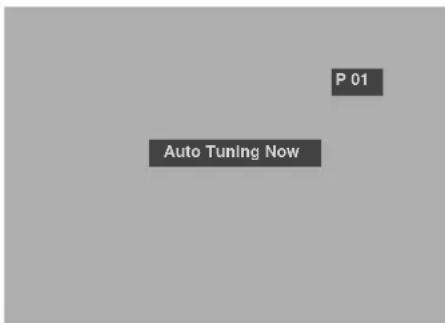
Wait for several minutes to finish channel storing.
6Press [SET UP] to exit.
You can select only the channels memorized in this unit by using [PR +/-] .
To select a channel
You can select a channel using [PR + / -] , or directly enter the channel using [the Number buttons] on the remote control.
To cancel auto tuning
Press [RETURN] or [SET UP] during scanning.
Note
- The selection will be affected by how you receive TV channels in your local area.
- If the auto tuning is cancelled during scanning, some channels not yet tuned may not be received.
Manual tuning

Manually tune each channel.
1 In stop mode, press [SET UP].
"Easy Setting Menu" or "Advanced Setting Menu" will appear.
2Select "Channel" using [Cursor ▲ / ▼], then press [ENTER].
3Select "Manual Tuning" using [Cursor ▲ / ▼], then press [ENTER].

4Select "Position" using [Cursor ▲ / ▼], then press [ENTER].
5Select the position number you wish to use using [the Number buttons] or [Cursor ▲ / ▼], then press [RETURN].
You can select position numbers 01 to 99.
6Select "Channel" using [Cursor ▲ / ▼], then press [ENTER].
7 Press [Cursor ▲ / ▼] to start scanning.
- The tuner will begin to search up or down automatically. When a channel is found, the unit will stop searching and the picture will appear on the TV screen.
- You can select a desired channel number using [the Number buttons]. Refer to the following Channel Plan table and press the three digits to select the channel number.
(To select channel 4, press [0] first and then press [0] and [4]. Or press [4] and then “— — 4” appears and wait for 2 seconds.)
- If this is the channel you want, press [RETURN].
| Channel Plan |
| Ch. Indication TV Channel |
| 02 - 12 E2 - E12 |
| 13 - 20 A - H (only ITALY) |
| 21 - 69 E21 - E69 |
| 74 - 78 X, Y, Z, Z+1, Z+2 |
| 80 - 99, 100 S1 - S20, GAP |
| 121 - 141 S21 - S41 |
This unit can receive the Hyper and Oscar frequency bands.
- If "Skip" is set to "ON," select "Skip" using [Cursor ▲ / ▼], then press [ENTER]. Select "OFF" using [Cursor ▲ / ▼], then press [RETURN].
- If you want to decode scrambled signals, select "Decoder" using [Cursor ▲ / ▼], then press [ENTER]. Select "ON" using [Cursor ▲ / ▼], then press [RETURN].
• To store another channel, repeat steps 4 to 7.
8After completion, press [SET UP] to exit.
To select a channel
Notes on using the Number buttons:
- Enter channel numbers as a two-digit number for the quickest result. For example, to select channel 6, press [0] and [6]. If you only press [6], channel 6 will be selected after 2 seconds. You can only select channels 1 to 99.
-
You can select the external input mode "AV1", "AV2", "AV3" or "AV4."
-
To select "AV1," press [0], [0], [1].
- To select "AV2," press [0], [0], [2].
• To select "AV3," press [0], [0], [3].
• To select "AV4," press [0], [0], [4].
To skip a Preset channel
You can set the unit to skip channels you can no longer receive or seldom watch when you access channels using [PR +/-] .
1 Follow steps 1 to 3 in "Manual tuning."
2Select "Position" using [Cursor ▲ / ▼], then press [ENTER].
3Select the position number you wish to skip using [the Number buttons] or [Cursor ▲ / ▼], then press [RETURN].
4 Select "Skip" using [Cursor ▲ / ▼], then press [ENTER].
5 Select "ON" using [Cursor ▲ / ▼], then press [RETURN].
• To skip another channel, repeat steps 2 to 5.
6Press [SET UP] to exit.
Move
You can replace two channels.
1 In stop mode, press [SET UP].
2Select "Advanced Setting Menu" using [Cursor ▲ / ▼], then press [ENTER].
If it has already appeared, proceed to step 3.
3Select "Channel" using [Cursor ▲ / ▼], then press [ENTER].
4 Select "Move" using [Cursor ▲ / ▼], then press [ENTER].
5Select the position number of which you want to change the channel using [Cursor ▲ / ▼], then press [ENTER].
You cannot select a position number where “— — —” appears next to the number, because “Skip” is set to “ON” for that position number.
6Move the channel to another position number using [Cursor ▲ / ▼], then press [ENTER].
- To move another channel, repeat steps 5 to 6.
7 Press [SET UP] to exit.
Setting the clock
Clock Setting

1 In stop mode, press [SET UP].
"Easy Setting Menu" or "Advanced Setting Menu" will appear.
2 Select "Clock" using [Cursor ▲ / ▼], then press [ENTER].
3If you select "Advanced Setting Menu," proceed to step 4. If you select "Easy Setting Menu," proceed to step 5.
4Press [ENTER].
5Press [ENTER] again.
The default date will appear.
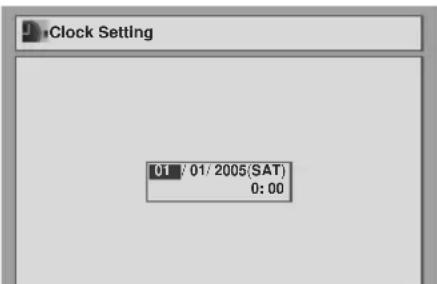
6 Enter the date (day / month / year) using [Cursor ▲ / ▼], then press [Cursor ▶].
Press [Cursor ▶] to move the cursor to the next field. If you wish to go back to the previous field, press [Cursor ◀].
7 Enter the time (hours / minutes) using [Cursor ▲ / ▼], then press [ENTER].
The clock will start.
- Although seconds are not displayed, they will be counted from zero.
8Press [SET UP] to exit.
Note
- Your clock setting will be lost if either there is a power failure or the unit is unplugged for more than 30 seconds.
Selecting the TV aspect ratio
You can select the TV aspect ratio to match the format of the programme you are playing back with the unit and that of your TV screen (4:3 standard or 16:9 wide screen TV).
1 In stop mode, press [SET UP].
2Select "Advanced Setting Menu" using [Cursor ▲ / ▼], then press [ENTER].
If it has already appeared, proceed to step 3.
3Select "Playback" using [Cursor ▲ / ▼], then press [ENTER].
4Select "TV Aspect" using [Cursor ▲ / ▼], then press [ENTER].

5Select the desired option using [Cursor ▲ / ▼], then press [ENTER].

6Press [SET UP] to exit.
Hint
If you have a standard TV:
- Select "4:3 Letter Box" for a full width picture with black bars at the top and bottom.
- Select "4:3 Pan & Scan" for a full height picture with both sides trimmed.
If you have a wide screen TV:
- Select "16:9 Wide."
Recording
Information on DVD recording
Type of discs
This unit can record on DVD-R and DVD-RW. You can record on DVD-R only once. On DVD-RW, you can record and erase many times.
It is possible to record on DVD-R only in Video mode. DVD-RW can record in the format you select from Video mode or VR mode.
Logo Attributes


- 8 cm / 12 cm, single-sided, single layer disc
- Max. recording time (SEP mode, approx.):
600 minutes (4.7 GB) (for 12 cm) 180 minutes (1.4 GB) (for 8 cm)
If you want to record repeatedly on the same disc, or if you want to edit the disc after recording, use a rewritable DVD-RW type disc.
If you want to save recordings without any alteration, use a non-rewritable DVD-R type disc.
• Discs that should be used with this recorder: DVD-R: 4x or 8x
DVD-RW: 2x or 4x
- Discs that were tested and proven as compatible with this recorder:
Maxell DVD-R
TDK DVD-RW 2x
MITSUBISHI DVD-R 8x
JVC DVD-RW 4x
Video mode and VR (Video Recording) mode
Video mode is the same recording format as used on the pre-recorded DVD-Videos you purchase in local shops, so you can play back the discs recorded in this format in most DVD players. You will need to finalise such discs (see page 32) before playing them back in other DVD players. Unless finalised, you can record additional materials or edit discs recorded in Video mode with this unit.
VR (Video Recording) mode is a basic recording format for DVD-RW discs. You can record and edit material repeatedly. It is impossible to record additional materials on a disc formatted in VR mode and already recorded in another video system other than PAL, such as NTSC.
DVD players bearing the R/W disc are capable of playing back DVD-RW discs recorded in VR mode.
Disc type Dis
format Functions

Video mode Playing back,

Limited recording, Limited editing
VR mode Playing back,

Recording, Original / Playlist editing
Video mode Playing back,

Limited recording, Limited editing
Recording speed
You can select a recording speed from 6 options. The recording time will vary depending on the recording speed you select as follows.
Recording speed Recording time
TV screen
Front Panel Display
12 cm 8 cm
Video / Sound Quality
XP XP 60 min 18 min Excellent
SP SP 120 min 36 min Very good
LP LP 240 min 72 min Good
EP EP 360 min 108 min Average
SLP SLP 480 min 144 min Low
SEP SEP 600 min 180 min Low
- This table is intended for a standard new single-sided 12 cm disc. The recording times are estimates and actual recording time may differ.
- The audio and video quality becomes poorer as the recording time gets longer.
Restrictions on recording
You cannot record copy-protected video using this unit. Copy-protected video includes DVD-Videos and some satellite broadcasts.
If copy-protected material is detected, recording will pause or stop automatically and an error message appears on the screen.
You can only record "copy-once only" video using a DVD-RW disc in VR mode with Content Protection for Recordable Media (CPRM).
When recording a TV broadcast or an external input, you can display copy control information on the screen.
CPRM is a scrambling copy protection system for the protection of "copy-once" broadcast programmes.
This unit is CPRM compatible, which means that you can record copy-once broadcast programmes, but you cannot then make a copy of those recordings.
CPRM recordings can only be played back on DVD players that are specifically compatible with CPRM.
Information on copy control
Some satellite broadcasts include copy-protected information. If you wish to record them, refer to the following.
- This unit cannot record on CD-RW or CD-R discs.
- DVD-RW / R and CD-RW / R discs recorded on a personal computer or a DVD or CD recorder may not be played back if the disc is damaged or dirty or if there is condensation on the player's lens.
- If you record a disc using a personal computer, even if it is recorded in a compatible format, it may not be played back because of the settings of the application software used to create the disc. (Check with the software publisher for more detailed information.)
- Discs recorded in Video mode on this unit cannot record additional information using other DVD recorders.
- It is not possible to use a disc formatted in Video mode with this unit on other DVD recorders. If you use the disc on other DVD recorders, reformat the disc using that DVD recorder.
- Since recording is performed using the Variable Bit Rate (VBR) method, the actual remaining time for recording may be a little shorter than the remaining time displayed on the OSD, depending on the picture you are recording.
Making discs playable in other DVD players (Finalise)
After recording, you must finalise the disc to play it back in other players. (See page 32.) You cannot finalise discs in other DVD recorders.
After finalising
• After DVD-R discs are finalised:
- A title menu is created automatically.
- Undo finalising is not possible.
- Additional recording or editing is not possible.
• After DVD-RW (Video mode) discs are finalised:
- A title menu is created automatically.
- Undo finalising is possible. (See page 32.)
- Additional recording or editing is possible if you undo finalise. (See page 32.)
• After DVD-RW (VR mode) discs are finalised:
- A title menu is not created.
- Undo finalising is possible. (See page 32.)
- Additional recording or editing is possible even without undo finalising.
Usable discs
★★★: Most suitable, **: Can be used,
☆: Some functions are limited, —: Cannot be used.
| Applications | DVD-RW | DVD-R | |
| VR VIDEO | |||
| Record TV programmes | ★★★★★★★★★ | ||
| Reuse by deleting the current contents | ★★★★★— | ||
| Edit the contents | ★★★★★ | ||
| Edit / Record from external equipment | ★★★★★★★★★ | ||
| Copy discs for distribution | ★★* ★★★★★★ | ||
| Playback on other DVD equipment | ★★* ★★★★★★ | ||
| Features | |||
| Rewritable | Yes Yes | No | |
| Can create chapters at fixed intervals (auto) | Yes Yes Yes | ||
| Can create chapters wherever you like (manual) | Yes | No | No |
| Can record 16:9 size pictures | Yes Yes Yes | ||
| Can record Copy-Once programmes | Yes | No | No |
| Can perform basic editing functions | Yes Yes Yes | ||
| Can perform advanced editing functions (Playlist edit) | Yes | No | No |
* You can only play back DVD-RW disc recorded in VR mode on VR-compatible discs.
Note
- For details of the above functions and restrictions, see the further explanations in this Instruction Manual.
Formatting a disc
Choosing the recording format of a blank DVD-RW disc
Video VR DVD-RWDVD-BRD-RWDVD-RW
When inserting a blank disc, the unit automatically starts to initialise the disc. You can also manually format a DVD-RW disc once it has been used. After formatting, you can record on the disc with the recording format selected in the Setting menu.
1 In stop mode, press [SET UP].
2If you select "Advanced Setting Menu," proceed to step 3. If you select "Easy Setting Menu," proceed to step 4.
3Select "Recording" using [Cursor ▲ / ▼], then press [ENTER].
4Select "DVD-RW Recording Format" using [Cursor ▲ / ▼], then press [ENTER].
5Select "Video mode" or "VR mode" using [Cursor ▲ / ▼], then press [ENTER].

6Press [SET UP] to exit.
Note
- The recording format setting is effective only for DVD-RW discs. You cannot change the recording format for a DVD-R disc. DVD-R discs are always in Video mode.
- You cannot mix two formats on one DVD-RW disc. If you insert a disc that has been recorded before, the recording format cannot be changed even if you change it in the Setting menu.
- If a blank DVD+R or DVD+RW disc is inserted, the error message ("Disc Error") will appear.
- A Playlist is created automatically during recording on a DVD-RW disc in VR mode.
Setting Auto Chapter
Video VR DVD-RWD DVD-RWD DVD-RDVD-R
The unit inserts a chapter mark periodically (every 10 minutes by default) during recording. Using the Auto Chapter menu, you can set this function off or change the time period.
1 In stop mode, press [SET UP].
2Select "Advanced Setting Menu" using [Cursor ▲ / ▼], then press [ENTER].
If it has already appeared, proceed to step 3.
3Select "Recording" using [Cursor ▲ / ▼], then press [ENTER].
4Select "Auto Chapter" using [Cursor ▲ / ▼], then press [ENTER].

5If you wish to set "Auto Chapter" off, select "OFF" using [Cursor ▲ / ▼], then press [ENTER].

If you wish to change the time period for Auto Chapter, select the required time period using [Cursor ▲ / ▼], then press [ENTER].
6Press [SET UP] to exit.
Reformatting a disc manually

Video VR DVD-RWDVD-RWDVD-RW
If you are using a DVD-RW disc, you can format the disc by performing "Format." By default it will be in Video mode. You can change this to VR mode using the Setting menu.
Note
- When you reformat the disc, the contents of the disc are erased.
Insert a recordable disc.
1 In stop mode, press [SET UP].
"Easy Setting Menu" or "Advanced Setting Menu" will appear.
2 Select "Disc" using [Cursor ▲ / ▼], then press [ENTER].
3Select "Format" using [Cursor ▲ / ▼], then press [ENTER].
4 Select "Yes" using [Cursor ▲ / ▼], then press [ENTER].

A popup window will appear and prompt you to confirm. If you want to cancel formatting, select "No".
5 Select "Yes" using [Cursor ▲ / ▼], then press [ENTER].
Formatting will start. If you want to cancel formatting, select "No".
6 Formatting is complete.
100% is indicated.
Note
- It is not possible to use a disc formatted in Video mode with this unit on other DVD recorders. If you use the disc on other DVD recorders, reformat the disc using that DVD recorder.
- You cannot cancel formatting once it has started.
Selecting the Sound mode
This unit can receive bilingual broadcasts.
You can switch between modes by pressing [AUDIO] on the remote control. Each mode is indicated on the TV screen as follows.
• During reception of bilingual broadcasts
| Mode Audio output | Display on the TV screen | |
| Main | Main audio from both speakers | Main |
| Sub | Sub audio from both speakers | Sub |
| Main / Sub | • Main audio from the left speaker• Sub audio from the right speaker | Main / Sub |
Setting External input audio
Video VR DVD-RWD DVD-RWD DVD-RDVD-R
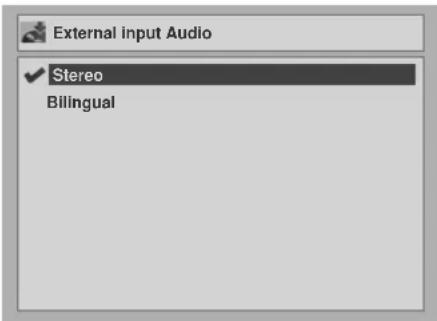
When the external input audio is a bilingual broadcast, you can choose "Stereo" or "Bilingual" to record on a DVD.
1In stop mode, press [SET UP].
2Select "Advanced Setting Menu" using [Cursor ▲ / ▼], then press [ENTER].
If it has already appeared, proceed to step 3.
3Select "Recording" using [Cursor ▲ / ▼], then press [ENTER].
4Select "External input Audio" using [Cursor ▲ / ▼], then press [ENTER].

5Select "Stereo" or "Bilingual" using [Cursor ▲ / ▼], then press [ENTER].
6Press [SET UP] to exit.
Hint
- If you select "Stereo": The audio will be recorded as "stereo audio."
- If you select "Bilingual": The audio will be recorded as "bilingual audio" (see next section for more detail).
Setting Bilingual Recording Audio
Video DVD-RWD DVD-RD-RDVD-R
You can select either "Main" or "Sub" audio to record a bilingual broadcast in Video mode.
1 In stop mode, press [SET UP].
2Select "Advanced Setting Menu" using [Cursor ▲ / ▼], then press [ENTER].
If it has already appeared, proceed to step 3.
3Select "Recording" using [Cursor ▲ / ▼], then press [ENTER].
4Select "Bilingual Recording Audio" using [Cursor ▲ / ▼], then press [ENTER].
5Select "Main" or "Sub" using [Cursor ▲ / ▼], then press [ENTER].

6Press [SET UP] to exit.
Note
- If you are recording onto a VR mode disc, both "Main" and "Sub" will be recorded regardless of your setting here. And when you play back, you can choose either audio format or a combination of both as your playback audio.
Basic recording

Follow the steps below to record a TV programme.
1 Turn on the unit and insert a recordable disc.
Make sure that the TV input is set on the unit. This operation may take a few moments to complete.
2Select the recording speed using [REC SPEED]. (See page 21.)
Make sure that the recording format is set to the desired mode. (See page 23.)
3Select the desired channel to record using [PR +/-] or [the Number buttons].
4 Press [REC ●] to start recording.
The ● mark will be displayed for 5 seconds.
To pause the recording, press [PAUSE III]. Press [REC ●] to restart the recording.
5 Press [STOP ■] to stop the recording.
This operation may take a few moments to complete.
Hint
- You can change the channel while in the REC pause mode.
Note
- Recording starts immediately and continues until the disc is full or you stop recording.
- If the clock is not set, the date and time space next to title names in the Original or Playlist will be blank.
- You cannot mix two formats on DVD-RW discs. If you insert a previously recorded disc, changing the recording format is not possible even if you change it in the Setting menu.
- You cannot change the recording speed while in the REC or REC pause mode.
- It is possible to record video only in the PAL system
Checking the recording picture and sound quality
Video VR DVD-RWD DVD-RWD DVD-R
Before recording on a DVD, you can confirm the quality of the picture and sound with the recording speed you selected.
1 Make sure that the unit is in STOP or REC mode and a DVD is inserted correctly.
2Press [REC MONITOR].
The TV will display the programme and output the sound you are about to record in the quality of the picture and sound (determined by the recording speed) you selected.
- If you want to change the recording speed (to improve the recording quality), press [REC SPEED] repeatedly.
The recording speed is changed each time you press the button.
→ XP → SP → LP → EP → SLP → SEP
- You cannot change the recording speed during recording.
3Press [REC MONITOR] again to exit.
Hint
- If you press [REC MONITOR] while receiving the bilingual broadcast, the sound to be recorded will be output.
One-touch timer recording (OTR)
Video VR DVD-RWD DVD-RWD DVD-R
This is a simple way to set the recording time in blocks of 30 minutes. Check that the disc you are recording onto has enough space remaining for the time you set.
1 Turn on the unit and insert a recordable disc.
Make sure that the TV input is set on the unit.
2Select the recording speed using [REC SPEED]. (See page 21.)
Make sure that the recording format is set to the desired mode. (See page 23.)
3 Select the desired channel to record using [PR +/-] or [the Number buttons].
4 Press [REC ●] repeatedly until the desired recording time (30 minutes to 4 hours) appears on the TV screen.
One-touch timer recording will start.
![JVC DR-M70 - Press [REC ●] repeatedly until the desired recording time (30 minutes to 4 hours) appears on the TV screen. - 1](/content/2026/06/1241788/images/bc6f19217ad335bc5668ba743c2d97eeaf86097392975815d9218fed96e96445.jpg)
flowchart
graph TD
    A["OFF\n(Normal Recording)"] -->|0:30| B["1:00"]
    B -->|4:003:30| A
- To change the recording length during one-touch timer recording, press [REC ●] repeatedly until the desired length appears.
- To cancel one-touch timer recording within the specified time, press [STOP ■].
Hint
- The remaining recording time will appear on the TV screen during one-touch timer recording. Press [ON SCREEN] to see it on the TV screen.
- The remaining recording time will be displayed on the front panel display during one-touch timer recording.
- Unlike timer recording, you can perform the following operations during one-touch timer recording.
- Turn off the power.
- Use [REC ●] or [STOP ■].
Note
- You cannot use the pause function during one-touch timer recording.
- The unit will be turned off automatically under the following conditions.
- No space remains on the disc.
- If a power failure occurs.
- When an OTR finishes, the unit automatically turns itself off. If there is any timer recording in standby, the unit automatically switches to the timer-standby mode. Press [STANDBY/ON ⏻/I] to cancel the timer-standby mode to use the unit continuously.
Timer recording

Video VR DVD-RWD DVD-RWD DVD-R
You can set the unit to record up to 8 programmes, up to a month in advance. Daily or weekly programme recordings are also available.
- Be sure to set the clock before entering a timer programming.
- You can select the timer programming list by pressing [PROG] twice. In this case, continue from step 5.
Insert a recordable disc.
1 In stop mode, press [SET UP].
2If you select "Advanced Setting Menu," proceed to step 3. If you select "Easy Setting Menu," proceed to step 4.
3Select "Recording" using [Cursor ▲ / ▼], then press [ENTER].
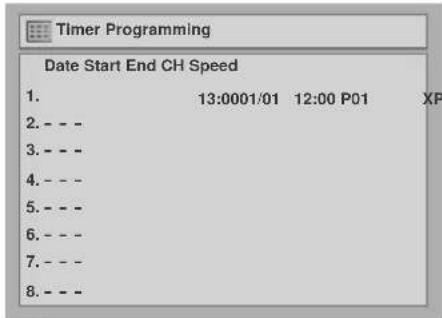
4Select "Timer Programming" using [Cursor ▲ / ▼], then press [ENTER]. The Timer Programming list will appear.
5Select a programme that is not set using [Cursor ▲ / ▼], then press [ENTER].

6 Enter the date using [Cursor ▲ / ▼], then press [Cursor ▶].
Each time you press [Cursor ▼] at the current date, the timer recording mode will change as follows.
e.g., 1st January

flowchart
graph TD
    A["01/01"] --> B["Daily"]
    B --> C["M-F (Mon.-Fri.)"]
    C --> D["W-SAT"]
    D --> E["W-FRI"]
    E --> F["W-SUN"]
    F --> G["31/01"]
7 Enter the time to start and to end using [Cursor ▲ / ▼], then press [Cursor ▶].
8Select the channel number to record using [Cursor ▲ / ▼], then press [Cursor ▶].
To record from external input, select "AV1," "AV2," "AV3" or "AV4".
9Select the recording speed using [Cursor ▲ / ▼], then press [Cursor ▶]. (See page 21.)
10 Press [ENTER] when all information required is entered.
Your programme setting is stored.
• To set another programme, repeat steps 5 to 10.
• To exit, press [SET UP] or [PROG].
- If the recording times of two or more programmes overlap, "Overlap" and overlapped programme numbers are displayed. (See pages 28 and 30.)
11 Press [STANDBY/ON ⏻/I].
The Icon will appear on the front panel display and the unit enters to the timer-standby mode.
Note
- If you have not set the clock, the clock setting window will appear after step 4. Continue from step 5 in "Clock Setting" on page 19 before programming the timer.
- Press [Cursor ◀/▶] to move the cursor in the timer programming menu.
Checking, cancelling, or correcting the timer programming information
In the following example, No. 5 timer programming overlaps on No. 1 and No. 6 timer programmes. In such a case, you should correct the programme time to clear the overlap.

1 Press [STANDBY/ON ⏻/I] so that the 🔊 icon disappears from the front panel display.
2Press [PROG] twice.
Timer programming list will appear.
3Check the information on the list you will need.
4To clear the timer programming, select the desired programme using [Cursor ▲ / ▼], then press [CLEAR].
To correct the timer programming
1) Select the desired programme using [Cursor ▲ / ▼], then press [ENTER].
2) Correct the timer programming using [Cursor ▲ / ▼ / ◀ / ▶].
3) Press [ENTER] again.
5Press [PROG] to exit.
6 Press [STANDBY/ON ⏻/I] to return to the timer-standby mode.
To check the timer programming in progress Press [PROG].
Note
- If a timer recording is proceeding, that programme is highlighted in red. In such a case, you cannot select any other programmes.
To stop the timer recording in progress
Press [STOP ■] on the front panel of the unit.
Note
- [STOP ■] on the remote control is not effective.
If the timer programming did not complete correctly
The error number appears on the timer programming list.
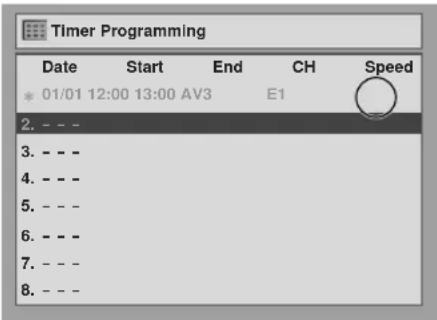
The error programme will be displayed in grey with an asterisk and have an error number.
The error numbers indicate:
E1–E22, E37–E39: Recording error
E23–E24: Unrecordable disc
E25:•Copy prohibited programme
- Cannot record because of the NTSC / PAL-60 signal is received.
E26–E28: Copy prohibited programme
E29: Disc protected
E30: Disc full
E31: Already recorded 99 titles (Video mode)
E32: Already recorded 99 titles (VR mode)
E33: Already recorded 999 chapters
E34: No space for Control Information
E35: PCA (Power Calibration Area) full
E36: Already finalised Video format disc
E40:•There are some unrecorded parts due the overlapped timer programmes.
•Recording did not start at the start time.
E41: Power failure
E42: No disc
The error programme will be deleted once you check the error in the programme list, or once you cancel the timer-standby mode and re-enter it.
Press [CLEAR] to erase the selected programme.
Timer recording using the SHOWVIEW® system
You can programme the timer using the SHOWVIEW programming numbers that are printed in your local TV guide magazine.
1 In stop mode, press [the SHOWVIEW button].
- If the Timer Programming list is full, the Timer Programming mode is activated instead of the SHOWVIEW programming mode.
- Press [the SHOWVIEW button] again in the SHOWVIEW programming mode to switch to the Timer Programming mode.
2 Set the SHOWVIEW programming number of the programme you want to record using [the Number buttons], then press [ENTER].

3Select the desired recording pattern using [Cursor ▲ / ▼], then press [ENTER].

Once: To record a TV programme once, as you set.
Daily: To record a TV programme at the same time on the same channel everyday.
M-F: To record a TV programme at the same time on the same channel from Monday through Friday.
Weekly: To record a TV programme at the same time on the same channel every week.
4Select a recording channel using [Cursor ▲ / ▼], then press [Cursor ▶].

- If your local channel information is programmed in the unit's memory, your local channel number appears automatically.
- If your local channel information is not programmed in the unit's memory, "P--" may appear.
- If you select the channel number using [Cursor ▲ / ▼], it is stored in the unit's memory.
5Select a recording speed using [Cursor ▲ / ▼], then press [Cursor ▶].
6Press [SET UP] or [the SHOWVIEW button] to exit.
7 Press [STANDBY/ON ⏻/I].
The ☐on will appear on the front panel display and the unit enters to the timer-standby mode.
Note
- If you have not set the clock, the clock setting window will appear after step 1. Continue from step 5 in "Clock Setting" before programming the timer. (See page 19.)
- If the SHOWVIEW programming number is not available, "Code Error" is displayed and the number will clear when you press [ENTER] in step 2.
- If the SHOWVIEW programming number previously set overlaps with the one you entered and the channel is different, "Overlap" is displayed but the timer programming will be cleared when you press [ENTER] in step 3.
- If you enter the same SHOWVIEW programming number and the recording pattern which you have already entered, the previously set programme will be overwritten.
- If you enter the same S HOWVIEW programming number but a different recording pattern, it will be saved as a new programme and added to the timer programming list.
"Code Error" is displayed if:
• A past time is entered for start and end times.
- The S HOWVIEW programming number cannot be decoded.
"Overlap" is displayed if:
- There is an overlap with a timer recording setting in different channels.
Hints for timer recording
- If there is a power failure or the unit is unplugged for more than 30 seconds, the clock setting and all timer settings will be lost.
- If there is no disc or an unrecordable disc in the tray, the ☐ on will flash and timer recording will not occur. Insert a recordable disc.
- When all timer recordings are complete, the ⏻ icon flashes. To play back or eject the recorded disc, press [STANDBY/ON ⏻/I], and then press [PLAY ▶] or [OPEN/CLOSE ▲].
- During timer recording or timer-standby mode (icon appears on the front panel display), no operations on the unit are available. To make operations available, cancel the timer recording or timer-standby mode (on disappears).
- To cancel the timer-standby mode, press [STANDBY/ON ⏻/I].
- If the Start and End times are same, the length of the recording will be set for 24 hours. If the disc becomes full during recording, the unit will turn itself off.
- If two or more programmes overlap, "Overlap" and the overlapped programme number will appear on the display.
- If the Start time is earlier and the End time is later than the current time, the recording will start immediately after you turn the power off.
Priority of overlapped settings
The unit records programmes according to priority if timer programmes overlap.
If the starting time is same:
- The timer programming set first (PROG. 1) has priority.
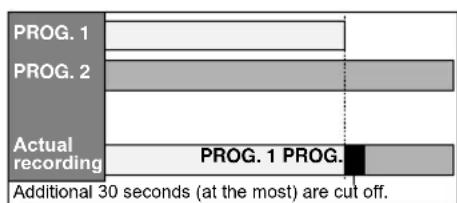
PROG. 2 recording will start after PROG. 1 recording is completed.
If programming has been made at the end of the programming (PROG. 1) currently being recorded:
- The timer programming set first (PROG. 2) has priority. PROG. 3 will not be recorded.

bar
| Category | Value | |---|---| | PROG. 1 | 50 | | PROG. 2 | 40 | | PROG. 3 | 60 | | Actual recording | 70 | | PROG. 1 PROG | 80 | Additional 30 seconds (at the most) are cut off.PROG. 2 recording will start after PROG. 1 recording is completed.
If the recording time is partially overlapped:
- The timer programming with the earlier start time (PROG. 2) has priority. PROG. 1 will start after PROG. 2 recording is complete.
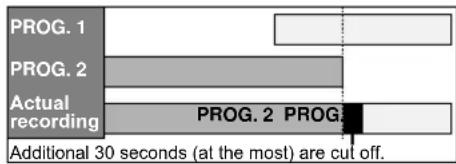
bar
| Category | Value | |---|---| | PROG. 1 | | | PROG. 2 | | | Actual recording | PROG. 2 PROG. | | Additional 30 seconds (at the most) are cut off. | |If the recording time entirely overlaps:
- The shorter timer programming (PROG. 1) is not recorded.

Note for DVD recording
- If the recording time of two programmes overlap, or the End time of a programme and the Start time of another is same, the first 30 seconds (at the most) of the subsequent programme are cut off.
If the End time of the programme currently being recorded and the Start time of the subsequent programme are same:
- If PROG. 1 is a DVD recorded programme, the beginning of PROG. 2 may be cut off.

bar
| Category | Value | |---|---| | PROG. 1 | | | PROG. 2 | | | Actual recording | PROG. 2PROG. 1 | The first 30 seconds (at the most) are cut off.** If the cut off time exceeds 1 minute, the error number "E40" will appear in the timer programming list.
Settings for external equipment
Connection to external equipment

Connect the external equipment using either the input jacks, AV1, AV2, AV3 (Rear) or AV4 (Front). However, for AV4 jacks, you have to select S-VIDEO input or VIDEO input jacks depending on the connected devices.
Use commercially available Scart, S-Video or Video cable and an Audio cable for this connection.
1 In stop mode, press [SET UP].
2Select "Advanced Setting Menu" using [Cursor ▲ / ▼], then press [ENTER].
If it has already appeared, proceed to step 3.
3Select "Select Video" using [Cursor ▲ / ▼], then press [ENTER].
4Press [ENTER].
5Select the input jack type to be used using [Cursor ▲ / ▼], then press [ENTER].
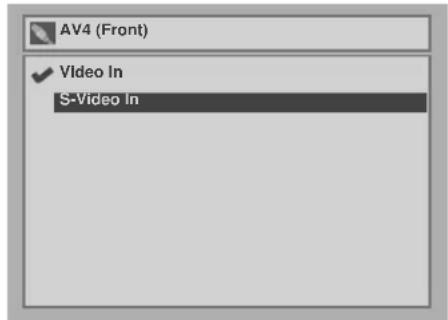
- If you want to use VIDEO input jack (Composite), select "Video In".
- If you want to use S-VIDEO input jack, select "S-Video In".
6Press [SET UP] to exit.
Recording from external equipment

Before recording from external equipment, see page 15 for connection instructions.
1 Turn the TV and the unit on, and select the input of the TV to which the unit is connected.
2 Press [OPEN/CLOSE ▲] to open the disc tray, then place the disc to record on.
3 Press [OPEN/CLOSE ▲] to close the disc tray.
4 Select the input terminal to which the external equipment is connected. (AV1, AV2, AV3 or AV4)
To use the input jacks on the back of the unit, select the "AV1," "AV2," or "AV3" position by pressing [0], [0], [1] or [0], [0], [2] or [0], [0], [3] on the remote control or using [PR +/-] . To use the input jacks on the front of this unit, select "AV4" position by pressing [0], [0], [4] on the remote control or using [PR +/-] .
5Select a recording speed using [REC SPEED]. (See page 21.)
6 Press [REC ●] on the unit to start recording.
7 Press the PLAY button on the external recording component.
8 Press [STOP ■] on the unit to stop recording.
Note
- During recording, if a signal other than PAL is detected (such as NTSC), recording is paused.
Setting a disc to protect

VR DVD-RWDVD-RW
To prevent accidental over-recording, editing or erasing of recordings, you can protect them using the Setting menu.
Insert a recordable disc.
1 In stop mode, press [SET UP].
"Easy Setting Menu" or "Advanced Setting Menu" will appear.
2 Select "Disc" using [Cursor ▲ / ▼], then press [ENTER].
3 Select "Disc Protect OFF → ON" using [Cursor ▲ / ▼], then press [ENTER].
4 Select "Yes" using [Cursor ▲ / ▼], then press [ENTER].
The disc is protected.
Note
- The Disc Protect setting is available only when a disc recorded in VR mode is inserted.
- You can select only "Disc Protect ON OFF" when a protected disc is inserted.
To cancel the disc protect:
- Select "Disc Protect ON OFF" at step 3, then select "Yes."
- If you insert a disc protected with this unit, "Disc Protect ON → OFF" will appear instead of "OFF → ON".
Finalising discs

Video VR DVD-RWD DVD-RWD DVD-RD
You will need to finalise discs to play them back in other players.
Finalising may take from several minutes up to an hour. (A disc recorded in Video mode can take up to 15 minutes. A disc recorded in VR mode can take up to 60 minutes.)
A shorter recording period on the disc will require a longer time period for finalisation. Do not unplug the mains cable during finalisation.
Insert a recordable disc before finalising.
1 In stop mode, press [SET UP].
"Easy Setting Menu" or "Advanced Setting Menu" will appear.
2 Select "Disc" using [Cursor ▲ / ▼], then press [ENTER].
3Select "Finalise" using
[Cursor ▲ / ▼], then press [ENTER].
4 Select "Yes" using [Cursor ▲ / ▼], then press [ENTER].
Finalising will start.

To cancel finalising (DVD-RW only):
At step 4, press [STOP ■], select "Yes," then press [ENTER]. Finalising is cancelled and the unit switches to stop mode.

If ⊙ appears when [STOP ■] is pressed, you cannot cancel finalising because the finalising has already reached at a critical point in its process.
If "No" is selected and [ENTER] or [RETURN] is pressed, finalising is continued.
You cannot cancel finalising a DVD-R disc once it has started.
5Finalising is complete.
Hint
- Finalising a disc in Video mode automatically creates a title menu.
- You can use the unit to record or edit a disc recorded in VR mode even after it is finalised. After you finalise a disc recorded in Video mode, you cannot edit or record anything else on that disc.
- To reverse the finalisation of the disc, select "Undo Finalise" at step 3.
Note
- If you insert a DVD-RW disc finalised with this unit, "Undo Finalise" will appear instead of "Finalise".
- DO NOT power off during finalising. This may result in a malfunction.
Auto finalise


You can finalise discs automatically when the disc space runs out if you set this in the Setting menu.
1 In stop mode, press [SET UP].
2Select "Advanced Setting Menu" using [Cursor ▲ / ▼], then press [ENTER].
If it has already appeared, proceed to step 3.
3Select "Recording" using [Cursor ▲ / ▼], then press [ENTER].
4Select "Auto Finalise" using [Cursor ▲ / ▼], then press [ENTER].

5Press [ENTER].
6 Select "ON" using [Cursor ▲ / ▼], then press [ENTER].
7Press [SET UP] to exit.
Note
- Auto finalise function is not available for discs formatted in VR mode.
Playing back discs
Information on playing back DVDs
Read the following information before you play back a DVD.
playable discs
You can play back all the discs listed on the right. Before attempting to play back a DVD, make sure it meets the requirements for Region Codes and Colour Systems as described in this section. Discs that bear any of the logos shown below will be played back correctly in this unit. Other disc types are not guaranteed to be played back.
Colour systems
DVDs are recorded using different colour systems throughout the world. The most common colour system, used primarily in the U.K. and other EU countries, is PAL.
This unit uses the PAL system. However, it is also possible to play back DVDs using other colour systems, such as NTSC.
Region codes
This unit has been designed to play back DVDs within Region Two (2). This unit can play back DVD discs labelled with the following region codes only:


You cannot play back DVDs that are labelled for other regions. If these region symbols do not appear on your DVD, you cannot play back the DVD in this unit. The number inside the globe refers to region of the world.
A DVD labelled for a specific region can only be played back in the unit with the same region code.
Disc Logo
| DVD-Video | DVDVIDEO |
| DVD-RW(VIDEO/VR mode) | DVDRW |
| DVD-R(VIDEO mode) | DVDRR4.7 |
DVD+RW*

DVD+R*

CD-DA
(AUDIO CD)

VCD
(VIDEO CD)


CD-RW
(CD-DA FORMAT,
MP3, JPEG files)


CD-R
(CD-DA FORMAT,
MP3, JPEG files)


* There may be a disc which cannot be used or played back.

is a trademark of DVD Format / Logo
Licensing Corporation.
Basic playback
Hint for DVD playback
The contents of a DVD are generally divided into titles. Titles are sometimes further subdivided into chapters.
Start Rec. Stop/Start Stop Rec.

flowchart
graph TD
    A["Start"] --> B["Title 1"]
    B --> C["Step 1: Hand, Seedling, Flower"]
    C --> D["Step 2: Butterfly, Snake, Hand"]
    D --> E["Chapter 1"]
    E --> F["Step 3: Hand, Seedling, Flower"]
    F --> G["Step 4: Snake, Hand"]
    G --> H["Chapter 2"]
Playing back a DVD-RW / DVD-R / DVD+RW / DVD+R disc
1 Press [STANDBY/ON ⏻/I] to turn on the unit.
To play back a DVD, turn on the TV and be sure to select the input to which the unit is connected.
2 Press [OPEN/CLOSE ▲] to open the disc tray.
3Place the disc on the disc tray with its label facing up. Be sure to align the disc with the disc tray guide.

4 Press [OPEN/CLOSE ▲] to close the disc tray.
5Press [TOP MENU] to display the title menu.
You can switch between the "Original" and "Playlist" in the VR mode using [MENU/LIST].
6Select the desired title using [Cursor ▲ / ▼ / ◀ / ▶], then press [ENTER].
Playback will start.
7 Press [STOP ■] to stop playback.
To eject the disc, press [OPEN/CLOSE ▲] to open the disc tray, then remove the disc. Press [OPEN/CLOSE ▲] to close the disc tray before turning off the unit.
Hint
- For DVD-R (Video mode) and DVD-RW (Video mode) discs that are already finalised, a title list will be displayed instead of thumbnails.
- If you insert a DVD-RW recorded in VR mode and it has a Playlist, the Playlist is displayed.
- You can resume playback from where you stopped playing back the disc (Resume playback). See page 38 for details.
Note
- Some discs may start playback automatically.
Playing back a DVD-Video / CD / Video CD

1 Follow steps 1 to 4 in "Playing back a DVD-RW / DVD-R / DVD+RW / DVD+R disc."
2 Press [PLAY ▶] to start playback.
Playback will start.
If you are playing back a DVD-Video or a Video CD, a menu may appear.
See pages 36 - 37 for details.
3 Press [STOP ■] to stop playback.
Playing back an MP3 /JPEG

1 Follow steps 1 to 4 in "Playing back a DVD-RW / DVD-R / DVD+RW / DVD+R disc."
The file list will appear.

To exit the menu, press [TOP MENU].
2 Press [Cursor ▲ / ▼] to select the desired folder (group) or file (track), then press [ENTER].
If a file is selected:
Playback will start.
If a folder is selected:
The files in the folder will appear.
Press [Cursor ▲ / ▼] to select the track or folder you want, then press [ENTER].
- Press [PLAY ▶], [ENTER] or [Cursor ▶] to move to any lower folders.
- Press [Cursor ◀] or [RETURN] to move back to the folder above.
- Press [STOP ■] to return to the first item.
Hints for MP3 / JPEG files:
- Folders are known as Groups, files are known as Tracks.
- Folders are shown with the icon.
- MP3 files are shown with the icon. Playback will start from the selected track and continue with each one after.
- JPEG files are shown with the icon.
- The unit can recognize up to 255 groups (or folders) and up to 255 tracks.
- The name of each folder and file can be displayed using up to 29 characters. Unrecognisable characters are replaced with asterisks.
- Unplayable groups and tracks may be displayed depending on the recording conditions.
- For MP3 file recorded in Variable Bit Rate (VBR), the unit may not display the actual elapsed time.
- If there are no files in the folder, "No Files" is displayed.
- High resolution or large-size JPEG files take a few moments to be displayed.
- It is not possible to play back progressive JPEGs (JPEG files saved in progressive format) on this unit.
- It is not possible to play back JPEG files of 2.2 MB or more.
It is recommended that files to be played back in this unit are recorded under the following specifications:
[MP3]
- Sampling frequency: 44.1 kHz or 48 kHz.
- Constant Bit Rate: 112 kbps to 320 kbps.
[JPEG] Size of picture
• Upper limit: 6300 x 5100 dots
- Lower limit: 32 x 32 dots
• Capacity limit: less than 2.2 MB
Hint
- During JPEG playback, press [Cursor ▶] or [Cursor ◀] to rotate a picture 90 degrees clockwise or counterclockwise respectively. (Not available when the display menu appears.)
Note
- MP3 files cannot be recorded as digital sound using an MD or DAT deck.
- Files with extensions other than “.mp3 (MP3)” or “.jpg / .jpeg (JPEG)” will not be listed in the File List.
- Some folders or tracks listed in the File List may be unplayable due to their recording status.
- The File List displays only up to 8 folder and file names.
Playing back discs using the disc menu

D-VDVD-V
A DVD contains a disc menu, which lists the contents and enables you to customize playback. The menu may offer choices for subtitle languages, special features, and chapter selection. Usually this information appears automatically when you start playback, but sometimes you need to press [MENU/LIST] to display the menu.
1Press [MENU/LIST].
If the feature is not available, may appear on the TV screen.
2Select an item using
[Cursor ▲ / ▼ / ◀ / ▶], then press [ENTER].
Repeat this step until all the features you want are set up or to start playing back the disc from the menu. The following operations are available.
[MENU/LIST] button:
Displays the DVD menu, which will vary among discs, and may be same with the Title menu.
[Cursor ▲ / ▼ / ◀ / ▶] buttons:
Move the cursor from item to item on the screen.
[ENTER] button:
Selects the currently highlighted menu option.
[the Number buttons]:
Selects a numbered menu option (available on certain discs).
3Press [MENU/LIST] to exit the disc menu.
Note
- Menus vary among discs. Refer to the information accompanying the disc for details.
Playing back a disc using the title menu
DVD-VDVD-V
Some DVDs have a title menu, which lists the titles available on the DVD. You can start playing back such discs at a specific title.
1 Press [TOP MENU].
The title menu will appear.
If the feature is not available, Ⓜ may appear on the TV screen.
2Select a desired item using
[Cursor ▲ / ▼ / ◀ / ▶], then press [ENTER].
The disc will start playing back at the title you selected. The following operations are available.
[TOP MENU] button:
Displays the DVD title menu which will vary between discs.
[Cursor ▲ / ▼ / ◀ / ▶] buttons:
Move the cursor from item to item on the screen.
[ENTER] button:
Selects the currently highlighted menu option.
[the Number buttons]:
Selects a numbered menu option (available on certain discs).
3Press [TOP MENU] to exit.
Note
• [TOP MENU] will not be available for some DVDs.
- Menus vary among discs. Refer to the information accompanying the disc for details.
PBC function for Video CDs
VCD
This unit conforms to ver.1.1 and ver.2.0 of the Video CD standard playback control (PBC) function. This enables you to play back interactive software using menu screens. Refer to the information accompanying the Video CD.
Ver.1.1 (without PBC function): You can still enjoy playback of pictures and music from the CD. Ver.2.0 (with PBC function): "Pbc" will appear on the screen and display when playing back a Video CD with the PBC function.
Hint
- When playing back Video CDs with the PBC function, "Pbc" is displayed instead of the playing back time and current track indications on the front panel display.
Note
- Some operations cannot be performed unless the function is cancelled either automatically or intentionally by you.
- Operations that are not available when the PBC function is set to "ON" are indicated by the following symbol in this manual:

Playing back a Video CD using the title menu
VCDVCD
1 When playing back a Video CD with the PBC function, the title menu will appear automatically.
2Press [the Number buttons] to select the desired title.
Playback will start at the selected title.
3Press [RETURN] to go back to the title menu.
Note
- While the on-screen display appears, you cannot perform steps 2 and 3.
Cancelling and Recalling the PBC function
Insert a Video CD.
1 In stop mode, press [SET UP].
"Easy Setting Menu" or "Advanced Setting Menu" will appear.
2Select "CD Playback Mode" using [Cursor ▲ / ▼], then press [ENTER].
3Select "PBC (Video CD only)" using [Cursor ▲ / ▼], then press [ENTER].

4 Select "OFF" using [Cursor ▲ / ▼], then press [ENTER].
5Press [SET UP] to exit.
To recall the PBC function, select "ON" in step 4 above.
Note
- The default setting of "PBC (Video CD only)" is "ON."
Special playback
Resume playback
You can resume playback from the point where you stopped it before.
1 During playback, press [STOP ■].
The resume message will appear.
2Press [PLAY▶].
In a few seconds, playback will resume from the point at which you stopped it before. Even if you turn off the unit, you can resume playback at the same point after turning back on the unit.
To cancel the resume playback and start playing back the disc from the beginning:
Press [STOP ■] twice while playback is stopped.
Note
- For Video CDs, if you turn PBC on using the setting menu, the resume function is cancelled.
- For MP3 and JPEG files, playback will resume from the beginning of the track at which playback was stopped.
Fast forward / Fast reverse

1 During playback, press [FWD ▶▶] or [REV ◀◀].
Each time you press [FWD ▶▶] or [REV ◀◀], the approximate speed will change as follows.
To output sound from DVDs during fast forward at x1.5 speed, set "Fast Forward with Audio" to "ON" for the "Playback" setting in "Advanced Setting Menu."
Fast forward or fast reverse playback across titles (for DVDs) or tracks (for MP3) is not possible.

flowchart
graph LR
    A["x40"] --> B["x20"]
    B --> C["x5"]
    C --> D["Normal speed playback"]
    D --> E["x1.5"]
    E --> F["x20"]
    F --> G["x40"]
- For Audio CDs, approximate speed is fixed at x8 with sound.
- For Video CDs, approximate forward speeds are x1.5, x8 and x16, and approximate reverse speeds are x2, x8 and x16.
- For MP3 files, approximate speed is fixed at x16.
- To return to playback at normal speed, press [PLAY▶].
Hint
- Forward / reverse speeds are indicated with icons as follows.
Forward (Approx. Speed):
x1.5:
x20:
x40:
Reverse (Approx. Speed):
x5:
x20:
x40:
Skipping TV commercials during playback

To enjoy recorded programmes without any interruptions, press [○] .
1 During playback, press [ ].
Normal playback will start 30-second advanced point from the point at which you press [☐]. Each time you press [☐], the start point will move another 30 seconds forward and playback resume automatically.
You can press [→] up to 6 times (180 seconds).
Pause


1 During playback, press [PAUSE II].
Playback will pause with the sound muted.
2 Press [PLAY▶] to resume playback.
For JPEG files, playback will start from the beginning of the track.
Step by step playback


1 During playback, press [PAUSE III].
2 Press [|◀◀ / ▶▶▶] repeatedly.
Each time you press [▶▶], playback will go forward one frame (or step) at a time with the sound muted.
To go backward one frame (or step), press [I◄◄].
Press and hold [▶▶] to continue going forward.
To continue going backward, press and hold [I◄◄].
3 Press [PLAY▶] to resume playback.
Note
- Only step by step forward is available when playing back Video CDs.
Slow forward / Slow reverse playback


1 During playback, press [PAUSE II], then press [SLOW For [SLOW].
Each time you press [SLOW ⊕] or [SLOW ⊖], the approximate speed change as follows. (The sound will remain muted.)
![JVC DR-M70 - During playback, press [PAUSE II], then press [SLOW For [SLOW]. - 1](/content/2026/06/1241788/images/8124c72d8a7bfbc17c83e56ca33fb44552d6a8e08ba791aa149c598c207cecfe.jpg)
flowchart
graph LR
    A["x1/4"] --> B["x1/8"]
    B --> C["x1/16"]
    C --> D["Pause"]
    D --> E["x1/16"]
    E --> F["x1/8"]
    F --> G["x1/2"]
To return to normal playback, press [PLAY ▶].
Hint
- Forward / reverse speeds are indicated with icons as follows.
Forward (Approx. Speed):
x1 / 16:
x1 / 8:
x1 / 2:
Reverse (Approx. Speed):
x1 / 16:
x1 / 8:
x1 / 4:
Note
- Only slow forward is available when playing back Video CDs.
Zoom

1 During playback, press [ZOOM].

Four options are available, x1.0, x1.2, x1.5 and x2.0. These are displayed excluding the current zoom rate.
Hint
- You can also select the zoom function by pressing [ON SCREEN]. In this case, press [ON SCREEN] first, select the 📊 icon using [Cursor ◀/▶], and then press [ENTER].
2Select the desired zoom factor to zoom using [Cursor ▲ / ▼], then press [ENTER].
The zoom area is displayed.
3Select the desired zoom position using [Cursor ▲ / ▼ / ◀ / ▶], then press [ENTER].
Zoom playback will start.
Hint
- To exit the zoom menu, press [ZOOM] at step 1. - To cancel the zoom function, select x1.0 using [Cursor ▲ / ▼], then press [ENTER].
Note
- If selecting a smaller factor than that currently selected, the zoom area is not displayed. - You cannot slide the zoomed picture on some JPEG files.
Marker Setup

You can assign a specific point on a disc to return later.
1 During playback, press [ON SCREEN].
2Select the icon using [Cursor ◀/▶], then press [ENTER]. Marker setup menu for DVD-Video mode
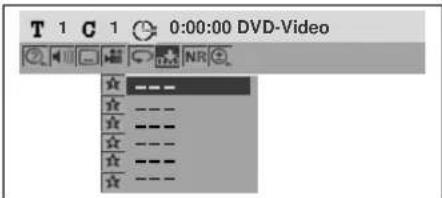
Marker setup menu for Audio CD mode
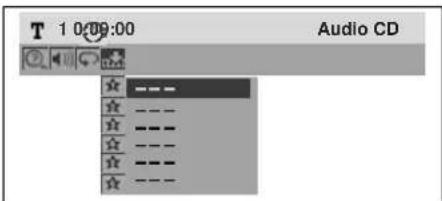
3Select the desired marker number using [Cursor ▲ / ▼]. When the disc reaches the desired point, press [ENTER].
The title (track) number and the time are displayed.
4To return to the marker later, select the desired marker number using [Cursor ▲ / ▼], then press [ENTER].
Hint
- To clear a marker, select the marker number you wish to clear, then press [CLEAR].
- You can mark up to 6 points.
Note
- All markers are erased when you perform the following operations.
- Open the disc tray.
- Turn off the power.
- Record on a recordable disc.
- Change the mode between Original and Playlist. (VR mode)
Search
Title / Chapter search

Using [◀◀ / ▶▶▶] buttons
1 During playback, press [▶▶] to skip the current title or chapter and move to the next.
The unit moves to the next title or chapter one after the other.
To go back to the previous title or chapter, press [◀◀] repeatedly.
Using the [ON SCREEN] button
1 During playback, press [ON SCREEN].
2Select the icon using [Cursor ◀/▶], then press [ENTER]. T for the title number is highlighted.
Searching for a Title:
3 Enter the desired title number to search for using [Cursor ▲ / ▼] or [the Number buttons], then press [ENTER].
Title search will start.
Hint
- Total number of chapters and playback time of the selected title are also displayed.
Searching for a Chapter:
3 Press [Cursor ◀/▶] to highlight the number displayed in the right side of the C icon.
4 Enter the desired chapter number to search for using [Cursor ▲ / ▼] or [the Number buttons], then press [ENTER].
Chapter search will start.
Hint
- The title number and playback time of the selected chapter are also displayed.
Track search

Using [|◀◀ / ▶▶▶] buttons
1 During playback, press [▶▶] to skip the current track and move to the next.
The unit moves to the next track one after the other.
To go back to the previous track, press [◀◀◀] repeatedly. The unit moves backward one track at a time.
Using the [ON SCREEN] button
1 During playback, press [ON SCREEN].
2Select the icon using [Cursor ◀/▶], then press [ENTER]. T for the track number is highlighted.
3Enter the desired track number to search for using [Cursor ▲ / ▼] or [the Number buttons], then press [ENTER].
Track search will start.
Hint
- For Video CDs, you can perform the track search function in stop mode without turning PBC off manually.
Note
- During Random playback or Program playback, you cannot search the desired track.
Direct Search

You can search the desired track directly.
Using [the Number buttons]
1 During playback, if the display menu is not displayed, press [the Number buttons] to enter the desired track number.
Note
- During Random playback or Program playback, you cannot search the desired track directly.
Time search
1 During playback, press [ON SCREEN].
2Select the icon using [Cursor ◀/▶], then press [ENTER]. T for the title or track number is highlighted.
3 Press [Cursor ◀/▶] to highlight ⏻.
4 Enter the desired time to search for using [Cursor ▲ / ▼] or [the Number buttons], then press [ENTER].
Time search will start.
Hint
- For Video CDs, you can perform the time search function in stop mode without turning PBC off manually.
Note
- During Random playback or Program playback, you cannot search the desired time.
- The title number and chapter number of the setting time are also displayed.
- Time search function is available only in the same track or title.
- If the time search is not available, --:--:--/---:--:-- (or 0:00:00 / 0:00:00) is displayed.
Repeat / Random / Program playback / Slide Show
Repeat playback

1 During playback, press [ON SCREEN].
2Select the icon using [Cursor ◀/▶], then press [ENTER].
The Repeat mode menu will appear.
- You can directly access this menu by pressing [REPEAT] also.
3Select the desired option to repeat using [Cursor ▲ / ▼], then press [ENTER].
The selected repeat playback will start. The following operations are available.
Title:
The current title will be played back repeatedly. (DVD only)
Chapter:
The current chapter will be played back repeatedly. (DVD only)
All:
The current disc will be played back repeatedly. (DVD-RW (VR mode), CD, Video CD, MP3 and JPEG only)
A-B:
The A-B point will be played back repeatedly. (DVD, CD and Video CD only) When pressing [ENTER] while A-B is highlighted, A-B repeat is set.
- Press [ENTER] again to decide the starting point (A).
- Press [ENTER] after setting point (A) to select the ending point (B).
Track:
The current track will be played back repeatedly. (CD, Video CD, MP3 and JPEG only)
Group:
The current group will be played back repeatedly. (MP3 and JPEG only)
Hint
- To cancel the repeat playback, select "OFF" at step 3. The repeat setting is also cancelled when you stop playback.
Note
- You can only set A-B repeat playback within the current title (for DVDs) or current track (for Audio CDs and Video CDs).
- You cannot select "Group" during the random playback of MP3 files.
- For Video CDs with PBC function, repeat playback does not work while the PBC function is on.
Random playback


You can use this function to play back a disc randomly instead of in the recorded order.
1 In stop mode, press [SET UP].
"Easy Setting Menu" or "Advanced Setting Menu" will appear.
2Select "CD Playback Mode" using [Cursor ▲ / ▼], then press [ENTER].
The CD Playback Mode menu will appear.
3Select "Random Play" using [Cursor ▲ / ▼], then press [ENTER].
Random playback will start.
Hint
- To cancel random playback, press [STOP ■] twice during random playback. "Playmode OFF" appears on the screen.
- For Video CDs with PBC function, the PBC setting will switch to off automatically during random playback.
Note
- During random playback, if you forward the track to the end, the playback speed of the next track will be normal.
- During random playback, you cannot use the search function except for the search with [I◄◄ / ►►]. By pressing [I◄◄], you can return only to the beginning of the current track.
Program playback


You can programme the disc to play back in your desired order.
1 Follow steps 1 and 2 in "Random playback".
2Select "Program Play" using [Cursor ▲ / ▼], then press [ENTER].

3Select the desired track using [Cursor ▲ / ▼], then press [ENTER] or [Cursor ▶].
4 Press [PLAY ▶] to start program playback.
Hint
• To erase tracks you selected, press [CLEAR].
- You can make up to 50 track settings.
- To cancel program playback, press [STOP ■] twice during program playback. "Playmode OFF" appears on the screen.
- You may also select the desired track using [the Number buttons] at step 3.
- For Video CDs with PBC function, the PBC setting will switch to off automatically during programme playback.
Note
- During programme playback, if you forward the track to the end, the playback speed of the next track will be normal.
- During programme playback, you cannot use the search function except for the search with [I◄◄ / ►►].
Slide Show


You can select the display time between 5 seconds and 10 seconds.
1 Follow steps 1 and 2 in "Random playback."
2Select "Slide Show" using [Cursor ▲ / ▼], then press [ENTER].
3Select the display time using [Cursor ▲ / ▼], then press [ENTER].
Note
- Large-size JPEG files take a few moments to be displayed.
Selecting the format of audio and video
You can select the format of audio and video to suit the content of the disc you are playing back.
Switching audio soundtrack

When playing back a DVD-Videos recorded with two or more soundtracks (often in different languages), you can switch among them during playback. When playing back DVD-RW discs recorded in VR mode, you can switch to main audio (L), sub audio (R) or a combination of both (L / R). When playing back Audio CDs, Video CDs or MP3 files, you can switch among the left, the right channel, and stereo.
1 During playback, press [ON SCREEN].
Press [AUDIO] during playback, and follow from step 3.
2Select the icon using
[Cursor ◀ / ▶], then press [ENTER].
3Select a desired audio soundtrack or audio channel using [Cursor ▲ / ▼], then press [ENTER].
With a DVD-Video:
Audio soundtrack will switch.
Example:
English → Spanish → French
With a DVD-RW in VR mode:
Audio channel menu will appear.
Follow the step 4.
With an Audio CD, Video CD, or MP3 files:
The Audio channel will switch.
Example:
STEREO → L-ch → R-ch
4Select the desired audio channel using [Cursor ▲ / ▼], then press [ENTER].
The Audio channel will switch.
Note
With some discs it is only possible to change the soundtrack from the disc menu. Press [TOP MENU] or [MENU/LIST] to display the disc menu.
Switching subtitles

Many DVD-Videos have subtitles in one or more languages. The languages available are usually printed on the disc case. You can switch subtitle languages at any time during playback.
1 During playback, press [ON SCREEN].
2Select the icon using [Cursor ◀/▶], then press [ENTER].
3Select the desired subtitle language using [Cursor ▲ / ▼], then press [ENTER].
Subtitles are displayed in the selected language. If you select "OFF," subtitles will disappear.
Note
- With some discs it is only possible to change the subtitle language from the disc menu. Press [TOP MENU] or [MENU/LIST] to display the disc menu.
- If a 4-digit language code appears in the subtitle menu at step 2, refer to the "Language code" on page 64.
Switching camera angles
Some DVD-Videos feature scenes shot from two or more angles. The disc case is usually marked with an angle icon if the disc has multi-angle scenes.
1 During playback, press [ON SCREEN].
The angle icon appears when a switching camera angle is available. (Available only when the angle icon appears in bottom right on the TV screen.)
2Select the icon using [Cursor ◀/▶], then press [ENTER].
The angle will switch each time you press [ENTER].
Hint
- Even when the 📋 icon is not displayed, you can select the angle if the currently played back title has at least two multi-angle scenes.
Reducing block noise

1 During playback, press [ON SCREEN].
2Select the icon using [Cursor ◀/▶], then press [ENTER]. The Noise Reduction menu will appear.
3Select the desired option using [Cursor ▲ / ▼], then press [ENTER].
This function reduces noise in the playback picture. When playing back discs recorded in long time modes such as SLP or SEP, select "Type 1" or "Type 2."
"Type 2" is more effective.
When playing back discs with a little noise, such as DVD-Videos, select "OFF."
Editing
Disc editing
You can edit a disc recorded using the PAL system. It is not possible to edit discs recorded using the NTSC system.
Guide to a title list
The title list enables you to check the titles recorded on a disc easily. You can choose a title to play back from the screen and easily edit the titles as you wish. The items on the title list are as follows.


1 To select a title recorded on the disc for editing, move the cursor to the title and press [ENTER].
2 If the title is protected, the Protect icon will appear.
- It is not possible to protect a title on the Playlist.
3 Arrow icons mean the title list includes a next or previous page. Press [Cursor ◀/▶] in the direction of the icon you wish to follow.
4 Available title editing menu items vary depending on the disc and format types.
5 You can edit the title and details as you wish.
6 Time status bar of the recording.
• After editing, playback starts from this point.
7 The selected title from the title list thumbnails.
• The selected title is played back automatically.
8 Playback status of the current disc.
Editing discs in Video mode
You can edit the following disc items in Video mode.
- Deleting titles (See below.)
• Editing titles (See page 47.) - Setting or clearing chapter markers (See page 48.)
Note
- After a disc is finalised, editing the disc or recording on the disc is not possible (except DVD-RW discs in VR mode).
- A Playlist is not available for DVD-R or DVD-RW discs in Video mode.
- It is not possible to edit a disc recorded in another video system other than PAL, such as NTSC.
Insert a recordable disc.
Deleting titles


You can delete titles you do not want to keep. In Video mode, recordable disc space of DVD-RW disc will increase when the last title on the title list is deleted. However, deleting the title will not change recordable disc space for DVD-R disc.
In finalised DVD-R or DVD-RW (in Video mode) discs, you cannot select the title list because it cannot be edited once finalised.
Note
- It is not possible to retrieve deleted titles.
1 In stop mode, press [SET UP].
"Easy Setting Menu" or "Advanced Setting Menu" will appear.
2 Select "Disc" using [Cursor ▲ / ▼], then press [ENTER].
3Select "Title List" using [Cursor ▲ / ▼], then press [ENTER].

4Select the desired title using [Cursor ▲ / ▼ / ◀ / ▶], then press [ENTER].

5Select "Title Delete" using [Cursor ▲ / ▼], then press [ENTER].

You cannot select "Chapter Mark" when a DVD-R disc is inserted into the unit. For DVD-RW discs in Video mode, you cannot select the chapter mark of the title which is less than 5 minutes.
6 Select "Yes" using [Cursor ▲ / ▼], then press [ENTER].
The title is deleted.
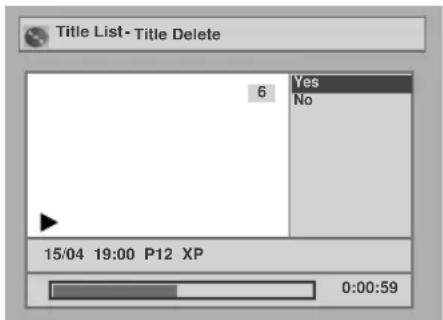
7Press [SET UP].
Writing on the disc starts.
It may take a while to write the data on a disc.
Editing titles


You can edit the title names from this menu.
The title names you edit will appear on the title list.
1 Follow steps 1 to 4 in "Deleting titles".
2Select "Edit Title Name" using [Cursor ▲ / ▼], then press [ENTER].
A window for entering the title name will appear.
3To enter the title name, refer to "Guide to editing title names" on this page.
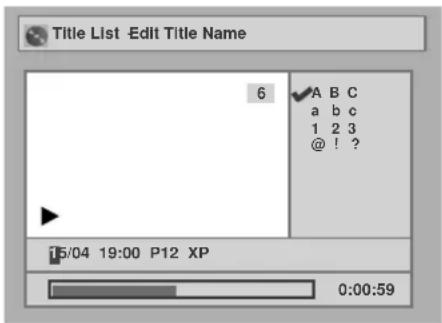
When you finish entering the title name, press [ENTER].
4 Select "Yes" using [Cursor ▲ / ▼], then press [ENTER].
The name you edited becomes the title.
5Press [SET UP].
Writing on the disc starts.
It may take a while to write the data on a disc.
Guide to editing title names
Step 1: Select the desired character set using [Cursor ▲ / ▼], then press [ENTER].
Step 2: Using the list below as a guide, press [the Number buttons] repeatedly until the desired letter appears.
| SelectPress | ABC | abc @ ! | 123 | |
| 0 | 0 | |||
| 1 | - | - | 1 | !" # $ % & ' () * + , - . / : ; <= > ? @ [ ] ^ _ { | } |
| 2 | ABC | abc | 2 | - |
| 3 | DEF | def | 3 | - |
| 4 | GHI | ghi | 4 | - |
| 5 | JKL | jkl | 5 | - |
| 6 | MNO | mno | 6 | - |
| 7 | PQRS | pqrs | 7 | - |
| 8 | TUV | tuv | 8 | - |
| 9 | WXYZ | wxyz | 9 | - |
- Characters set will be changed to the "@!?" automatically if you press [1] after you selected the "ABC" or "abc" mode.
Note
- To delete letters, press [CLEAR] repeatedly. Press and hold [CLEAR] to delete all letters.
- To move on to the next set of letters, press [Cursor ▶].
- You can enter up to 30 letters.
- Unrecognisable characters will be replaced with asterisks (*). If you delete them, adjoining characters may change to asterisks (*) or other.
Setting or clearing chapter markers

Video DVD-RWDVD-RW
You can add chapter markers to a title. After a title is marked with chapters, you can use the chapter search feature.
You can specify the interval of chapter markers for titles last more than 5 minutes.
1 In stop mode, press [SET UP].
"Easy Setting Menu" or "Advanced Setting Menu" will appear.
2 Select "Disc" using [Cursor ▲ / ▼], then press [ENTER].
3Select "Title List" using [Cursor ▲ / ▼], then press [ENTER].
4Select the desired title using [Cursor ▲ / ▼ / ◀ / ▶], then press [ENTER].
5Select "Chapter Mark" using [Cursor ▲ / ▼], then press [ENTER].
6Select the desired interval using [Cursor ▲ / ▼], then press [ENTER].
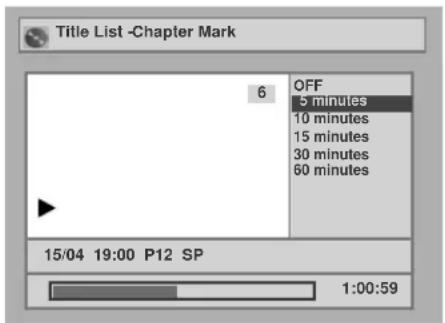
7 Select "Yes" using [Cursor ▲ / ▼], then press [ENTER].

Chapter markers are added. If you select "OFF" at step 6, all the chapter markers are erased.
8Press [SET UP].
Writing on the disc starts. It may take a while to write the data on a disc.
Note
- You cannot select a chapter marker interval that exceeds the length of a title.
- The length of chapters may deviate slightly from the one specified at the step 6.
- A chapter marker may be delayed depending on the recording content.
Editing discs in VR mode
For discs in VR mode, you can edit from the "Original" menu or the "Playlist" menu that you create from the original.
Editing original titles Original
You can perform the following operations on the original titles.
- Deleting titles (See this page.)
- Protecting titles (See page 50.)
- Releasing titles from protecting (See page 50.)
Editing playlists Playlist
You can create a Playlist from original titles, and edit it to your preference without losing the original titles. You can perform the following operations on the Playlist.
- Deleting titles (See page 51.)
- Deleting parts of titles (Scene Delete) (See page 51.)
• Editing titles (See page 52.) - Setting or clearing chapter markers (See page 52.)
- Setting pictures as thumbnails (See page 53.)
• Dividing a title (See page 53.)
• Combining titles (See page 54.) - Adding titles to a Playlist (See page 54.)
- Deleting a Playlist (See page 54.)
Note
• After editing, titles will not remain as recorded originally. If you want to keep the original as it is, edit the Playlist to your preference.
Original Editing Original titles in VR mode
Insert a recordable disc before editing.
Original Deleting titles

VR DVD-RWDVD-RW
When a title is deleted from an original list in VR mode, the available recording time on the disc will increase.
Note
- It is not possible to retrieve deleted titles.
1 In stop mode, press [SET UP].
"Easy Setting Menu" or "Advanced Setting Menu" will appear.
2 Select "Disc" using [Cursor ▲ / ▼], then press [ENTER].
3Select "Original" using [Cursor ▲ / ▼], then press [ENTER].

4Select the desired title using [Cursor ▲ / ▼ / ◀ / ▶], then press [ENTER].
5Select "Title Delete" using [Cursor ▲ / ▼], then press [ENTER].

6 Select "Yes" using [Cursor ▲ / ▼], then press [ENTER].
The title is deleted.
7Press [SET UP].
Writing on the disc starts. It may take a while to write the data on a disc.
Note
- When you delete the original title, the corresponding part of the playlist will also be deleted.
Original
Protecting titles

VR DVD-RWDVD-RW
To prevent the accidental editing or erasing of the titles, you can protect them in the original menu.
1 In stop mode, press [SET UP].
"Easy Setting Menu" or "Advanced Setting Menu" will appear.
2 Select "Disc" using [Cursor ▲ / ▼], then press [ENTER].
3Select "Original" using [Cursor ▲ / ▼], then press [ENTER].
4Select the desired title using [Cursor ▲ / ▼ / ◀ / ▶], then press [ENTER].
5Select "Protect" using [Cursor ▲ / ▼], then press [ENTER].

6Press [ENTER] again.

7Press [SET UP].
Writing on the disc starts. It may take a while to write the data on a disc.
To protect a whole disc (DVD-RW VR mode only):
Select "Disc Protect" from the Disc menu, then select "Yes." Refer to "Setting a disc to protect" on page 32.
Hint
- The protected title is marked with a key icon in the original list.
Original Releasing titles from
protecting

VR DVD-RWDVD-RW
You can cancel the title protection feature after it is applied.
1 Follow steps 1 to 4 in "Originaling titles."
2Press [ENTER].

3Press [ENTER] again.
The key icon will disappear from the title in the original list.
4Press [SET UP].
Writing on the disc starts. It may take a while to write the data on a disc.
Playlist Editing the Playlist in VR mode
Note
- When you play back the disc of which the playlist is edited, select "Playlist" in the title menu.
Insert a recordable disc before editing.
Playlist Deleting titles

VR DVD-RWDVD-RW
In VR mode, even when a title is deleted from the Playlist, the original title will remain in the Original list. The recordable disc space to record will not increase.
1 In stop mode, press [SET UP].
"Easy Setting Menu" or "Advanced Setting Menu" will appear.
2 Select "Disc" using [Cursor ▲ / ▼], then press [ENTER].
3Select "Playlist" using [Cursor ▲ / ▼], then press [ENTER].
4Select the desired title using [Cursor ▲ / ▼ / ◀ / ▶], then press [ENTER].
5Select "Title Delete" using [Cursor ▲ / ▼], then press [ENTER].

6 Select "Yes" using [Cursor ▲ / ▼], then press [ENTER].
The title is deleted.
7Press [SET UP].
Writing on the disc starts. It may take a while to write the data on a disc.
Playlist Deleting parts of titles (Scene Delete)
VR DVD-RWDVD-RW
You can delete a specific part of a title. Even when a title is deleted from the playlist, the original title will remain. The available recording time on the disc will not increase.
1 Follow steps 1 to 4 in "Playlist g titles."
2Select "Scene Delete" using [Cursor ▲ / ▼], then press [ENTER].
3 Use [I◄◄ / ►►I], [REV ◀◄], [FWD ►►], [PLAY ►] and [PAUSE III] to find the start point, then press [ENTER].

Use [◀◀ / ▶▶], [REV ◀◀], [FWD ▶▶], [PLAY ▶] and [PAUSE II] again to move to the end point, and press [ENTER].

The cursor will move to "Preview." You can check the preview by pressing [ENTER].
The bar at the bottom of the screen indicates the total and the elapsed time of the title, and the area selected for deletion is indicated in red during the preview.
4Select "Delete" using [Cursor ▲ / ▼], then press [ENTER].
5 Select "Yes" using [Cursor ▲ / ▼], then press [ENTER].
The part of the title is deleted.
6Press [SET UP].
Writing on the disc starts. It may take a while to write the data on a disc.
Note
- You cannot select "Scene Delete" if the number of chapter markers in the Original or Playlist is more than 900.
- The recordable disc space will not increase after deleting parts of titles.
Playlist Editing titles

VR DVD-RWDVD-RW
You can edit the title names from this menu. The names you edit will appear on the title list.
1 Follow steps 1 to 4 in "Playlistg titles."
2Select "Edit Title Name" using [Cursor ▲ / ▼], then press [ENTER].
3To enter the title name, refer to "Guide to editing title names" on page 47.

When you finish entering the title name, press [ENTER].
4 Select "Yes" using [Cursor ▲ / ▼], then press [ENTER].
The name you edited becomes the title.
5Press [SET UP].
Writing on the disc starts. It may take a while to write the data on a disc.
Playlist Setting or clearing chapter markers
VR DVD-RWDVD-RW
You can add chapter markers to a title. After a title is marked with chapters, you can use the chapter search feature.
You can set a chapter marker anywhere you want. You cannot set more than 999 chapter markers in the Playlist.
1 Follow steps 1 to 4 in "Playlist g titles."
2Select "Chapter Mark" using [Cursor ▲ / ▼], then press [ENTER].
3 Use [I◄◄ / ►►], [REV ◀◄], [FWD ►►], [PLAY ►] and [PAUSE III] to find the point where you will create a new chapter marker.
Or, use [l◄◄ / ►►] to find a chapter marker that you wish to delete.
4Select "Add" or "Delete" accordingly using [Cursor ▲ / ▼], then press [ENTER].
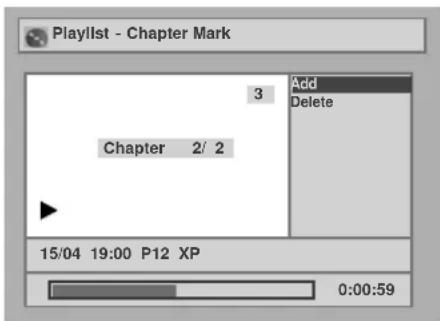
You cannot delete the first chapter of a title.
5 Select "Yes" using [Cursor ▲ / ▼], then press [ENTER].

A chapter marker is added.
Adding a chapter marker:
If you select "Add" at step 4, a new chapter marker is created at the point you specified.
Deleting a chapter marker:
If you select "Delete" at step 4, the chapter marker you selected is deleted.
6 Press [SET UP].
Writing on the disc starts. It may take a while to write the data on a disc.
Playlist Setting pictures as
thumbnails

VR DVD-RWDVD-RW
You can set a picture as a thumbnail for each title. This helps you to remember the content of the title without having to play it back. The first picture of the title is selected as the default.
1 Follow steps 1 to 4 in "Playlist g titles."
2 Use [I◄◄ / ►►], [REV ◀◄], [FWD ►►], [PLAY ►] and [PAUSE III] to find the picture you want to set as a thumbnail, then press [ENTER].
3Select "Index Picture" using [Cursor ▲ / ▼], then press [ENTER].
4 Select "Yes" using [Cursor ▲ / ▼], then press [ENTER].
The picture is set as the thumbnail.

5Press [SET UP].
Writing on the disc starts.
It may take a while to write the data on a disc.
Note
- If a picture selected as a thumbnail is deleted by deleting a part of a title, the default picture is selected.
Playlist Dividing a title

VR DVD-RWDVD-RW
You can divide a title into two new titles.
1 Follow steps 1 to 4 in "Playlist g titles."
2 Use [I◄◄ / ►►I], [REV ◀◄], [FWD ►►], [PLAY ►] and [PAUSE III] to find the point where you wish to divide the title.
3Select "Title Dividing" using [Cursor ▲ / ▼], then press [ENTER].
4 Select "Yes" using [Cursor ▲ / ▼], then press [ENTER].
The title is divided into two new titles with the same title names.
The thumbnail you set is reset to the first picture of each title.

5Press [SET UP].
Writing on the disc starts.
It may take a while to write the data on a disc.
Note
- If a disc contains the maximum number of recordings (99), you cannot divide any title
- You cannot divide the titles if the total number of the chapters have already reached 999.
Playlist
Combining titles


You can combine two titles into a single title.
1 Follow steps 1 to 4 in "Playlist g titles."
2Select "Title Combining" using [Cursor ▲ / ▼], then press [ENTER].
3Select another title to combine using [Cursor ▲ / ▼ / ◀ / ▶], then press [ENTER].
4 Select "Yes" using [Cursor ◀/▶], then press [ENTER].
The two titles will combine into a single title.
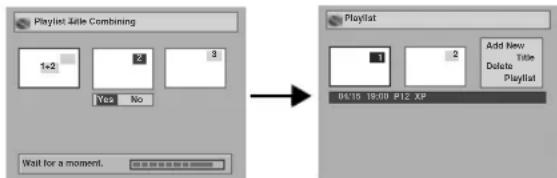
5Press [SET UP].
Writing on the disc starts. It may take a while to write the data on a disc.
Note
- You cannot select the same title twice and combine it into a single title.
- If either one of the two original titles is deleted, the combined new title is also deleted.
Playlist Adding titles to a Playlist

You can add a title to the Playlist as you wish. You can add up to 99 titles to a Playlist (as long as the total number of the Playlist does not exceed 999 chapters).
1 Follow steps 1 to 3 in "Playlist g titles."
2Select "Add New Title" using [Cursor ▲ / ▼ / ◀ / ▶], then press [ENTER].

3Select the desired title using [Cursor ▲ / ▼ / ◀ / ▶], then press [ENTER].
4Press [SET UP].
Writing on the disc starts. It may take a while to write the data on a disc.
Hint
- To delete a title from the Playlist, refer to “Deleting titles” on page 51.
- To delete the Playlist, refer to "Deleting a Playlist" on this page.
Playlist Deleting a Playlist


A Playlist can be deleted if it is no longer needed.
1 Follow steps 1 to 3 in "Playlist g titles."
2Select "Delete Playlist" using [Cursor ▲ / ▼ / ◀ / ▶], then press [ENTER].

3 Select "Yes" using [Cursor ◀/▶], then press [ENTER].
The Playlist is deleted.
4Press [SET UP].
Writing on the disc starts. It may take a while to write the data on a disc.
Note
- Deleting a Playlist will not increase the available recording time on the disc.
- When the disc contains 99 titles or more, or 999 chapters or more, "Add New Title" cannot be selected.
Changing the Setting menu
Tour of the Setting menu
The following table shows the items you can set and their default settings.
Use the table as a reference for efficient operation.
| Setting menu | Menu items Default Function | |||
Language setting page 56 page 56 | Disc Menu Language English Sets the disc menu language. | |||
| Audio Language Original Sets the audio language. | ||||
| Subtitle Language OFF Sets the subtitle language. | ||||
Display setting page 57 page 57 | OSD Language English | Sets the on screen display(OSD) language. | ||
| FL Dimmer Auto | Sets the front display brightness. | |||
| Screen Saver 10 minutes | Sets the idling time before the screen saver starts. | |||
Audio setting pages 57-58 pages 57-58 | Digital Out | PCM | 48 kHz | Sets whether sound recorded at 96 kHz is down sampled to 48 kHz or not. |
| Dolby Digital | Stream | Sets the digital audio output signal specification. | ||
| MPEG | PCM | Sets the digital audio output signal specification. | ||
| DTS | ON | Sets whether DTS signal is output or not. | ||
| Dynamic Range Control | ON | Compresses the sound volume range. | ||
| Fast Forward with Audio | ON | Outputs sound during fast forward playback. | ||
Parental setting pages 59-60 pages 59-60 | Parental Lock | All | Sets the DVD parental control level. | |
| • Change password | Sets and changes the password. | |||
Output setting page 60 page 60 | Video Out | TV System | PAL | Sets the TV system. |
Note
- Changes you make to the Setting menu remain even after power to the unit is switched off or the disc tray is opened or closed.
Language setting
1 In stop mode, press [SET UP].
2Select "Advanced Setting Menu" using [Cursor ▲ / ▼], then press [ENTER].
If it has already appeared, proceed to step 3.
3Select "Playback" using [Cursor ▲ / ▼], then press [ENTER].
4Select the desired item using [Cursor ▲ / ▼], then press [ENTER].
Disc Menu Language (Default: English)
Set the Disc Menu language.

Select a setting using [Cursor ▲ / ▼], then press [ENTER].
Your setting is activated.
Audio Language (Default: Original)
Set the Audio language.

Select a setting using [Cursor ▲ / ▼], then press [ENTER].
Your setting is activated. If "Original" is selected, the audio language is the default of the inserted disc.
Subtitle Language (Default: OFF)
Set the Subtitle language.

Select a setting using [Cursor ▲ / ▼], then press [ENTER].
Your setting is activated.
If "Other" is selected, enter the appropriate 4-digit code using [the Number buttons].
Refer to the language code table on page 64.

When you finish entering the code, press [ENTER].
5Press [SET UP] to exit.
Hint
- You can also change or switch off the subtitles on a DVD from the disc menu if it is available.
- Press [CLEAR] or [Cursor ◀] to erase numbers entered incorrectly.
Note
- You can only select the languages supported by the inserted disc.
- The Audio Language setting may not be available for some discs.
Display setting
1 In stop mode, press [SET UP].
2Select "Advanced Setting Menu" using [Cursor ▲ / ▼], then press [ENTER].
If it has already appeared, proceed to step 3.
3Select "Display" using [Cursor ▲ / ▼], then press [ENTER].
4Select the desired item using [Cursor ▲ / ▼], then press [ENTER].
OSD Language (Default: English)
Set the OSD language.
See page 17 for details.

FL Dimmer (Default: Auto)
Set the front panel display brightness.

Select a setting using
[Cursor ▲ / ▼], then press [ENTER].
You can choose one from "Auto", "Bright" and "Dark."
If "Auto" is selected, the display gets dark when the power is off.
Screen Saver (Default: 10 minutes)
Set the screen saver time delay.
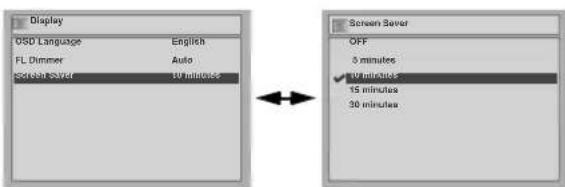
Select a setting using
[Cursor ▲ / ▼], then press [ENTER].
Your setting is activated.
5Press [SET UP] to exit.
Audio setting
Choose the appropriate Audio settings for your audio equipment.
This will only affect DVDs playback.
1 In stop mode, press [SET UP].
2Select "Advanced Setting Menu" using [Cursor ▲ / ▼], then press [ENTER].
If it has already appeared, proceed to step 3.
3Select "Playback" using [Cursor ▲ / ▼], then press [ENTER].
4Select the desired item using [Cursor ▲ / ▼], then press [ENTER].
Note
- The Dynamic Range Control function is available only on discs recorded in the Dolby Digital format.
Digital Out
Set the digital audio output.

Select a setting using
[Cursor ▲ / ▼], then press [ENTER].
Proceed with either of the following steps.
PCM sampling (Default: 48kHz)

Select a setting using
[Cursor ▲ / ▼], then press [ENTER].
Your setting is activated.
48kHz: If your amplifier / decoder is NOT compatible with 96 kHz PCM, select "48kHz." Sound recorded at 96 kHz is down sampled to 48 kHz.
96kHz: If your amplifier / decoder is compatible with 96 kHz PCM, select "96kHz." Sound is sampled at 96 kHz.
Note
When playing back a disc with copyright protection:
- Even if you select "96kHz," the sound is down sampled to 48 kHz.
Dolby Digital conversion (Default: Stream)

Select a setting using
[Cursor ▲ / ▼], then press [ENTER].
Your setting is activated.
PCM: Converts the Dolby Digital into PCM
(2 channel).
If your amplifier / decoder is NOT compatible with Dolby Digital, set to "PCM".
Stream: Outputs Dolby Digital signals.
If your amplifier / decoder is compatible with Dolby Digital, set to "Stream".
Hint
When playing back a DVD-RW disc recorded in VR mode:
- If the audio source on a disc is in Dolby Digital format, set "Dolby Digital" to "PCM" so that you can switch to main audio (L), sub audio (R), or a combination of both (L / R) using your amplifier / decoder.
Settings for MPEG (Default: PCM)
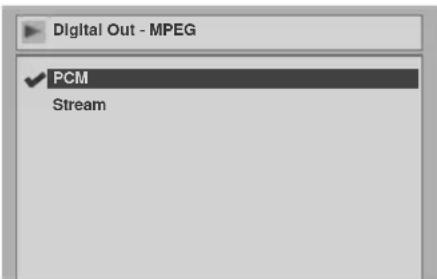
Select a setting using
[Cursor ▲ / ▼], then press [ENTER].
Your setting is activated.
PCM: Converts MPEG into PCM.
If your amplifier / decoder is NOT compatible with MPEG, set to "PCM."
Stream: Outputs MPEG Audio signals.
If your amplifier / decoder is compatible with MPEG, set to "Stream."
Settings for DTS (Default: ON)

Select a setting using
[Cursor ▲ / ▼], then press [ENTER].
Your setting is activated.
ON: Outputs DTS signals.
If your amplifier / decoder is compatible with DTS, set to "ON."
OFF: No DTS signal is output.
If your amplifier / decoder is NOT compatible with DTS, set to "OFF."
Dynamic Range Control (Default: ON)
Set to "ON" to make the dynamic range narrower.
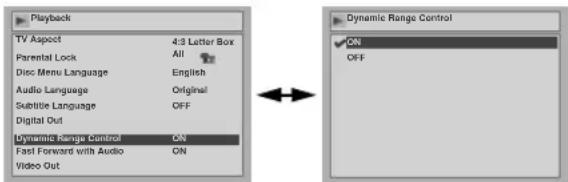
Select a setting using
[Cursor ▲ / ▼], then press [ENTER].
Your setting is activated.
The Dynamic Range Control function is effective only with analogue audio connection.
Fast Forward with Audio (Default: ON)
Set to "ON" to output the sound during DVD playback at x1.5 fast forward.

Select a setting using
[Cursor ▲ / ▼], then press [ENTER].
Your setting is activated.
5Press [SET UP] to exit.
DVD-Videos Parental lock level
Some DVD-Videos feature a Parental Lock function. If the rating of the inserted disc exceeds the level you set, playback will stop. You must enter a password before the disc will be played back. This feature prevents your children from viewing inappropriate material.
1 In stop mode, press [SET UP].
2Select "Advanced Setting Menu" using [Cursor ▲ / ▼], then press [ENTER].
If it has already appeared, proceed to step 3.
3Select "Playback" using [Cursor ▲ / ▼], then press [ENTER].
4Select "Parental Lock" using [Cursor ▲ / ▼], then press [ENTER].

Note
- The parental lock function may not be available on some discs.
- It may be difficult to determine if some DVDs support the parental lock function. Be sure to confirm that the parental lock function operates in the way that you have set.
- Record the password in case you forget it.
Parental Lock (Default: All)
Set the Parental Lock level.
Change the Parental Lock level using [Cursor ▲ / ▼], then press [ENTER].
Proceed with either of the following steps.

Parental level
All: All parental locks are cancelled.
8: DVD software of any grade (adult / general / children) can be played back.
7 to 2: Only DVD software intended for general use and children can be played back.
1: Only DVD softwares intended for children can be played back.

A password is not yet set
Select "Yes" using [Cursor ▲ / ▼], then enter a new password using [the Number buttons], then press [ENTER].
Your setting is activated.
If you select "No", proceed to Step 5.
![JVC DR-M70 - Select "Yes" using [Cursor ▲ / ▼], then enter a new password using [the Number buttons], then press [ENTER]. - 1](/content/2026/06/1241788/images/d1e38357f67f0e013eab4048c5d263802a8c8f4b5cb61c67000e376bf6bad90c.jpg)
A password is already set
Enter the current password using [the Number buttons].
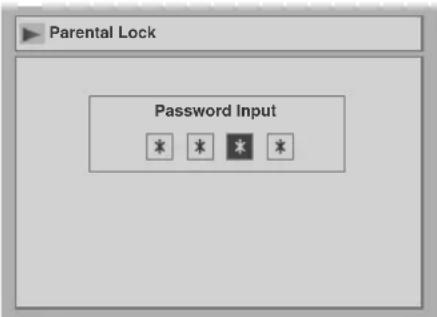
Change the password.

Select "Yes" using [Cursor ▲ / ▼], then enter a new password using [the Number buttons], then press [ENTER].
Your setting is activated. If you press [ENTER] without entering a password, you can set up without a password.
5Press [SET UP] to exit.
Note
- Press [CLEAR] to erase numbers entered incorrectly.
- If you forget your password or you want to clear all settings in Parental lock, enter [4], [7], [3], [7] using [the Number buttons] at the option window. Your password is cleared and parental levels are set to "All."
Changing Video Out system
Setting TV system
1 In stop mode, press [SET UP].
2Select "Advanced Setting Menu" using [Cursor ▲ / ▼], then press [ENTER].
If it has already appeared, proceed to step 3.
3Select "Playback" using [Cursor ▲ / ▼], then press [ENTER].
4Select "Video Out" using [Cursor ▲ / ▼], then press [ENTER].
5Press [ENTER].
6Select the desired system setting using [Cursor ▲ / ▼], then press [ENTER].

PAL: Outputs a modified PAL signal for viewing discs recorded with the NTSC system on a PAL system TV.
Auto: Changes the video system (PAL / NTSC) automatically according to the format of the inserted disc.
7Press [SET UP] to exit.
Note
- With discs recorded using the PAL system, a PAL signal is output for viewing on a PAL system TV.
- Discs recorded with the PAL system cannot be viewed on an NTSC system TV.
- With discs recorded using the NTSC system, an NTSC signal is output for viewing on an NTSC or Multi system TV.
- With discs recorded using the NTSC system, select PAL to view on a PAL system TV.
Troubleshooting
Before requesting service for this unit, check the table below for a possible cause of the problem you are experiencing. Some simple checks or a minor adjustment by you may eliminate the problem and restore correct operation.
Symptom Remedy
| PowerThe power does not turn on. • Check the mains cable is connected securely.• Check building circuit the breaker (in case of power failure). | |
| PictureThere is no picture. • Check signal cables are connected securely.• Check if a connecting cable is damaged.• If the setting menu display appears, press [SET UP] or [RETURN] to turn off the display.• Check connections to your TV. (See page 15.)• Switch the input selector on your TV (to “AV1,” for example) until a picture appears on the screen. | |
| Picture noise appears. • The disc is dirty or flawed.• If the unit is connected to your TV via a VCR, or if it is connected to a combination TV / VIDEO player, the copy-protection signal applied to some DVD programs could affect picture quality. If you still experience this problem even when you connect the unit directly to your TV, try connecting the unit to your TV’s S-VIDEO input. | |
| TV programme picture does not fill the screen. | • Set channels with “Auto Tuning” from the screen menu. (See page 17.)• Select the channel of a TV program using [PR +/-]. |
| TV programme pictures are distorted. | • Adjust the direction of the TV antenna.• Adjust the picture (see the TV instruction manual).• Place the antenna and the TV farther apart.• Separate any bunched antenna cables and the TV. |
| TV channel cannot be changed. • Switch the TV input.• Check if the antenna cable is connected correctly. (See page 15.) | |
| Playback picture is distorted. | • Do not bring equipment that may cause electrical interference, such as a cellular phone, near the unit. |
| The playback picture or TV programme from equipment connected through the unit is distorted. | • If a DVD player, VCR or tuner is connected to your TV via the unit, the copy-protection signal applied to some programs could affect picture quality.Disconnect the playback equipment in question and connect it directly to your TV. |
| SoundThere is no sound. • The disc is dirty or flawed.• Check if all cables are connected securely.• Check if a connecting cable is damaged.• Check the connections to the amplifier input.• Check if the input source setting on the amplifier is correct.• Check if the recorder is in Pause mode or in Slow-motion Playback mode.• Check if the recorder is in Fast Forward or Fast Reverse mode.• If the audio signal is not output from the DIGITAL AUDIO OUTPUT (COAXIAL) jack, check the Audio setting. (See page 57.) | |
| Sound is noisy. • The disc is dirty or flawed. | |
| Remote controlThe remote control does not function. | • Batteries are exhausted.• There are obstacles between the remote control and the unit.• The remote control is too far from the unit.• There are no batteries in the remote control.• The unit is not turned on.• The remote control is not pointed at the remote sensor on the unit. |
Symptom Remedy
Playback
| The unit does not play back the disc. • No disc is inserted.• A blank disc is inserted.• The disc is upside down. Insert the disc with the labelled side facing up.• The disc is not correctly inserted.• The unit cannot play back certain discs (such as a CD-ROM). (See page 34.)• The region codes on the DVD-Video and the unit are not matched. (See page 34.)• Moisture has condensed inside the unit. Remove the disc and leave the unit turned on for about two hours until the moisture evaporates. (See page 3.)• The unit cannot play back the disc if it was recorded on another recorder and not finalised. (See page 32.) | |
| Playback image freezes for a moment. | • During the playback of a two layered disc, the picture may freeze for a moment while playback switches from the first to the second layer. This is not a malfunction. |
| The unit does not play back the disc from the beginning. | • Resume playback is activated. (See page 38.) Press [STOP ■] twice.• You have inserted a disc whose title menu or DVD menu automatically appears on the TV screen when it is first inserted. |
| The unit starts playing back the disc automatically. | • The DVD-Video features an auto playback function. |
| Some functions such as Stop, Search, or Slow-motion Playback cannot be performed. | • Depending on the disc, you may not be able to perform some of those operations. See the instruction manual supplied with the disc. |
| The language for the sound track cannot be changed. | • Multilingual tracks are not recorded on the DVD-Video, DVD-R, or DVD-RW being played back.• The DVD-Video prohibits the changing of the language for the sound track.• Try changing the language using the DVD-Video menu. |
| The subtitle language cannot be changed or turned off. | • Multilingual subtitles are not recorded on the DVD-Video.• The DVD-Video prohibits changing the subtitles.• Try changing the subtitles using the DVD-Video menu. |
| Angles cannot be changed. • Multi-angles are not recorded on the DVD-Video being played back.• You can change the angle only if the disc contains multi-angle scene. Angles can be changed only when the multi-angle scene appears on the screen.• The DVD-Video prohibits changing angles.• Try changing the angle using the DVD-Video menu. | |
| Recording / Timer recording / EditingThe channel cannot be changed from the channel you are recording. | • Set the TV input to “TV.” |
| Recording does not start immediately after pressing [REC ●]. | • An unused DVD-R or DVD-RW was inserted. It takes a while for the unit to automatically format a DVD-RW. |
| Nothing was recorded even though you set the timer setting correctly. | • There was a power failure during recording.• The unit’s internal clock stopped due to a power failure that lasted for more than 30 seconds.• Reset the clock. (See page 19.)• Unplug the mains cable from the AC outlet and plug it in again.• The programme contains copy protection signals that restrict copying.• The timer setting overlapped with another setting that was set later or has priority. |
| Recording does not stop immediately after you press [STOP ■]. | • It will take a few seconds for the unit to send data to disc before recording can stop. |
| Timer recording is not complete or did not start from the beginning. | • The timer setting overlapped with another setting that was set later or has priority. (See page 30.)• There was not enough disc space. |
| Timer recording is not possible. | • Make sure 📋 icon appears on the front panel display of this unit. If not, press [STANDBY/ON ⚫/I]. |
| OthersThe unit does not operate correctly. | • If static electricity or anything else causes the unit to operate abnormally, unplug the mains cable and plug it in again. |
| The disc tray does not open when you press [OPEN/CLOSE ▲]. | • It may take a few seconds for the disc tray to open after you have recorded or edited a disc.• This is because the unit is sending data to the disc. |
| “Repairing” appears on the display. | • If a power failure occurs or the mains cable is unplugged during recording, finalising, formatting or editing (even after “Wait for a moment.” message disappeared), a repairing process will begin automatically when the unit is turned on next time.It may take several minutes up to about four hours. |
*If the above remedies do not solve the problem, please call the service centre for help.
| Error message Cause | solution | |
| Disc Error— Please eject the disc. —Playback feature may not be available on this Disc. | • An unplayable disc is inserted in the unit.• The disc is upside down. | • Insert a standard disc shown in “Playable discs.” (See page 34.)• Insert the disc with the labelled side facing up. |
| Region Error— Please eject the disc. —Playback is not authorized in your region. | • Playback is not authorized in the region of the DVD-Video that you inserted in the unit. | • Insert a DVD-Video with region codes 2 or ALL. |
| Parental Lock OnThe current selected parental level prohibits playback. | • The current selected parental level in the setting menu prohibits playback. | • Check the Parental Lock setting. (See page 59.) |
| Recording ErrorThis programme is not allowed to be recorded. | • The recording function encountered a copy prohibited programme.• Original source is in NTSC system. | • You cannot record copy prohibited programmes.• This unit cannot record an NTSC signal. |
| Recording ErrorThis programme is not recordable in Video mode. | • You are trying to record a copy-once programme onto a DVD-RW disc in Video mode. | • Set “DVD-RW Recording Format” to “VR mode.” (See page 23.) |
| Recording ErrorCannot record on this disc. | • You are trying to record onto a disc that is unrecordable, or the disc status does not satisfy recording requirements.• The disc is dirty.• The disc is damaged. | • Insert a recordable disc, and ensure the disc status satisfies the recording requirements. (See page 21.)• Clean the disc with a cleaning cloth.• Replace the disc. |
| Recording ErrorThis programme is not allowed to be recorded on this disc. | • You are trying to record a copy-once programme onto a DVD-RW disc that is not compatible with CPRM. | • Insert a ver. 1.1 or ver. 1.2 DVD-RW disc (compatible with CPRM.) |
| Recording ErrorThis disc is protected and not recordable. | • You are trying to record onto a disc that is set as protected in the Disc Setting Menu. | • Remove the disc protect setting in the Disc Setting menu. (See page 32.) |
| Recording ErrorDisc is full.(No area for new recording) | • You are trying to record onto a disc that has no space for recording. | • Insert a recordable disc with enough recording space.• Delete unnecessary titles from an original list. (See page 49.) |
| Recording ErrorYou cannot record more than 99 titles on one disc.(The maximum is 99) | • You are trying to record onto a disc on which the number of recorded titles has reached the maximum (99). | • Delete unnecessary titles. (See pages 46 and 49.) |
| Recording ErrorYou cannot record more than 999 chapters on one disc.(The maximum is 999) | • You are trying to record onto a disc on which the number of recorded chapters has reached the maximum (999). | • This unit cannot delete the chapter markers in the original list. To delete unnecessary chapter markers, use other DVD recorders.• Delete unnecessary titles from an original list. (See page 49.) |
| Recording ErrorYou cannot record on this disc as Control Information is full. | • This disc has no space to write Control Information when recording or deleting contents.• When editing has been repeatedly performed, the control information area may become full even though the recording area has enough space. | • Delete unnecessary titles. (See pages 46 and 49.) |
| Recording ErrorYou cannot record on this disc as Power Calibration Area is full. | • When recordings are performed repeatedly onto an unstable disc, this area may become full.• Every time you insert a disc for recording, part of the disc’s working area will be used.• If you repeat this frequently, it will be used up quicker and you may not be able to record full 99 titles. | • Insert a new disc. |
| Recording ErrorThis disc is already finalised. | • You are trying to record onto a disc that is already finalised. | • Release the finalising for the disc. (See page 32.) |
* If you are still having trouble with the unit after checking all the Troubleshooting points, write down the error code and the error description and consult your dealer or an authorized service centre.
Language code
| Language Code | Language Code | Language Code | Language Code | ||||
| Abkhazian 4748 | French | 5264 | Lithuanian 5866 | Sindhi | 6550 | ||
| Afar 4747 | Frisian | 5271 | Macedonian | 5957 | Singhalese 6555 | ||
| Afrikaans 4752 | Galician 5358 | Malagasy 5953 | Siswat | 6565 | |||
| Albanian 6563 | Georgian | 5747 | Malay | 5965 | Slovak | 6557 | |
| Amharic 4759 | German | 5051 | Malayalam | 5958 | Slovenian | 6558 | |
| Arabic 4764 | Greek | 5158 | Maltese | 5966 | Somali | 6561 | |
| Armenian 5471 | Greenlandic | 5758 | Maori | 5955 | Spanish 5165 | ||
| Assamese 4765 | Guarani 5360 | Marathi 5964 | Sundanese | 6567 | |||
| Aymara 4771 | Gujarati | 5367 | Moldavian | 5961 | Swahili | 6569 | |
| Azerbaijani 4772 | Hausa | 5447 | Mongolian | 5960 | Swedish | 6568 | |
| Bashkir 4847 | Hebrew 5569 | Nauru | 6047 | Tagalog | 6658 | ||
| Basque 5167 | Hindi | 5455 | Nepali 6051 | Tajik | 6653 | ||
| Bengali;Bangla 4860 | Hungarian | 5467 | Norwegian | 6061 | Tamil | 6647 | |
| Bhutani 5072 | Icelandic | 5565 | Occitan 6149 | Tatar | 6666 | ||
| Bihari 4854 | Indonesian | 5560 | Oriya | 6164 | Telugu | 6651 | |
| Bislama 4855 | Interlingua 5547 | (Afan) Oromo | 6159 | Thai | 6654 | ||
| Breton | 4864 | Interlingue 5551 | Panjabi 6247 | Tibetan 4861 | |||
| Bulgarian | 4853 | Inupiak | 5557 | Pashto; Pushto | 6265 | Tigrinya | 6655 |
| Burmese | 5971 | Irish | 5347 | Persian 5247 | Tonga | 6661 | |
| Byelorussian | 4851 | Italian | 5566 | Polish | 6258 | Tsonga | 6665 |
| Cambodian | 5759 | Japanese | 5647 | Portuguese | 6266 | Turkish | 6664 |
| Catalan 4947 | Javanese 5669 | Quechua | 6367 | Turkmen 6657 | |||
| Chinese 7254 | Kannada | 5760 | Rhaeto-Romance | 6459 | Twi | 6669 | |
| Corsican | 4961 | Kashmiri 5765 | Romanian | 6461 | Ukrainian | 6757 | |
| Croatian | 5464 | Kazakh 5757 | Russian | 6467 | Urdu | 6764 | |
| Czech 4965 | Kinyarwanda | 6469 | Samoan | 6559 | Uzbek 6772 | ||
| Danish | 5047 | Kirghiz | 5771 | Sangho 6553 | Vietnamese | 6855 | |
| Dutch | 6058 | Kirundi | 6460 | Sanskrit | 6547 | Volapuk 6861 | |
| English | 5160 | Korean | 5761 | Scots Gaelic | 5350 | Welsh | 4971 |
| Esperanto | 5161 | Kurdish 5767 | Serbian 6564 | Wolof 6961 | |||
| Estonian 5166 | Laothian | 5861 | Serbo-Croatian | 6554 | Xhosa 7054 | ||
| Faroese 5261 | Latin | 5847 | Sesotho 6566 | Yiddish | 5655 | ||
| Fiji | 5256 | Latvian; Lettish | 5868 | Setswana | 6660 | Yoruba | 7161 |
| Finnish | 5255 | Lingala | 5860 | Shona | 6560 | Zulu | 7267 |
Glossary
Analogue audio
An electrical signal that directly represents sound. In contrast, digital audio can also be an electrical signal, but is an indirect representation of sound. See also Digital audio.
Aspect ratio
The width of a TV screen relative to its height. Conventional TVs are 4:3 (i.e., the screen is almost square). Widescreen models are 16:9 (the screen is almost twice as wide as its height).
Chapter
Just as a book is split up into several chapters, a title on a DVD disc is usually divided into chapters. See also Title.
CM SKIP
This unit can skip TV commercials during DVD-Video playback. Once
[○] is pressed, the start point will MP3 is a method of compressing be set forward 30 seconds and files. You can copy MP3 files on CD- playback resume automatically. RW / R discs from a computer and (You can press [○] up to 6 times play back the files on this unit.
CPRM
(Content Protection for Recordable Media)
CPRM is a scrambling copy protection system for the protection of “copy-once” broadcast programmes (e.g. some satellite broadcasts).
Digital audio
An indirect representation of sound using numbers. During recording, the sound is measured at discrete intervals (44 or 100 times a second for CD audio) by an analogue-to-digital converter, generating a stream of numbers. On playback, a digital-to-analogue converter generates an analogue signal based on these numbers. See also Sampling frequency and Analogue audio.
Dolby Digital
A system developed by Dolby Laboratories that compresses digital sound. It works with stereo (2ch) or multi-channel audio.
DTS
(Digital Theater System)
DTS is a Multi-channel surround sound system, but it is different from Dolby Digital. Both formats were developed by Digital Theater System, Inc.
Finalise
To make DVDs that have been recorded playable in DVD players. It is possible to finalise DVD-R / DVD-RW discs with this unit.
JPEG
(Joint Photographic Experts Group)
JPEG is a method of compressing still image files. You can copy JPEG files on CD-RW / R discs from a computer and play back the files on this unit.
MP3
(MPEG Audio Layer 3)
MP3 is a method of compressing files. You can copy MP3 files on CD-RW / R discs from a computer and splay back the files on this unit.
PBC (Video CD only) (Playback Control)
This function enables you to play back interactive software using a menu screen. See also Title.
PCM
(Pulse Code Modulation)
PCM is a format that converts audio into digital data. It is mainly used for Audio CDs and DAT. This unit can play back sounds as realistic as possible by converting even compressed Dolby Digital and MPEG audio to PCM.
Playlist
From this list you can play back contents of a disc in your desired order or in sequence. It is also possible to directly search for a specific scene.
Region code
Regions associate discs and players with particular areas of the world. This unit will only play back discs that have compatible region codes. You can find the region code of your unit by looking on the rear panel. Some discs are compatible with more than one region (or all regions).
Sampling frequency
The rate at which sound is measured by a specified interval to turn it into digital audio data. The number of samples in one second is defined as the sampling frequency. The higher the rate is, the better the possible sound quality.
S-Video output
Video is output as the individual signals of colour(C) and luminance(Y), so a higher-quality picture will be displayed.
Title
(DVD)
A collection of chapters on a DVD. See also chapter.
(Video CD)
The contents of a Video CD. When playing back a Video CD with the PBC function, the title menu will appear automatically.
Track
Audio CDs and Video CDs use tracks to divide the contents of a disc. The DVD equivalent is called a chapter. See also Chapter.
Specifications
General
| System DVD-Video, DVD-RW / R, DVD+RW / R, CD-DA, CD-RW / R |
| Power requirements 220–240 V ± 10%, 50 Hz ± 0.5% |
| Power consumption 25 W (standby: 5.0 W) |
| Weight 2.4 kg |
| Dimensions (width x height x depth) 435 x 66 x 244 mm |
| Operating temperature 5°C to 40°C |
| Operating humidity Less than 80% (no condensation) |
| TV format PAL B / G |
Recording
| Recording format Video Recording format (DVD-RW only), | Video format (DVD-RW, DVD-R) |
| Recordable discs DVD-ReWritable, DVD-Recordable |
Video recording format
| Sampling frequency | 13.5 MHz |
| Compression format | MPEG |
Audio recording format
| Sampling frequency | 48 kHz |
| Compression format | Dolby Digital |
Tuner
Receivable channels
E2-E69
Note
- The specifications and design of this product are subject to change without notice.
Declaration of Conformity
This product complies with the requirement of the directives
EMC-Directive: 89 / 336 / EEC
Low Voltage Directive: 73 / 23 / EEC
CE Marking: 93 / 68 / EEC
We declare that the following product:
DVD Video Recorder, Model DR-M70SEU
is in compliance with following Regulations.
EN55013: 2001+A1:2003, EN55020: 2002+A1:2003,
EN61000-3-2: 2000, EN61000-3-3: 1995 + A1: 2001
EN60065: 1998
EN60825-1 Edition 1.2: 2001

JVC




- SHOWVIEW®
- Before you start
- Accessories Supplied
- Precautions
- CAUTION
- CAUTION:
- Laser Safety
- Power Supply
- Information for Users on Disposal of Old Equipment
- [European Union]
- Attention:
- (Business users)
- [Other Countries outside the European Union]
- Make your contribution to the environment!!!
- Installation Location
- Avoid the Hazards of Electrical Shock and Fire
- Moisture Condensation Warning
- About Copyright
- Maintenance
- CLEANING THE UNIT
- CLEANING DISCS
- DISC HANDLING
- SERVICING
- CLEANING THE DISC LENS
- Table of contents
- Before you start.... 2
- Getting Started 15
- Recording 21
- Playing back discs 34
- Editing 46
- Changing the Setting menu......55
- Others 61
- Features
- Recording
- Recording up to 8 programmes :
- One-touch timer recording:
- REC MONITOR:
- Automatic Chapter marker setting:
- Automatic Title menu making (Video mode):
- Automatic Playlist making (VR mode):
- Automatic finalising (Video mode):
- Left channel stereo recording:
- Playback
- Theatre surround sound:
- Quick search:
- Playback from Original or a Playlist (VR mode):
- Editing
- Set / clear chapter markers (VR mode):
- Making your own Playlist (VR mode):
- Protecting titles (VR mode):
- Compatibility
- Playing back discs recorded in Video mode on any regular DVD player:
- SHOWVIEW® system:
- Guide to the Instruction Manual
- Symbols used in the Instruction Manual
- Symbol Description
- Button names described in the Instruction Manual
- Functional overview
- Disc tray
- Display
- OPEN/CLOSE ▲ button\*
- PR(OGRAMME) +/- buttons
- REV ◀ button
- F W D ▶▶ button
- S T O P ■ button\*
- P L A Y ▶ button\*
- STANDBY/ON ⏻/I button
- AUDIO input jacks (AV4)
- VIDEO input jack (AV4)
- S-VIDEO input jack (AV4)
- REC ● button
- REC SPEED button
- Remote control sensor
- Rear panel
- ANTENNA IN
- ANTENNA OUT
- AV2 (DECODER)
- AV1 (TV)
- S-VIDEO OUT jack
- S-VIDEO IN (AV3) jack
- AUDIO IN (AV3) jacks
- ANALOG AUDIO OUT jacks
- DIGITAL AUDIO OUTPUT PCM/BITSTREAM (COAXIAL) jack
- Mains cable
- Note
- Remote control
- OPEN/CLOSE ▲ button\*
- ON SCREEN button
- Number buttons
- CLEAR button
- PROG/SHOWVIEW button
- TOP MENU button
- ENTER button
- Cursor ▲ / ▼ / ◀ / ▶ buttons
- (CM SKIP) button
- REC ● button
- REC SPEED button
- REC MONITOR button
- STANDBY/ON ⏻/I button
- SET UP button
- REPEAT button
- ZOOM button
- PR(OGRAMME) +/- buttons
- AUDIO button
- MENU/LIST button
- RETURN button
- ◀◀ (SKIP) button
- ▶▶ (SKIP) button
- PLAY ▶ button\*
- SLOV
- /REV ◀ button
- SLOW
- /FWD ▶▶ button
- PAUSE II button
- STOP ■ button\*
- Installing batteries in the remote control
- About the remote control
- Guide to On Screen Displays
- DISPLAY menu
- Disc type and format mode.
- Position number and audio status of the programme.
- Title number, chapter number and the time lapse of disc playback.
- Each icon means:
- Recording mode and remaining time.
- Status of the current disc.
- Setting menus
- Easy Setting Menu:
- OSD Language:
- Clock:
- Channel:
- DVD-RW Recording Format:
- Timer Programming:
- Auto Finalise:
- Disc / CD Playback Mode:
- Advanced Setting Menu:
- Playback:
- Recording:
- Display:
- Select Video:
- C l o c k :
- Channel :
- Title List / Playlist / Original:
- Format (DVD-RW only):
- Finalise:
- Disc Protect (VR mode only):
- Random Play:
- Program Play (except MP3 / JPEG files):
- PBC (Video CD only):
- Slide Show (JPEG files only):
- Front Panel Display Guide
- Current status of the unit
- Disc type and Current status of the unit
- Recording speed
- Title / Track and Chapter mark
- Displays the following
- Display messages
- Getting Started
- Connections
- Connecting to a TV
- Using the S-VIDEO OUT jack and the ANALOG AUDIO OUT jack
- Connecting to external equipment
- Recording from a camcorder or other Audio-Video equipment with no Scart output jack (AV3 or AV4)
- Digital audio for better sound quality
- The connections illustrated above are optional for better sound.
- For clear digital sound quality, use the DIGITAL AUDIO OUTPUT PCM/ BITSTREAM (COAXIAL) jack to connect your digital audio equipment.
- Connecting a Dolby Digital™ decoder, DTS decoder or MPEG decoder
- Connecting to an MD deck or DAT deck
- After you have completed connections
- Selecting the on-screen display (OSD) language
- Channel setting
- Auto tuning
- To select a channel
- To cancel auto tuning
- Manual tuning
- In stop mode, press [SET UP].
- 2Select "Channel" using [Cursor ▲ / ▼], then press [ENTER].
- 3Select "Manual Tuning" using [Cursor ▲ / ▼], then press [ENTER].
- 4Select "Position" using [Cursor ▲ / ▼], then press [ENTER].
- 5Select the position number you wish to use using [the Number buttons] or [Cursor ▲ / ▼], then press [RETURN].
- 6Select "Channel" using [Cursor ▲ / ▼], then press [ENTER].
- Press [Cursor ▲ / ▼] to start scanning.
- 8After completion, press [SET UP] to exit.
- Notes on using the Number buttons:
- To skip a Preset channel
- Follow steps 1 to 3 in "Manual tuning."
- 2Select "Position" using [Cursor ▲ / ▼], then press [ENTER].
- 3Select the position number you wish to skip using [the Number buttons] or [Cursor ▲ / ▼], then press [RETURN].
- Select "Skip" using [Cursor ▲ / ▼], then press [ENTER].
- Select "ON" using [Cursor ▲ / ▼], then press [RETURN].
- 6Press [SET UP] to exit.
- Move
- Setting the clock
- Clock Setting
- Selecting the TV aspect ratio
- Hint
- Information on DVD recording
- Type of discs
- Logo Attributes
- Video mode and VR (Video Recording) mode
- Disc type Dis
- format Functions
- Recording speed
- Recording speed Recording time
- Restrictions on recording
- Information on copy control
- Making discs playable in other DVD players (Finalise)
- After finalising
- Usable discs
- Formatting a disc
- Choosing the recording format of a blank DVD-RW disc
- Video VR DVD-RWDVD-BRD-RWDVD-RW
- Setting Auto Chapter
- Video VR DVD-RWD DVD-RWD DVD-RDVD-R
- Reformatting a disc manually
- Video VR DVD-RWDVD-RWDVD-RW
- Insert a recordable disc.
- Select "Disc" using [Cursor ▲ / ▼], then press [ENTER].
- 3Select "Format" using [Cursor ▲ / ▼], then press [ENTER].
- Select "Yes" using [Cursor ▲ / ▼], then press [ENTER].
- Select "Yes" using [Cursor ▲ / ▼], then press [ENTER].
- Formatting is complete.
- Selecting the Sound mode
- Setting External input audio
- Setting Bilingual Recording Audio
- Video DVD-RWD DVD-RD-RDVD-R
- Basic recording
- Checking the recording picture and sound quality
- Make sure that the unit is in STOP or REC mode and a DVD is inserted correctly.
- 2Press [REC MONITOR].
- 3Press [REC MONITOR] again to exit.
- One-touch timer recording (OTR)
- Turn on the unit and insert a recordable disc.
- 2Select the recording speed using [REC SPEED]. (See page 21.)
- Select the desired channel to record using [PR +/-] or [the Number buttons].
- Press [REC ●] repeatedly until the desired recording time (30 minutes to 4 hours) appears on the TV screen.
- Timer recording
- Video VR DVD-RWD DVD-RWD DVD-R
- Checking, cancelling, or correcting the timer programming information
- To stop the timer recording in progress
- If the timer programming did not complete correctly
- The error numbers indicate:
- Timer recording using the SHOWVIEW® system
- In stop mode, press [the SHOWVIEW button].
- Set the SHOWVIEW programming number of the programme you want to record using [the Number buttons], then press [ENTER].
- 3Select the desired recording pattern using [Cursor ▲ / ▼], then press [ENTER].
- 4Select a recording channel using [Cursor ▲ / ▼], then press [Cursor ▶].
- 5Select a recording speed using [Cursor ▲ / ▼], then press [Cursor ▶].
- 6Press [SET UP] or [the SHOWVIEW button] to exit.
- Press [STANDBY/ON ⏻/I].
- "Code Error" is displayed if:
- "Overlap" is displayed if:
- Hints for timer recording
- Priority of overlapped settings
- If the starting time is same:
- If programming has been made at the end of the programming (PROG. 1) currently being recorded:
- If the recording time is partially overlapped:
- If the recording time entirely overlaps:
- Note for DVD recording
- If the End time of the programme currently being recorded and the Start time of the subsequent programme are same:
- Settings for external equipment
- Connection to external equipment
- Recording from external equipment
- Setting a disc to protect
- VR DVD-RWDVD-RW
- To cancel the disc protect:
- Finalising discs
- Video VR DVD-RWD DVD-RWD DVD-RD
- Insert a recordable disc before finalising.
- To cancel finalising (DVD-RW only):
- 5Finalising is complete.
- Auto finalise
- Playing back discs
- Information on playing back DVDs
- playable discs
- Colour systems
- Region codes
- Basic playback
- Hint for DVD playback
- Playing back a DVD-RW / DVD-R / DVD+RW / DVD+R disc
- Press [STOP ■] to stop playback.
- Playing back a DVD-Video / CD / Video CD
- Playing back an MP3 /JPEG
- Press [Cursor ▲ / ▼] to select the desired folder (group) or file (track), then press [ENTER].
- It is recommended that files to be played back in this unit are recorded under the following specifications:
- Playing back discs using the disc menu
- D-VDVD-V
- 1Press [MENU/LIST].
- 2Select an item using
- 3Press [MENU/LIST] to exit the disc menu.
- Playing back a disc using the title menu
- DVD-VDVD-V
- Press [TOP MENU].
- 2Select a desired item using
- [Cursor ▲ / ▼ / ◀ / ▶], then press [ENTER].
- [TOP MENU] button:
- [Cursor ▲ / ▼ / ◀ / ▶] buttons:
- [ENTER] button:
- [the Number buttons]:
- 3Press [TOP MENU] to exit.
- PBC function for Video CDs
- VCD
- Playing back a Video CD using the title menu
- VCDVCD
- Cancelling and Recalling the PBC function
- Special playback
- Resume playback
- Fast forward / Fast reverse
- Skipping TV commercials during playback
- During playback, press [ ].
- Pause
- During playback, press [PAUSE II].
- Press [PLAY▶] to resume playback.
- Step by step playback
- During playback, press [PAUSE III].
- Press [|◀◀ / ▶▶▶] repeatedly.
- Press [PLAY▶] to resume playback.
- Slow forward / Slow reverse playback
- During playback, press [PAUSE II], then press [SLOW For [SLOW].
- Zoom
- During playback, press [ZOOM].
- 2Select the desired zoom factor to zoom using [Cursor ▲ / ▼], then press [ENTER].
- 3Select the desired zoom position using [Cursor ▲ / ▼ / ◀ / ▶], then press [ENTER].
- Marker Setup
- During playback, press [ON SCREEN].
- 2Select the icon using [Cursor ◀/▶], then press [ENTER]. Marker setup menu for DVD-Video mode
- 3Select the desired marker number using [Cursor ▲ / ▼]. When the disc reaches the desired point, press [ENTER].
- 4To return to the marker later, select the desired marker number using [Cursor ▲ / ▼], then press [ENTER].
- Search
- Title / Chapter search
- Using [◀◀ / ▶▶▶] buttons
- Using the [ON SCREEN] button
- Track search
- Using [|◀◀ / ▶▶▶] buttons
- Direct Search
- Time search
- Repeat / Random / Program playback / Slide Show
- Repeat playback
- Title:
- Chapter:
- All:
- A-B:
- Track:
- Group:
- Random playback
- 2Select "CD Playback Mode" using [Cursor ▲ / ▼], then press [ENTER].
- 3Select "Random Play" using [Cursor ▲ / ▼], then press [ENTER].
- Program playback
- Follow steps 1 and 2 in "Random playback".
- 2Select "Program Play" using [Cursor ▲ / ▼], then press [ENTER].
- 3Select the desired track using [Cursor ▲ / ▼], then press [ENTER] or [Cursor ▶].
- Press [PLAY ▶] to start program playback.
- Slide Show
- Selecting the format of audio and video
- Switching audio soundtrack
- 2Select the icon using
- 3Select a desired audio soundtrack or audio channel using [Cursor ▲ / ▼], then press [ENTER].
- 4Select the desired audio channel using [Cursor ▲ / ▼], then press [ENTER].
- Switching subtitles
- 2Select the icon using [Cursor ◀/▶], then press [ENTER].
- 3Select the desired subtitle language using [Cursor ▲ / ▼], then press [ENTER].
- Switching camera angles
- Reducing block noise
- Disc editing
- Guide to a title list
- Editing discs in Video mode
- Deleting titles
- Editing titles
- Guide to editing title names
- Setting or clearing chapter markers
- Video DVD-RWDVD-RW
- Select "Yes" using [Cursor ▲ / ▼], then press [ENTER].
- 8Press [SET UP].
- Editing discs in VR mode
- Editing original titles Original
- Editing playlists Playlist
- Original Editing Original titles in VR mode
- Original Deleting titles
- Original
- Protecting titles
- Original Releasing titles from
- protecting
- Playlist Editing the Playlist in VR mode
- Playlist Deleting titles
- Playlist Deleting parts of titles (Scene Delete)
- Playlist Editing titles
- Playlist Setting or clearing chapter markers
- Playlist Setting pictures as
- thumbnails
- 5Press [SET UP].
- Playlist Dividing a title
- Playlist
- Combining titles
- Playlist Adding titles to a Playlist
- Playlist Deleting a Playlist
- Changing the Setting menu
- Tour of the Setting menu
- Language setting
- Disc Menu Language (Default: English)
- Audio Language (Default: Original)
- Subtitle Language (Default: OFF)
- 5Press [SET UP] to exit.
- Display setting
- FL Dimmer (Default: Auto)
- Select a setting using
- Screen Saver (Default: 10 minutes)
- Audio setting
- Digital Out
- PCM sampling (Default: 48kHz)
- Dynamic Range Control (Default: ON)
- Fast Forward with Audio (Default: ON)
- DVD-Videos Parental lock level
- Parental Lock (Default: All)
- Change the Parental Lock level using [Cursor ▲ / ▼], then press [ENTER].
- Parental level
- A password is not yet set
- Select "Yes" using [Cursor ▲ / ▼], then enter a new password using [the Number buttons], then press [ENTER].
- A password is already set
- Enter the current password using [the Number buttons].
- Changing Video Out system
- Setting TV system
- 7Press [SET UP] to exit.
- Troubleshooting
- Symptom Remedy
- Glossary
- Analogue audio
- Aspect ratio
- Chapter
- CM SKIP
- CPRM
- (Content Protection for Recordable Media)
- Digital audio
- Dolby Digital
- DTS
- (Digital Theater System)
- Finalise
- JPEG
- (Joint Photographic Experts Group)
- MP3
- (MPEG Audio Layer 3)
- PBC (Video CD only) (Playback Control)
- PCM
- (Pulse Code Modulation)
- Region code
- Sampling frequency
- S-Video output
- Title
- (DVD)
- (Video CD)
- Track
- Specifications
- Tuner
- Declaration of Conformity
- JVC
Brand : JVC
Model : DR-M70
Category : DVD player