
TP4 - Thermostat DANFOSS - Free user manual and instructions
Find the device manual for free TP4 DANFOSS in PDF.


| Product Type | Programmable Room Thermostat |
| Model | TP4 |
| Power Supply | 2 x AA/MN1500/LR alkaline cells |
| Switching Action | 1 x SPDT, Type 1B |
| Switch Rating | 6(2)A, 10-264Vac |
| Temperature Range | 5-30°C |
| Temperature Accuracy | ±1°C |
| Time Accuracy | ±1 minute |
| Programming Type | 24-hour (daily) programming |
| Number of Events | 6 per day |
| Memory Backup | 1 minute for battery change |
| Dimensions (W x H x D) | 98 x 81 x 34 mm |
| Installation Height | Approximately 1.5 m from floor |
| Clearance Required | At least 110 mm around unit |
| Design Standard | EN60730-2-9 |
| Frost Protection | Maintains 5°C when activated |
| Override Function | Temporary temperature override until next programmed event |
| Low Battery Indication | Flashing battery symbol, 15 days to replace |
| Reset Function | Press and hold +, -, ▲, ▼ simultaneously to restore presets |
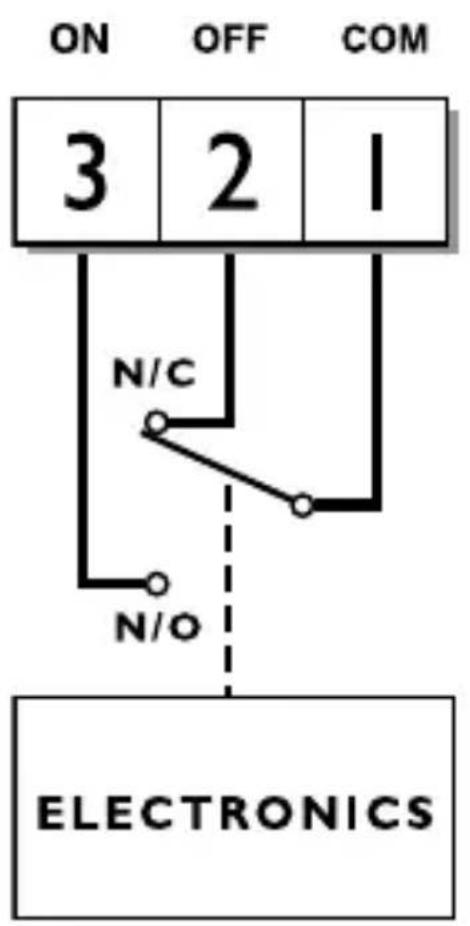
| Wiring | No neutral or earth connection required; use only live and switched live |
Frequently Asked Questions - TP4 DANFOSS
User questions about TP4 DANFOSS
0 question about this device. Answer the ones you know or ask your own.
Ask a new question about this device
Download the instructions for your Thermostat in PDF format for free! Find your manual TP4 - DANFOSS and take your electronic device back in hand. On this page are published all the documents necessary for the use of your device. TP4 by DANFOSS.
USER MANUAL TP4 DANFOSS
Certification Mark

User & Installation Instructions
Danfoss 1

Installation Instructions 3-7
User Instructions 8-23

This product should only be installed by a qualified electrician or competent heating installer and should be in accordance with the current edition of the IEEE wiring regulations.
Installation Instructions
Product Specification
| Thermostat features TP4 TP5 | ||
| Power supply 2 x AA/MN1500/LR alkaline cells | ||
| 24 hour programming | ● | |
| 5/2 day programming | ● | |
| Memory back-up 1 min for battery change | ||
| Switching action of output relay | 1 x SPDT, Type 1B | |
| Switch rating of relay contact 6(2)A | 10-264Vac | |
| Temperature range 5-30°C | ||
| Dimensions, mm 98 wide, 81 high, B4 deep | ||
| Design standard EN60730-2-9 | ||
| Rated impulse voltage 2.5Kv | ||
| Ball hardness test 75°C | ||
| Control pollution situation Degree 2 | ||
| Temperature accuracy ±1°C | ||
| Time accuracy | ±1 min. | |


Installation
☐ There must be clearances of at least 110mm around the unit.
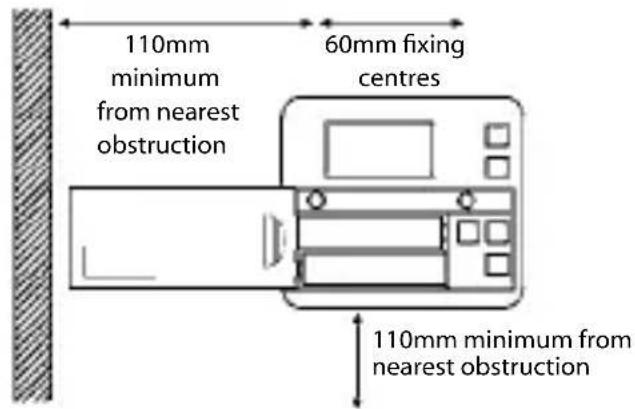
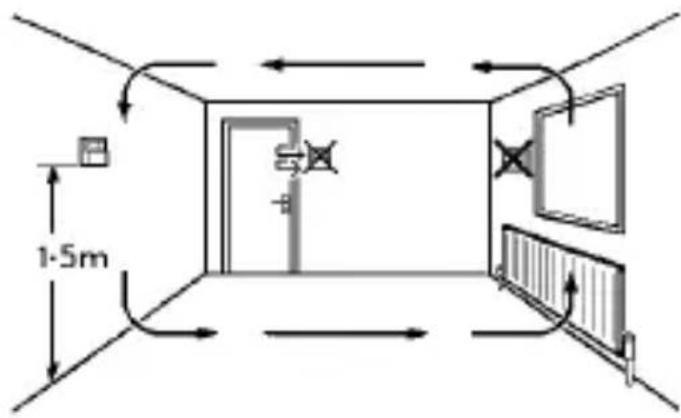
☐ Fix at a height of approximately 1.5m from the floor, away from draughts or heat sources such as radiators, open fires or direct sunlight.
Wiring

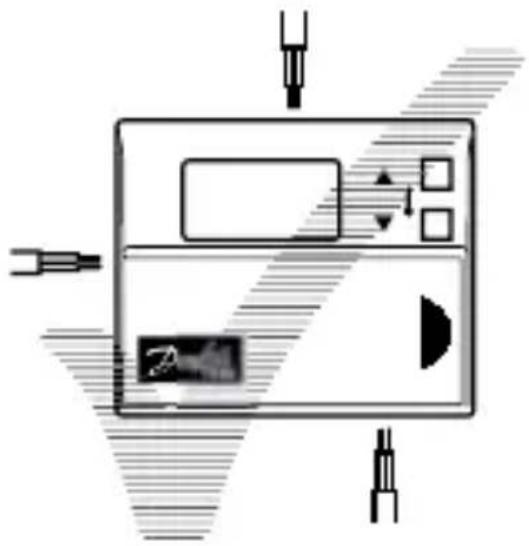
☐ Cable entry is from behind if fitted to a single gang flush box, or from above, below or from the left if surface fixed cable is used.


Wiring

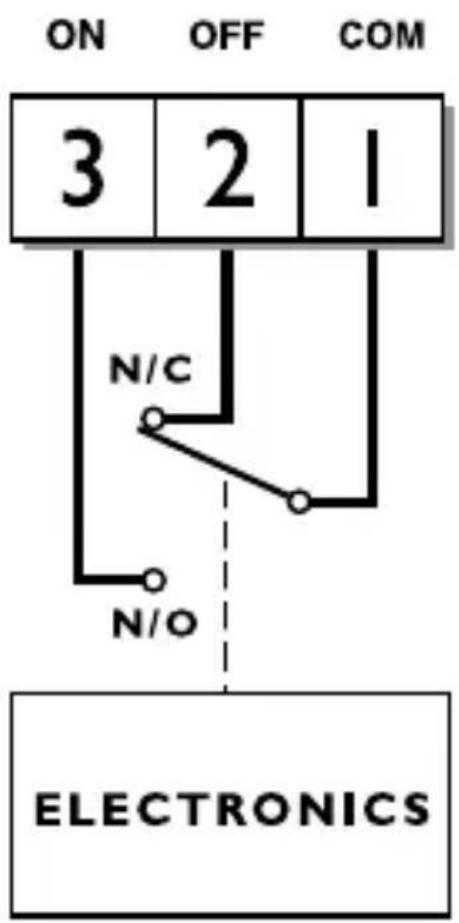
Some existing thermostats will have a Neutral wire and/or Earth wire connected. These are not required by the TP4/5 and must NOT be connected to any TP4/5 terminals. Instead they should be made electrically safe and coiled in the recess at the back of the TP4/5.



What is a programmable room thermostat?
... an explanation for householders.
A programmable room thermostat is both a programmer and a room thermostat. A programmer allows you to set 'On' and 'Off' time periods to suit your own lifestyle. A room thermostat works by sensing the air temperature, switching on the heating when the air temperature falls below the thermostat setting, and switching it off once this set temperature has been reached.
So, a programmable room thermostat lets you choose what times you want the heating to be on, and what temperature it should reach while it is on. It will allow you to select different temperatures in your home at different times of the day (and days of the week) to meet your particular needs.
Turning a programmable room thermostat to a higher setting will not make the room heat up any faster. How quickly the room heats up depends on the design of the heating system, for example, the size of boiler and radiators.
Neither does the setting affect how quickly the room cools down. Turning a programmable room thermostat to a lower setting will result in the room being controlled at a lower temperature, and saves energy.
The way to set and use your programmable room thermostat is to find the lowest temperature settings that you are comfortable with at the different times you have chosen, and then leave it alone to do its job. The best way to do this is to set low temperatures first, say 18^ , and then turn them up by one degree each day until you are comfortable with the temperatures. You won't have to adjust the thermostat further. Any adjustments above these settings will waste energy and cost you more money.
If your heating system is a boiler with radiators, there will usually be only one programmable room thermostat to control the whole house. But you can have different temperatures in individual rooms by installing thermostatic radiator valves (TRVs) on individual radiators. If you don't have TRVs, you should choose a temperature that is reasonable for the whole house. If you do have TRVs, you can choose a slightly higher setting to make sure that even the coldest room is comfortable, then prevent any overheating in other rooms by adjusting the TRVs. The time on the programmer must be correct. Some types have to be adjusted in spring and autumn at the changes between Greenwich Mean Time and British Summer Time.
You may be able to temporarily adjust the heating programme, for example, 'Override', 'Advance' or 'Boost'. These are explained in the manufacturer's instructions. Programmable room thermostats need a free flow of air to sense the temperature, so they must not be covered by curtains or blocked by furniture. Nearby electric fires, televisions, wall or table lamps may prevent the thermostat from working property.

User Instructions
Your programmable room thermostat
TP4 & TP5 room thermostats let you programme up to 6 times and temperatures at which your heating will come on and go off each day. With the TP5 you can programme one set of times and temperatures for weekdays and another set for weekends. They feature several user overrides including frost protection.
The TP4 & TP5 come ready programmed with a set of operating times and temperatures which often suit most people.
| TP4 - EverydayTP5 - Weekdays (Mon-Fri) TP5 - Weekend (Sat-Sun) | |||||
| Event Time Temp °C | Event Time Temp °C | ||||
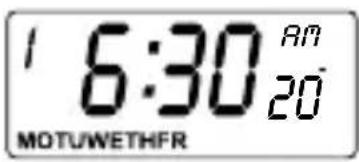
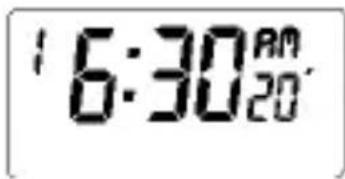
| 1 | 6:30am 20 1 7:00am 20 | ||||
| 2 | 8:30am 16 2 10:00am 16 | ||||
| 3 12:30pm 19 3 12:00pm 19 | |||||
| 4 1:30pm 16 4 2:00pm 16 | |||||
| 5 5:30pm 21 5 5:00pm 21 | |||||
| 6 10:30pm 16 6 10:30pm 16 | |||||
If you want to change any of these settings you can do so by following the instructions on page 16-17 (TP4) or pages 18-19 (TP5).
First, follow the steps on pages 12-15 to set the correct time and date.

Before you start
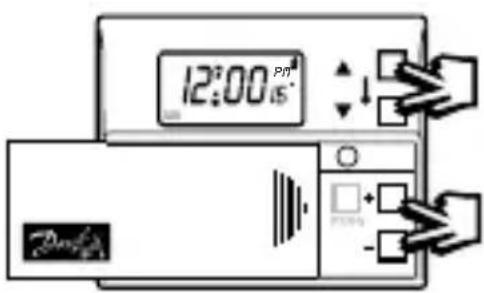
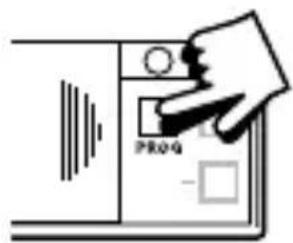
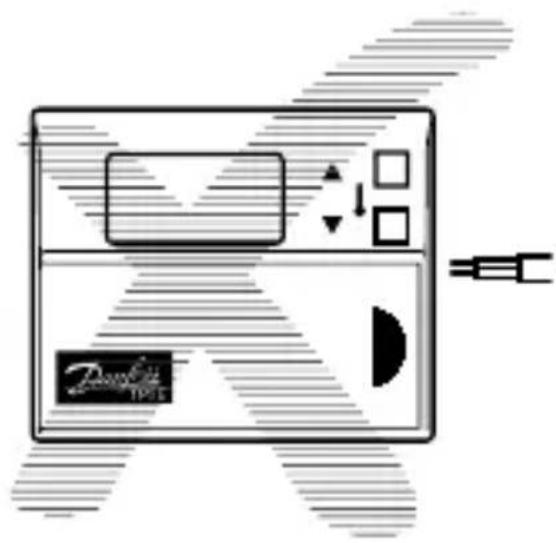
Slide the battery cover to the left to reveal the programming buttons.
Press and hold the +,-, ▲ & ▼ buttons at the same time, to reset the unit.
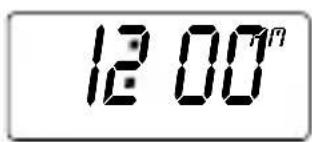
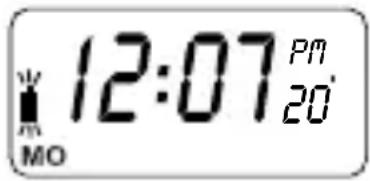
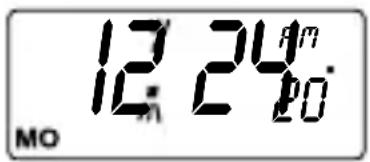
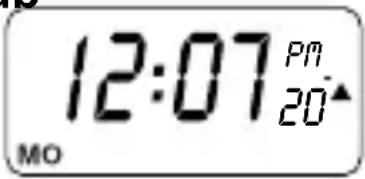
This will reinstate the preset programmes and will set the time to 12:00 on Monday (MO) and the temperature to 16°C.
CLOCK
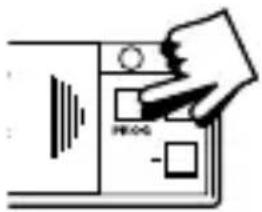
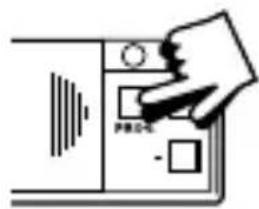
Press PROG to begin programming.
Use + or - to adjust the TIME (press and hold to change in 10 min increments).
DAY (TP5 only)
Press PROG again.
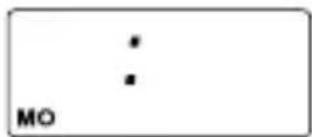
Use + or - buttons until correct DAY is shown (MO = Monday, TU = Tuesday, etc)
Press PROG again to accept the settings.
! Remember - you will have to reset the time when the clocks change in • Spring and Autumn.


Running your programme
If you are happy to use the preset programmes on page 11, you don't need to do anything else.
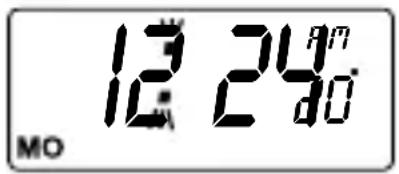
To accept the factory presets close the front cover and after 2 minutes the presettings will automatically be accepted.
Your unit is now in RUN mode and the heating will come on and go off at the programmed times.
Before you change the preset programmes

Please Note
The unit must be programmed in sequence and EVENT times cannot be programmed out of sequence.
The event 1 time setting can be set at any time of day (normally in the morning). The time settings for events 2 to 6 can only be placed between the previous setting and 1.59.
If you want to leave a preset time as it is, simply press PROG to move on to the next setting.
During programming, if no buttons are pressed for 2 to 3 minutes the unit will automatically return to RUN mode, and the programme set up to that minute will be active.
If at any time you get confused and need to reset the unit to the preset programmes, press and hold the +, -, ▲ & ▼ buttons at the same time.

Changing the preset programmes - TP4
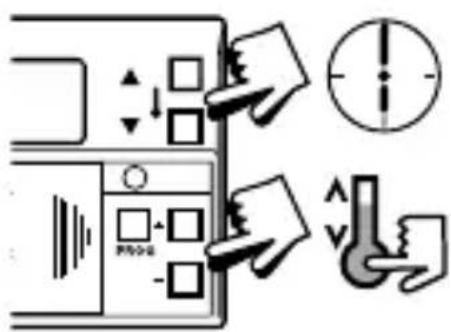
a) Press PROG twice to show the 1st pre-set time and temperature (Event 1).
b) Use + or - buttons to adjust the TIME (press and hold to change in 10 min increments).
c) Use ▲ or ▼ buttons to adjust the TEMPERATURE.
d) Press PROG to move to next preset time & temperature (Event 2).
e) Repeat steps b, c & d for programming Events 3, 4, 5 & 6.

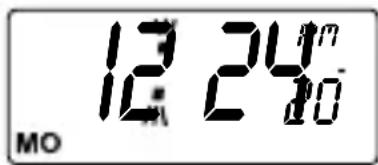
Press PROG until the colon in the LCD display starts to flash.
The unit is now in RUN mode and the heating will come on and go off at the programmed times
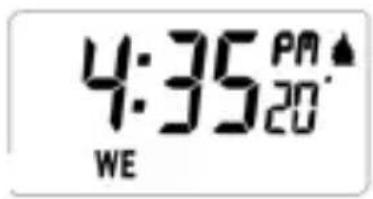
Note: A flame symbol will appear in the display whenever the thermostat is calling for heat.
! Ensure the TP4 is in RUN mode before sliding the cover shut.
Please go to page 20.


Changing the preset programmes - TP5
For Days 1-5 (weekdays)
a) Press PROG 3 times to show the 1st pre-set time and temperature (Event 1, MOTUWETHFR). Please note MOTUWETHFR is the abbreviation for the days of the week.
b) Use + or - buttons to adjust the TIME (press and hold to change in 10 min increments).
c) Use ▲ or ▼ buttons to adjust the TEMPERATURE.
d) Press PROG to move to next preset time & temperature (Event 2, MOTUWETHFR).
e) Repeat steps b, c & d for programming Events 3, 4, 5 & 6.


For Days 6-7 (weekends)
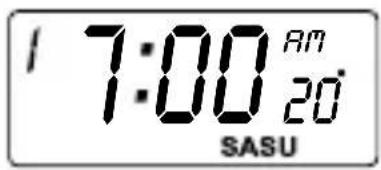
☐ Press PROG to show 1st pre-set time and temperature (Event 1, SASU).
☐ Repeat steps b, c and d on previous page to programme time and temperature events for the weekend.
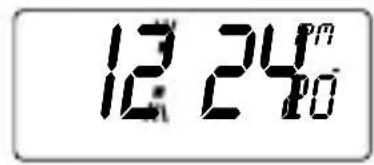
Press PROG until the colon in the LCD display starts to flash.
The unit is now in RUN mode and the heating will come on and go off at the programmed times.
Note: A flame symbol will appear in the display whenever the thermostat is calling for heat.
! insure the TP5 is in RUN mode before sliding the cover shut.


User Overrides
Sometimes you may need to change the way you use your heating temporarily, i.e. due to unusually cold weather. The TP4 and TP5 have several user overrides, which can be selected without affecting the thermostat programming.
Temporary override of programmed temperature
The override buttons, ▲ and ▼, can be used to temporarily override the events you have programmed.
For example, you may arrive home early and while you normally have the thermostat set for 16^ C, you may require more heat now. By pressing the up button ▲ on the front of the TP5, the set temperature on the top right of the display begins to increase.
☐ Press ▲ or ▼ until required temperature is displayed.
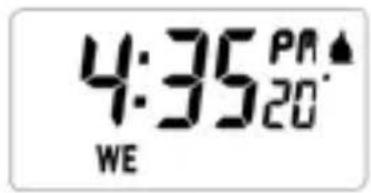
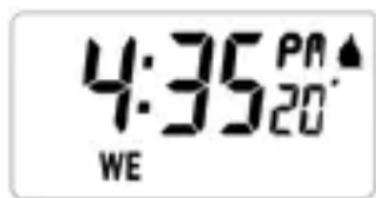
☐ An up or down arrow (▲ or ▼) will appear in the display to remind you that you have over-ridden the programmed temperature.
The TP5 will remain at this higher temperature until the next pre-set temperature change.




Frost Protection
A constant low temperature of 5^ C can be selected whilst away from home. Setting the thermostat to this temperature will effectively switch off the heating and provide frost protection to areas of the house with central heating.
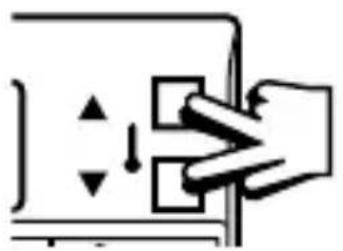
☐ To set, press the ▲ and ▼ buttons at the same time. The display will show a blinking colon, the low temperature (5°C) and a snowflake.
☐ To return to automatic programming press ▲ and ▼ together again.
natural_image
Simple line drawing of a hand pressing down on a rectangular object with arrows indicating movement (no text or symbols)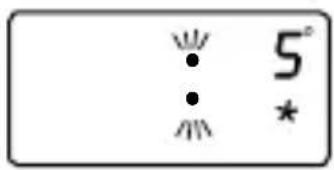
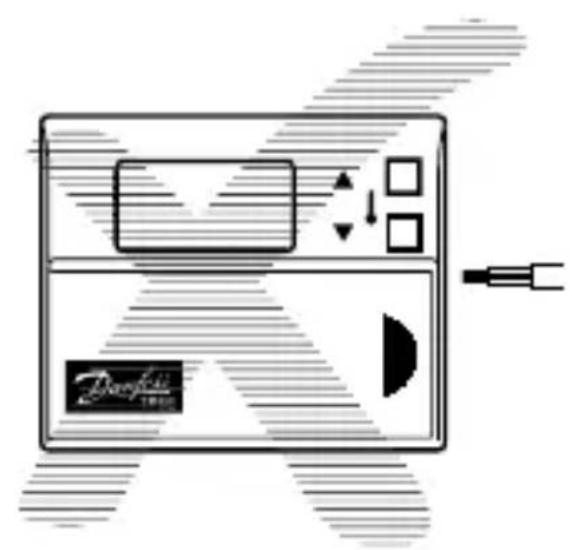
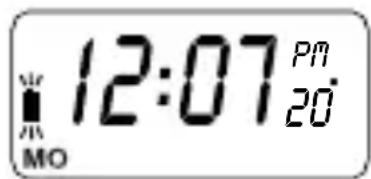
☐ When batteries are low a battery symbol will flash in the LCD display.
☐ You have 15 days to replace the battery before the unit will switch off.
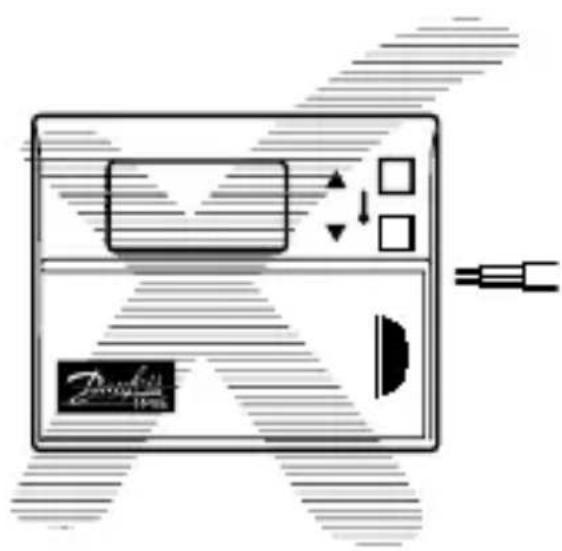
☐ When changing batteries, remove old batteries and insert new ones within one minute and programming will not be lost.
IMPORTANT: always use high quality alkaline batteries.
NB. If the display ever goes blank during normal operation, the batteries will need to be renewed, the unit reset and the time and programmes reset.


| TP4 – Cada díaTP5 - Dias de la semana (Lun- Vier) TP5 | ||
| Evento Hora Temp °C Evento Hora | ||
| 1 | 6:30am 20 | 1 7:00am 20 |
| 2 | 8:30am 16 | 2 10:00am 16 |
| 3 12:30pm 19 3 12:00pm 19 | ||
| 4 1:30pm 16 4 2:00pm 16 | ||
| 5 5:30pm 21 5 5:00pm 21 | ||
| 6 10:30pm 16 6 10:30pm 16 | ||
| - Fin de Semana (Sab-Dom) | ||
| Temp °C | ||






natural_image
Simple line drawing of a hand pressing down on a rectangular object with arrows indicating movement (no text or symbols)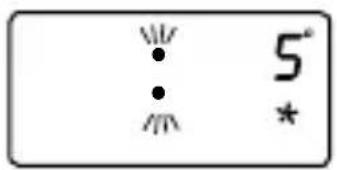

Cambio de pilas




natural_image
Simple line drawing of a hand pressing down on a rectangular object with directional arrows (no text or symbols)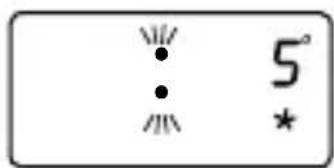

| TP4 – CodziennieTP5 - Dni robocze (Pon-Pi tek) TP5 - W | ||
| Nastawa Czas Temp °C | Nastawa Cz | |
| 1 | 6:30am 20 | 1 7:00am 2 |
| 2 | 8:30am 16 | 2 10:00am |
| 3 12:30pm 19 3 12:00pm 19 | ||
| 4 1:30pm 16 4 2:00pm 16 | ||
| 5 5:30pm 21 5 5:00pm 21 | ||
| 6 10:30pm 16 6 10:30pm 16 | ||
| kend (Sob-Niedz) | ||
| Temp °C | ||
ZEGARA


natural_image
Simple line drawing of a hand pressing down on a rectangular object with arrows indicating motion (no text or symbols)
Wymiana baterii
www.danfoss.com/BusinessAreas/Heating
This product complies with the following EC Directives: Electro-Magnetic Compatibility Directive.
(EMC) (89\336\EEC). (92\31\EEC)
Low Voltage Directive.
(LVD) (73\23\EEC), (93\68\EEC)

Part No 6218 Issue 3 05/06

natural_image
Simple line drawing of a trash bin with two crossed lines (no text or symbols)


- Installation Instructions
- Installation
- Wiring
- What is a programmable room thermostat?
- User Instructions
- Your programmable room thermostat
- Before you start
- CLOCK
- DAY (TP5 only)
- Running your programme
- Before you change the preset programmes
- Please Note
- Changing the preset programmes - TP4
- Changing the preset programmes - TP5
- For Days 1-5 (weekdays)
- For Days 6-7 (weekends)
- User Overrides
- Temporary override of programmed temperature
- Frost Protection
- IMPORTANT: always use high quality alkaline batteries.
- Cambio de pilas
- ZEGARA
- Wymiana baterii
- www.danfoss.com/BusinessAreas/Heating
Brand : DANFOSS
Model : TP4
Category : Thermostat