SV1654DX4I - Computer Accessories StarTech.com - Free user manual and instructions
Find the device manual for free SV1654DX4I StarTech.com in PDF.


User questions about SV1654DX4I StarTech.com
0 question about this device. Answer the ones you know or ask your own.
Ask a new question about this device
Download the instructions for your Computer Accessories in PDF format for free! Find your manual SV1654DX4I - StarTech.com and take your electronic device back in hand. On this page are published all the documents necessary for the use of your device. SV1654DX4I by StarTech.com.
USER MANUAL SV1654DX4I StarTech.com
16/ 32 Port 4 User Cat5 Matrix IP KVM Switch
SV1654DX4I
SV3254DX4I

natural_image
Black StarTech platform device with USB ports and indicator lights (no readable text or symbols beyond branding)*actual product may vary from photos
For the most up-to-date information, please visit: www.startech.com
FCC Compliance Statement
This equipment has been tested and found to comply with the limits for a Class B digital device, pursuant to part 15 of the FCC Rules. These limits are designed to provide reasonable protection against harmful interference in a residential installation. This equipment generates, uses and can radiate radio frequency energy and, if not installed and used in accordance with the instructions, may cause harmful interference to radio communications. However, there is no guarantee that interference will not occur in a particular installation. If this equipment does cause harmful interference to radio or television reception, which can be determined by turning the equipment off and on, the user is encouraged to try to correct the interference by one or more of the following measures:
• Reorient or relocate the receiving antenna.
- Increase the separation between the equipment and receiver.
- Connect the equipment into an outlet on a circuit different from that to which the receiver is connected.
- Consult the dealer or an experienced radio/TV technician for help.
Use of Trademarks, Registered Trademarks, and other Protected Names and Symbols
This manual may make reference to trademarks, registered trademarks, and other protected names and/or symbols of third-party companies not related in any way to StarTech.com. Where they occur these references are for illustrative purposes only and do not represent an endorsement of a product or service by StarTech.com, or an endorsement of the product(s) to which this manual applies by the third-party company in question. Regardless of any direct acknowledgement elsewhere in the body of this document, StarTech.com hereby acknowledges that all trademarks, registered trademarks, service marks, and other protected names and/or symbols contained in this manual and related documents are the property of their respective holders.
Table of Contents
Installation ....1
Package Contents .... 1
Required Cables and Hardware ....1
Hardware Installation .... 1
Configuration 3
Using the On-Screen Display 3
Using DHCP 5
Web Configuration Using Static IP....6
Connecting the Host Computer to the Unit 7
Disabling Mouse Acceleration on the Host Computer 7
Windows 2000 8
Windows XP and Windows Server 2003 8
Linux, UNIX and X-Windows 8
Connecting the SV5CONS Remote User Station (Optional) 8
Using the Web Interface 9
The Login Screen....10
Web Interface Introduction....11
Booting from USB Disk: 17
VNC....17
Admin Functions ....18
Network Configuration....18
User Accounts....20
System Identification....21
Info Functions....27
The VNC Interface 29
Native VNC Client 30
Bribar Feature 31
VirtKeys Menu 35
Video Tuning Menu 35
Disk Control Menu 40
Accessing KVM Features ....40
OSD Operations 40
OSD Function Keys 41
Using the Modem feature ....42
Background 42
Connecting a Modem 42
Modem configuration 43
Configuring the Remote Connection ....44
Accessing the Web Interface 45
Modem Troubleshooting Guide ....46
About Security Certificate Warnings 46
Installing the new certificate ....47
Built-in Terminal Emulation ....48
How to find the Built-in Terminal Emulator....48
Navigating the Menus....48
How to create a New Connection (Using the Wizard) 49
Troubleshooting ....53
Technical Specifications ....55
Caution 56
Technical Support 57
Warranty Information 57
Introduction
Package Contents
• 1 x CAT5 Multi-user KVM
- 1 x Power Cord
• 1 x Rack Mounting Hardware
• 1 x Instruction Manual
Required Cables and Hardware
Depending on your needs, you may need one or more of the following cables. Please note that the corresponding StarTech.com part numbers are listed in brackets:
All applications:
- For connection to a LAN: 1 x Straight-through Ethernet patch cable (M45PATCHxxxx)
• DB9F to RJ45F Adapter (GC98FF, GC98MF)
• PS/2 Server Interface Module for Enterprise Series (SV5PS2M)
• USB Server Interface Module for Enterprise Series (SV5USBM)
Installation
Hardware Installation
To connect the KVM Remote Control Unit to the Host Computer and Network:
- Using a Category 5 Ethernet patch cable, connect the LAN connector on the rear panel of the SV3254DX4I to a network data jack (usually on a hub, switch, router, or pre-wired wall jack).
- Connect a standard PS/2 or USB keyboard to the Local Keyboard port on the rear panel of the SV3254DX4l.
- Connect a standard PS/2 or USB mouse to the Local Mouse port on the rear panel of the SV3254DX4l.
- Connect an XGA-compliant (or higher) monitor to the Video Out port on the front panel of SV3254DX4l.
- Connect the power cord (provided) to an available electrical outlet. Plug the opposite end of the power cord into the AC power connector on the rear of the unit.
- Power up the KVM.
Enterprise Series "Matrix CAT-5 Digital KVM Switch"

text_image
StartTechcomm Front View Local User Drive Crash CartUSB Flash Rear View External USB Hard Drive (30 ft cable) PCM815SHNA (1000 ft cable) SV5USBM LAN/WAN Remote User SV5CONS (Rear) SV5CONS (Front) Remote Analog User StationIMPORTANT: SV3254DX4I is cooled by fans and convection. As such, please ensure the vents on both sides as well as the rear panel are unobstructed
Configuration
The KVM Switch offers four distinct methods for configuring the unit for your network. Which method will work best will depend on your level of experience and your specific network configuration.
Using the On-Screen Display
Upon initial boot, you will require an administrative username and password. By default, the username and password are both: admin. You will be given the opportunity to change the password (recommended), once the configuration is complete.
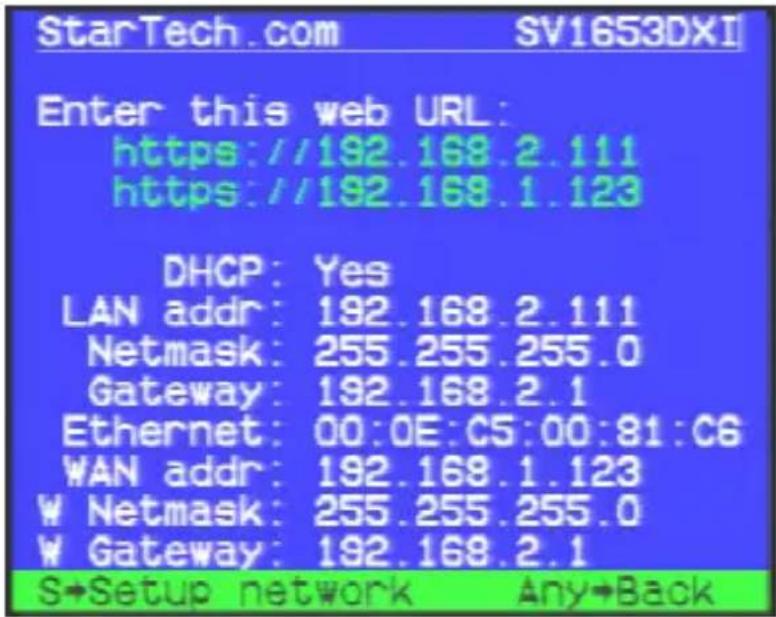
The DHCP assigned IP Address will be visible at this time, at the bottom of the screen. If no DHCP server is detected, a factory assigned IP address will be displayed in its place (10.0.0.15 by default). Please make note of the assigned IP address, as you will need to enter it into your web browser to access the Web Interface.

text_image
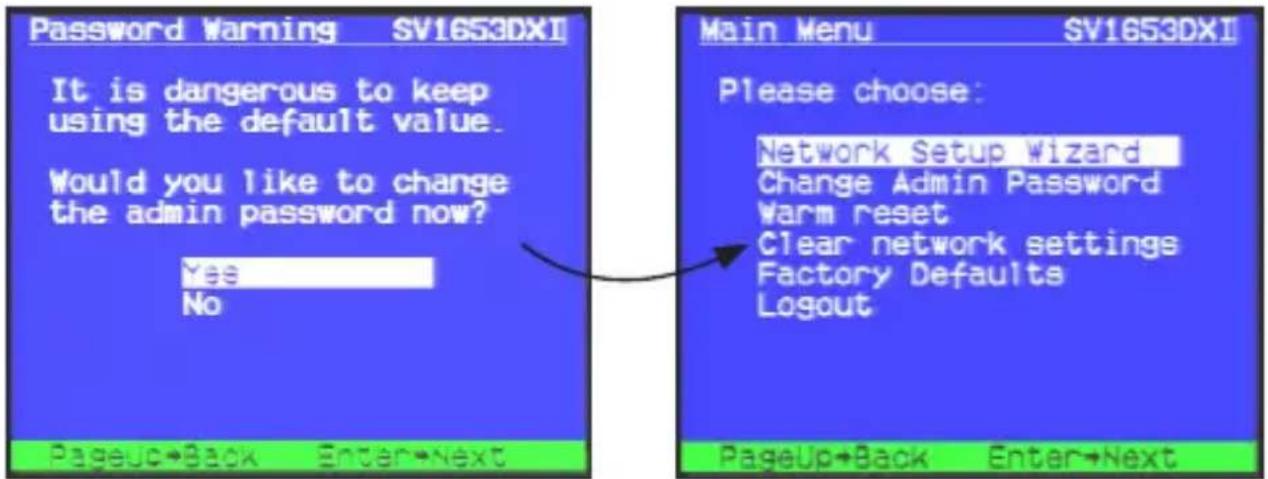
StarTech.com SV1653DXI Please login. Username: admin Password: xxxxx StarTech.com SV1653DXI Name Status 1- 2- 3- 4- 5- 6- 7- 8- 9- 10- ?+Help P+ResetKM L+Logout BSC+ [TCP/IP and Setup]Once the username and password (admin, admin) have been entered, a status window will appear. Press "I" to proceed to the Main Menu screen. You will be asked if you wish to change the default password. Select Yes or No as appropriate, then press Enter to continue. If no DHCP connection is present, press the Setup button on the rear panel of the KVM switch to display the Main Menu screen, where you will be given several basic setup options:
text_image
Password Warning SV1653DXI It is dangerous to keep using the default value. Would you like to change the admin password now? Yes No PageUp+Back Enter+Next Main Menu SV1653DXI Please choose: Network Setup Wizard Change Admin Password Warm reset Clear network settings Factory Defaults Logout PageUp+Back Enter+NextIf static IP addresses are assigned, you will likely need to change the Net Mask, IP Address and other details, prior to connecting via your Web browser. If this is the case, connect a local keyboard (USB or PS/2) and press the Enter key.
To configure the KVM Switch to your required network settings, use the Network Setup Wizard. To select from the menus provided, use the arrow keys on your keyboard. At any time, you can return to the previous menu by pressing the Page Up key.
text_image
StarTech.com SV1653DXI Enter this web URL: https://192.168.2.111 https://192.168.1.123 DHCP: Yes LAN addr: 192.168.2.111 Netmask: 255.255.255.0 Gateway: 192.168.2.1 Ethernet: 00:0E:C5:00:81:C6 WAN addr: 192.168.1.123 W Netmask: 255.255.255.0 W Gateway: 192.168.2.1 S+Setup network Any+BackUsing DHCP
This method requires that your network implement DHCP (Dynamic Host Configuration Protocol), usually on a server or network access device such as a router, that dynamically allows devices to join the network without pre-configuration.
Please note: The OSD will report the IP address as assigned by the DHCP server. If you have a directly connected monitor, the following steps are not required.
If the unit is powered on and connected to the network via LAN port on the rear panel, it will automatically attempt to lease an IP address using DHCP. Before you can begin the configuration process, you will need to access the DHCP log from your file server or another device that acts as the DHCP server on the network. (You may need to contact your Network Administrator for this information).
A simple DHCP log should supply (at minimum) three essential details: IP address, MAC address, and device (or machine) name for the computers and other devices connected to your network.
| DHCP Client Log | ||
| DHCP Client Log View your LAN client's information that are currently linked to the Broadband router's DHCP server. Numbers of DHCP Clients: 3 | ||
| ip=192.168.22.3 | mac=00-03-93-D1-D7-18 | name=stpcpm18 |
| ip=192.168.22.4 | mac=00-0E-CS-00-08-1A | |
| ip=192.168.22.5 | mac=00-00-39-03-56-D6 | name=STPCMOBILE01 |
The values for the SV3254DX4I tested above are as follows:
IP Address: 192.168.22.4
MAC Address: 00-0E-C5-00-08-1A
Device Name: (none)
The easiest way to identify your SV3254DX4I on the network is by its MAC address - a unique hardware identifier that is specific to your unit. The MAC address of the unit can be found using the OSD setup screen;
please write this number down and keep it for future reference. Once you locate the MAC address of your unit in the DHCP log, you can match it to its leased IP address and proceed with the Web configuration.
Please note:
- Once you have located the IP address of the SV3254DX4I and wish to proceed with the Web configuration, do not power off the unit or your DHCP server, since the Enterprise Class KVM might lease a different IP address. Should this happen, re-examine the DHCP log to verify the IP address again.
- DHCP functionality is not affected if you also connected the WAN port on the SV3254DX4I to your network (see below). However, it is not recommended that you connect both the WAN and LAN ports to the same network segment.
Web Configuration Using Static IP
The DHCP access method described above would not apply to networks that rely on static IP addresses (every device has a pre-configured IP address that does not change). To accommodate this type of installation, the WAN port on the rear panel of the KVM Switch is factory-configured with its own IP address.
Please note:
If you connected the LAN port on the rear panel of the unit to your network, but did not connect the WAN port, you must disconnect the Ethernet cable from the LAN port and move it to the WAN port before attempting a static IP installation. (If desired, you can return the cable to the LAN port if you configure it with a static IP address during the configuration process.
If you have connected both the LAN and WAN ports on the unit to your network, you may proceed with a static IP Web configuration.
The following are the factory default values for the WAN port:
IP Address: 192.168.1.123
Subnet Mask: 255.255.255.0
Default Gateway: 192.168.1.254
Broadcast: 192.168.1.255
To access the Web configuration for this product, you will need to configure the workstation you are using to the same subnet (255.255.255.0) and also assign it a valid IP address (i.e. 192.168.1.100). For details on how to change the IP address of your computer (if necessary), consult your documentation or System Administrator for assistance.
Please note:
- In order to avoid a conflict, it is advisable to verify whether another device on your network is using the same IP address as the KVM Switch before connecting it to the network.
- Should an IP address conflict occur with another device on the network, power off the conflicting device or assign it another IP address before continuing the installation.
- If you are configuring more than a single matrix KVM switch unit using the factory default settings on the WAN port, they cannot be connected to the network at the same time, as they will use the same IP address.
- Not all IP addresses are valid for a given subnet. If you are required to change your subnet (and therefore IP address) to configure the unit, be sure the IP address you choose is within the allowable range for the 255.255.255.0 subnet.
Once your computer is configured to the same subnet as the KVM switch, you can use the IP address 192.168.1.123 to access the Web configuration system.
Connecting the Host Computer to the Unit
Please note: It is strongly recommended that all systems supporting USB use the USB server interface modules (see StarTech.com part # SV5USBM). PS/2 modules (SV5PS2M) are available for legacy systems.
If present, disconnect the existing monitor and PS/2 or USB keyboard/mouse from the host computer.
- Connect the PS/2 keyboard and mouse or USB connector to the host computer.
- Connect the VGA connector to the host computer.
- Connect the Server Interface Module (SV5PS2M or SV5USBM) to the KVM with a straight through CAT5 cable.
- Power on the host computer.
Disabling Mouse Acceleration on the Host Computer
Please note: If the SV5USBM (USB version) is used with a modern Windows O/S computer, there is no need to disable mouse acceleration. Only PS/2 systems, or USB systems with Linux or UNIX operating systems require this change. Ignore this section in that case.
Many operating systems offer a feature called mouse acceleration, allowing the user to adjust the responsiveness of the cursor on the screen in relation to physical movements of the mouse. While this is usually a beneficial interface enhancement, it will interfere with the operation of the KVM Switch and should be disabled on the host computer before a remote session is attempted.
To disable mouse acceleration for the host computer operating system:
Windows 98
- From the Control Panel, click on Mouse.
- From Mouse Properties, click on the Motion tab.
- Make sure the Pointer speed bar is centered and Acceleration is set to None.
Windows 2000
- From the Control Panel, click on Mouse.
- From Mouse properties, click on the Motion tab.
- Make sure that the Pointer speed bar is centered and Acceleration is Set to None.
Windows XP and Windows Server 2003
Go to Pointer Options and turn off Enhance Pointer Precision. Ensure that the pointer speed bar is centered.
Linux, UNIX and X-Windows
Add this command to your xinitrc, xsession or other startup script:
xset m 0/0 0
Also, under Pointer Control, verify that acceleration and threshold are zero, with the comma
xset q
Connecting the SV5CONS Remote User Station (Optional)
The remote user station allows for extended local control of attached host machines. To connect a remote user station:
- Connect a VGA monitor to the front of the SV5CONS.
- Connect a USB keyboard and mouse device. (Please note that some keyboards and mice may not work due to non-standard USB implementation)
- Connect a straight through CAT5 cable to port A on the user-station.
- Connect the power to the remote user station.
Please Note: The remote user station operates just like the local user port, except a few extra commands on OSD:
| Cause auto calibration to restart | |
| Go to A port | |
| Go to B port | |
| To switch A/B connections at any time (even if no KVM OSD is shown, or if current KVM is powered down). |
Please note that you may notice a pattern of vertical bars briefly displayed during distance calibration; this is normal. As such, please disregard.
Using the Web Interface
The Web interface offers the most intuitive way to configure the KVM Switch, as it provides a Java-based VNC client that can be used to control the host computer from a remote location, as well as support for any industry-standard HTML Web browser.
You can access the Web interface by opening your Web browser and entering the IP address of the KVM Switch you wish to access/configure. The IP address will be either the address assigned by your DHCP server as identified in the previous section, or 192.168.1.123 (if your network uses static IP addressing).
Using the KVM Switch's web interface requires a browser, with cookies and JavaScript enabled. To start the Java VNC client, login to the Web configuration interface and click on the thumbnail of the desktop on the Home menu, or click on the Connect button, located in the Main Menu.
You may need to upgrade Java support in your browser; however, most modern browsers come with a version of Java that is compatible with this application. The Java VNC client makes a connection back to the KVM Switch over port 5900 (by default) or 15900 (if encrypted). The encrypted connection is a standard SSL (Secure Socket Layer) encrypted link that encrypts all data from the session, including the actual video pictures.
Because Java is considered a “safe” programming language, the Java VNC client has some limitations. Certain special keystrokes cannot be sent, such as “Scroll Lock” on the keyboard.
This client software requires the use of Java 2 (JRE 1.4) to enable features like wheel mouse support. Sun Microsystems's Java site, www.java.com, is an excellent resource to ensure your browser and operating system are updated accordingly.
The Login Screen
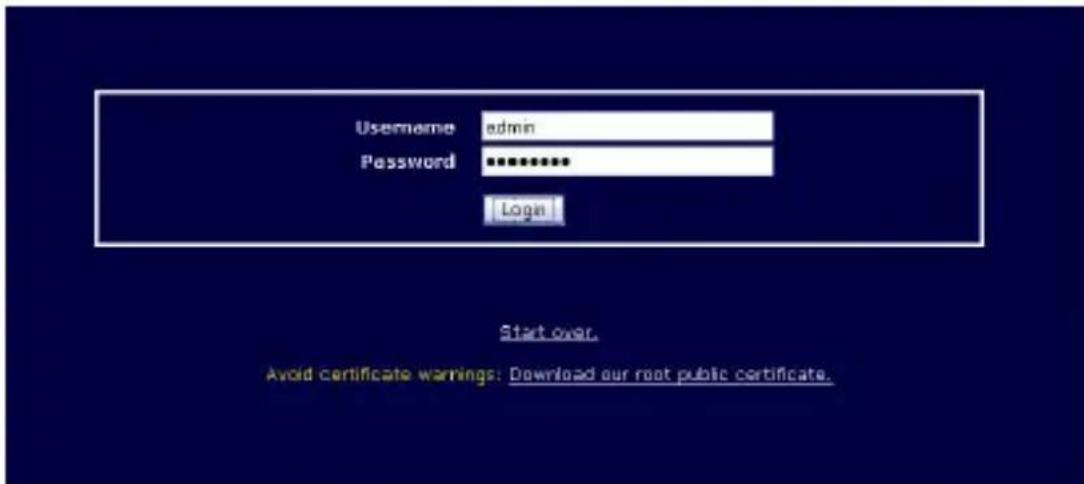
Before you can access the Web configuration interface, you must enter a username and password. The default username and password as shipped from the factory are username admin, with a password of admin.
text_image
Username admin Password ********** Login Start over. Avoid certificate warnings: Download our root public certificate.Please Note: Before the login screen appears, your Web browser may display a warning about an invalid security certificate. This does not affect the security of your data in any way.
Whenever you are prompted about a certificate security problem by your browser or the Java VNC client, always choose the option to continue.
Web Interface Introduction
Home

text_image
Attached Systems Port Hemens Description Contract Record Changes File Refresh Transderer or view (after adding)Name Descriptions Contract Type S users
1 Local 4 VNC 2 3 4 5 6 7 8 9 10 11 12 13 14 15 16 17 18 19 20 21 22 23 24 25 26 27 28 29 30 31 32 Current users Port User Viewing From Local VAC [ms] New 3 1 VNC-A 1 VNC-B 1 VNC-C 1 VNC-D 1 USB File Transfer File Name Actions Type Run Date Put files here....TXT Include File 6 08-10-2023 L1.54 System Default and errors. System Identification My IP adder: 16.6.1.196/202.148.L.123 Host returned to home to Not Address to for access? Descriptions to description? Location: Unknown location? Contact to contact? Change Data VNC client options VNC Callback USB File Transfer Device VN in patients to control by all the pet is named in the file. New version of it own a VNC at server, installed, or if a or server is already open, it will which be appropriate to account. Description and content card names are also displayed here. Be sure in it the Record Changes before reading in another part. USB File Transfer Lacked and removed data files to the local used USB disk bank, include if we insert button. Unis of new files using it not any in the file. System Identifications Identification used for this windows. Daily changed and identified for your next purpose. VNC client options VNC Callback If you have an VNC client. I beginning an your email box. write ID, ID can be done to write this VNC CLIENT BY ID TO .12008. I read a file. Active VNC client storage file. If your server is supported by: we send you to file, then use the VNC client's file. Home your mail by a mail on: Home your mail. Use.After the initial login screen, the Home screen will appear, offering a Screen Thumbnail view of the controlled computer, as well as basic file transfer functions, Monitoring Information, System Identification and VNC Client options.
Name: At the top of the screen, the name of the machine being controlled is displayed
Tip line: The area directly below the Name indicates what function each selection from the Main Menu performs. "Hover" the mouse pointer over each individual listing in the Main Menu to update this message according to the function performed by each listing.
Main Menu: At the left-most side of each page, the Main Menu is displayed, allowing users to choose functions offered by the Web Interface.
The following elements of the Web Interface may not be available, based on assigned user privileges (i.e. non-admin users will not see any items under the Admin category.)
Current users
Port User Viewing From
Local VGA admin 10 n/a
User 1 admin 5 n/a
VNC-A admin 1 10.0.0.144:3317
VNC-B admin 1 10.0.0.144:3326
VNC-C admin (none) 10.0.0.125:3044
VNC-D admin 1 10.0.0.125:2999
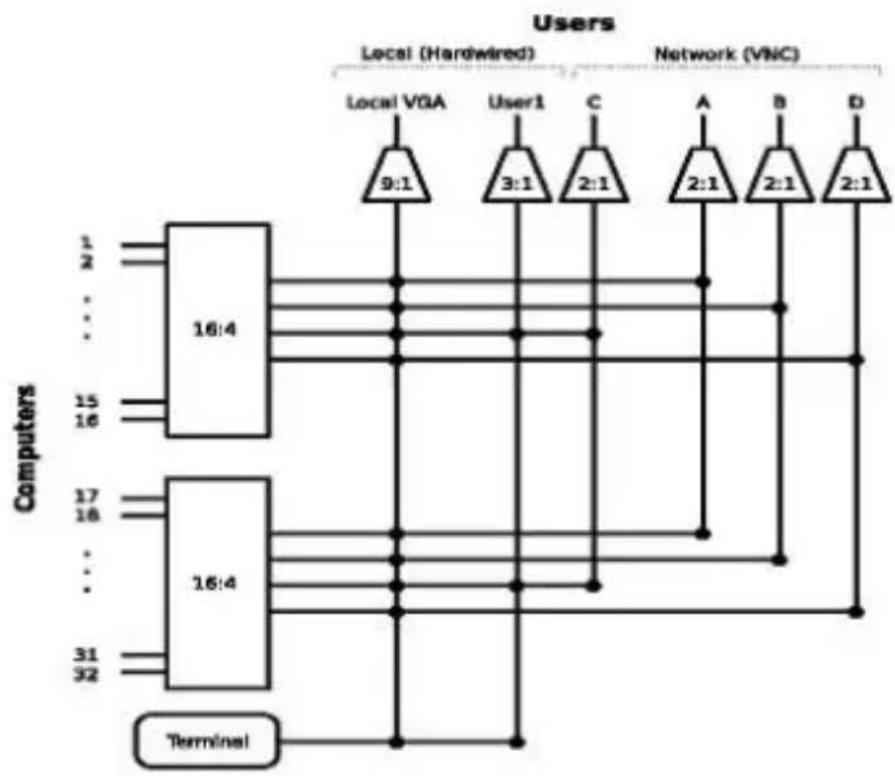
The KVM Switch supports four / five independence non-blocking accesses to 16/32 servers. These four / five independence non-blocking accesses can be controlled from six different sources, and these are one Local VGA, one User 1, and four VNC-(A, B, C and D)s.
The access priority and combination from these six sources to the four / five independent non-blocking accesses is shown in the following diagram:
- The SV3254DXI4 has two 16:4 (16 input and 4 output) matrices. The 16 channel CAT5 switch has one 16:4 matrix.
- The ways of connecting the six different sources to the 4 output of the 16:4 matrix are:
a. Local VGA is connected to all 4 outputs of the 16:4 matrix and will automatically switch between them according to the output resources.
b. Each of the four VNC-(A, B, C and D) channels are connected to one of the 4 outputs of the 16:4 matrix. User 1 is connected to the same output as VNC-C.
c. User 1 has higher priority than VNC-C, which means that VNC-C will not be available when User 1 is being used.
d. Since SV3254DXI4 consists of two 16:4 matrix, it can provide five independence non-blocking accesses as long as they don't access the same 16:4 matrix.
- Both Local VGA and User 1 provide access to the Built-in Terminal Emulation.
flowchart
graph TD
    subgraph Users
        A["Local VGA"] --> B["9:1"]
        C["User1"] --> D["3:1"]
        E["C"] --> F["2:1"]
        G["A"] --> H["2:1"]
        I["B"] --> J["2:1"]
        K["D"] --> L["2:1"]
    end
    subgraph Computers
        M["16:4"] --> N["16:4"]
        O["15"] --> P["16"]
        Q["17"] --> R["18"]
        S["31"] --> T["32"]
    end
    subgraph Network (VNC)
        U["Terminal"] --> V["2:1"]
        W["2:1"] --> X["2:1"]
        Y["A"] --> Z["2:1"]
        AA["B"] --> AB["2:1"]
        AC["D"] --> AD["2:1"]
    end
    style Users fill:#f9f,stroke:#333
    style Computers fill:#ccf,stroke:#333
    style Network (VNC) fill:#cfc,stroke:#333
Thumbnails
The Thumbnails screen provides a thumbnail view of connected computers, and allows you to click through for direct monitoring of any of the displayed devices. The thumbnails will update periodically.
User Preferences
The User Preferences screen offers several configuration options, pertaining to the functionality of the KVM Switch on a per-user basis. Here, you will be able to customize settings to optimize overall performance, (e.g. Encryption options, VNC options, display and bandwidth options etc.), according to each user's individual preferences. Please save your selections by clicking the Save Changes button.
Logout
Clicking on Logout logs you completely out of the KVM Switch interface. You will have to login again to gain access to the web interface.
File Transfer
The KVM Switch is able to emulate a virtual USB disk drive on any host connected using the USB Server Interface Module (SV5USBS). Depending on configuration, it will appear to the host as a floppy drive (1.44MB), an 8MB RAM Disk or a CD-ROM. The host computer does not require any special drivers or other configuration. You can transfer files to the virtual disk at any time.
The KVM Switch will wait until the host is not using the disk, and add or remove the files.

text_image
Current Status Source disk contents here. Disk type: Cenovo RAM disk (3 MB/tes) Access: Road-write (Inserted) Binary disk image: Bandisk Change Disk Type 1.63M Floppy Ramdisk CD-ROM Format as Floppy Format as ramdisk CD-ROM image CD-ROM ISO Image http://202.8753.net/you/freepink18.xn Connect Access Raw Floppy/Ramdisk Images Browse Import Download current raw disk images Insert/Eject Disk This command is not generally required: Insert DiskWhen the host computer next looks at the drive, it will notice the changes. You can read files from the virtual disk at any time, as long as the host is not actively writing to the disk. All of this happens in the background, and you may treat the virtual disk as a shared drive without any restrictions.
- Access to the files is performed through the web interface. Contents of the root directory are shown on the home page. You can download files as you would any file on the web (right-click and Save target as).
• To upload a file, click Browse, select a file, and then click Upload. - Files and directories may be deleted using the Delete button situated to their right.
When emulating a floppy disk or RAM Disk, the data is stored in RAM on the KVM Switch itself. In order to emulate a CD-ROM disk drive, a web server is required to provide the CD-ROM image data. The Web server must be accessible to the unit, which communicates with it constantly as data is needed.
Floppy mode: Choose the Format as floppy button to switch to floppy mode. Under Windows, the drive will be identified as a “high density floppy” and will typically be assigned a drive letter of B:
The capacity is limited to 1.44 megabytes in this mode. The purpose of supporting floppy mode is to permit the use of floppy-disk images generated by other systems (e.g. the flash BIOS upgrade process is performed with a special floppy and is bootable, emergency repair disks are often floppy-based etc.). You can transfer bits from that floppy to the KVM Switch (use the upload disk image form) and boot from the special floppy.
RAM Disk mode: Choose the Format as RAM Disk button to switch to RAM Disk mode. This mode is intended to facilitate simple data transfer between the remote user and the host computer. It will be recognized by Windows as an 8MB removable disk and assigned a drive letter. You can easily drag and drop files up to 8MB in size to this device.
Disk Formats: When you choose the Format as... button, the disk image stored in RAM is formatted as an empty MS-DOS disk, with a single file called Put files here...TXT.
The KVM Switch is able to read most MS-DOS/Windows formatted disks and presents the files via the Web interface. However, disk emulation occurs at the lowest level, so other disk formats can be used if you have the tools needed to create and read the disk images.
At the bottom of the page are the upload and download options for the entire disk image. Any image that is exactly 1,474,560 bytes long will be treated as a floppy. Images of other sizes are supported up to 8MB.
CD-ROM Mode: The KVM Switch does not store any data in this mode. Instead, it emulates a USB CD-ROM drive with a disk inserted. The data from that disk must be provided by an external web server. You will need a copy of the CD-ROM contents that you want to emulate as an ISO file. This is a byte-for-byte copy of track one (the data track) of a data CD-ROM. The ISO file must be made available on a web server that can be accessed by the KVM Switch. To switch to this mode, type in a URL pointing to the ISO image, and click on Commit. The system will connect to the web server and test the file for access. If successful, you will be shown a short report on the file contents, and the disk will be ready to use.
Currently there is no other way to preview or browse the contents of the CD-ROM image, except from the host.
CD-ROM Web Server Requirements:
• Data must be hosted on a web server that the KVM Switch can access directly.
• An image of a bootable CD-ROM disk can be used by the BIOS to boot an operating syst
- The image file itself may be any size, but it will typically be less than 700Mb. Normally this file will be an ISO image (an ISO-9660 file system) but any disk image may be used.
- The web server must support "byte ranges". Persistent connections are used, if available, as this greatly improves performance. "Read-only" access is provided; writing is not supported.
• CD-Rom block size must be 2048 bytes. Unfortunately, XA-Data type tracks are not supp
Booting from USB Disk:
If the host computer's BIOS supports USB boot devices, it is possible to boot from the emulated CD-ROM or floppy - allowing complete operating system replacement without any on-site intervention.)
Please note that each BIOS manufacturer offers varying levels of support for USB boot devices and may require configuration methods that are unique (to the manufacturer) in order to utilize this feature. Similarly, please note that many BIOS's provide a simplified USB host stack and offer drivers that may not offer suitable reliability.
The first step is getting a bootable disk image onto the emulated floppy or CD-ROM. For CD-ROM images, you will need an .ISO image from a disk that contains special bits to enable booting ("El Torito" standard). Nothing special is needed when reading the ISO from a working, bootable CD-ROM.
To create a bootable floppy, you can format the emulated floppy from the target system, or read the data from a working boot floppy. This can be done from Windows using Disk Copy (right click on the drive letter in the Windows Explorer) or by using a program like "RAWRITE".
Once you have a bootable image (CD-ROM or floppy) working on the Enterprise Class KVM unit, you must adjust your BIOS settings to tell it to boot from a USB device.
Please note: You must select USB CD-ROM as the boot device for the BIOS, if using a CDROM image and USB Floppy if using a floppy image.
VNC
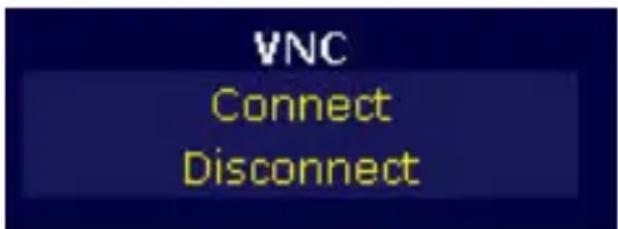
To launch or disconnect a Virtual Network connection with the controlled computer, click on Connect or Disconnect as appropriate.
text_image
VNC Connect DisconnectAdmin Functions
The Admin functions allow you to access all of the features you will need to perform an initial configuration of the KVM Switch.
Network Configuration

text_image
Network Configuration Please select. You are closing the Google bus network, so there exists any possible web 2008 to what you want. More changes have only your custom. Describe current network value when here. Dynamic Host Configuration Protocol (DHCP) Automatic network configuration using DHCP by NEW NAME: 1997 Current DHCP Inser information: router=10.0.0.254 subnet=255.255.255.0 dhcptype=5 interface=eth0 sieddr=10.0.0.55 IP Addresses and Routing IP Address: 10.0.0.185 Subnet count: 255.255.255.0 Ethernet ID: 0.0.0.0 Ethernet ID: 10.0.0.255 Ethernet ID: 192.168.1.123 Ethernet ID: 192.168.1.254 Ethernet ID: 192.168.1.255 Default gateway (or 0.0.0.0 or none): 0.0.0.0 Domain Name Server DNS Server Route: 1997-10-10-1-196 10.0.0.55 Default DNS Server with applicable DNS Code: Commit Network Changes Check how to save your change (key will be applied or not relevant): Connect to transmit network values immediately, make changes effective use Ethernet Address (MAC Address) LAN: 04:40:00:00:00:04 WAN: 04:40:00:00:00:05 Ethernet Bridging BIOU LIME/ETHI port together Recommended https://www.biou.com/ Browse and Apply Dynamic DNS Configuration Initial installation required if core Name: Connection: USB: Accessories: Parameters: Password: Consult and ApplyDHCP (Dynamic Host Configuration Protocol)
Automatic network configuration using DHCP is: Enabled/Disabled. This feature applies only to the LAN port on the rear panel and is enabled by default. When enabled, the unit will automatically configure itself with an IP address when a DHCP server is present. When disabled, the LAN port will use the values assigned to it in the IP Addresses and Routing section described below.
IP Addresses and Routing
This table allows you to assign IP information for the LAN and WAN ports separately. If you are using DHCP, the values for the LAN port will be filled in automatically and any changes made will not affect the setup. If Ethernet Bridging is enabled, the WAN port will use the same settings as the LAN port, and any changes will not affect the setup for that port. Adjusting the setting for the WAN port allows you greater control over how the KVM Switch is configured for access from outside the local network, particularly if a firewall or proxy is in use.
Domain Name Server (optional)
This section allows you to specify DNS servers and the default DNS domain suffix in use on the network. If DHCP is enabled, some of these values may be supplied automatically.
Clicking the Commit button applies any changes made on this page, but leaves the old settings active until the next time the unit restarts. Clicking Make changes effective now applies the changes and restarts the KVM Switch so the new settings take effect immediately.
Ethernet Address (MAC Address)
This is the Ethernet hardware address of the KVM Switch's LAN/WAN port. This number is assigned as a factory default, and cannot be changed. You may need this number to configure your DHCP server.
Ethernet Bridging
When Ethernet Bridging is enabled, the two Ethernet ports are virtually connected inside the KVM Switch. Packets arriving on either port that are not meant for it will be forwarded out to the other port, when appropriate. IEEE-802.1d (Spanning Tree Protocol) is implemented to avoid broadcast storms and to determine the topology of the network.
You may connect both the WAN and LAN ports to the same logical network through redundant Ethernet switches. If one switch fails, the other will be used. When bridging is enabled, both ports share the same configuration (DHCP or static IP addresses) and the WAN port may not be separately configured. Using DHCP with Bridging increases boot time, because the 802.1d (STP) algorithm must finish before the DHCP broadcast can go out. To change this setting, select either Enabled or Disabled from the drop-down menu, then click Commit and Apply.
User Accounts
Edit Details
text_image
Users and Passwords and Access Rights Edit Details Select a user name from the list below, then edit here. Username: admin Reset / New User Password: ********** Device Name None View Control This user's default: Clear Record changes User ListUsername Password Access Rights Delete User
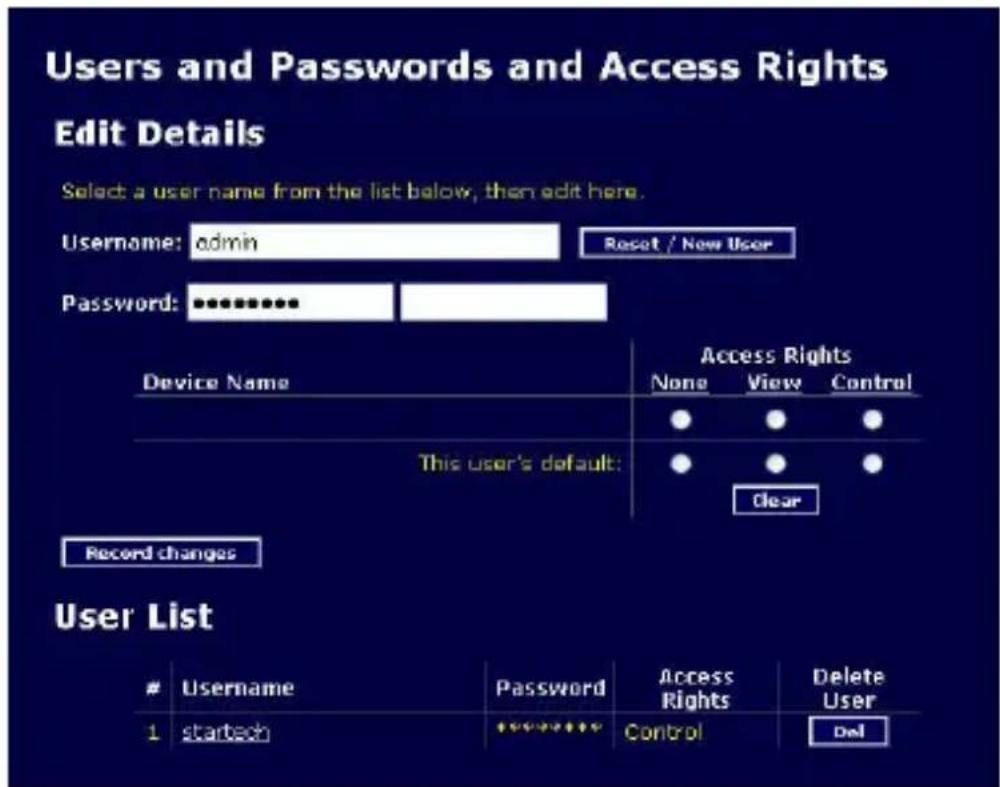
1 startech Control DelThe Edit Details section allows you to modify one user account at a time, by clicking on the desired account in the User List section. For each host, a user can have:
• No assigned rights
• View only rights (no mouse or key interaction)
- Complete control
Each user has their own default, which will be used if the device name is unknown, or not explicitly specified.
Click to select the None/View/Control radio button as appropriate.
User List
- Select which user to change, by clicking on their name.
- Table has summary values: Three stars if there is a password defined for the user, or else blank. English summary of access rights (incomplete vs. actual details).
- Click the Del button to delete the user. Changes only take effect once you press Record changes. (Record changes must be pressed for each user you wish to modify).
Add users:
- Press reset / new user first (otherwise, you will end up changing an existing user's name!
- Enter a unique Username (and password if desired).
- Pick which devices they should be able to access.
- Usually best to leave all empty except in the this user's default line.
Important note: The "Hardwired" user account:
If you create a user account with the name hardwired, it can be used only at the local VGA port and user-stations. This special account is also provided by default, if the user gives a blank username on the OSD. If the password is empty on the hardwired account, a local user can just press Enter twice at the OSD login prompt to get in. Like other accounts, hardwired may be restricted to view-only or to control only certain machines.
System Identification
Machine Name
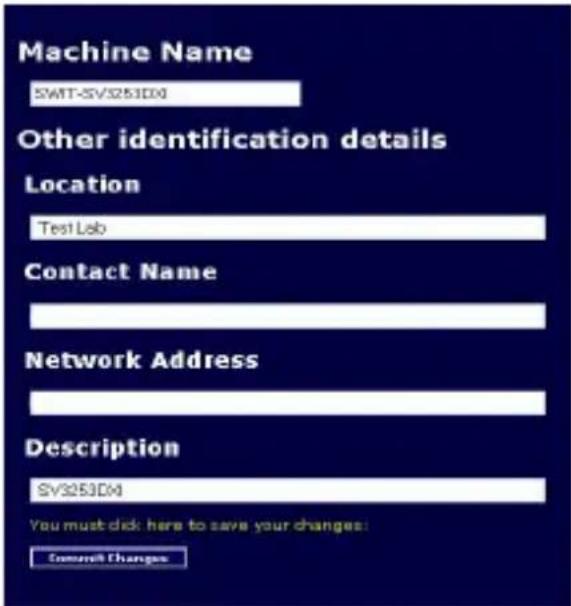
The Machine Name is a name that is used to uniquely identify this machine. You might want to create a DNS entry that matches this name. The name is provided as the Client Name for the DHCP server. It is also shown at the top of each page in the web browser interface and is the “desktop name” for VNC clients.
text_image
Machine Name SWIT-SV325100 Other identification details Location TestLab Contact Name Network Address Description SV325100 You must disk: here to save your changes: Commit ChangesOther identification details
These values are for information purposes only. They are visible from the VNC client and via SNMP (if enabled).
Location
This string is sent as the system.sysLocation value over SNMP. It should describe the location of this system.
Contact Name
This string is sent as the system.sysContact value over SNMP. It should describe who to contact regarding this machine. Typically it includes an email address.
Network Address
This value is not used in our configuration, but is meant to store a user-defined value that identifies the controlled machine on the network. The official DNS name of the controlled machine is an obvious value to put here, but you may use it for any purpose.
Description
A user-defined description for the controlled machine.
Security
This menu allows you to configure a number of settings, including changing the default password (admin) (recommended). Read and consider the comments and instructions on this menu before making any changes, as changing these features could make the unit inaccessible through Web configuration (i.e. due to firewall filtering).
Note that any password changes you make will have to be entered in duplicate, to prevent the chance for error.
Compatibility
The Compatibility menu offers features that may offer enhanced functionality with certain KVM and power products, such as StarTech.com's Remote Power Switch (PCM815SHNA). These can be left at default values if you are not connecting the unit to a KVM or power management device.

text_image
Security Profile Administrator Password minutes Set admin password Idle Session Timeout 15 minutes Cancel Change Internal Firewall Setup Disabled - Ignore secure IP address (default) Accept: Reject: Warrant: so available not to lock software from no particular U2.1.1.1.2.3 will be Cancel Change VNC Password Policy Disabled - Use regular VNC passwords (default) Trust SSH Tunnels Trust SSH Tunnels (default) Access Sharing Policy Disabled - Use regular access / take method (default) Local User Lockout Disabled - Local user always has access (default) Disable USB Mass-Storage Feature Disabled - Allow use of USB Mass Storage Drive (default) Select Default Access Rights Cancel (complete access)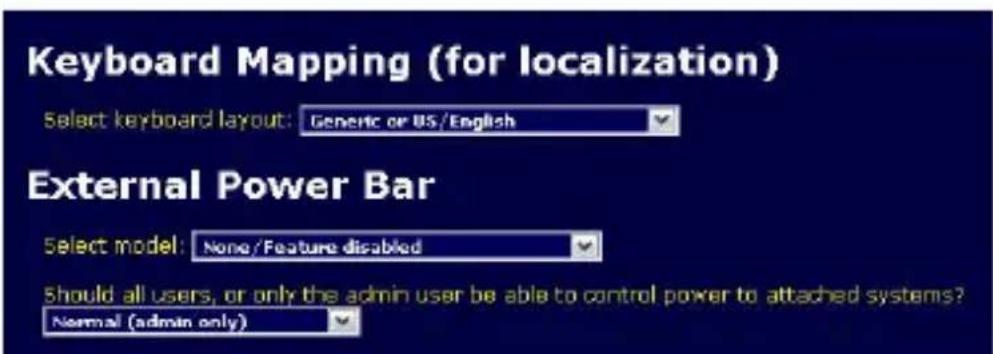
text_image
Keyboard Mapping (for localization) Select keyboard layout: Generic or US/English External Power Bar Select model: None/Feature disabled Should all users, or only the admin user be able to control power to attached systems? Normal (admin only)SNMP
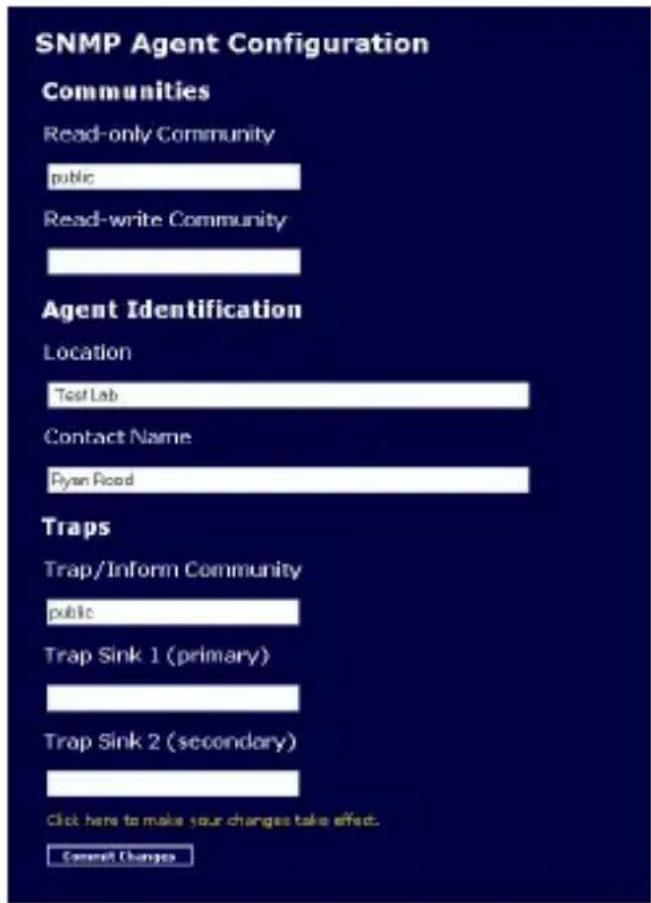
The SNMP menu allows you to configure the KVM Switch so it can be recognized and managed using industry-standard Simple Network Management Protocol software.
text_image
SNMP Agent Configuration Communities Read-only Community public Read-write Community Agent Identification Location Test Lab Contact Name Ryan Fixed Traps Trap/Inform Community public Trap Sink 1 (primary) Trap Sink 2 (secondary) Click here to make your changes take effect. Connect ChangesRADIUS
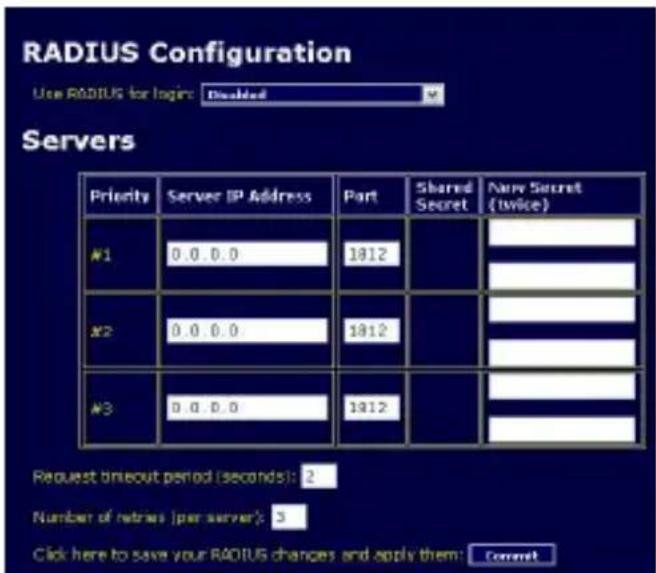
The RADIUS server requires the IP address, the UDP port number (1812 by default, or 1645) and the shared secret. The shared secret is used to encrypt communications and corresponds to a shared password for the RADIUS server and the client machine. Two additional servers may be defined for backup purposes. Each server will be tried in order, using the indicated number of retries and timeout period, which are configurable on the same page.
Remember to enable RADIUS after configuring it. While RADIUS authentication is enabled, the locally defined accounts on the KVM unit will not be used, except for the SSH login. However, if a user name in the form name.local is given at the RADIUS prompt, the system will use name, check the password locally and skip RADIUS authentication. Delete all local accounts to avoid this behavior.
text_image
RADIUS Configuration Use RADIUS for login: Disabled Servers Priority Server IP Address Part Shared Secret New Secret (twice) #1 0.0.0.0 1912 #2 0.0.0.0 1912 #3 0.0.0.0 1912 Request timeout period (seconds): 2 Number of retries (per server): 3 Click here to save your RADIUS changes and apply them: ConnectWhen connecting via VNC, a login screen is generated that asks for a RADIUS username and password.
Modem
Enable this to allow the modem to answer the phone and start a PPP connection. Enable modem connections (PPP) via serial port/modem.

text_image
Modem Option Enable modem connections (PPP) via serial port/modem: Disabled Baud rate to use (affects connection to between us and the modem only): 115200 (default, recommended) Init string: ATE090-1&K3 Save changes by clicking here: CommitTime/Date
Date and time are stored without consideration for time zone. If you are controlling multiple sites in different time zones, we recommend you use UTC (Universal Coordinated Time, also sometimes called GMT or Zulu) for all machines.
If the computer you are using to view this page knows the correct time, just press the button to set the time and date to the same time as your browser.
Firmware
The firmware on the KVM Switch is field upgradeable. To upgrade to another version, login as admin to access an Automatic Self Upgrade, or Manual Upload:
Auto Self Upgrade
Clicking the Upgrade to latest button will automatically download and install necessary revisions. To download upgrades for manual installation, please click on Get latest version. If it cannot access the Internet directly (perhaps due to a web proxy, or other firewalls), a page will be shown that causes your browser to download the required file. Save this file to disk and then upload it as described in the next section, Manual Upload.
Manual Upload
Enter the name of the firmware file that you downloaded from StarTech.com into the field provided (or use the Browse... button). Press Start Upload and wait until a successful upload message is shown.
NOTE: Remember the following during the firmware upgrade.
- Do NOT turn off power to the unit before this operation completes successfully.
- The unit will sometimes reboot as part of the upgrade procedure, depending on which system component is upgraded. You will have to reconnect and re-login in those cases.
- Wait at least two minutes after pressing Start. Do not assume the upload did not work. The upload could simply be slow.
• Each distributed file upgrades a different component of the system. Be sure to apply all files provided as part of an upgrade. The system knows what to do with each file you give it, and they are checked for validity before being applied.
Purchase Options
Certain firmware features may be offered separately from the base unit, in order to reduce the initial cost for the Enterprise Class KVM unit.
NOTE: If you wish to upgrade after the system is in operation, go to the Manage Firmware page and scroll down to the section entitled Purchase Options.
Look for a unique code, such as: 4-C80C-B960-1-0. If you provide this code to the technical support department, they can provide you with an unlock code that will open any feature you request. Type in the code provided, exactly, into the area provided and click Submit. The new features opened by the code will be enabled immediately, but you may need to reboot the unit to begin using certain features.
Info Functions
Status
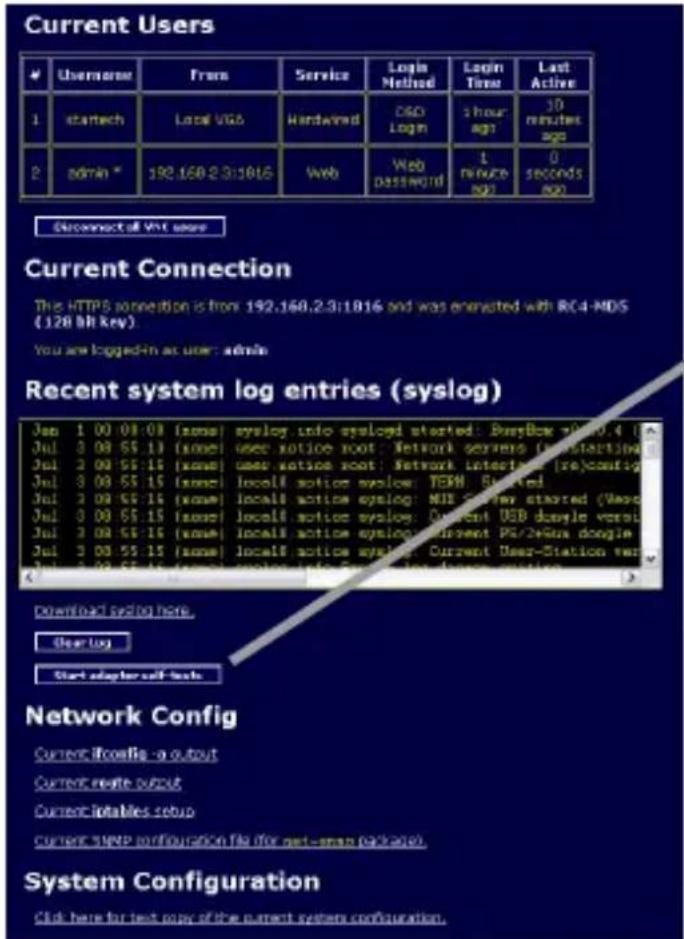
The Status screen displays a system security log, various system settings, and enables you to generate a copy of the system configuration in plain text format.
text_image
Current Users Username From Service Login Method Login Time Last Active 1 ctamech Local VGA Hardwind CSO Login 3 hour ago 10 minutes ago 2 adults* 192.168.2.3:1816 Web Web password 1 minute ago 0 seconds ago Connect all VNT user Current Connection This HTTPS connection is from 192.168.2.3:1816 and was engrated with RC4-MDS (128 MB key) You are logged-in as user: admin Recent system log entries (syslog) Jan 1 00 08:03 [some] syslog.info syslogd started: BurvBox w/08.4 (I) Jul 3 08 SS 13 [some] user motion root: Network servers (n=Starting) Jul 2 00 SS 15 [some] user motion root: Network interfaces (re)config Jul 3 08 SS 15 [some] locali motion syslog: TERM, System Jul 3 08 SS 15 [some] locali motion syslog: MIX System started (Wend Jul 3 08 SS 15 [some] locali motion syslog: Current USB double versu Jul 3 08 SS 15 [some] locali motion syslog: Current PS/2+Size double Jul 3 08 SS 15 [some] locali motion syslog: Current User-Station went Jul 3 08 SS 15 [some] localized info: Web-based device status Download sync to here. Clear Log Start adapter self-task Network Config Current ifconfig -a output Current route output Current notables setup current sMPP configuration file for net-smash (packato) System Configuration Click here for test copy of the current system configuration.
text_image
Clear Log $start adapter self-testsClick the Start adapter self-tests button to run an automated self-test on all attached USB and PS/2 adapters. The result (either PASS or Fail) will be displayed in the Recent system log entries window.
Port Numbers
Port Numbers provides a table allowing you to change TCP port values for services available on the SV3254DX4I. By default, they are factory set to common Internet values. You may wish to enhance security by disabling services that you will not use with the unit. To disable a service, change its port number to 0. For flexibility, both the LAN and WAN ports can be configured separately. When you have made any necessary changes, click Commit Changes to use the settings the next time the SV3254DX4I restarts. To force the unit to restart immediately, click Restart Servers.
Network Servers and Their Port Numbers
LAN: Main Ethernet Port (192.168.2.12)
| Service | Description | Default | Current Port |
| ssh | Secure Shell | 22 | 22 |
| http | Web redirector (to https) | 80 | 80 |
| snmp | SNMP Agent (UDP) | 161 | 161 |
| https | SSL Encrypted web control | 443 | 443 |
| vnc | VNC/RFB Protocol Server | 5900 | 5900 |
| vncs | SSL-tunnelled VNC | 15900 | 15900 |
WAN: Secondary Ethernet Port (192.168.1.124)
| Service | Description | Default | Current Port |
| ssh | Secure Shell | 22 | 22 |
| http | Web redirector (to https) | 80 | 80 |
| snmp | SNMP Agent (UDP) | 161 | 161 |
| https | SSL Encrypted web control | 443 | 443 |
| vnc | VNC/RFB Protocol Server | 5900 | 5900 |
| vnc | SSL-tunnelled VNC | 15900 | 15900 |
Click here to save your changes (they will be applied on next reboot). Commit Changes
Click here to save your changes, and restart all network servers. Restart servers
Localhost (127.0.0.1)
| Service | Description | Port Number |
| http | The real web server | 60 |
| snmp | SNMP Agent (UDP) | 161 |
| vnc | VNC/RFB Protocol Server | 5900 |
Help Menu
Provides an FAQ (Frequently Asked Questions) listing to assist you with the features and operation of the KVM Switch.
Site map Menu
This menu provides a hyperlinked directory of each setting available on the Web configurat
Copyright Menu
Provides the Terms of Use and other information related to the firmware and software on the KVM Switch.
The VNC Interface
There are three ways to communicate with the KVM unit in order to control the host computer:
- Web interface: The integrated Web server includes a Java-based VNC client. This allows easy browser-based remote control.
- Cleartext VNC: There are several third-party software programs that use the standard VNC protocol, available in open source and commercial VNC clients. By pointing any VNC client at the default VNC port (5900) on the KVM Switch, you will be able to control the attached systems. This method offers a fast and direct way to access the system and allows the use of “native” VNC clients and other remote management packages which implement the VNC protocol.
- SSH access: By default, there is a standard SSH server running on port 22 (the standard SSH port). Once connected via SSH, VNC traffic may be tunneled to port 5900 on localhost (ie. 127.0.0.1:5900) of the KVM Switch.
- Any VNC client may be used to access most features. Encryption does not affect VNC operation, aside from a slight reduction in speed.
Native VNC Client
This system implements the VNC protocol, so any off-the-shelf VNC client can be used. There are several different VNC clients available and they should all work with this system. This system automatically detects and makes use of certain extensions to the basic RFB protocol that is provided by some of the the better VNC clients.
The best client currently is TightVNC (www.tightvnc.com). Binaries are available for Windows, Linux, MacOS and many versions of Unix. Source code for all clients is available there too. This version of VNC is being actively developed. The authoritative version of VNC is available from RealVNC (www.realvnc.com). This source base is the original version of VNC, maintained by the original developers of the standard. For a commercial, supported version of VNC, you should consider TridiaVNC (www.tridiavnc.com). Their version of VNC is a superset of TightVNC and contains a number of enhancements for use in a larger corporate environment
SSH Tunnel (with Native VNC client)
If you are using openssh, here is the appropriate Unix command to use, based on the default settings on a machine at 10.0.0.34 ssh -f -l admin -L 15900:127.0.0.1:5900 10.0.0.34 sleep 60 vncviewer 127.0.0.1::15900
Same command, but using the WAN port: ssh -f -l admin -L 15900:127.0.0.1:5900 10.0.0.98 sleep 60 vncviewer 127.0.0.1::15900
Notes:
- A copy of these commands, with appropriate values filled in for your current system setting, is provided in the on-line help page. This allows you to “cut-and-paste” the required commands accordingly.
- You have 60 seconds to type the second command before the SSH connection will be terminated.
- The port number “15900” is arbitrary in the above example and can be any number (1025...65535). It is the port number used on your client machine to connect your local SSH instance with the VNC client. If you want to tunnel two or more systems, you will need to use a unique number for each instance on the same SSH client machine.
- Some Unix versions of the VNC client have integrated SSH tunneling support. Some clients require your local user id to be the same as the userid on the system. Use a command like this:
vncviewer -tunnel 10.0.0.34:22
Using the VNC Menu
One of the unique features of this product is the VNC menu system. Whenever you see a window with a dark blue background and grey edges, this window has been inserted into the VNC data stream so that it is effectively laid over the existing video. These menus allow you to control the many features of the KVM Switch without using the web interface or a custom client. When you initially connect to the system, a Welcome Window will appear, indicating which system you are controlling, what encryption algorithm was used and what key strength is currently in effect. Click anywhere inside the window to clear it, or wait ten seconds.
Bribar Feature
Along the bottom of the VNC screen is a dark blue bar with various buttons known as the bribar. Its purpose is to show a number of critical status values and to provide shortcuts to commonly used features. Each feature and its function is outlined below:
Kbd: This area will show either PS/2 (as in this example) or USB to indicate if keyboard and mouse are being emulated via USB connection or PS/2 signals. If Autosync appears beneath this indicator, the mouse pointers on the local mouse and the VNC session will be synchronized automatically.
Bandwidth: Indicates current average bandwidth coming out of the Enterprise Class KVM unit. The second number measures round trip time (RTT) of the connection when it was first established.
Resync: Re-aligns the remote and local mouse points so they are on top of each other.
Redraw: Redraws the entire screen contents; occurs immediately.
Autotune: Fine tunes the sharpness and image positioning of the video picture by optimizing the sampling phase
PS/2: Resets the PS/2 keyboard and mouse emulation. Useful to recover failed mouse and/or keyboard connections in PS/2 mode.
÷4, ÷8: Switches to thumbnail mode, at indicated size (i.e. 1/4, 1/8)
Ctrl-Alt-Del: Sends this key sequence to the host. Works immediately.
Alt-F4: Sends the key sequence to host (closes windows).
Menu: Shows the main menu.
Video: Shows the video-tuning menu where the picture quality can be adjusted.
Keys: Shows the VirtKeys menu, which allows you to simulate pressing special keys such as the Windows key or complex multi-key sequences.
[1][A][S]: These flags show the state of the keyboard lights, NumLock, ShiftLock and ScrollLock respectively.
<<: Shrinks the Bribar into a small floating window. Drag the floater using the StarTech.com logo, or click << to return it to the Bribar.
Other items: If the server's screen is larger than 1280 x 1024, additional buttons will be shown to the right of the above listed items. These are all keyboard shortcuts and are duplicated in the Keys menu.
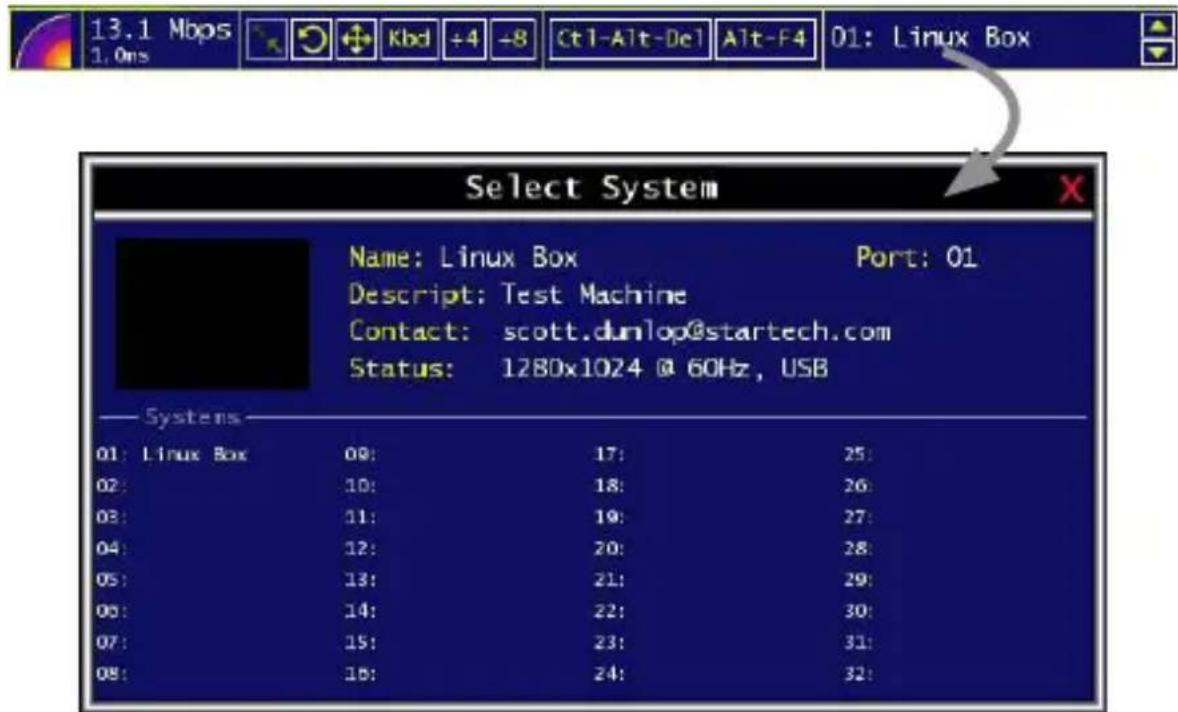
Select System: Click on the Name/Number to open the "Select System" Window.
A list of the available system access will be displayed according to the following color codin
Red – no access
Grey – view only
White – full control
By hovering the mouse over any entry, you can see details pertaining to that entry.
Select one of the listed systems by clicking on the listing or corresponding number as appropriate. Or, directly select any system by pressing 1 through 9, A (for 10) through W (for 32)
Similarly, click on the Up and Down arrows to select the previous or next available system. Please note that systems to which you do not have access are skipped and will not be available for selection.
text_image
13.1 Mbps 1.0ms Kbd +4 -8 Ct1-Alt-Del Alt-F4 O1: Linux Box Select System Name: Linux Box Port: 01 Descript: Test Machine Contact: scott.dunlop@startech.com Status: 1280x1024 @ 60Hz, USB Systems 01: Linux Box 09: 17: 25: 02: 10: 18: 26: 03: 11: 19: 27: 04: 12: 20: 28: 05: 13: 21: 29: 06: 14: 22: 30: 07: 15: 23: 31: 08: 16: 24: 32:To close without making a selection, press the ESC key.
Main Menu
To access the main menu, quickly press the F7 key twice quickly. You must press the key twice within one second. If you press it once or too slowly, then the F7 key(s) are sent to the host, just like any other key. This is the only way to get into the menu system, if the Bribar is disabled.
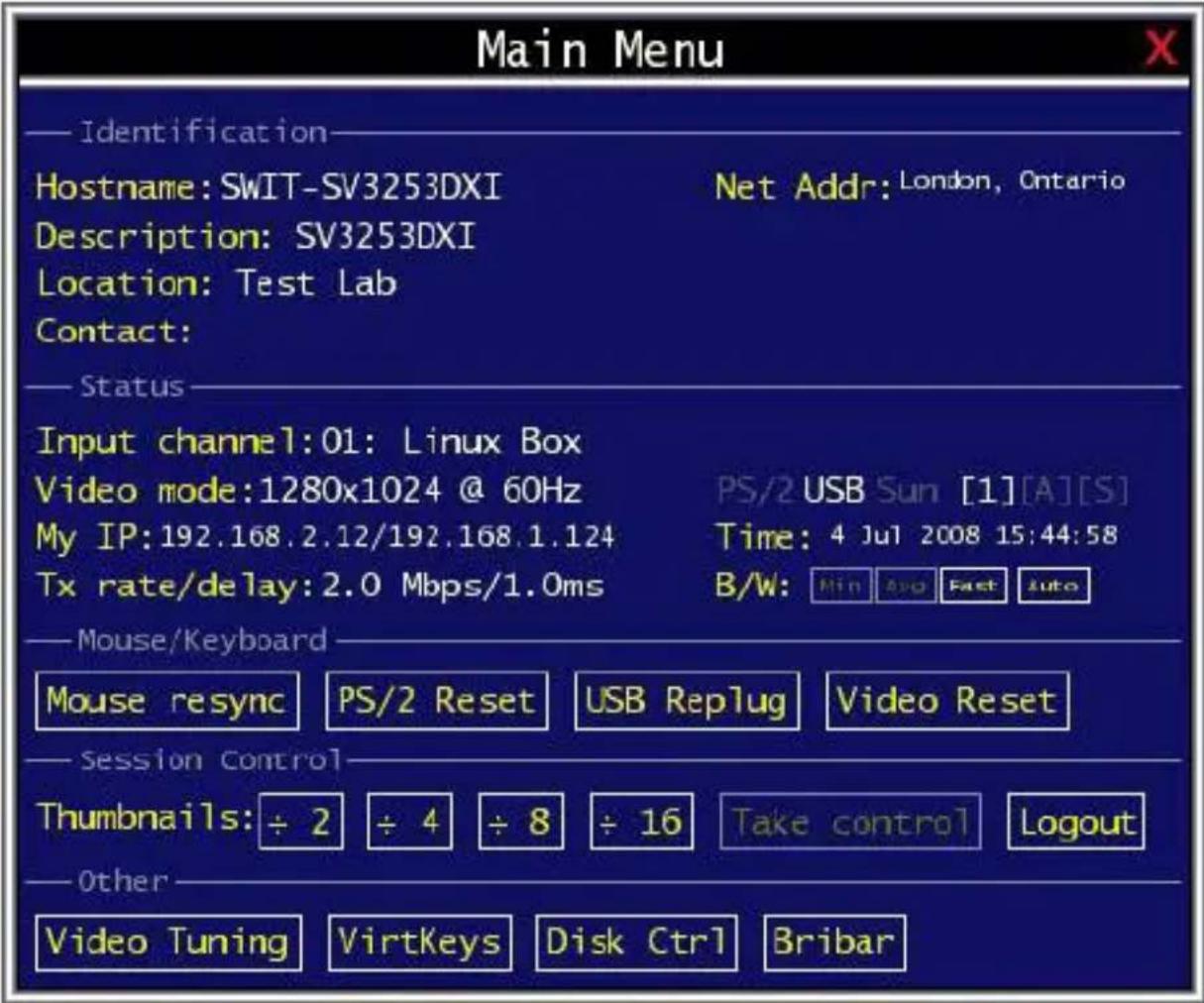
Shown below is the main menu for a typical system:
text_image
Main Menu Identification Hostname:SWIT-SV3253DXI Net Addr:London,Ontario Description:SV3253DXI Location:Test Lab Contact: Status Input channel:01: Linux Box Video mode:1280x1024 @ 60Hz PS/2 USB Sun [1][A][S] My IP:192.168.2.12/192.168.1.124 Time:4 Jul 2008 15:44:58 Tx rate/delay:2.0 Mbps/1.0ms B/W: Min Avg Fast Auto Mouse/Keyboard Mouse resync PS/2 Reset USB Replug Video Reset Session Control Thumbnails:÷ 2 ÷ 4 ÷ 8 ÷ 16 Take control Logout Other Video Tuning VirtKeys Disk Ctrl BribarThe main menu window may be moved by clicking and dragging on the title bar. It can be closed by pressing Escape, or by clicking on the red X in the top right corner. Most of the functions operate immediately. Other functions require a response to a confirmation prompt first before performing the requested function.
Identification
Fixed text label that is defined by the user in the Web interface. This does not affect the operation of the system and is intended to assist with administration.
Status
Current status of the attached system and the status of the unit.
B/W Min/Avg/Max/Auto
Bandwidth control. Current operation will be indicated with white highlighting. If you choose Min/Avg/Max then you will override the default, Auto. As the automatic mode measures actual network performance, you may see the current mode switch from Min up to Avg or Max. The different modes indicate more time spent on compression versus more bandwidth. There is no visual difference between the modes, but there can be a noticeable difference in speed and smoothness.
Mouse Resync
Resynchronizes the mouse pointer so that the local and remote mouse pointers are on top of each other.
PS/2 Reset
Resets the PS/2 emulation going to the host and to the attached PS/2 devices. This can be used if the mouse stops responding or the PS/2 keyboard isn't working.
USB Replug
Simulates unplugging the USB connector and then plugging it back in. If the host is not recognizing USB input devices, this button may be used to restore functionality.
Take Control
When multiple users are connected to the same system, use this button to take control away from another user. Only one user may control the keyboard and mouse at any time. All users see the same picture. Please note: It is important that multiple users not be connected to the same physical network.
Thumbnails
Switch to smaller thumbnail size screen images (click anywhere on thumbnail to restore it). Each button corresponds to a different sized image, from half size to one-sixteenth.
Logout
End the VNC login session and disconnect.
Video Tuning
Sub-menu with video adjustments, to be used when automatic picture adjustment does not provide a good quality picture
VirtKeys
Virtual keyboard provides a menu with special keys that are often hard to generate but needed by the remote system. The most common key sequence is the [Ctrl] – [Alt] – [Del].
Disk Ctrl
Emulated USB disk control submenu. Shows status of floppy/Ram Disk or CD-ROM.
Bribar
Closes or reopens the Bribar window along the bottom of the screen.
VirtKeys Menu
Clicking any button in the top half of the window simulates pressing and releasing the indicated key. In the bottom area of the screen, clicking will simulate the indicated Meta key being pressed. You may then click in the top part to send another key and release the Meta key at the same time.

text_image
VirtKeys L-Windows R-Windows App Menu Pause Power ESC Caps ScrLk NumLock KVM Menu Ctrl-Alt-Del PrtScn ShFt-PrtScn Ctrl-PrtScn Alt-PrtScn Alt-Tab ShFt-Alt-Tab Alt-F4 Ctrl-ESC Alt-ESC F1 F2 F3 F4 F5 F6 F7 F8 F9 F10 F11 F12 — Toggles— L-Win L-Alt L-Ctrl L-Shft R-Win R-Alt R-Ctrl R-Shft -RESET-Alternatively, you may move the mouse outside this window, press the regular key, and then choose -RESET- to release all depressed keys. The VirtKeys menu can be left open while using the host system. You can then click the required button at the suitable time, and still interact with the host in a normal fashion.
Examples:
• [Ctrl]-[Alt]-[F4]: Use L-Ctrl then L-Alt in the Toggles area, then click F4.
- To bring up the Start menu under Windows: Click the L-Windows button at the top left of the above window.
Video Tuning Menu
text_image
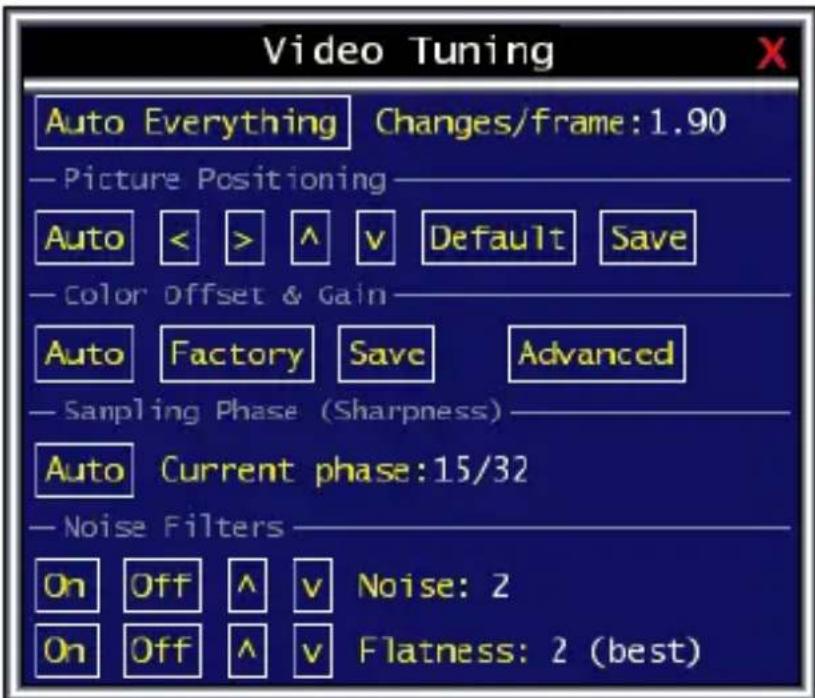
Video Tuning Auto Everything Changes/frame:1.90 — Picture Positioning — Auto < > ^ v Default Save — Color Offset & Gain — Auto Factory Save Advanced — Sampling Phase (Sharpness) — Auto Current phase:15/32 — Noise Filters — On Off ^ v Noise: 2 On Off ^ v Flatness: 2 (best)Use the Auto Everything button to automatically fine-tune all three adjustments. If the test pattern for Color Offset calibration is not present on the screen, then the Color Offset adjustment is skipped.
Changes/frame
Indicates the number of 16x16 blocks of video that are being sent, on average, for every frame of video. With a static image being displayed by the server, this number will be zero (shown as -nil-). Moving the mouse, for example, will cause the number to jump to about 2 or 3. You may use this number to judge the picture quality as you adjust the controls on this menu.
Picture Positioning
Affects the image position on your screen. If you see a black line on either side of your screen, or at the top or bottom, you can use the arrow buttons to shift the image in that direction. Pressing Auto does the same thing for you automatically. Use Save to save the changes you have made manually. Since this adjustment depends on the video mode, separate values are stored for each video mode.
Color Offset
Color Offset is a fine tuning adjustment that requires the use of a test pattern. There is a copy of the test pattern available on the Help! menu of the integrated web server. You must arrange for that image to be shown on the host computer. Do not allow scaling, cropping or any other changes to that image. Press the Auto button and the system will calibrate color for the best possible picture in approximately one minute. If the system cannot find the test pattern on the screen, it will say so. Check that the pattern isn't scaled or covered up. It's important to perform this operation in 24-bit or 32-bit color video mode (i.e. true color). Although the algorithm may work in 16-bit or 8-bit color video modes, the results will not be optimum and usually it won't be able to recognize the test pattern.
Advanced
Pressing this button will open the Advanced Video Tuning menu. While the vast majority of users will not need to adjust these settings, it offers added control of the video settings of your VNC sessions.
Sampling Phase
Does not normally need to be used, since the KVM Switch tunes the sampling phase whenever the video mode changes. This button does not require a test pattern, but will perform optimally when used with our standard test pattern. For your reference, the sampling phase number is shown to the right of the Filtering button.
Noise Filter
Controls the advanced video filtering of the KVM Switch. Unlike other filtering algorithms, the KVM Switch noise filter will only remove noise - it does not degrade the signal quality or readability of small text. You may turn it on and off using the indicated button, or set it to other values using the arrows.
Higher numbers cause more filtering and may cause artifacts when moving windows. The most common visual artifact is a vertical line dropping when moving windows horizontally. You may use the Redraw button to correct these, or use a lower filter number. At minimum, these values must be greater than two.
Flatness Filter
To improve compression ratios, the KVM Switch will group adjacent pixels that are nearly the same colour and treat them as equal. This helps to compress typical simple GUI images. However, the effect of this compression on continuous-tone images and gradients can be annoying. You may turn off or reduce the flatness filter to sacrifice bandwidth for improved image quality in those areas.
Please note that at higher values, some parts of the screen may appear "blocky".
Getting Peak Video Performance
Choose the best video mode
- We recommend using 60Hz refresh rate and 1280 x 1024 resolution. Using a smaller resolution like this allows you to fit multiple windows on your remote desktop. Higher refresh rates stress the video card's quality and do not provide any additional information or benefit.
Noisy video cards
- A digital KVM works by converting the analog video signals emitted by your video card into digital data. If there is noise on that signal, then it must also be digitized and sent over the network. Quality video cards, in our experience, offer better performance simply because they don't add analog noise.
- Some external KVM switches generate video noise as well. Try to keep cables short, in order to reduce this effect.
- Enable the Noise Filter option (on the Video Tuning menu) to mitigate noise issues.
Network performance
- The KVM Switch will always send as much data as it can, given what's happening on the screen and the actual network performance. When nothing is changing on the video screen, zero bytes are sent over the network. If the whole screen is changing, then the unit will send as much data as your network connection and VNC client allow.
- Network latency, which is the total time it takes for a packet to get to the KVM Switch and come back, has the biggest impact on perceived performance and usability. Network bandwidth has a lesser effect, particularly when just moving the mouse around.
- Only a few bytes need to be sent when the mouse is moving (and nothing else is changing on the screen), but the round-trip-time limits the hand-eye coordination of the user if it is too great.
• Both actual bandwidth and measured network latency are shown in the Main Menu.
Using the Advanced Video Tuning Feature
The Advanced Video Tuning menu allows you to adjust the qualities of the video in your VNC sessions, and can be accessed by clicking the Advanced button on the Video Tuning VNC menu. While many users will probably allow the KVM Switch to automatically configure the video properties, you can use this menu to exercise a great deal of control over the settings if you wish.
The Presets section contains up to sixteen different settings, plus the factory setting. If a number is highlighted, then that preset has been programmed with valid settings and may be used. Note that the Factory preset is always available. Simply click on the appropriate button and the default settings will be restored. To save settings to a preset, click on the Save->Preset button in the Actions pane. The preset buttons will highlight. Click the desired preset button to save the values. Note that any previous settings assigned to that button will be lost. If you do not wish to save the presets after clicking the Save->Preset button, click the Save->Preset button a second time and the save function will be cancelled.
The section of the screen marked Current Values indicates the various video parameters that can be adjusted. For each parameter, there are a series of buttons: [, <<, -, Auto, +, >, ]. The [, and ] buttons set the parameter to its smallest or largest values, respectively. The << and >> buttons decrease or increase the parameter by a large amount. In the case of phase, this is four units and for all others, ten units. The - and + buttons decrease or increase the parameter by one unit. The middle button sets the parameter to the middle value. The text of the middle button also indicates which parameter is being controlled. Note that in the case of phase, the middle button invokes the auto-phase algorithm.
The Performance section of the screen indicates the quality of the video. Changes/frame is the average number of tiles that change for each frame sampled by the hardware. Flatness is an indication of what percentage of the screen contains tiles that are comprised of only one color.
The Regrab Screen button in the Actions section causes the screen to be re-captured. When making small changes to the video parameters, sometimes these changes are not reflected in the displayed screen immediately, particularly if the noise filter is enabled. Press this button to see the immediate effect of the changes.
Use the Show Diffs button to learn which parts of the screen are being sent over the Internet. When you click this button, the screen is cleared to a medium grey color. All blocks that are sent from that point on will show up on the screen as they are sent. Click the button again to reset the screen to grey. To return to normal operation, click the Regrab button. It is very easy to visually identify the effect noise has on signal processing, using this feature.
The Auto Offset & Gain button in the Actions section invokes the automatic algorithm for setting the video parameters. The algorithm requires the factory calibration test pattern to be correctly displayed on the screen.
Disk Control Menu
text_image
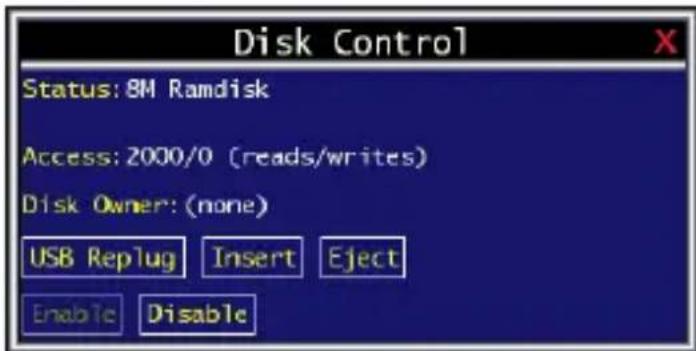
Disk Control Status: 8M Ramdisk Access: 2000/0 (reads/writes) Disk Owner: (none) USB Replug Insert Eject Enable DisableAside from status information, there are only three buttons in this window. Insert will simulate the insertion of a disk, while USB Replug can be used to force the host to recognize the "inserted" disk (not required unless the host OS or hardware does not recognize it automatically.
Please note that only one option is enabled at any time, based on the current state of the emulated disk.
Accessing KVM Features
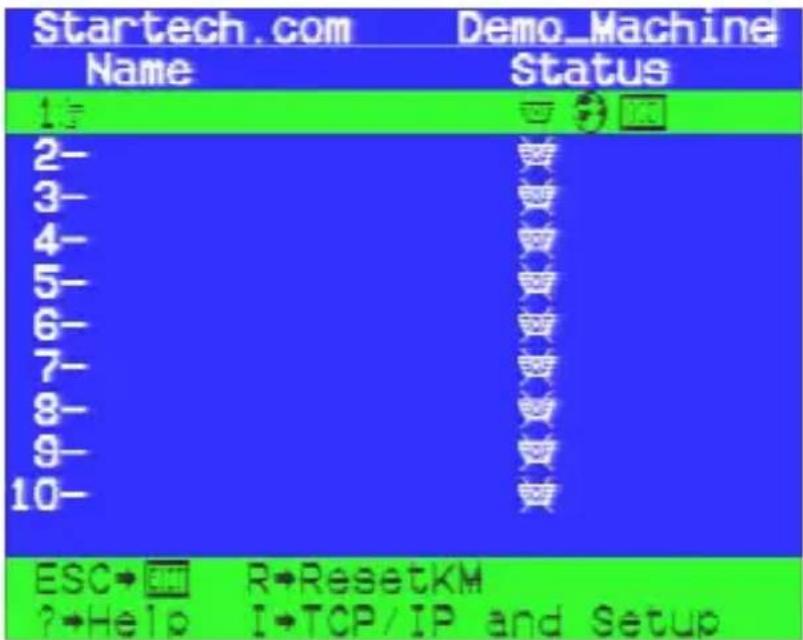
OSD Operations
Start the OSD (On-Screen Display) by pressing the left
• The entry for the currently selected computer is highlighted in green in the OSD
- Use the
- Press
text_image
Startech.com Name Demo_Machine Status 1# 2- 3- 4- 5- 6- 7- 8- 9- 10- ESC→ [REDACTED] R→ResetKM ?→Help I→TCP/IP and SetupOSD Function Keys
Please Note: Channel names can only be changed through the web interface.
OSD Keys Function
| 1 - 9 (0 = 10) Selects a channel from the list | |
| F1 – F10 View a channel from the list. ( Does not close OSD) | |
| T Activate terminal emulator | |
| L Logout immediately | |
| ? Show help screen | |
| R | Reset server interface module (May be used to recover from stuck keyboard or mouse emulation) |
| I Show TCP/IP status/settings. | |
| S Change TCP/IP Settings | |
| ESC Close OSD (No state change) | |
| <Ctrl>+R | Full cold reset of Server Interface Module. Use the Reset command first |
| Page Up/Down Scroll up and down the OSD list | |
| Home/End View the first and last channel of the KVM | |
Changing Your Configuration
After the initial power up, any device can be moved, added or removed from any port on the KVM without powering down the switch. The attached computer must be powered up for it to provide power to the Server Interface Module, so it will not appear in the OSD list until that time. It is safe to hot plug USB devices, but PS/2 systems will typically require a power cycle.
Please Note: After changing your configuration, the OSD will automatically update to reflect the new configuration.
Using the Modem feature
NOTE: Requires an RJ45 to DB9 adapter. Please see StarTech.com part number(s): GC98FF (DB9 Female to RJ45 Female Adapter) or GC98MF (DB9 Male to RJ45 Female) as applicable.
Background
The modem feature allows the KVM Switch to act as an Internet connection server for increased security and flexibility in connecting with the host computer.
Unlike the TCP/IP connection used with the standard Web configuration and VNC clients, the modem creates a one-to-one connection between the KVM Switch and the computer you are using to manage the host computer that is essentially private, as it bypasses the public Internet completely.
Please note that this feature requires both an external modem (most standard connection protocols are supported) and a dedicated phone line that can be connected to the modem for external access. While it is possible to use the modem feature through some PBX systems, this increases the complexity and reduces the performance of the connection. For clarity, the instructions presented here assume that the modem is connected to a typical POTS (plain old telephone system) line that is not routed through a phone management system or shared with other devices. If you wish to use this feature through a PBX system, it may require some experimentation and additional support from your telecom services provider, and is not supported by StarTech.com.
Connecting a Modem
The KVM Switch will work with virtually any Hayes-compatible modem that recognizes the standard AT command set. Some modem manufacturers offer “enterprise” grade modem products that include technology to improve the stability of connections; whether this type of product would be beneficial to your application depends on whether you consider the modem connection to be mission-critical, the quality of your telecom infrastructure, and your budget for implementing this solution. The model of modem attached is essentially transparent to the KVM Swtich.
It is important to note that modems that offer “56K” (or 56,000 bps) connections often achieve connection speeds that are far lower than their maximum capabilities. Given the limitations of telecom infrastructure (many locations have yet to implement fully digital switching technology, and still rely on older analog technology for some segments), the maximum “upstream” transfer rate is limited to a maximum of 33,600 bps between two modems; the “downstream” rate is often within a similar range for a typical connection. Therefore, speeds below 56,000 bps do not indicate a problem with the modem or the KVM Switch, but simply reflect the line conditions at the time the connection is made.
The serial port can be used for serial port configuration when the modem is connected. It requires the use of a null modem serial cable.
-
Place the modem near the KVM Switch and an available telephone jack. Connect the modem to the telephone jack, data cable, and power source according to the instructions in its documentation. The opposite end of the modem's data cable should be a DB9 female serial connection.
-
Connect that end of the cable to the Serial connection on the rear panel of the KVM Switch
Modem configuration
Although most connections will work appropriately with the default settings on the KVM Switch, manual changes can be made. To do so:
- Login to the Web interface as Admin.
- Click Modem, listed on the left side of the main page.
-
You will then be presented with the Modem Option menu.
-
Make the following changes to enable and configure the modem connection:
-
Enable modem connections (PPP) via serial port/modem: select Enabled.
• Baud rate to use (affects connection between us and the modem only): select 115200 - Init string: leave as ATE0S0=1&K3 (see below).
The baud rate dictates the connection speed between the KVM Switch's serial port and the modem, and does not affect the connection speed between the local and remote modems, as they will negotiate their own connection speed when a connection is made. It is highly recommended that this setting be left at the default for best performance.
The initialization ("init") string is the command (using the standardized Hayes AT command set) that the KVM Switch will send to the modem to activate it. The string included should work with the majority of modems and configures the following connection properties: answer incoming calls on the first ring, enable hardware flow control, and lock the connection speed.
Your modem's documentation will describe other potential init strings that you can use to alter the connection properties. For instance, you could commit the settings to the modem's non-volatile memory (NVRAM) or allow the modem to adjust the connection speed for greater stability (and so on). You may wish to test the connection with the default init string first, before making changes specific to your modem model or situation, to simplify the troubleshooting process.
- Click the Commit button to save your changes and activate the modem feature with the specified settings.
Configuring the Remote Connection
This section describes how to configure a typical Windows dial-up session to access the modem connection on the KVM Switch. The instructions here relate to a Windows XP configuration; other versions of Windows are similar, if not identical.
Please note the following:
- PPP (Point-to-Point Protocol) must be used; no other authentication methods are supp
- TCP/IP must be installed/enabled on the computer making the connection, and must be used for the dial-up connection.
• The connection must be configured to obtain a dynamic IP address.
• The user name/password must match a user currently configured on the KVM Switch. -
For best performance and to simplify the troubleshooting process, firewall software should not be used with the dial-up connection.
-
Open My Network Places from the desktop or the Start menu.
-
Click View network connections.
-
Click Create a new connection under Network Tasks.
-
The New Connection Wizard window will open. Click Next.
-
Select Connect to the Internet, then click Next.
-
Select Set up my connection manually, then click Next.
-
Select Connect using a dial-up modem and click Next.
-
n the space provided under ISP Name, type an appropriate name of your choosing for the connection, then click Next.
-
In the space provided under Phone Number enter the phone number for the line to which the KVM Switch's modem is connected. You may need to add the area code, country code, or other digits needed to access the outside line as appropriate. When finished, click Next.
-
Make your choice from Anyone's use or My use only and click Next.
-
Beside User name, enter the user name of any valid user created using the Web interface of the KVM Switch. Beside Password and Confirm password enter the password that the user you entered above uses to access the Web interface.
-
This screen also includes three checkboxes - remove all checkmarks, then click Next.
-
You may select to add a shortcut to the desktop for this connection.
-
Click Finish.
Accessing the Web Interface
Once a dial-up connection has been established, you can access the Web interface or start a VNC session using the following IP address: https://99.99.99.99
You can now login to the Web interface (and/or VNC session) normally.
Note that the remote machine (the one from which you dialed) is automatically assigned the IP address 99.99.99.100 for the PPP session.
This, and the IP address of the KVM Switch, cannot be modified. The following TCP/IP port numbers are assigned for a PPP connection, regardless of the settings configured in the Web interface for the LAN or WAN ports:
HTTPS: 443
VNC (clear-text): 5900
VNC (SSL secured): 15900
SSH: 22
Performance Notes
- All images over the PPP connection will be grayscale to conserve bandwidth. If other users are connected while a PPP session is active, their screens will be in grayscale as well. When PPP is inactive, color is automatically re-enabled.
- Some areas of the screen may not be updated as frequently as others, and animations or other auto-updating areas of the screen may appear out-of-focus or "blocky" as a result. Since the area around the mouse pointer is refreshed most frequently, hold the pointer over an area to improve its clarity.
- It may be beneficial to minimize any unnecessary icons, backgrounds, or other clutter on the host computer's desktop to make the dial-up connection as efficient as possible.
If you need to configure the device over a serial connection while the modem option is enabled, connect a serial cable and begin a terminal session following the instructions under the section titled Terminal Configuration Using a Serial Cable in this manual. Once connected, you will see the following message:
Expecting a modem, if human, type admin password (Or start PPP)
Type the password for user admin and press Enter. The password will not appear on the screen. The configuration menu will appear. Make the changes you wish or press q and Enter to exit and leave the modem connection active.
Modem Troubleshooting Guide
The following messages will appear in the system log on the Status screen in the Web interface and may help to diagnose problems with the modem configuration.
Starting PPP (for auth) on port...
Modem is connecting and the PPP login process is starting.
Modem hang up. Resetting
The connection has been closed or terminated unexpectedly.
Timeout during login process. Giving up
The PPP client connecting over the modem has waited too long to complete the authentication process or supplied an invalid user name and/or password.
Modem init chat script failed
The modem did not respond to the initialization string from the SV3254DX4I You may need to change the init string or verify the cabling and modem status.
Modem init okay
The modem has responded appropriately to the init string.
Saw PPP startup from client
A PPP authentication has occurred and a session has started.
Phone line rings
An incoming call has been detected by the modem.
Modem answers: xxxxxxxxx
The connection speed and protocol used for a connection, as reported by the modem. The exact contents of the message will vary depending on the modem make and model.
About Security Certificate Warnings
What is a security certificate?
Sites that employ secure TCP/IP (Internet) connections include a certificate that confirms that users are connecting to a legitimate site and are not being redirected without their knowledge. Certificates are issued by trusted third parties called Certificate Authorities (CAs) and contain essential details about a site that must match the information supplied to your Web browser.
Why do I receive a warning when accessing the login screen?
As it redirects you to a secure (SSL) session by default, the login screen may generate a warning from your Web browser or the VNC Java client for two different reasons. First, the CA that has issued the certificate on StarTech.com's behalf may not yet be recognized as a trusted source by the computer you are using to access the KVM Switch. Second, since the unit could be configured in a number different ways, it is impossible to supply a generic certificate that will match your exact network settings.
Is my data safe?
Yes. The security certificate does not affect encryption effectiveness in any way, nor does it make the KVM Switch any more vulnerable to outside attacks.
Can I prevent the warning from occurring?
Yes. You have two options that may prevent the warning from occurring. First, if the Web browser you are using offers the option to ignore the warning for future visits, the browser will no longer generate a warning if that option is selected. Second, if you install the certificate from the KVM Switch onto the host computer (see below) and if the unit is configured with a domain name ending in .com, .net, .org, .gov, .edu, .us, .ca, .uk, .jp, or .tw (i.e. remotecontrol.mydomain.net) then the warning should no longer occur.
Installing the new certificate
The following instructions detail how to install the certificate from the KVM Switch onto your local computer (in this case, when using Internet Explorer with Windows XP):
- Open your Web browser and go to the KVM Switch login screen. Click the Update security certificate link.
- When prompted, choose Open.
- A Window will appear that offers information about the certificate. Click Install Certificate.
- The Certificate Import Wizard will appear. Select Automatically select the certificate store... (default) and click Next. When the next window appears, click Finish.
- A confirmation dialog will appear asking you if you wish to install the certificate Click Yes.
- A message should appear saying the import was successful. Click OK.
Built-in Terminal Emulation
The built in Terminal Emulator is an ANSI terminal that allows local users (Directly connected or via the User station) the ability to initialize a command prompt shell to connect to remote and local devices via SSH, Telnet and directly connected serial ports.

text_image
Outreach The purpose of this program is to allow users to connect to outside systems over TCP/IP or serial links. It supports SSH (Secure Shell), Telnet (unencrypted) network connections, and serial ports via direct connection. Each method is implemented as a single Linux command. This program helps you compose the required command and arguments.Please note: Only one user can use the terminal emulator at a time.
How to find the Built-in Terminal Emulator
The emulator can be found at the end of the OSD menu (33rd system on a 32 port, 17th on a 16 port system) or by pressing
Navigating the Menus
Use the arrow keys or underlined letters to select the appropriate action or option you wish to use.
How to create a New Connection (Using the Wizard)
- Use the arrow keys or underlined letter to select "Create new connection (using wizard).
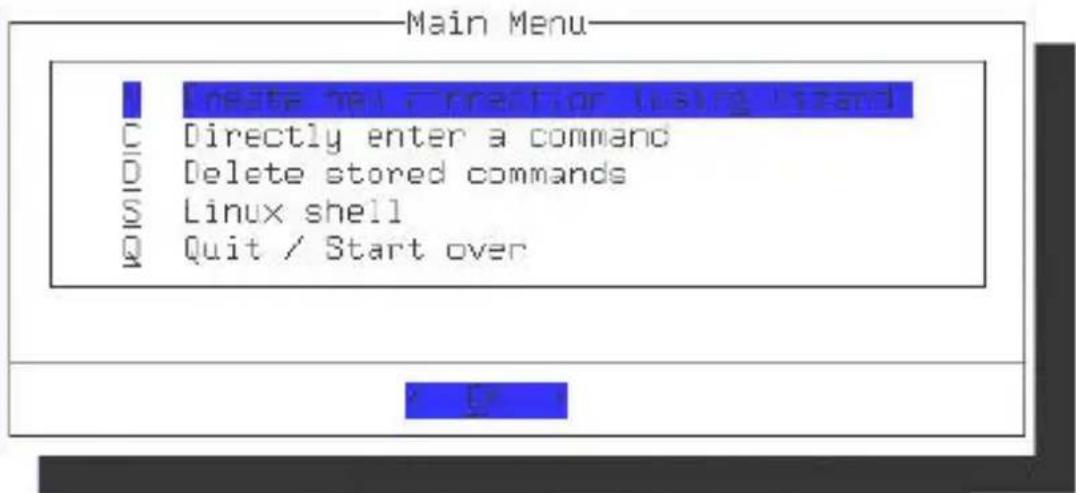
text_image
Main Menu ■ Nexte new Connection listing wizard C Directly enter a command D Delete stored commands S Linux shell Q Quit / Start over- Select your connections method or protocol (example: SSH, Telnet, Direct).
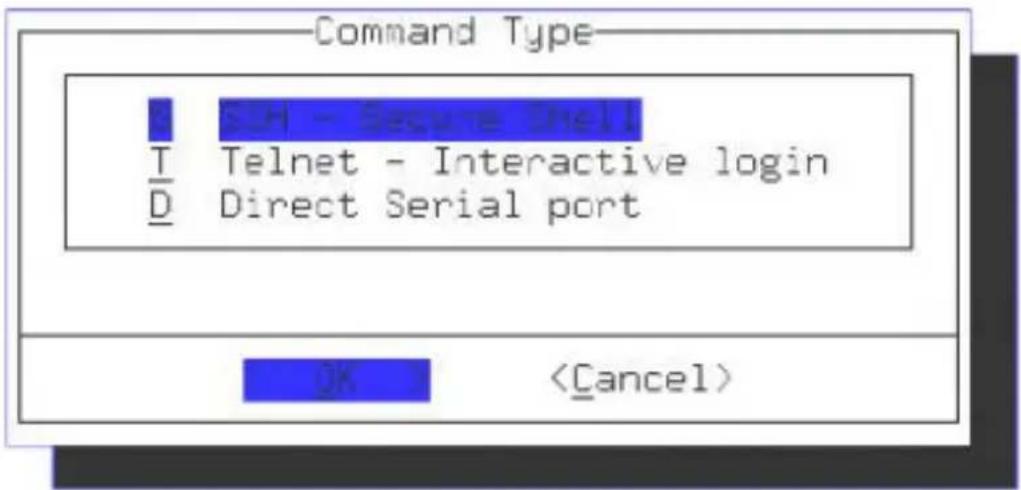
text_image
Command Type SH - Secure Shell Telnet - Interactive login Direct Serial port OK- If you are choosing "Direct", use the screens that follow to choose the appropriate setting for your serially attached device. If you choose SSH or Telnet, the following screen will ask you for the Host Name or IP address of your remote connection:
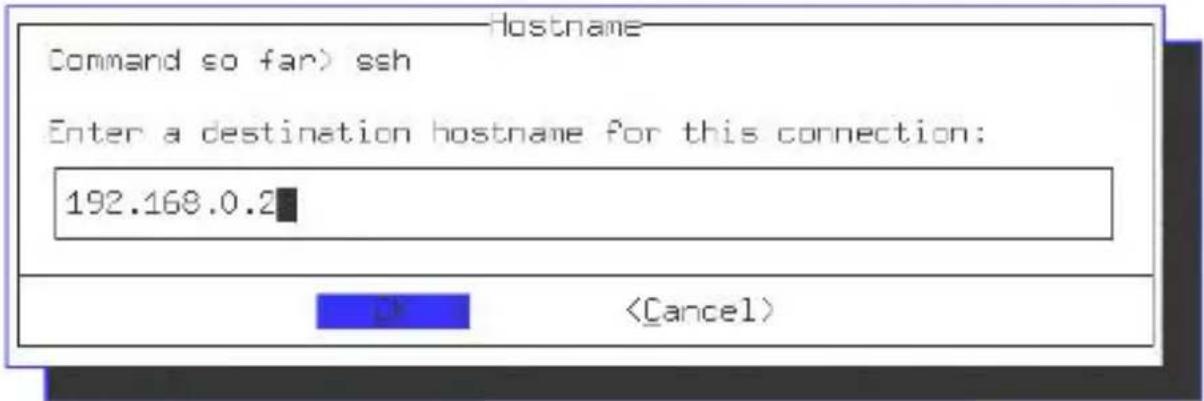
text_image
Hostname Command so far) ssh Enter a destination hostname for this connection: 192.168.0.2- Enter the specific port number used by the device to which you are attempting to connect. Leave blank if you wish to use the standard port numbers. (SSH = 22, Telnet = 23).

text_image
Port Number Command so far> ssh 192.168.0.2 Enter a TCP/IP port number (or leave blank for default):- If you are using SSH you will be asked to provide the remote username.
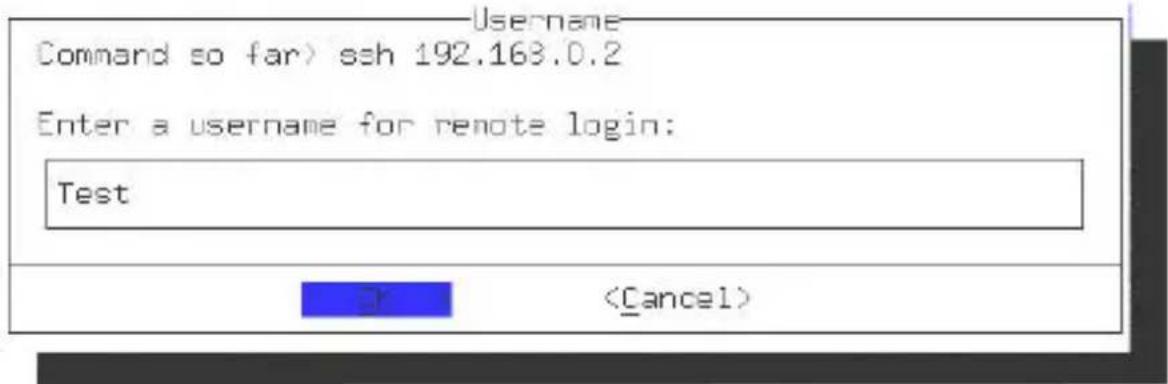
text_image
Username Command so far> ssh 192.163.0.2 Enter a username for remote login: Test OK- Next you will be asked to declare any alternative SSH options.

text_image
Other Options Command so far) ssh 192.168.0.2 -1 Test Any other SSH options (-1Z46AaCfgkMNqstTvVvXxY, etc):- Last, you will be asked to provide a meaningful name for this newly created connection. Then save the configurations.
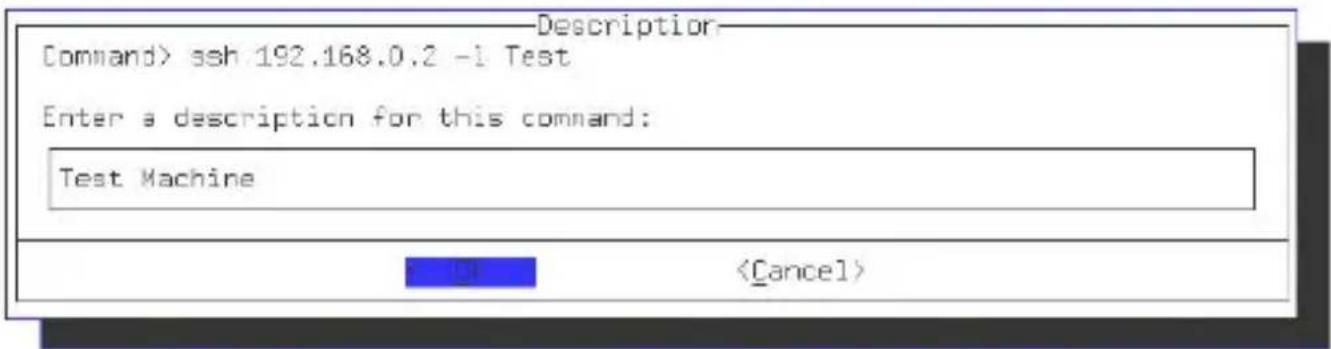
text_image
Description Command> ssh 192.168.0.2 -1 Test Enter a description for this command: Test MachineOnce you have created your new connection you will see it listed above the other commands in the main menu. You may activate this connection by highlighting the connection and pressing enter.
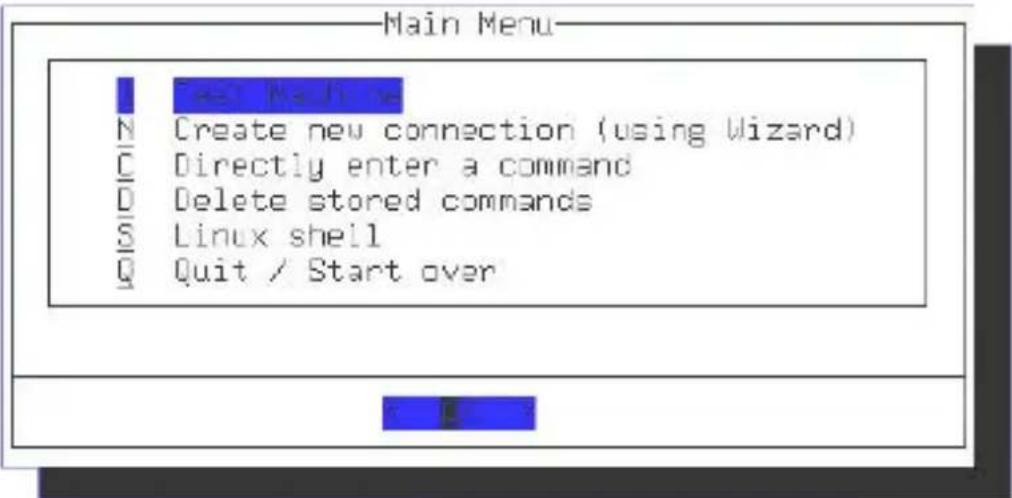
text_image
Main Menu ■ Make Home N Create new connection (using Wizard) C Directly enter a command D Delete stored commands S Linux shell Q Quit / Start overTo remove a previously created connection, highlight "Delete stored command" and press enter. You will be prompted for the admin password.
Highlight the connection you wish to remove and press enter.
Please Note: Anyone can create a connection, but only the Admin has the right to remove them.
Other Commands
Directly enter a command
Allows the user to enter a command shell and connect to a remote system etc. (For advanced users)
Linux shell
Provides access to the Linux shell running on the KVM.
Quit / Start over
Logout of the terminal emulator and return to the OSD.
Troubleshooting
Forgotten master password
You can reset the master password using the serial interface on the unit. Use the S command, and type a new password. The old password is not required for this procedure.
Similarly, you can press (and hold) the reset button (located to the immediate left of the USB ports on the rear panel) for thirty seconds to clear all settings and return the unit to factory defaults. This will clear the password to be admin.
Using a PS/2 Mouse, the remote mouse pointer and local mouse pointer don't line up
Use the Mouse resync command in the main menu or press the Resync button on the Bribal If the mouse pointers still don't line up, verify that mouse acceleration has been disabled.
Please note: The Windows login screen does not accept the "mouse acceleration" configuration, and always has the mouse accelerated regardless of your configuration. Therefore, on this screen it is best to avoid using the mouse.
After resync, the mouse pointers are still not aligned.
Use the video adjust menu to position your video image exactly where it should be. Normally a slight video positioning error is perceived as a mouse sync issue. A video positioning error is visible as a black line along the top or bottom (and right or left) edges of the remote screen. Remember to save your position changes!
Cannot login via SSH.
Remember to use either admin or a username created in the system as the user name you give your SSH client. If you see a warning about identity of host cannot be verified, and a question about saving the host's fingerprint, this is normal for the first time you connect to any machine running SSH. You should answer yes so that your SSH client saves the public key of this host and doesn't re-issue this warning.
Certificate warning shown when connecting via HTTPS.
It is normal for a warning dialog to be shown when connecting via HTTPS. The SSL certificate the KVM Switch uses is created when the unit is first produced. It does not contain the correct hostname (subject name) because you can change the hostname as required. Also, it is not signed by a recognized certificate authority (CA) but is signed by our own signing authority
Mouse performance is erratic when using the GNOME or KDE desktop in a Linux X-Window environment.
The mouse controls in GNOME and KDE environments offer both an acceleration and sensitivity setting. The following directions correct this issue, and apply to Red Hat Fedora Core 2, but should be similar for other distributions that use GNOME or KDE:
- Click the Launch menu icon.
- Choose Preferences > Mouse.
- Click the Motion tab.
- Set the Acceleration bar to the setting immediately left of center.
- Set the Sensitivity bar to the leftmost settings (lowest possible)
Specifications
| Maximum Recommended Resolution | 1280 x 1024@ 60Hz |
| Maximum Supported Resolution | 1600 x 1200 @ 60 Hz |
| Host Connectors | SV1653DXI: 16 x RJ45SV3253DXI: 32 x RJ45 |
| Console Connectors 2 x HDDB15 Female | |
| Other Connectors | 2 x USB A Female (Front Panel)2 x USB A Female (Rear Panel)2 x DIN6 Female2 x RJ45 Ethernet Ports (WAN, LAN)1 x RJ45 User Station Port1 x RJ45 Serial interface |
| Indicators: | Front Panel:Remote user connectedPower (flashes during boot)2 x USB connectedRear Panel:2 x Ethernet ports: link (on), activity (blink)Serial port (always on)User station link (on), activity (blink)32x CAT5e link (on), activity (blink)2x USB connected |
| Maximum Number of Remote Users | Five users all on the same port |
| Supported Protocols VNC, HTTPS, SNMP, RADIUS, SSH, SSL | |
| Terminal Configurations | Local terminal VT100 (ANSI) emulation.80 columns, 25 lines |
| Outreach Protocols SSH client, Telnet client, hardwired serial port | |
| Storage Temperature -40°C to 65°C (-40°F to 158°F) | |
Operation Temperature 0°C to 40°C (32°F to 104°F)
Humidity 80% rh, nc
Dimensions 310 x 440 x 44 mm
Weight 2200 grams (4.5 Lbs)
Electrical 100-240 V AC, 0.5 A, IEC320 socket
Frequency 50-60 Hz
Caution
This is an IEC safety Class 1 product. Before using, the ground wire in the line cord or the rear panel binding post must be connected for safety.
- AC Power Source This product is intended to operate from an AC power source that will not apply more than 250 V AC RMS between the supply conductors or between either supply conductor or ground. A protective ground connection by way of the grounding conductor in the power cord is required for safe operation
- Use the proper Power Cord Use only the power cord and connector appropriate for the voltage and plug configuration in your country. Use only power cord in good condition Refer cord and connector changes to qualified service personnel.
- Do Not Remove Cover To avoid personal injury, electric shock or death, do not remove the unit cover.
- Do not operate the unit without the cover properly installed.
Technical Support
StarTech.com's lifetime technical support is an integral part of our commitment to provide industry-leading solutions. If you ever need help with your product, visit www.startech.com/support and access our comprehensive selection of online tools, documentation, and downloads.
For the latest drivers/software, please visit www.startech.com/downloads
Warranty Information
This product is backed by a two year warranty.
In addition, StarTech.com warrants its products against defects in materials and workmanship for the periods noted, following the initial date of purchase. During this period, the products may be returned for repair, or replacement with equivalent products at our discretion. The warranty covers parts and labor costs only. StarTech.com does not warrant its products from defects or damages arising from misuse, abuse, alteration, or normal wear and tear.
Limitation of Liability
In no event shall the liability of StarTech.com Ltd. and StarTech.com USA LLP (or their officers, directors, employees or agents) for any damages (whether direct or indirect, special, punitive, incidental, consequential, or otherwise), loss of profits, loss of business, or any pecuniary loss, arising out of or related to the use of the product exceed the actual price paid for the product. Some states do not allow the exclusion or limitation of incidental or consequential damages. If such laws apply, the limitations or exclusions contained in this statement may not apply to you.
Hard-to-find made easy. At StarTech.com, that isn't a slogan. It's a promise.
StarTech.com is your one-stop source for every connectivity part you need. From the latest technology to legacy products — and all the parts that bridge the old and new — we can help you find the parts that connect your solutions.
We make it easy to locate the parts, and we quickly deliver them wherever they need to go. Just talk to one of our tech advisors or visit our website. You'll be connected to the products you need in no time.
Visit www.startech.com for complete information on all StarTech.com products and to access exclusive resources and time-saving tools.
StarTech.com is an ISO 9001 Registered manufacturer of connectivity and technology parts. StarTech.com was founded in 1985 and has operations in the United States, Canada, the United Kingdom and Taiwan servicing a worldwide market.