SV831DUSBA - Computer Accessories StarTech.com - Free user manual and instructions
Find the device manual for free SV831DUSBA StarTech.com in PDF.


User questions about SV831DUSBA StarTech.com
0 question about this device. Answer the ones you know or ask your own.
Ask a new question about this device
Download the instructions for your Computer Accessories in PDF format for free! Find your manual SV831DUSBA - StarTech.com and take your electronic device back in hand. On this page are published all the documents necessary for the use of your device. SV831DUSBA by StarTech.com.
USER MANUAL SV831DUSBA StarTech.com
8 Port USB Console KVM Switch with Audio
SV831DUSBA
Instruction Manual

natural_image
Black industrial server unit with labeled ports and indicator lights (no readable text beyond branding)FCC Compliance Statement
This equipment has been tested and found to comply with the limits for a Class B digital device, pursuant to part 15 of the FCC Rules. These limits are designed to provide reasonable protection against harmful interference in a residential installation. This equipment generates, uses and can radiate radio frequency energy and, if not installed and used in accordance with the instructions, may cause harmful interference to radio communications. However, there is no guarantee that interference will not occur in a particular installation. If this equipment does cause harmful interference to radio or television reception, which can be determined by turning the equipment off and on, the user is encouraged to try to correct the interference by one or more of the following measures:
Reorient or relocate the receiving antenna.
Increase the separation between the equipment and receiver.
Connect the equipment into an outlet on a circuit different from that to which the receiver is connected.
Consult the dealer or an experienced radio/TV technician for help.
Use of Trademarks, Registered Trademarks, and other Protected Names and Symbols
This manual may make reference to trademarks, registered trademarks, and other protected names and/or symbols of third-party companies not related in any way to StarTech.com. Where they occur these references are for illustrative purposes only and do not represent an endorsement of a product or service by StarTech.com, or an endorsement of the product(s) to which this manual applies by the third-party company in question. Regardless of any direct acknowledgement elsewhere in the body of this document, StarTech.com hereby acknowledges that all trademarks, registered trademarks, service marks, and other protected names and/or symbols contained in this manual and related documents are the property of their respective holders.
Instruction Manual
Table of Contents
Introduction 1
Features ....1
Package Contents ....1
Installation 2
Device Connection ....2
Connecting Computers to the Console....4
USB Only 4
PS/2 Only 4
Cascaded Configurations ....4
Operation 7
Push Button controls ....7
K/M Reset 7
Auto Scan ....7
OSD (On Screen Display) Operation 8
Auto Scan 12
Manual Scan....12
Hot-key commands ....14
Sun/Mac Keyboard Mapping ....16
Specifications 18
Technical Support 19
Warranty Information 19
Introduction
Thank you for purchasing a StarTech.com 8 Port USB Console KVM Switch with Audio. This product offers a reliable and efficient way to manage multiple computers in server rooms, or any other environment where space is at a premium and provides the added benefit of audio switching capability.
Features
Auto-scan function automatically selects computers sequentially •
Cascade configuration expands system capability•
Hotkey functions allow easy computer access/switching•
Identifies and selects computers by name assignment •
OSD security option protected against unauthorized computer use •
Unique cables offer convenient, space-saving connections •
Package Contents
1 x Mounting Bracket •
1 x Power Cord •
1 x PS/2 keyboard and mouse Y cable •
1 x StarView 8 Port KVM Switch •
1 x User Manual •
Installation
Warning: Prior to installation, please ensure that all computers and KVM switch(es) are powered down.
Device Connection
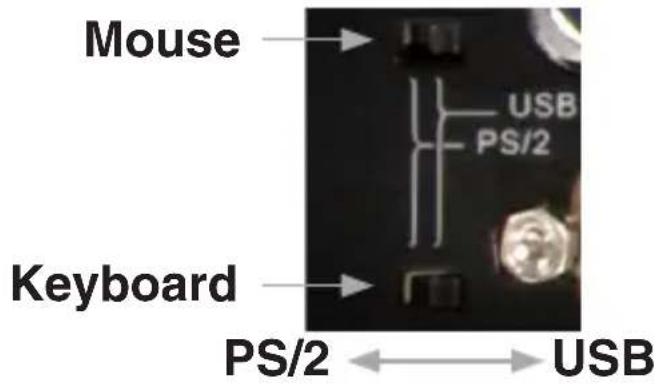
The SV831DUSB is designed for use with both USB and PS/2 console connections, and is equipped with two slide switch console selectors used for the selection of USB or PS/2 modes for the mouse and keyboard (shown below).
text_image
Mouse USB PS/2 Keyboard PS/2 ←→ USBThere are three connection patterns that correspond with the slide switch as follows:
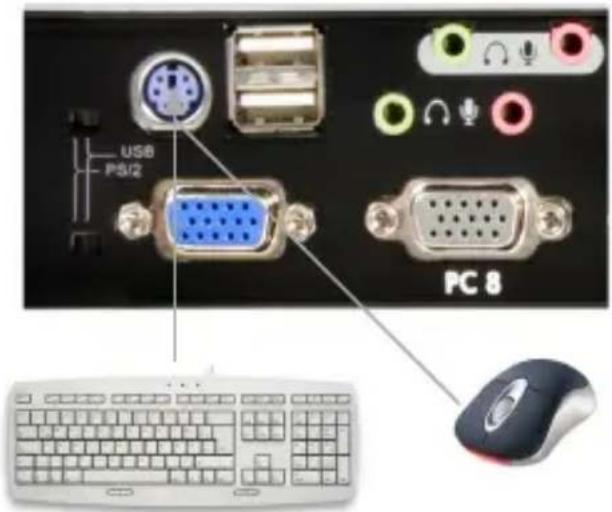
PS/2 Keyboard and PS/2 Mouse:1. A PS/2 Y-connector (provided) will be required for this connection to allow both the mouse and keyboard to be connected to the PS/2 port. The mouse and keyboard slide switches must be switched to the left.
text_image
USB P5/2 PC 8Instruction Manual
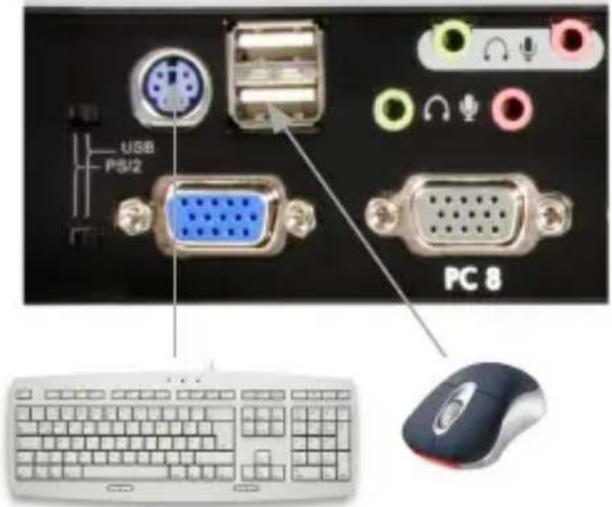
PS/2 Keyboard and USB Mouse:2. The mouse slide switch must be switched to the right, while the keyboard slide switch must be switched to the left.
text_image
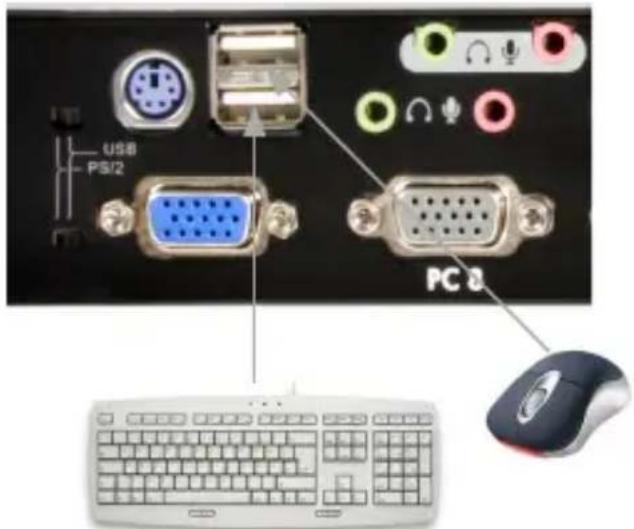
USB PS/2 PC 8USB Keyboard and USB Mouse: 3. Both the keyboard and mouse switches must be switched to the right.
text_image
USB PS/2 PC 8Please note: When configuring the switch as a slave in a cascaded configuration, PS/2 Keyboard and Mouse is the only mode that can be used. As such, SV431DUSB cannot be configured as a slave in a cascaded setup, as it does not provide a slide switch selector.
Instruction Manual
Connecting Computers to the Console
USB Only
To connect a computer controlled by USB peripherals, use a 1-to-2 cable (SVECONUSx) to connect from one of the PC Ports located on the rear panel of the KVM switch to the USB and Video ports on the computer, as shown below.
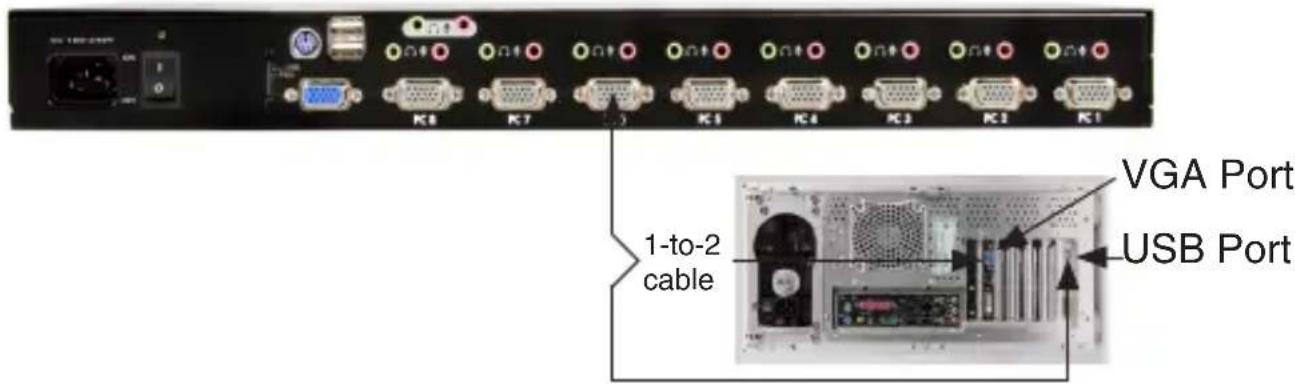
text_image
VGA Port USB Port 1-to-2 cablePS/2 Only
To connect a computer controlled by PS/2 peripherals, use a 1-to-3 cable (SVECONx) to connect from one of the PC ports to the PS/2 keyboard and mouse, as well as the video port of the computer.
Instruction Manual
Cascaded Configurations
Please note: The master KVM Switch must have equal or more PC x ports than that of the slave kvm unit. For example, if an 8-port switch is the master, an 8-port or 4-port switch can be a slave, but not a 16-port switch.
Please note: PS/2-only models can be cascaded with USB+PS/2 universal models.
Please note: To be used as slaves in a cascaded configuration, the slide switch on SV831DUSBA must be adjusted to PS/2 mode.
The ports labelled PC 1 - PC 8 can be connected to either a computer or a slave unit CONSOLE port, as shown below. Use only 1-to-3 (PS/2) cables to connect the master's PC ports and slave CONSOLE port, as shown below.

text_image
Master 1-to-3 cable Slave 1-to-3 cable SlaveInstruction Manual
The maximum number of computers controlled by a master/slave configuration with all 8-port units is 64, including 8 slaves and each slave unit connecting to 8 computers as depicted below:

text_image
DC9V, 500mA Master Slave Slave Computers ComputersOperation
You may select a computer by pressing the front panel push button directly, by issuing hot-key commands or by activating the OSD window. The front panel indicator changes to reflect the computer port selected (red) and whether the port is connected to a powered computer (green). The indicator flashes red when it is in either Auto Scan or Manual Scan mode.
Push Button controls
To select control of an attached computer, press the front panel button that corresponds with the assigned computer number. For 16 port models, 1 to 8 represents the lower 8 ports, while A to H indicates the higher ports. Ports 1 and A share the same pushbutton, as do 2 and B, 3 and C etc.
Example: If port 1 is already selected and you wish to switch to Port A, tap the shared pushbutton once to select Port A. If Port 1 is not selected, press and hold pushbutton 1 for two seconds to select Port A.
K/M Reset
K/M Reset resolves the majority of problems developed by keyboard and/or mouse device replacement or configuration changes. Press down buttons 1 and 2 simultaneously for 2 seconds to reconfigure the whole system without having to turn off the KVM switch or any attached computers.
Auto Scan
This KVM switch provides an easy to use feature to start Auto Scanning. To use this function, simultaneously press buttons 7 and 8 and hold for two seconds. (SV431DUSB uses buttons 3 and 4 to launch this function).
Instruction Manual
OSD (On Screen Display) Operation

text_image
Port Channel Address KVM MENU 5 Name 1 SALES-DOMESTIC 16 2 SALES-US 3 SALES-EURO 4 SALES-ASIA 5 FINANCIAL-1F 8 6 FINANCIAL-2F 7 RD-HARDWARE 8 RD-SOFTWARE Currently selected channel address To a 16-port Slave To an 8-port Slave Eye mark enabled Highlighted by arrow keys Security enabled port F1 Edit F4 More F2 Switch Esc Quit F3 Security Press "Enter" to the slave FINANCIAL-1F KVM MENU 5 Name FINANCIAL-1F Master port name (group name) 1 US-WEST 2 US-EAST 3 US-NORTH 4 US-SOUTH 5 EUROPE 6 ASIA-N 7 ASIA-S 8 PACIFIC White indicates power off Green indicates power on User-input port names Eye mark enabled F1 Edit F4 More F2 Switch Esc Quit F3 SecurityBy hitting the left
Instruction Manual
The channel address (port number) of the currently selected computer is displayed in red, same as the front indicator, to the right of the OSD title 'KVM MENU'.
The color of a device name is green if it has power and is ready for selection (its corresponding front panel indicator is green), or the color is white as it has no power.
OSD menu updates the color when it is activated.
Use the
A triangle mark (▶) to the right of a name indicates the port is cascaded to a slave switch; the number at the left of the triangle mark indicates the number of ports the slave has, (i.e. 8 for SV831DUSBA). The
An eye mark (☐) to the right of a name indicates the computer is selected to be monitored in Scan mode. In the OSD, this mark can be switched on or off by function key
Press the
Function key
Valid characters are ‘A’\~’Z’, ‘0’\~’9’ and the dash character. Lowercase letters are converted to uppercase ones.
Press the
Function key
Instruction Manual
First, use the
Function key
Use the
If you want to access the locked device temporarily, simply highlight it and press
NOTE: If you forget the password, the only way to permanently erase all of the passwords is to press and hold the 1 and 2 front panel buttons, then hold 7 and 8. Release 7 and 8, then release 1 and 2.
Function key
Again, use the
Instruction Manual
Function Key

text_image
KVM MENU 2 CH Name 1 SUN-BLADE100 Sun 2 SUN-BLADE1000 Sun 3 WIN2000 4 WIN-NT40 4 5 EUROPE 6 ASIA-N 7 ASIA-S 8 PASIFIC Sun mark selected Sun computer selection F1 Edit F4 More F2 Switch F5 Sun select F3 Security Esc QuitPlease note: It is unnecessary to switch the Sun mark ON or OFF if an authentic Sun keyboard is being used on the console. In other words, you must ensure that the Sun-marked port has not been selected if you are already using a Sun keyboard.
With different types of keyboard and computer, the Sun Mark must be set up in compliance with the following instruction:
| Keyboard Type Computer Type Sun Mark | |
| PS/2 PC/Mac No | |
| PS/2 Sun Yes | |
| USB (non-Sun) PC/Mac No | |
| USB (non-Sun) Sun Yes | |
| USB-Sun PC/Mac No | |
| USB-Sun Sun Yes |
Auto Scan
In this mode, the KVM Switch automatically switches from one power-on computer to the next, sequentially, in a fixed interval. During AutoScan mode, the OSD displays the name of the selected computer.
When Auto Scan detects any keyboard or mouse activity, it suspends the scanning until activity stops; it then resumes with the next computer in sequence.
To abort Auto Scan mode, press the left
Scan Type and Scan Rate set the scan pattern. Scan Type (
Manual Scan
Scan through power-on computers one by one by keyboard control. You can type (
Press the up arrow key (↑) to select the previous computer and the down arrow key (↓) to select the subsequent computer. Press any other key to abort Manual Scan mode.
Scan Type:
Ready PC + Ⓞ: In Scan mode, scan through power-on and eye mark selected computers. Ready PC: In Scan mode, scan through power-on computers. The non-volatile memory stores the Scan Type setting. Scan Rate Sets the duration of a computer displayed in Auto Scan mode. The options are 3 seconds, 8 seconds, 15 seconds and 30 seconds. The non-volatile memory stores the Scan Rate setting.
Ready PC: In Scan mode, scan through power-on computers.
Instruction Manual
only: In Scan mode, scan through any selected computer regardless of computer power status. The non-volatile memory stores the Scan Type setting.
Scan Rate: Sets the duration of a computer displayed in Auto Scan mode.
The options are 3 seconds, 8 seconds, 15 seconds and 30 seconds. The non-volatile memory stores the Scan Rate setting.
Keyboard Speed: SV831DUSBA offers keyboard typematic setting that overrides similar settings in BIOS and in Windows.
Available speed options are Low, Middle, Fast and Faster as 10, 15, 20 and 30 characters/second respectively. Keyboard settings are stored in non-volatile memory.
Hotkey Menu: When you hit the left
CH Display:
Auto Off: After you select a computer, the channel address and name of the computer will appear on the screen for 3 seconds then disappear automatically.
Always On: The channel address and name of a selected computer and/or OSD status displayed on the screen all the time. The non-volatile memory stores the CH Display setting.
Position: The position of the selected computer name and/or OSD status displayed on-screen during operation. The actual display position shifts due to different VGA resolution, the higher the resolution the higher the display position. The non-volatile memory stores the Position setting.
Upper Left, Upper Right, Lower Left, Lower Right, Middle.
Country Code for Sun: Sun keyboards of different languages have
Instruction Manual
different layouts. The KVM switch is able to emulate a Sun keyboard for a specific language type or country such as Arabic, Belgian, US, Yugoslavia, etc. Select the proper country code that matches all of your Sun computers.
Please Note: The country code must be set prior to powering up the Sun computer. Not performing this step prior to power-up could cause the system to malfunction.
Max. Resolution: You can adjust the monitor resolution under this sub-menu. The following selections are available: 1024 x 768, 1280 x 1024, 1600 x 1200, 1920 x 1440 and “DDC2B Disable”.
Hot-key commands
Hot-key commands are short keyboard sequences used to select a computer, to activate computer scan, etc. SV831DUSBA interprets keystrokes followed by one or two more keystrokes; a built-in buzzer generates a high-pitch beep for a correct hotkey command, otherwise, one low-pitch beep for an error and the bad key sequence will not be forwarded to the selected computer.
The short form hotkey menu can be turned on as an OSD function (
(Please Note: Left
1\~8: designate the number keys '1'\~'8' in the upper row of the keyboard Do not use the keypad at the right of the keyboard.
To select a computer by hotkey command, you must know its port number, which is determined by the KVM Switch connection. For a computer connected to a slave, two characters represent its port - the first character is the port number of the master unit (1\~8) and the second one is the port number of the slave (1\~8).
Left
Left
To start Auto Scan, automatically scan power-on computers individually at a fixed interval:
$$ \text { Left } < \text { CTRL } >, \text { Left } < \text { CTRL } >, \text { F1 } $$
When Auto Scan detects any keyboard or mouse activity, it suspends the scanning until the activity stops. It then resumes with the next computer in sequence. The length of the Auto Scan interval (Scan Rate) is adjustable.
To abort Auto Scan mode, press the left
Please Note: Scan Type determines whether an eye-marked computer is to be displayed during Auto Scan.
Manual Scan enables you to manually switch back and forth between the powered computers:
$$ \text { Left } < \text { CTRL } >, \text { left } < \text { CTRL } >, \text { F2 } $$
Press “↑”, “↓” to select the previous or the next computer in sequence. Press any other key to abort the Manual Scan.
Please Note: Scan Type determines whether an eye-marked computer is to be displayed during Auto Scan.
To adjust Scan Rate, which sets the duration before switching to the next computer in Auto Scan:
$$ \text { Left } < \text { CTRL } >, \text { Left } < \text { CTRL } >, \text { F3 } $$
The switch will beep one to four times indicating the scan interval of 3, 8, 15 and 30 seconds respectively.
To adjust keyboard typematic rate (characters/sec):
Left
The KVM switch beeps 1 to 4 times corresponding to 10, 15, 20 and 30 characters/second respectively.
Sun/Mac Keyboard Mapping
The KVM Switch emulates a Sun Keyboard when a computer is marked with a Sun, in the OSD menu by Function Key F5. A Sun keyboard has more keys than a standard PC keyboard. These extra keys are simulated by tapping the right CTRL button (normally located on the right lower part of the keyboard) followed by one of the function keys on the general keyboard (i.e. combo key). For example, tap the right CTRL key, and then tap the function key F7 to activate Open for a Sun computer.
Please note: For older Sun Operating Systems, the switch does not support the LowPower option under Power Off Select.
For keystroke emulation of Sun/Mac computers, please refer to the chart on the following page and conduct the following two examples:
Stop A function in Sun: Press right
The Help function in Sun: Press right
Instruction Manual
| From Standard Keyboard | Map to SUN Keyboard | Map to MAC Keyboard |
| Press Right CTRL and release; 1 |  | |
| Press Right CTRL and release; 2 |  | |
| Press Right CTRL and release; 3 |  | |
Press Right CTRL and release; 4 ▷ Power   | ||
| Press Right CTRL and release; F1 Stop | ||
| Press Right CTRL and release; F2 Again | ||
| Press Right CTRL and release; F3 Props | ||
| Press Right CTRL and release; F4 Undo | ||
| Press Right CTRL and release; F5 Front | ||
| Press Right CTRL and release; F6 Copy | ||
| Press Right CTRL and release; F7 Open | ||
| Press Right CTRL and release; F8 Paste | ||
| Press Right CTRL and release; F9 Find | ||
| Press Right CTRL and release; F10 Cut | ||
| Print Screen | F13 | |
| Scroll Lock | F14 | |
| Pause Break | F15 | |
| Press Right CTRL and release; H Help | ||
Right  | Right + | Right |
Left  | Left + | Left |
 | Compose | |
| Right ALT key | ALT graph | Right - Option |
| Left ALT key | ALT | Left - Option |
Instruction Manual
Specifications
| Maximum # of connected computers (Cascaded) | 64 |
| Maximum Video Resolution | 920 x 1440 |
| Storage Temperature -20° ~ | 60°C |
| Storage Humidity 0-80% Humidity | |
| Operating Temperature 5° ~ | 40°C |
| Operating System Support OS | S Independent (transparent) |
| # of KVM ports 8 | |
| KVM Interface USB, PS/2 | |
| Connector Types 9 x DB15 High Density Female2 x DIN 6 Female18 x Phono 3.5 mm Female2 X USB A Female | |
| Power Adapter Input Voltage | 115 VAC |
| Dimensions - H x W x L 45 mm (1.77") x 180 mm (7.09") x 540 mm (21.26") | |
| Weight 2.6 kg (91.78 oz) |
Technical Support
StarTech.com's lifetime technical support is an integral part of our commitment to provide industry-leading solutions. If you ever need help with your product, visit www.startech.com/support and access our comprehensive selection of online tools, documentation, and downloads.
Warranty Information
This product is backed by a three year warranty.
In addition, StarTech.com warrants its products against defects in materials and workmanship for the periods noted, following the initial date of purchase. During this period, the products may be returned for repair, or replacement with equivalent products at our discretion. The warranty covers parts and labor costs only. StarTech.com does not warrant its products from defects or damages arising from misuse, abuse, alteration, or normal wear and tear.
Limitation of Liability
In no event shall the liability of StarTech.com Ltd. and StarTech.com USA LLP (or their officers, directors, employees or agents) for any damages (whether direct or indirect, special, punitive, incidental, consequential, or otherwise), loss of profits, loss of business, or any pecuniary loss, arising out of or related to the use of the product exceed the actual price paid for the product. Some states do not allow the exclusion or limitation of incidental or consequential damages. If such laws apply, the limitations or exclusions contained in this statement may not apply to you.

text_image
StarTech.com Making hard-to-find easy!StarTech.com has been making “hard-to-find easy” since 1985, providing high quality solutions to a diverse IT and A/V customer base that spans many channels, including government, education and industrial facilities to name just a few. We offer an unmatched selection of computer parts, cables, A/V products, KVM and Server Management solutions, serving a worldwide market through our locations in the United States, Canada, the United Kingdom and Taiwan.
Visit www.startech.com today for complete information about all our products and to access exclusive interactive tools such as the Cable Finder, Parts Finder and the KVM Reference Guide.