
TH-A9R - Audio System JVC - Free user manual and instructions
Find the device manual for free TH-A9R JVC in PDF.
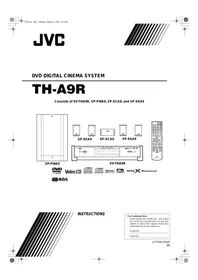


| Product type | Active audio system |
| Brand | JVC |
| Model | TH-A9R |
| Nominal power | 140 W |
| Impedance | 4 Ω |
| Frequency response | 25 Hz - 200 Hz |
| Crossover frequency | 100 Hz |
| Total harmonic distortion | 10 % at 100 Hz |
| Speaker | 20 cm (7.9 inches) with bass-reflex port |
| Dimensions (W × H × D) | 240 × 435 × 455 mm |
| Weight | Approximately 12 kg |
| Power supply | Mains 220-240 V, 50/60 Hz |
| Consumption | 150 W (max) |
| Inputs | RCA line input, speaker |
| Controls | Volume, crossover frequency, phase |
| Protection | Thermal and electronic circuit breaker |
| Maintenance | Clean with a dry, soft cloth. Do not use abrasive products. |
| Safety | Do not open the device. Risk of electric shock. |
| Spare parts | Contact JVC after-sales service. |
Frequently Asked Questions - TH-A9R JVC
User questions about TH-A9R JVC
0 question about this device. Answer the ones you know or ask your own.
Ask a new question about this device
Download the instructions for your Audio System in PDF format for free! Find your manual TH-A9R - JVC and take your electronic device back in hand. On this page are published all the documents necessary for the use of your device. TH-A9R by JVC.
USER MANUAL TH-A9R JVC
DVD DIGITAL CINEMA SYSTEM
TH-A9R
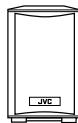
Consists of XV-THA9R, SP-PWA9, SP-XCA9, and SP-XSA9
SP-PWA9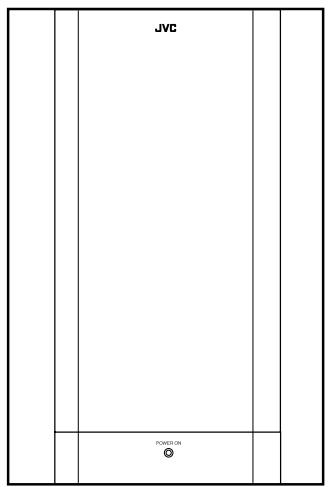
SP-XSA9
SP-XCA9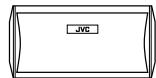
SP-XSA9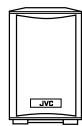
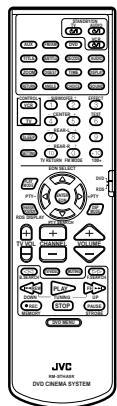
XV-THA9R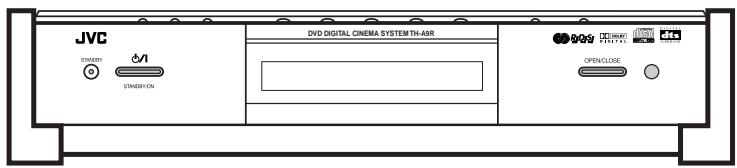

Video CD




MPEG Multichannel

RIDSI
INSTRUCTIONS
For Customer Use:
Enter below the Model No. and Serial No. which are located either on the rear, bottom or side of the cabinet. Retain this information for future reference.
Model No.
Serial No.
IMPORTANT for the U.K.
DO NOT cut off the mains plug from this equipment. If the plug fitted is not suitable for the power points in your home or the cable is too short to reach a power point, then obtain an appropriate safety approved extension lead or consult your dealer.
BE SURE to replace the fuse only with an identical approved type, as originally fitted.
If nonetheless the mains plug is cut off ensure to remove the fuse and dispose of the plug immediately, to avoid a possible shock hazard by inadvertent connection to the mains supply.
If this product is not supplied fitted with a mains plug then follow the instructions given below:
IMPORTANT.
DO NOT make any connection to the terminal which is marked with the letter E or by the safety earth symbol or coloured green or green-and-yellow.
The wires in the mains lead on this product are coloured in accordance with the following code:
Blue: Neutral
Brown: Live
As these colours may not correspond with the coloured markings identifying the terminals in your plug proceed as follows:
The wire which is coloured blue must be connected to the terminal which is marked with the letter N or coloured black.
The wire which is coloured brown must be connected to the terminal which is marked with the letter L or coloured red.
IF IN DOUBT - CONSULT A COMPETENT ELECTRICIAN.
Caution — ⓄI button!
Disconnect the XV-THA9R and SP-PWA9 main plugs to shut the power off completely. The Ⓞ/I button on the XV-THA9R in any position does not disconnect the mains line. The power can be remote controlled.
CAUTION
To reduce the risk of electrical shocks, fire, etc.:
- Do not remove screws, covers or cabinet.
- Do not expose this appliance to rain or moisture.
IMPORTANT FOR LASER PRODUCTS
PRODUCTION OF LABELS
① CLASSIFICATION MARK, PLACED ON REAR ENCLOSURE
- CLASS 1 LASER PRODUCT
- CAUTION: Visible and invisible laser radiation when open and interlock failed or defeated. Avoid direct exposure to beam.
- CAUTION: Do not open the top cover. There are no user serviceable parts inside the Unit; leave all servicing to qualified service personnel. (2) WARNING LABEL, PLACED INSIDE THE UNIT
| CAUTION:Invisible laser radiation when open and interlock failed or defeated. AVOID DIRECT EXPOSURE TO BEAM. (e) |
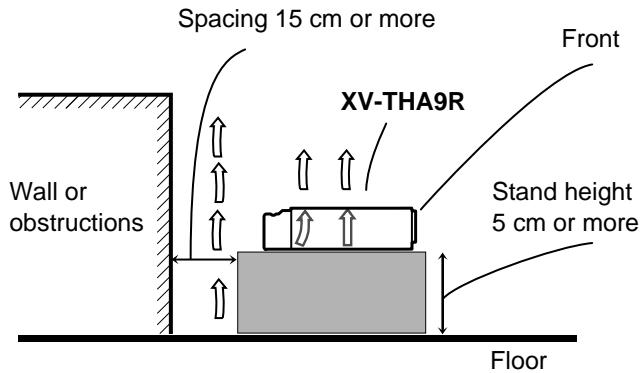
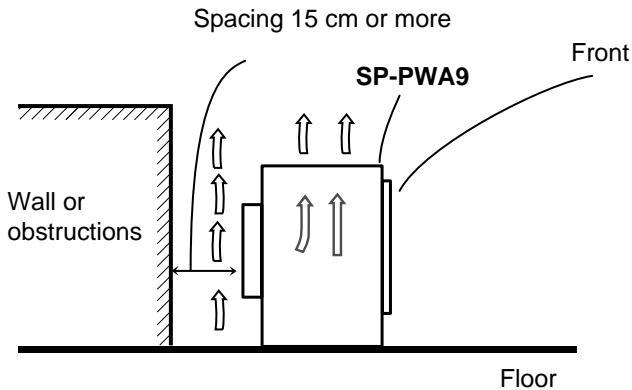
Caution: Proper Ventilation
To avoid risk of electric shock and fire and to protect from damage.
Locate the apparatus as follows:
Front: No obstructions and open spacing.
Sides: No obstructions in 3 cm from the sides.
Top: No obstructions in 5 cm from the top.
Back: No obstructions in 15 cm from the back.
Bottom: No obstructions, place on the level surface.
XV-THA9R
SP-PWA9
CAUTION:
- Do not block the ventilation openings or holes. (If the ventilation openings or holes are blocked by a newspaper or cloth, etc., the heat may not be able to get out.)
- Do not place any naked flame sources, such as lighted candles, on the apparatus.
- When discarding batteries, environmental problems must be considered and local rules or laws governing the disposal of these batteries must be followed strictly.
- Do not use this apparatus in a bathroom or places with water.
Also do not place any containers filled with water or liquids (such as cosmetics or medicines, flower vases, pots plants, cups, etc.) on top of this apparatus.
Getting Started 2
Important cautions 2
Safety precautions. 2
Checking the supplied accessories. 2
System outline 3
Installation 4
To hang satellite speakers from the wall 4
About discs 5
Playable disc types. 5
Disc structure 5
Video CDs with Playback Control function 5
Connections 6
Connecting the FM and AM (MW) antennas 6
Connecting the powered sub-woofer 6
Connecting the TV. 6
Connecting the TV with the SCART connector 7
Connecting speakers 8
Connecting an audio component. 9
Connecting the power cord. 10
Putting batteries in the remote control. 10
Parts Identification 11
Principles of operation 14
Operation with the remote control 14
On-screen displays 15
Preventing screen burn-out with the screen saver
[SCREENSAVER] 16
Basic operations 17
To turn the system power supply ON and OFF (standby)..17
To turn TV power ON and OFF 17
Adjusting volume [VOLUME] 17
Sub-woofer volume control and phase setting. 18
Muting the sound [MUTING] 18
Selecting the source to play 18
Changing the decode mode [DECODE] 19
Audio channel display indicator 19
Using the Sleep Timer [SLEEP] 20
Using the DSP Modes [DSP MODE] 20
Using the DVD player 22
To turn on the system and TV 22
To insert a disc 22
To play a disc 23
Pausing 24
Fast forward and backward 24
Locating the beginning 24
Resuming playback 25
Selecting playback from the DVD menu 25
Selecting the location to view from the Video CD menu... 26
To specify the title, chapter, or track number for playback 26
To play from the beginning of a title, chapter, or track..... 27
To specify the chapter number for playback [CHAP.SEARCH] 27
To specify the time for playback [TIME SEARCH] 27
To select the screen for playback from the digest screen [DIGEST] 28
To advance the picture one frame at a time 29
Slow-Motion Playback [SLOW] 29
To display Continuous Photos [STROBE] 30
Zooming a scene [ZOOM] 31
Changing the Subtitle Language [SUBTITLE] 31
Changing the audio language or sound [AUDIO] 32
Changing the audio channel [AUDIO] 32
Viewing from Multiple Angles [ANGLE] 33
Selecting the Picture Character [THEATER POSITION].. 34
Repeating a current title, chapter or track, or all tracks [REPEAT] 34
Repeating a desired part [A-B REPEAT] 35
Programming the Playing Order [PROGRAM] 36
Random Play [RANDOM] 37
To check the DVD function status 37
To check the disc information 38
To check the time information 38
Receiving radio broadcasts 40
Tuning in stations manually 40
Using preset tuning. 40
Selecting the FM reception mode. 41
Beat cut. 41
Using the RDS (Radio Data System) to receive FM stations 42
What information can RDS signals provide? 42
Searching for a program by PTY codes 42
Switching to a broadcast program of your choice temporarily 43
Preference settings 44
Using the preference setting menus. 44
LANGUAGE MENU settings 45
Choosing menu language 45
Choosing audio language 45
Choosing subtitle language 45
Choosing on-screen language 45
DISPLAY MENU settings 46
Select monitor type. 46
Screen saver settings 46
On-screen guide settings 46
SYSTEM MENU setting 47
AUTO STANDBY 47
RESUME. 47
AV COMPULINK MODE. 47
Limiting playback by children 48
To set Parental Lock for the first time [PARENTAL LOCK] 48
To temporarily release the Parental lock. 49
Amplifier settings 50
Basic operation for setting amplifier. 50
Setting balance 50
Setting tone 51
Setting speaker size 51
Adjusting delay time 51
Adjusting crossover 52
Adjusting LFE attenuator 52
Adjusting dynamic range. 52
Sound settings 53
Adjusting sub-woofer level 53
Adjusting speaker level 53
Adjusting DSP effect. 54
Operating Other Manufacturers' Video
Equipment 55
Care and handling of discs 57
How to handle discs 57
Troubleshooting 58
Specifications 59
Important cautions
Installation of the unit
- Select a place which is level, dry and neither too hot nor too cold between 5°C and 35°C (41°F and 95°F)
- Leave sufficient distance between the unit and the TV.
- Do not use the unit in a place subject to vibrations.
Power cord
- Do not handle the power cord with wet hands!
- A small amount of power (1.9 W) is always consumed while the power cord is connected to the wall outlet. (center unit only)
- When unplugging the unit from the wall outlet, always pull the plug, not the power cord.
To prevent malfunction of the unit
- There are no user-serviceable parts inside. If anything goes wrong, unplug the power cord and consult your dealer.
- Do not insert any metallic object into the unit.
- Do not use any non-standard shape disc available on the market, because it may damage the unit.
- Do not use a disc with tape, seals, or paste on it, because damage to the unit may result.
Note about the copyguard system
- The DVD disc is protected by the copyguard system. When you connect the unit to your VCR directly, the copyguard system activates and the picture may not be played back correctly.
Safety precautions
Avoid moisture, water and dust
Do not place your unit in moist or dusty places.
Avoid high temperatures
Do not expose the unit to direct sunlight or place it near a heating device.
When you're away
When away on travel or otherwise for an extended period of time, remove the plug from the wall outlet.
Do not block the vents
Blocking the vents may damage the unit.
Care of the cabinet
When cleaning the unit, use a soft cloth and follow the relevant instructions on the use of chemically-coated cloths. Do not use benzene, thinner or other organic solvents and disinfectants. These may cause deformation or discoloring.
If water gets inside the unit
Turn off the power switch and remove the plug from the wall outlet, then call the store where you made your purchase. Using the unit in this state may cause a fire or electrical shock.
Avoid getting your hand caught in the disc cover
Getting caught may injure your hand.
Checking the supplied accessories
Check to be sure you have all of the following items, which are supplied with the unit.
The number in the parentheses indicates quantity of the pieces supplied.
Remote control (1)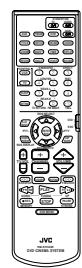
Batteries (2)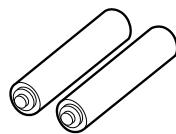
AM (MW) Loop Antenna (1)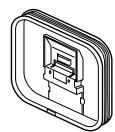
FM Antenna (1) AC Power Cord (1)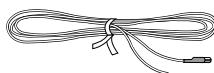
Video Cable (1)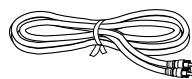
System Cable (1)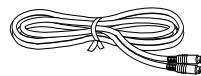
Speaker Cord 5 m (16.4 ft) (3)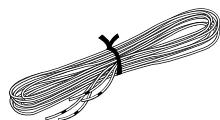
Speaker Cord 10m (32.8 ft) (2)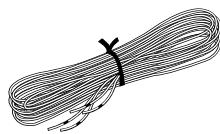
Satellite speaker wall bracket (2)*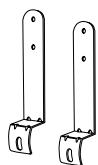

Screws (2)*
- Speaker wall brackets and screws are packed together with the satellite speakers.
This system consists of the unit containing a DVD player, a radio, and a pre-amp, as well as the powered sub-woofer, the center speaker, and four satellite speaker units.
It provides a fully functional DVD cinema system by simply connecting to a TV set.
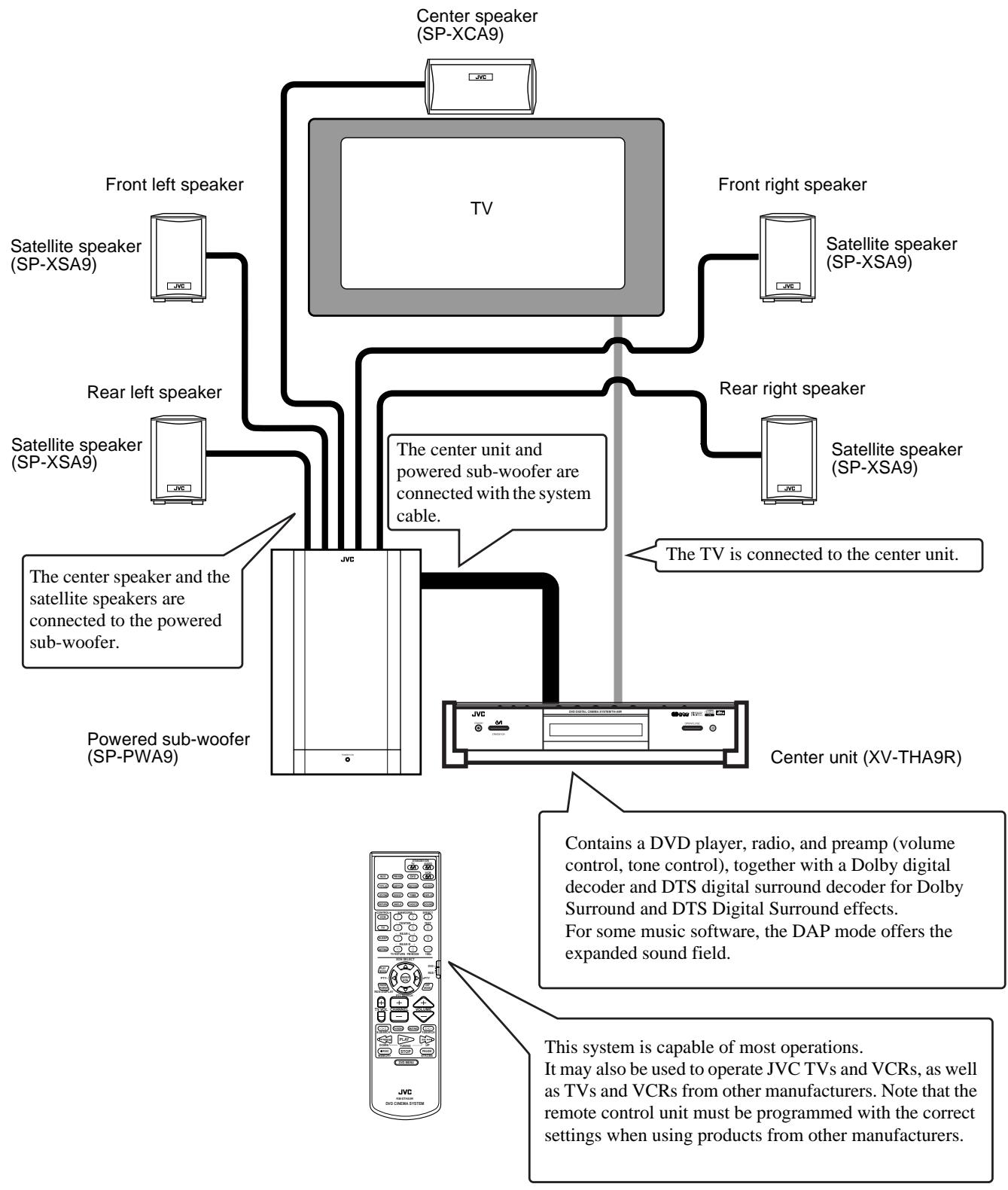
The following shows an example of the system installation.
System setting example
The rear speakers are placed behind the listening position.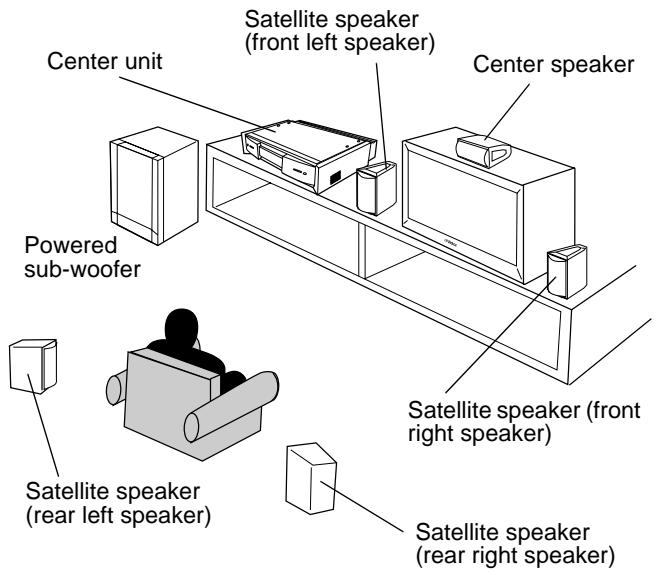
CAUTIONS:
- For safety reasons, always ensure that there is sufficient place behind the powered sub-woofer.
- If the front and rear speakers are placed on the furniture etc., always ensure that they are level.
To hang satellite speakers from the wall
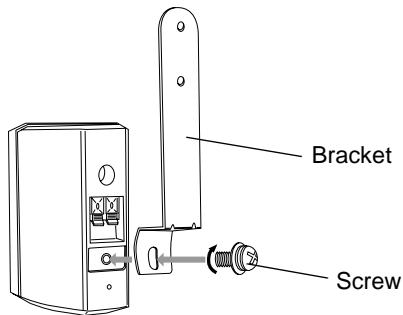
Use the supplied bracket to fix satellite speakers to the wall.
CAUTION: ATTACHING THE BRACKETS ON THE WALL
When attaching the brackets on the wall, have them attached to the wall by a qualified person.
DO NOT attach the brackets on the wall by yourself to avoid an unexpected damage of their falling from the wall, caused by incorrect attachment or weakness in the wall.
Location of attachment to wall:
Care is required in selecting a location for attaching satellite speakers to the wall. Injury to personnel, or damage to equipment, may result if the speakers are attached in a location which interferes with daily activities.
Attaching speakers to the bracket
1 Use the screw supplied to attach the speaker to the bracket.
2 Adjusting the angle of the satellite speakers
The angle of the speaker may be adjusted along the channel in the bracket. When adjusting the angle, loosen the screw slightly, make the adjustment, and then tighten the screw firmly.
Normal position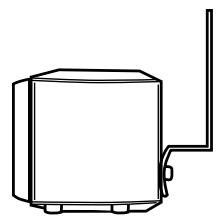
Tilting the speaker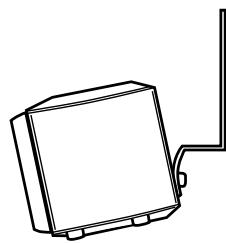
CAUTION:
If the screw is not tightened firmly, it may cause injury to personnel or damage to equipment.
Playable disc types
Playable and non-playable disc types are as follows:
Playable discs
DVD

Video CD, Compact Disc Digital Audio, Video CD, Audio CD. The DVD Logo is a trademark.
Non-playable discs
DVD-ROM
DVD-RAM
DVD-R
DVD-RW
CD-R*
CD-ROM
PHOTO CD
CD-RW*
- Audio formatted CD-R and CD-RW can be played.
- Playing back discs listed as "Non-playable discs" above may generate noise and damage speakers.
- Only audio can be played for CD-G, CD-EXTRA, and CD-TEXT.
Notes on DVD discs
- DVD players and DVD discs have their own Region Code numbers. This unit can only play back DVD discs whose Region Code numbers include "2".
Examples of playable DVD discs:


- This unit accommodates discs for the PAL system.
Disc structure
A DVD disc is comprised of "titles", while an Audio CD or Video CD is comprised of "tracks". Each title may be divided into some "chapters". For example, if a DVD disc contains some movies, each movie may have its own title number, and each movie may be divided into some chapters. In a DVD karaoke disc, each song usually has its own title number and does not have chapters. In general, each title has independent content, while each chapter in the same title has continuity.
Example: DVD disc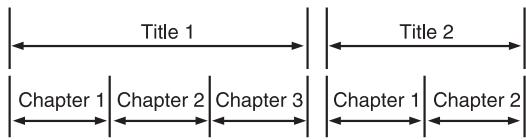
Example: Audio CD/Video CD
Video CDs with Playback Control function
What is Playback Control function?
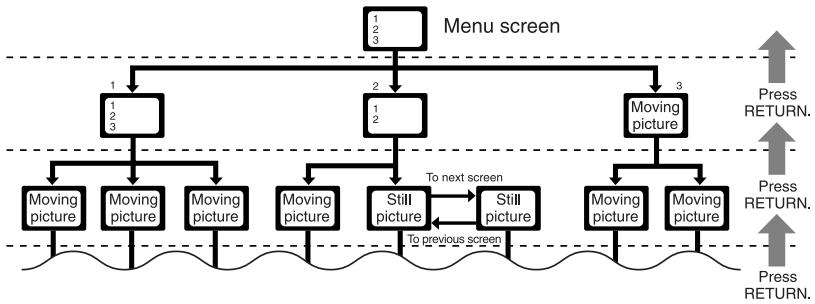
The Playback Control function allows you to enjoy menu-driven operation and high-resolution still images which have a resolution four times greater than moving pictures.
- Menu-driven playback
You can interact with the screen using a menu display to select and play an entry.
- High-resolution still image display
You can display high-quality images four times clearer than moving pictures.
A selection menu is displayed when you start playing a Video CD with the Playback Control feature. The selection menu shows a list of numbers for selection. Some discs may show moving pictures or a divided screen.
1. When a list of numbers is displayed, selecting a number shows its contents.
- When "▶" or "SELECT" is displayed on the television screen, pressing this button jumps to the specific picture.
- When the selection menu is re-displayed after you have played your selection, selecting a number again replays its contents.
(Some discs may show the menu screen several times.)
When ▸▸ and 1◀1 are shown, pressing "NEXT" or "PREV" can change the selection menu.
4. After playback, press RETURN to go back to the previous screen.
To stop playback, press STOP.
Note:
- When a menu is displayed for a long time (about ten minutes), the screen background automatically gets dark to prevent screen burn-in while the setting is suspended.
CAUTION:
- Make all connections before plugging the system into an AC outlet.
Connecting the FM and AM (MW) antennas
FM antenna connections B. Outdoor FM antenna cable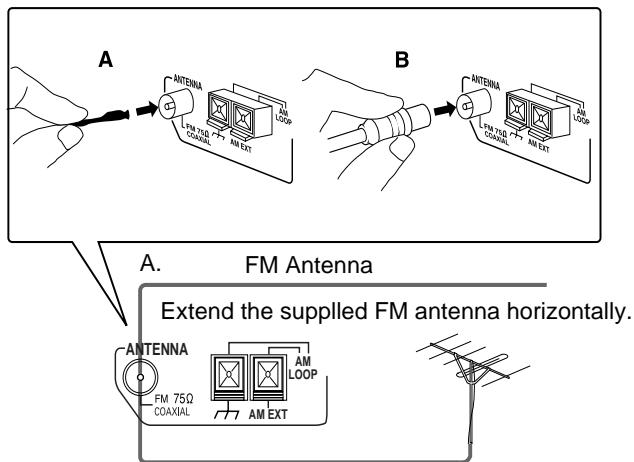
A. Using the supplied FM antenna
The FM antenna provided can be connected to the FM 75 Ω COAXIAL terminal as a temporary measure.
B. Using the standard type connector (not supplied)
A standard type connector should be connected to the FM 75 Ω COAXIAL terminal.
Note:
- If reception is poor, connect the outdoor antenna. Before attaching the 75 Ω coaxial cable (the kind with a round wire going to an outdoor antenna), disconnect the supplied FM antenna.
AM (MW) antenna connections
Turn the loop until you have the best reception.
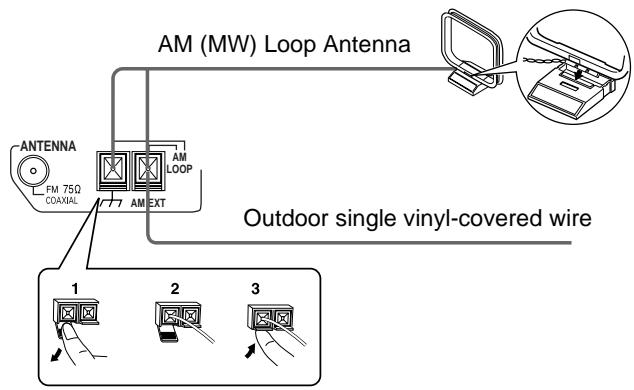
Notes:
- Make sure the antenna conductors do not touch any other terminals, connecting cords, and power cord. This could cause poor reception.
- If reception is poor, connect an outdoor single vinyl-covered wire to the AM EXT terminal. (Keep the AM (MW) loop antenna connected.)
Connecting the powered subwoofer
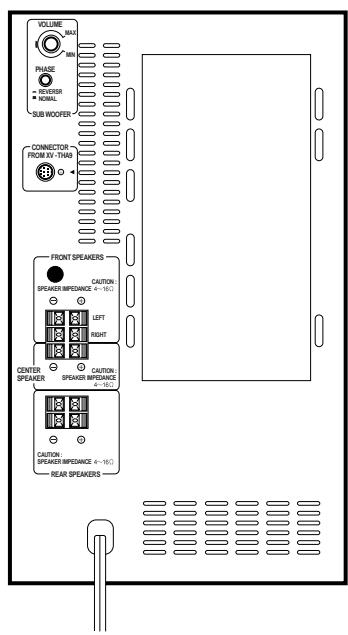
Use the supplied system cable to connect the powered sub-woofer (SP-PWA9).
Center unit (XV-THA9R)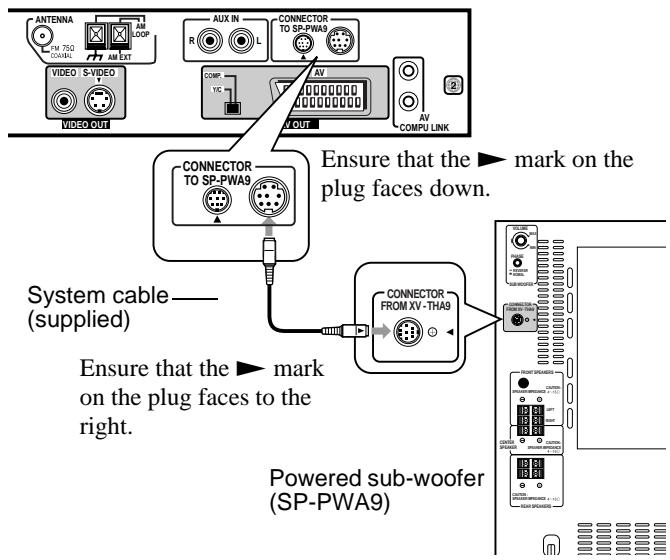
CAUTION:
Use the system cable provided for attaching the center unit and the sub-woofer.
Connecting the TV
Connect the TV to view video images from the unit.
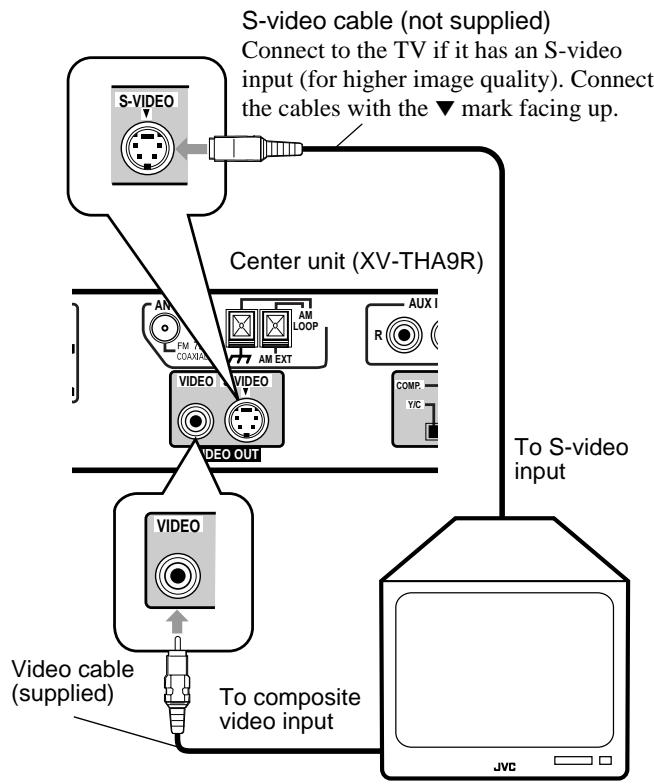
Connecting the TV with the SCART connector
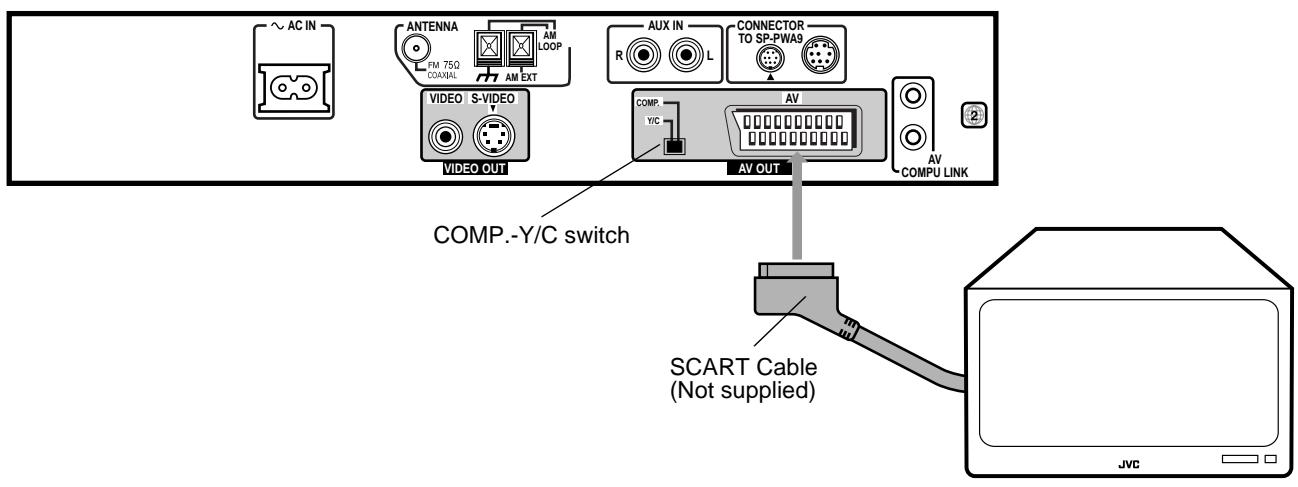
Connect the unit's AV OUT connector with your TV's SCART connector using an optional SCART cable.
- Set the COMP.-Y/C switch correctly according to your TV. If the TV only accommodates the regular (composite) video signal, set the switch to "COMP". If the TV accommodates the Y/C signal, set the switch to Y/C so that you can enjoy better-quality pictures.
Note:
On the rear panel, the SCART cable is indicated as "AV OUT". However, this terminal is designed as video output. So, no sound comes out.
Connecting speakers
Connect the satellite speakers and center speaker to the terminals on the powered sub-woofer using the speaker cords supplied. Labels are attached to the speaker cords to indicate the speaker and terminal to which each is to be connected.
- The four satellite speakers may be used at either front or rear.
- Ensure that the left and right speakers are connected to left and right respectively, and that they are connected with the correct polarity (+ve, -ve). The white speaker cord connects to the + terminal, and the black speaker cord connects to the - terminal.
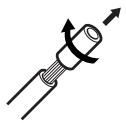
Twist and remove the insulation at the end of each speaker cord.
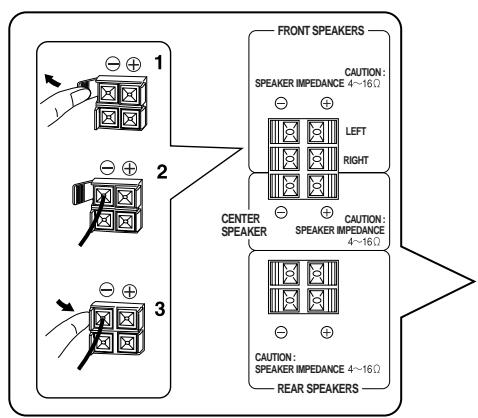
Connecting the front speakers
Connect the right speaker to the FRONT SPEAKERS RIGHT terminal.
Connect the left speaker to the FRONT SPEAKERS LEFT terminal.
Connecting the rear and center speakers
Connect the right rear speaker to the REAR SPEAKERS RIGHT terminals.
Connect the left rear speaker to the REAR SPEAKERS LEFT terminals.
Connect the center speaker to the CENTER SPEAKER terminals.
Front right speaker Front left speaker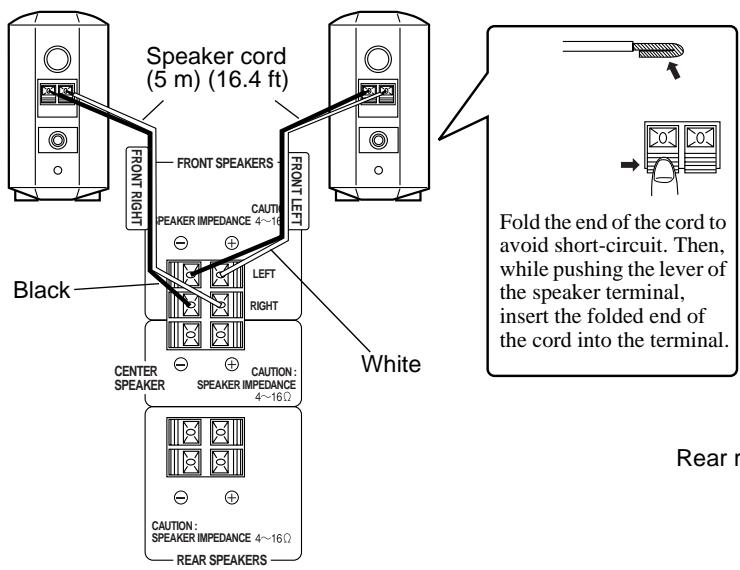
Center speaker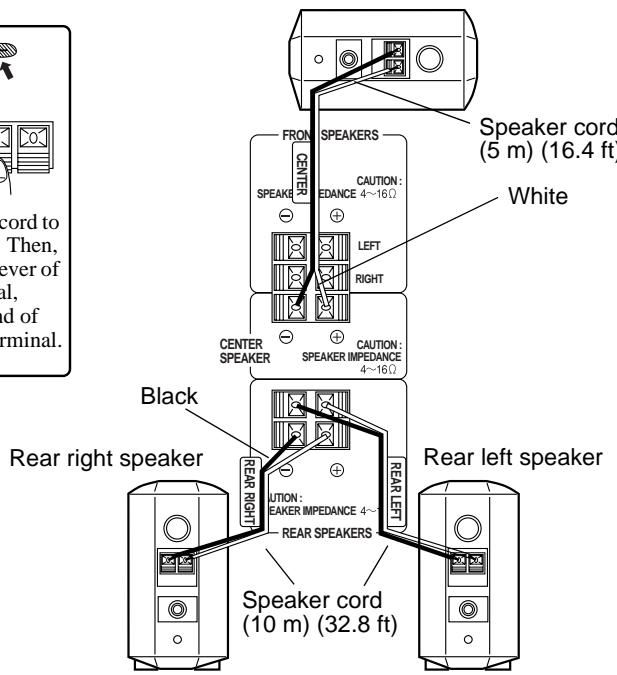
Note:
- Mixing up the polarity of the speaker cords can reduce the stereo effect and sound quality.
Connecting an audio component
You can connect an analog audio component, such as VCR, TV and MD recorder to this system.
Refer also to the manuals supplied with your components.
Use the cable with RCA pin plugs (not supplied).
Connect the white plug to the left jack, and the red plug to the right jack.
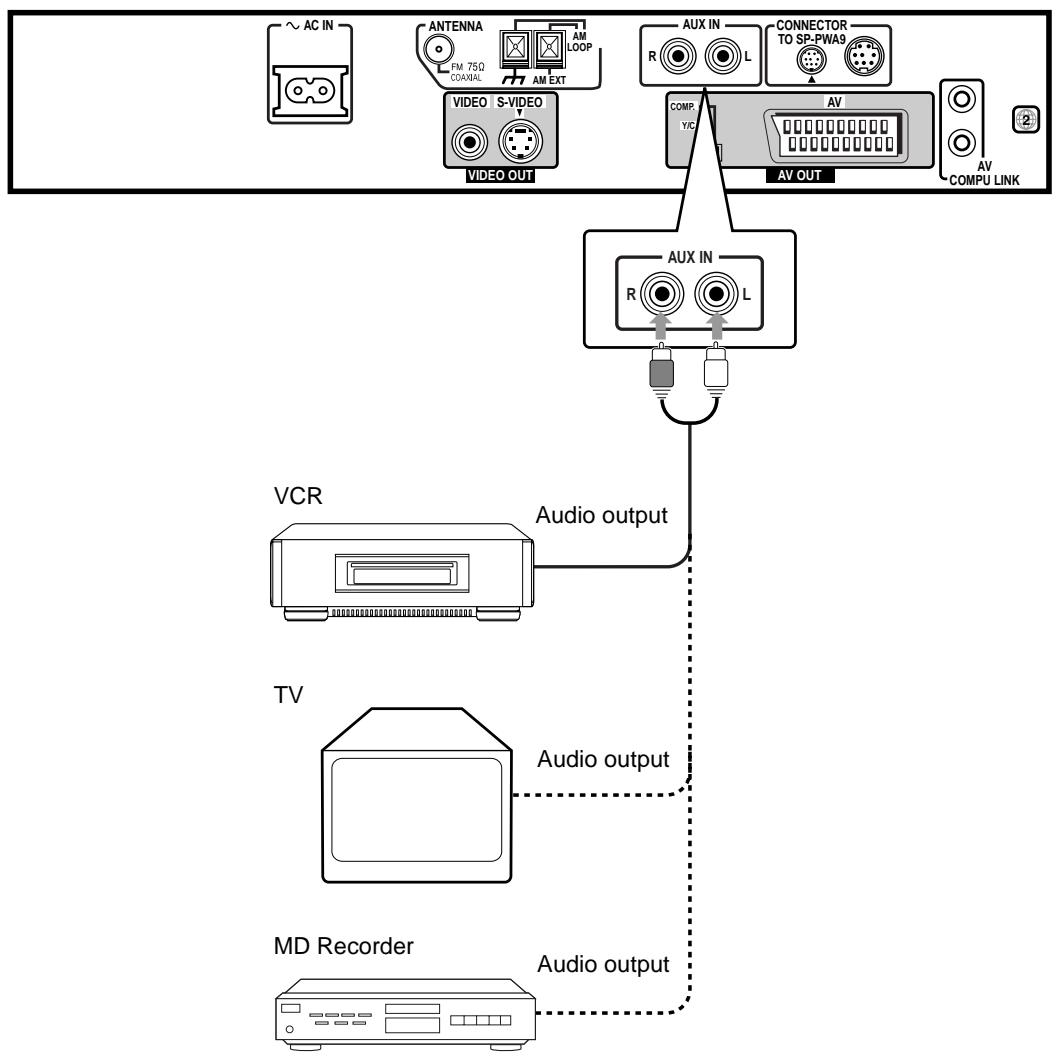
CAUTION:
If you connect a sound-enhancing device such as a graphic equalizer between the source components and the center unit, the sound output through this system may be distorted.
Connecting the power cord
Before plugging the center unit and powered sub-woofer into an AC outlets, make sure that all connections have been made.
Plug the power cord into an AC outlet.
The red STANDBY lamp on the center unit lights when the power cord is plugged in.
Keep the power cord away from the connecting cables and the antenna cable. The power cord may cause noise or screen interference.
We recommend that you use a coaxial cable to connect the FM outdoor antenna, since it is well-shielded against interference.
Center unit Powered sub-woofer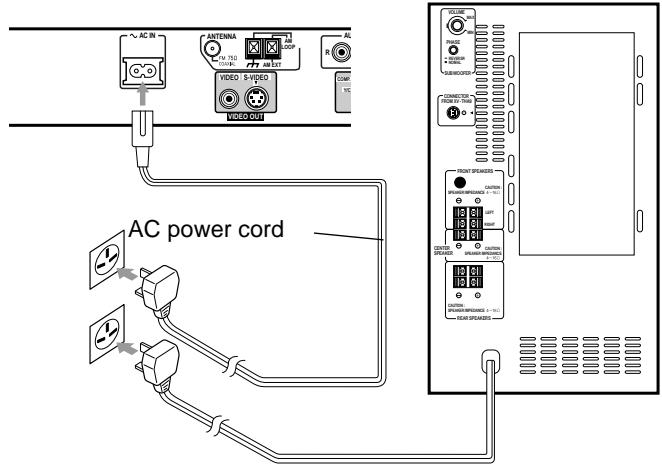
CAUTIONS:
- Do not touch the power cord with wet hands.
- Do not pull on the power cord to unplug the cord. When unplugging the cord, always grasp the plug so as not to damage the cord.
Notes:
- The preset settings such as preset channel and sound adjustment may be erased in a few days in the following cases:
- When you unplug the power cord.
- When a power failure occurs.
- The speakers will not produce any sound if the powered sub-woofer power cord is removed from the AC outlet while the center unit is turned on. In this case power will not come on even when the powered sub-woofer power cord is plugged in the AC outlet.
Press I on the center unit, or AUDIO I on the remote control to turn power on. This will turn the powered sub-woofer on and sound will be emitted from the speakers.
Putting batteries in the remote control
Before using the remote control, put two supplied batteries first. When using the remote control, aim the remote control directly at the remote sensor on the center unit.
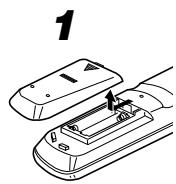
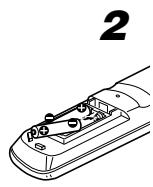
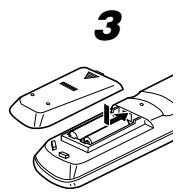
1 On the back of the remote control, remove the battery cover. 2 Insert batteries. Make sure to match the polarity: (+) to (-) . 3 Replace the cover.
- If the range or effectiveness of the remote control decreases, replace the batteries. Use two R6P (SUM-3)/AA (15F) type dry-cell batteries.
CAUTIONS:
Follow these precautions to avoid leaking or cracking cells:
- Place batteries in the remote control so they match the polarity: (+) to (-).
- Use the correct type of batteries. Batteries that look similar may differ in voltage. Always replace both batteries at the same time.
- Do not expose batteries to heat or flame.
Become familiar with the buttons and controls on the center unit and powered sub-woofer before use. Refer to the pages in parentheses for details.
Center unit
Front panel (top view)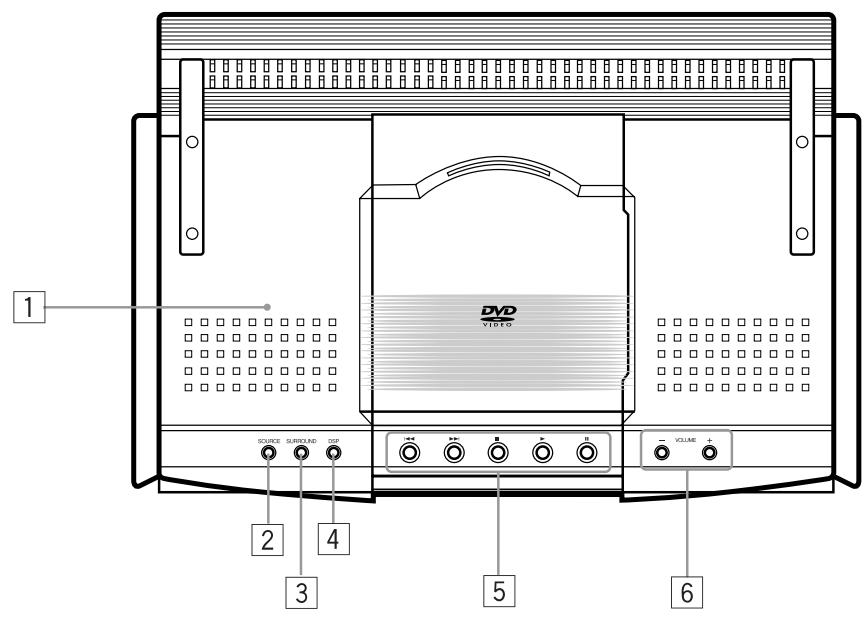
Disc cover (22) SOURCE button (18) 3 SURROUND button (21) DSP mode button (21) DVD control buttons (23, 24, 25) 6 VOLUME + / - button (17)
Front panel (front view)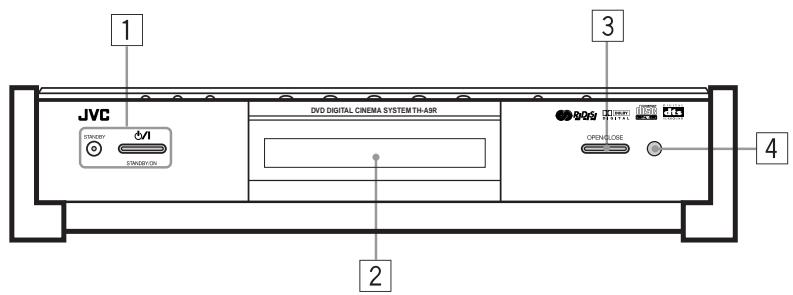
STANDBY/ON button and STANDBY lamp (17) 2 Display window 3 OPEN/CLOSE button (22) 4 Remote sensor
Rear panel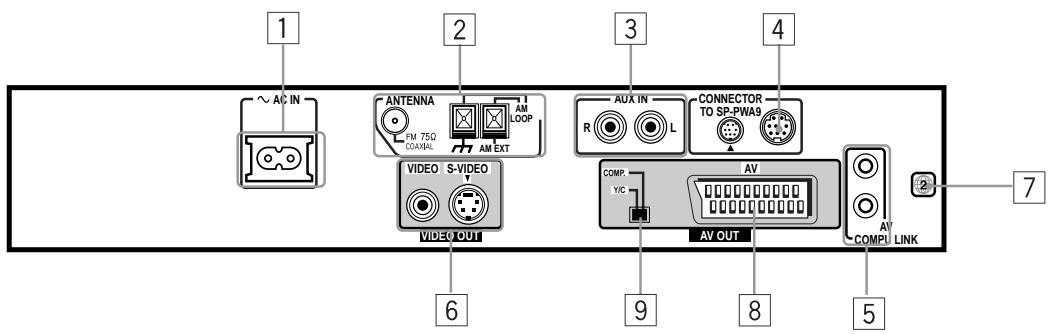
AC IN socket (10) Antenna terminals (6) 3 AUX IN terminals (9) 4 Connector for powered sub-woofer (6) 5 AV COMPU LINK terminals (47) Video output terminals (6, 7) 7 Region code number (5) AV OUT terminal Switch for selecting video output of AV OUT
Display window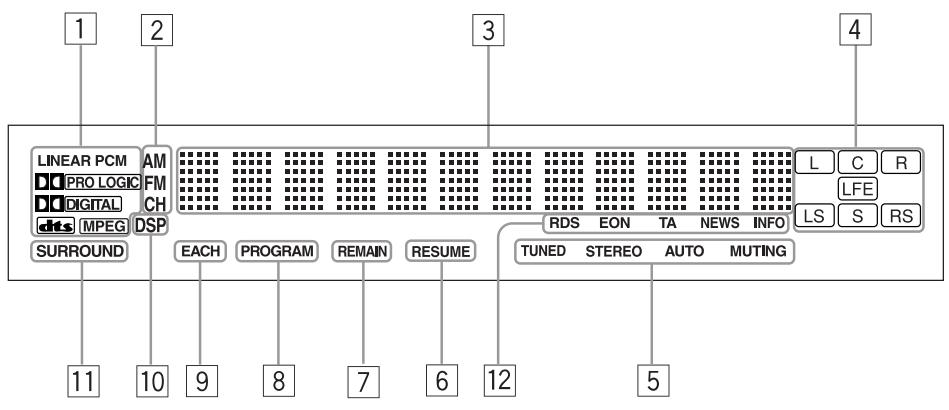
1 Decode mode indicator 2 Radio indicator (40, 41) 3 Multi-information window Displays time, status information, etc. 4 Audio channel indicator (19) 5 Radio reception mode indicator (40, 41) 6 RESUME indicator (25) 7 REMAIN indicator (Timer indicator) (39) 8 PROGRAM indicator (36) 9 EACH indicator (Timer indicator) (39) DSP indicator (21) 11 SURROUND indicator (21) 12 RDS reception mode indicator (42)
Powered sub-woofer (Front)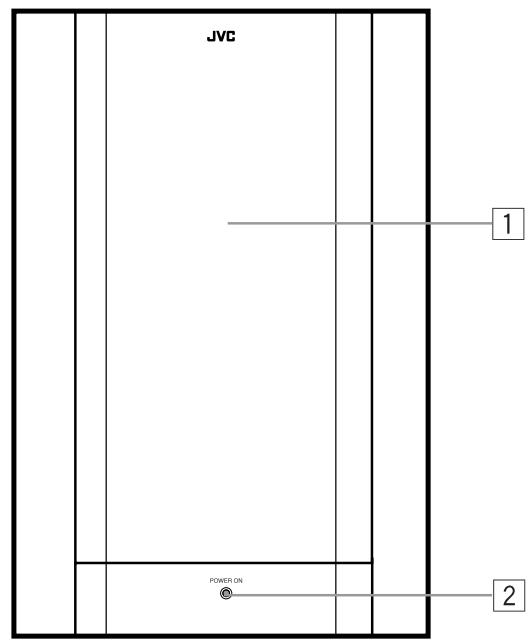
Speaker 2 POWER ON lamp (17)
(Rear)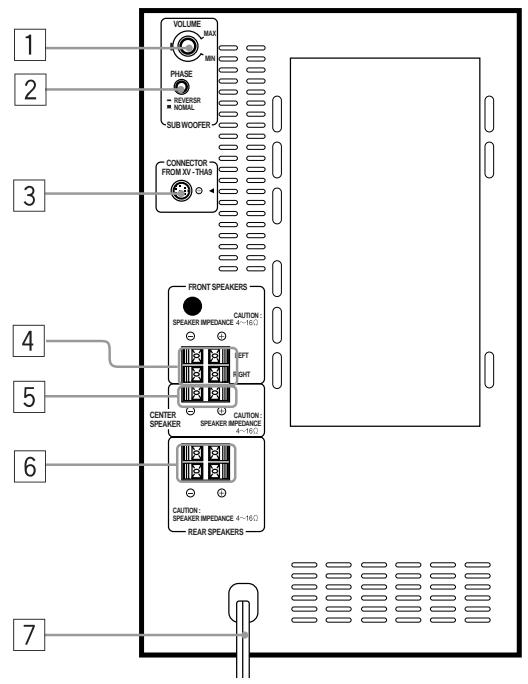
VOLUME knob (18) 2 PHASE button (18) 3 Connector for center unit (6) FRONT SPEAKERS terminals (8) 5 CENTER SPEAKER terminals (8) REAR SPEAKERS terminals (8) 7 Power cord (10)
Remote controls
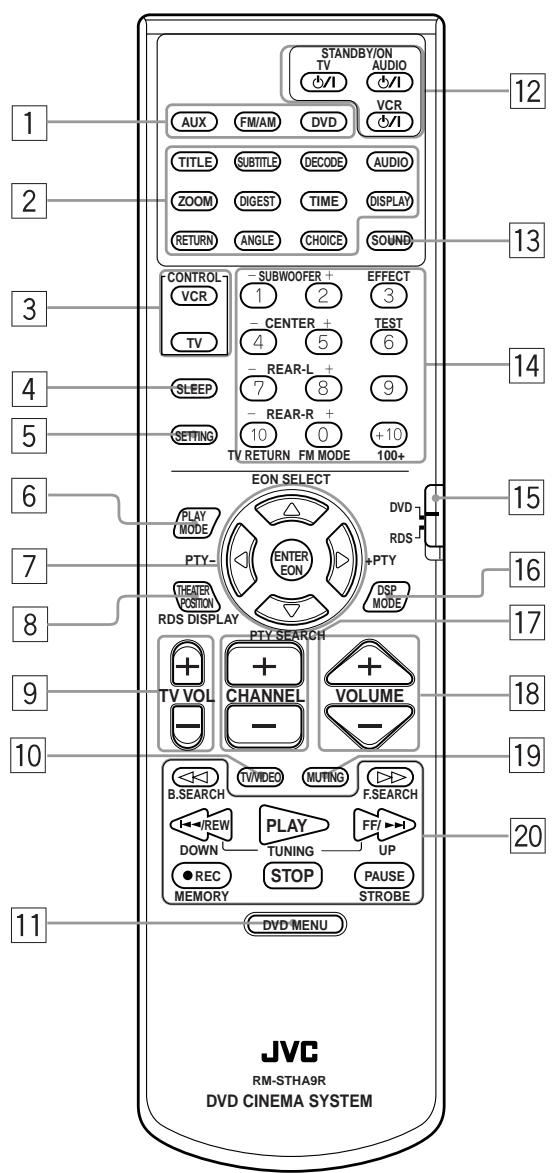
Source selecting buttons (14, 18, 41) AUX, FM/AM, DVD DVD operating buttons TITLE (25) SUBTITLE (31) DECODE (19) AUDIO (32) ZOOM (31) DIGEST (28) TIME (38, 39) DISPLAY (37, 38) RETURN (26) ANGLE (33) CHOICE (44) 3 Control buttons VCR/TV (55, 56) 4 SLEEP button (20) 5 SETTING button (50) 6 PLAY MODE button (34, 35, 36, 37) 7 Cursor (EON SELECT, PTY +, PTY SEARCH, PTY -) and ENTER (EON) buttons (42, 43) THEATER POSITION (RDS DISPLAY MODE) button (42) TV VOL + - button (55) TV/VIDEO button (55) 11 DVD MENU button (25) 12 STANDBY/ON buttons AUDIO / 1 (17,22) TV / 1 (17,22,55,56) VCR / 1 (56) 13 SOUND button (53, 54) 14 Number buttons Remote control mode selector (55) DVD, RDS 16 DSP MODE button (21) 17 CHANNEL + - button (55, 56) VOLUME + - button (17) 19 MUTING button (18) 20 Operating buttons (23, 24, 40, 41)
The system may be operated via the remote control or the buttons on the center unit, or via the menu on the screen.
Operation with the remote control
Select the appropriate mode for the remote control when the remote control is used for operation.
The remote control mode is selected by pressing the source selecting buttons.
Press DVD: The DVD operation buttons, number buttons, PLAY MODE button, THEATER POSITION button and operating buttons operate in DVD mode, enabling operation of the DVD, Audio CD, and Video CD discs.
Press FM/AM: The number buttons and operating buttons operate in the radio mode. In Radio mode, nothing will be displayed on the TV.
Press AUX: Press to listen to sound inputted to the AUX jacks. In AUX mode, only the VOLUME + and - buttons are operable. Also, nothing will be displayed on the TV.
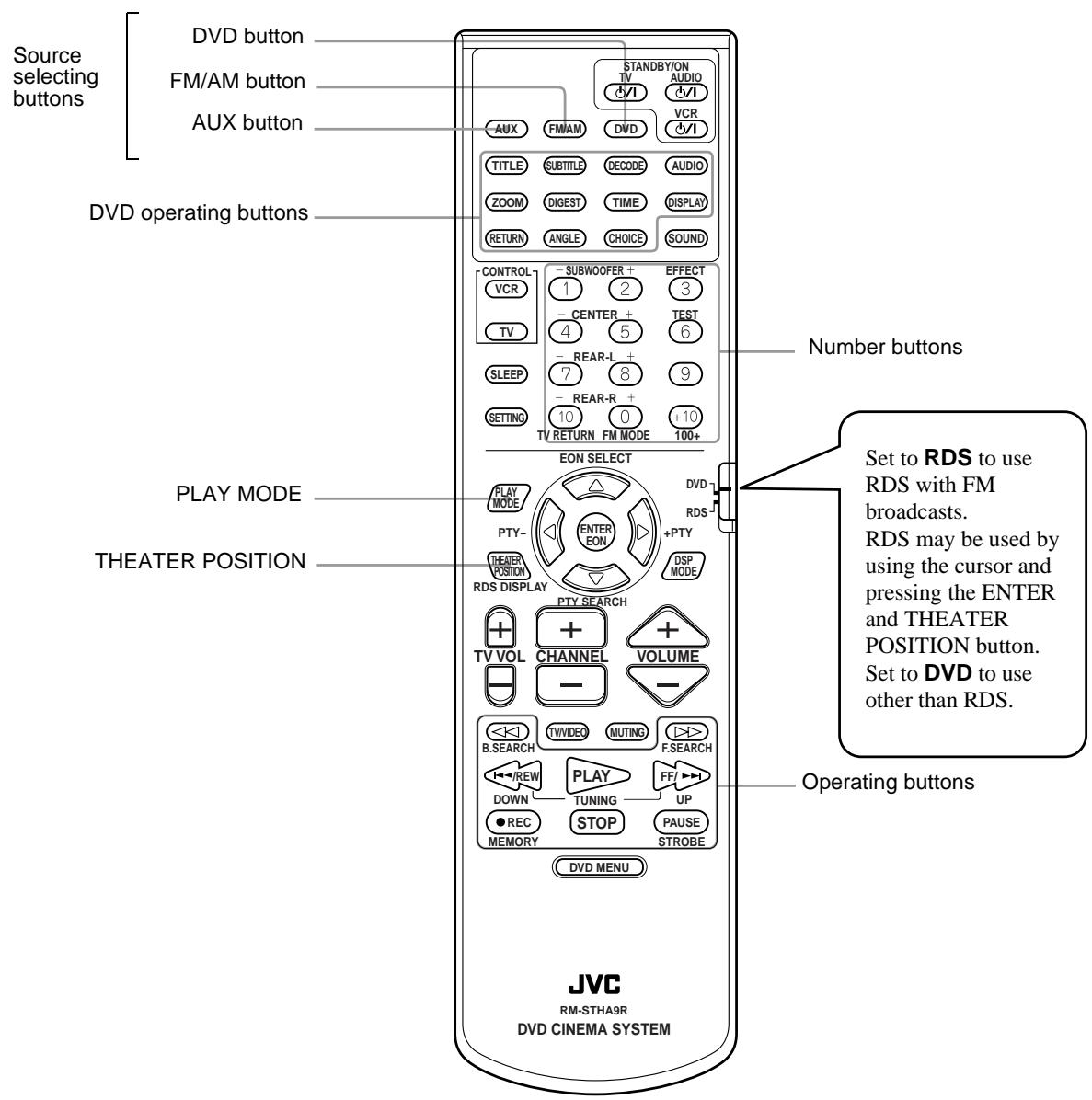
Note:
- The remote control mode is affected by the source selecting buttons as well as the SOUND, VCR, TV buttons, and the remote control mode selector (DVD-RDS).
See pages 42, 53 and 55 for details.
On-screen displays
The center unit provides several on-screen displays.
With some displays, you can set or select preferences or functions, while the others are display-only.
Opening screens
The Opening screen appears automatically in some conditions.
At the bottom, the following information is indicated depending on the center unit's status.
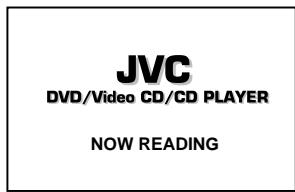
- NOW READING: The center unit is now reading the disc information (TOC).
- REGION CODE ERROR!: The DVD disc loaded cannot be played because the region code of the disc does not match the center unit.
- OPEN: The disc cover is now opening.
- CLOSE: The disc cover is now closing.
Opening display
JVC DVD/Video CD/CD PLAYER
NOW READING
Play mode displays
While stopped
Status displays
DVD function status
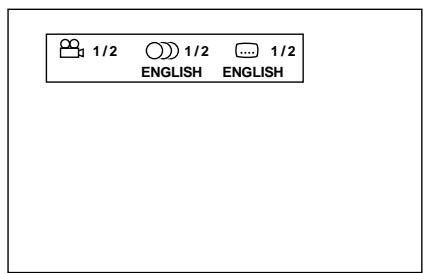
During DVD playback
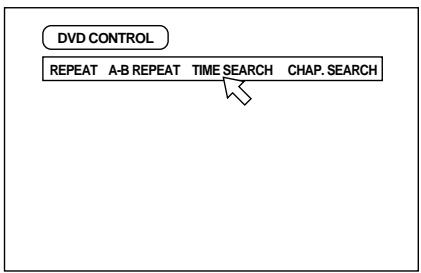
Disc/time (DVD)
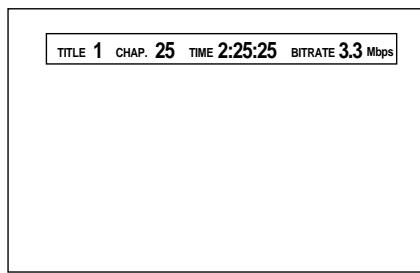
During Audio CD playback
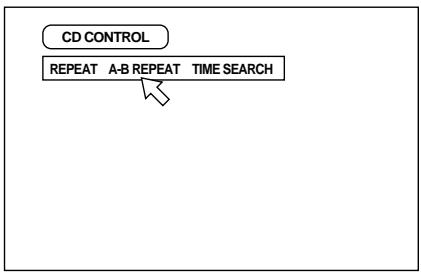
Disc/time (Audio CD/Video CD without PBC)
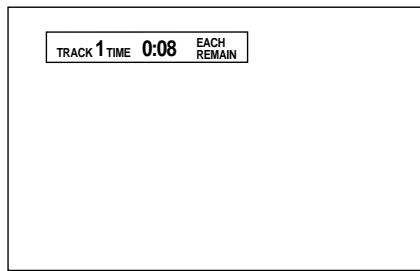
During Video CD playback
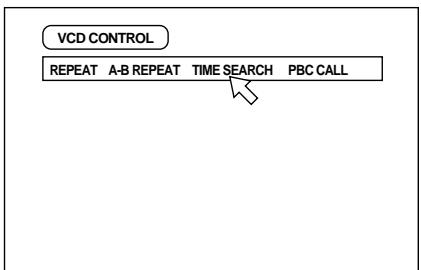
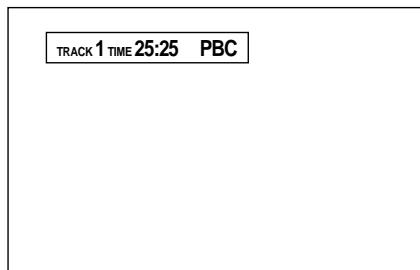
Disc/time (Video CD with PBC)
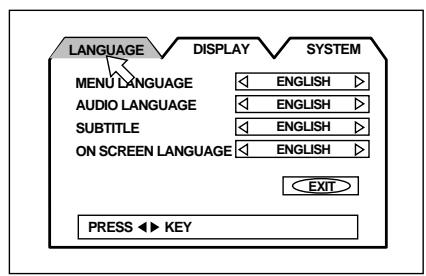
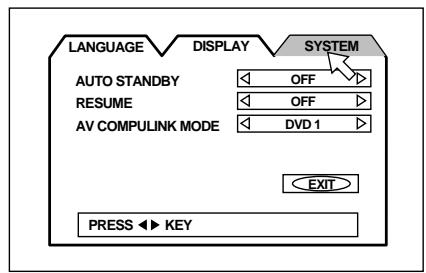
On-screen menus for setting preferences
LANGUAGE
DISPLAY
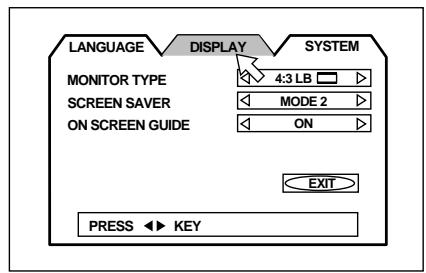
SYSTEM
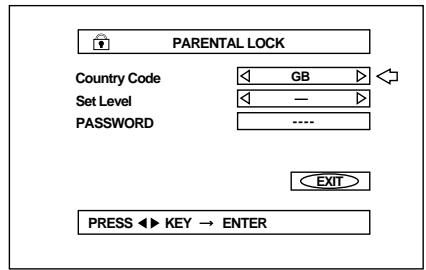
On-screen menus for setting parental lock
PARENTAL LOCK
On-screen menus for using discs
The disc status and items are displayed as follows on the on-screen menus for using the disc.
Preventing screen burn-out with the screen saver [SCREEN Saver]
A television monitor screen may be burned out if a static picture is displayed for a long time. To prevent this, the center unit automatically activates the screen saver function if a static picture, such as an on-screen display or menu, is displayed for over 5 minutes.
- Pressing any button on the center unit or the remote control unit will release the screen saver function and return to the previous display.
- You can select one of several screen saver modes available (see page 46).
![JVC TH-A9R - Preventing screen burn-out with the screen saver [SCREEN Saver] - 1](/content/2025/01/123734/images/a4a01624d120fb24e5deb247dc57eadd3c2297f72df1359cc517a1d1683aa03d.jpg)
Note:
- The screen saver does not work during playback of an Audio CD or while stopped after playing an Audio CD.
The basic operations for this system are as follows.
IMPORTANT
Check that the remote control mode selector is set to "DVD" except when you use the RDS (Radio Data System) for receiving FM stations.
To turn the system power supply ON and OFF (standby)
From the remote control:
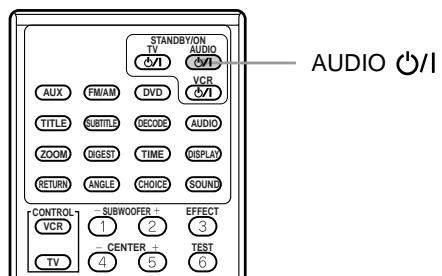
Press AUDIO Ⓜ / Ⓢ to turn power on.
The STANDBY lamp goes off, and the current source name (DVD, AM or FM station frequency, or AUX) appears on the display window. At this time, the disc cover slides backwards and the top buttons on the center unit appear.
Press AUDIO ⊙ / 1 again to turn power off (standby).
The STANDBY lamp is lit.
The disc cover slides forward to cover the top buttons on the center unit and the center unit turns off.
On the center unit:
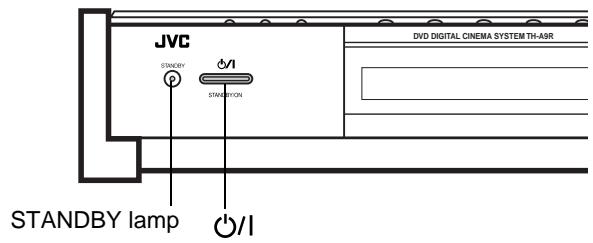
Press Ⓜ / Ⓢ to turn power on.
The STANDBY lamp goes off, and the current source name (DVD, AM or FM station frequency, or AUX) appears on the display window. At this time, the disc cover slides backwards and the top buttons on the center unit appear.
Press \(\mathcal{O} / \mathcal{I}\) again to turn power off (standby).
The STANDBY lamp is lit.
The disc cover slides forward to cover the top buttons on the center unit and the center unit turns off.
Notes:
- The powered sub-woofer power supply is linked to the center unit. The green POWER ON lamp on the powered sub-woofer lights when power is turned on, and goes off when power is turned off.
- A small amount of power is consumed in the standby mode (center unit only). Remove the AC power cord from the AC outlet to turn the center unit off completely.
To turn TV power ON and OFF
JVC TVs may be used as is with the remote control. TVs from other manufacturers require changes to the transmittable signals before they can be used with the remote control. See page 55 for details of changing the transmittable signals.
From the remote control:
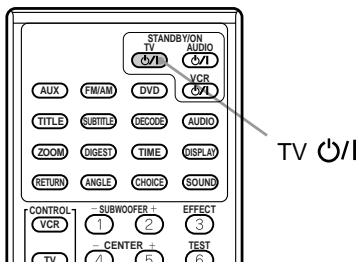
Press TV \(\mathcal{O} / \mathcal{I}\) to turn power on.
Press TV \(\mathcal{O} / \mathcal{I}\) again to turn power off.
Adjusting volume [VOLUME]
The volume level can be adjusted within the range of "0" (minimum) to "80" (maximum).
Common:
From the remote control
![JVC TH-A9R - Adjusting volume [VOLUME] - 1](/content/2025/01/123734/images/8d8ca3978b4e5c93f047c032070f1569c859efbd5510eaedc8cb727899e9ab95.jpg)
On the center unit
![JVC TH-A9R - Adjusting volume [VOLUME] - 2](/content/2025/01/123734/images/36f3a6887e973febd1115f7844c5828fa8e7003e7fa6e70b412d8f165cb57cbc.jpg)
Press VOLUME + or -.
Press VOLUME + to increase volume.
Press VOLUME - to decrease volume.
CAUTION:
Always set the volume to the minimum before starting any source.
If the volume is set at its high level, the sudden blast of sound energy can permanently damage your hearing and/or ruin your speakers.
Sub-woofer volume control and phase setting
Use the VOLUME knob and PHASE button at the rear of the powered sub-woofer.
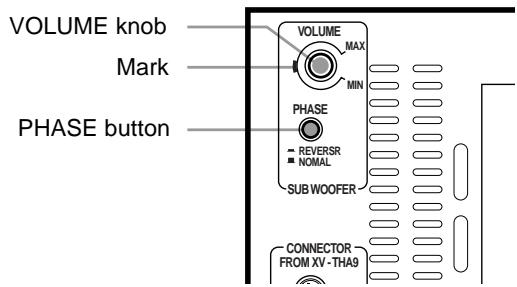
Volume control
Turn the VOLUME knob.
Adjust to a volume appropriate for balance with the other speaker(s).
The mark indicates the volume position in normal use.
- Adjust when the volume from the sub-woofer is too high or too low in relation to the volume from the front speaker.
Phase setting
Play sound through the sub-woofer and adjust the PHASE button to a position (■ REVERSE or ■ NORMAL) at which the lowest frequency is heard best.
Note:
- Phase is closely related to the distance from the listening position to the front speaker and sub-woofer.
While listening, adjust until the lowest frequency is heard best.
Muting the sound [MUTING]
From the remote control only:
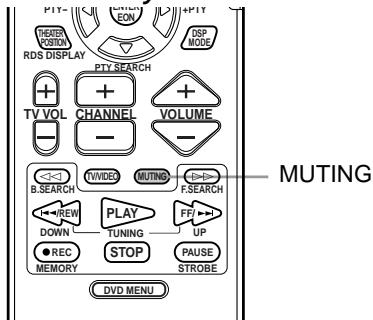
Press MUTING to mute the sound through all speakers connected.
"MUTING" appears on the display window and volume turns off. To restore the sound, press MUTING again so that "OFF" appears on the display.
- Pressing VOLUME + / - also restores the sound.
Selecting the source to play
Selected source name appears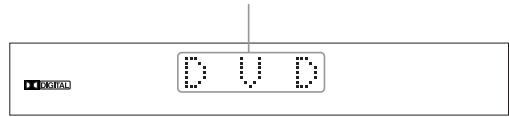
From the remote control:
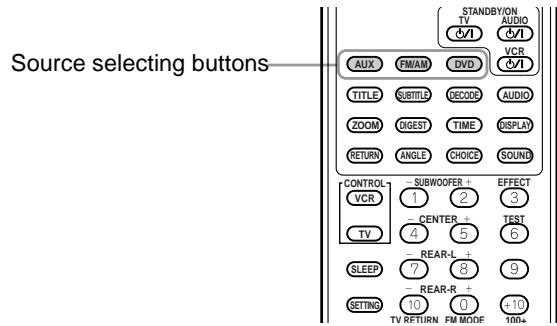
Press one of the source selecting buttons.
DVD Select the DVD player.
FM/AM Select an FM or AM broadcast.
Each time you press the button, the band alternates between FM and AM.
AUX Select a component connected to the AUX jacks.
Notes:
- When you press one of the source selecting buttons on the remote control, the system automatically turns on.
- The cooling fan in the center unit turns on as long as the DVD is selected as the playback source. It stops when other playback source (FM/AM or AUX) is selected.
On the center unit:
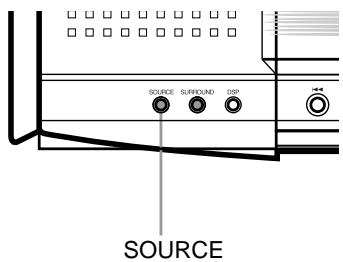
Press SOURCE until the source name you want appears on the display.
The source changes as shown below each time the button is pressed.
→ DVD → AM → FM → AUX → (backtothebeginning)
Note:
- When AM or FM is selected, the receiving frequency appears on the display window. At the same time, the AM or FM indicator lights up on the display window.
Changing the decode mode [DECODE]
You can change the decode mode for digital audio playback.
From the remote control only:
![JVC TH-A9R - Changing the decode mode [DECODE] - 1](/content/2025/01/123734/images/f8e8fb062f1158ef90882b9d3e5163eda8144494f0c8c504feb75f228e982997.jpg)
1 Press DVD to select DVD as the source.
2 Press DECODE to select the decode mode.
The display changes as shown below each time the button is pressed.
→ AUTO/PCM → DTS → (back to the beginning)
AUTO/PCM Optimized for all discs playable on this system. (Default)
DTS Select this mode when playing a DVD disc recorded in DTS Surround.
The DTS decoder will be selected as the internal decoder.
When to try changing the decode mode
When the decode mode is set to the default AUTO/PCM setting and a DVD recorded in Dolby Digital Surround or DTS Digital Surround is played, the internal decoder will be automatically selected before audio playback begins. Depending on the disc recorded in DTS Digital Surround, this may result in a brief loss of audio after playback starts. This is due to lost audio signals that were inputted during internal decoder selection.
In these instances, lost audio can be prevented by manually selecting "DTS" beforehand.
However, please note that when the decode mode is set to DTS, you will be unable to playback audio from discs recorded in a mode other than the DTS Digital Surround.
After changing the decode mode and playing back a disc, return the decode mode to "AUTO/PCM".
Note:
- Changing the playback source (e.g. AM/FM) will automatically return the decode mode to "AUTO/PCM".
When a decode mode which differs from the type of disc being played is selected
Insert a DVD disc in the center unit to display the type of audio being played in the Decode mode indicator on the display window. Audio cannot be played if a decode mode which differs from the displayed mode is selected.
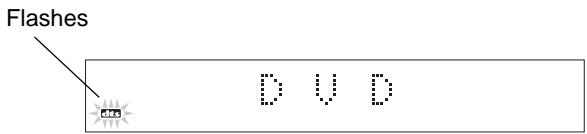
The selected decode mode flashes to indicate that the selected decode mode does not allow audio playback.
Example: When DTS is selected as the decode mode for Dolby Digital audio.
Audio channel display indicator
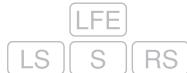
The audio channel indicator shows the audio channel configuration for the disc currently playing.
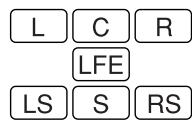
The indicators refer to the speaker channels as follows.
L: Left front speaker channel, R: Right front speaker channel, C: Center speaker channel, RS: Right surround speaker channel, LS: Left surround speaker channel, S: Rear speaker channel (monaural), LFE: Sub-woofer channel
The audio channel indicator indicates the type of disc currently playing as follows.
With Dolby Digital 5.1 ch or DTS Digital 5.1 ch surround
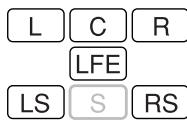
With Dolby Digital (Lt/Rt*)

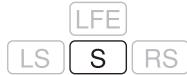
With stereo sound (e.g., Audio CD)

- Lt/Rt refers to the downmix output when connected to a device that uses Dolby Pro Logic.
Note:
- The audio channel indicator does not show the actual speaker channel that is producing sound.
Using the Sleep Timer [SLEEP]
Using the Sleep Timer, you can fall asleep to music and know the system will turn off by itself rather than play all night.
From the remote control:
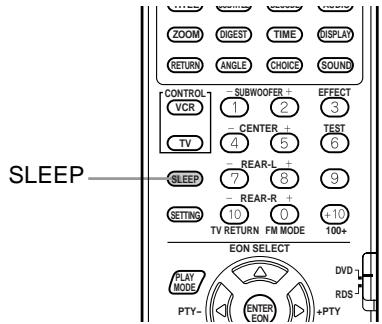
Press SLEEP repeatedly.
The shut-off time changes as follows (in minutes):
10 → 20 → 30 → 60 → 90 → 120 → 150 → OFF (Canceled) → (back to the beginning)
When the shut-off time comes
The system turns off automatically.
To check or change the time remaining until the shut-off time
Press SLEEP once.
The remaining time until the shut-off time appears in minutes. - To change the shut-off time, press SLEEP repeatedly.
To cancel the Sleep Timer
Press SLEEP repeatedly until "SLEEP OFF" appears on the display window.
- Turning off the power also cancels the Sleep Timer.
Using the DSP Modes [DSP MODE]
The built-in Surround Processor provides two types of the DSP (Digital Signal Processor) mode — Surround mode and DAP (Digital Acoustic Processor) mode.
Surround modes
With this system, you can use two types of the Surround mode.
Dolby Surround (Dolby Digital and Dolby Pro Logic)*
Used to watch the soundtracks of software encoded with Dolby Digital (bearing the mark DOLBY) or with Dolby Surround (bearing the mark DOLBY SURROUND).
Dolby Digital and Dolby Pro Logic can be selected automatically according to software played back.
DTS Digital Surround**
DTS Digital Surround is a discrete 5.1 channel digital audio format available on CD and DVD software.
To watch the soundtracks of video software bearing the mark , the system can provide you with DTS Digital Surround decoder.
DTS Digital Surround is automatically selected according to software played back.
MPEG Multichannel
MPEG Multichannel is another discrete 5.1 channel digital audio format available on DVD software, and uses encoding method
called MPEG2-Audio. (MPEG stands for "Motion Picture Expert Group" and has been originally developed for compressing video signals.) To watch the soundtracks of video software bearing the mark MPEGMultichannel, the center unit can provide you with MPEG Multichannel decoder.
Note:
- Change the decode mode from "AUTO/PCM" to "DTS" before playing an Audio CD recorded with DTS Digital Surround. For details, see page 19.
- Manufactured under license from Dolby Laboratories. "Dolby", "Pro Logic", and the double-D symbol are trademarks of Dolby Laboratories. Confidential Unpublished Works. c1992-1998 Dolby Laboratories, Inc. All rights reserved. **Manufactured under license from Digital Theater Systems, Inc. US Pat. No. 5,451,942 and other world-wide patents issues and pending. "DTS" and "DTS Digital Surround" are trademarks of Digital Theater Systems, Inc. c1996 Digital Theater Systems, Inc. All rights reserved.
DAP modes
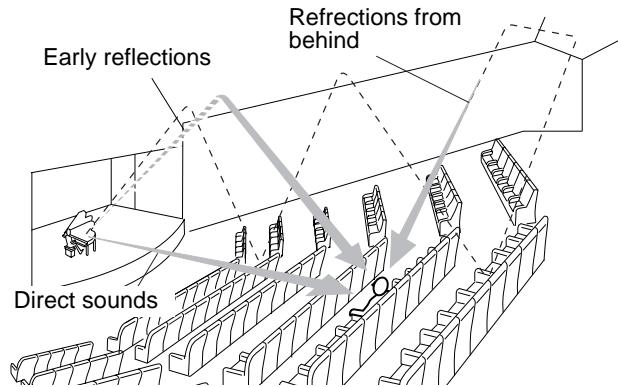
The sound heard in a concert hall or club consists of direct sound and indirect sound — early reflections and reflections from behind. Direct sounds reach the listener directly without any reflection. On the other hand, indirect sounds are delayed by the distances of the ceiling and walls. These direct sounds and indirect sounds are the most important elements of the acoustic surround effects. The DAP mode can create these important elements, and gives you a real “being there” feeling.
THEATER: Gives the feeling of a large theater.
LIVE CLUB: Gives the feeling of a live music club with a low ceiling.
DANCE CLUB: Gives a throbbing bass beat.
HALL: Gives clear vocal and the feeling of a concert hall.
PAVILION: Give the spacious feeling of a pavilion with a high ceiling.
Notes:
- The DSP modes have no effect on monaural sources.
- The DOLBY DIGITAL indicator lights up when the signals encoded with Dolby Digital come into the system.
- The PRO LOGIC indicator lights up when the signals encoded with Dolby Pro Logic decoder built in this system is activated.
- The dts indicator lights up when the signals encoded with DTS Digital Surround come into the system.
- The effects can be adjusted when the DAP mode is selected (see page 54).
To select the DSP mode
From the remote control:
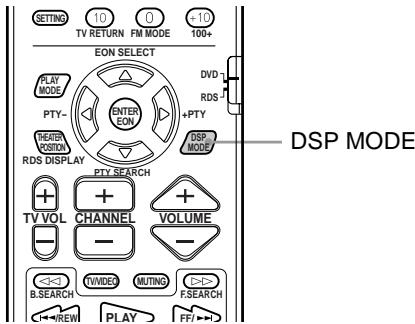
Press DSP MODE.
The currently selected DSP mode appears on the display when the button is pressed, and changes as follows each time the button is pressed subsequently.
SURROUND ON → THEATER → LIVE CLUB → DANCE CLUB → HALL → PAVILION → DSP OFF → (back to the beginning)
- "PRO LOGIC", rather than "SURROUND ON", is displayed when a source other than DVD is selected.
- Select "SURROUND ON" when playing a video with audio recorded in Dolby Pro Logic, Dolby digital, or DTS digital surround audio. Selecting "OFF" loses any surround effect, and stereo playback takes place.
Notes:
- It is possible to select only "SURROUND ON" and "SURROUND OFF" when playing a Dolby digital audio or DTS digital audio DVD.
- The DSP mode indicator lights up when DSP mode other than SURROUND is selected.
- The SURROUND indicator lights up when SURROUND mode is selected.
On the center unit:
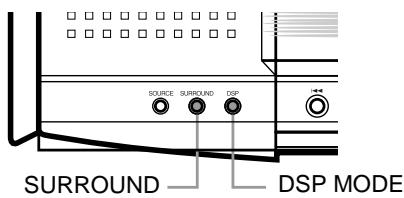
From the unit, SURROUND ON/OFF and DAP mode can be selected independently.
When playing a DVD disc with audio recorded in Dolby surround, Dolby digital, or DTS digital surround audio:
Press SURROUND.
The current status (e.g. "SURROUND OFF") appears on the display when the button is pressed, and changes between "SURROUND ON" and "SURROUND OFF" each time the button is pressed subsequently.
- "PRO LOGIC", rather than "SURROUND ON", is displayed when a source other than DVD is selected.
When selecting DAP:
Press DSP MODE.
The currently selected DAP mode appears on the display when the button is pressed, and changes as follows each time the button is pressed subsequently.
→ THEATER → LIVE CLUB → DANCE CLUB → HALL → PAVILION → DSP OFF → (back to the beginning)
Notes:
- The DSP mode indicator lights up when DAP mode is selected.
- The SURROUND indicator lights up when SURROUND mode is selected.


and

represent disc types.
To turn on the system and TV


From the remote control:
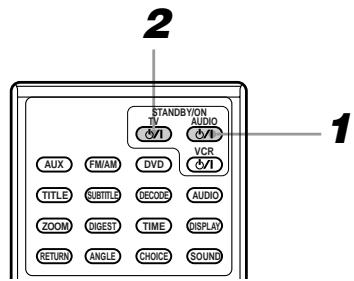
1 Press AUDIO / I to turn power on.
- Pressing φ / λ on the center unit also turns on power.
2 Press TV / I to turn TV on.
- On the TV, select the TV input source to VIDEO (e.g. VIDEO 1).
- To turn on the other manufacturer's TV with TV / l , you need to change the transmittable signal codes beforehand. See page 55.
Notes:
- When you use Audio CDs, since no screen other than opening screen is displayed, turning on the TV may not be required.
- For detailed power on operation including the STANDBY indicator illumination, see page 17.
To insert a disc


After turning on the system and the TV, insert a disc as follows:
On the center unit:
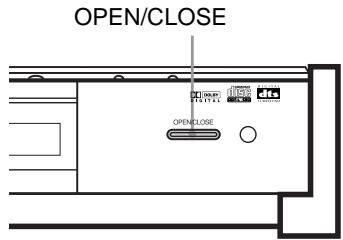
1 Press OPEN/CLOSE to open the disc cover.
- When the current playback source is DVD, "OPEN" appears on the display window. On the TV, "OPEN" message appears on the opening on-screen.
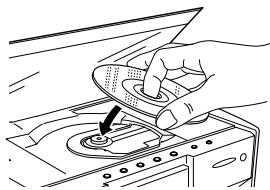
2 Place a disc.
Place a disc with label side up so that it is securely seated.
3 Press OPEN/CLOSE to close the disc cover.
- When the current playback source is DVD, "CLOSE" appears on the display window. On the TV, "CLOSE" message appears on the opening on-screen.
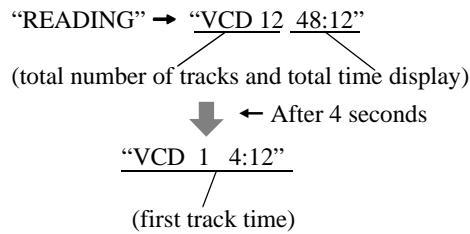
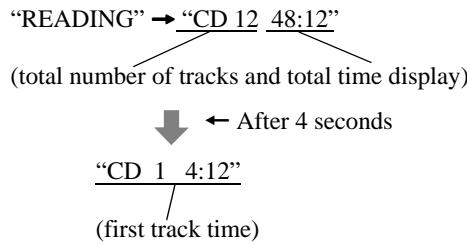
- After the disc cover is closed, "READING" appears on the display window. Then, the disc information is read and, if the current playback source is DVD, the information is displayed as described in "Display when a disc is inserted" on page 23. On the TV, while disc information is reading, "NOW READING" message appears on the opening on-screen.
4 Remove the disc after playback has finished.
Press OPEN/CLOSE to open the disc cover.
Then, remove the disc as shown below:
After that, press OPEN/CLOSE to close the disc cover.
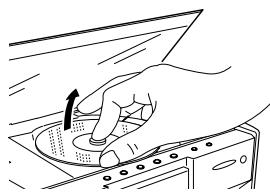
CAUTION:
Do not put anything on the disc cover since it slides back and forth, or opens. Doing so may result in damage to the unit.
Notes:
- The system can play back DVD, Audio CD, Video CD, CD-R/CD-RW (audio-formatted) discs only. Do not insert other disc types. For details about playable disc types, see page 5.
- When OPEN/CLOSE is pressed to close the disc cover, playback automatically begins with some discs.
- You can insert a disc while playing other source (FM/AM or AUX).
- When the disc cover is open, you can directly play the disc by pressing DVD on the remote control or by selecting "DVD" with SOURCE on the center unit.
- If the Region Code of the disc does not match your system, "REGION CODE ERROR!" appears on the opening on-screen on the TV. This means that you cannot play the disc.
- When OPEN/CLOSE is pressed in standby mode, the center unit automatically turns on and the disc cover slides backwards and opens.
Display when a disc is inserted
Opening on-screen:
When a DVD is inserted
Display window:
READING → DVD
Note:
- Playback begins immediately with some DVD discs.
When a Video CD is inserted:
Display window:
When an Audio CD is inserted
Display window:
To play a disc
From the remote control:
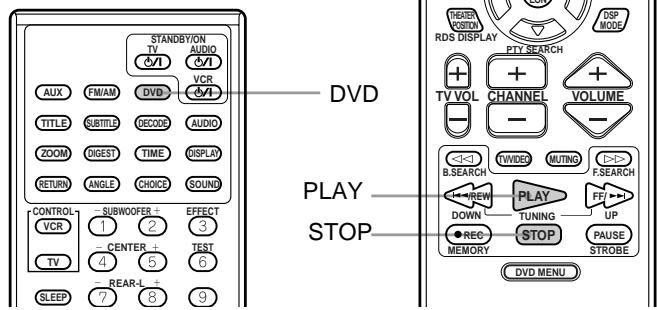
Press PLAY or DVD.
Playback begins from the first track.
On the center unit:
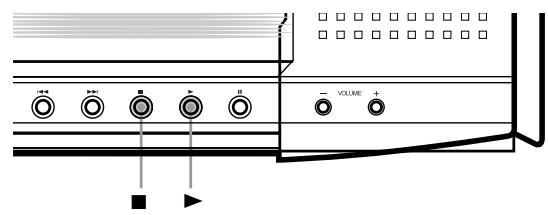
Press ▷.
Playback begins from the first track.
To stop the disc
On the remote control: Press STOP.
On the center unit: Press ■.
Note:
- For DVD, or Video CDs recorded with PBC (playback control), pressing PLAY or ▶ may display the menu on the TV. You may select items from the menu screen thus displayed and call up the locations to be viewed (see pages 25 and 26 for details).
On-screen guide icons
During DVD playback, you may see icons displayed over the picture. These have the following meanings.

Displayed at the beginning of a scene recorded from multiple angles (see page 33).

Displayed at the beginning of a scene recorded with multiple audio languages (see page 32).

Displayed at the beginning of a scene recorded with multiple subtitle languages (see page 31).
A setting is possible to suppress display of these icons. The setting is entered in the on-screen menu under "On-screen guide settings" (see page 46 for details).
About invalid operation icon
When you press a button, if the unit does not accept its operation, ⊗ appears on your television screen.
Operations are occasionally unacceptable even if is not displayed.
Note that some operations may not be accepted. For example, some discs may not allow fast forward, fast backward or slow motion playback.
Pausing
From the remote control: Press PAUSE.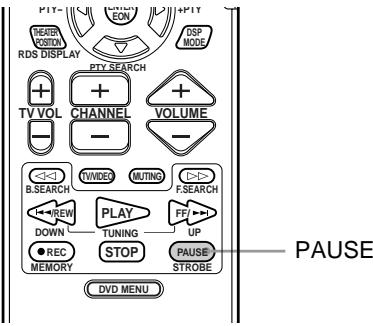
On the center unit: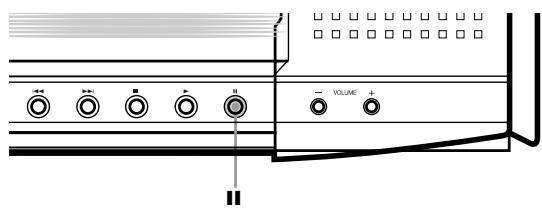
Press II.
Playback is paused.
When using a DVD or Video CD disc, pressing PAUSE or II while paused moves to the next still picture.
To resume playback
From remote control: Press PLAY.
On the center unit: Press
Fast forward and backward

During playback
From the remote control: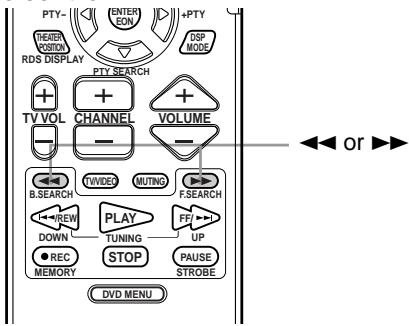
Press or
Each time you press the button, the fast forward or backward speed changes as follows:
2× → 5× → 10× → 20× → 60×
To return to the normal speed
Press PLAY.
On the center unit: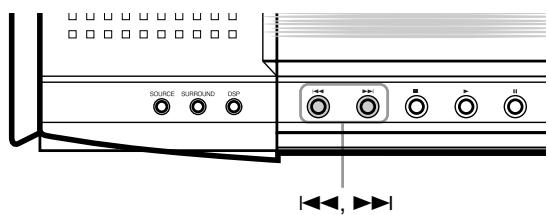
Continuously press ▶ or ◀◀
Continuously pressing the button increases the fast forward or backward speed as follows:
5× → 20×
To return to the normal speed
Release ▶ or ◀◀
Locating the beginning

Locates the beginning of the title or chapter with DVDs.
Locates the beginning of the track with Audio CDs and Video CDs.
Locates the beginning of the track with Audio CDs and Video CDs.
For DVD: During playback
For Audio CD: During playback or when stopped
For Video CD: During playback or when stopped
From the remote control: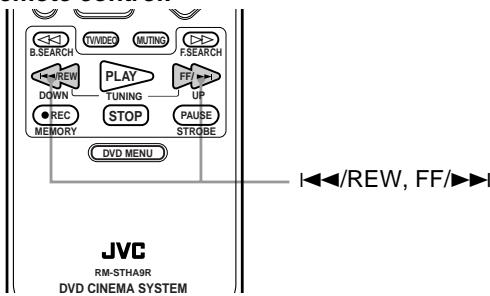
Press FF/▶ or I◀◀/REW.
On the center unit:
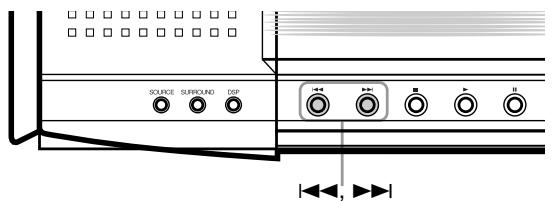
Press ▶ or
Press to locate the beginning of the current chapter, title, or track. Press twice quickly to locate the beginning of the previous one.
Press ▶ to locate the beginning of the next chapter, title, or track.
Note:
- When you play a Video CD with PBC function or a DVD disc, the center unit may locate different places, but it will generally locate the beginning of the title or chapter or track.
Resuming playback


The center unit stores the position on a disc where you want to interrupt playback at, and resumes playback from that position later.
To let work the resuming playback, the item RESUME in the SYSTEM menu must be set to ON beforehand. Otherwise, set it to OFF. See page 47.
To store the playback position
During playback, press STOP or AUDIO ⊙/1 on the remote control.
Or
During playback, press or /| on the center unit.
The center unit stores the position at which STOP or ■ is pressed, and the RESUME indicator on the display window is lit. The last stored memory overrides the previous memory.
Note:
- The interrupted position is stored even when AUDIO on the remote control, or on the center unit, is pressed to switch power OFF (standby).
To resume playback from the stored position While stopped, press PLAY on the remote control or press on the center unit.
Playback begins from the stored position.
- When the center unit is in standby mode, you can activate resuming playback by pressing PLAY on the remote control.
- Changing the source during playback also stores the interrupted position. To resume playback from the stored position, press PLAY or DVD on the remote control. Selecting "DVD" by pressing SOURCE or pressing on the center unit will also resume playback.
Notes:
- When you perform the resuming operation for a Video CD with the PBC function, the center unit may resume playback from a point slightly earlier than the resume point you stored.
- Resuming playback does not work for Audio CDs.
- Resuming playback does not work for program play and random play.
To clear the stored position
To clear the stored position, perform one of the following operations:
The RESUME indicator on the display window will go out.
- Open the disc cover.
- While stopped, press STOP on the remote control or ■ on the center unit once again.
- In standby mode, press AUDIO ⊟ / ⊟ on the remote control or ⊟ / ⊟ on the center unit once again to turn on the system.
Selecting playback from the DVD menu

DVD discs generally have their own menus which show the disc contents. These menus contain various items such as titles of a movie, names or songs, or artist information, and display them on the TV.
You can locate a desired scene by using the menu.
During playback
From the remote control only:
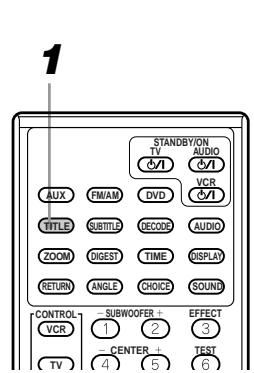
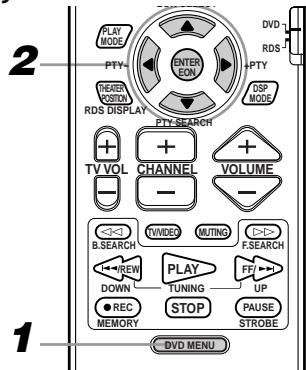
1 Press DVD MENU or TITLE.
The menu appears on the TV screen.
Example
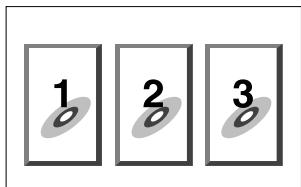
2 Press the ◁ / ◁ / ◁ cursors to select a desired item, then press ENTER.
The center unit starts playback of the selected item.
- With some discs, you can also select items by entering the corresponding number using the number buttons, which may cause the unit to automatically start playback.
About menu
Normally, a DVD disc which contains more than one title may have a "title" menu which lists the titles. In this case, the menu appears on the TV by pressing TITLE. Some DVD discs may also have a different menu which appears by pressing DVD MENU. See the instructions of each DVD disc for its particular menu.
Notes:
- When appears on the TV by pressing TITLE in step 1:
The disc does not have a menu listing the titles.
- When appears on the TV by pressing DVD MENU in step 1:
The disc does not have a menu.
Selecting the location to view from the Video CD menu

When playing back Video CDs recorded with PBC (playback control), a list of the recorded contents may appear on the TV as a menu. The location to view may be conveniently called up from this menu screen.
□ When the menu appears on the TV during playback with PBC.
From the remote control only:
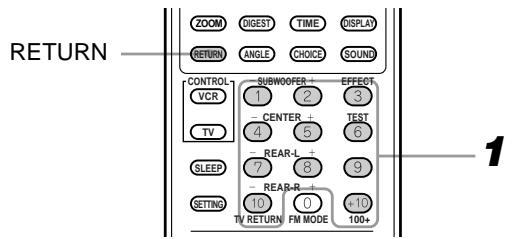
1 Use the number buttons (1~10, +10) to select the desired number of the item.
To select 3 on menu : Press 3.
To select 11 on menu: Press +10 → 1 .
Playback starts from the selected item.
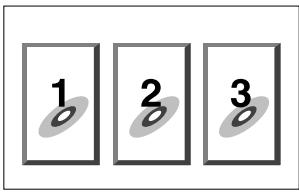
Press RETURN to return to the menu screen.
When "NEXT" or "PREVIOUS" appears on the TV, the center unit generally works as follows:
- Pressing ▶ turns to the next page.
- Pressing ⊢ returns to the previous page. The method of operation is different depending on the disc.
Activating the PBC function
To activate the PBC function when a PBC-compatible Video CD is being played back without the PBC function, press STOP then press PLAY.
When the PBC function is activated, "PBC" appears on the display window.
You can also activate the PBC function using the on-screen display as follows:
1. Press PLAY MODE.
- Press the ◀ ▶ cursors to move the pointer to [PBC CALL], then press ENTER.
During Video CD playback
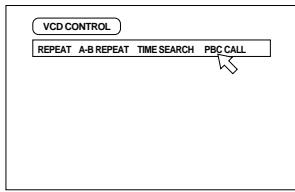
Cancelling the PBC function
If you want to play back a PBC-compatible Video CD without activating the PBC function, start playback by using the number buttons instead of the PLAY button.
To specify the title, chapter, or track number for playback


Use the number buttons to specify the title (DVDs) or track number (CDs) to begin playback from the desired location.
For DVD: While stopped (for title playback) or during playback of a screen other than the menu screen (for chapter playback).
For Audio CD: During playback or while stopped.
For Video CD: During playback without PBC function or while stopped.
From the remote control only:
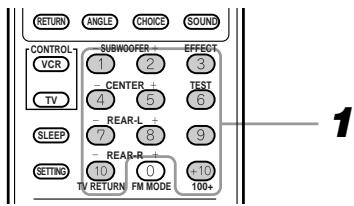
1. Press the number buttons (1~10, +10) to select the desired title, chapter, or track number.
Selecting numbers:
Selecting 1~10: Press the relevant button between 1 and 10.
Selecting 11 or higher:
To select 13: Press +10, then 3.
To select 24: Press +10, then +10, then 4.
To select 40: Press +10, then +10, then +10, then 10.
To select 40: Press +10 → +10 → +10 → 10 .
You can also see the selected title, chapter, or track number on the on-screen display.
- You can also see the selected title, chapter, or track number on the on-screen display.
Notes:
- When appears on the TV.
The title, chapter, or track you have selected is not contained in the disc.
- This function does not work during Video CD playback with PBC function.
To play from the beginning of a title, chapter, or track


The beginning of previous or later titles, chapters, or tracks may be skipped.
For DVD: During playback
For Audio CD: During playback or while stopped
For Video CD: During playback without PBC function or while stopped
From the remote control only:
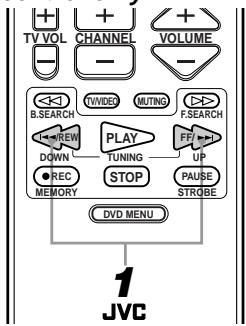
1 Press ▶ or ▶.
- Press ▶ the required number of times to move to a later title, chapter, or track.
- Press the required number of times to return to the previous title, chapter, or track.
- Press ⟶ once to return to the beginning of the title, chapter, or track currently playing.
Notes:
- Press ▶ or ◀ on the center unit for the same operation.
- This function may not work with some DVD discs.
- This function does not work during Video CD playback with PBC function.
To specify the chapter number for playback [CHAP, SEARCH]
![JVC TH-A9R - To specify the chapter number for playback [CHAP, SEARCH] - 1](/content/2025/01/123734/images/794ea30aa8c7a8ae6350f22e53decf8e5ede86fc84ae2a56fba0aaf3911adf80.jpg)
If the current title of a DVD disc being played is divided into chapters, you can skip to a desired chapter by specifying the chapter number using the on-screen display.
During playback
From the remote control only:
![JVC TH-A9R - To specify the chapter number for playback [CHAP, SEARCH] - 2](/content/2025/01/123734/images/24e369e482615ea502e13a73b179a63e2c2008c03972332d529d16c7cc1914d7.jpg)
1 Press PLAY MODE.
The on-screen display appears on the TV.
2 Press the ◀ ▶ cursors to move the pointer to [CHAP.SEARCH], then press ENTER.
"GO TO CHAPTER = " appears under the menu.
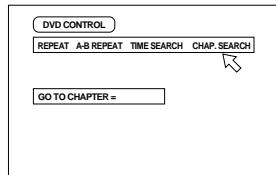
3 Press the number buttons (0~9) to enter the desired chapter number.
The selected chapter number appears in the message area.
Example:
To select chapter number 8: Press 8.
To select chapter number 37: Press 3→ 7
4 Press ENTER.
The center unit starts playback from the selected chapter.
To return to the regular display
Press PLAY MODE again.
Notes:
- When the chapter number is incorrect in step 3: Overwrite the incorrect number with the correct number.
- When is displayed in the TV screen in step 4: The chapter you have selected is not contained in the disc, or chapter search does not work on the disc.
- With some discs, the center unit automatically starts searching for the chapter after entering the chapter number in step 3.
To specify the time for playback [TIME SEARCH]
![JVC TH-A9R - To specify the time for playback [TIME SEARCH] - 1](/content/2025/01/123734/images/029117d1a33c81be5895d62e167c8f8c9774811117c4f1859e1f9560bf90be56.jpg)
![JVC TH-A9R - To specify the time for playback [TIME SEARCH] - 2](/content/2025/01/123734/images/0dad2c2a19c6254a9ae708726445d670fdfdc6913487bfc357921ff6598eeabf.jpg)
![JVC TH-A9R - To specify the time for playback [TIME SEARCH] - 3](/content/2025/01/123734/images/403683ed91d209294903a30bd47c0f91702652dcc5d1a3d1528e2853a8d181e4.jpg)
You can play a disc from the desired position by specifying the elapsed time from the beginning of the disc use the TIME SEARCH function.
Note that some DVD discs do not contain time information, and the TIME SEARCH function cannot be used.
For DVD: During playback
For Audio CD: During playback
For Video CD: During playback without PBC function
From the remote control only:
![JVC TH-A9R - To specify the time for playback [TIME SEARCH] - 4](/content/2025/01/123734/images/e274d04a9114733fcf08f44226746011a29b18d45dfa3bcd61c1c1214c111138.jpg)
1 Press PLAY MODE.
The on-screen display appears on the TV.
2 Press the left/right cursors to move the pointer to [TIME SEARCH], then press ENTER.
"GO TO" appears under the menu.
(for DVD)![JVC TH-A9R - Press the left/right cursors to move the pointer to [TIME SEARCH], then press ENTER. - 1](/content/2025/01/123734/images/7700526e3cd2302610a810321db0d51adce512b60c38db9381863dcf9bf4fa2d.jpg)
(for Audio CD)![JVC TH-A9R - Press the left/right cursors to move the pointer to [TIME SEARCH], then press ENTER. - 2](/content/2025/01/123734/images/888b4a8e6e970a7dcfc4fb72665757c8b58468190181e686e3c6ad3f60b3fcf6.jpg)
(for Video CD)![JVC TH-A9R - Press the left/right cursors to move the pointer to [TIME SEARCH], then press ENTER. - 3](/content/2025/01/123734/images/fe96515648a48a3861065a1a6b8afdd11436faf4d9702031964c2a1832ab1e11.jpg)
3 Use the number buttons (0~9) to enter the time.
The specified time appears in the message area.
Example (for DVD):
To playback from 2(H):34(M):00(S)
You do not have to press "0" to enter the trailing zeros (for the last two digits in the example). Of course, it is possible to enter them.
- You can specify the time in hour/minute/second format for DVD discs, and in minute/second format for Audio and Video CDs.
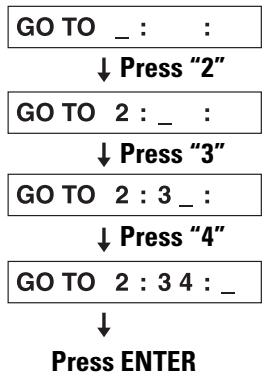
When you make a mistake:
Press the left cursor to move the cursor to an incorrect number and enter the correct number.
4 Press ENTER.
The center unit starts playback from the selected time.
To return to the regular display
Press PLAY MODE again.
Notes:
- When the symbol appears on the TV in step 2:
The time you have selected is not contained on the disc, or the TIME SEARCH function does not work on the disc.
- During program play or random play, the TIME SEARCH function does not work.
To select the screen for playback from the digest screen [DIGEST]
![JVC TH-A9R - To select the screen for playback from the digest screen [DIGEST] - 1](/content/2025/01/123734/images/886917b62ebd3c7e9b99347e92ed8744fe9436f5cc8de8ce70f718956f4b2c43.jpg)
![JVC TH-A9R - To select the screen for playback from the digest screen [DIGEST] - 2](/content/2025/01/123734/images/3bedbb6c57ebfb3eb82fdf6fa392792f028303a3c0206f8ef74dfe039a3525a4.jpg)
The unit can display the opening scene of each title or chapter on a DVD or each track of a Video CD.
You can select a desired title, chapter or track from the opening scenes displayed on the TV.
For DVD: While stopped or during playback
For Video CD: While stopped or during playback without PBC function.
From the remote control only:![JVC TH-A9R - To select the screen for playback from the digest screen [DIGEST] - 3](/content/2025/01/123734/images/24301058249ba745b38153b9ba7ebe0cec6b5d4757b539ced9411e223382018d.jpg)
1 Press DIGEST.
DVD is stopped
Up to nine first scenes of each title may be displayed.
DVD is playing
Up to nine first scenes of each chapter in the current title may be displayed.
Video CD
Up to nine first scenes of each track may be displayed.
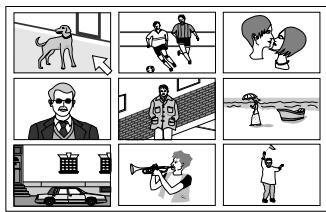
2 Press the left/up/down cursors to select the desired title, chapter, or track.
When the disc contains more than 9 titles, chapters, or tracks, the digest screen will have more than one page. In this case, display a different page of the digest with the method described below.
To display the next page: Press right. To display the previous page: Press
Or when the selected title, chapter or track is in the upper left-hand corner of the screen, press the left cursor.
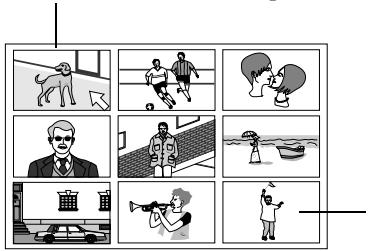
When the selected title, chapter, or track is in the lower right-hand corner of the screen, press the right cursor.
3 Press ENTER.
The center unit starts playback from the selected title, chapter or track.
To return to the regular display before pressing ENTER in step 3:
Press DIGEST again.
Note:
- With some discs, depending on the contents, it may take some time until all the scenes appear on the screen.
To advance the picture one frame at a time

Advancing a paused still picture one frame at a time.
During playback
From the remote control:
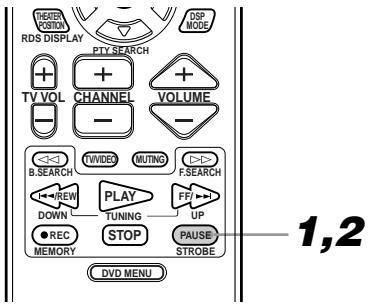
1 Press PAUSE at the location at which the picture is to be advanced.
The picture is paused.
2 Press PAUSE again.
Each time you press PAUSE, the still picture advances to the next frame.
Press PLAY to return to normal playback.
Note:
- You can perform the above operation using button on the center unit.
Slow-Motion Playback [SLOW]
![JVC TH-A9R - Slow-Motion Playback [SLOW] - 1](/content/2025/01/123734/images/efcab7c2a32b34f040cbb69e07f6cfd3d812b0a2238f495ece2c7ee13f1c68e3.jpg)
DVD
![JVC TH-A9R - Slow-Motion Playback [SLOW] - 2](/content/2025/01/123734/images/8937acbc047538e427959e1a64ac5632ef2a27288f9c08c9aa4f7dd4975eb368.jpg)
During playback
From the remote control only:
![JVC TH-A9R - Slow-Motion Playback [SLOW] - 3](/content/2025/01/123734/images/2c71ebf5428731ec390e75d62886928bf7ad2bc5be7c9c55c421b96b60dbb1fa.jpg)
1 Press PAUSE at the section you wish to view in slow motion.
The image will pause.
2 Press ▶ or ◀.
Pressing ▶ will playback your selection in slow motion, starting from the paused frame.
Pressing ◀ will playback your selection in reverse slow motion (DVD only).
Each time you press either button during slow-motion, the playback speed will increase as follows:
Forward: 1/32 → 1/16 → 1/8 → 1/4 → 1/3 → 1/2
Reverse: 1/16 → 1/12 → 1/8 → 1/4 → 1/3
Pausing slow-motion playback
Press PAUSE to pause slow-motion playback.
Restoring regular playback
Press PLAY to resume normal playback.
Notes:
Audio is automatically muted during slow-motion playback. Video CDs cannot be played in reverse slow-motion.
To display Continuous Photos [STROBE]
![JVC TH-A9R - To display Continuous Photos [STROBE] - 1](/content/2025/01/123734/images/642daadcdbcfb3f4ad7d6644d836a794e1bf62a3ea2e94e855b7440a16d90784.jpg)
![JVC TH-A9R - To display Continuous Photos [STROBE] - 2](/content/2025/01/123734/images/3b77266880a15a21eb652b2a0097c55644919c0fe034eec6de8cb2c97520d4c8.jpg)
Nine still pictures may be displayed one after the other.
During playback
From the remote control:
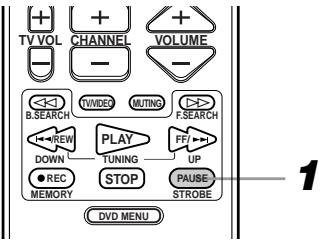
1 Press PAUSE continuously to display continuous photos.
When the screen appears displaying the nine pictures, release PAUSE.
The screen plays back the nine pictures in strobe-like action.
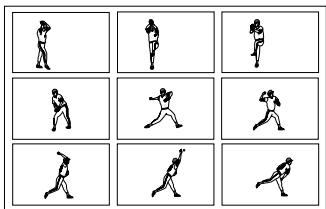
- Press PAUSE during strobe playback to pause.
- Press PAUSE to display the next nine still pictures.
- Press PLAY to resume strobe playback.
To clear the strobe screen, press PAUSE continuously until the normal screen appears.
Notes:
Audio is not played during strobe playback. - You can perform the above operation using II button on the center unit.
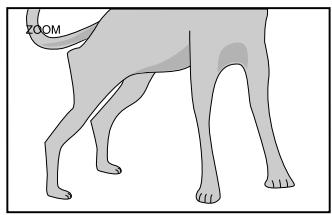
Zooming a scene [ZOOM]
![JVC TH-A9R - Zooming a scene [ZOOM] - 1](/content/2025/01/123734/images/e38b03a0d6fd69f82324b52f765359c6768ac3a12fd964683471d927f3fda57a.jpg)
During playback or while paused.
From the remote control only:
![JVC TH-A9R - Zooming a scene [ZOOM] - 2](/content/2025/01/123734/images/e97567b701fd6d118ca02960369a5d1325995682aadcffaf99dafddfc526d47a.jpg)
1 Press ZOOM.
"ZOOM" appears on the TV. The unit zooms in to the center part of the scene to produce a double-sized image.
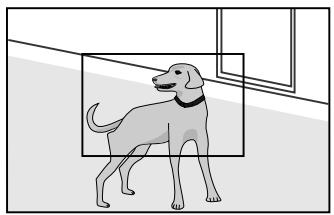
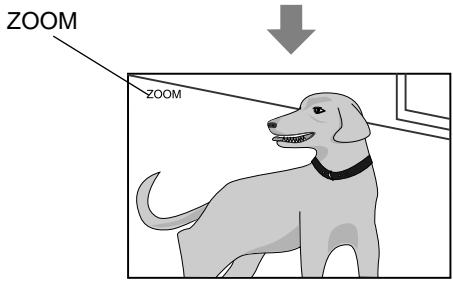
2 Press the left/right/up/down cursor buttons to move the zoomed-in scene.
To pause zoom play
Press PAUSE.
To resume zoom play, press PLAY.
To return to normal playback
Press ZOOM again.
Note:
- During Zoom play, the picture may be garbled or noisy.
Changing the Subtitle Language [SUBTITLE]
![JVC TH-A9R - Changing the Subtitle Language [SUBTITLE] - 1](/content/2025/01/123734/images/2cb93ae00e5a055a47eb47c50a388a65eb0a542d1df181aee4dec53609c91656.jpg)
Some DVD discs contain subtitles. With such discs, you can choose which kind of subtitles to display (or turn off subtitles entirely). At the beginning of subtitled parts, a boxed icon appears on the TV.
During playback
From the remote control only:
![JVC TH-A9R - Changing the Subtitle Language [SUBTITLE] - 2](/content/2025/01/123734/images/788e59172fee0356c89bd38eaa60c636faba2f5ede7197363c1327bda1ee7b1f.jpg)
1 Press SUBTITLE.
The on-screen display appears on the TV.
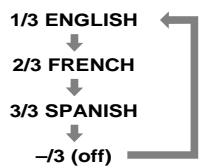
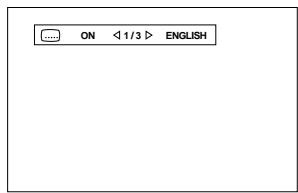
2 Press the left/right cursors to select the desired subtitle.
Each time you press the left cursor, the subtitle changes.
Example:
3 Press ENTER.
The Subtitle selection display disappears on the TV.
Turning subtitles ON/OFF
Press SUBTITLE.
Pressing SUBTITLE toggles subtitle display ON and OFF.
Notes:
- When the symbol appears on the TV: You cannot select the subtitle.
- The selected language may be abbreviated on the TV. See "Appendix A: Table of languages and their abbreviations" in this manual.
- The Subtitle selection display will automatically disappear if you do not change the subtitle for 10 seconds.
Changing the audio language or sound [AUDIO]
![JVC TH-A9R - Changing the audio language or sound [AUDIO] - 1](/content/2025/01/123734/images/607827bed66cbaff398ae12862c7d96dc93303fb23629c68685319aad4c43dba.jpg)
Some DVD discs contain multiple audio tracks. With such discs, you can choose which audio track to listen to during playback. At the beginning of "multi-audio language" parts, \(\bigcirc \bigcirc\) appears on the TV.
During playback
From the remote control only:
![JVC TH-A9R - Changing the audio language or sound [AUDIO] - 2](/content/2025/01/123734/images/5690a32a0533fa2ac120fd38e2bb08bba82d72fc9a55a052c4b4c1f3dc7f053f.jpg)
1 Press AUDIO.
The on-screen display appears on the TV.
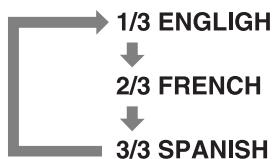
2 Press AUDIO or the \(\triangleleft\) \(\triangleright\) cursors to select the desired audio language or sound.
Each time you press the button, the audio language or sound changes.
Example:
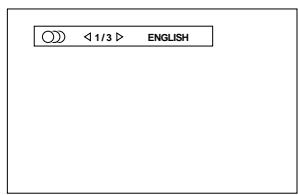
3 Press ENTER.
The Audio selection display disappears on the TV.
Notes:
- When \(\otimes\) appears on the TV: You cannot select the audio.
- The selected language may be abbreviated on the TV. See "Appendix A: Table of languages and their abbreviations" in this manual.
- The Audio selection display will automatically disappear if you do not change the subtitle for 10 seconds.
Changing the audio channel [AUDIO]
![JVC TH-A9R - Changing the audio channel [AUDIO] - 1](/content/2025/01/123734/images/0c7df17069817aa54e7481960a4eb6e2f0c5764727a327da8572fde3386bbd09.jpg)
For in some karaoke Video CDs, one of the audio channels includes a vocal while the other does not.
With such discs, you can choose to enjoy karaoke without the vocal or with the vocal by selecting the audio channel to be played back.
During playback
From the remote control only:
![JVC TH-A9R - Changing the audio channel [AUDIO] - 2](/content/2025/01/123734/images/33a57d15999ffdc7600305d3a98a702eb2719446b5dca33e57cad045607790a6.jpg)
1 Press AUDIO.
The on-screen display appears on the TV.
2 Select the audio channel(s) to be played back using AUDIO or the left/right cursors.
Each time you press the button, the audio channel changes.
Example:
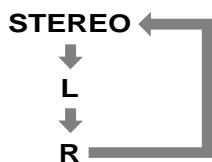
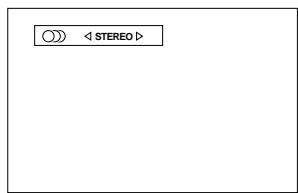
STEREO: You hear normal stereo playback.
L: You hear the L (Left) channel signal played back from both the left and right speakers. R: You hear the R (Right) channel signal played back from both the left and right speakers.
3 Press ENTER.
The Audio selection display disappears on the TV.
Notes:
- When appears on the TV: You cannot select the audio.
- The Audio selection display will automatically disappear if you do not change the subtitle for 10 seconds.
Viewing from Multiple Angles [ANGLE]
![JVC TH-A9R - Viewing from Multiple Angles [ANGLE] - 1](/content/2025/01/123734/images/dc010c4539c2341e8029ae6423c03c8b24f26fbb9ee1a9a2b44170d49bb53f90.jpg)
You can enjoy a variety of scene angles if the DVD disc contains "multi-angle" parts, where multiple cameras were used to shoot the same scene from different angles. You can select one of these viewing angles from the normal screen or on-screen display. At the beginning of "multi-angle" parts, 1 appears on the TV.
Using the ANGLE button
During playback
From the remote control only:
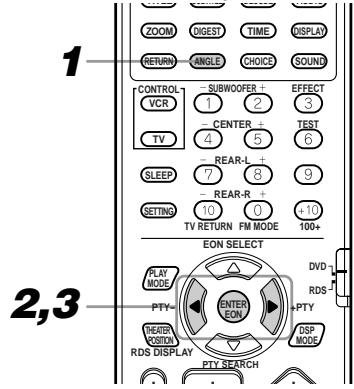
1 Press ANGLE.
The on-screen display appears on the TV.
2 Press ANGLE or the cursor to select the desired angle.
Each time you press the button, the angle changes.
Example:
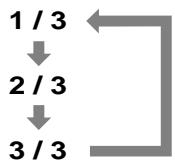
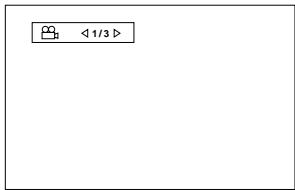
3 Press ENTER.
The Angle selection display disappears on the TV.
Note:
- When appears on the TV: The current scene is not recorded from multiple angles.
- The Angle selection display will automatically disappear if you do not change the subtitle for 10 seconds.
Selecting an angle from the angle list display
During playback
From the remote control only:
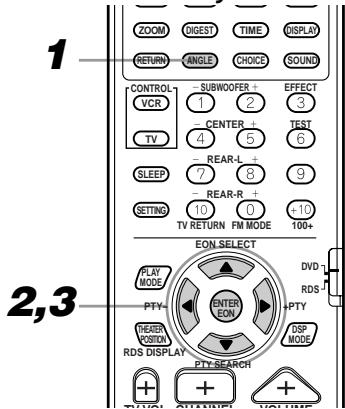
1 Hold down ANGLE for more than 1 second.
Up to nine camera angles recorded on a disc appear on the TV.
The selected camera angle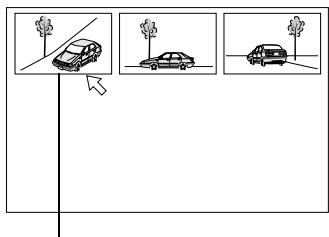
2 Press the / / / cursors to select the desired angle.
3 Press ENTER.
The selected angle appears on the TV.
Note:
- When appears on the TV: The current scene is not recorded from multiple angles.
- During the operation above, audio is muted.
Selecting the Picture Character [THEATER POSITION]
![JVC TH-A9R - Selecting the Picture Character [THEATER POSITION] - 1](/content/2025/01/123734/images/7bf1fe12774129d2ace9c2cad23545598c510c67bebe0fbf353b30d7ce74e27e.jpg)
![JVC TH-A9R - Selecting the Picture Character [THEATER POSITION] - 2](/content/2025/01/123734/images/34c41b5ffc6fc3c29779307043ac1c38d708322bb301e743c95d5a62e1e4a06d.jpg)
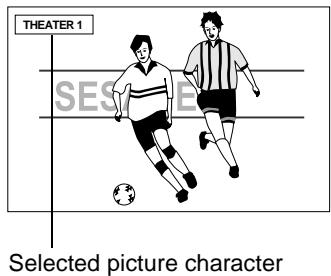
You can select the quality of the image from among four options (OFF, 1, 2, and 3) according to the type of programming, picture tone, or personal preferences.
During playback
From the remote control only:
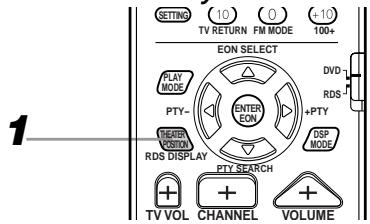
1. Press THEATER POSITION to select the desired picture character.
Each time you press the button, the picture character changes as follows:
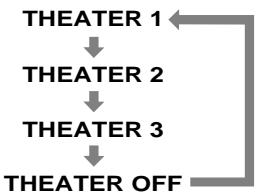
"THEATER OFF" is the normal position.
Selecting a higher number results in a darker picture character.
To turn off the on-screen display
Press ENTER.
- The THEATER POSITION screen will automatically close if left idle for more than 5 seconds.
Repeating a current title, chapter or track, or all tracks [REPEAT]
![JVC TH-A9R - Repeating a current title, chapter or track, or all tracks [REPEAT] - 1](/content/2025/01/123734/images/6918cec0720786834259996dd6a22afc926b54ca82da3c716304fcb0698dd2c7.jpg)
![JVC TH-A9R - Repeating a current title, chapter or track, or all tracks [REPEAT] - 2](/content/2025/01/123734/images/d9c4561c94e3db8bc0546909566340a097eb3ec9e0eec22de12d379790d0b504.jpg)
![JVC TH-A9R - Repeating a current title, chapter or track, or all tracks [REPEAT] - 3](/content/2025/01/123734/images/79878ec591cc5bb75f82337f22d4153ea1bea7beba4c5606a7c95d3ad2282f80.jpg)
For DVD: During playback
For Audio CD: During playback or while stopped
For Video CD: During playback without PBC function or while stopped
From the remote control only:
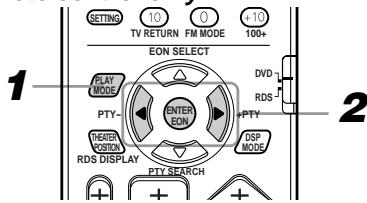
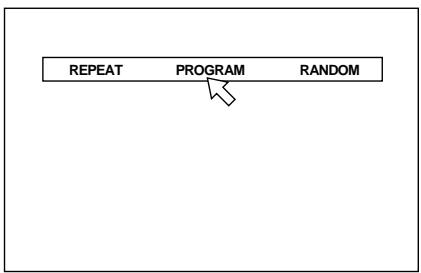
1 Press PLAY MODE.
The on-screen display appears on the TV.
2 Press the left/right cursors to move the pointer to [REPEAT], then press ENTER.
Each time you press ENTER, the repeat mode changes as follows:
For DVD![JVC TH-A9R - Press the left/right cursors to move the pointer to [REPEAT], then press ENTER. - 1](/content/2025/01/123734/images/f1c6d5da6d2f16d49c9af1ac21a65bff9dd2c11cfa8c201316f1db8a79f4a5bf.jpg)
![JVC TH-A9R - Press the left/right cursors to move the pointer to [REPEAT], then press ENTER. - 2](/content/2025/01/123734/images/306443cfc0b0a3afeb6db16b698cc571168aace513b032bd3bf98fc6c7b8bd39.jpg)
The current title or chapter will be repeated.
For Audio CD and Video CD
(for Audio CD)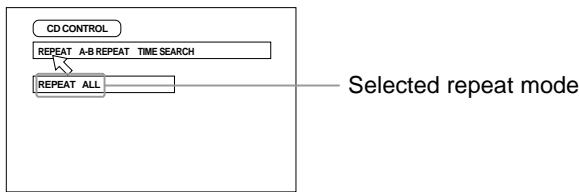
(for Video CD)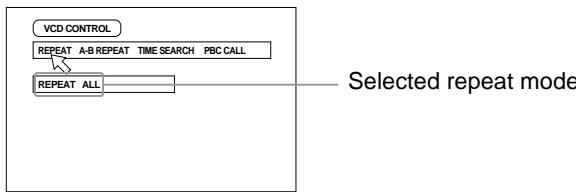
REPEAT ALL (all track repeat)
REPEAT 1 (current track repeat)
No indication
(off)
The current track or all tracks is/are played repeatedly.
To stop repeat playback
Press STOP.
- When a DVD disc is set, the center unit stops playback and quits repeat mode.
- When an Audio or Video CD is set, the center unit stops playback but remains in repeat mode.
To quit repeat playback without stopping playback, move the pointer to [REPEAT] and press ENTER repeatedly until the [REPEAT] display turns off.
To turn off the on-screen display
Press PLAY MODE.
Notes:
- If appears when pressing ENTER in step 2 during DVD playback, you cannot repeat the title or chapter because of the disc contents.
- With some DVD discs, the repeat function does not work.
- Repeat play function cannot be used during Video CD playback with PBC function.
Repeating a desired part [A-B REPEAT]
![JVC TH-A9R - Repeating a desired part [A-B REPEAT] - 1](/content/2025/01/123734/images/9deb54fb77262135a233ec376589d0d73bb786756a417c9ab31b6d192502fb23.jpg)
During playback
From the remote control only:
![JVC TH-A9R - Repeating a desired part [A-B REPEAT] - 2](/content/2025/01/123734/images/aea10df2b345ef871d8709aca2dd4bca7a19aa8f1b7c2d0433202271db9d9e3c.jpg)
1 Press PLAY MODE.
The on-screen display appears on the TV.
2 Press the left cursor to move the pointer to [A-B REPEAT], then press ENTER at the beginning of the part you want to repeat (point A). 3 Press ENTER at the end of the part you want to repeat (point B).
The unit locates "A" and starts repeat playback between "A" and "B".
(for DVD)
Point A Point B![JVC TH-A9R - Repeating a desired part [A-B REPEAT] - 3](/content/2025/01/123734/images/6c69facccd092e3af4e3fd5a480acb46a29969a30a9466c49e0918e7f3f56d6a.jpg)
(for Audio CD)![JVC TH-A9R - Repeating a desired part [A-B REPEAT] - 4](/content/2025/01/123734/images/63ee48c0dd8ce492527d344fe39e9a0a044f5146e2ddbed9a54f1ece203a66c5.jpg)
(for Video CD)![JVC TH-A9R - Repeating a desired part [A-B REPEAT] - 5](/content/2025/01/123734/images/d94dcccecadf1c22e74e9ddb002732c03cc841962043a6db1622ac8f01fa4f09.jpg)
To quit A-B repeat playback
Press STOP. The center unit stops playback and quits A-B repeat mode.
Quitting A-B repeat mode without stopping playback
Move the pointer to [A-B REPEAT] and press ENTER.
Pressing the left or right arrow will also quit A-B repeat mode.
To turn off the on-screen display
Press PLAY MODE.
Notes:
- If appears when pressing ENTER in step 2 during DVD playback, you cannot repeat the selected portion because of the disc contents.
- The A-B REPEAT function cannot be used during program or random playback.
- With DVD discs, A-B repeat playback is possible only within a single title.
Programming the Playing Order [PROGRAM]
![JVC TH-A9R - Programming the Playing Order [PROGRAM] - 1](/content/2025/01/123734/images/3ce0af551b0ceb14c11b907999cda18df1b134c87913c78df6503a474bb0226e.jpg)
![JVC TH-A9R - Programming the Playing Order [PROGRAM] - 2](/content/2025/01/123734/images/d494211cc96b8faeeb2db5d157f0db3e42838a88654219e120c9c9699209377f.jpg)
![JVC TH-A9R - Programming the Playing Order [PROGRAM] - 3](/content/2025/01/123734/images/9543a486475f0eef1ebc852b373c9112e0a207a9941e1b5c389b20ac478ca914.jpg)
You can play titles or tracks on a disc in the desired order using the Program function.
While stopped
From the remote control only:
![JVC TH-A9R - Programming the Playing Order [PROGRAM] - 4](/content/2025/01/123734/images/3e8488360389765953f50037c1a7798d62e8726b80c6a81e25515e162afc4864.jpg)
1 Press PLAY MODE.
The on-screen display appears on the TV.
2 Press the cursors to move the pointer to [PROGRAM] and press ENTER.
![JVC TH-A9R - Press the cursors to move the pointer to [PROGRAM] and press ENTER. - 1](/content/2025/01/123734/images/0fc932528660983ac1bac534b2690ad0c6cb326af5691d1c3c0fb8a013babc57.jpg)
The program table appears under the menu bar (as shown above).
The PROGRAM indicator appears on the display window.
3 Select the titles or tracks in the desired order using the number buttons (1 10, + 10)
Up to 18 titles or tracks can be programmed. You may select the same titles or track more than once.
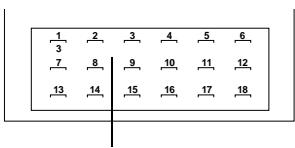
The programmed title/track number is shown under each program number.
Selecting numbers
Selecting 1~10:
Press the relevant button between 1 and 10.
Selecting 11 or higher:
To select 13: Press +10 → 3
To select 24: Press +10 → +10 → 4 .
To select 40: Press +10 → +10 → +10 → 10 .
If you mistakenly select the wrong title or track number, press STOP to delete the entered program.
Then re-select the titles or tracks you wish.
4 Press PLAY to start program play.
When all of the programmed titles or tracks have finished playback, the center unit stops. Since the program remains, program playback can be used again.
- You can use repeat playback together with program playback for DVDs, Audio CDs and Video CDs. Select REPEAT ALL to repeatedly play back all the programmed tracks. For details, see page 34.
To turn off the on-screen display
Press PLAY MODE.
To quit program playback and clear the program
Press STOP and then PLAY MODE to display the on-screen menu on the TV. Then, press STOP once again. Now, the program is cleared. Then, press ENTER.
The PROGRAM indicator on the display window goes off.
Turning off the power, switching source, or opening the disc cover will also clear the program.
To temporarily exit program playback and clear the program
There are two ways to do this operation:
- While stopped and the on-screen play mode menu is not displayed on TV, press STOP.
- While stopped, press PLAY MODE to display the on-screen menu on the TV. Then, move the pointer to [PROGRAM] and press ENTER to exit the program playback. Since the program remains, program playback can be used again.
Notes:
- With some DVD discs, program playback does not work.
- During program playback, you can skip to the next title or track by pressing ▶▶. Also, you can skip back to the beginning of the current title or track by pressing ▶▶. (You cannot skip back to the previous title or track.)
- During program playback, you can see the current title or track by pressing the PLAY MODE. The current title or track illuminates in yellow on the on-screen display. (To turn off the on-screen display, press PLAY MODE again.)
Random Play [RANDOM]
![JVC TH-A9R - Random Play [RANDOM] - 1](/content/2025/01/123734/images/332f7150f83cf5b67abe725c4509081db393c28a655fe05a39ad8a920ef220e4.jpg)
You can play titles or tracks in random order.
While stopped
From the remote control only:
![JVC TH-A9R - Random Play [RANDOM] - 2](/content/2025/01/123734/images/2b107e9d20da6a3ff5c4e035247401fccfb1dbfdd15461517dfbd9caa4e4c390.jpg)
1 Press PLAY MODE.
The on-screen display appears on the TV.
2 Press the left/right cursors to move the pointer to [RANDOM] and press ENTER.
"RANDOM" appears on the display window, and random playback begins.
![JVC TH-A9R - Press the left/right cursors to move the pointer to [RANDOM] and press ENTER. - 1](/content/2025/01/123734/images/abb57ac7ba2fd89676001a7a4955d93a6a348203e5ca2f83536714058e2d74db.jpg)
- When all tracks have been played once, random play ends.
- You can use repeat playback together with random playback. Select REPEAT ALL to repeatedly play back all tracks on the disc. For details, see page 34.
To quit random playback
Press STOP.
Note:
- The same track will not be played back more than once during random play.
To check the DVD function status

You can check the DVD function status of the DVD disc.
During DVD playback
From the remote control only:
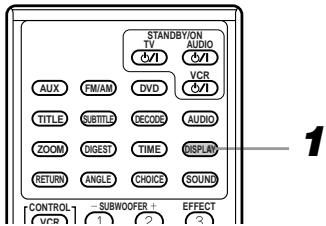
1 Press DISPLAY once.
The on-screen display appears on the TV, and the current selections of the camera angle, audio language, and subtitle language are displayed.
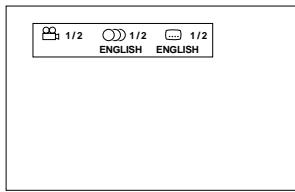
To turn off the DVD function status display
Press DISPLAY twice.
To check the disc information


You can check the disc information of the disc.
During playback
From the remote control only:
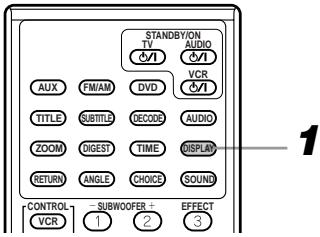
1 Press DISPLAY once for an Audio CD or Video CD, or twice for a DVD disc.
The disc information display appears on the TV.
(for DVD)
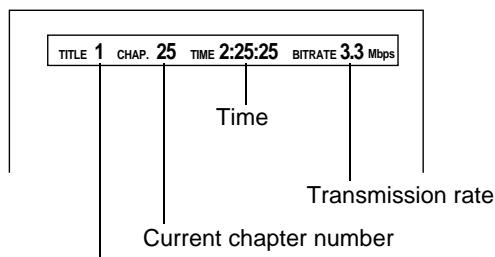
Current title number
(for Audio CD or Video CD playing without PBC)
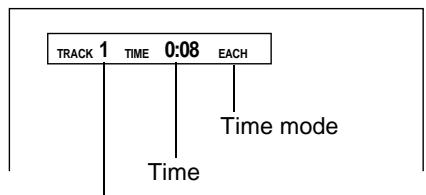
Current track number
(for Video CD playing with PBC)
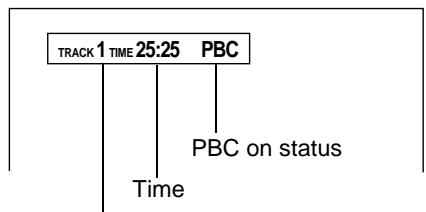
Current track number
To turn off the on-screen display
Press DISPLAY again.
Note:
- With DVD discs, you can directly enter the disc information on-screen by pressing TIME during playback.
To check the time information


You can check the time information of the disc.
For Audio CD: During playback
For Video CD: During playback without PBC function.
From the remote control only:
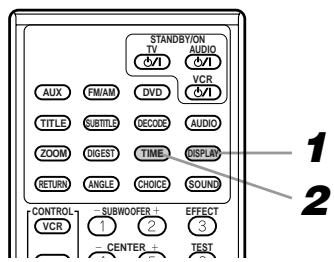
1 Press DISPLAY once.
The time information display appears on the TV.
2 Press TIME.
Each time you press the button, the time indication changes as follows:
For Audio CD
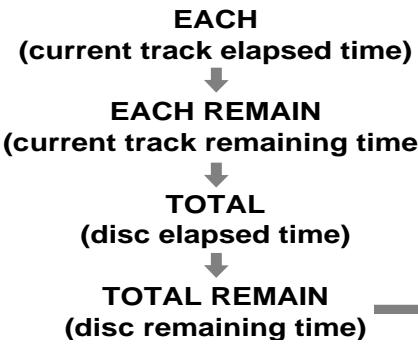
For Video CD playing without PBC
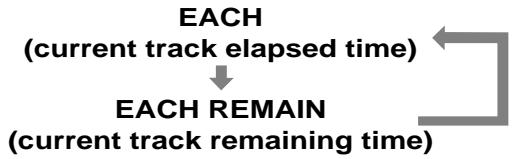
The selected time information is displayed on the TV, as well as on the display window.
To turn off the on-screen display
Press DISPLAY again.
To check time on the display window
You can check the time information on the display window, rather than using the on-screen menu.
During playback or while stopped
From the remote control only:
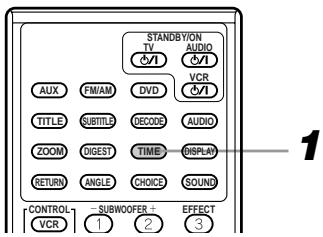
1 Press TIME repeatedly.
Each time you press the button, the time indication changes as follows:
→ EACH → EACH REMAIN → No indication (TOTAL) → REMAIN → (back to the beginning)
The time indicator (REMAIN/EACH) lights up on the display window.
During playback
REMAIN: Disc remaining time
TOTAL: Disc elapsed time
EACH: Current track elapsed time
EACH REMAIN: Current track remaining time
While stopped
REMAIN: Total playback time of the disc
EACH/TOTAL: 0:00
EACH REMAIN: Playback time of the current track. By pressing ▶ or |←, playback time for other tracks can be checked.
You can browse through all the stations or use the preset function to go immediately to a particular station.
Tuning in stations manually
From the remote control only: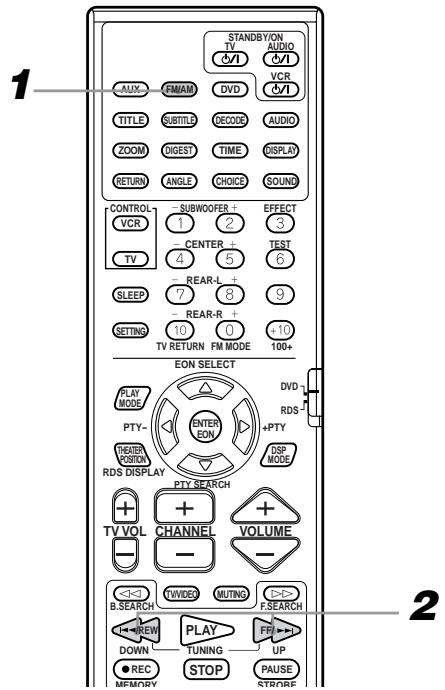
1. Press FM/AM to select the band.
Each time you press the button, the band alternates between FM and AM.
2. Press TUNING UP (FF/▶▶l) or TUNING DOWN (I<\triangleleft/REW) repeatedly until you find the frequency you want.
- When you hold down the button, the frequency keeps changing. When you release the button, tuning automatically stops at the next station of sufficient signal strength.
You can use the sound effect, if you want. See "Using the DSP Modes [DSP MODE]" on page 20.
Note:
- When a station of sufficient signal strength is tuned in, the TUNED indicator lights up on the display window.
- When an FM stereo program is received, the STEREO indicator also lights up.
- On the unit, FM and AM can be selected by repeatedly pressing SOURCE. The frequency last tuned appears on the display window, but you cannot tune in to the other station using ▸ or ◁ on the center unit.
Using preset tuning
Once a station is assigned to a channel number, the station can be quickly tuned. You can preset up to 30 FM and 15 AM stations.
To store the preset stations Before you start, remember...
- There is a time limit in doing the following steps. If the setting is canceled before you finish, start from step 1 again.
From the remote control only: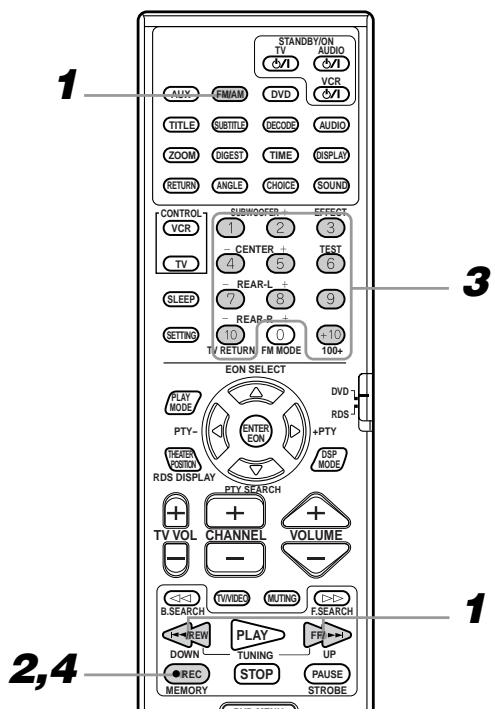
1 Tune in the station you want to preset (see "Tuning in stations manually").
If you want to store the FM reception mode for this station, select the FM reception mode you want. See "Selecting the FM reception mode" on page 41.
2 Press MEMORY (●REC).
"CH - - " flashes and the channel number position starts flashing on the display window for about 10 seconds.
3 Use the number buttons (1 10, + 10) to select a channel number while the channel number position is flashing.
- For channel number 5, press 5.
- For channel number 15, press +10 → 5 .
- For channel number 20, press +10 → 10 .
- For channel number 30, press +10 → +10 → 10 .
4 Press MEMORY (●REC) again while the selected channel number is flashing.
The selected channel number stops flashing.
The station is assigned to the selected channel number.

5 Repeat steps 1 to 4 until you store all the stations you want.
To erase a stored preset station
Storing a new station on a used number erases the previously stored one.
Note:
- The preset stations will be erased in a few days, if the system is unplugged or power failure occurs.
To tune in a preset station
From the remote control only:
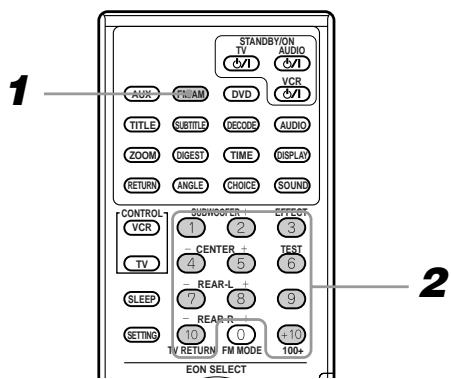
1 Press FM/AM.
Each time you press the button, the band alternates between FM and AM.
2 Press the number buttons (1 10, + 10) to select a preset channel number.
- For channel number 5, press 5.
- For channel number 15, press +10 then 5.
- For channel number 20, press +10 then 10.
- For channel number 30, press +10, +10, then 10.
Selecting the FM reception mode
When an FM stereo broadcast is hard to receive or noisy, you can change the FM reception mode while receiving an FM broadcast.
- You can store the FM reception mode for each preset station.
From the remote control only:
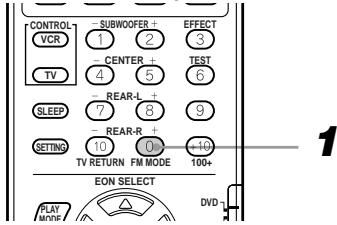
1. Press FM MODE.
Each time you press the button, the FM reception mode alternates between "AUTO" and "MONO."
AUTO: "AUTO MUTING" appears on the display window and the AUTO MUTING indicator lights up on the display window.
When a program is broadcast in stereo, you will hear stereo sound; when in monaural, you will hear monaural sounds. This mode is also useful to suppress static noise between stations.
MONO: "MONO" appears on the display window and the AUTO MUTING indicator goes off on the display window.
Reception will be improved although you will lose the stereo effect. In this mode, you will hear noise while tuning into the stations.
Beat cut
When listening to an AM broadcast with a lot of noise interference, you can change the BEAT CUT mode to reduce the noise.
From the remote control only:
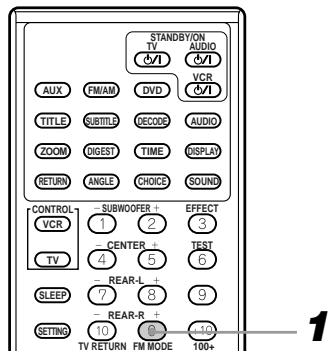
1 Press FM MODE.
Each time you press the button, operation toggles between "BEAT CUT 1" and "BEAT CUT 2" on the display window. Choose the setting that gives clearer sound.
Using the RDS (Radio Data System) to receive FM stations
RDS allows FM stations to send an additional signal along with their regular program signals. For example, the stations send their station names, as well as information about what type of program they broadcast, such as sports or music, etc.
When tuned to an FM station which provides the RDS service, the RDS indicator lights up on the display window.
With the center unit, you can receive the following types of RDS signals.
PS (Program Service):
Shows commonly known station names.
PTY (Program Type):
Shows types of broadcast programs.
RT (Radio Text):
Shows text messages the station sends.
EON (Enhanced Other Network): See page 43.
Notes:
- RDS is not available for AM (MW) broadcasts.
- RDS may not operate correctly if the station tuned is not transmitting RDS signal properly or if the signal strength is weak.
IMPORTANT
Set the remote control mode selector to RDS before using RDS.
What information can RDS signals provide?
You can see the RDS signals the station sends on the display.
From the remote control only:
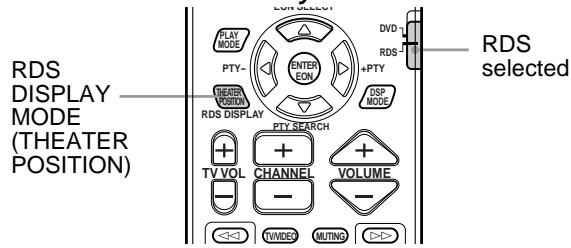
To show the RDS signals
Press RDS DISPLAY MODE (THEATER POSITION) while listening to an FM station.
Each time you press the button, the display changes to show you the following information:
→ PS→ PTY→ RT→ Frequency→ (back to the beginning)
PS (Program Service): While searching, "PS" appears and then the station names will be displayed. "NO PS" appears if no signal is sent.
PTY (Program Type): While searching, "PTY" appears and then the type of the broadcast program will be displayed. "NO PTY" appears if no signal is sent.
RT (Radio Text): While searching, "RT" appears and then text messages the station sends will be displayed. "NO RT" appears if no signal is sent.
Frequency: Station frequency (non-RDS service)
About characters shown in the display window
When the display shows PS, PTY, or RT signals, the following characters are used.
- The display window cannot differentiate upper case and lower case letters and always uses upper case letters.
- The display window cannot show accented letters, "A," for instance, may stand for accented "A's" like "Å, Å, Å, Å, Å, and Å."
Note:
- If searching finishes at once, "PS", "PTY", and "RT" will not appear on the display window.
Searching for a program by PTY codes
One of the advantages of the RDS service is that you can locate a particular kind of program from the preset channels (see page 40) by specifying the PTY codes.
To search for a program using the PTY codes
Before you start, remember...
- The PTY Search is only applicable to preset stations.
- To stop searching any time during the process, press PTY SEARCH while searching.
- There is a time limit in doing the following steps. If the setting is cancelled before you finish, start from step 1 again.
- When pressing the buttons on the primary remote control, make sure that you have selected the FM station using the primary remote control.
From the remote control only:
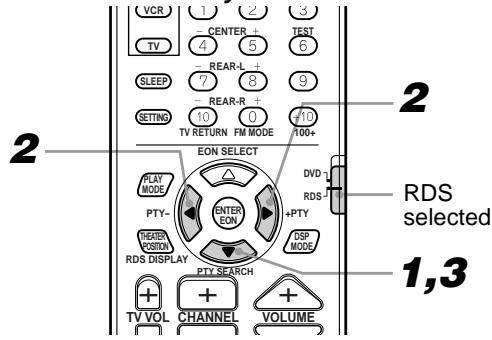
1 Press PTY SEARCH while listening to an FM station.
"PTY SELECT" flashes on the display window.
2 Press and hold PTY – or PTY + until the PTY code you want appears on the display window, while “PTY SELECT” is flashing.
The display gives you the PTY codes described to the right.
3 Press PTY SEARCH again, while the PTY code selected in the previous step is still on the display window.
While searching, "SEARCH" and the selected PTY code alternate on the display window.
The center unit searches 30 preset FM stations, stops when it finds the one you have selected, and tunes in that station.
To continue searching after the first stop
Press PTY SEARCH again while the indications on the display window are flashing.
If no program is found, "NOT FOUND" appears on the display window.
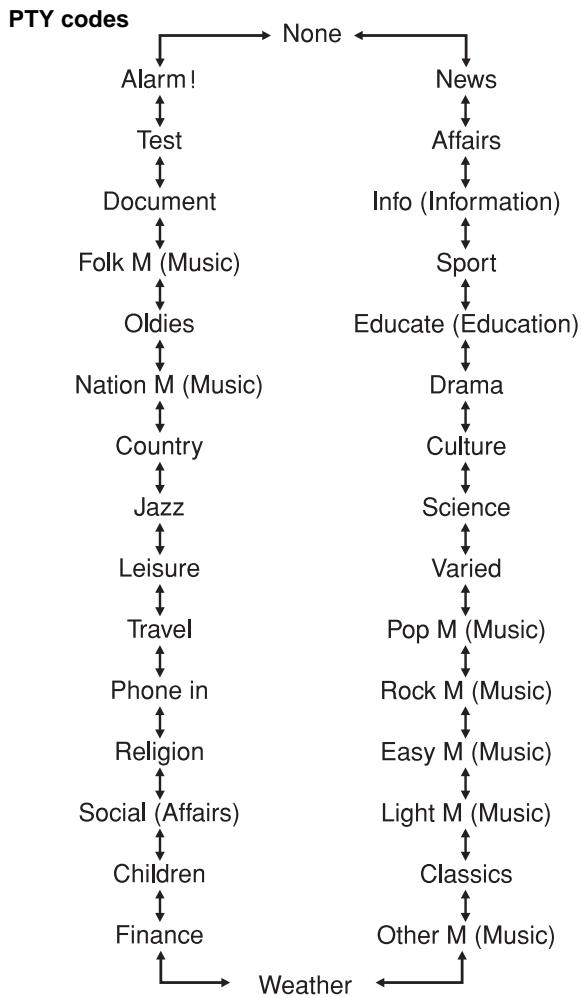
Switching to a broadcast program of your choice temporarily
Another convenient RDS service is called "EON (Enhanced Other Network)".
The EON indicator lights up while receiving a station with the EON code.
This allows the center unit to switch temporarily to a broadcast program of your choice (NEWS, TA, and/or INFO) from a different station except in the following cases:
- When you are listening to non-RDS stations (all AM (MW) and some FM stations).
- When listening to sources other than FM broadcasts.
- When the center unit is in standby mode.
Before you start, remember...
- The EON function is only applicable to preset stations.
From remote control only:
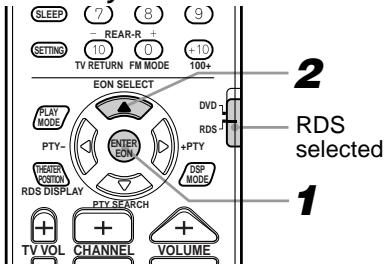
1 Press EON (ENTER) so that the last selected program type appears on the display window.
The center unit enters EON standby mode. When the center unit is in EON standby mode, the center unit is ready to receive the EON data (TA/NEWS/INFO) you select.
2 Press EON SELECT until the program type you want appears on the display window.
Each time you press the button, the display changes to show the following: → TA → NEWS → INFO → TA/NEWS → TA/INFO → NEWS/INFO → TA/NEWS/INFO → (back to the beginning)
TA: Traffic Announcement in your area.
NEWS: News.
INFO: Program the purpose of which is to import advice on the widest sense.
CASE 1: When the program you have selected is broadcast on another station while FM is selected.
When a station starts broadcasting the program you have selected, the center unit automatically switches to the station. The indicator for the received program type starts flashing.
When the program is over, the center unit returns to the previously selected station, but still remains in the EON standby mode. The indicator for the received program type stops flashing and remains lit.
CASE 2: When the selected program is broadcast on the station you have selected.
The center unit continues to receive the station, but the indicator for the received program type starts flashing.
When the program is over, the indicator for the received program type stops flashing and remains lit, but the center unit remains in the EON standby mode.
To stop listening to the program selected by EON, press EON so that the program type (TA/NEWS/INFO) indicator goes off from the display window. The center unit enters EON off mode and goes back to the previously selected station.
Each time you press EON, the EON mode alternates between standby mode and off mode.
Notes:
- EON data sent from some stations may not be compatible with the center unit.
- In EON standby mode, if you change the source, EON standby mode is canceled temporarily.
- While listening to a program tuned in by the EON function, you cannot use source selected buttons and PTY SEARCH button.
When an emergency broadcast (ALARM signal) is sent from an FM station:
Emergency broadcasts are selected automatically only when an FM station broadcasting the RDS signal is selected.
Emergency broadcasts are not selected while AM (MW) and non-RDS stations are selected, while other sources are selected, or while the center unit is in the standby mode.
The TEST signal is used for equipment test — whether it can receive the ALARM signal correctly.
The TEST signal makes the center unit work in the same way as the ALARM signal does. If the TEST signal is received, the center unit automatically switches to the station broadcasting the TEST signal.
While receiving the test signal, "TEST" appears on the display window.
You can set various preferences for playback via three dedicated on-screen displays.
Using the preference setting menus
The procedure for setting the preferences is explained here.
From the remote control only:
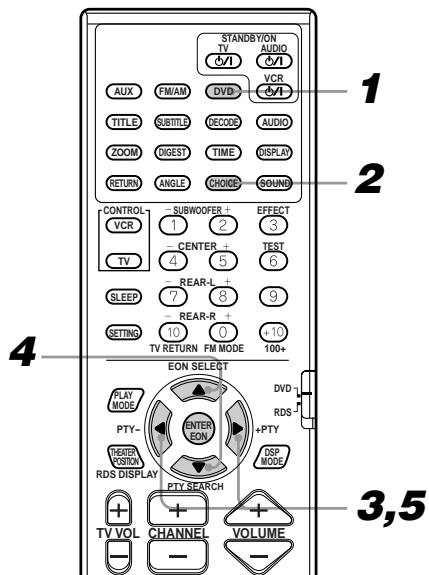
1 Press DVD.
If no disc is inserted, proceed to the next step.
If a DVD or Video CD disc is inserted, press STOP.
If an Audio CD disc is inserted, remove it.
2 Press CHOICE.
One of the preference menus appears on the TV.
There are three preference menus: LANGUAGE, DISPLAY and SYSTEM.
3 Move the pointer to the desired tab using the left/right cursors.
The selected preference menu opens.
4 Move the pointer to the desired item using the up/down cursors.
5 Press the left/right cursors to select the desired option in the item.
When you select one of the options, it is set for the item.
6 Repeat settings for other items.
- To continue settings in the same menu screen, repeat steps 4 and 5.
- To change the menu screen, press the / cursors until the pointer moves to the tab.
To close the preference menu screen
Press CHOICE again.
Or
Move the pointer to "EXIT" by pressing the / cursors, then press ENTER.
On-screen menu components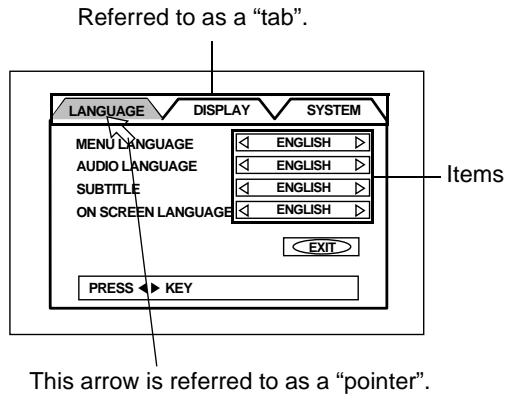
LANGUAGE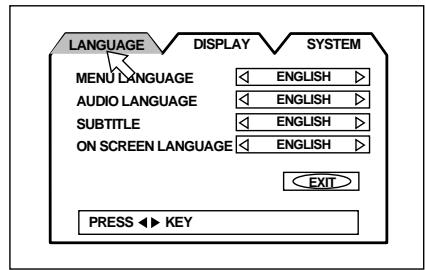
DISPLAY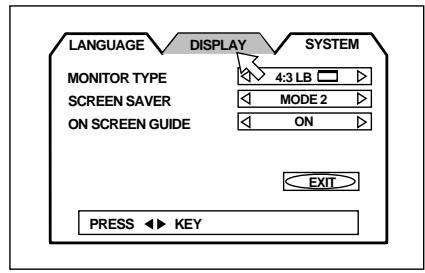
SYSTEM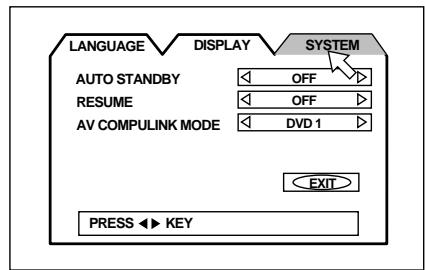
Choosing menu language
Some DVD discs feature menu display in multiple languages. With these discs, it is possible to set the default language for menu display.
1 Open the LANGUAGE menu.
See "Using the preference setting menus" on page 44.
2 Move the pointer to MENU LANGUAGE using the ▲/▼ cursors.
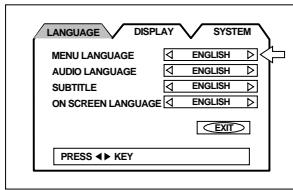
3 Press the ◀/▶ cursors to select a default menu language.
Pressing the cursors toggles between the following options.
⇔ ENGLISH ⇔ SPANISH ⇔ FRENCH ⇔
CHINESE ⇔ GERMAN ⇔ ITALIAN ⇔ JAPANESE
⇔ language code (AA ~ ZU) ⇔
(See "Appendix A: Table of languages and their abbreviations".)
Note:
- When the selected language is not available on the disc, display will switch to an available language.
Choosing audio language
Some DVD discs feature audio playback in multiple languages. With these discs, it is possible to set the default language for audio playback.
1 Open the LANGUAGE menu.
See "Using the preference setting menus" on page 44.
2 Move the pointer to AUDIO LANGUAGE using the ▲/▼ cursors.
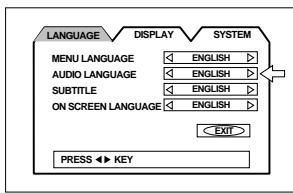
3 Press the left/right cursors to select a default menu language.
Pressing the cursors toggles between the following options.
ENGLISH SPANISH FRENCH
CHINESE ↔ GERMAN ↔ ITALIAN ↔ JAPANESE
↔ language code (AA ~ ZU) ↔
(See "Appendix A: Table of languages and their abbreviations".)
Note:
- When the selected language is not available on the disc, audio playback will switch to an available language.
Choosing subtitle language
Some DVD discs feature subtitle display in multiple languages. With these discs, it is possible to set the default language for subtitle display.
1 Open the LANGUAGE menu.
See "Using the preference setting menus" on page 44.
2 Move the pointer to SUBTITLE LANGUAGE using the up/down cursors.
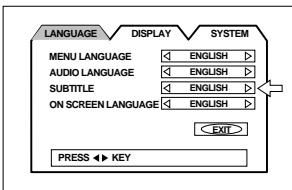
3 Press the left/right cursors to select a default menu language.
Pressing the cursors toggles between the following options.
ENGLISH SPANISH FRENCH
CHINESE ↔ GERMAN ↔ ITALIAN ↔ JAPANESE
↔ language code (AA ~ ZU) ↔
(See "Appendix A: Table of languages and their abbreviations".)
Note:
- When the selected language is not available on the disc, subtitle display will switch to an available language.
Choosing on-screen language
You can select the on-screen display language to be displayed.
1 Open the LANGUAGE menu.
See "Using the preference setting menus" on page 44.
2 Move the pointer to ON SCREEN LANGUAGE using the ▲/▼ cursors.
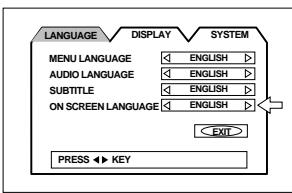
3 Press the ◀ ▶ cursors to select the on-screen language you want to display.
ENGLISH
FRANCAIS (French)

DEUTSCH (German)
ON SCREEN LANGUAGE
ENGLISH
French
LANGUE D'ECRAN
FRANCAIS
German
Most movie DVD discs are recorded for wide-screen TVs with a height/width ratio of 16:9. It is possible to optimize playback of these wide-screen TV images for viewing on a regular TV with a height/width ratio of 4:3.
1 Open the DISPLAY menu.
See "Using the preference setting menus" on page 44.
2 Move the pointer to MONITOR TYPE using the up/down cursors.
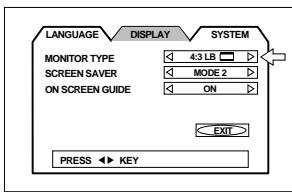
3 Press the left/right cursors to select monitor type.
Pressing the cursors toggles between the following monitor configurations.
4:3 LB (Letter Box Conversion):
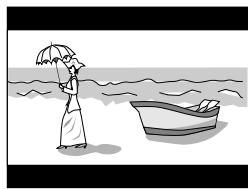
Select this option for playback on a TV with a height/width ratio of 4:3.
The image will be displayed with a black bar at the top and bottom of the screen. The left and right edges of the image are preserved.
4:3 PS (Pan-scan Conversion):
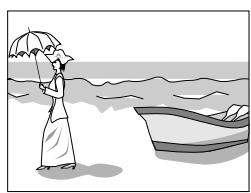
Select this option for playback on a TV with a height/width ratio of 4:3.
The image will be displayed with the right and left edges cropped. No black gap will appear at the top and bottom of the screen.
16:9 WIDE (Wide Television Screen 16:9):
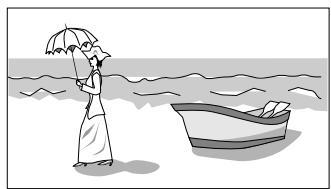
Select this option for playback on a wide-screen TV.
Note:
- If the DVD disc is not optimized for Pan-scan, the image will be shown in 4:3 LB (Letter Box Conversion), even if 4:3 PS (Pan-scan Conversion) is selected.
Screen saver settings
Set the screen saver to prevent screen burn.
1 Open the DISPLAY menu.
See "Using the preference setting menus" on page 44.
2 Move the pointer to SCREEN SAVER using the triangle / triangle cursors.
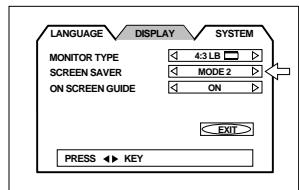
3 Press the left / right cursors to select a screen saver mode.
Pressing the cursors toggles between the following screen saver modes:
MODE 1: The picture gets dark. MODE 2: The "screen saver" picture appears and its brightness changes.
OFF: The screen saver function is off.
Notes:
- Please be wary of screen burn when the screen saver is turned OFF.
- The screen saver function does not work for Audio CDs.
On-screen guide settings
During DVD playback, an on-screen guide displaying symbols or letters over the DVD image can be set ON or OFF.
1 Open the DISPLAY menu.
See "Using the preference setting menus" on page 44.
2 Move the pointer to ON SCREEN GUIDE using the / cursors.
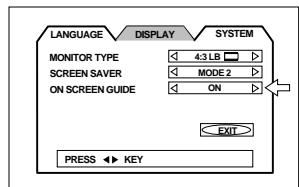
3 Press the cursors to select ON or OFF.
Pressing the cursors toggles between ON and OFF.
ON: Icons and letters are displayed.
OFF: Icons and letters are not displayed.
Examples of "on-screen guide" icons or characters:
AUTO STANDBY
When the system is stopped for more than 30 minutes or 60 minutes in the source DVD, the system enters standby mode automatically.
1 Open the SYSTEM menu.
See "Using the preference setting menus" on page 44.
2 Move the pointer to AUTO STANDBY using the / cursors.
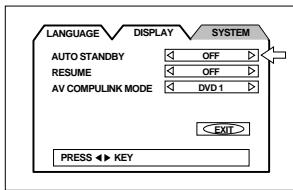
3 Press the cursors to select the time.
Pressing the cursor toggles between the following options:
60: Time is set to 60 minutes.
30: Time is set to 30 minutes.
OFF: The auto standby function is off.
RESUME
You can select the resume function to be on or off. See page 25.
1 Open the SYSTEM menu.
See "Using the preference setting menus" on page 44.
2 Move the pointer to RESUME using the △/∇ cursors.
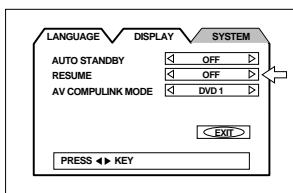
3 Press the ◁ triggers to select ON or OFF.
Pressing the cursor toggles between "ON" and "OFF".
ON: Pressing PLAY while stopped or on standby starts playback from the resume point if it is memorized.
OFF: Pressing PLAY while stopped or on standby starts playback from the beginning of the disc.
AV COMPULINK MODE
This mode is prepared for use in the future. To set this mode is unnecessary.
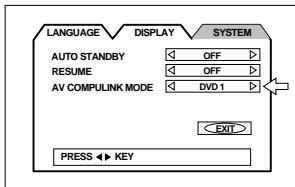
AV COMPU LINK jacks
These jacks are provided for use in the future. They are currently not used.
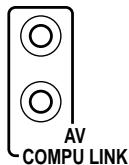
This function restricts playback of DVD discs which contain violent (and other) scenes according to the level set by the user. For example, if a movie which includes violent scenes supports the parental lock feature, such scenes which you do not want to let children view can be cut or replaced with other scenes.
To set Parental Lock for the first time [PARENTAL LOCK]
While a DVD disc is stopped or no disc is inserted
From the remote control only:
![JVC TH-A9R - To set Parental Lock for the first time [PARENTAL LOCK] - 1](/content/2025/01/123734/images/07a48a212bba365746df27739bb0f26060165385038d59b68500bf56a402094b.jpg)
1 Press ENTER while holding down STOP.
The PARENTAL LOCK on-screen display appears on the TV.
2 Press the ▲/▼ cursors to move the pointer to "Country Code", then press the ▲/► cursors to select "GB" for country code and press ENTER or the ▼ cursor.
(See "Appendix B: Country code list for parental lock".)
Country code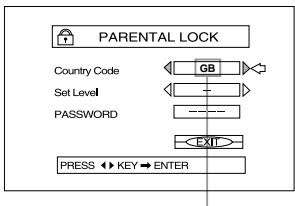
3 Press the ▲/▼ cursors to move the pointer to "Set Level", then press the ◀/► cursors to select the parental lock level.
Each time you press the ◀/► cursors, the parental level changes as follows:
→ "1" ~ "8" → "-" (No restriction) → (back to the beginning)
Selected level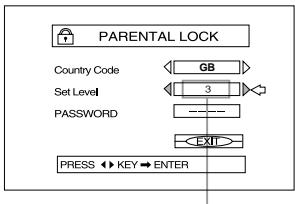
- "1" is the strictest level.
Discs rated higher than the level you selected are restricted.
4 Press ENTER or the ▼ cursor.
5 Enter your 4-digit password using the number buttons (0~9).
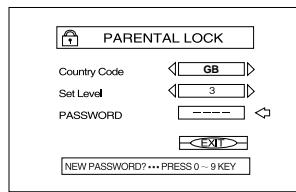
If you enter an undesired password, reenter the password.
6 Press ENTER.
The parental level and password are set.
The pointer moves to "EXIT".
To turn off the PARENTAL LOCK on-screen display
Press ENTER again.
To change the settings
While a DVD disc is stopped or no disc is inserted
1 Press ENTER while holding down STOP.
The Parental Lock on-screen display appears on the TV.
2 Enter your current 4-digit password using the number buttons (0 to 9) and press ENTER.
If you enter the wrong password, "WRONG! RETRY..." appears on the TV, and you cannot go to next step.
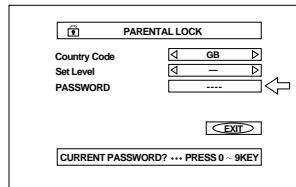
3 Use the up/down cursors to move the pointer to "Set Level", then use the left/right cursors to select the parental lock level.
4 Press ENTER.
5 Enter your new 4-digit password using the number buttons (0 to 9) and press ENTER.
The new setting is effective.
To turn off the PARENTAL LOCK on-screen display
Press ENTER again.
Notes:
- When you enter the wrong password more than 3 times in step 2 above, the pointer moves to "EXIT" automatically and the triangle up/down cursors do not work. Press EXIT to exit Parental Lock on-screen and repeat from the first step.
- If you forget your password in step 2, enter "8888."
To temporarily release the Parental lock
When you set the parental level strictly, some discs may not be played back at all. When you insert such a disc and try to play it, the Parental Lock on-screen display appears on the TV, and the unit will ask you whether you want the parental lock to be temporarily released or not.
1 Use the triangle up/down cursors to move the pointer to select YES or NO, then press ENTER.
If you select YES, the pointer moves to the PASSWORD field. When selecting NO, remove the disc.
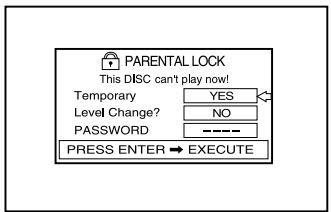
2 Enter your 4-digit password using the number buttons (0 to 9).
If you enter the wrong password, "WRONG! RETRY..." appears on the TV, and you cannot go to next step.
- The Parental lock is released, and the center unit starts playback.
Note:
- When you enter the wrong password more than 3 times in step 2 above, the pointer moves to "NO" automatically and the triangle up/down cursors do not work. Press EXIT to exit Parental Lock on-screen and remove the disc.
Perform amplifier settings (balance, tone, speaker size and delay time, crossover frequency, LFE (Low Frequency Effect) level and dynamic range) for the powered sub-woofer unit to obtain optimum listening performance.
Note:
- Before starting settings, be sure that each speaker is properly installed and your listening position is fixed, since some setting items should be changed according to your listening position with respect to the installed speakers.
Basic operation for setting amplifier
The basic operation for setting each item is as follows:
While stopped or during playback
From the remote control only:
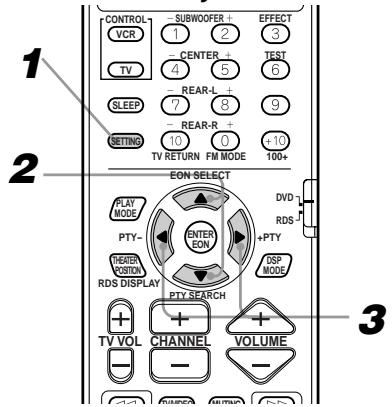
1 Press SETTING.
The system enters power amplifier setting mode and the setting item you have lastly selected appears on the display window.
2 Press the ▲/▼ cursors to select the desired item.
Each time you press the button, the setting item shown on the display window changes as follows:

L/R BALANCE
Balance between the right and left front speakers
BASS
Bass (low frequency sound) for the front speakers
TREBLE
Treble (high frequency sound) for the front speakers
FRONT SPK*
Setting the size of the front speakers
CENTER SPK*
Setting the size of the center speaker
REAR SPK*
Setting the size of the rear speakers
CENTER DELAY
Setting the delay time for the center speaker
REAR DELAY
Setting the delay time for the rear speakers
CROSSOVER*
When using a small speaker with weak bass as a front, center or rear speaker, you can redirect bass audio to the sub-woofer.
LFE ATT. LFE (Low Frequency Effect) attenuator
When bass sound is distorted while playing back the program recorded in Dolby Digital or DTS surround, you can lower the sound level using LFE attenuator.
D.RANGE COMP.
You can compress the dynamic range. This may be used when you play back surround effects at night. This function works only for the program recorded in Dolby Digital.
- When you use the supplied speakers with this system, you do not need to change the initial settings for these items.
3 Press the left/right cursors to select the desired option.
When you select one of the options, it is set for the item.
To exit power amplifier setting mode
Press SETTING again.
Setting balance
Adjust the balance between the front L/R speakers.
1 Press SETTING.
The system enters power amplifier setting mode and the setting item you have lastly selected appears on the display window.
2 Press the up/down cursors until "L/R BALANCE" appears on the display window.
After a while, the current setting appears.
3 Within 5 seconds, press the cursors to adjust the balance.
Each time you press the button, the balance level changes as follows:
R-21 to R-1 CNTR L-1 to L-21
- R-21 to R-1: The output from the right speaker decreases. (R-21: R channel signal is muted.)
- CNTR: The outputs from both speakers are the same.
- L-1 to L-21: The output from the left speaker decreases. (L-21: L channel signal is muted.)
Holding down the button continuously changes the level.
To exit power amplifier setting mode
Press SETTING again.
Setting tone
Adjust the tone (bass and treble) for the front speakers.
1 Press SETTING. 2 Press the / cursors until "BASS" or "TREBLE" appears on the display.
BSS or TREBLE
- After a while, the current setting value appears.
3 Within 5 seconds, press the cursors to adjust the bass or treble.
Each time you press the button, the setting value changes 2 steps at a time between -10 and +10 . (0: flat level)
Holding down the button continuously changes the value.
To exit power amplifier setting mode
Press SETTING again.
Setting speaker size
Select the speaker size according to the speakers you are using.
- When you use the supplied speakers with this system, set the speaker size as follows:
FRONT SPK: SMALL
CENTER SPK: SMALL
REAR SPK: SMALL
CAUTION:
When using this system's front, center, or rear speakers, select "SMALL" for each.
Selecting "LARGE" may result in speaker damage.
1 Press SETTING. 2 Press the / cursors until the following item appears on the display window.
- FRONT SPK
For setting the left and right front speaker size
- CENTER SPK
For setting the center speaker size
REAR SPK
For setting the left and right rear speaker size
After a while, the current setting appears.
3 Within 5 seconds, press the left/right cursors to select the speaker size.
Select "LARGE" when the cone speaker embedded in the speaker being used has a diameter of 12 cm or more.
Select "SMALL" when the diameter is less than 12 cm.
Select "NONE" when the speaker is not connected, or is not in use.
- When the speakers supplied with this system are used, select "SMALL" for each speaker.
- FRONT SPK
Pressing the button toggles between the following settings.
SMALL* <-> LARGE
- CENTER SPK
Pressing the button toggles between the following settings.
When the FRONT SPK is selected "SMALL":
SMALL* <-> NONE
When the FRONT SPK is selected "LARGE":
<-> LARGE <-> SMALL* <-> NONE <->
REAR SPK
Pressing the button toggles between the following settings.
When the FRONT SPK is selected "SMALL":
SMALL* ↔ NONE
When the FRONT SPK is selected "LARGE":
↔ LARGE ↔ SMALL* ↔ NONE ↔
- Select when the supplied speakers with this system are used.
To exit power amplifier setting mode
Press SETTING again.
Adjusting delay time
The delay time for the center speaker and rear speakers is calculated by comparing the distance between the rear/center speakers and the listening point with the distance between the front speakers and the listening point.
1 Press SETTING.
2 Press the ▲/▼ cursors until the following item appears on the display window.
- CENTER DELAY
For setting the delay time for the center speaker
REAR DELAY
For setting the delay time for the rear speakers
After a while, the current setting appears.
Within 5 seconds, press the left/right cursors to select the delay time.
- CENTER DELAY
Pressing the button changes the delay time between 0 ms and 5 ms.
When the distance between the listening point and the center speaker is close to the distance to the front speakers, set the delay time to 0 ms. Increase the delay time when the distance to the center speaker is shorter.
- A 1 ms increase/decrease of delay time is equivalent to a 30 cm change in distance.
REAR DELAY
Pressing the button changes the delay time between 0 ms and 15 ms.
When the distance between the listening point and the rear speakers is close to the distance to the front speakers, set the delay time to 0 ms. Increase the delay time when the distance to the rear speakers is shorter.
- A 1 ms increase/decrease of delay time is equivalent to a 30 cm change in distance.
To exit power amplifier setting mode
Press SETTING again.
Notes:
- When the center speaker size is set to "NONE" (not used), you cannot adjust CENTER DELAY.
- When the rear speaker size is set to "NONE" (not used), you cannot adjust REAR DELAY.
Adjusting crossover
When using a small speaker with weak bass as a front, center, or rear speaker, you can redirect bass audio to the sub-woofer. Select a crossover frequency to match the size of the small speaker being used.
- When you use the supplied speakers with this system, set the crossover frequency as follows: CROSSOVER: 200Hz
1 Press SETTING.
2 Press the ▲/▼ cursors until "CROSSOVER" appears on the display window.
After a while, the current setting appears.
3 Within 5 seconds, press the ◀/▶ cursors to select the crossover frequency.
Pressing the button changes the crossover frequency as follows: ⇄ 200Hz ⇄ 120Hz ⇄ 100Hz ⇄
| Crossover frequency | Speaker diameter |
| 100Hz | approx. 10 cm (4") |
| 120Hz | approx. 8 cm (3-3/16") |
| 200Hz* | approx. 4 cm (1-5/8") |
- Select when the supplied speakers with this system are used.
To exit power amplifier setting mode
Press SETTING again.
Note:
- When "LARGE" is set for the front, center and rear speakers, you cannot adjust CROSSOVER.
Adjusting LFE attenuator
When bass sound is distorted while playing back the program recorded in Dolby Digital or DTS surround, you can lower the sound level through the LFE attenuator.
- Normally, LFE ATT should be set to "OFF".
1 Press SETTING.
2 Press the / cursors until "LFE ATT." appears on the display window.
After a while, the current setting appears.
3 Within 5 seconds, press the cursors to select "ON" or "OFF".
Pressing the button toggles between "ON" and "OFF".
ON: Select when bass sound is distorted.
OFF: Select to turn off LFE ATT. effect.
To exit power amplifier setting mode
Press SETTING again.
Adjusting dynamic range
You can compress the dynamic range. This may be used when you play back surround effects at night. This function work only for the program recorded in Dolby Digital.
- The initial setting of D. RANGE COMP is "MID".
1 Press SETTING.
2 Press the up/down cursors until "D. RANGE COMP" appears on the display window.
After a while, the current setting appears.
3 Within 5 seconds, press the left/right cursors to select the setting.
Pressing the button changes the dynamic range compression as follows:

MAX: The dynamic range is fully compressed.
MID: The dynamic range is compressed a little. (Initial setting)
OFF: The dynamic range is not compressed.
To exit power amplifier setting mode
Press SETTING again.
Note:
- To enjoy original sound, you should set to "MID" or "OFF".
You can adjust the sub-woofer output level, output level of each speaker using a test tone, and DSP effect, to obtain preferable sound for you.
Note that you need to adjust them at the position you will listen to.
Adjusting sub-woofer level
You can adjust the sub-woofer output level to increase or decrease the sound volume from the sub-woofer.
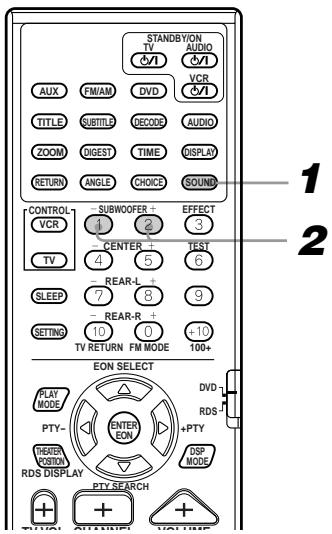
1 Press SOUND.
The system enters sound setting mode.
2 Press SUBWOOFER +/- to adjust the level.
You can adjust the sub-woofer output level between +10 dB and -10 dB. (0 dB: Rated level)
- After 5 seconds, the display returns to the one before entering the sound setting mode.
Adjusting speaker level
While playing a noise-like test tone, you can adjust the output level of each speaker by increasing or decreasing the sound volume from the speaker.
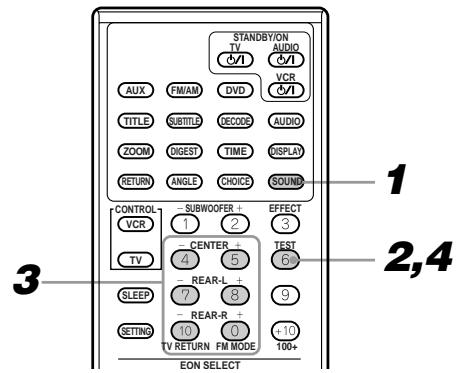
1 Press SOUND.
The system enters sound setting mode.
2 Press TEST to play a test tone.
"TEST TONE L" appears on the display window and the test tone is played from the speakers in the following order.

- The speaker which is set to "OFF" (not used) in "Setting speaker size" will be skipped. See page 51.
3 While listening, adjust each speaker level.
You can adjust each speaker output level between +10 dB and -10 dB. (0 dB: Rated level)
When you press the following button, the current setting value appears on the display window.
- TEST TONE L (Left front speaker)
Just listen for your reference.
- TEST TONE C (Center speaker)
Press CENTER + / - to adjust the level.
- TEST TONE R (Right front speaker)
Just listen for your reference.
TEST TONE RS (Right rear speaker)
Press REAR R + / - to adjust the level.
- TEST TONE LS (Left rear speaker)
Press REAR L + / - to adjust the level.
4 Press TEST to stop the test tone.
- After 5 seconds, the display returns to the one before entering the sound setting mode.
Note:
- You can adjust the speaker level without playing a test tone. In this case, perform only steps 1 and 3.
Adjusting DSP effect
You can adjust the strength of DSP (Digital Signal Processor) effect for each DAP mode so that you can customize sound effect. About the DAP, See "Using the DSP Modes [DSP MODE]" on page 20.
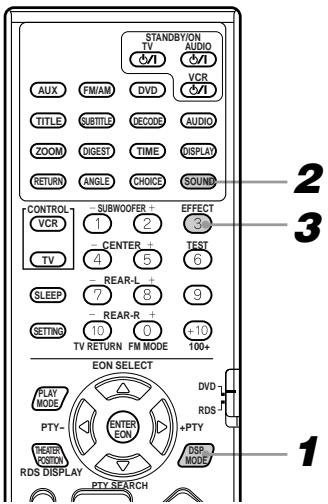
1 Press DSP MODE to select one of DSP modes.
The current DSP mode appears on the display window. Each time you press the button, DSP mode changes as follows.
→ SURROUND ON* → THEATER → LIVE CLUB → DANCE CLUB → HALL → PAVILION → DSP OFF →
(back to the beginning)
- "PRO LOGIC" appears when the current source is not DVD.
2 Press SOUND.
The system enters sound setting mode.
3 Press EFFECT to select the desired effect level.
The current effect level appears on the display window. Each time you press the button, the effect level changes as follows.

- The greater number, the greater effect.
4 Repeat steps 1-3 for other DSP mode.
- After 5 seconds, the display returns to the one before entering the sound setting mode.
Note:
- If DAP mode is not selected, you cannot adjust the DSP effect.
This remote control supplied with the receiver can transmit control signals for other manufacturers' VCRs and TVs. By changing the transmittable signals from preset ones to the other manufacturers', you can operate the other manufacturer's components using this remote control.
When operating the other manufacturers' components, refer also to the manuals supplied with them. To operate these components with the remote control, first you need to set the manufacturer's code each for VCR and TV.
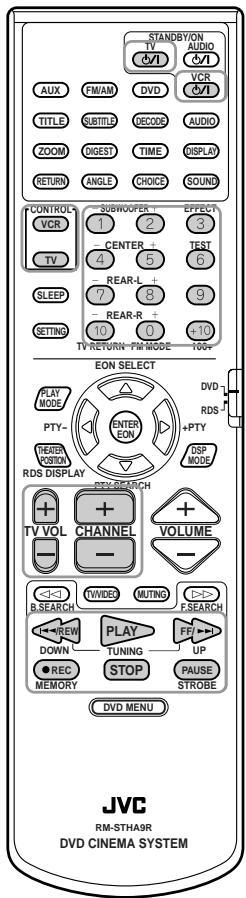
To change the transmittable signals for operating another manufacturer's TV
1 Press and hold TV 念 /
Keep press until step 3 is finished.
2 Press TV. 3 Enter manufacturer's code (2 digits) using buttons 1 - 9, and 0.
See the list below to find the code.
Examples: For a JVC product, press 0, then 1.
For a Hitachi product, press 0, then 7.
4 Release TV 1/1.
The following buttons can be used for operating the TV:
TV O/I: Turns on and off the TV.
TV VOL +/-: Adjusts the volume.
TV/VIDEO: Sets the input mode (either TV or VIDEO).
After pressing TV, you can perform the following operations on a TV:
CHANNEL + / - :
Changes the channels.
1-10, 0, 100+ (+10)
Selects the channels.
The 100+ (+10) button will function as the ENTER button if your TV requires pressing ENTER after selecting a channel number.
Note:
Refer to the manual supplied with your TV.
5 Try to operate your TV by pressing TV 口 /
When your TV turns on or off, you have entered the correct code.
If there are more than one code listed for your brand of TV, try each one until the correct one is entered.
| Manufacturer | Code |
| JVC | 01 |
| AKAI | 02, 05 |
| BLAUPANKT | 03 |
| FENNER | 04, 31, 32 |
| FISHER | 05 |
| GRUNDIG | 06 |
| HITACHI | 07, 08 |
| INNO-HIT | 09 |
| IRRADIO | 02, 05 |
| MAGNAVOX | 10 |
| MITSUBISHI | 11, 33 |
| MIVER | 03 |
| NOKIA | 12, 34 |
| NORDMENDE | 13, 14, 18, 26, 27, 28 |
| OKANO | 09 |
| ORION | 15 |
| PANASONIC | 16, 17 |
| PHILIPS | 10 |
| SABA | 13, 14, 18, 26, 27, 28 |
| SAMSUNG | 10, 19, 32 |
| SANYO | 05 |
| SCHNEIDER | 02, 05 |
| SHARP | 20 |
| SONY | 21, 22, 23, 24, 25 |
| TELEFUNKEN | 13, 14, 18, 26, 27, 28 |
| THOMSON | 13, 14, 18, 26, 27, 28, 30 |
| TOSHIBA | 29 |
| DEAWOO | 10, 31, 32 |
Manufacturers' codes are subject to change without notice. If they are changed, this remote control cannot operate the equipment.
To change the transmittable signals for operating another manufacturer's VCR
1 Press and hold VCR / I
Keep pressing until step 3 is finished.
2 Press VCR.
3 Enter manufacturer's code (2 digits) using buttons 1 - 9, and 0.
See the list below to find the code.
Examples:
For a JVC product, press 0, then 1.
For a PHILIPS product, press 0, then 5.
4 Release VCR O/I.
The following buttons can be used for operating the VCR:
VCR O/I: Turns on and off the VCR.
After pressing VCR, you can perform the following operations on the VCR:
PLAY: Starts playback.
Rewinds a video tape.
Fast winds a video tape.
STOP: Stops operation.
PAUSE: Pauses.
REC: Starts recording or enters recording pause.
CHANNEL + / - : Changes the TV channels on the VCR.
1-10, 0, 100 + (+10) : Selects the TV channels.
100 + (+10) button will function as the ENTER button if your VCR
requires pressing ENTER after selecting a channel number.
Note:
Refer to the manual supplied with your VCR.
5 Try to operate your VCR by pressing VCR 山
When your VCR turns on or off, you have entered the correct code.
If there are more than one code listed for your brand of VCR, try each one until the correct one is entered.
| Manufacturer | Code |
| JVC | 01 |
| AIWA | 02, 20 |
| BELL+HOWELL | 03, 16 |
| BLAUPUNKT | 04 |
| CGM | 03, 05, 16 |
| DIGTAL | 05 |
| FISHER | 03, 16 |
| G.E. | 06 |
| GRUNDIG | 07 |
| HITACHI | 08, 09 |
| LOEWE | 10, 11, 05 |
| MAGNAVOX | 04, 05 |
| MITSUBISHI | 12, 13, 14, 15 |
| NOKIA | 16 |
| NORDMENDE | 17, 18, 19, 31 |
| ORION | 20 |
| PANASONIC | 21 |
| PHILIPS | 05, 22 |
| PHONOLA | 05 |
| SABA | 23, 17, 18, 19, 31 |
| SAMSUNG | 24, 25 |
| SANYO | 03, 16 |
| SHARP | 26, 27 |
| SIEMENS | 07 |
| SONY | 28, 29, 30, 35 |
| TELEFUNKEN | 17, 18, 19, 31, 32 |
| TOSHIBA | 33 |
| DEAWOO | 34 |
Manufacturers' codes are subject to change without notice. If they are changed, this remote control cannot operate the equipment.
How to handle discs
When handling a disc, do not touch the surface of the disc.
Since discs are made of plastic, they are easily damaged.
If a disc gets dirty, dusty, scratched or warped, the image and sound will not be picked up correctly, and such a disc may cause the player to malfunction.
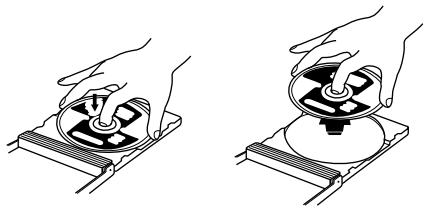
Label side
Do not damage the label side, stick paper to or use any adhesive on its surface.
Storage
Make sure that discs are kept in their cases. If discs are piled on top of one another without their protective cases, they can be damaged. Do not put discs in a location where they may be exposed to direct sunlight, or in a place where the humidity or temperature is high. Avoid leaving discs in your car!
Maintenance of discs
If there are fingerprints or other dirt adhering to a disc, wipe with a soft dry cloth, moving from the center outwards.
If a disc is difficult to clean, wipe with a cloth moistened with water.
Never use record cleaners, petrol, alcohol or any anti-static agents.
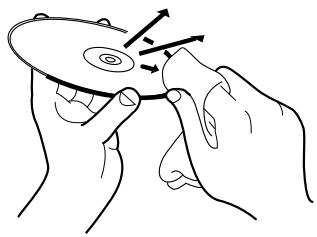
Cleaning the lens
If the lens in the laser pickup is dirty, video image irregularities, sound dropout, etc., could occur.
Open the disc cover and clean the lens as shown below:
- Use a blower (available from a camera store) to blow dust off the lens.
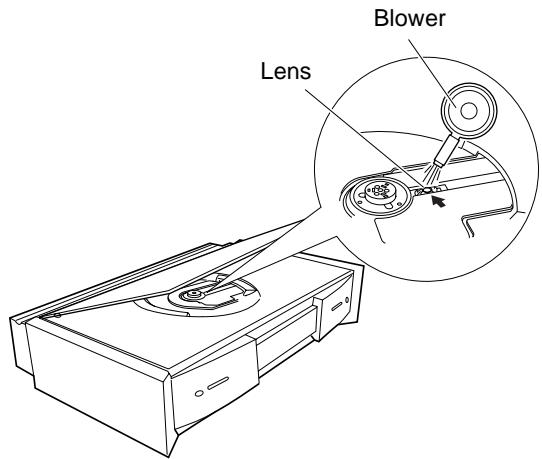
- If there are fingerprints, etc. on the lens, gently wipe clean with a cotton swab.
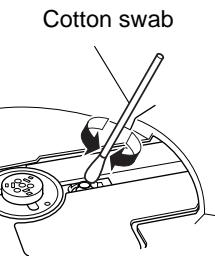
CAUTIONS:
- Do not use irregular shape discs (heat-shape, octagonal, etc.). Using these discs can damage the center unit.
- Sometimes during playback, noise or images may be garbled. This is sometimes due to the disc. (It may not be up to industry standards.)
These symptoms are caused by the discs, not by the malfunction of the center unit.
Use this chart to help you solve daily operational problems. If there is any problem you cannot solve, contact your JVC service center.
| PROBLEM | POSSIBLE CAUSE | SOLUTION |
| Power does not come on. | The power cord. | Insert the plug into the socket. |
| Power is not supplied to the powered sub-woofer | The power cord has been pulled out of the AC outlet.The system cable is not connected. | Press the Ⓞ/l on the center unit to switch power OFF, and then press it again to switch power ON. |
| The remote control does not work. | It is too far from the center unit, or is not facing the center unit.There is something obstructing the remote sensor. | Avoid any obstacles within approximately 5 m of the detector on the remote control. |
| The battery is flat. | Replace the battery. | |
| The battery has been inserted the wrong way round (+/-). | Insert the battery correctly. | |
| Sunlight is falling directly on the detector. | Shade the remote control from direct sunlight. | |
| The entered manufacturer's code number is incorrect. | Enter the correct code number. | |
| The remote control does not work as expected. | The remote control mode selector position is incorrect. | Set it to the correct position. Normally, it should be set to “DVD” unless you use the RDS (Radio Data System) for receiving FM stations. |
| No sound. | The system cable is not connected. | Check the connection. |
| The speaker cord is not connected. | Check the connection. | |
| There is a short in the speaker cord. | Reconnect the speaker cord and press on the center unit to restart the system. | |
| The powered sub-woofer power supply is off. | Insert the plug firmly into the socket and press Ⓞ/l on the center unit to switch power off, and then press it again to switch power on. | |
| The audio cord is not connected properly. | Connect the cord properly. | |
| An incorrect source has been selected. | Select the correct source. | |
| Muting is on. | Press MUTING to cancel mute. | |
| Sound is emitted from only one speaker. | The speaker cord is not connected correctly. | Connect the cord properly. |
| Left-right balance is incorrect. | Adjust balance. | |
| No video. | The video cord is not connected properly. | Connect the cord properly. |
| TV input selection is incorrect. | Select the correct input. | |
| Cannot play a disc. | A non-PAL disc has been inserted.The unit and disc region numbers (local numbers) are incompatible. | Replace the disc. |
| Video and audio are distorted. | The disc is dirty. | Clean the disc. |
| A video deck is connected between the center unit and the TV. | Connect the center unit and TV directly. | |
| The edge is missing on the video image. | Initial setup (monitor type) was incorrect. | Run through initial setup again correctly. |
| The TV has been set up incorrectly. | Set up the TV correctly. | |
| Continuous static during FM broadcasts. | The received signal is too weak. | Connect an external FM antenna, or contact your dealer. |
| The station is too far away. | Select another station. | |
| The antenna is not connected correctly. | Check the connection. | |
| Unit does not work correctly. | Lightning or electronic noise interferes with operation of the microcomputer. | Switch power off, and remove and re-insert the power plug in the socket. |
| Immediately after beginning to heat the room, the unit was moved to a cold location causing condensation to form inside. | Switch power off and leave the unit a few hours before switching power on again. |
Note:
- Problems may be caused by the components connected to the system. So, please read the manuals for the components carefully.
Center unit (XV-THA9R)
Audio section
Total Harmonic Distortion 0.02%
AUX Input Level 290 mV / 47 kΩ
Video section
Horizontal Resolution 500 lines
Signal-to-Noise Ratio 68 dB
Output Level S-video-Y: 1.0 Vp-p/75 Ω
S-video-C: 0.286 Vp-p/75 Ω
Composite: 1.0 Vp-p / 75 Ω
Tuner section
Tuning Range FM: 87.5 MHz to 108.0 MHz
AM: 522 kHz to 1,629 kHz
Usable Sensitivity FM: 17.8 dBf (2.1 µV / 75 Ω)
AM loop antenna: 630 µV/m
Dimensions (W × H × D) 360 mm × 77 mm × 253 mm (14-3/16 inches × 3-1/16 inches × 9-31/32 inches)
Mass 3.0 kg (6.6 lbs)
Power Requirements AC 230 V ~, 50 Hz
Power Consumption 20 W (at operation)
1.9 W (in standby mode)
Powered Sub-woofer (SP-PWA9)
Amplifier section
Output Power Front/Rear/Center: 20 W × 5, 4 Ω, 1 kHz, 0.7% THD
: 30 W × 5, 4 Ω, 1 kHz, 10% THD
Sub-woofer : 100 W, 4 Ω, 100 Hz, 0.7% THD
Mass 16.5 kg (36.4 lbs)
Power Requirements AC 230 V ~, 50 Hz
Power Consumption 120 W (at operation)
0 W (in standby mode)
Satellite Speakers (SP-XSA9)
Speakers 7 cm × 4 cm (2-15/16 inches × 1-5/8 inches) bass-reflex, Magnetically Shielded
Power Handling Capacity 30 W
Frequency Range 95 Hz to 20 kHz
Dimensions (W × H × D) 65 mm × 122 mm × 117 mm (2-9/16 inches × 4-13/16 inches × 4-5/8 inches)
Mass 360 g (0.79 lbs)
Center Speaker (SP-XCA9)
Speakers 7 cm × 4 cm (2-3/4 inches × 1-5/8 inches) bass-reflex, Magnetically Shielded
Power Handling Capacity 30 W
Frequency Range 95 Hz to 20 kHz
Dimensions (W × H × D) 122 mm × 65 mm × 115 mm (4-13/16 inches × 2-9/16 inches × 4-9/16 inches)
Mass 360g (0.79 lbs)
Designs & specifications are subject to change without notice.
When you select the subtitle language or sound, the languages shown below are displayed as abbreviations.
To select the desired language, select the abbreviation corresponding to the language you want.
| AA | Afar |
| AB | Abkhazian |
| AF | Afrikaans |
| AM | Ameharic |
| AR | Arabic |
| AS | Assamese |
| AY | Aymara |
| AZ | Azerbaijani |
| BA | Bashkir |
| BE | Byelorussian |
| BG | Bulgarian |
| BH | Bihari |
| BI | Bislama |
| BN | Bengali, Bangla |
| BO | Tibetan |
| BR | Breton |
| CA | Catalan |
| CO | Corsican |
| CS | Czech |
| CY | Welsh |
| DA | Danish |
| DZ | Bhutani |
| EL | Greek |
| EO | Esperanto |
| ET | Estonian |
| EU | Basque |
| FA | Persian |
| FI | Finnish |
| FJ | Fiji |
| FO | Faroese |
| FY | Frisian |
| GA | Irish |
| GD | Scots Gaelic |
| GL | Galician |
| GN | Guarani |
| GU | Gujarati |
| HA | Hausa |
| HI | Hindi |
| HR | Croatian |
| HU | Hungarian |
| HY | Armenian |
| IA | Interlingua |
| IE | Interlingue |
| IK | Inupiak |
| IN | Indonesian |
| IS | Icelandic |
| IW | Hebrew |
| JI | Yiddish |
| JW | Javanese |
| KA | Georgian |
| KK | Kazakh |
| KL | Greenlandic |
| KM | Cambodian |
| KN | Kannada |
| KO | Korean (KOR) |
| KS | Kashmiri |
| KU | Kurdish |
| KY | Kirghiz |
| LA | Latin |
| LN | Lingala |
| LO | Laothian |
| LT | Lithuanian |
| LV | Latvian, Lettish |
| MG | Malagasy |
| MI | Maori |
| MK | Macedonian |
| ML | Malayalam |
| MN | Mongolian |
| MO | Moldavian |
| MR | Marathi |
| MS | Malay (MAY) |
| MT | Maltese |
| MY | Burmese |
| NA | Nauru |
| NE | Nepali |
| NL | Dutch |
| NO | Norwegian |
| OC | Occitan |
| OM | (Afan) Oromo |
| OR | Oriya |
| PA | Panjabi |
| PL | Polish |
| PS | Pashto, Pushto |
| PT | Portuguese |
| QU | Quechua |
| RM | Rhaeto-Romance |
| RN | Kirundi |
| RO | Rumanian |
| RU | Russian |
| RW | Kinyarwanda |
| SA | Sanskrit |
| SD | Sindhi |
| SG | Sangho |
| SH | Serbo-Croatian |
| SI | Singhalese |
| SK | Slovak |
| SL | Slovenian |
| SM | Samoan |
| SN | Shona |
| SO | Somali |
| SQ | Albanian |
| SR | Serbian |
| SS | Siswati |
| ST | Sesotho |
| SU | Sundanese |
| SV | Swedish |
| SW | Swahili |
| TA | Tamil |
| TE | Telugu |
| TG | Tajik |
| TH | Thai |
| TI | Tigrinya |
| TK | Turkmen |
| TL | Tagalog |
| TN | Setswana |
| TO | Tonga |
| TR | Turkish |
| TS | Tsonga |
| TT | Tatar |
| TW | Twi |
| UK | Ukrainian |
| UR | Urdu |
| UZ | Uzbek |
| VI | Vietnamese |
| VO | Volapuk |
| WO | Wolof |
| XH | Xhosa |
| YO | Yoruba |
| ZU | Zulu |
This list is used for the parental Lock operation. For details, see page 48.
| AD | Andorra |
| AE | United Arab Emirates |
| AF | Afghanistan |
| AG | Antigua and Barbuda |
| AI | Anguilla |
| AL | Albania |
| AM | Armenia |
| AN | Netherlands Antilles |
| AO | Angola |
| AQ | Antarctica |
| AR | Argentina |
| AS | American Samoa |
| AT | Austria |
| AU | Australia |
| AW | Aruba |
| AZ | Azerbaijan |
| BA | Bosnia and Herzegovina |
| BB | Barbados |
| BD | Bangladesh |
| BE | Belgium |
| BF | Burkina Faso |
| BG | Bulgaria |
| BH | Bahrain |
| BI | Burundi |
| BJ | Benin |
| BM | Bermuda |
| BN | Brunei Darussalam |
| BO | Bolivia |
| BR | Brazil |
| BS | Bahamas |
| BT | Bhutan |
| BV | Bouvet Island |
| BW | Botswana |
| BY | Belarus |
| BZ | Belize |
| CA | Canada |
| CC | Cocos (Keeling) Islands |
| CF | Central African Republic |
| CG | Congo |
| CH | Switzerland |
| CI | Côte d'lvoire |
| CK | Cook Islands |
| CL | Chile |
| CM | Cameroon |
| CN | China |
| CO | Colombia |
| CR | Costa Rica |
| CU | Cuba |
| CV | Cape Verde |
| CX | Christmas Island |
| CY | Cyprus |
| CZ | Czech Republic |
| DE | Germany |
| DJ | Djibouti |
| DK | Denmark |
| DM | Dominica |
| DO | Dominican Republic |
| DZ | Algeria |
| EC | Ecuador |
| EE | Estonia |
| EG | Egypt |
| EH | Western Sahara |
| ER | Eritrea |
| ES | Spain |
| ET | Ethiopia |
| FI | Finland |
| FJ | Fiji |
| FK | Falkland Islands (Malvinas) |
| FM | Micronesia (Fedelated States of) |
| FO | Faroe Islands |
| FR | France |
| FX | France, Metropolitan |
| GA | Gabon |
| GB | United Kingdom |
| GD | Grenada |
| GE | Georgia |
| GF | French Guiana |
| GH | Ghana |
| GI | Gibraltar |
| GL | Greenland |
| GM | Gambia |
| GN | Guinea |
| GP | Guadeloupe |
| GQ | Equatorial Guinea |
| GR | Greece |
| GS | South Georgia and the South Sandwich Islands |
| GT | Guatemala |
| GU | Guam |
| GW | Guinea-Bissau |
| GY | Guyana |
| HK | Hong Kong |
| HM | Heard Island and McDonald Islands |
| HN | Honduras |
| HR | Croatia |
| HT | Haiti |
| HU | Hungary |
| ID | Indonesia |
| IE | Ireland |
| IL | Israel |
| IN | India |
| IO | British Indian Ocean Territory |
| IQ | Iraq |
| IR | Iran (Islamic Republic of) |
| IS | Iceland |
| IT | Italy |
| JM | Jamaica |
| JO | Jordan |
| JP | Japan |
| KE | Kenya |
| KG | Kyrgyzstan |
| KH | Cambodia |
| KI | Kiribati |
| KM | Comoros |
| KN | Saint Kitts and Nevis |
| KP | Korea, Democratic People's Republic of |
| KR | Korea, Republic of |
| KW | Kuwait |
| KY | Cayman Islands |
| KZ | Kazakhstan |
| LA | Lao People's Democratic Republic |
| LB | Lebanon |
| LC | Saint Lucia |
| LI | Liechtenstein |
| LK | Sri Lanka |
| LR | Liberia |
| LS | Lesotho |
| LT | Lithuania |
| LU | Luxembourg |
| LV | Latvia |
| LY | Libyan Arab Jamahiriya |
| MA | Morocco |
| MC | Monaco |
| MD | Moldova, Republic of |
| MG | Madagascar |
| MH | Marshall Islands |
| ML | Mali |
| MM | Myanmar |
| MN | Mongolia |
| MO | Macau |
| MP | Northern Mariana Islands |
| MQ | Martinique |
| MR | Mauritania |
| MS | Montserrat |
| MT | Malta |
| MU | Mauritius |
| MV | Maldives |
| MW | Malawi |
| MX | Mexico |
| MY | Malaysia |
| MZ | Mozambique |
| NA | Namibia |
| NC | New Caledonia |
| NE | Niger |
| NF | Norfolk Island |
| NG | Nigeria |
| NI | Nicaragua |
| NL | Netherlands |
| NO | Norway |
| NP | Nepal |
| NR | Nauru |
| NU | Niue |
| NZ | New Zealand |
| OM | Oman |
| PA | Panama |
| PE | Peru |
| PF | French Polynesia |
| PG | Papua New Guinea |
| PH | Philippines |
| PK | Pakistan |
| PL | Poland |
| PM | Saint Pierre and Miquelon |
| PN | Pitcairt |
| PR | Puerto Rico |
| PT | Portugal |
| PW | Palau |
| PY | Paraguay |
| QA | Qatar |
| RE | Réunion |
| RO | Romania |
| RU | Russian Federation |
| RW | Rwanda |
| SA | Saudi Arabia |
| SB | Solomon Islands |
| SC | Seychelles |
| SD | Sudan |
| SE | Sweden |
| SG | Singapore |
| SH | Saint Helena |
| SI | Slovenia |
| SJ | Svalbard and Jan Mayen |
| SK | Slovakia |
| SL | Sierra Leone |
| SM | San Marino |
| SN | Senegal |
| SO | Somalia |
| SR | Suriname |
| ST | Sao Tome and Principe |
| SV | El Salvador |
| SY | Syrian Arab Republic |
| SZ | Swaziland |
| TC | Turks and Caicos Islands |
| TD | Chad |
| TF | French Southern Territories |
| TG | Togo |
| TH | Thailand |
| TJ | Tajikistan |
| TK | Tokelau |
| TM | Turkmenistan |
| TN | Tunisia |
| TO | Tonga |
| TP | East Timor |
| TR | Turkey |
| TT | Trinidad and Tobago |
| TV | Tuvalu |
| TW | Taiwan, Province of China |
| TZ | Tanzania, United Republic of |
| UA | Ukraine |
| UG | Uganda |
| UM | United States Minor Outlying Islands |
| US | United States |
| UY | Uruguay |
| UZ | Uzbekistan |
| VA | Vatican City State (Holy See) |
| VC | Saint Vincent and the Grenadines |
| VE | Venezuela |
| VG | Virgin Islands (British) |
| VI | Virgin Islands (U.S.) |
| VN | Viet Nam |
| VU | Vanuatu |
| WF | Wallis and Futuna Islands |
| WS | Samoa |
| YE | Yemen |
| YT | Mayotte |
| YU | Yugoslavia |
| ZA | South Africa |
| ZM | Zambia |
| ZR | Zaire |
| ZW | Zimbabwe |
SAFETY INSTRUCTIONS "SOME DOS AND DON'TS ON THE SAFE USE OF EQUIPMENT"
This equipment has been designed and manufactured to meet international safety standards but, like any electrical equipment, care must be taken if you are to obtain the best results and safety is to be assured.

Do read the operating instructions before you attempt to use the equipment.
Do ensure that all electrical connections (including the mains plug, extension leads and interconnections between pieces of equipment) are properly made and in accordance with the manufacturer's instructions. Switch off and withdraw the mains plug when making or changing connections.
Do consult your dealer if you are ever in doubt about the installation, operation or safety of your equipment.
Do be careful with glass panels or doors on equipment.

DON'T continue to operate the equipment if you are in any doubt about it working normally, or if it is damaged in any way—switch off, withdraw the mains plug and consult your dealer.
DON'T remove any fixed cover as this may expose dangerous voltages.
DON'T leave equipment switched on when it is unattended unless it is specifically stated that it is designed for unattended operation or has a standby mode.
Switch off using the switch on the equipment and make sure that your family know how to do this.
Special arrangements may need to be made for infirm or handicapped people.
DON'T use equipment such as personal stereos or radios so that you are distracted from the requirements of traffic safety. It is illegal to watch television whilst driving.
DON'T listen to headphones at high volume as such use can permanently damage your hearing.
DON'T obstruct the ventilation of the equipment, for example with curtains or soft furnishings.
Overheating will cause damage and shorten the life of the equipment.
DON'T use makeshift stands and NEVER fix legs with wood screws — to ensure complete safety always fit the manufacturer's approved stand or legs with the fixings provided according to the instructions.
DON'T allow electrical equipment to be exposed to rain or moisture.
ABOVE ALL
NEVER let anyone, especially children, push anything into holes, slots or any other opening in the case - this could result in a fatal electrical shock. NEVER guess or take chances with electrical equipment of any kind - it is better to be safe than sorry!


- DVD DIGITAL CINEMA SYSTEM
- TH-A9R
- IMPORTANT FOR THE U.K
- IMPORTANT
- IF IN DOUBT - CONSULT A COMPETENT ELECTRICIAN
- CAUTION — ⓄI BUTTON
- CAUTION
- IMPORTANT FOR LASER PRODUCTS
- PRODUCTION OF LABELS
- CAUTION: PROPER VENTILATION
- XV-THA9R
- SP-PWA
- IMPORTANT CAUTIONS
- INSTALLATION OF THE UNIT
- POWER CORD
- TO PREVENT MALFUNCTION OF THE UNIT
- NOTE ABOUT THE COPYGUARD SYSTEM
- SAFETY PRECAUTIONS
- AVOID MOISTURE, WATER AND DUST
- AVOID HIGH TEMPERATURES
- WHEN YOU'RE AWAY
- DO NOT BLOCK THE VENTS
- CARE OF THE CABINET
- IF WATER GETS INSIDE THE UNIT
- AVOID GETTING YOUR HAND CAUGHT IN THE DISC COVER
- CHECKING THE SUPPLIED ACCESSORIES
- SYSTEM SETTING EXAMPLE
- CAUTIONS
- TO HANG SATELLITE SPEAKERS FROM THE WALL
- CAUTION: ATTACHING THE BRACKETS ON THE WALL
- LOCATION OF ATTACHMENT TO WALL
- ATTACHING SPEAKERS TO THE BRACKET
- USE THE SCREW SUPPLIED TO ATTACH THE SPEAKER TO THE BRACKET
- ADJUSTING THE ANGLE OF THE SATELLITE SPEAKERS
- PLAYABLE DISC TYPES
- PLAYABLE DISCS
- NON-PLAYABLE DISCS
- NOTES ON DVD DISCS
- DISC STRUCTURE
- VIDEO CDS WITH PLAYBACK CONTROL FUNCTION
- WHAT IS PLAYBACK CONTROL FUNCTION
- MENU-DRIVEN PLAYBACK
- HIGH-RESOLUTION STILL IMAGE DISPLAY
- WHEN A LIST OF NUMBERS IS DISPLAYED, SELECTING A NUMBER SHOWS ITS CONTENTS
- AFTER PLAYBACK, PRESS RETURN TO GO BACK TO THE PREVIOUS SCREEN
- NOTE
- CONNECTING THE FM AND AM (MW) ANTENNAS
- USING THE SUPPLIED FM ANTENNA
- USING THE STANDARD TYPE CONNECTOR (NOT SUPPLIED)
- AM (MW) ANTENNA CONNECTIONS
- NOTES
- CONNECTING THE POWERED SUBWOOFER
- CONNECTING THE TV
- CONNECTING THE TV WITH THE SCART CONNECTOR
- CONNECTING SPEAKERS
- CONNECTING THE FRONT SPEAKERS
- CONNECTING THE REAR AND CENTER SPEAKERS
- CONNECTING AN AUDIO COMPONENT
- CONNECTING THE POWER CORD
- PLUG THE POWER CORD INTO AN AC OUTLET
- PUTTING BATTERIES IN THE REMOTE CONTROL
- CENTER UNIT
- REMOTE CONTROLS
- OPERATION WITH THE REMOTE CONTROL
- ON-SCREEN DISPLAYS
- OPENING SCREENS
- PLAY MODE DISPLAYS
- WHILE STOPPED
- STATUS DISPLAYS
- DVD FUNCTION STATUS
- DURING DVD PLAYBACK
- DISC/TIME (DVD)
- DURING AUDIO CD PLAYBACK
- DISC/TIME (AUDIO CD/VIDEO CD WITHOUT PBC)
- DURING VIDEO CD PLAYBACK
- DISC/TIME (VIDEO CD WITH PBC)
- ON-SCREEN MENUS FOR SETTING PREFERENCES
- LANGUAGE
- DISPLAY
- SYSTEM
- ON-SCREEN MENUS FOR SETTING PARENTAL LOCK
- PARENTAL LOCK
- ON-SCREEN MENUS FOR USING DISCS
- PREVENTING SCREEN BURN-OUT WITH THE SCREEN SAVER [SCREEN SAVER]
- TO TURN THE SYSTEM POWER SUPPLY ON AND OFF (STANDBY)
- PRESS AUDIO Ⓜ / Ⓢ TO TURN POWER ON
- PRESS AUDIO ⊙ / 1 AGAIN TO TURN POWER OFF (STANDBY)
- PRESS Ⓜ / Ⓢ TO TURN POWER ON
- PRESS \(\MATHCAL{O} / \MATHCAL{I}\) AGAIN TO TURN POWER OFF (STANDBY)
- TO TURN TV POWER ON AND OFF
- PRESS TV \(\MATHCAL{O} / \MATHCAL{I}\) TO TURN POWER ON
- ADJUSTING VOLUME [VOLUME]
- SUB-WOOFER VOLUME CONTROL AND PHASE SETTING
- VOLUME CONTROL
- TURN THE VOLUME KNOB
- PHASE SETTING
- MUTING THE SOUND [MUTING]
- FROM THE REMOTE CONTROL ONLY
- PRESS MUTING TO MUTE THE SOUND THROUGH ALL SPEAKERS CONNECTED
- SELECTING THE SOURCE TO PLAY
- FROM THE REMOTE CONTROL
- PRESS ONE OF THE SOURCE SELECTING BUTTONS
- ON THE CENTER UNIT
- PRESS SOURCE UNTIL THE SOURCE NAME YOU WANT APPEARS ON THE DISPLAY
- CHANGING THE DECODE MODE [DECODE]
- PRESS DVD TO SELECT DVD AS THE SOURCE
- PRESS DECODE TO SELECT THE DECODE MODE
- WHEN TO TRY CHANGING THE DECODE MODE
- HOWEVER, PLEASE NOTE THAT WHEN THE DECODE MODE IS SET TO DTS, YOU WILL BE UNABLE TO PLAYBACK AUDIO FROM DISCS RECORDED IN A MODE OTHER THAN THE DTS DIGITAL SURROUND
- WHEN A DECODE MODE WHICH DIFFERS FROM THE TYPE OF DISC BEING PLAYED IS SELECTED
- AUDIO CHANNEL DISPLAY INDICATOR
- WITH DOLBY DIGITAL 5.1 CH OR DTS DIGITAL 5.1 CH SURROUND
- WITH DOLBY DIGITAL (LT/RT*)
- WITH STEREO SOUND (E.G., AUDIO CD)
- USING THE SLEEP TIMER [SLEEP]
- WHEN THE SHUT-OFF TIME COMES
- TO CHECK OR CHANGE THE TIME REMAINING UNTIL THE SHUT-OFF TIME
- PRESS SLEEP ONCE
- TO CANCEL THE SLEEP TIMER
- USING THE DSP MODES [DSP MODE]
- SURROUND MODES
- DOLBY SURROUND (DOLBY DIGITAL AND DOLBY PRO LOGIC)
- DTS DIGITAL SURROUND
- MPEG MULTICHANNEL
- DAP MODES
- TO SELECT THE DSP MODE
- PRESS DSP MODE
- WHEN PLAYING A DVD DISC WITH AUDIO RECORDED IN DOLBY SURROUND, DOLBY DIGITAL, OR DTS DIGITAL SURROUND AUDIO
- PRESS SURROUND
- WHEN SELECTING DAP
- TO TURN ON THE SYSTEM AND TV
- PRESS AUDIO / I TO TURN POWER ON
- PRESS TV / I TO TURN TV ON
- TO INSERT A DISC
- PRESS OPEN/CLOSE TO OPEN THE DISC COVER
- PLACE A DISC
- PRESS OPEN/CLOSE TO CLOSE THE DISC COVER
- REMOVE THE DISC AFTER PLAYBACK HAS FINISHED
- DISPLAY WHEN A DISC IS INSERTED
- WHEN A DVD IS INSERTED
- WHEN A VIDEO CD IS INSERTED
- WHEN AN AUDIO CD IS INSERTED
- TO PLAY A DISC
- PRESS PLAY OR DVD
- PRESS ▷
- TO STOP THE DISC
- ON-SCREEN GUIDE ICONS
- ABOUT INVALID OPERATION ICON
- PRESS II
- TO RESUME PLAYBACK
- FAST FORWARD AND BACKWARD
- TO RETURN TO THE NORMAL SPEED
- PRESS PLAY
- CONTINUOUSLY PRESS ▶ OR ◀◀
- LOCATING THE BEGINNING
- PRESS ▶ OR
- RESUMING PLAYBACK
- TO STORE THE PLAYBACK POSITION
- TO RESUME PLAYBACK FROM THE STORED POSITION WHILE STOPPED, PRESS PLAY ON THE REMOTE CONTROL OR PRESS ON THE CENTER UNIT
- TO CLEAR THE STORED POSITION
- SELECTING PLAYBACK FROM THE DVD MENU
- PRESS DVD MENU OR TITLE
- PRESS THE ◁ / ◁ / ◁ CURSORS TO SELECT A DESIRED ITEM, THEN PRESS ENTER
- ABOUT MENU
- SELECTING THE LOCATION TO VIEW FROM THE VIDEO CD MENU
- USE THE NUMBER BUTTONS (1~10, +10) TO SELECT THE DESIRED NUMBER OF THE ITEM
- PRESS RETURN TO RETURN TO THE MENU SCREEN
- ACTIVATING THE PBC FUNCTION
- PRESS PLAY MODE
- CANCELLING THE PBC FUNCTION
- TO SPECIFY THE TITLE, CHAPTER, OR TRACK NUMBER FOR PLAYBACK
- PRESS THE NUMBER BUTTONS (1~10, +10) TO SELECT THE DESIRED TITLE, CHAPTER, OR TRACK NUMBER
- TO SELECT 13: PRESS +10, THEN
- TO PLAY FROM THE BEGINNING OF A TITLE, CHAPTER, OR TRACK
- TO SPECIFY THE CHAPTER NUMBER FOR PLAYBACK [CHAP, SEARCH]
- PRESS THE NUMBER BUTTONS (0~9) TO ENTER THE DESIRED CHAPTER NUMBER
- PRESS ENTER
- TO RETURN TO THE REGULAR DISPLAY
- TO SPECIFY THE TIME FOR PLAYBACK [TIME SEARCH]
- PRESS THE LEFT/RIGHT CURSORS TO MOVE THE POINTER TO [TIME SEARCH], THEN PRESS ENTER
- USE THE NUMBER BUTTONS (0~9) TO ENTER THE TIME
- EXAMPLE (FOR DVD)
- WHEN YOU MAKE A MISTAKE
- TO SELECT THE SCREEN FOR PLAYBACK FROM THE DIGEST SCREEN [DIGEST]
- PRESS DIGEST
- DVD IS STOPPED
- DVD IS PLAYING
- VIDEO CD
- PRESS THE LEFT/UP/DOWN CURSORS TO SELECT THE DESIRED TITLE, CHAPTER, OR TRACK
- TO DISPLAY THE NEXT PAGE: PRESS RIGHT. TO DISPLAY THE PREVIOUS PAGE: PRESS
- TO RETURN TO THE REGULAR DISPLAY BEFORE PRESSING ENTER IN STEP
- TO ADVANCE THE PICTURE ONE FRAME AT A TIME
- PRESS PAUSE AT THE LOCATION AT WHICH THE PICTURE IS TO BE ADVANCED
- PRESS PAUSE AGAIN
- PRESS PLAY TO RETURN TO NORMAL PLAYBACK
- SLOW-MOTION PLAYBACK [SLOW]
- PRESS PAUSE AT THE SECTION YOU WISH TO VIEW IN SLOW MOTION
- PRESS ▶ OR ◀
- PAUSING SLOW-MOTION PLAYBACK
- RESTORING REGULAR PLAYBACK
- TO DISPLAY CONTINUOUS PHOTOS [STROBE]
- PRESS PAUSE CONTINUOUSLY TO DISPLAY CONTINUOUS PHOTOS
- ZOOMING A SCENE [ZOOM]
- PRESS ZOOM
- TO PAUSE ZOOM PLAY
- TO RETURN TO NORMAL PLAYBACK
- CHANGING THE SUBTITLE LANGUAGE [SUBTITLE]
- PRESS SUBTITLE
- PRESS THE LEFT/RIGHT CURSORS TO SELECT THE DESIRED SUBTITLE
- TURNING SUBTITLES ON/OFF
- CHANGING THE AUDIO LANGUAGE OR SOUND [AUDIO]
- PRESS AUDIO
- PRESS AUDIO OR THE \(\TRIANGLELEFT\) \(\TRIANGLERIGHT\) CURSORS TO SELECT THE DESIRED AUDIO LANGUAGE OR SOUND
- CHANGING THE AUDIO CHANNEL [AUDIO]
- SELECT THE AUDIO CHANNEL(S) TO BE PLAYED BACK USING AUDIO OR THE LEFT/RIGHT CURSORS
- VIEWING FROM MULTIPLE ANGLES [ANGLE]
- USING THE ANGLE BUTTON
- PRESS ANGLE
- PRESS ANGLE OR THE CURSOR TO SELECT THE DESIRED ANGLE
- SELECTING AN ANGLE FROM THE ANGLE LIST DISPLAY
- HOLD DOWN ANGLE FOR MORE THAN 1 SECOND
- PRESS THE / / / CURSORS TO SELECT THE DESIRED ANGLE
- SELECTING THE PICTURE CHARACTER [THEATER POSITION]
- PRESS THEATER POSITION TO SELECT THE DESIRED PICTURE CHARACTER
- TO TURN OFF THE ON-SCREEN DISPLAY
- REPEATING A CURRENT TITLE, CHAPTER OR TRACK, OR ALL TRACKS [REPEAT]
- PRESS THE LEFT/RIGHT CURSORS TO MOVE THE POINTER TO [REPEAT], THEN PRESS ENTER
- FOR AUDIO CD AND VIDEO CD
- TO STOP REPEAT PLAYBACK
- PRESS STOP
- REPEATING A DESIRED PART [A-B REPEAT]
- TO QUIT A-B REPEAT PLAYBACK
- QUITTING A-B REPEAT MODE WITHOUT STOPPING PLAYBACK
- PROGRAMMING THE PLAYING ORDER [PROGRAM]
- PRESS THE CURSORS TO MOVE THE POINTER TO [PROGRAM] AND PRESS ENTER
- SELECT THE TITLES OR TRACKS IN THE DESIRED ORDER USING THE NUMBER BUTTONS (1 10, + 10)
- SELECTING NUMBERS
- SELECTING
- SELECTING 11 OR HIGHER
- PRESS PLAY TO START PROGRAM PLAY
- TO QUIT PROGRAM PLAYBACK AND CLEAR THE PROGRAM
- TO TEMPORARILY EXIT PROGRAM PLAYBACK AND CLEAR THE PROGRAM
- RANDOM PLAY [RANDOM]
- PRESS THE LEFT/RIGHT CURSORS TO MOVE THE POINTER TO [RANDOM] AND PRESS ENTER
- TO QUIT RANDOM PLAYBACK
- TO CHECK THE DVD FUNCTION STATUS
- PRESS DISPLAY ONCE
- TO TURN OFF THE DVD FUNCTION STATUS DISPLAY
- TO CHECK THE DISC INFORMATION
- PRESS DISPLAY ONCE FOR AN AUDIO CD OR VIDEO CD, OR TWICE FOR A DVD DISC
- TO CHECK THE TIME INFORMATION
- PRESS TIME
- TO CHECK TIME ON THE DISPLAY WINDOW
- PRESS TIME REPEATEDLY
- DURING PLAYBACK
- TUNING IN STATIONS MANUALLY
- PRESS FM/AM TO SELECT THE BAND
- PRESS TUNING UP (FF/▶▶L) OR TUNING DOWN (I
- USING PRESET TUNING
- TO STORE THE PRESET STATIONS BEFORE YOU START, REMEMBER
- TUNE IN THE STATION YOU WANT TO PRESET (SEE "TUNING IN STATIONS MANUALLY")
- PRESS MEMORY (●REC)
- USE THE NUMBER BUTTONS (1 10, + 10) TO SELECT A CHANNEL NUMBER WHILE THE CHANNEL NUMBER POSITION IS FLASHING
- PRESS MEMORY (●REC) AGAIN WHILE THE SELECTED CHANNEL NUMBER IS FLASHING
- REPEAT STEPS 1 TO 4 UNTIL YOU STORE ALL THE STATIONS YOU WANT
- TO ERASE A STORED PRESET STATION
- TO TUNE IN A PRESET STATION
- PRESS FM/AM
- PRESS THE NUMBER BUTTONS (1 10, + 10) TO SELECT A PRESET CHANNEL NUMBER
- SELECTING THE FM RECEPTION MODE
- PRESS FM MODE
- BEAT CUT
- USING THE RDS (RADIO DATA SYSTEM) TO RECEIVE FM STATIONS
- WHAT INFORMATION CAN RDS SIGNALS PROVIDE
- TO SHOW THE RDS SIGNALS
- PRESS RDS DISPLAY MODE (THEATER POSITION) WHILE LISTENING TO AN FM STATION
- ABOUT CHARACTERS SHOWN IN THE DISPLAY WINDOW
- SEARCHING FOR A PROGRAM BY PTY CODES
- TO SEARCH FOR A PROGRAM USING THE PTY CODES
- BEFORE YOU START, REMEMBER
- PRESS PTY SEARCH WHILE LISTENING TO AN FM STATION
- PRESS AND HOLD PTY – OR PTY + UNTIL THE PTY CODE YOU WANT APPEARS ON THE DISPLAY WINDOW, WHILE “PTY SELECT” IS FLASHING
- PRESS PTY SEARCH AGAIN, WHILE THE PTY CODE SELECTED IN THE PREVIOUS STEP IS STILL ON THE DISPLAY WINDOW
- TO CONTINUE SEARCHING AFTER THE FIRST STOP
- SWITCHING TO A BROADCAST PROGRAM OF YOUR CHOICE TEMPORARILY
- FROM REMOTE CONTROL ONLY
- PRESS EON (ENTER) SO THAT THE LAST SELECTED PROGRAM TYPE APPEARS ON THE DISPLAY WINDOW
- PRESS EON SELECT UNTIL THE PROGRAM TYPE YOU WANT APPEARS ON THE DISPLAY WINDOW
- TO STOP LISTENING TO THE PROGRAM SELECTED BY EON, PRESS EON SO THAT THE PROGRAM TYPE (TA/NEWS/INFO) INDICATOR GOES OFF FROM THE DISPLAY WINDOW. THE CENTER UNIT ENTERS EON OFF MODE AND GOES BACK TO THE PREVIOUSLY SELECTED STATION
- WHEN AN EMERGENCY BROADCAST (ALARM SIGNAL) IS SENT FROM AN FM STATION
- THE TEST SIGNAL IS USED FOR EQUIPMENT TEST — WHETHER IT CAN RECEIVE THE ALARM SIGNAL CORRECTLY
- USING THE PREFERENCE SETTING MENUS
- PRESS DVD
- PRESS CHOICE
- MOVE THE POINTER TO THE DESIRED TAB USING THE LEFT/RIGHT CURSORS
- MOVE THE POINTER TO THE DESIRED ITEM USING THE UP/DOWN CURSORS
- PRESS THE LEFT/RIGHT CURSORS TO SELECT THE DESIRED OPTION IN THE ITEM
- REPEAT SETTINGS FOR OTHER ITEMS
- TO CLOSE THE PREFERENCE MENU SCREEN
- CHOOSING MENU LANGUAGE
- CHOOSING AUDIO LANGUAGE
- CHOOSING SUBTITLE LANGUAGE
- CHOOSING ON-SCREEN LANGUAGE
- OPEN THE DISPLAY MENU
- MOVE THE POINTER TO MONITOR TYPE USING THE UP/DOWN CURSORS
- PRESS THE LEFT/RIGHT CURSORS TO SELECT MONITOR TYPE
- LB (LETTER BOX CONVERSION)
- PS (PAN-SCAN CONVERSION)
- WIDE (WIDE TELEVISION SCREEN 16:9)
- SCREEN SAVER SETTINGS
- MOVE THE POINTER TO SCREEN SAVER USING THE TRIANGLE / TRIANGLE CURSORS
- PRESS THE LEFT / RIGHT CURSORS TO SELECT A SCREEN SAVER MODE
- ON-SCREEN GUIDE SETTINGS
- MOVE THE POINTER TO ON SCREEN GUIDE USING THE / CURSORS
- PRESS THE CURSORS TO SELECT ON OR OFF
- AUTO STANDBY
- RESUME
- AV COMPULINK MODE
- AV COMPU LINK JACKS
- TO SET PARENTAL LOCK FOR THE FIRST TIME [PARENTAL LOCK]
- PRESS ENTER WHILE HOLDING DOWN STOP
- PRESS THE ▲/▼ CURSORS TO MOVE THE POINTER TO "COUNTRY CODE", THEN PRESS THE ▲/► CURSORS TO SELECT "GB" FOR COUNTRY CODE AND PRESS ENTER OR THE ▼ CURSOR
- PRESS THE ▲/▼ CURSORS TO MOVE THE POINTER TO "SET LEVEL", THEN PRESS THE ◀/► CURSORS TO SELECT THE PARENTAL LOCK LEVEL
- ENTER YOUR 4-DIGIT PASSWORD USING THE NUMBER BUTTONS (0~9)
- TO TURN OFF THE PARENTAL LOCK ON-SCREEN DISPLAY
- TO CHANGE THE SETTINGS
- ENTER YOUR CURRENT 4-DIGIT PASSWORD USING THE NUMBER BUTTONS (0 TO 9) AND PRESS ENTER
- USE THE UP/DOWN CURSORS TO MOVE THE POINTER TO "SET LEVEL", THEN USE THE LEFT/RIGHT CURSORS TO SELECT THE PARENTAL LOCK LEVEL
- ENTER YOUR NEW 4-DIGIT PASSWORD USING THE NUMBER BUTTONS (0 TO 9) AND PRESS ENTER
- TO TEMPORARILY RELEASE THE PARENTAL LOCK
- USE THE TRIANGLE UP/DOWN CURSORS TO MOVE THE POINTER TO SELECT YES OR NO, THEN PRESS ENTER
- ENTER YOUR 4-DIGIT PASSWORD USING THE NUMBER BUTTONS (0 TO 9)
- BASIC OPERATION FOR SETTING AMPLIFIER
- PRESS SETTING
- PRESS THE ▲/▼ CURSORS TO SELECT THE DESIRED ITEM
- L/R BALANCE
- BASS
- TREBLE
- FRONT SPK
- CENTER SPK
- REAR SPK
- CENTER DELAY
- REAR DELAY
- CROSSOVER
- LFE ATT. LFE (LOW FREQUENCY EFFECT) ATTENUATOR
- D.RANGE COMP
- PRESS THE LEFT/RIGHT CURSORS TO SELECT THE DESIRED OPTION
- TO EXIT POWER AMPLIFIER SETTING MODE
- SETTING BALANCE
- PRESS THE UP/DOWN CURSORS UNTIL "L/R BALANCE" APPEARS ON THE DISPLAY WINDOW
- WITHIN 5 SECONDS, PRESS THE CURSORS TO ADJUST THE BALANCE
- SETTING TONE
- SETTING SPEAKER SIZE
- ADJUSTING DELAY TIME
- ADJUSTING CROSSOVER
- ADJUSTING LFE ATTENUATOR
- ADJUSTING DYNAMIC RANGE
- ADJUSTING SUB-WOOFER LEVEL
- PRESS SOUND
- PRESS SUBWOOFER +/- TO ADJUST THE LEVEL
- ADJUSTING SPEAKER LEVEL
- PRESS TEST TO PLAY A TEST TONE
- WHILE LISTENING, ADJUST EACH SPEAKER LEVEL
- PRESS TEST TO STOP THE TEST TONE
- ADJUSTING DSP EFFECT
- PRESS DSP MODE TO SELECT ONE OF DSP MODES
- PRESS EFFECT TO SELECT THE DESIRED EFFECT LEVEL
- REPEAT STEPS 1-3 FOR OTHER DSP MODE
- TO CHANGE THE TRANSMITTABLE SIGNALS FOR OPERATING ANOTHER MANUFACTURER'S TV
- RELEASE TV
- TRY TO OPERATE YOUR TV BY PRESSING TV 口
- TO CHANGE THE TRANSMITTABLE SIGNALS FOR OPERATING ANOTHER MANUFACTURER'S VCR
- PRESS AND HOLD VCR / I
- PRESS VCR
- ENTER MANUFACTURER'S CODE (2 DIGITS) USING BUTTONS 1 - 9, AND
- EXAMPLES
- RELEASE VCR O/I
- TRY TO OPERATE YOUR VCR BY PRESSING VCR 山
- HOW TO HANDLE DISCS
- LABEL SIDE
- STORAGE
- MAINTENANCE OF DISCS
- CLEANING THE LENS
- CENTER UNIT (XV-THA9R)
- AUDIO SECTION
- VIDEO SECTION
- TUNER SECTION
- POWERED SUB-WOOFER (SP-PWA9)
- AMPLIFIER SECTION
- SATELLITE SPEAKERS (SP-XSA9)
- CENTER SPEAKER (SP-XCA9)
- SAFETY INSTRUCTIONS "SOME DOS AND DON'TS ON THE SAFE USE OF EQUIPMENT
- ABOVE ALL
Brand : JVC
Model : TH-A9R
Category : Audio System