AZ1150 - Radio PHILIPS - Free user manual and instructions
Find the device manual for free AZ1150 PHILIPS in PDF.


User questions about AZ1150 PHILIPS
0 question about this device. Answer the ones you know or ask your own.
Ask a new question about this device
Download the instructions for your Radio in PDF format for free! Find your manual AZ1150 - PHILIPS and take your electronic device back in hand. On this page are published all the documents necessary for the use of your device. AZ1150 by PHILIPS.
USER MANUAL AZ1150 PHILIPS
natural_image
Black-and-white photo of a Philips 7803 portable radio with two speakers, a remote control, and a digital clock (no visible text or symbols on the device body)EXPANIUM
Let's make things better.
Important notes for users in the U.K.
Mains plug
This apparatus is fitted with an approved 13 Amp plug. To change a fuse in this type of plug proceed as follows:
- Remove fuse cover and fuse.
- Fix new fuse which should be a BS1362 5 Amp, A.S.T.A. or BSI approved type.
- Refit the fuse cover.
If the fitted plug is not suitable for your socket outlets, it should be cut off and an appropriate plug fitted in its place. If the mains plug contains a fuse, this should have a value of 5 Amp. If a plug without a fuse is used, the fuse at the distribution board should not be greater than 5 Amp.
Note: The severed plug must be disposed of to avoid a possible shock hazard should it be inserted into a 13 Amp socket elsewhere.
How to connect a plug
The wires in the mains lead are coloured with the following code: blue = neutral (N), brown = live (L). As these colours may not correspond with the colour markings identifying the terminals in your plug, proceed as follows:
- Connect the blue wire to the terminal marked N or coloured black.
- Connect the brown wire to the terminal marked L or coloured red.
- Do not connect either wire to the earth terminal in the plug, marked E (or e) or coloured green (or green and yellow).
Before replacing the plug cover, make certain that the cord grip is clamped over the sheath of the lead - not simply over the two wires.
Copyright in the U.K.
Recording and playback of material may require consent. See Copyright Act 1956 and The Performer's Protection Acts 1958 to 1972.
Norge
Philips Consumer Electronics
Philips, Glaslaan 2, SFF 10
5616 JB Eindhoven, The Netherlands

text_image
Technical diagram of a device's internal components with numbered labels for identification and assembly reference.Index
English
English 6
Français
Français 18
Español
Español 32
Deutsch
Deutsch 44
Nederlands
Nederlands 56
Italiano
Italiano 68
Svenska
Svenska 80
Dansk
Dansk 92
Index
Suomi 104
Português 116
Ελληνικά128
Controls
Top and front panels
1 ▶II— starts or pauses MP3-CD/CD playback
2 OPEN•CLOSE – press to open/close CD door
3 BAND – selects FM/ MW (AM)/LW waveband (LW not on all versions)
4 PROGRAM
- MP3-CD/CD: programs/reviews programmed tracks; - TUNER: programs tuner stations
5 CD MODE
- plays MP3-CD tracks/CD/a program in random order - repeats a track/MP3-CD/CD/ program
6 + ALBUM, PRESET
- MP3-CD only: selects next album - TUNER: selects the next preset station
7 ROTARY NAVIGATION ◀, ▶
- MP3-CD/CD: fast searches backwards, forwards within a track - TUNER: tunes radio (manually: down, up)

- MP3-CD/CD: skips to previous, next title/track - TUNER: automatic search tuning (down, up)
8 STOP ■— stops MP3-CD/CD playback; erases a MP3-CD/CD program
9 IR SENSOR (AZ1155 models only) – infrared for remote control
10 Display – backlit only when using AC mains supply - MP3-CD: orange backlight - TUNER/CD: green backlight
11 - ALBUM, PRESET - MP3-CD only: selects previous album - TUNER: selects previous preset station
12 SOURCE – selects sound source for MP3-CD/CD or TUNER
13 POWER – switches the set on/ off
14 LOW BATT – indicator lights up if battery power running low
15 ULTRABASS 2 – enhances bass response
16 VOLUME – adjusts volume level
Back Panel
17 Telescopic aerial – to improve FM reception
18 Voltage selector – (inside the battery compartment, not all versions) adjust to match the local voltage 110/220V before plugging in the set
19 AC MAINS – inlet for mains lead
20 Battery door – open to insert 6 x R-14, UM-2 or C-cells
This set complies with the radio interference requirements of the European Community.
Digital Remote Control Power Supply
DIGITAL REMOTE CONTROL (for AZ1155 model only)
1 C D – selects MP3-CD/CD sound source
2 ⏻— switches the set to standby
3+VOLUME -- adjusts volume level (up down)
4 SHUFFLE – plays all MP3-CD/CD tracks in random order
5 BASS – selects ULTRABASS 2 on/off
6▶II – starts MP3-CD/CD playback – pauses MP3-CD/CD playback
7 SEARCH ◀◀, ▶▶ — fast searches backwards, forwards within a track
8 BAND – selects FM/ MW(AM)/LW waveband (LW not on all versions)
9 PRESET ▲, ▼ (up, down)
MP3-CD : selects an album TUNER : selects a preset radio station
10 TUNING ◀◀, ▶▶ (down, up) – tunes to tuner stations
11 TUNER – selects tuner sound source
12 ■ – stops MP3-CD/CD playback; – erases a MP3-CD/CD program
13 |◀,▶| – skips to the beginning of a current track previous/ subsequent track
14 MUTE – interrupts/ resumes sound
15 REPEAT – repeats a track/ program/ entire MP3-CD/CD
Power Supply
Whenever convenient, use the mains supply if you want to conserve battery life. Make sure you remove the plug from the set and wall socket before inserting batteries.
Batteries (not included)
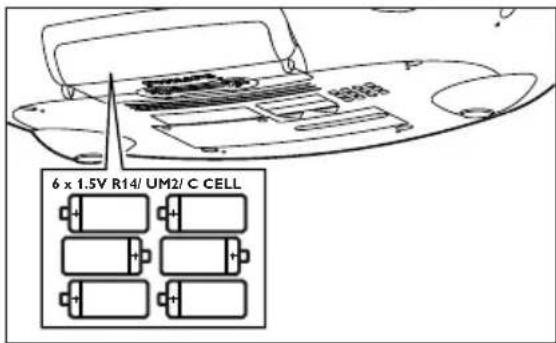
1 Open the battery compartment and insert six batteries, type R-14, UM-2 or C-cells, (preferably alkaline) with the correct polarity as indicated by the "+" and "-" symbols inside the compartment.
text_image
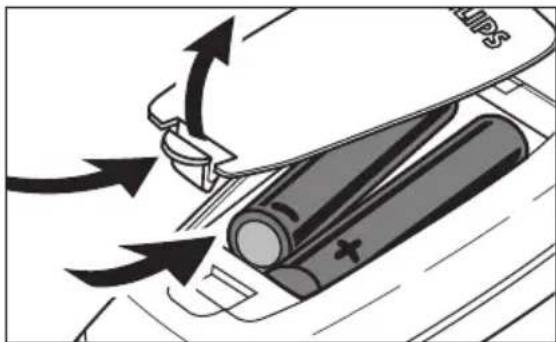
6 x 1.5V R14/ UM2/ C CELL- Remote control (AZ1155 model only)
natural_image
Diagram showing battery charging process with arrows indicating direction (no text or symbols)Open the battery compartment and insert 2 batteries, type AAA, R03 or UM4 (preferably alkaline).
Power Supply
2 Replace the compartment door, making sure the batteries are firmly and correctly in place. The set is now ready to operate.
→ If LOW BATT lights up, battery power is running low. The LOW BATT indicator eventually goes out if the batteries are too weak.
Batteries contain chemical substances, so they should be disposed of properly.
Incorrect use of batteries can cause electrolyte leakage and will corrode the compartment or cause the batteries to burst. Therefore:
- Do not mix battery types: e.g. alkaline with carbon zinc. Only use batteries of the same type for the set.
- When inserting new batteries, do not try to mix old batteries with the new ones.
- Remove the batteries if the set is not to be used for a long time.
Using AC Mains
1 Check if the mains voltage, as shown on the type plate located on the bottom of the set, corresponds to your local mains supply. If it does not, consult your dealer or service centre.
natural_image
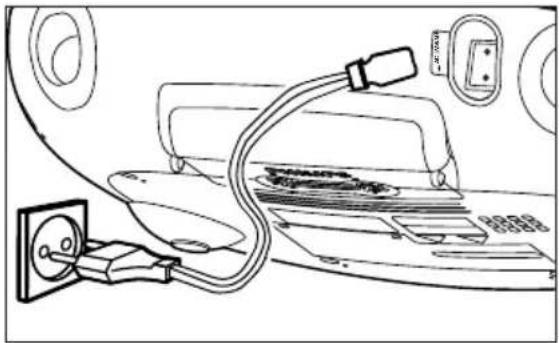
Line drawing of a car electrical plug connected to a motor or charger (no text or symbols visible)2 Connect the mains lead to the MAINS inlet and the wall socket. The mains supply is now connected and ready for use.
3 To switch off completely, withdraw the mains lead from the wall socket.
- Disconnect the mains lead from the wall socket to protect your set during heavy thunderstorms.
The type plate is located on the bottom of the set.
Switching power on/off: Save energy
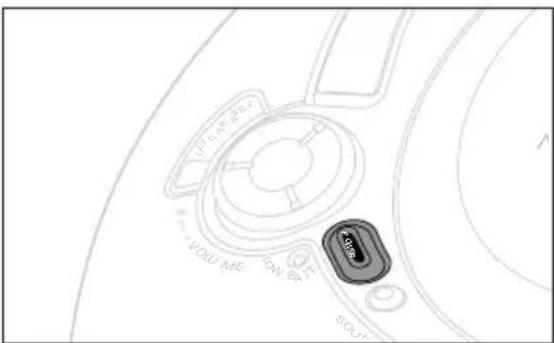
To avoid unnecessary energy consumption always press the POWER button to off after using the set.
text_image
PIRE & DE VOLU ME ON B T START- The display backlight only operates when using AC mains supply.
Standby power consumption....≤2 W
General operation
Digital Tuner
General operation
text_image
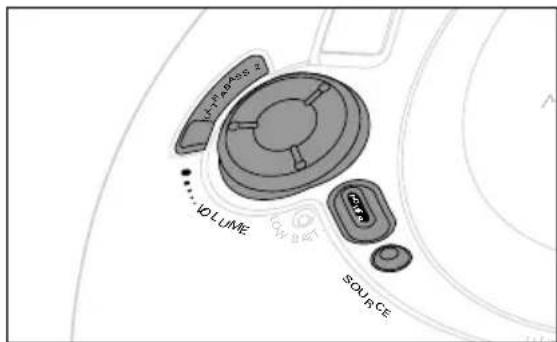
V-PAASS IOLUME SOURCE1 Press the POWER button.
2 To select sound source, press SOURCE once or more.
3 Adjust the sound with the VOLUME and ULTRABASS 2 controls.
→Volume level is briefly shown as a number 0-32, during volume adjustment. The volume bar is shown during operation.
→ULTRABASS 2 indicator lights up when activated.
MUTE: AZ1155 model only
- Press MUTE on the remote control to interrupt sound reproduction instantly.
→Playback continues without sound.
• To reactivate sound reproduction you can:
- press MUTE again;
- adjust the volume controls;
- change source.
4 To switch off the set, press POWER.
Note: When the set is switched off, the set's memory will retain:
- the tuner presets;
- the sound settings and up to volume level 20 (maximum).
Tuning to Radio Stations
text_image
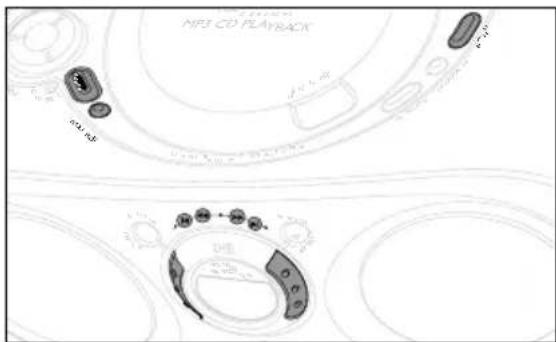
MP3 CD PLAYBACK MP3 MP41 Press the POWER button.
2 Press SOURCE once or more to select TUNER.
→Display: shows waveband, frequency / and preset station number if already stored.
3 Press BAND once or more to select the desired waveband.
4 Tuning to stations: you can tune to your stations manually or by automatic search tuning:
Automatic search tuning:
• Gently turn and hold the ROTARY
NAVIGATION ring anti-clockwise or clockwise to ◀ or ▶, and release when the frequency in the display starts to change.
→The radio automatically tunes to a station of sufficient reception. Display shows Sr ch during automatic tuning.
CAUTION
Use of controls or adjustments or performance of procedures other than herein may result in hazardous radiation exposure or other unsafe operation.
Digital Tuner
Manual tuning:
- Gently turn the ROTARY NAVIGATION ring to ◀◀ or ▶▶, and then release.
- Repeat the above until you reach the desired frequency.
To improve reception
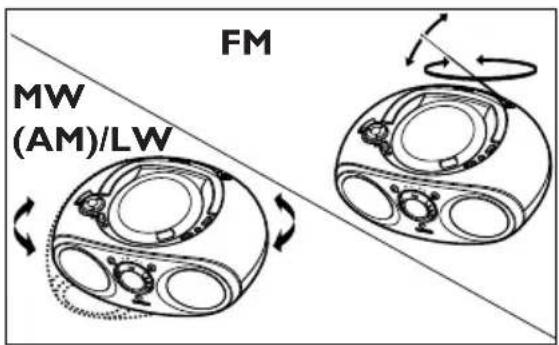
- For FM, pull out the telescopic aerial. Incline and turn the aerial. Reduce its length if the signal is too strong (very close to a transmitter).
→Display shows stereo if FM station is received in stereo.
- For MW(AM)/LW the set is provided with a built-in aerial so the telescopic aerial is not needed. Direct the aerial by turning the whole set.
text_image
FM MW (AM)/LW5 To switch off the tuner, press POWER.
Programming tuner stations
Store up to 30 tuner stations in the memory, manually or automatically. You can also erase a preset station by storing another frequency in its place.
Autostore
Automatic programming will start with a chosen preset number. From this preset number upwards, former programmed tuner stations will be replaced. The unit will only program stations which are not in the memory already.
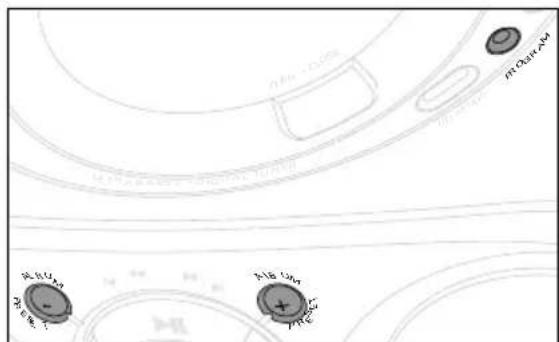
1 Press ALBUM, PRESET + or - once or more (◀ or ▶ on the remote control) to select the preset number where programming should start.
text_image
PROGRAM PROGRAM 1 PROGRAM 2 PROGRAM 3Note: If no preset number is selected, default is preset 1 and all your presets will be replaced.
2 Press PROGRAM for more than 2 seconds to activate programming.
→Display shows 'A' (autostore) and 'Sr ch' and available stations are programmed in order of waveband : FM, followed by MW (AM), and then LW stations (LW not on all versions) The last preset automatically stored will then be played.
Digital Tuner MP3-CD Playback
Manual programming
1 Tune to your desired station (see Tuning to radio stations).
2 Press PROGRAM to activate programming.
→ Display: program flashes.
3 Press ALBUM, PRESET + or - once or more to allocate a number from 1 to 30 to this station.
4 Press PROGRAM again to confirm.
→ Display: program disappears, and shows the preset number, waveband and the frequency.
5 Repeat the above four steps to store other stations.
Environmental information
All redundant packaging has been omitted. We have done our utmost to make the packaging easily separable into three materials: cardboard, polystyrene foam and polyethylene.
Your set consists of materials which can be recycled if disassembled by a specialized company. Please observe the local regulations regarding the disposal of packaging, exhausted batteries and old equipment.
MP3-CD Playback
IMPORTANT SPECIFICATIONS Supported formats:
- Disc format ISO9660, Joliet and multi-session CDs. Use ISO9660 disc format when burning CD-ROM.
- MP3 music format.
- MP3 bit rate (data rate): 32-320 Kbps and variable bit rate.
- 650Mb and 700Mb CD-Rs.
- Directory nesting up to a maximum of 8 levels (max. 64 characters).
General information
The music compression technology MP3 (MPEG Audio Layer 3) reduces the original digital audio data by a factor up to 10 without losing significant sound quality. This allows you to record up to 10 hours of CD-like quality music on a single CD-ROM.
How to get MP3 music
Either download legal music files from the internet to your computer harddisc or create them from your own audio CDs. For this, insert an audio CD into your computer's CD-ROM drive and convert the music using an appropriate encoder software. To achieve a good sound quality, a bit rate of 128 kbps or higher is recommended for MP3 music files.
Some encoder software offers an option to protect music files, i. e. the files can only be played on the computer which created them. If you burn such files on a CD-ROM,
MP3-CD Playback
you cannot play them on this set. Make sure to deactivate the protection option in the encoder software before creating the music files. In this case you are responsible for adherence to all local or international copyrights.
When burning the MP3-CD
- Make sure the file names of the MP3 files end with .mp3.
- Multi-session recording & playback: For playback of the last session on multi-session CDs, make sure you have recorded more than 1 track or title in the last session.
• Make sure you close the session.
How to organize MP3 files
text_image
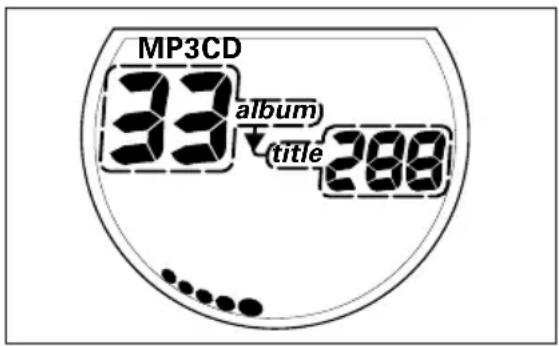
MP3CD 33 album ↓title 288You can store up to a maximum number of 40 albums and 400 titles on one MP3-CD. In order to easily handle the large number of music files on a CD-ROM, you can organize them in folders (“albums”).
The tracks of an album will be played in alphabetical order. If you want to arrange them in a certain order, let the file names start with numbers.
For example:
001-ONEWORLD.MP3
002-FIRESTARTER.MP3
003-DEEP.MP3.
- There may be an album which will be played before all other albums. Album contains all tracks which you did not put into an album.
- MP3-CD albums and titles are shown as numbers in the display.
IMPORTANT!
This set does not play/support the following:
- UDF disc format.
• Non-finalized CD-Rs and CD-RWs. - Mixed CD format recordings e.g. CD audio and MP3 tracks combined within a CD-R.
- Empty albums: an empty album is an album that does not contain MP3 files, and will not be shown in the display.
- Non-supported file formats are skipped. This means that e.g.:Word documents .doc or MP3 files with extension .dlf are ignored and will not be played.
- Playlist Files e.g. .m3u, .pls of WMA, AAC, Winamp, Sonic, RealJukebox, MS Mediaplayer 7.0, MusicMatch.
- Recordings created on e.g. DirectCD, PacketWriting and Package Writing.
MP3-CD/CD Playback
MP3-CD/CD PLAYER
Display indication for MP3-CD/CD functions:
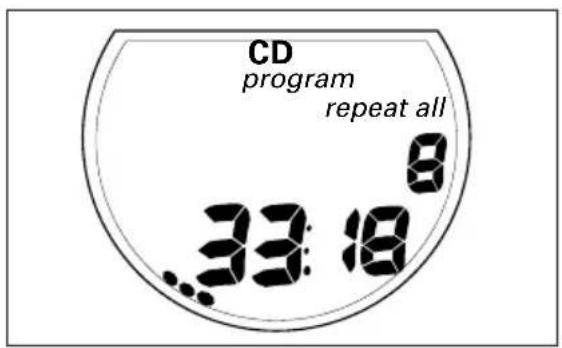
text_image
CD program repeat all .33:18- rERd: when reading disc contents
- MP3CD: when an MP3-CD ROM is inserted
- CD: when an audio CD is inserted
- MP3-CD in stop mode: total album number and total title number
- CD in stop mode: total track number and total playback time
- During MP3-CD/CD playback: elapsed playback time of current album and title number/ current track number
- PRUS: when playback on pause mode
- SHUFFLE/ REPEAT modes: when the respective mode is activated
- program: when CD program active
- Pro9 also appears briefly when you store a title/ track
-no SEL: program activated but no title/track selected
-FULL: program memory full
- no album: ALBUM, PRESET + or - pressed during playback of MP3-CD or CD containing no album arrangement
- CdEr, no Cd or nF Cd: error / no disc inserted/ the CD(-R) is blank/ disc is not finalized (see Troubleshooting)
Playing MP3-CD/CD
This CD player plays Audio Discs including CD(-R)s, and MP3 CD-ROMs.
text_image
SOIN CAP - CLOSE- CD-I, CDV, VCD, DVD, however, are not possible.
1 Press the POWER button.
2 Press SOURCE once or more to select MP3-CD/CD.
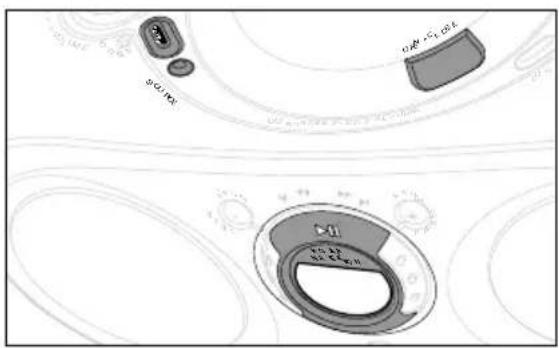
3 To open the CD door, lift the CD door at the edge marked OPEN•CLOSE.
4 Insert a CD(-R) with the printed side facing up and close the CD door.
5 Press ▶II to start playback.
6 To pause playback press ▶II. To resume, press ▶II again.
7 To stop, press ■.
8 To switch off the set, press POWER.
Note: MP3-CD/CD playback will also stop when:
- you press the CD door open;
- you select TUNER source;
- the disc has reached to the end.
MP3-CD/CD Playback
Selecting a different track
Depending on whether you're listening to MP3 or CD Audio, during playback simply use ROTARY NAVIGATION (or ◀ or
▶buttons on the remote, AZ1155 only) to select a particular track.
- If you have selected a track number in the stop or pause position, press ▶Ito start playback

text_image
ALBUM PREFET ROTARY NAVIGATION MP3CD 33,000 and 280 ALBUM PREFET- MP3-CD mode only:
First press ALBUM, PRESET + or - once or more to find your album. Then follow the next 2 steps.
MP3-CD/CD:
1 Gently turn the ROTARY
NAVIGATION ring anti-clockwise or clockwise to ◀ or ▶, (or ◀, ▶) buttons on the remote, AZ1155 only).
2 Release the ROTARY NAVIGATION
ring when you reach the desired track.
Finding a passage within a track
1 Gently turn the ROTARY
NAVIGATION ring anti-clockwise or clockwise to ◀◀ or ▶▶, (or ◀◀ or ▶▶ buttons on the remote, AZ1155 only) and hold.
→No sound is heard during MP3 fast cue/review.
→The CD is played at high speed and low volume.
2 When you recognize the passage you want release the ROTARY NAVIGATION ring.
→Normal playback resumes.
Note: Searching is not possible if you are playing MP3 files encoded with variable bit rate (VBR).
Different play modes : Shuffle and Repeat
CD MODE allows you to select various play modes. The modes can be selected or changed during MP3-CD/CD playback:

text_image
PLAYBACK OPEN - CLOSE BITAL TUNER CD MODE PROGRAM BANDSHUFFLE – all tracks are played in random order
SHUFFLE REPEAT ALL – repeats the entire MP3-CD/CD in random order
REPEAT – plays the current track continuously
MP3-CD/CD Playback
REPEAT ALL – plays the whole MP3-CD/CD continuously
1 During playback, select your play mode by pressing CD MODE once or more until the desired play mode is shown.
- The SHUFFLE/ REPEAT play options can be combined and used with a program: e.g. SHUFFLE REPEAT ALL - repeats the entire program in random order.
2 To return to normal playback press CD MODE until the various SHUFFLE/REPEAT modes are no longer shown.
- You can also press ■to quit the play mode.
Programming track numbers
You may store up to 30 tracks in the desired sequence. If you like, store any track more than once.
1 In the stop position, first select your album and tracks as follows:
MP3-CD only:
- press ALBUM, PRESET + or - once or more to find your album.
- Turn the ROTARY NAVIGATION anticlockwise or clockwise (or ◀ or ▶I buttons on the remote, AZ1155 only) to select a particular track.
→ Display: album/ title flashes if you have not made the respective selection.
- Continue with the following, steps 2-4.
CD:
- First use the ROTARY NAVIGATION (or ◀ or ▶ buttons on the remote, AZ1155 only) to select a particular track.
2 When your chosen track number appears, press PROGRAM once to store the track.
→ Display shows program and 'Pro9' briefly followed by your selected track number.
→If you attempt to program without first selecting a track number, no SET is shown.
3 Repeat steps 1 and 2 to select and store all desired tracks in this way.
→FULL is displayed if you attempt to program more than 30 tracks.
4 To play your program, press ▶II.
To review a program
- In the stop position, press and hold down PROGRAM for more than 2 seconds.
→Display shows all your stored track numbers in sequence, or the MP3-CD title and album numbers.
→Display shows 'no Pr' if no title/track programmed.
Erasing a program
You can erase the contents of the memory by:
- opening the CD door;
– selecting TUNER source; - pressing ■twice during playback/ in the stop position
Maintenance
Precautions & General Maintenance
- Place the set on a hard and flat surface so that the system does not tilt.
- Do not expose the set, batteries or CDs to humidity, rain, sand or excessive heat caused by heating equipment or direct sunlight.
- Do not cover the set. Adequate ventilation with a minimum gap of 6 inches between the ventilation holes and surrounding surfaces is necessary to prevent heat build-up.
- The mechanical parts of the set contain self-lubricating bearings and must not be oiled or lubricated.
- To clean the set, use a dry cloth. Do not use any cleaning agents containing alcohol, ammonia, benzene or abrasives as these may harm the housing.
MP3-CD player and CD handling
- The lens of the CD player should never be touched!
- Sudden changes in the surrounding temperature can cause condensation to form and the lens of your CD player to cloud over. Playing a disc is then not possible. Do not attempt to clean the lens but leave the set in a warm environment until the moisture evaporates.
• Always shut the CD door to keep the CD compartment dust-free. To clean, dust the compartment with a soft dry cloth. - To take a disc out of its box, press the centre spindle while lifting the disc. Always pick up the disc by the edge and replace the disc back in its box after use to avoid scratching and dust.
- To clean the disc, wipe in a straight line from the centre towards the edge using a soft, lint-free cloth. Do not use cleaning agents as they may damage the disc.
- Never write on a disc or attach any stickers to it.
Troubleshooting
If a fault occurs, first check the points listed below before taking the set for repair. If you are unable to remedy a problem by following these hints, consult your dealer or service centre.
WARNING: Do not open the set as there is a risk of electric shock. Under no circumstances should you try to repair the set yourself, as this will invalidate the guarantee.
Problem Solution
No sound / No power – Volume not adjusted. Adjust the VOLUME
- Mains lead not securely connected. Connect AC mains lead properly
- Batteries exhausted /incorrectly inserted. Insert (fresh) batteries correctly
Display does not function – Electrostatic discharge
properly/ No reaction to Switch off and unplug the set. Reconnect after a few operation of any of the seconds. controls
Err, no Cd or nF d ISC – No CD inserted. Insert a CD
indication – CD damaged or dirty. Replace/ clean CD (see maintenance)
– Laser lens steamed up. Wait until lens has cleared
- CD-(R) is blank or the disc is not finalized. Use a finalized CD-(R)
The CD skips tracks – Disc damaged or dirty. Replace or clean disc
- SHUFFLE or a program is active Quit SHUFFLE / program mode(s)
Sound skips during – MP3 file made at compression level
MP3 playback exceeding 320kbps
Use a lower compression level to record CD tracks into MP3 format
– Disc damaged or dirty. Replace or clean disc
Cannot find desired – Wrong file extension used
MP3 track save file as .MP3