MDV-15 - Hi-Fi System LENCO - Free user manual and instructions
Find the device manual for free MDV-15 LENCO in PDF.


User questions about MDV-15 LENCO
0 question about this device. Answer the ones you know or ask your own.
Ask a new question about this device
Download the instructions for your Hi-Fi System in PDF format for free! Find your manual MDV-15 - LENCO and take your electronic device back in hand. On this page are published all the documents necessary for the use of your device. MDV-15 by LENCO.
USER MANUAL MDV-15 LENCO
natural_image
Black and white photo of a multi-tiered audio recording device with two speakers and a digital display (no visible text or symbols)DVD MICOR HI-FI SYSTEM WITH
CASSETTE, USB AND CARDREADER
INSTRUCTION MANUAL
For information and support, www.lenco.eu
FOREWORD
THANKS
Dear Customer,
May we take this opportunity to thank you for purchasing this player. We strongly recommend that you carefully study the User Manual before attempting to operate the unit and that you note the listed precautions.
-
Ensure a minimum distance of 5 cm around the apparatus for sufficient ventilation.
-
The ventilation should not be impeded by covering the ventilation openings with items, such as newspapers, table-clothes, curtains, etc.
-
No naked flame sources, such as lighted candles should not be placed on the apparatus.
-
It shall not be exposed to dripping or flashing and that no objects with liquids, such as vases, shall be placed on the apparatus.
-
Do not place apparatus in closed bookcases or racks without proper ventilation.
-
Where the mains plug is used as the disconnect device, the disconnect device shall remain readily operable.
-
Always place batteries in the correct polarization into electrical components. Danger of explosion if batteries in incorrectly replace. Replace only with the same or equivalent type. Do not mix old and new batteries. Take attention to the environment aspects of battery disposal.
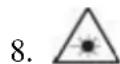
Invisible laser radiation when open and interlocks defeated. Avoid exposure of laser.
- Correct Disposal of this product. This marking indicates that this product should not be disposed with other household wastes throughout the EU. To prevent possible harm to the environment or human health from uncontrolled waste disposal, recycle it responsibly to promote the sustainable reuse of material resources. To return your used device, please use the return and collection system or contact the retailer where the product was purchased. They can take this product for environmental safe recycling.
WARNING: The battery (battery or batteries or battery pack) shall not be exposed to excessive heat such as sunshine, fire or the like.
CAUTION: Danger of explosion if battery is incorrectly replaced. Replace only with the same or equivalent type.
ACCESSORIES

text_image
Part 1: Speakers Part 2: Speaker Connecting Cable Part 3: FM/AM Antenna Part 4: Remote Control Part 5: Six-headed Audio& Video Lotus Wire Part 6: User ManualCONTENT
FOREWORD....1
CONTENT......2
WARNING....2
PANELS....3
REMOTE CONTROL....4
CONNECT TO THE TV-SET....5
CONNECT TO THE AMPLIFIER....6
SYSTEM CONNECTION....7
BASIC OPERATION....8-14
MENU SETUP....15-19
RADIO OPERATION....20
CASSETTE OPERATION....21
SPECIFICATION....22
TROUBLE SHOOTING....23
WARNING
Please read and understand all the warnings given in the following and those marked on the unit. This unit has been designed and manufactured to assure personal safety.
text_image
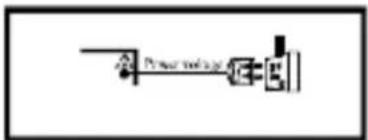
Pierer tool(s) E=5Only use the power by sign on User Manual or system.

natural_image
Simple line drawing of a person sitting on a chair with a umbrella and sun symbol (no text or labels)Avoid direct sunshine and nearing heater.

text_image
Safety warning symbol and electrical circuit diagram showing no prohibition and hand holding plug-inProtect power cable: avoid high pressure and stamp on; do not pull & bend excessively.
text_image
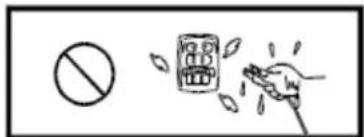
Safety warning symbol with prohibition sign and hand holding a device with spray effectKeep the unit and power plug away from water.
text_image
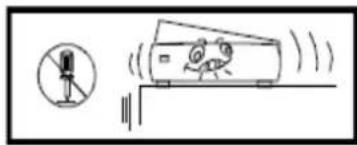
Diagram showing a person falling off a vehicle with motion indicators and a microphone icon, likely illustrating a physics or safety concept.Never open the cover, avoid metals dropping in, such as needle, hairpin, coin etc.

natural_image
Simple line drawing of two figures interacting near a box with an airplane flying nearby (no text or symbols)Unplug the set from the outlet when you do not use it for a long time.
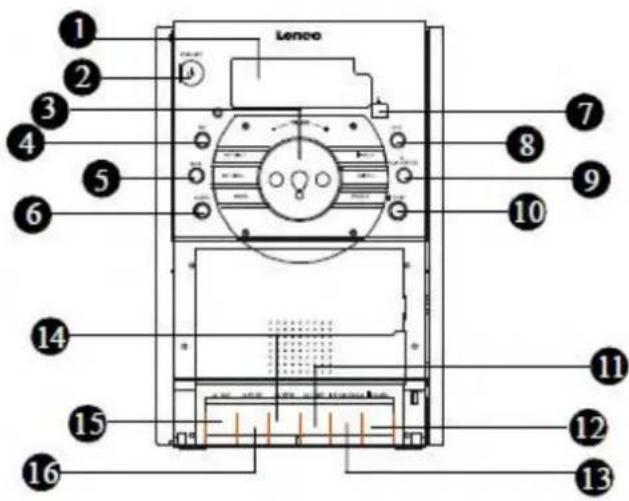
PANELS
-
DISPLAY SCREEN
-
STANDBY BUTTON
-
VOLUME+/- KNOB
-
FM BUTTON
-
TAPE BUTTON
-
AUDIO BUTTON
-
REMOTE CONTROL SENSOR
-
DVD BUTTON
-
PLAY/ENTER BUTTON
-
STOP BUTTON
-
TAPE FAST FORWARD BUTTON
-
TAPE PAUSE BUTTON
-
TAPE STOP/OPEN BUTTON
-
TAPE FAST REWIND
-
TAPE RECORD BUTTON
-
TAPE PLAY BUTTON
-
EARPHONE JACK
-
USB PROT
-
CARD PORT
-
FM ANTENNA INTERFACES
-
L/R AUDIO INPUT
-
L/RAUDIO OUTPUT
-
COAXIAL OUTPUT
-
L/R SPEAKER OUTPUT
-
OPTICAL FIBER OUTPUT
-
VIDEO OUTPUT
-
S-VIDEO OUTPUT
-
Y, Pb/Cb, Pr/Cr COMPONENT OUTPUT
-
SCART
-
POWER ON/OFF
-
POWER SUPPLY INPUT
text_image
Lence 1 2 3 4 5 6 7 8 9 10 11 12 13 14 15 16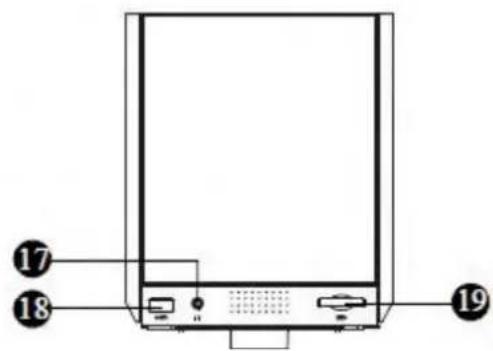
text_image
Diagram of a device front panel with numbered labels pointing to ports and indicators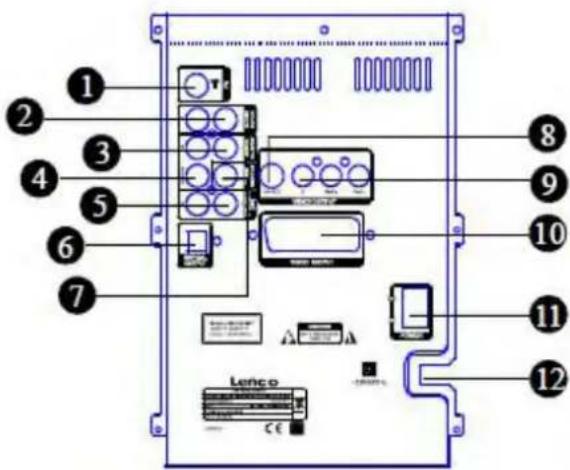
text_image
1 2 3 4 5 6 7 8 9 10 11 12 LencoREMOTE CONTROL
NOTE:
- Turn on the player, insert the batteries into the remote control, and direct the remote control at the remote sensor on the front panel.
- Remote control functions at the distance of 7 m (not more) from the player.
- If the remote control sensor or IR-radiator is closed, the remote control will not operate or there will be an interference.
- Interference from the high tension appliances, generating high frequency signal can strongly influence the work of the remote control.

text_image
STANDBY DVD FM TAPE AUDIO-IN SAVE/SUBTITLE RDS/TITLE SEARCH/MENU PLAY/ENTER SETUP F.FWD/TUNE+ F.RWD/TUNE- STOP REPEAT REPEAT A-B DSP LOUDNESS RESET SHORTCUT MUTE 1 2 3 DV0 4 5 6 FM 7 8 9 TAPE 0 10+ T/F AUDIO-IN SAVE MOIST CD-RIP RDS 1 END SUB LANG/LND ANGLE TITLE PLAY/ EPTER SETUP DISPLAY USB/CARD TLE I/PAUSE CN TU CH M4I REPEAT A/B REP PROGRAM CLEAR DSP LOUD TONE VOUT RESET SHORTCUT ZOOM V-- Lenco NUMBER TIME/FREQUENCY MONO/STEREO LANGUAGE(L/R) CD-RIPPING/ANGLE DIRECTION DISPALY USB/CARD PAUSE NEXT/CHANEL+ PREV./CHANEL- PROGRAM CLEAR TONE VOLUME+/- ZOOMCONNECT TO THE TV-SET
- If your TV-set has AV input, use the AV cable to connect the player to the TV-set.
After you make sure the connection is right, give AV status to the TV-set in the settings. - If your TV-set has S-video input, use S-video cable to connect the player to the TV-set.
This type of connection provide the best quality of picture. - If your TV-set has Pb/Cb, Y, Pr/Cr input, use six headed jack cable to connect the
player to the TV-set. This type of connection make the picture more natural. - This unit has an output interface for Scart output, which can directly be connected with TV-set.

text_image
Audio R Audio L Y Pb/Cb Pr/Cr Video Input S-video Scart Audio / Video Cable Accessories ① ② ③ ④ TV Lenco CENOTES:
- Before connecting the player to the TV-set, turn off and unplug the both units.
- During playing a disc we recommend to change settings of the player in order to make it compatible with the TV-set.
- You can connect the player the TV-set in different ways. Choose only one of them. Multiple connections negatively influence the source and picture quality.
- Do not turn ON/OFF the player very often. The interval must be min. 3 seconds.
- Do not use digital coaxial or optical output of the player and analogue output at the same time.
CONNECT TO THE AMPLIFIER
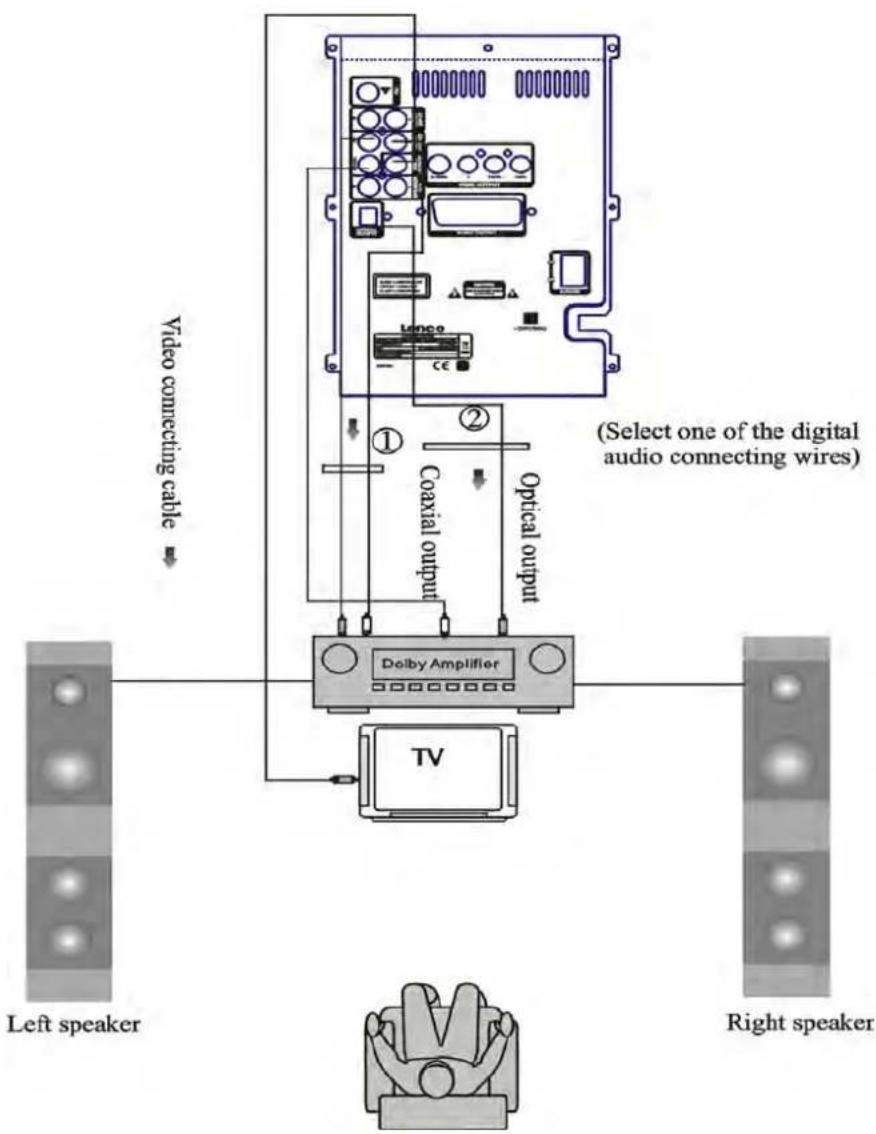
Digital audio output setting
Connect coaxial or optical output of the player to the corresponding inputs of the amplifier. During playing a disc or stop, press the SETUP button on the remote control to open the DVD menu page. Use direction buttons to move to the Audio setup page; Also, move the cursor downwards to Digital audio setup by using the direction buttons; then use the Right direction button again to move to SPDIF setup. Select the digital output and set SPDIF/RAW or SPDIF/PCM. Then press the PLAY/ENTER button to save the selected value. Finally, press the SETUP button again to exit the setup menu.
text_image
Video connecting cable (Select one of the digital audio connecting wires) Coaxial output Optical output Dolby Amplifier TV Left speaker Right speakerSYSTEM CONNECTION
Before connection of the acoustic equipment, pay attention to the picture below. Each connection must be safe and firm. Connect the power at last.

flowchart
graph TD
    TV["TV"] -->|Select one of the video connecting ways| FM_Antenna["FM Antenna"]
    FM_Antenna -->|Audio input| PC["PC"]
    FM_Antenna -->|Audio input| Dolby_Ampifier["Dolby Amplifier"]
    Dolby_Ampifier -->|Left channel| Right_Channel["Right channel"]
    Dolby_Ampifier -->|Left channel| Left_Speaker["Left speaker"]
    Dolby_Ampifier -->|Right speaker| Right_Channel
    Dolby_Ampifier -->|Right speaker| Left_Speaker
    TV -->|Video Output ①| FM_Antenna
    TV -->|Video Output ②| Dolby_Ampifier
    TV --> Y_PivCb_Pr/Cr["Y, Plv/Cb, Pr/Cr component output"]
    Dolby_Ampifier -->|Audio Input| PC
    Dolby_Ampifier -->|Audio Input| Left_Speaker
    Dolby_Ampifier -->|Audio Input| Right_Channel
BASIC OPERATION
Preparation
1) Before turn on the unit, check if all the connections are right and safely made. Insert The plug in the corresponding power socket.
2) Press the POWER button on the front panel of this unit.
3) Press the EJECT button on front panel of this unit, then put the disc on the disc holder and press this button again. The player will start playing.
Mute button
If you press the MUTE button during playing, sound signal will not be heard, but the picture will remain. Press the MUTE button again or the VOL+/- button to resume the previous volume level.
State indication
While playing a disc, press the Display button, the following information will appear On the display :
VCD/CD items : TR (track remain), total elapsed, DR (directory remain), single elapsed.
DVD items : title elapsed, title remain, chapter elapsed, chapter remain, display off.
Select channel/language
While playing VCD disc, press the LANG/(L/R) button to select one of the playing modes: Mono L, Mono R, Mix-Mono and Stereo. Press this button to switch channel modes one by one.
While playing DVD-disc, use the LANG/(L/R) button to select sound language provides. (If the DVD supports this function.)
Fast Forward and Rewind
While playing a disc, press the TU+ or TU- button to fast forward and fast rewind.
The speed changes in the following way:
Fast Forward: 2 times faster, 4 times faster, 8 times faster, 16 times faster, 32 times faster, play.
Back Rewind : 2 times faster, 4 times faster, 8 times faster, 16 times faster, 32 times faster, play.
Previous and next
While playing disc, press the ◀◀ button on the remote control to go to the previous song/chapter; press ▶▶ button to go the next song/chapter.
BASIC OPERATION
Repeat
While in playing mode, press the REPEAT button to set repeat mode.
- For DVD, as you press the REPEAT button, the TV screen will displays: Chapter, Title, All.
- For VCD, CD, CD-R discs, press the REPEAT button, the screen will displays: Track, All.
- For MP3, JPEG and other media files, the screen will displays: Single, Repeat one, Repeat Folder, Repeat off.
A-B Repeat
While in playing mode, press the A-B REP button to set the section for repeating.
- Press the A-B REP button once at the beginning of the section (A).
- Press the A-B REP button at the end of the section (B). Then it will automatically Repeat section AB.
- Press the button again to exit A-B repeat.
Standby mode
To switch on(or switch off) the standby mode, press the STANDBY button on the remote control. (Make sure the unit is connected to the power source).
Title
If the DVD disc contains directory volume, press the TITLE button to display the list of titles in this disc. Use the direction button to move the cursor or digital buttons to select the items that you want to play.
Volume setting
Press the VOL.+/- buttons to turn the volume up or down.
Subtitle
If the DVD-disc supports subtitle languages, use the SUB button to select one of the languages: English, French, German, Spanish, Dutch, Italian, Czech, Hungarian and Others.
Loudness
Press the LOUD button to set the loudness on or off.
Stop
In playing mode, press the STOP button once, the player will stop the playing; the stop point will be memorized. Press the PLAY/ENTER button, the playing disc will be continue from the stop point.
If you press the STOP button twice, the stop point will not be memorized, press the PLAY/ENTER button, the playing will start from the beginning.
BASIC OPERATION
Pause
During playing a disc, press the PAUSE button to pause, press this button again or PLAY/ENTER button to continue playing.
Menu
While playing a VCD, press the MENU button, PBC current state view mode will be Opened /closed.
- During playing DVD, press the MENU button to go into the root menu status.
- Some pirate discs do not support this function.
Angle view selection
In playing mode, press the ANGLE button to switch angle view (if a disc supports this functi).
Digital buttons
While playing audio files, press the DIGITAL button to input the number of the required track. If the number of the track consists of two digits, press the 10+ button, then input the second digit of the number. For example, input 16, press the 10+ button and then press the 6 button.
Sound field
Press the DSP button to select different fields: Dance, Classic, Jazz, Rock, Pop, Off.
Tone
While playing a disc, press TONE button on the remote control to switch to Bass or Treble adjusting mode; press VOL+/- button to adjust the effect of Bass or Treble.
Direction buttons
Press the direction buttons to move the cursor.
Play/Enter
Press the PLAY/ENTER button to enable the selected items.
DVD, FM, Tape and Audio-in
Press the DVD button on the remote control or on the front panel of this unit to enter DVD mode.
Press the FM button on the remote control or on the front panel of this unit to enter FM mode.
Press the TAPE button on the remote control or on the front panel of this unit to enter TAPE mode.
Press the AUDIO-IN button on the remote control or AUDIO button on the front panel of this unit to enter AUDIO mode.
BASIC OPERATION
Zoom
In playing status, press ZOOM button the TV screen display will be zoomed in 2 times, 3 times, 4 times, 1/2time, 1/3time, 1/4time.
Shortcut
When playing DVD discs, press the SHORTCUT button to skip the initial title, menu or warnings (If the disc supports this function).
Reset
In No Disc status, pressing RESET button can return to the original setup or the default value.
Clear
Press the CLEAR button to cancel the data you have entered. For example, the setting of programmed songs.
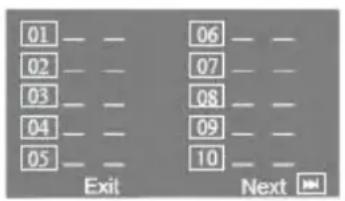
Program
In play VCD/CD, press PROGRAM button, the TV screen shows:
In play DVD, press PROGRAM button, the TV screen shows:
text_image
01 --- --- 06 --- --- 02 --- --- 07 --- --- 03 --- --- 08 --- --- 04 --- --- 09 --- --- 05 --- --- 10 --- --- Exit Next- If the player is in the PBC ON status, while playing the programmed songs this operation will result in PBC turning off.
- Input the number that you want at the place of the cursor; move the cursor to `Start`; press the PLAY/ENTER button. The songs will play in the specified order.
- While programming, press the CLEAR button to eliminate the digitals that you input.
- To cancel programmed play: Press the PROGRAM button again, the cursor will move to ``Stop`` automatically; press PLAY/ENTER button, the cursor move to ``Exit`` automatically; press PLAY/ENTER again to cancel programmed play.
NOTE: CD program performs CD program repeat all function. When user disable repeat function, programmed song will be cancelled after one cycle of playing is finished.
Time selection
In playing mode, press the T/F button, the TV screen will display the data of playing disc, such as:
BASIC OPERATION
VCD disc display:

text_image
Current Playing System MENU TRACK TIME X:00 DRC TIME X:00 X:00 TRACK TIME X:00 X:00 RESET OFF MUST 431 5 12 13 14 15 16 17 18 19 20 21 22 23 24 25 26 27 28 29 30 31DVD disc display:

text_image
Cancelling Manager Pocket DVD VIDEO MENU TITLE XXXN CHAPTER XXXN AUDIO 5 HOURS SUBTITLE OFF DRAWN 2 TITLE MAXIMED DATAYou can press the direction key to move the cursor to the setting option according to the above-mentioned screen suggestions, then press PLAY/ENTER to confirm and use number keys to input the corresponding time numbers, after it is done, DVD player will start to play according to the setting time. When press the Down direction button, you can see the next item in the above screen.
1) There are 5 items in VCD screen: Track, Disc time, Track time, Repeat, Time DISP (Display);
2) There are 9 items in DVD screen: Title, Chapter, Audio, Subtitle, Angle, TT(Total) time, CH(Chapter) time, Repeat, Time DISP(Display).
Note: The optional time range depends on the volume of discs.
CD disc display:
Mp3 disc display:
MP4 disc display:
--:--
---/XX
SELECT:---
T:--/xx
--:--
GO TO:-:-:-
While playing CD, MP3 or MP4, press T/F button to switch between the `Time Selection (current song/chapter)` and `Song/Charpter Selection`; then input the digital you want. The system begins playing from the specified time/song/charpter.
MP3 disc playing function
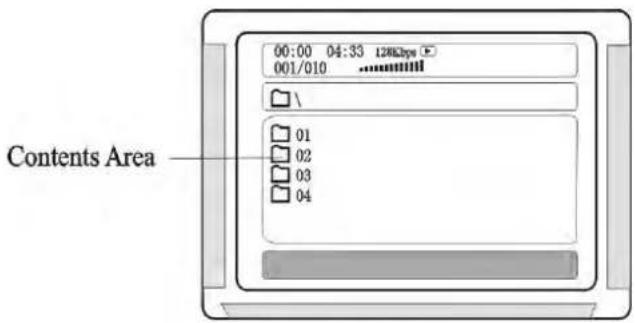
- Press the EJECT button on the top panel to open the disc slot. Inset the Mp3 dis and close it. The system will read the disc and the TV will display the following picture:
text_image
00:00 04:33 128Kbps 001/010 Contents Area 01 02 03 04BASIC OPERATION
-
Press the direction button to move the cursor to a directory, the press the PLAY/ ENTER button to enter the directory.
-
Press the direction buttons to enter the subdirectory or the file area, select a song with the cursor, then press the PLAY/ ENTER button to play the song.
To select other songs under the current directory during playing, press up or down direction button, or PREV./NEXT buttons
To change directories during playing, press the left direction button to move the icon to the directory symbol, press the Up/Down direction button to select other directories, then press the PLAY/ENTER button.
MPEG4/JPEG-disc playing
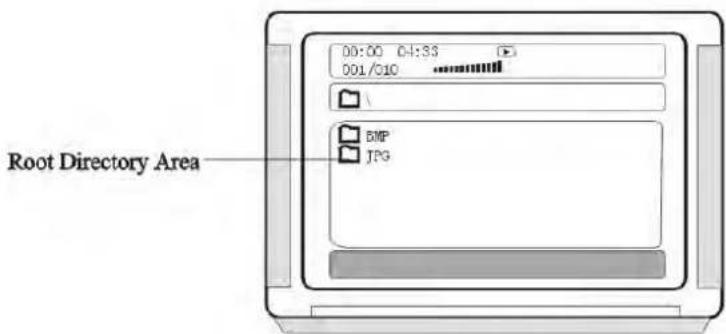
- Put a MPEG4/JPEG-disc in the slot, after loading the disc, the TV will display following picture:
text_image
00:00 04:33 001/010 Root Directory Area BMP JPG-
Press the Up/Down direction button to select the required directory. To view it keep pressing the PLAY/ENTER button till the required picture is found.
-
To view a picture input its number using the number buttons or PREV./NEXT buttons.
-
JPEG picture may be distort at the edge of some TV sets. This is caused by the TV and not your system.
-
This system can play digital JPEG-file photo discs, and also support photos created by photoshop.
-
To repeat viewing a picture, pressing the REPEAT button.
-
During playing, press the STOP or MENU button to return to the main menu, and you can also use such options as fastforward and rewind, pause, ect.
BASIC OPERATION
USB/CARD
This is latest function realized only in new generation multimedia DVD-players.
Connecting the USB or Card device while playing a disc does not influence the quality of playing. In order to view the contents of the USB device, the following steps need to be performed.
- Connect the USB or Card device to the unit. Press the USB/CARD button on the remote control. The player will automatically detect the device. If the device is found, the player will play the content or display screen menu of the device.
- If there is no disc in the disc slot, connect the USB or Card device to the unit. The player will play the content or menu of the device automatically.
- To exist the USB or Card mode: Press the USB/CARD button again. (Note: In no disc or no card status, press USB/CARD button to exist the USB mode and disconnect the USB device, otherwise the player will start playing the USB device again.)
NOTE: If you are using a USB extension cable, this cable should be limited to max . 0.5 m.
DVD title menu selection
DVD discs with more than one movie, background data, and /or songs are given the name TITLE, while more sections are displayed under each TITLE, called Chapters. Chapter can contain musical or video clips. While playing DVD disc, press the TITLE Button, and the TITLE menu appears on the TV screen. (Available for DVDs that contain more than one title menu.)
Press the direction buttons to move the cursor to the desired title menu, then press the PLAY/ENTER button to play it. If the title menu is represented by numbers, then press the number buttons to select it directly.
MENU SETUP
DVD MENU SETUP
To access the DVD menu:
- Press the SETUP button.
- Press the direction buttons to switch between the different setup pages.
- Press the direction button to move the cursor to the position you want, then press the PLAY/ENTER button again to enter the subdirectory.
- Press the PLAY/ENTER buttons again to enter the next subdirectory.
Note: In any menu, you can press the up and down direction buttons to move the cursor and press the PLAY/ENTER button to enter the selected items. Pressing the SETUP button to exit the system setup.
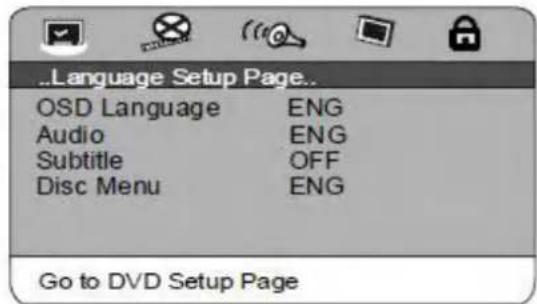
Language Setup Page
text_image
..Language Setup Page.. OSD Language ENG Audio ENG Subtitle OFF Disc Menu ENG Go to DVD Setup Page1. OSD Language
This option is used to select the language of all the screen displays and setup menus. You can set OSD language to English, French, German, Spanish, Dutch, Italian, Czech, Hungarian..
2. Audio (Language)
When playing DVD discs, the player will automatically play the built-in language of the disc. This unit could play such languages as: English, French, German, Spanish, Dutch, Italian, Czech, Hungarian and Others.
3. Subtitle (Language)
When playing DVD discs, the player will automatically play the built-in subtitle language of the disc. This unit could play such built-in languages as: English, French, German, Spanish, Dutch, Italian, Czech, Hungarian, Off and Others. You can select any one as the built-in subtitle or close the subtitle.
4. Disc Menu (Language)
This unit has such menu languages available: English, French, German, Spanish, Dutch, Italian, Czech, Hungarian and Others.
MENU SETUP
Video Setup Page
text_image
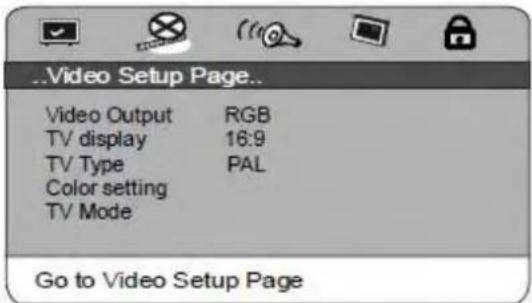
Video Setup Page... Video Output RGB TV display 16:9 TV Type PAL Color setting TV Mode Go to Video Setup Page1. Video Output
This option is used to set the video output mode: S-video, YPbPr, RGB.
Note: Make sure that you set the player to the correct video mode.
2. TV Display (4:3PS, 4:3LB, 16:9)
1) No matter which format you select, if the screen is 4:3 display, the image is displayed in 4:3.
2) The DVD screen format is changeable.
3) When the screen displays in 4:3, the display format of DVD is 16:9, the image will be compressed horizontally.
3. TV Type
This system supports the following formats: PAL, MUL, NTSC.
4. Color Setting
You can adjust the video output of sharpness, brightness, contrast, gamma, hue, saturation, luma delay according to your favor.
The adjustable range of sharpness is: High, Medium and Low.
The adjustable range of brightness is: +/- 20 (default is 0).
The adjustable range of contrast is: +/- 16 (default is 0).
The adjustable range of hue and saturation are: +/- 9 (default is 0).
The adjustable range of gamma is: High, Medium, Low and None.
5. TV Mode
This option is used to select the scan modes:Progressive, Interlace.
(This option is unavailable when the S-video output mode is selected.)
MENU SETUP
Audio Setup Page
text_image
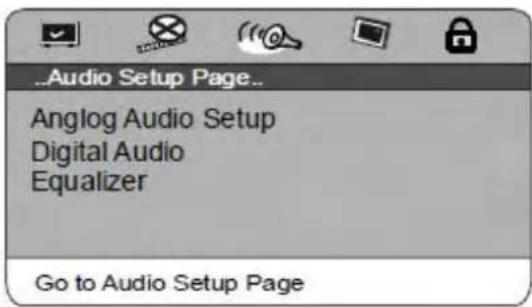
Audio Setup Page... Anglog Audio Setup Digital Audio Equalizer Go to Audio Setup Page- Analog Audio Setup
1) Surround
LT/RT: audio output from Left and Right channel
Stereo: stereo audio output
2) Dual Mono
This option is used to set the mode of audio output, including L-Mono, R-Mono, Mix-Mono, and Stereo.
3) Dolby-Dynamic
This option is chosen when Line output is selected for the compression mode. Linear compression ratio is adjusted to acquire different compression effects.
- Digital Audio
1) Digital Output
When playing DOLBY or MPEG discs, the coaxial and optical terminal outputs in SPDIF/RAW format. Meanwhile the connected amplifier must be able to decode the DOLBY DIGITAL or MPEG.
SPDIF/PCM may be selected when the player is connected with a 2CH digital stereo amplifier.
2) LPCM Output
LPCM (Linear Pulse Code Modulation) is a non-compressed audio digital technology. There are three output modes: 48KHz, 96KHz.
- Equalizer
1) Bass Boost
It use to adjust the sound effect of Bass boost to ON or OFF.
2) Super Bass
ON: set the super bass on, and adjust the super bass effect.
OFF: set the super bass off.
MENU SETUP
3) Treble Boost
ON: set the treble boost on and adjust the treble effect.
OFF: set the treble boost off.
System Setup Page
text_image
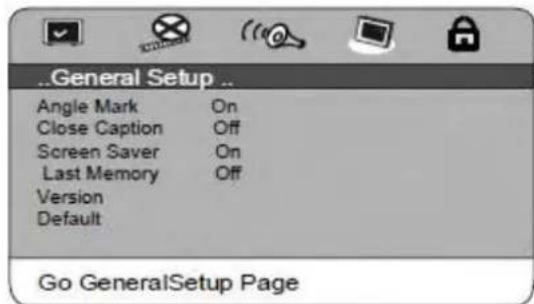
General Setup .. Angle Mark On Close Caption Off Screen Saver On Last Memory Off Version Default Go GeneralSetup Page(This setup page only be available when the player in No Disc or Eject status.)
1. Angle Mark
When the disc has multi-angle pictures, setting the Angle Mark displays a multi-angle mark on the screen. This option has two settings:
ON: Display multi-angle mark
OFF: Multi-angle mark is not displayed
2. Close Caption
When playing a DVD, set this option OFF to close caption, choose the ON option to open the caption.
3. Screen Saver
To set screen saver on or off.
4. Memory
When the option is set to ON, the system remembers the played discs contents.
The disc content is not remembered when the OFF option is selected.
Note: It is only available for VCD/DVD disc.
5. Version (Software Version)
This option is used to display the model of this unit.
6. Default
While in EJECT or NO DISC status, this option is chosen to reset the DVD player's original setup.
MENU SETUP
Password Setup Page
text_image
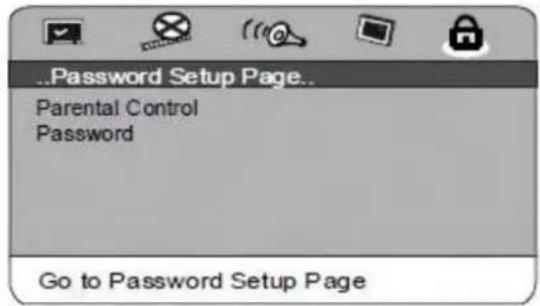
Password Setup Page.. Parental Control Password Go to Password Setup Page1. Parental Control
This unit has 8 different age ratings that can be selected. Move the cursor to select one of them, then press Play/Enter button on the remote control to enter. You are reminded to input the password.
2. Password
The original password of this unit is" 1389" and you can change it to a new one.
RADIO OPERATION
1. Enter FM Function
In the turn-on or playing status, press the FM button on the remote control (or front panel) to enter FM mode.
2. Select Bands
1) Directly input frequency: press the T/F button on the remote control, then input the frequency that you want. The range of FM frequency is from 87.50MHz to 108.00 MHz.
2) Select the band by pressing Tune- or Tune+ button: press this button to adjust the frequency up or down a step. The step of FM is 0.05 MHz.
3) Select saved stations by pressing number buttons. For example: press 10+ button twice, 5 button once, you may select the 25th saved station. Press the CH- or CH+ button to switch the previous or next band.
4) Automatically search bands: press the SEARCH button, this system starts searching bands from low to high frequency automatically. The searched band are saved automatically. Press this button again to stop searching.
3. Save Bands
Press the SAVE button to save the current frequency of band. For example: if you want to save 99.30 MHz in 28th cell, press 10+ button twice and 8 button once, press T/F button to input 9 9 3 0, then press SAVE button.
4. Soundtrack Selection
To select Mono or Stereo while in FM mode, press MO/ST button. When you select stereo, the display shows a stereo signal. If the signal is not strong enough, you cannot select Stereo.
5. Exit FM/AM mode
1) Press the DVD, TAPE or AUDIO-IN button on the remote control or front panel to exit FM status, and switch to the according modes.
6. RDS Radio Funciton
In FM status, press the RDS button on the remote control to switch to RDS radio mode. If there is RDS signal surrounds, you will get the information of four items:
1) PS: Program service name.
2) RTY: Program type.
3) RT: Radio text.
4) CT: Clock time and date.
(Note: In RDS radio mode, you can use the options as FM mode. Such as select bands, save bands, soundtrack selection etc.)
CASSETTE OPERATION
1. Preparation
1) Turn on this unit; and press TAPE button on the front panel or on the remote control to switch to tape playing status.
2) Press the open mark on the cassette door to open the cassette; place a tape in (keep the tape in the right place); close the cassette door. Press the PLAY/ENETR button to play.
2. Fast forward and fast backward
Press Fast rewind or Fast forward button on the front panel to play backward or forward.
Note: In fast forward or fast backward status, no audio output.
3. Record
In DVD, FM or Audio signal input status, you can place the recording tape in the cassette.
Press the REC button, the unit will start recording. Press the STOP/OPEN button to stop recording.
4. Exit Tape mode
Press the FM, AUDIO-IN, or DVD button on the remote control or front panel to exit Tape mode, and switch to the according modes.
5. Maintenance
1) Do not play unclean or scratched tape.
2) Please keep this unit in clean and cool conditions.
3) The little tape scroll volume may result from the dirty unit core or tape, please take the tape out carefully and clean the core.
SPECIFICATION
| Disc type | DVD DVCDVCD S VCDCD CD-RMP3MPEG 4*, Divx (hereinafter 5.0 and 5.0) |
| Video format | MPEG2 for DVD, and MPEG1 for VCD |
| Audeo format | MPEG1, MPEG2, PCM; Stereo and 2.0CH |
| Signal output | Video format: NTSC, PAL, MULVideo output: 1.0 Vp-pAudio: 2.0 CH, 2V (RMS) |
| Output joint | Chromatic aberration output, S-Video output,Video output, Optical output, Coaxial output,Scart output |
| Input joint | USB/CARD |
| Power supply | ~230/50Hz |
| Max power | 30W |
| Frequency | 20Hz-20KHz +3dB |
| S/N ratio for audio signal | >80dB Weight A |
| Operation condition | Temperature : 5 C~35 CInstallation : on the flat horizontal surface |
NOTE :
In most cases, whether the DVD player can work correctly depends on the disc you are trying to play. Some features listed in the instruction manual may not work properly due to the disc problems.
TROUBLE SHOOTING
For your convenience, we have listed some methods to solve common problems you may encounter when you using the system. If the problem occurs repeatedly, contact the nearest maintenance center.
| Problem | Possible cause | Solution |
| Power supply does not work | Power plug is not fully inserted into the socket | Fully inset the power plug into the power socket |
| Remote control does not work | The batteries have been used up | Replace them with new ones |
| The remote control is not aiming at the remote control sensor | Please aim at the remote control correctly; in line with the remote control | |
| No image on the TV screen | The system are not connected correctly | Reconnect the system by referring to the illustration |
| TV is not set in video mode | Set the TV in video mode | |
| The scanning mode does not match to the TV scanning mode | Reset the scanning mode | |
| Play is unavailable | No disc insert | Insert a disc |
| Disc incorrectly inserted | Reinsert the disc with the picture facing upward | |
| Disc is not compatible with this device | Only use disc that are compatible with this device | |
| No sound from speakers | Audio wire is not connected correctly | Connect the audio wire correctly |
| Incorrectly connected to amplifier | Connect the amplifier correctly by referring to the illustration | |
| Discontinuous sound or distorted pictures | Disc is not clean | Replace with a clean disc or use a soft cloth to clean the disc before inserting it again |
| Disc scratch | Replace with a new one | |
| Disc distorted | ||
| Invalid display on the screen | Operation incorrect | Please refer to the user manual |

If at any time in the future you should need to dispose of this product please note that: Waste electrical products should not be disposed of with household waste. Please recycle where facilities exist. Check with your Local Authority or retailer for recycling advice. (Waste Electrical and Electronic Equipment Directive)