Bluetooth SmartWatch Android - Smartwatch SONY - Free user manual and instructions
Find the device manual for free Bluetooth SmartWatch Android SONY in PDF.


User questions about Bluetooth SmartWatch Android SONY
0 question about this device. Answer the ones you know or ask your own.
Ask a new question about this device
Download the instructions for your Smartwatch in PDF format for free! Find your manual Bluetooth SmartWatch Android - SONY and take your electronic device back in hand. On this page are published all the documents necessary for the use of your device. Bluetooth SmartWatch Android by SONY.
USER MANUAL Bluetooth SmartWatch Android SONY
Turning on and off....4
Setting up....4
Installing LiveWare™ manager....4
Barcode for downloading LiveWare™ manager....4
Pairing SmartWatch....5
Installing the SmartWatch application....5
Installing other applications....6
Using SmartWatch....7
SmartWatch main views....7
Handling applications....8
Sorting widgets and applications....9
Receiving notifications....9
Calls....9
Social networking....10
Text messages....11
Calendar reminders....11
Music player....12
Finding your phone....12
Clearing the SmartWatch memory....12
Wearing solutions....13
Updating SmartWatch....15
Troubleshooting....16
No applications are found....16
SmartWatch suddenly turns off....16
Unexpected behaviour....16
Clock screen shows 00:00....16
LiveWare™ manager is not available in Google Play™....16
Explore more and get support....17
Support on the web....17
Customer support....17
Legal information....18
Declaration of Conformity for MN2 ....18
FCC Statement....18
Industry Canada Statement....19
Introduction
SmartWatch lets you keep your phone in your pocket and still stay up to date. This Android-powered device displays notifications such as text and multimedia messages, incoming calls, calendar event reminders, Facebook™ updates, tweets, and more. You can also use it to control the music player in your phone, or handle incoming calls.
This Startup guide focuses on using SmartWatch with an Android™ mobile phone. SmartWatch is compatible with most Android™ phones. Compatibility information for your SmartWatch accessory is available at www.sonymobile.com/support.
Scan the QR code™ to get product information and watch a setup video online.

Overview

natural_image
Close-up of a mechanical device with labeled parts 1 and 2 (no text or symbols on the device itself)1 Clip - attaches your SmartWatch device to wrist band, belt or clothing
2 Power key – turns device on and off, activates pairing mode and the screen
Charging

text_image
① SONY ②Before using your SmartWatch device for the first time, you should charge it for approximately two hours.
Getting started
Turning on and off
To turn on SmartWatch
- Press and hold down the power key ①.
To turn off SmartWatch
- When the display is active, press and hold down the power key
Setting up
To set up your SmartWatch device, you need to:
- install on your phone the LiveWare™ manager application from Google Play™, if the application is not already installed. Before downloading applications from Google Play™, make sure you have an Internet connection and a Google™ account. You may also need to have a memory card inserted in your phone.
- pair your SmartWatch device with your phone using a Bluetooth™ connection.
• install the SmartWatch application on your phone. - install on your phone applications which are tailor made for SmartWatch, such as Messaging, Calendar, Find phone, Facebook and Twitter. These applications help you run specific functions on your SmartWatch device.
Installing LiveWare™ manager
Download LiveWare™ manager either by searching for it on Google Play™, or by scanning the 2D barcode that appears in this guide.
Your phone may already have LiveWare™ manager installed. If so, make sure the version is 3.2.8 or later.
To install LiveWare™ manager
1 From your phone's main application screen, find and tap Play Store.
2 Tap to display the search field, then type LiveWare.
3 Tap to launch a search on Google Play™.
4 Select LiveWare™ manager in the result list, then follow the instructions to install the application on your phone.
Barcode for downloading LiveWare™ manager
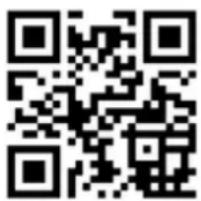
The 2D barcode shown below helps you download the LiveWare ^™ manager application from Google Play ^™ . This barcode can be read by optical scanner software in your phone, such as Barcode Scanner or NeoReader ^™ . Before using the scanner function, make sure your phone has an Internet connection.
text_image
QR code image containing encoded data, no visible human-readable textIf barcode scanning software is not pre-installed on your phone, you can download it for free from Google Play™.
To install LiveWare ^TM manager using a barcode scanner
1 From your phone's main application screen, find and tap your barcode scanning application, for example, NeoReader™.
2 To scan the barcode, position the complete barcode inside the viewfinder.
3 After the scanner recognises the barcode, tap Continue. You are directed to the LiveWare™ manager application in Google Play™. Follow the instructions that appear on your phone screen to download and install LiveWare™ manager.
! The procedure described above can vary depending on the scanning software you download.
Pairing SmartWatch
After you install LiveWare™ manager, you are ready to pair your SmartWatch device with your phone. SmartWatch can only be paired with one phone at a time.
To pair SmartWatch with your phone
1 Turn on the Bluetooth™ function in your phone.
2 Turn off SmartWatch if it is not already turned off.
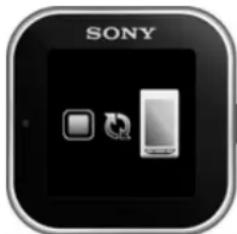
3 SmartWatch: Press and hold down the power key ① until the pairing screen appears.
natural_image
Icon of a Sony smartphone displaying two app icons (no text or symbols)4 Place your phone close to your SmartWatch.
5 Go to the Bluetooth™ devices list in the Bluetooth settings of your phone. Tap SmartWatch.
6 If the codes displayed on your phone and SmartWatch match, tap 📄 on your SmartWatch, then tap Pair on your phone.
! If pairing fails, the SmartWatch device switches off and you need to restart and enter pairing mode again.
Once you have paired your phone with the SmartWatch device, your phone will remember this pairing.
Installing the SmartWatch application
The SmartWatch application handles the connection between your SmartWatch device and your phone. Use this application to change settings for SmartWatch, and to download applications from Google Play™.
After the SmartWatch application is installed on your phone, the phone should automatically connect to your SmartWatch device within a few seconds, then a clock screen syncing with your phone will appear on the SmartWatch and the SmartWatch icon will appear in your phone's status bar.
To install the SmartWatch application
1 Pair your phone with your SmartWatch.
2 In the pop-up window that appears, tap Continue, and follow the instructions on the screen to complete the installation.
Even when connected, your SmartWatch status is shown as Paired but not connected under Bluetooth settings in your phone.
Installing other applications
Once you set up SmartWatch to work with your phone, you are ready to go to Google Play™ and start downloading tailor-made applications for SmartWatch. For example, you can download applications that allow you to use Twitter™, Facebook™, messaging, a music player and other features from your SmartWatch device.
To search for SmartWatch applications
1 Phone: Drag the status bar downwards.
2 Tap SmartWatch > Applications. A list of recommended and pre-configured applications for SmartWatch appears.
3 Tap an application name to go to Google Play™, or tap Search for applications for a full list of available applications in Google Play™.
To install Google Play™ applications
- In Google Play™, select an application you want to download, then follow the instructions that appear to download and install it on your phone.
Using SmartWatch
To turn on the display
• Double-tap the display.
The display turns off after a while if the SmartWatch is not used.
SmartWatch main views
Clock screen
The clock screen shows the time and date syncing with your phone, and it appears after you turn on the device when it's paired.
Widget screen
text_image
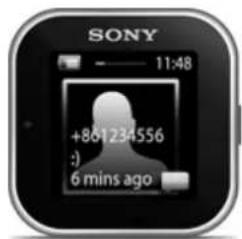
SONY 11:48 +861234556 :) 6 mins agoWidgets are small applications that you can use directly on the Widget screen of your SmartWatch. You can browse through and open applications, such as messaging, social networking services, feeds, calls, and calendar items, depending on your settings in the SmartWatch application. The Widget screen extends beyond the regular dimensions of the display, so you may need to flick left or right to find all your widgets.
Application screen

text_image
SONY 11:48Applications you install on the SmartWatch are displayed as application icons on the Application screen. Just tap an icon to open the associated application. The Application screen extends beyond the regular dimensions of the display, so you may need to flick left or right to find all applications.
To go to the Widget or Application screen
1 Turn on the display.
2 When the clock screen appears, double-tap the screen. The last screen you viewed is shown.
To switch between the Widget screen and the Application screen
- Flick up or down.

text_image
SONY 6 minTo navigate the Widget screen
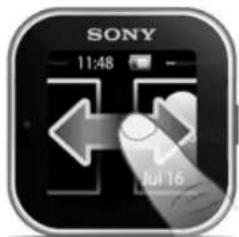
• To view widgets located in extensions of the Widget screen, flick left or right.
text_image
SONY 11:48 Jul 16To navigate the Application screen
- To view applications located in extensions of the Application screen, flick left or right.
To open notifications
1 Find and tap a widget or an application you want to open.
2 Flick left or right to scroll through notifications.
3 Flick up or down to read a notification.
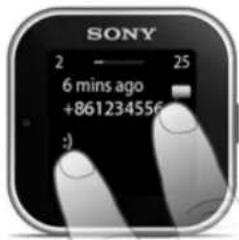
To go back to the previous screen
- Tap the screen with two fingers at the same time.
text_image
SONY 2 25 6 mins ago +861234556 :)
You will go back to the clock screen if you tap the Widget screen or the Application screen with two fingers at the same time.
To choose clock type to be displayed
1 Phone: Drag the status bar downwards, then tap SmartWatch >Clocks.
2 Select an option.
Handling applications
You can select the applications that you want to display on your SmartWatch.
To select which widgets to display
1 Connect your SmartWatch device with your phone.
2 Phone: Drag the status bar downwards, then tap SmartWatch > Applications.
3 Tap the application you want to enable.
4 Mark the checkbox next to the application name.
5 Mark the Display as widget checkbox.
To select which applications to display
1 Connect your SmartWatch device with your phone.
2 Phone: Drag the status bar downwards, then tap SmartWatch > Applications.
3 Tap the application you want to enable.
4 Mark the checkbox next to the application name.
Sorting widgets and applications
You can sort the order in which widgets and applications appear on your SmartWatch display.
To sort widgets and applications
1 Connect the SmartWatch device with your phone.
2 Phone: Drag the status bar downwards, then tap SmartWatch.
3 Tap Sort widgets or Sort applications.
4 Drag and drop 📁 beside the application name to sort the order in which widgets or applications appear on your SmartWatch display.
Receiving notifications
You can receive notifications on your SmartWatch from various applications at the same time they arrive on your phone. When a notification arrives, SmartWatch vibrates and an icon for the application appears on the display. Such notifications include, for example, new text messages and Facebook™ updates.
To turn on a notification
1 Connect your SmartWatch device with your phone.
2 Phone: Drag the status bar downwards, then tap SmartWatch > Applications.
3 Find and tap the application for which you want to enable notifications on your SmartWatch.
4 Mark the checkbox next to the application name.
5 Mark the Notify checkbox.
To open a notification
1 Turn on the notification feature of the application you required.
2 When a new notification arrives, tap the application icon.
Calls
When your phone rings, SmartWatch displays the name or number of the caller. You can mute, reject, or answer the call. You can also use SmartWatch to open your missed call log remotely. For these features to work, you need to first install the Call handling and the Missed call applications for your SmartWatch device. For more detailed information, see Installing other applications on page 6.
To mute an incoming call using SmartWatch
Tap
To reject an incoming call using SmartWatch
Tap
To accept an incoming call using SmartWatch
- Tap You can now answer the call from your phone or from a Bluetooth™ headset.
! Accepting an incoming call only works on Sony and Sony Ericsson phones.
To view the missed call log on your SmartWatch
- Open the Missed call widget or application on your SmartWatch.
! Rejected calls and muted calls both appear as missed calls in the missed call log.
To view the missed call log on your phone, tap and hold the screen of your SmartWatch, then tap View in phone.
Social networking
You can get live notifications from Facebook™ and Twitter™ on your SmartWatch. You can also change your social networking service settings to determine which notifications you receive and the update intervals. The minimum update interval is 15 minutes. In order to access such features, you need to first install the Facebook and the Twitter applications for your SmartWatch device. For more detailed information, see Installing other applications on page 6.
To log in to a social networking service
1 Drag the status bar of your phone downwards, then tap SmartWatch > Applications.
2 Select a service application, and tap the settings entry.
3 Mark the Signed in checkbox.
4 Enter your account name and password to log in to the service.
To view social networking notifications on SmartWatch
1 Find and tap a social networking service widget or application, for example, the Facebook™ application.
2 Flick left or right to navigate through notifications.
You need to log in to your account from the SmartWatch application to be able to view notifications on SmartWatch.
You may need to scroll down to view an entire notification.
To view a social networking notification on the phone using SmartWatch
1 Open a social networking notification on your SmartWatch device.
2 Scroll down to the end of the message and tap
3 Tap View in phone.
4 View the notification on the phone.
In step 2, you can also tap and hold the screen.
To adjust SmartWatch settings for Facebook™
1 Phone: Drag the status bar downwards, then tap SmartWatch > Applications > Facebook.
2 Select an option.
To receive Facebook™ updates on SmartWatch
1 Phone: Drag the status bar downwards, then tap SmartWatch > Applications > Facebook > Facebook settings.
2 Log in to your Facebook™ account.
3 Tap Facebook > Facebook settings > Select Facebook friends.
4 Mark checkboxes for the friends you want to follow.
To adjust SmartWatch settings for Twitter™
1 Phone: Drag the status bar downwards, then tap SmartWatch > Applications > Twitter.
2 Select an option.
To receive Twitter™ updates on SmartWatch
1 Phone: Drag the status bar downwards, then tap SmartWatch > Applications > Twitter > Twitter settings.
2 Log in to your Twitter™ account.
3 Tap Twitter > Twitter settings > Following.
4 Mark the checkboxes for the friends you want to follow.
Text messages
When your phone receives a text message, you can check the sender's information and the content of the message on your SmartWatch device. You can also use SmartWatch to start a call to the sender, to send back a predefined message, or to remotely open the received message in your phone. For the messaging feature to work, you need to first install the SmartWatch Messaging application. For more detailed information, see Installing other applications on page 6.
To read text messages on SmartWatch
1 Find and tap the Messages widget.
2 Flick left or right to find the message you want to read.
You may need to scroll down to view the entire message.
To view a text message in your phone using SmartWatch
1 Open a text message on your SmartWatch.
2 Scroll down to the end of the message and tap
3 Tap View in phone.
4 View the text message in your phone.
In step 2, you can also tap and hold the screen.
To call a message sender using SmartWatch
1 Open a text message.
2 Scroll down to the end of the message and tap
3 Tap Call sender.
4 Continue the call using your phone.
In step 2, you can also tap and hold the screen.
To edit a predefined text message
1 Drag the status bar of your phone downwards, then tap SmartWatch > Applications.
2 Tap Messaging > Messaging settings > Predefined SMS.
3 Edit the text, then tap OK.
To send a predefined text message using SmartWatch
1 Open a text message.
2 Scroll down to the end of the message and tap
3 Tap Reply:.
In step 2, you can also tap and hold the screen.
Calendar reminders
SmartWatch displays reminders from the Android ^™ calendar application, which comes pre-installed with your phone. For this feature to work, you need to first install the SmartWatch Calendar reminder application and activate it. For more detailed information, see Installing other applications on page 6.
To activate calendar reminders on SmartWatch
1 Phone: Drag the status bar downwards, then tap SmartWatch > Applications > Calendar.
2 Mark the Calendar checkbox.
To view a calendar notification in the phone after opening it on SmartWatch
1 Open a calendar notification on your SmartWatch device.
2 Tap and hold the screen, then tap View in phone.
3 View the notification on your phone.

In step 2, you can also scroll down to the end of the notification and tap the action button then tap View in phone.

Music player
You can use SmartWatch to control the music player in your phone, and it works for most music applications on most phones. Music titles and album artists only show on Sony, Sony Ericsson and the standard Android™ music players. For the music player feature to work, you need to first install the SmartWatch Music player application. For more detailed information, see Installing other applications on page 6.
To play a track in your phone using SmartWatch
1 Open the music player widget or application on your SmartWatch.
2 Find the track you want to play, then tap
To pause the music player in your phone using SmartWatch
- When music is playing, tap .

To adjust the music player volume using SmartWatch
- When music is playing, tap ☐ or . -
To move between tracks
- Flick left or right, or tap ▶ or .
To select which music player to control
1 Drag the status bar of your phone downwards, then tap SmartWatch > Applications.
2 Tap Music player > Music player settings > Select music player.
3 Select an option. If you select Automatic, the last used music player application is selected.
Finding your phone
Use SmartWatch to find your phone when you forget where you left it. If your phone is within range, the Find phone function makes it ring and vibrate. For this feature to work, you need to first install the SmartWatch Find phone application. For more detailed information, see Installing other applications on page 6.
To use the Find phone function
1 From the application screen of your SmartWatch, find and tap Find phone. If within range, your phone plays a ringtone and vibrates, allowing you to find it.
2 To deactivate the Find phone function, tap the screen of your SmartWatch device again or tap Phone detected on your phone.
Clearing the SmartWatch memory
You can free up memory on your SmartWatch device by uninstalling and reinstalling the SmartWatch application on your phone. When you do so, you delete all feeds, reminders and other data saved on SmartWatch.
To clear the memory in your SmartWatch device
1 From your phone's main application screen, find and tap Settings.
2 Tap Applications > Manage applications > SmartWatch application.
3 Tap Uninstall.
4 Pair your SmartWatch device with the phone again and install the SmartWatch application.
Wearing solutions
natural_image
Close-up of a black smartwatch strap with a glossy finish and a red arrow indicating motion (no text or symbols)
natural_image
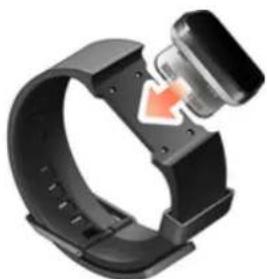
Two electronic components with a red arrow indicating rotation or movement (no text or symbols)You can wear SmartWatch in different ways. For example, you can clip the device to the provided wristband, or you can attach it to the provided wristband adaptor and use your own wristband.
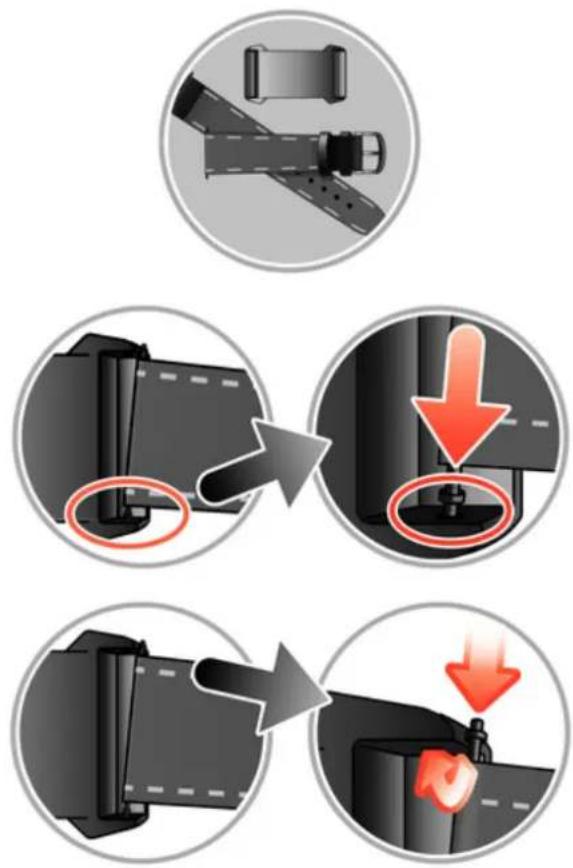
To attach the wristband adaptor to your own wristband
text_image
Diagram illustrating vehicle seatbelting process with four steps showing structural change and red downward motion1 Insert a spring bar through the sleeve located on the end of the wristband.
2 Insert one end of the spring bar into one of the retaining holes in the lugs of the wristband adaptor.
3 Use a spring bar tool or a nail to push down on the spring bar on the opposite end and slip it into the opposite retaining hole.
4 Repeat the process on the other side of the wristband adaptor.
Standard 20mm wide wristbands can be used with the provided wristband adaptor.
Updating SmartWatch
Update your SmartWatch to the most recent software version to optimise performance and get the latest enhancements.
If available, a pop-up window may appear on your phone asking you to update your SmartWatch to the latest firmware version. Tap Update to confirm.
Troubleshooting
No applications are found
For some phone types, and for some countries or regions, there might not be any applications available in Google Play ^™ for the SmartWatch application.
SmartWatch suddenly turns off
- The battery level is too low. Charge your SmartWatch device.
- Pairing has failed. Press and hold down the power key ⏻ until the pairing screen appears.
Unexpected behaviour
Reset your SmartWatch by pressing and holding down the power key ⏻ for 15 seconds.
Clock screen shows 00:00
• Make sure the Bluetooth™ function in your phone is turned on.
- Turn on the display and then tap it. Your SmartWatch will reconnect to your phone after a few seconds.
If the clock screen still shows 00:00:
- Turn off your SmartWatch and restart it. Then wait a few seconds for it to reconnect to your phone automatically.
LiveWare™ manager is not available in Google Play™
If your phone is not running an up-to-date version of Android ^™ , LiveWare ^™ manager does not appear in Google Play ^™ . LiveWare ^™ manager requires Android ^™ version 2.0 or later. If you are using an older version than Android ^™ 2.0, you need to update it to the latest official firmware version.
To check the phone software version
- From your phone's main application screen, find and tap Settings > About phone > Android version.
To update your phone software
- Go to the Sony support website at www.sonymobile.com/support and follow the instructions.
The update process erases all user data, including downloaded applications. Make sure to back up important data that you have stored on the phone before you update your phone software.
Explore more and get support
Support on the web
Visit www.sonymobile.com/support to get the most from your accessory, including support, compatibility information and directions on how to upgrade the software for your SmartWatch device.
Customer support
Customer support – if all else fails. Access the relevant support number on the Sony website by clicking the Contact us link at the bottom of the page.
Legal information
Declaration of Conformity for MN2
We, Sony Ericsson Mobile Communications AB of
Nya Vattentornet
SE-221 88 Lund, Sweden
declare under our sole responsibility that our product
Sony Ericsson type DGA-0004002
and in combination with our accessories, to which this declaration relates is in conformity with the appropriate standards EN 300 328:V1.7.1, EN 301 489-17:V2.1.1 and EN 60 950-1:2006 +A11:2009+A1:2010 following the provisions of, Radio Equipment and Telecommunication Terminal Equipment directive 1999/5/EC.
Lund, December 2011
CE0682
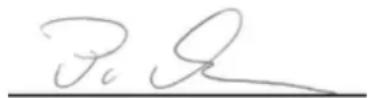
Pär Thuresson,
Chief Quality Officer
Head of Quality & Validation
We fulfil the requirements of the R&TTE Directive (1999/5/EC).
Bluetooth
Sony Ericsson MN2
Prior to use, please read the Important information leaflet separately provided.
This User guide is published by Sony Ericsson Mobile Communications AB or its local affiliated company, without any warranty. Improvements and changes to this User guide necessitated by typographical errors, inaccuracies of current information, or improvements to programs and/or equipment, may be made by Sony Ericsson Mobile Communications AB at any time and without notice. Such changes will, however, be incorporated into new editions of this User guide.
All rights reserved.
©Sony Ericsson Mobile Communications AB, 2011
Publication number: 1258-0295.2
Interoperability and compatibility among Bluetooth™ devices varies. Device generally supports products utilizing Bluetooth spec. 1.2 or higher, and Headset or Handsfree profile.
All product and company names mentioned herein are the trademarks or registered trademarks of their respective owners. Any rights not expressly granted herein are reserved. All other trademarks are property of their respective owners.
Visit www.sonymobile.com for more information.
All illustrations are for illustration only and may not accurately depict the actual accessory.
FCC Statement
This device complies with Part 15 of the FCC rules. Operation is subject to the following two conditions: (1) This device may not cause harmful interference, and (2) This device must accept any interference received, including interference that may cause undesired operation.

Any change or modification not expressly approved by Sony Ericsson may void the user's authority to operate the equipment.
This equipment has been tested and found to comply with the limits for a Class B digital device, pursuant to Part 15 of the FCC Rules. These limits are designed to provide reasonable protection against harmful interference in a residential installation. This equipment generates, uses and can radiate radio frequency energy and, if not installed and used in accordance with the instructions, may cause harmful
interference to radio communications. However, there is no guarantee that interference will not occur in a particular installation.
If this equipment does cause harmful interference to radio or television reception, which can be determined by turning the equipment off and on, the user is encouraged to try to correct the interference by one or more of the following measures:
• Reorient or relocate the receiving antenna.
- Increase the separation between the equipment and receiver.
- Connect the equipment into an outlet on a circuit different from that to which the receiver is connected.
- Consult the dealer or an experienced radio/TV technician for help.
Industry Canada Statement
This device complies with RSS-210 of Industry Canada.
Operation is subject to the following two conditions: (1) this device may not cause interference, and (2) this device must accept any interference, including interference that may cause undesired operation of the device.
This Class B digital apparatus complies with Canadian ICES-003.