
PlayStation TV - Consoles SONY - Free user manual and instructions
Find the device manual for free PlayStation TV SONY in PDF.
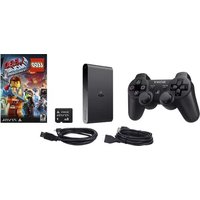


| Product Type | Microconsole / Streaming Media Player |
| Brand | Sony |
| Model | PlayStation TV (VTE-1000 series) |
| Dimensions (W x H x D) | Approx. 65 mm x 105 mm x 13 mm |
| Weight | Approx. 110 g |
| Power Supply | DC 5V, 2.0A (via USB cable and AC adapter) |
| Video Output | HDMI 1.4 (up to 1080p) |
| Audio Output | HDMI (LPCM 2ch) |
| Wired Connectivity | Ethernet (10BASE-T/100BASE-TX) |
| Wireless Connectivity | IEEE 802.11 b/g/n Wi-Fi, Bluetooth 2.1+EDR |
| Storage | 1 GB internal flash memory; expandable via PS Vita memory card (up to 64 GB) |
| Supported Controllers | DualShock 3, DualShock 4, PS Vita (as controller) |
| Key Features | Remote Play (PS4), PlayStation Now streaming, PS Vita game playback, Media Player |
| Maintenance | Wipe exterior with a soft, dry cloth. Do not use solvents. |
| Safety | Keep away from water and extreme temperatures. Use only supplied power adapter. |
| Spare Parts | No user-serviceable parts. Contact Sony support for repairs. |
| Repairability | Not designed for user repair; professional service required. |
| General Information | Released: 2013 (Japan), 2014 (Worldwide). Region-locked for PS Vita games. |
Frequently Asked Questions - PlayStation TV SONY
User questions about PlayStation TV SONY
0 question about this device. Answer the ones you know or ask your own.
Ask a new question about this device
Download the instructions for your Consoles in PDF format for free! Find your manual PlayStation TV - SONY and take your electronic device back in hand. On this page are published all the documents necessary for the use of your device. PlayStation TV by SONY.
USER MANUAL PlayStation TV SONY
1 Let's get started!
Connect your controller to your PlayStation® TV system
You can use your DUALSHOCK®3 or DUALSHOCK®4 wireless controller with your PS TV system – simply connect your controller's USB cable to the USB port.
Rear view![graph TD A["USB port"] --> B["DUALSHOCK® 3 wireless controller"] A --> C["DUALSHOCK® 4 wireless controller"] B --> D["USB cable miniB - A type"] C --> E["USB cable microB - A type"]](/content/2026/06/1272862/images/737a0f5f06f1672502ef1bbe78cc31a678b0b92947efa7f88b1d39f0d6948551.jpg)
Hints
- You'll need to connect a USB cable to register your PS TV system with your controller, as well as charge your controller. When the registration and charging processes are complete, you can remove the USB cable and start using the controller wirelessly.
- USB cable sold separately. You must use the correct USB cable to connect your DUALSHOCK®3 wireless controller (USB cable miniB – A type) or DUALSHOCK®4 wireless controller (USB cable microB – A type) to your PS TV system. Using the USB cable originally supplied with your PlayStation®3 or PlayStation®4 system is recommended.
Using memory cards
Although there's 1 GB of internal memory built in to your PS TV system, that may not be enough for you depending on the size of what you save on the system and how you use it. So, if you need more space to save your games and content, you can use a PlayStation® Vita memory card (sold separately).

PlayStation®Vita memory card
Caution
- Only insert or remove the memory card when the system is switched off. Always power off your PS TV system.
- Once a memory card is inserted, data will be saved to it, and not to the internal memory card. Saved data will be located on the inserted memory card, and this location cannot be changed until the inserted memory card is removed.
- The internal memory card - including data you've chosen to store there - cannot be used when a removable memory card is inserted.
2 How to set up your PS TV system
1 Select the appropriate channel on your TV. 2 Connect your system to your TV.
When you have correctly connected all of the cables, plug the power cord into an electricity supply and the PS TV system will turn on - the white power indicator will light up.
Rear view
![graph TD A["Power button"] --> B["HDMI output port"] B --> C["LAN port"] C --> D["DC IN 5V connector"] D --> E["AC adaptor"] E --> F["To an electricity supply"] G["HDMI® cable"] --> H["LAN cable (sold separately)"] H --> I["To the router"] I --> J["You don't need to use a LAN cable with a Wi-Fi conn…](/content/2026/06/1272862/images/9037901d08f6f4a0b2e5cfd02b36117749aefc991f49fcc882d4a761528e519e.jpg)
When plugged in, the PS TV system will turn on and the power indicator will light up.
Front view

3 Press the Ⓞ (PS) button on your controller.
Your controller will then be registered with your PS TV system.
Hint
Before you can start playing, you'll need to register your controller with your PS TV system.
4 Follow the on-screen instructions.
Choose your date and time and create a Sony Entertainment Network account. Once you complete this initial setup, the home screen will be displayed.
Hint
Create a Sony Entertainment Network account after completing the initial setup. From the home screen, select (Settings) [PSN] [Sign Up]. You can also create a Sony Entertainment Network account using a PS4 system, PS3 system or a PC - and then use your account on the PS TV system.
3 The home screen and basic operations
Select any application on the home screen to open up its LiveArea screen. Select its "gate" to start the application.
Home screen![graph TD A["Application Move to a different page"] --> B["Enter Enter"] B --> C["LiveArea™ GateClose"] C --> D["Application screen"] D --> E["Return to the LiveArea™ screen"] E --> F["(Hold down)"]](/content/2026/06/1272862/images/3f924429cf763dcd163e9b26111a29c8bd25b867148c487e19095a6fed69a49d.jpg)
Info bar
You can check the status of the PS TV system at the top of the home screen.

Hints
- Use the left stick, the L1 and R1 buttons or the directional buttons for navigation of the system menus.
- You can run multiple applications at the same time, and have a maximum of 10 pages on the home screen.
Basic button operations
• (PS) button Turn your PS TV system on, return to the LiveArea™ screen from an application screen or display a list of LiveArea™ screens (index screen). • (PS) button (press and hold) Turn your PS TV system off or adjust your controller's settings. Available options may vary. - Directional buttons/Left stick Select item. - × button Confirm the selected item.
Using the DUALSHOCK®4 wireless controller
If your game's manual or any on-screen instructions refer to a SELECT button or a START button, just use the SHARE button or the OPTIONS button respectively.
- SHARE button This replaces the SELECT button in some games.
- OPTIONS button This replaces the START button in some games.
Hint
The speaker and stereo headset jack on your controller do not function with your PS TV system.
4 Playing games
You can either download compatible PlayStation®Vita games directly from (PS Store) or pick them up on PlayStation®Vita card from all good retailers. For information on games that are compatible with the PS TV system, visit eu.playstation.com.

1 Inserting a PS Vita card
A PS Vita card contains PlayStation® Vita format software. Open the PS Vita card slot cover and insert your PS Vita card into the PS TV system - the game's icon will then appear on the home screen.

2 Starting a game
On the home screen, select the game icon to open up the LiveArea™ screen. Select the "gate" to start the game.
LiveArea™ screen
Hint
If your game will not start, try updating the software by selecting 📄 (Refresh LiveArea™ Screen) on the LiveArea™ screen. Select 📄 (Update) when displayed after selecting 📄 (Refresh LiveArea™ Screen), and then you can update your software.
3 Pausing or quitting a game
Press the (PS) button on your controller to return to the LiveArea™ screen. Press and hold the ○ button to close the LiveArea™ screen and quit the game.
Using the on-screen touch pointer when playing a PS Vita game
The touch pointer allows you to use a controller to perform touch operations like you would on a PS Vita system when playing a game. Touch pointer cannot be used on the home screen or the LiveArea™ screen.
To use the touch pointer, press and hold the (PS) button, and then tick the [Use Touch Pointer in Games] option. You can then use the touch pointer in any supported games.

When you press the L3 button, a touch pointer representing the PS Vita system's touchscreen will appear. Use your DUALSHOCK®4 wireless controller's touch pad to control the on-screen action.
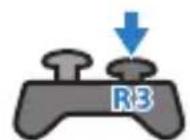
When you press the R3 button, a touch pointer for the rear touch pad will appear.

When you press the L3 and R3 buttons at the same time, overlapping touch pointers for both the touchscreen and the rear touch pad will appear.
Hint
Move the touch pointer by using the left and right sticks or by swiping the DUALSHOCK®4 wireless controller's touch pad, and press the ✕ button or the touch pad button to confirm.
EN
Enjoy games for the PS4™ system using Remote Play
If you have a PS4™ system, you can use the Remote Play feature to play PS4™ format games on your PS TV system in another room. Some games may not support this feature.

1 Connect your PS TV system to the same network as your PS4™ system 2 Adjust your PS4™ system settings
- Sign into PSN SM on your PS4 TM system, using the same
Sony Entertainment Network account on your PS TV system.
- On the function screen, select 📁 (Settings) [Remote Play Connection]
Settings], and then tick the [Enable Remote Play] option.
3 Operate from your PS TV system
On your PS TV system, select (PS4 Link) on the home screen and then follow the on-screen instructions to connect it to your PS4™ system.

For details on settings and how to operate, refer to the User's Guide.
Hints
- When using the Remote Play feature, we recommend that you use a wired connection via a LAN cable to the same network as your PS4™ system, and use a DUALSHOCK®4 wireless controller for (PS4 Link).
- Remote Play may not be available while the PS4™ system is in use for some operations. Also, some types of content cannot be played while Remote Play is in use. For further details, refer to the PS TV User's Guide.
5 Putting your PS TV system into rest mode
When in "rest mode" the PS TV system allows you to conveniently resume playing any applications that you leave open.
Putting your system into rest mode
You can power off your PS TV system, pausing your game. Select (Power) on the home screen, or press and hold the Ⓞ (PS) button on your controller, then select [Standby]. Your PS TV system will enter rest mode, and the power indicator on the front of your PS TV system will turn off.
Hints
- You can also put your PS TV system into rest mode by pressing its ⏻(power) button on the rear of your PS TV system.
- In rest mode, press the Ⓐ (PS) button on your controller or the Ⓞ(power) button on the rear of your PS TV system. Your PS TV system will then turn on and the power indicator on the front of your PS TV system will light up.
Turning off your system
Always turn off the power completely before inserting or removing a memory card or unplugging the power cord. Select ⏻ (Power) on the home screen or press and hold the ⏻ (PS) button on the controller, and then select [Power Off]. Your PS TV system's power indicator will then turn off.
Hints
- You can also turn off your PS TV system by pressing its ⏻ (power) button on the rear of your PS TV system.
- If you turn off the power, the system will not turn on again when you press the Ⓗ (PS) button on your controller. To turn on, press the ⏻(power) button on the rear of your PS TV system and then press the ⏻(PS) button on your controller.
Safety Guide
The Safety Guide contains information about how to safely use your PS TV system, and information about specifications. Be sure to read it before using the system.
User's Guide
The User's Guide contains more information about what your PS TV system can do – just select 📋 (User's Guide) on the Ⓞ (Settings) LiveArea™ screen to access it.
You can also view the User's Guide by visiting
eu.playstation.com/pstv/support/manuals/ – you must have an internet connection to view the User's Guide.
Get help
Need more info about PS TV system? Can't find the answer to your question?
Then visit our Get Help section at
eu.playstation.com/pstv/support/ to learn more.
"PlayStation", "DUALSHOCK" and " " are registered trademarks
of Sony Computer Entertainment Inc. "PS4", "PS3", "PSN", and "LIVEAREA" are trademarks of the same company.
"SONY" and "◇" are registered trademarks of Sony Corporation.
"Sony Entertainment Network" is a trademark of the same company.
The terms HDMI and HDMI High-Definition Multimedia Interface, and the HDMI Logo are trademarks or registered trademarks of HDMI Licensing LLC in the United States and other countries.
Design and specifications are subject to change without notice.
Information about system functionality and images published in this document may vary from those for your PS TV system, depending on the system software version in use. Also, the illustrations and screen images might vary from the actual product.
- LET'S GET STARTED
- CONNECT YOUR CONTROLLER TO YOUR PLAYSTATION® TV SYSTEM
- HINTS
- USING MEMORY CARDS
- CAUTION
- HOW TO SET UP YOUR PS TV SYSTEM
- REAR VIEW
- FRONT VIEW
- PRESS THE Ⓞ (PS) BUTTON ON YOUR CONTROLLER
- HINT
- FOLLOW THE ON-SCREEN INSTRUCTIONS
- THE HOME SCREEN AND BASIC OPERATIONS
- INFO BAR
- BASIC BUTTON OPERATIONS
- USING THE DUALSHOCK®4 WIRELESS CONTROLLER
- PLAYING GAMES
- INSERTING A PS VITA CARD
- STARTING A GAME
- PAUSING OR QUITTING A GAME
- USING THE ON-SCREEN TOUCH POINTER WHEN PLAYING A PS VITA GAME
- ENJOY GAMES FOR THE PS4™ SYSTEM USING REMOTE PLAY
- PUTTING YOUR PS TV SYSTEM INTO REST MODE
- PUTTING YOUR SYSTEM INTO REST MODE
- TURNING OFF YOUR SYSTEM
- SAFETY GUIDE
- USER'S GUIDE
- GET HELP
Brand : SONY
Model : PlayStation TV
Category : Consoles