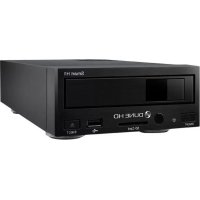
HD TV 101 - Media player Dune - Free user manual and instructions
Find the device manual for free HD TV 101 Dune in PDF.


User questions about HD TV 101 Dune
0 question about this device. Answer the ones you know or ask your own.
Ask a new question about this device
Download the instructions for your Media player in PDF format for free! Find your manual HD TV 101 - Dune and take your electronic device back in hand. On this page are published all the documents necessary for the use of your device. HD TV 101 by Dune.
USER MANUAL HD TV 101 Dune
natural_image
Black rectangular electronic device with ports and indicator lights (no visible text or symbols)English • Русский

DOLBY.
DIGITAL
Manufactured under license from Dolby Laboratories.
Dolby and the double-D symbol are trademarks of Dolby Laboratories.

dts-HD
High Resolution Audio
Manufactured under license under U.S. Patent #'s: 5,451,942; 5,956,674; 5,974,380; 5,978,762;
6,226,616; 6,487,535; 7,212,872; 7,333,929 & other U.S. and worldwide patents is issued & pending. DTS and the Symbol are registered trademarks, & DTS-HD, DTS-HD High Resolution Audio and the DTS logos are trademarks of DTS, Inc. Product includes software. © DTS, Inc. All Rights Reserved.
Dune HD TV 101 Quick Start Guide
Table of Contents
4 English
Quick Start Guide
16 Русский
Краткое руководство
- Introduction
• Key Features
- Extra Functions
- Package Contents
- Exterior
- Remote Control
- Getting Started
- Quick Setting of Video Output Mode
- Connecting USB Drives
- Accessing Network Drives
- Formatting HDD
- Switching the Player On and Off
• NAS (Network Attached Storage)
• WiFi
- Limitations
- Updating Your Player and Getting More Information
• Введение
• NAS (Network Attached Storage)
• WiFi
- Ограничения
Dune HD TV-101 is an all-in-one solution for up to Full HD (1080p) video playback.
Key Features
- The newest Sigma Designs 8670/8671 media processor: enjoy excellent playback and performance of interactive features.
- HDD player: connect an HDD to the player and play content directly from the HDD.
- Network player: connect the player to a local network and play content directly from PC or NAS (UPnP, SMB, NFS).
- MKV player: play HD and SD video in a popular MKV format and other modern video file formats, including top quality HD video with very high bitrate.
- USB port: conveniently connect HDDs, USB flash drives, USB card readers and other USB storage devices.
- HDMI 1.3: ensure the best possible quality of HD video and HD audio.
- Video output flexibility: output video in any resolution and format (from SD to 1080p, 24p/PAL/NTSC).
- Upscaling: high quality upscaling of DVD and any other SD video content to Full HD (1080p) or other HD resolution.
- File browser: convenient file browser with powerful file management (copy, move, delete, rename, organize, sort).
Extra Functions
- High-quality music playback: play very high-quality (up to 192 Khz / 24-bit) music files in various formats (FLAC, Monkey's Audio APE, WAV/PCM, DTS, etc).
- Playlists: build playlists from your folders, use your own playlists, use repeat and shuffle functions.
- NAS function: access files on storage devices (HDD, optical drive, etc) attached to the player from the local network (using SMB or FTP).
English
- BitTorrent: use built-in BitTorrent client to download files from P2P networks.
- Customizable user interface: work with media collections using cover art and icon browsing (with Full HD graphics).
- Internet radio: playback and record various Internet radio stations (HTTP/MP3 and other formats).
- IPTV: playback and record IPTV streams (multicast UDP/RTP) from your Internet provider*.
- Digital TV option: playback and record Digital TV channels using an optional Digital TV USB dongle**.
* Check availability of multicast UDP/RTP streams with your Internet provider.
** Digital TV USB dongle is not included; this option can be purchased separately.
Package Contents

natural_image
Illustration of a rectangular electronic device with ports and a label '1' (no text or symbols on the device itself)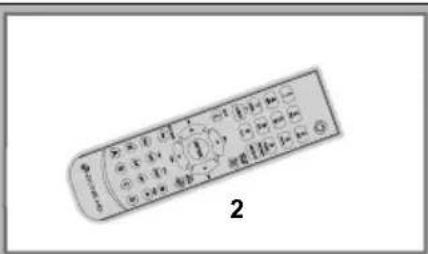
text_image
2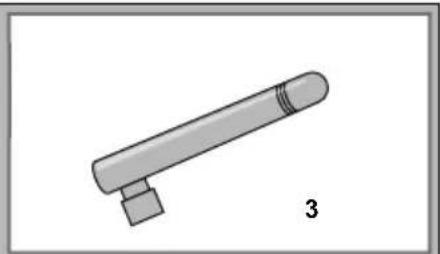
natural_image
Simple illustration of a cylindrical object with a small protrusion and label '3' (no text or symbols on the object itself)
natural_image
Illustration of a coiled audio amplifier cable with three leads (no text or symbols)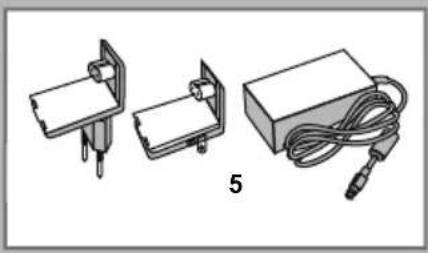
natural_image
Illustration of three electronic components: a battery pack, a switch, and a rectangular device with coiled cable (no text or symbols)
natural_image
Simple 3D diagram of a rectangular block with a shaded section, labeled '6' (no text or symbols on the object itself)- Dune HD TV-101 media player
-
Remote control (batteries may not be included)
-
Wi-Fi antenna (optional)
-
AV cable (3.5mm minijack to 3xRCA)
-
External power supply
-
Quick start guide
NOTE: Additional items (optional) may be included into the package, depending on player configuration, region, and distributor.
English
Exterior
Front view
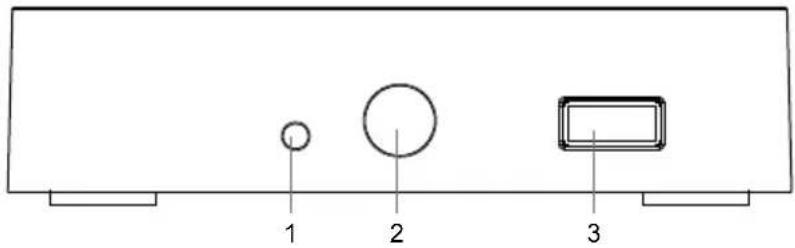
text_image
1 2 3- LED indicator
- IR eye
- USB 2.0 host
Rear view
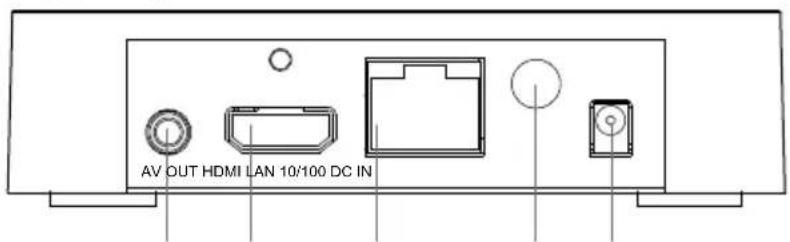
text_image
AV OUT HDMI LAN 10/100 DC IN21345
- 3.5mm minijack AV out
- HDMI 1.3
- LAN
- Wi-Fi antenna (optional)
- DC power 5V
Remote Control
- POWER — toggle the standby mode.
- 0–9 — enter numbers and text, switch TV channels during TV watching.
- CLEAR — delete entered data, delete selected items.
- SELECT (cap/num) — switch text input modes, select several items, control some other player functions.
- RIGHT/LEFT (V+/V-) — navigate through the menu, adjust the volume during play-back.
- UP/DOWN (CH+/CH-) — navigate through the menu, switch TV channels during TV watching.
- ENTER — open/use the selected item, confirm the input, show OSD menu during play-back, show TV channels menu and Electronic Program Guide during TV watching.
- RETURN — go back, cancel the action.
- INFO — show information about the selected item or the current player state.
- POP UP MENU — show a menu with possible actions for the selected item or the current player state.
- TOP MENU — navigate to the top menu of the player, control some other player functions.
12.PLAY/PAUSE, STOP, PREV, NEXT, REW, FWD, REC, MUTE — control the playback and some other player functions. - A (Red), B (Green), C (Yellow), D (Blue) — control various player functions (depending on the context).
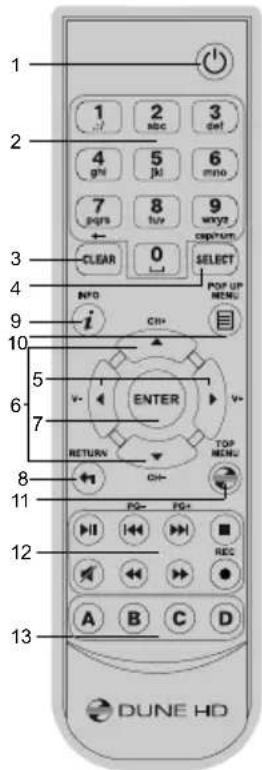
text_image
1 2 3 4 5 6 7 8 9 NPO IO OPEN MENU POP UP MENU ENTER V+ RETURN TOP MENU A B C D DUNE HDEnglish
NOTES:
- Use alkaline AAA batteries.
- Observe polarity when inserting batteries.
- Direct the remote control to the player. There must be no obstacles between the RC and the player.
- If RC functions only at short distances or stops functioning, make sure to replace the batteries.
- Some RC buttons may have several functions depending on the current player mode.
- Some RC buttons may be available only in certain player modes or only during playback of a certain content.
Getting Started
Ensure there is enough space around the player for proper cooling. The space at each side should be not less than 10 cm.
Ensure the RC has batteries installed.
Connect the player to your TV and to other A/V equipment in an appropriate way. Use HDMI connection to get the best possible quality of video and audio. Make sure to switch off the player and all relevant A/V equipment before connecting them. Ensure your TV and other A/V equipment are configured to use proper inputs.
Switch on the player. The player will perform its initial loading procedure, which may take up to about 1 minute. During the loading procedure, "DUNE" logo is shown on the TV.
- If you do not see "DUNE" logo on the TV when you switch on the player, it may mean some problem with the connection between the player and the TV or that a wrong video input is chosen in the TV or A/V receiver/switch. In such a case, recheck the cables and the settings of the TV or A/V receiver/switch, or try to use different cables or a different way of connecting the player to the TV.
- If you see "DUNE" logo on the TV when you switch on the player, but then the picture disappears and no other picture appears during at least 10 seconds, it may mean that a wrong video output mode is configured in the player. In such a case, press the "REC" RC button, and then press one of the RC buttons "1", "2", "3", "4" or "5" to switch to a different video output mode (see "Quick Setting of Video Output Mode").
Finally, you should see the main screen of the player menu. The main screen shows items allowing to use different player functions and access all storage devices and network drives connected to the player.
Adjust the player settings as needed using "SETUP" item on the main screen of the player menu. In particular, you may want to adjust video settings, audio settings, and network settings.
To choose the language of the player menu, use "Setup / General / Interface language" setting.
English
Use the RC buttons "LEFT", "RIGHT", "UP", "DOWN", "ENTER", "RETURN" to navigate through the player menu. Use the "POP UP MENU" RC button to show the list of available commands. Use the "INFO" RC button to show the information about the selected item.
Quick Setting of Video Output Mode
The "REC" RC button allows quick setting of video output mode without entering the player setup menu. This way of video output configuration may be required if you see no picture on the screen after connecting your player to a TV.
Press the "REC" RC button and then one of the RC buttons "1", "2", "3", "4", or "5" to switch to one of the following video output modes respectively:
- Composite PAL
- Composite NTSC
- HDMI, 480i, 60 Hz
- HDMI, 720p, 60 Hz
- HDMI, 1080i, 60 Hz
After you see a picture on the TV, press the "ENTER" RC button, and then go to the player setup menu to perform a more precise configuration of the video output mode if needed.
NOTE: The procedure of quick setting of video output mode can not be used during playback and in some other cases. To ensure this procedure can be used, switch the player off, then switch the player on, and the wait about 1 minute to ensure the player loading is finished. After that press «STOP» RC button to ensure playback is stopped. Then use «REC» RC button.
Connecting USB Drives
To connect a USB drive, ensure you are on the main screen of the player menu and connect the USB drive to an USB port of the player. The player will recognize the USB drive, and will show an item corresponding to the USB drive on the main screen.
When connecting a USB drive requiring significant power (such as USB HDD), use an external power supply for the USB drive. Power provided by the USB ports of the player may not be enough for correct functioning of the USB drive.
Do not disconnect or switch off the USB drive when some write operation is in progress.
Accessing Network Drives
To connect a network drive using SMB or NFS protocol, ensure you are on the main screen of the player menu, press the "MENU" RC button, and choose "Create Network Folder", then fill the parameters of the network drive as needed. The player will show an item corresponding to the configured network drive on the main screen.
To browse the list of network resources accessible via SMB or UPnP protocols, use “Network Browser” item on the main screen of the player menu.
NOTE: If some network resources are not shown by the player, you may need to wait some minutes and then retry (or press the "MENU" RC button and choose "Refresh" command).
Formatting HDD
To format a HDD attached to the player, select the HDD item on the main screen of the player menu, press the "INFO" RC button and choose "Format Disk" (to format the entire disk) or "Format Partition" (or to format an already existing disk partition only). The player will format the disk. To format an unformatted HDD, just press the "ENTER" RC button on the HDD item.
NOTE: To use disks formatted by the player on a Windows PC, you may need to install additional software on the PC, such as "EXT2FSD" (http://www.ext2fsd.com/).
English
Switching the Player On and Off
To put the player into the standby mode, press the «POWER» RC button. To exit the standby mode, press this buttons again.
Depending on the player settings (see the player setup menu), the «hardware standby» or «software standby» mode may be used. In the «hardware standby» mode, almost complete power-off takes place and the player consumes almost no power. In the «software standby» mode, the player produces no signal on the video output, but is still functioning. For example, if you have some storage devices connected to the player, you may still access them from network («NAS» function of the player). Exiting the «software standby» mode takes just a few seconds. When the player is in the «software standby» mode, it still consumes significant power. It is not recommended to keep the player in the «software standby» mode for a while if you do not need it.
To switch the player off completely, disconnect the power plug.
NOTE: After switching off the player completely or putting the player into the «hardware standby» mode, it is recommended to wait about 1 minute before switching it on again.
NAS (Network Attached Storage)
You can access storage devices connected to the player from the local network using FTP and SMB protocols. On a Windows PC, just type «ftp://ip_address» or «\ip_address» in the Windows explorer, where «ip_address» is the IP address of the player.
WiFi
If you player does not include a built-in WiFi adapter, you can use a USB WiFi adapter to connect the player to the local network via WiFi.
Please see here for the information on supported USB WiFi adapters: http://dune-hd.com/support/hw_compat/
Limitations
Compatibility of the player with a particular hardware (A/V equipment, network equipment, disk drives, etc) may depend on various factors (particular hardware model, specifics of hardware installation and usage, configuration of the player and the hardware, etc). If the player does not correctly work with a particular hardware, try to adjust the configuration of the player or hardware, try to use the hardware in a different way, or try to use some other hardware.
Compatibility of the player with a particular media content (files, discs, etc) may depend on various factors (specifics of media content encoding, specifics of the configuration of the player, etc). If the player does not play correctly a particular media content, try to adjust the configuration of the player, or try to use media content encoded in a different way.
Updating Your Player and Getting More Information
Please check here for updated versions of player firmware (which may improve player functioning and extend player possibilities):
http://dune-hd.com/fi rmware/
(Note: You can also connect the player to Internet and use the online firmware upgrade function, see Setup / Misc / Firmware Upgrade.)
Please check here for more detailed and up-to-date documentation and information on player usage:
http://dune-hd.com/manuals/
http://dune-hd.com/support/
English
Введение
natural_image
Illustration of a rectangular electronic device with ports and a label '1' (no text or symbols on the device itself)
text_image
2
natural_image
Simple illustration of a cylindrical object with a small protrusion and label '3' (no text or symbols on the object itself)
natural_image
Illustration of a coiled audio amplifier cable with three leads (no text or symbols)
natural_image
Illustration of three electronic components: a switch, a battery pack, and a cable with a plug (no text or symbols)