
LT-Q6000 10Hz - GPS device Qstarz - Free user manual and instructions
Find the device manual for free LT-Q6000 10Hz Qstarz in PDF.


| Product Type | GPS Lap Timer and Data Logger |
| Brand | Qstarz |
| Model | LT-Q6000 10Hz |
| Dimensions (LxWxH) | 100 x 59 x 28 mm |
| Weight | 107 g (without mounting bracket) |
| Display | 2.4" TFT Color, 320x240 pixels, 65K colors |
| GPS Chipset | High sensitivity, -165dBm, 66-channel tracking |
| Log Rate | Up to 10 Hz (10 records per second) |
| Battery | Built-in rechargeable Li-Ion, up to 10 hours operation |
| Charging Time | ~5 hours (power off), ~10 hours (power on) |
| Interface | Mini USB for charging, data download, firmware upgrade |
| Water Resistance | IPX-3 |
| Operating Temperature | -10°C to +60°C |
| Storage Temperature | -20°C to +60°C |
| Key Functions | Drag race, circuit race, GPS logging, speedometer, G-meter, history review |
| Sensors | Built-in 3-axis accelerometer for G-force and auto start trigger |
| Memory | Built-in large memory, accessible as USB removable disk |
| Software | QRacing (lap analysis), QTravel (geo-tagging) |
| Package Contents | LT-Q6000 unit, mounting bracket, mini USB cable, car charger, software CD, user manual, sticker, warranty card |
| Firmware | Upgradable via USB (download from Qstarz website) |
| Safety Features | Low battery alert, memory full alert, over-speed alarm, LED indicators |
Frequently Asked Questions - LT-Q6000 10Hz Qstarz
User questions about LT-Q6000 10Hz Qstarz
0 question about this device. Answer the ones you know or ask your own.
Ask a new question about this device
Download the instructions for your GPS device in PDF format for free! Find your manual LT-Q6000 10Hz - Qstarz and take your electronic device back in hand. On this page are published all the documents necessary for the use of your device. LT-Q6000 10Hz by Qstarz.
USER MANUAL LT-Q6000 10Hz Qstarz
LT-Q6000 GPS Lap Timer COLOR User's Guide
■ A. LT-Q6000 Package Contents:
1) QSTARZ LT-Q6000 unit
2) Device mounng bracket
3) Mini USB cable
4) Car charger
5) Soware CD
6) User's Guide
7) Exclusive Scker + Warranty card
8) LT-Q6000 protecve case (Oponal)
9) Car windscreen mount kit or Motorcycle mount kit (Oponal)
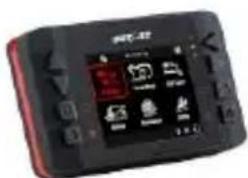
(1)
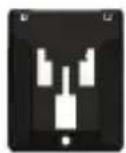
(2)
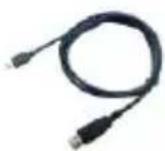
(3)
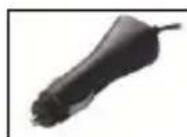
(4)

(5)
(6)


(7)

(8) oponal
Main funcons:
● eXtreme 10Hz Log to record 10 mes per second
● Real-me perform and display Lap Timing analysis
● 2.4" True color and wide display to illustrate racing data precisely
● Real me Lap/Spilt/Sector Comparison
- Mul-Funcon Device – Lap Timer and GPS Logger
● Auto Start-Run aer device senses forward moon
● Diversied Drag Race modes selected by speed/distance and kph/mph
● Flexible Circuit Race selected by Lap with splits or Simple Lap
● Performance Test On-the-Go
● Large memory capacity never worry full memory
● History database well organized as Calendar and table type for easily review
● G-force meter to plot G-force status
● Smart speedometer to show real-me speed informaon
● Device congorable such as unit, backlight, brightness, me zone, or me format
● Flexible Track Manager – On-Device created to User track, and QRacing Sync to Shared track
Specicaons:
- Adopt high sensitivity GPS chipset with -165dBm and 66-Channel tracking
● 2.4" (320x240) TFT Color display with 65K color
● Ultra lower power consumpon up to 10hrs operaon (under LCD backlight on)
● Log rate up to 10Hz excellent for High speed Racing (recording 1 waypoint per 0.1 second)
● Including 8 Funcon buons – 4 Direcon Buons, Back, Enter, Multi-funcon, and Power Buons
● 3 LED Indicators – Green for Screen Power Saving, Orange for Charging, and Red for Alert
● Built-in 3-axis accelerometer for G-force measurement and Auto Start trigger
● Built-in large memory and view history data easily
● Device recognized as USB removable disk for data access with computer conveniently
- Raise beeper funcon to noce some status of device
- IPX-3 water resistance
● Less than 15-Sec. AGPS x support to realize faster TTFF and posioning under warm start
● Mini-USB interface for charging, data download and rmware update
- Firmware upgradable
- Environment temperature- Operaon: -10°C to +60°C / Storage: -20°C to +60°C / Charging: 0°C to +45°C
● Device Dimension (LxWxH): 100 x 59 x 28mm / Weight: 107 grams (Mounng bracket excluded)
■ B. Appearance
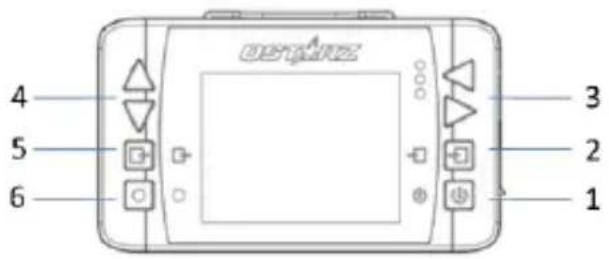
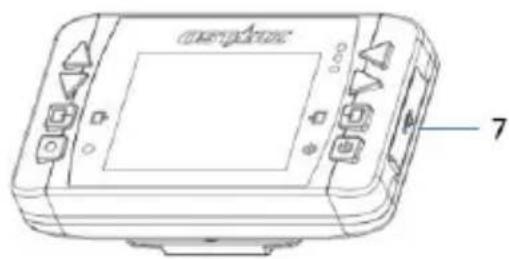
| Name | Icon | Funcon |
| 1. Power buon |  | ● Press for 3 seconds to power on or power o LT-Q6000● Press to return to Main Menu when device is on |
| 2. Enter/Set buon |  | Press to conrm the opons selecon |
| 3. Le/Right Navigaon buon |  | Press to switch among dierent opons |
| 4. Up/Down Navigaon buon |  | Press to switch among dierent opons |
| 5. Back/Cancel buon |  | Press to cancel funcon and go back to previous screen |
| 6. Mul-funcon buon: |  | Press to start the race and log |
| 7. -Mini USB port-Reset buon | ● For Charging device● For Data download to PC● For Firmware Upgrade |
■ C. Icon denion
| Icon | Descripon | Icon | Descripon |
 | GPS is not connected, searching for GPS signals | [34TY] | Baery full |
| [27KW] | GPS is connected with 2D x |  | Low baery ( less than 15% baery me) (Red color) |
 | GPS is connected with 3D x |  | Low baery (less than 5% baery me) (Red color) |
| [648] | GPS engine close (Red color) | [998] | Device is logging (Green color) Device is not logging (Red color) |
 | Drag Race Mode |  | Circuit Race Mode |
 | GPS logger Mode |  | History Mode |
| [109K] | Applicaon Mode | [109K] | Seng Mode |
■ D. LED Signal denion
| LED | Red | When the memory is full or fail to read/write memory, the Red LED will ash once per 3 seconds.When the baery is in low status below 15%, Red LED will ash once per 3 seconds. When low below 5%, Red LED will be steady ON for alert. |
| Orange | When device is under charging mode, the Orange LED will be steady ON. When device baery is fully charged, the Orange LED will be OFF. | |
| Green | When device is under Screen power saving mode (backlight o), Green LED will ash once per 3 seconds. |
■ E. Safety Noce
Note: Please read this secon carefully before start operang the LT-Q6000.
- Keep the LT-Q6000 far from heat or high temperature environment. We recommend not to expose your LT-Q6000 in temperature higher than 145°F/60°C to prevent the device from overheang, exploding or melng itself.
- When car interior temperature is too high, is likely to result in product failure or damage. When device is not in use or driver leaves the car, we suggest disconnecting the device and place in the car glove box.
● To reduce the risk of re or shock hazard, do not expose this product to rain or moisture. - Do not mount the devices in a place where the driver or passengers may receive injury during vehicle operaon or collision. For your safety, take care to route all cables away from shiers, pedals, accessory controls and mechanisms
● The manufacturer assumes no responsibility for any damages and loss resulting from the use of this manual, or from deleon of data as a result of malfuncon, dead baery, or from misuse of the
product in any way.
- Please clean the unit with a dry and clean so close. Do not use harsh cleaning solvents, chemicals, or strong detergents.
- Do not aempt to open LT-Q6000 by yourself. Unauthorized hacking may damage the unit, and void your warranty.
■ F. Charging LT-Q6000
Please charge the baery fully before the rst use.
LT-Q6000 comes with a built-in rechargeable Li-Ion baery that can be charged through the PC using the USB cable provided and car cigaree adaptor. Charging me is 5 hours typically with Power OFF mode and 10 hours with Power On mode, a fully charged baery will last about 10 hours operaon.
Note: To avoid damage to the baery, please do not overcharge the baery for more than 10 hours. The baery will stop charging if it's overheated for safety reason.
■ G. Device bracket mounng
(1)
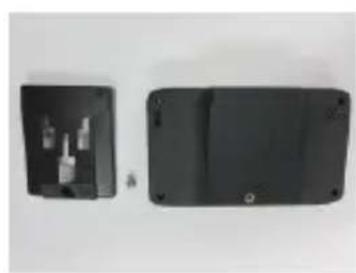
● Q6000 mounng bracket with provided screw.
(2)
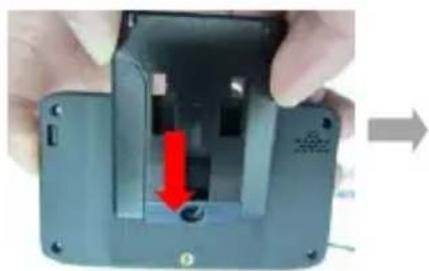
● Lining up the bracket with the screw hole.
(3)

- Secure the mounng bracket in place with the provided screw.
■ H. Mounng the LT-Q6000 in the vehicle
- Locate the area on the vehicle windshield where you want to mount the LT-Q6000.
- Press the sucon cup mount against the glass and lower the locking lever into place to secure the mount to the windshield rmly.
Note: Clean Surface of windshield rst by rubbing alcohol or dry cloth before mounng the device.
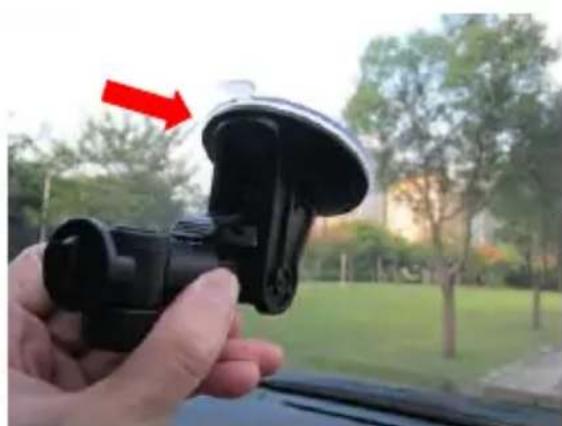

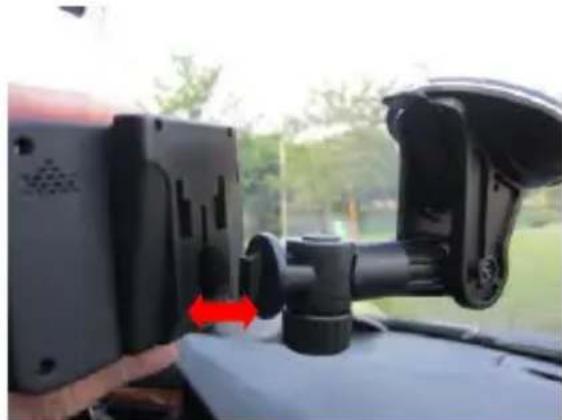
- Snap the moung bracket onto the sucon cup arm.
English
- Please make sure the LT-Q6000 is installed as straight and vercal as possible. So the internal 3-axis G-Force sensor is able to perform more accurately.

■ I. Geng Started
To power on your unit, press and hold the power buon for 3 seconds until it turns on. A startup screen will prompt to indicate system is loading for a few seconds, and then you will see the Main Menu screen.
Main Menu is contained Six (6) Operaon Modes:
- Drag Race Mode
- Circuit Race Mode
- GPS Logger Mode
- History Mode
- Applicaon Mode
- Seng Mode
Select one of Operaon Modes to execute required funcon.
Startup screen

Main Menu
LT-Q6000 is for outdoor use; an open sky outdoor environment will enable faster satellite acquisition and provide beer poisoning accuracy. If GPS is not 3D fixed, a “Waing for GPS Signal...” screen will be prompt to noce that now you are unable to start race.

I-1. Drag Race mode

The Drag race mode allows you to measure your vehicle's acceleration by Speed or Distance with various dierent tests.

- Session Name: The system will automatically create the session name with YYMMDDXX format.
- Session Type: User may select to measure by Speed or Distance Racing type.
● Racing type:
-By Speed: Select from pre-dened tests (0-30mph, 0-60mph, 0-100mph) or you can create your own test speed by selecng "Create".
-By Distance: Select from pre-dened (1/16mile, 1/8mile, 1/4mile, 1mile) or you can create your own test distance by selecng "Create".
*Measurement Unit can be switched between Metric or Imperial in Seng Mode.
- Compare: Compare the current run with your Best or Last run.
● Field Opon: Select the display opon: (Speed), (Distance), (Best run) or (Last run) on the top right of ming screen. - Press ● buon and the device will automatically start/stop ming and logging your run once you have reached the preset test ranges.
✨ Run me screen for Drag race (tested with speed 0-60mph).
If you were going faster than best run or last run (depend on which one you compare to), the run me will be shown in Green background. Or if you were going slower, and the run me will be shown in Red background. The ming dience between your current run and your best or last run will be shown at the boom of the screen. You can also press the ●uon to switch the eld opon on the top right corner of ming screen.


Press ←=Run Times buon to view the Session's result:
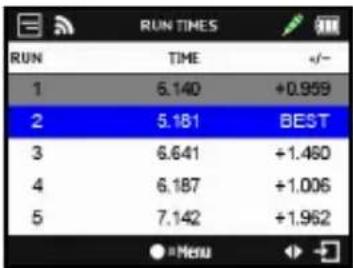
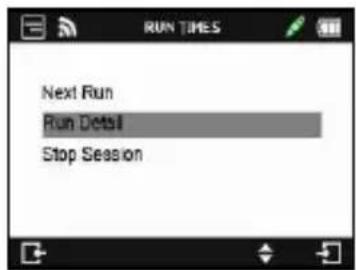
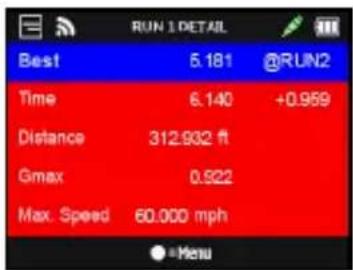
➢ Press ●=Menu button, you can select to connue to Next Run, view your Run Detail or Stop Session to back to Main Menu.
1-2. Circuit Race mode

In Circuit race mode, user can select two race types: Lap with Splits or Simple Lap.

- Lap with Splits:
- Create Closed Track: Start/Finish lines are in the same place. - Create Open Track: Start/Finish lines are not in the same place.
You will need either create a start/nish lines & split lines, or load the previously saved or imported start/nish & split lines from the device memory. (See How to setup Start/Finish and Split lines below)
- Simple Lap: Just press the ● buon to set up the Start/Finish line and ready to race. Note: Please drive forward 3 meters then set up the Start/Finish line. This can increase the accuracy.
● Field Opon: Select the display opon: (Speed), (Distance), (Best run), (Last run) or (STSplits) on the top right of ming screen.
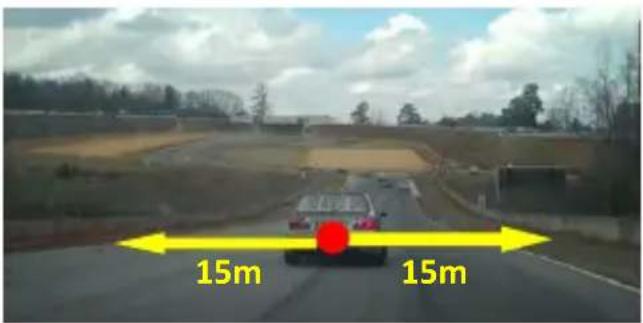
- Beacon Width: Beacon is commonly referred to as the virtual start, nish and split lines. The default beacon width is set to 30 meters (15m from each side of the vehicle) and the Beacon line is placed in a straight angle to your current bearing (see below picture), you may adjust the beacon width according to your track width.
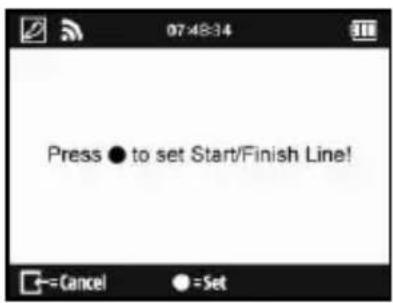
How to setup Start/Finish and Split lines?
- By driving slowly (at least 25 mph) on the track, press ● buon when you are on the spot that you want to mark as Start/Finish line.
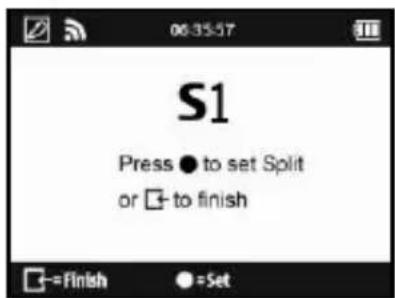
- Aer you have created the Start/Finish line, press ouon to mark the split line. (Note: Max 25 split lines can be add for each track)

-
Press ←=Finish buon to nish creang the Start/Finish and Splits lines. The Track will be saved automacally in the memory of Q6000/BEACON/USER folder once nished; you can re-load it later or share it with other users.
-
You can load the beacon from User Track you previously created. Or you can load it from Shared Track you imported via QRacing or downloaded via website.
*Load User Track:

*Load Shared Track:
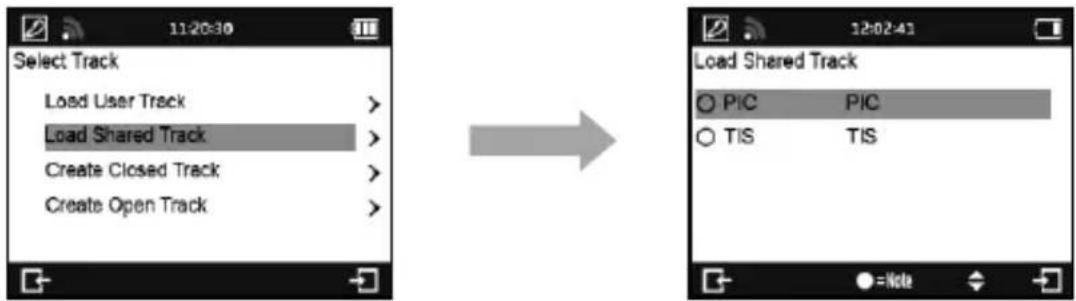
- Press ● buon to start logging and ming your lap.
Note1: The vehicle must be moving for beer precision when seng the Start/Finish line.
Note2: In some cases it may not be feasible or safe to add Start/Finish Splits line while driving. Users can use alternate way by QRacing soware to edit the Start/Finish and Split lines, then export them to LT-Q6000 for race (Please see K-2 Edit Beacon).
Lap Time screen for Circuit Race mode: (tested with Lap with Splits)
For Lap with Splits, if you were passing spilt and going faster than the same spilt of best lap, the Rolling me and Split ming dierence will be shown in Green background. Or if slower, the Rolling me and
Split ming dierence will be shown in Red background. You can also press the ●on to switch the eld opon on the top right corner of ming screen.
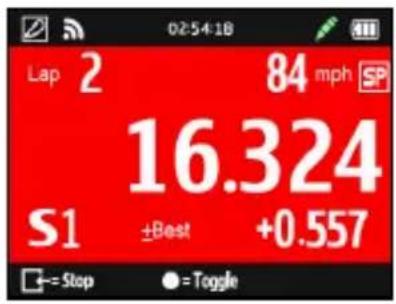

Press ←=Stop buon to Stop the race and view this Session's each Lap Time result.

Press ●=Menu buon and select Display mode to analyze your session lap in detail:

- Sectors: The me from one split point to the next split point. Press the ▶puon to navigate and view each sector's me.
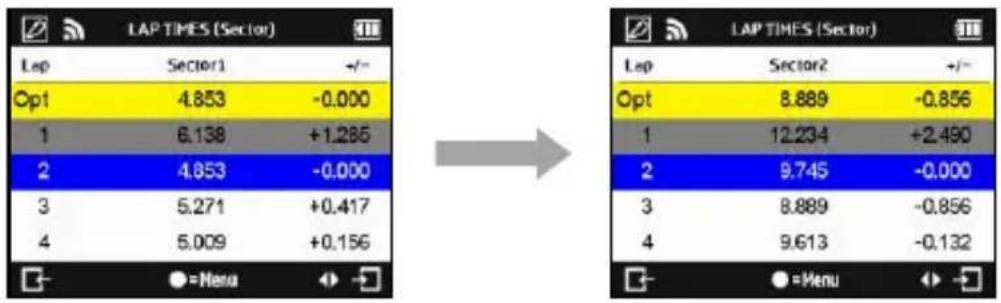
- Splits: The cumulave me from start point to a split Point. Press the button to navigate and view each split's me.

Split Speed: The speed when across the split line.
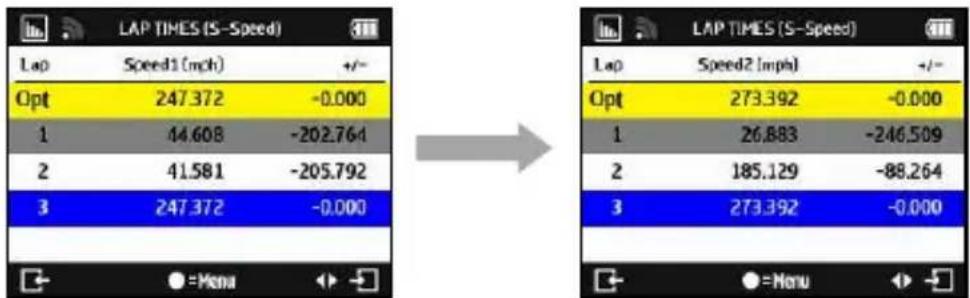
- Speed & G Value: Display the session lap's Max/Min/Avg Velocity (Speed) and Max G Value.
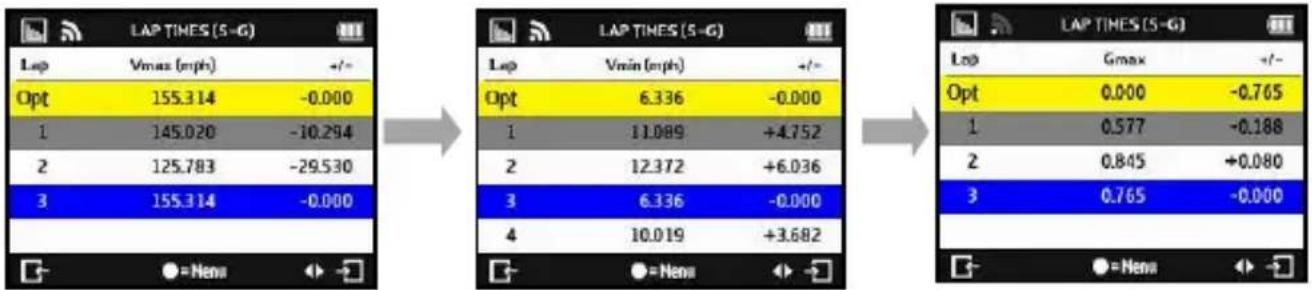
I-3. GPS logger mode

You can also use LT-Q6000 as a GPS Data logger to record your travel route.
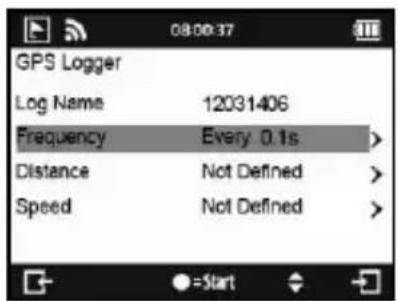
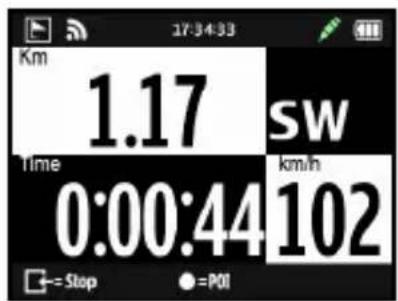
Log name: The system will automatically create the Log name with YYMMDDXX format.
Frequency: Select the log frequency (1Hz, 5Hz, 10Hz or user dene 0\~99 seconds)
Distance: Select to log by distance (0\~9999 meters).
▶ Speed: Select to log by speed (0\~999 kph).
➢ Press ● button to start logging.
Note: If log frequency is set to 5Hz or 10Hz, distance and speed criteria will be disable.
1-4. History Mode

You can review all the data recorded with LT-Q6000 in History mode. When the calendar day shows up in Red, it means there's racing record. Or you may review by Track name with Circuit race mode only.

Press ●=Menu Buon can view the selected session's Run (Lap) Times, Property, Delete session or Export track. Track export le format can be selected with KML, CSV or GPX le. Aer track export succeeded, the exported le can be found on the device memory of the Q6000\Exports folder.

1-5. Applicaon Mode

In Applicaon mode, you will be able to perform LT-Q6000 as a Speedometer or G-meter. And also you can view device's current GPS signal status and perform the Cold start funcon.
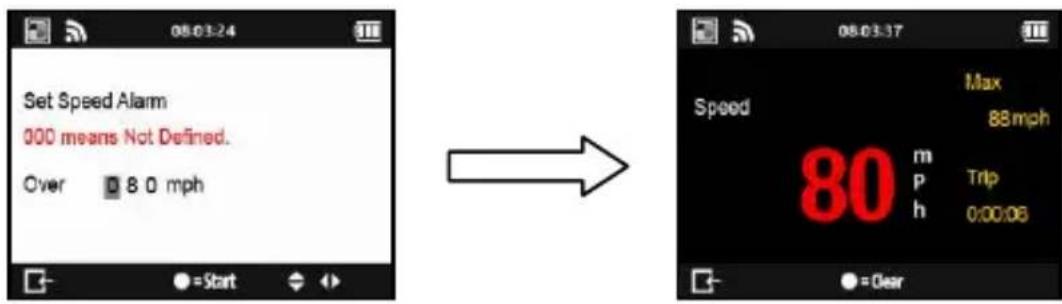
✨ Speedometer:
The speedometer can display your current driving speed in real-me, Max speed and Trip me traveled. And it additionally has an over speed alarm funcon. When the vehicle exceeds the seng speed, driving speed will be shown in red and device will make beeping sound to warn the driver.
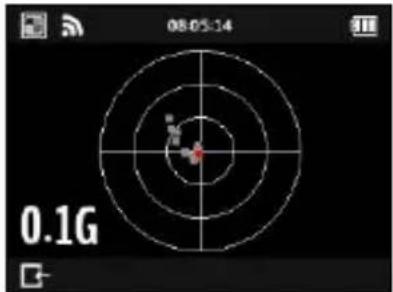
G-Meter:
G-Meter uses Q6000's built in 3-axial accelerometers to provide accurate real-me G-force results with graphics.
GPS Cold Start:
Performing the Cold Start funcon will clear the GPS engine of the device's list of old satellite informaon. Under normal operang condions, the last satellite lock computed before the unit was turned o is stored into memory and will be used as the reference when the next me the unit is turned on. Also, if you travel for more than 500 miles with it turned o, it will sll have the reference point but it may be too inaccurate to be useful and result in longer me to get a satellite lock. In this case you may want to perform a cold start.
1-6. Seng mode

In the Seng mode, opon such as Unit of Measure (mph/kph), Backlight, Brightness, Time Zone, Time format, Daylight Saving and Language opons can be adjusted, or reset device to factory default.
1
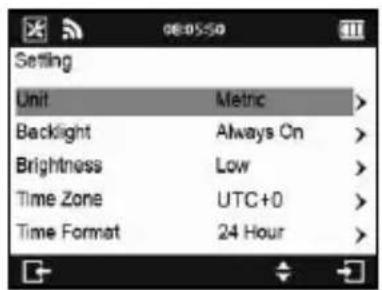


✿ Memory Status: You can know the percentage of Used Memory. Select ● buon and is able to clear all memory. But make sure you have saved log data in advance.
✿ GPS Engine: Regular use of GPS posioning will increase baery consumpon. You may turn o the GPS engine when not in racing to save baery power.
✿ G-Sensor Threshold: When start trigger by G-sensor is too sensitive, you may increase the G-Sensor threshold to make the trigger less sensitive. Default G-sensor threshold is 0.1G.
Language: Select the desired language and press Enter Buon, and wait unl the language loading is completed. Please make sure the baery power is sucient up to 80%, and do not turn o or press the reset buon while loading the language.
■ J. Upgrading Firmware
Qstarz will frequently update the rmware to provide new features and bugs x; it is advisable to visit Qstarz website (hp://www.qstarz.com/download.php) regularly for rmware updates.
Please check the unit's current version at Seng Mode >> About. If the current version is older than the one published in our website, please download the latest version and follow the steps below to
upgrade rmware:
Step1. Turn OFF the device and connect to the USB port of computer. LT-Q6000 will enter into USB ACCESS MODE automacally.
Step2. Extract the downloaded rmware le Q6000.qst and copy to the root directory of the device memory.
Step3. Unplug the USB cable and press both "ENTER" and "POWER" buons at the same me until the "CHECK FILE" screen prompts. And it will start updang the rmware. Once the rmware updang process is complete, device will restart automacally.
Cauon 1: Please make sure your baery power is sucient up to 80% before updang your rmware.
Cauon 2: Do not press the reset buon while updang the rmware.
■ K. Data Download and Data Analysis
LT-Q6000 comes with dual soware (QRacing™ and QTravel™) inside the package.
-QRacing™ lap ming analysis soware allows you to download and analyze the data stored in LT-Q6000. You can manage your racing tracks as database structure and analyze with graph stascs.
K-1. Import data from Q6000.
- Install QRacing soware from Qstarz soware CD. Input product key at rst me use. (The product key is located in the envelope of the soware CD)
● "Power o" the unit and connect the supplied USB cable to the computer. - Run QRacing soware
- Click on "Read Log" from Menu >> File
- Select the Racing Type
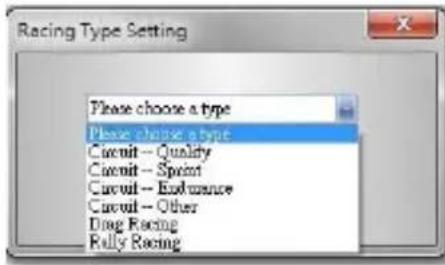
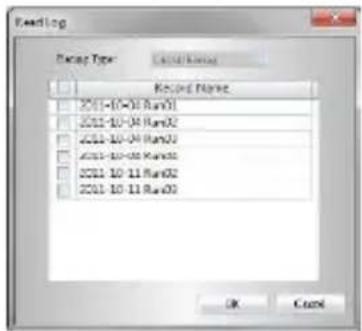
- Select the session to import
- If you haven't loaded the beacon previously, QRacing will ask you to edit beacon. Click "Yes" and will load the beacon from Q6000, or you may click "Cancel" to edit the beacon by you.
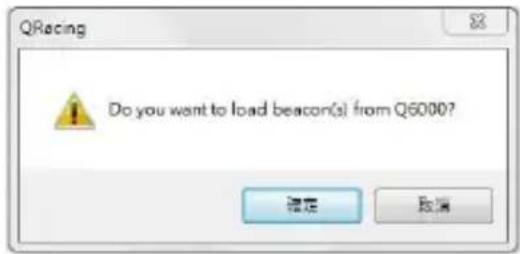
Note: Once loading beacon from Q6000, QRacing will remember this beacon set and use it for all other sessions with the same track. If you want to load another dierent set of beacon, please "Delete All Beacon" in Beacon page and select the session to load the beacon again from Q6000.
K-2. Edit Beacon
- Please go to QRacing Beacon page and edit the Start/Finish and Splits line for your track. Once nished, you may also export it into Q6000 device by clicking on Beacon Export >> Export Beacon to Q6000. You can then load the exported track in LT-Q6000 Circuit Race mode >> Track Name >> Load Shared Track later on for race.

K-3. Analyze Data
- Once beacon is loaded or edited, you may start to analyze and view your racing data. Switch to Analysis page to view and analyze your lap me and the best result will be highlighted in blue.
| Lap | Time (Diff) | Max Speed (Diff) | Min Speed (Diff) | Average Speed (Diff) | Distance |
| Lap1 | 00:58 431 (+00:13 393) | 47.63 km/h (-10.34) | 12.49 km/h (-4.67) | 30.81 km/h (-8.88) | 496.42 m |
| Lap2 | 00:51 190 (+00:06 062) | 54.64 km/h (-3.33) | 11.40 km/h (-5.76) | 35.27 km/h (-4.42) | 499.69 m |
| Lap3 | 00:47 884 (+00:02 646) | 58.26 km/h (-1.71) | 14.60 km/h (-2.56) | 38.07 km/h (-1.82) | 497.07 m |
| Lap4 | 00:47 877 (+00:02 636) | 55.20 km/h (-2.77) | 16.02 km/h (-1.14) | 38.19 km/h (-1.51) | 498.52 m |
| Lap5 | 00:46 502 (+00:01 464) | 57.97 km/h | 17.18 km/h | 38.93 km/h (-0.78) | 497.40 m |
| Lap6(beed) | 00:45 036 | 57.22 km/h (-0.75) | 16.98 km/h (-0.30) | 39.45 km/h (-0.24) | 493.10 m |
| Lap7 | 00:45 548 (+00:00 611) | 55.77 km/h (-2.20) | 16.10 km/h (-1.06) | 38.09 km/h | 495.10 m |
| Lap8 | 00:46 727 (+00:01 636) | 55.11 km/h (-1.85) | 13.26 km/h (-3.80) | 38.85 km/h (-0.84) | 495.38 m |
| avg | 00:48 636 | 55.10 | 14.75 | 37.41 | 495.84 |
Sector View
Sector = the me from one split point to next split point.
| Sector View (Split-to-Split) | |||||
| Lap | Time (Diff) | S-1 (Diff) | 1-2 (Diff) | 2-3 (Diff) | 3-4 (Diff) |
| Lap1 | 00:58:63 (+00:13:20) | 00:13:72 (+02:09) | 00:16:66 (+05:78) | 00:07:19 (+02:24) | 00:05:26 (+01:38) |
| Lap2 | 00:51:18 (+00:08:02) | 00:14:30 (+02:08) | 00:12:15 (+01:18) | 00:05:38 (+00:06) | 00:04:45 (+00:25) |
| Lap3 | 00:47:58 (+00:02:44) | 00:13:23 (+01:00) | 00:11:68 (+00:01) | 00:05:13 (+00:23) | 00:04:23 (+00:14) |
| Lap4 | 00:47:77 (+00:02:50) | 00:12:07 (+01:04) | 00:12:03 (+01:03) | 00:05:10 (+00:06) | 00:04:13 (+00:28) |
| Lap5 | 00:40:63 (+00:01:44) | 00:13:52 (+01:13) | 00:11:23 (+00:22) | 00:04:50 | 00:04:03 |
| Lap6(Deaf) | 00:45:08 | 00:11:79 (+00:21) | 00:13:07 | 00:04:00 (+00:26) | 00:04:45 (+00:14) |
| Lap7 | 00:45:46 (+00:00:41) | 00:12:08 (+00:27) | 00:11:03 (+00:17) | 00:05:16 (+00:07) | 00:04:00 (+00:26) |
| Lap8 | 00:46:72 (+00:01:63) | 00:11:52 | 00:11:03 (+00:17) | 00:05:17 (+00:23) | 00:04:01 (+00:14) |
| Best Theoretical Time | 00:44:68 | 00:11:50 | 00:13:07 | 00:04:00 | 00:04:09 |
| Best Rolling Time | 00:44:72 | 00:11:50 | 00:13:07 | 00:04:00 | 00:04:03 |
Spilt View (Cumulave)
Split = the cumulative me from start point to a split Point
| Split View (Start-to-Split) | ||||||
| Lap | Time (Diff) | S-1 (Diff) | S-2 (Diff) | S-3 (Diff) | S-4 (Diff) | S-F (Diff) |
| Lap1 | 00.58 +4 (-00.13 665) | 00.13 755 (+02.966) | 00.39 587 (+07.766) | 00.37 566 (+09.966) | 00.43 +76 (-11.336) | 00.58 +41 (+13.565) |
| Lap2 | 00.51 166 (+00.06 665) | 00.14 306 (+02.966) | 00.25 718 (+04.116) | 00.32 306 (+04.711) | 00.37 +43 (+05.002) | 00.51 106 (+06.965) |
| Lap3 | 00.47 884 (+00.02 666) | 00.13 222 (+01.966) | 00.25 130 (+02.966) | 00.30 263 (+02.864) | 00.35 198 (-02.966) | 00.47 884 (+02.846) |
| Lap4 | 00.47 877 (+00.02 666) | 00.12 878 (+01.946) | 00.24 735 (+02.136) | 00.30 254 (+02.866) | 00.35 991 (+02.954) | 00.47 877 (+02.836) |
| Lap5 | 00.46 903 (+00.01 464) | 00.15 155 (+01.566) | 00.24 876 (+01.714) | 00.29 324 (+01.736) | 00.33 833 (-01.266) | 00.46 803 (+01.444) |
| Lap2(bal)5 | 00.45 834 | 00.11 703 (+00.971) | 00.22 661 | 00.27 766 | 00.32 -38 | 00.45 636 |
| Lap7 | 00.45 846 (+00.00 641) | 00.12 168 (+00.937) | 00.23 333 (+00.862) | 00.28 568 (+00.786) | 00.33 637 (-00.886) | 00.45 649 (+00.811) |
| Lap8 | 00.46 727 (+00.01 669) | 00.11 656 | 00.23 391 (+00.706) | 00.28 +79 (+00.836) | 00.33 188 (-01.032) | 00.46 727 (+01.686) |
Point Current Speed View
| Point Current Speed View | ||||||
| Lap | Time (Diff) | 1 (Diff) | 2 (Diff) | 3 (Diff) | 4 (Diff) | F (Diff) |
| Lap1 | 00:58 km (-08:13 km) | 36.64 km (-13.13) | 24.14 km (-9.75) | 32.07 km (-15.41) | 45.16 km (-11.86) | 13.82 km (-8.52) |
| Lap2 | 00:51 km (+00:00 km) | 41.45 km (-9.12) | 31.74 km (-2.15) | 41.16 km (-9.32) | 53.05 km (-2.75) | 14.00 km (-7.74) |
| Lap3 | 00:47 km (+00:02 km) | 42.59 km (-6.58) | 33.22 km (-0.67) | 43.03 km (-4.47) | 54.52 km (-2.08) | 20.31 km (-2.03) |
| Lap4 | 00:47 km (+00:02 km) | 43.47 km (-6.10) | 31.69 km (-2.28) | 43.34 km (-4.46) | 53.36 km (-3.24) | 22.34 km |
| Lap5 | 00:48 km (+00:01 km) | 46.75 km (-2.82) | 33.89 km | 47.50 km | 56.50 km | 18.08 km (-4.28) |
| Lap6(Ben) | 00:45 km | 49.57 km | 33.37 km (-0.52) | 47.02 km (-9.48) | 55.56 km (-1.04) | 18.06 km (-5.48) |
| Lap7 | 00:45 km (+00:00 km) | 48.49 km (-1.08) | 33.44 km (-0.45) | 45.41 km (-1.08) | 54.31 km (-2.25) | 20.83 km (-1.51) |
| Lap8 | 00:48 km (+00:01 km) | 48.36 km (-0.21) | 30.46 km (-3.43) | 45.11 km (-1.39) | 54.30 km (-2.27) | 19.52 km (-2.82) |
K-4. Track-Map view
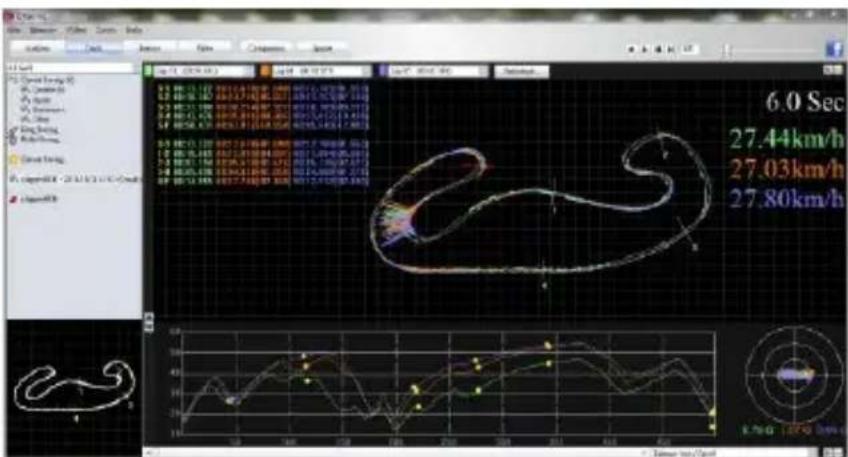
- In Track page, you can select three laps for showing and compare the data. You can also compare the laps by line graph with Distance-base or Time-base.
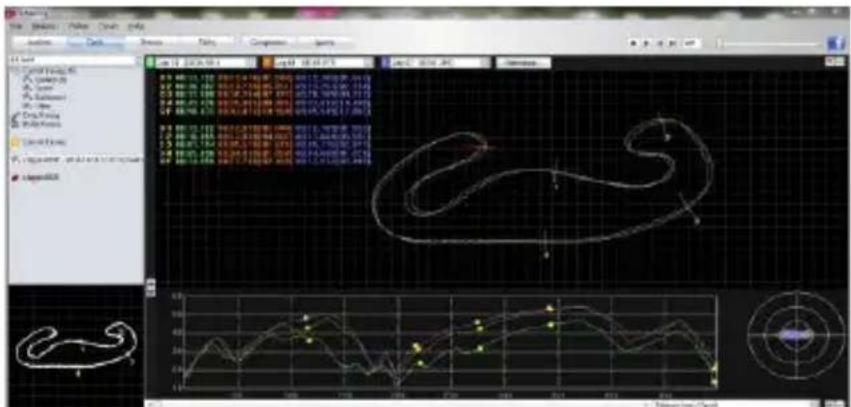
- QRacing will display the vehicle's braking zone with a thick line and acceleraon zone with a thinner line; which can be benecial for driver to improve their lap mes. Click the play buon on the status bar. It can replay the selected 3 laps and display the racing informaon by me and speed simultaneously.
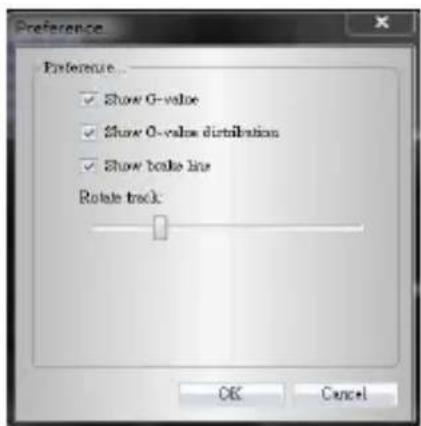
K-5. Preference Seng
- In the Menu > Tool > Preference or click on the Preference buon on Track page will allow user to select their preference seng when playing the track.
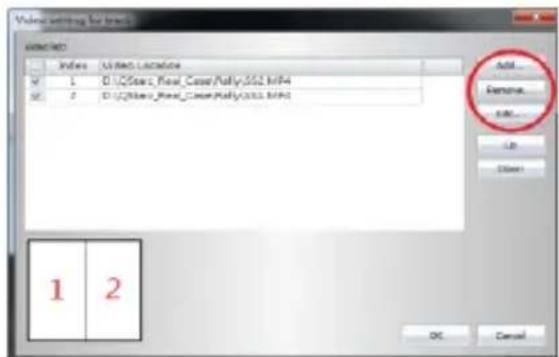
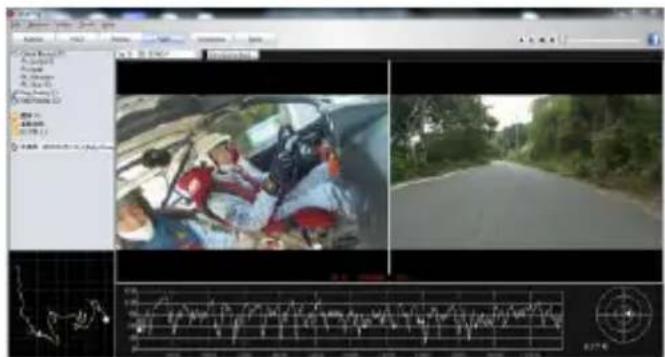
K-6. Video
- QRacing can sync the racing video with the track. In Video page; click on the buon "Set video for track..." the video seng dialog will pop out. You can add, remove and edit the videos.
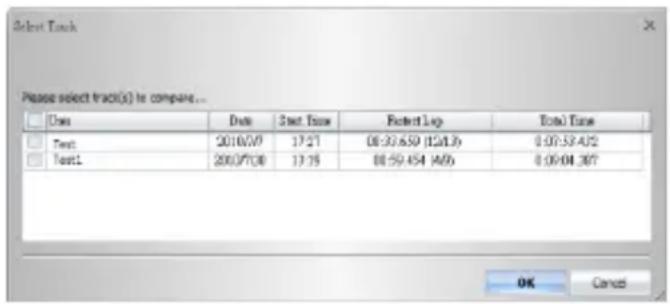
K-7. Compare with other users
- Click on “Comparison”, you can choose tracks belong to the same racing type (Circuit, Drag or Rally racing) and compare with other user’s track.
*For detailed instrucons, please refer to QRacing's user manual aached with the soware.
*Or visit our online tutorial video at: hp://www.qstarz.com/Products/Soware%20Products/QRacingVideo.html
-QTravel™ supports Geo-tagging funcon with build-in Google map, you can easily import and export you can also share routes from your favorite trips with friends and family.
■ L. Register your product
Register your Qstarz product to get the latest news, soware update, event, and product informaon. http://www.qstarz.com/reg.php
■ M. Update the Soware:
Please always go to Qstarz download page to check if there is any latest soware update. hp://www.qstarz.com/download.php
■ N. Frequently asked Quesons
1. Why is my unit not receiving a satellite signal?
- Although the LT-Q6000 will normally pick up a satellite signal within 1-2 minutes aer powering on the device, it may take longer me if you are in an area with more geographic obstrucons.
Please make sure you have placed it in a posion that has clear view to the sky and not obstructed by metal objects.
2. My LT-Q6000 crashed. How can I make get it back to normal status?
-You can nd the Reset buon beside USB connector, a small hole which can be pressed by pen p or pin to reset your device. (Hard reset will not erase the memory data.)
3. I have set up my Start/Finish line, but it does not show any lap mes?
-Please make sure the unit is mounted vercally straight as possible to your car's windshield and you have driven a complete lap around passed the Start/Finish line.
4. How long is the baery life of LT-Q6000?
Depending on how you are using the unit, your average baery life will be 8 \~10 hours. Using the device in a poor environment, having the backlight always on will decrease baery life.
LT-Q6000 極速計時器 使用手冊
A. 盒裝標準配備:
(1)

(2)
(3)

(4)
(5)

(6)

(7)

(8)選配
主要功能:
- LT-Q6000 盒裝內含有螺絲和車架轉接板
(2)
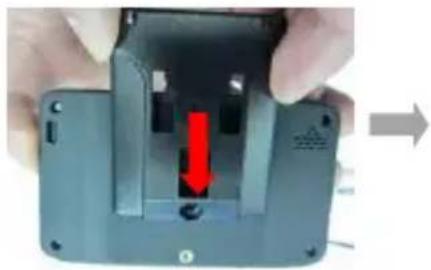
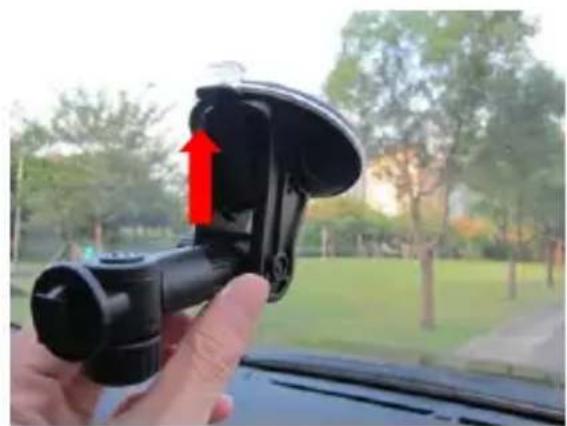
- 將車架轉接板固定在吸盤式車架上。

✨ 將裝置冷啟動:
| 區段檢視(分段-到-分段) | |||||||
| 渠道 | 時間(差異) | S-1(差異) | 1-2(差異) | 2-3(差異) | 3-4(差異) | 4-5(差異) | 5-F(差異) |
| Lap1 | 02:09:368(+00:01:544) | 00:10:741(+00:186) | 00:12:018(+00:125) | 00:29:247 | 00:17:128 | 00:32:451(+01:590) | 00:27:551(+01:676) |
| Lap2(匯東) | 02:07:624 | 00:11:422(+00:028) | 00:12:004(+00:114) | 00:26:285(+00:138) | 00:17:288(+00:141) | 00:31:381 | 00:26:180(+00:178) |
| Lap3 | 02:10:845(+00:03:222) | 00:10:564 | 00:11:590 | 00:32:104(+02:858) | 00:17:752(+00:864) | 00:32:562(+01:111) | 00:25:571 |
| 最後週間時間 | 02:00:211 | 00:10:564 | 00:11:590 | 00:29:247 | 00:17:128 | 00:31:381 | 00:25:571 |
| 最後週間時間 | 02:05:669 | 00:10:564 | 00:11:590 | 00:29:385 | 00:17:288 | 00:31:381 | 00:26:150 |
分段檢視 (起始-到-分段)
K-7. 與其他車手比較
http://www.qstarz.com/Products/Software%20Products/QRacingVideo.html
http://www.qstarz.com/reg.php
■ M.軟體更新
http://www.qstarz.com/download.php
N. 疑難排解



- LT-Q6000 GPS LAP TIMER COLOR USER'S GUIDE
- A. LT-Q6000 PACKAGE CONTENTS
- MAIN FUNCONS
- SPECICAONS
- B. APPEARANCE
- C. ICON DENION
- D. LED SIGNAL DENION
- E. SAFETY NOCE
- F. CHARGING LT-Q6000
- PLEASE CHARGE THE BAERY FULLY BEFORE THE RST USE
- G. DEVICE BRACKET MOUNNG
- H. MOUNNG THE LT-Q6000 IN THE VEHICLE
- ENGLISH
- I. GENG STARTED
- I-1. DRAG RACE MODE
- ✨ RUN ME SCREEN FOR DRAG RACE (TESTED WITH SPEED 0-60MPH)
- PRESS ←=RUN TIMES BUON TO VIEW THE SESSION'S RESULT
- ➢ PRESS ●=MENU BUTTON, YOU CAN SELECT TO CONNUE TO NEXT RUN, VIEW YOUR RUN DETAIL OR STOP SESSION TO BACK TO MAIN MENU
- 1-2. CIRCUIT RACE MODE
- HOW TO SETUP START/FINISH AND SPLIT LINES
- LAP TIME SCREEN FOR CIRCUIT RACE MODE: (TESTED WITH LAP WITH SPLITS)
- I-3. GPS LOGGER MODE
- 1-4. HISTORY MODE
- 1-5. APPLICAON MODE
- ✨ SPEEDOMETER
- G-METER
- GPS COLD START
- 1-6. SENG MODE
- J. UPGRADING FIRMWARE
- K. DATA DOWNLOAD AND DATA ANALYSIS
- K-1. IMPORT DATA FROM Q6000
- K-2. EDIT BEACON
- K-3. ANALYZE DATA
- SECTOR VIEW
- SPILT VIEW (CUMULAVE)
- POINT CURRENT SPEED VIEW
- K-4. TRACK-MAP VIEW
- K-5. PREFERENCE SENG
- K-6. VIDEO
- K-7. COMPARE WITH OTHER USERS
- L. REGISTER YOUR PRODUCT
- M. UPDATE THE SOWARE
- N. FREQUENTLY ASKED QUESONS
- WHY IS MY UNIT NOT RECEIVING A SATELLITE SIGNAL
- MY LT-Q6000 CRASHED. HOW CAN I MAKE GET IT BACK TO NORMAL STATUS
- I HAVE SET UP MY START/FINISH LINE, BUT IT DOES NOT SHOW ANY LAP MES
- HOW LONG IS THE BAERY LIFE OF LT-Q6000
- LT-Q6000 極速計時器 使用手冊
- 盒裝標準配備
- 主要功能
- ✨ 將裝置冷啟動
- 分段檢視 (起始-到-分段)
- K-7. 與其他車手比較
- M.軟體更新
- 疑難排解
Brand : Qstarz
Model : LT-Q6000 10Hz
Category : GPS device