
RX-6042S - AV receiver JVC - Free user manual and instructions
Find the device manual for free RX-6042S JVC in PDF.
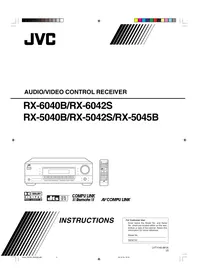


| Product type | Audio-video receiver |
| Brand | JVC |
| Model | RX-6042S |
| Dimensions (W x H x D) | 435 x 150 x 400 mm |
| Weight | 10.5 kg |
| Power supply | 230 V, 50/60 Hz |
| Power consumption | 450 W |
| Output power | 100 W per channel (6 ohms) |
| Number of channels | 5.1 |
| Supported audio formats | Dolby Digital, DTS, Dolby Pro Logic II |
| Tuner | AM/FM with presets |
| Video inputs | Composite, S-Video, Component |
| Video outputs | Composite, S-Video, Component |
| Audio inputs | Optical, Coaxial, Analog (RCA) |
| Speaker outputs | 5 speakers (front, center, surround) |
| Remote control | Yes, infrared |
| Maintenance and cleaning | Unplug the device before cleaning. Use a soft, dry cloth. Do not use abrasive products. |
| Safety | Do not open the casing. No user-serviceable parts. Refer all repairs to qualified personnel. |
| Spare parts and repairability | Contact JVC after-sales service for spare parts. Repairability index: 6.5/10 (estimate). |
Frequently Asked Questions - RX-6042S JVC
User questions about RX-6042S JVC
0 question about this device. Answer the ones you know or ask your own.
Ask a new question about this device
Download the instructions for your AV receiver in PDF format for free! Find your manual RX-6042S - JVC and take your electronic device back in hand. On this page are published all the documents necessary for the use of your device. RX-6042S by JVC.
USER MANUAL RX-6042S JVC



INSTRUCTIONS
For Customer Use:
Enter below the Model No. and Serial No. which are located either on the rear, bottom or side of the cabinet. Retain this information for future reference.
Model No.
Serial No.
Warnings, Cautions and Others/
The lightning flash with arrowhead symbol, within an equilateral triangle is intended to alert the user to the presence of uninsulated "dangerous voltage" within the product's enclosure that may be of sufficient magnitude to constitute a risk of electric shock to persons.

The exclamation point within an equilateral triangle is intended to alert the user to the presence of important operating and maintenance (servicing) instructions in the literature accompanying the appliance.
WARNING: TO REDUCE THE RISK OF FIRE OR ELECTRIC SHOCK, DO NOT EXPOSE THIS APPLIANCE TO RAIN OR MOISTURE.
CAUTION
To reduce the risk of electrical shocks, fire, etc.:
- Do not remove screws, covers or cabinet.
- Do not expose this appliance to rain or moisture.
ATTENTION
Disconnect the mains plug to shut the power off completely. The STANDBY/ON Ⓧ/I button in any position does not disconnect the mains line. The power can be remote controlled.
Attention—Commutateur STANDBY/ON ⏻/!!
This equipment has been tested and found to comply with the limits for a Class B digital device, pursuant to part 15 of the FCC Rules. These limits are designed to provide reasonable protection against harmful interference in a residential installation.
This equipment generates, uses and can radiate radio frequency energy and, if not installed and used in accordance with the instructions, may cause harmful interference to radio communications. However, there is no guarantee that interference will not occur in a particular installation. If this equipment does cause harmful interference to radio or television reception, which can be determined by turning the equipment off and on, the user is encouraged to try to correct the interference by one or more of the following measures:
Reorient or relocate the receiving antenna.
Increase the separation between the equipment and receiver.
Connect the equipment into an outlet on a circuit different from that to which the receiver is connected.
Consult the dealer or an experienced radio/TV technician for help.
Note to CATV system installer:
This reminder is provided to call the CATV system installer's attention to Section 820-40 of the NEC which provides guidelines for proper grounding and, in particular, specifies that the cable ground shall be connected to the grounding system of the building, as close to the point of cable entry as practical.
For Canada/pour le Canada
CAUTION: TO PREVENT ELECTRIC SHOCK, MATCH WIDE BLADE OF PLUG TO WIDE SLOT, FULLY INSERT.
ATTENTION: POUR EVITER LES CHOCS ELECTRIQUES, INTRODUIRE LA LAME LA PLUS LARGE DE LA FICHE DANS LA BORNE CORRESPONDANTE DE LA PRISE ET POUSSER JUSQUAU FOND.
THIS DIGITAL APPARATUS DOES NOT EXCEED THE CLASS B LIMITS FOR RADIO NOISE EMISSIONS FROM DIGITAL APPARATUS AS SET OUT IN THE INTERFERENCE-CAUSING EQUIPMENT STANDARD ENTITLED "DIGITAL APPARATUS," ICES-003 OF THE DEPARTMENT OF COMMUNICATIONS.
CET APPAREIL NUMERIQUE RESPECTE LES LIMITES DE BRUITS RADIOELECTRIQUES APPLICABLES AUX APPAREILS NUMERIQUES DE CLASSE B PRESCRITES DANS LA NORME SUR LE MATERIEL BROUILLEUR; "APPAREILS NUMERIQUES", NMB-003 EDICTEE PAR LE MINISTRE DES COMMUNICATIONS.
Parts Identification 2
Getting Started.... 5
Before Installation 5
Checking the Supplied Accessories 5
Putting Batteries in the Remote Control 5
Connecting the FM and AM Antennas 5
Connecting the Speakers and Subwoofer 6
Connecting Audio/Video Components 7
■ Analog Connections ...... 7
■ Digital Connections ...... 10
Connecting the Power Cord 10
Basic Operations 11
Daily Operational Procedure ...... 11
Turning On the Power 11
Selecting the Source to Play 11
Adjusting the Volume 12
Turning On and Off the Subwoofer Sound 13
Selecting the Analog or Digital Input Mode 13
Changing the Display Brightness 14
Attenuating the Input Signal 14
Changing the Source Name 14
Reinforcing the Bass 15
Muting the Sound 15
Using the Sleep Timer 15
Receiving Radio Broadcasts 16
Tuning in to Stations Manually 16
Using Preset Tuning 16
Selecting the FM Reception Mode 17
Basic Settings.... 18
Quick Speaker Setup 18
Basic Setting Items.... 19
Basic Procedure 19
■ Setting the Speakers 20
■ Setting the Speaker Distance 20
■ Setting the Bass Sounds 20
■ Selecting the Main or Sub Channel 21
■ Setting for Easy and Effective Surround Operations ...... 21
■ Setting the Digital Input Terminals 22
■ Setting the Component Video Input 22
Adjusting Sound 23
Basic Adjustment Items....23
Basic Procedure 23
■ Adjusting the Equalization Patterns ...... 24
■ Adjusting the Speaker Output Levels 24
■ Adjusting the Sound Parameters for the Surround and DSP Modes 24
Using the Surround Modes 25
Reproducing Theater Ambience 25
Introducing the Surround Modes 25
Activating the Surround Modes 27
Using the DSP Modes 28
Reproducing the Sound Field 28
Introducing the DSP Modes 28
Activating the DSP Modes 29
COMPU LINK Remote Control System ...... 30
AV COMPU LINK Remote Control System .... 31
Operating JVC's Audio/Video Components ... 33
Operating Audio Components 33
Operating Video Components 34
Operating Other Manufacturers' Video Equipment 35
Troubleshooting 37
Specifications 38
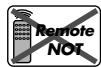
This mark indicates that ONLY the remote control CAN be used for the operation explained.
This mark indicates that the remote control CANNOT be used for the operation explained. Use the buttons and controls on the front panel.
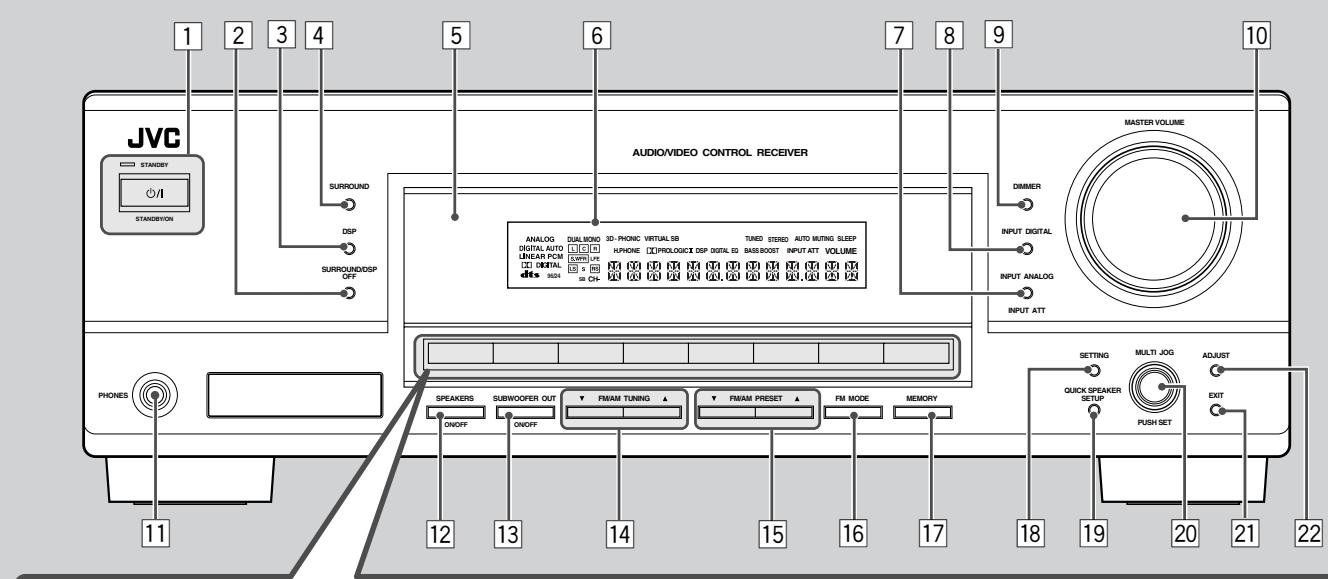
Front Panel
23
RX-6040B/RX-6042S
RX-5040B/RX-5042S/RX-5045B
See pages in parentheses for details.
1 STANDBY/ON ⏻/I button and STANDBY lamp (11)
2 SURROUND/DSP OFF button (27, 29)
3 DSP button (28, 29)
4 SURROUND button (27)
5 Remote sensor
6 Display (For details, see “Display” on the next page.)
7 INPUT ANALOG button (14)
INPUT ATT button (14)
8 INPUT DIGITAL button (13)
9 DIMMER button (14)
10 MASTER VOLUME control (12)
11 PHONES jack (13)
12 SPEAKERS ON/OFF button (13)
13 SUBWOOFER OUT ON/OFF button (13)
14 FM/AM TUNING ▲/▼ buttons (16)
15 FM/AM PRESET ▲/▼ buttons (16)
16 FM MODE button (17)
17 MEMORY button (16)
18 SETTING button (19)
19 QUICK SPEAKER SETUP button (18)
20 MULTI JOG (PUSH SET) dial (19, 23)
21 EXIT button (19, 23)
22 ADJUST button (23)
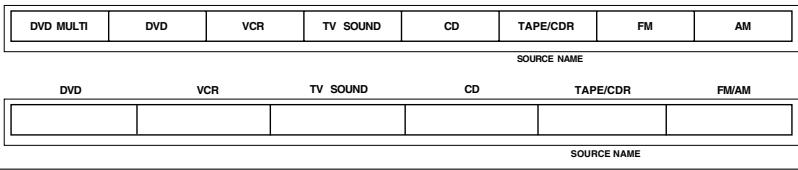
23 Source selection buttons (11, 14)
- For RX-6040B/RX-6042S: DVD MULTI, DVD, VCR, TV SOUND, CD, TAPE/CDR (SOURCE NAME), FM, AM
- For RX-5040B/RX-5042S/RX-5045B: DVD, VCR, TV SOUND, CD, TAPE/CDR (SOURCE NAME), FM/AM
IMPORTANT:
Illustrations used in this manual are of RX-6040B/RX-6042S unless mentioned otherwise.
Display
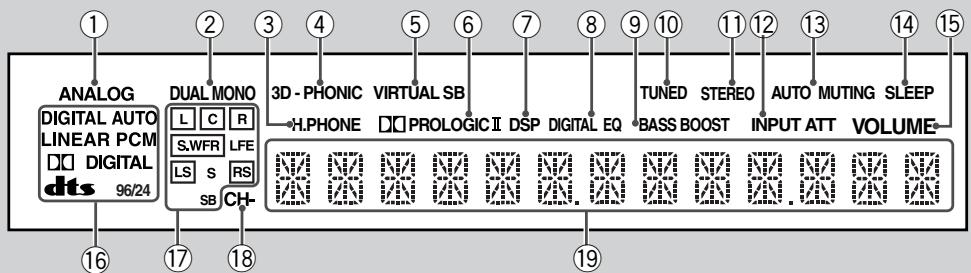
See pages in parentheses for details.
① ANALOG indicator (14)
② DUAL MONO indicator (26, 27)
③ H.PHONE indicator (13, 26, 28)
④ 3D-PHONIC indicator (26, 28)
⑤ VIRTUAL SB indicator (22)
⑥ PRO LOGIC II indicator (25, 27, 28)
⑦ DSP indicator (28, 29)
⑧ DIGITAL EQ indicator (24)
⑨ Only for RX-6040B/RX-6042S: BASS BOOST indicator (15)
⑩ TUNED indicator (16)
⑪ STEREO indicator (16)
⑫ INPUT ATT indicator (14)
⑬ AUTO MUTING indicator (17)
⑭ SLEEP indicator (15)
⑮ VOLUME indicator (11)
⑯ Digital signal format indicators (13)
⑰ Speaker indicators and signal indicators (12)
⑱ CH- indicator (16)
⑲ Main display
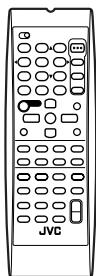
Remote Control
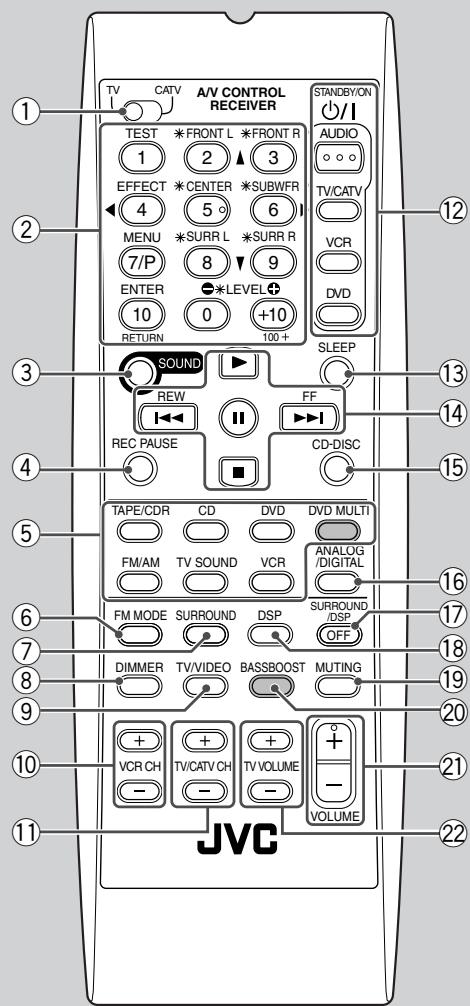
The buttons shaded in the illustration—DVD MULTI and BASSBOOST—are only for RX-6040B/RX-6042S.
Remote Control
See pages in parentheses for details.
① TV/CATV selector (35)
② 10 keys for selecting preset channels (17, 33)
10 keys for sound adjustment (24, 33)
10 keys for operating audio/video components (33 – 35)
③ SOUND button (24, 33)
④ REC PAUSE button (34, 36)
⑤ Source selection buttons (11, 12)
TAPE/CDR, CD, DVD, DVD MULTI (only for RX-6040B/RX-6042S), FM/AM, TV SOUND, VCR
⑥ FM MODE button (17, 33)
⑦ SURROUND button (27, 33)
⑧ DIMMER button (14, 33)
⑨ TV/VIDEO button (34, 35)
⑩ VCR CH +/- buttons (34, 36)
⑪ TV/CATV CH +/- buttons (34, 35)
⑫ STANDBY/ON Ⓧ/I buttons (11, 33 – 36)
AUDIO, TV/CATV, VCR, DVD
⑬ SLEEP button (15, 33)
⑭ Operating buttons for audio/video components ▶, Ⅱ, ■, ▶▶/|◀◀, FF/REW (33, 34, 36)
⑮ CD-DISC button (33)
⑯ ANALOG/DIGITAL button (13, 14, 33)
⑰ SURROUND/DSP OFF button (27, 29, 33)
⑱ DSP button (28, 29, 33)
⑲ MUTING button (15, 33)
⑳ Only for RX-6040B/RX-6042S: BASSBOOST button (15, 33)
②1 VOLUME +/- button (12, 33)
② TV VOLUME +/- buttons (34, 35)
Note:
When you press the one of the audio source selection buttons—TAPE/CDR, CD, and FM/AM—on the remote control, the receiver automatically turns on.
Rear Panel
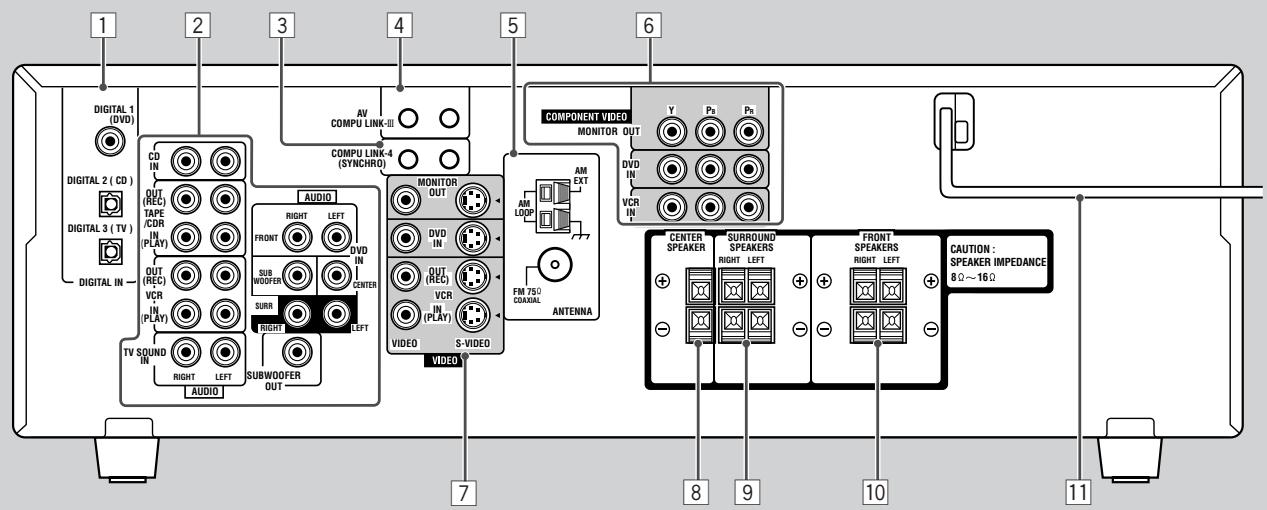
RX-6040B/RX-6042S
RX-5040B/RX-5042S/RX-5045B
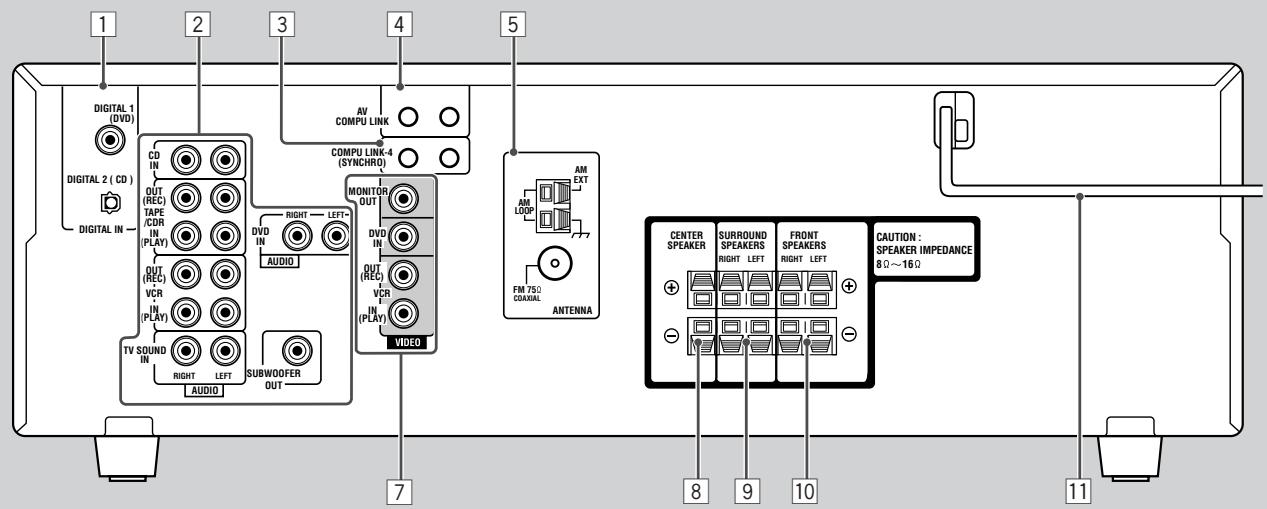
Rear Panel
See pages in parentheses for details.
1 DIGITAL IN terminals (10)
• Coaxial: DIGITAL 1 (DVD)
• Optical: DIGITAL 2 (CD)
DIGITAL 3 (TV): only for RX-6040B/RX-6042S
2 Audio input/output jacks (7 - 9)
- Input: CD IN, TAPE/CDR IN (PLAY), VCR IN (PLAY), TV SOUND IN, DVD IN
- Output: TAPE/CDR OUT (REC), VCR OUT (REC), SUBWOOFER OUT
3 COMPU LINK-4 (SYNCHRO) jacks (30)
4 For RX-6040B/RX-6042S:
AV COMPU LINK-III jacks (31)
For RX-5040B/RX-5042S/RX-5045B:
AV COMPU LINK jacks (31)
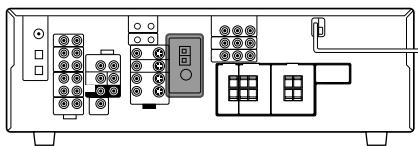
5 ANTENNA terminals (5, 6)
6 Only for RX-6040B/RX-6042S: COMPONENT VIDEO input/output jacks (8, 9)
- Input: DVD IN, VCR IN
• Output: MONITOR OUT
7 For RX-6040B/RX-6042S:
VIDEO/S-VIDEO input/output jacks (8, 9)
For RX-5040B/RX-5042S/RX-5045B: VIDEO input/output jacks (8, 9)
- Input: DVD IN, VCR IN (PLAY)
- Output: MONITOR OUT, VCR OUT (REC)
8 CENTER SPEAKER terminals (6)
9 SURROUND SPEAKERS terminals (6)
10 FRONT SPEAKERS terminals (6)
11 AC power cord (10)
This section explains how to connect audio/video components and speakers to the receiver, and how to connect the power supply.
Before Installation
General Precautions
- Be sure your hands are dry.
- Turn the power off to all components.
- Read the manuals supplied with the components you are going to connect.
Locations
• Install the receiver in a location that is level and protected from moisture and dust.
- The temperature around the receiver must be between -5°C and 35°C (23°F and 95°F).
- Make sure there is good ventilation around the receiver. Poor ventilation could cause overheating and damage the receiver.
Handling the receiver
- Do not insert any metal object into the receiver.
- Do not disassemble the receiver or remove screws, covers, or cabinet.
- Do not expose the receiver to rain or moisture.
Checking the Supplied Accessories
Check to be sure you have all of the following items, which are supplied with the receiver.
The number in the parentheses indicates quantity of the pieces supplied.
- Remote Control (1)
- Batteries (2)
• AM Loop Antenna (1) - FM Antenna (1)
If anything is missing, contact your dealer immediately.
Putting Batteries in the Remote Control
Before using the remote control, insert the two supplied batteries first.
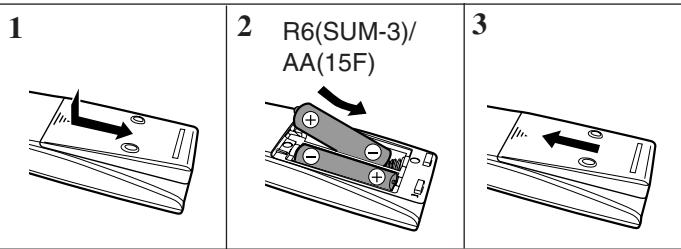
1 Press and slide the battery cover on the back of the remote control.
2 Insert the batteries.
- Make sure to match the polarity: (+) to (+) and (−) to (−).
3 Replace the cover.
If the remote control cannot transmit signals or operate the receiver correctly, replace the batteries. Use two R6(SUM-3)/AA(15F) type dry-cell batteries.
Notes:
- Supplied batteries are for the initial setup. Replace for continued use.
- After replacing the batteries, set the manufacturers' codes again (see pages 35 and 36).
CAUTION:
Follow these precautions to avoid leaking or cracking cells:
- Place batteries in the remote control so they match the polarity: (+) to (+) and (−) to (−).
- Use the correct type of batteries. Batteries that look similar may differ in voltage.
• Always replace both batteries at the same time. - Do not expose batteries to heat or flame.
Connecting the FM and AM Antennas
FM antenna connections
A
B
Extend the supplied FM antenna horizontally.
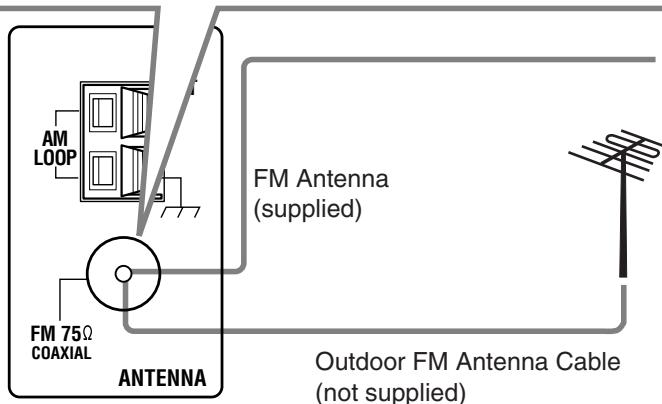
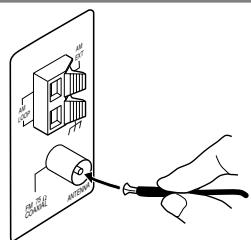
Connect the supplied FM antenna as temporary measure to the FM 75 Ω COAXIAL terminal—Ⓐ
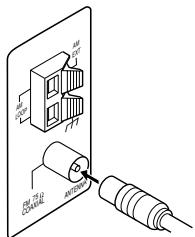
If reception is poor, connect the outdoor FM antenna (not supplied)—®
1 Disconnect the supplied FM antenna.
2 Connect a 75 Ω coaxial cable (with the standard type connector).
AM antenna connections
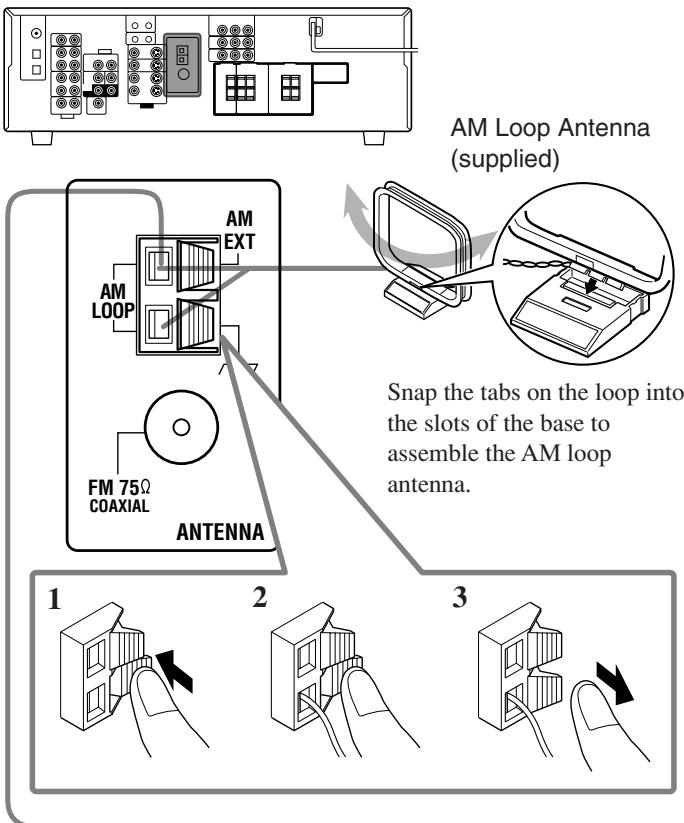
Outdoor single vinyl-covered wire (not supplied)
Turn the loop until you have the best reception.
Notes:
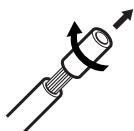
- If the AM loop antenna wire is covered with vinyl, remove the vinyl by twisting it as illustrated.
- Make sure the antenna conductors do not touch any other terminals, connecting cords and power cord. This could cause poor reception.
- If reception is poor, connect an outdoor single vinyl-covered wire (not supplied) to the AM EXT terminal. (Keep the AM loop antenna connected.)
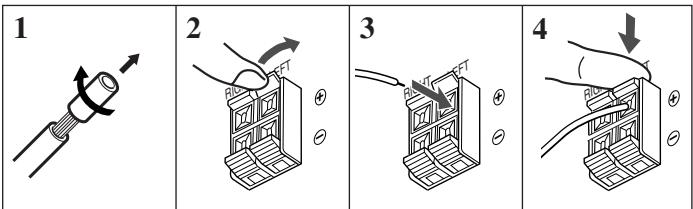
Connecting the Speakers and Subwoofer
You can connect five speakers (a pair of front speakers, a center speaker, and a pair of surround speakers) and a subwoofer.
CAUTIONS:
- Use only the speakers of the SPEAKER IMPEDANCE indicated by the speaker terminals.
- Do not connect more than one speaker to each speaker terminal.
Connecting the speakers
For RX-6040B/RX-6042S
For RX-5040B/RX-5042S/RX-5045B
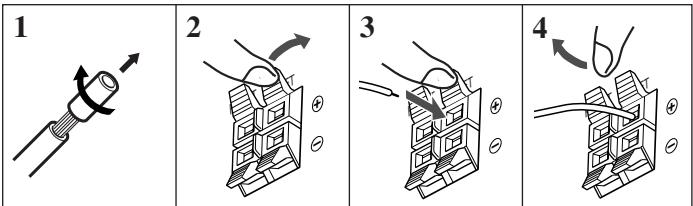
For each speaker (except for a subwoofer), connect the (+) and (−) terminals on the rear panel to the (+) and (−) terminals marked on the speakers.
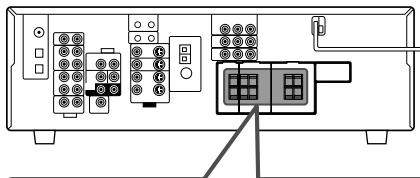
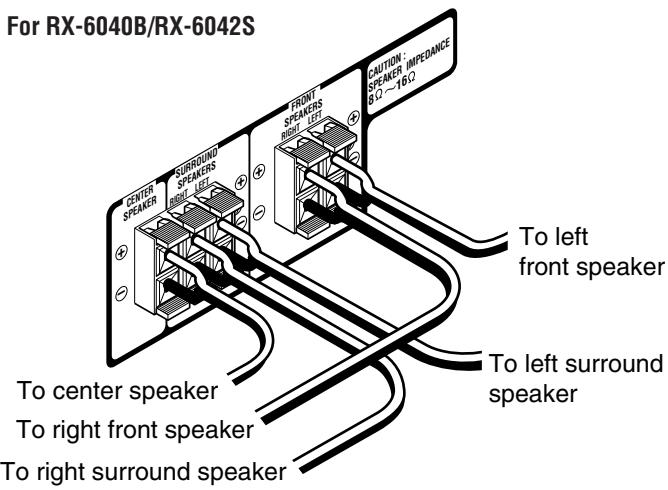
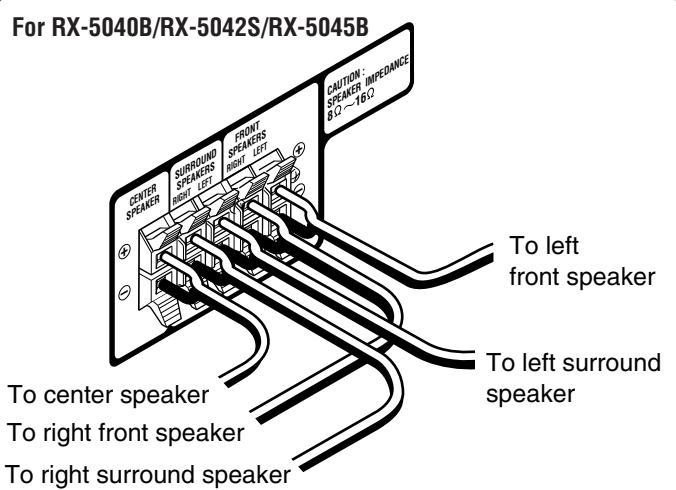
Connecting the subwoofer
You can enhance the bass by connecting a subwoofer.
Connect the input jack of a powered subwoofer to the rear panel, using a cable with RCA pin plugs (not supplied).
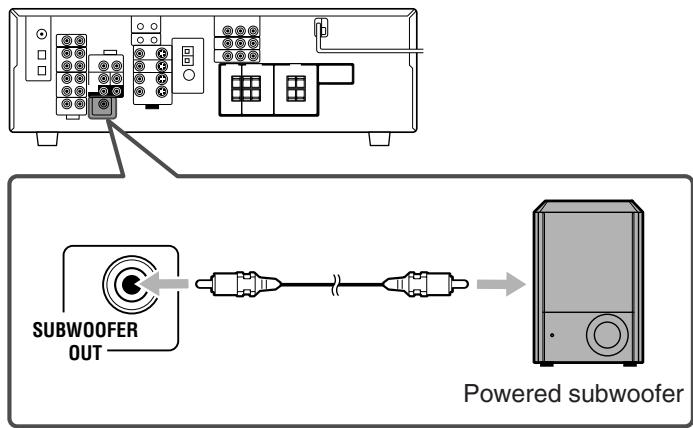
Placing speakers
Front speakers (L/R) and center speaker (C)
- Place these speakers at the same height from the floor, at or near ear level.
- Array across the front of the viewing area.
Surround speakers (LS/RS)
- Place these speakers alongside and slightly to the rear of (but not behind) the listening position; well above ear level (60 cm to 90 cm higher).
- Point these speakers directly across the listening area, but not at the listener's ears.
Subwoofer (S.WFR)
- You can place it wherever you like since bass sound is non-directional. Normally place it in front of you.
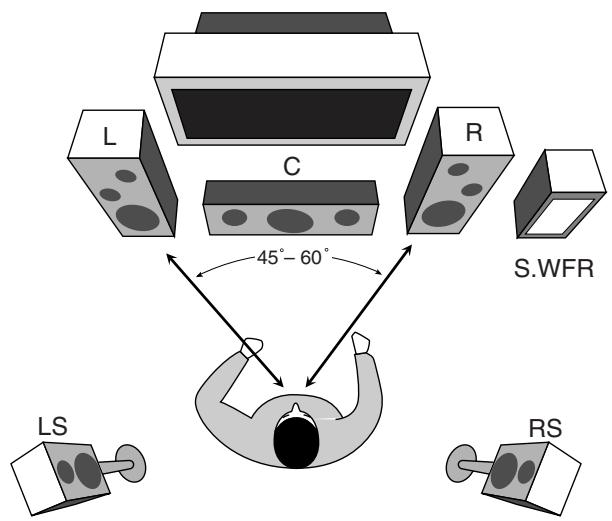
After connecting the speakers, set the speaker installation information properly. You can use Quick Speaker Setup for it (see page 18).
Connecting Audio/Video Components
When connecting individual components, refer also to the manuals supplied with them.
■ Analog Connections
Audio component connections
Use the cables with RCA pin plugs (not supplied).
- Connect the white plug to the audio left jack, and the red plug to the audio right jack.
If your audio components have a COMPU LINK jack
See also page 30 for detailed information about the connection and the COMPU LINK remote control system.
CAUTION:
If you connect a sound-enhancing device such as a graphic equalizer between the source components and this receiver, the sound output through this receiver may be distorted.
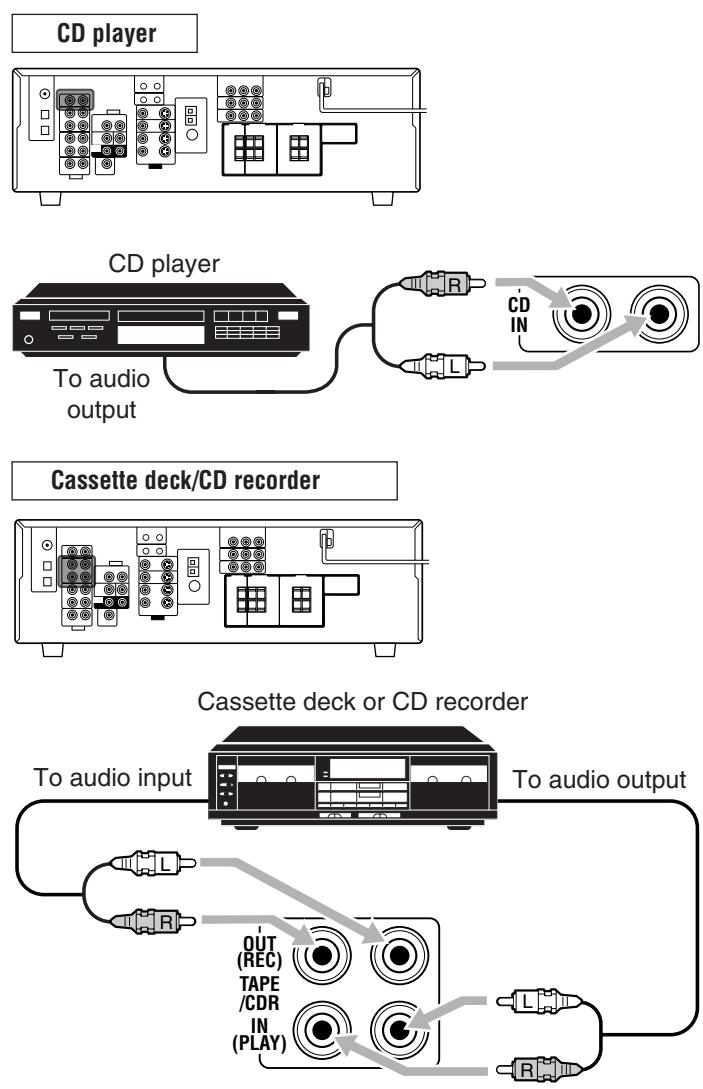
Note:
When connecting a CD recorder to the TAPE/CDR jacks, change the source name to "CDR," which will be shown on the display when it is selected as the source. See page 14 for details.
Video component connections
Use the cables with RCA pin plugs (not supplied).
Connect the white plug to the audio left jack, the red plug to the audio right jack, and the yellow plug to the video jack.
- For RX-6040B/RX-6042S: If your video components have the video input/output jacks of different types, connect them by using these jacks, you can get better picture quality in the order:
Component video > S-video > Composite video
However, the video signals from one type of these input jacks are transmitted only through the video output jacks of the same type.
If your video components have an AV COMPU LINK jack See also page 31 for detailed information about the connection and the AV COMPU LINK remote control system.
![graph TD A["VCR"] --> B["Only for RX-6040B/RX-6042S"] B --> C["VCR IN"] C --> D["OUT (REC)"] C --> E["IN (PLAY)"] C --> F["S-VIDEO"] D --> G["VIDEO"] E --> G F --> G G --> H["OUT (REC)"] G --> I["VCR"] G --> J["IN (PLAY)"] H --> K["R"] I --> L["L"] J --> M["R"] K --> N["F"] L --> N M --> N N --> O["…](/content/2025/01/123421/images/2cd8ffcb3a06962a487b034a35539a47beaf10c454de9abe4a92a242c431933b.jpg)
VCR
![graph TD A["TV"] --> B["COMPONENT VIDEO MONITOR OUT"] B --> C["MONITOR OUT"] C --> D["Red"] C --> E["Blue"] C --> F["Green"] G["TV"] --> H["AUDIO"] H --> I["MONITOR OUT"] I --> J["Red"] I --> K["Blue"] I --> L["Green"] M["TV"] --> N["TV SOUND IN"] N --> O["RIGHT"] N --> P["LEFT"] Q["A"] --> R["R"] Q…](/content/2025/01/123421/images/3d6186b6f814ff5188eebc0055110731bf21a16ea2bc604081394e1ce5f8c00a.jpg)
Connect the TV to appropriate MONITOR OUT jacks to view the playback picture from any other connected video components.
A To audio output
B To component video input
C To S-video input
D To composite video input
A To S-video output
B To composite video output
C To composite video input
D To S-video input
E To component video output
F To audio output
G To audio input
DVD player
- When you connect a DVD player with stereo output jacks:
![graph TD A["Only for RX-6040B/RX-6042S"] --> B["DVD IN"] B --> C["Green"] B --> D["Blue"] B --> E["Red"] F["DVD player"] --> G["AUDIO"] G --> H["RIGHT"] G --> I["LEFT"] G --> J["FRONT"] G --> K["L"] G --> L["HD"] G --> M["HDIN"] G --> N["HDIN"] G --> O["HDIN"] G --> P["HDIN"]](/content/2025/01/123421/images/a115695f89cd71db68f0ef9aee97eb3082080b20d2851bac8abf4ccbc14f8df1.jpg)
A To component video output
B To S-video output
C To composite video output
D To left/right front channel audio output (or to audio-mixed output if necessary)
Notes:
- For RX-6040B/RX-6042S: When connecting a DVD player to the component video input jacks, make the component video input setting (VIDEO IN DVD) correctly for AV COMPU LINK. See page 22 for details.
- To enjoy Dolby Digital and DTS multi-channel software (including Dual Mono software), connect the DVD player through the digital input/output terminals.
Only for RX-6040B/RX-6042S
- When you connect a DVD player with its analog discrete output (5.1-channel reproduction) jacks:
This connection is the best connection method for enjoying DVD Audio sounds.
- When a DVD Audio disc is played back, the original high-quality sounds can be reproduced only using this connection.
![graph TD A["DVDA"] --> B["AVOC"] B --> C["AVOC"] C --> D["AVOC"] D --> E["AVOC"] E --> F["AVOC"] F --> G["AVOC"] G --> H["AVOC"] H --> I["AVOC"] I --> J["AVOC"] J --> K["AVOC"] K --> L["AVOC"] L --> M["AVOC"] M --> N["AVOC"] N --> O["AVOC"] O --> P["AVOC"] P --> Q["AVOC"] Q --> R["AVOC"] R --> S["AV…](/content/2025/01/123421/images/412e6f68ed188631f6e9d0868a44512eef4c3aeaff79a3f14a51dd4b46af26c5.jpg)
A To subwoofer output
B To center channel audio output
C To left/right front channel audio output
D To component video output
E To S-video output
F To composite video output
G To left/right surround channel audio output
Note:
When connecting a DVD player to the component video input jacks, make the component video input setting (VIDEO IN DVD) correctly for AV COMPU LINK. See page 22 for details.
Digital Connections
By connecting the receiver and the source component through the digital terminals, sound reproduction quality will be much improved. In addition, you can enjoy multi-channel reproduction and some other convenient functions.
IMPORTANT:
- When connecting a video component using the digital terminals, you also need to connect it to the video jacks on the rear. Without connecting it to the video jacks, you can view no playback picture.
- After connecting the components using the DIGITAL IN terminals, set the following correctly if necessary.
- Set the digital input (DIGITAL IN) terminal setting correctly. For details, see “Setting the Digital Input Terminals” on page 22.
- Select the digital input mode correctly. For details, see "Selecting the Analog or Digital Input Mode" on page 13.
Digital input terminals
You can connect any digital components having coaxial or optical digital output terminal.
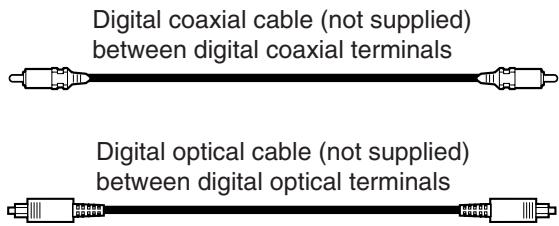
When the component has a digital coaxial output terminal, connect it to the DIGITAL 1 (DVD) terminal, using a digital coaxial cable (not supplied).
When the component has a digital optical output terminal, connect it to the DIGITAL 2 (CD)—or DIGITAL 3 (TV) for RX-6040B/RX-6042S—terminal, using a digital optical cable (not supplied).
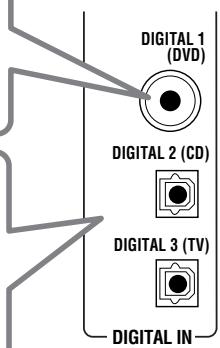
Before connecting a digital optical cable, unplug the protective plug.


Notes:
- When shipped from the factory, the DIGITAL IN terminals have been set for use with the following components:
– DIGITAL 1 (coaxial): For DVD player - DIGITAL 2 (optical): For CD player
Only for RX-6040B/RX-6042S:
– DIGITAL 3 (optical): For digital TV broadcast tuner - When you want to operate the CD player or CD recorder using the COMPU LINK remote control system (see page 30), connect it also as described in “Analog Connections” (see page 7).
- When you want to operate a DVD player or TV using the AV COMPU LINK remote control system (see page 31), connect it also as described in “Analog Connections” (see pages 8 and 9).
Connecting the Power Cord
Before plugging the receiver into an AC outlet, make sure that all connections have been made.
Plug the power cord into an AC outlet.
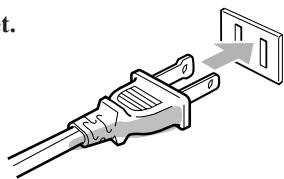
Keep the power cord away from the connecting cables and the antenna. The power cord may cause noise or screen interference.
Note:
The preset settings such as preset channels and sound adjustment may be erased in a few days in the following cases:
- When you unplug the power cord.
- When a power failure occurs.
CAUTIONS:
- Do not touch the power cord with wet hands.
- Do not pull on the power cord to unplug the cord. When unplugging the cord, always grasp the plug so as not to damage the cord.
The following operations are commonly used when you play any sound sources.
Operations hereafter will be explained using the buttons on the front panel.
You can also use the buttons on the remote control for the same functions if they have the same and similar names/marks.
Daily Operational Procedure
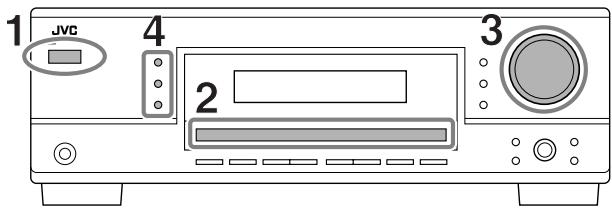
1 Turn on the power.
• See “Turning On the Power” below.
2 Select the source.
- See “Selecting the Source to Play” to the right.
3 Adjust the volume.
• See “Adjusting the Volume” on page 12.
4 Select the Surround or DSP modes.
- See “Activating the Surround Modes” (page 27) and “Activating the DSP Modes” (page 29).
Turning On the Power
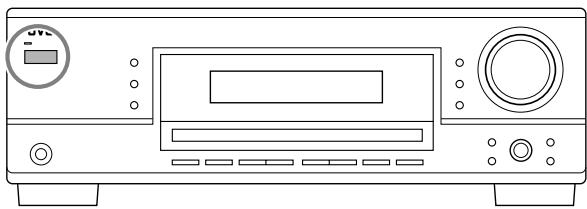
Press STANDBY/ON Ⓧ/l (or STANDBY/ON Ⓧ/l AUDIO on the remote control).
The STANDBY lamp goes off.
Current source name appears.
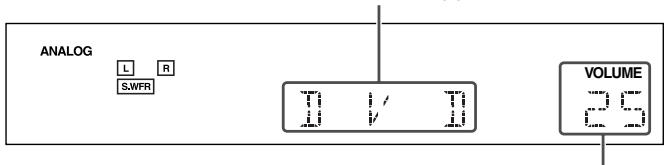
Current volume level appears.
To turn off the power (into standby mode),
press STANDBY/ON Ⓧ/l (or STANDBY/ON Ⓧ/l AUDIO on the remote control) again.
The STANDBY lamp lights up.
Note:
A small amount of power is consumed in standby mode. To turn off the power completely, unplug the AC power cord.
Selecting the Source to Play
When you have connected digital source components using the digital terminals, first change the input mode for these components to the digital input mode (see page 13).
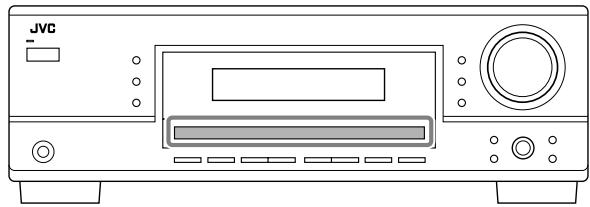
Press one of the source selection buttons.
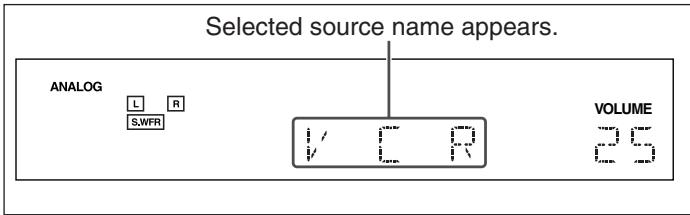
For RX-6040B/RX-6042S

On the front panel
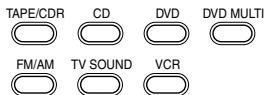
On the remote
Note:
When you select “DVD MULTI,” you can enjoy analog discrete output sound (5.1-channel surround reproduction) from the external component.
- You may need to select analog discrete output mode on the external component.
- When using the headphones, you can listen to the front channel sounds (left and right) only.
- Surround and DSP modes (see pages 25 and 28) cannot be applied to "DVD MULTI."
For RX-5040B/RX-5042S/RX-5045B

On the front panel
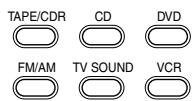
On the remote
Note:
When connecting a CD recorder to the TAPE/CDR jacks, change the source name shown on the display. For details, see page 14.
Speaker and signal indicators on the display
By checking the following indicators, you can easily confirm which speakers you are activating and which signals are coming into this receiver.
Speaker indicators
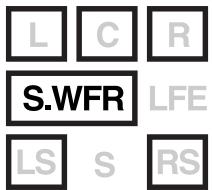
SB
Signal indicators
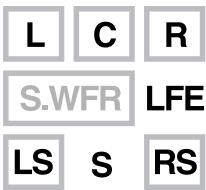
SB
What speaker indicators light depends on the speaker setting (for details, see “Setting the Speakers” on page 20).
- The frames of “L,” “C,” “R,” “LS,” and “RS” light up, when the corresponding speakers are set to “LARGE” or “SMALL.” Sounds come out of the speakers whose speaker indicators is lit on the display.
- The S.WFR indicator lights up when the subwoofer is activated (see pages 13 and 20).
The signal indicators light up to show the incoming signals.
L: • When digital input is selected: Lights up when the left channel signal comes in.
- When analog input is selected: Always lights up.
R: • When digital input is selected: Lights up when the right channel signal comes in.
- When analog input is selected: Always lights up.
C: Lights up when the center channel signal comes in.
LFE: Lights up when the LFE channel signal comes in.
LS: Lights up when the left surround channel signal comes in.
RS: Lights up when the right surround channel signal comes in.
S: Lights up when the monaural surround channel signal comes in.
SB: Lights up when the surround back channel signal comes in.
Note:
For RX-6040B/RX-6042S: When "DVD MULTI" is selected as the source, "L," "C," "R," "LFE," "LS," and "RS" light up.
How to understand the speaker and signal indicator illumination
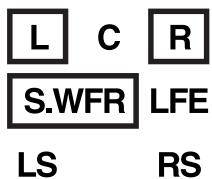
Ex. No sound comes out of the center speaker and surround speakers though center channel and surround channel signals are coming into this receiver.
Selecting different sources for picture and sound
While watching pictures from a video source, you can listen to sound of an audio source.
- Once you have selected a video source, pictures of the selected source are sent to the TV until you select another video source.
Press one of the audio source selection buttons while viewing the picture from a video component such as the VCR or DVD player, etc.
For RX-6040B/RX-6042S
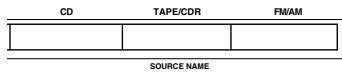
| CD | TAPE/CDR | FM | AM |
| SOURCE NAME | |||
On the front panel
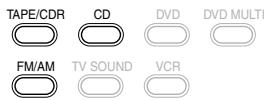
On the remote
For RX-5040B/RX-5042S/RX-5045B
On the front panel

On the remote
Note:
For RX-6040B/RX-6042S: When you see the picture through the COMPONENT VIDEO jacks, you cannot use this function.
Adjusting the Volume
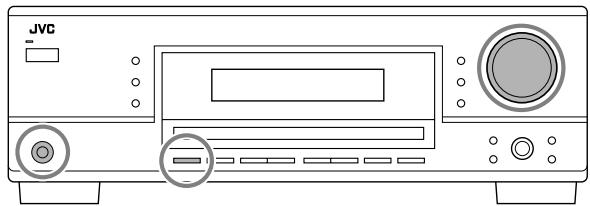
On the front panel:
To increase the volume, turn MASTER VOLUME clockwise. To decrease the volume, turn it counterclockwise.
On the remote control:
To increase the volume, press VOLUME +. To decrease the volume, press VOLUME -.
CAUTION:
Always set the volume to the minimum before starting any sources. If the volume is set at its high level, the sudden blast of sound energy can permanently damage your hearing and/or ruin your speakers.
Note:
The volume level can be adjusted within the range of "0" (minimum) to "50" (maximum).
Listening with headphones:
You can enjoy not only stereo software but also multi-channel software through the headphones. (Sounds are down-mixed to the front channels while playing multi-channel software.)
1 Press SPEAKERS ON/OFF to deactivate the speakers. "HEADPHONE" appears for a while, and the H.PHONE indicator lights on the display.
- If the Surround or DSP mode has been activated, “3D H PHONE” appears for a while (and the DSP indicator also lights up on the display)—3D Headphone Mode (3D H PHONE). For details, see page 26.
2 Connect the headphones to the PHONES jack on the front panel. - If you do not deactivate the speakers, no sound comes out of the headphones.
After using the headphones, disconnect the headphones, then press SPEAKERS ON/OFF again to activate the speakers.
CAUTION:
Be sure to turn down the volume....
- Before connecting or putting on headphones, as its high volume can damage both the headphones and your hearing.
- Before turning on speakers again, as its high volume may come out of the speakers.
Turning On and Off the Subwoofer Sound
You can cancel the subwoofer output even though you have connected a subwoofer and have set “SUBWOOFER” to “SUBWOOFER YES” (see page 20).
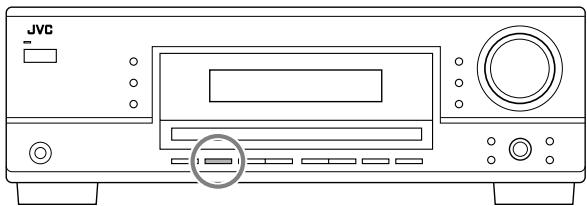
Press SUBWOOFER OUT ON/OFF to cancel the subwoofer output.
Each time you press the button, subwoofer output is deactivated (“SUBWOOFER OFF”) and activated (“SUBWOOFER ON”) alternately.
- When subwoofer output is canceled, the S.WFR indicator goes off. Bass sounds (and LFE signals) will be emitted through the front speakers.
Notes:
- When subwoofer output is activated, you can also adjust the subwoofer output level. For details, see page 24.
- You cannot deactivate the subwoofer output when you set "SMALL" for the front speakers on the speaker size setting (see page 20) or using Quick Speaker Setup (see page 18).
- You cannot activate the subwoofer output when you have set "SUBWOOFER" to "SUBWOOFER NO" (see page 20).
- When you change the “SUBWOOFER” setting from “SUBWOOFER NO” to “SUBWOOFER YES” (see page 20), subwoofer output is automatically activated.
Selecting the Analog or Digital Input Mode
When you have connected digital source components using the both analog and digital terminals (see pages 7 to 10), you can select the input mode—either digital or analog—for these components.
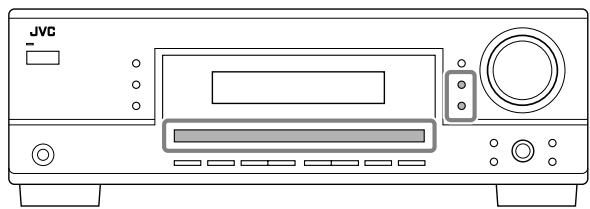
Before you start, remember...
The digital input terminal setting should be correctly done for the sources you want to select the digital input mode (see “Setting the Digital Input Terminals” on page 22).
1 Press one of the source selection buttons (DVD, TV SOUND, CD, TAPE/CDR*) for which you want to change the input mode.
* If “TAPE” is selected as the source, digital input mode is not available. To change the source name, see “Changing the Source Name” on page 14.
2 Press INPUT DIGITAL to select "DIGITAL AUTO."
The DIGITAL AUTO indicator lights up on the display.
- When using the remote control, press ANALOG/DIGITAL. Each time you press the button, the analog (ANALOG) and digital (DIGITAL AUTO) input modes alternate.

- When selecting “DIGITAL AUTO,” the following indicators indicate the digital signal format of the incoming signal.
LINEAR PCM : Lights up when Linear PCM signals come in.
☐ DIGITAL : Lights up when Dolby Digital signals come in.
dts : Lights up when conventional DTS signals come in.
dts 96/24 : Lights up when DTS 96/24 signals come in.
No indicator lights up when the receiver cannot recognize the digital signal format of the incoming signals.
Note:
For details about the digital signal formats, see pages 25 and 26.
When playing software encoded with Dolby Digital or DTS, the following symptoms may occur:
- Sound does not come out at the beginning of playback.
- Noise comes out while searching for or skipping chapters or tracks.
In this case, press INPUT DIGITAL repeatedly to select “DOLBY DIGITAL” or “DTS SURROUND.”
• Each time you press INPUT DIGITAL, the input mode changes as follows:
![graph TD A["DIGITAL AUTO"] --> B["DOLBY DIGITAL"] B --> C["DTS SURROUND"] subgraph Digital AUTO L["L"] --> C C --> R["R"] S["WFR"] --> L L --> LFE["LFE"] LS["LS"] --> R RS["RS"] end subgraph Digital AUTO AUTO A1[" "] --> B1["DOLBY DIGITAL"] end](/content/2025/01/123421/images/4e75166245be92168841973a041cc14a00f675a25ef47de406c78753e4cda476.jpg)
When “DOLBY DIGITAL” or “DTS SURROUND” is selected, the DIGITAL AUTO indicator goes off, and the corresponding digital signal format indicator lights up on the display.
- If the incoming signal does not match the selected digital signal format, the indicator of the selected signal format will flash.
Note:
When you turn off the power or select another source, “DOLBY DIGITAL” and “DTS SURROUND” settings are canceled and the digital input mode is automatically reset to “DIGITAL AUTO.”
To select the analog input mode
Press INPUT ANALOG (or ANALOG/DIGITAL on the remote control repeatedly until “ANALOG” appears on the display). The ANALOG indicator lights up.

Changing the Display Brightness
You can dim the display.
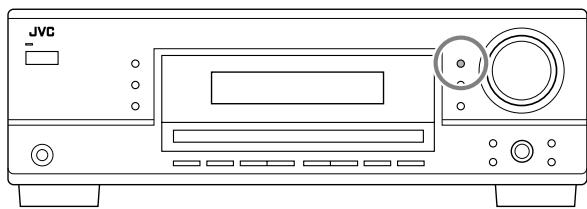
Press DIMMER.
• Each time you press the button, the display dims and brightens alternately.
Attenuating the Input Signal

When the input level of the analog source is too high, the sounds will be distorted. If this happens, you need to attenuate the input signal level to prevent the sound distortion.
- Once you have made adjustment, it is memorized for each analog source.
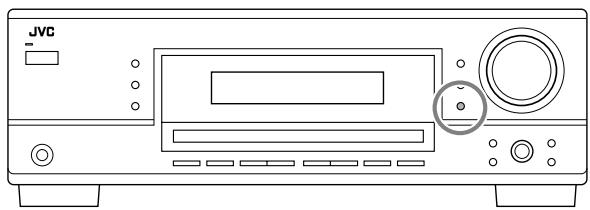
Press and hold INPUT ATT (INPUT ANALOG) so that the INPUT ATT indicator lights up on the display.
- Each time you press and hold the button, the input attenuator mode turns on (“INPUT ATT ON”) and off (“INPUT NORMAL”).
Note:
For RX-6040B/RX-6042S: This function is not valid when "DVD MULTI" is selected.
Changing the Source Name

When you have connected a CD recorder to the TAPE/CDR jacks on the rear panel, change the source name which will be shown on the display.
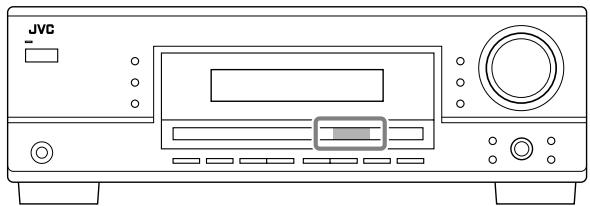
When changing the source name from “TAPE” to “CDR”:
1 Press TAPE/CDR (SOURCE NAME).
- Make sure “TAPE” appears on the display.
2 Press and hold SOURCE NAME (TAPE/CDR) until "ASSIGN CDR" appears on the display.

To change the source name back to “TAPE,” repeat the same procedure above.
Note:
Without changing the source name, you can still use the connected components. However, there may be some inconvenience.
- “TAPE” will appear on the display when you select the CD recorder.
- You cannot use the digital input (see page 13) for the CD recorder.
The following basic operations are possible only using the remote control.
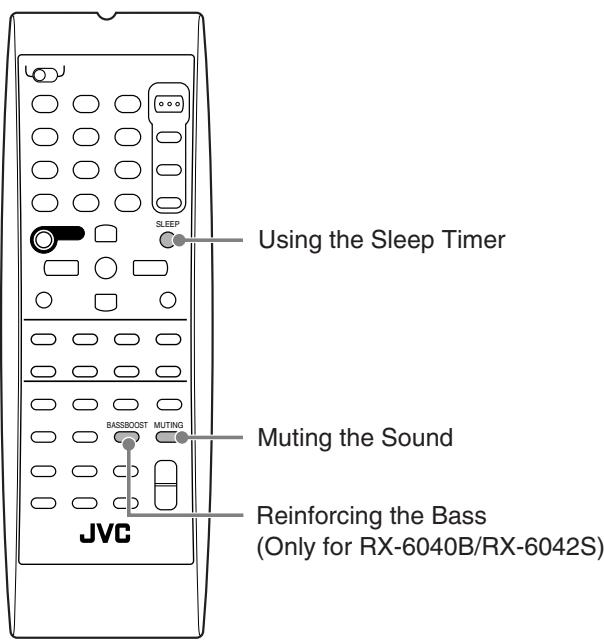
Reinforcing the Bass

This function is only for RX-6040B/RX-6042S.
You can boost the bass level.
- Once you have made adjustment, it is memorized for each source.
Press BASS BOOST to boost the bass level.
The BASS BOOST indicator lights up on the display.
- Each time you press the button, Bass Boost turns on (“BASSBOOST ON”) and off (“BASSBOOST OFF”) alternately.
Note:
This function affects only the sounds from the front speakers.
Muting the Sound

Press MUTING to mute the sound through all speakers and headphones connected.
“MUTING” appears on the display and the volume turns off (the VOLUME indicator and its level indication go off).
To restore the sound, press MUTING again.
- Turning MASTER VOLUME on the front panel or pressing VOLUME +/- on the remote control also restores the sound.
Using the Sleep Timer

Using the Sleep Timer, you can fall asleep while listening to music. When the shut-off time comes, the receiver turns off automatically.
Press SLEEP repeatedly.
The SLEEP indicator lights up on the display, and the shut-off time changes in 10 minutes intervals:
![graph LR A["10"] --> B["20"] B --> C["30"] C --> D["40"] D --> E["50"] E --> F["60"] F --> G["70"] G --> H["80"] H --> I["90"] I --> J["OFF (Canceled)"] J --> A](/content/2025/01/123421/images/c26b8c7a8d07abc380d4169c6d494e219fbf41fcbcba70223187f70a27aa7fa2.jpg)
To check or change the time remaining until the shut-off time: Press SLEEP once.
The remaining time until the shut-off time appears in minutes.
- To change the shut-off time, press SLEEP repeatedly.
To cancel the Sleep Timer:
Press SLEEP repeatedly until “SLEEP OFF” appears on the display. The SLEEP indicator goes off.
- Turning off the power also cancels the Sleep Timer.
Recording a source
You can record any sources playing through the receiver to a cassette deck (or a CD recorder) connected to the TAPE/CDR jacks and the VCR connected to the VCR jacks at the same time.
While recording, you can listen to the selected sound source at whatever sound level you like without affecting the sound levels of the recording.
Note:
The output volume level, Midnight Mode (see page 21), Bass Boost (only for RX-6040B/RX-6042S), Equalization patterns (see page 24), Surround modes and DSP modes (see pages 25 to 29) cannot affect the recording.
Basic adjustment auto memory
This receiver memorizes sound settings for each source—
- when you turn off the power,
- when you change the source,
- when you change the analog/digital input modes, and
- when you assign the source name (see page 14).
When you change the source, the memorized settings for the newly selected source are automatically recalled.
The following can be stored for each source:
- Analog/digital input mode (see page 13)
- Input attenuator mode (see page 14)
• Equalization pattern (see page 24) - Speaker output levels (see page 24)
- Surround and DSP mode selection (see pages 25 and 28)
- Bass Boost setting (only for RX-6040B/RX-6042S)
Notes:
- If the source is FM or AM, you can assign a different setting for each band.
- A sound setting assigned for a digital component is valid for both the analog and digital input modes.
You can browse through all the stations or use the preset function to go immediately to a particular station.
Tuning in to Stations Manually
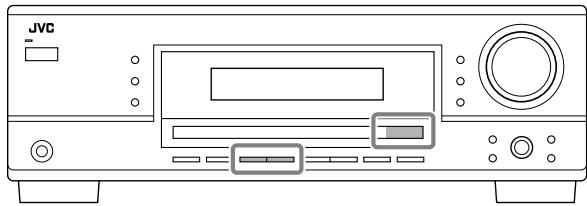
1 Select the band (FM or AM).
- For RX-6040B/RX-6042S: Press FM or AM.
- For RX-5040B/RX-5042S/RX-5045B: Press FM/AM. Each time you press the button, the band alternates between FM and AM.
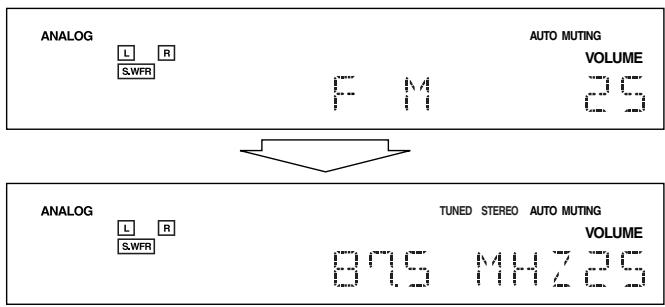
The last received station of the selected band is tuned in.
2 Press FM/AM TUNING ▲ or ▼ repeatedly until you find the frequency you want.
- Pressing FM/AM TUNING ▲ increases the frequency.
- Pressing FM/AM TUNING ▼ decreases the frequency.

Notes:
- When a station of sufficient signal strength is tuned in, the TUNED indicator lights up on the display.
- When an FM stereo program is received, the STEREO indicator also lights up.
- When you hold and then release the button in step 2, the frequency keeps changing until a station is tuned in.
Using Preset Tuning
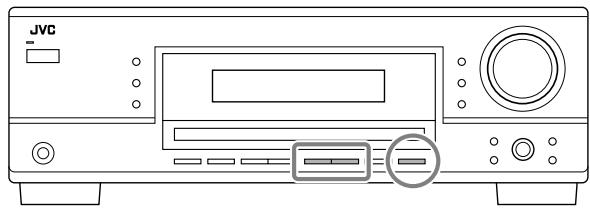
Once a station is assigned to a channel number, the station can be quickly tuned in. You can preset up to 30 FM and 15 AM stations.
To store the preset stations
Before you start, remember...
There is a time limit in doing the following steps. If the setting is canceled before you finish, start from step 2 again.
1 Tune in the station you want to preset (see "Tuning in to Stations Manually").
- If you want to store the FM reception mode for this station, select the FM reception mode you want. See “Selecting the FM Reception Mode” on page 17.
2 Press MEMORY.

The channel number position starts flashing on the display for about 5 seconds.
3 Press FM/AM PRESET ▲ or ▼ to select a channel number while the channel number position is flashing.

4 Press MEMORY again while the selected channel number is flashing on the display.
The selected channel number stops flashing.
The station is assigned to the selected channel number.
5 Repeat steps 1 to 4 until you store all the stations you want.
To erase a stored preset station
Storing a new station on a used number erases the previously stored one.
To tune in a preset station
On the front panel:
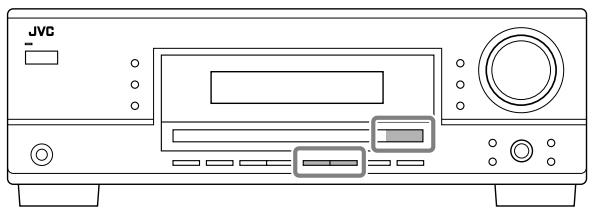
1 Select the band (FM or AM).
- For RX-6040B/RX-6042S: Press FM or AM.
- For RX-5040B/RX-5042S/RX-5045B: Press FM/AM. Each time you press the button, the band alternates between FM and AM.
2 Press FM/AM PRESET ▲ or ▼ until you find the channel you want.
- Pressing FM/AM PRESET ▲ increases the number.
- Pressing FM/AM PRESET ▼ decreases the number.
On the remote control:
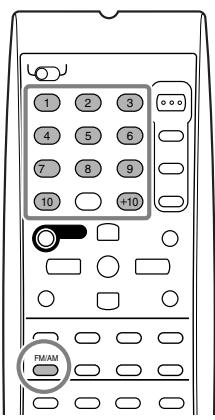
1 Press FM/AM to select the band.
The last received station of the selected band is tuned in.
• Each time you press the button, the band alternates between FM and AM.
2 Press the 10 keys to select a preset channel number.
- For channel number 5, press 5.
- For channel number 15, press +10 then 5.
- For channel number 20, press +10 then 10.
- For channel number 30, press +10, +10, then 10.
Note:
When you use the 10 keys on the remote control, be sure that they are activated for the tuner, not for the CD and others. (See page 33.)
Selecting the FM Reception Mode
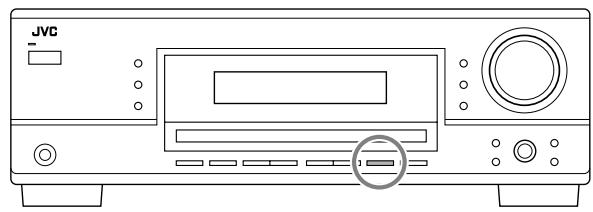
When an FM stereo broadcast is hard to receive or noisy, you can change the FM reception mode while receiving an FM broadcast.
- You can store the FM reception mode for each preset station (see page 16).
While listening to an FM station, press FM MODE.
- Each time you press the button, the FM reception mode alternates between “AUTO MUTING” and “MODE MONO.”
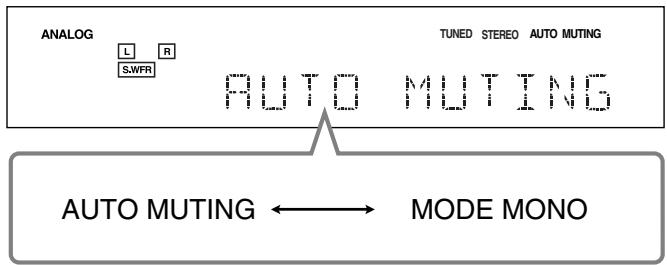
| AUTO MUTING: | Normally select this. |
| When a program is broadcasted in stereo, you will hear stereo sound; when in monaural, you will hear monaural sounds. This mode is also useful to suppress static noise between stations. The AUTO MUTING indicator lights up on the display. (Initial setting) |
| MODE MONO: | Select this to improve the reception (but stereo effect will be lost).In this mode, you will hear noise while tuning in to the stations.The AUTO MUTING indicator goes off from the display (the STEREO indicator goes off). |
Note:
After you operate any source other than the tuner using the remote control, the FM MODE button on the remote control does not work. In this case, press FM/AM on the remote control, then press FM MODE.
Some of the following settings are required after connecting and positioning your speakers while others will make operations easier. You can use QUICK SPEAKER SETUP to easily set up your speaker configuration.
Quick Speaker Setup

Quick Speaker Setup helps you to easily and quickly register the speaker size and speaker distance according to your listening room to create the best possible surround effect.
- You can also register each speaker's information manually. For details, see page 20.
Before you start, remember...
There is a time limit in doing the following steps. If the setting is canceled before you finish, start from step 1 again.
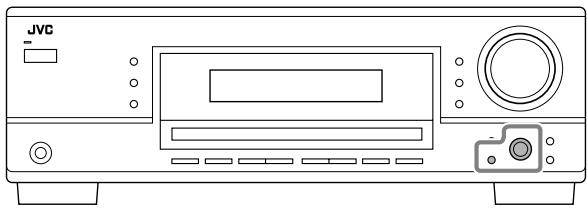
1 Press QUICK SPEAKER SETUP.
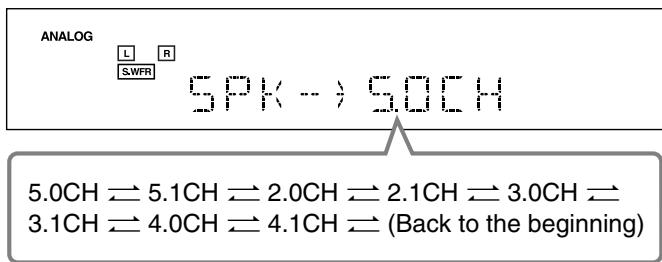
“SPK→” and the initial speaker channel number appear.
- Depending on your model, it will be either “5.0CH” or “5.1CH.”
2 Turn MULTI JOG to select an appropriate number of the connected speakers (speaker channel number).
As you turn the jog, the speaker channel number changes as follows.
- For the details of speaker channel number, see “Speaker channel number and the size.”
3 Press in MULTI JOG (PUSH SET).
“ROOM SIZE→” and the initial room size setting appear.
4 Turn MULTI JOG to select an appropriate room size to match to your listening room.
As you turn the jog, the room size changes as follows.
- To select your appropriate room size, see “Room size and the speaker distance.”
![graph TD A["ANALOG"] --> B["L"] A --> C["R"] A --> D["S,WFR"] B --> E["ROOM SIZE-->L"] C --> E D --> E E --> F["L (Large)"] E --> G["S (Small)"] E --> H["M (Medium)"]](/content/2025/01/123421/images/1e64cfb9d2d0117a70e39846c9280ec52f9470296b27ad17c70ff228bd9759f4.jpg)
5 Press in MULTI JOG (PUSH SET).
“COMPLETE” appears on the display, then goes back to the source indication.
Notes:
- This procedure will not be completed if you stop in the middle of the setting process.
- Once Quick Speaker Setup is performed, the speaker output levels are also set to appropriate values automatically (common to all sources). If you want to set the speaker output levels separately for each source, see “Adjusting the Speaker Output Levels” on page 24.
Speaker channel number and the size
You can find how each of the speaker size is defined according to the number of connected speakers (speaker channel “CH” number) you select.
- Subwoofer (S.WFR) is counted as 0.1 channel.
| CH | The size of the connected speakers | |||
| L/R | C | LS/RS | S.WFR | |
| 2.0CH | LARGE | NONE | NONE | NO |
| 2.1CH | SMALL | NONE | NONE | YES |
| 3.0CH | LARGE | SMALL | NONE | NO |
| 3.1CH | SMALL | SMALL | NONE | YES |
| 4.0CH | LARGE | NONE | SMALL | NO |
| 4.1CH | SMALL | NONE | SMALL | YES |
| 5.0CH | LARGE | SMALL | SMALL | NO |
| 5.1CH | SMALL | SMALL | SMALL | YES |
Room size and the speaker distance
According to the selected room size, speaker distance for each activated speaker is set as follows:
| Size | Speaker | Distance |
| L(Large) | L/R | 3.0 m (10 ft) |
| C | 3.0 m (10 ft) | |
| LS/RS | 3.0 m (10 ft) | |
| M(Medium) | L/R | 2.7 m (9 ft) |
| C | 2.4 m (8 ft) | |
| LS/RS | 2.1 m (7 ft) | |
| S(Small) | L/R | 2.4 m (8 ft) |
| C | 2.1 m (7 ft) | |
| LS/RS | 1.5 m (5 ft) |
Note:
In the tables above, “L” stands for the left front speaker, “R” for the right front speaker, “C” for the center speaker, “LS” for the left surround speaker, “RS” for the right surround speaker, and “S.WFR” for the subwoofer.
Basic Setting Items
On the following pages, you can adjust the following items:
- You can only select the items currently available. For details, see the explanation of each item.
| Items | To do | See page |
| SUBWOOFER*1 | Register your subwoofer. | 20 |
| FRNT SPEAKERS*1 | Register your front speaker size. | 20 |
| CNTR SPEAKER*1 | Register your center speaker size. | 20 |
| SURR SPEAKERS*1 | Register your surround speaker size. | 20 |
| DISTANCE UNIT | Select the measuring unit for the speaker distance. | 20 |
| FRONT L DIST*1 | Register the distance from the left front speaker to your listening point. | 20 |
| FRONT R DIST*1 | Register the distance from the right front speaker to your listening point. | 20 |
| CENTER DIST*1 | Register the distance from the center speaker to your listening point. | 20 |
| SURR L DIST*1 | Register the distance from the left surround speaker to your listening point. | 20 |
| SURR R DIST*1 | Register the distance from the right surround speaker to your listening point. | 20 |
| SUBWOOFER OUT | Select the type of the sounds emitted from the subwoofer. | 20 |
| CROSSOVER | Select the cutoff frequency to the subwoofer. | 21 |
| LFE ATTENUATE | Attenuate the bass (LFE) sounds. | 21 |
| MIDNIGHT MODE | Reproduce a powerful sound at night. | 21 |
| DUAL MONO | Select the Dual Mono sound channel. | 21 |
| AUTO SURROUND | Turn on or off Auto Surround. | 21 |
| VIRTUAL SBACK | Turn on or off Virtual Surround Back. | 22 |
| DIGITAL IN | Select the component connected to digital input terminal. | 22 |
| VIDEO IN DVD*2 | Select the type of video terminal used for the DVD player. | 22 |
| VIDEO IN VCR*2 | Select the type of video terminal used for the VCR. | 22 |
Notes:
*1 These items can be set using Quick Speaker Setup.
*2 This setting is only for RX-6040B/RX-6042S.
Basic Procedure
Before you start, remember...
There is a time limit in doing the following steps. If the setting is canceled before you finish, start from step 1 again.
Ex. When setting Auto Surround to "AUTO SURR ON."
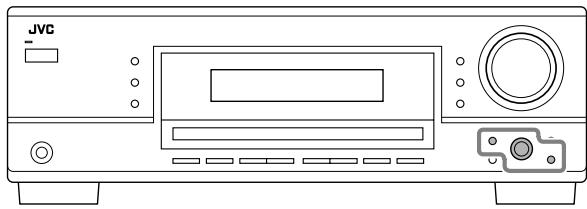
1 Press SETTING.
The last selected item appears on the display.

2 Turn MULTI JOG until an item you want appears on the display.
- In this example, select “AUTO SURROUND.” For available items, see the list “Basic Setting Items.”

3 Press in MULTI JOG (PUSH SET).
The current setting for the selected item appears on the display.

4 Turn MULTI JOG until a setting you want appears on the display.

5 Press in MULTI JOG (PUSH SET).
6 Repeat steps 2 to 5 to set other items if necessary.
7 Press EXIT.
The source indication resumes on the display.
Setting the Speakers
To obtain the best possible surround effect from the Surround and DSP modes, register the setting about the speaker arrangement after all connections are completed.
- If you have used Quick Speaker Setup on page 18, this setting is not required.
- Subwoofer setting—SUBWOOFER
Select whether you have connected a subwoofer or not.
SUBWOOFER YES: Select when a subwoofer is connected.
SUBWOOFER NO: Select when no subwoofer is used.
Note:
If you have selected "SUBWOOFER NO" for the subwoofer, you cannot use the SUBWOOFER OUT ON/OFF button on the front panel.
● Speaker size—FRNT SPEAKERS, CNTR SPEAKER, SURR SPEAKERS
Select the size for each connected speaker.
| LARGE: | Select when the speaker size is relatively large. |
| SMALL: | Select when the speaker size is relatively small. |
| NONE: | Select this when you have not connected a speaker. (Not selectable for the front speakers) |
Notes:
- Keep the following comments in mind as reference when adjusting.
- If the size of the cone speaker unit built in your speaker is larger than 12 cm ( 43/4 inches), select “LARGE,” and if it is smaller than 12 cm ( 43/4 inches), select “SMALL.”
- If you have selected "SUBWOOFER NO" for the subwoofer setting, you can only select "LARGE" for the front speakers.
- If you have selected "SMALL" for the front speakers, you cannot select "LARGE" for the center and surround speakers.
Setting the Speaker Distance
The distance from your listening point to the speakers is another important element to obtain the best possible sound of the Surround and DSP modes. Set the distance from your listening point to the speakers.
By referring to the speaker distance setting, this unit automatically sets the delay time of the sound through each speaker so that sounds through all the speakers can reach you with the same timing.
- If you have used Quick Speaker Setup on page 18, this setting is not required.
● Measuring unit—DISTANCE UNIT
Select which measuring unit you use.
UNIT METER: Select to set the distance in meters.
UNIT FEET: Select to set the distance in feet.
● Speaker distance—FRONT L DIST, FRONT R DIST, CENTER DIST, SURR L DIST, SURR R DIST
Set the distance from the listening point within the range of 0.3 m (1 ft) to 9.0 m (30 ft), in 0.3 m (1 ft) intervals.
- When shipped from the factory, distance for each speaker is set to “3.0 m (10 ft).”
Notes:
- You cannot set the speaker distance for the speakers you have selected "NONE."
- For RX-6040B/RX-6042S: This setting is not valid for "DVD MULTI."
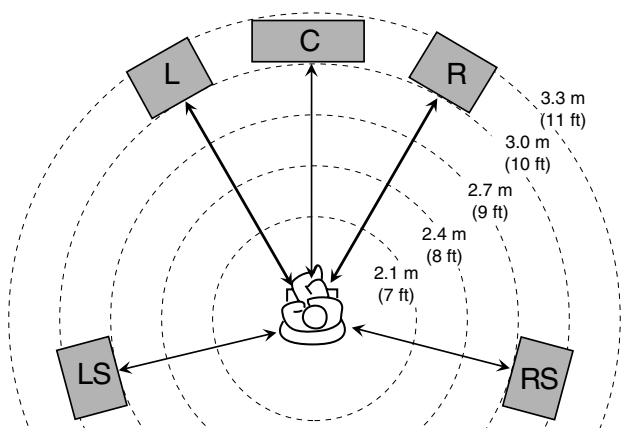
Ex. In the above case, set the speaker distance as follows:
| Front speakers: | 3.0 m (10 ft) |
| Center speaker: | 3.0 m (10 ft) |
| Surround speakers: | 2.7 m (9 ft) |
Setting the Bass Sounds
You can adjust subwoofer and bass sounds precisely according to your preference.
- Subwoofer output—SUBWOOFER OUT
You can select the type of the signal which can be transmitted through the subwoofer. In other words, you can determine whether or not the bass elements of the front speaker channels are transmitted through the subwoofer regardless of the front speaker size setting (either “SMALL” or “LARGE”).
Select one of the following:
| SWFR LFE: | Select to emit only the LFE signals (while playing Dolby Digital and DTS software) or the bass elements of the “SMALL” front speakers (while playing any source other than the above). |
| SWFR LFE+MAIN: | Select to always emit the bass elements of the front speaker channels (MAIN). While playing Dolby Digital and DTS software, the bass element and the LFE signals are both emitted. |
Note:
If you have selected "SUBWOOFER NO" for the subwoofer, this function is not available.
● Crossover frequency—CROSSOVER
You can select the crossover frequency for the small speakers used. The signals below the preset frequency level will be sent to and be reproduced by the subwoofer (or by “LARGE” speakers when “SUBWOOFER” is set to “SUBWOOFER NO”).
Select one of the crossover frequency levels according to the size of the small speaker connected.
| CROSS 80HZ: | Select when the cone speaker unit built in the speaker is about 12 cm ( 43/4 inches). |
| CROSS 100HZ: | Select when the cone speaker unit built in the speaker is about 10 cm ( 315/16 inches). |
| CROSS 120HZ: | Select when the cone speaker unit built in the speaker is about 8 cm ( 33/16 inches). |
| CROSS 150HZ: | Select when the cone speaker unit built in the speaker is about 6 cm ( 23/8 inches). |
| CROSS 200HZ: | Select when the cone speaker unit built in the speaker is about 5 cm (2 inches). |
Notes:
- If you have selected "LARGE" for all activated speakers (see page 20), this function is fixed to "CROSS OFF."
- Crossover frequency is not valid for "HEADPHONE," "3D H PHONE" (and "DVD MULTI" for RX-6040B/RX6042S).
● Low frequency effect attenuator—LFE ATTENUATE
If the bass sound is distorted while playing back software encoded with Dolby Digital or DTS, set the LFE level to eliminate distortion.
- This function takes effect only when the LFE signals come in.
Select one of the following:
LFE ATT 0dB: Normally select this.
LFE ATT -10dB: Select when the bass sound is distorted.
● Midnight mode—MIDNIGHT MODE
You can enjoy a powerful sound at night using Midnight Mode.
Select one of the following:
| MIDNIGHT 1: | Select when you want to reduce the dynamic range a little. |
| MIDNIGHT 2: | Select when you want to apply the compress effect fully (useful at midnight). |
| MIDNIGHT OFF: | Select when you want to enjoy playback with its full dynamic range (no effect applied). |
Note:
For RX-6040B/RX-6042S: Midnight Mode is not valid for "DVD MULTI."
■ Selecting the Main or Sub Channel
You can select the playback sound (channel) you want while playing digital software recorded (or broadcast) in Dual Mono mode (see page 26), which includes two monaural channels separately.
- Dual Mono—DUAL MONO
Select the playback sounds (channel).
| MONO MAIN: Select to play back the main channel (Ch 1).*Signal indicator “L” lights up while playing back this channel. | |
| MONO SUB: Select to play back the sub-channel (Ch 2).*Signal indicator “R” lights up while playing back this channel. | |
| MONO ALL: Select to play back both the main and sub-channels (Ch 1/Ch 2).*Signal indicators “L” and “R” light up while playing back these channels. |
Notes:
- The Dual Mono format is not identical with bilingual broadcasting or the MTS (Multichannel Television Sound) format used for TV programs. So this setting does not take effect while watching bilingual or MTS programs.
* Dual Mono signals can be heard from the following speakers—L (left front speaker), R (right front speaker), and C (center speaker)—with respect to the current Surround setting.
| Dual Mono Setting | Without Surround | With Surround Activated | |||||
| Center speaker setting | |||||||
| SMALL/LARGE | NONE | ||||||
| L | R | L | C | R | L | R | |
| MAIN | Ch 1 | Ch 1 | — | Ch 1 | — | Ch 1 | Ch 1 |
| SUB | Ch 2 | Ch 2 | — | Ch 2 | — | Ch 2 | Ch 2 |
| ALL | Ch 1 | Ch 2 | — | Ch 1+Ch 2 | — | Ch 1+Ch 2 | Ch 1+Ch 2 |
Setting for Easy and Effective Surround Operations
● Auto Surround—AUTO SURROUND
Auto Surround works when the unit detects the incoming digital signal. In other words, it works...
- When you select the digital source (the source with digital input selected for it), and
- When you change the input mode from analog to digital.
Select "AUTO SURR ON" to activate Auto Surround.
AUTO SURR ON:
- When multi-channel signal is detected, an appropriate Surround mode will be turned on.
- When Dolby Digital 2-channel with surround signals is detected, “PLII MOVIE” will be selected.
- When Dolby Digital 2-channel without surround signals is detected, “SURROUND OFF” will be selected.
- When Linear PCM signal is detected, nothing will change.
AUTO SURR OFF: Select to deactivate Auto Surround.
Notes:
• This function does not take effect in the following cases:
– While playing an analog source,
- While selecting any of DSP modes (see page 28), or one of the fixed digital input mode—“DOLBY DIGITAL” or “DTS SURROUND” (see page 14), and
- While listening with the headphones—"HEADPHONE" or "3D H PHONE" (see pages 13 and 26).
- If you select another Surround mode or DSP mode (or deactivate the Surround/DSP mode) manually, Auto Surround, if in use, will be canceled temporarily for the currently selected source.
Auto Surround setting will be restored in the following cases:
- When you turn the receiver off and on,
- When you change the source,
- When you change the analog/digital input, and
- When you select "AUTO SURR ON" again.
● Virtual Surround Back—VIRTUAL SBACK
You can enjoy the surround back channel while playing back Dolby Digital EX software or DTS-ES software without the surround back speakers. This function creates the great surround effect from the behind as if you have connected the surround back speakers.
Select "VRTL SB ON" to activate Virtual Surround Back.
VRTL SB ON: While you play Dolby Digital EX software or DTS-ES software, the VIRTUAL SB (Surround Back) indicator lights up.
VRTL SB OFF: Select to deactivate Virtual Surround Back.
Notes:
- When you have set "NONE" for "SURR SPEAKERS," this function is not available.
- While playing back DTS-ES Matrix software with DTS 96/24, DTS 96/24 processing will not be performed with Virtual Surround Back activated. To apply the processing, deactivate Virtual Surround Back.
Setting the Digital Input Terminals
When you use the digital input terminals, register which components you have connected to the digital input terminals.
● Digital Input terminal—DIGITAL IN
Set the components connected to the digital terminals.
- As you rotate MULTI JOG, the digital input terminals are set to used for the following digital components:
For RX-6040B/RX-6042S:
| 1DVD | 2CD | 3TV | 1DVD | 2CD | 3CDR | ||
| 1DVD | 2CD | 3VCR | 1DVD | 2TV | 3CDR | ||
| 1DVD | 2TV | 3VCR | 1DVD | 2CDR | 3VCR | ||
| 1CD | 2DVD | 3TV | 1CD | 2DVD | 3CDR | ||
| 1CD | 2DVD | 3VCR | 1CD | 2TV | 3CDR | ||
| 1CD | 2TV | 3VCR | 1CD | 2CDR | 3VCR | ||
| 1TV | 2DVD | 3CD | 1TV | 2DVD | 3CDR | ||
| 1TV | 2DVD | 3VCR | 1TV | 2CD | 3CDR | ||
| 1TV | 2CD | 3VCR | 1TV | 2CDR | 3VCR | ||
| 1CDR | 2DVD | 3CD | 1CDR | 2DVD | 3TV | ||
| 1CDR | 2DVD | 3VCR | 1CDR | 2CD | 3TV | ||
| 1CDR | 2CD | 3VCR | 1CDR | 2TV | 3VCR | ||
| 1VCR | 2DVD | 3CD | 1VCR | 2DVD | 3TV | ||
| 1VCR | 2DVD | 3CDR | 1VCR | 2CD | 3TV | ||
| 1VCR | 2CD | 3CDR | 1VCR | 2TV | 3CDR | ||
| (back to the beginning) | |||||||
For RX-5040B/RX-5042S/RX-5045B:
| 1DVD 2CD ⇌ 1DVD 2TV ⇌ 1DVD 2CDR ⇌ |
| 1CD 2DVD ⇌ 1CD 2TV ⇌ 1CD 2CDR ⇌ |
| 1TV 2DVD ⇌ 1TV 2CD ⇌ 1TV 2CDR ⇌ |
| 1CDR 2DVD ⇌ 1CDR 2CD ⇌ 1CDR 2TV ⇌ |
| (back to the beginning) |
Setting the Component Video Input
This setting is only for RX-6040B/RX-6042S.
When you use the component video inputs for connecting the DVD player and/or VCR, register the type of input jacks.
If you have not selected appropriate video input jacks, the AV COMPU LINK remote control system cannot operate properly. (See page 31.)
● For the DVD player—VIDEO IN DVD
Select one of the following:
DVD COMPONENT: Select when connecting the DVD player to the component video input jacks.
DVD S/C: Select when connecting the DVD player to the composite video or S-video input jacks.
● For the VCR—VIDEO IN VCR
Select one of the following:
VCR COMPONENT: Select when connecting the VCR to the component video input jacks.
VCR S/C: Select when connecting the VCR to the composite video or S-video input jacks.
You can make sound adjustment to your preference after completing basic settings.
Basic Adjustment Items
On the following pages, you can adjust the following items:
- You can adjust only the items applicable to the current sound mode.
| Items | To do | See page |
| DEQ 63HZ | Adjust equalizer pattern at 63 Hz. | 24 |
| DEQ250HZ | Adjust equalizer pattern at 250 Hz. | 24 |
| DEQ 1KHZ | Adjust equalizer pattern at 1 kHz. | 24 |
| DEQ 4KHZ | Adjust equalizer pattern at 4 kHz. | 24 |
| DEQ16KHZ | Adjust equalizer pattern at 16 kHz. | 24 |
| SUBWFR LEVEL | Adjust the subwoofer output level. | 24 |
| FRONT L LEVEL | Adjust the left front speaker output level. | 24 |
| FRONT R LEVEL | Adjust the right front speaker output level. | 24 |
| CENTER LEVEL | Adjust the center speaker output level. | 24 |
| SURR L LEVEL | Adjust the left surround speaker output level. | 24 |
| SURR R LEVEL | Adjust the right surround speaker output level. | 24 |
| EFFECT*1 | Adjust the effect level. | 24 |
| CENTER TONE*2 | Make the center tone soft or sharp. | 24 |
| PANORAMA CTRL*3 | Add “wraparound” sound effect with side-wall image. | 24 |
Notes:
*1 Adjustable when one of the DAP modes or Mono Film (see pages 28 and 29) is in use.
*2 This setting is only for RX-6040B/RX-6042S.
*3 Adjustable when Pro Logic II Music is in use.
Basic Procedure
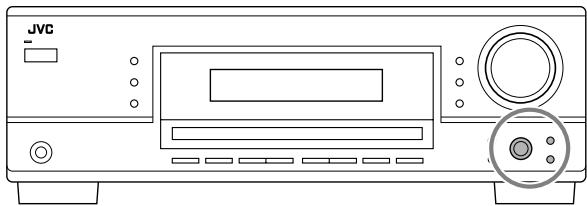
Before you start, remember...
There is a time limit in doing the following steps. If the setting is canceled before you finish, start from step 1 again.
Ex. When adjusting the subwoofer level to “-3”.
1 Press ADJUST.
The last selected item appears on the display.

2 Turn MULTI JOG until an item you want appears on the display.
- In this example, select “SUBWFR LEVEL.” For available items, see the list “Basic Adjustment Items.”

3 Press in MULTI JOG (PUSH SET).
The current setting (or level) for the selected item appears on the display.

4 Turn MULTI JOG to select a setting you want or to make an adjustment as you like.

5 Press in MULTI JOG (PUSH SET).
6 Repeat steps 2 to 5 to set other items if necessary.
7 Press EXIT.
The source indication resumes on the display.
■ Adjusting the Equalization Patterns
You can adjust the equalization patterns to your preference.
- Once you have made adjustment, it is memorized for each source.
● Equalization adjustment—DEQ 63HZ, DEQ250HZ, DEQ 1KHZ, DEQ 4KHZ, DEQ16KHZ
You can adjust five frequencies (63 Hz, 250 Hz, 1 kHz, 4 kHz, 16 kHz) within the range of -8 dB to +8 dB in 2 dB steps.
- When adjustment is made, the DIGITAL EQ indicator lights up on the display.
To flat the equalization pattern, set all the frequencies to “0 (0 dB)” in step 4 of “Basic Procedure” (on page 23). The DIGITAL EQ indicator goes off from the display.
Note:
The equalization patterns affect the front speaker sounds only.
■ Adjusting the Speaker Output Levels
You can adjust the speaker output levels.
- Once you have made adjustment, it is memorized for each source.
- Adjustable speakers—SUBWFR LEVEL, FRONT L LEVEL, FRONT R LEVEL, CENTER LEVEL, SURR L LEVEL, SURR R LEVEL
You can adjust the connected speakers' output levels within the range of -10 dB to +10 dB.
Notes:
- If you have deactivated a speaker (see page 20), the output level adjustment for the speaker is not adjustable.
- For RX-6040B/RX-6042S: All speakers' output levels (except the subwoofer) are always adjustable for "DVD MULTI."
■ Adjusting the Sound Parameters for the Surround and DSP Modes
You can adjust the Surround and DSP sound parameters to your preference. (For Surround and DSP modes, see pages 25 and 28.)
- When center speaker is set to “NONE,” you cannot adjust the center tone (CENTER TONE).
● Adjustable parameters
You can adjust the following parameters:
For DAP modes and Mono Film
- Once you have made adjustment, it is memorized for each mode.
| EFFECT: | Adjust the effect level. As the number increases, the effect becomes stronger. (Adjustable range: 1 to 5. Normally select “3.”) |
For Pro Logic II Music only
| PANORAMA CTRL: Select “PANORAMA ON” to add “wraparound” sound effect with side-wall image. • To cancel it, select “PANORAMA OFF.” |
Only for RX-6040B/RX-6042S:
For Surround and DSP modes (when the center speaker is connected)
CENTER TONE: Adjust the center tone. As the number increases, the dialogue becomes clearer so that the human voices change from soft to sharp. (Adjustable range: 1 to 5. Normally select “3.”)
Note:
This setting is common to all Surround modes, and is memorized separately for DSP modes.
You can also use the remote control for adjusting the speaker output level using the test tone.
- You can also adjust the effect level for DAP modes and Mono Film.
To adjust the speaker output level:
1 Press SOUND.
The 10 keys are activated for sound adjustments.
2 Press TEST to check if you can hear the sounds through all the speakers at equal level. Test tone (TEST TONE) comes out of the speakers in the following order.
- No test tone comes out of the speakers for which the speaker setting is set to “NONE” (or “SUBWOOFER NO” for the subwoofer).
L (Left front) → C (Center) → R (Right front) → RS (Right surround) → LS (Left surround) → SW (Subwoofer) → (Back to the beginning)
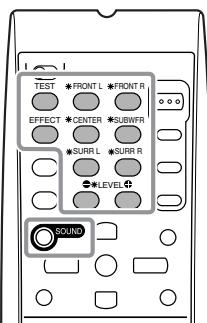
3 Adjust the speaker output level (-10 dB to +10 dB).
- For the left front speaker: Press FRONT L, then LEVEL +/-
- For the center speaker: Press CENTER, then LEVEL +/-.
- For the right front speaker: Press FRONT R, then LEVEL +/-.
- For the right surround speaker: Press SURR R, then LEVEL +/-.
- For the left surround speaker: Press SURR L, then LEVEL +/-.
- For the subwoofer: Press SUBWFR, then LEVEL +/-
Note:
When you press LEVEL +/- once, the current level for the selected speaker appears on the display, and the test tone comes out of the selected speaker. If no adjustment is done for about 4 seconds, the adjustment mode for the selected speaker is canceled.
4 Press TEST again to stop the test tone.
To adjust the effect level:
1 Press SOUND.
The 10 keys are activated for sound adjustments.
2 Press EFFECT repeatedly to select the effect level (EFFECT 1 to EFFECT 5).
The source indication resumes about 4 seconds after the adjustment.
This unit activates a variety of Surround modes automatically. The basic settings and adjustments stored (see pages 18 to 24) are applied automatically.
Reproducing Theater Ambience
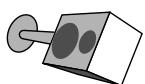
In a movie theater, many speakers are located on the walls to reproduce impressive multi-surround sounds, reaching you from all directions.
With these many speakers, sound localization and sound movement can be expressed.
Surround modes built in this receiver can create almost the same surround sounds as you can feel in a real movie theater—with only a limited number of the speakers.
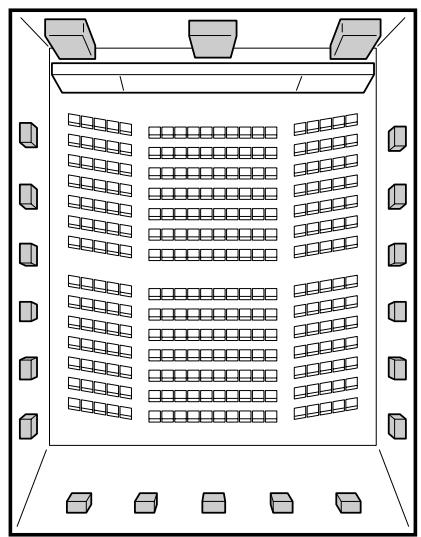

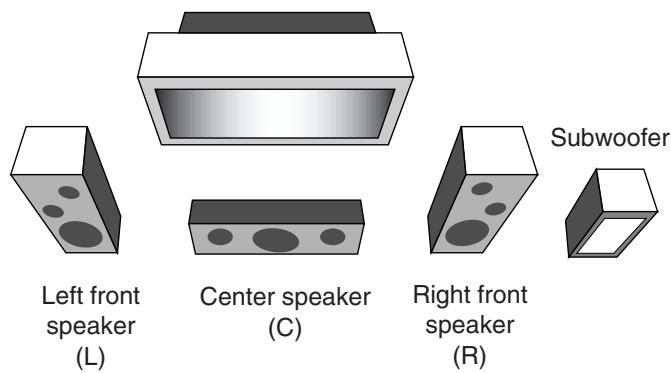
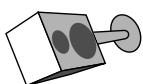
Left surround speaker (LS)
Right surround speaker (RS)
Introducing the Surround Modes
Dolby Digital*1
Dolby Digital is a digital signal compression method, developed by Dolby Laboratories, and enables multi-channel encoding and decoding (1ch up to 5.1ch).
- When Dolby Digital signal is detected through the digital input, the ☐ DIGITAL indicator lights up on the display.
Dolby Digital 5.1CH
Dolby Digital 5.1CH (DOLBY DIGITAL) encoding method records and digitally compresses the left front channel, right front channel, center channel, left surround channel, right surround channel, and LFE channel signals (total 6 channels, but the LFE channel is counted as 0.1 channel. Therefore, called 5.1 channel). Dolby Digital enables stereo surround sounds, and sets the cutoff frequency of the surround treble at 20 kHz, compared to 7 kHz for Dolby Pro Logic. As such, the sound movement and “being-there” feeling are enhanced much more than Dolby Pro Logic.
Another digital surround encoding format introduced by Dolby Laboratories is Dolby Digital EX, which adds the third surround channels, called “surround back.”
Compared to the conventional Dolby Digital 5.1CH, these newly added surround back channels can reproduce more detailed movements behind you while viewing the video software. In addition, surround sound localization will become more stable.
- You can use Virtual Surround Back (see page 22) when playing back Dolby Digital EX software. This function creates the great surround effect from the behind as if you have connected the surround back speakers.
Dolby Pro Logic II
Dolby Pro Logic II is a multi-channel playback format to convert 2-channel software into 5-channel (plus subwoofer). The matrix-based conversion method used for Dolby Pro Logic II makes no limitation for the cutoff frequency of the surround treble and enables stereo surround sound.
- This receiver provides two types of Dolby Pro Logic II modes—Pro Logic II Movie (PLII MOVIE) and Pro Logic II Music (PLII MUSIC).
When Dolby Pro Logic II is activated, the ☐☐ PRO LOGIC II indicator lights up on the display.
| PLII MOVIE: | Suitable for playing any Dolby Surround encoded software. You can enjoy a sound field very close to the one created with discrete 5.1-channel sounds. |
| PLII MUSIC: | Suitable for playing any 2-channel stereo software. You can enjoy wide and deep sounds. |
*1 Manufactured under license from Dolby Laboratories. "Dolby", "Pro Logic", and the double-D symbol are trademarks of Dolby Laboratories.
DTS*2
DTS is another digital signal compression method, developed by Digital Theater Systems, Inc., and enables multi-channel encoding and decoding (1ch up to 6.1ch).
- When DTS signal is detected through the digital input, the dts indicator lights up on the display.
DTS Digital Surround
DTS Digital Surround (DTS SURROUND) is another discrete 5.1-channel digital audio format available on CD, LD, and DVD software.
Compared to Dolby Digital, the DTS Digital Surround format has a lower audio compression rate which enables it to add breadth and depth to the sounds reproduced. As such, DTS Digital Surround features natural, solid, and clear sound.
Another multi-channel digital encoding format introduced by Digital Theater Systems, Inc. is DTS Extended Surround (DTS-ES).
It greatly improves the 360-degree surround impression and space expression by adding the third surround channel—surround back channel.
DTS-ES includes two signal formats with different surround signal recording methods—DTS-ES Discrete 6.1ch and DTS-ES Matrix 6.1ch.
- You can use Virtual Surround Back (see page 22) when playing back DTS-ES software. This function creates the great surround effect from the behind as if you have connected the surround back speakers.
DTS 96/24
In recent years, there has been increasing interest in higher sampling rates both for recording and for reproducing at home. Higher sampling rates allow wider frequency range and greater bit depths provide extended dynamic range.
DTS 96/24 is a multi-channel digital signal format (fs 96 kHz/24 bits) introduced by Digital Theater Systems, Inc. to deliver “better-than-CD sound quality” into the home.
- When DTS 96/24 signal is detected, the dts 96/24 indicator lights up. You can enjoy its 5.1-channel sound with full-quality.
What is Linear PCM?
Uncompressed digital audio data used for DVDs, CDs and Video CDs.
DVDs support 2 channels with sampling rates of 48/96 kHz, at quantization of 16/20/24 bits. On the other hand, CDs and Video CDs are limited to 2 channels with 44.1 kHz at 16 bits.
- When Linear PCM signal is detected, the LINEAR PCM indicator lights up.
What is Dual Mono?
Dual Mono can be easily understood when you think of the bilingual broadcast or the MTS (Multichannel Television Sound) format used for TV programs (however, the Dual Mono format is not identical with those analog formats).
This format is now adopted in Dolby Digital, DTS, and so on. It allows two independent channels (called main channel and sub-channel) to be recorded separately.
- When Dual Mono signal is detected, the DUAL MONO indicator lights up. You can select either channel you want to listen to (see page 21).
When using the Surround mode, the sounds come out of the activated speakers which the Surround mode requires.
- If either the surround speakers or center speaker is set to “NONE” in the speaker setting, the corresponding channel signals are allocated to and emitted through the front speakers.
- If both the surround speakers and center speaker are set to “NONE” in the speaker setting, JVC’s original 3D-PHONIC processing (which has been developed to create the surround effect through the front speakers only) is used. The 3D-PHONIC indicator lights up on the display.
3D Headphone Mode—3D H PHONE
You can also enjoy Surround modes through the headphones.
If you activate Surround when the front speakers are deactivated, 3D Headphone Mode is activated without respect to the type of software played back. “3D H PHONE” appears on the display and the DSP and H.PHONE indicators also light up.
Activating the Surround Modes
Available Surround modes vary depending on the incoming signals.
Activating one of the Surround modes for a source automatically recalls the memorized settings and adjustments (see pages 18 to 24.)
■ Activating the Surround Modes Automatically
You can enjoy the Surround mode simply by selecting the source (with digital input selected for that source).
- Auto Surround also works when the input mode changes from analog to digital.
To activate Auto Surround, see page 21.

■ Activating the Surround Modes Manually
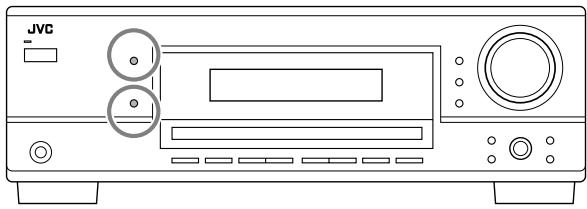
1 Select and play any source (excluding “DVD MULTI” for RX-6040B/RX-6042S).
- Make sure you have selected the analog or digital input mode correctly.
2 Press SURROUND to activate the Surround mode.
- For Dolby Digital multi-channel digital software (except 2-channel and Dual Mono software), incoming signals are automatically detected and “DOLBY DIGITAL” is activated.

- For DTS multi-channel digital software (except 2-channel and Dual Mono software), incoming signals are automatically detected and “DTS SURROUND” is activated.

Note:
When the Dolby Digital or DTS multi-channel digital signal stops coming in, "PLII MOVIE" will be activated.
- For analog sources and digital 2-channel software, you can select one of the following Surround modes. Each time you press SURROUND, Surround modes change as follows:
![graph TD A["ANALOG"] --> B["L □ R"] A --> C["S,WFR"] A --> D["□ □"] B --> E["PLII MOVIE"] C --> E D --> E E --> F["PLII MOVIE (Dolby Pro Logic II Movie)"] E --> G["PLII MUSIC (Dolby Pro Logic II Music)"]](/content/2025/01/123421/images/ce4922bcf77b86d11dab394703d0de78393d99d6fbc0f4714dd53fd417aea9fc.jpg)
- For Dual Mono software, you can select the channel you listen to. (See page 21.)

To adjust the speaker output level, see page 24.
To cancel the Surround mode
Press SURROUND/DSP OFF.

When playing Dolby Digital EX or DTS-ES software
You can enjoy Virtual 6.1-channel playback using Virtual Surround Back.
To activate Virtual Surround Back, see page 22.

This unit activates a variety of DSP modes automatically. The basic settings and adjustments stored (see pages 18 to 24) are applied automatically.
Reproducing the Sound Field
The sound heard in a concert hall, club, etc. consists of direct sound and indirect sound—early reflections and reflections from behind. Direct sounds reach the listener directly without any reflection. On the other hand, indirect sounds are delayed by the distances of the ceiling and walls. These direct sounds and indirect sounds are the most important elements of the acoustic surround effects. DSP modes can create these important elements, and give you a real “being there” feeling.
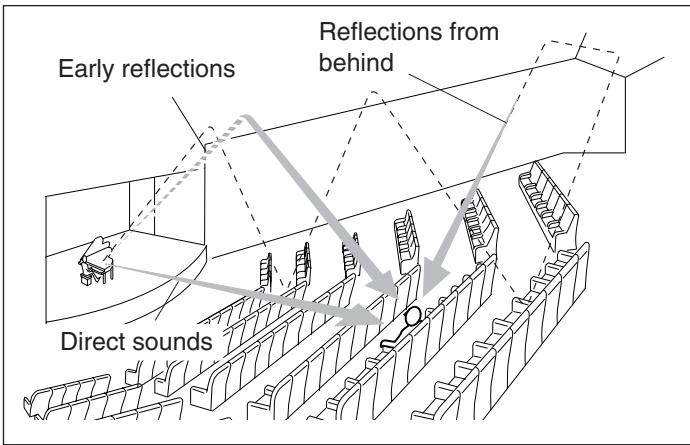
Introducing the DSP Modes
DSP modes include the following modes—
- Digital Acoustic Processor (DAP) modes—HALL 1, HALL 2, LIVE CLUB, DANCE CLUB, PAVILION, THEATER 1, THEATER 2
- ALL CH STEREO
- MONO FILM—Used for all types of 2-channel signals (including Dual Mono signal)
3D Headphone Mode
You can also enjoy the DSP effect (except All Channel Stereo mode) through the headphones.
If you press DSP when the front speakers are deactivated, 3D Headphone Mode is activated without respect to the type of software played back. “3D H PHONE” appears on the display and the DSP and H.PHONE indicators light up.
To use DSP modes, press DSP so that the DSP modes change as follows.
The DSP indicator also lights up on the display.
| → HALL 1 → HALL 2 → LIVE CLUB→ DANCE CLUB → PAVILION → ALL CH STEREO |
| → THEATER 1 → THEATER 2 → MONO FILM→ (Back to the beginning)□ : Suitable for audio sources□ : Suitable for video sources |
Digital Acoustic Processor (DAP) modes
You can use the following DAP modes in order to reproduce a more acoustic sound field in your listening room.
| HALL 1: | Reproduces the spatial feeling of a large shoebox-shaped hall designed primarily for classical concerts. (Its seating capacity is about 2000.) |
| HALL 2: | Reproduces the spatial feeling of a large vineyard-shaped hall designed primarily for classical concerts. (Its seating capacity is about 2000.) |
| LIVE CLUB: | Reproduces the spatial feeling of a live music club with a low ceiling. |
| DANCE CLUB: | Reproduces the spatial feeling of a rocking dance club. |
| PAVILION: | Reproduces the spatial feeling of an exhibition hall with a high ceiling. |
| THEATER 1*: | Reproduces the spatial feeling of a large theater where the seating capacity is about 600. |
| THEATER 2*: | Reproduces the spatial feeling of a small theater where the seating capacity is about 300. |
* The built-in Dolby Pro Logic II decoder is activated when playing back 2-channel analog or digital source. The ☐☐ PRO LOGIC II indicator lights up.
When using the DAP mode, the sounds come out of all the connected and activated speakers.
- If surround speakers are set to “NONE” in the speaker setting, JVC’s original 3D-PHONIC processing (which has been developed to create the surround effect through the front speakers only) is used. The 3D-PHONIC indicator lights up on the display.
All Channel Stereo
This mode can reproduce a larger stereo sound field using all the connected (and activated) speakers.
- If the surround speakers are set to “NONE,” you cannot select “ALL CH STEREO.”
Sound reproduced from normal stereo
![graph TD A["User Icon"] --> B["Signal"] C["User Icon"] --> D["Signal"] E["User Icon"] --> F["Signal"] G["User Icon"] --> H["Signal"] I["User Icon"] --> J["Signal"] K["User Icon"] --> L["Signal"] M["User Icon"] --> N["Signal"] O["User Icon"] --> P["Signal"] Q["User Icon"] --> R["Signal"] S["User Icon…](/content/2025/01/123421/images/c950075fb77e1bb1a9e3576c983993e5e657f290a6c84d3e5eb948c9d62cfb62.jpg)
Sound reproduced from All Channel Stereo mode
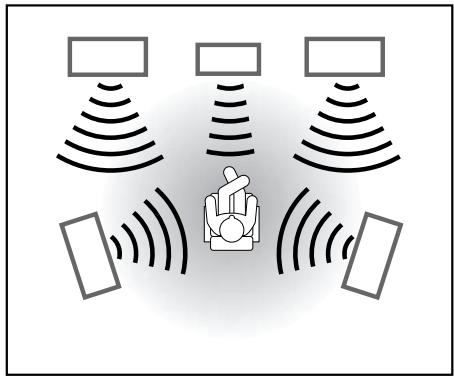
Mono Film
In order to reproduce a more acoustic sound field in your listening room while viewing monaural sound video software (analog and 2-channel digital signals), you can use this mode.
The surround effect will be added, and the sound localization of actor's words will be improved. This mode cannot be used for multi-channel digital signals.
When “MONO FILM” is used, the sounds come out of all the connected and activated speakers.
- If surround speakers are set to “NONE” in the speaker setting, JVC’s original 3D-PHONIC processing (which has been developed to create the surround effect through the front speakers only) is used. The 3D-PHONIC indicator lights up on the display.
- If incoming signals change from 2-channel digital signal to another digital signal type, “MONO FILM” is canceled and an appropriate Surround mode is activated.
Activating the DSP Modes
Activating one of the DSP modes for a source automatically recalls the memorized settings and adjustments (see pages 18 to 24.)
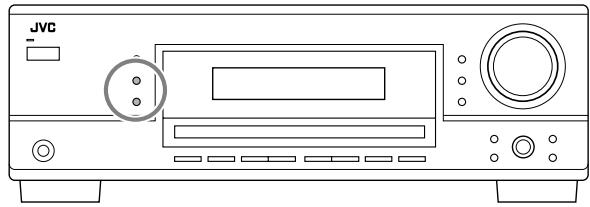
1 Select and play any source (excluding “DVD MULTI” for RX-6040B/RX-6042S).
2 Press DSP repeatedly until the DSP mode you want appears on the display.
• Each time you press the button, the DSP modes change as follows:
![graph TD A["ANALOG"] --> B["L □ R"] A --> C["S.WFR"] A --> D["□ □"] E["DSP"] --> F["HALL 1"] G["→ HALL 1"] --> H["→ HALL 2"] --> I["→ LIVE CLUB"] J["→ DANCE CLUB"] --> K["→ PAVILION"] --> L["→ ALL CH STEREO"] M["→ THEATER 1"] --> N["→ THEATER 2"] --> O["→ MONO FILM"] P["→ (Back to the beginning)"] -…](/content/2025/01/123421/images/c5f027a553aad22d54ab31503068cf5a6f14fc5c5d444844e87466403559aed1.jpg)
Note:
When the surround speakers are set to “NONE,” the 3D-PHONIC processing is applied to the DSP modes (the 3D-PHONIC indicator also lights up).
To adjust the effect level (except All Channel Stereo), see page 24.
To cancel the DSP mode
Press SURROUND/DSP OFF.

The COMPU LINK remote control system allows you to operate JVC's audio components through the remote sensor on the receiver.
To use this remote control system, you need to connect JVC's audio components through the COMPU LINK (SYNCHRO) jacks using the cables with monaural mini-plugs (not supplied, see below) in addition to the connections using cables with RCA pin plugs (see page 7).
- Make sure that the AC power cords of these components are unplugged before connection. Plug the AC power cords only after all connections are complete.
![graph TD A["Cassette deck or CD recorder"] --> B["CD player"] B --> C["COMPU LINK-4 (SYNCHRO)"] C --> D["Internal device with ports and connectors"]](/content/2025/01/123421/images/4a4a9566fba6033e4148bc3c113d63d6a7350f3997aeff36b178b43e2706036a.jpg)
Notes:
- There are four versions of COMPU LINK remote control system. This receiver is equipped with the fourth version—COMPU LINK-4. This version is added systematic operations with the CD recorder to the previous version—COMPU LINK-3.
- If your audio component has two COMPU LINK jacks, you can use either one. If it has only one COMPU LINK jack, connect it so that it is the last item in the series of components.
- To operate the cassette deck or CD recorder using the COMPU LINK remote control system, set the source name correctly if required. (See page 14.)
- Refer also to the manuals supplied with your audio components.
This remote control system allows you to use four functions listed below.
Remote Control through the Remote Sensor on the Receiver
You can control the connected audio components through the remote sensor on the receiver using this remote control. Aim the remote control directly at the remote sensor on the receiver. For details, see pages 33 and 34.
Automatic Source Selection
When you press the play (▶) button on a connected component or on its own remote control, the receiver automatically turns on and changes the source to the component. On the other hand, if you select a new source on the receiver or on the remote control, the selected component begins playing immediately.
In both cases, the previously selected source continues playing without sound for a few seconds.
Automatic Power On/Off (standby)—only possible with the COMPU LINK-3 and COMPU LINK-4
The connected components turn on and off (standby) along with the receiver.
When you turn on the receiver, one of the connected components will turn on automatically, depending on which component has been previously selected.
When you turn off the receiver, the connected components will turn off (standby).
Synchronized Recording
Synchronized recording means the cassette deck starts recording as soon as a CD begins playing.
To use synchronized recording, follow these steps:
1 Put a tape in the cassette deck, and a disc in the CD player.
2 Press the record (●) button and the pause (II) button on the cassette deck at the same time.
This puts the cassette deck into recording pause. If you do not press the record (●) button and pause (■) button at the same time, the synchronized recording feature will not operate.
3 Press the play (▶) button on the CD player.
The source changes on the receiver, and as soon as play starts, the cassette deck starts recording. When the play ends, the cassette deck enters recording pause, and stops about 4 seconds later.
Notes:
- During synchronized recording, the selected source cannot be changed.
- If the power of any component is shut off during synchronized recording, the COMPU LINK remote control system may not operate properly. In this case, you must start again from the beginning.
The AV COMPU LINK remote control system allows you to operate JVC's video components (TV, VCR, and DVD player) through the receiver.
RX-5040B/RX-5042S/RX-5045B are equipped with conventional AV COMPU LINK, while RX-6040B/RX-6042S are equipped with the AV COMPU LINK-III, which adds a function to operate JVC's video components through the component video jacks.
To use this remote control system, connect the video components you want to operate, following the diagrams below and the procedure on the next page.
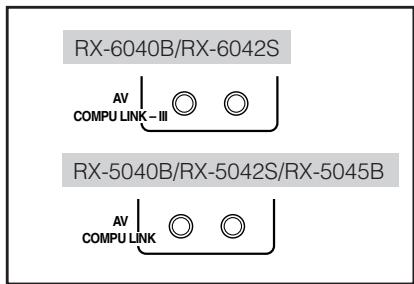
CONNECTIONS 1: AV COMPU LINK Connection
![graph LR A["VCR"] --> B["AV COMPU LINK"] B --> C["DVD player"] C --> D["This receiver"] D --> E["TV"] E --> F["AV COMPU LINK EX"] E --> G["AV COMPU LINK-III"]](/content/2025/01/123421/images/1a8baf2ea73faf97db63a22084117d8e61f60bede72867e49e9001fd1d72aed6.jpg)
You can only connect to the TV with the AV COMPU LINK EX or AV COMPU LINK-III jack. DO NOT connect to the TV with AV COMPU LINK RECEIVER/AMP jack.
Notes:
- For RX-6040B/RX-6042S: When connecting the receiver and a TV with the AV COMPU LINK EX jack by using a component video cable, you cannot use automatic selection of TV's input mode (see page 32).
- Make sure that the remote control code for the connected VCR is set to code "A."
- When connecting only the VCR or DVD player to the receiver, connect it directly to the receiver using cables with the monaural mini-plugs.
CONNECTIONS 2: Video Cable Connection
Connect the VCR and/or DVD player to the TV using one of the following methods:
- For RX-6040B/RX-6042S: When using the AV COMPU LINK remote control system, set the component video input for the DVD player and the VCR correctly (see “Setting the Component Video Input” on page 22); otherwise, the correct input for this receiver will not be selected on the TV.
| CASE 1(Only for RX-6040B/RX-6042S) | When connecting the source equipment to the receiver through the S-video jacks, connect the receiver to the TV's video input 1 jack (S-video input) using S-video cables. |
| CASE 2 | When connecting the source equipment to the receiver through the composite video jacks, connect the receiver to the TV's video input 2 jack (composite video input) using composite video cables. |
| CASE 3(Only for RX-6040B/RX-6042S) | When connecting the source equipment to the receiver through the component video jacks, connect the receiver to the TV's video input 2 jack (component video input) using component video cables. |
Connecting procedure
1 If you have already plugged your VCR, DVD player, TV and this receiver into the AC outlets, unplug their AC power cords first.
2 Connect your VCR, DVD player, TV and this receiver, using the cables with the monaural mini-plugs (not supplied).
- See “CONNECTIONS 1” on the previous page.
3 Connect the audio input/output jacks on VCR, DVD player, TV and this receiver using the cables with RCA pin plugs.
• See pages 8 and 9.
4 Connect the video input/output jacks on VCR, DVD player, TV and this receiver, using the cables with RCA pin plugs (or S-video plug or component video plugs—for RX-6040B/RX-6042S).
- See “CONNECTIONS 2” on the previous page.
5 Plug the AC power cords of the components and the receiver into the AC outlets.
6 When turning on the TV for the first time after the AV COMPU LINK connection, turn the TV volume to the minimum using the TV volume control on the TV.
7 Turn on the connected components first, then turn on this receiver.
- When turning on the VCR, use the remote control supplied with this receiver.
The AV COMPU LINK remote control system allows you to use the five basic functions listed below.
Remote Control of the TV, DVD Player, and VCR Using This Remote Control
See page 34 for details.
- Aim the remote control directly at the remote sensor on each target component.
One-Touch Video Play
Simply by inserting a video cassette without its safety tab into the VCR, you can enjoy the video playback without setting other switches manually. The receiver automatically turns on and changes the source to the VCR.
The TV automatically turns on and changes the input mode to the appropriate position so that you can view the playback picture. When you insert a video cassette with its safety tab, press the play (▶) button on the VCR or on the remote control. So, you can get the same result.
One-Touch DVD Play
Simply by starting playback on the DVD player, you can enjoy the DVD playback without setting other switches manually. The receiver automatically turns on and changes the source to the DVD player.
The TV automatically turns on and changes the input mode to the appropriate position so that you can view the playback picture.
Automatic Selection of TV's Input Mode
- When you select the TV as the source to play on the receiver, the TV automatically changes the input mode to the TV tuner so that you can watch TV.
- When you select the DVD player or the VCR as the source to play on the receiver, the TV automatically changes the input mode to the appropriate position so that you can view the playback picture.
Note:
This function does not work when you connect this receiver and the TV with the AV COMPU LINK EX jack using a component video cable. In this case, reconnect the TV referring to CASE 1 or CASE 2 on page 31.
Automatic Power On/Off (Standby)
The TV, VCR, and DVD player turn on and off along with the receiver.
When you turn on the receiver;
- If the previously selected source is the VCR, the TV and VCR will turn on automatically.
- If the previously selected source is the DVD player, the TV and DVD player will turn on automatically.
- If the previously selected source is the TV, only the TV will turn on automatically.
When you turn off the receiver, the TV, VCR and the DVD player will turn off (stand by).
Note:
If you turn off the receiver while recording on the VCR, the VCR will not turn off, but continue recording.
You can operate JVC's audio and video components with this receiver's remote control, since control signals for JVC's components are preset in the remote control.
Operating Audio Components
IMPORTANT:
To operate JVC's audio components using the supplied remote control:
- You need to connect JVC's audio components through the COMPU LINK (SYNCHRO) jacks (see page 30) in addition to the connections using cables with RCA pin plugs (see page 7).
- Aim the remote control directly at the remote sensor on the receiver.
- If you use the buttons on the front panel to choose a source, the remote control will not operate that source. To operate a source with the remote control, the source must be selected using source selection buttons on the remote control.
- To operate the target component using the COMPU LINK remote control system, set the source name correctly if required. (See page 14.)
- Refer also to the manuals supplied with your components.
Sound control section (Amplifier)
You can always perform the following operations:
STANDBY/ON ⏻/I AUDIO:
Turn on or off the receiver. VOLUME +/-: Adjust the volume level. MUTING: Turn on or off sound muting. ANALOG/DIGITAL: Switch the analog and digital input alternately.
DIMMER: Dim or brighten the display.
SLEEP: Set the Sleep Timer.
SURROUND: Turn on and select Surround modes
DSP: Turn on and select DSP modes.
SURROUND/DSP OFF:
Turn off the Surround and DSP mode. BASS BOOST: Only for RX-6040B/RX-6042S: Turn on or off Bass Boost.
After pressing SOUND, you can perform the following operations by using the 10 keys:
FRONT L then LEVEL +/-: Adjust the left front speaker output level.
FRONT R then LEVEL +/-: Adjust the right front speaker output level.
CENTER then LEVEL +/-: Adjust the center speaker output level.
SURR L then LEVEL +/-: Adjust the left surround speaker output level.
SURR R then LEVEL +/-: Adjust the right surround speaker output level.
SUBWFR then LEVEL +/-: Adjust the subwoofer output level.
EFFECT: Adjust the DAP effect level.
TEST: Turn on or off test tone output.
Note:
After adjusting sounds, press the corresponding source selection button to operate your target source by using the 10 keys; otherwise, the 10 keys cannot be used for operating your target source.
Tuner
You can always perform the following operations:
FM/AM: Alternate between FM and AM.
After pressing FM/AM, you can perform the following operations on a tuner:
1 - 10, +10: Select a preset channel number directly. For channel number 5, press 5. For channel number 15, press +10, then 5. For channel number 20, press +10, then 10.
FM MODE: Change the FM reception mode.
CD player
After pressing CD, you can perform the following operations on a CD player:
▶: Start playing. ▶◀◀: Return to the beginning of the current (or previous) track. ▶▶▶: Skip to the beginning of the next track. ■: Stop playing. ■■: Pause playing. To resume, press ▶. 1 – 10, +10: Select a track number directly. For track number 5, press 5. For track number 15, press +10, then 5. For track number 20, press +10, then 10. For track number 30, press +10, +10, then 10.
CD changer
After pressing CD-DISC, you can perform the following operations on a CD changer:
▶: Start playing. ▶◀◀: Return to the beginning of the current (or previous) track. ▶▶▶: Skip to the beginning of the next track. ■: Stop playing. Ⅱ: Pause playing. To resume, press ▶. 1 – 6, 7/P: Select the number of a disc installed in a CD changer.
After pressing CD, you can perform the following operations on a CD changer:
1 - 10, +10: Select a track number directly. For track number 5, press 5. For track number 15, press +10, then 5. For track number 20, press +10, then 10. For track number 30, press +10, +10, then 10.
Example:
- Selecting disc number 4, track number 12, and starting playback.
1 Press CD-DISC, then press 4.
2 Press CD, then press +10, 2.
Continued on the next page
If your CD changer is of 200-disc loading capability (except for XL-MC100 and XL-MC301), you can do the following operations using the 10 keys after pressing CD.
1 Select a disc number.
2 Then select a track number (always enter two digits).
3 Press ▶ to start playback.
Examples:
- Selecting disc number 3, track number 2, and starting playback. Press 3, then, 0, 2, then ▶.
- Selecting disc number 10, track number 5, and starting playback. Press 1, 0, then, 0, 5, then ▶.
- Selecting disc number 105, track number 12, and starting playback.
Press 1, 0, 5, then 1, 2, then ▶.
Note:
It is required to press each button within 4 seconds in the above procedure.
CD recorder
After pressing TAPE/CDR, you can perform the following operations on a CD recorder:
▶: Start playing.
|◀◀: Return to the beginning of the current (or previous) track.
▶▶l: Skip to the beginning of the next track.
■: Stop playing and recording.
II: Pause playing and recording. To resume, press ▶.
REC PAUSE: Enter recording pause.
To start recording, press this button then ▶.
Cassette deck
After pressing TAPE/CDR, you can perform the following operations on a cassette deck:
▶: Start playing.
REW: Fast-wind the tape from right to left.
FF: Fast-wind the tape from left to right.
■: Stop playing, recording and fast wind.
II: Pause playing and recording. To resume, press ▶.
REC PAUSE: Enter recording pause.
To start recording, press this button then ▶.
Operating Video Components
IMPORTANT:
To operate JVC's video components using the supplied remote control:
- You need to connect JVC's video components through the AV COMPU LINK jacks (see page 31) in addition to the connections using cables with RCA pin plugs (see pages 8 and 9).
- Some JVC's VCRs can accept two types of the control signals—remote code “A” and “B.” Before using this remote control, make sure that the remote control code of the target VCR is set to code “A.”
- When using the remote control, aim the remote control directly at the remote sensor on each component, not on the receiver.
VCR
You can always perform the following operations:
STANDBY/ON ⏻/I VCR: Turn on or off the VCR.
VCR CH +/-: Change the TV channels on the VCR.
After pressing VCR, you can perform the following operations on the VCR:
▶: Start playing.
REW: Rewind the tape.
FF: Fast-forward the tape.
■: Stop playing, recording, rewind and fast forward.
II: Pause playing and recording. To resume, press ▶.
REC PAUSE: Enter recording pause.
To start recording, press this button then ▶.
DVD player
You can always perform the following operation:
STANDBY/ON ⏻/I DVD: Turn on or off the DVD player.
After pressing DVD (or DVD MULTI for RX-6040B/RX-6042S), you can perform the following operations on the DVD player:
▶: Start playing.
◀◀: Return to the beginning of the current (or previous) chapter.
▶▶: Skip to the beginning of the next chapter.
■: Stop playing.
II: Pause playing. To resume, press ▶.
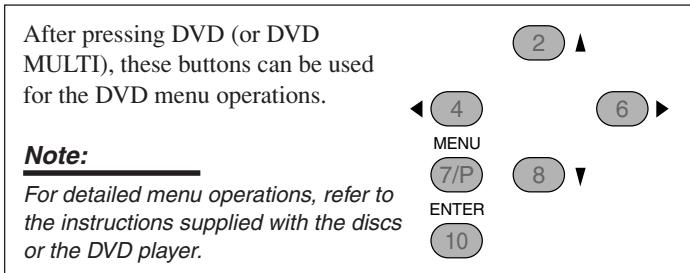
TV
You can always perform the following operations:
STANDBY/ON ⏻/I TV/CATV: Turn on or off the TV.
TV/CATV CH +/-: Change the channels.
TV VOLUME +/-: Adjust the volume.
TV/VIDEO: Set the input mode (either TV or VIDEO).
After pressing TV SOUND, you can perform the following operations on the TV:
1 - 9, 0, 100+ (+10): Select the channels.
RETURN (10): Alternate between the previously selected channel and the current channel.
This remote control supplied for the receiver can transmit control signals for other manufacturers' TVs, CATV converters, VCRs and DVD players.
When operating the other manufacturers' components, refer also to the manuals supplied with them.
- After replacing batteries for the remote control, you need to set the manufactures' codes again.
To change the transmittable signals for operating another manufacturer's TV
1 Set the TV/CATV selector to "TV."
2 Press and hold STANDBY/ON 📋/TV/CATV.
3 Press TV SOUND.
4 Enter a manufacturer's code using buttons 1 - 9, and 0.
| Manufacturer | Codes |
| JVC | 01* |
| Hitachi | 10 |
| Magnavox | 02 |
| Mitsubishi | 03 |
| Panasonic | 04, 11 |
| RCA | 05 |
| Samsung | 12 |
| Sanyo | 13 |
| Sharp | 06 |
| Sony | 07 |
| Toshiba | 08 |
| Zenith | 09 |
* “01” is the initial setting.
5 Release STANDBY/ON ⏻/TV/CATV.
Now you can perform the following operations on the TV:
STANDBY/ON ⏻/I TV/CATV: Turn on and off the TV.
TV/CATV CH +/-: Change the channels.
TV VOLUME +/-: Adjust the volume.
TV/VIDEO: Set the input mode (either TV or VIDEO).
After pressing TV SOUND, you can perform the following operations on the TV:
1 - 9, 0, 100+ (+10):
Select the channels.
The 10 (ENTER) button will function as the ENTER button if your TV requires pressing ENTER after selecting a channel number.
Notes:
- All the functions listed above may not be assigned to the buttons for some TVs.
- If you cannot change the channels of some TVs by pressing the 10 keys, press TV/CATV CH +/- for changing the channels.
6 Try to operate your TV by pressing STANDBY/ON 📋/TV/CATV.
When your TV turns on or off, you have entered the correct code.
If there are more than one code listed for your brand of TV, try each one until the correct one is entered.
To change the transmittable signals for operating a CATV converter
1 Set the TV/CATV selector to "CATV."
2 Press and hold STANDBY/ON 📍/TV/CATV.
3 Press TV SOUND.
4 Enter a manufacturer's code using buttons 1 - 9, and 0.
| Manufacturer | Codes |
| Echostar | 01* |
| General Instrument | 02, 03, 04, 05, 06, 07, 08, 09 |
| Hamlin | 16, 17, 18, 19 |
| Pioneer | 14, 15 |
| RCA | 20 |
| Scient | 10, 11 |
| Sony | 21 |
| Zenith | 12, 13 |
* “01” is the initial setting.
5 Release STANDBY/ON ⏻/TV/CATV.
Now you can perform the following operations on the CATV converter:
STANDBY/ON ⏻/I TV/CATV:
Turn on and off the CATV converter.
TV/CATV CH +/-: Change the channels.
After pressing TV SOUND, you can perform the following operations on the CATV converter:
1 - 9, 0, 100+ (+10):
Select the channels.
The 10 (ENTER) button will function as the
ENTER button if your CATV converter
requires pressing ENTER after selecting a
channel number.
6 Try to operate your CATV converter by pressing STANDBY/ON ⏻/TV/CATV.
When your CATV converter on or off, you have entered the correct code.
If there are more than one code listed for your brand of CATV converter, try each one until the correct one is entered.
Manufacturers' codes are subject to change without notice. If they are changed, this remote control cannot operate the equipment.
To change the transmittable signals for operating another manufacturer's VCR
1 Press and hold STANDBY/ON ⏻/VCR.
2 Press VCR.
3 Enter a manufacturer's code using buttons 1 - 9, and 0.
| Manufacturer | Codes |
| JVC | 01*, 02, 03 |
| Emerson | 10, 22 |
| Gold Star | 11 |
| Hitachi | 04 |
| Mitsubishi | 12 |
| NEC | 21 |
| Panasonic | 07, 13 |
| Philips | 09 |
| RCA | 05, 06 |
| Samsung | 20 |
| Sanyo | 17, 18, 19 |
| Sony | 14, 15, 16 |
| Zenith | 08 |
* “01” is the initial setting.
4 Release STANDBY/ON ⏻/I VCR.
Now you can perform the following operations on the VCR:
STANDBY/ON ⏻/IVCR: Turn on and off the VCR.
VCR CH +/-: Change the TV channels on the VCR.
After pressing VCR, you can perform the following operations on the VCR:
▶: Start playing.
REW: Rewind the tape.
FF: Fast-forward the tape.
■: Stop playing or recording.
II: Pause playing. To resume, press ▶.
REC PAUSE: Enter recording pause.
To start recording, press this button then ▶.
5 Try to operate your VCR by pressing STANDBY/ON ⏻/I VCR.
When your VCR turns on or off, you have entered the correct code.
If there are more than one code listed for your brand of VCR, try each one until the correct one is entered.
To change the transmittable signals for operating another manufacturer's DVD player
1 Press and hold STANDBY/ON 📋/ DVD.
2 Press DVD.
3 Enter a manufacturer's code using buttons 1 - 9, and 0.
| Manufacturer | Codes |
| JVC | 01* |
| Panasonic | 02 |
| Philips | 04 |
| Pioneer | 03 |
| Sony | 05 |
| Toshiba | 06 |
| Yamaha | 07 |
* “01” is the initial setting.
4 Release STANDBY/ON 📍/1 DVD.
Now you can perform the following operations on the DVD player:
STANDBY/ON ⏻/I DVD: Turn on and off the DVD player.
After pressing DVD (or DVD MULTI for RX-6040B/RX-6042S), you can perform the following operations on the DVD player:
▶: Start playing.
|◀◀: Return to the beginning of the current (or previous) chapter (or fast reverse for some models).
▶▶: Skip to the beginning of the next chapter (or fast forward for some models).
■: Stop playing.
II: Pause playing. To resume, press ▶.
After pressing DVD (or DVD
MULTI), these buttons can be used for the DVD menu operations.

Note:
For detailed menu operations, refer to the instructions supplied with the discs or the DVD player.


MENU

ENTER

5 Try to operate your DVD player by pressing STANDBY/ON ⏻/1 DVD.
When your DVD player turns on or off, you have entered the correct code.
Manufacturers' codes are subject to change without notice. If they are changed, this remote control cannot operate the equipment.
Use this chart to help you solve daily operational problems. If there is any problem you cannot solve, contact your JVC's service center.
| PROBLEM | POSSIBLE CAUSE | SOLUTION |
| The display does not light up. | The power cord is not plugged in. | Plug the power cord into an AC outlet. |
| No sound from speakers. | Speaker signal cables are not connected. | Check speaker wiring and reconnect if necessary.(See page 6.) |
| The SPEAKERS ON/OFF button is not set correctly. | Press SPEAKERS ON/OFF so that the sounds come out of the speakers. (See page 13.) | |
| An incorrect source is selected. | Select the correct source. | |
| Muting is activated. | Press MUTING to cancel the mute. (See page 15.) | |
| An incorrect input mode (analog or digital) is selected. | Select the correct input mode (analog or digital).(See pages 13 and 14.) | |
| “NO SUBWOOFER” appears on the display. | The SUBWOOFER ON/OFF button is pressed while “SUBWOOFER” is set to “SUBWOOFER NO.” | If subwoofer is connected, set “SUBWOOFER YES” so that the SUBWOOFER ON/OFF button works. |
| Continuous hiss or buzzing during FM reception. | Incoming signal is too weak. | Connect an outdoor FM antenna or contact your dealer. (See page 5.) |
| The station is too far away. | Select a new station. | |
| Noise is heard during FM/AM reception. | An incorrect antenna is used. | Check with your dealer to be sure you have the correct antenna. |
| Antennas are not connected properly. | Check connections. (See pages 5 and 6.) | |
| Ignition noise from automobiles. | Move the antenna farther from automobile traffic. | |
| “OVERLOAD” starts flashing on the display. | Speakers are overloaded because of high volume. | 1. Press STANDBY/ON Ⓞ/l on the front panel to turn off the receiver.2. Stop the playback source.3. Turn on the receiver again, and adjust the volume. |
| Speakers are overloaded because of short circuit of speaker terminals. | Press STANDBY/ON Ⓞ/l on the front panel to turn off the receiver, then check the speaker wiring.If “OVERLOAD” does not disappear, unplug the AC power cord, then plug it back again.If speaker wiring is not short-circuited, contact your dealer. | |
| “DSP NG” appears on the display. | The built-in microcomputer is not functioning correctly. | Press STANDBY/ON Ⓞ/l on the front panel to turn off the receiver. After unplugging the AC power cord, contact your dealer. |
| The STANDBY lamp lights up after turning on the power, and soon the receiver turns off again (into standby mode). | The receiver is overloaded because of a high voltage. | Press STANDBY/ON Ⓞ/l on the front panel to turn off the receiver. After unplugging the AC power cord, contact your dealer. |
| Remote control does not work. | There is an obstruction between the remote sensor on the receiver and the remote control. | Remove the obstruction. |
| Batteries are weak. | Replace batteries. (See page 5.) | |
| Remote control does not work as you intend. | An incorrect remote control operation mode is selected. | Select the correct remote control operation mode.(See pages 33 to 36.) |
| Only for RX-6040B/RX-6042S: | ||
| No sound effect such as Surround and DSP modes. | “DVD MULTI” is selected. | This is normal for “DVD MULTI.” |
Amplifier
Output Power
| At Stereo operation | ||
| Front channels: | 100 W per channel, min. RMS, driven into 8 Ω,40 Hz to 20 kHz with no more than 0.8% total harmonic distortion. | |
| At Surround operation | ||
| Front channels: | 100 W per channel, min. RMS, driven into 8 Ω, at 1 kHz with no more than 0.8% total harmonic distortion. | |
| Center channel: | 100 W, min. RMS, driven into 8 Ω, at 1 kHz with no more than 0.8% total harmonic distortion. | |
| Surround channels: | 100 W per channel, min. RMS, driven into 8 Ω, at 1 kHz with no more than 0.8% total harmonic distortion. | |
| Audio Input Sensitivity/Impedance (1 kHz) | ||
| CD, TAPE/CDR, VCR, TV SOUND, DVD: | 220 mV/47 kΩ | |
| Audio Input (DIGITAL IN)* | ||
| Coaxial | DIGITAL 1 (DVD): | 0.5 V(p-p)/75 Ω |
| Optical RX-6040B/RX-6042S | DIGITAL 2 (CD), DIGITAL 3 (TV): | -21 dBm to -15 dBm (660 nm ±30 nm) |
| RX-5040B/RX-5042S/RX-5045B | DIGITAL 2 (CD): -21 dBm to -15 dBm (660 nm ±30 nm) | |
| * Corresponding to Linear PCM, Dolby Digital, and DTS Digital Surround (with sampling frequency—32 kHz, 44.1 kHz, 48 kHz) | ||
| Recording Output Level | TAPE/CDR, VCR: | 220 mV |
| Signal-to-Noise Ratio ('66 IHF/'78 IHF) | ||
| CD, TAPE/CDR, VCR, TV SOUND, DVD: | 87 dB/74 dB | |
| Frequency Response (8 Ω) | ||
| CD, TAPE/CDR, VCR, TV SOUND, DVD: | 20 Hz to 50 kHz (+1 dB, -3 dB) | |
| Bass Boost—Only for RX-6040B/RX-6042S: | +3 dB ±1 dB at 100 Hz | |
| Equalization (5 bands) 63 Hz, 250 Hz, 1 kHz, 4 kHz, 16 kHz: | ±8 dB (in 2 dB steps) | |
| eo | ||
| Video Input Sensitivity/Impedance | ||
| Composite video | DVD, VCR: | 1 V(p-p)/75 Ω |
| S-video—Only for RX-6040B/RX-6042S | ||
| DVD, VCR | (Y: luminance): | 1 V(p-p)/75 Ω |
| (C: chrominance, burst): | 0.286 V(p-p)/75 Ω | |
| Component—Only for RX-6040B/RX-6042S | ||
| DVD, VCR | (Y: luminance): | 1 V(p-p)/75 Ω |
| (PB, PR): | 0.7 V(p-p)/75 Ω | |
| Video Output Level | ||
| Composite video | VCR, MONITOR OUT: | 1 V(p-p)/75 Ω |
| S-video—Only for RX-6040B/RX-6042S | ||
| VCR, MONITOR OUT | (Y: luminance): | 1 V(p-p)/75 Ω |
| (C: chrominance, burst): | 0.286 V(p-p)/75 Ω | |
| Component—Only for RX-6040B/RX-6042S | ||
| MONITOR OUT | (Y: luminance): | 1 V(p-p)/75 Ω |
| (PB, PR): | 0.7 V(p-p)/75 Ω | |
| Synchronization: | Negative | |
| Signal-to-Noise Ratio: | 45 dB | |
FM tuner (IHF)
| Tuning Range: | 87.5 MHz to 108.0 MHz | |
| Usable Sensitivity | Monaural: | 12.8 dBf (1.2 μV/75 Ω) |
| 50 dB Quieting Sensitivity | Monaural: | 16.0 dBf (1.7 μV/75 Ω) |
| Stereo: | 37.5 dBf (20.5 μV/75 Ω) | |
| Stereo Separation at OUT (REC): | 35 dB at 1 kHz |
AM tuner
| Tuning Range: | 530 kHz to 1 710 kHz |
General
| Power Requirements: | AC 120V~, 60 Hz | |
| Power Consumption | For RX-6040B/RX-6042S: | 180 W/230 VA (at operation)2 W (in standby mode) |
| For RX-5040B/RX-5042S/RX-5045B: | 200 W/260 VA (at operation)2 W (in standby mode) | |
| Dimensions (W x H x D) | For RX-6040B/RX-6042S: | 435 mm x 146.5 mm x 409.5 mm( 173/16 in. x 513/16 in. x 161/8 in.) |
| For RX-5040B/RX-5042S/RX-5045B: | 435 mm x 146.5 mm x 369.5 mm( 173/16 in. x 513/16 in. x 145/8 in.) | |
| Mass | For RX-6040B/RX-6042S: | 8.8 kg (19.5 lbs) |
| For RX-5040B/RX-5042S/RX-5045B: | 7.5 kg (16.6 lbs) |
Designs and specifications are subject to change without notice.
Main differences between the models
| ○: Equipped | ×: Not equipped |
| Models | Output/Input terminals | Sources | Functions | ||||
| COMPONENT (IN/OUT) | S-VIDEO (IN/OUT) | Analog discrete (DVD MULTI) | DVD MULTI | Bass Boost | Center Tone | AV Compulink | |
| RX-6040B | ○ | ○ | ○ | ○ | ○ | ○ | AV COMPULINK-III |
| RX-6042S | ○ | ○ | ○ | ○ | ○ | ○ | AV COMPULINK-III |
| RX-5040B | × | × | × | × | × | × | AV COMPULINK |
| RX-5042S | × | × | × | × | × | × | AV COMPULINK |
| RX-5045B | × | × | × | × | × | × | AV COMPULINK |
- The last character of the model name—“B” and “S” shows the color of the cabinet. “B” stands for black and “S” for silver.
- RX-5040B and RX-5045B are exactly the same except that RX-5040B is supplied with the surround speaker system.
JVC
LIMITED WARRANTY
AUDIO-2
JVC COMPANY OF AMERICA warrants this product and all parts thereof, except as set forth below ONLY TO THE ORIGINAL PURCHASER AT RETAIL to be FREE FROM DEFECTIVE MATERIALS AND WORKMANSHIP from the date of original retail purchase for the period as shown below. ("The Warranty Period")
| PARTS2 YRS | LABOR2 YRS |
THIS LIMITED WARRANTY IS VALID ONLY IN THE FIFTY (50) UNITED STATES, THE DISTRICT OF COLUMBIA AND IN COMMONWEALTH OF PUERTO RICO.
WHAT WE WILL DO:
If this product is found to be defective, JVC will repair or replace defective parts at no charge to the original owner. Such repair and replacement services shall be rendered by JVC during normal business hours at JVC authorized service centers. Parts used for replacement are warranted only for the remainder of the Warranty Period. All products and parts thereof may be brought to a JVC authorized service center on a carry-in basis except for Television sets having a screen size 25 inches and above which are covered on an in-home basis.
WHAT YOU MUST DO FOR WARRANTY SERVICE:
Return your product to a JVC authorized service center with a copy of your bill of sale. For your nearest JVC authorized service center, please call toll free: (800) 537-5722.
If service is not available locally, box the product carefully, preferably in the original carton, and ship, insured, with a copy of your bill of sale plus a letter of explanation of the problem to the nearest JVC Factory Service Center, the name and location of which will be given to you by the toll-free number.
If you have any questions concerning your JVC Product, please contact our Customer Relations Department.
WHAT IS NOT COVERED:
This limited warranty provided by JVC does not cover:
- Products which have been subject to abuse, accident, alteration, modification, tampering, negligence, misuse, faulty installation, lack of reasonable care, or if repaired or serviced by anyone other than a service facility authorized by JVC to render such service, or if affixed to any attachment not provided with the products, or if the model number or serial number has been altered, tampered with, defaced or removed;
- Initial installation and installation and removal for repair;
- Operational adjustments covered in the Owner's Manual, normal maintenance, video and audio head cleaning;
- Damage that occurs in shipment, due to act of God, and cosmetic damage;
- Signal reception problems and failures due to line power surge;
- Video Pick-up Tubes/CCD Image Sensor, Cartridge, Stylus (Needle) are covered for 90 days from the date of purchase;
- Batteries (except that Rechargeable Batteries are covered for 90 days from the date of purchase);
There are no express warranties except as listed above.
THE DURATION OF ANY IMPLIED WARRANTIES, INCLUDING THE IMPLIED WARRANTY OF MERCHANTABILITY, IS LIMITED TO THE DURATION OF THE EXPRESS WARRANTY HEREIN.
JVC SHALL NOT BE LIABLE FOR THE LOSS OF USE OF THE PRODUCT, INCONVENIENCE, LOSS OR ANY OTHER DAMAGES, WHETHER DIRECT, INCIDENTAL OR CONSEQUENTIAL (INCLUDING, WITHOUT LIMITATION, DAMAGE TO TAPES, RECORDS OR DISCS) RESULTING FROM THE USE OF THIS PRODUCT, OR ARISING OUT OF ANY BREACH OF THIS WARRANTY. ALL EXPRESS AND IMPLIED WARRANTIES, INCLUDING THE WARRANTIES OF MERCHANTABILITY AND FITNESS FOR PARTICULAR PURPOSE, ARE LIMITED TO THE WARRANTY PERIOD SET FORTH ABOVE.
Some states do not allow the exclusion of incidental or consequential damages or limitations on how long an implied warranty lasts, so these limitations or exclusions may not apply to you. This warranty gives you specific legal rights and you may also have other rights which vary from state to state.
JVC COMPANY OF AMERICA
DIVISION OF JVC AMERICAS CORP.
1700 Valley Road
Wayne, NJ 07470
REFURBISHED PRODUCTS CARRY A SEPARATE WARRANTY, THIS WARRANTY DOES NOT APPLY. FOR DETAILS OF REFURBISHED PRODUCT WARRANTY, PLEASE REFER TO THE REFURBISHED PRODUCT WARRANTY INFORMATION PACKAGED WITH EACH REFURBISHED PRODUCT.
For customer use:
Enter below the Model No. which is located either on the rear, bottom or side of the cabinet. Retain this information for future reference.
Model No.:
Serial No.:
Purchase data :
Name of dealer :
Authorized Service Centers
QUALITY JVC® SERVICE
HOW TO LOCATE YOUR JVC SERVICE CENTER
TOLL FREE: 1 (800) 537-5722
http://www.jvc.com
Dear Customer,
In order to receive the most satisfaction from your purchase, please read the instruction booklet before operating the unit. In the event that repairs are necessary, please call 1 (800)537-5722 for your nearest authorized servicer or visit our website at www.JVC.com
Remember to retain your Bill of Sale for Warranty Service.
Do not service the television yourself
Caution
To prevent electrical shock, do not open the cabinet. There are no user serviceable parts inside. Please refer to qualified service personnel for repairs.
Accessories
To purchase accessories for your JVC product, please call toll free:1 (800)882-2345 or on the web at www.JVC.com
JVC
VICTOR COMPANY OF JAPAN, LIMITED
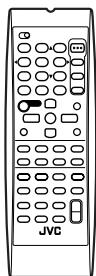



INSTRUCTIONS
MANUEL D'INSTRUCTIONS
Warnings, Cautions and Others/
The lightning flash with arrowhead symbol, within an equilateral triangle is intended to alert the user to the presence of uninsulated "dangerous voltage" within the product's enclosure that may be of sufficient magnitude to constitute a risk of electric shock to persons.

The exclamation point within an equilateral triangle is intended to alert the user to the presence of important operating and maintenance (servicing) instructions in the literature accompanying the appliance.
WARNING: TO REDUCE THE RISK OF FIRE OR ELECTRIC SHOCK, DO NOT EXPOSE THIS APPLIANCE TO RAIN OR MOISTURE.
CAUTION
To reduce the risk of electrical shocks, fire, etc.:
- Do not remove screws, covers or cabinet.
- Do not expose this appliance to rain or moisture.
ATTENTION
Disconnect the mains plug to shut the power off completely. The STANDBY/ON Ⓧ/I button in any position does not disconnect the mains line. The power can be remote controlled.
Attention—Commutateur STANDBY/ON ⏻/!!
This equipment has been tested and found to comply with the limits for a Class B digital device, pursuant to part 15 of the FCC Rules. These limits are designed to provide reasonable protection against harmful interference in a residential installation.
This equipment generates, uses and can radiate radio frequency energy and, if not installed and used in accordance with the instructions, may cause harmful interference to radio communications. However, there is no guarantee that interference will not occur in a particular installation. If this equipment does cause harmful interference to radio or television reception, which can be determined by turning the equipment off and on, the user is encouraged to try to correct the interference by one or more of the following measures:
Reorient or relocate the receiving antenna.
Increase the separation between the equipment and receiver.
Connect the equipment into an outlet on a circuit different from that to which the receiver is connected.
Consult the dealer or an experienced radio/TV technician for help.
Note to CATV system installer:
This reminder is provided to call the CATV system installer's attention to Section 820-40 of the NEC which provides guidelines for proper grounding and, in particular, specifies that the cable ground shall be connected to the grounding system of the building, as close to the point of cable entry as practical.
For Canada/pour le Canada
CAUTION: TO PREVENT ELECTRIC SHOCK, MATCH WIDE BLADE OF PLUG TO WIDE SLOT, FULLY INSERT.
ATTENTION: POUR EVITER LES CHOCS ELECTRIQUES, INTRODUIRE LA LAME LA PLUS LARGE DE LA FICHE DANS LA BORNE CORRESPONDANTE DE LA PRISE ET POUSSER JUSQUAU FOND.
THIS DIGITAL APPARATUS DOES NOT EXCEED THE CLASS B LIMITS FOR RADIO NOISE EMISSIONS FROM DIGITAL APPARATUS AS SET OUT IN THE INTERFERENCE-CAUSING EQUIPMENT STANDARD ENTITLED "DIGITAL APPARATUS," ICES-003 OF THE DEPARTMENT OF COMMUNICATIONS.
CET APPAREIL NUMERIQUE RESPECTE LES LIMITES DE BRUITS RADIOELECTRIQUES APPLICABLES AUX APPAREILS NUMERIQUES DE CLASSE B PRESCRITES DANS LA NORME SUR LE MATERIEL BROUILLEUR; "APPAREILS NUMERIQUES", NMB-003 EDICTEE PAR LE MINISTRE DES COMMUNICATIONS.
Parts Identification 2
Getting Started.... 5
Before Installation 5
Checking the Supplied Accessories 5
Putting Batteries in the Remote Control 5
Connecting the FM and AM Antennas 5
Connecting the Speakers and Subwoofer 6
Connecting Audio/Video Components 7
■ Analog Connections ...... 7
■ Digital Connections ...... 10
Connecting the Power Cord 10
Basic Operations 11
Daily Operational Procedure ...... 11
Turning On the Power 11
Selecting the Source to Play 11
Adjusting the Volume 12
Turning On and Off the Subwoofer Sound 13
Selecting the Analog or Digital Input Mode 13
Changing the Display Brightness 14
Attenuating the Input Signal 14
Changing the Source Name 14
Reinforcing the Bass 15
Muting the Sound 15
Using the Sleep Timer 15
Receiving Radio Broadcasts 16
Tuning in to Stations Manually 16
Using Preset Tuning 16
Selecting the FM Reception Mode 17
Basic Settings.... 18
Quick Speaker Setup 18
Basic Setting Items.... 19
Basic Procedure 19
■ Setting the Speakers 20
■ Setting the Speaker Distance 20
■ Setting the Bass Sounds 20
■ Selecting the Main or Sub Channel 21
■ Setting for Easy and Effective Surround Operations ...... 21
■ Setting the Digital Input Terminals 22
■ Setting the Component Video Input 22
Adjusting Sound 23
Basic Adjustment Items....23
Basic Procedure 23
■ Adjusting the Equalization Patterns ...... 24
■ Adjusting the Speaker Output Levels 24
■ Adjusting the Sound Parameters for the Surround and DSP Modes 24
Using the Surround Modes 25
Reproducing Theater Ambience 25
Introducing the Surround Modes 25
Activating the Surround Modes 27
Using the DSP Modes 28
Reproducing the Sound Field 28
Introducing the DSP Modes 28
Activating the DSP Modes 29
COMPU LINK Remote Control System ...... 30
AV COMPU LINK Remote Control System .... 31
Operating JVC's Audio/Video Components ... 33
Operating Audio Components 33
Operating Video Components 34
Operating Other Manufacturers' Video Equipment 35
Troubleshooting 37
Specifications 38
This mark indicates that ONLY the remote control CAN be used for the operation explained.
This mark indicates that the remote control CANNOT be used for the operation explained. Use the buttons and controls on the front panel.
Front Panel
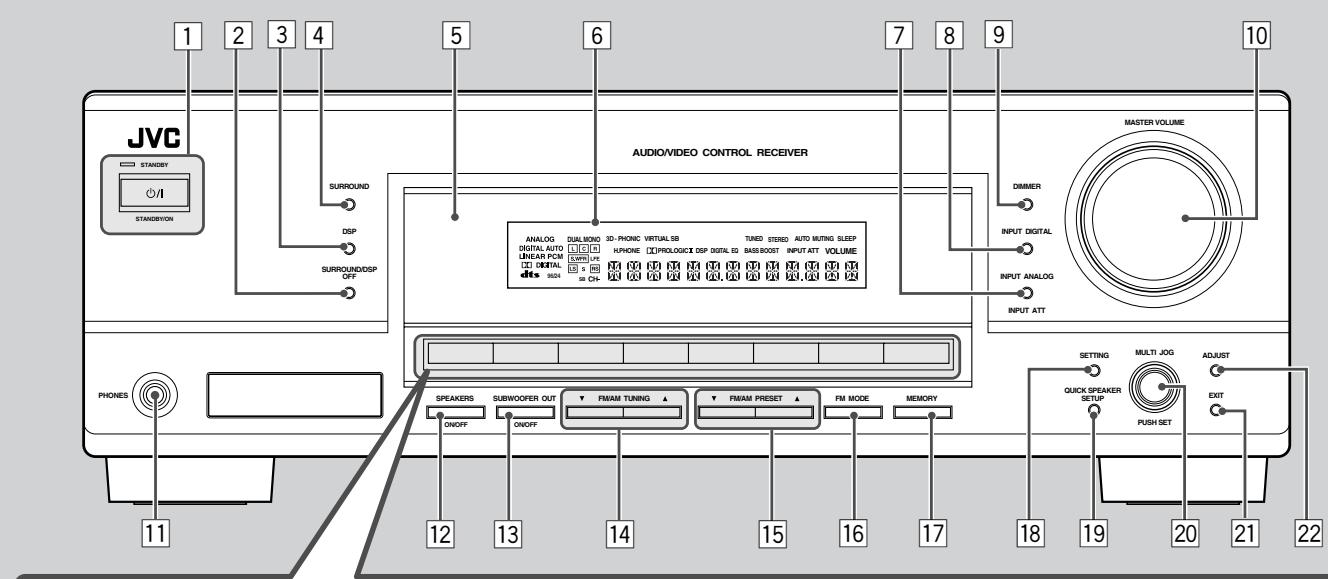
23
RX-6040B/RX-6042S
| DVD MULTI | DVD | VCR | TV SOUND | CD | TAPE/CDR | FM | AM |
SOURCE NAME
RX-5040B/RX-5042S/RX-5045B
| DVD | VCR | TV SOUND | CD | TAPE/CDR | FM/AM |
SOURCE NAME
See pages in parentheses for details.
1 STANDBY/ON ⏻/I button and STANDBY lamp (11)
2 SURROUND/DSP OFF button (27, 29)
3 DSP button (28, 29)
4 SURROUND button (27)
5 Remote sensor
6 Display (For details, see “Display” on the next page.)
7 INPUT ANALOG button (14)
INPUT ATT button (14)
8 INPUT DIGITAL button (13)
9 DIMMER button (14)
10 MASTER VOLUME control (12)
11 PHONES jack (13)
12 SPEAKERS ON/OFF button (13)
13 SUBWOOFER OUT ON/OFF button (13)
14 FM/AM TUNING ▲/▼ buttons (16)
15 FM/AM PRESET ▲/▼ buttons (16)
16 FM MODE button (17)
17 MEMORY button (16)
18 SETTING button (19)
19 QUICK SPEAKER SETUP button (18)
20 MULTI JOG (PUSH SET) dial (19, 23)
21 EXIT button (19, 23)
22 ADJUST button (23)
23 Source selection buttons (11, 14)
- For RX-6040B/RX-6042S: DVD MULTI, DVD, VCR, TV SOUND, CD, TAPE/CDR (SOURCE NAME), FM, AM
- For RX-5040B/RX-5042S/RX-5045B: DVD, VCR, TV SOUND, CD, TAPE/CDR (SOURCE NAME), FM/AM
IMPORTANT:
Illustrations used in this manual are of RX-6040B/RX-6042S unless mentioned otherwise.
Display
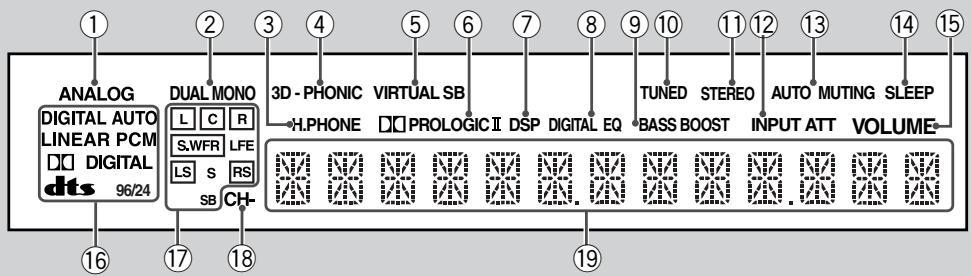
See pages in parentheses for details.
① ANALOG indicator (14)
② DUAL MONO indicator (26, 27)
③ H.PHONE indicator (13, 26, 28)
④ 3D-PHONIC indicator (26, 28)
⑤ VIRTUAL SB indicator (22)
⑥ PRO LOGIC II indicator (25, 27, 28)
⑦ DSP indicator (28, 29)
⑧ DIGITAL EQ indicator (24)
⑨ Only for RX-6040B/RX-6042S: BASS BOOST indicator (15)
⑩ TUNED indicator (16)
⑪ STEREO indicator (16)
⑫ INPUT ATT indicator (14)
⑬ AUTO MUTING indicator (17)
⑭ SLEEP indicator (15)
⑮ VOLUME indicator (11)
⑯ Digital signal format indicators (13)
⑰ Speaker indicators and signal indicators (12)
⑱ CH- indicator (16)
⑲ Main display
Remote Control
See pages in parentheses for details.
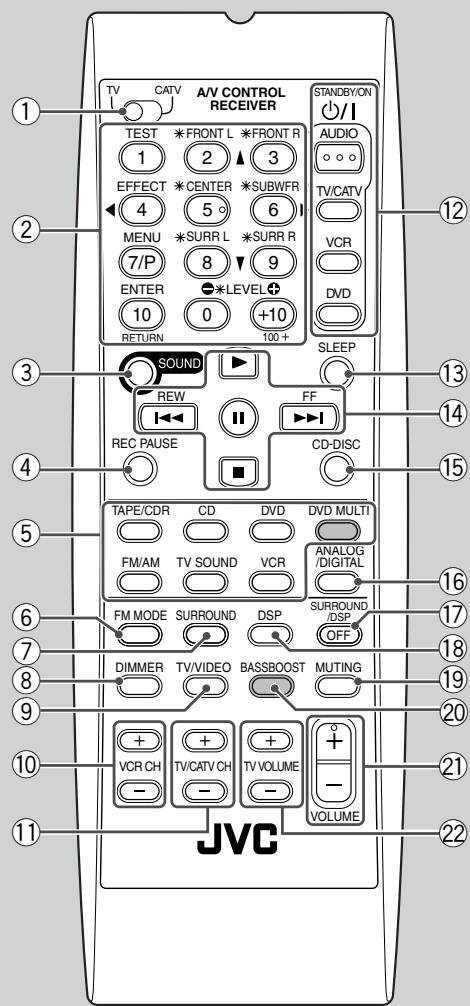
The buttons shaded in the illustration—DVD MULTI and BASSBOOST—are only for RX-6040B/RX-6042S.
① TV/CATV selector (35)
② 10 keys for selecting preset channels (17, 33)
10 keys for sound adjustment (24, 33)
10 keys for operating audio/video components (33 – 35)
③ SOUND button (24, 33)
④ REC PAUSE button (34, 36)
⑤ Source selection buttons (11, 12)
TAPE/CDR, CD, DVD, DVD MULTI (only for RX-6040B/RX-6042S), FM/AM, TV SOUND, VCR
⑥ FM MODE button (17, 33)
⑦ SURROUND button (27, 33)
⑧ DIMMER button (14, 33)
⑨ TV/VIDEO button (34, 35)
⑩ VCR CH +/- buttons (34, 36)
⑪ TV/CATV CH +/- buttons (34, 35)
⑫ STANDBY/ON Ⓧ/I buttons (11, 33 – 36)
AUDIO, TV/CATV, VCR, DVD
⑬ SLEEP button (15, 33)
⑭ Operating buttons for audio/video components ▶, Ⅱ, ■, ▶▶/|◀◀, FF/REW (33, 34, 36)
⑮ CD-DISC button (33)
⑯ ANALOG/DIGITAL button (13, 14, 33)
⑰ SURROUND/DSP OFF button (27, 29, 33)
⑱ DSP button (28, 29, 33)
⑲ MUTING button (15, 33)
⑳ Only for RX-6040B/RX-6042S: BASSBOOST button (15, 33)
②1 VOLUME +/- button (12, 33)
② TV VOLUME +/- buttons (34, 35)
Note:
When you press the one of the audio source selection buttons—TAPE/CDR, CD, and FM/AM—on the remote control, the receiver automatically turns on.
Rear Panel
RX-6040B/RX-6042S
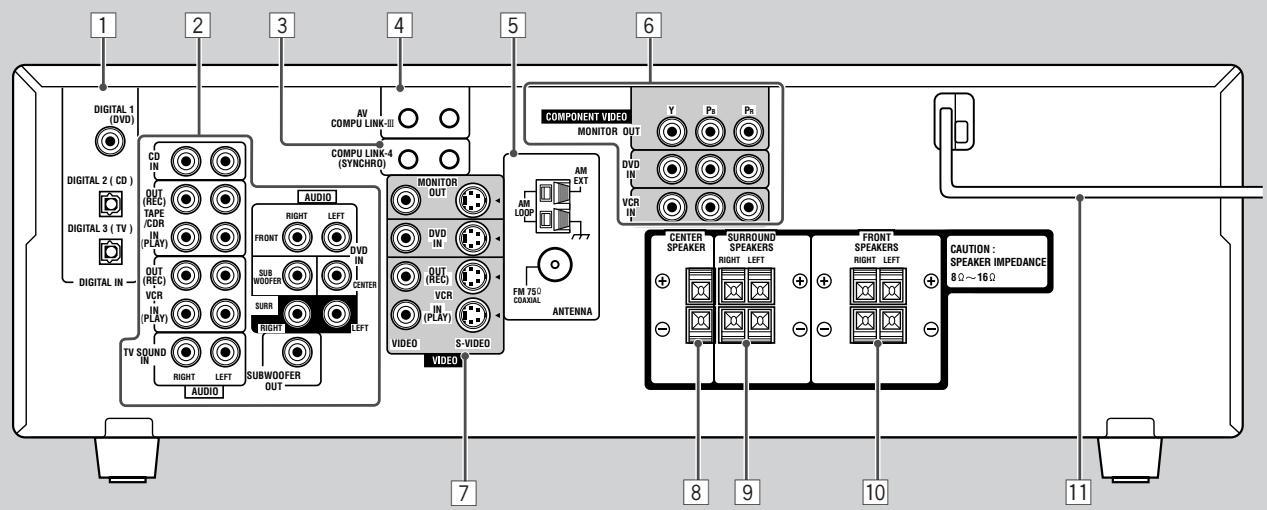
RX-5040B/RX-5042S/RX-5045B
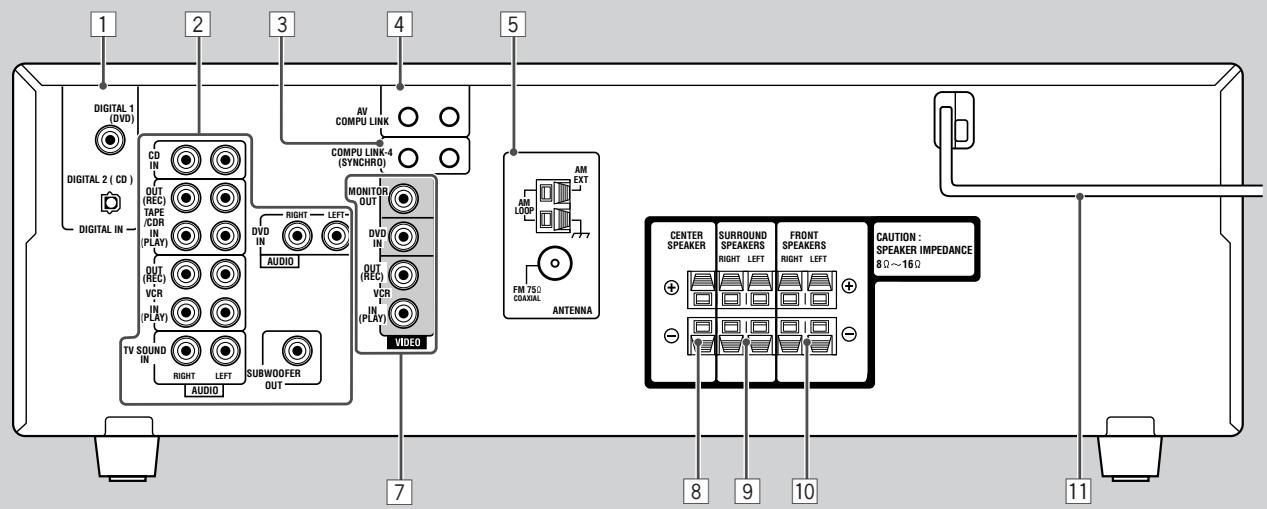
Rear Panel
See pages in parentheses for details.
1 DIGITAL IN terminals (10)
• Coaxial: DIGITAL 1 (DVD)
• Optical: DIGITAL 2 (CD)
DIGITAL 3 (TV): only for RX-6040B/RX-6042S
2 Audio input/output jacks (7 - 9)
- Input: CD IN, TAPE/CDR IN (PLAY), VCR IN (PLAY), TV SOUND IN, DVD IN
- Output: TAPE/CDR OUT (REC), VCR OUT (REC), SUBWOOFER OUT
3 COMPU LINK-4 (SYNCHRO) jacks (30)
4 For RX-6040B/RX-6042S:
AV COMPU LINK-III jacks (31)
For RX-5040B/RX-5042S/RX-5045B:
AV COMPU LINK jacks (31)
5 ANTENNA terminals (5, 6)
6 Only for RX-6040B/RX-6042S: COMPONENT VIDEO input/output jacks (8, 9)
- Input: DVD IN, VCR IN
• Output: MONITOR OUT
7 For RX-6040B/RX-6042S:
VIDEO/S-VIDEO input/output jacks (8, 9)
For RX-5040B/RX-5042S/RX-5045B:
VIDEO input/output jacks (8, 9)
- Input: DVD IN, VCR IN (PLAY)
- Output: MONITOR OUT, VCR OUT (REC)
8 CENTER SPEAKER terminals (6)
9 SURROUND SPEAKERS terminals (6)
10 FRONT SPEAKERS terminals (6)
11 AC power cord (10)
This section explains how to connect audio/video components and speakers to the receiver, and how to connect the power supply.
Before Installation
General Precautions
- Be sure your hands are dry.
- Turn the power off to all components.
- Read the manuals supplied with the components you are going to connect.
Locations
• Install the receiver in a location that is level and protected from moisture and dust.
- The temperature around the receiver must be between -5°C and 35°C .
- Make sure there is good ventilation around the receiver. Poor ventilation could cause overheating and damage the receiver.
Handling the receiver
- Do not insert any metal object into the receiver.
- Do not disassemble the receiver or remove screws, covers, or cabinet.
- Do not expose the receiver to rain or moisture.
Checking the Supplied Accessories
Check to be sure you have all of the following items, which are supplied with the receiver.
The number in the parentheses indicates quantity of the pieces supplied.
- Remote Control (1)
- Batteries (2)
• AM Loop Antenna (1) - FM Antenna (1)
If anything is missing, contact your dealer immediately.
Putting Batteries in the Remote Control
Before using the remote control, insert the two supplied batteries first.
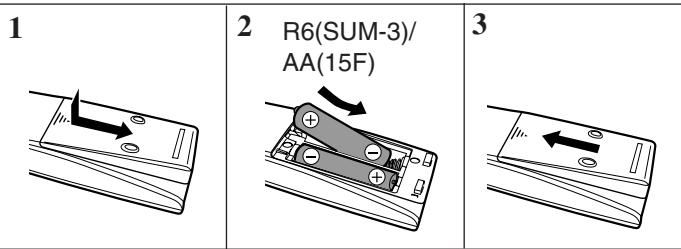
1 Press and slide the battery cover on the back of the remote control.
2 Insert the batteries.
- Make sure to match the polarity: (+) to (+) and (−) to (−).
3 Replace the cover.
If the remote control cannot transmit signals or operate the receiver correctly, replace the batteries. Use two R6(SUM-3)/AA(15F) type dry-cell batteries.
Notes:
- Supplied batteries are for the initial setup. Replace for continued use.
- After replacing the batteries, set the manufacturers' codes again (see pages 35 and 36).
CAUTION:
Follow these precautions to avoid leaking or cracking cells:
- Place batteries in the remote control so they match the polarity: (+) to (+) and (−) to (−).
- Use the correct type of batteries. Batteries that look similar may differ in voltage.
• Always replace both batteries at the same time. - Do not expose batteries to heat or flame.
Connecting the FM and AM Antennas
FM antenna connections
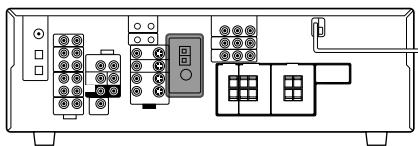
A
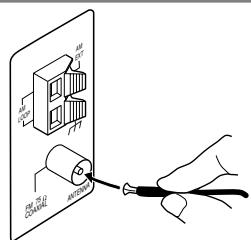
B
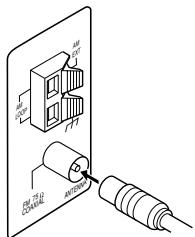
Extend the supplied FM antenna horizontally.
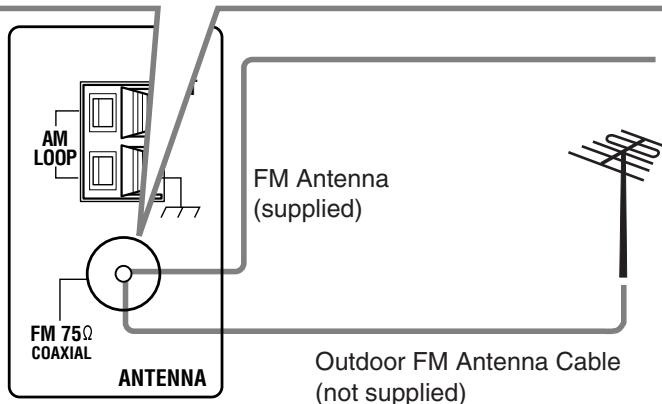
Connect the supplied FM antenna as temporary measure to the FM 75 Ω COAXIAL terminal—Ⓐ
If reception is poor, connect the outdoor FM antenna (not supplied)—®
1 Disconnect the supplied FM antenna.
2 Connect a 75 Ω coaxial cable (with the standard type connector).
AM antenna connections
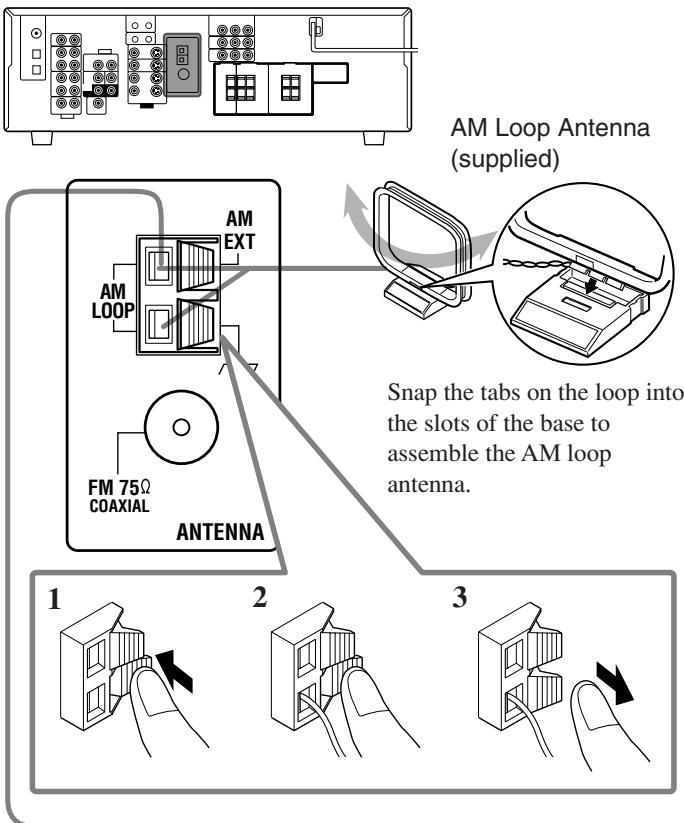
Outdoor single vinyl-covered wire (not supplied)
Turn the loop until you have the best reception.
Notes:
- If the AM loop antenna wire is covered with vinyl, remove the vinyl by twisting it as illustrated.
- Make sure the antenna conductors do not touch any other terminals, connecting cords and power cord. This could cause poor reception.
- If reception is poor, connect an outdoor single vinyl-covered wire (not supplied) to the AM EXT terminal. (Keep the AM loop antenna connected.)
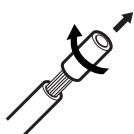
Connecting the Speakers and Subwoofer
You can connect five speakers (a pair of front speakers, a center speaker, and a pair of surround speakers) and a subwoofer.
CAUTIONS:
- Use only the speakers of the SPEAKER IMPEDANCE indicated by the speaker terminals.
- Do not connect more than one speaker to each speaker terminal.
Connecting the speakers
For RX-6040B/RX-6042S
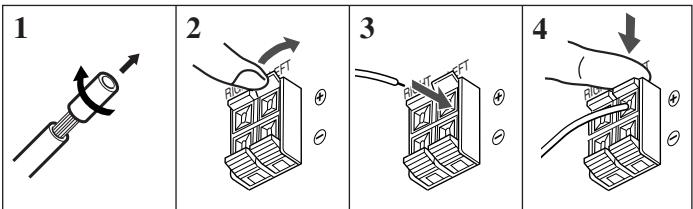
For RX-5040B/RX-5042S/RX-5045B
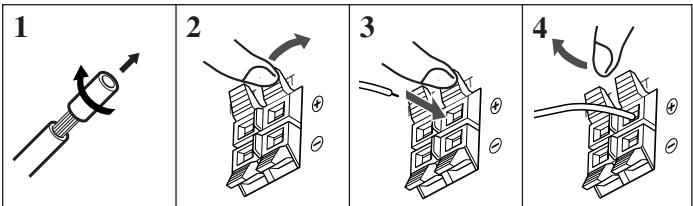
For each speaker (except for a subwoofer), connect the (+) and (−) terminals on the rear panel to the (+) and (−) terminals marked on the speakers.
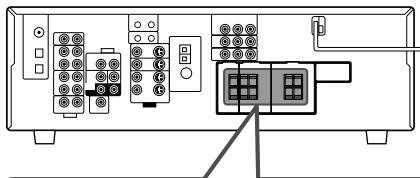
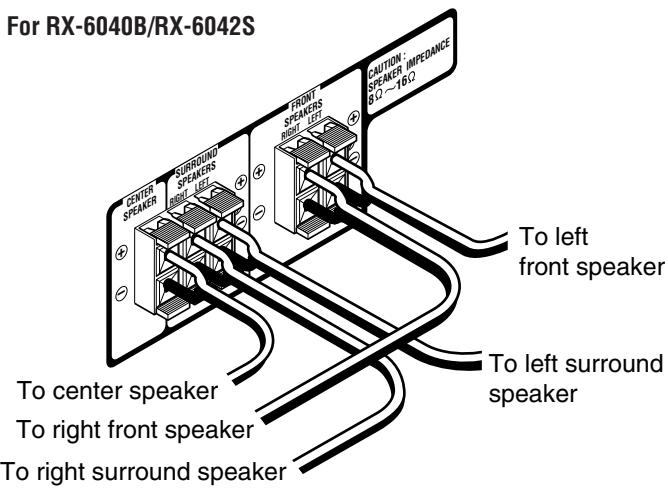
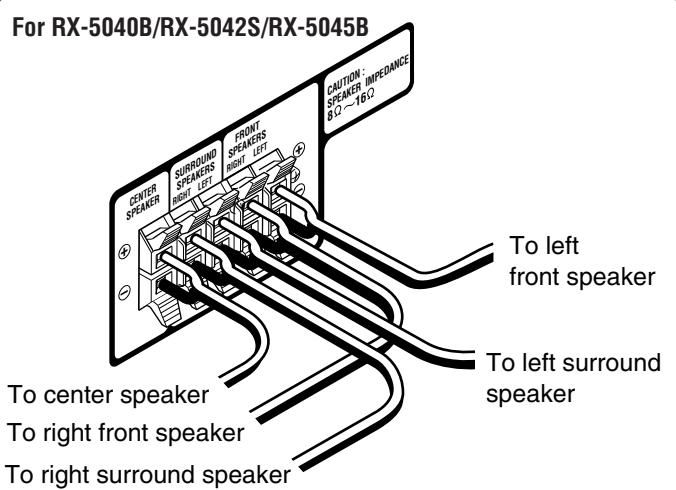
Connecting the subwoofer
You can enhance the bass by connecting a subwoofer.
Connect the input jack of a powered subwoofer to the rear panel, using a cable with RCA pin plugs (not supplied).
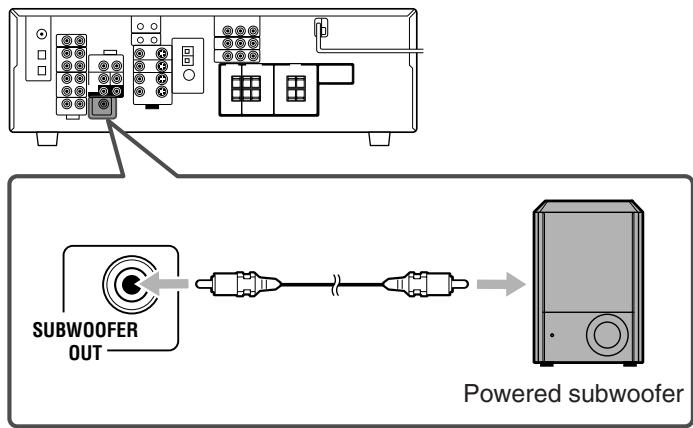
Placing speakers
Front speakers (L/R) and center speaker (C)
- Place these speakers at the same height from the floor, at or near ear level.
- Array across the front of the viewing area.
Surround speakers (LS/RS)
- Place these speakers alongside and slightly to the rear of (but not behind) the listening position; well above ear level (60 cm to 90 cm higher).
- Point these speakers directly across the listening area, but not at the listener's ears.
Subwoofer (S.WFR)
- You can place it wherever you like since bass sound is non-directional. Normally place it in front of you.
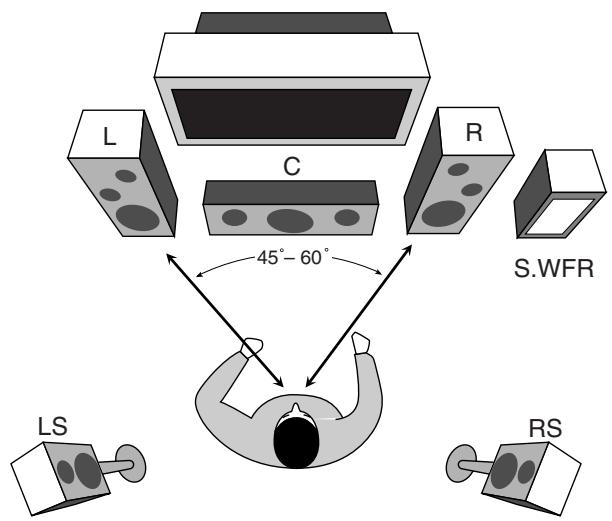
After connecting the speakers, set the speaker installation information properly. You can use Quick Speaker Setup for it (see page 18).
Connecting Audio/Video Components
When connecting individual components, refer also to the manuals supplied with them.
■ Analog Connections
Audio component connections
Use the cables with RCA pin plugs (not supplied).
- Connect the white plug to the audio left jack, and the red plug to the audio right jack.
If your audio components have a COMPU LINK jack
See also page 30 for detailed information about the connection and the COMPU LINK remote control system.
CAUTION:
If you connect a sound-enhancing device such as a graphic equalizer between the source components and this receiver, the sound output through this receiver may be distorted.
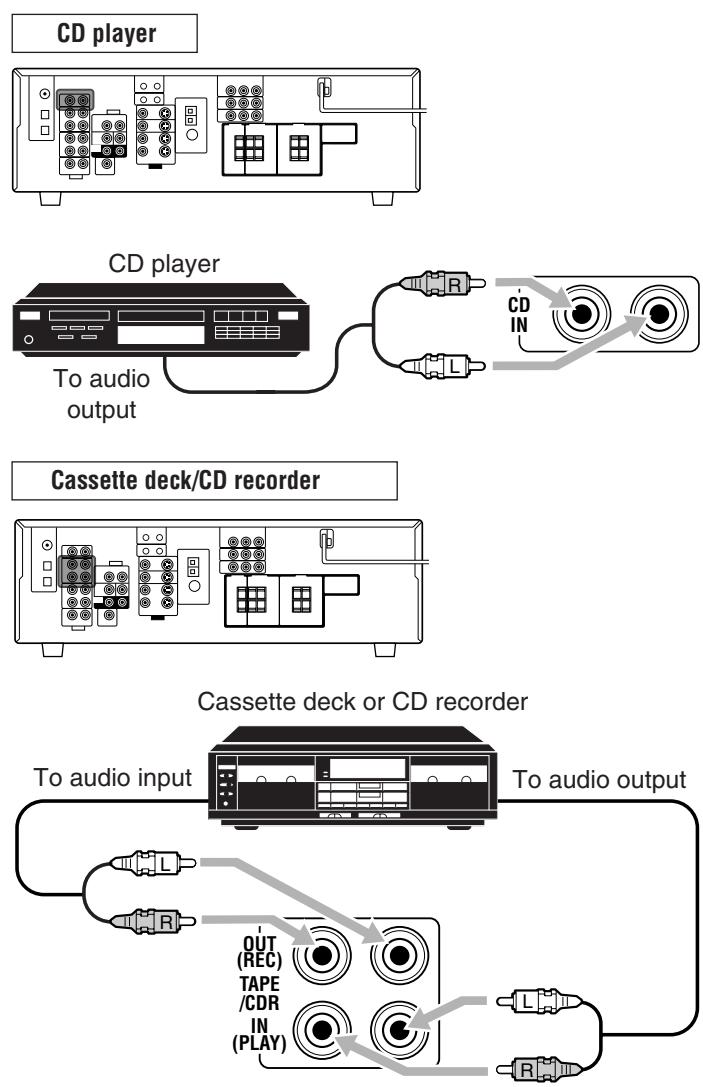
Note:
When connecting a CD recorder to the TAPE/CDR jacks, change the source name to "CDR," which will be shown on the display when it is selected as the source. See page 14 for details.
Video component connections
Use the cables with RCA pin plugs (not supplied).
Connect the white plug to the audio left jack, the red plug to the audio right jack, and the yellow plug to the video jack.
- For RX-6040B/RX-6042S: If your video components have the video input/output jacks of different types, connect them by using these jacks, you can get better picture quality in the order:
Component video > S-video > Composite video
However, the video signals from one type of these input jacks are transmitted only through the video output jacks of the same type.
If your video components have an AV COMPU LINK jack See also page 31 for detailed information about the connection and the AV COMPU LINK remote control system.
![graph TD A["VCR"] --> B["Only for RX-6040B/RX-6042S"] B --> C["VCR IN"] B --> D["Green"] B --> E["Blue"] B --> F["Red"] B --> G["VIDEO OUT (REC)"] B --> H["VIDEO IN (PLAY)"] B --> I["S-VIDEO S-VIDEO"] G --> J["OUT (REC)"] H --> K["VCR IN (PLAY)"] I --> L["VIDEO OUT (REC)"] I --> M["VIDEO IN (PLAY)"]…](/content/2025/01/123421/images/bbfcf31e1430ec2c749349da66f8e38270d1906964db22399cfaeedf65f18a22.jpg)
VCR
TV
![graph TD A["COMPONENT VIDEO MONITOR OUT"] --> B["MONITOR OUT"] B --> C["Red"] B --> D["Blue"] B --> E["Green"] F["TV SOUND IN"] --> G["RIGHT"] F --> H["AUDIO"] I["MONITOR OUT"] --> J["MONITOR OUT"] K["A"] --> L["TV"] M["B"] --> N["D"] O["C"] --> P["A"] Q["D"] --> R["A"] S["Only for RX-6040B/RX-6042S…](/content/2025/01/123421/images/f3a029eb450978f4e6efc82064e6a836e5cd7e024eaf0850ef002cb340af0fb9.jpg)
Connect the TV to appropriate MONITOR OUT jacks to view the playback picture from any other connected video components.
A To audio output
B To component video input
C To S-video input
D To composite video input
A To S-video output
B To composite video output
C To composite video input
D To S-video input
E To component video output
F To audio output
G To audio input
DVD player
- When you connect a DVD player with stereo output jacks:
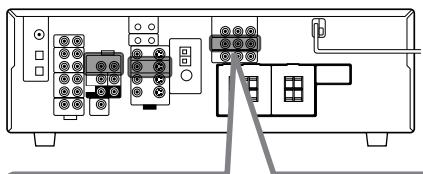
Only for RX-6040B/RX-6042S
![graph TD A[" DVD player "] -->|A| B[" DVD "] A -->|B| C[" DVD "] A -->|C| D[" DVD "] A -->|D| E[" DVD "] B --> F[" FRONT "] C --> G[" RIGHT "] C --> H[" LEFT "] D --> I[" R "] D --> J[" L "] F --> K[" DVD IN "] G --> L[" DVD IN "] H --> M[" DVD IN "] I --> N[" DVD IN "] J --> O[" DVD IN "] K --> P["…](/content/2025/01/123421/images/e461c0291b6ec0c4c165079dadd49e02d73c93d7450a25e29e4d584e19f4e32a.jpg)
A To component video output
B To S-video output
C To composite video output
D To left/right front channel audio output (or to audio-mixed output if necessary)
Notes:
- For RX-6040B/RX-6042S: When connecting a DVD player to the component video input jacks, make the component video input setting (VIDEO IN DVD) correctly for AV COMPU LINK. See page 22 for details.
- To enjoy Dolby Digital and DTS multi-channel software (including Dual Mono software), connect the DVD player through the digital input/output terminals.
Only for RX-6040B/RX-6042S
- When you connect a DVD player with its analog discrete output (5.1-channel reproduction) jacks:
This connection is the best connection method for enjoying DVD Audio sounds.
- When a DVD Audio disc is played back, the original high-quality sounds can be reproduced only using this connection.
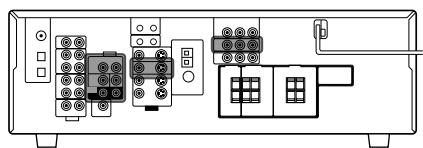
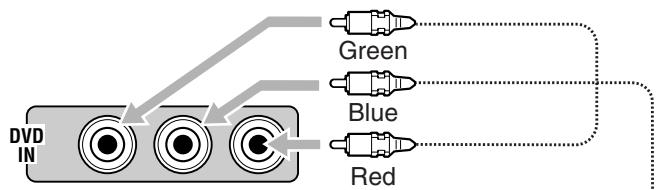
![graph TD A["Speaker"] --> B["Front"] A --> C["Sub WOOFER"] A --> D["SURR"] A --> E["RIGHT"] A --> F["LEFT"] B --> G["Central Display"] C --> H["Central Display"] D --> I["Central Display"] E --> J["Central Display"] F --> K["Central Display"] L["Audio"] --> M["Front"] N["DVD player"] --> O["Central…](/content/2025/01/123421/images/4b7ac5c8a308bd9696ef17616fd0d6e5af0bcd5aab1cb08e0a49725a8e3781f1.jpg)
A To subwoofer output
B To center channel audio output
C To left/right front channel audio output
D To component video output
E To S-video output
F To composite video output
G To left/right surround channel audio output
Note:
When connecting a DVD player to the component video input jacks, make the component video input setting (VIDEO IN DVD) correctly for AV COMPU LINK. See page 22 for details.
Digital Connections
By connecting the receiver and the source component through the digital terminals, sound reproduction quality will be much improved. In addition, you can enjoy multi-channel reproduction and some other convenient functions.
IMPORTANT:
- When connecting a video component using the digital terminals, you also need to connect it to the video jacks on the rear. Without connecting it to the video jacks, you can view no playback picture.
- After connecting the components using the DIGITAL IN terminals, set the following correctly if necessary.
- Set the digital input (DIGITAL IN) terminal setting correctly. For details, see “Setting the Digital Input Terminals” on page 22.
- Select the digital input mode correctly. For details, see "Selecting the Analog or Digital Input Mode" on page 13.
Digital input terminals
You can connect any digital components having coaxial or optical digital output terminal.
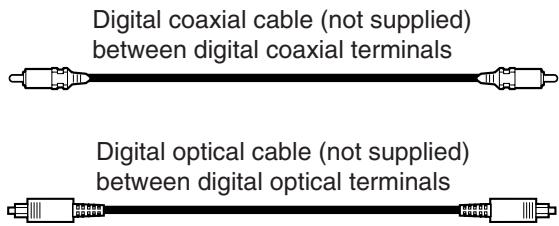
When the component has a digital coaxial output terminal, connect it to the DIGITAL 1 (DVD) terminal, using a digital coaxial cable (not supplied).
When the component has a digital optical output terminal, connect it to the DIGITAL 2 (CD)—or DIGITAL 3 (TV) for RX-6040B/RX-6042S—terminal, using a digital optical cable (not supplied).
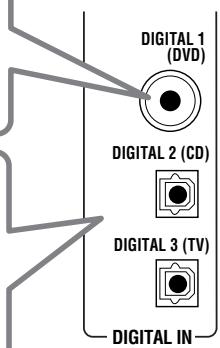
Before connecting a digital optical cable, unplug the protective plug.


Notes:
- When shipped from the factory, the DIGITAL IN terminals have been set for use with the following components:
– DIGITAL 1 (coaxial): For DVD player - DIGITAL 2 (optical): For CD player
Only for RX-6040B/RX-6042S:
– DIGITAL 3 (optical): For digital TV broadcast tuner - When you want to operate the CD player or CD recorder using the COMPU LINK remote control system (see page 30), connect it also as described in “Analog Connections” (see page 7).
- When you want to operate a DVD player or TV using the AV COMPU LINK remote control system (see page 31), connect it also as described in “Analog Connections” (see pages 8 and 9).
Connecting the Power Cord
Before plugging the receiver into an AC outlet, make sure that all connections have been made.
Plug the power cord into an AC outlet.
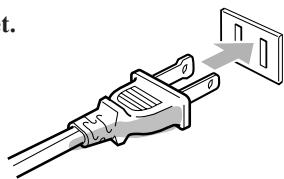
Keep the power cord away from the connecting cables and the antenna. The power cord may cause noise or screen interference.
Note:
The preset settings such as preset channels and sound adjustment may be erased in a few days in the following cases:
- When you unplug the power cord.
- When a power failure occurs.
CAUTIONS:
- Do not touch the power cord with wet hands.
- Do not pull on the power cord to unplug the cord. When unplugging the cord, always grasp the plug so as not to damage the cord.
The following operations are commonly used when you play any sound sources.
Operations hereafter will be explained using the buttons on the front panel.
You can also use the buttons on the remote control for the same functions if they have the same and similar names/marks.
Daily Operational Procedure
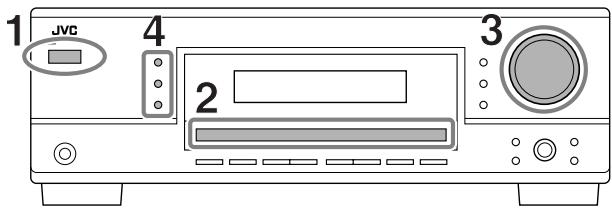
1 Turn on the power.
• See “Turning On the Power” below.
2 Select the source.
- See “Selecting the Source to Play” to the right.
3 Adjust the volume.
• See “Adjusting the Volume” on page 12.
4 Select the Surround or DSP modes.
- See “Activating the Surround Modes” (page 27) and “Activating the DSP Modes” (page 29).
Turning On the Power
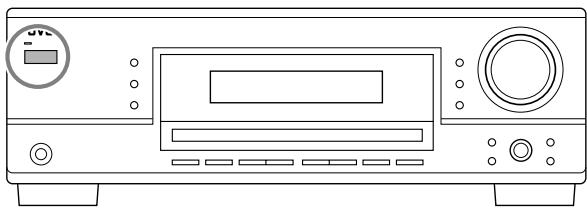
Press STANDBY/ON Ⓧ/l (or STANDBY/ON Ⓧ/l AUDIO on the remote control).
The STANDBY lamp goes off.
Current source name appears.
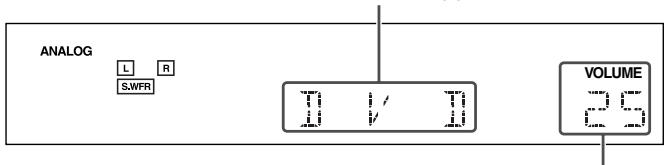
Current volume level appears.
To turn off the power (into standby mode),
press STANDBY/ON Ⓧ/l (or STANDBY/ON Ⓧ/l AUDIO on the remote control) again.
The STANDBY lamp lights up.
Note:
A small amount of power is consumed in standby mode. To turn off the power completely, unplug the AC power cord.
Selecting the Source to Play
When you have connected digital source components using the digital terminals, first change the input mode for these components to the digital input mode (see page 13).
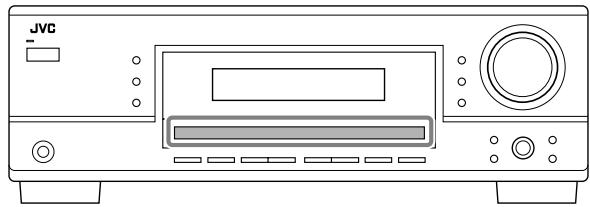
Press one of the source selection buttons.
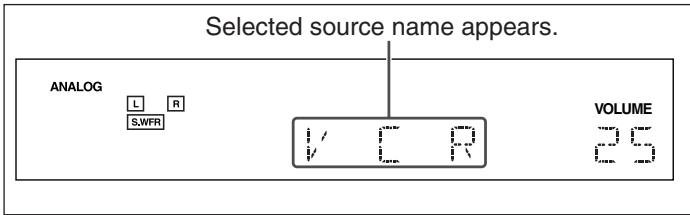
For RX-6040B/RX-6042S

On the front panel

On the remote
Note:
When you select “DVD MULTI,” you can enjoy analog discrete output sound (5.1-channel surround reproduction) from the external component.
- You may need to select analog discrete output mode on the external component.
- When using the headphones, you can listen to the front channel sounds (left and right) only.
- Surround and DSP modes (see pages 25 and 28) cannot be applied to "DVD MULTI."
For RX-5040B/RX-5042S/RX-5045B

On the front panel

On the remote
Note:
When connecting a CD recorder to the TAPE/CDR jacks, change the source name shown on the display. For details, see page 14.
Speaker and signal indicators on the display
By checking the following indicators, you can easily confirm which speakers you are activating and which signals are coming into this receiver.
Speaker indicators
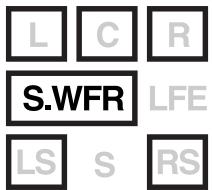
SB
Signal indicators
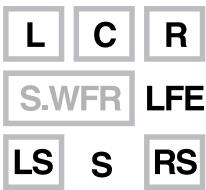
SB
What speaker indicators light depends on the speaker setting (for details, see “Setting the Speakers” on page 20).
- The frames of “L,” “C,” “R,” “LS,” and “RS” light up, when the corresponding speakers are set to “LARGE” or “SMALL.” Sounds come out of the speakers whose speaker indicators is lit on the display.
- The S.WFR indicator lights up when the subwoofer is activated (see pages 13 and 20).
The signal indicators light up to show the incoming signals.
L: • When digital input is selected: Lights up when the left channel signal comes in.
- When analog input is selected: Always lights up.
R: • When digital input is selected: Lights up when the right channel signal comes in.
- When analog input is selected: Always lights up.
C: Lights up when the center channel signal comes in.
LFE: Lights up when the LFE channel signal comes in.
LS: Lights up when the left surround channel signal comes in.
RS: Lights up when the right surround channel signal comes in.
S: Lights up when the monaural surround channel signal comes in.
SB: Lights up when the surround back channel signal comes in.
Note:
For RX-6040B/RX-6042S: When "DVD MULTI" is selected as the source, "L," "C," "R," "LFE," "LS," and "RS" light up.
How to understand the speaker and signal indicator illumination
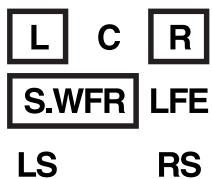
Ex. No sound comes out of the center speaker and surround speakers though center channel and surround channel signals are coming into this receiver.
Selecting different sources for picture and sound
While watching pictures from a video source, you can listen to sound of an audio source.
- Once you have selected a video source, pictures of the selected source are sent to the TV until you select another video source.
Press one of the audio source selection buttons while viewing the picture from a video component such as the VCR or DVD player, etc.
For RX-6040B/RX-6042S
| CD | TAPE/CDR | FM | AM |
| SOURCE NAME | |||
On the front panel
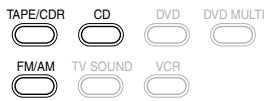
On the remote
For RX-5040B/RX-5042S/RX-5045B
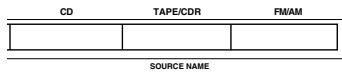
On the front panel
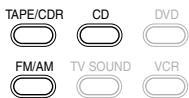
On the remote
Note:
For RX-6040B/RX-6042S: When you see the picture through the COMPONENT VIDEO jacks, you cannot use this function.
Adjusting the Volume
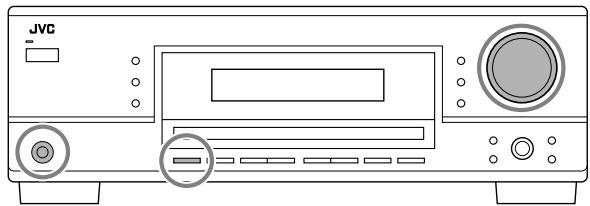
On the front panel:
To increase the volume, turn MASTER VOLUME clockwise. To decrease the volume, turn it counterclockwise.
On the remote control:
To increase the volume, press VOLUME +. To decrease the volume, press VOLUME -.
CAUTION:
Always set the volume to the minimum before starting any sources. If the volume is set at its high level, the sudden blast of sound energy can permanently damage your hearing and/or ruin your speakers.
Note:
The volume level can be adjusted within the range of "0" (minimum) to "50" (maximum).
Listening with headphones:
You can enjoy not only stereo software but also multi-channel software through the headphones. (Sounds are down-mixed to the front channels while playing multi-channel software.)
1 Press SPEAKERS ON/OFF to deactivate the speakers. "HEADPHONE" appears for a while, and the H.PHONE indicator lights on the display.
- If the Surround or DSP mode has been activated, “3D H PHONE” appears for a while (and the DSP indicator also lights up on the display)—3D Headphone Mode (3D H PHONE). For details, see pages 26 and 28.
2 Connect the headphones to the PHONES jack on the front panel. - If you do not deactivate the speakers, no sound comes out of the headphones.
After using the headphones, disconnect the headphones, then press SPEAKERS ON/OFF again to activate the speakers.
CAUTION:
Be sure to turn down the volume....
- Before connecting or putting on headphones, as its high volume can damage both the headphones and your hearing.
- Before turning on speakers again, as its high volume may come out of the speakers.
Turning On and Off the Subwoofer Sound
You can cancel the subwoofer output even though you have connected a subwoofer and have set “SUBWOOFER” to “SUBWOOFER YES” (see page 20).
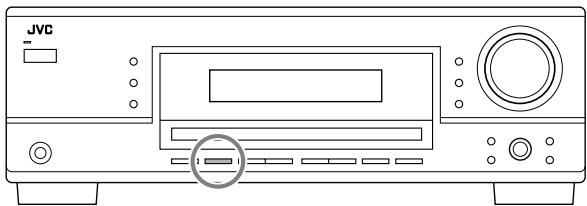
Press SUBWOOFER OUT ON/OFF to cancel the subwoofer output.
Each time you press the button, subwoofer output is deactivated (“SUBWOOFER OFF”) and activated (“SUBWOOFER ON”) alternately.
- When subwoofer output is canceled, the S.WFR indicator goes off. Bass sounds (and LFE signals) will be emitted through the front speakers.
Notes:
- When subwoofer output is activated, you can also adjust the subwoofer output level. For details, see page 24.
- You cannot deactivate the subwoofer output when you set "SMALL" for the front speakers on the speaker size setting (see page 20) or using Quick Speaker Setup (see page 18).
- You cannot activate the subwoofer output when you have set "SUBWOOFER" to "SUBWOOFER NO" (see page 20).
- When you change the “SUBWOOFER” setting from “SUBWOOFER NO” to “SUBWOOFER YES” (see page 20), subwoofer output is automatically activated.
Selecting the Analog or Digital Input Mode
When you have connected digital source components using the both analog and digital terminals (see pages 7 to 10), you can select the input mode—either digital or analog—for these components.
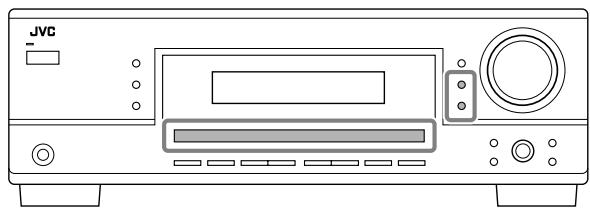
Before you start, remember...
The digital input terminal setting should be correctly done for the sources you want to select the digital input mode (see “Setting the Digital Input Terminals” on page 22).
1 Press one of the source selection buttons (DVD, TV SOUND, CD, TAPE/CDR*) for which you want to change the input mode.
* If “TAPE” is selected as the source, digital input mode is not available. To change the source name, see “Changing the Source Name” on page 14.
2 Press INPUT DIGITAL to select "DIGITAL AUTO."
The DIGITAL AUTO indicator lights up on the display.
- When using the remote control, press ANALOG/DIGITAL. Each time you press the button, the analog (ANALOG) and digital (DIGITAL AUTO) input modes alternate.

- When selecting “DIGITAL AUTO,” the following indicators indicate the digital signal format of the incoming signal.
LINEAR PCM : Lights up when Linear PCM signals come in.
☐ DIGITAL : Lights up when Dolby Digital signals come in.
dts : Lights up when conventional DTS signals come in.
dts 96/24 : Lights up when DTS 96/24 signals come in.
No indicator lights up when the receiver cannot recognize the digital signal format of the incoming signals.
Note:
For details about the digital signal formats, see pages 25 and 26.
When playing software encoded with Dolby Digital or DTS, the following symptoms may occur:
- Sound does not come out at the beginning of playback.
- Noise comes out while searching for or skipping chapters or tracks.
In this case, press INPUT DIGITAL repeatedly to select “DOLBY DIGITAL” or “DTS SURROUND.”
• Each time you press INPUT DIGITAL, the input mode changes as follows:
![graph TD A["DIGITAL AUTO"] --> B["DOLBY DIGITAL"] B --> C["DTS SURROUND"] subgraph Digital AUTO L["L"] --> C C --> R["R"] S["WFR"] --> L L --> LFE["LFE"] LS["LS"] --> R RS["RS"] end subgraph Digital AUTO AUTO A1[" "] --> B1["DOLBY DIGITAL"] end](/content/2025/01/123421/images/a722f843f251043d643e483ee6a0e1cd02de20f90ba62f3d0b1a869affb91d38.jpg)
When “DOLBY DIGITAL” or “DTS SURROUND” is selected, the DIGITAL AUTO indicator goes off, and the corresponding digital signal format indicator lights up on the display.
- If the incoming signal does not match the selected digital signal format, the indicator of the selected signal format will flash.
Note:
When you turn off the power or select another source, “DOLBY DIGITAL” and “DTS SURROUND” settings are canceled and the digital input mode is automatically reset to “DIGITAL AUTO.”
To select the analog input mode
Press INPUT ANALOG (or ANALOG/DIGITAL on the remote control repeatedly until “ANALOG” appears on the display). The ANALOG indicator lights up.

Changing the Display Brightness
You can dim the display.
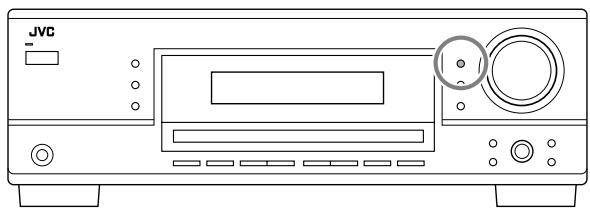
Press DIMMER.
• Each time you press the button, the display dims and brightens alternately.
Attenuating the Input Signal

When the input level of the analog source is too high, the sounds will be distorted. If this happens, you need to attenuate the input signal level to prevent the sound distortion.
- Once you have made adjustment, it is memorized for each analog source.

Press and hold INPUT ATT (INPUT ANALOG) so that the INPUT ATT indicator lights up on the display.
- Each time you press and hold the button, the input attenuator mode turns on (“INPUT ATT ON”) and off (“INPUT NORMAL”).
Note:
For RX-6040B/RX-6042S: This function is not valid when "DVD MULTI" is selected.
Changing the Source Name

When you have connected a CD recorder to the TAPE/CDR jacks on the rear panel, change the source name which will be shown on the display.
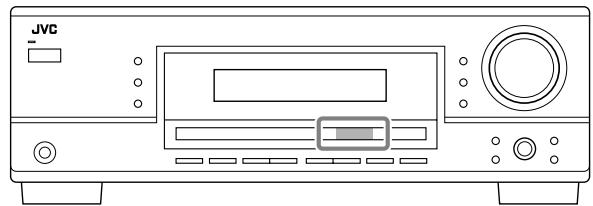
When changing the source name from “TAPE” to “CDR”:
1 Press TAPE/CDR (SOURCE NAME).
- Make sure “TAPE” appears on the display.
2 Press and hold SOURCE NAME (TAPE/CDR) until "ASSIGN CDR" appears on the display.

To change the source name back to “TAPE,” repeat the same procedure above.
Note:
Without changing the source name, you can still use the connected components. However, there may be some inconvenience.
- “TAPE” will appear on the display when you select the CD recorder.
- You cannot use the digital input (see page 13) for the CD recorder.
The following basic operations are possible only using the remote control.
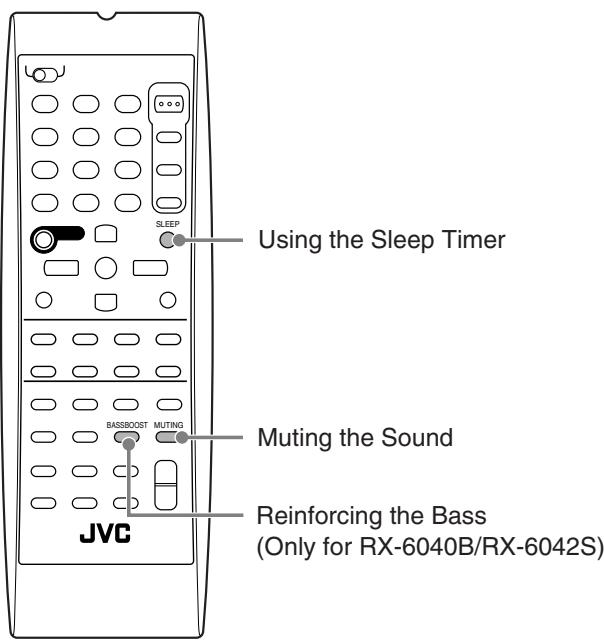
Reinforcing the Bass

This function is only for RX-6040B/RX-6042S.
You can boost the bass level.
- Once you have made adjustment, it is memorized for each source.
Press BASSBOOST to boost the bass level.
The BASS BOOST indicator lights up on the display.
- Each time you press the button, Bass Boost turns on (“BASSBOOST ON”) and off (“BASSBOOST OFF”) alternately.
Note:
This function affects only the sounds from the front speakers.
Muting the Sound

Press MUTING to mute the sound through all speakers and headphones connected.
“MUTING” appears on the display and the volume turns off (the VOLUME indicator and its level indication go off).
To restore the sound, press MUTING again.
- Turning MASTER VOLUME on the front panel or pressing VOLUME +/- on the remote control also restores the sound.
Using the Sleep Timer

Using the Sleep Timer, you can fall asleep while listening to music. When the shut-off time comes, the receiver turns off automatically.
Press SLEEP repeatedly.
The SLEEP indicator lights up on the display, and the shut-off time changes in 10 minutes intervals:
![graph LR A["10"] --> B["20"] B --> C["30"] C --> D["40"] D --> E["50"] E --> F["60"] F --> G["70"] G --> H["80"] H --> I["90"] I --> J["OFF (Canceled)"] J --> A](/content/2025/01/123421/images/bdf01f55329e60709f247cf40bbede01b845990944ff8ee3aa9f1ee58339018e.jpg)
To check or change the time remaining until the shut-off time: Press SLEEP once.
The remaining time until the shut-off time appears in minutes.
- To change the shut-off time, press SLEEP repeatedly.
To cancel the Sleep Timer:
Press SLEEP repeatedly until “SLEEP OFF” appears on the display. The SLEEP indicator goes off.
- Turning off the power also cancels the Sleep Timer.
Recording a source
You can record any sources playing through the receiver to a cassette deck (or a CD recorder) connected to the TAPE/CDR jacks and the VCR connected to the VCR jacks at the same time.
While recording, you can listen to the selected sound source at whatever sound level you like without affecting the sound levels of the recording.
Note:
The output volume level, Midnight Mode (see page 21), Bass Boost (only for RX-6040B/RX-6042S), Equalization patterns (see page 24), Surround modes and DSP modes (see pages 25 to 29) cannot affect the recording.
Basic adjustment auto memory
This receiver memorizes sound settings for each source—
- when you turn off the power,
- when you change the source,
- when you change the analog/digital input modes, and
- when you assign the source name (see page 14).
When you change the source, the memorized settings for the newly selected source are automatically recalled.
The following can be stored for each source:
- Analog/digital input mode (see page 13)
- Input attenuator mode (see page 14)
• Equalization pattern (see page 24) - Speaker output levels (see page 24)
- Surround and DSP mode selection (see pages 25 and 28)
- Bass Boost setting (only for RX-6040B/RX-6042S)
Notes:
- If the source is FM or AM, you can assign a different setting for each band.
- A sound setting assigned for a digital component is valid for both the analog and digital input modes.
You can browse through all the stations or use the preset function to go immediately to a particular station.
Tuning in to Stations Manually
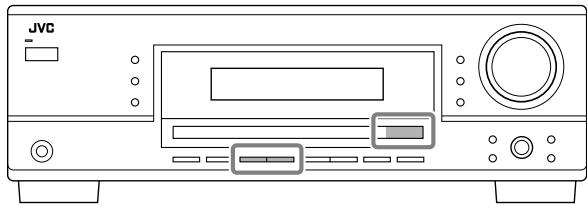
1 Select the band (FM or AM).
- For RX-6040B/RX-6042S: Press FM or AM.
- For RX-5040B/RX-5042S/RX-5045B: Press FM/AM. Each time you press the button, the band alternates between FM and AM.
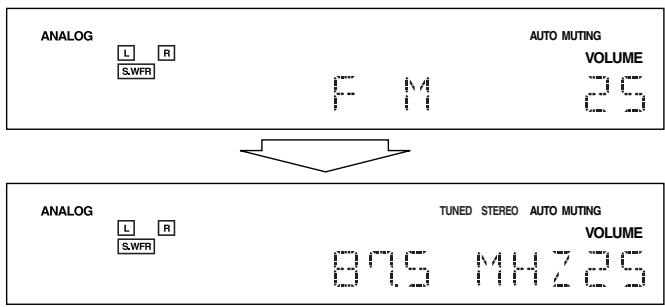
The last received station of the selected band is tuned in.
2 Press FM/AM TUNING ▲ or ▼ repeatedly until you find the frequency you want.
- Pressing FM/AM TUNING ▲ increases the frequency.
- Pressing FM/AM TUNING ▼ decreases the frequency.

Notes:
- When a station of sufficient signal strength is tuned in, the TUNED indicator lights up on the display.
- When an FM stereo program is received, the STEREO indicator also lights up.
- When you hold and then release the button in step 2, the frequency keeps changing until a station is tuned in.
Using Preset Tuning
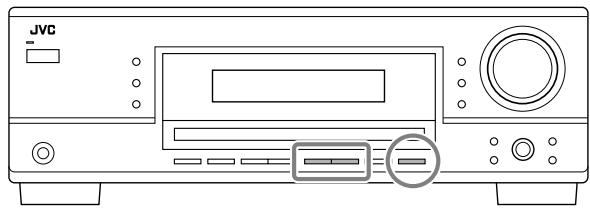
Once a station is assigned to a channel number, the station can be quickly tuned in. You can preset up to 30 FM and 15 AM stations.
To store the preset stations
Before you start, remember...
There is a time limit in doing the following steps. If the setting is canceled before you finish, start from step 2 again.
1 Tune in the station you want to preset (see "Tuning in to Stations Manually").
- If you want to store the FM reception mode for this station, select the FM reception mode you want. See “Selecting the FM Reception Mode” on page 17.
2 Press MEMORY.

The channel number position starts flashing on the display for about 5 seconds.
3 Press FM/AM PRESET ▲ or ▼ to select a channel number while the channel number position is flashing.

4 Press MEMORY again while the selected channel number is flashing on the display.
The selected channel number stops flashing.
The station is assigned to the selected channel number.
5 Repeat steps 1 to 4 until you store all the stations you want.
To erase a stored preset station
Storing a new station on a used number erases the previously stored one.
To tune in a preset station
On the front panel:
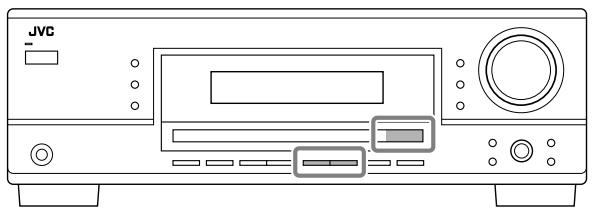
1 Select the band (FM or AM).
- For RX-6040B/RX-6042S: Press FM or AM.
- For RX-5040B/RX-5042S/RX-5045B: Press FM/AM. Each time you press the button, the band alternates between FM and AM.
2 Press FM/AM PRESET ▲ or ▼ until you find the channel you want.
- Pressing FM/AM PRESET ▲ increases the number.
- Pressing FM/AM PRESET ▼ decreases the number.
On the remote control:
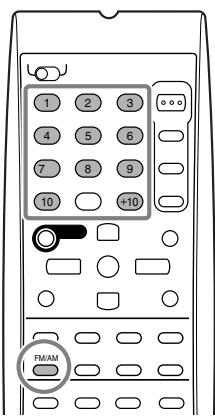
1 Press FM/AM to select the band.
The last received station of the selected band is tuned in.
• Each time you press the button, the band alternates between FM and AM.
2 Press the 10 keys to select a preset channel number.
- For channel number 5, press 5.
- For channel number 15, press +10 then 5.
- For channel number 20, press +10 then 10.
- For channel number 30, press +10, +10, then 10.
Note:
When you use the 10 keys on the remote control, be sure that they are activated for the tuner, not for the CD and others. (See page 33.)
Selecting the FM Reception Mode
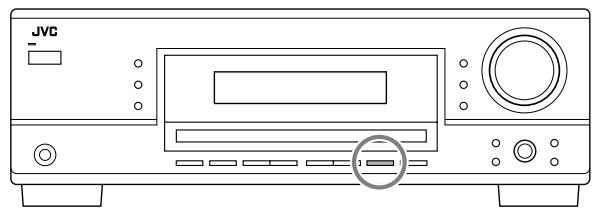
When an FM stereo broadcast is hard to receive or noisy, you can change the FM reception mode while receiving an FM broadcast.
- You can store the FM reception mode for each preset station (see page 16).
While listening to an FM station, press FM MODE.
- Each time you press the button, the FM reception mode alternates between “AUTO MUTING” and “MODE MONO.”
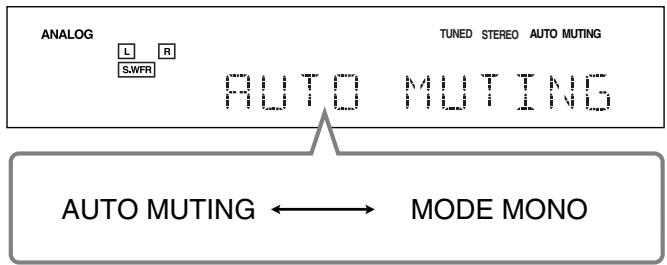
| AUTO MUTING: | Normally select this.When a program is broadcasted in stereo, you will hear stereo sound; when in monaural, you will hear monaural sounds.This mode is also useful to suppress static noise between stations.The AUTO MUTING indicator lights up on the display. (Initial setting) |
| MODE MONO: | Select this to improve the reception (but stereo effect will be lost).In this mode, you will hear noise while tuning in to the stations.The AUTO MUTING indicator goes off from the display (the STEREO indicator goes off). |
Note:
After you operate any source other than the tuner using the remote control, the FM MODE button on the remote control does not work. In this case, press FM/AM on the remote control, then press FM MODE.
Some of the following settings are required after connecting and positioning your speakers while others will make operations easier. You can use QUICK SPEAKER SETUP to easily set up your speaker configuration.
Quick Speaker Setup

Quick Speaker Setup helps you to easily and quickly register the speaker size and speaker distance according to your listening room to create the best possible surround effect.
- You can also register each speaker's information manually. For details, see page 20.
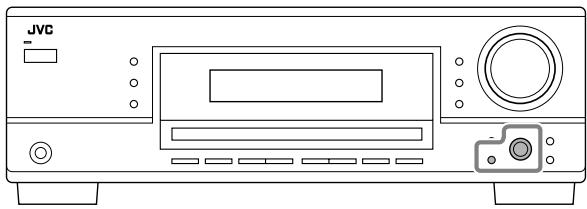
Before you start, remember...
There is a time limit in doing the following steps. If the setting is canceled before you finish, start from step 1 again.
1 Press QUICK SPEAKER SETUP.
“SPK→” and the initial speaker channel number appear.
- Depending on your model, it will be either “5.0CH” or “5.1CH.”
2 Turn MULTI JOG to select an appropriate number of the connected speakers (speaker channel number).
As you turn the jog, the speaker channel number changes as follows.
- For the details of speaker channel number, see “Speaker channel number and the size.”
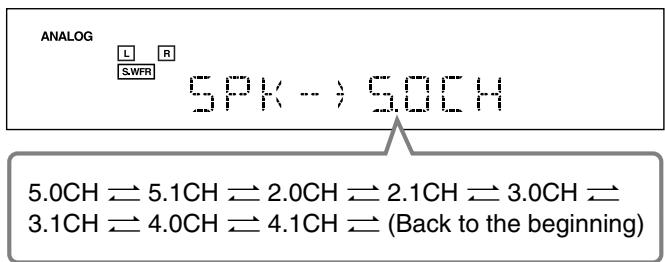
3 Press in MULTI JOG (PUSH SET).
“ROOM SIZE→” and the initial room size setting appear.
4 Turn MULTI JOG to select an appropriate room size to match to your listening room.
As you turn the jog, the room size changes as follows.
- To select your appropriate room size, see “Room size and the speaker distance.”
![graph TD A["ANALOG"] --> B["L"] A --> C["R"] A --> D["S,WFR"] B --> E["ROOM SIZE-->L"] C --> E D --> E E --> F["L (Large)"] E --> G["S (Small)"] E --> H["M (Medium)"]](/content/2025/01/123421/images/a47c2de2217fbf83235884518f19a3dabd143ba45083707da0d2557cb2a55571.jpg)
5 Press in MULTI JOG (PUSH SET).
“COMPLETE” appears on the display, then goes back to the source indication.
Notes:
- This procedure will not be completed if you stop in the middle of the setting process.
- Once Quick Speaker Setup is performed, the speaker output levels are also set to appropriate values automatically (common to all sources). If you want to set the speaker output levels separately for each source, see “Adjusting the Speaker Output Levels” on page 24.
Speaker channel number and the size
You can find how each of the speaker size is defined according to the number of connected speakers (speaker channel “CH” number) you select.
- Subwoofer (S.WFR) is counted as 0.1 channel.
| CH | The size of the connected speakers | |||
| L/R | C | LS/RS | S.WFR | |
| 2.0CH | LARGE | NONE | NONE | NO |
| 2.1CH | SMALL | NONE | NONE | YES |
| 3.0CH | LARGE | SMALL | NONE | NO |
| 3.1CH | SMALL | SMALL | NONE | YES |
| 4.0CH | LARGE | NONE | SMALL | NO |
| 4.1CH | SMALL | NONE | SMALL | YES |
| 5.0CH | LARGE | SMALL | SMALL | NO |
| 5.1CH | SMALL | SMALL | SMALL | YES |
Room size and the speaker distance
According to the selected room size, speaker distance for each activated speaker is set as follows:
| Size | Speaker | Distance |
| L(Large) | L/R | 3.0 m (10 ft) |
| C | 3.0 m (10 ft) | |
| LS/RS | 3.0 m (10 ft) | |
| M(Medium) | L/R | 2.7 m (9 ft) |
| C | 2.4 m (8 ft) | |
| LS/RS | 2.1 m (7 ft) | |
| S(Small) | L/R | 2.4 m (8 ft) |
| C | 2.1 m (7 ft) | |
| LS/RS | 1.5 m (5 ft) |
Note:
In the tables above, “L” stands for the left front speaker, “R” for the right front speaker, “C” for the center speaker, “LS” for the left surround speaker, “RS” for the right surround speaker, and “S.WFR” for the subwoofer.
Basic Setting Items
On the following pages, you can adjust the following items:
- You can only select the items currently available. For details, see the explanation of each item.
| Items | To do | See page |
| SUBWOOFER*1 | Register your subwoofer. | 20 |
| FRNT SPEAKERS*1 | Register your front speaker size. | 20 |
| CNTR SPEAKER*1 | Register your center speaker size. | 20 |
| SURR SPEAKERS*1 | Register your surround speaker size. | 20 |
| DISTANCE UNIT | Select the measuring unit for the speaker distance. | 20 |
| FRONT L DIST*1 | Register the distance from the left front speaker to your listening point. | 20 |
| FRONT R DIST*1 | Register the distance from the right front speaker to your listening point. | 20 |
| CENTER DIST*1 | Register the distance from the center speaker to your listening point. | 20 |
| SURR L DIST*1 | Register the distance from the left surround speaker to your listening point. | 20 |
| SURR R DIST*1 | Register the distance from the right surround speaker to your listening point. | 20 |
| SUBWOOFER OUT | Select the type of the sounds emitted from the subwoofer. | 20 |
| CROSSOVER | Select the cutoff frequency to the subwoofer. | 21 |
| LFE ATTENUATE | Attenuate the bass (LFE) sounds. | 21 |
| MIDNIGHT MODE | Reproduce a powerful sound at night. | 21 |
| DUAL MONO | Select the Dual Mono sound channel. | 21 |
| AUTO SURROUND | Turn on or off Auto Surround. | 21 |
| VIRTUAL SBACK | Turn on or off Virtual Surround Back. | 22 |
| DIGITAL IN | Select the component connected to digital input terminal. | 22 |
| VIDEO IN DVD*2 | Select the type of video terminal used for the DVD player. | 22 |
| VIDEO IN VCR*2 | Select the type of video terminal used for the VCR. | 22 |
Notes:
*1 These items can be set using Quick Speaker Setup.
*2 This setting is only for RX-6040B/RX-6042S.
Basic Procedure
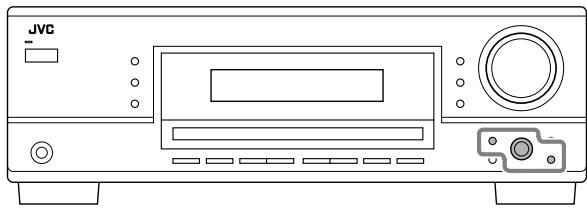
Before you start, remember...
There is a time limit in doing the following steps. If the setting is canceled before you finish, start from step 1 again.
Ex. When setting Auto Surround to "AUTO SURR ON."
1 Press SETTING.
The last selected item appears on the display.

2 Turn MULTI JOG until an item you want appears on the display.
- In this example, select “AUTO SURROUND.” For available items, see the list “Basic Setting Items.”

3 Press in MULTI JOG (PUSH SET).
The current setting for the selected item appears on the display.

4 Turn MULTI JOG until a setting you want appears on the display.

5 Press in MULTI JOG (PUSH SET).
6 Repeat steps 2 to 5 to set other items if necessary.
7 Press EXIT.
The source indication resumes on the display.
Setting the Speakers
To obtain the best possible surround effect from the Surround and DSP modes, register the setting about the speaker arrangement after all connections are completed.
- If you have used Quick Speaker Setup on page 18, this setting is not required.
- Subwoofer setting—SUBWOOFER
Select whether you have connected a subwoofer or not.
SUBWOOFER YES: Select when a subwoofer is connected.
SUBWOOFER NO: Select when no subwoofer is used.
Note:
If you have selected "SUBWOOFER NO" for the subwoofer, you cannot use the SUBWOOFER OUT ON/OFF button on the front panel.
● Speaker size—FRNT SPEAKERS, CNTR SPEAKER, SURR SPEAKERS
Select the size for each connected speaker.
| LARGE: | Select when the speaker size is relatively large. |
| SMALL: | Select when the speaker size is relatively small. |
| NONE: | Select this when you have not connected a speaker. (Not selectable for the front speakers) |
Notes:
- Keep the following comments in mind as reference when adjusting.
- If the size of the cone speaker unit built in your speaker is larger than 12 cm ( 43/4 inches), select “LARGE,” and if it is smaller than 12 cm ( 43/4 inches), select “SMALL.”
- If you have selected "SUBWOOFER NO" for the subwoofer setting, you can only select "LARGE" for the front speakers.
- If you have selected "SMALL" for the front speakers, you cannot select "LARGE" for the center and surround speakers.
Setting the Speaker Distance
The distance from your listening point to the speakers is another important element to obtain the best possible sound of the Surround and DSP modes. Set the distance from your listening point to the speakers.
By referring to the speaker distance setting, this unit automatically sets the delay time of the sound through each speaker so that sounds through all the speakers can reach you with the same timing.
- If you have used Quick Speaker Setup on page 18, this setting is not required.
● Measuring unit—DISTANCE UNIT
Select which measuring unit you use.
UNIT METER: Select to set the distance in meters.
UNIT FEET: Select to set the distance in feet.
● Speaker distance—FRONT L DIST, FRONT R DIST, CENTER DIST, SURR L DIST, SURR R DIST
Set the distance from the listening point within the range of 0.3 m (1 ft) to 9.0 m (30 ft), in 0.3 m (1 ft) intervals.
- When shipped from the factory, distance for each speaker is set to “3.0m (10FT).”
Notes:
- You cannot set the speaker distance for the speakers you have selected "NONE."
- For RX-6040B/RX-6042S: This setting is not valid for "DVD MULTI."
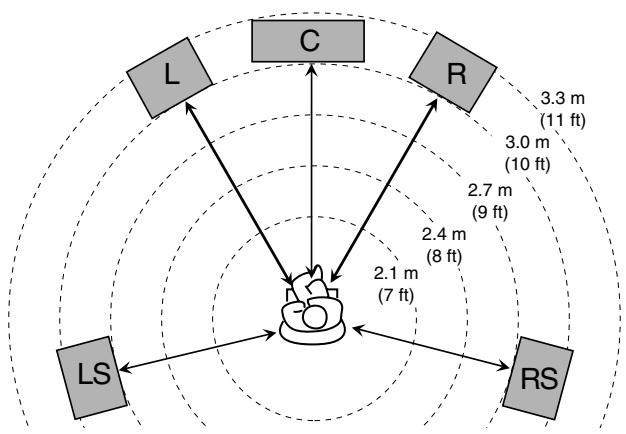
Ex. In the above case, set the speaker distance as follows:
| Front speakers: | 3.0m (10FT) |
| Center speaker: | 3.0m (10FT) |
| Surround speakers: | 2.7m (9FT) |
Setting the Bass Sounds
You can adjust subwoofer and bass sounds precisely according to your preference.
- Subwoofer output—SUBWOOFER OUT
You can select the type of the signal which can be transmitted through the subwoofer. In other words, you can determine whether or not the bass elements of the front speaker channels are transmitted through the subwoofer regardless of the front speaker size setting (either “SMALL” or “LARGE”).
Select one of the following:
| SWFR LFE: | Select to emit only the LFE signals (while playing Dolby Digital and DTS software) or the bass elements of the “SMALL” front speakers (while playing any source other than the above). |
| SWFR LFE+MAIN: | Select to always emit the bass elements of the front speaker channels (MAIN). While playing Dolby Digital and DTS software, the bass element and the LFE signals are both emitted. |
Note:
If you have selected "SUBWOOFER NO" for the subwoofer, this function is not available.
● Crossover frequency—CROSSOVER
You can select the crossover frequency for the small speakers used. The signals below the preset frequency level will be sent to and be reproduced by the subwoofer (or by “LARGE” speakers when “SUBWOOFER” is set to “SUBWOOFER NO”).
Select one of the crossover frequency levels according to the size of the small speaker connected.
| CROSS 80HZ: | Select when the cone speaker unit built in the speaker is about 12 cm ( 43/4 inches). |
| CROSS 100HZ: | Select when the cone speaker unit built in the speaker is about 10 cm ( 315/16 inches). |
| CROSS 120HZ: | Select when the cone speaker unit built in the speaker is about 8 cm ( 33/16 inches). |
| CROSS 150HZ: | Select when the cone speaker unit built in the speaker is about 6 cm ( 23/8 inches). |
| CROSS 200HZ: | Select when the cone speaker unit built in the speaker is about 5 cm (2 inches). |
Notes:
- If you have selected "LARGE" for all activated speakers (see page 20), this function is fixed to "CROSS OFF."
- Crossover frequency is not valid for "HEADPHONE," "3D H PHONE" (and "DVD MULTI" for RX-6040B/RX-6042S).
● Low frequency effect attenuator—LFE ATTENUATE
If the bass sound is distorted while playing back software encoded with Dolby Digital or DTS, set the LFE level to eliminate distortion.
- This function takes effect only when the LFE signals come in.
Select one of the following:
LFE ATT 0dB: Normally select this.
LFE ATT -10dB: Select when the bass sound is distorted.
● Midnight mode—MIDNIGHT MODE
You can enjoy a powerful sound at night using Midnight Mode.
Select one of the following:
| MIDNIGHT 1: | Select when you want to reduce the dynamic range a little. |
| MIDNIGHT 2: | Select when you want to apply the compress effect fully (useful at midnight). |
| MIDNIGHT OFF: | Select when you want to enjoy playback with its full dynamic range (no effect applied). |
Note:
For RX-6040B/RX-6042S: Midnight Mode is not valid for "DVD MULTI."
■ Selecting the Main or Sub Channel
You can select the playback sound (channel) you want while playing digital software recorded (or broadcast) in Dual Mono mode (see page 26), which includes two monaural channels separately.
- Dual Mono—DUAL MONO
Select the playback sounds (channel).
| MONO MAIN: Select to play back the main channel (Ch 1).*Signal indicator “L” lights up while playing back this channel. | |
| MONO SUB: Select to play back the sub-channel (Ch 2).*Signal indicator “R” lights up while playing back this channel. | |
| MONO ALL: Select to play back both the main and sub-channels (Ch 1/Ch 2).*Signal indicators “L” and “R” light up while playing back these channels. |
Notes:
- The Dual Mono format is not identical with bilingual broadcasting or the MTS (Multichannel Television Sound) format used for TV programs. So this setting does not take effect while watching bilingual or MTS programs.
* Dual Mono signals can be heard from the following speakers—L (left front speaker), R (right front speaker), and C (center speaker)—with respect to the current Surround setting.
| Dual Mono Setting | Without Surround | With Surround Activated | |||||
| Center speaker setting | |||||||
| SMALL/LARGE | NONE | ||||||
| L | R | L | C | R | L | R | |
| MAIN | Ch 1 | Ch 1 | — | Ch 1 | — | Ch 1 | Ch 1 |
| SUB | Ch 2 | Ch 2 | — | Ch 2 | — | Ch 2 | Ch 2 |
| ALL | Ch 1 | Ch 2 | — | Ch 1+Ch 2 | — | Ch 1+Ch 2 | Ch 1+Ch 2 |
Setting for Easy and Effective Surround Operations
● Auto Surround—AUTO SURROUND
Auto Surround works when the unit detects the incoming digital signal. In other words, it works...
- When you select the digital source (the source with digital input selected for it), and
- When you change the input mode from analog to digital.
Select "AUTO SURR ON" to activate Auto Surround.
AUTO SURR ON:
- When multi-channel signal is detected, an appropriate Surround mode will be turned on.
- When Dolby Digital 2-channel with surround signals is detected, “PLII MOVIE” will be selected.
- When Dolby Digital 2-channel without surround signals is detected, “SURROUND OFF” will be selected.
- When Linear PCM signal is detected, nothing will change.
AUTO SURR OFF: Select to deactivate Auto Surround.
Continued on the next page
Notes:
- This function does not take effect in the following cases:
– While playing an analog source, - While selecting any of DSP modes (see page 28), or one of the fixed digital input mode—“DOLBY DIGITAL” or “DTS SURROUND” (see page 14), and
- While listening with the headphones—"HEADPHONE" or "3D H PHONE" (see pages 13 and 26).
- If you select another Surround mode or DSP mode (or deactivate the Surround/DSP mode) manually, Auto Surround, if in use, will be canceled temporarily for the currently selected source. Auto Surround setting will be restored in the following cases:
- When you turn the receiver off and on,
- When you change the source,
- When you change the analog/digital input, and
- When you select "AUTO SURR ON" again.
● Virtual Surround Back—VIRTUAL SBACK
You can enjoy the surround back channel while playing back Dolby Digital EX software or DTS-ES software without the surround back speakers. This function creates the great surround effect from the behind as if you have connected the surround back speakers.
Select "VRTL SB ON" to activate Virtual Surround Back.
VRTL SB ON: While you play Dolby Digital EX software or DTS-ES software, the VIRTUAL SB (Surround Back) indicator lights up.
VRTL SB OFF: Select to deactivate Virtual Surround Back.
Notes:
- When you have set "NONE" for "SURR SPEAKERS," this function is not available.
- While playing back DTS-ES Matrix software with DTS 96/24, DTS 96/24 processing will not be performed with Virtual Surround Back activated. To apply the processing, deactivate Virtual Surround Back.
• Virtual Surround Back may not be applied to some software.
Setting the Digital Input Terminals
When you use the digital input terminals, register which components you have connected to the digital input terminals.
● Digital Input terminal—DIGITAL IN
Set the components connected to the digital terminals.
- As you rotate MULTI JOG, the digital input terminals are set to used for the following digital components:
For RX-6040B/RX-6042S:
| 1DVD | 2CD | 3TV | 1DVD | 2CD | 3CDR | ||
| 1DVD | 2CD | 3VCR | 1DVD | 2TV | 3CDR | ||
| 1DVD | 2TV | 3VCR | 1DVD | 2CDR | 3VCR | ||
| 1CD | 2DVD | 3TV | 1CD | 2DVD | 3CDR | ||
| 1CD | 2DVD | 3VCR | 1CD | 2TV | 3CDR | ||
| 1CD | 2TV | 3VCR | 1CD | 2CDR | 3VCR | ||
| 1TV | 2DVD | 3CD | 1TV | 2DVD | 3CDR | ||
| 1TV | 2DVD | 3VCR | 1TV | 2CD | 3CDR | ||
| 1TV | 2CD | 3VCR | 1TV | 2CDR | 3VCR | ||
| 1CDR | 2DVD | 3CD | 1CDR | 2DVD | 3TV | ||
| 1CDR | 2DVD | 3VCR | 1CDR | 2CD | 3TV | ||
| 1CDR | 2CD | 3VCR | 1CDR | 2TV | 3VCR | ||
| 1VCR | 2DVD | 3CD | 1VCR | 2DVD | 3TV | ||
| 1VCR | 2DVD | 3CDR | 1VCR | 2CD | 3TV | ||
| 1VCR | 2CD | 3CDR | 1VCR | 2TV | 3CDR | ||
| (back to the beginning) | |||||||
For RX-5040B/RX-5042S/RX-5045B:
| 1DVD 2CD ⇌ 1DVD 2TV ⇌ 1DVD 2CDR ⇌ |
| 1CD 2DVD ⇌ 1CD 2TV ⇌ 1CD 2CDR ⇌ |
| 1TV 2DVD ⇌ 1TV 2CD ⇌ 1TV 2CDR ⇌ |
| 1CDR 2DVD ⇌ 1CDR 2CD ⇌ 1CDR 2TV ⇌ |
| (back to the beginning) |
Setting the Component Video Input
This setting is only for RX-6040B/RX-6042S.
When you use the component video inputs for connecting the DVD player and/or VCR, register the type of input jacks.
If you have not selected appropriate video input jacks, the AV COMPU LINK remote control system cannot operate properly. (See page 31.)
● For the DVD player—VIDEO IN DVD
Select one of the following:
DVD COMPONENT: Select when connecting the DVD player to the component video input jacks.
DVD S/C: Select when connecting the DVD player to the composite video or S-video input jacks.
● For the VCR—VIDEO IN VCR
Select one of the following:
VCR COMPONENT: Select when connecting the VCR to the component video input jacks.
VCR S/C: Select when connecting the VCR to the composite video or S-video input jacks.
You can make sound adjustment to your preference after completing basic settings.
Basic Adjustment Items
On the following pages, you can adjust the following items:
- You can adjust only the items applicable to the current sound mode.
| Items | To do | See page |
| DEQ 63HZ | Adjust equalizer pattern at 63 Hz. | 24 |
| DEQ250HZ | Adjust equalizer pattern at 250 Hz. | 24 |
| DEQ 1KHZ | Adjust equalizer pattern at 1 kHz. | 24 |
| DEQ 4KHZ | Adjust equalizer pattern at 4 kHz. | 24 |
| DEQ16KHZ | Adjust equalizer pattern at 16 kHz. | 24 |
| SUBWFR LEVEL | Adjust the subwoofer output level. | 24 |
| FRONT L LEVEL | Adjust the left front speaker output level. | 24 |
| FRONT R LEVEL | Adjust the right front speaker output level. | 24 |
| CENTER LEVEL | Adjust the center speaker output level. | 24 |
| SURR L LEVEL | Adjust the left surround speaker output level. | 24 |
| SURR R LEVEL | Adjust the right surround speaker output level. | 24 |
| EFFECT*1 | Adjust the effect level. | 24 |
| CENTER TONE*2 | Make the center tone soft or sharp. | 24 |
| PANORAMA CTRL*3 | Add “wraparound” sound effect with side-wall image. | 24 |
Notes:
*1 Adjustable when one of the DAP modes or Mono Film (see pages 28 and 29) is in use.
*2 This setting is only for RX-6040B/RX-6042S.
*3 Adjustable when Pro Logic II Music is in use.
Basic Procedure
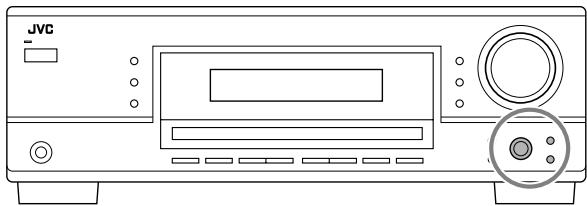
Before you start, remember...
There is a time limit in doing the following steps. If the setting is canceled before you finish, start from step 1 again.
Ex. When adjusting the subwoofer level to “-3”.
1 Press ADJUST.
The last selected item appears on the display.

2 Turn MULTI JOG until an item you want appears on the display.
- In this example, select “SUBWFR LEVEL.” For available items, see the list “Basic Adjustment Items.”

3 Press in MULTI JOG (PUSH SET).
The current setting (or level) for the selected item appears on the display.

4 Turn MULTI JOG to select a setting you want or to make an adjustment as you like.

5 Press in MULTI JOG (PUSH SET).
6 Repeat steps 2 to 5 to set other items if necessary.
7 Press EXIT.
The source indication resumes on the display.
■ Adjusting the Equalization Patterns
You can adjust the equalization patterns to your preference.
- Once you have made adjustment, it is memorized for each source.
● Equalization adjustment—DEQ 63HZ, DEQ250HZ, DEQ 1KHZ, DEQ 4KHZ, DEQ16KHZ
You can adjust five frequencies (63 Hz, 250 Hz, 1 kHz, 4 kHz, 16 kHz) within the range of -8 dB to +8 dB in 2 dB steps.
- When adjustment is made, the DIGITAL EQ indicator lights up on the display.
To flat the equalization pattern, set all the frequencies to “0 (0 dB)” in step 4 of “Basic Procedure” (on page 23). The DIGITAL EQ indicator goes off from the display.
Note:
The equalization patterns affect the front speaker sounds only.
■ Adjusting the Speaker Output Levels
You can adjust the speaker output levels.
- Once you have made adjustment, it is memorized for each source.
- Adjustable speakers—SUBWFR LEVEL, FRONT L LEVEL, FRONT R LEVEL, CENTER LEVEL, SURR L LEVEL, SURR R LEVEL
You can adjust the connected speakers' output levels within the range of -10 dB to +10 dB.
Notes:
- If you have deactivated a speaker (see page 20), the output level adjustment for the speaker is not adjustable.
- For RX-6040B/RX-6042S: All speakers' output levels (except the subwoofer) are always adjustable for "DVD MULTI."
■ Adjusting the Sound Parameters for the Surround and DSP Modes
You can adjust the Surround and DSP sound parameters to your preference. (For Surround and DSP modes, see pages 25 and 28.)
- When center speaker is set to “NONE,” you cannot adjust the center tone (CENTER TONE).
● Adjustable parameters
You can adjust the following parameters:
For DAP modes and Mono Film
- Once you have made adjustment, it is memorized for each mode.
| EFFECT: | Adjust the effect level. As the number increases, the effect becomes stronger. (Adjustable range: 1 to 5. Normally select “3.”) |
For Pro Logic II Music only
| PANORAMA CTRL: Select “PANORAMA ON” to add “wraparound” sound effect with side-wall image. • To cancel it, select “PANORAMA OFF.” |
Only for RX-6040B/RX-6042S:
For Surround and DSP modes (when the center speaker is connected)
CENTER TONE: Adjust the center tone. As the number increases, the dialogue becomes clearer so that the human voices change from soft to sharp. (Adjustable range: 1 to 5. Normally select “3.”)
Note:
This setting is common to all Surround modes, and is memorized separately for DSP modes.
You can also use the remote control for adjusting the speaker output level using the test tone.
- You can also adjust the effect level for DAP modes and Mono Film.
To adjust the speaker output level:
1 Press SOUND.
The 10 keys are activated for sound adjustments.
2 Press TEST to check if you can hear the sounds through all the speakers at equal level. Test tone (TEST TONE) comes out of the speakers in the following order.
- No test tone comes out of the speakers for which the speaker setting is set to “NONE” (or “SUBWOOFER NO” for the subwoofer).
L (Left front) → C (Center) → R (Right front) → RS (Right surround) → LS (Left surround) → SW (Subwoofer) → (Back to the beginning)
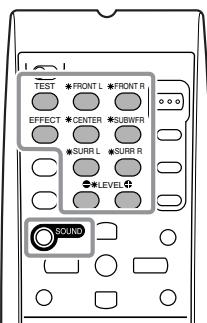
3 Adjust the speaker output level (-10 dB to +10 dB).
- For the left front speaker: Press FRONT L, then LEVEL +/-
- For the center speaker: Press CENTER, then LEVEL +/-.
- For the right front speaker: Press FRONT R, then LEVEL +/-.
- For the right surround speaker: Press SURR R, then LEVEL +/-.
- For the left surround speaker: Press SURR L, then LEVEL +/-.
- For the subwoofer: Press SUBWFR, then LEVEL +/-
Note:
When you press LEVEL +/- once, the current level for the selected speaker appears on the display, and the test tone comes out of the selected speaker. If no adjustment is done for about 4 seconds, the adjustment mode for the selected speaker is canceled.
4 Press TEST again to stop the test tone.
To adjust the effect level:
1 Press SOUND.
The 10 keys are activated for sound adjustments.
2 Press EFFECT repeatedly to select the effect level (EFFECT 1 to EFFECT 5).
The source indication resumes about 4 seconds after the adjustment.
This unit activates a variety of Surround modes automatically. The basic settings and adjustments stored (see pages 18 to 24) are applied automatically.
Reproducing Theater Ambience
In a movie theater, many speakers are located on the walls to reproduce impressive multi-surround sounds, reaching you from all directions.
With these many speakers, sound localization and sound movement can be expressed.
Surround modes built in this receiver can create almost the same surround sounds as you can feel in a real movie theater—with only a limited number of the speakers.
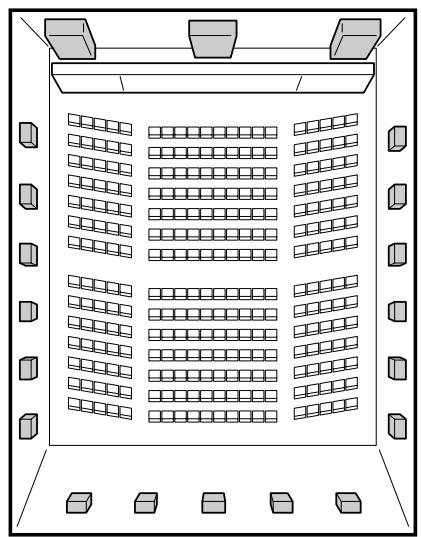

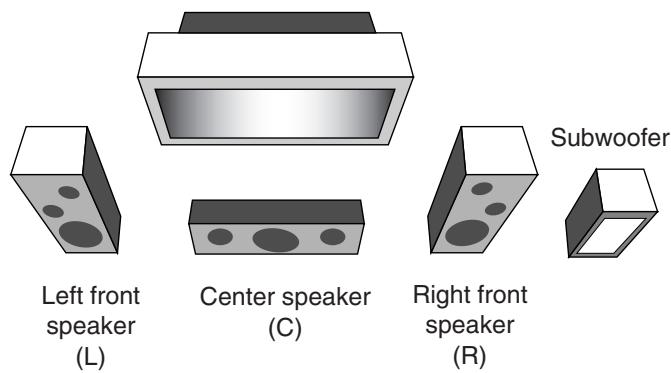
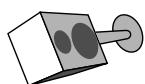
Left surround speaker (LS)
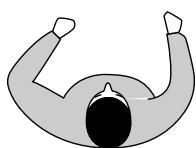
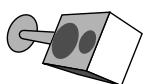
Right surround speaker (RS)
Introducing the Surround Modes
Dolby Digital*1
Dolby Digital is a digital signal compression method, developed by Dolby Laboratories, and enables multi-channel encoding and decoding (1ch up to 5.1ch).
- When Dolby Digital signal is detected through the digital input, the ☐ DIGITAL indicator lights up on the display.
Dolby Digital 5.1CH
Dolby Digital 5.1CH (DOLBY DIGITAL) encoding method records and digitally compresses the left front channel, right front channel, center channel, left surround channel, right surround channel, and LFE channel signals (total 6 channels, but the LFE channel is counted as 0.1 channel. Therefore, called 5.1 channel). Dolby Digital enables stereo surround sounds, and sets the cutoff frequency of the surround treble at 20 kHz, compared to 7 kHz for Dolby Pro Logic. As such, the sound movement and “being-there” feeling are enhanced much more than Dolby Pro Logic.
Another digital surround encoding format introduced by Dolby Laboratories is Dolby Digital EX, which adds the third surround channels, called “surround back.”
Compared to the conventional Dolby Digital 5.1CH, these newly added surround back channels can reproduce more detailed movements behind you while viewing the video software. In addition, surround sound localization will become more stable.
- You can use Virtual Surround Back (see page 22) when playing back Dolby Digital EX software. This function creates the great surround effect from the behind as if you have connected the surround back speakers.
Dolby Pro Logic II
Dolby Pro Logic II is a multi-channel playback format to convert 2-channel software into 5-channel (plus subwoofer). The matrix-based conversion method used for Dolby Pro Logic II makes no limitation for the cutoff frequency of the surround treble and enables stereo surround sound.
- This receiver provides two types of Dolby Pro Logic II modes—Pro Logic II Movie (PLII MOVIE) and Pro Logic II Music (PLII MUSIC).
When Dolby Pro Logic II is activated, the ☐☐ PRO LOGIC II indicator lights up on the display.
| PLII MOVIE: | Suitable for playing any Dolby Surround encoded software. You can enjoy a sound field very close to the one created with discrete 5.1-channel sounds. |
| PLII MUSIC: | Suitable for playing any 2-channel stereo software. You can enjoy wide and deep sounds. |
*1 Manufactured under license from Dolby Laboratories. "Dolby", "Pro Logic", and the double-D symbol are trademarks of Dolby Laboratories.
DTS*2
DTS is another digital signal compression method, developed by Digital Theater Systems, Inc., and enables multi-channel encoding and decoding (1ch up to 6.1ch).
- When DTS signal is detected through the digital input, the dts indicator lights up on the display.
DTS Digital Surround
DTS Digital Surround (DTS SURROUND) is another discrete 5.1-channel digital audio format available on CD, LD, and DVD software.
Compared to Dolby Digital, the DTS Digital Surround format has a lower audio compression rate which enables it to add breadth and depth to the sounds reproduced. As such, DTS Digital Surround features natural, solid, and clear sound.
Another multi-channel digital encoding format introduced by Digital Theater Systems, Inc. is DTS Extended Surround (DTS-ES).
It greatly improves the 360-degree surround impression and space expression by adding the third surround channel—surround back channel.
DTS-ES includes two signal formats with different surround signal recording methods—DTS-ES Discrete 6.1ch and DTS-ES Matrix 6.1ch.
- You can use Virtual Surround Back (see page 22) when playing back DTS-ES software. This function creates the great surround effect from the behind as if you have connected the surround back speakers.
DTS 96/24
In recent years, there has been increasing interest in higher sampling rates both for recording and for reproducing at home. Higher sampling rates allow wider frequency range and greater bit depths provide extended dynamic range.
DTS 96/24 is a multi-channel digital signal format (fs 96 kHz/24 bits) introduced by Digital Theater Systems, Inc. to deliver “better-than-CD sound quality” into the home.
- When DTS 96/24 signal is detected, the dts 96/24 indicator lights up. You can enjoy its 5.1-channel sound with full-quality.
What is Linear PCM?
Uncompressed digital audio data used for DVDs, CDs and Video CDs.
DVDs support 2 channels with sampling rates of 48/96 kHz, at quantization of 16/20/24 bits. On the other hand, CDs and Video CDs are limited to 2 channels with 44.1 kHz at 16 bits.
- When Linear PCM signal is detected, the LINEAR PCM indicator lights up.
What is Dual Mono?
Dual Mono can be easily understood when you think of the bilingual broadcast or the MTS (Multichannel Television Sound) format used for TV programs (however, the Dual Mono format is not identical with those analog formats).
This format is now adopted in Dolby Digital, DTS, and so on. It allows two independent channels (called main channel and sub-channel) to be recorded separately.
- When Dual Mono signal is detected, the DUAL MONO indicator lights up. You can select either channel you want to listen to (see page 21).
When using the Surround mode, the sounds come out of the activated speakers which the Surround mode requires.
- If either the surround speakers or center speaker is set to “NONE” in the speaker setting, the corresponding channel signals are allocated to and emitted through the front speakers.
- If both the surround speakers and center speaker are set to “NONE” in the speaker setting, JVC’s original 3D-PHONIC processing (which has been developed to create the surround effect through the front speakers only) is used. The 3D-PHONIC indicator lights up on the display.
3D Headphone Mode—3D H PHONE
If you activate Surround when the front speakers are deactivated, 3D Headphone Mode is activated without respect to the type of software played back. “3D H PHONE” appears on the display and the DSP and H.PHONE indicators also light up.
Activating the Surround Modes
Available Surround modes vary depending on the incoming signals.
Activating one of the Surround modes for a source automatically recalls the memorized settings and adjustments (see pages 18 to 24.)
■ Activating the Surround Modes Automatically
You can enjoy the Surround mode simply by selecting the source (with digital input selected for that source).
- Auto Surround also works when the input mode changes from analog to digital.
To activate Auto Surround, see page 21.

■ Activating the Surround Modes Manually
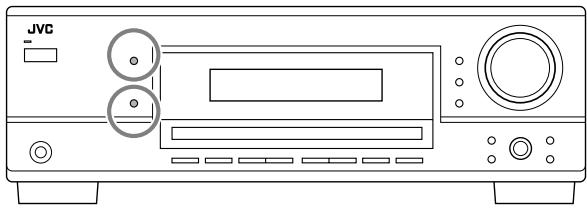
1 Select and play any source (excluding “DVD MULTI” for RX-6040B/RX-6042S).
- Make sure you have selected the analog or digital input mode correctly.
2 Press SURROUND to activate the Surround mode.
- For Dolby Digital multi-channel digital software (except 2-channel and Dual Mono software), incoming signals are automatically detected and “DOLBY DIGITAL” is activated.

- For DTS multi-channel digital software (except 2-channel and Dual Mono software), incoming signals are automatically detected and “DTS SURROUND” is activated.

Note:
When the Dolby Digital or DTS multi-channel digital signal stops coming in, "PLII MOVIE" will be activated.
- For analog sources and digital 2-channel software, you can select one of the following Surround modes. Each time you press SURROUND, Surround modes change as follows:
![graph TD A["ANALOG"] --> B["L □ R"] A --> C["S,WFR"] A --> D["□ □"] B --> E["□□ PRO LOGIC II"] C --> E D --> F["PLII MOVIE"] G["PLII MOVIE (Dolby Pro Logic II Movie)"] <--> H["PLII MUSIC (Dolby Pro Logic II Music)"]](/content/2025/01/123421/images/71e861a44a014121d4ffb615f765606bb33de1e4c67c60c05a3c2a2414d10fea.jpg)
- For Dual Mono software, you can select the channel you listen to. (See page 21.)

To adjust the speaker output level, see page 24.
To cancel the Surround mode
Press SURROUND/DSP OFF.

When playing Dolby Digital EX or DTS-ES software
You can enjoy Virtual 6.1-channel playback using Virtual Surround Back.
To activate Virtual Surround Back, see page 22.

This unit activates a variety of DSP modes automatically. The basic settings and adjustments stored (see pages 18 to 24) are applied automatically.
Reproducing the Sound Field
The sound heard in a concert hall, club, etc. consists of direct sound and indirect sound—early reflections and reflections from behind. Direct sounds reach the listener directly without any reflection. On the other hand, indirect sounds are delayed by the distances of the ceiling and walls. These direct sounds and indirect sounds are the most important elements of the acoustic surround effects. DSP modes can create these important elements, and give you a real “being there” feeling.
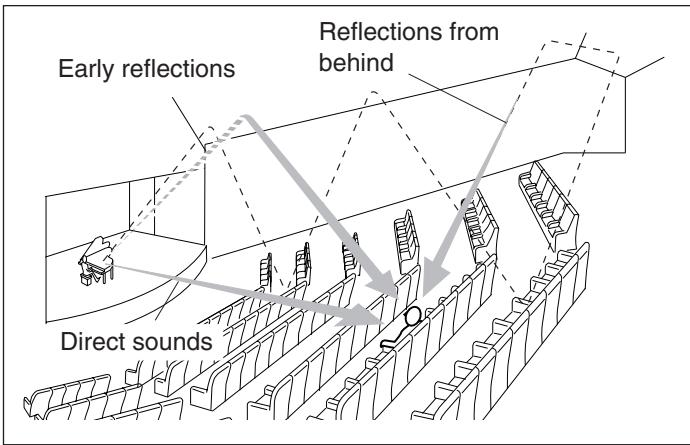
Introducing the DSP Modes
DSP modes include the following modes—
- Digital Acoustic Processor (DAP) modes—HALL 1, HALL 2, LIVE CLUB, DANCE CLUB, PAVILION, THEATER 1, THEATER 2
- ALL CH STEREO
- MONO FILM—Used for all types of 2-channel signals (including Dual Mono signal)
3D Headphone Mode—3D H PHONE
If you press DSP when the front speakers are deactivated, 3D Headphone Mode is activated without respect to the type of software played back. “3D H PHONE” appears on the display and the DSP and H.PHONE indicators light up.
To use DSP modes, press DSP so that the DSP modes change as follows.
The DSP indicator also lights up on the display.
| → HALL 1 → HALL 2 → LIVE CLUB→ DANCE CLUB → PAVILION → ALL CH STEREO |
| → THEATER 1 → THEATER 2 → MONO FILM→ (Back to the beginning)□ : Suitable for audio sources□ : Suitable for video sources |
Digital Acoustic Processor (DAP) modes
You can use the following DAP modes in order to reproduce a more acoustic sound field in your listening room.
| HALL 1: | Reproduces the spatial feeling of a large shoebox-shaped hall designed primarily for classical concerts. (Its seating capacity is about 2000.) |
| HALL 2: | Reproduces the spatial feeling of a large vineyard-shaped hall designed primarily for classical concerts. (Its seating capacity is about 2000.) |
| LIVE CLUB: | Reproduces the spatial feeling of a live music club with a low ceiling. |
| DANCE CLUB: | Reproduces the spatial feeling of a rocking dance club. |
| PAVILION: | Reproduces the spatial feeling of an exhibition hall with a high ceiling. |
| THEATER 1*: | Reproduces the spatial feeling of a large theater where the seating capacity is about 600. |
| THEATER 2*: | Reproduces the spatial feeling of a small theater where the seating capacity is about 300. |
* The built-in Dolby Pro Logic II decoder is activated when playing back 2-channel analog or digital source. The ☐☐ PRO LOGIC II indicator lights up.
When using the DAP mode, the sounds come out of all the connected and activated speakers.
- If surround speakers are set to “NONE” in the speaker setting, JVC’s original 3D-PHONIC processing (which has been developed to create the surround effect through the front speakers only) is used. The 3D-PHONIC indicator lights up on the display.
All Channel Stereo
This mode can reproduce a larger stereo sound field using all the connected (and activated) speakers.
- If the surround speakers are set to “NONE,” you cannot select “ALL CH STEREO.”
Sound reproduced from normal stereo
![graph TD A["Input"] --> B["Block 1"] A --> C["Block 2"] A --> D["Block 3"] A --> E["Block 4"] A --> F["Block 5"] G["User Icon"] --> H["Down Arrow"] style G fill:#f9f,stroke:#333](/content/2025/01/123421/images/f14cdafcaeb4474a9449917ae65f59cbb2df7a7f6396629dd1cba3b0104bebd5.jpg)
Sound reproduced from All Channel Stereo mode
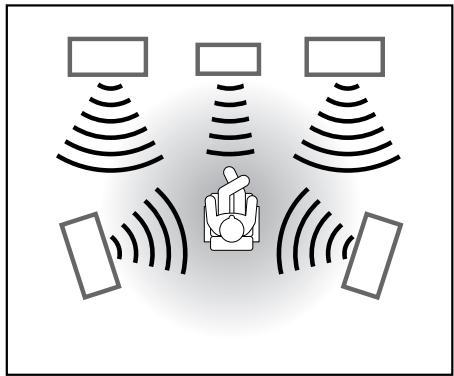
Mono Film
In order to reproduce a more acoustic sound field in your listening room while viewing monaural sound video software (analog and 2-channel digital signals), you can use this mode.
The surround effect will be added, and the sound localization of actor's words will be improved. This mode cannot be used for multi-channel digital signals.
When “MONO FILM” is used, the sounds come out of all the connected and activated speakers.
- If surround speakers are set to “NONE” in the speaker setting, JVC’s original 3D-PHONIC processing (which has been developed to create the surround effect through the front speakers only) is used. The 3D-PHONIC indicator lights up on the display.
- If incoming signals change from 2-channel digital signal to another digital signal type, “MONO FILM” is canceled and an appropriate Surround mode is activated.
Activating the DSP Modes
Activating one of the DSP modes for a source automatically recalls the memorized settings and adjustments (see pages 18 to 24.)
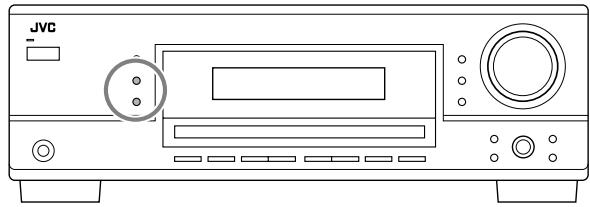
1 Select and play any source (excluding “DVD MULTI” for RX-6040B/RX-6042S).
2 Press DSP repeatedly until the DSP mode you want appears on the display.
• Each time you press the button, the DSP modes change as follows:
![graph TD A["ANALOG"] --> B["L"] A --> C["R"] A --> D["SWFR"] A --> E["□"] A --> F["□"] G["DSP"] --> H["HALL 1"] G --> I["→HALL 2"] G --> J["→LIVE CLUB"] G --> K["→DANCE CLUB"] G --> L["→PAVILION"] G --> M["→ALL CH STEREO"] G --> N["→THEATER 1"] G --> O["→THEATER 2"] G --> P["→MONO FILM"] G --> Q["→(…](/content/2025/01/123421/images/3704904c510bae26ea34a306612ebe873a69843f2cde6618f69e1d5818fc86d9.jpg)
Note:
When the surround speakers are set to “NONE,” the 3D-PHONIC processing is applied to the DSP modes (the 3D-PHONIC indicator also lights up).
To adjust the effect level (except All Channel Stereo), see page 24.
To cancel the DSP mode
Press SURROUND/DSP OFF.

COMPU LINK Remote Control System
The COMPU LINK remote control system allows you to operate JVC's audio components through the remote sensor on the receiver.
To use this remote control system, you need to connect JVC's audio components through the COMPU LINK (SYNCHRO) jacks using the cables with monaural mini-plugs (not supplied, see below) in addition to the connections using cables with RCA pin plugs (see page 7).
- Make sure that the AC power cords of these components are unplugged before connection. Plug the AC power cords only after all connections are complete.
Cassette deck
or
CD recorder
CD player
![graph TD A["Computer Interface"] --> B["COMPU LINK-4 (SYNCHRO)"] C["External Hardware Module"] --> B B --> D["Internal Control Panel"] B --> E["External Control Panel"] B --> F["External Control Panel"]](/content/2025/01/123421/images/b9013c082d9cc116e03c251c49146d0480b9b20d326ff9eeba40aed1d7a9b403.jpg)
Notes:
- There are four versions of COMPU LINK remote control system. This receiver is equipped with the fourth version—COMPU LINK-4. This version is added systematic operations with the CD recorder to the previous version—COMPU LINK-3.
- If your audio component has two COMPU LINK jacks, you can use either one. If it has only one COMPU LINK jack, connect it so that it is the last item in the series of components.
- To operate the cassette deck or CD recorder using the COMPU LINK remote control system, set the source name correctly if required. (See page 14.)
• Refer also to the manuals supplied with your audio components.
This remote control system allows you to use four functions listed below.
Remote Control through the Remote Sensor on the Receiver
You can control the connected audio components through the remote sensor on the receiver using this remote control. Aim the remote control directly at the remote sensor on the receiver. For details, see pages 33 and 34.
Automatic Source Selection
When you press the play (▶) button on a connected component or on its own remote control, the receiver automatically turns on and changes the source to the component. On the other hand, if you select a new source on the receiver or on the remote control, the selected component begins playing immediately.
In both cases, the previously selected source continues playing without sound for a few seconds.
Automatic Power On/Off (standby)—only possible with the COMPU LINK-3 and COMPU LINK-4
The connected components turn on and off (standby) along with the receiver.
When you turn on the receiver, one of the connected components will turn on automatically, depending on which component has been previously selected.
When you turn off the receiver, the connected components will turn off (standby).
Synchronized Recording
Synchronized recording means the cassette deck starts recording as soon as a CD begins playing.
To use synchronized recording, follow these steps:
1 Put a tape in the cassette deck, and a disc in the CD player.
2 Press the record (●) button and the pause (II) button on the cassette deck at the same time.
This puts the cassette deck into recording pause.
If you do not press the record (●) button and pause (■) button at the same time, the synchronized recording feature will not operate.
3 Press the play (▶) button on the CD player.
The source changes on the receiver, and as soon as play starts, the cassette deck starts recording. When the play ends, the cassette deck enters recording pause, and stops about 4 seconds later.
Notes:
- During synchronized recording, the selected source cannot be changed.
- If the power of any component is shut off during synchronized recording, the COMPU LINK remote control system may not operate properly. In this case, you must start again from the beginning.
AV COMPU LINK Remote Control System
The AV COMPU LINK remote control system allows you to operate JVC's video components (TV, VCR, and DVD player) through the receiver.
RX-5040B/RX-5042S/RX-5045B are equipped with conventional AV COMPU LINK, while RX-6040B/RX-6042S are equipped with the AV COMPU LINK-III, which adds a function to operate JVC's video components through the component video jacks.
To use this remote control system, connect the video components you want to operate, following the diagrams below and the procedure on the next page.
CONNECTIONS 1: AV COMPU LINK Connection
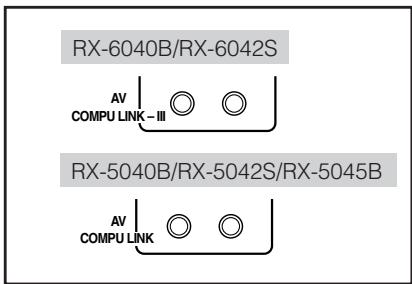
![graph LR A["VCR"] --> B["AV COMPU LINK"] B --> C["DVD player"] C --> D["This receiver"] D --> E["TV"] E --> F["AV COMPU LINK EX"] E --> G["AV COMPU LINK-III"]](/content/2025/01/123421/images/e6e4d0e5e1411e3e5ed4f0fd2503afefb013f8527bf7f9b6fef530e9191fad70.jpg)
You can only connect to the TV with the AV COMPU LINK EX or AV COMPU LINK-III jack. DO NOT connect to the TV with AV COMPU LINK RECEIVER/AMP jack.
Notes:
- For RX-6040B/RX-6042S: When connecting the receiver and a TV with the AV COMPU LINK EX jack by using a component video cable, you cannot use automatic selection of TV's input mode (see page 32).
- Make sure that the remote control code for the connected VCR is set to code "A."
- When connecting only the VCR or DVD player to the receiver, connect it directly to the receiver using cables with the monaural mini-plugs.
CONNECTIONS 2: Video Cable Connection
Connect the VCR and/or DVD player to the TV using one of the following methods:
- For RX-6040B/RX-6042S: When using the AV COMPU LINK remote control system, set the component video input for the DVD player and the VCR correctly (see “Setting the Component Video Input” on page 22); otherwise, the correct input for this receiver will not be selected on the TV.
| CASE 1(Only for RX-6040B/RX-6042S) | When connecting the source equipment to the receiver through the S-video jacks, connect the receiver to the TV's video input 1 jack (S-video input) using S-video cables. |
| CASE 2 | When connecting the source equipment to the receiver through the composite video jacks, connect the receiver to the TV's video input 2 jack (composite video input) using composite video cables. |
| CASE 3(Only for RX-6040B/RX-6042S) | When connecting the source equipment to the receiver through the component video jacks, connect the receiver to the TV's video input 2 jack (component video input) using component video cables. |
Connecting procedure
1 If you have already plugged your VCR, DVD player, TV and this receiver into the AC outlets, unplug their AC power cords first.
2 Connect your VCR, DVD player, TV and this receiver, using the cables with the monaural mini-plugs (not supplied).
- See “CONNECTIONS 1” on the previous page.
3 Connect the audio input/output jacks on VCR, DVD player, TV and this receiver using the cables with RCA pin plugs.
• See pages 8 and 9.
4 Connect the video input/output jacks on VCR, DVD player, TV and this receiver, using the cables with RCA pin plugs (or S-video plug or component video plugs—for RX-6040B/RX-6042S).
- See “CONNECTIONS 2” on the previous page.
5 Plug the AC power cords of the components and the receiver into the AC outlets.
6 When turning on the TV for the first time after the AV COMPU LINK connection, turn the TV volume to the minimum using the TV volume control on the TV.
7 Turn on the connected components first, then turn on this receiver.
- When turning on the VCR, use the remote control supplied with this receiver.
The AV COMPU LINK remote control system allows you to use the five basic functions listed below.
Remote Control of the TV, DVD Player, and VCR Using This Remote Control
See page 34 for details.
- Aim the remote control directly at the remote sensor on each target component.
One-Touch Video Play
Simply by inserting a video cassette without its safety tab into the VCR, you can enjoy the video playback without setting other switches manually. The receiver automatically turns on and changes the source to the VCR.
The TV automatically turns on and changes the input mode to the appropriate position so that you can view the playback picture. When you insert a video cassette with its safety tab, press the play (▶) button on the VCR or on the remote control. So, you can get the same result.
One-Touch DVD Play
Simply by starting playback on the DVD player, you can enjoy the DVD playback without setting other switches manually. The receiver automatically turns on and changes the source to the DVD player.
The TV automatically turns on and changes the input mode to the appropriate position so that you can view the playback picture.
Automatic Selection of TV's Input Mode
- When you select the TV as the source to play on the receiver, the TV automatically changes the input mode to the TV tuner so that you can watch TV.
- When you select the DVD player or the VCR as the source to play on the receiver, the TV automatically changes the input mode to the appropriate position so that you can view the playback picture.
Note:
This function does not work when you connect this receiver and the TV with the AV COMPU LINK EX jack using a component video cable. In this case, reconnect the TV referring to CASE 1 or CASE 2 on page 31.
Automatic Power On/Off (Standby)
The TV, VCR, and DVD player turn on and off along with the receiver.
When you turn on the receiver;
- If the previously selected source is the VCR, the TV and VCR will turn on automatically.
- If the previously selected source is the DVD player, the TV and DVD player will turn on automatically.
- If the previously selected source is the TV, only the TV will turn on automatically.
When you turn off the receiver, the TV, VCR and the DVD player will turn off (stand by).
Note:
If you turn off the receiver while recording on the VCR, the VCR will not turn off, but continue recording.
You can operate JVC's audio and video components with this receiver's remote control, since control signals for JVC's components are preset in the remote control.
Operating Audio Components
IMPORTANT:
To operate JVC's audio components using the supplied remote control:
- You need to connect JVC's audio components through the COMPU LINK (SYNCHRO) jacks (see page 30) in addition to the connections using cables with RCA pin plugs (see page 7).
- Aim the remote control directly at the remote sensor on the receiver.
- If you use the buttons on the front panel to choose a source, the remote control will not operate that source. To operate a source with the remote control, the source must be selected using source selection buttons on the remote control.
- To operate the target component using the COMPU LINK remote control system, set the source name correctly if required. (See page 14.)
- Refer also to the manuals supplied with your components.
Sound control section (Amplifier)
You can always perform the following operations:
STANDBY/ON ⏻/I AUDIO:
Turn on or off the receiver. VOLUME +/-: Adjust the volume level. MUTING: Turn on or off sound muting. ANALOG/DIGITAL: Switch the analog and digital input alternately.
DIMMER: Dim or brighten the display.
SLEEP: Set the Sleep Timer.
SURROUND: Turn on and select Surround modes.
DSP: Turn on and select DSP modes.
SURROUND/DSP OFF:
Turn off the Surround and DSP mode. BASSBOOST: Only for RX-6040B/RX-6042S: Turn on or off Bass Boost.
After pressing SOUND, you can perform the following operations by using the 10 keys:
FRONT L then LEVEL +/-: Adjust the left front speaker output level.
FRONT R then LEVEL +/-: Adjust the right front speaker output level.
CENTER then LEVEL +/-: Adjust the center speaker output level.
SURR L then LEVEL +/-: Adjust the left surround speaker output level.
SURR R then LEVEL +/-: Adjust the right surround speaker output level.
SUBWFR then LEVEL +/-: Adjust the subwoofer output level.
EFFECT: Adjust the effect level.
TEST: Turn on or off test tone output.
Note:
After adjusting sounds, press the corresponding source selection button to operate your target source by using the 10 keys; otherwise, the 10 keys cannot be used for operating your target source.
Tuner
You can always perform the following operations:
FM/AM: Alternate between FM and AM.
After pressing FM/AM, you can perform the following operations on a tuner:
1 - 10, +10: Select a preset channel number directly. For channel number 5, press 5. For channel number 15, press +10, then 5. For channel number 20, press +10, then 10.
FM MODE: Change the FM reception mode.
CD player
After pressing CD, you can perform the following operations on a CD player:
▶: Start playing. ▶◀◀: Return to the beginning of the current (or previous) track. ▶▶▶: Skip to the beginning of the next track. ■: Stop playing. ■■: Pause playing. To resume, press ▶. 1 – 10, +10: Select a track number directly. For track number 5, press 5. For track number 15, press +10, then 5. For track number 20, press +10, then 10. For track number 30, press +10, +10, then 10.
CD changer
After pressing CD-DISC, you can perform the following operations on a CD changer:
▶: Start playing. ▶◀◀: Return to the beginning of the current (or previous) track. ▶▶▶: Skip to the beginning of the next track. ■: Stop playing. Ⅱ: Pause playing. To resume, press ▶. 1 – 6, 7/P: Select the number of a disc installed in a CD changer.
After pressing CD, you can perform the following operations on a CD changer:
1 - 10, +10: Select a track number directly. For track number 5, press 5. For track number 15, press +10, then 5. For track number 20, press +10, then 10. For track number 30, press +10, +10, then 10.
Example:
- Selecting disc number 4, track number 12, and starting playback.
1 Press CD-DISC, then press 4.
2 Press CD, then press +10, 2.
Continued on the next page
If your CD changer is of 200-disc loading capability (except for XL-MC100 and XL-MC301), you can do the following operations using the 10 keys after pressing CD.
1 Select a disc number.
2 Then select a track number (always enter two digits).
3 Press ▶ to start playback.
Examples:
- Selecting disc number 3, track number 2, and starting playback. Press 3, then, 0, 2, then ▶.
- Selecting disc number 10, track number 5, and starting playback. Press 1, 0, then, 0, 5, then ▶.
- Selecting disc number 105, track number 12, and starting playback.
Press 1, 0, 5, then 1, 2, then ▶.
Note:
It is required to press each button within 4 seconds in the above procedure.
CD recorder
After pressing TAPE/CDR, you can perform the following operations on a CD recorder:
▶: Start playing.
|◀◀: Return to the beginning of the current (or previous) track.
▶▶l: Skip to the beginning of the next track.
■: Stop playing and recording.
II: Pause playing and recording. To resume, press ▶.
REC PAUSE: Enter recording pause.
To start recording, press this button then ▶.
Cassette deck
After pressing TAPE/CDR, you can perform the following operations on a cassette deck:
▶: Start playing.
REW: Fast-wind the tape from right to left.
FF: Fast-wind the tape from left to right.
■: Stop playing, recording and fast wind.
II: Pause playing and recording. To resume, press ▶.
REC PAUSE: Enter recording pause.
To start recording, press this button then ▶.
Operating Video Components
IMPORTANT:
To operate JVC's video components using the supplied remote control:
- You need to connect JVC's video components through the AV COMPU LINK jacks (see page 31) in addition to the connections using cables with RCA pin plugs (see pages 8 and 9).
- Some JVC's VCRs can accept two types of the control signals—remote code “A” and “B.” Before using this remote control, make sure that the remote control code of the target VCR is set to code “A.”
- When using the remote control, aim the remote control directly at the remote sensor on each component, not on the receiver.
VCR
You can always perform the following operations:
STANDBY/ON ⏻/I VCR: Turn on or off the VCR.
VCR CH +/-: Change the TV channels on the VCR.
After pressing VCR, you can perform the following operations on the VCR:
▶: Start playing.
REW: Rewind the tape.
FF: Fast-forward the tape.
■: Stop playing, recording, rewind and fast forward.
II: Pause playing and recording. To resume, press ▶.
REC PAUSE: Enter recording pause.
To start recording, press this button then ▶.
DVD player
You can always perform the following operation:
STANDBY/ON ⏻/I DVD: Turn on or off the DVD player.
After pressing DVD (or DVD MULTI for RX-6040B/RX-6042S), you can perform the following operations on the DVD player:
▶: Start playing.
◀◀: Return to the beginning of the current (or previous) chapter.
▶▶: Skip to the beginning of the next chapter.
■: Stop playing.
II: Pause playing. To resume, press ▶.
After pressing DVD (or DVD
MULTI), these buttons can be used for the DVD menu operations.


MENU


ENTER

Note:
For detailed menu operations, refer to the instructions supplied with the discs or the DVD player.
TV
Set the TV/CATV selector to "TV."
You can always perform the following operations:
STANDBY/ON ⏻/I TV/CATV: Turn on or off the TV.
TV/CATV CH +/-: Change the channels.
TV VOLUME +/-: Adjust the volume.
TV/VIDEO: Set the input mode (either TV or VIDEO).
After pressing TV SOUND, you can perform the following operations on the TV:
1 - 9, 0, 100+ (+10): Select the channels.
RETURN (10): Alternate between the previously selected channel and the current channel.
Operating Other Manufacturers' Video Equipment—
This remote control supplied for the receiver can transmit control signals for other manufacturers' TVs, CATV converters, VCRs and DVD players.
When operating the other manufacturers' components, refer also to the manuals supplied with them.
- After replacing batteries for the remote control, you need to set the manufactures' codes again.
To change the transmittable signals for operating another manufacturer's TV
1 Set the TV/CATV selector to "TV."
2 Press and hold STANDBY/ON 📋/TV/CATV.
3 Press TV SOUND.
4 Enter a manufacturer's code using buttons 1 - 9, and 0.
| Manufacturer | Codes |
| JVC | 01* |
| Hitachi | 10 |
| Magnavox | 02 |
| Mitsubishi | 03 |
| Panasonic | 04, 11 |
| RCA | 05 |
| Samsung | 12 |
| Sanyo | 13 |
| Sharp | 06 |
| Sony | 07 |
| Toshiba | 08 |
| Zenith | 09 |
* “01” is the initial setting.
5 Release STANDBY/ON ⏻/TV/CATV.
Now you can perform the following operations on the TV:
STANDBY/ON ⏻/I TV/CATV: Turn on and off the TV.
TV/CATV CH +/-: Change the channels.
TV VOLUME +/-: Adjust the volume.
TV/VIDEO: Set the input mode (either TV or VIDEO).
After pressing TV SOUND, you can perform the following operations on the TV:
1 - 9, 0, 100+ (+10):
Select the channels.
The 10 (ENTER) button will function as the ENTER button if your TV requires pressing ENTER after selecting a channel number.
Notes:
- All the functions listed above may not be assigned to the buttons for some TVs.
- If you cannot change the channels of some TVs by pressing the 10 keys, press TV/CATV CH +/- for changing the channels.
6 Try to operate your TV by pressing STANDBY/ON 📋/TV/CATV.
When your TV turns on or off, you have entered the correct code.
If there are more than one code listed for your brand of TV, try each one until the correct one is entered.
To change the transmittable signals for operating a CATV converter
1 Set the TV/CATV selector to "CATV."
2 Press and hold STANDBY/ON 📍/TV/CATV.
3 Press TV SOUND.
4 Enter a manufacturer's code using buttons 1 - 9, and 0.
| Manufacturer | Codes |
| Echostar | 01* |
| General Instrument | 02, 03, 04, 05, 06, 07, 08, 09 |
| Hamlin | 16, 17, 18, 19 |
| Pioneer | 14, 15 |
| RCA | 20 |
| Scient | 10, 11 |
| Sony | 21 |
| Zenith | 12, 13 |
* “01” is the initial setting.
5 Release STANDBY/ON ⏻/TV/CATV.
Now you can perform the following operations on the CATV converter:
STANDBY/ON ⏻/I TV/CATV:
Turn on and off the CATV converter.
TV/CATV CH +/-: Change the channels.
After pressing TV SOUND, you can perform the following operations on the CATV converter:
1 - 9, 0, 100+ (+10):
Select the channels.
The 10 (ENTER) button will function as the
ENTER button if your CATV converter
requires pressing ENTER after selecting a
channel number.
6 Try to operate your CATV converter by pressing STANDBY/ON 📋/TV/CATV.
When your CATV converter on or off, you have entered the correct code.
If there are more than one code listed for your brand of CATV converter, try each one until the correct one is entered.
Manufacturers' codes are subject to change without notice. If they are changed, this remote control cannot operate the equipment.
To change the transmittable signals for operating another manufacturer's VCR
1 Press and hold STANDBY/ON ⏻/VCR.
2 Press VCR.
3 Enter a manufacturer's code using buttons 1 - 9, and 0.
| Manufacturer | Codes |
| JVC | 01*, 02, 03 |
| Emerson | 10, 22 |
| Gold Star | 11 |
| Hitachi | 04 |
| Mitsubishi | 12 |
| NEC | 21 |
| Panasonic | 07, 13 |
| Philips | 09 |
| RCA | 05, 06 |
| Samsung | 20 |
| Sanyo | 17, 18, 19 |
| Sony | 14, 15, 16 |
| Zenith | 08 |
* “01” is the initial setting.
4 Release STANDBY/ON ⏻/I VCR.
Now you can perform the following operations on the VCR:
STANDBY/ON ⏻/IVCR: Turn on and off the VCR.
VCR CH +/-: Change the TV channels on the VCR.
After pressing VCR, you can perform the following operations on the VCR:
▶: Start playing.
REW: Rewind the tape.
FF: Fast-forward the tape.
■: Stop playing or recording.
II: Pause playing. To resume, press ▶.
REC PAUSE: Enter recording pause.
To start recording, press this button then ▶.
5 Try to operate your VCR by pressing STANDBY/ON ⏻/I VCR.
When your VCR turns on or off, you have entered the correct code.
If there are more than one code listed for your brand of VCR, try each one until the correct one is entered.
To change the transmittable signals for operating another manufacturer's DVD player
1 Press and hold STANDBY/ON 📋/I DVD.
2 Press DVD.
3 Enter a manufacturer's code using buttons 1 - 9, and 0.
| Manufacturer | Codes |
| JVC | 01* |
| Panasonic | 02 |
| Philips | 04 |
| Pioneer | 03 |
| Sony | 05 |
| Toshiba | 06 |
| Yamaha | 07 |
* “01” is the initial setting.
4 Release STANDBY/ON 📍/ DVD.
Now you can perform the following operations on the DVD player:
STANDBY/ON ⏻/I DVD: Turn on and off the DVD player.
After pressing DVD (or DVD MULTI for RX-6040B/RX-6042S), you can perform the following operations on the DVD player:
▶: Start playing.
|◀◀: Return to the beginning of the current (or previous) chapter (or fast reverse for some models).
▶▶: Skip to the beginning of the next chapter (or fast forward for some models).
■: Stop playing.
II: Pause playing. To resume, press ▶.
After pressing DVD (or DVD
MULTI), these buttons can be used for the DVD menu operations.

Note:
For detailed menu operations, refer to the instructions supplied with the discs or the DVD player.


MENU

ENTER

5 Try to operate your DVD player by pressing STANDBY/ON ⏻/1 DVD.
When your DVD player turns on or off, you have entered the correct code.
Manufacturers' codes are subject to change without notice. If they are changed, this remote control cannot operate the equipment.
Use this chart to help you solve daily operational problems. If there is any problem you cannot solve, contact your JVC's service center.
| PROBLEM | POSSIBLE CAUSE | SOLUTION |
| The display does not light up. | The power cord is not plugged in. | Plug the power cord into an AC outlet. |
| No sound from speakers. | Speaker signal cables are not connected. | Check speaker wiring and reconnect if necessary.(See page 6.) |
| The SPEAKERS ON/OFF button is not set correctly. | Press SPEAKERS ON/OFF so that the sounds come out of the speakers. (See page 13.) | |
| An incorrect source is selected. | Select the correct source. | |
| Muting is activated. | Press MUTING to cancel the mute. (See page 15.) | |
| An incorrect input mode (analog or digital) is selected. | Select the correct input mode (analog or digital).(See pages 13 and 14.) | |
| “NO SUBWOOFER” appears on the display. | The SUBWOOFER ON/OFF button is pressed while “SUBWOOFER” is set to “SUBWOOFER NO.” | If subwoofer is connected, set “SUBWOOFER YES” so that the SUBWOOFER ON/OFF button works. |
| Continuous hiss or buzzing during FM reception. | Incoming signal is too weak. | Connect an outdoor FM antenna or contact your dealer. (See page 5.) |
| The station is too far away. | Select a new station. | |
| Noise is heard during FM/AM reception. | An incorrect antenna is used. | Check with your dealer to be sure you have the correct antenna. |
| Antennas are not connected properly. | Check connections. (See pages 5 and 6.) | |
| Ignition noise from automobiles. | Move the antenna farther from automobile traffic. | |
| “OVERLOAD” starts flashing on the display. | Speakers are overloaded because of high volume. | 1. Press STANDBY/ON Ⓞ/l on the front panel to turn off the receiver.2. Stop the playback source.3. Turn on the receiver again, and adjust the volume. |
| Speakers are overloaded because of short circuit of speaker terminals. | Press STANDBY/ON Ⓞ/l on the front panel to turn off the receiver, then check the speaker wiring.If “OVERLOAD” does not disappear, unplug the AC power cord, then plug it back again.If speaker wiring is not short-circuited, contact your dealer. | |
| “DSP NG” appears on the display. | The built-in microcomputer is not functioning correctly. | Press STANDBY/ON Ⓞ/l on the front panel to turn off the receiver. After unplugging the AC power cord, contact your dealer. |
| The STANDBY lamp lights up after turning on the power, and soon the receiver turns off again (into standby mode). | The receiver is overloaded because of a high voltage. | Press STANDBY/ON Ⓞ/l on the front panel to turn off the receiver. After unplugging the AC power cord, contact your dealer. |
| Remote control does not work. | There is an obstruction between the remote sensor on the receiver and the remote control. | Remove the obstruction. |
| Batteries are weak. | Replace batteries. (See page 5.) | |
| Remote control does not work as you intend. | An incorrect remote control operation mode is selected. | Select the correct remote control operation mode.(See pages 33 to 36.) |
| Only for RX-6040B/RX-6042S: | ||
| No sound effect such as Surround and DSP modes. | “DVD MULTI” is selected. | This is normal for “DVD MULTI.” |
Amplifier
Output Power
At Stereo operation
Front channels:
100 W per channel, min. RMS, driven into 8 Ω, 40 Hz to 20 kHz with no more than 0.8% total harmonic distortion.
At Surround operation
Front channels:
100 W per channel, min. RMS, driven into 8 Ω, at 1 kHz with no more than 0.8% total harmonic distortion.
Center channel:
100 W, min. RMS, driven into 8 Ω, at 1 kHz with no more than 0.8% total harmonic distortion.
Surround channels:
100 W per channel, min. RMS, driven into 8 Ω, at 1 kHz with no more than 0.8% total harmonic distortion.
Audio
Audio Input Sensitivity/Impedance (1 kHz)
CD, TAPE/CDR, VCR, TV SOUND, DVD:
220 mV/47 kΩ
Audio Input (DIGITAL IN)*
Coaxial
DIGITAL 1 (DVD):
0.5 V(p-p)/75 Ω
Optical
DIGITAL 2 (CD), DIGITAL 3 (TV):
-21 dBm to -15 dBm (660 nm ±30 nm)
RX-5040B/RX-5042S/RX-5045B
DIGITAL 2 (CD):
-21 dBm to -15 dBm (660 nm ±30 nm)
* Corresponding to Linear PCM, Dolby Digital, and DTS Digital Surround (with sampling frequency—32 kHz, 44.1 kHz, 48 kHz)
Recording Output Level
TAPE/CDR, VCR:
220 mV
Signal-to-Noise Ratio ('66 IHF/'78 IHF)
CD, TAPE/CDR, VCR, TV SOUND, DVD:
87 dB/74 dB
Frequency Response (8 Ω)
CD, TAPE/CDR, VCR, TV SOUND, DVD:
20 Hz to 50 kHz (+1 dB, -3 dB)
Bass Boost—Only for RX-6040B/RX-6042S:
+3 dB ±1 dB at 100 Hz
Equalization (5 bands)
63 Hz, 250 Hz, 1 kHz, 4 kHz, 16 kHz:
±8 dB (in 2 dB steps)
Video
Video Input Sensitivity/Impedance
Composite video
DVD, VCR:
1 V(p-p)/75 Ω
S-video—Only for RX-6040B/RX-6042S
DVD, VCR
(Y: luminance):
1 V(p-p)/75 Ω
(C: chrominance, burst):
0.286 V(p-p)/75 Ω
Component—Only for RX-6040B/RX-6042S
DVD, VCR
(Y: luminance):
1 V(p-p)/75 Ω
(PB, PR) :
0.7 V(p-p)/75 Ω
Video Output Level
Composite video
VCR, MONITOR OUT:
1 V(p-p)/75 Ω
S-video—Only for RX-6040B/RX-6042S
VCR, MONITOR OUT
(Y: luminance):
1 V(p-p)/75 Ω
(C: chrominance, burst):
0.286 V(p-p)/75 Ω
Component—Only for RX-6040B/RX-6042S
MONITOR OUT
(Y: luminance):
1 V(p-p)/75 Ω
(PB, PR) :
0.7 V(p-p)/75 Ω
Synchronization:
Signal-to-Noise Ratio:
Negative
45 dB
FM tuner (IHF)
| Tuning Range: | 87.5 MHz to 108.0 MHz | |
| Usable Sensitivity | Monaural: | 12.8 dBf (1.2 μV/75 Ω) |
| 50 dB Quieting Sensitivity | Monaural: | 16.0 dBf (1.7 μV/75 Ω) |
| Stereo: | 37.5 dBf (20.5 μV/75 Ω) | |
| Stereo Separation at OUT (REC): | 35 dB at 1 kHz |
AM tuner
| Tuning Range: | 530 kHz to 1 710 kHz |
General
| Power Requirements: | AC 120 V~, 60 Hz | |
| Power Consumption | For RX-6040B/RX-6042S: | 180 W/230 VA (at operation) |
| 2 W (in standby mode) | ||
| For RX-5040B/RX-5042S/RX-5045B: | 200 W/260 VA (at operation) | |
| 2 W (in standby mode) | ||
| Dimensions (W x H x D) | For RX-6040B/RX-6042S: | 435 mm x 146.5 mm x 409.5 mm |
| For RX-5040B/RX-5042S/RX-5045B: | 435 mm x 146.5 mm x 369.5 mm | |
| Mass | For RX-6040B/RX-6042S: | 8.8 kg |
| For RX-5040B/RX-5042S/RX-5045B: | 7.5 kg |
Designs and specifications are subject to change without notice.
Main differences between the models
| ○: Equipped | ×: Not equipped |
| Models | Output/Input terminals | Sources | Functions | ||||
| COMPONENT (IN/OUT) | S-VIDEO (IN/OUT) | Analog discrete (DVD MULTI) | DVD MULTI | Bass Boost | Center Tone | AV Compulink | |
| RX-6040B | ○ | ○ | ○ | ○ | ○ | ○ | AV COMPULINK-III |
| RX-6042S | ○ | ○ | ○ | ○ | ○ | ○ | AV COMPULINK-III |
| RX-5040B | × | × | × | × | × | × | AV COMPULINK |
| RX-5042S | × | × | × | × | × | × | AV COMPULINK |
| RX-5045B | × | × | × | × | × | × | AV COMPULINK |
- The last character of the model name—“B” and “S” shows the color of the cabinet. “B” stands for black and “S” for silver.
- RX-5040B and RX-5045B are exactly the same except that RX-5040B is supplied with the surround speaker system.
JVC
VICTOR COMPANY OF JAPAN, LIMITED
- INSTRUCTIONS
- WARNINGS, CAUTIONS AND OTHERS
- WARNING: TO REDUCE THE RISK OF FIRE OR ELECTRIC SHOCK, DO NOT EXPOSE THIS APPLIANCE TO RAIN OR MOISTURE
- CAUTION
- ATTENTION
- ATTENTION—COMMUTATEUR STANDBY/ON ⏻
- NOTE TO CATV SYSTEM INSTALLER
- FOR CANADA/POUR LE CANADA
- PARTS IDENTIFICATION
- GETTING STARTED
- BASIC OPERATIONS
- RECEIVING RADIO BROADCASTS
- BASIC SETTINGS
- ADJUSTING SOUND
- USING THE SURROUND MODES
- USING THE DSP MODES
- COMPU LINK REMOTE CONTROL SYSTEM
- AV COMPU LINK REMOTE CONTROL SYSTEM
- OPERATING JVC'S AUDIO/VIDEO COMPONENTS
- OPERATING OTHER MANUFACTURERS' VIDEO EQUIPMENT
- TROUBLESHOOTING
- SPECIFICATIONS
- IMPORTANT
- REMOTE CONTROL
- NOTE
- REAR PANEL
- BEFORE INSTALLATION
- GENERAL PRECAUTIONS
- LOCATIONS
- HANDLING THE RECEIVER
- CHECKING THE SUPPLIED ACCESSORIES
- PUTTING BATTERIES IN THE REMOTE CONTROL
- NOTES
- CONNECTING THE FM AND AM ANTENNAS
- FM ANTENNA CONNECTIONS
- CONNECTING THE SPEAKERS AND SUBWOOFER
- CAUTIONS
- CONNECTING THE SPEAKERS
- CONNECTING THE SUBWOOFER
- PLACING SPEAKERS
- FRONT SPEAKERS (L/R) AND CENTER SPEAKER (C)
- SURROUND SPEAKERS (LS/RS)
- SUBWOOFER (S.WFR)
- CONNECTING AUDIO/VIDEO COMPONENTS
- ANALOG CONNECTIONS
- AUDIO COMPONENT CONNECTIONS
- IF YOUR AUDIO COMPONENTS HAVE A COMPU LINK JACK
- VIDEO COMPONENT CONNECTIONS
- DVD PLAYER
- ONLY FOR RX-6040B/RX-6042S
- DIGITAL CONNECTIONS
- DIGITAL INPUT TERMINALS
- CONNECTING THE POWER CORD
- DAILY OPERATIONAL PROCEDURE
- TURN ON THE POWER
- SELECT THE SOURCE
- ADJUST THE VOLUME
- SELECT THE SURROUND OR DSP MODES
- TURNING ON THE POWER
- SELECTING THE SOURCE TO PLAY
- SPEAKER AND SIGNAL INDICATORS ON THE DISPLAY
- WHAT SPEAKER INDICATORS LIGHT DEPENDS ON THE SPEAKER SETTING (FOR DETAILS, SEE “SETTING THE SPEAKERS” ON PAGE 20)
- THE SIGNAL INDICATORS LIGHT UP TO SHOW THE INCOMING SIGNALS
- HOW TO UNDERSTAND THE SPEAKER AND SIGNAL INDICATOR ILLUMINATION
- SELECTING DIFFERENT SOURCES FOR PICTURE AND SOUND
- ADJUSTING THE VOLUME
- ON THE FRONT PANEL
- ON THE REMOTE CONTROL
- LISTENING WITH HEADPHONES
- TURNING ON AND OFF THE SUBWOOFER SOUND
- PRESS SUBWOOFER OUT ON/OFF TO CANCEL THE SUBWOOFER OUTPUT
- SELECTING THE ANALOG OR DIGITAL INPUT MODE
- TO SELECT THE ANALOG INPUT MODE
- CHANGING THE DISPLAY BRIGHTNESS
- PRESS DIMMER
- ATTENUATING THE INPUT SIGNAL
- PRESS AND HOLD INPUT ATT (INPUT ANALOG) SO THAT THE INPUT ATT INDICATOR LIGHTS UP ON THE DISPLAY
- CHANGING THE SOURCE NAME
- WHEN CHANGING THE SOURCE NAME FROM “TAPE” TO “CDR
- REINFORCING THE BASS
- MUTING THE SOUND
- USING THE SLEEP TIMER
- PRESS SLEEP REPEATEDLY
- RECORDING A SOURCE
- BASIC ADJUSTMENT AUTO MEMORY
- TUNING IN TO STATIONS MANUALLY
- SELECT THE BAND (FM OR AM)
- PRESS FM/AM TUNING ▲ OR ▼ REPEATEDLY UNTIL YOU FIND THE FREQUENCY YOU WANT
- USING PRESET TUNING
- TO STORE THE PRESET STATIONS
- BEFORE YOU START, REMEMBER
- TUNE IN THE STATION YOU WANT TO PRESET (SEE "TUNING IN TO STATIONS MANUALLY")
- PRESS MEMORY
- PRESS FM/AM PRESET ▲ OR ▼ TO SELECT A CHANNEL NUMBER WHILE THE CHANNEL NUMBER POSITION IS FLASHING
- PRESS MEMORY AGAIN WHILE THE SELECTED CHANNEL NUMBER IS FLASHING ON THE DISPLAY
- REPEAT STEPS 1 TO 4 UNTIL YOU STORE ALL THE STATIONS YOU WANT
- TO ERASE A STORED PRESET STATION
- TO TUNE IN A PRESET STATION
- PRESS FM/AM PRESET ▲ OR ▼ UNTIL YOU FIND THE CHANNEL YOU WANT
- PRESS FM/AM TO SELECT THE BAND
- PRESS THE 10 KEYS TO SELECT A PRESET CHANNEL NUMBER
- SELECTING THE FM RECEPTION MODE
- WHILE LISTENING TO AN FM STATION, PRESS FM MODE
- QUICK SPEAKER SETUP
- PRESS QUICK SPEAKER SETUP
- TURN MULTI JOG TO SELECT AN APPROPRIATE NUMBER OF THE CONNECTED SPEAKERS (SPEAKER CHANNEL NUMBER)
- PRESS IN MULTI JOG (PUSH SET)
- TURN MULTI JOG TO SELECT AN APPROPRIATE ROOM SIZE TO MATCH TO YOUR LISTENING ROOM
- SPEAKER CHANNEL NUMBER AND THE SIZE
- ROOM SIZE AND THE SPEAKER DISTANCE
- BASIC SETTING ITEMS
- BASIC PROCEDURE
- PRESS SETTING
- TURN MULTI JOG UNTIL AN ITEM YOU WANT APPEARS ON THE DISPLAY
- TURN MULTI JOG UNTIL A SETTING YOU WANT APPEARS ON THE DISPLAY
- REPEAT STEPS 2 TO 5 TO SET OTHER ITEMS IF NECESSARY
- PRESS EXIT
- SETTING THE SPEAKERS
- SUBWOOFER SETTING—SUBWOOFER
- ● SPEAKER SIZE—FRNT SPEAKERS, CNTR SPEAKER, SURR SPEAKERS
- SETTING THE SPEAKER DISTANCE
- ● MEASURING UNIT—DISTANCE UNIT
- ● SPEAKER DISTANCE—FRONT L DIST, FRONT R DIST, CENTER DIST, SURR L DIST, SURR R DIST
- SETTING THE BASS SOUNDS
- SUBWOOFER OUTPUT—SUBWOOFER OUT
- ● CROSSOVER FREQUENCY—CROSSOVER
- ● LOW FREQUENCY EFFECT ATTENUATOR—LFE ATTENUATE
- ● MIDNIGHT MODE—MIDNIGHT MODE
- SELECTING THE MAIN OR SUB CHANNEL
- DUAL MONO—DUAL MONO
- SETTING FOR EASY AND EFFECTIVE SURROUND OPERATIONS
- ● AUTO SURROUND—AUTO SURROUND
- AUTO SURR ON
- ● VIRTUAL SURROUND BACK—VIRTUAL SBACK
- SETTING THE DIGITAL INPUT TERMINALS
- ● DIGITAL INPUT TERMINAL—DIGITAL IN
- SETTING THE COMPONENT VIDEO INPUT
- ● FOR THE DVD PLAYER—VIDEO IN DVD
- ● FOR THE VCR—VIDEO IN VCR
- BASIC ADJUSTMENT ITEMS
- EX. WHEN ADJUSTING THE SUBWOOFER LEVEL TO
- PRESS ADJUST
- TURN MULTI JOG TO SELECT A SETTING YOU WANT OR TO MAKE AN ADJUSTMENT AS YOU LIKE
- ADJUSTING THE EQUALIZATION PATTERNS
- ADJUSTING THE SPEAKER OUTPUT LEVELS
- ADJUSTING THE SOUND PARAMETERS FOR THE SURROUND AND DSP MODES
- FOR DAP MODES AND MONO FILM
- FOR PRO LOGIC II MUSIC ONLY
- TO ADJUST THE SPEAKER OUTPUT LEVEL
- PRESS TEST AGAIN TO STOP THE TEST TONE
- TO ADJUST THE EFFECT LEVEL
- REPRODUCING THEATER AMBIENCE
- INTRODUCING THE SURROUND MODES
- DOLBY DIGITAL
- DOLBY DIGITAL 5.1CH
- DOLBY PRO LOGIC II
- DTS
- DTS DIGITAL SURROUND
- WHAT IS LINEAR PCM
- WHAT IS DUAL MONO
- WHEN USING THE SURROUND MODE, THE SOUNDS COME OUT OF THE ACTIVATED SPEAKERS WHICH THE SURROUND MODE REQUIRES
- D HEADPHONE MODE—3D H PHONE
- ACTIVATING THE SURROUND MODES
- ACTIVATING THE SURROUND MODES AUTOMATICALLY
- ACTIVATING THE SURROUND MODES MANUALLY
- SELECT AND PLAY ANY SOURCE (EXCLUDING “DVD MULTI” FOR RX-6040B/RX-6042S)
- PRESS SURROUND TO ACTIVATE THE SURROUND MODE
- TO CANCEL THE SURROUND MODE
- REPRODUCING THE SOUND FIELD
- INTRODUCING THE DSP MODES
- D HEADPHONE MODE
- DIGITAL ACOUSTIC PROCESSOR (DAP) MODES
- ALL CHANNEL STEREO
- MONO FILM
- ACTIVATING THE DSP MODES
- TO CANCEL THE DSP MODE
- REMOTE CONTROL THROUGH THE REMOTE SENSOR ON THE RECEIVER
- AUTOMATIC SOURCE SELECTION
- AUTOMATIC POWER ON/OFF (STANDBY)—ONLY POSSIBLE WITH THE COMPU LINK-3 AND COMPU LINK
- SYNCHRONIZED RECORDING
- CONNECTIONS 2: VIDEO CABLE CONNECTION
- CONNECTING PROCEDURE
- REMOTE CONTROL OF THE TV, DVD PLAYER, AND VCR USING THIS REMOTE CONTROL
- ONE-TOUCH VIDEO PLAY
- ONE-TOUCH DVD PLAY
- AUTOMATIC SELECTION OF TV'S INPUT MODE
- AUTOMATIC POWER ON/OFF (STANDBY)
- OPERATING AUDIO COMPONENTS
- SOUND CONTROL SECTION (AMPLIFIER)
- STANDBY/ON ⏻/I AUDIO
- TUNER
- CD PLAYER
- CD CHANGER
- EXAMPLE
- CD RECORDER
- CASSETTE DECK
- OPERATING VIDEO COMPONENTS
- VCR
- TV
- TO CHANGE THE TRANSMITTABLE SIGNALS FOR OPERATING ANOTHER MANUFACTURER'S TV
- RELEASE STANDBY/ON ⏻/TV/CATV
- TRY TO OPERATE YOUR TV BY PRESSING STANDBY/ON 📋/TV/CATV
- TO CHANGE THE TRANSMITTABLE SIGNALS FOR OPERATING A CATV CONVERTER
- TRY TO OPERATE YOUR CATV CONVERTER BY PRESSING STANDBY/ON ⏻/TV/CATV
- TO CHANGE THE TRANSMITTABLE SIGNALS FOR OPERATING ANOTHER MANUFACTURER'S VCR
- RELEASE STANDBY/ON ⏻/I VCR
- TRY TO OPERATE YOUR VCR BY PRESSING STANDBY/ON ⏻/I VCR
- TO CHANGE THE TRANSMITTABLE SIGNALS FOR OPERATING ANOTHER MANUFACTURER'S DVD PLAYER
- RELEASE STANDBY/ON 📍/1 DVD
- TRY TO OPERATE YOUR DVD PLAYER BY PRESSING STANDBY/ON ⏻/1 DVD
- JVC
- LIMITED WARRANTY
- WHAT WE WILL DO
- WHAT YOU MUST DO FOR WARRANTY SERVICE
- WHAT IS NOT COVERED
- FOR CUSTOMER USE
- AUTHORIZED SERVICE CENTERS
- DO NOT SERVICE THE TELEVISION YOURSELF
- ACCESSORIES
- PRESS STANDBY/ON Ⓧ/L (OR STANDBY/ON Ⓧ/L AUDIO ON THE REMOTE CONTROL)
- TO TURN OFF THE POWER (INTO STANDBY MODE)
- WHEN PLAYING DOLBY DIGITAL EX OR DTS-ES SOFTWARE
- TRY TO OPERATE YOUR CATV CONVERTER BY PRESSING STANDBY/ON 📋/TV/CATV
- RELEASE STANDBY/ON 📍/ DVD
- AMPLIFIER
- OUTPUT POWER
- AUDIO
- VIDEO
Brand : JVC
Model : RX-6042S
Category : AV receiver