RD-T70R - Hi-Fi System JVC - Free user manual and instructions
Find the device manual for free RD-T70R JVC in PDF.

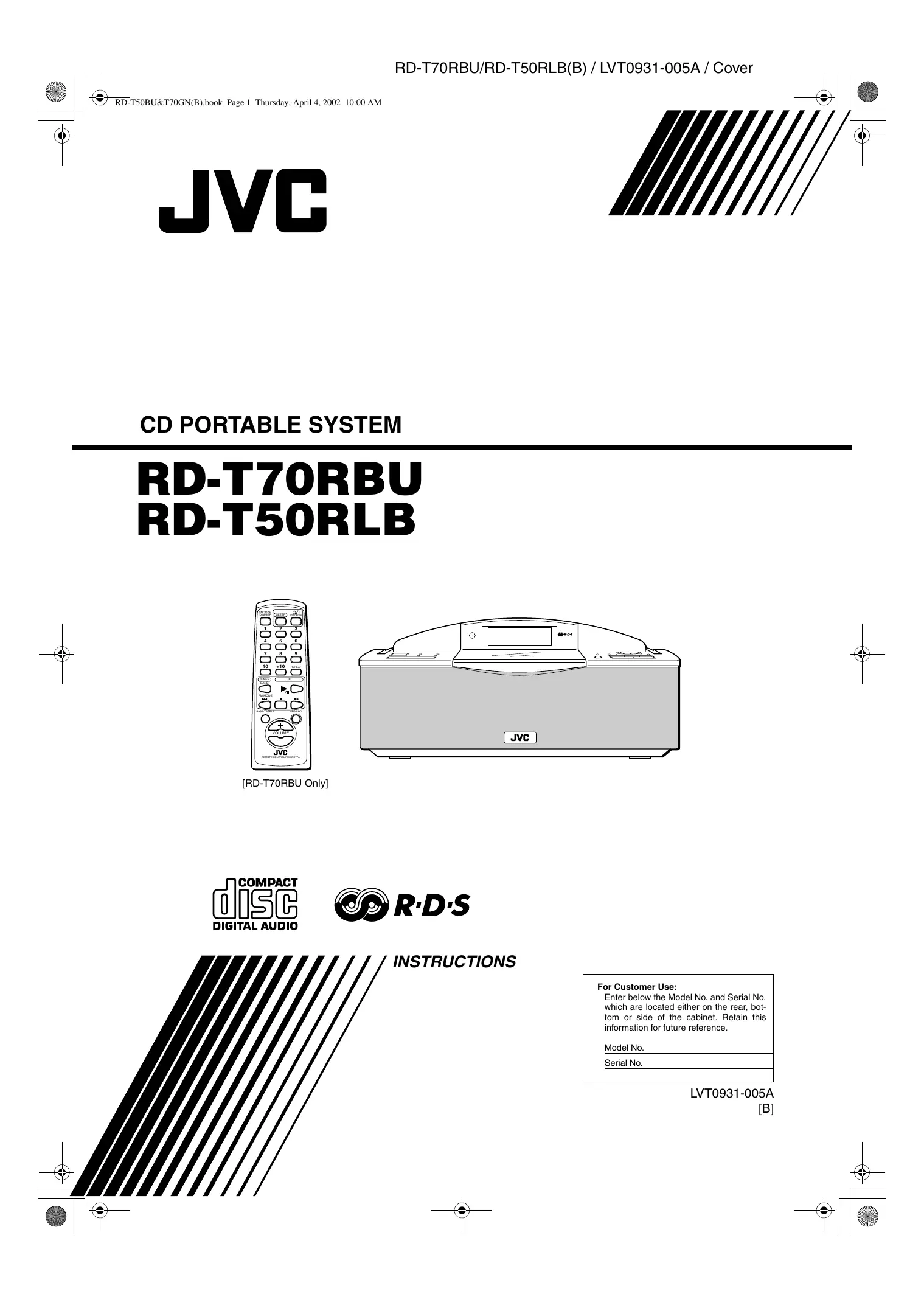

| Product type | Portable Hi-Fi system |
| Brand | JVC |
| Model | RD-T70R |
| Dimensions (W x H x D) | 438 mm x 175.5 mm x 261.5 mm |
| Weight | 2.5 kg (without batteries) |
| Power supply | Mains AC 230 V, 50 Hz or batteries 6 x R20/D |
| Power consumption | 10 W (operating), 1.8 W (standby) |
| Output power | 5 W (2.5 W + 2.5 W) at 4 ohms |
| CD player | Compatible with CD, CD-R, and CD-RW |
| Signal-to-noise ratio (CD) | 90 dB |
| FM tuner | 87.5 MHz - 108.0 MHz |
| AM (MW) tuner | 522 kHz - 1,629 kHz |
| Radio presets | 30 FM + 15 AM |
| RDS function | Display of FM station name |
| Bass amplification | AHB PRO (Active Hyper Bass) |
| Timers | 2 independent wake-up timers + sleep timer |
| Remote control | Yes (model RM-SRDT7) for RD-T70RBU |
| Display | Display with adjustable backlight |
| Headphone output | 3.5 mm jack socket |
| Antennas | FM: built-in wire; AM: built-in ferrite |
| Supplied accessories | Power cord, remote control, batteries for remote (2 x AA) |
| Maintenance and cleaning | Clean with a soft, dry cloth; do not use solvents |
| Safety | Do not expose to moisture, do not block ventilation openings |
| Spare parts and repairability | No user-serviceable parts; refer all servicing to qualified personnel |
Frequently Asked Questions - RD-T70R JVC
User questions about RD-T70R JVC
0 question about this device. Answer the ones you know or ask your own.
Ask a new question about this device
Download the instructions for your Hi-Fi System in PDF format for free! Find your manual RD-T70R - JVC and take your electronic device back in hand. On this page are published all the documents necessary for the use of your device. RD-T70R by JVC.
USER MANUAL RD-T70R JVC
Enter below the Model No. and Serial No. which are located either on the rear, bottom or side of the cabinet. Retain this information for future reference.
Model No.
Serial No.
IMPORTANT for the U.K.
DO NOT cut off the mains plug from this equipment. If the plug fitted is not suitable for the power points in your home or the cable is too short to reach a power point, then obtain an appropriate safety approved extension lead or consult your dealer.
BE SURE to replace the fuse only with an identical approved type, as originally fitted.
If nonetheless the mains plug is cut off ensure to remove the fuse and dispose of the plug immediately, to avoid a possible shock hazard by inadvertent connection to the mains supply.
If this product is not supplied fitted with a mains plug then follow the instructions given below:
IMPORTANT:
DO NOT make any connection to the terminal which is marked with the letter E or by the safety earth symbol or coloured green or green-and-yellow.
The wires in the mains lead on this product are coloured in accordance with the following code:
Blue: Neutral
Brown:Live
As these colours may not correspond with the coloured markings identifying the terminals in your plug proceed as follows:
The wire which is coloured blue must be connected to the terminal which is marked with the letter N or coloured black.
The wire which is coloured brown must be connected to the terminal which is marked with the letter L or coloured red.
IF IN DOUBT - CONSULT A COMPETENT ELECTRICIAN.
Caution - / switch!
Disconnect the mains plug to shut the power off completely. The /1 switch in any position does not disconnect the mains line. The power can be remote controlled.
IMPORTANT FOR LASER PRODUCTS
REPRODUCTION OF LABELS
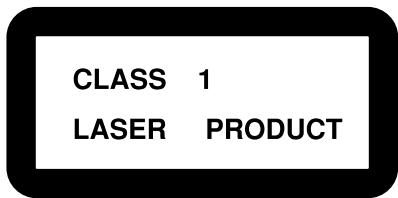
1 CLASSIFICATION LABEL, PLACED ON EXTERIOR SURFACE
2 WARNING LABEL, PLACED INSIDE THE UNIT
| CAUTION: Invisible laser radiation when open and interlock kailedordefee. AVOID DIRECT EXPOSURE TO BEAM. | ADVARSE: Usynlig laser stråding ved øbrning, när sikkerhedsafthyrere er ucle af funktion, Undaugaedstelte for stråling. | VARNING: Oysnlig laserstråning nrä不一样的 dal er øjoppad och spären ar urkoplad. Betrakte eiträn. | VARI: Avataessa ja sujolakutius ohtitäetta olet altiyya nákymattö-mälde laserteileilte. Alta katso sateseen. (f) |
1 CLASS 1 LASER PRODUCT
2 CAUTION: Invisible laser radiation when open and interlock failed or defeated. Avoid direct exposure to beam.
3 CAUTION: Do not open the top cover. There are no user serviceable parts inside the Unit; leave all servicing to qualified service personnel.
CAUTION
To reduce the risk of electrical shocks, fire, etc.:
1 Do not remove screws, covers or cabinet.
2 Do not expose this appliance to rain or moisture.
Caution: Proper Ventilation
To avoid risk of electric shock and fire, and to prevent damage, locate the apparatus as follows:
1 Front: No obstructions and open spacing.
2 Sides/ Top/ Back: No obstructions should be placed in the areas shown by the dimensions below.
3 Bottom: Place on the level surface. Maintain an adequate air path for ventilation by placing on a stand with a height of 10 cm or more.
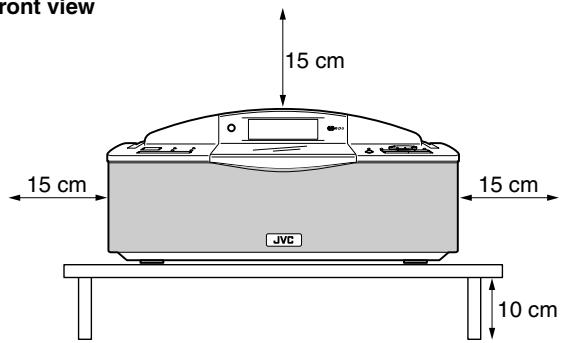
Front view
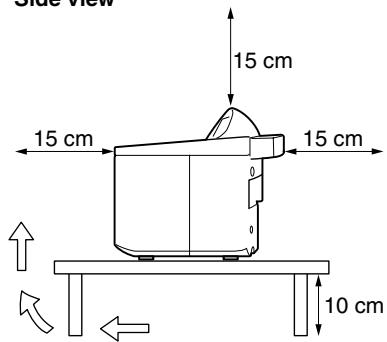
Side view
CAUTION
- Do not block the ventilation openings or holes.
(If the ventilation openings or holes are blocked by a newspaper or cloth, etc., the heat may not be able to get out.)
- Do not place any naked flame sources, such as lighted candles, on the apparatus.
-
When discarding batteries, environmental problems must be considered and local rules or laws governing the disposal of these batteries must be followed strictly.
-
Do not use this apparatus in a bathroom or places with water. Also do not place any containers filled with water or liquids (such as cosmetics or medicines, flower vases, potted plants, cups, etc.) on top of this apparatus.
SAFETY INSTRUCTIONS "SOME DOS AND DON'TS ON THE SAFE USE OF EQUIPMENT"
This equipment has been disigned and manufactured to meet international safety standards but, like any electrical equipment, care must be taken if you are to obtain the best results and safety is to be assured.
Do read the operating instructions before you attempt to use the equipment.
Do ensure that all electrical connections (including the mains plug, extension leads and interconnections between pieces of equipment) are properly made and in accordance with the manufacturer's instructions. Switch off and withdraw the mains plug when making or changing connections.
Do consult your dealer if you are ever in doubt about the installation, operation or safety of your equipment.
Do be careful with glass panels or doors on equipment.
责责责责责责责责责责责责责责责责责责责责责责责
DONT continue to operate the equipment if you are in any doubt about it working normally, or if it is damaged in any way—switch off, withdraw the mains plug and consult your dealer.
DON'T remove any fixed cover as this may expose dangerous voltages.
DONT leave equipment switched on when it is unattended unless it is specifically stated that it is designed for unattended operation or has a standby mode.
Switch off using the switch on the equipment and make sure that your family know how to do this.
Special arrangements may need to be made for infirm or handicapped people.
DON'T use equipment such as personal stereos or radios so that you are distracted from the requirements of traffic safety. It is illegal to watch television whilst driving.
DON'T listen to headphones at high volume as such use can permanently damage your hearing.
DON'T obstruct the ventilation of the equipment, for example with curtains or soft furnishings.
Overheating will cause damage and shorten the life of the equipment.
DONT use makeshift stands and NEVER fix legs with wood screws — to ensure complete safety always fit the manufacturer's approved stand or legs with the fixings provided according to the instructions.
DON'T allow electrical equipment to be exposed to rain or moisture.
ABOVE ALL
NEVER let anyone, especially children, push anything into holes, slots or any other opening in the case -this could result in a fatal electrical shock.;
NEVER guess or take chances with electrical equipment of any kind
--it is better to be safe than sorry!
Thank you for purchasing the JVC CD Portable System.
We hope it will be a valued addition to your home as well as to your outdoor life, giving you years of enjoyment.
Be sure to read this instruction manual carefully before operating your new stereo system.
In it you will find all the information you need to set up and use the system.
If you have a query that is not answered by the manual, please contact your dealer.
Features
Here are some of the things that make your System both powerful and simple to use.
The controls and operations have been redesigned to make them very easy to use, freeing you to just enjoy the music.
- With JVC's COMPU PLAY you can turn on the System and automatically start the Radio, or CD Player with a single touch. (When power is supplied from AC)
The System incorporates AHB (Active Hyper Bass) PRO circuitry to faithfully reproduce low frequency sounds. [RD-T70RBU Only]
A 45-station preset capability 30 FM and 15 AM (MW) in addition to auto-seek and manual tuning.
A user-friendly timer lets you wake or fall asleep to music.
The CD Player can play back a CD-R and CD-RW.

COMPUPLAY
How This Manual Is Organized
- Basic information that is the same for many different functions - e.g. setting the volume - is given in the section 'Common Operations', and not repeated under each function.
- The names of buttons/controls are written in all capital letters: e.g. TUNER BAND.
- If the button names on the Unit and the Remote Control are the same, the description on which the button is used will be omitted.
- System functions are written with an initial capital letter only: e.g. Normal Play.
Use the table of contents to look up specific information you require.
We've enjoyed making this manual for you, and hope it serves you in enjoying the many features built into your System.
IMPORTANT CAUTIONS
1. Where to place the Unit
- Select a place which is level, dry and neither too hot nor too cold (between 5^ and 35^ ).
- Leave sufficient distance between the Unit and a TV.
- Do not use the Unit in a place subject to vibrations.
2. Power cord
- Do not handle the power cord with wet hands!
- Some power is always consumed as long as the power cord is connected to the wall outlet.
- When unplugging the Unit from the wall outlet, always pull the plug, not the power cord.
3. Malfunctions, etc.
There are no user serviceable parts inside. In case of system failure, unplug the power cord and consult your dealer.
- Do not insert any metallic object into the System.
Carefully read "CAUTION" on page G-1.
Rating label is placed on the exterior of the bottom.
Table of Contents
Features 1
How This Manual Is Organized 1
IMPORTANT CAUTIONS 1
Getting Started. 2
Common Operations 3
Using the Tuner 5
Using the CD Player 8
Using the Timers 10
Care And Maintenance. 12
Troubleshooting . Back cover
Specifications............Back cover
Accessories
Check that you have all of the following items, which are supplied with the System.
Power Cord (1)
Remote Control (1) [RD-T70RBU Only]
Batteries for Remote Control (2) [RD-T70RBU Only]
If any of these items are missing, contact your dealer immediately.
How To Put Batteries
How To Put Batteries In the Unit
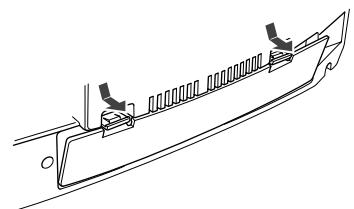
- Open the battery cover on the back of the Unit by pulling it toward you while pressing the tabs as shown by the arrows.
- Put 3 memory backup batteries R6P(SUM-3)/AA(15F) (not supplied) in the battery compartment in the order of "1" to "3".
- Put 6 batteries R20/D (13F) (not supplied) in the battery compartment in the order of "1" to "6" as shown.
- Securely close the battery cover.
Note: When you operate your Unit on mains (AC) power, the power source switches automatically from batteries to AC. However, you should remove the batteries when operating on AC power.
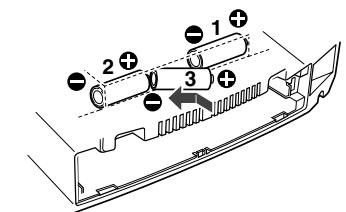
"R6P (SUM-3) / AA (15F)" size batteries
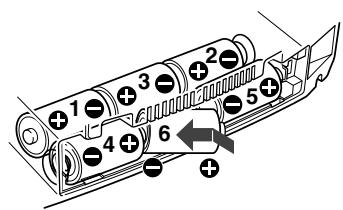
"R20/D (13F)" size batteries
How To Put Batteries In the Remote Control [RD-T70RBU Only]
Match the polarity (+ and -) on the batteries with the + and - markings in the battery compartment.
![JVC RD-T70R - How To Put Batteries In the Remote Control [RD-T70RBU Only] - 1](/content/2025/01/123409/images/1a0fc810b9f3eb762e1439626bf534d81222c4cbc2bddc42639f818b8211d5b1.jpg)
CAUTION: Handle batteries properly.
To avoid battery leakage or explosion:
- Remove batteries when the Unit or the Remote Control will not be used for a long time.
- When you need to replace the batteries, replace batteries at the same time with new ones.
- Do not use an old battery with new ones.
- Do not use different types of batteries together.
- Do not try to recharge non-rechargeable batteries.
Dispose of batteries in the proper manner, according to federal, state, and local regulations.
Using the Remote Control [RD-T70RBU Only]
The Remote Control makes it easy to use many of the functions of the Unit from a distance of up to 7m (23 feet) away.
You need to point the Remote Control at the remote sensor on the Unit's front panel.
Note: If you point the Remote Control from the slant direction, the above distance will be shortened.
Connecting the AC Power Cord
Firmly insert the AC power cord supplied with the System into the AC inlet on the back of the Unit.
CAUTIONS:
- ONLY USE THE JVC POWER CORD PROVIDED WITH THIS SYSTEM IN ORDER TO AVOID MALFUNCTION OR DAMAGE TO THE SYSTEM.
- BE SURE TO UNPLUG THE POWER CORD FROM THE OUTLET WHEN GOING OUT OR WHEN THE SYSTEM IS NOT IN USE FOR AN EXTENDED PERIOD OF TIME.

Plug the AC power cord into the wall outlet, and your System is at your command!
Common Operations
Turning the Power On and Standby
Turning the Unit On
Press the button.
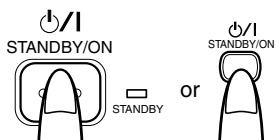
The STANDBY indicator goes out and the display comes on, and "WELCOME" is displayed.
The Unit comes on ready to continue in the mode it was in when the power was last turned off.
For example, if the last thing you were doing was listening to a CD, you are now ready to listen to a CD again. If you wish, you can change to another source.
If you were listening to the Tuner last, the Tuner comes on playing the station it was last set to.
Note: When power is supplied from the batteries, the / button on the Remote Control does not work.
Turning the Unit Standby
Press the / button again.
When operating on AC power:
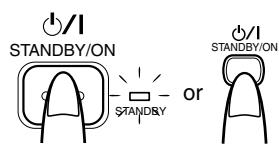
"GOOD BYE" is displayed and the display becomes blank, except for the clock display. The STANDBY indicator lights up.
- When in Standby mode, the Unit continues to a small amount of power to run the display.
To switch off the Unit completely, unplug the AC power cord from the AC outlet.
When power is supplied from the batteries:
When the Unit is turned off with the / button on the Unit (the / button on the Remote Control is ineffective), the display becomes blank and the STANDBY indicator lights up.
To switch off the Unit completely, remove the batteries from the Unit.
Adjusting the Volume
You can adjust the volume level between MIN (0) and MAX (32) when the Unit is turned on.
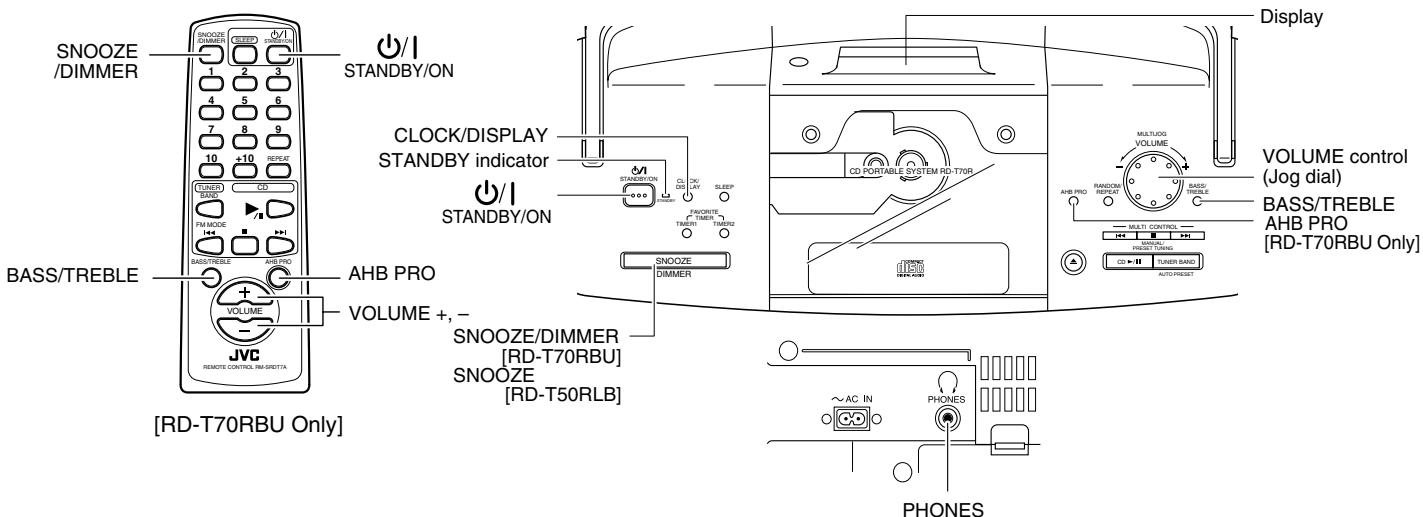
Turn the VOLUME control on the Unit to the right or left to increase or decrease the volume level. OR
Press the VOLUME + or - button on the Remote Control to increase or decrease the volume level.
CAUTION: DO NOT turn on the Unit and/or start playing any source without first setting the VOLUME control to MIN (0), as a sudden blast of sound can damage your hearing.
For private listening
Connect a pair of headphones to the PHONES jack. No sound comes out of the speakers.
Be sure to turn down the volume before connecting or putting on headphones.
Reinforcing the Bass Sound (AHB PRO) [RD-T70RBU Only]
You can reinforce the bass sound to maintain rich, full bass at low volume:
To get the effect, press the AHB (Active Hyper Bass) PRO button.
The "BASS" indicator lights up on the display.
To cancel the effect, press the button again.
The "BASS" indicator goes out.
Tone Control (BASS/TREBLE)
You can control the tone by changing the bass and treble.
1. Press the BASS/TREBLE button until "BASS" or "TREBLE" appears on the display.
Each time you press the button, the display changes as follows:
BASS TREBLE original display (back to the beginning)
2. Turn the Jog dial on the Unit or press the VOLUME + / - button on the Remote Control to adjust the level.
The bass or treble level changes between -6 and +6 . (0: Flat)
$$ \text {B 7 5 5 - 6} \rightarrow \text {B 7 5 5 + 6} $$
$$ T R E B L E \cdot G \rightarrow T R E B L E + G $$
To exit the tone control mode, press the BASS/TREBLE button until the original display appears, or wait for 15 seconds.
To forcibly reset the bass and treble levels to 0 (FLAT), press the BASS/TREBLE button for 2 seconds or more.
Showing the Time (CLOCK/ DISPLAY)
While listening to a CD or the radio, you can see the current time.
To display the clock, press the CLOCK/DISPLAY button on the Unit.
To return to the original display, press the same button until the original display appears.
Note: You need to set the clock first in order for it to work. (See "Setting the Clock" on page 10.)
Adjusting the Brightness (DIMMER) [RD-T70RBU Only]
When operated on AC power
You can switch the brightness of the display's backlighting (full light and dimmed light). In addition, the dimmed backlighting brightness can be changed in 16 steps.
When the Unit is turned on:
Each time you press the SNOOZE/DIMMER button, the backlight fully turns on or dims.
When the Unit is turned off (Standby):
Each time you press the SNOOZE/DIMMER button, the backlight dims or turns off.
When the Sleep Timer is on:
You can also dim or turn off the backlight with the SNOOZE/DIM-MER button.
Adjusting the dimmer level:
(On the Unit only)
- With the Unit turned on, press and hold the DIMMER button on the Unit until "DIMMER:XX" appears on the display.
- Turn the Jog dial and adjust the dimmer level between 1 and 16.
- Press the DIMMER button.
When operated on batteries
When the Unit is turned on, you can turn on the backlighting of the display for a few seconds.
Each time you press the SNOOZE/DIMMER button, the backlight turns on for a few seconds.
Using Batteries
Power Batteries (6 pcs.):
You can operate the System on batteries. When the batteries are exhausted, "NO BATT" will appear on the display. In this case, replace with the new batteries.
Memory Backup Batteries (3 pcs.):
Your settings such as the preset stations, clock and timer are backed up with this batteries.
CAUTION:
If memory backup batteries are exhausted or not installed, and the AC power cord is disconnected or there is a power failure, the settings you have made will be erased from memory in approx. half a day.
CLOCK/DISPLAY
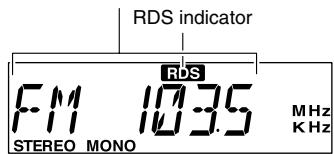
Band display, Frequency display, Preset channel
(Display when using the Tuner)
You can listen to FM and AM (MW) stations. Stations can be tuned in manually, automatically, or from preset memory storage.
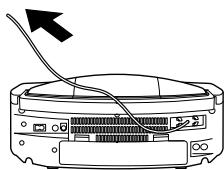
Setting the Antenna
For FM reception:
Extend the built-in wire antenna to obtain the best reception.
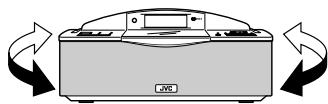
For AM reception:
Turn the Unit to obtain the best reception.
One Touch Radio (AC power only)—
Just press the TUNER BAND button to turn on the Unit and start playing the station you were last tuned to.
You can also switch from the CD Player to the radio by pressing the TUNER BAND button.
Tuning In a Station
1. Press the TUNER BAND button.
The Band and Frequency you were last tuned to appear on the display.
Each time you press the button, the band changes as follows:

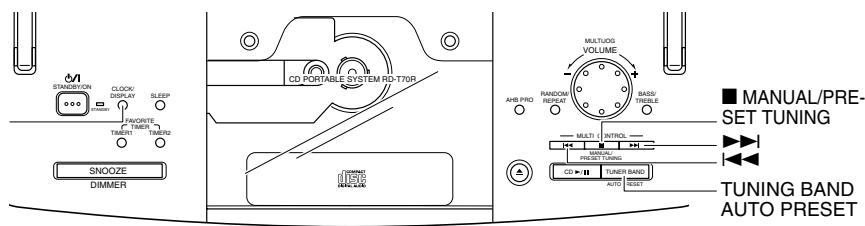
2. Press the button on the Unit to select the tuning mode (Manual or Preset).
Each time you press the button, the tuning mode changes as follows:
MANUAL (Manual Tuning mode) PRESET (Preset Tuning mode)
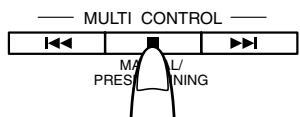
3. Select a station using one of the following methods.
Note that the possible operation is limited by the Tuning mode you have selected in step 2.
Manual Tuning (In Manual Tuning mode)
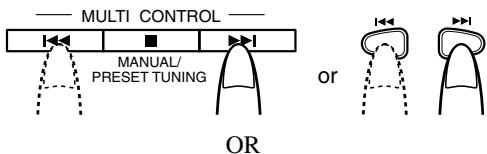
Press the or button repeatedly to move from frequency to frequency until you find the station you want.
Auto Tuning (In Manual Tuning mode)
If you press and hold the 一 or button for one second or more, the frequency changes down, or up, automatically until a station is found.
OR
■ Preset Tuning using the Unit (Possible only after presetting stations) (In Preset Tuning mode)
Press the or button to select the preset station.
After you have selected the preset number, the band and the frequency are displayed.
Example:Press the 一 or button until the preset number 12 "P- 12" appears.
$$ P - I C \rightarrow F M 1 0 3 5 $$
OR
■ Preset Tuning using the Remote Control (Possible only after presetting stations)
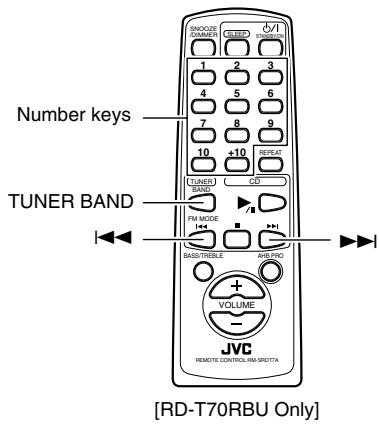
Select the station by entering its preset number on the number keys.
Example: For channel 5, press 5. For channel 15, press +10 then 5. For channel 25, press +10 twice, then 5. For channel 30, press +10 twice, then 10.
The band and the frequency are displayed.
Presetting Stations
You can preset up to 30 FM stations and up to 15 AM (MW) stations into memory.
Auto Presetting (Using the Unit) —
In each band, you can automatically preset FM-30, AM (MW)-15 stations. Preset numbers will be allocated as stations are found, starting from the station currently tuned to and moving up the frequency.
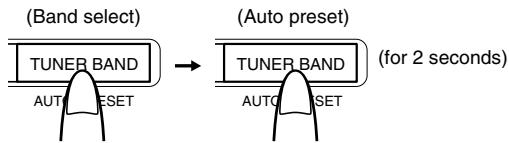
- Select a band (AM or FM) by pressing the TUNER BAND button.
- Press the TUNER BAND button for more than 2 seconds.
"AUTO" appears, and then auto presetting starts.
- Repeat steps 1-2 for the other band.
If you want to change any of the auto preset stations, follow the procedure for Manual Presetting.
CAUTION: To prevent the preset stations from being erased because of a power failure, etc., install memory backup batteries in the System.(See page 2.) Otherwise, they will be erased in approx. half a day.
Manual Presetting (Using the Unit) —
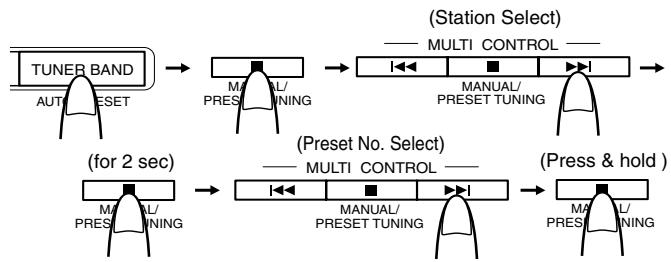
- Select a band by pressing the TUNER BAND button.
- Press the button until "MANUAL (Manual Tuning mode)" appears on the display.
- Press the | or | | button to tune in a sta-tion.
- Press the button for 2 seconds or more.
The preset number and band/frequency are alternately displayed for 5 seconds.
$$ P - 1 2 \leftrightarrow F M 1 0 3 5 $$
- Within 5 seconds, repeatedly press the | or button until the preset number you want appears, then press and hold the button until "STORED" appears on the display.
- Repeat steps 2-5 for further presetting.
To change the preset stations, repeat the same procedure as above.
Manual Presetting (Using the Remote Control) [RD-T70RBU Only]
![JVC RD-T70R - Manual Presetting (Using the Remote Control) [RD-T70RBU Only] - 1](/content/2025/01/123409/images/fdbf465799d866af97503713798b98590e5009355176ecd042a591737c05c513.jpg)
- Select a band by pressing the TUNER BAND button.
- Press the button on the Unit until "MANUAL (Manual Tuning mode)" appears on the display.
- Press the | or button to tune in a station.
-
Set the preset number by pressing and holding the number key on the Remote Control until "STORED" appears on the display.
-
To preset numbers 1 to 10: Press the number key and hold it down for 2 seconds.
- To preset numbers 11 to 19: Press the +10 button, then press the second number key (1 to 9) and hold it down for 2 seconds.
- To preset numbers 21 to 29: Press the +10 button twice, then press the second number key (1 to 9) and hold it down for 2 seconds.
- To preset number 30: Press the +10 button twice, then press and hold 10 button.
Example: Preset number = 12
$$ P \dots 1 2 \rightarrow F M 1 0 3 5 $$
- Repeat steps 2 - 4 for further presetting.
To change the preset stations, repeat the same steps as above.
To Change the FM Reception Mode
The "STEREO" indicator lights up and you can hear stereo effects, when a program is broadcast in stereo.
However if an FM stereo broadcast is hard to receive or noisy, you can select Monaural mode. Reception improves, but you lose any stereo effect.
Press the TUNER BAND button to select FM MONO mode.
The "MONO" indicator lights up on the display.
To restore the stereo effect, press the TUNER BAND button to select FM Auto mode. The "MONO" indicator goes out.
Receiving FM Stations with RDS
You can use the RDS (Radio Data System) by using the CLOCK/ DISPLAY button on the Unit.
RDS allows FM stations to send additional signals with their regular program signals. For example, the stations send their station names, and information about what type of program they broadcast, such as sports or music, etc. However, this unit can only receive the following type of RDS signal:
PS (Program Service):
shows commonly known station names.
To show the RDS signals on the display
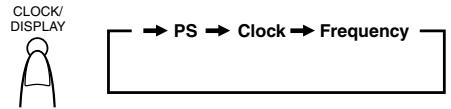
Press the CLOCK/DISPLAY button on the Unit while listening to an FM station.
Each time you press the button, the display changes to show information in the following order:
PS (Program Service):
While searching, "WAIT PS" and "PS" alternately appear on the display. Then, the RDS indicator lights up and the station name appears. "NO PS" appears if no signal is sent.
Clock:
Current time appears on the display.
Station Frequency:
Station frequency (non-RDS service)
Notes:
- If searching finishes at once, "WAIT PS" and "PS" will not appear on the display.
- RDS is not available for AM (MW) broadcasts.
On characters displayed
When the display shows PS signals:
- The display shows upper case letters only.
- The display cannot show accented letters; For example, "A" may represent accented "A's" like "A", A, A, A, A and A".
[Example of characters displayed]
| H | A, A, A, A, A, A | K | K | U | U, U, U, U | 0 | * | * | 1 | < | @ |
| I | B | L | L | U' | V | 1 | + | + | 1 | > | |
| C | C, C, C, | M | M | W | W | 2 | -- | - | -- | = | |
| D | D, D, | N | N, N | X | X | 3 | , | , | , | \ | |
| E | E, E, E, E, E, E, E, E, E, E, E, E, E, E, E, E, E, E, E, E, E, E, E, E, E, E, E, E, E, E, E, E, E, E, E, E, E, E, E, E, E, E, E, E, E, E, E, E, E, E, E, F | O | O, O, O, O, O, O, O, O | Y | Y | 4 | , | . | , | , | |
| F | F | P | P | Z | Z, Z, Z, Z | 5 | / | / | II | II | |
| G | G | Q | Q | 6 | -- | -- | 1 | ! | |||
| H | H | R, R, R, R, R, R, R, R, R, R, R, R, R, R, R, R, R, R, R, R, R, R, R, R, R, R, R, R, R, R, R, R, R, R, R, R, R, R, R, R, R, R, R, R, R, R, R, R, R, R, R, E | R, R, R, R, R, R, R, R, R, R, R, R, R, R, R, R, R, R, R, R, R, R, R, R, R, R, R, R, R, R, R, R, R, R, R, R, R, R, R, R, R, R, R, R, R, R, R, R, R, E | 7 | 7 | - | -- | -- | -- | $ | |
| I | I, I, I, I, I, I, I, I, I, I, I, I, I, I, I, I, I, I, I, I, I, I, I, I, I, I, I, I, I, I, I, I, I, I, I, I, I, I, I, I, I, I, I, I, I, I, I, I, I, I, I, E | S, S, S, S, S, S, S, S, S, S, S, S, S, S, S, S, S, S, S, S, S, S, S, S, S, S, S, S, S, S, S, S, S, S, S, S, S, S, S, S, S, S, S, S, S, S, S, S, S, S, S, E | S, S, S, S, S, S, S, S, S, S, S, S, S, S, S, S, S, S, S, S, S, S, S, S, S, S, S, S, S, S, S, S, S, S, S, S, S, S, S, S, S, S, S, S, S, S, S, S, E | 8 | -- | -- | -- | -- | & | ||
| J | J | T | T | 9 | 1 | 1 | % | % |
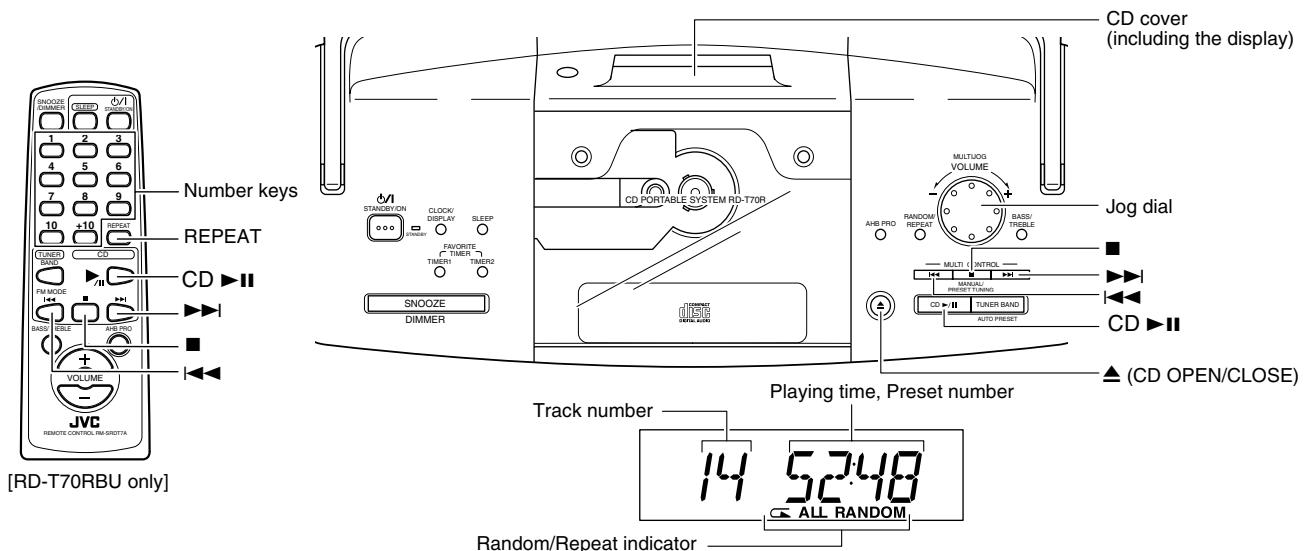
(Display when using the CD Player)
You can use Normal, Random, or Repeat Play. Repeat Play can be set to repeat all or just one of the tracks on the CD.
One Touch CD Player (AC power only)
Just press the CD button.
- The power is automatically turned on. If a CD is already inserted, "CD" is displayed and the CD will start playing from the first track.
- If no CD is inserted, "NO DISC" is displayed on the display and the CD Player remains in Stop mode.
Normal Play
1. Press the button on the Unit.
The CD cover (including the display) opens.
2. Place a CD, with its label side up.
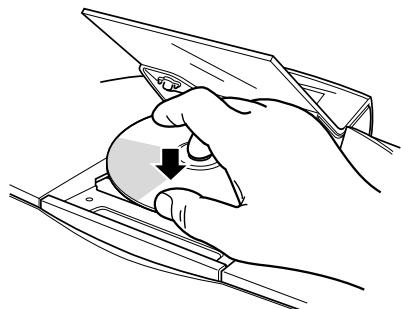
3. Press the button again to close the CD cover.
- To close the CD cover and directly start playback, omit this step and go to the next step.
CAUTION: Avoid getting your hand caught in the CD cover.
4. Press the CD II button.
The first track of the CD begins playing.
The CD Player automatically stops when the last track of the CD has finished playing.
- During playback, the track number being played and the playback time elapsed are shown on the display.
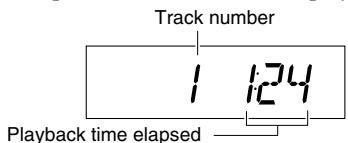
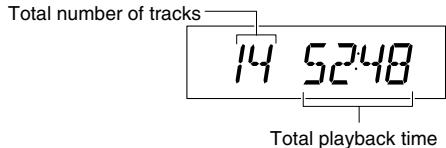
To stop playing the CD, press the button.
The following information for the CD is displayed.
To pause, press the CD II.
To cancel pause, press the CD▶ again. Play continues from the point where it was paused.
Notes:
- You can place an 8cm (3") CD without an adaptor.
- If the CD cannot be read correctly (because it is scratched, for example), "0 0:00" appears on the display.
Skip Play (▶or▶)
During playback, press the or button to select the track you want.
The selected track starts playing.
- Press the button to go forward one track at a time.
- Press the button to go back to the beginning of the current track. To go back to the previous track, quickly press the button twice.
You can also skip the tracks in Stop mode.
Search Play
During playback, hold down the or button.
This operation will fast forward/backwards the CD so you can quickly find a particular passage in the track you are listening to (the CD playback speed will increase in two steps).
Locating a Track directly with the Remote Control
Using the number keys on the Remote Control, you can go directly to the beginning of any track.
During playback, enter the number of the track you want to listen to using the number keys.
The selected track starts playing.
- Example: For track 5, press 5. For track 15, press +10, then 5. For track 20, press +10, then 10. For track 32, press +10 three times, then 2.
RANDOM Play
The tracks will play in no special order when you use this mode.
(On the Unit)
1. In Stop mode, press the RANDOM/REPEAT button until the "RANDOM" indicator alone lights up on the display.
Each time you press the button, the Random/Repeat indicator changes as follows.
ALL RANDOM RANDOM (Random Play mode) blank display (back to the beginning)
2. Press the CD button.
All the tracks are played back in random order once, then the CD stops.
- During playback, skip play and search play can be done in the similar manner as for Normal Play mode, using the or button.
To stop Random Play, press the button.
To cancel Random Play mode, in Stop mode, press the RANDOM/REPEAT button until the "RANDOM" indicator goes out, or press the button. Pressing the button to open the CD cover will also cancel Random Play mode.
Repeat Play
One track or all the tracks on a CD will play repeatedly when you use this mode.
(On the Unit)
1. In Stop mode, press the RANDOM/REPEAT button.
Each time you press the button, the Random/Repeat indicator changes as follows.
ALL RANDOM RANDOM blank display (back to the beginning)
: Will repeat one track.
ALL: Will repeat all the tracks.
RANDOM: Will repeat all the tracks in random order.
2. Press the CD II button.
Repeat playback starts.
To stop Repeat Play, press the button.
To cancel Repeat Play mode, in Stop mode, press the RANDOM/Repeat button until the Random/Repeat indicator goes out, or press the button. Pressing the button to open the CD cover will also cancel Repeat Play mode.
(On the Remote Control) [RD-T70RBU Only]
1. In Stop mode, press the REPEAT button.
Each time you press the button, the Repeat indicator changes as follows.
ALL blank display (back to the beginning)
: Will repeat one track.
ALL: Will repeat all the tracks.
2. Press the CD II button.
Repeat playback starts.
To stop Repeat Play, press the button.
To cancel Repeat Play mode, in Stop mode, press the REPEAT button until the Repeat indicator goes out, or press the button. Pressing the button to open the CD cover will also cancel Repeat Play mode.
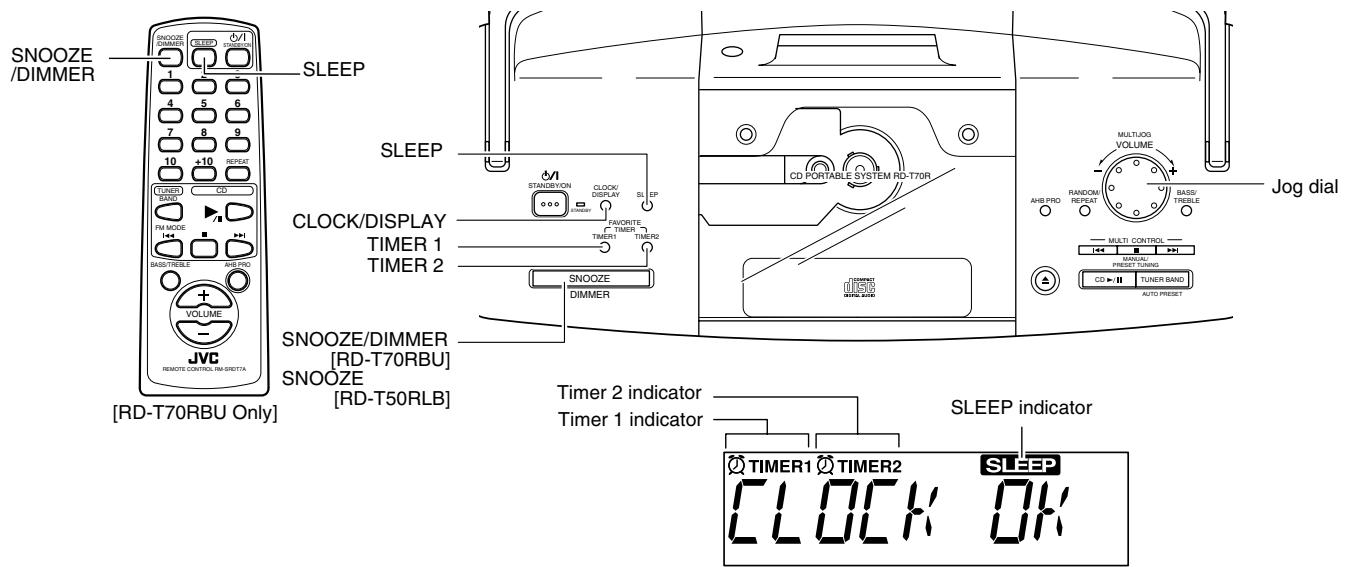
(Display when using the Timer)
You can enjoy timer settings with the unique dual timer, consisting of the Timer 1 and Timer 2. These Timers can independently select a playback source from the CD player (Normal Play or Random Play), Tuner, or 8 melodies. For example, you can make up to a melody every morning with the Timer 1, and without changing the Timer 1 setting, you can listen to the favorite program by reserving it with the Timer 2. Also, you can use the Sleep Timer to fall asleep to music. Your System automatically turns off after a certain length of time.
CAUTION: If memory backup batteries are exhausted or not installed, and the AC power cord is disconnected or there is a power failure, time settings will be erased from memory in approx. half a day. Then, the display blinks "0:00". If this happens, set the current time (clock) and perform the timer setting again.
Setting the Clock
When the Unit is operated on AC power or batteries for the first time, the time indication "0:00" will blink on the display and you need to set the clock.
You can set the clock whether the Unit is turned on or off (Standby) if the AC power is supplied to the Unit.
Notes:
- The clock must be correctly set for the timer to work.
- The clock may gain or lose 1 to 2 minutes per month.
- Perform each setting step within 30 seconds. Otherwise, setting is cleared and the procedure must be repeated from the beginning.
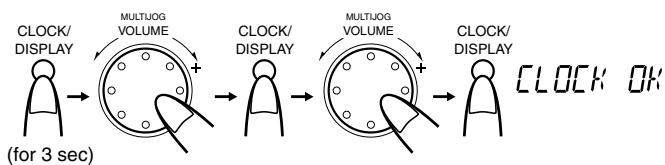
(On the Unit)
1. Press the CLOCK/DISPLAY button for 3 seconds or more.
The hour digits blink.
2. Turn the Jog dial to set the hour.
3. Press the CLOCK/DISPLAY button.
The minute digits blink.
4. Turn the Jog dial to set the minute.
5. Press the CLOCK/DISPLAY button.
"CLOCK OK" appears for 2 seconds. The selected time is set and the seconds start counting from 0.
Setting the Timer
The Timer 1 or Timer 2 is turned on at the set time and the System turns on. The selected source is played and the volume fades in. The System will automatically turn off in 1 hour.
The setting procedure for the Timer 1 and Timer 2 is identical.
Notes:
- Perform each setting step within 30 seconds. Otherwise, setting is cleared and the procedure must be repeated from the beginning.
- Tuner timer uses the preset station. So, you need to preset the stations in Preset Tuning mode beforehand. See, "Presetting Stations" on page 6.
(On the Unit: While the Unit is turned on)
1. Press the TIMER1 or TIMER2 (we write as TIMER1/2 hereafter) button.
The current hour digits blink. Also, the Timer 1/2 indicator (TIMER1/2) blinks.
Note:
- If the clock is not set yet, "CLOCK SET" is displayed and the Unit enters the clock setting mode. In this case, set the clock referring to "Setting the Clock" on this page.
2. Turn the Jog dial to select the hour.
3. Press the TIMER1/2 button.
The current minute digits blink.
4. Turn the Jog dial to select the minute.
5. Press the TIMER1/2 button.
The current source name blinks.
6. Turn the Jog dial to select the source.
The source name changes as follows:

7. Press the TIMER1/2 button and select a source item you want.
When the source is CD:
- Turn the Jog dial to select either "TRACK NO" (for Normal Play) or "RANDOM" (for Random Play).
- Press the TIMER1/2 button. When "TRACK NO" is selected, "TRACK-1" blinks. Go to steps 3 and 4. When "RANDOM" is selected, the current volume level blinks. Go to step 8.
(When "TRACK- 1" blinks.)
- Turn the Jog dial to select another track, if you want.
- Press the TIMER1/2 button. The current volume level blinks. Go to step 8.
When the source is TUNER:
- Turn the Jog dial to select FM AUTO, FM MONO, or AM.
- Press the TIMER1/2 button. The preset number blinks. (e.g. "P-1")
- Turn the Jog dial to select the preset number you want to listen to.
- Press the TIMER1/2 button. The current volume level blinks. Go to step 8.
When the source is MELODY:
The current melody number (1 - 8) blinks and the melody is played.
- Turn the Jog dial to select one of melodies.
- Press the TIMER1/2 button. The current volume level blinks. Go to step 8.
8. Turn the Jog dial to set the volume level.
The volume level changes between "MIN (0)" and "MAX (32)".
9. Press the TIMER1/2 button.
The TIMER1/2 is set and the Timer 1/2 indicator (TIMER1/2) remains lit.
10. Prepare the music source according to the source set in step 6.
CD: Load a CD.
TUNER/MELODY:No preparation is necessary.
- If no CD is loaded with the CD source selected, the MEL-ODY 1 will be activated instead of a CD.
11. Turn off the Unit (Standby mode).
When the set time comes
When the set time comes, the Unit automatically turns on and plays the source. During this time, the Timer 1/2 indicator (Timer 1/2) blinks. The timer will automatically turn off in 1 hour. In case that the source is CD, the Unit automatically turns off when playing back all the tracks is finished.
- To temporarily cancel the timer, press the TIMER 1/2 button once or change the volume with the VOLUME control on the Unit or the VOLUME +/- button on the Remote Control. Then the Timer 1/2 indicator (② TIMER 1/2) remains lit. (When the source is CD or TUNER, pressing any button on the Unit cancels the timer.)
To cancel the timer, press the TIMER1/2 button to turn off the Timer 1/2 indicator ( TIMER1/2).
To reactivate the timer, repeatedly press the TIMER1/2 button until the Timer 1/2 indicator ( TIMER1/2) remains lit again.
To confirm the timer settings, repeatedly press the TIMER1/2 button.
To change the timer settings, repeat the setting procedure from the beginning.
Tip:
The timer works even if the Unit is turned on. So, while listening to a CD or radio, you can use the timer to know the set time. For example, if you are listening to the radio, you can set the timer so that the melody will be played at the set time, instead of the radio. In this case, the playback sound slowly fades in.
5-Minute Snoozing (SNOOZE)
When the Timer 1/2 turns on, if you wish, you can activate 5-minute snoozing function to temporarily stop playing source.
While the timer is activating, press the SNOOZE button.
The Unit turns off for 5-minute for snoozing. (The Timer 1/2 blinks.) Notes:
- Pressing and holding the SNOOZE button for more than 2 seconds cancels the timer.
- The maximum number of times to repeat snoozing is limited to 10.
- Snooze function does not work when the other timer is used.
Setting the SLEEP Timer
Use the Sleep Timer to turn the Unit off after a certain number of minutes when it is playing. By setting the Sleep Timer, you can fall asleep to music and know that your Unit will turn off by itself rather than play all night.
- You can only set the Sleep Timer when the Unit is on and a source is playing.
1. Play back a CD or tune in to a desired station.
2. Press the SLEEP button.
The "SLEEP" indicator blinks.
3. Set the length of time you want the source to play before shutting off.
Each time you press the SLEEP button, it changes the number of minutes shown on the display in this sequence:
10 → 20 → 30 → 60 → 90 → 120 → Cancelled → (back to the beginning)
The "SLEEP" indicator will stop blinking after 5 seconds and remains on (The backlight dims.). Then, the display returns to the one before you set the Sleep Timer.
The Unit is now set to turn off after the number of minutes you have set.
To Confirm the Sleep Time
Press the SLEEP button once. The remaining sleep time is displayed, and after 5 seconds, the original display returns.
To Cancel the SLEEP Timer Setting
Press the SLEEP button until the "SLEEP" indicator goes off on the display. Turning off the Unit also cancels the SLEEP Timer.
Handle your CDs carefully, and they will last a long time.
Compact Discs


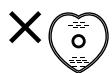
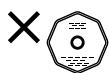
Only CDs bearing these marks can be played with this Unit.
- Continued use of irregularly shaped CDs (heart-shape, octagonal, etc.) can damage the Unit.
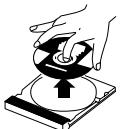
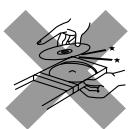
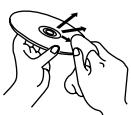
- Remove the CD from its case by holding it at the edges while pressing the case's center hole lightly.
- Do not touch the shiny surface of the CD, or bend the CD.
- Put the CD back in its case after use to prevent warping.
- Be careful not to scratch the surface of the CD when placing it back in the case.
- Avoid exposure to direct sunlight, temperature extremes, and moisture.
- A dirty CD may not play correctly. If a CD is dirty, wipe it with a soft cloth in a straight line from center to edge.
CAUTION: Do not use any solvent (for example, conventional record cleaner, spray thinner, benzine, etc.) to clean a CD.
Moisture Condensation
Moisture may condense on the lens inside the Unit in the following cases:
After turning on heating in the room.
In a damp room.
- If the Unit is brought directly from a cold to a warm place. Should this occur, the Unit may malfunction. If this happens, leave it turned on for a few hours until the moisture evaporates, unplug the AC power cord, and then plug it in again.
General Notes
To ensure top performance, keep your CDs and the mechanism clean.
- Store CDs in their cases, and keep them in cabinets or on shelves.
- Keep the CD cover closed when not in use.
If you have a problem with your System, check this list for a possible solution before calling for service.
If you cannot solve the problem from the hints given here, or the System has been physically damaged, call a qualified person, such as your dealer, for service.
| Symptom | Possible Cause | Action |
| No sound is heard. | ·The power cord is disconnected. ·The batteries in the Unit have lost their charge. ·Headphones are connected. | ·Connect it firmly ·Replace the batteries. ·Disconnect the headphones. |
| Poor AM reception | The System is not properly positioned. | Turn the System to the best reception position. |
| Poor FM reception | The FM antenna is not properly positioned. | Extend the FM antenna and turn it to the best reception position. |
| The CD skips. | The CD is dirty or scratched. | Clean or replace the CD. |
| The CD does not play. | The CD is upside down. | Put the CD in with the label side up. |
| Preset tuning is not possible with the key. | Manual Tuning mode is selected. | Press the ■ button on the Unit until “PRESET” is displayed. |
| Manual tuning is not possible with the key. | Preset Tuning mode is selected. | Press the ■ button on the Unit until “MANUAL” is displayed. |
| Unable to operate the Remote Control. | ·The path between the Remote Control and the sensor on the Unit is blocked. ·The batteries have lost their charge. | ·Remove the obstruction. ·Replace the batteries. |
| Operations are disabled. | The built-in microprocessor has malfunc-tioned due to external electrical interference. | Unplug the Unit then plug it back in. |
Specifications
Amplifier
Output Power
(Max.) 5W (2.5W + 2.5W) at 4 ohms
(10% THD) 4 W (2 W + 2 W) at 4 ohms
Output Sensitivity/Impedance (1 kHz)
32 ohms - 1 kohm
0mW - 20mW / ch output into 32 ohms
CD Player
Signal-To-Noise Ratio 90 dB
Wow And Flutter Unmeasurable
Tuner
FM Tuner
Tuning Range 87.5 MHz - 108.0 MHz
AM Tuner
Tuning Range (MW) 522kHz - 1,629kHz
Antenna Built-in wire antenna for FM Built-in ferrite core antenna for AM
Speakers
8cm× 2 ,4ohms
General
Dimensions 438mm× 175.5mm× 261.5mm
(W/H/D)
Mass Approx. 2.5kg (without batteries)
Accessories
Power Cord (1)
Remote Control (RM-SRDT7) (1)
[RD-T70RBU Only]
Batteries for Remote Control R6 (SUM-3)
/AA (15F) (2) [RD-T70RBU Only]
Power Specifications
Power Requirements AC 230V ,50Hz
Power Consumption 10 watts (power on mode)
1.8 watts (in Standby mode)
Design and specifications are subject to change without notice.