
MX-GB6 - Audio System JVC - Free user manual and instructions
Find the device manual for free MX-GB6 JVC in PDF.


| Product Type | Integrated audio system with CD player, cassette deck, tuner, amplifier and speakers |
| Brand | JVC |
| Model | MX-GB6 |
| Main unit dimensions (W x H x D) | 270 mm x 317 mm x 480 mm |
| Speaker dimensions (W x H x D) | 233 mm x 456 mm x 360 mm (each) |
| Main unit weight | 10.5 kg |
| Speaker weight | 6.6 kg each |
| Power supply | AC 120V, 60Hz |
| Power consumption (operating) | 230 W (270 VA) |
| Power consumption (standby) | 23.8 W |
| Output power (subwoofers) | 170 W per channel (RMS, 6 Ω, 63 Hz, 10% THD) |
| Output power (main speakers) | 80 W per channel (RMS, 4 Ω, 1 kHz, 10% THD) |
| Speaker impedance | Subwoofers: 6-16 Ω, Main speakers: 4-8 Ω |
| Number of speaker ways | 3-way (subwoofer, woofer, tweeter) |
| Speaker type | Bass-reflex |
| CD player | 3 CDs (carousel), dynamic range 85 dB, S/N ratio 85 dB |
| Cassette deck | Dual (Deck A and B), frequency response 50 Hz - 14 kHz (normal type I), wow and flutter 0.15% WRMS |
| Tuner | FM 87.50 - 108.00 MHz, AM 530 - 1710 kHz |
| Playback functions | Random, programmed, repeat playback; MP3 playback (track or album mode) |
| Auxiliary inputs | AUX jack (3.5 mm stereo mini jack) |
| Headphone output | PHONES jack (3.5 mm stereo mini jack) |
| Remote control | Yes (included) |
| Timers | Daily, recording, sleep timer |
| Sound functions | RHYTHM AX, sound modes, subwoofer level adjustment |
Frequently Asked Questions - MX-GB6 JVC
User questions about MX-GB6 JVC
0 question about this device. Answer the ones you know or ask your own.
Ask a new question about this device
Download the instructions for your Audio System in PDF format for free! Find your manual MX-GB6 - JVC and take your electronic device back in hand. On this page are published all the documents necessary for the use of your device. MX-GB6 by JVC.
USER MANUAL MX-GB6 JVC
MY CBE—Consists of CA-MXGB5 and SP-MXGB5
INSTRUCTION MANUAL
For Customer Use:
Enter below the Model No. and Serial No. which are located either on the rear, bottom or side of the cabinet. Retain this information for future reference.
Model No.
Serial No.
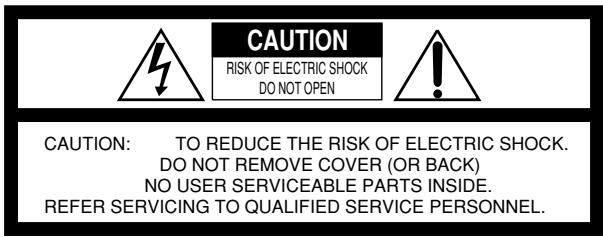
The lightning flash with arrowhead symbol, within an equilateral triangle is intended to alert the user to the presence of uninsulated "dangerous voltage" within the product's enclosure that may be of sufficient magnitude to constitute a risk of electric shock to persons.
The exclamation point within an equilateral triangle is intended to alert the user to the presence of important operating and maintenance (servicing) instructions in the literature accompanying the appliance.
WARNING: TO REDUCE THE RISK OF FIRE OR ELECTRIC SHOCK, DO NOT EXPOSE THIS APPLIANCE TO RAIN OR MOISTURE.
For U.S.A.
This equipment has been tested and found to comply with the limits for a Class B digital device, pursuant to part 15 of the FCC Rules. These limits are designed to provide reasonable protection against harmful interference in a residential installation.
This equipment generates, uses and can radiate radio frequency energy and, if not installed and used in accordance with the instructions, may cause harmful interference to radio communications. However, there is no guarantee that interference will not occur in a particular installation. If this equipment does cause harmful interference to radio or television reception, which can be determined by turning the equipment off and on, the user is encouraged to try to correct the interference by one or more of the following measures:
Reorient or relocate the receiving antenna.
Increase the separation between the equipment and receiver.
Connect the equipment into an outlet on a circuit different from that to which the receiver is connected.
Consult the dealer or an experienced radio/TV technician for help.
CAUTION
To reduce the risk of electrical shocks, fire, etc.:
- Do not remove screws, covers or cabinet.
- Do not expose this appliance to rain or moisture.
ATTENTION
Disconnect the mains plug to shut the power off completely. The O/I STANDBY/ON switch in any position does not disconnect the mains line. The power can be remote controlled.
Attention — Commutateur O/I STANDBY/ON!
- CLASS 1 LASER PRODUCT
- CAUTION: Do not open the top cover. There are no user serviceable parts inside the unit; leave all servicing to qualified service personnel.
- CAUTION: Visible and invisible laser radiation when open and interlock failed or defeated. Avoid direct exposure to beam.
- REPRODUCTION OF LABEL: CAUTION LABEL, PLACED INSIDE THE UNIT.
IMPORTANT POUR PRODUITS LASER
Caution: Proper Ventilation
To avoid risk of electric shock and fire, and to prevent damage, locate the apparatus as follows:
1 Front:
No obstructions and open spacing.
2 Sides/ Top/ Back:
No obstructions should be placed in the areas shown by the dimensions below.
3 Bottom:
Place on the level surface. Maintain an adequate air path for ventilation by placing on a stand with a height of 10 cm or more.
We would like to thank you for purchasing one of our JVC products. Before operating this unit, read this manual carefully and thoroughly to obtain the best possible performance from your unit, and retain this manual for future reference.
About This Manual
This manual is organized as follows:
- The manual mainly explains operations using the buttons and controls on the unit. You can also use the buttons on the remote control if they have the same or similar names (or marks) as those on the unit. If operation using the remote control is different from that using the unit, it is then explained.
- Basic and common information that is the same for many functions is grouped in one place, and is not repeated in each procedure. For instance, we do not repeat the information about turning on/off the unit, setting the volume, changing the sound effects, and others, which are explained in the section "Common Operations" on pages 9 to 11.
- The following marks are used in this manual:
Gives you warnings and cautions to prevent damage or risk of fire/electric shock.
Also gives you information which is not good for obtaining the best possible performance from the unit.
Gives you information and hints you had better know.
Precautions
Installation
- Do not grasp the control knobs when moving or carrying the unit.
- Install in a place which is level, dry and neither too hot nor too cold—between 5°C and 35°C.
- Install the unit in a location with adequate ventilation to prevent internal heat build-up in the unit.
- Leave sufficient distance between the unit and the TV.
- Keep the speakers away from the TV to avoid interference with TV.

DO NOT install the unit in a location near heat sources, or in a place subject to direct sunlight, excessive dust or vibration.
Power sources
- When unplugging from the wall outlet, always pull the plug, not the AC power cord.

DO NOT handle the AC power cord with wet hands.
Moisture condensation
Moisture may condense on the lens inside the unit in the following cases:
After starting heating in the room - In a damp room - If the unit is brought directly from a cold to a warm place. Should this occur, the unit may malfunction. In this case, leave the unit turned on for a few hours until the moisture evaporates, unplug the AC power cord, and then plug it in again.
Others
- Should any metallic object or liquid fall into the unit, unplug the unit and consult your dealer before operating any further.
- If you are not going to operate the unit for an extended period of time, unplug the AC power cord from the wall outlet.

DO NOT disassemble the unit since there are no user serviceable parts inside.
If anything goes wrong, unplug the AC power cord and consult your dealer.
Location of the Buttons and Controls 3
Front Panel 3
Remote Control 5
Getting Started 6
Unpacking 6
Putting the Batteries into the Remote Control 6
Connecting Antennas 6
Connecting Speakers 7
Connecting Other Equipment 8
Canceling the Display Demonstration 8
Common Operations 9
Turning On or Off the Power 9
Setting the Clock 9
Selecting the Sources 9
Adjusting the Volume 10
Reinforcing the Bass Sound 10
Enjoying the Powerful Sound—RHYTHM AX……… 10
Selecting the Sound Modes 11
Turning On or Off the Key-touch Tone 11
Listening to the Radio 12
Tuning in to a Station—Auto Search 12
Preseting Stations 12
Tuning in to a Preset Station 12
Playing Back CDs 13
Loading CDs 13
Playing Back CDs—All Disc and One Disc 13
Basic CD Operations 15
Changing the MP3 Playback Mode 17
Turning On or Off the Resume Play for MP3 Disc 17
Programming the Playing Order of the Tracks — Program Play 18
Playing at Random — Random Play 19
Repeating Tracks or CDs — Repeat Play 19
Prohibiting Disc Ejection — Carrousel Lock 19
Playing Back Tapes 20
Playing Back a Tape 20
Recording 21
Recording a Tape on Deck B 21
Dubbing Tapes 22
CD Synchronized Recording 22
Using the Timers 23
Using Daily Timer 23
Using Recording Timer 24
Using Sleep Timer 25
Timer Priority 25
Maintenance 26
Troubleshooting 27
Specifications 28
Location of the Buttons and Controls
Become familiar with the buttons and controls on your unit.
Front Panel
Display Window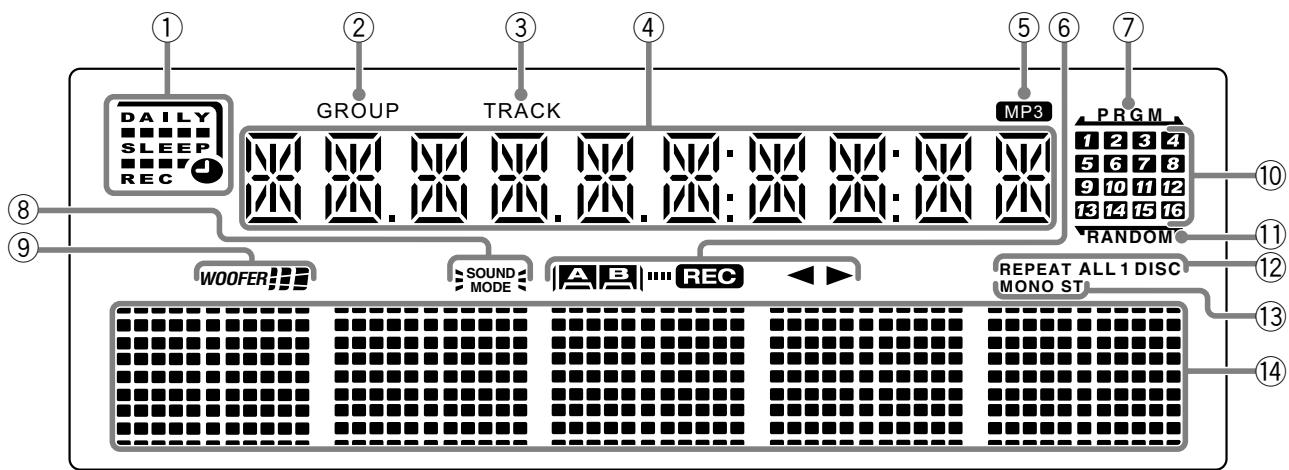
See pages in the parentheses for details.
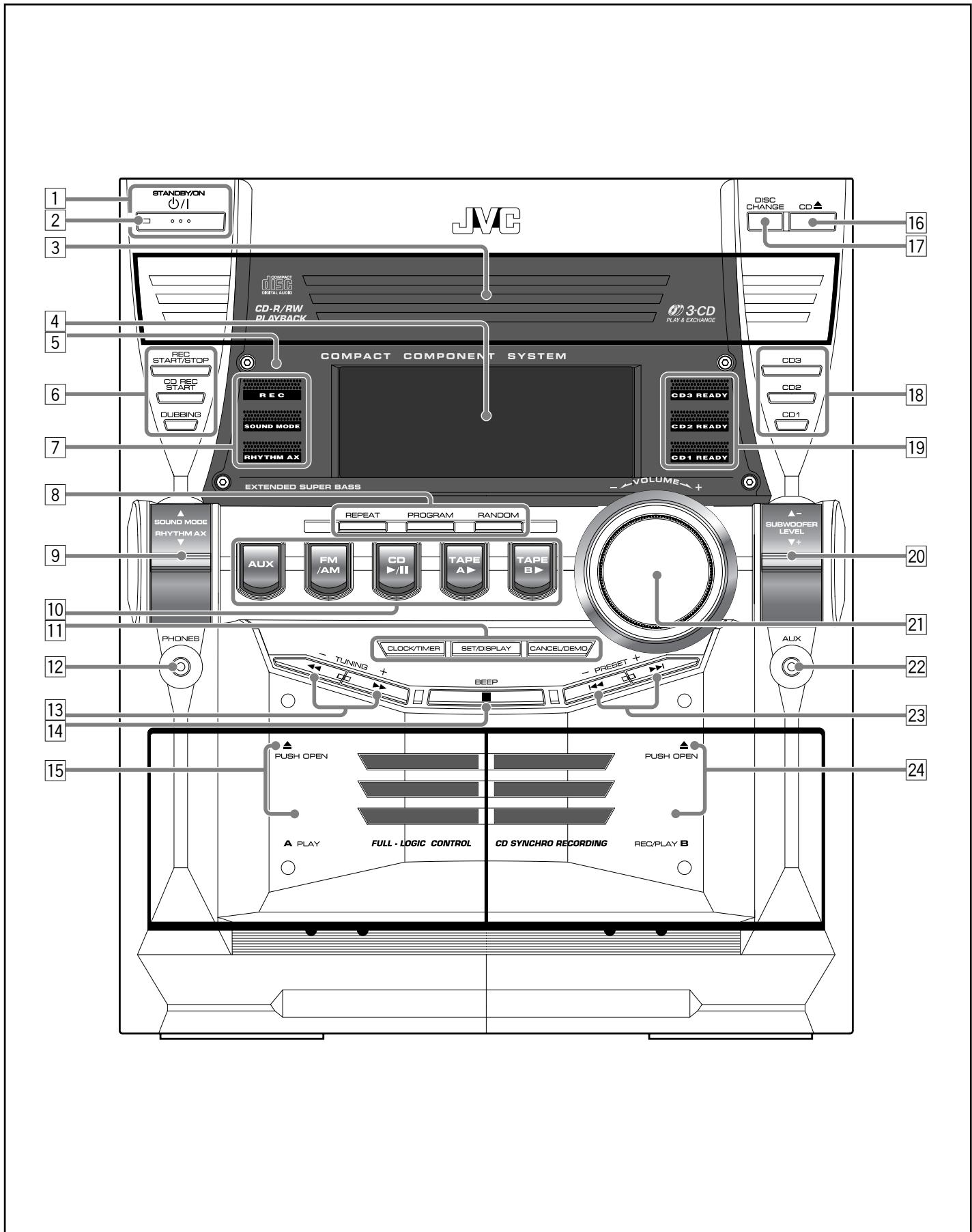
Front Panel 1. STANDBY/ON button (9, 24, 25) 2. Standby lamp (9) 3. Carrousel 4. Display window 5. Remote sensor (5) 6. REC START/STOP button (21) 7. CD REC START button (22) 8. DUBBING button (22) 9. REC lamp (21, 22) 10. SOUND MODE lamp (11) 11. RHYTHM AX lamp (10) 12. REPEAT button (13, 15, 19) 13. PROGRAM (MP3 Resume on/off) button (17, 18) 14. RANDOM button (19) 15. SOUND MODE control (11) 16. RHYTHM AX control (10) 17. AUX button (9) 18. FM/AM button (9, 12) 19. CD play/pause button (9, 13-15, 18) 20. TAPE A play button (9, 20, 22) 21. TAPE B play button (9, 20, 22) Pressing one of these buttons also turns on the unit. 22. CLOCK/TIMER button (9, 23-25) 23. SET/DISPLAY button (9, 12, 18, 23-25) 24. CANCEL/DEMO button (8, 9, 18, 24, 25) 25. PHONES jack (10) 26. TUNING +/- buttons (12) 27. Fast forward/fast rewind buttons (15, 20) 28. Stop button (13-15, 18-22) 29. BEEP button (11) 30. Deck A cassette holder (20, 22) Pressing the open/close portion opens the holder. 31. CD Carrousel open/close button (13-15, 17-19) Pressing this button also turns on the unit.
1 \(\mathbb{O} / \mathbb{I}\) STANDBY/ON button (9, 24, 25) 2 Standby lamp (9) 3 Carrousel 4 Display window 5 Remote sensor 6 REC START/STOP button (21) 7 CD REC START button (22) 8 DUBBING button (22) 9 REC lamp (21, 22) 10 SOUND MODE lamp (11) 11 RHYTHM AX lamp (10) 12 REPEAT button (13, 15, 19) 13 PROGRAM (MP3 Resume on/off) button (17, 18) 14 RANDOM button (19) 15 SOUND MODE control (11) 16 RHYTHM AX control (10) 17 AUX button (9) 18 FM/AM button (9, 12) 19 CD \(\triangleright / \Pi\) (play/pause) button (9, 13 - 15, 18) 20 TAPE A \(\triangleright\) (play) button (9, 20, 22) 21 TAPE B \(\triangleright\) (play) button (9, 20, 22) Pressing one of these buttons also turns on the unit. 22 CLOCK/TIMER button (9, 23 - 25) 23 SET/DISPLAY button (9, 12, 18, 23 - 25) 24 CANCEL/DEMO button (8, 9, 18, 24, 25) 25 PHONES jack (10) 26 TUNING \(+ / -\) buttons (12) 27 \(\triangleright \triangleright / \triangleleft\) (fast forward/fast rewind) buttons (15, 20) 28 (stop) button (13 - 15, 18 - 22) 29 BEEP button (11) 30 Deck A cassette holder (20, 22) Pressing the \(\triangle\) (open/close) portion opens the holder. 31 CD \(\triangle\) (Carrousel open/close) button (13-15, 17-19) Pressing this button also turns on the unit.
17 DISC CHANGE button (13, 15) 18 Disc number buttons (CD1, CD2, and CD3) (14, 15, 18, 19, 22) Pressing one of these buttons also turns on the unit. 19 CD READY lamps (CD1, CD2, and CD3) (14) 20 SUBWOOFER LEVEL + / - control (10) 21 VOLUME control (10) 22 AUX jack (8) 23 PRESET + / - buttons (12) >>1 / >< (forward search/reverse search) buttons (9, 15 - 19, 23 - 25) 24 Deck B cassette holder (20 - 22, 24) Pressing the triangle (open/close) portion opens the holder.
Display Window
① Timer indicators - DAILY (daily timer), SLEEP (sleep timer), REC (recording timer), and ① (timer) indicators ② GROUP indicator ③ TRACK indicator ④ Main display - Shows the source name, frequency, etc. ⑤ MP3 indicator ⑥ Tape operation indicators A/B (operating deck), REC (recording), and ◁ (tape running) indicators ⑦ PRGM (program) indicator ⑧ SOUND MODE indicator ⑨ WOOFER indicator CD track number indicators 1 RANDOM indicator 12 REPEAT mode indicators - REPEAT, 1, 1 DISC, ALL DISC indicators ⑬ Tuner operation indicators - MONO and ST (stereo) indicators Volume level, Subwoofer level and Sound Mode pattern indicators
Remote Control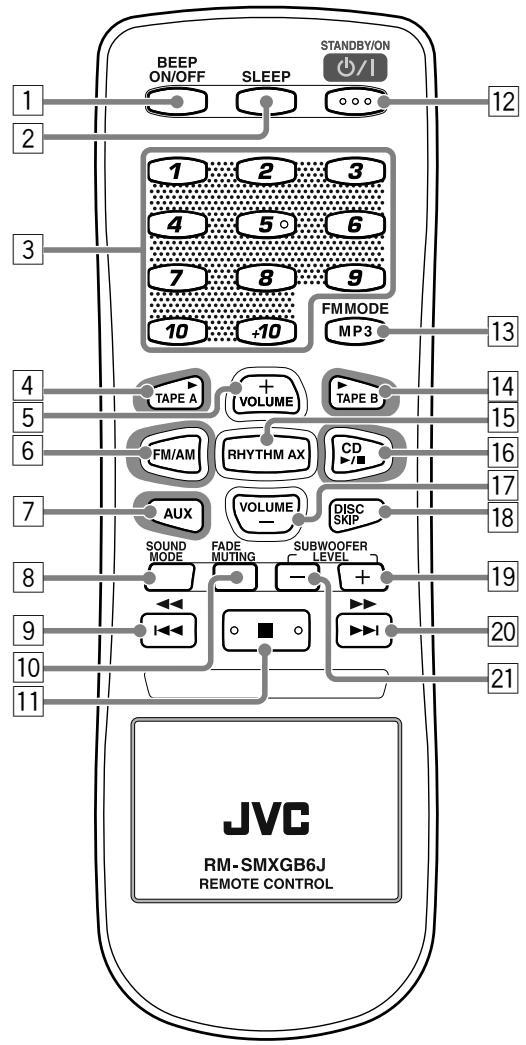
When using the remote control, point it at the remote sensor on the front panel.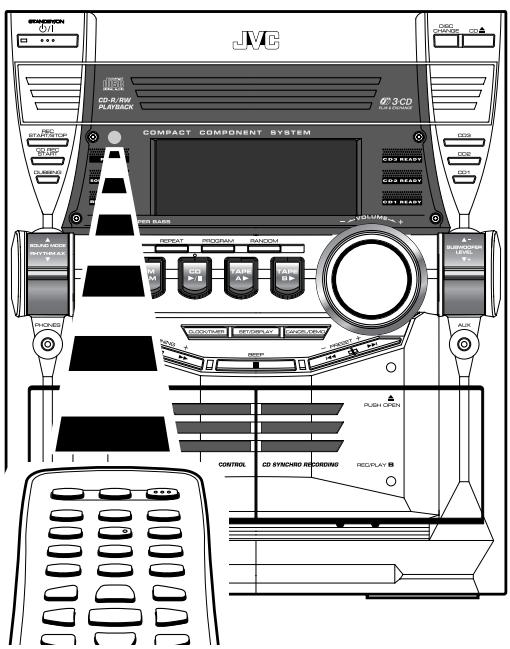
Remote Control
BEEP ON/OFF button (11) SLEEP button (25) Number buttons (12, 16) 4 TAPE A ▶ (play) button (9, 20) Pressing this button also turns on the unit. VOLUME + button (10) 6 FM/AM button (9, 12) Pressing this button also turns on the unit. 7 AUX button (9) Pressing this button also turns on the unit. SOUND MODE button (11) [9] ◁◁ / ◁◁ (reverse search/fast rewind) button (12, 15 - 17, 19, 20) 10 FADE MUTING button (10) 11 (stop) button (13-15, 18-22) 12 O / I STANDBY/ON button (9) FM MODE button (12) MP3 button (17) 14 TAPE B ▶ (play) button (9, 20) Pressing this button also turns on the unit. [15] RHYTHM AX button (10) [16] CD ▶/II (play/pause) button (9, 13 - 15, 18) Pressing this button also turns on the unit. [17] VOLUME - button (10) DISC SKIP button (13, 15) 19 SUBWOOFER LEVEL + button (10) 20 ▶▶I / ▶▶ (forward search/fast forward) button (12, 15 - 17, 19, 20) 21 SUBWOOFER LEVEL - button (10)
Unpacking
After unpacking, check to be sure that you have all the following items.
The number in the parentheses indicates the quantity of the pieces supplied.
AM loop antenna (1) FM antenna (1) - Remote control (1) - Batteries (2)
If any is missing, consult your dealer immediately.
Putting the Batteries into the Remote Control
Insert the batteries—R6P(SUM-3)/AA(15F)—into the remote control, by matching the polarity (+ and -) on the batteries with the + and - markings on the battery compartment.
When the remote control can no longer operate the unit, replace both batteries at the same time.
1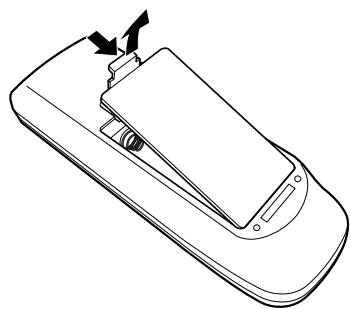
2 R6P(SUM-3)/AA(15F) 3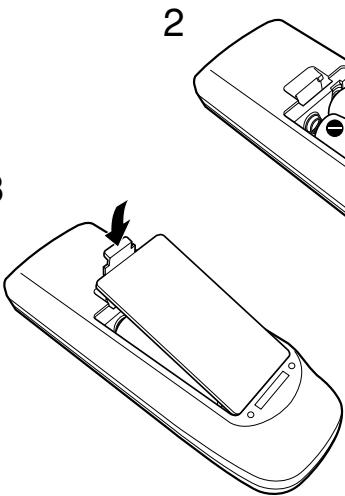

- DO NOT use an old battery together with a new one.
- DO NOT use different types of batteries together.
- DO NOT expose batteries to heat or flame.
- DO NOT leave the batteries in the battery compartment when you are not going to use the remote control for an extended period of time.
Otherwise, it will be damaged from battery leakage.
Connecting Antennas
FM antenna
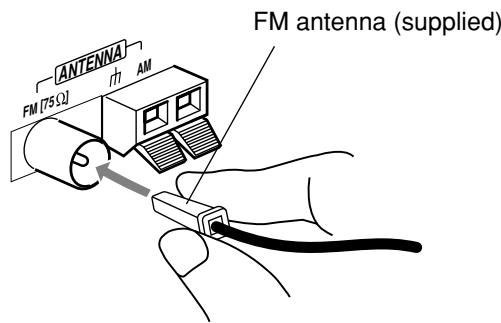
1 Attach the FM antenna to the FM [75 Ω] coaxial terminal. 2 Extend the FM antenna. 3 Fasten it up in the position which gives you the best reception, then fix it on the wall, etc.
Notes
About the supplied FM antenna
The FM antenna supplied with this unit can be used as a temporary measure. If reception is poor, you can connect an outdoor FM antenna.
To connect an outdoor FM antenna
Before connecting it, disconnect the supplied FM antenna.
Outdoor FM antenna (not supplied)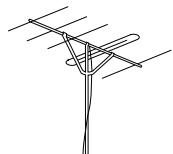
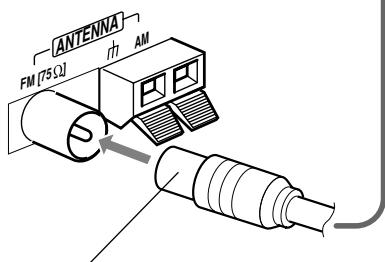
A 75Ω antenna with coaxial type connector should be used.
AM antenna
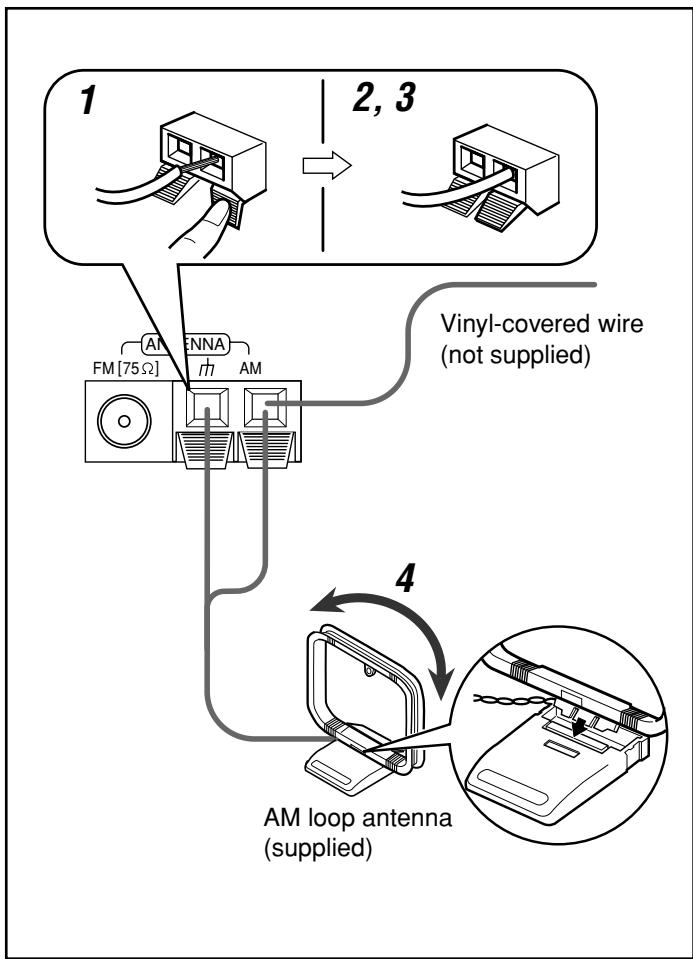
1 Press and hold the clamp of the AM terminal on the rear of the unit.
2 Insert the end of the AM loop antenna cord into the terminal.
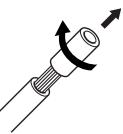
- If the AM loop antenna wire is covered with vinyl, remove the vinyl by twisting it as shown in the diagram.
3 Release the finger from the clamp. 4 Turn the AM loop antenna until you have the best reception.
To connect an outdoor AM antenna
When reception is poor, connect a single vinyl-covered wire to the AM terminal and extend it horizontally. (The AM loop antenna must remain connected.)

For better reception of both FM and AM
- Make sure the antenna conductors do not touch any other terminals and connecting cords.
- Keep the antennas away from metallic parts of the unit, connecting cords, and the AC power cord.
Connecting Speakers

For MX-GB6:
DO NOT carry the speaker by holding the tube duct (on the top of the speaker).
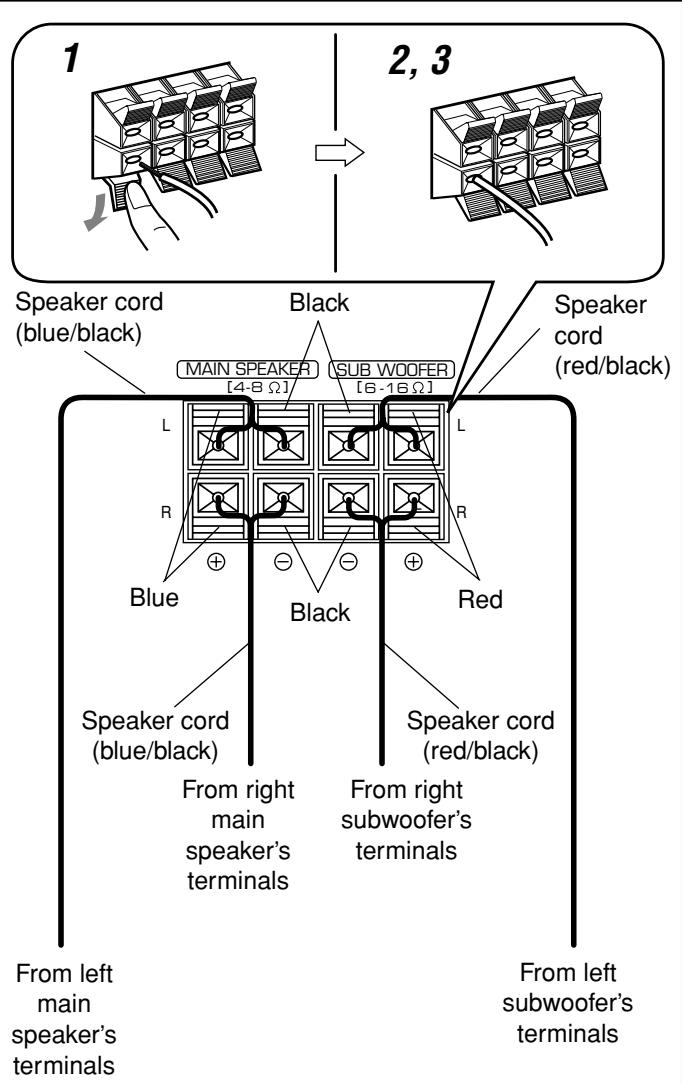
1 Press and hold the clamp of the speaker terminal on the rear of the unit. 2 Insert the end of the speaker cord into the terminal.
Match the colors (polarity): Blue (+) to blue (+) and black (-) to black (-); red (+) to red (+) and black (-) to black (-).
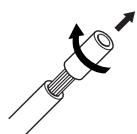
- If the wire is covered with vinyl, remove the vinyl by twisting it as shown in the diagram.
3. Release the finger from the clamp.
IMPORTANT:
- Use only speakers with the same speaker impedance as indicated by the speaker terminals on the rear of the unit.
- DO NOT connect more than one speaker to one speaker terminal.
Connecting Other Equipment
You can connect audio equipment—used only as a playback device.

- DO NOT connect any equipment while the power is on.
- DO NOT plug in any equipment until all connections are complete.
To connect audio equipment
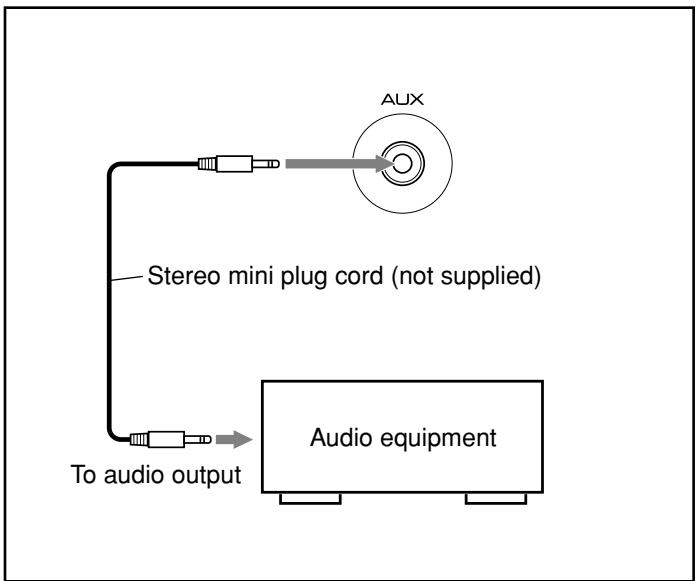
For playing the other equipment through this unit,
connect between the audio output jack on the other equipment and AUX jack on the front of the unit by using a stereo mini plug cord (not supplied).

If the audio output on the other equipment is not stereo mini plug type
Use a plug adapter to convert the stereo mini plug to the corresponding plug of the audio output.
NOW you are ready to plug in the unit and other connected equipment.
Canceling the Display Demonstration
When connecting the AC power cord into a wall outlet, the unit automatically starts the display demonstration.
On the unit ONLY:
To cancel the display demonstration, press CANCEL/DEMO while the display demonstration is shown on the display.
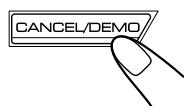

When you press other buttons
The display demonstration stops temporarily. It will start automatically again (if no operation is done for 2 minutes) until you cancel it.
To start the display demonstration manually
Press and hold CANCEL/DEMO again for more than 2 seconds.
Common Operations
Turning On or Off the Power
To turn on the unit, press \(\mathcal{O} / \mathcal{I}\) STANDBY/ON so that the standby lamp goes off.

To turn off the unit (on standby), press 1/1 STANDBY/ON again so that the standby lamp lights up.
A little power is always consumed even while the unit is on standby.
To switch off the power supply completely, unplug the AC power cord from the AC outlet.

When you unplug the AC power cord or if a power failure occurs
The clock is reset to “ - - : - - ” soon, while the tuner preset stations (see page 12) will be erased in a few days.
Setting the Clock
Before operating the unit any further, first set the clock built in this unit. You can set the clock whether the unit is on or off.
On the unit ONLY:
1 Press CLOCK/TIMER.
F
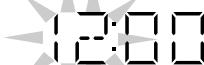
The hour digits start flashing on the display.
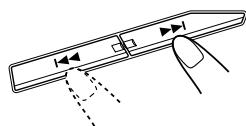
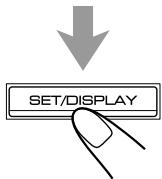
2 Press or to adjust the hour, then press SET/ DISPLAY.
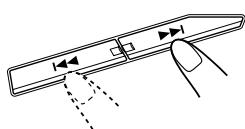
F
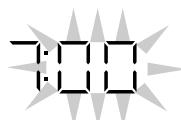
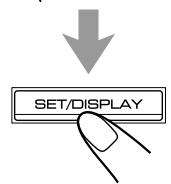
The minute digits start flashing on the display.
- If you want to correct the hour after pressing SET/ DISPLAY, press CANCEL/DEMO. The hour digits start flashing again.
3 Press or to adjust the minute, then press SET/DISPLAY.

To check the clock time
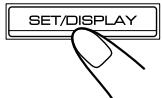
Press and hold SET/DISPLAY for more than 2 seconds while playing any source.
- To return to the source indication, press SET/DISPLAY.

While the time indication appears on the display
If you press a button or turn a control, the time indication returns to the source indication.
To adjust the clock again
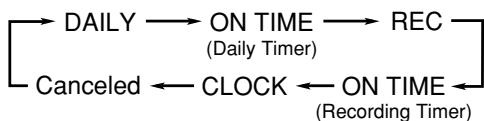
If you have adjusted the clock before, you need to press CLOCK/TIMER repeatedly until "CLOCK" is selected.
Each time you press the button, the clock/timer setting modes change as follows:

If there is a power failure
The clock loses the setting and is reset to “- - : - -.” You need to set the clock again.
Selecting the Sources
To listen to the radio, press FM/AM. (See page 12.)
To play back CDs, press CD▶III. (See pages 13 - 19.)
To play back tapes, press TAPE A ▶ or TAPE B ▶. (See page 20.)
To select the external equipment as the source, press AUX.
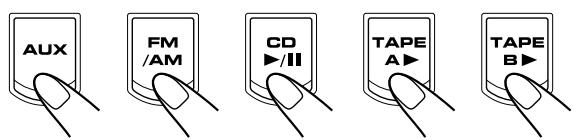
When you press the play button for a particular source (AUX, FM/AM, CD▶/II, TAPE A▶, and TAPE B▶), the unit turns on (and the unit starts playing the source if it is ready—COMPU PLAY CONTROL).
Adjusting the Volume
You can adjust the volume level only while the unit is turned on.
This function only affects the playback sound, not your recording.
Turn the VOLUME control
clockwise to increase the volume or counterclockwise to decrease it.
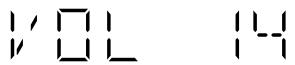
- The volume level can be adjusted in 32 steps (VOL MIN, VOL 1 — VOL 30, and VOL MAX).
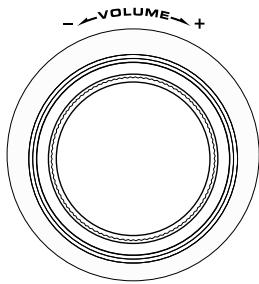
When using the remote control, press VOLUME + to increase the volume or press VOLUME - to decrease it.

For private listening
Connect a pair of headphones to the PHONES jack. No sound comes out of the speakers. Be sure to turn down the volume before connecting or putting on headphones.

Always set the volume to the minimum before starting any source. If the volume is set to extremely high level, a sudden blast of sound can damage your hearing, speakers and/or headphones.
- If you have turned off (on standby) the unit with the volume level set at more than level "15," the volume level will be automatically set at level "15" next time you turn on the unit.
To turn down the volume level temporarily
Press FADE MUTING on the remote control. The volume level gradually decreases to "VOL MIN."
To restore the sound, press the button again.
Reinforcing the Bass Sound
This function only affects the playback sound, not your recording.
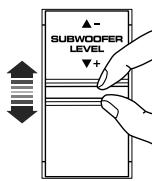
Press down the SUBWOOFER LEVEL + / - control to increase the subwoofer sound or up the control to decrease it.
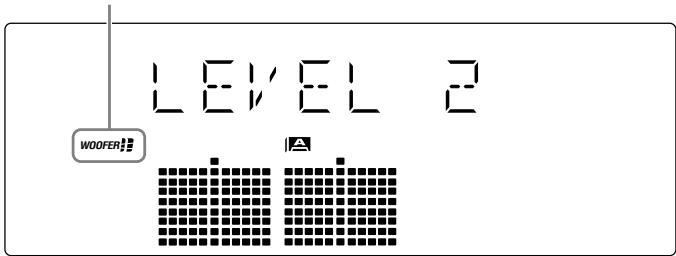
- The subwoofer level can be adjusted in 3 steps (LEVEL 1 — LEVEL 3).
If you press down the control to increase the level beyond LEVEL 3, "MAX LEVEL" appears on the display.
WOOFER indicator also shows the current subwoofer level.
When using the remote control, press SUBWOOFER LEVEL + to increase the subwoofer sound or press SUBWOOFER LEVEL - to decrease it.
Enjoying the Powerful Sound—RHYTHM AX
Using RHYTHM AX, harder-hitting beats intensify your listening experience even at low sound levels.
RHYTHM AX also works even when the song has no "beat," such as classical music, so that you can listen to the rich sound even at low sound levels.
This function only affects the playback sound, not your recording.
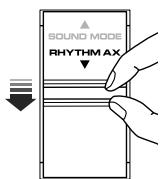
Press down the RHYTHM AX control.
"RHYTHM AX" (twice), then "ON" appears on the display.
Each time you press down the control, RHYTHM AX turns on and off alternately. - The RHYTHM AX lamp also lights up.
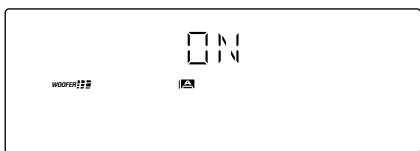
When using the remote control, press RHYTHM AX.
Each time you press the button, RHYTHM AX turns on and off alternately.
Selecting the Sound Modes
This function only affects the playback sound, not your recording.
You can select one of the 6 preset sound modes (3 surround modes and 3 SEA—Sound Effect Amplifier—modes).
To select the sound modes, press the SOUND MODE control repeatedly until the sound mode you want appears on the display.
- The SOUND MODE lamp also lights up.
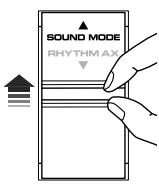
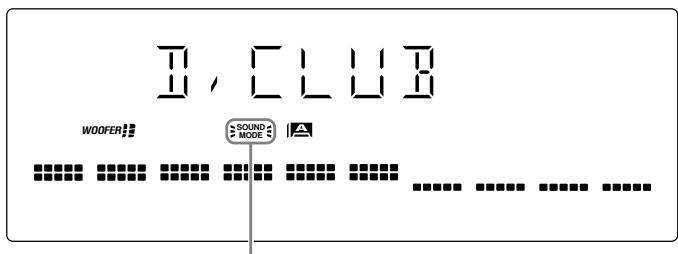
The SOUND MODE indicator also lights up on the display.
- The first time you press the control, the current sound mode appears on the display.
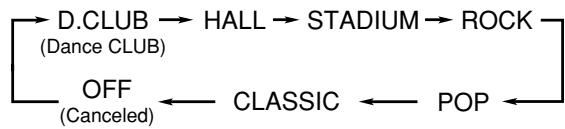
Each time you press the control while a sound mode appears on the display, the sound modes change as follows:
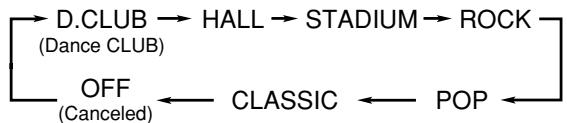
Surround modes*:
D.CLUB: Increases resonance and bass.
HALL: Adds depth and brilliance to the sound.
STADIUM: Adds clarity and spreads the sound, like in an outdoor stadium.
SEA (Sound Effect Amplifier) modes:
ROCK: Boosts low and high frequencies. Good for acoustic music.
POP: Good for vocal music.
CLASSIC: Good for classical music.
OFF: Cancels the sound mode.
- Surround elements are added to the SEA elements to create a feeling of being there in your room.
When one of these modes is selected, the SOUND MODE indicator lights up as SOUND MODE.
While one of the SEA modes (SEA elements without surround elements) is selected, the SOUND MODE indicator lights up as SOUND MODE.
When using the remote control, press SOUND MODE to select the sound mode.
- The first time you press the button, the current sound mode appears on the display.
Each time you press the button while a sound mode appears on the display, the sound modes change as follows:
Turning On or Off the Key-touch Tone
If you do not want the key-touch tone to beep each time you press a button or turn a control, you can deactivate it.
- You can turn on or off the key-touch tone as follows:
- When the unit is off:
You can turn on or off the key-touch tone by operating the unit.
- When the unit is on:
You can turn on or off the key-touch tone by operating the unit or the remote control.
On the unit:
Press and hold BEEP for more than 2 seconds.

Each time you press and hold the button, the key-touch tone turns on and off alternately.
On the remote control:
Press BEEP ON/OFF when the unit is on.
Each time you press the button, the key-touch tone turns on and off alternately.
Tuning in to a Station—Auto Search
1 Press FM/AM.
The unit automatically turns on and tunes in to the previously tuned station (either FM or AM).
Each time you press the button, the band alternates between FM and AM.
2 Start searching for stations. On the unit:
Press and hold TUNING + or TUNING - for more than 1 second.
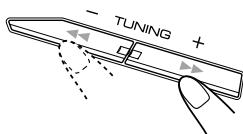
On the remote control: Press and hold >>/>> or |<< / <<| for more than 1 second.
The unit starts searching for stations and stops when a station of sufficient signal strength is tuned in to.
If a program is broadcast in stereo, the ST (stereo) indicator lights up.
To stop during searching, press TUNING + or TUNING - (or ▸▸▸ or |◁ / ◁ on the remote control).

When you press TUNING + or TUNING -
(or ▸▸ / ▸▸ or |◁| / ◁| on the remote control) briefly and repeatedly
The frequency changes step by step.
To change the FM reception mode
When an FM stereo broadcast is hard to receive or noisy, press FM MODE on the remote control so that "MONO" appears and the MONO
indicator also lights up on the display. Reception improves.
To restore the stereo effect, press FM MODE again so that "STEREO" appears on the display.
In this stereo mode, you can hear stereo sounds when a program is broadcast in stereo.
Presetting Stations
You can preset 30 FM and 15 AM stations.
In some cases, test frequencies have been already memorized for the tuner since the factory examined the tuner preset function before shipment. This is not a malfunction. You can preset the stations you want into memory by following the presetting method.
- There is a time limit in doing the following steps. If the setting is canceled before you finish, start from step 2 again.
On the unit ONLY:
1 Tune in to the station you want to preset (in this example, of FM 87.50).
- See "Tuning in to a Station—Auto Search."
F1 8750
2 Press SET/DISPLAY.
SET
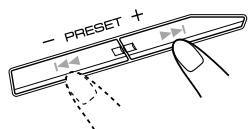
3 Press PRESET + or PRESET - to select a preset number.
F--□
4 Press SET/DISPLAY again.
STORRE
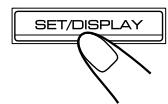
The tuned station in step 1 is stored in the preset number selected in step 3.
- Storing a new station on a used number erases the previously stored one.

When you unplug the AC power cord or if a power failure occurs
The preset stations will be erased in a few days. If this happens, preset the stations again.
Tuning in to a Preset Station
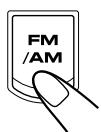
1 Press FM/AM.
The unit automatically turns on and tunes in to the previously tuned station (either FM or AM).
Each time you press the button, the band alternates between FM and AM.
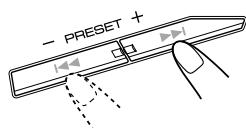
2 Select a preset number.
On the unit:
Press PRESET + or
PRESET-.
On the remote control:
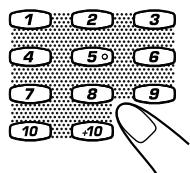
Press the number buttons.
Ex.: For preset number 5, press 5.
For preset number 15, press +10 then 5.
For preset number 20, press +10, then 10.
For preset number 25, press +10, +10, then 5.
For preset number 30, press +10, +10, then 10.
This unit has been designed to playback the following CDs:
Audio CD - CD-R (CD-Recordable) - CD-RW (CD-ReWritable) - MP3 disc (MP3 files recorded on a CD-R or CD-RW)*
When playing a CD-R or CD-RW
- User-edited CD-Rs (CD-Recordable) and CD-RWs (CD-ReWritable) can be played back when they are already "finalized."
- Before playing back CD-Rs or CD-RWs, read their instructions or cautions carefully.
- Some CD-Rs or CD-RWs may not be played back on this unit because of their disc characteristics, damage or stain on them, or if the player's lens is dirty.
Important notices:
- In general, you will have the best performance by keeping your CDs and the mechanism clean.
- Store CDs in their cases, and keep them in cabinets or on shelves.
- Keep the unit's carousel closed when not in use.
- Continuous use of irregular shaped discs (heart-shape, octagonal, etc.) can damage the disc rotating mechanism.
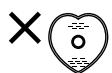
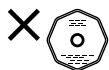
- CD-RWs may require a longer readout time since the reflectance of CD-RWs is lower than for regular CDs.
*For MP3 discs
- This unit manages files and folders on MP3 discs as "tracks" and "albums."
- Playback order of the MP3 files (tracks) recorded on a disc are determined by the writing (or encoding) application; therefore, playback order may be different from the one you have intended while recording the files and the folders.
- This unit shows the file (track) names and the ID3v1/1.1 tags (only "Title" and "Artist") on the display after the file starts play; however, there is a limitation on available characters and some file names and ID3v1/1.1 tags are not shown correctly.

More about MP3 discs
- MP3 discs (either CD-R or CD-RW) require a longer readout time. (It varies due to the complexity of the recording configuration.)
- When making an MP3 disc, select ISO 9660 Level 1 or Level 2 as the disc format.
- This unit does not support multisession recording.
- This unit can play MP3 files only with the following file extensions—".MP3",".Mp3",".mP3," and ".mp3."
- Non-MP3 files are ignored. If non-MP3 files are recorded together with MP3 files, this unit will take a longer time to scan the disc. It may also cause the unit to malfunction.
- Some MP3 discs may not be played back because of their disc characteristics or recording conditions.
Loading CDs
1 Press CD ▲.
The unit automatically turns on and the carousel comes out.
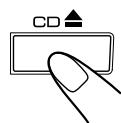
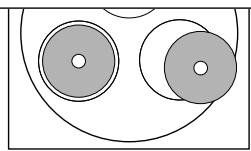
2 Place one or two discs correctly on the front recesses of the disc tray, with its label side up.
CORRECT
INCORRECT
- When using a CD single (8 cm), place it on the inner recess of the disc tray.
3 If you wish to load a third disc, press DISC CHANGE on the unit or DISC SKIP on the remote control.
The disc tray rotates by 120°.
4 Press CD ▲ again.
The carrousel closes.
Playing Back CDs—All Disc and One Disc
You can play all loaded CDs continuously—All Disc play, or one selected disc—one Disc play.
All Disc play
On the unit ONLY:
1 Load CDs.
- If the current playing source is not the CD player, press CD ▸ /II, then ■ before going to the next step.
2 Press REPEAT repeatedly so that the ALL DISC indicator lights up on the display.
For Audio CD: Total playing time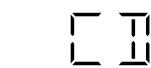


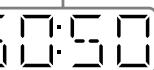

Total Track number ALL DISC indicator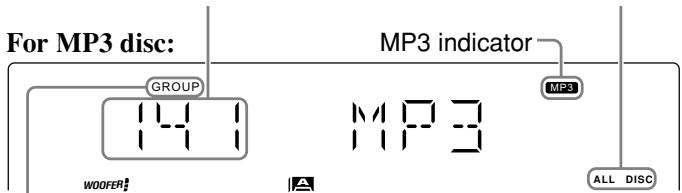
GROUP indicator appears when the MP3 playback mode is the ALBUM mode. See also page 17.
Each time you press the button, the indication on the display changes as follows:
* See page 19.
3 Press one of the disc number buttons (CD1, CD2 or CD3) for the disc you want to start to play from.
CD play starts from the first track of the selected disc.
Track number of the currently playing disc flashes (Track numbers exceeding 16 are not displayed.)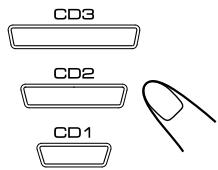
- Pressing CD ▸ /II instead of the disc number buttons starts playing back if a CD is on the tray.
For Audio CD:
For MP3 disc: - When the MP3 playback mode is the ALBUM mode (See also page 17.)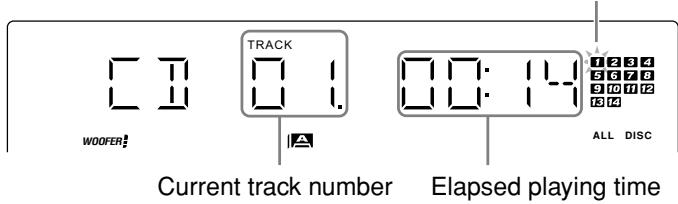
Current album number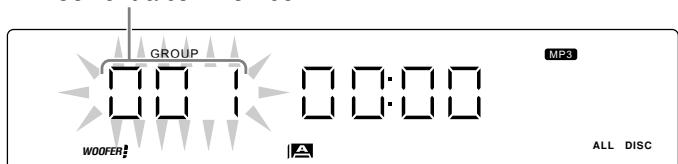
Current track title scrolls.
Current track number of the current album Elapsed playing time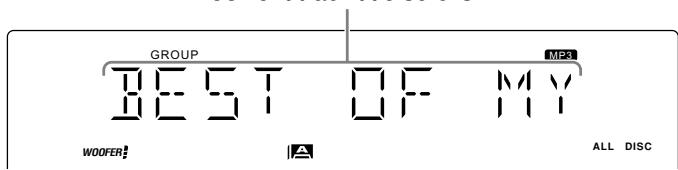
When the track includes the ID3v1/1.1 tags, "Title" and "Artist" will scroll after the track title. - "


- MY CBE—CONSISTS OF CA-MXGB5 AND SP-MXGB
- FOR CUSTOMER USE
- WARNING: TO REDUCE THE RISK OF FIRE OR ELECTRIC SHOCK, DO NOT EXPOSE THIS APPLIANCE TO RAIN OR MOISTURE
- FOR U.S.A
- CAUTION
- ATTENTION
- ATTENTION — COMMUTATEUR O/I STANDBY/ON
- IMPORTANT POUR PRODUITS LASER
- CAUTION: PROPER VENTILATION
- WE WOULD LIKE TO THANK YOU FOR PURCHASING ONE OF OUR JVC PRODUCTS. BEFORE OPERATING THIS UNIT, READ THIS MANUAL CAREFULLY AND THOROUGHLY TO OBTAIN THE BEST POSSIBLE PERFORMANCE FROM YOUR UNIT, AND RETAIN THIS MANUAL FOR FUTURE REFERENCE
- ABOUT THIS MANUAL
- PRECAUTIONS
- INSTALLATION
- POWER SOURCES
- MOISTURE CONDENSATION
- OTHERS
- LOCATION OF THE BUTTONS AND CONTROLS
- GETTING STARTED
- COMMON OPERATIONS
- LISTENING TO THE RADIO
- PLAYING BACK CDS
- PLAYING BACK TAPES
- RECORDING
- USING THE TIMERS
- MAINTENANCE
- TROUBLESHOOTING
- SPECIFICATIONS
- FRONT PANEL
- FRONT PANEL 1. STANDBY/ON BUTTON (9, 24, 25) 2. STANDBY LAMP (9) 3. CARROUSEL 4. DISPLAY WINDOW 5. REMOTE SENSOR (5) 6. REC START/STOP BUTTON (21) 7. CD REC START BUTTON (22) 8. DUBBING BUTTON (22) 9. REC LAMP (21, 22) 10. SOUND MODE LAMP (11) 11. RHYTHM AX LAMP (10) 12. REPEAT BUTTON (13, 15, 19) 13. PROGRAM (MP3 RESUME ON/OFF) BUTTON (17, 18) 14. RANDOM BUTTON (19) 15. SOUND MODE CONTROL (11) 16. RHYTHM AX CONTROL (10) 17. AUX BUTTON (9) 18. FM/AM BUTTON (9, 12) 19. CD PLAY/PAUSE BUTTON (9, 13-15, 18) 20. TAPE A PLAY BUTTON (9, 20, 22) 21. TAPE B PLAY BUTTON (9, 20, 22) PRESSING ONE OF THESE BUTTONS ALSO TURNS ON THE UNIT. 22. CLOCK/TIMER BUTTON (9, 23-25) 23. SET/DISPLAY BUTTON (9, 12, 18, 23-25) 24. CANCEL/DEMO BUTTON (8, 9, 18, 24, 25) 25. PHONES JACK (10) 26. TUNING +/- BUTTONS (12) 27. FAST FORWARD/FAST REWIND BUTTONS (15, 20) 28. STOP BUTTON (13-15, 18-22) 29. BEEP BUTTON (11) 30. DECK A CASSETTE HOLDER (20, 22) PRESSING THE OPEN/CLOSE PORTION OPENS THE HOLDER. 31. CD CARROUSEL OPEN/CLOSE BUTTON (13-15, 17-19) PRESSING THIS BUTTON ALSO TURNS ON THE UNIT
- DISPLAY WINDOW
- REMOTE CONTROL
- UNPACKING
- PUTTING THE BATTERIES INTO THE REMOTE CONTROL
- CONNECTING ANTENNAS
- FM ANTENNA
- NOTES
- ABOUT THE SUPPLIED FM ANTENNA
- TO CONNECT AN OUTDOOR FM ANTENNA
- AM ANTENNA
- TO CONNECT AN OUTDOOR AM ANTENNA
- FOR BETTER RECEPTION OF BOTH FM AND AM
- CONNECTING SPEAKERS
- IMPORTANT
- CONNECTING OTHER EQUIPMENT
- TO CONNECT AUDIO EQUIPMENT
- FOR PLAYING THE OTHER EQUIPMENT THROUGH THIS UNIT
- IF THE AUDIO OUTPUT ON THE OTHER EQUIPMENT IS NOT STEREO MINI PLUG TYPE
- CANCELING THE DISPLAY DEMONSTRATION
- ON THE UNIT ONLY
- WHEN YOU PRESS OTHER BUTTONS
- TO START THE DISPLAY DEMONSTRATION MANUALLY
- TURNING ON OR OFF THE POWER
- SETTING THE CLOCK
- PRESS CLOCK/TIMER
- PRESS OR TO ADJUST THE HOUR, THEN PRESS SET/ DISPLAY
- PRESS OR TO ADJUST THE MINUTE, THEN PRESS SET/DISPLAY
- TO CHECK THE CLOCK TIME
- TO ADJUST THE CLOCK AGAIN
- SELECTING THE SOURCES
- ADJUSTING THE VOLUME
- TURN THE VOLUME CONTROL
- CLOCKWISE TO INCREASE THE VOLUME OR COUNTERCLOCKWISE TO DECREASE IT
- FOR PRIVATE LISTENING
- TO TURN DOWN THE VOLUME LEVEL TEMPORARILY
- REINFORCING THE BASS SOUND
- PRESS DOWN THE SUBWOOFER LEVEL + / - CONTROL TO INCREASE THE SUBWOOFER SOUND OR UP THE CONTROL TO DECREASE IT
- ENJOYING THE POWERFUL SOUND—RHYTHM AX
- PRESS DOWN THE RHYTHM AX CONTROL
- SELECTING THE SOUND MODES
- SURROUND MODES
- SEA (SOUND EFFECT AMPLIFIER) MODES
- TURNING ON OR OFF THE KEY-TOUCH TONE
- ON THE UNIT
- ON THE REMOTE CONTROL
- PRESS BEEP ON/OFF WHEN THE UNIT IS ON
- TUNING IN TO A STATION—AUTO SEARCH
- PRESS FM/AM
- START SEARCHING FOR STATIONS. ON THE UNIT
- TO CHANGE THE FM RECEPTION MODE
- PRESETTING STATIONS
- YOU CAN PRESET 30 FM AND 15 AM STATIONS
- TUNE IN TO THE STATION YOU WANT TO PRESET (IN THIS EXAMPLE, OF FM 87.50)
- PRESS SET/DISPLAY
- PRESS PRESET + OR PRESET - TO SELECT A PRESET NUMBER
- PRESS SET/DISPLAY AGAIN
- TUNING IN TO A PRESET STATION
- SELECT A PRESET NUMBER
- PRESS THE NUMBER BUTTONS
- WHEN PLAYING A CD-R OR CD-RW
- IMPORTANT NOTICES
- FOR MP3 DISCS
- MORE ABOUT MP3 DISCS
- LOADING CDS
- PRESS CD ▲
- PLACE ONE OR TWO DISCS CORRECTLY ON THE FRONT RECESSES OF THE DISC TRAY, WITH ITS LABEL SIDE UP
- IF YOU WISH TO LOAD A THIRD DISC, PRESS DISC CHANGE ON THE UNIT OR DISC SKIP ON THE REMOTE CONTROL
- PRESS CD ▲ AGAIN
- PLAYING BACK CDS—ALL DISC AND ONE DISC
- ALL DISC PLAY
- LOAD CDS
- PRESS REPEAT REPEATEDLY SO THAT THE ALL DISC INDICATOR LIGHTS UP ON THE DISPLAY
- PRESS ONE OF THE DISC NUMBER BUTTONS (CD1, CD2 OR CD3) FOR THE DISC YOU WANT TO START TO PLAY FROM
Brand : JVC
Model : MX-GB6
Category : Audio System