CS1144D4C - KVM switch ATEN - Free user manual and instructions
Find the device manual for free CS1144D4C ATEN in PDF.


User questions about CS1144D4C ATEN
0 question about this device. Answer the ones you know or ask your own.
Ask a new question about this device
Download the instructions for your KVM switch in PDF format for free! Find your manual CS1144D4C - ATEN and take your electronic device back in hand. On this page are published all the documents necessary for the use of your device. CS1144D4C by ATEN.
USER MANUAL CS1144D4C ATEN
ATEN PSD PP v4.0 Secure KVM Switch Series
2/4/8-Port USB DVI / HDMI / DisplayPort Single / Dual Display PP v4.0 Secure KVM Switch User Manual
EMC Information
FEDERAL COMMUNICATIONS COMMISSION STATEMENT:
This equipment has been tested and found to comply with the limits for a Class A digital device, pursuant to part 15 of the FCC Rules. These limits are designed to provide reasonable protection against harmful interference when the equipment is operated in a commercial environment. This equipment generates, and can radiate radio frequency energy and, if not installed and used in accordance with the instruction manual, may cause harmful interference to radio communications. Operation of this equipment in a residential area is likely to cause harmful interference in which case the user will be required to correct the interference at their own expense.
Warning: Operation of this equipment in a residential environment could cause radio interference
FCC Caution: Any changes or modifications not expressly approved by the party responsible for compliance could void the user's authority to operate this equipment.
This device complies with Part 15 of the FCC Rules. Operation is subject to the following two conditions:
(1) this device may not cause harmful interference, and
(2) this device must accept any interference received, including interference that may cause undesired operation.
KCC Statement
This product is RoHS compliant.

text_image
CE 20 FCHDMI Trademark Statement
The terms HDMI, HDMI High-Definition Multimedia Interface, and the HDMI Logo are trademarks or registered trademarks of HDMI Licensing Administrator, Inc.

China RoHS
产品中有害物质的名称及含量
Be sure to register your product at our online support center:
https://eservice.aten.com/eServiceCx/Common/productRegister.do
Telephone Support
For telephone support, call this number:
International +886-2-8692-6959
China +86-10-5255-0110
Japan +81-3-5615-5811
Korea +82-2-467-6789
North America +1-888-999-ATEN ext 4988
United Kingdom +44-8-4481-58923
User Notice
All information, documentation, and specifications contained in this manual are subject to change without prior notification by the manufacturer. The manufacturer makes no representations or warranties, either expressed or implied, with respect to the contents hereof and specifically disclaims any warranties as to merchantability or fitness for any particular purpose. Any of the manufacturer's software described in this manual is sold or licensed as is. Should the programs prove defective following their purchase, the buyer (and not the manufacturer, its distributor, or its dealer), assumes the entire cost of all necessary servicing, repair and any incidental or consequential damages resulting from any defect in the software.
The manufacturer of this system is not responsible for any radio and/or TV interference caused by unauthorized modifications to this device. It is the responsibility of the user to correct such interference.
The manufacturer is not responsible for any damage incurred in the operation of this system if the correct operational voltage setting was not selected prior to operation. PLEASE VERIFY THAT THE VOLTAGE SETTING IS CORRECT BEFORE USE.
Package Contents
The ATEN Secure KVM package consists of:
1 Secure KVM Switch
1 Power Cord
1 User Instructions*
Check to make sure that all of the components are present and in good order.
If anything is missing, or was damaged in shipping, contact your dealer.
Read this manual thoroughly and follow the installation and operation procedures carefully to prevent any damage to the switch or to any other devices on the Secure KVM installation.
*Please visit our website to download the most up to date version of the manual.
© Copyright 2011–2017 ATEN® International Co., Ltd.
Manual Version: v1.03
Manual Date: 2021-1-25
ATEN and the ATEN logo are registered trademarks of ATEN International Co., Ltd. All rights reserved.
All other brand names and trademarks are the registered property of their respective owners.
Contents
EMC Information...... ii
China RoHS ....iii
User Information iv
Online Registration iv
Telephone Support iv
User Notice iv
Package Contents ......V
About This Manual ...... viii
Overview ix
Conventions......x
Product Information ....x
Chapter 1....1
Introduction .... 1
Overview....1
Features....2
Requirements 4
Console 4
Computers....4
Cables 4
Operating Systems 5
Components....6
Front View (of ATEN Secure KVM Switch) 6
Rear View (of ATEN Secure KVM Switch) 7
Front View (of ATEN Remote Port Selector)....11
Chapter 2....13
Hardware Setup.... 13
Before You Begin....13
Stacking 15
Rack-Mount....15
Installation 15
Installation Diagram 18
Chapter 3....19
Operation 19
Powering On....19
Manual Switching....20
Port ID Numbering 20
LED Display 20
Chassis Intrusion Detection 22
Smart Card and CAC Reader 22
Appendix 23
Safety Instructions 23
General....23
Technical Support....27
International....27
North America 27
Specifications.... 28
Limited Warranty.... 35
ATTENTION
If the tamper-evident seal is missing or peeled, avoid using the product and contact your ATEN dealer.
If all front panel LEDs on the Secure KVM Switch (except Power) flash continuously, all Remote Port Selector (RPS) LEDs flash, or either enclosure appears breached, avoid using the product and contact your ATEN dealer.
The Secure KVM Switch and the Remote Port Selector (RPS) are equipped with active always-on chassis intrusion detection security. Any attempt to open the enclosure will permanently disable the switch/ RPS, and void the warranty.

Tamper-evident seal
About This Manual
This user manual is intended for system administrators and end users.
This user manual is provided to help you get the most from your ATEN Secure KVM Switch system. It covers all aspects of installation, configuration and operation. An overview of the information found in the manual is provided below.
This user manual covers the following ATEN Secure KVM Switches:
| Configuration (with CAC function) | 2-Port | 4-Port | 8-Port | ||
| PC Video Connection | Console Video Connection | No. of Displays | |||
| DisplayPort | DisplayPort | Single | CS1182DP4C | CS1184DP4C | CS1188DP4C |
| Dual | CS1142DP4C | CS1144DP4C | CS1148DP4C | ||
| HDMI | HDMI | Single | CS1182H4C | CS1184H4C | NA |
| Dual | CS1142H4C | CS1144H4C | NA | ||
| DVI | DVI | Single | CS1182D4C | CS1184D4C | CS1188D4C |
| Dual | CS1142D4C | CS1144D4C | CS1148D4C | ||
| Configuration (without CAC function) | 2-Port | 4-Port | 8-Port | ||
| PC Video Connection | Console Video Connection | No. of Displays | |||
| DisplayPort | DisplayPort | Single | CS1182DP4 | CS1184DP4 | CS1188DP4 |
| Dual | CS1142DP4 | CS1144DP4 | CS1148DP4 | ||
| HDMI | HDMI | Single | CS1182H4 | CS1184H4 | NA |
| Dual | CS1142H4 | CS1144H4 | NA | ||
| DVI | DVI | Single | CS1182D4 | CS1184D4 | CS1188D4 |
| Dual | CS1142D4 | CS1144D4 | CS1148D4 | ||
Overview
Chapter 1, Introduction, introduces you to the ATEN Secure KVM Switch system. Its purpose, features and benefits are presented, and its front and back panel components are described.
Chapter 2, Hardware Setup, provides step-by-step instructions for setting up your installation.
Chapter 3, Operation, explains the concepts involved in operating the ATEN Secure KVM Switch.
An Appendix, provides specifications and other technical information regarding the ATEN Secure KVM Switch.
Conventions
This manual uses the following conventions:
| Monospaced | Indicates text that you should key in. |
| [ ] | Indicates keys you should press. For example, [Enter] means to press the Enter key. If keys need to be chorded, they appear together in the same bracket with a plus sign between them: [Ctrl+Alt]. |
| 1. | Numbered lists represent procedures with sequential steps. |
| ♦ | Bullet lists provide information, but do not involve sequential steps. |
| → | Indicates selecting the option (on a menu or dialog box, for example), that comes next. For example, Start → Run means to open the Start menu, and then select Run. |
| ⚠️ | Indicates critical information. |
Product Information
For information about all ATEN products and how they can help you connect without limits, visit ATEN on the Web or contact an ATEN Authorized Reseller. Visit ATEN on the Web for a list of locations and telephone numbers:
International https://www.aten.com/global/en/
North America https://www.aten.com/us/en/
This Page Intentionally Left Blank
Chapter 1
Introduction
Overview
The ATEN Secure KVM Switch series is NIAP ^1 -certified and compliant with NIAP PPv4.0 (Protection Profile for Peripheral Sharing Device version 4.0) ^2 requirements, satisfying the latest security requisites set by the U.S. Department of Defense for peripheral sharing devices. Compliance ensures maximum information security while sharing a single set of keyboard, mouse, monitor, speakers, and CAC (Common Access Card) Reader ^3 between multiple computers. Conformity with Protection Profile v4.0 certifies that other USB peripherals cannot be connected to the console ports of the Secure KVM Switch, and that only a keyboard and mouse are accommodated, therefore providing high-level security, protection and safekeeping of data.
The ATEN Secure KVM Switch hardware security includes tamper-evident tape, chassis intrusion detection, and tamper-proof hardware, while software security features include restricted USB connectivity – non-HIDs (Human Interface Devices) or non-predefined CAC/HIDs are ignored when switching, an isolated channel per port that makes it impossible for data to be transferred between secure and unsecure computers, and automatic clearing of the keyboard and mouse buffer when switching port focus.
By combining physical security with controlled USB connectivity and controlled unidirectional data flow from devices to connected computers only, the ATEN Secure KVM Switch series offers you the means to consolidate multiple workstations of various security classification levels with one keyboard, monitor and mouse (KVM) console.
Note:
- The National Information Assurance Partnership (NIAP) is a United States government initiative to meet the security testing needs of IT consumers and manufacturers. It is operated by the National Security Agency (NSA) and the National Institute of Standards and Technology (NIST).
- The ATEN Secure KVM Switch series additionally satisfies Protection Profile version 4.0 for Peripheral Sharing Device (PSD).
- USB 1.1 for keyboard, mouse connections, and USB 2.0 for CAC reader connection.
ATEN Secure KVM User Manual
Features
| FEATURES | BENEFITS | |
| ■ | 2/4/8-Port USB DVI/HDMI/DisplayPort Single/Dual Display Secure KVM Switch* | Reduces the costs involved in controlling up to 8 Single/Dual Display computers while offering data isolation between shared peripherals and computers |
| ■ | Superior ultra high video resolution up to 4K UHD (3840 x 2160 @ 60Hz)** | Supports resolutions up to 3840 x 2160 @ 60Hz with crystal clear image quality |
| ■ | Video DynaSyncTM - exclusive ATEN technology | ATEN Video DynaSyncTM eliminates boot-up display problems and optimizes resolutions when switching between ports |
| ■ | DisplayPort AUX channel filtering (DisplayPort Secure KVM only) | Non-qualified auxiliary channel traffic such as MCCS and EDID write is rejected |
| ■ | NIAP PP PSD v4.0 certified | Provides the most advanced security features required by the latest Protection Profile (PP) v4.0 for Peripheral Sharing Device (PSD) |
| ■ | Pushbutton / Remote Port Selector (RPS)*** port selection and secure port switching | Port selection via pushbutton / Remote Port Selector (RPS) only to enhance security. Keyboard, Mouse, Video, Audio and CAC reader switch together for secure switching. |
| ■ | Channel Isolation | Isolated channel per port — makes it impossible for data to be transferred between computers |
| ■ | Shared peripherals and computer isolation | The always-on keyboard, mouse, and display EDID emulation ensures isolation between peripherals and connected computers. |
| ■ | Restricted USB connectivity | Non-authorized HIDs (Human Interface Devices) or non-prefined CAC will be rejected / ignored. |
ATEN Secure KVM User Manual
| ■ | Firmware non-reprogrammable | Prevents tampering and attempts to reprogram the switch's firmware. |
| ■ | Metal enclosure | Rugged metal enclosure. |
Requirements
Console
☐ DVI (for DVI-interfaced Secure KVM), HDMI (for HDMI interfaced Secure KVM), or DisplayPort (for DisplayPort-interfaced Secure KVM) monitor capable of the highest resolution that you will be using on any computer in the installation
□ USB mouse
□ USB keyboard
□ Speaker (Optional)
☐ USB Smart card or CAC (Common Access Card) reader (Optional)*
|| Remote Port Selector (Optional)**
Computers
☐ A DVI/HDMI/DisplayPort video output connector
A USB Type A port for keyboard and mouse
☐ A USB Type A port for Smart Card or CAC reader (Optional)*
☐ A 3.5 mm jack Audio port for speaker (Optional)
Cables
The KVM cable sets which are specifically designed to work with this switch are not supplied in the package and require a separate purchase.
For security, do not connect any cable that has a microphone audio input or line in audio input.
Note:
* Only applicable on the models with CAC function
** Remote Port Selector is not supplied in the package and requires a separate purchase
Operating Systems
Suggested operating systems are shown in the table, below:
| OS | Version | |
| Windows | 2000 / XP / Vista / 7 / 8 / 8.1 / 10 | |
| Linux | RedHat | 6.0 and higher |
| SuSE | 8.2 and higher | |
| Mandriva (Mandrake) | 9.0 and higher | |
| UNIX | AIX | 4.3 and higher |
| FreeBSD | 3.51 and higher | |
| Sun | Solaris 9 and higher | |
| Novell | Netware | 5.0 and higher |
| Mac | OS 9 and higher | |
| DOS | 6.2 and higher | |
Note: Supports Linux Kernel 2.6 and higher.
Components
Front View (of ATEN Secure KVM Switch)
CS1188D4C
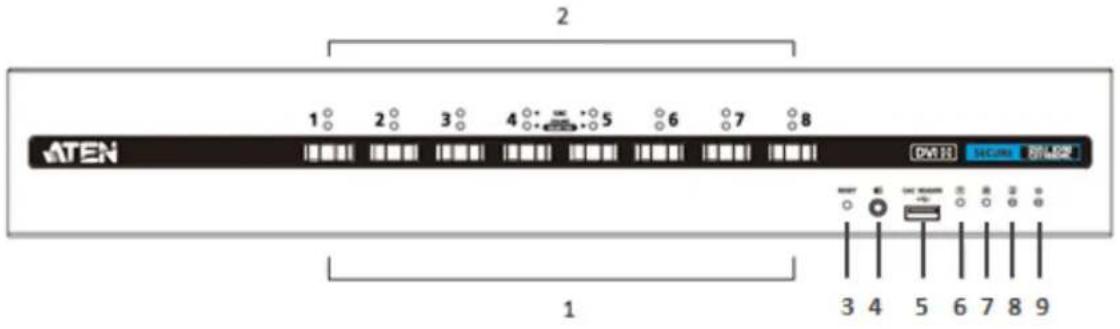
text_image
ATEN 1 2 3 4 5 6 7 8 DVH SCORE BIM-09 1 3 4 5 6 7 8 9CS1142H4
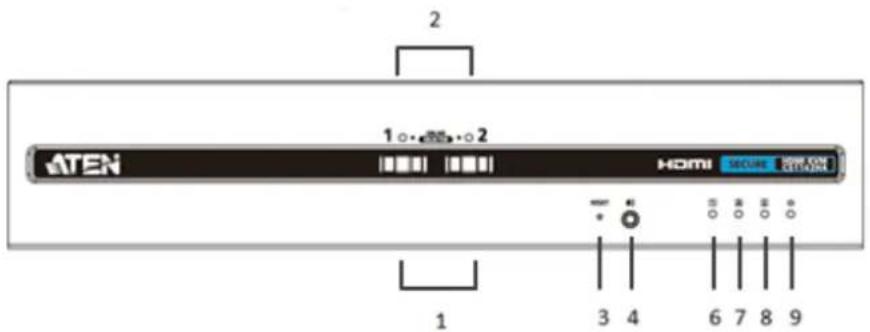
text_image
ATEN 1 2 HOMI SECURE Service 1 3 4 6 7 8 9CS1184DP4C
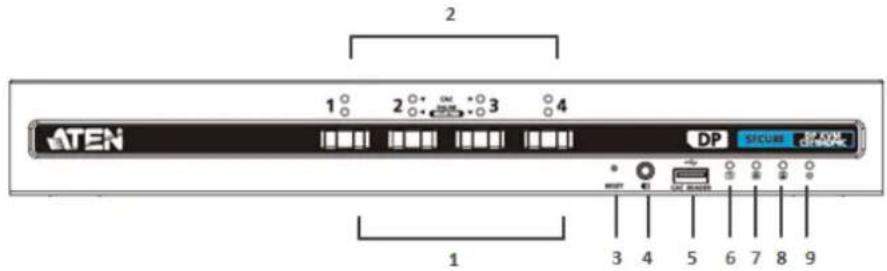
text_image
ATEN 1 2 3 4 DP SICUM SPXVM SPXVM CEREMICS 1 3 4 5 6 7 8 9Rear View (of ATEN Secure KVM Switch)
CS1188D4C

text_image
10 11 15 16 17 12 13 14 18 19CS1142H4
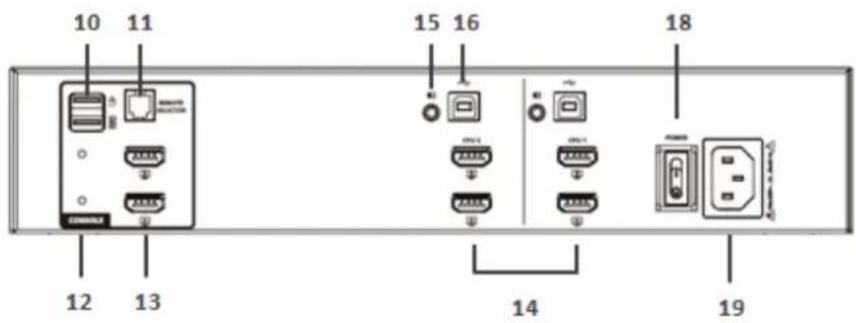
text_image
10 11 15 16 18 12 13 14 19CS1184DP4C

text_image
10 11 15 16 17 18 COMPRESS 12 13 14 19Note:
This user manual uses CS1188D4C, CS1142H4, CS1184DP4C to demonstrate each interface (DVI/HDMI/DisplayPort), port number (2/4/8- Port), CAC support (Yes/No), and number of displays (single/dual) supported by the ATEN Secure KVM Switch.
ATEN Secure KVM User Manual
| No. | Component | Description |
| 1 | Port Selection Pushbuttons | Pressing a Port Selection Pushbutton brings together the keyboard, mouse, video, audio, and CAC reader focus to the computer attached to its corresponding port. |
| 2 | Port and CAC LEDs | The Port / CAC LEDs are located on front panel to indicate Port/CAC reader selection or connection status.Port LEDs (Lower row; Orange LEDs)☐ Online – Lights dim orange to indicate that the computer attached to its corresponding port is connected and powered on.☐ Selected – Lights bright orange to indicate that the computer attached to its corresponding port has the KVM focus.☐ Warning - Flashes to indicate that a non-qualified USB HID device is connected to console USB keyboard port or mouse port when the corresponding port has the focus.CAC LEDs (Upper row, Green LEDs, CAC models only)☐ Online – Lights dim green to indicate that the computer attached to its corresponding port has a USB CAC reader cable connection and the CAC function is enabled.☐ Selected – Lights bright green to indicate that the CAC function is enabled and the computer attached to its corresponding port has the CAC focus.☐ None – No lights indicate that the cable is not connected or CAC has been disabled.☐ Warning - Flashes to indicate that a non-qualified USB smart card / CAC reader is connected when the corresponding port has the focus. Note |
ATEN Secure KVM User Manual
| to factory default setting (enabled).If the Secure KVM fails to generate video on the monitor after a reset,please power off the installation, check the cables, and follow theinstructions found in this manual to power on the installation. | ||
| 4 | Audio Ports | The cables from your speakers plug in here.Note: Only standard analogue speaker connections are allowed. Theuse of an analogue microphone or line-in audio device is strictlyprohibited. |
| 5 | USB Smart Card / CACReader Port(CAC models only) | Only qualified USB authentication devices (e.g., standard smart cardand CAC reader) can be plugged into this port.Note: USB authentication device filter is configurable by authorizedadministrators for trusted devices (e.g. USB token, USB Biometricreader). Please refer to the Administrator Guide for details. |
| 6 | Num Lock LED | Lights green to indicate the Num Lock function has been turned on.Note: The Num Lock LED on the keyboard will be disabled due tosecurity requirements. |
| 7 | Caps Lock LED | Lights green to indicate the Caps Lock function has been turned on.Note: The Caps Lock LED on the keyboard will be disabled due tosecurity requirements. |
| 8 | Scroll Lock LED | Lights green to indicate the Scroll Lock function has been turned on.Note: The Scroll Lock LED on the keyboard will be disabled due tosecurity requirements. |
| 9 | Power LED | Lights green to indicate that the ATEN Secure KVM Switch is poweredon. |
| The USB keyboard and mouse plug into these ports. The USB consolekeyboard port (lower port) and mouse port (upper port) support the |
| security policy.4. The Num Lock, Caps Lock, and Scroll Lock LED on keyboards will not function due to the security policy.5. USB HID device filter is configurable by authorized administrators for trusted devices (only the USB console mouse port is applicable for setting specific blocked devices). Please refer to the Administrator Guide for details. | ||
| 11 | Remote Port Selector Port | The cable on the Remote Port Selector plugs in here.(Remote Port Selector is not supplied in the package) |
| 12 | Video LED(s) | This LED lights green when the video connection is up and running.The LED flashes when a non-qualified monitor is connected.Note: With the dual-display model, each console video connection has a video LED. |
| 13 | Console Monitor Port(s) | The cable from your console monitor plugs in here.Note: The dual-display model has two console monitor ports. |
| 14 | KVM Port Section | The custom KVM cables that attach to your computers plug in this section. |
| 15 | KVM Audio Port | The audio cable that attaches to your computer plugs in here.Note: Only speaker connections are allowed. The use of an analog microphone or line-in audio device is strictly prohibited. |
| 16 | KVM USB Port | The USB cable that attaches to your computer's keyboard / mouse plugs in here. |
| 17 | USB Smart Card / CAC(Common Access Card)Reader Port | The USB cable that attaches to your computer's USB Smart Card / CAC reader plugs in here. |
| 18 | Power Switch | This is a standard rocker switch that powers the ATEN Secure KVM Switch on and off. |
| 19 | Power Socket | The AC power cord plugs in here. |
ATEN Secure KVM User Manual
Front View (of ATEN Remote Port Selector)
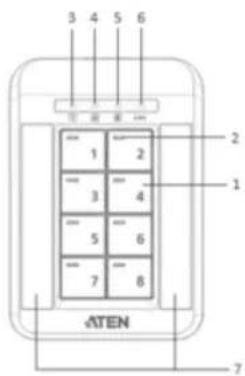
text_image
3 4 5 6 1 2 3 4 5 6 7 8 ATEN| No. | Component | Description |
| 1 | Port Selection Pushbuttons | Pressing a Port Selection Pushbutton brings together the keyboard, mouse, video, audio, and CAC reader focus to the computer attached to its corresponding port.Note:When attached to a 2-Port Secure KVM Switch, only pushbuttons numbered 1 and 2 will be detected and functional. When attached to a 4-Port Secure KVM Switch, only pushbuttons numbered 1, 2, 3, and 4 |
ATEN Secure KVM User Manual
| security requirements. | ||
| 5 | Scroll Lock LED | Lights green to indicate the Scroll Lock function has been turned on.Note:The Scroll Lock LED on the keyboard will be disabled due to security requirements. |
| 6 | CAC LED | The CAC LED is located on the far right of the upper bar (on the panel) to indicate CAC reader selection status.CAC LED (Green LED, CAC models only)☐ Online/Selected – Lights bright green to indicate that the CAC function is enabled and the computer attached to its corresponding port has a USB CAC reader cable connection, and has the CAC focus.☐ None – No lights indicate that the cable is not connected or CAC has been disabled.☐ Warning – Flashes to indicate that a non-qualified USB smart card / CAC reader is connected when the corresponding port has the focus.Note:All panel LEDs on the RPS will flash continuously when a chassis intrusion (except for Pushbutton jam) is detected. See Chassis Intrusion Detection section for further details. |
| 7 | Port Name Label Area | Port names can be written on labels and placed on these two areas covered with mylar panels for easier port identification. |
Chapter 2
Hardware Setup
Before You Begin
ATTENTION
If the tamper-evident seal is missing or peeled, avoid using the product and contact your ATEN dealer.
If all front panel LEDs on the Secure KVM Switch (except Power) flash continuously, all Remote Port Selector (RPS) LEDs flash, or either enclosure appears breached, avoid using the product and contact your ATEN dealer.
The Secure KVM Switch and the Remote Port Selector (RPS) are equipped with active always-on chassis intrusion detection security. Any attempt to open the enclosure will permanently disable the switch/ RPS, and void the warranty.

Tamper-evident seal
Tampering prevention and detection
- The ATEN Secure KVM Switch and the optional Remote Port Selector (RPS) include tamper-evident tape to provide visual indications of intrusion to the switch/ RPS enclosure. If the tamper-evident seal is missing, peeled, or looks as if it has been adjusted, avoid using the product and contact your ATEN dealer.
-
The ATEN Secure KVM Switch and ATEN RPS are equipped with active always-on chassis intrusion detection:
-
If a mechanical intrusion is detected on the switch, the switch (without RPS connected) will be permanently disabled and all the front panel LEDs (except the Power LED) will flash continuously.
- If a mechanical intrusion is detected by the RPS (connected with the switch and aligned), this will permanently disable both the RPS itself and the switch, and all LEDs (on RPS) and the front panel LEDs except the Power LED (on switch) will flash continuously.
If the switch or RPS enclosure appears breeched or all the LEDs are flashing continuously, stop using it, remove it from service immediately and contact your ATEN dealer.
- Any attempt to open the switch or RPS enclosure will activate the chassis intrusion detection security, which will render it inoperable and void the warranty.
- The ATEN Secure KVM Switch cannot be upgraded, serviced or repaired.
- The ATEN Secure KVM Switch and ATEN RPS contain an internal battery which is non-replaceable. Never attempt to replace the battery or open the switch or RPS enclosure.
Always use qualified and authorized peripheral devices
- For security, the ATEN Secure KVM Switch supports only standard USB devices (or pointing device). Do not connect a wireless keyboard/mouse, or any keyboard/mouse with an internal USB
hub or composite device with Non-HID functions to the switch.
- If a non-qualified keyboard is connected, the keyboard will not function. No keystrokes will be seen on the screen.
- If a non-qualified mouse is connected, the mouse will not function. No cursor movement will be seen on the screen.
- For security, the USB console keyboard/mouse ports by default only support the following – standard USB keyboards/mice, standard USB keyboards/mice via a USB hub, and the HID functions of a composite device. Do not connect other USB devices to the USB console keyboard/mouse ports. Non-qualified or non-authorized USB devices will be rejected. For administrative configuration, please refer to the Administrator Guide.
- Num Lock LED, Caps Lock LED, and Scroll Lock LED on the keyboard will be disabled due to the security policy.
- Special multimedia keys on the keyboard will be disabled due to the security policy.
- For security, the ATEN Secure KVM Switch does not support an analogue microphone or line-in audio input. Never connect a microphone or headset microphone to the audio output port. Standard analogue speakers and headsets are supported.
- For security, the USB CAC port by default only supports authorized user authentication devices such as USB Smartcard or CAC readers. Do not connect other USB devices to the USB CAC port. Non-qualified or non-authorized USB devices will be rejected. For administrative configuration, please refer to the Administrator Guide and Port Authentication Utility Guide for details.
- For security, do not use any USB CAC authentication device or other peripherals that adopt an external power source.
- Always use a qualified monitor. Non-qualified monitors will be rejected.
- Do not use wireless video transmitters or any docking device.
- Do not connect any Thunderbolt device to the Secure KVM Switch.
- Any cable connector or non-ATEN remote controller plugged into the console RPS port will be ignored.
Secure Installation
- Do not attempt to connect or install the following devices to the computers connected to the ATEN Secure KVM Switch: TEMPEST computers; telecommunication equipment; frame grabber video cards; or special audio processing cards.
- Important safety information regarding the placement of this device is provided on page 24. Please review it before proceeding.
- Before installation, make sure the power sources to all devices connected to the installation are turned off. You must unplug the power cords of any computers that have the Keyboard Power On function.
- Hot-swapping of the console monitor is not allowed. Power off the Secure KVM Switch and the
monitor before changing the console monitor.
- A computer connected to the Secure KVM Switch should only be powered on after all of the connections to the device are made (video, USB and audio).
Secure Operation and Administration
Please refer to Administrator Guide for Secure KVM Switch configuration and event log auditing functions.
Stacking
The ATEN Secure KVM Switch features a rugged, metal enclosure which provides stability and allows the unit to be stacked on a desktop. The unit can be placed on any level surface that can safely support its weight and the weight of the attached cables. Ensure that the surface is clean and free of materials that can block the exhaust vents or otherwise interfere with normal operation of the KVM switch.
Rack-Mount
The ATEN Secure KVM Switch features a rack-mount design and offers rack-mount options. Rack-mount kits which are specifically designed to work with this switch are not supplied in the package and require a separate purchase.
Installation
To set up your ATEN Secure KVM Switch installation, refer to the installation diagram on page 18 (the numbers in the diagrams correspond to the steps below), and do the following:
- Plug your USB keyboard and USB mouse into the USB console ports located on the unit's rear panel. (The console USB keyboard/mouse ports are only compatible with standard USB keyboards/mice).
Note:
- The console USB keyboard and mouse ports are interchangeable, meaning you can connect a keyboard to the mouse port and vice versa. However, for optimal operation, it is recommended to connect the USB keyboard to the console's USB keyboard port and the USB mouse to the console's USB mouse port.
- For security purposes, do not attempt to connect a wireless keyboard/mouse to the switch.
- During KVM operation, non-standard keyboards with integrated USB hubs and/or other USB-integrated devices may not be fully supported due to the strict security standards and policy of the ATEN Secure KVM Switch. If supported, only basic (HID) keyboard operations will function.
-
When the Secure KVM Switch is powered on, if the keyboard or mouse is rejected, the keyboard and mouse will be inoperable (mouse cursor freezes and/or no key strokes will respond on the computer).
-
Plug your console monitor(s) into the console video port(s) located on the unit's rear panel and power on the monitor.
Note:
- When the ATEN Secure KVM Switch is powered on, the Video LED lights green when the video connection is up and running. The Video LED flashes when a non-qualified monitor is connected.
- Due to the security policy, the ATEN Secure KVM Switch does not support a monitor hot-swap. If you would like to change the console monitor, you must first power off the entire installation.
-
Connected monitors will be filtered when the ATEN Secure KVM Switch is powered on. Non-qualified monitors will be rejected (Video LED flashes). Please refer to the LED Display for detailed visual identification.
-
Plug your speakers into the console's speaker jack located on the unit's front panel.
Note:
Only speaker connections are allowed. The use of an analogue microphone or line-in audio connection is strictly prohibited.
- With a single-display Secure KVM Switch, using a KVM cable set (not supplied with this package and must be purchased separately), plug the video connector into any available video socket in the KVM port section of the switch, then plug the accompanying USB (keyboard/mouse or CAC) and speaker connectors into their corresponding USB and speaker ports.
With a dual-display Secure KVM Switch, using a KVM cable set (not supplied with this package and must be purchased separately), plug the video connector for your primary monitor into any available video socket A in the KVM port section of the switch. Using another video cable and plug the video connector for your secondary monitor into video socket B on the same KVM port section of the switch, then plug the accompanying USB (Keyboard/Mouse or CAC) and speaker connectors into their corresponding USB and speaker sockets.
Note:
- Verify that all the plugs are in the same KVM port sockets (all in Port 1, all in Port 2, etc.). Each socket is marked with an appropriate icon.
-
If the CAC reader function is to be disabled for certain PCs, it's advised not to connect a USB CAC cable in the installation.
-
At the other end of the KVM cable set, plug the USB, video, and speaker cables into their respective ports on the computer.
With a dual-display Secure KVM Switch, at the other end of the other video cable, plug this video cable into its respective port on the computer.
Note:
- Verify that the second video plug is in the same KVM port section as the first video plug (all in Port 1, all in Port 2, etc.). Each socket is marked with an appropriate icon.
- Repeat steps 4, 5 for each computer you are installing.
-
With a dual-display installation, for easier cabling at your site, you can also connect all the primary video connectors to video sockets B, and secondary video connectors to video sockets A. Make sure the console's primary and secondary monitors are connected the same way.
-
Plug the USB Smart Card / CAC reader to the console CAC port on the front panel. (Optional)
Note:
- Only appropriate qualified USB authentication devices (e.g., Smart Card and CAC readers by default) can be plugged into this port. During KVM operation, non-qualified or non-authorized USB devices will be filtered and rejected (the CAC LED that has port focus will flash). Please refer to the LED display for visual indications.
- The CDF (Configurable Device Filtration) function can only be operated by authorized administrators. Please refer to the Administrator Guide and Port Authentication Utility Guide for details.
-
An active session on the selected computer is immediately terminated upon removal of the CAC card.
-
Plug the cable on the RPS into the console RPS port. (Optional)
Note:
- Be sure to connect the RPS before the ATEN Secure KVM Switch is powered-on.
-
Any connection of RPS after the ATEN Secure KVM Switch is powered-on will not be detected by the switch.
-
Plug the female end of the power cord into the ATEN Secure KVM Switch power socket; plug the male end into an AC power source.
- Turn on the ATEN Secure KVM Switch and check that the LEDs light up. The ATEN Secure KVM Switch will start a self-test.
Note:
The ATEN Secure KVM Switch performs a security self-test at power-on and at each power cycle. Front panel LEDs will indicate the self-test status and test result. Please refer to the Operation section and LED Display section for visual identification details.
Installation Diagram
Rear View
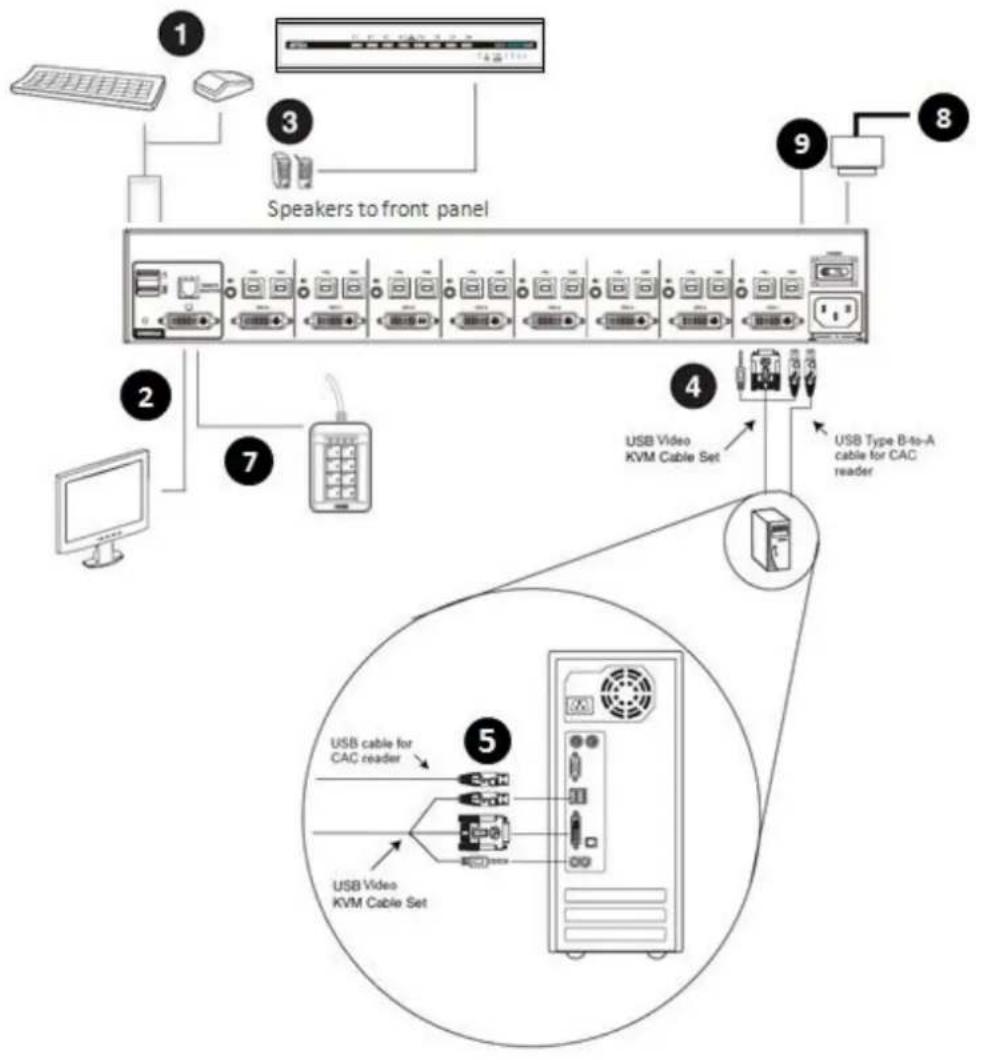
flowchart
graph TD
    A["1: Laptop Interface"] --> B["2: Computer"]
    B --> C["3: Speaker to front panel"]
    C --> D["4: USB Video KVM Cable Set"]
    D --> E["5: USB Cable for CAC reader"]
    D --> F["6: USB Video KVM Cable Set"]
    F --> G["7: Cable Receiver"]
    G --> H["8: USB Type B-to-A cable for CAC reader"]
    style A fill:#f9f,stroke:#333
    style B fill:#ccf,stroke:#333
    style C fill:#cfc,stroke:#333
    style D fill:#fcc,stroke:#333
    style E fill:#ffc,stroke:#333
    style F fill:#cff,stroke:#333
    style G fill:#ffc,stroke:#333
    style H fill:#fcc,stroke:#333
Front View

text_image
ATEN 1 2 3 4 5 6 7 8 3 6Chapter 3
Operation
Powering On
When you power on, reset, or power cycle the ATEN Secure KVM Switch, the switch will perform a self-test to check the unit's integrity and security functions.
During the self-test
All Port LEDs, all CAC LEDs (if supported), Num Lock LED, Caps Lock LED, and Scroll Lock LED on the Secure KVM will turn ON and then OFF.
The KVM focus will be switched to Port 1 when the self-test completes successfully (Port 1 LED lights bright orange).
Self-test failure
In the case of a self-test failure, the Secure KVM Switch becomes inoperable, with front panel LED combinations (on the Secure KVM) indicating the potential cause of the failure (such as button jam or KVM integrity compromise)
☐ A pre-defined combination of the Port and CAC LEDs indicate the cause of the failure.
☐ If all front panel LEDs on the Secure KVM (except the Power LED) flash continuously, it means KVM tampering is detected or a self-test failure has occurred (except for Pushbutton jam; see below)
□ If Pushbutton jam is detected, both the port's LEDs (Port LED and CAC LED) will flash.
For security, the ATEN Secure KVM Switch becomes inoperable if the self-test fails. Please verify your KVM installation by checking that the front panel pushbuttons are not stuck and then power cycle the Secure KVM Switch. If the self-test failure remains, stop using the ATEN Secure KVM Switch immediately, remove it from service and contact your ATEN dealer.
After the ATEN Secure KVM Switch is powered on and ready, power on your computers. By default the ATEN Secure KVM Switch will switch to Port 1 after a successful self-test.
The ATEN Secure KVM Switch filters and emulates both a mouse and keyboard on each port after the unit is powered on. If the keyboard, mouse, monitor, or Smart card / CAC reader fails to operate properly, make sure that you are using the appropriate peripherals (qualified and authorized peripherals); then power off the ATEN Secure KVM Switch, check all the cable connections, and power on the unit again.
Manual Switching
For increased security, the ATEN Secure KVM Switch offers manual port switching only. This is achieved by pressing the port selection pushbuttons located on the switch front panel or pressing the port selection pushbuttons located on the RPS' panel (if RPS is connected and aligned)
Press and release a port selection pushbutton to bring the KVM focus to the computer attached to its corresponding port (see Port ID Numbering, below). To meet maximum security and channel isolation requirements, the keyboard, mouse, video, audio, and USB CAC reader ports will be switched together. The Selected Port LED lights bright orange (on Switch and/or RPS) to indicate that the computer attached to its corresponding port has the KVM focus (keyboard, mouse, monitor, audio, and CAC reader).
The PC that has the port focus should be able to detect the peripherals after port switching.
If the PC fails to detect the keyboard, mouse, or CAC reader:
- Verify that the keyboard, mouse, and/or CAC reader is qualified.
- Verify that the keyboard, mouse, or CAC reader hasn't failed.
- For USB CAC reader (USB authentication device), please make sure that the USB CAC cable has been securely connected, and the CAC function is enabled.
- For USB CAC reader port, please contact your administrator to verify if the device has been authorized.
Port ID Numbering
Each KVM port on the ATEN Secure KVM Switch is assigned a port number (1–2 for the 2-Port models; 1–4 for the 4-Port models; 1–8 for the 8-Port models). The port numbers are marked on the rear of the switch. See Rear View, page 7. The port ID of a computer is derived from the KVM port number it is connected to.
LED Display
In addition to the Power LED, the ATEN Secure KVM Switch (and ATEN RPS) has Port LEDs (Online and Selected), keyboard lock (Num Lock/Caps Lock/Scroll Lock) LEDs and CAC LEDs that are built into the front panel to indicate port / keyboard / CAC reader operating status. A video LED is located on the back panel (of the switch) to indicate the operating status of the video connection. These LEDs also serve as the alarm notification for KVM security issues.
| LED | Indication |
| Power LED(on the Secure KVM switch) | The Power LED is on the front panel and lights green to indicate that the KVM switch is powered on. |
| Video LED(on the Secure KVM switch) | The Video LED is located on the back panel next to each video connector.☐ The LED lights green when the video connection is up and running.☐ The LED flashes when a non-qualified monitor is connected. |
| Port LED(on the Secure KVM switch and the RPS) | The Port LEDs are located on the front panel (of the switch) and the upper-left side of each pushbutton (of the RPS) to indicate the port selection or connection status.☐ Online – Lights dim orange to indicate that the computer attached to its corresponding port connected and powered on.☐ Selected – Lights bright orange to indicate that the computer attached to its corresponding port has the KVM focus.☐ Warning - Flashes to indicate that a non-qualified USB HID device is connected to console USB keyboard port or mouse port when the corresponding port has the focus.Note:1. Port and CAC LEDs will flash constantly when a chassis intrusion is detected. See Chassis Intrusion Detection section for details.2. Port and CAC LEDs (on the Secure KVM switch) also indicate the status of the Secure KVM self-test status. See Operation section for further details. |
| pressing the port selection button (on the switch) for more than 3 seconds (this is a toggle feature). Please refer to Operation section for details.- Port and CAC LEDs will flash constantly when a chassis intrusion is detected. See Chassis Intrusion Detection section for further details. | |
| Num Lock LED(on the Secure KVM switch and the RPS)Caps Lock LED(on the Secure KVM switch and the RPS)Scroll Lock LED(on the Secure KVM switch and the RPS) | Lights green to indicate the Num Lock is enabledLights green to indicate the Caps Lock is enabledLights green to indicate the Scroll Lock is enabled |
Chassis Intrusion Detection
To help prevent malicious tampering with the ATEN Secure KVM Switch, the switch (or the RPS) becomes inoperable and all front panel LEDs on the Secure KVM switch (except Power) or all Remote Port Selector (RPS) LEDs flash constantly when a chassis intrusion (such as the cover being removed) is detected (by the switch or by the RPS).
The intrusion detection protection is an always-on function. If all front panel LEDs on the Secure KVM Switch (except Power) flash continuously, all Remote Port Selector (RPS) LEDs flash, or either enclosure appears breached, avoid using the product and contact your ATEN dealer.
Smart Card and CAC Reader (CAC models only)
The USB Smart Card / CAC reader function of each port can be enabled or disabled (enabled by default). Press the port selection pushbutton (on the switch) for more than 3 seconds then release it, to enable/disable the CAC reader function for that port (this is a toggle feature). The CAC LEDs are used to indicate the CAC reader operation status.
If the CAC reader function is to be disabled for certain PCs, it's advised not to connect a USB CAC cable to the installation.
Appendix
Safety Instructions
General
☐ This product is for indoor use only.
Read all of these instructions. Save them for future reference.
☐ Follow all warnings and instructions marked on the device.
☐ Do not place the device on any unstable surface (cart, stand, table, etc.). If the device falls, serious damage will result.
☐ Do not use the device near water.
Do not place the device near, or over, radiators or heat registers.
☐ The device cabinet is provided with slots and openings to allow for adequate ventilation*.To ensure reliable operation, and to protect against overheating, the cabinet must never be blocked or covered.
☐ The device should never be placed on a soft surface (bed, sofa, rug, etc.) as this will block its ventilation openings*. Placing devices without slots or openings on a soft surface will affect the heat dissipation.
☐ The device should not be placed in a built-in enclosure unless adequate ventilation has been provided.
□ Never spill liquid of any kind on the device.
☐ Unplug the device from the wall outlet before cleaning. Do not use liquid or aerosol cleaners. Use a damp cloth for cleaning.
☐ The device should be operated from the type of power source indicated on the marking label. If you are not sure of the type of power available, consult your dealer or local power company.
The device is designed for IT power distribution systems with 230V phase-to-phase voltage.
☐ To prevent damage to your installation it is important that all devices are properly grounded.
☐ The device is equipped with a 3-wire grounding type plug. This is a safety feature. If you are unable to insert the plug into the outlet, contact your electrician to replace your obsolete outlet. Do not attempt to defeat the purpose of the grounding-type plug. Always follow your local/national wiring codes.
☐ Do not allow anything to rest on the power cord or cables. Route the power cord and cables so that they cannot be stepped on or tripped over.
☐ If an extension cord is used with this device make sure that the total of the ampere ratings of all products used on this cord does not exceed the extension cord ampere rating. Make sure that the total of all products plugged into the wall outlet does not exceed 15 amperes.
☐ To help protect your system from sudden, transient increases and decreases in electrical power, use a surge suppressor, line conditioner, or uninterruptible power supply (UPS).
☐ Position system cables and power cables carefully; Be sure that nothing rests on any cables.
□ Never push objects of any kind into or through cabinet slots. They may touch dangerous voltage
points or short out parts resulting in a risk of fire or electrical shock.
☐ Do not attempt to service the device yourself. Refer all servicing to qualified service personnel.
If the following conditions occur, unplug the device from the wall outlet and bring it to qualified service personnel for repair.
☐ The power cord or plug has become damaged or frayed.
☐ Liquid has been spilled into the device.
☐ The device has been exposed to rain or water.
☐ The device has been dropped, or the cabinet has been damaged.
☐ The device exhibits a distinct change in performance, indicating a need for service.
☐ The device does not operate normally when the operating instructions are followed.
□ Suitable for installation in Information Technology Rooms in accordance with Article 645 of the National Electrical Code and NFPA 75.
CAUTION: Never attempt to replace battery or open the switch's enclosure.
*Note: Not all devices have slots or openings to allow for ventilation
☐ For online technical support – including troubleshooting and documentation:
http://eservice.aten.com
For telephone support, See Telephone Support, page iv:
North America
Email Support support@aten-usa.com
| Online | Troubleshooting | https://eservice.aten.com/eServiceCx/supportIndex.do?lang=en_US |
| Technical | Documentation | |
| Support | Software Updates |
Telephone Support 1-888-999-ATEN ext 4988
When you contact us, please have the following information ready beforehand:
Product model number, serial number, and date of purchase.
☐ Your computer configuration, including operating system, revision level, expansion cards, and software.
□ Any error messages displayed at the time the error occurred.
The sequence of operations that led up to the error.
□ Any other information you feel may be of help.
Specifications
ATEN Single Display DisplayPort Secure KVM (CAC and Non-CAC models)
| Function | CS1182DP4C | CS1184DP4C | CS1188DP4C | CS1182DP4 | CS1184DP4 | CS1188DP4 | ||
| Computer | Direct | 2 | 4 | 8 | 2 | 4 | 8 | |
| Connections | Max. | 2 | 4 | 8 | 2 | 4 | 8 | |
| Console Connections | 1 Direct | 1 Direct | ||||||
| Port Selection | Pushbutton, Remote Port Selector | Pushbutton, Remote Port Selector | ||||||
| 1 x USB Type A Female | 1 x USB Type A Female | |||||||
| Video | 1 x DisplayPort Female (Black) | 1 x DisplayPort Female (Black) | ||||||
| 1 x USB Type A Female | 1 x USB Type A Female | |||||||
| Speaker | 1 x Mini Stereo Jack Female (Green) | 1 x Mini Stereo Jack Female (Green) | ||||||
| Microphone | N/A | NA | ||||||
| CAC | 1 x USB Type A Female | NA | ||||||
| Keyboard/ | 2 x USB-B | 4 x USB-B | 8 x USB-B | 2 x USB-B | 4 x USB-B | |||
| Mouse | Female | Female | Female | Female | Female | |||
| Connectors | Video | 2 x DP | 4 x DP | 8 x DP | 2 x DP | 4 x DP | ||
| Female | Female | Female | Female | Female | ||||
| KVM Ports | CAC | 2 x USB-B | 4 x USB-B | 8 x USB-B | NA | |||
| Female | Female | |||||||
| Speaker | 2 x Mini Stereo | 4 x Mini Stereo | 8 x Mini Stereo | 2 x Mini Stereo | 4 x Mini Stereo | |||
| Jack Female | Jack Female | Jack Female | Jack Female | Jack Female | ||||
| Microphone | N/A | NA | ||||||
| Power | 1 x 3-prong AC Socket | 1 x 3-prong AC Socket | ||||||
| Remote Port Selector | 1 x RJ-11 | 1 x RJ-11 | ||||||
| Port | 2 x Pushbuttons | 4 x Pushbuttons | 8 x Pushbuttons | 2 x Pushbuttons | 4 x Pushbuttons | |||
| Switches | Reset | 1 x Semi-recessed Pushbutton | 1 x Semi-recessed Pushbutton | |||||
| Power | 1 x Rocker | 1 x Rocker | ||||||
| On Line / Selected | 2 (Orange) | 4 (Orange) | 8 (Orange) | 2 (Orange) | 4 (Orange) | 8 (Orange) | ||
| CAC activated | 2 (Green) | 4 (Green) | 8 (Green) | NA | ||||
| LEDs | Power | 1 (Green) | 1 (Green) | |||||
| Key Lock LED | 3 (Green; Num Lock, Caps Lock, Scroll Lock) | 3 (Green; Num Lock, Caps Lock, Scroll Lock) | ||||||
| Console Video | 1 (Green, on back panel) | 1 (Green, on back panel) | ||||||
| Emulation | Keyboard/Mouse | USB | USB | |||||
| Video | Max. 3840 x 2160 @ 30 Hz (UHD) | Max. 3840 x 2160 @ 30 Hz (UHD) | ||||||
ATEN Secure KVM User Manual
| IP Rating | 100-240V~ : 50-60 Hz; 1A (TBD) | 100-240V~ : 50-60 Hz; 1A (TBD) | |||||
| Environment | Operating Temp. | 0-50°C | 0-50°C | ||||
| Storage Temp. | -20-60°C | -20-60°C | |||||
| Humidity | 0-80% RH, Non-condensing | 0-80% RH, Non-condensing | |||||
| Physical Properties | Housing | Metal | Metal | ||||
| Weight | 1.76kg (TBD) | 1.81kg (TBD) | 3.30kg (TBD) | 1.76kg (TBD) | 1.81kg (TBD) | 3.30kg (TBD) | |
| Dimensions(L x W x H) | 335 x 164 x44 mm | 335 x 164 x44 mm | 432 x 205 x66 mm | 335 x 164 x44 mm | 335 x 164 x44 mm | 432 x 205 x66 mm | |
ATEN Dual Display Display Port Secure KVM (CAC and Non-CAC models)
| Function | CS1142DP4C | CS1144DP4C | CS1148DP4C | CS1142DP4 | CS1144DP4 | CS1148DP4 | ||||||||||
| Computer Connections | Direct | 2 | 4 | 8 | 2 | 4 | 8 | |||||||||
| Max. | 2 | 4 | 8 | 2 | 4 | 8 | ||||||||||
| Console Connections | 1 Direct | 1 Direct | ||||||||||||||
| Port Selection | Pushbutton, Remote Port Selector | Pushbutton, Remote Port Selector | ||||||||||||||
| Console Ports | Keyboard | 1 x USB Type A Female | 1 x USB Type A Female | |||||||||||||
| Video | 2 x DisplayPort Female (Black) | 2 x DisplayPort Female (Black) | ||||||||||||||
| Mouse | 1 x USB Type A Female | 1 x USB Type A Female | ||||||||||||||
| Speaker | 1 x Mini Stereo Jack Female (Green) | 1 x Mini Stereo Jack Female (Green) | ||||||||||||||
| Microphone | N/A | NA | ||||||||||||||
| CAC | 1 x USB Type A Female | NA | ||||||||||||||
| Keyboard | 2 x USB-B | 4 x USB-B | 8 x USB-B | 2 x USB-B | 4 x USB-B | 8 x USB-B | ||||||||||
| Mouse | 5x 5x 5x 5x 5x 5x 5x 5x 5x 5x 5x 5x 5x 5x 5x 5x 5x 5x 5x 5x 5x 5x 5x 5x 5x 5x 5x 5x 5x 5x 5x 5x 5x 5x 3x 3x 3x 3x 3x 3x 3x 3x 3x 3x 3x 3x 3x 3x 3x 3x 3x 3x 3x 3x 3x 3x 3x 3x 3x 3x 3x 3x 3x 3x 3x 3x 3x 3 | 4x 5x 5x 5x 5x 5x 5x 5x 5x 5x 5x 5x 5x 5x 5x 5x 5x 5x 5x 5x 5x 5x 5x 5x 5x 5x 5x 5x 5x 5x 5x 5x 5x 5 | 5x 5x 5x 5x 5x 5x 5x 5x 5x 5x 5x 5x 5x 5x 5x 5x 5x 5x 5x 5x 5x 5x 5x 5x 5x 5x 5x 5x 5x 5x 5x 5x 5x | 6x 5x 5x 5x 5x 5x 5x 5x 5x 5x 5x 5x 5x 5x 5x 5x 5x 5x 5x 5x 5x 5x 5x 5x 5x 5x 5x 5x 5x 5x 5x 5x 5x 5. | 6x 5x 5x 5x 5x 5x 5x 5x 5x 5x 5x 5x 5x 5x 5x 5x 5x 5x 5x 5x 5x 5x 5x 5x 5x 5x 5x 5x 5x 5x 5x 5x 5x | 7x 5x 5x 5x 5x 5x 5x 5x 5x 5x 5x 5x 5x 5x 5x 5x 5x 5x 5x 5x 5x 5x 5x 5x 5x 5x 5x 5x 5x 5x 5x 5x 5x 5m | 8x 5x 5x 5x 5x 5x 5x 5x 5x 5x 5x 5x 5x 5x 5x 5x 5x 5x 5x 5x 5x 5x 5x 5x 5x 5x 5x 5x 5x 5x 5x 5x 5x 5s | 9x 5x 5x 5x 5x 5x 5x 5x 5x 5x 5x 5x 5x 5x 5x 5x 5x 5x 5x 5x 5x 5x 5x 5x 5x 5x 5x 5x 5x 5x 5x 5x 5x 5X | 10x 5x 5x 5x 5x 5x 5x 5x 5x 5x 5x 5x 5x 5x 5x 5x 5x 5x 5x 5x 5x 5x 5x 5x 5x 5x 5x 5x 5x 5x 5x 5x 5x 5: | 11x 5x 5x 5x 5x 5x 5x 5x 5x 5x 5x 5x 5x 5x 5x 5x 5x 5x 5x 5x 5x 5x 5x 5x 5x 5x 5x 5x 5x 5x 5x 5x 5x 5-1 | 12x 5x 5x 5x 5x 5x 5x 5x 5x 5x 5x 5x 5x 5x 5x 5x 5x 5x 5x 5x 5x 5x 5x 5x 5x 5x 5x 5x 5x 5x 5x 5x 5x 5 -1 | 13x 5x 5x 5x 5x 5x 5x 5x 5x 5x 5x 5x 5x 5x 5x 5x 5x 5x 5x 5x 5x 5x 5x 5x 5x 5x 5x 5x 5x 5x 5x 5x 5x 5f | 14x 5x 5x 5x 5x 5x 5x 5x 5x 5x 5x 5x 5x 5x 5x 5x 5x 5x 5x 5x 5x 5x 5x 5x 5x 5x 5x 5x 5x 5x 5x 5x 5x 6-1 | 15x 5x 5x 5x 5x 5x 5x 5x 5x 5x 5x 5x 5x 5x 5x 5x 5x 5x 5x 5x 5x 5x 5x 5x 5x 5x 5x 5x 5x 5x 5x 5x 6-1 | ||
ATEN Secure KVM User Manual
| CAC activated | 2 (Green) | 4 (Green) | 8 (Green) | NA | ||||
| Power | 1 (Green) | 1 (Green) | ||||||
| Key Lock LED | 3 (Green; Num Lock, Caps Lock, Scroll Lock) | 3 (Green; Num Lock, Caps Lock, Scroll Lock) | ||||||
| Console Video | 2 (Green, on back panel) | 2 (Green, on back panel) | ||||||
| Emulation | Keyboard/Mouse | USB | USB | |||||
| Video | Max. 3840 x 2160 @ 30 Hz (UHD) | Max. 3840 x 2160 @ 30 Hz (UHD) | ||||||
| IP Rating | 100-240V~;50-60 Hz; 1A | 100-240V~; 50-60 Hz; 1.5A | 100-240V~;50-60 Hz; 1A(TBD) | 100-240V~; 50-60 Hz; 1.5A | ||||
| Environment | Operating Temp. | 0-50°C | 0-50°C | |||||
| Storage Temp. | -20-60°C | -20-60°C | ||||||
| Humidity | 0-80% RH, Non-condensing | 0-80% RH, Non-condensing | ||||||
| Physical Properties | Housing | Metal | Metal | |||||
| Weight | 2.13kg (TBD) | 2.18kg (TBD) | 3.22kg (TBD) | 2.13kg (TBD) | 2.18kg (TBD) | 3.22kg (TBD) | ||
| Dimensions(L x W x H) | 335 x 164 x66 mm | 335 x 164 x66 mm | 432 x 205 x66 mm | 335 x 164 x66 mm | 335 x 164 x66 mm | 432 x 205 x66 mm | ||
ATEN Single Display HDMI Secure KVM (CAC and Non-CAC models)
| Function | CS1182H4C | CS1184H4C | CS1182H4 | CS1184H4 | |
| Computer Connections | Direct | 2 | 4 | 2 | 4 |
| Max. | 2 | 4 | 2 | 4 | |
| Console Connections | 1 Direct | 1 Direct | |||
ATEN Secure KVM User Manual
| Power | 1 x 3-prong AC Socket | 1 x 3-prong AC Socket | ||||
| Remote Port Selector | 1 x RJ-11 | 1 x RJ-11 | ||||
| Switches | Port | 2 x Pushbuttons | 4 x Pushbuttons | 2 x Pushbuttons | 4 x Pushbuttons | |
| Reset | 1 x Semi-recessed Pushbutton | 1 x Semi-recessed Pushbutton | ||||
| Power | 1 x Rocker | 1 x Rocker | ||||
| LEDs | On Line / Selected | 2 (Orange) | 4 (Orange) | 2 (Orange) | 4 (Orange) | |
| CAC activated | 2 (Green) | 4 (Green) | NA | |||
| Power | 1 (Green) | 1 (Green) | ||||
| Key Lock LED | 3 (Green; Num Lock, Caps Lock, Scroll Lock) | 3 (Green; Num Lock, Caps Lock, Scroll Lock) | ||||
| Console Video | 1 (Green, on back panel) | 1 (Green, on back panel) | ||||
| Emulation | Keyboard/Mouse | USB | USB | |||
| Video | Max. 3840 x 2160 @ 60 Hz (UHD) | Max. 3840 x 2160 @ 60 Hz (UHD) | ||||
| IP Rating | 100-240V~ ; 50-60 Hz; 1A (TBD) | 100-240V~ ; 50-60 Hz; 1A (TBD) | ||||
| Environment | Operating Temp. | 0-50°C | 0-50°C | |||
| Storage Temp. | -20-60°C | -20-60°C | ||||
| Humidity | 0-80% RH, Non-condensing | 0-80% RH, Non-condensing | ||||
| Physical Properties | Housing | Metal | Metal | |||
| Weight | 1.76kg (TBD) | 1.76kg (TBD) | 1.76kg (TBD) | 1.76kg (TBD) | ||
| Dimensions(L x W x H) | 335 x 164 x 44 mm | 335 x 164 x 44 mm | 335 x 164 x 44 mm | 335 x 164 x 44 mm | ||
ATEN Dual Display HDMI Secure KVM (CAC and Non-CAC model)
ATEN Secure KVM User Manual
| CAC | 2 x USB-B Female | 4 x USB-B Female | NA | |||
| Speaker | 2 x Mini Stereo Jack Female | 4 x Mini Stereo Jack Female | 2 x Mini Stereo Jack Female | 4 x Mini Stereo Jack Female | ||
| Microphone | N/A | NA | ||||
| Power | 1 x 3-prong AC Socket | 1 x 3-prong AC Socket | ||||
| Remote Port Selector | 1 x RJ-11 | 1 x RJ-11 | ||||
| Switches | Port | 2 x Pushbuttons | 4 x Pushbuttons | 2 x Pushbuttons | 4 x Pushbuttons | |
| Reset | 1 x Semi-recessed Pushbutton | 1 x Semi-recessed Pushbutton | ||||
| Power | 1 x Rocker | 1 x Rocker | ||||
| LEDs | On Line / Selected | 2 (Orange) | 4 (Orange) | 2 (Orange) | 4 (Orange) | |
| CAC activated | 2 (Green) | 4 (Green) | NA | |||
| Power | 1 (Green) | 1 (Green) | ||||
| Key Lock LED | 3 (Green; Num Lock, Caps Lock, Scroll Lock) | 3 (Green; Num Lock, Caps Lock, Scroll Lock) | ||||
| Console Video | 2 (Green, on back panel) | 2 (Green, on back panel) | ||||
| Emulation | Keyboard/Mouse | USB | USB | |||
| Video | Max. 3840 x 2160 @ 60 Hz (UHD) | Max. 3840 x 2160 @ 60 Hz (UHD) | ||||
| IP Rating | 100-240V~ ;50-60 Hz; 1A (TBD) | 100-240V~ ;50-60 Hz; 1A (TBD) | ||||
| Environment | Operating Temp. | 0-50°C | 0-50°C | |||
| Storage Temp. | -20-60°C | -20-60°C | ||||
| Humidity | 0-80% RH, Non-condensing | 0-80% RH, Non-condensing | ||||
| Housing | Metal | Metal | ||||
| Weight | 2.06ks (TBD) | 2.11ks (TBD) | 2.06ks (TBD) | 2.11ks (TBD) | ||
ATEN Secure KVM User Manual
| CAC | 1 x USB Type A Female | NA | ||||||
| KVM Ports | Keyboard/Mouse | 2 x USB-BFemale | 4 x USB-BFemale | 8 x USB-BFemale | 2 x USB-BFemale | 4 x USB-BFemale | 8 x USB-BFemale | |
| Video | 2 x DVI-I DLFemale | 4 x DVI-I DLFemale | 8 x DVI-I DLFemale | 2 x DVI-I DLFemale | 4 x DVI-I DLFemale | 8 x DVI-I DLFemale | ||
| CAC | 2 x USB-BFemale | 4 x USB-BFemale | 8 x USB-BFemale | NA | ||||
| Speaker | 2 x Mini StereoJack Female | 4 x Mini StereoJack Female | 8 x Mini StereoJack Female | 2 x Mini StereoJack Female | 4 x Mini StereoJack Female | 8 x Mini StereoJack Female | ||
| Microphone | N/A | NA | ||||||
| Power | 1 x 3-prong AC Socket | 1 x 3-prong AC Socket | ||||||
| Remote Port Selector | 1 x RJ-11 | 1 x RJ-11 | ||||||
| Switches | Port | 2 x Pushbuttons | 4 x Pushbuttons | 8 x Pushbuttons | 2 x Pushbuttons | 4 x Pushbuttons | 8 x Pushbuttons | |
| Reset | 1 x Semi-recessed Pushbutton | 1 x Semi-recessed Pushbutton | ||||||
| Power | 1 x Rocker | 1 x Rocker | ||||||
| LEDs | On Line / Selected | 2 (Orange) | 4 (Orange) | 8 (Orange) | 2 (Orange) | 4 (Orange) | 8 (Orange) | |
| CAC activated | 2 (Green) | 4 (Green) | 8 (Green) | NA | ||||
| Power | 1 (Green) | 1 (Green) | ||||||
| Key Lock LED | 3 (Green; Num Lock, Caps Lock, Scroll Lock) | 3 (Green; Num Lock, Caps Lock, Scroll Lock) | ||||||
| Console Video | 1 (Green, on back panel) | 1 (Green, on back panel) | ||||||
| Emulation | Keyboard/Mouse | USB | USB | |||||
| Video | DVI Dual Link: 2560 x 1600* | DVI Dual Link: 2560 x 1600* | ||||||
ATEN Secure KVM User Manual
| Connections | Max. | 2 | 4 | 8 | 2 | 4 | 8 | |
| Console Connections | 1 Direct | 1 Direct | ||||||
| Port Selection | Pushbutton, Remote Port Selector | Pushbutton, Remote Port Selector | ||||||
| Connectors | Console Ports | Keyboard | 1 x USB Type A Female | 1 x USB Type A Female | ||||
| Video | 2 x DVI-I DL Female | 2 x DVI-I DL Female | ||||||
| Mouse | 1 x USB Type A Female | 1 x USB Type A Female | ||||||
| Speaker | 1 x Mini Stereo Jack Female (Green) | 1 x Mini Stereo Jack Female (Green) | ||||||
| Microphone | N/A | NA | ||||||
| CAC | 1 x USB Type A Female | NA | ||||||
| KVM Ports | Keyboard/Mouse | 2 x USB-B Female | 4 x USB-B Female | 8 x USB-B Female | 2 x USB-B Female | 4 x USB-B Female | 8 x USB-B Female | |
| Video | 4 x DVI-I DL Female | 8 x DVI-I DL Female | 16 x DVI-I DL Female | 4 x DVI-I DL Female | 8 x DVI-I DL Female | 16 x DVI-I DL Female | ||
| CAC | 2 x USB-B Female | 4 x USB-B Female | 8 x USB-B Female | NA | ||||
| Speaker | 2 x Mini Stereo Jack Female | 4 x Mini Stereo Jack Female | 8 x Mini Stereo Jack Female | 2 x Mini Stereo Jack Female | 4 x Mini Stereo Jack Female | 8 x Mini Stereo Jack Female | ||
| Microphone | N/A | NA | ||||||
| Power | 1 x 3-prong AC Socket | 1 x 3-prong AC Socket | ||||||
| Remote Port Selector | 1 x RJ-11 | 1 x RJ-11 | ||||||
| Switches | Port | 2 x Pushbuttons | 4 x Pushbuttons | 8 x Pushbuttons | 2 x Pushbuttons | 4 x Pushbuttons | 8 x Pushbuttons | |
| Reset | 1 x Semi-recessed Pushbutton | 1 x Semi-recessed Pushbutton | ||||||
| Weight | 2.14kg (TBD) | 2.18kg (TBD) | 3.34kg (TBD) | 2.14kg (TBD) | 2.18kg (TBD) | 3.34kg (TBD) | |
| Dimensions(L x W x H) | 335 x 164 x66 mm | 335 x 164 x66 mm | 432 x 205 x66 mm | 335 x 164 x66 mm | 335 x 164 x66 mm | 432 x 205 x66 mm |
* DVI Secure KVM Switches offer 3840 x 2160 @ 30 Hz video output on compatible HDMI-interfaced monitors/computers with ATEN DVI-to-HDMI KVM cables
Limited Warranty
IN NO EVENT SHALL THE DIRECT VENDOR'S LIABILITY EXCEED THE PRICE PAID FOR THE PRODUCT FROM DIRECT, INDIRECT, SPECIAL, INCIDENTAL, OR CONSEQUENTIAL DAMAGES RESULTING FROM THE USE OF THE PRODUCT, DISK, OR ITS DOCUMENTATION.
The direct vendor makes no warranty or representation, expressed, implied, or statutory with respect to the contents or use of this documentation, and especially disclaims its quality, performance, merchantability, or fitness for any particular purpose.
The direct vendor also reserves the right to revise or update the device or documentation without obligation to notify any individual or entity of such revisions, or update. For further inquiries, please contact your direct vendor.