
AT-HDDVI1616-AM - HDMI switch Atlona - Free user manual and instructions
Find the device manual for free AT-HDDVI1616-AM Atlona in PDF.


| Product Type | 16x16 DVI and Audio Matrix Switcher |
| Brand | Atlona |
| Model | AT-HDDVI1616-AM |
| Dimensions (HxWxD) | 6.89 x 19.02 x 12.60 inches (175 x 483 x 320 mm) |
| Weight | 15.43 lbs (7.0 kg) |
| Power Consumption | 25W |
| Power Supply | Redundant primary and secondary (two power cords included) |
| Bandwidth | 10.2 Gbps |
| Video Inputs | 16 x DVI-D (female) |
| Video Outputs | 16 x DVI-D (female) |
| Audio Inputs/Outputs | 16 x Stereo Audio (balanced/unbalanced) input and 16 x stereo audio output |
| Maximum Resolution | Video: up to 2048x1080p (2Kx1K); VESA: up to 1920x1200 |
| Control Interfaces | Front panel, IR remote (included), RS-232, TCP/IP |
| Switching Speed | As fast as 0.5 seconds (varies with displays) |
| HDCP Compliance | Yes |
| Presets | 9 programmable memory presets |
| EDID Management | Default (1920x1200, 2-channel audio) and learning mode (copy from output to input) |
| Independent AV Switching | Yes (video and audio can be switched separately) |
| Rack Mountable | Yes, 4RU |
| Operating Temperature | -4°F to 158°F (-20°C to 70°C) |
| Safety Precautions | Avoid moisture; use only included power supply; unplug before cleaning; no user-serviceable parts inside |
| Cleaning | Unplug unit, clean with damp cloth (no cleaning fluids or aerosols) |
| Warranty | 3 years limited warranty from date of receipt |
| Spare Parts / Repairability | No user-serviceable parts; contact authorized Atlona reseller for service |
Frequently Asked Questions - AT-HDDVI1616-AM Atlona
User questions about AT-HDDVI1616-AM Atlona
0 question about this device. Answer the ones you know or ask your own.
Ask a new question about this device
Download the instructions for your HDMI switch in PDF format for free! Find your manual AT-HDDVI1616-AM - Atlona and take your electronic device back in hand. On this page are published all the documents necessary for the use of your device. AT-HDDVI1616-AM by Atlona.
USER MANUAL AT-HDDVI1616-AM Atlona
Atlona 16 by 16 DVI and Audio Matrix Switcher
AT-HDDVI1616-AM


User Manual
Table of Contents
- Introduction 3
- Package Contents 3
- Features 4. Specifications 4
- Panel Descriptions
a. Front Panel 4
b. Rear Panel 5
c. Panel Control 5
- Remote Control 6
- TCP/IP
8.RS-232 9-10 - EDID 10-11
- Audio 11-12
- Connection and Installation 12
- Safety Information 13
- Warranty 14
- Atlona Product Registration 15
Introduction
The Atlona 16 by 16 DVI and Audio Matrix Switcher is HDCP compliant, has 3 control options, 9 programmable memory presets, fast switching, and EDID learning. With switching as fast as .5 seconds and resolutions of up to 1920x1200 or 2k by 1k get the crisp video needed for presentations of all types.
Package Contents
• 1 x AT-HDDVI1616-AM
- 1 x IR Remote
• 1 x IR Receiver Module
- 1 x RS-232 cable
- 2 x Power Cord
- 1 x Software CD
- 1 x User Manual


Features
• HDCP compliant for seamless connections.
- 9 programmable memory presets for quick switching to the most used settings
- With the learning feature, EDID allows for compatibility between any source and display
- Redundant power supply keeps the switcher running in the event the main power supply fails
- Fast selection, switching time can be as fast as 0.5 seconds. Switching time varies with different displays.
- RS-232 compatible
- Independent audio and video switching, allowing 2Channel audio to be sent to any amp or recorder needed.
- TCP/IP control enabled
- Mountable with 4RU Racks
Specifications
Bandwidth frequency 10.2 Gbps
Input Ports 16 x DVI-D (female)
| Output Ports | 16 x DVI-D (female) | 16 | x | Stereo | Audio | (balanced/unbalanced) |
| 16 | x | Stereo | Audio | (balanced/unbalanced) | ||
| 1 | x | RS-232 | ||||
| 1 | x | Ethernet/TCP/IP | ||||
| 1 | x | 3.5mm | IR | |||
| Resolution outputs | Video: up to 2kx1k (2048x1080p) | |||||
| Vesa: | up | to | 1920x1200 | |||
| Dimensions (HxWxD) | 6.89x19.02x12.6 (inch) or 175x483x320 (mm) | |||||
| Weight | 15.43lbs | or | 7kg | |||
| Temperature | -4°F to 158°F or -20°C to 70°C | |||||
| Power consumption | 25W | |||||
Panel Description
Front Panel

- Power Indicator. Red LED will light up when power is on.
- IR Receiver. Point your included IR remote control for the matrix switcher to receive commands
- LCD Display. Displays commands and status messages
- Menu for switching inputs, outputs, and functions
- Menu for selecting inputs and outputs for your menu selections
Back Panel

-
Video Inputs. Sources such as DVD players and computers should be connected here.
-
Video Outputs. Video displays should be connected here.
-
Audio Inputs. Stereo audio should be connected here with a balanced or unbalanced connection.
-
Audio Outputs. Stereo audio connection output of either balanced or unbalanced audio.
-
TCP/IP connector. Connect to your switcher through a network by connecting an Ethernet cable here.
-
IR Port. Connect included IR Receiver here for extended IR capabilities.
-
RS-232 connector. Connect included RS-232 cable here if you wish to control your switcher by PC or 3rd party controller
-
Primary and Secondary Power Supply. Connect included power cables here.
Panel Control
AV : Used to select input to output. Example: Input 3 to output 5 - Press 3 then AV then 5 (displays as 3AV5 on the LCD display)
Video: Independent switching to transfer just the video of an input to an output. Example: Video from input 1 to output 3 - Press 1 then Video then 3 (displays as 1V3)
Audio: Independent switching to transfer just the audio of an input to an output. Example: Audio from input 2 to output 5 - Press 2 then Audio then 5 (displays as 2A5)
", " : Select multiple outputs with this. Example: Input 1 to output 3-5. Press 1 then AV then 3,4,5 (displays as 1AV345)
ALL : Press to connect all outputs for an input. Example: Input 2 to all outputs. Press 2ALL
Memory: Save the current settings for the switcher to create a reset between 0-9. Press Memory3 to save as preset 3
Recall: Uses saved presets that you've created. Press Recall3 to pull up what you saved with Memory3
Enter: Used to end each selection. Example: 3AV5, press enter after to confirm your choice
<--: Used for EDID selection or as a backspace. Hold for 10 seconds for EDID commands
Remote Control

Input Selection:
Press the number corresponding with the input you wish to select, for numbers 10 and above select 10+ and the number following. Example: 10 = 10+ and 0
Menu Selection:
Choose the action you wish to perform. At this time with the AT-HDDVI1616-AM the menu items you will use are AV, Video, Audio and ALL. Example: Input 3 with output 5. Press #3 in the input section, press AV, and then press #5 in the output section. The LCD display will show the input as 3AV5 on its screen.
-Output Selection:
Press the number of the corresponding output (display) you wish to select. For numbers 10 and above, select 10+ and the number following. Example: 13 = 10+ and 3
Note:
Multiple outputs are not selectable through the IR Remote control at this time. They are available through the front panel, TCP/IP and RS-232 controls.
TCP/IP
TCP/IP is another way to control your AT-HDDVI1616-AM. Connect with an ethernet cable to your network or computer. After connecting the cable you'll need to configure the IP on your computer.
IP address: 192.168.0.80
Subnet mask: 255.255255.0
Default gateway: 192.168.0.1
Preferred DNS: 202.96.134.133
Alternate DNS: 202.96.128.68
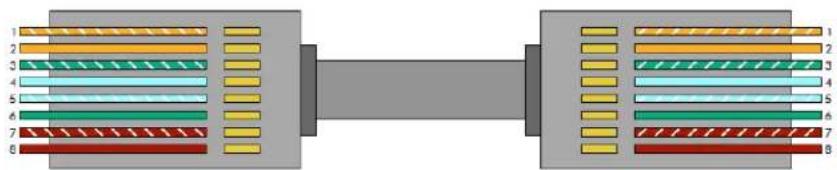
Use a straight cable to connect to a router or network.

Use a crossover cable to connect directly to a computer.
TCP/IP Set Up
First Step: Configuring IP

Go to the Network Connections folder and right click on the connection you would like to edit. Select Properties.
Find Internet Protocol in your list. There will be either Version 4 or 6, if there are both protocols choose Version 4. Once highlighted click on the properties buttons below the list box.

Once the window comes up enter in the IP address, subnet mask, default gateway, preferred DNS server and alternate DNS server information into each field.
IP address: 192.168.0.80
Subnet mask: 255.255.255.0
Default gateway: 192.168.0.1
Preferred DNS server: 202.96.134.133
Alternate DNS server: 202.96.128.68
Note: Port 80 is a placeholder, if the network already has a .80 it can be changed to one that isn't in use.
Second Step: Adding the Matrix to a network
To change the IP of the Matrix (normally 192.168.0.178) type the matrix IP address into Internet Explorer's address bar. A log in screen should appear.
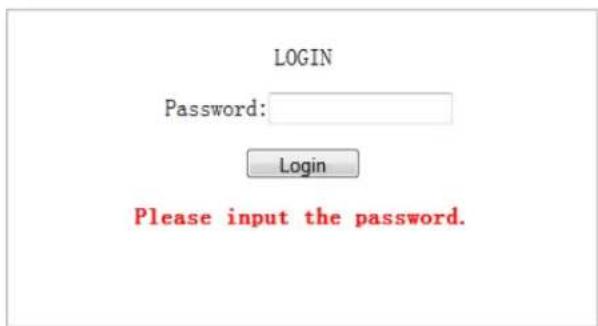
The password is 88888. You must press the Login button. Pressing enter will cause it to return with a failed password page.

Select the "system info" or "change password" buttons to change the information for the matrix.
Once the system info button is selected it will switch to the Network page. To add this to a network, change the "0" in the IP, Gateway, and DNS server to "1". Press the apply button at the bottom of the page, then the reset device button in the top button menu.
Change the IP on the computer from 192.168.0.80 to 192.168.1.80 then type the 192.168.1.178 into the address bar. If successful the log in page will display again.

Third Step: Using the TCP/IP software

Download the newest software for control off the web page for the AT-HDDVI1616-AM. Unzip the file. An Atlona icon (like pictured to the left) should appear. Double click the file to open up the control software.
The software should automatically detect the 16x16 Matrix, if you have more than one HD Matrix from Atlona, use the drop down menu to select AT-HDDVI1616-AM. Once selected, press either Enter to go to the control interface or Password Setup to change/add a password for control of the matrix.


Once in the control interface there, click the TCP/IP button on the top of the window. Enter in the IP: 192.168.0.178 (192.168.1.178 if changed) and port 4001, if it has not already been auto-generated. If done correctly then a pop up window will display saying "connect success!".
Note: Both Mreset and All+Through will mirror the inputs and outputs of the AT-HDDVI1616-AM.
RS-232
Connection
RS-232 is connected through a 9-pin female D connector. The pins will have functions associated with them, some will be unassigned.

Baud Rate: 9600bps
Data Bit: 8bits
Parity: None
Stop Bit: 1bit
Command
The command codes are very sensitive, do not change capitalization, spacing, or lettering.
| System Command Feedback Function | ||
| Type (Model #) | Brings up the model | information |
| Lock | Lock | Locks the front panel of the Matrix switcher |
| Unlock | Unlock | Unlocks the front panel of the Matrix switcher |
| Version | (Firmware #) | Brings up the firmware version |
Each command or feedback is terminated with a carriage return.
Note: If the command fails or is incorrect the feedback should be "Command FAILED"
| Command | Feedback | Description |
| PWON | PWON | Turns power on |
| PWOFF | PWOFF | Turns power off |
| Statusx1 | x1AVx2 | Shows what input is connected to selected output |
| Status | x1AVx1, x2AVx2,x3AVx4, .... | Displays which inputs are currently connected to which outputs |
| Save[Y] | Save2 | Saves settings for future use, saves vary from 0 to 9 |
| Recall[Y] | Recall2 | Pulls up saved settings for the number you selected |
| Clear[Y] | Clear2 | Erases the save for the number you selected |
| EDIDMx1AVx2 | EDIDMx1AVx2 | Copies the EDID from output (x1) to Input (x2)(output 3 to input 7 = EDIDMx3AVx2) |
| EDIDMInit | EDIDMInit | Resets EDID to factory settings |
| Undo | Undo | Cancels the previous command |
| Command Feedback Description | ||
| x1All x1All Sets selected | input to all outputs | (x3All would set input 3 to all) |
| x1# x1# Sets input to corresponding output | (x4# would set input 4 to output 4) | |
| All# All# Resets all inputs | to corresponding outputs | (input 3 to output 3, input 4 to output 4, etc...) |
| x1x1 Turns off output channel | (to turn off output 3 = x3) | |
| All All$ Turns off all output channels | ||
| x1Ax2 x1Ax2 Sets audio input to selected output | (x3Ax4 = input 3 audio to output 4) | |
| x1Ax2,x3,x4 x1Ax2,x3,x4 | Sets audio input to multiple outputs(x2Ax1,x3,x5 = input 2 audio to output 1, 3, and 5) | |
| x1Vx2 x1Vx2 Sets video input to selected output | (x1Vx5 = input 1 video to output 5) | |
| x1Vx2,x3,x4 x1Vx2,x3,x4 | Sets video input to multiple outputs(x4Vx1,x5,x9,x12 = input 4 video to outputs 1, 5, 9, and 12) | |
| x1AVx2 | x1AVx2 | Switch input to output(input 3 to output 5 = x3AVx5) |
| x1AVx2,x3,x4 | x1AVx2,x3,x4 | Switch input to multiple outputs(input 3 = x3AVx1,x2) |
EDID (Extended Display Identification Data)
EDID is the standard compatibility signal passed between most sources and video displays. It allows the devices to make sure they support the same resolutions and timing.
The AT-HDDVI1616-AM has two EDID settings: default and learning. Default saves the settings of 1920x1200 resolution and 2 channel audio to all outputs. The learning setting will allow for the copying of an output's EDID to specific inputs.
Set Up
EDID can be set up in two ways: RS-232 and the front panel.
To set up EDID through the front panel hold the <-- button for 10 seconds. Once in EDID mode to set the matrix to default press "1". To use Learning mode and set individual EDIDs press "2", the output number to copy, Enter, the input number to save to, and then press Enter again. Repeat the learning process for all inputs until the EDID is set up as needed.
To set up EDID through RS-232 follow the steps for RS-232 set up then use the command EDIDMx1AVx2. The x1 and x2 are place holders for output and input. If saving output 5 to input 3 the command would be EDIDMx5AVx3. Repeat until all inputs are set up.
Default
Default is used for when all displays support 1920x1200. If a display does not support this resolution then it will show only a black screen. (i.e. Output5 having the native resolution of 1280x720 would cause it to show only a black screen in default)
![graph LR A["ATLONA"] -->|Input 2| B["1920x1200"] A -->|Input 4| C["1920x1280"] A -->|Output 5| D["1280x720"] A -->|Output 8| E["1280x720"] A -->|Output 11| F["1920x1200"] A --> G["1920x1200"] H["Camera"] --> A I["Video"] --> A J["Audio"] --> A K["Audio"] --> A L["Display"] --> A M["Computer"] --> A…](/content/2026/06/1229698/images/69376427602dca54cda7aad887ccbcc73a0cfef0f38cf6af882b670c3b5cf957.jpg)
Learning
Learning EDID allows for the resolution and audio formats of a display to be saved to an input source. Once this setting is saved it will only output that resolution and audio, which will cause a black screen to display on any output that does not support the same settings.
In the above diagram, output5 can be saved to all 3 inputs allowing all three outputs to use the devices at 1280x720 (most displays have multiple resolution capabilities. Outputs 2 & 11 however can only be saved to inputs 2 & 4 as their native resolutions are 1920x1200 and input 8 is incapable of producing that resolution without a scaler.
Audio (Balanced and Unbalanced)
The AT-HDDVI1616-AM uses captive screw connectors for audio. Captive screw uses two types of audio: balanced and unbalanced. To be sure which to use refer to the manual for the connected device.
There are 3 connection possibilities, 2 unbalanced and 1 balanced (see picture below). When used, a balanced input can only output balanced audio and an unbalanced input can only output unbalanced audio but either unbalanced connection can be used.

Connections
![graph TD A["Projectors"] --> B["AT-PA100"] C["Cameras"] --> D["Laptops"] E["PCs"] --> F["Laptops"] G["Video Inputs"] --> H["AT-HD610"] H --> I["HDTVPCs"] J["Video Outputs"] --> K["AT-HD610"] K --> L["Laptops"] M["PC w/RS-232 and TCP/IP"] --> N["AuctionHDD"] O["Video Inputs"] --> P["Laptops"] Q["Vide…](/content/2026/06/1229698/images/6ca1c61e07dc5563e946ae6e68f403a17431ae7325dc4101cd5e6c829be6e7e1.jpg)
Safety Information
Safeguards

To reduce the risk of electric shock, do not expose this product to rain or moisture

If the wall plug does not fit into your local power socket, hire an electrician to replace your obsolete socket.

Do not modify the wall plug. Doing so will void the warranty and safety features.

This equipment should be installed near the socket outlet and the device should be easily accessible in the case it requires disconnection.
Precautions
FCC regulations state that any unauthorized changes or modifications to this equipment, not expressly approved by the manufacturer, could void the user's authority to operate this equipment.
Operate this product using only the included external power supply. Use of other power supplies could impair performance, damage the product, or cause fires.
In the event of an electrostatic discharge this device may automatically turn off. If this occurs, unplug the device and plug it back in.
Protect and route power cords so they will not be stepped on or pinched by anything placed on or against them. Be especially careful of plug-ins or cord exit points from this product.
Avoid excessive humidity, sudden temperature changes or temperature extremes.
Keep this product away from wet locations such as bathtubs, sinks, laundries, wet basements, fish tanks, and swimming pools.
Use only accessories recommended by Atlona to avoid fire, shock, or other hazards.
Unplug the product before cleaning. Use a damp cloth for cleaning and not cleaning fluid or aerosols. Such products could enter the unit and cause damage, fire, or electric shock. Some substances may also mar the finish of the product.
Never open, remove unit panels, or make any adjustments not described in this manual. Attempting to do so could expose you to dangerous electrical shock or other hazards. It may also cause damage to your AT-HDDVI1616-AM. Opening the product will void the warranty.
Do not attempt to service the unit. Disconnect the product and contact your authorized Atlona reseller or contact Atlona directly.
Warranty
Limited Warranty
Atlona Technologies warrants that (a) its products (AT-HDDVI1616-AM) will perform substantially in accordance with the accompanying written materials for a period of 3 years from the date of receipt and (b) that the product will be free from defects in materials and workmanship under normal use and service for a period of 3 years. In the event applicable law imposes any implied warranties, the implied warranty period is limited to 3 years from the date of receipt. Some jurisdictions do not allow such limitations on duration of an implied warranty, so the above limitation may not apply to customers that fall within those areas.
Customer Remedies
Atlona Technologies' and its suppliers' entire liability and Customer's exclusive remedy shall be, at Atlona Technologies' decision, either return of the price paid for the product, repair, or replacement of the product that does not meet this Limited Warranty and which is returned to Atlona Technologies with a copy of the Customer's receipt. This Limited Warranty is void if failure of the product has resulted from accident, abuse, misapplication, or natural occurrence. In example but not limited to: power surges (electrical storms, local power outage), dropping the product (or items on the product), contact with fluids, and physical misconduct (i.e. kicking or punching). Any replacement product will be warranted for the remainder of the original warranty period.
No other warranties
To the maximum extent permitted by applicable law, Atlona Technologies and its suppliers disclaim all other warranties, either expressed or implied, including, but not limited to, implied warranties of merchantability and fitness for a particular purpose, with regard to the product and any related written materials. This Limited Warranty gives customer specific legal rights. Customers may have other rights depending on the jurisdiction.
No liability for damages
To the maximum extent permitted by applicable law, in no event shall Atlona Technologies or its suppliers be liable for any damages arising out of the use of or inability to use this product, even if Atlona Technologies has been advised of the possibility of such damages. Such damages include but are not limited to: special, incidental, consequential, or indirect damages for personal injury, loss of business profits, business interruption, loss of business information, or any other pecuniary loss. Atlona Technologies' and its suppliers' entire liability under any provision of this agreement shall be limited to the amount actually paid by you for the product. Some Jurisdictions do not allow the exclusion or limitation of liability for consequential or incidental damage. The above limitations may not apply to you in such jurisdictional cases.
Atlona Product Registration
Thank you for purchasing this Atlona product. - We hope you enjoy it and will take an extra few moments to register your new purchase.
Registration creates an ownership record if your product is lost or stolen and helps ensure you'll receive notification of performance issues and firmware updates.
At Atlona, we respect and protect your privacy, assuring you that your registration information is completely secure. Atlona product registration is completely voluntary and failure to register will not diminish your limited warranty rights.
To register go to: http://www.atlona.com/registration



- ATLONA 16 BY 16 DVI AND AUDIO MATRIX SWITCHER
- TABLE OF CONTENTS
- INTRODUCTION
- PACKAGE CONTENTS
- FEATURES
- SPECIFICATIONS
- PANEL DESCRIPTION
- PANEL CONTROL
- INPUT SELECTION
- MENU SELECTION
- OUTPUT SELECTION
- NOTE
- TCP/IP
- TCP/IP SET UP
- RS-232
- CONNECTION
- COMMAND
- EDID (EXTENDED DISPLAY IDENTIFICATION DATA)
- SET UP
- DEFAULT
- LEARNING
- AUDIO (BALANCED AND UNBALANCED)
- SAFETY INFORMATION
- SAFEGUARDS
- PRECAUTIONS
- WARRANTY
- LIMITED WARRANTY
- CUSTOMER REMEDIES
- NO OTHER WARRANTIES
- NO LIABILITY FOR DAMAGES
- ATLONA PRODUCT REGISTRATION
Brand : Atlona
Model : AT-HDDVI1616-AM
Category : HDMI switch