
ADDERView Secure AVS 2214 - KVM Switch Adder - Free user manual and instructions
Find the device manual for free ADDERView Secure AVS 2214 Adder in PDF.


| Product Type | Secure Dual-Head KVM Switch |
| Model | ADDERView Secure AVS 2214 |
| Number of Computer Ports | 4 (dual video each) |
| Video Inputs | 8x DVI-D (dual-link single-link up to 1920x1200 @ 60Hz) |
| Console Video Outputs | 2x DVI-D (supports dual-head display) |
| Video Resolution | Up to 1920 x 1200 @ 60 Hz |
| Console USB | 2x USB Type A (for keyboard and mouse) |
| Console Audio | 3.5mm stereo output |
| Computer Connections | 8x DVI-D, 4x USB Type B, 4x Audio 3.5mm |
| Remote Control | RJ12 socket for optional RCU or splitter |
| Dimensions (W x H x D) | 13.54" x 2.4" x 6.3" (344 x 61 x 160 mm) |
| Weight | 2.0 kg (4.41 lbs) |
| Power Supply | 100-240V AC, 47/63 Hz, 12V DC 18W adapter with locking plug |
| Approvals | CE, FCC Class A, TUV US & Canada, NIAP PP 4.0 compliant |
| Security Features | Uni-directional data paths, no shared memory, anti-tamper holographic labels, firmware in ROM, self-test on power-up |
| Switching Modes | Front panel buttons, optional remote control, Free-Flow (mouse edge switching), hotkeys |
| Free-Flow / KM Mode | Automatic channel switching by moving mouse across screen edges (requires absolute mouse mode) |
| Configuration | Terminal mode via admin login, custom channel names and security level tags |
| Channel Indicators | Programmable colors (10 options) per channel button |
| Front Panel Display | E-paper display showing channel number, name, audio hold, security classification |
| Audio Hold | Dedicated button to lock audio to one channel while switching others |
| Guard Mode | Requires holding Left Ctrl when using Free-Flow to prevent accidental switching (configurable) |
| Tamper-Evident Labels | Holographic labels on enclosure to detect intrusion; inspect before use |
| Operating Temperature | 32°F to 104°F (0°C to 40°C) |
| Storage Temperature | -4°F to 140°F (-20°C to 60°C) |
| Humidity | 0-80% RH, non-condensing |
Frequently Asked Questions - ADDERView Secure AVS 2214 Adder
User questions about ADDERView Secure AVS 2214 Adder
0 question about this device. Answer the ones you know or ask your own.
Ask a new question about this device
Download the instructions for your KVM Switch in PDF format for free! Find your manual ADDERView Secure AVS 2214 - Adder and take your electronic device back in hand. On this page are published all the documents necessary for the use of your device. ADDERView Secure AVS 2214 by Adder.
USER MANUAL ADDERView Secure AVS 2214 Adder
ADDERView™ Secure (AVS 2114, 2214, 4114, 4214)
User Guide

Experts in Connectivity Solutions

KVM Switching Solutions
Contents
Introduction
Welcome....2
Free-Flow 2
Features 2
Tamper-evident labels....3
Technical specifications 4
Supplied items 5
Optional extras....6
Installation
Connections 7
Computer connections....8
Console connections....9
Remote control unit connection....10
Remote control splitter connection....10
Power connection....10
Configuration
Terminal mode....11
Creating a new admin account....12
Changing an admin account password....12
Changing channel button indicator colors....12
Performing a factory reset....13
Changing the hotkeys....13
Channel names and security levels....13
Operation
Switching between channels....14
Free-Flow 14
Guard mode 14
KM Configuration....15
Audio hold 15
Status display 15
Remote control unit 15
Error indications....15
Further information
Getting assistance ....16
Appendix A - Terminal mode configuration....17
Appendix B - Hotkey commands 20
Index

Introduction
WELCOME
Thank you for choosing a ADDERView™ AVS secure switch for sharing single or dual head video, USB keyboard and mouse, plus analog audio between four computers spanning multiple security classification levels. Separate models are available which support single video displays for each channel or dual video displays throughout. In each case you have a choice of either DVI or DisplayPort video operation.
The secure switch can be used in two main configurations depending on the requirements of the installation:

flowchart
graph TD
    A["Device 1"] --> B["Server"]
    C["Device 2"] --> B
    D["Device 3"] --> B
    E["Device 4"] --> B
    B --> F["Server Interface"]
    style A fill:#f9f,stroke:#333
    style C fill:#f9f,stroke:#333
    style D fill:#f9f,stroke:#333
    style E fill:#f9f,stroke:#333
    style B fill:#ccf,stroke:#333
    style F fill:#cff,stroke:#333
KM configuration
The user console consists of keyboard, mouse and speakers. The video displays are arranged in a default 2x2 grid and are all connected directly to their respective computers. The operator can view all of the channel outputs simultaneously. This arrangement requires the Free-Flow feature (see page 15) to be used to allow automatic switching of the console between channels.
KVM configuration
The user console consists of keyboard, mouse, speakers and also video display(s), which are all connected to the secure switch. The common video display(s) show the output of the currently active channel.

Free-Flow
To remove the need to press channel buttons when switching, you can use the Free-Flow feature instead (see page 14). When enabled, you may switch channels by moving the mouse across monitor edges according to the video layout. The front panel displays the currently selected channel number.

flowchart
graph TD
    A["1"] --> B["2"]
    C["3"] --> D["4"]
Features
- Uni-directional keyboard, video, mouse and audio data paths prevent any potential information leakage through shared peripherals.
- No shared memory between channels: The keyboard and mouse processor is powered down and reset at each switchover to thwart shared data leakages.
- Automatic switching between channels (configurable Free-Flow mode) without the need to press any buttons. Simply move the mouse between windows.
- Clear channel identification to reduce the chances of operator error by displaying a user defined name and security classification for each channel on the status display. The color of the channel indicators may also be configured to reflect the security classification.
- Hardware anti-tampering: Holographic anti-tampering labels protect the product's enclosure, providing a clear visual indication if it has been opened or compromised.
- Restricted USB function: The USB ports will only accept HID (Human Interface Devices), such as keyboards and mice.
- There is no access to the product's firmware or memory through any port. Firmware is permanently stored in non-reprogrammable Read Only Memory (ROM) to prevent modification. Firmware integrity is verified through a self-test procedure during power up. Detection of a critical failure disables the device and provides a clear visual indication to the user.
Safety
Please refer to the safety booklet provided in the box before use of this product.

TAMPER-EVIDENT LABELS
The secure switch models and also the smart card reader use holographic tamper evident labels to provide visual indications in case of an enclosure intrusion attempt. When opening product packaging inspect the tampering evident labels.

natural_image
Close-up of a black electronic device with a metallic label and green logo, no readable text or symbols on the device itself.Example of a holographic tamper evident label
If for any reason one or more tamper-evident label is missing, appears disrupted, or looks different than the example shown here, please call Technical Support and avoid using that product.

TECHNICAL SPECIFICATIONS
Approvals / Compliance
CE, FCC class A, TUV US & Canada
NIAP PP 4.0 Compliant Design for Peripheral Sharing Devices (PSD)
Video resolutions
AVS-2114 and AVS-2214: Supports 1920 x 1200 @ 60 Hz.
AVS-4114 and AVS-4214: Supports 3840 x 2160 @ 60 Hz.
Software compatibility
Windows, Linux, Mac host computer OS's
USB HID, including touchscreens compliant with Microsoft® Digitizer.
Console connections
DVI-D (AVS-2114, AVS-2214) or DisplayPort/HDMI (AVS-4114, AVS-4214),
USB type A
Audio (3.5mm)
RJ12 for remote control
Computer connections
Single-head AVS-2114: 4x DVI-D, USB type B, Audio 3.5mm
AVS-4114: 4x DisplayPort/HDMI, USB type B, Audio 3.5mm
Dual-head AVS-2214: 8x DVI-D, USB type B, Audio 3.5mm
AVS-4214: 8x DisplayPort/HDMI USB type B, Audio 3.5mm
Front panel
Audio hold button and status LED
4x Channel selection button and status LED
E-paper for status display (212 × 104)
Physical design
Robust metal construction
Single-head (AVS-2114 or AVS-4114):
13.54"/344mm(w), 1.73"/44mm(h), 6.3"/160mm(d) 1.6kg/3.53lbs
Dual-head (AVS-2214 or AVS-4214):
13.54"/344mm(w), 2.4"/61mm(h), 6.3"/160mm(d) 2.0kg/4.41lbs
Power supply
100 - 240V AC, 47/63Hz
12V DC 18W output from power supply unit
Environmental
Operating temp: 32°F to 104°F (0°C to 40°C)
Storage temp: -4°F to 140°F (-20°C to 60°C)
Humidity: 0-80% RH, non-condensing

SUPPLIED ITEMS

Power adapter with universal mains plug

OPTIONAL EXTRAS


natural_image
Illustration of a remote control device with a coiled cable and connector (no text or symbols)Remote control unit (RCU) Part number: AS-4RCU

natural_image
Illustration of a 4-port smart card reader device with cable cord (no text or symbols on the device itself)
RCU splitter plus 2x 1.0m link cables
Part number: AS-RCUSPLR

19" rack-mount kit
Part number: RMK13


Single link DVI-D to DVI-D video cable 2m
Part number: VSCD1
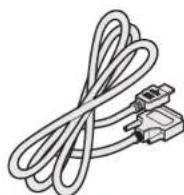
HDMI to DVI-D video cable 2m
Part number: VSCDII

DisplayPort to DisplayPort video link cable
Port number: VSCD17
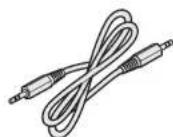
Audio cable 2m (3.5mm stereo jacks)
Part number: VSC22

USB cable 2m (type A to B)
Part number: VSC24
Installation
CONNECTIONS
All connections are made at the rear panel. Use only approved shielded cables, particularly for the video connections. Ensure that all connections are made before applying power.
AVS 2114
Single DVI video connections
AVS 2214
Dual DVI video connections
AVS 4114
Single DisplayPort/HDMI
video connections
AVS 4214
Dual DisplayPort/HDMI
video connections





Computer connections
The secure switch has four computer ports, each of which consists of: one (AVS 2114/4114) or two (AVS 2214/4214) video links, a USB link and an audio connection.
AVS 2114 and 2214 units support single Link DVI video resolutions up to 1920 x 1200 @ 60Hz.
AVS 4114 and 4214 units support DisplayPort or HDMI video resolutions up to 3840 x 2160 @ 60 Hz.

The green indicator associated with each console port should be ON to signify correct communications with the peripheral device. The video indicator will flash on power up whilst the switch is reading the EDID from the display. As a security measure, once the video indicator is ON the switch will not read the EDID again unless the switch is power cycled.
Note: If dual link cables are connected together with a monitor capable of a higher resolution than 1920x1200, then the computer graphics card may auto-select a higher resolution, which may result in video artefacts.
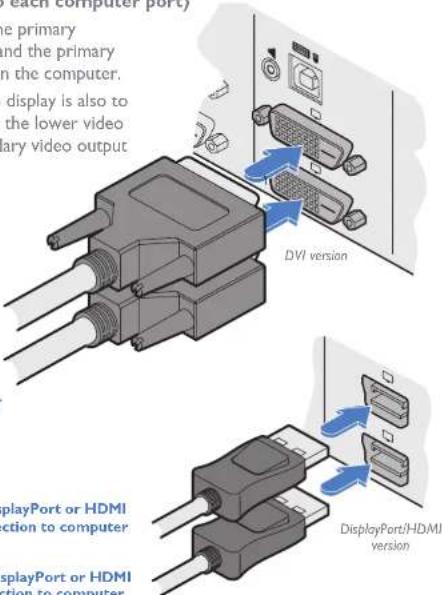
To make connections (to each computer port)
1 Attach a cable between the primary (upper) video connector and the primary video output connector on the computer.
2 Where a secondary video display is also to be used, repeat step I for the lower video connector and the secondary video output on the computer.
Primary DVI video connection to computer
Secondary DVI video connection to computer
Primary DisplayPort or HDMI video connection to computer
Secondary DisplayPort or HDMI video connection to computer
3 Insert one of the supplied USB (type A to type B) cables between the USB socket and a vacant USB port on the computer.

4 Insert one of the supplied 3.5mm audio cables between the audio input socket and the speaker output on the computer.

Console connections
The video display(s), keyboard, mouse and speakers are attached to the various connectors on the rear panel that constitute the console port.
AVS 2114 and 2214 units support single Link DVI video resolutions up to 1920 x 1200 @ 60Hz.
AVS 4114 and 4214 units support DisplayPort or HDMI video resolutions up to 3840 x 2160 @ 60 Hz.

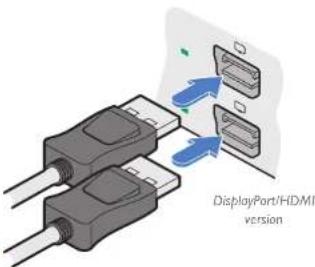
To make console connections
I Attach the primary video display to the upper video connector.
2 Where a secondary video display is also to be used, repeat step 1 for the lower video connector.
DVI connection to primary video display
DVI connection to secondary video display
DisplayPort or HDMI connection to primary video display
DisplayPort or HDMI connection to secondary video display

3 Connect the USB leads from the console mouse and keyboard to the two sockets on the rear panel.

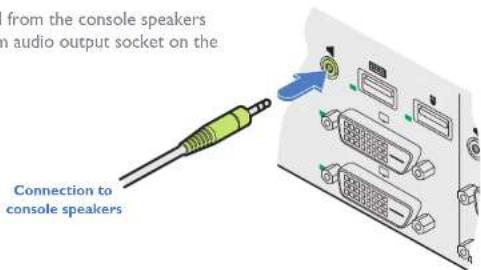
4 Insert the lead from the console speakers into the 3.5mm audio output socket on the rear panel.
Remote control unit connection
The optional remote control unit allows the operator to change channels when the secure switch unit is not within reach.
To connect the remote control unit
I Insert the plug from the remote control unit cable into the RCU socket on left side of the rear panel.

Remote control splitter connection
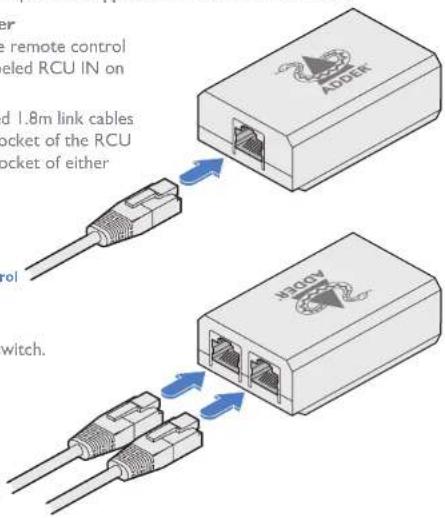
The optional RCU splitter unit allows you to control two switches in unison using just one remote control. The RCU splitter is supplied with two 1.8m link cables.
To connect an RCU splitter
I Connect the cable from the remote control unit to the single socket labeled RCU IN on the splitter.
2 Connect one of the supplied 1.8m link cables between the OUT 1 or 2 socket of the RCU splitter unit and the RCU socket of either switch.
From remote control
3 Repeat step for the other switch.
To the RCU sockets on the rear panels of the switches
Power connection
IMPORTANT: Ensure that the video displays connected to the secure switch are powered on before applying power to the secure switch itself.
The supplied power adapter uses a locking-type plug to help prevent accidental disconnection from the secure switch; please follow the instructions below when disconnecting the power adapter.
To connect the power adapter
1 Attach the output plug of the supplied power adapter to the power input socket on the left side of the rear panel. As you insert the plug, pull back slightly on the outer body to assist the locking mechanism until the plug is fully inserted.

From the power adapter
2 Attach the appropriate country-specific plug to the power adapter body and insert it into a nearby mains outlet.
To disconnect the power adapter
I Isolate the power adapter from the mains supply.
2 Grasp the outer body of the power adapter plug where it connects with the node.
3 Gently pull the body of the outer plug away from the node. As the body of the plug slides back, it will release from the socket and you can fully withdraw the whole plug.

Gently pull back the plug outer body to release the lock
IMPORTANT: Please read and adhere to the electrical safety information given within the supplied safety guide. In particular, do not use an unearthed power socket or extension cable.
Configuration
The secure switch has an internal Terminal Mode, which requires you to run a text editor application (such as Windows Notepad, Word, etc.) on the computer that is connected to channel I. As you type commands on the console keyboard, the secure switch will use the text editor application to communicate with you.
Note: Always use the number buttons above the letters (not the numeric keypad). Terminal Mode assumes use of a US keyboard.
Note: After three failed login attempts, terminal mode will be locked. Cycle the device power and try again.
To enter Terminal Mode
I Switch to computer I and ensure that a text editor application (such as Windows Notepad, Word, etc.) is running and that the cursor is active within it.
2 On the console keyboard, enter the following in succession:
- Left Ctrl then Right Ctrl then t (upper or lower case is accepted)
Within the text editor application, the secure switch will respond with: secure switch configuration, please enter admin name
3 Type the default admin name: admin1234 (or an alternative if it has been changed) and press Enter. If correct, the secure switch will respond with:
[sc]please enter the password...
4 Type the default password: Adder123% and press Enter.
- IMPORTANT: On first access, you will be required to change the default password.
If the password is correct, the secure switch will now list the top level options:
authentication succeeded. please select operation...
0 - asset management
I - firmware versions
3 - configure sc (system controller)
4 - account management
5 - reset to factory defaults
6 - logs and events
7 - configure peripheral devices
8 - exit terminal mode
9 - power cycle the kvm
5 On the console keyboard, enter the number of the required option. See map right >
To exit terminal mode
• To exit from the menu but still remain logged in: Press option 8 at the top level.
• To log out completely from the menu: Press option 9 at the top level. System will reboot.
Terminal mode map
This map shows the top level options (0 to 9) and the second level options within each - certain options also have third level menu items. Note: Every sub-level group also includes the options: 8 - back (to return to the top level menu) and also 9 - exit terminal mode.
0 – asset management......see page 17
I – use standard descriptor as asset container
2 - use custom descriptor as asset container
3 - enter new asset tag
4 - show current asset tag
5 - apply asset tag to de
I – firmware versions......see page 17
I - de version
2 - sc version
3 - vc version
4 - dpp version (not used on these models)
5 - fp version
3 - configure sc......see page 17
I - enter desktop configuration (not used on these models)
2 - enter mouse speed [0-32][default=5]
3 - upload configuration from the host
4 - use ctrl key as shortcut prefix
5 - use alt key as shortcut prefix
6 - guard mode configuration
7 - fp configuration
4 - account management......see page 18
I - change password
2 - create admin account
3 – delete all accounts
5 - reset to factory defaults (see important note below)......see page 13
6 - logs and events......see page 18
I - show otp log
2 - show critical ram log
3 - show non-critical ram log
7 - configure peripheral devices ....see page 19
I – toggle touch screen support
2 - toggle consumer control support
3 - configure absolute mouse support
5 – toggle video follow mouse
8 - exit terminal mode
9 - power cycle the kvm
tant: choosing option 5 will reset to defaults without asking for confirmation.
Creating a new admin account
Each switch can have up to nine admin accounts in addition to the default account. You can create a new admin account at any time.
To create a new admin account
I Enter terminal mode (see page 11).
2 Choose option 4 - account management.
3 Choose option 2 - create admin account.
4 Enter a username for your new admin account and press Enter. Note: Admin usernames must be 5 to 11 characters and must contain a mix of upper and lowercase characters plus one or more numbers.
5 Repeat the new admin account username and press Enter.
6 Enter a password for the new account. Note: Passwords must be 8 to 15 characters in length and must contain a mix of at least one each of the following: Uppercase letters, lowercase letters, digits 0 to 9 and any of these special characters: "@#\$%^&*()-_
7 Repeat the password and press Enter.
If the two passwords match you will be returned to the top level menu.
8 Once you are finished with terminal mode, don't forget to log out completely by choosing option 9 from the top level menu.
To delete all accounts
I Enter terminal mode (see page 11).
2 Choose option 4 - account management.
3 Choose option 3 - delete all accounts. All accounts except the default admin account will be removed, without asking for confirmation.
Changing an admin account password
You can change the password for any admin account by first logging in to the account you wish to change.
To change the access password
I Log in to the admin account that you wish to change and enter terminal mode (see page 11).
2 Choose option 4 - account management.
3 Choose option I - change password.
4 Enter a new password for the chosen admin account and press Enter. Note: Passwords must be 8 to 15 characters in length and must contain a mix of at least one each of the following: Uppercase letters, lowercase letters, digits 0 to 9 and any of these special characters: "@#\$%^&*()-"
5 Repeat the new password and press Enter.
If the two passwords match you will be returned to the top level menu.
6 Once you are finished with terminal mode, don't forget to log out completely by choosing option 9 from the top level menu.
Changing channel button indicator colors
On the front panel there is a numbered button for each channel. To assist with visual feedback for the operator you can change the highlight color for each button that will be shown as each channel is selected.
To change the button indicator colors
I Enter terminal mode (see page 11).
2 Choose option 3 - configure sc.
3 Choose option 7 - fp configuration.
4 Choose option 2 - select colors for channels.
5 Type the number of the channel whose color you wish to change. The secure switch will list all of the color options for your chosen channel indicator:
• r - red
o-orange
• y - yellow
• w - white
• m - mint
- g - green
• c - cyan
• b - blue
- p - purple
• t - magenta
Note: The chosen channel
colors will also be shown
on the optional remote
control, when used.
6 Type the letter representing the required color. The selected color will be applied to the channel.
7 Choose option 8 to go up one menu level. Then:
- To change another indicator, choose option 7 and repeat steps 4 to 6 above.
• To return to the top menu level, choose option 8 again. - Once you are finished with terminal mode, don't forget to log out completely by choosing option 9 from the top level menu.

Performing a factory reset
A factory reset will return most configuration options to their default settings. The default admin account will not be affected and neither will the contents of any logs.
To perform a factory reset
I Enter terminal mode (see page 11).
2 Choose option 5 - reset to factory defaults.
The secure switch will immediately perform the reset operation and return to normal operation.
- You can also initiate a factory reset using Left Ctrl then Left Ctrl then F11 then r at any time.
Changing the hotkeys
Certain operations on the secure switch, such as entering terminal mode, changing between mouse modes, etc, require you to press certain key combinations, known as hotkeys. By default, the left and right Ctrl keys are used, however, these can be changed to the left and right Alt keys, if required.
To change the hotkeys
I Enter terminal mode (see page 11).
2 Choose option 3 - configure sc.
3 Choose the required option:
• 4 - use ctrl key as shortcut prefix, or
- 5 - use alt key as shortcut prefix.
The chosen hotkey (short cut prefix) will be confirmed within the on screen text editor and the menu will return to the previous level.
4 Then:
• To return to the top menu level, choose option 8.
- Once you are finished with terminal mode, don't forget to log out completely by choosing option 9 from the top level menu.
Channel names and security levels
The front panel display screen clearly shows the currently selected channel number (and audio channel) source(s). In addition, you can optionally choose to show a channel name and/or standard security level tag:
CH: 1 ATUM
AUDIO: 1
TSECRET
Channel name
Security level tag
To enter/edit a channel name
I Enter terminal mode (see page 11).
2 Choose option 3 - configure sc.
3 Choose option 7 - fp configuration.
4 Choose option 5 - enter channel names and security information.
5 Choose option 2 - update channel name.
6 Select a channel number (1 to 4).
7 Enter the required channel name (up to 8 characters) and press enter. Note: To delete an existing channel name, delete all characters and press enter.
8 Press Esc to go up one menu level. Then:
• To return to the top menu level, choose option 8 again.
- Once you are finished with terminal mode, don't forget to log out completely by choosing option 9 from the top level menu.
To choose a security level tag
I Follow steps 1 to 4 shown above.
2 Choose option 3 - update channel security.
3 Select a channel number (1 to 4).
4 Select the security level tag for the chosen channel:
key screen text meaning
| 0 | [blank] | Leaves the security field blank (default) |
| 1 | UNCLASS | Unclassified |
| 2 | FOUO | For Official Use Only |
| 3 | CONF | Confidential |
| 4 | SECRET | Secret |
| 5 | TSECRET | Top Secret |
| 6 | TS SCI | Top Secret SCI |
5 Press Esc, then choose option 8 to go up one menu level. Then:
• To return to the top menu level, choose option 8 again.
- Once you are finished with terminal mode, don't forget to log out completely by choosing option 9 from the top level menu.

Operation
SWITCHING BETWEEN CHANNELS
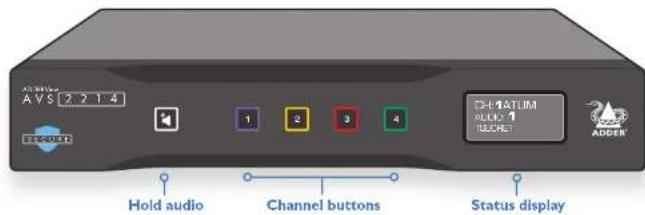
- Press the required channel button on the front panel:
- When using the optional remote control unit (AS-4RCU), select the required channel from there:

- Use the Free-Flow feature to automatically switch channels as your mouse pointer crosses a video display boundary.

flowchart
graph TD
    A["1"] --> B["2"]
    C["3"] --> D["4"]
    style A fill:#f9f,stroke:#333
    style B fill:#ccf,stroke:#333
    style C fill:#cfc,stroke:#333
    style D fill:#fcc,stroke:#333
Free-Flow
Adder Free-Flow allows you to automatically switch between target computers by moving the mouse across the edge of the screen. This is most often used when separate video displays are all connected directly to the computers; with only the keyboard, mouse and audio being switched (also known as KM mode). With the multiple video displays arranged in a grid, you can clearly see which display you are working on and the direction in which you need to move the mouse in order to select the next.
The default display layout is 2x2, however, this may be changed to 4x1 by pressing: Left Ctrl then Left Ctrl then F11 then F2.
To revert to 2x2 layout mode, use FI at the end instead.
Notes:
- When used with dual head displays connected to computers running older versions of Windows, it may require looping through the displays twice to effect a switch. The problem may be resolved by installing the Dual Monitor driver available from Adder.com
• Free-flow works for both single and dual head displays. - Upon switching, the operator is advised to check the front panel display to confirm the currently selected channel.
- The Free-Flow feature is disabled by default and a factory reset will return it to a disabled state.
This feature requires the mouse to be used in absolute mode so that the switch can determine its exact position on each video display, rather than the default relative mode. Note: Older versions of Linux do not support Absolute mode, so cannot be used with Free-Flow.
To enable Free-Flow
- Select absolute mouse mode: Press Left Ctrl then Left Ctrl then F11 then c
To disable Free-Flow
- Select relative mouse mode: Press Left Ctrl then Left Ctrl then F11 then b Note: Free-Flow mode can also be enabled/disabled from terminal mode. Ensure that 'video follow mouse' mode is enabled, otherwise only the USB and audio will switch. See page 19.
Guard mode
Once Free-Flow is enabled, whenever you wish to switch to another computer, simply hold down the Left Ctrl key on the console keyboard as you move the mouse pointer from the boundary of one screen towards that of the next. The channel should change as the pointer crosses the boundary. The necessity to hold down the Left Ctrl key is called Guard Mode and is there to prevent accidental switching. If required, you can disable guard mode, as discussed on page 17. Note: Guard mode is not enabled by default but is configured separately.
AUDIO HOLD
This front panel button (also replicated on the optional remote control unit) allows you to take the audio output from one computer while operating on another.

To use audio hold
I Use any of the switching methods to choose the computer whose audio you wish to hear.
2. Press the Audio Hold button, either on the secure switch front panel or on the optional remote control unit.
3 Switch to the computer that you wish to use.
The audio feed to the speakers (attached to the secure switch) will continue to feed from the initially connected computer.
KM CONFIGURATION
When Free-Flow is enabled (see page 14), it is possible to use the switch in KM Configuration, where the video displays are arranged in a default 2x2 grid and are all connected directly to their respective computers. This allows the operator to view all channel outputs simultaneously. No further configuration is required.

flowchart
graph TD
    A["1"] --> D["Central Device"]
    B["2"] --> D
    C["3"] --> D
    E["4"] --> D
    D --> F["Display 1"]
    D --> G["Display 2"]
    D --> H["Display 3"]
    D --> I["Display 4"]
STATUS DISPLAY
The status display shows the current channel number, channel name (if configured), audio channel and hold status, plus security classification (if configured). It also indicates whether the switch is under remote control.

REMOTE CONTROL UNIT
When a remote control unit is connected, the front panel buttons will have no effect, however, the button indicators will continue to reflect the current channel selection, as determined by button presses on the remote control unit.
Adding and removing an RCU
An RCU may be added or removed at any time:
- Once connected, associate the RCU by pressing any key.
- Once disconnected, power cycle the switch unit.
ERROR INDICATIONS
The secure switch continually runs integrity checks throughout its circuitry. If any unexpected behavior is detected the secure switch will immediately cease operation, lock all ports and provide operator feedback by flashing all of the channel button indicators.
Following an error indication: Remove power from the unit, check all connections and peripheral devices before re-applying power to the secure switch.
Further information
This chapter contains a variety of information, including the following:
• Getting assistance - see right
- Appendix A - Configuration menu items
- Appendix B - Hotkey commands
GETTING ASSISTANCE
If you are still experiencing problems after checking the information contained within this guide, then please refer to the Support section of our website:
www.adder.com

Appendix A - Terminal mode configuration
This section lists the terminal mode options available within the secure switch. For details of how to access terminal mode, see page 11.
Note: Every sub-level group also includes the options: 8 - back (to return to the top level menu) and also 9 - exit terminal mode.
asset management - [option 0 from the top level menu]
These options deal with the USB name (descriptor) that the secure switch uses to identify itself to the connected computers. In order to avoid a standard descriptor being used across numerous computers, serving as a marker for potential attackers, use these options to enter a new custom tag (option 3), set it as the default (option 2) and send it to the attached computers (option 5). Once a descriptor is set, it will be sent to the computers at every power up.
I - use standard descriptor as asset container
Select this option to use the standard descriptor, which was defined during manufacture, when declaring itself to the connected computers.
2 - use custom descriptor as asset container
Select this option to use the asset tag entered using option 3 (below) as the descriptor that is declared to the connected computers.
3 - enter new asset tag
Use this option to enter a custom asset tag for the secure switch, when enabled using option 2 (above), which will then be reported to the connected computers at each power up or by using option 5 (below).
4 – show current asset tag
Select this option to view the custom asset tag that is stored (if any).
5 - apply asset tag to de
Select this option to send either the standard or custom descriptor (as determined by the selection of either options 1 or 2 above) to all of the connected computers.
firmware versions - [option I from the top level menu]
These options display the firmware versions of the various primary components of the secure switch.
I - de version
Displays the firmware version for the desktop environment (interface).
2 - sc version
Displays the firmware version for the main system controller.
3 - vc version
Displays the firmware version for the video controller.
4 - fp version
Displays the firmware version for the front panel controller.
configure sc - [option 3 from the top level menu]
These system controller options deal with numerous aspects of secure switch configuration.
I - enter desktop configuration [0-40][default=0]
Not used on these models.
2 - enter mouse speed [0-32][default=5]
Use this option to determine the speed of mouse movement.
3 - upload configuration from the host
Reserved for Adder Support use only - Opens channels for kmc tool to upload a new KM config. Note: If you select this option in error, you'll need to power cycle the unit to recover its operation.
4 - use ctrl key as shortcut prefix
Use this option to use the left and right Ctrl keys as the hotkeys for accessing terminal mode and invoking other features.
5 - use alt key as shortcut prefix
Use this option to use the left and right Alt keys (the right Alt key is often marked as Alt Gr) as the hotkeys for accessing terminal mode and invoking other features.
6 - guard mode configuration
To enable: choose option 1 - switch hosts with mouse and ctrl key pressed.
To disable: choose option 2 - switch hosts with ordinary mouse movements.
The chosen mode will be confirmed within the on screen text editor. Note: Guard mode is enabled by default and will be re-enabled when the switch is power cycled.
7 - fp configuration
See next page
configure sc - continued
7- fp configuration
I - upload fp configuration from a host
Allows the unit to communicate with the FP Config tool for defining the front panel configuration. Note: It is also possible to enter unit to upload mode with the Left Ctrl | Right Ctrl | L hotkey. Note: If you select this option in error, you'll need to power cycle the unit to recover its operation.
2 - select colors for channels
Allows you to change the button indicator colors. See page 12.
3 – select dimming
By default, the LEDs for unselected channels are off. This option allows them to be displayed dimmed, such that the user can see all of the channel colors.
4 - enter screen cycles refresh [1-50][default=10]
The ePaper screen used on the front panel requires a full refresh after so many updates (cycles). This option allows the user to specify the cycles between screen refreshes.
5 - enter channel names and security information (see page 13)
I - display current (shows the current front panel configuration)
2 - update channel name (allows you to add/edit names for channels)
3 - update channel security (allows you to configure the security level tag):
- select a channel [1-4]
- select the security level tag for the chosen channel:
key screen text meaning
0 [blank] Leaves the security field blank (default)
I UNCLASS Unclassified
2 FOUO For Official Use Only
3 CONF Confidential
4 SECRET Secret
5 TSECRET Top Secret
6 TS SCI Top Secret SCI
• once selected, press esc to go back
account management - [option 4 from the top level menu]
These options relate to the admin accounts and their passwords.
I - change password
Allows you to change the access password for any admin account. See page 12.
2 - create admin account
Allows you to create a new admin account. See page 12.
3 – delete all accounts
Deletes all admin accounts except the default one. See page 12.
reset to factory defaults - [option 5 from the top level menu]
This option returns all settings to the factory defaults but does not change the admin username and password or the event logs. See page 13.
logs and events - [option 6 from the top level menu]
These options are all related to system monitoring and the logs that are retained as a record of operational events.
1 - show otp log
This (one time programmable) log stores up to 64 critical events in parallel with the critical ram log and the entries can never be deleted or overwritten. The 65th entry and beyond will only be written to the critical ram log.
2 - show critical ram log
This log stores the date, time and username of events that are defined as critical, such as: self test failures, peripheral device rejection, tampering event, factory resets and admin password changes. It stores up to 64 events in a cyclic way (overwrites the new events instead of the oldest ones). This log is not affected by a factory reset.
3 - show non-critical ram log
This log stores records of non-critical events such as power ups, peripheral device acceptance, simple configuration change, Admin logins, user add/delete, password changes or password lock, etc. It retains 128 of the latest events and overwrites the oldest entries when it is full. This log is not affected by a factory reset.
configure peripheral devices - [option 7 from the top level menu]
These options relate to connected peripheral devices. Changes to these settings require up to ten seconds to become active.
I – toggle touch screen support
Enable support for touch screen input devices. These must adhere to the Microsoft Digitizer standard.
2 - toggle consumer control support
Enable support for consumer report keyboards.
3 - configure absolute mouse support
Allows you to choose whether the connected console mouse operates in relative mode (the default manner) or absolute mode. The latter is required if you wish to use the Free-Flow mode to change between computers. See page 14. Note: Absolute mode is not supported on older versions of Linux.
5 – toggle video follow mouse
Allows you to enable/disable the Free-Flow feature. If disabled, Free-Flow will only switch the USB and audio. See page 14.
![Adder ADDERView Secure AVS 2214 - configure peripheral devices - [option 7 from the top level menu] - 1](/content/2026/06/1229644/images/5fbbc834bdf29c747363cd4309dfc68ed8b25e06b98c50ab8abad78bd81c7b22.jpg)
Appendix B - Hotkey commands
This section provides a summary of hotkey commands used on the secure switch. In each case, press and release the listed keyboard buttons in the order shown.
Toggle between mouse modes (Absolute) L CTRL | L CTRL | FII | c (Relative) L CTRL | L CTRL | FII | b
Alter mouse speed (Increase) L CTRL | L CTRL | F11 | + (Decrease) L CTRL | L CTRL | F11 | -
System reset to factory defaults L CTRL | L CTRL | F11 | r
Enter Terminal mode L CTRL | R CTRL | t
Exit Terminal mode L CTRL | R CTRL | x
Display layout (2x2) L CTRL | L CTRL | F11 | F1
Display layout (4x1) L CTRL | L CTRL | F11 | F2
Upload mode L CTRL | R CTRL | L
Note: Altering mouse speed is only available in Absolute mode. Use main keyboard + and -, not the numeric keypad (see below).
Note: The switch takes 5 seconds before Upload mode becomes active.
Note: The hotkeys assume use a of US keyboard.
Using + and - hotkeys
The + and – keys located on the keypad section (on the right side) of your keyboard are NOT supported for use as hotkeys. For hotkey functions such as mouse speed adjustment, use only the + and – keys that are located in the main keyboard section, just to the left of the backspace key. Note also that on non-QWERTY (US/UK) keyboards, these two keys may not be labeled as + and – however, their functions as + and – hokeys remain valid.


www.adder.com
Documentation by

www.ctxd.com
© 2024 Adder Technology Limited All trademarks are acknowledged. Part No. MAN-000005 • Release I..

Index
A
Admin
default 11
Admin account
change password 12
create new 12
Audio hold 15
C
Channel
switching 14
Channel button
colors 12
Channel name 13,18
Colors
button indicators 12
Configuration menu 11.17
Connections 7
computer 8
console 9,10
overview 7
power 10
remote control unit 10
D
Default admin 11
DisplayPort 8
DVI 8
E
Error indications 15
F
Factory reset 13
Free-Flow 2,14
G
Guard mode 14
H
Hotkeys 20
changing 13
K
KM configuration 2
KM mode 14.15
KVM configuration 2
P
Power in 10
R
Remote control unit 15
Reset 13
s
Security information 18
Security level tag 13,18
Speakers 9
Specifications 4
Status display 15
T
Technical specifications 4


- ADDERView™ Secure (AVS 2114, 2214, 4114, 4214)
- Contents
- Introduction
- Installation
- Configuration
- Operation
- Further information
- Index
- WELCOME
- KM configuration
- KVM configuration
- Free-Flow
- Features
- Safety
- TAMPER-EVIDENT LABELS
- TECHNICAL SPECIFICATIONS
- OPTIONAL EXTRAS
- CONNECTIONS
- Computer connections
- To make connections (to each computer port)
- Console connections
- To make console connections
- Remote control unit connection
- To connect the remote control unit
- Remote control splitter connection
- To connect an RCU splitter
- Power connection
- To connect the power adapter
- To disconnect the power adapter
- To enter Terminal Mode
- Terminal mode map
- Creating a new admin account
- To create a new admin account
- To delete all accounts
- Changing an admin account password
- To change the access password
- Changing channel button indicator colors
- To change the button indicator colors
- Performing a factory reset
- To perform a factory reset
- Changing the hotkeys
- To change the hotkeys
- Channel names and security levels
- To enter/edit a channel name
- To choose a security level tag
- SWITCHING BETWEEN CHANNELS
- To enable Free-Flow
- To disable Free-Flow
- Guard mode
- AUDIO HOLD
- To use audio hold
- STATUS DISPLAY
- REMOTE CONTROL UNIT
- Adding and removing an RCU
- ERROR INDICATIONS
- GETTING ASSISTANCE
- Appendix A - Terminal mode configuration
- asset management - [option 0 from the top level menu]
- firmware versions - [option I from the top level menu]
- configure sc - [option 3 from the top level menu]
- configure sc - continued
- 7- fp configuration
- key screen text meaning
- account management - [option 4 from the top level menu]
- reset to factory defaults - [option 5 from the top level menu]
- logs and events - [option 6 from the top level menu]
- configure peripheral devices - [option 7 from the top level menu]
- Appendix B - Hotkey commands
- Using + and - hotkeys
- A
- C
- D
- E
- F
- G
- H
- K
- P
- R
- s
- T
Brand : Adder
Model : ADDERView Secure AVS 2214
Category : KVM Switch