
XD641P-DP - KVM Switch Adder - Free user manual and instructions
Find the device manual for free XD641P-DP Adder in PDF.


| Product Type | KVM Extender (Single Head) |
| Model | ADDERLink XD641 (XD641P-DP) |
| Dimensions (Transmitter & Receiver) | 186mm x 39mm x 148mm (7.32" x 1.54" x 5.83") |
| Weight (Transmitter) | 1.29 kg (2.84 lbs) |
| Weight (Receiver) | 1.24 kg (2.73 lbs) |
| Power Supply | External 12V DC, 1.5A; Input 100-240VAC, 47-63Hz, 18W |
| Video Input (Transmitter) | 1 x DisplayPort (primary), 1 x DisplayPort (local pass-through) |
| Video Output (Receiver) | 2 x DisplayPort (duplicated signal) |
| Maximum Video Resolution | 4096 x 2160 @60Hz (4K) |
| USB Ports (Transmitter) | 2 x USB 2.0 Type B (HID & audio) |
| USB Ports (Receiver) | 4 x USB 2.0 Type A (HID devices) |
| Audio Ports (Transmitter) | Line in (3.5mm), Line out (3.5mm) |
| Audio Ports (Receiver) | Mic in (3.5mm), Speaker out (3.5mm), Line out (3.5mm) |
| Serial Port | RJ12 (RS232) up to 115200 baud |
| Link Types | CATx (up to 100m with CAT6) or Fiber (up to 4km with single-mode SFP+) |
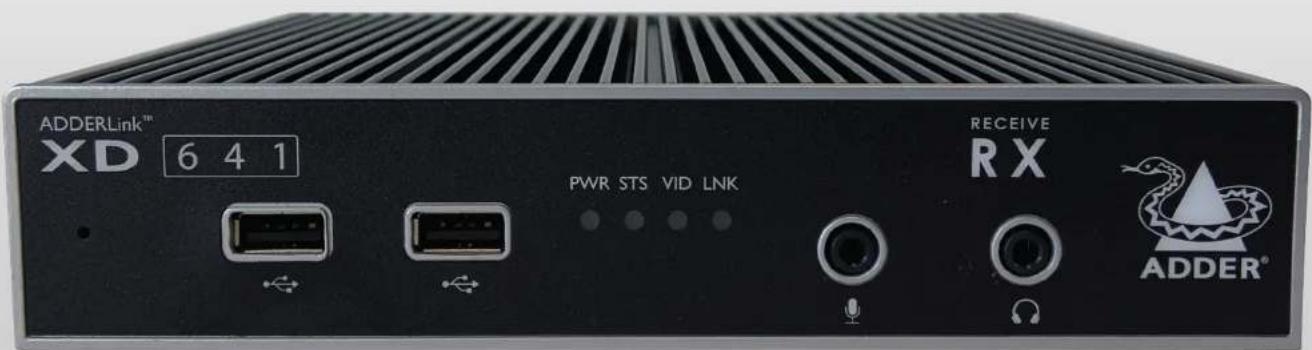
| Indicators (Front Panel) | PWR, STS, VID, LNK (multicolor) |
| Operating Temperature | 0°C to +40°C |
| Storage Temperature | -10°C to +50°C |
| Humidity (Operating/Storage) | 0-80% RH (non-condensing) |
| MTBF (Pair) | 260,000 hours |
| Construction | Robust metal enclosure |
| Safety Standards | Compliant with Article 645 of NEC and NFPA 75 for IT rooms |
Frequently Asked Questions - XD641P-DP Adder
User questions about XD641P-DP Adder
0 question about this device. Answer the ones you know or ask your own.
Ask a new question about this device
Download the instructions for your KVM Switch in PDF format for free! Find your manual XD641P-DP - Adder and take your electronic device back in hand. On this page are published all the documents necessary for the use of your device. XD641P-DP by Adder.
USER MANUAL XD641P-DP Adder
ADDERLink™ XD641 and XD642
User Guide


Experts in Connectivity Solutions

Extender Solutions
Contents
Introduction
Welcome....2
CATx Link Cable Recommendations ....3
AdderLink XD641 features....4
AdderLink XD642 features....5
Technical specifications....6
Supplied items....7
Optional extras....8
Installation
Locations....9
Connections 9
Transmitter video link(s)....10
Transmitter audio links 10
Transmitter USB links....11
Transmitter Remote port....11
Transmitter power connection 12
Linking....13
CATx link....13
Fiber optic link....14
Receiver video display(s) 15
EDID management....15
Receiver audio devices....15
Receiver USB devices....16
Receiver Remote port 16
Receiver power connection....17
Configuration
Accessing the Dashboard....18
Choosing the dual head mode (XD642 models only)....18
Resetting a module....19
Upgrading firmware....19
Operation
Indicators 20
Further information
Getting assistance 21
Appendix I - Remote port pin-out....22
Index

Introduction

WELCOME
Thank you for choosing the ADDERLink® XD641 (single head) or XD642 (dual head) extender modules. Using either fiber optic or CATx links, these compact modules allow you to extend KVM connections over long distances from a host computer (see Transmission distances when using fiber on the right).
The high-grade screening employed within the metal cased enclosures, particularly when combined with the immunity from interference of the fiber optic links.
AdderLink XD64x extender modules provide support for:
• High quality single- or dual- digital video (up to 4K 4096 x 2160 @60Hz),
• USB keyboard and mouse plus two other USB devices (up to USB 2.0),
• An RS232 serial device at speeds up to 115200 baud,
- Mono microphone,
- Stereo speakers,
• Line-level audio in/out connections.

The ADDERLink extender modules are totally transparent in operation, leaving you free to use your computer as though you're still sitting next to it.
Transmission distances when using fiber
The choice of fiber used with the ADDERLink XD64x modules has a considerable effect on the distance over which operation can take place. Using multi-mode fiber you can achieve distances up to 400m (1,312 feet); whereas, by using single-mode fiber (and accompanying SFP+ modules), the achievable maximum distance is increased to 4km (2.5 miles):
| Distance | Fiber type | Fiber color code | SFP+ module |
| 70m | OM1 (TIA-492AAAA) | Orange | SFP-MM-LC-10G |
| 150m | OM2 (TIA-492AAAB) | Orange | SFP-MM-LC-10G |
| 380m | OM3 (TIA-492AAAC) | Aqua | SFP-MM-LC-10G |
| 400m | OM4 (TIA-492AAAC) | Aqua | SFP-MM-LC-10G |
| 4km | OS1 (TIA-492C000) | Yellow | SFP-SM-LC-10G |
| OS2 (TIA-492E000) | Yellow | SFP-SM-LC-10G |
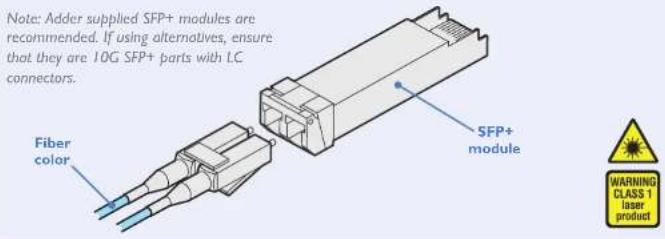
Note: Adder supplied SFP+ modules are recommended. If using alternatives, ensure that they are 10G SFP+ parts with LC connectors.
Fiber optic link
(up to 4km)
OR
CATx link
(CAT5e up to 50m)
(CAT6 up to 100m)
ADDERLink XD
Receiver module


Single or dual (XD642 models) DisplayPort ^® video displays
Four USB devices
One RS232 serial device
Stereo speakers plus microphone
CATx Link Cable Recommendations
Due to the high data bandwidth required between the transmitter and receiver, ADDERLink XD600 series modules are highly dependent upon good quality CATx cable links. Video performance is particularly reliant on high speed communication channels.
The main factors that affect link quality are:
• The length and type of CATx cable used,
- The number, length and type of intermediate patch connections,
• The quality of the cable terminations.
CAT6 is recommended for CATx extensions, with a gauge (thickness) of at least 23AWG. Up to 5Gb/s of data may be transmitted, so the cable must be rated for at least 5GBase-T or 250MHz.
Patch links affect performance. For each additional break/patch within a run, the overall maximum extension is likely to be reduced. The amount will be dependent upon the nature of the patch panel. For best results, patch cables should be of type CAT6 and be less than 2 meters in length.
Use of CAT7 cables is not recommended. There is no associated ANSI/TIA specification for CAT7 resulting in a wide range of cable quality available, particularly with regard to shield grounding.

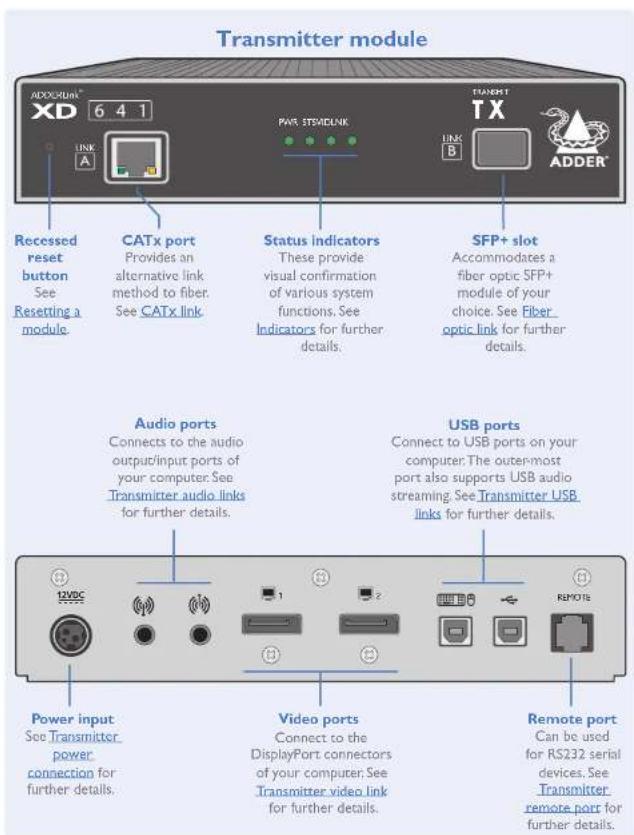
ADDERLINK XD641 FEATURES
The transmitter and receiver modules are contained within slimline metal casings that measure just 186 × 152 × 40 mm.


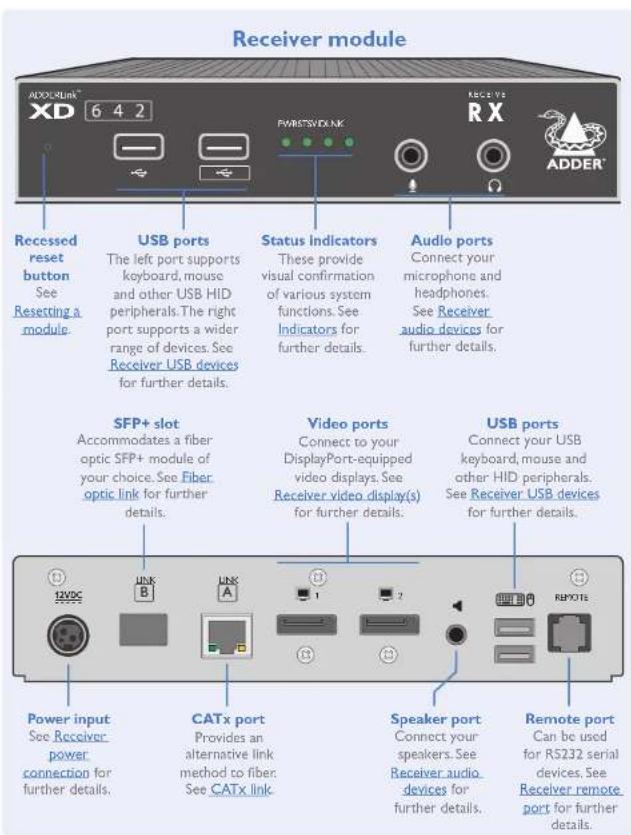
ADDERLINK XD642 FEATURES
The transmitter and receiver modules are contained within slimline metal casings that measure just 186 × 152 × 40 mm.


TECHNICAL SPECIFICATIONS
ADDERLink XD641
• Nominal Operating Power (W) 10W
• Peak Power (W) 12W
• External Power 12V DC, 1.5A
• Max operating Altitude (m) 2000m
- Operating Temp range (°C) 0 to +40°C
- Operating Humidity range (%RH) 0-80%
• Storage Temp range (°C) -10 to +50°C
• Storage Humidity range (%RH) 0-80%
• Max Thermal Dissipation (BTU) 41.94
• MTBF (Tx / Rx) 530k / 520k hours MTBF (Pair) 260k hours
Local unit - Transmitter (Tx)
• 4 x tri-color status indicators
• DisplayPort in and local pass-through out
- 2 × USB2.0 type B
• Line in and out analog audio
- RJ12 serial port
• RJ45 and SFP+ ports
Remote unit - Receiver (Rx)
• 4 x tri-color status indicators
- 2 x DisplayPort out (second port is a duplicate)
- 4 x USB2.0 type A
• Mic in, headset and speaker out
- RJ12 serial port
• RJ45 and SFP+ ports
Physical design
- Robust metal construction
• TX and RX: 186mm/7.32" (w), 39mm/1.54" (h), 148mm/5.83" (d)
• TX: 1.29kg / 2.84lbs - RX: 1.24kg / 2.73lbs
Power supply
• 100-240VAC, 47-63Hz
• 12VDC 18W output from power supply unit.
ADDERLink XD642
• Nominal Operating Power (W) 10W
- Peak Power (W) 12W
• External Power 12V DC, 1.5A
• Max operating Altitude (m) 2000m
- Operating Temp range (°C) 0 to +40°C
- Operating Humidity range (%RH) 0-80%
• Storage Temp range (°C) -10 to +50°C
• Storage Humidity range (%RH) 0-80%
• Max Thermal Dissipation (BTU) 41.94
• MTBF (Tx / Rx) 510k / 490k hours
MTBF (Pair) 250k hours
Local unit - Transmitter (Tx)
• 4 x tri-color status indicators
- 2x DisplayPort in
- 2x USB2.0 type B
• Line in and out analog audio
- RJ12 serial port
• RJ45 and SFP+ ports
Remote unit - Receiver (Rx)
• 4 x tri-color status indicators
- 2 x DisplayPort out
• 3 x USB2.0 full speed, type A
• I x USB2.0 transparent Hi-Speed, type A
• Mic in, headset and speaker out
- RJ12 serial port
• RJ45 and SFP+ ports
Physical design
- Robust metal construction
• TX and RX: 186mm/7.32" (w), 39mm/1.54" (h), 148mm/5.83" (d)
• TX: 1.29kg / 2.84lbs
• RX: 1.24kg / 2.73lbs
Power Supply
• 100-240 VAC, 47-63Hz
• 12 VDC 18W output from power supply unit.

SUPPLIED ITEMS
XD64x transmitter kit
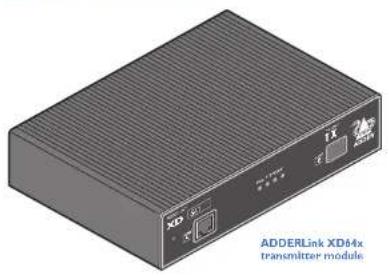
natural_image
3D rendering of a two-port electronic device labeled 'ADDERLink XD44x transmitter module' (no additional text or symbols visible)


XD64x receiver kit
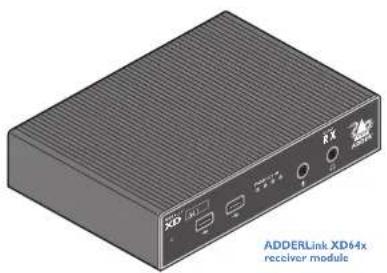
natural_image
Illustration of a 3D XRD device labeled ADDERLink XD64x receiver module (no text or symbols on the device itself)
natural_image
Illustration of a power adapter with locking connector and country-specific power cord (no text or symbols on the diagram itself)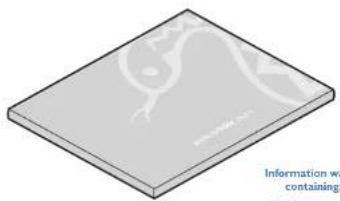
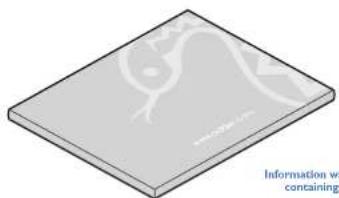
natural_image
Isometric view of a flat rectangular plate with a faint internal line drawing (no text or symbols)Information wallet
Quick setup guide
Light self-schessive rubber feet
Safety documents

OPTIONAL EXTRAS


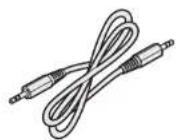
Audio cable 2m (3.5mm stereo jacks)
Part number: VSC22
Replacement power adapter with locking connector Part number: PSU-IEC-12VDC-1.5A
Country-specific power cords
CAB-IEC-AIDS (Australia) CAB-IEC-EURO (Central Europe)
CAB-IEC-UK (United Kingdom)
CAB (EC USA (United States)
CAB-IEC-JAPAN (Japan)

natural_image
Illustration of a power adapter with cables and a terminal connector (no text or symbols)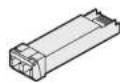
SFP+ module with LC connectors
Multi mode: SFP-MM-LC-10G
Single mode: SFP-SM-LC-10G

Installation
LOCATIONS
Please consider the following important points when planning the position of the AdderLink XD64x modules:
- Situate the transmitter module close to the system to which it will be connected and near to a source of mains power. Place the receiver module in similar close proximity to the peripherals that it will connect with, plus a source of mains power.
- Consult the precautions listed within the supplied safety leaflet.
- Connections do not need to be carried out in the order given within this guide, however, where possible connect the power in as the final step.
Suitable for installation in Information Technology Rooms in accordance with Article 645 of the National Electrical Code and NFPA 75.
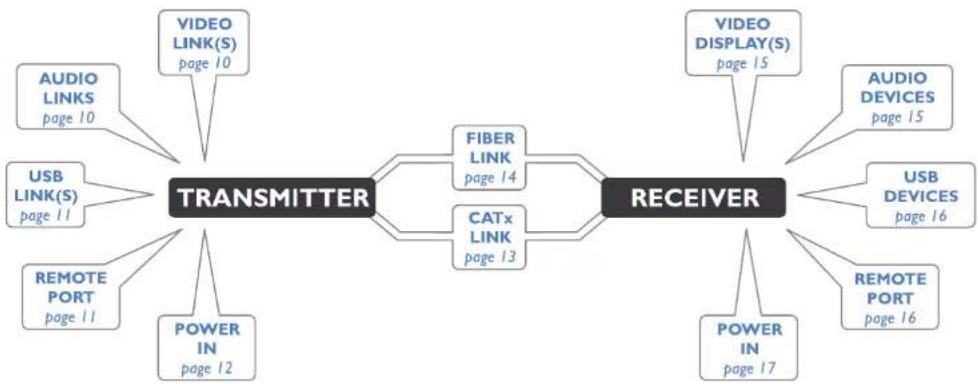
Installation involves linking the transmitter module to various ports on the host computer, while the receiver module is attached to your video display(s) and peripherals:
flowchart
graph LR
    A["TRANSMITTER"] --> B["FIBER LINK"]
    A --> C["CATx LINK"]
    A --> D["POWER IN"]
    A --> E["POWER DISPLAY(S)"]
    A --> F["USB LINK(S)"]
    A --> G["AUDIO LINKS"]
    A --> H["USB MODELS"]
    A --> I["REMOTE PORT"]
    A --> J["POWER IN"]
    A --> K["POWER DISPLAY(S)"]
    A --> L["AUDIO MODELS"]
    A --> M["USB MODELS"]
    A --> N["REMOTE PORT"]
    A --> O["POWER IN"]
    A --> P["POWER DISPLAY(S)"]
    A --> Q["AUDIO MODELS"]
    A --> R["USB MODELS"]
    A --> S["REMOTE PORT"]
    A --> T["POWER IN"]
    A --> U["POWER DISPLAY(S)"]
    A --> V["AUDIO MODELS"]
    A --> W["USB MODELS"]
    A --> X["REMOTE PORT"]
    A --> Y["POWER IN"]
    A --> Z["POWER DISPLAY(S)"]
Click a connection to see details

Transmitter video link(s)
AdderLink XD641 and XD642 modules can transfer various high resolution video modes via their DisplayPort connectors. The XD641 models support a single video display while XD642 models support dual video displays.
Note: On XD642 models, dual video displays at 4K resolution are not possible using a CATx link - fiber must be used. However, dual WQXGA resolutions are possible using CATx.

flowchart
graph TD
    A["VIDEO LINK(S)"] --> B["TRANSMITTER"]
    C["AUDIO LINKS"] --> B
    D["USB LINK(S)"] --> B
    E["REMOTE PORT"] --> B
    F["POWER IN"] --> B
    B --> G["LINK"]
    G --> H["RECEIVER"]
To connect the video port(s)
Connect the supplied DisplayPort link cable between the video socket I on the transmitter module rear panel and the primary video output socket of the host computer.
2 On XD642 models, optionally connect the (supplied) additional DisplayPort link cable between the video socket 2 on the transmitter module rear panel and the primary video output socket of the host computer.
On XD641 models, optionally connect a local video display to video socket 2 on the transmitter module rear panel.
Primary video input from the host computer
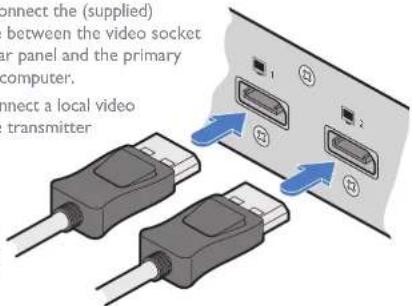
XD641 models: Output to a local video display (optional)
XD642 models: Secondary video input from the host computer
Video resolutions
| The XD641 and XD642 extenders support, but are not limited to, the following common video resolutions (all at 60 fps): | 1920 x 1080 (HD) | 2560 x 2048 (QSXGA) |
| 1920 x 1200 (WUXGA) | 2048 x 1080 (2K) | |
| 2560 x 1080 | 2048 x 2160 | |
| 2560 x 1440 (WQHD) | 3840 x 2160 (UHD) | |
| 2560 x 1600 (WQXGA) | 4096 x 2160 (4K) |
Transmitter audio links
The AdderLink XD64x modules support analog stereo audio in and out connections. Where necessary, make connections between the audio input and/or output ports of the host computer and the transmitter module.
Note: Digital audio is also supported separately via the DisplayPort connectors as a transparent link-through.
To connect the audio ports
For the line in and/or line out ports, connect the supplied audio link cable between the audio port on the transmitter module rear panel and the line in or line out socket of the host computer.
From the audio output on the host computer

flowchart
graph TD
    A["VIDEO LINK(S)"] --> B["TRANSMITTER"]
    C["AUDIO LINKS"] --> B
    D["USB LINK(S)"] --> B
    E["REMOTE PORT"] --> B
    F["POWER IN"] --> B
    G["LINK"] --> H["RECEIVER"]
    H --> I["OUTPUT"]
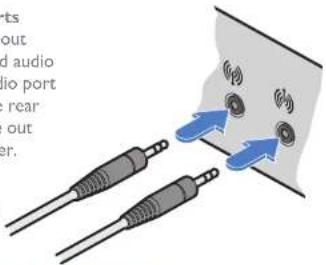
To the audio input on the host computer
Transmitter USB links
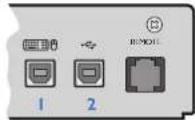
The transmitter module has two USB input ports on its rear panel:

flowchart
graph TD
    A["USB LINK(S)"] --> B["TRANSMITTER"]
    C["VIDEO LINK(S)"] --> B
    D["AUDIO LINKS"] --> B
    E["REMOTE PORT"] --> B
    F["POWER IN"] --> B
    G["LINK"] --> H["RECEIVER"]
    B --> H
The ports have different functions depending on the model of ADDERLink XD64x that you are using:
| 1 | 2 | |
| XD641 | USB HID (Human Interface Device)feed to all USB ports on the receiver | USB audio feed to/from the analogaudio ports labeled [IMAGE] thereceiver |
| XD642 | USB HID (Human Interface Device)feed to all USB ports on receiverexcept the one labeled [IMAGE] | Transparent USB feed to frontpanel socket labeled [IMAGE]the receiver |
To connect the USB port(s)
Connect the type B connector of the supplied USB/video cable to the right-hand side USB port (labeled '2' on the diagram above) on the rear panel of the transmitter module.
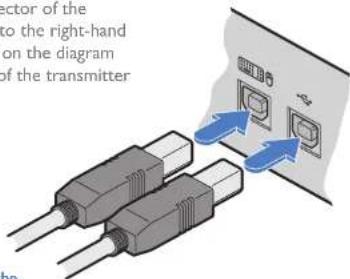
USB links from the host computer
2 Connect the type A connector of the cable to a vacant USB port on the host computer.
3 Repeat steps 1 and 2 for the second port if USB audio/transparent USB are required (see table above).
Transmitter Remote port
The Remote port has a dual role, it can either:
- Allow an optional remote control to be connected to the module, or
• Create an RS232 serial connection with the receiver module.
When serial devices are attached to the Remote ports on the transmitter and
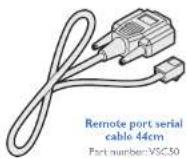
receiver modules, the units transparently convey the signals between them at rates up to 115200 baud - no serial configuration is required. An optional serial cable (part number: VSC50) is available from Adder.
To connect the Remote port
I Use the optional serial cable (VSC50) to link the Remote port on the rear panel of the transmitter module with a vacant RS232 serial port on your host computer.

flowchart
graph TD
    A["TRANSMITTER"] --> B["LINK"]
    A --> C["RECEIVER"]
    A --> D["POWER IN"]
    A --> E["USB LINK(S)"]
    A --> F["AUDIO LINKS"]
    A --> G["VIDEO LINK(S)"]

Please see Appendix I for pin-out details of the Remote port.
Transmitter power connection
There is no on/off switch on either of the AdderLink XD64x modules, so operation begins as soon as power is applied. The power adapters supplied with the modules use locking-type plugs to help prevent accidental disconnections; please follow the instructions shown on the right whenever disconnecting a power adapter.

flowchart
graph TD
    A["TRANSMITTER"] --> B["LINK"]
    A --> C["RECEIVER"]
    A --> D["POWER IN"]
    A --> E["REMOTE PORT"]
    A --> F["USB LINK(S)"]
    A --> G["AUDIO LINKS"]
    A --> H["VIDEO LINK(S)"]
To connect the power adapter
1 Attach the output plug of the supplied power adapter to the power input socket on the right side of the rear panel.
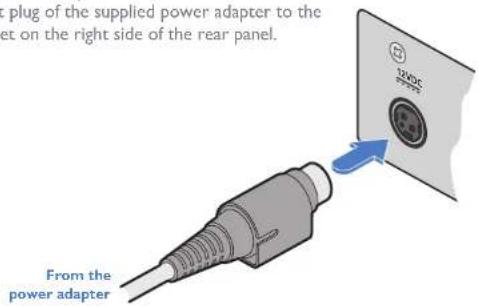
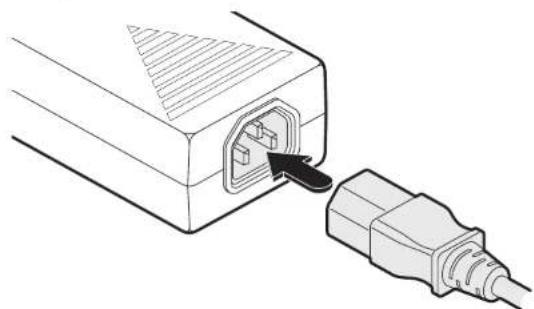
2 Connect the IEC connector of the supplied country-specific power cord to the socket of the power adapter.
natural_image
Diagram of an electrical plug inserted into a socket, showing internal port and cable connection (no text or labels)3 Connect the power cord to a nearby mains supply socket.
To disconnect the power adapter
I Isolate the power adapter from the mains supply.
2 Grasp the outer body of the power adapter plug where it connects with the module.
3 Gently pull the body of the outer plug away from the module. As the body of the plug slides back, it will release from the socket and you can fully withdraw the whole plug.

Gently pull back the plug outer body to release the lock
IMPORTANT: Please read and adhere to the electrical safety information given within the supplied safety leaflet. In particular, do not use an unearthed power socket or extension cable.
Note: Both the modules and the power supplies generate heat when in operation and will become warm to the touch. Do not enclose them or place them in locations where air cannot circulate to cool the equipment. Do not operate the equipment in ambient temperatures exceeding 40 degrees Centigrade. Do not place the products in contact with equipment whose surface temperature exceeds 40 degrees Centigrade.
Linking
ADDERLink XD641 and XD642 units can be linked using either:
• CATx (see below), or
- Fiber (see next page)
When fiber is used there are no limits to the resolutions that can be transferred, up to the maximum 4K (4096 x 2160); when a CATx link is used, the maximum resolution for dual head installations on XD642 models will be WQXGA (2560 x 1600).
Fiber CATx
ADDERLink XD641 Single head at 4K maximum Single head at 4K maximum
ADDERLink XD642
Dual head at 4K maximum
Single head at 4K maximum
Dual head at WQXGA maximum
Distances up to 4km
Distances up to 100m
CATx link
The CATx ports on each module (labeled Link A) allow you to create direct links of up to 50m (when using CAT5e) or 100m (when using CAT6). In order to work in CATx mode, the SFP+ fiber modules must be removed from their sockets.
Note: The CATx ports are not network ports and should not be connected to network switches or computer ports.
To make the CATx link
Connect a CATx (CAT 5e or 6 as required) cable between the Link A ports on the transmitter (front panel) and the receiver (rear panel):

2 In operation, ensure that both indicators on the CATx connectors are green. See right.
CATx status indicators
The status indicators on the CATx port connector of each module provide further status information when a CATx link is in use:

natural_image
Simple diagram of a network switch or socket with two green ports and three terminal lines (no text or labels)* The CATx LINK LED will be either yellow or green, depending upon the connector manufacturer used. There is no difference in functionality.
Fiber optic link
Each pair of AdderLink XD64x modules require optional SFP+ fiber optic modules of your choice (single or multi-mode). The fiber optic cable used must match the SFP+ type and also be of a suitable type for the distance being covered. See Transmission distances for details.
To make the fiber optic link
IMPORTANT: Ensure the power supply is off/disconnected before inserting or removing an SFP+ module.
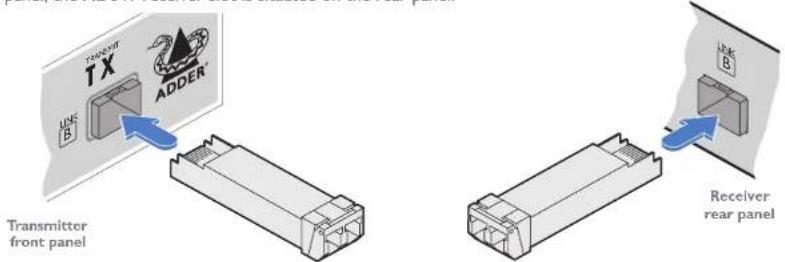
1 Remove an SFP+ module from its protective packing and insert it fully into the empty slot on the AdderLink XD641. The XD641 transmitter slot is located on the front panel; the XD641 receiver slot is situated on the rear panel:
2 Repeat for the other SFP+ module on the other XD641.
3 For each SFP+ module, remove the black rubber insert that protects the sensors.
4 If fitted, remove the dual inserts that protect the fiber optic connectors.
5 Insert the fiber optic connectors into the SFP+ module so that they click into place:

6 Repeat steps 4 and 5 at the other end.

Note: In order to maintain a high level of confidence in the fiber optic link, it is recommended that Adder supplied SFP+s are used: (SFP-MM-LC-10G or SFP-SM-LC-10G).
To remove an SFP+ module
If fitted, remove the dual fiber optic connectors from the SFP+ module (press in the release tab of the fiber optic connectors to disengage them).
2 Unclip the small extraction lever and open it out (this action releases a locking tab and also provides a grip point).

3 Gently pull on the extraction lever to withdraw the SFP+ module from the slot.
4 If the SFP+ module and/or fiber optic connector will remain unused for any period of time, be sure to fit the protective inserts to keep the optical interfaces clean.
Receiver video display(s)
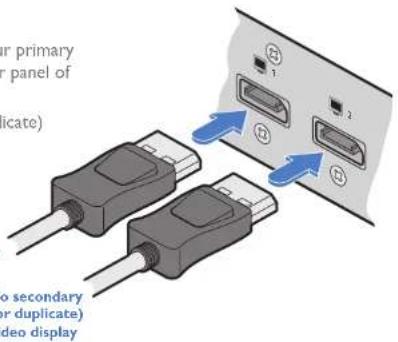
Two DisplayPort sockets are provided on the rear panel of each receiver module. On XD641 models, the signal from port 1 is duplicated on port 2. On XD642 models, ports 1 and 2 operate independently to supply the signals introduced to video ports 1 and 2 on the transmitter.
Note: On XD642 models, dual video displays at 4K resolution are not possible using a CATx link
- fiber must be used. However, dual WQXGA resolutions are possible using CATx.

flowchart
graph TD
    A["TRANSMITTER"] --> B["RECEIVER"]
    C["LINK"] --> B
    D["VIDEO DISPLAY(S)"] --> B
    E["AUDIO DEVICES"] --> B
    F["USB DEVICES"] --> B
    G["REMOTE PORT"] --> B
    H["POWER IN"] --> B
To connect the video display
I Connect the signal cable from your primary video display to port I on the rear panel of the receiver module.
2 Repeat for the secondary (or duplicate) video display on port 2.
To primary video display
EDID management
The EDID (Extended Display Identification Data) is read from the connected video display at the receiver module; it is then transferred to, and stored within, the transmitter module and then declared to the host computer. If the video display is removed then the cloned EDID stored at the transmitter module will still be presented to the video source.
Video resolutions
| The XD641 and XD642 extenders support, but are not limited to, the following common video resolutions (all at 60 fps): | 1920 x 1080 (HD) | 2560 x 2048 (QSXGA) |
| 1920 x 1200 (WUXGA) | 2048 x 1080 (2K) | |
| 2560 x 1080 | 2048 x 2160 | |
| 2560 x 1440 (WQHD) | 3840 x 2160 (UHD) | |
| 2560 x 1600 (WQXGA) | 4096 x 2160 (4K) |
Receiver audio devices
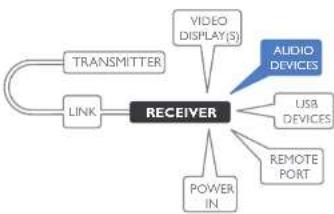
The receiver module can support multiple analog audio devices, such as stereo headphones, a mono microphone or line-level in/out connections.
USB audio is also supported when the left hand USB socket on the XD641 rear panel is connected to the computer. The audio signals received from the computer will be transferred to the analog audio sockets on
flowchart
graph TD
    A["TRANSMITTER"] --> B["RECEIVER"]
    C["LINK"] --> B
    B --> D["VIDEO DISPLAY(S)"]
    B --> E["USB DEVICES"]
    B --> F["REMOTE PORT"]
    B --> G["POWER IN"]
    B --> H["AUDIO DEVICES"]
the receiver. USB audio will take precedence over the 3.5mm audio jacks when both sources are present.
To connect audio devices
Connect stereo headphones and/or a mono microphone to the 3.5mm jack audio sockets on the front panel of the receiver module.
From mono microphone
To stereo headphones

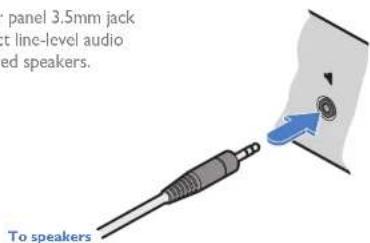
2 Optionally use the rear panel 3.5mm jack audio socket to connect line-level audio devices, such as powered speakers.
Note: Digital audio sent via the DisplayPort connectors are passed straight through from the transmitter to the receiver ports and remain completely separate from the analog audio signals.
Receiver USB devices
Each receiver module contains a USB hub that can support multiple v2.0 or v1.1 USB HID (Human Interface Device) peripherals. On XD641 models, all four USB sockets are identical in operation. However, on XD642 models, three of the USB sockets are used for HID peripherals while the fourth, labeled front panel) is a fully transparent USB port capable of supporting a wider range of devices.

flowchart
graph TD
    A["TRANSMITTER"] --> B["RECEIVER"]
    C["LINK"] --> B
    B --> D["VIDEO DISPLAY(S)"]
    B --> E["AUDIO DEVICES"]
    B --> F["USB DEVICES"]
    B --> G["REMOTE PORT"]
    B --> H["POWER IN"]
To connect USB devices
Connect your USB keyboard, mouse and any other two USB devices to the four sockets distributed on the front and rear panels of the receiver module.
Note: [XD642 models only] The front panel socket labeled is fully transparent USB port capable of supporting a wider range of devices, such as headsets, web cams and flash drives.
![AdderLift XD 641 [only] The front panel socket parent USB port wider range of devices, cams and flash drives. From USB devices Front panel Rear panel From USB devices](/content/2026/06/1194743/images/b7f4348c2faaf363b74db4f6a48e410153558d2ef1b0d2c890c7356e8d155955.jpg)
Receiver Remote port
The Remote port has a dual role, it can either:
- Allow an optional remote control to be connected to the module, or
• Create an RS232 serial connection with the receiver module.
When serial devices are attached to the Remote ports on the transmitter and
receiver modules, the units transparently convey the signals between them at rates up to 115200 baud - no serial configuration is required. An optional serial cable (part number: VSC50) is available from Adder.
To connect the Remote port
I Use the optional serial cable (VSC50) to link the Remote port on the rear panel of the transmitter module with a vacant RS232 serial port on your host computer.

flowchart
graph TD
    A["TRANSMITTER"] --> B["RECEIVER"]
    C["LINK"] --> B
    B --> D["VIDEO DISPLAY(S)"]
    B --> E["AUDIO DEVICES"]
    B --> F["USB DEVICES"]
    B --> G["POWER IN"]
    B --> H["REMOTE PORT"]
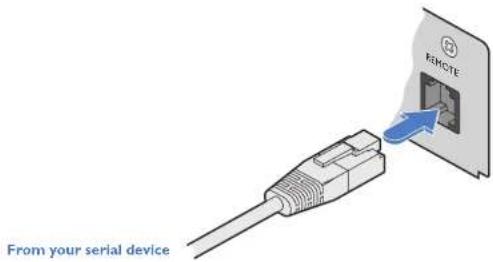
Please see Appendix 1 for pin-out details of the Remote port.
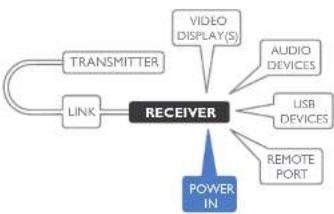
Receiver power connection
There is no on/off switch on either of the AdderLink XD64x modules, so operation begins as soon as power is applied. The power adapters supplied with the modules use locking-type plugs to help prevent accidental disconnections; please follow the instructions shown on the right whenever disconnecting a power adapter.
flowchart
graph TD
    A["TRANSMITTER"] --> B["RECEIVER"]
    C["LINK"] --> B
    B --> D["VIDEO DISPLAY(S)"]
    B --> E["AUDIO DEVICES"]
    B --> F["USB DEVICES"]
    B --> G["REMOTE PORT"]
    B --> H["POWER IN"]
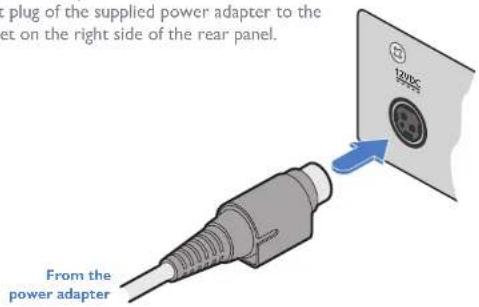
To connect the power adapter
1 Attach the output plug of the supplied power adapter to the power input socket on the right side of the rear panel.
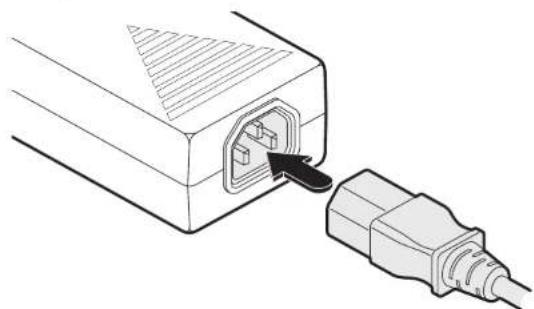
2 Connect the IEC connector of the supplied country-specific power cord to the socket of the power adapter.
natural_image
Diagram of an electrical plug inserted into a socket (no text or symbols present)3 Connect the power cord to a nearby mains supply socket.
To disconnect the power adapter
I Isolate the power adapter from the mains supply.
2 Grasp the outer body of the power adapter plug where it connects with the module.
3 Gently pull the body of the outer plug away from the module. As the body of the plug slides back, it will release from the socket and you can fully withdraw the whole plug.

Gently pull back the plug outer body to release the lock
IMPORTANT: Please read and adhere to the electrical safety information given within the supplied safety leaflet. In particular, do not use an unearthed power socket or extension cable.
Note: Both the modules and the power supplies generate heat when in operation and will become warm to the touch. Do not enclose them or place them in locations where air cannot circulate to cool the equipment. Do not operate the equipment in ambient temperatures exceeding 40 degrees Centigrade. Do not place the products in contact with equipment whose surface temperature exceeds 40 degrees Centigrade.
Configuration
ACCESSING THE DASHBOARD
AdderLink XD64x modules generally configure themselves automatically, collecting EDID information from the attached monitor(s) and passing the details to the host computer. Unless an issue is encountered, the modules will begin working together correctly as soon as they are connected. The front panel indicators provide the primary source of status information, however, there is also a Dashboard popup which provides certain other details on the primary console display.
To access the dashboard
Using your console keyboard attached to the receiver module, press (and release) the Ctrl key three times in quick succession (either of the keyboard's Ctrl keys can be used). In response, the three keyboard indicators will all flash, once per second.
2 Press the numeric key 1 located above the main section of the keyboard (not the numeric keypad).
The Dashboard will be displayed, similar to this:
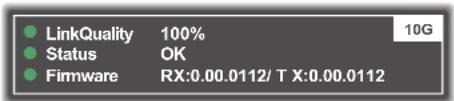
The example above shows a configuration that is working correctly.
If the communication link was working correctly, but the video signal was lost, it might report as follows:

If the communication link was missing then the dashboard would report the issue similar to this:

To exit the dashboard
- Press (and release) the Ctrl key three times in quick succession and then press the numeric key I located above the main section of the keyboard (not the numeric keypad).
CHOOSING THE DUAL HEAD MODE (XD642 models only)
When the CATx link is used to connect the transmitter and receiver modules, the available bandwidth is reduced. On XD642 models, if dual high resolution video displays are used, you can determine how the available bandwidth is shared between them. Two modes are available:
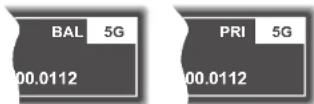
- Balanced mode - Shares the available video bandwidth equally between the two video displays, regardless of the EDIDs being reported by them, e.g. 1920x1200 each on video displays that would ordinarily request a native mode of 2560x1600.
- Priority mode - The primary video port will take priority, allowing it to display resolutions up to 4K, as reported by its EDID. The remaining bandwidth will be assigned to the second video head.
To choose the dual head mode
Using your console keyboard attached to the receiver module, press (and release) the Ctrl key three times in quick succession (either of the keyboard's Ctrl keys can be used). In response, the three keyboard indicators will all flash, once per second.
2 Press the numeric key located above the main section of the keyboard (not the numeric keypad) which represents the required mode:
• 6 for Balanced mode,
- 7 for Priority mode.
The current mode will be displayed on the Dashboard next to the link speed, eg BAL 5G, PRI 5G.
Note: If you do not press any key within five seconds, or press any key other than the digits 1, 6 or 7 (or once you have successfully chosen an action), the keyboard will revert to normal operation. To use another hotkey function, repeat the whole procedure described above.
The color of the Dashboard's Link Quality indicator matches the front panel LNK indicator:
• Red 0-25% quality
- Amber 25-50% quality
• Yellow 50-75% quality
• Green 75-100% quality
RESETTING A MODULE
On the left side of the front panel of each module, you will find a small reset hole which is used to invoke special functions.

To reset a module
I Use a thin implement, such as a straightened paperclip to press and release the button concealed behind the small hole. The PWR indicator will show red.
After a few seconds, the indicator will change from red to green to show that the reset procedure is complete.
UPGRADING FIRMWARE
Firmware upgrades are periodically made available for products via the Adder website (www.adder.com). Use this procedure to upgrade the firmware in both ADDERLink XD64x extenders. Note: Upgrades require roughly 6 minutes to complete.
To upgrade the firmware
Download the appropriate firmware upgrade file from the Downloads section of the ADDERLink XD64x product page within the Adder website. Copy the upgrade file to an empty (but FAT32-formatted) USB memory stick.
2 Ensure that the transmitter and receiver are linked and powered on. Also check that there are no USB drives inserted in the receiver module's ports.
3 On the receiver, press and hold a thin implement, such as a straightened paperclip, in the reset hole until the receiver's STS indicator flashes red/blue. The receiver is now in upgrade mode.
4 Wait for the LNK indicator to turn green, signifying that the link has been established. Video from the transmitter should be displayed and the STS indicator will continue to flash red/blue.
5 Insert the memory stick containing the upgrade file into the front panel left USB port.
The upgrade should begin and both units will flash their STS indicators red/

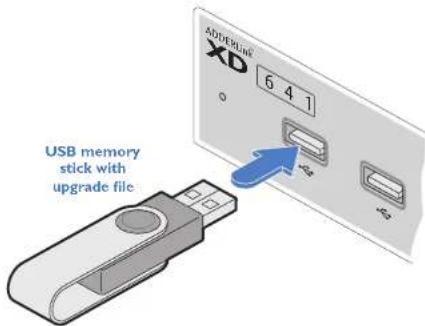
green to show the upgrade process is in progress. Following a successful upgrade, both units will automatically reboot and run the new firmware. The STS indicator will show green for a copper connection and blue for fiber.
Display the Dashboard (see page 18) to view the upgrade progress. The Status field will display a message if an error occurs. In an error situation, it may be necessary to reboot the modules to use the existing firmware version.
Operation
The AdderLink XD64x modules are designed to be transparent in operation; all peripherals should respond exactly as they would when situated next to your host computer.
INDICATORS
The transmitter and receiver modules contain various indicators to provide you with status information. Both modules have four red indicators on their front panels.
Status indicators
The multicolor status indicators on the front panels of each module mostly behave in the same manner at the same time:

PWR
This indicator shows red while the module is performing its initial boot procedure and changes to green when ready. The indicator will flash red if a problem is encountered - remove power and re-apply to see if the problem persists.
STS
This indicator shows which link-type is being used:
• Alternating red/blue - Upgrade mode
• Alternating red/green - Upgrade in progress
• Blue - Fiber 10G link in use
• Green - CATx 5G link in use
• Amber - Warning, see
Dashboard for details (page 18)
- Red - Error, see Dashboard for details (page 18)
VID
This indicator shows the status of the video connections:
• Off - no video displays
connected
• Red - displays connected, no video on any display
• Amber - displays connected, video only on one (XD642 only)
• Green - displays connected, all have video
LNK
This indicator shows the status of the link between the transmitter and receiver modules:
- Off - no link
• Red - 0-25% quality
• Amber - 25-50% quality - Yellow - 50-75% quality
• Green - 75-100% quality
CATx status indicators
The status indicators on the CATx port connector of each module provide further status information when a CATx link is in use:

LINK
This indicator will be green or yellow*
CATx link between the transmitter and receiver modules.
SPEED
This indicator signals whether the speed of the CATx link is sufficient:
- Amber - link speed is below the necessary 5Gbit/sec. Check the CATx cable link for problems.
- Green - link speed is ok.
Further information
This chapter contains a variety of information, including the following:
• Getting assistance - see right
- Appendix I - Remote (Options) port pin-out
GETTING ASSISTANCE
If you are still experiencing problems after checking the information contained within this guide, then please refer to the Support section of our website:
www.adder.com

APPENDIX I - REMOTE PORT PIN-OUT
The REMOTE port uses a 6p6c socket. The pin-out is listed below.
Note: Although the pins labeled 'Not used' is inactive, it is still connected internally and so no links should be made at all to this pin.
REMOTE
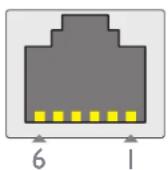
Pin Signal
I Sense/5V
2 Not used
3 Not used
4 GND
5 RX
6 TX
Note: The TX detects presence of an incoming power signal to determine whether 5V should be supplied at the RX.


www.adder.com
Documentation by:

www.ctxd.com
© 2022 Adder Technology Limited
All trademarks are acknowledged.
Part No. MAN-000008 · Release 1.9

Index
A
Audio devices Receiver 15
Audio links transmitter 10
B
Balanced mode 18
C
CATx link 13 status indicators 13 Connections overview 9
D
Dashboard 18 Dual head mode 18
F
Fiber distances 2
Fiber optic link 14 Firmware upgrade 19
H
HID 11
L
Linking overview 13
。
Optional extras 8 OSD Dashboard 18
P
Power connection Receiver 17 transmitter 12 Priority mode 18
R
Remote port pin-out 22 Receiver 16 transmitter 11
Reset 19
s
SFP+ modules 2,14 Status indicators 20 Supplied items 7
U
Upgrade firmware 19 USB devices Receiver 16 USB links transmitter
V
Video display(s) Receiver 15 Video links transmitter 10


- ADDERLink™ XD641 and XD642
- Contents
- Introduction
- Installation
- Configuration
- Operation
- Further information
- Index
- WELCOME
- Transmission distances when using fiber
- CATx Link Cable Recommendations
- ADDERLINK XD641 FEATURES
- ADDERLINK XD642 FEATURES
- TECHNICAL SPECIFICATIONS
- ADDERLink XD641
- Local unit - Transmitter (Tx)
- Remote unit - Receiver (Rx)
- Physical design
- Power supply
- ADDERLink XD642
- SUPPLIED ITEMS
- OPTIONAL EXTRAS
- LOCATIONS
- Transmitter video link(s)
- To connect the video port(s)
- Transmitter audio links
- To connect the audio ports
- Transmitter USB links
- To connect the USB port(s)
- Transmitter Remote port
- To connect the Remote port
- Transmitter power connection
- To connect the power adapter
- To disconnect the power adapter
- IMPORTANT: Please read and adhere to the electrical safety information given within the supplied safety leaflet. In particular, do not use an unearthed power socket or extension cable.
- Linking
- Fiber CATx
- CATx link
- To make the CATx link
- CATx status indicators
- Fiber optic link
- To make the fiber optic link
- To remove an SFP+ module
- Receiver video display(s)
- To connect the video display
- EDID management
- Receiver audio devices
- To connect audio devices
- Receiver USB devices
- To connect USB devices
- Receiver Remote port
- Receiver power connection
- ACCESSING THE DASHBOARD
- To access the dashboard
- To exit the dashboard
- CHOOSING THE DUAL HEAD MODE (XD642 models only)
- To choose the dual head mode
- RESETTING A MODULE
- To reset a module
- UPGRADING FIRMWARE
- To upgrade the firmware
- INDICATORS
- Status indicators
- PWR
- STS
- VID
- LNK
- LINK
- SPEED
- GETTING ASSISTANCE
- APPENDIX I - REMOTE PORT PIN-OUT
- A
- B
- C
- D
- F
- H
- L
- 。
- P
- R
- s
- U
- V
Brand : Adder
Model : XD641P-DP
Category : KVM Switch