
ADDERView RDX 1000 - KVM Switch Adder - Free user manual and instructions
Find the device manual for free ADDERView RDX 1000 Adder in PDF.


| Product Type | KVM Switch with integrated LCD, keyboard, and touchpad in a rack drawer |
| Brand | Adder |
| Model | ADDERView RDX 1000 |
| Number of Computer Connections | 16 (via RJ-45 CAMs) |
| External Link | 1 x RJ-45 (EXT) for network or remote extender (Adder X200) |
| Display Size | 17" or 19" LCD (models RD1716/RD1916) |
| Maximum Resolution | 1280 x 1024 |
| Brightness | 300 Cd/m² |
| Contrast Ratio | 1000:1 |
| Viewing Angle | 160° × 160° |
| Computer Access Modules (CAMs) | Supports PS/2, USB, Sun, and Console CAMs (CATX-PS2, CATX-USB, CATX-SUNA, CATX-CONSOLE) |
| Power Supply | 12V DC, 5A (external adapter with locking connector) |
| Rack Unit Height | 1U |
| Weight | Approximately 12-15 kg (26-33 lbs) depending on model |
| Dimensions (WxDxH) | Standard 19" rack width; depth varies (approx. 600-700 mm), 1U height (44 mm) |
| Operating Temperature | 0°C to 35°C (32°F to 95°F) |
| Safety | For dry, oil-free indoor use; no user-serviceable parts; use only approved power adapter |
| Warranty | 2 years from original purchase (defects in workmanship and materials) |
Frequently Asked Questions - ADDERView RDX 1000 Adder
User questions about ADDERView RDX 1000 Adder
0 question about this device. Answer the ones you know or ask your own.
Ask a new question about this device
Download the instructions for your KVM Switch in PDF format for free! Find your manual ADDERView RDX 1000 - Adder and take your electronic device back in hand. On this page are published all the documents necessary for the use of your device. ADDERView RDX 1000 by Adder.
USER MANUAL ADDERView RDX 1000 Adder
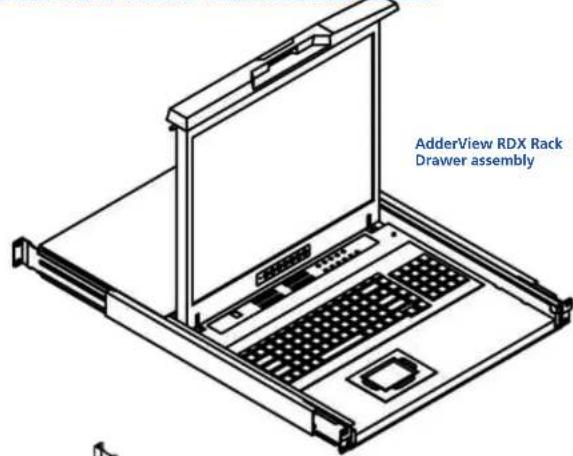
AdderView RDX Rack Drawer
User Guide
natural_image
Laptop with open case showing a photo of a branch on display (no visible text or symbols)CONTENTS
Contents
Welcome
Introduction....2
Standard items....3
Additional items....3
Installation
Suitable mounting locations....4
Mounting the rack drawer....4
Connecting the rack drawer 5
The EXTernal link (network or remote user)....5
Computer access module links ....5
Power connection....6
Initial configuration ....7
Operation
Opening and closing the rack drawer....8
Operating the rack drawer 9
The screen controls....9
Using the OSD menu 9
Selecting server channels 10
Further information
Troubleshooting....11
Screen specifications....11
Getting assistance....11
Warranty 12
Safety information 12
Radio frequency energy....13

Welcome

Introduction
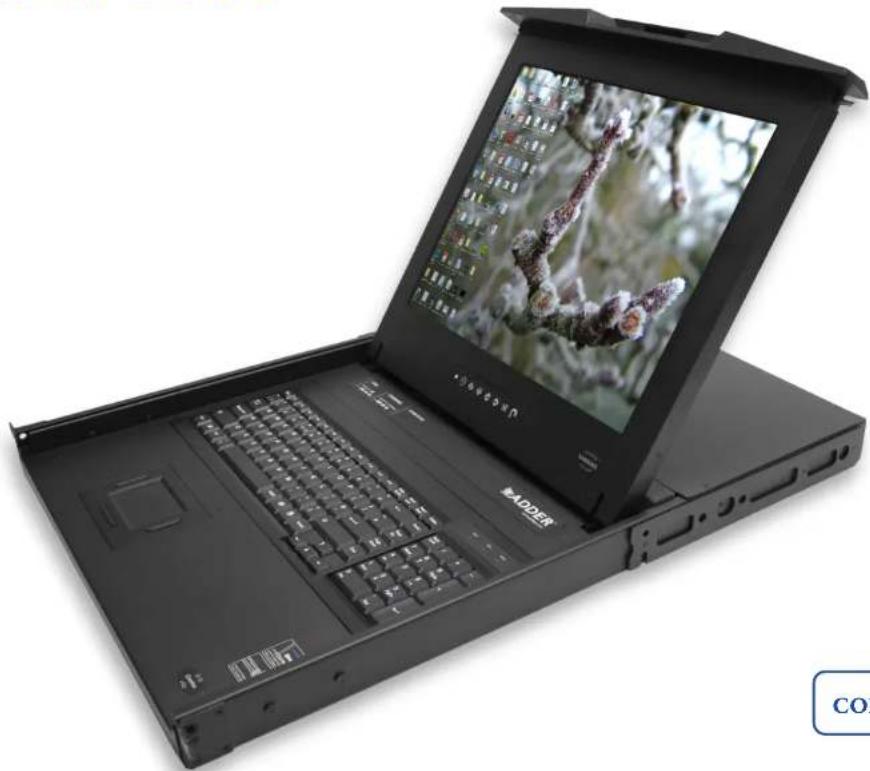
Thank you for choosing the AdderView RDX Rack Drawer which combines screen, keyboard, mouse and sixteen port KVM switching while occupying only a single rack slot. The screen and keyboard slide out to provide quick access to all systems when working in the server room. All models also facilitate either remote or global access for authorised users who are away from the server room.
All KVM links to servers are made using Adder Computer Access Modules (CAMs) that attach to the rack drawer rear panel via standard CATx cables. These make installation straightforward while ensuring that all cabling remains neat and uncluttered.
Certain sections of this manual refer to other Adder user guides for details about the KVM module fitted within your rack drawer. These other guides are stored on the CD-ROM supplied with your rack drawer and are also available on the Adder website.
Standard items Additional items
CD-ROM

8 x screws (M6 x 15mm)

8 x cup washers

6 x M6
cage nuts
natural_image
Line drawing of a rectangular electronic device with cable and connector (no text or symbols)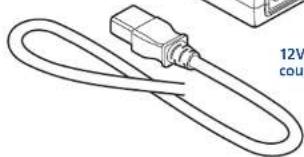
natural_image
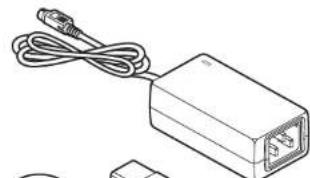
Line drawing of a U-shaped cable with a connector, no text or symbols present12V, 5A Power supply plus country-specific mains cable

natural_image
Line drawing of a USB connector with multiple ports (no text or symbols)Computer Access Modules
One required per connected computer. There are four different formats,
depending on the required computer connections:
PS/2-style
Connectors: Analog video, PS/2-style keyboard and PS/2-style mouse. Part number: CATX-PS2
USB
Connectors. Analog video and USB keyboard/mouse.
Part number: CATX-USB
Sun
Connectors: Analog video, Sun keyboard/mouse and 3.5mm audio jack. Part number: CATX-SUNA
Console CAM (for RD1716QIP and RD1916QIP only)
Connectors: D-Sub 9-way female Part number: CATX-CONSOLE

Installation
Suitable mounting locations
- It is very important to locate the AdderView RDX Rack Drawer in a suitable environment.
- The surface for placing and fixing the rack drawer should be stable and level, or mounted into a suitable cabinet.
• Make sure the place has good ventilation, is out of direct sunlight, away from sources of excessive dust, dirt, heat, water, moisture and vibration.
• Position the rack drawer with respect to related facilities.
Mounting the rack drawer
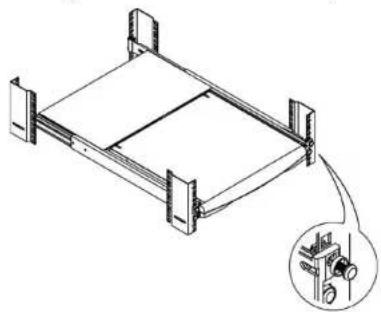
1 Determine the appropriate position for the rack drawer within your rack frame. Insert two of the supplied cage nuts in each of the rear vertical rack rails and one cage nut in the lower position of each front rack rail.

The unit is heavy. Therefore when installing, place the rack drawer on a sturdy, level surface to prevent it from accidentally falling and causing damage to other equipment or injury to persons nearby.
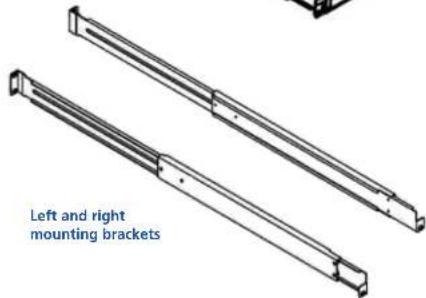
2 Attach the supplied left and right mounting brackets to the positions in your rack frame where the cage nuts are located and adjust the bracket depths to suit the depth of the rack.
For each mounting bracket:
• Use two M6 screws and cup washers to fix the bracket to the rear rack rail.
- Use one M6 screw and cup washer (only in the lower hole of the bracket) to fix the bracket to the front rack rail.
Leave all screws loose until the rack drawer assembly has been put into place.
3 Insert the rack drawer assembly into the mounting brackets.
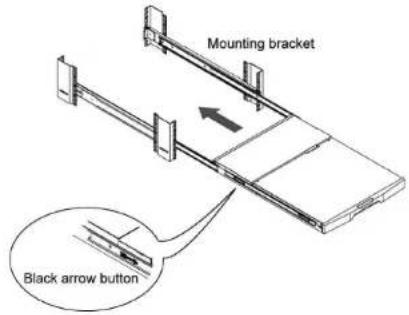
4 Pull and hold the left and right black arrow buttons on the rails.
5 Return the LCD keyboard drawer to park position.
6 Use the remaining two M6 screws and cup washers to fix the front mounting ears of the rack drawer assembly to rack rails.
natural_image
Technical line drawing of a mechanical frame with a magnified inset showing a component (no text or symbols)7 Tighten all eight M6 screws to complete the installation.

Connecting the rack drawer
All server, network and power connections are located at the rear of the unit.
The EXTernal link (network or remote user)
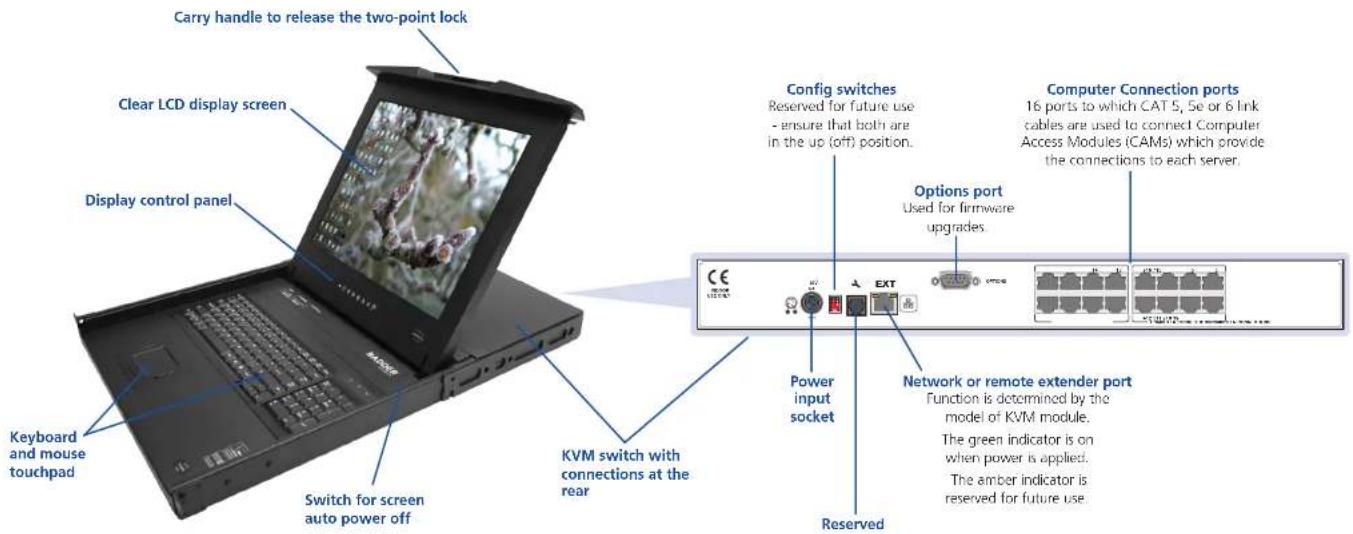
The single RJ-45 socket labelled as EXT is used to allow either global or remote users to login and control connected servers. The EXT port provides one of the following links (dependant on the model of rack drawer):
• An ethernet network link, labelled
or
- A remote extender link (to attach an Adder X200), labelled. Note: This port is NOT a network port.
To connect the external link
1 Wherever possible, ensure that power is disconnected from the rack drawer.
2 Connect a CAT 5, 5e or 6 link cable to the port labelled EXT:
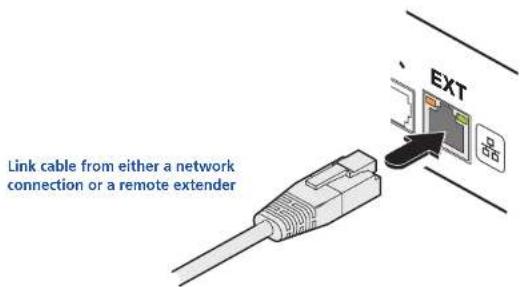
3 Connect the other end of the cable as follows:
- If the EXT port label shows connection to a network switch/router.
- If the EXT port label shows 📄 connected the link cable to an Adder X200 unit.
Computer access module links
There are sixteen RJ-45 sockets labelled as COMPUTER CONNECTIONS on the rear panel. Each socket supports a CAT 5, 5e or 6 link to an individual server system.
Note: The maximum length of the CAM cable can be up to 10 metres (32 feet). For models RD1716, and RD1916, also ensure that the overall distance between a remote user (connected to a remote extender) and any CAM unit/server does not exceed 300 metres (980 feet).
1 Wherever possible, ensure that power is disconnected from the rack drawer.
2 Connect a CAT 5, 5e or 6 link cable to one of the COMPUTER CONNECTIONS ports:
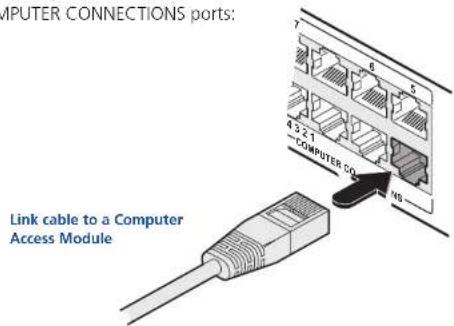
3 Connect the other end of the cable to the Computer Access Module (CAM) that is linked to the required server system.
For more information about connecting CAMs, please refer to the appropriate Adder user guide as appropriate to the rack drawer model being used:
- RDxx16yy --> use AdderView CATx 1000 user guide,
- RDxx16IPyy --> use AdderView CATxIP 1000 user guide,
- RDxx16QIPyy --> use AdderView CATxIP 5000 user guide.
where: xx is either 17 or 19, denoting the LCD screen size yy is the country code, e.g. UK, US, etc.
4 Repeat steps 2 and 3 for each server system.

Power connection
The rack drawer is provided with a power adapter capable of supplying the display monitor, keyboard and in-built KVM module.
IMPORTANT: You must only use the manufacturer approved power adapter with the rack drawer.
IMPORTANT: Due to the length of the power cable, if the rack drawer is mounted high in the rack it may not be possible to place the power adapter at floor level. In this case it is important to mount it securely and in such a manner that it is not suspended from its output cable.
To connect the power adapter
1 Attach the output lead from the power adapter to the 12V socket on the rear panel of the rack drawer:
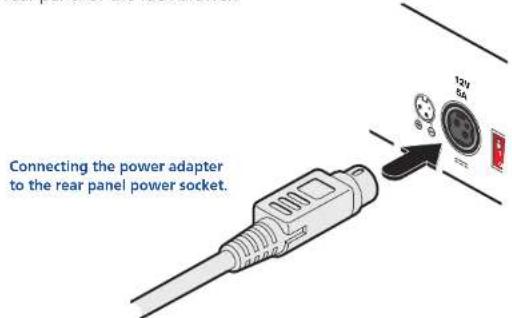
2 Connect the IEC connector of the supplied country-specific power lead to the socket of the power adapter.
3 Connect the power cord to a nearby power outlet.
Note: Both the rack drawer and the power adapter generate heat when in operation and will become warm to the touch. Do not enclose them or place them in locations where air cannot circulate to cool the equipment. Do not operate the equipment in ambient temperatures exceeding 35^ C. Do not place the products in contact with equipment whose surface temperature exceeds 35^ C.
To disconnect the power adapter
When removing the power connection be aware that the plug has a locking mechanism to prevent accidental disconnects. To remove, pull back the flat top segment of the plug body to disengage the lock and gently pull the whole plug from the power socket:


Initial configuration
The precise details for configuration of the rack drawer will depend on the model being used. For more information, please refer to the Configuration section of the appropriate Adder user guide as appropriate to the rack drawer model being used:
- RDxx16yy --> use AdderView CATx 1000 user guide,
- RDxx16IPyy --> use AdderView CATxIP 1000 user guide,
- RDxx16QIPyy -->> use AdderView CATxIP 5000 user guide.
where: xx is either 17 or 19, denoting the LCD screen size yy is the country code, e.g. UK, US, etc.

Operation
Opening and closing the rack drawer
The compact rack drawer is easy to open and close when required.
To open the rack drawer
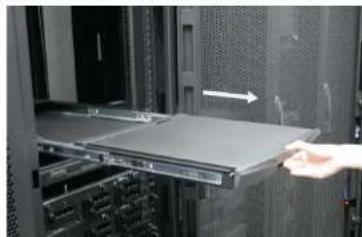
1 Press the button on the carry handle at the front of the rack drawer unit and gently pull the carry handle towards you:
natural_image
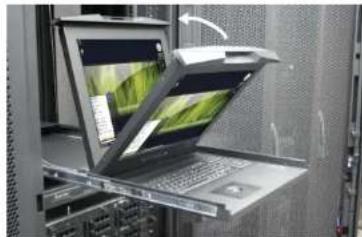
Close-up of a server rack with a hand holding a device, showing a white arrow pointing to a portion of the rack (no text or symbols visible)2 Once the drawer is fully extended, lift up the carry handle to reveal the screen and keyboard:
natural_image
Laptop with open screen displaying green graphics, mounted on server rack (no visible text or symbols)Note for safe use
- Keep all liquids away from the equipment to minimise the risk of accidental spillage. Liquid spilled on to the power supply or on other hardware may cause damage, fire or electrical shock.
To close the rack drawer
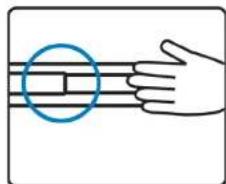
1 Fold down the screen and locate the black arrow release button on each side of the drawer slider:

natural_image
Simple line drawing of a lever mechanism with an arrow indicating direction (no text or symbols)2 Pull forward and hold the two black arrow buttons while slightly pushing the drawer slider in to release the locks.
3 Gently push the drawer slider all the way into the rack using the carry handle. Take care to keep your fingers away from the sliders:
natural_image
Illustration of a hand holding a finger with a circular blue circle highlighting a finger (no text or symbols)
Operating the rack drawer
The screen controls
The screen controls are located at the base of the screen:

natural_image
Line drawing of a laptop chassis with visible screen, keyboard, and baseplate (no text or symbols)
Power indicator.
(green = on, orange = power saving mode).

Power button for the screen.

Display the OSD menu.

Scroll buttons to control OSD menus.
(To auto adjust screen, press and hold for 5 seconds).

Exit the OSD menu.
(Also used to toggle digital DVI-D and analog SVGA inputs, where appropriate).

Using the OSD menu
Press the button to display the OSD menu:
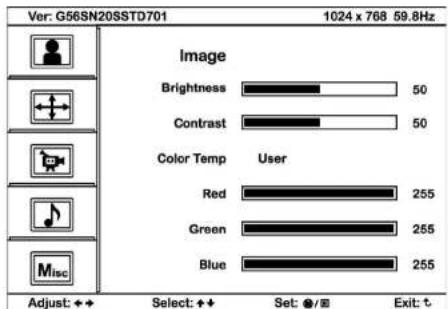
The various sections within the menu are as follows:

Image
Controls for brightness, contrast, colour temp, red, green and blue.

Geometry
Controls for auto adjust, H position, V position, phase and clock.

Not used

Not used

Misc
Controls for language, OSD position, graphic mode, OSD time, ratio, reset and timer.

Selecting server channels
In operation, you can select server channels in two main ways, including:
• On screen menu, or
- Keyboard hotkeys.
For more information, please refer to the Operation section of the appropriate Adder user guide as appropriate to the rack drawer model being used:
- RDxx16yy --> use AdderView CATx 1000 user guide,
- RDxx16IPyy --> use AdderView CATxIP 1000 user guide,
- RDxx16QIPyy --> use AdderView CATxIP 5000 user guide.
where: xx is either 17 or 19, denoting the LCD screen size yy is the country code, e.g. UK, US, etc.

Further information
Troubleshooting
Interference signal appears on the screen when shutting down the system
- In rare cases interference may appear on the screen. This may be caused by signal rate of the video card and is considered normal. The image quality can be improved by adjusting the phase or pixel rate.
The membrane power light is not ON
- Press the Power On / Off button on display membrane to check whether the monitor is switched on. - Check the power cord is properly connected to the rack drawer and power outlet.
Screen image is not centered or sized properly
- Press the button for five seconds to automatically adjust the image. Auto adjust can also be initiated within the geometry section of the OSD menu. - Adjust the H-position and V-position settings via the OSD menu.
Screen specifications
The following specifications apply to both screen sizes unless indicated otherwise:
Maximum resolution 1280x 1024
Brightness 300 Cd/m
Contrast ratio 1000:1
Viewing angle 160^ × 160^
Display area 338 x 270mm (17" model) or 376 x 301mm (19" model)
Getting assistance
If you are still experiencing problems after checking the list of solutions in the Troubleshooting section then we provide a number of other solutions:
- Adder Technology website – www.adder.com
Check the Support section of our website for the latest solutions and driver files. - Email – support@adder.com
• Fax in the UK: 01954 780081 in the US: +1 888 275 1117
• Phone in the UK: 01954 780044 in the US: +1 888 932 3337

Safety information
• For use in dry, oil free indoor environments only.
- Unplug equipment before cleaning. Don't use liquid or spray detergent; use a moist cloth.
- The unit is heavy. Therefore when installing, place the rack drawer on a sturdy, level surface to prevent it from accidentally falling and causing damage to other equipment or injury to persons nearby.
- Both the AdderView RDX Rack Drawer and its power supply generate heat when in operation and will become warm to the touch. Do not enclose them or place them locations where air cannot circulate to cool the equipment. Do not operate the equipment in ambient temperatures exceeding 35° Celcius (95° Fahrenheit). Do not place the products in contact with equipment whose surface temperature exceeds 35° C (95° F).
- Ensure that the power adaptor is mounted so that neither its cables nor connectors are stressed.
- Observe all precautions and warnings attached to the equipment.
• Warning - live parts contained within power adapter.
• No user serviceable parts within power adapter - do not dismantle.
• Plug the power adapter into a socket outlet close to the rack drawer.
- Replace the power adapter with a manufacturer approved type only.
- Do not use the power adapter if the power adapter case becomes damaged, cracked or broken or if you suspect that it is not operating properly.
• Do not attempt to service the unit yourself.
- Not suitable for use in hazardous or explosive environments or next to highly flammable materials.
- If you use a power extension cable, make sure the total ampere rating of the devices plugged into the extension cable do not exceed the cable's ampere rating. Also, make sure that the total ampere rating of all the devices plugged into the wall outlet does not exceed the wall outlet's ampere rating.
Warranty
Adder Technology Ltd warrants that this product shall be free from defects in workmanship and materials for a period of two years from the date of original purchase. If the product should fail to operate correctly in normal use during the warranty period, Adder will replace or repair it free of charge. No liability can be accepted for damage due to misuse or circumstances outside Adder's control. Also Adder will not be responsible for any loss, damage or injury arising directly or indirectly from the use of this product. Adder's total liability under the terms of this warranty shall in all circumstances be limited to the replacement value of this product.
If any difficulty is experienced in the installation or use of this product that you are unable to resolve, please contact your supplier.

Radio frequency energy
All interface cables used with this equipment must be shielded in order to maintain compliance with radio frequency energy emission regulations and ensure a suitably high level of immunity to electromagnetic disturbances.
European EMC directive 89/336/EEC
This equipment has been tested and found to comply with the limits for a class A computing device in accordance with the specifications in the European standard EN55022. These limits are designed to provide reasonable protection against harmful interference. This equipment generates, uses and can radiate radio frequency energy and if not installed and used in accordance with the instructions may cause harmful interference to radio or television reception. However, there is no guarantee that harmful interference will not occur in a particular installation. If this equipment does cause interference to radio or television reception, which can be determined by turning the equipment on and off, the user is encouraged to correct the interference with one or more of the following measures: (a) Reorient or relocate the receiving antenna. (b) Increase the separation between the equipment and the receiver. (c) Connect the equipment to an outlet on a circuit different from that to which the receiver is connected. (d) Consult the supplier or an experienced radio/TV technician for help.
FCC compliance statement (United States)
This equipment generates, uses and can radiate radio frequency energy and if not installed and used properly, that is, in strict accordance with the manufacturer's instructions, may cause interference to radio communication. It has been tested and found to comply with the limits for a class A computing device in accordance with the specifications in Subpart J of part 15 of FCC rules, which are designed to provide reasonable protection against such interference when the equipment is operated in a commercial environment. Operation of this equipment in a residential area may cause interference, in which case the user at his own expense will be required to take whatever measures may be necessary to correct the interference. Changes or modifications not expressly approved by the manufacturer could void the user's authority to operate the equipment.
Canadian department of communications RFI statement
This equipment does not exceed the class A limits for radio noise emissions from digital apparatus set out in the radio interference regulations of the Canadian Department of Communications.
© 2011 Adder Technology Limited
All trademarks are acknowledged.
Release 1.0d
April 2011
Part No. MAN-RACKDRAWER-ADDER
Adder Technology Limited,
Technology House,
Trafalgar Way, Bar Hill,
Cambridge, CB23 8SQ,
United Kingdom
Tel: +44 (0)1954 780044
Fax: +44 (0)1954 780081
Adder Corporation,
350R Merrimac Street,
Newburyport,
MA 01950,
United States of America
Tel: +1-888-932-3337
Fax: +1-888-275-1117
Adder Asia Pacific
6 New Industrial Road,
Hoe Huat Industrial Building
07-01,
Singapore 536199
Tel: +65 6288 5767
Fax: +65 6284 1150


- AdderView RDX Rack Drawer
- Contents
- Welcome
- Installation
- Operation
- Further information
- Introduction
- Computer Access Modules
- PS/2-style
- USB
- Sun
- Suitable mounting locations
- Mounting the rack drawer
- Connecting the rack drawer
- The EXTernal link (network or remote user)
- To connect the external link
- Computer access module links
- Power connection
- To connect the power adapter
- To disconnect the power adapter
- Initial configuration
- Opening and closing the rack drawer
- To open the rack drawer
- Note for safe use
- To close the rack drawer
- Operating the rack drawer
- Selecting server channels
- Troubleshooting
- Interference signal appears on the screen when shutting down the system
- The membrane power light is not ON
- Screen image is not centered or sized properly
- Screen specifications
- Getting assistance
- Safety information
- Warranty
- Radio frequency energy
- European EMC directive 89/336/EEC
- FCC compliance statement (United States)
- Canadian department of communications RFI statement
- 07-01,
Brand : Adder
Model : ADDERView RDX 1000
Category : KVM Switch