AXDSPX-CH3 - Unknown AXESS - Free user manual and instructions
Find the device manual for free AXDSPX-CH3 AXESS in PDF.


User questions about AXDSPX-CH3 AXESS
0 question about this device. Answer the ones you know or ask your own.
Ask a new question about this device
Download the instructions for your Unknown in PDF format for free! Find your manual AXDSPX-CH3 - AXESS and take your electronic device back in hand. On this page are published all the documents necessary for the use of your device. AXDSPX-CH3 by AXESS.
USER MANUAL AXDSPX-CH3 AXESS
natural_image
Collection of various electronic components including a black rectangular device, multiple colored wires, and connectors (no visible text or symbols)APPLICATIONS
Visit axxessinterfaces.com for current application list
Chrysler DSP Interface With Pre-Wired Harness 2011-2018
INTERFACE FEATURES
- Includes a DSP (Digital Signal Processor)
• 31 Band graphic EQ
• 10 individually assignable outputs - Independent equalization on each of the 10 outputs
- Independent high pass, low pass, and bandpass filters
• Each channel can be delayed independently up to 10ms - Clipping detection and limiting circuits
- Retains factory parking sensor chimes
- Retains U-Connect voice prompts
- Adjustable chime level
- Can be used in amplified and non-amplified models
- Easy behind the radio installation with pre-wired harness
- Bass knob included for level control of subwoofer amp
- Settings adjusted via Bluetooth® in a smart device application (tablet or mobile phone), compatible with both Android and Apple devices
- Read, write, and store configurations for future recall
- Password protect feature available in the mobile app
- Micro-B USB updatable
TABLE OF CONTENTS
Installation Options 2
Installation 2
Connections 3-4
Mobile App 5-13
Specifications 14
INTERFACE COMPONENTS
- AXDSPX-CH3 interface
- AXDSPX-CH3 interface harness
- AXDSPX-CH3 vehicle T-harness • Bass knob
TOOLS & INSTALLATION ACCESSORIES REQUIRED
- Crimping tool and connectors, or solder gun, solder, and heat shrink • Tape • Wire cutter
- Zip ties • Multimeter
Google Play Store

Apple App Store
iOS 12.1 or higher

INSTALLATION OPTIONS I N STALL AT
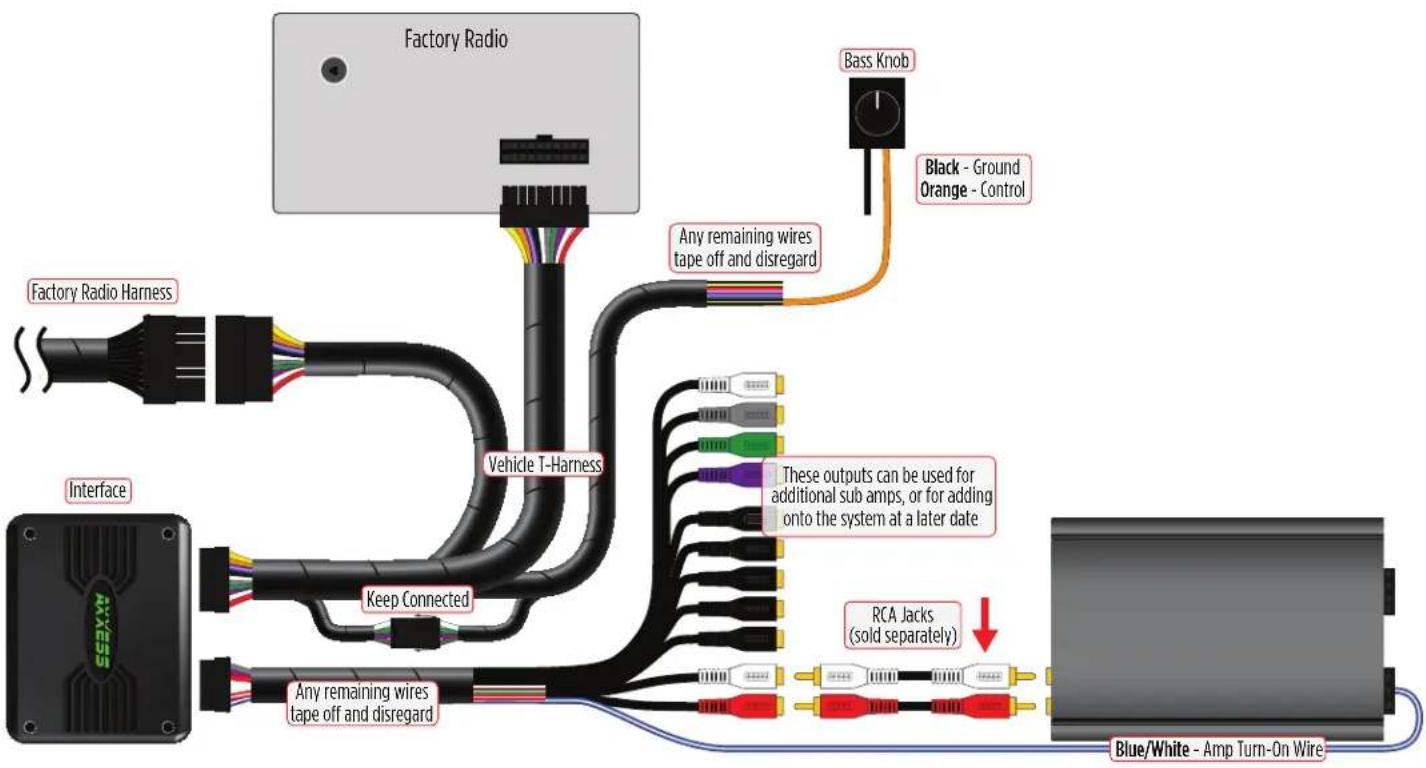
Adding a sub to a factory system:
This feature offers the ability to add a subwoofer to a factory system, whether amplified or non-amplified. (refer to page 3)
Adding a full-range amp & sub to a factory system:
This feature offers the ability to add a full-range amp and sub to a factory system, whether amplified or non-amplified. (refer to page 4)
For amplified models the amp must be bypassed/unplugged, and With OE Amplifier chosen in the Configuration tab under Vehicle Type. Use Axxess AXABH-CH2 (sold separately) to bypass the amp for best results.
Note: The interface provides a 12-volt 1-amp output to turn on aftermarket amp(s). If installing multiple amps, an SPDT automotive relay will be required if the amp turn-on current of all amps combined exceeds 1-amp. Use Metra part number E-123 (sold separately) for best results.
N
- Remove the factory radio , then unplug all connectors.
- Install the AX-DSPX-CH3 vehicle T-harness to the vehicle and make all necessary connections, but leave the amp turn-on wire disconnected.
- Plug the AX-DSPX-CH3 vehicle T-harness to the AX-DSPX-CH3 interface.
- Plug the AX-DSPX-CH3 interface harness to the AX-DSPX-CH3 interface.
- Download and install the AXDSP-X app from the Google Play Store or Apple App Store.
- Open the app then select the Bluetooth Connection tab. Follow the instructions to pair the mobile device to the interface. Refer to page 6 for more information.
- Scroll to the Configuration tab then select the vehicle type. Press the Lock Down button to save the configuration. Refer to page 7 for more information.
- Connect the amp turn-on wire.
- Adjust the settings in the app as desired. Press the Lock Down + button to save any new configurations.
^+ Refer to Metra online for dash disassembly. If Metra makes a dash kit for the vehicle, disassembly will be within those instructions.
‡ Anytime the interface is locked down the key must be cycled off then back on
ADDING A SUB TO A FACTORY SYSTEM
text_image
Factory Radio Bass Knob Black - Ground Orange - Control Factory Radio Harness Any remaining wires tape off and disregard Vehicle T-Harness Interface Keep Connected These outputs can be used for additional sub amps, or for adding onto the system at a later date RCA Jacks (sold separately) Any remaining wires tape off and disregard Blue/White - Amp Turn-On WireREV. 7/30/2020 INSTAXDSPX-CH3
ADDING A FULL-RANGE AMP & SUB TO A FACTORY SYSTEM

flowchart
graph TD
    A["Factory Radio"] -->|If equipped, bypass and remove| B["Bass Knob"]
    A -->|Any remaining wires tape off and disregard| C["Black - Ground Orange - Control"]
    A --> D["Factory Radio Harness"]
    A --> E["Interface"]
    A --> F["Vehicle T-Harness"]
    A --> G["Unplug connector"]
    A --> H["Interface Harness"]
    A --> I["Blue/White - Amp Turn-On Wire"]
    A --> J["Assignable Outputs Labeled CH 6-10"]
    J --> K["RCJacks (sold separately)"]
    J --> L["Cut the male connector off and connect speaker wires to amp (non-amplified models only)"]
    L --> M["White / Front Left + White/Black / Front Left - Gray / Front Right + Gray/Black Front Right - Green / Rear Left + Green/Black / Rear Left - Purple / Rear Right + Purple/Black / Rear Right -"]
    L --> N["An SPDT relay, Metra part number E-123, is required if the amp turn-on current of all amps exceeds 1-amp."]
MOBILE APP
Setup Instructions
text_image
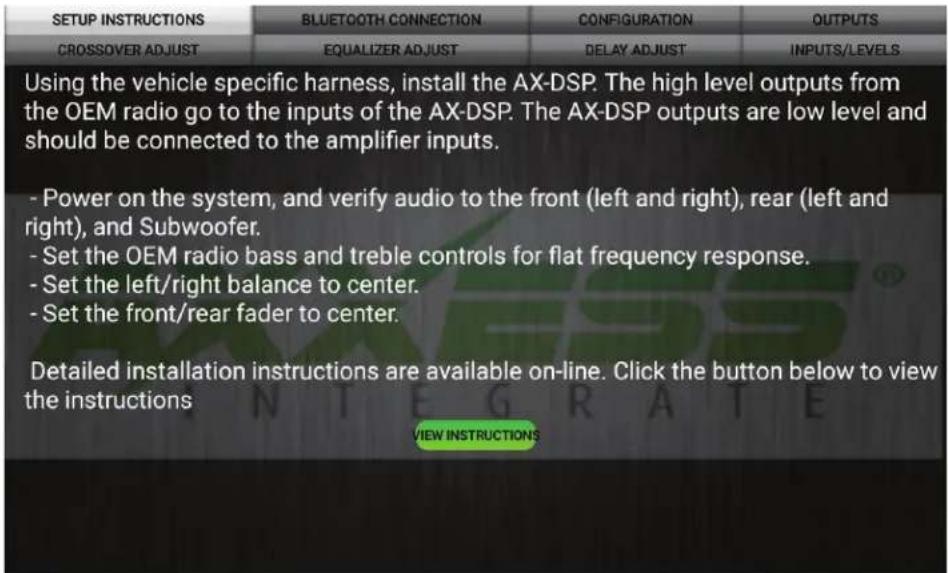
SETUP INSTRUCTIONS BLUETOOTH CONNECTION CONFIGURATION OUTPUTS CROSSOVER ADJUST EQUALIZER ADJUST DELAY ADJUST INPUTS/LEVELS Using the vehicle specific harness, install the AX-DSP. The high level outputs from the OEM radio go to the inputs of the AX-DSP. The AX-DSP outputs are low level and should be connected to the amplifier inputs. - Power on the system, and verify audio to the front (left and right), rear (left and right), and Subwoofer. - Set the OEM radio bass and treble controls for flat frequency response. - Set the left/right balance to center. - Set the front/rear fader to center. Detailed installation instructions are available on-line. Click the button below to view the instructions VIEW INSTRUCTIONS- General information tab for installing the interface.
Continued on the next page
MOBILE APP (CONT.)
Bluetooth Connection

text_image
SETUP INSTRUCTIONS BLUETOOTH CONNECTION CONFIGURATION OUTPUTING CROSSHORN ACCESS ADJUSTED ACCESS ARRAY ACCESS INPUTS/DEVICES SCAN DISCONNECT Available Devices AX-DSP-X Metia 39115816 To connect to the AX-DSP make sure the ignition is in the on position and the AX-DSP is powered up. Hit the SCAN Button and select the AX-DSP from the available devices. Confirmation that you are connected to the DSP will show in the top left corner of the screen. To disconnect from the AX-DSP hit the Disconnect button.- Scan - Press this button to start the Bluetooth pairing process, then select the interface once it is found. "Connected" will appear in the top left corner of the app once paired.
- Disconnect - Disconnects the interface from the app.
Note: The ignition must be cycled on during this process.
Continued on the next page
MOBILE APP (CONT.)
Configuration
text_image
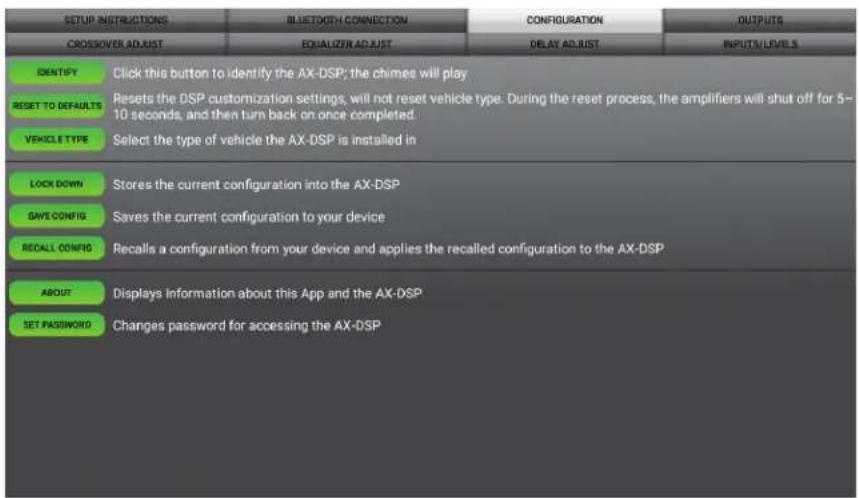
SETUP INSTRUCTIONS CROSSOVER ADJUST BLUETOOTH CONNECTION EQUALIZER ADJUST CONFIGURATION DELAY ADJUST OUTPUTS INPUTS/LEVELS IDENTIFY Click this button to identify the AX-DSP; the chimes will play RESET TO DEFAULTS Resets the DSP customization settings, will not reset vehicle type. During the reset process, the amplifiers will shut off for 5- 10 seconds, and then turn back on once completed VEHICLE TYPE Select the type of vehicle the AX-DSP is installed in LOCK DOWN Stores the current configuration into the AX-DSP SAVE CONFIG Saves the current configuration to your device RECALL CONFIG Recalls a configuration from your device and applies the recalled configuration to the AX-DSP ABOUT Displays Information about this App and the AX-DSP SET PASSWORD Changes password for accessing the AX-DSP- Identify - Click this button to send a test tone to the front left speaker*.
* Only installations using the front left output (white RCA jack). - Reset to Defaults - Resets the interface to factory settings. During the reset process the amp(s) will shut off for 5-10 seconds.
- Vehicle Type - Select the vehicle type from the drop down box, then click the apply button
- Lock Down - Click this button to save the selected settings.
Attention! This must be done before closing the app or cycling the key otherwise all new changes will be lost!
- Save Configuration - Saves the current configuration to the mobile device.
- Recall Configuration - Recalls a configuration from the mobile device.
- About - Displays information about the app, vehicle, interface, and mobile device.
- Set Password - Assign a 4-digit password to lock the interface. If no password is desired, use "0000". This will clear out any currently set password. It is not necessary to lock down the interface when setting a password.
Note: A 4-digit only password must be chosen otherwise the interface will show "password not valid for this device".
Continued on the next page
MOBILE APP (CONT.)
Outputs

text_image
SETUP INSTRUCTIONS BLUETOOTH CONNECTION CONFIGURATION OUTPUTS CND/GOVER ADJUST EQUALIZER ADJUST DELAY ADJUST INPUTS/LEVELSLocation Group
1 Left Front None Invert Mute 2 Right Front None Invert Mute 3 Left Rear None Invert Mute 4 Right Rear None Invert Mute 5 Sub Woofer None Invert Mute 6 Not Used None Invert Mute 7 Not Used None Invert Mute 8 Not Used None Invert Mute 9 Not Used None Invert Mute 10 Not Used None Invert Mute Output ChannelsOutput Channels
- Location - Location of speaker.
-
Group - Used to join channels together for simple equalization. Example, left front woofer/midrange and left front tweeter will be considered simply left front. The letter M indicates the speaker assigned as the master speaker.
-
Invert - Will invert the phase of the speaker.
- Mute - Will mute desired channel(s) for tuning individual channels.
Continued on the next page
MOBILE APP (CONT.)
Crossover Adjust
text_image
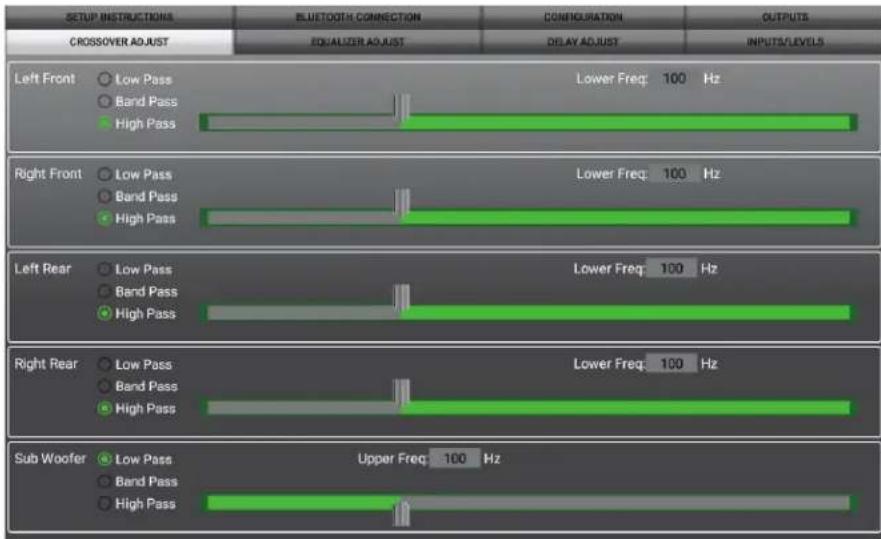
SETUP INSTRUCTIONS CROSSOVER ADJUST ELUETOOTH CONNECTION EQUALIZER ADJUST CONFIGURATION DELAY ADJUST OUTPUTS INPUTS/LEVELS Left Front Low Pass Band Pass High Pass Lower Freq: 100 Hz Right Front Low Pass Band Pass High Pass Lower Freq: 100 Hz Left Rear Low Pass Band Pass High Pass Lower Freq: 100 Hz Right Rear Low Pass Band Pass High Pass Lower Freq: 100 Hz Sub Woofer Low Pass Band Pass High Pass Upper Freq: 100 Hz- If installing a subwoofer, the front and rear outputs will default to a 100Hz high pass filter to keep the low frequency signals out. If a subwoofer is not being installed, change the front and rear crossover points down to 20Hz for a full range signal, or to the lowest frequency the speakers will play down to.
- Selecting High Pass and Low Pass will provide one crossover frequency adjustment. Selecting Band Pass will provide two crossover frequency adjustments, one for low pass, and one for high pass.
Continued on the next page
MOBILE APP (CONT.)
Equalizer Adjust
text_image
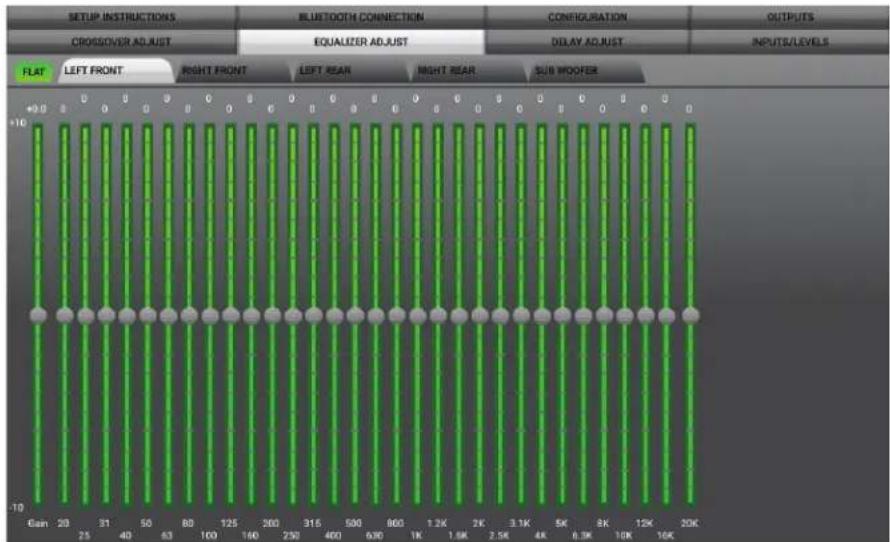
SETUP INSTRUCTIONS CROSSOVER ADJUST BLUETOOTH CONNECTION EQUALIZER ADJUST CONFIGURATION DELAY ADJUST OUTPUTS INPUTS/LEVELS FLAT LEFT FRONT RIGHT FRONT LEFT REAR RIGHT REAR SUB WOOFER +10 6an 20 31 50 80 125 200 315 500 800 1.2K 2K 3.1K 4K 5K 6.3K 8K 12K 16K 20K- All channels can be adjusted independently within this tab with 31 bands of available equalization. It is best to tune this by using an RTA (Real Time Analyzer).
- The Gain slider on the far left is for the channel selected.
Continued on the next page

AXXESS
MOBILE APP (CONT.)
Delay Adjust
text_image
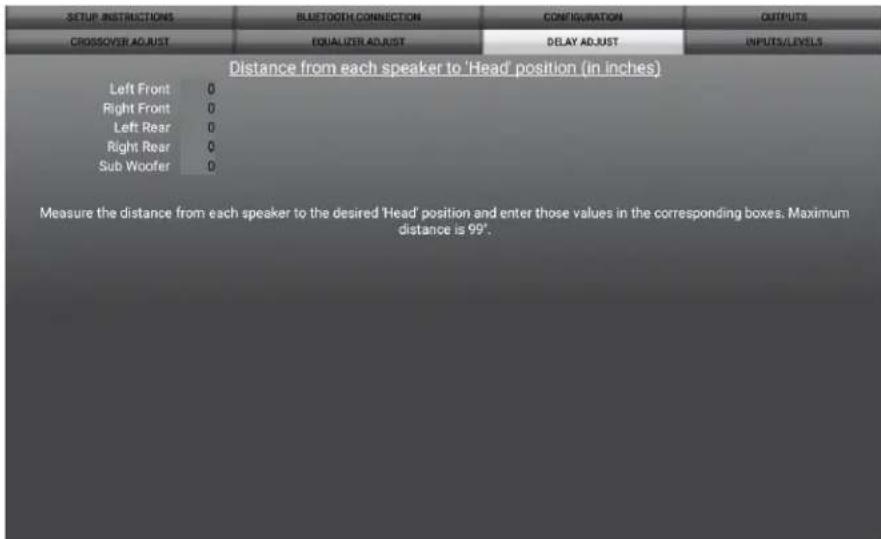
SETUP INSTRUCTIONS CROSSOVER ADJUST BLUETOOTH CONNECTION EQUALIZER ADJUST CONFIGURATION DELAY ADJUST OUTPUTS INPUTS/LEVELS Distance from each speaker to 'Head' position (in inches) Left Front 0 Right Front 0 Left Rear 0 Right Rear 0 Sub Woofer 0 Measure the distance from each speaker to the desired 'Head' position and enter those values in the corresponding boxes. Maximum distance is 99'.- Allows a delay of each channel. If a delay is desired, first measure the distance (in inches) from each speaker to the listening position, then enter those values to the corresponding speaker. Add (in inches) to the desired speaker to delay it.
Continued on the next page
MOBILE APP (CONT.)
Inputs/Levels
text_image
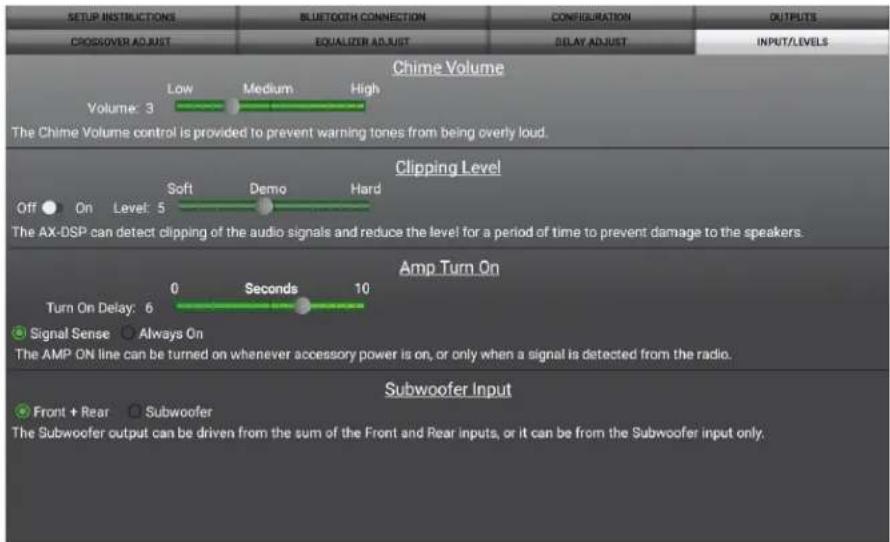
SETUP INSTRUCTIONS CROSSOVER ADJUST BLUETOOTH CONNECTION EQUALIZER ADJUST CONFIGURATION DELAY ADJUST OUTPUTS INPUT/LEVELS Chime Volume Volume: 3 Low Medium High Medium High The Chime Volume control is provided to prevent warning tones from being overly loud. Clipping Level Off On Level: 5 Soft Demo Hard The AX-DSP can detect clipping of the audio signals and reduce the level for a period of time to prevent damage to the speakers. Amp Turn On Turn On Delay: 6 0 Seconds 10 Signal Sense Always On The AMP ON line can be turned on whenever accessory power is on, or only when a signal is detected from the radio. Subwoofer Input Front + Rear Subwoofer The Subwoofer output can be driven from the sum of the Front and Rear inputs, or it can be from the Subwoofer input only.- Chime Volume - Allows the chime volume to be adjusted up or down.
- Clipping Level - Use this feature to protect sensitive speakers like tweeters from being driven past their capabilities. If the output signal of the interface clips the audio will be reduced by 20dB. Turning down the stereo will allow the audio to come back at a normal level. The sensitivity of this feature can be adjusted to the listening preference of the user.
- Amp Turn On
- Signal Sense - Will turn the amp(s) on when an audio signal is detected, and keep on for 10 seconds after the last signal. This ensures the amp(s) won't shut off between tracks.
- Always On - Will keep the amp(s) on as long as the ignition is cycled on.
- Turn on Delay - Can be used to delay audio output to avoid turn-on pops.
- Subwoofer Input - Select Front + Rear
Continued on the next page
MOBILE APP (CONT.)
Locking Down Data

text_image
ON BULLION NAME REGISTERED CONNECTIONS CONFIGURATION ANSUMBER CONTENTS ARE AUT INPUT ONLY AS NOT ON AV AD-SHES OFFICE/ORDER TITLE Click that button to identify the AX-DSP: the chimes will play RESET TO DEEASE Reset to the DSP customization settings, will not reset vehicle type. During the reset process, the amplifiers will shut off for S- 10 seconds, and then turn back on once completed. VEHICLE TYPE Select the type of vehicle the AX-DSP is installed in LOCK DOWN Stoves the current configuration into the AX-DSP SAVE CHANGE Seves the current configuration to your device LOCAL COWNS Regalls a configuration from your device and 37 Locking Down Data configuration to the AX-DSP ABOUT Displays Information about this App and the AX-DSP BEI PASSWORD Changes password for accessing the AX-DSPLast and the most important. You must lock down your configuration and cycle the key!!!
SPECIFICATIONS
Input Impedance 1M Ohm
Input Channels 6
Input Options High Level or Low Level
Input Type Differential balanced
Input Voltage 0 - 28-volts (peak-to-peak)
(high level range)
Input Voltage 0 - 4.9-volts (peak-to-peak)
(low level range)
Ouput Channels 10
Output Voltage Up to 5-volts RMS
Output Impedance 50 Ohms
Equalizer Type 31 Band Graphic EQ, +/- 10dB
THD <0.03%
Frequency Response 20Hz - 20kHz
Crossover 3-Way LPF, BPF, HPF THP per channel
Crossover Type Linkwitz-Riley 24db slope
Sampling 48kHz
S/N Ratio 105dB @ 5-volts RMS
Operating Voltage 10-16 volts DC
Standby Current Draw 7mA
Operation Current Draw 150mA
Adjustments/Controls Application via Bluetooth
Remote Output 12 volts DC (signal sense

AXDSPX-CH3 INSTALLATION INSTRUCTIONS
Having difficulties? We're here to help.

our Tech Support line at:
386-257-1187

mail at:
techsupport@metra-autosound.com
Tech Support Hours (Eastern Standard Time)
Monday - Friday: 9:00 AM - 7:00 PM
Saturday: 10:00 AM - 7:00 PM
Sunday: 10:00 AM - 4:00 PM

KNOWLEDGE IS POWER
Enhance your installation and fabrication skills b enselling in the most recognized and respected
mobile electronics school in our industry.
Log onto www.installerinstitute.com or call
600-354-6782 for more information and take steps toward a better tomorrow.

Metra recommends MECP certified technicians