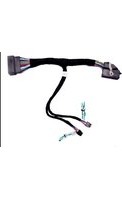
WVIFD-02F - Unknown CRUX - Free user manual and instructions
Find the device manual for free WVIFD-02F CRUX in PDF.


| Product Type | Wireless Audio/Video Mirroring Interface for Vehicles |
| Brand | CRUX |
| Model | WVIFD-02F |
| Compatible Devices | iOS 7+, Android OS 4.2+ |
| Wireless Connectivity | Dual-band Wi-Fi (2.4 GHz and 5 GHz) |
| Video Output | HDMI output for high-quality video |
| Audio/Video Input | Composite AV input for external cameras or devices |
| USB Input | Yes, for playing audio and video files |
| Virtual Remote Control | Via web browser (192.168.59.254) when connected to Crux WiFi |
| Power Supply | 12V DC (ACC) |
| Dimensions (C-500 Module) | Approximately 2.5 x 1.5 x 0.8 inches |
| Dimensions (C-125 Module) | Approximately 2.5 x 1.5 x 0.8 inches |
| Weight (Total Package) | Approximately 1.5 lbs (0.68 kg) |
| Vehicle Compatibility | Ford F-150, F-250, F-350, F-450, F-550 (2013-2015) with MyFord Touch and factory AV input |
| Mirroring Apps Supported | Facetime, Navigation apps, Skype, Email, text, YouTube, and more (except DRM-protected content) |
| Installation Type | Plug-and-play T-harness, requires removal of factory radio |
| Included Accessories | C-500 Module, C-125 Module, Harness, Antennas, AV cables |
| Maintenance | Keep connectors clean and dry; no user-serviceable parts inside |
| Safety Notes | Professional installation recommended; ensure proper wiring to avoid short circuits |
| Spare Parts Availability | Contact CRUX or authorized dealers for replacement modules and cables |
Frequently Asked Questions - WVIFD-02F CRUX
User questions about WVIFD-02F CRUX
0 question about this device. Answer the ones you know or ask your own.
Ask a new question about this device
Download the instructions for your Unknown in PDF format for free! Find your manual WVIFD-02F - CRUX and take your electronic device back in hand. On this page are published all the documents necessary for the use of your device. WVIFD-02F by CRUX.
USER MANUAL WVIFD-02F CRUX
- Enables wireless (Wi-Fi) Audio/Video mirroring from mobile devices to the OEM display screen for shared linking of functions from most Smartphones to the OEM Screen.
- Provides a audio/video input that can be used for a camera.
- Includes a USB input to play Audio and Video files.
- Provides a virtual remote control via a smartphone wifi connection.
- Dual band (5GHz and 2.4GHz) Wifi capability for clear connection.
- Includes HMDI output for high quality video.
- Works with Facetime, Navigation apps, Skype, E-mail, text, and other apps.
- Streams Youtube® videos.
WORKS WITH:

iOS 7 and newer

OS 4.2 and newer
PARTS INCLUDED:
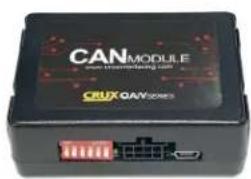
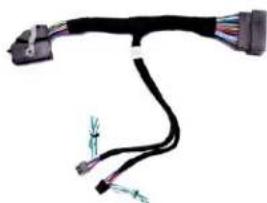

WVIFD-02F C-500 Module WVIFD-02F Harness WVIFD-02F C-125 Module


WVI-H WiFi Module Extension AV Cable Power Harness


Dual Antennas WiFi AV Out Harness AV In / Video Out Harness

INSTALLATION DIAGRAM:
![graph TD A["SONY 8" Radio"] --> B["To factory display"] B --> C["WHITE 12V Output"] C --> D["C-500 Module"] D --> E["GREEN / VIM"] E --> F["LEDs"] F --> G["C-125 Module"] G --> H["Green / VIM"] H --> I["White 12V Output"] I --> J["Black wire (ground)"] J --> K["HDMI OUTPUT"] K --> L["Wi-Fi INTE…](/content/2026/06/1226933/images/a0bcb7802bad53db3c5dd608d8691b35aafbda7927a4add46e3f450bc21f2b84.jpg)
NOTE:
The C-500 and C-125 modules are interchangeable.
INSTALLATION INSTRUCTIONS:
THE AV INTERFACE:
- Remove the factory radio from the dashboard.
- Unplug the factory 54 pin connector from behind the factory display.
- Mate the WVIFD-02F T-Harness connections to the factory connectors. (Make sure all connectors are properly seated into the interface and into the radio.
- Plug the C-500 and C-125 modules to the 8-pin Molex connectors on the WVIFD-02F harness. NOTE: The 2 modules are interchangeable.
- Set the DIP switches on both modules. See next page.
NOTES:
- The radio will go through a reboot process that can take up to 1 minute. It will initialize and re-load all previous settings. Once complete it will resume the original radio display.
- There is no SWC activation available for these Ford trucks. You will need to use a toggle switch and connect the GREEN wires of both modules to +12V power to use the VIM function.
DIP SWITCH SETTINGS ON THE MODULES:
| DIP# C-125 | C-500 RESULT | ||
| 1 OFF | OFF Connection of GREEN | wire to +12V is required. See diagram on page 2. | |
| 1 OFF | OFF Connection of GREEN | wire to +12V is required. See diagram on page 2. | |
| 2 ON | OFF If the vehicle is equipped with a factory rear-view camera. | ||
| 2 OFF | OFF If the vehicle is NOT equipped with a factory rear-view camera. | ||
| 3 OFF | OFF Not Used. | ||
| 4 OFF | OFF Not Used. | ||
| 5 OFF | OFF CAN Termination. | ||
| 6 OFF | OFF CAN Termination. | ||
NOTE: Activating the VIM will affect the Navigation system. It may cause a delay in location updates.
THE WIFI INTERFACE:
- Connect the 18-Pin power/video cable to the Wi-Fi Interface module.
- Connect the antennas to the module.
- Connect the RED power lead to +12V ACC and the BLACK wire to WVIFD-02 harness. See diagram on page 2.
- Connect the BLUE wire to +12V to trigger the optional video input feature. The video input can be also be connected to a camera source. A toggle switch (not included), wired between the BLUE A/V trigger wire and +12V can be used to switch ON or OFF the video input feature.
- If the USB input feature will be used, you can use the virtual remote control on your smartphone to control the USB functions. See VIRTUAL REMOTE section for details.
- Plug in the Composite RCA output of the WVI-H harness to the WVIFD-02 T-Harness AV input.
- Switch to the new AV input by pressing and holding the LEFT Arrow button on the right side SWC for 3 seconds and release.
- Connect your smartphone and test the interface for functionality. See next page for smartphone connection.
- Test the interface and re-install the radio into the dash.
Press and hold the LEFT arrow for 3 seconds then release to switch to AV input.

SETTING YOUR DEVICE:
With the WVI-H module ON and READY:
For iOS Devices:
NOTES:
- Does not support Netflix and any DRM protected files on iOS devices due to Restrictions by Apple.
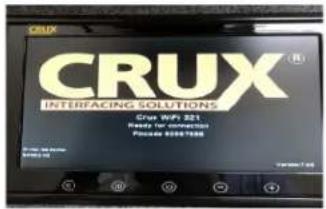
Open settings > Select Wi-Fi > Under 'Choose Network' Select "Crux WiFi ***"
After connecting to Crux Wifi, select "SCREEN MIRRORING" from the Control Center and tap Crux Wifi *** . To access Control Center, on iPhone X, pull down from the upper right corner of the screen, on other iPhone models, pull up from the bottom of the screen.

For Android Devices:
From the drop down drawer, press "Quick Connect" > Select "Crux Wifi ***"
Notes:
1) Make sure the "Power Saving Mode" is turned off.
2) Make sure Quick Connect is updated to the latest version.
MIRRORING:
The mirroring connection uses a direct Wi-Fi connection to transfer the Audio and Video from your device to the WVI-H module. This does not require an active network. If your smartphone has the Screen Time Out enabled and your display goes to sleep mode, you will no longer see the image on the screen. Deactivate this feature for continuous viewing
VIRTUAL REMOTE CONTROL:
The WVI-H comes with a Virtual Remote Control via a Wifi connection. To access the virtual remote control, make sure that the phone is connected to Crux Wifi *** . Open your web browser and type in the following on the address bar: 192.168.59.254
The Virtual Remote control will open. Use the virutal remote control to PLAY, PAUSE, STOP, TRACK UP/DOWN, VOLUME UP/DOWN, etc.
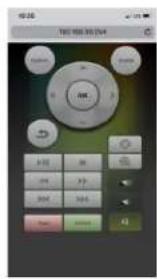
Plug in a USB thumb drive to the USB cable port of the WVI-H. Tap OPTIONS on the Virtual Remote Control to select MOVIES, PHOTOS, MUSIC, etc. Use the remote to play/pause or skip tracks.

Tap SETUP to change settings on VIDEO, SYSTEM, NETWORK, and AUDIO. We recommend NOT to change any SYSTEM settings as this would interfere with the WVI-H functionality.

VEHICLE APPLICATIONS:
FORD
2013-2015 F-150
2013 – 2015 F-150 Raptor
2013-2015 F-250
2013-2015 F-350
2013-2015 F-450
2013-2015 F-550
NOTES:
- Vehicle MUST be equipped with factory A/V Input.
- Works on MyFord Touch radios.



Brand : CRUX
Model : WVIFD-02F
Category : Unknown