KAMN34F1QULB - Suivi Kogan - Free user manual and instructions
Find the device manual for free KAMN34F1QULB Kogan in PDF.


User questions about KAMN34F1QULB Kogan
0 question about this device. Answer the ones you know or ask your own.
Ask a new question about this device
Download the instructions for your Suivi in PDF format for free! Find your manual KAMN34F1QULB - Kogan and take your electronic device back in hand. On this page are published all the documents necessary for the use of your device. KAMN34F1QULB by Kogan.
USER MANUAL KAMN34F1QULB Kogan
natural_image
Front view of a black horizontal monitor with two tripod legs (no text or symbols visible)34" 21:9 CURVED GAMING MONITOR
3440x1440 100Hz
KAMN34F1QULB
SAFETY & WARNINGS
- Read all instructions before using the appliance and retain for reference.
- This monitor is designed with ventilation holes on the back of the casing. Do not cover or block them.
- Do not insert any object or spray any liquid into the vents.
- Avoid placing the monitor near heaters, stoves, fireplaces or other sources of heat, as well as in rooms lacking adequate ventilation.
- Do not position the monitor in unsafe locations. If the monitor falls, it may be damaged and may injure nearby people.
- Unplug the monitor if it is not going to be used for an extended period.
- Do not place heavy objects on the monitor, its power cord or any connected cable.
- Do not open the back panel of the monitor, as it contains a high-voltage current even when not plugged in.
- There is a polarizer layer (not a protective film) on the surface of the screen. Do not peel it off, or the product may be damaged and the warranty will be invalid.

HIGH-DEFINITION MULTIMEDIA INTERFACE
The terms HDMI and HDMI High-Definition Multimedia Interface, and the HDMI Logo are trademarks or registered trademarks of HDMI Licensing Administrator, Inc. in the United States and other countries.
COMPONENTS
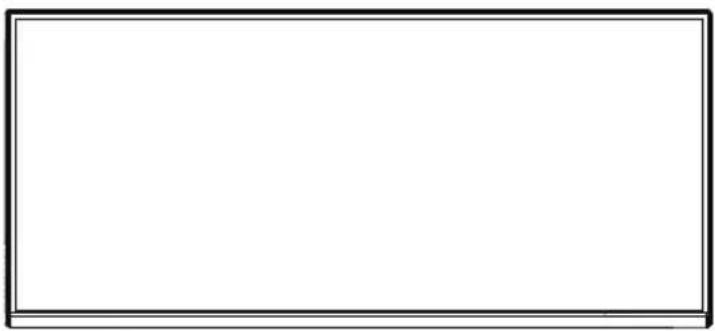
natural_image
Empty white rectangle with black border (no text or symbols)Monitor

natural_image
Simple line drawing of a vertical rod with a small protrusion at one end (no text or symbols)
BaseStand arm
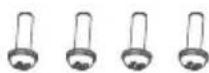
Stand screws (PM5*11 x4)
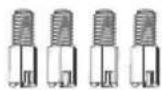
VESA screws (M4*12 x4)

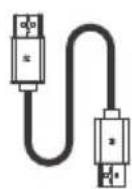

Power cableHeadphone stdser guideDP cable
OVERVIEW

text_image
Technical diagram of a boat hull with labeled controls and directional indicators| Button Function | |
| M | Menu button: Confirm/call up the main menu. |
| ▼ | Down button: Move down in the menu/quickly enter the GamePlus. |
| ▲ | Up button: Move up in the menu/quickly enter the ECO. |
| E | Exit button: Exit/return to the previous menu/quickly enter the Input Signal . |
| ⏻ | Power button: Turn on/off the monitor. |
Indicator

text_image
Indicator| Indicator Status | |
| Blue Power is on and the monitor operating normally. | |
| Red | No horizontal or vertical signal detected, no video input signal or the monitor is in standby.Ensure your computer is turned on and operates normally and check that all video cables are fully plugged in and/or connected to the monitor. |
ASSEMBLY
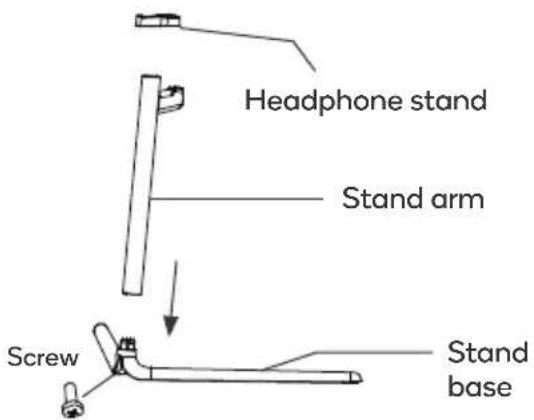
- Open the carton, remove the stand arm, base and headphone stand. Leave the monitor in foam.
Secure the stand arm to the base using one of the screws.
Attach the headphone stand to the stand arm.
text_image
Headphone stand Stand arm Screw Stand base
text_image
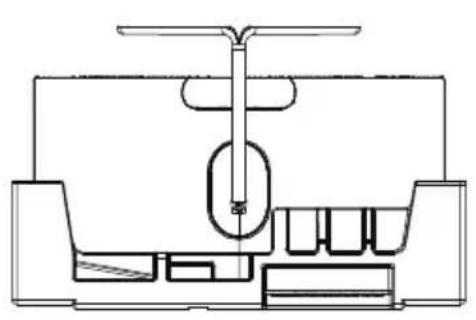
Headphone stand Stand arm Stand base- Remove the bottom half of the protective foam from the monitor.
Press the quick release button and remove the stand plate then attach it to the stand assembly using two screws.
Note:
When handling the monitor, do not pinch the screen with your hand to avoid damaging the display.

text_image
Stand Plate Screws- Attach the stand plate and stand assembly back onto the rear of the monitor.
Remove the remaining protective foam and stand the monitor upright.
Note: To remove the stand from the monitor, slide the quick-release button up and pull the stand assembly outwards.
natural_image
Cross-sectional diagram of a mechanical or electrical component with no visible text or symbols
text_image
Quick- release buttonVESA MOUNT

VESA mounting pattern 75x 75mm, screw size M4.
Note: VESA mount or mounting accessories are not included.
- Open the box, take out the monitor with protection foam attached and gently place it on a desktop or table. Ensure all components are removed from the foam covering. Press the quick release button to remove the stand plate.
If the monitor is already attached to the stand, remove the stand before proceeding with VESA mount assembly.

text_image
Quick release button Protective foam- Remove the four screws from the rear case. Do not remove the monitor from the foam at this stage.

text_image
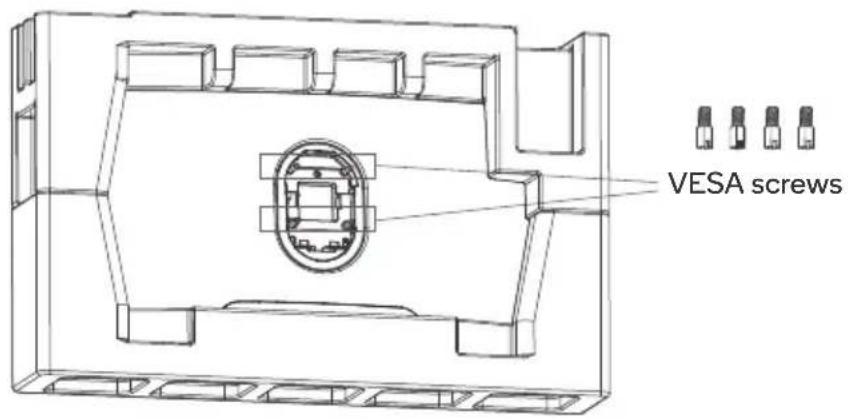
Screws- Remove the four VESA screws from the accessory bag and attach them to the rear casing.
text_image
VESA screws- During hanging of the product, do not pinch the screen with your hand to avoid damaging the screen.
Instructions for attaching to the specific wall mount will be included with the mount.

text_image
Mount (not supplied)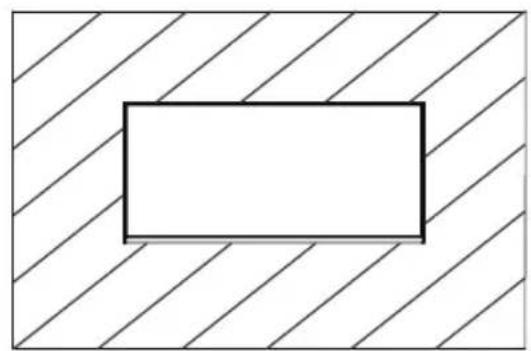
natural_image
Simple geometric diagram with diagonal hatching and a central rectangle (no text or symbols)Notes: To prevent the monitor on the mount from failing, please install it firmly and protect it fully. Do not place or hang any object on the mount. Ensure the height of the mount is less than 2 meters.
CONNECTIVITY
Power Cable
Connect the included power cable to the monitor power port and then connect the other end to a power outlet.
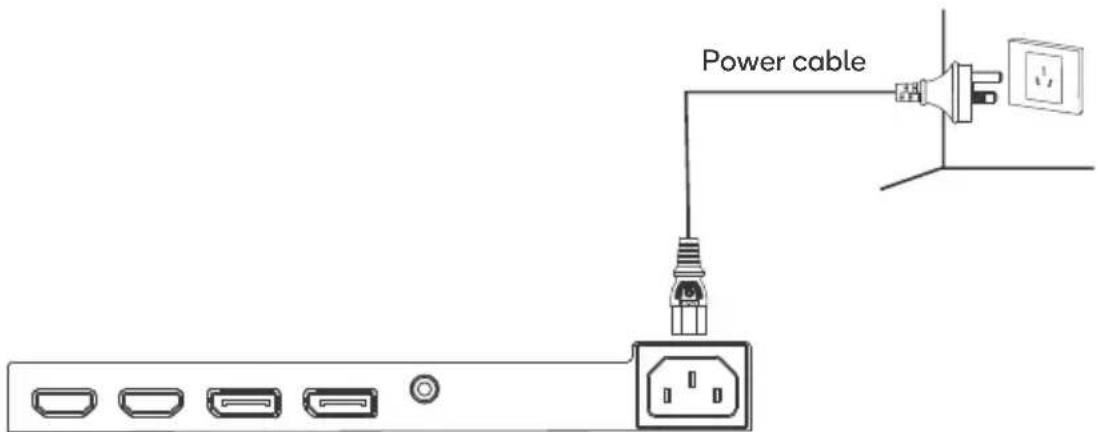
text_image
Power cableAudio Out
Connect an audio output device (speakers, headphone etc.) to the 3.5mm audio port on the monitor.
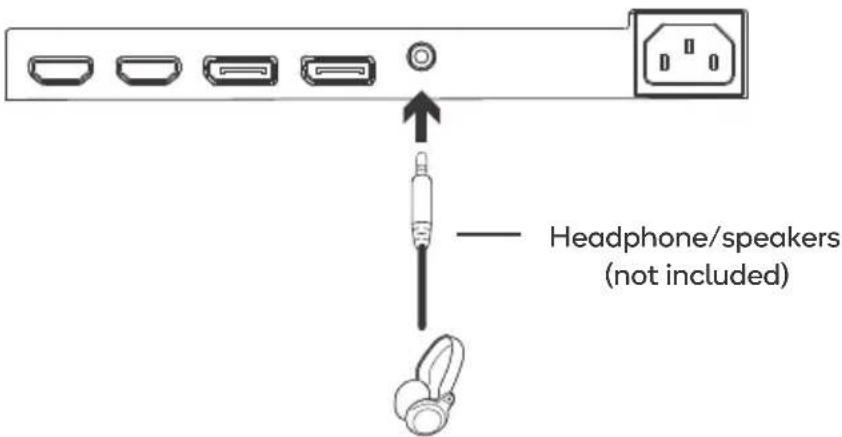
text_image
Headphone/speakers (not included)HDMI
Connect an HDMI cable from the computer's display output to the monitor's display input.
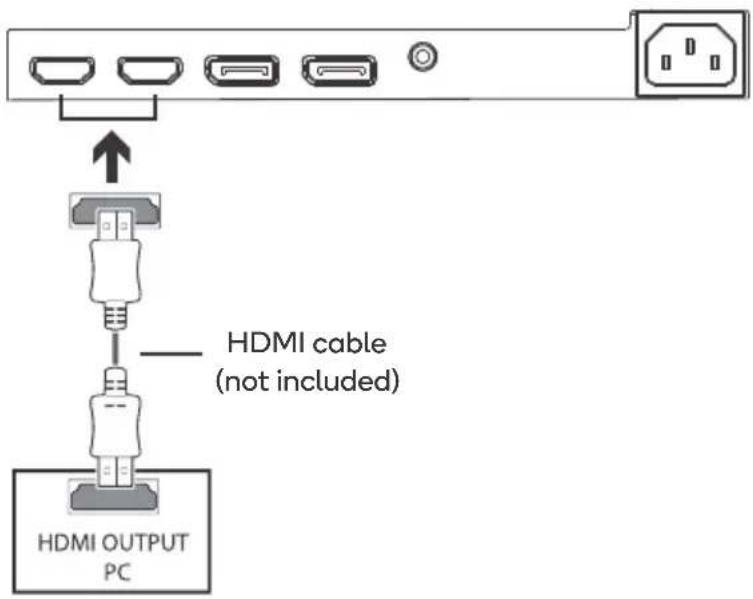
text_image
HDMI cable (not included) HDMI OUTPUT PCDisplayPort
Use the supplied DP cable to connect the computer's display output to the monitor's display input.

text_image
DP cable DP OUTPUT PCOPERATION
- Connect the monitor to your input device via HDMI or DP.
- Connect the power cable to your monitor and then connect the other end directly to a power socket.
- Use the power button to turn the monitor on.
Menu description
- The color and shape of the OSD menu of the actual computer may be slightly different from them shown in the figure.
- Specifications of the OSD menu may change with improvements of functions without prior notice.
The screen display (OSD) menu can be used to adjust settings of the monitor and is shown on the screen after the monitor is powered on and the M button is pressed.
- Press one of the buttons ( M ▼▲ [→ ⏻ ) to activate the browser screen.
- Press M to enter the OSD screen.

text_image
60hz 3440 X 1440 OFF Game Settings Picture Settings Color Settings PIP/PBP OSD Settings Other Settings Standard Mode RTS/RPG Mode FPS Arena Mode MOBA Arena Mode Adaptive-Sync Shadow Balance ON OFF OFF ON 50-
Press ▼ or ▲ to scroll through the functions.
-
Select the desired function, and press M to enter the sub-menu.
- Press ▼ or ▲ to scroll through sub-menus, and press M key to select and confirm the desired function.
-
Press ▼ or ▲ to select one option, and press M to confirm settings and exit from the current menu.
-
Press → to exit from the menu screen
- Functions of the monitor vary with models, and the functions in this manual are for reference only.
| Game Settings | Standard Mode Off/On | |
| RTS/RPG Mode | Off/On | |
| FPS Arena Mode | Off/On | |
| MOBA Arena Mode | Off/On | |
| Adaptive-Sync | Off/On | |
| Shadow Balance | 0-100 | |
| Response Time | Off/Normal/Fast/Ultrafast | |
| Refresh Rate | Off/On | |
| Game Crosshair | Off/On | |
| Game Time | Off/On | |
| Dynamic Brightness Off/Normal/Expert/Elaboration | ||
| MPRT Off/On | ||
| Ambient Lighting | Off/On | |
| Picture Settings | Brightness | 0-100 |
| Contrast | 0-100 | |
| DCR | Off/On | |
| Contextual Model | Off/On | |
| Low Blue Light | 0-100 | |
| Sharpness | 0-100 | |
| Gamma | 1.8/2.0/2.2/2.4/2.6/S.curve | |
| Aspect Ratio | Wide Screen/4:3/1:1/Auto | |
| Color Settings | Warm | Off/On |
| Natural | Off/On | |
| Cool | Off/On | |
| User 1 | Off/On | |
| User 2 | Off/On | |
| User 3 | Off/On | |
| Hue | 0-100 (R/G/B/C/M/Y) | |
| Saturation | 0-100 (R/G/B/C/M/Y) | |
| PIP/PBP | PIP/PBP Mode Off/PIP Mode/PBP 2Win 1:1 | |
| Sub-Signal Source | DP1/DP2/HDMI1/HDMI2 | |
| Audio Source | Auto/DP1/DP2/HDMI1/HDMI2 | |
| PIP Position | Top Right/Top Left/Bottom Right/Bottom Left | |
| PIP Size | Small/Medium/Large | |
| Window swap | Off/On | |
| OSD Settings | Language | 简体中文/English/한국어/عربية/Portugues do Brasilazil/Deutsch/Nederland/Suomi/Français/Ελληνικά/Indonesia/Italiano/日本語/Malaysia/Polskie/Português/Rусский/Espanol/ไทย/УкраїнськаТiéng Việt/繁體中文/Türkçe |
| OSD Time Out | 5-60 | |
| OSD H-Position | 0-100 | |
- Functions of the monitor vary with models, and the functions in this manual are for reference only.
| OSD Settings | OSD V-Position | 0-100 |
| OSD Transparency | 0-5 | |
| Hotkey1 Setting | Brightness/Contrast/Volume/Mute/Shadow Balance/Game Crosshair/Refresh Rate/Game Time/Contextual Model/PIP/PBP Mode/Input Signal/Dynamic Brightness/HDR | |
| Hotkey2 Setting | ||
| Hotkey3 Setting | ||
| OSD Rotation Normal | /90/180/270 | |
| Off/OnOSD Lock | ||
| Other Settings | Input Signal | Auto/DP1/DP2/HDMI1/HDMI2 |
| Volume | 0-100 | |
| Mute | Off/On | |
| Auto Power | Off/On | |
| Eyeshield Remind | Off/On | |
| Reset | - | |
| Information | Input Source/Resolution/Mode/SN |
SPECIFICATIONS
| Screen Size | 34 inch | |
| Aspect Ratio | 21:9 | |
| Viewing Angle | 178°(H) / 178°(V) | |
| Pixel Pitch | 0.07725(H) x 0.23175(V) | |
| Contrast Ratio | 3000:1 | |
| Display Color | 16.7M | |
| Resolution | 3440×1440 | |
| Refresh Rate | 100Hz | |
| Power Input | 100-240V~ 50/60Hz 2.0AThe standard voltage and power supply may vary with countries, please refer to the label at the back of the product. | |
| Dimensions | Without base:808.6 x 123.1 x 363.3mm / approx. 6.62kg | |
| With base:808.6 x 225.6 x454.2mm / approx. 7.35kg | ||
| Tilting Angle | Forward titling: 5°±2°Backward tilting: 15°±2° | |
| Height Range | N/A | |
| Rotation Angle | N/A | |
| Vertical Angle | N/A | |
| Environmental Conditions | Action | Temperature: 0°C~ 40°C (32°F ~ 104°F)Humidity: 10%~90% RH (non-condensing) |
| Storage | Temperature: -20°~ 60° (-4°F ~ 140°F)Humidity: 5%~95% RH (non-condensing) | |
NOTES
Need more information?
We hope that this user guide has given you the assistance needed for a simple set-up.
For the most up-to-date guide for your product, as well as any additional assistance you may require, head online to help.kogan.com
kogan.com