Echo III Rackmount - External hard drive Sonnet - Free user manual and instructions
Find the device manual for free Echo III Rackmount Sonnet in PDF.


User questions about Echo III Rackmount Sonnet
0 question about this device. Answer the ones you know or ask your own.
Ask a new question about this device
Download the instructions for your External hard drive in PDF format for free! Find your manual Echo III Rackmount - Sonnet and take your electronic device back in hand. On this page are published all the documents necessary for the use of your device. Echo III Rackmount by Sonnet.
USER MANUAL Echo III Rackmount Sonnet
for Echo™ III Rackmount
Thunderbolt™ 3 to PCIe® Card Expansion System

text_image
If the version listed is later than this (revision F), click the Download N latest version.
portNote: This document was up to date at
the time of printing. However, changes to the are or software may have occurred since then. Please the Sonnet website for the latest documentation.
- Go to https://www.sonnettech.com/support/kb/kb.php
- Navigate to and click the Echo III Rackmount link.
- Click the Manual link.
- Click the Echo III Rackmount User's Guide [English] link and then check the Document Version information. If the version listed is later than this document (revision F), click the Download Now button for the latest version.

THUNDERBOLT.

EXPRESS®

For Windows


SONNETTECH™
Contents
1 Introduction and System Requirements 1
Introduction
Mac Compatibility
Windows Compatibility
Linux Compatibility
System Requirements
Preparing to Use the Echo III Rackmount With a Mac Computer
Preparing to Use the Echo III Rackmount With a Windows Computer
Preparing to Use the Echo III Rackmount With a Linux Computer
2 Echo III Rackmount Description 2
Exterior
Echo III Module Interior
Rackmount Rails
Thunderbolt 3 (40Gbps) Cable
Thunderbolt 3 Connector Retainer Clip
3 PCIe Card Installation and Module Setup Steps
4 Complete Setup and Configuration 9
Setup and Configuration Steps—Mac Users
Setup and Configuration Steps—Windows Users
5 Tips, General Information, and Known Issues 11
Tips, General Information
Known Issues
6 Precautions, FCC Compliance, and Support Information 12
Safety Precautions
FCC Compliance
Contacting Customer Service
Chapter 1 – Introduction and System Requirements

natural_image
Technical line drawings of two server rack units with labeled dimensions (no text or symbols beyond measurement annotations)Introduction
Congratulations on your purchase! The Echo III Rackmount is a Thunderbolt 3 expansion system for PCIe cards. Through its PCIe slots, you may connect three non-GPU adapter cards to any computer with Thunderbolt ports to expand its capabilities and add connectivity beyond what's offered through its native ports.
Mac Compatibility
• Mac (M1 Max/M1 Pro/M1) computers with PCIe cards that have M1 processor-compatible drivers
• Mac (Intel®) computers with Thunderbolt 3 ports
- Macs with Thunderbolt 2 or Thunderbolt ports via an Apple Thunderbolt 3 (USB-C) to Thunderbolt 2 Adapter plus Thunderbolt cable (both sold separately)
•macOS ^® 10.12.6+
Windows® Compatibility
• PCs with Thunderbolt 3 or Thunderbolt 4 ports
- Windows 10 (64-bit Edition Version 2004 or greater)
Important Notes: At the time of writing, Windows 11 is NOT compatible, as it does not currently support multi-slot Thunderbolt expansion systems.
Windows computers require the latest BIOS and Thunderbolt drivers to support this product. Check with your computer manufacturer for update information.
Linux ^* Compatibility
- Linux computers with Thunderbolt 3 or Thunderbolt 4 ports
- Linux Kernel 5.0+
System Requirements
While Echo expansion systems require no drivers beyond those pre-installed in your computer's OS, most expansion cards you install do; Thunderbolt-compatible drivers to enable them to work properly through the Thunderbolt interface are required. More information on which cards are compatible with the Echo III Rackmount is available at: https://sonnettech.com/support/
Preparing to Use the Echo III Rackmount With a Mac Computer
The drivers required to support the Echo Echo III Rackmount are installed as part of macOS; there are no preparation steps beyond updating your computer to macOS 10.12.6 or newer.
Preparing to Use the Echo III Rackmount With a Windows 10 Computer
- Update Windows. You must use Windows 10, 64-Bit Version 2004 or newer. To check the version number, type winner in the search bar and click enter.
- Update your computer's BIOS to the latest version. If you need help updating your BIOS, contact your computer manufacturer.
- Update your Thunderbolt Bus Driver to the latest version; you will need version 16.3.61.275 or newer. To check your driver version, go to Settings: Apps: Thunderbolt(TM) Software and you will see the version number. If it is not 16.3.61.275 or newer, then you need to update it. Check with your computer manufacturer for an update.
Preparing to Use the Echo III Rackmount With a Linux Computer
The drivers required to support the Echo III Rackmount are installed as part of Linux Kernel 5.0 and later; there are no preparation steps beyond updating your computer to Linux Kernel 5.0 or later.
Chapter 2 – Echo III Rackmount Description
text_image
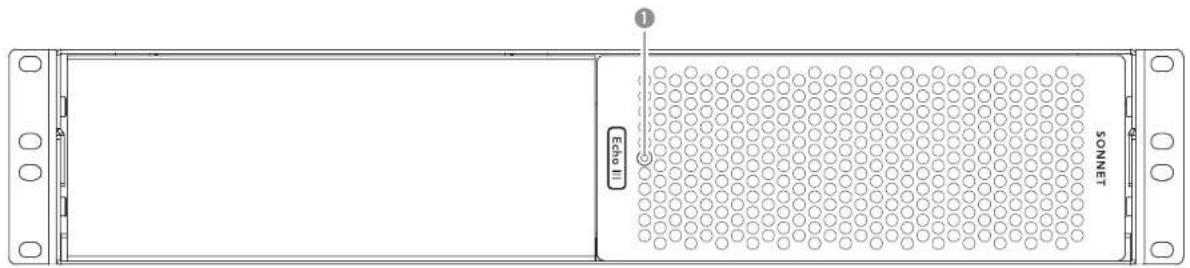
Echo II 1 SONNETExterior
1 - Power Indicator LED
This lights when the Echo III Module is powered, the Thunderbolt cable between the module and your computer is plugged in securely, and the computer powered on. Note that if the module is connected to another Thunderbolt device instead of directly to the computer, any other Thunderbolt device connected between the computer and Echo module must also be powered on before the module's power indicator will light up.
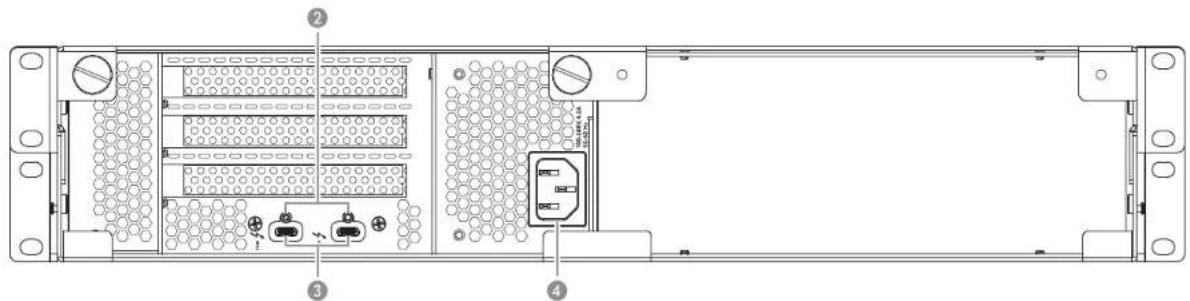
text_image
Technical diagram of a server rack with labeled components including ports, connectors, and ventilation slots2 - Threaded Nuts for ThunderLok 3
Attach the included Thunderbolt connector retainer clip here. Also compatible with ThunderLok 3L.
3 - Thunderbolt Ports
Connect the included (or comparable) Thunderbolt 3 (40Gbps) cable, or any Thunderbolt 4 cable, between either of these ports and your computer's Thunderbolt port (or other Thunderbolt device in the chain connected to the computer).
The second port may be used to connect to another Thunderbolt peripheral device, display(s), or USB device (when connected with the proper cable or adapter).
4 - Power Input Socket
Connect the included AC power cable here.
Chapter 2 – Echo III Rackmount Description
Echo III Module Interior
1 - Slot 1
This is an x8 mechanical (x8 electrical) PCIe 3.0 slot.* It is also compatible with PCIe 2.0 and 1.1 cards.
2 - Slot 2
This is an x16 mechanical (x8 electrical) PCIe 3.0 slot.* It is also compatible with PCIe 2.0 and 1.1 cards.
3 - Slot 3
This is an x8 mechanical (x4 electrical) PCIe 3.0 slot.* It is also compatible with PCIe 2.0 and 1.1 cards.
4 - PCIe Gen 3/Gen 2 (HDX) Mode Switch
This switch enables the use of Avid Pro Tools | HDX PCIe cards in the Echo module; instructions follow.
5 - Thunderbolt Interface Card
This card is installed in its own slot and may not be moved to another.
6 - PCIe Slot Access Cover
These cover openings when PCIe slots are unoccupied.
7 - 6-Pin Auxiliary Power Connector and Cable
Plugged into this connector is the auxiliary power cable for cards requiring extra power. When installing Avid Pro Tools | HDX PCIe cards, disconnect the supplied cable and connect an HDX card's custom power cable in its place.
8 - Temperature-Controlled Fans
These provide cooling for the installed PCIe cards and the module's supporting Thunderbolt and power circuitry. 'They operate at a whisper when the cards are running cool, and automatically speed up in steps as the temperature rises. To prevent overheating, do not block the fans or the vent holes on the module.
9 - PCIe Card Guides
When installing full-length cards, use these to support and secure the cards.
* PCIe 2.0 slot when PCIe Gen 3/Gen 2 (HDX) Mode Switch set to Gen 2 (HDX) position.

text_image
Technical diagram of a server rack with numbered components for installation or maintenanceChapter 2 – Echo III Rackmount Description
Rackmount Rails
You may remove and reposition the pair of included rackmount rails. When installed on the upper mounting pins, the rails support enclosure installation in racks with mounting depths ranging from 16–20.25 inches. When installed on lower mounting pins, the rails support enclosure installation in racks with mounting depths ranging from 19.75–24 inches.
Thunderbolt 3 (40Gbps) Cable
Connect this cable between the Echo module and your computer (or other Thunderbolt device in the chain connected to the computer). Connecting the Echo module to a computer port marked with a generic USB icon (←→) or USB + Charging Port icon (→) is NOT supported.
Thunderbolt 3 Connector Retainer Clip
This clip secures the Thunderbolt 3 connector plugged into one of the Echo module's Thunderbolt 3 ports to prevent accidental cable disconnection. This clip is compatible with Sonnet 0.5- and 0.7-meter Thunderbolt 3 cables, but not with Sonnet 1- or 2-meter Thunderbolt 3 cables.

text_image
16-20.25° (41-51 cm) Upper Mounting Pins 19.75-24° (50-61 cm) Lower Mounting Pins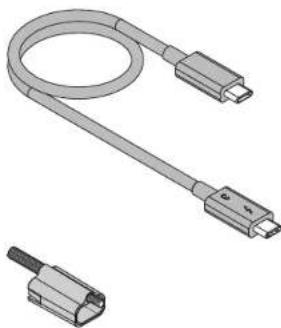
natural_image
Illustration of a USB cable with two connectors (no text or symbols)Chapter 3 – PCIe Card Installation and Module Setup Steps
- Remove the Echo III Rackmount from its packaging, and then set it on a flat, level surface.
- Remove and set aside the two thumbscrews securing the Echo III Module to the rackmount enclosure (Figure 1).

ortNote: Early-production enclosures include captive thumbscrews that cannot be removed. For enclosures with captive opscrews, simply loosen them to release the Echo III Module.
-
Push the back of the module into the enclosure, and then gently pull out the module through the front of the enclosure (Figure 1).
-
OPTIONAL STEP: If you are going to install an additional module into the Echo III Rackmount enclosure, remove and set aside the four screws securing the cover plate inside the enclosure, and then remove and set aside the cover plate (Figure 2). Otherwise, go to the next step.

natural_image
Isometric technical diagram of a server rack with labeled components and directional arrows (no text or symbols beyond labels)Figure 1

natural_image
Technical line drawing of a server rack unit with mounting bracket and side panel (no text or symbols)Figure 2
Chapter 3 – PCIe Card Installation and Module Setup Steps

ortNote: To avoid damaging components due to static electricity discharge, wear an antistatic wrist strap while working the Echo module.
- Remove and set aside the screw securing a PCIe slot access cover (Figure 3).
- Remove and set aside the loose PCIe slot access cover (Figure 3).
- If you are installing more than one card, repeat steps 5 and 6 as necessary with the remaining PCIe slot access covers.

WARNING: When handling computer products, take care to prevent components from being damaged by static electricity; avoid working eted areas. Handle expansion cards only by their edges and avoiding connector traces and component pins. Also, avoid touching the module's circuit boards and any of its components.
-
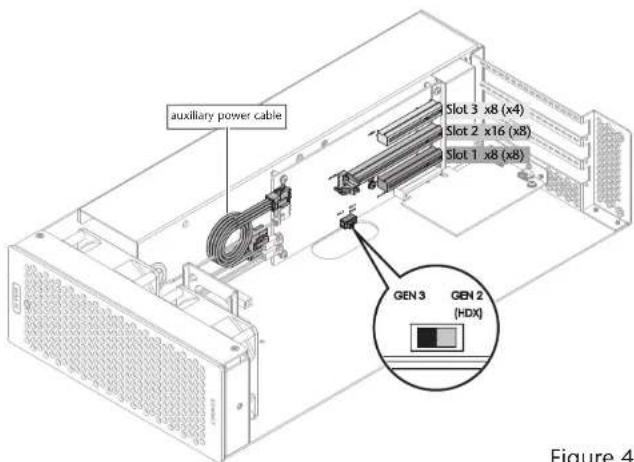
OPTIONAL STEP 1: If you are not installing a PCIe card which requires auxiliary power, skip to step 10. Otherwise, locate the auxiliary power cable (Figure 4).
-
When installing one or more Pro Tools | HDX PCIe cards, disconnect and set aside the power cable, replace it with the custom power cable included with an Avid card, and then move the loose connectors aside for later connection.
-
When installing cards other than the Pro Tools I HDX, remove the cable twist tie securing the power cable, and then move the loose connector aside for later connection.
-
OPTIONAL STEP 2: If you are installing one or more Avid Pro Tools | HDX cards, move the Gen 3/Gen 2 (HDX) switch (Figure 4) to the Gen 2 (HDX) position to enable compatibility. Otherwise, the card(s) will not work in the Echo module.

natural_image
Isometric line drawing of a server rack unit with ventilation grilles and cable ports (no text or labels)Figure 3
text_image
auxiliary power cable Slot 3 x8 (x4) Slot 2 x16 (x8) Slot 1 x8 (x8) GEN 3 GEN 2 (HDX) Figure 4Figure 4
Chapter 3 – PCIe Card Installation and Module Setup Steps
- Remove a PCIe card from its packaging, handling the card by its edges and without touching any components or gold connector pins.

FortNote: If you are installing a x8 PCIe 1.1 card like the original RED ROCKET (not RED ROCKET-X) or certain 10 Gigabit net cards, installing it into slot 3 may result in reduced performance. recommend you install it into either slot 1 or 2 for best performance.
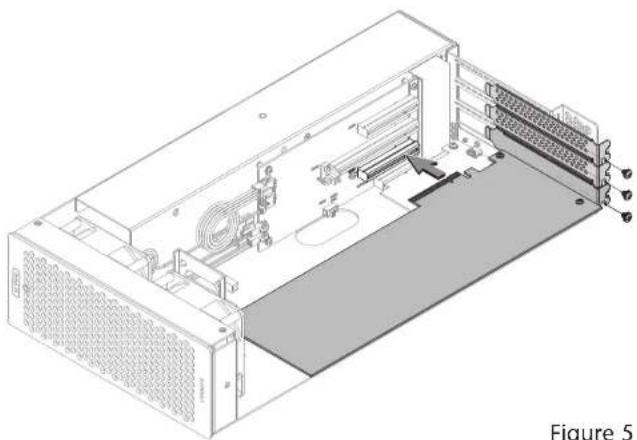
- Line up the card's connector with the slot, and then gently but firmly press the card straight into the slot; do not rock the card or force the card into the slot. If you encounter excessive resistance, check the card's connector and the slot for damage, and then try inserting the card again (Figure 5).
- Repeat steps 10 and 11 as necessary with any remaining cards.
- If you installed a card which requires auxiliary power, connect the auxiliary power connector to it now.
- If there are any unoccupied slots, install the PCIe slot access covers you removed previously, and then secure the cards and slot covers using the previously-removed screws (Figure 5).
- Adjust or remove the rackmount extension rails on the rackmount enclosure as necessary (Figure 6).
- OPTIONAL STEP: Due to its size and weight, we recommend that you install the empty rackmount enclosure now. If you don't have full access to the back of the rack into which you'll install the Echo III Rackmount, or you are installing the Echo III Rackmount into a mobile cart or rack, wait to install the assembled Echo chassis until instructed to do so.
natural_image
Isometric technical diagram of a server rack with ventilation ducts and internal components (no text or labels)Figure 5

natural_image
Isometric technical drawing of a rectangular electronic device with mounting brackets and a central internal channel (no text or symbols)Figure 6
Chapter 3 – PCIe Card Installation and Module Setup Steps
- OPTIONAL. STEP: If you are also installing an additional module, refer to its user's guide for instructions about preparing it for installation with the Echo III Module. Otherwise, go to the next step.
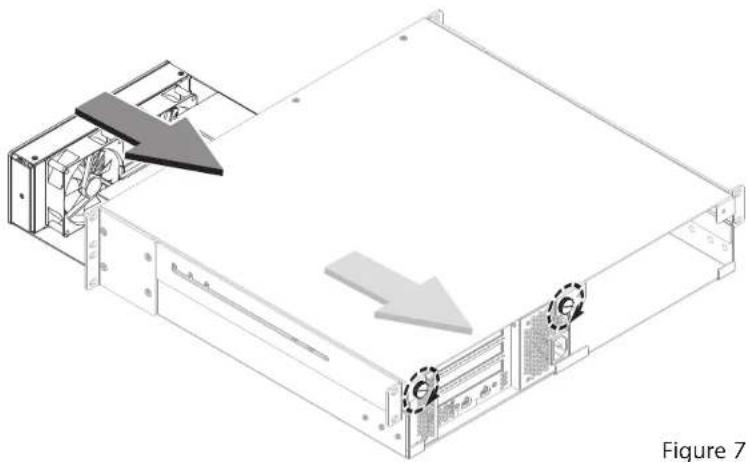
- Gently push the Echo III Module back inside the rackmount enclosure (Figure 7). If you are installing a second module, do so now.
- Using the two thumbscrews you removed previously, secure the module to the rackmount enclosure by tightening them clockwise (Figure 7). If you installed a second module, secure it to the enclosure now.
- If you haven't already installed the Echo III Rackmount into its rack, do so now.

Support Note: Sonnet's ThunderLok™ 3 Thunderbolt connector retainer clip secures the included Thunderbolt 3 (40Gbps) cable to
the Echo module to prevent accidental disconnects. This clip is compatible with Sonnet 0.5- and 0.7-meter Thunderbolt 3 cables, but not with Sonnet 1- or 2-meter Thunderbolt 3 cables.
To attach the clip to the cable, remove both items from their packaging, and then insert the connector into the connector clip as shown (Figure 8). Note that the connector will pass all the way through the clip; when you connect the cable to the module, the clip will secure the connector.
- Connect the included (or comparable) Thunderbolt 3 (40Gbps) cable, or any Thunderbolt 4 cable, between a Thunderbolt port on the Echo module and a Thunderbolt port on your computer, or other Thunderbolt device in the chain connected to the computer (Figure 8). Note that cables or computer ports marked with a generic USB icon (●) or USB + Charging Port icon (♀) are NOT compatible. Secure the retainer clip to the module if you attached it. If you are daisy chaining additional Thunderbolt devices, connect another Thunderbolt cable between the downstream device and the open Thunderbolt port on the Echo module.
- Connect interface cables between devices, PCIe cards, and computer as necessary.
- Connect the included power cord between a wall outlet or power strip and the Echo module's power socket. Note that the Echo III Module's power indicator will not light until the computer and any other Thunderbolt device connected between it and the Echo module is powered on.
natural_image
Isometric technical diagram of a server rack with fan and drive components, showing directional arrows indicating movement (no text or symbols present)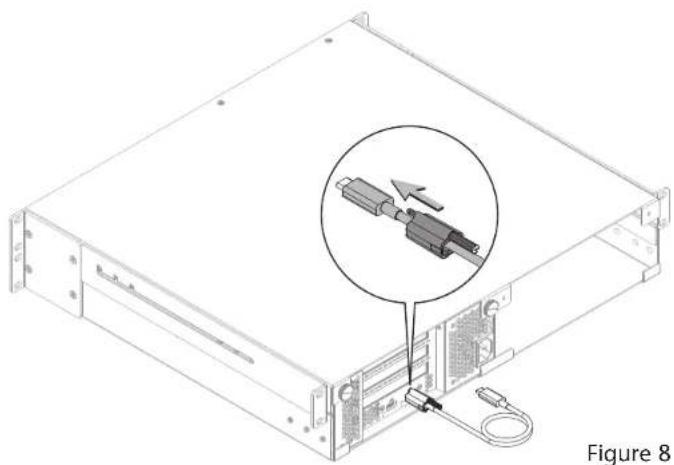
natural_image
Technical line drawing of a server rack with an inset showing a connector (no text or symbols present)Chapter 4 – Complete Setup and Configuration
SETUP AND CONFIGURATION STEPS—MAC USERS
This page instructs Mac users how to verify the Echo module and installed cards are recognized by the computer; Windows users skip to the next page.
A - Confirm the Echo III Module is Recognized
- With the Echo module powered and connected to the computer, turn on the computer; any other Thunderbolt devices connected between the module and your computer must also be powered for you to perform the following steps.
- Press and hold down the Option key, and then from the Apple menu, select System Information; a System Information window will open.
- In the System Information window, click Thunderbolt under the Hardware header in the left column (Figure 9). In the top right column under the Thunderbolt Device Tree header, you will see Thunderbolt Bus, and then "DuoModo Echo III Module".

Support Note: If "DuoModo Echo III Module" is not listed,
computer and Echo module. Note that it is not necessary to shut down the computer before disconnecting and reconnecting the cable.
B - Confirm the Installed Cards are Recognized
- In the System Information window click PCI under the Hardware header in the left column (Figure 10).
- At the top of the right column, installed cards are listed (if not, you may to install drivers before the cards are recognized). Click one of the cards; you should see "Yes" next to Driver Installed and Tunnel Compatible, otherwise the card or driver may not be Thunderbolt-compatible (Figure 10).

Support Note: While the Echo III Module doesn't require drivers
beyond those pre-installed in your computer's OS, installed cards
require Thunderbolt-compatible drivers to enable their use.
C - Install Card Drivers (If Necessary)
- Launch a web browser, and then go to your card manufacturer's website. Download and install the latest drivers according to the manufacturer's directions.
- Restart your computer; your Echo module is ready to use!

text_image
Thunderbolt User 3.0 Vendor Name: Apple Inc. Device Name: Mac mini UC: DODR1787402895 Speed String: 0 Hardware Version: AAA Domain: AAA MACD: 000754-846-435-836 Port: Status: No device connected Unit Status: 8x7 Speed: Up to 40 GHz at Current Unit Width: 0 Newport: 1 Line Controller Hardware Version: 1:343 Port: Status: Device connected Unit Status: 8x7 Speed: Up to 40 GHz at Current Unit Width: 0 Newport: 1 Line Controller Hardware Version: 1:343 Database Info Module Vendor Name: Software Technologies, Inc. Device Name: Software Drive Software Version ID: 3x3 Speed: Up to 40 GHz at Current Unit Width: 0 Mode String: 1 Hardware Version: 8x7 Port (Userware) Status: Device connected Unit Status: Out Speed: Up to 40 GHz at Current Unit Width: 0 Line Controller Hardware Version: 0.400 Port: Status: No device connected Unit Status: Out Speed: Up to 40 GHz at Current Unit Width: 0 Line Controller Hardware Version: 0.400 New Port New Port Software Tools - Features - Thrushort - Thrushort Tool - Figure 9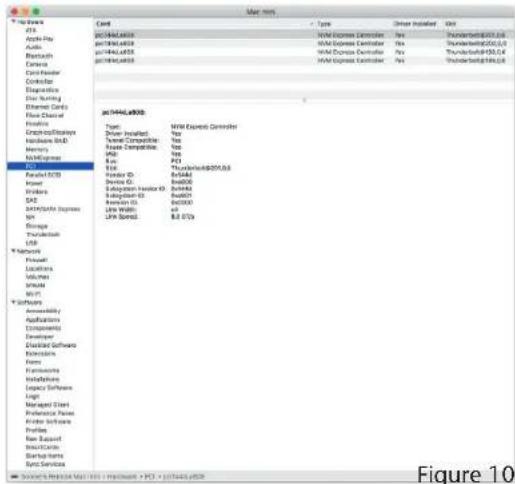
text_image
Mac mini Hardware PTA Apple Play Audio Bluetooth Camera Control Panel Controller Geometry Digital Audio Ethernet Cards Flow Direction Features Connect/Analysis Accessories (AD) Memory Multi-Express SOS Serial/CD/DVD Illumina Windows SAS 340/340 Express SN Storage Turkish/US USB Network Power Locations Volumbus VMU MOS Software Accessibility Applications Displacement Developer Disasys Software Services Home Emersons Installations Interface Software Logic Managed Start Preference Name Kforce Software Profile Raw Support Structures Startup Items Sync Services 2019E64.4000 Type: MMS Express Controller Driver Installed: Yes Terminal Compatible: Yes Name Compatible: Yes APD: Yes Ran: PD File: Thunderbolt@2019.03 Number ID: 854462 Device ID: 854462 Embedded Header ID: 854462 Embedded Link ID: 854462 Link Width: 854462 LTM Spread: $0.079Chapter 4 - Complete Setup and Configuration
SETUP AND CONFIGURATION STEPS—WINDOWS USERS
A - Confirm the Echo III Module and Installed Cards Are Recognized
- With the Echo module powered and connected to the computer, turn on the computer; any other Thunderbolt devices connected between the module and your computer must also be powered for you to perform the following steps.
- When the computer boots for the first time after you connected the Echo module, an Approve New Thunderbolt™ Devices window appears. From the drop-down menu select Always Connect, and then click OK.
- Right-click the Windows Start button, and then select Manage; the Computer Management window appears.
- In the Computer Management window, click the category of each card type you installed to expand the listing; a generic adapter listing will appear. After their drivers are installed, the listings will change to display the names of the installed cards.
B - Install Card Drivers, If Necessary
- Launch a web browser, and then go to your card manufacturer's website. Download and install the latest drivers according to the manufacturer's directions.
- Restart your computer; your Echo module is ready to use!
Chapter 5 – Tips, General Information, and Known Issues
TIPS, GENERAL INFORMATION
Keeping the Cards Cool
With its optimized airflow design and temperature-controlled fan providing cooling at all times, the Echo III Rackmount provides adequate cooling for the installed cards. Do not operate the Echo module outside of its enclosure, and do not block any of the vents! Otherwise, the installed cards and Echo module's components may overheat.
Hot Plugging the Echo Module
When certified Thunderbolt-compatible cards (used with Thunderbolt-compatible drivers) are installed, you may connect and disconnect the module while the computer is on. Of course, if you have anything connected to the cards, such as storage devices, cameras, etc., follow proper procedures for disconnecting those devices before unplugging the Echo module.
There's No Need to Unplug the Power Cable
Because the Echo III Module automatically powers on and off with the computer to which it's connected, there's no power switch, nor is there any need to disconnect the power cable under normal use.
Power Indicator LED Operation
The module automatically powers on and off with the computer to which it's connected, and its power indicator only lights when the computer is on and turns off when the computer is sleeping or powered off.
Connecting Additional Thunderbolt Peripherals
The Echo module includes two Thunderbolt ports; the first is reserved for connection to your computer, while the second supports daisy-chaining of up to five additional Thunderbolt peripheral devices.
Using Expansion Cards Without Installing Drivers
Some Thunderbolt-compatible expansion cards, like Sonnet's Allegro™ Pro USB 3.2 PCIe cards, use inbox (built into the operating system) drivers, and are ready to use out of the box.
Replacing a PCIe Card After Initial Installation
Shut down the computer, and then disconnect the power adapter and Thunderbolt cables from the Echo III Module before opening the chassis and replacing the card; PCIe cards are not hot-pluggable!
Echo III Module Provides Downstream Power
The Echo module can provide up to 15 watts to bus-powered Thunderbolt peripheral devices, enabling them to operate without connecting an additional power adapter.
Using the Echo Module to Charge Your Portable Computer
MacBook Air ^® and MacBook Pro ^® with Thunderbolt ports, some PC laptop computers with Thunderbolt 3 ports, and all PC laptops with Thunderbolt 4 ports may be charged slowly via the Echo module's Thunderbolt port (via 15W Power Delivery). Computers with Thunderbolt 2 or Thunderbolt ports cannot be charged via Thunderbolt.
How to Identify Thunderbolt 3 (40Gbps) Cables
Look for the Thunderbolt icon (✗) AND the number 3 on the connector housings to identify these cables. Aside from Thunderbolt cables from Apple, USB-C cables with connectors that only have the Thunderbolt icon without the number 3 may only support 20Gbps speeds, and are not recommended for use with the Echo module. Cables marked with a generic USB icon (✗) are NOT compatible for connecting the Echo module to the computer.
Thunderbolt 4 Cable Compatibility
You may use Thunderbolt 4 cables with Thunderbolt 4 or Thunderbolt 3 computers and peripherals without any compromise in performance or functionality.
Not All Mac-Compatible Cards Work With M1 Max/M1 Pro/M1 Macs
While this product is compatible with M1 Mac computers, not all PCIe cards that work with Intel-based Macs have M1-compatible drivers. We recommend that you contact your PCIe card's manufacturer to verify that the existing drivers support M1 Macs.
KNOWN ISSUES
Not All Thunderbolt 3 Computers' Performance is Equal. While this product features a 40Gbps Thunderbolt 3 interface, some computers equipped with Thunderbolt 3 use an implementation of Thunderbolt 3 that limits PCIe performance to 20Gbps. Mid-2017 and earlier 13-inch MacBook Pro computers with four Thunderbolt 3 ports have this limitation in the two right-hand Thunderbolt 3 ports, while offering full performance from the left-hand ports.
Not all PCIe Cards Will Perform at 100%
Thunderbolt 3's PCIe bandwidth is limited to 2,750 MB/s. While most cards will operate at full performance, some may not because they require more bandwidth than Thunderbolt 3 can provide.
Not All Thunderbolt Cables Deliver Full Performance Full performance from the Echo module requires the use of the included (or comparable) Thunderbolt 3 (40Gbps) cable, or any Thunderbolt 4 cable. When shopping for a Thunderbolt 3 cable, please be aware that some support only lower data transfer speeds (20Gbps).
Operating System (OS) Updates May Break Compatibility Specific device drivers that work under one OS version may not work under a later version. Before updating your computer to the latest OS, we recommend that you contact your PCIe card's manufacturer to verify that the existing drivers work. Note that other computer software updates may also break compatibility.
Some Devices' Performance May be Affected by Where They Are Connected in a Thunderbolt Chain. However small, Thunderbolt introduces latency to a device chain. If you expand with additional Thunderbolt expansion chassis, you may need to experiment with which cards work better in chassis closer to or farther from the computer in the chain.
Chapter 6 – Precautions, FCC Compliance, and Support Information
SAFETY PRECAUTIONS
Please read this section carefully before proceeding. These precautions explain the correct and safe use of this device, thereby helping to prevent injury to you or others, and also help you to minimize the risk of damaging the device.
- Do not attempt to modify the enclosure. If this device appears to be malfunctioning, contact your reseller or local distributor.
- Do not drop the chassis; dropping or mishandling chassis may result in a malfunction leaving the product inoperable.
- Do not insert foreign objects inside the slots.
- Do not expose the device to rain, use it near water or containers that contain liquids which might spill into any openings, or in damp or wet conditions.
- If unusual smells, sounds, or smoke come from the device, or if liquids enter it, unplug it from the electrical outlet immediately.
- Follow the instructions in this manual carefully; contact your reseller or local distributor for additional advice not covered in this User's Guide.
FCC Compliance
Echo III Rackmount complies with Part 15 of the FCC Rules. Operation is subject to the following two conditions: This device may not cause harmful interference, AND this device must accept any interference received, including interference that may cause undesired operation.
Contacting Customer Service
The Sonnet Web site located at www.sonnettech.com has the most current support information and technical updates. Before contacting Customer Service, please check our Web site for the latest updates and online support files, and check this Quick Start Guide for helpful information.
Email support requests generally receive the fastest responses, and are usually processed within a 24-hour period during normal business hours, excluding holidays. When you contact Customer Service, have the following information available so the customer service staff can better assist you:
- Product name
- Computer model
- PCIe card models
- Operating system version
- A System Report (macOS) or a Microsoft System Information MSINFO32 (Windows) report (Windows), along with a description of the issue(s) you are encountering with your device
If further assistance is needed, please contact Sonnet Customer Service at:
E-mail: support@sonnettech.com
Tel: 1-949-472-2772
(Monday–Friday, 9 a.m.–5 p.m. Pacific Time, excluding holidays)
Japan Customers
Contact Sonnet Customer Service Japan at:
E-mail: jp.support@sonnettech.com