Fusion F3 6TB - NAS Sonnet - Free user manual and instructions
Find the device manual for free Fusion F3 6TB Sonnet in PDF.


| Product Type | Network Attached Storage (NAS) |
| Brand | Sonnet |
| Model | Fusion F3 6TB |
| Total Storage Capacity | 6 TB (pre-installed) |
| Number of Drive Bays | 3 (supports 2.5-inch or 3.5-inch SATA drives) |
| Drive Configuration | 3 x 2 TB hard drives (RAID 0/1/5/JBOD supported) |
| Processor | 1.6 GHz dual-core ARM Cortex-A15 |
| System Memory | 2 GB DDR4 RAM |
| Network Interface | 1 x Gigabit Ethernet (RJ-45) |
| USB Ports | 2 x USB 3.0 (Type-A), 1 x USB 2.0 |
| Power Supply | External 60W AC adapter (100-240V, 50-60Hz) |
| Dimensions (W x D x H) | 200 mm x 150 mm x 150 mm |
| Weight | 2.1 kg (without drives) |
| Cooling System | 1 x 80mm low-noise fan |
| Supported RAID Levels | RAID 0, 1, 5, 10, JBOD |
| Supported File Systems | EXT4, Btrfs, NTFS, exFAT (external) |
| Data Protection | AES 256-bit encryption, password protection |
| Backup Features | Time Machine, rsync, cloud backup (Amazon S3, Dropbox) |
| Media Services | DLNA, Plex Media Server, iTunes Server |
| Operating System | Sonnet OS (based on Linux) |
| Client Support | Windows, macOS, Linux, iOS, Android |
| Max User Accounts | 100 |
| Power Consumption | Typical 25W, Standby 8W |
| Noise Level | 20 dB (idle) |
| Operating Temperature | 0°C to 40°C |
| Warranty | 2 years limited |
Frequently Asked Questions - Fusion F3 6TB Sonnet
User questions about Fusion F3 6TB Sonnet
0 question about this device. Answer the ones you know or ask your own.
Ask a new question about this device
Download the instructions for your NAS in PDF format for free! Find your manual Fusion F3 6TB - Sonnet and take your electronic device back in hand. On this page are published all the documents necessary for the use of your device. Fusion F3 6TB by Sonnet.
USER MANUAL Fusion F3 6TB Sonnet
Rugged and Portable 2-Drive Hardware RAID SATA Storage System
User's Guide

text_image
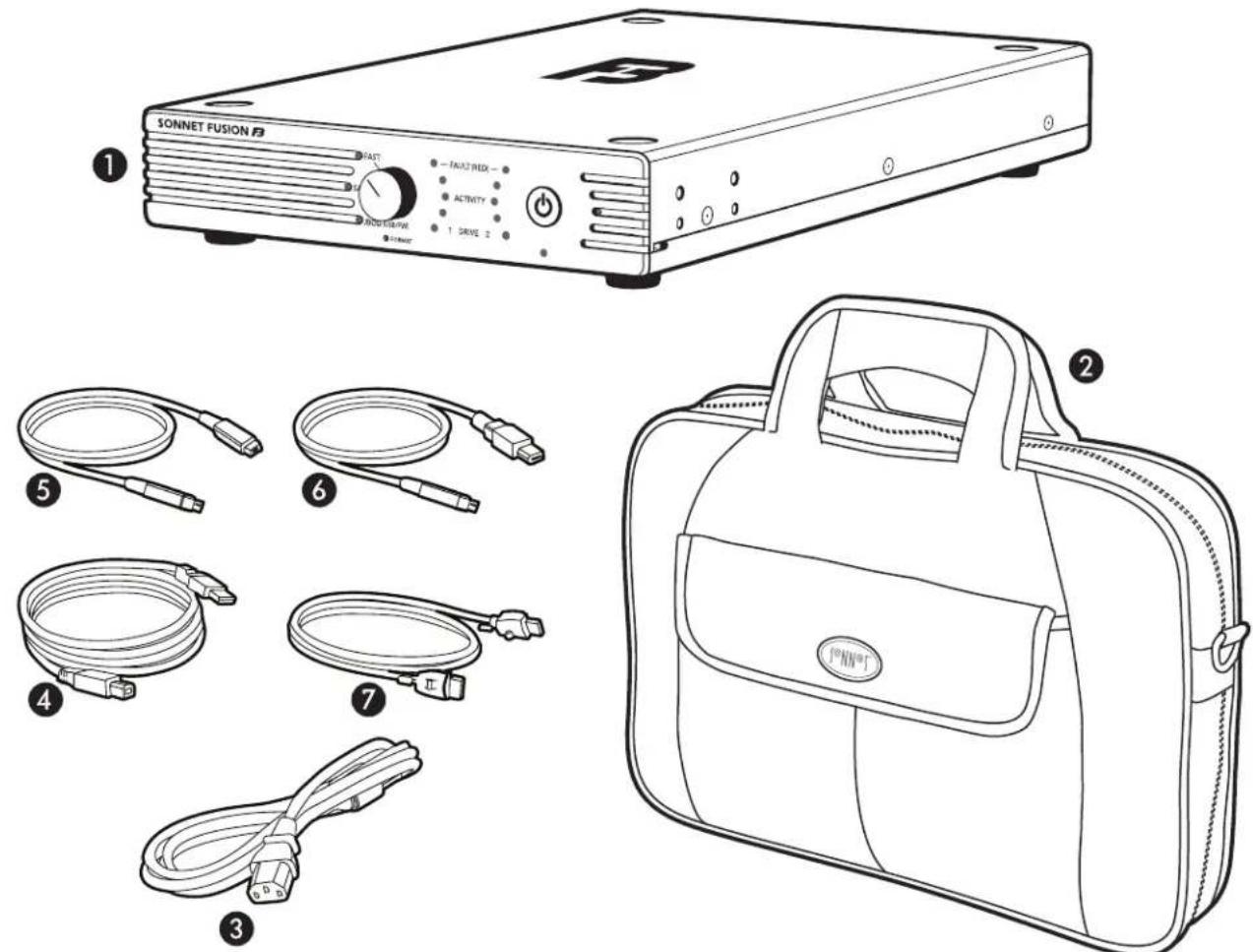
SONNET FUSION B FAST FAULT (RED) - ACTIVITY 1 DRIVE 2 BODY (USB/FW) FORMATFusion F3 Package Contents
text_image
SONNET FUSION FAST FAT3 RED - ACTIVITY 1 DRIVE 2 5 6 4 7 3 21 - Fusion F3 2-Drive RAID SATA Storage System
2 - Carrying Case
Store the Fusion F3, interface cables and power cord for on-the-go use.
3 - Power Cord
US version shown; version varies by region.
4 - USB 2.0 Cable
2-meter A male to B male cable
5 - FireWire 800 Cable
2-meter 9-pin male to 9-pin male cable
6 - FireWire 400 Cable
2-meter 9-pin male (FireWire 800) to 6-pin male (FireWire 400) cable
6 - Locking eSATA Cable
2-meter eSATA data cable with locking connectors, compatible with Fusion F3 and Sonnet Tempo PCI-X and PCIe eSATA host controller cards. Note: You may remove the lock housing if necessary.
Fusion F3 Specifications and Features
text_image
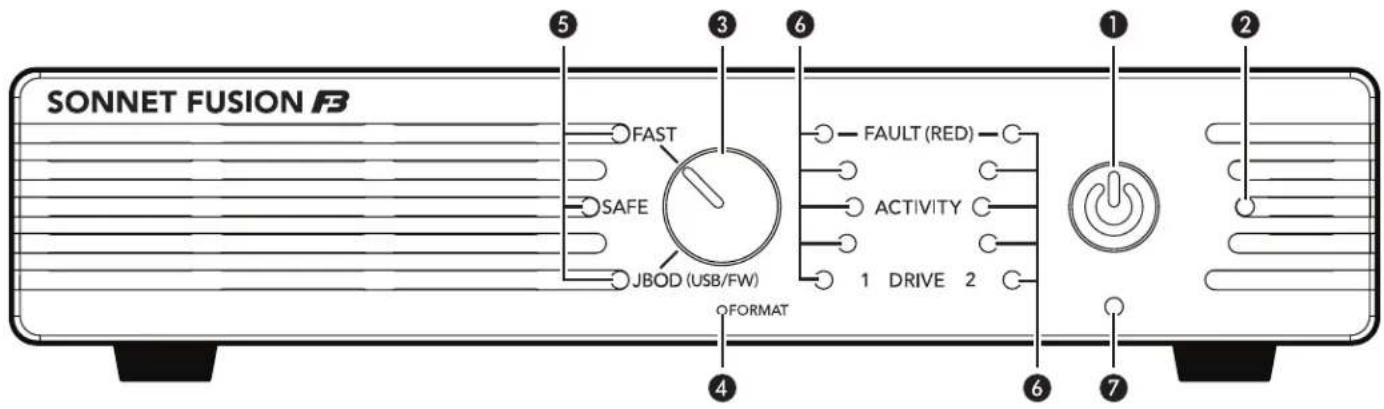
SONNET FUSION FB FAST SAFE JBOD (USB/FW) O'FORMAT FAULT (RED) ACTIVITY 1 DRIVE 2 1 2 4 6 71 - Power Button
2 - Power Indicator LED
This indicator lights when Fusion F3 is powered.
3 - Drive Configuration Selector Switch
Select the drive configuration using this switch.
4 - Drive Configuration Format Switch
This switch is mounted behind the front panel, and is depressed with a paper clip to enable drive configuration switching.
5 - Drive Configuration Indicator LEDs
These LEDs indicate the current drive configuration: FAST (RAID 0), SAFE (RAID 1), and JBOD (individual drives).
6 - Drive Presence, Activity, and Fault Indicator LEDs
These LEDs indicate the drives' ready state (bottom LEDs), read and write activity (all LEDs), and fault (error) status (top LEDs). LEDs on the left light and flash for drive 1, LEDs on the right for drive 2.
7 - Ambient Light Sensor
This sensor controls the LEDs' brightness. The lower the ambient light level, the dimmer the LEDs will glow.
text_image
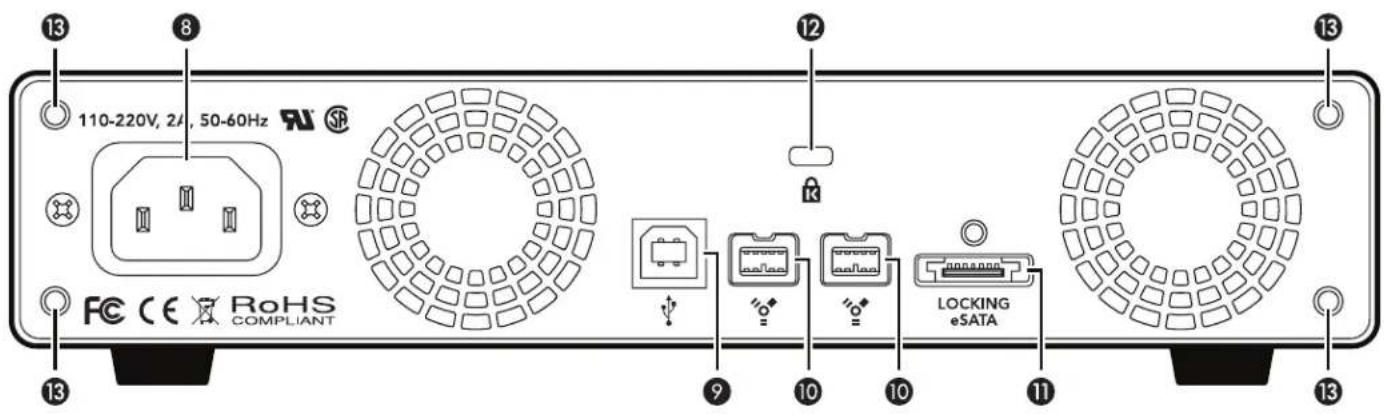
13 8 110-220V, 2A, 50-60Hz RoHS COMPLIANT 12 13 9 10 10 11 LOCKING eSATA 13 138 - Power Cord Socket
9 - USB 2.0 Interface Port
10 - FireWire 800 Interface Ports
These ports are compatible with FireWire 400 ports on computers and adapter cards when the correct cable is used.
11 - Locking eSATA Interface Port
This port is compatible with the included Sonnet locking eSATA data cable and standard eSATA data cables as well.
12 - Security Slot
This slot works with Kensingtöhrand and similar security locks to secure the Fusion F3 enclosure and deter theft.
13 - Rackmount Kit's Rear Bracket Mounting Holes
These holes are used when you attach the optional rackmount kit's rear mounting brackets. Note: The rackmount kit for one or two Fusion F3 systems, part number FUS-F3-RK, is sold separately, and is available for purchase through your reseller.
Safety Precautions and Disclaimers
SAFETY PRECAUTIONS
Please read this section carefully before proceeding. These precautions explain the correct and safe use of this device, thereby helping to prevent injury to you or others, and also help you to minimize the risk of damaging the device.
Warnings
Always follow the basic warnings listed here to avoid the risk of serious injury or death from electrical shock, short-circuiting, fire, and other hazards. These warnings include, but are not limited to:
- With the exception of the user-swappable parts, do not attempt to disassemble or modify the enclosure. If this device appears to be malfunctioning, contact your reseller or local distributor.
- Do not drop the enclosure or any of its drive modules; dropping or mishandling of the enclosure or drive modules may result in a malfunction.
- Do not insert your fingers or foreign objects inside the enclosure; take particular care when small children are present.
- Do not expose the device to rain, use it near water or containers that contain liquids which might spill into any openings, or in damp or wet conditions.
- If unusual smells, sounds, or smoke come from the device, or if liquids enter it, switch it off immediately and unplug it from the electrical outlet.
- Follow the instructions in this manual carefully; contact your reseller or local distributor for additional advice not covered in this User's Guide.
DISCLAIMERS
Drive Usage:
Sonnet Technologies has qualified the hard drives listed below for use in Fusion F3 storage systems. These drives were chosen for their superior performance, error handling, and reliability characteristics, especially when used in RAID groups. One important difference between these drives and standard hard drives is how quickly each handles read errors—these qualified drives attempt to recover from errors for just a few seconds, while standard hard drives may take minutes. Because RAID controller cards and software-based RAID schemes allow only a very short time for drives to recover before dropping them from the RAID group, hard drive manufacturers recommend against using standard hard drives in RAID storage systems. The hard drives qualified by Sonnet also feature improved vibration characteristics that influence and support storage reliability. We recommend the use of these Enterprise/RAID edition hard drives and select, Sonnet certified desktop hard drives in your Fusion storage system to ensure system reliability and performance. STANDARD DRIVES MAY NOT BE SUPPORTED AND MAY DEGRADE SYSTEM RELIABILITY AND PERFORMANCE. Check the Sonnet Web site for the latest list of qualified hard drives.
2TB Models
- Hitachi Deskstar 7K2000, # HDS722020ALA330
Fusion F3 Setup
A. Set Drive Configuration
The drives inside Fusion F3 are configured as a RAID 0 group (FAST), and Mac OS Extended (Journaled)-formatted. If this configuration suits your needs, skip to B. Connect Interface Cable on the next page. Otherwise, follow the steps below to configure the F3's drives.

RNING: Reconfiguring the drives in your Fusion F3
enclosure requires you to reformat them. Reformatting the
drives will erase any data on them! If there is any data on them,
back it up before configuring the drives.
- Connect the supplied power cable between the Fusion F3 and a grounded wall outlet or power strip; verify the cable is plugged in securely. Leave the interface cable disconnected for now.
- Power up the Fusion F3 and wait until the blue drive presence LEDs stop flashing.
- Turn the drive configuration selector switch to the drive configuration setting you wish to use—FAST (RAID 0), SAFE (RAID 1) or JBOD (individual drives) (Figure 1).

Report Note: If you intend to use the JBOD configuration
and access both drives separately, you must connect Fusion F3
to your computer via FireWire or USB, not eSATA. When JBOD
configuration is selected and Fusion F3 is connected via eSATA, only
one of the two drives may be used.
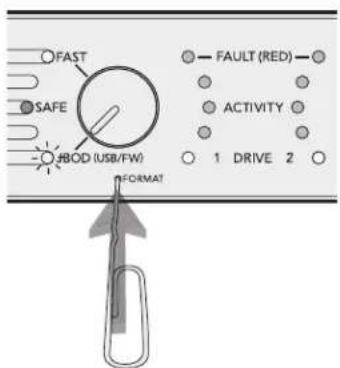
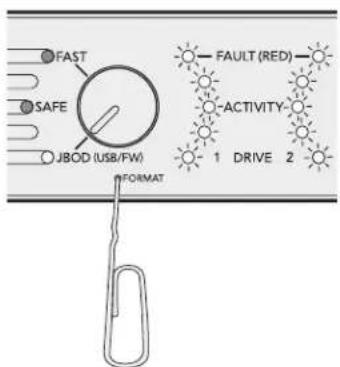
- Insert a straightened paper clip straight into the hole next to the Format label on the F3's front panel (Figure 2), and then gently press and hold the format switch for 6 seconds. During that time, the LED next to the selected mode will first turn yellow, and then start to flash after four seconds (Figure 2); if you have selected a different configuration, the LED next to the previous drive configuration setting remains lit green until the configuration format is completed.
- Release the switch and remove the paper clip from the hole; all drive activity LEDs will quickly light up blue (Figure 3). The LED next to the selected drive configuration will light green; the new configuration is set (Figure 4). You may now format the drives using your computer's operating system drive formatting application; go to page 6.

port Note: If you release the Format switch before the
configuration LED starts to flash, the drive configuration will
not be changed; you must repeat steps 4 and 5 again to change the
drive configuration.

text_image
FAST SAFE JBOD (USB/FW) OFORMAT FAULT (RED) ACTIVITY 1 DRIVE 2Figure 1
text_image
FAST SAFE JBOD (USB/FW) FAULT (RED) ACTIVITY 1 DRIVE 2 INFORMATFigure 2
text_image
FAST SAFE JBOD (USB/FW) FORMAT FAULT (RED) ACTIVITY 1 DRIVE 2Figure 3

text_image
FAST SAFE JBOD (USB/FW) I/O FORMAT FAULT (RED) ACTIVITY 1 DRIVE 2Figure 4
Drive Setup
B. Connect Interface Cable
- Using one of the supplied cables (eSATA, FireWire 800, FireWire 400, USB 2.0), connect the Fusion F3 to your computer. For maximum performance, connect the D400QR5 to a SATA host controller card. Remember, if you formatted the F3's drives in JBOD mode, you must use either a FireWire or USB cable, not eSATA.

port Note: The supplied Sonnet locking eSATA
cable is compatible with all eSATA ports and provides a far more secure connection when used with Sonnet drive enclosures and host controller cards with the matching connector. If necessary, you may remove the locking mechanism from the connector by removing the screws securing the two halves.
C. Drive Formatting - Mac OS Users' Instructions

WARNING: Formatting the drives will erase any data
on them! If there is any data on them, back it up before configuring the drives.

port Notes: If you have selected JBOD configuration
for the Fusion F3's drives, two Disk Insertion windows will appear. Perform steps 1–4 for each drive.
- Assuming your computer is turned on, after the Fusion F3 is powered, a Disk Insertion window will appear onscreen stating that there is an unreadable volume; click Initialize; Disk Utility will open.
- In the Disk Utility window, the RAID group will appear as a single volume. Select the volume, and then click the Erase tab at the top of the window.
- Click Erase; a window will appear asking you to approve your choice.
- Click Erase; the Fusion F3 volume will appear on your computer's desktop.
- Close Disk Utility; the F3 is ready for use.
C. Drive Setup - Windows 7/Server 2008/Vista Users' Instructions

WARNING: Formatting the drives will erase any data on them! If there is any data on them, back it up before using the drives.
- Click Start, then right-click Computer, and then click Manage.
- In the Computer Management window, click Storage in the left pane to expand the list (if necessary), and then click Disk Management.
- If you are using Windows Vista, an Initialize Disk window will appear; skip to step 4. If you are using Windows 7 or Server 2008, when the disks are displayed, the Fusion F3's drives will appear as a single volume when configured as FAST or SAFE (or as two drives if configured as JBOD), and listed as "unallocated". Right-click where the words "Not Initialized" appear and select Initialize Disk.
- In the Initialize Disk window, select GPT, and then Click OK.
- Back in the Computer Management window, right-click where the word "Unallocated" appears, and then select New Simple Volume.
- When the New Simple Volume Wizard window appears, click Next.
- When the Specify Volume Size window appears, click Next if you want all of the F3's capacity to remain as one block (volume). Otherwise, adjust the volume size to meet your needs, and then click Next.
- When the Assign Drive Letter or Path window appears, select Assign the following drive letter, choose a letter, and then click Next.
- When the Format Partition window appears, enter a new name for the volume, select "Perform a quick format", and then click Next.
Note: If you do not select the quick format option, this process will take much longer to complete. - When the next window appears, click Finish; once "Healthy (Primary Partition)" appears, the F3 is ready for use.
Specifications, Precautions, FCC Compliance, and Support Information
Specifications
| Compatibility Compatible | with Mac®, Windows®, and Linux® computers with compatible interface |
| Interface Connectors eSATA, 2x FireWire 800, USB 2.0 | |
| Data Transfer Speed Up to 205MB/s, depending on interface used and configuration | |
| OS Support Platform independent | |
| Operating Temperature 32 to 95° F (0° C to +35° C) | |
| Dimensions (WxDxH, with feet attached) | 8.7 x 13.9 x 2 in(22,1 x 35,3 x 5,1 cm) |
| Weight 8.5 lbs (3,9 kg) | |
| RoHS Compliant Yes | |
| Package Contents 2-meter locking eSATA data cable, 2-meter FireWire 800 cable, 2-meter FireWire 800 to 400 cable, 2-meter USB 2.0 A to B cable, User's Guide | |
SAFETY PRECAUTIONS
Please read this section carefully before proceeding. These precautions explain the correct and safe use of this device, thereby helping to prevent injury to you or others, and also help you to minimize the risk of damaging the device.
Warnings
Always follow the basic warnings listed here to avoid the risk of serious injury or death from electrical shock, short-circuiting, fire, and other hazards. These warnings include, but are not limited to:
- With the exception of the user-swappable parts, do not attempt to disassemble or modify the enclosure. If this device appears to be malfunctioning, contact your reseller or local distributor.
- Do not drop the enclosure; dropping or mishandling of the enclosure or adapter card may result in a malfunction leaving the product inoperable.
- Do not expose the device to rain, use it near water or containers that contain liquids which might spill into any openings, or in damp or wet conditions.
- If unusual smells, sounds, or smoke come from the device, or if liquids enter it, switch it off immediately and unplug it from the electrical outlet.
- Follow the instructions in this manual carefully; contact your reseller or local distributor for additional advice not covered in this User's Guide.
FCC Compliance
Fusion F3 is an FCC Class A device, intended for commercial, industrial, or business environments.
Contacting Sonnet Customer Service
USA Customers
The Sonnet Web site located at www.sonnettech.com has the most current support information and technical updates. Before you call Sonnet Customer Service, please check our Web site for the latest updates and online support files, and check this User's Guide for helpful information. When you call Sonnet Customer Service, have the following information available so our customer service staff can better assist you:
- Product name
• Date and place of purchase - Hard drive model(s)
- Computer model
- Operating system
- Software/firmware versions
If further assistance is needed, please contact Sonnet Customer Service at:
Online Service Form: http://serviceform.sonnettech.com
Tel: 1-949-472-2772
(Monday–Friday, 7 a.m.–4 p.m. Pacific Time)
Fax: 1-949-457-6349
E-mail: support@sonnettech.com
For Customers Outside the USA
For support on this product, contact your reseller or local distributor.
Visit Our Web Site
For the most current product information and online support files, visit the Sonnet Web site at www.sonnettech.com/support/. Register your product online at http://registration.sonnettech.com to be informed of future upgrades and product releases.