
Fusion Thunderbolt 3 - External hard drive Sonnet - Free user manual and instructions
Find the device manual for free Fusion Thunderbolt 3 Sonnet in PDF.


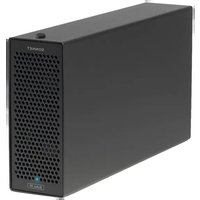
| Product Type | External Hard Drive Enclosure |
| Model | Fusion Thunderbolt 3 |
| Interface | Thunderbolt 3 (USB-C compatible) |
| Supported Drives | Up to two 3.5" or 2.5" SATA HDD/SSD (host card included) |
| Maximum Capacity | Up to 32 TB (2 x 16 TB) |
| Dimensions (W x D x H) | 8.7 x 5.1 x 1.7 in (220 x 130 x 43 mm) |
| Weight | 2.6 lb (1.2 kg) |
| Power Supply | External AC adapter (12V/3A) or bus-powered via Thunderbolt 3 for low power drives |
| Data Transfer Rate | Up to 40 Gbps (Thunderbolt 3); up to 6 Gbps per SATA drive |
| Cooling | Aluminum enclosure with passive cooling (fanless) |
| Construction Material | Aluminum alloy with rubber feet |
| Operating System Compatibility | macOS 10.12+, Windows 10+ (via Thunderbolt 3) |
| Key Features | Daisy chain up to 6 devices, TRIM support for SSDs, UASP support |
| Maintenance | Clean exterior with dry cloth; avoid liquids |
| Safety | Operate on flat surface; do not block ventilation; keep away from moisture |
| Spare Parts & Repairability | Drive sleds and host card available; user-replaceable drives; contact Sonnet for other parts |
| Warranty | 2 years limited (subject to region) |
| Package Contents | Enclosure, Thunderbolt 3 cable (0.5 m), power adapter, quick start guide |
Frequently Asked Questions - Fusion Thunderbolt 3 Sonnet
User questions about Fusion Thunderbolt 3 Sonnet
0 question about this device. Answer the ones you know or ask your own.
Ask a new question about this device
Download the instructions for your External hard drive in PDF format for free! Find your manual Fusion Thunderbolt 3 - Sonnet and take your electronic device back in hand. On this page are published all the documents necessary for the use of your device. Fusion Thunderbolt 3 by Sonnet.
USER MANUAL Fusion Thunderbolt 3 Sonnet
FUSION™ THUNDERBOLT™ 3 PCIe® FLASH DRIVE
Quick Start Guide
You Should Have
The following items should be included in your product package:
• Fusion Thunderbolt 3 PCIe Flash Drive
Mac® Compatibility
• Macs with Thunderbolt 3 ports
- macOS® 10.12.6+
Windows® Compatibility
• PC with a Thunderbolt 3 port
- 64-bit editions of Windows 10, Version 1703 (Creator's Update) or newer
Preparing to Use the Fusion Thunderbolt 3 PCIe Flash Drive With a Mac Computer
The drivers required to support this product are installed as part of macOS; there are no preparation steps beyond updating your computer to macOS 10.12.6 or newer.
Preparing to Use the Fusion Thunderbolt 3 PCIe Flash Drive With a Windows PC
-
Update Windows. You must use Windows 10, 64-Bit Version 1703 or newer (also called the Creator's Update). To check the version number, type winver in the search bar and click enter.
-
Update your computer's BIOS to the latest version. If you need help updating your BIOS, contact your computer manufacturer.
-
Update your Thunderbolt Bus Driver to the latest version; you will need version 16.3.61.275 or newer. To check your driver version, go to Settings:Apps:Thunderbolt(TM) Software and you will see the version number. If it is not 16.3.61.275 or newer, then you need to update it. Check with your computer manufacturer for an update.

natural_image
Black Fiji 3.0Fusion memory card with connected cable and USB port (no visible text or symbols on device body)
portNote: This document was up to date at the time of printing. However, changes to the hardware or are may have occurred since then. Please check the Sonnet te for the latest documentation.
- Go to www.sonnettech.com/support/kb/kb.php
- Click the Thunderbolt Product link.
- Click the Fusion Thunderbolt 3 PCIe Flash Drive link, and then click the Manual link.
- Click the Fusion Thunderbolt 3 PCIe Flash Drive QSG (Mac and Windows) [English] link and then check the Document Version information. If the version listed on the last page of this manual is later than this document (revision A), click the Download Now button for the latest version.
Product Information
Using the Fusion Thunderbolt 3 PCIe Flash Drive – Windows Edition
Listed here is some general information about using this device with your computer:
First Time Use—Windows Users
The first time you connect the Fusion Thunderbolt 3 PCIe Flash Drive to your computer, an Approve New Thunderbolt™ Devices window will appear. From the drop-down menu select Always Connect, and then click OK.
Formatting the Drive
The Fusion Thunderbolt 3 PCIe Flash Drive is shipped from Sonnet unformatted. Use Disk Utility or Windows Disk Management to set up the device for use.
Product Description
Shown below is a picture and descriptions of the Fusion PCIe Flash Drive's connector and indicator.

Thunderbolt 3 (USB Type-C) Connector—Plug this connector into one of your computer's Thunderbolt 3 ports (often indicated by a ≤ logo), or at the end of a Thunderbolt device chain.
Drive Power and Activity Indicator LED—This LED indicates the drive's ready state (LED on), as well as read and write activity (LED flashing).
Known Issues
- While the Fusion Thunderbolt 3 PCIe Flash Drive features a 40Gbps Thunderbolt 3 interface, some computers equipped with Thunderbolt 3 use an x2 PCIe lane implementation of Thunderbolt 3 technology that limits PCIe performance to 20Gbps, which will result in data transfer speeds of only up to 1,400 MB/s. The MacBook Pro (13-inch, Late 2016, Four Thunderbolt 3 Ports) has this limitation in the two right-hand Thunderbolt 3 ports, while offering full performance from the left-hand ports.
- The Fusion Thunderbolt 3 PCIe Flash Drive is not compatible with the Apple Thunderbolt 3 (USB-C) to Thunderbolt 2 adapter; the drive requires more power than a Thunderbolt 2 connection can provide.
Advice
- For Mac Users: If you do not need to boot macOS from the Fusion flash drive, formatting it as ExFAT may deliver better performance than when it is formatted as Mac OS Extended (Journaled). If you need to boot macOS from the Fusion flash drive, it must be formatted as one of the Mac OS Extended formats.
- Always “eject”, “stop”, “unplug”, or “safely remove” the Fusion Thunderbolt 3 PCIe Flash Drive before disconnecting it from your computer or other Thunderbolt device ahead of it in a daisy chain.
- Disconnecting the Fusion Flash Drive while is transferring or receiving data may result in damage to the file(s) being transferred or cause your system to hang.
- You may connect the Fusion Thunderbolt 3 PCIe Flash Drive to, and disconnect it from, your computer while it is on; be sure to follow the above advice regarding disconnecting the drive.
- When plugged in at the end of a Thunderbolt 3 device daisy chain, the Fusion Thunderbolt 3 PCIe Flash Drive may not perform at its peak.

- FUSION™ THUNDERBOLT™ 3 PCIe® FLASH DRIVE
- Quick Start Guide
- You Should Have
- Mac® Compatibility
- Windows® Compatibility
- Preparing to Use the Fusion Thunderbolt 3 PCIe Flash Drive With a Mac Computer
- Preparing to Use the Fusion Thunderbolt 3 PCIe Flash Drive With a Windows PC
- Product Information
- Using the Fusion Thunderbolt 3 PCIe Flash Drive – Windows Edition
- First Time Use—Windows Users
- Formatting the Drive
- Product Description
- Known Issues
- Advice
Brand : Sonnet
Model : Fusion Thunderbolt 3
Category : External hard drive