011313 - SaaS CyberData Systems - Free user manual and instructions
Find the device manual for free 011313 CyberData Systems in PDF.


User questions about 011313 CyberData Systems
0 question about this device. Answer the ones you know or ask your own.
Ask a new question about this device
Download the instructions for your SaaS in PDF format for free! Find your manual 011313 - CyberData Systems and take your electronic device back in hand. On this page are published all the documents necessary for the use of your device. 011313 by CyberData Systems.
USER MANUAL 011313 CyberData Systems
natural_image
Digital clock face with red and black digital displays showing 12:30 PM (no text or symbols on face)PoE-Networked Clock Operations Guide
Part #011313
Document Part #931080B
for Firmware Version 1.2.3.31
CyberData Corporation
3 Justin Court
Monterey, CA 93940
(831) 373-2601
PoE-Networked Clock Operations Guide 931080B 01 Part #011313
COPYRIGHT NOTICE:
© 2016, CyberData Corporation, ALL RIGHTS RESERVED.
This manual and related materials are the copyrighted property of CyberData Corporation. No part of this manual or related materials may be reproduced or transmitted, in any form or by any means (except for internal use by licensed customers), without prior express written permission of CyberData Corporation. This manual, and the products, software, firmware, and/or hardware described in this manual are the property of CyberData Corporation, provided under the terms of an agreement between CyberData Corporation and recipient of this manual, and their use is subject to that agreement and its terms.
DISCLAIMER: Except as expressly and specifically stated in a written agreement executed by CyberData Corporation, CyberData Corporation makes no representation or warranty, express or implied, including any warranty or merchantability or fitness for any purpose, with respect to this manual or the products, software, firmware, and/or hardware described herein, and CyberData Corporation assumes no liability for damages or claims resulting from any use of this manual or such products, software, firmware, and/or hardware. CyberData Corporation reserves the right to make changes, without notice, to this manual and to any such product, software, firmware, and/or hardware.
OPEN SOURCE STATEMENT: Certain software components included in CyberData products are subject to the GNU General Public License (GPL) and Lesser GNU General Public License (LGPL) "open source" or "free software" licenses. Some of this Open Source Software may be owned by third parties. Open Source Software is not subject to the terms and conditions of the CyberData COPYRIGHT NOTICE or software licenses. Your right to copy, modify, and distribute any Open Source Software is determined by the terms of the GPL, LGPL, or third party, according to who licenses that software.
Software or firmware developed by CyberData that is unrelated to Open Source Software is copyrighted by CyberData, subject to the terms of CyberData licenses, and may not be copied, modified, reverse-engineered, or otherwise altered without explicit written permission from CyberData Corporation.
TRADEMARK NOTICE: CyberData Corporation and the CyberData Corporation logos are trademarks of CyberData Corporation. Other product names, trademarks, and service marks may be the trademarks or registered trademarks of their respective owners.
CyberData
The IP Endpoint Company
Technical Support
The fastest way to get technical support for your VoIP product is to submit a VoIP Technical Support form at the following website: http://support.cyberdata.net/
Phone: (831) 373-2601, Ext. 333
Email: support@cyberdata.net
Fax: (831) 373-4193
Company and product information is at www.cyberdata.net.
Revision Information
Revision 931080B, which corresponds to firmware version 1.2.3.31 was released on January 25, 2016, and has the following changes:
- Book title changed to "PoE-Networked Clock Operations Guide"
Browsers Supported
The following browsers have been tested against firmware version 1.2.3.31:
- Internet Explorer (version: 10)
- Firefox (also called Mozilla Firefox) (version: 23.0.1 and 25.0)
• Chrome (version: 29.0.1547.66 m) - Safari (version: 5.1.7)
Pictorial Alert Icons

General Alert
This pictoral alert indicates a potentially hazardous situation. This alert will be followed by a hazard level heading and more specific information about the hazard.

Ground
This pictoral alert indicates the Earth grounding connection point.
Hazard Levels
Danger: Indicates an imminently hazardous situation which, if not avoided, will result in death or serious injury. This is limited to the most extreme situations.
Warning: Indicates a potentially hazardous situation which, if not avoided, could result in death or serious injury.
Caution: Indicates a potentially hazardous situation which, if not avoided, could result in minor or moderate injury. It may also alert users against unsafe practices.
Notice: Indicates a statement of company policy (that is, a safety policy or protection of property).
The safety guidelines for the equipment in this manual do not purport to address all the safety issues of the equipment. It is the responsibility of the user to establish appropriate safety, ergonomic, and health practices and determine the applicability of regulatory limitations prior to use. Potential safety hazards are identified in this manual through the use of words Danger, Warning, and Caution, the specific hazard type, and pictorial alert icons.
Important Safety Instructions
- Read these instructions.
- Keep these instructions.
- Heed all warnings.
- Follow all instructions.
- Do not use this apparatus near water.
- Clean only with dry cloth.
- Do not block any ventilation openings. Install in accordance with the manufacturer's instructions.
- Do not install near any heat sources such as radiators, heat registers, stoves, or other apparatus (including amplifiers) that produce heat.
- Do not defeat the safety purpose of the polarized or grounding-type plug. A polarized plug has two blades with one wider than the other. A grounding type plug has two blades and a third grounding prong. The wide blade or the third prong are provided for your safety. If the provided plug does not fit into your outlet, consult an electrician for replacement of the obsolete outlet.
- Protect the power cord from being walked on or pinched particularly at plugs, convenience receptacles, and the point where they exit from the apparatus.
- Only use attachments/accessories specified by the manufacturer.
- Refer all servicing to qualified service personnel. Servicing is required when the apparatus has been damaged in any way, such as power-supply cord or plug is damaged, liquid has been spilled or objects have fallen into the apparatus, the apparatus has been exposed to rain or moisture, does not operate normally, or has been dropped.
- Prior to installation, consult local building and electrical code requirements.
- WARNING: The device enclosure is not rated for any AC voltages!

GENERAL ALERT
Warning
Electrical Hazard: This product should be installed by a licensed electrician according to all local electrical and building codes.

GENERAL ALERT
Warning
Electrical Hazard: To prevent injury, this apparatus must be securely attached to the floor/wall in accordance with the installation instructions.

GENERAL ALERT
Warning
The PoE connector is intended for intra-building connections only and does not route to the outside plant.
Chapter 1 PoE-Networked Clock Configuration Utility 1
1.1 Introduction ...... 1
1.2 Installation .... 1
1.3 Main Dialog ....2
1.4 Discovery Dialog ....4
1.5 Network Configuration Dialog ....5
1.5.1 Static IP Configuration ....7
1.5.2 Configuration Updated Dialog ....8
1.6 Test Monitor Dialog ....9
Chapter 2 POE Clock Messages 13
2.1 UDP Messages Definition ....13
2.1.1 Discover 13
2.1.2 Announce 15
2.1.3 Change - Static IP 16
2.1.4 Change – DHCP IP ......17
2.1.5 Reboot 18
2.1.6 Dump Configuration Command ....20
2.1.7 Configuration Dump Response .....21
2.1.8 Load Configuration Command 23
2.1.9 Load Configuration Response 24
2.2 TCP Messages Definition ....25
2.2.1 Clock Status Request ....25
2.2.2 Clock Configuration Command 25
2.2.3 Firmware Upgrade 27
2.3 Definitions 28
2.3.1
2.3.2
2.3.3
2.3.4
2.3.5
2.3.6
2.3.7
2.3.8
2.3.9
2.3.10
2.3.11
2.3.12
2.3.13
2.3.14
2.3.15
2.3.16
2.3.17
2.3.18
2.3.19
2.3.20
2.3.21
2.3.22
2.3.23
2.3.24
2.3.25
2.3.26
2.3.27
2.3.28
2.3.29
2.3.30
2.3.31
2.3.32
2.3.33
2.3.34
Appendix A Troubleshooting/Technical Support 33
A.1 Contact Information ....33
A.2 Warranty ....34
A.2.1 Warranty & RMA Returns within the United States ....34
A.2.2 Warranty & RMA Returns outside of the United States 34
A.2.3 Spare in the Air Policy ....35
A.2.4 Return and Restocking Policy ....35
A.2.5 Warranty and RMA Returns Page 35
Index
1 PoE-Networked Clock Configuration Utility
1.1 Introduction
The PoE Clock Configuration Utility is Windows-based software used for discovering, configuring, and functional testing the CyberData PoE Clock.
You can download the configuration utility program from the following webpage:
http://www.cyberdata.net/products/voip/digitalanalog/poeclock/downloads.html
1.2 Installation
To install the configuration utility, copy the configuration utility program to the desktop or in some other directory, and then create a shortcut for the program on your desktop or in some other directory. See Figure 1-1.
Figure 1-1. Configuration Utility Program Shortcut

text_image
CD CDPcUtilityR. exeNote In Figure 1-1, the configuration utility program is named CDPcUtilityR. However, the program might be named something different on your computer.
1.3 Main Dialog
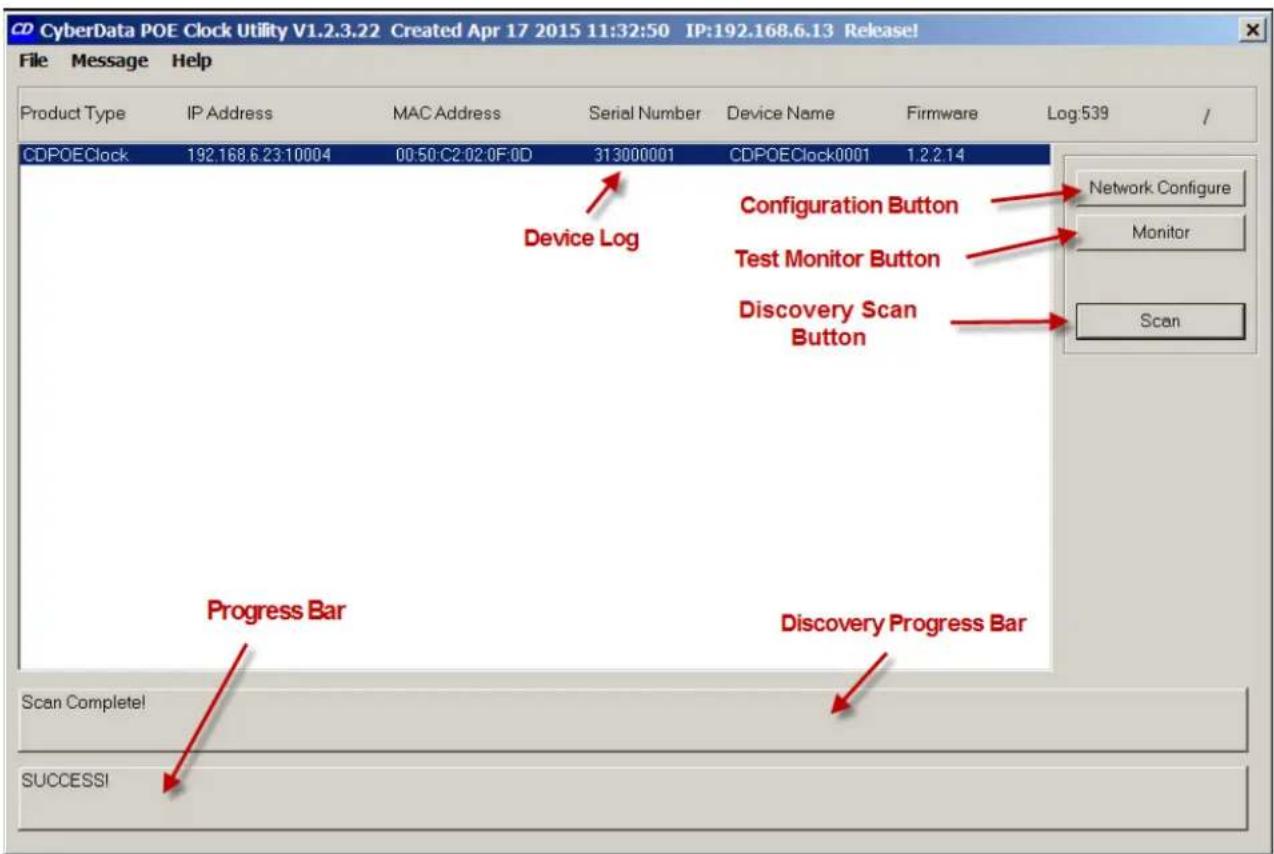
Double-click on the configuration utility shortcut to open the configuration utility program. The Main Dialog shown in Figure 1-2 appears.
Figure 1-2. Main Dialog
text_image
CyberData POE Clock Utility V1.2.3.22 Created Apr 17 2015 11:32:50 IP:192.168.6.13 Release! File Message Help Product Type IP Address MAC Address Serial Number Device Name Firmware Log:539 / CDPOEClock 192.168.6.23:10004 00:50:C2:02:0F:0D 313000001 CDPOEClock0001 1.2.2.14 Device Log Configuration Button Test Monitor Button Discovery Scan Button Network Configure Monitor Scan Progress Bar Discovery Progress Bar Scan Complete! SUCCESS!Table 1-1 shows the function of the items that are available on the Main Dialog.
Table 1-1. Main Dialog Items
| Item Function | |
| Discovery Scan Button | Clicking this button starts Discovery of PoE Clocks that are attached to the Local Area Network (LAN). |
| Device Log | As PoE-Networked Clocks are discovered on the LAN, they will appear as a list in the Device Log. |
| Network Configure Button | Selecting a PoE-Networked Clock from the Device Log and clicking this button will open the Network Configuration Dialog (see Section 1.5, "Network Configuration Dialog") for the selected PoE-Networked Clock. |
| Test Monitor Button | Selecting a PoE-Networked Clock from the Device Log and clicking this button will open the Test Monitor Dialog (see Section 1.6, "Test Monitor Dialog") for the selected PoE-Networked Clock. |
| Progress Bar and Discovery Progress Bar | The Progress Bar and Discovery Progress Bar are constantly being updated. If an error occurs during Discovery, Configuration, or Testing, messages appearing in the Progress Bars will show the cause of the error. |
1.4 Discovery Dialog
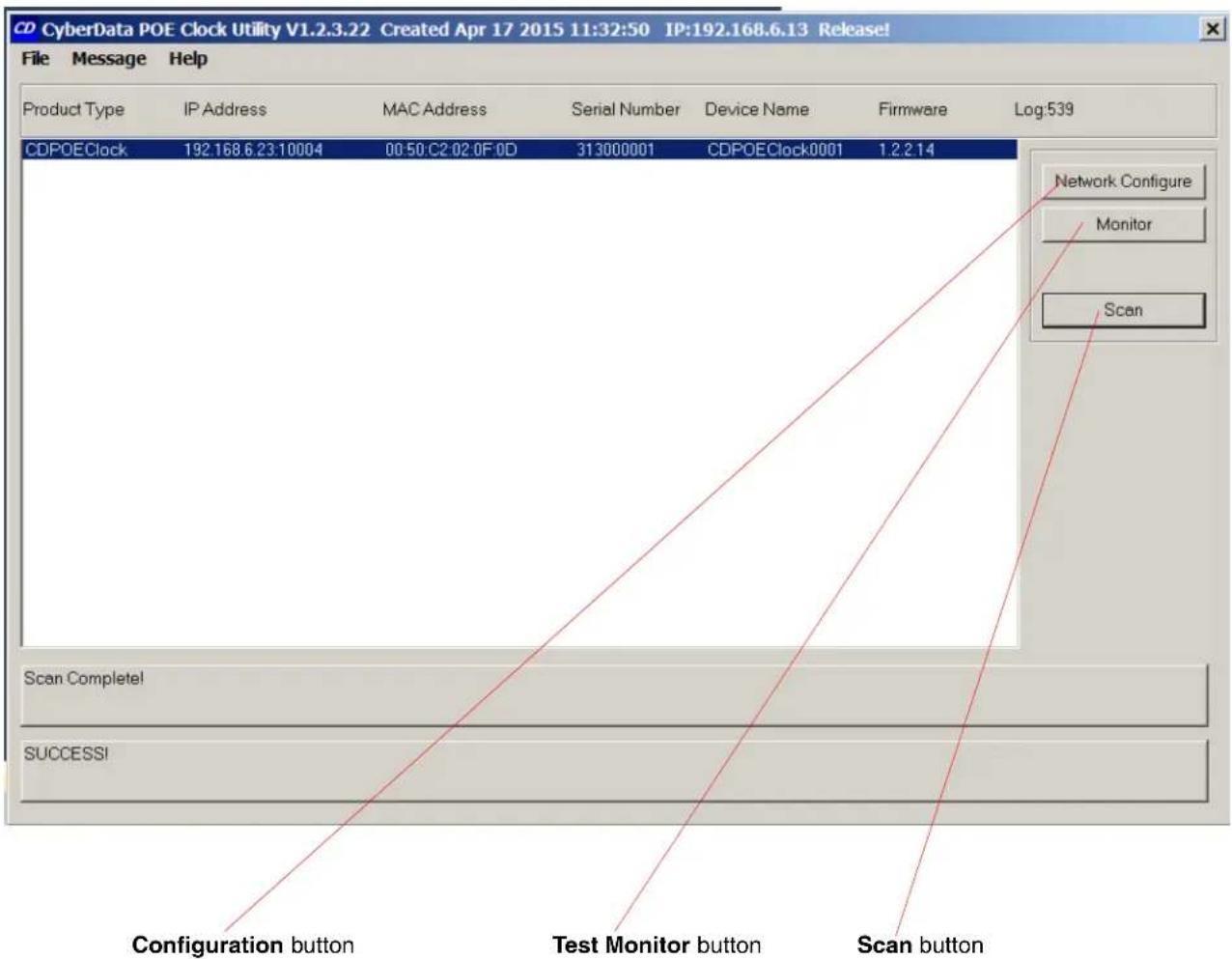
Clicking the Discovery Scan Button starts the discovery of PoE-Networked Clocks on the LAN. During Discovery, the Network Configure Button and Test Monitor Button are not available. When Discovery completes, a list of PoE Clocks connected to the LAN appears on the Device Log, and then the Network Configure Button and Test Monitor Button become active.
Figure 1-3. Discovery Dialog
text_image
CyberData POE Clock Utility V1.2.3.22 Created Apr 17 2015 11:32:50 IP:192.168.6.13 Release! File Message Help Product Type IP Address MAC Address Serial Number Device Name Firmware Log:539 CDPOEClock 192.168.6.23:10004 00:50:C2:02:0F:0D 313000001 CDPOEClock0001 1.2.2.14 Network Configure Monitor Scan Scan Complete! SUCCESS! Configuration button Test Monitor button Scan buttonIn Figure 1-3, there is only one PoE-Networked Clock connected to the LAN. If there were more PoE-Networked Clocks on the LAN, they would appear as a list of PoE-Networked Clocks. The final PoE-Networked Clock discovered is automatically selected. Network Configuration parameters such as IP Address and MAC Address are listed as well as PoE-Networked Clock manufacture information, serial number, device name, and firmware version.
If more than one PoE-Networked Clock appears on the list, click anywhere the list entry to select which PoE-Networked Clock is to be Configured or Tested.
Then click the Network Configure Button or Test Monitor Button to open the Network Configuration Dialog or Test Monitor Dialog.
1.5 Network Configuration Dialog
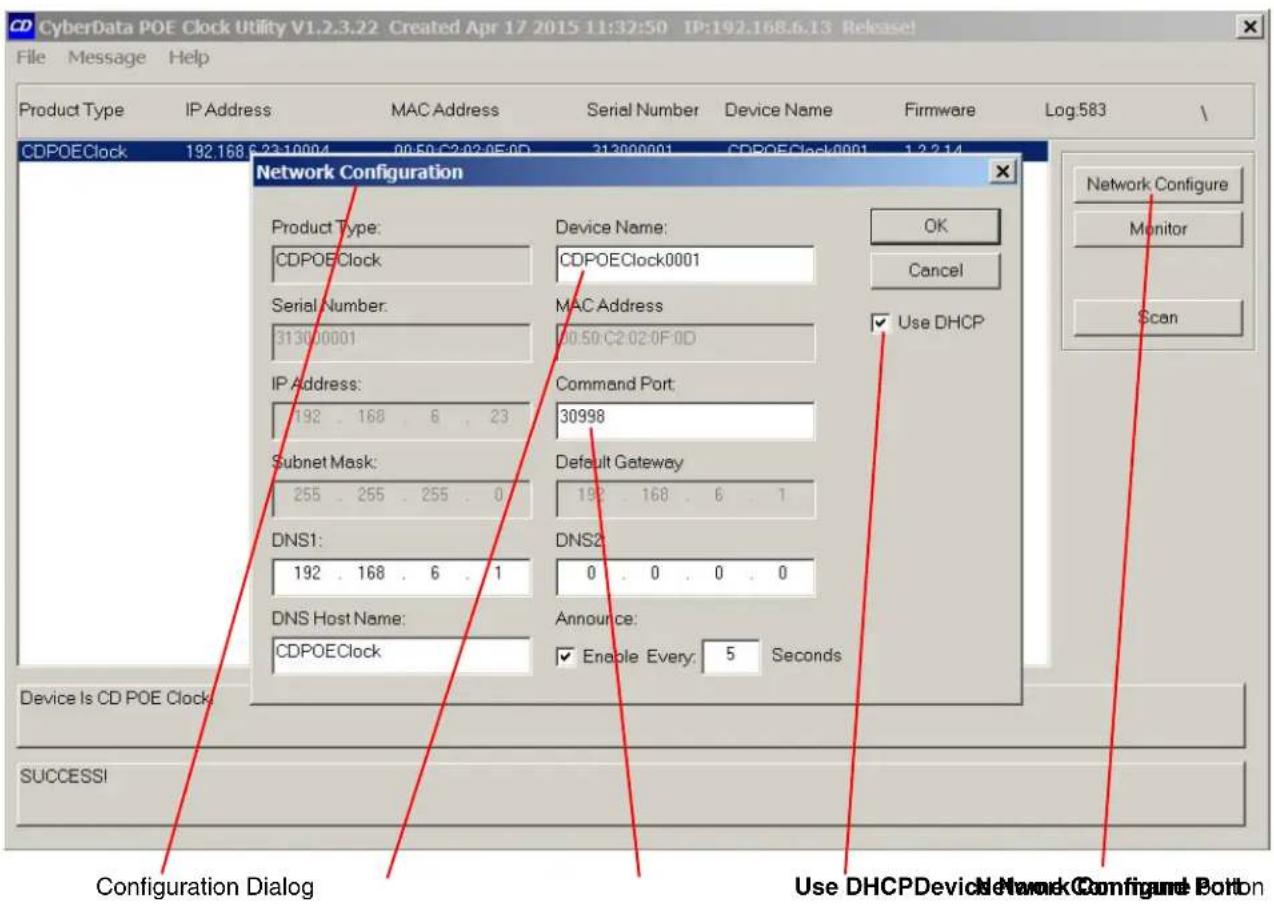
Click on the Network Configure Button to go to the Network Configuration Dialog (see Figure 1-4). The Network Configuration Dialog allows you to configure the PoE-Networked Clock name and LAN connection variables.
Figure 1-4. Network Configuration Dialog
text_image
CyberData POE Clock Utility V1.2.3.22 Created Apr 17 2015 11:32:50 IP:192.168.6.13 Release! File Message Help Product Type IP Address MAC Address Serial Number Device Name Firmware Log:583 CDPOEClock 192.168 6:23:10004 00:50:C2:02:05:0D 313000001 CDPOEClock0001 1:2:2:14 Network Configuration Product Type: Device Name: OK CDPOEClock CDPOEClock0001 Serial Number: MAC Address Use DHCP 313000001 00:50:C2:02:0F:0D IP Address: Command Port: 192 . 168 . 6 . 23 30998 Subnet Mask: Default Gateway 255 . 255 . 255 . 0 192 . 168 . 6 . 1 DNS1: DNS2: 192 . 168 . 6 . 1 0 . 0 . 0 DNS Host Name: Announce: CDPOEClock Enable Every: 5 Seconds Device Is CD POE Clock SUCCESSI Configuration Dialog Use DHCPDevice Network Configure BottomOn the Network Configuration Dialog, you may enter values for the parameters indicated in Table 1-2.
Table 1-2. Network Configuration Dialog Items
| Item Function | |
| Device Name | The default PoE Clock name is generated at the time of manufacture and consists of CDPOEClock appended with the last four digits of the serial number. This configurable field is a maximum of 16 characters in length and intended to identify one of many PoE-Networked Clocks. |
| Use DHCP The default setting is IP by DHCP. Disabling DHCP by clicking to removing the check from the box makes the IP Address, Subnet Mask, and Default Gateway settings available for static IP configuration. | |
| Command Port | In the event the default command port conflicts with other applications using the LAN, it can be changed to another value. The Command Port is the port to which the PoE-Networked Clock listens for TCP commands on the LAN. |
| DNS1 & DNS2 | DNS server IPs used for DNS lookup of NTP servers for automatic update of date & time. If DHCP is enabled, DNS IPs are requested from the DHCP server and fulfilled by the DHCP response. |
| DNS Host Name | The DNS Host Name is sent to the DHCP server as part of DHCP request. |
| Announce | Checking this box will enable PoE-Networked Clock to broadcast a UDP Announce message at the interval in seconds specified when there is no TCP command port connection. The Announce feature is a method by which the PoE-Networked Clock can be detected by a Host without broadcasting a Discover Request. |
1.5.1 Static IP Configuration
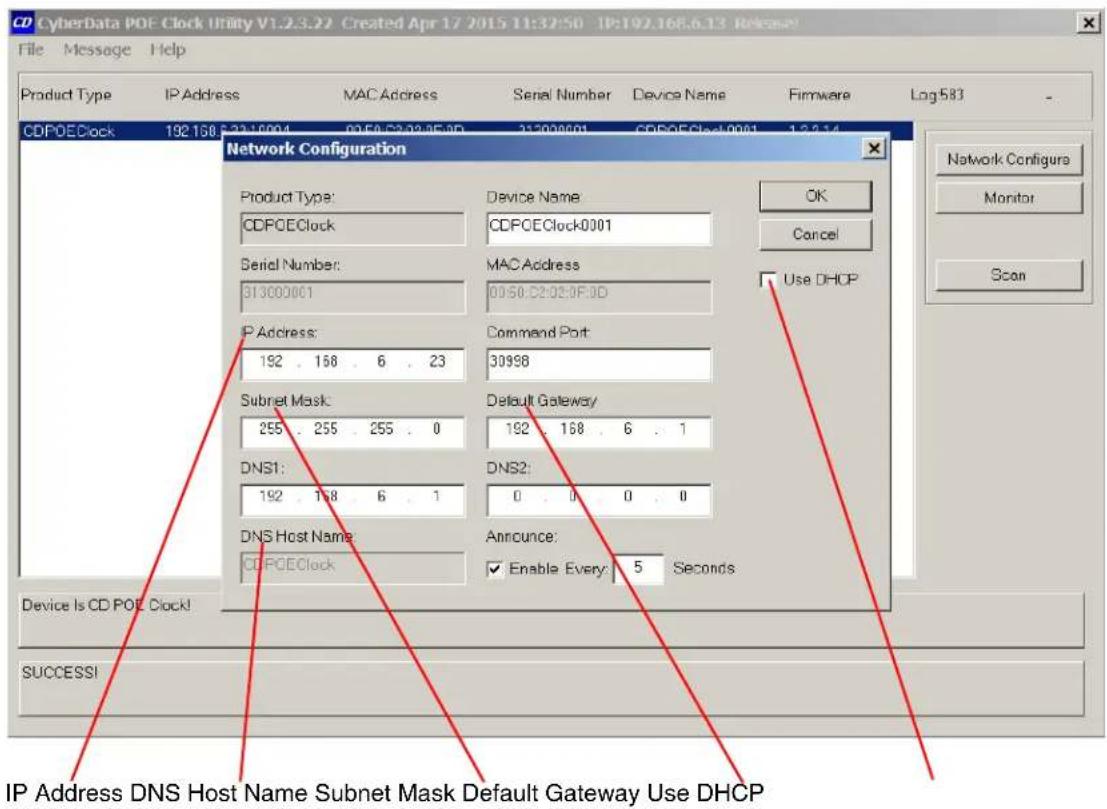
If the Use DHCP check box (Figure 1-5) is not checked, then the following Network Configuration (Static IP) Dialog appears for static IP configuration.
Note Note that IP Address, Subnet Mask, and Default Gateway fields (Figure 1-5) are now enabled for change and that the DNS Host Name field is disabled.
Figure 1-5. Network Configuration (Static IP) Dialog
text_image
CD CyberData POE Clock Utility V1.2.3.22 Created Apr 17 2015 11:32:50 - IP:192.168.6.13 Release File Message Help Product Type IP Address MAC Address Serial Number Device Name Firmware Log583 - CDPOEClock 192.168 32.16904 02:50:32:28:05:00 31:00:00:01 CDPCEClock0001 1:3:3:4 Network Configuration Product Type: Device Name OK CDPOEClock CDPCEClock0001 Serial Number: MAC Address Use DHCP 31300001 00:50:C2:02:0F:0D IP Address: Command Port 192 . 158 . 6 . 23 30998 Subnet Mask: Default Gateway 255 . 255 . 255 . 0 192 . 158 . 6 . 1 DNS1: DNS2: 192 . 158 . 6 . 1 0 . 0 DNS Host Name Announce: CDPOEClock Enable Every: 5 Seconds Device Is CD POT Clock! SUCCESS! IP Address DNS Host Name Subnet Mask Default Gateway Use DHCP1.5.2 Configuration Updated Dialog
Changes to this configuration page require that the PoE-Networked Clock be rebooted. Clicking on the OK button will send configuration changes to PoE-Networked Clock, then cause PoE-Networked Clock to reboot and connect to the LAN with the corrected configuration. This may take several seconds. A warning dialog appears.
Figure 1-6. Configuration Updated Dialog

text_image
CONFIGURATION UPDATED! Device ReBoot, allow several seconds for connection! OKWait 15 seconds for the PoE Clock to implement configuration changes then click on the OK button.
A scan of PoE-Networked Clocks will automatically be started, and then the Main Dialog (Figure 1-2) will appear.
1.6 Test Monitor Dialog
Click on the Monitor button to go to the Test Monitor Dialog (see Figure 1-7). The Test Monitor Dialog is provided for configuring the PoE-Networked Clock timekeeping functionality. Date, Time, Time Zone, Daylight Saving, and automatic NTP update of the PoE-Networked Clock are configured in the Test Monitor Dialog. 12/24 hour mode, colon appearance, and brightness of the digits are also configured in the Test Monitor Dialog.
Figure 1-7. Test Monitor Dialog

text_image
POE Clock Monitor 192 168 6 23 Firmware Load Configuration Load Configuration Dump Set Clock Get Status Get Status Use Host TZ, DST, Date & Time Firmware Load Configuration Load Configuration Dump Clock: 04/17/2015 13:14:28 Host: 04/17/2015 13:33:11 Format 12 24 Time Zone UTC +/- Minus Plus Hours: Minutes 8 00 Colon Off On Flash Daylight Saving Configure Begin End Month: March November Week: 2 1 Day: Sunday Sunday Time: 02:00:00 02:00:00 Intensity Auto=1 Less More NTP Update Battery V: 3.52 Firmware V: 1.2.2.14 Build: Apr 14 2015 09:59:59 Update Every: 24 Hours Now IP or URL: 0.pool.ntp.org Epoch: 1/01/1900 MM/DD/YYYY Received From 192.168.6.23=On the Test Monitor Dialog, you may enter values for the parameters indicated in Table 1-3.
Table 1-3. Test Monitor Dialog Items
| Item Function | |
Firmware Load Click this button to update PoE-Networked Clock firmware. A standard Windows file dialog appears. Navigate to the firmware upgrade file and click Open. Firmware will be sent to PoE-Networked Clock from the file. Load progress will be presented at the large progress panel at the bottom of the dialog. At the end of firmware load, PoE-Networked Clock must reboot which will take some seconds to complete. The following dialog appears:  Wait 15 seconds for the PoE-Networked Clock to implement configuration changes, and then click on the OK button. A scan of PoE-Networked Clocks will automatically be started and the Main Dialog (Figure 1-2) will appear. Wait 15 seconds for the PoE-Networked Clock to implement configuration changes, and then click on the OK button. A scan of PoE-Networked Clocks will automatically be started and the Main Dialog (Figure 1-2) will appear. | |
| Get Status | Continuous status may be obtained by clicking the Get Status button. Stop continuous status by clicking Get Status again. Raw Status Response is displayed at the large progress panel at the bottom of the dialog. |
| Configuration Dump | The PoE Clock configuration may be saved to an ordinary text file by clicking this button. A standard Windows file dialog appears. Navigate to a directory that the configuration text file is to be saved and click the Save button. The PoE Clock configuration will be saved to a disk file. The configuration file may then be used as a template by configuration software to propagate PoE Clock configuration from one to many clocks. The configuration file used as input to the Configuration Load command must be prepared by software familiar with details of the infrastructure of a specific PoE Clock installation. For example, if Static IP is to be assigned, a unique IP must be provided. Also, thevalue should be unique (i.e. Shipping, Engineering, Kitchen, etc.). However, if thevalue is not unique, then there will be no effect on the function of the PoE Clock.Corrected values for Date & Time should be substituted for the values acquired from the Dump Configuration template. The addition of the "" line to the template will trigger an automatic update of the Date & Time setting if there is internet access after the Configuration Load command. |
| Configuration Load | The PoE Clock configuration may be loaded from an ordinary text file by clicking this button. A standard Windows file dialog appears. Navigate to the location of the configuration text file and click the Open button. The PoE Clock configuration will be loaded from the disk file. Precautions detailed by the Configuration Dump command should be observed in order that the contents of the Configuration Load text file are appropriate. The PoE Configuration Utility does not audit the configuration load file prior to issuing a Configuration Load command. Software familiar with details of infrastructure of a PoE Clock installation should prepare the configuration load file prior to use as input to a Configuration Load command by the PoE Configuration Utility. |
| Format Click 12 or 24 hour format button to select desired format. | |
| Colon Click the desired colon button to select colon appearance. | |
| Intensity | Click on the More or Less buttons to roll through the range of desired intensity. Dim is the least intense. 1 through 15 selects a range of brightness. Auto uses an ambient light sensor to automatically adjust brightness. |
| Use Host TZ, DST, Date & Time | Check this box for convenience of using the Windows Host settings for these configuration items. Time Zone, Daylight Saving, Date & Time configuration will be taken from the Host Pc and automatically updated on the dialog. |
| Time Zone UTC offset may be manually configured here, +/- UTC, hours and minutes. | |
| Daylight Saving | The Daylight Saving configuration may be manually entered here. Clicking the Configure button presents a dialog.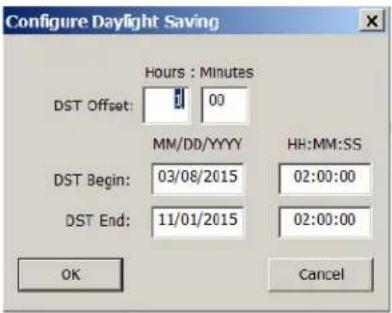 Enter the values for DST Offset, DST Begin, and DST End, and then click on the OK button.Note: Enter zero values for minutes and hours to disable the automatic Daylight Saving adjustment. Enter the values for DST Offset, DST Begin, and DST End, and then click on the OK button.Note: Enter zero values for minutes and hours to disable the automatic Daylight Saving adjustment. |
| NTP Update | Check the Update box and enter the frequency in hours of the automatic time adjustment from and NTP server. Enter an NTP server URL or an IP address of an NTP server. Be aware that if a URL is specified, PoE-Networked Clock uses the DNS Server IPs from the network configuration dialog to locate the NTP server by URL.Check the Now box to test NTP update immediately.The PoE-Networked Clock device accepts “NTP Version 3 answers” from NTP servers.NTP Epoch should not be changed unless it is certain that the NTP server being addressed uses another Epoch. |
| Set Clock | After all of the configuration fields have been entered, click theSet Clockbutton to commit the configuration fields to the PoE-Networked Clock. A dialog appears. |
 The date and time from the Windows Host PC is presented. Enter the desired date and time then click on theOKbutton.Note: Until the OKbutton is clicked on theSet Date & Timedialog, none of the format,colon, intensity, time zone, daylight saving, NTPconfiguration values have been committed to the PoE-Networked Clock. All of the configuration values are sent to the PoE-Networked Clock in one command messageafterthe Set Date & TimeOKbutton is clicked. The date and time from the Windows Host PC is presented. Enter the desired date and time then click on theOKbutton.Note: Until the OKbutton is clicked on theSet Date & Timedialog, none of the format,colon, intensity, time zone, daylight saving, NTPconfiguration values have been committed to the PoE-Networked Clock. All of the configuration values are sent to the PoE-Networked Clock in one command messageafterthe Set Date & TimeOKbutton is clicked. | |
| Battery V. This shows the PoE-Networked Clock battery voltage. | |
| Firmware V. This shows the PoE-Networked Clock firmware version number. | |
| Build This shows the PoE-Networked Clock firmware build date and time. | |
2 POE Clock Messages
2.1 UDP Messages Definition
For UDP broadcast commands that are directed to a specific POE Clock, commands are qualified by matching MacAddr and SerialNum values in the command with internal storage programmed at manufacture.
2.1.1 Discover
Discover UDP Broadcast is a request from a Host to CDNetDevices, one of which is POE Clock, to make them known to the Host. CyberData POE Clock receives a UDP broadcast Discover Request on port 10004 then broadcasts a UDP Discover Response to the port from which the request was received.
Table 2-1. Discover
| From >To | Content Comment | |
| Host >Device | \nRequest\nCyberData\nCDNetDevice\n | DiscoverRequest |
| Device >Host | \nResponse\nCyberData\nCDNetDevice\nCDPOEClock\n00:50:C2:02:0F:0D\n313000001\nCDPOEClock0001\n192.168.6.23\n30998\n255.255.255.0\n192.168.6.1\n192.168.6.1\n0.0.0.0 | DiscoverResponse |
Table 2-1. Discover (continued)
<DHCP>Enabled</DHCP>\n
<DNSHostName>CDPOEClock</DNSHostName>\n
<Announce>0</Announce>\n
<S2_SR>0x14 - LISTEN</S2_SR>\n
<DHCPLease>126176</DHCPLease>\n
<FirmWareVer>1.2.2.14</FirmWareVer>\n
<_DATE_>Apr 14 2015</__DATE_>\\n
<_TIME_>09:59:59</__TIME_>\\n
</XML>\n
2.1.2 Announce
If enabled, POE Clock will Announce its presence at a configurable time interval. This relieves Hosts of issuing Discover requests to determine which devices are connected to a LAN. Announce is a UDP Broadcast to port 10004.
Table 2-2. Announce
| From >To | Content Comment | |
| Device >Host | Announce | |
| Announce\nCyberData\nCDNetDevice\nCDPOEClock\n00:50:C2:02:0F:0D\n313000001\nCDPOEClock0001\n192.168.6.23\n30998\n255.255.255.0\n192.168.6.1\n192.168.6.1\n0.0.0.\nEnabled\CDPOEClock\n10\0x14 - LISTEN\n125157\n1.2.2.14\n<__DATE__>Apr 14 2015</__DATE__>\n<__TIME__>09:59:59</__TIME__>\n | Announce |
Note Announce has the same format and content as Discovery Response.
2.1.3 Change - Static IP
POE Clock will accept a UDP Broadcast to port 10004 to Change Network Configuration. This example configures POE Clock to Static IP. If the Change packet is accepted, POE Clock responds by sending a Confirmation packet to the IP and Port which sent the Change packet. If the Change packet is rejected, POE Clock responds with a Rejection packet.
Table 2-3. Change – Static IP
| From >To | Content Comment | |
| Host >Device | \nChange\nCyberData\nCDNetDevice\nCDPOEClock\n00:50:C2:02:0F:0D\n313000001\nCDPOEClock0001\n192.168.6.23\n30998\n255.255.255.0\n192.168.6.1\nDisable\n192.168.6.1\n0.0.0.0\nCDPOEClock\n00:50:C2:02:0F:0D\n313000001\nChange\n | ChangeRequest |
| Device >Host | \nConfirmation\nCyberData\nCDNetDevice\nCDPOEClock\n00:50:C2:02:0F:0D\n313000001\n | ChangeAccepted |
| Device > | \n | Change |
| Host | Rejection\nCyberData\nCDNetDevice\nCDPOEClock\n00:50:C2:02:0F:0D\n313000001\nChange\n | Rejected |
2.1.4 Change - DHCP IP
This example configures DHCP IP. If the Change packet is accepted, POE Clock responds by sending a Confirmation packet to the IP and Port which sent the Change packet. If the Change packet is rejected, POE Clock responds with a Rejection packet.
Table 2-4. Change – DHCP IP
| From >To | Content Comment | |
| Host >Device | ChangeRequest | |
| Change\nCyberData\nCDNetDevice\nCDPOEClock\n00:50:C2:02:0F:0D\n313000001\nCDPOEClock0001\n30998\nEnable\n192.168.6.1\n0.0.0.0\nCDPOEClock\n0\n | ChangeRequestChange | |
| Device > | ||
| Host | Confirmation\nCyberData\nCDNetDevice\nCDPOEClock\n00:50:C2:02:0F:0D\n313000001\nChange\n | Accepted |
| Device > | \nRejection\nCyberData\nCDNetDevice\nCDPOEClock\n00:50:C2:02:0F:0D\n313000001\nChange\n | Change |
| Host | Rejected |
2.1.5 Reboot
POE Clock will accept a UDP Broadcast to port 10004 to reboot. If the ReBoot packet is accepted, POE Clock responds by sending a Confirmation packet to the IP and Port which sent the ReBoot packet. If the Change packet is rejected, POE Clock responds with a Rejection packet.
Table 2-5. Reboot
| From >To | Content Comment | |
| Host >Device | RebootRequest | |
| ReBoot\nCyberData\nCDNetDevice\nCDPOEClock\nCDPOEClock0001\n00:50:C2:02:0F:0D\n313000001\n | Reboot Request | |
| Device > | \n | Reboot |
| Host | Confirmation\nCyberData\nCDNetDevice\nCDPOEClock\n00:50:C2:02:0F:0D\n313000001\nReBoot\n | Accepted |
| Device > | \n | Reboot |
| Host | Rejection\nCyberData\nCDNetDevice\nCDPOEClock\n00:50:C2:02:0F:0D\n313000001\nReBoot\n | Rejected |
2.1.6 Dump Configuration Command
POE Clock will accept a UDP Broadcast to port 10004 to Dump Configuration. If the Dump Configuration packet is accepted, POE Clock responds by sending a Configuration Dump packet to the IP and Port which sent the Dump Configuration packet. This command is intended to be used in conjunction with Load Configuration command for propagating configuration from one to many POE Clocks.
Typically a Host would issue a Dump Configuration command to POE Clock, then store the Configuration Dump response for later input to a Load Configuration command to POE Clocks that have not yet been configured.
If Static IP is to be configured, the configuration data must be modified for unique IP before using it as input to Load Configuration.
Table 2-6. Dump Configuration Command
| From >To | Content Comment | |
| Host >Device | DumpRequest | |
| DumpConfiguration\nCyberData\nCDNetDevice\nCDPOEClock\nCDPOEClock0001\n00:50:C2:02:0F:0D\n313000001\n1\n |
2.1.7 Configuration Dump Response
In response to a Dump Configuration command, POE Clock will send a Configuration Dump response to the IP and Port which sent the Dump Configuration command.
Table 2-7. Configuration Dump Response
| From >To | Content Comment | |
| Device >Host | ConfigurationDump\nCyberData\nCDNetDevice\nCDPOEClock\n00:50:C2:02:0F:0D\n313000001\nSequence>0\nCDPOEClock0001\n192.168.6.23\n30998\n255.255.255.0\n192.168.6.1\n192.168.6.1\n0.0.0.0\nEnabled\nCDPOEClock\n0\nAuto\nFlash\n24\n11:00:20\nUTC-08:00\n01:00\nM3.2.0/02:00:00,M11.1.0/02:00:00\n4/18/2015\nFalse\n24\n0.0.0.0 | DumpResponse |
Table 2-7. Configuration Dump Response (continued)
<NTPURL>0.pool.ntp.org</NTPURL>\n
<NTPEpoch>1/01/1900</NTPEpoch>\n
<FirmWareVer>1.2.3.18</FirmWareVer>\n
<_DATE_>Apr 18 2015</_DATE_>\\n
<_TIME_>10:46:47</_TIME_>\\n
</XML>\n
2.1.8 Load Configuration Command
POE Clock will accept a UDP Broadcast to port 10004 to Load Configuration. If the Load Configuration packet is accepted, POE Clock responds by sending a Confirmation packet to the IP and Port which sent the Load Configuration command. If the Change packet is rejected, POE Clock responds with a Rejection packet.
Table 2-8. Load Configuration Command
| From >To | Content Comment | |
| Host >Device | DumpRequest | |
| LoadConfiguration\nCyberData\nCDNetDevice\nCDPOEClock\n00:50:C2:02:0F:0D\n313000001\nSequence>1\nCDPOEClock0001\n192.168.6.23\n30998\n255.255.255.0\n192.168.6.1\n192.168.6.1\n0.0.0.0\nEnabled\nCDPOEClock\n0\Auto\nFlash\n24\11:00:20\nUTC-08:00\n01:00\M3.2.0/02:00:00,M11.1.0/02:00:00\n4/18/2015\nFalse\n | DumpRequest | |
| 24 | ||
| 0.0.0.0 | ||
| 0.pool.ntp.org | ||
| 1/01/1900 | ||
| 1.2.3.18 | ||
| <__DATE__>Apr 18 2015 | ||
| <__TIME__>10:46:47 | ||
2.1.9 Load Configuration Response
If the Load Configuration command is accepted, POE Clock responds by sending a Confirmation packet to the IP and Port which sent the Load Configuration packet. If the Change packet is rejected, POE Clock responds with a Rejection packet.
Table 2-9. Load Configuration Response
| From >To | Content Comment | |
| Device >Host | \nConfirmation\nCyberData\nCDNetDevice\nCDPOEClock\n00:50:C2:02:0F:0D\n313000001\nLoadConfiguration\n | LoadAccepted |
| Device >Host | \nRejection\nCyberData\nCDNetDevice\nCDPOEClock\n00:50:C2:02:0F:0D\n313000001\nLoadConfiguration\n | LoadRejected |
2.2 TCP Messages Definition
2.2.1 Clock Status Request
POE Clock Status Request returns clock configuration parameters having to do with time keeping.
Table 2-10. TCP Messages Definition
| From >To | Content Comment | |
| Host >Device | \nClockQuery\n\n | StatusRequest |
| Device >Host | \nClockStatus\nAuto\nFlash\n24\n16:43:19\nUTC-08:00\n01:00\nM3.2.0/02:00:00,M11.1.0/02:00:00\n4/18/2015\nFalse\n24\n0.0.0.0\n0.pool.ntp.org\n1/01/1900\n10:46:47\n | StatusResponse |
2.2.2 Clock Configuration Command
This POE Clock command configures parameters having to do with time keeping.
Table 2-11. Clock Configuration Command
| From >To | Content Comment | |
| Host >Device | \nClockCommand\nAuto\nFlash\n24\n17:49:34\nUTC-8:00\n1:00\M3.2.0/02:00:00,M11.1.0/02:00:00\n04/18/2015\nFalse\n24\n199.102.46.80\0.pool.ntp.org\n1/01/1900\nTrue\n | ConfigureCommand |
2.2.3 Firmware Upgrade
When POE Clock receives a TCP packet that has the first character colon ‘:’, 0x3a, it enters a mode that expects firmware upgrade data consisting of an Intel Hex file. Hex load records may be blocked to a maximum packet size of less than 1Kbytes.
Each load packet is acknowledged with a response indicating the last accepted load address. Lack of a response indicates bad load data or failure to commit the load data to internal FLASH. Retry the load packet a finite number of times.
Table 2-12. Firmware Upgrade
| From >To | Content Comment | |
| Host >Device | :020000020000FC\n | FirmwareUpgradeHexData |
| :10000000F89448C00C94F62E0C94022F0C940E2FB7\n | ||
| :100020000C94952F0C94CE2F0C94DE2F0C94EE2F61\n | ||
| :100040000C9455300C9465300C9475300C94B0305D\n | ||
| :100060000C9441310C9468310C9474310C94843124\n | ||
| :100080000C9417320C9427320C943732800100001F\n | ||
| :1000A00000933A0DFF24F4BEF4BE0FE500936000D1\n | ||
| :1000C0003C0D0C9429120895721B680D0000000A82\n | ||
| :1000E0006F000A3C4C44524D61696E28293E204770\n | ||
| :10010000785265634462674F757428293E20547990\n | ||
| :1001200020536567203078002C204F66662030784D\n | ||
| :1001400021002C204E554C4C21002C204F6B210078\n | ||
| :100160000C941A2F0C942A2F0C943A2F0C94692F4D\n | ||
| :100180000C9415300C9425300C9435300C94453090\n | ||
| :1001A0000C94BE300C94E5300C940C310C94333170\n | ||
| :1001C0000C9492310C94B9310C94E0310C94073282\n | ||
| :1001E000000000000C944E000C940000F89404B7D1\n | ||
| :100200000936000A8950DB700933B0D0EB700931F\n | ||
| :1002C00052660A000A546F0A000A4F660A00204F24\n | ||
| :1002E0006F20536C65657021000A3C4C445248655D\n | ||
| :100200007065203078002C204C656E203078002C61\n | ||
| :10022000002040203078002C2049676E6F72656478\n | ||
| :100240002C20486621002C204C6621002C204B66B7\n | ||
| Device >Host :LoadAck Offset=0x0240\n | FirmwareUpgradeAccepted | |
2.3 Definitions
XML tags identify configuration parameters and status values. These definitions explain the tags and associated data elements.
2.3.1
Information only value sensed by the ambient light sensor.
2.3.2
Configurable Announce interval in seconds. Zero value disables Announce. Maximum value is 9999. Announce relieves Hosts of issuing Discover requests to determine which POE Clocks are connected to a LAN. Announce is a UDP Broadcast to port 10004.
2.3.3
Information only value sensed by the battery voltage sensor.
2.3.4
Configurable TCP Listen Port. Default 30998 assigned at manufacture.
2.3.5
Configurable colon appearance. "On" is constant on, "Off" is constant off, "Flash" alternates on and off at one second intervals.
2.3.6
If POE Clock is configured for "Auto" intensity, this information only intensity value is determined by the ambient light sensor.
2.3.7
Configurable value specifying current date as "MM/DD/YYYY". Accurate configuration of this value is necessary for successful automatic Daylight Saving adjustment and NTP update.
2.3.8
Configurable POE Clock name, 16 characters maximum, i.e. "Loading Dock", "Kitchen", etc.
2.3.9
Configurable DHCP IPv4 parameter. Valid values are "Enable" and "Disable".
2.3.10
Remaining DHCP lease time in seconds.
2.3.11 &
Configurable IPv4 DNS server addresses used by NTP to locate NTP servers by URL for NTP date & time update.
2.3.12
Configurable Host Name included in DHCP request packet used by some routers to identify an endpoint.
2.3.13
Configurable Daylight Saving begin and end expressed in a POSIX-like format. For example, "M3.2.0/02:00:00,M11.1.0/02:00:01" specifies Daylight Saving begin at Month 3, week 2, Sunday, at 02:00:00, Daylight Saving end Month 11, week 1, Sunday, at 02:00:01. Valid month values are 1-12, week 1-5, day 0(Sunday)-6(Saturday). Accurate configuration of this parameter value is necessary for successful automatic Daylight Saving adjustment and NTP update.
2.3.14
Configurable Daylight Saving offset expressed as hours and minutes "HH:MM" from Standard Time. Accurate configuration of this value is necessary for successful automatic Daylight Saving adjustment and NTP update.
2.3.15
POE Clock firmware version number.
2.3.16
Configurable value "12" or "24".
2.3.17
Configurable static IPv4 gateway address or assigned by DHCP.
2.3.18
Configurable static IPv4 address or assigned by DHCP.
2.3.19
Configurable value controls the brightness of the POE Clock display digits "Dim" is the least bright. Values "1" through "15" select a range of brightness "Auto" uses an ambient light sensor to automatically adjust brightness.
2.3.20
POE Clock MAC Address is assigned at manufacture.
2.3.21
Configurable value specifying NTP epoch. POE Clock expects NTP Version 3 answers from NTP servers. NTP Epoch should not be changed unless it is certain that the NTP server being addressed uses another Epoch.
2.3.22
Configurable value specifying the interval in hours of automatic update of date and time from a NTP server. Valid values 1-99.
2.3.23
Configurable IPv4 of an NTP server from which automatic NTP update will be taken. If this parameter contains a valid IPv4 address, it will override NTPURL parameter.
2.3.24
Configurable value “True” or “False” specifying whether POE Clock will perform automatic update of date and time from a NTP server.
2.3.25
Configurable URL of an NTP server from which automatic NTP update will be taken. Be aware that if a URL is specified, POE Clock uses DNS Server IPs from the network configuration dialog to locate the NTP server by URL. Also, if NTPIP parameter contains a valid IPv4 address, it will override NTPURL parameter.
2.3.26
The first tag in all packets identifies a packet and its function.
2.3.27
Identifies a CyberData CDNetDevice, assigned at manufacture.
2.3.28
Identifies the CyberData product type, assigned at manufacture.
2.3.29
UDP broadcast commands return a Confirmation or Rejection packet. This data element identifies the Packet Type of the command.
2.3.30
POE Clock Ethernet controller TCP command port status indicates the state of the TCP command port, LISTEN or CONNECTED.
2.3.31
Dump Configuration and Load Configuration commands and their responses have a sequence number to provide for multiple commands and responses when configuration data becomes too large to fit one packet. Currently configuration data fits a single command and response.
2.3.32
CyberData serial number, assigned at manufacture.
2.3.33
Configurable static IPv4 subnet mask or assigned by DHCP.
2.3.34
Configurable time in 24 hour format "HH:MM:SS".
2.3.35
Configurable Time Zone expressed as an offset from UTC. For example, California USA time zone is -08:00, Moscow Russia time zone is +03:00. Accurate configuration of this value is necessary for successful NTP update.
2.3.36
Identifies CyberData as the vendor of POE Clock, assigned at manufacture.
2.3.37 <\_\_DATE\_\_>
Firmware build date.
Firmware build time.
2.4 Change Log
2015.04.18 – Initial Version.
Appendix A: Troubleshooting/Technical Support
A.1 Contact Information
| Contact | CyberData Corporation3 Justin CourtMonterey, CA 93940 USAwww.CyberData.netPhone: 800-CYBERDATA (800-292-3732)Fax: 831-373-4193 |
| Sales | Sales 831-373-2601 Extension 334 |
| Technical Support | The fastest way to get technical support for your VoIP product is to submit a VoIP Technical Support form at the following website:http://support.cyberdata.net/The Support Form initiates a ticket which CyberData uses for tracking customer requests. Most importantly, the Support Form tells us which PBX system and software version that you are using, the make and model of the switch, and other important information. This information is essential for troubleshooting. Please also include as much detail as possible in theCommentssection of the Support Form.Phone: (831) 373-2601, Ext. 333Email: support@cyberdata.net |
| Returned Materials Authorization | To return the product, contact the Returned Materials Authorization (RMA) department:Phone: 831-373-2601, Extension 136Email: RMA@CyberData.netWhen returning a product to CyberData, an approved CyberData RMA number must be printed on the outside of the original shipping package. Also, RMA numbers require an active VoIPTechnical Support ticket number. A product will not be accepted for return without an approved RMA number. Send the product, in its original package, to the following address:CyberData Corporation3 Justin CourtMonterey, CA 93940Attention: RMA "your RMA number" |
| RMA Status Form | If you need to inquire about the repair status of your product(s), please use the CyberData RMA Status form at the following web address:http://support.cyberdata.net/ |
A.2 Warranty
CyberData warrants its product against defects in material or workmanship for a period of two years from the date of purchase. Should the product fail Within Warranty, CyberData will repair or replace the product free of charge. This warranty includes all parts and labor.
Should the product fail Out of the Warranty period, a flat rate repair charge of one half of the purchase price of the product will be assessed. Repairs that are Within Warranty period but are damaged by improper installation, modification, or abuse are deemed Out of Warranty and will be charged at the Out of Warranty rate. A device is deemed Out of Warranty when its purchase date is longer than two years or when the device has been damaged due to human error during installation, modification, or abuse. A replacement unit will be offered at full cost if the device cannot be repaired.
End of Life Devices are included under this policy. End of Life devices are devices that are no longer produced or sold. Technical support is still available for these devices. However, no firmware revisions or updates will be provided. If an End of Life device cannot be repaired, the replacement offered may be the current version of the device.
Products shipped to CyberData, both within and out of warranty, are shipped at the expense of the customer. CyberData will pay return shipping charges for repaired products.
CyberData shall not under any circumstances be liable to any person for any special, incidental, indirect or consequential damages, including without limitation, damages resulting from use or malfunction of the products, loss of profits or revenues or costs of replacement goods, even if CyberData is informed in advance of the possibility of such damages.
A.2.1 Warranty & RMA Returns within the United States
If service is required, you must contact CyberData Technical Support prior to returning any products to CyberData. Our Technical Support staff will determine if your product should be returned to us for further inspection. If Technical Support determines that your product needs to be returned to CyberData, an RMA number will be issued to you at this point.
Your issued RMA number must be printed on the outside of the shipping box. No product will be accepted for return without an approved RMA number. The product in its original package should be sent to the following address:
CyberData Corporation
3 Justin Court.
Monterey, CA 93940
Attn: RMA "xxxxxx"
A.2.2 Warranty & RMA Returns outside of the United States
If you purchased your equipment through an authorized international distributor or reseller, please contact them directly for product repairs.
A.2.3 Spare in the Air Policy
CyberData now offers a Spare in the Air no wait policy for warranty returns within the United States and Canada. More information about the Spare in the Air policy is available at the following web address:
http://support.cyberdata.net/
A.2.4 Return and Restocking Policy
For our authorized distributors and resellers, please refer to your CyberData Service Agreement for information on our return guidelines and procedures.
For End Users, please contact the company that you purchased your equipment from for their return policy.
A.2.5 Warranty and RMA Returns Page
The most recent warranty and RMA information is available at the CyberData Warranty and RMA Returns Page at the following web address:
http://support.cyberdata.net/
Index
C
Configuration Button 3
contact information 33
contact information for CyberData 33
CyberData contact information 33
D
Device Log 3
Discovery Progress Bar 3
Discovery Scan Button 3
F
Firmware Load 10
M
Main Dialog 2
messages definitions 25
P
Progress Bar 3
R
return and restocking policy 35
RMA returned materials authorization 33
RMA status 33
S
sales 33
service 33
Spare in the Air Policy 35
T
TCP messages definitions 25
tech support 33
technical support, contact information 33
Test Monitor Button 3
Test Monitor Dialog 9
W
warranty 34
warranty & RMA returns outside of the United States 34
warranty and RMA returns page 35
warranty policy at CyberData 34