011522 - Speaker CyberData Systems - Free user manual and instructions
Find the device manual for free 011522 CyberData Systems in PDF.


User questions about 011522 CyberData Systems
0 question about this device. Answer the ones you know or ask your own.
Ask a new question about this device
Download the instructions for your Speaker in PDF format for free! Find your manual 011522 - CyberData Systems and take your electronic device back in hand. On this page are published all the documents necessary for the use of your device. 011522 by CyberData Systems.
USER MANUAL 011522 CyberData Systems
1.0 Out-of-Box and Prior to Final Installation
1.1. Verify that you have received all of the parts listed on the Installation Quick Reference placemat.
1.2. The ceiling tile is an adapter for the SIP-enabled IP Speaker. Download the current manual, otherwise known as an Operations Guide, which is available in the Downloads tab at the following webpage:
https://www.cyberdata.net/products/011522
Note You can also navigate to the Downloads tab by going to www.CyberData.net and following the steps that are indicated by the following figures:
1

text_image
PRODUCTS A VOIP PRODUCTS B SYN-APPS C2

text_image
011522 Syn-Apps Enabled 2x2 Ceiling Tile Drop-In Speaker Downloads3
2.0 Select Power Source
| PoE Switch PoE Injector | |
| Set PoE power type to Class 0 = 15.4W | AT6 cable recommended—for longer distances |
| Be sure you are using a non-PoE switch or port | |
| Make sure port is not in trunk mode | |
| Set port to full duplex/ 100mbps | |
| Spanning Tree Protocol (STP) must be disabled or Portfast enabled | |
3.0 Power Test
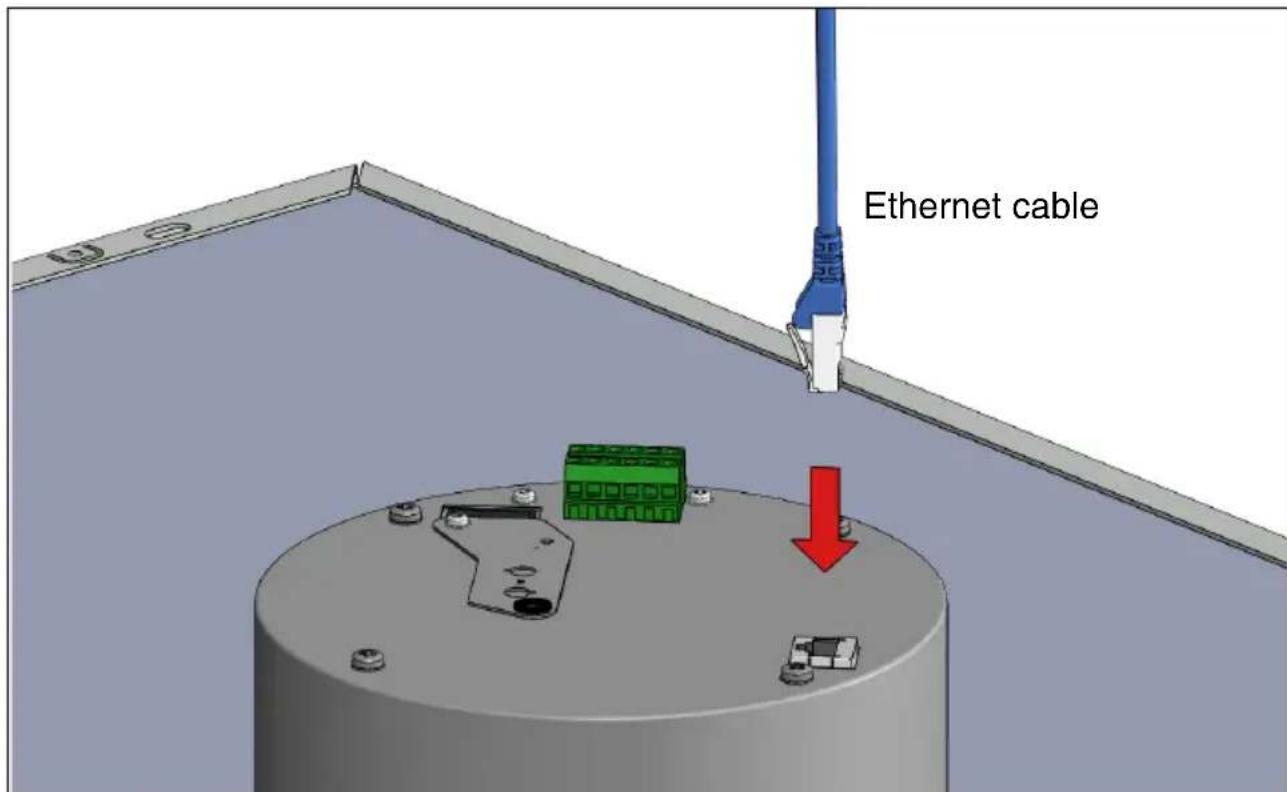
3.1. Plug the ethernet cable into the RJ45 port on the back of the speaker enclosure. Monitor the switch port (and PoE injector, if applicable) LED activity for power and network link status. See the following figure:
text_image
Ethernet cable3.2. The IP addressing mode is set to DHCP on default. If there is no DHCP server available on the network, it will try 12 times with a three second delay between tries and eventually fall back to the programmed static IP address (by default 10.10.10.10). This process will take approximately 80 seconds.
This concludes the power test. Go to Section 4.0, "Connecting to a Network in a Test Environment".
4.0 Connecting to a Network in a Test Environment
Note The following connections are usually needed for this procedure:
- Computer
- PoE switch or injector
- CyberData device
4.1. In a test environment, use a computer that is connected to the same switch as a single CyberData device. Note the subnet of the test computer.
4.2. Use the CyberData Discovery Utility program to locate the device on the network. You can download the Discovery Utility program from the following link:
https://www.cyberdata.net/pages/discovery
4.3. Wait for initialization to complete before using the Discovery Utility program to scan for a device. The device will show the current IP address, MAC address, and serial number.
4.4. Select the device.
4.5. Click Launch Browser. If the IP address is in a reachable subnet from the computer that you are using to access the device, the Discovery Utility program should be able to launch a browser window pointing to the device's IP address.
4.6. Log on to the web interface by using the default username (admin) and password (admin) to configure the device.
4.7. Perform an audio test by pressing the Test Audio button that is located at the bottom of the Device Configuration page. If the audio test message is clearly audible, then your CyberData device is functioning properly.
4.8. The device is now ready to be set for your desired network configuration. You may search the Compatible IP-PBX Servers index for available sample VoIP phone system configurations and set up guides at the following website address:
https://www.cyberdata.net/pages/connecting-to-ip-pbx-servers
5.0 Contacting Syn-Apps VoIP Technical Support
For quality assurance purposes, we ask that you please visit our website and complete our Support form which is available at the following website address:
http://www.syn-apps.com/support/request/