011181 - Speaker CyberData Systems - Free user manual and instructions
Find the device manual for free 011181 CyberData Systems in PDF.


User questions about 011181 CyberData Systems
0 question about this device. Answer the ones you know or ask your own.
Ask a new question about this device
Download the instructions for your Speaker in PDF format for free! Find your manual 011181 - CyberData Systems and take your electronic device back in hand. On this page are published all the documents necessary for the use of your device. 011181 by CyberData Systems.
USER MANUAL 011181 CyberData Systems
1.0 Out-of-Box and Prior to Final Installation
1.1. Verify that you have received all of the parts listed on the Installation Quick Reference placemat.
1.2. Download the current manual, otherwise known as an Operation Guide, which is available on the Documentation page at the following website address:
http://www.cyberdata.net/products/voip/digitalanalog/ceilingspkr2ptt/docs.html
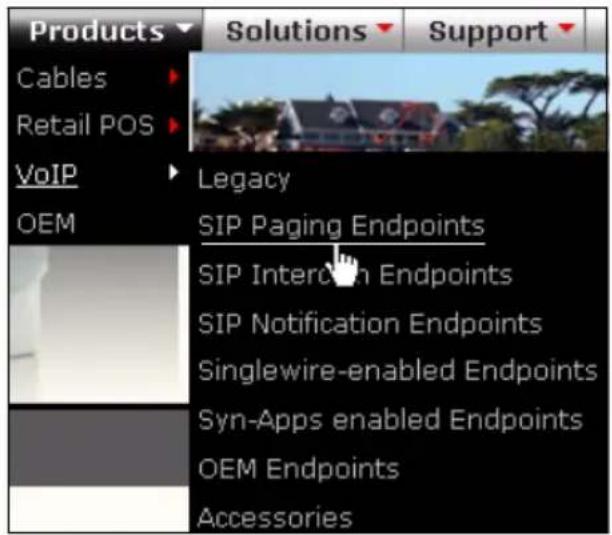
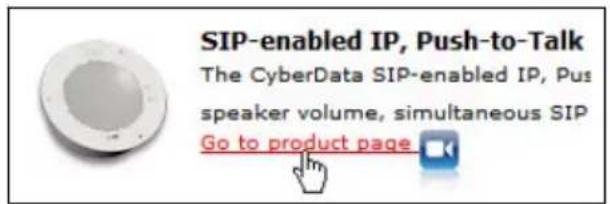
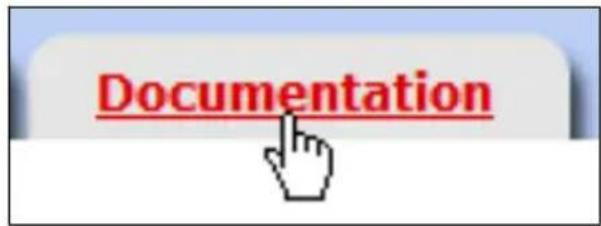
Note You can also navigate to the Documentation page by going to www.CyberData.net and following the steps that are indicated by the following figures:
1
text_image
Products Cables Retail POS VoIP OEM Solutions Support Legacy SIP Paging Endpoints SIP Interlock Endpoints SIP Notification Endpoints Singlewire-enabled Endpoints Syn-Apps enabled Endpoints OEM Endpoints Accessories2
text_image
SIP-enabled IP, Push-to-Talk The CyberData SIP-enabled IP, Pus speaker volume, simultaneous SIP Go to product page3
text_image
Documentation2.0 Select Power Source
| PoE Switch PoE Injector | |
| Set PoE power type to Class 0 = 15.4W C | AT6 cable recommended—for longer distances |
| Be sure you are using a non-PoE switch or port | |
| Make sure port is not in trunk mode | |
| Set port to full duplex/ 100mbps | |
| Spanning Tree Protocol (STP) must be disabled or Portfast enabled | |
3.0 Power Test
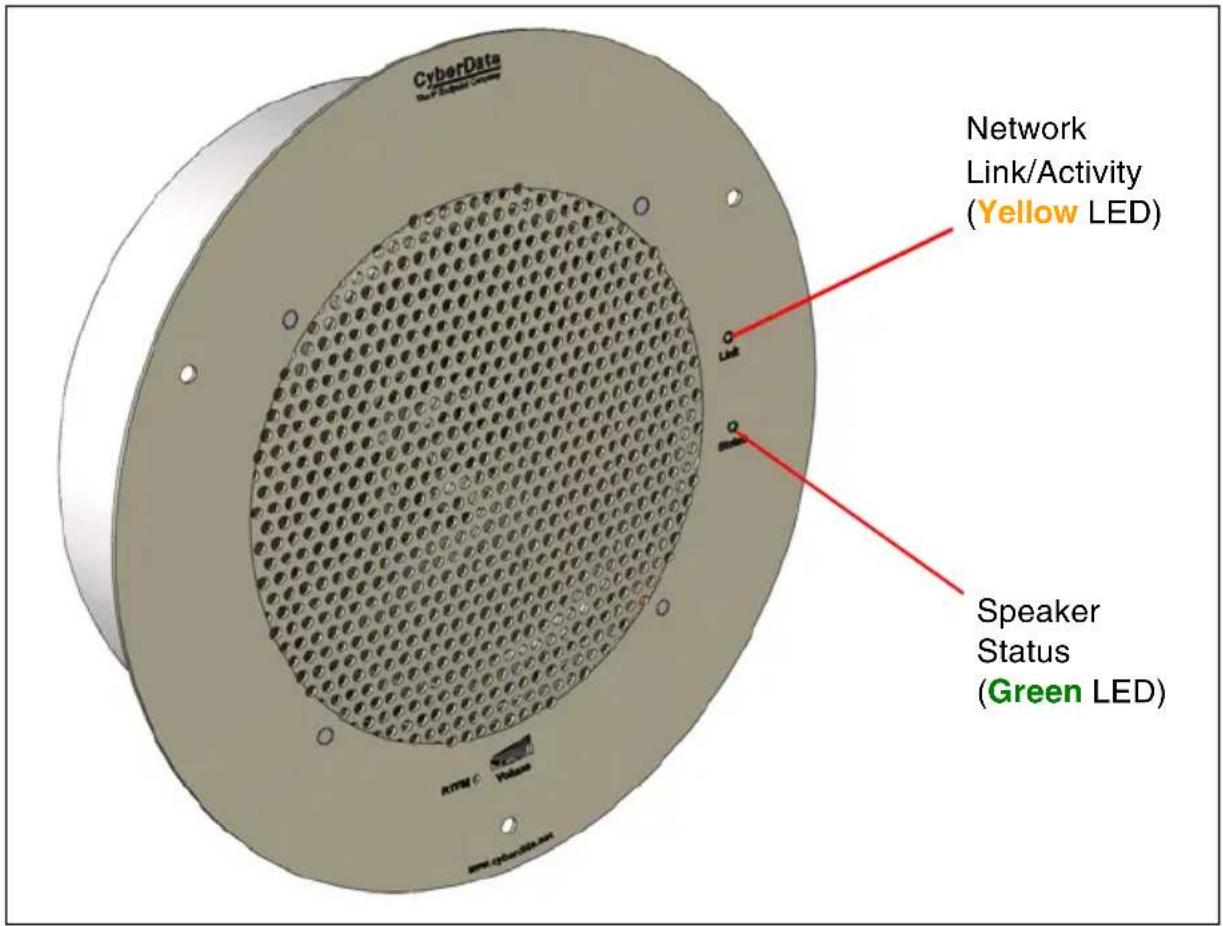
3.1. Plug in the CyberData device and monitor the LED activity on the front of the device. See the following figure:
text_image
CyberData Network Link/Activity (Yellow LED) Speaker Status (Green LED) MTM C Volum www.cyberdata.com3.2. The GREEN power/status LED and the YELLOW network LED come on immediately. The YELLOW network LED will blink to indicate network traffic. After about 27 seconds, the GREEN power/status LED will blink twice to indicate that the board is fully booted.
If there is no DHCP server available on the network, it will try 12 times with a three second delay between tries and eventually fall back to the programmed static IP address (by default 10.10.10.10). This process will take approximately 80 seconds.
3.3. When the device has completed the initialization process, press and hold the RTFM switch for 3 seconds to announce the IP address.
This concludes the power test. Go to Section 4.0, "Connecting to a Network in a Test Environment".
4.0 Connecting to a Network in a Test Environment
Note The following connections are usually needed for this procedure:
• PC
- PoE switch or injector
• Cyber Data device
4.1. In a test environment, use a PC that is connected to the same switch as a single CyberData device. Note the subnet of the test PC.
4.2. Use the CyberData Discovery Utility program to locate the device on the network. You can download the Discovery Utility program from the following website address:
http://www.cyberdata.net/support/voip/discovery_utility.html
4.3. Wait for initialization to complete before using the Discovery Utility program to scan for a device. The device will show the current IP address, MAC address, and serial number.
4.4. Select the device.
Note If the IP address of the device is in the same subnet of the PC, then go to Step 4.7.
4.5. If the IP address of the device is different from the subnet of the PC, then complete the following steps:
4.5.1. Click the Details tab.
4.5.2. Click Adv. Config to manually configure settings with an available IP address in the same subnet.
Note A gateway address of 0.0.0.0 or a subnet address of 255.255.255.255 will prompt you to enter a valid address.
4.5.3. Click OK after you are finished making changes.
4.6. A dialog box will prompt you to click OK after confirming the configuration changes and will ask you to wait while the device reboots. Please wait for the device to power up and wait for the Discovery Utility program to find the device on the network.
4.7. After the Discovery Utility program has located the device on the network, click Launch Browser. When the IP address matches the subnet of the PC that you are using to access the device, the Discovery Utility program will be able to launch the browser window which is configured to the device's IP address.
4.8. Log on to the web interface by using the default username (admin) and password (admin) to configure the device.
4.9. Perform an audio test by pressing the Test Audio button that is located at the bottom of the Device Configuration page. If the audio test message is clearly audible, then your CyberData device is functioning properly.
4.10. The device is now ready to be set for your desired network configuration. You may reference our IP-PBX specific configurations at the following website address:
http://www.cyberdata.net/support/server/index.html
5.0 Contacting CyberData VoIP Technical Support
For quality assurance purposes, we ask that you please visit our website and complete our Support form which is available at the following website address:
http://www.cyberdata.net/support/contactsupportvoip.html
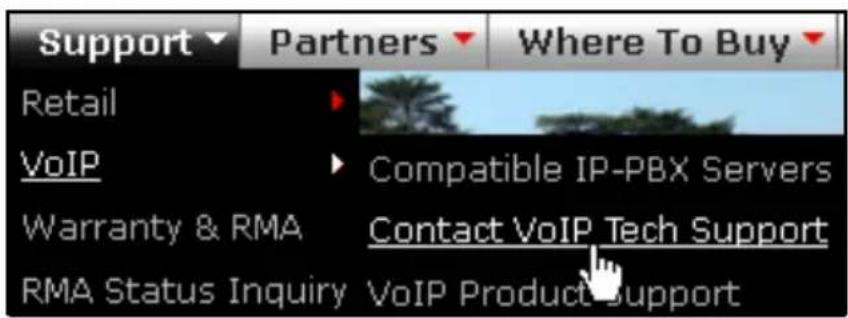
Note You can also navigate through menus to the Support form by going to www.CyberData.net as shown in the following figure:
text_image
Support ▼ Partners ▼ Where To Buy ▼ Retail VoIP Warranty & RMA RMA Status Inquiry VoIP Product Support Compatible IP-PBX Servers Contact VoIP Tech SupportThe Support form initiates a ticket which CyberData uses for tracking customer requests. Most importantly, the Support form tells us which PBX system and software version that you are using, the make and model of the switch, and other important information. This information is essential for troubleshooting. Please also include as much detail as possible in the Comments section of the Support form.
Requests for Returned Materials Authorization (RMA) numbers require an active VoIP Technical Support ticket number. A product will not be accepted for return without an approved RMA number.