011405 - Decoder CyberData Systems - Free user manual and instructions
Find the device manual for free 011405 CyberData Systems in PDF.


User questions about 011405 CyberData Systems
0 question about this device. Answer the ones you know or ask your own.
Ask a new question about this device
Download the instructions for your Decoder in PDF format for free! Find your manual 011405 - CyberData Systems and take your electronic device back in hand. On this page are published all the documents necessary for the use of your device. 011405 by CyberData Systems.
USER MANUAL 011405 CyberData Systems
natural_image
Exterior view of a VoIP Paging Amplifier device with a golden megaphone (no visible text or symbols on the device body)SIP Loudspeaker Amplifier
(PoE)
Operations Guide

natural_image
Interior view of an open electronic device enclosure showing front panel, display screen, and cable (no visible text or symbols)Part #011405
Document Part #931236C
for Firmware Version 11.6.2
CyberData Corporation
3 Justin Court
Monterey, CA 93940
(831) 373-2601
Operations Guide 931236C
Part # 011405
COPYRIGHT NOTICE:
© 2016, CyberData Corporation, ALL RIGHTS RESERVED.
This manual and related materials are the copyrighted property of CyberData Corporation. No part of this manual or related materials may be reproduced or transmitted, in any form or by any means (except for internal use by licensed customers), without prior express written permission of CyberData Corporation. This manual, and the products, software, firmware, and/or hardware described in this manual are the property of CyberData Corporation, provided under the terms of an agreement between CyberData Corporation and recipient of this manual, and their use is subject to that agreement and its terms.
DISCLAIMER: Except as expressly and specifically stated in a written agreement executed by CyberData Corporation, CyberData Corporation makes no representation or warranty, express or implied, including any warranty or merchantability or fitness for any purpose, with respect to this manual or the products, software, firmware, and/or hardware described herein, and CyberData Corporation assumes no liability for damages or claims resulting from any use of this manual or such products, software, firmware, and/or hardware. CyberData Corporation reserves the right to make changes, without notice, to this manual and to any such product, software, firmware, and/or hardware.
OPEN SOURCE STATEMENT: Certain software components included in CyberData products are subject to the GNU General Public License (GPL) and Lesser GNU General Public License (LGPL) "open source" or "free software" licenses. Some of this Open Source Software may be owned by third parties. Open Source Software is not subject to the terms and conditions of the CyberData COPYRIGHT NOTICE or software licenses. Your right to copy, modify, and distribute any Open Source Software is determined by the terms of the GPL, LGPL, or third party, according to who licenses that software.
Software or firmware developed by CyberData that is unrelated to Open Source Software is copyrighted by CyberData, subject to the terms of CyberData licenses, and may not be copied, modified, reverse-engineered, or otherwise altered without explicit written permission from CyberData Corporation.
TRADEMARK NOTICE: CyberData Corporation and the CyberData Corporation logos are trademarks of CyberData Corporation. Other product names, trademarks, and service marks may be the trademarks or registered trademarks of their respective owners.
CyberData
The IP Endpoint Company
Technical Support
The fastest way to get technical support for your VoIP product is to submit a VoIP Technical Support form at the following website: http://support.cyberdata.net/
Phone: (831) 373-2601, Ext. 333
Email: support@cyberdata.net
Fax: (831) 373-4193
Company and product information is at www.cyberdata.net.
Revision Information
Revision 931236C, which corresponds to firmware version 11.6.2, was released on September 8, 2016, and has the following changes:
- Adds Section 2.2.6, "Connecting the Strobe"
- Updates Table 2-4, "Connections Behind the Port Cover"
Browsers Supported
The following browsers have been tested against firmware version 6.5.0:
- Internet Explorer (version: 10)
- Firefox (also called Mozilla Firefox) (version: 23.0.1 and 25.0)
• Chrome (version: 29.0.1547.66 m) - Safari (version: 5.1.7)
Pictorial Alert Icons

GENERAL ALERT
General Alert
This pictoral alert indicates a potentially hazardous situation. This alert will be followed by a hazard level heading and more specific information about the hazard.

Ground
This pictoral alert indicates the Earth grounding connection point.
Hazard Levels
Danger: Indicates an imminently hazardous situation which, if not avoided, will result in death or serious injury. This is limited to the most extreme situations.
Warning: Indicates a potentially hazardous situation which, if not avoided, could result in death or serious injury.
Caution: Indicates a potentially hazardous situation which, if not avoided, could result in minor or moderate injury. It may also alert users against unsafe practices.
Notice: Indicates a statement of company policy (that is, a safety policy or protection of property).
- The safety guidelines for the equipment in this manual do not purport to address all the safety issues of the equipment. It is the responsibility of the user to establish appropriate safety, ergonomic, and health practices and determine the applicability of regulatory limitations prior to use. Potential safety hazards are identified in this manual through the use of words Danger, Warning, and Caution, the specific hazard type, and pictorial alert icons.
Important Safety Instructions
- Read these instructions.
- Keep these instructions.
- Heed all warnings.
- Follow all instructions.
- Do not use this apparatus near water.
- Clean only with dry cloth.
- Do not block any ventilation openings. Install in accordance with the manufacturer's instructions.
- Do not install near any heat sources such as radiators, heat registers, stoves, or other apparatus (including amplifiers) that produce heat.
- Do not defeat the safety purpose of the polarized or grounding-type plug. A polarized plug has two blades with one wider than the other. A grounding type plug has two blades and a third grounding prong. The wide blade or the third prong are provided for your safety. If the provided plug does not fit into your outlet, consult an electrician for replacement of the obsolete outlet.
- Protect the power cord from being walked on or pinched particularly at plugs, convenience receptacles, and the point where they exit from the apparatus.
- Only use attachments/accessories specified by the manufacturer.
- Refer all servicing to qualified service personnel. Servicing is required when the apparatus has been damaged in any way, such as power-supply cord or plug is damaged, liquid has been spilled or objects have fallen into the apparatus, the apparatus has been exposed to rain or moisture, does not operate normally, or has been dropped.
- Prior to installation, consult local building and electrical code requirements.
- WARNING: The SIP Loudspeaker Amplifier (PoE) enclosure is not rated for any AC voltages!

GENERAL ALERT
Warning
Electrical Hazard: This product should be installed by a licensed electrician according to all local electrical and building codes.

GENERAL ALERT
Warning
Electrical Hazard: To prevent injury, this apparatus must be securely attached to the floor/wall in accordance with the installation instructions.

GENERAL ALERT
Warning
The PoE connector is intended for intra-building connections only and does not route to the outside plant.
Abbreviations and Terms
Abbreviation or Term Definition
| A-law A standard companding algorithm, used in European digital communications systems to optimize, i.e., modify, the dynamic range of an analog signal for digitizing. | |
| AVP Audio Video Profile | |
| Cat 5 TIA/EIA-568-B Ca | tegory 5 |
| DHCP Dynamic Host Configuration Protocol | |
| LAN Local Area Network | |
| LED Light Emitting Diode | |
| Mbps Megabits per Second. | |
| NTP Network Time Protocol | |
| PBX Private Branch Exchange | |
| PoE Power over Ethernet (as per IEEE 802.3af standard) | |
| RTFM Reset Test Function Management | |
| SIP Session Initiated Protocol | |
| u-law A companding algorithm, primarily used in the digital telecommunication | |
| UC | Unified Communications |
| VoIP Voice over Internet Protocol | |
Chapter 1 Product Overview 1
1.1 How to Identify This Product ....1
1.2 Typical System Installation 2
1.3 Product Features ....3
1.4 Supported Protocols ...... 4
1.5 Supported SIP Servers 4
1.6 Specifications ....5
1.7 Typical Coverage ....5
1.8 Typical Warehouse Paging Setup 6
Chapter 2 Installing the SIP Loudspeaker Amplifier (PoE) 7
2.1 Parts List 7
2.2 SIP Loudspeaker Amplifier (PoE) Setup 8
2.2.1 SIP Loudspeaker Amplifier (PoE) Components 9
2.2.2 NEMA Box Components of the SIP Loudspeaker Amplifier (PoE) 10
2.2.3 Connecting the SIP Loudspeaker Amplifier (PoE) 11
2.2.4 SIP Loudspeaker Amplifier (PoE) System Installation and Connection Options .....14
2.2.5 Connections Behind the Port Cover 16
2.2.6 Connecting the Strobe ....17
2.2.7 SIP Loudspeaker Amplifier (PoE) Jumpers 19
2.2.8 Ethernet Connection ....19
2.2.9 Loudspeaker Type 20
2.2.10 Cabling/Wiring 20
2.2.11 Confirm Operation ....21
2.2.12 Confirm the IP Address and Test the Audio 22
2.2.13 Adjust the Volume ......23
2.3.1 Factory Default Settings 25
2.3.2 SIP Loudspeaker Amplifier (PoE) Web Page Navigation 26
2.3.3 Using the Toggle Help Button 27
2.3.4 Log in to the Configuration Home Page 29
2.3.5 Configure the Device ....33
2.3.6 Configure the Network Parameters 40
2.3.7 Configure the SIP (Session Initiation Protocol) Parameters .....43
2.3.8 Configure the Multicast Parameters .....53
2.3.9 Configure the Sensor Configuration Parameters .....57
2.3.10 Configure the Audio Configuration Parameters ....61
2.3.11 Configure the Events Parameters 66
2.3.12 Configure the Autoprovisioning Parameters .....72
2.4.1 Downloading the Firmware 84
2.4.2 Reboot the Device 86
2.5.1 Command Interface Post Commands 87
Appendix A Mounting the Amplifier 91
A.1 Mount the Amplifier 91
Appendix B Setting up a TFTP Server 93
B.1 Set up a TFTP Server 93
B.1.1 In a LINUX Environment 93
B.1.2 In a Windows Environment 93
Appendix C Troubleshooting/Technical Support 94
C.1 Frequently Asked Questions (FAQ) 94
C.2 Documentation 94
C.3 Contact Information 95
C.4 Warranty and RMA Information 95
Index 96
1 Product Overview
The CyberData SIP-enabled SIP Loudspeaker Amplifier (PoE) (PoE) provides an easy method for implementing an IP-based overhead paging system for both new and legacy installations.
The SIP Loudspeaker Amplifier (PoE) provides direct drive of a standard Horn speaker and supports a line-out connector for connection to an external amplifier. The interface is compatible with most SIP-based IP PBX servers that comply with the SIP RFC 3261. For non-SIP environments, the SIP Loudspeaker Amplifier (PoE) can be configured to listen to multicast address and port number combinations to form paging zones.
1.1 How to Identify This Product
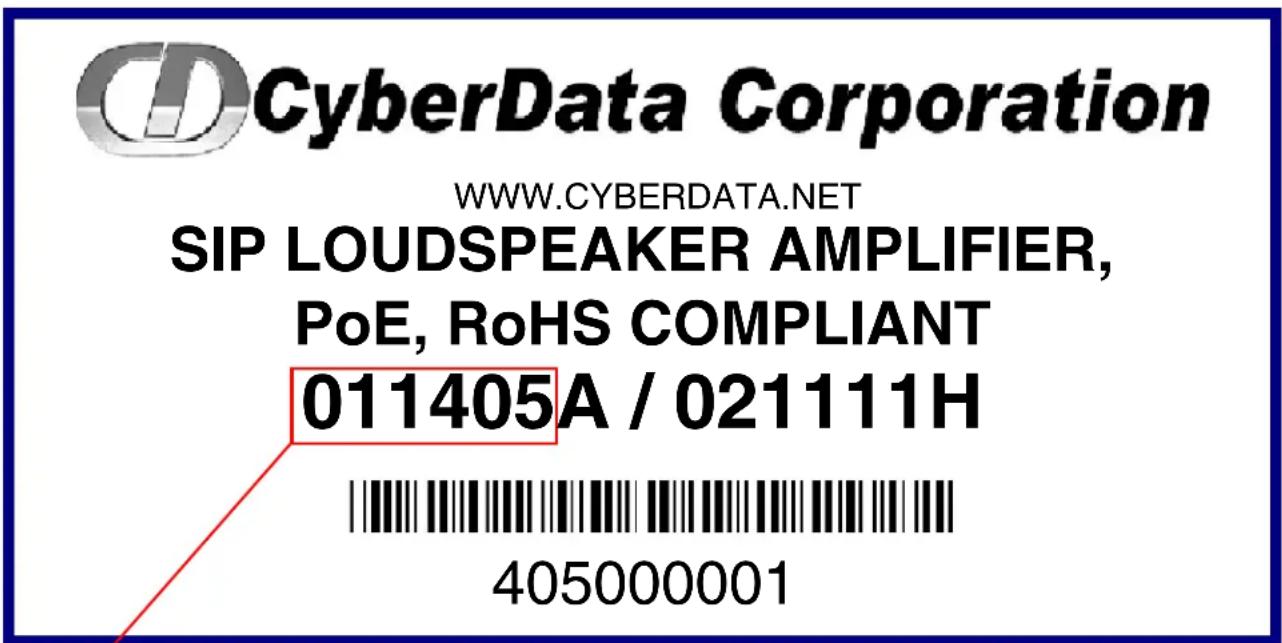
To identify the SIP Loudspeaker Amplifier (PoE), look for a model number label similar to the one shown in Figure 1-1. Confirm the following:
• The model number on the label should be 011405.
Figure 1-1. Model Number Label
text_image
CyberData Corporation WWW.CYBERDATA.NET SIP LOUDSPEAKER AMPLIFIER, PoE, RoHS COMPLIANT 011405A / 021111H 405000001Model number
1.2 Typical System Installation
Figure 1-2 illustrates how the SIP Loudspeaker Amplifier (PoE) is normally installed as part of a public address system.
Figure 1-2. Typical Installation

text_image
Compliant Non-PoE Ethernet Switch Loudspeaker Amplifier VoIP Phone SIP Server GENERAL ALERT GENERAL ALERT | WarningElectrical Hazard: The SIP Loudspeaker Amplifier (PoE) enclosure is not rated for any AC voltages. |
 GENERAL ALERT GENERAL ALERT | WarningElectrical Hazard: This product should be installed by a licensed electrician according to all local electrical and building codes. |
 GENERAL ALERT GENERAL ALERT | WarningElectrical Hazard: To prevent injury, this apparatus must be securely attached to the floor/wall in accordance with the installation instructions. |
 GENERAL ALERT GENERAL ALERT | WarningThe PoE connector is intended for intra-building connections only and does not route to the outside plant. |
1.3 Product Features
- SIP-enhanced interoperability for hosted environments
- 9 user-uploadable page messages
- Support for security code access for SIP paging
• Autoprovisioning via HTTPS - HTTPS web based configuration
• Higher Power PoE 802.3AT
• 802.11q VLAN tagging - Configurable sense input for use with fault detection
- Configurable event generation for device health and status monitoring
- Optional direct connect RGB strobe kit connection
- Support for G.711 u-law, G.711 a-law, and G.722 codecs
- HTTP Command Interface
• 10 channel prioritized Multicast ports
• Built-in diagnostics - Delayed page support
- Cisco SRST
- Packaged in a NEMA 3R/IP42-rated enclosure
• SIP and Simultaneous Multicast
• Dual-speed ethernet 10/100 Mbps - Web-based configuration
- PoE 802.3at and 802.3af-enabled
• Line-in for background music - Line-out connector
• DTMF controlled relay - Direct 8 Ohm speaker drive
- User-uploadable tones and messages
• Digital and manual volume control
• Second SIP endpoint "Night Ringer" - Autoprovisioning
- Auto-call voice message from input port sense
- Can support two horns
1.4 Supported Protocols
The SIP Loudspeaker Amplifier (PoE) supports:
- SIP
- Multicast
- HTTP and HTTPS web-based configuration
Provides an intuitive user interface for easy system configuration and verification of SIP Loudspeaker Amplifier (PoE) operations. - DHCP Client
Dynamically assigns IP addresses in addition to the option to use static addressing. - TFTP Client
Facilitates hosting for the configuration file for Autoprovisioning.
• R T P
• RTP/AVP - Audio Video Profile
- SPEEX
- Audio Encodings
PCMU (G.711 mu-law)
PCMA (G.711 A-law)
G.722
Packet Time 20 ms
1.5 Supported SIP Servers
The following link contains information on how to configure the SIP Loudspeaker Amplifier (PoE) for the supported SIP servers:
http://www.cyberdata.net/connecting-to-ip-pbx-servers/
1.6 Specifications
Table 1-1. Specifications
| Specifications | |
| Ethernet I/F 10/100 Mbps | |
| Protocol SIP RFC 3261 Compatible | |
| Power Input PoE 802.3at or 802.3af | |
| Audio Output 802.3af - SPL 114 dB @ 1 meter | a |
| 802.3at - SPL 117 dB @ 1 metera | |
| Line In: | |
| Input Signal Amplitudes | 2.0 VPP maximum |
| Input Impedance | 10k Ohm |
| Line Out: | |
| Output Signal Amplitudes | 2.0 VPP maximum |
| Output Level | +2dBm nominal |
| Total Harmonic Distortion | 0.5% maximum |
| Output Impedance | 10k Ohm |
| Operating Temperature -10 | o C to 50o C (14o F to 122o F) |
| Payload Types G.711 a-law, G.711 u-law, and G.722 | |
| Dimensionsb | 10 in. [254 mm] Length |
| 4 in. [101.6 mm] Width | |
| 14 in. [355.6 mm] Height | |
| Boxed Weight 6.5 lbs. [2.95 kg] | |
| Part Number 011405 | |
| Loudspeaker Part Number 011068 | |
a. When used with the 011068 Mini Horn.
b. Dimensions are measured from the perspective of the product being upright with the front of the product facing you.
1.7 Typical Coverage
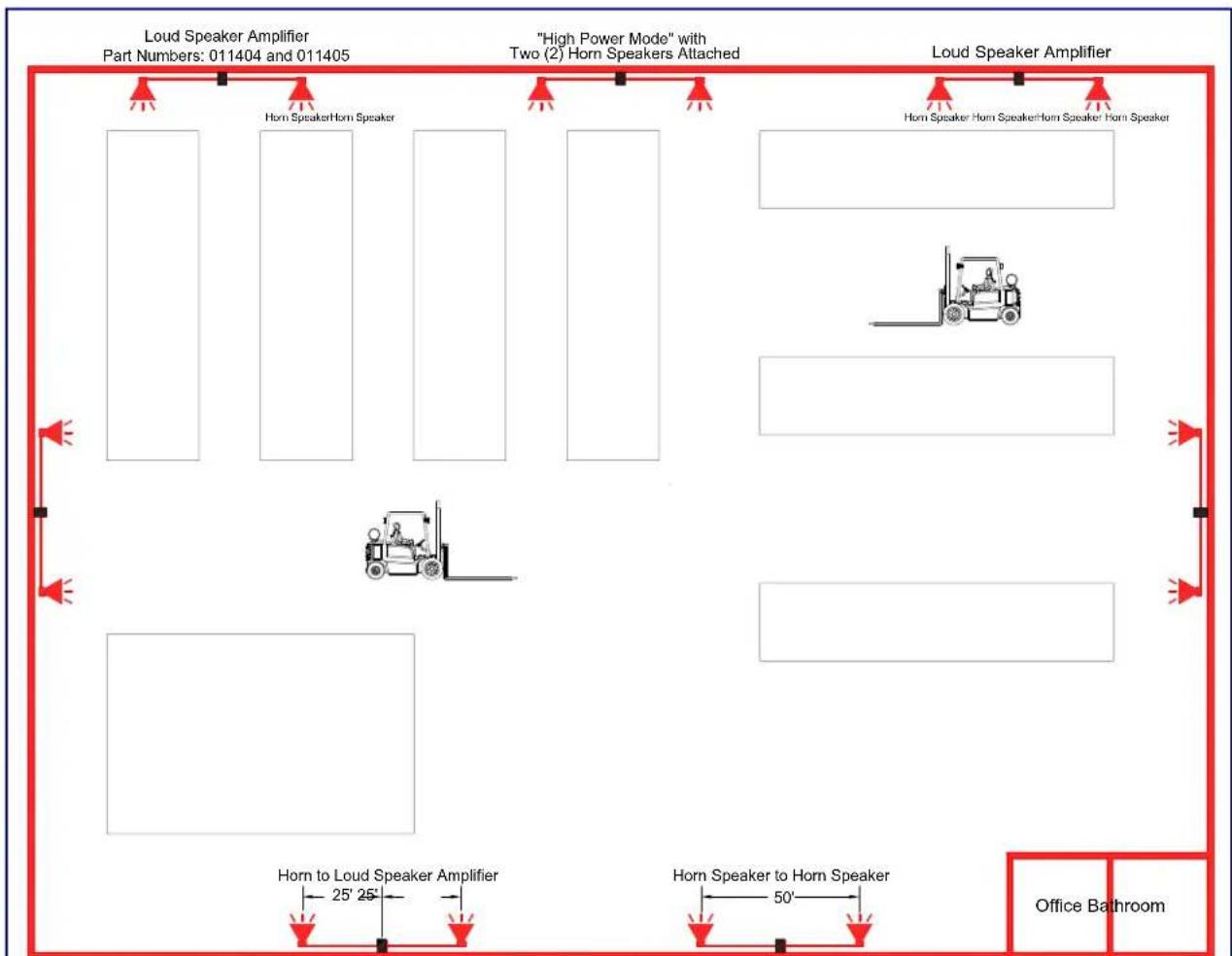
With one horn attached to Paging Amplifier under standard 802.3af PoE power, coverage is up to 5,000 square feet. With two horns attached to the Paging Amplifier under 802.3at PoE (high power), coverage is up to 10,000 square feet depending on ambient background noise levels.
1.8 Typical Warehouse Paging Setup
Figure 1-3. Typical Warehouse Paging Setup
flowchart
graph TD
    A["Loud Speaker Amplifier<br>Part Numbers: 011404 and 011405"] --> B["“High Power Mode” with<br>Two (2) Horn Speakers Attached"]
    B --> C["Horn Speaker to Horn Speaker<br>25' 25' width"]
    B --> D["Horn Speaker to Horn Speaker<br>50' width"]
    C --> E["Office Bathroom"]
    D --> E
    style A fill:#f9f,stroke:#333
    style B fill:#ccf,stroke:#333
    style C fill:#cfc,stroke:#333
    style D fill:#fcc,stroke:#333
Typical Example of a 70,000 Square Feet Warehouse Paging Set up
2 Installing the SIP Loudspeaker Amplifier (PoE)
2.1 Parts List
Table 2-2 illustrates the parts for each SIP Loudspeaker Amplifier (PoE) and includes a kit for mounting.
Table 2-2. Parts List
| Quantity Part Name Illustration | |
| 1 SIP Loudspeaker Amplifier (PoE) Assembly |  |
| 1 Enclosure |  |
| 1 Installation Quick Reference Guide |  |
| 1 Mounting Accessory Kit which includes:(3) Plastic Ribbed Anchors(3) #8 Sheet Metal Screws |  |
2.2 SIP Loudspeaker Amplifier (PoE) Setup
Set up and configure each SIP Loudspeaker Amplifier (PoE) before you mount it.
CyberData delivers each SIP Loudspeaker Amplifier (PoE) with the factory default values indicated in
Table 2-3:
Table 2-3. Factory Default Settings—Default of Network
| Parameter Factory Default Setting | |
| IP Addressing DHCP | |
| IP Address^a | 10.10.10.10 |
| Web Access Username admin | |
| Web Access Password admin | |
| Subnet Mask^a | 255.0.0.0 |
| Default Gateway^a | 10.0.0.1 |
a. Default if there is not a DHCP server present.
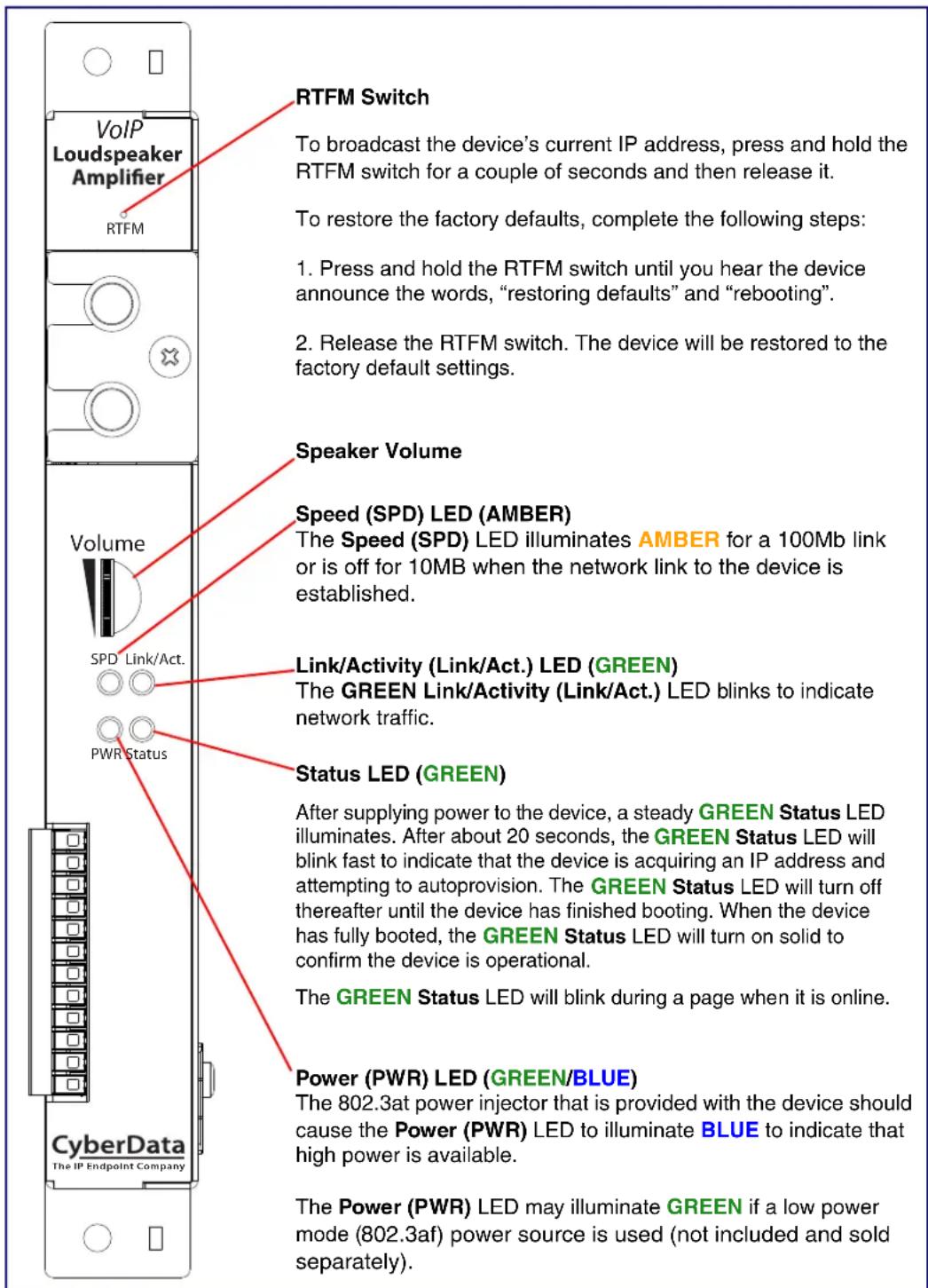
2.2.1 SIP Loudspeaker Amplifier (PoE) Components
Figure 2-4 shows the components of the SIP Loudspeaker Amplifier (PoE).
Figure 2-4. SIP Loudspeaker Amplifier (PoE) Components
text_image
RTFM Switch To broadcast the device's current IP address, press and hold the RTFM switch for a couple of seconds and then release it. To restore the factory defaults, complete the following steps: 1. Press and hold the RTFM switch until you hear the device announce the words, "restoring defaults" and "rebooting". 2. Release the RTFM switch. The device will be restored to the factory default settings. Speaker Volume Speed (SPD) LED (AMBER) The Speed (SPD) LED illuminates AMBER for a 100Mb link or is off for 10MB when the network link to the device is established. Link/Activity (Link/Act.) LED (GREEN) The GREEN Link/Activity (Link/Act.) LED blinks to indicate network traffic. Status LED (GREEN) After supplying power to the device, a steady GREEN Status LED illuminates. After about 20 seconds, the GREEN Status LED will blink fast to indicate that the device is acquiring an IP address and attempting to autoprosion. The GREEN Status LED will turn off thereafter until the device has finished booting. When the device has fully booted, the GREEN Status LED will turn on solid to confirm the device is operational. The GREEN Status LED will blink during a page when it is online. Power (PWR) LED (GREEN/BLUE) The 802.3at power injector that is provided with the device should cause the Power (PWR) LED to illuminate BLUE to indicate that high power is available. The Power (PWR) LED may illuminate GREEN if a low power mode (802.3af) power source is used (not included and sold separately).2.2.2 NEMA Box Components of the SIP Loudspeaker Amplifier (PoE)
Figure 2-5 shows all of the NEMA box components of the SIP Loudspeaker Amplifier (PoE).
Figure 2-5. Loudspeaker Amplifier Components—PoE
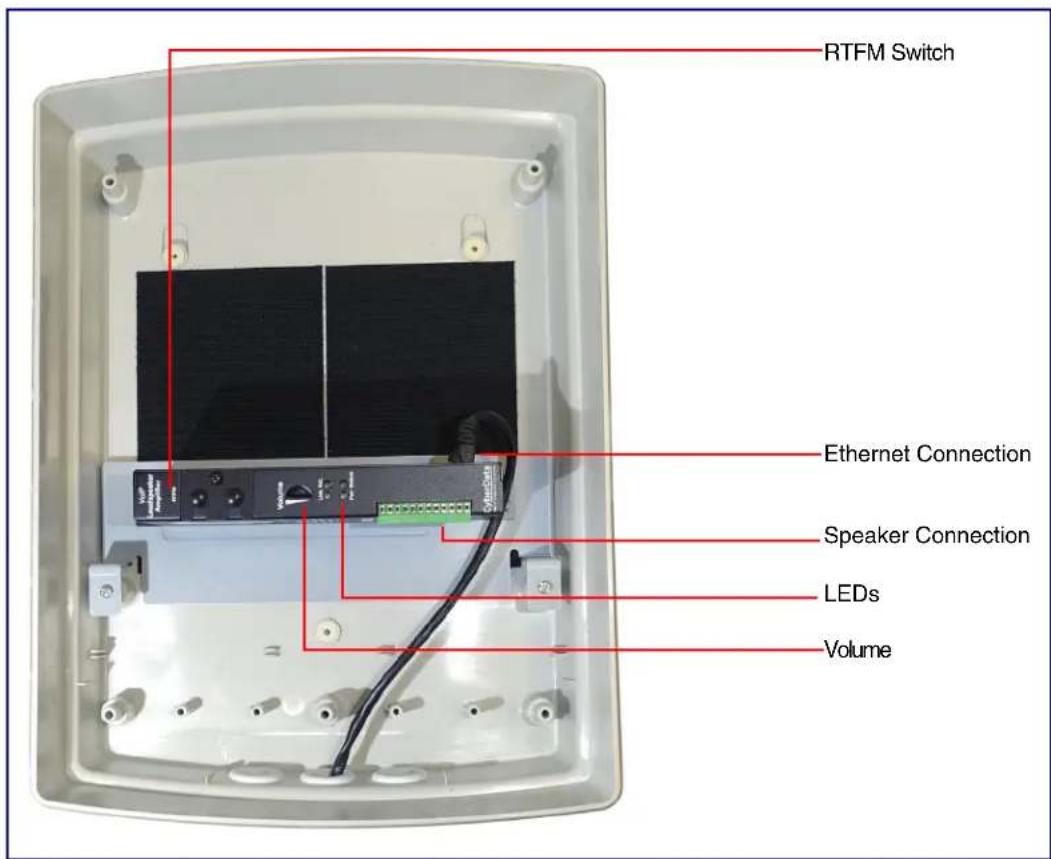
text_image
RTFM Switch Ethernet Connection Speaker Connection LEDs Volume2.2.3 Connecting the SIP Loudspeaker Amplifier (PoE)
2.2.3.1 Using the Amplified Outputs
Low Power Mode (One Speaker)
The following figure illustrates how to connect the SIP Loudspeaker Amplifier (PoE) and use the amplified outputs in low power mode to one speaker or horn.
Figure 2-6. Using the Amplified Outputs—Low Power Mode with One Speaker

text_image
Note: You can use an 802.3af compliance switch or an 802.3af power injector and hub. 802.3af PoE Ethernet Switch or Cat 5 Ethernet Cable 802.3af PoE Injector (low power mode) *Note: The positive (+) wire coming from the speaker may be red or white. The negative (-) wire is black. *Note: Use 16 gauge wire coming out of screw terminals. Twist wire nuts Note: Use wire nuts to connect wire from the speakers to 16 gauge wire. *Note: Horn is connected to terminal block pins 9 (-) and 12 (+) of the paging amplifier for mono mode. *Note: Maximum recommended length of the horn should be 50 feet from the amplifier. Standard 1 Speaker Configuration (802.3af mode) 8 Ohms 16 gauge wire Class II WIRING Primary/Left Spir (+) - 12 Primary/Left Spir (-) - 11 Secondary/Right spir (+) - 10 Secondary/Right Spir (-) - 9 Line-Out (+) - 8 Line-Out (-) - 7 Line-In (-) - 6 Line-In (+) - 5 Relay COM - 4 Relay NO/NC - 3 Door Sense/Button Contact (+) - 1 Door Sense/Button Contact (GND) - 2 Door Sense/Button Contact (+) - 1High Power Mode (One Speaker)
The following figure illustrates how to connect the SIP Loudspeaker Amplifier (PoE) and use the amplified outputs in high power mode to one speaker or horn.
Figure 2-7. Using the Amplified Outputs—High Power Mode with One Speaker

text_image
Note: You can use an 802.3at compliance switch or an 802.3at power injector and hub. 802.3at PoE Ethernet Switch or 802.3at PoE Injector (high power mode) Cat 5 Ethernet Cable *Note: Horn is connected to terminal block pins 9 (-) and 12 (+) of the paging amplifier for mono mode. *Note: The positive (+) wire coming from the speaker may be red or white. The negative (-) wire is black. *Note: Use 16 gauge wire coming out of screw terminals. *Note: Use wire nuts to connect wire from the speakers to 16 gauge wire. Class II WIRING Primary/Left Spkr (+) - 12 Primary/Left Spkr (-) - 11 Secondary/Right spkr (+) - 10 Secondary/Right Spkr (-) - 9 Line-Out (+) - 8 Line-Out (-) - 7 Line-In (-) - 6 Line-In (+) - 5 Relay COM - 4 Relay NO/MC - 3 Door Sense/Button Common (GND) - 2 Door Sense/Button Contact (+) - 1 *Note: Maximum recommended length of the horn should be 50 feet from the amplifier. Standard 1 Speaker Configuration (802.3at mode) 8 Ohms 16 gauge wire Twist wire nutsHigh Power Mode (Two Speakers)
The following figure illustrates how to connect the SIP Loudspeaker Amplifier (PoE) and use the amplified outputs in high power mode to two speakers or horns.
Figure 2-8. Using the Amplified Outputs—High Power Mode with Two Speakers

text_image
Note: You can use an 802.3at compliance switch or an 802.3at power injector and hub. 802.3at PoE Ethernet Switch or 802.3at PoE Injector (high power mode) Cat 5 Ethernet Cable *Note: The positive (+) wire coming from the speaker may be red or white. The negative (-) wire is black. Use 16 gauge wire coming out of screw terminals. Note: Make sure that the wire length going to the wire nuts is kept short (approximately 6 inches). Optional 2 Speaker Configuration (802.3at mode) 8 Ohms 16 gauge wire 2 speakers in parallel (4 Ohm total) Class II WIRING *Note: Horns are connected in parallel to terminal block pins 9 (-) and 12 (+) of the paging amplifier for mono mode. *Note: Maximum recommended length of each horn should be 25 feet from the amplifier. Standard 1 Speaker Configuration (802.3at mode) 8 Ohms Twist wire nuts Note: Use wire nuts to connect wire from the speakers to 16 gauge wire.2.2.4 SIP Loudspeaker Amplifier (PoE) System Installation and Connection Options
The following figures show the connection options for the SIP Loudspeaker Amplifier (PoE).
Figure 2-9. SIP Loudspeaker Amplifier (PoE) Connections
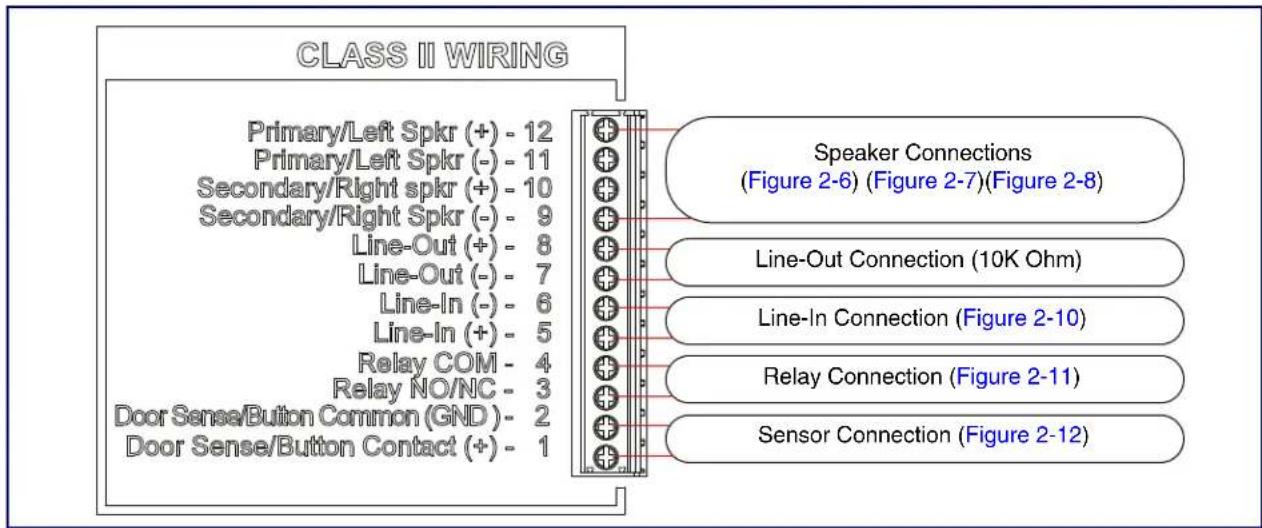
text_image
CLASS II WIRING Primary/Left Spkr (+) - 12 Primary/Left Spkr (-) - 11 Secondary/Right spkr (+) - 10 Secondary/Right Spkr (-) - 9 Line-Out (+) - 8 Line-Out (-) - 7 Line-In (-) - 6 Line-In (+) - 5 Relay COM - 4 Relay NO/NC - 3 Door Sense/Button Common (GND) - 2 Door Sense/Button Contact (+) - 1 Speaker Connections (Figure 2-6) (Figure 2-7)(Figure 2-8) Line-Out Connection (10K Ohm) Line-In Connection (Figure 2-10) Relay Connection (Figure 2-11) Sensor Connection (Figure 2-12)Figure 2-10. Line-In Connection
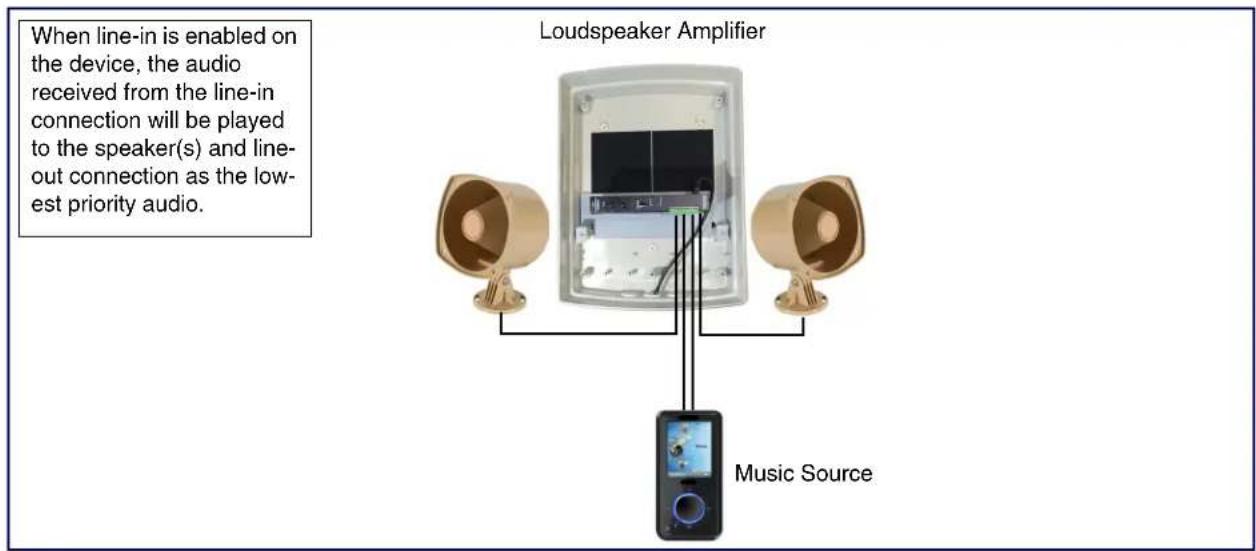
text_image
When line-in is enabled on the device, the audio received from the line-in connection will be played to the speaker(s) and line-out connection as the lowest priority audio. Loudspeaker Amplifier Music SourceFigure 2-11. Relay or LED Strobe Connection
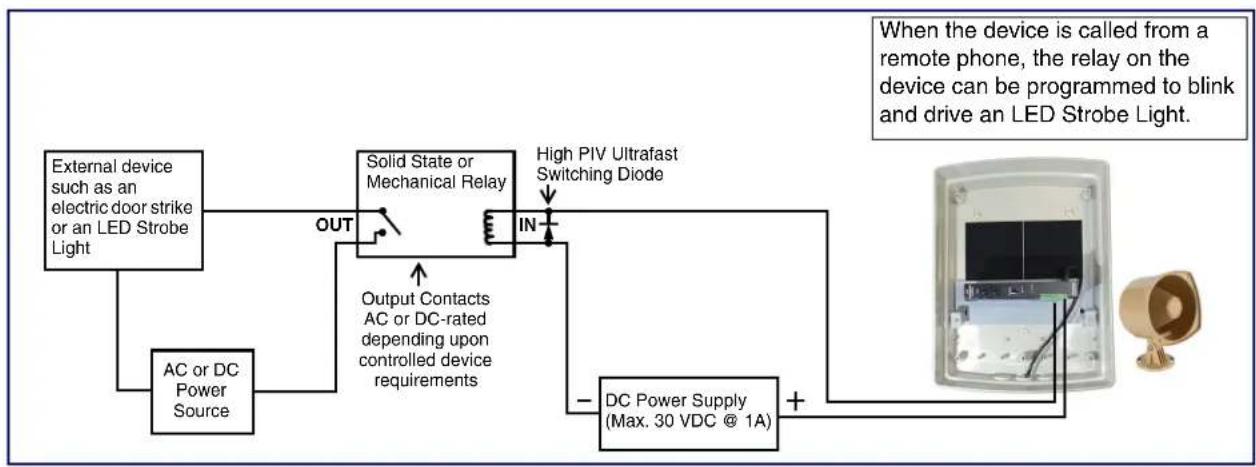
flowchart
graph TD
    A["External device such as an electric door strike or an LED Strobe Light"] --> B["AC or DC Power Source"]
    B --> C["Solid State or Mechanical Relay"]
    C --> D["Output Contacts AC or DC-rated depending upon controlled device requirements"]
    D --> E["DC Power Supply (Max. 30 VDC @ 1A)"]
    E --> F["High PIV Ultrafast Switching Diode"]
    F --> C
    style A fill:#f9f,stroke:#333
    style F fill:#ccf,stroke:#333
    style E fill:#cfc,stroke:#333
Figure 2-12. Sensor Connection

natural_image
Diagram of a device with a screen and cable, connected to a switch (no text or symbols)2.2.5 Connections Behind the Port Cover
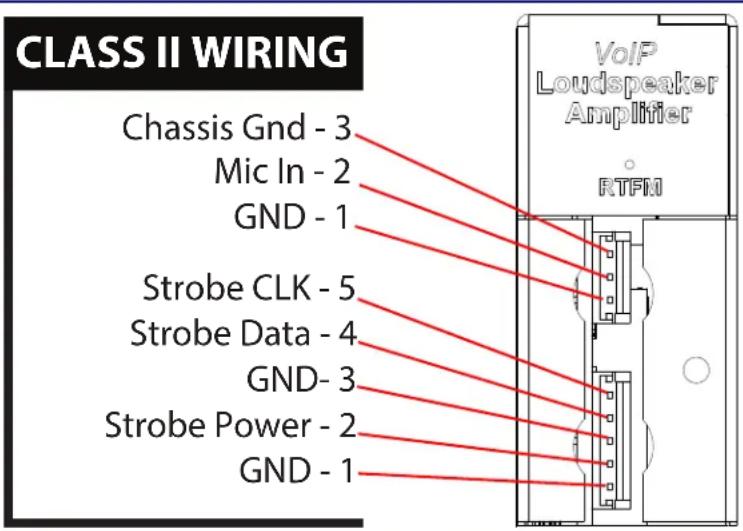
See Figure 2-13 for the additional connection options for the SIP Loudspeaker Amplifier (PoE).
Figure 2-13. Connections Behind the Port Cover
text_image
CLASS II WIRING Chassis Gnd - 3 Mic In - 2 GND - 1 Strobe CLK - 5 Strobe Data - 4 GND- 3 Strobe Power - 2 GND - 1 VoIP Loudspeaker Amplifier RTFMSee Table 2-4 for the descriptions of the connections behind the port cover.
Table 2-4. Connections Behind the Port Cover
| Name Connection Description | |
| Chassis Gnd J6-1 Microphone chassis ground connections | |
| Mic In J6-2 Microphone positive input | |
| GND J6-3 | Microphone negative input |
| Strobe Connections | |
| Name Connection Description | |
| GND J9-1 Ground | |
| Strobe Power J9-2 Strobe positive power (+24V) | |
| GND J9-3 Ground | |
| Strobe Data J9-4 I2C data | |
| Strobe CLK J9-5 I2C clock | |
2.2.6 Connecting the Strobe
-
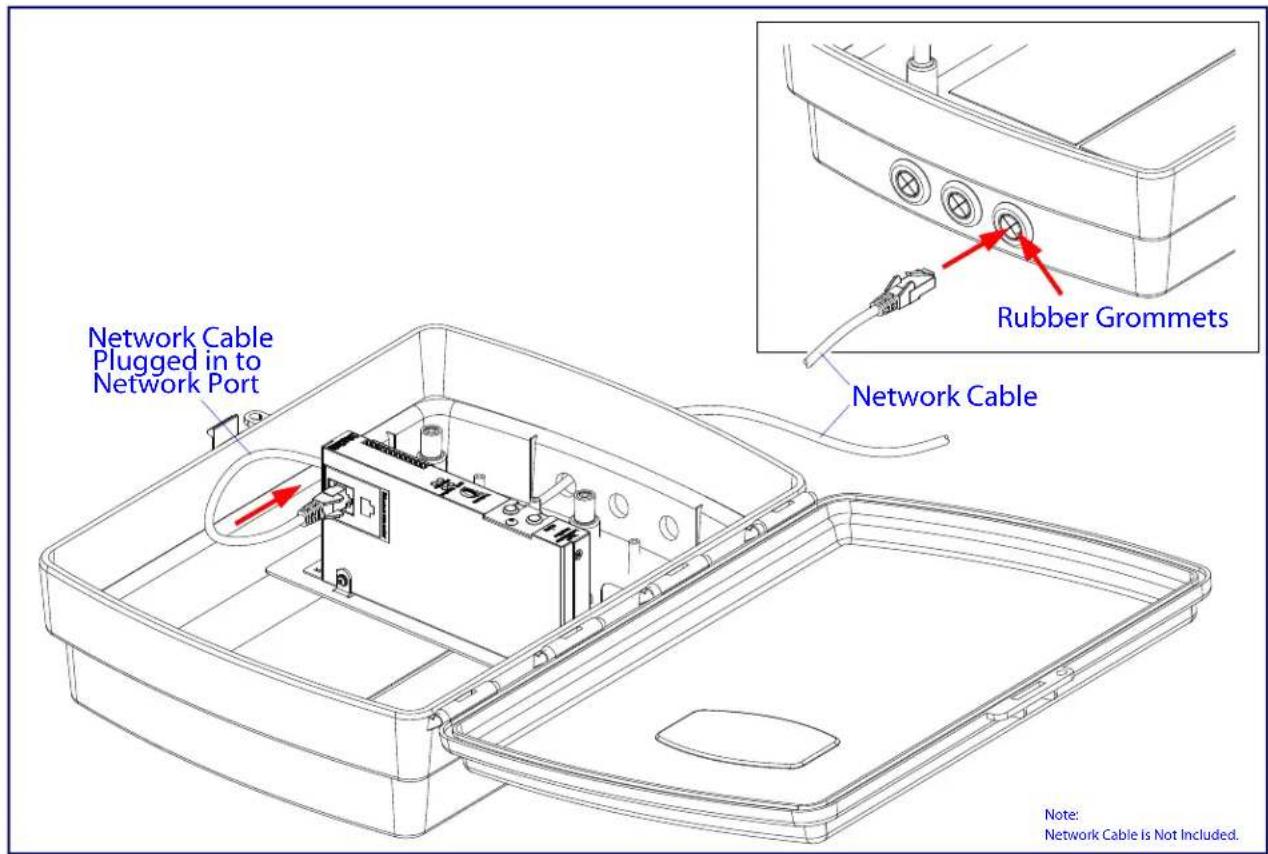
Insert the network cable through any available rubber grommet at the bottom of the enclosure. See Figure 2-14.
-
Connect the Network Cable to the Paging Amplifier. See Figure 2-14.
Figure 2-14. Connecting the Strobe
text_image
Network Cable Plugged in to Network Port Rubber Grommets Network Cable Note: Network Cable is Not Included.- Remove the mounting screw to remove the cover plate. See Figure 2-15.
- Remove the hole plug and grommet. See Figure 2-15.
- Slide the cover plate through the slot on the cable grommet. See Figure 2-15.
- Install the mounting screw to secure the cover plate. See Figure 2-15.
Figure 2-15. Connecting the Strobe

text_image
Strobe Cable Kit (Part of RGB Strobe) Mounting Screw Cable Grommet Hole Plug & Grommet Slot to J9 Cover Plate Mounting Screw Back Plate Slot J1 RGB Strobe J9 J62.2.7 SIP Loudspeaker Amplifier (PoE) Jumpers
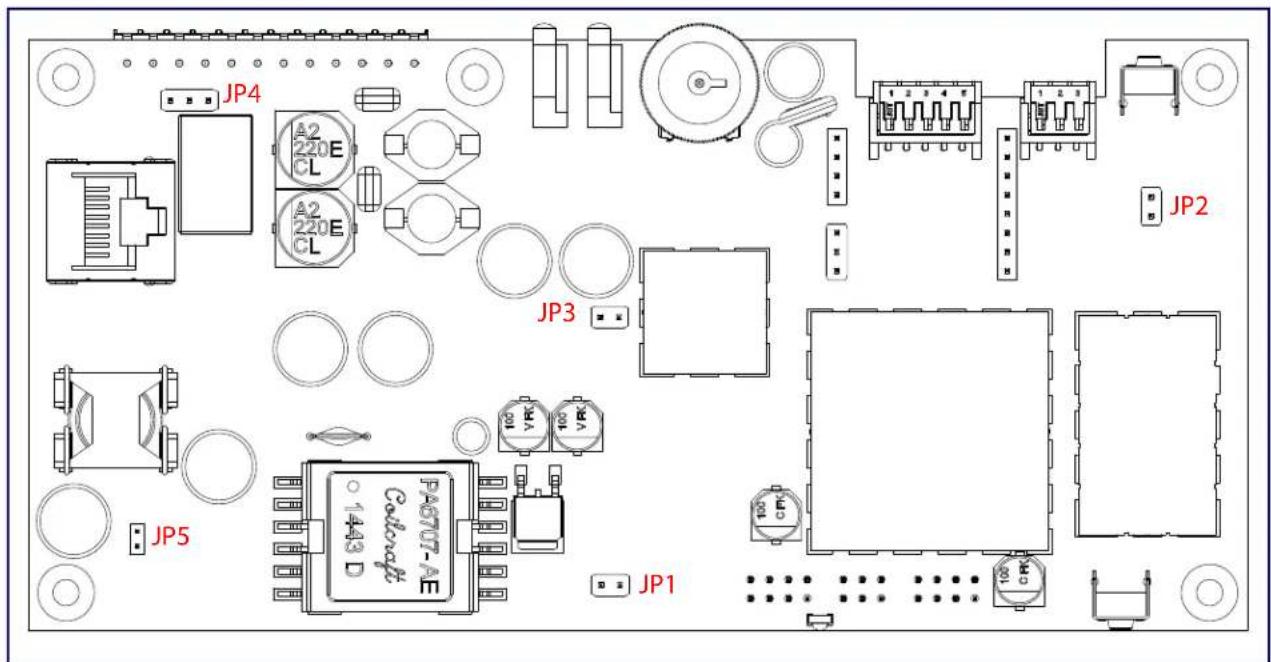
See Figure 2-16 for the jumper locations.
Figure 2-16. Jumper Locations
text_image
JP4 A2 220E CL A2 220E CL JP3 JP2 JP5 PA6707-AE Colorcraft C 1+43 D JP1See Table 2-5 for the jumper descriptions.
Table 2-5. Jumper Descriptions
| Jumper Description |
| JP1 Reset—Factory Only |
| JP2 RTFM (not installed) |
| JP3 Audio Enable Jumper—Factory Only |
| JP4 Relay NO/NC (default to NO)—Factory Only |
| JP5 PoE IEEE 802.3at—Factory Only |
2.2.8 Ethernet Connection
See Table 2-6 for details about the SIP Loudspeaker Amplifier (PoE) connection.
Table 2-6. SIP Loudspeaker Amplifier (PoE) Connection
| Connection Connection Details Location | |
| Ethernet Use a RJ 45 cable. SIP Loudspeaker Amplifier | (PoE) |
2.2.9 Loudspeaker Type
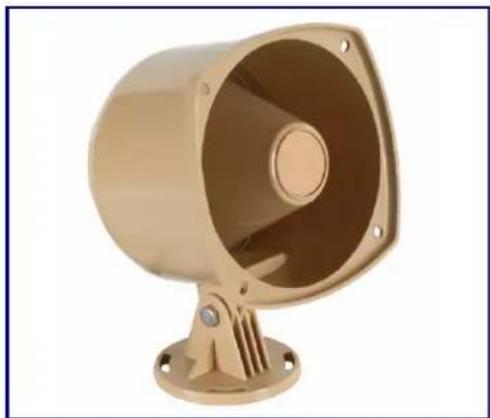
Using the amplified output, the CyberData SIP Loudspeaker Amplifier (PoE) supports the 011068 Loudspeaker or equivalent unamplified loudspeaker.
Figure 2-17. 011068 Loudspeaker
natural_image
Exterior view of a beige industrial megaphone with mounting base (no text or symbols visible)2.2.10 Cabling/Wiring
Using the amplified output, you may connect a 011068 loudspeaker or equivalent unamplified speaker to a SIP Loudspeaker Amplifier (PoE-powered) with good quality speaker wire that is 16 gauge and limited to 25 feet in length with two loudspeakers or 50 feet in length with one loudspeaker.
2.2.11 Confirm Operation
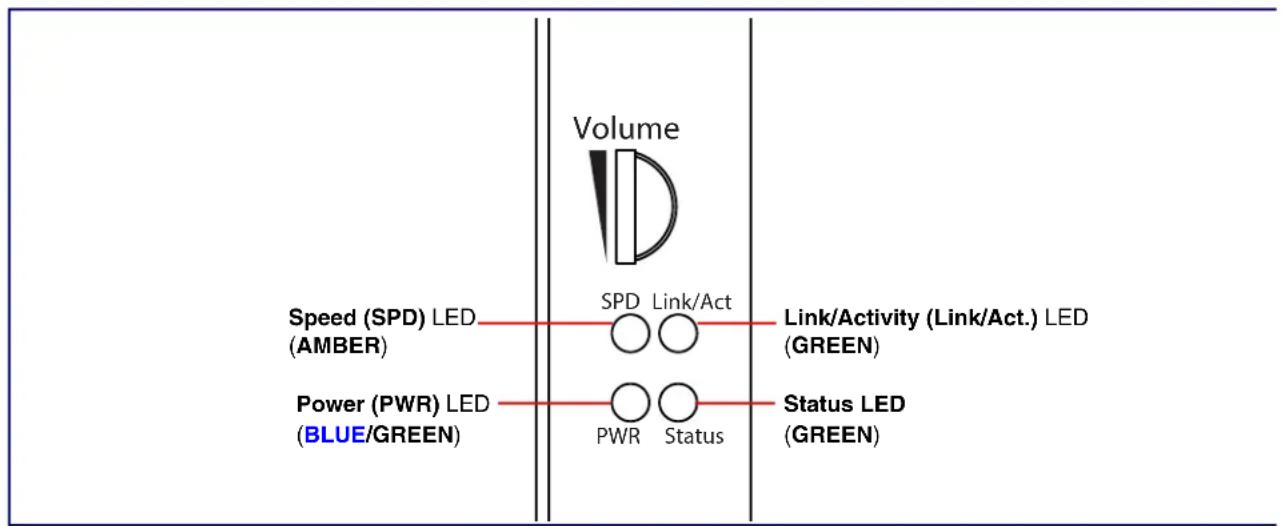
After connecting the device to the 802.3af compliant ethernet hub, use the LEDs on the device to confirm that the device is operational and linked to the network.
Table 2-7. SIP Loudspeaker Amplifier (PoE) LEDs
| LED Color Function | ||
| Power (PWR) | BLUE/GREEN | The 802.3at power injector that is provided with the device should cause the Power (PWR) LED to illuminate BLUE to indicate that high power is available.The Power (PWR) LED may illuminate GREEN if a low power mode (802.3af) power source is used (not included and sold separately). |
| Status | GREEN | After supplying power to the device, a steady GREEN Status LED illuminates.After about 20 seconds, the GREEN Status LED will blink fast to indicate that the device is acquiring an IP address and attempting to autoprovision. The GREEN Status LED will turn off thereafter until the device has finished booting. When the device has fully booted, the GREEN Status LED will turn on solid to confirm the device is operational.The GREEN Status LED will blink during a page when it is online. |
| Speed (SPD) | AMBER | The Speed (SPD) LED illuminates AMBER for a 100Mb link or is off for 10MB when the network link to the device is established. |
| Link/Activity (Link/Act.) | GREEN | The Link/Activity (Link/Act.) GREEN LED blinks to indicate network traffic. |
Figure 2-18. SIP Loudspeaker Amplifier (PoE) LEDs
text_image
Volume Speed (SPD) LED (AMBER) Power (PWR) LED (BLUE/GREEN) SPD Link/Act Link/Activity (Link/Act.) LED (GREEN) PWR Status Status LED (GREEN)2.2.12 Confirm the IP Address and Test the Audio
2.2.12.1 RTFM Switch
When the SIP Loudspeaker Amplifier (PoE) is operational and linked to the network, use the Reset Test Function Management (RTFM) switch (Figure 2-19) on the SIP Loudspeaker Amplifier (PoE) face to announce and confirm the SIP Loudspeaker Amplifier (PoE)'s IP Address and test the audio to verify that it is working.
Figure 2-19. RTFM Switch

text_image
VoIP Loudspeaker Amplifier RTFM RTFM switchAnnouncing the IP To announce a SIP Loudspeaker Amplifier (PoE)'s current IP address:
- Press and hold the RTFM switch for a couple of seconds and then release it.
 | CautionEquipment Caution: Pressing and holding the RTFM switch for more than five seconds will restore the device to the factory default settings. See the “Restoring the Factory Default Settings” section. |
Restoring the Factory Default Settings
To restore the factory default settings, complete the following steps:
- Press and hold the RTFM switch until you hear the device announce the words, "restoring defaults" and "rebooting".
- Release the RTFM switch. The device will be restored to the factory default settings.
2.2.13 Adjust the Volume
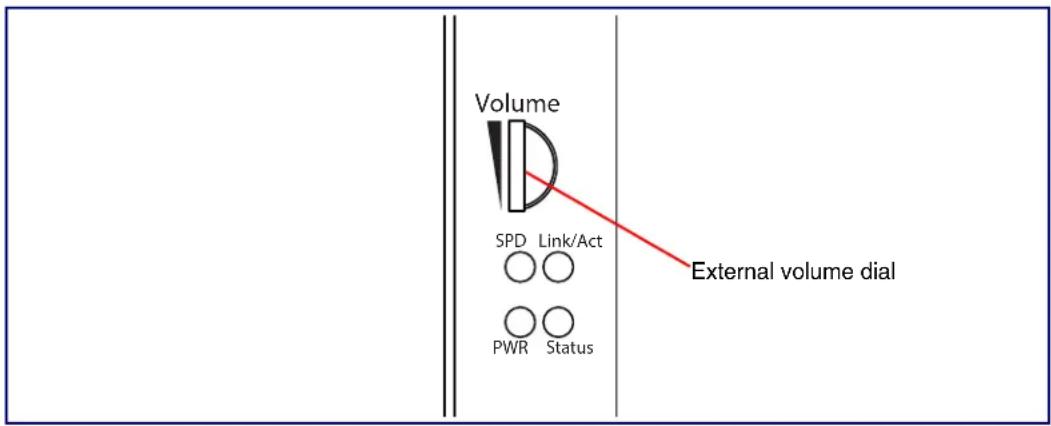
There are two ways to adjust the volume for the SIP Loudspeaker Amplifier (PoE):
• The SIP Volume setting on the Device Configuration Page
• The external Volume dial (Figure 2-21) on the SIP Loudspeaker Amplifier (PoE) face
Figure 2-20. External Volume Dial
text_image
Volume SPD Link/Act PWR Status External volume dial2.2.13.1 The SIP Volume Setting
To adjust the volume of the device with the SIP Volume setting on the Device Configuration Page, complete the following steps:
- Go to the Home Page.
- Select the Device Configuration Page page.
- In the SIP Volume box, type a number between 0 (lowest) and 9 (highest).
- Select Save.
2.2.13.2 The Multicast Volume Setting
To adjust the Multicast Volume volume with the Multicast Volume setting on the Device Configuration Page, complete the following steps:
- Go to the Home Page.
- Select the Device Configuration Page.
- In the Multicast Volume box, type a number between 0 (lowest) and 9 (highest).
- Select Save.
2.2.13.3 The Ring Volume Setting
To adjust the Ring Volume volume with the Ring Volume setting on the Device Configuration Page, complete the following steps:
- Go to the Home Page.
- Select the Device Configuration Page.
- In the Multicast Volume box, type a number between 0 (lowest) and 9 (highest).
- Select Save.
2.2.13.4 The Sensor Volume Setting
To adjust the Sensor Volume volume with the Sensor Volume setting on the Device Configuration Page, complete the following steps:
- Go to the Home Page.
- Select the Device Configuration Page.
- In the Sensor Volume box, type a number between 0 (lowest) and 9 (highest).
- Select Save.
2.2.13.5 External Volume Dial
To adjust the SIP Loudspeaker Amplifier (PoE) volume with the external volume dial, complete the following steps:
- Turn the external Volume dial (Figure 2-20) on the SIP Loudspeaker Amplifier (PoE) face.
Note For the lineout volume, the volume is fixed and the volume control is adjusted through an external amplifier.
Figure 2-21. External Volume Dial

text_image
Volume SPD Link/Act PWR Status External volume dial2.3 Configure the SIP Loudspeaker Amplifier (PoE) Parameters
To configure the SIP Loudspeaker Amplifier (PoE) online, use a standard web browser.
Configure each SIP Loudspeaker Amplifier (PoE) and verify its operation before you mount it. When you are ready to mount an SIP Loudspeaker Amplifier (PoE), refer to Appendix A, "Mounting the Intercom" for instructions.
2.3.1 Factory Default Settings
All SIP Loudspeaker Amplifier (PoE)s are initially configured with the following default IP settings:
When configuring more than one SIP Loudspeaker Amplifier (PoE), attach the SIP Loudspeaker Amplifier (PoE)s to the network and configure one at a time to avoid IP address conflicts.
Table 2-8. Factory Default Settings
| Parameter Factory Default Setting | |
| IP Addressing DHCP | |
| IP Address^a | 10.10.10.10 |
| Web Access Username admin | |
| Web Access Password admin | |
| Subnet Mask^a | 255.0.0.0 |
| Default Gateway^a | 10.0.0.1 |
a. Default if there is not a DHCP server present.
2.3.2 SIP Loudspeaker Amplifier (PoE) Web Page Navigation
Table 2-9 shows the navigation buttons that you will see on every SIP Loudspeaker Amplifier (PoE) web page.
Table 2-9. Web Page Navigation
| Web Page Item Description | |
| Home | Link to the Home page. |
| Device | Link to the Device page. |
| Network | Link to the Network page. |
| SIP | Link to go to the SIP page. |
| Multicast | Link to the Multicast page. |
| Sensor | Link to the Sensor page. |
| Audiofiles | Link to the Audiofiles page. |
| Events | Link to the Events page. |
| Autoprov | Link to the Autoprovisioning page. |
| Firmware | Link to the Firmware page. |
2.3.3 Using the Toggle Help Button
The Toggle Help button allows you to see a short description of some of the settings on the webpage. To use the Toggle Help button, do the following:
- Click on the Toggle Help button that is on the UI webpage. See Figure 2-22 and Figure 2-23.
Figure 2-22. Toggle/Help Button
Toggle Help
- You will see a question mark ( ) appear next to each web page item that has been provided with a short description by the Help feature. See Figure 2-23.
Figure 2-23. Toggle Help Button and Question Marks
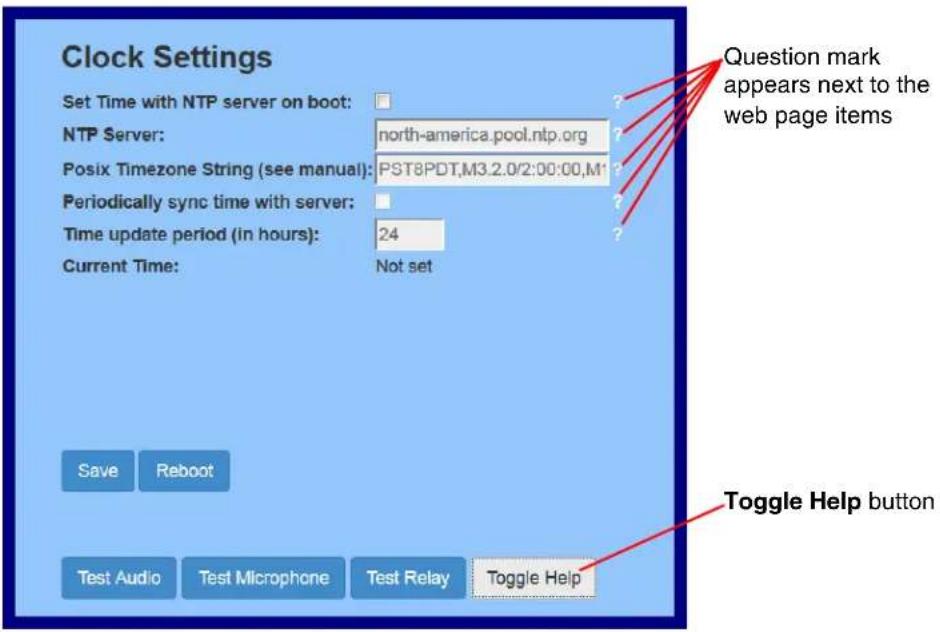
text_image
Clock Settings Set Time with NTP server on boot: NTP Server: north-america.pool.ntp.org Posix Timezone String (see manual): PST8PDT,M3.2.0/2:00:00,M1 Periodically sync time with server: Time update period (in hours): 24 Current Time: Not set Save Reboot Test Audio Test Microphone Test Relay Toggle Help Question mark appears next to the web page items Toggle Help button- Move the mouse pointer to hover over the question mark (☐), and a short description of the web page item will appear. See Figure 2-24.
Figure 2-24. Short Description Provided by the Help Feature
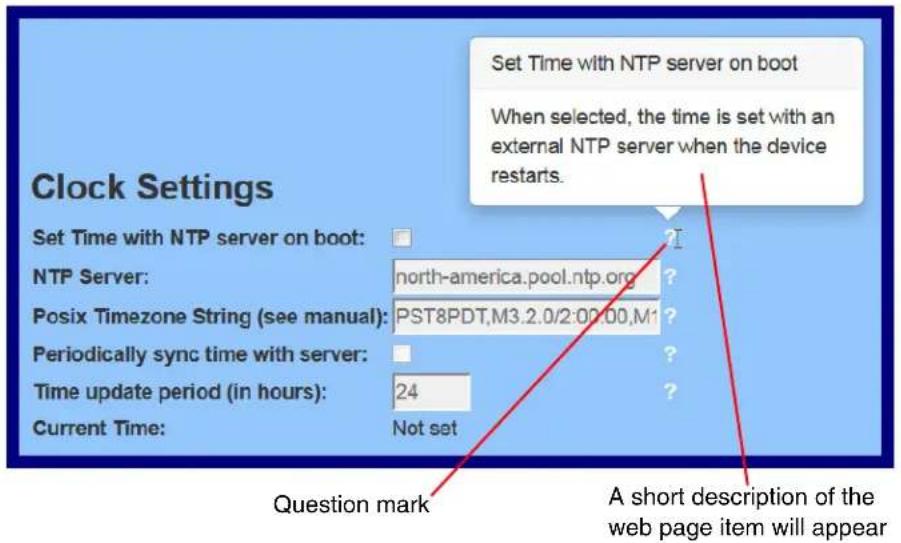
text_image
Clock Settings Set Time with NTP server on boot: NTP Server: north-america.pool.ntp.org Posix Timezone String (see manual): PST8PDT,M3.2.0/2:00:00,M1 Periodically sync time with server: Time update period (in hours): 24 Current Time: Not set Question mark A short description of the web page item will appear Set Time with NTP server on boot When selected, the time is set with an external NTP server when the device restarts.2.3.4 Log in to the Configuration Home Page
- Open your browser to the SIP Loudspeaker Amplifier (PoE) IP address.
Note If the network does not have access to a DHCP server, the device will default to an IP address of 10.10.10.10.
Note Make sure that the PC is on the same IP network as the SIP Loudspeaker Amplifier (PoE).
Note You may also download CyberData's VoIP Discovery Utility program which allows you to easily find and configure the default web address of the CyberData VoIP products.
CyberData's VoIP Discovery Utility program is available at the following website address: http://www.cyberdata.net/assets/common/discovery.zip
Note The device ships in DHCP mode. To get to the Home page, use the discovery utility to scan for the device on the network and open your browser from there.
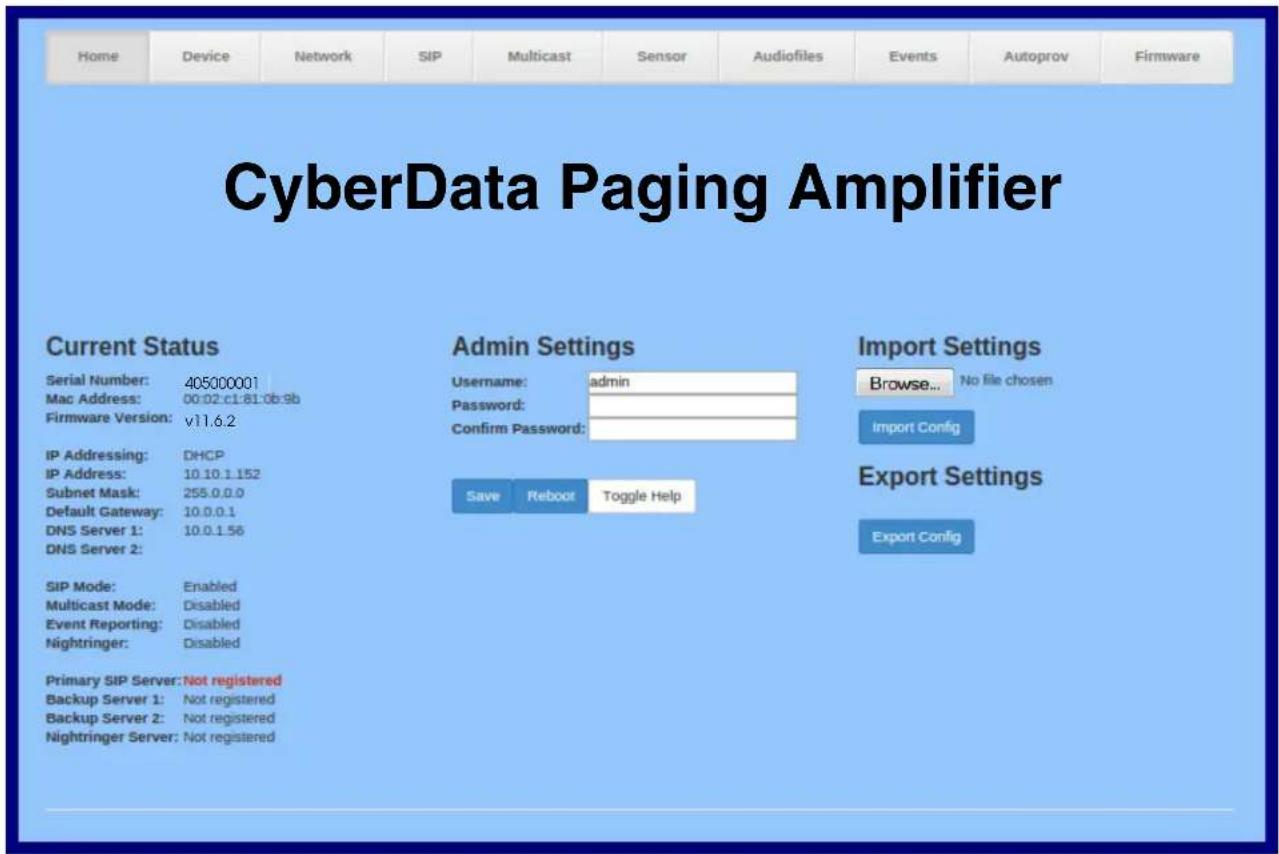
- When prompted, use the following default Web Access Username and Web Access Password to access the Home Page (Figure 2-25):
Web Access Username: admin
Web Access Password: admin
Figure 2-25. Home Page
text_image
CyberData Paging Amplifier Current Status Serial Number: 405000001 Mac Address: 00.02.c1:61:0b:9b Firmware Version: v11.6.2 IP Addressing: DHCP IP Address: 10.10.1.152 Subnet Mask: 255.0.0.0 Default Gateway: 10.0.0.1 DNS Server 1: 10.0.1.56 DNS Server 2: SIP Mode: Enabled Multicast Mode: Disabled Event Reporting: Disabled Nightringer: Disabled Primary SIP Server: Not registered Backup Server 1: Not registered Backup Server 2: Not registered Nightringer Server: Not registered Admin Settings Username: admin Password: Confirm Password: Save Reboot Toggle Help Import Settings Browse... No file chosen Import Config Export Settings Export Config- On the Home page, review the setup details and navigation buttons described in Table 2-10.
Note The question mark icon ( ? ) in the following table shows which web page items will be defined after the Toggle Help button is pressed.
Table 2-10. Home Page Overview
| Web Page Item | Description |
| Admin Settings | |
| Username The username to access the web interface. Enter up to 25 characters. | |
| Password ? | The password to access the web interface. Enter up to 25 characters. |
| Confirm Password ? | Confirm the web interface password. |
| Current Status | |
| Serial Number Shows the device serial number. | |
| Mac Address Shows the device Mac address. | |
| Firmware Version Shows the current firmware version. | |
| IP Addressing | Shows the current IP addressing setting (DHCP or static). |
| IP Address Shows the current IP address. | |
| Subnet Mask Shows the current subnet mask address. | |
| Default Gateway Shows the current default gateway address. | |
| DNS Server 1 Shows the current DNS Server 1 address. | |
| DNS Server 2 Shows the current DNS Server 2 address. | |
| SIP Mode Shows the current status of the SIP mode. | |
| Multicast Mode Shows the current status of the Multicast mode. | |
| Event Reporting | Shows the current status of the Event Reporting mode. |
| Nightringer Shows the current status of the Nightringer mode. | |
| Primary SIP Server | Shows the current status of the Primary SIP Server. |
| Backup Server 1 | Shows the current status of Backup Server 1. |
| Backup Server 2 | Shows the current status of Backup Server 2. |
| Nightringer Server | Shows the current status of Nightringer Server. |
| Import Settings | |
| Browse... | Use this button to select a configuration file to import. |
| Import Config | After selecting a configuration file, click Import to import the configuration from the selected file. Then, click Save and Reboot to store changes. |
| Export Settings | |
| Export Config | Click Export to export the current configuration to a file. |
| Save | Click the Save button to save your configuration settings.Note: You need to reboot for changes to take effect. |
| Web Page Item Description | |
| Reboot | Click on the Reboot button to reboot the system. |
| Toggle Help | Click on the Toggle Help button to see a short description of some of the web page items. First click on the Toggle Help button, and you will see a question mark ( ? ) appear next to some of the web page items. Move the mouse pointer to hover over a question mark to see a short description of a specific web page item. |
2.3.5 Configure the Device
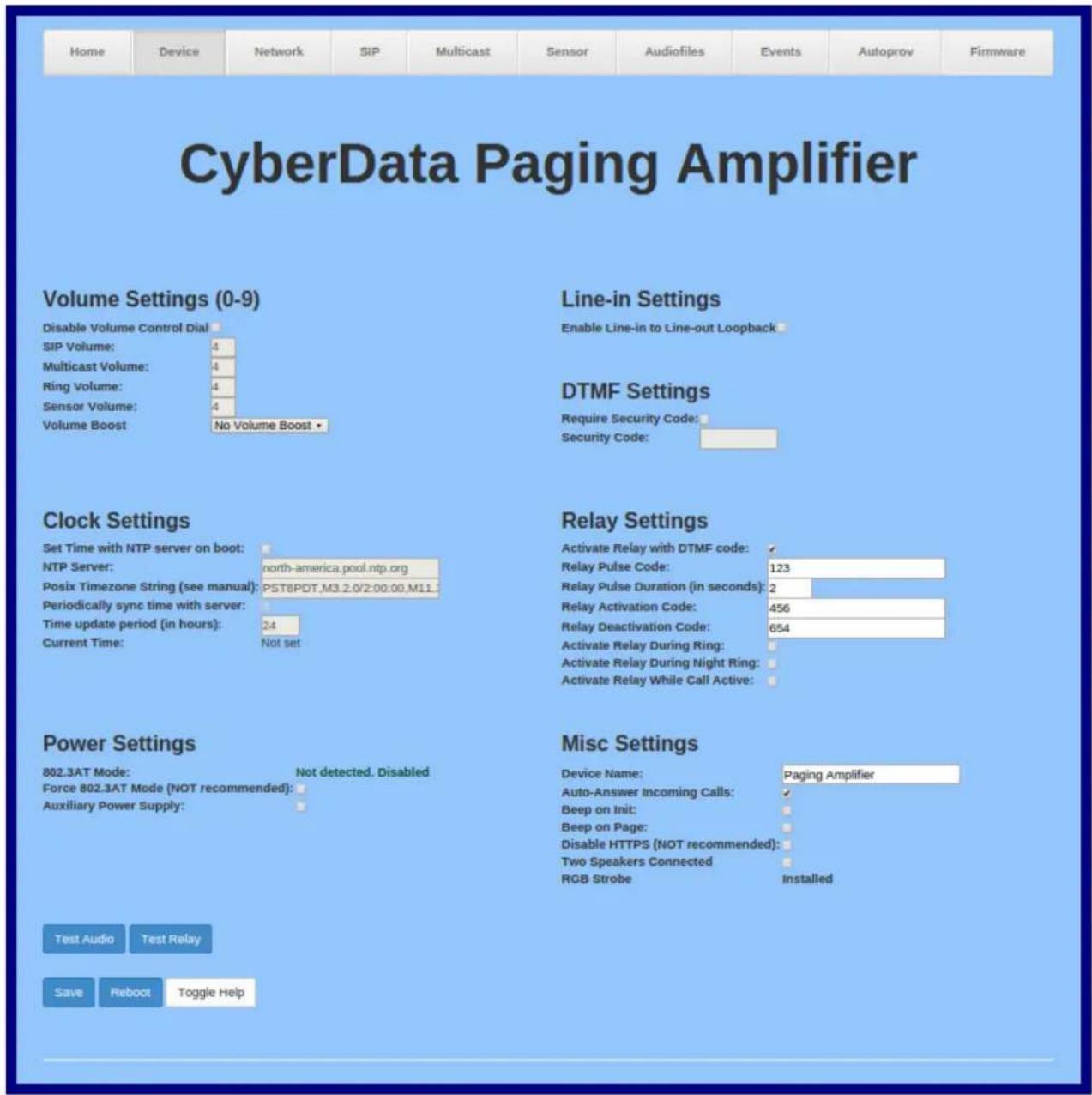
- Click the Device menu button to open the Device page. See Figure 2-26.
Figure 2-26. Device Configuration Page
text_image
Home Device Network SIP Multicast Sensor Audiofiles Events Autoprov Firmware CyberData Paging Amplifier Volume Settings (0-9) Disable Volume Control Dial SIP Volume: 4 Multicast Volume: 4 Ring Volume: 4 Sensor Volume: 4 Volume Boost No Volume Boost • Line-in Settings Enable Line-in to Line-out Loopback DTMF Settings Require Security Code: Security Code: Clock Settings Set Time with NTP server on boot: NTP Server: north-america.pool.ntp.org Posix Timezone String (see manual): PST8PDT.M3.2.0/2:00:00.M11 Periodically sync time with server: Time update period (in hours): 24 Current Time: Not set Relay Settings Activate Relay with DTMF code: ✓ Relay Pulse Code: 123 Relay Pulse Duration (in seconds): 2 Relay Activation Code: 456 Relay Deactivation Code: 654 Activate Relay During Ring: Activate Relay During Night Ring: Activate Relay While Call Active: Power Settings 802.3AT Mode: Not detected. Disabled Force 802.3AT Mode (NOT recommended): Auxiliary Power Supply: Misc Settings Device Name: Paging Amplifier Auto-Answer Incoming Calls: ✓ Beep on Init: Beep on Page: Disable HTTPS (NOT recommended): Two Speakers Connected RGB Strobe Installed Test Audio Test Relay Save Reboot Toggle Help- On the Device page, you may enter values for the parameters indicated in Table 2-11.
Note The question mark icon ( ? ) in the following table shows which web page items will be defined after the Toggle Help button is pressed.
Table 2-11. Device Configuration Parameters
| Web Page Item Description | |
| Volume Settings (0-9) | |
| Disable Volume Control Dial ? | Select this option to disable the volume control dial and enable digital volume control settings. |
| SIP Volume ? | Set the speaker volume for a SIP call. A value of 0 will mute the speaker during SIP calls. |
| Multicast Volume ? | Set the speaker volume for multicast audio streams. A value of 0 will mute the speaker during multicasts. |
| Ring Volume ? | Set the ring volume for incoming calls. A value of 0 will mute the speaker instead of playing the ring tone when Auto-Answer Incoming Calls is disabled. |
| Sensor Volume ? | Set the speaker volume for playing sensor activated audio. A value of 0 will mute the speaker during sensor activated audio. |
| Volume Boost: ?No Volume BoostVolume Boost 1Volume Boost 2Volume Boost 3 | Set the Boost level to increase the volume output of the speaker. Using Volume Boost may introduce audio clips or lessen the effectiveness of the echo canceler. Boost is only recommended for use with volumes set to level 9.Normal operation of the product can be met with volume levels 0 through 9. 0 being mute and 9 being the loudest volume that in a normal arm's length and average background noise, will enable full duplex operation and give the best quality of sound output.The volume boost options increase the output of the speaker by:3db for Boost level 16db for Boost level 29db for Boost level 3If the user would like a higher output from the speaker, the Boost settings are available. However, operation inBoost Modemay overdrive or clip the audio if, for example, the phone that is connected has a high microphone gain or if the person has a loud voice talking too close to the microphone.The acoustic echo canceller also has a harder time maintaining full duplex operation when in theBoost Mode. The product may drop from full duplex operation into half/duplex mode while inBoost Mode.Contact CyberData support for additional information if needed. |
| Clock Settings | |
| Set Time with NTP Server on boot ? | When selected, the time is set with an external NTP server when the device restarts. |
| NTP Server ? | Use this field to set the address (in IPv4 dotted decimal notation or as a canonical name) for the NTP Server. This field can accept canonical names of up to 64 characters in length. |
| Posix Timezone String ? | See Section 2.3.5.1, "Time Zone Strings" for information about how to use the Posix Timezone String to specify time zone and daylight savings time where applicable. Enter up to 63 characters. |
| Periodically sync time with server ? | When selected, the time is periodically updated with the NTP server at the configured interval below. |
| Time update period (in hours) ? | The time interval after which the device will contact the NTP server to update the time. Enter up to 4 digits. |
| Current Time ? | Allows you to input the current time. (6 character limit) |
| Power Settings | |
| 802.3AT Mode This device automatically detects if it is plugged into an 802.3AT (also known as PoE Plus) power source. 802.3AT provides more power than older 802.3AT power sources and allows this speaker to play audio at higher volumes. If you are sure this speaker is connected to an 802.3AT power source, but it is not being detected correctly, you can override the automatic settings below. | |
| Force 802.3AT Mode (NOT recommended) ? | Enable this option if you are sure this speaker is connected to an 802.3AT power source, but it is not being detected correctly (not recommended). |
| Auxiliary Power Supply ? | This device can be connected to a +24VDC auxiliary power supply. Check this box if this is how this speaker is being powered. |
| Line-In Settings | |
| Enable Line-in to Line-out Loopback ? | Line-in audio will play back out the device's audio output ports. This is the lowest priority audio and will be preempted by any other audio stream. |
| DTMF Settings | |
| Require Security Code ? | When selected, the user will be prompted to enter a Security Code (entered on this page) before being able to execute a page when calling the device. |
| Security Code ? | Type the Security Code in this field. The Security Code must only use characters '0-9', '*' and '#'. Enter up to 25 characters. |
| Relay Settings | |
| Activate Relay with DTMF Code ? | Activates the relay when the DTMF Activation Code is entered on the phone during a SIP call with the device. RFC2833 DTMF payload types are supported. |
| Relay Pulse Code ? | DTMF code used to pulse the relay when entered on a phone during a SIP call with the device. Relay will activate for Relay Pulse Duration seconds then deactivate. Activate Relay with DTMF Code must be enabled. Enter up to 25 digits (* and # are supported). |
| Relay Pulse Duration (in seconds) ? | The length of time (in seconds) during which the relay will be activated when the DTMF Relay Activation Code is detected. Enter up to 5 digits. |
| Relay Activation Code ? | Activation code used to activate the relay when entered on a phone during a SIP call with the device. Relay will be active indefinitely, or until the DTMF Relay Deactivation code is entered. Activate Relay with DTMF Code must be enabled. Enter up to 25 digits (* and # are supported). |
| Relay Deactivation Code ? | Code used to deactivate the relay when entered on a phone during a SIP call with the device. Activate Relay with DTMF Code must be enabled. Enter up to 25 digits (* and # are supported). |
| Activate Relay During Ring ? | When selected, the relay will be activated for as long as the device is ringing. When Auto-Answer Incoming Calls is enabled, the device will not ring and this option does nothing. |
| Activate Relay During Night Ring ? | When selected, the relay will be activated as long as the Nightringer extension is ringing. |
| Activate Relay While Call Active ? | When selected, the relay will be activated as long as the SIP call is active. |
| Misc Settings | |
| Device Name Type the device name. Enter up to 25 characters. | |
| Auto-Answer Incoming Calls ? | When selected, the device will automatically answer incoming calls.When Auto-Answer Incoming Calls is disabled, the device will play a ring tone (corresponds to Ring Tone on the Audiofiles page) out of the speaker. |
| Beep on Init ? | Device will play the user-defined “pagetone” audio file when it boots. |
| Beep on Page ? | Device will play the user defined “pagetone” audio file before playing a SIP page. |
| Disable HTTPS (NOT recommended) ? | Disables the encrypted connection to the webpage. We do not recommend disabling HTTPS for security reasons. |
| Two Speakers Connected ? | Specify if one or two speakers are connected to the device. If only one is connected, ensure that it is wired to the first set of terminal blocks. |
| RGB Strobe ? | Status of optional RGB Strobe. |
| Test Audio | Click on the Test Audio button to do an audio test. When the Test Audio button is pressed, you will hear a voice message for testing the device audio quality and volume. |
| Test Relay | Click on the Test Relay button to do a relay test. |
| Save | Click the Save button to save your configuration settings.Note: You need to reboot for changes to take effect. |
| Reboot | Click on the Reboot button to reboot the system. |
| Toggle Help | Click on the Toggle Help button to see a short description of some of the web page items. First click on the Toggle Help button, and you will see a question mark (?) appear next to some of the web page items. Move the mouse pointer to hover over a question mark to see a short description of a specific web page item. |
Note You can change the SIP Volume, Multicast Volume, Ring Volume, and Sensor Volume without rebooting the device. You must save and reboot the device for other changes to take effect.
2.3.5.1 Time Zone Strings
The posix time zone string tells the internal date and time utilities how to handle daylight savings time for different time zones. Table 2-24 shows some common strings.
Table 2-12. Common Time Zone Strings
| Time Zone Time Zone String | |
| US Pacific time PST8PDT,M3.2.0/2:00:00,M11.1.0/2:00:00 | |
| US Mountain time | MST7MDT,M3.2.0/2:00:00,M11.1.0/2:00:00 |
| US Eastern Time EST5EDT,M3.2.0/2:00:00,M11.1.0/2:00:00 | |
| Phoenix Arizonaa | MST7 |
| US Central Time CST6DST,M3.2.0/2:00:00,M11.1.0/2:00:00 | |
a. Phoenix, Arizona does not use daylight savings time.
Table 2-25 shows a breakdown of the parts that constitute the following time zone string:
●CST6DST,M3.2.0/2:00:00,M11.1.0/2:00:00
Table 2-13. Time Zone String Parts
| Time Zone String Part | Meaning |
| CST6CDT | The time zone offset from GMT and three character identifiers for the time zone. |
| CST Central Standard Time | |
| 6 | The (hour) offset from GMT/UTC |
| CDT | Central Daylight Time |
| M3.2.0/2:00:00 | The date and time when daylight savings begins. |
| M3 | The third month (March) |
| .2 | The 2nd occurrence of the day (next item) in the month |
| .0 | Sunday |
| /2:00:00 | Time of day to change |
| M11.1.0/2:00:00 | The date and time when daylight savings ends. |
| M11 | The eleventh month (November) |
| .1 | The 1st occurrence of the day (next item) in the month |
| .0 | Sunday |
| /2:00:00 | Time of day to change |
Time Zone String Examples
Table 2-26 has some more examples of time zone strings.
Table 2-14. Time Zone String Examples
| Time Zone Time Zone String | |
| Tokyo ^a | IST-9 |
| Berlin ^b | CET-1MET,M3.5.0/1:00,M10.5.0/1:00 |
a. Tokyo does not use daylight savings time.
b. For Berlin, daylight savings time starts on the last Sunday in March at
01:00 UTC, and ends on the last Sunday in October at 01:00 UTC, and is one
hour ahead of UTC.
Time Zone Identifier A user-definable three or four character time zone identifier (such as PST, EDT, IST, MUT, etc) is needed at the beginning of the posix time zone string to properly set the time. However, the specific letters or numbers used for the time zone identifier are not important and can be any three or four letter or number combination that is chosen by the user. However, the time zone identifier cannot be blank.
Figure 2-27. Three or Four Character Time Zone Identifier
You can also use the following URL when a certain time zone applies daylight savings time:
http://www.timeanddate.com/time/dst/2011.html
World GMT Table Table 2-27 has information about the GMT time in various time zones.
Table 2-15. World GMT Table
| Time Zone City or Area Zone Crosses |
| GMT-12 Eniwetok |
| GMT-11 Samoa |
| GMT-10 Hawaii |
| GMT-9 Alaska |
| GMT-8 PST, Pacific US |
| GMT-7 MST, Mountain US |
| GMT-6 CST, Central US |
| GMT-5 EST, Eastern US |
| GMT-4 Atlantic, Canada |
| GMT-3 Brazilia, Buenos Aries |
| GMT-2 Mid-Atlantic |
| GMT-1 Cape Verdes |
| GMT Greenwich Mean Time, Dublin |
| GMT+1 Berlin, Rome |
| GMT+2 Israel, Cairo |
| GMT+3 Moscow, Kuwait |
| GMT+4 Abu Dhabi, Muscat |
| GMT+5 Islamabad, Karachi |
| GMT+6 Almaty, Dhaka |
| GMT+7 Bangkok, Jakarta |
| GMT+8 Hong Kong, Beijing |
| GMT+9 Tokyo, Osaka |
| GMT+10 Sydney, Melbourne, Guam |
| GMT+11 Magadan, Soloman Is. |
| GMT+12 Fiji, Wellington, Auckland |
2.3.6 Configure the Network Parameters
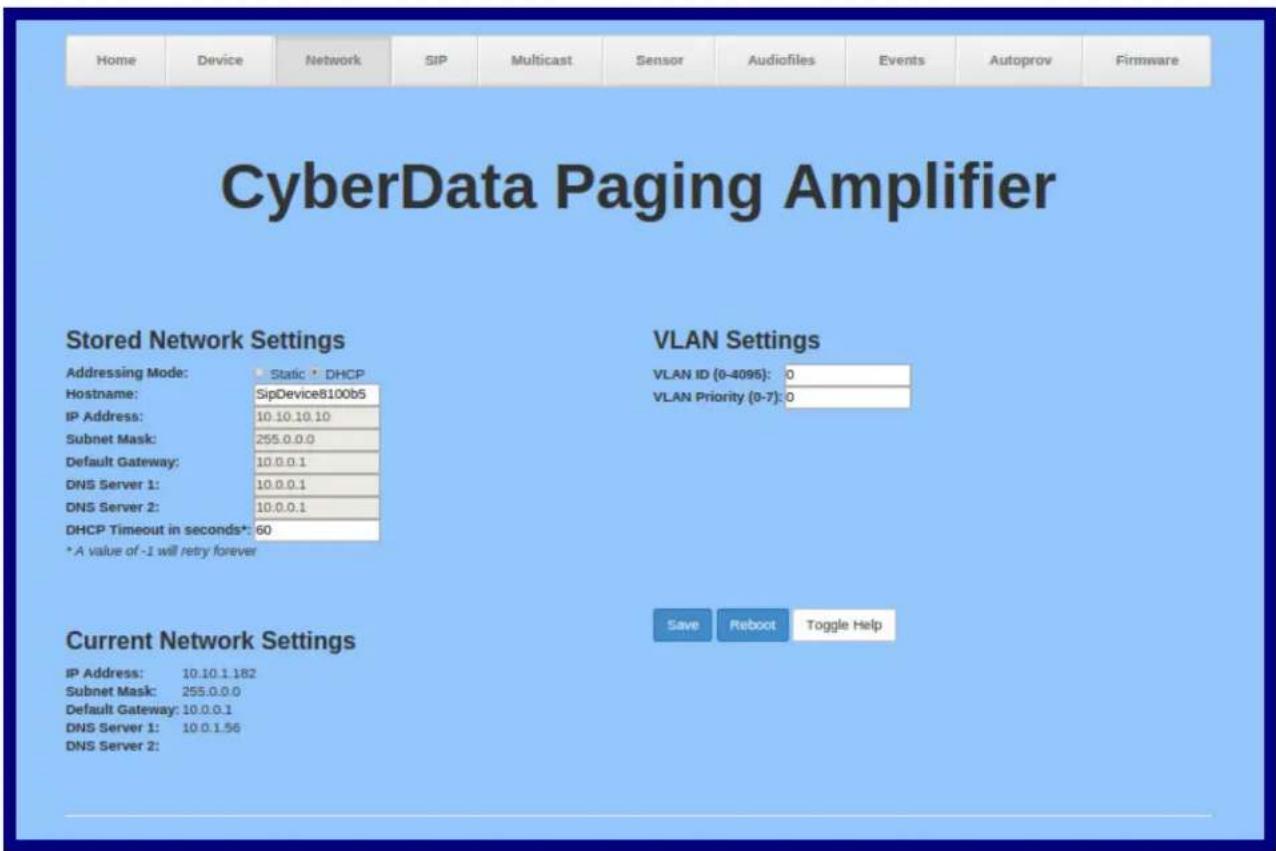
- Click the Network menu button to open the Network page (Figure 2-28).
Figure 2-28. Network Configuration Page
text_image
CyberData Paging Amplifier Stored Network Settings VLAN Settings Addressing Mode: Static • DHCP Hostname: SipDevice8100b5 IP Address: 10.10.10.10 Subnet Mask: 255.0.0.0 Default Gateway: 10.0.0.1 DNS Server 1: 10.0.0.1 DNS Server 2: 10.0.0.1 DHCP Timeout in seconds*: 60 * A value of -I will retry forever Current Network Settings IP Address: 10.10.1.182 Subnet Mask: 255.0.0.0 Default Gateway: 10.0.0.1 DNS Server 1: 10.0.1.56 DNS Server 2: Save Reboot Toggle Help- On the Network page, enter values for the parameters indicated in Table 2-16.
Note The question mark icon ( ? ) in the following table shows which web page items will be defined after the Toggle Help button is pressed.
Table 2-16. Network Configuration Parameters
| Web Page Item Description | |
| Stored Network Settings | |
| Addressing Mode Select either DHCP IP Addressing or Static Addressing by marking the appropriate radio button. DHCP Addressing mode is enabled on default and the device will attempt to resolve network addressing with the local DHCP server upon boot. If DHCP Addressing fails, the device will revert to the last known IP address or the factory default address if no prior DHCP lease was established. See Section 2.3.1, "Factory Default Settings" for factory default settings. Be sure to click Save and Reboot to store changes when configuring a Static address. | |
| Hostname This is the hostname provided by the DHCP server. See the DHCP/DNS server documentation for more information. Enter up to 64 characters. | |
| IP Address Enter the Static IPv4 network address in dotted decimal notation. | |
| Subnet Mask Enter the Subnet Mask in dotted decimal notation. | |
| Default Gateway Enter the Default Gateway IPv4 address in dotted decimal notation. | |
| DNS Server 1 Enter the primary DNS Server IPv4 address in dotted decimal notation. | |
| DNS Server 2 Enter the secondary DNS Server IPv4 address in dotted decimal notation. | |
| DHCP Timeout in seconds ? | Specify the desired time-out duration (in seconds) that the device will wait for a response from the DHCP server before reverting back to the stored static IP address. The stored static IP address may be the last known IP address or the factory default address if no prior DHCP lease was established. Enter up to 8 characters. A value of -1 will retry forever. |
| Current Network Settings Shows the current network settings. | |
| IP Address | Shows the current Static IP address. |
| Subnet Mask | Shows the current Subnet Mask address. |
| Default Gateway | Shows the current Default Gateway address. |
| DNS Server 1 | Shows the current DNS Server 1 address. |
| DNS Server 2 | Shows the current DNS Server 2 address. |
| VLAN Settings | |
| VLAN ID (0-4095) ? | Specify the IEEE 802.1Q VLAN ID number. Enter up to 4 digits.Note: The device supports 802.1Q VLAN tagging support. The switch port connected to the device will need to be in “trunking mode” for the VLAN tags to propagate. |
| VLAN Priority (0-7) ? | Specify the IEEE 802.1p VLAN priority level. Enter 1 digit. A value of 0 may cause the VLAN ID tag to be ignored. |
| Save | Click the Save button to save your configuration settings.Note: You need to reboot for changes to take effect. |
| Reboot | Click on the Reboot button to reboot the system. |
| Toggle Help | Click on the Toggle Help button to see a short description of some of the web page items. First click on the Toggle Help button, and you will see a question mark ( ) appear next to some of the web page items. Move the mouse pointer to hover over a question mark to see a short description of a specific web page item. |
Note You must click on the Save button and then the Reboot button for the changes to take effect.
2.3.7 Configure the SIP (Session Initiation Protocol) Parameters
- Click on the SIP menu button to open the SIP page (Figure 2-29).
Figure 2-29. SIP Configuration Page—Top

text_image
Home Device Network SIP Multicast Sensor Audiofiles Events Autoprov Firmware CyberData Paging Amplifier SIP Settings Enable SIP operation: ✓ Register with a SIP Server: ✓ Use Cisco SRST: Primary SIP Server: 10.0.0.253 Primary SIP User ID: 199 Primary SIP Auth ID: 199 Primary SIP Auth Password: ****** Backup SIP Server 1: Backup SIP User ID 1: Backup SIP Auth ID 1: Backup SIP Auth Password 1: Backup SIP Server 2: Backup SIP User ID 2: Backup SIP Auth ID 2: Backup SIP Auth Password 2: Remote SIP Port: 5060 Local SIP Port: 5060 Outbound Proxy: Outbound Proxy Port: 0 Disable rport Discovery: Buffer SIP Calls: Re-registration Interval (in seconds): 360 Unregister on Boot: Keep Alive Period: 10000 Nightringer Settings Enable Nightringer: SIP Server: 10.0.0.253 Remote SIP Port: 5060 Local SIP Port: 5061 Outbound Proxy: Outbound Proxy Port: 0 User ID: 241 Authenticate ID: 241 Authenticate Password: ****** Re-registration Interval (in seconds): 360 Nightringer Strobe Settings Blink Strobe on Nightring: Nightringer Strobe Brightness: 100 ADA Compliant Slow Fade Fast Fade Slow Blink Fast Blink Color: Blue Red: 0 Green: 0 Blue: 255 PreviewFigure 2-30. SIP Configuration Page—Bottom
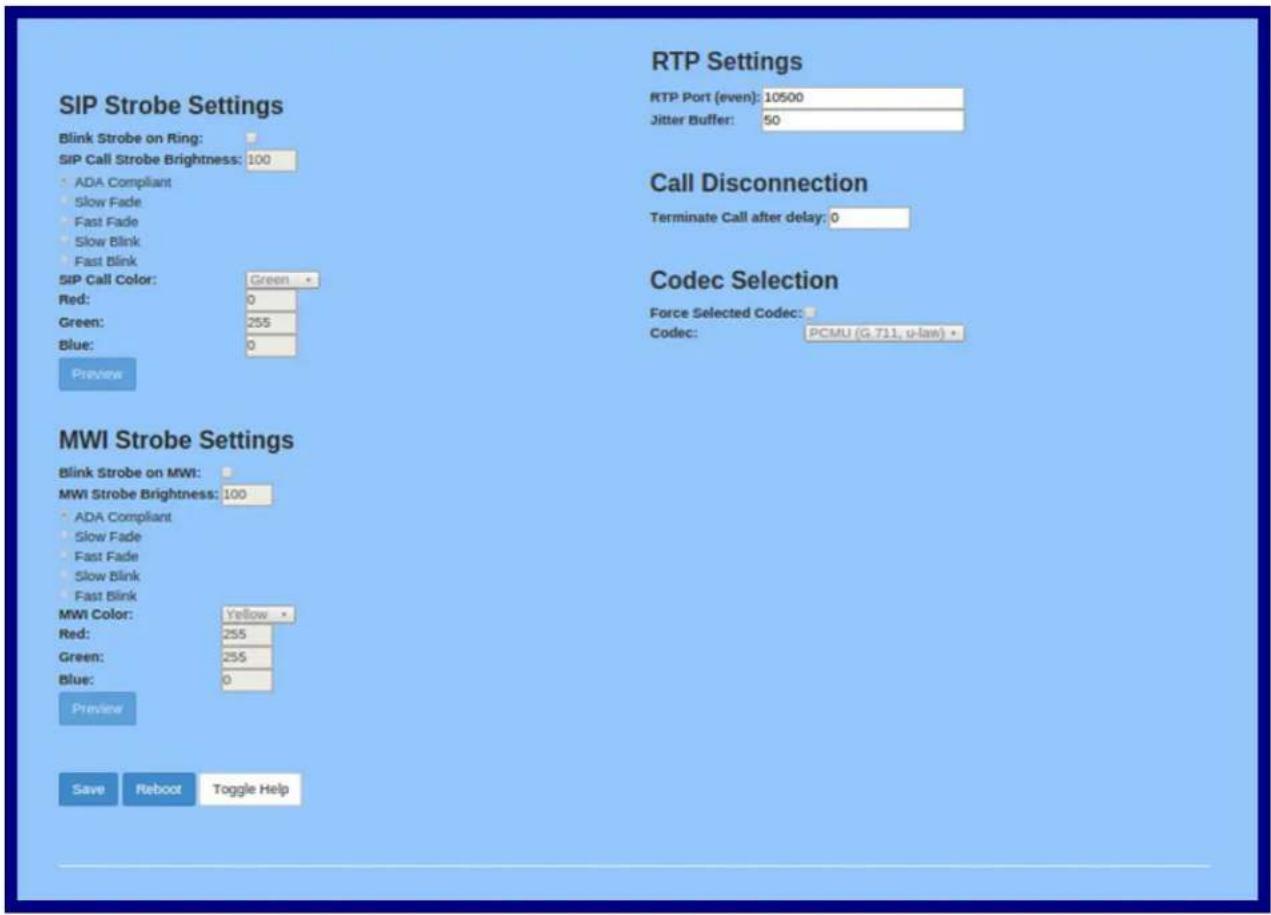
text_image
SIP Strobe Settings Blink Strobe on Ring: SIP Call Strobe Brightness: 100 • ADA Compliant • Slow Fade • Fast Fade • Slow Blink • Fast Blink SIP Call Color: Green Red: 0 Green: 255 Blue: 0 Preview RTP Settings RTP Port (even): 10500 Jitter Buffer: 50 Call Disconnection Terminate Call after delay: 0 Codec Selection Force Selected Codec: Codec: PCMU (G 711, u-law) MWI Strobe Settings Blink Strobe on MWI: MWI Strobe Brightness: 100 • ADA Compliant • Slow Fade • Fast Fade • Slow Blink • Fast Blink MWI Color: Yellow Red: 255 Green: 255 Blue: 0 Preview Save Reboot Toggle Help- On the SIP page, enter values for the parameters indicated in Table 2-17.
Note The question mark icon ( ? ) in the following table shows which web page items will be defined after the Toggle Help button is pressed.
Table 2-17. SIP Configuration Parameters
| Web Page Item Description | |
| SIP Settings | |
| Enable SIP Operation When enabled, the device will transmit, receive, and process SIP messages according to the configured SIP settings below. | |
| Register with a SIP Server ? | When enabled, the device will attempt to register to the configured SIP Server(s) on this page. To configure the device to send and receive point-to-point SIP calls, enable SIP Operation and disable Register with a SIP Server (see Section 2.3.7.2, "Point-to-Point Configuration"). |
| Use Cisco SRST When enabled, the backup servers are handled according to Cisco SRST (Survivable Remote Site Telephony). It is required for use in clustered Cisco Unified Communications Manager topologies. | |
| Primary SIP Server Enter the SIP server address as an IPv4 address in dotted decimal notation or a fully qualified domain name. This parameter also becomes the host portion of the SIP-URI for the device's extension on the primary SIP server. This field can accept entries of up to 255 characters in length. | |
| Primary SIP User ID Specify the SIP User ID for the Primary SIP Server. This parameter becomes the user portion of the SIP-URI for the device's extension on the primary SIP server. Enter up to 64 alphanumeric characters. | |
| Primary SIP Auth ID ? | Specify the Authenticate ID for the Primary SIP Server. This parameter is required for SIP registration authentication. Enter up to 64 alphanumeric characters. |
| Primary SIP Auth Password ? | Specify the Authenticate Password for the Primary SIP Server. This parameter is required for SIP registration authentication. Enter up to 64 alphanumeric characters. |
| Backup SIP Server 1 ? | Enter the backup SIP server address as an IPv4 address in dotted decimal notation or a fully qualified domain name. This parameter also becomes the host portion of the SIP-URI for the device's extension on the backup SIP server. This field can accept entries of up to 255 characters in length. |
| Backup SIP User ID 1 ? | Specify the SIP User ID for the first backup SIP Server. This parameter becomes the user portion of the SIP-URI for the device's extension on the first backup SIP server. Enter up to 64 alphanumeric characters. |
| Backup SIP Auth ID 1 ? | Specify the Authenticate ID for the first backup SIP server. This parameter is required for SIP registration authentication. Enter up to 64 alphanumeric characters. |
| Backup SIP Auth Password 1 ? | Specify the Authenticate Password for the first backup SIP server. This parameter is required for SIP registration authentication. Enter up to 64 alphanumeric characters. |
| Backup SIP Server 2 ? | Enter a second backup SIP server address as an IPv4 address in dotted decimal notation or a fully qualified domain name. This parameter also becomes the host portion of the SIP-URI for the device's extension on the second backup SIP server. This field can accept entries of up to 255 characters in length. |
| Backup SIP User ID 2 Specify the SIP User ID for the second backup SIP Server. This parameter becomes the user portion of the SIP-URI for the device's extension on the second backup SIP server. Enter up to 64 alphanumeric characters. | |
| Backup SIP Auth ID 2 Specify the Authenticate ID for the second backup SIP server. This parameter is required for SIP registration authentication. Enter up to 64 alphanumeric characters. | |
| Backup SIP Auth Password 2 | Specify the Authenticate Password for the second backup SIP server. This parameter is required for SIP registration authentication. Enter up to 64 alphanumeric characters. |
| Remote SIP Port The Remote SIP Port is the port number the device will use as the destination port when sending SIP messages. The default Remote SIP Port is 5060. The supported range is 0-65536. Enter up to 5 digits. | |
| Local SIP Port The Local SIP Port is the port number the device will use to receive SIP messages. The default Local SIP Port is 5060. The supported range is 0-65536. Enter up to 5 digits. | |
| Outbound Proxy Enter the Outbound Proxy address as an IPv4 address in dotted decimal notation or a fully qualified domain name (FQDN). When an IP address is configured, the device will send all SIP messages to this IP address.When an FQDN is configured, the device will run DNS NAPTR, SRV, and A queries on the FQDN to resolve an IP address to which it will send all SIP messages. This field can accept entries of up to 255 characters in length. | |
| Outbound Proxy Port The Outbound Proxy Port is port number used as the destination port when sending SIP messages to the outbound proxy. A value of 0 will default to 5060. The supported range is 0-65536. Enter up to 5 digits. | |
| Disable rport Discovery Disabling rport Discovery will prevent the device from including the public WAN IP address and port number in the contact information that is sent to the remote SIP servers. This will generally only need to be enabled when using an SBC or SIP ALG in conjunction with a remote SIP server. | |
| Buffer SIP Calls Also referred to as delayed paging. Device will buffer up to 4 minutes of audio then play back the recording after hang up. | |
| Re-registration Interval (in seconds) The SIP Re-registration interval (in seconds) is the SIP Registration lease time, also known as the expiry. The supported range is 30-3600 seconds. Enter up to 4 digits. | |
| Unregister on Boot | When enabled, the device will send one registration with an expiry of 0 on boot. |
| Keep Alive Period | The minimum time in milliseconds between keep-alive packets sent for nat traversal. A value of 0 will disable keep alive packets. |
| SIP Strobe Settings | |
| Blink Strobe on Ring | When selected, the Strobe will blink a scene when ringing. |
| SIP Call Strobe Brightness | How bright the strobe will blink when there is a SIP Call. This is the maximum brightness for “fade” type scenes. |
| ADA Compliant | Strobe will blink ON at the specified brightness for 150ms then OFF for 350ms during the duration of the event. |
| Slow Fade | Strobe will increase in brightness from 0 to the specified brightness and back to 0 over the course of about 3.5 seconds during the duration of the event. |
Table 2-17. SIP Configuration Parameters (continued)
| Web Page Item | Description | |
| Fast FadeStrobe will increase in brightness from 0 to the specified brightness and back to 0 over the course of about 1.5 seconds during the duration of the event. | ||
| Slow BlinkStrobe will blink ON at the specified brightness for one second then OFF for one second during the duration of the event. | ||
| Fast BlinkStrobe will blink ON at the specified brightness then OFF five times per second during the duration of the event. | ||
| SIP Call ColorSelect desired color (only one may be chosen). | ||
| RedThe red LED value for SIP Call. | ||
| GreenThe green LED value for SIP Call. | ||
| BlueThe blue LED value for SIP Call. | ||
| Preview | Use this button to preview the strobe flashing behavior for the MWI Strobe Settings. | |
| MWI Strobe Settings | ||
| Blink Strobe on MWIWhen selected, the strobe will blink a scene when a voicemail is waiting for its extension. | ||
| MWI Strobe Brightness? | How bright the strobe will blink when there is a message waiting. This is the maximum brightness for “fade” type scenes. | |
| ADA CompliantStrobe will blink ON at the specified brightness for 150ms then OFF for 350ms during the duration of the event. | ||
| Slow FadeStrobe will increase in brightness from 0 to the specified brightness and back to 0 over the course of about 3.5 seconds during the duration of the event. | ||
| Fast FadeStrobe will increase in brightness from 0 to the specified brightness and back to 0 over the course of about 1.5 seconds during the duration of the event. | ||
| Slow BlinkStrobe will blink ON at the specified brightness for one second then OFF for one second during the duration of the event. | ||
| Fast BlinkStrobe will blink ON at the specified brightness then OFF five times per second during the duration of the event. | ||
| MWI Call ColorSelect desired color (only one may be chosen). | ||
| RedThe red LED value for MWI. | ||
| GreenThe green LED value for MWI. | ||
| BlueThe blue LED value for MWI. | ||
| Preview | Use this button to preview the strobe flashing behavior for the MWI Strobe Settings. | |
| Nightringer Settings | ||
| Enable Nightringer? | When Nightringer is enabled, the device will attempt to register a second extension with the SIP server. Any calls made to this extension will play a ringtone (corresponds toNight Ringon theAudiofilespage). By design, it is not possible to answer a call to the Nightringer extension. | |
Table 2-17. SIP Configuration Parameters (continued)
| Web Page Item Description | |
| SIP Server Enter the SIP server address as an IPv4 address in dotted decimal notation or a fully qualified domain name. This parameter also becomes the host portion of the SIP-URI for the device's Nightringer extension on the SIP server. This field can accept entries of up to 255 characters in length. | |
| Remote SIP Port The Remote SIP Port is the port number the device will use as the destination port when sending SIP messages for the Nightringer extension. The default Remote SIP Port is 5060. The supported range is 0-65536. Enter up to 5 digits. | |
| Local SIP Port The Local SIP Port is the port number the device will use to receive SIP messages for the Nightringer extension. This value cannot be the same as the Local SIP Port for the primary extension. The default Local SIP Port is 5061. The supported range is 0-65536. Enter up to 5 digits. | |
| Outbound Proxy Enter the Outbound Proxy address as an IPv4 address in dotted decimal notation or a fully qualified domain name (FQDN). When an IP address is configured, the device will send all SIP messages to this IP address for the Nightringer extension. When an FQDN is configured, the device will run DNS NAPTR, SRV, and A queries on the FQDN to resolve an IP address to which it will send all SIP messages for the Nightringer extension. This field can accept entries of up to 255 characters in length. | |
| Outbound Proxy Port The Outbound Proxy Port is port number used as the destination port when sending SIP messages to the outbound proxy for the Nightringer extension. A value of 0 will default to 5060. The supported range is 0-65536. Enter up to 5 digits. | |
| User ID Specify the SIP User ID for the SIP server. This parameter becomes the user portion of the SIP-URI for the device's Nightringer extension. Enter up to 64 alphanumeric characters. | |
| Authenticate ID? | Specify the Authenticate ID for the SIP Server. This parameter is required for SIP registration authentication. Enter up to 64 alphanumeric characters. |
| Authenticate Password? | Specify the Authenticate Password for the SIP Server. This parameter is required for SIP registration authentication. Enter up to 64 alphanumeric characters. |
| Re-registration Interval (in seconds)? | The SIP Re-registration Interval (in seconds) is the SIP Registration lease time, also known as the expiry. The supported range is 30-3600 seconds. Enter up to 4 digits. |
| Nightringer Strobe Settings | |
| Blink Strobe on Nightring? | When selected, the Strobe will blink a scene when the Nightinger is ringing. |
| Nightringer Strobe Brightness? | How bright the strobe will blink when the Nightringer is ringing. This is the maximum brightness for “fade” type scenes. |
| ADA Compliant Strobe will blink ON at the specified brightness for 150ms then OFF for 350ms during the duration of the event. | |
| Slow Fade? | Strobe will increase in brightness from 0 to the specified brightness and back to 0 over the course of about 3.5 seconds during the duration of the event. |
| Web Page Item | Description |
| Fast Fade Strobe will increase in brightness from 0 to the specified brightness and back to 0 over the course of about 1.5 seconds during the duration of the event. | |
| Slow Blink Strobe will blink ON at the specified brightness for one second then OFF for one second during the duration of the event. | |
| Fast Blink Strobe will blink ON at the specified brightness then OFF five times per second during the duration of the event. | |
| Nightringer Call Color Select desired color (only one may be chosen). | |
| Red The red LED value for Nightringer. | |
| Green The green LED value for Nightringer. | |
| Blue The blue LED value for Nightringer. | |
| Preview | Use this button to preview the strobe flashing behavior for the Nightringer Strobe Settings. |
| RTP Settings | |
| RTP Port (even) ? | Specify the port number used for the RTP stream after establishing a SIP call. This port number must be an even number and defaults to 10500. The supported range is 0-65536. Enter up to 5 digits. |
| Jitter Buffer ? | Specify the size of the jitter buffer (in milliseconds) used for SIP calls. Valid values are 50-1000. |
| Call Disconnection | |
| Terminate Call After Delay Automatically terminate an active call after a given delay in seconds. A value of 0 will disable this function. Enter up to 8 digits. | |
| Codec Selection | |
| Force Selected Codec ? | When configured, this option will allow you to force the device to negotiate for the selected codec. Otherwise, the device will perform codec negotiation using the default list of supported codecs. |
| Codec ? | Select the desired codec (only one may be chosen). |
| Save | Click the Save button to save your configuration settings.Note: You need to reboot for changes to take effect. |
| Reboot | Click on the Reboot button to reboot the system. |
| Toggle Help | Click on the Toggle Help button to see a short description of some of the web page items. First click on the Toggle Help button, and you will see a question mark (?) appear next to some of the web page items. Move the mouse pointer to hover over a question mark to see a short description of a specific web page item. |
Note You must click on the Save button and then the Reboot button for the changes to take effect.
Note For specific server configurations, go to the following website address:
http://www.cyberdata.net/connecting-to-ip-pbx-servers/
2.3.7.1 Dial Out Extension Strings and DTMF Tones (using rfc2833)
On the SIP Configuration Page—Top, dial out extensions support the addition of comma delimited pauses and sending additional DTMF tones (using rfc2833). The first comma will pause three seconds after a call is first established with a remote device. Subsequent commas will pause for 2 seconds. A pause of one second will be sent after each numerical digit.
Table 2-18. Examples of Dial-Out Extension Strings
| Extension String Resulting Action |
| 302 Dial out extension 302 and establish a call |
| 302,2 Dial out extension 302 and establish a call, wait 3 seconds then send the DTMF tone '2' |
| 302,25,,4,,1 Dial out extension 302 and establish a call, wait 3 seconds then send the DTMF tone '2', send out DTMF tone 5, wait 6 seconds, send out DTMF tone 4, wait 4 seconds, send out DTMF tone 1 |
Note The maximum number of total characters in the dial-out field is 64.
2.3.7.2 Point-to-Point Configuration
When the device is set to not register with a SIP server (see Figure 2-31), it is possible to set the device to dial out to a single endpoint.
In this case, the dial-out extension should be the IP address of the remote device. The device can also receive Point-to-Point calls. The delayed DTMF functionality is available in the Point-to-Point Mode.
Note Receiving point-to-point SiP calls may not work with all phones.
Figure 2-31. SIP Page Set to Point-to-Point Mode

text_image
Home Device Network SIP Multicast Sensor Audiofiles Events Autoprov Firmware CyberData Paging Amplifier SIP Settings Enable SIP operation: Register with a SIP Server: Use Cisco SRST: Primary SIP Server: 10.0.0.253 Primary SIP User ID: 199 Primary SIP Auth ID: 199 Primary SIP Auth Password: ****** Backup SIP Server 1: Backup SIP User ID 1: Backup SIP Auth ID 1: Backup SIP Auth Password 1: Backup SIP Server 2: Backup SIP User ID 2: Backup SIP Auth ID 2: Backup SIP Auth Password 2: Remote SIP Port: 5060 Local SIP Port: 5060 Outbound Proxy: Outbound Proxy Port: 0 Disable rport Discovery: Buffer SIP Calls: Re-registration Interval (in seconds): 360 Unregister on Boot: Keep Alive Period: 10000 Nightringer Settings Enable Nightringer: SIP Server: 10.0.0.253 Remote SIP Port: 5060 Local SIP Port: 5061 Outbound Proxy: Outbound Proxy Port: 0 User ID: 241 Authenticate ID: 241 Authenticate Password: ****** Re-registration Interval (in seconds): 360 Nightringer Strobe Settings Blink Strobe on Nightring: Nightringer Strobe Brightness: 100 • ADA Compliant Slow Fade Fast Fade Slow Blink Fast Blink Color: Blue Red: 0 Green: 0 Blue: 255 Preview Device is set to NOT register with a SiP server2.3.7.3 Delayed DTMF
On the SIP Configuration page the dial out extension supports the addition of comma delimited pauses and sending additional DTMF tones (using rfc2833). The first comma will pause three seconds after a call is first established with a remote device. Subsequent commas will pause for 2 seconds. A pause of one second will be sent after each numerical digit.
Table 2-19. Examples of Dial-Out Extension Strings
| Extension String Resulting Action |
| 302 Dial out extension 302 and establish a call |
| 302,2 Dial out extension 302 and establish a call, wait 3 seconds then send the DTMF tone '2' |
| 302,25,,4,,1 Dial out extension 302 and establish a call, wait 3 seconds then send the DTMF tone '2', send out DTMF tone 5, wait 6 seconds, send out DTMF tone 4, wait 4 seconds, send out DTMF tone 1 |
Note The maximum number of total characters in the dial-out field is 25.
2.3.8 Configure the Multicast Parameters
The Multicast Configuration page allows the device to join up to ten paging zones for receiving ulaw/alaw encoded RTP audio streams.
A paging zone can consist of one or many CyberData multicast group-enabled products. There is no limit to how many speakers can be in a given paging zone. Each multicast group is defined by a multicast address and port number.
Each multicast group is assigned a priority, allowing simultaneously arriving pages to be serviced based on importance. Multicast groups are compatible with IGMP through version 3. The device supports simultaneous SIP and Multicast.
- Click on the Multicast menu button to open the Multicast page. See Figure 2-32.
Figure 2-32. Multicast Configuration Page
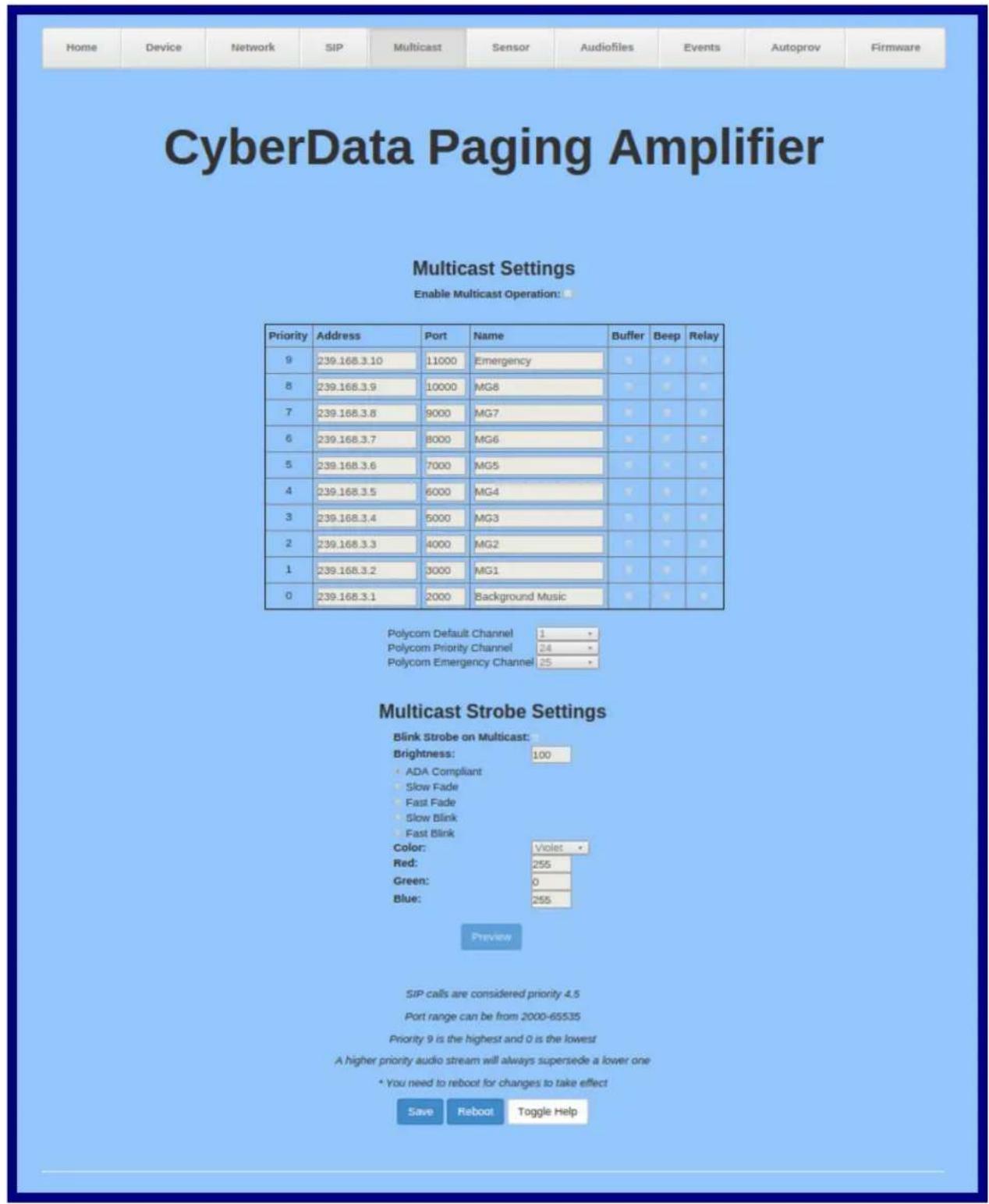
text_image
Home Device Network SIP Multicast Sensor Audiofiles Events Autoprov Firmware CyberData Paging Amplifier Multicast Settings Enable Multicast Operation: Priority Address Port Name Buffer Beep Relay 9 239.168.3.10 11000 Emergency 8 239.168.3.9 10000 MG8 7 239.168.3.8 9000 MG7 6 239.168.3.7 8000 MG6 5 239.168.3.6 7000 MG5 4 239.168.3.5 6000 MG4 3 239.168.3.4 5000 MG3 2 239.168.3.3 4000 MG2 1 239.168.3.2 3000 MG1 0 239.168.3.1 2000 Background Music Polycom Default Channel 1 - Polycom Priority Channel 24 - Polycom Emergency Channel 35 - Multicast Strobe Settings Blink Strobe on Multicast: Brightness: 100 • ADA Compliant • Slow Fade • Fast Fade • Slow Blink • Fast Blink Color: Violet - Red: 255 Green: 0 Blue: 255 Preview SIP calls are considered priority 4.5 Port range can be from 2000-65535 Priority 9 is the highest and 0 is the lowest A higher priority audio stream will always supersede a lower one * You need to reboot for changes to take effect Save Reboot Toggle Help- On the Multicast page, enter values for the parameters indicated in Table 2-20.
Note The question mark icon ( ? ) in the following table shows which web page items will be defined after the Toggle Help button is pressed.
Table 2-20. Multicast Configuration Parameters
| Web Page Item Description | |
| Enable Multicast Operation Enables or disables multicast operation. | |
| Priority Indicates the priority for the m | ulticast group. Priority 9 is the highest (emergency streams). 0 is the lowest (background music). SIP calls are considered priority 4.5. See Section 2.3.8.1, "Assigning Priority" for more details. |
| Address Enter the multicast IP Address for this multicast group (15 character limit). | |
| Port Enter the port number for this multicast group (5 character limit [range can be from 2000 to 65535]).Note: The multicast ports have to be even values. The webpage will enforce this restriction. | |
| Name Assign a descriptive name for this multicast group (25 character limit). | |
| Buffer Device will buffer up to four minutes of audio and then play back the recording after the multicast stream finishes or after the buffer is full. | |
| Beep When selected, the device will play a beep before multicast audio is sent. | |
| Relay When selected, the device will activate a relay before multicast audio is sent. | |
| Polycom Default Channel | When a default Polycom channel/group number is selected, the device will subscribe to the default channel for one-way group pages. Group Numbers 1-25 are supported. Or, select Disabled to disable this channel. |
| Polycom Priority Channel | When a priority Polycom channel/group number is selected, the device will subscribe to the priority channel for one-way group pages. Group Numbers 1-25 are supported. Or, select Disabled to disable this channel. |
| Polycom Emergency Channel | When an emergency Polycom channel/group number is selected, the device will subscribe to the default channel for one-way group pages. Group Numbers 1-25 are supported. Or, select Disabled to disable this channel. |
| Multicast Strobe Settings | |
| Blink Strobe on Multicast ? | When selected, the Strobe will blink a scene when a multicast is received. |
| Multicast Strobe Brightness ? | How bright the strobe will blink on a multicast page. This is the maximum brightness for “fade” type scenes. |
| ADA Compliant ? | Strobe will blink ON at the specified brightness for 150ms then OFF for 350ms during the duration of the event. |
| Slow Fade ? | Strobe will increase in brightness from 0 to the specified brightness and back to 0 over the course of about 3.5 seconds during the duration of the event. |
| Fast Fade Strobe will increase in brightness from 0 to the specified brightness and back to 0 over the course of about 1.5 seconds during the duration of the event. | |
| Slow Blink Strobe will blink ON at the specified brightness for one second then OFF for one second during the duration of the event. | |
| Fast Blink ? | Strobe will blink ON at the specified brightness then OFF five times per second during the duration of the event. |
| Multicast Call Color ? | Select desired color (only one may be chosen). |
| Red ? | The red LED value for Multicast. |
| Green ? | The green LED value for Multicast. |
| Blue ? | The blue LED value for Multicast. |
| Preview | Use this button to preview the strobe flashing behavior for the Multicast Strobe Settings. |
| Save | Click the Save button to save your configuration settings.Note: You need to reboot for changes to take effect. |
| Reboot | Click on the Reboot button to reboot the system. |
| Toggle Help | Click on the Toggle Help button to see a short description of some of the web page items. First click on the Toggle Help button, and you will see a question mark (?) appear next to some of the web page items. Move the mouse pointer to hover over a question mark to see a short description of a specific web page item. |
Note You must click on the Save button and then the Reboot button for the changes to take effect.
2.3.8.1 Assigning Priority
The device will prioritize simultaneous audio streams according to their priority in the list.
If both SIP and Multicast is enabled, SIP audio streams are considered priority 4.5. SIP audio will interrupt multicast streams with priority 0 through 4 and will be interrupted by multicast streams with priority 5 through 9.
During priority 9 multicast streams, the volume is set to maximum.
Note SIP calls , multicast streams, ring tones, ringback tones, and nightring tones are all prioritized.
Ringtones and Nightringtones
Ringtones all play at the same priority level. This means that it is possible to have a nightring tone and a normal ringtone playing at the same time.
2.3.9 Configure the Sensor Configuration Parameters
The door sensor (pins 1 and 2) on the terminal block can be used to monitor a door's open or closed state. There is an option on the Sensor Configuration Page to trigger on an open or short condition on these pins. The door sensor alarm will be activated when the Sensor Timeout (in seconds) parameter has been met.
Each sensor can trigger up to five different actions:
- Flash the LED until the sensor is deactivated (roughly 10 times/second)
- Activate the relay until the sensor is deactivated
- Loop an audio file out of the speaker until the sensor is deactivated
- Call an extension and establish two way audio
- Call an extension and play a pre-recorded audio file
Note Calling a preset extension can be set up as a point-to-point call, but currently can't send delayed DTMF tones.
- Click Sensor menu button to open the Sensor Configuration Page (Figure 2-33).
Figure 2-33. Sensor Configuration Page
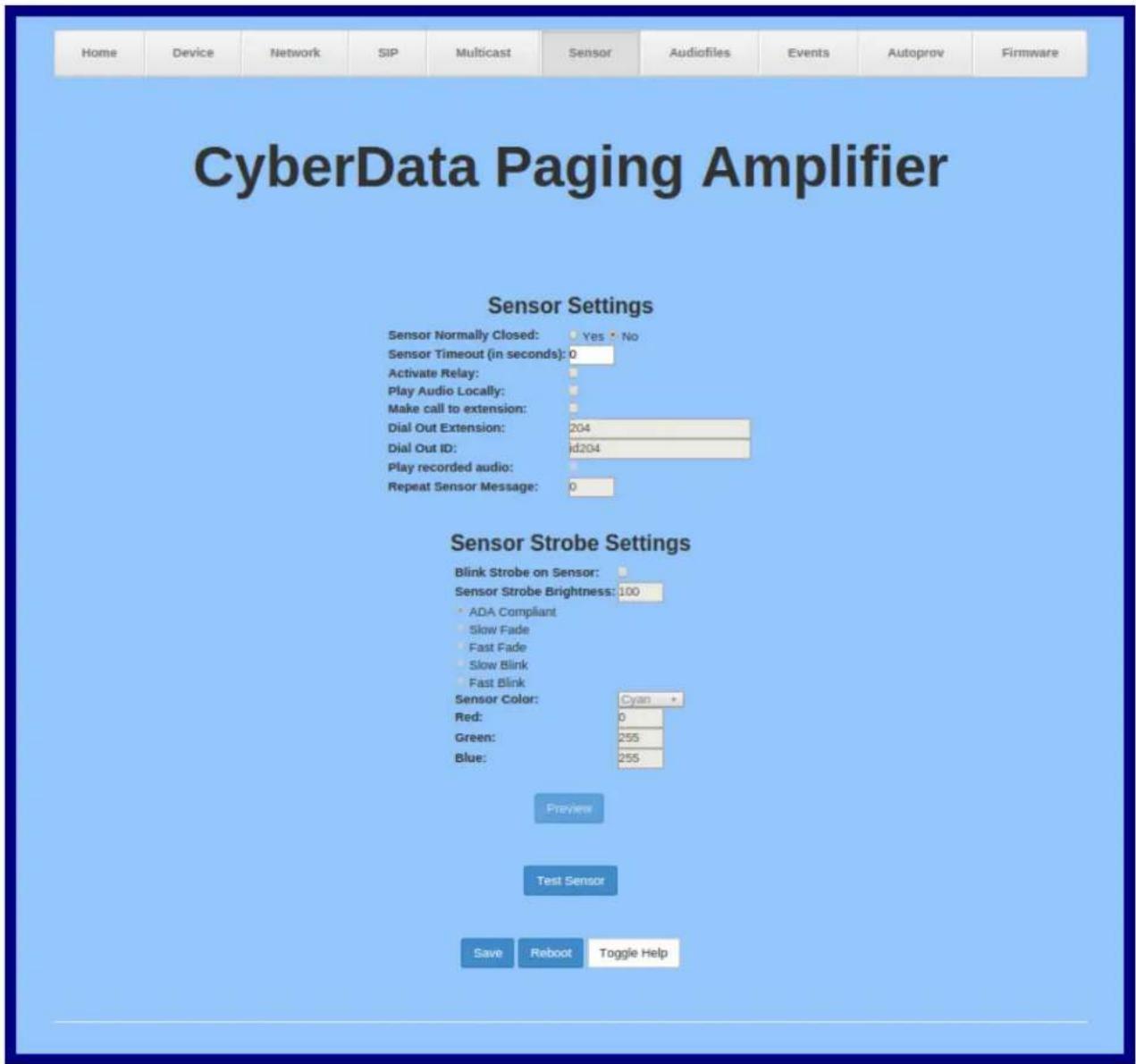
text_image
Home Device Network SIP Multicast Sensor Audiofiles Events Autoprov Firmware CyberData Paging Amplifier Sensor Settings Sensor Normally Closed: Yes No Sensor Timeout (in seconds): 0 Activate Relay: Play Audio Locally: Make call to extension: Dial Out Extension: 204 Dial Out ID: id204 Play recorded audio: Repeat Sensor Message: 0 Sensor Strobe Settings Blink Strobe on Sensor: Sensor Strobe Brightness: 100 • ADA Compliant • Slow Fade • Fast Fade • Slow Blink • Fast Blink Sensor Color: Cyan Red: 0 Green: 255 Blue: 255 Preview Test Sensor Save Reboot Toggle Help- On the Sensor page, enter values for the parameters indicated in Table 2-21.
Note The question mark icon ( ? ) in the following table shows which web page items will be defined after the Toggle Help button is pressed.
Table 2-21. Sensor Configuration Parameters
| Web Page Item Description | |
| Sensor Settings | |
| Sensor Normally Closed Select the inactive state of the sensor. The sensor is also known as the Sense Input on the device's terminal block. | |
| Sensor Timeout (in seconds) ? | The time (in seconds) the device will wait before it performs an action when the on-board door sensor is activated. The action(s) performed are based on the configured Sensor Settings below. Enter up to 5 digits. |
| Activate Relay When selected, the device's on-board relay will be activated until the on-board sensor is deactivated. | |
| Play Audio Locally When selected, the device will loop an audio file out of the speaker until the sensor is deactivated. | |
| Make call to extension When selected, the device will call an extension when the on-board door sensor is activated. Use the Dial Out Extension field below to specify the extension the device will call. | |
| Dial Out Extension Specify the extension the device will call when the on-board sensor is activated. Enter up to 64 alphanumeric characters. | |
| Dial Out ID An additional Caller identification string added to outbound calls.Enter up to 64 alphanumeric characters. | |
| Play recorded audio ? | When selected, the device will call the Dial Out Extension and play an audio file to the phone answering the SIP call (corresponds to Sensor Triggered on the Audiofiles Configuration Page page). |
| Repeat Sensor Message ? | The number of times to repeat the audio message through the local speaker or to the remote endpoint. A value of 0 will repeat forever. Enter a value from 0-65536. |
| Test Sensor | Click the Test Sensor button to test the sensor. |
| Sensor Strobe Settings | |
| Blink Strobe on Sensor ? | When selected, the Strobe will blink a scene when the sensor is triggered. |
| Sensor Strobe Brightness ? | How bright the strobe will blink when the sensor is triggered. This is the maximum brightness for “fade” type scenes. |
| ADA Compliant ? | Strobe will blink ON at the specified brightness for 150ms then OFF for 350ms during the duration of the event. |
| Slow Fade ? | Strobe will increase in brightness from 0 to the specified brightness and back to 0 over the course of about 3.5 seconds during the duration of the event. |
| Fast Fade ? | Strobe will increase in brightness from 0 to the specified brightness and back to 0 over the course of about 1.5 seconds during the duration of the event. |
| Slow Blink Strobe will blink ON at the specified brightness for one second then OFF for one second during the duration of the event. | |
| Fast Blink Strobe will blink ON at the specified brightness then OFF five times per second during the duration of the event. | |
| Sensor Color Select desired color (only one may be chosen). | |
| Red The red LED value for Sensor. | |
| Green The green LED value for Sensor. | |
| Blue The blue LED value for Sensor. | |
| Preview | Use this button to preview the strobe flashing behavior for the Sensor Strobe Settings. |
| Save | Click the Save button to save your configuration settings.Note: You need to reboot for changes to take effect. |
| Reboot | Click on the Reboot button to reboot the system. |
| Toggle Help | Click on the Toggle Help button to see a short description of some of the web page items. First click on the Toggle Help button, and you will see a question mark ( ) appear next to some of the web page items. Move the mouse pointer to hover over a question mark to see a short description of a specific web page item. |
Note You must click on the Save button for the changes to take effect.
2.3.10 Configure the Audio Configuration Parameters
The Audiofiles page is used to add custom audio to the board. User uploaded audio will take precedence over the audio files shipped with the device.
- Click on the Audiofiles menu button to open the Audiofiles page (Figure 2-34).
Figure 2-34. Audiofiles Configuration Page
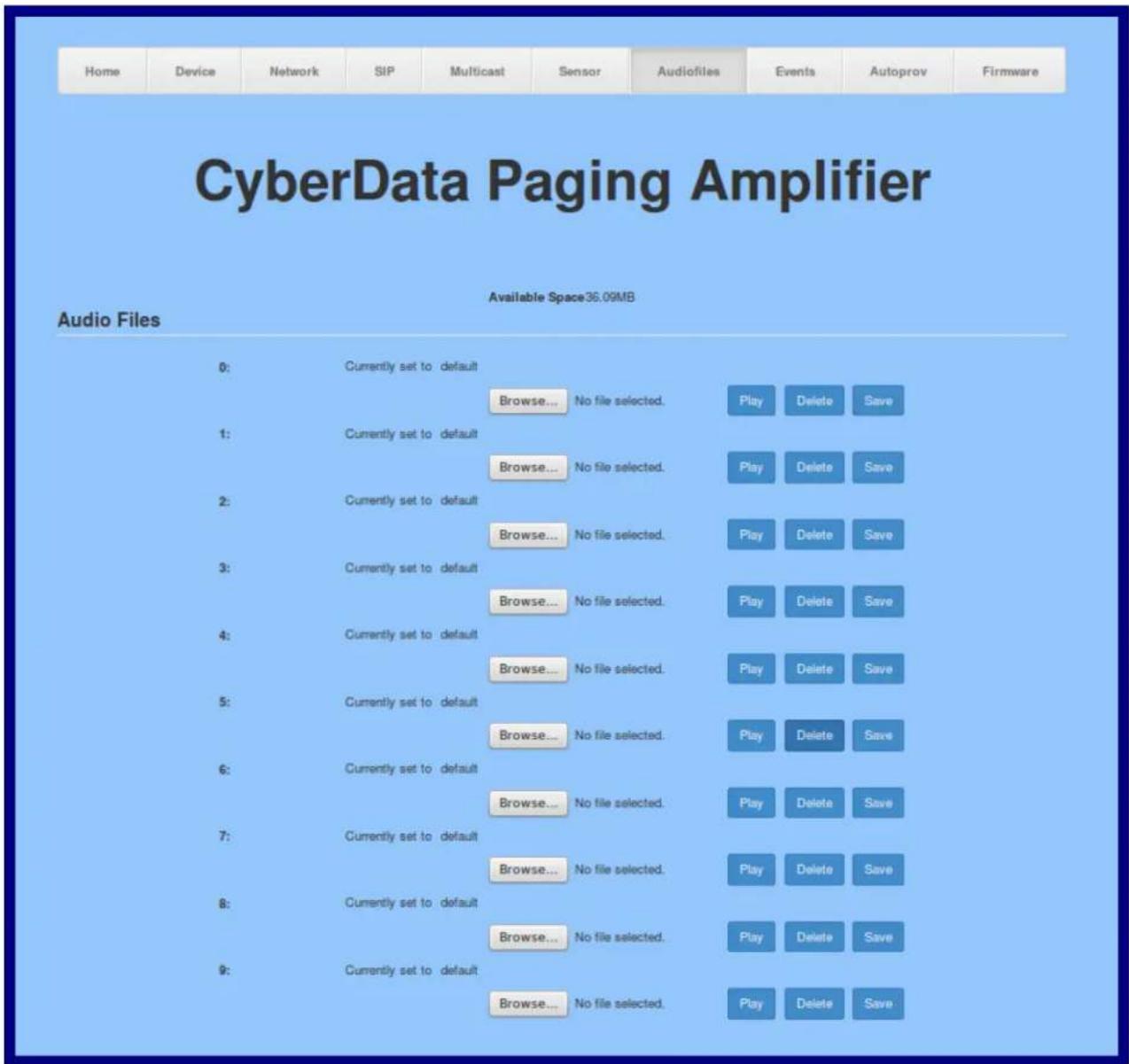
bar
Audio Files | Audio Files | Available Space (MB) | |---|---| | 0: Currently set to default Browse... No file selected. Play Delete Save | | 1: Currently set to default Browse... No file selected. Play Delete Save | | 2: Currently set to default Browse... No file selected. Play Delete Save | | 3: Currently set to default Browse... No file selected. Play Delete Save | | 4: Currently set to default Browse... No file selected. Play Delete Save | | 5: Currently set to default Browse... No file selected. Play Delete Save | | 6: Currently set to default Browse... No file selected. Play Delete Save | | 7: Currently set to default Browse... No file selected. Play Delete Save | | 8: Currently set to default Browse... No file selected. Play Delete Save | | 9: Currently set to default Browse... No file selected. Play Delete Save | Available Space (MB)Figure 2-35. Audiofiles Page

text_image
Dot: Currently set to default Browse... No file chosen Play Delete Save Audio Test: Currently set to default Browse... No file chosen Play Delete Save Enter Code: Currently set to default Browse... No file chosen Play Delete Save Invalid Code: Currently set to default Browse... No file chosen Play Delete Save Page Tone: Currently set to default Browse... No file chosen Play Delete Save Your IP Address is: Currently set to default Browse... No file chosen Play Delete Save Rebooting: Currently set to default Browse... No file chosen Play Delete Save Restoring Default: Currently set to default Browse... No file chosen Play Delete Save Ring Tone: Currently set to default Browse... No file chosen Play Delete Save Sensor Triggered: Currently set to default Browse... No file chosen Play Delete Save Night Ring: Currently set to default Browse... No file chosen Play Delete Save- On the Audiofiles page, enter values for the parameters indicated in Table 2-22.
Note The question mark icon ( ? ) in the following table shows which web page items will be defined after the Toggle Help button is pressed.
Table 2-22. Audiofiles Configuration Parameters
| Web Page Item Description | |
| Available Space | Shows the space available for the user to save custom audio files if they want to change the message when the door or sensor is triggered. |
| 0-4 | The name of the audio configuration option is the same as the spoken audio that plays on the board (24 character limit).‘0' corresponds to the spoken word “zero.”‘1' corresponds to the spoken word “one.”‘2' corresponds to the spoken word “two.”‘3' corresponds to the spoken word “three.”‘4' corresponds to the spoken word “four.” |
| Web Page Item | Description |
| 5-9 | The name of the audio configuration option is the same as the spoken audio that plays on the board (24 character limit).'5' corresponds to the spoken word "five."'6' corresponds to the spoken word "six.""7' corresponds to the spoken word "seven.""8' corresponds to the spoken word "eight.""9' corresponds to the spoken word "nine." |
| Dot Corresponds to the spoken word "dot." (24 character limit) | |
| Audio Test | Corresponds to the message "This is the CyberData IP speaker test message..." (24 character limit) |
| Enter Code | Corresponds to the message "Enter Code" (24 character limit). |
| Invalid Code | Corresponds to the message "Invalid Code" (24 character limit). |
| Page Tone | Corresponds to a simple tone used for beep on initialization and beep on page (24 character limit). |
| Your IP Address is | Corresponds to the message "Your IP address is..." (24 character limit). |
| Rebooting | Corresponds to the spoken word "Rebooting" (24 character limit). |
| Restoring Default Corresponds to the message "Restoring default" (24 character limit). | |
| Ring Tone | This is the tone that plays when set to ring when receiving a call (24 character limit). |
| Sensor Triggered | Corresponds to the message "Sensor Triggered" (24 character limit). |
| Night Ring | Specifies the ringtone for nightring. By default this parameter uses the same audio file that is selected for the Ring Tone parameter. |
| Browse... | Click on the Browse button to navigate to and select an audio file. |
| Play | The Play button will play that audio file. |
| Delete | The Delete button will delete any user uploaded audio and restore the stock audio file. |
| Save | The Save button will download a new user audio file to the board once you've selected the file by using the Browse button. The Save button will delete any pre-existing user-uploaded audio files. |
2.3.10.1 User-created Audio Files
User created audio files should be saved in the following format:
RIFF (little-endian) data, WAVE audio, Microsoft PCM, 16 bit, mono 8000 Hz
You can use the free utility Audacity to convert audio files into this format. See Figure 2-36 through Figure 2-38.
Figure 2-36. Audacity 1
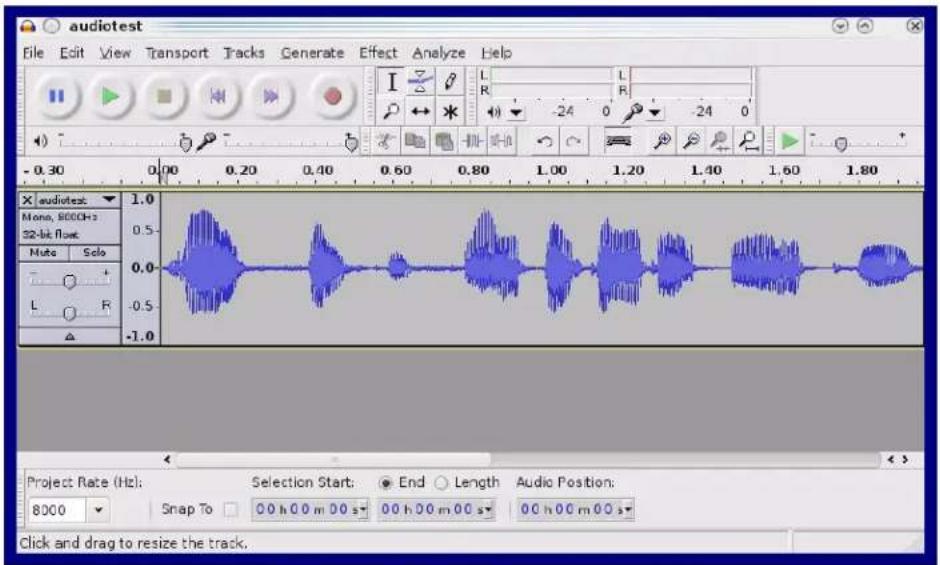
text_image
audiotest File Edit View Transport Tracks Generate Effect Analyze Help I L R L R -0.30 0.20 0.40 0.60 0.80 1.00 1.20 1.40 1.60 1.80 X audiotest Mono, 8000Hz 32-bit flow Mute Solo L R -1.0 1.0 0.5 0.0 -0.5 -1.0 Project Rate (Hz): Selection Start: End Length Audio Position: 8000 Snap To 00 h 00 m 00 s 00 h 00 m 00 s 00 h 00 m 00 s Click and drag to resize the track.Figure 2-37. Audacity 2
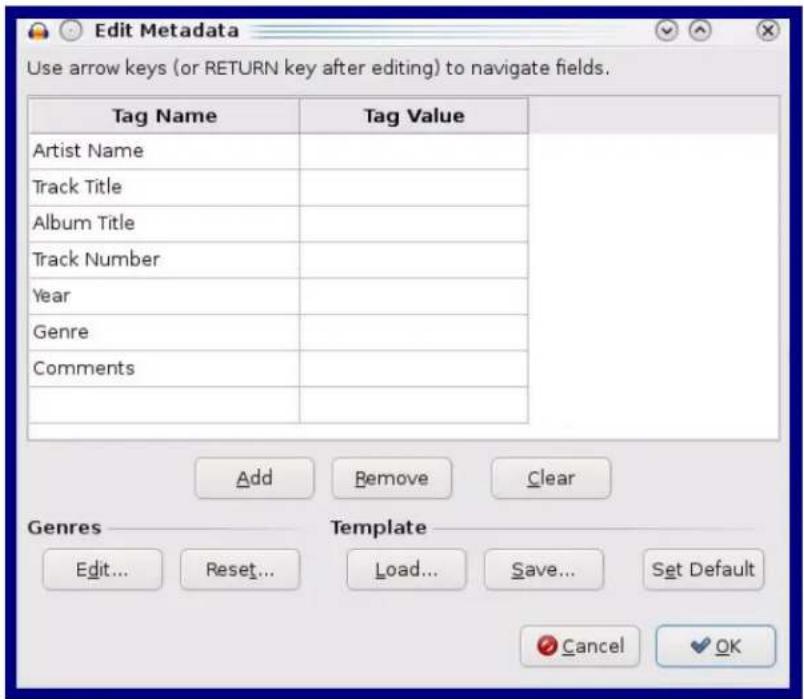
text_image
Edit Metadata Use arrow keys (or RETURN key after editing) to navigate fields. Tag Name Tag Value Artist Name Track Title Album Title Track Number Year Genre Comments Add Remove Clear Genres Template Edit... Reset... Load... Save... Set Default Cancel OKWhen you export an audio file with Audacity, save the output as:
• WAV (Microsoft) signed 16 bit PCM.
Figure 2-38. WAV (Microsoft) signed 16 bit PCM
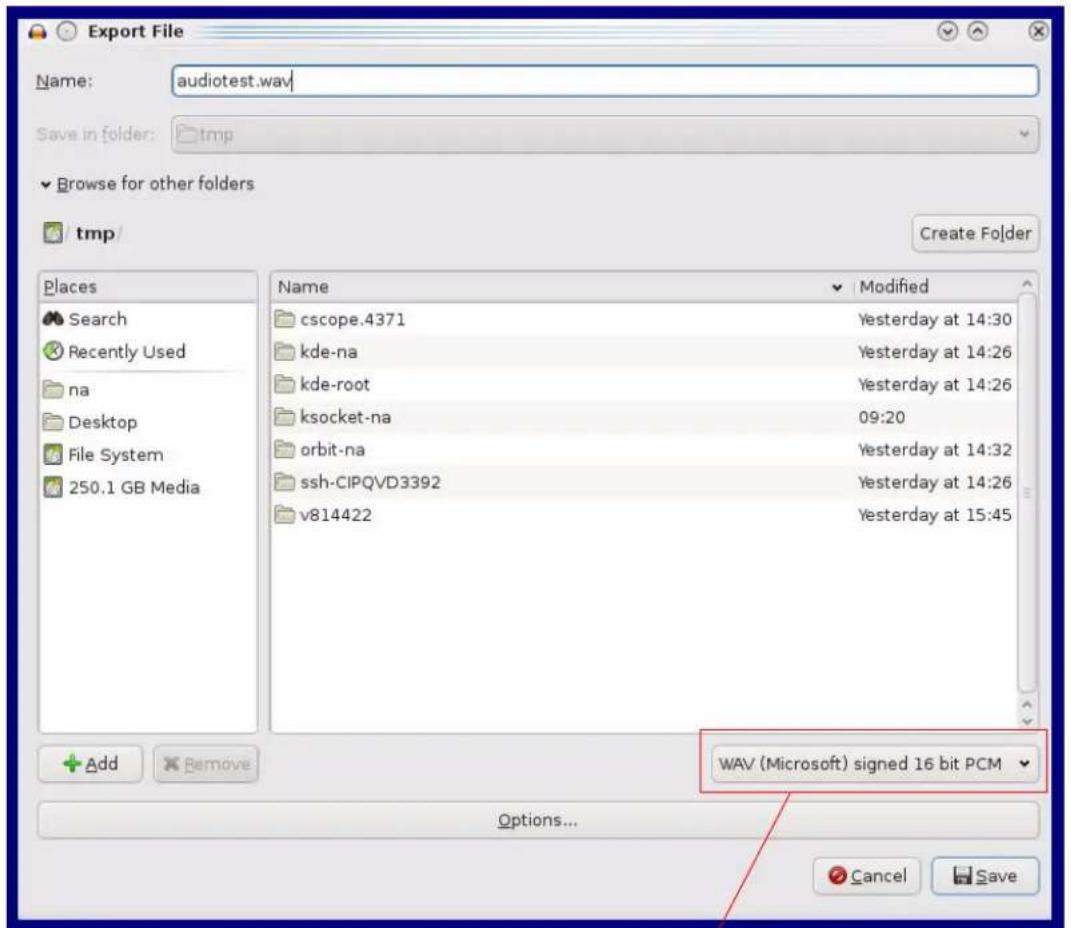
text_image
Export File Name: audiotest.wav Save in folder: tmp Browse for other folders tmp/ Create Folder Places Search Recently Used na Desktop File System 250.1 GB Media Name Modified cscope.4371 Yesterday at 14:30 kde-na Yesterday at 14:26 kde-root Yesterday at 14:26 ksocket-na 09:20 orbit-na Yesterday at 14:32 ssh-CIPQVD3392 Yesterday at 14:26 v814422 Yesterday at 15:45 Add Remove WAV (Microsoft) signed 16 bit PCM Options... Cancel SaveWAV (Microsoft) signed 16 bit PCM
2.3.11 Configure the Events Parameters
The Events page specifies a remote server that can be used to receive HTTP POST events when actions take place on the board.
- Click on the Events menu button to open the Events page (Figure 2-39).
Figure 2-39. Event Configuration Page
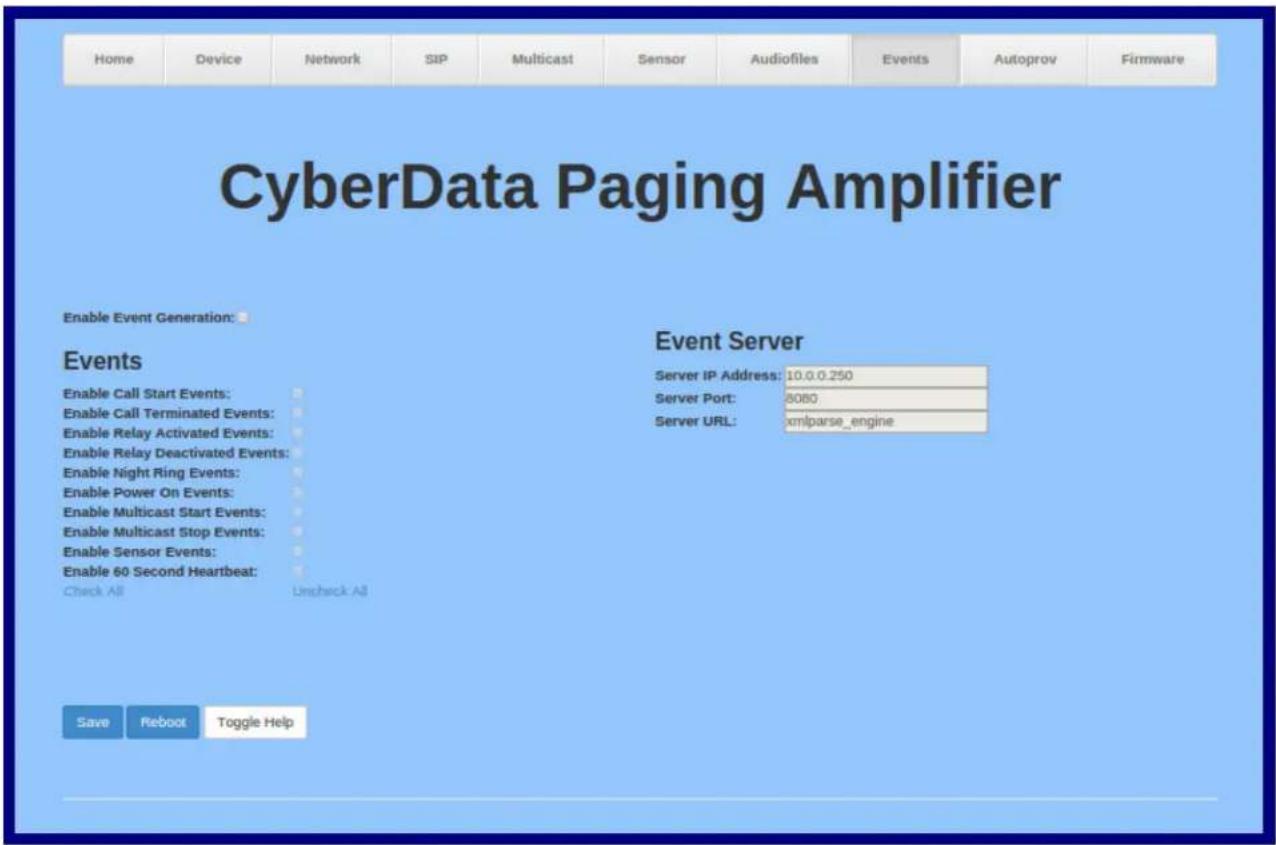
text_image
Home Device Network SIP Multicast Sensor Audiofiles Events Autoprov Firmware CyberData Paging Amplifier Enable Event Generation: Events Enable Call Start Events: Enable Call Terminated Events: Enable Relay Activated Events: Enable Relay Deactivated Events: Enable Night Ring Events: Enable Power On Events: Enable Multicast Start Events: Enable Multicast Stop Events: Enable Sensor Events: Enable 60 Second Heartbeat: Check All Uncheck All Event Server Server IP Address: 10.0.0.250 Server Port: 8080 Server URL: xmlparse_engine Save Reboot Toggle Help- On the Events page, enter values for the parameters indicated in Table 2-23.
Note The question mark icon ( ? ) in the following table shows which web page items will be defined after the Toggle Help button is pressed.
Table 2-23. Events Configuration Parameters
| Web Page Item Description | |
| Enable Event Generation The device will send HTTP POST events to the specified remote server and port number whenever a certain action takes place. Select an event type below to generate an HTTP POST event. | |
| Events | |
| Enable Call Start Events When selected, the device will report the start of a SIP call. | |
| Enable Call Terminated Events ? | When selected, the device will report the end of a SIP call. |
| Enable Relay Activated Events ? | When selected, the device will report relay activation. |
| Enable Relay Deactivated Events ? | When selected, the device will report relay deactivation. |
| Enable Night Ring Events ? | When selected, the device will report when it starts ringing upon an incoming SIP call to the Nightringer extension. As a reminder, the Nightringer extension always rings upon an incoming SIP call and it is not possible to alter this behavior. |
| Enable Power On Events ? | When selected, the device will report when it boots. |
| Enable Multicast Start Events ? | When selected, the device will report when the device starts playing a multicast audio stream. |
| Enable Multicast Stop Events ? | When selected, the device will report when the device stops playing a multicast audio stream. |
| Enable Sensor Events ? | When selected, the device will report when the on-board sensor is activated. |
| Enable 60 Second Heartbeat Events ? | When enabled, the device will report a Heartbeat event every 60 seconds. SIP registration is not required to generate Heartbeat events. |
| Check All Click on Chec | k All to select all of the events on the page. |
| Uncheck All | Click on Uncheck All to de-select all of the events on the page. |
| Event Server | |
| Server IP Address The IPv4 address of the event server in dotted decimal notation. | |
| Server Port ? | Specify the event server port number. The supported range is 0-65536. Enter up to 5 digits. |
| Server URL ? | Generally, the destination URL is the name of the application that receives the events and the string in the HTTP POST command. It can be a script used to parse and process the HTTP POST events. Enter up to 127 characters. |
| Save | Click the Save button to save your configuration settings.Note: You need to reboot for changes to take effect. |
| Reboot | Click on the Reboot button to reboot the system. |
| Toggle Help | Click on the Toggle Help button to see a short description of some of the web page items. First click on the Toggle Help button, and you will see a question mark ( ) appear next to some of the web page items. Move the mouse pointer to hover over a question mark to see a short description of a specific web page item. |
Note You must click on the Save button and then the Reboot button for the changes to take effect.
2.3.11.1 Example Packets for Events
The server and port are used to point to the listening server and the 'Remote Event Server URL' is the destination URL (typically the script running on the remote server that's used to parse and process the POST events).
Note The XML is URL-encoded before transmission so the following examples are not completely accurate.
Here are example packets for every event:
POST xmlparse_engine HTTP/1.1
Host: 10.0.3.79
User-Agent: CyberData/1.0.0
Content-Length: 197
Content-Type: application/x-www-form-urlencoded

<?xml version="1.0" encoding="ISO-8859-1"?>
<cyberdata NAME='CyberData Device' MAC='0020f70015b6'>
<event>POWERON</event>
</cyberdata>

POST xmlparse_engine HTTP/1.1
Host: 10.0.3.79
User-Agent: CyberData/1.0.0
Content-Length: 199
Content-Type: application/x-www-form-urlencoded

<?xml version="1.0" encoding="ISO-8859-1"?>
<cyberdata NAME='CyberData Device' MAC='0020f70015b6'>
<event>HEARTBEAT</event>
</cyberdata>

POST xmlparse_engine HTTP/1.1
Host: 10.0.3.79
User-Agent: CyberData/1.0.0
Content-Length: 196
Content-Type: application/x-www-form-urlencoded

<?xml version="1.0" encoding="ISO-8859-1"?>
<cyberdata NAME='CyberData Device' MAC='0020f70015b6'>
<event>BUTTON</event>
</cyberdata>

POST xmlparse_engine HTTP/1.1
Host: 10.0.3.79
User-Agent: CyberData/1.0.0
Content-Length: 201
Content-Type: application/x-www-form-urlencoded

<?xml version="1.0" encoding="ISO-8859-1"?>
<cyberdata NAME='CyberData Device' MAC='0020f70015b6'>
<event>CALL_ACTIVE</event>
</cyberdata>

POST xmlparse_engine HTTP/1.1
Host: 10.0.3.79
User-Agent: CyberData/1.0.0
Content-Length: 205
Content-Type: application/x-www-form-urlencoded

<?xml version="1.0" encoding="ISO-8859-1"?>
<cyberdata NAME='CyberData Device' MAC='0020f70015b6'>
<event>CALL_TERMINATED</event>
</cyberdata>

POST xmlparse_engine HTTP/1.1
Host: 10.0.3.79
User-Agent: CyberData/1.0.0
Content-Length: 197
Content-Type: application/x-www-form-urlencoded

<?xml version="1.0" encoding="ISO-8859-1"?>
<cyberdata NAME='CyberData Device' MAC='0020f70015b6'>
<event>RINGING</event>
</cyberdata>

POST xmlparse_engine HTTP/1.1
Host: 10.0.3.79
User-Agent: CyberData/1.0.0
Content-Length: 234
Content-Type: application/x-www-form-urlencoded

<?xml version="1.0" encoding="ISO-8859-1"?>
<cyberdata NAME='CyberData Device' MAC='0020f70015b6'>
<event>MULTICAST_START</event>
<index>8</index>
</cyberdata>

POST xmlparse_engine HTTP/1.1
Host: 10.0.3.79
User-Agent: CyberData/1.0.0
Content-Length: 233
Content-Type: application/x-www-form-urlencoded

<?xml version="1.0" encoding="ISO-8859-1"?>
<cyberdata NAME='CyberData Device' MAC='0020f70015b6'>
<event>MULTICAST_STOP</event>
<index>8</index>
</cyberdata>

POST xmlparse_engine HTTP/1.1
Host: 10.0.3.79
User-Agent: CyberData/1.0.0
Content-Length: 234
Content-Type: application/x-www-form-urlencoded

<?xml version="1.0" encoding="ISO-8859-1"?>
<cyberdata NAME='CyberData Device' MAC='0020f70016b6'>
<event>RELAY_ACTIVATED</event>
</cyberdata>

POST xmlparse_engine HTTP/1.1
Host: 10.0.3.79
User-Agent: CyberData/1.0.0
Content-Length: 234
Content-Type: application/x-www-form-urlencoded
<?xml version="1.0" encoding="ISO-8859-1"?>
<cyberdata NAME='CyberData Device' MAC='0020f70015b6'>
<event>RELAY_DEACTIVATED</event>
</cyberdata>

POST xmlparse_engine HTTP/1.1
Host: 10.0.3.79
User-Agent: CyberData/1.0.0
Content-Length: 234
Content-Type: application/x-www-form-urlencoded
<?xml version="1.0" encoding="ISO-8859-1"?>
<cyberdata NAME='CyberData Device' MAC='0020f70015b6'>
<event>NIGHTRINGING</event>
</cyberdata>
2.3.12 Configure the Autoprovisioning Parameters
Autoprovisioning can be used to automatically configure your device. The autoprovisioning file is an xml file with the device configuration. Values found in this file will override values stored in on-board memory.
Note By default, the device will try to set up its configuration with autoprovisioning.
- Click the Autoprov menu button to open the Autoprovisioning page. See Figure 2-40.
Figure 2-40. Autoprovisioning Page

text_image
Home Device Network SIP Multicast Sensor Audiofiles Events Autoprov Firmware CyberData Paging Amplifier Disable Autoprovisioning: Autoprovisioning Server: Autoprovisioning Filename: Use tftp: Username: Password: Autoprovisioning autoupdate (in minutes): 0 Autoprovision at time (HHMMSS): Autoprovision when idle (in minutes > 10): 0 See the manual to learn how to use autoprovisioning to configure your device. Autoprovisioning happens on boot. The device will first look for a configured server address and filename. If these haven't been configured, it will look for an autoprovisioning server in your list of DHCP options and try to download '0002c18100b5.xml' and if this fails, '000000cd.xml'. Save Reboot Toggle Help Download Template Autoprovisioning log 00:00 Autoprovisioning Device... 00:00 Autoprov found option 43 in DHCP server="http://chalmers.cyberdata.net" 00:00 Autoprov looking for 0002c18100b5.xml at http://chalmers.cyberdata.net 00:00 Autoprov looking for 000000cd.xml at http://chalmers.cyberdata.net 00:00 Failed to fetch autoprov file 00:00 Autoprov found option 72 in DHCP server="10.0.1.118" 00:00 Autoprov looking for 0002c18100b5.xml at 10.0.1.118 00:00 Autoprov looking for 000000cd.xml at 10.0.1.118 00:00 Failed to fetch autoprov file 00:00 Autoprov found option 150 in DHCP server="10.0.5.120"- On the Autoprovisioning page, you may enter values for the parameters indicated in Table 2-24.
Note The question mark icon ( ? ) in the following table shows which web page items will be defined after the Toggle Help button is pressed.
Table 2-24. Autoprovisioning Configuration Parameters
| Web Page Item Description | |
| Disable Autoprovisioning Prevent the device from automatically trying to download a configuration file. See Section 2.3.12.1, "Autoprovisioning" for more information. | |
| Autoprovisioning Server ? | Enter the IPv4 address of the provisioning server in dotted decimal notation. |
| Autoprovisioning Filename ? | The autoprovisioning filename is the configuration filename. The default autoprovisioning filename is in the format of.xml.Supported filename extensions are .txt, and .xml. The current filename is denoted by an asterisk at the bottom of the Autoprovisioning Page. Enter up to 256 characters.A file may have any name with an xml extension. If a file name is entered, the device will look for the specified file name, and only that file. |
| Use tftp ? | The device will use TFTP (instead of http) to download autoprovisioning files. |
| Username ? | The username used to authenticate with an autoprovisioning server. Leave this field blank to disable authentication. |
| Password ? | The password used to authenticate with an autoprovisioning server. Leave this field blank to disable authentication. |
| Autoprovisioning Autoupdate (in minutes) ? | The reoccurring time (in minutes) the device will wait before checking for new autoprovisioning files. Enter up to 6 digits. A value of 0 will disable this option.Note: To use the auto update options, enable the Set Time with NTP Server on boot setting on the Device Configuration Page page (see Table 2-11). |
| Autoprovision at time (HHMMSS) ? | The time of day the device will check for a new autoprovisioning file. The time must be 6 characters in length and in HHMMSS format. An empty value will disable this option.Note: To use the auto update options, enable the Set Time with NTP Server on boot setting on the Device Configuration Page page (see Table 2-11). |
| Autoprovision when idle (in minutes > 10) ? | The idle time (in minutes greater than 10) after which the device will check for a new autoprovisioning file. Enter up to 6 digits. A value of 0 will disable this option.Note: To use the auto update options, enable the Set Time with NTP Server on boot setting on the Device Configuration Page page (see Table 2-11). |
| Save | Click the Save button to save your configuration settings.Note: You need to reboot for changes to take effect. |
| Reboot | Click on the Reboot button to reboot the system. |
| Toggle Help | Click on the Toggle Help button to see a short description of some of the web page items. First click on the Toggle Help button, and you will see a question mark ( ) appear next to some of the web page items. Move the mouse pointer to hover over a question mark to see a short description of a specific web page item. |
| Download Template | Press the Download Template button to create an autoprovisioning file for the device. See Section 2.3.12.3, "Download Template Button" |
| Autoprovisioning log The autoprovisioning log provides information about the latest autoprovisioning attempt (i.e. dhcp options and server accessed and files parsed or not found). | |
Note You must click on the Save button and then the Reboot button for the changes to take effect.
2.3.12.1 Autoprovisioning
On boot, the device will look for an autoprovisioning server configured on the Autoprovisioning Page or specified as a DHCP option. When it finds a server, it will try to download the following (in order of preference):
- The file configured on the autoprovisioning page.
- A file named according to it's mac address (for example: 0020f7350058.xml).
- The file 000000cd.xml
The file can be hosted using a standard web server (like apache, IIS, or nginx), and the device can download over SSL. The file server can be an ipv4 address in dotted decimal notation or a fully qualified domain name.
By default, the device will get its autoprovisioning server from the DHCP options. See Section 2.3.12.2, "Sample dhcpd.conf" for an example of how to configure dhcpd to offer autoprovisioning server addresses. If multiple options are set, the device will attempt to download autoprovisioning files from every server.
The DHCP option determines the protocol used to download the autoprovisioning file. The device looks for DHCP options in the following order:
- Option 43 - a FQDN or an IP address to an http server
- Option 72 - an IP address to an http server
- Option 150 - an IP address to a tftp server
- Option 66 - an IP address to a tftp server or if the entry starts with 'http', a FQDN to a http server.
You can download an autoprovisioning template file from the Autoprovisioning Page using the Download Template button (see Table 2-24). This file contains every configuration option that can be set on the board.
Autoprovisioning files can contain the whole configuration or a subset of this file. The first autoprovisioning file can also contain links to other autoprovisioning files.
The
<MiscSettings>
    <DeviceName>CyberData Device</DeviceName>
<!--    <AutoprovFile>common.xml</AutoprovFile-->
<!--    <AutoprovFile>sip_reg[macaddress].xml</AutoprovFile-->
<!--    <AutoprovFile>audio[macaddress]</AutoprovFile-->
<!--    <AutoprovFile>device[macaddress].xml</AutoprovFile-->
</MiscSettings>
After downloading the first autoprovisioning file, the device will step through up to twenty additional
When the device finds a filename with the string [macaddress], it will replace this string with the mac address.
As an example, the user has configured option 43 on their DHCP server to "http://example.com," and on their server, they have a file named 0020f7123456.xml (the same as the mac address of the device).
The file 0020f7123456.xml contains:
<?xml version="1.0" encoding="utf-8" ?>
<specific>
    <MiscSettings>
    <DeviceName>Newname</DeviceName>
    <AutoprovFile>common.xml</AutoprovFile>
    <AutoprovFile>sip_reg[macaddress].xml</AutoprovFile>
    <AutoprovFile>audio[macaddress]</AutoprovFile>
    <AutoprovFile>device.xml</AutoprovFile>
    </MiscSettings>
</specific>
- The device will first set it's name to 'Newname'.
- It will try to download http://example.com/common.xml.
- It will try to download http://example.com/sip_reg0020f7123456.xml.
- It will try to download http://example.com/audio0020f7123456.
- It will try to download http://example.com/device.xml.
The device is reconfigured every time it downloads a new file so if two files configure the same option the last one will be the one that is saved.
It is possible to autoprovision autoprovisioning values (for example, to disable autoprovisioning or to configure a time to check for new files).
Checking for New Autoprovisioning Files after Boot
The device will always check for an autoprovisioning files on boot but it can be configured to also check after a periodic delay, when idle, or at a specified time. When one of these options is set, the device will download its autoprovisioning files again, and if it finds any differences from the files it downloaded on boot, it will force a reboot and reconfigure.
The Autoprovisioning Filename
The autoprovisioning filename can contain a file, a file path, or a directory.
Table 2-25. Autoprovisioning File Name
| Autoprovisioning Filename | Autoprovisioning Server | File Downloaded |
| config.xml | 10.0.1.3 10.0.1.3/config.xml | |
| /path/to/config.xml | 10.0.1.3 10.0.1.3/path/to/config.xml | |
| subdirectory/path/ | 10.0.1.3 | 10.0.1.3/subdirectory/path/0020f7020002.xml |
TFTP options may not support subdirectories. If a directory is set in the filename field, firmware and audio files will also be downloaded from this subdirectory.
If the filename ends with a forward slash “/,” the device will treat it as a subdirectory.
For example:
The autoprovisioning server is set to "https://www.example.com"
The autoprovisioning filename is set to "cyberdata/"
On boot, the device will try to download:
https://www.example.com/cyberdata/0020f7123456.xml
...and if this fails:
https://www.example.com/cyberdata/000000cd.xml
Audio files and firmware files will also add "cyberdata" to the URL before downloading.
Autoprovisioning Firmware Updates
<FirmwareSettings>
    <FirmwareFile>505-uImage-ceilingspeaker</FirmwareFile>
    <FirmwareServer>10.0.1.3</FirmwareServer>
    <OutdoorIntercom30>firmware_file_v9.3.0</OutdoorIntercom30>
    <OutdoorIntercom31>firmware_file_v10.3.0</OutdoorIntercom31>
    <CallButton31>firmware_file_v10.3.0</CallButton31>
</FirmwareSettings>
In the
The device will use the filename to determine when to autoprovision firmware updates. The default configuration is blank, so the first time you set a value in your autoprovisioning file, it may force a firmware update even if the firmware version has not changed.
The
The device also supports product strings for downloading firmware. If the
The list of valid product strings:
<ProductString>CallButton31</ProductString>
 ProductString>EmergencyIntercom31</ProductString>
 ProductString>EmergencyIntercom31SW</ProductString>
 ProductString>IndoorIntercom31</ProductString>
 ProductString>IndoorIntercom31SW</ProductString>
 ProductString>IndoorKeypad31</ProductString>
 ProductString>IndoorKeypad31SW</ProductString>
 ProductString>OfficeRinger31</ProductString>
 ProductString>OfficeRinger31SW</ProductString>
 ProductString>OutdoorIntercom31</ProductString>
 ProductString>OutdoorIntercom31SW</ProductString>
 ProductString>OutdoorKeypad31</ProductString>
 ProductString>OutdoorKeypad31SW</ProductString>
 ProductString>Strobe31</ProductString>
 ProductString>Strobe31SW</ProductString>
Autoprovisioning Example 1
Here's a simple example using four autoprovisioning files to configure two devices:
We boot up two devices with mac addresses 00:20:f7:02:00:01 and 00:20:f7:02:00:02 (Device1 and Device2).
The devices are set to use DHCP and that server provides an autoprovisioning server address with option 43. The address is “https://autoprovtest.server.net.” The files on this server are as follows:
000000cd.xml

<MiscSettings>
<DeviceName>CyberData Autoprovisioned</DeviceName>
<AutoprovFile>sip_common.xml</AutoprovFile>
<AutoprovFile>sip_[macaddress].xml</AutoprovFile>
</MiscSettings>

sip_common.xml

<SIPSettings>
<SIPServer>10.0.0.253</SIPServer>
<RemoteSIPPort>5060</RemoteSIPPort>
</SIPSettings>

sip_0020f7020001.xml

<SIPSettings>
<SIPUserID>198</SIPUserID>
<SIPAuthPassword>ext198</SIPAuthPassword>
<DialoutExtension0>204</DialoutExtension0>
</SIPSettings>

sip_0020f7020002.xml

<SIPSettings>
<SIPUserID>500</SIPUserID>
<SIPAuthPassword>ext500</SIPAuthPassword>
<DialoutExtension0>555</DialoutExtension0>
</SIPSettings>
On boot, Device1 tries to fetch the file 0020f7023614.xml from "https://autoprovtest.server.net". This file is not available, so device1 then tries to fetch the file 000000cd.xml. This file exists, and Device1 parses the three elements.
- Device1 changes its device name to CyberData Autoprovisioned.
- Device1 finds an AutoprovFile element containing the filename sip_common.xml. The device downloads sip_common.xml from "https://autoprovtest.server.net," and imports this configuration, setting the sip server to 10.0.0.253 and the remote port to 5060.3.
- Device1 finds another AutoprovFile element containing the filename sip_[macaddress].xml. The device replaces the [macaddress] with its own mac address value creating sip_0020f7020001.xml, downloads this file from "https://autoprovtest.server.net," and imports this configuration. This sets the user ID to 198, the password to ext198, and the dialout extension to 204. Device1 is now finished with autoprovisioning.
Device2 goes through the same steps by setting its device name to CyberData Autoprovisioned, its SIP server to 10.0.0.253, and its port to 5060. When Device2 "sees" sip_[macaddress].xml, Device2 replaces it with its own mac address and downloads sip_0020f7020002.xml from "https://autoprovtest.server.net." Device2 sets the SIP User ID to 500, the password to ext500, and the dialout extension to 555.
Autoprovisioning Example 2
Here is another example of setting up your autoprovisioning files:
We boot up two devices with mac addresses 00:20:f7:02:00:01 and 00:20:f7:02:00:02 (Device1 and Device2) and boot them on a network with a DHCP server configured with an autoprovisioning server at 10.0.1.3 on option 150. Our TFTP server has three files:
0020f7020001.xml
<MiscSettings>
<AutoprovFile>common_settings.xml</AutoprovFile>
</MiscSettings>
<SIPSettings>
<SIPUserID>198</SIPUserID>
<SIPAuthPassword>ext198</SIPAuthPassword>
<DialogutExtension0>204</DialogutExtension0>
</SIPSettings>
0020f7020002.xml
<MiscSettings>
<AutoprovFile>common_settings.xml</AutoprovFile>
</MiscSettings>
<SIPSettings>
<SIPUserID>500</SIPUserID>
<SIPAuthPassword>ext500</SIPAuthPassword>
<DialogutExtension0>555</DialogutExtension0>
</SIPSettings>
common_settings.xml
<MiscSettings>
<DeviceName>CyberData Autoprovisioned</DeviceName>
</MiscSettings>
<SIPSettings> <SIPServer>10.0.0.253</SIPServer>
<RemoteSIPPort>5060</RemoteSIPPort>
</SIPSettings>
- On boot, Device1 downloads 0020f7020001.xml from 10.0.1.3 and imports these values. The SIP User ID is 198, the password is ext198, and the dialout extension is 204.
- Device1 then gets the filename common_settings.xml from the AutoprovFile element and downloads this file from the TFTP server at 10.0.1.3. and imports these settings. The device name is set to CyberData Autoprovisioned, the SIP server is set to 10.0.0.253, and the port is set to 5060.
Device2 does the same except it downloads 0020f7020002.xml on boot and imports these values instead. The Sip User ID is 500, password is ext500, and dialout extension is 555. Device2 then downloads the common_settings.xml file and imports those values. The device name is set to CyberData Autoprovisioned, the SIP server is set to 10.0.0.253, and the port is set to 5060.
XML Files
XML files can contain
There are numerous ways to change an element of the configuration(xml) file. Using sip ext as an example, the extension can be changed:
Within the device-specific xml, i.e. [macaddress].xml, via the AutoprovFile element:
From the device specific xml, a pointer to a sip_common file
From the device specific xml, a pointer to the device specific sip_[macaddress].xml
From the common file, a pointer to sip_common.xml
From the common file, a pointer to the device specific (sip_[macaddress].xml)
Autoprovisioned Audio Files
Audio files are stored in non-volatile memory and an autoprovisioned audio file will only have to be downloaded once for each device. Loading many audio files to the device from the web page could cause it to appear unresponsive. If this happens, wait until the transfer is complete and then refresh the page.
The device uses the file name to determine when to download a new audio file. This means that if you used autoprovisioning to upload a file and then changed the contents of this file at the TFTP server, the device will not recognize that the file has changed (because the file name is the same).
Since audio files are stored in non-volatile memory, if autoprovisioning is disabled after they have been loaded to the board, the audio file settings will not change. You can force a change to the audio files on the board by clicking Restore Default on the Audio Configuration page or by changing the autoprovisioning file with "default" set as the file name.
2.3.12.2 Sample dhcpd.conf
#
<h1 id="sample-configuration-file-for-isc-dhcpd-for-debian">Sample configuration file for ISC dhcpd for Debian</h1>
#
ddns-update-style none;

option domain-name "voiplab";
option domain-name-servers 10.0.0.252;
option option-150 code 150 = ip-address;
option ntp-servers north-america.pool.ntp.org;
option space VendorInfo;
option VendorInfo.text code 10 = { text };
authoritative;
log-facility local7;

subnet 10.0.0.0 netmask 255.0.0.0 {
    max-lease-time 3600;
    default-lease-time 3600;

    option routers    10.0.0.1;
    option subnet-mask    255.0.0.0;

    option domain-name    "voiplab";
    option domain-name-servers    10.0.0.252;

    option time-offset    -8;    # Pacific Standard Time

<h1 id="option-www-server-99999999-option-72">option www-server    99.99.99.99;    # OPTION 72</h1>

<h1 id="option-tftp-server-name-100152-option-66">option tftp-server-name    "10.0.1.52";    # OPTION 66</h1>
<h1 id="option-tftp-server-name-httptestcyberdatanet-option-66">option tftp-server-name    "http://test.cyberdata.net";    # OPTION 66</h1>

<h1 id="option-option-150-1000252-option-150">option option-150    10.0.0.252;    # OPTION 150</h1>

<h1 id="these-two-lines-are-needed-for-option-43">These two lines are needed for option 43</h1>
<h1 id="vendor-option-space-vendorinfo-option-43">vendor-option-space VendorInfo;    # OPTION 43</h1>
<h1 id="option-vendorinfotext-httptestcyberdatanet-option-43">option VendorInfo.text "http://test.cyberdata.net";    # OPTION 43</h1>

range 10.10.0.1 10.10.2.1; }
2.3.12.3 Download Template Button
The Download Template button allows the user to generate, download, edit, and then store an autoprovisioning template on the server that serves the autoprovisioning files for devices.
To generate an autoprovisioning template directly from the device, complete the following steps:
- On the Autoprovisioning page, click on the Download Template button.
- You will see a window prompting you to save a configuration file (.xml) to a location on your computer (Figure 2-41). The configuration file is the basis for the default configuration settings for your unit).
- Choose a location to save the configuration file and click on OK. See Figure 2-41.
Figure 2-41. Configuration File

text_image
Opening 0020f702bf18.xml You have chosen to open: □ 0020f702bf18.xml which is: XML document (11.3 KB) from: https://10.10.1.50 What should Firefox do with this file? ○ Open with Text Editor (default) ○ Save File □ Do this automatically for files like this from now on. Cancel OK- At this point, you can open and edit the autoprovisioning template to change the configuration settings in the template for the unit.
- You can then upload the autoprovisioning file to a TFTP or HTTP server where the file can be loaded onto other devices.
2.4 Upgrade the Firmware and Reboot the SIP Loudspeaker Amplifier (PoE)
2.4.1 Downloading the Firmware
To download the firmware to your computer:
- Download the latest firmware file from the Do wnloads tab at the following webpage: http://www.cyberdata.net/voip/011405/
- Unzip the firmware version file. This file may contain the following:
- Firmware file
- Release notes
- Log in to the home page as instructed in Section 2.3.4, "Log in to the Configuration Home Page".
- Click on the Firmware menu button to open the Firmware page. See Figure 2-42.
| GENERAL ALERT | Caution Equipment Hazard: CyberData strongly recommends that you first reboot the device before attempting to upgrade the firmware of the device. See Section 2.4.2, "Reboot the Device". |
Figure 2-42. Firmware Page

text_image
Home Device Network SIP Multicast Sensor Audiofiles Events Autoprov Firmware CyberData Paging Amplifier Current Firmware Version: v11.6.2 Please specify a file: Browse... No file chosen upload- Click on the Browse button, and then navigate to the location of the firmware file.
- Select the firmware file.
- Click on the Upload button.
Note Do not reboot the d evice after clicking on the Upload button.
Note This starts the upgrade process. Once the SIP Loudspeaker Amplifier (PoE) has uploaded the file, the Uploading Firmware countdown page appears, indicating that the firmware is being written to flash. The SIP Loudspeaker Amplifier (PoE) will automatically reboot when the upload is complete. When the countdown finishes, the Firmware page will refresh. The uploaded firmware filename should be displayed in the system configuration (indicating a successful upload and reboot).
- Table 2-26 shows the web page items on the Firmware page.
Table 2-26. Firmware Parameters
| Web Page Item Description | |
| Current Firmware Version Shows the current firmware version. | |
| Browse... | Use theBrowsebutton to navigate to the location of the firmware file that you want to upload. |
| Upload | Click on theUploadbutton to automatically upload the selected firmware and reboot the system. |
2.4.2 Reboot the Device
To reboot a SIP Loudspeaker Amplifier (PoE), log in to the web page as instructed in Section 2.3.4, "Log in to the Configuration Home Page".
- Click on the Reboot button on the Home page (Figure 2-43). A normal restart will occur.
Figure 2-43. Home Page

text_image
CyberData Paging Amplifier Current Status Serial Number: 405000001 Mac Address: 00:02:c1:81:06:9b Firmware Version: v11.6.2 IP Addressing: DHCP IP Address: 10.10.1.152 Subnet Mask: 255.0.0.0 Default Gateway: 10.0.0.1 DNS Server 1: 10.0.1.56 DNS Server 2: SIP Mode: Enabled Multicast Mode: Disabled Event Reporting: Disabled Nightringer: Disabled Primary SIP Server: Not registered Backup Server 1: Not registered Backup Server 2: Not registered Nightringer Server: Not registered Admin Settings Username: admin Password: Confirm Password: Save Reboot Toggle Help Import Settings Browse... No file chosen Import Config Export Settings Export Config Reboot2.5 Command Interface
Some functions on the device can be activated using simple POST commands to the web interface. The examples in Table 2-27 use the free unix utility, wget, but any program that can send http POST commands to the device should work.
2.5.1 Command Interface Post Commands
Note These commands require an authenticated session (a valid username and password to work).
Table 2-27. Command Interface Post Commands
| Device Action HTTP Post Command | a |
| Trigger relay (for configured delay) wget --user admin --password admin --auth-no-challenge --no-check-certificate --quiet -O /dev/null "https://10.0.3.71/cgi-bin/command.cgi" --post-data "test_relay=yes" | |
| Place call to extension (example: extension 130) wget --user admin --password admin --auth-no-challenge --no-check-certificate --quiet -O /dev/null "https://10.0.3.71/cgi-bin/command.cgi" --post-data "call=130" | |
| Terminate active call wget --user admin --password admin --auth-no-challenge --no-check-certificate --quiet -O /dev/null "https://10.0.3.71/cgi-bin/command.cgi" --post-data "terminate=yes" | |
| Force reboot wget --user admin --password admin --auth-no-challenge --no-check-certificate --quiet -O /dev/null "https://10.0.3.71/cgi-bin/command.cgi" --post-data "reboot=yes" | |
| Test Audio button | wget --user admin --password admin --auth-no-challenge --no-check-certificate --quiet -O /dev/null "https://10.0.3.71/cgi-bin/command.cgi" --post-data "test_audio=yes" |
| Announce IP address wget --user admin --password admin --auth-no-challenge --no-check-certificate --quiet -O /dev/null "https://10.0.3.71/cgi-bin/command.cgi" --post-data "speak_ip_address=yes" | |
| Play the "0" audio file | wget --user admin --password admin --auth-no-challenge --no-check-certificate --quiet -O /dev/null "https://10.0.3.71/cgi-bin/audiofiles.cgi" --post-data "play_0=yes" |
| Play the "1" audio file | wget --user admin --password admin --auth-no-challenge --no-check-certificate --quiet -O /dev/null "https://10.0.3.71/cgi-bin/audiofiles.cgi" --post-data "play_1=yes" |
| Play the "2" audio file | wget --user admin --password admin --auth-no-challenge --no-check-certificate --quiet -O /dev/null "https://10.0.3.71/cgi-bin/audiofiles.cgi" --post-data "play_2=yes" |
| Play the "3" audio file | wget --user admin --password admin --auth-no-challenge --no-check-certificate --quiet -O /dev/null "https://10.0.3.71/cgi-bin/audiofiles.cgi" --post-data "play_3=yes" |
| Play the "4" audio file | wget --user admin --password admin --auth-no-challenge --no-check-certificate --quiet -O /dev/null "https://10.0.3.71/cgi-bin/audiofiles.cgi" --post-data "play_4=yes" |
| Device Action | HTTP Post Commanda |
| Play the "5" audio file | wget --user admin --password admin --auth-no-challenge --no-check-certificate --quiet -O /dev/null "https://10.0.3.71/cgi-bin/audiofiles.cgi" --post-data "play_5=yes" |
| Play the "6" audio file | wget --user admin --password admin --auth-no-challenge --no-check-certificate --quiet -O /dev/null "https://10.0.3.71/cgi-bin/audiofiles.cgi" --post-data "play_6=yes" |
| Play the "7" audio file | wget --user admin --password admin --auth-no-challenge --no-check-certificate --quiet -O /dev/null "https://10.0.3.71/cgi-bin/audiofiles.cgi" --post-data "play_7=yes" |
| Play the "8" audio file | wget --user admin --password admin --auth-no-challenge --no-check-certificate --quiet -O /dev/null "https://10.0.3.71/cgi-bin/audiofiles.cgi" --post-data "play_8=yes" |
| Play the "9" audio file | wget --user admin --password admin --auth-no-challenge --no-check-certificate --quiet -O /dev/null "https://10.0.3.71/cgi-bin/audiofiles.cgi" --post-data "play_9=yes" |
| Play the "Dot" audio file | wget --user admin --password admin --auth-no-challenge --no-check-certificate --quiet -O /dev/null "https://10.0.3.71/cgi-bin/audiofiles.cgi" --post-data "play_d=yes" |
| Play the "Audio Test" audio file (from Audio Config) | wget --user admin --password admin --auth-no-challenge --no-check-certificate --quiet -O /dev/null "https://10.0.3.71/cgi-bin/audiofiles.cgi" --post-data "play_audiotest=yes" |
| Play the "Page Tone" audio file | wget --user admin --password admin --auth-no-challenge --no-check-certificate --quiet -O /dev/null "https://10.0.3.71/cgi-bin/audiofiles.cgi" --post-data "play_pagetone=yes" |
| Play the "Your IP Address Is" audio file | wget --user admin --password admin --auth-no-challenge --no-check-certificate --quiet -O /dev/null "https://10.0.3.71/cgi-bin/audiofiles.cgi" --post-data "play_youripaddressis=yes" |
| Play the "Rebooting" audio file | wget --user admin --password admin --auth-no-challenge --no-check-certificate --quiet -O /dev/null "https://10.0.3.71/cgi-bin/audiofiles.cgi" --post-data "play_rebooting=yes" |
| Play the "Restoring Default" audio file | wget --user admin --password admin --auth-no-challenge --no-check-certificate --quiet -O /dev/null "https://10.0.3.71/cgi-bin/audiofiles.cgi" --post-data "play_restoringdefault=yes" |
| Play the "Ringback tone" audio file | wget --user admin --password admin --auth-no-challenge --no-check-certificate --quiet -O /dev/null "https://10.0.3.71/cgi-bin/audiofiles.cgi" --post-data "play_ringback=yes" |
| Play the "Ring tone" audio file | wget --user admin --password admin --auth-no-challenge --no-check-certificate --quiet -O /dev/null "https://10.0.3.71/cgi-bin/audiofiles.cgi" --post-data "play_ringtone=yes" |
| Play the "Door Ajar" audio file wget --user admin --password admin --auth-no-challenge --no-check-certificate --quiet -O /dev/null "https://10.0.3.71/cgi-bin/audiofiles.cgi" --post-data "play_doorajar=yes" | |
| Play the "Night Ring" audio file | wget --user admin --password admin --auth-no-challenge --no-check-certificate --quiet -O /dev/null "https://10.0.3.71/cgi-bin/audiofiles.cgi" --post-data "play_nightring=yes" |
| Delete the "0" audio file | wget --user admin --password admin --auth-no-challenge --no-check-certificate --quiet -O /dev/null "https://10.0.3.71/cgi-bin/audiofiles.cgi" --post-data "delete_0=yes" |
| Device Action HTTP Post Command | a |
| Delete the "1" audio file | wget --user admin --password admin --auth-no-challenge --no-check-certificate --quiet -O /dev/null "https://10.0.3.71/cgi-bin/audiofiles.cgi" --post-data "delete_1=yes" |
| Delete the "2" audio file | wget --user admin --password admin --auth-no-challenge --no-check-certificate --quiet -O /dev/null "https://10.0.3.71/cgi-bin/audiofiles.cgi" --post-data "delete_2=yes" |
| Delete the "3" audio file | wget --user admin --password admin --auth-no-challenge --no-check-certificate --quiet -O /dev/null "https://10.0.3.71/cgi-bin/audiofiles.cgi" --post-data "delete_3=yes" |
| Delete the "4" audio file | wget --user admin --password admin --auth-no-challenge --no-check-certificate --quiet -O /dev/null "https://10.0.3.71/cgi-bin/audiofiles.cgi" --post-data "delete_4=yes" |
| Delete the "5" audio file | wget --user admin --password admin --auth-no-challenge --no-check-certificate --quiet -O /dev/null "https://10.0.3.71/cgi-bin/audiofiles.cgi" --post-data "delete_5=yes" |
| Delete the "6" audio file | wget --user admin --password admin --auth-no-challenge --no-check-certificate --quiet -O /dev/null "https://10.0.3.71/cgi-bin/audiofiles.cgi" --post-data "delete_6=yes" |
| Delete the "7" audio file | wget --user admin --password admin --auth-no-challenge --no-check-certificate --quiet -O /dev/null "https://10.0.3.71/cgi-bin/audiofiles.cgi" --post-data "delete_7=yes" |
| Delete the "8" audio file | wget --user admin --password admin --auth-no-challenge --no-check-certificate --quiet -O /dev/null "https://10.0.3.71/cgi-bin/audiofiles.cgi" --post-data "delete_8=yes" |
| Delete the "9" audio file | wget --user admin --password admin --auth-no-challenge --no-check-certificate --quiet -O /dev/null "https://10.0.3.71/cgi-bin/audiofiles.cgi" --post-data "delete_9=yes" |
| Delete the "Audio Test" audio file | wget --user admin --password admin --auth-no-challenge --no-check-certificate --quiet -O /dev/null "https://10.0.3.71/cgi-bin/audiofiles.cgi" --post-data "delete_audiotest=yes" |
| Delete the "Page Tone" audio file | wget --user admin --password admin --auth-no-challenge --no-check-certificate --quiet -O /dev/null "https://10.0.3.71/cgi-bin/audiofiles.cgi" --post-data "delete_pagetone=yes" |
| Delete the "Your IP Address Is" audio file | wget --user admin --password admin --auth-no-challenge --no-check-certificate --quiet -O /dev/null "https://10.0.3.71/cgi-bin/audiofiles.cgi" --post-data "delete_youripaddressis=yes" |
| Delete the "Rebooting" audio file | wget --user admin --password admin --auth-no-challenge --no-check-certificate --quiet -O /dev/null "https://10.0.3.71/cgi-bin/audiofiles.cgi" --post-data "delete_rebooting=yes" |
| Delete the "Restoring Default" audio file | wget --user admin --password admin --auth-no-challenge --no-check-certificate --quiet -O /dev/null "https://10.0.3.71/cgi-bin/audiofiles.cgi" --post-data "delete_restoringdefault=yes" |
| Delete the "Ringback tone" audio file | wget --user admin --password admin --auth-no-challenge --no-check-certificate --quiet -O /dev/null "https://10.0.3.71/cgi-bin/audiofiles.cgi" --post-data "delete_ringback=yes" |
| Delete the "Ring tone" audio file | wget --user admin --password admin --auth-no-challenge --no-check-certificate --quiet -O /dev/null "https://10.0.3.71/cgi-bin/audiofiles.cgi" --post-data "delete_ringtone=yes" |
| Delete the "Door Ajar" audio file wget --user admin --password admin --auth-no-challenge --no-check-certificate --quiet -O /dev/null "https://10.0.3.71/cgi-bin/audiofiles.cgi" --post-data "delete_doorajar=yes" | |
| Delete the "Night Ring" audio file | wget --user admin --password admin --auth-no-challenge --no-check-certificate --quiet -O /dev/null "https://10.0.3.71/cgi-bin/audiofiles.cgi" --post-data "delete_nightring=yes" |
| Trigger the Door Sensor Test (Sensor Config page) | wget --user admin --password admin --auth-no-challenge --no-check-certificate --quiet -O /dev/null "https://10.0.3.71/cgi-bin/sensor.cgi" --post-data "doortest=yes" |
a. Type and enter all of each http POST command on one line.
Appendix A: Mounting the Amplifier
A.1 Mount the Amplifier
Before you mount the enclosure, make sure that you have received all of the parts for each enclosure. Refer to Table A-1.
Table A-1. Wall Mounting Components (Part of the Accessory Kit)
| Quantity Part Name Illustration | |
| 1 Mounting Accessory Kit which includes: | |
| (3) Plastic Ribbed Anchors | |
| (3) #8 Sheet Metal Screws | |
 | |
Note The SIP Loudspeaker Amplifier (PoE) was designed for indoor use. Mounting it on the external part of a building will require additional hardware for weatherproofing, cabling access, and lightning suppression. Consult a certified electrician for details.
Note F or mounting, use the three #8 SHEET METAL SCREWS to secure the enclosure.
A.1.1 Mounting the Enclosure
To mount the enclosure:
- Prepare holes for the screws.
- Plug in the power adapter and use the Power (PWR) LED to verify that the power is on.
- Plug the ethernet cable into the device. The Link/Activity (Link/Act.) LED verifies the network connection.
- For wall mounting, use the three #8 x 1-1/4-inch Truss Head Phillip screws to secure the speaker. See Figure A-1.
Figure A-1. Mounting the Enclosure
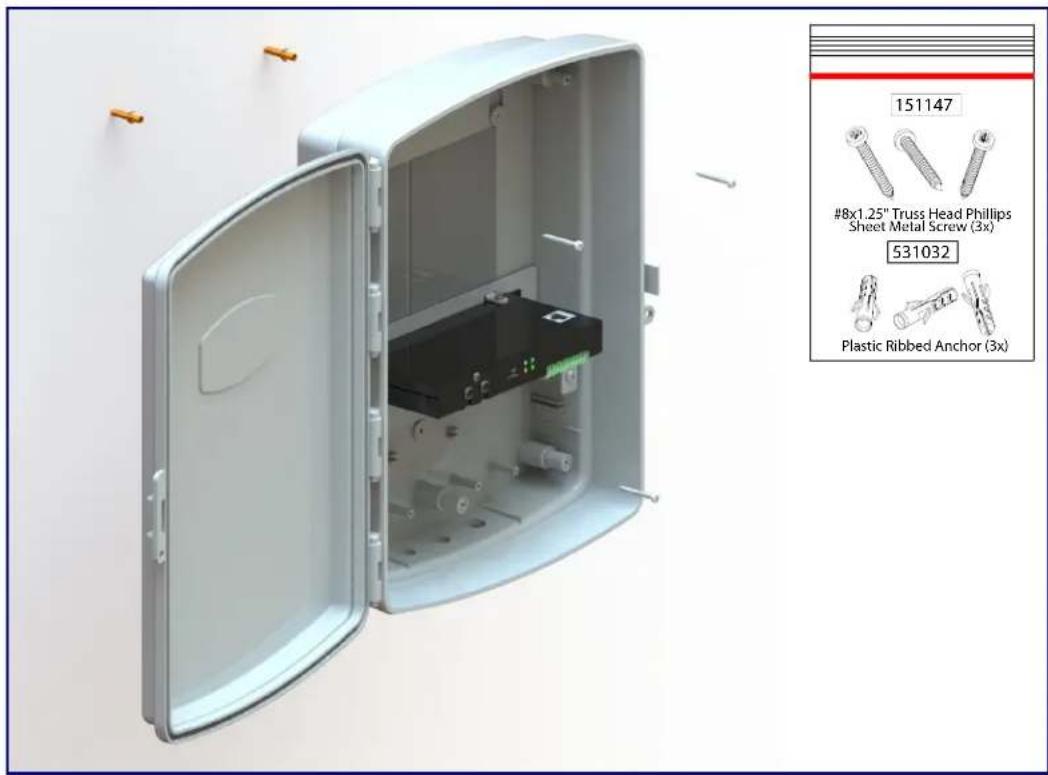
text_image
151147 #8x1.25" Truss Head Phillips Sheet Metal Screw (3x) 531032 Plastic Ribbed Anchor (3x)Appendix B: Setting up a TFTP Server
B.1 Set up a TFTP Server
Autoprovisioning requires a TFTP server for hosting the configuration file.
B.1.1 In a LINUX Environment
To set up a TFTP server on LINUX:
- Create a directory dedicated to the TFTP server, and move the files to be uploaded to that directory.
- Run the following command where /tftpboot/ is the path to the directory you created in Step 1: the directory that contains the files to be uploaded. For example:
in.tftpd -l -s /tftpboot/your_directory_name
B.1.2 In a Windows Environment
You can find several options online for setting up a Windows TFTP server. This example explains how to use the Solarwinds freeware TFTP server, which you can download at:
http://www.cyberdata.net/support/voip/solarwinds.html
To set up a TFTP server on Windows:
- Install and start the software.
- Select File/Configure/Security tab/Transmit Only.
- Make a note of the default directory name, and then move the firmware files to be uploaded to that directory.
Appendix C: Troubleshooting/Technical Support
C.1 Frequently Asked Questions (FAQ)
To see a list of frequently asked questions for your product, click on the FAQs tab at the following webpage:
http://www.cyberdata.net/voip/011405/
C.2 Documentation
The documentation for this product is released in an English language version only.
To download PDF copies of CyberData product documentation, click on the Downloads tab at the following webpage:
http://www.cyberdata.net/voip/011405/
C.3 Contact Information
Contact
CyberData Corporation
3 Justin Court
Monterey, CA 93940 USA
www.CyberData.net
Phone: 800-CYBERDATA (800-292-3732)
Fax: 831-373-4193
Sales
Sales 831-373-2601, Extension 334
Technical Support
The fastest way to get technical support for your VoIP product is to submit a VoIP Technical Support form at the following website:
http://support.cyberdata.net/
The Support Form initiates a ticket which CyberData uses for tracking customer requests. Most importantly, the Support Form tells us which PBX system and software version that you are using, the make and model of the switch, and other important information. This information is essential for troubleshooting. Please also include as much detail as possible in the Comments section of the Support Form.
Phone: (831) 373-2601, Extension 333
C.4 Warranty and RMA Information
The most recent warranty and RMA information is available at the following website address:
http://support.cyberdata.net/
Symbols
6 sheet metal screws 91
Numerics
1 speaker configuration 11, 12, 13
16 gauge wire 11, 12, 13
2 speaker configuration 13
802.3af mode 11, 12, 13
802.3at compliance switch 11, 12, 13
802.3at mode 13
802.3at power injector (high power mode) 11, 12, 13
A
AC voltages 2
accessory kit 7, 91
activate relay (door sensor) 59
activity LED 21
address, configuration login 29
amplified outputs 11, 12, 13
high power mode 13
how to use and connect 11
low power mode 11,12
announcing an IP address 22
audio configuration 61
night ring tone parameter 63
audio configuration page 61
audio encodings 4
audio files, user-created 64
audio test 22
autoprovision at time (HHMMSS) 73
autoprovision when idle (in minutes > 10) 73
autoprovisioning 74
download template button 74
autoprovisioning autoupdate (in minutes) 73
autoprovisioning configuration 72, 73
autoprovisioning filename 73
autoprovisioning server (IP Address) 73
B
backup SIP server 1 45
backup SIP server 2 45
backup SIP servers, SIP server
backups 45
boost (volume) 34
C
cabling 20
changing
the web access password 33
Cisco SRST 45
command interface 87
commands 87
components 10
configurable parameters 34, 41, 45
configuration
audio 61
default IP settings 25
door sensor 57
intrusion sensor 57
network 40
SIP 43
configuration home page 29
configuration page
configurable parameters 34, 41
connecting the amplified outputs 11
connection options 14
connections 10, 14
connections inside of the NEMA box 10
contact information 95
contact information for CyberData 95
current network settings 41
CyberData contact information 95
D
default
gateway 8,25
IP address 8,25
subnet mask 8,25
username and password 8,25
web login username and password 29
default gateway 8, 25, 41
default IP settings 25
default login address 29
device configuration 33
device configuration parameters 73
the device configuration page 72
device configuration page 33
device configuration parameters 34
device configuration password
changing for web configuration access 33
DHCP Client 4
dial out extension (door sensor) 59
dial out extension strings 50
dial-out extension strings 52
dimensions 5
disable volume control dial 34
discovery utility program 29
distortion, total harmonic 5
DNS server 41
door sensor 57
activate relay 59
dial out extension 59
door sensor normally closed 59
play audio locally 59
download autoprovisioning template button 74
DTMF tones 50, 52
DTMF tones (using rfc2833) 50
E
enable night ring events 67
enclosure, mounting 91
ethernet I/F 5
event configuration
enable night ring events 67
expiration time for SIP server lease 46, 48
export settings 31
F
factory defaults 9, 22
firmware
where to get the latest firmware 84
G
get autoprovisioning template 74
GMT table 38
GMT time 38
H
harmonic distortion 5
hazard levels 4
high power mode (amplified outputs) 13
home page 29
http POST command 87
http web-based configuration 4
|
identifier names (PST, EDT, IST, MUT) 38
identifying your product 1
illustration of amplifier mounting process 91
import settings 31
import/export settings 31
input specifications 5
installation 2
IP address 8, 25, 41
IP address announcement 22
IP address confirmation 22
IP addressing
default
IP addressing setting 8, 25
J
jumper descriptions 19
jumper locations 19
L
lease, SIP server expiration time 46, 48
LEDs 21
lengthy pages 56
line input specifications 5
line output specifications 5
Linux, setting up a TFTP server on 93
local SIP port 46
log in address 29
loudspeaker type 20
loudspeaker, cabling/wiring 20
low power mode (amplified outputs) 11, 12
M
maximum wire length for two speaker configuration 13
MGROUP
MGROUP Name 55
mounting an amplifier 91
multicast configuration 53, 61
Multicast IP Address 55
N
navigation (web page) 26
navigation table 26
NEMA box components 10
network configuration 40
network link activity, verifying 21
nightring tones 56
Nightringer 83
nightringer settings 47
NTP server 34
O
one speaker configuration 11, 12, 13
operating temperature 5
optional two speaker configuration 13
output impedance 5
output level 5
output signal amplitudes 5
output specifications 5
P
packet time 4
pages (lengthy) 56
parts list 7
password
for SIP server login 45
login 29
restoring the default 8,25
payload types 5
play audio locally (door sensor) 59
point-to-point configuration 51
polycom default channel 55
polycom emergency channel 55
polycom priority channel 55
port
local SIP 46
remote SIP 46
posix timezone string
timezone string 35
POST command 87
power input 5
power LED 9,21
power, connecting to paging amplifier 11
priority
assigning 56
product
mounting 91
parts list 7
product features 3
product overview
product features 3
product specifications 5
supported protocols 4
supported SIP servers 4
typical system installation 2
product specifications 5
protocols supported 4
R
reboot 85, 86
remote SIP port 46
reset test function management switch 22
resetting the IP address to the default 91
restoring the factory defaults 9, 22
ringtones 56
lengthy pages 56
rport discovery setting, disabling 46
RTFM switch 9,22
RTP/AVP 4
s
safety instructions 5
sales 95
sensor
sensor normally closed 59
sensor timeout 59
sensor connection 15
sensor setup page 58
sensor setup parameters 57
sensors 59
server address, SIP 45
service 95
set time with external NTP server on boot 34
SIP
enable SIP operation 45
local SIP port 46
user ID 45
SIP (session initiation protocol) 4
SIP configuration 43
SIP configuration parameters
outbound proxy 46, 48
registration and expiration, SIP server lease 46, 48
unregister on reboot 46
user ID, SIP 45
SIP registration 45
SIP remote SIP port 46
SIP server 45
password for login 45
SIP servers supported 4
unregister from 46
user ID for login 45
SIP server configuration 45
SIP volume 34
speaker cable 20
speaker configuration 11, 12, 13
speaker configuration for two speakers 13
speaker wire 20
SRST 45
standard 1 speaker configuration 11, 12, 13
status LED 9,21
subnet mask 8, 25, 41
supported protocols 4
T
tech support 95
technical support, contact information 95
test audio 22
TFTP server 4,93
time zone string examples 38
two speaker configuration 13
U
user ID
for SIP server login 45
username
changing for web configuration access 33
default for web configuration access 29
restoring the default 8,25
using the amplified outputs 11
V
verifying
network link and activity 21
power on 21
VLAN ID 41
VLAN Priority 41
VLAN tagging support 41
VLAN tags 41
volume 24
multicast volume 34
ring volume 34
sensor volume 34
SIP volume 34
volume adjustment 23
volume boost 34
volume control dial
disable 34
volume dial 24
W
warranty policy at CyberData 95
web access password 8,25
web access username 8,25
web configuration log in address 29
web page
navigation 26
web page navigation 26
wget, free unix utility 87
Windows, setting up a TFTP server on 93
wire gauge 11, 12, 13
wire length going to wire nuts for two speaker configuration 13
wire nuts to connect wire 11, 12, 13
wiring 20