
WA-MP400 - CD Player SHARP - Free user manual and instructions
Find the device manual for free WA-MP400 SHARP in PDF.
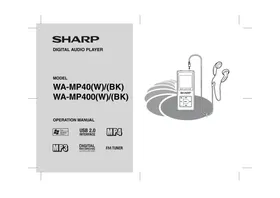


| Product type | Portable digital audio player with FM radio and voice recorder |
| Brand | SHARP |
| Model | WA-MP400 |
| Dimensions | 40 x 90 x 12 mm |
| Weight | 42 g (without SD/MMC card) |
| Power supply | Built-in rechargeable 3.7V lithium-ion polymer battery; charging via USB 5V |
| Internal memory capacity | 2 GB (Flash) |
| Memory expansion | SD/MMC card (not included) |
| Supported audio formats | MP3 (12-320 kbps), WMA (64-192 kbps), WAV (PCM) |
| Video and photo formats | SMV video; JPEG photo (non-progressive), BMP (24-bit) |
| FM radio | Frequency 87.5-108 MHz; headphones serve as antenna |
| Recording | Built-in microphone (mono) and FM recording (WAV/PCM format) |
| Playback functions | Repeat (one, all), shuffle, preview, equalizer (Normal/Rock/Pop/Jazz/Custom) |
| Connectivity | 2 x headphone jack (32 ohms), USB port (Type A), SD/MMC slot |
| PC interface | USB 2.0/1.1; Windows Media Player 9/10; Windows Media DRM 9 |
| Battery life | Approximately 14 hours (MP3 128 kbps playback, 0.1 mW earphones, Normal equalizer) |
| Care and cleaning | Clean with a soft dry or slightly damp cloth; do not use solvents |
| Safety | Do not expose to moisture, do not disassemble, use the supplied earphones, respect sound levels |
| Spare parts and repairability | Built-in battery replaceable only by an authorized professional; other parts not specified |
| General information | User manual included; supplied accessories: earphones, USB cable, CD-ROM, quick guide |
Frequently Asked Questions - WA-MP400 SHARP
User questions about WA-MP400 SHARP
0 question about this device. Answer the ones you know or ask your own.
Ask a new question about this device
Download the instructions for your CD Player in PDF format for free! Find your manual WA-MP400 - SHARP and take your electronic device back in hand. On this page are published all the documents necessary for the use of your device. WA-MP400 by SHARP.
USER MANUAL WA-MP400 SHARP
- Audio-visual material may consist of copyrighted works which must not be recorded without the authority of the owner of the copyright. Please refer to relevant law in your country.
Warning:
To prevent fire or shock hazard, do not expose this appliance to dripping or splashing. No objects filled with liquids, such as vases, shall be placed on the apparatus.
CAUTION:
At full power prolonged listening to a personal stereo may damage the user's hearing.
The model is in compliance with the law in case of using it with the SHARP earphones.
- The letters in brackets contained in the model number indicate the colour of the product only. Operation and specifications are unaffected.
Information on Proper Disposal


Attention: Your product is marked with this symbol. It means that used electrical and electronic products should not be mixed with general household waste. There is a separate collection system for these products.
A. Information on Disposal for Users (private households)
1. In the European Union
Attention: If you want to dispose of this equipment, please do not use the ordinary dustbin!
Used electrical and electronic equipment must be treated separately and in accordance with legislation that requires proper treatment, recovery and recycling of used electrical and electronic equipment.
Following the implementation by member states, private households within the EU states may return their used electrical and electronic equipment to designated collection facilities free of charge. In some countries your local retailer may also take back your old product free of charge if you purchase a similar new one.
*) Please contact your local authority for further details.
If your used electrical or electronic equipment has batteries or accumulators, please dispose of these separately beforehand according to local requirements.
By disposing of this product correctly you will help ensure that the waste undergoes the necessary treatment, recovery and recycling and thus prevent potential negative effects on the environment and human health which could otherwise arise due to inappropriate waste handling.
2. In other Countries outside the EU
If you wish to discard this product, please contact your local authorities and ask for the correct method of disposal.
For Switzerland: Used electrical or electronic equipment can be returned free of charge to the dealer, even if you don't purchase a new product. Further collection facilities are listed on the homepage of www.swico.ch or www.sens.ch.
B. Information on Disposal for Business Users
1. In the European Union
If the product is used for business purposes and you want to discard it:
Please contact your SHARP dealer who will inform you about the take-back of the product. You might be charged for the costs arising from take-back and recycling. Small products (and small amounts) might be taken back by your local collection facilities.
For Spain: Please contact the established collection system or your local authority for take-back of your used products.
2. In other Countries outside the EU
If you wish to discard of this product, please contact your local authorities and ask for the correct method of disposal.
Thank you for purchasing this SHARP product. For the best performance, read this manual carefully. It will guide you in operating your SHARP product.
Special notes
Trademarks
- IBM and PC/AT are registered trademarks of International Business Machines Corporation.
- Macintosh is a trademark of Apple Computer, Inc., registered in the United States and other countries.
- Microsoft Windows and Windows Media are registered trademarks of Microsoft Corporation in the United States and/or other countries.
- All brand names and product names are trademarks or registered trademarks of their respective owners.
Files data
- Back up your files data stored on this product periodically in case of accidental loss or alteration.
- SHARP shall not be liable for any damages or loss of files data resulting from defects in this product or your computer.
Note
Supply of this product does not convey a license nor imply any right to distribute content created with this product in revenue-generating broadcast systems (terrestrial, satellite, cable and/or other distribution channels), revenue-generating streaming applications (via Internet, intranets and/or other networks), other revenue-generating content distribution systems (pay-audio or audio-on-demand applications and the like) or on revenue-generating physical media (compact discs, digital versatile discs, semiconductor chips, hard drives, memory cards and the like). An independent license for such use is required. For details, please visit http://mp3licensing.com MPEG Layer-3 audio coding technology licensed from Fraunhofer IIS and Thomson.
Accessories
Please confirm that only the following accessories are included.
| Earphones x 1 (with the ear pads) | USB Cable x 1 |
| CD-ROM x 1 ● If you use a PC running Windows 98 Second Edition, install a USB driver from this supplied CD-ROM (see page 10). | Quick Guide x 1 |
Notes:
- USB cable may differ from illustrations shown above.
- Use the supplied earphones only.
- Use the supplied USB cable only (1m).
- AC Adaptor is not included, unit charging via PC by attached USB cable.
Contents
General Information
Accessories. 2 Precautions 3 Controls and indicators 4 System requirements 5 SD/MMC card installation 5
Preparation for Use
Charging the rechargeable battery 6-7 1. Turning the unit on/off 83 Hold function 8 Changing the display language 9 4 Connecting the unit to a PC 10 Disconnecting the unit 11
Windows Media Player
Ripping tracks from audio CD to PC. 11-13
Transferring file data from PC to the unit. 13-16
Playback
Playing transferred audio data 17-18
Advanced playback 19
Playing selected data 20
FM Radio
Listening to the FM radio 21-22
Playing transferred video data. 22-23
Playing photo data 24
Recording
Recording with the built-in microphone 25
Recording from the FM radio 26
■ Advanced Features
View transferred text data 26-27. Changing default settings 27-29. References. Firmware update 30. Troubleshooting 31. Error messages 32. Maintenance 32. Disposal of the unit 32. Specifications 33.
Important
- Do not wear your earphones when you are crossing streets or near traffic.
- Do not use earphones whilst driving a vehicle since it may be illegal or create a traffic hazard. Always follow safety regulations in your area.
- Do not play the unit at a high volume. Hearing experts advise against extended listening at high volume levels.
- Excessive sound pressure from earphones and headphones can cause hearing loss.
- If you experience ringing in your ears, reduce the volume or discontinue use.
- No naked flame sources, such as lighted candles, should be placed on the apparatus.
- Attention should be drawn to the environmental aspects of battery disposal.
- The apparatus is designed for use in moderate climate.
- This unit should only be used within the range of 5°C - 40°C (41°F - 104°F).
To avoid accidental electric shock or other possible problems, observe the precautions listed below.
- Do not disassemble or modify the unit.
- Do not drop or subject the unit to shock.
- Do not use the unit near open flames.
- Do not spill liquid on the unit.
- SHARP is not responsible for damage due to improper use. Refer all servicing to a SHARP authorised service centre.
Caution:
- When recording important selections, make a preliminary test to ensure that the desired material is properly recorded.
- SHARP is not liable for damage or loss of your recording arising from malfunction of this unit.

Copyright
Copyright laws protect sounds, images, computer programmes, databases, other materials and copyright holders.
Duplicated material is limited to private use only. Use of materials beyond this limit or without permission of copyright holders may constitute copyright infringement, and be subject to criminal punishment.
ENGLISH
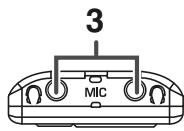
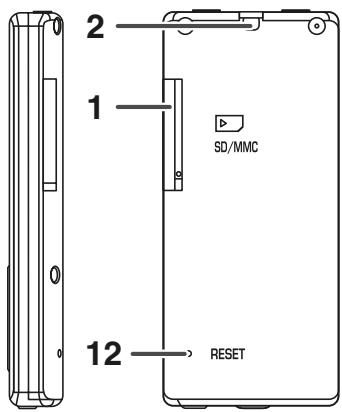
11 10 9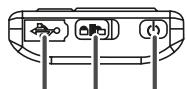
8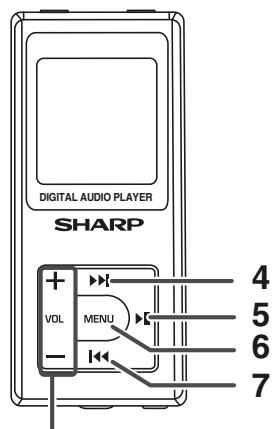
Note:
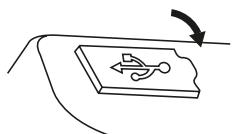
To protect the USB port, cover it with USB cap when not in use.
Reference page
- SD/MMC Terminal 5 2. Neck Strap Hole. 4
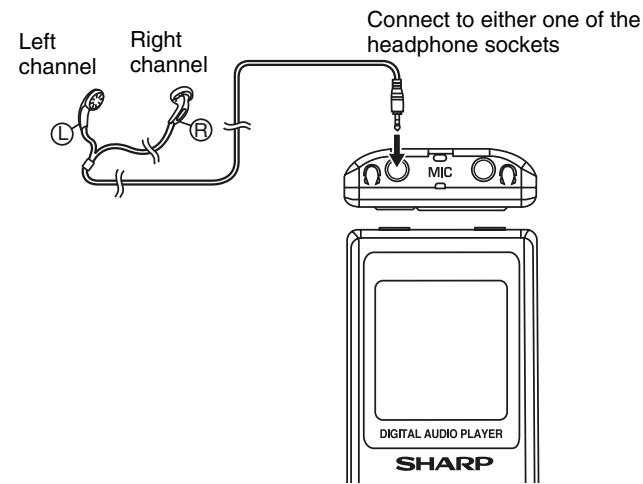
- Earphones Sockets (x 2) 17, 21, 26
- Track Up/Tuning Up Button 9, 17 - 22, 24 - 29
- Play and Pause Button 17 - 22, 24 - 27
- Menu Button 9, 17 - 22, 24 - 29
- Track Down/Tuning Down Button 9, 17 - 22, 24 - 29
- Volume Up/Down Button 8, 18, 24 9. Power Button. 8, 9, 17, 20, 21, 22, 24 - 29 10. Hold Switch 8
- USB Port 6, 10
- Reset Button 31
System requirements
The following hardware and software are required to transfer audio data from a PC to the unit.
Hardware and software requirements *1
| Computer | IBM PC/AT-compatible |
| OS | Microsoft®Windows®98 Second Edition/ Millennium Edition/2000 Professional/XP Professional/XP Home Edition standard installation *2/ Mac OSX 10.2.6 above |
| Software | Windows Media®Player 9 Series or 10 |
| Drive | CD-ROM drive |
| Interface | Available USB port (USB 2.0/1.1) |
1 Operation is not guaranteed on all compatible computers. 2 Operation is not guaranteed on computers running an upgraded OS or multiple OS with dual-boot.
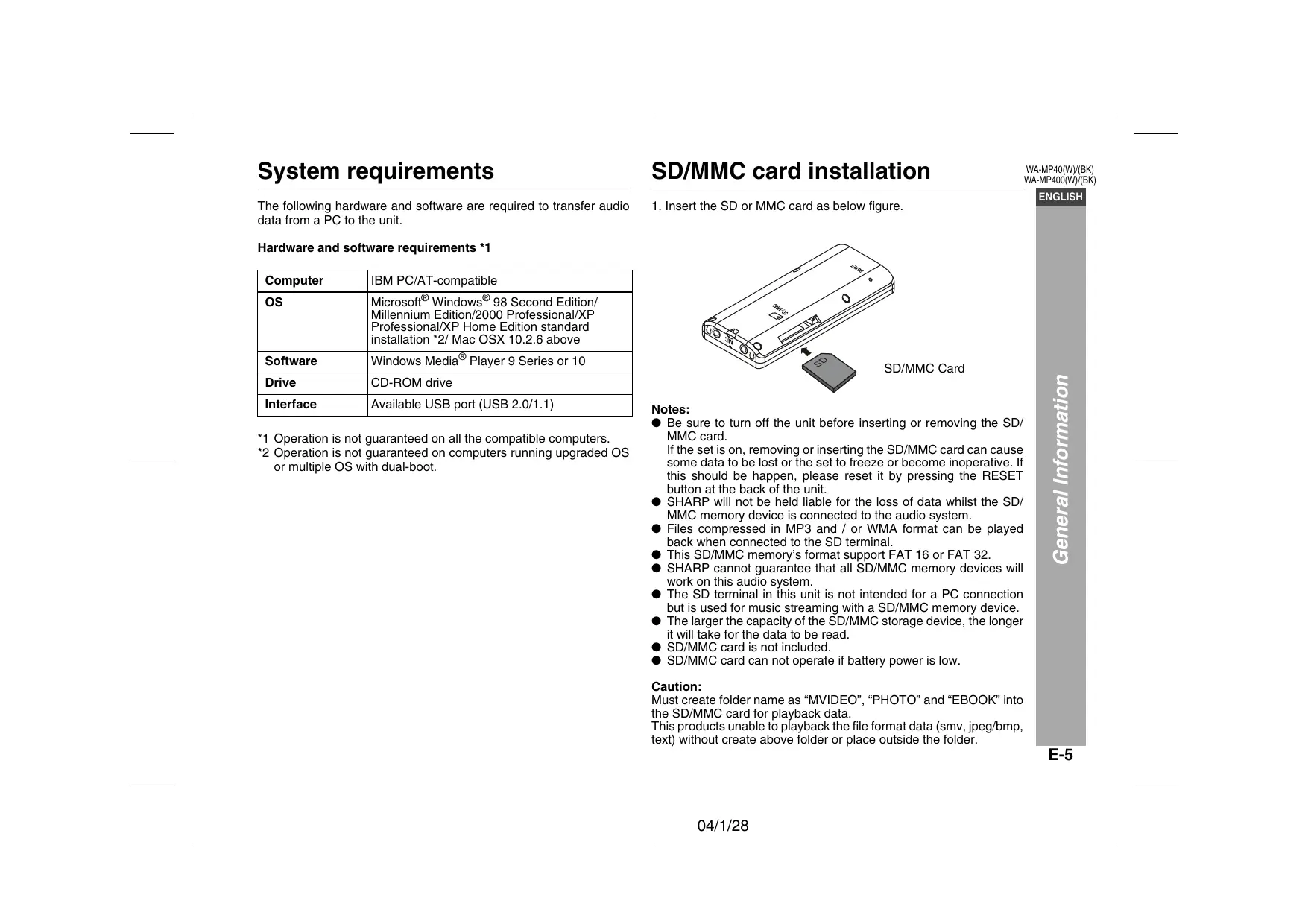
SD/MMC card installation
- Insert the SD or MMC card as shown in the figure below.
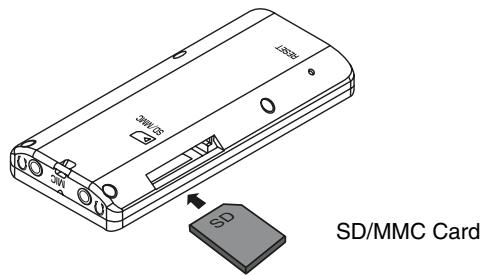
Notes:
- Be sure to turn off the unit before inserting or removing the SD/MMC card. If the set is on, removing or inserting the SD/MMC card can cause some data to be lost or the set to freeze or become inoperative. If this should happen, please reset it by pressing the RESET button at the back of the unit.
- SHARP will not be held liable for the loss of data whilst the SD/MMC memory device is connected to the audio system.
- Files compressed in MP3 and/or WMA format can be played back when connected to the SD terminal.
- This SD/MMC memory's format supports FAT 16 or FAT 32.
- SHARP cannot guarantee that all SD/MMC memory devices will work on this audio system.
- The SD terminal in this unit is not intended for a PC connection but is used for music streaming with a SD/MMC memory device.
- The larger the capacity of the SD/MMC storage device, the longer it will take for the data to be read. SD/MMC card is not included. SD/MMC card cannot operate if battery power is low.
Caution:
You must create folders named "MVIDEO", "PHOTO", and "EBOOK" in the SD/MMC card for playback data.
This product cannot play file formats (SMV, JPEG/BMP, text) unless the above folders are created or the files are placed inside them.
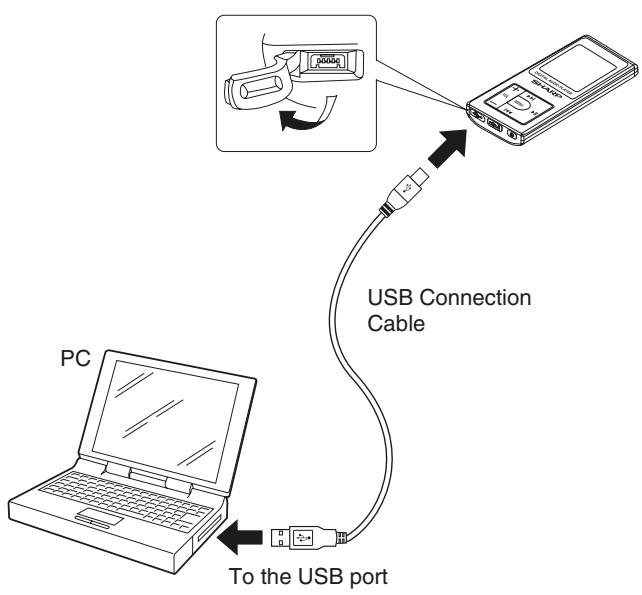
When using the rechargeable battery for the first time, or after a long period of disuse,
1. Plug the USB cable into the PC's USB port. 2. Open the USB port cover on the unit. 3. Connect the USB cable to the USB socket on the unit.
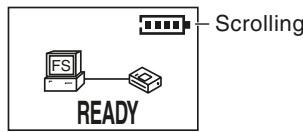
To check charging progress:
- Scrolling... Charging is in progress. Display blank... Charging in saving mode. Battery is full... Charging is complete.
About charging time:
The battery fully charges in approximately 5 hours.
Notes:
- Turn off the unit before connecting to a PC. (The buttons on the unit do not work if it is connected to a PC.)
- When charging, ensure ventilation is not impeded by covering the ventilation openings with items such as newspapers, tablecloths, curtains, etc.
Notes:
- Charge the battery within the range of 10°C - 30°C (50°F - 86°F).
- The unit may get warm during or after charging. This is normal.
- When charging battery for the first time or after a long period of disuse, battery life may be shorter. Repeat charge/discharge cycle 4 to 5 times to restore the full capacity.
- After charging, unplug the USB cable. (Refer page 6)
Built-in battery
- The built-in battery may discharge completely when this product is left unused for long periods. Recharge the battery before use.
- Charging time depends on the battery condition and ambient temperature.
- At low temperatures, continuous playing time is shortened.
- SHARP shall not be liable for any damages resulting from loss or alteration of audio data caused by malfunction, repairs, or complete discharge of the battery.
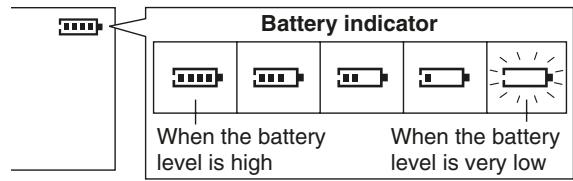
Checking the remaining amount of battery level The battery level is shown by the battery indicator during operation.
Battery replacement
This product has a built-in battery.
- The battery is rechargeable up to approximately 300 times.
- The battery life and the operating time may be shortened by usage conditions, long periods of disuse, etc.
- The battery is a consumable item. If it does not charge or the operating time is noticeably shorter than normal, replace with a new battery.
- Replacement should be carried out by qualified personnel only. Contact your dealer or local SHARP service facility. Never disassemble this product for this purpose.
Caution:
Pay attention to the environment when disposing of this product (the built-in battery should be handled separately). See page 32.
Turning the unit on/off
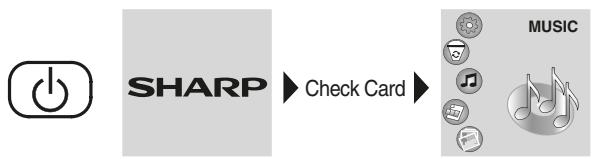
To turn on the unit
Press the POWER button.
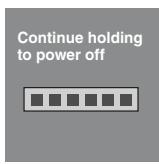
To turn off the unit
Hold down the POWER button for 3 seconds or more.


Volume control
At music function, video function and FM radio function, press VOL - or + button to decrease or increase the volume.
Example: music mode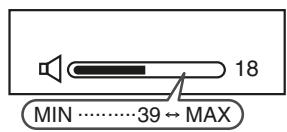
Volume auto set-in
- If you turn off and on the main unit with volume set to 18 or higher, the volume will start at 18.
- If you turn the unit off then on again with the volume level set to less than 17, it will turn on again at the level set.
Hold function
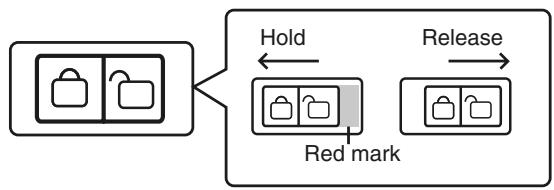
When the hold function is turned on, all buttons on the unit will be inactive. To make changes to the operation of the unit, turn the HOLD switch off. The "□" icon will display on screen if hold function is turned on.
Move the HOLD switch to the safety position (direction indicated by the arrows).
Note:
If the hold function is active when the unit is turned off, the unit cannot be turned on by mistake and the battery will not be drained.
Changing the display language
You can see information in a selected language.
| English (*) | Spanish |
| Russian | Italian |
| German | Chinese TRA |
| French | Portuguese |
(*) indicates default setting.
1 Press the POWER button to turn the power on.
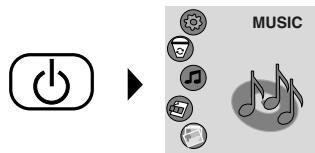
2 Press the or button to select "SETUP" and press the MENU button.
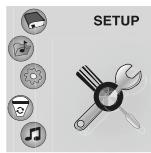

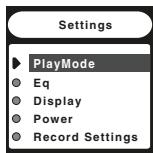
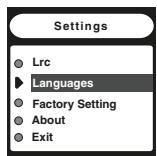
3 Within 40 seconds, press the or button to select "Languages" and press the MENU button.

ENGLISH
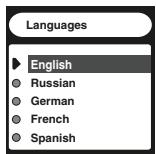
4 Within 20 seconds, press the or button to select the desired language and press the MENU button.

The setting is completed. - The main menu screen returns after 40 seconds or select "Exit" and press the MENU button.
Note:
The display language setting is retained even after the unit is turned off.
Connect the unit to a PC to transfer file data.
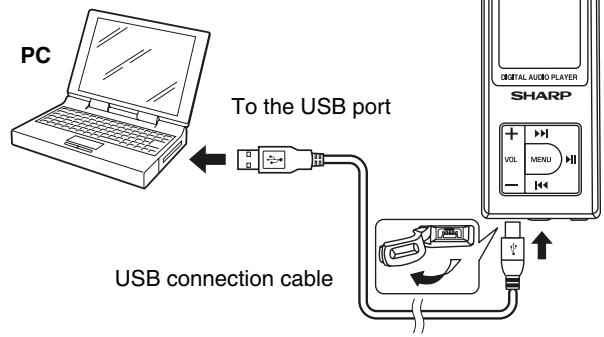
- Open the USB port cover.
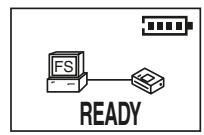
- Connect the unit to a PC with the USB cable. While the unit is connected to the PC, the message shown on the right appears on the unit.
Caution:
- Do not disconnect the USB cable while transferring audio data from a PC. Audio data on the unit may become corrupted.
- Operation is not guaranteed if the PC is connected to two or more USB devices.
- Connect the USB cable to the PC's USB port. If connected via a USB hub, operation cannot be guaranteed.
- We do not guarantee operation of the unit with self-built PCs or PCs with modified motherboards.
- Make sure to use the supplied USB cable. Use of other cables (two-way cables, extension cables, etc.) degrades the quality of connection and may cause a malfunction or radiation.
Notes:
- The buttons on the unit do not work if it is connected to a PC. Disconnect the PC to operate on the unit.
- The battery is also rechargeable by connecting the unit to a PC with the USB cable.
■ Installing a USB driver
If you use a PC running Windows 98 Second Edition, install a USB driver from the supplied CD-ROM.
- The installation is not necessary for a PC running Windows Millennium Edition, Windows 2000 Professional, Windows XP Professional or Windows XP Home Edition.
| 1 | Insert the supplied CD-ROM into your CD-ROM drive. |
| 2 | Connect the unit to a PC by USB cable. The “The Wizard searches for new drivers...” screen appears. |
| 3 | Click the “Next” button. The “What you want Windows to do?” screen appears. |
| 4 | Select “Search for the best driver...” and click “Next” button. The “Windows will search for new drivers...” screen appears. |
| 5 | Select “CD-ROM drive” and click “Next” button. The “Windows driver file search for the device” screen appears. |
| 6 | Click the “Next” button. The “USB Mass Storage Device...” screen appears. |
| 7 | Click the “Finish” button. |
Disconnecting the unit
Make sure to exit Windows Media Player before disconnecting the USB cable.
For details, refer to the operation manual for the PC.
Windows 98 Second Edition
- Click "Safely remove hardware" on the taskbar.
- Click "Safely remove USB Mass Storage Device-Drives(*:)".
- "Safely remove hardware" appears. Click the "OK" button and disconnect the USB cable from the PC.
Windows Millennium Edition
- Click "Unplug or Eject Hardware" on the taskbar.
- Click "Stop USB Disc-Drive(*:)".
- "Safe To Remove Hardware" appears. Click the "OK" button and disconnect the USB cable from the PC.
Windows 2000 Professional
- Click "Unplug or Eject Hardware" on the taskbar.
- Click "Stop USB Disc-Drive(*:)".
- "Safe To Remove Hardware" appears. Click the "OK" button and disconnect the USB cable from the PC.
Windows XP Home Edition/Professional
- Click "Safely remove hardware" on the taskbar.
- Click "Safely remove USB Mass Storage Device-Drives(*)".
- "Safe To Remove Hardware" appears. Click the message and disconnect the USB cable from the PC.
(*): Drive letter of this unit.
Notes:
- After the above operation, the USB connection display still remains on the unit (the display changes when you disconnect the USB cable).
- If you cannot cancel the USB connection, try again or restart the PC.
- For Windows 98 Second Edition: If the "Safely remove hardware" icon does not appear on the taskbar, open the "Windows 98SE Driver" folder and click "w98eject" in the supplied CD-ROM.
Ripping tracks from audio CD to PC
Using Windows Media Player, rip tracks from your favourite audio CDs to a PC. Ripped tracks are stored on PC as audio data. You can enjoy music on the unit by transferring audio data from the PC.
Windows Media Player 9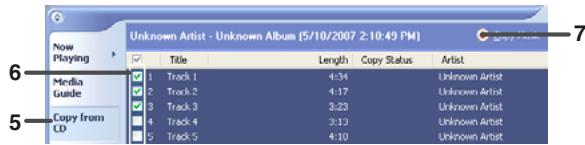
WA-MP40(W)/(BK)
WA-MP400(W)/(BK)
ENGLISH
For Windows Media Player 9 Series
| 1 | Launch Windows Media Player. Example: Start → All Programs → Windows Media Player |
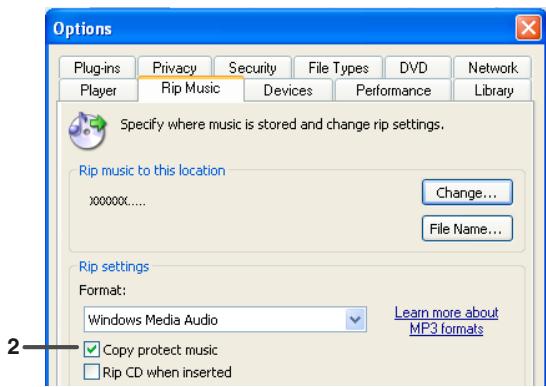
| 2 | On the “Tools” menu, click “Options...” and then “Copy Music” and select “Copy protect music”. |
| 3 | Click “OK”. |
| 4 | Insert an audio CD into the PC. The audio CD may play automatically depending on settings on the PC. In this case, stop playback. |
| 5 | Click “Copy from CD” on the taskbar to show tracks on the audio CD. |
| 6 | Select the check boxes of tracks to rip. |
| 7 | Click “Copy Music” to start ripping. |
Notes:
- For details on Windows Media Player, refer to its Users Guide.
- If the PC is connected to the internet, information (artist or album name, title, genre, etc.) appears. Information may not be available depending on the audio CD.
Windows Media Player 10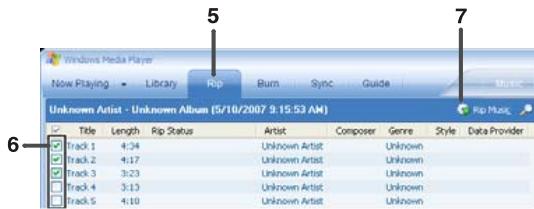
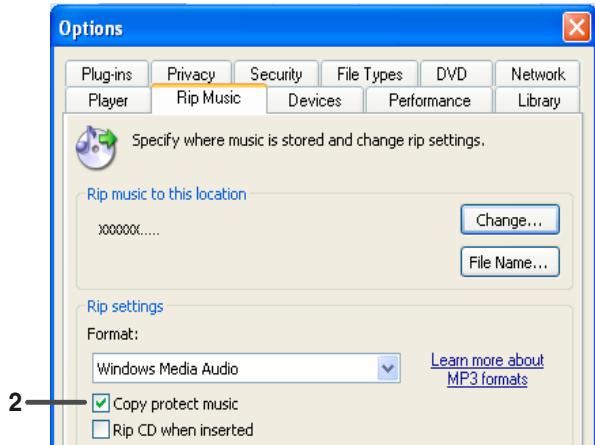
For Windows Media Player 10
| 1 | Launch Windows Media Player. Example: Start → All Programs → Windows Media Player |
| 2 | On the “Tools” menu, click “Options...” and then “Rip Music”, and select “Copy protect music”. |
| 3 | Click “OK”. |
| 4 | Insert an audio CD into the PC. The audio CD may play automatically depending on settings on the PC. In this case, stop playback. |
| 5 | Click “Rip” on the taskbar to show tracks on the audio CD. |
| 6 | Select the check boxes of tracks to rip. |
| 7 | Click “Rip Music” to start ripping. |
Notes:
- For details on Windows Media Player, refer to its Users Guide.
- If the PC is connected to the internet, information (artist or album name, title, genre, etc.) appears. Information may not be available depending on the audio CD.
Transferring file data from PC to the unit
You can transfer audio data (MP3, WMA or WAV), video data (SMV), photo data (jpeg or bmp format) and text file (text format).
- Connect the unit to PC.
- Open "My Computer" and copy or move the selected file data to the unit (MP40_400) or SD/MMC card (indicated as "Removable Disc").
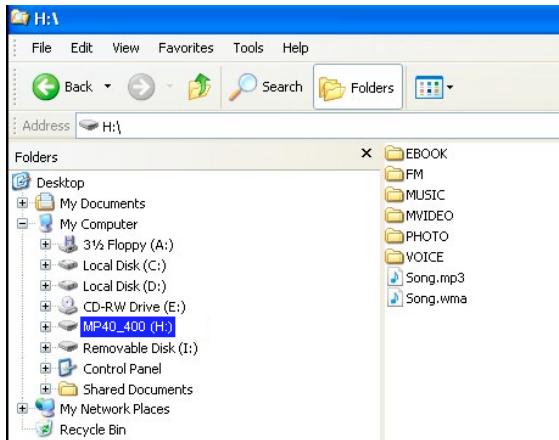
Notes:
- This unit can be used as USB storage device.
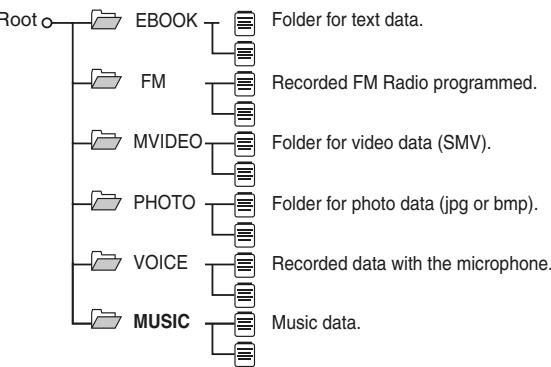
- "MVIDEO", "PHOTO", "EBOOK" folders are auto-generated in the unit.
For external device (SD/MMC card), folder need manually created by user.
- Respectively, data have to be copied to the specified folder, otherwise the unit will be unable to play or view that data.
Folder
File data
MVIDEO ← SMV file format
PHOTO ← Jpeg or BMP file format
EBOOK ← TXT file format
- No specific folder is required for storage of audio data files.
- "FAV.TXT" is a system-created file in the unit.
- For transferring ripped audio files (protected) or licensed WMA files (DRM) from PC to the unit, perform the steps on page 15.
ENGLISH
Folder
When using Windows Media Player 9 series, select the "MUSIC" folder to transfer the audio data.
Note:
You need to create the Music folder. Create it at the level indicated in "About folder tree".
When using Windows Media Player 10, subfolders with an artist or album name are automatically created in the "MUSIC" folder.
Note:
To create subfolders with an artist or album name automatically, click (☑) to display properties and select "Create folder hierarchy on device".
Click this to display properties.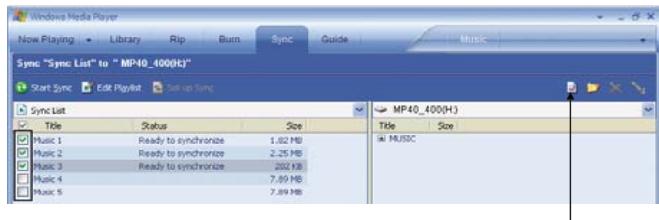
You can enjoy music on the unit by transferring ripped audio files (protected) or licensed WMA files (DRM) from PC to the unit.
For Windows Media Player 9 Series
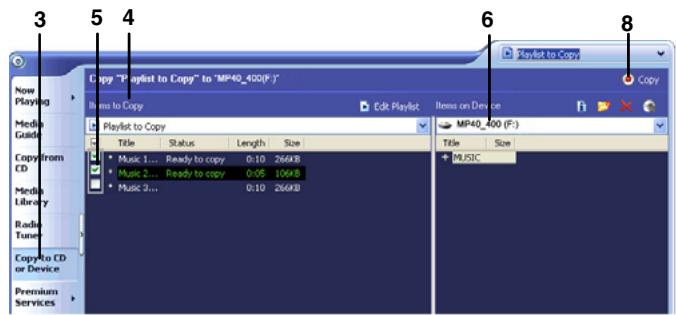
For Windows Media Player 10
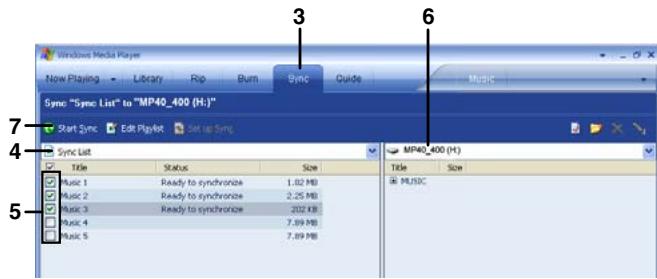
1. Connect the unit to a PC (see page 10). 2. Launch Windows Media Player.
Example:
Start → All Programs → Windows Media Player
3. Click "Copy to CD or Device" on the taskbar. 4. From the drop-down list of "Items to Copy", window shown on the left, select a list with desired audio data. 5. Select the check boxes of audio data to transfer. 6. Set the unit as a destination. 7. Select the folder.
1. Connect the unit to a PC (see page 10). 2. Launch Windows Media Player.
Example:
Start → All Programs → Windows Media Player
3. Click "Sync" on the taskbar. 4. From the drop-down list of "Sync List", window shown on the left, select a list with desired audio data. 5. Select the check boxes of audio data to transfer. 6. Set the unit as a destination. 7. Click the "Start Sync" button to start transfer.
Caution:
- On Windows Media Player 10, to create subfolders with an artist or album name automatically, click to display properties and select "Create folder hierarchy on device".
- Audio data on the unit is replaced by newly transferred audio data if their file names are the same. Refer to "Connecting the unit to the PC" or "Disconnecting to/from a PC the unit" when you connect/disconnect the unit.
- Do not disconnect the unit from the PC during transfer.
Notes:
- Windows Media Player 9 & 10 installers are included in the supplied CD-ROM.
- For details on Windows Media Player, refer to its User Guide.
- The drive letter for the unit may change depending on the environment of the connected PC.
MP3 (MPEG-1 Audio Layer 3):
MPEG is an international standard developed by Moving Picture Experts Group, a working group of ISO.
WMA (Windows Media Audio):
WMA is an audio compression format developed by Microsoft Corporation.
About DRM (Digital Rights Management):
- This product supports Windows Media Digital Rights Management 9 Series. Using Windows Media Player 9 Series or 10, you can transfer licensed WMA files to the unit for playback.
- Some WMA files may not be playable/transferable onto this product due to their license agreements with copyright holders.
- Some audio data may not be playable on this product.
- When the SD/MMC card is installed, the unit will not play DRM 10 protected music as mandated by Microsoft, but DRM 9 or non DRM protected music will play normally.
File format of transferred audio data:
- Depending on the setting of Windows Media Player, audio data may be converted automatically for playback on portable devices.
- On Windows Media Player 10, you can change this setting and transfer audio data without conversion. To do so, click the checkmark and select "Quality" to uncheck "Convert files as required by the device (recommended)".
- If you transfer WAV files without conversion, it may take more time to transfer, and use more memory space on the unit. For details on Windows Media Player, refer to its User Guide.
Playing transferred audio data
Playing audio data
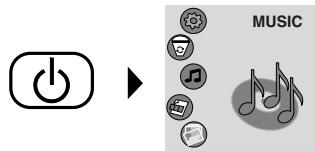
1 Press the POWER button to turn the power on.
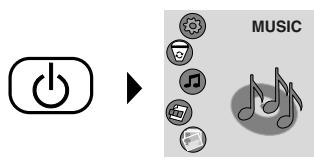
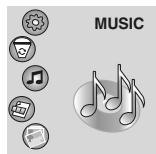
2 Press MENU button to enter music mode. Press the play button to start playback.
(Music Playback Menu)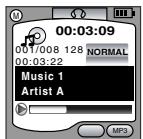
To interrupt playback:
Press the play button.
To resume playback, press the play button again.
To stop playback:
Hold down the play button for 1 second or more. When you press the play button again, the last played audio data plays from the beginning.
Resume play:
When you turn off the unit and turn it back on, playback starts from the beginning of the audio data which was stopped.
To locate the beginning of audio data
To move to the beginning of the next audio data:
Press the ▶ button.
To replay the current audio data:
Press the ◀ button.
Note:
To skip some data at one time, press the ⏮ or ▶ button as many times as required until the desired audio data appears.
To locate the desired portion
For fast forward:
Hold down the ▶ button.
For fast reverse:
Hold down the ◀ button.
Note:
Normal playback will resume when the □□ or ▶ button is released.
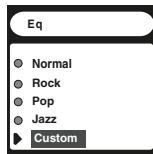
Equalizer setting
1 Hold down the MENU button for 1 second or more.
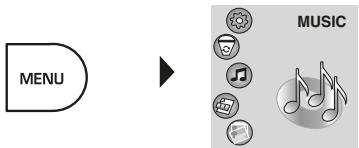
2 Press the or button to select "SETUP" and press the MENU button.
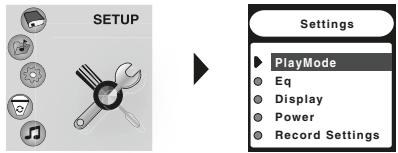
3 Within 40 seconds, press the or button to select "Eq" and press the MENU button.
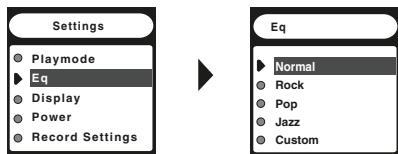
4 Within 20 seconds, press the or button to select an equalizer setting and press the MENU button.
Normal: The sound is not modified.
Rock: For rock music.
Pop: For pop music.
Jazz: For jazz.
Custom: Sound quality can be customized.
The setting is completed. The main menu screen returns after 40 seconds or select "Exit" and press the MENU button.
Note:
Distortion may occur depending on the equalizer settings. In this case, change the type or turn down the volume.
Customizing sound quality
1 Perform steps 1-3 on page 18. 2 Within 20 seconds, press the ⊢ or ▸ button to select "Custom" and press the MENU button.
3 Within 20 seconds, press the ⊢ or ▸ button to select the frequency and press the ▸ button.
80Hz: Bass setting
250Hz: ↑
1000Hz: Midrange setting
4000Hz: ↓
12000Hz: Treble setting
4 Within 20 seconds, press the VOL + or - button to increase or decrease the gain level.
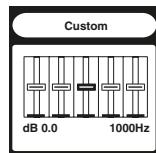
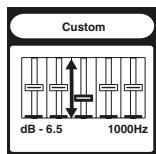
5 Repeat steps 3 and 4 to adjust each frequency. 6 Within 20 seconds, press the MENU button.
The setting is completed. - The settings screen returns after 20 seconds or press the MENU button.
Note:
The "Custom" settings will remain in the memory even after you switch to another equaliser mode.
Repeat play or shuffle play
1 Hold down the MENU button for 1 second or more.

2 Press the ⊢ or ▸ button to select "SETUP", and press the MENU button.
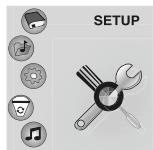

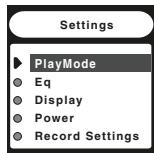
3 Within 40 seconds, press MENU button to select "PlayMode".
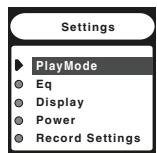

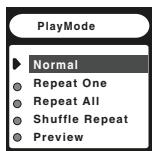
4 Within 20 seconds, press or to select a play mode, and press MENU button.
Normal: Normal playback
Repeat One: Repeat one data
Repeat All: Repeat all data
Shuffle Repeat: Repeat all data at random
Preview: Play all data for a set time period
The setting is completed.
- The main menu screen returns after 40 seconds or select "Exit" and press MENU button.
Note:
The unit plays each data for 10 seconds when playing in preview mode.
Caution:
After performing repeat or preview play, be sure to press the button to stop or pause the playback. Otherwise, the playback will continue.
You can select and play the audio data transferred from a PC or data recorded with the unit.
1 Press the POWER button to turn the power on.
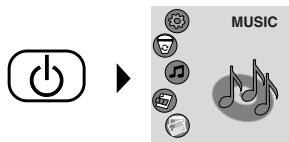
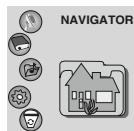
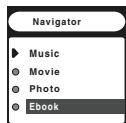
2 Press the ⊢ or ▸ button to select "NAVIGATOR", then press the MENU button.
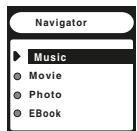
3 Within 20 seconds, press the ⊢ or ▸ button to select the type of data you wish to play.
For music data, select "Music" and press the MENU button. After selecting the data, press the ▸ button to start playback.
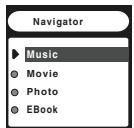
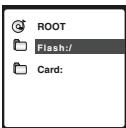
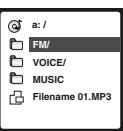
Movie data
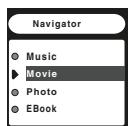

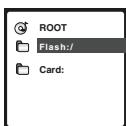

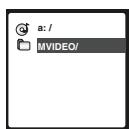

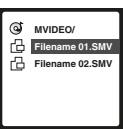
Photo data
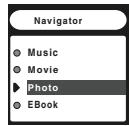


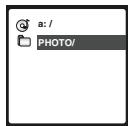

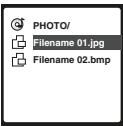
EBook
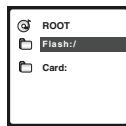

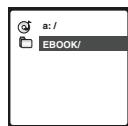

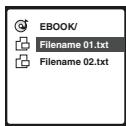
To return to the previous screen, press the VOL - button.
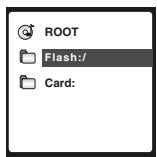
Notes:
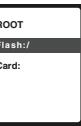
- Flash: Internal memory of the unit.
- Card: External memory devices (SD/MMC Card).
About folder tree
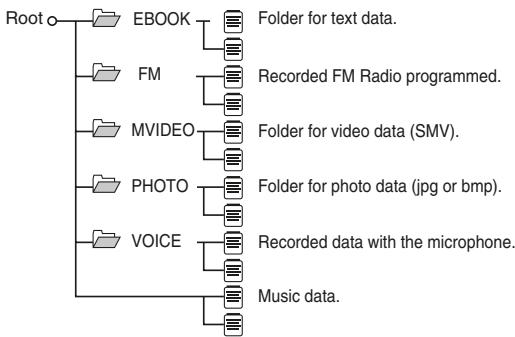
This product supports:
- Up to 100 folders (including the "VOICE", "FM", "MVIDEO", "PHOTO" and "VIDEO" folders). Up to 200 files per folder. Up to 30 characters for a folder name. Up to 30 characters for a file name.
Tuning
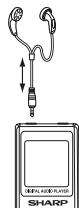
FM aerial:
The earphone lead works as an FM aerial. Keep it as straight as possible.
1 Press the POWER button to turn the power on.
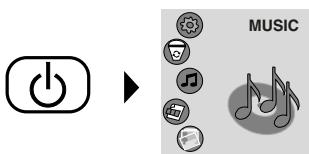
2 Press the ◀ or ▶ button to select "FM RADIO" and press the MENU button.
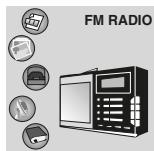

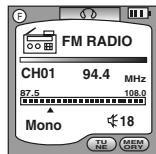
Manual Tuning and memorising a station
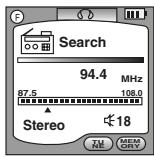
1 Press the button to enter search mode. Press the ◀ or ▶ button as many times as required to tune into the desired station. Hold down the MENU button for 1 second or more to enter the preset tuning saving mode.
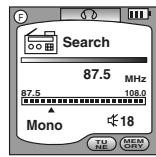
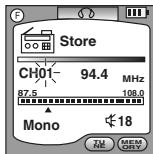
2 Press the ◀ or ▶ button to select the preset channel number. Press the MENU button to store that station in memory.
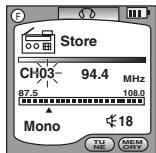

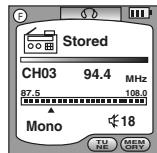
Listening to the FM radio (continued)
Storing station automatically (auto scan)
With this function, the auto tuning memorises the received stations automatically. The unit will stop after scanning the full range of frequencies and storing stations.
1 Press the ▶ button to enter search mode. Hold down the ▶ button for 1 second or more, auto scan will start.
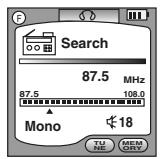
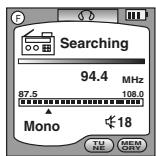
- Scanning will start automatically and the tuner will stop at the first receivable broadcast station.
- The unit receives and stores stations with strong signals.
- Press the ◀ or ▶ button to select the desired station.
Playing transferred video data
You can play motion video (SMV format) with this unit.
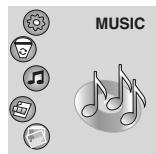
1 Press the POWER button to turn the power on. Press the ▶ button to select "VIDEO" and press the MENU button to enter video playback mode. Video playback will start.
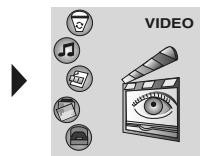

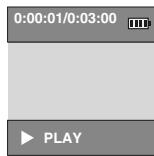
2 To select another file, press the MENU button. Press the ▶ button to select the file and press the ▶ button to view the video.
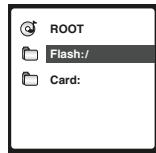

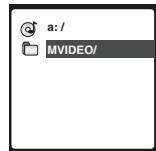

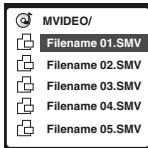
Notes:
- During video playback, the volume bar will not display when adjusting the volume.
- If the video format is full screen mode, playback information will not display on screen.
SMV Video Converter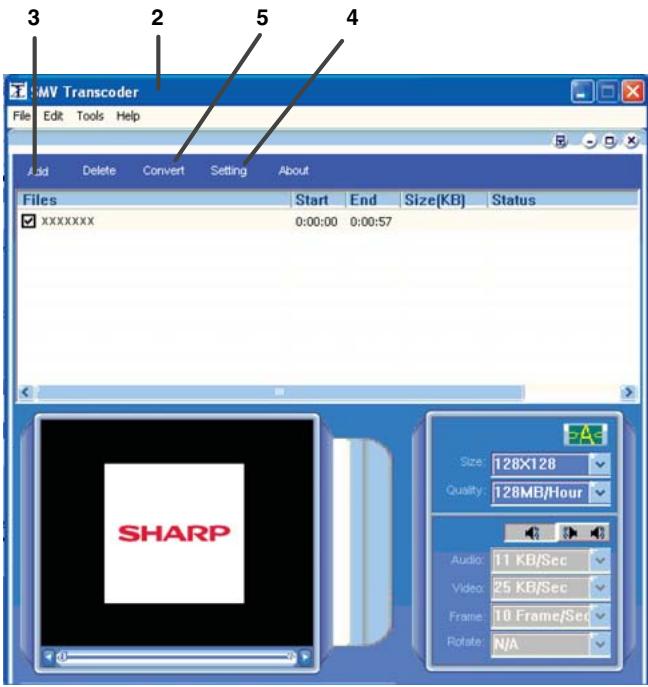
1 Insert the supplied CD-ROM into the CD-ROM drive. 2 Select and click "SMV VIDEO CONVERTER" on the screen (AutoRun) or open the "SMV Video Converter V4.0" folder on the CD-ROM and double-click "video2smv.exe". The "SMV Transcoder screen" appears. 3 Select the video file to convert. The "Video screen" of the movie appears. 4 Set the SMV file storage destination. The SMV file must be downloaded into the "MVIDEO" folder on the unit or external devices (SD/MMC card) for playback. 5 Click the "Convert" button to start conversion.
Caution:
- The SMV file must be transferred into the "MVIDEO" folder on the unit or SD/MMC card for playback. This product is unable to play back video data that is placed outside the "MVIDEO" folder, and any video format without conversion to SMV format.
- Media formats can be converted, but it depends on the codec in the PC (the movie must be able to play back on the PC before converting it to SMV format).
- Do not disconnect the unit from the PC during transfer.
- Do not insert or remove the SD/MMC card during motion video playback; it will interrupt the unit display.
Notes:
- You can adjust the video/audio quality level and video size in the converter (customize).
- Use only the supplied SMV converter on the CD-ROM. If other SMV converters are used, playback on the unit is not guaranteed.
- Media formats from disc must be stored on PC before doing the SMV file conversion.
- SHARP cannot guarantee that all media formats will work on this converter.
You can play photos (JPEG and BMP formats) with this unit.
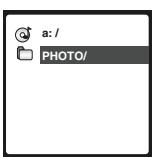
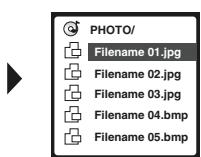
1 Press the POWER button to turn the power on. Press the || or ▶ button to select "PHOTO" and press the MENU button to play photo data.


Press the || or ▶ button to change photos manually. - Press the ▶ button to start the slide show. To stop the slide show, press the ▶ button again.
2 To select another file, press the MENU button. Press the || or ▶ button to select the file and press the ▶ button to view the photo.
Caution:
The photo file must be stored in the "PHOTO" folder on the unit or SD/MMC card for playback.
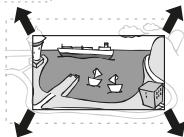
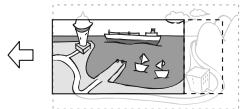
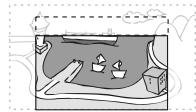
Zoom function
1 At still picture mode, hold down the VOL + button for 1 second or more, the photo will zoom out. To return to the previous size, press the VOL - button for 1 second or more. 2 To shift the view and display the desired part of a zoomed image, press the VOL +, VOL -, ||, or ▶ button repeatedly.
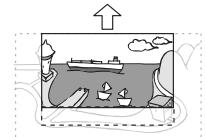
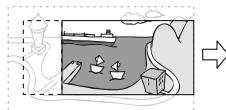
Press the VOL - button.
Press the || button.
Press the ▶ button.

Notes:
- If the photo size is less than or equal to 128 × 128 pixels, the zoom function is not available. Maximum photo size is 5120 × 3840 pixels.
- During slide show, zoom function is not available
- JPEG Progressive Photo or BMP (other than 24Bit Depth) is not supported for playback by this unit. It might cause abnormal display such as (Black/White Line) [][][]. In that case, open the file with a Photo Editor on a PC and save it under a different filename without progressive setting (or with 24Bit Depth). Store it again to the unit and it might be able to play back.
Recording with the built-in microphone
Check the memory status beforehand. If the memory is low, move some data to a PC to make some room.
Note:
This microphone is monaural and omnidirectional. However, it is recommended to direct it towards the source for better recording.
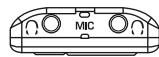
1 Press the POWER button to turn the power on.
2 Press the or button to select "Mic Record" and press the MENU button, recording will start.
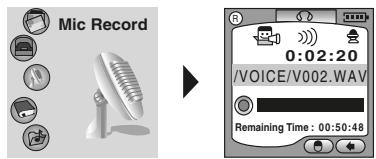
To interrupt recording:
Press the button.
To resume recording, press the button again.
To save recording:
Press the MENU button. Data will be saved.
Note:
Data recorded with the built-in microphone are named automatically, i.e., V001.WAV, V002.WAV, etc.
Newly saved files are numbered sequentially following the largest number among the existing file names. It is recommended to delete or move some files to PC.
For long recording time, "Saving ..." indicator will appear after a few seconds (Data saved).
Changing sound quality for microphone recording
1 At main menu screen, press the or button to select "SETUP" and press the MENU button.
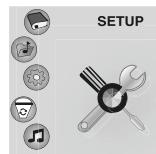

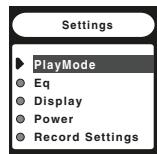
2 Within 40 seconds, press the or button to select "Record Settings" then press MENU button.
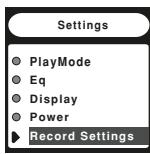

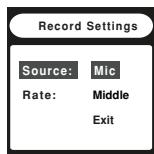
3 Within 20 seconds, press the or button to select "Rate" and press the MENU button repeatedly to select the desired sound quality for recording.

To return to settings menu, select "Exit" and press the MENU button.
Recording from the FM radio
Check the memory status beforehand. If the memory is low, move some data to a PC to make some space.
1 Tune in to the desired station. 2 Hold down button for 1 second or more. Recording will be started.
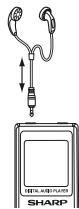
To interrupt recording:
Press the button.
To resume recording, press the button again.
To save recording:
Press the MENU button.
Data will be saved.
Note:
Data recorded from the FM radio are named automatically, i.e., F001.WAV, F002.WAV, etc.
Newly saved files are numbered sequentially following the largest number among the existing file names. It is recommended to delete or move some files to PC.
For long recording time, "Saving ..." indicator will appear after a few seconds (Data Saved).
View transferred text data
You can view the text data (txt format) with this unit.
1. Press the POWER button to turn the power on. Press the ⊢ or ▸ button to select "EBOOK" and press the MENU button.
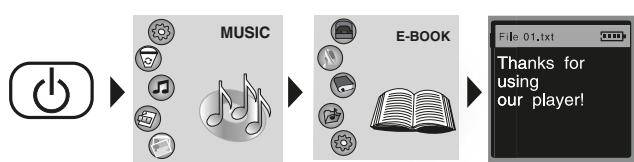
Press the ◀ or ▶ button to view previous or next page data.
2. To select another file, press the MENU button. Press the ⊢ or ▸ button to select the file and press the ▸ button to view the file.
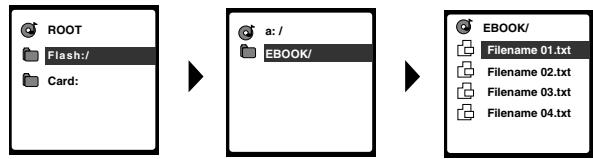
Note:
To return to the main menu, hold down the MENU button for 1 second or more.
Caution:
- The text data must be stored in the "EBOOK" folder on the unit or SD/MMC card.
- This product only supports txt format data.
Deleting selected data
1 At main menu screen, press the ◄ or ► button to select "DELETE" and press the MENU button.
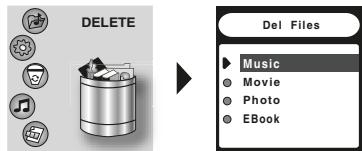
2 Within 20 seconds, press the ◄ or ► button to select the type of data that you want to delete, and press the MENU button.
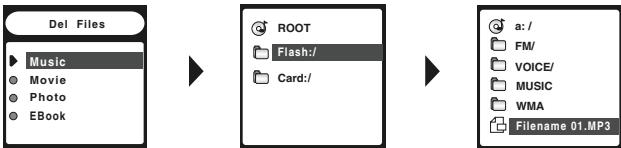
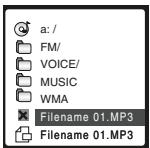
3 Within 40 seconds, press the MENU button to select data. A delete (X) marking will be displayed for the selected file(s).
- To cancel marking, press the MENU button.
4 Press the ► button to delete data; a warning note will be displayed. Press the ◄ or ► button to select "Yes" or "No". Select "Yes" if you confirm to delete the file(s), and press the MENU button. The file(s) will be deleted.
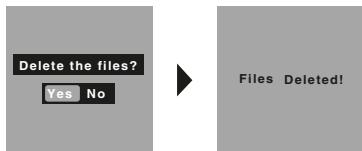
Caution: Deleted data cannot be restored.
Changing default settings
You can change the default settings.
1 Press the POWER button to turn the power on. 2 Press the ◄ or ► button to select "SETUP" and press the MENU button.
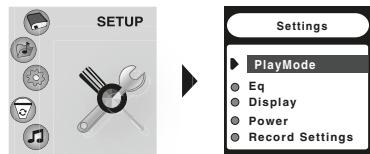
| Setting Menu | Selectable parameter (* indicates default settings) | Description |
| Playmode | Normal* Repeat one Repeat all Shuffle Repeat Preview | Adjust of playback mode. |
| Eq | Normal* Rock Pop Jazz Custom | Adjust of playback sound quality. |
| Display | 1min* 2 mins 5 mins always | Adjust LCD display saving mode. |
| Power | Disable 1 Min 2 Mins 5 Mins* 10 Mins | Set auto-power off time. The unit turns off automatically after a time period in the stop mode. Note: The auto-power off does not work when listening to FM radio. |
| Record Settings | Source : Mic Rate : Normal Middle* High | Set the microphone recording sound quality. |
| Lrc | Lrc OFF Lrc ON* | Display of lyrics when lyrics is available. |
| Languages | English* Russian German French Spanish Italian ChineseTRA (Traditional) Portuguese | Set the display language for the unit. |
Changing default settings (continued)
| Setting Menu | Selectable parameter (* indicates default settings) | Description |
| Factory Setting | No* Yes | Reset the unit to default settings. |
| About | Set information and memory information. | |
| Exit | Exit setting mode. |
Auto-power off
When the auto power off is set, the unit turns off automatically after a time period in the stop or pause mode. (The auto-power off does not work when listening to the FM radio.)
1 Press the POWER button to turn the power on.
2 Press the left or right button to select "SETUP" and press the MENU button.
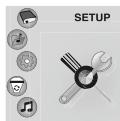
3 Within 40 seconds, press the left or right button to select "Power" and press the MENU button.
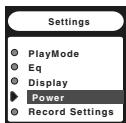
4 Within 20 seconds, press the left or right button to select a time period, then press the MENU button.
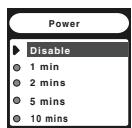
Disable: Auto power off does not work.
1-2-5-10 Minutes: In stop mode, the unit turns off automatically after the set time period.
The setting is completed. The main menu screen returns after 40 seconds, or select "Exit" and press the MENU button.
Changing the screen display time
You can change the screen display time for the saving mode.
1 Perform step 2 (SETUP) on page 27. 2 Within 40 seconds, press the left or right button to select "Display" and press the MENU button.
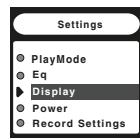
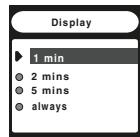
3 Within 20 seconds, press the left or right button to adjust the display saving mode time, then press the MENU button.
1-2-5 Minutes: Display illuminates for the set time period.
Always: Display remains on.
The setting is completed. The main menu screen returns after 40 seconds, or select "Exit" and press the MENU button.
Checking memory status
You can check the unit (Internal) and SD/MMC card (External) memory status before starting long hours of recording, etc.
1 Perform step 2 (SETUP) on page 27. 2 Within 40 seconds, press the left or right button to select "About" and press the MENU button.
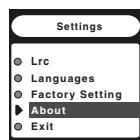
3 Firmware version, memory capacity (Total) and free space will display.
Int: Internal memory (unit)
Ext: External memory (SD/MMC card)
- The settings menu screen returns after 20 seconds or hold down the MENU button for 1 second or more.
Information
Version: 875.851.XXX
Int.Free: XXXMB
Int.Total: XXXMB
Ext.Free: XMB
Ext.Total: XMB
Changing the Lyric display
You can turn off or on the lyric display (Audio Data with Lyric (LRC) only).
1 Perform step 2 (SETUP) on page 27. 2 Within 40 seconds, press the left or right button to select "Lrc" and press the MENU button.
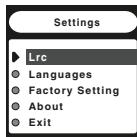
3 Within 20 seconds, press the left or right button to turn off or on the lyric display and press the MENU button.
Lrc OFF: Lyric not displayed (off)
Lrc ON: Lyric displayed (on)
The setting is completed. The main menu screen returns after 40 seconds or select "Exit" and press the MENU button.
Note:
The name of lyric songs should keep pace with the name of the song data.
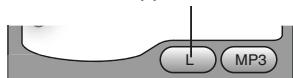
If the present song has the corresponding lyric file, the "L" indicator will appear on the screen.
Reset the factory setting
You can reset all to the factory setting (default).
1. Press the POWER button to turn the power on. 2. Press the or button to select "SETUP" and press the MENU button.
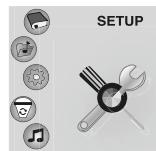
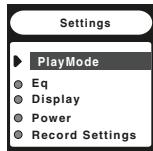
3. Within 40 seconds, press the or button to select "Factory Setting" and press the MENU button.
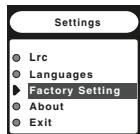
4. Within 20 seconds, press the or button to select "Yes" and press the MENU button.
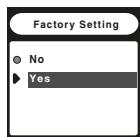
- Select "No" to cancel.
- The main menu screen returns after 40 seconds or select "Exit" and press the MENU button.
Caution:
This function resets the following settings:
Language, volume, equalizer, repeat play, lyrics, FM station, FM auto scan, FM area, record settings, auto-power off, contrast, backlight.
Installing the update tool
If you use a PC running Windows Millennium Edition, Windows 2000 Professional, Windows XP Professional, or Windows XP Home Edition, install the upgrade tool as follows.
1. Insert the supplied CD-ROM into your CD-ROM drive. 2. Select and click "FIRMWARE RECOVERY" on the screen (AutoRun) or open the "Firmware Recovery" folder on the CD-ROM and double-click "setup.exe". 3. Click the "Next" button. The "License Agreement" screen appears. 4. Click "accept" and "Next" button. The "Choose Destination Location" screen appears. 5. Click "Next" button. The "Select Program Folder" screen appears. 6. Click "Next" button. The "Ready to Install the Program" screen appears. 7. Click the "Install" button. When the installation is completed, the "InstallShield Wizard Complete" screen appears. 8. Click the "Finish" button.
Updating the firmware
If you have updated firmware from the website, follow the procedure below.
| 1 Decompress the downloaded file. |
| 2 Replace the file in “C:\Program Files\SHARP\WA-MP40_400” with the decompressed file. |
| 3 Connect the unit to a PC with the USB cable. |
| 4 Start the update tool.From the “Start” menu, click “All Programs”, “WA-MP40_400 MP3 Audio player”, and then “Firmware Download”. |
| 5 Click the “Start” button. ● Check the box of “Format Data Area”. All the data will be deleted. Move important data to a PC before updating the firmware. ● Update starts. |
Many potential "problems" can be resolved by the owner without calling a service technician. If something seems to be wrong with this product, check the following before calling your authorized SHARP dealer or service center.
The unit does not turn on.
Is the battery exhausted? Is the unit in the hold mode? Has condensation formed inside the unit? Is the unit being influenced by mechanical shock or by static electricity?
No sound is heard from the earphones.
Is the volume set too low? Are the earphones correctly plugged in?
When the buttons are pressed, the unit does not respond.
- Is there playable audio data on the unit? Is the unit in the hold mode? Is the battery exhausted?
- Is the unit connected to a PC with the USB cable?
Sound skipping or loss.
Is the battery exhausted?
The battery cannot be charged.
Is the rechargeable battery in the unit?
The operation is unstable whilst the PC and the unit are connected.
- Are you using the USB cable that was purchased separately? Is the unit correctly connected to the PC?
The USB connection display does not appear.
- Is the unit correctly connected to the PC?
The FM radio makes unusual noises continuously.
- Is a TV or computer near the unit?
The display is difficult to see.
Is the display contrast too low or too high?
Resetting the unit
If the unit does not work properly, reset it by pressing the RESET button at the back of the unit.
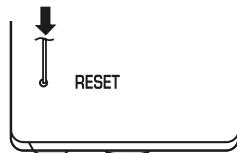
If the unit still does not work properly, proceed to the firmware update procedure (see page 30).
| ERRORMESSAGE | MEANING |
| Low Power | The battery level has run out. (Recharge the battery) |
| Insufficient power to operate external devices | The battery level is low. (can not operate SD/MMC card) |
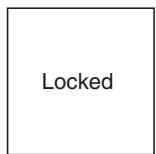
| Locked | The HOLD switch is turned on. (Turn off the HOLD switch) |
Maintenance
Cleaning
When the unit becomes dirty
Clean it with a soft cloth. When the unit is excessively dirty, use a soft cloth dampened in water (external surfaces only).
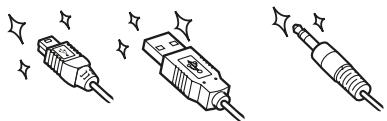
Clean the plugs and the connecting sockets.
If the plugs or sockets are dirty, noise may be heard.
Cleaning will prevent noise.
Caution:
- Do not use chemicals for cleaning (petrol, paint thinner, etc.). It may damage the cabinet finish.
- Do not apply oil to the inside of the unit. It may cause malfunctions.
Disposal of the unit
The unit is equipped with a built-in battery.
If necessary, remove and dispose of the battery as well.
Follow local regulations regarding battery disposal.
Warnings:
- Never disassemble the unit unless you dispose of the built-in battery.
- Do not connect other battery to the unit. Explosion may result.
- Do not reinstall the removed battery.
- After disassembly, never use the unit and the battery for any purposes.
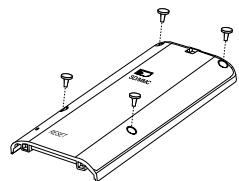
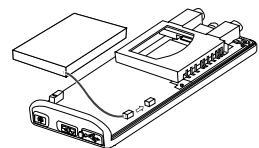
Removing the built-in battery
| 1 | Turn off the unit. |
| 2 | Disconnect the USB cable and earphone. |
| 3 | Remove the screws and open the cabinet. |
| 4 | Disconnect the cone wire from battery connector at the unit. |
| 5 | Remove the battery. ● The battery is attached to the PCB by adhesive tape. |
As part of our policy of continuous improvement, SHARP reserves the right to make design and specification changes for product improvement without prior notice. The performance specification figures indicated are nominal values of production units. There may be some deviations from these values in individual units.
| Power source | DC 3.7V: Rechargeable Lithium-ion-polymer battery x 1 DC 5 V: USB bus power |
| Dimensions | Width: 40 mm (1-9/16") Height: 90 mm (3-1/2") Depth: 12 mm (1/2") |
| Weight | 42 g (1.48 oz.) without SD/MMC card |
| Sockets | Earphones x 2 (impedance: 32 ohms) USB port (Normal type) |
| Frequency response | 20 - 20,000 Hz |
| Output power | 5 mW + 5 mW (earphones: 32 ohms) (maximum output level) |
| Battery life | Continuous playback by fully charged rechargeable Lithium-ion polymer battery: Approx to 14 hours. |
| Frequency range | FM: 87.5 - 108 MHz |
| Storage media | 1 GB Flash Memory (WA-MP40) 2 GB Flash Memory (WA-MP400) |
| Digital Right Management | Windows Media DRM 9 |
| Playback format | Audio MP3 (MPEG-1/2 Audio Layer 3), bit rate: 12 - 320 kbps WMA (Windows Media Audio), bit rate: 64 - 192 kbps WAV (PCM) Video: SMV (SigmaTel Motion Video) Photo: JPEG (non progressive), BMP (Depth 24 Bit) EBook: Txt |
| Recording format | Voice recording, PCM (sampling frequency: 8 - 16 kHz) FM recording, PCM (sampling frequency: 44 kHz) |
| PC interface | Compatible with USB 2.0 and USB 1.1 |
| System requirements | Pentium 2 - 300 MHz or higher CD-ROM drive 150 MB free hard disc space Microsoft Windows 98 Second Edition/Millennium Edition/2000 Professional/XP Professional/XP Home Edition standard installation |
Notes:
A combination of sampling frequency and bit rate differs depending on audio format. - Continuous playback: At 128 kbps, in MP3 format (earphone output: 0.1 mW + 0.1 mW, backlight: not set to "Always", equaliser: set to "Normal"). - Actual battery life will vary with use. - The values are the standard values when the unit is used at an ambient temperature of 25°C (77°F).
SHARP
SHARP CORPORATION

- WARNING
- CAUTION
- INFORMATION ON PROPER DISPOSAL
- INFORMATION ON DISPOSAL FOR USERS (PRIVATE HOUSEHOLDS)
- IN THE EUROPEAN UNION
- IN OTHER COUNTRIES OUTSIDE THE EU
- INFORMATION ON DISPOSAL FOR BUSINESS USERS
- SPECIAL NOTES
- TRADEMARKS
- FILES DATA
- NOTE
- ACCESSORIES
- NOTES
- CONTENTS
- IMPORTANT
- TO AVOID ACCIDENTAL ELECTRIC SHOCK OR OTHER POSSIBLE PROBLEMS, OBSERVE THE PRECAUTIONS LISTED BELOW
- COPYRIGHT
- SYSTEM REQUIREMENTS
- SD/MMC CARD INSTALLATION
- TO CHECK CHARGING PROGRESS
- ABOUT CHARGING TIME
- BUILT-IN BATTERY
- BATTERY REPLACEMENT
- TURNING THE UNIT ON/OFF
- TO TURN ON THE UNIT
- TO TURN OFF THE UNIT
- VOLUME CONTROL
- VOLUME AUTO SET-IN
- HOLD FUNCTION
- CHANGING THE DISPLAY LANGUAGE
- INSTALLING A USB DRIVER
- DISCONNECTING THE UNIT
- WINDOWS 98 SECOND EDITION
- WINDOWS MILLENNIUM EDITION
- WINDOWS 2000 PROFESSIONAL
- WINDOWS XP HOME EDITION/PROFESSIONAL
- RIPPING TRACKS FROM AUDIO CD TO PC
- FOR WINDOWS MEDIA PLAYER 9 SERIES
- FOR WINDOWS MEDIA PLAYER
- TRANSFERRING FILE DATA FROM PC TO THE UNIT
- FOLDER
- FILE DATA
- MP3 (MPEG-1 AUDIO LAYER 3)
- WMA (WINDOWS MEDIA AUDIO)
- ABOUT DRM (DIGITAL RIGHTS MANAGEMENT)
- FILE FORMAT OF TRANSFERRED AUDIO DATA
- PLAYING TRANSFERRED AUDIO DATA
- PLAYING AUDIO DATA
- TO INTERRUPT PLAYBACK
- TO STOP PLAYBACK
- RESUME PLAY
- TO LOCATE THE BEGINNING OF AUDIO DATA
- TO LOCATE THE DESIRED PORTION
- EQUALIZER SETTING
- CUSTOMIZING SOUND QUALITY
- REPEAT PLAY OR SHUFFLE PLAY
- PRESS THE POWER BUTTON TO TURN THE POWER ON
- PRESS THE ⊢ OR ▸ BUTTON TO SELECT "NAVIGATOR", THEN PRESS THE MENU BUTTON
- WITHIN 20 SECONDS, PRESS THE ⊢ OR ▸ BUTTON TO SELECT THE TYPE OF DATA YOU WISH TO PLAY
- MOVIE DATA
- PHOTO DATA
- EBOOK
- ABOUT FOLDER TREE
- THIS PRODUCT SUPPORTS
- TUNING
- MANUAL TUNING AND MEMORISING A STATION
- LISTENING TO THE FM RADIO (CONTINUED)
- STORING STATION AUTOMATICALLY (AUTO SCAN)
- PLAYING TRANSFERRED VIDEO DATA
- ZOOM FUNCTION
- RECORDING WITH THE BUILT-IN MICROPHONE
- PRESS THE OR BUTTON TO SELECT "MIC RECORD" AND PRESS THE MENU BUTTON, RECORDING WILL START
- TO INTERRUPT RECORDING
- TO SAVE RECORDING
- CHANGING SOUND QUALITY FOR MICROPHONE RECORDING
- AT MAIN MENU SCREEN, PRESS THE OR BUTTON TO SELECT "SETUP" AND PRESS THE MENU BUTTON
- WITHIN 40 SECONDS, PRESS THE OR BUTTON TO SELECT "RECORD SETTINGS" THEN PRESS MENU BUTTON
- WITHIN 20 SECONDS, PRESS THE OR BUTTON TO SELECT "RATE" AND PRESS THE MENU BUTTON REPEATEDLY TO SELECT THE DESIRED SOUND QUALITY FOR RECORDING
- RECORDING FROM THE FM RADIO
- VIEW TRANSFERRED TEXT DATA
- DELETING SELECTED DATA
- CHANGING DEFAULT SETTINGS
- CHANGING DEFAULT SETTINGS (CONTINUED)
- AUTO-POWER OFF
- CHANGING THE SCREEN DISPLAY TIME
- CHECKING MEMORY STATUS
- CHANGING THE LYRIC DISPLAY
- RESET THE FACTORY SETTING
- INSTALLING THE UPDATE TOOL
- UPDATING THE FIRMWARE
- THE UNIT DOES NOT TURN ON
- NO SOUND IS HEARD FROM THE EARPHONES
- WHEN THE BUTTONS ARE PRESSED, THE UNIT DOES NOT RESPOND
- SOUND SKIPPING OR LOSS
- THE BATTERY CANNOT BE CHARGED
- THE OPERATION IS UNSTABLE WHILST THE PC AND THE UNIT ARE CONNECTED
- THE USB CONNECTION DISPLAY DOES NOT APPEAR
- THE FM RADIO MAKES UNUSUAL NOISES CONTINUOUSLY
- THE DISPLAY IS DIFFICULT TO SEE
- RESETTING THE UNIT
- MAINTENANCE
- CLEANING
- DISPOSAL OF THE UNIT
- WARNINGS
- REMOVING THE BUILT-IN BATTERY
- SHARP
Brand : SHARP
Model : WA-MP400
Category : CD Player