WS470T - Server ASUS - Free user manual and instructions
Find the device manual for free WS470T ASUS in PDF.


User questions about WS470T ASUS
0 question about this device. Answer the ones you know or ask your own.
Ask a new question about this device
Download the instructions for your Server in PDF format for free! Find your manual WS470T - ASUS and take your electronic device back in hand. On this page are published all the documents necessary for the use of your device. WS470T by ASUS.
USER MANUAL WS470T ASUS
text_image
Digital globe with binary code overlay and binary code text on the left sideE17467
Revised Edition V4
November 2020
Copyright © 2020 ASUSTeK COMPUTER INC. All Rights Reserved.
No part of this manual, including the products and software described in it, may be reproduced, transmitted, transcribed, stored in a retrieval system, or translated into any language in any form or by any means, except documentation kept by the purchaser for backup purposes, without the express written permission of ASUSTeK COMPUTER INC. ("ASUS").
ASUS provides this manual “as is” without warranty of any kind, either express or implied, including but not limited to the implied warranties or conditions of merchantability or fitness for a particular purpose. In no event shall ASUS, its directors, officers, employees, or agents be liable for any indirect, special, incidental, or consequential damages (including damages for loss of profits, loss of business, loss of use or data, interruption of business and the like), even if ASUS has been advised of the possibility of such damages arising from any defect or error in this manual or product.
Specifications and information contained in this manual are furnished for informational use only, and are subject to change at any time without notice, and should not be construed as a commitment by ASUS. ASUS assumes no responsibility or liability for any errors or inaccuracies that may appear in this manual, including the products and software described in it.
Product warranty or service will not be extended if: (1) the product is repaired, modified or altered, unless such repair, modification of alteration is authorized in writing by ASUS; or (2) the serial number of the product is defaced or missing.
Products and corporate names appearing in this manual may or may not be registered trademarks or copyrights of their respective companies, and are used only for identification or explanation and to the owners' benefit, without intent to infringe.
Contents
Safety information......vii
About this guide......viii
Chapter 1: Product Introduction
1.1 System package contents....1-2
1.2 Serial number label....1-2
1.3 System specifications....1-3
1.4 Front panel features....1-5
1.5 Rear panel features....1-6
1.6 Internal features....1-7
1.7 LED information 1-8
1.7.1 Front panel LEDs 1-8
1.7.2 Rear panel LEDs....1-8
Chapter 2: Hardware Information
2.1 Chassis cover....2-2
2.1.1 Removing the side cover.... 2-2
2.2 Central Processing Unit (CPU) 2-4
2.2.1 Installing the CPU 2-4
2.2.2 Installing the CPU heatsink and fan assembly....2-7
2.2.3 Uninstalling the CPU heatsink and fan.... 2-8
2.3 System memory 2-9
2.3.1 Overview 2-9
2.3.2 Memory Configurations....2-9
2.3.3 Installing a DIMM on a single clip DIMM socket.... 2-10
2.4 Front panel cover....2-11
2.4.1 Removing the front panel cover 2-11
2.5 5.25-inch drives....2-12
2.6 Hard disk drives (HDD)....2-14
2.7 Expansion cards 2-18
2.7.1 Installing an expansion card....2-18
2.7.2 Configuring an expansion card 2-20
2.8 System fan....2-21
2.9 Cable connections 2-22
Contents
Chapter 3: Motherboard Information
3.1 Motherboard layout....3-2
3.2 Jumpers 3-4
3.3 Onboard LEDs....3-7
3.4 Internal connectors....3-9
Chapter 4: BIOS Setup
4.1 Managing and updating your BIOS 4-2
4.1.1 ASUS CrashFree BIOS 3 utility.... 4-2
4.1.2 ASUS EZ Flash Utility 4-3
4.1.3 BUPDATER utility 4-4
4.2 BIOS setup program....4-6
4.2.1 BIOS menu screen....4-7
4.2.2 Menu bar....4-7
4.2.3 Menu items....4-8
4.2.4 Submenu items 4-8
4.2.5 Navigation keys....4-8
4.2.6 General help....4-8
4.2.7 Configuration fields 4-8
4.2.8 Pop-up window....4-8
4.2.9 Scroll bar....4-8
4.3 Main menu 4-9
4.4 Advanced menu 4-10
4.4.1 CPU Configuration 4-11
4.4.2 Power & Performance 4-13
4.4.3 Server ME Configuration....4-14
4.4.4 Trusted Computing....4-15
4.4.5 APM Configuration....4-15
4.4.6 Runtime Error Logging Settings....4-16
4.4.7 Onboard LAN Configuration....4-16
4.4.8 Serial Port Console Redirection....4-17
4.4.9 Intel TXT Information....4-19
4.4.10 PCI Subsystem Settings 4-20
4.4.11 USB Configuration 4-20
4.4.12 Network Stack Configuration.... 4-22
4.4.13 CSM Configuration....4-23
Contents
4.4.14 NVMe Configuration....4-24
4.4.15 WHEA Configuration....4-24
4.4.16 iSCSI Configuration 4-25
4.4.17 Tls Auth Configuration....4-25
4.5 Chipset menu 4-26
4.5.1 System Agent (SA) Configuration 4-26
4.5.2 PCH-IO Configuration 4-29
4.6 Security menu 4-32
4.7 Boot menu 4-35
4.8 Monitor menu 4-37
4.9 Tool menu....4-38
4.10 Event Logs menu 4-38
4.10.1 Change Smbios Event Log Settings 4-38
4.10.2 View Smbios Event Log 4-39
4.11 Save & Exit menu....4-40
Chapter 5: RAID Configuration
5.1 Setting up RAID....5-2
5.1.1 RAID definitions 5-2
5.1.2 Installing hard disk drives....5-3
5.1.3 Setting the RAID item in BIOS 5-3
5.2 Intel® Rapid Storage Technology enterprise SATA Option ROM Utility 5-4
5.2.1 Creating a RAID set 5-5
5.2.2 Deleting a RAID set....5-7
5.2.3 Resetting disks to Non-RAID 5-8
5.2.4 Exiting the Intel ^® Rapid Storage Technology enterprise SATA Option ROM utility.... 5-9
5.2.5 Rebuilding the RAID....5-9
5.2.6 Setting the Boot array in the BIOS Setup Utility....5-11
5.3 Intel ^® Rapid Storage Technology enterprise (Windows)....5-12
5.3.1 Creating a RAID set....5-13
5.3.2 Changing a Volume Type....5-15
5.3.3 Deleting a volume 5-16
5.3.4 Preferences....5-17
Chapter 6: Driver Installation
6.1 RAID driver installation 6-2
6.1.1 Creating a USB flash drive with RAID drive....6-2
6.1.2 Installing the RAID controller driver.... 6-2
6.2 Management applications and utilities installation 6-5
6.3 Running the Support DVD....6-5
6.4 Installing the system drivers....6-6
Appendix
P11C-X/AUDIO block diagram A-2
Q-Code table.... A-3
Notices ...... A-6
ASUS contact information.... A-9
Safety information
Electrical Safety
- Before installing or removing signal cables, ensure that the power cables for the system unit and all attached devices are unplugged.
- To prevent electrical shock hazard, disconnect the power cable from the electrical outlet before relocating the system.
- When adding or removing any additional devices to or from the system, ensure that the power cables for the devices are unplugged before the signal cables are connected. If possible, disconnect all power cables from the existing system before you add a device.
- If the power supply is broken, do not try to fix it by yourself. Contact a qualified service technician or your dealer.
Operation Safety
- Any mechanical operation on this workstation must be conducted by certified or experienced engineers.
- Before operating the workstation, carefully read all the manuals included with the workstation package.
- Before using the workstation, ensure all cables are correctly connected and the power cables are not damaged. If any damage is detected, contact your dealer as soon as possible.
- To avoid short circuits, keep paper clips, screws, and staples away from connectors, slots, sockets and circuitry.
- Avoid dust, humidity, and temperature extremes. Place the workstation on a stable surface.

This product is equipped with a three-wire power cable and plug for the user's safety. Use the power cable with a properly grounded electrical outlet to avoid electrical shock.
Lithium-Ion Battery Warning
CAUTION! Danger of explosion if battery is incorrectly replaced. Replace only with the same or equivalent type recommended by the manufacturer. Dispose of used batteries according to the manufacturer's instructions.
CLASS 1 LASER PRODUCT
Heavy System
CAUTION! This workstation is heavy. Ask for assistance when moving or carrying the system.
About this guide
Audience
This user guide is intended for system integrators, and experienced users with at least basic knowledge of configuring a workstation.
Contents
This guide contains the following parts:
1. Chapter 1: Product Introduction
This chapter describes the general features of the workstation, including sections on front panel and rear panel specifications.
2. Chapter 2: Hardware Information
This chapter lists the hardware setup procedures that you have to perform when installing or removing system components.
3. Chapter 3: Motherboard Information
This chapter includes the motherboard layout and brief descriptions of the jumpers and internal connectors.
4. Chapter 4: BIOS Setup
This chapter tells how to change system settings through the BIOS Setup menus and describes the BIOS parameters.
5. Chapter 5: RAID Configuration
This chapter provides instructions for setting up, creating and configuring RAID sets using the available utilities.
6 Chapter 6: Driver Installation
This chapter provides instructions for installing the necessary drivers for different system components.
Conventions
To ensure that you perform certain tasks properly, take note of the following symbols used throughout this manual.

DANGER/WARNING: Information to prevent injury to yourself when trying to complete a task.

CAUTION: Information to prevent damage to the components when trying to complete a task.

IMPORTANT: Instructions that you MUST follow to complete a task.

NOTE: Tips and additional information to help you complete a task.
Typography
Bold text Indicates a menu or an item to select.
Italics Used to emphasize a word or a phrase.
Example:
Example:
Command Means that you must type the command exactly as shown, then supply the required item or value enclosed in brackets.
Example: At the DOS prompt, type the command line:
format A:/S
References
Refer to the following sources for additional information, and for product and software updates.
1. ASUS Control Center (ACC) user guide
This manual tells how to set up and use the proprietary ASUS server management utility.
2. ASUS websites
The ASUS websites worldwide provide updated information for all ASUS hardware and software products. Refer to the ASUS contact information.
Product Introduction
This chapter describes the general features of the workstation, including sections on front panel and rear panel specifications.
1
1.1 System package contents
Check your system package for the following items.
Model Name WS470T
Accessories 1 x WS470T Support CD
1 x AC Power Cable
1 x COM port Cable
Optional Items Smart Card Reader
Anti-Virus CD pack
DVD-RW
Keyboard and mouse

If any of the above items is damaged or missing, contact your retailer.
1.2 Serial number label
Before requesting support from the ASUS Technical Support team, you must take note of the product's serial number containing 12 characters such as xxS0xxxxxxxxx shown as the figure below. With the correct serial number of the product, ASUS Technical Support team members can then offer a quicker and satisfying solution to your problems.
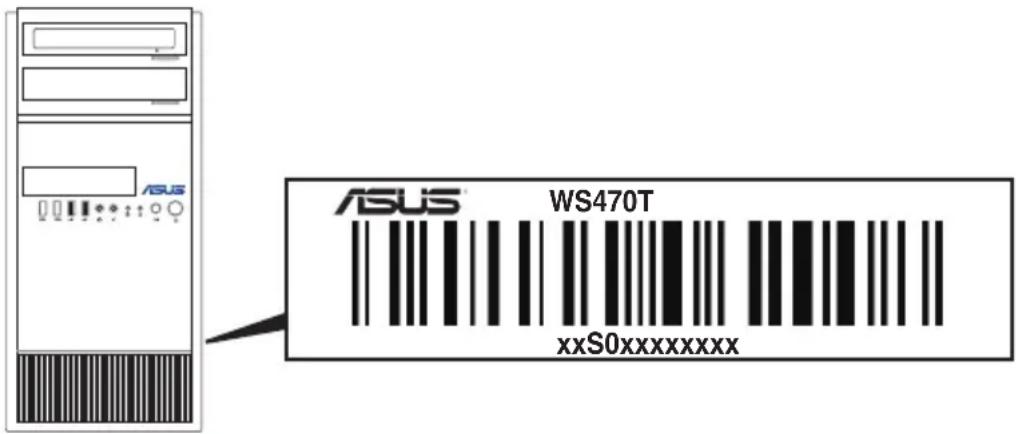
text_image
ASUS WS470T xxS0xxxxxxxxx1.3 System specifications
The ASUS WS470T is a workstation. The workstation supports LGA1151 Intel® Xeon® Processor E Family (Coffee Lake) and Intel® 8th Generation Core™ i Processors.
| Model Name WS470T | ||
| Processor Support | 1 x Socket LGA1151Intel® Xeon® processor E-21xx/E-22xx product familyIntel® 8th/9th Generation CoreTM i3 processors, Intel® PentiumTM and CeleronTM Processors (Coffee Lake)* Refer to ASUS server AVL for the latest update | |
| Core Logic Intel | ® C242 Chipset | |
| Memory | Total Slots | 4 (2-Channels) |
| Capacity | Maximum up to 128GB (UDIMM) | |
| Memory Type | DDR4 2666 / 2400 ECC / non-ECC UDIMM* Refer to ASUS server AVL for the latest update | |
| Memory Size | 32GB, 16GB, 8GB, 4GB (UDIMM)* Refer to ASUS server AVL for the latest update | |
| Expansion Slots | Total PCI/PCI-X/PCI-E/PIKE Slots | 4 |
| Slot Type | 1 x PCI-E x16 (Gen3 x16 Link)1 x PCI-E x8 (Gen3 x4 Link)2 x PCI | |
| Disk Controller | SATA Controller | Intel® C2426 x SATA 6Gb/s ports with 2 x M.2 (NGFF 22110/2280/2260/2242, gray SATA port will be disables when M.2 is in SATA mode)*Intel® RSTe (Windows & Linux)(Supports software RAID 0, 1, 10 & 5)* One supports both SATA 6Gb/s & PCI-E Gen3 x2 link, the other is SATA 6Gb/s only. |
| SAS Controller | Optional:ASUS PIKE II 3008-8i 8-port SAS 12G RAID card | |
| Storage Bays | I = internalA or S will be hot-swappable | 3 x Internal 3.5" (or 2 x 2.5" optional cage) drive bays*1 x Internal 2.5" drive bay1 x Optional internal 5.25" to 3.5"/2.5" drive cage2 x M.2 (NGFF 22110/2280/2260/2242)* Supports only 1 drive when add-on card over 9.5" is installed on x16 link slot |
| Networking LAN | 1 x Intel® I210-AT Gigabit LAN + 1 x Intel® I219-LM Gigabit LAN | |
| Graphic VGA | Aspeed AST2510 64MB | |
| Auxiliary Storage Device Bay (Floppy / Optical Drive) | 2 x 5.25" media baysOptions: No Device / DVD-RW / DVD ROM | |
(continued on the next page)
| Model Name WS470T | ||
| Front I/O Ports | 2 x USB 3.0 ports2 x USB 2.0 ports1 x Headphone port1 x Microphone port | |
| Rear I/O Ports | 2 x USB 3.1 ports2 x USB 3.0 ports2 x USB 2.0 ports1 x VGA Port (onboard Aspeed AST2510)2 x LAN Ports3 x Audio Jacks (Realte® ALC887-VD2 8-Channel High Definition Audio CODEC)1 x PS/2 Keyboard/ Mouse Port | |
| Switch/LED | Front Switch/LED:1 x Power switch1 x Power LED1 x Reset switch1 x HDD Access LED | |
| OS Support | Windows® Server 2016RedHat® Enterprise LinuxSuSE® Linux Enterprise ServerCentOS* Please find the latest OS support from http://www.asus.com/ | |
| Management Solution | Software | ASUS Control Center |
| Regulatory Compliance | BSMI, CE, FCC (Class B) | |
| Dimension (HH x WW x DD) | 423mm x 190mm x 435mm(16.65" x 7.48" x 17.1") | |
| Net Weight Kg(Estimated) | 12.77 Kg | |
| Gross Weight Kg(Estimated) | 15.74 Kg | |
| Power Supply(following different configuration by region) | 500W 80PLUS Single Power Supply, Gold(Rating: 100-240Vac, 7-3.5A, 50/60Hz, Class I)300W 80PLUS Single Power Supply, Bronze(Rating: 100-127/220-240Vac, 6/3A, 60-50Hz, Class I)450W/550W Single Power Supply, Gold(Rating: 100-240Vac, 50-60Hz, 9-4.5A) | |
| Environment | Operating temperature: 10°C ~ 35°CNon operating temperature: -40°C ~ 70°CNon operating humidity: 20% ~ 90% ( Non condensing) | |
*Specifications are subject to change without notice.
1.4 Front panel features
The WS470T Workstation features a simple yet stylish front panel design. The power and reset buttons, LED indicators, optical drive, and USB ports are all conveniently located at the front panel for easy access.
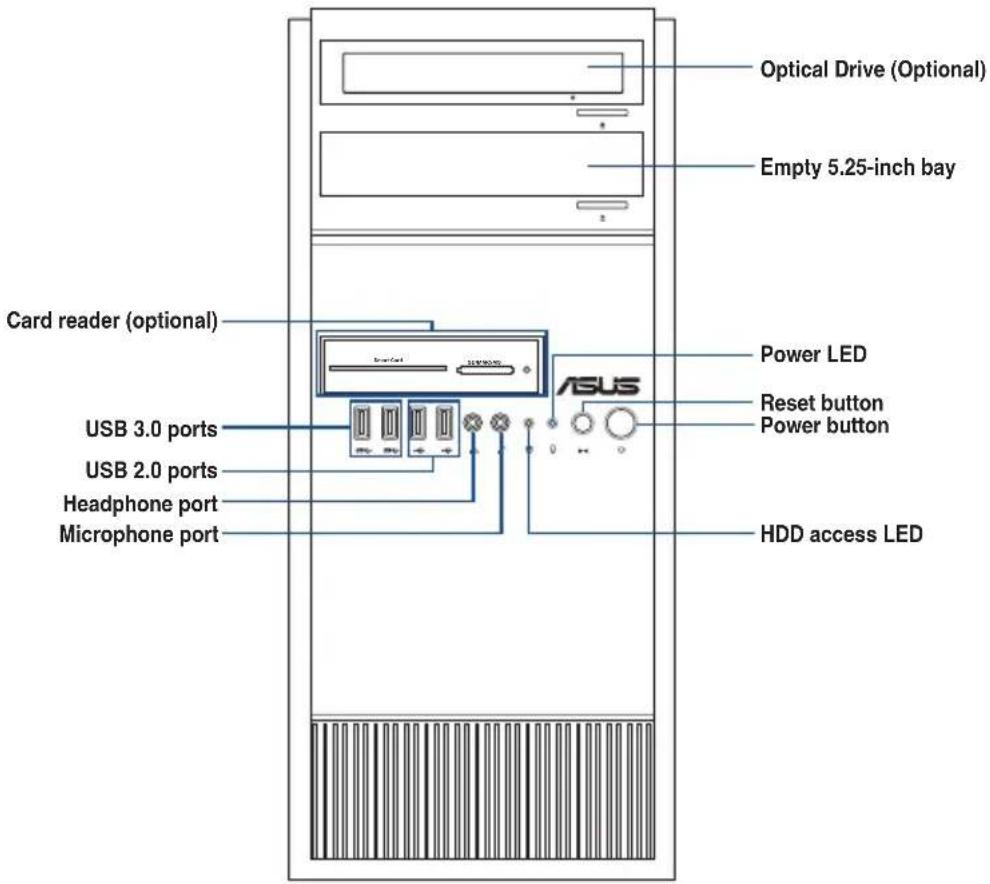
text_image
Optical Drive (Optional) Empty 5.25-inch bay Card reader (optional) Power LED Reset button Power button USB 3.0 ports USB 2.0 ports Headphone port Microphone port ASUS HDD access LED
Refer to the Front panel LEDs section for the LED descriptions.
1.5 Rear panel features
The rear panel includes a slot for the motherboard rear I/O ports, expansion slots, a vent for the system fan, and the power supply module.
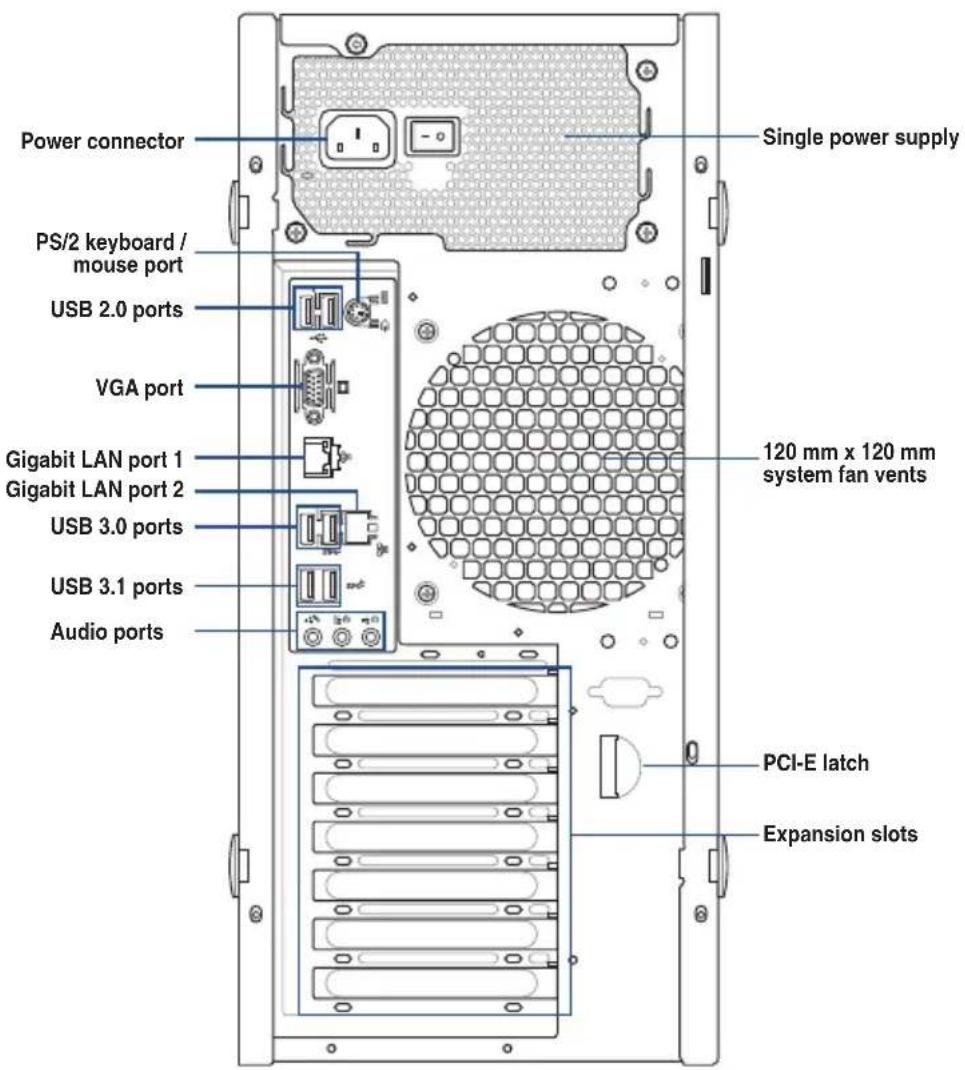
text_image
Power connector PS/2 keyboard / mouse port USB 2.0 ports VGA port Gigabit LAN port 1 Gigabit LAN port 2 USB 3.0 ports USB 3.1 ports Audio ports Single power supply 120 mm x 120 mm system fan vents PCI-E latch Expansion slots1.6 Internal features
The WS470T Workstation includes the basic components as shown:
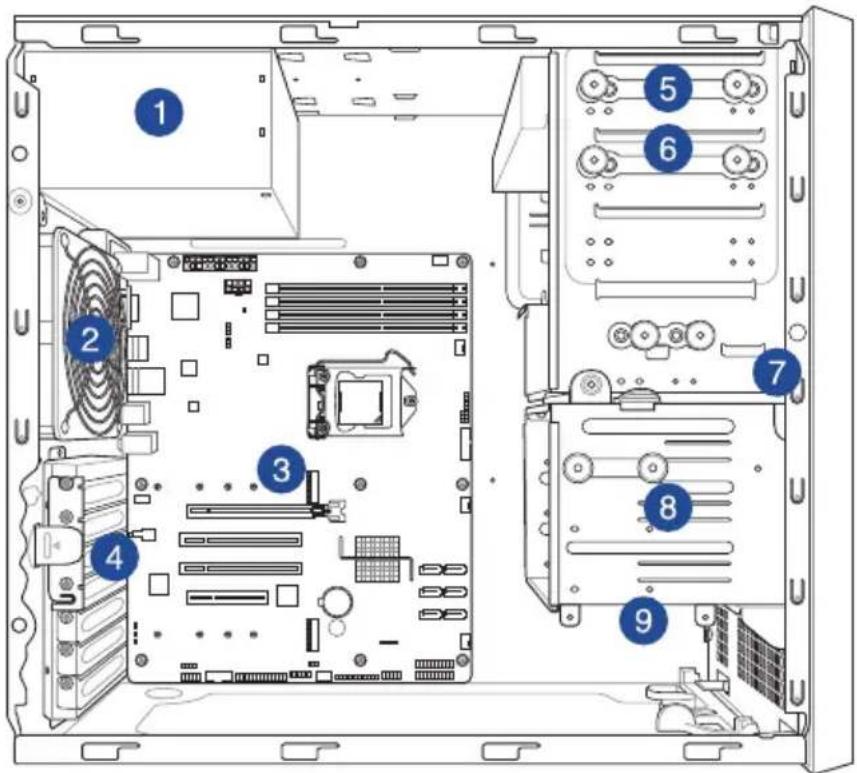
text_image
Diagram of a computer motherboard showing numbered components for identification- Power supply unit
- 120 mm x 120 mm system fan
- ASUS P11C-X/AUDIO Board
- Expansion card locks
- Optical drive (Optional)
- 1 x 5.25-inch drive bay
- Front I/O board (hidden)
- 3 x 3.5-inch Internal HDD bays
- 1 x 2.5-inch Internal HDD/SSD bay

Turn off the system power and detach the power supply before removing or replacing any system component.

The workstation does not include a floppy disk drive. If you need to use a floppy disk, connect the USB floppy disk drive to any of the USB ports on the front or rear panel.
WARNING
HAZARDOUS MOVING PARTS
KEEP FINGERS AND OTHER BODY PARTS AWAY
1.7 LED information
1.7.1 Front panel LEDs
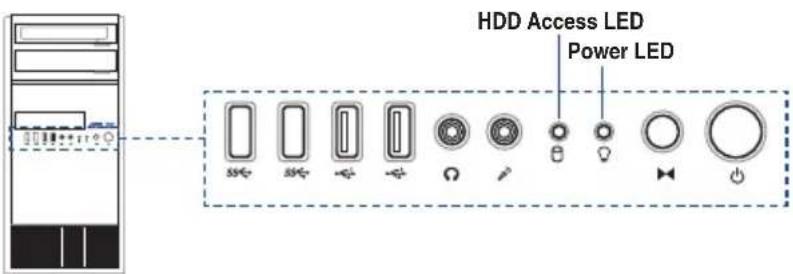
text_image
HDD Access LED Power LED| LED Icon Display status Description | |||
| Power LED ON System power ON | |||
| HDD Access LED | OFFBlinking | No activityRead/write data into the HDD | |
1.7.2 Rear panel LEDs
| Activity/Link LED Speed LED | ||
| Status Description Status Description | ||
| OFF No link OFF 10 Mbps connection | ||
| GREEN Linked ORANGE 100 Mbps connection | ||
| BLINKING Data activity GREEN 1 Gbps connection | ||
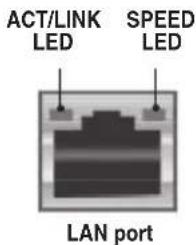
text_image
ACT/LINK LED SPEED LED LAN portHardware Information
This chapter lists the hardware setup procedures that you have to perform when installing system components. It includes description of the jumpers and connectors on the motherboard.
2
2.1 Chassis cover
2.1.1 Removing the side cover

- Ensure that you unplug the power cord before removing the side cover.
- Take extra care when removing the side cover. Keep your fingers from components inside the chassis that can cause injury, such as the CPU fan, rear fan, and other sharp-edged parts.
- The images of the workstation shown in this section are for reference purposes only and may not exactly match the model you purchase.
To remove the side cover:
- Remove the two screws that secure the side cover.

text_image
screws- Press the side cover locks outward.
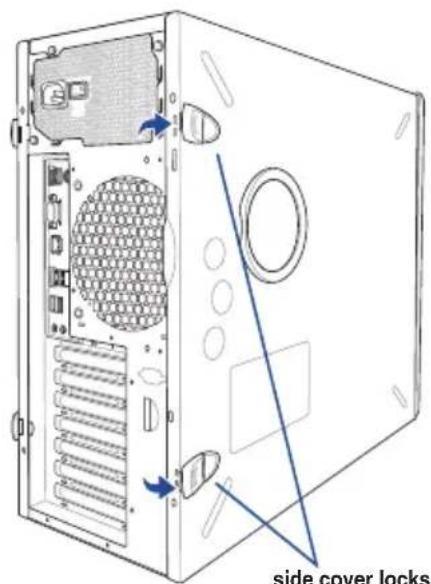
text_image
side cover locks- Slightly pull the side cover toward the rear just enough to detach it from the chassis.

natural_image
Diagram of a server rack with an arrow indicating a component, showing internal structure and ventilation slots (no text or labels)- Remove the cover and set it aside.
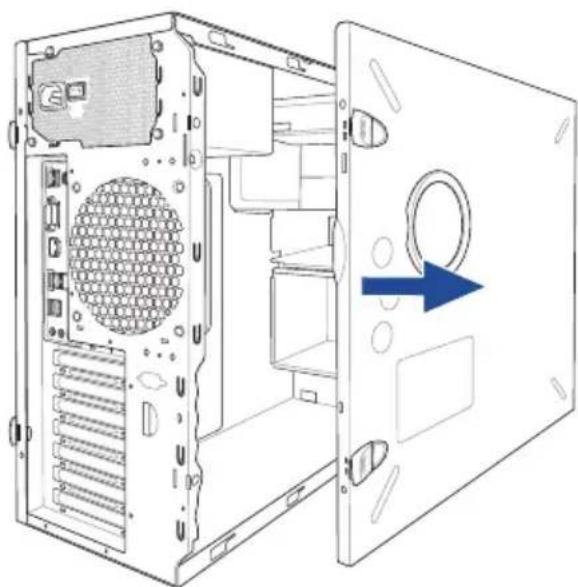
natural_image
Diagram of a computer tower internal structure showing ventilation slots and a blue arrow indicating airflow direction (no text or symbols present)2.2 Central Processing Unit (CPU)
The motherboard comes with a surface mount LGA1151 socket designed for the Intel ^® Xeon ^® Processor E Family (Coffee Lake) and Intel ^® 8th/9th Generation Core ^TM i3 Processors.

- Ensure that all power cables are unplugged before installing the CPU.
- Upon purchase of the workstation, ensure that the PnP cap is on the socket and the socket contacts are not bent. Contact your retailer immediately if the PnP cap is missing, or if you see any damage to the PnP cap/socket contacts/motherboard components. ASUS will shoulder the cost of repair only if the damage is shipment/transit-related.
- The product warranty does not cover damage to the socket contacts resulting from incorrect CPU installation/removal, or misplacement/loss/incorrect removal of the PnP cap.
2.2.1 Installing the CPU
To install the CPU:
- Locate the CPU socket on the motherboard.
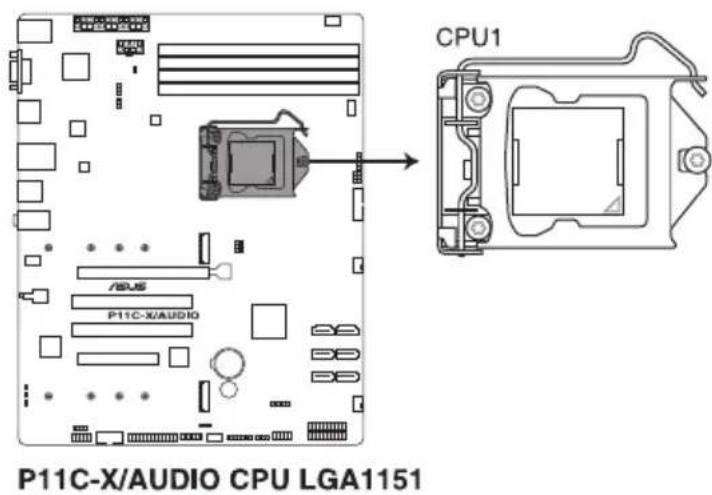
text_image
P11C-X/AUDIO CPU LGA1151 CPU1
Before installing the CPU, ensure that the socket box is facing toward you and the load lever is on your right.
- Press the load lever with your thumb (A), then move it to the right (B) until it is released from the retention tab.

Do not remove the PnP cap yet from the CPU socket. Doing so may bend the pins of the socket.

text_image
Load lever A B Retention tab- Lift the load lever until the load plate is completely lifted.
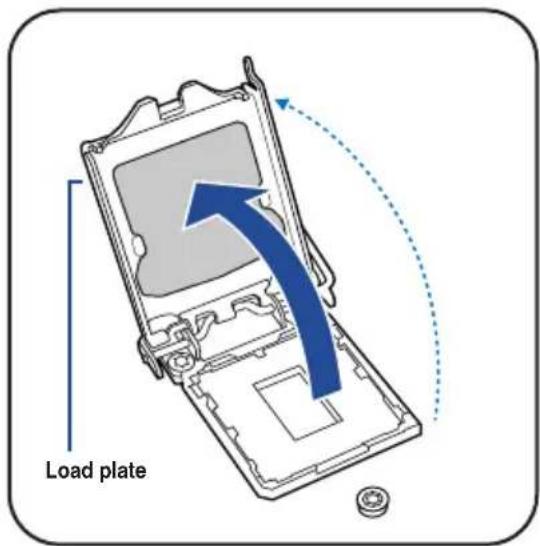
text_image
Load plate- Position the CPU above the socket, ensuring that the gold triangle mark is on the bottom-left corner of the socket, then fit the CPU notches to the socket's alignment keys.

text_image
CPU notches Gold triangle mark Alignment key Alignment key
The CPU fits in only one orientation. DO NOT force the CPU into the socket to prevent bending the pins on the socket and damaging the CPU.
- Close the load plate (A), ensuring that the front edge of the load plate slides under the retention lock (B) then push down the load lever (C).
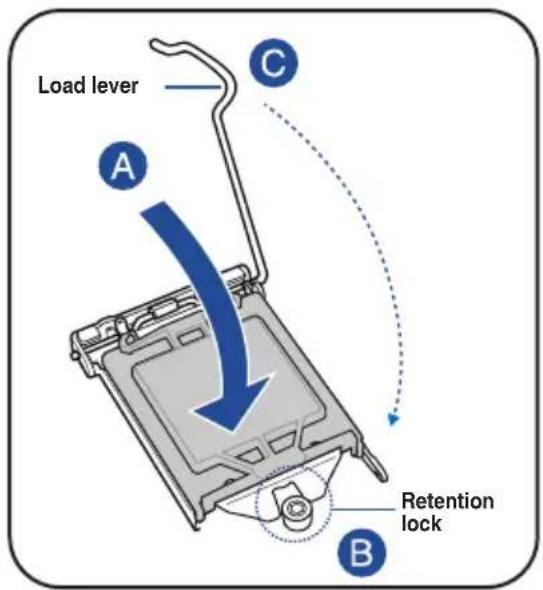
text_image
Load lever A C Retention lock B- Insert the load lever under the retention tab to remove the PnP cap from the CPU socket.

text_image
Load lever Retention tab- Apply some Thermal Interface Material to the exposed area of the CPU that the heatsink will be in contact with, ensuring that it is evenly spread in a thin layer.
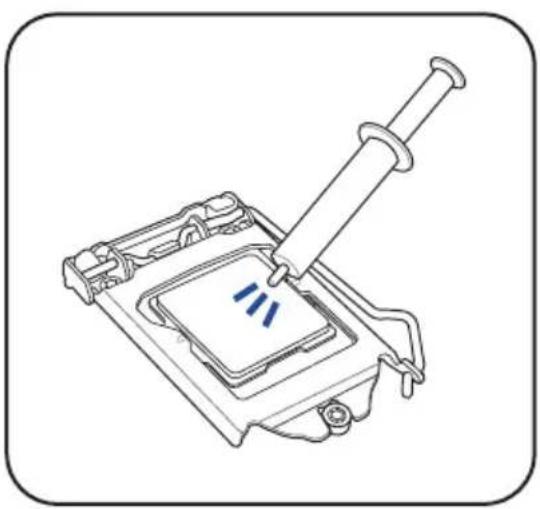
natural_image
Line drawing of a mechanical component with a spring and screwdriver inserted, no text or symbols present
Some heatsinks come with pre-applied Thermal Interface Material. If so, skip this step.

The Thermal Interface Material is toxic and inedible. DO NOT eat it. If it gets into your eyes or touches your skin, wash it off immediately and seek professional medical help.
2.2.2 Installing the CPU heatsink and fan assembly
To install the CPU heatsink and fan assembly
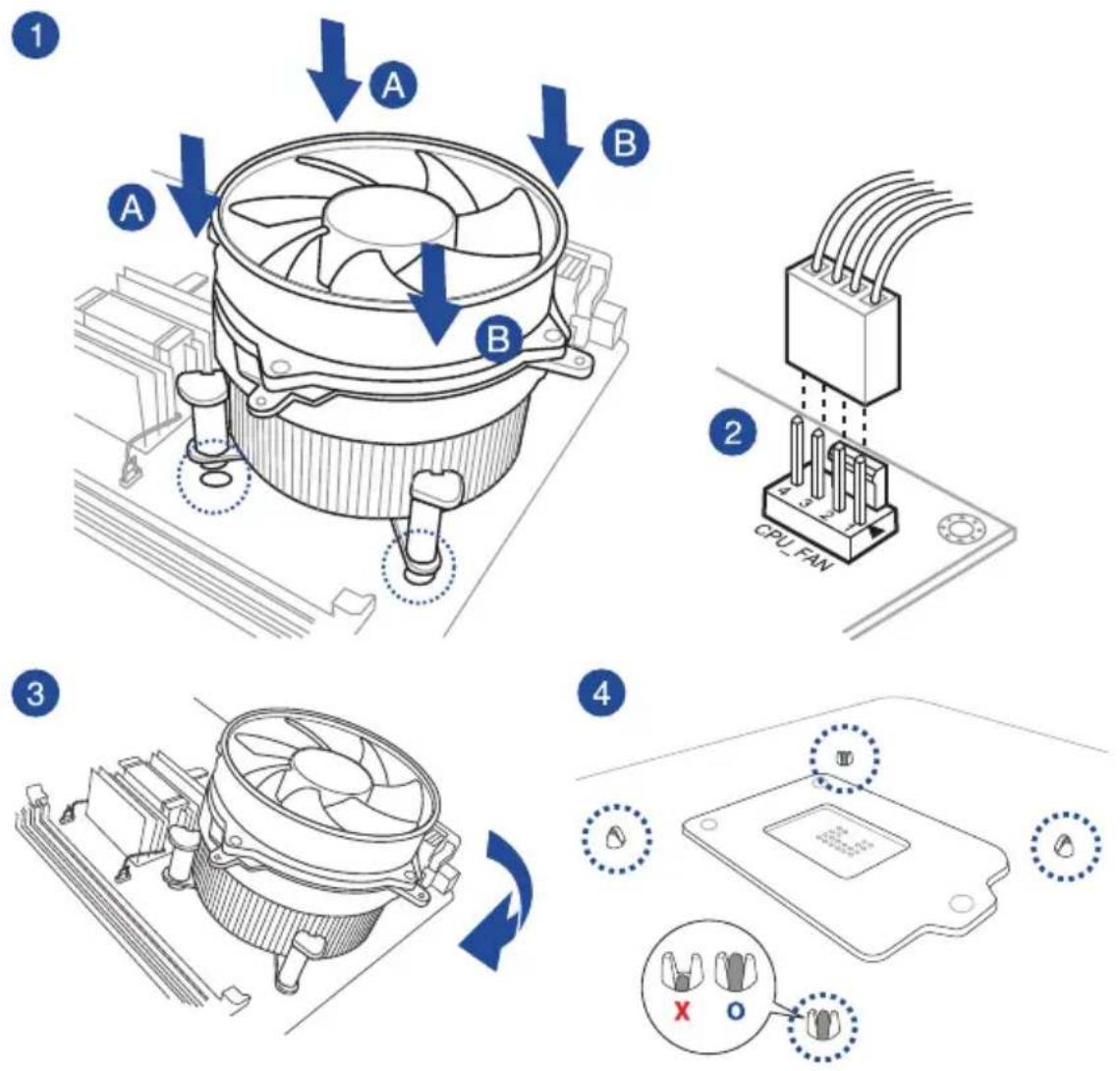
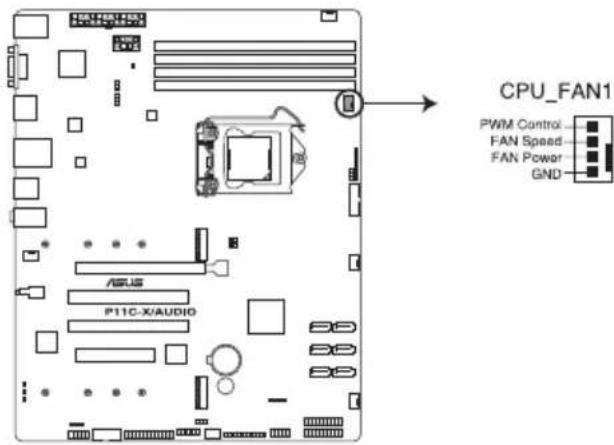
- Connect the CPU fan cable to the connector on the motherboard labeled CPU_FAN1.
text_image
CPU_FAN1 PWM Control FAN Speed FAN Power GNDP11C-X/AUDIO FAN connector

DO NOT forget to connect the CPU fan connector! Hardware monitoring errors can occur if you fail to plug this connector.
2.2.3 Uninstalling the CPU heatsink and fan
To uninstall the CPU heatsink and fan:
- Disconnect the CPU fan cable from the connector on the motherboard.
- Rotate each fastener counterclockwise.
- Pull up two fasteners at a time in a diagonal sequence to disengage the heatsink and fan assembly from the motherboard.

flowchart
graph TD
    A1["A"] --> X
    B1["B"] --> X
    A2["A"] --> X
    B2["B"] --> X
    A3["A"] --> X
    B3["B"] --> X

text_image
Diagram of a CPU fan with labeled directional arrows (A and B) indicating airflow or movement, likely illustrating a cooling or cooling process.- Carefully remove the heatsink and fan assembly from the motherboard.
2.3 System memory
2.3.1 Overview
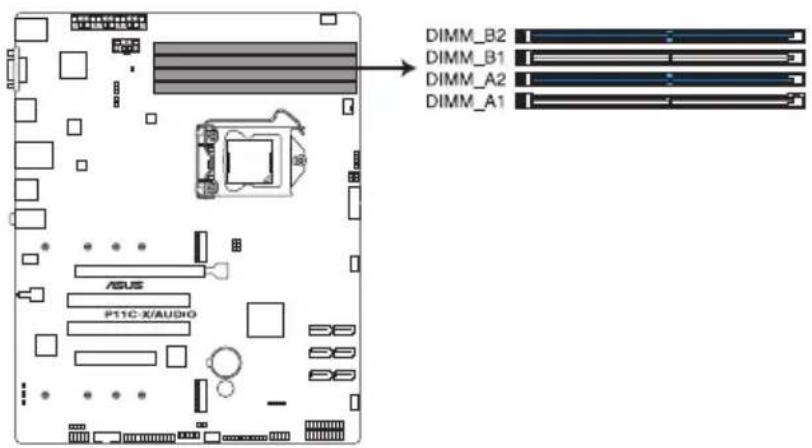
The motherboard comes with four Double Data Rate 4 (DDR4) Dual Inline Memory Modules (DIMM) sockets.

A DDR4 module is notched differently from a DDR, DDR2, or DDR3 module. DO NOT install a DDR, DDR2, or DDR3 memory module to the DDR4 slot.
The figure illustrates the location of the DDR4 DIMM sockets:
text_image
DIMM_B2 DIMM_B1 DIMM_A2 DIMM_A1 ASUS P11C-X/AUDIOP11C-X/AUDIO 288-pin DDR4 DIMM sockets
2.3.2 Memory Configurations
You may install ECC / non-ECC DDR4 DIMMs into the DIMM sockets using the memory configurations in this section.
| UDIMM | |||
| DIMM Slot Per Channel | DIMM Populated per Channel | DIMM Type Speed | |
| 2 1 ECC / non-ECC 2666/2400 | |||
| 2 2 ECC / non-ECC 2666/2400 | |||

- Always install DIMMs with the same CAS latency. For optimum compatibility, it is recommended that you obtain memory modules from the same vendor.
- Start installing the DIMMs in slots A2 and B2 (Blue).
2.3.3 Installing a DIMM on a single clip DIMM socket

Ensure to unplug the power supply before adding or removing DIMMs or other system components. Failure to do so may cause severe damage to both the motherboard and the components.
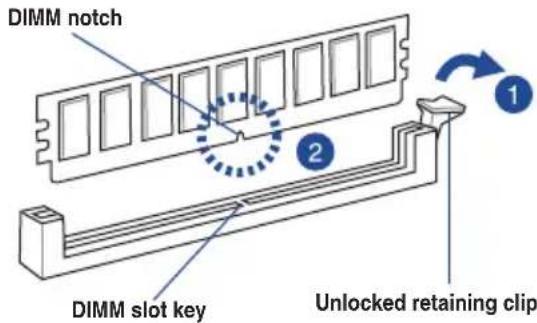
- Unlock a DIMM socket by pressing the retaining clip outward.
- Align a DIMM on the socket such that the notch on the DIMM matches the DIMM slot key on the socket.
text_image
DIMM notch DIMM slot key Unlocked retaining clip
A DIMM is keyed with a notch so that it fits in only one direction. DO NOT force a DIMM into a socket in the wrong direction to avoid damaging the DIMM.
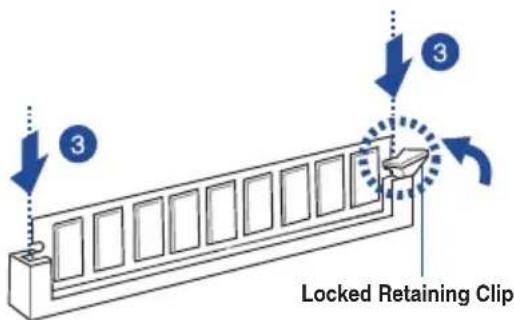
- Hold the DIMM by both of its ends then insert the DIMM vertically into the socket. Apply force to both ends of the DIMM simultaneously until the retaining clip snaps back into place and the DIMM cannot be pushed in any further to ensure proper sitting of the DIMM.
text_image
3 3 Locked Retaining Clip
Always insert the DIMM into the socket vertically to prevent DIMM notch damage.
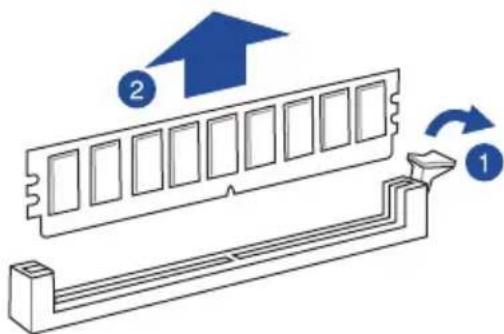
Removing a DIMM from a single clip DIMM socket
- Press the retaining clip outward to unlock the DIMM.
- Remove the DIMM from the socket.
text_image
Diagram showing a computer RAM module with labeled components and directional arrows indicating rotation or movement.
Support the DIMM lightly with your fingers when pressing the retaining clips. The DIMM might get damaged when it flips out with extra force.
2.4 Front panel cover
Before you can install a 5.25-inch drive, you should first remove the front panel cover.

Ensure to unplug the power cable before installing or removing any system components. Failure to do so may cause damage to the motherboard and other system components!
2.4.1 Removing the front panel cover
To remove the front panel cover:
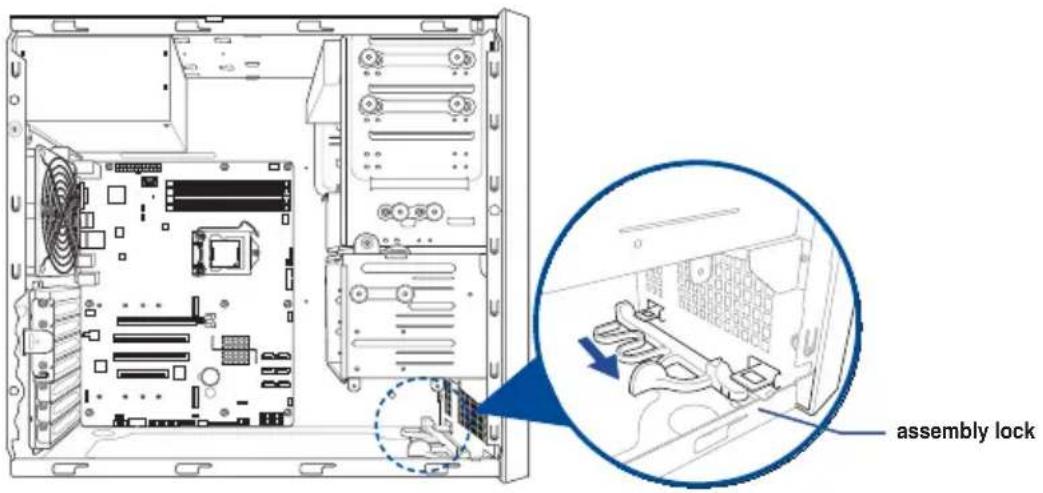
- Locate the front panel assembly lock then slide it outward to unlock the latches that secures the front panel cover to the chassis.
text_image
assembly lock- Remove the front panel assembly from the chassis and set it aside.

text_image
Front panel assembly2.5 5.25-inch drives
This system comes with three 5.25-inch drive bays located on the upper front section of the chassis.

If your system came with an optical drive, the optical drive occupies the topmost bay (1). The lower bays (2 and 3) are available for additional 5.25-inch optical, zip, or floppy disk drives.

text_image
Diagram of a computer motherboard showing CPU socket, drive bays, and numbered hardware labelsInstalling a 5.25-inch drive
To install a 5.25-inch drive:
- Remove the front panel cover. Refer to the Removing the front panel cover section for more information.
- Pull the bay locks outward.

text_image
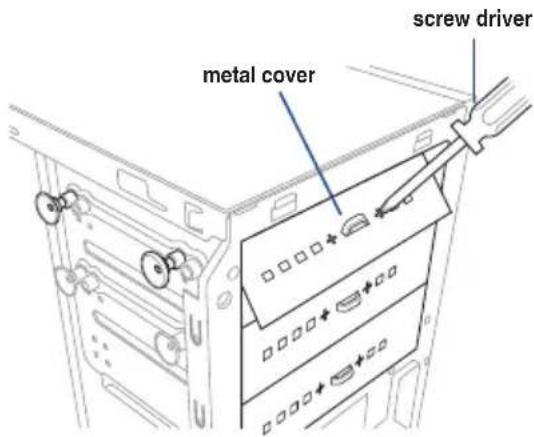
bay locks- Remove the metal cover of the bay you intend to use.

Take extra care when removing the metal cover. Use tools such as a screw driver to bend and remove the metal cover to avoid physical injury.
text_image
metal cover screw driver- Prepare the 5.25-inch drive.
- Insert and carefully push the drive into the bay until its screw holes align with the holes on the bay.

natural_image
Diagram of a computer tower with an open CD drive and labeled component (no text or symbols beyond the label)- Push the bay locks to secure the drive in place.

text_image
bay locks- Connect the SATA cable to the SATA connector of the drive.
- Connect a SATA power cable from the power supply to the power connector of the drive.
- Reinstall the front panel cover.
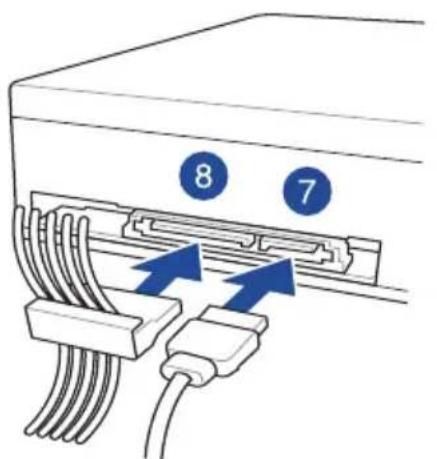
text_image
8 7SATA cableSATA power cable
2.6 Hard disk drives (HDD)
The workstation supports three (3) 3.5-inch Serial ATA hard disk drives via the hard disk drive bays and one 2.5-inch HDD/SSD drive at the bottom of the HDD cage.
Installing 3.5-inch HDDs
To install 3.5-inch Serial ATA hard disk drives:
- Remove the side cover of the chassis. Refer to the Removing the side cover section for more information.
- Prepare the 3.5-inch HDD and the bundled set of screws.
- Locate the HDD cage lock, press the it up (A), then swing the HDD cage outwards (B) until it clicks in place.

text_image
A HDD cage lock HDD cage B- Align and insert the 3.5-inch HDD into the drive bay ensuring that the screw holes on the HDD matches the screw holes on the HDD cage.

text_image
screw hole (HDD cage) screw holes (HDD)- Secure the 3.5-inch HDD to the HDD cage using the bundled set of screws.

text_image
Technical diagram of a mechanical device with numbered components and directional arrows indicating assembly or movement.-
Swing the HDD cage inwards until it clicks back into place.
-
Connect the SATA cable and SATA power cable to the 3.5-inch HDD.
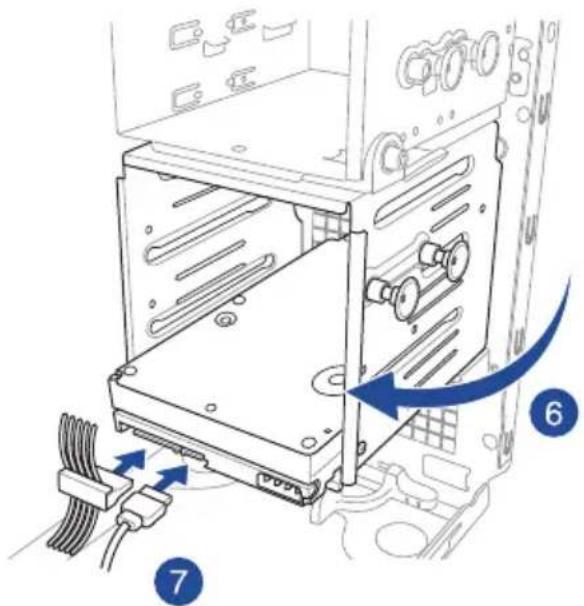
text_image
Diagram of a computer drive showing cable connections and labeled parts, with arrows indicating directional movement.Installing 2.5-inch HDD/SSD
To install a 2.5-inch HDD/SSD:
- Remove the side cover of the chassis. Refer to the Removing the side cover section for more information.
- Prepare the 2.5-inch HDD/SDD and the bundled set of screws.
- Lay the system on its side on a flat and stable surface.
- Locate the HDD cage lock, press it up (A), then swing the HDD cage outwards (B).
- Align and insert the 2.5-inch HDD/SSD into the drive bay as shown. Push it all the way until its screw holes align with the holes on the drive bay.

text_image
HDD cage lock A B HDD cage matching screw holes 5 2.5-inch HDD/SSD- Secure the 2.5-inch HDD/SSD to the HDD cage using the bundled set of screws.
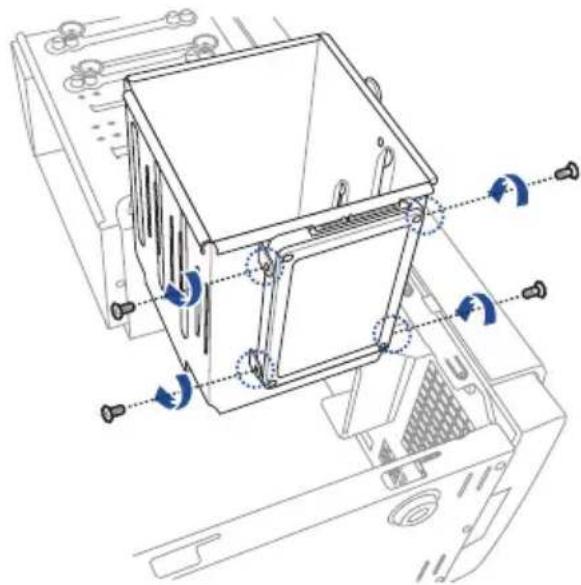
natural_image
Technical line drawing of a computer case with mounting hardware and blue directional arrows indicating rotation (no text or symbols)- Swing the HDD cage inwards until it clicks back into place.
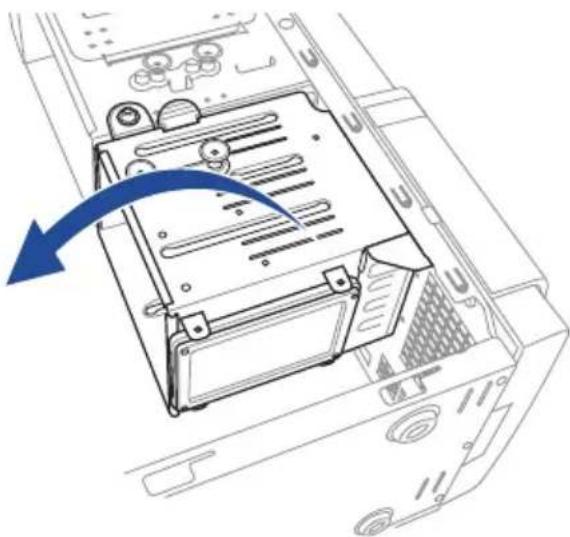
natural_image
Diagram of a computer tower internal structure showing a blue arrow indicating a component or operation (no text or symbols present)- Connect a SATA cable and a SATA power cable to the 2.5-inch HDD/SSD.
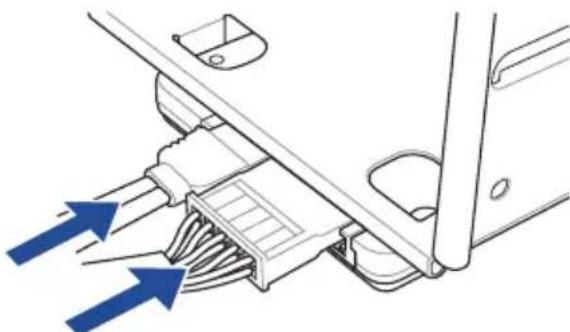
natural_image
Diagram of a mechanical component with blue arrows indicating direction, no text or symbols present2.7 Expansion cards
The system has expansion slots on the rear panel that allows you to install expansion cards or additional components.

Ensure to unplug the power cord before installing or removing expansion cards. Failure to do so may cause severe damage to the motherboard and other system components!

Read the documentation of the expansion card and make the necessary hardware settings for the card before installing them.
2.7.1 Installing an expansion card
To install an expansion card:
- Lay the system on its side on a flat, stable surface.
- Press the PCI-E latch (A), hold it by its edge then lift it towards the rear (B).
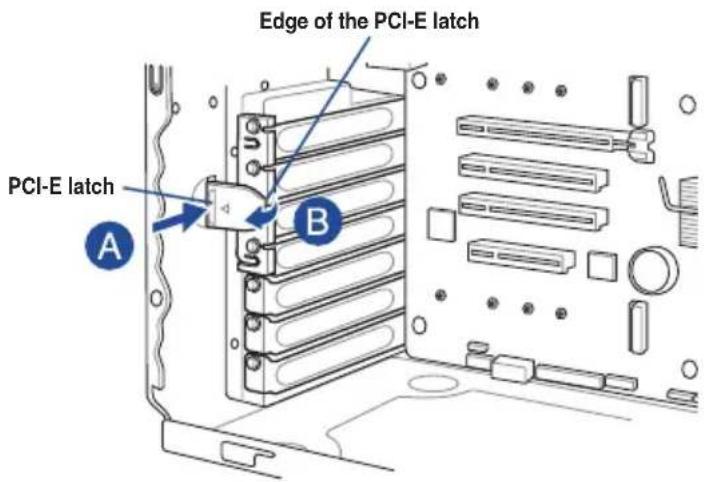
text_image
Edge of the PCI-E latch PCI-E latch A B- Remove the screw (A) that secures the metal bracket to the chassis then remove the metal bracket (B).

text_image
aures assis then ). Screw Metal bracket A B- Align and insert the expansion card into the PCI-E slot.
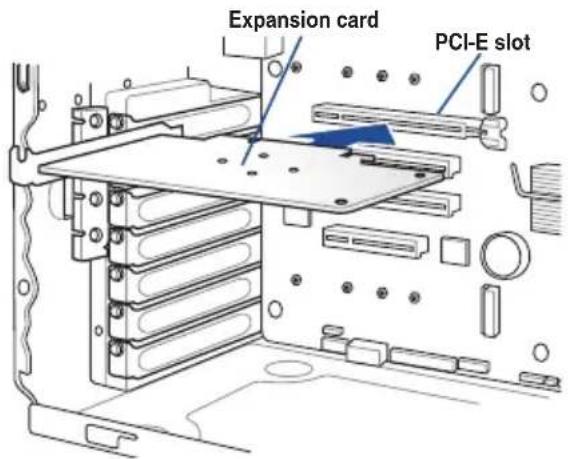
text_image
Expansion card PCI-E slot- Lift the PCI-E latch inwards until it clicks into place securing the expansion card to the chassis.

text_image
PCI-E latch- (Optional) Replace the screw of the metal bracket.
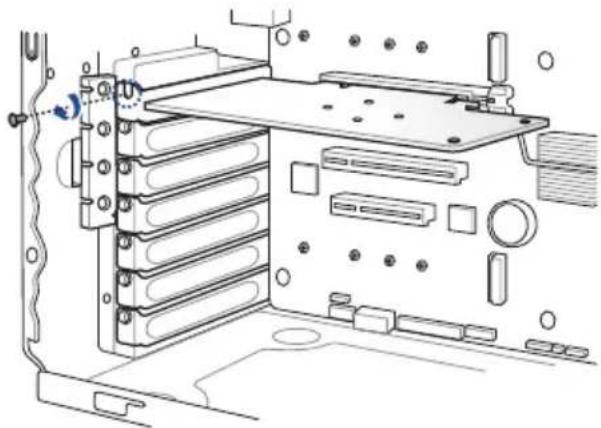
natural_image
Technical line drawing of a computer rack with mounting hardware and internal components (no text or symbols)2.7.2 Configuring an expansion card
After installing the expansion card, configure the it by adjusting the software settings.
- Turn on the system and change the necessary BIOS settings, if any. See Chapter 5 for information on BIOS setup.
- Assign an IRQ to the card. Refer to the following tables.
- Install the software drivers for the expansion card.
Standard Interrupt assignments
| IRQ Priority Standard function | ||
| 0 1 System | Timer | |
| 1 2 Keyboard Controller | ||
| 2 - Programmable Interrupt | ||
| 3* | ||
| 4* 12 Communications Port (COM1) | ||
| 5* 13 -- | ||
| 6 | ||
| 7* 15 -- | ||
| 8 3 System | CMOS/Real Time Clock | |
| 9* 4 ACPI | Mode when used | |
| 10* 5 IRQ | Holder for PCI Steering | |
| 11* 6 IRQ | Holder for PCI Steering | |
| 12* 7 PS/2 | Compatible Mouse Port | |
| 13 8 Numeric Data Processor | ||
| 14* | ||
| 15* | ||
* These IRQs are usually available for ISA or PCI devices.
2.8 System fan
This section describes how to remove the system fan in the event that you need to install or remove previously installed or new system components, or when the system fan needs to be replaced because it was damaged or became defective.
To remove the system fan:
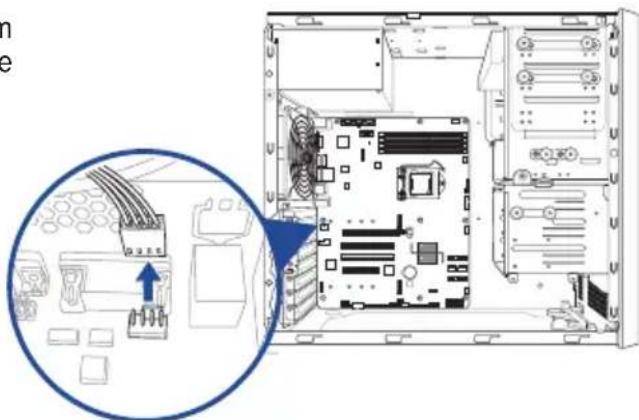
- Disconnect the system fan cable from the REAR_FAN1 connector on the motherboard.
natural_image
Interior view of a computer tower showing CPU socket, motherboard, and drive bays (no text or labels visible)- Remove the four system fan screws at the rear panel. Keep the screws for later use.

Hold the system fan with one hand while removing the system fan screws.

natural_image
Technical line drawing of a server rack with mounting holes and ventilation slots (no text or symbols)- Remove the system fan.

Follow the previous instructions in reverse order if you want to reinstall the system fan.

natural_image
Diagram of a computer fan with concentric rings and a blue arrow pointing to a control panel (no text or symbols)2.9 Cable connections

- The bundled system cables are pre-connected before shipment. You do not need to disconnect these cables unless you will remove pre-installed components to install additional devices.
• Refer to Chapter 3 for detailed information on the connectors.

text_image
KB_USB1011 EATXPWR1 ASPEED AST2510 VGA1 LAN1 LAN2_USB3_58 USB31_12 AUDIO REAR_FAN1 PCIE6 PWR_SW1 PCI5 P11C-X/AUDIO Super I/O PCIE3 ASM 1083 NUFF2 BUZZ1 SPTIF_OUT COM1 LPT1 TPM1 CLRTC1 FRNT_FAN3 USB14 INTRUSION1 HDLED1 USB78 CPU FAN1 CPU1 DDR4 DIMM_B2 (64bit, 288-pin module) DDR4 DIMM_B1 (64bit, 288-pin module) DDR4 DIMM_A2 (64bit, 288-pin module) DDR4 DIMM_A1 (64bit, 288-pin module) SMBUS1 PCH_MFG1 ME_RCVR1 USB3_34 FRNT_FAN1 Intel® I219LM 22422260228022110 NCFT1 U2_CF05 U2_CF06 Intel® C242 SATA1 SATA2 SATA3 SATA4 SATA5 SATA6 FRNT_FAN2 AUX_PANEL1 PANELT 4 5 6Standard cables connected to the motherboard
- 24-pin ATX power connector (from power supply to motherboard)
- 8-pin ATX 12V power connector (from power supply to motherboard)
- System fan connector (from motherboard to system)
- SATA connectors (system default; from motherboard to SATA devices)
- USB connectors (from motherboard to front I/O board)
- System panel connector (from motherboard to front I/O board)
Motherboard Information
3
This chapter includes the motherboard layout and brief descriptions of the jumpers and internal connectors.
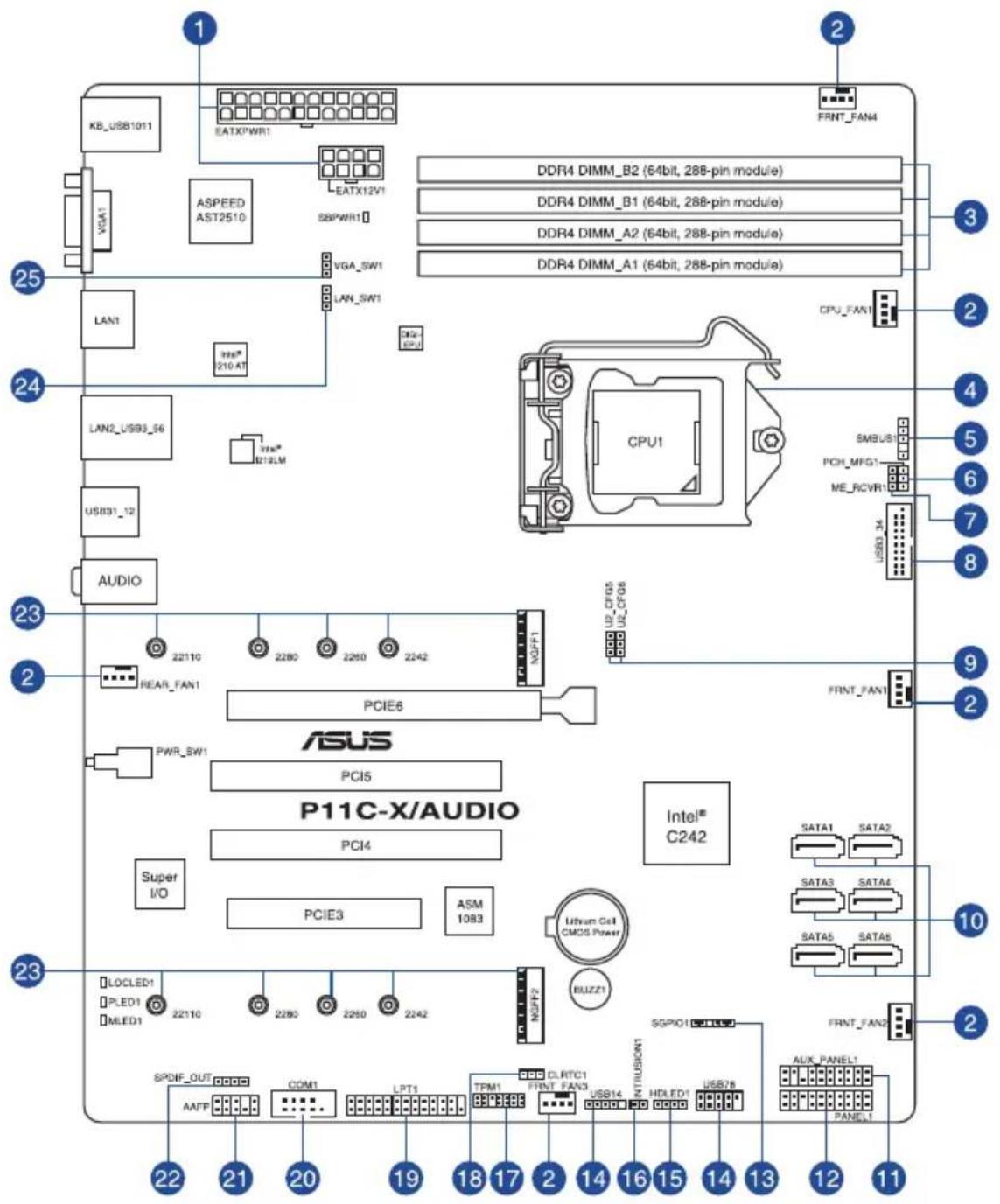
3.1 Motherboard layout
text_image
KB_USB1011 EATXPWR1 ASPEED AST2510 EATX12V1 SBPWR1 VGA_SW1 LAN1 LAN2_USB3_56 USB31_12 AUDIO 25 24 23 22110 REAR_FAN1 PCIE6 PWR_SW1 PCI5 P11C-X/AUDIO PCI4 Super I/O PCIE3 ASM 1083 2220 2260 2242 VOPF1 U2_CFOB U2_CF08 CPU1 SMBUS PCH_MFG1 ME_RCVR1 USB3_34 CPU_FAN1 FRNT_FAN1 23 22 21 20 19 18 17 16 15 14 13 12 11 22 21 20 19 18 17 16 15 14 13 12 11Layout contents
| Internal connectors / Sockets / Jumpers / LEDs | Page |
| 1. ATX power connectors (24-pin EATXPWR1; 8-pin EATX12V1) 3-13 | |
| 2. CPU, front, and rear fan connectors (4-pin FRNT_FAN1-4; REAR_FAN1; CPU_FAN1) | 3-12 |
| 3. DDR4 DIMM sockets 2-9 | |
| 4. CPU socket 2-4 | |
| 5. System Management Bus (SMBUS) connector (5-1 pin SMBUS1) 3-17 | |
| 6. PCH_MFG1 setting (3-pin PCH_MFG1) 3-7 | |
| 7. ME firmware force recovery setting (3-pin ME_RCVR1) 3-6 | |
| 8. USB 3.0 connector (20-1 pin USB3_34) 3-11 | |
| 9. CPU PCIE configuration settings (3-pin U2_CFG5-6) 3-6 | |
| 10. Serial ATA 6.0Gb/s connectors (7-pin SATA1-6) 3-9 | |
| 11. Auxiliary panel connector (20-2 pin AUX_PANEL1) 3-15 | |
| 12. System panel connector (20-1 pin PANEL1) 3-14 | |
| 13. Serial General Purpose Input/Output connector (6-1 pin SGPIO1) 3-11 | |
| 14. USB 2.0 connectors (5-1 pin USB14; 10-1 USB78) 3-10 | |
| 15. Hard disk activity LED connector (4-pin HDLED1) 3-10 | |
| 16. Chassis intrusion connector (2-pin INTRUSION1) | 3-17 |
| 17. Trusted Platform Module connector (14-1 pin TPM1) | 3-9 |
| 18. Clear RTC RAM (3-pin CLRTC1) | 3-4 |
| 19. LPT connector (26-1 pin LPT1) | 3-18 |
| 20. Serial port connector (10-1 pin COM1) | 3-12 |
| 21. Front panel audio connector (10-1 pin AAFP) | 3-18 |
| 22. Digital audio connector (4-1 pin SPDIF_OUT) | 3-19 |
| 23. M.2 (NGFF) connector (NGFF1-2) | 3-16 |
| 24. LAN controller setting (3-pin LAN_SW1) | 3-5 |
| 25. VGA controller setting (3-pin VGA_SW1) | 3-5 |
3.2 Jumpers
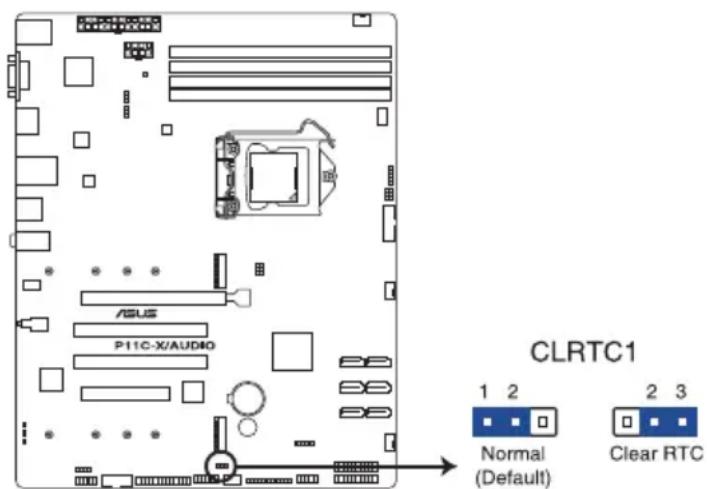
1. Clear RTC RAM (3-pin CLRTC1)
This jumper allows you to clear the Real Time Clock (RTC) RAM in CMOS. You can clear the CMOS memory of date, time, and system setup parameters by erasing the CMOS RTC RAM data. The onboard button cell battery powers the RAM data in CMOS which include system setup information such as system passwords.
To erase the RTC RAM:
- Turn OFF the computer and unplug the power cord.
- Move the jumper cap from the default pins 1–2 to pins 2–3. Keep the cap on pins 2–3 for about 5 to 10 seconds, then move the cap back to pins 1–2.
- Plug the power cord and turn ON the computer.
- Hold down the
key during the boot process and enter BIOS setup to re-enter data.

DO NOT remove the cap on CLRTC jumper default position except when clearing the RTC RAM. Removing the cap will cause system boot failure!

If the steps above do not help, remove the onboard battery and move the jumper again to clear the CMOS RTC RAM data. After the CMOS clearance, reinstall the battery.
text_image
ASUS P11C-X/AUDIO CLRTC1 1 2 Normal (Default) 2 3 Clear RTCP11C-X/AUDIO Clear RTC RAM
2. VGA controller setting (3-pin VGA\_SW1)
This jumper allows you to enable or disable the onboard VGA controller. Set to pins 1–2 to activate the VGA feature.

text_image
P11C-X/AUDIO VGA setting VGA_SW1 1 2 Enable (Default) 2 3 Disable3. LAN controller setting (3-pin LAN\_SW1)
This jumper allows you to enable or disable the onboard LAN_SW1. Set to pins 1-2 to activate the Gigabit LAN feature.

text_image
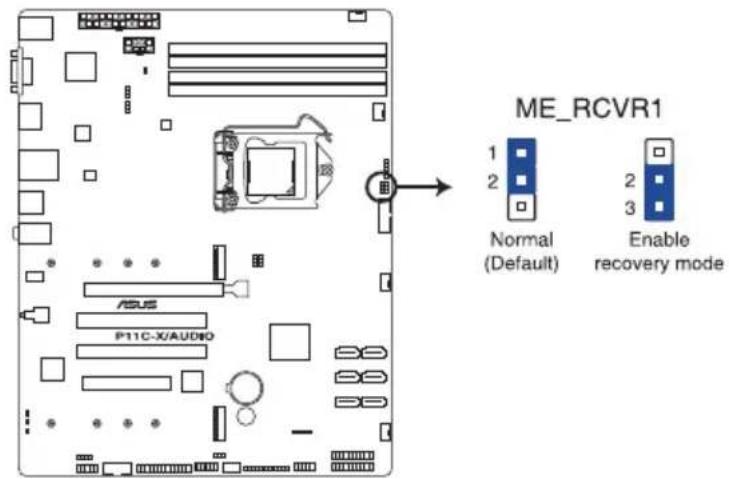
P11C-X/AUDIO LAN setting LAN_SW1 1 2 Enable (Default) 2 3 Disable ASUS P11C-X/AUDIO4. ME firmware force recovery setting (3-pin ME\_RCVR1)
This jumper allows you to force Intel® Management Engine (ME) boot from recovery mode when ME becomes corrupted.
text_image
ME_RCVR1 1 2 Normal (Default) 2 3 Enable recovery mode P11C-X/AUDIOP11C-X/AUDIO ME recovery setting
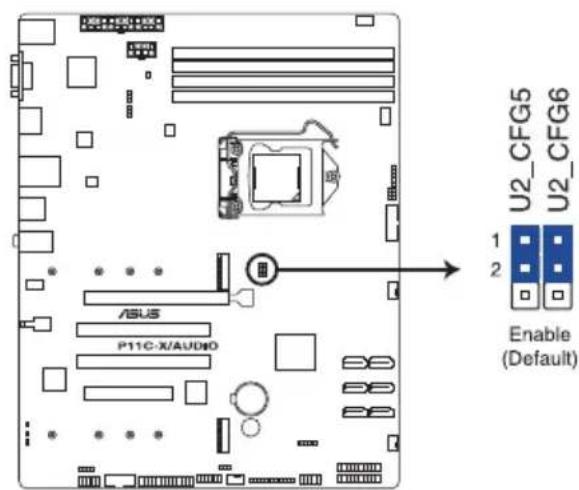
5. CPU PCIE configuration settings (3-pin U2\_CFG5-6)
These jumpers allow you to configure the speed at which PCIE6 will run at. Refer to the table below for the different jumper configurations.
text_image
U2_CFG5 U2_CFG6 1 2 Enable (Default) ASUS P11C-X/AUD80| Jumper Setting | ||
| U2_CFG6 | U2_CFG5 | PCIE6 slot configuration |
 |  | x16 (Default) |
 |  | x8, x8 |
 | x8, x4, x4 | |
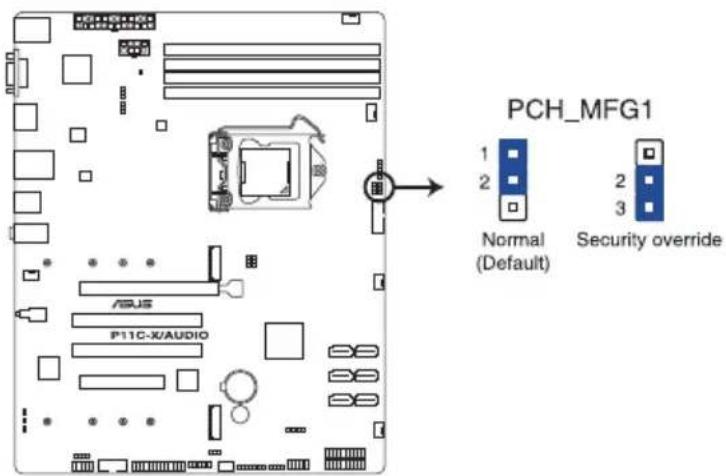
6. PCH\_MFG1 setting (3-pin PCH\_MFG1)
This jumper allows you to update the BIOS ME block.
text_image
PCH_MFG1 Normal (Default) Security overrideP11C-X/AUDIO PCH_MFG1 setting
3.3 Onboard LEDs
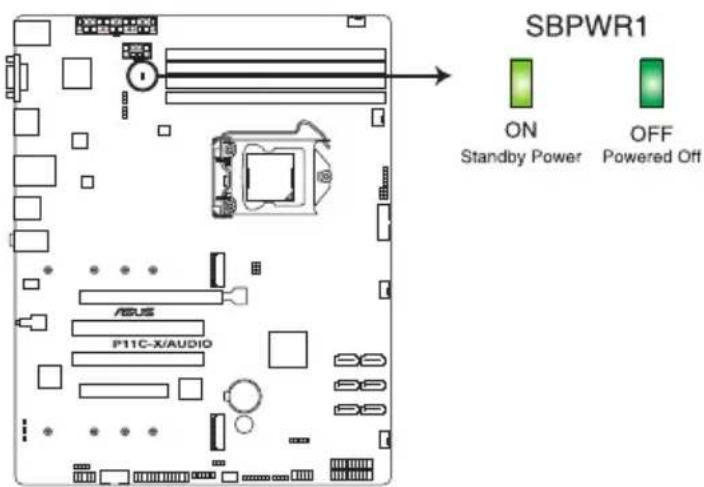
1. Standby Power LED (SBPWR1)
The motherboard comes with a standby power LED. The green LED lights up to indicate that the system is ON, in sleep mode, or in soft-off mode. This is a reminder that you should shut down the system and unplug the power cable before removing or plugging in any motherboard component. The illustration below shows the location of the onboard LED.
text_image
SBPWR1 ON Standby Power OFF Powered Off ASUS P11C-X/AUDIOP11C-X/AUDIO Standby Power LED
2. Message LED (MLED1)
This onboard LED lights up when the SIO detects that the CPU temperature has reached 95^ C.

text_image
ASUS P11C-X/AUDIO MLED1P11C-X/AUDIO MLED1
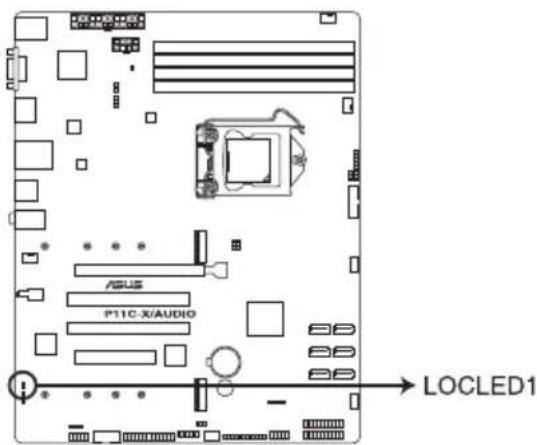
3. Location LED (LOCLED1)
This onboard LED lights up when triggered by a system management software. The Location LED helps visually locate and quickly identify the workstation in error on a rack.
text_image
P11C-X/AUDIO ASUS LOCLED1P11C-X/AUDIO Location LED
3.4 Internal connectors
1. Serial ATA 6.0Gb/s connectors (7-pin SATA1-6)
Supported by the Intel® C242 chipset, these connectors are for the Serial ATA signal cables for Serial ATA hard disk drives that allows up to 6Gb/s of data transfer rate. If you installed Serial ATA hard disk drives, you can create a RAID 0, RAID 1, RAID 10, or RAID 5 configuration.

text_image
A SATA1 GND RSATA_RXP1 RSATA_RXN1 RSATA_TXN1 RSATA_TXP1 GND GND RSATA_RXP2 RSATA_RXN2 RSATA_TXN2 RSATA_TXP2 GND B SATA3 GND RSATA_RXP3 RSATA_RXN3 RSATA_TXN3 RSATA_TXP3 GND GND RSATA_RXP4 RSATA_RXN4 RSATA_TXN4 RSATA_TXP4 GND C SATA5 GND RSATA_RXP5 RSATA_RXN5 RSATA_TXN5 RSATA_TXP5 GND GND RSATA_RXP6 RSATA_RXN6 RSATA_TXN6 RSATA_TXP6 GND SATA6P11C-X/AUDIO SATA connectors

- The actual data transfer rate depends on the speed of Serial ATA hard disks installed.
- When the M.2 (NGFF1) is operating in SATA mode, SATA5 will be disabled.
- When the M.2 (NGFF2) is operating in SATA mode, SATA6 will be disabled.
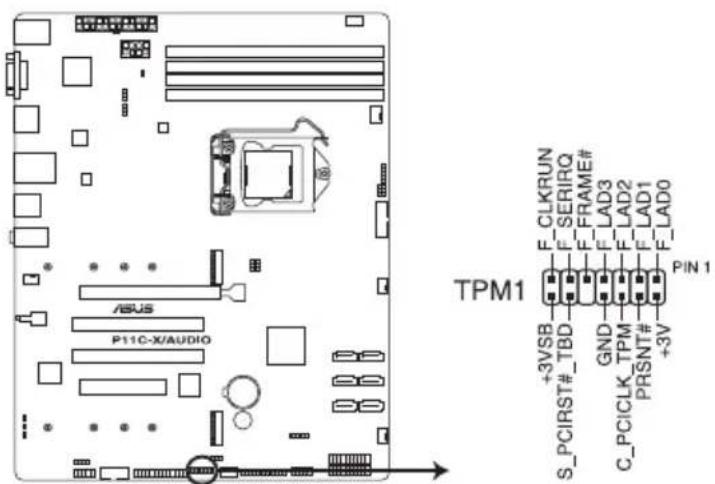
2. Trusted Platform Module connector (14-1 pin TPM1)
This connector supports a TPM (Trusted Platform Module) system, which can securely store keys, digital certificates, passwords, and data. A TPM system also helps enhance network security, protects digital identities, and ensures platform integrity.
text_image
TPM1 F_CLKRUN F_SERIRQ F_FRAME# F_LAD3 F_LAD2 F_LAD1 F_LAD0 +3VSB S_PCIRST#_TBD GND C_PCICLK_TPM PRSNT# +3V PIN 1P11C-X/AUDIO TPM connector
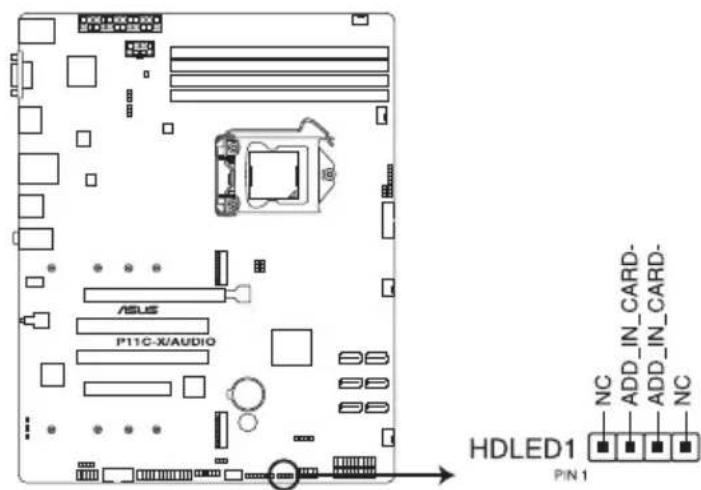
3. Hard disk activity LED connector (4-pin HDLED1)
This LED connector is for the storage add-on card cable connected to the SATA or SAS add-on card. The read or write activities of any device connected to the SATA or SAS add-on card causes the front panel LED to light up.
text_image
HDLED1 PIN 1 NC ADD_IN_CARD- ADD_IN_CARD- NCP11C-X/AUDIO Storage device activity LED connector
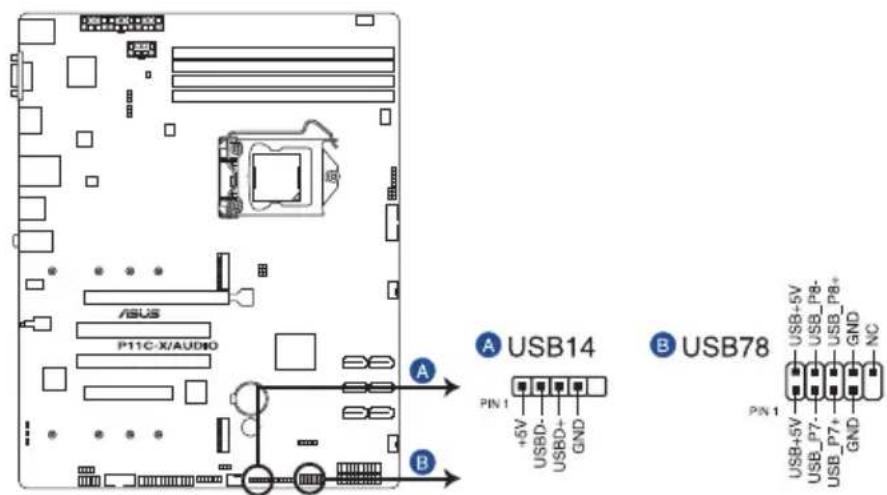
4. USB 2.0 connectors (5-1 pin USB14; 10-1 USB78)
These connectors allow you to connect a USB 2.0 module for additional USB 2.0 front or rear panel ports. These USB connectors comply with USB 2.0 specification that supports up to 480 Mbps connection speed.
text_image
ASUS P11C-X/AUDIO A USB14 PIN 1 +5V USBD- USBD+ GND B USB78 PIN 1 USB+5V USB_P7- USB_P7+ GND NCP11C-X/AUDIO USB 2.0 connectors
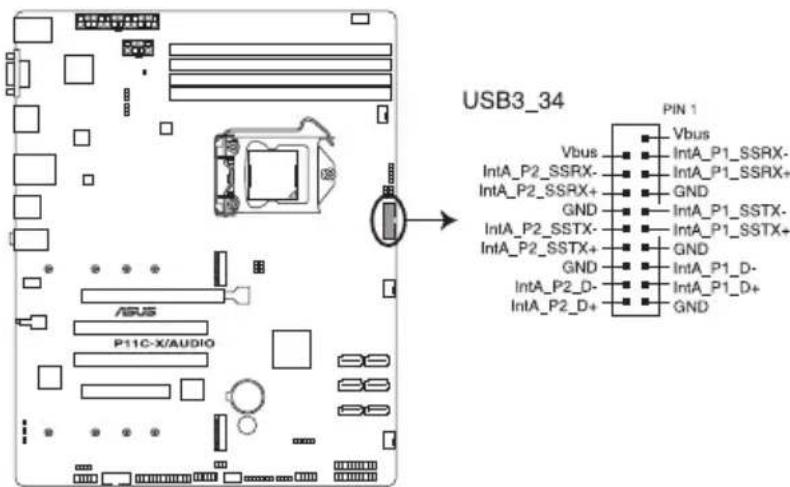
5. USB 3.0 connector (20-1 pin USB3\_34)
This connector allows you to connect a USB 3.0 module for additional USB 3.0 front or rear panel ports. With an installed USB 3.0 module, you can enjoy all the benefits of USB 3.0 including faster data transfer speeds of up to 5 Gbps, faster charging time for USB-chargeable devices, optimized power efficiency, and backward compatibility with USB 2.0.
text_image
USB3_34 PIN 1 Vbus IntA_P1_SSRX- IntA_P1_SSRX+ GND GND IntA_P1_SSTX- IntA_P1_SSTX+ GND GND IntA_P1_D- IntA_P1_D+ GND Vbus IntA_P2_SSRX- IntA_P2_SSRX+ GND GND P11C-X/AUDIO INTA_P2_SSTX- IntA_P2_SSTX+ GND GND INTA_P2_D- IntA_P2_D+P11C-X/AUDIO USB 3.0 connector
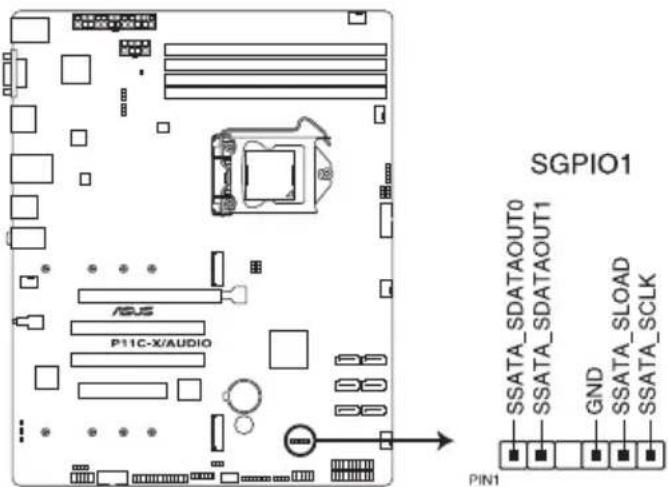
6. Serial General Purpose Input/Output connector (6-1 pin SGPIO1)
The SGPIO 1 connector is used for the Intel Rapid Storage Technology Enterprise SGPIO interface that controls the LED pattern generation, device information, and general purpose data.
text_image
SGPIO1 P11C-X/AUDIO PGS SSATA_SDATAOUT0 SSATA_SDATAOUT1 GND SSATA_SLOAD SSATA_SCLK PIN1P11C-X/AUDIO SGPIO1 connector
7. CPU, front, and rear fan connectors
(4-pin FRNT\_FAN1-4; REAR\_FAN1; CPU\_FAN1)
The fan connectors support cooling fans. Connect the fan cables to the fan connectors on the motherboard, ensuring that the black wire of each cable matches the ground pin of the connector.

- DO NOT forget to connect the fan cables to the fan connectors. Insufficient air flow inside the system may damage the motherboard components.
• These are not jumpers! DO NOT place jumper caps on the fan connectors!
• All fans feature the ASUS Smart Fan technology.

text_image
A B C D E F ASUS P11C-X/AUDIOA FRNT_FAN4
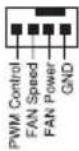
B CPU_FAN1
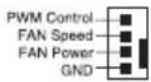
C REAR_FAN1
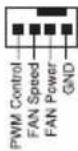
FRNT_FAN1
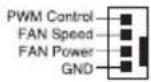
E FRNT_FAN3

F FRNT_FAN2
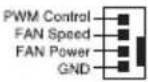
P11C-X/AUDIO FAN connectors
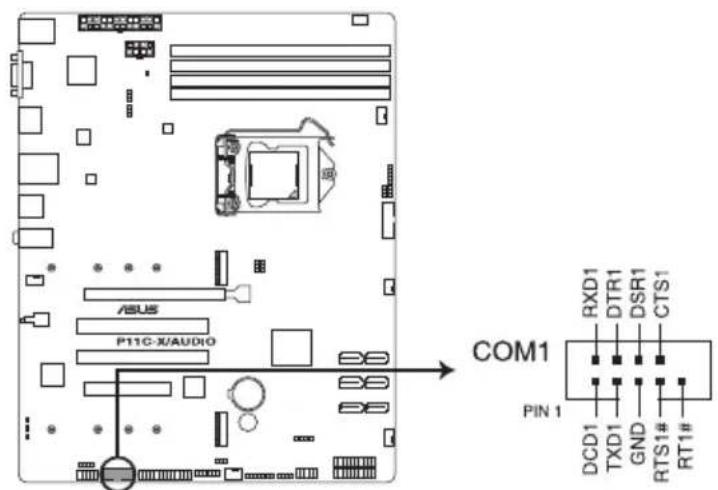
8. Serial port connector (10-1 pin COM1)
This connector is for the serial COM port. Connect the serial port module cable to one of these connectors, then install the module to a slot opening at the back of the system chassis.
text_image
COM1 PIN 1 RXD1 DTR1 DSR1 CTS1 DCD1 TXD1 GND RTS1# RT1#P11C-X/AUDIO Serial port connector
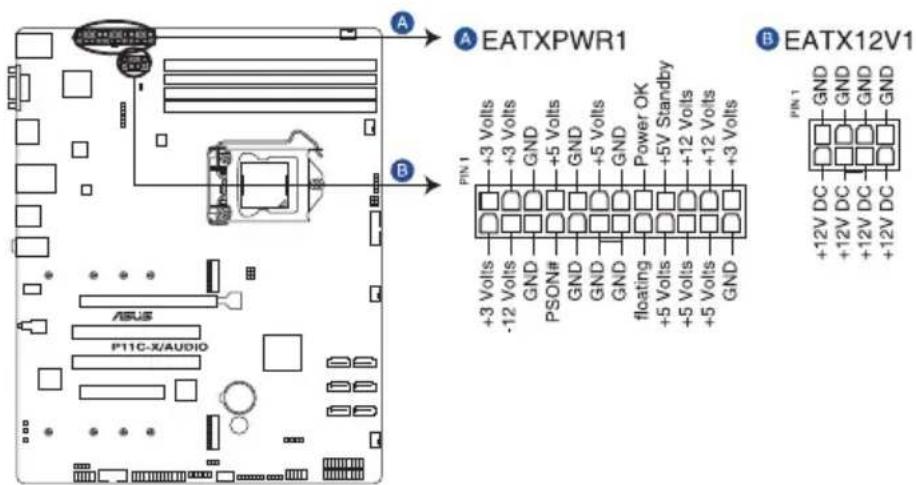
9. ATX power connectors (24-pin EATXPWR1; 8-pin EATX12V1)
These connectors are for the ATX power supply plugs. The power supply plugs are designed to fit these connectors in only one orientation. Find the proper orientation and push down firmly until the connectors completely fit.

- DO NOT forget to connect the 24-pin and the 8-pin power plugs; otherwise, the system will not boot up.
- Use of a power supply unit (PSU) with a higher power output is recommended when configuring a system with more power-consuming devices. The system may become unstable or may not boot up if the power is inadequate.
- This motherboard supports ATX2.0 PSU or later version.
- Ensure that your PSU can provide at least the minimum power required by your system.
text_image
A EATXPWR1 B EATX12V1 +3 Volts -12 Volts PSON# GND GND GND GND +5 Volts +5 Volts GND GND +5 Volts GND GND +5V Standby +12 Volts +12 Volts +3 Volts +3 Volts +3 Volts +3 Volts +3 Volts +3 Volts +3 Volts +3 Volts +3 Volts +3 Volts +3 Volts +3 Volts +3 Volts +3 Volts +3 Volts +3 Volts +3 Volts +3 Volts +3 Volts +3 Volts +5 Volts +5 Volts +5 Volts +5 Volts +5 Volts +5 Volts +5 Volts +5 Volts +5 Volts +5 Volts +5 Volts +5 Volts +5 Volts +5 Volts +5 Volts +5 Volts +5 Volts +5 Volts +5 Volts +5 Volts +3 Volts +3 Volts +3 Volts +3 Volts +3 Volts +3 Volts +3 Volts +3 Volts +3 Volts +3 Volts +3 Volts +3 Volts +3 Volts +3 Volts +3 Volts +3 Volts +3 Volts +3 Volts +3 Volts +12V DC +12V DC +12V DC +12V DCP11C-X/AUDIO ATX power connectors
10. System panel connector (20-1 pin PANEL1)
This connector supports several chassis-mounted functions.
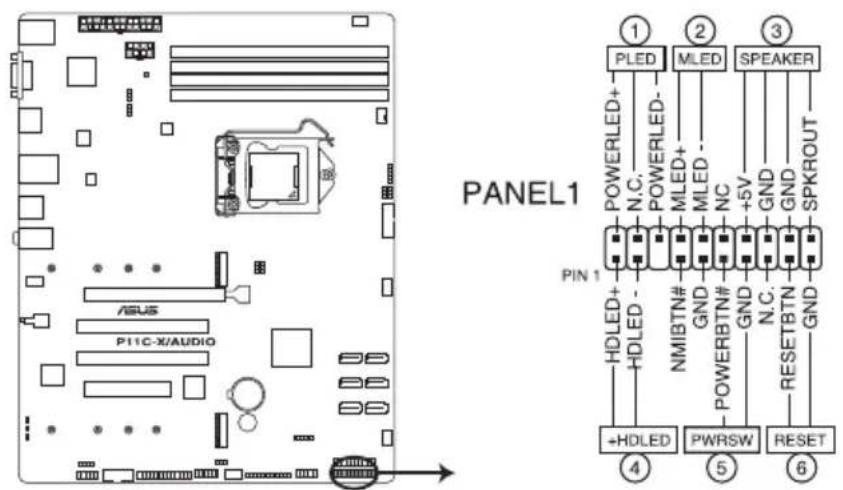
text_image
PANEL1 ① ② ③ PLED MLED SPEAKER POWERLED+ N.C. POWERLED- MLED+ MLED- NC +5V GND GND SPKROUT PIN 1 HDLED+ HDLED- NMIBTN# GND POWERBTN# GND N.C. RESETBTN GND +HDLED PWRSW RESET ④ ⑤ ⑥P11C-X/AUDIO System panel connector
1. System power LED (3-pin PLED)
This 3-pin connector is for the system power LED. Connect the chassis power LED cable to this connector. The system power LED lights up when you turn on the system power, and blinks when the system is in sleep mode.
2. Message LED (2-pin MLED)
This 2-pin connector is for the message LED cable that connects to the front message LED. The LED lights up when the SIO detects that the CPU temperature has reached 95°C.
3. System warning speaker (4-pin SPEAKER)
This 4-pin connector is for the chassis-mounted system warning speaker. The speaker allows you to hear system beeps and warnings.
4. Hard disk drive activity LED (2-pin +HDLED)
This 2-pin connector is for the HDD Activity LED. Connect the HDD Activity LED cable to this connector. The IDE LED lights up or flashes when data is read from or written to the HDD.
5. Power button/soft-off button (2-pin PWRSW)
This connector is for the system power button. Pressing the power button turns the system on or puts the system in sleep or soft-off mode depending on the BIOS settings. Pressing the power switch for more than four seconds while the system is ON turns the system OFF.
6. Reset button (2-pin RESET)
This 2-pin connector is for the chassis-mounted reset button for system reboot without turning off the system power.
11. Auxiliary panel connector (20-2 pin AUX\_PANEL1)
This connector is for additional front panel features including front panel SMB, locator LED and switch, chassis intrusion, and LAN LEDs.
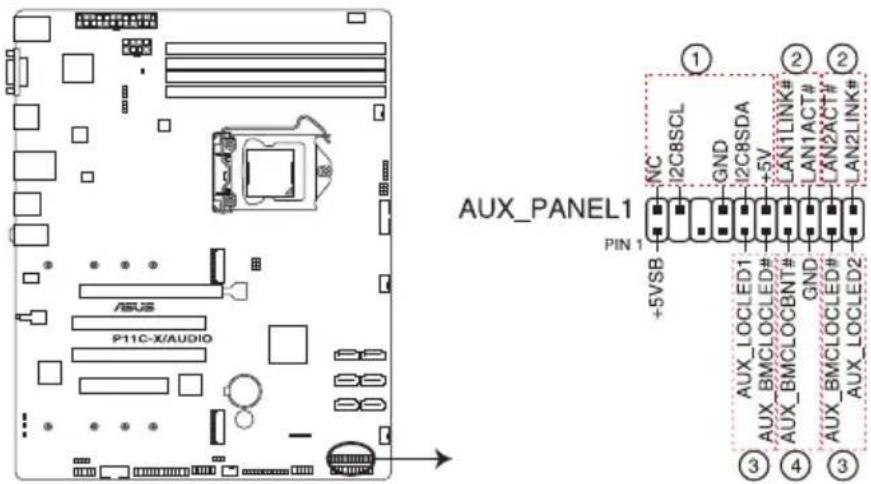
text_image
AUX_PANEL1 PIN 1 +5VSB NC 2C8SCL GND 2C8SDA +5V LAN1LINK# LAN1ACT# CAN2XCT# LAN2LINK# AUX_LOCLED1 AUX_BMCLOCLED# AUX_BMCLOCBDN# GND AUX_BMCLOCLED# AUX_LOCLED2 ① ② ③ ④ ③P11C-X/AUDIO Auxiliary panel connectors
- Front panel SMB (6-1 pin FPSMB)
These leads connect the front panel SMBus cable.
- LAN activity LED (2-pin LAN1_LED, LAN2_LED)
These leads are for the Gigabit LAN activity LEDs on the front panel.
- Locator LED (2-pin LOCATORLED1, LOCATORLED2)
These leads are for the locator LED1 and LED2 on the front panel. Connect the Locator LED cables to these 2-pin connector. The LEDs will light up when the Locator button is pressed.
- Locator Button/Switch (2-pin LOCATORBTN)
These leads are for the locator button on the front panel. This button queries the state of the system locator.
12. M.2 (NGFF) connector (NGFF1-2)
These connectors allow you to install M.2 devices.
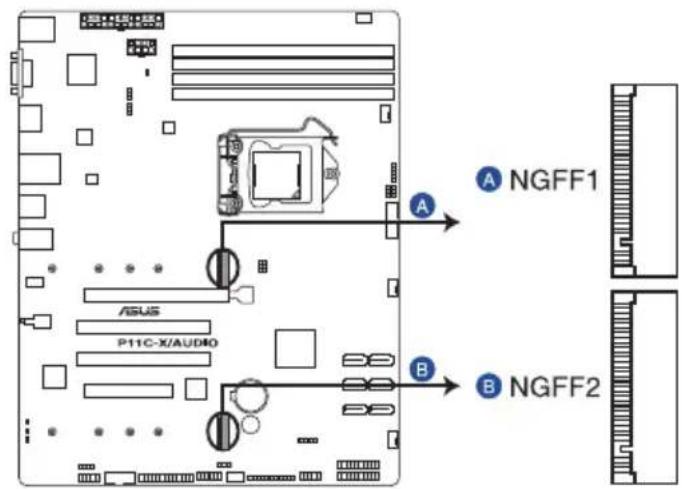
text_image
A NGFF1 B NGFF2 ASUS P11C-X/AUDIOP11C-X/AUDIO NGFF connectors

- NGFF1 supports PCIe 3.0 x2 and SATA mode M Key design and type 2242 / 2260 / 2280 / 22110 PCIe and SATA storage devices.
- NGFF2 supports SATA mode M Key design and type 2242 / 2260 / 2280 / 22110 SATA storage devices.
- When the M.2 (NGFF1) is operating in SATA mode, SATA5 will be disabled.
- When the M.2 (NGFF2) is operating in SATA mode, SATA6 will be disabled.

The M.2 (NGFF) device is purchased separately.
13. System Management Bus (SMBUS) connector (5-1 pin SMBUS1)
This connector controls the system and power management-related tasks. This connector processes the messages to and from devices rather than tripping the individual control lines.

text_image
SMBUS1 SCL GND SDA CHIL_PROG PIN 1 P11C-X/AUDIOP11C-X/AUDIO SMBUS connector
14. Chassis intrusion connector (2-pin INTRUSION1)
This connector is for a chassis-mounted intrusion detection sensor or switch. Connect one end of the chassis intrusion sensor or switch cable to this connector. The chassis intrusion sensor or switch sends a high-level signal to this connector when a chassis component is removed or replaced. The signal is then generated as a chassis intrusion event.
By default, the pin labeled "Chassis Signal" and "Ground" are shorted with a jumper cap. Remove the jumper caps only when you intend to use the chassis intrusion detection feature.
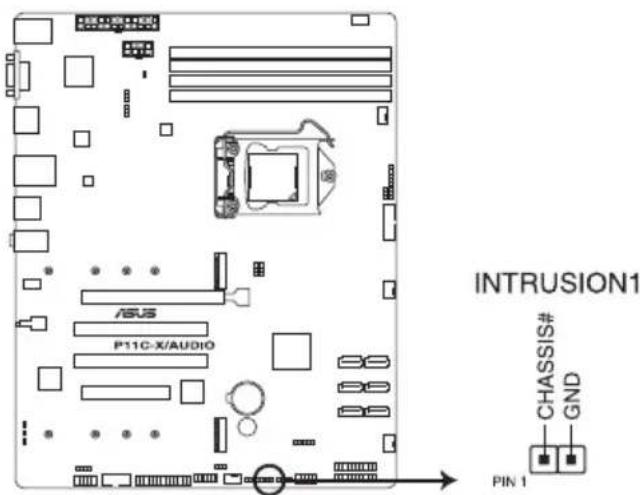
text_image
INTRUSION1 CHASSIS# GND PIN 1P11C-X/AUDIO Chassis Intrusion connector
15. LPT connector (26-1 pin LPT1)
The LPT (Line Printing Terminal) connector supports devices such as a printer. LPT standardizes as IEEE 1284, which is the parallel port interface on IBM PC-compatible computers.

text_image
ASUS P11C-X/AUDIO LPT1 PIN 1 STB# SPD0 SPD1 SPD2 SPD3 SPD4 SPD5 SPD6 SPD7 ACK# BUSY PE SLCT AFD# ERROR# PINIT# SLIN# GND GND GND GND GND GND GND GND GND GND GND GND GND GND GND GND GND GND GND GND GND GND GND GND GND GND GND GND GND GND GND GND GND GND SPT1P11C-X/AUDIO Parallel port connector
16. Front panel audio connector (10-1 pin AAFP)
This connector is for a chassis-mounted front panel audio I/O module that supports HD Audio. Connect one end of the front panel audio I/O module cable to this connector.

text_image
AAFP PORT1L GND PRESSENCE# PORT1R PRESENCE# PORT2R SENSE1_RETUR SENSE_SEND PORT2L SENSE2_RETUR HD-audio-compliant pin definitionP11C-X/AUDIO Front panel audio connector

We recommend that you connect a high-definition front panel audio module to this connector to avail of the motherboard's high-definition audio capability.
17. Digital audio connector (4-1 pin SPDIF\_OUT)
This connector is for an additional Sony/Philips Digital Interface (S/PDIF) port. Connect the S/PDIF Out module cable to this connector, then install the module to a slot opening at the back of the system chassis.

text_image
SPDIF_OUT +5V SPDIFOUT GNDP11C-X/AUDIO Digital audio connector

The S/PDIF module is purchased separately.
BIOS Setup
This chapter tells how to change the system settings through the BIOS Setup menus. Detailed descriptions of the BIOS parameters are also provided.
4
4.1 Managing and updating your BIOS
The following utilities allow you to manage and update the motherboard Basic Input/Output System (BIOS) setup:
1. ASUS CrashFree BIOS 3
To recover the BIOS using a bootable USB flash disk drive when the BIOS file fails or gets corrupted.
2. ASUS EzFlash
Updates the BIOS using a USB flash disk.
3. BUPDATER
Updates the BIOS in DOS mode using a bootable USB flash disk drive.
Refer to the corresponding sections for details on these utilities.

Save a copy of the original motherboard BIOS file to a bootable USB flash disk drive in case you need to restore the BIOS in the future. Copy the original motherboard BIOS using the BUPDATER utility.
4.1.1 ASUS CrashFree BIOS 3 utility
The ASUS CrashFree BIOS 3 is an auto recovery tool that allows you to restore the BIOS file when it fails or gets corrupted during the updating process. You can update a corrupted BIOS file using a USB flash drive that contains the updated BIOS file.

Prepare a USB flash drive containing the updated motherboard BIOS before using this utility.
Recovering the BIOS from a USB flash drive
To recover the BIOS from a USB flash drive:
- Insert the USB flash drive with the original or updated BIOS file to one USB port on the system.
- The utility will automatically recover the BIOS. It resets the system when the BIOS recovery finished.

DO NOT shut down or reset the system while recovering the BIOS! Doing so would cause system boot failure!

The recovered BIOS may not be the latest BIOS version for this motherboard. Visit the ASUS website at www.asus.com to download the latest BIOS file.
4.1.2 ASUS EZ Flash Utility
The ASUS EZ Flash Utility feature allows you to update the BIOS without having to use a DOS-based utility.

Before you start using this utility, download the latest BIOS from the ASUS website at www.asus.com.
To update the BIOS using EZ Flash Utility:
- Insert the USB flash disk that contains the latest BIOS file into the USB port.
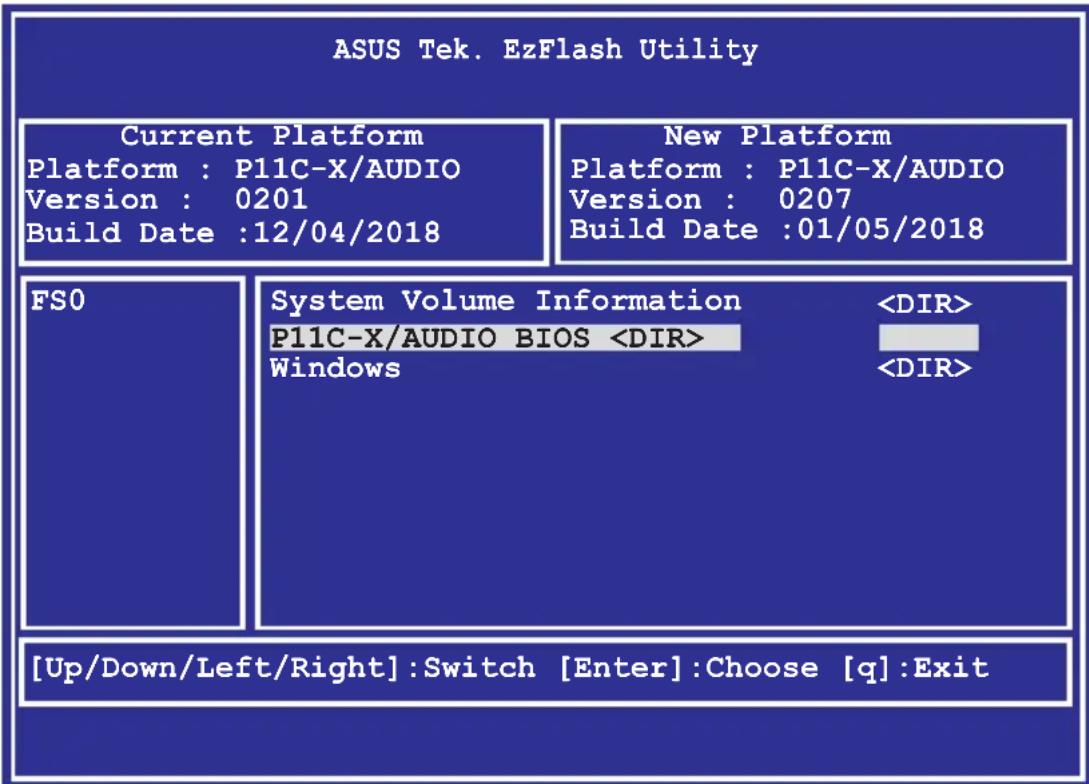
- Enter the BIOS setup program. Go to the Tool menu then select ASUS EZ Flash Utility. Press
.
text_image
ASUS Tek. EzFlash Utility Current Platform Platform : P11C-X/AUDIO Version : 0201 Build Date :12/04/2018 New Platform Platform : P11C-X/AUDIO Version : 0207 Build Date :01/05/2018 FSO System Volume Information- Press
to switch to the Drive field. - Press the Up/Down arrow keys to find the USB flash disk that contains the latest BIOS, then press
. -
Press
to switch to the Folder Info field. -
Press the Up/Down arrow keys to find the BIOS file, and then press
to perform the BIOS update process. Reboot the system when the update process is done.

- This function can support devices such as a USB flash disk with FAT 32/16 format and single partition only.
- DO NOT shut down or reset the system while updating the BIOS to prevent system boot failure!

Ensure to load the BIOS default settings to ensure system compatibility and stability. Press
4.1.3 BUPDATER utility

The succeeding BIOS screens are for reference only. The actual BIOS screen displays may not be the same as shown.
The BUPDATER utility allows you to update the BIOS file in the DOS environment using a bootable USB flash disk drive with the updated BIOS file.
Updating the BIOS file
To update the BIOS file using the BUPDATER utility:
- Visit the ASUS website at www.asus.com and download the latest BIOS file for the motherboard. Save the BIOS file to a bootable USB flash disk drive.
- Copy the BUPDATER utility (BUPDATER.exe) from the ASUS support website at https://www.asus.com/support to the bootable USB flash disk drive you created earlier.
- Boot the system in DOS mode, then at the prompt, type:
BUPDATER /i [filename].CAP
where [filename] is the latest or the original BIOS file on the bootable USB flash disk drive, then press
A:>BUPDATER /i [file name].CAP
- The utility verifies the file, then starts updating the BIOS file.
text_image
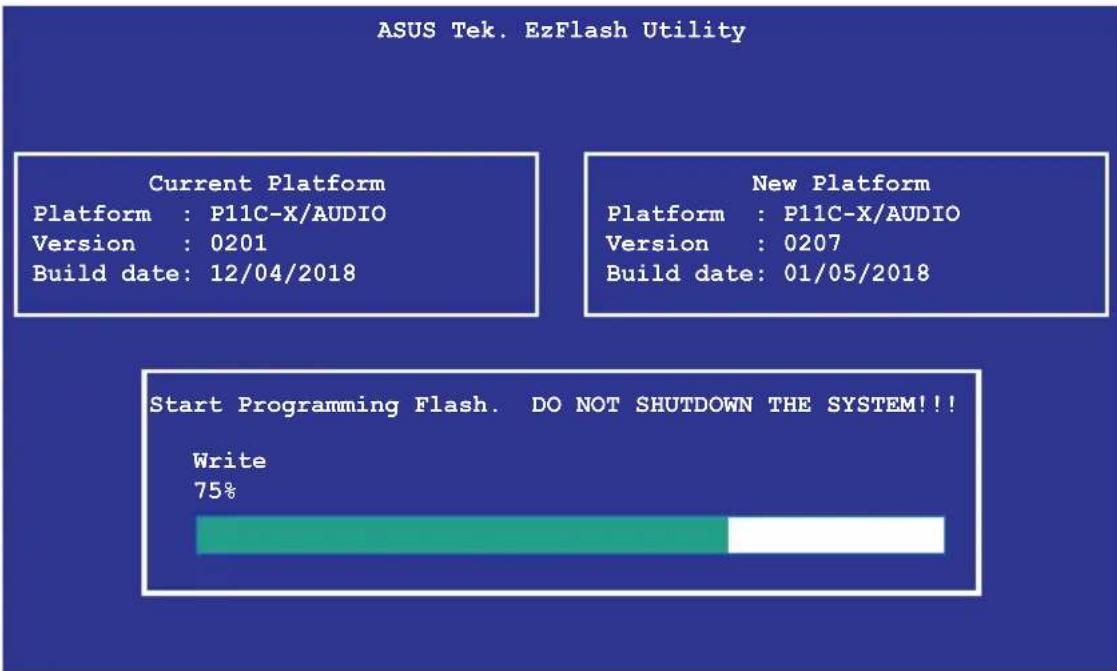
ASUS Tek. EzFlash Utility Current Platform Platform : P11C-X/AUDIO Version : 0201 Build date: 12/04/2018 New Platform Platform : P11C-X/AUDIO Version : 0207 Build date: 01/05/2018 Start Programming Flash. DO NOT SHUTDOWN THE SYSTEM!!! Write 75%
DO NOT shut down or reset the system while updating the BIOS to prevent system boot failure!
- The utility returns to the DOS prompt after the BIOS update process is completed. Reboot the system from the hard disk drive.
The BIOS update is finished! Please restart your system.
C:\>
4.2 BIOS setup program
This motherboard supports a programmable firmware chip that you can update using the provided utility described in section 4.1 Managing and updating your BIOS.
Use the BIOS Setup program when you are installing a motherboard, reconfiguring your system, or prompted to "Run Setup." This section explains how to configure your system using this utility.
Even if you are not prompted to use the Setup program, you can change the configuration of your computer in the future. For example, you can enable the security password feature or change the power management settings. This requires you to reconfigure your system using the BIOS Setup program so that the computer can recognize these changes and record them in the CMOS RAM of the firmware chip.
The firmware chip on the motherboard stores the Setup utility. When you start up the computer, the system provides you with the opportunity to run this program. Press during the Power-On Self-Test (POST) to enter the Setup utility; otherwise, POST continues with its test routines.
If you wish to enter Setup after POST, restart the system by pressing
The Setup program is designed to make it as easy to use as possible. Being a menu-driven program, it lets you scroll through the various sub-menus and make your selections from the available options using the navigation keys.

- The default BIOS settings for this motherboard apply for most conditions to ensure optimum performance. If the system becomes unstable after changing any BIOS settings, load the default settings to ensure system compatibility and stability. Press
and select Yes to load the BIOS default settings. - The BIOS setup screens shown in this section are for reference purposes only, and may not exactly match what you see on your screen.
- Visit the ASUS website (www.asus.com) to download the latest BIOS file for this motherboard.
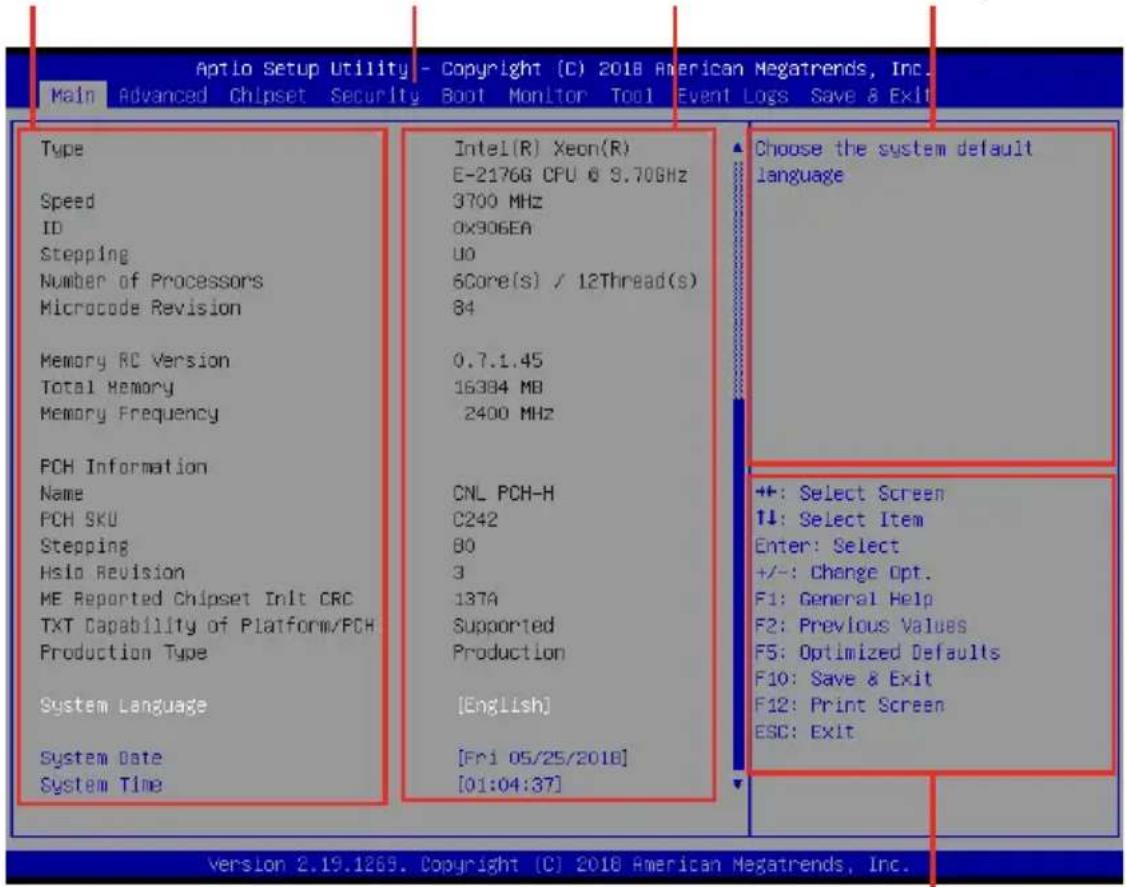
4.2.1 BIOS menu screen
General helpMenu bar Configuration fieldsM
text_image
Aptio Setup Utility - Copyright (C) 2018 American Megatrends, Inc. Main Advanced Chipset Security Boot Monitor Tool Event Logs Save & Exit Type Speed ID Stepping Number of Processors Microcode Revision Memory RC Version Total Memory Memory Frequency FCH Information Name FCH SKU Stepping Hslo Revision ME Reported Chipset Inlt CRC TXT Capability of Platform/FCH Production Type System Language System Date System Time Intel(R) Xeon(R) E-2176G CPU @ 9.70GHz 3700 MHz 0x306EA UO 6Core(s) / 12Thread(s) 84 0.7.1.45 16384 MB 2400 MHz CNL PCH-H C242 80 3 137A Supported Production [English] [Fri 05/25/2018] [01:04:37] Choose the system default language +/-: Select Screen 1↓: Select Item Enter: Select +/-: Change Opt. F1: General Help F2: Previous Values F5: Optimized Defaults F10: Save & Exit F12: Print Screen ESC: Exit Version 2.19.1269. Copyright (C) 2018 American Megatrends, Inc.Navigation keys
4.2.2 Menu bar
The menu bar on top of the screen has the following main items:
Main For changing the basic system configuration
Advanced For changing the advanced system settings
Chipset For changing the chipset settings
Security For changing the security settings
Boot For changing the system boot configuration
Monitor For displaying the system temperature, power status, and changing the fan settings
Tool For configuring options for special functions
Event Logs For changing the event log settings
Save & Exit For selecting the save & exit options
To select an item on the menu bar, press the right or left arrow key on the keyboard until the desired item is highlighted.
4.2.3 Menu items
The highlighted item on the menu bar displays the specific items for that menu. For example, selecting Main shows the Main menu items.
The other items (Advanced, Chipset, Security, Boot, Monitor, Tool, Event Logs, and Save & Exit) on the menu bar have their respective menu items.
4.2.4 Submenu items
A solid triangle before each item on any menu screen means that the item has a submenu. To display the submenu, select the item then press
4.2.5 Navigation keys
At the bottom right corner of a menu screen are the navigation keys for the BIOS setup program. Use the navigation keys to select items in the menu and change the settings.
4.2.6 General help
At the top right corner of the menu screen is a brief description of the selected item.
4.2.7 Configuration fields
These fields show the values for the menu items. If an item is user-configurable, you can change the value of the field opposite the item. You cannot select an item that is not user-configurable.
A configurable field is enclosed in brackets, and is highlighted when selected. To change the value of a field, select it and press
4.2.8 Pop-up window
Select a menu item and press
4.2.9 Scroll bar
A scroll bar appears on the right side of a menu screen when there are items that do not fit on the screen. Press the Up/Down arrow keys or
4.3 Main menu
When you enter the BIOS Setup program, the Main menu screen appears. The Main menu provides you an overview of the basic system information, and allows you to set the system date, time, and language.

text_image
Aptio Setup Utility - Copyright (C) 2018 American Megatrends, Inc. Main Advanced Chipset Security Boot Monitor Tool Event Logs Save & Exit BIOS Information BIOS Vendor American Megatrends Core Version 5.13 Compliance UEFI 2.6; PI 1.4 Project Version 0206 x64 Build Date and Time 05/02/2018 Access Level Administrator EMC Firmware Revision Unknown Intel I210 LAN1 MAC 00:0C:6E:00:01:82 Board Information Board ID P110-X Series Fab ID Rev 1.xx Processor Information Name CoffeeLake DT Type Intel(R) Xeon(R) E-2176G CFU @ 3.70GHz Speed 3700 MHz ID 0x906EA Stepping UO Number of Processors 6Core(s) / 12Thread(s) Microcode Revision 84 Choose the system default language ++: Select Screen ↑↓: Select Item Enter: Select +/-: Change Opt. F1: General Help F2: Previous Values F5: Optimized Defaults F10: Save & Exit F12: Print Screen ESC: Exit Version 2.19.1269. Copyright (C) 2018 American Megatrends, Inc.System Date [Day MM/DD/YYYY]
Allows you to set the system date.
System Time [HH:MM:SS]
Allows you to set the system time.
4.4 Advanced menu
The Advanced menu items allow you to change the settings for the CPU and other system devices.

Take caution when changing the settings of the Advanced menu items. Incorrect field values can cause the system to malfunction.

text_image
Aptio Setup Utility - Copyright (C) 2018 American Megatrends, Inc. Main Advanced Chipset Security Boot Monitor Tool Event Logs Save & Exit CPU Configuration Power & Performance Server ME Configuration Trusted Computing AFM Configuration Runtime Error Logging Settings Onboard LAN Configuration Serial Port Console Redirection Intel TXT Information PCI Subsystem Settings USB Configuration Network Stack Configuration OSM Configuration NVMe Configuration NHEA Configuration iSCSI Configuration Tls Auth Configuration CPU Configuration Parameters ++: Select Screen ↑↓: Select Item Enter: Select +/-: Change Opt. F1: General Help F2: Previous Values F5: Optimized Defaults F10: Save & Exit F12: Print Screen ESC: Exit Version 2.19.1269. Copyright (C) 2018 American Megatrends, Inc.4.4.1 CPU Configuration
text_image
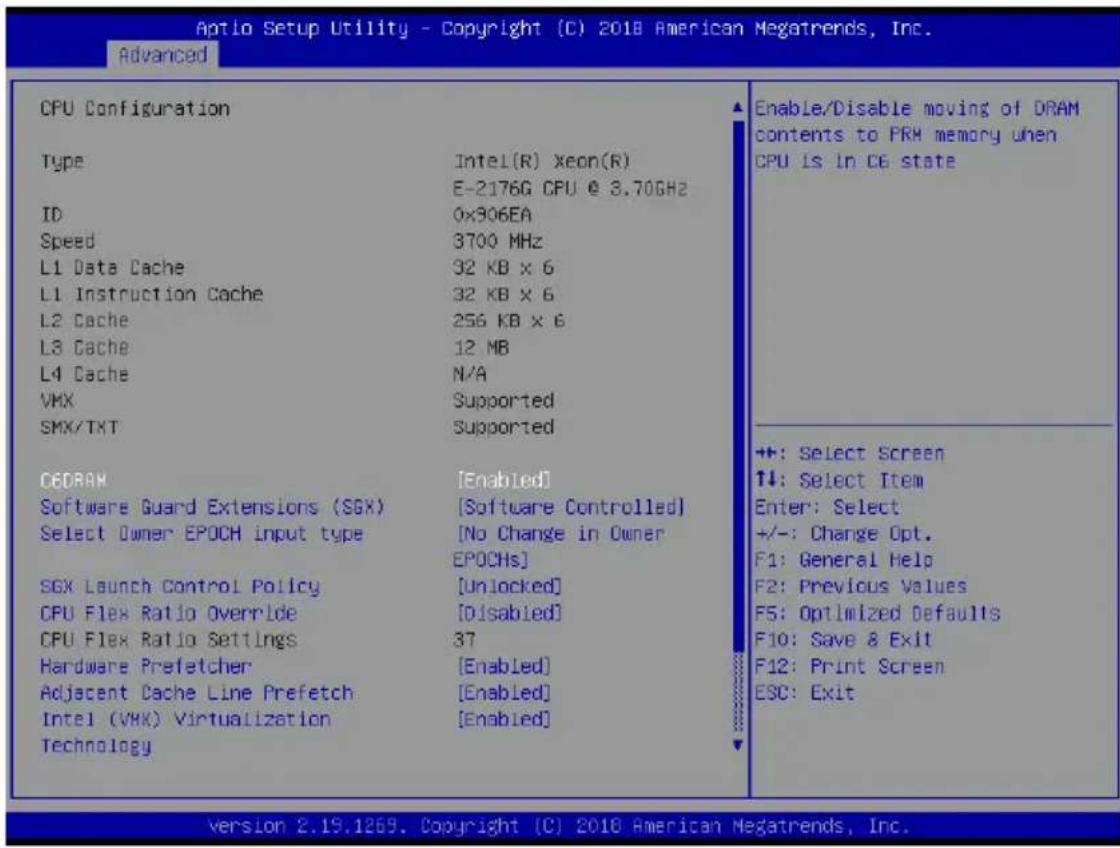
Optio Setup Utility - Copyright (C) 2018 American Megatrends, Inc. Advanced CPU Configuration Type Intel(R) Xeon(R) E-2176G CPU @ 3.70GHz ID 0x306EA Speed 3700 MHz L1 Data Cache 32 KB x 6 L1 Instruction Cache 32 KB x 6 L2 Cache 256 KB x 6 L3 Cache 12 MB L4 Cache N/A VMX Supported SMX/TXT Supported CEDRAM [Enabled] Software Guard Extensions (SGX) [Software Controlled] Select Owner EPOCH input type [No Change in Owner EPOCHs] SGX Launch Control Policy [Unlocked] CPU Flex Ratio Override [Disabled] CPU Flex Ratio Settings 37 Hardware Prefetcher [Enabled] Adjacent Cache Line Prefetch [Enabled] Intel (VMK) Virtualization [Enabled] Technology Enable/Disable moving of DRAM contents to PRM memory when CPU is in C6 state ++: Select Screen ↑↓: Select Item Enter: Select +/-: Change Opt. F1: General Help F2: Previous Values F5: Optimized Defaults F10: Save & Exit F12: Print Screen ESC: Exit Version 2.19.1269. Copyright (C) 2018 American Megatrends, Inc.C6DRAM [Enabled]
Allows you to enable or disable moving of DRAM contents to PRM memory when the CPU is in C6 state.
Configuration options: [Disabled] [Enabled]
Software Guard Extensions (SGX) [Software Controlled]
Allows you to select the behavior of Software Guard Extensions (SGX).
Configuration options: [Software Controlled] [Disabled] [Enabled]
![ASUS WS470T - Software Guard Extensions (SGX) [Software Controlled] - 1](/content/2026/06/1221361/images/38796c01e287e145139c34a2d0b54bb5885f8fe94db8e0c42cd498fbfdc6ac65.jpg)
The following item appears only when you set Software Guard Extensions (SGX) to [Enabled] or [Software Controlled].
Select Owner EPOCH input type [No change in Owner EPOCHs]
Allows you to select the behavior of EPOCH input type.
Configuration options: [No change in Owner EPOCHs] [Change to New Random
EPOCHs] [Manual User Defined Owner EPOCHs]
SGX Launch Control Policy [Unlocked]s]
Allows you to select the behavior of SGX Launch Control Policy.
Configuration options: [Intel Locked] [Unlocked] [Locked]
CPU Flex Ratio Override [Disabled]
Allows you to enable or disable CPU Flex Ratio Override.
Configuration options: [Disabled] [Enabled]
![ASUS WS470T - CPU Flex Ratio Override [Disabled] - 1](/content/2026/06/1221361/images/2728e2c4d923723691d76d0d2248ebfa5acb6e76bcce347fab75b6a18195c996.jpg)
The following item appears only when you set CPU Flex Ratio Override to [Enabled].
CPU Flex Ratio Settings [37]
Allows you to set the CPU Flex Ratio.
This value must be between the Max Efficiency Ratio (LFM) and the Maximum non-turbo ratio set by the Hardware (HFW).
Hardware Prefetcher [Enabled]
This Item allows you to turn on/off the MLC streamer prefetcher.
Configuration options: [Disabled] [Enabled]
Adjacent Cache Prefetch [Enabled]
This Item allows you to turn on/off prefetching of adjacent cache lines.
Configuration options: [Disabled] [Enabled]
Intel (VMX) Virtualization Technology [Enabled]
Enable this item to allow a VMM to utilize the additional hardware capabilities provided by Vanderpool Technology.
Configuration options: [Disabled] [Enabled]
Active Processor Cores [ALL]
This item allows you to set the number of cores to enable in each processor package.
Configuration options: [All] [1] [2] [3] [4] [5]
Hyper-Threading [Enabled]
Enable this option of Windows XP and Linux (OS optimized for Hyper-Threading Technology).
Disable this item for other OS (OS not optimized for Hyper-Threading Technology).
Configuration options: [Disabled] [Enabled]
BIST [Disabled]
Allows you to enable or disable BIST (Built-In Self Test) on reset.
Configuration options: [Disabled] [Enabled]
AES [Enabled]
Allows you to enable or disable AES (Advanced Encryption Standard).
Configuration options: [Disabled] [Enabled]
Intel Trusted Execution Technology [Disabled]
Allows you to enable or disable utilization of additional hardware capabilities provided by Intel(R) Trusted Execution Technology. Changes require a full power cycle to take effect.
Configuration options: [Disabled] [Enabled]
4.4.2 Power & Performance

text_image
Optio Setup Utility - Copyright (C) 2018 American Megatrends, Inc. Advanced Power & Performance CPU - Power Management Control CPU - Power Management Control OptionsCPU - Power Management Control
Boot performance mode [Max Non-Turbo Performance]
This item allows you to select the performance state that the BIOS will set starting from reset vector.
Configuration options: [Max Battery] [Max Non-Turbo Performance] [Turbo Performance]
Intel(R) SpeedStep(tm) [Enabled]
Allows more than two frequency ranges to be supported. Configuration options: [Disabled] [Enabled]
Race To Halt (RTH) [Enabled]
Allows you to enable or disable Race To Halt feature. RTH will dynamically increase CPU frequency in order to enter pkg C-State faster to reduce overall power. RTH is controlled through MSR 1FC bit 20.
Configuration options: [Disabled] [Enabled]
Intel(R) Speed Shift Technology [Disabled]
Allows you to enable or disable Intel(R) Speed Shift Technology support. Enabling will expose the CPPC v2 interface to allow for hardware controlled P-states.
Configuration options: [Disabled] [Enabled]
HDC Control [Enabled]
[Disabled] Disable HDC.
[Enabled] Can be enable by OS if OS native support available.
Turbo Mode [Enabled]
Allows you to enable or disable processor turbo mode if EMTTM is also enabled.
Configuration options: [Disabled] [Enabled]
C-States [Enabled]
Allows you to enable or disable CPU power management, this allows the CPU to enter C-state when not it is not 100 % utilized.
Configuration options: [Disabled] [Enabled]
![ASUS WS470T - C-States [Enabled] - 1](/content/2026/06/1221361/images/d1d0d1aac1b972b36655593880ef5449c0b0728b7f3733a2995f856bfa8327f7.jpg)
The following items appears only when you set C-States to [Enabled].
Enhanced C-States [Enabled]
Allows you to enable or disable C11E. Enable this item to allow the CPU to switch to minimum speed when all cores enter C-State.
Configuration options: [Disabled] [Enabled]
C-State Auto Demotion [C1 and C3]
This item allows you to configure the C-state auto demotion.
Configuration options: [Disabled] [C1] [C3] [C1 and C3]
C-State Un-demotion [C1 and C3]
This item allows you to configure the C-state Un-demotion.
Configuration options: [Disabled] [C1] [C3] [C1 and C3]
Package C-State Demotion [C1 and C3]
This item allows you to configure the Package C-State Demotion.
Configuration options: [Disabled] [C1] [C3] [C1 and C3]
Package C-State Un-demotion [C1 and C3]
This item allows you to configure the Package C-state Un-demotion.
Configuration options: [Disabled] [C1] [C3] [C1 and C3]
Package C-state Limit [Auto]
This item allows you to select the maximum package C-state limit setting.
Configuration options: [C0/C1] [C2] [C3] [C6] [C7] [C7S] [C8] [C9] [C10] [CPU Default] [Auto]
Thermal Monitor [Enabled]
Allows you to enable or disable Thermal Monitoring.
Configuration options: [Disabled] [Enabled]
4.4.3 Server ME Configuration
| Server ME Configuration Operational Firmware Version Backup Firmware Version Recovery Firmware Version ME Firmware Features | 11:5.0.2.17 N/A 11:5.0.2.17 SiEn PECIProxy ICC MeStorageServices BootGuard PTT PnBusProxy SocThermalReporting HSIO PECIOverDMI PCHDebug PCHThermalSensorInit DirectMeUpdate TelemetryHub WarmResetNotificationSub Flow Ox100F0255 Ox8911E006 Operational No Error (PTT) | Selects TPM device: PTT or dTPM. PTT - Enables PTT in SkuMgr dTPM 1.2 - Disables PTT in SkuMgr Warning ! PTT/dTPM will be disabled and all data saved on it will be lost. |
| ME Firmware Status #1 ME Firmware Status #2 Current State Error Code TPM Device Selection | ++: Select Screen ↑↓: Select Item Enter: Select +/-: Change Opt, F1: General Help F2: Previous Values F5: Optimized Defaults F10: Save & Exit F12: Print Screen ESC: Exit |
TPM Device Selection [PTT]
Allows you to select the TPM device.
Configuration options: [PTT] [dTPM]
4.4.4 Trusted Computing
| Aptio Setup Utility - Copyright (C) 2018 American Megatrends, Inc. Advanced | ||
| TPM20 Device Found Firmware Version: | 401.2 | Enables or Disables BIOS support for security device. O.S. will not show Security Device. TCG EFI protocol and INT1A interface will not be available. |
| Vendor: | INTC | |
| Security Device Support | [Enable] | |
| Active PCR banks | SHA-1,SHA256 | |
| Available PCR banks | SHA-1,SHA256 | |
Security Device Support [Enabled]
This item allows you to enable or disable Security Device Support.
Configuration options: [Disabled] [Enabled]
4.4.5 APM Configuration

text_image
Aptio Setup Utility - Copyright (C) 2018 American Megatrends, Inc. Advanced Restore AC Power Loss [Last State] Power On By PCI-E/PCI [Disabled] Power On By RTC [Disabled] Restore On AC Power LossRestore AC Power Loss [Last State]
When set to [Power Off], the system goes into off state after an AC power loss. When set to [Power On], the system will reboot after an AC power loss. When set to [Last State], the system goes into either off or on state, whatever the system state was before the AC power loss.
Configuration options: [Power Off] [Power On] [Last State]
Power On By PCI-E/PCI [Disabled]
[Disabled] Disables the PCI or PCIE devices to generate a wake event.
[Enabled] Enables the PCI or PCIE devices to generate a wake event.
Power On By RTC [Disabled]
[Disabled] Disables RTC to generate a wake event.
[Enabled] When set to [Enabled], the items RTC Alarm Date (Days) and Hour/Minute/Second will become user-configurable with set values.
4.4.6 Runtime Error Logging Settings

text_image
Aptlo Setup Utility - Copyright (C) 2018 American Megatrends, Inc. Advanced Runtime Error Logging Settings Runtime Error Logging System [Enabled] Enabling Runtime Error Logging System Enable/DisableRuntime Error Logging System Enabling [Enabled]
This item allows you to enable or disable Runtime Error Logging System. Configuration options: [Disabled] [Enabled]
4.4.7 Onboard LAN Configuration

text_image
Aptlo Setup Utility - Copyright (C) 2018 American Megatrends, Inc. Advanced ► Onboard I210 LAN Configuration Onboard I210 LAN Enable/DisableOnboard I210 LAN Configuration
Intel I210 LAN1
LAN Enable [Enabled]
Allows you to enable or disable the Intel LAN. Configuration options: [Disabled] [Enabled]
![ASUS WS470T - LAN Enable [Enabled] - 1](/content/2026/06/1221361/images/94fd901d32b3a2087424204a1535055e6adefb78f3a22e411cc1a0c4f9b3c588.jpg)
The following item appears only when you set LAN Enable to [Enabled].
Intel LAN ROM Type [PXE]
Allows you to select the Intel LAN ROM type. Configuration options: [Disabled] [PXE] [iSCSI]
![ASUS WS470T - Intel LAN ROM Type [PXE] - 1](/content/2026/06/1221361/images/de81d748008281004e687d4f70936fd9f9d6ef1bf317cf30d178ce119e4daf92.jpg)
Due to Intel ^® limitations, both Intel LAN ROM Type options should be the same when [PXE] or [iSCSI] is selected.
4.4.8 Serial Port Console Redirection
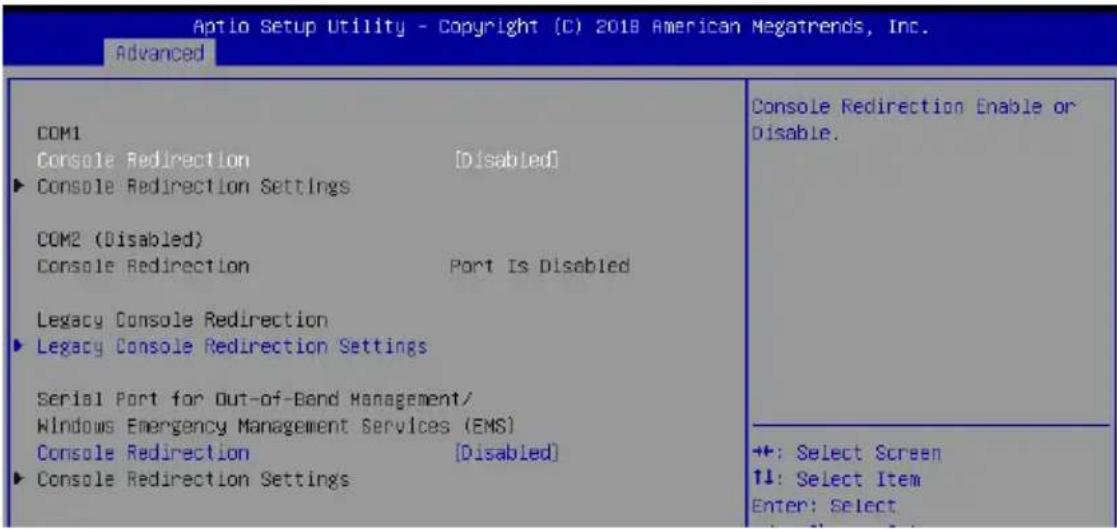
text_image
Aptio Setup Utility - Copyright (C) 2018 American Megatrends, Inc. Advanced COM1 Console Redirection [Disabled] ► Console Redirection Settings COM2 (Disabled) Console Redirection Port Is Disabled Legacy Console Redirection ► Legacy Console Redirection Settings Serial Port for Out-of-Band Management/ Windows Emergency Management Services (EMS) Console Redirection [Disabled] ► Console Redirection Settings Console Redirection Enable or Disable. +: Select Screen ↑↓: Select Item Enter: SelectCOM1
Console Redirection [Disabled]
Allows you to enable or disable the console redirection feature.
Configuration options: [Disabled] [Enabled]
![ASUS WS470T - Console Redirection [Disabled] - 1](/content/2026/06/1221361/images/1ec6c8f2a25eead23f9053e0c44400c38a2e7a36872fa68be88acf4c93a436e5.jpg)
The following item appears only when you set Console Redirection to [Enabled].
Console Redirection Settings
These items become configurable only when you enable the Console Redirection item. The settings specify how the host computer and the remote computer (which the user is using) will exchange data. Both computers should have the same or compatible settings.
Terminal Type [VT-UTF8]
Allows you to set the terminal type.
[VT100] ASCII char set.
[VT100+] Extends VT100 to support color, function keys, etc.
[VT-UTF8] Uses UTF8 encoding to map Unicode chars onto 1 or more bytes.
[ANSI] Extended ASCII char set.
Bits per second [57600]
Selects serial port transmission speed. The speed must be matched on the other side.
Long or noisy lines may require lower speeds.
Configuration options: [9600] [19200] [38400] [57600] [115200]
Data Bits [8]
Configuration options: [7] [8]
Parity [None]
A parity bit can be sent with the data bits to detect some transmission errors. [Mark] and [Space] parity do not allow for error detection.
[None] None
[Even] parity bit is 0 if the num of 1's in the data bits is even
[Odd] parity bit is 0 if num of 1's in the data bits is odd
[Mark] parity bit is always 1
[Space] parity bit is always 0
Stop Bits [1]
Stop bits indicate the end of a serial data packet. (A start bit indicates the beginning.) The standard setting is 1 stop bit. Communication with slow devices may require more than 1 stop bit.
Configuration options: [1] [2]
Flow Control [Hardware RTS/CTS]
Flow control can prevent data loss from buffer overflow. When sending data, if the receiving buffers are full, a “stop” signal can be sent to stop the data flow. Once the buffers are empty, a “start” signal can be sent to re-start the flow. Hardware flow control uses two wires to send start/stop signals.
Configuration options: [None] [Hardware RTS/CTS]
VT -UTF8 Combo Key Support [Enabled]
This allows you to enable the VT -UTF8 Combination Key Support for ANSI/VT100 terminals.
Configuration options: [Disabled] [Enabled]
Recorder Mode [Disabled]
With this mode enabled only text will be sent. This is to capture Terminal data. Configuration options: [Disabled] [Enabled]
Legacy OS Redirection Resolution [80x24]
This allows you to set the number of rows and columns supported on the Legacy OS. Configuration options: [80x24] [80x25]
Putty Keypad [VT100]
This allows you to select the FunctionKey and Keypad on Putty. Configuration options: [VT100] [LINUX] [XTERMR6] [SCO] [ESCN] [VT400]
Legacy Console Redirection Settings
Legacy Console Redirection Port [COM1]
Allows you to select a COM port to display redirection of Legacy OS and Legacy OPROM Messages.
Configuration options: [COM1]
Resolution [80x24]
Allows you to select a the number of rows and columns in supported redirection. Configuration options: [80x24] [80x25]
Redirect After POST [Always Enable]
Allows you to select the redirection after POST. Configuration options: [Always Enable] [BootLoader]
Serial Port for Out-of-Band Management/Windows Emergency Management Services (EMS)
Console Redirection [Disabled]
Allows you to enable or disable the console redirection feature.
Configuration options: [Disabled] [Enabled]
![ASUS WS470T - Console Redirection [Disabled] - 1](/content/2026/06/1221361/images/0559ce51106f578281da2ecca1b81278a603f7e7992615e4d0c72d078943b55f.jpg)
The following item appears only when you set Console Redirection to [Enabled].
Console Redirection Settings
Out-of-Band Mgmt Port [COM1]
Microsoft Windows Emergency Management Services (EMS) allow for remote management of a Windows Server OS through a serial port.
Configuration options: [COM1]
Terminal Type [VT-UTF8]
Microsoft Windows Emergency Management Services (EMS) allow for remote management of a Windows Server OS through a serial port.
Configuration options: [VT100] [VT100+] [VT-UTF8] [ANSI]
Bits per second [115200]
Microsoft Windows Emergency Management Services (EMS) allow for remote management of a Windows Server OS through a serial port.
Configuration options: [9600] [19200] [57600] [115200]
Flow Control [None]
Microsoft Windows Emergency Management Services (EMS) allow for remote management of a Windows Server OS through a serial port.
Configuration options: [None] [Hardware RTS/CTS] [Software Xon/Xoff]
4.4.9 Intel TXT Information
You may view the Intel TXT information in this menu.

text_image
Aptio Setup Utility - Copyright (C) 2018 American Megatrends, Inc. Advanced Intel TXT Information Chipset Production Fused BiosAcm Production Fused Chipset Txt Supported Cpu Txt Supported Error Code None Class Code None Major Code None Minor Code None4.4.10 PCI Subsystem Settings
Allows you to configure PCI, PCI-X, and PCI Express Settings.
| Aptio Setup Utility - Copyright (C) 2018 American Megatrends, Inc. Advanced | |
| AMI PCI Driver Version: A5.01.16 PCI Settings Common for all Devices: Above 4G Decoding [Disabled] Change Settings of the Following PCI Devices: WARNING: Changing PCI Device(s) settings may have unwanted side effects! System may HANG! PROCEED WITH CAUTION. | Globally Enables or Disables 64bit capable Devices to be Decoded In Above 4G Address Space (Only if System Supports 64 bit PCI Decoding). |
Above 4G Decoding [Disabled]
Allows you to enable or disable 64-bit capable devices to be decoded in above 4G address space. It only works if the system supports 64-bit PCI decoding.
Configuration options: [Disabled] [Enabled]
4.4.11 USB Configuration
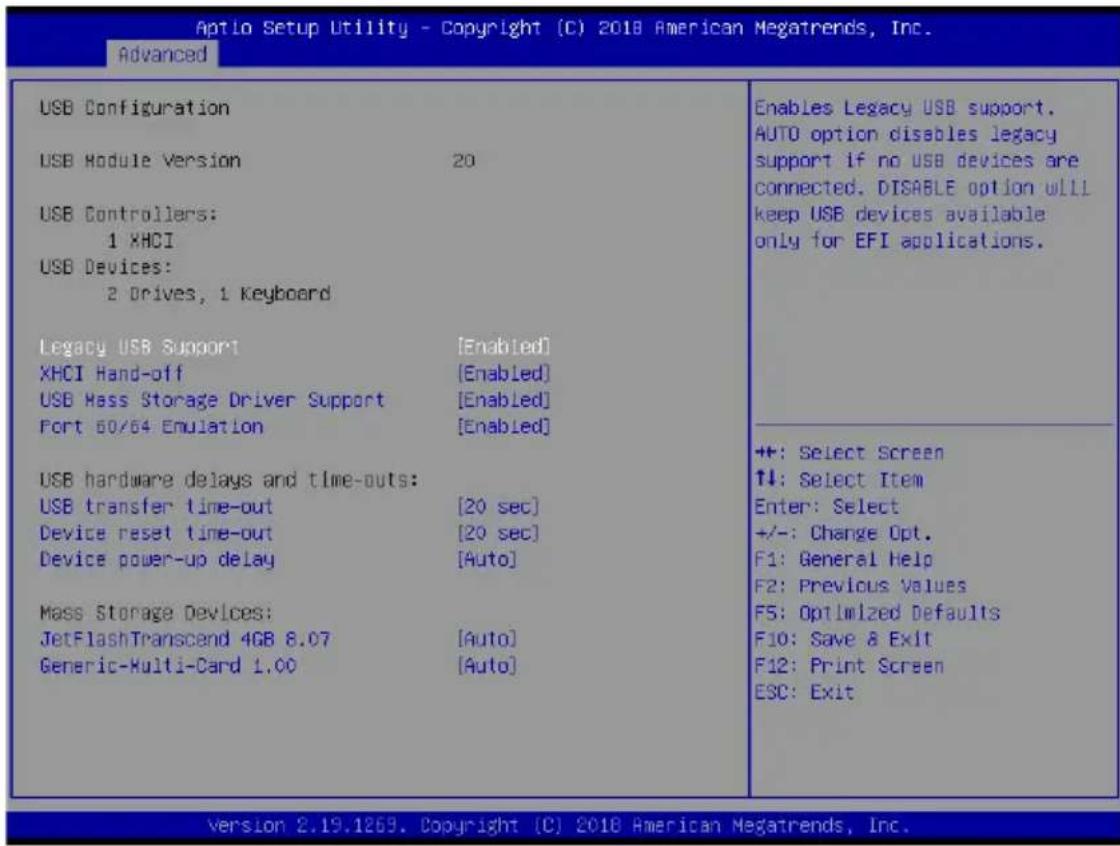
text_image
Optio Setup Utility - Copyright (C) 2018 American Megatrends, Inc. Advanced USB Configuration USB Module Version 20 USB Controllers: 1 XHCI USB Devices: 2 Drives, 1 Keyboard Legacy USB Support [Enabled] XHCI Hand-off [Enabled] USB Mass Storage Driver Support [Enabled] Port 60/64 Emulation [Enabled] USB hardware delays and time-outs: USB transfer time-out [20 sec] Device reset time-out [20 sec] Device power-up delay [Auto] Mass Storage Devices: JetFlashTranscend 4GB 8.07 [Auto] Generic-Multi-Card 1.00 [Auto] Enables Legacy USB support. AUTO option disables legacy support if no USB devices are connected. DISABLE option will keep USB devices available only for EFI applications. ++: Select Screen ↑↓: Select Item Enter: Select +/-: Change Opt. F1: General Help F2: Previous Values F5: Optimized Defaults F10: Save & Exit F12: Print Screen ESC: Exit Version 2.19.1269. Copyright (C) 2018 American Megatrends, Inc.Legacy USB Support [Enabled]
[Disabled] The USB devices can be used only for the BIOS setup program. It cannot be recognized in boot devices list.
[Enabled] Enables the support for USB devices on legacy operating systems (OS).
[Auto] Allows the system to detect the presence of USB devices at startup. If detected, the USB controller legacy mode is enabled. If no USB device is detected, the legacy USB support is disabled.
XHCI Hand-off [Enabled]
Allows you to enable or disable workaround for OS(s) without XHCI hand-off support.
Configuration options: [Disabled] [Enabled]
USB Mass Storage Driver Support [Enabled]
Allows you to enable or disable USB Mass Storage driver support.
Configuration options: [Disabled] [Enabled]
Port 60/64 Emulation [Enabled]
Allows you to enable or disable Port 60/64 Emulation.
Configuration options: [Disabled] [Enabled]
USB transfer time-out [20 sec]
Allows you to set the USB transfer time-out value.
Configuration options: [1 sec] [5 sec] [1 sec] [20 sec]
Device reset time-out [20 sec]
Allows you to set the device reset time-out value.
Configuration options: [10 sec] 20 sec] [30 sec] [40 sec]
Device power-up delay [Auto]
Allows you to set the maximum time the device takes before the device reports itself to the host controller properly.
Configuration options: [Auto] [Manual]
![ASUS WS470T - Device power-up delay [Auto] - 1](/content/2026/06/1221361/images/13d13657256ef9c863f29ccbe347a8174a00423498100ba26b72047f40eef139.jpg)
The following item appears only when you set Console Redirection to [Manual].
Device power-up delay in seconds [5]
Allows you to set the device power-up delay in seconds. Use the <+> or <-> to adjust the value. The values range from 1 to 40.
Mass Storage Devices
Allows you to select the mass storage device emulation type for devices connected.
Configuration options: [Auto] [Floppy] [Forced FDD] [Hard Disk] [CD-ROM]
4.4.12 Network Stack Configuration
Allows you to configure the network stack configuration.

text_image
Aptlo Setup Utility - Copyright (C) 2018 American Megatrends, Inc. Advanced Network Stack [Disabled] Enable/Disable UEFI Network StackNetwork Stack [Disabled]
Allows you to enable or disable UEFI Network Stack.
Configuration options: [Disabled] [Enabled]
![ASUS WS470T - Network Stack [Disabled] - 1](/content/2026/06/1221361/images/cb15ff98a54c0e3bdfa6cdf8b0347b739878c93b5fa5bca0e3ef5b0ba4cdab81.jpg)
The following items appear only when you set the Network Stack to [Enabled].
Ipv4 PXE Support [Disabled]
Enables or disables the lpv4 PXE Boot Support. If disabled, lpv4 PXE boot option will not be created.
Configuration options: [Disabled] [Enabled]
Ipv4 HTTP Support [Disabled]
Enables or disables the lpv4 HTTP Boot Support. If disabled, lpv4 PXE boot option will not be created.
Configuration options: [Disabled] [Enabled]
Ipv6 PXE Support [Disabled]
Enables or disables the lpv6 PXE Boot Support. If disabled, lpv6 PXE boot option will not be created.
Configuration options: [Disabled] [Enabled]
Ipv6 HTTP Support [Disabled]
Enables or disables the lpv6 HTTP Boot Support. If disabled, lpv6 PXE boot option will not be created.
Configuration options: [Disabled] [Enabled]
IPSEC Certificate [Enabled]
Enables or disables support for IPSEC Certificate.
Configuration options: [Disabled] [Enabled]
PXE boot wait time [0]
Set the wait time to press ESC key to abort the PXE boot. Use the <+> or <-> to adjust the value. The values range from 0 to 5.
Media detect count [1]
Set the number of times presence of media will be checked. Use the <+> or <-> to adjust the value. The values range from 1 to 50.
4.4.13 CSM Configuration
| Aptio Setup Utility - Copyright (C) 2018 American Megatrends, Inc. Advanced | |
| Compatibility Support Module Configuration | |
| CSM Support | [Enabled] |
| CSM16 Module Version | 07.82 |
| GateA20 Active | [Upon Request] |
| Option ROM Messages | [Force BIOS] |
| INT19 Trap Response | [Immediate] |
| HDD Connection Order | [Adjust] |
| Boot option filter | [Legacy only] |
| Option ROM execution | |
| Network | [Legacy] |
| Storage | [Legacy] |
| Video | [Legacy] |
| +/-: Select Screen ↑↓: Select Item Enter: Select +/−: Change Opt. F1: General Help | |
CSM Support [Enabled]
This option allows you to enable or disable CSM Support.
Configuration options: [Disabled] [Enabled]
![ASUS WS470T - CSM Support [Enabled] - 1](/content/2026/06/1221361/images/2a061aa2fe5473da0374a292cbcdd532f84e4cc50b10029492ed32f252d8c651.jpg)
The following items appear only when you set the CSM Support to [Enabled].
GateA20 Active [Upon Request]
This allows you to set the GA20 option.
[Upon Request] GA20 can be disabled using BIOS services.
[Always] Do not allow disabling GA20; this option is useful when any RT code is executed above 1MB.
Option ROM Messages [Force BIOS]
This allows you to set the display mode for option ROM.
Configuration options: [Force BIOS] [Keep Current]
INT19 Trap Response [Immediate]
This option allows you to control the BIOS reaction on INT19 trapping by Option ROM.
[Immediate] Execute the trap right away.
[Postponed] Execute the trap during legacy boot.
[Auto] Allow the system to determine automatically.
HDD Connection Order [Adjust]
This option allows you to select the HDD Connection Order. Some OS require HDD handles to be adjusted.
Configuration options: [Adjust] [Keep]
Boot Option filter [Legacy only]
This option allows you to control the Legacy/UEFI ROMs priority.
Configuration options: [UEFI and Legacy] [Legacy only] [UEFI only]
Network / Storage / Video [Legacy]
This option allows you to control the execution of UEFI and Legacy PXE/ Storage/ Video OpROM.
Configuration options: [UEFI] [Legacy]
Other PCI devices [Legacy]
This item determines the OpROM execution policy for devices other than Network, Storage, or Video.
Configuration options: [UEFI] [Legacy]
4.4.14 NVMe Configuration
You may view the NVMe controller and Drive information if an NVMe device is connected.

text_image
Aptio Setup Utility - Copyright (C) 2018 American Megatrends, Inc. Advanced NVMe Configuration No NVME Device Found4.4.15 WHEA Configuration

text_image
Optio Setup Utility - Copyright (C) 2018 American Megatrends, Inc. Advanced KHEA Support [Enabled] Enable or disable Windows Hardware Error Architecture.Whea Support [Enabled]
This item allows you to enable or disable the WHEA support. Configuration options: [Disabled] [Enabled]
4.4.16 iSCSI Configuration
Allows you to configure the iSCSi parameters.

text_image
Aptio Setup Utility - Copyright (C) 2018 American Megatrends, Inc. Advanced iSCSI Initiator Name ► Add an Attempt ► Delete Attempts ► Change Attempt Order The worldwide unique name of iSCSI Initiator. Only IQN format is accepted. Range is from 4 to 2234.4.17 TIs Auth Configuration
Allows you to configure the TIs Auth.
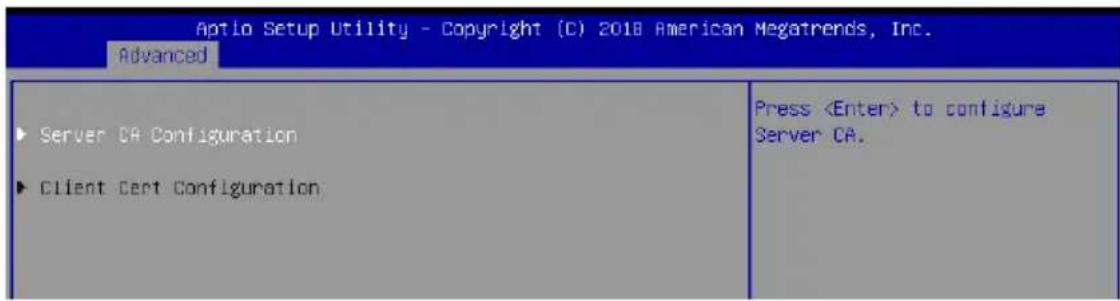
text_image
Aptio Setup Utility - Copyright (C) 2018 American Megatrends, Inc. Advanced ► Server CA Configuration ► Client Cert Configuration Press4.5 Chipset menu
The Chipset menu allow you to change the platform settings.
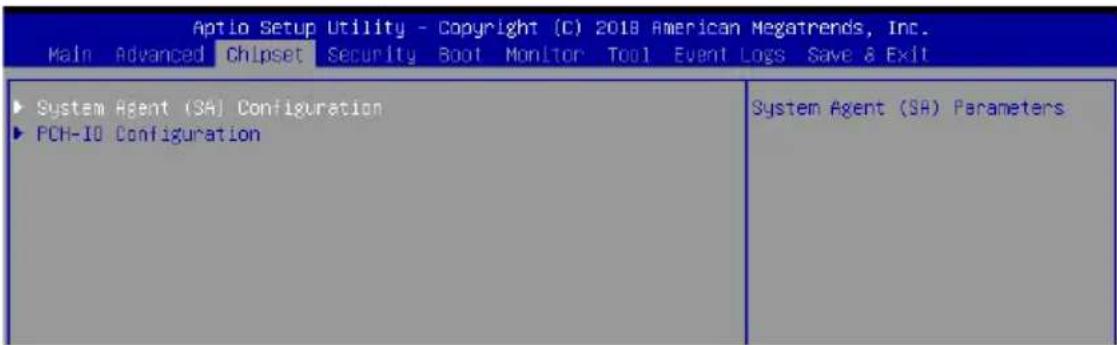
text_image
Aptio Setup Utility - Copyright (C) 2018 American Megatrends, Inc. Main Advanced Chipset Security Boot Monitor Tool Event Logs Save & Exit ► System Agent (3A) Configuration ► PCH-10 Configuration System Agent (SA) Parameters
Take caution when changing the settings of the Chipset menu items. Incorrect field values can cause the system to malfunction.
4.5.1 System Agent (SA) Configuration
| System Agent (SA) Configuration SA PCIe Code Version 7.0.29.70 VT-d Supported | Memory Configuration Parameters | |
| ▶ Memory Configuration ▶ FEG Port Configuration VT-d [Enabled] CRID Support [Disabled] Above 4GB MMIO BIOS assignment [Disabled] X2APIC Opt Out [Disabled] | ||
Memory Configuration
Maximum Memory Frequency [Auto]
Allows you to select the maximum memory frequency setting.
Configuration options: [Auto] [2133] [2400] [2667]
ECC Support [Enabled]
Allows you to enable or disable the ECC support.
Configuration options: [Disabled] [Enabled]
Memory Scrambler [Enabled]
Allows you to enable or disable Memory Scrambler.
Configuration options: [Disabled] [Enabled]
Fast Boot [Enabled]
Allows you to enable or disable Fast Boot.
Configuration options: [Disabled] [Enabled]
PEG Port Configuration
PEG 0:1:0
Max Link Speed [Auto]
Allows you to set the Max Link Speed.
Configuration options: [Auto] [Gen1] [Gen2] [Gen3]
PEG0 Slot Power Limit Value [75]
Set the upper limit on power supplied by slot. Use the <+> or <-> to adjust the value. The values range from 0 to 255.
PEG0 Slot Power Limit Scale [1.0x]
Allows you to select the scale for the Slot Power Limit Value.
Configuration options: [1.0x] [0.1x] [0.01x] [0.001x]
PEG0 Physical Slot Number [1]
Allows you to set the physical slot number attached to this Port. The number has to be globally unique within the chassis. Use the <+> or <-> to adjust the value. The values range from 0 to 8191.
PEG 0:1:1
Max Link Speed [Auto]
Allows you to set the Max Link Speed.
Configuration options: [Auto] [Gen1] [Gen2] [Gen3]
PEG1 Slot Power Limit Value [75]
Set the upper limit on power supplied by slot. Use the <+> or <-> to adjust the value. The values range from 0 to 255.
PEG1 Slot Power Limit Scale [1.0x]
Allows you to select the scale for the Slot Power Limit Value.
Configuration options: [1.0x] [0.1x] [0.01x] [0.001x]
PEG1 Physical Slot Number [2]
Allows you to set the physical slot number attached to this Port. The number has to be globally unique within the chassis. Use the <+> or <-> to adjust the value. The values range from 0 to 8191.
PEG 0:1:2
Max Link Speed [Auto]
Allows you to set the Max Link Speed.
Configuration options: [Auto] [Gen1] [Gen2] [Gen3]
PEG2 Slot Power Limit Value [75]
Set the upper limit on power supplied by slot. Use the <+> or <-> to adjust the value. The values range from 0 to 255.
PEG2 Slot Power Limit Scale [1.0x]
Allows you to select the scale for the Slot Power Limit Value.
Configuration options: [1.0x] [0.1x] [0.01x] [0.001x]
PEG2 Physical Slot Number [3]
Allows you to set the physical slot number attached to this Port. The number has to be globally unique within the chassis. Use the <+> or <-> to adjust the value. The values range from 0 to 8191.
PEG 0:1:3
PEG3 Slot Power Limit Value [75]
Set the upper limit on power supplied by slot. Use the <+> or <-> to adjust the value. The values range from 0 to 255.
PEG3 Slot Power Limit Scale [1.0x]
Allows you to select the scale for the Slot Power Limit Value.
Configuration options: [1.0x] [0.1x] [0.01x] [0.001x]
PEG3 Physical Slot Number [3]
Allows you to set the physical slot number attached to this Port. The number has to be globally unique within the chassis. Use the <+> or <-> to adjust the value. The values range from 0 to 8191.
VT-d [Enabled]
Allows you to enable or disable VT-d capability.
Configuration options: [Disabled] [Enabled]
CRID Support [Disabled]
Allows you to enable or disable CRID control for Intel SIPP.
Configuration options: [Disabled] [Enabled]
Above 4GB MMIO BIOS Assignment [Disabled]
Allows you to enable or disable above 4 GB memory mapped IO BIOS assignment. This is enabled automatically if the aperture size is set to 2048MB.
Configuration options: [Disabled] [Enabled]
![ASUS WS470T - Above 4GB MMIO BIOS Assignment [Disabled] - 1](/content/2026/06/1221361/images/c6688cabcaa3a5af699f944e3bfd0d8956141e1c869e33bc4da4ed5fd58f32a7.jpg)
The following item appears only when you set the VT-d to [Enabled].
X2APIC Opt Out [Disabled]
Allows you to enable or disable X2APIC Opt Out.
Configuration options: [Disabled] [Enabled]
4.5.2 PCH-IO Configuration
| Aptio Setup Utility - Copyright (C) 2018 American Megatrends, Inc. Chipset | |
| PCH-IO Configuration ► PCI Express Configuration ► SATA And RSTe Configuration ► HD Audio Configuration PCH LAN Controller [Enabled] LAN Wake From DeepSx [Enabled] Wake on LAN Enable [Enabled] SLP_LAN# Low on DC Power [Enabled] | PCI Express Configuration settings |
PCI Express Configuration
PCI Express Clock Gating [Enabled]
Allows you to enable or disable PCI Express clock gating for each root port.
Configuration options: [Disabled] [Enabled]
DMI Link ASPM Control [Enabled]
Allows you to enable or disable control of active state power management of DMI link.
Configuration options: [Disabled] [Enabled]
Port8xh Decode [Disabled]
Allows you to enable or PCI express port 8xh decode.
Configuration options: [Disabled] [Enabled]
SATA And RSTe Configuration
SATA Controller(s) [Enabled]
Allows you to enable or disable the SATA Controller.
Configuration options: [Disabled] [Enabled]
![ASUS WS470T - SATA Controller(s) [Enabled] - 1](/content/2026/06/1221361/images/f024d5fdbf605e7234498a48afa9bd40f5ab259e450536267efa7763981d22f3.jpg)
The following item appears only when you set the SATA Controller(s) to [Enabled].
SATA Mode Selection [AHCI]
Allows you to select the SATA controllers operation.
Configuration options: [AHCI] [RAID]
Serial ATA Port 0-7
Port 0-7 [Enabled]
Allows you to enable or disable the SATA port.
Configuration options: [Disabled] [Enabled]
Hot Plug [Enabled]
Allows you to enable or disable this port as hot pluggable.
Configuration options: [Disabled] [Enabled]
Spin Up Device [Disabled]
Allows you to enable or disable Spin Up Device.
Configuration options: [Disabled] [Enabled]
SATA Device Type [Hard Disk Drive]
Allows you to identify the SATA port is connected to a solid state drive or a hard disk drive
Configuration options: [Hard Disk Drive] [Solid State Drive]
HD Audio Configuration
HD Audio [Enabled]
Allows you to enable or disable the HD Audio.
Configuration options: [Disabled] [Enabled]
Audio DSP [Disabled]
Allows you to enable or disable the Audio DSP.
Configuration options: [Disabled] [Enabled]
Audio Link Mode [HD Audio Link]
Allows you to select the audio link mode.
Configuration options: [HD Audio Link] [SSP (I2S)] [Soundwire] [Advanced Link Config]
HDA-Link Codec Select [Platform Onboard]
Allows you to select the HDA-Link Codec.
Configuration options: [Platform Onboard] [External Kit]
HD Audio Advanced Configuration
iDisplay Audio Disconnect [Disabled]
Allows you to enable or disable iDisplay Audio Disconnect.
Configuration options: [Disabled] [Enabled]
Codec Sx Wake Capability [Disabled]
Allows you to enable or disable Codec Sx Wake Capability.
Configuration options: [Disabled] [Enabled]
PME Enable [Disabled]
Allows you to enable or disable PME wake of HD Audio controller during POST.
Configuration options: [Disabled] [Enabled]
![ASUS WS470T - PME Enable [Disabled] - 1](/content/2026/06/1221361/images/976e78236e5583e27d7a895dd31353dfbe3ade57946fd7b9d16838a5b0c3342c.jpg)
The following item appears only when you set the Audio Link Mode to [Soundwire].
Soundwire Buffer RCOMP Setting [Non-ACT Topology]
This item allows you to select the Soundwire Buffer RCOMP Setting.
Configuration options: [Non-ACT Topology] [ACT Topology]
HD Audio Link Frequency [24 MHz]
Allows you to select the HD Audio Link Frequency.
Configuration options: [6 MHz] [12 MHz] [24 MHz]
iDisplay Audio Link Frequency [96 MHz]
Allows you to select the iDisplay Audio Link Frequency.
Configuration options: [48 MHz] [96 MHz]
iDisplay Audio Link T-Mode [2T Mode]
Allows you to select the iDisplay Audio Link T-Mode.
Configuration options: [1T Mode][2T Mode]
PCH LAN Controller [Enabled]
This option allows you to enable or disable onboard NIC.
Configuration options: [Disabled] [Enabled]
![ASUS WS470T - PCH LAN Controller [Enabled] - 1](/content/2026/06/1221361/images/5207cf310525ec0808088d38703916e072d0f0451f521dac6c9b126a010e6884.jpg)
The following items appear only when you set the PCH LAN Controller to [Enabled].
LAN Wake From DeepSx [Enabled]
This option allows you to enable or disable wake from DeepSx by the assertion of LAN_WAKE# pin.
Configuration options: [Disabled] [Enabled]
Wake on LAN Enable [Enabled]
This option allows you to enable or disable integrated LAN to wake the system.
Configuration options: [Disabled] [Enabled]
SLP\_LAN# Low on DC Power[Enabled]
This option allows you to enable or disable SLP_LAN# Low on DC Power.
Configuration options: [Disabled] [Enabled]
4.6 Security menu
This menu allows a new password to be created or a current password to be changed. The menu also enables or disables the Secure Boot state and lets the user configure the System Mode state.
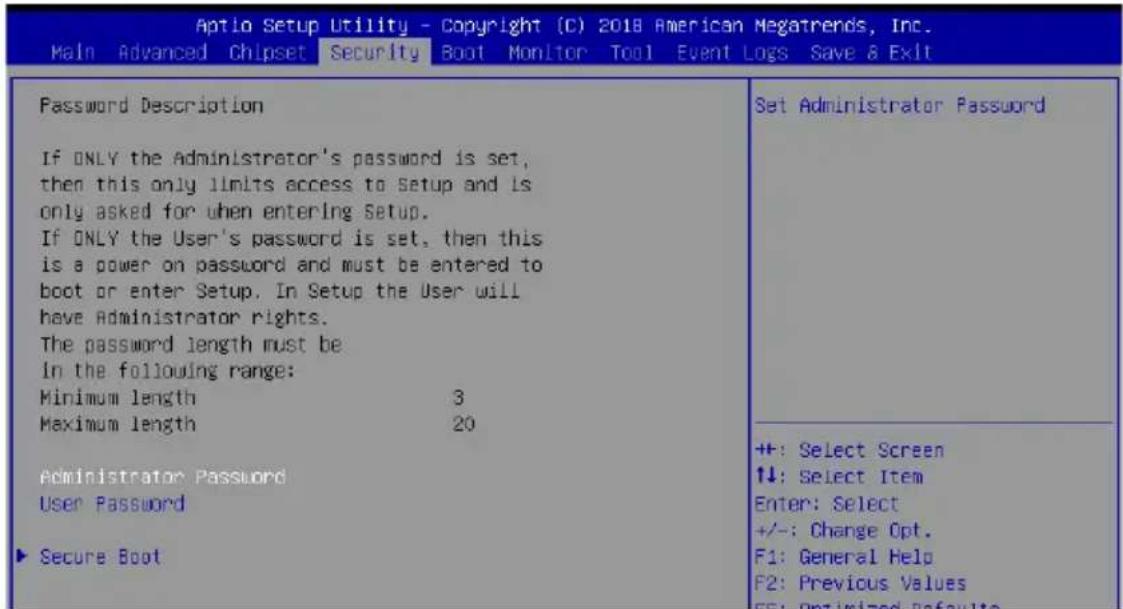
text_image
Aptio Setup Utility - Copyright (C) 2018 American Megatrends, Inc. Main Advanced Chipset Security Boot Monitor Tool Event Logs Save & Exit Password Description If ONLY the Administrator's password is set, then this only limits access to Setup and is only asked for when entering Setup. If ONLY the User's password is set, then this is a power on password and must be entered to boot or enter Setup. In Setup the User will have Administrator rights. The password length must be in the following range: Minimum length 3 Maximum length 20 Administrator Password User Password Secure Boot Set Administrator Password +: Select Screen ↓: Select Item Enter: Select +/-: Change Opt. F1: General Help F2: Previous Values FF: Optimized DefaultsAdministrator Password
To set an administrator password:
- Select the Administrator Password item and press
. - From the Create New Password box, key in a password, then press
. - Confirm the password when prompted.
To change an administrator password:
- Select the Administrator Password item and press
. - From the Enter Current Password box, key in the current password, then press
. - From the Create New Password box, key in a new password, then press
. - Confirm the password when prompted.

To clear the administrator password, follow the same steps as in changing an administrator password, but press
User Password
To set a user password:
- Select the User Password item and press
. - From the Create New Password box, key in a password, then press
. - Confirm the password when prompted.
To change a user password:
- Select the User Password item and press
. - From the Enter Current Password box, key in the current password, then press
. - From the Create New Password box, key in a new password, then press
. - Confirm the password when prompted.
To clear a user password:
- Select the Clear User Password item and press
. - Select Yes from the Warning message window then press
.
Secure Boot
This item allows you to customize the Secure Boot settings.
| Aptio Setup Utility - Copyright (C) 2018 American Megatrends, Inc. Security | ||
| System Mode | Setup | Secure Boot feature is Active if Secure Boot is Enabled, Platform Key(Pk) is enrolled and the System is In User mode. The mode change requires platform reset |
| Secure Boot | [Disabled] Not Active | |
| Secure Boot Mode | [Custom] | |
| Restore Factory Keys Reset To Setup Mode | ||
Secure Boot [Disabled]
Secure Boot can be enabled if the system is running in User mode with enrolled platform Key (EPK) or if the CSM function is disabled.
Configuration options: [Disabled] [Enabled]
Secure Boot Mode [Custom]
Allows you to set the Secure Boot selector.
Configuration options: [Custom] [Standard]
Key Management
This item only appears when the item Secure Boot Mode is set to [Custom]. The Key Management item allows you to modify Secure Boot variables and set Key Management page.

text_image
Aptio Setup Utility - Copyright (C) 2018 American Megatrends, Inc. Security Vendor Keys Valid Factory key Provision [Disabled] ►Restore Factory Keys ►Reset To Setup Mode ►Export Secure Boot variables ►Enroll Efi Image Device Guard Ready ►Remove 'UEFI CA' from DB ►Restore DB defaults Secure Boot variable | Size | keys | Key Source ►Platform Key(PK) | 0 | 0 | No Keys ►Key Exchange Keys | 0 | 0 | No Keys ►Authorized Signatures | 0 | 0 | No Keys ►Forbidden Signatures | 0 | 0 | No Keys ►Authorized TimeStamps | 0 | 0 | No Keys ►OsRecovery Signatures | 0 | 0 | No Keys Install factory default Secure Boot keys after the platform reset and while the System is in Setup mode +: Select Screen ↑↓: Select Item Enter: Select +/-: Change Opt. F1: General Help F2: Previous Values F5: Optimized Defaults F10: Save & Exit F12: Print Screen ESC: Exit Version 2.19.1269. Copyright (C) 2018 American Megatrends, Inc.Factory Key Provision [Disabled]
Allows you to provision factory default Secure Boot keys when the system is in Setup Mode.
Configuration options: [Disabled] [Enabled]
This item will install all Factory Default keys.
Reset to Setup Mode
This item appears only when you load the default Secure Boot keys. This item allows you to clear all default Secure Boot keys.
Export Secure Boot Variables
This item will ask you if you want to save all secure boot variables. Select Yes if you want to save all secure boot variables, otherwise select No.
Enroll Efi Image
This item will allow the image to run in Secure Boot mode.
Configuration options: [Set New] [Append]
Device Guard Ready
Remove 'UEFI CA' from DB
Remove Microsoft UEFI CA from Secure Boot DB.
Restore DB defaults
Restore DB variable to factory defaults.
Platform Key (PK) / Key Exchange Keys (KEK) / Authorized Signatures (DB) / Forbidden Signatures (DBX) / Authorized TimeStamps (DBT) / OsRecovery Signatures
Configuration options: [Erase] [Set New] [Save to File]
4.7 Boot menu
The Boot menu items allow you to change the system boot options.
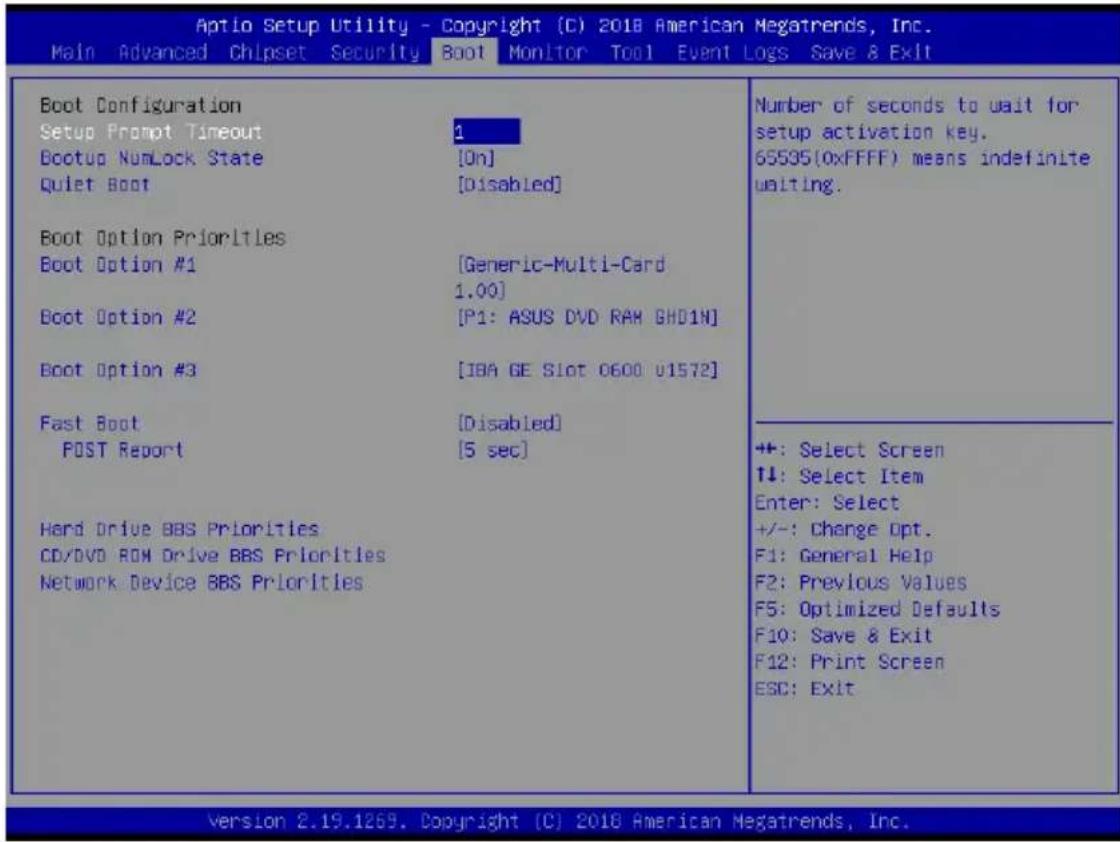
text_image
Aptio Setup Utility - Copyright (C) 2018 American Megatrends, Inc. Main Advanced Chipset Security Boot Monitor Tool Event Logs Save & Exit Boot Configuration Setup Prompt Timeout Bootup NumLock State Quiet Boot Boot Option Priorities Boot Option #1 Boot Option #2 Boot Option #3 Fast Boot POST Report Hard Drive BBS Priorities CD/DVD ROM Drive BBS Priorities Network Device BBS Priorities Number of seconds to wait for setup activation key. 65535(0xFFFF) means indefinite waiting. ++: Select Screen T↓: Select Item Enter: Select +/-: Change Opt. F1: General Help F2: Previous Values F5: Optimized Defaults F10: Save & Exit F12: Print Screen ESC: Exit Version 2.19.1269. Copyright (C) 2018 American Megatrends, Inc.Setup Prompt Timeout [1]
Allows you to set the number of seconds that the firmware waits before initiating the original default boot selection. 65535(OxFFFF) means indefinite waiting. Use the <+> or <-> to adjust the value.
Bootup NumLock State [On]
Allows you to select the power-on state for the NumLock.
Configuration options: [Off] [On]
Quiet Boot [Disabled]
Allows you to enable or disable Quiet Boot option.
Configuration options: [Disabled] [Enabled]
Boot Option Priorities
These items specify the boot device priority sequence from the available devices. The number of device items that appears on the screen depends on the number of devices installed in the system.

- To select the boot device during system startup, press
when ASUS Logo appears. - To access Windows OS in Safe Mode, please press
after POST.
Fast Boot [Disabled]
Allows you to enable or disable boot with initialization of a minimal set of devices required to launch active boot option. This has no effect for BBS boot options.
Configuration options: [Disabled] [Enabled]
![ASUS WS470T - Fast Boot [Disabled] - 1](/content/2026/06/1221361/images/93fb76aac1a74bbafa6917098f1aec6b3eee171fa0c8da21eafbff0b8a8cd295.jpg)
The following item appears only when you set the Quiet Boot to [Disabled].
POST Report [5 sec]
Allows you to set the desired POST Report waiting time from 1 to 10 seconds.
Configuration options: [1 sec] - [10 sec] [Until Press ESC]
Hard Drive / CD / DVD ROM Drive BBS Priorities / Network Device BBS Priorities
These items allow you to set the booting order of the devices.
4.8 Monitor menu
This menu displays the system temperature, fan speed, and power status. You can also change the fan settings in this menu.
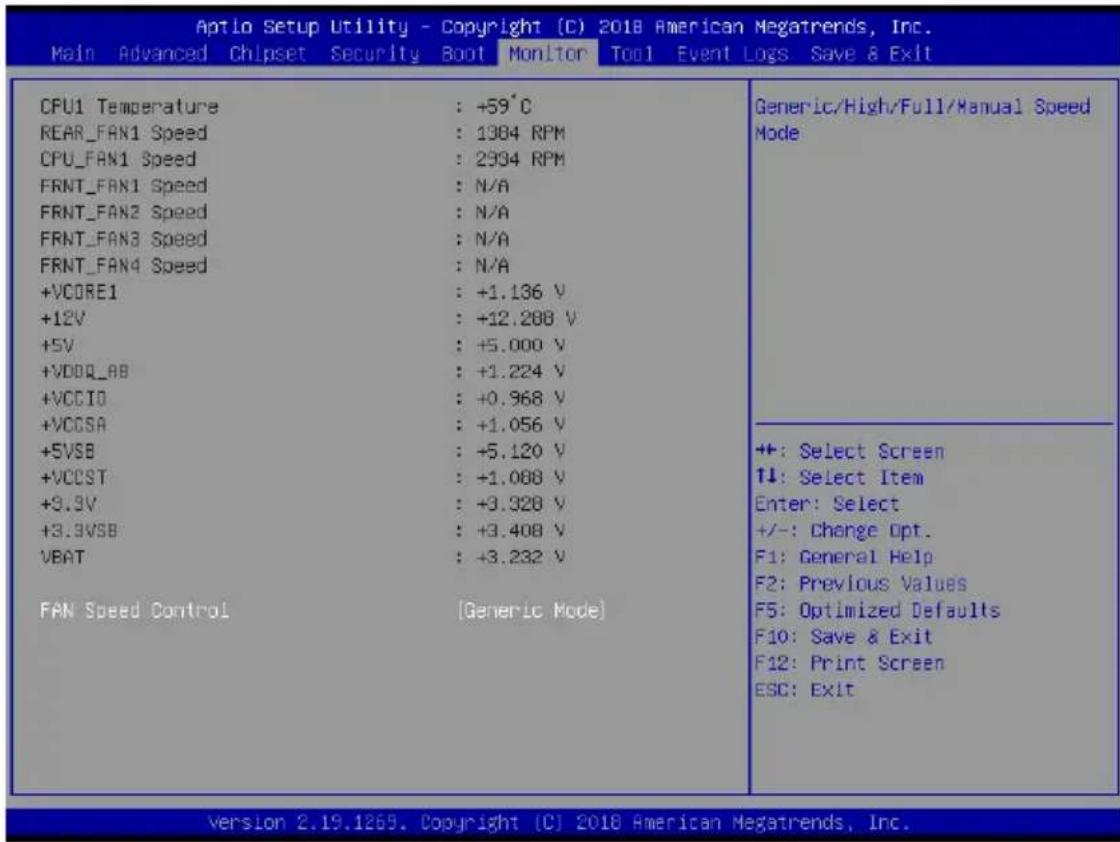
text_image
Aptio Setup Utility - Copyright (C) 2018 American Megatrends, Inc. Main Advanced Chipset Security Boot Monitor Tool Event Logs Save & Exit CPU1 Temperature : +59°C REAR_FAN1 Speed : 1364 RPM CPU_FAN1 Speed : 2934 RPM FRNT_FAN1 Speed : N/A FRNT_FAN2 Speed : N/A FRNT_FAN3 Speed : N/A FRNT_FAN4 Speed : N/A +VCORE1 : +1.136 V +12V : +12.288 V +5V : +5.000 V +VDDQ_AB : +1.224 V +VCCIO : +0.968 V +VCCSA : +1.056 V +5VSB : +5.120 V +VCCST : +1.088 V +9.9V : +9.328 V +3.9VSB : +3.408 V VEAT : +3.232 V FAN Speed Control [Generic Mode] Generic/High/Full/Manual Speed Mode +: Select Screen ↑↓: Select Item Enter: Select +/-: Change Opt. F1: General Help F2: Previous Values F5: Optimized Defaults F10: Save & Exit F12: Print Screen ESC: Exit version 2.19.1269. Copyright (C) 2018 American Megatrends, Inc.Fan Speed Control [Generic Mode]
Allows you to select the power-on state for the NumLock.
Configuration options: [Generic Mode] [High Speed Mode] [Full Speed Mode] [Manual Speed Mode]
![ASUS WS470T - Fan Speed Control [Generic Mode] - 1](/content/2026/06/1221361/images/9fc9b269bd0aaafb32a5bf7e49bb51d434170f3325066f5472a6fd22085bd0e0.jpg)
The following item appears only when you set the Fan Speed Control to [Manual Speed Mode].
REAR\_FAN1 / CPU\_FAN1 / FRNT\_FAN1-3 Duty [50]
Allows you to set the desired POST Report waiting time from 1 to 10 seconds. Use the <+> or <-> to adjust the value. The values range from 10 to 100.
4.9 Tool menu

text_image
Aptlo Setup Utility - Copyright (C) 2018 American Megatrends, Inc. Main Advanced Chipset Security Boot Monitor Tool Event Logs Save & Exit Start ASUS EzFlash Press ENTER to run the utility to select and update RTOS.ASUS EZ Flash
Allows you to run ASUS EZ Flash BIOS ROM Utility when you press
4.10 Event Logs menu
The Event Logs menu items allow you to change the event log settings and view the system event logs.

text_image
Aptlo Setup Utility - Copyright (C) 2018 American Megatrends, Inc. Main Advanced Chipset Security Boot Monitor Tool Event Logs Save & Exit ▶ Change Smbios Event Log Settings ▶ View Smbios Event Log Press4.10.1 Change Smbios Event Log Settings
Press

All values changed here do not take effect until computer is restarted.
Enabling/Disabling Options
Smbios Event Log [Enabled]
Change this to enable or disable all features of Smbios Event Logging during boot.
Configuration options: [Disabled] [Enabled]
![ASUS WS470T - Smbios Event Log [Enabled] - 1](/content/2026/06/1221361/images/00985c6d3eadce9712ddfbf98a5ba430d7852e87a5586f816df11cc9399a61c4.jpg)
The following item appears only when you set the Smbios Event Log to [Enabled].
Erasing Settings
Erase Event Log [No]
Choose options for erasing Smbios Event Log. Erasing is done prior to any logging activation during reset.
Configuration options: [No] [Yes, Next reset] [Yes, Every reset]
When Log is Full [Do Nothing]
Choose options for reacting to a full Smbios Event Log.
Configuration options: [Do Nothing] [Erase Immediately]
Smbios Event Log Standard Settings
Log System Boot Event [Enabled]
This option allows you to enable or disable logging System boot event.
Configuration options: [Disabled] [Enabled]
MECI [1]
This option allows you to set the number of occurrences of a duplicate event that must pass before the multiple-event counter of log entry is updated. Use the <+> or <-> to adjust the value. The values range from 1 to 255.
METW [60]
This option allows you to set the number of minutes which must pass between duplicate log entries which utilize a multiple-event counter. Use the <+> or <-> to adjust the value. The values range from 0 to 99.
Custom Options
Log EFI Status Code [Disabled]
This option allows you to enable or disable logging of the EFI Status Codes. Configuration options: [Disabled] [Enabled]
Convert EFI Status Codes to Standard Smbios Type [Disabled]
This option allows you to enable or disable converting of EFI Status Codes to Standard Smbios Type (Not all may be translated). Configuration options: [Disabled] [Enabled]
4.10.2 View Smbios Event Log
Press
4.11 Save & Exit menu
The Exit menu items allow you to save or discard your changes to the BIOS items.
| Aptio Setup Utility - Copyright (C) 2018 American Megatrends, Inc. Main Advanced Chipset Security Boot Monitor Tool Event Logs Save & Exit | |
| Save Options Save Changes and Reset Discard Changes and Reset Restore Defaults Boot Override Generic-Multi-Card 1.00 JetFlashTranscend 4GB 8.07 F1: ASUS DVD RAM GHDIN IBA GE Slot 0600 v1572 IBA CL Slot 00FE v0113 | Reset the system after saving the charges. |

Pressing
Save Changes and Reset
Exit System setup after saving the changes.
Discard Changes and Exit
Exit System setup without saving any changes.
Restore Defaults
Restore/load default values for all the setup options.
Boot Override
These items displays the available devices. The device items that appears on the screen depends on the number of devices installed in the system. Click an item to start booting from the selected device.
RAID Configuration
This chapter provides instructions for setting up, creating, and configuring RAID sets using the available utilities.
5
5.1 Setting up RAID
The motherboard supports the Intel® Rapid Storage Technology enterprise Option ROM Utility with RAID 0, RAID 1, RAID 10, and RAID 5 support.
5.1.1 RAID definitions
RAID 0 (Data striping) optimizes two identical hard disk drives to read and write data in parallel, interleaved stacks. Two hard disks perform the same work as a single drive but at a sustained data transfer rate, double that of a single disk alone, thus improving data access and storage. Use of two new identical hard disk drives is required for this setup.
RAID 1 (Data mirroring) copies and maintains an identical image of data from one drive to a second drive. If one drive fails, the disk array management software directs all applications to the surviving drive as it contains a complete copy of the data in the other drive. This RAID configuration provides data protection and increases fault tolerance to the entire system. Use two new drives or use an existing drive and a new drive for this setup. The new drive must be of the same size or larger than the existing drive.
RAID 10 is data striping and data mirroring combined without parity (redundancy data) having to be calculated and written. With the RAID 10 configuration you get all the benefits of both RAID 0 and RAID 1 configurations. Use four new hard disk drives or use an existing drive and three new drives for this setup.
RAID 5 stripes both data and parity information across three or more hard disk drives. Among the advantages of RAID 5 configuration include better HDD performance, fault tolerance, and higher storage capacity. The RAID 5 configuration is best suited for transaction processing, relational database applications, enterprise resource planning, and other business systems. Use a minimum of three identical hard disk drives for this setup.

If you want to boot the system from a hard disk drive included in a created RAID set, copy first the RAID driver from the support DVD to a floppy disk before you install an operating system to the selected hard disk drive.
5.1.2 Installing hard disk drives
The motherboard supports Serial ATA for RAID set configuration. For optimal performance, install identical drives of the same model and capacity when creating a disk array.
To install the SATA hard disks for RAID configuration:
- Install the SATA hard disks into the drive bays following the instructions in the system user guide.
- Connect a SATA signal cable to the signal connector at the back of each drive and to the SATA connector on the motherboard.
- Connect a SATA power cable to the power connector on each drive.
5.1.3 Setting the RAID item in BIOS
You must set the RAID item in the BIOS Setup before you can create a RAID set from SATA hard disk drives attached to the SATA connectors supported by Intel® C242 chipset.
To do this:
- Enter the BIOS Setup during POST.
- Go to the Chipset Menu > PCH-IO Configuration > SATA And RSTe Configuration, then press
. - Set SATA Mode to [RAID].
- Press
to save your changes and exit the BIOS Setup.

Refer to Chapter 4 for details on entering and navigating through the BIOS Setup.
5.2 Intel® Rapid Storage Technology enterprise SATA Option ROM Utility
The Intel® Rapid Storage Technology enterprise SATA Option ROM utility allows you to create RAID 0, RAID 1, RAID 10 (RAID 1+0), and RAID 5 set from Serial ATA hard disk drives that are connected to the Serial ATA connectors supported by the Southbridge.

Before you proceed, ensure that you have installed the Serial ATA hard disk drives, and have set the correct SATA mode in the BIOS setup.
To launch the Intel® Rapid Storage Technology enterprise SATA Option ROM utility:
- Turn on the system.
- During POST, press
+ to display the utility main menu.
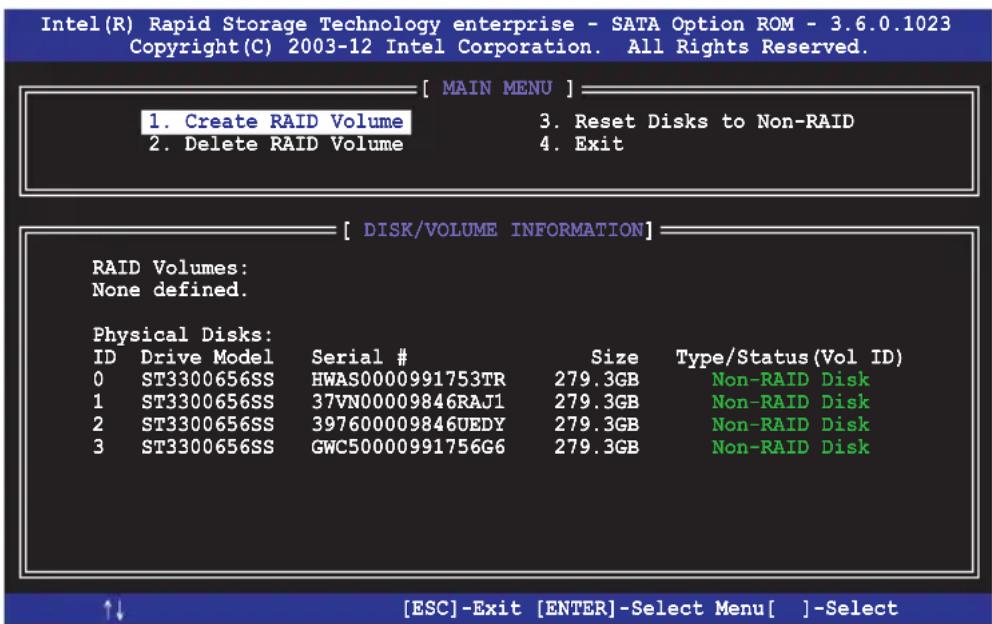
text_image
Intel(R) Rapid Storage Technology enterprise - SATA Option ROM - 3.6.0.1023 Copyright(C) 2003-12 Intel Corporation. All Rights Reserved. [ MAIN MENU ] 1. Create RAID Volume 3. Reset Disks to Non-RAID 2. Delete RAID Volume 4. Exit [ DISK/VOLUME INFORMATION ] RAID Volumes: None defined. Physical Disks: ID Drive Model Serial # Size Type/Status(Vol ID) 0 ST3300656SS HWAS0000991753TR 279.3GB Non-RAID Disk 1 ST3300656SS 37VN00009846RAJ1 279.3GB Non-RAID Disk 2 ST3300656SS 397600009846UEDY 279.3GB Non-RAID Disk 3 ST3300656SS GWC50000991756G6 279.3GB Non-RAID Disk ↑↓ [ESC]-Exit [ENTER]-Select Menu[ ]-SelectThe navigation keys at the bottom of the screen allow you to move through the menus and select the menu options.

The RAID BIOS setup screens shown in this section are for reference only and may not exactly match the items on your screen.
5.2.1 Creating a RAID set
To create a RAID set:
- From the utility main menu, select 1. Create RAID Volume and press
. - Key in a name for the RAID set and press
.

text_image
Intel(R) Rapid Storage Technology enterprise - SATA Option ROM - 3.6.0.1023 Copyright(C) 2003-12 Intel Corporation. All Rights Reserved. [ CREATE VOLUME MENU ] Name: Volume0 RAID Level: RAID0(Strips) Disks: Select Disks Strip Size: 128KB Capacity: 0.0 GB Syne: N/A Create Volume [ HELP ] Enter a unique volume name that has no special characters and is 16 characters or less.-
Press the up/down arrow keys to select a RAID Level that you wish to create then press
. -
From the Disks item field, press
to select the hard disk drives that you want to include in the RAID set.
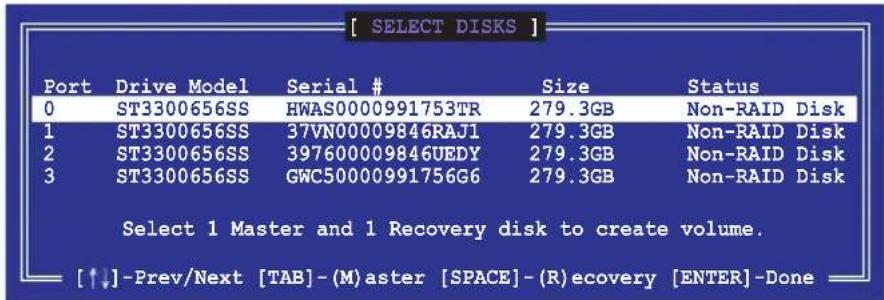
text_image
[ SELECT DISKS ] Port Drive Model Serial # 0 ST3300656SS HWAS0000991753TR 279.3GB Non-RAID Disk 1 ST3300656SS 37VN00009846RAJ1 279.3GB Non-RAID Disk 2 ST3300656SS 397600009846UEDY 279.3GB Non-RAID Disk 3 ST3300656SS GWC50000991756G6 279.3GB Non-RAID Disk Select 1 Master and 1 Recovery disk to create volume. [↑↓]-Prev/Next [TAB]-(M)aster [SPACE]-(R)ecovery [ENTER]-Done-
Use the up/down arrow keys to move the selection bar then press
to select a disk. A small triangle before the Port number marks the selected drive. Press when you are done. -
Use the up/down arrow keys to select the stripe size for the RAID array (for RAID 0, 10 and 5 only) then press
. The available stripe size values range from 4 KB to 128 KB. The following are typical values:
RAID 0: 128KB
RAID 10: 64KB
RAID 5: 64KB

We recommend a lower stripe size for workstations, and a higher stripe size for multimedia computer systems used mainly for audio and video editing.
- In the Capacity field item, key in the RAID volume capacity that you want to use and press
. The default value field indicates the maximum allowed capacity. - Press
to start creating the RAID volume. - From the following warning message, press
to create the RAID volume and return to the main menu, or press to go back to the CREATE VOLUME menu.
WARNING: ALL DATA ON SELECTED DISKS WILL BE LOST.
Are you sure you want to create this volume? (Y/N):
5.2.2 Deleting a RAID set

Take caution when deleting a RAID set. You will lose all data on the hard disk drives when you delete a RAID set.
To delete a RAID set:
- From the utility main menu, select 2. Delete RAID Volume and press
. - From the Delete Volume Menu, press the up/down arrow keys to select the RAID set you want to delete then press
.
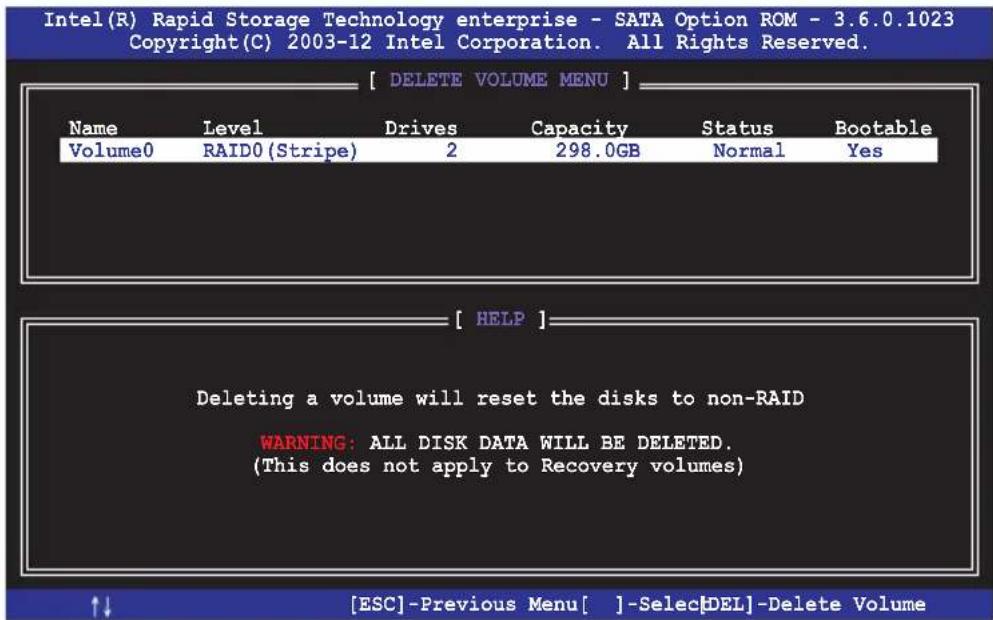
text_image
Intel(R) Rapid Storage Technology enterprise - SATA Option ROM - 3.6.0.1023 Copyright(C) 2003-12 Intel Corporation. All Rights Reserved. [ DELETE VOLUME MENU ] Name Level Drives Capacity Status Bootable Volume0 RAID0 (Stripe) 2 298.0GB Normal Yes [ HELP ] Deleting a volume will reset the disks to non-RAID WARNING: ALL DISK DATA WILL BE DELETED. (This does not apply to Recovery volumes) ↑↓ [ESC]-Previous Menu[ ]-Selec[DEL]-Delete Volume- Press
to confirm deletion of the selected RAID set and return to the utility main menu, or press to return to the DELETE VOLUME menu.

text_image
[ DELETE VOLUME VERIFICATION ] ALL DATA IN THE VOLUME WILL BE LOST! (This does not apply to Recovery volumes) Are you sure you want to delete volume "Volume0"? (Y/N):5.2.3 Resetting disks to Non-RAID

Take caution before you reset a RAID volume hard disk drive to non-RAID. Resetting a RAID volume hard disk drive deletes all internal RAID structure on the drive.
To reset a RAID set:
- From the utility main menu, select 3. Reset Disks to Non-RAID and press
. - Press the up/down arrow keys to select the drive(s) or disks of the RAID set you want to reset, then press
. A small triangle before the Port number marks the selected drive. Press when you are done.
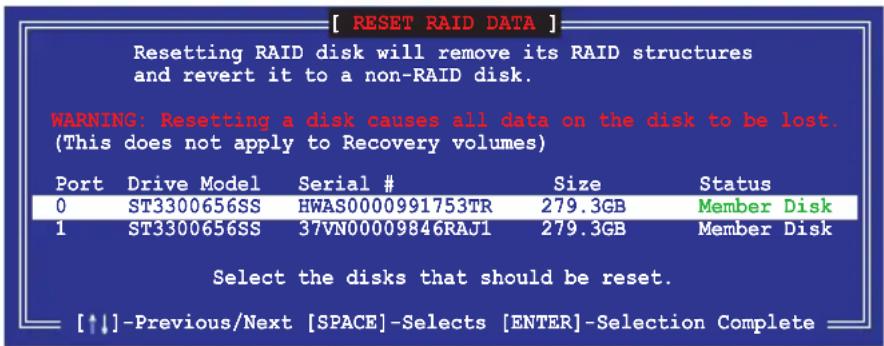
text_image
[ RESET RAID DATA ] Resetting RAID disk will remove its RAID structures and revert it to a non-RAID disk. WARNING: Resetting a disk causes all data on the disk to be lost. (This does not apply to Recovery volumes) Port Drive Model Serial # Size Status 0 ST3300656SS HWAS0000991753TR 279.3GB Member Disk 1 ST3300656SS 37VN00009846RAJ1 279.3GB Member Disk Select the disks that should be reset. [↑↓]-Previous/Next [SPACE]-Selects [ENTER]-Selection Complete- Press
in the confirmation window to reset the drive(s) or press to return to the utility main menu.
5.2.4 Exiting the Intel ^® Rapid Storage Technology enterprise SATA Option ROM utility
To exit the utility:
- From the utility main menu, select 4. Exit then press
. - Press
to exit or press to return to the utility main menu.
[ CONFIRM EXIT ]
Are you sure you want to exit? (Y/N):
5.2.5 Rebuilding the RAID

This option is only for the RAID 1 set.
Rebuilding the RAID with other non-RAID disk
If any of the SATA hard disk drives included in the RAID 1 array failed, the system displays the status of the RAID volume as "Degraded" during POST. You can rebuild the RAID array with other installed non-RAID disks.
To rebuild the RAID with other non-RAID disk:
- During POST, press
+ at the prompt to enter the Intel Rapid Storage Technology option ROM utility. - If there is a non-RAID SATA Hard Disk available, the utility will prompt you to rebuild the RAID. Press the up/down arrow keys to select the destination disk then Press
to start the rebuilding process, or press to exit.
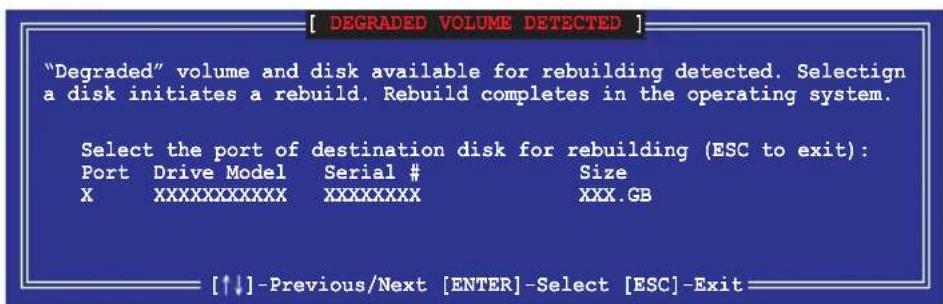
text_image
[ DEGRADED VOLUME DETECTED ] "Degraded" volume and disk available for rebuilding detected. Selectign a disk initiates a rebuild. Rebuild completes in the operating system. Select the port of destination disk for rebuilding (ESC to exit): Port Drive Model Serial # Size XXXXXXXXXXX XXXXXXXX XXX.GB [↑↓] -Previous/Next [ENTER]-Select [ESC]-Exit
Select a destination disk with the same size as the original hard disk.
- The utility immediately starts rebuilding after the disk is selected. When done, the status of the degraded RAID volume is changed to "Rebuild".
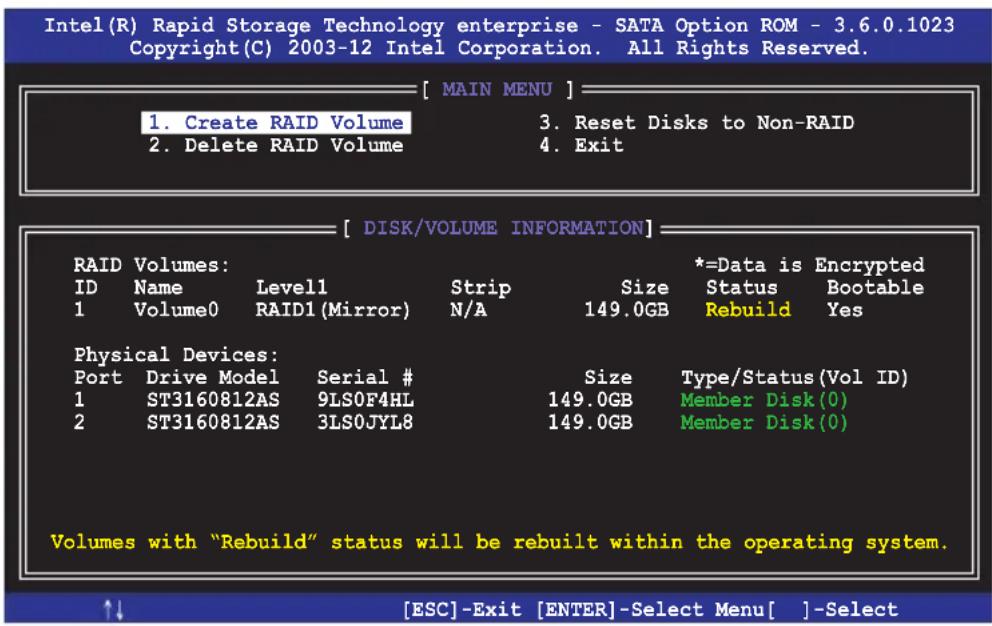
text_image
Intel(R) Rapid Storage Technology enterprise - SATA Option ROM - 3.6.0.1023 Copyright(C) 2003-12 Intel Corporation. All Rights Reserved. [ MAIN MENU ] 1. Create RAID Volume 2. Delete RAID Volume 3. Reset Disks to Non-RAID 4. Exit [ DISK/VOLUME INFORMATION ] RAID Volumes: ID Name Level1 Strip Size *=Data is Encrypted 1 Volume0 RAID1(Mirror) N/A 149.0GB Status Bootable Rebuild Yes Physical Devices: Port Drive Model Serial # 1 ST3160812AS 9LS0F4HL Size Type/Status(Vol ID) 2 ST3160812AS 3LS0JYL8 149.0GB Member Disk(0) Volumes with "Rebuild" status will be rebuilt within the operating system. ↑↓ [ESC]-Exit [ENTER]-Select Menu[ ]-Select- Press
to exit Intel Rapid Storage Technology and reboot the system. - Select Start > Programs > Intel Rapid Storage > Intel Rapid Storage Console or click the Intel Rapid Storage Technology tray icon to load the Intel Rapid Storage Manager utility.
- From the View menu, select Advanced Mode to display the details of the Intel Rapid Storage Console.
- From the Volumes view option, select RAID volume to view the rebuilding status. When finished, the status is changed to "Normal".
Rebuilding the RAID with a new hard disk
If any of the SATA hard disk drives included in the RAID array failed, the system displays the status of the RAID volume as "Degraded" during POST. You may replace the disk drive and rebuild the RAID array.
To rebuild the RAID with a new hard disk:
- Remove the failed SATA hard disk and install a new SATA hard disk of the same specification into the same SATA Port.

Select a destination disk with the same size as the original hard disk.
- Reboot the system then follow the steps in section Rebuilding the RAID with other non-RAID disk.
5.2.6 Setting the Boot array in the BIOS Setup Utility
You can set the boot priority sequence in the BIOS for your RAID arrays when creating multi-RAID using the Intel® Rapid Storage Technology enterprise SATA Option ROM utility.
To set the boot array in the BIOS:

Set at least one of the arrays bootable to boot from the hard disk.
- Reboot the system and press
to enter the BIOS setup utility during POST. - Go to the Boot menu and select the boot option priority.
- Use up/down arrow keys to select the boot priority and press
. See the Boot menu section of Chapter 4 for more details. - From the Exit menu, select Save Changes & Exit, then press
. - When the confirmation window appears, select Yes, then press
.
5.3 Intel ^® Rapid Storage Technology enterprise (Windows)
The Intel® Rapid Storage Technology enterprise allows you to create RAID 0, RAID 1, RAID 10 (RAID 1+0), and RAID 5 set(s) from Serial ATA hard disk drives that are connected to the Serial ATA connectors supported by the Southbridge.

You need to manually install the Intel® Rapid Storage Technology enterprise utility on a Windows® operating system. Please refer to the installation instructions in Chapter 6.
To enter the Intel ^® Rapid Storage Technology enterprise utility under Windows operating system:
-
Turn on the system and go to the windows desktop.
-
Click the Intel ^® Rapid Storage Technology enterprise icon to display the main menu.
Your storage system is configured for data protection, increased performance and optimal data storage capacity. You can create additional volumes to further optimize your storage system.

text_image
Intel® Crystal Storage (Technology) operator Name References Current Device name: Crystal Storage Device Intel® CS60 series chnout SAS RAID Controller SAS disk (359 GB) SAS disk (259 GB) SAS disk (259 GB) SAS disk (259 GB) SAS disk (259 GB) SAS disk (259 GB) SAT4 disk (359 GB) SATA disk (359 GB) SATA disk (359 GB) SATA disk (359 GB) SATA disk (359 GB) AT&T Devices Volumes AT&T Device Properties Locational Controller & Port's Location type tunnel Negotiated link code: L3 d/s/ Model ID: COLD-000007778 Serial number: Not Available Promega LOB Information Your storage system is configured for data protection, increased performance and optimal data storage capacity. You can further optimize your storage system by creating additional volumes. To begin the process, click Create Volume... click any device or continue to display its properties. kss_losy_pmsv ? * 00128: Defaulting 7% omniels
You can click Rescan to re-scan any attached hard disks.
5.3.1 Creating a RAID set
To create a RAID set:
- From the utility main menu, select Create Volume and select volume type.
- Click Next.
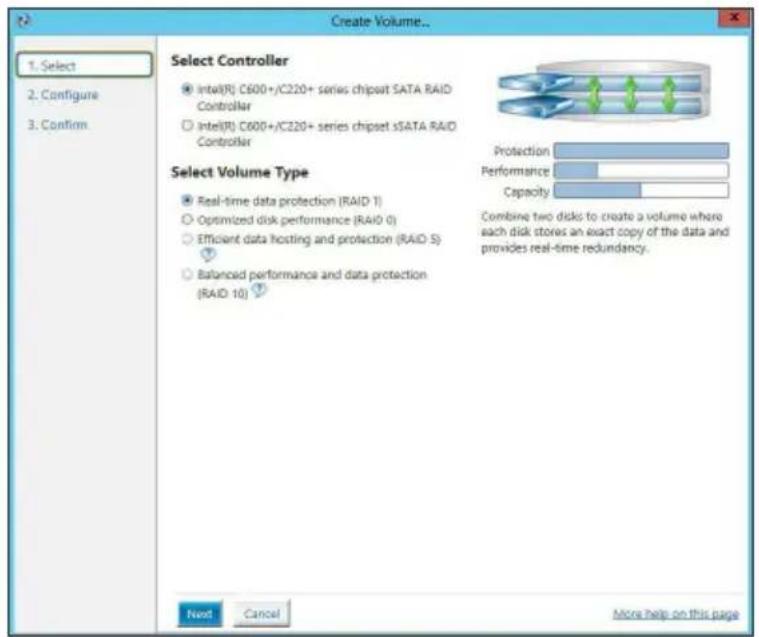
text_image
Create Volume... 1. Select 2. Configure 3. Confirm. Select Controller Intel(R) C600+/C220+ series chipset SATA RAID Controller Intel(R) C600+/C220+ series chipset sSATA RAID Controller Select Volume Type Real-time data protection (RAID 1) Optimized disk performance (RAID 0) Efficient data hosting and protection (RAID 5) Balanced performance and data protection (RAID 10) Protection Performance Capacity Combine two disks to create a volume where each disk stores an exact copy of the data and provides real-time redundancy. Next Cancel More help on this page- Enter a name for the RAID set, then select the array disks.
- Select Volume Size tab, you can drag the bar to decide the volume size.
- Click Next.
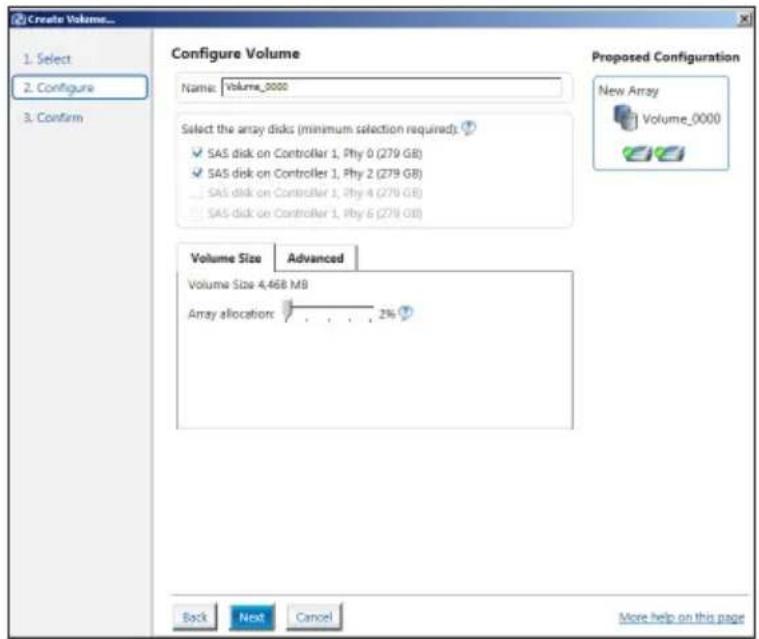
text_image
Create Volume... 1. Select 2. Configure 3. Confirm Configure Volume Name: Volume_0000 Select the array disks (minimum selection required) ✓ SAS disk on Controller 1, Phy 0 (279 GB) ✓ SAS disk on Controller 1, Phy 2 (279 GB) ... SAS disk on Controller 1, Phy 4 (279 GB) ... SAS disk on Controller 1, Phy 6 (279 GB) Proposed Configuration New Array Volume_0000 Volume Size Advanced Volume Size 4,468 MB Array allocation 2% Back Next Cancel More help on this page
- If you do not want to keep the data on one of the selected disks, select NO when prompted.
-
If you want to Enable volume write-back cache or Initialize volume, click Advanced.
-
Confirm the volume creation, than click Create Volume to continue.

This process could take a while depending on the number and size of the disks. You can continue using other applications during this time.
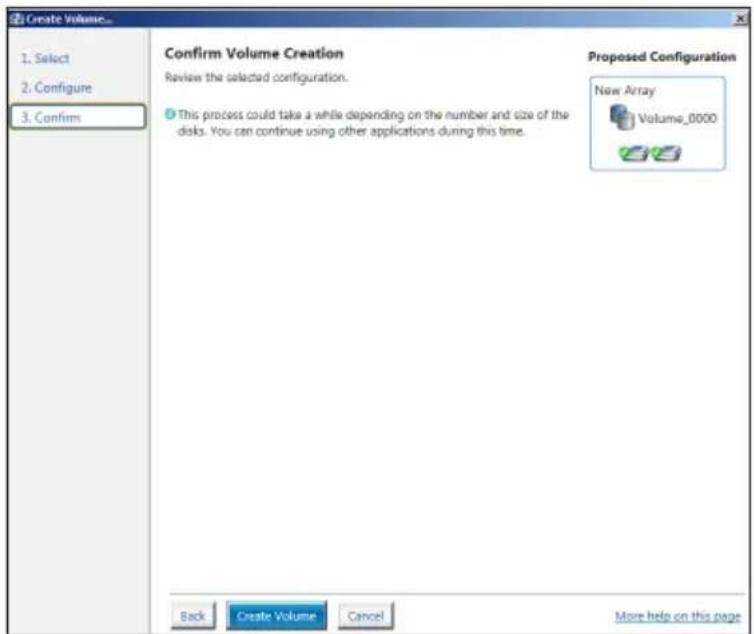
text_image
Create Volume... 1. Select 2. Configure 3. Confirm Confirm Volume Creation Review the selected configuration. This process could take a while depending on the number and size of the disks. You can continue using other applications during this time. Proposed Configuration New Array Volume_0000 Back Create Volume Cancel More help on this page- Wait until the process is completed, then click OK when prompted.
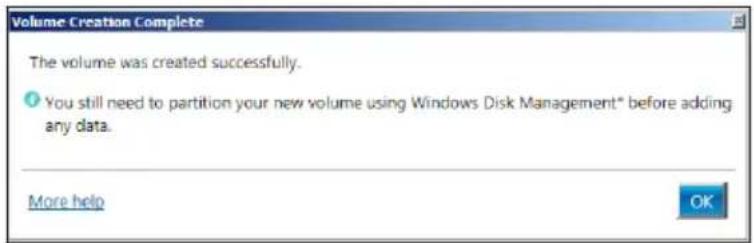
text_image
Volume Creation Complete The volume was created successfully. ● You still need to partition your new volume using Windows Disk Management® before adding any data. More help OK
You still need to partition your new volume using Windows Disk Management before adding any data.
The RAID set is displayed in the Volumes list and you can change the settings in Volume Properties.
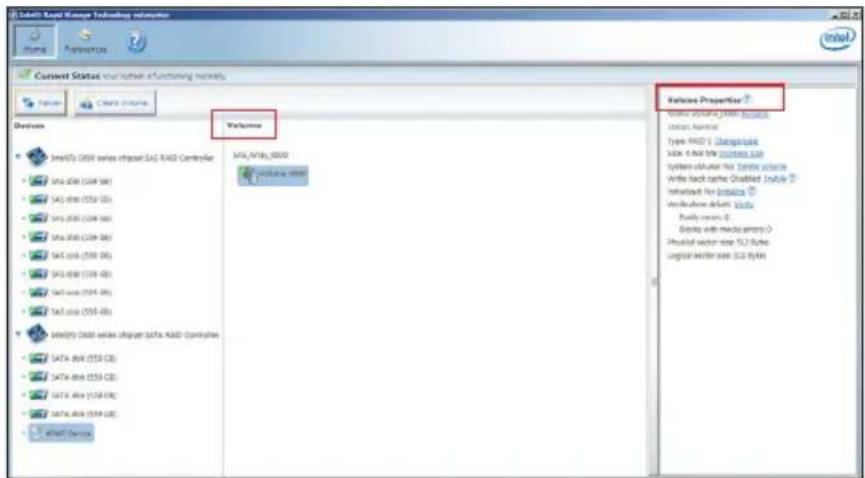
text_image
SATA KARD Manager Technology dashboard Current Status: your name functioning network. Welcome SATA_KARD_0000 SATA_KARD_0000 SATA_KARD_0000 SATA_KARD_0000 SATA_KARD_0000 SATA_KARD_0000 SATA_KARD_0000 SATA_KARD_0000 SATA_KARD_0000 SATA_KARD_0000 SATA_KARD_0001 SATA_KARD_0001 SATA_KARD_0001 SATA_KARD_0001 SATA_KARD_0001 SATA_KARD_0001 SATA_KARD_0001 SATA_KARD_0001 SATA_KARD_0001 SATA_KARD_0001 SATA_KARD_0002 SATA_KARD_0002 SATA_KARD_0002 SATA_KARD_0002 SATA_KARD_0002 SATA_KARD_0002 SATA_KARD_0002 SATA_KARD_0002 SATA_KARD_0002 SATA_KARD_0002 SATA_KARD_0003 SATA_KARD_0003 SATA_KARD_0003 SATA_KARD_0003 SATA_KARD_0003 SATA_KARD_0003 SATA_KARD_0003 SATA_KARD_0003 SATA_KARD_0003 SATA_KARD_0003 SATA_KARD_0004 SATA_KARD_0004 SATA_KARD_0004 SATA_KARD_0004 SATA_KARD_0004 SATA_KARD_0004 SATA_KARD_0004 SATA_KARD_001 SATA_KARD_1558 CB: SATA_KARD_1558 CB: SATA_KARD_1558 CB: SATA_KARD_1558 CB: SATA_KARD_1558 CB: solarization system: solarization system: solarization system: solarization system: solarization system: solarization system: solarization system: solarization system: solarization system: solarization system: solarization system: solarization system: solarization system: solarization system: solarization system: solarization system: solarization system: solarization system: solarization system: solarization system: solarization systems: solarization systems: solarization systems: solarization systems: solarization systems: solarization systems: solarization systems: solarization systems: solarization systems: solarization systems: solarization systems: solarization systems: solarization systems: solarization systems: solarization systems: solarization systems: solarization systems: solarization systems: solarization systems: solarization systems: solarization system: solarization system: solarization system: solarization system: solarization system: solarization system: solarization system: solarization system: solarization system: solarization system: solarization system: solarization system: solarization system: solarization system: solarization system: solarization system: solarization system: solarization system: solarization system: solarization System: solarization System: solarization System: solarization System: solarization System: solarization System: solarization System: solarization System: solarization System: solarization System: solarization System: solarization System: solarization System: solarization System: solarization System: solarization System: solarization System: solarization System: solarization System: solarization System: solarization Systems: solarization Systems: solarization Systems: solarization Systems: solarization Systems: solarization Systems: solarization Systems: solarization Systems: solarization Systems: solarization Systems: solarization Systems: solarization Systems: solarization Systems: solarization Systems: solarization Systems: solarization Systems: solarization Systems: solarization Systems: solarization Systems: solarization Systems: solarization System:5.3.2 Changing a Volume Type
To change the volume type in Volume Properties:
- Click the SATA array items you want to change in Volumes field.
- From the Volume Properties field, select Type:RAID 1 Change type.
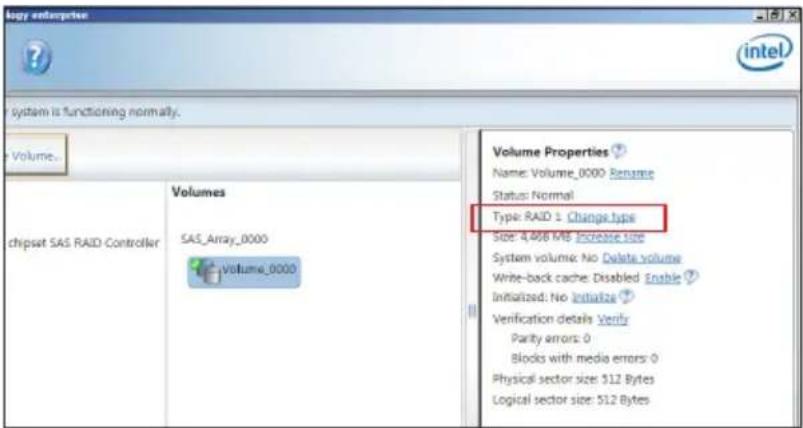
text_image
logy enterprise ? System is functioning normally. Volume... Volume Properties ? Name: Volume_0000 Rename Status: Normal Type: RAID 1 Change type Size: 4,466 MB Increase size System volume: No Delete volume Write-back cache: Disabled Enable ? Initialized: No Initialize ? Verification details: Verify Parity errors: 0 Blocks with media errors: 0 Physical sector size: 512 Bytes Logical sector size: 512 Bytes- You can change the Name, Select the new volume type, and Select additional disks to include in the new volume if needed.
- Select the Data stripe size for the RAID array (for RAID 0, 10 and 5 only), and click OK. The available stripe size values range from 4 KB to 128 KB. The following are typical values:
RAID 0: 128KB
RAID 10: 64KB
RAID 5: 64KB
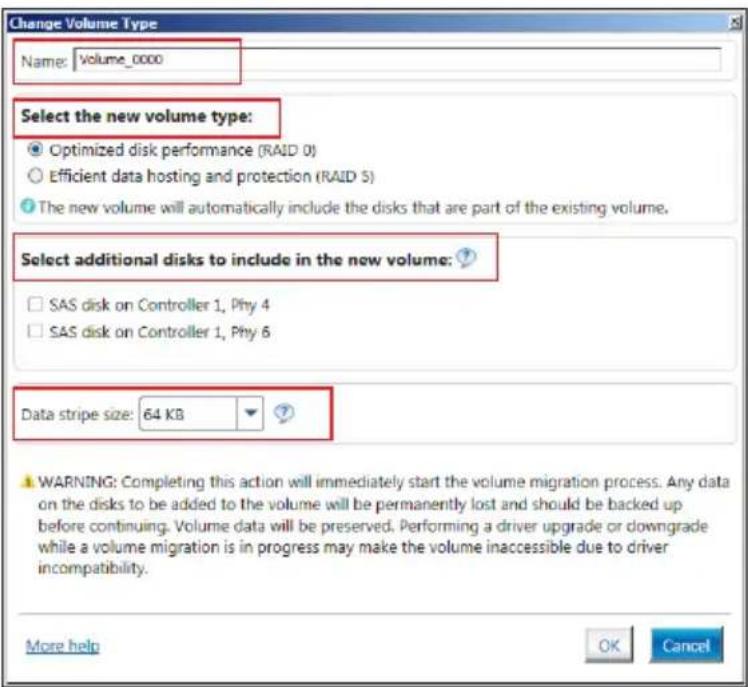
text_image
Change Volume Type Name: Volume_0000 Select the new volume type: ● Optimized disk performance (RAID 0) ○ Efficient data hosting and protection (RAID 5) ● The new volume will automatically include the disks that are part of the existing volume. Select additional disks to include in the new volume: □ SAS disk on Controller 1, Phy 4 □ SAS disk on Controller 1, Phy 6 Data stripe size: 64 KB WARNING: Completing this action will immediately start the volume migration process. Any data on the disks to be added to the volume will be permanently lost and should be backed up before continuing. Volume data will be preserved. Performing a driver upgrade or downgrade while a volume migration is in progress may make the volume inaccessible due to driver incompatibility. More help OK Cancel
We recommend a lower stripe size for workstations, and a higher stripe size for multimedia computer systems used mainly for audio and video editing.
5.3.3 Deleting a volume

Be cautious when deleting a volume. You will lose all data on the hard disk drives. Before you proceed, ensure that you back up all your important data from your hard drives.
To delete a volume:
- From the utility main menu, select the volume (exp. Volume_0000) in Volumes field you want to delete.

text_image
Volume enterprise intel system is functioning normally. Volume... chipsat SAS RAID Controller Volumes SAS_Array_0000 Volume_0000 Volume Properties Name: Volume_0000 Banamc Status: Normal Type: RAID 1 Change type Size: 4.468 MB Increase size System volume: No Delete volume Write-back cache: Disabled Enable Initialized: No Initiate? Verification details Verify Parity errors: 0 Blocks with media errors: 0 Physical sector size: 512 Bytes Logical sector size: 512 Bytes- Select Delete volume in Volume Properties field. The following screen appears.

text_image
Delete Volume Are you sure you want to delete this volume? WARNING: Completing this action will permanently delete existing data on the selected volume. Back up data before continuing. More help Yes No- Click Yes to delete the volume and return to the utility main menu, or click No to return to the main menu.
5.3.4 Preferences
System Preferences
Allow you to set to show the notification area icon and show system information, warning, or errors here.

text_image
Intel® Rapid Storage Technology enterprise Home Preferences System E-mail System Preferences ✓ Show the notification area icon. Show the following notifications: ✓ Storage system information ✓ Storage cyclant warnings ✓ Storage system errors More help on this pageE-Mail Preferences
Allow you to set to sent e-mail of the following events:
• Storage system information
• Storage system warnings
- Storage system errors
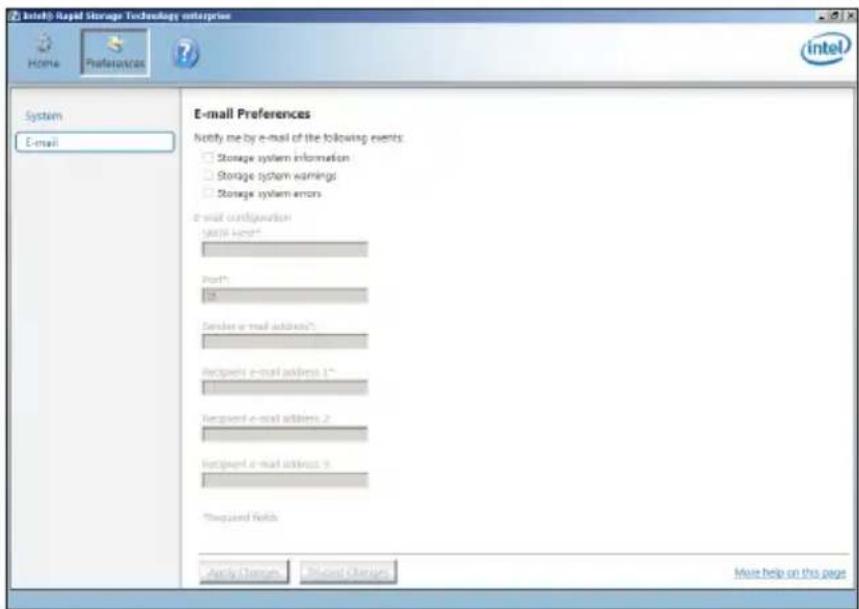
text_image
Intel® Rapid Storage Technology enterprise Home Preferences System E-mail E-mail Preferences Notify me by e-mail of the following events: Storage system information Storage system warnings Storage system errors e-mail configuration Start email * Port * Name Sender e-mail address * Recipient e-mail address 1** Recipient e-mail address 2... Recipient e-mail address 3 *Required Refs Apply Changes Reduced Changes More help on this pageDriver Installation
This chapter provides the instructions for installing the necessary drivers for different system components.

6.1 RAID driver installation
After creating the RAID sets for your workstation, you are now ready to install an operating system to the independent hard disk drive or bootable array. This part provides the instructions on how to install the RAID controller drivers during OS installation.
6.1.1 Creating a USB flash drive with RAID drive
When installing Windows ^® Server OS, you can load the RAID driver from a USB flash drive. You can create a USB flash drive with RAID driver in Windows by copying the files from the support DVD to the USB flash drive.
To copy the RAID driver to a USB flash drive in Windows environment:
- Place the motherboard support DVD in the optical drive.
- Connect a USB flash drive to your system.
- Click on the optical drive to browse the contents of the support DVD.
- Click Drivers > C24x INTEL RAID > Driver > Windows and then copy the RAID driver folder to the USB flash drive.
6.1.2 Installing the RAID controller driver
During Windows ^® Server 2012 R2 or 2016 OS installation
To install the RAID controller driver when installing Windows® Server OS:
- Boot the computer using the Windows ^ Server installation disc. Follow the onscreen instructions to start installing Windows ^ Server.
- When prompted to choose a type of installation, click Custom: Install Windows only (advanced).
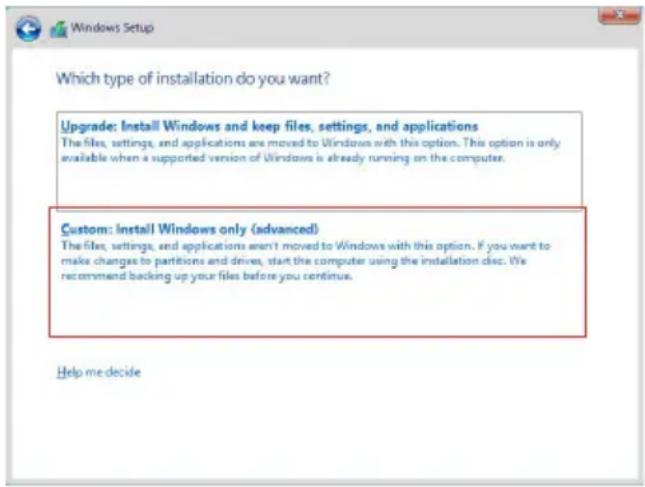
text_image
Which type of installation do you want? Upgrade: Install Windows and keep files, settings, and applications The files, settings, and applications are moved to Windows with this option. This option is only available when a supported version of Windows is already running on the computer. Custom: Install Windows only (advanced) The files, settings, and applications aren't moved to Windows with this option. If you want to make changes to partitions and drives, start the computer using the installation clsc. We recommend backing up your files before you continue. Help me decide3. Click Load Driver.
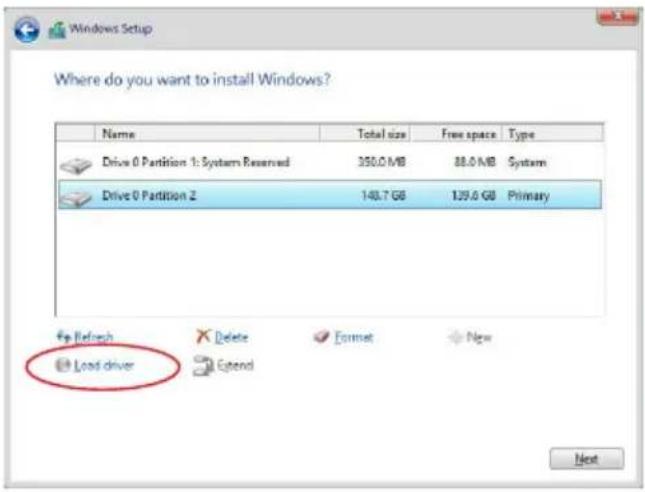
text_image
Where do you want to install Windows? Name Total size Free space Type Drive 0 Partition 1: System Reserved 350.0 MB 88.0 MB System Drive 0 Partition Z 140.7 GB 129.0 GB Primary Up Refresh Delete Format New Load driver Next-
A message appears reminding you to insert the installation media containing the driver of the RAID controller driver (the installation media can be a CD, DVD, or USB flash drive).
-
If you have only one optical drive installed in your system, eject the Windows OS installation disc and replace with the motherboard Support DVD into the optical drive.
- Or y ou may connect a USB flash drive containing the RAID controller driver.
Click Browse to continue.
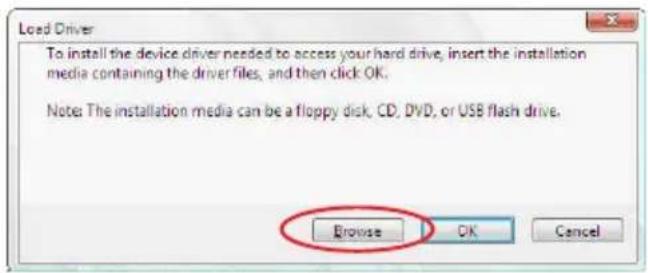
text_image
Load Driver To install the device driver needed to access your hard drive, insert the installation media containing the driver files, and then click OK. Note: The installation media can be a floppy disk, CD, DVD, or USB flash drive. Browse OK Cancel- Locate the driver in the corresponding folder of the Support DVD or USB flash drive and then click OK to continue.
-
Select the RAID controller driver you need from the list and click Next.
-
When the system finishes loading the RAID driver,
• Replace the motherboard Support DVD with the Windows Server installation disc.
- Remove the USB flash drive.
Select the drive to install Windows and click Next.
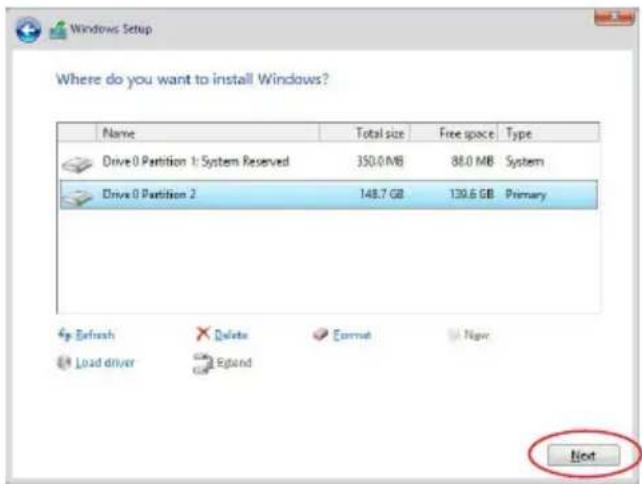
text_image
Windows Setup Where do you want to install Windows? Name Total size Free space Type Drive 0 Partition 1: System Reserved 350.0 MB 88.0 MB System Drive 0 Partition 2 148.7 GB 130.6 GB Primary Refresh Delete Format New Load driver Expand Next- Setup then proceeds with the OS installation. Follow the onscreen instructions to continue.
6.2 Management applications and utilities installation
The support DVD that is bundled with your motherboard contains drivers, management applications, and utilities that you can install to maximize the features of your motherboard.

- The contents of the support DVD are subject to change at any time without notice. Visit the ASUS website (www.asus.com) for the latest updates on software and utilities.
- The support DVD is supported on Windows ^® Server 2012 R2 and Windows ^® Server 2016.
6.3 Running the Support DVD
When you place the support DVD into the optical drive, the DVD automatically displays the main screen if Autorun is enabled in your computer. By default, the Drivers tab is displayed.

If Autorun is NOT enabled in your computer, browse the contents of the support DVD to locate the file Setup.exe. Double-click the Setup.exe to run the support DVD.

text_image
ASUS C24x Series Server / Workstation Support DVD - Windows Server 2016 64 bit Driver Status Available Version Installed Version Restart Driver Intel(R) Chipset Device Software Not Installed 18.1.1.27 None None Intel(R) I230 Gigabit Adapters Driver Updated 12:15:184.0 12:15:186.0 None ASPEED AST2500 Display Driver Not installed 9.0.10.103 None None Install
Onscreen display and content vary depending on the motherboard and chipset. The screenshots are provided for reference only.
6.4 Installing the system drivers
This section provides the instructions on how to install the system drivers. You will need to manually install the system drivers on a Windows® operating system.
To install the system drivers:
-
Restart the computer, and then log on with Administrator privileges.
-
Insert the support DVD into the optical drive. The support DVD automatically displays the Driver menu if Autorun is enabled in your computer.

If Autorun is NOT enabled in your computer, browse the contents of the support DVD to locate the file Setup.exe. Double-click the Setup.exe to run the support DVD.
- Check the drivers that you would like to install, then select Install.
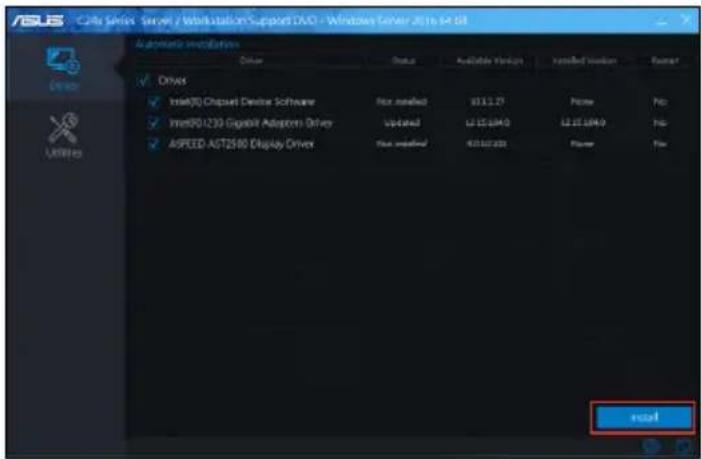
text_image
Cable Series Server / Workstation Support DVD - Windows Server 2016- M4.08 Automatic Installations Driver Status Available Version Installed Version Former ✓ Drive ✓ Insert(70) Chipset Devistar Software Not installed 83.1.27 None ✓ Insert(90)230 Gigabit Autoform Driver Updated 12.15.0M/0 12.15.0M/0 ✓ ASPEED AST2500 Display Driver Not installed 83.10.200 None ✓ install- The installation window appears.

text_image
ASUS Cite Series Server / Web station support DVD - Windows Server 2016 is led Fast Search Google chrome Search the web right from the omnibox. Total Time Remaining: About 5 Minutes OK Completed Cancel- Follow the onscreen instructions to complete the installation.
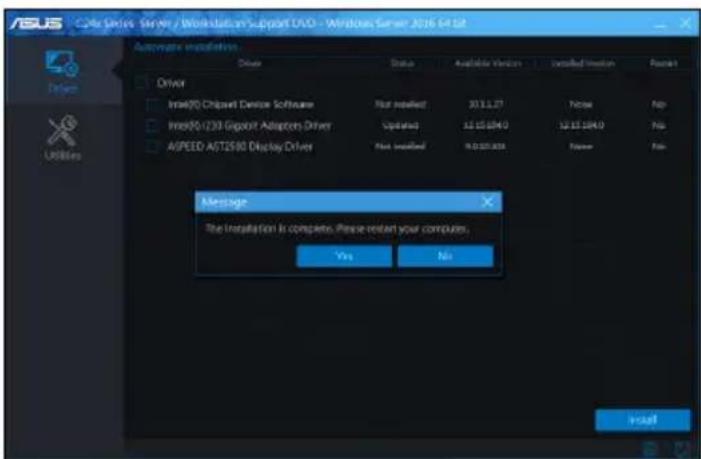
text_image
ASUS CS46 Series Server / Workloadan's support DVD - Windows Server 2016 64.8.1 Automatic installation Driver Status Available Version Installed Version Power Driver Intel® Chipset Device Software Not installed: 37.11.27 Price Fib Intel®/239 Gipohit Adopters Driver Updated: 12.15.0840 12.15.1840 Fib ASPEED A6T2590 Display Driver Not installed: 9.0.00.000 Price Fib Message The installation is complete. Please restart your computer. Yes No InstallAppendix
This appendix includes additional information that you may refer to when configuring the motherboard.
P11C-X/AUDIO block diagram
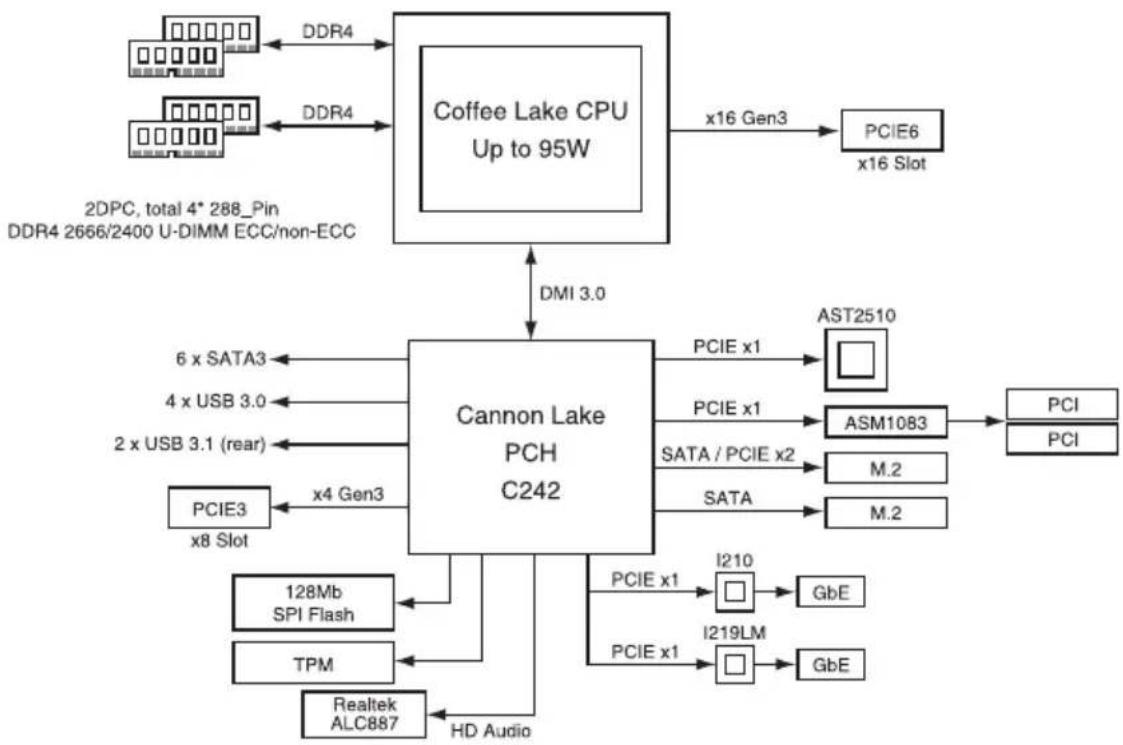
flowchart
graph TD
    A["DDR4"] --> B["Coffee Lake CPU Up to 95W"]
    C["DDR4"] --> B
    D["2DPC, total 4* 288_Pin DDR4 2666/2400 U-DIMM ECC/non-ECC"] --> B
    B --> E["x16 Gen3"]
    E --> F["PCIe6 x16 Slot"]
    B --> G["DMI 3.0"]
    G --> H["Cannon Lake PCH C242"]
    H --> I["AST2510"]
    H --> J["ASM1083"]
    H --> K["M.2"]
    H --> L["M.2"]
    H --> M["I210"]
    H --> N["I219LM"]
    H --> O["PCI"]
    H --> P["PCI"]
    H --> Q["PCIe3 x8 Slot"]
    H --> R["128Mb SPI Flash"]
    H --> S["TPM"]
    H --> T["Realtek ALC887"]
    H --> U["HD Audio"]
Q-Code table
| Code Description | |
| 00 | Not used |
| 02 | microcode |
| 03 | CACHE_ENABLED |
| 04 | PCH initialization |
| 06 | CPU_EARLY_INIT |
| 10 | PEI Core is started |
| 11 – 14 | Pre-memory CPU initialization is started |
| 15 – 18 | Pre-memory System Agent initialization is started |
| 19 – 1C | Pre-memory PCH initialization is started |
| 2B – 2F | Memory initialization |
| 30 | Reserved for ASL (see ASL Status Codes section below) |
| 31 | Memory Installed |
| 32 – 36 | CPU post-memory initialization |
| 37 – 3A | Post-Memory System Agent initialization is started |
| 3B – 3E | Post-Memory PCH initialization is started |
| 4F | DXE IPL is started |
| 50 – 53 | Memory initialization error. Invalid memory type or incompatible memory speed |
| 4F | DXE IPL is started |
| 54 | Unspecified memory initialization error |
| 55 | Memory not installed |
| 56 | Invalid CPU type or Speed |
| 57 | CPU mismatch |
| 58 | CPU self test failed or possible CPU cache error |
| 59 | CPU micro-code is not found or micro-code update is failed |
| 5A | Internal CPU error |
| 5B | Reset PPI is not available |
| 5C – 5F | Reserved for future AMI error codes |
| E0 | S3 Resume is stared (S3 Resume PPI is called by the DXE IPL) |
| E1 | S3 Boot Script execution |
| E2 | Video repost |
| E3 | OS S3 wake vector call |
| E4 – E7 | Reserved for future AMI progress codes |
| E8 | S3 Resume Failed |
| E9 | S3 Resume PPI not Found |
| EA | S3 Resume Boot Script Error |
| EB | S3 OS Wake Error |
| EC – EF | Reserved for future AMI error codes |
| F0 | Recovery condition triggered by firmware (Auto recovery) |
| F1 | Recovery condition triggered by user (Forced recovery) |
| F2 | Recovery process started |
| F3 | Recovery firmware image is found |
| F4 | Recovery firmware image is loaded |
| F5 – F7 | Reserved for future AMI progress codes |
| F8 | Recovery PPI is not available |
| F9 | Recovery capsule is not found |
(continued on the next page)
| Code Description | |
| FA | Invalid recovery capsule |
| FB - FF | Reserved for future AMI error codes |
| 60 | DXE Core is started |
| 61 | NVRAM initialization |
| 62 | Installation of the PCH Runtime Services |
| 63 - 67 | CPU DXE initialization is started |
| 68 | PCI host bridge initialization |
| 69 | System Agent DXE initialization is started |
| 6A | System Agent DXE SMM initialization is started |
| 6B - 6F | System Agent DXE initialization (System Agent module specific) |
| 70 | PCH DXE initialization is started |
| 71 | PCH DXE SMM initialization is started |
| 72 | PCH devices initialization |
| 73 - 77 | PCH DXE Initialization (PCH module specific) |
| 78 | ACPI module initialization |
| 79 | CSM initialization |
| 7A - 7F | Reserved for future AMI DXE codes |
| 90 | Boot Device Selection (BDS) phase is started |
| 91 | Driver connecting is started |
| 92 | PCI Bus initialization is started |
| 93 | PCI Bus Hot Plug Controller Initialization |
| 94 | PCI Bus Enumeration |
| 95 | PCI Bus Request Resources |
| 96 | PCI Bus Assign Resources |
| 97 | Console Output devices connect |
| 98 | Console input devices connect |
| 99 | Super IO Initialization |
| 9A | USB initialization is started |
| 9B | USB Reset |
| 9C | USB Detect |
| 9D | USB Enable |
| 9E - 9F | Reserved for future AMI codes |
| A0 | IDE initialization is started |
| A1 | IDE Reset |
| A2 | IDE Detect |
| A3 | IDE Enable |
| A4 | SCSI initialization is started |
| A5 | SCSI Reset |
| A6 | SCSI Detect |
| A7 | SCSI Enable |
| A8 | Setup Verifying Password |
| A9 | Start of Setup |
| AA | Reserved for ASL (see ASL Status Codes section below) |
| AB | Setup Input Wait |
(continued on the next page)
| Code Description | |
| AC | Reserved for ASL (see ASL Status Codes section below) |
| AD | Ready To Boot event |
| AE | Legacy Boot event |
| AF | Exit Boot Services event |
| B0 | Runtime Set Virtual Address MAP Begin |
| B1 | Runtime Set Virtual Address MAP End |
| B2 | Legacy Option ROM Initialization |
| B3 | System Reset |
| B4 | USB hot plug |
| B5 | PCI bus hot plug |
| B6 | Clean-up of NVRAM |
| B7 | Configuration Reset (reset of NVRAM settings) |
| B8-BF | Reserved for future AMI codes |
| D0 | CPU initialization error |
| D1 | System Agent initialization error |
| D2 | PCH initialization error |
| D3 | Some of the Architectural Protocols are not available |
| D4 | PCI resource allocation error. Out of Resources |
| D5 | No Space for Legacy Option ROM |
| D6 | No Console Output Devices are found |
| D7 | No Console Input Devices are found |
| D8 | Invalid password |
| D9 | Error loading Boot Option (LoadImage returned error) |
| DA | Boot Option is failed (StartImage returned error) |
| DB | Flash update is failed |
| DC | Reset protocol is not available |
ACPI/ASL Checkpoints (under OS)
| Code Description | |
| 03 | System is entering S3 sleep state |
| 04 | System is entering S4 sleep state |
| 05 | System is entering S5 sleep state |
| 30 | System is waking up from the S3 sleep state |
| 40 | System is waking up from the S4 sleep state |
| AC | System has transitioned into ACPI mode. Interrupt controller is in PIC mode. |
| AA | System has transitioned into ACPI mode. Interrupt controller is in APIC mode. |
Notices
Federal Communications Commission Statement
This device complies with Part 15 of the FCC Rules. Operation is subject to the following two conditions:
- This device may not cause harmful interference.
- This device must accept any interference received including interference that may cause undesired operation.
This equipment has been tested and found to comply with the limits for a Class A digital device, pursuant to part 15 of the FCC Rules. These limits are designed to provide reasonable protection against harmful interference when the equipment is operated in a commercial environment. This equipment generates, uses, and can radiate radio frequency energy and, if not installed and used in accordance with the instruction manual, may cause harmful interference to radio communications. Operation of this equipment in a residential area is likely to cause harmful interference in which case the user will be required to correct the interference at his own expense.

The use of shielded cables for connection of the monitor to the graphics card is required to assure compliance with FCC regulations. Changes or modifications to this unit not expressly approved by the party responsible for compliance could void the user's authority to operate this equipment.
Compliance Statement of Innovation, Science and Economic Development Canada (ISED)
This device complies with Innovation, Science and Economic Development Canada licence exempt RSS standard(s). Operation is subject to the following two conditions: (1) this device may not cause interference, and (2) this device must accept any interference, including interference that may cause undesired operation of the device.
CAN ICES-3(A)/NMB-3(A)
Australia statement notice
From 1 January 2012 updated warranties apply to all ASUS products, consistent with the Australian Consumer Law. For the latest product warranty details please visit https://www.asus.com/support/. Our goods come with guarantees that cannot be excluded under the Australian Consumer Law. You are entitled to a replacement or refund for a major failure and compensation for any other reasonably foreseeable loss or damage. You are also entitled to have the goods repaired or replaced if the goods fail to be of acceptable quality and the failure does not amount to a major failure.
If you require assistance please call ASUS Customer Service 1300 2787 88 or visit us at https://www.asus.com/support/.

DO NOT throw the motherboard in municipal waste. This product has been designed to enable proper reuse of parts and recycling. This symbol of the crossed out wheeled bin indicates that the product (electrical and electronic equipment) should not be placed in municipal waste. Check local regulations for disposal of electronic products.

DO NOT throw the mercury-containing button cell battery in municipal waste. This symbol of the crossed out wheeled bin indicates that the battery should not be placed in municipal waste.
Japan statement notice
This product cannot be directly connected to the Internet (including public wireless LAN) of a telecom carrier (mobile network companies, landline network companies, Internet providers, etc.). When connecting this product to the Internet, be sure to connect it through a router or switch.
Declaration of compliance for product environmental regulation
ASUS follows the green design concept to design and manufacture our products, and makes sure that each stage of the product life cycle of ASUS product is in line with global environmental regulations. In addition, ASUS disclose the relevant information based on regulation requirements.
Please refer to http://csr.asus.com/Compliance.htm for information disclosure based on regulation requirements ASUS is complied with:
EU REACH and Article 33
Complying with the REACH (Registration, Evaluation, Authorization, and Restriction of Chemicals) regulatory framework, we publish the chemical substances in our products at ASUS REACH website at http://csr.asus.com/english/REACH.htm.
EU RoHS
This product complies with the EU RoHS Directive. For more details, see http://csr.asus.com/english/article.aspx?id=35
Japan JIS-C-0950 Material Declarations
Information on Japan RoHS (JIS-C-0950) chemical disclosures is available on http://csr.asus.com/english/article.aspx?id=19
India RoHS
This product complies with the “India E-Waste (Management) Rules, 2016” and prohibits use of lead, mercury, hexavalent chromium, polybrominated biphenyls (PBBs) and polybrominated diphenyl ethers (PBDEs) in concentrations exceeding 0.1% by weight in homogenous materials and 0.01% by weight in homogenous materials for cadmium, except for the exemptions listed in Schedule II of the Rule.
Vietnam RoHS
ASUS products sold in Vietnam, on or after September 23, 2011, meet the requirements of the Vietnam Circular 30/2011/TT-BCT.
ASUS recycling and takeback programs come from our commitment to the highest standards for protecting our environment. We believe in providing solutions for you to be able to responsibly recycle our products, batteries, other components as well as the packaging materials. Please go to http://csr.asus.com/english/Takeback.htm for detailed recycling information in different regions.
Ecodesign Directive
European Union announced a framework for the setting of ecodesign requirements for energy-related products (2009/125/EC). Specific Implementing Measures are aimed at improving environmental performance of specific products or across multiple product types. ASUS provides product information on the CSR website. The further information could be found at https://csr.asus.com/english/article.aspx?id=1555.
ASUS contact information
ASUSTeK COMPUTER INC.
Address 1F., No. 15, Lide Rd., Beitou Dist., Taipei City 112, Taiwan
Telephone +886-2-2894-3447
Fax +886-2-2890-7798
Web site https://www.asus.com
Technical Support
Telephone +86-21-38429911
Online Support https://www.asus.com/support/Product/ContactUs/Services/questionform/?lang=en
ASUSTeK COMPUTER INC. (Taiwan)
Address 1F., No. 15, Lide Rd., Beitou Dist., Taipei City 112, Taiwan
Telephone +886-2-2894-3447
Fax +886-2-2890-7798
Web site https://www.asus.com/tw/
Technical Support
Telephone +886-2-2894-3447 (0800-093-456)
Online Support https://www.asus.com/support/Product/ContactUs/Services/
questionform/?lang=zh-tw
ASUSTeK COMPUTER INC. (China)
Address No. 5077, Jindu Road, Minhang District, Shanghai, China
Telephone +86-21-5442-1616
Fax +86-21-5442-0099
Web site https://www.asus.com.cn
Technical Support
Telephone +86-20-2804-7506 (400-620-6655)
Online Support https://www.asus.com/support/Product/ContactUs/Services/
questionform/?lang=zh-cn
ASUS contact information
ASUS COMPUTER INTERNATIONAL (America)
Address
48720 Kato Rd., Fremont, CA 94538, USA
Fax +1-510-608-4555
Web site https://www.asus.com/us/
Technical Support
Support fax +1-812-284-0883
General support +1-812-282-2787
Online support https://www.asus.com/support/Product/ContactUs/Services/
questionform/?lang=en-us
ASUS COMPUTER GmbH (Germany and Austria)
Address Harkortstrasse 21-23, 40880 Ratingen, Germany
Web site https://www.asus.com/de
Online contact https://www.asus.com/support/Product/ContactUs/Services/
questionform/?lang=de-de
Technical Support
Telephone (DE) +49-2102-5789557
Telephone (AT) +43-1360-2775461
Online support https://www.asus.com/de/support
ASUS Czech Service s.r.o. (Europe)
Address Na Rovince 887, 720 00 Ostrava – Hrabová,
Czech Republic
Telephone +420-596766888
Web site https://www.asus.com/cz/
Technical Support
Telephone +420-596-766-891
Fax +420-596-766-329
E-mail advance.rma.eu@asus.com
Online Support https://www.asus.com/support/Product/ContactUs/Services/
questionform/?lang=cs-cz
ASUS contact information
ASUS Holland BV (The Netherlands)
Address Marconistraat 2, 7825GD EMMEN, The Netherlands
Web site https://www.asus.com/nl/
Technical Support
Telephone +31-(0)591-5-70292
Fax +31-(0)591-666853
E-mail advance.rma.eu@asus.com
Online Support https://www.asus.com/support/Product/ContactUs/Services/
questionform/?lang=nl-nl
ASUS Polska Sp. z o.o. (Poland)
Online Support https://www.asus.com/support/Product/ContactUs/Services/
questionform/?lang=pl-pl
ASK-Service (Russia and CIS)
Online Support https://www.asus.com/support/Product/ContactUs/Services/
questionform/?lang=ru-ru