PIKE 1068E - Server ASUS - Free user manual and instructions
Find the device manual for free PIKE 1068E ASUS in PDF.


User questions about PIKE 1068E ASUS
0 question about this device. Answer the ones you know or ask your own.
Ask a new question about this device
Download the instructions for your Server in PDF format for free! Find your manual PIKE 1068E - ASUS and take your electronic device back in hand. On this page are published all the documents necessary for the use of your device. PIKE 1068E by ASUS.
USER MANUAL PIKE 1068E ASUS
natural_image
Two views of a green printed circuit board with integrated circuits and connectors (no visible text or symbols)E3846
First Edition V1
June 2008
Copyright © 2008 ASUSTeK COMPUTER INC. All Rights Reserved.
No part of this manual, including the products and software described in it, may be reproduced, transmitted, transcribed, stored in a retrieval system, or translated into any language in any form or by any means, except documentation kept by the purchaser for backup purposes, without the express written permission of ASUSTeK COMPUTER INC. ("ASUS").
Product warranty or service will not be extended if: (1) the product is repaired, modified or altered, unless such repair, modification of alteration is authorized in writing by ASUS; or (2) the serial number of the product is defaced or missing.
ASUS PROVIDES THIS MANUAL "AS IS" WITHOUT WARRANTY OF ANY KIND, EITHER EXPRESS OR IMPLIED, INCLUDING BUT NOT LIMITED TO THE IMPLIED WARRANTIES OR CONDITIONS OF MERCHANTABILITY OR FITNESS FOR A PARTICULAR PURPOSE. IN NO EVENT SHALL ASUS, ITS DIRECTORS, OFFICERS, EMPLOYEES OR AGENTS BE LIABLE FOR ANY INDIRECT, SPECIAL, INCIDENTAL, OR CONSEQUENTIAL DAMAGES (INCLUDING DAMAGES FOR LOSS OF PROFITS, LOSS OF BUSINESS, LOSS OF USE OR DATA, INTERRUPTION OF BUSINESS AND THE LIKE), EVEN IF ASUS HAS BEEN ADVISED OF THE POSSIBILITY OF SUCH DAMAGES ARISING FROM ANY DEFECT OR ERROR IN THIS MANUAL OR PRODUCT.
SPECIFICATIONS AND INFORMATION CONTAINED IN THIS MANUAL ARE FURNISHED FOR INFORMATIONAL USE ONLY, AND ARE SUBJECT TO CHANGE AT ANY TIME WITHOUT NOTICE, AND SHOULD NOT BE CONSTRUED AS A COMMITMENT BY ASUS. ASUS ASSUMES NO RESPONSIBILITY OR LIABILITY FOR ANY ERRORS OR INACCURACIES THAT MAY APPEAR IN THIS MANUAL, INCLUDING THE PRODUCTS AND SOFTWARE DESCRIBED IN IT.
Products and corporate names appearing in this manual may or may not be registered trademarks or copyrights of their respective companies, and are used only for identification or explanation and to the owners' benefit, without intent to infringe.
Contents
Contents .... iii
About this guide ...... iv
PIKE 1064E/1068E specifications summary...... vi
Chapter 1: Product introduction
1.1 Welcome! 1-2
1.2 Package contents 1-2
1.3 Card layout 1-3
1.4 System requirements 1-3
1.5 Card installation.... 1-4
Chapter 2: RAID configuration
2.1 Setting up RAID.... 2-2
2.1.1 RAID definitions 2-2
2.1.2 Installing hard disk drives 2-2
2.2 LSI Corporation MPT Setup Utility 2-3
2.2.1 Integrated Mirroring volume 2-4
2.2.2 Integrated Mirroring Enhanced volume 2-8
2.2.3 Integrated Striping (IS) volume 2-10
2.2.4 Managing Arrays 2-12
2.2.5 Viewing SAS topology 2-17
2.2.6 Global Properties 2-18
Chapter 3: Driver installation
3.1 RAID driver installation 3-2
3.1.1 Creating a RAID driver disk 3-2
3.1.2 Windows ® Server 2003 OS 3-4
3.1.3 Red Hat ^® Enterprise Linux OS 3-9
3.1.4 SUSE Linux Enterprise Server OS 3-11
About this guide
This user guide contains the information you need when installing and configuring the server management board.
How this guide is organized
This guide contains the following parts:
• Chapter 1: Product introduction
This chapter offers the PIKE 1064E/1068E SAS RAID card features and the new technologies it supports.
• Chapter 2: RAID configuration
This chapter provides instructions on setting up, creating, and configuring RAID sets using the available utilities.
• Chapter 3: Driver installation
This chapter provides instructions for installing the RAID drivers on different operating systems.
Where to find more information
Refer to the following sources for additional information and for product and software updates.
1. ASUS websites
The ASUS website provides updated information on ASUS hardware and software products. Refer to the ASUS contact information.
2. Optional documentation
Your product package may include optional documentation, such as warranty flyers, that may have been added by your dealer. These documents are not part of the standard package.
Conventions used in this guide
To make sure that you perform certain tasks properly, take note of the following symbols used throughout this manual.

DANGER/WARNING: Information to prevent injury to yourself when trying to complete a task.

CAUTION: Information to prevent damage to the components when trying to complete a task.

IMPORTANT: Instructions that you MUST follow to complete a task.

NOTE: Tips and additional information to help you complete a task.
Typography
Bold text Indicates a menu or an item to select.
Italics Used to emphasize a word or a phrase.
Example:
Example:
Command Means that you must type the command exactly as shown, then supply the required item or value enclosed in brackets.
Example: At the DOS prompt, type the command line: format a:
PIKE 1064E/1068E specifications summary
| Controller PIKE 1064E: LSISAS1064EPIKE 1068E: LSISAS1068E | |
| Interface ASUS PIKE interface | |
| Ports PIKE 1064E: 4 ports | PIKE 1068E: 8 ports |
| Support device SAS and SATA II devices | |
| Data transfer rate SATA II and SAS 3 Gb/s per PHY | |
| RAID level RAID0/RAID1/RAID1E | |
| OS support* Windows | ® Server 2003/2000/XP/VistaRed Hat® Enterprise Linux 3/4/5SUSE Linux Enterprise Server 8/9/10LSI MegaRAID Storage Manager (MSM) for Windows®/Linux operating systems |
| Form factor 6.44 in x 1.57 in (1U compatible) | |
* The exact OS support would base on the OS support list of the motherboard.
** Specifications are subject to change without notice.
This chapter offers the PIKE 1064E/1068E
SAS RAID card features and the new
technologies it supports.
068E Product 1 introduction
1.1 Welcome!
Thank you for buying an ASUS® PIKE 1064E/1068E SAS RAID card!
The ASUS PIKE 1064E/1068E allows you to create RAID0, RAID1, and RAID1E set(s) from SAS hard disk drives connected to the SAS connectors on the motherboard.
Before you start installing the RAID card, check the items in your package with the list below.
1.2 Package contents
Check your package for the following items.
• ASUS PIKE 1064E/1068E SAS RAID card
- Support CD
- User guide

If any of the above items is damaged or missing, contact your retailer.
1.3 Card layout
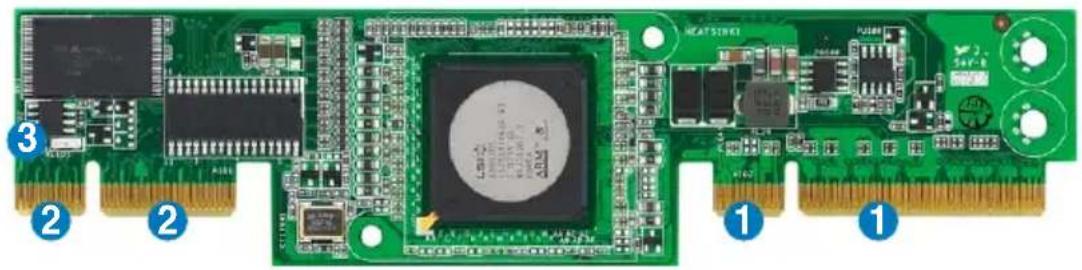
The illustration below shows the major components of the RAID card.
natural_image
Green printed circuit board with integrated circuits and connectors, labeled with numbers 1, 2, and 3 (no readable text beyond labels)- ASUS PIKE interface-1: PCI-E x8
- ASUS PIKE interface-2: 4-port SAS signal with SGPIO interface (PIKE 1064E) 8-port SAS signal with SGPIO interface (PIKE 1068E)*
- SAS RAID card status LED (lights up and blinks to indicate that the card is working normally)

• * The SGPIO interface is used for visibility into drive activity, failure and rebuild status, so that users could build high-performance and reliable storage systems. Refer to the motherboard manual for detailed information about using the SGPIO connectors on the motherboard.
- For PIKE 1068E SAS RAID card, a heatsink is installed on the LSISAS1068E controller.
1.4 System requirements
Before you install the PIKE 1064E/1068E SAS RAID card, check if the system meets the following requirements:
• Workstation or server motherboard with a PIKE RAID card slot
• SAS or SATA hard disk drives
• Supporting operating system:
Windows® and Linux operating systems (refer to website for details)
- Other requirement:
- Appropriate thermal solution
- Certified power supply module
1.5 Card installation
Follow below instructions to install the RAID card on your motherboard.
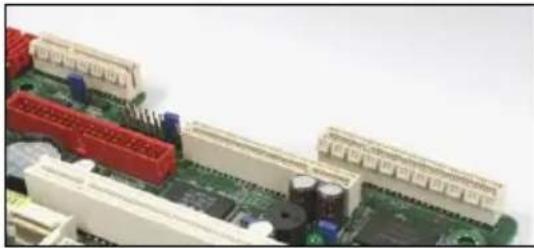
- Locate the PIKE RAID card slot on the motherboard.
natural_image
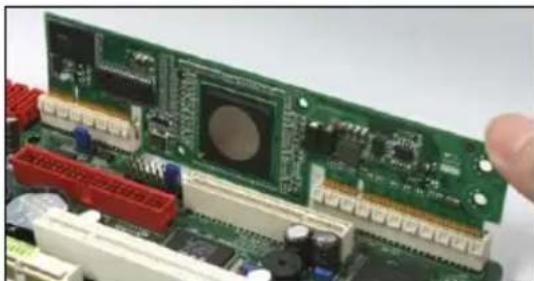
Close-up of a computer motherboard with visible components and connectors (no text or symbols)- Align the golden fingers of the RAID card with the PIKE RAID card slot.
natural_image
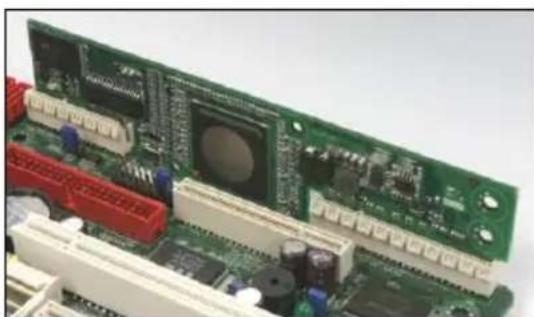
Close-up of a green printed circuit board with visible components and connectors, held by a finger (no text or symbols)- Insert the RAID card into the PIKE RAID card slot. Make sure it's completely inserted into the PIKE RAID card slot.
natural_image
Close-up of a green printed circuit board with various electronic components and connectors (no visible text or symbols)
Connect the SAS hard disk drives to SAS connectors 1-4 (red) on the motherboard when using a 4-port PIKE RAID card. The SAS connectors 5-8 (blue) function when using a 8-port PIKE RAID card.

natural_image
Close-up of a computer motherboard with blue and red plastic connectors (no visible text or symbols)This chapter provides instructions on setting up, creating, and configuring RAID sets using the available utilities.
RAID
configuration
2.1 Setting up RAID
The RAID card supports RAID 0, RAID 1 and RAID 1E set.
2.1.1 RAID definitions
RAID 0 (Data striping) optimizes two identical hard disk drives to read and write data in parallel, interleaved stacks. Two hard disks perform the same work as a single drive but at a sustained data transfer rate, double that of a single disk alone, thus improving data access and storage. Use of at least two new identical hard disk drives is required for this setup.
RAID 1 (Data mirroring) copies and maintains an identical image of data from one drive to a second drive. If one drive fails, the disk array management software directs all applications to the surviving drive as it contains a complete copy of the data in the other drive. This RAID configuration provides data protection and increases fault tolerance to the entire system. Use two new drives or use an existing drive and a new drive for this setup. The new drive must be of the same size or larger than the existing drive.
RAID 1E (Enhanced RAID 1) has a striped layout with each stripe unit having a secondary (or alternate) copy stored on a different disk. You can use three or more hard disk drives for this configuration.

If you want to boot the system from a hard disk drive included in a created RAID set, copy first the RAID driver from the support CD to a floppy disk before you install an operating system to the selected hard disk drive.
2.1.2 Installing hard disk drives
The RAID card supports SAS for RAID set configuration. For optimal performance, install identical drives of the same model and capacity when creating a disk array.
To install the SAS hard disks for RAID configuration:
- Install the SAS hard disks into the drive bays following the instructions in the system user guide.
- Connect a SAS signal cable to the signal connector at the back of each drive and to the SAS connector on the motherboard.
- Connect a power cable to the power connector on each drive.
2.2 LSI Corporation MPT Setup Utility
The LSI Corporation MPT Setup Utility is an integrated RAID solution that allows you to create the following RAID set(s) from SAS hard disk drives supported by the LSI SAS 1064E/1068E controller:
• RAID 1 (Integrated Mirroring)
- RAID 1E (Integrated Mirroring Enhanced)
- RAID 0 (Integrated Striping)

- You may use disks of different sizes in IM and IME volumes; however, the size of the smallest disk determines the “logical” size of each member disk.
- DO NOT combine Serial ATA and SAS disk drives in one volume.

- The RAID setup screens shown in this section are for reference only and may not exactly match the items on your screen due to the controller version difference.
- The adapter name shown on the setup screens differs according to the installed SAS RAID card.
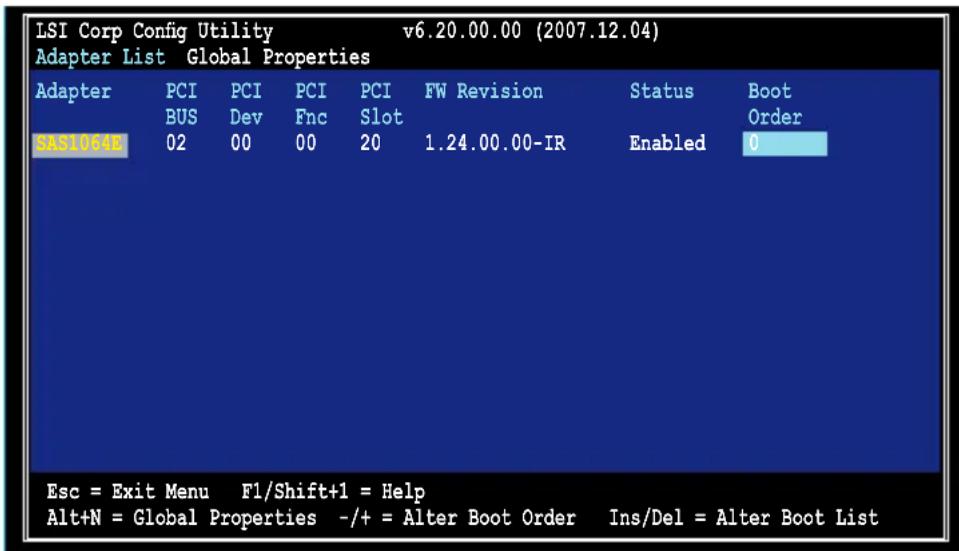
- Before requesting support from the ASUS Technical Support team, you have to take note of the MPTFW and MPTBIOS version for the SAS RAID card. After entering the SAS configuration utility, you can see below screen and identify the MPTFW and MPTBIOS version:
MPTFW version: 1.24.00.00-IR MPTBIOS version: v6.20.00.00 (2007.12.04)
text_image
LSI Corp Config Utility v6.20.00.00 (2007.12.04) Adapter List Global Properties Adapter PCI PCI PCI PCI FW Revision Status Boot BUS Dev Fnc Slot SAG10058 02 00 00 20 1.24.00.00-IR Enabled 0 Esc = Exit Menu F1/Shift+1 = Help Alt+N = Global Properties -/+ = Alter Boot Order Ins/Del = Alter Boot List2.2.1 Integrated Mirroring volume
The Integrated Mirroring (IM) feature supports simultaneous mirrored volumes with two disks (IM).
The IM feature supports hot swap capability, so when a disk in an IM volume fails, you can easily restore the volume, and the swapped disk is automatically re-mirrored.
To create an IM volume:
- Turn on the system after installing all SAS hard disk drives.
- During POST, press
LSI Corporation MPT SAS BIOS
MPTBIOS-6.20.00.00 (2007.12.04)
Copyright 2000-2007 LSI Corporation.
Press Ctrl-C to start LSI Corp Configuration Utility...

To avoid data loss, do not turn off the system when rebuilding.
- The following screen appears. Select a channel and press
to enter the setup.

text_image
LSI Corp Config Utility v6.20.00.00 (2007.12.04) Adapter List Global Properties Adapter PCI PCI PCI PCI FW Revision Status Boot BUS Dev Fnc Slot ORIGINAL 02 00 00 20 1.24.00.00-IR Enabled 0 Esc = Exit Menu F1/Shift+1 = Help Alt+N = Global Properties -/+ = Alter Boot Order Ins/Del = Alter Boot List
The numbers of the channel depend on the controller.
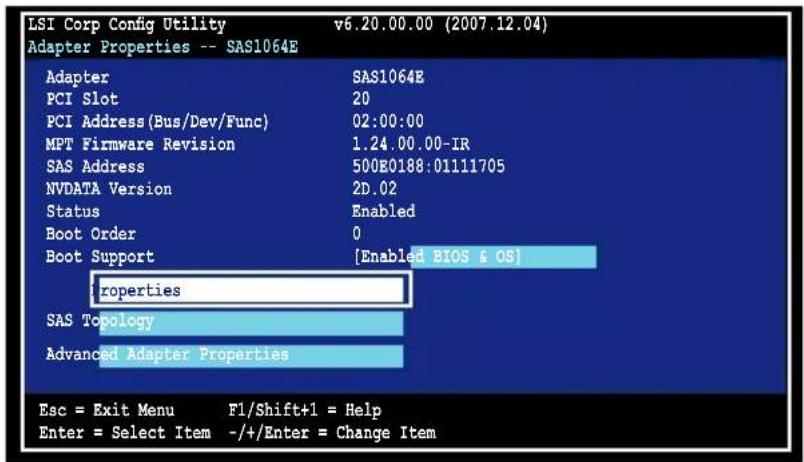
- The Adapter Properties screen appears.
Use the arrow keys to select RAID Properties, then press
text_image
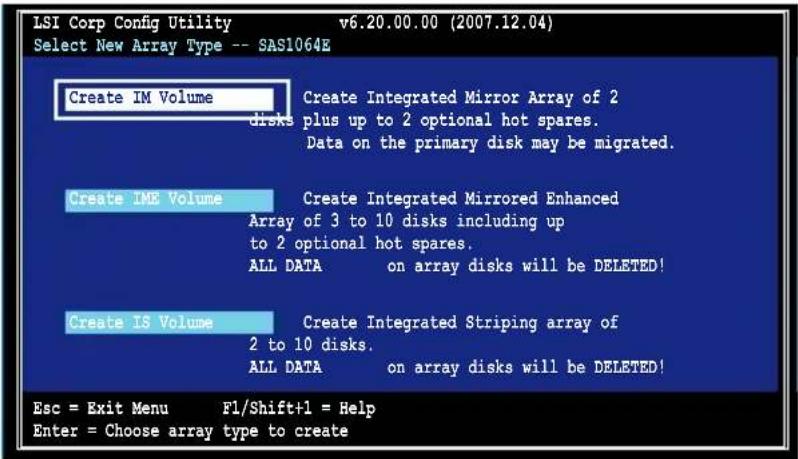
LSI Corp Config Utility v6.20.00.00 (2007.12.04) Adapter Properties -- SAS1064E Adapter SAS1064E PCI Slot 20 PCI Address(Bus/Dev/Func) 02:00:00 MPT Firmware Revision 1.24.00.00-IR SAS Address 500E0188:01111705 NVDATA Version 2D.02 Status Enabled Boot Order 0 Boot Support [Enabled BIOS & OS] properties SAS Topology Advanced Adapter Properties Esc = Exit Menu F1/Shift+1 = Help Enter = Select Item -/+Enter = Change Item- The Select New Array Type screen appears.
Use the arrow keys to select Create IM Volume, then press
text_image
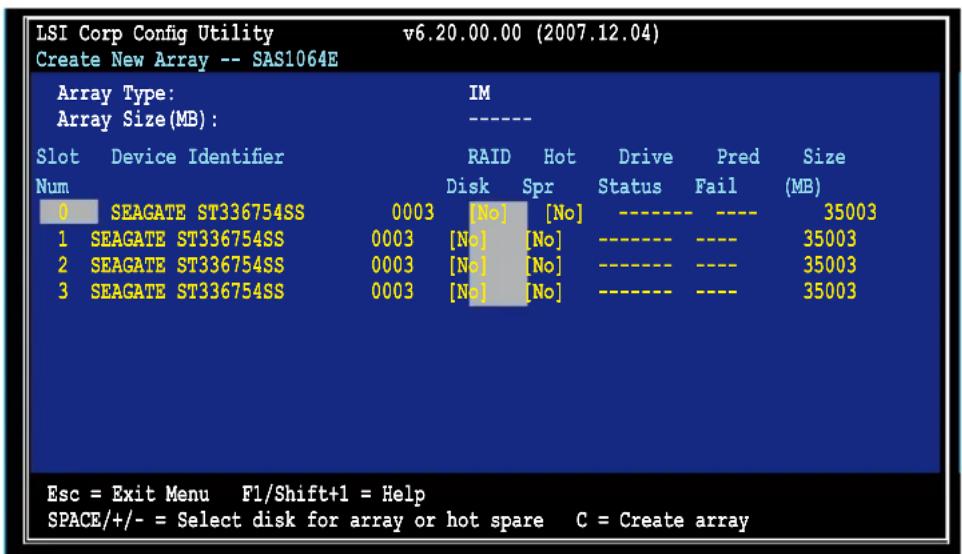
LSI Corp Config Utility v6.20.00.00 (2007.12.04) Select New Array Type -- SAS1064E Create IM Volume Create Integrated Mirror Array of 2 disks plus up to 2 optional hot spares. Data on the primary disk may be migrated. Create IME Volume Create Integrated Mirrored Enhanced Array of 3 to 10 disks including up to 2 optional hot spares. ALL DATA on array disks will be DELETED! Create IS Volume Create Integrated Striping array of 2 to 10 disks. ALL DATA on array disks will be DELETED! Esc = Exit Menu F1/Shift+1 = Help Enter = Choose array type to create- The Create New Array screen shows the disks you can add to make up the IM volume. Use the arrow key to select a disk, then move the cursor to the RAID Disk column. To include this disk in the array, press <+>, <->, or
.
You may also specify the Hot Spare disk here. Select the disk, then move the cursor to the Hot Spr column, then press <+>, <->, or
text_image
LSI Corp Config Utility v6.20.00.00 (2007.12.04) Create New Array -- SAS1064E Array Type: IM Array Size(MB): ---- Slot Device Identifier RAID Hot Drive Pred Size Num Disk Spr Status Fail (MB) 0 SEAGATE ST336754SS 0003 [No] [No] ---- ---- 35003 1 SEAGATE ST336754SS 0003 [No] [No] ---- ---- 35003 2 SEAGATE ST336754SS 0003 [No] [No] ---- ---- 35003 3 SEAGATE ST336754SS 0003 [No] [No] ---- ---- 35003 Esc = Exit Menu F1/Shift+1 = Help SPACE/+/-= Select disk for array or hot spare C = Create array
By default, the RAID Disk field shows No before array creation. This field is grayed out under the following conditions:
- The disk does not meet the minimum requirements for use in a RAID array.
- The disk is not large enough to mirror existing data on the primary drive.
- The disk has been selected as the Hot Spare for the RAID array.
-
The disk is already part of another array.
-
A confirmation screen appears.
Press
Press
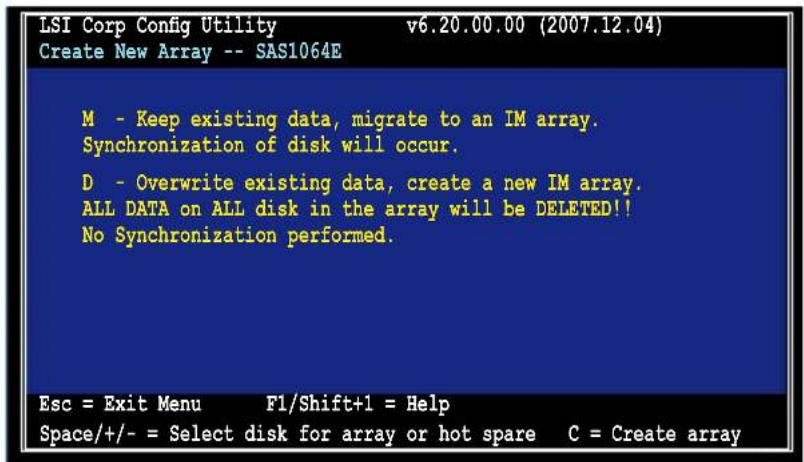
text_image
LSI Corp Config Utility v6.20.00.00 (2007.12.04) Create New Array -- SAS1064E M - Keep existing data, migrate to an IM array. Synchronization of disk will occur. D - Overwrite existing data, create a new IM array. ALL DATA on ALL disk in the array will be DELETED!! No Synchronization performed. Esc = Exit Menu F1/Shift+1 = Help Space/+/- = Select disk for array or hot spare C = Create array- Repeat steps 5 and 6 to add the second disk to the volume.
- When done, press < C> to create the array, then select Save changes then exit this menu.
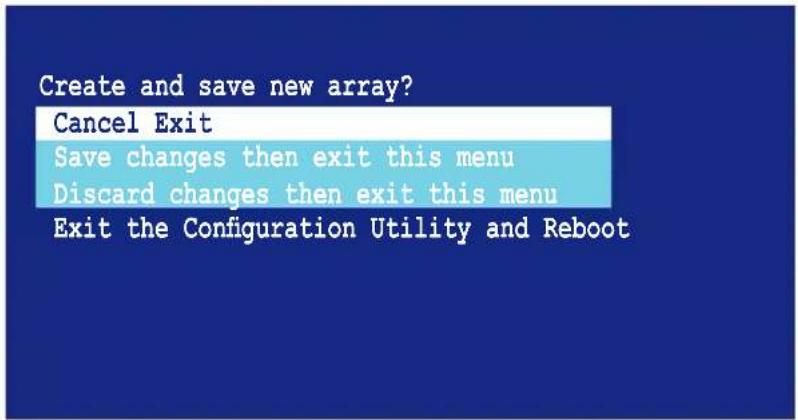
text_image
Create and save new array? Cancel Exit Save changes then exit this menu Discard changes then exit this menu Exit the Configuration Utility and Reboot- The utility creates the array.
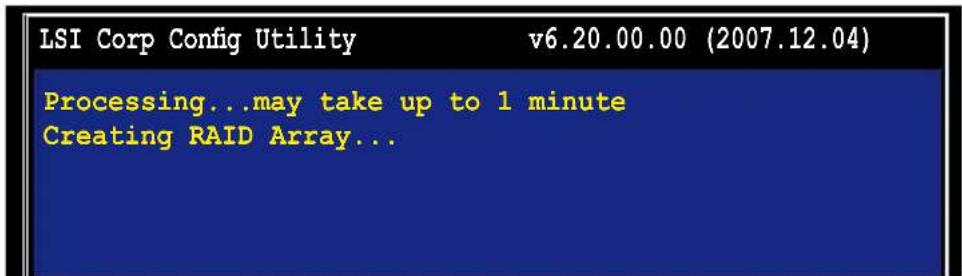
text_image
LSI Corp Config Utility v6.20.00.00 (2007.12.04) Processing...may take up to 1 minute Creating RAID Array...2.2.2 Integrated Mirroring Enhanced volume
The Integrated Mirroring Enhanced (IME) supports three to ten disks, or seven mirrored disks plus two hot spare disks.
To create an IME volume:
- Follow steps 1–4 of the section Integrated Mirroring volume.
- The Select New Array Type screen appears.
Use the arrow keys to select Create IME Volume, then press
.

text_image
LSI Corp Config Utility v6.20.00.00 (2007.12.04) Select New Array Type -- SAS1064E Create IM Volume Create Integrated Mirror Array of 2 disks plus up to 2 optional hot spares. Data on the primary disk may be migrated. Create IME Volume Create Integrated Mirrored Enhanced Array of 3 to 10 disks including up to 2 optional hot spares. ALL Data on array disks will be deleted! Create IS Volume Create Integrated Striping array of 2 to 10 disks. ALL Data on array disks will be deleted! Esc = Exit Menu F1/Shift+1 = Help Enter = Choose array type to create- The Create New Array screen shows the disks you can add to make up the IME volume.
Integrated Mirroring Enhanced (IME) supports three to ten disks, or seven mirrored disks plus two hot spare disks. Use the arrow key to select a disk, then move the cursor to the RAID Disk column. To include this disk in the array, press <+>, <->, or
You may also specify the Hot Spare disk here. Select the disk, then move the cursor to the Hot Spr column, then press <+>, <->, or

text_image
LSI Corp Config Utility v6.20.00.00 (2007.12.04) Create New Array -- SAS1064E Array Type: IME Array Size(MB): 51498 Slot Device Identifier RAID Hot Drive Pred Size Num Disk Spr Status Fail (MB) 0 SEAGATE ST336754SS 0003 [Yes] [No] ---- ---- 35003 1 SEAGATE ST336754SS 0003 [No] ---- ---- 35003 2 SEAGATE ST336754SS 0003 [Yes] [No] ---- ---- 35003 3 SEAGATE ST336754SS 0003 [Yes] [No] ---- ---- 35003 Esc = Exit Menu F1/Shift+1 = Help SPACE/+- = Select disk for array or hot spare C = Create array
By default, the RAID Disk field shows No before array creation. This field is grayed out under the following conditions:
- The disk does not meet the minimum requirements for use in a RAID array.
- The disk is not large enough to mirror existing data on the primary drive.
- The disk has been selected as the Hot Spare for the RAID array.
-
The disk is already part of another array.
-
Repeat step 3 to add the other disks to the volume.
- When done, press
to create the array, then select Save changes then exit this menu.
Create and save new array?
Cancel Exit
Save changes then exit this menu
Discard changes then exit this menu
Exit the Configuration Utility and Reboot
- The utility creates the array.
LSI Corp Config Utility v6.20.00.00 (2007.12.04)
Processing...may take up to 1 minute
Creating RAID Array...
2.2.3 Integrated Striping (IS) volume
The Integrated Striping (IS) feature provides RAID 0 functionality, supporting volumes with two to ten disks. You may combine an IS volume with an IM or IME volume.
To create an IS volume:
- Follow steps 1–4 of the section Integrated Mirroring volume.
- The Select New Array Type screen appears.
Use the arrow keys to select Create IS Volume, then press
.

text_image
LSI Corp Config Utility v6.20.00.00 (2007.12.04) Select New Array Type -- SAS1064E Create IM Volume Create Integrated Mirror Array of 2 disks plus up to 2 optional hot spares. Data on the primary disk may be migrated. Create IME Volume Create Integrated Mirrored Enhanced Array of 3 to 10 disks including up to 2 optional hot spares. ALL DATA on array disks will be DELETED! Create IS Volume Create Integrated Striping array of 2 to 10 disks. ALL DATA on array disks will be DELETED! Esc = Exit Menu F1/Shift+1 = Help Enter = Choose array type to create- The Create New Array screen shows the disks you can add to make up the IS volume. Use the arrow key to select a disk, then move the cursor to the RAID Disk column. To include this disk in the array, press <+>, <->, or
.
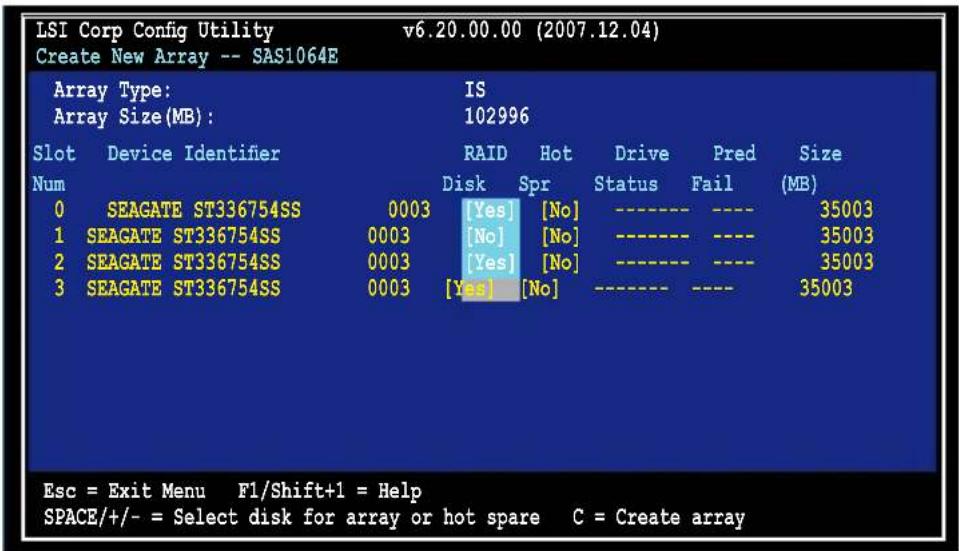
text_image
LSI Corp Config Utility v6.20.00.00 (2007.12.04) Create New Array -- SAS1064E Array Type: IS Array Size(MB): 102996 Slot Device Identifier RAID Hot Drive Pred Size Num Disk Spr Status Fail (MB) 0 SEAGATE ST336754SS 0003 [Yes] [No] ---- ---- 35003 1 SEAGATE ST336754SS 0003 [No] [No] ---- ---- 35003 2 SEAGATE ST336754SS 0003 [Yes] [No] ---- ---- 35003 3 SEAGATE ST336754SS 0003 [Yes] [No] ---- ---- 35003 Esc = Exit Menu F1/Shift+1 = Help SPACE/+/− = Select disk for array or hot spare C = Create array
By default, the RAID Disk field shows No before array creation. This field is grayed out under the following conditions:
- The disk does not meet the minimum requirements for use in a RAID array.
- The disk is not large enough to mirror existing data on the primary drive.
- The disk has been selected as the Hot Spare for the RAID array.
-
The disk is already part of another array.
-
Repeat step 3 to add the other disks to the volume.
- When done, press
to create the array, then select Save changes then exit this menu.
Save changes then
Create and save new array?
Cancel Exit
Save changes then exit this menu
Discard changes then exit this menu
Exit the Configuration Utility and Reboot
- The utility creates the array.
LSI Corp Config Utility
v6.20.00.00 (2007.12.04)
Processing...may take up to 1 minute
Creating RAID Array...
2.2.4 Managing Arrays
The LSI Corporation MPT Setup Utility allows you to perform other tasks related to configuring and maintaining IM and IME volumes.
Refer to this section to view volume properties, manage the hot spare disk, synchronize the array, activate the array, and delete the array.
Viewing volume properties
To view volume properties:
- On the main menu, select RAID Properties.
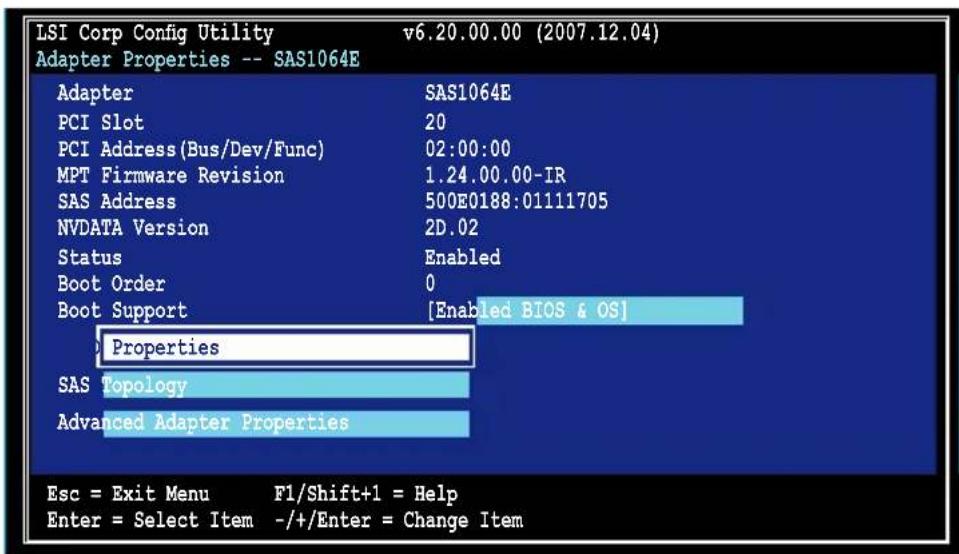
text_image
LSI Corp Config Utility v6.20.00.00 (2007.12.04) Adapter Properties -- SAS1064E Adapter SAS1064E PCI Slot 20 PCI Address (Bus/Dev/Func) 02:00:00 MPT Firmware Revision 1.24.00.00-IR SAS Address 500E0188:01111705 NVDATA Version 2D.02 Status Enabled Boot Order 0 Boot Support [Enabled BIOS & OS] Properties SAS Topology Advanced Adapter Properties Esc = Exit Menu F1/Shift+1 = Help Enter = Select Item -/+Enter = Change Item- On the next screen that appears, select View Existing Array.

text_image
LSI Corp Config Utility v6.20.00.00 (2007.12.04) Select New Array Type -- SAS1064E View Existing Array View the existing configuration. Create IM Volume Create Integrated Mirror Array of 2 disks plus up to 2 optional hot spares. Data on the primary disk may be migrated. Create IME Volume Create Integrated Mirrored Enhanced Array of 3 to 10 disks including up to 2 optional hot spares. ALL DATA on array disks will be DELETED! Create IS Volume Create Integrated Striping array of 2 to 10 disks. ALL DATA on array disks will be DELETED! Esc = Exit Menu F1/Shift+1 = Help Enter = Choose array type to create- The View Array screen appears. Here you can view properties of the RAID array(s) created. If you have configured a hot spare, it will also be listed. If you created more than one array, you may view the next array by pressing
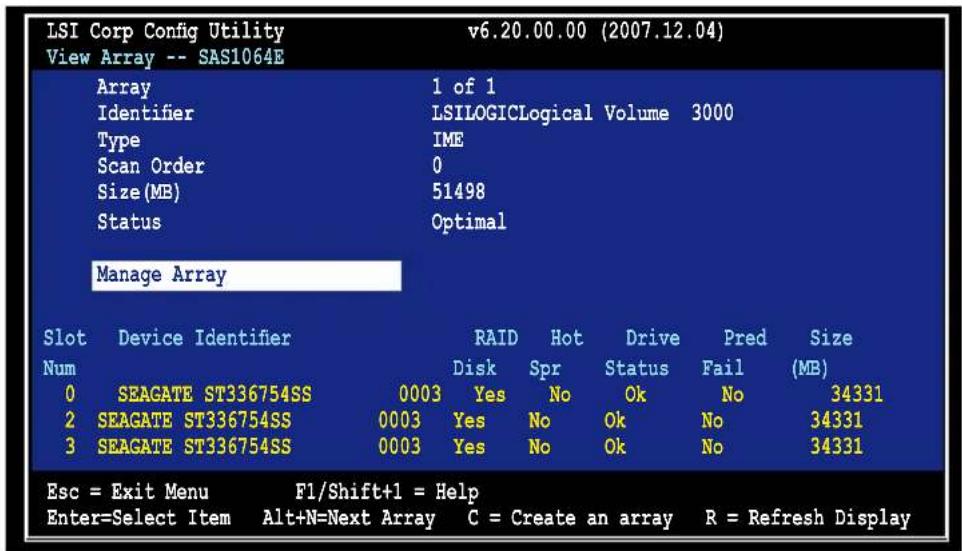
text_image
LSI Corp Config Utility v6.20.00.00 (2007.12.04) View Array -- SAS1064E Array 1 of 1 Identifier LSILOGICLogical Volume 3000 Type IME Scan Order 0 Size(MB) 51498 Status Optimal Manage Array Slot Device Identifier RAID Hot Drive Pred Size Num Disk Spr Status Fail (MB) 0 SEAGATE ST336754SS 0003 Yes No Ok No 34331 2 SEAGATE ST336754SS 0003 Yes No Ok No 34331 3 SEAGATE ST336754SS 0003 Yes No Ok No 34331 Esc = Exit Menu F1/Shift+1 = Help Enter=Select Item Alt+N=Next Array C = Create an array R = Refresh DisplayManaging hot spares
You may configure one disk as a global hot spare to protect critical data on the IM/IME volume(s). You may create the hot spare disk at the same time you create the IM/IME volume. Refer to this section when adding a hot spare disk on an existing volume.

If a disk on an IM/IME volume fails, the utility automatically rebuilds the failed disk data on the hot spare. When the failed disk is replaced, the utility assigns the replacement as the new hot spare.
To create a hot spare:
- Follow steps 1–3 of the section Viewing volume properties.
- From the View Array screen, select Manage Array, then press
.
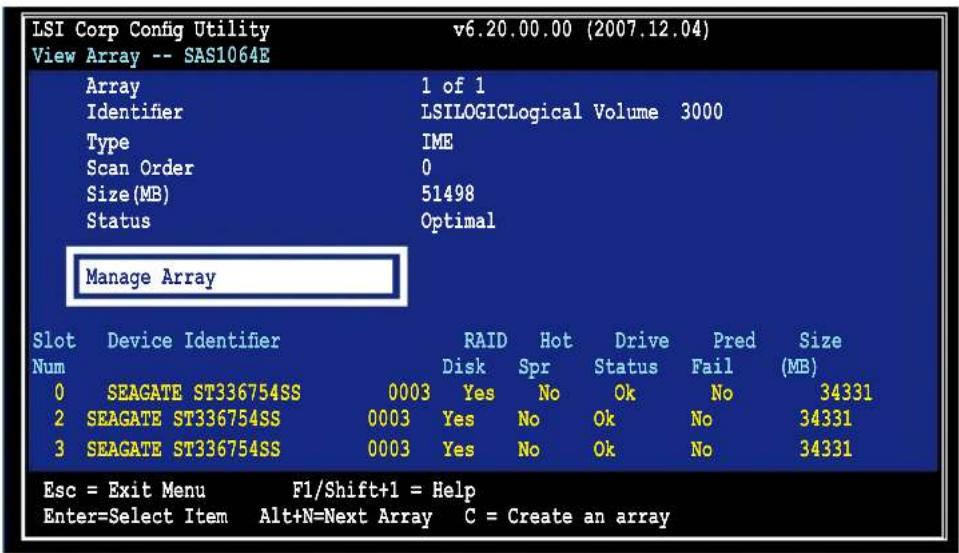
text_image
LSI Corp Config Utility View Array -- SAS1064E Array 1 of 1 Identifier LSILOGICLogical Volume 3000 Type IME Scan Order 0 Size(MB) 51498 Status Optimal Manage Array Slot Device Identifier RAID Hot Drive Pred Size Num Disk Spr Status Fail (MB) 0 SEAGATE ST336754SS 0003 Yes No Ok No 34331 2 SEAGATE ST336754SS 0003 Yes No Ok No 34331 3 SEAGATE ST336754SS 0003 Yes No Ok No 34331 Esc = Exit Menu F1/Shift+1 = Help Enter=Select Item Alt+N=Next Array C = Create an array- From the Manage Array screen, select Manage Hot Spares, then press
.

text_image
LSI Corp Config Utility Manage Array -- SAS1064E Identifier Type Scan Order Size (MB) Status Manage Hot Spares Synnchronize Array Activate Array Delete Array Esc = Exit Menu F1/Shift+1 = Help Enter = Select Item v6.20.00.00 (2007.12.04) LSILOGICLogical Volume 3000 IME 0 51498 Optimal- Use the arrow key to select the disk you would like to configure as hot spare, then move the cursor to the Hot Spr column. Press <+>, <->, or
. The Drive Status column field now shows Hot Spare.
Press < C> to commit the changes.
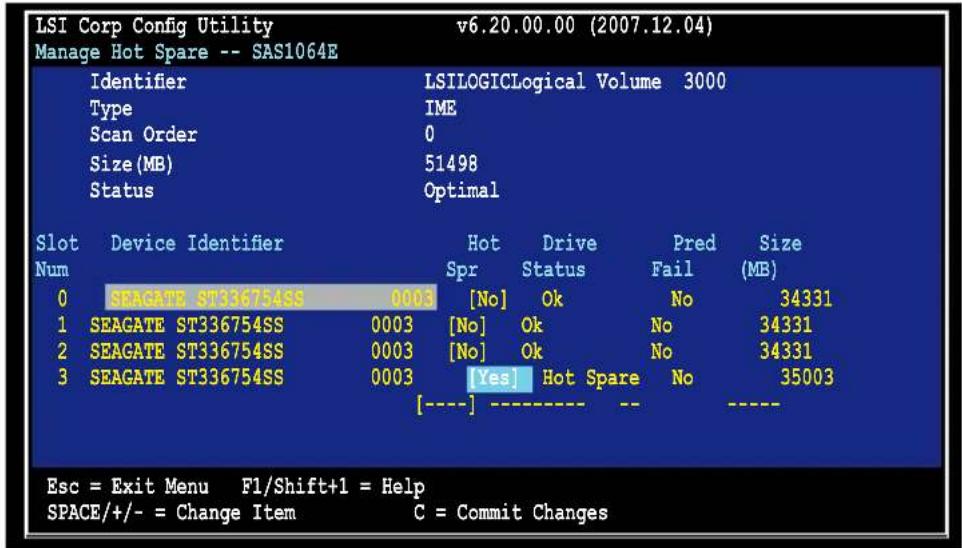
text_image
LSI Corp Config Utility v6.20.00.00 (2007.12.04) Manage Hot Spare -- SAS1064E Identifier LSILOGICLogical Volume 3000 Type IME Scan Order 0 Size(MB) 51498 Status Optimal Slot Device Identifier Hot Drive Pred Size Num Spr Status Fail(MB) 0 SPACATE ST336754SS 0003 [No] Ok No 34331 1 SEACATE ST336754SS 0003 [No] Ok No 34331 2 SEACATE ST336754SS 0003 [No] Ok No 34331 3 SEACATE ST336754SS 0003 [Yes] Hot Spare No 35003 [----]---------------------- Esc = Exit Menu F1/Shift+1 = Help SPACE/+/-= Change Item C = Commit ChangesSynchronizing the array
Synchronizing the array allows the utility to resynchronize data on the mirrored disk in the array. This procedure is seldom required because data synchronization is automatically done during normal operation.
To synchronize the array:
- Follow steps 1–3 of the section Viewing volume properties and step 2 of the section Managing hot spares.
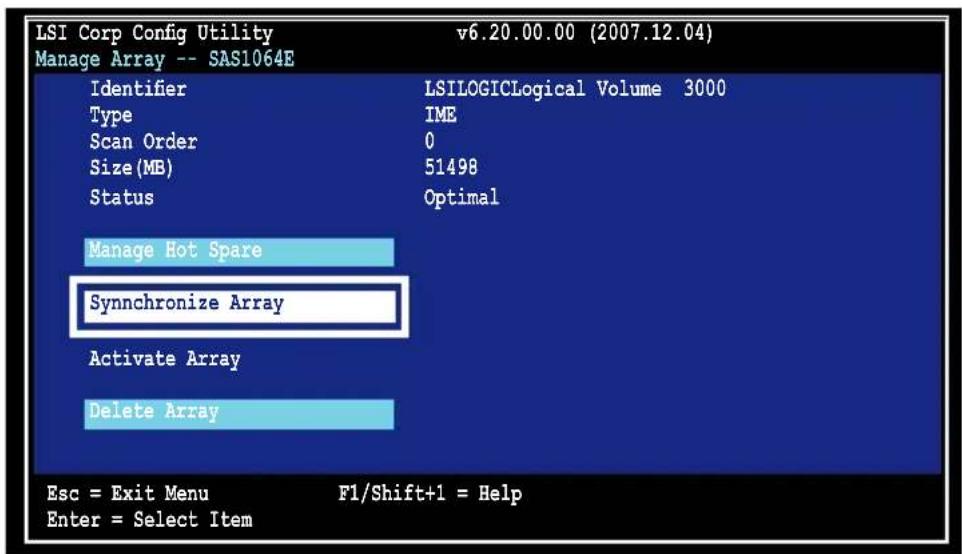
- From the Manage Array screen select Synchronize Array, then press
.
text_image
LSI Corp Config Utility Manage Array -- SAS1064E Identifier Type Scan Order Size(MB) Status LSILOGICLogical Volume 3000 IME 0 51498 Optimal Manage Hot Spare Synchronize Array Activate Array Delete Array Esc = Exit Menu F1/Shift+1 = Help Enter = Select Item- Press
to begin the synchronization, or to cancel.
Activating an array
If an array is removed from one controller/computer or moved to another, the array is considered inactive. When you add the array back to the system, you may reactivate the array.
To activate the array:
- From the Manage Array screen, select Activate Array, then press
.

text_image
LSI Corp Config Utility v6.20.00.00 (2007.12.04) Manage Array -- SAS1064E Identifier LSILOGICLogical Volume 3000 Type IME Scan Order 0 Size(MB) 51498 Status Inactive Manage Hot Spare Synnchronize Array Activate Array Delete Array Esc = Exit Menu F1/Shift+1 = Help Enter = Select Item- Press < Y> to activate, or < N> to cancel.
Deleting an array

- You cannot recover lost data if you delete an array. Make sure you back up important data before deleting an array.
- If you delete an IM (RAID 1) volume, the data is preserved on the primary disk.
To delete an array:
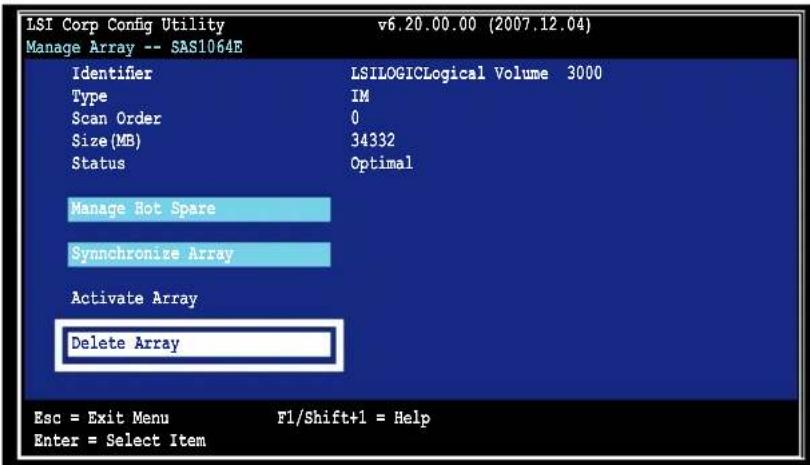
- From the Manage Array screen, select Delete Array, then press
.
text_image
LSI Corp Config Utility v6.20.00.00 (2007.12.04) Manage Array -- SAS1064E Identifier LSILLOGICLogical Volume 3000 Type IM Scan Order 0 Size(MB) 34332 Status Optimal Manage Hot Spare Synchronize Array Activate Array Delete Array Esc = Exit Menu F1/Shift+1 = Help Enter = Select Item- Press
to delete, or to cancel.
2.2.5 Viewing SAS topology
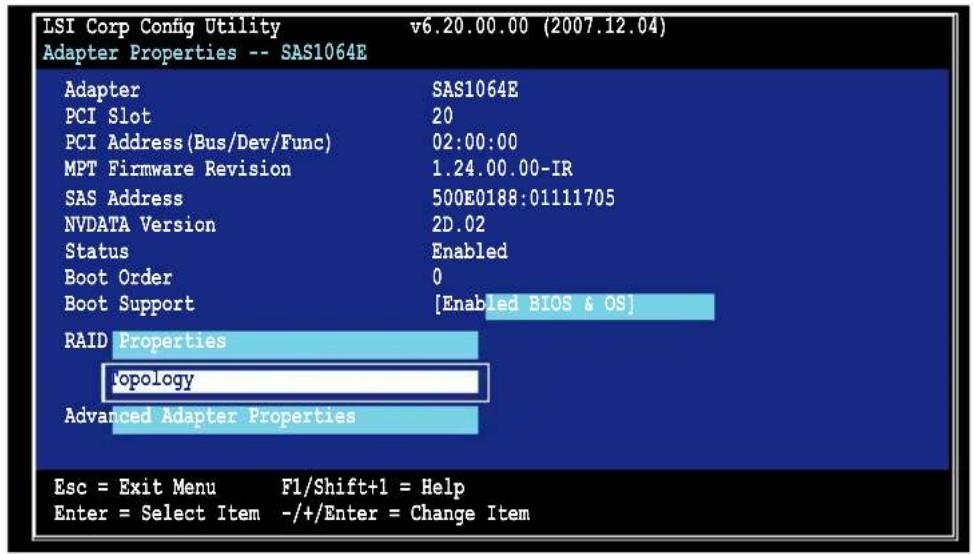
- From the Adapter Properties screen, select SAS Topology.
text_image
LSI Corp Config Utility v6.20.00.00 (2007.12.04) Adapter Properties -- SAS1064E Adapter SAS1064E PCI Slot 20 PCI Address(Bus/Dev/Func) 02:00:00 MPT Firmware Revision 1.24.00.00-IR SAS Address 500E0188:01111705 NVDATA Version 2D.02 Status Enabled Boot Order 0 Boot Support [Enabled BIOS & OS] RAID Properties 'opology Advanced Adapter Properties Esc = Exit Menu F1/Shift+1 = Help Enter = Select Item -/+Enter = Change ItemPress
More keys for the SAS Topology display:
C = Clear Device Mappings for Non-Present Devices
R = Refresh SAS Topology
Enter = On a SAS Enclosure or Expander - Expand or Collapse Item
Enter = On a Disk Drive - Turn on the Locate LED (next key presturns off)
- Information about the volume and its member-disks are then displayed.

text_image
LSI Corp Config Utility v6.20.00.00 (2007.12.04) SAS Topology -- SAS1064E Device Identifier Device SAS1064E(02:00:00) Info - Enclosure Direct Attach Devices Controller - IM VOL LSILOGICLogical Volume 3000 Esc = Exit F1/Shift+1 = Help Alt+D = Device Properties Alt+M = More Keys2.2.6 Global Properties
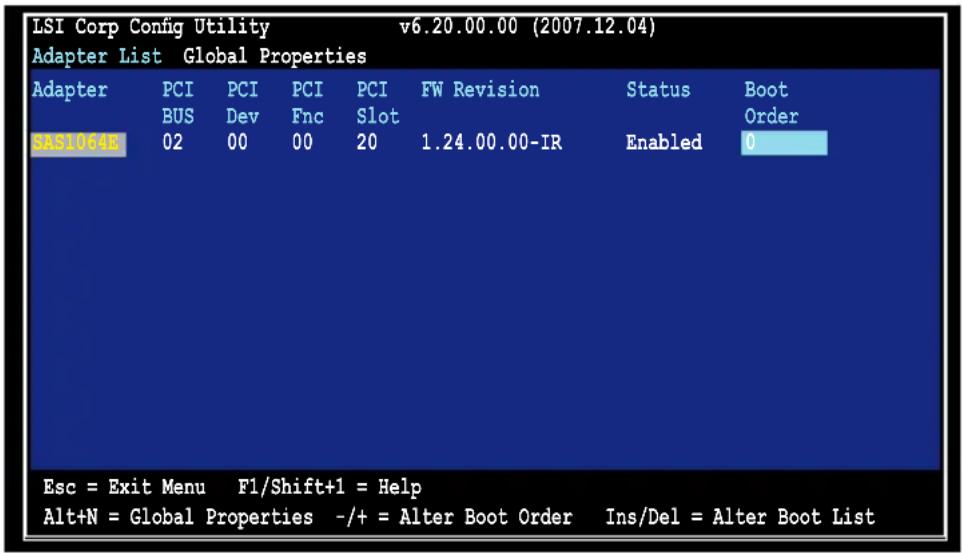
From the Adapter List screen, press
text_image
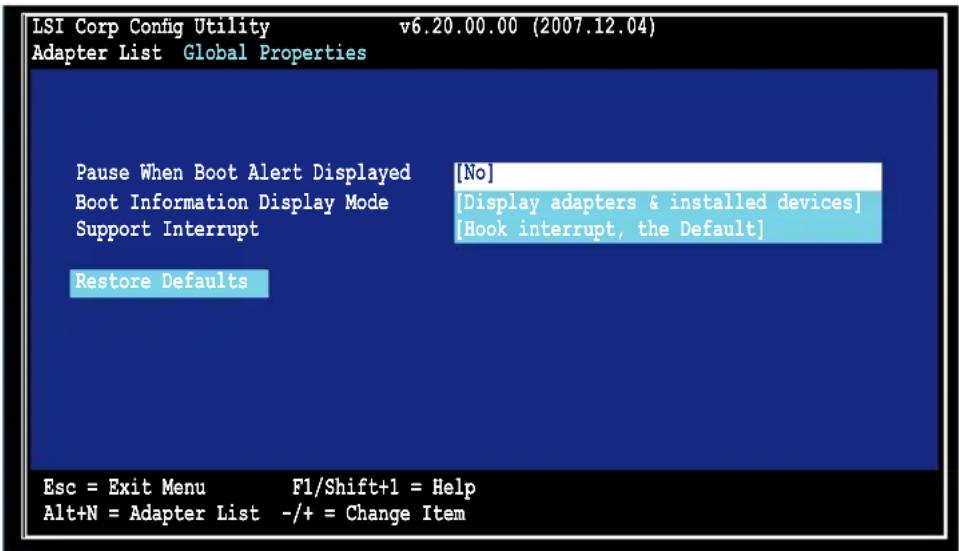
LSI Corp Config Utility v6.20.00.00 (2007.12.04) Adapter List Global Properties Adapter PCI PCI PCI PCI FW Revision Status Boot BUS Dev Fnc Slot Order SAS1061R 02 00 00 20 1.24.00.00-IR Enabled 0 Esc = Exit Menu F1/Shift+1 = Help Alt+N = Global Properties -/+ = Alter Boot Order Ins/Del = Alter Boot ListPause When Boot Alert Displayed
Sets whether to pause or not when the boot alert displays. Configuration options: [Yes] [No]
text_image
LSI Corp Config Utility v6.20.00.00 (2007.12.04) Adapter List Global Properties Pause When Boot Alert Displayed [No] Boot Information Display Mode [Display adapters & installed devices] Support Interrupt [Hook interrupt, the Default] Restore Defaults Esc = Exit Menu F1/Shift+1 = Help Alt+N = Adapter List -/+ = Change ItemBoot Information Display Mode
Sets the disk information display mode.
Configuration options: [Display adapters & installed devices]
[Display adapters only] [Display adapters and all devices]
[Display minimal information]
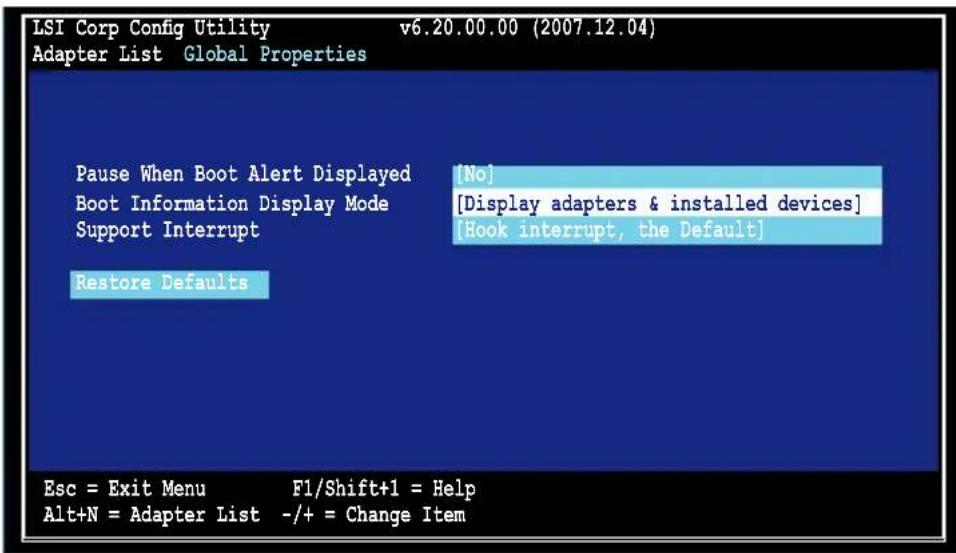
text_image
LSI Corp Config Utility v6.20.00.00 (2007.12.04) Adapter List Global Properties Pause When Boot Alert Displayed [No] Boot Information Display Mode [Display adapters & installed devices] Support Interrupt [Hook interrupt, the Default] Restore Defaults Esc = Exit Menu F1/Shift+1 = Help Alt+N = Adapter List -/+ = Change ItemSupport Interrupt
Configuration options: [Hook interrupt, the Default] [Bypass interrupt hook]

text_image
LSI Corp Config Utility v6.20.00.00 (2007.12.04) Adapter List Global Properties Pause When Boot Alert Displayed [No] Boot Information Display Mode [Display adapters & installed devices] Support Interrupt [Hook interrupt, the Default] Restore Defaults Esc = Exit Menu F1/Shift+1 = Help Alt+N = Adapter List -/+ = Change ItemRestore Defaults
This option allows you to discard the selections you made and restore the system defaults.

text_image
LSI Corp Config Utility v6.20.00.00 (2007.12.04) Adapter List Global Properties Pause When Boot Alert Displayed Boot Information Display Mode Support Interrupt [No] [Display adapters & installed devices] [Hook interrupt, the Default] Restore Defaults Esc = Exit Menu F1/Shift+1 = Help Alt+N = Adapter List -/+ = Change ItemThis chapter provides instructions for installing the RAID drivers on different operating systems.
Driver
3
installation
3.1 RAID driver installation
After creating the RAID sets for your server system, you are now ready to install an operating system to the independent hard disk drive or bootable array. This part provides instructions on how to install or update the RAID card drivers.

The RAID card driver might be included in the Linux OS installation CD, and could be loaded automatically during OS installation. However, we recommend using the RAID driver packaged in the RAID card support CD for better reliability.
3.1.1 Creating a RAID driver disk

You may have to use another system to create the RAID driver disk from the RAID card support CD or from the Internet.
A floppy disk with the RAID driver is required when installing Windows® Server 2003 or Linux operating system on a hard disk drive that is included in a RAID set. You can create a RAID driver disk in DOS (using the Makedisk application in the support CD).
To create a RAID driver disk in DOS environment:
- Place the RAID card support CD in the optical drive.
- Restart the computer, then enter the BIOS Setup.
- Select the optical drive as the first boot priority to boot from the support CD. Save your changes, then exit the BIOS Setup.
- Restart the computer.
- Press any key when prompted to boot from CD.
Loading FreeDOS FAT KERNEL GO! Press any key to boot from CDROM...
- The Makedisk menu appears. Select PIKE 1064E / PIKE 1068E SAS card Driver, and press
to enter the sub-menu.

text_image
Create Driver Diskette Menu PIKE 1064E / PIKE 1068E SAS card Driver FreeDOS command prompt- Use the arrow keys to select the type of RAID driver disk you want to create.
| PIKE 1064E / PIKE 1068E SAS card Driver |
| Windows 2000 Server SP4 |
| Windows XP 32 bit |
| Windows XP 64 bit |
| Windows Server 2003 32 bit |
| Windows Server 2003 64 bit |
| Windows Vista 32 bit |
| Windows Vista 64 bit |
| Windows Server 2008 32 bit |
| Windows Server 2008 64 bit |
| RHEL AS3 UP6/UP8/UP9 32 bit (Intel) |
| RHEL AS3 UP6/UP8/UP9 32 bit (AMD) |
| RHEL AS3 UP6/UP8/UP9 64 bit |
| RHEL AS4 UP4/UP5/UP6 32 bit |
| RHEL AS4 UP4/UP5/UP6 64 bit |
| SLES 9 32 bit |
| SLES 9 64 bit |
| SLES 9 SP1 32 bit |
| SLES 9 SP1 64 bit |
| SLES 9 SP2 32 bit |
| SLES 9 SP2 64 bit |
| SLES 9 SP3 32 bit |
| SLES 9 SP3 64 bit |
- Place a blank, high-density floppy disk to the floppy disk drive.
- Press
. - Follow screen instructions to create the driver disk.
3.1.2 Windows ^® Server 2003 OS
During Windows® Server 2003 OS installation
To install the RAID card driver when installing Windows® Server 2003 OS:
- Boot the computer using the Windows ^ Server 2003 OS installation CD. The Window ^ Setup starts.
- Press
when the message "Press F6 if you need to install a third party SCSI or RAID driver..." appears at the bottom of the screen.
Windows Setup
Press F6 if you need to install a third party SCSI or RAID driver...
- The next screen appears. Press
to specify an additional device.
Windows Setup
Setup could not determine the type of one or more mass storage devices installed in your system, or you have chosen to manually specify an adapter. Currently, Setup will load support for the following mass storage devices(s):
* To specify additional SCSI adapters, CD-ROM drives, or special disk controllers for use with Windows, including those for which you have a device support disk from a mass storage device manufacturer, press S.
* If you do not have any device support disks from a mass storage device manufacturer, or do not want to specify additional mass storage devices for use with Windows, press ENTER.
S=Specify Additional Device ENTER=Continue F3=Exit
- Insert the RAID driver disk you created earlier to the floppy disk drive, then press
.
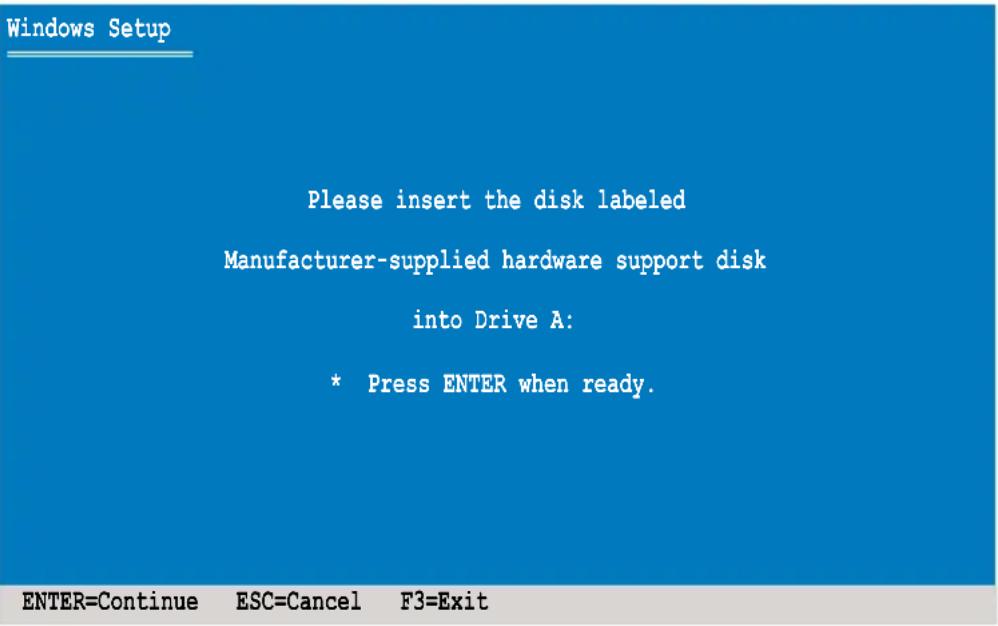
text_image
Windows Setup Please insert the disk labeled Manufacturer-supplied hardware support disk into Drive A: * Press ENTER when ready. ENTER=Continue ESC=Cancel F3=Exit- Select LSI Fusion-MPT SAS Driver (Server 2003 32-bit), then press
.
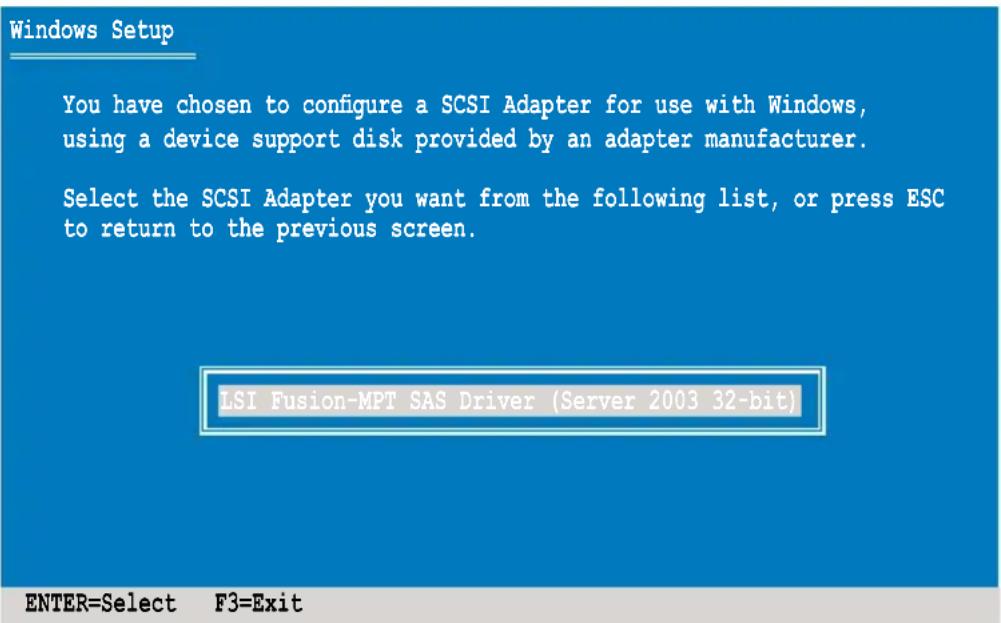
text_image
Windows Setup You have chosen to configure a SCSI Adapter for use with Windows, using a device support disk provided by an adapter manufacturer. Select the SCSI Adapter you want from the following list, or press ESC to return to the previous screen. LSI Fusion-MPT SAS Driver (Server 2003 32-bit) ENTER=Select F3=Exit- The Windows ^ Setup loads the RAID card drivers from the RAID driver disk. When next screen appears, press
to continue installation. - Setup then proceeds with the OS installation. Follow screen instructions to continue.
After Windows® Server 2003 OS installation
To update the RAID card driver after installing Windows® Server 2003 OS:
- Right-click the My Computer icon on the desktop and select Properties from the menu.
- Click the Hardware tab on the top, then click the Device Manager button.
- Double-click the LSI Adapter, SAS 3000 series, 4-port with 1064E -StorPort item.

The controller name differs according to the installed SAS RAID card.

text_image
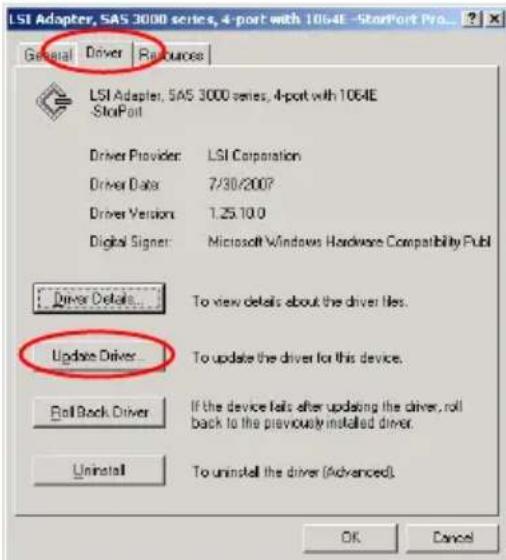
Device Manager File Action View Help ASUS Computer Disk drives Display adopters EAD/CD-ROM drives Floppy disk controllers Floppy disk drives Human Interface Devices IDE ATA/ATAPI controllers Keyboards Mios and other pointing devices Monitors Network adopters Ports (COM & LPT) Processors SCSI and RAID controllers LST Adapter, SAS 3000 series, 4-port with L064IE -StarPort Sound, video and game controllers System devices Universal Serial Bus controllers- Click the Driver tab on the top, then click Update Driver.
text_image
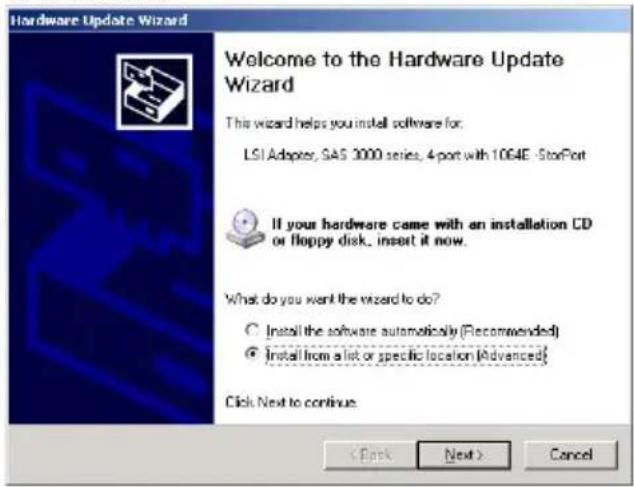
LSI Adapter, SAS 3000 series, 4-port with 1064E -StarPort Pro... General Driver Resources LSI Adapter, SAS 3000 series, 4-port with 1064E StoPort Driver Provider: LSI Corporation Driver Data 7/30/2007 Driver Version 1.25.10.0 Digital Signer: Microsoft Windows Hardware Compatibility Publ Driver Details... To view details about the driver files. Update Driver... To update the driver for this device. Roll Back Driver If the device fails after updating the driver, roll back to the previously installed driver. Uninstall To uninstall the driver (Advanced). OK Cancel- Toggle Install from a list or specific location (Advanced), then click Next to continue.
text_image
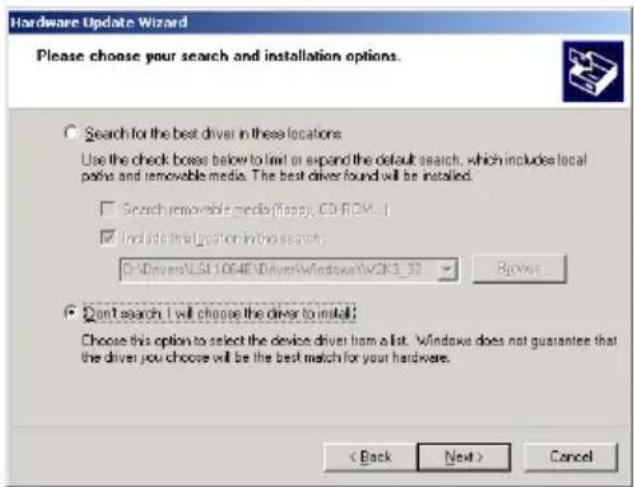
Hardware Update Wizard Welcome to the Hardware Update Wizard This wizard helps you install software for: LSI Adopter, SAS 3000 series, 4 port with 1064E -StorPort If your hardware came with an installation CD or floppy disk, insert it now. What do you want the wizard to do? ○ Install the software automatically (Recommended) ● Install from a list or specific location (Advanced) Click Next to continue. < Back Next > Cancel- Toggle Don't search. I will choose the driver to install, then click Next to continue.
text_image
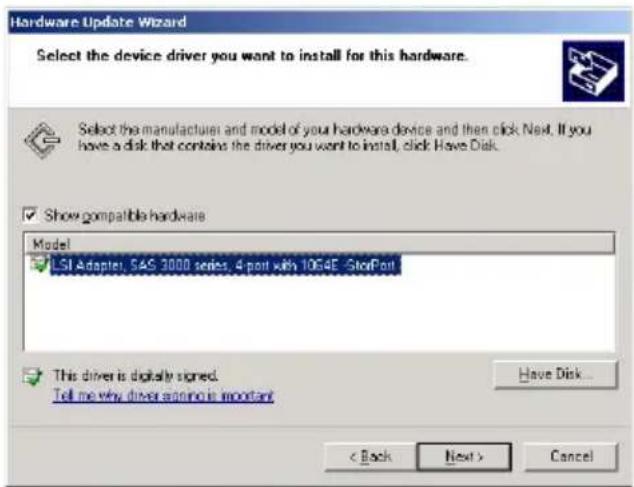
Hardware Update Wizard Please choose your search and installation options. Search for the best driver in these locations. Use the check boxes below to limit or expand the default search, which includes local paties and removable media. The best driver found will be installed. □ Search removable media (Ross, CD-ROM) ☑ Include a selection in this search. D:\Drivers\LSX1064E\Driver\Windows\WCK3_37 Browse Don't search I will choose the driver to install! Choose this option to select the device driver from a list. Windows does not guarantee that the driver you choose will be the best match for your hardware. < Back Next > Cancel- Insert the RAID driver disk you created earlier to the floppy disk drive.
- Highlight LSI Adapter, SAS 3000 series, 4-port with 1064E -StorPort, then click Have Disk.
text_image
Hardware Update Wizard Select the device driver you want to install for this hardware. Select the manufacturer and model of your hardware device and then click Next. If you have a disk that contains the driver you want to install, click Have Disk. Show compatible hardware Model LSI Adapter, SAS 2000 series, 4 port with 1064E SlotPort This driver is digitally signed. Tell me why driver anyone is important Have Disk... < Back Next > Cancel- Select from the drop-down menu and locate the driver.

text_image
Install From Disk Insert the manufacturer's installation disk, and then make sure that the correct drive is selected below. OK Cancel Copy manufacturer's files from: Browse...- Click Next to start updating the driver.
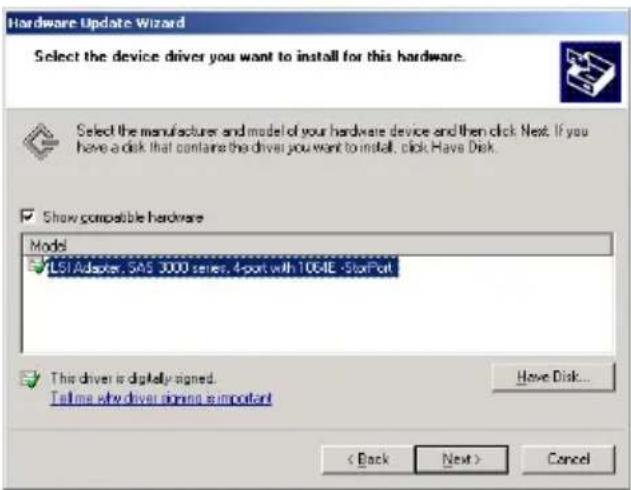
text_image
Hardware Update Wizard Select the device driver you want to install for this hardware. Select the manufacturer and model of your hardware device and then click Next. If you have a disk that contains the driver you want to install, click Have Disk. Show compatible hardware Model LSI Adapter, SAS 3000 series, 4-port with 1064E -StorPort This driver is digitally signed. Tell me why driver spins is important Have Disk... < Back Next > Cancel- After completing driver update, click Finish to close the wizard.
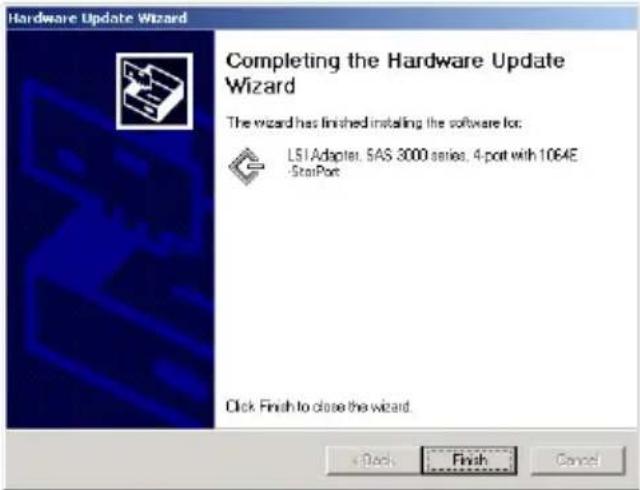
text_image
Hardware Update Wizard Completing the Hardware Update Wizard The wizard has finished installing the software for: LS1Adaptar, SAS 3000 series, 4-pot with 1064E -StarPort Click Finish to close the wizard.3.1.3 Red Hat ^® Enterprise Linux OS
To install the RAID card driver when installing Red Hat® Enterprise OS:
- Boot the system from the Red Hat ^ OS installation CD.
- At the boot:, type linux dd, then press
.
- To install or upgrade in graphical mode, press the <ENTER> key.
- To install or upgrade in text mode, type: linux text <ENTER>.
- Use the function keys listed below for more information.
[F1-Main] [F2-Options] [F3-General] [F4-Kernel] [F5-Rescue]
boot: linux dd
- Select Yes using the
key when asked if you have the driver disk, then press .
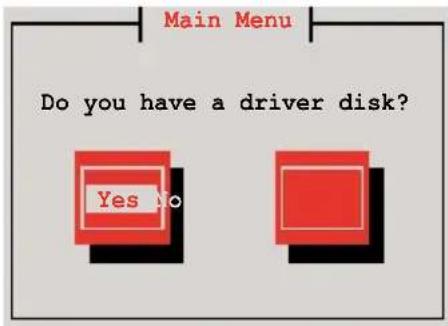
text_image
Main Menu Do you have a driver disk? Yes to- Select fd0 using the
key when asked to select the driver disk source. Press to move the cursor to OK, then press .

text_image
Driver Disk Source You have multiple devices which could serve as sources for a driver disk. Which would you like to use? fd0 scd0 OK Cancel- Insert the Red Hat ^ Enterprise RAID driver disk to the floppy disk drive, select OK, then press
.
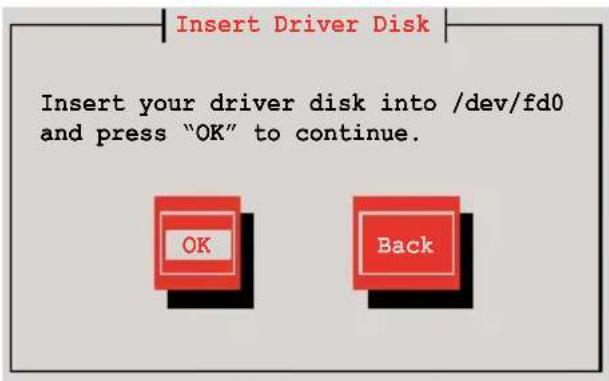
text_image
Insert Driver Disk Insert your driver disk into /dev/fd0 and press "OK" to continue. OK BackThe drivers for the RAID card are installed to the system.
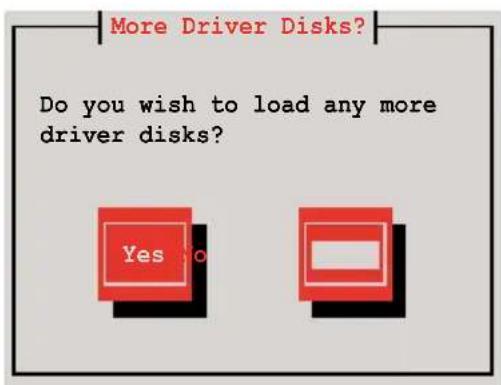
- When asked if you will load additional RAID controller drivers, select No, then press
.
text_image
More Driver Disks? Do you wish to load any more driver disks? Yes No- Follow the screen instructions to continue the OS installation.
3.1.4 SUSE Linux Enterprise Server OS
To install the RAID card driver when installing SUSE Linux Enterprise Server OS:
- Boot the system from the SUSE OS installation CD.
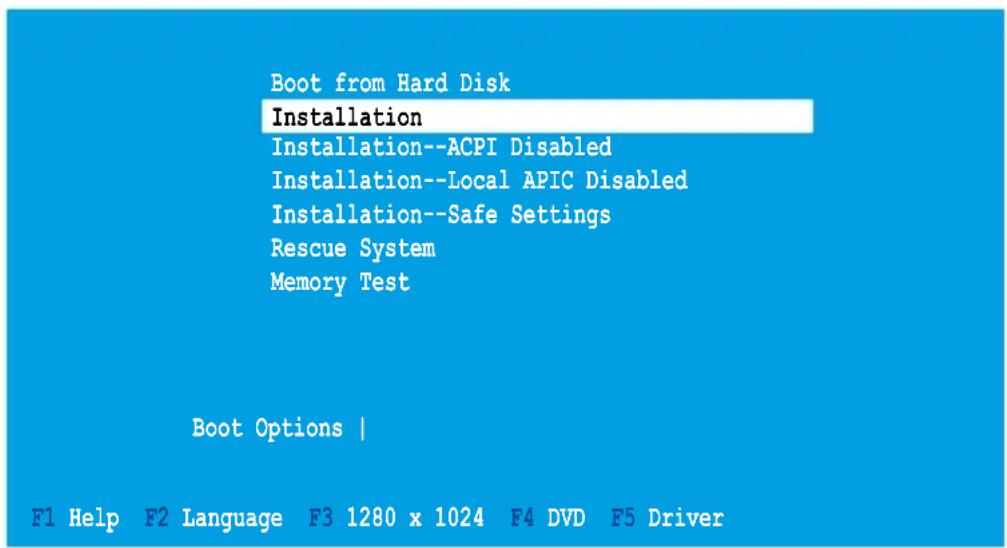
- Use the arrow keys to select Installation from the Boot Options menu.
text_image
Boot from Hard Disk Installation Installation--ACPI Disabled Installation--Local APIC Disabled Installation--Safe Settings Rescue System Memory Test Boot Options | F1 Help F2 Language F3 1280 x 1024 F4 DVD F5 Driver- Press
, then select Yes from the menu. Press .

text_image
Boot from Hard Disk Installation Installation--ACPI Disabled Installation--Local APIC Disabled Installation--Safe Settings Rescue System Memory Test Boot Options | Yes No File F1 Help F2 Language F3 1280 x 1024 F4 DVD F5 Driver- Insert the RAID driver disk to the floppy disk drive. Make sure that Installation from the Boot Options menu is selected, then press
.

text_image
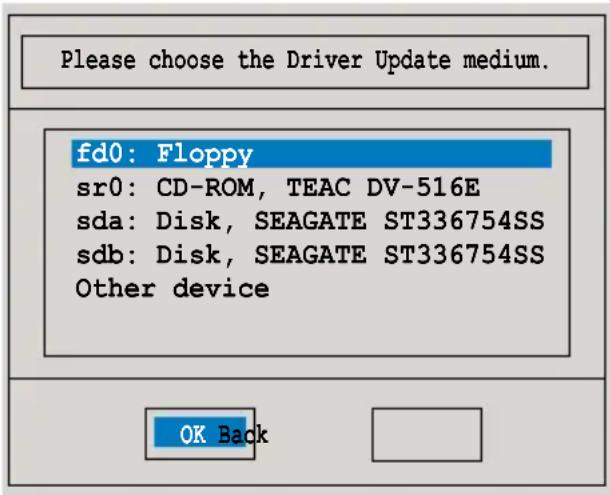
Boot from Hard Disk Installation Installation--ACPI Disabled Installation--Local APIC Disabled Installation--Safe Settings Rescue System Memory Test Boot Options | F1 Help F2 Language F3 1280 x 1024 F4 DVD F5 Driver- When below screen appears, select the floppy disk drive (fd0) as the driver update medium. Select OK, then press
.
text_image
Please choose the Driver Update medium. fd0: Floppy sr0: CD-ROM, TEAC DV-516E sda: Disk, SEAGATE ST336754SS sdb: Disk, SEAGATE ST336754SS Other device OK BackThe drivers for the RAID controller are installed to the system.