H501-BG - Tablet wall mount WindFall - Free user manual and instructions
Find the device manual for free H501-BG WindFall in PDF.


User questions about H501-BG WindFall
0 question about this device. Answer the ones you know or ask your own.
Ask a new question about this device
Download the instructions for your Tablet wall mount in PDF format for free! Find your manual H501-BG - WindFall and take your electronic device back in hand. On this page are published all the documents necessary for the use of your device. H501-BG by WindFall.
USER MANUAL H501-BG WindFall
Assembly & Installation
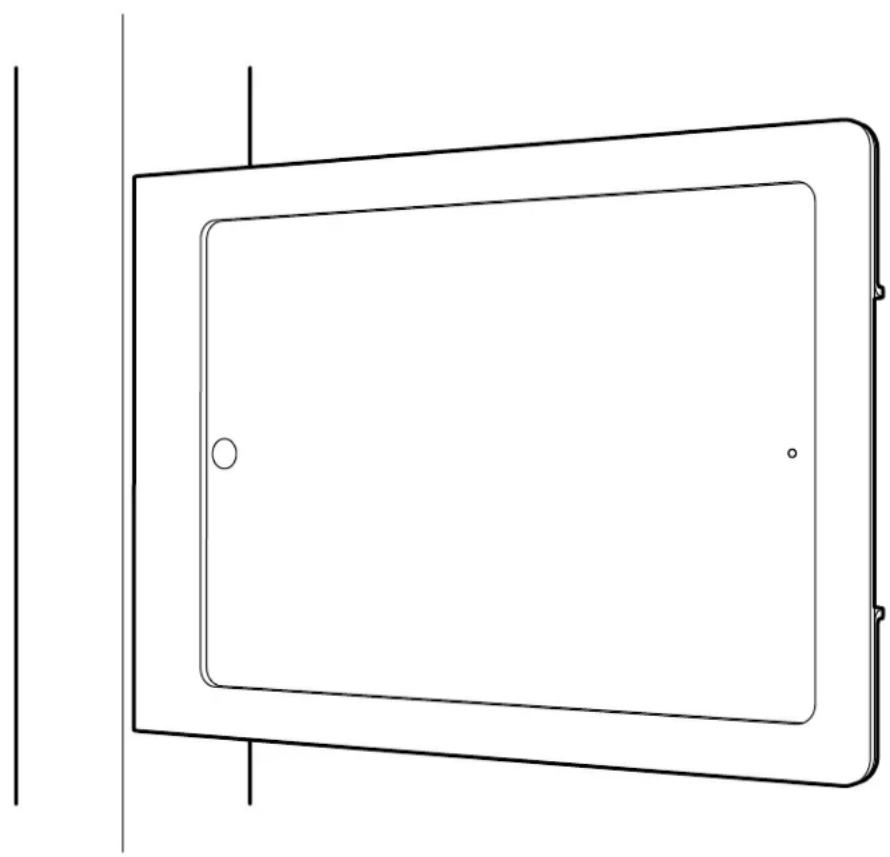
natural_image
Simple line drawing of a rectangular frame with a circular hole and two small dots, no text or symbols present.Compatible with:
iPad Air 1
iPad Air 2
iPad Pro 9.7-inch
iPad (5th Gen)
Limited Warranty
Heckler Design warrants your product to be free from defect in material and workmanship for a period of two years from the original date of purchase.
Electronic components are warranted to be free from defect for a period of one year from the original date of purchase. If you discover a defect, please contact service@hecklerdesign.com. Heckler Design will repair, at our discretion, using new or refurbished components. If repair is not possible, Heckler Design will replace the item.
1x

M3 Hex Key F529
2x

Thread-Forming Mounting Screw F486
4x
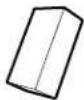
Foam for iPad Fit Adapter Clip E250

Keep your special assembly tool in a safe place. To purchase a replacement, please contact service@hecklerdesign.com.
natural_image
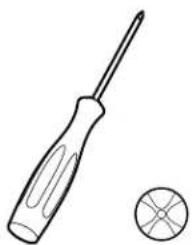
Line drawing of a screwdriver and a circular component (no text or symbols)Phillips Head Screwdriver
natural_image
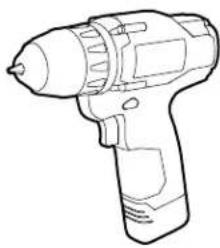
Line drawing of a handheld electric drill (no text or symbols)Drill
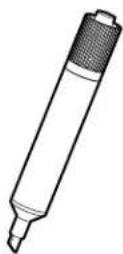
Marker
WindFall Side Mount for iPad
Installation Instructions and Template

text_image
Important Note: A minimum 1.5 inch (38mm) set back from mullion face to the glass is required for an optimal installation in which the front face of the enclosure is flush with the front face of the mullion. BEFORE INSTALLATION Mullion Door Frame Glass Mullion Door Frame Glass ↓ ADA Compliance Guideline For ADA compliance, the center of the Ethernet cable hole should be no higher than 45 inches above the ground. Creating The Ethernet Cable Hole If your Ethernet cable has an RJ45 connector installed, drill a 5/8 inch hole in the position shown. If you will install an RJ45 connector after the Ethernet cable is drawn through the mullion, a smaller hole can be created. Selecting Your Mounting Screw Positions To accommodate various mullion styles, multiple screw hole positions are available. Please select the mounting positions that work best for your mullion. You may use any screw you see fit for mounting the product to the mullion. If you choose to use the self-tapping mounting screws provided, we recommend drilling a pilot hole with a #17 drill bit or a 5/32-inch drill bit. Ground After INSTALLATION 7.91 inch (201 mm) The top of the screen. 1 inch (55 mm) 0.75 inch (19 mm) 1.25 inch (31.8 mm) 2.5 inch (63.5 mm) 1.25 inch (31.8 mm) 48 inch 45 inch Ground i Note: Drawing is not to scale.1 Disassemble Side Mount
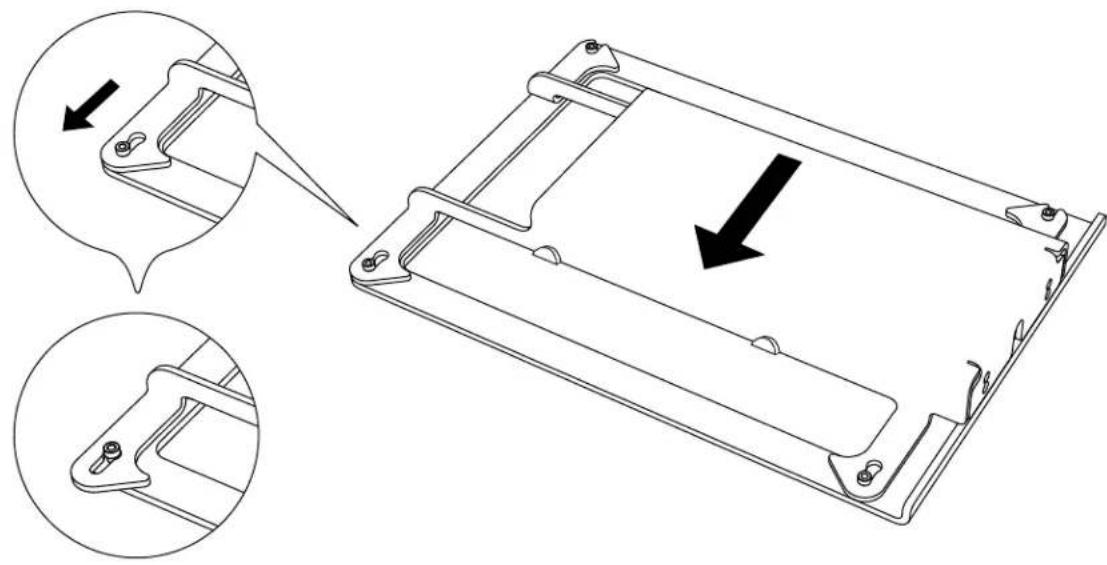
natural_image
Technical line drawing of a mechanical housing component with two views showing internal components and a downward arrow indicating a process (no text or symbols present)2 Remove Mounting Bracket From Front Bezel
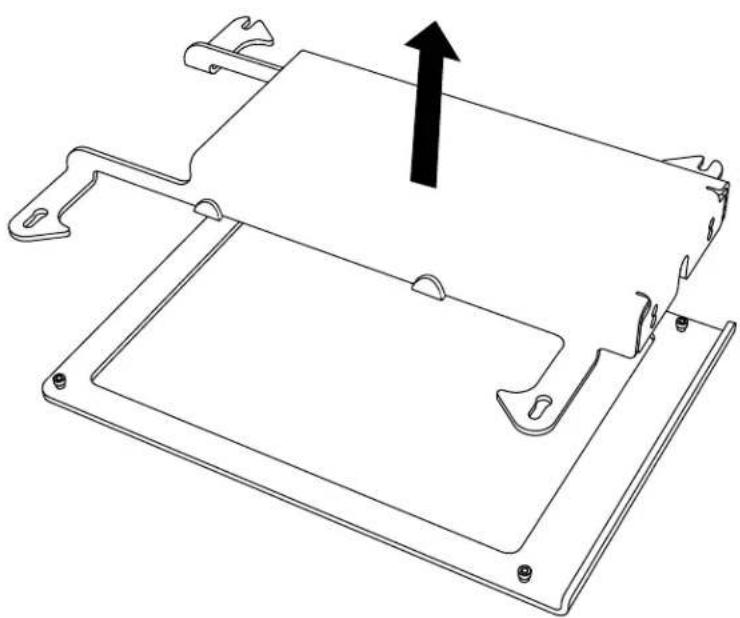
natural_image
Technical line drawing of a mechanical component with mounting holes and a central bracket (no text or symbols)Mark Hole Positions3
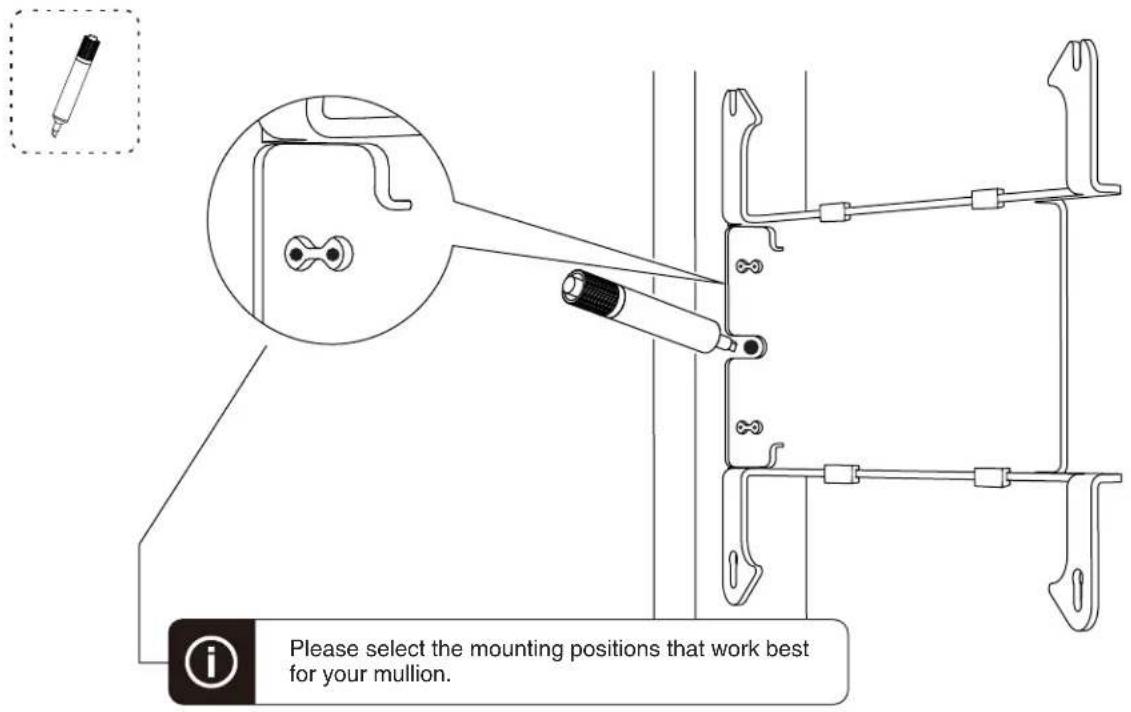
text_image
Please select the mounting positions that work best for your mullion.4 Drill Mounting Holes
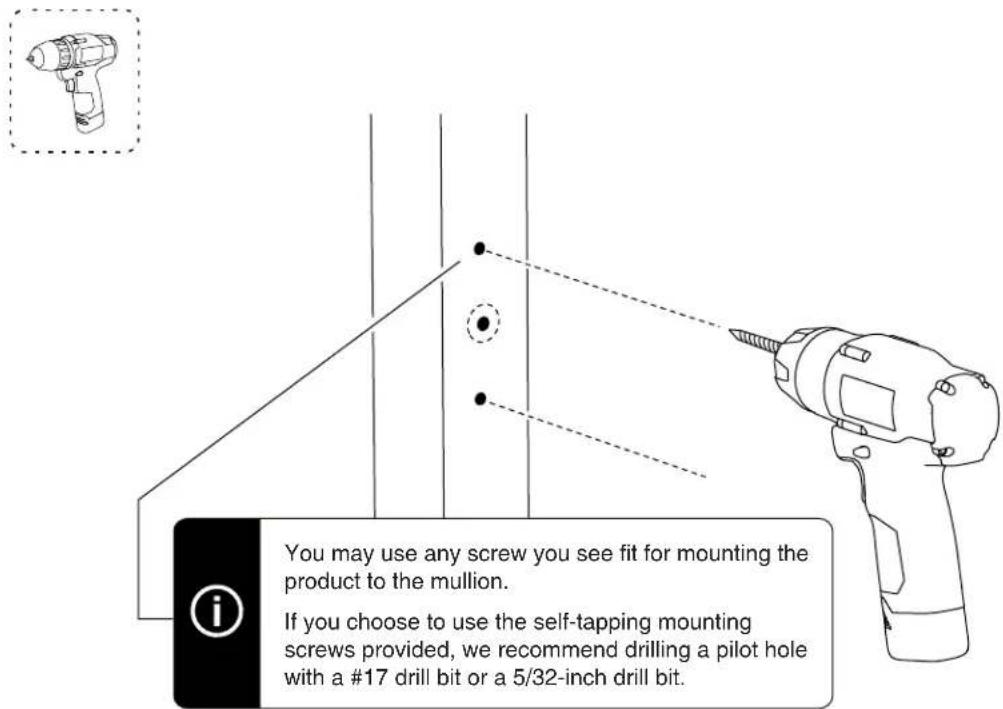
text_image
You may use any screw you see fit for mounting the product to the mullion. If you choose to use the self-tapping mounting screws provided, we recommend drilling a pilot hole with a #17 drill bit or a 5/32-inch drill bit.5 Form Mounting Hole Threads


text_image
The mounting screws provided are thread-forming screws.
Ethernet Cable Hole
If your Ethernet cable has an RJ45 connector installed, drill a 5/8 inch hole in the position shown.
If you will install an RJ45 connector after the Ethernet cable is drawn through the mullion, a smaller hole can be created.

natural_image
Line drawing of a drill bit being pointed at a door panel, with no text or symbols present6 Remove Mounting Screws

text_image
Diagram showing a drill bit with a compass tool and a circular motion indicator, illustrating the working principle of a drill.7 Fasten Mounting Bracket to mullion


text_image
Technical diagram showing a tool interacting with a mechanical bracket and screwdriver, with a circular arrow indicating rotation or adjustment.Adapter Clips For iPad Pro 9.7-inch and iPad Air 2

text_image
4x E250 iPad Air 2 iPad Pro 9.7-inch8 Charging Options
PoE Splitter (Power Only)

natural_image
Pure electrical circuit lines without any symbolsPoE Splitter (With wired data connection)

natural_image
Pure electrical circuit lines without any symbolsBattery Bank

natural_image
Pure technical line drawing of a mechanical assembly with no text, numbers, or symbols- Apple Lighting to USB 3 Camera Adapter
- Apple USB Ethernet Adapter
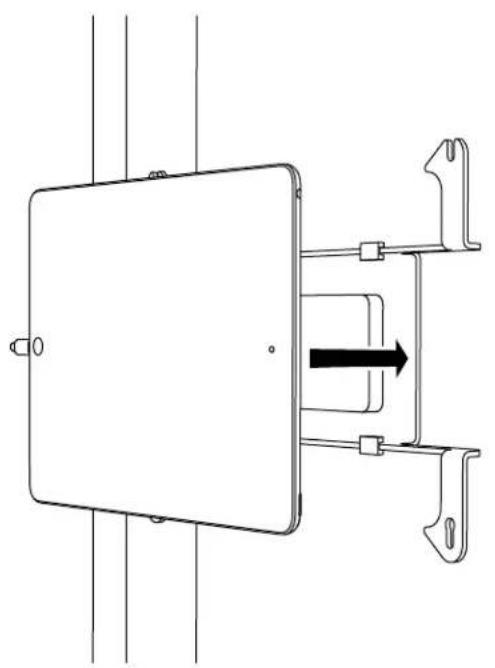
9 Install Tablet
natural_image
Pure technical line drawing of a mechanical or electrical component with no text, numbers, or symbols10 Install Front Bezel

natural_image
Technical line drawing of a mechanical component with a rectangular frame and directional arrow (no text or symbols)11 Slide Front Bezel Onto Mounting Bracket

text_image
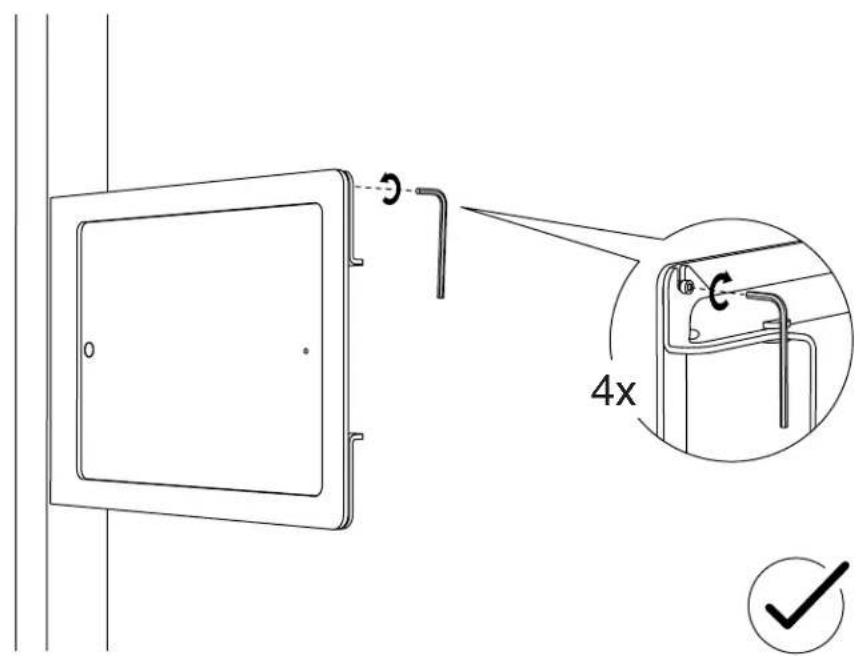
Technical diagram showing a door panel installation with two views of the door and their internal components, labeled in Chinese.12 Tighten Assembly Screws