CRV-32 - Camera Elmo - Free user manual and instructions
Find the device manual for free CRV-32 Elmo in PDF.


| Product Type | Student Response System (SRS) with clickers and wireless adapter |
| Brand / Model | Elmo CRV-32 (includes 32 clickers) |
| Clicker Dimensions (L x W x H) | 110 x 64 x 26 mm (4 11/32 x 2 17/32 x 1 1/32 in) |
| Clicker Weight | 90 g (0.198 lb) including two AAA batteries |
| Wireless Adapter Dimensions (L x W x H) | 64 x 22 x 10 mm (2 17/32 x 7/8 x 13/32 in) |
| Wireless Adapter Weight | 11 g (0.024 lb) |
| Carrying Case Dimensions (L x W x H) | 425 x 365 x 165 mm (16 47/64 x 14 9/16 x 6 1/2 in) |
| Carrying Case Weight (loaded) | 3.2 kg (7.1 lb) for CRV-24; 4.0 kg (8.9 lb) for CRV-32 |
| Power Supply – Clicker | 2 x AAA alkaline dry cell batteries (non-rechargeable) |
| Power Supply – Wireless Adapter | USB bus power (5 V, 50 mA max) |
| Continuous Operation Time (Clicker) | Approx. 150 hours (varies with usage) |
| Auto Power-Off Time (Clicker) | Default 300 seconds (adjustable via software from 10 to 2550 sec) |
| Wireless Frequency / Range | 2.4 GHz band; approx. 15 m (49.2 ft) depending on conditions |
| Maximum Number of Clickers Registered | 50 clickers per wireless adapter |
| Response Buttons | 6 answer buttons (1/A to 6/F) plus True/False (Yes/No) buttons |
| LED Indicators | Power LED (red) and response button LEDs (red) on clicker; wireless setting button LED (blue) on adapter |
| Operating Temperature | 0 °C to 40 °C (32 °F to 104 °F) |
| Storage Temperature (Carrying Case) | -20 °C to 60 °C (-4 °F to 140 °F) |
| System Requirements (PC) | Windows XP/7/8/10 or macOS 10.5+; Intel Core 2 Duo 2 GHz; 2 GB RAM; USB 2.0; DirectX 9.0c compatible graphics |
| Compatible Software | Image Mate Accent for SRS (included CD-ROM) |
| Repairable Period | 8 years after discontinuation of product |
| Cleaning Instructions | Use a soft dry cloth; for heavy dirt, moisten cloth with diluted neutral detergent, wring well, then wipe |
| Safety Certifications | FCC Part 15 Class B, ICES-003, RSS-210 |
| Supplied Accessories | 32 clickers, 1 wireless adapter, 64 AAA batteries, screwdriver, carrying case, clicker number stickers, CD-ROM, Quick Start Guide |
Frequently Asked Questions - CRV-32 Elmo
User questions about CRV-32 Elmo
0 question about this device. Answer the ones you know or ask your own.
Ask a new question about this device
Download the instructions for your Camera in PDF format for free! Find your manual CRV-32 - Elmo and take your electronic device back in hand. On this page are published all the documents necessary for the use of your device. CRV-32 by Elmo.
USER MANUAL CRV-32 Elmo
Student Response System
CRV-24/32
Please read this manual before using this product.
Please retain this manual.
IMPORTANT SAFETY INSTRUCTIONS
1) Read these instructions.
2) Keep these instructions.
3) Heed all warnings.
4) Follow all instructions.
5) Do not use this apparatus near water.
6) Clean only with dry cloth.
7) Do not block any ventilation openings, Install in accordance with the manufacturer's instructions.
8) Do not install near any heat sources such as radiators, heat registers, stoves, or other apparatus (including amplifiers) that produce heat.
9) Do not defeat the safety purpose of the polarized or grounding-type plug. A polarized plug has two blades with one wider than the other. A grounding type plug has two blades and a third grounding prong. The wide blade or the third prong are provided for your safety.
If the provided plug does not fit into your outlet, consult an electrician for replacement of the obsolete outlet.
10) Protect the power cord from being walked on or pinched particularly at
plugs, convenience receptacles, and the point where they exit from the apparatus.
11) Only use attachments/accessories specified by the manufacturer.
12) Use only with the cart, stand, tripod, bracket, or table
specified by the manufacturer, or sold with the apparatus.
When a cart is used, use caution when moving the cart/apparatus combination to avoid injury from tip-over.
13) Unplug this apparatus during lighting storms or when unused for long periods of time.
14) Refer all servicing to qualified service personnel. Servicing is required when the apparatus has been damaged in any way, such as power-supply cord or plug is damaged, liquid has been spilled or objects have fallen into the apparatus, the apparatus has been exposed to rain or moisture, does not operate normally, or has been dropped.



The lightning flash with arrowhead symbol, within an equilateral triangle, is intended to alert the user to the presence of uninsulated "dangerous voltage" within the product's enclosure that may be of sufficient magnitude to constitute a risk of electric shock to persons. This marking is located at the bottom of product.
The exclamation point within an equilateral triangle is intended to alert the user to the presence of important operating and maintenance (servicing) instructions in the literature accompanying the product.
WARNING:
TO REDUCE THE RISK OF FIRE OR ELECTRIC SHOCK, DO NOT EXPOSE THIS PRODUCT TO RAIN OR MOISTURE.
WARNING: Handling the cord on this product or cords associated with accessories sold with this product, will expose you to lead, a chemical known to the State of California to cause birth defects or other reproductive harm. Wash hands after handling.
NOTICE:
This Class B digital apparatus complies with Canadian ICES-003.
This device complies with Part 15 of the FCC Rules and with RSS-210 of Industry Canada. Operation is subject to the following two conditions:
(1) this device may not cause harmful interference, and
(2) this device must accept any interference received, including interference that may cause undesired operation.
Changes or modifications made to this equipment not expressly approved by ELMO CO.,LTD. may void the FCC authorization to operate this equipment.
This equipment has been tested and found to comply with the limits for a Class B digital device, pursuant to Part 15 of the FCC Rules. These limits are designed to provide reasonable protection against harmful interference in a residential installation. This equipment generates, uses and can radiate radio frequency energy and, if not installed and used in accordance with the instructions, may cause harmful interference to radio communications. However, there is no guarantee that interference will not occur in a particular installation. If this equipment does cause harmful interference to radio or television reception, which can be determined by turning the equipment off and on, the user is encouraged to try to correct the interference by one or more of the following measures:
- Reorient or relocate the receiving antenna.
- Increase the separation between the equipment and receiver.
- Connect the equipment into an outlet on a circuit different from that to which the receiver is connected.
- Consult the dealer or an experienced radio/TV technician for help.
Radiofrequency radiation exposure Information:
The radiated output power of the device is far below the FCC radio frequency exposure limits. Nevertheless, the device shall be used in such a manner that the potential for human contact during normal operation is minimized.
This equipment complies with IC radiation exposure limits set forth for an uncontrolled environment and meets RSS-102 of the IC radio frequency (RF) Exposure rules. This equipment has very low levels of RF energy that are deemed to comply without testing of specific absorption ratio (SAR).
Follow these guidelines to use the product safely.
These "IMPORTANT SAFEGUARDS" indicate important points that should be followed to use this product safely and correctly and prevent damage to the product or other property and injury to you and others.
Read carefully before operating the product and retain for future reference.
Read the manual after making sure that you understand the meaning of the following displays and symbols.
 | Warning | This symbol indicates information that, if ignored, could possibly result in serious personal injury or even death due to incorrect handling. |
 | Attention | This symbol indicates information that, if ignored, could possibly result in personal injury or damage to property due to incorrect handling. |
Symbols Used in this Manual
 | Name: CautionMeaning: Indicates that the user must, without fail, pay careful attention to any sentences or illustrations marked with a Caution symbol. |
 | Name: ProhibitedMeaning: Indicates that the user must pay careful attention to any sentences or illustrations marked with a Prohibited (do not do) symbol. |
 | Name: CompulsoryMeaning: Indicates that the user must pay careful attention to any sentences or illustrations marked with a Compulsory (must do) symbol. |
 | Name: Do not use in a bathroom or shower cubicleMeaning: Indicates that using the product in a bathroom or shower cubicle could result in injuries through a fire or electric shock, and is strictly prohibited. |
 | Name: Do not touchMeaning: Indicates that touching the area could result in injuries through electric shock, and is strictly prohibited. |
 | Meaning: Do not disassembleMeaning: Indicates that disassembling the product could result in injuries through electric shock, and is strictly prohibited. |

Warning
If for any reason smoke comes out of the product, or you notice any unusual odors or sounds, immediately turn off the power switch on the product and remove the batteries.
Then remove the wireless adapter from your computer.
Continuing to use the product in this condition could result in a fire or electric shock. Check that smoke is no longer coming out of the product, and then contact your local dealer to request maintenance. Do not attempt to service this product yourself.
If for any reason liquid is spilled into the product, immediately turn off the power switch on the clicker and remove the batteries. Then remove the wireless adapter from your computer and contact your local dealer immediately. Continuing to use the product in this condition could result in a fire or electric shock.
If for any reason foreign objects enter the product, immediately turn off the power switch on the clicker and remove the batteries. Then remove the wireless adapter from your computer and contact your local dealer immediately. Continuing to use the product in this condition could result in a fire or electric shock. (Be extra careful if there are children in the area when using the product.)
If for any reason the product is dropped or damaged, turn off the power switch on the clicker and remove the batteries. Then remove the wireless adapter from your computer and contact your local dealer. Continuing to use the product in this condition could result in a fire or electric shock.
Do not remove the cover from the product. Doing so may expose you to dangerous voltage and could result in electric shock.
Contact your local dealer for any internal inspections, maintenance, or repair.
Do not remodel the product. This could result in a fire or electric shock.
Do not place the product on an uneven surface of unstable stand. It could fall or topple over and result in an injury.
Do not spill water on the product. This could result in a fire or electric shock.
Do not use the product in a bathroom or shower cubicle. This could result in a fire or electric shock.
Do not touch the product or the wireless adapter during a thunder storm. This could result in an electric shock.
Do not place the product or the wireless adapter where someone can trip over it. This could result in injury.
Do not drive a nail into, hammer or stamp on the product.
Otherwise the product may be damaged or deformed and shorted and result in leakage, heat, smoke, explosion or fire.


Warning
Do not apply any heavy impact to the product or throw it. Otherwise the product may be damaged or deformed and shorted and result in leakage, heat, smoke, explosion or fire.

Do not use a battery that appears to be damaged or deformed in any way. This could result in leakage, heat, smoke, explosion or fire.

Do not reverse the battery's polarity ( ± reversed). Abnormal chemical reaction may occur inside the battery which could result in leakage, heat, smoke, explosion or fire.

If any liquid from a battery leaks onto your skin or clothes, immediately flush the area with clean water, without rubbing it, then seek medical attention right away.

Otherwise the liquid may harm your skin.
Keep parts of the product out of children's reach as there is a danger they could be swallowed and cause bodily harm. If any of the parts are swallowed, consult a doctor immediately.


Attention
Do not place the product in a damp or dusty location.

This could result in a fire or electric shock.

Do not place the product in a location where it could be exposed to smoke, steam, or water droplets such as on a kitchen counter or near a humidifier. This could result in a fire or electric shock.

If this product is not going to be used for a long time, take the batteries out of the product. Otherwise it could result in fire.

Ask the dealer from where you purchased this product for regular maintenance. A buildup of dust inside the product can cause fire or malfunction.

Do not put the product on an electromagnetic cooker or in a microwave oven or a pressure cooker. The battery will be damaged and leakage, heat, smoke, explosion or fire may occur.

Do not put the clicker, strap or other accessories into your mouth. It may harm your health.

Do not swing the strap around with the clicker attached. The strap may be cut and the clicker may hit someone causing injury or may damage an object in the vicinity.
Usage precautions
■ About radio waves used by the clicker
The clicker uses radio waves on the 2.4 GHz band. When using the clicker, a radio station license is not necessary. However, please note the following precautions.
Do not use the clicker near the following:
■ Microwave ovens or industrial, scientific or medical equipments, such as pacemakers
■ In-factory radio stations for mobile unit identification systems (radio stations that require a license) used in production lines of factories.
■ Specified low power radio stations (radio stations that do not require a license)
■ IEEE802.11b/g/n wireless LAN devices
When the clicker is used near any of the equipment mentioned above, it is possible that electric wave interference could occur.
When using the clickers, keep at least 20cm distance between the clickers.
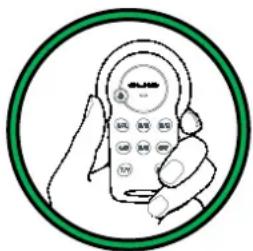
Do not cover the upper part of the clicker with your hand. The wireless connection with the wireless adapter may be degraded.
In an environment where there are many obstacles, the wireless connection with the wireless adapter may be degraded.
natural_image
Illustration of a hand holding a remote control with keypad (no text or symbols)
■ About wireless equipment used on the 2.4 GHz band
This frequency bandwidth is the same as for industrial, scientific, and medical equipment such as microwave ovens, mobile unit identification systems (radio stations that require a license) used in factory production lines, and specified low-power radio stations (radio stations that do not require a license).
■ Before using this product, check that there are no radio stations for mobile unit identification systems or specified low-power radio stations nearby.
■ If this product emits radio waves which interfere with in-factory radio stations for mobile unit identification systems, cease the use immediately and stop generating the radio waves. For information on countermeasures, etc. (for example, erecting partitions), contact one of our sales offices whose details are provided at the end of this manual.
■ If this unit emits radio waves which interfere with specified low-power radio stations used for mobile unit identification systems, or causes similar problems, contact one of our sales offices whose details are provided at the end of this manual.
■Usage environment / Storage
- The clicker is designed for inside use. Outside use is not recommended.
- Do not place the clicker in any humid, dusty, salt bearing wind, or vibrating locations.
- Use the clicker product under the following environmental conditions:
Temperature: 0°C - 40°C (32°F - 104°F)
Humidity: 30% - 90% (No condensation)
- When storing the product, do not leave it under direct sunlight or by heaters. It may be discolored, deformed, or damaged.
■ Maintenance
- Perform cleaning of the clicker in a dry place. Make sure to remove the batteries before cleaning.
- Use a soft, dry cloth for cleaning.
- To remove heavy dirt, moisten a soft cloth with diluted neutral detergent and wipe the dirt after wringing the cloth.
- Do not use any volatile solvent such as thinner or benzene.
CONTENTS
IMPORTANT SAFETY INSTRUCTIONS....2
IMPORTANT SAFEGUARDS ....4
Usage precautions ....7
Before Use ....12
Main functions ....13
Supplied Items....14
Part Names ....15
Preparation....17
Insert the batteries into the clicker....17
Attach the clicker number sticker (if necessary)....17
Software installation .... 18
Connecting the wireless adapter....19
Launching Image Mate Accent for SRS....19
Database Selection....20
About Image Mate Accent....21
Basic Screen 21
Basic Screen Configuration....21
Various Operation Modes....22
Diagram of the modes....22
PC Annotation Mode 23
PC Operation Mode 23
Document Camera Mode 23
Whiteboard Mode 23
Teaching Material Import Mode 24
Drawing Operation 26
Drawing....26
Deleting 27
Recording a Lesson 28
Operating the Document Camera ....30
Mask Function....31
Highlight Function 32
Scroll Function 33
Using PowerPoint Support Function 34
Setting the Pen....35
List of Menu icons ....36
Using SRS....39
Operation screen of SRS....39
List of SRS operations....40
List of SRS buttons ....40
List of clicker operations....46
Starting SRS....47
From posing a question to close the question....49
Finishing SRS....55
Group learning....56
Review of the session....59
Giving an award....60
Utilizing the collected data....61
Using Result Display Software 61
Starting the software....61
Displaying the Session report....62
Output the personal report ....66
Saving in other formats 67
Various Settings 68
Wireless setting for the clicker....68
Image Mate Accent for SRS Configurations....69
Starting the software....69
Description of menu tabs....69
Settings 70
SRS Settings....71
Software update....73
About....74
SRS Data Settings....75
Starting the software....75
Check the connection....77
Battery level 78
Clicker Information ....79
Register students information....80
Let's take photos! 81
Database Settings 82
Create Database 82
Select Database....83
Edit Database Profile....84
Adding or Changing the clicker....85
Other Function....87
About LED 87
Clicker 87
Wireless adapter 88
Troubleshooting 89
Specifications....90
Product specifications....90
System Requirements 91
Disclaimer....92
About Trademarks....92
Repairable Period....92
Before Use
Thank you very much for purchasing Student Response System CRV-24/32 (SRS). Please read this manual carefully to ensure proper use of SRS.
For the effective use of the questions and the collected data, please have your students always use the same clicker by associating each of your students with the unique serial number printed on the back of their clickers.
We recommend you to register the students to use SRS in advance.

Note
All functions of SRS are controlled by Elmo's Image Mate Accent for SRS.
Image Mate Accent for SRS is designed to allow you to operate SRS functions in addition to the Pen Tablet functions, which are the basic features of Image Mate Accent (IMA).
※For details about the operations of the Pen Tablet, refer to the User's Guide of ELMO Wireless Slate / Tablet.
※Functions of Image Mate Accent can also be used when a mouse is used instead of the Pen Tablet. For details about the operation using a mouse, refer to

- When you use SRS with Elmo Pen Tablet CRA-1, the wireless settings between the wireless adapter of SRS and the tablet need to be set up.
For details about the set up procedure, refer to the User's Guide of ELMO Wireless Slate/ Tablet. - Do not use the wireless adapter supplied with the Pen Tablet. Use the wireless adapter supplied with SRS.
- Firmware of the tablet may need to be upgraded.
For further information, contact the dealer from whom you have purchased this product or one of our sales offices whose details are provided at the end of this manual.

Please note that screens and figures used in this manual may differ from the actual views.
Main functions
■Pose questions, collect responses and display the results.
With SRS, you can collect responses from all students in the class by using clickers.
Collected responses can be saved and displayed in graphs.
The overall proficiency of the class can be assessed with multiple-choice questions.
Majority Testing by Yes or No question can be easily performed.

■Utilize the collected data
The collected data is automatically stored on the users computer and can be converted to standard formats. These standard files can be shared with other computers.
■Manage the clicker
You can add/ delete a clicker or display the battery level.
■Use with the Document Camera or the Pen Tablet
You can pose a question on the spot by using ELMO Document Camera or Pen Tablet (sold separately).
Supplied Items
Product's package has the following contents. Contact your dealer if any of the following items are not included in the package you purchased.

natural_image
Line drawing of a mobile phone with ELHD branding and control buttons (no text or symbols beyond branding)Clicker: CRV-CK-1
CRV-24: 24pcs.
CRV-32: 32pcs.
natural_image
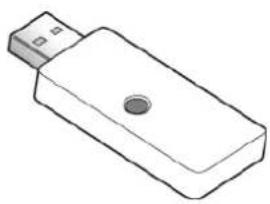
Simple line drawing of a rectangular electronic device with a circular button on top (no text or symbols)Wireless adapter
CRV-CK-1R

natural_image
Pure electrical circuit lines without any symbolsDry cell AAA battery
(For the clicker)
CRV-24: 48pcs.
CRV-32: 64pcs.

natural_image
Line drawing of a screwdriver with a pointed tip (no text or symbols)Screw driver for M3
(For the back cover of the clicker)

natural_image
Line drawing of a rectangular electronic device with a strap and handle (no text or symbols)Carrying Case

Seal clicker no.
(Clicker number sticker sheet)

Before use
Application software
(CD-ROM)

Quick Start Guide
Part Names
Clicker
Front

Power button
Turns ON / OFF the clicker.
Press this button for 3 seconds or longer to turn
OFF the clicker. See
Power LED
Indicates the battery charge status.
The LED lights up when the clicker is turned on and begins flashing when the battery level is low.
See About LED .
Response button (1\~6,T/F)
Students can respond to questions using 1(A)
\~6(F) and T(Y)/F(N) buttons.
The last pressed button lights up or
flashes for 5seconds. See
Strap hole
For attachment of a commercially available strap.
Back
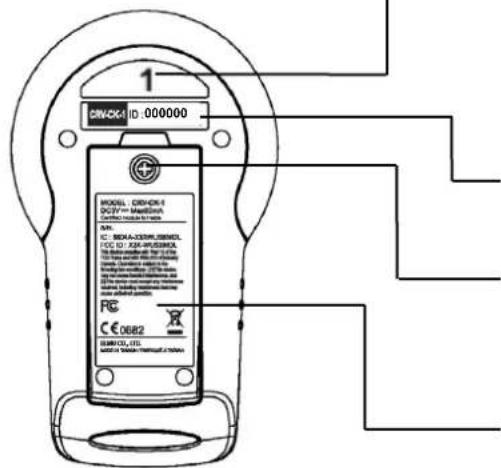
Student number ( Clicker number )
By default, a sticker with a number from 1-24 (or 32) is attached.

Caution
The supplied clicker number
sticker can be attached.
Device ID
ID number of the clicker.
Battery box cover fixing screw
Use the supplied screw driver to tighten the fixing screw.
Battery box cover
Use the fixing screw to open/close the cover.

Caution
Be careful not to lose it.
Only open when absolutely necessary.

Battery box
Insert the alkaline dry cell AAA batteries. See 〈Insert the batteries into the clicker〉.
Wireless setting button
Use this button when configuring the wireless connection setting with the wireless adapter.
Open the battery box cover when performing the configuration.
See 〈Wireless setting for the clicker〉.
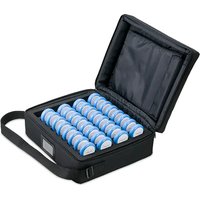
■ Carrying Case

Cable Storage Pocket
Storage for the RGB/USB composite cable supplied with the separately sold Pen Tablet or commercially available RGB cables or USB cables.
Double zipper
The top of the bag opens 180 degrees.
Name holder
Name card and the like can be inserted.
Shoulder belt
The length can be adjusted.

Pen Tablet storage
Stores the Pen Tablet. It can be secured with Velcro tape.
Clicker compartments
Stores clickers vertically as shown in the picture.
Max.32pcs of clickers can be stored.
Upper part of the clicker is slightly out of the compartment for easier handling.

Store 1 clicker in each compartment.
Accessory storage
Stores accessories such as the wireless adapter and a screw driver.

Be careful not to lose the accessories when you open the zipper.
Preparation
Insert the batteries into the clicker
Before you use the clicker, remove the battery box cover on the back of the clicker together with the fixing tape to insert the batteries. In case it is difficult to remove the cover, use the supplied screw driver to loosen the battery box cover fixing screw. Make sure to attach the cover after inserting the batteries and tighten the fixing screw.
Dispose of the tape after removal.


- Make sure that the polarity (+/-) of the dry cell battery is correct.
- Remove the dry cell battery if the clicker will not be used for a long time.
- Do not recharge or short-circuit the dry cell battery.
- Use an alkaline dry cell AAA battery. Do not use a rechargeable battery (such as Ni-Cd).
- The supplied dry cell battery is for an initial operation check. Its operating life is not guaranteed.
- Replace the lid and tighten screw of the battery box after inserting the batteries.
- Do not mix old and new batteries or ones of different types.
- When disposing of used batteries, follow the instructions from your local government.
When the battery level is low, operational performance may be degraded. Replace the batteries when the power LED begins to flash during power ON or after sending a response.

- Be careful when replacing the battery as they because it may pop out.
- Replace the batteries at least once a year.
Attach the clicker number sticker (if necessary)
Attach the clicker number sticker supplied with this product. When using a blank sticker, write a desired number on it.


By default, a sticker with a number from 1-24( or 32) is attached.
Software installation
All functions of SRS are controlled by Image Mate Accent for SRS.
Install the software before initial use of the SRS.
For details about the installation procedure, refer to "Before use" and the following instructions:
Windows
① Insert the supplied CD-ROM to the CD-ROM Drive of your computer.
② Select "Install Image Mate Accent for SRS" in the menu.


Depending on your computer, the menu may not appear automatically. In that case, open the drive where the supplied CD-ROM is inserted from My Computer and double-click "startup.exe" in the Win folder.
③ Follow the displayed instructions to install.
④ When the software is successfully installed, "Image Mate Accent for SRS" icon appear on the desktop.
■Macintosh(Mac)
① Insert the supplied CD-ROM to the CD-ROM Drive of your computer.
② Select "Mac" in the CD-ROM. Then run "ELMO_IMAforSRS.dmg".
③ The launcher is displayed.
④ Run "Install Image Mate Accent for SRS".
⑤ Follow the displayed instructions to install.
⑥ When the software is successfully installed, "Image Mate Accent for SRS" icon appears on the desktop.
⑦ Run "ELMOUSBDriver_1.0.0.pkg".
⑧ Follow the displayed instructions to install

Depending on your computer, you may be asked to restart the computer. In that case, press "YES" o restart the computer.
Connecting the wireless adapter
Connect the supplied wireless adapter to your computer's USB port.

natural_image
Technical line drawing of a mechanical component with a base and mounting bracket (no text or symbols)Launching Image Mate Accent for SRS
Launch Image Mate Accent for SRS launcher by double-clicking the shortcut icon created on the desktop of your computer.


Note
The SRS icon cannot be selected when the wireless adapter that supports SRS is not connected.
The SRS control panel can also be displayed from the SRS icon in the IMA menu icon.
Database Selection
In case there are several databases, a database selection window appears when the PC Annotation Mode icon or the SRS icon is selected for the first time after starting the Image Mate Accent for SRS. In that case, please select the database to use.

Selected database turns to red. Press [OK] to confirm the database. The software enters the PC Annotation mode or the SRS mode.

Note
The database set as default database through "Select Database" is displayed in red first. See Database Settings
About Image Mate Accent
In this section, you will learn various operation modes of Image Mate Accent (IMA) that can be used through Image Mate Accent for SRS and how to draw lines with mouse.
Basic Screen
Basic Screen Configuration
This section describes the basic configuration of the screen that is displayed when using the SRS.
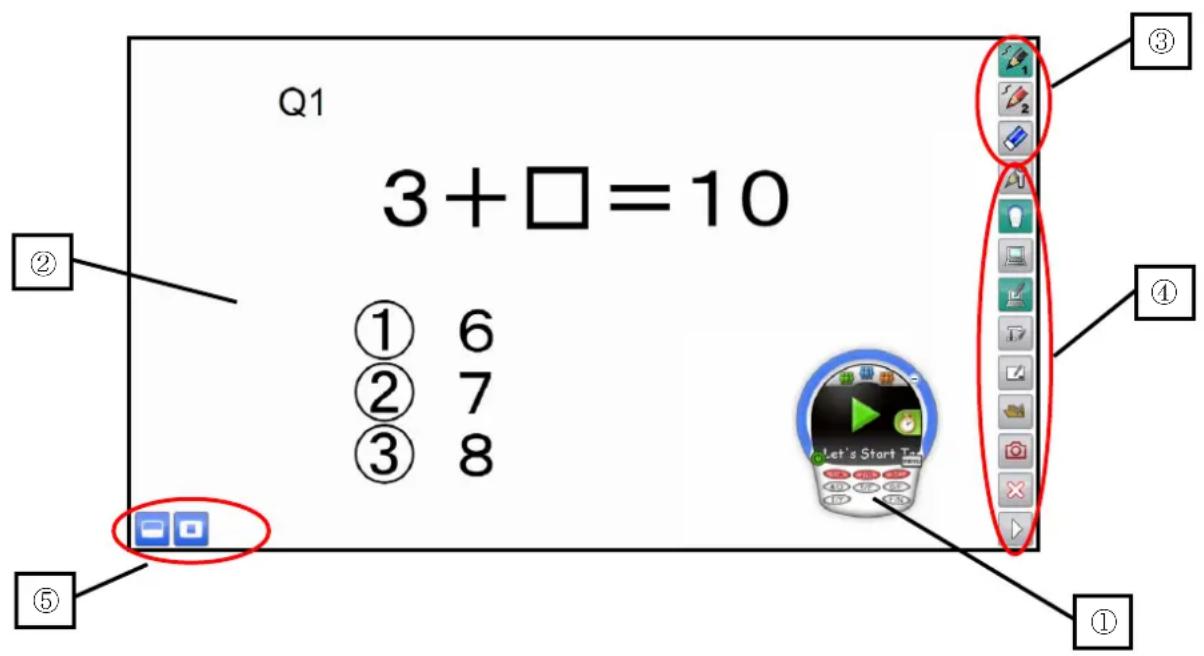
■ Startup screen of the SRS software (Image Mate Accent for SRS)
| 1 | SRS control panel | From this window, you can operate SRS.See. |
| 2 | Drawing area | This area is for displaying the Document Camera image and drawing. The entire monitor is the drawing area. |
| 3 | Drawing menu area | You can select the pen to use for drawing, or delete all drawings.See. |
| 4 | Menu area | These buttons are for configuration or operation of the Document Camera. See. |
| 5 | Sub Menu area | These buttons are for advanced operations.The buttons to be displayed varies depending on the mode.See. |
Various Operation Modes
This section describes various operation modes of Image Mate Accent.
Diagram of the modes

flowchart
graph TD
    A["Document Camera mode"] -->|Document Camera image| B["Basic operations"]
    C["PC Annotation mode"] -->|Background image| D["Computer operations"]
    E["Screen capture"] --> F["Teaching material import mode"]
    F --> G["Teaching Materials - Home"]
    G --> H["Teaching material selection (Thumbnail display)"]
    H --> I["Image of created teaching material"]
    I --> J["Drawing"]
    I --> K["Deleting"]
    I --> L["Recording"]
As shown above, the basic operations (drawing, deleting and recording) are performed for the Document Camera image in "Document Camera mode", for the background image in "Whiteboard mode", and for an already-created teaching material in "Teaching material import mode".
Computer operations or displaying the SRS control panel can be possible from any of these modes.
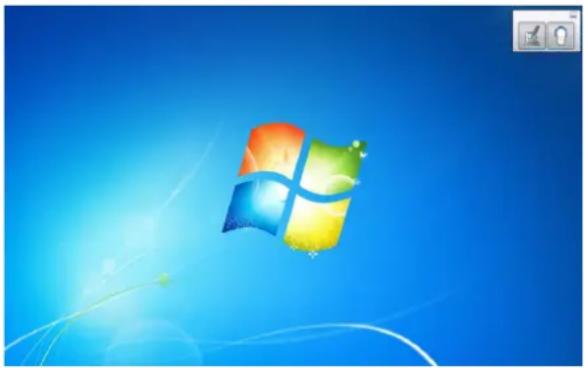
PC Annotation Mode
In the PC Annotation mode, you can draw over the computer screen or save the drawing as a picture. Click 📄 to enter the PC Drawing mode.
natural_image
Windows logo with a stylized 'W' on a blue background, no text or symbols present.PC Operation Mode
In the PC Operation mode, you can operate your computer. This mode is used to change the background for the PC Drawing mode or pose questions with SRS.
Click 📄 to enter the PC Operation mode.
Document Camera Mode
In Document Camera Mode, you can draw on the Document Camera image or save the drawing as a picture.
Click 📄 to enter the Document Camera mode.
Whiteboard Mode
In the Whiteboard mode, you can set a whiteboard image as the background and draw over it or save the drawing as a picture.
Click ☑ to enter the Whiteboard mode.
Teaching Material Import Mode
In the Teaching material import mode, you can view pictures that you have recorded in advance. Click 📋 to enter the Teaching material import mode.
■Selecting Pictures
Select a picture that you want to view from the list of saved pictures.

Pictures are displayed in order of last updated date.
 | Page | Any picture that cannot be displayed in a single screen will be displayed in the next page(s). |
| Enable Filter | To enable the filter. | |
| Filter Setting | To filter the pictures to be displayed.The pictures created between the start date and the end date are displayed. | |
| (Drop-down list) | To select the file format of the picture. | |
 | Home | To display all the pictures in CONTENTS SELECT screen. |
 | Favorite | To display the pictures set as Favorite in CONTENTS SELECT screen. |
 | Background | To display the pictures to be used as background. |
 | Deletion | To delete the selected pictures.The deleted pictures are moved to the Recycle Bin of the OS. |
 | Cancel | To cancel the teaching material selection and returns to the previous mode. |
 | 2 3 4 Background Shortcuts | To register up to 4 background pictures to the menu of IMA as shortcuts. |
 | To show/hide the background shortcuts (1-4).This button appears on the right bottom of the screen only when the Background button is pressed. | |
| Background Shortcuts Display button | ||
■ Setting a picture as Favorite
Drag & drop a picture to from the CONTENTS SELECT screen.
■ Setting a picture as Background
Drag& drop a picture to from the CONTENTS SELECT screen.
■ Register the background shortcuts
Press the Background button ☐ to show a list of background pictures.
Press the Background Shortcuts Display button 📄 to show the background shortcuts 1 -4. Drag& drop a picture that you want to set as background to the shortcut area of desired number (1-4).
A background picture registered to the background shortcut is displayed at the first of the list of the background pictures with a shortcut number. The registered background picture can be overwritten by another picture by drag and drop.
The software enters the Whiteboard mode after the cancel button is pressed and the newly registered background shortcut icon flashes for a certain period of time.(Menu Icon List)
To remove the shortcut, drag and drop the picture from the background shortcut area to the list of background pictures or to 📄.


Note
Drag and drop from the background shortcut area to 📋 does not delete the original background files in your computer.
■ Deleting a picture
Drag and drop a picture to 📋 from the CONTENTS SELECT screen or click 📋 after selecting a picture from the CONTENTS SELECT screen.
Drawing Operation
This section describes how to draw lines with mouse.
Drawing
Select the desired pen icon f_1 or f_2 in the menu on the top right of the
1
screen.
Select f_1 to draw a red line, and select f_2 to draw a black line.
The initial setting is "pencil (red)" for Pen1 and "pencil (black)" for Pen2.

Note
The pen types and the line types can be changed in the pen settings. See Setting the Pen .
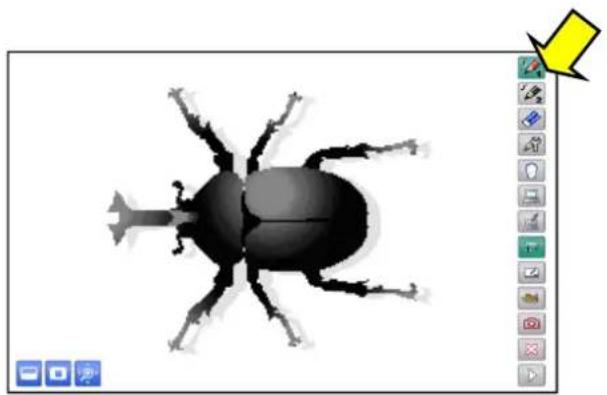
natural_image
Illustration of a black beetle with six legs and antennae, shown in an image editing interface (no text or symbols on the beetle itself)
2
Draw lines by moving a mouse while pressing the left button of the mouse.

natural_image
Illustration of a black beetle with five legs and a circular arrow on its body, displayed within an image editing software interface (no text or symbols on the diagram itself)Deleting
■Partial deletion
If you only want to delete part of a drawing, align the cursor with the area that you want to delete, and move the mouse while pressing the right button of the mouse.

You cannot partially delete a line that was drawn continuously.
■ Delete all
Select to delete all the lines on a screen.
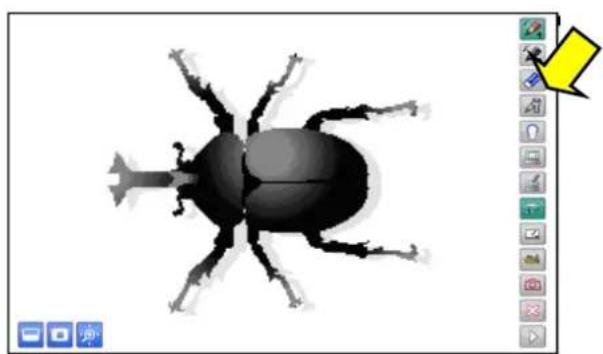
natural_image
Illustration of a black beetle with six legs and antennae, displayed within an image editing software interface (no text or symbols on the beetle itself)Recording a Lesson
■ Saving a picture
① Display the image that you want to save as a picture.

natural_image
Illustration of a black beetle with six legs and antennae, shown in an image editing interface (no text or symbols on the beetle itself)② Select 📷 to save the picture.
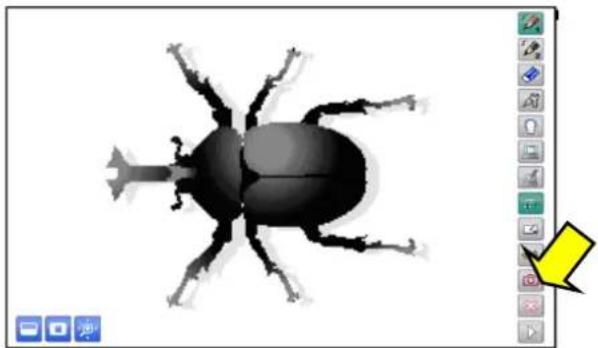
natural_image
Illustration of a black beetle with visible legs and antennae, shown in an image editing interface (no text or symbols on the beetle itself)
- For information on how to check the saved picture, see
■ Recording a video
① Display the image that you want to record as a video.
② Select 📄 on the main menu.
The Recording Setting window appears. The recording format can be selected between High (H.264) and Standard (MJPEG).
An interval recording system is used for the recording. The recording interval can be set from 1 second to 24 hours.

3 Select the recording start button in the Recording Setting window to start the recording.
4 Select the recording stop button to stop the recording.
To stop the recording, select the recording button in the menu and click the recording stop button. The recording indicator disappears.

Operating the Document Camera
Operate the Document Camera by touching 🔒, AF and 🔒 on the main menu. The presented Document Camera image can be paused by clicking 📄 and flipped vertically by clicking 📄.

 |  | Zoom In/Out | To control the zoom level of the Document Camera. |
 |  | focus | To focus the Document Camera automatically. |
 |  | Brightness | To adjust the brightness of the Document Camera. |
| Up/Down | |||
 | Pause | To pause the Document Camera image. | |
 | Image flip | To flip vertically the Document Camera image. | |

Note
The image flip icon can be shown by moving to the next page of the menu with ▶.
Mask Function
The mask hides part of or whole Document Camera image that is displayed.
By temporarily hiding part of the image that you do not want to show while asking questions or giving explanation, your lessons will become more effective.
Select □ on the sub menu.
The entire screen is masked. Adjust the size of the mask by dragging it.
When the mouse cursor reaches the edge of the screen, it will not go further.
In that case, release the mouse cursor and restart the dragging from the upper position.
The mask size can be changed from 100 x 100 pixels to the size of the screen.
The darkness of the mask can be adjusted with ⚙ and ⏻
The darkness of the mask increases when ⚪ is pressed.
The darkness of the mask decreases when ⬤ is pressed.
To cancel the mask, touch ☐ on the sub menu again.

natural_image
Silhouette of a beetle with visible legs and antennae, shown in an image editing interface (no text or symbols on the beetle itself)Highlight Function
The highlight function brings attention to a part of the Document Camera image.
By highlighting only the area you want to bring to attention, your lessons will become more effective.
Select □ on the sub menu.
The highlighted area is displayed on the screen. Drag the highlighted area to move it.
You can change the size of the highlighted area by dragging the non-highlighted area.
The highlight size can be changed from 100 x 100 pixels to the size 300 pixels smaller than the screen size.
The darkness of the non-highlighted area can be adjusted with ⚙ and ⏻
The darkness of the non-highlighted area increases when ⚠ is pressed.
The darkness of the non-highlighted area decreases when ⬤ is pressed.
To cancel the highlight, select ☐ on the sub menu again.
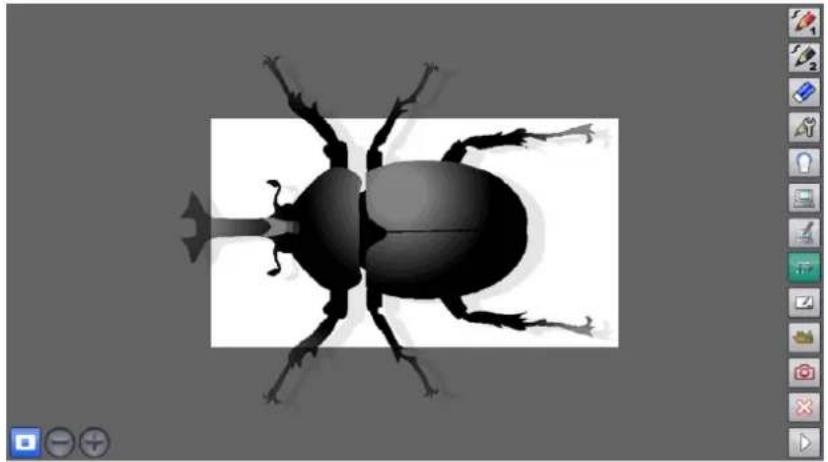
natural_image
Illustration of a beetle with visible legs and antennae, shown in an image editing interface (no text or symbols on the beetle itself)Scroll Function
The scroll function enlarges the Document Camera image.
By temporarily enlarging a small part and moving the image with the pen, your lessons will become more effective.
Select on the sub menu.
An electronically magnified image is displayed on the screen. Drag the image to move it.
To cancel the scroll, select 📋 on the sub menu again.

natural_image
Silhouette of a beetle with visible legs and antennae, shown in grayscale (no text or symbols)
Note
The scroll function cannot be operated in the PC Annotation mode.
Using PowerPoint Support Function
Start PowerPoint while the Image Mate Accent for SRS is running.
Start slideshow in PowerPoint. Then set the Image Mate Accent for SRS to the PC Annotation mode or the SRS mode.
The PowerPoint Support icon appears in the bottom left of the screen.
You can move to the previous page by pressing 🔍 or to the next page by pressing

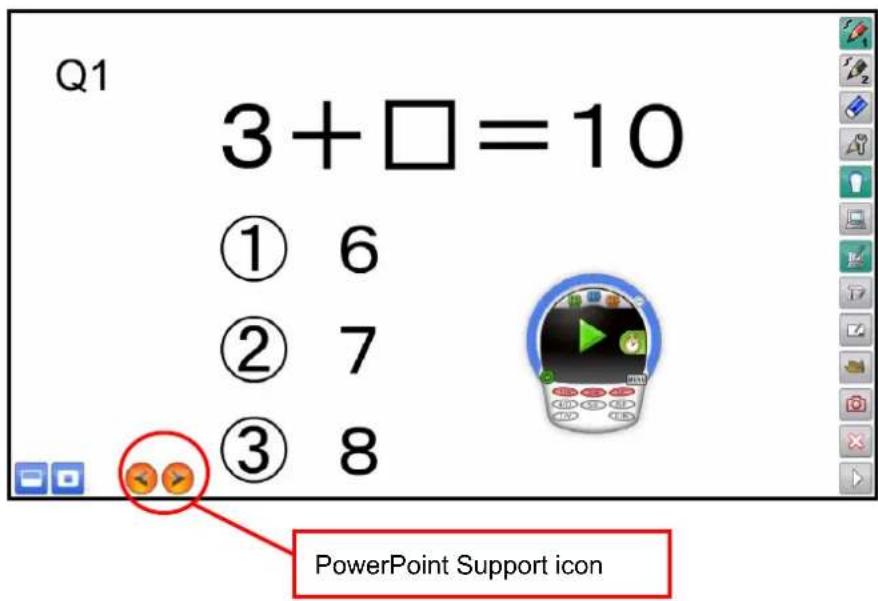

Note
The PowerPoint Support function does not support PowerPoint Viewer.
Setting the Pen
1 Select to display the pen settings.
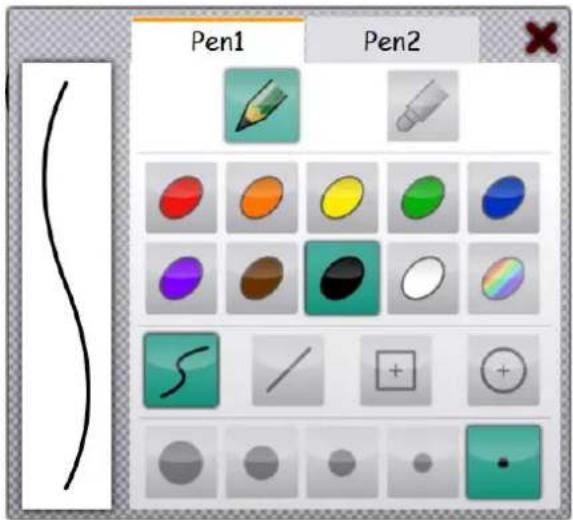
 Pen 1 / Pen 2 Pen 1 / Pen 2 | To select the pen that you want to configure . | ||
 Pencil / Marker Pencil / Marker | To select a type for the selected pen. | ||
| Pencil | Draw a line with the set line thickness. | ||
| Marker Draw a line with the set line thickness.The colors are displayed semi-transparently. | |||
 Color button Color button | To configure the color for the selected pen. | ||
 Line type Line type | To select a line type for annotations. | ||
| Free-hand | Draw a free-hand line. | ||
| Straight | Draw a straight line. | ||
| Square Draw a square shape. | |||
| Circle | Draw a circle. | ||
 Pen thickness Pen thickness | To configure the thickness for the selected pen. | ||
② Select the pen type, color and pen thickness for pen 1 or pen 2, and then select OK.
List of Menu icons
 | Pen 1 | To select pen 1.The initial setting is a red pencil. You can change the settings for this pen in "Pen Settings". |
 | Pen 2 | To select pen 2.The initial setting is a black pencil. You can change the settings for this pen in "Pen Settings". |
 | Delete all | To delete all the lines that are drawn on the screen.If you only want to delete part of a drawing, align the cursor with the area that you want to delete, and move the mouse while pressing the right button of the mouse. See<Partial deletion>. |
 | Pen settings | To display the settings for pen 1 and pen 2.See<Setting the Pen>for more details. |
 | SRS mode | To enter the SRS mode. |
 | Computer operations | To operate the computer. |
 | PC Annotation mode | To enter the PC Annotation mode. |
 | Document Camera mode | To enter the Document Camera mode. |
 | Whiteboard mode | To enter the Whiteboard mode. |
 | Teaching material import mode | To enter the Teaching material import mode. |
 | Capture | To save the currently displayed contents as a picture.Elements such as the Document Camera image that is displayed on the background, the background image and the drawn lines are recorded, but elements such as the buttons and cursor are not recorded.The pictures can be displayed in "Teaching material import mode". |
 | Quit | To quit the software (Image Mate Accent for SRS) |
  | NextUndo | Displayed when the whole menu cannot be displayed on one screen. Use this button to go to the next menu.When the final menu is displayed, touch this button to return to the first menu.To redo the last editing operation (such as drawing with the pen or deleting with the eraser). There is a limit on the number of operations that can be undone. |
 | Select | To change the pen to a pointer. |
 | Record | To record the contents displayed on the screen as a video. An interval recording system is used for the recording. The recording interval can be set.The background image such as the Document Camera image and the drawn lines can be recorded. Buttons and the cursor cannot be recorded. |
 | Image Flip | To flip vertically the Document Camera image. |
 | Zoom In/Out | To control the zoom level of the Document Camera. |
 | Auto Focus | To adjust the focus of the Document Camera automatically. |
 | Brightness | To adjust the brightness of the Document Camera. |
| Up/Down | ||
 | Pause | To pause the Document Camera image. |
 | Background Shortcuts | To display the registered background shortcuts.4 background pictures which were registered in the Teaching Material Import mode can be saved as shortcuts. |
| The favorite pictures are registered by default. Change as you prefer. | ||
 | Last used background | To display the last used background. |
 | Mask | To hide part of or whole Document Camera image that is displayed. You can move the masked area by dragging it. In one operation, you can only move the mask up or down or to the left or right. When the mouse cursor reaches the edge of the screen, it will not go further. In that case, release the mouse cursor and restart the dragging from the upper position |
 Highlight Highlight | To bring attention to a part of the Document Camera image. You can move the highlighted area by dragging it. In expert mode, you can change the size of the highlighted area by dragging the non-highlighted area. |
 Scroll Scroll | To digitally enlarge the Document Camera image.Use it to enlarge the area that is too small. This is different from the zoom function of the Document Camera. This is different from the zoom function of the Document Camera. |
  PowerPoint SupportPrevious page / Next page PowerPoint SupportPrevious page / Next page | To operate the PowerPoint without entering the PC Operation mode.You can move between pages of PowerPoint from the PC Annotation mode. |
Using SRS
Operation screen of SRS
Operations such as posing questions, giving answers and displaying the results are performed from the SRS control panel.
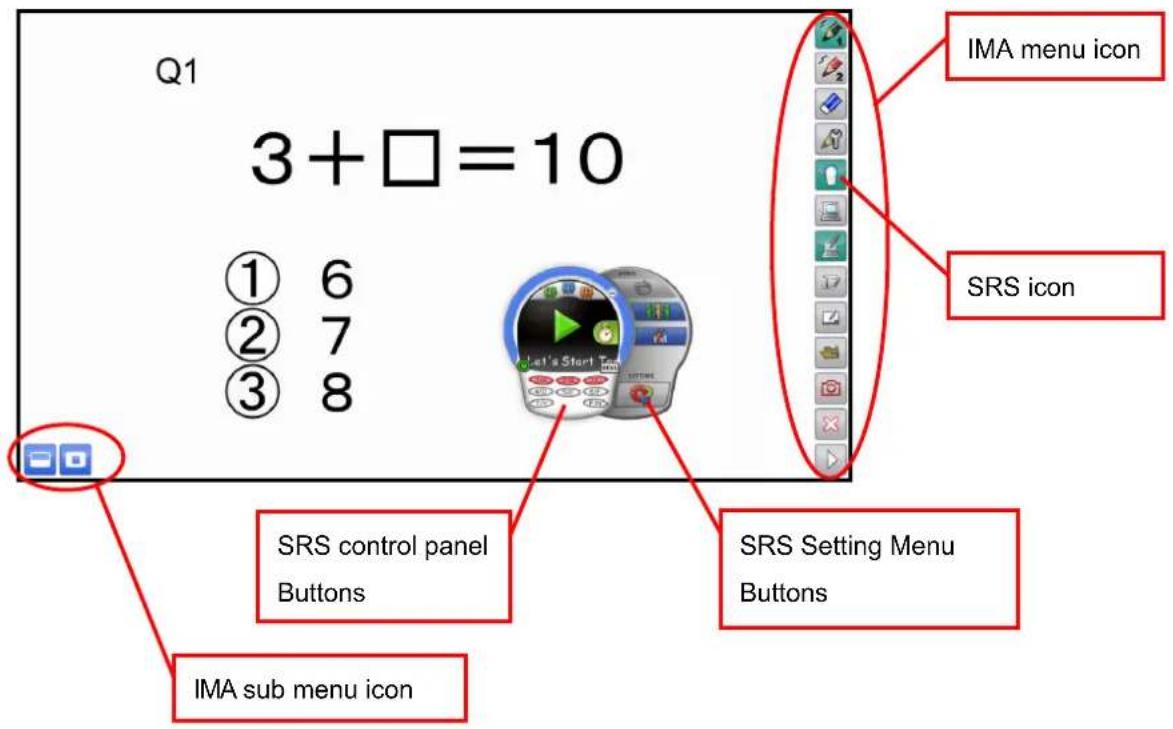
List of SRS operations
List of SRS buttons
Following command buttons in the SRS control panel are used to pose questions or display the results.
■Before Testing (The color of the SRS control panel turns to blue.) (Starting screen)

| Menu button | Name | Function |
 | Power | To start SRS. |
 | Start Testing | To start receiving responses. |
 | Group settings | To display the Group settings.You can show the results by groups by grouping clickers in advance.See Group learning . |
 | Countdown Timer | To display the Countdown Timer.See Countdown Timer screen . |
 | Answer Options | To display the answer options currently available in red. (The drawing shows an example of 6-choice question).The current setting for the question type (2-6 choice, True (Yes)/ False (No)) can be changed using these buttons. |
| [2ZKS] | Menu | To display the setting menu. (To hide the setting menu when the setting menu is on display.) See Setting menu . |
| [2T5Y] | Iconize | To iconize the SRS control panel. Click the icon 📷 to return to the SRS control panel. |
(Countdown Timer screen)

| Menu button | Name | Function |
 | Start Testing | To start receiving responses.The Countdown Timer starts automatically at the same time. |
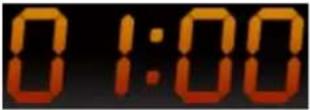 | Countdown Timer | To display the set time.(The drawing shows an example when the timer is set to 1 min.) |
 | Increase / Decrease | To increase or decrease the amount of the time on the Countdown Timer.The Minute/ Second selection button is used to change the set time.When “Minute” is selected, the set time can be changed in increments of 1 min. When “Second” is selected, the set time can be changed in increments of 10 sec.The set time can also be changed when the Countdown Timer is in operation. |
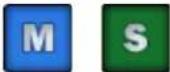 | Minute/ Second selection | To switch the minute and the second when performing the Countdown Timer setting. The selected icon turns to green.(The drawing shows an example when “Second” is selected.)The set time can be changed using the Increase/ Decrease button. |
 | Close | To close the Countdown Timer to return to the Starting screen. |
■Testing is Open (The color of the SRS control panel turns to green.)
(Open Testing screen)
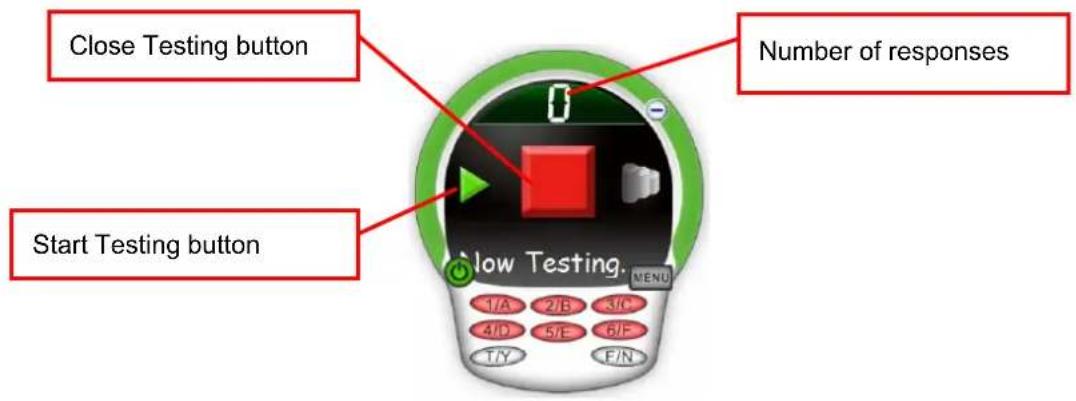
| Menu button | Name | Function |
 | Number of responses | To display the number of clickers responded.By selecting this button, the unanswered clickers can be displayed. |
 | Close Testing | To close Testing. The results are saved as a file. |
 | Start Testing | To cancel the current Testing and return to the “Before Testing” status. |

| Menu button | Name | Function |
 | Pause | To pause the Countdown Timer.When this button is selected, the screen changes to "Start Testing".Select the "Start Testing" button to restart the countdown. |
 | Increase/Decrease | To increase or decrease the amount of the time on the Countdown Timer.The Minute/ Second selection button is used to change the set time.When "Minute" is selected, the set time can be changed in increments of 1 min. When "Second" is selected, the set time can be changed in increments of 10 sec.The set time can also be changed when the Countdown Timer is in operation. |
 | Minute/ Second selection | To switch the minute and the second when performing the Countdown Timer setting. The selected icon turns to green.(The drawing shows an example when "Second" is selected.)The set time can be changed using the Increase/ Decrease button. |
 | Close | To close the Countdown Timer to return to the Open Testing screen.NoteIt is not possible to return to the Countdown Timer screen from the Open Testing screen. |
■Displaying the results (The color of the SRS control panel turns to blue.) (Results screen)
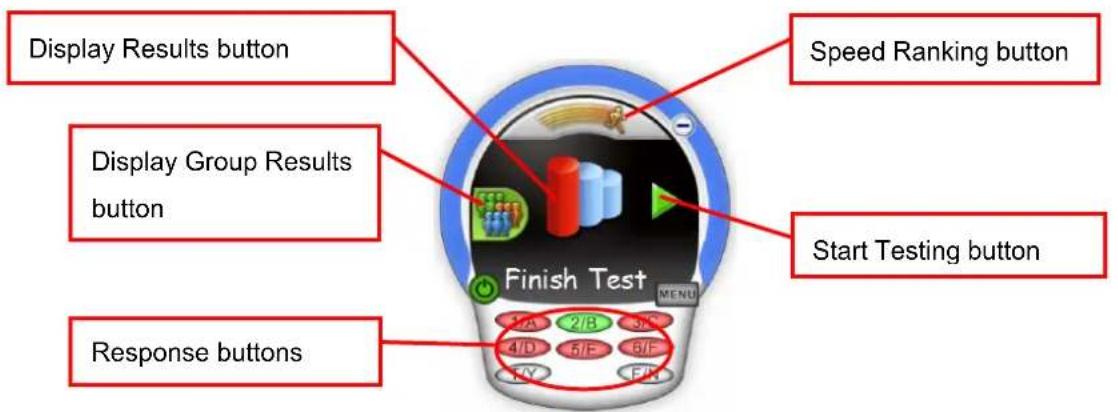
| Menu button | Name | Function |
 | Display Results | To display the results by clicker.Return to the question screen when the results are displayed. |
 | Display Group Results | To display the results by group.This function is activated when the group setting is set. See <Group learning>. |
 | Speed Ranking | To display the response time by clicker (Speed ranking). See <Speed Ranking>.Return to the question screen when the speed ranking is displayed. |
 | Response | To select a correct answer.The color of the selected button turns to green.(The drawing shows an example when [2/B] is selected.) |
 | Start Testing | To return to the Starting screen. |
■Setting menu
Select the menu button before posing a question.
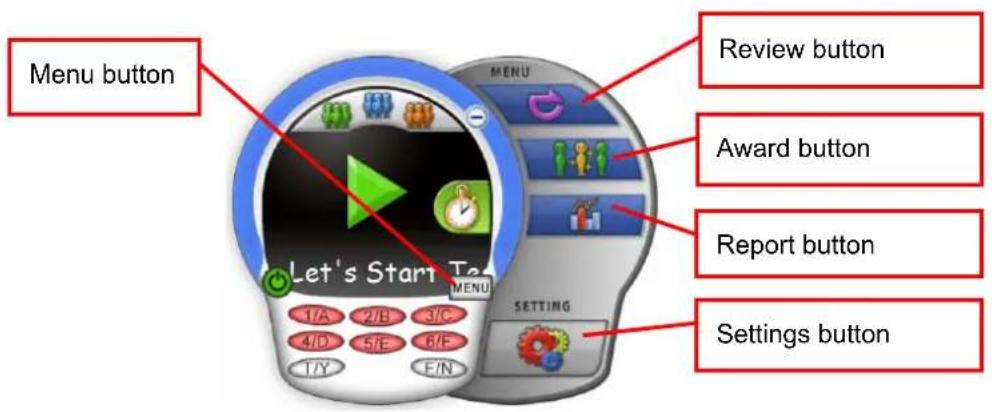
| Menu button | Name | Function |
 | Review | To display (review) the questions and the results in the session.See. |
 | Award | To display the Award screen. You can give awards to students who have performed well. See. |
 | Report | To run the reporting software “SRS Reporting” in order to display the results or configure the clicker settings. See. |
 | Settings | To run the configuration software “SRS Configurations” in order to configure the operation of the software. See. |
List of clicker operations
These buttons are used to respond to the questions or cast a vote.
| Button Name Function | |||
 | Power button | ||
 | Power LED | ||
   | 1/A ~ 6/FResponse button | ||
   | |||
  | Yes or No Response button | ||

Note
For details about the status of LED, refer to About LED .
Starting SRS
SRS can be started either from the respective modes in Image Mate Accent for SRS or by launching the application from your computer screen.
Note
Refer to 〈About Image Mate Accent〉 for details about modes and operations other than SRS functions.
1 Display the SRS control panel.
Press the SRS icon to display the SRS control panel.

If no clicker are registered to the wireless adapter, the SRS icon will not display.

Turn on the clicker.
Press Power button Ⓞ to turn on the clicker. The power LED lights up and the clicker attempts to establish the wireless connection with your computer.

Note
When the battery level is low, the power LED flashes for 5 seconds. In that case, replace with new batteries.

The clicker automatically enters standby status when there is no wireless communication. (Pressing any button will resume the operation.)
After a certain period of time has elapsed in standby status, the power automatically goes off.
The time to power off can be changed with Image Mate Accent for SRS Configurations . Default setting is 300 seconds.
From posing a question to close the question
Pose a question using the Document camera or your computer screen. Then open Testing by selecting the Start Testing button in the SRS control panel or one of “[2]\~[6],[T/F]” buttons in the Response Sub Buttons.
Note
The entire process from starting Image Mate Accent for SRS to finishing it is called "session" and the results of each session are saved.
① Pose a question.
Pose a question using the Document camera or your computer screen.
Note
You can use the annotation function when the system is not in the "Testing is Open" status.
② Open Testing to receive responses from clickers.
When "Start Testing" button is selected, Testing starts with current question type. (Default setting: 3-choice question).
The question type can be changed using the Response buttons ([2]\~[6],[T/F]) before pressing the "Start Testing" button.
E.g.) When [3] is selected, the question type becomes 3-choice question and the color of [1] – [3] buttons turns to red.
The color of the SRS control panel turns to green when Testing is started.
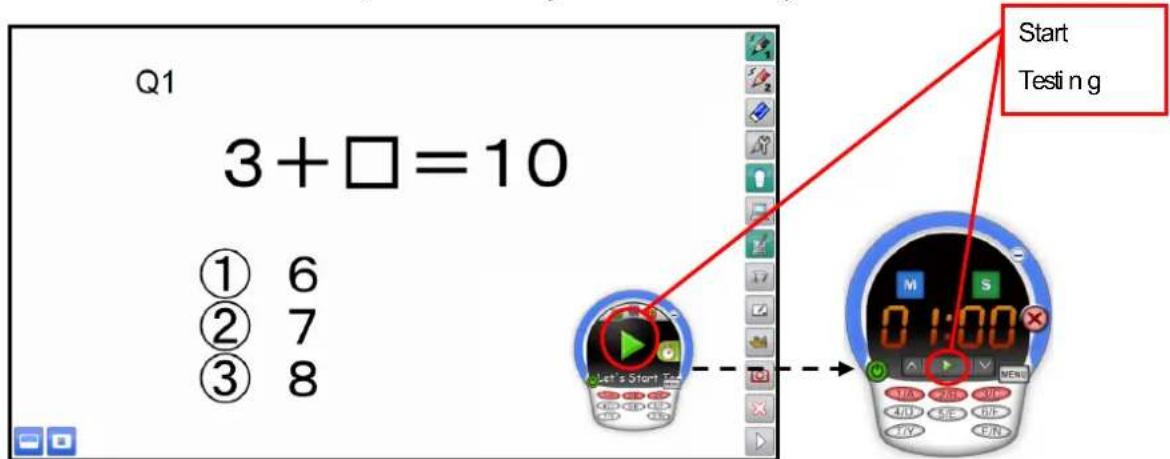
(When the Countdown Timer is used)
Note
The question type remains the same until SRS is finished. The setting becomes the default of the question when starting SRS can be changed from 〈Image Mate Accent for SRS Configurations〉.

Respond to the question by using the Response buttons on the clicker.
Respond to the question by pressing the Response buttons on the clicker. Selected button flashes for max.7 seconds when sending a response and lights up for 5 seconds if the response is successfully accepted.

If flashing Response button LED goes off in less than 12 seconds, the response is not accepted. Retry by pressing the Response button again after the LED is off. If a button that is not in the options is pressed, such response is not included in the number of responses.

Note
As long as the Testing is open, students can resubmit their responses by pressing the Response button again after the LED is off.
When the battery level is low, the power LED flashes for 5 seconds. In that case, replace the batteries with new ones.

The SRS control panel can be iconized with the Iconize button.
Click the icon to return to the SRS control panel. By using the Countdown Timer, you can show the remaining time.

(When iconized)
By selecting this button, the icon returns to the SRS control panel.

Note
To use the Countdown Timer, display the Countdown Timer before starting Testing and start Testing from the Countdown Timer screen.
The set time can be changed while the Countdown Timer is in operation.
Check the number of clickers responded.
When the Number of responses is selected, the Unanswered Clickers screen is displayed to check the clickers that did not respond to the question.
Also, you can configure the "Answer in place of the student" or "Absent" settings.

■Response Operation Window
| Menu button | Name | Function |
 | Absent button | Register/delete as an absentee.The “Absent” mark appears next to theclicker number when registered. NoteThe Response buttons are deactivatedwhen the clicker with the “Absent” markis selected. NoteThe Response buttons are deactivatedwhen the clicker with the “Absent” markis selected. |
 | Responsebuttons | You can answer the question in place of thestudent by selecting the number. NoteWhen you answer the question in place ofthe student, the relevant clicker number isremoved from the list.You cannot modify the answer once you didit. NoteWhen you answer the question in place ofthe student, the relevant clicker number isremoved from the list.You cannot modify the answer once you didit. |

Close Testing.
Close Testing with the Close Testing button ■ The color of the SRS control panel changes to blue.
Note
You can annotate on the screen using annotation functions after Testing is closed.


Display the results.
The overall results can be displayed in graph with the Display Graph button 📋. Answer options and the number of responses are displayed.
Show a correct answer by pressing the Response button. The color of the selected button changes to green and the percentage of correct answers (Accuracy) is displayed.

Note
Each time the Results display button is pressed, the screen switches between the question screen and the results screen. When the group setting is set, the results by group can be displayed. See 〈Group learning〉.
■Windowmize the results
When the Windowmize button is selected, the results are displayed as a window at the bottom left corner over the question screen.
The results window can be moved freely by dragging it.
When the Full-screen button is selected, the results are displayed in full screen.
Press the Close button to close the results display.

■Speed Ranking


Response time varies depending on the wireless condition between the clicker and the wireless adapter.
⑥ Finish the question.
You can pose next question by pressing the Start Testing button ▶. The SRS control panel returns to the default status.

Note
The results and the screen (including the drawing) are automatically saved.
Finishing SRS
1 Turn off the clicker.
When Power button of the clicker is pressed for 3 seconds or longer, the clicker is powered off and the power LED goes off.

Note
The clicker automatically enters standby status when there is no wireless communication.
(Pressing any button will resume the operation.)
After a certain period of time has elapsed in standby status, the power automatically goes off.
The time to power off can be changed with
Default setting is 300 seconds.

② Clear the SRS control panel.
Clear the SRS control panel by selecting the SRS icon 🔒.

Note
Both the SRS control panel and the launcher are closed at the same time when the Close button in the IMA menu icon is selected.

Group learning
You can show the results by groups by grouping clickers during a session.
1 Configure group settings.
Select the Group setting button 📄 to display the Group setting window.
Configure group number and group type. You can also change respective group name (group symbol).

Set the Group number and the Group symbol.
Select the Group symbol setting button and select either
[Default] (alphabet) or [Animals] (animals) from the pull-down menu.
Drag & drop the symbol to the Group box. (The color of the symbol changes.)
(The drawing shows an example when [Animals] is selected.)
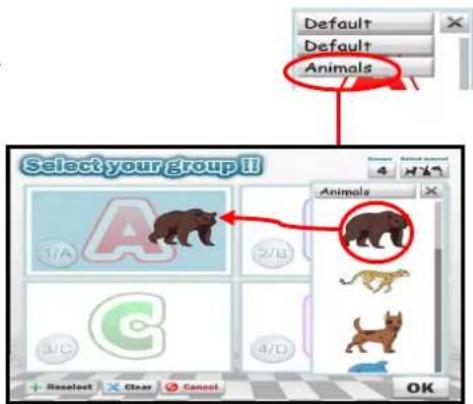
Select the Group number setting button. Then select the number of groups from the pull down menu.

Note
It is not possible to configure group settings during Testing.

Join in a group.
Join in a group by pressing one of the Response buttons on the clicker.

Press a button with the same number as the group you intend to join in. Your clicker number is displayed inside group box. Now you joined in the group.


Finalize the group settings.
Finalize the group settings with OK button OK and the Setting window is closed.

Ask a question and display the results.
The whole process from asking a question, starting Testing, closing Testing to displaying the results is same as basic procedure.
Refer to ①\~⑤in ■From posing a question to close the question.

Display the group results.
Select the Group icon displayed in the overall results display screen.
The screen switches to the Group results display screen.

(When the correct answer is selected)

Note
Personal results can also be displayed by selecting the Results display button.
Review of the session
You can review the questions posed during the session.

Prepare the review.
Select the Review button from the settings menu to change the SRS control panel to review mode.


Display the question screen.
Select a question in the session by using the Move button to display the question screen.


(Recorded question screen)

Finish the review.
Select the Review button from the settings menu to finish the review. The SRS control panel returns to Starting screen.

Note
The review can also be finished by selecting the review icon in the SRS control panel.
Giving an award
In each session, you can select one student to give an award. The Award screen can be saved.

Enter names of recipient and sender.
Select the Award button to display the Award screen.
Enter names of recipient and sender by using the drawing function.

Utilizing the collected data
With ELMO SRS Reporting, the collected data that is saved on your computer can be displayed or converted into a format readable on other computers.
Using Result Display Software
Starting the software
Select a report from the menu MENU in the SRS control panel to launch SRS
Reporting. Then select [Test report] tab.
Select the type of report (Session Report / Personal Report) from the tabs.
Note
The software can also be launched from [Start]-[Program Files]-[ELMO]-[Image Mate Accent for SRS]-[ELMO SRS Reporting].
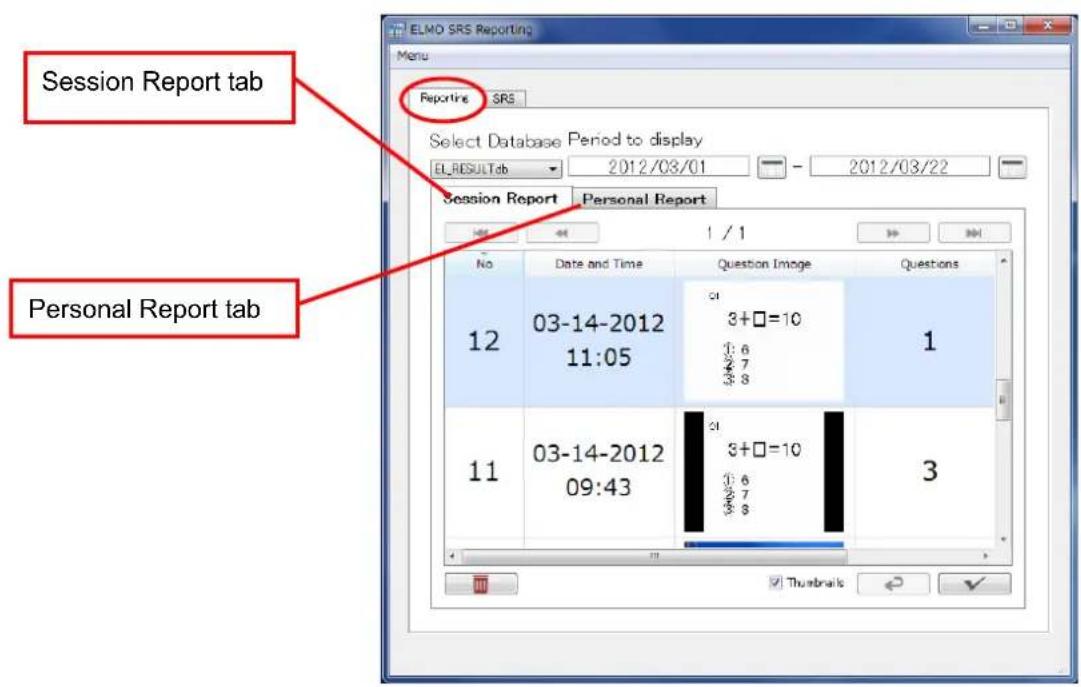
Displaying the Session report
The entire process from starting Image Mate Accent for SRS to finishing is called a "session". A list of questions in a session and details of the results of each question can be viewed.
1 Display a list of sessions.
A list of saved sessions is displayed after the [Session Report] tab is selected. The sessions displayed in the list first are the latest saved session and other sessions saved in the same month as the latest saved session. Specify the period using the calendar buttons to set the display range manually.
Items to be displayed in the list of sessions :
(Date and Time/Question Image (1 ^st Question)/Questions)


Display a list of questions.
Select a session in the session list that you wish to view. The selected session turns blue. Press the Select button to display a list of questions in the session.
Items to be displayed in the list of questions :
(Date and Time/Question Image/Number of Students/Accuracy/Number of choices/Number of responses per choice)
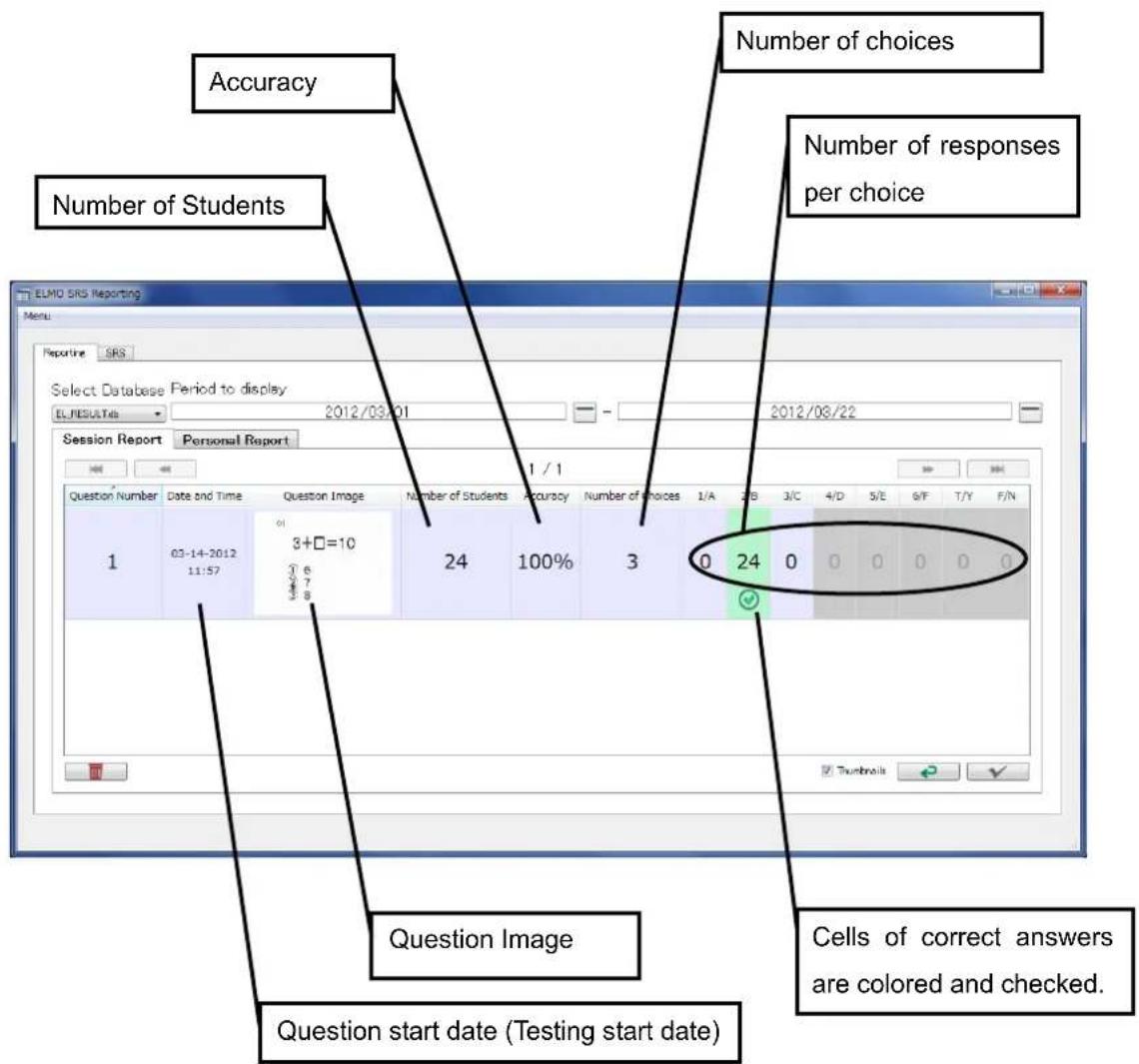

Note
The results of multiple sessions (or questions) cannot be viewed together. Multiple sessions (or questions) can be deleted together.

Draw over the question screen.
You can draw over the question screen by double-clicking a question image.
8 different pens(Black, Red, Green, Blue, Cyan, Magenta, Yellow, White) are available.
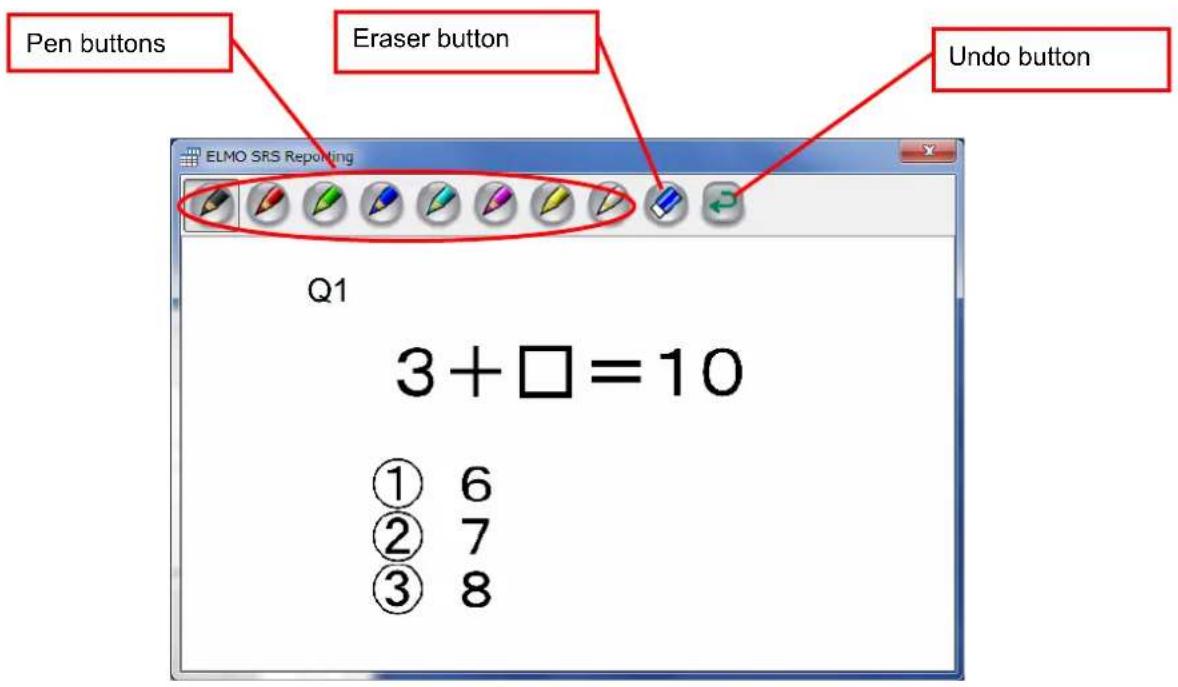

Note
The software asks whether to save the annotations once the close button is pressed. If you select "save", a dialogue "Save as" appears to save the image.

Display a report for the question.
Select a question in the question list that you wish to view. The selected question turns to blue.
Press the Select button to display a report for the question.
5 Print a report.
Contents of a report can be printed.
Select [PRINT] button while a report is displayed.

Note
The printer needs to be installed on your computer.

Output the personal report
Review the personal results from the saved record.
1 Display the list of sessions.
Select the [Personal Report] tab to display the list of sessions.
The sessions displayed in the list first are the latest saved session and other sessions saved in the same month as the latest saved session. Specify the period using the calendar buttons to set the display range manually.
Items to be displayed in the list of sessions :
(Date and Time/Question Image (1 ^st Question)/Number of questions)
Items to be displayed in the list of questions :
(Student number/Answers per questions/Percentage of students answered correctly)

Saving in other formats
The collected results can be saved by session in csv/ xml/ xel and xls formats.
Select [Export] from [Menu] while a list of sessions (or questions) are displayed.
Select [Export] after specifying a date, save format and a destination folder from the dialogue displayed.


Note
A folder in which image files for the question screen are saved is created in the same folder as the export file when the results are exported in XML format.
Various Settings
In this section, you will learn how to configure SRS.
Wireless setting for the clicker
If the wireless connection cannot be established after pressing Response buttons (the "Response button LED" continues to flash) perform the wireless setting using the "Wireless setting button" inside the battery box and on the wireless adapter.

- Perform the wireless setting within 30 seconds of pressing the "Wireless setting button" inside the battery box.
- Hold the body of the wireless adapter when pressing the "Wireless setting button" on the wireless adapter.
Turn on the power of the clicker.
↓
Press the "Wireless setting button" inside the battery box.
↓
[2/B] button flashes at high speed.
↓
Press the "Wireless setting button" on the wireless adapter.
↓
[1/A] button and [3/C] button on the clicker flashes a few times. Now wireless connection between the clicker and the wireless adapter is established.


Wireless adapter
Note
The wireless setting between the clicker and the wireless adapter was established prior to shipping.
When adding a clicker, the wireless setting for the added clicker needs to be performed before use.

If a clicker is used as described below, wireless connection with the wireless adapter may become unstable:
- There is an obstruction between the clicker and the wireless adapter.
- The clicker is used while placed on top of a computer.
- A wireless device or electronic equipment is being used nearby.
- The clicker is moved excessively while being used.
- Clickers are used too close with each other.
- Hold the clicker with your hand covering the upper part of it.
Also, due to the inherent characteristics of the wireless connection, the wireless connection may become unstable in some positional relationships between the clicker and the wireless adapter.
Image Mate Accent for SRS Configurations
With ELMO SRS Configurations, Image Mate Accent for SRS can be configured.
Starting the software
Select "Configurations"

from "Menu"

in the SRS control panel.

Note
ELMO SRS Configurations can also be launched from [Start]-[Program Files]-[ELMO]-[Image Mate Accent for SRS]-[ELMO SRS Configurations].
Description of menu tabs
Items to be configured or checked in each sheet are as follows:
[Settings] : Contents location
[SRS Settings] : Database Location / Timer settings / Default quiz type / Automatically display graph results / Clicker Power
[Software update] : Image Mate Accent for SRS / Proxy setting
[About] : Software information
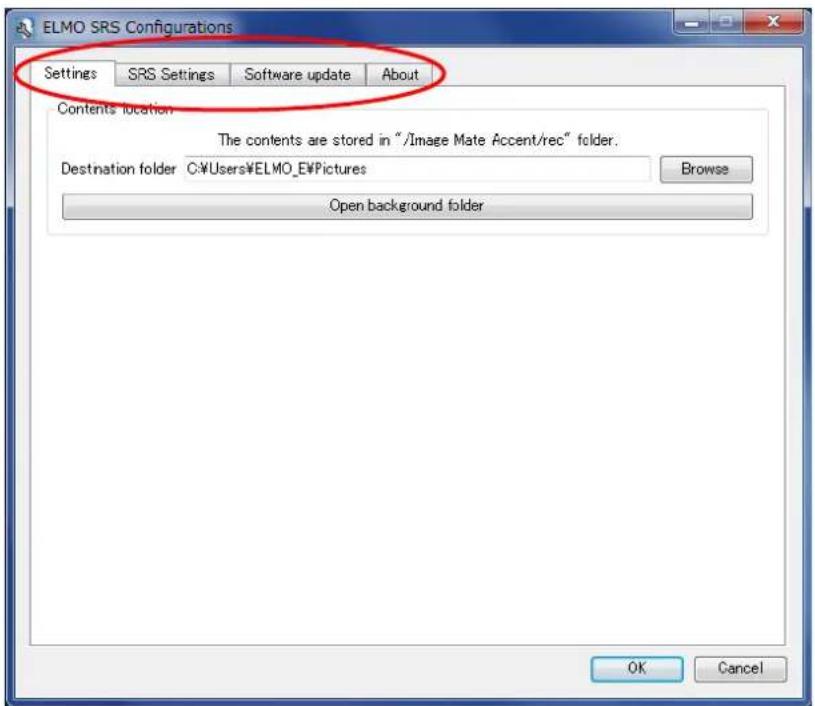
Settings
The destination to store the data created by Image Mate Accent for SRS can be set.

① Contents location
The destination to store the contents created by Image Mate Accent for SRS and the folder to add stamps and background images can be set.
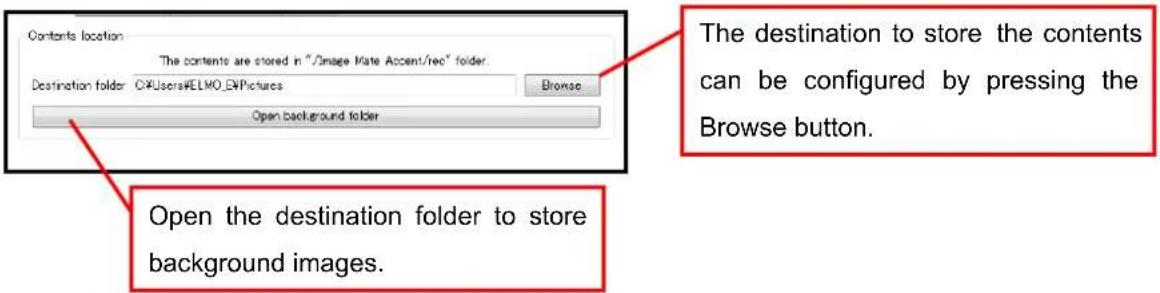

Note
The contents are stored in "Image Mate Accent" folder created inside the specified "destination folder".

Image files can be added as stamps or backgrounds in jpg, bmp or png formats.
(Note that it may not be able to display some files in these formats.)
The existing data inside the folder is not automatically transferred to a new destination folder when the destination folder is changed.
The previous data cannot be displayed after making this change.
Image Mate Accent for SRS can be configured from "SRS Settings".

① Database Location
The destination to store the database used by Image Mate Accent for SRS and the records of SRS can be set.


The previous results cannot be displayed after making this change.

Note
The contents are stored in "Image Mate Accent" folder created inside the specified "destination folder". For details on iRespond (sold separately), please contact a dealer.
② Timer Settings
The initial setting of the timer can be set in increments of 10 sec. between 10 sec. and 60 sec. and in increments of 60 sec. between 60 sec. and 300 sec. using up/down buttons.
Note
Default setting of the timer is 60 sec.
③ Default quiz type
The question type when SRS is started can be set. (Default setting: 3-choice question) Select a question type (2-6 choice, True (Yes)/ False (No)) from the pull-down menu.
④Automatically display graph results
Put a tick mark here when you want to show the results first in the Results Display screen.
⑤ Clicker Power
The time for auto power off of the clicker can be set in increments of 10 sec. between 10 sec. and 2,550 sec. using up/down buttons.
Note
Default setting is 300 seconds.
Setting the time for auto power off longer may affect the lifetime of the batteries.
Software update
The automatic update for the software can be set.

Note
Access our update page to verify you are running the latest version of the software. You need to have an internet connection to update your software.

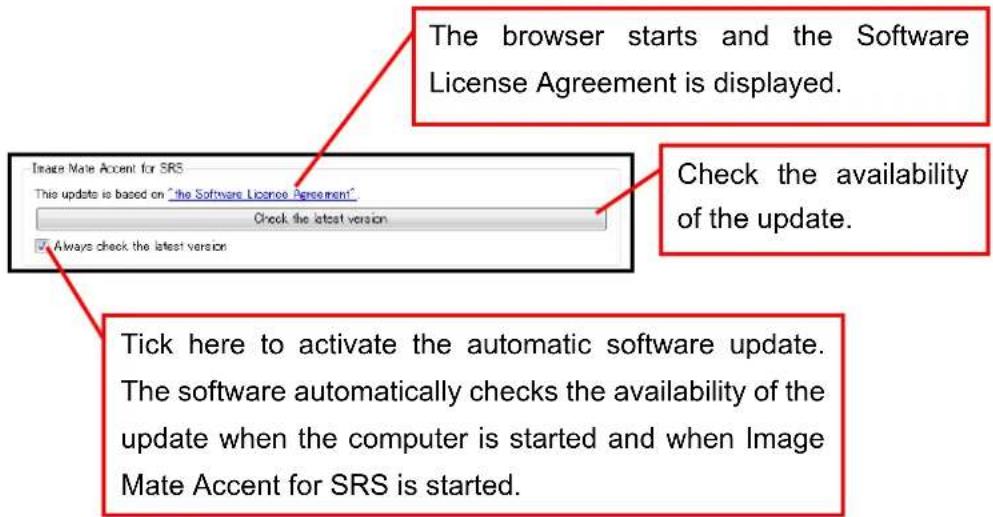
① Image Mate Accent for SRS
Press the Check the latest version button to check the availability of the update.
② Proxy setting
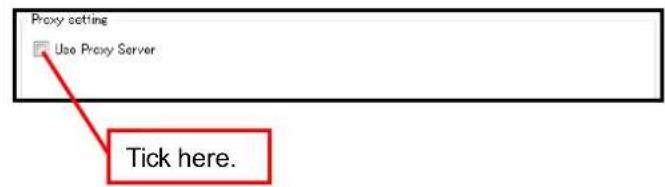
You can use the software with default settings.
When you need to configure this setting, put a tick mark in "Use Proxy Server".

Note
Consult your internet administrator or provider for details as to the configuration.
About
You can see the detailed information of the software.

SRS Data Settings
With ELMO SRS Reporting, you can manage the student's data and the clicker.
Starting the software
Select a report from the menu MENU in the SRS control panel to start SRS Reporting. Then select the "SRS" tab.
Note
ELMO SRS Reporting can also be launched from [Start]-[Program Files]-[ELMO]-[Image Mate Accent for SRS]-[ELMO SRS Reporting].

To perform the other operation than "Battery level check", close the Image Mate Accent for SRS first. Make sure that the wireless adapter is connected to your computer.
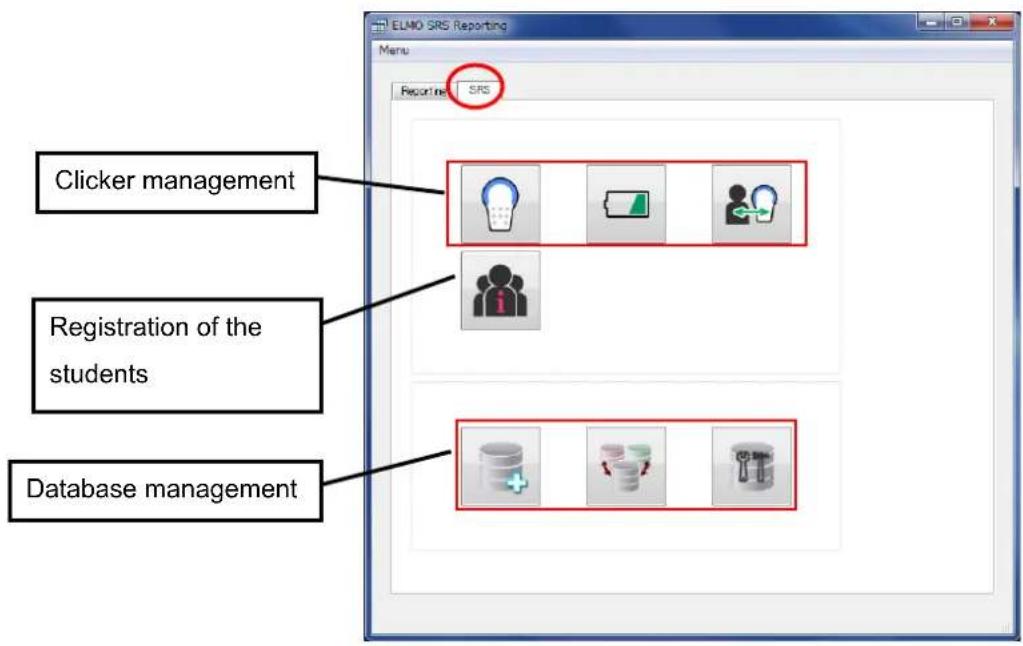
Clicker
| Menu button | Name | Function |
 | Check the Connection | To check the wireless connection. |
 | Battery level | To display the last used time and the battery level. |
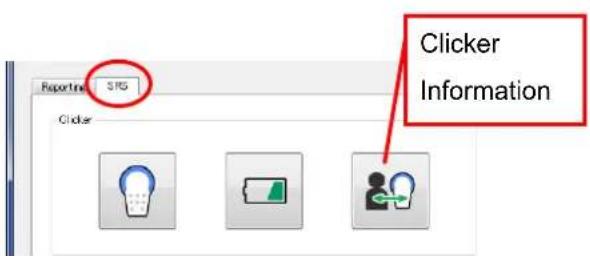
 | Clicker Information | To associate the clicker with a student or add/delete the clicker. |
Register
| Menu button | Name | Function |
 | Register students information | To register the students' information. |
Database
| Menu button | Name | Function |
 | Create Database | To register the database.See. |
 | Select Database | To select the database. |
 | Edit DatabaseProfile | To edit the database profile. |
Check the connection
The wireless connection with the registered clicker can be checked.
Press a button of the clicker that you want to check after connecting the wireless adapter to your computer. Device ID, the button that is pressed, the battery level and the clicker version are displayed.

Note
Connect the wireless adapter to your computer before performing the wireless connection check.

Battery level
The last used time and the battery level for all the registered clickers can be displayed.

Last connected time
Battery level:
Good : The battery level is enough.
Low : The battery level is low.

Replace the batteries when "Low" is displayed.
Note
Perform the
Clicker Information
When the wireless adapter is connected, the Device ID, the clicker number and the student's information (if registered) are displayed.
You can also add or change the clicker here.

Note
Connect the wireless adapter to your computer before performing the above operation.


Note
After the wireless setting for the added clicker is performed, a Device ID is newly assigned to the added clicker and it is added to the bottom of the list.
Refer to 〈Adding or Changing the clicker〉 for details about adding or changing the clicker.
Max. 50 clickers can be registered.
Register students information
The students' information can be registered.

Pay strict attention to the protection of the personal information and the right of publicity of the students. ELMO is not responsible for any loss or leak of the personal information of the students in relation to the use of SRS.


Note
Same number of the students as the clickers you use can be registered.
(Max. 50 clickers can be registered.)
Let's take photos!
You can take a picture of the student for the student information by using the Document Camera.
Connect the Document Camera to your computer and switch it on.
Select the clicker number under which the picture is registered. Then press the "Let's take photos!" button to display the photo shooting window.
Press the shutter button to register the captured picture.
![Shooting area r[o]_< ) Zoom buttons Shutter button ELMO 1/A 2/B 3/C 4/D 5/E 6/F Image flip button Auto Focus button](/content/2026/06/1219795/images/851620a21488b0944cab4ecf059065ee7bcb95e7d10223e51fab2c8b1e88acf8.jpg)
Database Settings
Create Database
When the Create Database button is selected, a new database or a copy of the existing database is created.

When creating a new database, select the "Create" button after entering the database name and the database description.
When using an existing database, select such database after activating the tick box.
The details of the selected database are displayed. Confirm if the selected database is the right one.
Then enter the name and the description of the database to create.
After completing all the procedures, select the Create button.

Note
A database cannot be created without entering the database name.
A database cannot be created if a database with the same name exists.
Select Database
When the Select Database button is selected, the default database can be set.

When a database is selected, the details of the selected database are displayed. Press the [OK] button after confirming that the selected database is the right one.
Edit Database Profile
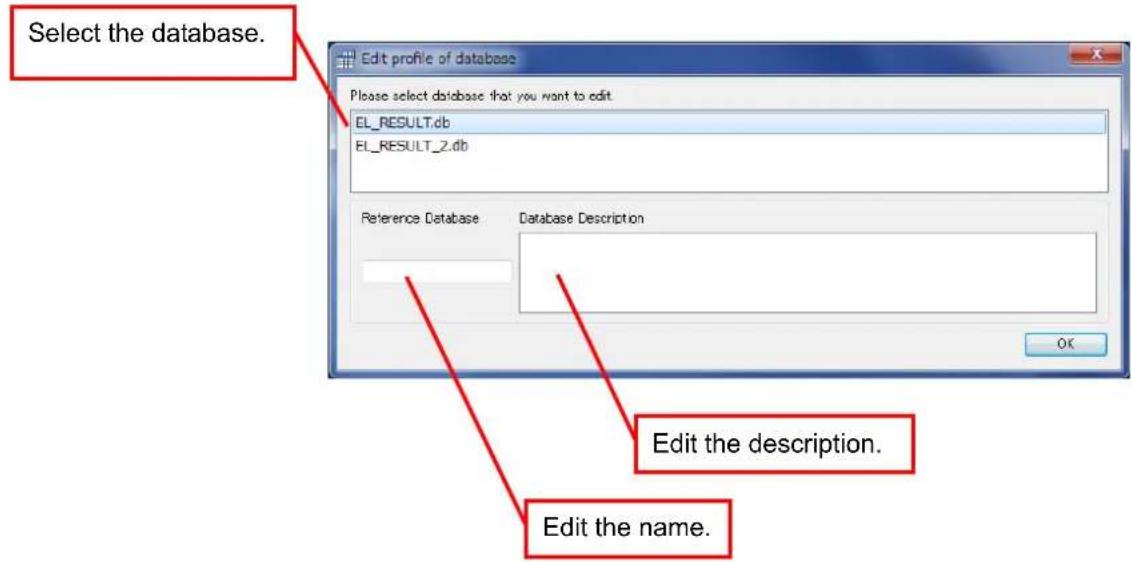
By selecting the Edit Database Profile button ☐, you can edit the name and the description of the registered database.
Select the database you wish to edit, then edit the name and the description.
Press the OK button after finishing the edit.
Adding or Changing the clicker
In case you need to add the clicker or replace the clicker due to reasons such as malfunction, follow the instruction described below.

Note
Connect the wireless adapter to your computer before performing the above operation.

Make sure to follow the instruction correctly otherwise the system may not recognize the added clicker.
1 Perform the wireless setting for the added clicker.
Establish the wireless setting between the added clicker and the wireless adapter.
Refer to 〈Wireless setting for the clicker〉 in Various Settings for details
② Launch ELMO SRS Configurations.
Launch the configuration software. Select the Clicker Information button in the "SRS" tab to show the list of clickers.
3 Select the added clicker.
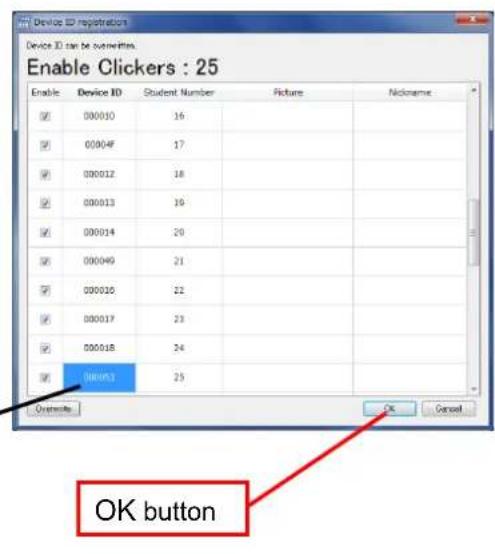
Turn on the added clicker and press one of the Response buttons on the clicker. Verify that the Device ID of the added clicker is displayed in blue.
If the Device ID of the added clicker is not displayed, retry from the step ① "wireless setting".
When adding the clicker, press the OK button to finish. Register the student, if necessary.
When changing the clicker, continue to the step ④.
The cell turns to blue when the Response button of the clicker is pressed.

Note
The Device ID for the added clicker can be selected by a mouse.

Select the clicker to be replaced.
Select the Overwrite button. The Device ID of the added clicker turns to green from blue.
Select the Device ID of the clicker to be overwritten (deleted) from the list by using a mouse. The color of the Device ID of the relevant clicker turns to grey.


Overwrite the data.
Select [OK] after confirming the message in a dialogue box.


Only Device ID is overwritten. Other items remain unchanged. Once the clicker is replaced (overwritten), such clicker will not be able to communicate with the wireless adapter. Perform the 〈Wireless setting for the clicker〉 to use the clicker again.

Finalize the registration.
Finalize the registration by pressing [OK].

Make sure to select the OK button to activate the change.
Other Function
About LED
The power LED, the Response buttons LED and the wireless setting button LED on the wireless adapter indicate the condition of the respective devices.
Clicker
■Power LED (Red)
| LED status | Condition |
| Off | The power is off.Press the power button to turn on the power. |
| On | The power is on.Press the power button for over 3 seconds to turn off the power. |
| Flashing | The battery level is low. Replace with new batteries.※The LED flashes for max. 5 seconds and then lights up after the power on or the wireless connection is successfully established. |
■Response buttons (LED) (Red)
| LED status | Condition | |
| Off | The power is off or in standby status. | |
| On | The communication with the wireless adapter is established.※LED is on for max.5 seconds after the connection establishment. | |
| Flashing | The clicker is trying to establish the connection with the wireless adapter or failed to establish the connection with the wireless adapter.※ The clicker attempts to establish the connection for max. 7 seconds after pressing Response button.When succeeded: LED lights up after flashing.When failed: LED flashes for max. 5 seconds then goes off. | |
| If Response button LED does not light up, the response is not accepted. Retry by pressing Response button again after the LED is off. | ||
| High-speed flashing | The Wireless setting button is pressed.※During the wireless setting, only [2/B] button flashes. Once the wireless setting is finished, [2/B] button goes off. Then [1/A] and [3/C] buttons flash and go off. | |
Wireless adapter
■Wireless setting button (LED) (Blue)
| LED status | Condition |
| Off | The power of the computer is off. |
| Flashing | The power of the computer is on or the adapter is communicating with other device.※The interval of flash changes depending on the condition of th communication. |
| High-speed flashing | The Wireless setting button is pressed. |

For details about other LED status than starting SRS when using with Elmo Pen Tablet CRA-1, refer to the User's Guide of ELMO Wireless Slate/ Tablet.
Troubleshooting
If you have a problem or questions about this product, please read this troubleshooting guide first. If the problem still exists, consult the dealer from whom you purchased this product.
| Communication between the clicker and the wireless adapter is unstable | |
| Is third-party wireless device or software installed? | If third-party wireless device or software is operating, it may conflict with the operations of the clicker.Do not operate third-party wireless device or software while using the clicker. |
| Are the clicker and the wireless adapter in proper condition? | Communication may become unstable if there is an obstruction between the clicker and the wireless adapter.Also, due to the inherent characteristics of wireless communication, the installation angle of both devices may affect the stability of the communication.Remove the obstruction or change the installation location.When holding the clicker, do not cover the upper part of it with your hand. |
| Is a wireless device or electronic equipment being used nearby? | Wireless devices or electronic equipments may interfere with the communication between the clicker and the wireless adapter. Refer toand then perform the wireless settings.If this does not improve the situation, stop using the wireless device or electronic equipment, or move to a location with no interference.When using the clickers, keep at least 20cm distance between the clickers. |
| Cannot use SRS / SRS icon is not displayed | |
| Is a proper wireless adapter used? | Make sure to use the wireless adapter supplied with SRS. Do not use a wireless adapter supplied with the Pen Tablet. |
| Is the wireless setting between the clicker and the wireless adapter completed? | Wireless setting between the clicker and the wireless adapter needs to be set before you use a newly purchased clicker first.Refer to Wireless setting for the clicker for the wireless setting. |
| Cannot use Pen Tablet | |
| Using the Pen Tablet which is not compatible with SRS used? | When the firmware upgrade of your Pen Tablet is needed, consult with the dealer from whom you have purchased the Pen Tablet. |
| Is the wireless setting between the Pen Tablet and the wireless adapter completed? | Wireless setting between your Pen Tablet and the wireless adapter supplied with SRS needs to be set before you use your Pen Tablet with SRS.Refer to User's Guide of ELMO Wireless Slate/ Tablet for the wireless setting. |
Specifications
Product specifications
Clicker
| Model Name CRV-CK-1 | |
| Operating Temperature | 0°C - 40°C (32°F - 104°F) |
| Wireless Band Used 2.4GHz | |
| Communication Range | Approx.15m (49.2 feet) (differs depending on the usage conditions) |
| Power Supply Alkaline dry cell AAA battery x 2 | |
| Continuous Operation Time | Approx. 150 hours (differs depending on the usage conditions) |
| Auto Power Off time | Approx. 300 seconds |
| Consumption Current | Max. 3.0V 60mA |
| External Dimensions | L110(4 11/32") × W64(2 17/32") × H26(1 1/32") (mm) |
| Weight | 90g(0.1984lb) (including dry cell AAA battery x 2) |
■Wireless adapter
| Model Name | CRV-CK-1R |
| Operating Temperature | 0°C - 40°C (32°F - 104°F) |
| Wireless Band Used | 2.4GHz |
| Number of clickers to be registered | Max. 50pcs |
| PC Interface | USB typeA plug (USB2.0 HI-SPEED) |
| Power Supply USB bus power | |
| Consumption Current | Max. 5.0V 50mA |
| External Dimensions | L64(2 17/32") × W22(7/8") × H10(13/32") (mm) |
| Weight | 11g(0.02425lb) |
■Carrying Bag
| Storage Temperature | -20°C - 60°C (-4°F - 140°F) |
| Number of clicker compartments | 32 |
| Number of Pen Tablet storage | 1 |
| External Dimensions | L425(16 47/64") × W365(14 9/16") × H165(6 1/2") (mm) |
| Weight | CRV-24:3.2kg(7.1lb) (Clicker x 24pcs)CRV-32:4.0kg(8.9lb) (Clicker x 32pcs)※ (Including 1pce wireless adapter and accessories) |
System Requirements
The SRS can be used in the following computer environments.
| Computer model | IBM PC/AT compatible |
| Operating system (OS) | ■WindowsMicrosoft Windows XP Home Edition / Professional SP2Microsoft Windows Vista Home Basic / Home Premium / Business / Enterprise / Ultimate SP1Microsoft Windows 7 Starter / Home Premium / Professional / Ultimate64-bit versions supported (excluding Windows XP 64-bit version)■MacMac OS X 10.7.x / 6.x / 5.x Intel CPU |
| CPU | Intel Core 2 Duo 2 GHz equivalent or higher |
| Memory | 2 GB or higher |
| Video board | Board compatible with Microsoft DirectX 9.0c |
| Hard disk | 1 GB or higher empty space |
| Screen resolution | 1024×768 pixels or higher32-bit or higher |
| USB | USB 2.0 HI-SPEED |
| Compatible Document Cameras | L-1exL-1zeroL-1zero rTT-02RXTT-02sL-1nP10SP30SP10P100P100NHV-110uFF-1CO-10 (i-Pochette)TT-12L-12MO-1 (excluding Mac)P30HD |

- If a sound device cannot be used, some of the functions may not operate.
- Operation is not guaranteed for all computer environments.
Disclaimer
The information on this manual and Image Mate Accent for SRS are subject to change without prior notice.
The software already installed in your computer or other devices connected to your computer may affect the performance of Image Mate Accent for SRS.
ELMO is not liable for any direct or indirect damages resulting from the use of Image Mate Accent for SRS.
About Trademarks
ELMO and Image Mate are registered trademarks of ELMO Co., Ltd.
Teacher's + Choice
is a trademark of ELMO Co., Ltd.
The full title for Windows® XP is the Microsoft® Windows® XP operating system.
The shortened form of the OS name is used in the text.
The full title for Windows® VISTA is the Microsoft® Windows® VISTA operating system.
The shortened form of the OS name is used in the text.
The full title for Windows® 7 is the Microsoft® Windows® 7 operating system.
The shortened form of the OS name is used in the text.
Microsoft and Windows are registered trademarks of the Microsoft Corporation in the U.S. and other countries.
All other company/product names described in this manual are trademarks or registered trademarks of their respective companies.
Repairable Period
■Repairable Period
ELMO will maintain and keep spare parts for this product for eight years after the discontinuation of this product. After this period, ELMO will no longer offer repair service for this product.
ELMO CO., LTD.
6-14, Meizen-cho, Mizuho-ku, Nagoya, 467-8567, Japan
OVERSEAS SUBSIDIARY COMPANIES
ELMO USA CORP.
Headquarters
1478 Old Country Road
Plainview, NY 11803-5034, U.S.A
Tel:(516) 501-1400 Fax:(516) 501-0429
E-mail: elmo@elmousa.com Web: http://www.elmousa.com
West Coast Branch Cypress Pointe Business Park
5676 Corporate Avenue
Cypress, CA 90630, U.S.A
Tel:(714) 828-8457 Fax:(714) 828-8429
ELMO Europe SAS



- Student Response System
- CRV-24/32
- IMPORTANT SAFETY INSTRUCTIONS
- WARNING:
- TO REDUCE THE RISK OF FIRE OR ELECTRIC SHOCK, DO NOT EXPOSE THIS PRODUCT TO RAIN OR MOISTURE.
- NOTICE:
- Radiofrequency radiation exposure Information:
- Follow these guidelines to use the product safely.
- Warning
- Attention
- Usage precautions
- ■ About radio waves used by the clicker
- ■ About wireless equipment used on the 2.4 GHz band
- ■Usage environment / Storage
- ■ Maintenance
- CONTENTS
- IMPORTANT SAFETY INSTRUCTIONS....2
- IMPORTANT SAFEGUARDS ....4
- Usage precautions ....7
- Before Use ....12
- About Image Mate Accent....21
- Using SRS....39
- Utilizing the collected data....61
- Various Settings 68
- Other Function....87
- Troubleshooting 89
- Specifications....90
- Before Use
- Note
- Main functions
- ■Pose questions, collect responses and display the results.
- ■Utilize the collected data
- ■Manage the clicker
- ■Use with the Document Camera or the Pen Tablet
- Supplied Items
- Part Names
- Clicker
- Front
- Power button
- Power LED
- Response button (1\~6,T/F)
- Strap hole
- Back
- Student number ( Clicker number )
- Device ID
- Battery box cover fixing screw
- Battery box cover
- Battery box
- Wireless setting button
- ■ Carrying Case
- Cable Storage Pocket
- Double zipper
- Name holder
- Shoulder belt
- Pen Tablet storage
- Clicker compartments
- Accessory storage
- Preparation
- Insert the batteries into the clicker
- Attach the clicker number sticker (if necessary)
- Software installation
- Windows
- ■Macintosh(Mac)
- Connecting the wireless adapter
- Launching Image Mate Accent for SRS
- Database Selection
- About Image Mate Accent
- Basic Screen
- Basic Screen Configuration
- Various Operation Modes
- Diagram of the modes
- PC Annotation Mode
- PC Operation Mode
- Document Camera Mode
- Whiteboard Mode
- Teaching Material Import Mode
- ■Selecting Pictures
- ■ Setting a picture as Favorite
- ■ Setting a picture as Background
- ■ Register the background shortcuts
- ■ Deleting a picture
- Drawing Operation
- Drawing
- 1
- 2
- Deleting
- ■Partial deletion
- ■ Delete all
- Recording a Lesson
- ■ Saving a picture
- ■ Recording a video
- Operating the Document Camera
- Mask Function
- Highlight Function
- Scroll Function
- Using PowerPoint Support Function
- Setting the Pen
- List of Menu icons
- Using SRS
- Operation screen of SRS
- List of SRS operations
- List of SRS buttons
- ■Before Testing (The color of the SRS control panel turns to blue.) (Starting screen)
- ■Testing is Open (The color of the SRS control panel turns to green.)
- ■Setting menu
- List of clicker operations
- Starting SRS
- Display the SRS control panel.
- Turn on the clicker.
- From posing a question to close the question
- ① Pose a question.
- ② Open Testing to receive responses from clickers.
- Respond to the question by using the Response buttons on the clicker.
- Close Testing.
- Display the results.
- ■Windowmize the results
- ■Speed Ranking
- ⑥ Finish the question.
- Finishing SRS
- Turn off the clicker.
- ② Clear the SRS control panel.
- Group learning
- Configure group settings.
- Join in a group.
- Finalize the group settings.
- Ask a question and display the results.
- Display the group results.
- Review of the session
- Prepare the review.
- Display the question screen.
- Finish the review.
- Giving an award
- Enter names of recipient and sender.
- Utilizing the collected data
- Using Result Display Software
- Starting the software
- Displaying the Session report
- Display a list of sessions.
- Display a list of questions.
- Draw over the question screen.
- Display a report for the question.
- Print a report.
- Output the personal report
- Display the list of sessions.
- Saving in other formats
- Various Settings
- Wireless setting for the clicker
- Image Mate Accent for SRS Configurations
- Description of menu tabs
- Settings
- ① Database Location
- ② Timer Settings
- ③ Default quiz type
- ④Automatically display graph results
- ⑤ Clicker Power
- Software update
- ② Proxy setting
- About
- SRS Data Settings
- Register
- Database
- Check the connection
- Battery level
- Clicker Information
- Register students information
- Let's take photos!
- Database Settings
- Create Database
- Select Database
- Edit Database Profile
- Adding or Changing the clicker
- Perform the wireless setting for the added clicker.
- ② Launch ELMO SRS Configurations.
- Select the added clicker.
- Select the clicker to be replaced.
- Overwrite the data.
- Finalize the registration.
- Other Function
- About LED
- Wireless adapter
- Troubleshooting
- Specifications
- Product specifications
- System Requirements
- Disclaimer
- About Trademarks
- Repairable Period
- ■Repairable Period
- ELMO CO., LTD.
- OVERSEAS SUBSIDIARY COMPANIES
Brand : Elmo
Model : CRV-32
Category : Camera