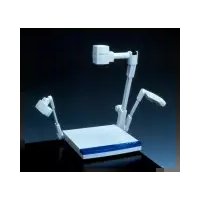
EV-2000AF - Camera Elmo - Free user manual and instructions
Find the device manual for free EV-2000AF Elmo in PDF.


| Product Type | Document Camera |
| Brand | Elmo |
| Model | EV-2000AF |
| Image Sensor | 1/2.7" CMOS |
| Resolution | 1920 x 1080 (Full HD) |
| Magnification | Optical: 12x, Digital: 8x |
| Focus System | Autofocus (AF) with manual override |
| Frame Rate | 30 fps |
| Dimensions (W x H x D) | 16.5 x 4.5 x 10.2 in (419 x 114 x 259 mm) |
| Weight | 4.4 lbs (2.0 kg) |
| Power Supply | AC 100-240V, 50/60 Hz |
| Power Consumption | 20W (max) |
| Connectivity | USB 2.0, VGA, HDMI, Composite |
| Light Source | Integrated LED lamp |
| Shooting Area | Up to A3 (11.7 x 16.5 in) |
| Storage | SD card slot (up to 32GB) |
| Supported Image Formats | JPEG, PNG, BMP |
| Supported Video Formats | Motion JPEG, AVI |
| Cleaning Instructions | Wipe with soft dry cloth; do not use solvents |
| Reparability | Replaceable lamp and USB cable; authorized service |
Frequently Asked Questions - EV-2000AF Elmo
User questions about EV-2000AF Elmo
0 question about this device. Answer the ones you know or ask your own.
Ask a new question about this device
Download the instructions for your Camera in PDF format for free! Find your manual EV-2000AF - Elmo and take your electronic device back in hand. On this page are published all the documents necessary for the use of your device. EV-2000AF by Elmo.
USER MANUAL EV-2000AF Elmo
natural_image
Technical line drawing of a mechanical device with articulated arms and a base platform (no text or symbols)Please read this instruction manual carefully before using this Visual Presenter and keep it for future reference.
IMPORTANT SAFEGUARDS
- Read Instructions – All the safety and operating instructions should be read before the appliance is operated.
- Retain Instructions – The safety and operating instructions should be retained for future reference.
■ Heed Warnings – All warnings on the product and in the operating instructions should be adhered to.
■ Follow Instructions – All operating and use instructions should be followed.
- Cleaning – Unplug this product from the wall outlet before cleaning. Do not use liquid cleaners or aerosol cleaners. Use a damp cloth for cleaning.
■ Attachments – Do not use attachments not recommended by the product manufacturer as they may cause hazards.
Water and Moisture – Do not use this product near water - for example, near a bath tub, wash bowl, kitchen sink, or laundry tub, in a wet basement, or near a swimming pool, and the like.
■ Accessories – Do not place this product on an unstable cart, stand, tripod, bracket, or table. The product may fall, causing serious injury to a child or adult, and serious damage to the product. Use only with a cart, stand, tripod, bracket, or table recommended by the manufacturer, or sold with the product. Any mounting of the product should follow the manufacturer's instructions, and should use a mounting accessory recommended by the manufacturer.
Ventilation – Slots and openings in the cabinet are provided for ventilation and to ensure reliable operation of the product and to protect it from overheating, and these openings must not be blocked or covered. The openings should never be blocked by placing the product on a bed, sofa, rug, or other similar surface. This product should not be placed in a built-in installation such as a bookcase or rack unless proper ventilation is provided or the manufacturer's instructions have been adhered to.
■ Power Sources – This product should be operated only from the type of power source indicated on the marking label. If you are not sure of the type of power supply to your home consult your appliance dealer or local power company. For products intended to operate from battery power, or other sources, refer to the operating instructions.
■ Grounding or Polarization – This product may be equipped with either a polarized 2-wire AC line plug (a plug having one blade wider than the other) or a 3-wire grounding type plug, a plug having a third (grounding) pin. The 2-wire polarized plug will fit into the power outlet only one way. This is a safety feature. If you are unable to insert the plug fully into the outlet, try reversing the plug. If the plug still fails to fit, contact your electrician to replace your obsolete outlet. Do not defeat the safety purpose of the polarized plug. The 3-wire grounding type plug will fit into a grounding type power outlet. This is a safety feature. If you are unable to insert the plug into the outlet, contact your electrician to replace your obsolete outlet. Do not defeat the safety purpose of the grounding type plug.
■ Power-Cord Protection – Power-supply cords should be routed so that they are not likely to be walked on or pinched by items placed upon or against them, paying particular attention to cords at plugs, convenience receptacles, and the point where they exit from the product.
Lightning – For added protection for this product during a lightning storm, or when it is left unattended and unused for long periods of time, unplug it from the wall outlet and disconnect the antenna or cable system. This will prevent damage to the product due to lightning and power-line surges.
■ Overloading – Do not overload wall outlets, extension cords, or integral convenience receptacles as this can result in a risk of fire or electric shock.
■ A product and cart combination should be moved with care. Quick stops, excessive force, and uneven surfaces may cause the product and cart combination to overturn.

■ Object and Liquid Entry – Never push objects of any kind into this product through openings as they may touch dangerous voltage points or short-out parts that could result in a fire or electric shock. Never spill liquid of any kind on the product.
■ Servicing – Do not attempt to service this product yourself as opening or removing covers may expose you to dangerous voltage or other hazards. Refer all servicing to qualified service personnel.
■ Damage Requiring Service – Unplug this product from the wall outlet and refer servicing to qualified service personnel under the following conditions:
- When the power-supply cord or plug is damaged.
- If liquid has been spilled, or objects have fallen into the product.
- If the product has been exposed to rain or water.
- If the product does not operate normally by following the operating instructions. Adjust only those controls that are covered by the operating instructions as an improper adjustment of other controls may result in damage and will often require extensive work by a qualified technician to restore the product to its normal operation.
- If the product has been dropped or damaged in any way.
- When the product exhibits a distinct change in performance - this indicates a need for service.
■ Replacement Parts – When replacement parts are required, be sure the service technician has used replacement parts specified by the manufacturer or have the same characteristics as the original part. Unauthorized substitutions may result in fire, electric shock or other hazards.
■ Safety Check – Upon completion of any service or repairs to this product, ask the service technician to perform safety checks to determine that the product is in proper operating condition.
- Heat – The product should be situated away from heat sources such as radiators, heat registers, stoves, or other products (including amplifiers) that produce heat.


SA 1965
The lightning flash with arrowhead symbol, within an equilateral triangle, is intended to alert the user to the presence of uninsulated "dangerous voltage" within the product's enclosure that may be of sufficient magnitude to constitute a risk of electric shock to persons. This marking is located at the bottom of product.

SA 1966
The exclamation point within an equilateral triangle is intended to alert the user to the presence of important operating and maintenance (servicing) instructions in the literature accompanying the product.
WARNING: TO REDUCE THE RISK OF FIRE OR ELECTRIC SHOCK, DO NOT EXPOSE THIS PRODUCT TO RAIN OR MOISTURE.
THIS IS A CLASS A PRODUCT. IN A DOMESTIC ENVIRONMENT THIS PRODUCT MAY CAUSE RADIO INTERFERENCE IN WHICH CASE THE USER MAY BE REQUIRED TO TAKE ADEQUATE MEASURES.
INFORMATION
This equipment has been tested and found to comply with the limits for a Class A digital device, pursuant to Part 15 of the FCC Rules. These limits are designed to provide reasonable protection against harmful interference when the equipment is operated in a commercial environment. This equipment generates, uses, and can radiate radio frequency energy and, if not installed and used in accordance with the instruction manual, may cause harmful interference to radio communications. Operation of this equipment in a residential area is likely to cause harmful interference in which case the user will be required to correct the interference at his own expense.
USER-INSTALLER CAUTION:
Your authority to operate this FCC verified equipment could be voided if you make changes or modifications not expressly approved by the party responsible for compliance to Part 15 of the FCC rules.
BEFORE YOU USE
■ Use the Visual Presenter under the rated electrical conditions and TV system.
Do not leave the Presenter under direct sunlight or by heaters, or the Presenter may be discolored, deformed, or damaged.
- Do not place the Presenter in any humid, dusty, windy or vibrating location. Use the Presenter in the following environmental conditions:
Temperature : 5°C\~40°C (41°F\~104°F)
Humidity : 30\~85% (No condensation)
■ Use a soft, dry cloth for cleaning. Do not use any volatile solvent, such as thinner or benzine.
- Do not directly point the camera lens into the sun, or the camera may be damaged.
■ Caring for the batteries :
- If the Presenter is not used for a long time, take out the batteries from the case.
- Do not use rechargeable Ni-Cd batteries.
- Do not use new and old batteries, or batteries of different types together.
- Do not try to recharge or short-circuit the batteries.
CONTENTS
1. PART NAMES AND FUNCTIONS .... 5
Appearance....5
Front Operation Panel....6
Rear Panel 6
Wireless Remote Control 7
Camera Head and Column 8
2. WIRELESS REMOTE CONTROL....9
Preparation 9
3. SETTING UP....10
Connection to the monitor TV 11
4. OPERATION PROCEDURES....12
Simple steps for presenting printed material....12
Convenient use of the camera 13
Storing the Presenter 14
5. VARIOUS FUNCTIONS.... 15
Lighting 15
Zoom....15
Enlarging the image 15
Focus 16
Nega/posi conversion 17
Color/B&W selection....18
Iris....18
6. RS-232C SPECIFICATIONS ..... 19
Setting up 19
Cable connection 20
RS-232C connector specifications (DSUB-9P)....20
Table of the communication commands....21
Data format specifications....22
Transmission specifications 23
Connection 23
7. TROUBLESHOOTING HINTS 24
8. SPECIFICATIONS....25
1. PART NAMES AND FUNCTIONS
○ Appearance

○ Front Operation Panel

| Name Function | Reference Page | ||
| 11 | Zoom Buttons To change the image size. | P.15 | |
| 12 | Auto Focus Button To focus automatically (One-shot auto focus). | P.16 | |
○ Rear Panel
![14. AC Outlet 13. Power cord Receptacle [AC IN] 17. RS-232C Terminal [RS-232C] OUTLET (UNSWITCHED) AC125V-60-U (Max 32A) AC IN POWER RS-232C OUTPUT VIDEO S-VIDEO VIDEO 15. Power Switch [POWER] 16. Video out Terminal [OUTPUT] S-Video (mini DIN 4P) Composite-Video (RCA pinjack, BNC)](/content/2026/05/1044558/images/49fd91b3f5bdecc23b03e07480cc8e2f4dec81dac9f89dc00ff134f8a7e9fc38.jpg)
| Name Function | Reference Page | ||
| 13 | Power Cord Receptacle [AC IN] | To connect to the power cord. | |
| 14 A | C Outlet To supply power up to 400W (Not interlocked with the power switch). | ||
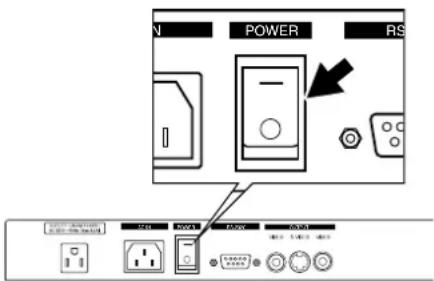
| 15 P | Power Switch [POWER] | To turn ON/OFF the power supply. | |
| 16 V | Video-out Terminal To connect to a [OUTPUT·S-VIDEO/VIDEO]S-Video (mini DIN4P)/Composite-Video(RCA pinjack, BNC) | TV monitor or the like. | P.11 |
| 17 R | S-232C Terminal [RS-232C] To | connect a PC with an RS-232C cable to control the Presenter from the PC. | P.19 |
○ Wireless Remote Control
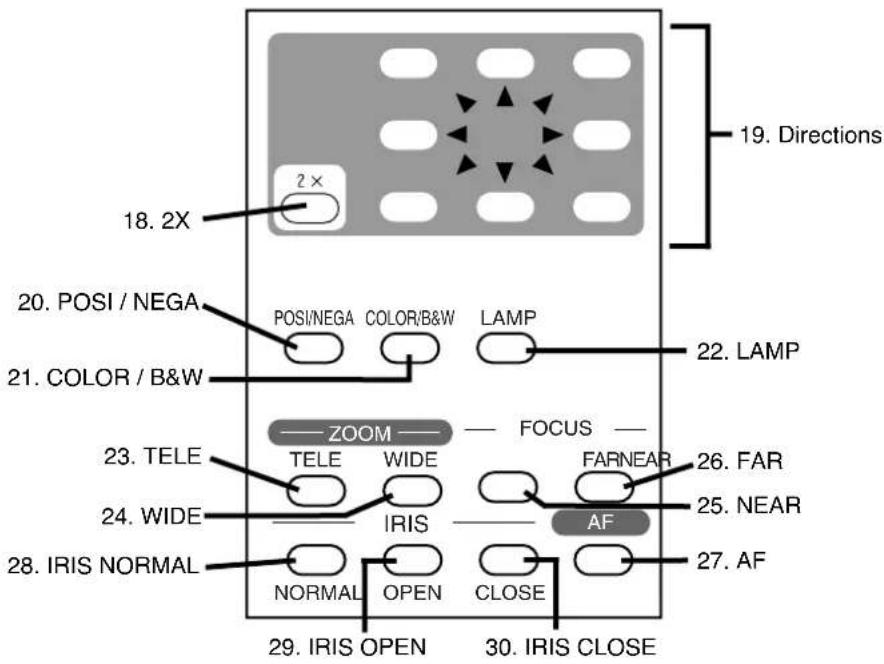
| Button Name Function | Reference Page | |
| 18 2X To double the image size. | P.15 | |
| 19 Directions To scroll the enlarged image. | When this key is pressed while the image is being enlarged double, the image is scrolled in the direction specified by the arrow of the pressed key. | P.15 |
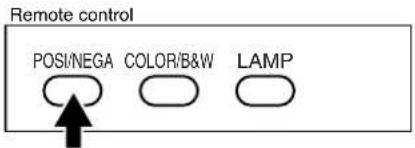
| 20 POSI/NEGA To convert posi/nega modes. | P.17 | |
| 21 COLOR/B&W To select Color/B&W (Black&White) modes. | P.18 | |
| 22 LAMP To turn ON/OFF the upper light. | P.15 | |
| 23 TELE To zoom in. | P.15 | |
| 24 WIDE To zoom out. | P.15 | |
| 25 NEAR To move the focus near. | P.16, P.17 | |
| 26 FAR To move the focus far. | P.16, P.17 | |
| 27 AF To focus automatically. | P.16 | |
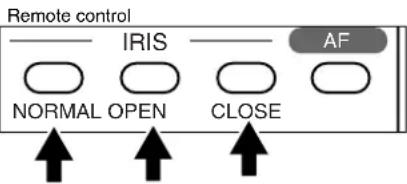
| 28 IRIS NORMAL To reset the auto iris to the initial setting. | P.18 | |
| 29 IRIS OPEN To open the auto iris. | P.18 | |
| 30 IRIS CLOSE To close the auto iris. | P.18 | |
○ Camera Head and Column
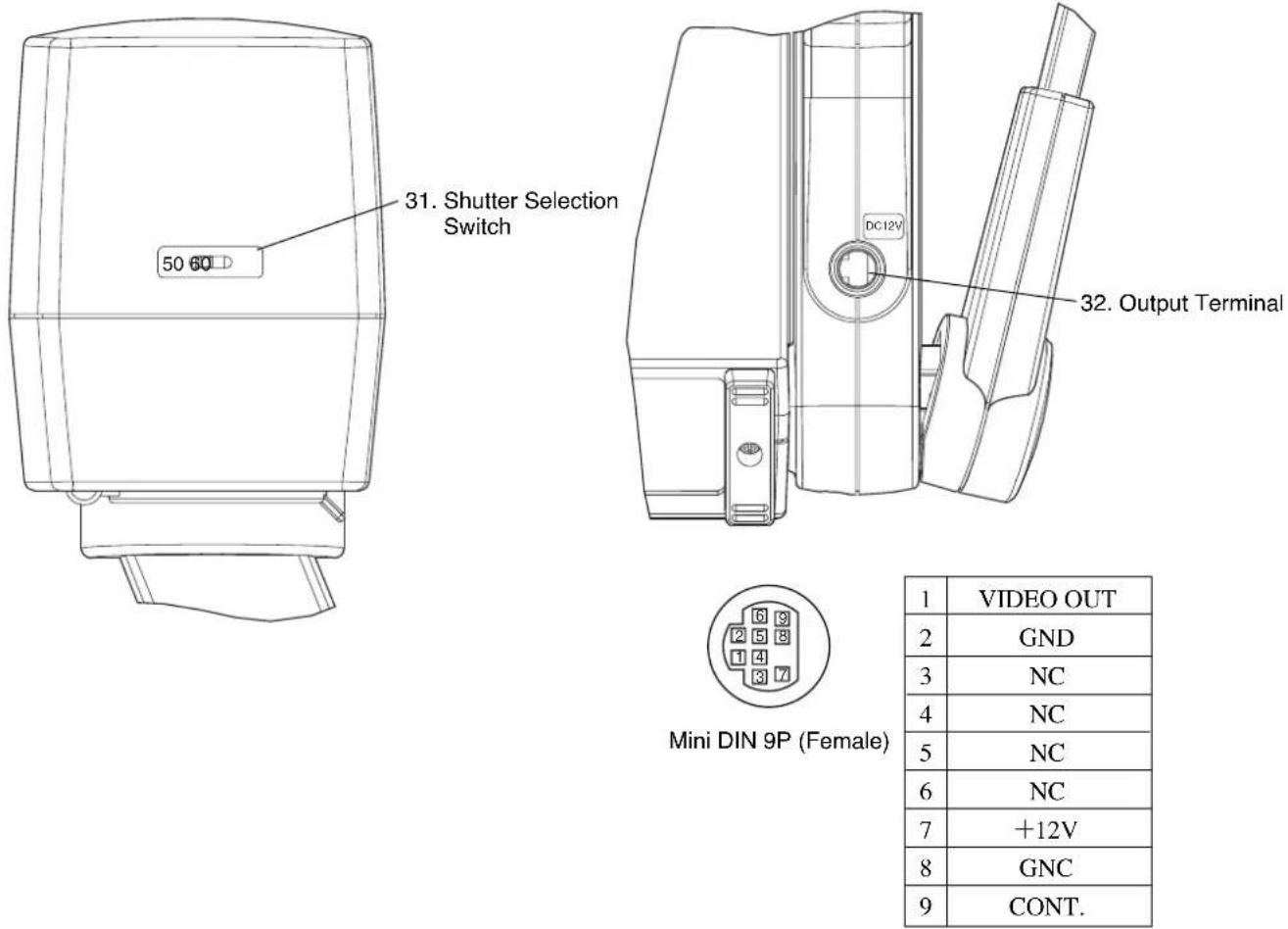
| 1 | VIDEO OUT |
| 2 | GND |
| 3 | NC |
| 4 | NC |
| 5 | NC |
| 6 | NC |
| 7 | +12V |
| 8 | GNC |
| 9 | CONT. |
| Name Function | Reference Page | ||
| 31. | Shutter Selection Switch To set the | shutter time. In an areawhere power frequency is 50Hz, using the unit with the shutter selection switch set to [60] may cause flickering due to illumination of AC power discharge tube, such as a fluorescent or a mercury lamp. Using the unit with the shutter selection switch set to [50] may reduce the flickering. This switch is factory-set to 60Hz. | |
| 32. | Output Terminal | USA : ELMO USA Tech Support (800)947-3566 for further assistance. Others : Call to ELMO CANADA (Canada) or the ELMO exclusive distributors. |
2. WIRELESS REMOTE CONTROL
Point the infrared emitting part of the wireless remote control unit at the infrared sensor of the Presenter, located on the top of the column, and press the button for the desired function.
The receivable range may be narrowed when the Presenter is placed under sunlight, near an inverter fluorescent lump or in any other unfavorable surroundings.
Depending on the conditions of fluorescent lamps, etc. the sensor may fail to receive the infrared light. In such a case, relocate the Presenter, or take other countermeasures.
Receivable range
Distance : Approx. 7 m (23 ft.) or less from the light receiving area front of the wireless remote control Angle : Approx. 30 degrees or less from the light receiving area of the wireless remote control rightward, leftward, upward and downward, respectively


○ Preparation
Remove the battery case cover by pressing downward on the [▼mark part in the direction as indicated by the arrow. Install 2 pcs of batteries (type R03, AAA) into the case in the direction as indicated there.
Note: Install the batteries with the right polarity.
Note: Change the batteries once a year.
Note: The batteries supplied with the Presenter are only for use in initially confirming the operation of the Presenter. It is not guaranteed that these batteries can work effectively for the indicated period.
3. SETTING UP
(1) Raise the column.
Raise up the column once, and fall it until it is locked.
Note: The lighting arm (L) cannot be independently raised.
Note: Unless the column is fully raised up, it may not be locked when it is fallen.
(2) Raise the lighting arm (R) unit, and turn the camera head to direct the lens unit to the stage.
(3) Turn the lighting unit.
(4) Open the lighting arm unit and the lighting unit.
(5) Plug the power cord into the power cord receptacle of the Presenter and the the AC outlet.

○ Connection to the monitor TV
Note: Be sure to turn OFF the power supply to all equipment before making any connections to protect the Presenter and all the connected equipment.
Note: Hold the cable plug part when connecting or disconnecting the cables.
● Connection to the composite video-in terminal
Use the supplied RCA video/audio cable or a BNC cable available on the market. (Either the RCA jack or the BNC jack can be used.)

● Connection to the S video-in terminal
Connect the S video-out terminal (mini DIN 4P) of the Presenter to the S video-in terminal of the monitor TV with an S video cable available on the market.
If the equipment to be used is provided with a Y/C separate connector, a conversion adapter is necessary.

○ Simple steps for presenting printed material
(1) Turn ON the power switch.
Note: Before turning ON the power switch, connection to the monitor should have been completed.
Note: If the power switch is turned ON immediately after being turned OFF, the Presenter may not operate. For restarting, turn ON the power switch several seconds after turning OFF.
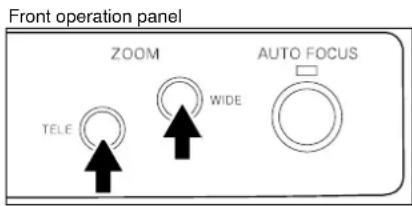
(2) Place the object on the stage. Adjust the image size according to the object size using the zoom buttons [TELE/WIDE] on the operation panel or wireless remote control, while watching the image on the TV monitor.
(3) Press the auto focus button [AF] on the front operation panel or remote control for focusing.
Note: The auto focus function works up to a height of approx. 15 cm (5.9 in.) above the stage surface on the maximum side of the zoom [TELE] (when a close-up lens is attached).


○ Convenient use of the camera
When the camera head arm is turned as shown in the right figure, material outside the stage can be photographed. When the camera head unit is set in the horizontal position, wall view, distant view, etc. can be photographed.
When the object is far away, open the close-up lens holder to your side.
Reference The focus can be achieved from 0.5 m (20 in.) to ∞

○ Storing the Presenter
(1) Turn OFF the power switch, and unplug the power cord and the video cable.
(2) Close the lighting unit and the lighting arm unit.
(3) Turn the lighting unit to the position shown in the right figure.
Note: Be sure to return the lighting unit to its original position. If it is in any other position when it is put away, the lighting unit may be damaged.
(4) Fall the lighting arm (R) unit, and turn the camera head to the position shown in the right figure (the position with the camera head slightly turned to the rear side panel).
Note: The lighting arm (L) cannot be independently fallen.
Note: Be sure to return the camera to its original position. If it is in any other position when it is put away, the camera head or the lens may be damaged.
(5) Raise up the column once, and then fall it.
Note: The illustration shows the right storage position of the column. Never apply excessive force to the column.
Note: Do not hold the head arm unit when carrying the Presenter.

natural_image
Technical line drawing of a mechanical device with rotating arms and base plate (no text or symbols)
natural_image
Technical line drawing of a robotic arm mounted on a base platform (no text or symbols)
natural_image
Technical line drawing of a mechanical device with a rotating arm and base mount (no text or symbols)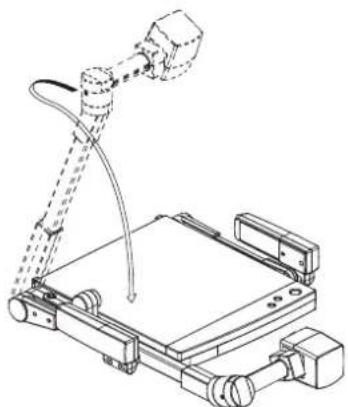
natural_image
Technical line drawing of a mechanical assembly with articulated arms and a base plate (no text or symbols)5. VARIOUS FUNCTIONS
○ Lighting
The lighting for presenting printed matter or other material is installed on standard.
Each time the lighting button [LAMP] on the wireless remote control is pressed, the lighting operates in order of the L-side lamp alone lights up the L- and R-side lamp goes off the L- and R-side lamps light up.
Reference When the R-side lamp unit is put away while the L-side lamp alone is lighting, large material can be effectively moved.
Note: When the lightness of the material surface is not sufficiently high or a 3-D object is presented, a sharp image with good color rendering can be obtained with the upper lighting unit on.
○ Zoom
With the 12-time optical zoom and the 2-time electronic zoom, the 24-time zoom operation is enabled.
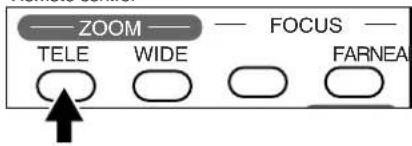
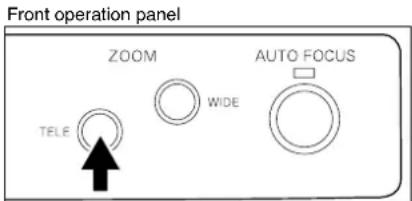
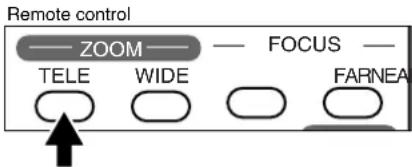
Press the zoom button [TELE] on the front operation panel or wireless remote control, and the image will gradually be enlarged.
Note: Within the electronic zoom range, the image quarity is degraded. Some documents (objects) may have conspicuous lateral stripes.
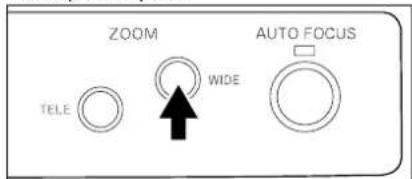
Press the zoom button [WIDE] on the front operation panel or wireless remote control, and the image will gradually be reduced.
Reference Switching of the electronic zoom
ON/OFF can be swiched by pressing the zoom button [TELE] and the zoom button [WIDE] on the wireless remote control in this order while pressing the auto focus button [AUTO FOCUS] on the front operation panel.
The electronic zoom has been set to ON at our factory.
○ Enlarging the image
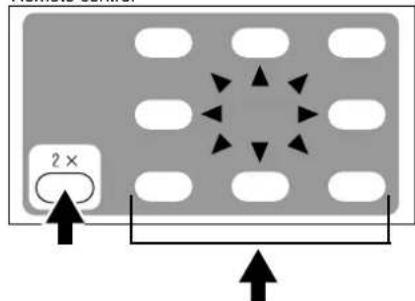
When the [2X] button on the wireless remote control is pressed, the center of the image is enlarged double, and the screen can be scrolled (moved) with the arrow buttons on the wireless remote control. When this button is pressed again, the enlargement is released.
Note: The scrollable range is equivalent to the photographable range of the built-in camera. When the zoom is on the maximum TELE side, the image cannot be enlarged further even if the [2X] button is pressed but can be scrolled when this button is pressed.

Front operation panel

Remote control
Front operation panel
Remote control

Remote control
○ Focus
● Auto Focus
To operate Auto-Focus, press the auto focus button [AF] on the front operation panel or wireless remote control, and the Auto-Focus will be activated.
While the auto-focus is in operation, the indication lamp blinks until the object is brought into focus.
The Presenter features a one-shot auto focus function. Once focusing is completed, the auto focus function is released, and the focused position maintains unchanged. (FOCUSFREE)
To obtain sharper image, zoom in on the object in the auto-focus mode while pressing the zoom button
[TELE] on the front operation panel or wireless remote control.
However, the objects listed below may not be brought into focus in the auto focus mode. In these cases, use the manual focus mode.
- Objects bearing little contrast
- Objects with fine repeated patterns, such as lateral stripes and cross stripes
- Objects glittering or reflecting strong light
- Objects with bright background, or excessive contrast
- Objects in a dark picture plane
- Objects located near and far away at the same time.
- Objects in motion
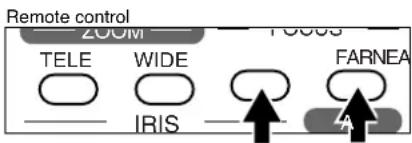
If the focus button [NEAR] or [FAR] on the wireless remote control is pressed during the auto focus, the auto focus will be released.
Note: The auto focus functions up to approx. 15cm (5.9 in.) above the stage surface (with the close-up lens attached).


● Powered Manual Focus
To focus on any part of the material, such as 3-D material, press the focus button [NEAR] or [FAR] on the wireless remote control.
Note: The auto focus function works up to a height of approx. 15 cm (5.9 in.) above the stage surface on the maximum side of the zoom [TELE] (when a close-up lens is attached).

○ Nega/posi conversion
To show a negative film.
Press the posi/nega conversion button [POSI/NEGA] on the wireless remote control, and the image will be converted accordingly.
To return to the normal (POSI) mode, press the posi/nega conversion button [POSI/NEGA] again.
○ Color/B&W selection
To present the B&W (Black&White) material such as documents in sharper image with no color blur on the monitor, set to color mode for normal use.
To change to B&W mode, press the color/B&W selection button [COLOR/B&W] on the wireless remote control.
To return to normal (COLOR) mode, press the color/B&W selection button [COLOR/B&W] again.

○ Iris
The auto iris can be manually adjusted.
To open the iris, press the iris button [OPEN].
To close the iris, press the iris button [CLOSE].
When the [NORMAL] button is pressed, the setting is reset to the initial setting.
Note: If the screen looks dark, press the iris button [OPEN] on the wireless remote control to adjust the brightness of the screen.
The adjusted condition is saved in the main body.
6. RS-232C SPECIFICATIONS
The Presenter can be controlled by a PC connected to the Presenter through the RS-232C terminal [RS-232C].
○ Setting up
(1) Connect the Presenter to a PC with an RS-232C connection cable.
Note: When using an RS-232C cable available in the market, make sure of the connection shown in the next page.
Note: To protect the Presenter and the PC, be sure to turn OFF all the power switches of all equipment before connecting.
(2) Start the PC, and set the communication mode of the RS-232C to the communication mode of the Presenter.
Note: For the information how to set the communication mode of the RS-232C, refer to the instruction manual of the PC.
(3) Start the PC program to operate the Presenter.
(4) Control through the RS-232C will start.
Note: For communication control, be sure to take the above steps for setting.
○ Cable connection

○ RS-232C connector specifications (DSUB-9P)
| Pin No. | Code | Name | Direction of data | |
| Visual Presenter | PC | |||
| 1 | CD | Carrier Detect | — | |
| 2 | RXD | Received Data | ← | |
| 3 | TXD | Transmitted Data | → | |
| 4 | DTR | Data Terminal Ready | → | |
| 5 | SG | Signal Ground | — | |
| 6 | DSR | Data Set Ready | ← | |
| 7 | RTS | Request To Send | → | |
| 8 | CTS | Clear To Send | ← | |
○ Table of the communication commands
| Function | Command | Parameter | Data | Comments |
| Auto Focus 0 | AF | ■■ | Command to execute the one-step auto focus. | |
| Focus adjustment | FO | +(NEAR)–(FAR)0(STOP) | ■■ | Command to adjust the focus. |
| Zoom adjustment | ZO | +(TELE)–(WIDE)0(STOP) | ■■ | Command to adjust the Zoom. |
| Iris adjustment | Command to OPEN the–(CLOSE)0(STOP)1(NORMAL) | ■■ | ||
| Lighting selection | PL | 0(OFF)1(L:ON)2(L,R:ON) | ■■ | Command to select the Lighting. |
| Nega/Posi conversion | NP | 0(POSI)1(NEGA) | ■■ | Command to convert Nega/Posi. |
| Color/B&W selection | CB | 0(COLOR)1(B&W) | ■■ | Command to select Color/B&W. |
| Enlarged image movement | PM | 0(STOP)1(→)2(←)3(↑)4(↓)5(↗)6(↘)7(↘)8(✓) | ■■ | When the electronic image enlargement is ON, the enlarged image moves.1: To the right side2: To the left side3: To the upper side4: To the lower side5: To the upper right6: To the upper left7: To the lower right8: To the lower left |
| Electronic image enlargement | MA | 0(OFF)1(ON) | ■■ | Command to enlarge the image to double the center area of the image. |
| Local lockout | LL | 0(OFF)1(ON) | ■■ | Command to invalidate the switches on the front operation panel and wireless remote control. |
| Default | DF | 0 | ■■ | Command to reset to the initialized mode. |
| Status request | QS | 0 | ■■ | Command to inquire the status of the equipment. |
| ROM version | Command to refer to the version. | |||
| Acknowledge check | SA | 0(OFF)1(ON) | ■■ | Command to select the command acknowledge for each operation command. (Default :ON) |
| Add CR command | SC | 0(OFF)1(ON) | ■■ | Command to add CR [0Dh] to the end of the acknowledge data. (Default :OFF) |
Note: " The data column means that SPACE [20H] should be transmitted twice.
○ Data format specifications
This command is executed in the form of 1-command/1 packet. The next command is not accepted until the previous processing is completed.
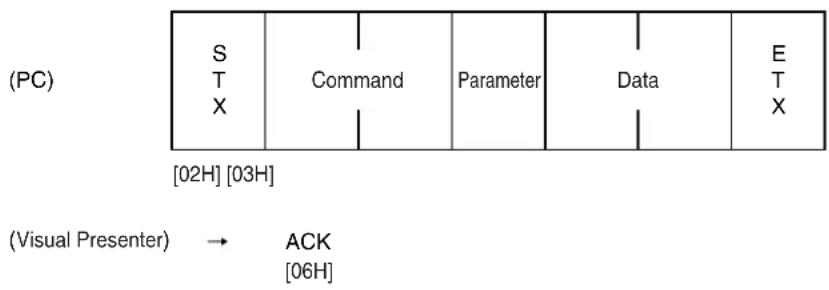
- The communication command always starts with STX (Start of Text) [02H], and ends with ETX (End of Text) [03H].
· If the communication format or command name is wrong, NAK (Negative Acknowledgement) [15H] will be sent from the Presenter as a result of failing to receive correctly. - When the communication format is correctly received, the Presenter sends ACK (Normal Acknowledgement) [06H].
● Transmission Command (PC Visual Presenter)
Each operation command is executed in ASCII code, and transmitted in a set of 7 bytes as follows:
flowchart
graph TD
    A["S"] --> B["T"]
    B["X"] --> C["Command"]
    C --> D["Parameter"]
    D --> E["Data"]
    E --> F["E"]
    F["X"] --> G["02H"]
    G --> H["03H"]
    I["(Visual Presenter)"] --> J["ACK"]
    J --> K["06H"]
● Response data format (Visual Presenter PC)
- Status request format (Parameter 0)
![(Visual Presenter) S T X Lighting selection 30H Nega /Posi Color /B&W 30H Electronic image enlargement 30H Local Lock out E T X [02H]](/content/2026/05/1044558/images/c6e8e157f43dcd04ce69c021ebaa399a1b700156190f2532c43c3b0d5d7fb316.jpg)
· ROM version
![(Visual Presenter) S T X 56H 46H 42H [V] V F B * * * [E] T X [02H] [03H]](/content/2026/05/1044558/images/b8f07f006f53ab31e7f4af31796188668e2983282cd3faa910311c4ddc56d6f2.jpg)
○ Transmission specifications
· Full duplex start-stop sync. mode
- Start bit : 1 bit
- Data bit : 8 bits
- Stop bit : 1 bit
· Parity bit : None
· X parameter : None
· Baud rate (Communication speed) : 9600bps
○ Connection
If the RS-232C cable is not correctly connected between the Presenter and the PC, no acknowledgement is transmitted. Connect the RS-232C cable correctly, and fix it firmly with the connector set screws before the operation.
7. TROUBLESHOOTING HINTS
| Symptom | Possible cause/countermeasure |
| No image on TV monitor | Cable is not properly connected to the video-in terminal of monitor.The power cord is disconnected from the wall AC outlet.The plug is disconnected from the power cord receptacle of the Presenter.The power switch is not turned ON.Zoom is set at TELE to display only white/black part of the material.The switch is turned ON immediately after it is turned OFF. In this case, the Presenter may not start. Wait several seconds after turning OFF the power switch, and then turn ON the power switch. |
| Out of focus | The object is too close to the lens. Check if it does not stand higher than 15 cm (5.9 in.) above the stage surface.Zoom is set at TELE after focusing at WIDE angle.Focus on the point of max. TELE.In the auto-focus, focusing is difficult in some cases. |
| The lamp is not quickly turned ON | For protection purposes, the lamp is turned ON after preheating for 2 seconds. This is not a fault. |
| Image is too dark | The ambient light is not sufficient. Press the lighting unit button [LAMP] to turn ON the upper lamp. |
| The image of printed matter is striped | This is caused by the interference between the dots of printed matter and the scanning line. |
| The image flickers | The light from the discharge tube (50Hz) does not come to the screen. This trouble may be reduced by setting the shutter selection switch to [50]. (Refer to p. 8) |
If the trouble still remains after checking the above, consult your dealer or an authorized ELMO service center.
8. SPECIFICATIONS
- General
| Item | Specifications | ||
| Power source | AC120V 60Hz | ||
| Rated current | 0.5A | ||
| AC outlet | 1 pce. (Max. 400W/Unswitched) | ||
| Outside dimensions | 500mm(W) X 612mm(D) X 99mm(H) (19.7 X 24.1 X 3.9 in.) - When folded 706mm(W) X 403mm(D) X 575mm(H) (27.8 X 15.9 X 22.6 in.) - When set up | ||
| Weight | 6 kgs (13.2 lbs) (main body only) | ||
| Television system | NTSC compatible | ||
| Output terminal | Composite-video output | RCA pin jack/75Ω unbalanced | 1 |
| BNC connector/75Ω unbalanced | 1 | ||
| S-video output Mini DIN | 4P connector/75Ω unbalanced | 1 | |
| DC12V output | Mini DIN 9P connector (female) | 1 | |
| RS-232CExt. control terminal | DSUB 9P connector (male) | 1 | |
- Camera
| Item | Specifications |
| Lens f=5.8-70mm (12-time zoom) F1.9-2.6 | |
| Zoom 24-time zoom (continuous zoom mode with automatic switching from the 12-time optical zoom plus electronic zoom with 2X function) | |
| Shooting area 340mm x 252mm (13.4 X 9.9 in.) max., 16mm x 12mm (0.6 X 0.5 in.) min. | |
| Limit of focus adjustment | At the range of stage surface~150mm (5.9 in.) from the stage surface.∞-0.5m (20 in.) (with the camera facing sideways and with no close-up lens). |
| Focusing Auto/manual | |
| Iris | Auto (with level adjustment) |
| Image pick-up element | 1/3" Interline-transfer CCD |
| Effective picture element | 768 (H) x 494 (V) |
| Total picture elements 81 | (H) x 508 (V) (approx. 410,000 pixels) |
| Image signal processing | Digital signal processing (DSP) |
| Sync. system | Internal |
| Resolution More than 470 | TV lines (Y signal with horizontal)More than 350 TV lines (Vertical) |
| S/N ratio | 48 dB |
| Output signal Composite-video | VBS 1.0 Vp-p/75Ω unbalanced |
| S-video Y 0.714 Vp-p/75Ω unbalancedC 0.286 Vp-p/75Ω unbalanced | |
| White balance | Full auto |
| Electronic shutter speed | Provided (1/60s or 1/100s) |
| Nega/posi conversion Enabled | (Composite-video, S-video, LCD monitor output) |
| Enabled (Composite-video, S-video, LCD monitor output)Color/B&W selection | |
| Enlargement of the image | Provided (double, can be scrolled) |
● Lighting
| Item | Specifications |
| Lighting | High frequency lighting mode (Model:FPL9EX-N) |
● Supplied accessories
| Name | Quantity |
| Power cord | 1 |
| Video cable | 1 |
| Infrared wireless remote controller (RCW-402) | 1 |
| Batteries (Type R03, AAA) | 2 |
| Instruction manual | 1 |
Note: The specifications are subject to change without notice.
Dimensions and weight are approximate.
Trademark Acknowledgements
ELMO, ELMO are registered trademarks of ELMO CO., Ltd.
WARNING:
■ Unauthorized recording of copyrighted slide films, materials, photographs, etc. may infringe on the rights of copyright owners and be contrary to copyright laws.
ELMO
ELMO CO., LTD.
6-14, Meizen-cho, Mizuho-ku,
Nagoya, 467-8567, Japan
OVERSEAS SUBSIDIARY COMPANIES
U.S.A. Elmo Mfg. Corp.
1478 Old Country Road, Plainview, NY 11803-5034
Canada Elmo Canada Mfg. Corp.
44 West Drive, Brampton, Ontario L6T 3T6
Tel : (905)453-7880 Fax : (905)453-2391
E-mail : info@elmocanada.com
Web : http://www.elmcanada.com/
Germany Elmo (Europe) G.m.b.H
Neanderstr. 18, 40233 Düsseldorf
Tel : (0211)376051 Fax : (0211)376630
E-mail : elmoeurope@AOL.com
Web : http://www.elmo.de/



- IMPORTANT SAFEGUARDS
- INFORMATION
- USER-INSTALLER CAUTION:
- BEFORE YOU USE
- CONTENTS
- PART NAMES AND FUNCTIONS .... 5
- WIRELESS REMOTE CONTROL....9
- SETTING UP....10
- OPERATION PROCEDURES....12
- VARIOUS FUNCTIONS.... 15
- RS-232C SPECIFICATIONS ..... 19
- TROUBLESHOOTING HINTS 24
- SPECIFICATIONS....25
- PART NAMES AND FUNCTIONS
- ○ Appearance
- ○ Front Operation Panel
- ○ Rear Panel
- ○ Wireless Remote Control
- ○ Camera Head and Column
- WIRELESS REMOTE CONTROL
- Receivable range
- ○ Preparation
- SETTING UP
- ○ Connection to the monitor TV
- ● Connection to the composite video-in terminal
- ● Connection to the S video-in terminal
- ○ Simple steps for presenting printed material
- ○ Convenient use of the camera
- ○ Storing the Presenter
- VARIOUS FUNCTIONS
- ○ Lighting
- ○ Zoom
- ○ Enlarging the image
- ○ Focus
- ● Auto Focus
- ● Powered Manual Focus
- ○ Nega/posi conversion
- ○ Color/B&W selection
- ○ Iris
- RS-232C SPECIFICATIONS
- ○ Setting up
- ○ Cable connection
- ○ RS-232C connector specifications (DSUB-9P)
- ○ Data format specifications
- ● Transmission Command (PC Visual Presenter)
- ● Response data format (Visual Presenter PC)
- ○ Transmission specifications
- ○ Connection
- TROUBLESHOOTING HINTS
- SPECIFICATIONS
- ● Lighting
- ● Supplied accessories
- Trademark Acknowledgements
- WARNING:
- ELMO CO., LTD.
- OVERSEAS SUBSIDIARY COMPANIES
Brand : Elmo
Model : EV-2000AF
Category : Camera