
SUV-Cam PRO - Camera Elmo - Free user manual and instructions
Find the device manual for free SUV-Cam PRO Elmo in PDF.


| Product Type | Dash Camera |
| Brand | Elmo |
| Model | SUV-Cam PRO |
| Screen Size | 2.0 inches |
| Video Resolution | 1920 x 1080p at 30fps |
| Field of View | 140 degrees |
| Night Vision | Infrared LEDs |
| GPS | Built-in GPS module |
| G-Sensor | 3-axis accelerometer |
| Loop Recording | Supported, selectable intervals |
| Parking Mode | Motion detection time-lapse |
| Storage | MicroSD card up to 128GB (Class 10) |
| Power Supply | 12V DC car charger (included) |
| Battery | Built-in 200mAh Li-ion battery |
| Dimensions | 90 x 55 x 30 mm |
| Weight | 80 grams |
| Mount | Suction cup windshield mount |
| Operating Temperature | -10°C to 60°C |
| Maintenance | Clean lens with soft cloth; format SD card monthly |
| Safety | Emergency Recording (G-sensor triggered); data protection |
| Spare Parts | Replacement suction cup, car charger, USB cable |
| Repairability | Contact Elmo support for repair options |
Frequently Asked Questions - SUV-Cam PRO Elmo
User questions about SUV-Cam PRO Elmo
0 question about this device. Answer the ones you know or ask your own.
Ask a new question about this device
Download the instructions for your Camera in PDF format for free! Find your manual SUV-Cam PRO - Elmo and take your electronic device back in hand. On this page are published all the documents necessary for the use of your device. SUV-Cam PRO by Elmo.
USER MANUAL SUV-Cam PRO Elmo
Please read this instruction manual carefully before using this product and keep it for future reference.
Introduction
IMPORTANT SAFEGUARDS
- Read Instructions - All the safety and operating instructions should be read before the appliance is operated.
■ Retain Instructions - The safety and operating instructions should be retained for future reference.
■ Heed Warnings - All warnings on the product and in the operating instructions should be adhered to.
■ Follow Instructions - All operating and use instructions should be followed.
■ Cleaning - Unplug this product from the wall outlet before cleaning. Do not use liquid cleaners or aerosol cleaners. Use a damp cloth for cleaning.
■ Attachments - Do not use attachments not recommended by the product manufacturer.
■ Power Sources - This product should be operated only from the type of power source indicated on the marking label. If you are not sure of the type of power supply to your home consult your appliance dealer or local power company. For products intended to operate from battery power, or other sources, refer to the operating instructions.
■ Damage Requiring Service - Unplug this product from the wall outlet and refer servicing to qualified service personnel under the following conditions:
* When the power-supply cord or plug is damaged.
* If liquid has been spilled, or objects have fallen into the product.
* If the product has been exposed to rain or water.
* If the product does not operate normally by following the operating instructions. Adjust only those controls that are covered by the operating instructions as an improper adjustment of other controls may result in damage and will often require extensive work by a qualified technician to restore the product to its normal operation.
* If the product has been dropped or damaged in any way.
* When the product exhibits a distinct change in performance - this indicates a need for service.
■ Replacement Parts - When replacement parts are required, be sure the service technician has used replacement parts specified by the manufacturer or have the same characteristics as the original part. Unauthorized substitutions may result in fire, electric shock or other hazards.
■ Heat - The product should be situated away from heat sources such as radiators, heat registers, stoves, or other products (including amplifiers) that produce heat.
WARNING: Handling the cord on this product or cords associated with accessories sold with this product, will expose you to lead, a chemical known to the State of California to cause birth defects or other reproductive harm.
Wash hands after handling.
Introduction (Continued)

SA 1965
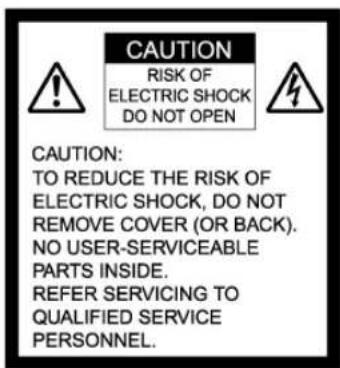
The lightning flash with arrowhead symbol, within an equilateral triangle, is intended to alert the user to the presence of uninsulated "dangerous voltage" within the product's enclosure that may be of sufficient magnitude to constitute a risk of electric shock to persons. This marking is located at the bottom of product.

SA 1966
The exclamation point within an equilateral triangle is intended to alert the user to the presence of important operating and maintenance (servicing) instructions in the literature accompanying the product.
WARNING: TO REDUCE THE RISK OF FIRE OR ELECTRIC SHOCK, DO NOT EXPOSE THIS PRODUCT TO RAIN OR MOISTURE. The connection of a non-shielded equipment interface cable to this equipment will invalidate the FCC Certification or Declaration of this device and may cause interference levels which exceed the limits established by the FCC for this equipment. It is the responsibility of the user to obtain and use a shielded equipment interface cable with this device. If this equipment has more than one interface connector, do not leave cables connected to unused interfaces. Changes or modifications not expressly approved by the manufacturer could void the user's authority to operate the equipment.
FOR UNITED STATES USERS: INFORMATION
This equipment has been tested and found to comply with the limits for a Class B digital device, pursuant to Part 15 of the FCC Rules. These limits are designed to provide reasonable protection against harmful interference in a residential installation. This equipment generates, uses and can radiate radio frequency energy and, if not installed and used in accordance with the instructions, may cause harmful interference to radio communications. However, there is no guarantee that interference will not occur in a particular installation. If this equipment does cause harmful interference or television reception, which can be determined by turning the equipment off and on, the user is encouraged to try to correct the interference by one or more of the following measures: -Reorient or relocate the receiving antenna. -Increase the separation between the equipment and receiver. -Connect the equipment into an outlet on a circuit different from that to which the receiver is connected. -Consult the dealer or an experienced radio/TV technician for help.
USER-INSTALLER CAUTION: Your authority to operate this FCC verified equipment could be voided if you make changes or modifications not expressly approved by the party responsible for compliance to Part 15 of the FCC rules.
Introduction (Continued)
Lithium-ion Battery Handling Precautions
Danger
Do not disassemble or modify the battery pack. The battery pack is equipped with built-in safety protection features. Should these features be disabled, the battery pack can leak acid, overheat, emit smoke, burst and/or ignite.
Do not connect the positive (+) and (-) terminals with a metal object such as wire. Do not transport or store the battery pack together with metal objects such as necklaces, hair pins etc. Otherwise, short-circuiting will occur, over current will flow, causing the battery pack to leak acid, overheat, emit smoke, burst and/or ignite, or the metal object such as wire, necklace or hair pin can generate heat.
Do not discard the battery pack into fire or heat it. Otherwise, its insulation can melt down, its gas release vent or safety features will be damaged and/or its electrolyte can ignite, possibly leading to acid leakage, overheating, smoke emission, bursting and/or ignition.
Do not use or leave the battery pack near a heat source such as a fire or a heater (80°C or higher). If the resin separator should be damaged owing to overheating, internal short-circuiting may occur to the battery pack, possibly leading to acid leakage, overheating, smoke emission, bursting and/or ignition of the battery pack.
Do not immerse the battery pack in water or seawater, and do not allow it to get wet. Otherwise, the protective features in it can be damaged, it can be charged with extremely high current and voltage, abnormal chemical reactions may occur in it, possibly leading to acid leakage, overheating, smoke emission, bursting and/or ignition.
Do not recharge the battery pack in extremely hot weather. Otherwise, hot temperatures can trigger its built-in protective features, inhibiting recharging, or can damage the built-in protective features, causing it to be charged with extremely high current and voltage, and, as a result, abnormal chemical reactions can occur in it, possibly leading to acid leakage, overheating, smoke emission, bursting and/or ignition.
Do not pierce the battery pack with a nail or other sharp objects, strike it with a hammer, or step on it. Otherwise, its battery pack will become damaged and deformed, internal short-circuiting can occur, possibly leading to acid leakage, overheating, smoke emission, bursting and/or ignition.
Do not strike or throw the battery pack. The might cause leakage, overheating, smoke emission, bursting and/or ignition. Also, if the protective feature in it becomes damaged, it could become charged with an extremely high current and voltage, abnormal chemical reactions can occur, which can lead acid leakage, overheating, smoke emission, bursting and/or ignition.
Introduction (Continued)
Do not use an apparently damaged or deformed battery pack by drop of the battery pack or any other damage. Otherwise, acid leakage, overheating, smoke emission, bursting and/or ignition of the battery pack may occur.
Do not directly solder the battery pack. Otherwise, heat can melt down its insulation, damage its gas release vent or safety features possibly leading to acid leakage, overheating, smoke emission, bursting and/or ignition.
Do not reverse the positive (+) and negative (-) terminals. Otherwise, during recharging, the battery pack will be reverse – charged, abnormal chemical reactions then may occur, or excessively high current can flow during discharging possibly leading to acid leakage, overheating, smoke emission, bursting and/or ignition.
Do not connect the battery pack to an electrical outlet, vehicle cigarette lighter, etc. When subjected to large voltage, over current can flow on the battery pack, possibly leading to acid leakage, overheating, smoke emission, bursting and/or ignition.
Do not use the battery pack for a purpose other than those specified. Otherwise, its guaranteed performance will be lost and/or its service life will be shortened. Depending on the equipment in which the battery pack is used, excessively high current can flow through battery pack, possibly damaging it and leading to acid leakage, overheating, smoke emission, bursting and/or ignition.
■ Battery electrolytes can cause skin and eye injury. If you come into contact with any material leaking from the battery, it could be electrolyte. Do not touch your face or eyes. Wash your hands or the area of contact with clean running water immediately. Seek medical attention immediately if contact with the eyes has occurred.
Warning
If recharging operation fails to complete even when a specified recharging time has elapsed, immediately stop further recharging. Otherwise, acid leakage, overheating, smoke emission, bursting and/or ignition can occur.
■ Do not put the battery pack into a microwave oven or pressurized container. Rapid heating or disrupted sealing can lead to acid leakage, overheating, smoke emission, bursting and/or ignition.
If the battery pack leaks or gives off a bad odor, remove it from any exposed flame. Otherwise, the leaking electrolyte may catch fire, and the battery pack may emit smoke, burst or ignite.
If the battery pack gives off an odor, generates heat, becomes discolored or deformed, or in any way appears abnormal during use, recharging or storage, immediately remove it from the equipment or battery pack charger and stop using it. Otherwise, the problematic battery pack can develop acid leakage, overheating, smoke, emission, bursting and/or ignition.
Introduction (Continued)
Caution
Do not use or subject the battery pack to intense sunlight or hot temperatures such as in a car in hot weather. Otherwise, acid leakage, overheating and/or smoke emission can occur. Also, its guaranteed performance will be lose and/or its service life will be shortened.
The battery pack incorporates built-in safety devices. Do not use it in a location where high levels of static electricity may be present. Otherwise, the safety devices can be damaged, possibly leading to acid leakage, overheating, smoke emission, bursting and/or ignition.
The guaranteed recharging temperature range is 0 to 45°C. A recharging operation outside this temperature range can lead to acid leakage and/or overheating of the battery pack, and may cause damage to it.
If electrolyte leaking from the battery pack contacts your skin or clothing, immediately wash it away with running water. Otherwise, eye injury or skin inflammation can occur.
■ Store the battery pack in a location where children cannot reach it. Also, make sure that sure that a child does not take out the battery pack from the battery pack charger or equipment.
If you find rust, a bad odor, overheating and/or other irregularities when using the battery pack for the first time, return it your supplier or vendor.
BEFORE YOU USE
Temperature of the main body
When this recorder is used for a long time in the power-on state, the temperature of the main body may become high. However, this is not a fault.
The power plug cord applicable to the local power specifications is attached. Be sure to use power cord applicable to your local power specification.
■ Use only the attached AC adapter. Do not use any other AC adapter on any account.
■ Use this recorder under the following environmental conditions:
Temperature: 0°C to 40°C (32°F to 104°F) Camera Head: -10°C to 50°C (14°F to 122°F)
Humidity: -10 to 80% (No condensation)
■ Do not place this recorder at any of the following places:
* A place exposed to direct sunlight, a humid or dusty place, a place exposed to sea wind
* A place with an extreme temperature or humidity variation, such as near an air conditioner
* A place near magnet or magnetic field
■ Camera head
If the camera head has been used in water, such as sea and river, wash the camera head completely with fresh water, wipe the water off the camera head with a dry, soft cloth, and dry the camera head completely in an airy, shaded place.
■ Note: The recorder and the AC adapter are not waterproof.
■ Camera cable
* Note: Pulling or dragging the camera cable when using the camera could cause failure to the recorder or the camera.
* Note: If there is a break or hole in the camera cable coating this could cause water penetration through such break or hole and resultant failure in the recorder or the camera.
Do not clean the recorder with volatile solvent, such as thinner and benzene; this could cause the recorder to fail. Clean this recorder only with a dry, soft cloth.
■ Do not rub or hit the front or the LCD panel roughly, the front or the LCD panel could be damaged or broken.
■ Do not point the camera lens directly at the sun, or the camera may malfunction.
Introduction (Continued)
■ Do not handle the recorder or the camera head roughly.
■ When removing the battery, turn OFF the power supply to the recorder beforehand.
■ When carrying the recorder or the camera head, be sure hold the recorder and the camera securely.
■ When using the camera head or the recorder on your body, take care that the camera cable or the strap does not catch on anything.
■ Never operate or watch the display while driving a car or a bike, you could have an accident. When using the camera in your car or on your body, pay attention to the traffic and road surface conditions around you to prevent any accident
This recorder is composed of precision electronic parts and components. If this recorder is handled as follows, the internal data could be destroyed:
* The battery is removed, the SD memory card is extracted or the USB cable is connected when the recorder is in operation.
* The USB cable or the AC adapter comes out during communication.
* Any other abnormal way of handling
If this recorder is disassembled or altered intentionally by the user, the recorder will no longer be qualified for free repair even if it is within the warranty period.
■ Luminescent spot and black spot
This recorder uses a CCD area image sensor composed of numerous pixels, and some of the pixels may not operate normally. Therefore, luminescent spots or black spots could be witnessed on the output screen. This is not a defect but a phenomenon peculiar to the CCD area image sensor.
Introduction (Continued)
Battery
* The battery used for this recorder is a rechargeable lithium-ion battery. This battery is susceptible to temperature and humidity, and the higher or lower the humidity is, the more the battery is susceptible.
* Whenever the use of this recorder ends, be sure to remove the battery.
* Note: The shooting enabled time duration is shorter in cold climate, such as at a ski area.
* If the battery is dropped by accident, check the terminal area for deformation. If the battery is set in this recorder with the terminal area deformed, the recorder may be damaged.
* Batteries must be disposed of as chemical waste. DO NOT INCINERATE AS BATTERY MAY EXPLODE
* Be careful not to drop the battery pack when you release it from the Cam.
* For a long-time storage, select a dry place with the temperature range of 15 – 25°C.
* Be careful not to get the battery wet.
Clock
* This recorder contains no clock battery. If the clock is kept supplied with power from the camera battery, the date and time settings will be reset. If this is the case, set the date and time again. (→P107)
LCD panel
* The LCD panel used for the LCD monitor has been made with ultra-high precision, has the effective pixel count of 99.99% or more. However, note that some LCD panels may have the pixel missing and a continuous glow of 0.01% or less.
■ AC adapter
* This camera will not operate unless the battery pack is installed.
* When the AC adapter is used near a radio receiver (particularly when receiving medium wave), the radio receiver could have noise. When using, keep the AC adapter at least 1m (3.3ft.) away from a radio receiver.
* The AC adapter in use could emit oscillating sound from the inside. This is not an abnormal phenomenon.
* After use, be sure to unplug the AC adapter from the AC power outlet or power will be continue to be consumed at up to 0.3W.
* Be careful not to contaminate the terminal area of the AC adapter.
Introduction (Continued)
■ SD memory card
Do not leave the SD memory card in any place that is exposed to high temperature or direct sunlight or any source of electromagnetic wares or static electricity. Also, do not bend, drop or strongly shock the SD memory card.
Otherwise, the SD memory card could be broken or the contents of the SD memory card could be destroyed or lost.
* After use or for storage or carriage, put the SD memory card into a case or pouch.
* Be careful not to allow the terminal area at the back of the SD memory card to be contaminated with dirt, water or foreign matter. Do not the terminal area.
■ Image data
The recorded data could be destroyed or lost if you fail to handle the unit or the SD card according to the precautions noted above. Under those circumstances, ELMO USA Corp will not liable in any way for any damages due to corruption of or loss of the recorded data.
■ Do not use the product where video or audio recording is prohibited by law.
You may to be ordered to leave, have the product confiscated, be arrested and be subject to fines and prosecution.
Introduction (Continued)
Condensation
"Condensation" is the formation of small drops of water on the inside or outside of this recorder when steam in the air changes to liquid when it is brought from a cold place suddenly into a warm place. If the recorder is used with condensation, the camera could not take clear images or the recorder could be broken down.
Condensation tends to occur when
* This recorder is brought from a ski slope into a heated place.
* This recorder is brought from a cooled room or car compartment into a hot open air.
Measures to counter condensation
When this recorder has to be brought from a cold place suddenly into a warm place, place the recorder in a plastic bag and airtightly seal the bag beforehand. Then, leave the recorder as it is in the warm place for about an hour, and then take it out when the recorder is warmed up to the ambient temperature.
If condensation occurs
Turn OFF the power supply, and leave this recorder for about an hour until the condensation disappears. After confirming no condensation, start using the recorder. Note with care that if the recorder is used particularly with the condensation left on the inside of the camera lens, the recorder could not record clear images.
Carrying
Do not sit down on a chair or the like with this recorder in the rear pocket of your trousers or skirt, or the recorder could be broken down or damaged.
■ Life of the O-rings
The waterproof function of this recorder and camera head is maintained by 4 O-rings within the camera head. The life of these O-rings depends on how the recorder is used. However, in order to reliably maintain the waterproof function, it is advisable to replace the O-rings at a cycle of once a year.
The replacement can be handled for a charge by ELMO USA Service Department only.
Introduction (Continued)
DISCLAIMERS
- The contents of this instruction manual are subject to change without notice.
- It is prohibited to copy any part or the whole of this instruction manual without our prior written consent. Unless used for personal use, it is also prohibited under copyright law to use this instruction manual without our prior consent.
- For any claim for loss or lost earnings due to the use of this recorder or any claim raised by a third person or party, be forewarned that we are not liable.
* ELMO does not warrant this product for suitability for any specific purpose. - ELMO USA Corp will not liable for: a) any claim for loss earnings due to the use of this recorder or any claim raised by a third person or party, b) for any damage, lost earnings or the like caused by the loss of the memory contents due to failure, repair or other reason, be forewarned that we are not liable at all.
■ Precautions for shooting When shooting an important scene, be sure to try shooting beforehand and confirm normal video and audio recording operation.
■ Compensation related to the memory contents ELMO USA Corp. will not be liable for compensation to the user if the visual record or audio record fails due to some problem with this recorder or SD memory card.
■ Image of the SD memory card The data recorded on this recorder may not be playable on some other recorders. Always confirm this compatibility beforehand.
The following images may not be playable on this recorder:
- Images recorded or created on other recorders
- Images edited on a PC
■ Memory card applicable to this recorder
- For this recorder, the SD memory card formatted in the FAT16 from that complies with the SD Standard can be used..
- As the SD memory applicable to this camera, SD Memory Card M-Series made by Hagiwara Sys-Com is recommended.
Note The SD memory card formatted may not always be applicable based on the maker and the kind of the SD memory card for this recorder.
- For this recorder, the SD memory cards up to 2GB in capacity can be used.
Note The free space of the SD memory card is smaller than the indicated capacity.
Introduction (Continued)
■ Life of the battery
The battery has its own span of life. Along with the frequency of use and the time passed, the battery capacity decreases gradually. When the usable time becomes substantially short, the battery life seems to have come near the end. Then, procure a new battery.
LCD monitor
* Do not press the LCD monitor strongly, or the display of the LCD monitor could be uneven or the LCD monitor could be broken down.
* When used in a cold place, images look like trailing. However, this is not a fault.
■ Images in this manual
The photos in this manual as display image examples are only imaginary. They are not images actually taken by using this recorder.
Copyright
Unless used for personal use, it is prohibited strictly under copyright law or international convention to use any still-image or moving-image format file without the prior consent of the copyright holder. It is also prohibited strictly under copyright law or international convention to transfer such a file, whether it is paid for or charge-free, onto the Internet or distribute the same to third persons. If this recorder should be used for any illegal act against copyright law, be forewarned that we are not liable at all for any compensation. Even if using for personal use, be careful that there could be a situation where video or audio recording is restricted or illegal.
- The SD logo is a registered trademark.
- Windows, Windows MediaTek, Internet Explorer and DirectX are trademarks of Microsoft Corporation of the United States and other countries.
- Other names, company names and product names referred to in this instruction manual are trademarks or registered trademarks of the respective companies.
This recorder may be use in household environment. However, if this recorder is used in close proximity to a radio receiver or television receiver, poor reception could be caused. Handle the recorder in the proper manner in accordance with the instruction manual.
Introduction (Continued)
Contents
Introduction 82
IMPORTANT SAFEGUARDS 82
Lithium-ion Battery Handling Precautions 84
BEFORE YOU USE 87
DISCLAIMERS....92
Contents....94
Confirming the Accessories upon Unpacking....95
Preparations 96
The Name of Each Part 96
The Name of Each Screen 97
How to Charge the Recorder....98
Remaining Battery Power....99
How to Use and Remove the Belt Clip 100
How to attach/detach the camera head....102
Waterproof function of this recorder 103
How to Load and Unload the SD Memory Card....104
Turn ON and Turn OFF the Power Supply 105
Turning ON the power supply 105
Turning OFF the power supply 105
Setting to the hold state ....106
Set the Date and Time....107
Recording 108
How to record....108
Changing the record settings....110
Standard duration of recording 112
Playing back the file....114
How to play the file 114
Search / Bookmark 115
Changing the play settings 117
Delete File 119
Using in Connection with External Devices....120
Attaching an external microphone to the recorder 120
Outputting video to the external monitor 121
Connection to the earphone 122
Connection to a speaker....122
Changing Various Settings on the Setting Item Screen.....123
How to change....123
Setting Item List 124
SD card information....126
Format SD card 127
Firmware upgrade....128
Setting the Date and Time 130
Replacing the Lens 132
Adjusting the Focus....133
Connection to the PC....134
Connection to the PC 134
Browsing the files....135
Troubleshooting ....136
Specification 141
Optional Accessories ....142
Note 143
Introduction (Continued)
Confirming the Accessories upon Unpacking
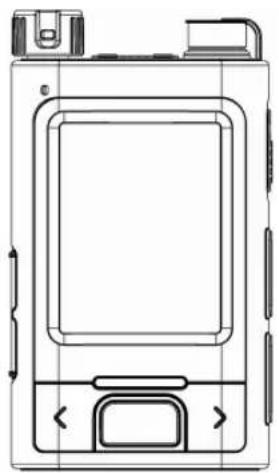
Recorder
natural_image
Technical line drawing of a device casing with mounting bracket and side panel (no text or symbols)Camera head

natural_image
Line drawing of a mechanical connector with a coiled cable (no text or symbols)Instruction manual

AC adapter/ Power cord

Battery pack

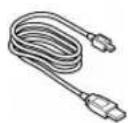
USB cable
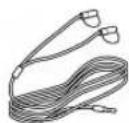
Earphone
Belt clip

AV cable

Preparations
The Name of Each Part
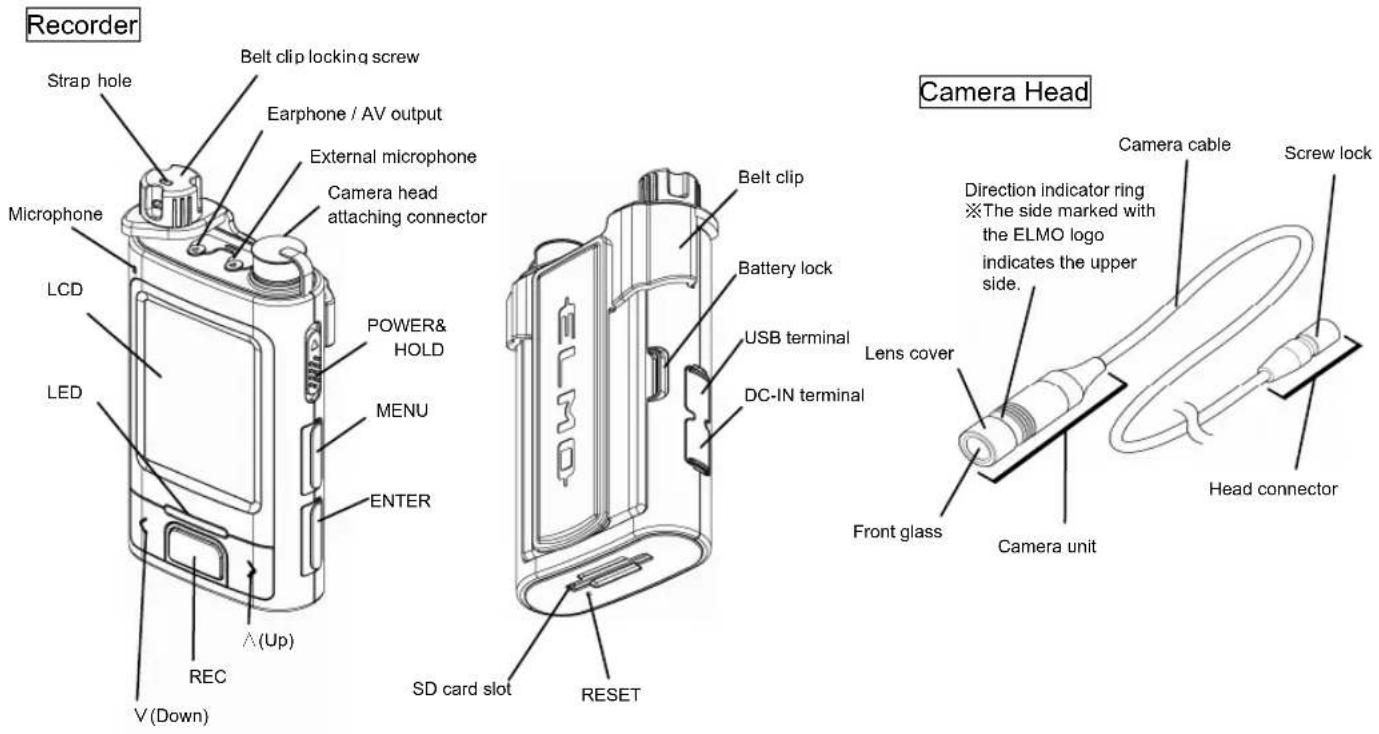
Preparations (Continued)
The Name of Each Screen

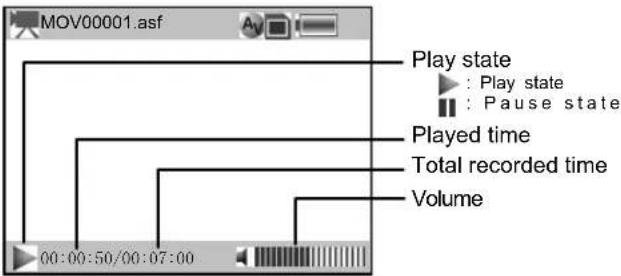
●Warning message display
| Message Meaning | |
| Load the SD memory card. | The SD memory card has not been loaded or may not have been loaded properly. (→P104) |
| The SD memory card is locked. Check and load the SD memory card again. | The write switch of the SD memory card is in “LOCK.” |
| The SD memory card is unformatted. Do you want to format the SD memory card now? | The SD memory card has been formatted in a wrong format. Format the SD memory card in the FAT16 file system (→P127) |
| This file cannot be played. The file is corrupted and cannot be played. Delete the data. | |
| The SD memory card has little remaining capacity. | The remaining capacity of the SD memory card is very low. |
Preparations (Continued)
How to Charge the Recorder
1 Set in the battery.
Fit the catches of the battery in their mating slits in the recorder, and push the battery in completely.
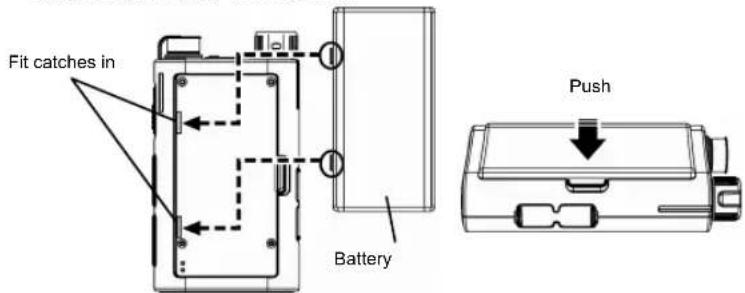
2 Start recharging.
Plug the DC plug of the AC adapter in the DC-IN terminal on the side of the recorder, and plug the power plug in the AC power outlet.

Check
Battery charging time and continuous operating time
| Charging time | Continuous play time | Continuous recording time (Saving mode: ON) |
| Approx. 3 hours | Approx. 5 hours | Approx. 2.5 hours |
※ Charging in a high-temperature or low-temperature environment may require longer time

When plugging or unplugging the AC adapter, turn OFF the power supply to the recorder beforehand.
Preparations (Continued)
Remaining Battery Power
1 According to the remaining battery power, the battery icon on the upper right corner of the LCD monitor varies as illustrated below:
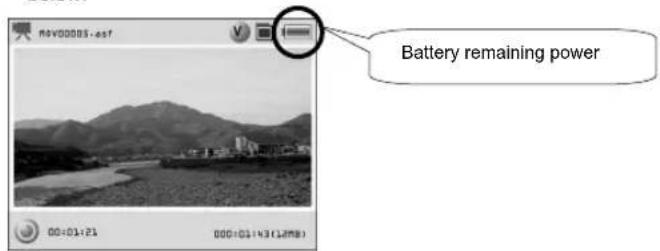
| Remaining battery power: | Full Empty |
| Change in the icon display |
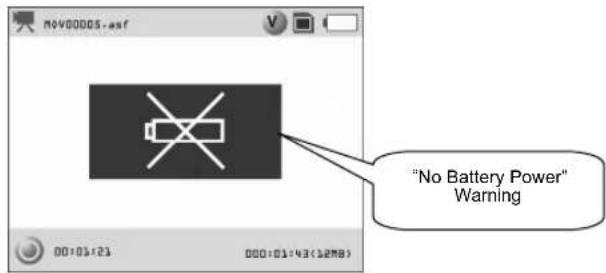
2 When the remaining battery power is running low, the "No Battery Power" indicator appears on the LCD monitor and the power is turned OFF in 5 minutes.
In this case, recharge the battery immediately with the supplied AC adapter. (→P98)
Preparations (Continued)
How to Use and Remove the Belt Clip
How to attach the belt clip
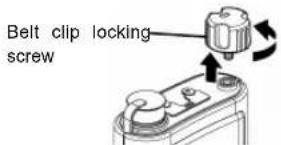
1 Remove the belt clip locking screw Remove the belt clip locking screw by turning it counterclockwise.
2 Attach the belt clip. Match the slit (1) in the reorder side with the A part of the belt clip.

Note Do not apply excessive force to the belt clip, or the belt clip could be broken.
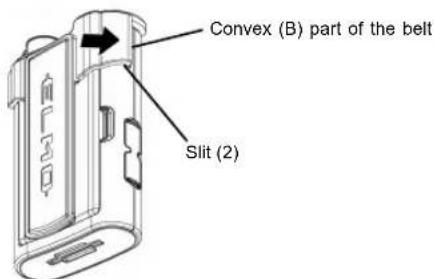
3 Fit the belt clip Fit the convex (B) part of the belt clip in the slit (2) by pressing it in the arrowed direction.
4 Attach the belt clip locking screw. Attach the belt clip locking screw by turning it clockwise.

Hint The threaded hole for belt clip locking is of the same shape and size as that of the threaded hole (1/4-20UNC) of tripods, so that this recorder can be used by fixing it to flexible camera mounts available in the market.
Preparations (Continued)
How to remove the belt clip
1 Remove the belt clip locking screw
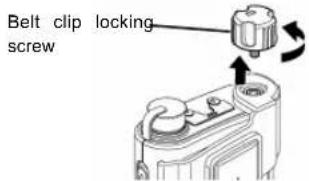
Turn the Belt clip locking screw counterclockwise for removal.
2 Remove the belt clip.
Press the C part of the belt clip in the arrowed direction while pressing the other side of the belt clip.
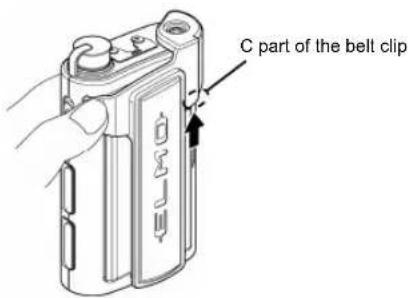
3 Attach the belt clip locking screw.
Attach the belt clip locking screw by turning it clockwise.

Preparations (Continued)
How to attach/detach the camera head

When attaching the camera head to the recorder, turn OFF the power supply to the recorder beforehand.
Attaching the Camera Head to the Recorder
1 Remove the rubber cover.
Remove the rubber cover from the camera head attaching connector of the recorder.

2 Attach the camera head.
Attach the head connector of the camera head to the camera head attaching connector.
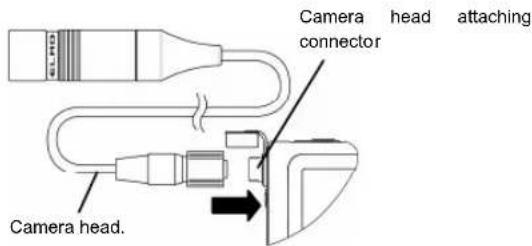

When attaching the head connector, confirm the right connector position in relation to the camera connector so that the pins mate with the holes. If the head connector is thrust forcibly, the camera connector pins could be bent or other damage could be caused.
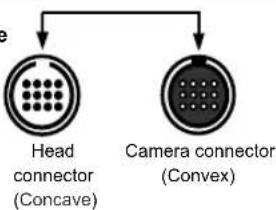
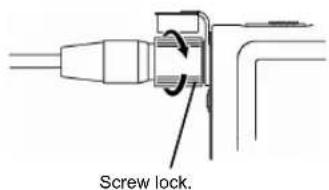
3 Fasten the screw lock.
Fix the camera head by turning the screw lock of the head connector clockwise.
Preparations (Continued)
Removing the Camera Head
1 Remove the camera head.
Turn the screw lock of the head connector counterclockwise to remove the camera head, and attach the rubber cover.
Waterproof function of this recorder
The camera head section of this recorder is waterproof. Note with care that the recorder is NOT waterproof.
●Waterproof performance: Corresponding to JIS Protection Class 8 (IP × 8) with waterproof structure working up to 40m in water depth.
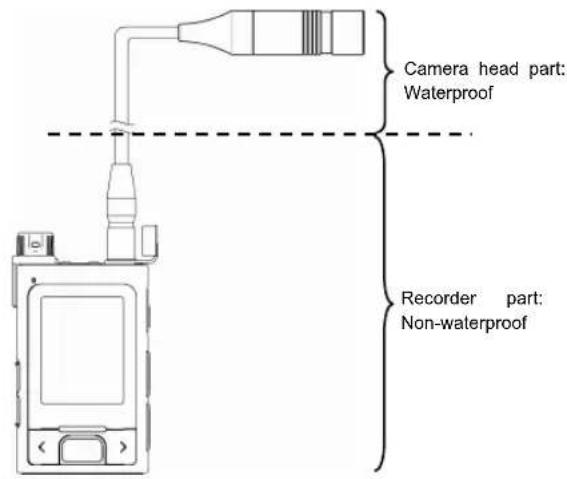
Note The recorder part is not waterproof structure. Do not soak in water.
Note After using the camera head in the water (sea, river), wash the camera head completely with fresh water. Then, wipe water droplets off the camera head with a dry, soft cloth, and dry the camera head completely in an airy, shaded area.
Note When the lens is replaced or the focus is adjusted, check the thread part and the O-ring for dirt, and the O-ring for breaks, scrapes or cracks. These defects could cause a water leak or failure.
Preparations (Continued)
How to Load and Unload the SD Memory Card

When loading or unloading the SD memory card, turn OFF the power supply to the recorder beforehand, or the stored data could be lost. The file saved in the SD memory card could be corrupted or deleted or "write" function of the SD memory card could be disabled.

Do not insert any object other than the SD memory card into the SD memory card socket, or the recorder could be damaged.
How to load the SD memory card
1 Load the SD memory card.
Load the SD memory card in the SD memory card slot in the side of the recorder. At this time, ensure that the back side of the SD memory card is the topside (LCD side).

How to unload the SD memory card
1 Unload the SD memory card.
Push the SD memory card in the arrow direction, and the SD memory card will eject a little. Pull out the SD memory card from the SD memory card socket.

Turn ON and Turn OFF the Power Supply
Turning ON the power supply

Before turning ON the power supply, be sure to load the SD memory card. (→P104)
1 Turn ON the power supply.
Press [POWER&HOLD] slide switch to the POWER side for approx. 2 seconds.
Then, the Startup screen appears on the LCD monitor.
※When the power supply is being turned ON, do not operate any buttons.


Playlist screen
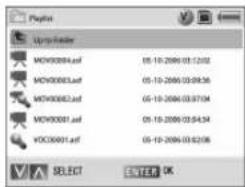
Note
After turning ON the power supply, do not operate any buttons until the Playlist screen appears, or the SD memory card may not be recognized normally.
※ When turning ON the power supply to the recorder for the first time after the purchase, the screen for setting the date and time appears (→P107)
Turning OFF the power supply
1 Turning OFF the power supply
Press [POWER&HOLD] slide switch to the POWER side for approx. 2 seconds.
Then, the power supply is turned OFF.




Power OFF

natural_image
Solid dark gray image with no visible content, text, or symbols.Auto Power OFF Function
If no operation is made for approx. 5 minutes except the time when the camera is recording or playing, the power supply to the camera will be turned OFF automatically to save the battery life.

Do not turn OFF the power supply to the recorder during recording, or the file under recording could be broken and unable to be played.
Setting to the hold state
1
Set to the hold state.
Press the [POWER&HOLD] slide switch to "HOLD" side until the switch is clicked.
※ When the recorder is set to the hold state, no other functions of the recorder are available. This helps prevent wrong operations during the recording or when playing back the data.
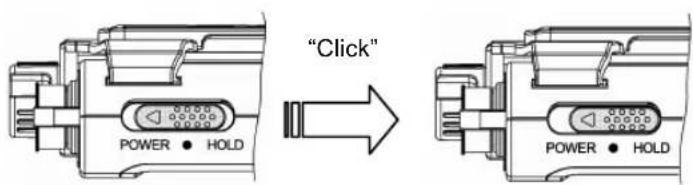
2
Release the hold state.
Return the [POWER&HOLD] slide switch to the center.
Set the Date and Time
When the power supply to the recorder is turned ON for the first time after purchase, the Date and Time Setting screen appears. Then, set the date and time according to the procedures below.
1 Move the cursor.
To move forward the cursor, press [ENTER]. To move backward the cursor, press [MENU].
※ cursor moves forward in the following order:

2 Change the values.
Change the values by using [A] or [V]
3 Accept the values.
Press [REC] to fix the values.
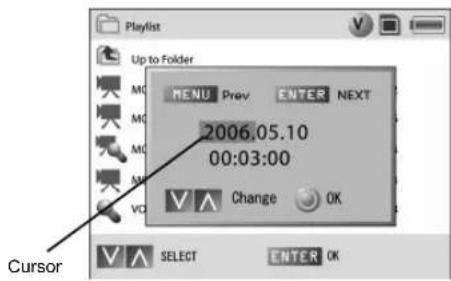
- Now, the initial setting is completed, and the Playlist screen appears.

In any of the following events, the date and time setting is reset, so you must set the date and time again:
•The battery has been removed from the recorder.
- The recorder with the battery in has not been used for a long time.
•The battery has been discharged completely.
Recording
How to record
1 Tum ON the power supply. (→P105)
2 Start video recording.
The recorded data is saved automatically on the SD memory card.
Method (1):
Playlist screen
Press [REC] to stand by for the recording. Press [REC] again to start recording.

[REC]
Record Standby screen
Displays the camera image. (For audio only, the microphone is displayed.)
[REC] lighting
Hint
In the record standby state, it is possible to adjust the camera direction while watching the LCD monitor or set the record by using the OSD. (→P110)
(For audio only, such adjustment is not required.)
Record screen
Starts recording.
[REC] blinking
Method (2):
Playlist screen
Hold down [REC] to start recording.
Hint
This is convenient for quick start when the camera direction adjustment or record setting is not required.
[REC]
Hold down
Note
When shooting an important scene, be sure to try shooting beforehand and check the resolution, the video quality and the frame rate to see whether their settings are appropriate or not.
Note
Do not turn OFF the power supply to the recorder during recording, or the being recorded could be corrupted and become unplayable.
Recording (Continued)
How to record (Continued)

End video recording.
How to end (1)
Record screen
Hold down [ENTER], and the recording will end.

[ENTER]
Hold down
Playlist screen
Hint
Upon the end of recording, the recorded file can reviewed shortly.
How to end (2)
Record screen

[REC]
Hold down [REC], and the recording will end.
Record Standby screen
Hint
Stand by for the recording, and prepares for the next recording.

Only when the frame rate set value is 25 frames/sec or 15 frames/sec, will the Record Preview screen be displayed at 12.5 frames/sec. However, the file is recorded at the record frame rate set value.
Recording (Continued)
Changing the record settings
1 Turn ON the power supply. (→P105)
2 Display the Record Mode setting screen.
Press [REC] once to enter the Record mode, and then, press [MENU] to appear the Record Mode setting screen.
3 Select the record setting item.
Move the cursor to the items to be set using [∧] or [∨], and press [ENTER] to make the selection.
When [ENTER] is pressed in the 2nd menu level, the setting is accepted and the OSD menu disappears. When [MENU] is pressed in the 1st or 2nd menu level, the setting is cancelled and the OSD menu disappears.
Record settings OSD


Recording (Continued)
[OSD item list of record settings]
| Name | Function | |
| 1st menu level | 2nd menu level | |
| Resolution | 704×480 | To set the resolution |
| 640×480 | ||
| 320×240 | ||
| 160×128 | ||
| Video Quality | High | To set the video quality |
| Standard | ||
| Low | ||
| Frame Rate | 25 frames/sec | To set the frame rate |
| 15 frames/sec | ||
| 5 frames/sec | ||
| 3 frames/sec | ||
| 1 frame/sec | ||
| Record Mode [Video/Audio] | Video + Audio | To set the data to be recorded |
| Video (No Audio) | ||
| Audio Only | ||
| Time Display | Counter | To switch the time display mode in the status display bar to the counter mode or clock mode |
| Clock | ||
| Display Brightness | Dark ←→Bright 11 steps | To set the brightness of the LCD monitor |
| Camera Length | 80cm | To set the length of the cable of the camera head to be connected |
| 150cm | ||
| Exposure | Dark ←→Bright 13 steps | To adjust the intensity of light that comes into the camera |
Recording (Continued)
Standard duration of recording
[SD memory card capacity: 1GB] Record Mode: Video (No Audio) ※Comparison table of approximate recording time.
[SD memory card capacity: 1G] Record Mode: Video + Audio ※Comparison table of approximate recording time.
[SD memory card capacity: 1GB] Record Mode: Audio 71hr4min
※Comparison table of approximate recording time.
Recording (Continued)

The actual memory capacity and recording time of the SD memory card may depend on its manufacture or type.
When the SD memory card of different capacity from 1GB is used, the recording time is roughly proportional to the capacity.
The recording time of the SD memory card of the same capacity varies according to the shooting conditions.
■ SD memory card applicable to this camera
- As the SD memory card applicable to this camera, SD Memory Card M-Series made by Hagiwara Sys-Com is recommended.
Playing back the file
How to play the file
1 Turn ON the power supply ( P105)
2 Select the file
Select the file to be played by using [∧] or [V].
3 Play the file
Press [ENTER] to play the file.
※ When the playback ends, return to the Playlist screen.
- Button operation during playback
| Button operation Function | |
| [^][V] | To adjust the volume |
| [ENTER] | To stop temporarilyWhen this button is held down, the Playlist screen is displayed again. |
| [MENU] | To switch the play mode (→P115)/When the recorder is at a pause, the OSD remains in display.When this button is held down, the Setting Item screen is displayed. |
Frame-by-frame rewind/Frame-by-frame playback It is normal operation to take approx. two more seconds for frame-by-frame rewind than frame-by-frame playback due to the file structure.

When frame-by-frame rewind is in work (The duration to displaying the previous frame), do not conduct any operation. Unexpected operation may occur.
![Playlist screen Up to Folder MOV00004.asf 05-10-2006 03:12:02 MOV00003.asf 05-10-2006 03:09:36 MOV00002.asf 05-10-2006 03:07:04 MOV00001.asf 05-10-2006 03:04:34 VOC00001.asf 05-10-2006 03:02:08 SELECT ENTER OK [ENTER] VOC00001.asf Audio Player 00:00:08/00:00:14 MOV00001.asf 08:08:08/08:08:14](/content/2026/05/1044557/images/826aadc7258a23f7efed807bbcef989b0e3893ff22061c584228f08ae271dab4.jpg)
Playing back the file (Continued)
Search / Bookmark
1 Tum ON the power supply. (→P105)
2 Play the file. (→P114)
3 Switch the play mode.
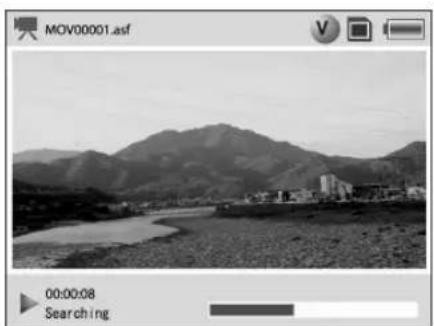
During the data playing, each time [MENU] is pressed, the play mode is switched as follows:

Search mode
In the search mode, when [] (UP) or [V] (DOWN) is held down, the data in playback can be fast-rewound or fast-forwarded.
- Button operation in the search mode
| Button operation | Function |
| [^][V] | To go to the next file or to return to the previous file |
| When this button is held down, the play mode is switched to the fast-forward/fast-rewind mode. | |
| [ENTER] | To stop temporarily |
| When this button is held down, the Playlist screen is displayed again. | |
| [MENU] | To switch the play mode |
| When this button is held down, the Setting Item screen is displayed. |
Note Fast-rewind/Fast-forward make the total time of playback shorter by jumping through the frames. Some scenes may not be displayed during Fast-rewind/Fast-forward. Audio function does not output sound during Fast-rewind/Fast-forward.
natural_image
Black-and-white landscape photo of a river valley with mountains in the background and a small building on the shore (no visible text or symbols)Note File exchange (Next file / Previous file)
When the record mode for the playing file is set to [Video + Audio] or [Video], the mode can not be selected to [Audio only].
When the record mode for the playing file is set to [Audio only], the mode can not be selected to [Video + Audio] or [Video].
Playing back the file (Continued)
Bookmark mode
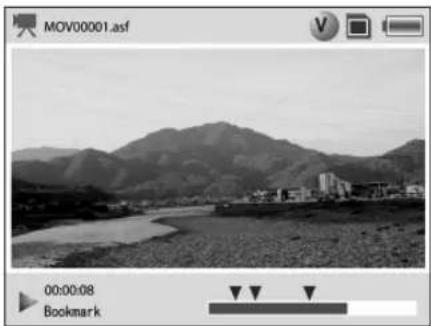
In the bookmark mode, when a favorite scene is checked with [▼] and [ENTER] is pressed, the checked favorite scene can be displayed instantaneously by using [∧] (UP) or [V] (DOWN)
- Button operation in the bookmark mode
| Button operation Function | |
| [^][V] | To jump to the checked bookmark |
| [ENTER] | To check a bookmarkWhen this button is held down, the bookmark is deleted. |
| [MENU] | To switch the play modeWhen this button is held down, the Setting Item screen is displayed. |

Depending on the length of video file, the scene may start slightly earlier than bookmarked position. The bookmark function is used as a rough indication for playing video.
The bookmark is not retained after the end of the data play.
natural_image
Black-and-white landscape photo of a river valley with mountains in the background and buildings on the banks (no visible text or symbols)Playing back the file (Continued)
Changing the play settings
1 Tum ON the power supply. (→P105)
2 Play the file. (→P114)
3 Display the play settings.
Press [ENTER] in playback to pause the recorder.
Then, press [MENU]. Then, the Play Setting OSD appears.
4 Select the play settings.
Move to the item to be set by using [∧] (UP) or [V] (DOWN), and fix the selection by pressing [ENTER].
When [ENTER] is pressed in the 2nd menu level, the setting is fixed and the OSD menu. When [ENTER] is pressed in the 1st or 2nd menu level, the setting is cancelled and the OSD menu disappears.


flowchart
graph TD
    A["Display status"] --> B["Playback Speed"]
    B --> C["Display Time"]
    C --> D["Brightness"]
    E["Display Status"] --> F{Yes}
    E --> G{No}
    F --> H["SELECT ENTER OK"]
    G --> H

When the playing an audio file, the Play Setting OSD is not displayed.
Playing back the file (Continued)
[OSD item list of play settings]
| Name | Function | |
| 1st menu level 2nd menu level | ||
| Display | ON | To display the status display bar on the screen in recording |
| OFF | ||
| Playback Speed | x 1/2 | To set the file playback speed |
| Standard | ||
| x 2 | ||
| x 4 | ||
| x 8 | ||
| Display Time | Counter | To switch the time display mode of the status display bar during recording or playback to counter mode or clock mode |
| Clock | ||
| Brightness | Dark ←→Bright11 steps | To fix the brightness of the LCD monitor |
Delete File
1 Turn ON the power supply (→P105)
2 Select the file.
Select the file to be operated on the Playlist screen by using [] or [] .
3 Display the OSD
When [MENU] is pressed, the OSD appears.
When [MENU] is pressed again, the OSD disappears
●File Operation screen
Play
Delete File
File information
SD Information
Format SD Card
4 Select "Delete File."
Select "Delete File" by using [∧] (UP) or [∨] (DOWN), and press [ENTER]
5 Delete the file.
When the confirmation message is displayed, press [ENTER].
Then, the file is deleted.
When [MENU] is pressed, the file deletion is cancelled.
Using in Connection with External Devices
Attaching an external microphone to the recorder

When attaching an external microphone to the recorder, turn OFF the power supply to the recorder beforehand.
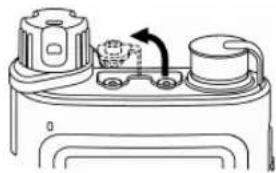
1 Remove the rubber cover.
Remove the cover from the external microphone terminal on the top of the recorder.
2 Attach the microphone.
Connect the connection plug (only of 3.5mm mini-plug-shaped) of the microphone with the external microphone input terminal of the recorder.
※ Confirm on the recorder's display LCD monitor that the external microphone is connected.
3 Start recording.(→P108)
※ When an external microphone is connected, the built-in microphone cannot be used.
natural_image
Technical line drawing of a mechanical component with no visible text or symbols
natural_image
Diagram of a mechanical or electrical device with a valve and plug, showing no text or symbols.External microphone(not included)
Using in Connection with External Devices (Continued)
Outputting video to the external monitor

When connecting the recorder with any external equipment, turn OFF the power supply to the recorder beforehand.
1 Connect the AV cable.
Remove the rubber cover from the Earphone /AV output terminal, and connect the supplied AV cable equipped with RCA pin plugs. Then, connect the AV cable on the monitor side.
※When the AV cable is plugged in the recorder, the video output is switched automatically from the recorder LCD monitor to an external monitor.
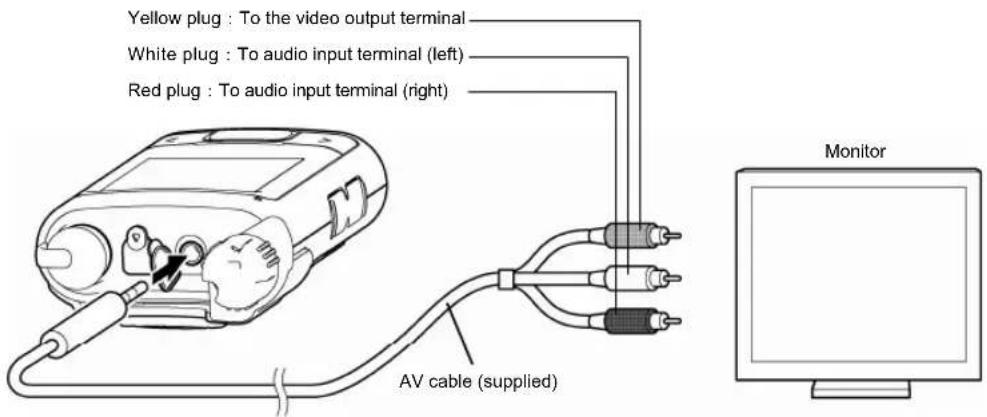

When the camera head is attached to the recorder, recording can be made by using an external monitor. When using the external monitor, set the video output system to that of your country/region.(→P123,125)
Using in Connection with External Devices (Continued)
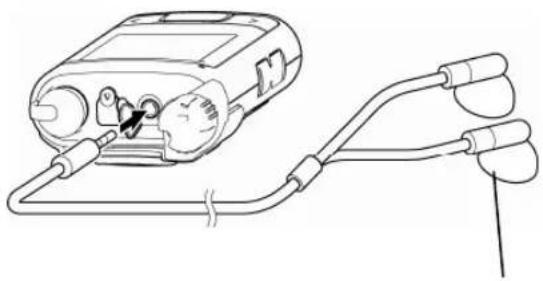
Connection to the earphone
1 Connect the earphone.
Remove the rubber cover from the Earphone /AV output terminal, and connect the earphone.
※The audio output of the recorder is monaural.

The 3.5mm mini-plug can be used for earphone connection, but all operations of the earphone cannot be guaranteed.

The earphone jack is common to the AV cable jack. If the LCD monitor display disappears due to wrong recognition when the earphone is in connection, redo the connection of the earphone.
natural_image
Line drawing of a medical device connected to two medical sensors (no text or symbols present)Earphone (supplied)
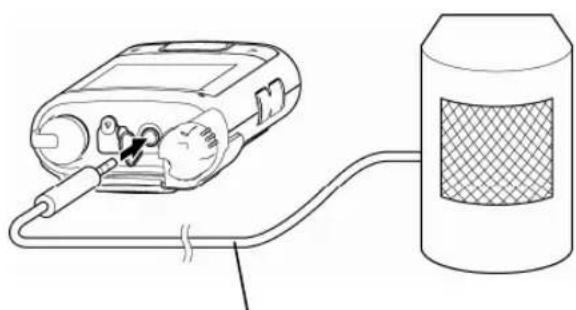
Connection to a speaker
1 Connect the AV cable.
Remove the rubber cover from the Earphone /AV output terminal, and connect the supplied AV cable with a speaker (not included).

The 3.5mm mini-plug can be used for speaker connection, but all operations of the speaker cannot be guaranteed.

When connecting/disconnecting the AV cable, check the connector shape carefully to confirm the right mating position and plug the AV cable carefully.
natural_image
Line drawing of a handheld electronic device connected to a cylindrical container (no text or symbols)AV cable
Changing Various Settings on the Setting Item Screen
How to change
1 Tum ON the power supply.(→P105)
2 Display the setting items.
Hold down [MENU] to display the setting items.
3 Select the setting item.
Select the setting item by using [∧] (UP) or [V] (DOWN), and press [ENTER].
When the setting item has 2 menu levels, the Setting Contents screen of the 2nd level is displayed.
4 Select the setting contents.
Select the setting contents, and press [ENTER] to fix the selection.
For the setting contents, refer to the "setting item list."(→P 124)
When [MENU] is pressed, the Playlist screen is resumed.
Setting item
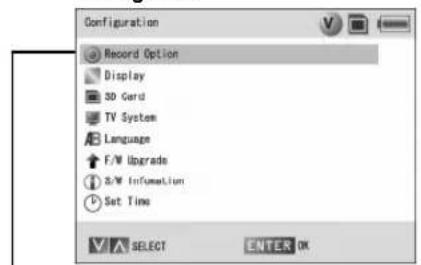
Setting contents

Changing Various Settings on the Setting Item Screen (Continued)
Setting Item List
| Name Function | |||
| Record Option | Resolution | 704 × 480 | To set the resolution |
| 640 × 480 | |||
| 320 × 240 | |||
| 160 × 128 | |||
| Video Quality | High | To set the video quality | |
| Standard | |||
| Low | |||
| Frame Rate | 25 frames/sec | To set the frame rate | |
| 15 frames/sec | |||
| 5 frames/sec | |||
| 3 frames/sec | |||
| 1 frame/sec | |||
| Record Mode [Video/Audio] | Video + Audio | To set the recording mode | |
| Video (No Audio) | |||
| Audio Only | |||
| Display | ON Display Status | ON: To display the status display bar on the screen in recording | |
| OFF | |||
| Playback Speed | x 1/2 | To set the file playback speed | |
| Standard | |||
| x 2 | |||
| x 4 | |||
| x 8 | |||
Changing Various Settings on the Setting Item Screen (Continued)
Setting Item List (Continued)
| Name Function | |||
| Display | Counter Display Time | To switch the time display mode of the status display bar during recording or playback to counter mode or clock mode | |
| Clock | |||
| Dark ←→Bright Brightness 11 steps | To set the brightness of the LCD monitor | ||
| Power Saving mode | OFF | To automatically turn OFF the power supply to the LCD monitor at the set time※When resetting the turned-off status, the LCD monitor returns to the ON state by button operation. | |
| 10 seconds | |||
| 30 seconds | |||
| 1 minute | |||
| 3 minutes | |||
| 5 minutes | |||
| SD Card | SD card information | To display the SD memory card | Information |
| Format SD card | To format the SD memory card | ||
| TV system | NTSC | To switch the TV system to the NTSC system (e.g., Japan, North America) or the PAL system (e.g., Europe, Australia) | |
| PAL | |||
| Language | English | To set the on-screen language to English, Japanese or Korean | |
| Japanese | |||
| Korean | |||
| F/W Upgrade | To upgrade the firmware(→P128) | ||
| S/W Information | To display the version information of the firmware | ware | |
| Set Time | To set the time(→P130) | ||
Changing Various Settings on the Setting Item Screen (Continued)
SD card information
1 Turn ON the power supply.(→P105)
2 Display the setting items.
Hold down [MENU] to display the setting items.
3 Select "SD Card."
Select the "SD card" by using [∧] or [∨], and press [ENTER].
Then, the SD memory card items are displayed.
4 Select "SD Card information"
Select the "SD Information" by using [∧] or [∨], and press [ENTER]. Display the SD information
Setting item screen
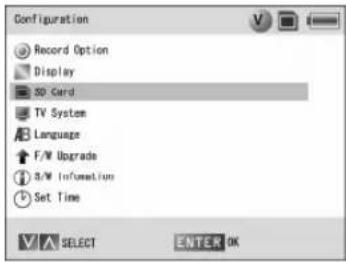
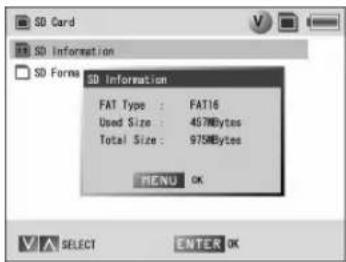
Changing Various Settings on the Setting Item Screen (Continued)
Format SD card
1 Turn ON the power supply.(→P105)
2 Display the setting items.
Hold down [MENU] to display the setting items.
3 Select "SD Card."
Select the "SD card" by using [∧] or [∨], and press [ENTER].
Then, the SD memory card items are displayed.
4 Select "SD Information."
Select the "Format SD card" by using [∧] or [∨], and press [ENTER].
5 Format SD card
When "Are you Sure to format this SD Card" appears, press [ENTER] to execute the formatting.
When [MENU] is pressed, the format is cancelled.
Setting item screen
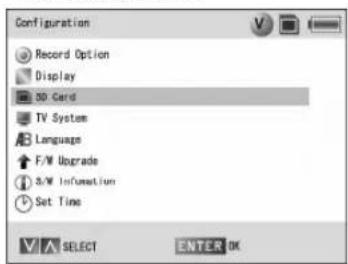
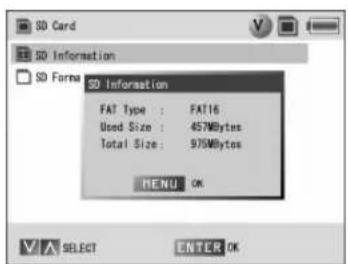
Changing Various Settings on the Setting Item Screen (Continued)
Firmware upgrade

For the purpose of enhancing the recording function, the recorder can upgrade the firmware (recorder operation program). Since this upgrading is to change the central function of the recorder, improper upgrading could cause failure to the recorder, such as no startup.
For upgrading the firmware, only use upgrades distributed from our website
http://www.elmo.co.jp/suv-cam/en/index.html
If any firmware other than the above or the above firmware with the addition of processing is used, it could cause failure.
Therefore, when upgrading the recorder, observe the following procedures with care:

When connecting the recorder with the PC or upgrading, be sure to use both the AC adapter and the battery. Note that if the power supply is shut off during the upgrading process, the system will fail and will no longer be functional.
1 Connect the recorder with the PC. (→P134)
2 Turn ON the power supply. (→P105)
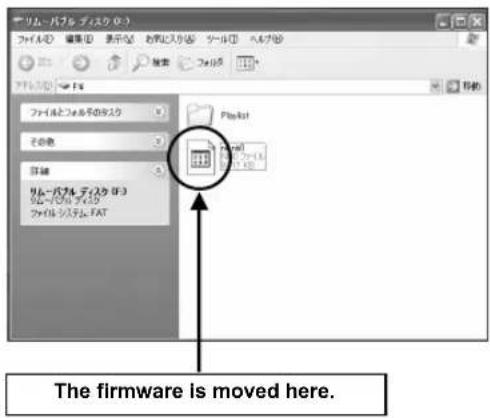
3 Move the file.
The latest firmware preserved in an arbitrary folder on the personal computer is moved in the SD card.
※The SD card is recognized as "Removal disk".
4 Reboot the recorder.
Turn OFF the power supply to the recorder, and unplug the USB cable. Then, turn ON the power supply again to the recorder.
5 Display the setting item.
Hold down [MENU].
Changing Various Settings on the Setting Item Screen (Continued)
6 Select "F/W Upgrade."
Select "F/W Upgrade" by using [∧] (UP) or [V] (DOWN), and press [ENTER].
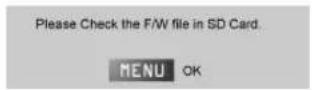
7 Confirm the upgrade file.
When the upgrade file is not contained in the SD memory card, a message shown in the right figure appears.
When the upgrade file is contained, go to the next step.
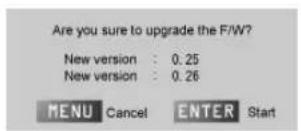
8 Execute the upgrade.
A message confirming the execution of the upgrade appears. When [ENTER] is pressed, the upgrade starts.
When [MENU] is pressed, the upgrade is cancelled and the display returns to the setting item menu.
9 The upgrade is completed.
The power supply is turned OFF automatically.
※After the upgrade is completed, the upgrade file in the SD memory card is deleted automatically.

Since the set value of each setting item may be changed after the upgrade, check all setting values after the upgrade completion


flowchart
graph LR
    A["Device"] --> B["Laptop"]
    style A fill:#f9f,stroke:#333
    style B fill:#ccf,stroke:#333
    note right of A "Firmware Upgrade"
Changing Various Settings on the Setting Item Screen (Continued)
Setting the Date and Time
Hint The date and time is saved in the recorded data.
1 Turn ON the power supply.(→P105)
2 Display the setting items. Hold down [MENU].
3 Select "Set Time."(→P107)
4 Set the date and time.(→P107)

Note In any of the following events, the date and time setting is reset, so the date and time should be set again:
- The battery has been removed from the recorder.
- The recorder with the battery in has not been used for a long time.
• The battery has been discharged completely.
Replacing the Lens
Hint The camera lens can be replaced by the optional lens.
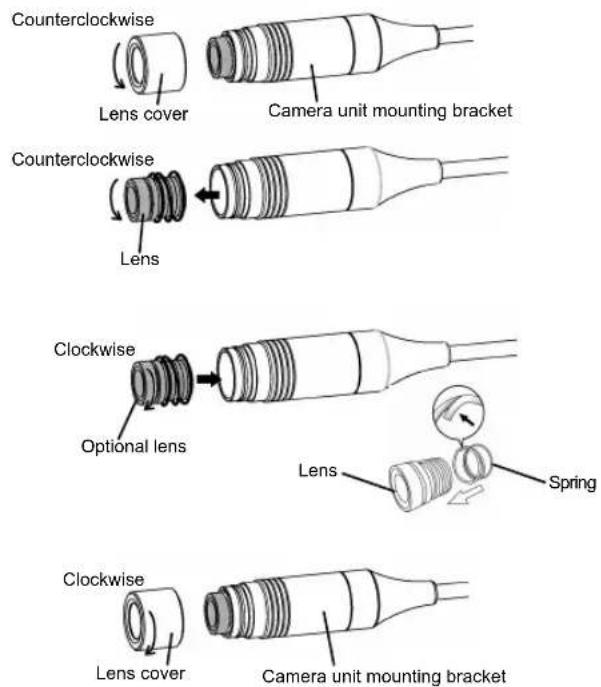
1 Remove the lens cover. Remove the lens cover from the camera unit mounting bracket by turning the lens cover counterclockwise.
2 Remove the lens.
Remove the lens from the camera unit mounting bracket by turning the lens counterclockwise.
Note The spring attached to the lens is used for fixing the lens. Be careful not to lose this spring.
3 Attach the optional lens for replacement to the camera unit mounting bracket by turning the optional lens clockwise.
Note When the lens has been replaced, the lens should be adjusted again. (→P133) Also, attach the spring to the lens as shown in the right illustrations while directing attention to the attachment direction.
4 Attach the lens cover.
Attach the lens cover to the camera unit mounting bracket by turning the lens cover clockwise.
Note Check the threaded part and the O-ring for dirt, and the O-ring for breaks, scrapes or cracks. These defects could cause a water leak or failure.
Adjusting the Focus
Note Do not scrub the lens or give a shock to the lens, or the lens could be damaged or failed.
Note that separation at any point other than the point where separation is permitted could cause failure.
Note Apply grease to the O-ring of the camera unit mounting bracket. If the O-ring is not coated with grease, a water leak could be caused.
Hint When the lens is replaced or the focus should be adjusted, adjust the focus.
1 Remove the lens cover.
2 Remove the lens cover from the camera unit mounting bracket by turning the lens cover counterclockwise. Adjust the focus.
Adjust the focus while watching the video on the LCD monitor.
Hint To shoot a nearby object, turn the lens clockwise.
To shoot a remote object, turn the lens counterclockwise

3 Attach the lens cover.
After adjusting the focus, attach the lens cover to the camera unit mounting bracket by turning the lens cover clockwise.
Note Check the threaded part and the O-ring for dirt, and the O-ring for breaks, scrapes or cracks. These defects could cause water leak or failure.
Note For this recorder, use the dedicated O-ring.
Connection to the PC
Connection to the PC

The PC applicable to this import should have been installed with Microsoft Windows2000 (SP4 or newer) or XP (SP2 or newer).

When connecting the recorder with the PC or upgrading, be sure to use both the AC adapter and the battery.
1 Connect the USB cable.
Connect the supplied USB cable with the USB terminal.
Then, the PC connection illustration is displayed on the LCD monitor of this recorder.
※ If this recorder is not recognized normally, redo the connection.
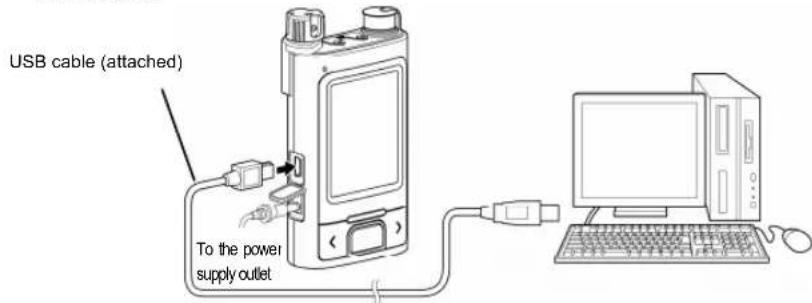
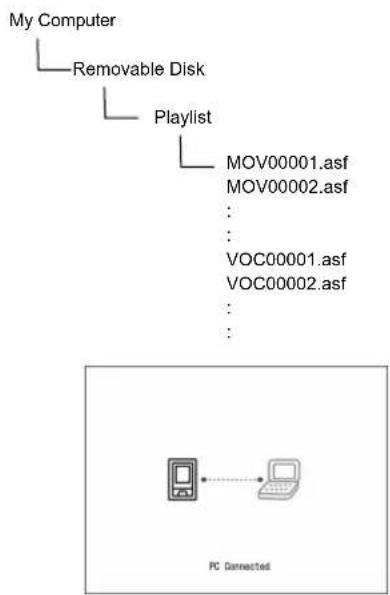
flowchart
graph TD
    A["My Computer"] --> B["Removable Disk"]
    B --> C["Playlist"]
    C --> D["MOV00001.asf"]
    C --> E["MOV00002.asf"]
    C --> F["..."]
    C --> G["VOC00001.asf"]
    C --> H["VOC00002.asf"]
    C --> I["..."]
    D --> J["PC Connected"]
    E --> J
    F --> J
    G --> J
    H --> J
    I --> J
2 Turn ON the power supply. (→P105)

When this recorder is connected with the PC for the first time, the necessary driver is installed automatically by the plug-and-play function of Windows. For the second and subsequent connections, the driver installation is not displayed.
Connection to the PC (Continued)

Do not unplug the USB cable until the file operation ends completely.

The file can be renamed only on the PC.
Select the file to be renamed, click [Name Change] on the File menu. After inputting a new name, press [ENTER].
Browsing the files
The files in the SD memory card can be browsed on the viewer software of a PC.
●The ASF files are supported by the viewer software, such as Windows Media Player

The ASF files are not always supported by all viewer software. Check your viewer software whether it supports the ASF files.

Audio Codec
The adopted audio Codec of this recorder is G.726. If your PC has not been installed with the audio Codec G.726, the files recorded in the record mode of "Video + audio" or "Audio only" cannot be played on the PC. In this case, install the audio Codec G.726 in your PC. For details, visit our website http://www.elmo.co.jp/suv-cam/en/index.html
Troubleshooting
■Battery and power source
| Symptom | Cause | Remedy |
| The SUV-Cam cannot be turned ON. | Does the battery have a charge? | Use the attached AC adapter or charge the battery. (→P98) |
| The battery runs out quickly after charging. | The SUV-Cam is being used in a cold Climate | If the recorder is used in cold climates, the battery power may be lowered temporarily. Warm up the recorder with your body temperature or the like. |
| The power supply is ON but the LCD display is OFF. | Does the battery have a charge? | Use the supplied AC adapter or charge the battery. (→P98) |
| Is the power saving mode ON? Press any button to release the power saving mode. | ||
| Is the AV cable plugged in? | If the AV cable is plugged in, the video output is switched automatically to the external monitor.To confirm on the LCD monitor, unplug the AV cable. | |
Troubleshooting (Continued)
■ Shooting, video recording and audio recording
| Symptom | Cause | Remedy |
| The video cannot be recorded. | Is the SD memory card loaded? | Load the SD memory card.(→P104) |
| Is the free space of the SD memory card adequate? | Delete some data from the SD memory card before recording.(→P119) | |
| Is the SD memory card locked? Release the lock | k of the SD memory card. | |
| Is the camera head attached? Attach the camera | head.(→P 102) | |
| The recording stops suddenly | The SD memory card has no free space. | Depending on the card type or record mode (resolution, video quality, frame rate), the recording may stop on the way due to the lack of the SD memory card's free.Refer to P112 “Standard duration of recording” for before the recording. |
| The video is not normal. | Is the camera cable length setting proper? | Adjust the camera setting to the cable length for the camera head in use.(→P110, 111) |
| Is the camera head attached properly? | Attach the camera head properly to the recorder.(→P102) | |
| Is the video output system correct? | When connecting the external monitor, set the video output system to that of your country/region.(→P 123, 125) | |
| The video is too bright or too dark. | Is the exposure set properly? | Change the exposure set value in adjustment to the desired brightness.(→P110, 111) |
| The video in play is accompanied by noise. | Is the recorder used near TV receiver or cellular phone? | Keep this recorder as far away as possible from TV receiver or cellular phone. |
| Is a dark place being shot? | This is not a failure.To reduce the noise, sufficiently brighten the object. | |
| The screen shimmers. | Is shooting made under the fluorescent illumination with power supply frequency of 60Hz? | This is not a failure.Avoid light from fluorescent lamps when shooting. |
Troubleshooting (Continued)
LCD monitor
| Symptom | Cause | Remedy |
| The power supply is ON but the LCD display is OFF. | Is the power saving mode ON? Press any button | to release the power saving mode. |
| Is the AV cable plugged in? | If the AV cable is plugged in, the video output is switched automatically to the external monitor. To confirm on the LCD monitor, unplug the AV cable. | |
| The LCD monitor is too bright or too dark. | Is the screen brightness appropriate? | Adjust the screen brightness setting. (→P123, 125) |
| Red, blue or green luminescent spots or black spots may be seen. | This is a liquid crystal property phenomenon. This is not a failure. |
Troubleshooting (Continued)
■Played video
| Symptom | Cause | Remedy |
| The video cannot be played. | Is the SD memory card loaded? Load the SD memory card saved with the recorded data. | |
| Is there any playable data on the SD memory card? | Video record /audio record the data in the recorder, and then play the data. (→P108) | |
| The video in play is rough. | The resolution and the video quality are set too low. | Raise the resolution and video quality settings higher, and then record the data. (→P123, 124) |
| The video in play is accompanied by noise. | When video is short in a dark place, noise may be generated to maintain the brightness. | Record the data in a bright place. |
| Vertical stripe pattern is seen. | When intensive light like spot light is irradiated to a part of the screen, vertical stripe pattern or the like may be seen. | This is not a failure. |
| The video is too bright or too dark. | Is the exposure “Camera Brightness” setting proper? | Change the exposure set value in adjustment to the desired brightness. (→P110, 111) |
| Is the record mode set properly? When video only is recorded, audio is not recorded. | ||
| No audio is heard. | Is “Record setting” set to “Video only (No audio)”? | Set “Record setting” to “Video recording + Audio recording.” (→P123, 124) |
| The Audio side of the earphone or AV cable is not connected with the Audio Input side of the TV or the like. | Make proper connection. (→P122) | |
| The audio volume of the recorder is low. | Increase the audio volume. (→P114) | |
| When the recorder is connected to the TV or the like, the volume of the TV or the like is smaller than that should be. | Adjust the volume of the TV or the like. | |
Troubleshooting (Continued)
Others
| Symptom | Cause | Remedy |
| “Load the SD memory card” appears. | The SD memory card is not loaded. Load the SD | memory card. |
| “The SD memory card is locked” appears. | Is the SD memory card locked? Release the lock | k of the SD memory card. |
| “The SD memory card has not been formatted. Do you want to format it now?” appears. | The format system of the SD memory card is wrong. | Format the SD memory card in the FAT16 file system.(→P 127) |
| Each button does not operate when pressed. | Is the switch set to “HOLD”? | This is not a failure. To operate the button, release the setting to “HOLD.” (→P106) |
| If the switch is not set to “HOLD” but the button operation do not work, press “RESET” to restart the unit forcibly. (→P96)※“RESET” has no function of returning the recorder to the factory setting. | ||
| “Hold on” appears. Is the switch set to “HOLD”? | This is not a failure. To operate the button, release the setting to “HOLD.” (→P106) | |
| “This file cannot be played” appears. | The file is corrupt. | The file is corrupt and cannot be played. Delete the file.(→P119) |
| Upgrade is disabled. Is the upgrade file saving destination right? | Save the upgrade file in the right destination.(→P128) | |
Specification
| SUV-Cam | |
| Power supply DC 3.7V(when the battery is used)/DC 5.0V(when the AC adapter is used) | |
| Power consumption 2.8W(when the battery is used)/4.5W(when the AC adapter is used) | |
| Operating temperature | 0°C to 40°C(Camera Head -10°C to 50°C) |
| Allowable relative humidity | 10% to 80% |
| Camera head | |
| main unit | |
| Water proofing IPX8 | |
| Total length 80cm or 150cm | |
| Mass | 80cm = Approx. 115q 150cm = Approx. 150q |
| Dimension | diameter :20mm length :84.8mm |
| Lens | |
| Focal length 3.8mm | |
| F number 2.0 | |
| Horizontal field angle 53.4° | |
| Vertical field angle 40.0' | |
| Focus adjustment Manual | |
| Shooting range 0.5m to ∞ factor y setting) | |
| Camera | |
| Image pickup element 1/4" CCD | |
| Total picture element 470,000 pixels | |
| Effective number of pixe 440,000 pixels | |
| min. object brightness 2 lx | |
| White balance Auto | |
| Electronic shutter 1/50 to 1/100,000 sec | |
| Resolution Horizontal 480TV Vertica:420TV | |
| S/N ratio 48dB or more | |
| Recorder | |
| main unit | |
| LCD monitor | 2.2" TFT QVGA |
| Built-in microphone | Monaural microphone (Built-in) |
| Recording medium | SD card( not included)※The capacity of the SD card can be used up to 2GB. |
| File format | .asf |
| Moving image compressed format | Compliant with MPEG4 |
| Audio compression format | Compliant with G.726 |
| Vide output | NTSC/PAL(switches by the setting item.) |
| Audio input | Input impedance 2.2kΩ or less |
| Audio output | 38mW + 38mW (Audio: Monaural )Load impedance 16Ω |
| USB | USB 2.0 |
| Mass | Approx. 130g (when batter y is installed) |
| Dimension | 56mm (Horizontal) x 102mm (Vertical) x 30mm (width)(Exclude the projection part) |
| Terminal | |
| Earphone/AV OUT | 3.5 mini jack(stereo) |
| External microphone | 3.5 mini jack(monaural) |
| DC IN | Dedicated jack |
| Battery pack | |
| Lithium-ion battery(desorption type) | |
| Nominal voltage | 3.7V |
| Rating capacity | 1660mAh |
| Mass | Approx. 43g |
| Dimension | 39mm (Horizontal) x 78mm (Vertical) x 9mm (width) |
| AC adapter | |
| Power supply | AC 100-250V 50-60Hz |
| Power consumption | DC 5.0V 2.0A |
| Mass | Approx.115q(Exclude the power code) |
| Dimension | 53mm (Horizontal) x 76mm (Vertical) x 26mm (width) |
Optional Accessories
Optional accessories
| Camera head 80cm # 2614 | |
| Camera head 150cm # 2614-1 | |
| Battery pack # 2615 | |
| Lens f=6.0mm F2.5 # 2616 | |
| Lens f=8.0mm F2.0 # 1616-1 |
For the information of the optional accessories, ask the sales outlet from whom you have purchased this recorder or visit our website at http://www.elmo.co.jp/suv-cam/en/index.html
Note
Note
ご注意
Unauthorized recording of copyrighted, materials, photographs, etc. may infringe on the rights of copyright owners and be contrary to copyright laws.
ELMO are trademarks and/or registered trademarks of ELMO Co., Ltd.
株式会社 エルモ社
ELMO CO., LTD.
URL:http://www.elmo.co.jp
6X1MWBA01 Rev.03


- Introduction
- IMPORTANT SAFEGUARDS
- Introduction (Continued)
- FOR UNITED STATES USERS: INFORMATION
- Lithium-ion Battery Handling Precautions
- Danger
- Warning
- Caution
- BEFORE YOU USE
- Temperature of the main body
- Battery
- Clock
- LCD panel
- ■ AC adapter
- Condensation
- Condensation tends to occur when
- Measures to counter condensation
- If condensation occurs
- Carrying
- ■ Life of the O-rings
- DISCLAIMERS
- Contents
- Confirming the Accessories upon Unpacking
- Preparations
- The Name of Each Part
- Preparations (Continued)
- The Name of Each Screen
- How to Charge the Recorder
- Set in the battery.
- Start recharging.
- Remaining Battery Power
- How to Use and Remove the Belt Clip
- How to attach the belt clip
- How to remove the belt clip
- Remove the belt clip locking screw
- Remove the belt clip.
- Attach the belt clip locking screw.
- How to attach/detach the camera head
- Attaching the Camera Head to the Recorder
- Removing the Camera Head
- Remove the camera head.
- Waterproof function of this recorder
- How to Load and Unload the SD Memory Card
- How to load the SD memory card
- How to unload the SD memory card
- Turn ON and Turn OFF the Power Supply
- Turning ON the power supply
- Note
- Turning OFF the power supply
- Auto Power OFF Function
- Setting to the hold state
- Set the Date and Time
- Move the cursor.
- Change the values.
- Accept the values.
- Recording
- How to record
- Hint
- Recording (Continued)
- How to record (Continued)
- Changing the record settings
- Standard duration of recording
- Playing back the file
- How to play the file
- Playing back the file (Continued)
- Search / Bookmark
- Search mode
- Note File exchange (Next file / Previous file)
- Bookmark mode
- Changing the play settings
- Delete File
- Using in Connection with External Devices
- Attaching an external microphone to the recorder
- Using in Connection with External Devices (Continued)
- Outputting video to the external monitor
- Connect the AV cable.
- Connection to the earphone
- Connect the earphone.
- Connection to a speaker
- Changing Various Settings on the Setting Item Screen
- How to change
- Changing Various Settings on the Setting Item Screen (Continued)
- SD card information
- Format SD card
- Firmware upgrade
- Select "F/W Upgrade."
- Confirm the upgrade file.
- Execute the upgrade.
- The upgrade is completed.
- Setting the Date and Time
- Replacing the Lens
- Adjusting the Focus
- Connection to the PC
- Connect the USB cable.
- Turn ON the power supply. (→P105)
- Connection to the PC (Continued)
- Browsing the files
- Troubleshooting
- Troubleshooting (Continued)
- Specification
- Optional Accessories
- ご注意
- 株式会社 エルモ社
- ELMO CO., LTD.
Brand : Elmo
Model : SUV-Cam PRO
Category : Camera