
N4200T-IM-A - Tablet ASUS - Free user manual and instructions
Find the device manual for free N4200T-IM-A ASUS in PDF.


| Product Type | Industrial Thin Mini-ITX Motherboard |
| Model | ASUS N4200T-IM-A |
| CPU | Intel® Celeron® N4200 Quad-core Processor (onboard) |
| Memory | 2 x DDR3L SO-DIMM, max 8GB, DDR3L 1866/1600/1333 MHz Non-ECC |
| Graphics | Intel® HD Graphics; Multi-display: VGA, HDMI, DisplayPort++, LVDS, eDP (up to 3 displays) |
| Storage | 2 x SATA 6Gb/s; 1 x mSATA (shared with Mini PCIe) |
| Expansion Slots | 1 x PCIe 2.0 x1 (colay with M.2 E Key); 1 x Full/Half-size PCIe Mini Card (w/SIM); 1 x M.2 Socket 1 (E key, for Wi-Fi/BT) |
| Ethernet | 2 x Realtek® 8111H Gigabit LAN; Supports WOL/PXE |
| Audio | Realtek® ALC887 / ALC897 High Definition Audio |
| Rear Panel I/O | 1 x VGA; 1 x HDMI; 1 x DisplayPort++; 4 x USB 3.2 Gen1; 2 x RJ45 LAN; 1 x PS/2 keyboard header; 1 x Audio jack; 1 x DC-IN jack |
| Internal Connectors | 6 x COM headers (5xRS232, 1xRS232/422/485); 2 x USB 2.0 headers (4 ports); LVDS/eDP header; GPIO; LPC debug; SPI TPM; SATA power; Fan headers; etc. |
| Form Factor | Thin Mini-ITX; 6.7" x 6.7" (17.0 cm x 17.0 cm) |
| Power Requirement | AT/ATX mode and DC-IN (12V) |
| Operating Temperature | 0°C to 60°C |
| Non-Operating Temperature | -40°C to 85°C |
| Relative Humidity | 0% to 85% |
| OS Support | Windows® 10 (64bit) / Windows® 10 IoT Enterprise; Ubuntu, RedHat Enterprise, Fedora Workstation, OpenSUSE |
| Manageability | WfM 2.0, WOL by PME |
Frequently Asked Questions - N4200T-IM-A ASUS
User questions about N4200T-IM-A ASUS
0 question about this device. Answer the ones you know or ask your own.
Ask a new question about this device
Download the instructions for your Tablet in PDF format for free! Find your manual N4200T-IM-A - ASUS and take your electronic device back in hand. On this page are published all the documents necessary for the use of your device. N4200T-IM-A by ASUS.
USER MANUAL N4200T-IM-A ASUS
E18750
Revised Edition v3
July 2021
Copyright © 2021 ASUSTeK COMPUTER INC. All Rights Reserved.
No part of this manual, including the products and software described in it, may be reproduced, transmitted, transcribed, stored in a retrieval system, or translated into any language in any form or by any means, except documentation kept by the purchaser for backup purposes, without the express written permission of ASUSTeK COMPUTER INC. ("ASUS").
Product warranty or service will not be extended if: (1) the product is repaired, modified or altered, unless such repair, modification of alteration is authorized in writing by ASUS; or (2) the serial number of the product is defaced or missing.
ASUS PROVIDES THIS MANUAL "AS IS" WITHOUT WARRANTY OF ANY KIND, EITHER EXPRESS OR IMPLIED, INCLUDING BUT NOT LIMITED TO THE IMPLIED WARRANTIES OR CONDITIONS OF MERCHANTABILITY OR FITNESS FOR A PARTICULAR PURPOSE. IN NO EVENT SHALL ASUS, ITS DIRECTORS, OFFICERS, EMPLOYEES OR AGENTS BE LIABLE FOR ANY INDIRECT, SPECIAL, INCIDENTAL, OR CONSEQUENTIAL DAMAGES (INCLUDING DAMAGES FOR LOSS OF PROFITS, LOSS OF BUSINESS, LOSS OF USE OR DATA, INTERRUPTION OF BUSINESS AND THE LIKE), EVEN IF ASUS HAS BEEN ADVISED OF THE POSSIBILITY OF SUCH DAMAGES ARISING FROM ANY DEFECT OR ERROR IN THIS MANUAL OR PRODUCT.
SPECIFICATIONS AND INFORMATION CONTAINED IN THIS MANUAL ARE FURNISHED FOR INFORMATIONAL USE ONLY, AND ARE SUBJECT TO CHANGE AT ANY TIME WITHOUT NOTICE, AND SHOULD NOT BE CONSTRUED AS A COMMITMENT BY ASUS. ASUS ASSUMES NO RESPONSIBILITY OR LIABILITY FOR ANY ERRORS OR INACCURACIES THAT MAY APPEAR IN THIS MANUAL, INCLUDING THE PRODUCTS AND SOFTWARE DESCRIBED IN IT.
Products and corporate names appearing in this manual may or may not be registered trademarks or copyrights of their respective companies, and are used only for identification or explanation and to the owners' benefit, without intent to infringe.
Contents
Chapter 1 Product overview
1.1 Package contents.... 1-1 1.2 Features 1-1 1.3 Specifications.... 1-2
Chapter 2 Motherboard information
2.1 Before you proceed 2-1 2.2 Motherboard layout.... 2-2 2.3 Central Processing Unit (CPU) 2-4 2.4 System memory 2-5 2.5 Jumpers 2-6 2.6 Connectors 2-10
2.6.1 Rear panel connectors....2-10 2.6.2 Internal connectors 2-11
Chapter 3 BIOS setup
3.1 BIOS setup program 3-1
3.1.1 BIOS menu screen....3-2
3.2 Main menu 3-2
3.2.1 System Date [Day MM/DD/YYYY] 3-2 3.2.2 System Time [HH:MM:SS] 3-2
3.3 Advanced menu 3-3
3.3.1 Platform Trust Technology....3-3 3.3.2 Trusted Computing 3-3 3.3.3 CPU Configuration 3-3 3.3.4 Graphic Configuration 3-4 3.3.5 PCI Express Configuration.... 3-6 3.3.6 CSM Configuration.... 3-7 3.3.7 Super IO Configuration 3-7 3.3.8 Serial Console Redirection 3-7 3.3.9 SATA Configuration 3-8 3.3.10 Network Stack Configuration 3-8 3.3.11 USB Configuration 3-8 3.3.12 Onboard Devices Configuration 3-9 3.3.13 Watchdog Timer....3-10 3.3.14 APM Configuration.... 3-10
3.3.15 EZ-Flash 3-10 3.3.16 Miscellaneous 3-10
3.4 Hardware Monitor menu....3-11
3.5 Security menu 3-11
3.6 Boot menu 3-13
Boot Configuration 3-13 FIXED BOOT ORDER Priorities 3-13
3.7 Exit menu 3-13
Save Changes & Exit 3-13 Discard Changes & Exit 3-14 Save Changes & Reset....3-14 Discard Changes & Reset....3-14 Save changes 3-14 Discard changes 3-14 Restore Defaults 3-14 Save as User Defaults 3-14 Restore User Defaults....3-14
Appendix
Notices....A-1
Service and Support......A-5
Chapter 1
Product overview
1.1 Package contents
Check your industrial motherboard package for the following items.
☑ 1 x ASUS J3455T-IM-A/N3350T-IM-A/N4200T-IM-A Motherboard ☑ 1 x SATA 6.0 Gb/s cable 1 x SATA power cable 2 x M.2 screw packages 1 x ASUS I/O Shield

NOTE: If any of the above items is damaged or missing, contact your distributor or sales representative immediately.
1.2 Features
• Built-in Intel® Celeron® Quad-core Processor J3455/N3350/N4200 - Two DDR3L 1866/1600/1333 MHz Non-ECC Un-buffered SO-DIMMs up to 8GB - 2 x SATA 6Gb/s, 4 x USB 3.2 Gen 1, 2 x USB 2.0, 6 x COM headers - 1 x PCIe 2.0 x1 slot (colay with M.2 E Key), 1 x Full/Half-size PCIe mini card slot (w/SIM holder), 1 x M.2 Socket 1 with E key - Multi-display: 1 x VGA, 1 x HDMI, 1 x DisplayPort++, 1 x LVDS, 1 x Embedded DisplayPort (BOM colay with LVDS, optional), HDMI + VGA + LVDS, VGA+HDMI+eDP, DP+HDMI+LVDS, DP+HDMI+eDP
1.3 Specifications
| CPU | Built-in Intel® Celeron® Quad-core Processor J3455/N3350/N4200 |
| Memory | 2 x DDR3L, max.8GB, DDR3L 1866/1600/1333 MHz Non-ECC, Unbuffered Memory |
| Graphics | Integrated graphics processor - Intel® HD Graphics support- Supports VGA output with a maximum resolution of 1920 x 1200 @ 60Hz (colay with DisplayPort++)Supports HDMITM output with a maximum resolution of 3840 x 2160 @ 30HzSupports DisplayPort++ output with a maximum resolution of 4096 x 2160 @ 30HzSupports LVDS output with a maximum resolution of 1920 x 1200 @ 60HzSupports Embedded DisplayPort output with a maximum resolution of 4096 x 2160 @ 30HzSupports up to three displays simultaneously |
| Expansion slots | 1 x PCI Express 2.0 x1 slot (colay with M.2 E Key)1 x Full/Half-size PCIe minicard slot (w/SIM holder)1 x M.2 Socket 1 with E key, type 2230 for WIFI/BT device (colay with PCIe) |
| Storage | 2 x SATA Gen3.0 up to 6.0 Gb/s ports1 x Full/Half-size mSATA slot (shared with Mini PCIe) |
| Ethernet | 2 x Realtek® 8111H, supports WOL/PXE |
| Audio | Realtek® ALC887 / ALC897 High Definition Audio* The audio codec may vary between motherboards, please consult your sales window for the motherboards' exact codec type. |
| Rear panel I/O ports | 1 x VGA port1 x HDMITM port1 x DisplayPort++4 x USB 3.2 Gen 1 ports2 x LAN (RJ45) ports1 x P/S2 keyboard header1 x Audio jack1 x DC-IN jack |
| Internal Connectors | 6 x Serial Port headers (5 x RS232, 1 x RS232/422/485)1 x CPU Fan header (PWM Mode)1 x Chassis Fan header (PWM Mode)1 x Chassis intrusion header1 x Front panel audio header (AAFP)1 x System panel header (10-1 pin)1 x Clear CMOS jumper1 x LVDS header |
(continued on the next page)
| Internal Connectors | 2 x USB 2.0 headers support additional 4 USB 2.0 ports1 x 8-bit GPIO header1 x LPC debug header1 x 3-pin ATX power connector (5VSB)1 x 4-pin ATX 12V power connector1 x SATA power connector2 x SATA ports1 x Keyboard/Mouse header1 x Speaker header1 x eDP connector (optional)1 x I2C header1 x SPI TPM header1 x WDT header1 x AT/ATX selection header1 x Flat Panel Display Brightness selection header1 x Display Panel Backlight Power Selector1 x Display Panel VCC Power Selector1 x LCD panel monitor switch header |
| Manageability | WfM 2.0, WOL by PME |
| Power requirement | AT/ATX mode and DC-IN (12V) |
| Operation Temperature | 0~60°C |
| Non-Operation Temperature | -40~85°C |
| Relative Humidity 0%~85% | |
| OS support | Windows® 10 (64bit) / Windows® 10 IoT EnterpriseUbuntu, RedHat Enterprise, Fedora Workstation, OpenSUSE |
| Form Factor | Thin Mini-ITX Form Factor, 6.7"x 6.7" (17.0cm x 17.0cm) |
NOTE: Specifications are subject to change without notice.
Chapter 2
Motherboard information
2.1 Before you proceed
Take note of the following precautions before you install motherboard components or change any motherboard settings.

CAUTION!
- Unplug the power cord from the wall socket before touching any component.
- Before handling components, use a grounded wrist strap or touch a safely grounded object or a metal object, such as the power supply case, to avoid damaging them due to static electricity.
- Hold components by the edges to avoid touching the ICs on them.
- Whenever you uninstall any component, place it on a grounded antistatic pad or in the bag that came with the component.
- Before you install or remove any component, always remove the AC power by unplugging the power cord from the power outlet. Failure to do so may cause severe damage to the motherboard, peripherals, or components.
2.2 Motherboard layout

NOTE: Place four screws into the holes indicated by circles to secure the motherboard to the chassis.

CAUTION! Do not overtighten the screws! Doing so can damage the motherboard.
Place this side towards the rear of the chassis

NOTE: The audio codec may vary between motherboards, please consult your sales window for the motherboards' exact codec type.
Connectors/Jumpers/Slots Page
| 1. ATX Power connector (4-pin ATX12V) 2-11 | |
| 2. CPU and Chassis fan headers (4-pin CPU_FAN, 4-pin CHA_FAN) 2-11 | |
| 3. WDT Enbale jumper (2-pin WDT_EN) 2-7 | |
| 4. Clear RTC RAM (2-pin CLRTC) 2-6 | |
| 5. AT/ATX mode selection (3-pin AT_ATX_SEL) 2-7 | |
| 6. Built-in Intel ® Celeron® Quad-core Processor J3455/N3350/N4200 2-4 | |
| 7. ATX 5V Standby Power header (3-pin ATX_5VSB) 2-12 | |
| 8. DDR3L SO-DIMM slots 2-5 | |
| 9. I2C header (6-1 pin I2C) 2-12 | |
| 10. PS/2 Keyboard and Mouse header (8-pin KBMS_CON) 2-13 | |
| 11. USB 2.0 headers (10-1pin USB_E12, USB_E34) 2-13 | |
| 12. COM RING/+5V/+12V selection (6-pin COM1_SEL) 2-8 | |
| 13. SATA Power connector (SATA_PWRCON) 2-14 | |
| 14. SATA 6.0 Gb/s ports (7-pin SATA6G_1/2) 2-14 | |
| 15. Chassis Intrusion header (4-pin CHASSIS) | 2-8 |
| 16. Speaker header (4-1 pin SPEAKER) | 2-15 |
| 17. System Panel header (10-1 pin F_PANEL) | 2-16 |
| 18. Display panel VCC power selection (6-pin VCC_PWR_SEL) | 2-9 |
| 19. Display panel backlight power selection (3-pin BKLT_PWR_SEL) | 2-9 |
| 20. Flat panel display brightness header (6-pin LCD_BLKT_PANEL) | 2-17 |
| 21. mSATA/mPCIe combo slot (MPCIE_MSATA) | 2-17 |
| 22. LVDS/EDP connector (30-pin LVDS_EDP) | 2-18 |
| 23. M.2 Wi-Fi slot | 2-18 |
| 24. General Purpose Input/output header (GPIO_CON) | 2-19 |
| 25. RTC Battery header (2-pin BATTERY) | 2-19 |
| 26. Front Panel Audio header (10-1 pin AAFP) | 2-20 |
| 27. Panel switch (2-pin PANEL_SW) | 2-20 |
| 28. Nano SIM Card slot | 2-21 |
| 29. COM Port headers (10-1 pin COM1~COM6) | 2-21 |
| 30. SPI_TPM header (14-1 pin SPI_TPM) | 2-22 |
| 31. LPC Debug header (10-1 LPC_DEBUG) | 2-22 |
2.3 Central Processing Unit (CPU)
The motherboard comes with an onboard Intel® Celeron® Quad-core processor J3455/N3350/N4200.


2.4 System memory
This motherboard comes with two Double Data Rate 3 Low Voltage (DDR3L) Small Outline Dual Inline Memory Modules (SO-DIMM) sockets. The figure illustrates the location of the DDR3L DIMM sockets:


| Channel | Sockets |
| Channel A DIMM_A1 | |
| Channel B DIMM_B1 | |

IMPORTANT!
- You may install varying memory sizes in Channel A and Channel B. The system maps the total size of the lower-sized channel for the dual-channel configuration. Any excess memory from the higher-sized channel is then mapped for single-channel operation.
- Always install the DIMMs with the same CAS Latency. For optimum compatibility, we recommend that you install memory modules of the same version or data code (D/C) from the same vendor. Check with the vendor to get the correct memory modules.
- According to Intel® CPU spec, DIMM voltage below 1.35V is recommended to protect the CPU.

NOTE: Visit the ASUS website at www.asus.com for the latest QVL.
To install a SO-DIMM
To remove a SO-DIMM
2.5 Jumpers
1. Clear RTC RAM (2-pin CLRTC)
This header allows you to clear the CMOS RTC RAM data of the system setup information such as date, time, and system passwords.


Connector type
HEADER 1x2p, 2.54mm pitch, S/T
To erase the RTC RAM:
- Turn OFF the computer and unplug the power cord.
- Use a metal object such as a screwdriver to short the two pins.
- Plug the power cord and turn ON the computer.
- Hold down the key during the boot process and enter BIOS setup to re-enter data.

NOTE: If the steps above do not help, remove the onboard battery and move the jumper again to clear the CMOS RTC RAM data. After clearing the CMOS, reinstall the battery.
2. WDT Enable jumper (2-pin WDT_EN)
A watchdog timer is an electronic timer that is used to detect and recover from computer malfunctions. The HW WDT (watchdog timer) Enable jumper allows the HW watchdog resets the system automatically even when the system crashes.

WDT_EN
jumper removed
Connector type
HEADER 1x2p, 2.54mm pitch, S/T

NOTE: By default, this jumper is set to HW WDT enabled with a jumper cap attached.
3. AT/ATX mode selection (3-pin AT_ATX_SEL)

AT_ATX_SEL
jumper removed
| Pins | |
| 1-2 (Default) ATX mode | |
| 2-3 AT mode |
Connector type
HEADER 1x3p, 2.54mm pitch, S/T
4. COM Ring/+5V/+12V selection (6-pin COM1_SEL)


| Setting Pins | |
| 12V 1-2 | |
| 5V 3-4 | |
| Ring (Default) 5-6 |
5. Chassis intrusion header (4-1 pin_CHASSIS)
This header is for a chassis-mounted intrusion detection sensor or switch. Connect one end of the chassis intrusion sensor or switch cable to this connector. The chassis intrusion sensor or switch sends a low-level signal to this connector when a chassis component is installed. The signal is then generated as a chassis intrusion event.


Connector type
HEADER 4p, K2, 2.54mm pitch
6. Display panel VCC power selection (6-pin VCC_PWR_SEL)

VCC_PWR_SEL 12V
5V
3V (Default)
| Setting Pins | |
| 12V 1.4.5-6 | |
| 5V 1.4.5-3 | |
| 3V (Default) 1.4.5-2 |
Connector type
HEADER 1 x 3p, 2.54mm pitch, S/T
7. Display panel backlight power selection (3-pin BKLT_PWR_SEL)

BKLPWR_SEL 12V (Default)
5V
| Pins | |
| 12V (Default) 1-2 | |
| 5V 2-3 |
Connector type
HEADER 1x3p, 2.54mm pitch, S/T
2.6 Connectors
2.6.1 Rear panel connectors
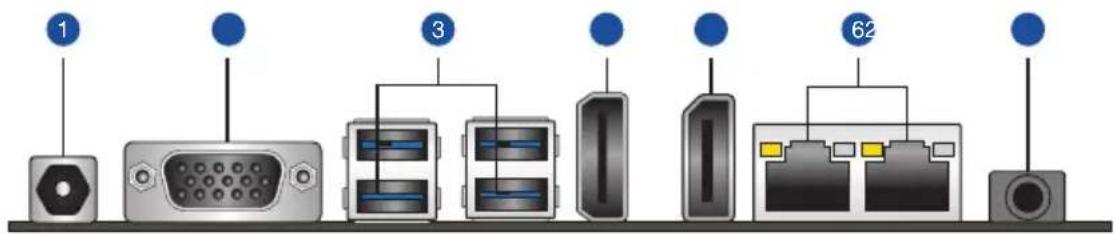
- DC power connector. Insert the power adapter into this port.
- Video Graphics Adapter (VGA) ports. These 15-pin ports are for VGA monitors or other VGA-compatible devices.
- USB 3.2 Gen 1 (up to 5Gbps) ports. These 9-pin Universal Serial Bus (USB) ports are for USB 3.2 Gen 1 devices.
- HDMI port. This port is for a High-Definition Multimedia Interface (HDMI) connector, and is HDCP compliant allowing playback of HD DVD, Blu-Ray, and other protected content.
- DisplayPort port. This port connects a device with DisplayPort connector.
- LAN (RJ-45) ports. These ports allow Gigabit connection to a Local Area Network (LAN) through a network hub.
LAN port LED indications
| Activity/Link LED Speed LED | |||
| Status Description Status Description | |||
| Off No link OFF 10Mbps connection | |||
| Orange Linked ORANGE 100Mbps connection | |||
| Orange (Blinking) | Data activity GREEN 1Gbps connection | ||
| Orange (Blinking then steady) | Ready to wake up from S5 mode | ||
Activity Link LED Speed LED

- Audio port. This port connects to audio devices.
2.6.2 Internal connectors
1. ATX Power connector (4-pin ATX12V)
Correctly orient the ATX power supply plug into this connector and push down firmly until the connector completely fits.


2. CPU and Chassis Fan headers (4-pin CPU_FAN, 4-pin CHA_FAN)
Connect the fan cables to the fan headers on the motherboard, ensuring that the black wire of each cable matches the ground pin of the header.


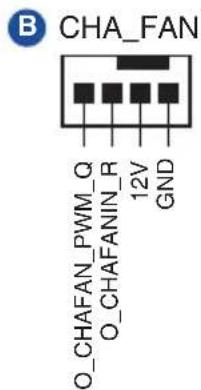
Connector type
WAFER HD 4p, 2.54mm pitch, S/T

CAUTION: Do not forget to connect the fan cables to the fan headers. Insufficient air flow inside the system may damage the motherboard components. These are not jumpers! Do not place jumper caps on the fan headers!
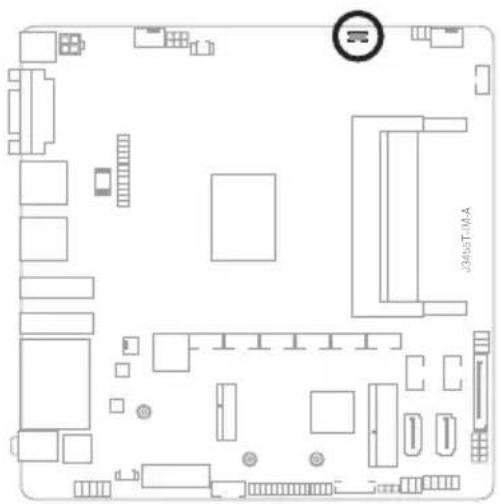
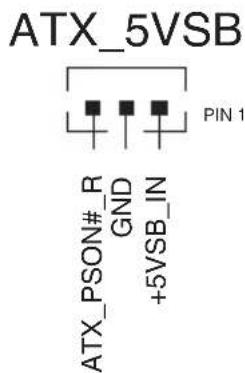
3. ATX 5V Standby Power header (3-pin ATX_5VSB)
This header is for ATX 5V standby power.
4. I²C header
The I²C (Inter-Integrated Circuit) header allows you to connect an I²C compatible IoT security module.


Connector type
Header 2x3p, K6, 2.0mm pitch
5. PS/2 Keyboard/mouse header (6-pin KBMS_CON)
This header is for an IBM PS/2-compatible keyboard or mouse.


6. USB 2.0 headers (10-pin USBE12, USBE34)
These headers are for USB 2.0 ports. Connect the USB cables to these headers. These USB headers comply with USB 2.0 specification that supports up to 480 Mbps connection speed.


Connector type
Header 2x5p, K9, 2.54mm pitch

CAUTION! Never connect a 1394 cable to the USB headers. Doing so will damage the motherboard.

NOTE: The USB cables are purchased separately.
7. SATA Power connector (15-pin SATA_PWRCON)
This connector is for the SATA power cable. The power cable plug is designed to fit this connector in only one orientation. Find the proper orientation and push down firmly until the connector completely fit.
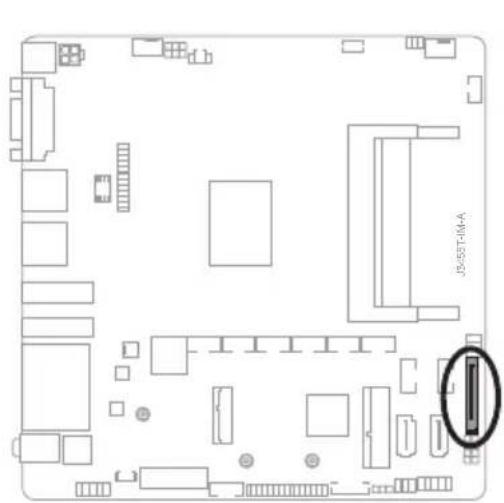
SATA_PWRCON
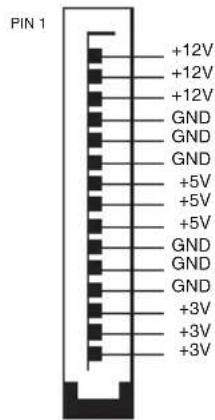

IMPORTANT: The SATA power connector supports 1A current to the maximum.
8. SATA 6.0 Gb/s ports (7-pin SATA6G_1/2)
These ports connect to SATA 6.0 Gb/s hard disk drives or an optical drive via SATA 6.0 Gb/s signal cables.

WAFER HD 7p, 1.27mm pitch
9. Speaker header (4-pin SPEAKER)
The 4-pin header is for the chassis-mounted system warning speaker. The speaker allows you to hear system beeps and warnings.

SPEAKER
Connector type
HEADER 1x4p, 2.54mm pitch, S/T
10. System Panel header (10-1 pin F_PANEL)
This header supports several chassis-mounted functions.

Connector type
Header 2x5p, K10, 2.54mm pitch
- System power LED (2-pin +PWR_LED)
This 2-pin header is for the system power LED. Connect the chassis power LED cable to this header. The system power LED lights up when you turn on the system power, and blinks when the system is in sleep mode.
• Hard disk drive activity LED (2-pin +HDD_LED)
This 2-pin header is for the HDD Activity LED. Connect the HDD Activity LED cable to this header. The IDE LED lights up or flashes when data is read from or written to the HDD.
• ATX power button/soft-off button (2-pin PWR_BTN)
This 2-pin header is for the system power button.
Reset button (2-pin RESET)
This 2-pin header is for the chassis-mounted reset button for system reboot without turning off the system power.
11. Flat panel display brightness header (8-pin LCD_BLKT_PANEL)
This header is for the LCD panel brightness controls.

LCD_BLKT_PANEL
Connector type
WAFER 6p, 2.0mm pitch
12. MPCIE/MSATA combo slot (MPCIE_MSATA)
This slot allows you to install a full length mSATA or mini-PCIe card, providing you with expandability and connectivity solutions for an optimal system performance.
MSATA_MPCIE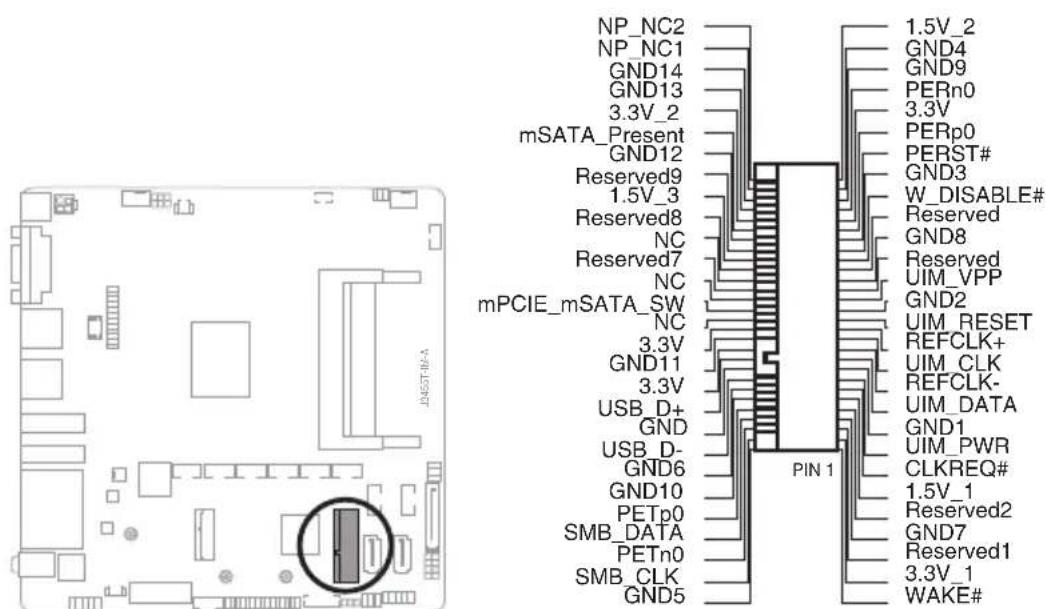
13. LVDS/EDP header (30-pin LVDSEDP)
This header is for an internal LVDS or embedded DisplayPort connection.

14. M.2 Wi-Fi
This slot connects to an M.2 Wi-Fi device.

NOTE: The M.2 Wi-Fi module is purchased separately.
15. General Purpose Input/Output header (GPIO_CON)
This header is for a general purpose input/output module which allows you to customize the digital signal input/output.

GPIO_CON
Connector type
WAFER HD 2x5p, 2.0mm pitch, S/T
16. Battery header (2-pin BATTERY)
This header is for the lithium CMOS battery.

BATTERY
17. Front Panel Audio header (10-1 pin AAFP)
This header is for a chassis-mounted front panel audio I/O module that supports HD Audio standard. Connect one end of the front panel audio I/O module cable to this header.


Connector type
HEADER 2x5p, K8, 2.54mm pitch

IMPORTANT!
- We recommend that you connect a high-definition front panel audio module to this header to avail of the motherboard's high-definition audio capability.
- If you want to connect a high-definition front panel audio module to this header, set the HD Audio Controller item in the BIOS setup to [Enabled].
18. Panel switch (2-pin PANEL_SW)
This 2-pin header is for connecting a monitor switch that can turn off the LCD panel display backlight.


19. NANO SIM Card slot
This slot connects to a NANO SIM card.

NANO_SIM
20. COM Port header (10-pin COM1~COM6)
This header is for a serial (COM) port. Connect the serial port cable to this header, then install the module to a slot opening at the back of the system chassis.

A COM6 B COM5 C COM4 D COM3 E COM2 F COM1

Connector type
BOX header 2x5p, K10, 2.00mm pitch

NOTE: The serial port cable is purchased separately.
21. SPI TPM header (14-1 pin TPM)
This header supports a Trusted Platform Module (TPM) system with a Serial Peripheral Interface (SPI), allowing you to securely store keys, digital certificates, passwords, and data. A TPM system also helps enhance network security, protects digital identities, and ensures platform integrity.

SPI TPM
Connector type
Header 2x7p, K14, 2.0mm pitch
22. LPC Debug header
This header allows connection to an LPC Debug card.

LPC_DEBUG

Connector type
HEADER 2x5p, K10, 2.0mm pitch

IMPORTANT!
- Scan the QR code to view the meaning of each debugging code.
- Debugging codes are only available for ASUS LPC Debug cards.
- Contact your region sales representative for LPC Debug cards ordering.
Chapter 3
BIOS setup

Scan the QR code to view the BIOS update guide.

3.1 BIOS setup program
Use the BIOS Setup program to update the BIOS or configure its parameters. The BIOS screens include navigation keys and brief online help to guide you in using the BIOS Setup program.
Entering BIOS Setup at startup
To enter BIOS Setup at startup:
Press <Del> or <F2> during the Power-On Self Test (POST). If you do not press <Del> or <F2>, POST continues with its routines.
Entering BIOS Setup after POST
To enter BIOS Setup after POST:
- Press <Ctrl> + <Alt> + <Del> simultaneously.
- Press the reset button on the system chassis.
- Press the power button to turn the system off then back on. Do this option only if you failed to enter BIOS Setup using the first two options.

NOTE: Using the power button, reset button, or the <Ctrl> + <Alt> + <Del> keys to reboot a running operating system can cause damage to your data or system. Always shut down the system properly from the operating system.

IMPORTANT:
- Visit the ASUS website at www.asus.com to download the latest BIOS file for this motherboard.
- The default BIOS settings for this motherboard apply to most working conditions and ensures optimal performance. If the system becomes unstable after changing any BIOS settings, load the default settings to regain system stability. Select the option Restore Defaults under the Exit Menu or press hotkey F3.
- The BIOS setup screens shown in this section are for reference purposes only, and may not exactly match what you see on your screen.
3.1.1 BIOS menu screen
Menu bar
The menu bar on top of the screen has the following main items:
Main: For changing the basic system configuration
Advanced: For changing the advanced system settings
Hardware: For displaying the system temperature and changing the
Security: For configuring the system security settings
Boot: For changing the system boot configuration.
Exit: For selecting the save options and default options.
To select an item on the menu bar, press the right or left arrow key on the keyboard until the desired item is highlighted.
3.2 Main menu
The Main menu provides you an overview of the basic system information, and allows you to set the system date, time, language, and security settings.
3.2.1 System Date [Day MM/DD/YYYY]
Allows you to set the system date.
3.2.2 System Time [HH:MM:SS]
Allows you to set the system time.
3.3 Advanced menu
The Advanced menu items allow you to change the settings for the CPU and other system devices.

Be cautious when changing the settings of the Advanced menu items. Incorrect field values can cause the system to malfunction.
3.3.1 Platform Trust Technology
TPM Device Selection
This item allows you to select the TPM device. Configuration options: [dTPM] [PTT]
3.3.2 Trusted Computing
Security Device Support
This item allows you to enable or disable BIOS support for security devices.
Configuration options: [Disabled] [Enabled]
3.3.3 CPU Configuration
The items in this menu show CPU-related information the BIOS automatically detects.

The items shown in the submenu may be different depending on the type of CPU installed.
CPU Power Management Configuration
This item allows you to manage and configure the CPU's power.
EIST
This item allows you to enable or disable Intel SpeedStep technology.
Configuration options: [Disabled] [Enabled]
Turbo Mode
This item allows you to enable or disable Turbo Mode for your processor.
Configuration options: [Enabled] [Disabled]
CPU C states
[Enabled] Enables the CPU C states.
[Disabled] Disables the CPU C states.
Enhanced C-states
[Enabled] Enables enhanced C1E state.
[Disabled] Disables enhanced C1E state.
Max Package C State
Allows you to control the maximum Package C State that the processor supports. Configuration options: [PC2] [PC1] [C0]
Intel Virtualization Technology
When set to [Enabled], a VMM can utilize the additional hardware capabilities provided by Vanderpool Technology. Configuration options: [Disabled] [Enabled]
VT-d [Enable]
Allows you to enable or disable VT-d function. Configuration options: [Enabled] [Disabled]
3.3.4 Graphic Configuration
Allows you to select a primary display from VGA and DisplayPort graphical devices.
VGA/DP Port Select
Allows you to select DisplayPort or VGA Graphics device to be the primary display. Configuration options: [AUTO] [DP]
LVDS Configuration
The items in this menu show the LVDS-related information that the BIOS automatically detects.
All-in-One Chassis
Allows you to select All-in-One (AiO) chassis (if applicable) for simplified AiO configuration. Configuration options: [None] [ECS (21.5")] [Mitac Maestro (21.5")] [Gigabyte (18.5")] [LP-215x (21.5")] [Wibtek A21 (21.5")] [Wibtek A23 (23.6")] [Jumper Sail (21.5")] [Pixxo HP-A206D (21.5")] [22AM33NB (21.5")] [AUO (19.5")]

Improper selection of AiO chassis may result in incorrect operation or potential damage to AiO chassis hardware.
EDID Data Source
Allows you to select the EDID data source. Configuration options: [Pre-defined] [Flat Panel Display]
Inverter Polarity
Allows you to select the inverter board polarity. Configuration options: [Inverted] [Normal]
Channel Select
Allows you to select the channel. Configuration options: [Dual Channel] [Single Channel]
Mode Select
Allows you to select the mode. Configuration options: [8bit Mode (JEIDA)] [8bit Mode (VESA)] [6bit Mode (VESA and JEIDA)]
Panel Power Sequence Control
Allows you to enable or disable panel power sequence control. Configuration options: [Enabled] [Disabled]
Panel_Vcc ON to Video_Data ON (T8)
Allows you to select the Panel_Vcc ON to Video_Data ON (T8). Configuration options: [10ms] [20ms] [30ms] [40ms]
Video_Data ON to BKLT_PWM ON (T9)
Allows you to select the Video_Data ON to BKLT_PWM ON (T9). Configuration options: [100ms] [200ms] [250ms] [300ms]
BKLT_PWM ON to BKLT_Enable ON (T10)
Allows you to select the BKLT_PWM ON to BKLT_Enable ON (T10). Configuration options: [10ms] [15ms] [20ms] [25ms]
BKLT_Enable OFF to BKLT_PWM OFF (T11)
Allows you to select the BKLT_Enable OFF to BKLT_PWM OFF (T11). Configuration options: [5ms] [10ms] [15ms] [20ms]
BKLT_PWM OFF to Video_Data OFF (T12)
Allows you to select the BKLT_PWM OFF to Video_Data OFF (T12). Configuration options: [100ms] [200ms] [250ms] [300ms]
Video_Data OFF to Panel_Vcc OFF (T13)
Allows you to select the Video_Data OFF to Panel_Vcc OFF (T13). Configuration options: [10ms] [20ms] [30ms] [40ms]
Min Panel_Vcc OFF Time (T15)
Allows you to select the minimum Panel_Vcc OFF time (T15). Configuration options: [600ms] [700ms] [800ms] [1000ms]
LVDS Spread Spectrum Control
Allows you to configure the LVDS spread spectrum clocking. Configuration options: [Disabled] [+/- 1% Center Spread] [+/- 0.5% Center Spread]
RC6 (Render Standby)
RC6 (Render Standby)
Allows you to enable or disable render standby support. RC6 should be enabled if S0ix is enabled. Configuration options: [Disable] [Enable]
3.3.5 PCI Express Configuration
PCIe 2.0 x1 Root Port
PCIe 2.0 x1 Root Port
This item allows you to control the PCI Express root port. Configuration options: [AUTO] [Disable] [Enable]
ASPM
This item allows you to control the Active State Power Management on both NB (NorthBridge) side and SB (SouthBridge) side of the DMI Link. Configuration options: [Disable] [L0s] [L1] [L0sL1] [Auto]
L1 Substates
This item allows you to select the PCI Express L1 Substates settings. Configuration options: [Disabled] [L1.1] [L1.2] [L1.1 & L1.2]
PCIe Speed
Configures the speed of PCIEX16_2 slot. Configuration options: [Auto] [Gen1] [Gen2]
Hot Plug
These items allow you to enable/disable PCIEX16_2 slot Hot Plug support. Configuration options: [Disable] [Enable]
3.3.6 CSM Configuration
CSM Support
Allow you to enable/disable the CSM support. Configuration options: [Disabled] [Enabled]

The following items appear only when you set CSM Support to [Enabled].
Network
Controls the execution of UEFI and Legacy PXE OpROM. Configuration options: [Do not launch] [UEFI] [Legacy]
Storage
Controls the execution of UEFI and Legacy Storage OpROM. Configuration options: [Do not launch] [UEFI] [Legacy]
Video
Controls the execution of UEFI and Legacy Video OpROM. Configuration options: [Do not launch] [UEFI] [Legacy]
Other PCI devices
Determines OpROM execution policy for devices other than Network, Storage, or Video. Configuration options: [Do not launch] [UEFI] [Legacy]
3.3.7 Super IO Configuration
Serial Port 1 Configuration
Serial Port
Allows you to enable or disable the serial port (COM). Configuration options: [Disabled] [Enabled]
COM1 Control
Allows you to select the COM1 mode. Configuration options: [RS232] [RS422] [RS485]
Serial Port 2/3/4/5/6 Configuration
Serial Port
Allows you to enable or disable the serial port (COM). Configuration options: [Disabled] [Enabled]
3.3.8 Serial Console Redirection
COM1\~COM8
Console Redirection
Allows you to enable or disable the console redirection feature. Configuration options: [Enabled] [Disabled]
3.3.9 SATA Configuration
SATA6G_1/2
Allows you to enable/disable the SATA6G_1/2/3 port. Configuration options: [Disabled] [Enabled]
Hot Plug
These items allow you to enable/disable SATA Hot Plug support. Configuration options: [Disabled] [Enabled]
3.3.10 Network Stack Configuration
Network Stack
This item allows the user to disable or enable the UEFI network stack. Configuration options: [Disabled] [Enabled]

The following items appear only when you set the previous item to [Enabled].
IPv4 PXE Support
This item allows the user to disable or enable the IPv4 PXE Boot support. Configuration options: [Disabled] [Enabled]
IPv6 PXE Support
This item allows the user to disable or enable the IPv6 PXE Boot support. Configuration options: [Disabled] [Enabled]
PXE boot wait time
This item allows setting the waiting time before pressing the ESC key to abort the PXE boot.
Media detect count
This item allows setting the number of times that the presence of media will be checked.
3.3.11 USB Configuration
U32G1_1/2/3/4
Allows you to enable or disable the USB port. Once set to [Disabled], any USB devices plugged into the connector will not be detected by BIOS or OS. Configuration options: [Disabled] [Enabled]
USB_E1234
Allows you to enable or disable the USB port. Once set to [Disabled], any USB devices plugged into the connector will not be detected by BIOS or OS. Configuration options: [Disabled] [Enabled]
3.3.12 Onboard Devices Configuration
HD-Audio
[Enable] Enables the HD Audio Device.
[Disable] Disables the HD Audio Device.
VerbTable Select
This item allows you to select the installed VerbTable that is required to reset the system after changing settings. Configuration options: [87F0 Line In] [87EF Line Out]
PCIE SATA Switch
[mPCIe] When set to mPCIe, SATA cannot be used.
[mSATA] When set to mSATA, SATA can be used.
PCIe/M.2 Switch
Allow you to select the slot mode between M.2 and PCIe. Configuration options: [AUTO] [M.2]
M.2 (WiFi) BT Controller
Allow you to enable or disable M.2 (WiFi) USB port, which is also known as BT Controller of M.2 (WiFi) device. Once set to [Disabled], any USB devices plugged into the connector will not be detected by BIOS or OS. Configuration options: [Enable] [Disable]
MPCIE_MSATA Controller
[Enable] Enables MPCIE_MSATA root port.
[Disable] Disables MPCIE_MSATA root port.
MPCIE_BT Controller
Allow you to enable or disable MiniPCIe USB port, which is also known as BT Controller of MPCle device. Once set to [Disabled], any USB devices plugged into the connector will not be detected by BIOS or OS. Configuration options: [Enable] [Disable]
LAN1/2 Enable/Disable
[Enabled] Enables the Intel LAN1/2 controller.
[Disabled] Disables the controller.
LAN1/2 PXE OPROM
This item allows you to enable or disable the PXE Option ROM of the LAN1/2 controller. Configuration options: [Disabled] [Enabled]
3.3.13 Watchdog Timer
Watchdog Support
This item allows you to enable or disable Watchdog timer. Configuration options: [Enabled] [Disabled]
Watchdog Timer
Use the <+> and <-> keys to adjust the value or input the desired value directly. The value ranges from 1 to 255.
3.3.14 APM Configuration
ErP Ready
Allows you to switch off some power at S5 to get the system ready for ErP requirement. When set to [Enabled], all other PME options will be switched off. Configuration options: [Disabled] [Enabled]
Restore AC Power Loss
[S5 State] The system goes into off state after an AC power loss.
[S0 State] The system goes into on state after an AC power loss.
[Last State] The system goes into last state after an AC power loss.
Power On By PCIE
This item allows you to enable or disable the Wake-on-LAN function of the onboard LAN controller or other installed PCIe LAN cards. Configuration options: [Disabled] [Enabled]
Power On By Ring
[Enabled] Enables the Ring devices to generate a wake event.
[Disabled] Disables the Ring devices to generate a wake event.
Power On By RTC
[Enabled] When set to [Enabled], the items RTC Alarm Date(Days) and Hour/Minute/Second are use-configurable with set values.
[Disabled] Disables RTC to generate a wake event.
3.3.15 EZ-Flash
Enter Ez-Flash mode
This item allows you to run EzFlash utility. When you press , a confirmation message appears. Use the left/right arrow key to select between [Yes] or [No], then press to confirm your choice.
3.3.16 Miscellaneous
Native ASPM
This item allows you to control the Active State Power Management on SA side of the DMI Link. Configuration options: [Disable][Enable]
3.4 Hardware Monitor menu
The items in this menu provide you an overview of system status including temperature, fan speed and voltage, and allow you to configure the smart fan.
Smart Fan Mode
Allows you to select the smart fan mode. Configuration options: [Disabled] [Normal] [Manual Mode]

The following item appears only when you set Smart Fan Mode to [Manual Mode].
Smart Fan Function
System Fan Setting
Temperature 1/2/3/4
Input value range: [0\~255]
FD/RPM 1/2/3/4
Input value range: [0\~255]
CPU Fan Setting
Temperature 1/2/3/4
Input value range: [0\~255]
FD/RPM 1/2/3/4
Input value range: [0\~255]
3.5 Security menu
This menu allows a new password to be created or a current password to be changed. The menu also enables or disables the Secure Boot state and lets the user configure the System Mode state.
Administrator Password
If you have set an administrator password, we recommend that you enter the administrator password for accessing the system.
To set an administrator password:
- Select the Administrator Password item and press .
- From the Create New Password box, key in a password, then press .
- Confirm the password when prompted.
To change an administrator password:
- Select the Administrator Password item and press .
- From the Enter Current Password box, key in the current password, then press .
- From the Create New Password box, key in a new password, then press .
- Confirm the password when prompted.

To clear the administrator password, follow the same steps as in changing an administrator password, but press when prompted to create/confirm the password.
User Password
If you have set a user password, you must enter the user password for accessing the system. The User Password item on top of the screen shows the default Not Installed. After you set a password, this item shows Installed.
To set a user password:
- Select the User Password item and press .
- From the Create New Password box, key in a password, then press .
- Confirm the password when prompted.
To change a user password:
- Select the User Password item and press .
- From the Enter Current Password box, key in the current password, then press .
- From the Create New Password box, key in a new password, then press .
- Confirm the password when prompted.
To clear a user password:
- Select the Clear User Password item and press .
- Select Yes from the Warning message window then press .
Secure Boot
Secure Boot
Secure Boot can be enabled if the system is running in User mode with enrolled Platform Key (EPK) or if the CSM function is disabled. Configuration options: [Disabled] [Enabled]
Secure Boot Mode
In Custom mode, Secure Boot policy variables can be configured by a physically present user without full authentication. Configuration options: [Standard] [Custom]
Key Management
The Key Management item allows you to modify Secure Boot variables and set Key Management page.
Platform Key (PK) / Key Exchange Keys / Authorized Signatures / Forbidden Signatures Configuration options: [Details] [Export] [Update] [Delete]
3.6 Boot menu
The Boot menu items allow you to change the system boot options.
Boot Configuration
CHASSIS INTRUDE
Allows you to enable or disable the chassis intrusion detection function.
Configuration options: [Disabled] [Enabled]
Setup Prompt Timeout
Allows you to set the number of seconds to wait for setup activation key.
65535(0xFFFF) means indefinite waiting. Configuration options: [1] - [65535]
Bootup NumLock State
[On] Set the power-on state of the NumLock to [On].
[Off] Set the power-on state of the NumLock to [Off].
Quiet Boot
Allows you to enable or disable the Quiet Boot option.
Configuration options: [Disabled] [Enabled]
Fast Boot
[Enable] Select to accelerate the boot speed.
[Disable] Select to go back to normal boot.
Boot mode select
Allows you to select the boot mode. Configuration options: [LEGACY] [UEFI]
FIXED BOOT ORDER Priorities
Boot Option #1\~#6
This item allows you to set the system boot order. Configuration options: [Hard
Disk] [CD/DVD] [USB Device] [Network] [Disabled]
3.7 Exit menu
The Exit menu items allow you to save or discard your changes to the BIOS items.
Save Changes & Exit
This option allows you to save your changes and exit the Setup program. When you select this option or if you press , a confirmation window appears. Select
Yes to save changes and exit.
Discard Changes & Exit
This option allows you to exit the Setup program without saving your changes.
When you select this option or if you press , a confirmation window appears.
Select Yes to discard changes and exit.
Save Changes & Reset
This option allows you to exit the Setup program after saving changes.
Discard Changes & Reset
This option allows you to exit the Setup program without saving changes.
Save changes
This option allows you to save changes to any of the setup options you have made so far.
Discard changes
This option allows you to discard changes to any of the setup options you have made so far.
Restore Defaults
Restore/load default values for all the setup options.
Save as User Defaults
This option allows you to save the changes you have made so far as user defaults.
Restore the user defaults with all the setup options.
Appendix
Notices
FCC Compliance Information
Responsible Party: Asus Computer International
Address: 48720 Kato Rd., Fremont, CA 94538, USA
Phone / Fax No: (510)739-3777 / (510)608-4555
This device complies with part 15 of the FCC Rules. Operation is subject to the following two conditions: (1) This device may not cause harmful interference, and (2) this device must accept any interference received, including interference that may cause undesired operation.
This equipment has been tested and found to comply with the limits for a Class B digital device, pursuant to part 15 of the FCC Rules. These limits are designed to provide reasonable protection against harmful interference in a residential installation. This equipment generates, uses and can radiate radio frequency energy and, if not installed and used in accordance with the instructions, may cause harmful interference to radio communications. However, there is no guarantee that interference will not occur in a particular installation. If this equipment does cause harmful interference to radio or television reception, which can be determined by turning the equipment off and on, the user is encouraged to try to correct the interference by one or more of the following measures:
- Reorient or relocate the receiving antenna.
- Increase the separation between the equipment and receiver.
- Connect the equipment into an outlet on a circuit different from that to which the receiver is connected.
- Consult the dealer or an experienced radio/TV technician for help.
Compliance Statement of Innovation, Science and Economic Development Canada (ISED)
This device complies with Innovation, Science and Economic Development Canada licence exempt RSS standard(s). Operation is subject to the following two conditions: (1) this device may not cause interference, and (2) this device must accept any interference, including interference that may cause undesired operation of the device.
CAN ICES-003(B)/NMB-003(B)
KC: Korea Warning Statement
Class B equipment (home broadcasting and communication equipment)
The terms HDMI, HDMI High-Definition Multimedia Interface, and the HDMI Logo are trademarks or registered trademarks of HDMI Licensing Administrator, Inc.
Google™ License Terms
Copyright© 2021 Google Inc. All Rights Reserved.
Licensed under the Apache License, Version 2.0 (the "License"); you may not use this file except in compliance with the License. You may obtain a copy of the License at:
http://www.apache.org/licenses/LICENSE-2.0
Unless required by applicable law or agreed to in writing, software distributed under the License is distributed on an "AS IS" BASIS, WITHOUT WARRANTIES OR CONDITIONS OF ANY KIND, either express or implied.
See the License for the specific language governing permissions and limitations under the License.
Declaration of compliance for product environmental regulation
ASUS follows the green design concept to design and manufacture our products, and makes sure that each stage of the product life cycle of ASUS product is in line with global environmental regulations. In addition, ASUS discloses the relevant information based on regulation requirements.
Please refer to http://csr.asus.com/Compliance.htm for information disclosure based on regulation requirements ASUS is complied with:
EU REACH and Article 33
Complying with the REACH (Registration, Evaluation, Authorisation, and Restriction of Chemicals) regulatory framework, we published the chemical substances in our products at ASUS REACH website at http://csr.asus.com/english/REACH.htm.
EU RoHS
This product complies with the EU RoHS Directive. For more details, see http://csr.asus.com/english/article.aspx?id=35
India RoHS
This product complies with the "India E-Waste (Management) Rules, 2016" and prohibits use of lead, mercury, hexavalent chromium, polybrominated biphenyls (PBBs) and polybrominated diphenyl ethers (PBDEs) in concentrations exceeding 0.1% by weight in homogenous materials and 0.01% by weight in homogenous materials for cadmium, except for the exemptions listed in Schedule II of the Rule.
Vietnam RoHS
ASUS products sold in Vietnam, on or after September 23, 2011, meet the requirements of the Vietnam Circular 30/2011/TT-BCT.
ASUS recycling and takeback programs come from our commitment to the highest standards for protecting our environment. We believe in providing solutions for you to be able to responsibly recycle our products, batteries, other components as well as the packaging materials. Please go to http://csr.asus.com/english/Takeback.htm for detailed recycling information in different regions.

DO NOT throw the motherboard in municipal waste. This product has been designed to enable proper reuse of parts and recycling. This symbol of the crossed out wheeled bin indicates that the product (electrical and electronic equipment) should not be placed in municipal waste. Check local regulations for disposal of electronic products.

DO NOT throw the mercury-containing button cell battery in municipal waste. This symbol of the crossed out wheeled bin indicates that the battery should not be placed in municipal waste.
Regional notice for California

WARNING
Cancer and Reproductive Harm - www.P65Warnings.ca.gov
Service and Support
Visit our multi-language website at https://www.asus.com/support/

| Manufacturer ASUSTek COMPUTER INC. | |
| Address, City 1F., No. 15, Lide Rd., Beitou Dist., Taipei City 112, Taiwan | |
| Authorized Representative in Europe | ASUS COMPUTER GmbH |
| Address Harkortstrasse 21-23, 40880 Ratingen | |
| Country Germany | |
| Authorized Representative in United Kingdom | ASUSTEK (UK) LIMITED |
| Address 1st Floor, Sackville | House, 143-149 Fenchurch Street, London, EC3M 6BL, England |
| Country United Kingdom | |



- CONTENTS
- CHAPTER 1 PRODUCT OVERVIEW
- CHAPTER 2 MOTHERBOARD INFORMATION
- CHAPTER 3 BIOS SETUP
- HARDWARE MONITOR MENU
- SECURITY MENU
- BOOT MENU
- EXIT MENU
- APPENDIX
- NOTICES....A
- SERVICE AND SUPPORT......A
- CHAPTER
- PRODUCT OVERVIEW
- PACKAGE CONTENTS
- FEATURES
- SPECIFICATIONS
- MOTHERBOARD INFORMATION
- BEFORE YOU PROCEED
- CAUTION
- MOTHERBOARD LAYOUT
- CENTRAL PROCESSING UNIT (CPU)
- SYSTEM MEMORY
- IMPORTANT
- JUMPERS
- CLEAR RTC RAM (2-PIN CLRTC)
- CONNECTOR TYPE
- TO ERASE THE RTC RAM
- WDT ENABLE JUMPER (2-PIN WDT_EN)
- AT/ATX MODE SELECTION (3-PIN AT_ATX_SEL)
- COM RING/+5V/+12V SELECTION (6-PIN COM1_SEL)
- CHASSIS INTRUSION HEADER (4-1 PIN_CHASSIS)
- DISPLAY PANEL VCC POWER SELECTION (6-PIN VCC_PWR_SEL)
- DISPLAY PANEL BACKLIGHT POWER SELECTION (3-PIN BKLT_PWR_SEL)
- CONNECTORS
- REAR PANEL CONNECTORS
- LAN PORT LED INDICATIONS
- INTERNAL CONNECTORS
- ATX POWER CONNECTOR (4-PIN ATX12V)
- CPU AND CHASSIS FAN HEADERS (4-PIN CPU_FAN, 4-PIN CHA_FAN)
- ATX 5V STANDBY POWER HEADER (3-PIN ATX_5VSB)
- I²C HEADER
- PS/2 KEYBOARD/MOUSE HEADER (6-PIN KBMS_CON)
- USB 2.0 HEADERS (10-PIN USBE12, USBE34)
- SATA POWER CONNECTOR (15-PIN SATA_PWRCON)
- SATA 6.0 GB/S PORTS (7-PIN SATA6G_1/2)
- SPEAKER HEADER (4-PIN SPEAKER)
- SYSTEM PANEL HEADER (10-1 PIN F_PANEL)
- SYSTEM POWER LED (2-PIN +PWR_LED)
- HARD DISK DRIVE ACTIVITY LED (2-PIN +HDD_LED)
- ATX POWER BUTTON/SOFT-OFF BUTTON (2-PIN PWR_BTN)
- RESET BUTTON (2-PIN RESET)
- FLAT PANEL DISPLAY BRIGHTNESS HEADER (8-PIN LCD_BLKT_PANEL)
- MPCIE/MSATA COMBO SLOT (MPCIE_MSATA)
- LVDS/EDP HEADER (30-PIN LVDSEDP)
- M.2 WI-FI
- GENERAL PURPOSE INPUT/OUTPUT HEADER (GPIO_CON)
- BATTERY HEADER (2-PIN BATTERY)
- FRONT PANEL AUDIO HEADER (10-1 PIN AAFP)
- PANEL SWITCH (2-PIN PANEL_SW)
- NANO SIM CARD SLOT
- COM PORT HEADER (10-PIN COM1~COM6)
- SPI TPM HEADER (14-1 PIN TPM)
- LPC DEBUG HEADER
- BIOS SETUP
- BIOS SETUP PROGRAM
- ENTERING BIOS SETUP AT STARTUP
- TO ENTER BIOS SETUP AT STARTUP
- ENTERING BIOS SETUP AFTER POST
- TO ENTER BIOS SETUP AFTER POST
- BIOS MENU SCREEN
- MENU BAR
- MAIN MENU
- SYSTEM DATE [DAY MM/DD/YYYY]
- SYSTEM TIME [HH:MM:SS]
- ADVANCED MENU
- PLATFORM TRUST TECHNOLOGY
- TPM DEVICE SELECTION
- TRUSTED COMPUTING
- SECURITY DEVICE SUPPORT
- CPU CONFIGURATION
- CPU POWER MANAGEMENT CONFIGURATION
- EIST
- TURBO MODE
- CPU C STATES
- ENHANCED C-STATES
- MAX PACKAGE C STATE
- INTEL VIRTUALIZATION TECHNOLOGY
- VT-D [ENABLE]
- GRAPHIC CONFIGURATION
- VGA/DP PORT SELECT
- LVDS CONFIGURATION
- ALL-IN-ONE CHASSIS
- EDID DATA SOURCE
- INVERTER POLARITY
- CHANNEL SELECT
- MODE SELECT
- PANEL POWER SEQUENCE CONTROL
- PANEL_VCC ON TO VIDEO_DATA ON (T8)
- VIDEO_DATA ON TO BKLT_PWM ON (T9)
- BKLT_PWM ON TO BKLT_ENABLE ON (T10)
- BKLT_ENABLE OFF TO BKLT_PWM OFF (T11)
- BKLT_PWM OFF TO VIDEO_DATA OFF (T12)
- VIDEO_DATA OFF TO PANEL_VCC OFF (T13)
- MIN PANEL_VCC OFF TIME (T15)
- LVDS SPREAD SPECTRUM CONTROL
- RC6 (RENDER STANDBY)
- PCI EXPRESS CONFIGURATION
- PCIE 2.0 X1 ROOT PORT
- ASPM
- L1 SUBSTATES
- PCIE SPEED
- HOT PLUG
- CSM CONFIGURATION
- CSM SUPPORT
- NETWORK
- STORAGE
- VIDEO
- OTHER PCI DEVICES
- SUPER IO CONFIGURATION
- SERIAL PORT 1 CONFIGURATION
- SERIAL PORT
- COM1 CONTROL
- SERIAL PORT 2/3/4/5/6 CONFIGURATION
- SERIAL CONSOLE REDIRECTION
- COM1\~COM
- CONSOLE REDIRECTION
- SATA CONFIGURATION
- SATA6G
- NETWORK STACK CONFIGURATION
- NETWORK STACK
- IPV4 PXE SUPPORT
- IPV6 PXE SUPPORT
- PXE BOOT WAIT TIME
- MEDIA DETECT COUNT
- USB CONFIGURATION
- U32G
- USB_E
- ONBOARD DEVICES CONFIGURATION
- HD-AUDIO
- VERBTABLE SELECT
- PCIE SATA SWITCH
- PCIE/M.2 SWITCH
- M.2 (WIFI) BT CONTROLLER
- MPCIE_MSATA CONTROLLER
- MPCIE_BT CONTROLLER
- LAN1/2 ENABLE/DISABLE
- LAN1/2 PXE OPROM
- WATCHDOG TIMER
- WATCHDOG SUPPORT
- APM CONFIGURATION
- ERP READY
- RESTORE AC POWER LOSS
- POWER ON BY PCIE
- POWER ON BY RING
- POWER ON BY RTC
- EZ-FLASH
- ENTER EZ-FLASH MODE
- MISCELLANEOUS
- NATIVE ASPM
- SMART FAN MODE
- SMART FAN FUNCTION
- SYSTEM FAN SETTING
- CPU FAN SETTING
- ADMINISTRATOR PASSWORD
- TO SET AN ADMINISTRATOR PASSWORD
- TO CHANGE AN ADMINISTRATOR PASSWORD
- USER PASSWORD
- TO SET A USER PASSWORD
- TO CHANGE A USER PASSWORD
- TO CLEAR A USER PASSWORD
- SECURE BOOT
- SECURE BOOT MODE
- KEY MANAGEMENT
- BOOT CONFIGURATION
- CHASSIS INTRUDE
- SETUP PROMPT TIMEOUT
- BOOTUP NUMLOCK STATE
- QUIET BOOT
- FAST BOOT
- BOOT MODE SELECT
- FIXED BOOT ORDER PRIORITIES
- BOOT OPTION
- SAVE CHANGES & EXIT
- DISCARD CHANGES & EXIT
- SAVE CHANGES & RESET
- DISCARD CHANGES & RESET
- SAVE CHANGES
- DISCARD CHANGES
- RESTORE DEFAULTS
- SAVE AS USER DEFAULTS
- NOTICES
- FCC COMPLIANCE INFORMATION
- COMPLIANCE STATEMENT OF INNOVATION, SCIENCE AND ECONOMIC DEVELOPMENT CANADA (ISED)
- KC: KOREA WARNING STATEMENT
- GOOGLE™ LICENSE TERMS
- DECLARATION OF COMPLIANCE FOR PRODUCT ENVIRONMENTAL REGULATION
- EU REACH AND ARTICLE
- EU ROHS
- INDIA ROHS
- VIETNAM ROHS
- REGIONAL NOTICE FOR CALIFORNIA
- WARNING
- SERVICE AND SUPPORT
Brand : ASUS
Model : N4200T-IM-A
Category : Tablet