C2HA - Headphones BZBGear - Free user manual and instructions
Find the device manual for free C2HA BZBGear in PDF.


User questions about C2HA BZBGear
0 question about this device. Answer the ones you know or ask your own.
Ask a new question about this device
Download the instructions for your Headphones in PDF format for free! Find your manual C2HA - BZBGear and take your electronic device back in hand. On this page are published all the documents necessary for the use of your device. C2HA by BZBGear.
USER MANUAL C2HA BZBGear
The BG-C2HA USB 3.0 Full HD Video Capture Device with HDMI 2.0a Loop Out & Audio provides a professional way to capture HDMI video signals. It utilizes the USB 3.0 interface to achieve high-speed transmission. Additionally, the HDMI input and Loop Out can support up to 4K2K@60. With this device, users can connect to a 4K2K@60 source and capture Full HD (1080p60) video. BG-C2HA also uses large volume image buffer technology which effectively avoids the video tearing. The high sampling rate and high sampling accuracy assure images with high sharpness, rich details, and less color edges.
FEATURES
• HDMI video and audio streams over USB 3.0
- Supports UVC1.0
• Supports video resolutions up to 1080p 60Hz (Video stream over USB 3.0)
• Supports HDMI input & Loop Out from 640x480 to 4K2K@60 (YUV 4:4:4), interlaced or progressive
• Supports resolution downscaling from 4K2K to 1080P _3
• Supports line-in mix with HDMI audio
• Supports HDMI audio extraction
• Auto-detection of video format to ensure plug-play operations
• Recording Video Format: H.264 (Software Compression)
• Works on multiple operating system platforms (Windows 7/8.1/10, Mac and Linux OS)
• Compatible with most 3 ^rd party software such as OBS Studio and AMCap
• Supports USB 3.0 (MJPG/YUY2) and USB 2.0 (MJPG)
- Low Latency
• System Requirements (Recommended)
Windows® 7/CP1) / Windows 9.1 / Windows 10
SPECIFICATIONS
| Model Name | BG-C2HA |
| Technical | |
| Role of usage | Video Capture Device |
| Input Video bandwidth | Single-link 600MHz [18Gbps] |
| Output Video bandwidth | Up to 350MBps (USB) |
| Video support(USB) | Up to 1080p60 |
| Video support(Loopout) | Up to 4K2K60 |
| Audio Input | HDMI Embedded Audio & Stereo audio Input |
| Audio Format | 2CH 16bit PCM |
| Recording Mode | Software Compression |
| Recording Video Format | YUY2 (USB3.0), MJPG (USB2.0/3.0) |
| ESD protection | Human body model — ±15kV [air-gap discharge] & ±8kV [contact discharge] |
| PCB stack-up | 6-layer board [impedance control — differential 100Ω; single 50Ω] |
| Firmware update | Feasible via USB Port |
| Input | 1x HDMI + 1x 3.5mm |
| Output | 1x USB + 1x HDMI +1x 3.5mm |
| HDMI connector | Type A [19-pin female] |
| USB connector | USB 3.0 Type A (SuperSpeed USB) |
| Software compatibility (not complete list) | OBS Studio (Windows, Linux), AMCap (Windows), Potplayer (Windows), VLC (OS X, Linux), XSplit Boardcast (Windows), Skype (Windows, OS X), |
PANEL DESCRIPTIONS
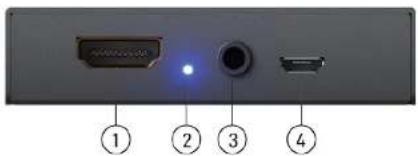
text_image
① ② ③ ④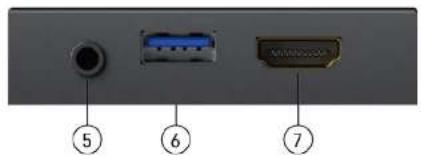
text_image
⑤ ⑥ ⑦- HDMI IN: Connect to a HDMI source
- LED INDICATOR: Input signal indicator LED
- STEREO AUDIO IN: Connect to analog stereo audio source
- Micro-USB Port: Connect to the +5V DC power supply unit
- STEREO AUDIO OUT: Audio extracts from HDMI input
- USB OUT: Connect to a USB host (PC, NB, MAC...)
- HDMI LOOPOUT: Connect to a HDMI display
CONNECTION DIAGRAM
VIDEO STREAMING
Create a Video Stream
Users can create video streams on the streaming service platform of choice. The below steps show how to complete the video streaming settings from Twitch and YouTube.
Twitch
- Browse the Twitch website (https://www twitch.tv/) and log in, then select "Creator Dashboard" from your account drop-down menu at the top right of the screen.

text_image
Log In to Twitch Log In: Sign Up Username Password Trouble logging it? Log In: or Connect with Facebook MCanning StarCraft II 292 viewers English My name is Chris 'MCanning' anning and I am a grandmaster circraft two players! I prize myself in being one of the select few circraft streamers who can play the game at a high level and talk retty much constantly throughout! User Online Share My Activity Channel Video Producer Creator Dashboard Friends Subscriptions Inventory Wallet-
Find "Preferences" in the left menu, and click "Channel", then you will see "Primary Steam key" on the screen. Copy the "Primary Steam key" and paste it into the "Stream Key" field in the OBS, then click "Start Streaming"
-
Go back to Twitch and select "Channel" from your account drop-down menu.

text_image
Channel CREATOR DASHBOARD Home Stream Manager Insights Community Content Preferences Channel Moderation Drops Streaming Tools Stream Key & Preferences Primary Stream key Show Disconnect Protection Improve the viewing experience for your stream by enodizing a backup in their disconnected. If your primary stream fails, automatically deple a temporary seconds while you troubleshoot and reconnect. *Note: This requires the use properly. Store past broadcasts Automatically save broadcasts for up to 14 days 600 days for Partners, Turbo and Prime users! Nature Content Back to Twitch Channel Account Settings Language Dark Theme Log Out- At this point, you will see the player start live streaming.
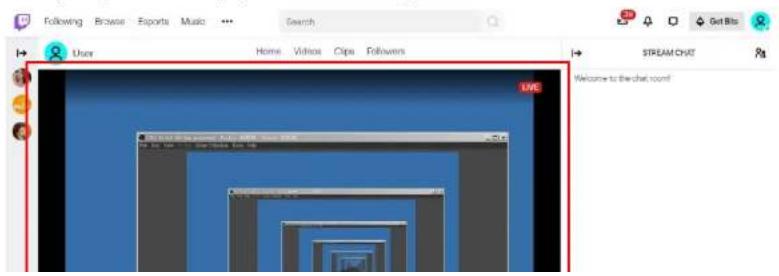
text_image
Following Browser Esports Music ... Search User Home Videos Clips Followers STREAM CHAT Welcome to the chat room!YouTube
- Browse the YouTube website (https://www.youtube.com/) and log In, then lick "Go live" from the "Create" icon menu at the top right of the screen.
* If your account is using YouTube for the first time to create a video stream, you need to wait 24 hours to enable the function.
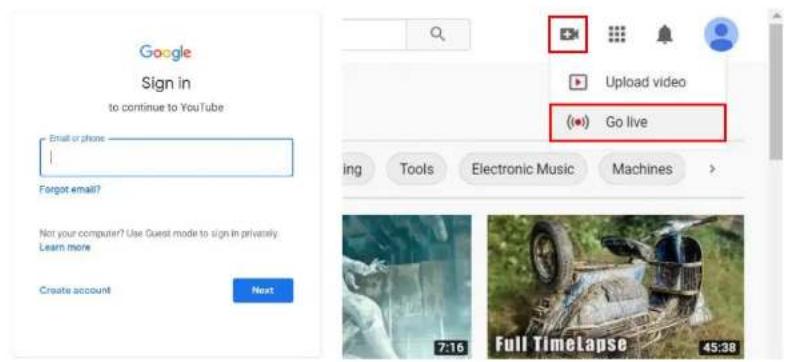
text_image
Google Sign in to continue to YouTube Email or phone ! Forgot email? Not your computer? Use Quest mode to sign in privately. Learn more Create account Next Upload video (G) Go live 7:16 Full TimeLapse 45:38- Click "Stream" in the left menu, and fill in the relevant information of the live video to create a new stream.
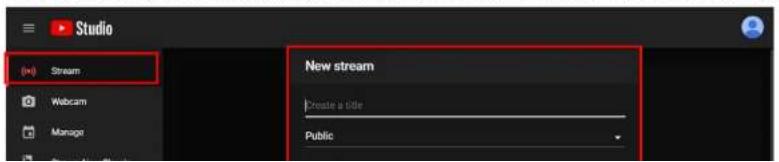
text_image
Studio (+) Stream New stream Create a title Public- You will see "Stream key" from the "STREAM SETTINGS" below. Copy the "Stream key" and paste it into the "Stream Key" field in the OBS, then click "Start Streaming" in the software.
* Please refer to steps 4-6 of the OBS software control program.

text_image
Studio No data STREAM SETTINGS ANALYTICS STREAM HEALTH Stream key Send Stream key Auto-generated key Stream key (guide instructions) ****** Stream URL: http://a.rtmp.youtube.com/live2/ Backup server URL: http://b.rtmp.youtube.com/live2?backu ADDITIONAL settings Enable Auto-start Enable Auto-stop Enable DVR 360° video Add user data None Live chat Welcome to live chat! Remember to guard your privacy and abide by us community guidelines. LEANS MORE User Say something...- Next, go back to YouTube, and then wait for 30-60 seconds, the player will display the live preview. At the same time, the "GO LIVE" button at the top right will turn blue, please press this button.
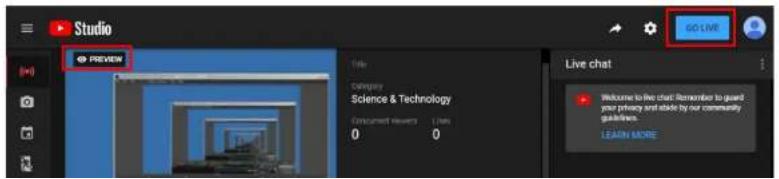
text_image
Studio GO LIVE PREVIEW Title Category Science & Technology Environment Viewers Users 0 0 Live chat Welcome to live chat! Remember to guard your privacy and able by our community guidance. LEARN MORE- The player on YouTube will start live streaming.
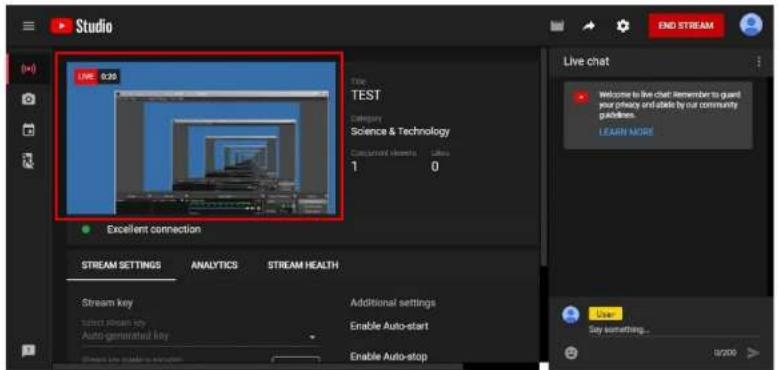
text_image
Studio LIVE 0.25 File TEST Category Science & Technology Concurrent elements Users 1 0 Excellent connection Stream settings ANALYTICS STREAM HEALTH Stream key Additional settings select remote key Auto-generated key Enable Auto-start Enable Auto-stop Live Sey looking... 9/200Stream and record videos with OBS
OBS is a popular USB capture freeware and has excellent compatibility. Please start with OBS if users are not familiar with USB capture devices.
Download the software
Browse the download page of the OBS official website (https://obsproject.com/download), then select the suitable computer operating system and start downloading.

text_image
OBS Open Broadcaster Software® Home Download Blog Help Forum Download OBS Studio Select Your Operating SystemStart the software control program
After downloading the software, please open it and follow the below steps to complete the video streaming settings.

text_image
File Edit View Tools SaveCollected Tools Help- First, find the "Scenes" window, click "+" in the lower left corner, and then enter the name of the scene to create a new scene.
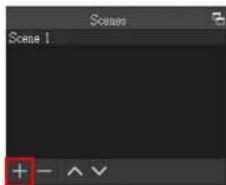
text_image
Scene 1 + - ^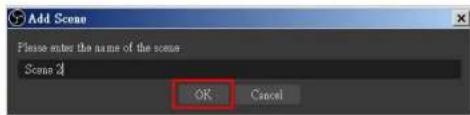
text_image
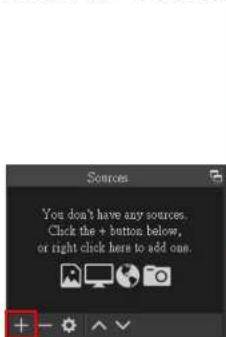
Add Scene Please enter the name of the scene Scene 4 OK Cancel- Find the "Source" window, click "+" in the lower left corner, and then select "Display Capture" or "Video Capture Device" to create a new source.
text_image
Sources You don't have any sources. Click the + button below, or right click here to add one.
text_image
Audio Input Capture Audio Output Capture Brownet Color Source Display Capture Game Capture Image Image Slide Show Media Source Scene Text (SDIs) Video Capture Devices Window Capture Group Deprecated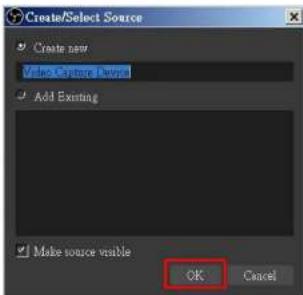
text_image
Create/Select Source Create new Video Content Devnl Add Existing Make source visible OK Cancel-
Next you can get display capture properties. If you select "Display Capture" in step 2, you can select the image
-
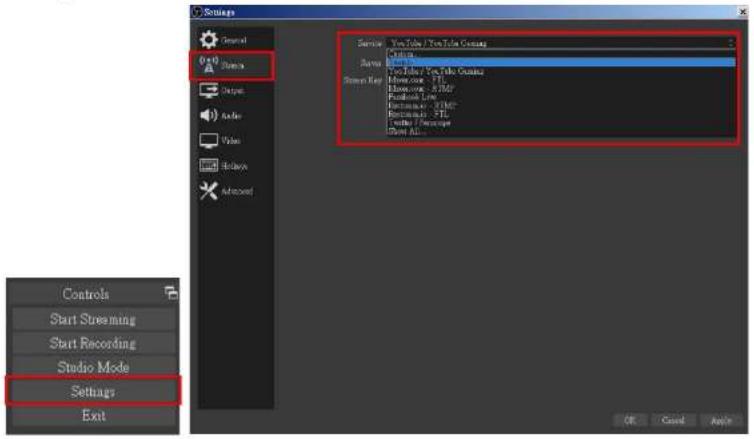
Click "Settings" and then select "Stream" to perform streaming settings. Users can choose service providers, including Twitch, YouTube, etc.
text_image
Settings Add Add Remove Remove Remove Remove Remove Remove Remove Remove Remove Remove Remove Remove Remove Remove Remove Remove Remove Remove Remove Remove Remove Remove Remove Remove Remove Remove Remove Remove Remove Remove Remove Remove Remove Remove Remove Remove Remove Remove Remove Remove Remove Remove Remove Remove Remove Remove Remove Remove Remove Remove Add Create Apply- Paste the stream key provided by the service provider into the "Stream Key" field, then click "Apply" and "OK" after setting. In addition, users can lick "Get Stream Key" at this step to open the service provider website.

text_image
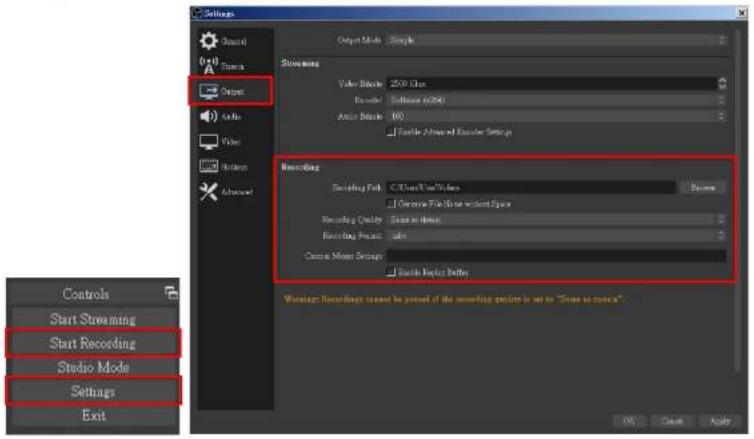
Service: YouTube / YouTube Gaming Server: Primary YouTube to put server. Stream Key Show Get Stream Key- On the other hand, users can also click "Start Recording" to record videos with OBS. Besides, you can click "Settings" and then select "Output" to set "Recording Path" and "Recording Format".
text_image
Options Start Streaming Start Recording Studio Mode Settages Exit Output Mode: Simple Streamings Volume Block: 2500 Bits Audio Block: Software (RGB) Audio Block: 100 Fable Advanced Marker Setup Recording Recording Exit: C:\Users\Use\Video Controls File\Show\Student\Splice Recording Output: Screen mode Recording Format: Help Custom Mode Settings Fable Marker Settings Warnings: Recordings cannot be present of the recording output is set to "Show as necessary".The procedures the manual demonstrates are based on the interface that each website provides at the time when the manual is written. The most recent method of live streaming should be similar to the above procedures but is subject to change by the website interface update from the social media platforms.
TROUBLESHOOTING
Our USB device has been subjected to rigorous tests before shipping. Most of the incompatibilities we have experienced are not from the USB capture device itself, but from the sophisticated software and hardware combinations of PCs or laptops. Please try the following suggestions-
- OBS is a popular USB capture freeware and has excellent compatibility with most devices. Please download it and start with OBS if users are not familiar with USB capture devices.
https://obsproject.com/download - Due to the complexities of OS and computer hardware, different USB ports on PCs or laptops may have different performance or limitations. Please try all USB ports to see if there are any differences.
- Please use the included USB cable. We do not guarantee the overall performance when the USB capture box is connected with other USB cables.
- SDI cable quality may also play an essential role when capturing. Please be sure the SDI cable is capable of 1080P@60 SDI signal transmission or better. Try different cables when the device is not able to work as expected.
- If audio has noise, please adjust sampling frequency setting on PC or laptop. If the default sampling rate is 48000 Hz, please select 44100 Hz and vice versa. The path of setting sampling frequency on windows 10 is:
Start → Setting → System → Sound → Device properties → Additional device properties → Advanced
USB PIN DEFINITION

text_image
P1 P2| P1 | P2 | ||
| VBUS | 1 | ←→ | 1 |
| D- | 2 | ←→ | 2 |
| D+ | 3 | ←→ | 3 |
| GND | 4 | ←→ | 4 |
| SSRX- | 5 | ←→ | 5 |
| SSRX+ | 6 | ←→ | 6 |
| GND | 7 | ←→ | 7 |
| SSTX- | 8 | ←→ | 8 |
| SSRX+ | 9 | ←→ | 9 |
| Shield | SHELL | ←→ | SHELL |
WARRANTY
BZBGEAR wants to assure you peace of mind. We're so confident in the quality of our products that along with the manufacturer's one-year limited warranty, we are offering free second-year warranty coverage upon registration*.
Taking advantage of this program is simple, just follow the steps below:
-
Register your product within 90 days of purchase by visiting BZBGEAR.com/warranty.
-
Complete the registration form. Provide all necessary proof of purchase details, including serial number and a copy of your sales receipt.
For questions, please call 1.888.499.9906 or email support@bzbgear.com.
For complete warranty information, please visit BZBGEAR.com/warranty or scan the QR code below.

MISSION STATEMENT
BZBGEAR manifests from the competitive nature of the audiovisual industry to innovate while keeping the customer in mind. AV solutions can cost a pretty penny, and new technology only adds to it. We believe everyone deserves to see, hear, and feel the advancements made in today's AV world without having to break the bank. BZBGEAR is the solution for small to medium-sized applications requiring the latest professional products in AV.
We live in a DIY era where resources are abundant on the internet. With that in mind, our team offers system design consultation and expert tech support seven days a week for the products in our BZBGEAR catalog. You'll notice comparably lower prices with BZBGEAR solutions, but the quality of the products is on par with the top brands in the industry. The unparalleled support from our team is our way of showing we care for every one of our customers. Whether you're an integrator, home theater enthusiast, or a do-it-yourselfer, BZBGEAR offers the solutions to allow you to focus on your project and not your budget.