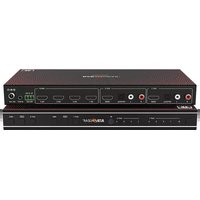
BG-UHD-MVS42MA - Router BZBGear - Free user manual and instructions
Find the device manual for free BG-UHD-MVS42MA BZBGear in PDF.


| Product Type | Wireless Router |
| Brand | BZBGear |
| Model | BG-UHD-MVS42MA |
| Dimensions (W x D x H) | 200 x 150 x 30 mm |
| Weight | 0.5 kg |
| Power Supply | DC 12V / 1A |
| Wireless Standard | IEEE 802.11ac |
| Frequency Bands | 2.4 GHz and 5 GHz |
| Maximum Speed | Up to 1200 Mbps |
| Ethernet Ports | 4 x LAN (10/100/1000 Mbps), 1 x WAN |
| USB Port | 1 x USB 2.0 |
| Antenna Type | External detachable (2) |
| Power Consumption | 12W max |
| Main Functions | Routing, WiFi access point, DHCP, NAT, firewall, VPN pass-through |
| Maintenance & Cleaning | Wipe with a soft dry cloth; do not use liquids |
| Safety Instructions | Avoid exposure to water, keep ventilated, do not disassemble |
| Spare Parts & Repairability | Power adapter and antennas available; consult service center for repairs |
| General Information | Designed for home and small office use; supports latest security protocols |
Frequently Asked Questions - BG-UHD-MVS42MA BZBGear
User questions about BG-UHD-MVS42MA BZBGear
0 question about this device. Answer the ones you know or ask your own.
Ask a new question about this device
Download the instructions for your Router in PDF format for free! Find your manual BG-UHD-MVS42MA - BZBGear and take your electronic device back in hand. On this page are published all the documents necessary for the use of your device. BG-UHD-MVS42MA by BZBGear.
USER MANUAL BG-UHD-MVS42MA BZBGear
Operation Controls and Functions 7
IR Remote 9
EDID Settings 10
Video & Audio 10
Multiview 11
OSD Menu Navigation 11
RS-232 Command 13
Application Diagram 20
Tech Support 21
Warranty 22
Mission Statement 23
Copyright 24
Statement
Please read these instructions carefully before connecting, operating, or configuring this product. Please save this manual for future reference.
SafetyPrecaution
- To prevent damaging this product, avoid heavy pressure, strong vibration, or immersion during transportation, storage, and installation.
- The housing of this product is made of organic materials. Do not expose to any liquid, gas, or solids which may corrode the shell.
- Do not expose the product to rain or moisture.
- To prevent the risk of electric shock, do not open the case. Installation and maintenance should only be carried out by qualified technicians.
- Do not use the product beyond the specified temperature, humidity, or power supply specifications.
- This product does not contain parts that can be maintained or repaired by users. Damage caused by dismantling the product without authorization from BZBGEAR is not covered under the warranty policy.
- Installation and use of this product must strictly comply with local electrical safety standards.
Introduction
The BG-UHD-MVS42MA is a 4x2 multiviewer and seamless UHD video matrix switcher that was developed for the purpose of supporting higher output resolution such as 4K@60 to display multiple sources on two screens. It can accept 4 HDMI inputs and combine the video signals onto two HDMI UHD or HD displays independently.
Users can manage each input and create combinations of the four inputs on two displays as well as adjust the position of the inputs. The BG-UHD-MVS42MA supports 8 display modes and users can freely switch 4-channel HD input signals. This product supports a full range of input video resolutions up to 4K@60 as well as audio de-embedding via RCA or S/PDIF optical for external audio distribution systems.
This Matrix Switcher can be controlled via front panel buttons, IR remote, or RS-232 commands.
Features
●HDMI 2.0b, HDCP 2.2 and HDCP 1.x compliant
- 18Gbps uncompressed Bandwidth
- Input and output resolution up to 4K2K@60 4:4:4
- HDMI audio formats support LPCM, DD+, DTS, Dolby TrueHD, DTS HD-master pass-through
- Seamless switching between input channels
- Combined multiple images or independent layouts to display on two UHD TVs
- Up to 8 display modes: Single, PIP, PBP(1), PBP(2), Triple(1), Triple(2), Quad(1), Quad(2)
●Audio de-embedding via analog and optical fiber audio ports
- Control via front panel buttons, IR remote, RS-232 commands
- Output scaling
●Independent audio selection
●Advanced EDID management
- Compact design for easy and flexible installation
PackingList
- 1x 4K60 4x2 UHD Video Matrix Switcher
- 2x Mounting Ears
- 1x IR Remote
- 4x Machine Screws (KM3*4)
- 1x 3 pin-3.81mm Phoenix Connector (male)
- 1x 12V/2.5A Power Adapter
- 1x 38KHz IR Receiver Cable (1.5m)
- 1x User Manual
Specifications
| Technical | |
| HDMI Compliance | HDMI 2.0b |
| HDCP Compliance | HDCP 2.2 / 1.x |
| Video Bandwidth | 18Gbps |
| Video Resolution | Up to 4K2K@60 4:4:4 |
| IR Level | 5Vp-p |
| IR Frequency | 38KHz |
| Color Space | RGB, YCbCr 4:4:4, YCbCr 4:2:2, YCbCr 4:2:0 |
| Color Depth | 8/10/12-bit |
| Audio Formats | HDMI audio: PCM2.0/5.1/7.1CH, Dolby Digital/Plus/EX, Dolby True HD, DTS, DTS-EX, DTS-96/24, DTS High Res, DTS-HD Master A Analog audio [3.5mm L/R]: PCM2.0Optical fiber audio: PCM2.0/5.1/7.1CH, Dolby Digital/plus, DTS 5. |
| ESD Protection | Human body model - ±8kV (Air-gap discharge) & ±4kV (Contact discharge) |
| Connection | |
| Input ports | 4 x HDMI IN [Type A, 19-pin female] |
| Output ports | 2 x HDMI OUT [Type A, 19-pin female] 2 x L/R OUTPUT [RCA]2 x OPTICAL OUTPUT [S/PDIF] |
| Control ports | 1 x RS-232 [3 pin-3.81mm phoenix connector] 1 x IR EXT[3.5mm Stereo Mini-jack] |
| Mechanical | |
| Housing | Metal Enclosure |
| Color | Black |
| Dimensions | 270mm [W] x 130mm [D] x 30mm [H] |
| Weight | 906g |
| Power Supply | Input: AC 100 - 240V 50/60HzOutput: DC 12V/2.5A (US/EU standard, CE/FCC/UL certified) |
| Power Consumption | 15.72W (Max) |
| Operating Temperature | 32 - 104°F / 0 - 40°C |
| Storage Temperature | -4 - 140°F / -20 - 60°C |
| Relative Humidity | 20 - 90% RH (no-condensing) |
OperationControlsandFunctions
FrontPanel

| No. | Name | FunctionDescription |
| 1 | Powerbutton | •Short press this button to power on the device.•Long press this button for 1 second to enter the standby mode. |
| 2 | PowerLED | The Power LED will illuminate green when the product is powered on and red when the product is in standby. |
| 3 | OUT1LEDs | Signal source indicator for HDMI OUT 1 port.In single screen display mode when the HDMI OUT 1 port outputs a signal from of the HD 1/2/3/4 inputs the corresponding green LED will illuminate.In multiview mode all OUT 1 LEDs will illuminate green. |
| 4 | OUT2LEDs | Signal source indicator for HDMI OUT 2 port.In single screen display mode when the HDMI OUT 2 port outputs a signal from of the HD 1/2/3/4 inputs the corresponding green LED will illuminate.In multiview mode all OUT 2 LEDs will illuminate green. |
| 5 | IRWindow | IR signal receiving window. |
| 6 | OUT1button | Input source switching button for the HDMI OUT 1 port which is only available single screen display modes. |
| 7 | OUT1Multiviewbutton | Multiview display mode switching button for the HDMI OUT 1 port.•Short press this button to cycle select:Single-PIP-PBP(1)-PBP(2)-Triple(1)-Triple(2)-Quad(1)-Quad(2)-single.•Long press this button for 3 seconds to switch the aspect ratio (16:9/Full) for PBP (1) / PBP (2) / Triple (1) / Triple (2) / Quad (1) / Quad (2). |
| 8 | OUT1RESbutton | Output resolution switching button for the HDMI OUT 1 port.•Short press the RES button to cycle switch the output resolution of the HDMI OUT 1 port (Please refer to the output resolution list of “Video & Audio”).•Long press the RES button for 3 seconds to switch the output resolution to 720P60. |
| 9 | OUT2button | Input source switching button for the HDMI OUT 2 port which is only available single screen display modes. |
| 10 | OUT2Multiviewbutton | Multiview display mode switching button for the HDMI OUT 2 port.•Short press this button to cycle select:Single-PIP-PBP(1)-PBP(2)-Triple(1)-Triple(2)-Quad(1)-Quad(2)-single.•Long press this button for 3 seconds to switch the aspect ratio (16:9/Full) for PBP (1) / PBP (2) / Triple (1) / Triple (2) / Quad (1) / Quad (2). |
| 11 | OUT2RESbutton | Output resolution switching button for the HDMI OUT 2 port.•Short press the RES button to cycle switch the output resolution of the HDMI OUT 2 port (Please refer to the output resolution list of “8. Video & Audio”).•Long press the RES button for 3 seconds to switch the output resolution to 720P60. |
RearPanel

| No. | Name | FunctionDescription |
| 1 | L/ROUT1 | PCM 2.0 Analog audio output port. |
| 2 | OPTICALOUT1 | Optical fiber digital audio output port. |
| 3 | HDMIOUT1 | Connect to an HDMI display device such as a TV or Monitor with HD cables. |
| 4 | L/ROUT2 | PCM 2.0 Analog audio output port. |
| 5 | OPTICALOUT2 | Optical fiber digital audio output port. |
| 6 | HDMIOUT2 | Connect to an HDMI display device such as a TV or Monitor with HD cables. |
| 7 | HD1-4 INPUTports | Connect to an HDMI source device such as Game Console or Set-top with HDMI cables. |
| 8 | RS-232port | 3-pin phoenix connector, connected to a PC or control system for se upgrade or RS-232 command control. |
| 9 | IREXTport | If the IR signal receiving window of the unit is blocked or the unit is in a closed area out of infrared line of sight, the IR receiver cable ca inserted to the “IR EXT” port to receive the IR remote signal. |
| 10 | DC12V | DC 12V/2.5A power input port. |
IRRemote

- Powerbutton: Press this button to power on the switcher or set it to standby mode.
2.OUT1/OUT2buttons:
HD1/2/3/4: Press these buttons to select an input source on single screen display mode, and the corresponding input LED on the front panel will illuminate green.
◀ ▶ : Press these buttons to cycle select the last or next input source on single screen display mode.
田:Multiview display mode switching button.
- Short press this button to circularly select: SINGLE - PIP - PBP(1) - PBP (2) - Triple (1) - Triple (2) - Quad (1) - Quad (2). 16:9:Press this button to switch the aspect ratio (16:9/Full) for PBP (1) / PBP (2) / Triple (1) / Triple (2) / Quad (1) / Quad (2) display mode.
A-IN:Press this button to pop up the audio channel selection OSD, then press the UP / DOWN button to select
the audio output channel. (The output audio follows the video source by default.)
Mute:Press this button to mute / unmute the audio.
RES: Output resolution switching button.
- Short press the RES button to cycle switch the output resolution of the HDMI OUT 1 or 2 ports (Please refer to the output resolution list of "Video & Audio").
-
Long press the RES button for 3 seconds to switch the output resolution to 720P60.
-
Out 1: Press this button to enter the OSD menu of the HDMI OUT 1 port and set the corresponding function by pressing UP/DOWN/LEFT/RIGHTOKbutton.
Out2: Press this button to enter the OSD menu of the HDMI OUT 2 port and set the corresponding function by pressing UP/DOWN/LEFT/RIGHTOKbutton.
Exit: Press this button to exit the OSD settings layer by layer.
EDIDSettings
Users can select following EDID modes via RS-232 commands or OSD menu navigation.
| No. | EDIDMode | No. | EDIDMode |
| 1 | 4K2K60_444, Stereo Audio 2.0 | 11 | 1680x1050,Stereo Audio 2.0 |
| 2 | 4K2K60_444, Dolby/DTS 5.1 | 12 | 1600x1200,Stereo Audio 2.0 |
| 3 | 4K2K60_444, HD Audio 7.1 | 13 | 1440x900,Stereo Audio 2.0 |
| 4 | 4K2K30_444, Stereo Audio 2.0 | 14 | 1360x768, Stereo Audio 2.0 |
| 5 | 4K2K30_444, Dolby/DTS 5.1 | 15 | 1280x1024,Stereo Audio 2.0 |
| 6 | 4K2K30_444, HD Audio 7.1 | 16 | 1024x768, Stereo Audio 2.0 |
| 7 | 1080P, Stereo Audio 2.0 | 17 | 720p,Stereo Audio 2.0 |
| 8 | 1080P, Dolby/DTS 5.1 | 18 | AUTO |
| 9 | 1080P, HD Audio 7.1 | 19 | USER1 |
| 10 | 1920x1200,Stereo Audio 2.0 |
Video&Audio
The BG-UHD-MVS42MA supports multiple video input resolutions up to 3840x2160@60 and supports multiple audio formats (PCM2.0/5.1/7.1CH, Dolby Digital/Plus/ EX, Dolby True HD, DTS, DTS-EX, DTS-96/24, DTS High Res, DTS-HD Master Audio) pass-through functionality via HDMI cables.
The unit supports following video output resolutions:
| No. | OutputResolution | No. | OutputResolution |
| 1 | 4096x2160p 60Hz | 8 | 1920x1080p 60Hz |
| 2 | 4096x2160p 50Hz | 9 | 1920x1080p 50Hz |
| 3 | 3840x2160p 60Hz | 10 | 1360x768p 60Hz |
| 4 | 3840x2160p 50Hz | 11 | 1280x800p 60Hz |
| 5 | 3840x2160p 30Hz | 12 | 1280x720p 60Hz |
| 6 | 3840x2160p 25Hz | 13 | 1280x720p 50Hz |
| 7 | 1920x1200p 60Hz RB | 14 | 1024x768 60Hz |
Multiview
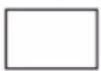
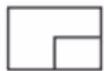
The switcher supports 8 multiview display modes: SINGLE, PIP, PBP (1), PBP (2), Triple (1), Triple (2), Quad (1), Quad (2)
Users can select different operations for different Multiview modes as follows:
SINGLE: Inputs selectionPIP: Inputs selection, Sub window size and position selection
PBP (1), PBP (2), Triple (1), Triple (2), Quad (1), Quad (2): Inputs selection, Display mode selection, Display aspect selection
Multiview window distributions are as follows:
SINGLE
PIP
PBP (1)

PBP (2)

Triple (1)

Triple (2)

Quad (1)

Quad (2)

User can select Multiview modes via RS-232 commands or OSD menu navigation.
OSDMenuNavigation
- A total of seven buttons on the IR Remote are used for OSD menu navigation, including MENU, EXIT, UP, DOWN, LEFT, RIGHT, OK.
Menu contents are as follows:
| Output | Resolution | 3840x2160p60 | 4096x2160p 60Hz/4096x2160p 50Hz/3840x2160p 60Hz/3840x2160p 50Hz/3840x2160p 30Hz/3840x2160p 25Hz/1920x1200p60Hz RB/1920x1080p 60Hz/1920x1080p 50Hz/1360x768p 60Hz/1280x800p 60Hz/1280x720p 60Hz/1280x720p 50Hz/1024x768 60Hz |
| VKA | BLACKSCREEN | BLACKSCREEN,BLUESCREEN | |
| ITC | OFF | ON,OFF | |
| Multiview | Single | Input select | HDMI1,HDMI2,HDMI3,HDMI4 |
| PIP | Win1 Select | HDMI1,HDMI2,HDMI3,HDMI4 | |
| Win2 Select | HDMI1,HDMI2,HDMI3,HDMI4 | ||
| PIP Position | Right Bottom,Right Top, LeftBottom,Left Top | ||
| PIP Size | Small,Middle,Large | ||
| PBP | Win1 Select | HDMI1,HDMI2,HDMI3,HDMI4 | |
| Win2 Select | HDMI1,HDMI2,HDMI3,HDMI4 | ||
| MODE | 1,2 | ||
| Aspect | Full, 16:9 | ||
| Multiview | 3xWIN | Win1 Select | HDMI1,HDMI2,HDMI3,HDMI4 |
| Win2 Select | HDMI1,HDMI2,HDMI3,HDMI4 | ||
| Win3 Select | HDMI1,HDMI2,HDMI3,HDMI4 | ||
| MODE | 1, 2 | ||
| Aspect | Full, 16:9 | ||
| 4xWIN | Win1 Select | HDMI1,HDMI2,HDMI3,HDMI4 | |
| Win2 Select | HDMI1,HDMI2,HDMI3,HDMI4 | ||
| Win3 Select | HDMI1,HDMI2,HDMI3,HDMI4 | ||
| Win4 Select | HDMI1,HDMI2,HDMI3,HDMI4 | ||
| MODE | 1, 2 | ||
| Aspect | Full,16:9 | ||
| AUDIO | Audio Select | WIN1 | WIN1,HDMI1,HDMI2,HDMI3, HDMI4 |
| AUDIO-MUTE | OFF | ON, OFF | |
| System | Language/语言 | 中文 | English, 中文 |
| EDID | 4K60-2.0 | 4K60-2.0,4K60-5.1CH,4K60-7.1CH,4K30-2.0CH,4K30-5.1CH,4K30-7.1CH,1080P-2.0CH,1080P-5.1CH,1080P-7.1CH,1920x1200-2.0CH,1680x1050-2.0CH,1600x1200-2.0CH,1440x900-2.0CH, 1360x768-2.0CH,1280x1024-2.0CH, 1024x768-2.0CH,720P-2.0CH, AUTO | |
| Baud rate | 115200 | 115200,57600,38400,19200,9600 | |
| Reset | Reset | Reset | |
| FW Version | Read only |
- A total of two buttons on the IR Remote are used for audio setting on OSD menu navigation, including A-IN, Mute.
Menu contents are as follows:
| A-IN | Audio Input | WIN1 | WIN1,HDMI1,HDMI2,HDMI3, HDMI4 |
| Mute | Audio Mute | OFF | ON, OFF |
RS-232Command
The BG-UHD-MVS42MA supports RS-232control commands. Connect the RS-232 port of the product to a PC with a 3-pin phoenix connector cable. Then open a Serial Command tool on PC to send ASCII commands to control the product.
The ASCII command list about the product is shown as below.
| ASCIICommands |
| Serial port protocol: baud rate: 115200 (default) Data bits: 8 Stop bits: 1 Check bit: 0 |
| x - Parameter 1; y - Parameter 2; ! - Delimiter |
| CommandCode | FunctionDescription | Example | Feedback |
| SystemSetting | |||
| help! | List all commands | help! | |
| r type! | Get device model | r type! | 4x2 HDMI Multiviewer |
| r fw version! | Get Firmware version | r fw version! | MCU FW version x.xx.xx SCALERFW version x.xx.xx |
| power z! | Power on/off the device,z=0~1 (z=0 power off, z=1 power on) | power 1! | power onSystem Initializing... InitializationFinished! MCU FW versionx.xx.xxSCALER FW version x.xx.xx |
| r power! | Get current power state | r power! | power on/power off |
| reboot! | Reboot the device | reboot! | Reboot...System Initializing... InitializationFinished! MCU FW versionx.xx.xxSCALER FW version x.xx.xx |
| reset! | Reset to factory defaults | reset! | Reset to factory defaultsSystem Initializing... InitializationFinished! MCU FW versionx.xx.xxSCALER FW version x.xx.xx |
| OutputSetting | |||
| s output y res x! | Set Output y Resolution(y=1~2, x=1~14)y=1. output 1y=2. output 21. 4096x2160p60,2. 4096x2160p50,3. 3840x2160p60,4. 3840x2160p50,5. 3840x2160p30,6. 3840x2160p25,7. 1920x1200p60RB,8. 1920x1080p60,9. 1920x1080p50,10.1360x768p60,11.1280x800p60,12.1280x720p60,13.1280x720p50,14. 1024x768p60, | s output 1 res 3! | output 1 resolution: 3840x2160p60 |
| r output y res! | Get output y resolution(y=1~2)1. output 12. output 2 | r output res! | output 1 resolution: 3840x2160p60 |
| s output hdcp x! | set output hdcp(y=1~2, x=1~3) y=1 output 1y=2. output 2x=1. HDCP 1.4x=2. HDCP 2.2 x=3.HDCP OFF | s output 1 hdcp 2! | output 1 HDCP: HDCP 1.4 |
| r output y hdcp! | Get output y hdcp status.(y=1~2)1. output 12. output 2 | r output 1 hdcp! | output 1 HDCP: HDCP 1.4 |
| s output y vka x! | Set output video keep active pattern.(y=1~2, x=1~2)y=1. output 1y=2. output 2 x=1. black screen x=2. blue screen | s output 1 vka 1! | output 1 VKA pattern: black screen |
| r output y vka! | Get output y video keep active pattern.(y=1~2)1. output 12. output 2 | r output 1 vka! | output 1 VKA pattern: black screen |
| s output y itc x! | Set output video mode (y=1~2, x=1~2)y=1. output 1y=2. output 2 x=1: videomode x=2: pc mode | s output 1 itc 1! | output 1 ITC: video mode |
| r output y itc! | Get output video mode(y=1~2)1. output 12. output 2 | r output 1 itc! | output 1 ITC: video mode |
| EDIDSetting | |||
| s input EDID x! | Set HDMI input EDID mode(x=1~19)4K2K60_444,Stereo Audio 2.04K2K60_444,Dolby/DTS 5.14K2K60_444,HD Audio 7.14K2K30_444,Stereo Audio 2.05.4K2K30_444,Dolby/DTS 5.16.4K2K30_444,HD Audio 7.17.1080P,Stereo Audio 2.08.1080P,Dolby/DTS 5.19.1080P,HD Audio 7.110.1920x1200,Stereo Audio 2.011.1680x1050,Stereo Audio 2.012.1600x1200,Stereo Audio 2.013.1440x900,Stereo Audio 2.014.1360x768,Stereo Audio 2.015.1280x1024,Stereo Audio 2.016.1024x768,Stereo Audio 2.017.720p,Stereo Audio 2.018.AUTO19.USER1 | s input EDID 1! | input EDID:4K2K60_444,Stereo Audio 2.0 |
| r input EDID! | Get input EDID mode | r input EDID! | input EDID:4K2K60_444,Stereo Audio 2.0 |
| s edid user100 FF FF ...! | Set user1 EDID data | s edid user1 00FF FF FF FF ...! | user1 EDID data: 00 FF FF .... |
| r edid user1! | Get user1 EDID data | r edid user1! | user1 EDID data:00 FF FF FF FF FF FF 00 ...... |
| AudioSetting | |||
| s output y audio x! | Set output y audio source (y=1~x=0~4)y=1. output 1y=2. output 2x=0. follow window 1selected sourcex=1. HDMI 1 input audiox=2. HDMI 2 input audiox=3. HDMI 3 input audiox=4. HDMI 4 input audio | s output 1 audio 0! | output 1 audio follow window 1video source |
| r output y audio! | Get output y audio source(y=1~1. output 12. output 2 | r output 1 audio! | output 1 audio follow window 1video source |
| s output y audio mute x! | Set output audio mute on/off(x=0~1, y=1~2)y=1. output 1y=2. output 2 x=0.mute off x=1. muteon | s output 1 audio mute 0 | output 1 audio mute off |
| r output y audio mute! | Get output y audio mute on/off (y=1~2)1. output 12. output 2 | r output 1 audio mute! | output 1 audio mute off |
| SingleScreenModeSetting | |||
| s output y auto switch | Enable/disable auto switchfeature(y=1~2,x=0~1)y=1. output 1y=2. output 20. Disable auto switch1. Enable auto switch | s auto switch 0! | auto switch off |
| r output y auto switch! | Get output y auto switch feature (y=1~2)1. output 12. output 2 | r auto switch! | auto switch off |
| s output y in source x | Route input source to output y (y=1~2, x=1~4)y=1. output 1y=2. output 2x=1. HDMI 1x=2. HDMI 2x=3. HDMI 3x=4. HDMI 4 | s in source 1! | HDMI 1 |
| r output y in source! | Get output y selected input source(y=1~2)1. output 12. output 2 | r in source! | HDMI 1 |
| Multi-viewerModeSetting | |||
| s output y multiview x! | Set output y multi-viewer display mode(y=1~2, x=1~5)y=1. output 1y=2. output 2x=1. single screen x=2.PIPx=3. PBPx=4. triple screen x=5.quad screen | s output 1 multiview 1! | output 1 multiview: single screen |
| r output y multiview! | Get output y multi-viewer display mode(y=1~2)1. output 12. output 2 | r output 1 multiview! | output 1 multiview: single screen |
| s output z window x in | Select output z one input for one display window for the current Multiview mode.(z=1~2)1. output 12. output 2 (x=1~4)1. window 12. window 23. window 34. window 4 (y=1~4)1. HDMI 12. HDMI 23. HDMI 34. HDMI 4 | s output 1 window 1 in | output 1: window 1 select HDMI |
| r output y window x in | Get output y windows selected input source(y=1~2)1. output 12. output 2 (x=0~4)0. ALL1. window 12. window 23. window 34. window 4 | r output 1 window 1 in | output 1 window 1 select HDMI |
| s output y PIP position x! | Set output y PIP window position (y=1~2)1. output 12. output 2 (x=1~4)1. Left Top2. Left Bottom3. Right Top4. Right Bottom | s output 1 PIP position | output 1 PIP on right top |
| r output y PIP position | Get output y PIP window position (y=1~2)1. output 12. output 2 | r output 1 PIP position! | output 1 PIP on right top |
| s output y PIP size x! | Get output y PIP window size (y=1~2)1. output 12. output 2 (x=1~3)1. small2. middle3. large | s output 1 PIP size 3! | output 1 PIP size large |
| r output y PIP size! | Get output y PIP window size (y=1~2)1. output 12. output 2 | r output 1 PIP size! | output 1 PIP size large |
| s output y PBP mode | Set output y PBP windows display mode (y=1~2)1. output 12. output 2 (x=1~2)1. PBP mode 12. PBP mode 2 | s output 1 PBP mode | output 1 PBP mode 1 |
| r output y PBP mode! | Get output y PBP windows display mode (y=1~2)1. output 12. output 2 | r output 1 PBP mode! | output 1 PBP mode 1 |
| s output y PBP aspect x! | Set output y PBP windows display aspect ratio (y=1~2)1. output 12. output 2 (x=1~2)1. Full screen 2. 16:9 | s output 1 PBP aspect 1! | output 1 PBP aspect full screen |
| r output y PBP aspect | Get output y PBP windows display aspect ratio (y=1~2)1. output 12. output 2 | r output 1 PBP aspect! | output 1 PBP aspect full screen |
| s output y triple mode | Set output y triple windows display mode (y=1~2)1. output 12. output 2 (x=1~2)1. triple mode 12. triple mode 2 | s output 1 triple mode | output 1 triple mode 1 |
| r output y triple mode! | Get output y triple windows display mode (y=1~2)1. output 12. output 2 | r output 1 triple mode! | output 1 triple mode 1 |
| s output y triple aspect | Set output y triple windows display aspect ratio (y=1~2)1. output 12. output 2 (x=1~2)1. Full screen 2. 16:9 | s output 1 triple aspect | output 1 triple aspect full screen |
| r output y triple aspect! | Get output y triple windows display aspect ratio (y=1~2)1. output 12. output 2 | r output 1 triple aspect! | output 1 triple aspect full screen |
| s output y quad mode x | Set output y quad windows display mode (y=1~2)1. output 12. output 2 (x=1~2)1. quad mode 12. quad mode 2 | s output 1 quad mode | output1 quad mode 1 |
| r output y quad mode! | Get output y quad windows display mode (y=1~2)1. output 12. output 2 | r output 1 quad mode! | output1 quad mode 1 |
| s output y quad aspect | Set output y quad windows display aspect ratio (y=1~2)1. output 12. output 2 (x=1~2)1. Full screen 2. 16:9 | s output 1 quad aspect 1! | output 1 quad aspect full screen |
| r output y quad aspect! | Get output y quad windows display aspect ratio (y=1~2)1. output 12. output 2 | r output 1 quad aspect! | output 1 quad aspect full screen |
ApplicationDiagram

flowchart
graph TD
    A["UHDTV 1"] --> B["2.0 Speakers"]
    C["UHDTV 2"] --> D["2.0 Speakers"]
    E["PC"] --> F["IR Receiver"]
    G["IR Receiver"] --> H["Power Supply"]
    I["2.0 Speakers"] --> J["Audio Amplifier"]
    K["2.0 Speakers"] --> L["Audio Amplifier"]
    M["PC"] --> N["TV box"]
    O["DVD or Blu-ray Player"] --> P["Power Supply"]
    Q["Input"] --> R["RS-232"]
    Q --> S["IR EXT"]
    Q --> T["DC 12V"]
TechSupport
Have technical questions? We may have answered them already!
Please visit BZBGEAR's support page (bzbgear.com/support) for helpful information and tips regarding our products. Here you will find our Knowledge Base (bzbgear.com/knowledge-base) with detailed tutorials, quick start guides, and step-by-step troubleshooting instructions. Or explore our YouTube channel, BZB TV (youtube.com/c/BZBTVchannel), for help setting up, configuring, and other helpful how-to videos about our gear.
Need more in-depth support? Connect with one of our technical specialists directly:
Phone
1.888.499.9906
support@bzbgear.com
LiveChat
bzbgear.com
Warranty
BZBGEAR Pro AV products and cameras come with a three-year warranty. An extended two-year warranty is available for our cameras upon registration for a total of five years.
For complete warranty information, please visit_bzbgear.com/warranty.
For questions, please call 1.888.499.9906 or email support@bzbgear.com.
MissionStatement
BZBGEAR is a breakthrough manufacturer of high-quality, innovative audiovisual equipment ranging from AVoIP, professional broadcasting, conferencing, home theater, to live streaming solutions. We pride ourselves on unparalleled customer support and services. Our team offers system design consultation, and highly reviewed technical support for all the products in our catalog. BZBGEAR delivers quality products designed with users in mind.
Copyright
All the contents in this manual and its copyright are owned by BZBGEAR. No one is allowed to imitate, copy, or translate this manual without BZBGEAR's permission. This manual contains no guarantee, standpoint expression or other implies in any form. Product specification and information in this manual is for reference only and subject to change without notice.
Allrightsreserved. No reproducing is allowed without acknowledgement.
Brand : BZBGear
Model : BG-UHD-MVS42MA
Category : Router