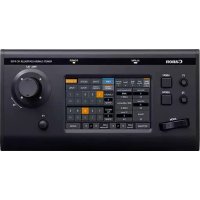
CR-X500 2A - Surveillance Camera CANON - Free user manual and instructions
Find the device manual for free CR-X500 2A CANON in PDF.


User questions about CR-X500 2A CANON
0 question about this device. Answer the ones you know or ask your own.
Ask a new question about this device
Download the instructions for your Surveillance Camera in PDF format for free! Find your manual CR-X500 2A - CANON and take your electronic device back in hand. On this page are published all the documents necessary for the use of your device. CR-X500 2A by CANON.
USER MANUAL CR-X500 2A CANON
Important Safety and Handling Instructions
Safety instructions
Be sure to read these instructions in order to operate the product safely. Follow these instructions to prevent injury or harm to the operator of the product or others.
In Case of Emergency (troubleshooting under abnormal situations)
If any of the following situations occurs, immediately unplug the power cable from the power outlet.
- If smoke, strange smells or abnormal noises are detected.
- If the product fell and was damaged.
- If foreign objects (metallic objects, liquids, etc.) get inside the product.
Continuing to use the product under such circumstances may cause fire or electric shock. Contact a Canon sales representative as soon as possible.

WARNING
Denotes the risk of serious injury or death.
Transportation/Installation
- Do not install the product in a location where there is the risk of ignition or combustion. Installing the product in a location where flammable gases are produced or concentrated may cause ignition and result in fire.
- Securely attach any parts to the product, firmly tightening the necessary screws according to the instruction manual. If the product is not firmly secured or if screws are loose, the product may topple over or fall down, resulting in injury and accidents.
- When installing the product in an elevated location, make sure to take appropriate measures in advance to prevent the equipment and parts from falling off.
Equipment falling down may cause serious injury.
Power supply
- Ensure the power cable is fully inserted into the power outlet.
- Do not handle the power cable or plug with wet hands.
- Do not leave the product plugged in for extended periods of time in locations exposed to high levels of dust, moisture or oily smoke.
Doing so may cause insulation failures and even fires.
- Periodically wipe the power cable, power outlet and terminals with a dry cloth to remove dust buildup.
- Make sure to turn off the product before connecting/disconnecting power cables.
- Do not use excessive force on the power cable. A damaged power cable can lead to fire or electric shock.
- DC power model only:
- Make sure to use a power cable that is suitable for the installation conditions (authorized products, environmental regulations) and conforms to the product's power specifications. Using an unsuitable power cable may cause electric shock and fire.
- Remove the screws together with the power cable.
Handling
- Do not allow liquids or foreign matter inside the unit.
- Do not expose the product to strong shocks or vibration.
Maintenance and Inspection
- Unplug the power cable from the power outlet before cleaning it using a dry cloth.
Cleaning the power cable when the product is turned on or using a wet cloth may cause electric shock. - Do not use organic solvents such as alcohol, benzene or paint thinner to clean the product.
- Do not disassemble or modify the product.
- There are exposed electrodes and gears inside the product. Contact with such parts may cause injury or electric shock.
- Foreign objects or dust entering into the product may cause malfunctions.
- In surroundings exposed to high temperatures and humidity, humid air entering inside the product may cause malfunctions and condensation.

CAUTION
Follow the cautions below. Otherwise physical injury or property damage may result.
Transportation/Installation
- Do not install the product on an unstable surface or in locations exposed to severe vibration.
This may cause the product to topple over or fall down, resulting in injury. - Do not install the product in locations directly exposed to salt water or where corrosive gases or oily smoke are present.
Contact with such substances may corrode and degrade the mountings, causing the product to fall down and cause injury. - When transporting the robotic camera head, always use two people to lift it, firmly grabbing the handles.
Dropping the product may damage it and cause injury and accidents.
Handling
- Make sure there are no people within the product's operating range.
The product hitting a person may cause injury. - Inspect mountings regularly (every six months to one year) to ensure they are securely tightened.
Handling Precautions
- Do not install the product in a location exposed to high temperatures.
This may cause malfunctions.
- Do not turn the camera head's rotating parts forcibly by hand.
Forcibly turning the rotating parts may damage these parts.
Always use the control device to operate the product's rotating parts.
- When using a model that has an AC power source, remove the power plug to cut off power to the AC line.
All devices are fitted with a noise filter; so, there is still an electric current in the AC line even if the power switch is turned off.
- Do not install the product in a position where the lens is pointed at intense light sources, such as the sun on a sunny day, lasers and other intense artificial lights.
Doing so may damage the image sensor or the camera's internal components.
Disclaimers
1 Canon shall bear no responsibility for damage resulting from improper operation of this product by the customer.
2 Regarding this product's quality, functionality or instruction manual, Canon shall make no guarantees about its marketability or suitability for the customer's purpose.
Moreover, Canon shall not be liable for any damage, direct or incidental, that results from using the product for the customer's purpose.
3 Canon shall bear no responsibility for any loss, damage, direct or indirect, or any incidental loss, damage (including filming expenses and loss of filming earnings) arising out of the failure of this product or arising out of the use of this product.
- Beware of freezing conditions.
The product does not have a freeze-proof structure so take precautions when installing it in locations that may freeze. The product may not operate correctly if frozen.
- Return the housing to the horizontal position before transporting the unit.
To avoid damage during transportation, always carry the unit in the supplied box.
- If the supplied box is not available, contact your retailer or Canon sales representative before purchasing packaging materials.
Some boxes and packaging materials use adhesive or other substances that could damage the product.
4 The product specifications, configuration, and appearance are subject to change without prior notice.
5 For further information on repairs, maintenance, or adjustments not mentioned in this instruction manual, contact a Canon sales representative.
6 Note that Canon may be unable to undertake servicing or repair of a product if it is modified without consulting Canon or your Canon sales representative.
Table of Contents
Important Safety and Handling Instructions....2
Safety instructions....2
Handling Precautions....3
Disclaimers....3
- Introduction...... 5
About this Manual....5
Components ....5
Overview 6
System connections....6
Short distance transmission 6
- Installation 7
Handling of the unit 7
Fixing of the unit 7
Attaching the washer and microphone (optional)....7
Installing a lightning rod....8
Attaching a safety wire 8
Waterproofing the receptacle unit....8
Connections....9
- Details of operation and functions.... 10
Operation precautions....10
Panning range....10
Tilting range....10
Control connectors....11
Pan-tilt head, housing, lens, and camera operation....12
Custom picture settings ....13
Selecting custom picture settings....14
Selecting the gamma curve, color space and color matrix.... 14
Adjusting the image quality.... 14
Available Custom Picture Settings.... 15
- Additional information .... 19
Troubleshooting....19
Specifications 20
Camera unit....20
Head unit (Pan-tilt section)....21
External View 22
Index 23
Thank you for purchasing the Canon CR-X500 1A/CR-X500 2A. Please read this manual carefully before you use the remote camera and retain it for future reference. Should the remote camera fail to operate correctly, refer to Troubleshooting (☐ 19).
Conventions Used in this Manual
- IMPORTANT: Precautions related to the remote camera's operation.
- NOTES: Additional topics that complement the basic operating procedures.
• 📄: Reference page number. - Names of products and companies mentioned in this manual may be trademarks or registered trademarks of their respective companies.
Components
Before using this product, make sure that the package contains the items listed below. If you find anything missing, please contact the dealer from whom you bought the product. For details on optional products, refer to the catalog, or contact your Canon dealer or your Canon sales representative.
Unit name Q'ty
Main unit 1
Waterproof tube (RohrFlex) RF-36 FLEXA.... 1
Control connector (for RS-422) EPRC05-P12F 1
Ferrite core E04SR241336A.... 3
Important Information.... 1
IMPORTANT
- No power cord is supplied for the pan-tilt head. Use the power cord that has regulatory agency approval for the specific country in which it is used.
Overview
Overview

text_image
Camera housing unit pan-tilt head CameraSystem connections
Short distance transmission

flowchart
graph LR
    A["Operation unit"] -->|RS-422 *| B["Remote camera"]
    B -->|MIC (Commercially available)| C["Washer"]
    C -->|MIC| B
    D["12G-SDI (MIC audio embedded)"] --> B
    E["DC Power supply"] --> B
    F["Cable (Provided by the dealer)"] --> B
    G["GEN LOCK"] -.-> B
* Use the supplied control connector (for RS-422).
For further information, please contact your Canon dealer or your Canon sales representative.
2
Installation
Handling of the unit
When carrying the unit, hold the unit by its handle. Be careful not to rotate the housing and head forcibly.

text_image
HandleFixing of the unit
The dimensions for drilling the holes in the floor are shown below.
If necessary, prepare 185 to 200 steel spacers to prevent interference between the floor and the cables. Use steel bolts with a length that enables a screw-in depth of 12 mm or more into the floor, and fix the unit securely to a strong floor surface. Use a level to check that the floor and the head unit are horizontal.

text_image
φ185 90 4 x φ8.6 mounting bolts M8 x 1.25 L=35 136
text_image
Spacer (steel) (If necessary) t1=12mm or more φ185 ~ 200 Floor surface CableAttaching the washer and microphone (optional)
To also install a washer or microphone, please obtain the mounting jigs (not included).
For more information about optional products, please contact your Canon dealer or your Canon sales representative.
Installing a lightning rod
Installing a lightning rod
If precautions need to be taken against lightning in case the system is to be installed on a hill-top or other such location, provide a lightning rod as shown in the figure.
Make sure that the system will not touch the lightning rod when the camera is panned.
In the case of a permanent installation, safety is further enhanced by providing a lightning-proof transformer for the system's power supply.

text_image
45° Lightning rodAttaching a safety wire
In case a safety wire is necessary for the pan-tilt head, make sure to attach the wire to the handle section. When attaching the wires, be careful that nothing blocks operation of the pan-tilt head.
Waterproofing the receptacle unit
Inspect the waterproof connector for looseness. After passing each cable through the waterproof tube and the waterproof unit, insert the waterproof tube all the way into the waterproof connector until its tip touches the end and secure it in place. Put the end of the waterproof tube in a safe place so that water, dust and moisture do not enter. Also, do not seal the end of the waterproof tube so as to mitigate a pressure rise inside of the product caused by the temperature change. Connect each cable to the receptacle unit of the main unit, and then secure the waterproof unit to the pan-tilt head using the supplied mounting bolts (x4).
Clamp the cables at appropriate intervals.

text_image
Fall prevention wire (for waterproof unit) Waterproof unit mounting bolts (x4) Receptacle unit Waterproof unit Waterproof connector Waterproof tube (L = 500 mm) RohrFlex: RF-36 FLEXAConnections
When connecting each cable to the MIC terminal, the WASHER terminal, and AUX terminal, be sure to always use the ferrite core supplied with this product.

text_image
Ferrite core Make one loop and then attach. Make one loop and attach the ferrite core to the cable within 10 cm from the pan-tilt head connector. Ferrite core (supplied) To the washer To the MIC unit3
Details of operation and functions
Operation precautions
IMPORTANT
- The panning and tilting ranges may be off by about 5% due to zoom fluctuations caused by focusing, mounting errors of the pan-tilt head, etc. Check the actual panning and tilting ranges before proceeding to set to the subject.
Panning range
The panning range extends 170 degrees to the left and right. This yields a turning range with a 620 mm diameter which should be taken into account when selecting the installation location.

text_image
Center of PAN rotation φ620 PAN swing range 170° 170°Tilting range
The tilting range is approximately 430 mm when the pan-tilt head is inclined upward at an angle of 30 degrees and downward at an angle of 50 degrees: this should be taken into account when selecting the installation location.

text_image
Center of TILT rotation φ 430 TILT swing range 30° 50°IMPORTANT
- Do not turn the lens toward the sun. Strong light entering the lens when it is close to the Telephoto end may cause damage to the lens and the camera.
Control connectors

text_image
WASHER 12V 500mA MIC 12V 200mA receptacle unit START STOP AUX SDI CONT. SYNC ① ② ③ ④ ⑤ ⑥ ⑦① LED power indicator
This indicator illuminates when the power is on, and goes out when the power is turned off.
② Power switch
This is the switch for turning on/off the power.
③ AUX terminal
This terminal (HR10A-10R-10S (71) / HIROSE connector) is used to control optional functions. This can be used as a universal contact circuit.
AUX terminal's pin assignment
| 1 | FPU |
| 2 | AUX1 |
| 3 | AUX2 |
| 4 | AUX3 |
| 5 | AUX4 |
| 6 | COM |
| 7 | |
| 8 | |
| 9 | |
| 10 |
④ SDI terminal
This is an output terminal (BNC connector) for uncompressed digital video and digital audio signals.
⑤ SYNC terminal
This is an input terminal (BNC connector) for external sync signals.
⑥ DC-IN terminal
This is an input terminal for DC power supply. Make sure to use a power cable that is suitable for the installation conditions (authorized products, environmental regulations) and conforms to the product's power specifications. Power of two or three times the rating 90 W may be consumed during power-on, so select a power supply with specifications that prevent a power failure.
⑦ CONT. terminal
This is an input terminal (EPRC05-R12M / TAJIMI connector) for the pan-tilt head, lens and camera control signals.
CONT. terminal's pin assignment
| Pin No. | Input/output | Signal name |
| A | Input | RX+ |
| B | Output | TX+ |
| D | Input | RX- |
| E | Output | TX- |
| J | GND |

text_image
A B C D E F G H J K L MPan-tilt head, housing, lens, and camera operation
⑧ Waterproof terminal for WASHER This is the control terminal for the washer (optional).
⑨ Waterproof terminal for MIC This is the control terminal for the microphone (optional).
Pan-tilt head, housing, lens, and camera operation
Pan-tilt head and built-in lenses and camera are controlled from the operation unit.
The functions and operating procedures vary depending on the operation unit that is used. For further information, please refer to the instruction manual of your operation unit.
IMPORTANT
- It may take about 20 seconds to output steady video signals after the camera is turned on.
Genlock Synchronization
- When a suitable Genlock signal is input, the Genlock synchronization stabilizes after approximately 10 seconds.
- After the Genlock signal is input, do not perform other operations until the video output signal stabilizes or during the adjustment of the phases.
i NOTES
- If you operate the zoom after focusing, the focus on the subject may be lost.
- If you focus manually and then leave the camcorder with the power turned on, the focus on the subject may be lost after a while. This possible slight shift in focus is a result of the internal temperature rising in the camcorder and lens. Check the focus before resuming shooting.
- In case abnormal focus performance is detected, turn the camera off and then on again.
Custom picture settings
Using custom picture settings, you can change many settings that control various aspects of the image produced.
Available settings in Custom picture settings
| Classification by settings | Function | Menu settings | |
| Settings related to gradation | Gamma [Gamma] 15 | ||
| Black gamma [Black Gamma] 16 | |||
| Master pedestal [Black] - [Master Pedestal] 16 | |||
| Master black [Black] - [Master Black] 16 | |||
| Knee [Knee] 16 | |||
| Over 100% | [Other Functions] - [Over 100%] | 18 | |
| Settings related to peak and noise | Sharpness level | [Sharpness] - [Level] | 17 |
| Sharpness frequency | [Sharpness] - [Detail Frequency] | 17 | |
| Sharpness HV balance | [Sharpness] - [HV Detail Bal.] | 17 | |
| Sharpness limit | [Sharpness] - [Limit] | 17 | |
| Coring level | [Sharpness] - [Coring Level] | 17 | |
| Noise reduction | [Noise Reduction] | 17 | |
| Skin detail | [Skin Detail] | 17 | |
| Settings related to color directivity, intense and conversion | Color space | [Color Space] | 15 |
| Color matrix | [Color Matrix] | 15 | |
| HLG Color | [HLG Color] | 15 | |
| Low key saturation | [Low Key Satur.] | 16 | |
| Knee saturation | [Knee] - [Saturation] | 16 | |
| Color gain | [Color Matrix Tuning] - [Gain] | 17 | |
| Color phase | [Color Matrix Tuning] - [Phase] | 17 | |
| Color tuning | [Color Matrix Tuning] - [R-G], [R-B], [G-R], [G-B], [B-R], [B-G] | 17 | |
| White balance | [White Balance] | 17 | |
| Color correction | [Color Correction] | 17 |

IMPORTANT
- If this product or the camera is turned off, adjusted values will be reset to default values.
Custom picture settings
Selecting custom picture settings
You can select custom picture settings while checking the [Custom Picture] menu displayed on external monitors using operation unit.
IMPORTANT
- While the CP menu is displayed, do not perform other operations except adjusting custom picture settings.
Selecting the gamma curve, color space and color matrix

text_image
CP Custom Picture Preset Normal1 : BT.709 Normal1 : BT.2020 Wide DR : BT.709 Wide DR : BT.2020 PQ : BT.2020 HLG : BT.2020 Canon Log 3 : BT.2020 Canon Log 3 : BT.709 CP Custom Picture Gamma Normal 1 (Standard) Normal 2 (x4.0) Normal 3 (BT.709) Normal 4 (x5.0) Wide DR PQ HLG Canon Log 31 Select [CP Custom Picture] ▶ [Preset].
2 Select the desired setting ▶ press ←.
- When not using the preset settings, select [Off] and continue the procedure with step 3.
- To use one of the preset settings as is, the rest of the procedure is not necessary.
3 Select [CP Custom Picture] ▶ [Gamma].
4 Select the desired setting ▶ press ←.
5 Select [CP Custom Picture] ▶ [Color Space], [ColorMatrix].
Repeat step 5, selecting [Color Space] to select the color space, and/or [Color Matrix] to select the color matrix in the same way.
Adjusting the image quality
To change the setting of [Master Pedestal]:
1 Select [CP Custom Picture] ▶ [Other Settings] ▶ [Black] ▶ [Master Pedestal].
2 Change the setting to the desired level > press ←.
Available Custom Picture Settings
[CP 1 Custom Picture] Menu
| Menu items Setting options and additional information | |
| [Preset] | [Normal1: BT.709], [Normal1: BT.2020], [Wide DR: BT.709], [Wide DR: BT.2020], [PQ: BT.2020], [HLG: BT.2020], [Canon Log 3: BT.2020], [Canon Log 3: BT.709], [Off] |
| The camera offers a number of preset color settings (combinations of color space, gamma curve and color matrix). [Off]: Select this setting when you want to set a different combination of custom picture settings with the individual custom picture settings described below. | |
| [Gamma] | [Normal 1 (Standard)], [Normal 2 (x4.0)], [Normal 3 (BT.709)], [Normal 4 (x5.0)], [Wide DR], [PQ], [HLG], [Canon Log 3] |
 | |
| Input | Changes the overall look of the image. [Normal 1 (Standard)]: Standard picture for playback on TV monitors. [Normal 2 (x4.0)]: Setting suitable for playback on TV monitors. Produces brighter highlights (bright areas of the image) than with the [Normal 1 (Standard)] setting. [Normal 3 (BT.709)]: Setting suitable for playback on TV monitors. Produces a more faithful black gradation in the shadows (dark areas of the image) than with the [Normal 2 (x4.0)] setting. [Normal 4 (x5.0)]: Setting suitable for playback on TV monitors. Produces even better black gradation in the shadows (dark areas of the image) than with the [Normal 3 (BT.709)] setting. [Wide DR]: Gamma curve with a very wide dynamic range. Optimized for playback on TV monitors. [PQ]: HDR (high dynamic range) gamma curve compliant with the PQ standard defined by ITU-R BT.2100. [HLG]: HDR (high dynamic range) gamma curve compliant with the HLG standard defined by ITU-R BT.2100. [Canon Log 3]: Logarithmic gamma curve that requires image processing in post-production. |
 | |
| Input | |
 | |
| Input | |
| [Color Space] [BT.2020 Gamut], [BT.709 Gamut] | |
| Determines the color space of the image. [BT.2020 Gamut]: Color space that meets ITU-R BT.2020 standards, which defines parameters for ultra-high-definition television (4K/8K). [BT.709 Gamut]: Standard color space that is compatible with sRGB specifications. | |
| [Color Matrix] [Video], [Neutral] | The color matrix affects the overall color tonality of the image. [Video]: Reproduces the colors of an EOS C300/EOS C500 camera with no custom picture settings applied. [Neutral]: Reproduces neutral colors. |
| [HLG Color] [BT.2100], [Vivid] | Changes the quality of color reproduction when using the hybrid log gamma (HLG). This setting is only available when [Gamma] is set to [HLG]. [BT.2100]: Color reproduction according to ITU-R BT.2100 specifications. [Vivid]: More saturated color reproduction according to the 'Traditional Colour' approach in ITU-R BT.2390. |
| [Activate Other Settings] [On], [Off] | Use the default setting as is, and leave it unchanged. |
[CP 1 Custom Picture] ➤ [Other Settings] Submenu (Detailed Settings)
| Menu items Setting options and additional information | |
| [Black] | |
| [Master Pedestal] -50 to 50 (±0) | |
| Increases or decreases the black level. Higher settings will make dark areas brighter but decrease contrast. When [Gamma] is set to [Canon Log 3], this setting is not available. | |
| [Master Black Red], [Master Black Blue] | -50 to 50 (±0)These settings correct the color cast in blacks. When [Gamma] is set to [Canon Log 3], these settings are not available. |
| [Black Gamma] | |
| [Level] -50 to 50 (±0)[Range], [Point] -20 to 50 (±0) | |
 | These settings control the lower part of the gamma curve (dark areas of the image). When [Gamma] is set to [Wide DR], [PQ], [HLG] or [Canon Log 3], these settings are not available.[Level]: Raises or lowers the lower part of the gamma curve.[Range]: Selects the adjustment range from the selected [Point].[Point]: Determines the shape of the lower part of the gamma curve. |
| [Low Key Satur.] | |
| [Activate] [On], [Off] | Set this setting to [On] to enable the adjustment of color saturation in dark areas with the [Level] setting. |
| [Level] -50 to 50 (±0) | Specifies how saturated colors are in dark areas. |
| [Knee] | |
| [Activate] [On], [Off] | Set this setting to [On] to enable the adjustment of the knee point with the following settings. When [Gamma] is set to [Wide DR], [PQ], [HLG] or [Canon Log 3], the [Knee] settings are not available. |
| [Automatic] [On], [Off] | Set this setting to [On] to enable the automatic adjustment of the [Knee] settings. |
| [Slope] -35 to 50 (±0) | |
| [Point] 50 to 109 (95) | |
| [Saturation] -10 to 10 (±0) | |
 | These settings control the upper part of the gamma curve (highlights of the image). By compressing the highlights, you can prevent parts of the image from being overexposed.[Slope]: Determines the slope of the gamma curve above the knee point.[Point]: Sets the knee point of the gamma curve.[Saturation]: Adjusts the color saturation in the highlights. |
 | |
| [Sharpness] | |
| [Level] -10 to 50 (±0) | |
| Sets the sharpness level of the video output signal and the recorded signal. | |
| [Detail Frequency] -8 to 8 (±0) | |
| Sets the center frequency of horizontal sharpness. Setting higher values increases the frequency, which, in turn, increases the sharpness. | |
| [Coring Level] -30 to 50 (±0) | |
| Sets the level of correction of artifacts caused by high sharpness levels (coring). Higher values prevent sharpness from being applied to minute details, resulting in less noise. | |
| [HV Detail Bal.] -8 to 8 (±0) | |
| Adjusts the ratio between horizontal and vertical detail. Higher values emphasize vertical detail while lower values emphasize horizontal detail. | |
| [Limit] -50 to 50 (±0) | |
| Restricts how much sharpness is applied. | |
| [Noise Reduction] | |
| [Level] | [Automatic], 1 (lowest level) to 12 (highest level), [Off] |
| Reduces the amount of noise that appears in the image. | |
| [Skin Detail] | |
| [Effect Level] [High], [Middle], [Low], [Off] | |
| [Hue] -16 to 16 (±0) | |
| [Chroma], [Area], [Y Level] 0 to 31 (16) | |
| The camera applies a softening filter to areas in the picture with skin tones to give a more pleasant appearance. By changing these settings, you can determine what areas will be detected as skin tones. A zebra pattern will appear on the screen over areas of the image that are detected as having skin tones.[Effect Level]: Adjusts the level of the filter.[Hue]: Adjusts the hue for detection of skin tones.[Chroma]: Adjusts the color saturation for detection of skin tones.[Area]: Adjusts the color range for detection of skin tones.[Y Level]: Adjusts the brightness for detection of skin tones. | |
| [White Balance] | |
| [R Gain], [B Gain] -50 to 50 (±0) | |
| These settings adjust the amount of white balance throughout the whole image by changing the intensity of red tones ([R gain]) and blue tones ([B Gain]). | |
| [Color Matrix Tuning] | |
| [Gain] -50 to 50 (±0) | |
| [Phase] -18 to 18 (±0) | |
| These settings adjust the color intensity ([Gain]) and color phase ([Phase]) of the color matrix, affecting the color tones of the whole image. | |
| [R-G], [R-B], [G-R], [G-B], [B-R], [B-G] | -50 to 50 (±0)Each matrix changes the tint of the picture along the color gradations detailed below, affecting the color tones of the whole image.[R-G]: cyan/green and red/magenta; [R-B]: cyan/blue and red/yellow; [G-R]: magenta/red and green/cyan; [G-B]: magenta/blue and green/yellow; [B-R]: yellow/red and blue/cyan; [B-G]: yellow/green and blue/magenta. |
| [Color Correction] | |
| [Select Area] [Area A&B], [Area B], [Area A], [Off] | |
| The camera detects areas with certain color characteristics (color phase, chroma, area and Y level) and corrects them when recording. You can set the color correction for up to two different areas(A and B) and apply the color correction to either one ([Area A] or [Area B]) or both of them ([Area A&B]). While color correction is activated, a zebra pattern will appear on the screen over areas of the image detected as having the characteristics specified for area A or area B. | |
| [Area A Setting Phase], [Area B Setting Phase] | 0 to 31 (0)These settings determine the color phase of the area to be corrected (A or B, respectively). |
| [Area A Setting Chroma], [Area A Setting Area], [Area A Setting Y Level], [Area B Setting Chroma], [Area B Setting Area], [Area B Setting Y Level] | 0 to 31 (16)These settings determine the following color characteristics of the area to be corrected (A or B, respectively).[Area A Setting Chroma], [Area B Setting Chroma]: Color saturation.[Area A Setting Area], [Area B Setting Area]: Color range.[Area A Setting Y Level], [Area B Setting Y Level]: Brightness. |
Custom picture settings
| Menu items Setting options and additional information | |
| [Area A Revision Level], [Area B Revision Level] | -50 to 50 (±0)These settings adjust the amount of correction applied to the color saturation in the corrected area (A or B, respectively). |
| [Area A Revision Phase], [Area B Revision Phase] | -18 to 18 (±0)These settings adjust the amount of correction applied to the color phase in the corrected area (A or B, respectively). |
| [Other Functions] | |
| [Over 100%] [Through], [Press], [Clip] | Determines how the camera handles video signals exceeding 100%. When [Gamma] is set to [PQ], [HLG] or [Canon Log 3], this setting is not available.[Through]: Leave the signal unchanged.[Clip]: Clip the signal at 100%.[Press]: Compress a signal of up to 108% down to 100% levels. |
| [File] | This function is not available for this product. Do not operate it. |
Troubleshooting
| Symptom | Site where check is required | Check and confirm |
| Communication is not possible with the operation unit. | Installation site • Check that each cable is connected correctly. | |
| Camera control does not work. | Installation site | • Check the power to the pan-tilt head.• Check that the control cable for pan-tilt head and the cable for camera are connected correctly.• Conduct a continuity check for broken cable wires, etc. |
| No video is displayed although the pan-tilt head can be operated. | Installation site | • Conduct a continuity check for broken cable wires, etc. (Disconnect the BNC and check the video from the pan-tilt head.) |
| The pan-tilt head does not move. | Installation site | • This may be due to an outside factor such as strong wind or some obstacle.Check and remove any obstructing factors, and perform the operation again. |
| The custom picture settings cannot be selected using the operation unit. | Installation site | • [Activate Other Settings] in the custom picture settings was set to [Off]. Turn the camera off and then on again. |
Specifications
Camera unit
Available menu items may vary depending on the operation unit used.
| Imaging sensor | Type 1.0 (1.0 in.) single-plate CMOS sensor, effective pixels: approximate 8,290,000 pixels | |||
| Mounted camera | 8.3 to 124.5 mm F2.8 to 4.5, approximate 6.4 to 96 mm (Type 2/3 equivalent)15x optical zoom, 30x advanced zoom (only when the resolution is 1920x1080) | |||
| Video OutputConfiguration | Model | Resolution* | Frame rate* | Video Output Configuration |
| CR-X500 1A | 3840x2160 59.94P | 3840x2160 59.94P | ||
| 29.97P | 3840x2160 29.97P | |||
| 23.98P | 3840x2160 23.98P | |||
| 1920x1080 59.94P | 1920x1080 59.94P | |||
| 59.94i | 1920x1080 59.94i | |||
| 29.97P | 1920x1080 29.97P | |||
| 23.98P | 1920x1080 23.98P | |||
| CR-X500 2A | 3840x2160 50.00P | 3840x2160 50.00P | ||
| 25.00P | 3840x2160 25.00P | |||
| 1920x1080 50.00P | 1920x1080 50.00P | |||
| 50.00i | 1920x1080 50.00i | |||
| 25.00P | 1920x1080 25.00P | |||
| Default VideoOutputConfiguration | CR-X500 1A 1920x1080 59.94P | |||
| CR-X500 2A 1920x1080 50.00P | ||||
| Focusing system AUTO, MANUAL | ||||
| IRIS AUTO, MANUAL | ||||
| Image stabilizer Optical shift type | ||||
| Shutter speed AUTO | MANUALCR-X500 1A 59.94P / 59.94i / 29.97P: 1/4 to 1/200023.98P: 1/3 to 1/2000CR-X500 2A 1/3 to 1/2000 | |||
| Gain AUTO | MANUAL-6, -3, 0, 3, 6, 9, 12, 15, 18, 21, 24, 27, 30, 33 dB | |||
| ND filter OFF, 1/4, 1/16, 1/64 | ||||
| White balance | AUTO, Set A, Set B, Daylight, Tungsten, Kelvin | |||
| Available CustomPicture Settings | White balance (R/B gain), Master pedestal, Master black (R/B),Preset custom picture settings (Gamma, Color Space, Color Matrix), Black Gamma, Knee,Sharpness, Noise Reduction, Skin Detail, Color Matrix | |||
* For more information about video output configuration, please contact your Canon dealer or your Canon sales representative.
Head unit (Pan-tilt section)
| Ambient operating conditions | Temperature: -15 to +40°C, Humidity: 90%RH or less (non-condensing) | ||
| Wind speed resistance | 0 to 25 m/s: Operate normally, 25 to 35 m/s: Operable, 35 to 60 m/s: Not destroyed | ||
| Power supply 10.5 to | 15 V DC, 90 WPower of two or three times the rating 90 W may be consumed during power-on, so select a power supply with specifications that prevent a power failure. | ||
| Wiper Provided | |||
| MIC input Provided (Pedestal section) | |||
| Washer Control terminal provided (Pedestal section) | |||
| Pan-tilt head operations | Operation angle Operation | speed | |
| Panning -170° to +170°±5° 0.5°/s to 25°/s | |||
| Tilting -50° to +30°±5° 0.3°/s to 20°/s | |||
| Shot operations Pan/tilt/zoom/focus | |||
| Stopping accuracy | For both pan and tilt operations less than 7' when no external forces are applied, less than 6' when external forces are applied | ||
| Dustproof and waterproof performance | IP55 | ||
| Acoustic noise NC55 | or less** NC55 or less when operating speed is 10°/s or less | ||
| Control cable | RS-422 cableDepending on the system configuration, other unit or cable may be required. | ||
| Receptacle | DC, control (RS-422), SDI output, SYNC input, AUX | ||
| Video output | BNC1 system, 12G-SDI, 6G-SDI, 3G-SDI, HD-SDI output, embedded audio | ||
| GENLOCK input BNC1 system (tri-value/BB) | |||
| Pan-tilt head securing | Mounted with four M8 bolts | ||
| Dimensions | Refer to the external view (☐ 22). | ||
| Mass | Approx. 17 kg (including the camera, excluding the optional units) | ||
External View

Index
A
AUX terminal 11
C
Camera housing 6
Camera unit 20
Components 5
Connections 9
CONT. terminal 11
Control connectors....11
Custom picture....13
D
DC-IN terminal 11
E
External View 22
F
Ferrite core 9
H
Handling....7
Head unit 21
|
image settings 13
Installation 7
L
LED power indicator 11
lightning rod 8
M
Microphone 7,9,12
O
Operation unit 6
P
Panning 10
pan-tilt head 6
Power switch 11
R
Range 10
Receptacle 6,11
s
Safety wire 8
SDI terminal 11
Specifications 20
SYNC terminal 11
System connections 6
T
Tilt 10
Troubleshooting 19
W
Washer 7,9,12
Waterproof terminal for MIC 12
Waterproof terminal for WASHER 12
Waterproof tube 8
Waterproofing 8
Canon Inc. 30-2, Shimomaruko 3-chome, Ohta-ku, Tokyo 146-8501, Japan
Canon Europa N.V. Bovenkerkerweg 59, 1185 XB Amstelveen, The Netherlands http://www.canon-europe.com
The information in this document is verified as of June 2022. Subject to change without notice.
Visit your local Canon website to download the latest version.