ES-5808PHG - Network switch Edimax - Free user manual and instructions
Find the device manual for free ES-5808PHG Edimax in PDF.


User questions about ES-5808PHG Edimax
0 question about this device. Answer the ones you know or ask your own.
Ask a new question about this device
Download the instructions for your Network switch in PDF format for free! Find your manual ES-5808PHG - Edimax and take your electronic device back in hand. On this page are published all the documents necessary for the use of your device. ES-5808PHG by Edimax.
USER MANUAL ES-5808PHG Edimax
EDIMAX NETWORKING PEOPLE TOGETHER
User Manual
ES-5808PHG
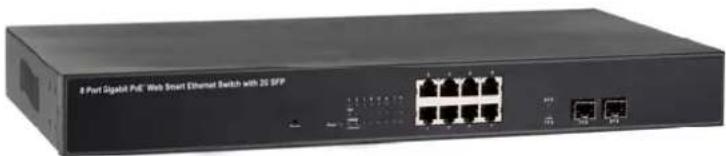
natural_image
Front view of a 8-port SGPit PdE Web Smart Ethernet switch with 20 SFP, showing network ports and indicator lights (no readable text beyond branding)Gigabit 8-Port 802.3at PoE Web Smart Switch
Content
Content......I
Introduction....3
Product Overview....3
Web Management Feature....3
Specification....4
Mechanical....4
Performance....5
Package Contents....5
Hardware Description....6
Physical Dimensions / Weight....6
Front Panel....6
LED Indicators....6
Rear Panel....7
Hardware Installation....7
Software Description....8
Login....8
Configuration....9
System 9
System Configuration....9
Ports 11
Port Configuration 11
Vlan....12
Port Segmentation (VLAN) Configuration....13
Add a Vlan....13
VLAN Configuration List....14
VLAN Setup....14
VLAN Per Port Configuration....14
Aggregation....15
Aggregation / Trunking Configuration....15
LACP....16
LACP Port Configuration....16
RSTP....16
RSTP System Configuration....17
RSTP Port Configuration....17
IGMP Snopping....19
IGMP Configuration....19
Mirrioring....20
Moirrioring Configuration....20
QoS....21
QoS Configuration....22
QoS Mode: QoS Disabled....22
QoS Mode: 802.1p....22
QoS Mode: DSCP....23
Power over Ethernet....24
PoE Configuration....25
Storm Control....25
Storm Control Configuration....25
Monitoring....26
Statistic Overview.... 26
Detailed Statistic....27
LACP Status.... 27
LACP Aggregation Overview....27
LACP Port Status....28
RSTP Status....28
RSTP VLAN Bridge Overview....28
RSTP Port Status....29
IGMP Status....30
IGMP Status....30
VeriPHY....30
VeriPHY Cable Diagnostics....30
Ping....32
Ping Parameters....32
Maintenance....34
Warm Restart....34
Factory Default....34
Software Upload....35
Configuration File Transfer....35
Logout....35
Product Overview
This switch is a Web Smart Switch equipped with 8-ports PoE+10/100/1000BaseT(X) plus 2-port gigabit SFP. It is designed for easy installation and high performance in an environment where traffic is on the network and the number of users increased continuously. The compact rigid 19" rack-mount size is specifically designed for small to medium workgroups. It can be installed where space is limited; moreover, it provides smooth network migration and is easy to upgrade the network capacity.
In addition, the switch features comprehensive and useful functions, such as: QoS (Quality of Service), Spanning Tree, VLAN, Power over Ethernet (PoE), Link Aggregation, SNMP/RMON, IGMP Snooping capability via the intelligent software. It is suitable for both metro-LAN and office application.
Web Management Features
Configuration
System
Ports
VLANs
Aggregation
LACP
RSTP
IGMP Snooping
Mirroring
Quality of Service
Power over Ethernet
Storm Control
Monitoring
Statistics Overview
Detailed Statistics
LACP Status
RSTP Status
IGMP Status
VeriPHY
Ping
Maintenance
Warm Restart
Factory Default
Software Upload
Configuration File Transfer
Logout
Specifications
Standard
IEEE 802.3 10BaseT
IEEE 802.3u 100BaseTX
IEEE 802.3ab 1000BaseT
IEEE 802.3z 1000BaseSX/LX
IEEE 802.3x Full-duplex Flow Control
IEEE 802.3ad Link Aggregation
IEEE 802.1Q VLAN
IEEE 802.1d Spanning tree protocol
IEEE 802.1w Rapid Spanning tree protocol
IEEE 802.1p QoS
IEEE 802.3af-2003 Power over Ethernet
IEEE 802.3at- 2009 Power over Ethernet
Number of Port
8-port PoE+ 10/100/1000BaseT(X) with 2 Gigabit SFP Open Slots
Mechanical
LED Indicator
Port 1\~8: Link/ Act, 1000M, PoE
Port 7FX, 8FX: Link
Per Unit: Power
Power Consumption: 65 Watts (Max)
Power Input: 100\~240V/AC, 50\~60HZ
Product Dimensions/ Weight: 440 × 220 × 44 mm (L x D x H) / 3.2kg
Performance
MAC Address: 8K
Buffer Memory: 176 KB
Jumbo Frames: 9.6K
➢ Transmission Method: Store and Forward
Package Contents
Before you start to install this switch, please verify your package that contains the following items:
● One PoE Gigabit Ethernet Switch
● One AC Power Cord
● One User Manual
● One pair Rack-mount kit + 8 Screws

natural_image
Front view of a 8 Part Gigabit PuE Web Smart Channel Switch with 2G BFP (no visible text or labels on the device body)
Power Cord

Rack-mount Kit

natural_image
Simple line drawing of a circular mechanical component with concentric rings and central hub (no text or symbols)This part primarily presents hardware of this switch, physical dimensions and functional overview would be described.
Physical Dimensions/ Weight
440 × 220 × 44 mm (L × D × H) / 3.2kg
Front Panel
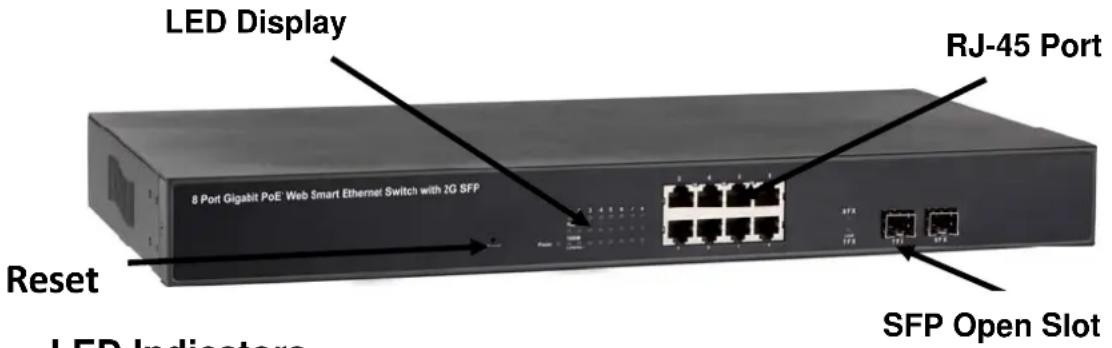
The front Panel of the Web Smart Switch consists of 8 gigabit RJ-45 ports + 2 gigabit SFP open slot. The LED Indicators are also located on the front panel.
text_image
LED Display 8 Port Gigabit PoE Web Smart Ethernet Switch with 2G SFP Reset LED Indicators RJ-45 Port SFP Open SlotLED Indicators
The LED Indicators present real-time information of systematic operation status. The following table provides description of LED status and their meaning.
Table 1-1 LED Indicators
| LED | Status | Description |
| Power | On Power is on. | |
| Off Power is off. | ||
| 7FX / 8FX Link | On SFP Module is connected | |
| Off SFP Module is disconnected | ||
| Link/ACT Port 1~8 | On 10/100/1000 Link is connected | |
| Off 10/100/1000 Link is disconnected | ||
| 1000M Port 1~8 | On | Link 1000Mbps |
| Off | Link 10/100Mbps | |
| PoE Port 1~8 | On providing the power | |
| off not providing the power | ||

text_image
Reset Power SFP StatusRear Panel
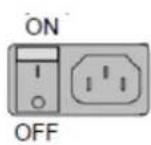
The 3-pronged power plug is placed at the rear panel of the switch right side shown as below.
Hardware Installation
Set the switch on a large flat space with a power socket close by. The flat space should be clean, smooth, level and sturdy. Make sure there is enough clearance around the switch to allow attachment of cables, power cord and allow air circulation. The last, use twisted pair cable to connect this switch to your PC then user could start to operate the switch.
Software Description
This part instructs user how to set up and manage the switch through the web user interface. Please follow the description to understand the procedure.
At the first, open the web browser, and go to 192.168.2.1 site then the user will see the login screen. Key in the password to pass the authentication then clicks the Apply. The login process is completed and comes out the sign "Password successfully entered".
Login
Password: 1234
Please enter password to login
Password:
Apply
Password Successfully Entered
Figure 1-1
After the user login, the right side of website shows all functions as Fig. 1-2.
Configuration
System Ports VLANs Aggregation LACP RSTP IGMP Snooping Mirroring Quality of Service Power over Ethernet Storm Control
Monitoring
Statistics Overview Detailed Statistics LACP Status RSTP Status IGMP Status VeriPHY Ping
Maintenance
Warm Restart Factory Default Software Upload Configuration File Transfer Logout
Figure 1-2
Configuration
System
System Configuration
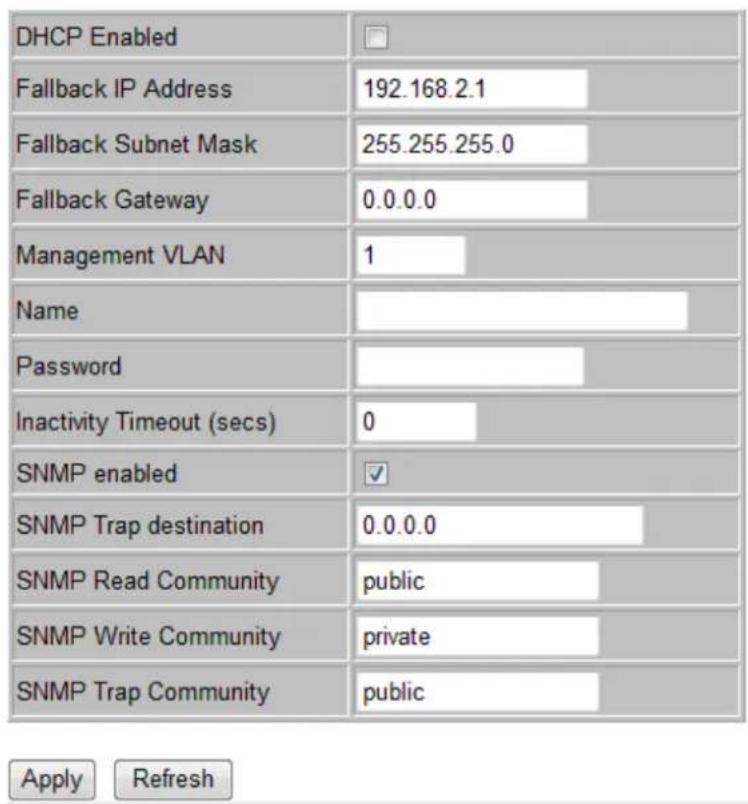
This page shows system configuration information. User can configure lots of information as Fig. 1-3:
System Configuration
| MAC Address | 12-0e-c0-ee-30-e2 |
| S/W Version | Luton 2.34d 2m |
| H/W Version | 1.0 |
| Active IP Address | 192.168.2.1 |
| Active Subnet Mask | 255.255.255.0 |
| Active Gateway | 0.0.0.0 |
| DHCP Server | 0.0.0.0 |
| Lease Time Left | 0 secs |
text_image
DHCP Enabled Fallback IP Address 192.168.2.1 Fallback Subnet Mask 255.255.255.0 Fallback Gateway 0.0.0.0 Management VLAN 1 Name Password Inactivity Timeout (secs) 0 SNMP enabled ✓ SNMP Trap destination 0.0.0.0 SNMP Read Community public SNMP Write Community private SNMP Trap Community public Apply RefreshFigure 1-3
MAC Address: Displays the unique hardware address assigned by manufacturer (default).
S/W Version: Displays the switch's firmware version.
H/W Version: Displays the switch's Hardware version.
DHCP Enabled: Click the box to enable DHCP
➢ Fallback IP address: Manually assign the IP address that the network is using. The default IP is 192.168.2.1
➢ Fallback Subnet Mask: Assign the subnet mask to the IP address
➢ Fallback Gateway: Assign the network gateway for industrial switch. The default gateway is 0.0.0.0.
Management VLAN: ID of a configured VLAN (1-4096) through which you can manage the switch. By default, all ports on the switch are members of VLAN 1. However, if the management VLAN is changed, the management station must be attached to a port belonging to this VLAN.
Name: Type in the new user name (The default value is 'admin').
➢ Password: Type in the new password (The default value is 'admin').
➢ SNMP Enabled: Enables or disables SNMP on the switch. Supports SNMP version 1 and 2c management clients.
➢ SNMP Trap Destination: IP address of the trap manager to receive notification messages from this switch. Traps indicating status changes are
issued by the switch to specified trap managers. You must specify trap managers so that key events are reported by this switch to your management station.
➢ SNMP Read Community: A community string that acts like a password and permits access to the SNMP database on this switch. Authorized management stations are only able to retrieve MIB objects.
➢ SNMP Trap Community: Community string sent with the notification operation.
Ports
Port Security ensures access to a switch port based on MAC address, limits the total number of devices from using a switch port, and protects against MAC flooding attacks.
Port Configuration
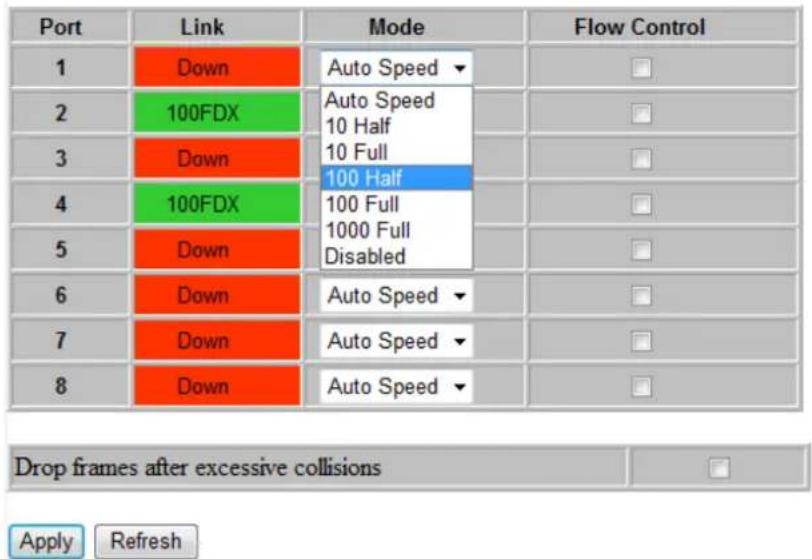
In Port Configuration, you can set and view the operation mode for each port.
➢ Enable Jumbo Frames: This switch provides more efficient throughput for large sequential data transfers by supporting jumbo frames on Gigabit Ethernet ports up to 9.6 KB. Compared to standard Ethernet frames that run only up to 1.5 KB, using jumbo frames significantly reduces the per-packet overhead required to process protocol encapsulation fields.
Power Saving Mode: Adjusts the power provided to ports based on the length of the cable used to connect to other devices. Only sufficient power is used to maintain connection requirements.
➢ Mode: allow user to manually set the port speed such as Auto, 10 half, 10 Full, 100 Half, 100 Full, 1000 Full or Disabled. User may press Apply button to complete the configuration procedure.

text_image
Port Configuration Enable Jumbo Frames PERFECT_REACH/Power Saving Mode: Full Full Link-up Link-down Disable Port Link Mode Flow Control 1 Down Auto Speed 2 100FDX Auto Speed 3 Down Auto Speed 4 100FDX Auto Speed 5 Down Auto Speed 6 Down Auto Speed 7 Down Auto Speed 8 Down Auto SpeedFigure 1-4-1
text_image
Port 1 2 3 4 5 6 7 8 Link Down 100FDX Down 100FDX Down Auto Speed Auto Speed 10 Half 10 Full 100 Half 100 Full 1000 Full Disabled Auto Speed Auto Speed Auto Speed Auto Speed Flow Control □ □ □ □ □ □ □ □ □ □ □ □ □ □ □ □ □ □ □ □ □ □ □ □ □ □ □ □ □ □ □ □ □ □ □ □ □ □ □ □ □ □ □ □ □ □ □ □ □ □ Apply RefreshFigure 1-4-2
VLAN
A Virtual LAN (VLAN) is a logical network grouping that limits the broadcast domain, which would allow you to isolate network traffic, so only the members of the same VLAN will receive traffic from the ones of the same VLAN. Basically, creating a VLAN from a switch is logically equivalent of reconnecting a group of network devices to another Layer 2 switch. However, all the network
devices are still plugged into the same switch physically.
Port Segmentation (VLAN) Configuration
➢ VLAN ID: ID of configured VLAN (1-4096, no leading zeroes).
VLAN Configuration List: Lists all the current VLAN groups created for this system. Up to 16 VLAN groups can be defined. VLAN 1 is the default untagged VLAN.
Port Segmentation (VLAN) Configuration
Add a VLAN

VLAN Configuration List

text_image
12


Figure 1-5-1
VLAN Setup
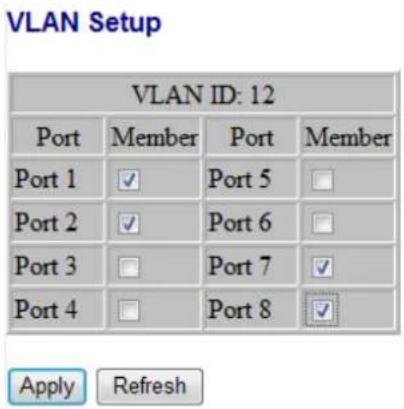
The switch supports up to 16 VLANs based on 802.1Q standard. From the VLAN Membership page you can create and delete VLANs, and change the VLAN port membership.
text_image
VLAN Setup VLAN ID: 12 Port Member Port Member Port 1 ✓ Port 5 Port 2 ✓ Port 6 Port 3 □ Port 7 ✓ Port 4 □ Port 8 ✓ Apply RefreshFigure 1-5-2
VLAN Per Port Configuration
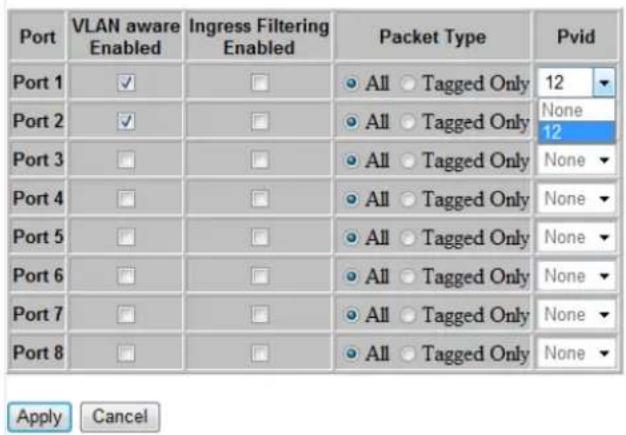
The 802.1Q Per Port Configuration page allows you to change the VLAN parameters for individual ports or trunks. You can configure VLAN behavior for specific interfaces, including the accepted frame types and default VLAN identifier (PVID). Each row of the table corresponds to one port or trunk; trunked ports cannot be configured individually; configure the trunk instead.
VLAN Per Port Configuration
text_image
Port VLAN aware Enabled Ingress Filtering Enabled Packet Type Pvid Port 1 ✓ □ ● All ○ Tagged Only 12 Port 2 ✓ □ ● All ○ Tagged Only None 12 Port 3 □ □ ● All ○ Tagged Only None Port 4 □ □ ● All ○ Tagged Only None Port 5 □ □ ● All ○ Tagged Only None Port 6 □ □ ● All ○ Tagged Only None Port 7 □ □ ● All ○ Tagged Only None Port 8 □ □ ● All ○ Tagged Only None Apply CancelFigure 1-5-3
➢ Port/Trunk: The port number of the port or the ID of a trunk.
VLAN Aware Enabled: VLAN aware ports are able to use VLAN tagged frames to determine the destination VLAN of a frame. (Default: Enabled)
VLAN aware ports will strip the VLAN tag from received frames and insert the tag in transmitted frames (except for the PVID). VLAN unaware ports will not strip the tag from received frames or insert the tag in transmitted frames.
➢ Ingress Filtering Enabled: If enabled, incoming frames for VLANs which do not include this ingress port in their member set will be discarded. (Default: Disabled)
Packet Type: Sets the interface to accept all frame types, including tagged or untagged frames, or only tagged frames. (Default: All) If the Packet Type is set to "All," the port can accept incoming tagged and untagged packets. Any received packets that are untagged are assigned to the default VLAN. Any tagged packets will be dropped unless the port is a member of the VLAN identified by the VLAN tag in the packet. If the Packet Type is set to "Tagged Only," the port will drop untagged packets and will only receive tagged packets. Tagged packets will be dropped unless the port is a member of the VLAN identified by the VLAN tag in the packet. Switches should be connected to each other with the Packet Type set to "Tagged
Only."
PVID: The PVID (Port VLAN ID) is associated with untagged, ingress packets. It is assigned to untagged frames received on the specified interface. The PVID has no effect on ports that have Packet Type set to "Tagged Only." (Default PVID: 1) It is not possible to remove a port from VLAN 1 unless its PVID has been changed to something other than 1. Outgoing packets are tagged unless the packet's VLAN ID is the same as the PVID. When the PVID is set to "None," all outgoing packets are tagged.
※Note: If you select "Tagged Only" mode for a port, we recommend setting the PVID to "None" as the standard configuration.
Aggregation
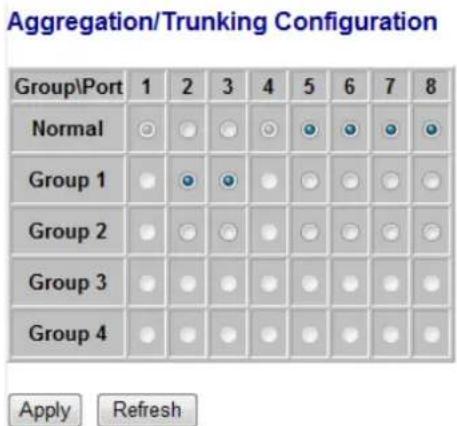
Port trunk allows multiple links to be bundled together and act as a single physical link for increased throughput. It provides load balancing, and redundancy of links in a switched inter-network. Actually, the link does not have an inherent total bandwidth equal to the sum of its component physical links. Traffic in a trunk is distributed across an individual link within the trunk in a deterministic method that called a hash algorithm. The hash algorithm automatically applies load balancing to the ports in the trunk. A port failure within the trunk group causes the network traffic to be directed to the remaining ports. Load balancing is maintained whenever a link in a trunk is lost or returned to service.
Aggregation / Trunking Configuration
To assign a port to a trunk, click the required trunk number, and then click Apply.
text_image
Aggregation/Trunking Configuration Group\Port 1 2 3 4 5 6 7 8 Normal Group 1 Group 2 Group 3 Group 4 Apply RefreshFigure 1-6
LACP
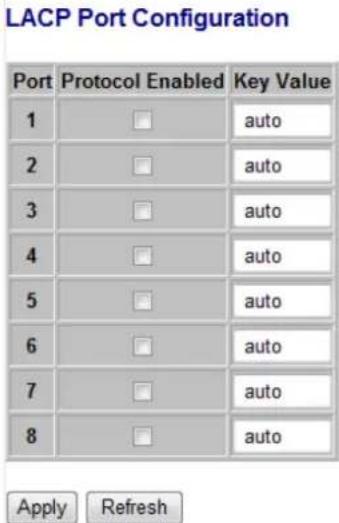
IEEE 802.3ad Link Aggregation Control Protocol (LACP) increases bandwidth by automatically aggregating several physical links together as a logical trunk and providing load balancing and fault tolerance for uplink connections.
LACP Port Configuration
▶ Port: The port number.
➢ Enabled: Enables LACP on the associated port.
Key Value: Configures a port's LACP administration key. The port administrative key must be set to the same value for ports that belong to the same link aggregation group (LAG). If this administrative key is not set when an LAG is formed (i.e., it has the null value of 0), this key will automatically be set to the same value as that used by the LAG.
text_image
LACP Port Configuration Port Protocol Enabled Key Value 1 □ auto 2 □ auto 3 □ auto 4 □ auto 5 □ auto 6 □ auto 7 □ auto 8 □ auto Apply RefreshFigure 1-7
RSTP
IEEE 802.1w Rapid Spanning tree protocol (LACP) provides a loop-free network and redundant links to the core network with rapid convergence to ensure faster recovery from failed links, enhancing overall network stability and reliability.
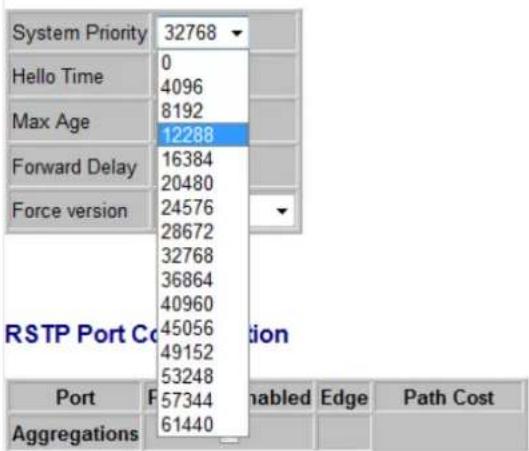
RSTP System Configuration
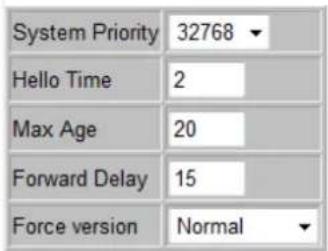
System Priority: This parameter configures the spanning tree priority globally for this switch. The device with the highest priority becomes the STP root device. However, if all devices have the same priority, the device with the lowest MAC address will then become the root device.
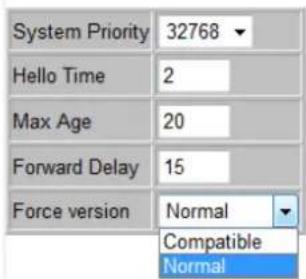
➢ Hello Time: Interval (in seconds) at which the root device transmits a
configuration message (BPDU frame). Number between 1-10 (default is 2).
Max Age – The maximum time (in seconds) a device can wait without receiving a configuration message before attempting to reconfigure. That also means the maximum life time for a BPDU frame. Number between 6-40 (default is 20).
Forward Delay: The maximum time (in seconds) the root device will wait before changing states (i.e., discarding to learning to forwarding). Number between 4 – 30 (default is 15).
➢ Force Version: Set and show the RSTP protocol to use. Normal - use RSTP, Compatible - compatible with STP.
RSTP System Configuration
text_image
System Priority 32768 Hello Time 2 Max Age 20 Forward Delay 15 Force version NormalFigure 1-8-1
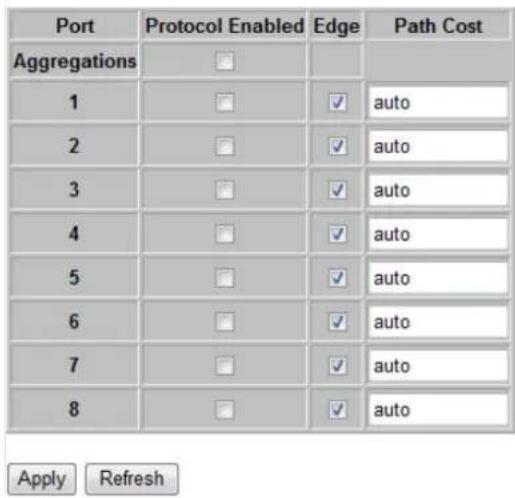
RSTP Port Configuration
Port: The port ID. It cannot be changed. Aggregations mean any configured trunk group.
➢ Enabled: Click on the tick-box to enable/disable the RSTP protocol for the port.
Edge: Expect the port to be an edge port (linking to an end station) or a link to another STP device.
Path Cost: This parameter is used by the STP to determine the best path between devices. Therefore, lower values should be assigned to ports attached to faster media, and higher values assigned to ports with slower media. Set the RSTP pathcost on the port. Number between 0 - 200000000. 0 means auto generated pathcost.
RSTP Port Configuration
text_image
Port Aggregations 1 2 3 4 5 6 7 8 Protocol Enabled Edge auto auto auto auto auto auto Apply RefreshFigure 1-8-2
RSTP System Configuration
text_image
System Priority Hello Time Max Age Forward Delay Force version 32768 0 4096 8192 12288 16384 20480 24576 28672 32768 36864 40960 45056 49152 53248 57344 61440 RSTP Port Co Port F habled Edge Path Cost AggregationsFigure 1-8-3
RSTP System Configuration
text_image
System Priority 32768 Hello Time 2 Max Age 20 Forward Delay 15 Force version Normal Compatible NormalFigure 1-8-4
IGMP Snooping
IGMP Snooping is the process of listening to IGMP network traffic. IGMP Snooping, as implied by the name, is a feature that allows a layer 2 switch to "listen in" on the IGMP conversation between hosts and routers by processing the layer3 IGMP packets sent in a multicast network.
When IGMP Snooping is enabled in a switch it analyzes all IGMP packets between hosts connected to the switch and multicast routers in the network. When a switch hears an IGMP report from a host for a given multicast group, the switch adds the host's port number to the multicast list for that group. And, when the switch hears an IGMP Leave, it removes the host's port from the table entry.
Prevents flooding of IP multicast traffic, and limits bandwidth intensive video traffic to only the subscribers.
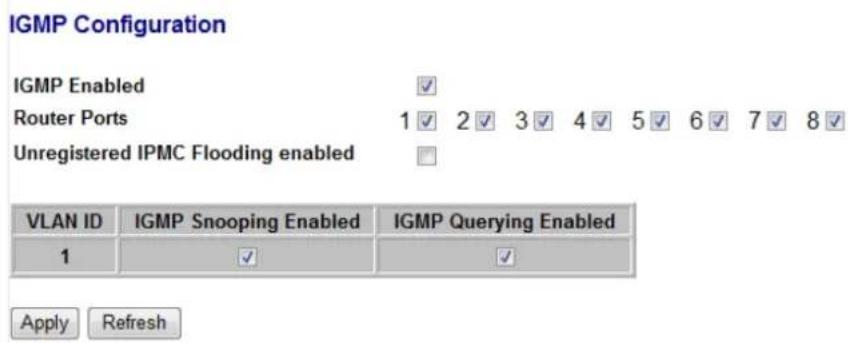
IGMP Configuration
IGMP Enabled: When enabled, the switch will monitor network traffic to determine which hosts want to receive multicast traffic.
Router Ports: Set if ports are connecting to the IGMP administrative routers.
➢ Unregistered IPMC Flooding enabled: Set the forwarding mode for unregistered (not-joined) IP multicast traffic. The traffic will flood when enabled, and forward to router-ports only when disabled.
IGMP Snooping Enabled: When enabled, the port will monitor network traffic to determine which hosts want to receive the multicast traffic.
IGMP Querying Enabled: When enabled, the port can serve as the Querier, which is responsible for asking hosts if they want to receive multicast traffic.
text_image
IGMP Configuration IGMP Enabled ✓ Router Ports 1 ✓ 2 ✓ 3 ✓ 4 ✓ 5 ✓ 6 ✓ 7 ✓ 8 ✓ Unregistered IPMC Flooding enabled □ VLAN ID IGMP Snooping Enabled IGMP Querying Enabled 1 ✓ ✓ Apply RefreshFigure 1-9-1
Mirroring
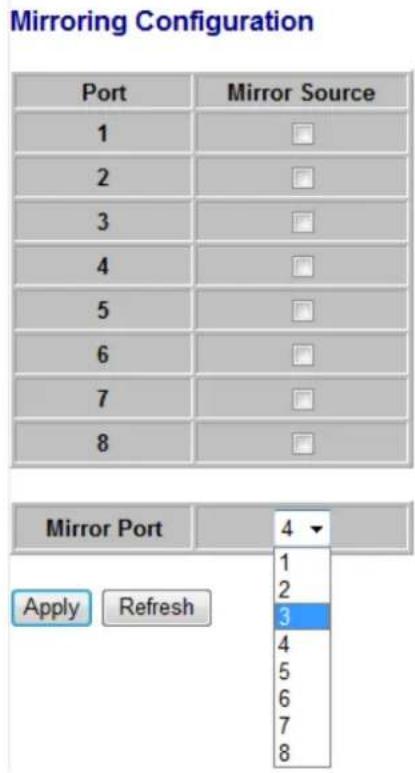
Port Mirroring is used on a network switch to send a copy of network packets seen on one switch port (or an entire VLAN) to a network monitoring connection on another switch port. This is commonly used for network appliances that require monitoring of network traffic, such as an intrusion-detection system.
Mirroring Configuration
Port to Mirror to: The port that will "duplicate" or "mirror" the traffic on the source port. Only incoming packets can be mirrored. Packets will be dropped when the available egress bandwidth is less than ingress bandwidth.
Ports to Mirror: Select the ports that you want to mirror from this section of the page. A port will be mirrored when the "Mirroring Enabled" check-box is checked.

text_image
Mirroring Configuration Port Mirror Source 1 □ 2 □ 3 □ 4 □ 5 □ 6 □ 7 □ 8 □ Mirror Port 1 ▼ Apply RefreshFigure 1-10-1
text_image
Mirroring Configuration Port Mirror Source 1 □ 2 □ 3 □ 4 □ 5 □ 6 □ 7 □ 8 □ Mirror Port 4 ▼ Apply Refresh 1 2 3 4 5 6 7 8Figure 1-10-2
Quality of Service (QoS)
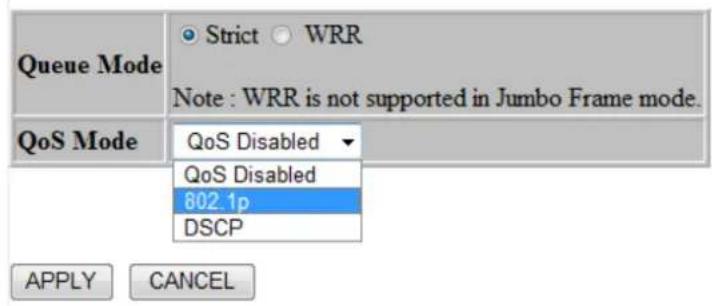
In QoS Mode, select QoS Disabled, 802.1p, or DSCP to configure the related parameters.
QoS Configuration
➢ Strict: Services the egress queues in sequential order, transmitting all traffic in the higher priority queues before servicing lower priority queues.
WRR: Weighted Round-Robin shares bandwidth at the egress ports by using scheduling weights with default values of 1, 2, 4, 8 for queues 0 through 7, respectively. (This is the default selection.)
※Note: WRR can only be selected if Jumbo Frame mode is disabled on the Port Configuration page
QoS Configuration
text_image
Queue Mode Strict WRR Note : WRR is not supported in Jumbo Frame mode. QoS Mode QoS Disabled QoS Disabled 802.1p DSCP APPLY CANCELFigure 1-11-1
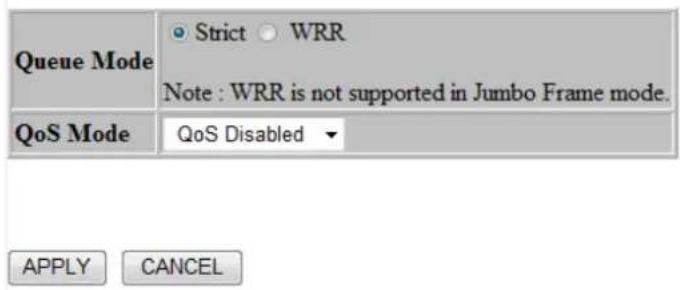
QoS Mode: QoS Disabled
When the QoS Mode is set to QoS Disabled, the following table is displayed.
QoS Configuration
text_image
Queue Mode Strict WRR Note : WRR is not supported in Jumbo Frame mode. QoS Mode QoS Disabled APPLY CANCELFigure 1-11-2
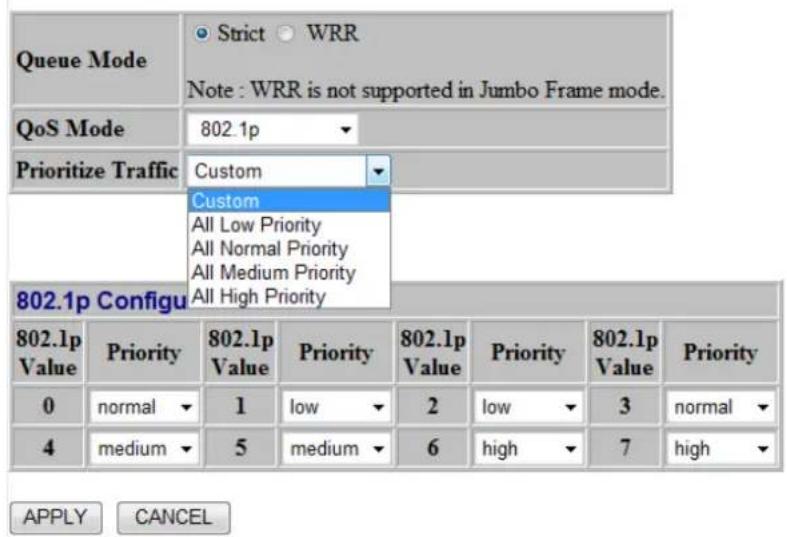
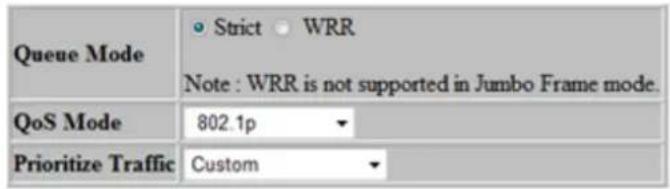
QoS Mode: 802.1p
Packets are prioritized using the 802.1p field in the VLAN tag. This field is three bits long, representing the values 0 - 7. When the QoS Mode is set to 802.1p, the 802.1p Configuration table appears, allowing you to map each of the eight 802.1p values to a local priority queue (low, normal, medium or high). The default settings are shown below.
When the QoS Mode is set to 802.1p, the 802.1p Configuration table is displayed as shown below.
QoS Configuration
text_image
Queue Mode Strict WRR Note : WRR is not supported in Jumbo Frame mode. QoS Mode 802.1p Prioritize Traffic Custom Custom All Low Priority All Normal Priority All Medium Priority All High Priority 802.1p Configu 802.1p Value Priority 802.1p Value Priority 802.1p Value Priority 802.1p Value Priority 0 normal 1 low 2 low 3 normal 4 medium 5 medium 6 high 7 high APPLY CANCELFigure 1-11-3
QoS Configuration
text_image
Queue Mode Strict WRR Note : WRR is not supported in Jumbo Frame mode. QoS Mode 802.1p Prioritize Traffic Custom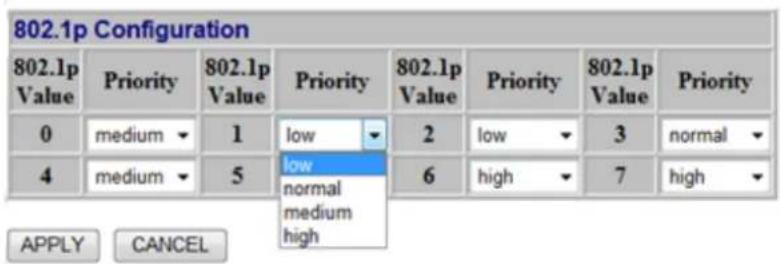
text_image
802.1p Configuration 802.1p Value | Priority | 802.1p Value | Priority | 802.1p Value | Priority | 802.1p Value | Priority | 0 | medium ▼ | 1 | low ▼ | 2 | low ▼ | 3 | normal ▼ | 4 | medium ▼ | 5 | low normal medium high | 6 | high ▼ | 7 | high ▼ | APPLY CANCELFigure 1-11-4
QoS Mode: DSCP
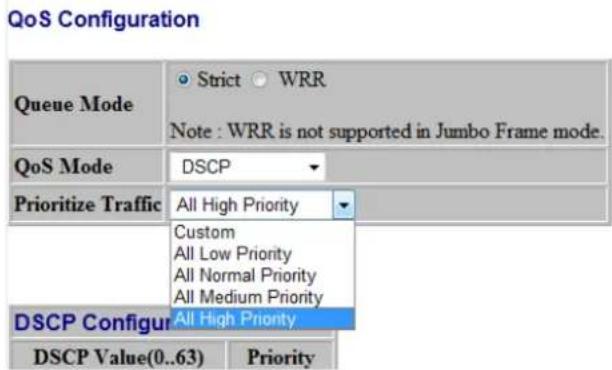
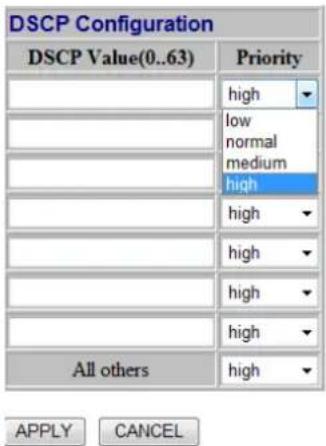
DSCP: Packets are prioritized using the DSCP (Differentiated Services Code Point) value. The Differentiated Services Code Point (DSCP) is a six-bit field that is contained within an IP (TCP or UDP) header. The six bits allow the DSCP field to take any value in the range 0 - 63. When QoS Mode is set to DSCP, the DSCP Configuration table is displayed, allowing you to map each of the DSCP values to a hardware output queue (low, normal, medium or high). The default settings map all DSCP values to the high priority egress queue. User can use the Prioritize Traffic drop-down list to quickly set the values in the
DSCP Configuration table to a common priority queue. Use Custom if you want to set each value individually.
When the QoS Mode is set to DSCP, the DSCP Configuration table is displayed as shown below.
text_image
QoS Configuration Queue Mode Strict WRR Note : WRR is not supported in Jumbo Frame mode. QoS Mode DSCP Prioritize Traffic All High Priority Custom All Low Priority All Normal Priority All Medium Priority DSCP Configur All High Priority DSCP Value(0..63) PriorityFigure 1-11-5
text_image
DSCP Configuration DSCP Value(0..63) Priority high low normal medium high high high high high high All others high APPLY CANCELFigure 1-11-6
PoE (Power over Ethernet) Configuration
Power over Ethernet (PoE) is an advanced technology providing a whole new application aspect for networking products. A series of PoE product is powering for wide range of devices, especially useful for VoIP phones, wireless LAN access points and IP cameras.
It is deployed in applications where AC power would be inconvenient, expensive or infeasible to supply. Web Smart features are able to remote control and centralized the power management. Via a current CAT 5 cable, power and data are able to travel though. Not only is it saving costs, but also it meets the demand of energy efficiency.
PoE Configuration
Remote access and monitor the attached PD (Powered Device) status by using Enable/Disable function.
➢ PoE Enabled: POE of the port is able to supply power to the attached PD (Powered Device)
PD Class: Detect the class of PD
▶ Delivering Power (W): Output power.
➢ Current (mA): The status of the port current
▶ Power output voltage per port
Power Budget Percentage of PoE power has been used
PoE (Power over Ethernet) Configuration
| Port | PoE Enabled | PD Class | Delivering Power [W] | Current [mA] | Voltage [V] | Power Budget [%] (total power = 65W) |
| 1 | ✓ | - | 0 | 0 | 0 | 14 |
| 2 | ✓ | - | 0 | 0 | 0 | |
| 3 | ✓ | - | 0 | 0 | 0 | |
| 4 | ✓ | 0 | 3.903 | 75.884 | 51.436 | |
| 5 | ✓ | - | 0 | 0 | 0 | |
| 6 | ✓ | - | 0 | 0 | 0 | |
| 7 | ✓ | - | 0 | 0 | 0 | |
| 8 | ✓ | 3 | 5.208 | 101.992 | 51.062 |
Apply Refresh
Figure 1-12-1
Storm Control
Broadcast storms may occur when a device on your network is malfunctioning, or if application programs are not well designed or properly configured. If there is too much broadcast traffic on your network, performance can be severely degraded or everything can come to complete halt.
You can protect your network from broadcast storms by setting a threshold for broadcast traffic for each port. Any broadcast packets exceeding the specified threshold will then be dropped.
Storm Control Configuration
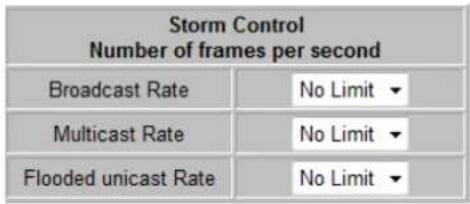
There are three type of traffic which can be rate limited, including broadcast multicast frame and Flooded Uncast Rate.
Storm Control Configuration
text_image
Storm Control Number of frames per second Broadcast Rate No Limit ▼ Multicast Rate No Limit ▼ Flooded unicast Rate No Limit ▼Figure 1-13-1
➢ Enable Rate Limit: Click the check box to enable storm control.
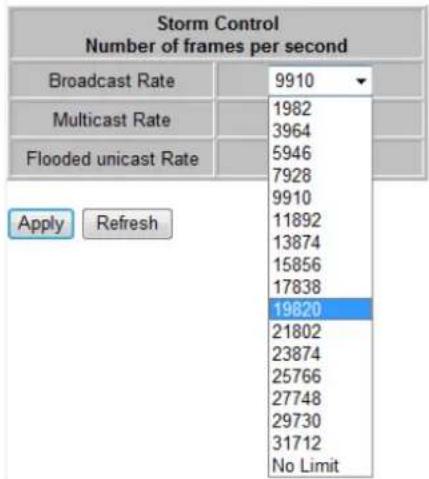
Rate (number of frames per second): The Rate field is set by a single drop-down list. The same threshold is applied to every port on the switch. When the threshold is exceeded, packets are dropped, irrespective of the flow-control settings.
Web: Click PORTS, Storm Control. This page enables you to set the broadcast storm control parameters for every port on the switch.
Storm Control Configuration
text_image
Storm Control Number of frames per second Broadcast Rate 9910 Multicast Rate 1982 Flooded unicast Rate 3964 5946 7928 9910 11892 13874 15856 17838 Apply Refresh 19820 21802 23874 25766 27748 29730 31712 No LimitFigure 1-13-2
Monitoring
Statistic Overview
Statistic Overview for all ports
User can mirror traffic from any source port to a target port for real-time analysis the following figures shows clearly the statistics overview.
Clear Refresh
| Port | Tx Bytes | Tx Frames | Rx Bytes | Rx Frames | Tx Errors | Rx Errors |
| 1 | 0 | 0 | 0 | 0 | 0 | 0 |
| 2 | 0 | 0 | 0 | 0 | 0 | 0 |
| 3 | 2012 | 17 | 63010 | 251 | 0 | 0 |
| 4 | 0 | 0 | 0 | 0 | 0 | 0 |
| 5 | 0 | 0 | 0 | 0 | 0 | 0 |
| 6 | 0 | 0 | 0 | 0 | 0 | 0 |
| 7 | 4501 | 197 | 3355 | 26 | 0 | 0 |
| 8 | 0 | 0 | 0 | 0 | 0 | 0 |
Figure 2-1
Detailed Statics
| Receive Total | Transmit Total | ||
| Rx Packets | 0 | Tx Packets | 0 |
| Rx Orders | 0 | Tx Orders | 0 |
| Rx High Priority Packets | - | Tx High Priority Packets | - |
| Rx Low Priority Packets | - | Tx Low Priority Packets | - |
| Rx Broadcast | - | Tx Broadcast | - |
| Rx Multicast | - | Tx Multicast | - |
| Rx Broadcast and Multicast | 0 | Tx Broadcast and Multicast | 0 |
| Rx Error Packets | 0 | Tx Error Packets | 0 |
| Receive Size Counters | Transmit Size Counters | ||
| Rx 04 Bytes | - | Tx 04 Bytes | - |
| Rx 86-127 Bytes | - | Tx 86-127 Bytes | - |
| Rx 120-205 Bytes | - | Tx 120-205 Bytes | - |
| Rx 205-511 Bytes | - | Tx 205-511 Bytes | - |
| Rx 512-1023 Bytes | - | Tx 512-1023 Bytes | - |
| Rx 1024 Bytes | - | Tx 1024 Bytes | - |
| Receive Error Counters | Transmit Error Counters | ||
| Rx CRC Alignment | - | Tx Collisions | - |
| Rx Undersize | - | Tx Drocs | - |
| Rx Overwrite | - | Tx Overflow | - |
| Rx Fragments | - | ||
| Rx Jablicer | - | ||
| Rx Drops | - | ||
Figure 2-2
LACP Status
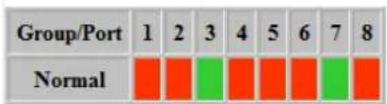
LACP Aggregation Overview
LACP Aggregation Overview
text_image
Group/Port 1 2 3 4 5 6 7 8 NormalLegend
| Down | Port link down | |
| 0 | Blocked | Port Blocked by RSTP. Number is Partner port number if other switch has LACP enabled |
| 0 | Learning | Port Learning by RSTP |
| Forwarding | Port link up and forwarding frames | |
| 0 | Forwarding | Port link up and forwarding by RSTP. Number is Partner port number if other switch has LACP enabled |
Refresh
Figure 2-3-1
▶ Port: The port number.
➢ Port Active: Shows if the port is a member of an active LACP group.
➢ Partner Port Number: A list of the ports attached at the remote end of this LAG link member.
➢ Operational Port Key: Current operational value of the key used by this LAG.
LACP Port Status
LACP Port Status
| Port | Protocol Active | Partner Port Number | Operational Port Key |
| 1 | no | ||
| 2 | no | ||
| 3 | no | ||
| 4 | no | ||
| 5 | no | ||
| 6 | no | ||
| 7 | no | ||
| 8 | no |
Figure 2-3-2
RSTP Status
RSTP VLAN Bridge Overview
RSTP VLAN Bridge Overview
| VLAN Id | Bridge Id | Hello Time | Max Age | Fwd Delay | Topology | Root Id |
| 12 | 32780:12-0e-c0-ee-30-e3 | 2 | 20 | 15 | Steady | This switch is Root! |
Figure 2-4-1
➢ Hello Time: Interval (in seconds) at which the root device transmits a configuration message.
Max Age: The maximum time (in seconds) a device can wait without receiving a configuration message before attempting to reconfigure. All device ports (except for designated ports) should receive configuration messages at regular intervals. Any port that age out STA information (provided in the last configuration message) becomes the designated port for the attached LAN. If it is a root port, a new root port is selected from among the device ports attached to the network.
➢Fwd Delay: The maximum time (in seconds) the root device will wait before changing states (i.e., discarding to learning to forwarding). This delay is required because every device must receive information about topology changes before it starts to forward frames. In addition, each port needs time to listen for conflicting information that would make it return to a discarding state; otherwise, temporary data loops might result.
➢ Topology: Indicates if spanning tree topology is steady or undergoing reconfiguration. (The time required for reconfiguration is extremely short, so no values other that “steady” state are likely to be seen in this field.)
➢Root ID : The priority and MAC address of the device in the Spanning Tree that this switch has accepted as the root device, and the port connected to the root device.
RSTP Port Status
RSTP Port Status
| Port/Group | Vlan Id | Path Cost | Edge Port | P2p Port | Protocol | Port State |
| Port 1 | Non-STP | |||||
| Port 2 | Non-STP | |||||
| Port 3 | Non-STP | |||||
| Port 4 | Non-STP | |||||
| Port 5 | Non-STP | |||||
| Port 6 | Non-STP | |||||
| Port 7 | Non-STP | |||||
| Port 8 | Non-STP |
Figure 2-4-2
➢ Port/Group: The number of a port or the ID of a static trunk.
Path Cost: The cost for a packet to travel from this port to the root in the current Spanning Tree configuration. The slower the media, the higher the cost.
➢ Edge Port: Shows if this port is functioning as an edge port, either through
➢ manual selection (see the RSTP Port Configuration table) or auto-detection. Note that if the switch detects another bridge connected to this port, the manual setting for Edge Port will be overridden, and the port will instead function as a point-to-point connection.
P2P Port: Shows if this port is functioning as a Point-to-Point connection to exactly one other bridge. The switch can automatically determine if the interface is attached to a point-to-point link or to shared media. If shared media is detected, the switch will assume that it is connected to two or more bridges.
➢ Protocol: Shows the spanning tree protocol functioning on this port, either RSTP or STP (that is, STP-compatible mode).
IGMP Status
IGMP Status
IGMP Status shows the IGMP Snooping statistics for the whole switch.
▶ VLAN ID: VLAN ID number.
➢ Querier: Show whether Querying is enabled.
➢ Queries transmitted: Show the number of transmitted Query packets.
➢ Queries received: Show the number of received Query packets.
➢ v1 Reports: Show the number of received v1 Report packets.
➢ v2 Reports: Show the number of received v2 Report packets.
➢ v3 Reports: Show the number of received v2 Report packets.
➢ v3 Leave: Show the number of v3 leave packets received.
IGMP Status
| VLAN ID | Querier | Queries transmitted | Queries received | v1 Reports | v2 Reports | v3 Reports | v2 Leaves |
| 12 | Active | 1 | 0 | 0 | 0 | 0 | 0 |
Figure 2-5
VeriPHY
VeriPHY Cable Diagnostics
User can perform cable diagnostics for all ports or selected ports to diagnose any cable faults (short, open etc..) and feedback a distance to the fault.
➢ Cable Diagnostics: Cable diagnostics is performed on a per-port basis. Select the port number from the drop-down list.
Cable Status: Shows the cable length, operating conditions and isolates a variety of common faults that can occur on Category 5 twisted pair cabling.
VeriPHY Cable Diagnostics

text_image
Port Port 5 Mode Full Apply Full Anomaly Anomaly w/o X-pair| Cable Status | ||
| Pair | Length [m] | Status |
| A | - | - |
| B | - | - |
| C | - | - |
| D | - | - |
Figure 2-6-1
VeriPHY Cable Diagnostics

Apply
| Cable Status | ||
| Pair | Length [m] | Status |
| A | 0 | Abnormal termination |
| B | 0 | Abnormal termination |
| C | 0 | Abnormal termination |
| D | 0 | Open |
Figure 2-6-2
VeriPHY Cable Diagnostics

Apply
| Cable Status | ||
| Pair | Length [m] | Status |
| A | 0 | Abnormal termination |
| B | 0 | Abnormal termination |
| C | 0 | Abnormal termination |
| D | 0 | Open |
Figure 2-6-3
VeriPHY Cable Diagnostics

text_image
Port Mode Apply Port 1 Port 1 Port 2 Port 3 Port 4 Port 5 Port 6 Port 7 Port 8| Cable Status | ||
| Pair | Length [m] | Status |
| A | - | - |
| B | - | - |
| C | - | - |
| D | - | - |
Figure 2-6-4
Ping
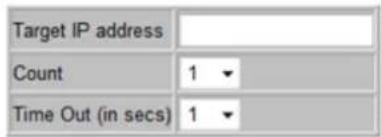
This command sends ICMP echo request packets to another node on the network.
Ping Parameters
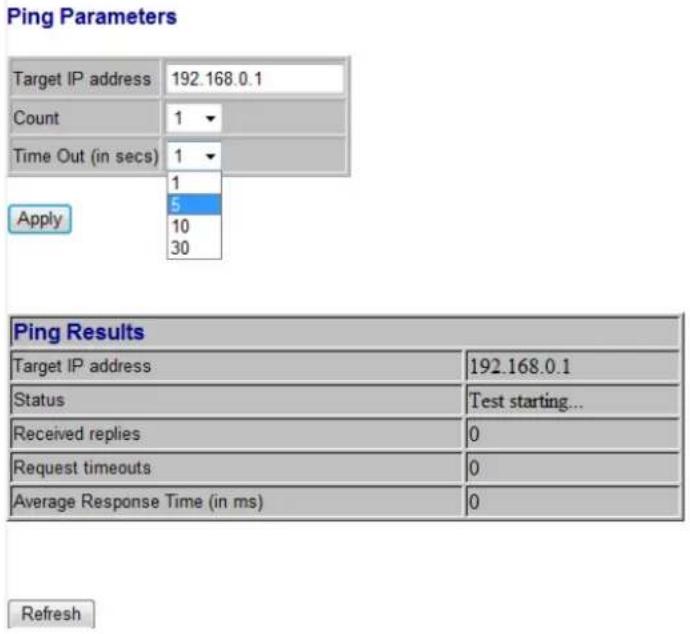
➢ Target IP Address: IP address of the host
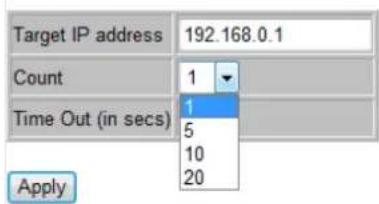
Count: Number of packets to send. (Range: 1-20)
➢ Time Out: setting the time period of host will be Ping
Use the ping command to see if another site on the network can be reached.
The following are some results of the ping command:
➢ Normal response: The normal response occurs in one to ten seconds, depending on network traffic.
➢ Destination does not respond: If the host does not respond, a “timeout” appears in ten seconds.
➢ Destination unreachable: The gateway for this destination indicates that the destination is unreachable.
➢ Network or host unreachable: The gateway found no corresponding entry in the route table.
Press
Ping Parameters
text_image
Target IP address Count 1 ▼ Time Out (in secs) 1 ▼Apply
| Ping Results | |
| Target IP address | 0.0.0.0 |
| Status | Test complete |
| Received replies | 0 |
| Request timeouts | 0 |
| Average Response Time (in ms) | 0 |
Refresh
Figure 2-7-1
Ping Parameters
text_image
Target IP address 192.168.0.1 Count 1 Time Out (in secs) 1 5 10 20 Apply| Ping Results | |
| Target IP address | 192.168.0.1 |
| Status | Test starting... |
| Received replies | 0 |
| Request timeouts | 0 |
| Average Response Time (in ms) | 0 |
Refresh
Figure 2-7-2
text_image
Ping Parameters Target IP address 192.168.0.1 Count 1 Time Out (in secs) 1 Apply 1 5 10 30 Ping Results Target IP address 192.168.0.1 Status Test starting... Received replies 0 Request timeouts 0 Average Response Time (in ms) 0 RefreshFigure 2-7-3
Maintenance
Warm Restart
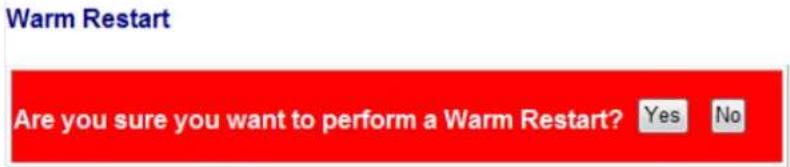
Press Yes button to restart the switch, the reset will be complete when the power lights stop blinking.
text_image
Warm Restart Are you sure you want to perform a Warm Restart? Yes NoFigure3-1
Factory Default
This function is to force the switch back to the original factory settings. To reset the switch, select "Reset to Factory Defaults" from the drop-down list and click Apply. The LAN IP Address, Subnet Mask and Gateway IP Address will be reset to their factory
text_image
Software Upload 瀏覽... UploadFigure 3-2
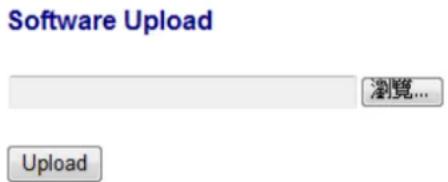
Software upload
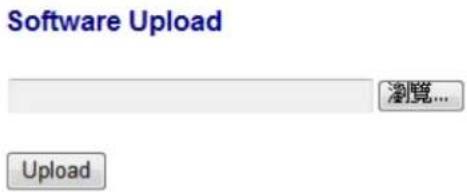
Select “Upgrade Firmware” from the Tools drop-down list then click on the “Browse” button to select the firmware file. Click the APPLY button to upgrade the selected switch firmware file. User can download firmware files for user’s switch from the Support section of your local supplier.
text_image
Software Upload 瀏覽... UploadFigure 3-3
Configuration File Transfer
Configuration file transfer allows you to save the switch's current configuration or restore a previously saved configuration back to the device. Configuration files can be saved to any location on the web management station. "Upload" the configuration file to save a configuration or "Download" to restore a configuration. Use the Browse button to choose a file location on the web management station, or to find a saved configuration file.

text_image
Configuration Upload 浏览... Upload Configuration Download DownloadFigure 3-4
Logout
The administrator has write access for all parameters governing the onboard agent. User should therefore assign a new administrator password as soon as possible, and store it in a safe place.
Reset button for the factory default setting
Please take the following steps to reset the Web Smart Switch back to the original default:
Step 1:
Turn on the Web Smart Switch
Step 2:
Press and hold the reset button continuously for 5 seconds and release the reset button.
Step 3:
The switch will reboot for 20 seconds and the configuration of switch will back to the default setting.