HILU86101 - Vacuum Cleaner HITACHI - Free user manual and instructions
Find the device manual for free HILU86101 HITACHI in PDF.


User questions about HILU86101 HITACHI
0 question about this device. Answer the ones you know or ask your own.
Ask a new question about this device
Download the instructions for your Vacuum Cleaner in PDF format for free! Find your manual HILU86101 - HITACHI and take your electronic device back in hand. On this page are published all the documents necessary for the use of your device. HILU86101 by HITACHI.
USER MANUAL HILU86101 HITACHI
- Important safety Instruction 3
1.1 Safety precautions
1.2 Maintenance
-
Introducon 8
-
Product Descripon 9
3.1 Front View
3.2 Rear View
3.3 Connecon
-
Remote Controller 12
-
OSD menu Descripon 13
-
Product Specicaons 24
-
Product Dimensions 26
-
Troubleshoong 27
8.1 Product Self-Diagnosis
8.2 Before Requesng Service
1. Important Safety instrucons
[SAFETY WARNING]
- To reduce the risk of re or electric shock, do not expose this product to rain or moisture.
- To prevent injury, this product must be securely aached to the oor/wall in accordance with the installaon instrucons.
• To reduce the risk of electric shock, do not remove the back cover
• Refer servicing to qualified service personnel if needed.
▶ Icons used in this manual
| CAUTIONRISK OF ELECTRIC SHOCK.DO NOT OPEN. | The lighting flash and arrowhead within the triangle indicates that there is dangerous voltage Inside the product. | |||
| The explanation point within the triangle indicates that there are important instructions accompanying the product. |
[WARNING] means,
If you ignore the warning message, you may be seriously injured or there is a possibility of accident or death.
[CAUTION] means,
If you ignore the cauon message, you may be slightly injured or the product may be damaged.
[NOTE] means,
The note helps you understand and use the product safely. Please read the note carefully before using the product.
When moving the product, please grab the handles behind and the boom of the product as shown below picture.
- The product must keep horizontal and upright posion when moving.
- Do not hold the corner of the product when you grab the boom of the product.
![HITACHI HILU86101 - [SAFETY WARNING] - 1](/content/2026/06/1210760/images/5b7610ee2663a646deb6d4072d549544f3d2f8b4dc11f7613c51dd889165a132.jpg)
natural_image
Two workers holding a large rectangular frame with red arrows indicating direction (no text or symbols)1.1 SAFETY PRECAUTION
Note) The color and design may dierent by each model and the product specicaon are subject to change without noce for performance enhancement.
1.1.1 Power
[Warning]
- Do not use damaged power cord, plug nor loose socket. It may cause electric shock or re.
- Do not connect mulple devices into a single socket. It may cause re due to overheang.
- Do not touch with wet hands when remove or plug the power cord to avoid electric shock.
- Insert the power plug into socket rmly. It may cause re when the connecons are unstable.
- Connect the power cord to a grounded wall socket. There is risk of electric shock or injury.
- Do not bend nor pull the power cord and place heavy objects over the power cord. It may occur cord damage and this may result in re.
- Please clean only with dry cloth when the plug pin or socket are dusty. It may cause re.
[Cauon]
- Do not unplug the power plug while the product is operang. It may damage the product due to electric shock.
- Only a power cord specied by product manufacturer are recommended.
Do not use the power cord from other devices. It may cause electric shock or re.
- Hold the plug itself when unplugging the power plug from the wall socket. If not, there is risk of electric shock or re.
- Before moving or installing this product, be sure to turn o the power and disconnect the power cord. To turn this product o completely, you must pull the power plug out of the wall socket. Consequently, the power plug must be easily and readily accessible at all mes.
1.1.2 Installaon
[Warning]
- Do not install near any heat sources such as radiators, or other devices that produce heat. It may cause electric shock or re.
- When moung a product on the wall, make sure not to install the product by hanging the power and signal cables on the back of it.
- Consult with your local dealer or specialized engineer to mount the product on the wall, and use the screws and wall mounts that meet the VESA standard. Any damages or injuries by misuse or using an improper accessory are not covered by the warranty.
- Leave a 10 cm (4 inches) (minimum) space from the wall for proper venlaon. If not, it may cause re.
-
Keep the packing an-moisture material or vinyl packing out of the reach of children. An-moisture material is harmful if swallowed. If swallowed by mistake, force the paent to vomit and visit the nearest hospital. Additionally, vinyl packing can cause suocaon. Keep it out of the reach of children.
-
Please note that the product must be supported on proper stands or installed according to the manufacturer's recommendations. The product that are inappropriately situated on unstable shelves, inclined planes, or vibrang places, etc., may fall over, resulting in injury.
- To reduce the risk of re or electrical shock, do not expose this product to rain, moisture or other liquids or dust. It may cause electric shock or re.
- Keep the product away from direct sunlight.
- Keep the product of the reach of children and install on the stable and at place. NEVER allow children to climb on or play on the product or the furniture and stands on which the product is placed.
[Cauon]
- Do not allow an impact shock or any objects to fall into the product, and do not drop anything onto the screen.
- Make sure the product is turned o, unplugged, and all cables have been removed. It may take more than 4 people to than carry.
Do not press or put stress on the front panel of the product.
- If the product is installed in a place where the operang condions considerably, a serious quality problem may occur due to the surrounding environment. In this case, install the product only aer consulng our dealer about the maer. (Places exposed to microscopic dust, chemicals, too high or low temperature, high humidity, airports or staons where the product is connuously used.)
1.1.3 Cleaning
[Warning]
- Before cleaning the product, unplug the power cord and wipe gently with a so cloth to prevent scratching.
- Do not spray water or other liquids directly on the product as electric shock may occur.
[Cauon]
- Do not push, rub, or hit the surface with your ngernail or a sharp object, as this may result in scratches on the screen and image distorons.
- Do not use any chemicals, such as waxes, benzene, alcohol, thinners, inseccides, air fresheners, or lubricants, as these may damage the screen's nish and cause discoloraon.
- Do not spray liquid onto the surface. If water enters the product, it may result in re, electric shock, or malfuncon.
1.1.4 General Usage
[Warning]
- To reduce the risk of electric shock, do not open the cover or back. No user serviceable parts inside. Refer to qualified service personnel.
- Before moving or liing the product, disconnect the power cord and all cables.
-
Route the cords and cables connected to the product so that they cannot be tripped over, pulled or grabbed.
-
Do not sick metal objects or any other conducive material into the power cord. Do not touch the end of the power cord while it is plugged in. It may result in re, electric shock.
- Unplug this product during lightning storms or when unused for long periods of me.
- Do not block any venlaon openings. Install in accordance with the manufacturer's instrucons.
- To reduce the risk of re or electrical shock, do not expose this product to rain, moisture or other liquids. Do not touch the product with wet hands. Do not install this product near ammable objects such as gasoline or candles, or expose to direct air conditioning.
- NEVER allow children to climb on or play on the product or the furniture on which it is placed. It may cause severe injury to children.
- Use only with a cart, stand, tripod, bracket, or table specied by the manufacturer, or sold with the product. When a cart is used, be careful when moving the cart/product combinaon to avoid injury from p-over.
- Install where it cannot be pushed, pulled over or knocked down.
- It is recommended to move the product in the box or packing material that originally came in.
- When holding the product, the screen should face away from you to avoid damage.
[Cauon] - If a xed image displays on the screen for a long period of me, it will be imprinted and become a permanent disgurement on the screen. This is image burn or burn-in and not covered by the warranty.
- When watching the screen, take 5 to 15 minute breaks every hour. Viewing screen for a long period of me may cause fague or eye strain.
- Take care not to touch the venlaon openings. When watching the screen for a long period, the venlaon openings may become hot. This does not act the performance of the product or cause defects in the product.
- Do not install this product on a wall if it could be exposed to oil or oil mist. This may damage the product and cause it to fall.
- To install baeries in remote control, open the baery cover, replace baeries matching (+) and (-) ends to the label inside the compartment, and close the baery cover. Failure to match the correct polaries of the baery may cause the baery to burst or leak, resulting in re, personal injury, or ambient polluon.
- To prevent to swallow the small accessories for children, keep the accessories out of the reach of children.
※ The product must keep horizontal and upright posion when moving. Hold the top and boom of the frame rmly. Handles are only for the supporting purpose.
※ When aaching the stand to the set, place the screen facing down on a cushioned table or at surface to protect the screen from scratches by more than 2 people.
※ Make sure that the screws are fastened ghtly. (If they are not fastened securely enough, it may It forward aer being installed.)
1.2 MAINTENANCE
1.2.1 Cleaning
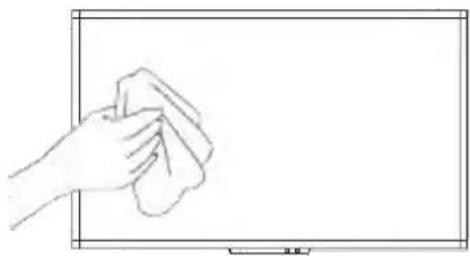
- When cleaning, unplug the power cord and wipe gently with a so dry cloth to prevent scratching.
- Do not spray water or other liquids directly on the screen as electric shock may occur.
- Do not clean with chemicals such as alcohol, thinners, or benzene.
natural_image
Hand cleaning a whiteboard with a cloth (no text or symbols visible)1.2.2 Installaon
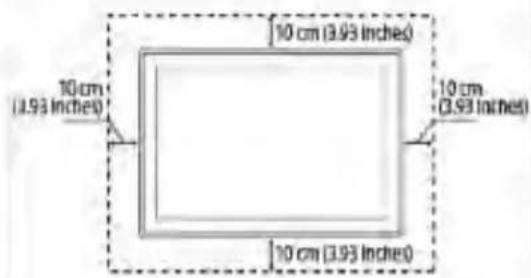
- Leave a 10 cm (4 inches) (minimum) space from the wall for proper venlaon.
If not, it may cause re or malfuncon due to the high temperature product inside.

text_image
10 cm (3.93 inches) 10 cm (3.93 inches) 10 cm (3.93 inches)[When aaching the stand]
text_image
10 cm (3.93 inches) 10 cm (3.93 inches) 10 cm (3.93 inches)[When moung on a wall]
1.2.3 Panel
- Avoid displaying a xed image on the screen for a long period of me (2 or more hours for LCD) to prevent image burn. Recommend to power o or set the power saving mode or screen saver when not in use.
- Due to technological constraints of the Panel manufacturer, the images generated by this product may appear either brighter or darker than normal by appr. 1ppm (parts per million) pixel.
The number of sub-pixels of a panel by size: The number of Sub-Pixels = Max. Horizontal Resoluon x Max. Vercal Resoluon x 3.
For example, if the maximum resolution is 1920 x 1080, the number of sub-pixels is 1920 x 1080 x 3 = 6,220,800.
2. Introducon
▶ Check your product box for the following items. If there are any missing accessories, contact the local dealer where you purchased your product.
The illustraons in this manual may dier from the actual product and item.
text_image
Start Joseph KLCD/LED Display

User Manual
Accessory

HDMI Cable
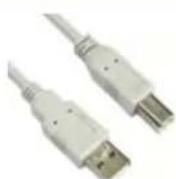
USB Cable(for TOUCH)
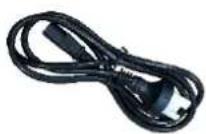
Power Cable
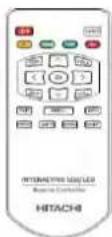
Remote Controller

Baery(CR-2025 x 1)
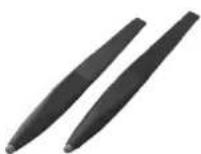
PEN x 2
3. Product Descripon
3.1 FRONT VIEW

text_image
Start Joseph K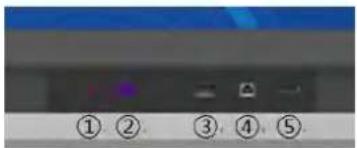
text_image
① ② ③ ④ ⑤①Power LED ② IR RECEIVER ③ USB ④ USB for TOUCH ⑤ HDMI IN (Ver.1.4)
3.2 REAR VIEW

text_image
Technical diagram of a device panel with numbered annotations highlighting specific components or areas.①
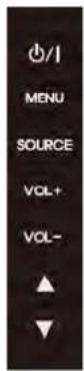
- Power: ON/OFF
- Menu: Display the main screen menu
- Source: Display Port, HDMI1, HDMI2, HDMI3, HDMI Front, HDMI OPS, PC, USB
• Vol +: Volume Up (Right)
• Vol -: Volume Down (Left) - ▲: Move Up
- ▼: Move Down
②

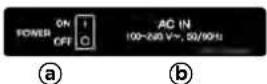
(a) Power Switch : ON / OFF
© HDMI OUT(FHD)
© Display Port
⑨ VGA
(i) Audio Line out
④ USB for UPDATE
m USB for TOUCH

text_image
HDMI OUT HDMI 3 DISPLAY PORT HDMI 2 HDMI 1 VGA VGA AUDIO LINE OUT HSSOC USB FOR UPDATE LIBO) RIBO) SPEAKER OUT USB FOR TOUCH © © © © © © © © © © © © © © © © © © © © © ©⑥ AC IN: 100V\~240V, 50/60Hz
(d) HDMI 3 Input (Ver.1.4)
f HDMI 1, 2 Input (Ver.2.0)
① VGA Audio In
j RS-232C
① Speaker output
③ When you need to install OPS PC.
There is a slot on ③ for OPS PC. When you need to install OPS, remove screws and existing cover rst and screw up again aerOUNNG OPS PC in the slot.
④ When you install Remote module
There is a slot on ④ for Remote module, When you need to install Remote module, remove screws and exisng cover rst and screw up again aer mounng Remote module in the slot.
⑤ AC cord holder

natural_image
Close-up of a metallic door with a small black button and a red speech bubble highlighting the button (no text or symbols visible)
natural_image
Close-up of a mechanical component with a red circular mark and a small white object on the side (no visible text or symbols)* To prevent take Power cable out, please use cable holder if you need. SCREW (4x11)
3.3 CONNECTION
1) HDMI/Display Port Connecon
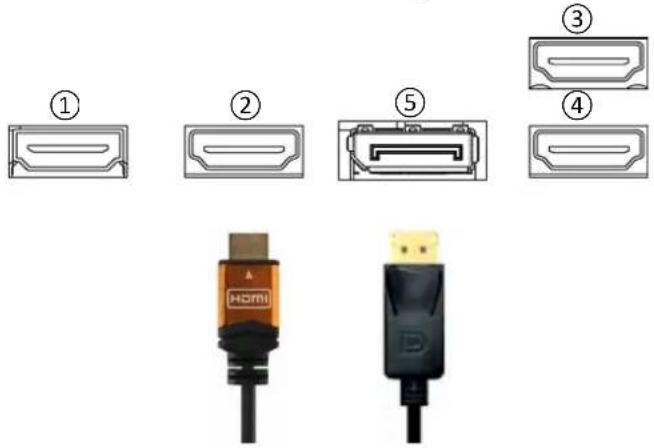
To transmit digital video and audio signals from an external device to the screen, connect the HDMI/Display Port cables as shown in the following illustraon.
text_image
① ② ③ ④ HOMI D① HDMI Output – Connect the other monitor to transmit video data
②, ③, ④ HDMI 1, 2, 3 Input – PC/ LAPTOP connect to the HDMI cable
⑤ DisplayPort Input – PC/LAPTOP connect to the DisplayPort cable
2) VGA Connecon
In case of transmission digital video signal from an external device to the screen, connect the external device and the product with the VGA cable and to transmit an audio signal, connect an audio cable in PC AUDIO IN port separately.
3) Speaker Connecon
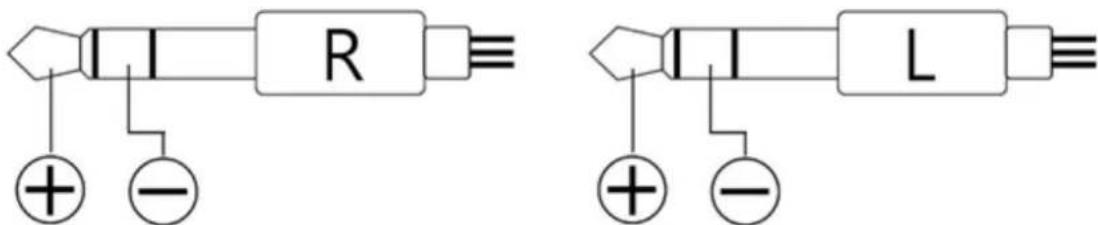
To ulize an oponal external audio system instead of the built-in speaker, if you connect ∅ 3.5 stereo (L/R) cable in the port.
If it is connected to external speakers, internal speaker may not sound.
The conncon is as below.
text_image
R + - L※ Note that when using OPS PC Connecon
1) Do not connect touch sensor USB cable to the port. (Touch sensor cable is already connected by internal OPS docking board.)
2) Power on LCD/LED Display, OPS turns on automacally.
3) Power o LCD/LED Display, OPS turns o automacally.
4. Remote Controller
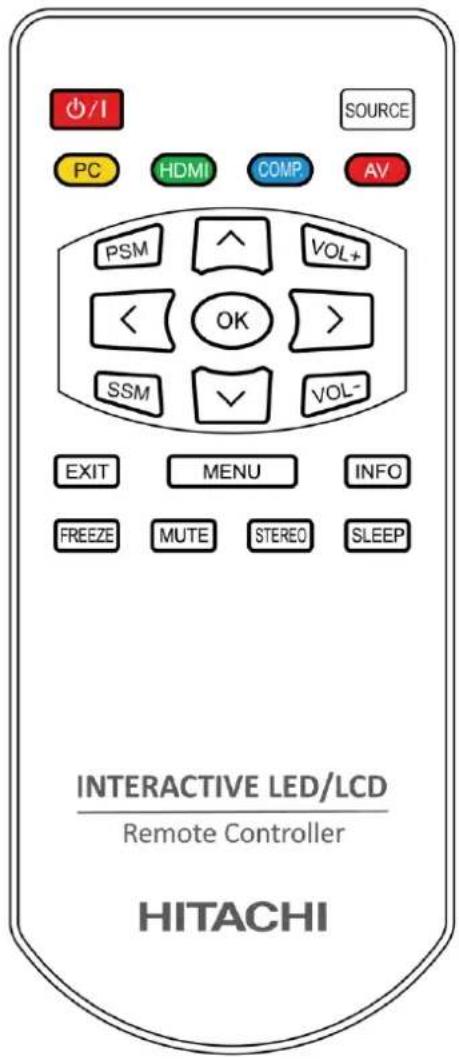
text_image
SOURCE PC HDMI COMP AV PSM ^ VOL+ < OK > SSM ✓ VOL- EXIT MENU INFO FREEZE MUTE STEREO SLEEP INTERACTIVE LED/LCD Remote Controller HITACHI| Key Name | Description |
| ∅/I | Power ON/OFF. |
| SOURCE | Activates OSD menu of input source selecting. Navigates input source. |
| PC | VGA |
| AV | AV.(N/A) |
| HDMI | DP, HDMI 1, HDMI 2, HDMI 3, OPS |
| PSM | Picture mode: Standard, Dynamic, Soft, User. |
| SSM | Sound mode: Standard, Flat, Music, Movie. |
| MENU | Activates main OSD menu. |
| EXIT | Escapes main OSD menu. |
| INFO | Displays input source information. |
| FREEZE | Videos are saved with pictures. |
| MUTE | Toggles sound status of speaker. |
| STEREO | Set the Audio L+R, Audio L, Audio R. |
| SLEEP | Set the sleep timer. |
| ^ | Navigates upper menu in main OSD menu. Navigates input source. |
| ∨ | Navigates down menu in main OSD menu. Navigates input source |
| > | Navigates next menu in main OSD menu. |
| < | Navigates before menu in main OSD menu. |
** How to insert baery.
Insert the baery into proper polaries
Baery model : (CR-2025 3V)
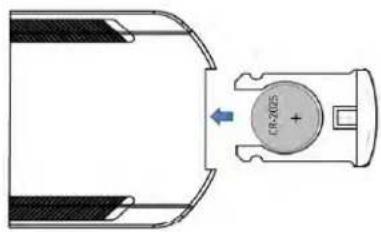
text_image
CR-20255. OSD Menu Descripon
5.1 Menu Overview
In this menu system, there are several ways to customize the menu sengs provided. If you press the MENU buon, only the rst and second level of the menu system will appear on the monitor screen. The third level can be displayed by pressing SELECT.
1) To show and hide the menu:
Press the MENU buon on the Remote Control to display the menu.
Press of the MENU buon will take you back to monitor viewing.
2) To go to advance to the next menu:
Press OK on the Remote Control.
3) To go back to the previous menu:
Press MENU on the Remote Control.
4) Typical Menu Operaon
- Press MENU buon: The main menu will appear.
- Use to select the desired menu opon (icon).
- While the desired menu opon is selected, press OK to move to the second level.
- Press OK to move to the third level: Some menu opons require additional steps.
- Press MENU to return to the previous menu.
PICTURE MENU
◆ Press the [MENU] Buon. The OSD Main MENU will be shown.
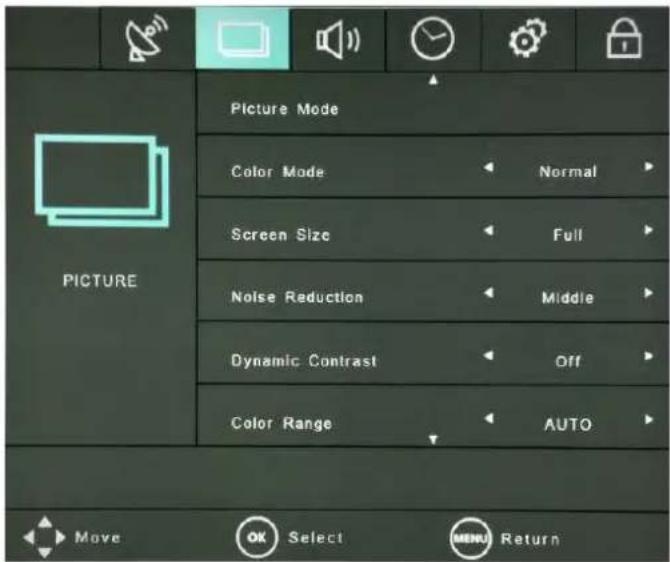
text_image
Picture Mode Color Mode Normal Screen Size Full Noise Reduction Middle Dynamic Contrast Off Color Range AUTO Move OK Select MENU Return◆ PICTURE MENU
1) Go to Picture Menu by pressing Menu buon on remote controller or OSD key
2) Set Picture Mode, Color Mode, Screen Size, Noise Reducon, Dynamic Contrast and Color Range in Picture Menu by pressing ◀/▶ icon
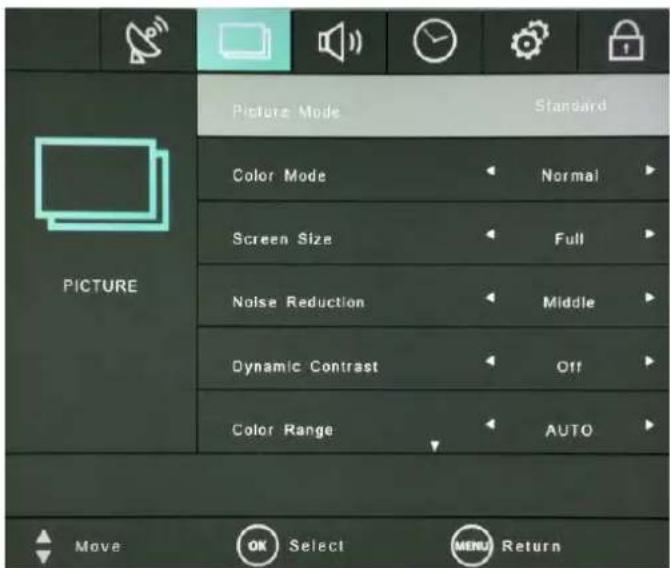
text_image
PICTURE Picture Mode Color Mode Screen Size Noise Reduction Dynamic Contrast Color Range Standard Normal Full Middle Off AUTO Move OK Select MENU Return◆ Picture Mode
1) Go to Picture Mode by pressing ▲/▼ on the remote controller or OSD key.
2) Adjust Brightness, Contrast, Color, Tint and Sharpness with OK or SELECT buon
3) User can use preprogrammed Standard, Movie and So or can make his own favorite seng

text_image
Picture Mode Color Mode Normal Screen Size Full Noise Reduction Middle Dynamic Contrast Off Color Range AUTO Move Adjust MENU Return◆ Color Mode
1) Go to Color Mode by pressing ▲/▼ on the remote controller or OSD key.
2) Select Color Temperature
(Normal/Warm/Cold) by pressing ◀/▶ icon
text_image
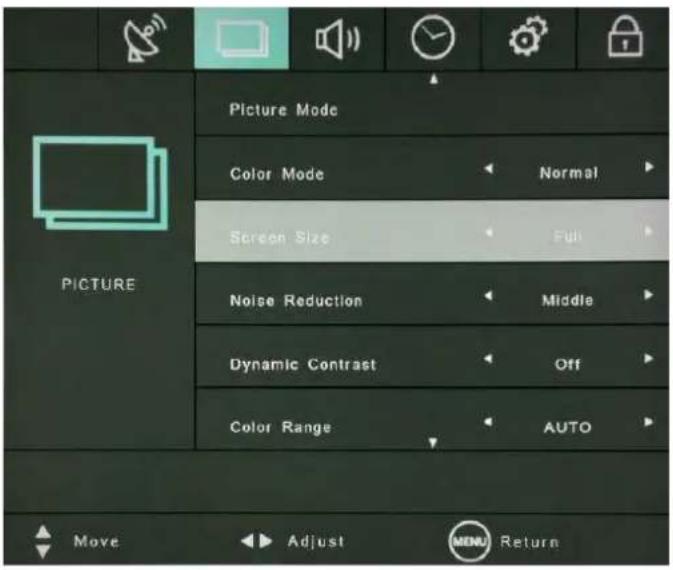
PICTURE Picture Mode Color Mode Normal Screen Size Full Noise Reduction Middle Dynamic Contrast Off Color Range AUTO Move Adjust MENU ReturnScreen Size
1) Go to Screen Size by pressing ▲/▼ on the remote controller or OSD key.
2) Select rao of screen by pressing ◀/▶ icon : Full, 1:1, Normal, Zoom and Cinema, Wide
text_image
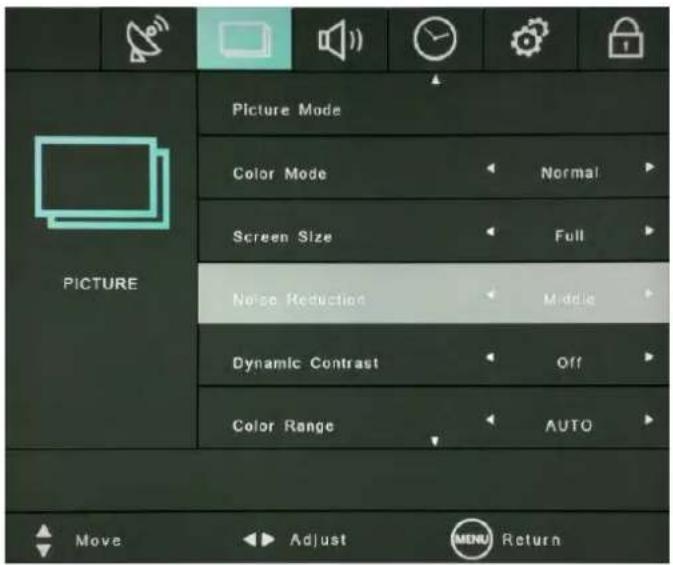
PICTURE Picture Mode Color Mode Normal Screen Size Full Noise Reduction Middle Dynamic Contrast Off Color Range AUTO Move Adjust MENU ReturnNoise Reducon
1) Go to Noise Reducon by pressing ▲/▼ on the remote controller or OSD key.
2) Select Noise Reducon level by pressing ◀/▶ icon : Weak, Middle, Strong
text_image
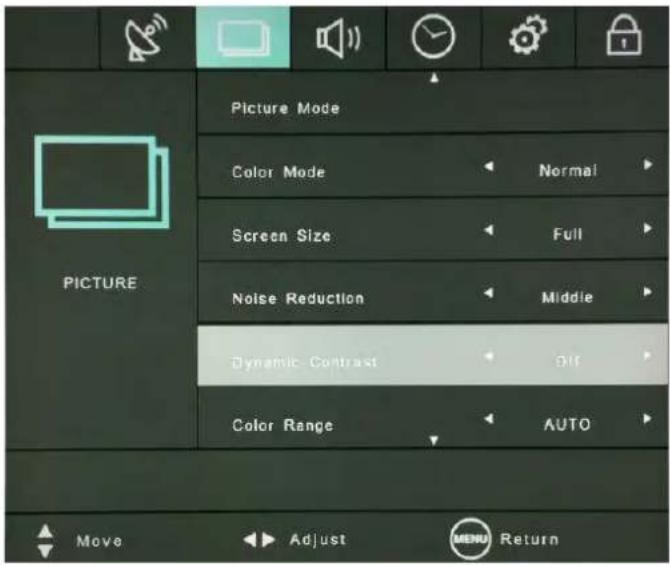
PICTURE Picture Mode Color Mode Normal Screen Size Full Noise Reduction Middle Dynamic Contrast Off Color Range AUTO Move Adjust MENU Return◆ Dynamic Contrast
1) Go to Dynamic Contrast by pressing ▲/▼ on the remote controller or OSD key.
2) Available in Full HD resolution below
3) Select On or O to adjust contrast by pressing
◀/▶ icon

text_image
PICTURE Picture Mode Color Mode Normal Screen Size Full Noise Reduction Middle Dynamic Contrast Off Color Range AUTO Move Adjust MENU Return◆ Color Range
1) Go to Color Range by pressing ▲/▼ on the remote controller or OSD key.
2) Available in Full HD resolution below
2) Select color range by pressing ◀/▶ icon: Auto, 16\~235 for TV, 0\~255 for PC
AUDIO MENU
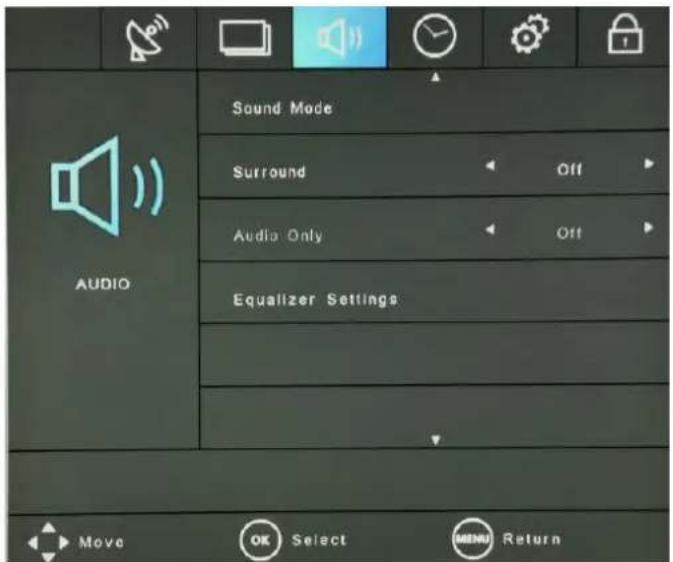
◆ Press the [MENU] Buon. The OSD Main MENU will show.
text_image
AUDIO Sound Mode Surround Off Audio Only Off Equalizer Settings Move Select MENU ReturnAUDIO MENU
1) Go to Audio Menu by pressing Menu buon on remote controller or OSD key
2) Set Sound Mode, Surround, Audio Only, Equalizer
in Audio Menu by pressing ◀/▶ icon
text_image
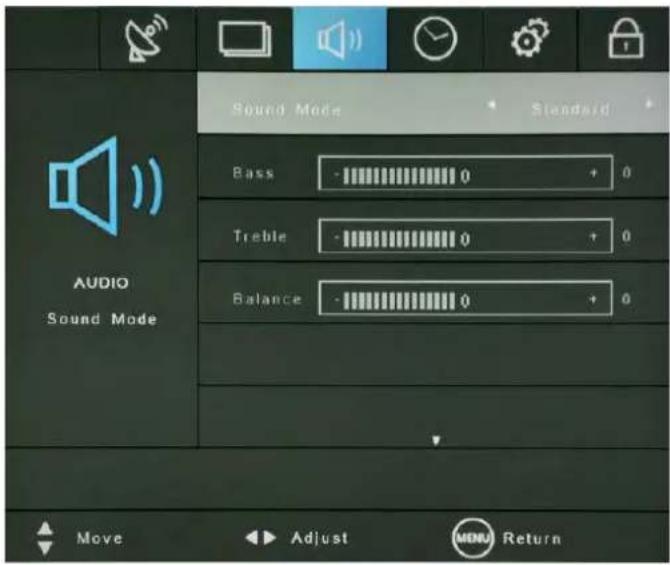
AUDIO Sound Mode Sound Mode Standard Bass - - - + - Treble - - - + - Balance - - - + - Move Adjust Add ReturnSound Mode
1) Go to Sound Mode by pressing ▲/▼ on the remote controller or OSD key.
2) Adjust Bass, Treble and Balance with OK or SELECT buon
3) User can use preprogrammed Standard, Music, I and Sports or can make his own favorite seng
text_image
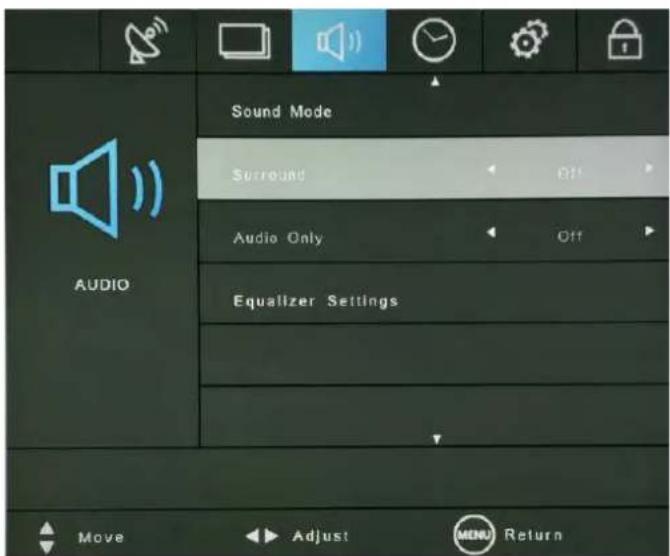
AUDIO Sound Mode Surround Audio Only Equalizer Settings Move Adjust MENU Return◆ Surround
1) Go to Surround by pressing ▲/▼ on the remote controller or OSD key.
2) Turn on or o spaal impression, direcon and reverberation of sound by pressing ◀/▶ icon.

text_image
AUDIO Equalizer Settings Equalizer Off 100Hz 0 +6 250Hz 0 +3 500 Hz 0 +4 1KHz 0 +6 2KHz 0 -3 Move Adjust MENU Return◆ Equalizer Seng
1) Go to Equalizer Seng by pressing ▲/▼ on the remote controller or OSD key.
2) Adjust frequency characterisc by pressing ◀/▶ icon
3) User can use preprogrammed Rock, Pop and Jazz can make his own favorite seng
TIME MENU
◆ Press the [MENU] Buon. The OSD Main MENU will show.

text_image
TIME Sleep Timer Off Time Format 12-hour Clock 2015/01/01 12:13 AM Wake Up 2015/01/01 12:00 AM No Signal Power Off Off Move OK Select MENU ReturnTIME MENU
1) Go to Time Menu by pressing Menu buon on remote controller or OSD key
2) Set Sleep Timer, Time Format, Clock, Wake Up, No Signal Power O by pressing ◀/▶ icon

text_image
Sleep Timar Time Format 12-hour Clock 2015/01/01 12:13 AM Wake Up 2015/01/01 12:00 AM No Signal Power Off Off Move Adjust MERU ReturnSleep Timer
1) Go to Sleep Timer by pressing ▲/▼ on the remote controller or OSD key.
2) Set mer by 5/10/15/30/60/90/120/180/240 minutes to turn o automacally with OK or SELEC buon
3) Press Sleep Timer again on the remote control OSD key to cancel Sleep Timer

text_image
TIME Sleep Timer Off Time Format 12:40 AM Clock 2015/01/01 12:13 AM Wake Up 2015/01/01 12:00 AM No Signal Power Off Off Move Adjust MENU Return◆ Time Format
1) Adjust Time Format by pressing ◀/▶ icon : 12-Hour(AM,PM) or 24-Hour
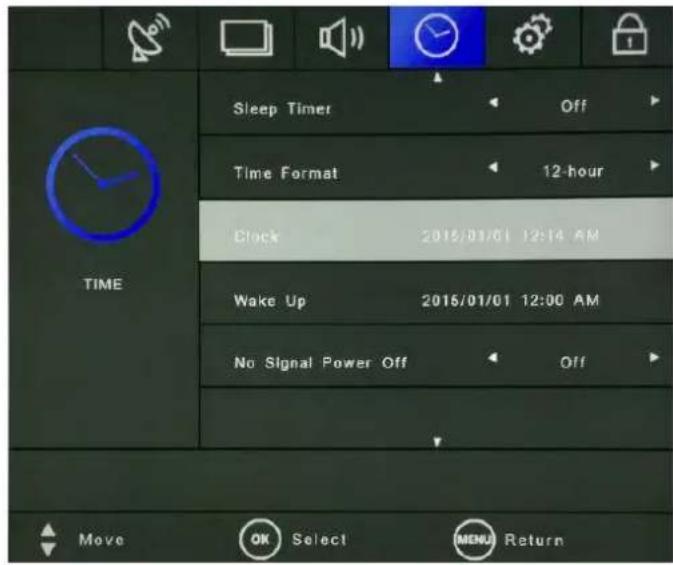
text_image
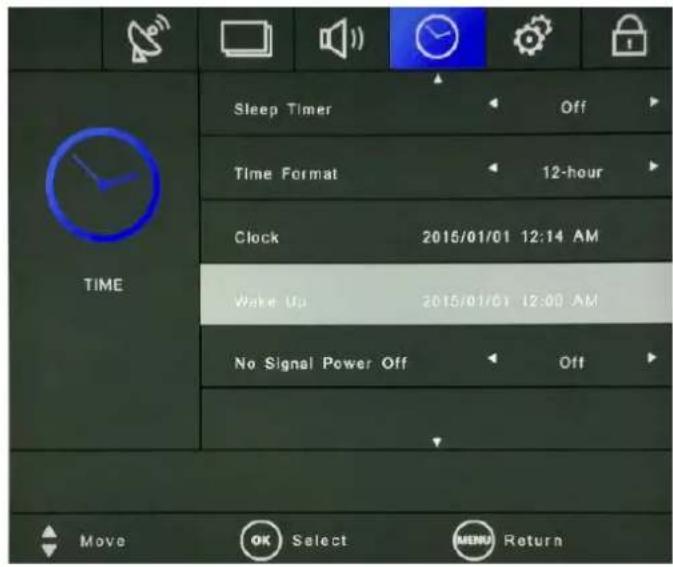
TIME Sleep Timer Off Time Format 12-hour Clock 2015/01/01 12:14 AM Wake Up 2015/01/01 12:00 AM No Signal Power Off Off Move OK Select MENU Return◆ Clock
1) Adjust Present Time by pressing ◀/▶ icon : Year, Month, Day, Hour, Minute
text_image
TIME Sleep Timer Off Time Format 12-hour Clock 2015/01/01 12:14 AM Wake Up 2015/01/01 12:00 AM No Signal Power Off Off Move OK Select MENU Return◆ Wake Up
1) Set Wake Up Time by pressing ◀/▶ icon : Year, Month, Day, Hour, Minute
2) It turns on automacally when it is Wake Up Time
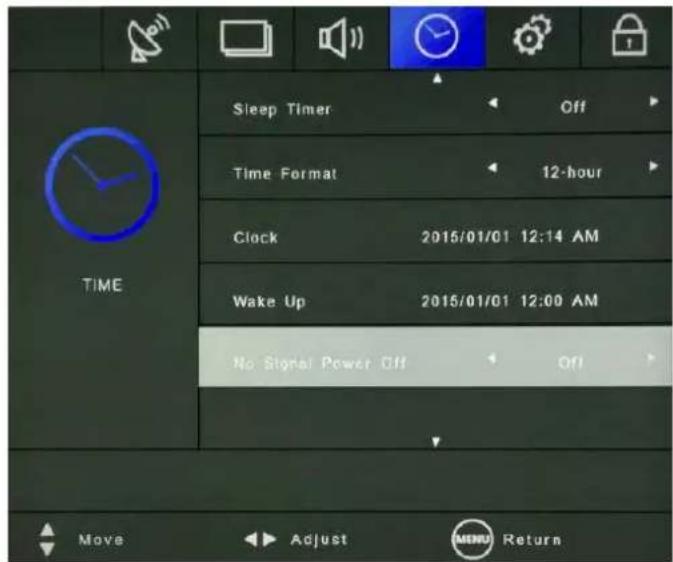
text_image
TIME Sleep Timer Off Time Format 12-hour Clock 2015/01/01 12:14 AM Wake Up 2015/01/01 12:00 AM No Signal Power Off Off Move Adjust MENU Return◆ No Signal Power O
1) It turns o automacally when there is no video input data
2) Set closing me by pressing ◀/▶ icon : 1/3/5/10/15s
SETUP MENU
◆ Press the [MENU] Buon. The OSD Main MENU will show.

text_image
SETUP Menu Language English Menu Transparency 0% OSD Time Out 60 Sec. All Reset Blue Background Off CEC Move OK Select MENU Return◆ SETUP MENU
1) Go to SETUP Menu by pressing Menu buon on remote controller or OSD key
2) Set Menu Language, Menu Transparency, OSD Time Out, All Reset, Blue Background, CEC, COM ID, HDMI Seng by pressing
◀/▶ icon

text_image
Menu Language English Menu Transparency 0% OSD Time Out 60 Sec. All Reset Blue Background Off CEC Move Adjust MENU Return◆ Menu Language
1) Go to Menu Language by pressing ▲/▼ on OSD key.
2) Set Language by pressing ◀/▶ icon : English, Japanese
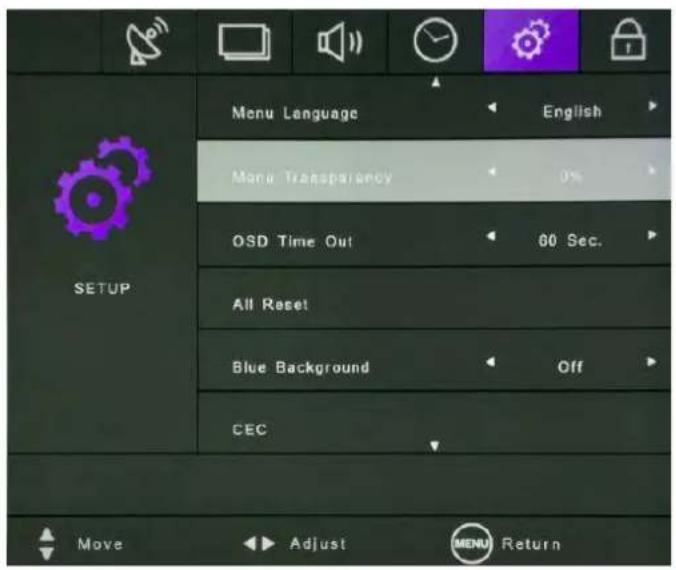
text_image
MENU Language English Menu Transparency 0% OSD Time Out 60 Sec. All Reset Blue Background Off CEC Move Adjust MENU Return◆ Menu Transparency
1) Go to Menu Transparency by pressing ▲/▼ on OSD key.
2) Set transparency of OSD by pressing ◀/▶ ic
0%/25%/50%/75%/100%
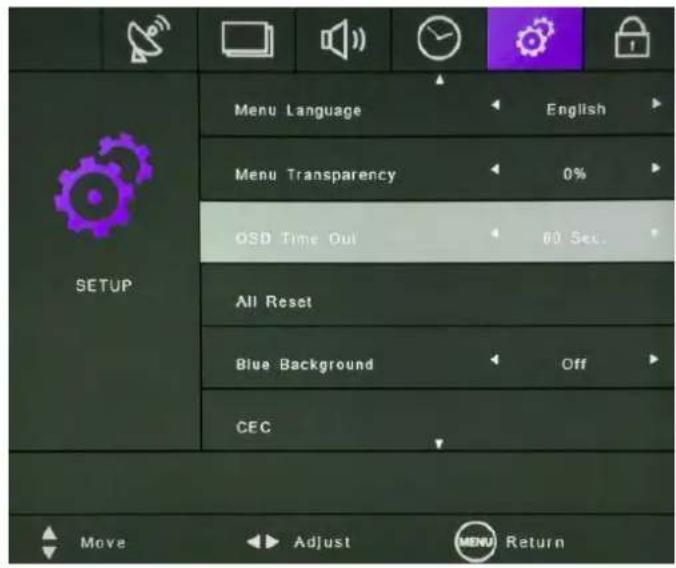
text_image
SETUP Menu Language English Menu Transparency 0% OSD Time Out 60 Sec. All Reset Blue Background Off CEC Move Adjust MENU Return♦ OSD Time Out
1) Go to OSD Time Out by pressing ▲/▼ on OSD.
2) Set OSD Time Out by pressing ◀/▶: 5/15/30/45/60 seconds
3) OSD disappears when it is OSD Time Out
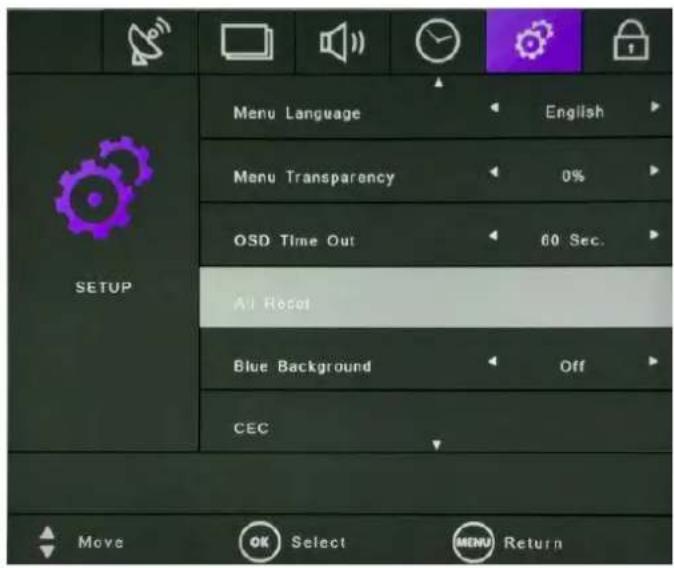
text_image
SETUP Menu Language English Menu Transparency 0% OSD Time Out 60 Sec. All Reset Blue Background Off CEC Move OK Select MENU Return◆ All Reset
1) Go to All Reset by pressing ▲/▼ on OSD key.
2) Press OK or SELECT buon. Then, "Are you sure pops up.
3) Press ◀ not to do All Reset or press ▶ to default OSD sengs.

text_image
MENU Language English Menu Transparency 0% OSD Time Out 60 Sec. All Reset Blue Background Off CEC SETUP Move Adjust MENU Return◆ Blue Background
1) Go to Blue Background by pressing ▲/▼ on OSD.
2) Turn on or o Blue Background by pressing ◀/▶
3) If there is no video data, blue background displays with On, while black background displays with (

text_image
SETUP Menu Language English Menu Transparency 0% OSD Time Out 60 Sec. All Reset Blue Background Off LED Move OK Select MENU ReturnCEC
1) Go to CEC by pressing ▲/▼ on remote controller or OSD
2) Press OK or SELECT buon to perform CEC control
3) Then, it acvate Device Auto Power O, TV Auto Power On, Audio Receiver with TV source only
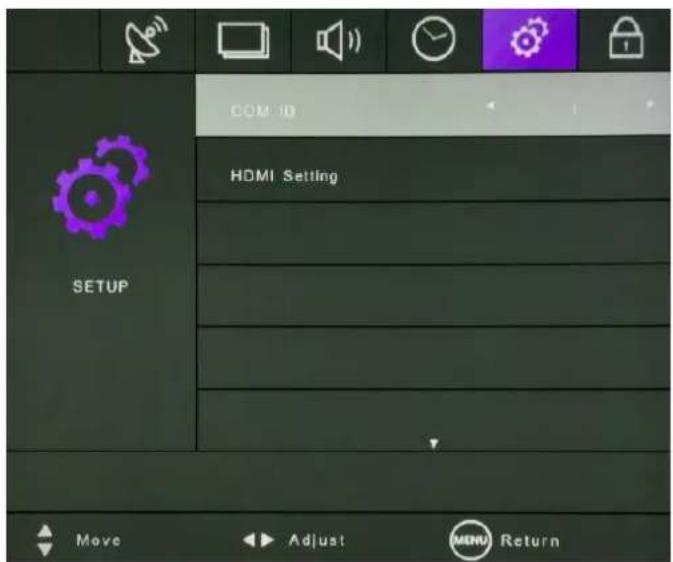
text_image
COM ID HDMI Setting SETUP Move Adjust MENU Return◆ COM ID
1) Go to COM ID by pressing ▲/▼ on remote controller or OSD
2) Assign command ID to connect other devices \ RS232 by pressing ◀/▶

text_image
COM ID HDMI Setting SETUP Move OK Select MENU Return◆ HDMI Seng
1) Go to HDMI Seng by pressing ▲/▼ on remote controller or OSD
2) Press OK or SELECT buon to set frame frequency (Hz) of HDMI source and EDID (HDMI ports 1/2/3/4, Front and OPS source).
3) EDID 1.4 : frame frequency 30Hz
EDID 2.0 : frame frequency 60Hz
LOCK MENU
◆ Press the [MENU] Buon. The OSD Main MENU will show.

1) Go to Lock Menu by pressing ▲/▼ on remote controller or OSD
2) Set Keypad Lock On or O by pressing ◀/▶.
6. Product Specicaon
Note: Product design and features without prior noce may be changed.
| Items | Specicaons |
| Detecon method | Infrared blocking |
| ouch tool / Response me | Hand or other solid object / <12ms |
| Supported OS | Windows 7 / 8 / 10MAC(10.7 ~ 10.10 or higher version than 10.10) |
| Resoluon(Pixel) | 3,840 x 2,160 |
| Front Glass | Tempered 4mm, AG |
| Overall dimensions(WxHxD) | 1,971 X 1,197 x 109mm |
| VESA Mount | 600 x 400 (mm), M8 Screw |
| Weight | 92 kg |
LED Panel Specicaons
| Items | Specicaons |
| Acve screen size (Diagonal) | 85.60"/217.4(cm) |
| Display Colors | 10bit(D), 10.7 Billion |
| Brightness | 410 cd/m2 |
| Contrast Rao | 1200:1 (Typ.) |
| View Angle(Typ.) | H: 178° / V: 178° (CR>/=10) |
Rangs of Environment
| Item / Model | Specicaons | |
| Storage Temperature | -20°C ~ +60°C | |
| Operang Temperature | 0°C ~ +40°C, 20% to 80% RH(no condensaon) | |
| Power Supply Voltage | AC100 ~ 240V, 50/60Hz | |
| Standby | < 0.5W | |
| Speaker | 20W + 20W Stereo (8-ohms) | |
| Power Consumpon | Max. 333W | |
| Items | Specicaons | |
| Video | Display Format | Full, 1:1, Normal, Zoom, Cinema, Wide |
| Picture Status Memory | 4 Modes | |
| Color Status Memory | 3 Modes | |
| Sound | Output(RMS) | EQ Max. 20W X 2 Channels |
| Sound System | Stereo | |
| Equalizer | 7 Bands | |
| Sound Status Memory | 5 Modes | |
| Balance | Yes | |
| Terminals | VGA | 1 (D-SUB 15P) |
| PC-Audio | 1 (∅ 3.5 JACK) | |
| HDMI In (Rear) | 3 (HDMI 1,2 : Ver.2.0 / HDMI 3 : Ver.1.4) | |
| HDMI Out (Rear) | 1 (FHD) | |
| Audio Line Out | 1 (∅ 3.5 JACK) | |
| DisplayPort | 1 (DP 1.4/HDCP2.2/DVI1.0 Compatible) | |
| Speaker Out (L) | 1 (∅ 3.5 JACK) | |
| Speaker Out (R) | 1 (∅ 3.5 JACK) | |
| RS232C | 1 (D-SUB 9P) | |
| USB | 1 ('B' Type, for Touch Sensor) | |
| USB | 1 ('A' Type, for Soware Update) | |
| LAN | 10/100 Mbps(Auto detecon), RJ-45 Connector | |
| HDMI In (Front) | 1 (Ver.1.4) | |
| USB (Front) | 1 ('B' Type, for Touch Sensor), 1 ('A' Type, for Data Storage) | |
| Others | Clock | Yes |
| Sleep Timer / Auto Sleep | Yes | |
| On Timer | Yes | |
| O Timer | Yes | |
| Child Lock | Yes | |
| Freeze Funcon | Yes | |
| Resoluon | HDMI, DisplayPort | 4Kx2K@(30Hz/60Hz),1080P(50/60Hz), 1080i, 720P(50Hz/60Hz), 576P(50Hz), 480P(60Hz)VESA TIMING : up to 1920x1080@60Hz |
| VGA | DOS 720*400(70Hz) | |
| VGA 640*480(60Hz/72Hz/75Hz) | ||
| SVGA 800*600(56Hz/60Hz/72Hz/75Hz) | ||
| XGA 1024*768(60Hz/70Hz/75Hz) | ||
| SXGA 1280*1024(60Hz) | ||
| WXGA 1280*768(60Hz/75Hz),1360*768(60Hz/75Hz) | ||
| UXGA 1600*1200(60Hz) | ||
| FHD 1920*1080(60Hz) | ||
7. Product Dimensions

text_image
1396 1971 1142 1197 35 109
text_image
600 4-M8 DP 30mm 371 400 3718. Troubleshoong
8-1 Product Self-Diagnosis
- You can check if the product is working properly using the Self-Diagnosis funcon.
- If a blank screen is displayed but the Power LED on even if the product and the PC are properly connected, perform the self-diagnosis funcon according to the procedures below.
1) Turn the product and the PC o.
2) Remove the any connected cables from the product.
3) Turn the product on.
4) If the product is working properly, the
In this case, if a blank screen is displayed again, make sure that there is no problem with the PC and the conncon.
8-2. Before Requesng Service
- Please check the following before requesng Aer-Sales service and if the problem connues, please contact the local dealer where you purchased your product.
1) PROBLEMS RELATED TO SCREEN
A. Screen is blank and power indicator is o.
» Ensure that the power cord is rmly connected and the monitor is on.
B. "No Signal" Message.
» Check the maximum resoluon and the frequency of the video adapter.
» Compare these values with the data in the Standard Signal Mode Table.
C. Picture rolls vercally.
» Check if the signal cable is securely connected. Connect it again securely.
D. Image is not clear. Picture is blurred.
» Run frequency tuning.
» Turn on again aer removing all accessories. (Video extension cable, etc.)
» Set resoluon and frequency to the recommended ranges.
E. The image is too light or too dark.
» Adjust the
2) PROBLEMS RELATED TO AUDIO
A. No sound.
» Ensure that the audio cable is rmly connected to both the audio-in port on your monitor and the audio-out port on your sound card.
B. The sound level is too low.
» Check the volume level. If the volume is sill too low aer turning the control to its maximum, check the volume control on the computer sound card or soware program.
3) PROBLEMS RELATED TO REMOTE CONTROL
A. The remote control buons do not respond.
» Check the baery polaries (+/-).
» Check if the baeries have been exhausted.
» Check if the power is on.
» Check if the power cord is securely connected.
» Check if a special uorescent or neon lamp is on in the vicinity.