JetFlash 320 - USB Drive TRANSCEND - Free user manual and instructions
Find the device manual for free JetFlash 320 TRANSCEND in PDF.


User questions about JetFlash 320 TRANSCEND
0 question about this device. Answer the ones you know or ask your own.
Ask a new question about this device
Download the instructions for your USB Drive in PDF format for free! Find your manual JetFlash 320 - TRANSCEND and take your electronic device back in hand. On this page are published all the documents necessary for the use of your device. JetFlash 320 by TRANSCEND.
USER MANUAL JetFlash 320 TRANSCEND
Congratulations on purchasing one of Transcend's world-renowned storage products. Your Transcend storage device comes with Transcend Elite™ – a very useful software application that can help you increase work productivity by keeping important files organized, protected and up-to-date. The Elite software pack includes Backup, Restore, Backup Management, Encryption and PC-Lock features.

Transcend®
ContentsContents
Hardware Requirements.... 3
Supported Operating Systems.... 3
Getting Started 4
Backing up Data 5
Create a Backup Task .... 5
Run a Backup Task....9
One Touch Backup 11
Restoring Data 12
Restore Files from a Backup Task 12
Data Encryption.... 16
Protecting Files & Folders 16
Decrypting Your Data....17
Backup Management.... 18
Bookmark Sync 20
→ Copy to Storage Device.... 20
Copy to Computer 21
Settings 22
Closing the Program.... 24
Helpful Tips 25
FAQ 26
More Help....27
Hardware RequirementsHardware Requirements
- Transcend StoreJet® Portable Hard Drive / JetFlash® USB Flash Drive / Portable Solid State Drive(SSD).
- Desktop or Notebook computer with an available USB port
Supported Operating Systems Supported Operat
Elite supports the following operating systems:
- Windows® XP
- Windows Vista®
- Windows® 7
NOTE: You must have Administrator privileges to run Elite in Windows 7 and Vista.
Getting Started Setting Start
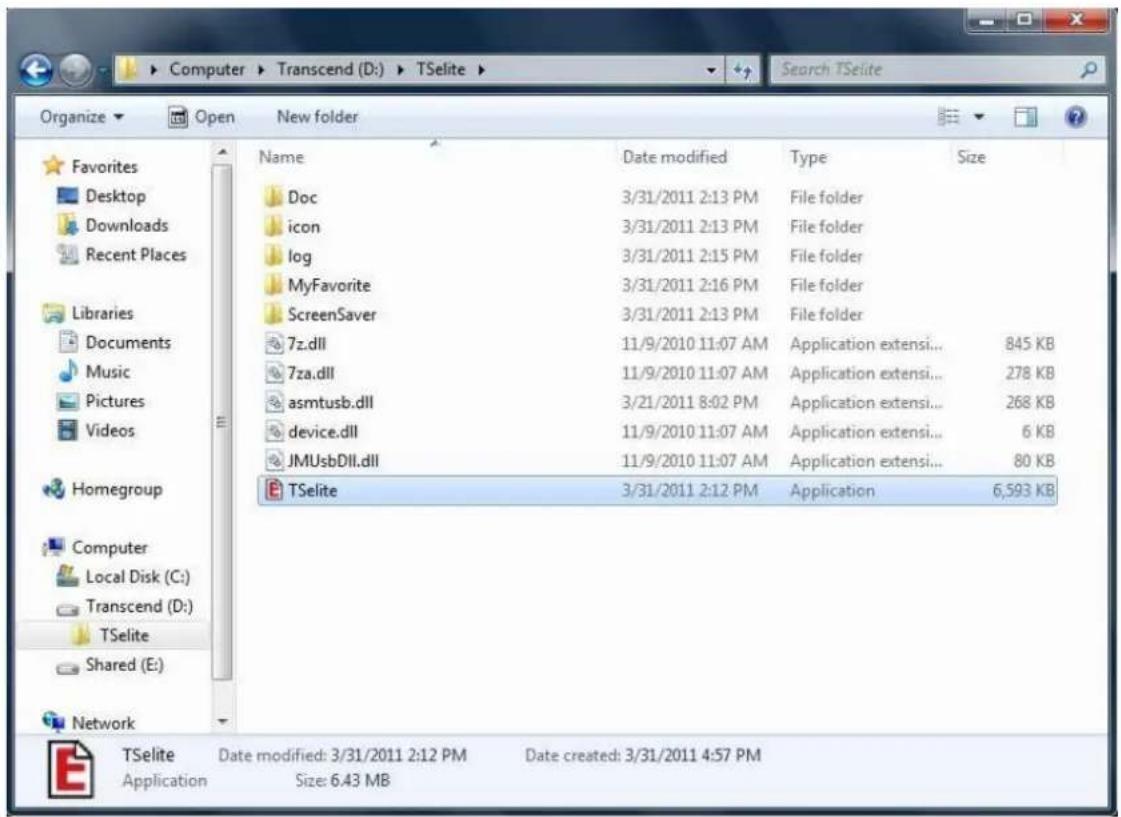
You do not have to install any software on your computer to run Elite. You can start Elite manually by navigating to your StoreJet® Portable Hard Drive / JetFlash® drive / Portable Solid State Drive (SSD) in the Windows Explorer ("My Computer") and double-clicking on "TSelite.exe" to begin.
text_image
Computer > Transcend (D:) > TSeLite Organize Open New folder Favorites Desktop Downloads Recent Places Libraries Documents Music Pictures Videos Homegroup Computer Local Disk (C:) Transcend (D:) TSeLite Shared (E:) Network Name Date modified Type Size Doc 3/31/2011 2:13 PM File folder icon 3/31/2011 2:13 PM File folder log 3/31/2011 2:15 PM File folder MyFavorite 3/31/2011 2:16 PM File folder ScreenSaver 3/31/2011 2:13 PM File folder 7z.dll 11/9/2010 11:07 AM Application extensi... 845 KB 7za.dll 11/9/2010 11:07 AM Application extensi... 278 KB asmtusb.dll 3/21/2011 8:02 PM Application extensi... 268 KB device.dll 11/9/2010 11:07 AM Application extensi... 6 KB JMUsbDll.dll 11/9/2010 11:07 AM Application extensi... 80 KB TSeite 3/31/2011 2:12 PM Application 6,593 KB TSeite Date modified: 3/31/2011 2:12 PM Date created: 3/31/2011 4:57 PM Application Size: 6.43 MB
Create a Backup Task
- Double-click the Elite icon ( ) in the Windows System Tray
- Select "Backup" from the Main Menu.

text_image
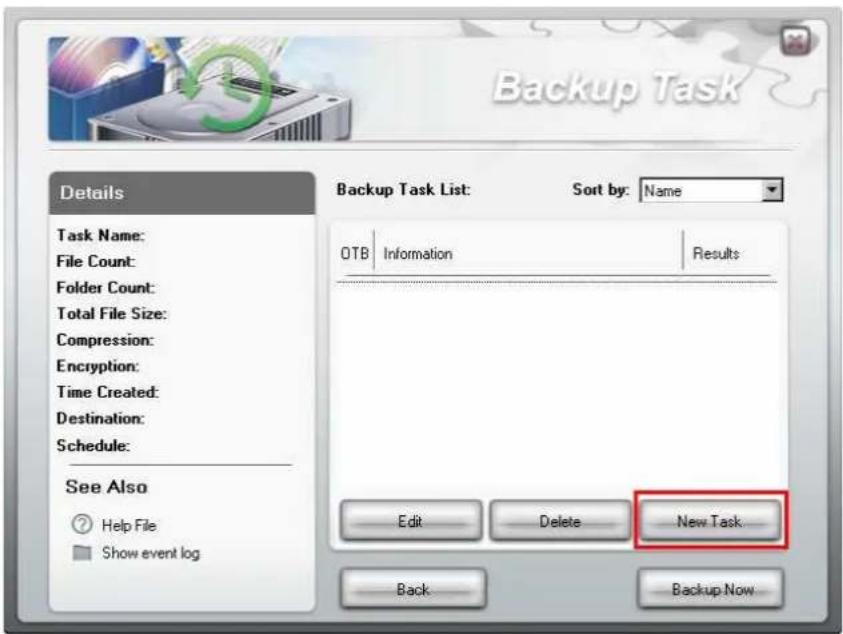
Transcend® Elite™ Data Management Last Backup Task Name: My First Task Last Backup: 2011-03-31 05-07-14 PM Destination: F:\New Folder (4) Results: Done! Other Resources Help File Show event log- The Backup Task window will appear. Click the "New Task" button.
text_image
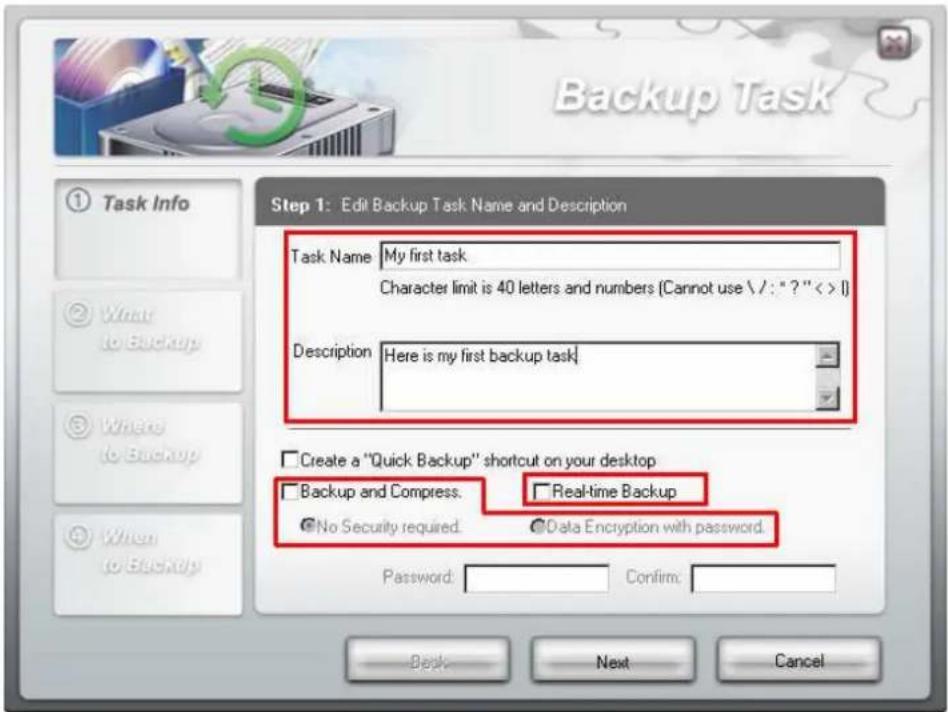
Backup Task Details Task Name: File Count: Folder Count: Total File Size: Compression: Encryption: Time Created: Destination: Schedule: See Also Help File Show event log Backup Task List: Sort by: Name OTB Information Results Edit Delete New Task Back Backup Now- Enter a name for the Backup Task and a description of what the task does, then select additional backup options (if desired) and click "Next."
Example:
Task Name: "Photos"
Description: "Update the Windows Photos folder with the latest photos on my StoreJet"
Additional Options:
- Backup and Compress – Click this box to save space on the destination drive.
- Data Encryption with Password – Adds password security to your compressed files.
- Real-time Backup – This powerful function will continuously monitor the folder(s) you specify in the Backup Task, and incrementally backup the contents of the folder(s) whenever changes are made. For example, if you save a new file to the folder specified in this Backup Task, Elite will automatically add the new file to its ongoing backup of the folder. Similarly, any existing files in that folder that you re-save or modify in any way will also be automatically updated within the backup (date and time of update will be indicated at the end of each file name). NOTE: Real-time backup starts functioning immediately after you finish creating the backup task; “Backup Now” and “One Touch backup” are not necessary while Real-time Backup is enabled.
text_image
Backup Task Step 1: Edit Backup Task Name and Description Task Name My first task Character limit is 40 letters and numbers (Cannot use \./:"?""<>) Description Here is my first backup task Create a "Quick Backup" shortcut on your desktop Backup and Compress. Real-time Backup No Security required. Data Encryption with password. Password: Confirm: Back Next CancelWARNING: If you use Encryption, the Password you enter will be required to decrypt and decompress your backed up files. Do not forget your password.
- Select the files you want to backup. Use the column on the left to browse for folders, and select specific files in the window on the right. Check-marking a folder in the left hand column will automatically mark all of the files and subfolders contained within that folder. Click the "Next" button to continue.

text_image
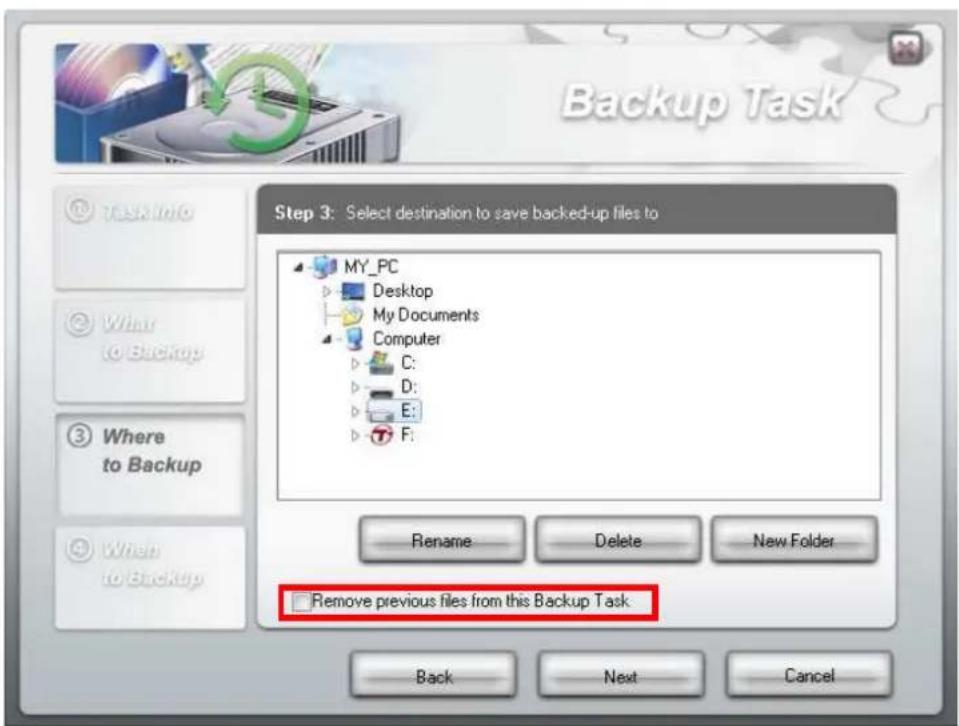
Backup Task Step 2: Please select the files or folders you want to backup. MY_PC My Favorites Desktop My Documents Computer C: D: E: F: Selected files: 61 file(s) Total size: 20 MB Name Size ✓TSeite Deselect All Select All Back Next Cancel- Select a destination folder for your backed-up files and click "Next."
Remove previous files from this Backup Task:
To save space on your destination disk, you can choose to remove/overwrite the previous backups of your files each time you run the Backup Task.
NOTE: If you choose "Remove previous files from this Backup Task" you will only be able to restore files from the most recent backup. Older backup points will be unavailable.
text_image
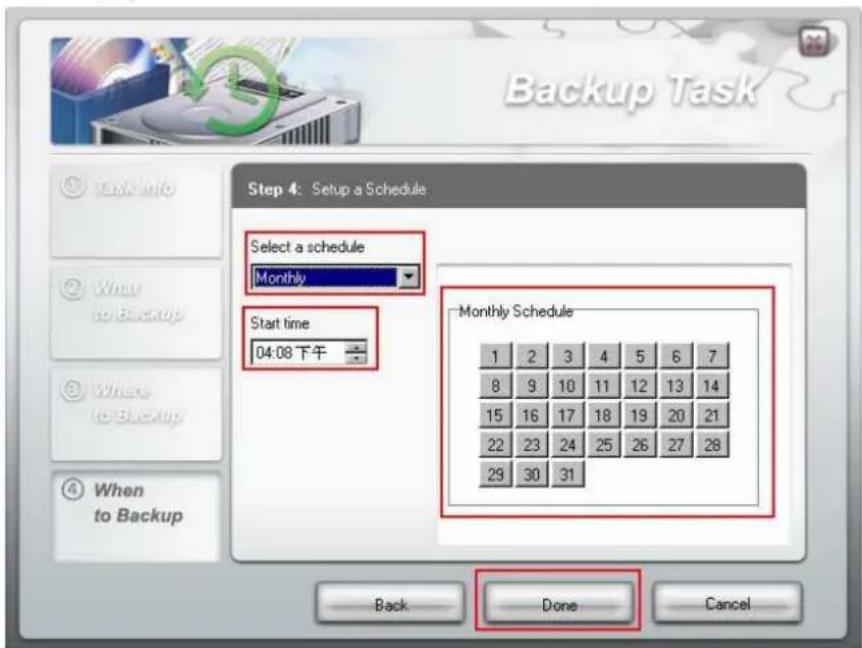
Backup Task Step 3: Select destination to save backed-up files to MY_PC Desktop My Documents Computer C: D: E: F: Rename Delete New Folder Remove previous files from this Backup Task Back Next Cancel- In this step, you are given the option to set a reoccurring schedule for your Backup Task, which is useful to make sure your data is always synchronized and up-to-date. Choose one of the available backup frequency options and click "Done."
Backup Scheduling Options:
- None (default) – Choose this option if performing a one-time backup or if you want to perform updates manually.
- Daily— Execute the Backup Task once each day at a specific time. Click the up/down arrow buttons to adjust the start time.
- Weekly – Execute the Backup Task once every week. Select the time and the day (or days) of the week on which you want to backup your data.
- Monthly – Execute the Backup Task once per month at the same time of day on a specific day(s).
text_image
Backup Task Step 4: Setup a Schedule Select a schedule Monthly Start time 04:08 下午 Monthly Schedule 1 2 3 4 5 6 7 8 9 10 11 12 13 14 15 16 17 18 19 20 21 22 23 24 25 26 27 28 29 30 31 Back Done CancelNOTE: The Elite application must be running in order for automatic backup scheduling to work. Scheduled backups cannot be performed unless the StoreJet, JetFlash, and any other hard drives relevant to the files selected in the Backup Task are connected to your computer and powered on.
- Congratulations, you have successfully created a Backup Task! All Backup Tasks that you create will appear on the right-hand column of the Backup Task window, and details about each Task will appear on the left.

text_image
Backup Task Details Task Name: My first task File Count: 35 Folder Count: 1 Total File Size: 25 MB Compression: No Encryption: No Time Created: 2011-01-06 01-39-27 P Destination: F: Schedule: None See Also Help File Show event log Backup Task List: Sort by: Name OTB | Information | Results My first task Not Backed-up yet! Edit Delete New Task Back Backup Now
Run a Backup Task
- To manually execute a Backup Task (regardless of schedule settings), simply select it from the list of tasks in the Backup Task window and click "Backup Now."

text_image
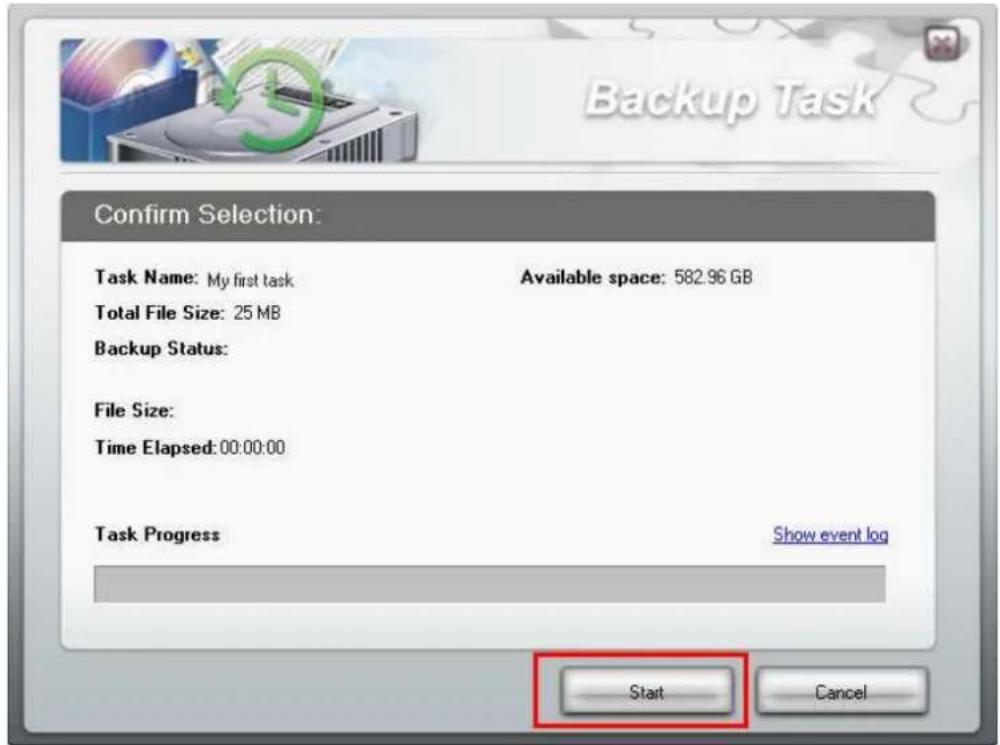
Backup Task List: Sort by: Name OTB Information Results My first task ○ Not Backed-up yet! Edit Delete New Task Back Backup Now- A summary of the Backup Task will appear. Click the "Start" button to begin the backup.
text_image
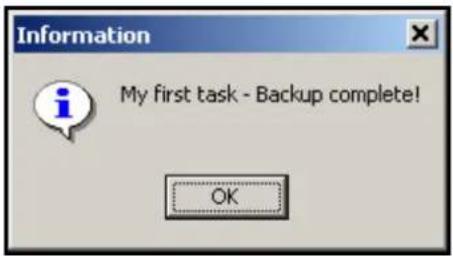
Backup Task Confirm Selection: Task Name: My first task Total File Size: 25 MB Backup Status: File Size: Time Elapsed: 00:00:00 Task Progress Available space: 582.96 GB Show event log Start Cancel- When the backup process has finished, a "Backup Complete" message window will appear. Click the OK button to exit.
text_image
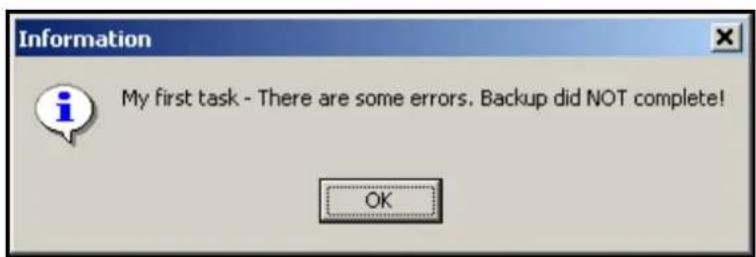
Information My first task - Backup complete! OK- If a problem occurs during the backup procedure, an error message window will appear. This is usually because source drives, folders, or files have been moved, renamed, or deleted from their original location at the time that the Backup Task was initially set up. Click the "OK" button to continue. Since the backup did not complete as planned, you will be given the opportunity to automatically update the task details to only include the files and folders that were successfully found. If you suspect the backup error occurred because of a disconnected disk or similar problem, it is best to select "No," then try to fix the problem and re-run the Backup Task.
text_image
Information My first task - There are some errors. Backup did NOT complete! OK
text_image
Confirm The file/folder count and total size was changed, do you want update to task? Yes No
One Touch Backup
Some Transcend StoreJet models include a One Touch auto-backup button. This button can be used to automatically execute a Backup Task that you created in Elite.
- In the Backup Task window, a list of your current backup tasks will be displayed on the right hand side of the screen.
- To assign a Backup Task to your StoreJet's One Touch auto-backup button, simply mark the radio button in the "OTB" column.

text_image
Backup Task Details Task Name: My first task File Count: 35 Folder Count: 1 Total File Size: 25 MB Compression: No Encryption: No Time Created: 2011-01-06 01-39-27 P Destination: F: Schedule: None See Also ? Help File ■ Show event log Backup Task List: Sort by: Name OTB Information Results My first task Here is my first backup task Last Backup on 2011-01-06 01-51-48 PM Done! Edit Delete New Task Back Backup Now- The next time you want to perform a backup, simply click the One Touch backup button on your StoreJet drive and your Backup Task will automatically start.
NOTE: The Elite application must be running in order to enable the One Touch auto-backup function of your drive.

Restore Files from a Backup Task
- Double-click the Elite icon ( ) in the Windows System Tray
- Select "Restore" from the Main Menu.
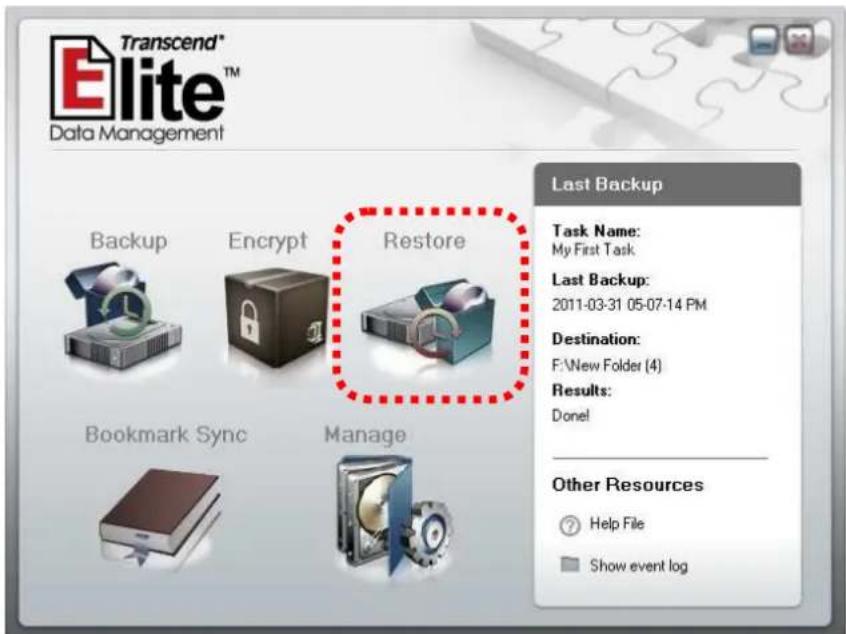
text_image
Transcend® Elite™ Data Management Last Backup Task Name: My First Task Last Backup: 2011-03-31 05-07-14 PM Destination: F:\New Folder (4) Results: Done! Other Resources Help File Show event log- The Backup Task window will appear, and a list of all the backup tasks that have been executed will be displayed on the right hand side of the screen. Select a Backup Task and click the "Restore" button.
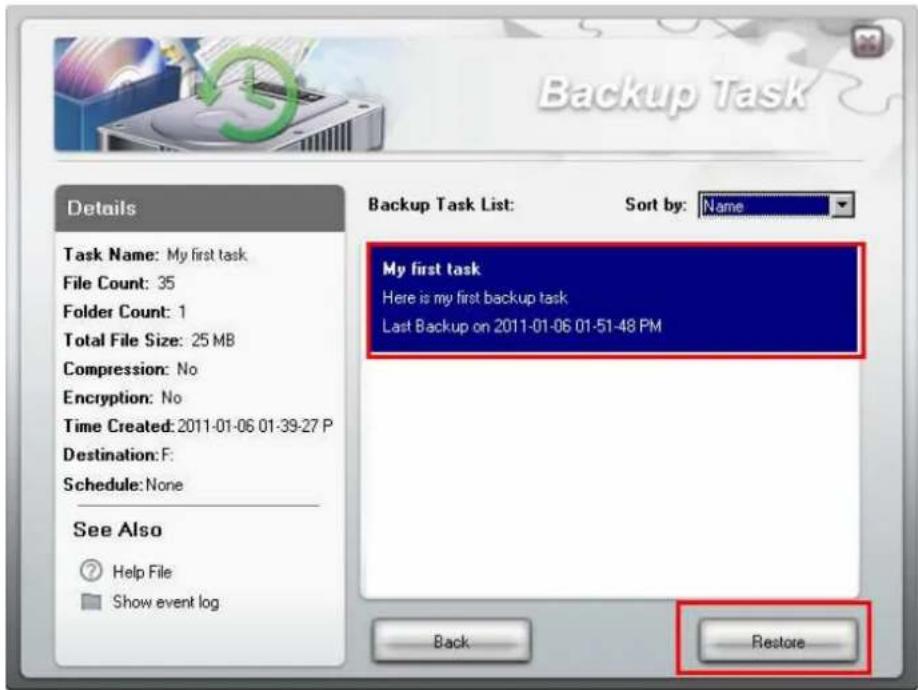
text_image
Backup Task Details Task Name: My first task File Count: 35 Folder Count: 1 Total File Size: 25 MB Compression: No Encryption: No Time Created: 2011-01-06 01:39-27 P Destination: F: Schedule: None See Also ? Help File □ Show event log Backup Task List: Sort by: Name My first task Here is my first backup task Last Backup on 2011-01-06 01-51-48 PM Back Restore- The next window will display a list of available backup instances that you can
restore from. Choose a version (usually the latest available instance) and click "Next" to continue.

text_image
Step 1: Select a restore point to retrieve backed-up files from 2011-03-31 02-33-42 AM 2011-03-31 02-34-45 AM Details File Count: Total File Size: Destination: Compression: Encryption: ① What to Restore ② Where to Restore ③ Restore Now Back Next CancelNOTE: If you selected “Remove previous files from this Backup Task” when creating the Backup Task, you will only be able to restore from the most recent backup.
- If your backup is encrypted, a password will be required before you can restore data from it. A lock icon next to the backup date indicates encryption was used during backup, and a unlock icon means the backup is not encrypted.
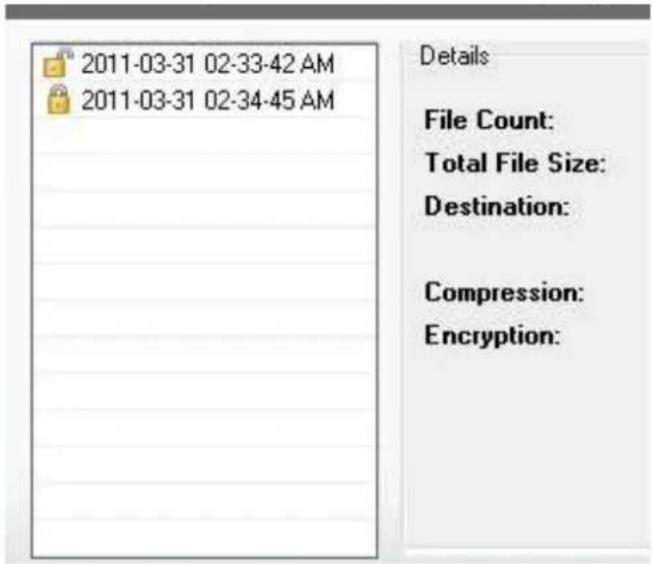
text_image
2011-03-31 02-33-42 AM 2011-03-31 02-34-45 AM Details File Count: Total File Size: Destination: Compression: Encryption:For encrypted backups, simply enter your password you used during the creation of the Backup Task and click the "OK" button.
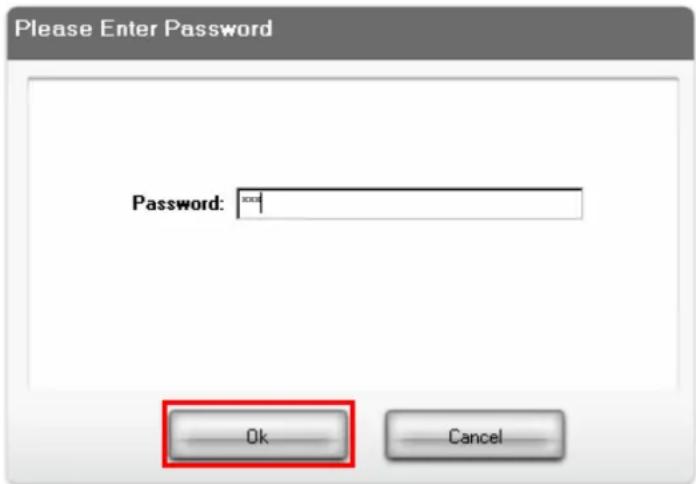
text_image
Please Enter Password Password: xxx Ok Cancel- Next you will be asked to select a destination for your restored files.
The "Default path" is the original folder location from which the file(s) were backed-up. Choose "Other" if you want to specify a different location to save your backups to. If you are restoring to the default path, most of the files you are restoring might have the same filenames as existing files within the folder(s). Elite gives you several options to handle duplicate files when they are detected. Choose one of the options below and click "Start" to begin restoring files.
Duplicate Filename Detection Options:
- Keep newest version – If duplicate file names are detected during the restore process, Elite will keep whichever version is newer (recommended).
- Overwrite destination file – Elite will overwrite all similarly named files in the destination with the ones from the backup, even if the files in the destination folder(s) have been recently modified.
- Skip – When duplicate files are detected, they will be skipped. All files in the destination folder(s) will remain untouched, and Elite will only restore files that don't already exist in the destination path.

text_image
Step 2: Select a destination for your restored files: Default path Other Desktop My Documents Computer C: D: E: F: Rename Delete New Folder When duplicate file names are detected... Keep newest version Overwrite destination file Skip Back Start Cancel- Once the restore process is complete, a summary of the restored Task will appear. Click the "Close" button to exit.

text_image
Task Name: My first task Destination: F: Backup Status: Done Completed: 34(0 Skipped, 34 Updated) / 35 files, 1 Failed! Back... Pause... Close
aDataEptioptionData Encryption
If you are concerned about data security, Elite offers you a quick and easy way to protect files with powerful 256-bit AES encryption*. This function can be used completely independent of the Backup function.
*Elite uses parts of the 7-Zip program and the SevenZipVCL encryption algorithm. 7-Zip is licensed under the GNU LGPL, and the source code is available at www.7-zip.org. For information regarding SevenZipVCL, please visit www.rg-software.de.

Protecting Files & Folders
- Double-click the Elite icon ( E ) in the Windows System Tray
- Select "Encrypt" from the Main Menu.

text_image
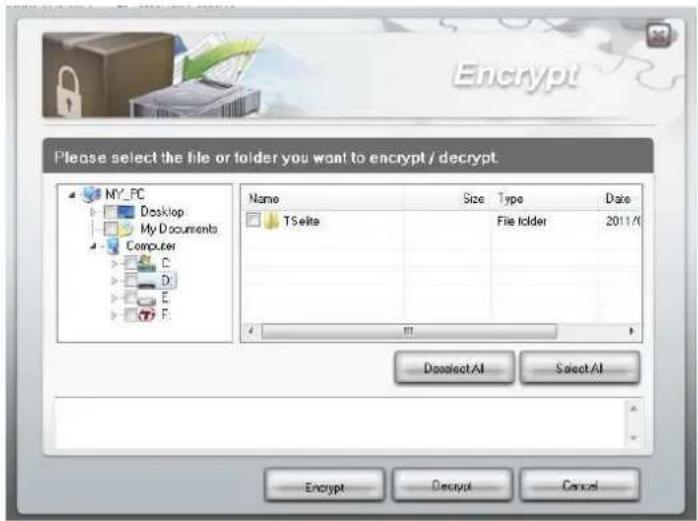
Transcend® Elite™ Data Management Backup Encrypt Restore Bookmark Sync Manage Last Backup Task Name: My First Task Last Backup: 2011-03-31 05-07-14 PM Destination: F:\New Folder (4) Results: Done! Other Resources ? Help File ■ Show event log- Select the files you want to protect and click "Encrypt". Use the column on the left to browse for folders, and select specific files in the window on the right. Check-marking a folder in the left hand column will automatically mark all of the files and subfolders contained within that folder.
text_image
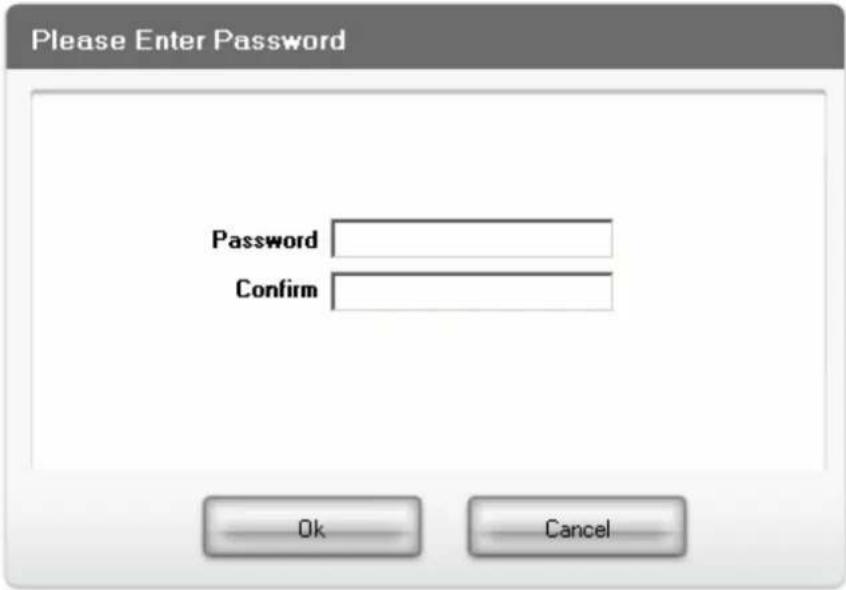
Please select the file or folder you want to encrypt / decrypt. MY_FC Desktop My Documents Computer D D E F Name Size Type Data TSelite File folder 2011/0 Deselect/AI Select/AI Encrypt Decrypt Cancel- Choose a Password for your file(s) and enter it again in the Confirm field.
text_image
Please Enter Password Password Confirm Ok Cancel- You will then given the opportunity to remove the original file(s). If you click "Yes," only the encrypted version will remain. This will ensure nobody but you will be able to open the file or files that you have protected.

text_image
Confirm Do you want to DELETE the original file(s)? Yes No
Decrypting Your Data
- Select "Encrypt" from the Main Menu.
- Locate your encrypted files or folders and click the checkboxes next to the items you want to unprotect. Encrypted files can be identified by the date stamp in the filename, and the file extension will be ".enc".
Example:
Original File Name: "MyDiary.doc"
Protected File Name: "MyDiary.doc_2011-01-03_17-07-53.enc"
- After selecting the file(s) you wish to unprotect, click the "Decrypt" button and enter the password you used at the time of encryption.
WARNING: If you use Encryption, you will not be able to access your files without the correct password. Do not forget your password. Transcend will not be responsible for lost passwords or inaccessible files, and does not provide data recovery service.
Back Back Management Backup Management
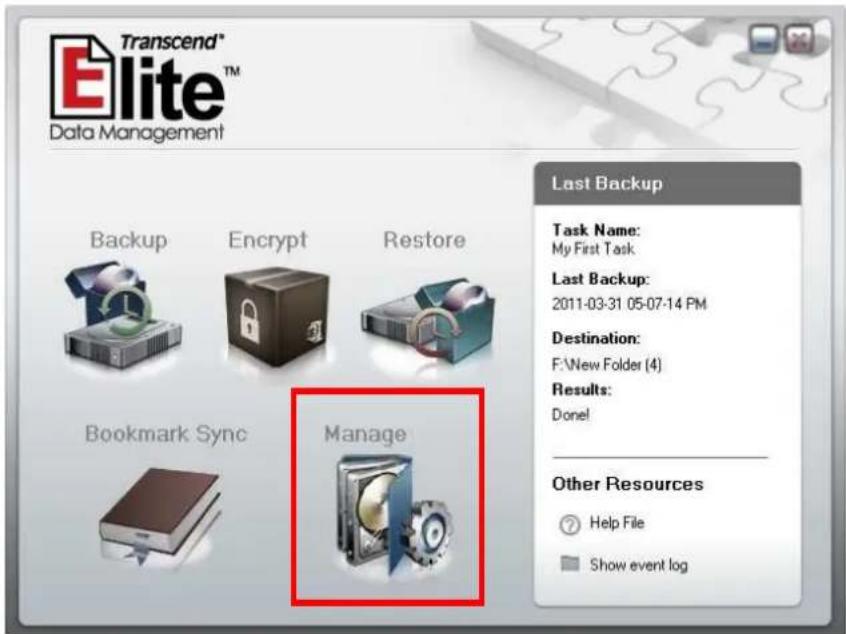
Each time you run one of your Backup Tasks, a new backup file containing the latest versions of your files will be created and stored in your desired backup location. Over time, these backups can accumulate and use up a considerable amount of storage space. If your backup storage device gets low on space, the Backup Manager allows you to browse through all previous backups and delete old, redundant, or unnecessary backup points.
- Double-click the Elite icon ( E ) in the Windows System Tray
- Select "Manage" from the Main Menu.
text_image
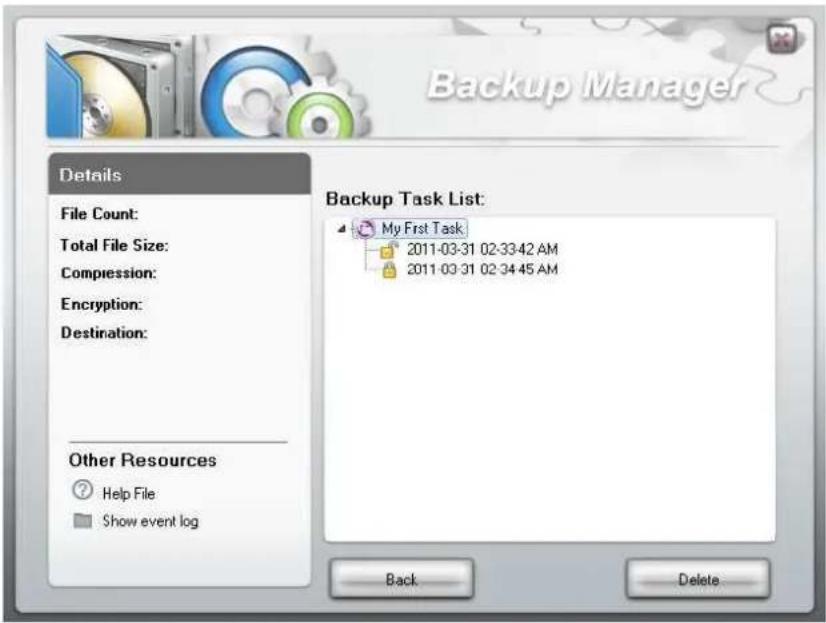
Transcend® Elite™ Data Management Last Backup Task Name: My First Task Last Backup: 2011-03-31 05-07-14 PM Destination: F:\New Folder (4) Results: Done! Bookmark Sync Manage Other Resources ? Help File ■ Show event log- The "Backup Manager" will display a list of all your Backup Tasks, along with every backup instance performed for each Task. When you click an item, detailed information about the backup will be shown on the left hand side of the screen. To delete older or unwanted backup points, simply select one of the backup instances listed under the Backup Task and click "Delete."
text_image
Backup Manager Details File Count: Total File Size: Compression: Encryption: Destination: Other Resources Help File Show event log Backup Task List: My First Task 2011-03-31 02:33:42 AM 2011-03-31 02:34:45 AM Back Delete
Bookmark SyncBookmark Sync
Elite can synchronize all your Internet Explorer Favorites or Firefox Bookmarks with your portable device, allowing you to use any compatible computer to browse your favorite websites just like you would at home.

Copy to Storage Device
- Double-click the Elite icon ( ) in the Windows System Tray
- Select "Bookmark Sync" from the Main Menu.

text_image
Transcend® Elite™ Data Management Last Backup Task Name: My First Task Last Backup: 2011-03-31 05-07-14 PM Destination: F:\New Folder (4) Results: Done! Bookmark Sync Manage Other Resources ? Help File Show event log- Select your Internet browser.
- Click → to copy your computer's current Favorites/Bookmarks to the storage device.
- Press "Start" to start the operation.
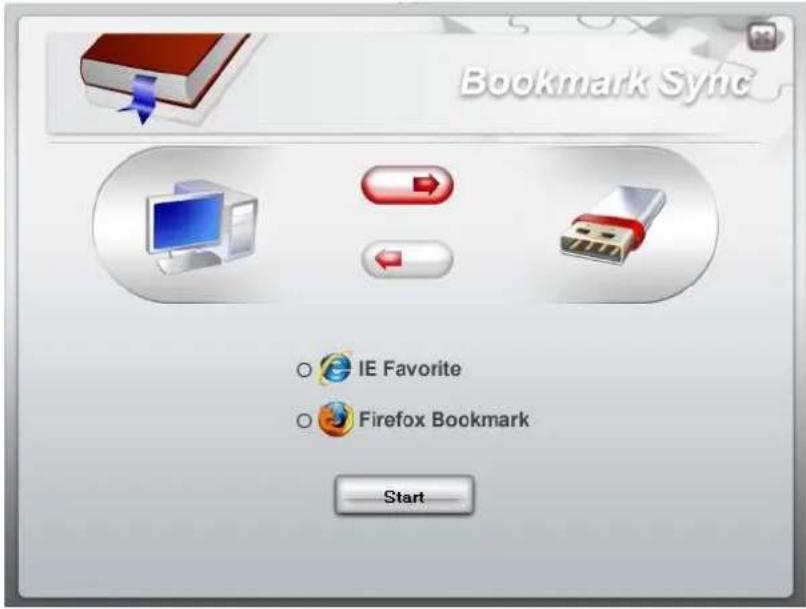
text_image
Bookmark Sync IE Favorite Firefox Bookmark Start
Copy to Computer
- Select your Internet browser.
- Click to update your browser's Favorites/Bookmarks to the latest version from your storage device.
- Press "Start" to start the operation.

text_image
Bookmark Sync IE Favorite Firefox Bookmark StartSettingsSettings
To change languages and adjust other Elite settings, right click on the Elite icon (E) in the Windows System Tray and select "Settings."
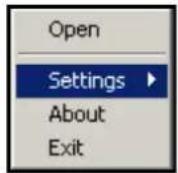
Language:
Use the drop-down menu to select one of the available languages. This will change the User Interface language for all of menus within Elite.
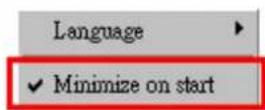
Minimize on startup:
This option will allow Elite to run in the background when you open the program instead of opening the Main Menu window. It is a good idea to always keep Elite running so that it can perform scheduled Backup Tasks.
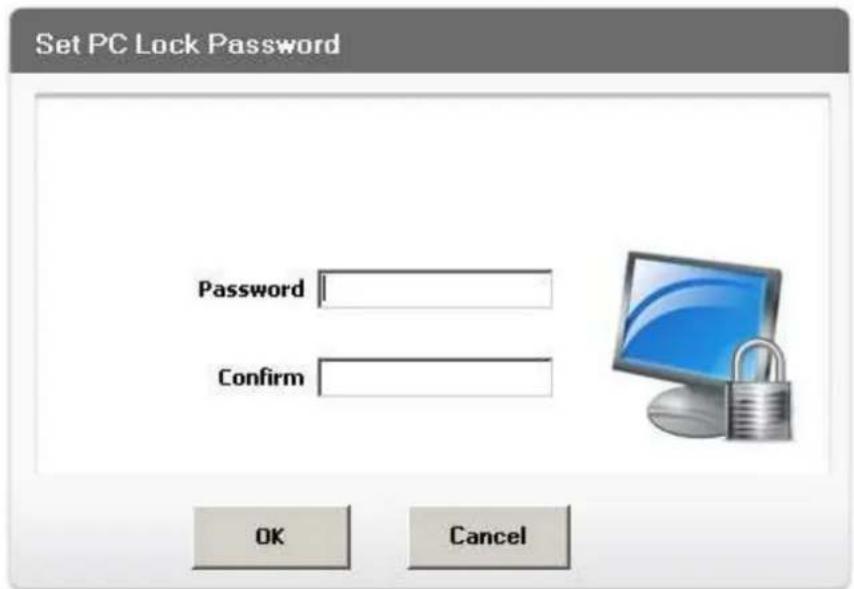
PC-Lock:
Select PC-Lock to temporarily lock your desktop or notebook computer and prevent others from accessing your data while you are away.
text_image
Set PC Lock Password Password Confirm OK CancelTo Lock Your Computer: Enter a password in the dialog box and unplug your Transcend storage device. A photo slideshow will be displayed while the computer is locked.
To Unlock Your Computer: Press any key to bring up the password window. Enter the same password you used to lock your computer. The slideshow will
disappear and you will be free to use your computer again.
About:
This will display detailed information about the Elite software version you are using.

Closing the Program Closing the Program
If you have not scheduled any automatic Backup Tasks and wish to exit Elite, it is very important that you only use the following method to close the software application:
- Right-click the Elite icon ( E ) in the Windows System Tray and select "Exit."

- A confirmation window will be displayed. Click "Yes" to close the program.

text_image
Confirm Exit the Transcend StoreJet elite? Yes NoWARNING:
To prevent data loss, always use this procedure to close the Elite application. Force-closing the software may result in irrecoverable data loss.
Helpful TipsHelpful Tips
Use Elite instead of "copy & paste"
Whether you are backing up data for long-term storage or simply moving files to a different location, use Elite instead of the “copying and pasting.” This will not only save time by making sure all files and subfolders are copied reliably, but will also give you the opportunity to execute the same procedure again in the future with easy scheduling options. Or, you can even use the One Touch auto-backup button to instantly backup specified files and folders (not available on all StoreJet models).
Travel back in time with different restore points
By default, Elite creates a new backup folder with a date stamp each time a backup is performed (whether manually or scheduled). This means that when you need to restore files, you can choose from different backup points to retrieve earlier or newer versions of your files. For novice users, this is the safest and way to ensure you can always go back to an earlier point in time, even if you deleted some files along the way. However, advanced users looking to save hard drive space should check out the Real-time Backup option.
Real-time Backup saves time – and hard drive space!
Backup your data version-by-version. Novice users should start by performing a full backup without enabling any advanced options. For more advanced users, we suggest trying the Real-time Backup option. Real-time Backup will automatically update the backup version of a folder or folders whenever you add new files or make changes to existing files within the folder. Real-time Backup works incrementally – which means it saves hard drive space by only updating newly-added or changed files. The only drawback to using Real-time backup
Be careful with passwords
When encrypting your files, always choose a password that is easy to remember. You can use the same password for all of your Backup Tasks. Passwords are case-sensitive, so make sure the Caps Lock function on your keyboard is not enabled.
FAQFAQ
Q: Elite Eöes notdest when Isdableleholdte icon. What's wrong?
A: Make sure your StoreJet or JetFlash drive is properly connected to the computer. The Elite software only works in Windows 7, Vista, and XP.
Q: Why didn't my scheduled backup take place?
A: For scheduled backups to run properly, all hard drives, and all computers that contain hard drives associated with the scheduled Backup Task, must be connected and powered on during the time of the scheduled backup. Additionally, if the backup destination drive runs out of storage space, scheduled backups will not take place.
Q: Why doesn't One Touch auto-backup work?
A: Did you mark the One Touch Backup field next to the Backup Task? If not, see here to learn how. This function only works with Transcend StoreJet brand drives that have a One Touch auto-backup button
Q: A new message appears when restoring files
A: This message usually means that you have moved, renamed or deleted some of the source or destination drives/folder/files associated with the Backup Task.
Q: Some of the files specified in the Backup Task did not get backed-up
A: Check to make sure the source file or folder is correct, and that no errors occurred during the backup procedure.
More HelpMore Help
If you cannot find the answer to your problem in this manual and are having difficulty with the Elite software, your Transcend StoreJet drive or JetFlash drive, Please visit our Tech Support website at www.transcend.com.tw/support
© 2011 Transcend Information, Inc. All rights reserved. All brand names are registered trademarks of their respective owners. Specifications subject to change without notice.