Scroll Engage - NAS Storage Options - Free user manual and instructions
Find the device manual for free Scroll Engage Storage Options in PDF.


| Product Type | Network Attached Storage (NAS) |
| Number of Bays | 2 |
| Supported Hard Drives | 2.5" or 3.5" SATA HDD/SSD |
| Processor | Quad-core ARM Cortex-A55, 1.8 GHz |
| Memory | 2 GB DDR4 RAM |
| Networking | 1 x Gigabit Ethernet (RJ-45) |
| USB Ports | 2 x USB 3.2 Gen 1 (Type-A) |
| Dimensions (W x D x H) | 200 mm x 120 mm x 150 mm |
| Weight | 1.2 kg (without drives) |
| Power Supply | External, 12V DC, 36W |
| Power Consumption | 20W typical, 30W under load |
| Cooling | 1 x 80mm fan, intelligent speed control |
| Operating System | Storage Options OS (Linux-based) |
| RAID Levels Supported | Single, JBOD, RAID 0, RAID 1 |
| File Systems Supported | ext4, Btrfs, FAT32, NTFS, exFAT |
| Max Storage Capacity | up to 36 TB (2 x 18 TB drives) |
| Security Features | AES encryption, firewall, password protection, SSL/TLS |
| Backup Features | Rsync, Time Machine support, cloud sync |
| Media Streaming | DLNA, Apple TV, Chromecast support |
| Management | Web-based interface, mobile app (iOS/Android) |
| Languages Supported | English, French, Spanish, German, Chinese |
| Operating Temperature | 0°C to 40°C |
| Certifications | CE, FCC, RoHS |
Frequently Asked Questions - Scroll Engage Storage Options
User questions about Scroll Engage Storage Options
0 question about this device. Answer the ones you know or ask your own.
Ask a new question about this device
Download the instructions for your NAS in PDF format for free! Find your manual Scroll Engage - Storage Options and take your electronic device back in hand. On this page are published all the documents necessary for the use of your device. Scroll Engage by Storage Options.
USER MANUAL Scroll Engage Storage Options
text_image
17:15 AM Tuesday 15 February 11:15 AM
ANDROID™ 4.0 INSIDE
Instruction Manual

CAUTION
RISK OF ELECTRIC SHOCK DO NOT OPEN

TO REDUCE THE RISK OF ELECTRIC SHOCK, DO NOT REMOVE THE COVER.
NO USER SERVICABLE PARTS INSIDE.
REFER SERVICING TO QUALIFIED PERSONNEL.

The lightning ash with arrowhead symbol, within an equilateral triangle, is intended to alert the user to the presence of non-insulated "dangerous voltage" within the product's enclosure that may be of sucient magnitude to constute a risk of electric shock.

The exclamaon point within an equilateral triangle is intended to alert the user to the presence of important operang and maintenance (servicing) instrucons in the literature accompanying the appliance.
WARNING:
TO PREVENT FIRE OR SHOCK HAZARD, DO NOT EXPOSE THIS UNIT TO RAIN OR MOISTURE
CAUTION:
TO PREVENT ELECTRIC SHOCK, ENSURE THE PLUG IS FULLY INSERTED INTO A MAINS SOCKET
IMPORTANT SAFEGUARD

All lead-free products oered by the company comply with the requirements of the European law of the Restricon of Hazardous Substances (RoHS) direcve, which means our manufacturing processes and products are strictly “lead-free” and without the hazardous substances cited in the direcve.
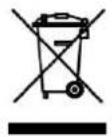
The crossed-out wheeled bin mark symbolizes that within the European Union the product must be collected separately at the product's end-of-life. This applies to your product and any peripherals marked with this symbol. Do not dispose of these products as unsorted municipal waste. Contact your local dealer for procedures for recycling this equipment.
DISCLAIMER
We reserve the right to revise or remove any content in this manual at any me. We do not warrant or assume any legal liability or responsibility for the accuracy, completeness, or usefulness of this manual. The content of this manual is subject to change without noce.
Screenshots are for illustraon purposes only and may not be representave of the actual product.
RECOMMENDATIONS
• AVOID DUSTY LOCATIONS:
• DO NOT EXPOSE TO MOISTURE:
• DO NOT DROP:
• DO NOT OPEN CHASSIS:
Excessive build-up of dust may cause the unit to fail.
Exposing the unit to water poses high risk of electric shock.
Doing so could damage internal components.
No user-serviceable parts inside.
TRADEMARK ACKNOWLEDGEMENTS
- Android ^TM is a trademark of Google.
- Microso & Windows are registered trademarks of Microso Corporaon.
- All applicaons copyright © their respective owners.
WARRANTY AND TECHNICAL SUPPORT
In the event that you need further assistance with this product you can call us, at local UK rate on the number below and our UK-based experts will be happy to help you. They are available Mon-Fri 9am-5.30pm, excluding bank holidays. Alternatively visit our website at www.storageopons.com/support or send us an e-mail at the address below.
This product is backed by a 12 month warranty to cover the unlikely event of something going wrong. Should you suspect a fault with your product please contact our support team in the rst instance.
UK: 0844 248 7191
Ireland: 00353 (0) 94 937 4026
E-Mail: support@storageopons.com
TABLE OF CONTENTS
QUICK START GUIDE 6
OVERVIEW 6
CONVENTIONS USED IN THIS MANUAL 7
PURPOSE OF THIS MANUAL 7
PACKAGE CONTENTS 7
BASIC OPERATION 8
6.1 – Buons & Connecons 8
6.2 - Power On / O 9
6.3 – Using The Touch Screen 9
6.4 – Unlock The Screen 9
6.5 – Camera Shortcut 9
CHARGE THE BATTERY 10
HOME SCREEN 11
DISPLAY ORIENTATION 12
SETTINGS MENU 13
NETWORK CONNECTIVITY 14
11.1 – Connect To A Wireless Access Point 14
11.2 – Connect To A 3G Network 15
APPLICATIONS 16
12.1 – The Applicaons Menu 16
12.2 – Applicaons & Widgets 17
12.3 – Pre-Installed Applicaons 17
12.4 – Pre-Installed Widgets 17
12.5 – Pre-Loaded Applicaons 18
12.6 – SlideMe Marketplace 18
12.7 – Add More Applicaons 18
12.8 – Add A Shortcut To The Desktop 19
12.9 – Remove A Shortcut From The Desktop 19
12.10 – Uninstall Applicaons 19
TABLE OF CONTENTS (CONTINUED)
WEB BROWSER 20
VIDEO PLAYBACK 21
14.1 – Playback On Scroll 21
14.2 – Play 3D Content On Your HDTV 22
7DIGITAL MUSIC SERVICE 23
WILD TANGENT GAMES SERVICE 24
BUILT-IN CAMERAS 25
MEMORY EXPANSION WITH MICRO SD CARD 26
CONNECT TO A COMPUTER 27
PRODUCT SPECIFICATION 28

natural_image
Android robot logo silhouette with green body and white circular eyes (no text or symbols)QUICK START GUIDE
Please follow this quick start checklist to guide you through using your Storage Opons Scroll Engage:
-
Check the package contents. See secon "Package Contents" (page 7) for more details.
-
Charge the baery. See secon "Charge The Baery" (page 10) for more details.
-
Remove the protecve lm. Peel the protecve lm o the tablet's screen.
-
Familiarise yourself with the physical buons and connexons, powering on, and touch screen control. See secon "Basic Operaon" (page 8) for more details.
-
Connect to a wireless network for web browsing. See secon "Network Connecvity" (page 14) for more details.
-
Familiarise yourself with the included applicaons. See secon "Applicaons" (page 16) for more details.
OVERVIEW
Scroll Engage is a capacive touch-screen Android™ 4.0 tablet. Portable, with a highly responsive 8" XGA screen, the slim and stylish design is supported by powerful hardware making the Scroll Engage ideal for gaming, internet use, videos and many more applicaons.
As a powerful media player the Scroll Engage can support rich, Flash based content, all major video and eBook formats, 3D gaming and much more. The sleek, lightweight design is perfect for use on the move and with a 1024 x 768 high resolution XGA screen you can view your content anywhere in high quality. When at home use HDMI to connect with your 3D or HD TV or monitor, to enjoy stunning 3D and 1080p HD content on the big screen via your Scroll Engage.
With a powerful Cortex A8 1.2GHz processor, Mali-400 dual core graphics processor and 1GB RAM the Scroll Engage is capable of handling a wide range of applicaons with ease. An extensive 8GB of built in memory, front and rear cameras and up to eight hours of use with the long life baery complete this impressive package.
natural_image
Hot air balloon floating over a mountain range under a clear blue sky (no text or symbols visible)- Powered by Android 4.0 (Ice Cream Sandwich)
• Intuitive 8" XGA Mul-touch, Capacive Screen
• Fast Hardware Cortex A8 1.2 GHz, Mali-400 Dual Core Graphics Processor - Limitless Possibilities Web, Games, E-Books, Video and More
• Flash Support for a Richer Online Experience
• Smart, sleek high resoluon 8" screen
CONVENTIONS USED IN THIS MANUAL
At various points in this manual you will see highlighted text. Please refer here for an explanaon:
NOTE Important notes are highlighted in blue.
TIP Tips on best pracce are highlighted in green.
CAUTION Important cauons and warnings are highlighted in red.
PURPOSE OF THIS MANUAL
This manual is intended to give you a quick overview of the Scroll Engage hardware and very basic functionality of the Android ^TM 4.0 operang system. It does not feature in-depth instrucons for Android ^TM 4.0. The applicaons are provided “as-is” as a bonus for Storage Opons customers. Please contact applicaon developers directly for help and informaon on their soware.
For more detailed informaon and instrucons on the Android ™ 4.0 operang system, please visit:
- hp://www.android.com/
Google is also an excellent resource for help with the Android ^TM operang system.
• hp://www.google.co.uk/
PACKAGE CONTENTS
Check the package contents against this checklist. If anything is missing or damaged, please do not use the system, and inform your supplier as soon as possible.
Scroll Engage
Micro USB cable
Earphones
Mains adapter
Micro On-The-Go (OTG) cable
Instrucon manual
BASIC OPERATION
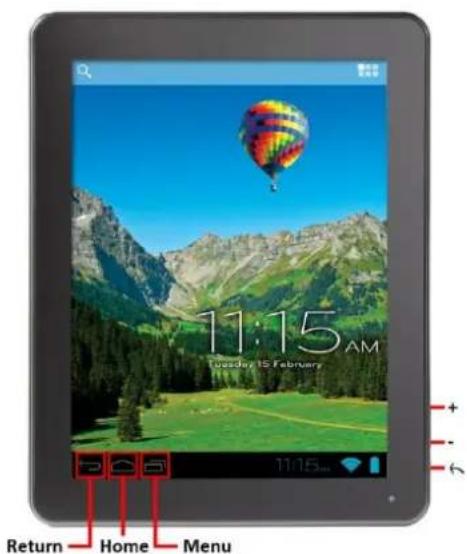
The Scroll Engage has ve physical buons. Most other control is performed via the touch screen.
6.1-BUTTONS & CONNECTIONS
text_image
11:15 AM Tuesday 15 February Return Home Menu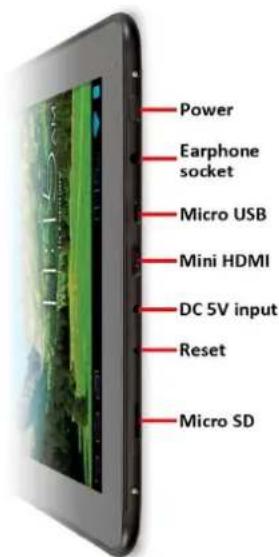
text_image
Power Earphone socket Micro USB Mini HDMI DC 5V input Reset Micro SD| PHYSICAL BUTTON | LABEL | USAGE | DESCRIPTION |
| Power | Hold | Hold to power on / o the tablet | |
| Escape | Short press | Moves back one step to the previous menu / page | |
| Dual Funcon:Home / Volume - | - | Short press | Decreases volume |
| Hold | Acts as a physical “Home” buon to return directly to the Android desktop | ||
| Dual Funcon:Menu / Volume + | + | Short press | Increases volume |
| Hold | Acts as a physical “Menu” buon |
| ON-SCREEN BUTTON | ICON | DESCRIPTION |
| Return | Moves back one step to the previous menu / page | |
| Home | Returns immediately to the Android desktop | |
| Menu | Displays a menu of recently opened applicaons |
| CONNECTION | ICON | DESCRIPTION |
| Earphone | Connect earphones to this standard 3.5mm jack socket | |
| Micro USB | Connect to your computer via USB cable & Connect peripheral devices (e.g. keyboard, USB ash drive) | |
| Mini HDMI | HDMI | Connect to your HDTV via HDMI cable |
| DC 5V | -+ | Recharge Scroll Engage's baery using the supplied mains adapter |
| Reset | R | Reset Scroll Engage to factory sengs |
| Micro SD | Insert a Micro SD card (up to 32GB) |
Press and hold the ☐on unl the tablet switches on. It will boot into the Android ™ 4.0 operang system. This will take approximately one minute.
To turn the tablet o, press and hold the ☐uon for approximately 3 seconds. A "Power O" menu will appear on screen. Choose "OK" to complete shutdown or "Cancel" to resume use.
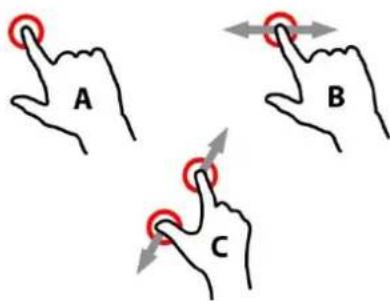
Scroll Excel features a capacive touch screen. To use it, simply touch an area on the screen – no pressure is required. Touch (A) an opon to select it.
You can also "touch and drag" (B) to move items or scroll through lists by touching and holding, then gliding your nger over the screen.
Use a nger and thumb to "pinch zoom" (C) on-screen items such as photographs and web pages.
text_image
A B C6.4 - UNLOCK THE SCREEN
Scroll Engage operates in a similar manner to a touch-screen mobile phone. When it is rst powered on, the Android ^TM operang system will boot, then you will be presented with a locked screen.
To unlock the screen:
-
If the screen is currently blank (Scroll Engage is powered on but in standby), press the ☐uon (short press, do not hold). The screen will turn on.
-
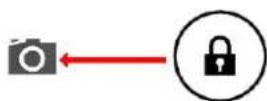
Touch and drag the padlock icon over to the open padlock symbol on the right side of the screen.

text_image
Diagram showing a hand pressing a lock icon with a red arrow indicating lock status changeTo lock the screen:
-
Press the duon (short press, do not hold).
-
The screen will go blank to conserve baery power.
6.5 - CAMERA SHORTCUT
From the locked screen, you can also unlock and go straight to the built-in Camera applicaon by dragging the padlock over to the camera icon.
TIP
If the tablet is not used for approximately one minute, it will go to sleep to prolong baery life. This seng can be changed in "Sengs" → "Display" → "Sleep".
CHARGE THE BATTERY
It is recommended to fully charge Scroll Engage overnight before rst use. This will help prolong the useful life of the built-in baery.
To charge the baery:
- Insert the mains charger plug into the 5V DC socket (located to the le of the HDMI socket) on Scroll Engage. Connect the mains adapter to a UK 3-pin electrical socket.

text_image
11:15 AM DC 5V inputCAUTION
Do not use any mains adapter other than the one supplied. Using an incompatible adapter could damage the tablet and poses the potential risk of re.
- If Scroll Engage is powered o, it will charge unl the baery is full.
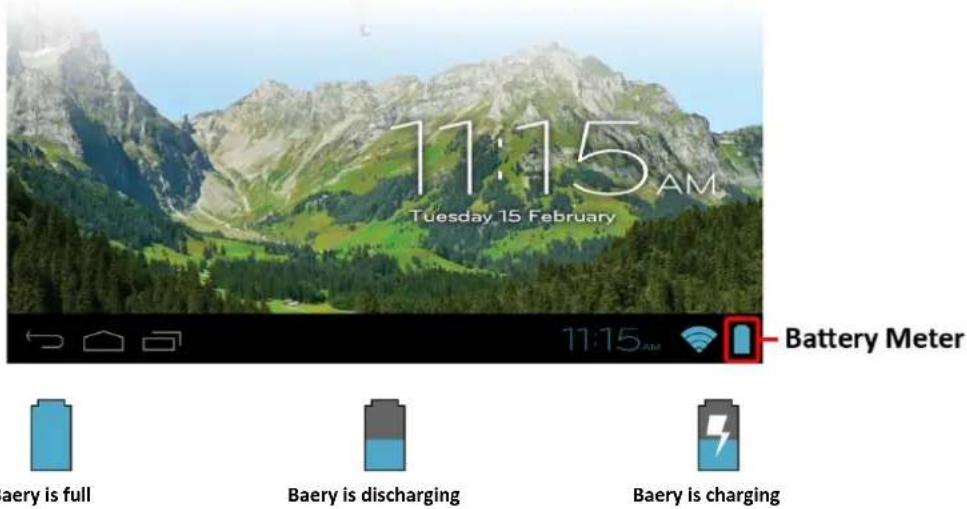
- If Scroll Engage is powered on, the baery charge status will be indicated on screen by the baery meter:
text_image
11:15 AM Tuesday 15 February Battery Meter Baery is full Baery is discharging Baery is charging- When Scroll Engage is connected to a computer via USB cable, it will "trickle charge"; the baery will charge via the USB socket, but at a much slower rate than via the DC 5V mains adapter.
HOME SCREEN
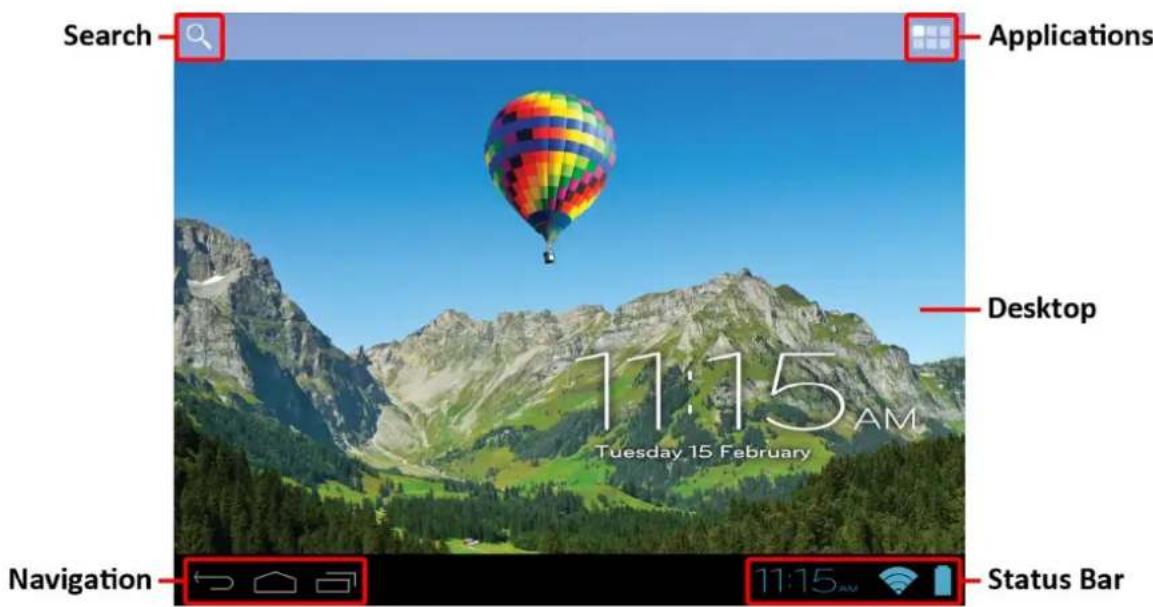
The Home screen will look similar to the picture below. It is actually ve screens, each of which can have a dierent layout of icons. To switch between screens, simply slide your nger le or right across the display. The status bar and navigaon buons are always visible, no maer which Home screen you are currently viewing.
text_image
Search Applications Desktop 11:15 AM Tuesday 15 February Navigation 11:15 AM Status Bar- The Desktop can contain shortcuts to your most-used applicaons and widgets.
- Touch the Search icon to quickly search the World Wide Web using Google.
• The icon will launch the Applicaons menu. - The status bar displays system informaon, such as current me, wireless connecvity and baery level. Touch to expand the status bar for more detailed informaon.
- The buon moves back one step to the previous menu / page.
- The buon returns immediately to the Android desktop.
- The buon displays a menu of recently opened applicaons.
DISPLAY ORIENTATION
Scroll Engage features a built-in G-Sensor which monitors the tablet's current orientaon and automacally adjusts the display to match.

natural_image
Three tablet devices displaying outdoor scenes with hot air balloons and mountain scenery (no readable text or symbols)To re-orientate the display:
- Simply turn Scroll Engage to portrait or landscape posion, and the display will rotate to match.
NOTE
Some applicaons will lock screen orientaon. Normal rotaon funconality will resume once the applicaon is closed.
Automac screen rotaon can be switched o, which is useful if you would prefer to use Scroll Engage exclusively in landscape mode.
To switch o automac rotaon:
- From the Home Screen, touch the 🐘icon (located at the top right) to open the Applicaons menu.
- Touch the "Sengs" icon.
- Select "Display".
- Touch "Auto-rotate screen" to remove the ck from the checkbox. Scroll Engage will be locked into landscape mode.
To switch automac rotaon back on, repeat the above steps and ensure there is a ck in the checkbox in step 4.
SETTINGS MENU
The Sengs menu allows you to adjust Scroll Engage's system conguraon.
To change sengs:
- Touch the Sengs menu icon on the Applicaons menu. The Sengs menu will open.

- Glide your nger up or down the le side of the screen to scroll through the list of available categories.
- Touch a category tle to view further opons on the right side of the screen.
| ITEM | ICON | DESCRIPTION |
| Wi-Fi |  | Connect to / disconnect from wireless networks, view conneccon status, etc |
| Data usage |  | Enable / disable mobile data, view current usage, set mobile data limit, etc |
| Sound |  | Change volume, touch sounds, screen lock sounds, etc |
| Display |  | Change brightness, wallpaper, sleep sengs, font size, etc |
| Storage |  | Manage NAND and Micro SD card, view available capacity, etc |
| Baery | See baery status and powered-on me | |
| Apps | Manage applicaons, running services, etc | |
| Accounts & sync | Switch synchronisaon on / o, manage accounts, etc | |
| Locaon services | Change approximate locaon detecon, improve search results | |
| Security | Change screen lock type, encrypon, passwords, credenal storage, etc | |
| Language & input | Select language, add to the diconary, edit on-screen keyboard sengs, etc | |
| Backup & reset | Backup & restore data, perform factory reset, etc | |
| Date & me | Set date, me zone, me, clock format, etc | |
| Accessibility | Set up large text, auto-rotate screen, speak passwords, etc | |
| Developer opons | Advanced funcons for Android developers – debugging, HDCP check, etc | |
| About tablet | Informaon about your Android^TM device |
Some opons will have a simple checkbox, while others will have a list of further sengs to choose from. You should take me to become familiar with the opons in these categories.
For more detailed informaon, please visit hp://www.android.com/.
NETWORK CONNECTIVITY
The vast majority of applicaons support some kind of networking / Internet funconality. There are two ways to connect to the Internet using Scroll Engage; either through your wireless router (access point) or by plugging in a 3G network dongle.
11.1 - CONNECT TO A WIRELESS ACCESS POINT
Scroll Engage features standard wireless B / G / N capabilities, meaning it can connect to any router which is compatible with the 802.11b/g/n standard. Check your router's documentaon to conrm compatibility.
NOTE
You will need your router's wireless SSID and password to connue with these instrucons.
To enable wireless networking and connect to your router:
- Go to "Sengs" → "Wireless & Networks" → "Wi-Fi" and slide the Wi-Fi switch to the right to enable it.

text_image
OFF ON-
Aer a few seconds, Wi-Fi will be enabled and a list of available wireless network names (SSID) will appear. Locate your wireless network on the list and touch to select it.
-
You will be asked for the password. Type it in using the keyboard which automacally appears on screen.
TIP
If you do not know your wireless password, please refer to your router's instrucon manual, or contact your Internet Service Provider (ISP).
- Touch the "Connect" opon to complete setup of your wireless conncon.
NOTE
Advanced users can touch "Show advanced opons" to set up a proxy and / or manual IP conguraon.
An icon will be displayed in the status bar to show wireless conncon status:

Full signal

Moderate signal
Weak signal
Once you are connected to a wireless network, you can select it on the list, to view conncon details (e.g. signal strength, link speed and IP address). You can use the "Forget" option to disconnect from the network and remove the stored password.
11.2 - CONNECT TO A 3G NETWORK
Scroll Engage supports a variety of 3G dongles from various manufacturers. Please see the support list on Scroll Engage:
- Go to "Sengs" → "Wireless & Networks" → "More".
- Select "3G Support Informaon" to display a list of compatible 3G dongles.
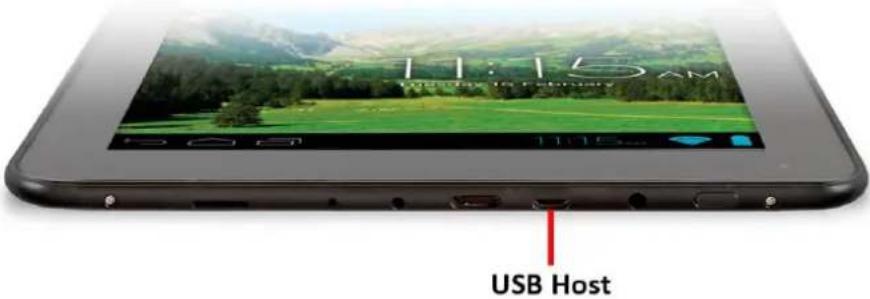
To use a 3G dongle, simply connect it to the USB Host port on Scroll Engage. It will automatically dial its Internet conncon.

text_image
11:15 AM Thursday 15 February 11:15 AM USB HostIf your 3G dongle has a full-size USB conncon, you will need to use the supplied Micro USB On-The-Go (OTG) cable to adapt it for use with Scroll Engage. Plug your 3G dongle into the large socket on the OTG cable, then plug the OTG cable into the USB Host port on Scroll Engage.


NOTE
Unlisted 3G dongles may sll work with Scroll Engage. To test your own, simply plug it in and see if it connects to the Internet. Unfortunately Storage Opons cannot guarantee that your parcular 3G dongle will be compatible, and we cannot support equipment from other manufacturers.
APPLICATIONS
Scroll Engage supports a wide variety of applicaons. A small selecon is pre-installed on the tablet and available from the applicaons menu, but many more can be downloaded from various websites.
12.1 - THE APPLICATIONS MENU
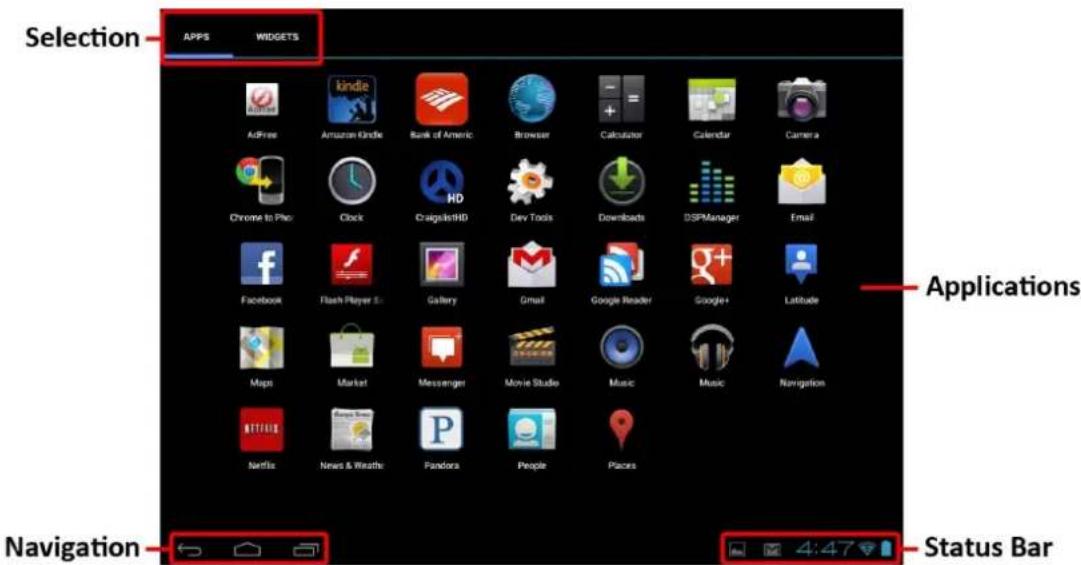
To open the Applicaons menu, touch the icon at the top right of the Home screen.
text_image
Selection AppS WIDGETS AdFree Amazon Kindle Bank of Americ Browser Calculator Calendar Camera Chrome to Photo Clock CragsInfoHD Dev Tools Downloads DSPManager Email Facebook Flash Player Si Gallery Gmail Google Reader Google+ Latitude Maps Market Messenger Movie Studio Music Music Navigation Netflix News & Weather Pandora People Pacera Navigation 4:47 Status Bar- Use the selecon menu to choose between viewing installed applicaons and widgets.
- If you have more applicaons than can t onto one page, slide your nger to the right across the screen to change to the next page.
- The status bar displays system informaon, such as system me, wireless connecvity and baery level. Touch it to expand and display more detailed informaon.
- The buon moves back one step to the previous menu / page.
- The buon returns immediately to the Android desktop.
- The buon displays a menu of recently opened applicaons.
*The above screenshot is for illustraon purposes only, and is not representave of the applicaons included on Scroll.
12.2 - APPLICATIONS & WIDGETS
Applicaons:
- Applicaons provide expanded funconality to Scroll Engage. A selecon of applicaons is pre-loaded onto your Scroll Engage tablet, and more can be downloaded from various websites.
- Applicaons usually take over the full screen when in use. You can use the physical "Home" and "Return" buons to quit a full-screen applicaon.
Widgets:
- Widgets give enhanced funconality to Scroll Engage's desktop by providing live updates such as news headlines, e-mail nocaons, current me, and more.
• Some widgets are preinstalled, and others are installed along with their applicaon counterparts.
12.3 - PRE-INSTALLED APPLICATIONS
These applicaons are pre-installed on Scroll Engage:

Adobe Flash®

Advanced Task Killer

Browser

Calculator

Calendar

Camera

Clock

Downloads

Email

File Manager

Gallery

Hi-Q MP3 Recorder

Music

Scroll Apps

Scroll Help

Search

Sengs

YouTube
To access and launch the pre-installed applicaons, touch the 📄icon on the Home screen to display the Applicaons menu.
12.4 – PRE-INSTALLED WIDGETS
These widgets are pre-installed on Scroll Engage:
- Analog clock: Displays a real me graphical analogue clock on the desktop
- Bookmark: Displays a single web page bookmark on the desktop
- Bookmarks: Displays mulple web page bookmarks on the desktop in a group
- Calendar: Displays upcoming appointments in your calendar
- Contact: Add one of your e-mail contacts to the desktop
- Email: Shows real me updates to your e-mail inbox
Please see hp://www.android.com for more informaon about widgets.
12.5 - PRE-LOADED APPLICATIONS
Scroll Engage has several applicaons which are pre-loaded onto the internal memory. You will need to install them before you can use them.
To install the preloaded applicaons:
- From the applicaons menu, touch the "Scroll Apps" icon. "Easy Installer" will load and a list of preloaded apps will appear on screen.
- Touch to place a ck in the check box next to each applicaon you wish to install.
- Touch the "Install selected apps" buon at the boom of the screen, then follow the onscreen instrucons.
These applicaons are pre-loaded on Scroll Engage:

7digital

Adobe Reader®

Aldiko

Amazon Kindle™

BBC News

Evernote

Facebook

MSN Talk

SlideMe Marketplace

Tuneln Radio

Twier

WildTangent
12.6 - SLIDEME MARKETPLACE
SlideMe Marketplace is pre-loaded onto Scroll Excel. Once you have installed it using tl method described above, you can launch the marketplace and browse available applicaons. For support and further informaon on SlideMe Marketplace, please visit hp://slideme.org.
Slide

NOTE
Scroll Excel does not support the ocial Android ^TM Market.
12.7 - ADD MORE APPLICATIONS
There are thousands of applicaons available for Android ^TM from various websites. It is possible to download applicaon (.apk) les on a computer, then transfer them to Scroll Excel using the supplied USB cable. See secon "Connect To A Computer" (page 27) for more details.
Here are some recommended websites:
- Opera Mobile Store
- Handango
- Freeware Lovers
hp://mobilestore.opera.com
hp://www.handango.com
hp://www.freewarelovers.com
12.8 - ADD A SHORTCUT TO THE DESKTOP
You can add shortcuts onto the desktop for quick access to your favourite applicaons. Shortcuts can be placed anywhere on the desktop grid, so you can organise them in whichever manner you like.
To place a shortcut on the desktop:
- Open the Applicaons menu by touching the 🐘icon at the top right of the Home screen.
- Touch and hold your favourite applicaon's icon.
- The Applicaons menu will close and you will be returned to the desktop on the Home screen. A feint blue grid will appear which shows you where you can place the shortcut.
- Drag the shortcut anywhere on the grid, then release it to place it in that posion.
TIP
To place a widget on the desktop, you can follow the procedure above, but switch to Widgets on selecon menu aer step 1.
12.9 - REMOVE A SHORTCUT FROM THE DESKTOP
If you would like to remove an applicaon shortcut from the desktop, you can do so. To remove a shortcut:
- Touch and hold the shortcut icon you would like to remove. A message stang "X Remove" will appear at the top of the screen.
- Drag the icon over this message. Once it turns red, release the icon and the shortcut will be removed.
TIP
You can also use this method to remove widgets from the desktop.
12.10 - UNINSTALL APPLICATIONS
To uninstall an applicaon (i.e. completely remove it from your tablet), follow this procedure:
- Open the Applicaons menu and touch the "Sengs" icon.

- Touch the "Apps" opon on the le of the screen, then lter the list that appears by choosing "Downloaded", "On SD Card", "Running" or "All".
- Touch the applicaon you would like to remove, choose "Uninstall" from the opons that appear on screen, then touch the "OK" opon to conrm.
WEB BROWSER
Scroll Engage has a built-in browser which can be used to browse the World Wide Web, in the same way you would use a browser on a desktop computer or laptop.
To use the browser:
-
Touch the "Browser" icon on the Applicaons menu. The browser will open.
-
By default, the browser will automatically load Google.

NOTE
Make sure you are connected to your wireless network before opening the browser.
text_image
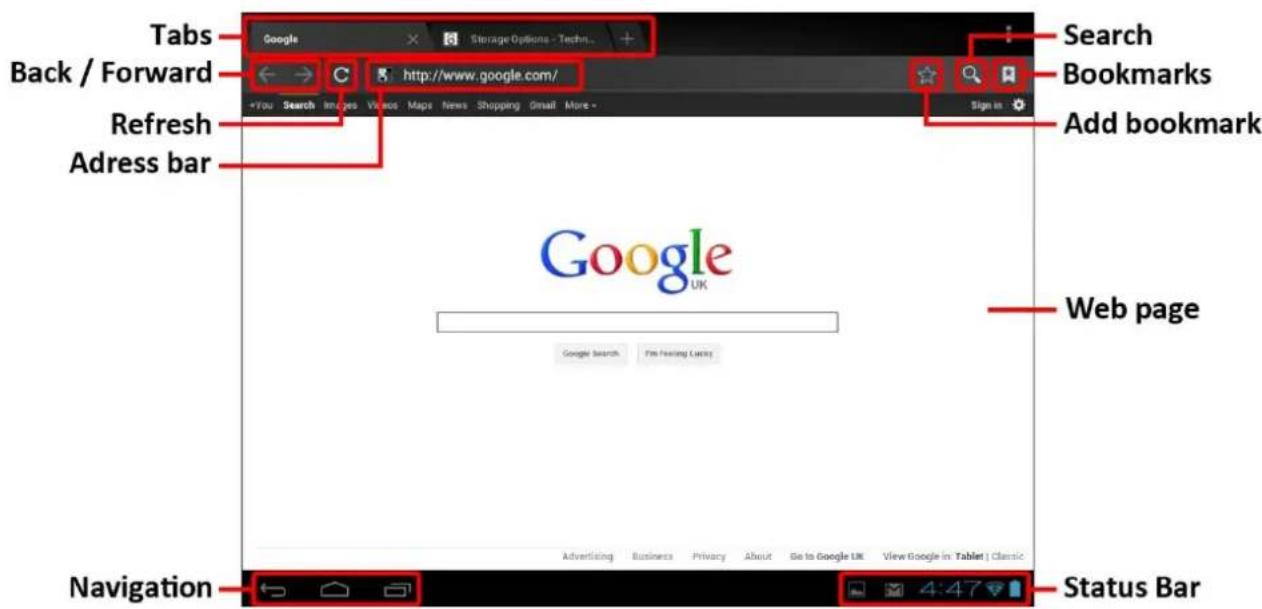
Tabs Back / Forward Refresh Adress bar Google Storage Options - Techn... http://www.google.com/ Search Bookmarks Add bookmark Google UK Google Search I'm Feeling Lucky Web page Navigation 4:47 Status Bar- Use tabs to load mulple websites and switch between them.
- Use the address bar to go directly to a website if you know its address.
• Use ← / → (back / forward) and C (refresh) to navigate pages in the current tab. - Touch the icon to bookmark the current page.
- Touch the ★ icon to select any previously stored favourite websites.
- Touch the icon to perform an Internet search.
VIDEO PLAYBACK
Scroll Engage is a powerful portable media player. The "Gallery" applicaon can play video and display photos that are stored on either internal memory or a Micro SD card.
To use the Gallery:
- Touch the "Gallery" icon on the Applicaons menu. The Gallery applicaon will open.

-
The Gallery will automatically nd your media and arrange it in a thumbnails view. If you have mulple folders, it will show them rst. Touch a folder to select it, then you will be shown the media les in that folder.
-
Touch the thumbnail to play the le.
TIP
To view more informaon about a le (such as duraon, size and locaon), touch and hold its thumbnail, then touch the ☐buon and select "Details".
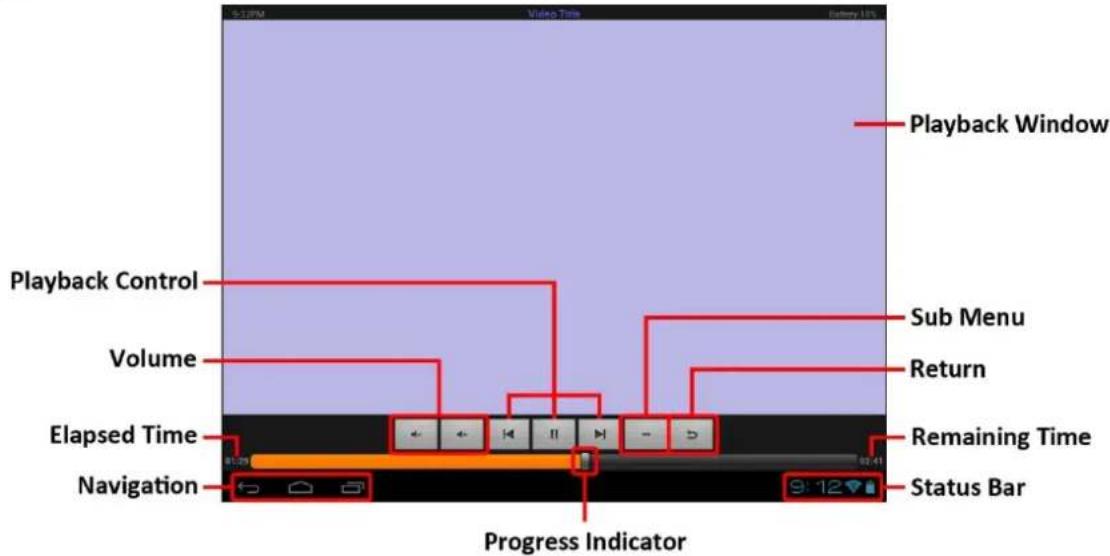
Video les will play back in full screen mode. For a few seconds during the start of playback, the user interface will be displayed:
text_image
5:12PM Video Time Battery 18% Playback Window Playback Control Volume Elapsed Time Navigation Sub Menu Return Remaining Time Status Bar Progress Indicator• Use playback control buons to play / pause or skip backwards / forwards between videos.
- Drag the progress indicator le or right to fast forward or rewind the video.
• The Sub Menu provides further opons for subtles, repeat play, aspect rao etc.
- Touch the screen to reacvate the controls aer they have disappeared from view.
14.2 - PLAY 3D CONTENT ON YOUR HDTV
Scroll Engage can also be connected to your big-screen HDTV for Full HD and 3D video playback.
NOTE
You will need a 3D compatible Mini HDMI to HDMI cable to connect to a 3D HDTV.
To connect to your HDTV:
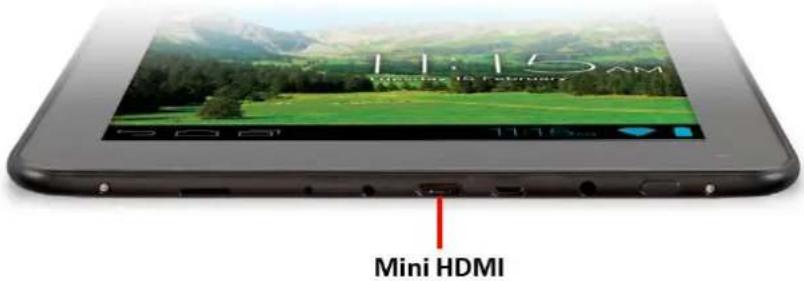
- Using a Mini HDMI to HDMI cable, plug the Mini HDMI connector into Scroll Engage's Mini HDMI socket, and the full size HDMI plug into your HDTV's HDMI socket.
text_image
11:15 AM Date: 16 February Mini HDMI- Switch to the appropriate input on your HDTV. Refer to your TV's manual for instrucons on how to do this.
- Scroll Engage will automatically detect the HDMI conncon and display an image on your TV screen.
Scroll Engage supports 3D video playback on a compatible 3D HDTV. Simply play your 3D video in the same way you would play 2D video, and on your 3D HDTV select the appropriate 3D mode (le/right or top/boom, see examples below). Refer to your TV's manual for instrucons on how to do this.
| VIDEO MODE | DISPLAY | TV MODE |
| Le / Right |  | L/R |
| Top / Boom |  | T/B |
7 DIGITAL MUSIC SERVICE
7digital is a digital music content delivery and management applicaon. With over 17 million tracks available in MP3 format from all major labels, 7digital has something for everyone.

The 7digital applicaon is pre-loaded on Scroll Engage. See secon "12.5 – Pre-Loaded Applicaons" (page 18) for instrucons on how to install.
To use 7digital:
- On the Applicaons menu, touch the 7digital applicaon to launch it.
-
You will be presented with the latest releases and you can swipe across the screen to see more.
-
When you try to purchase music, you will be asked to either create an account, or sign in to your existing account. You can also sign in from the opons menu; touch the "Buon" then go to "Sengs" → "General" and choose "Sign In".
There are many funcons available in 7digital. Refer to hp://www.7digital.com for full informaon. To get started quickly, you should become familiar with these icons:
- Use the funcon at the top of the screen to type a search term for your favourite arst.
- Touch 📄 to switch to your local music collecon. This can include music purchased from 7digital and / or music stored on your tablet (e.g. on a Micro SD card).
TIP
It is recommended to store your music collecon in a folder called "Music" in the root of the card.
- Touch ⚙ to switch back to the home screen where you can browse the latest releases.
To change the default currency:
- Touch the ■buon at the top right of the screen, then choose "Sengs".
-
Scroll down the list until you end the "General" secon, and touch "Country".
-
Choose your preferred country from the list on screen. The currency displayed on the 7 digital store will change to match.
NOTE
For support and further informaon on the 7digital music service, please visit http://www.7digital.com.
WILD TANGENT GAMES SERVICE
WildTangent provides a gaming service for Scroll Engage where users can trial, rent or own top games, based on WildCoins. WildCoins are a digital currency which can be purchased in packs or as a subscrispon. Users can also play for free in exchange for viewing an advert from a brand adverser.

The WildTangent Games applicaon is pre-loaded on Scroll Engage. See secon "12.5 - Pre-Loaded Applicaons" (page 18) for instrucons on how to install.
To use WildTangent:
- Open the WildTangent Games applicaon from the Applicaons menu.
- Sign into your account, or if you do not have one, select the "Create an account" opon. Follow the on-screen instrucons to create an account.
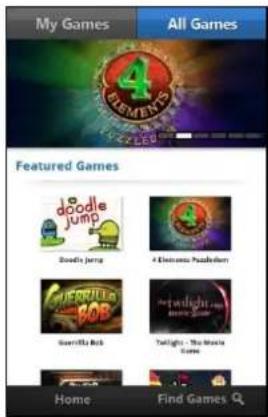
- The main interface will launch and automacally show the latest games. Browse the featured games on this page, or touch the "Find Games" buon to search for a specific type of game.
- Touch a game's icon to view details.
The "My Games" tab shows all games currently installed on Scroll Engage. Touch a game's icon to launch it.
Touch and hold a game icon to open a sub menu with the following opons:
- Play to launch the game
- Uninstall to remove the game from Scroll Engage
- Stop Renng if you wish to disconnue renng (if applicable)
text_image
My Games All Games 4 TIEMEX'S 2 LED Featured Games doodle jump Doodle Jump 4 Electronics Paddellery JUERRICKS GOB Guarilla Rob Twilight - The Movie Game Home Find Games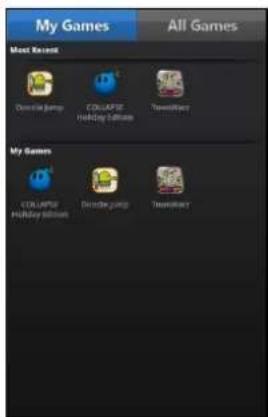
text_image
My Games All Games Meet Recent Console Jump COLOAPIE holiday Editions TransWires My Games COLOAPIE Holiday Editions Console Jump TransWiresTIP
Games installed via the WildTangent applicaon will also be available to launch from Scroll Engage's own Applicaons menu.
While in the WildTangent applicaon, press the button to launch the context menu for further opons.
NOTE
For support and further informaon on WildTangent, please visit hp://www.wildtangent.com.
BUILT-IN CAMERAS
The Camera applicaon lets you take photographs and record video clips using the built-in cameras.
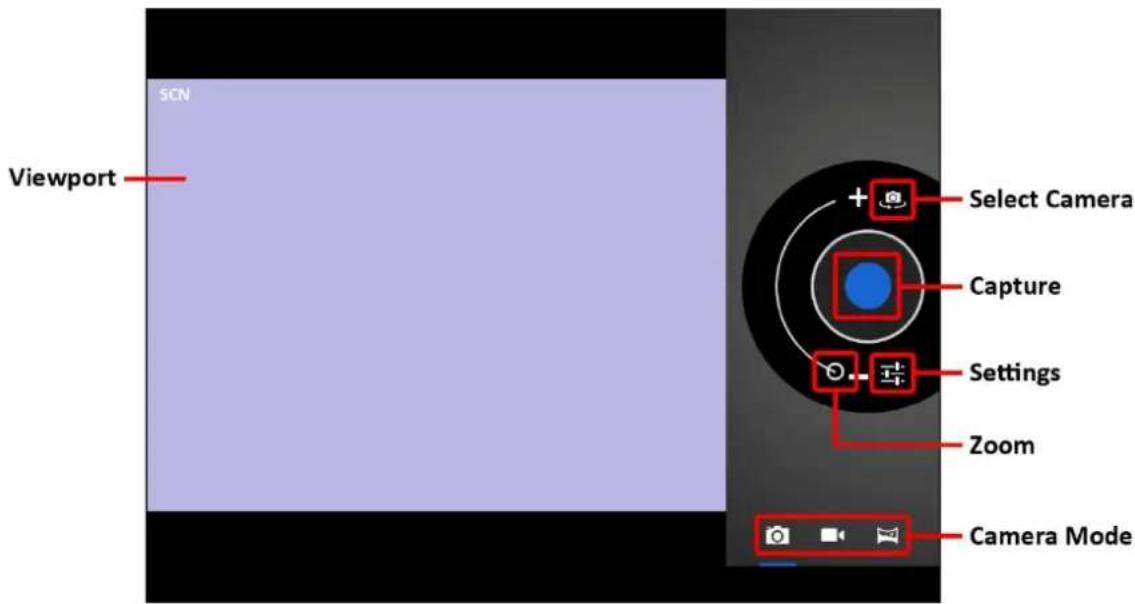
- Launch the "Camera" applicaon from the Applicaons menu by touching the Camera icon:

text_image
5CN Viewport Select Camera Capture Settings Zoom Camera Mode- Touch to switch between the front and rear cameras.
- Use the Viewport to align the scene you would like to capture.
- Slide the Zoom indicator along its track to zoom in or out.
- Touch to change white balance, exposure and other sengs.
- Touch the Capture buon to record.
There are three camera modes:
| ICON | CAPTURE BUTTON | DESCRIPTION |
 | Sll picture mode | |
 | Video recording mode | |
 | Panoramic sll mode – capture very wide photographs |
MEMORY EXPANSION WITH MICRO SD CARD
Scroll Engage features built-in ash memory, which can be expanded using a Micro SD card (not included). You may use any Micro SD or Micro SDHC card, up to 32GB capacity.
The best way to use a Micro SD card is to treat it as media storage; transfer media les (videos, music and photos) from your computer to your Micro SD card in the usual manner, then insert it into Scroll Engage as shown:
To insert and use a Micro SD card:
- Push the Micro SD card into the slot indicated in the diagram below, unl it clicks and locks in place.
- Scroll Engage will automacally mount the Micro SD card for use.

text_image
11:15 AM S3 Card 8.0% 8.0%To eject a Micro SD card:
- Push the Micro SD card inwards slightly until it clicks, then release pressure. It will pop out from the socket.
It is recommended to organise your Micro SD card by creang folders for dierent media types in the root:

text_image
micro s2 eBooks Music Pictures VideosPlace your media les in the respective folders. This may help if you need to instruct an application where to look for media les.
NOTE
For third party applicaons you may need to point them to the Micro SD card to read your media les. Refer to the instrucons specic to each applicaon for direcons on how to do this.
CONNECT TO A COMPUTER
Scroll Engage can be connected to a computer running Microso Windows for le transfer via USB cable.
To connect to a computer:
- Using the supplied USB cable, plug the micro USB connector into Scroll Engage's USB socket, and plug the full-size USB plug into an available USB socket on your computer.
text_image
11:15 AM USB Host-
Windows may present you with a "New Hardware Wizard". Please click the "Cancel" upon to close this.
-
On Scroll Engage, touch the status bar at the boom of the screen.
-
Touch the "USB connected" opon, then choose "Turn on USB storage".

text_image
USB Mass Storage USB connected You have committed to your computer via USB. Touch the button before if you need to reply. Make between your computer and your Android's 50 card. Turn on USB storageScroll will appear as mass storage on your computer and will be assigned the next available drive leer within "My Computer" or "Windows Explorer".
Drag and drop les from your computer's storage drives onto Scroll Engage, just like you would with any other external storage device.
It is recommend to organise your media les into separate folders for each type, e.g. ebooks, music, pictures and videos.
To disconnect from a computer:
-
Touch the "Turn o USB storage" buon to un-mount the ash memory.
-
Disconnect the USB cable.
NOTE
Failure to un-mount the ash memory could prevent Android ^TM applicaons from being able to access the memory, and cause errac behaviour. Always un-mount before disconnecting the USB cable.
PRODUCT SPECIFICATION
Scroll Engage
text_image
Scroll Engage 8" TABLET PC ANDROID 4.0 ICS HIGH RESOLUTION XGA SCREEN A SLEEK, ENGAGING TABLET EXPERIENCE| Hardware | |
| Unit Size (mm): | 200 x 153 x 10 |
| Unit Weight: | 395g |
| CPU: | Cortex 1.2GHz |
| GPU: | Dual Mali 400 graphics processor |
| RAM: | 1 GB |
| Built-in Storage: | 8 GB |
| Storage Expansion: | Micro SD card, up to 32 GB |
| Display: | 8" High Resoluon, Capacive touch |
| Resoluon: | 1024 x 768, 4:3 |
| Baery Type: | Rechargeable lithium |
| Baery Capacity: | 4200 mAh |
| USB Port: | 1x Micro USB |
| Connectivity: | 1x Mini HDMI , 1x Headphones, 1x MicroSD |
| Speaker: | 8 Ω / 1W |
| Wireless Connecvity: | 802.11b/g/n |
| Soware | |
| Operang System: | Android^TM 4.0 |
| Web Browser: | Pre-installed |
| Video Support: | AVI, H.264, MPEG2, MPEG4, MKV, MP4Supports 1080p 3D video output |
| Audio Support: | MP3, AAC, AC3, WAV |
| Photo Support: | JPEG, BMP, GIF, PNG, TIFF |
| 3D Gaming: | OpenGL rendering |